Skip to content
WP Go Maps Documentation
Home

Initial Setup

3
  • Installing the Plugin
  • Map Engine Selection Guide
  • Changing your Map Engine

Map Engines

8
  • Creating a Google Maps API key
  • Protecting your Google Maps API key from unauthorized use – Setting up website restrictions (HTTP referrers)
  • Creating an Azure Maps subscription key
  • Creating a Stadia Maps API Key
  • Creating a MapTiler API Key
  • Creating a LocationIQ Access Token
  • Address Providers
  • Tile Servers & Tilesets

First-time users

3
  • Creating your first map
  • Creating your first marker
  • Displaying your Map on your WordPress site

Map Features

50
  • Map Features Overview
  • Accessibility and WCAG Compliance
  • Shortcodes
    • Shortcodes – Quick Start
    • Map Shortcode
    • Store Locator Shortcode
    • Category Filter Shortcode
    • Category Legends Shortcode
    • Infowindow Shortcode
    • Marker Listing Shortcode
    • Directions Shortcode
    • Using WP blocks
  • Markers
    • Editing a Marker
    • Marker Gallery
    • Fine-tuning a Marker’s position
    • Adding video to your Marker
    • Embedding iframes in your markers
    • Customizing your info Window
    • Info Window Styles
    • Using Custom marker Icons on your map
    • Sticky Markers
    • Adding Custom fields to your Marker
    • Marker Listing
    • Enabling distance features
  • Map Display
    • Setting your Map type
    • Using your map in a widget
    • Styling Wizard
    • Using GET variables to Control your Map
  • Filtering
    • Store Locator
    • Marker Filtering
    • Enabling the category Legend
    • Shape Filtering
  • Shapes
    • Shape Info Windows
    • Shape Library
    • Polyline & Polygon Line Styles
  • Performance & Analytics
    • Optimization
    • Map Insights
    • Marker Caching
  • Drawing Tools
    • Adding a Polygon
    • Adding a Polyline
    • Adding a Circle
    • Adding a Rectangle
    • Adding an image overlay
    • Adding a Point Label
    • Adding a Heatmap
  • Themes
    • Creating a Custom Map Theme – Google maps engine
    • Change your Map Theme – Theme Presets for OpenLayers & Leaflet
    • Edit your Map Theme – Theme Editor for OpenLayers & Leaflet
    • Using a custom image as a map tile
  • Directions
    • Enabling Directions
    • Enabling Directions with OpenRouteService

Integrations

8
  • Integrations Overview
  • WooCommerce – Checkout Map
  • WooCommerce – Product Location Editor
  • Translating the plugin with WPML
  • Post Type Locations
  • Advanced Custom Fields
    • Advanced custom fields
    • Enabling simple ACF Fields for display in the description field of the Info Windows of your ACF Map
    • Using Custom images as the marker icons for your ACF map markers

Importing and Exporting Data

5
  • Importing Files
  • Exporting Data and Settings
  • Bulk JPEG Import
  • Using KML and GeoRSS files
  • Improving Reliability of Scheduled Imports

Frequently Asked Questions

34
  • System Requirements
  • How to create an Administrator account for Support agents
  • GDPR
  • Licensing & Account
    • Why am I getting “Domain Limit Exceeded” for my License key
    • Purchase Model
    • Plugin Licenses
    • I am an NPO
    • I did not receive my invoice?
    • How can I upgrade my purchase of WP Go Maps
    • Where can I get a new download of the plugin
    • How do I update WP Go Maps?
  • Map Functionality
    • Map Tilt Controls
    • Marker Render Mode
    • Finding Custom Marker Icons
    • Why did my suggestions stop working?
    • How do I change scroll/pan behaviour on a mobile device
    • How do I dynamically set the search area in the Store locator
    • How do I Start the map in Street View
    • How to Create a Marker Cluster (Group)
    • How to use real time tracking
    • Marker Ratings
    • Why aren’t my ACF, WooCommerce or Post Locations Markers showing on my map?
  • Technical
    • How to add Support agents to your Google API Project
    • How do I change the WP Go Maps Plugin Language
    • How do I restrict Autocomplete to a Specific Country
    • Using WP Go Maps with Elementor
    • How can I disable externally hosted Google fonts so that I can be GDPR compliant?
    • WP Go Maps and Webcraftic Clearfy
    • I have a Customization Request
  • User Generated Content
    • How to allow visitors to create markers
    • Separating the VGM form from the Map
  • Integrations
    • WP Rocket – Map Won’t Load
    • Real Cookie Banner – Map Won’t Load
  • Hosting
    • One.com – Markers not loading

Troubleshooting

12
  • Autocomplete Disabled
  • Use my location is not working
  • I’m Getting a Maps Multiple API Error
  • I’m Getting a “jQuery not found” Error
  • My Map is Not Showing On My Website
  • Markers Are Not Showing on My Map on the Front-end
  • API Not Activated Map Error
  • This page can’t load Google Maps correctly
  • This API project is not authorized to use this API
  • Geocode failed (Request denied) error
  • My import is not working – Geocode failed (Missing address, lat and lng) (Rows: 2, 3, 4, 5, 6, 7, 8….)
  • This folder does not exist, please create it.

Customization

9
  • Customization Guides
  • Markers & Info Windows
    • Dynamic Marker Creation
    • Open Marker by Title (URL)
    • Open Marker by Marker Field (URL)
    • Updating Panel Info Window Dynamically
  • Maps
    • Map Manipulation
    • Refresh Map in Realtime
  • Database
    • Creating a Marker (PHP)
    • Edit & Remove Marker (PHP)

Developers

91
  • Basic Changelog
  • Pro Changelog
  • Gold Changelog
  • VGM Changelog
  • Templates
    • Template Overrides
  • Hooks
    • Filters
      • Basic
        • wpgooglemaps_filter_map_div_output
        • wpgmza_admin_persistent_notices_dynamic_titles
        • wpgmza_admin_persistent_notices_dynamic_messages
        • wpgmza_admin_persistent_notice
        • wpgmza_admin_ui_menu_current_action
        • wpgmza_create_{$class}
        • wpgmza_gdpr_notice
        • wpgmza_gdpr_settings_tab_content
        • wpgmza_plugin_get_default_settings
        • wpgmza_google_maps_api_params
        • wpgmza_internal_engine_build_version_plugins
        • wpgmza_internal_engine_build_version_flags
        • wpgmza_internal_engine_build_version
        • wpgmza_xml_cache_generated
        • wpgmza_fetch_integrated_markers
        • wpgmza_plugin_get_localized_data
        • wpgmza_settings_danger_zone_truncate_tables
        • wpgmza-get-library-dependencies
        • wpgmza_global_settings_tabs
        • wpgmza_global_settings_tab_content
        • wpgmza_global_settings_save_redux
        • wpgmza_map_shortcode_get_default_attributes
        • wpgmza_shortcode_map_options
        • wpgmza_map_shortcode_get_html_attributes
        • wpgmza_shortcode_map_components
        • wpgmza_shortcode_map_container_before
        • wpgmza_shortcode_map_container_inside
        • wpgmza_shortcode_map_container_after
        • wpgmza_sl_shortcode_get_default_attributes
        • wpgmza_standalone_component_classlist
        • wpgmza_standalone_component_wrap_attributes
        • wpgmza_store_locator_radii_options
        • wpgmza_localized_strings
        • wpgmza_system_info_compile_items
        • wpgmza-map-editor-navigation-{$dataGroup}
        • wpgmza-map-editor-settings-{$dataGroup}
        • wpgmza-map-editor-settings-blocks
        • wpgmza-map-editor-sidebar-blocks
        • wpgmza_styling_settings_save
    • Actions
      • Basic
        • wpgmza_admin_notice_process_background_action
        • wpgooglemaps_hook_user_js_after_core
        • wpgooglemaps_basic_hook_user_js_after_core
        • wpgooglemaps_hook_user_js_after_localize
        • wpgmza_admin_persistent_notices_create_defaults
        • wpgmza_admin_ui_menu_registered
        • wpgmza_admin_ui_menu_items_added
        • wpgmza_admin_ui_render_content_before
        • wpgmza_admin_ui_render_{$action}_before
        • wpgmza_admin_ui_render_{$action}_after
        • wpgmza_admin_ui_render_content_after
        • wpgmza_check_map_editor_backwards_compat
        • wpgmza_admin_ui_render_content_before
        • wpgmza_admin_ui_render_{$pageSlugged}_before
        • wpgmza_admin_ui_render_{$pageSlugged}_after
        • wpgmza_admin_ui_render_content_after
        • wpgmza_country_select_created
        • wpgmza_require_feature_classes
        • wpgmza_installer_page_created
        • wpgmza_installer_page_on_post
        • wpgmza_map_list_page_created
        • wpgmza_xml_cache_saved
        • wpgmza_page_dom_add_form_nonces
        • wpgmza_plugin_core_on_activate
        • wpgmza_plugin_core_on_deactivate
        • wpgmza_plugin_core_on_init
        • wpgmza_plugin_core_on_first_run
        • wpgmza_plugin_load_scripts
        • wpgmza_plugin_core_update_all_xml_files
        • wpgmza_settings_danger_zone_before_delete
        • wpgmza_settings_danger_zone_after_delete
        • wpgmza_register_rest_api_routes
        • wpgmza_rest_api_init
        • wpgmza_script_loader_enqueue_styles
        • wpgmza_enqueue_scripts
        • wpgmza_script_loader_enqueue_scripts
        • wpgmza_script_loader_localize_data_complete
        • wpgmza_script_loader_enqueue_custom_js
        • wpgmza_script_loader_enqueue_custom_css
        • wpgmza_script_loader_enqueue_codemirror
        • wpgmza_script_loader_enqueue_writersblock
        • wpgmza_global_settings_page_created
        • wpgmza_shortcodes_registered
        • wpgmza_shortcode_before_output
        • wpgmza_base_upgrade_hook
        • wpgmza_map_edit_page_created
        • wpgmza_styling_page_created

Archived: Legacy (V9)

39
  • First-time users (Legacy)
    • Creating your first map (Legacy)
    • Creating your first marker (Legacy)
    • Displaying your Map on your WordPress site (Legacy)
  • Map Features (Legacy)
    • Store Locator (Legacy)
    • Shortcodes (Legacy)
    • Setting your Map type (Legacy)
    • Using GET variables to Control your Map (Legacy)
    • Using your map in a widget (Legacy)
    • Markers (Legacy)
      • Editing a Marker (Legacy)
      • Sticky Markers (Legacy)
      • Marker Gallery (Legacy)
      • Enabling distance features (Legacy)
      • Marker Filtering (Legacy)
      • Embedding iframes in your markers (Legacy)
      • Adding video to your Marker (Legacy)
      • Customizing your info Window (Legacy)
      • Marker Listing (Legacy)
      • Using Custom marker Icons on your map (Legacy)
      • Adding Custom fields to your Marker (Legacy)
      • Fine-tuning a Marker’s position (Legacy)
    • Drawing Tools (Legacy)
      • Adding a Polygon (Legacy)
      • Adding a Polyline (Legacy)
      • Adding a Circle (Legacy)
      • Adding a Rectangle (Legacy)
      • Adding a Heatmap (Legacy)
    • Themes (Legacy)
      • Creating a Custom Map Theme – Google maps engine (Legacy)
      • Change your Map Theme – Theme Presets (Legacy)
    • Directions (Legacy)
      • Enabling Directions (Legacy)
      • Enabling Directions for OpenLayers (Legacy)
    • User Interface Style (Legacy)
      • User Interface Style (Legacy)
  • Integrations (Legacy)
    • Advanced custom fields (Legacy)
    • Translating the plugin with WPML (Legacy)
    • WooCommerce – Product Location Editor (Legacy)
    • WooCommerce – Checkout Map (Legacy)
  • Importing and Exporting Data (Legacy)
    • Importing Files (Legacy)
    • Exporting Data CSV
    • Exporting Data (JSON)
    • Bulk JPEG Import (Legacy)
    • Using KML and GeoRSS files (Legacy)
View Categories
  • Home
  • Docs
  • Initial Setup
  • Installing the Plugin

Installing the Plugin

4 min read

All CODECABIN_ plugins are built according to WordPress standards, and installing them is as easy as 1, 2, 3. This article will show you how to install all of the WP Go Maps plugins from Basic and Pro all the way to the Developer Bundle.

Please use the following links to navigate to the section you need:

  • Basic Version
  • Pro Add-on
  • Gold and Visitor Generated Marker Add-ons
  • Developer Bundle

Basic Version #

Log into your WordPress site and navigate to WordPress Dashboard → Plugins → Add New.

In the Search box at the top-right of the screen, type the words “WP Go Maps” and press {Enter}.

Search for the WP Go Map Plug

Search for the WP Go Map Plug

Click the Install Now button shown in the screenshot below. The plugin will install without any intervention.

Select the "Install Now" button to install

Select the “Install Now” button to install

Click the Activate button shown in the screenshot below. The plugin will activate.

Select the "Activate" button to activate

Select the “Activate” button to activate

Click Installed Plugins in the left sidebar of the WordPress Dashboard. You should see the activated WP Go Maps plugin in your list of installed plugins as shown in the screenshot below.

WP Go Maps in the installed plugins list

WP Go Maps in the installed plugins list

You can access the WP Go Maps plugin by clicking the Maps link in the left sidebar of the WordPress Dashboard.

All of the components that follow are premium products which require purchasing. The Pro version is an Add-on to the Basic version which means that the Basic version must be installed and activated in order to install and run the Pro version.  The Gold Add-on and the Visitor Generated Markers Add-on require the Pro Add-on. That means that the Pro Add-on must be installed and activated in order to install and run the Gold Add-on or the Visitor Generated Markers Add-on.

Pro Add-on #

Once you have purchased the WP Go Maps Pro version and received the Zip file at your PayPal email address (and downloaded it to your computer), log in to your WordPress Dashboard (WordPress Dashboard → Plugins → Add New).
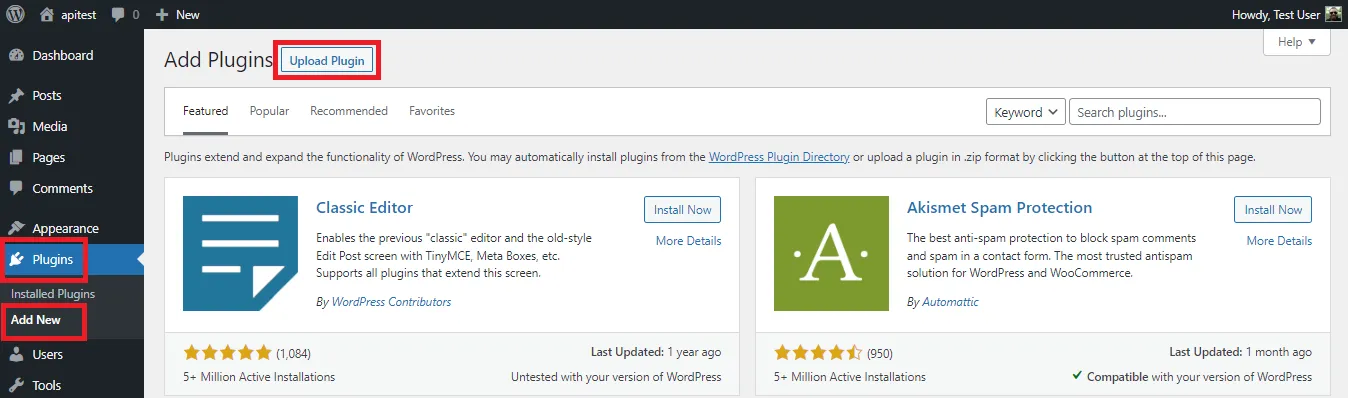
Select "Upload Plugin"

Select “Upload Plugin”

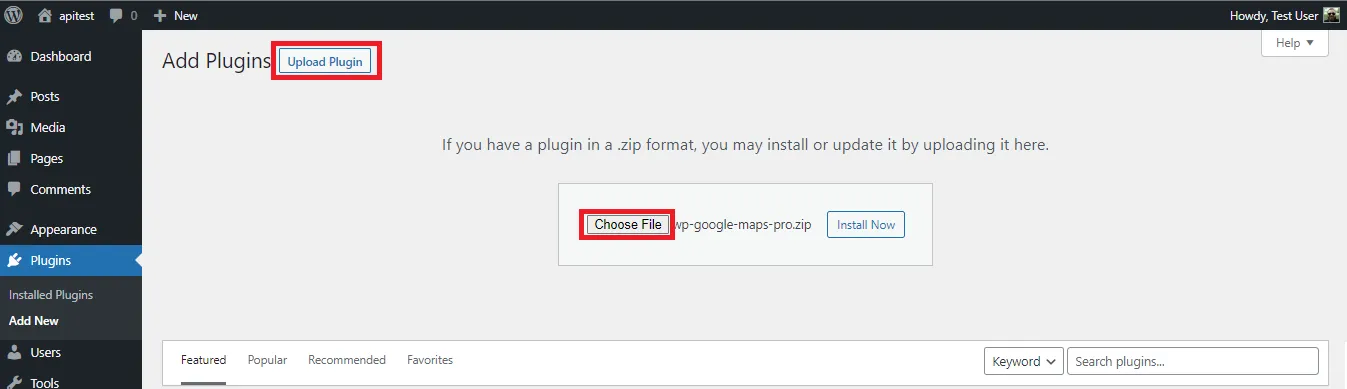
Click on Plugins, then on Add New, and then on the Upload button. You will see the screen below.

  • Navigate to the location where you saved the wp-google-maps-pro.zip file on your computer.
  • This file needs to be named wp-google-maps-pro.zip, if it is not, rename it.
  • Click the Install Now button.
Select "Choose File" and navigate to where you saved the file

Select “Choose File” and navigate to where you saved the file

WordPress will unzip and install the Pro Add-on for you, after which you can activate the plugin. Your list of plugins should look something like the screenshot below. WordPress Dashboard → Plugins → Installed Plugins.
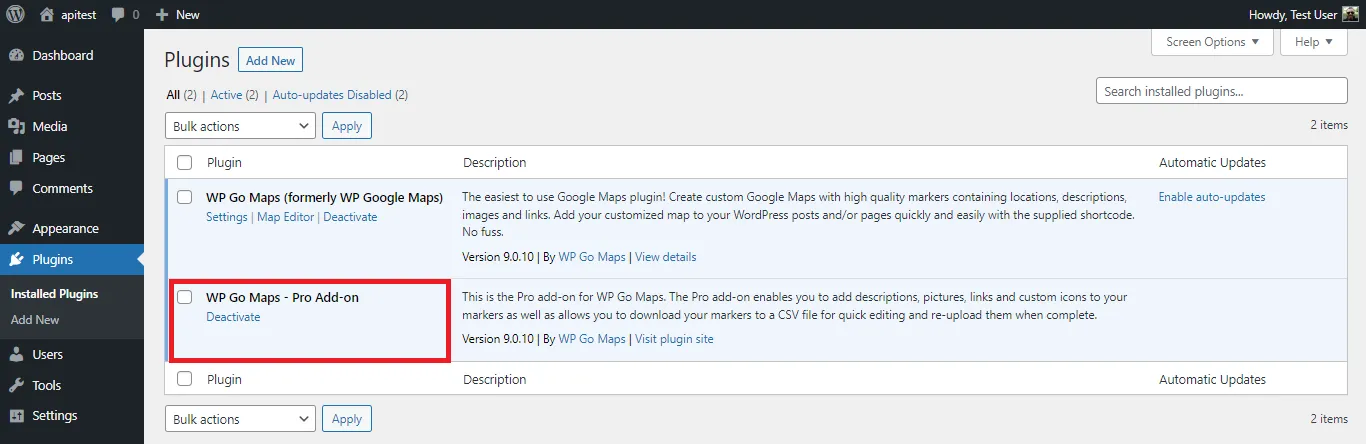
Pro Add-on listed on the installed plugins page

Pro Add-on listed on the installed plugins page

Gold and Visitor Generated Markers #

The Pro Add-on must be installed and activated for the Gold or Visitor Generated Markers Add-ons to work.

To install either the Gold or Visitor Generated Markers Add-on (or both), follow the directions for installing the Pro Add-on given above. If you successfully install both the Gold and Visitor Generated Markers Add-ons, your Installed Plugins listing will look something like this:
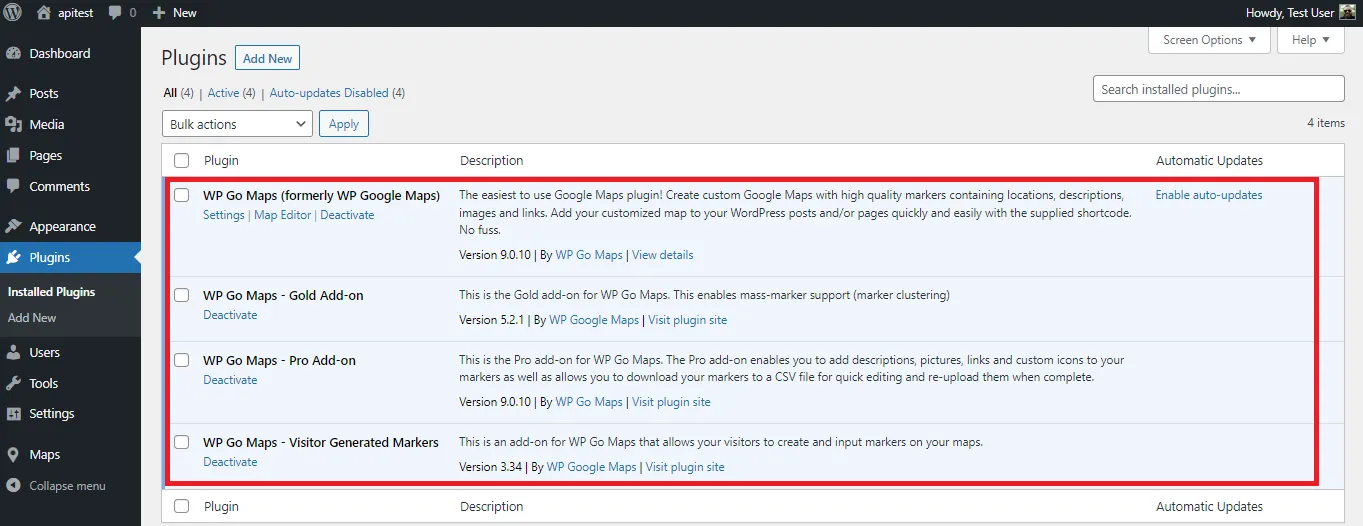
Installed plugins reflecting, Basic, Pro, Gold and VGM plugins

Installed plugins reflecting, Basic, Pro, Gold and VGM plugins

Developer Bundle #

The Developer Bundle is made up of all of the WP Go Maps plugins. Before installing the plugins, you must extract the files.

Extract plugins packaged in the developer bundle

Extract plugins packaged in the developer bundle

Once you have extracted the files, you will find all of the plugins described in this article, except WP Go Maps Basic. Follow the instructions given above to install the plugins in this order:

  1. WP Go Maps Basic
  2. WP Go Maps Pro Add-on
  3. WP Go Maps Gold Add-on
  4. WP Go Maps Visitor Generated Markers Add-on
Plugin files extracted from the Developer Bundle

Plugin files extracted from the Developer Bundle

Updated on January 17, 2025

What are your Feelings

  • Happy
  • Normal
  • Sad

Share This Article :

  • Facebook
  • X
  • LinkedIn
  • Pinterest
Table of Contents
  • Basic Version
  • Pro Add-on
  • Gold and Visitor Generated Markers
  • Developer Bundle
Documentation by WP Go Maps