Front End Workshops
React Native Part II:
Components
Raul Delgado
Marc Torrent
rdelgado@visual-engin.com
mtorrent@visual-engin.com
React Native short Recap
React Native: is a library to generate
native apps for iOS and Android mobile devices capable,
programmed in javascript.
React Native uses the actual native components of each
platform (currently iOS and Android).
Useful Native APIs
React Native Part I
Navigation in React Native Apps
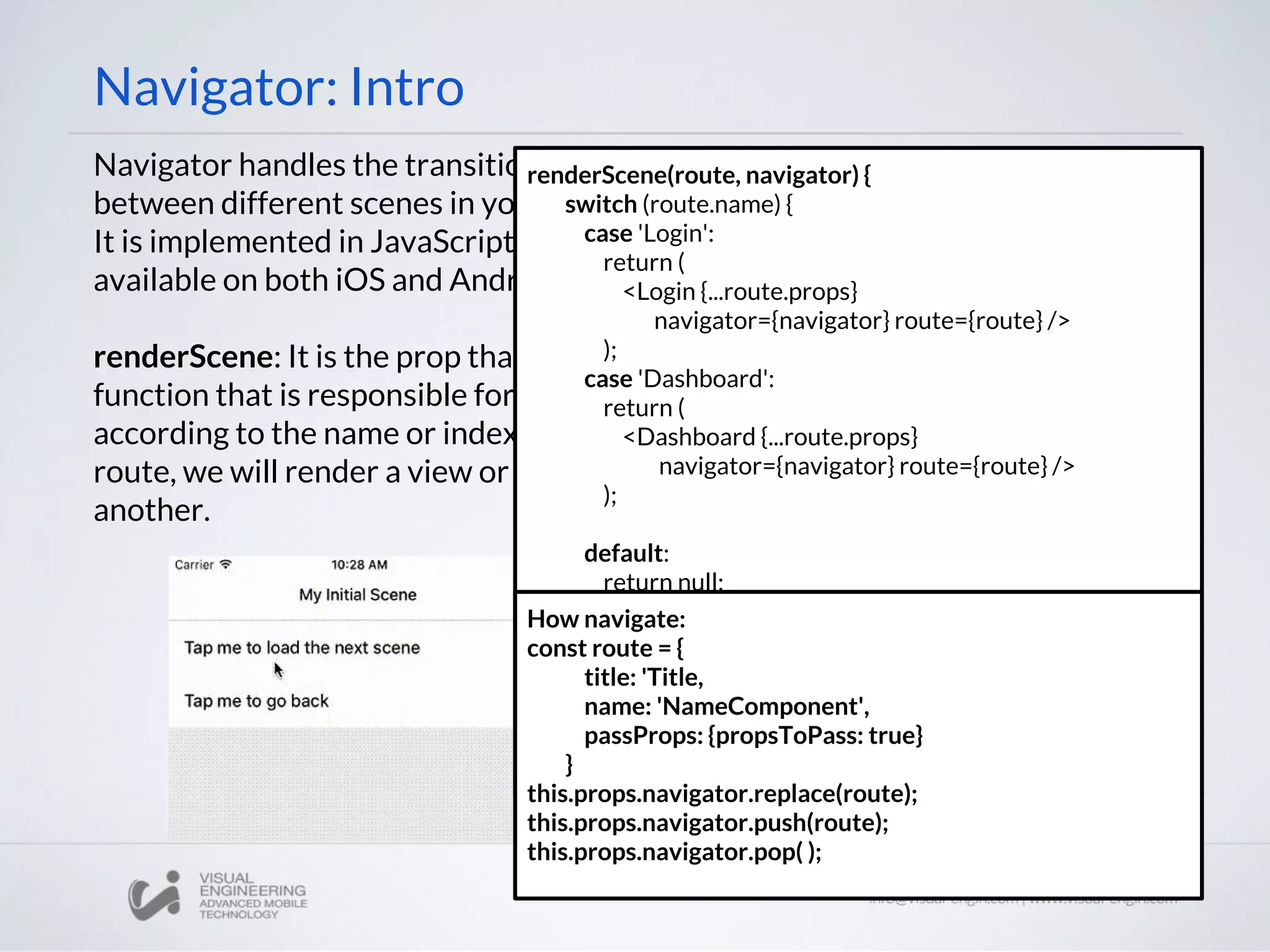
Navigator: Intro
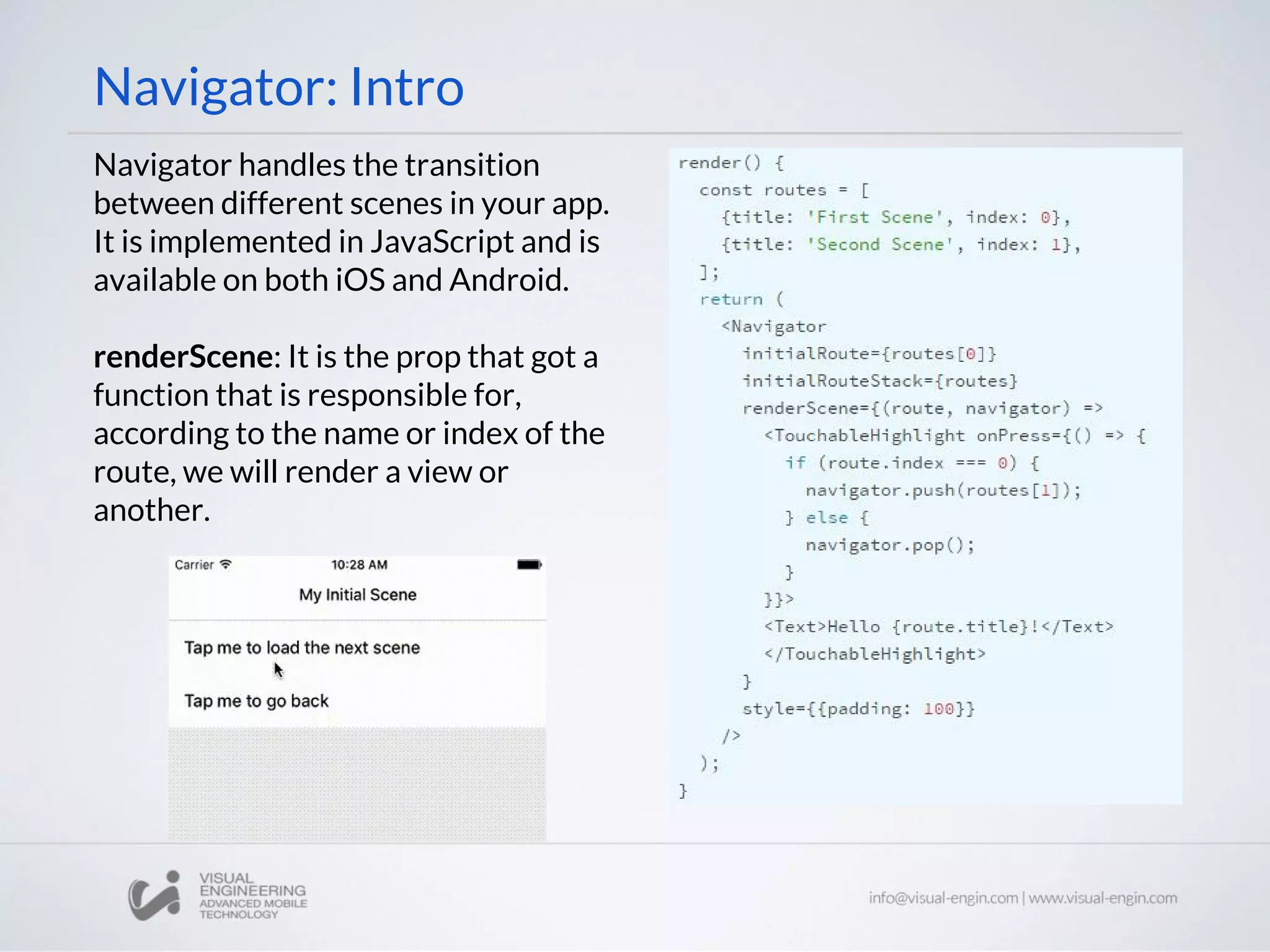
Navigator handles the transition
between different scenes in your app.
It is implemented in JavaScript and is
available on both iOS and Android.
renderScene: It is the prop that got a
function that is responsible for,
according to the name or index of the
route, we will render a view or
another.
Navigator: Intro
Navigator handles the transition
between different scenes in your app.
It is implemented in JavaScript and is
available on both iOS and Android.
renderScene: It is the prop that got a
function that is responsible for,
according to the name or index of the
route, we will render a view or
another.
renderScene(route, navigator) {
switch (route.name) {
case 'Login':
return (
<Login {...route.props}
navigator={navigator} route={route} />
);
case 'Dashboard':
return (
<Dashboard {...route.props}
navigator={navigator} route={route} />
);
default:
return null;
}
}
How navigate:
const route = {
title: 'Title,
name: 'NameComponent',
passProps: {propsToPass: true}
}
this.props.navigator.replace(route);
this.props.navigator.push(route);
this.props.navigator.pop( );
Navigator: Transitions
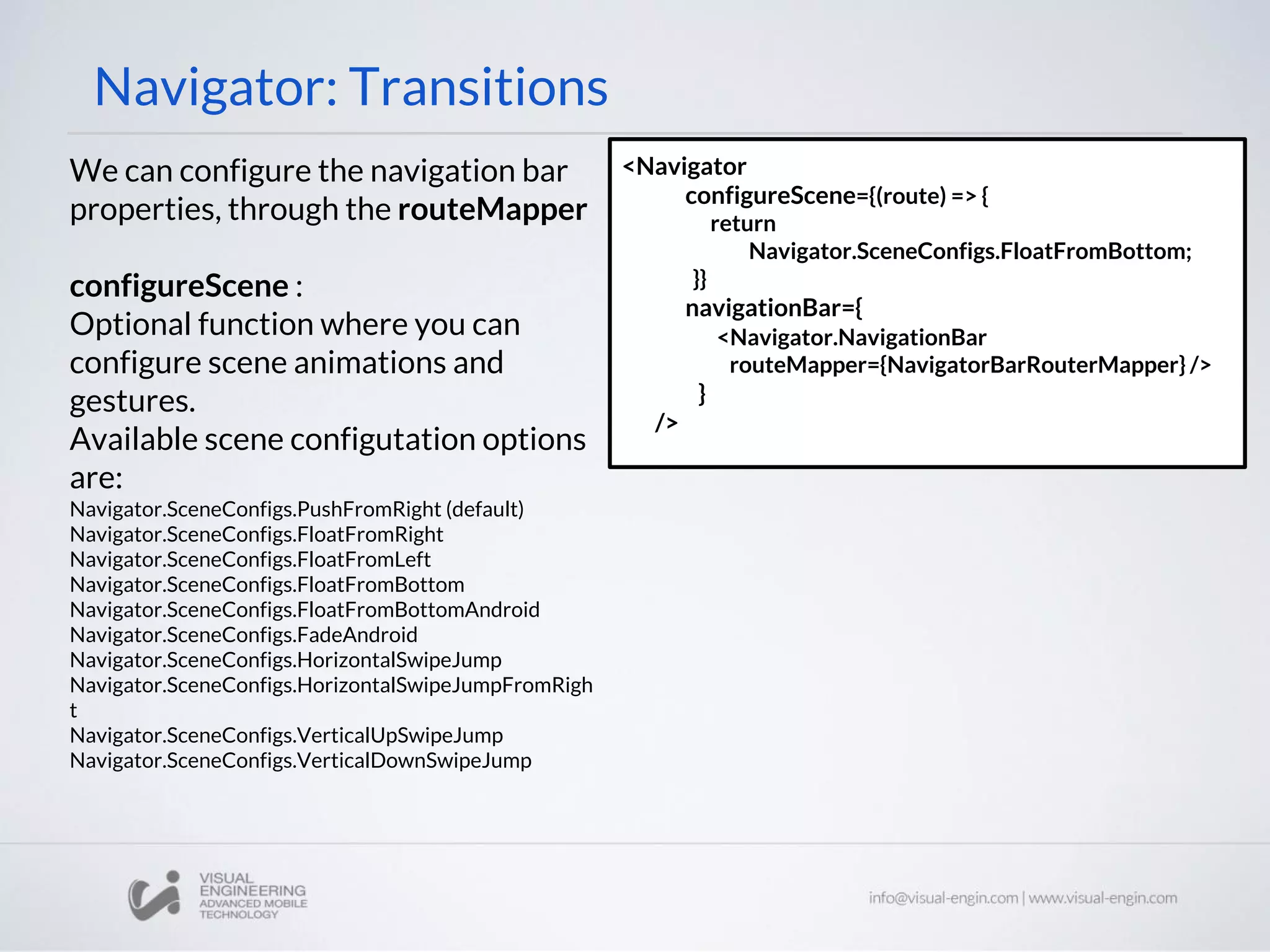
We can configure the navigation bar
properties, through the routeMapper
configureScene :
Optional function where you can
configure scene animations and
gestures.
Available scene configutation options
are:
Navigator.SceneConfigs.PushFromRight (default)
Navigator.SceneConfigs.FloatFromRight
Navigator.SceneConfigs.FloatFromLeft
Navigator.SceneConfigs.FloatFromBottom
Navigator.SceneConfigs.FloatFromBottomAndroid
Navigator.SceneConfigs.FadeAndroid
Navigator.SceneConfigs.HorizontalSwipeJump
Navigator.SceneConfigs.HorizontalSwipeJumpFromRigh
t
Navigator.SceneConfigs.VerticalUpSwipeJump
Navigator.SceneConfigs.VerticalDownSwipeJump
<Navigator
configureScene={(route) => {
return
Navigator.SceneConfigs.FloatFromBottom;
}}
navigationBar={
<Navigator.NavigationBar
routeMapper={NavigatorBarRouterMapper} />
}
/>
Navigator: Transitions
We can configure the navigation bar
properties, through the routeMapper
configureScene :
Optional function where you can
configure scene animations and
gestures.
Available scene configutation options
are:
Navigator.SceneConfigs.PushFromRight (default)
Navigator.SceneConfigs.FloatFromRight
Navigator.SceneConfigs.FloatFromLeft
Navigator.SceneConfigs.FloatFromBottom
Navigator.SceneConfigs.FloatFromBottomAndroid
Navigator.SceneConfigs.FadeAndroid
Navigator.SceneConfigs.HorizontalSwipeJump
Navigator.SceneConfigs.HorizontalSwipeJumpFromRigh
t
Navigator.SceneConfigs.VerticalUpSwipeJump
Navigator.SceneConfigs.VerticalDownSwipeJump
<Navigator
configureScene={(route) => {
return
Navigator.SceneConfigs.FloatFromBottom;
}}
navigationBar={
<Navigator.NavigationBar
routeMapper={NavigatorBarRouterMapper} />
}
/>
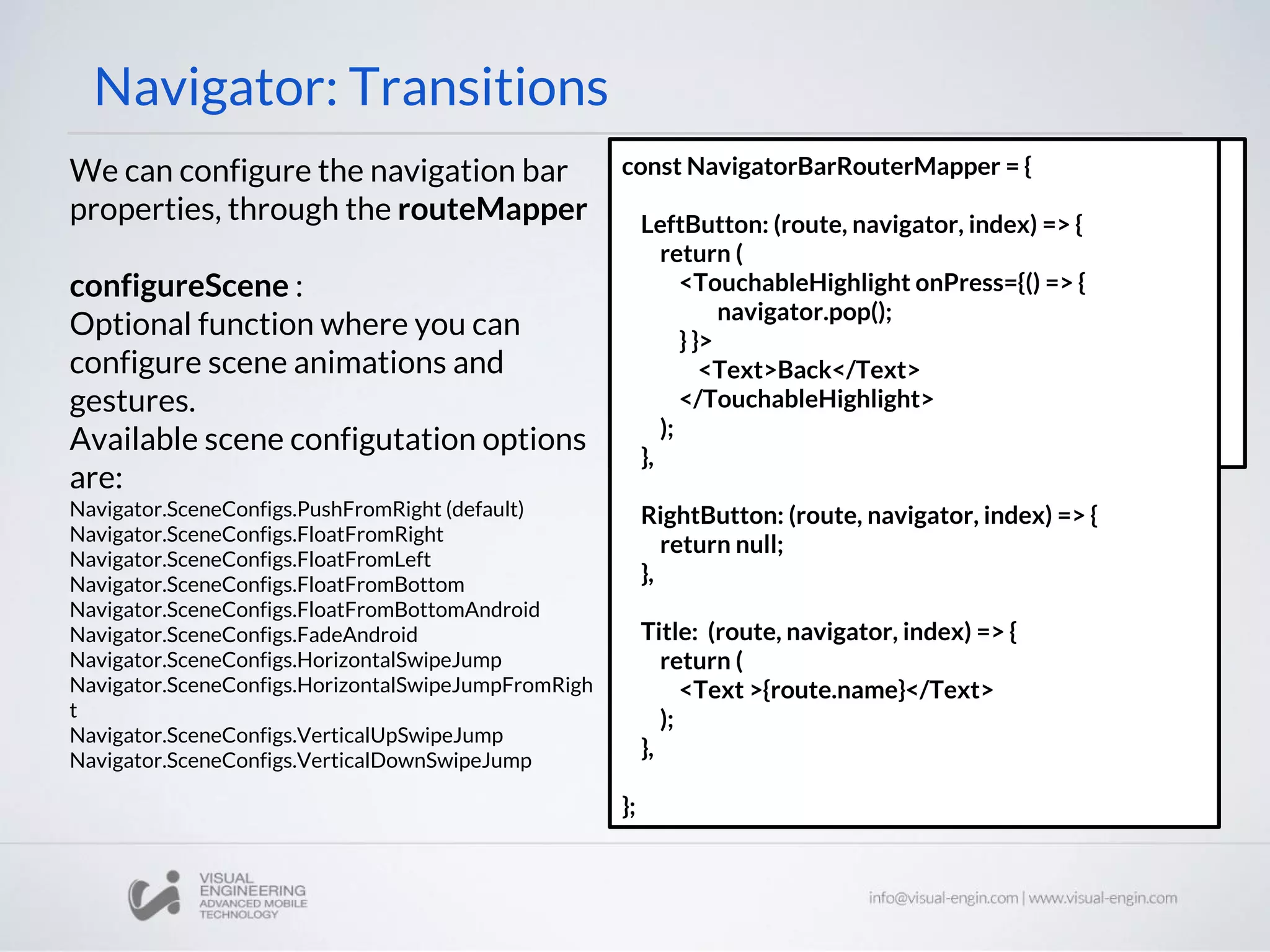
const NavigatorBarRouterMapper = {
LeftButton: (route, navigator, index) => {
return (
<TouchableHighlight onPress={() => {
navigator.pop();
} }>
<Text>Back</Text>
</TouchableHighlight>
);
},
RightButton: (route, navigator, index) => {
return null;
},
Title: (route, navigator, index) => {
return (
<Text >{route.name}</Text>
);
},
};
Tabs & Other Architectural
Components
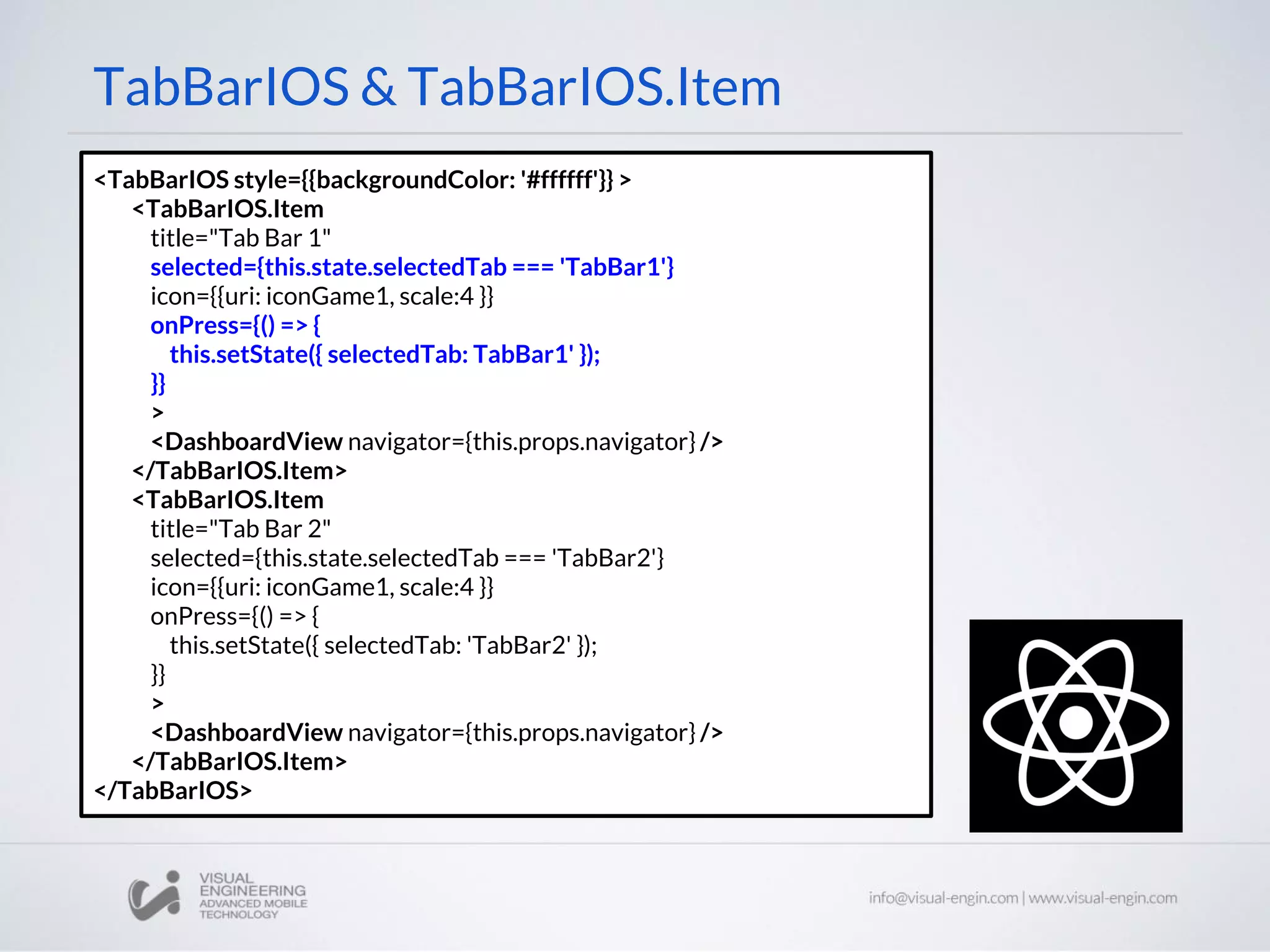
TabBarIOS & TabBarIOS.Item
<TabBarIOS style={{backgroundColor: '#ffffff'}} >
<TabBarIOS.Item
title="Tab Bar 1"
selected={this.state.selectedTab === 'TabBar1'}
icon={{uri: iconGame1, scale:4 }}
onPress={() => {
this.setState({ selectedTab: TabBar1' });
}}
>
<DashboardView navigator={this.props.navigator} />
</TabBarIOS.Item>
<TabBarIOS.Item
title="Tab Bar 2"
selected={this.state.selectedTab === 'TabBar2'}
icon={{uri: iconGame1, scale:4 }}
onPress={() => {
this.setState({ selectedTab: 'TabBar2' });
}}
>
<DashboardView navigator={this.props.navigator} />
</TabBarIOS.Item>
</TabBarIOS>
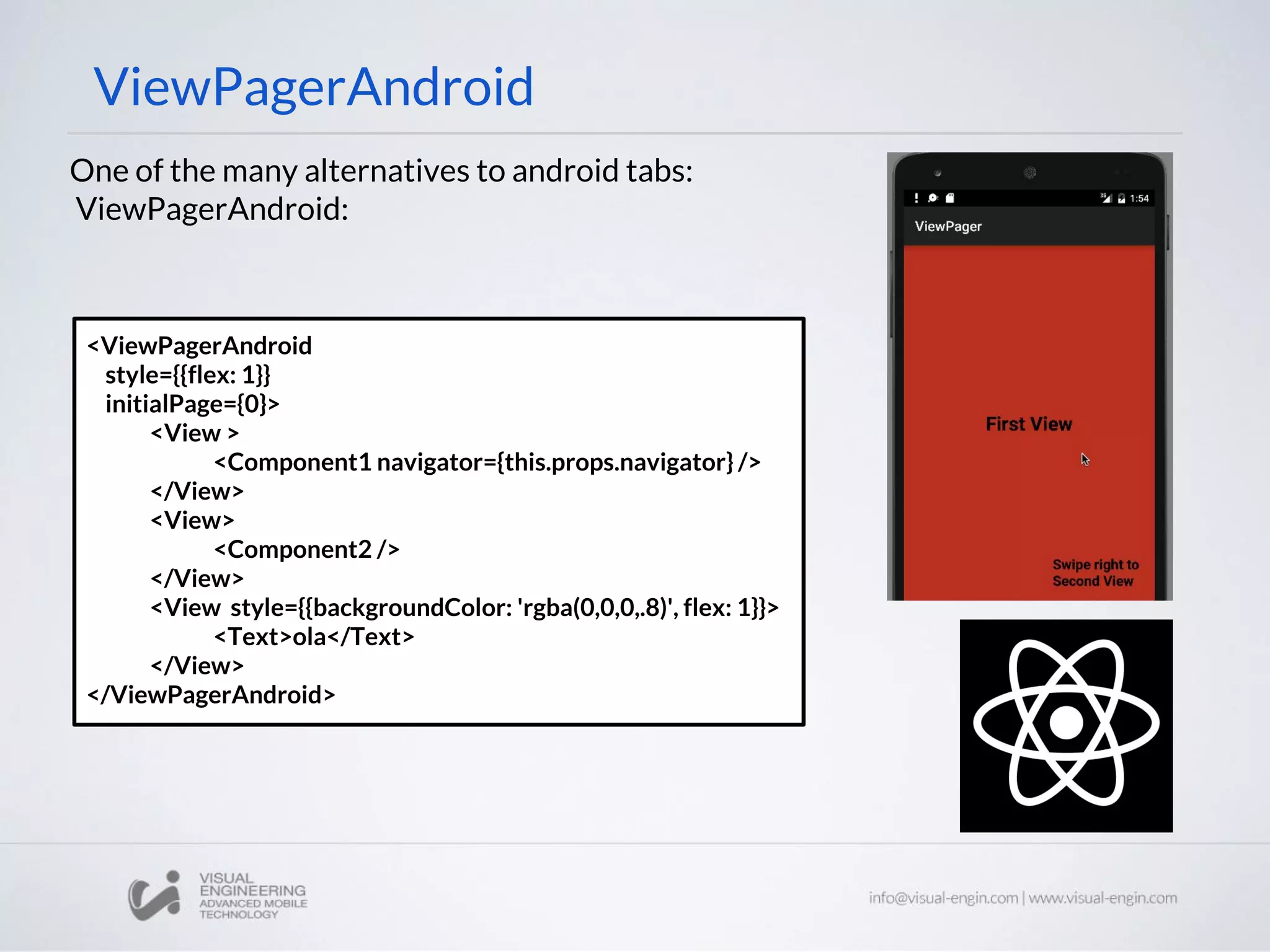
ViewPagerAndroid
<ViewPagerAndroid
style={{flex: 1}}
initialPage={0}>
<View >
<Component1 navigator={this.props.navigator} />
</View>
<View>
<Component2 />
</View>
<View style={{backgroundColor: 'rgba(0,0,0,.8)', flex: 1}}>
<Text>ola</Text>
</View>
</ViewPagerAndroid>
One of the many alternatives to android tabs:
ViewPagerAndroid:
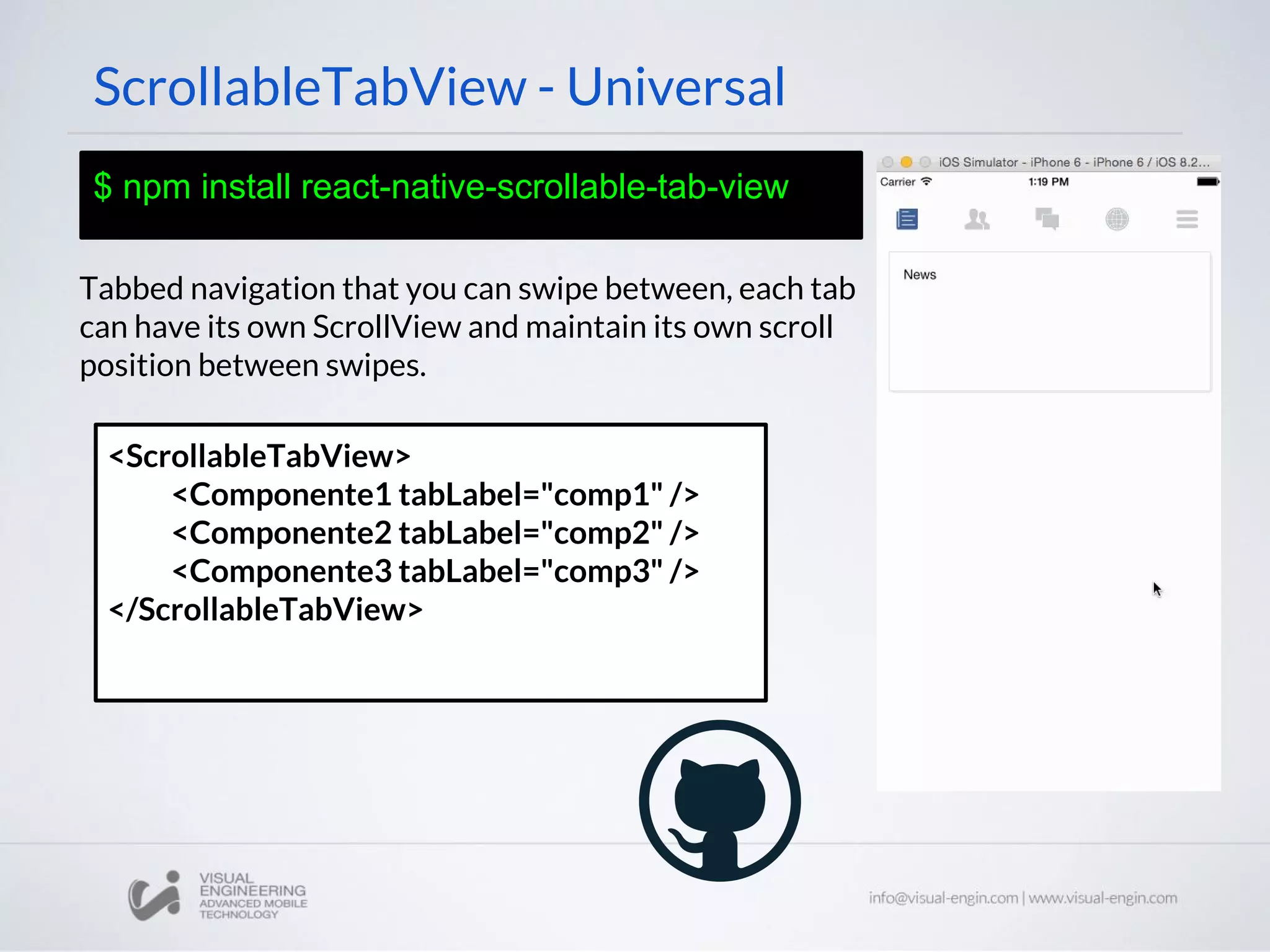
ScrollableTabView - Universal
$ npm install react-native-scrollable-tab-view
Tabbed navigation that you can swipe between, each tab
can have its own ScrollView and maintain its own scroll
position between swipes.
<ScrollableTabView>
<Componente1 tabLabel="comp1" />
<Componente2 tabLabel="comp2" />
<Componente3 tabLabel="comp3" />
</ScrollableTabView>
Lists & Other Presentational
Components
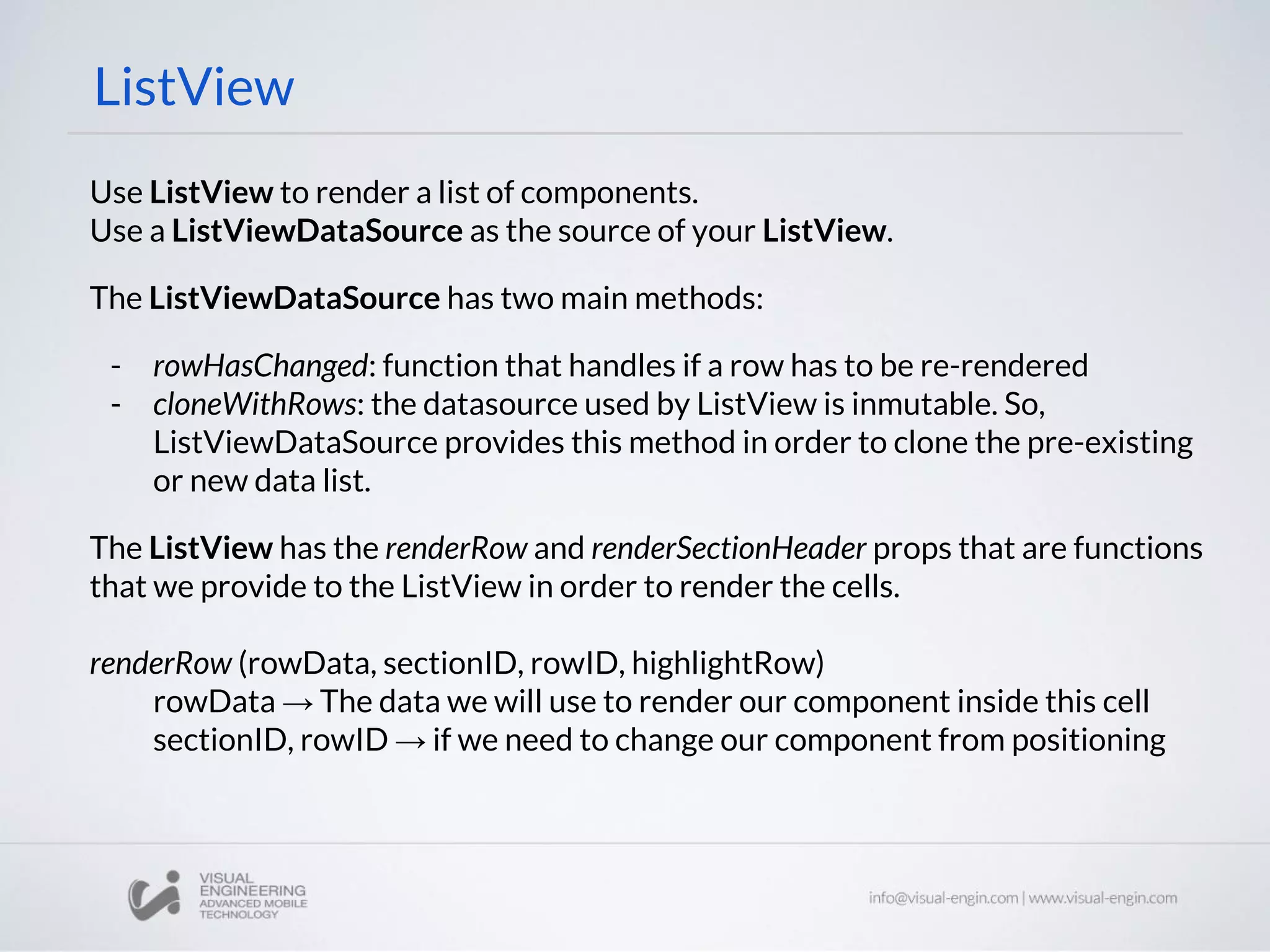
ListView
Use ListView to render a list of components.
Use a ListViewDataSource as the source of your ListView.
The ListViewDataSource has two main methods:
- rowHasChanged: function that handles if a row has to be re-rendered
- cloneWithRows: the datasource used by ListView is inmutable. So,
ListViewDataSource provides this method in order to clone the pre-existing
or new data list.
The ListView has the renderRow and renderSectionHeader props that are functions
that we provide to the ListView in order to render the cells.
renderRow (rowData, sectionID, rowID, highlightRow)
rowData → The data we will use to render our component inside this cell
sectionID, rowID → if we need to change our component from positioning
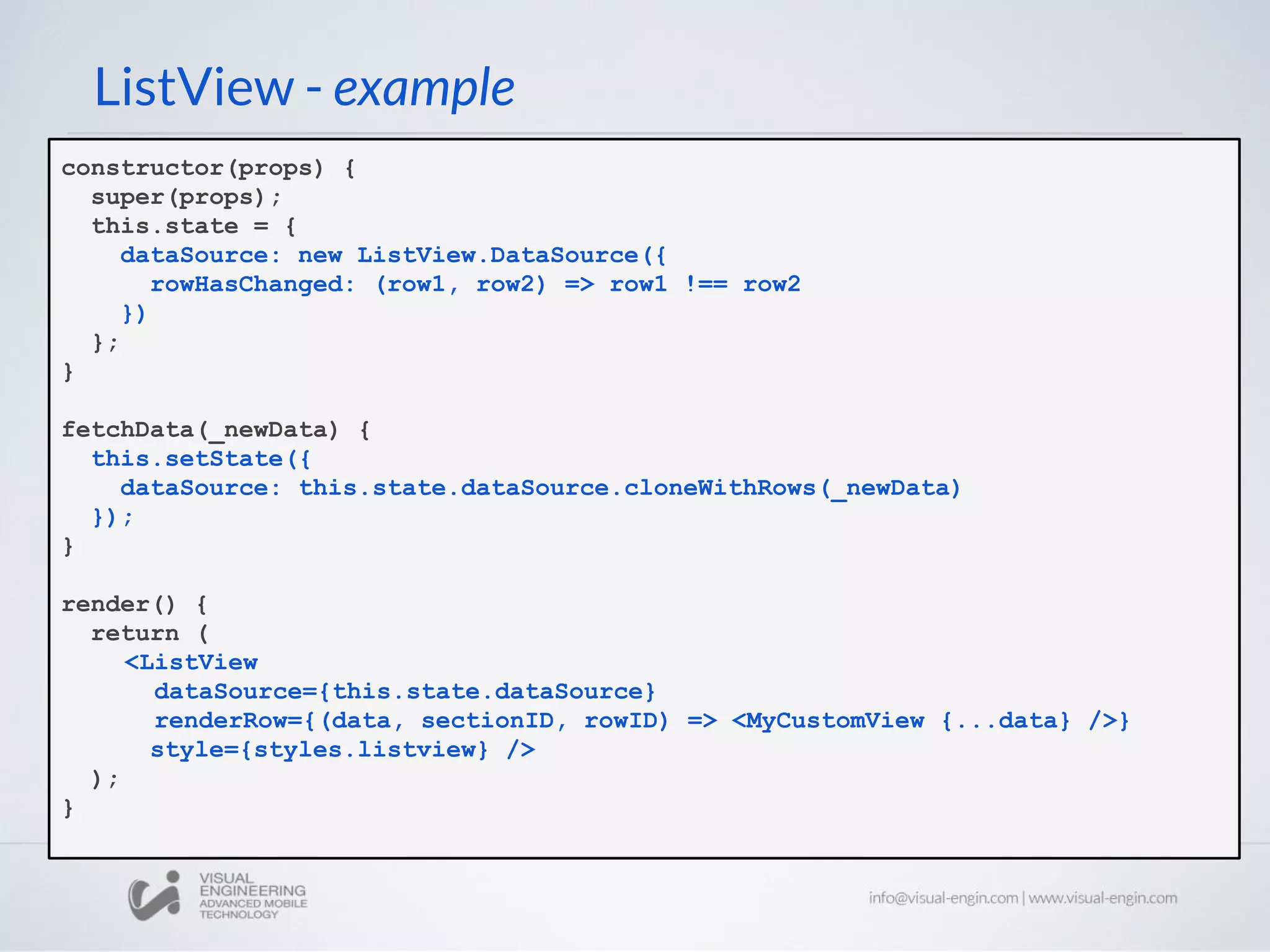
ListView - example
constructor(props) {
super(props);
this.state = {
dataSource: new ListView.DataSource({
rowHasChanged: (row1, row2) => row1 !== row2
})
};
}
fetchData(_newData) {
this.setState({
dataSource: this.state.dataSource.cloneWithRows(_newData)
});
}
render() {
return (
<ListView
dataSource={this.state.dataSource}
renderRow={(data, sectionID, rowID) => <MyCustomView {...data} />}
style={styles.listview} />
);
}
...
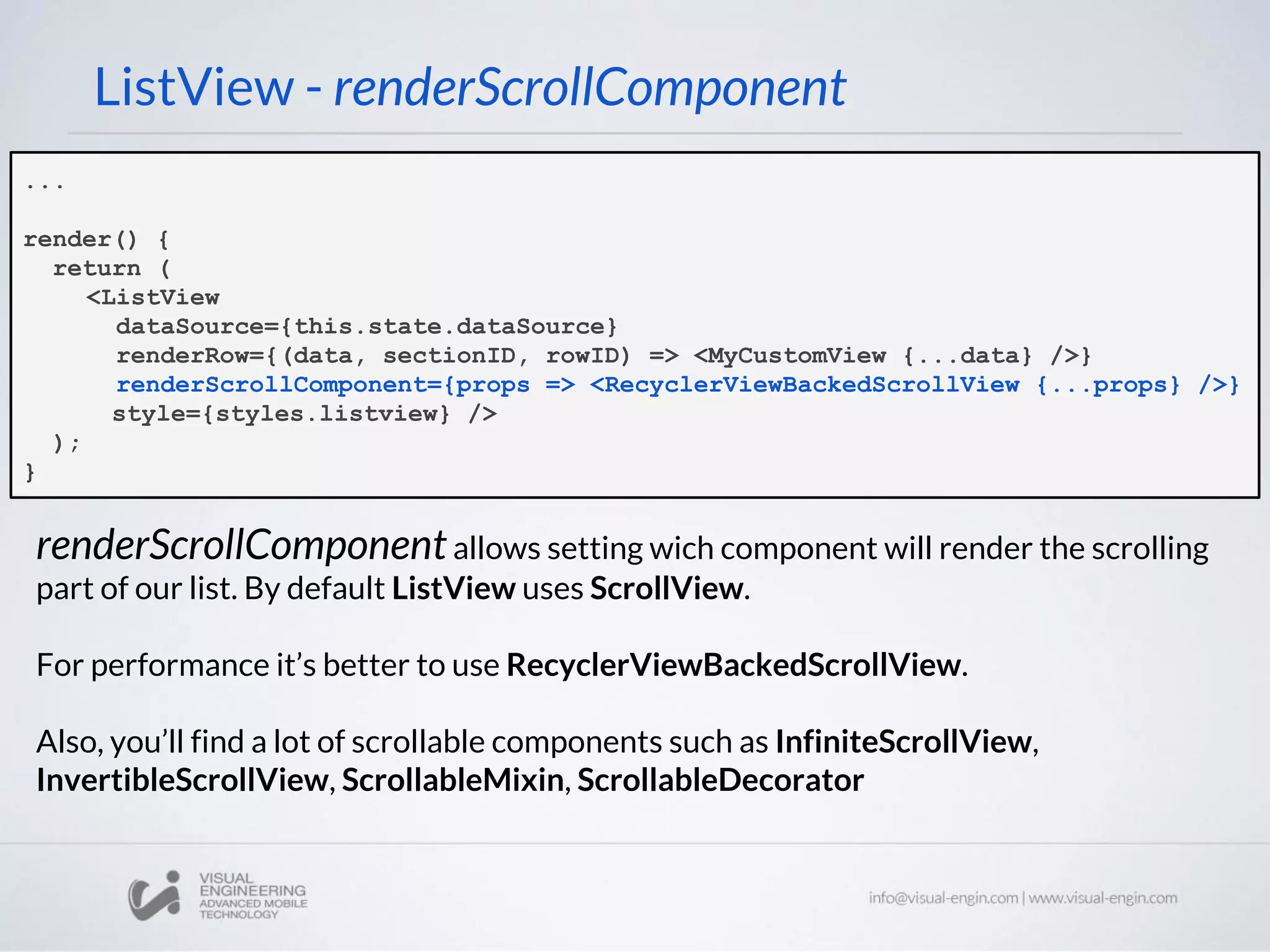
render() {
return (
<ListView
dataSource={this.state.dataSource}
renderRow={(data, sectionID, rowID) => <MyCustomView {...data} />}
renderScrollComponent={props => <RecyclerViewBackedScrollView {...props} />}
style={styles.listview} />
);
}
ListView - renderScrollComponent
renderScrollComponentallows setting wich component will render the scrolling
part of our list. By default ListView uses ScrollView.
For performance it’s better to use RecyclerViewBackedScrollView.
Also, you’ll find a lot of scrollable components such as InfiniteScrollView,
InvertibleScrollView, ScrollableMixin, ScrollableDecorator
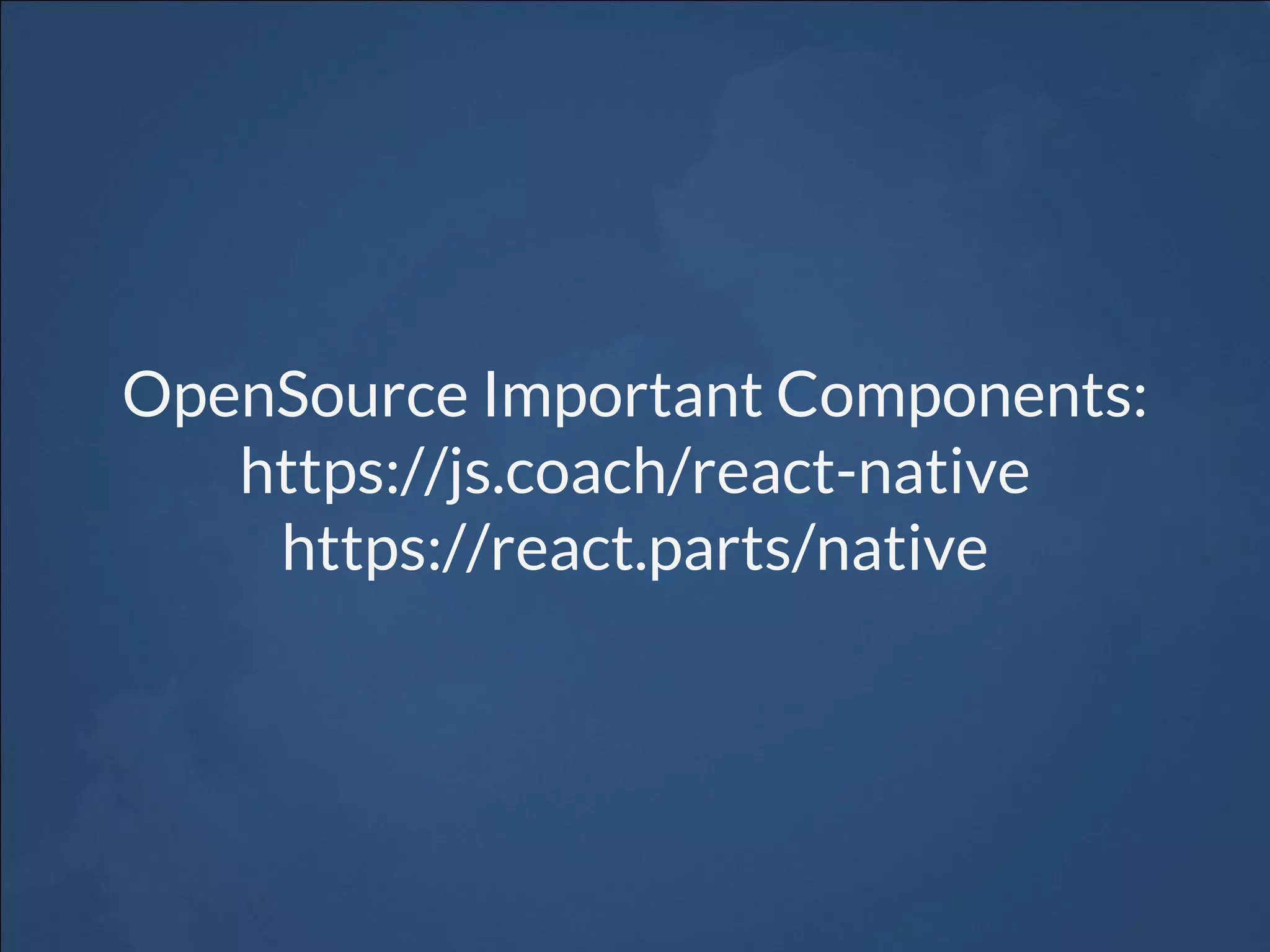
OpenSource Important Components:
https://js.coach/react-native
https://react.parts/native
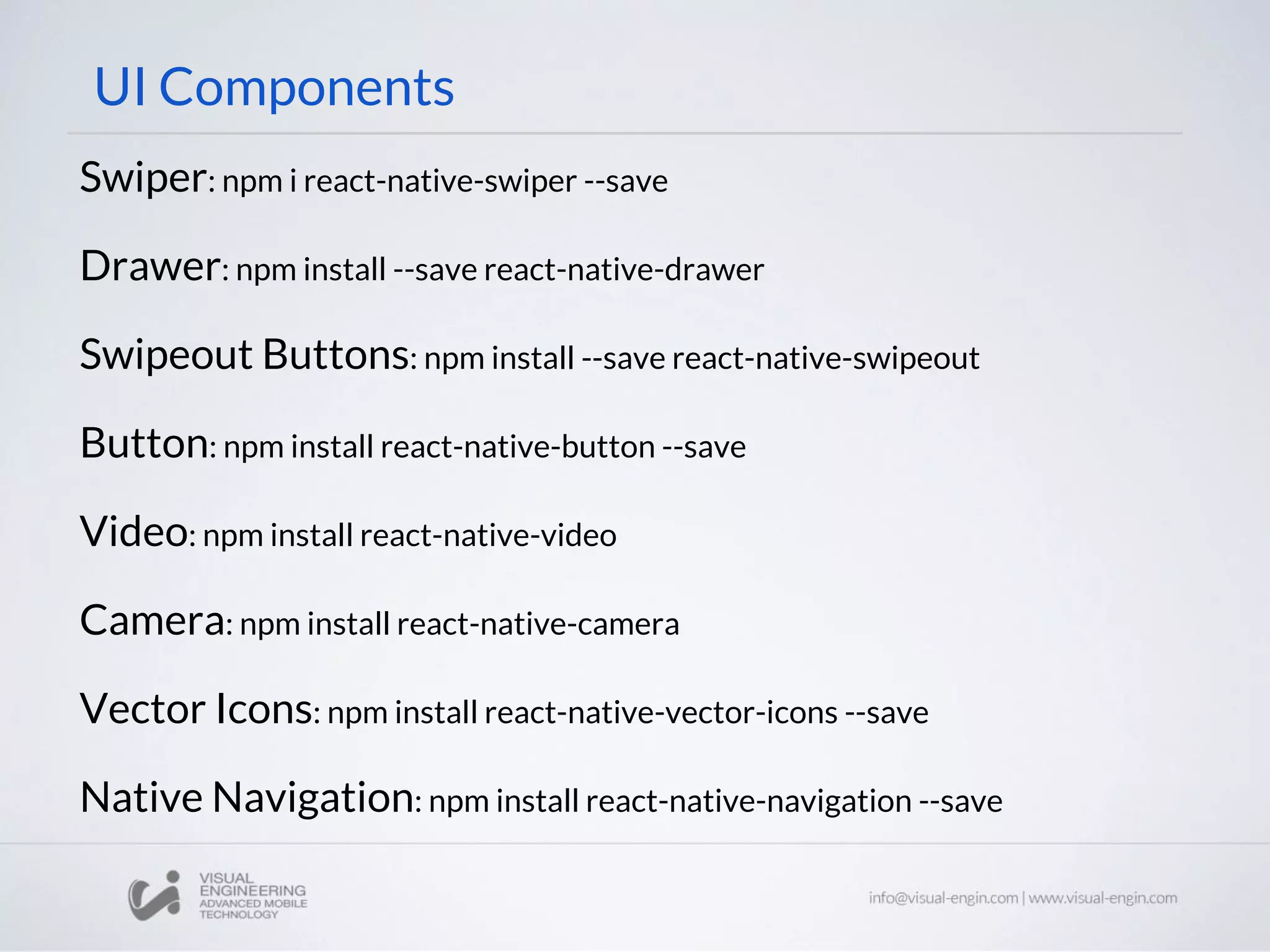
UI Components
Swiper: npm i react-native-swiper --save
Drawer: npm install --save react-native-drawer
Swipeout Buttons: npm install --save react-native-swipeout
Button: npm install react-native-button --save
Video: npm install react-native-video
Camera: npm install react-native-camera
Vector Icons: npm install react-native-vector-icons --save
Native Navigation: npm install react-native-navigation --save
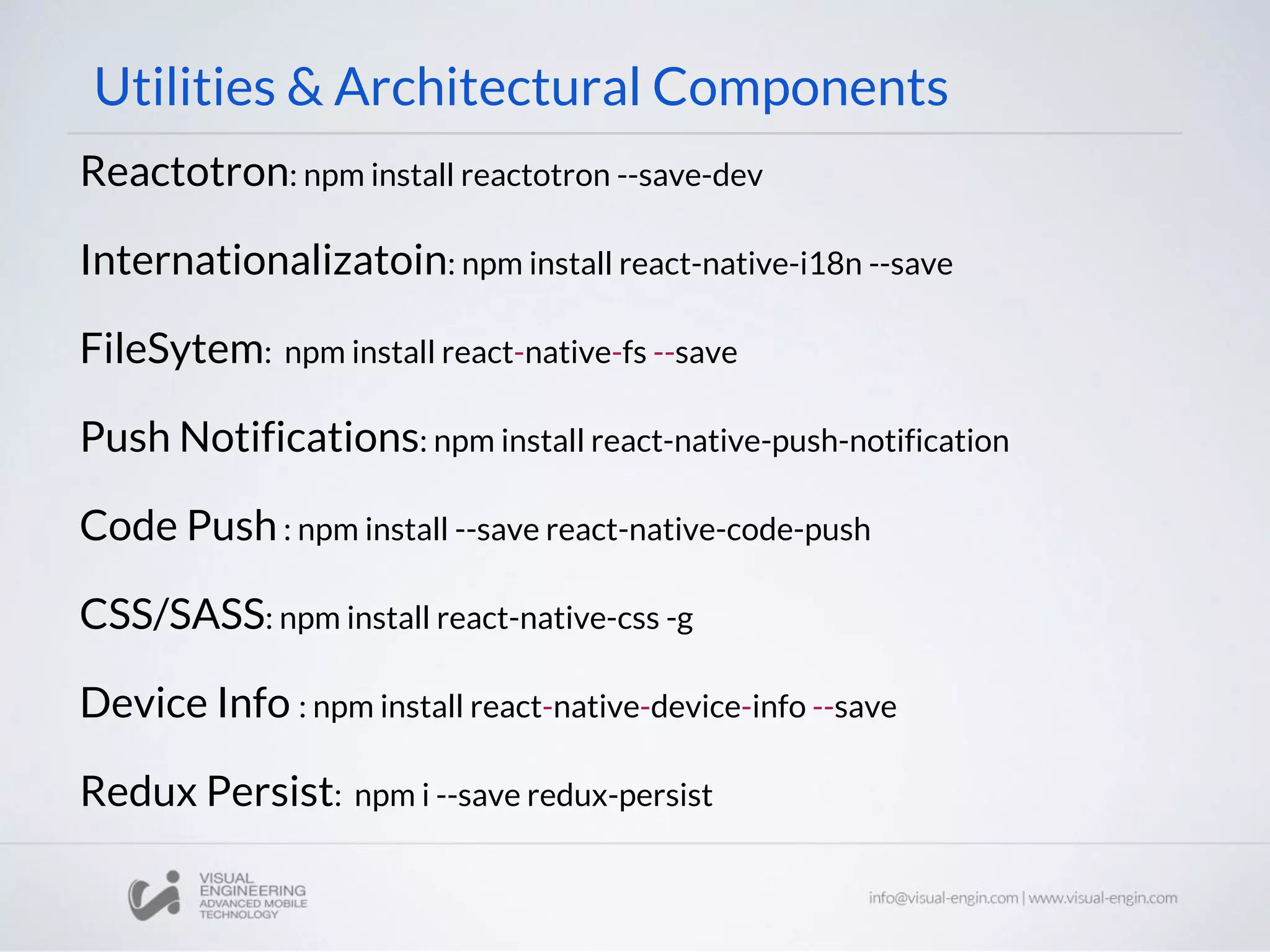
Utilities & Architectural Components
Reactotron: npm install reactotron --save-dev
Internationalizatoin: npm install react-native-i18n --save
FileSytem: npm install react-native-fs --save
Push Notifications: npm install react-native-push-notification
Code Push: npm install --save react-native-code-push
CSS/SASS: npm install react-native-css -g
Device Info : npm install react-native-device-info --save
Redux Persist: npm i --save redux-persist
Thanks for your time!
Give your questions on the comments section
Workshop 25: React Native - Components

Workshop 25: React Native - Components

  • 1.
    Front End Workshops ReactNative Part II: Components Raul Delgado Marc Torrent rdelgado@visual-engin.com mtorrent@visual-engin.com
  • 2.
  • 3.
    React Native: isa library to generate native apps for iOS and Android mobile devices capable, programmed in javascript. React Native uses the actual native components of each platform (currently iOS and Android). Useful Native APIs React Native Part I
  • 4.
  • 5.
    Navigator: Intro Navigator handlesthe transition between different scenes in your app. It is implemented in JavaScript and is available on both iOS and Android. renderScene: It is the prop that got a function that is responsible for, according to the name or index of the route, we will render a view or another.
  • 6.
    Navigator: Intro Navigator handlesthe transition between different scenes in your app. It is implemented in JavaScript and is available on both iOS and Android. renderScene: It is the prop that got a function that is responsible for, according to the name or index of the route, we will render a view or another. renderScene(route, navigator) { switch (route.name) { case 'Login': return ( <Login {...route.props} navigator={navigator} route={route} /> ); case 'Dashboard': return ( <Dashboard {...route.props} navigator={navigator} route={route} /> ); default: return null; } } How navigate: const route = { title: 'Title, name: 'NameComponent', passProps: {propsToPass: true} } this.props.navigator.replace(route); this.props.navigator.push(route); this.props.navigator.pop( );
  • 7.
    Navigator: Transitions We canconfigure the navigation bar properties, through the routeMapper configureScene : Optional function where you can configure scene animations and gestures. Available scene configutation options are: Navigator.SceneConfigs.PushFromRight (default) Navigator.SceneConfigs.FloatFromRight Navigator.SceneConfigs.FloatFromLeft Navigator.SceneConfigs.FloatFromBottom Navigator.SceneConfigs.FloatFromBottomAndroid Navigator.SceneConfigs.FadeAndroid Navigator.SceneConfigs.HorizontalSwipeJump Navigator.SceneConfigs.HorizontalSwipeJumpFromRigh t Navigator.SceneConfigs.VerticalUpSwipeJump Navigator.SceneConfigs.VerticalDownSwipeJump <Navigator configureScene={(route) => { return Navigator.SceneConfigs.FloatFromBottom; }} navigationBar={ <Navigator.NavigationBar routeMapper={NavigatorBarRouterMapper} /> } />
  • 8.
    Navigator: Transitions We canconfigure the navigation bar properties, through the routeMapper configureScene : Optional function where you can configure scene animations and gestures. Available scene configutation options are: Navigator.SceneConfigs.PushFromRight (default) Navigator.SceneConfigs.FloatFromRight Navigator.SceneConfigs.FloatFromLeft Navigator.SceneConfigs.FloatFromBottom Navigator.SceneConfigs.FloatFromBottomAndroid Navigator.SceneConfigs.FadeAndroid Navigator.SceneConfigs.HorizontalSwipeJump Navigator.SceneConfigs.HorizontalSwipeJumpFromRigh t Navigator.SceneConfigs.VerticalUpSwipeJump Navigator.SceneConfigs.VerticalDownSwipeJump <Navigator configureScene={(route) => { return Navigator.SceneConfigs.FloatFromBottom; }} navigationBar={ <Navigator.NavigationBar routeMapper={NavigatorBarRouterMapper} /> } /> const NavigatorBarRouterMapper = { LeftButton: (route, navigator, index) => { return ( <TouchableHighlight onPress={() => { navigator.pop(); } }> <Text>Back</Text> </TouchableHighlight> ); }, RightButton: (route, navigator, index) => { return null; }, Title: (route, navigator, index) => { return ( <Text >{route.name}</Text> ); }, };
  • 9.
    Tabs & OtherArchitectural Components
  • 10.
    TabBarIOS & TabBarIOS.Item <TabBarIOSstyle={{backgroundColor: '#ffffff'}} > <TabBarIOS.Item title="Tab Bar 1" selected={this.state.selectedTab === 'TabBar1'} icon={{uri: iconGame1, scale:4 }} onPress={() => { this.setState({ selectedTab: TabBar1' }); }} > <DashboardView navigator={this.props.navigator} /> </TabBarIOS.Item> <TabBarIOS.Item title="Tab Bar 2" selected={this.state.selectedTab === 'TabBar2'} icon={{uri: iconGame1, scale:4 }} onPress={() => { this.setState({ selectedTab: 'TabBar2' }); }} > <DashboardView navigator={this.props.navigator} /> </TabBarIOS.Item> </TabBarIOS>
  • 11.
    ViewPagerAndroid <ViewPagerAndroid style={{flex: 1}} initialPage={0}> <View > <Component1navigator={this.props.navigator} /> </View> <View> <Component2 /> </View> <View style={{backgroundColor: 'rgba(0,0,0,.8)', flex: 1}}> <Text>ola</Text> </View> </ViewPagerAndroid> One of the many alternatives to android tabs: ViewPagerAndroid:
  • 12.
    ScrollableTabView - Universal $npm install react-native-scrollable-tab-view Tabbed navigation that you can swipe between, each tab can have its own ScrollView and maintain its own scroll position between swipes. <ScrollableTabView> <Componente1 tabLabel="comp1" /> <Componente2 tabLabel="comp2" /> <Componente3 tabLabel="comp3" /> </ScrollableTabView>
  • 13.
    Lists & OtherPresentational Components
  • 14.
    ListView Use ListView torender a list of components. Use a ListViewDataSource as the source of your ListView. The ListViewDataSource has two main methods: - rowHasChanged: function that handles if a row has to be re-rendered - cloneWithRows: the datasource used by ListView is inmutable. So, ListViewDataSource provides this method in order to clone the pre-existing or new data list. The ListView has the renderRow and renderSectionHeader props that are functions that we provide to the ListView in order to render the cells. renderRow (rowData, sectionID, rowID, highlightRow) rowData → The data we will use to render our component inside this cell sectionID, rowID → if we need to change our component from positioning
  • 15.
    ListView - example constructor(props){ super(props); this.state = { dataSource: new ListView.DataSource({ rowHasChanged: (row1, row2) => row1 !== row2 }) }; } fetchData(_newData) { this.setState({ dataSource: this.state.dataSource.cloneWithRows(_newData) }); } render() { return ( <ListView dataSource={this.state.dataSource} renderRow={(data, sectionID, rowID) => <MyCustomView {...data} />} style={styles.listview} /> ); }
  • 16.
    ... render() { return ( <ListView dataSource={this.state.dataSource} renderRow={(data,sectionID, rowID) => <MyCustomView {...data} />} renderScrollComponent={props => <RecyclerViewBackedScrollView {...props} />} style={styles.listview} /> ); } ListView - renderScrollComponent renderScrollComponentallows setting wich component will render the scrolling part of our list. By default ListView uses ScrollView. For performance it’s better to use RecyclerViewBackedScrollView. Also, you’ll find a lot of scrollable components such as InfiniteScrollView, InvertibleScrollView, ScrollableMixin, ScrollableDecorator
  • 17.
  • 18.
    UI Components Swiper: npmi react-native-swiper --save Drawer: npm install --save react-native-drawer Swipeout Buttons: npm install --save react-native-swipeout Button: npm install react-native-button --save Video: npm install react-native-video Camera: npm install react-native-camera Vector Icons: npm install react-native-vector-icons --save Native Navigation: npm install react-native-navigation --save
  • 19.
    Utilities & ArchitecturalComponents Reactotron: npm install reactotron --save-dev Internationalizatoin: npm install react-native-i18n --save FileSytem: npm install react-native-fs --save Push Notifications: npm install react-native-push-notification Code Push: npm install --save react-native-code-push CSS/SASS: npm install react-native-css -g Device Info : npm install react-native-device-info --save Redux Persist: npm i --save redux-persist
  • 20.
    Thanks for yourtime! Give your questions on the comments section