eCommerce Technologies A Primer on Web Servers MIS 4453 -- Spring 2003 Instructors: Kelly Fish, Ph.D. John Seydel, Ph.D.
Student Objectives Describe interaction between browser and server Compare and contrast web server software commonly available Select appropriate web server based upon organizational needs If time permits:  create shape-tweened Flash graphic
First, Some Administrative Stuff Customization  (remember the 7 Cs?) Summary of exercises so far: Exercise 1 – Create personal profile pages (p. 22) Exercise 2 – FP exercise (modified from p. 36) Exercise 3 – site reorganization Exercise 4 – basic Flash (animated logo, page) Exercise 5 – more Flash (rollover button, etc.) Current homework (Exercise 5) detailed at course  website And now,  Quiz #2
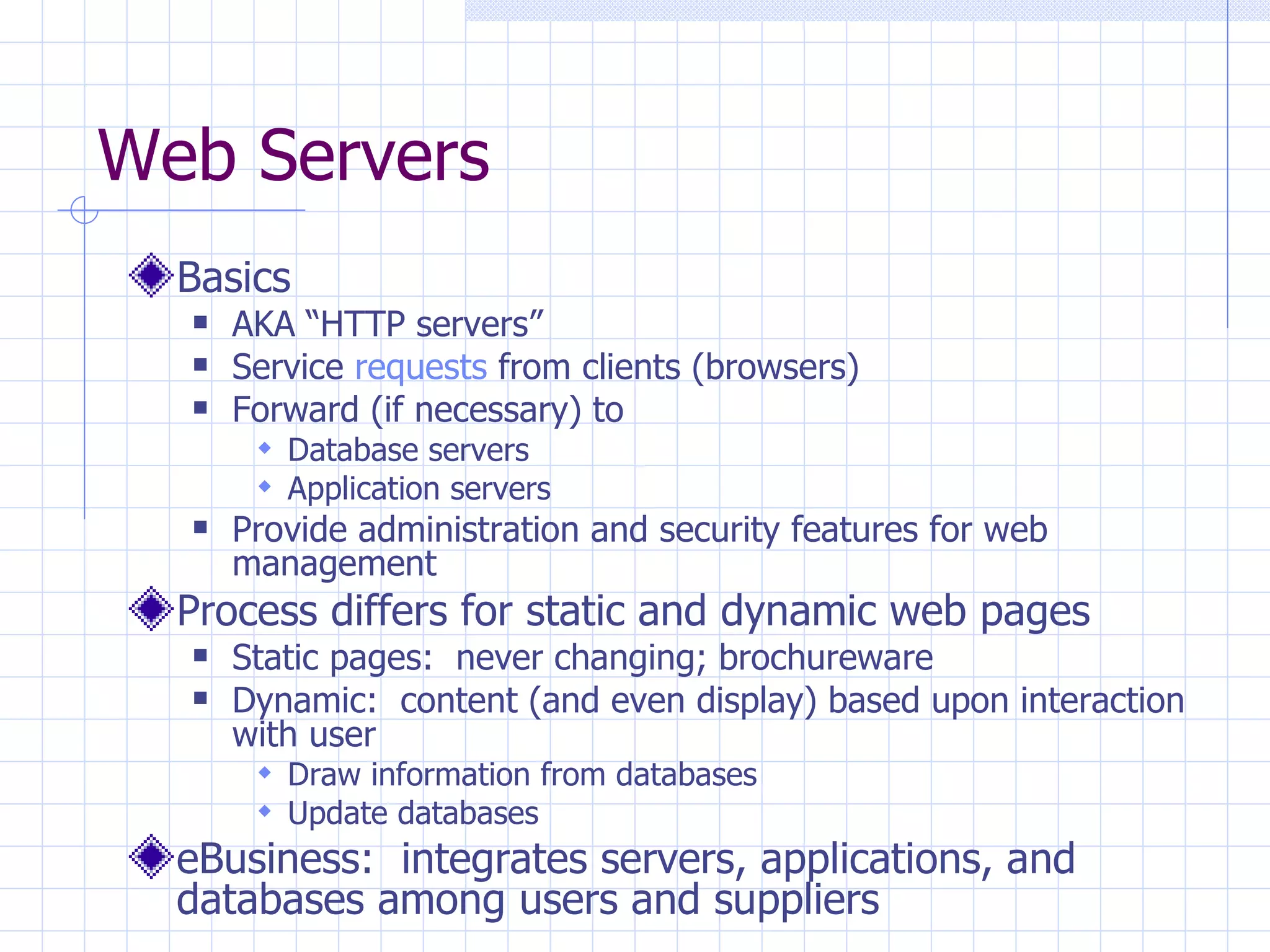
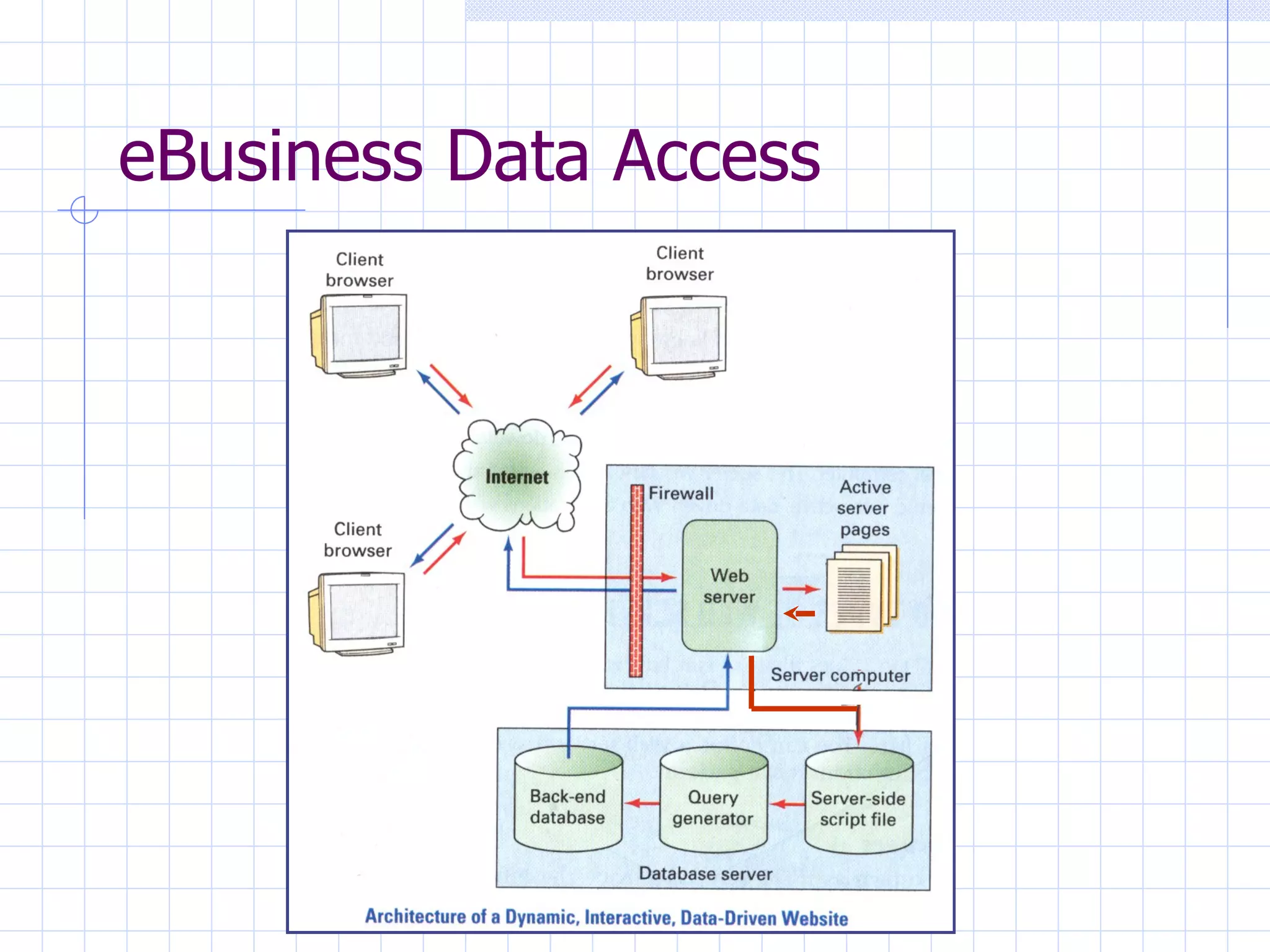
Web Servers Basics AKA “HTTP servers” Service  requests  from clients (browsers) Forward (if necessary) to Database servers Application servers Provide administration and security features for web management Process differs for static and dynamic web pages Static pages:  never changing; brochureware Dynamic:  content (and even display) based upon interaction with user Draw information from databases Update databases eBusiness:  integrates servers, applications, and databases among users and suppliers
eBusiness Data Access
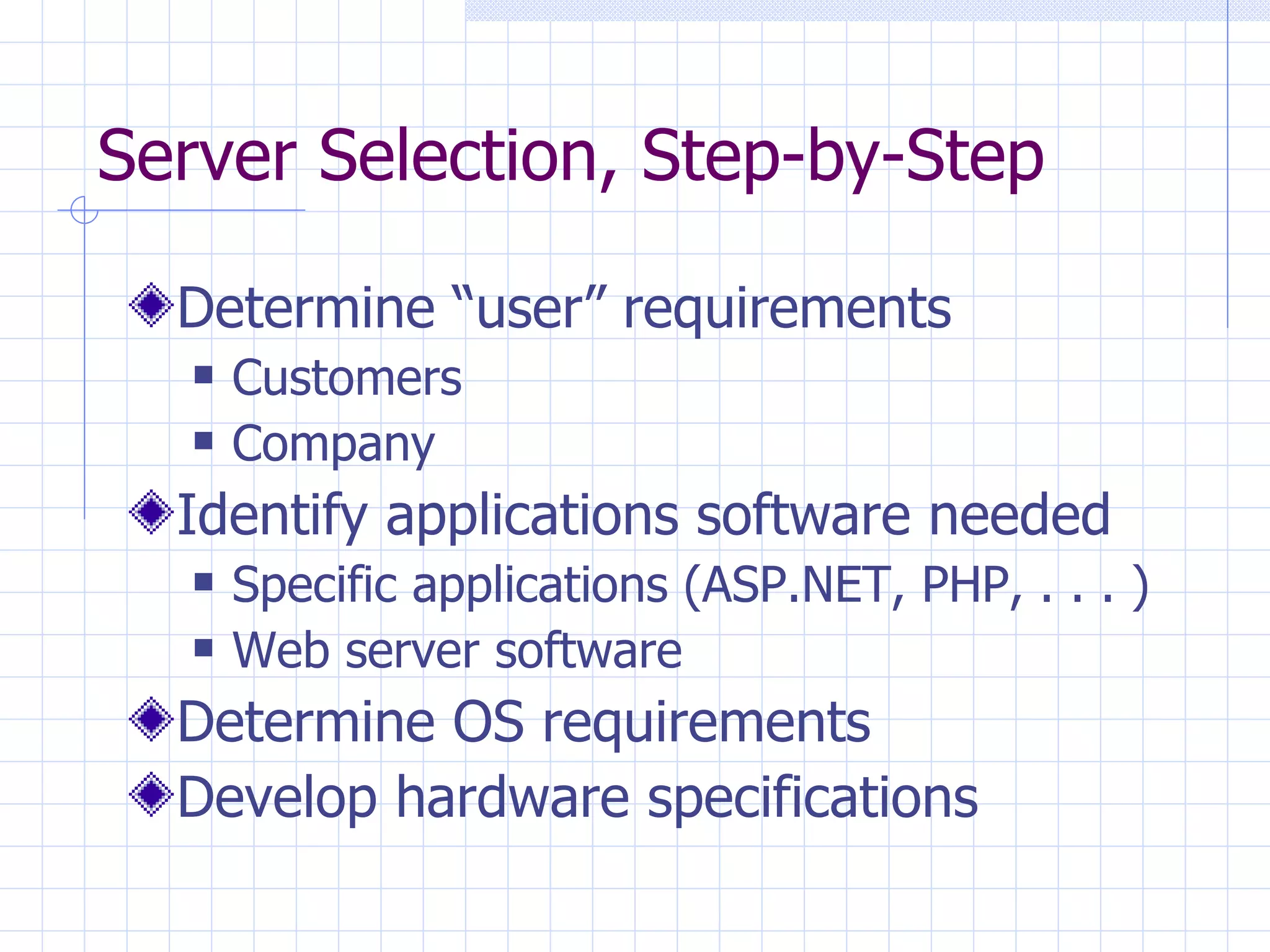
Server Selection, Step-by-Step Determine “user” requirements Customers Company Identify applications software needed Specific applications (ASP.NET, PHP, . . . ) Web server software Determine OS requirements Develop hardware specifications
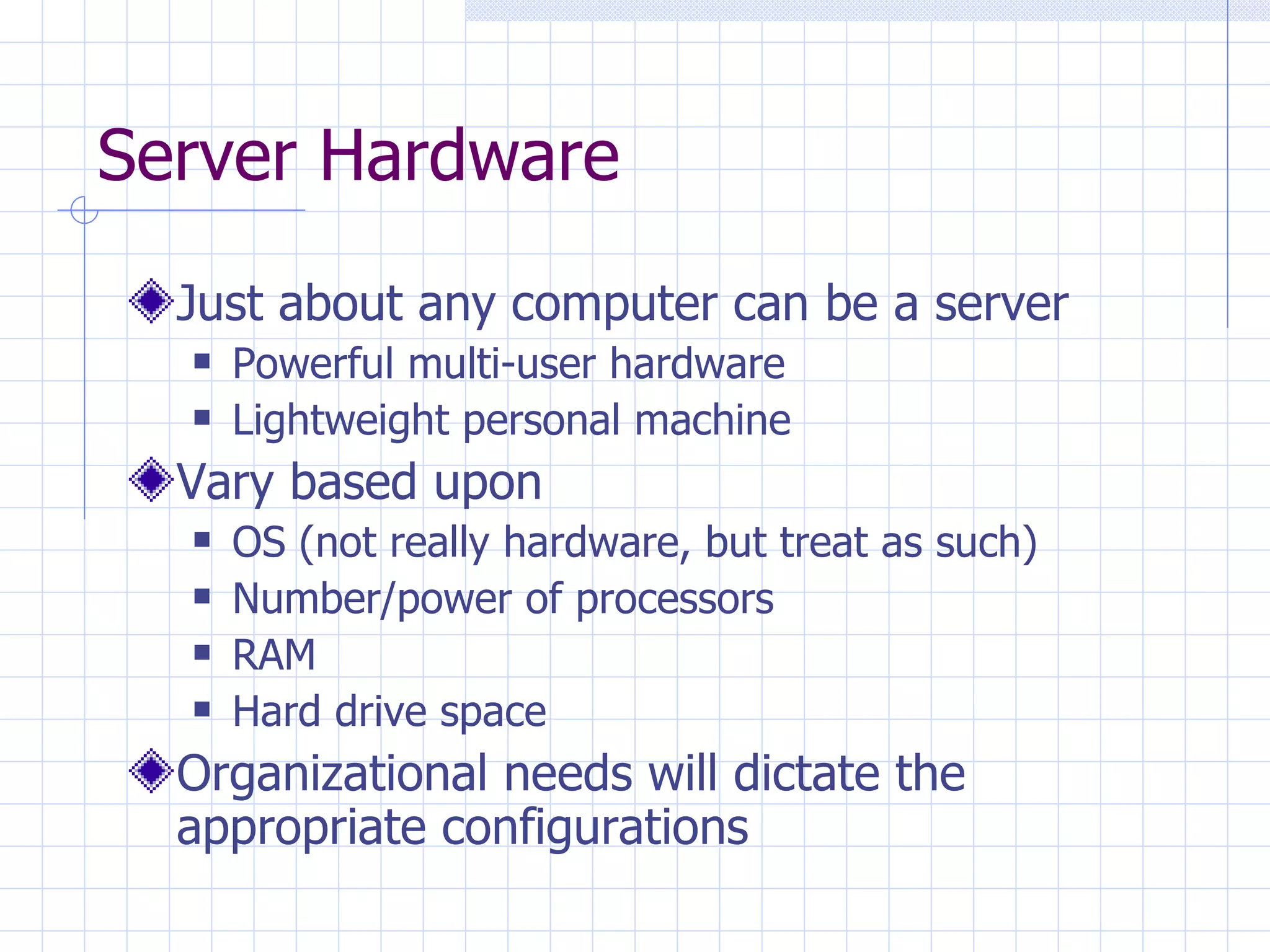
Server Hardware Just about any computer can be a server Powerful multi-user hardware Lightweight personal machine Vary based upon OS (not really hardware, but treat as such) Number/power of processors RAM Hard drive space Organizational needs will dictate the appropriate configurations
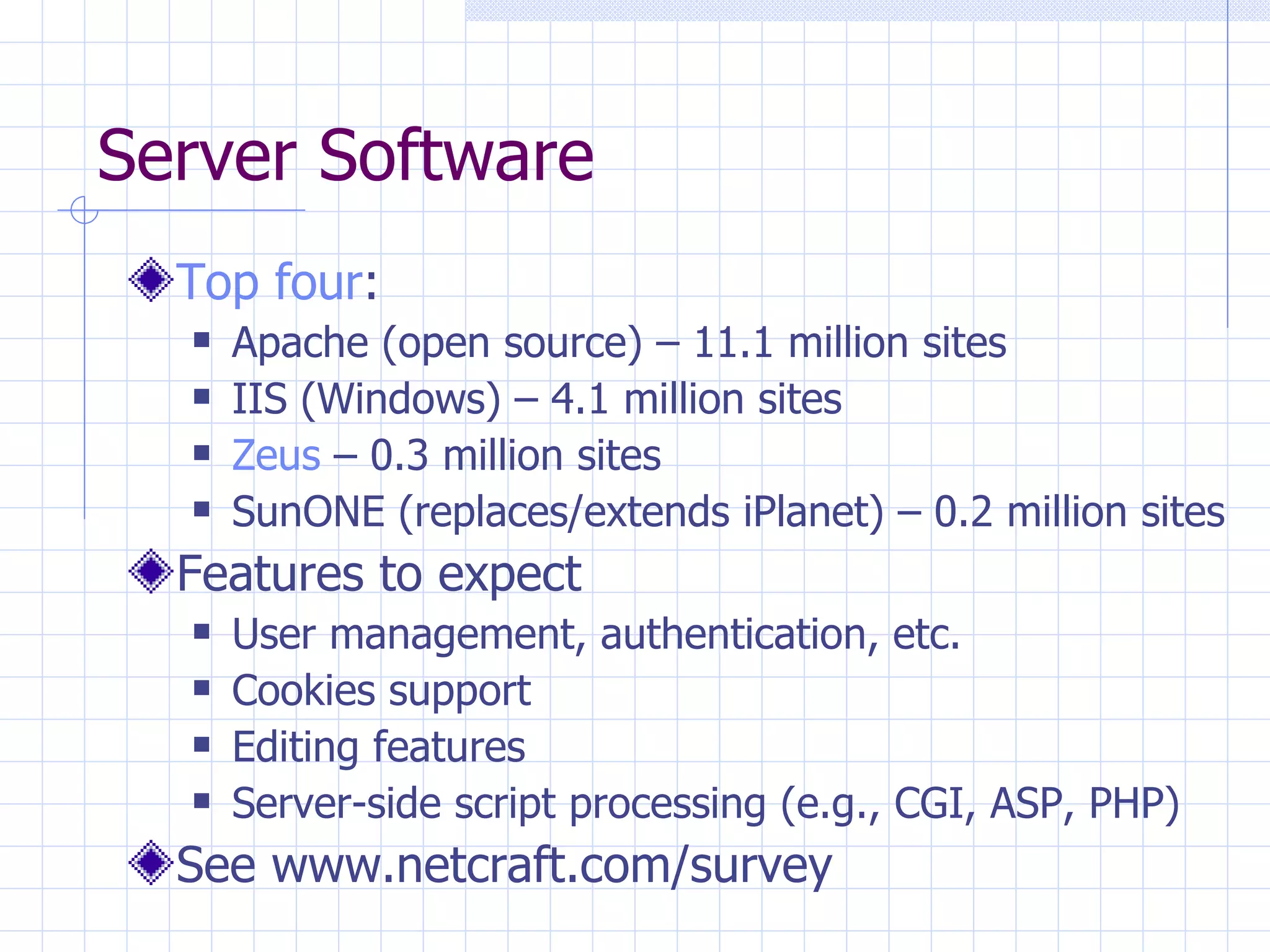
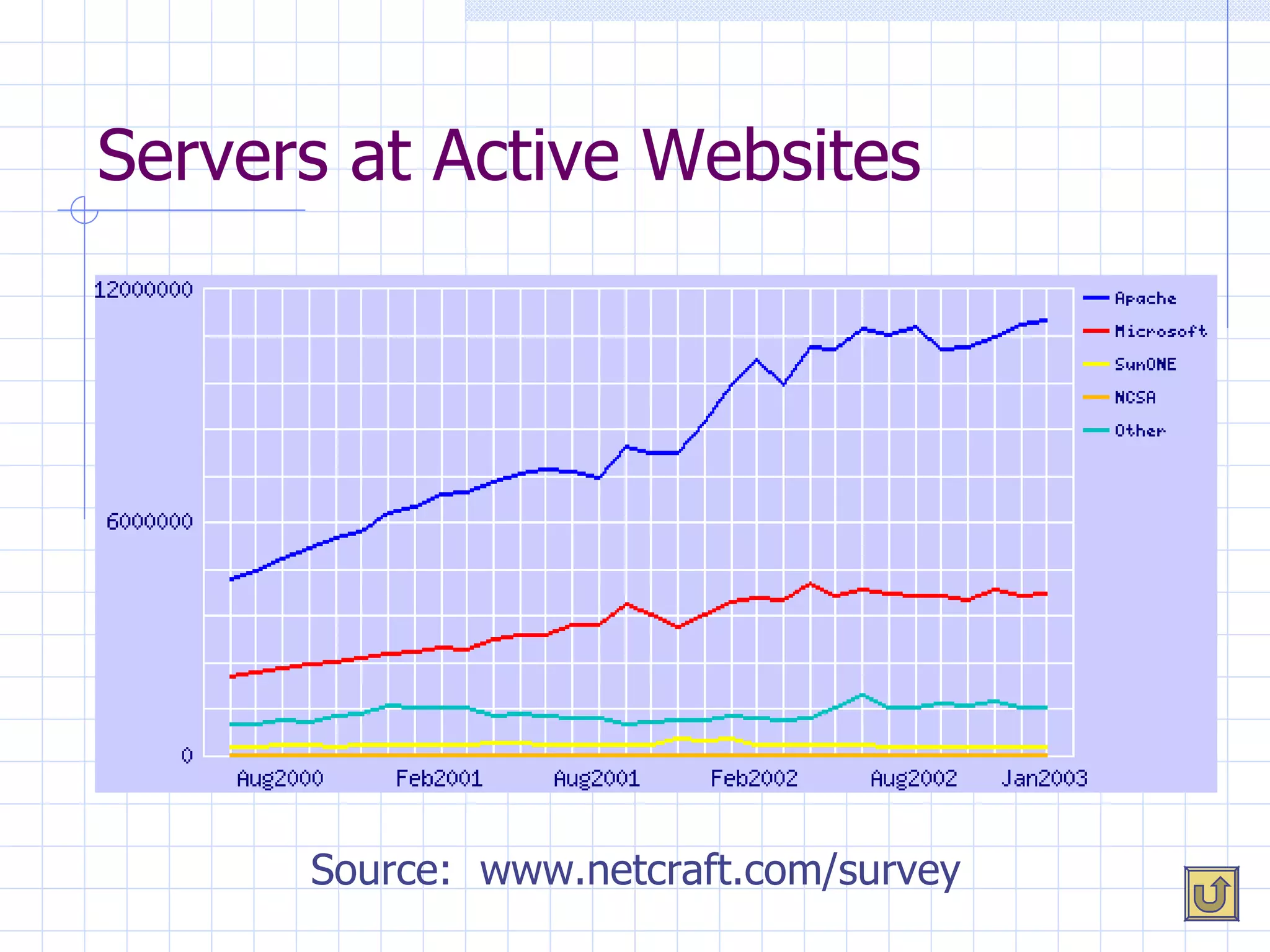
Server Software Top four : Apache (open source) – 11.1 million sites IIS (Windows) – 4.1 million sites Zeus  – 0.3 million sites SunONE (replaces/extends iPlanet) – 0.2 million sites Features to expect User management, authentication, etc. Cookies support Editing features Server-side script processing (e.g., CGI, ASP, PHP) See www.netcraft.com/survey
Apache Server OS supported Windows, OS/2, Unix, Linux Most common:  Linux Open source – what’s that mean? Robust design and extensibility Not a dummies tool No GUI No browser-based maintenance Essentially all command line driven
Internet Information Server Actually Internet Information Services (IIS 5) On the plus side Intuitive:  GUI Essentially as powerful/capable as Apache Incorporates WebDAV (web-based distributed authoring & versioning) Emerging standard for simplifying intranet construction and enabling multiple users to publish to common web serve r Additional benefit:  Supports ASP Downside:  works only on Windows (what else would you expect from Microsoft!) Growing in popularity (?)
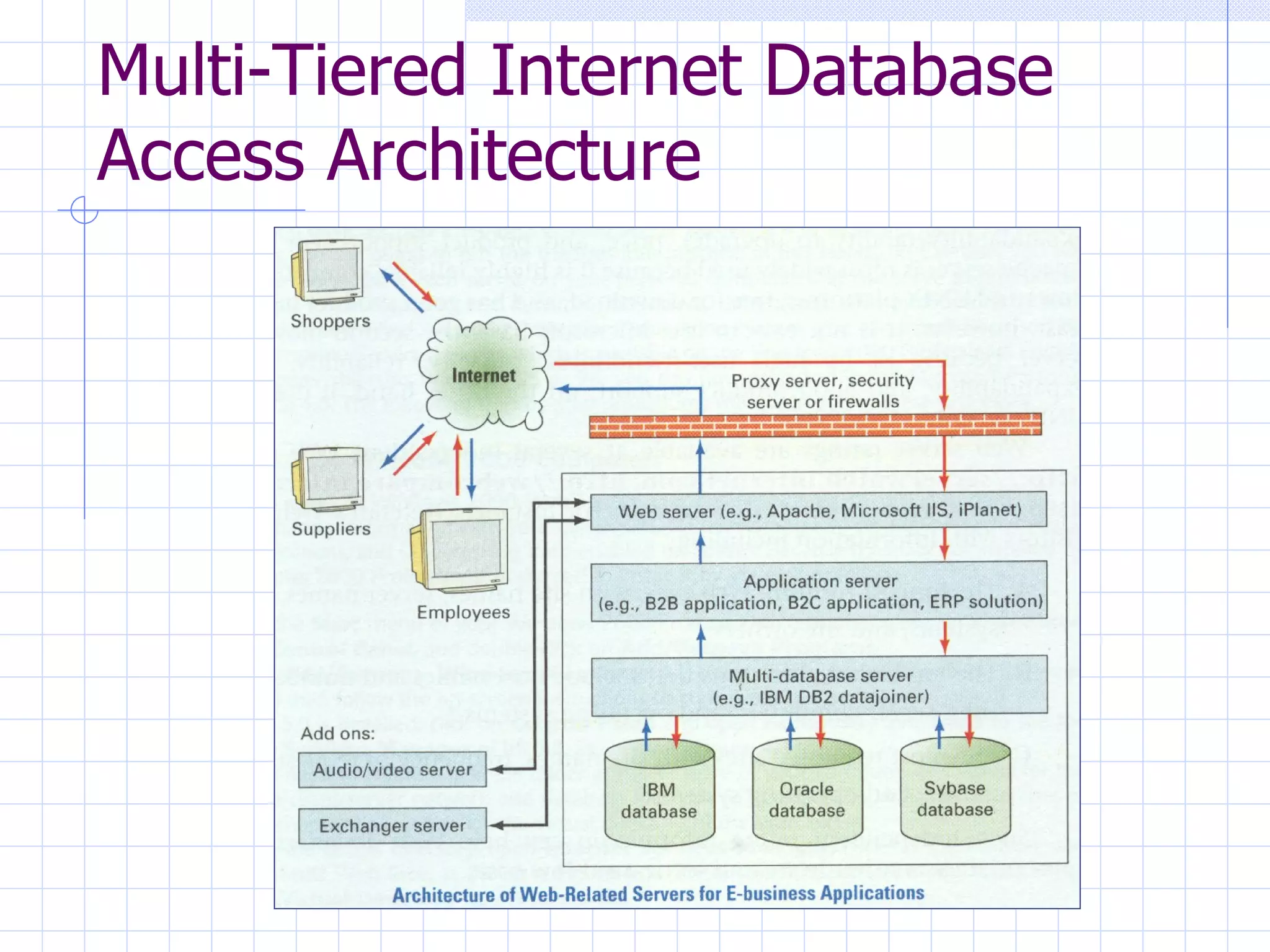
Other Web-Related Servers Create multi-tiered architecture Include Application servers (sometimes  middleware ) A/V servers (especially valuable for  streaming ) Database servers Exchange servers (support collaboration; email) Proxy servers (involve  cache  management) Security servers (e.g.,  firewalls ) Offload processing and storage From server From client Can be in same or multiple boxes
Multi-Tiered Internet Database Access Architecture
Choosing Your Server (Revisited) First, what applications will be needed? ASP Cold Fusion CGI Extensions:  FrontPage, DreamWeaver, . . .  Then, what server software is required to run those applications Next, what OS will support that server software? Finally, choose the hardware that can support Software configuration Traffic expected Connection with database and applications Network
Server Selection Considerations Keep in mind that eCommerce requires more power, memory, speed than static web applications Needs assessment Site traffic Concurrent users Bandwidth could be limitation Plan for three years growth Scalability (size) Extensibility (functionality) Hardware/software selection:  popularity, capacity, reliability, performance, compatibility, upgradeability, price, support See server ratings (sites on page 88)
Summary of Objectives Describe interaction between browser and server Compare and contrast web server software commonly available Select appropriate web server based upon organizational needs If time permits:  create shape-tweened Flash graphic
How About Questions Concerning Homework Exercises? Flash Basic animation (logo) Adding objects to web pages Rollover buttons (see  handout  at website) Shape-tweening FrontPage XHTML/HTML in general Other . . . ?
For Next Time Install and experiment with IIS on personal machine (see pages 89-94) Read Chapter 6 Complete Exercise 5 per specifications at website Flash exercises Animated conference logo Rollover button Installed on web pages Chapter 3 Hands-On Exercise Scan/convert conference images Use PhotoEd and Flash (not PS Pro) Another Flash  exercise : try to create shape tweened graphic
Appendix
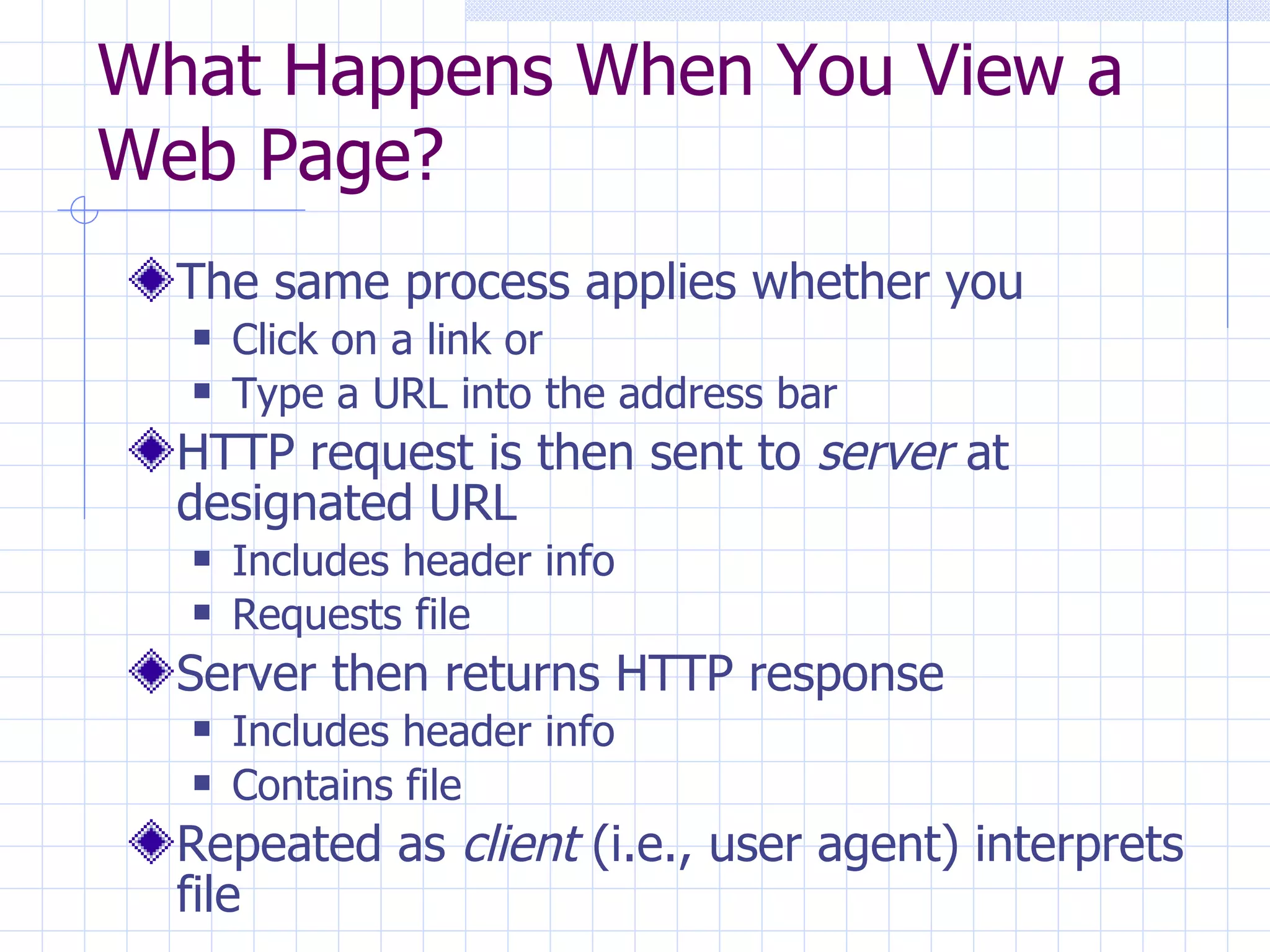
What Happens When You View a Web Page? The same process applies whether you Click on a link or Type a URL into the address bar HTTP request is then sent to  server  at designated URL Includes header info Requests file Server then returns HTTP response Includes header info Contains file Repeated as  client  (i.e., user agent) interprets file
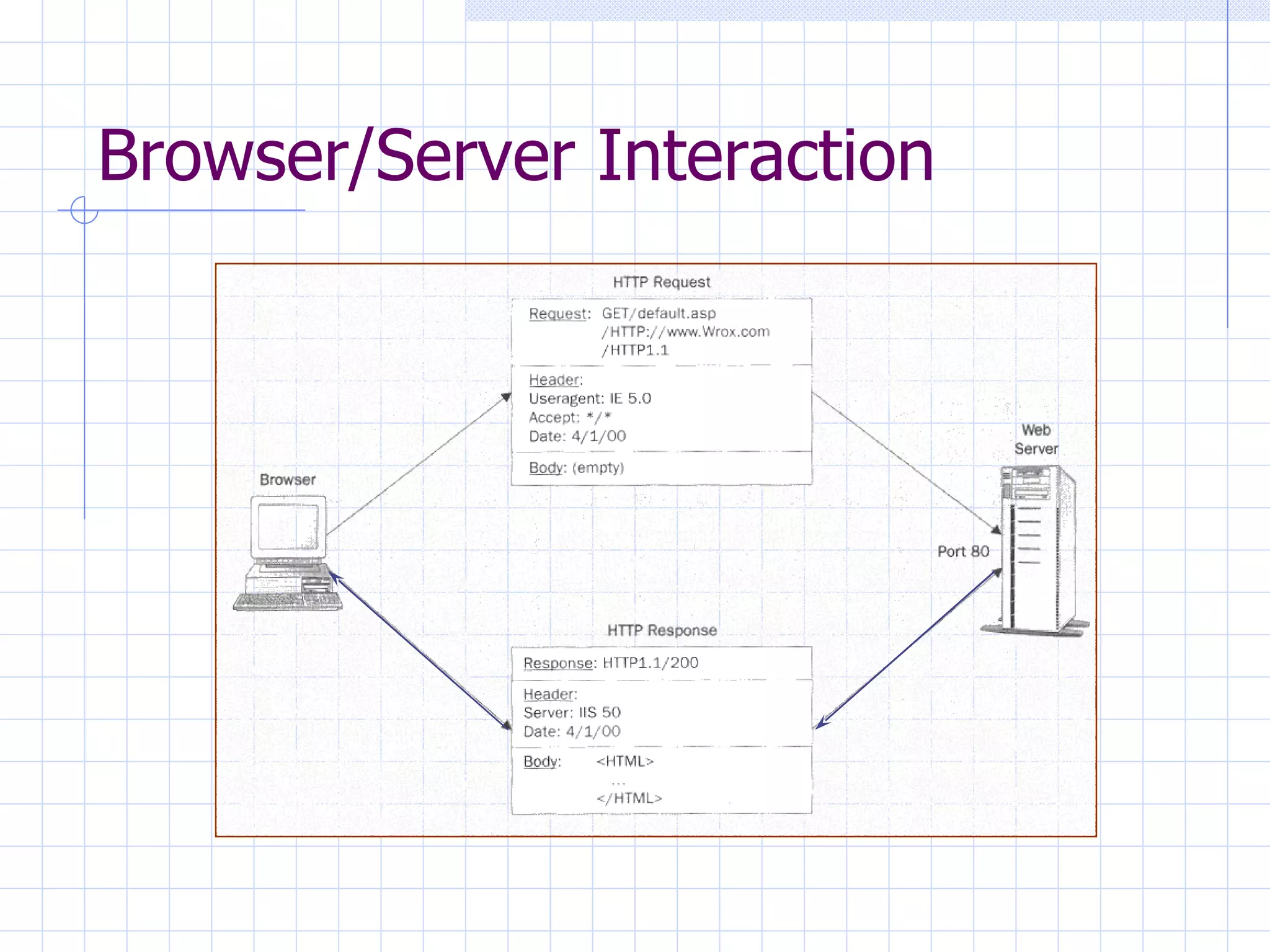
Browser/Server Interaction
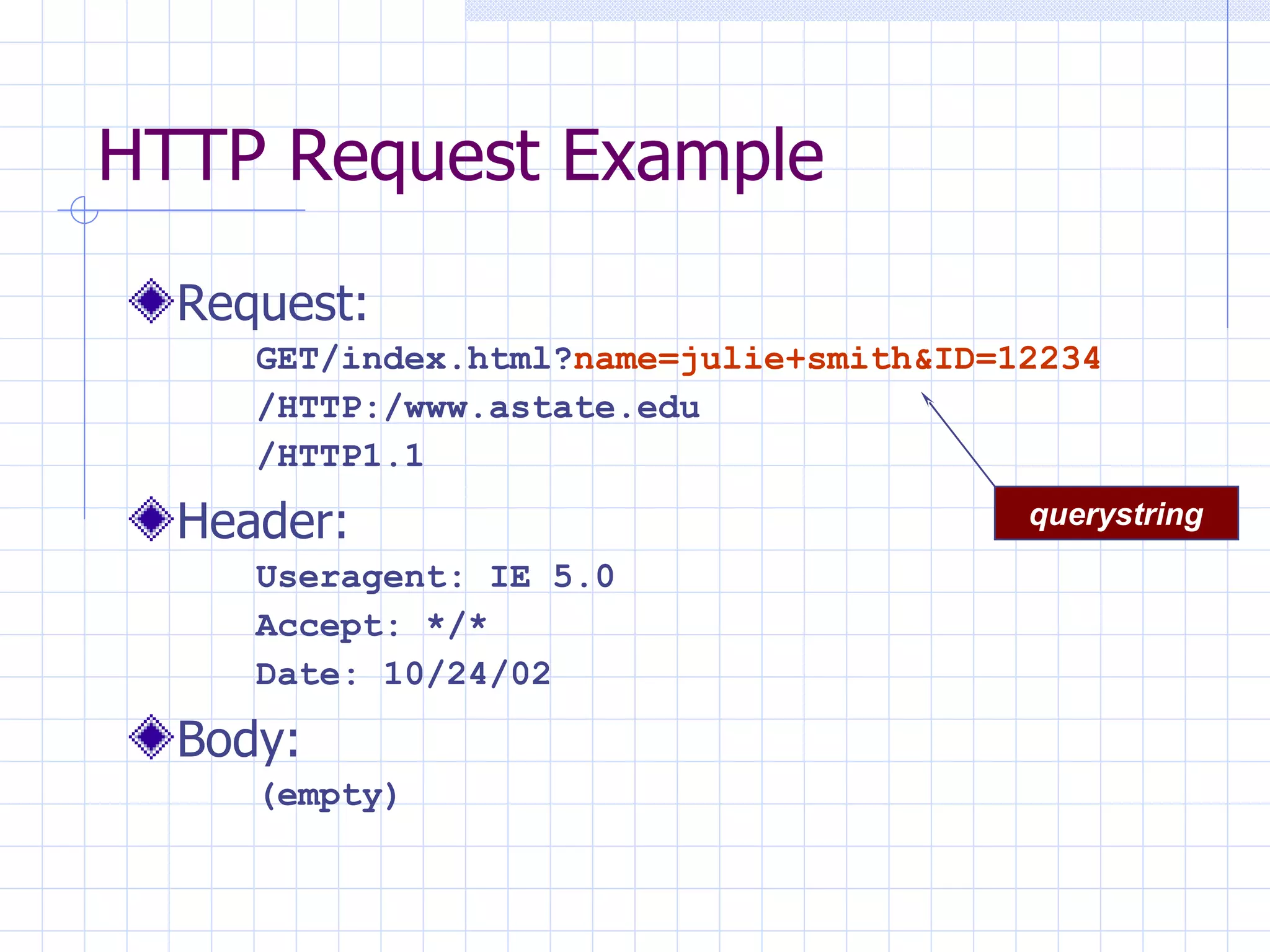
HTTP Request Example Request: GET/index.html? name=julie+smith&ID=12234 /HTTP:/www.astate.edu /HTTP1.1 Header: Useragent: IE 5.0 Accept: */* Date: 10/24/02 Body: (empty) querystring
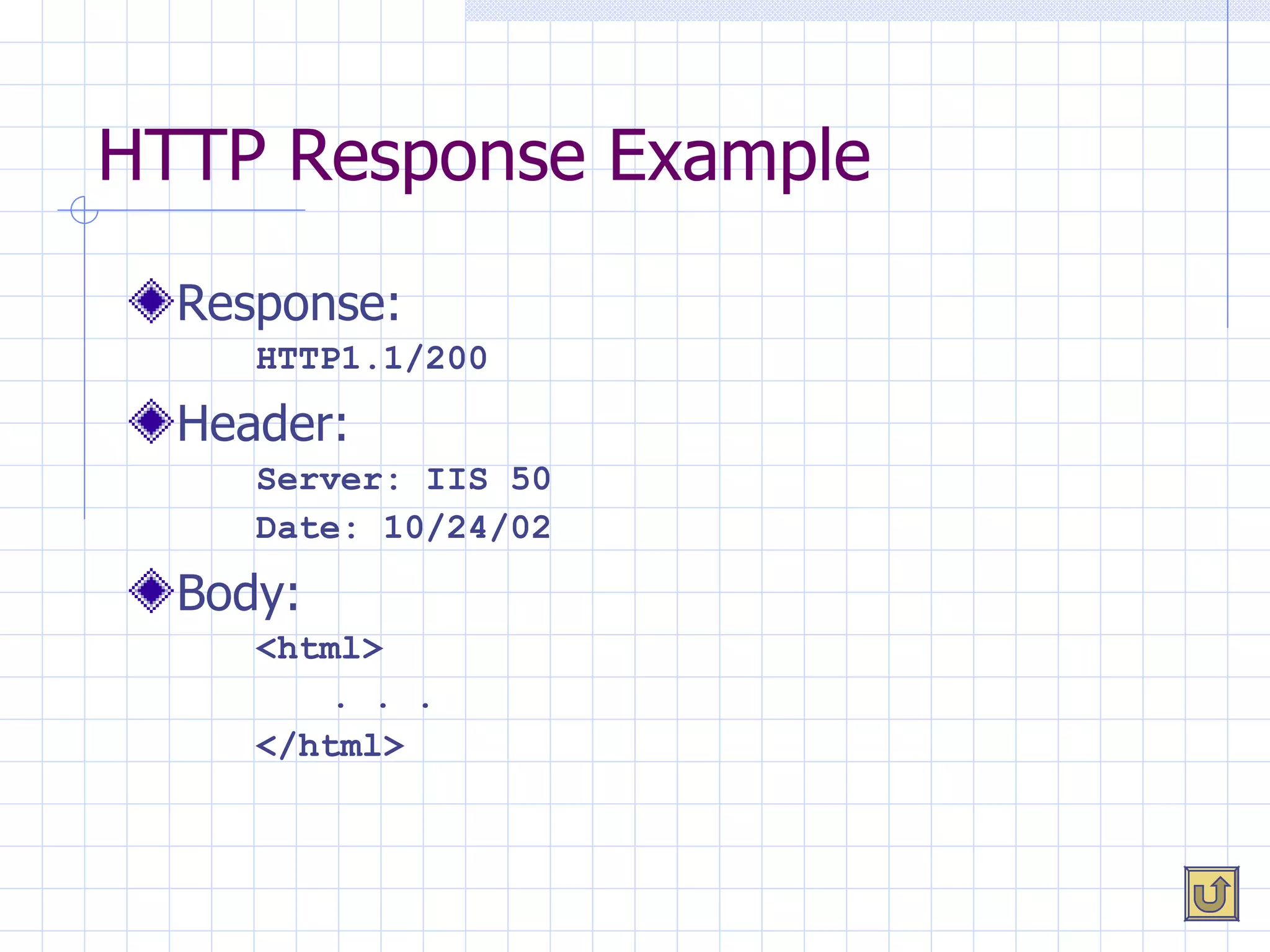
HTTP Response Example Response: HTTP1.1/200 Header: Server: IIS 50 Date: 10/24/02 Body: <html>   . . .  </html>
Servers at Active Websites Source:  www.netcraft.com/survey
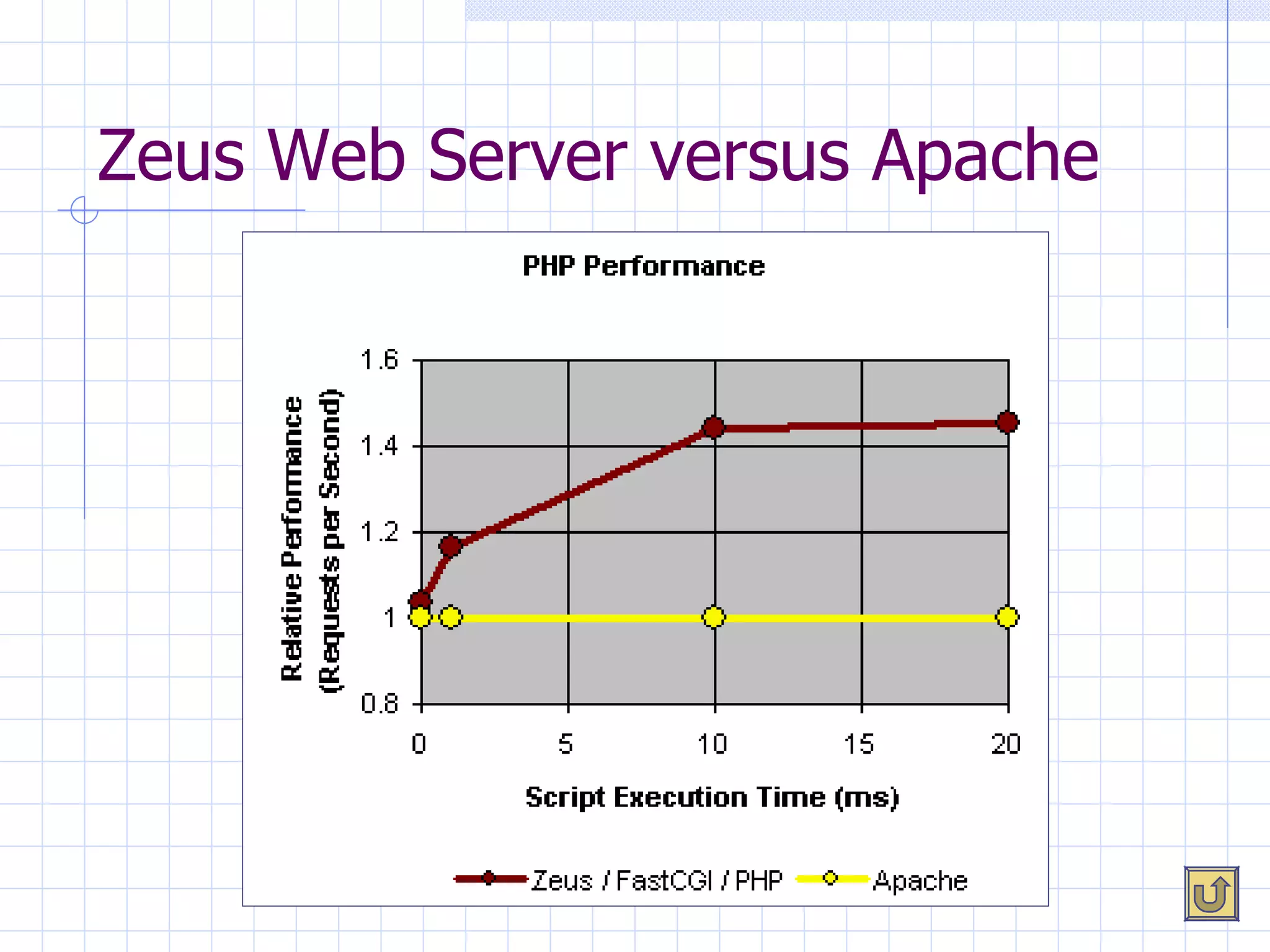
Zeus Web Server versus Apache
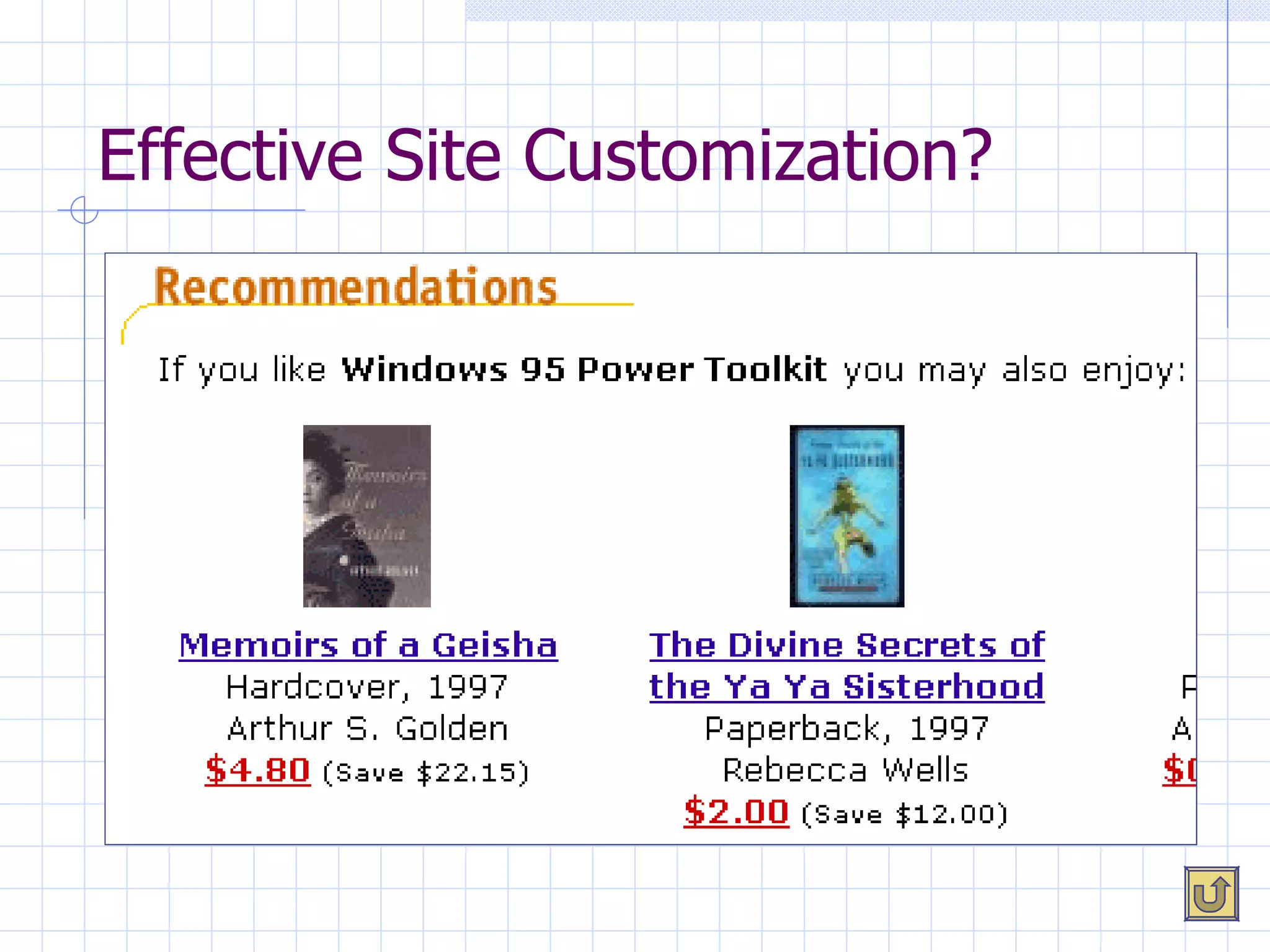
Effective Site Customization?
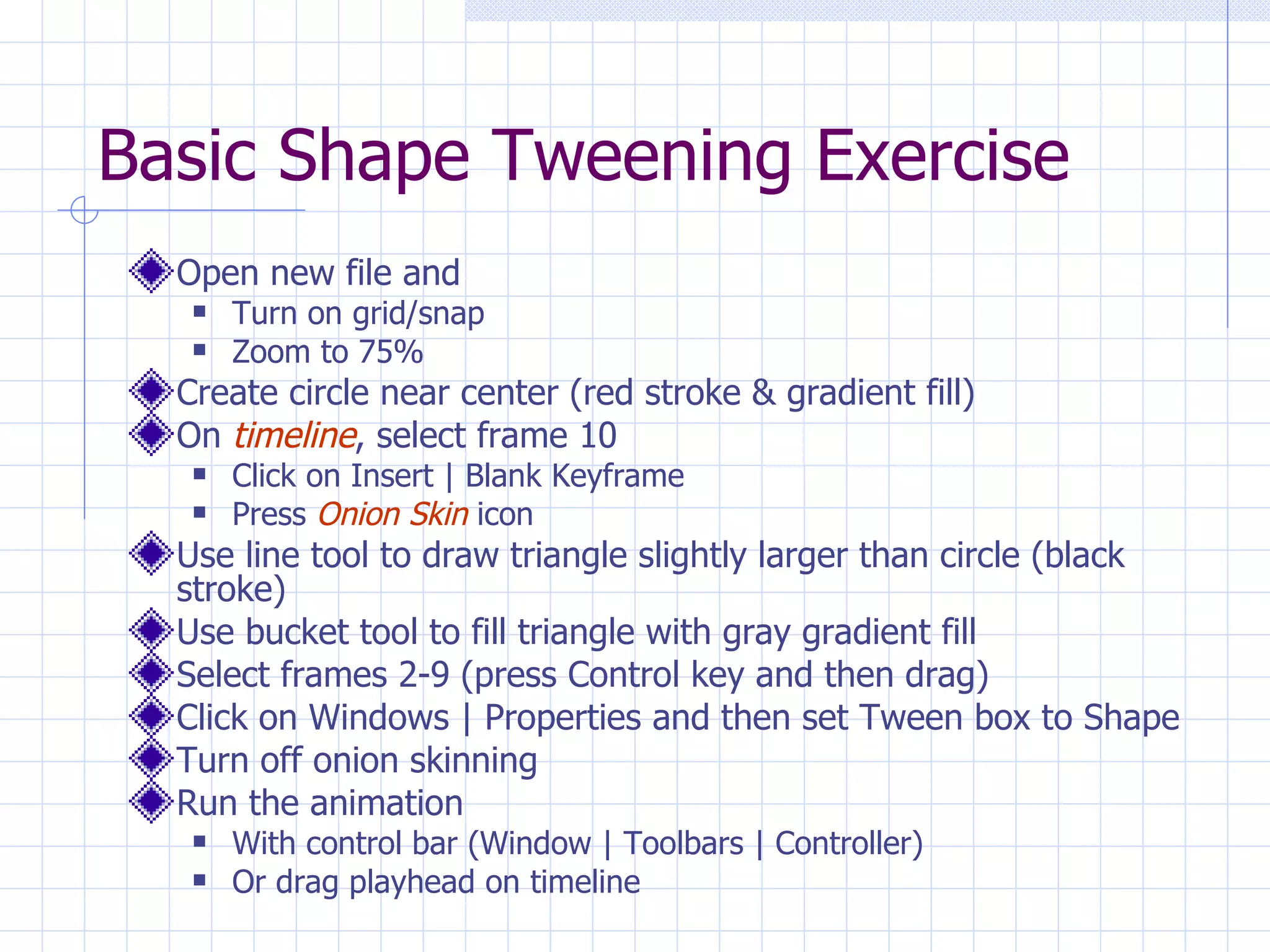
Basic Shape Tweening Exercise Open new file and  Turn on grid/snap Zoom to 75% Create circle near center (red stroke & gradient fill) On  timeline , select frame 10 Click on Insert | Blank Keyframe Press  Onion Skin  icon Use line tool to draw triangle slightly larger than circle (black stroke) Use bucket tool to fill triangle with gray gradient fill Select frames 2-9 (press Control key and then drag) Click on Windows | Properties and then set Tween box to Shape Turn off onion skinning Run the animation With control bar (Window | Toolbars | Controller) Or drag playhead on timeline
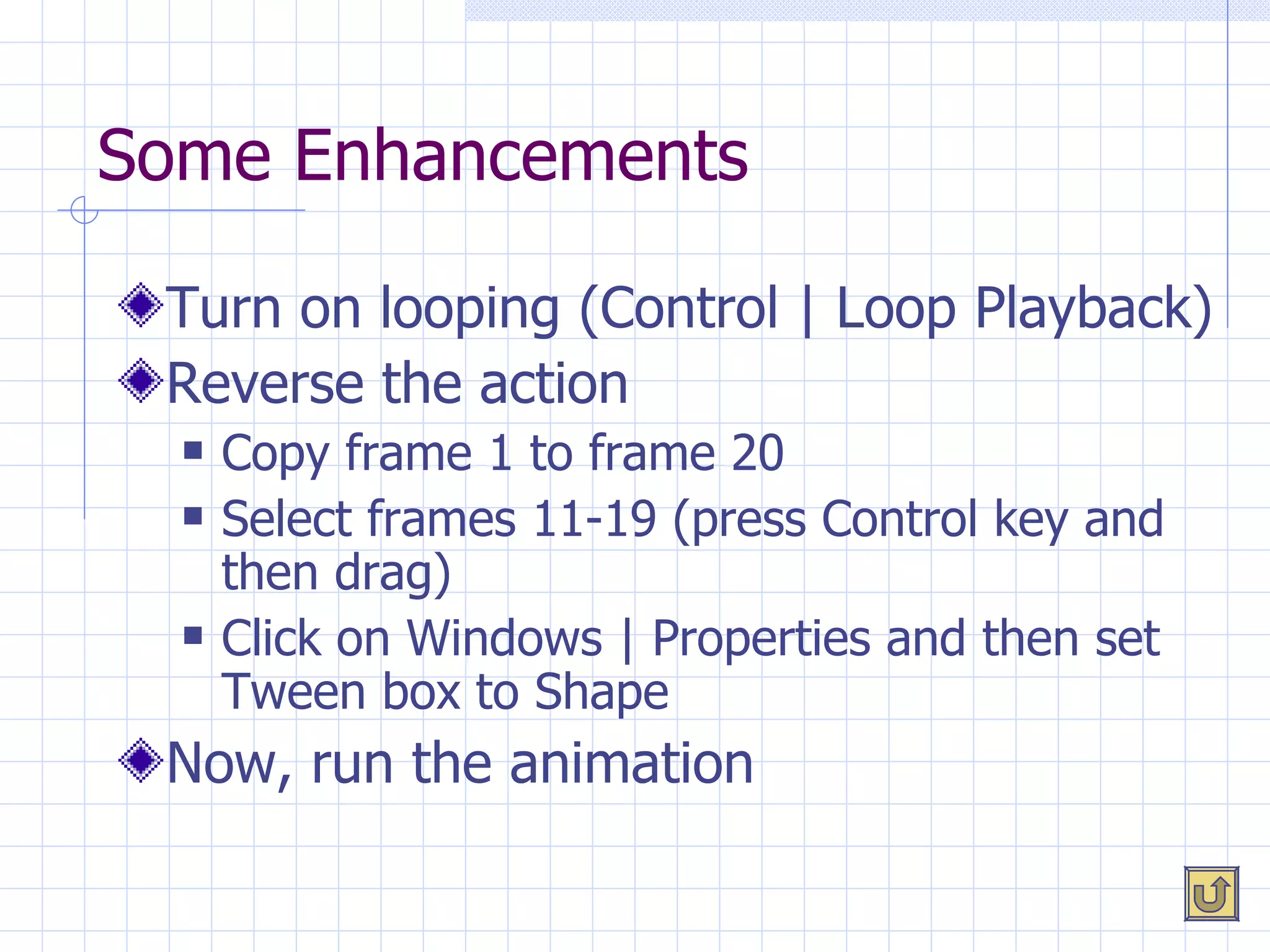
Some Enhancements Turn on looping (Control | Loop Playback) Reverse the action Copy frame 1 to frame 20 Select frames 11-19 (press Control key and then drag) Click on Windows | Properties and then set Tween box to Shape Now, run the animation

Web Server Primer

  • 1.
    eCommerce Technologies APrimer on Web Servers MIS 4453 -- Spring 2003 Instructors: Kelly Fish, Ph.D. John Seydel, Ph.D.
  • 2.
    Student Objectives Describeinteraction between browser and server Compare and contrast web server software commonly available Select appropriate web server based upon organizational needs If time permits: create shape-tweened Flash graphic
  • 3.
    First, Some AdministrativeStuff Customization (remember the 7 Cs?) Summary of exercises so far: Exercise 1 – Create personal profile pages (p. 22) Exercise 2 – FP exercise (modified from p. 36) Exercise 3 – site reorganization Exercise 4 – basic Flash (animated logo, page) Exercise 5 – more Flash (rollover button, etc.) Current homework (Exercise 5) detailed at course website And now, Quiz #2
  • 4.
    Web Servers BasicsAKA “HTTP servers” Service requests from clients (browsers) Forward (if necessary) to Database servers Application servers Provide administration and security features for web management Process differs for static and dynamic web pages Static pages: never changing; brochureware Dynamic: content (and even display) based upon interaction with user Draw information from databases Update databases eBusiness: integrates servers, applications, and databases among users and suppliers
  • 5.
  • 6.
    Server Selection, Step-by-StepDetermine “user” requirements Customers Company Identify applications software needed Specific applications (ASP.NET, PHP, . . . ) Web server software Determine OS requirements Develop hardware specifications
  • 7.
    Server Hardware Justabout any computer can be a server Powerful multi-user hardware Lightweight personal machine Vary based upon OS (not really hardware, but treat as such) Number/power of processors RAM Hard drive space Organizational needs will dictate the appropriate configurations
  • 8.
    Server Software Topfour : Apache (open source) – 11.1 million sites IIS (Windows) – 4.1 million sites Zeus – 0.3 million sites SunONE (replaces/extends iPlanet) – 0.2 million sites Features to expect User management, authentication, etc. Cookies support Editing features Server-side script processing (e.g., CGI, ASP, PHP) See www.netcraft.com/survey
  • 9.
    Apache Server OSsupported Windows, OS/2, Unix, Linux Most common: Linux Open source – what’s that mean? Robust design and extensibility Not a dummies tool No GUI No browser-based maintenance Essentially all command line driven
  • 10.
    Internet Information ServerActually Internet Information Services (IIS 5) On the plus side Intuitive: GUI Essentially as powerful/capable as Apache Incorporates WebDAV (web-based distributed authoring & versioning) Emerging standard for simplifying intranet construction and enabling multiple users to publish to common web serve r Additional benefit: Supports ASP Downside: works only on Windows (what else would you expect from Microsoft!) Growing in popularity (?)
  • 11.
    Other Web-Related ServersCreate multi-tiered architecture Include Application servers (sometimes middleware ) A/V servers (especially valuable for streaming ) Database servers Exchange servers (support collaboration; email) Proxy servers (involve cache management) Security servers (e.g., firewalls ) Offload processing and storage From server From client Can be in same or multiple boxes
  • 12.
    Multi-Tiered Internet DatabaseAccess Architecture
  • 13.
    Choosing Your Server(Revisited) First, what applications will be needed? ASP Cold Fusion CGI Extensions: FrontPage, DreamWeaver, . . . Then, what server software is required to run those applications Next, what OS will support that server software? Finally, choose the hardware that can support Software configuration Traffic expected Connection with database and applications Network
  • 14.
    Server Selection ConsiderationsKeep in mind that eCommerce requires more power, memory, speed than static web applications Needs assessment Site traffic Concurrent users Bandwidth could be limitation Plan for three years growth Scalability (size) Extensibility (functionality) Hardware/software selection: popularity, capacity, reliability, performance, compatibility, upgradeability, price, support See server ratings (sites on page 88)
  • 15.
    Summary of ObjectivesDescribe interaction between browser and server Compare and contrast web server software commonly available Select appropriate web server based upon organizational needs If time permits: create shape-tweened Flash graphic
  • 16.
    How About QuestionsConcerning Homework Exercises? Flash Basic animation (logo) Adding objects to web pages Rollover buttons (see handout at website) Shape-tweening FrontPage XHTML/HTML in general Other . . . ?
  • 17.
    For Next TimeInstall and experiment with IIS on personal machine (see pages 89-94) Read Chapter 6 Complete Exercise 5 per specifications at website Flash exercises Animated conference logo Rollover button Installed on web pages Chapter 3 Hands-On Exercise Scan/convert conference images Use PhotoEd and Flash (not PS Pro) Another Flash exercise : try to create shape tweened graphic
  • 18.
  • 19.
    What Happens WhenYou View a Web Page? The same process applies whether you Click on a link or Type a URL into the address bar HTTP request is then sent to server at designated URL Includes header info Requests file Server then returns HTTP response Includes header info Contains file Repeated as client (i.e., user agent) interprets file
  • 20.
  • 21.
    HTTP Request ExampleRequest: GET/index.html? name=julie+smith&ID=12234 /HTTP:/www.astate.edu /HTTP1.1 Header: Useragent: IE 5.0 Accept: */* Date: 10/24/02 Body: (empty) querystring
  • 22.
    HTTP Response ExampleResponse: HTTP1.1/200 Header: Server: IIS 50 Date: 10/24/02 Body: <html> . . . </html>
  • 23.
    Servers at ActiveWebsites Source: www.netcraft.com/survey
  • 24.
    Zeus Web Serverversus Apache
  • 25.
  • 26.
    Basic Shape TweeningExercise Open new file and Turn on grid/snap Zoom to 75% Create circle near center (red stroke & gradient fill) On timeline , select frame 10 Click on Insert | Blank Keyframe Press Onion Skin icon Use line tool to draw triangle slightly larger than circle (black stroke) Use bucket tool to fill triangle with gray gradient fill Select frames 2-9 (press Control key and then drag) Click on Windows | Properties and then set Tween box to Shape Turn off onion skinning Run the animation With control bar (Window | Toolbars | Controller) Or drag playhead on timeline
  • 27.
    Some Enhancements Turnon looping (Control | Loop Playback) Reverse the action Copy frame 1 to frame 20 Select frames 11-19 (press Control key and then drag) Click on Windows | Properties and then set Tween box to Shape Now, run the animation