The Unix and GNU/Linux  Command Line  Nguyen Vu Hung – VINICORP  [email_address] 2010/09/21 Based on “intro_unix_linux” by Michael Opdenacker  from Free Electrons
Best viewed with... This document is best viewed with a recent PDF reader or with  OpenOffice.org  itself! Take advantage of internal or external hyperlinks. So, don’t hesitate to click on them!
Find pages quickly thanks to automatic search
Use thumbnails to navigate in the document in a quick way
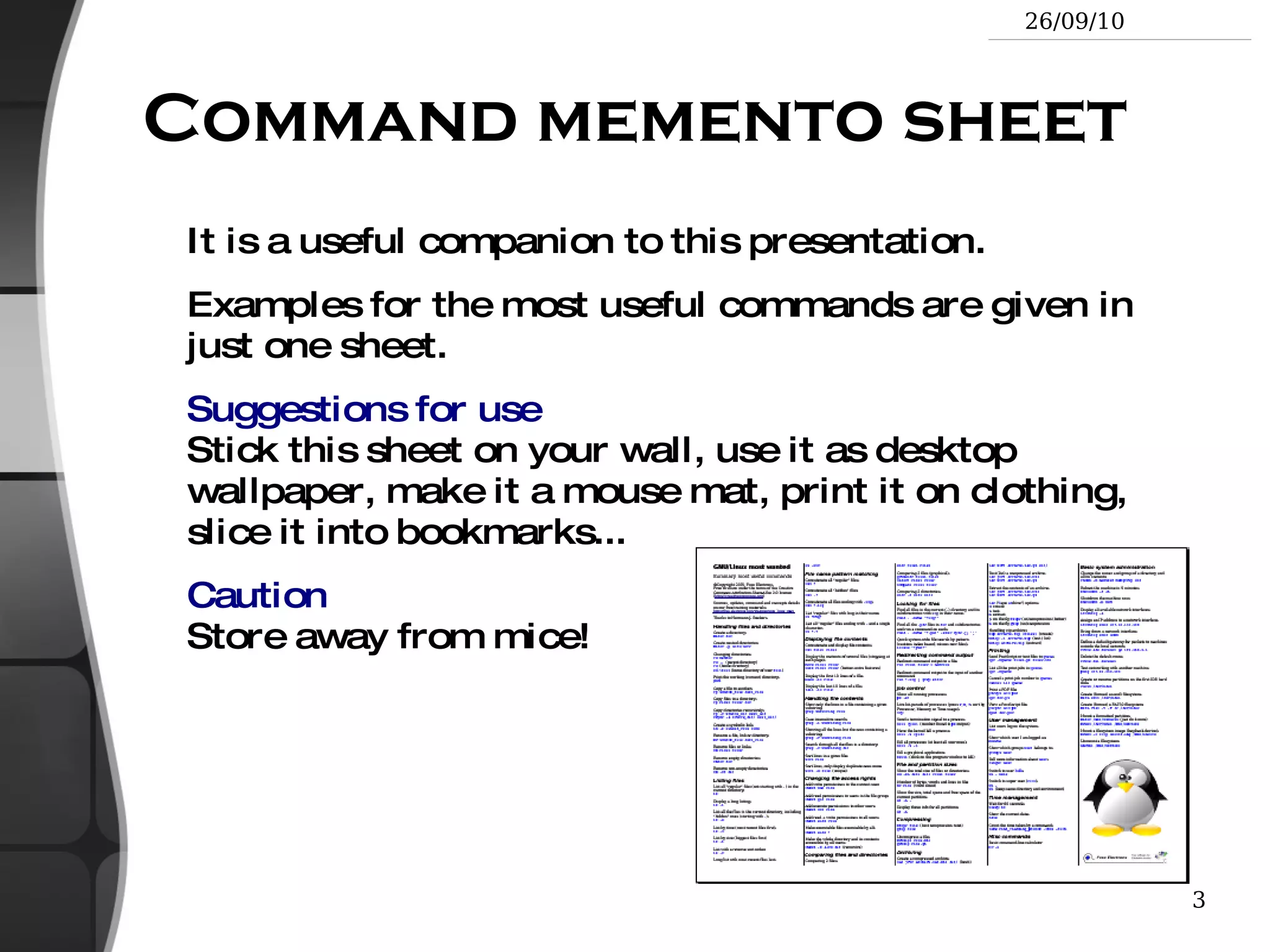
Command memento sheet It is a useful companion to this presentation. Examples for the most useful commands are given in just one sheet. Suggestions for use Stick this sheet on your wall, use it as desktop wallpaper, make it a mouse mat, print it on clothing, slice it into bookmarks... Caution Store away from mice!
Training Contents (1) Shells, filesystem and file handling Everything is a file
GNU / Linux filesystem structure
Command line interpreters
Handling files and directories
Displaying, scanning and sorting files
Symbolic and hard link
File access rights
Training contents (2) Standard I/O, redirections, pipes Standard input and output, redirecting to files
Pipes: redirecting standard output to other commands
Standard error
Training Contents (3) Task control Full control on tasks
Executing in background, suspending, resuming and aborting
List of active tasks
Killing processes
Environment variables
PATH environment variables
Shell aliases, .bashrc file
Training contents (4) Miscellaneous Text editors
Compressing and archiving
Printing files
Comparing files and directories
Looking for files
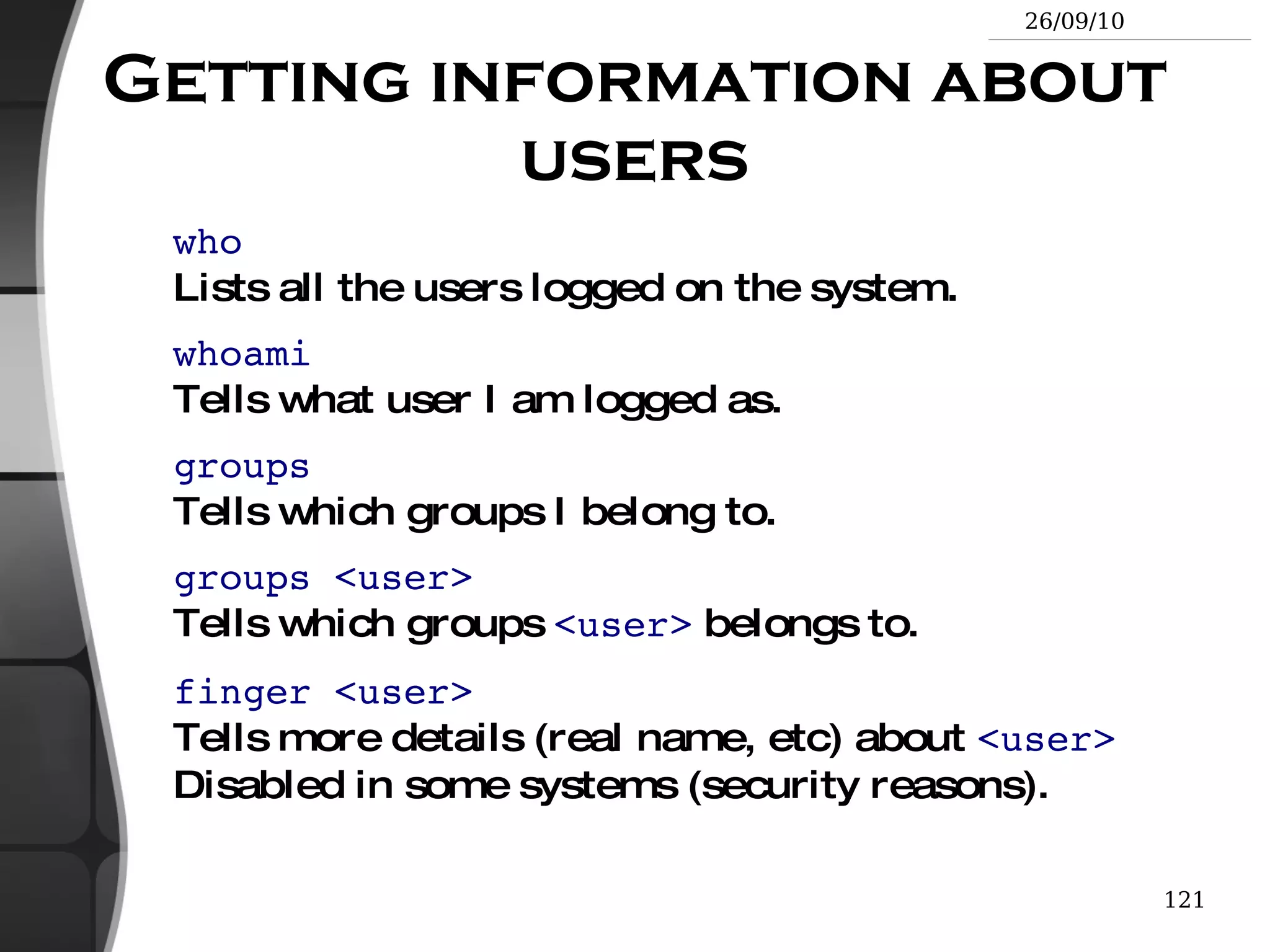
Getting information about users
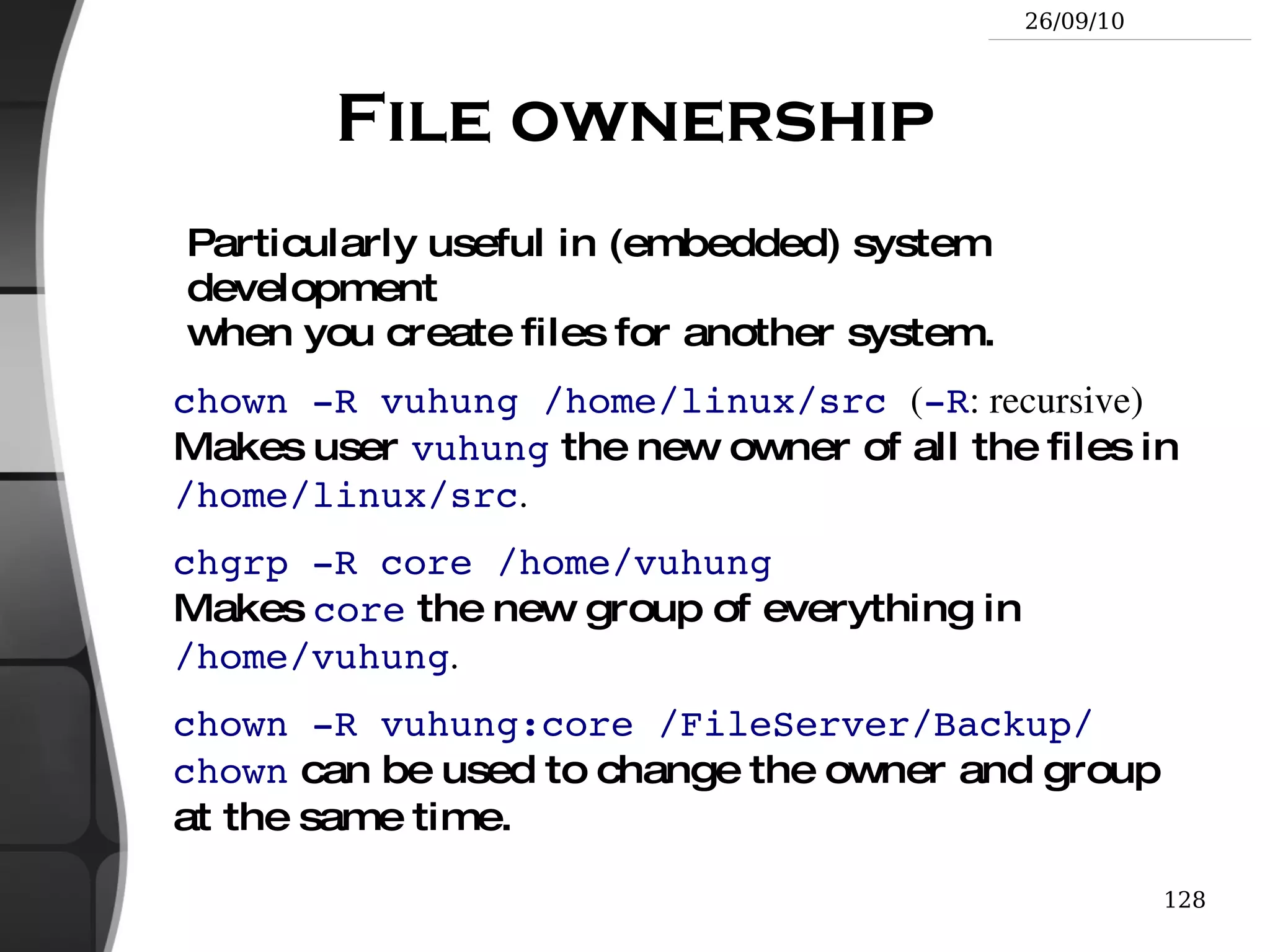
Training contents (5) System administration basics File ownership
Setting up networking
Filesystems: creating and mounting Going further Getting help, accessing manual pages
Searching the Internet for resources
Training contents (6) Basic LAMP Administration Linux
Apache
MySQL
PHP Going further LAMP on Ubuntu
LAMP on CentOS (Redhat)
GNU/Linux and Free Software This presentation included an introduction to Free Software and Open Source: operating systems, applications, key projects and rules for success.
Philosophy of the GNU Project Definition (free to run, study, distribute, change && copy)
Why Software Should Not Have Owners
Copyleft
Free Documentation
Selling Free Software is OK
The Unix and GNU/Linux command line Unix Filesystem
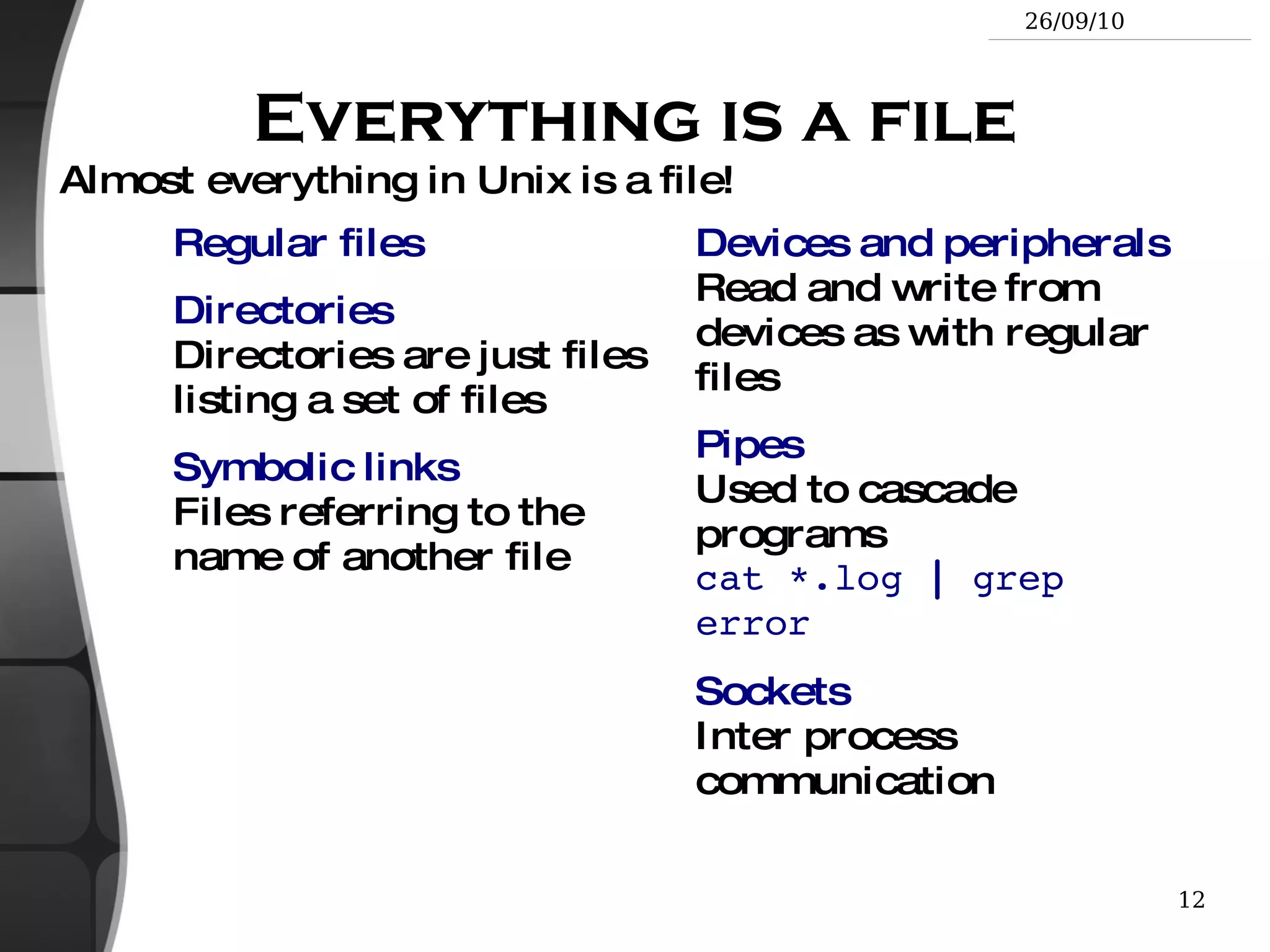
Everything is a file Regular files
Directories Directories are just files listing a set of files
Symbolic links Files referring to the name of another file Devices and peripherals Read and write from devices as with regular files
Pipes Used to cascade programs cat *.log  |  grep error
Sockets Inter process communication Almost everything in Unix is a file!
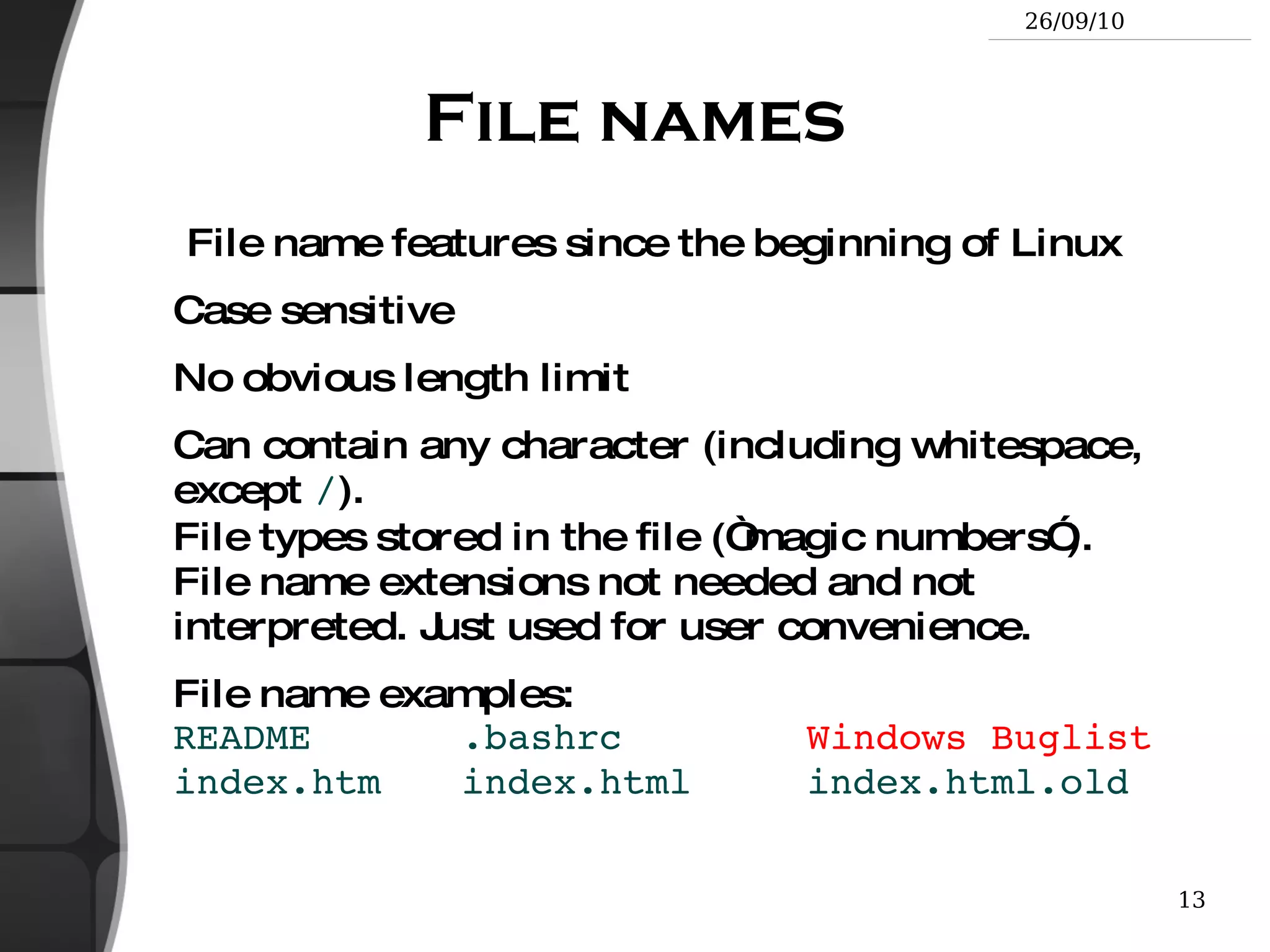
File names File name features since the beginning of Linux Case sensitive
No obvious length limit
Can contain any character (including whitespace, except  / ). File types stored in the file (“magic numbers”). File name extensions not needed and not interpreted. Just used for user convenience.
File name examples: README .bashrc Windows Buglist index.htm index.html index.html.old
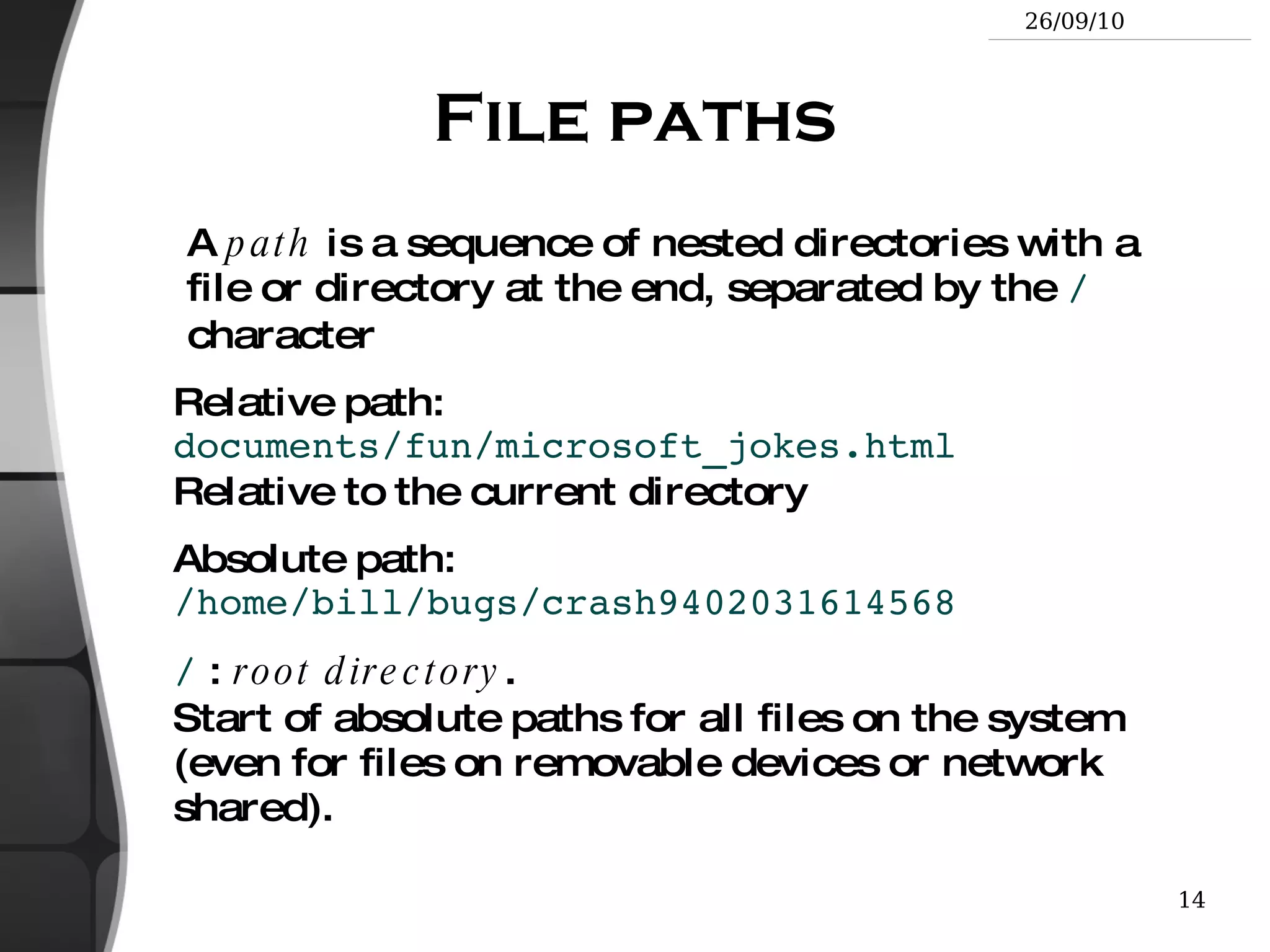
File paths A  path  is a sequence of nested directories with a file or directory at the end, separated by the  /  character Relative path:  documents/fun/microsoft_jokes.html Relative to the current directory
Absolute path:  /home/bill/bugs/crash9402031614568
/  :  root directory . Start of absolute paths for all files on the system (even for files on removable devices or network shared).
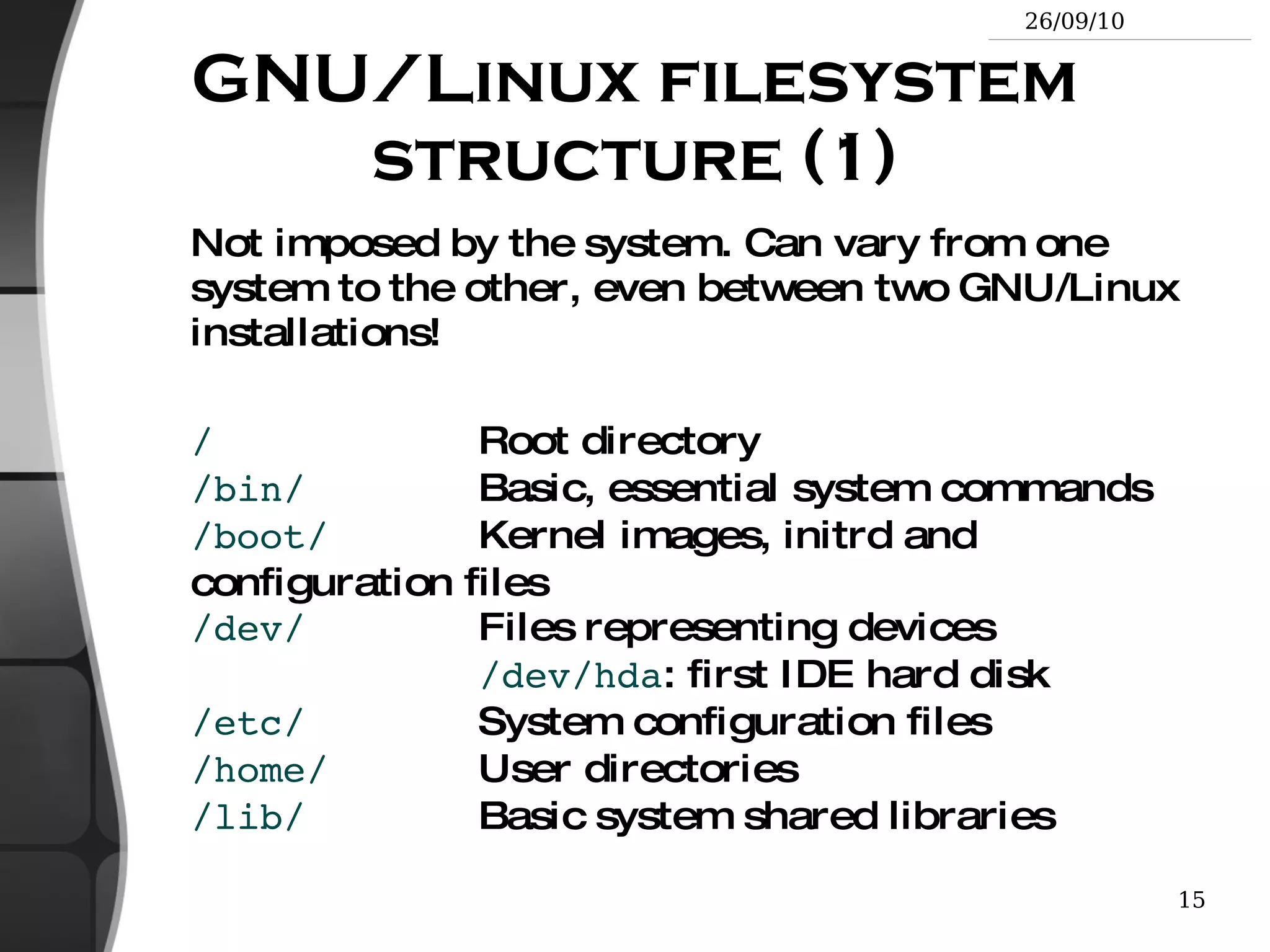
GNU/Linux filesystem structure (1) Not imposed by the system. Can vary from one system to the other, even between two GNU/Linux installations! / Root directory /bin/ Basic, essential system commands /boot/ Kernel images, initrd and configuration files /dev/ Files representing devices /dev/hda : first IDE hard disk /etc/ System configuration files /home/ User directories /lib/ Basic system shared libraries
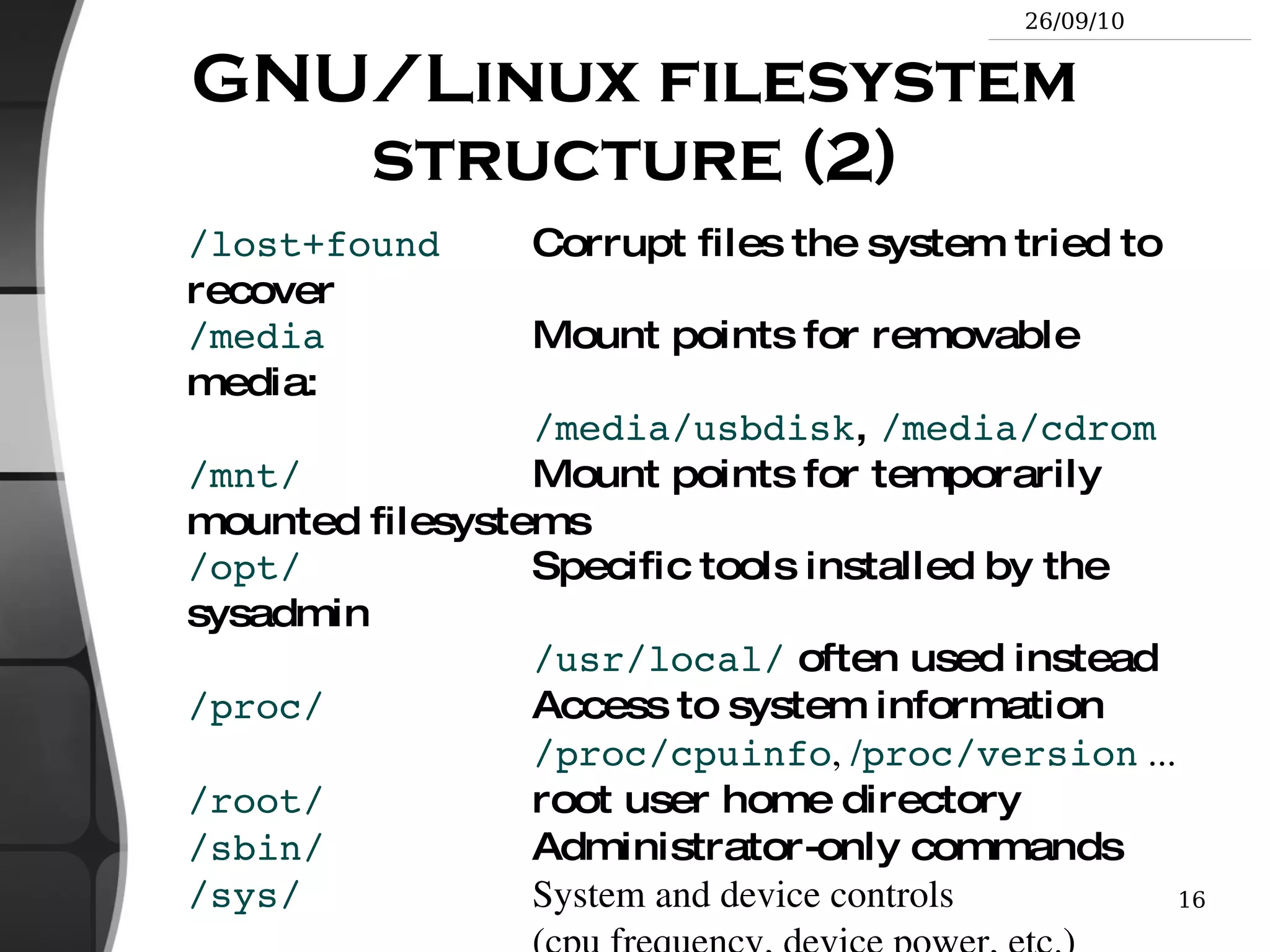
GNU/Linux filesystem structure (2) /lost+found Corrupt files the system tried to recover /media Mount points for removable media: /media/usbdisk ,  /media/cdrom /mnt/ Mount points for temporarily mounted filesystems /opt/ Specific tools installed by the sysadmin /usr/local/  often used instead /proc/ Access to system information /proc/cpuinfo ,  / proc/version  ... /root/ root user home directory /sbin/ Administrator-only commands /sys/ System and device controls (cpu frequency, device power, etc.)
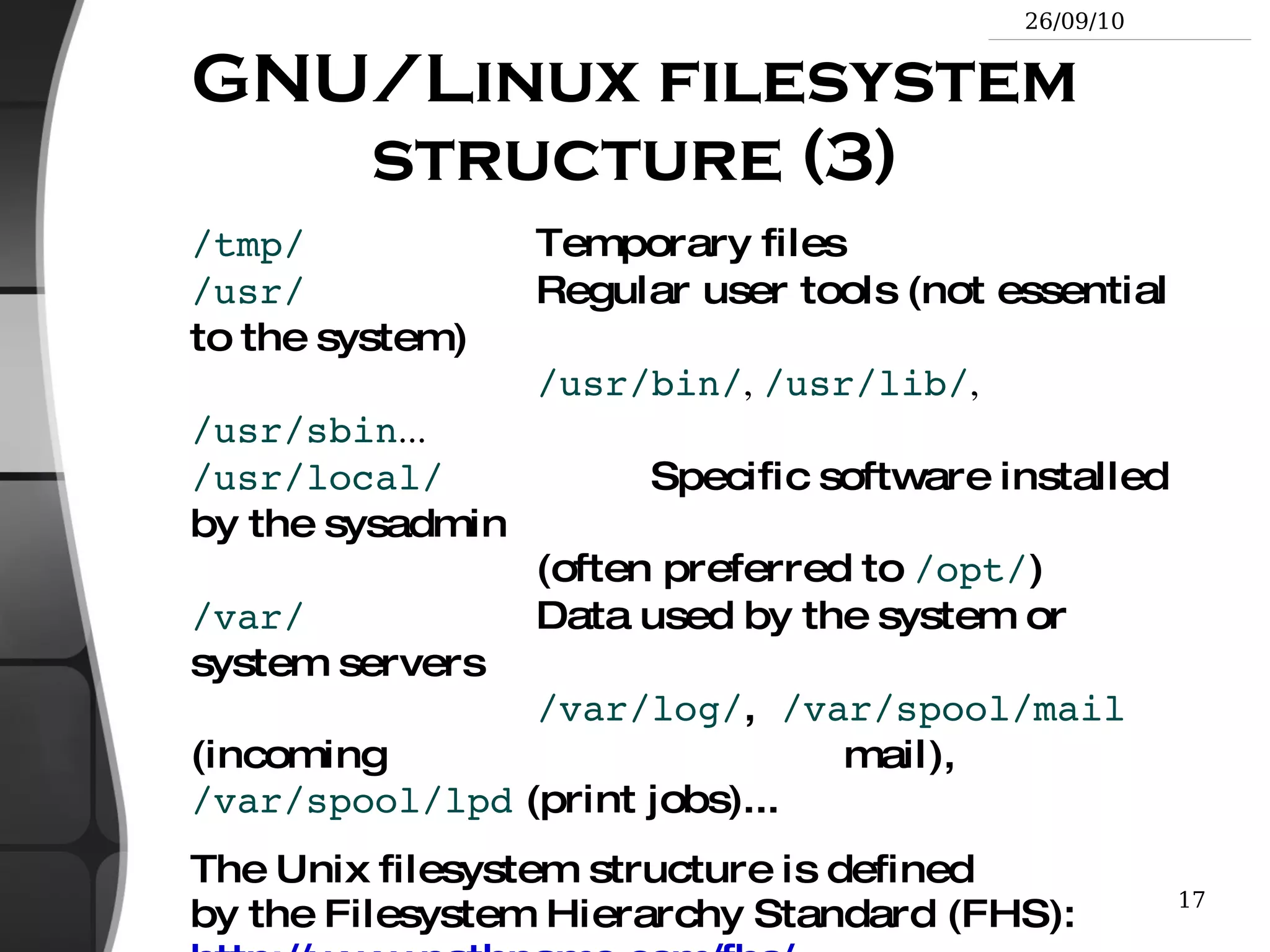
GNU/Linux filesystem structure (3) /tmp/ Temporary files /usr/ Regular user tools (not essential to the system) /usr/bin/ ,  /usr/lib/ ,  /usr/sbin ... /usr/local/   Specific software installed by the sysadmin (often preferred to  /opt/ ) /var/ Data used by the system or system servers /var/log/ ,  /var/spool/mail  (incoming      mail),  /var/spool/lpd  (print jobs)... The Unix filesystem structure is defined by the Filesystem Hierarchy Standard (FHS): http://www.pathname.com/fhs/
The Unix and GNU/Linux command line Shells and File Handling
Command line interpreters Shells: tools to execute user commands
Called “shells” because they hide the details on the underlying operating system under the shell's surface.
Commands are input in a text terminal, either a window in a graphical environment or a text-only console.
Results are also displayed on the terminal. No graphics are needed at all.
Shells can be scripted: provide all the resources to write complex programs (variable, conditionals, iterations...)
Well known shells Most famous and popular shells sh : The Bourne shell (obsolete) Traditional, basic shell found on Unix systems, by Steve Bourne.
csh : The C shell (obsolete) Once popular shell with a C-like syntax
tcsh : The TC shell  (still very popular) A C shell compatible implementation with evolved features (command completion, history editing and more...)
bash : The Bourne Again shell (most popular) An improved implementation of sh with lots of added features too.
fish: a great new shell The Friendly Interactive SHell http://www.fishshell.org/ Standard features: history, command and file completion...
Brand new features: command option completion, command completion with short description, syntax highlighting..
Easier to any open files:  open  built-in command.
Much simpler and consistent syntax (not POSIX compliant) Makes it easier to create shell scripts.  Command line beginners can learn much faster! Even experienced users should find this shell very convenient.
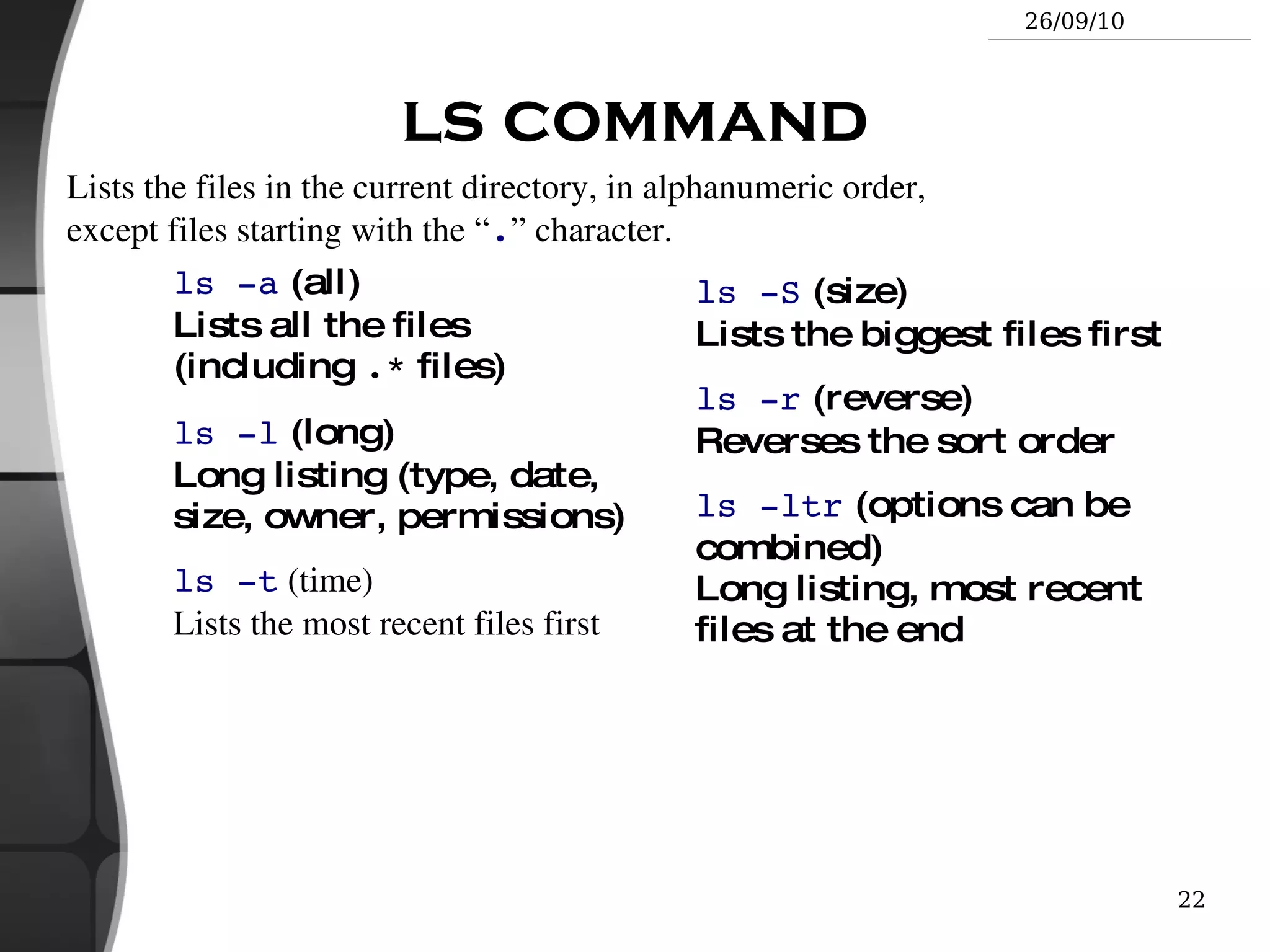
ls command ls -a  (all) Lists all the files (including  .*  files)
ls -l  (long) Long listing (type, date, size, owner, permissions)
ls -t  (time) Lists the most recent files first ls -S  (size) Lists the biggest files first
ls -r  (reverse) Reverses the sort order
ls -ltr  (options can be combined) Long listing, most recent files at the end Lists the files in the current directory, in alphanumeric order, except files starting with the “ . ” character.
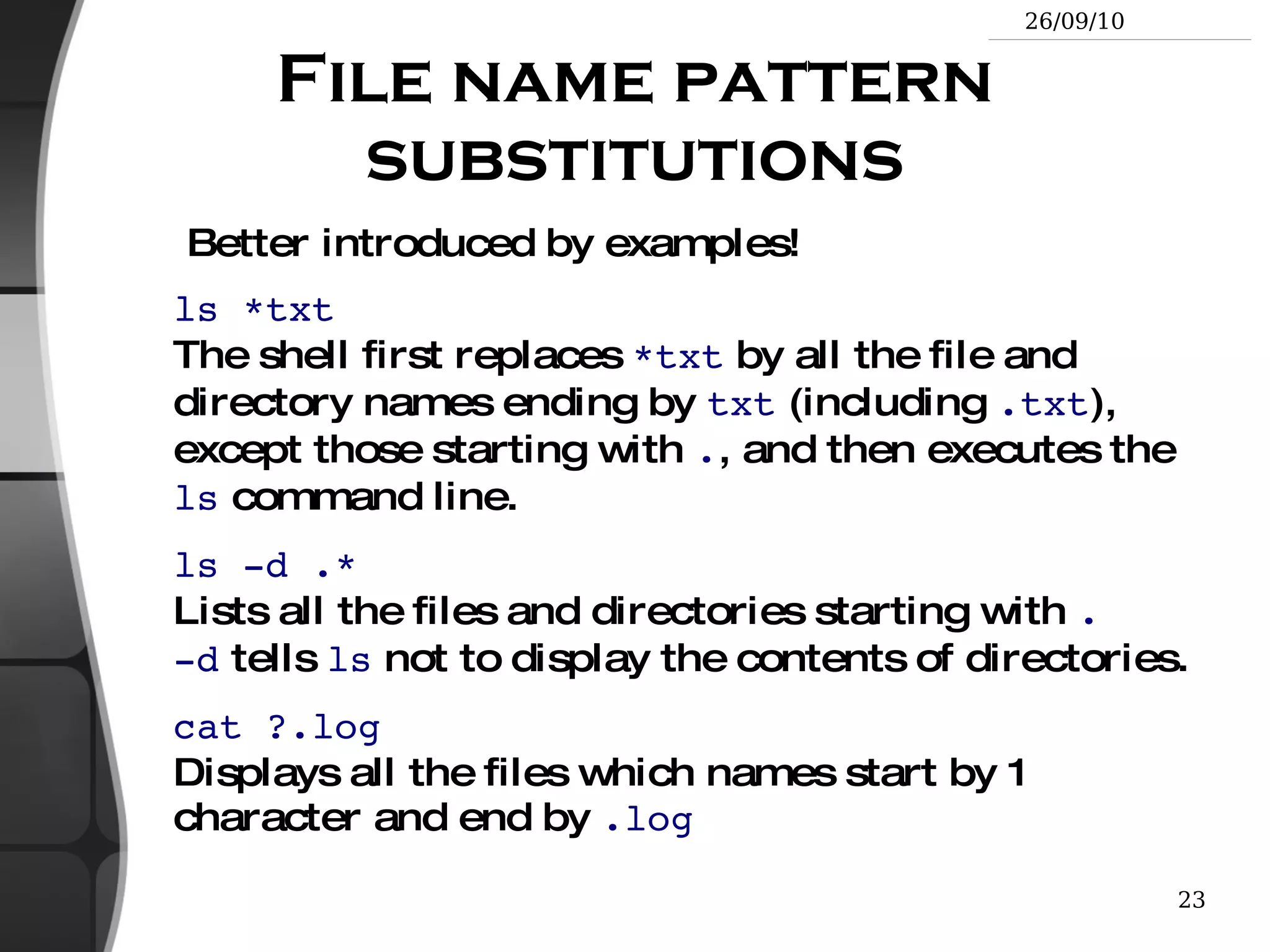
File name pattern substitutions Better introduced by examples! ls *txt The shell first replaces  *txt  by all the file and directory names ending by  txt  (including  .txt ), except those starting with  . , and then executes the  ls  command line.
ls -d .* Lists all the files and directories starting with  . -d  tells  ls  not to display the contents of directories.
cat ?.log Displays all the files which names start by 1 character and end by  .log
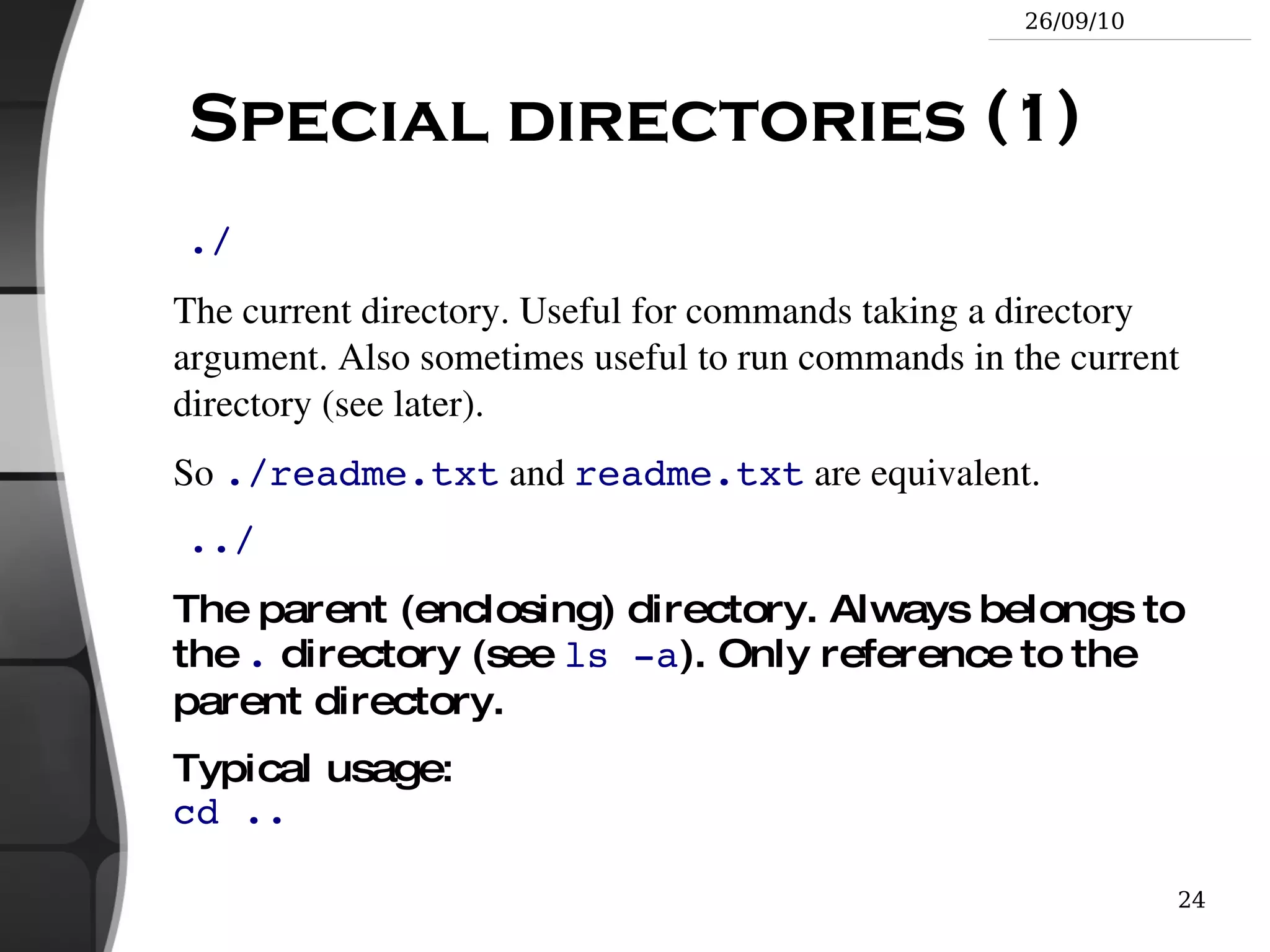
Special directories (1) ./ The current directory. Useful for commands taking a directory argument. Also sometimes useful to run commands in the current directory (see later).
So  ./readme.txt  and  readme.txt  are equivalent. ../ The parent (enclosing) directory. Always belongs to the   .  directory (see  ls -a ). Only reference to the parent directory.
Typical usage: cd ..
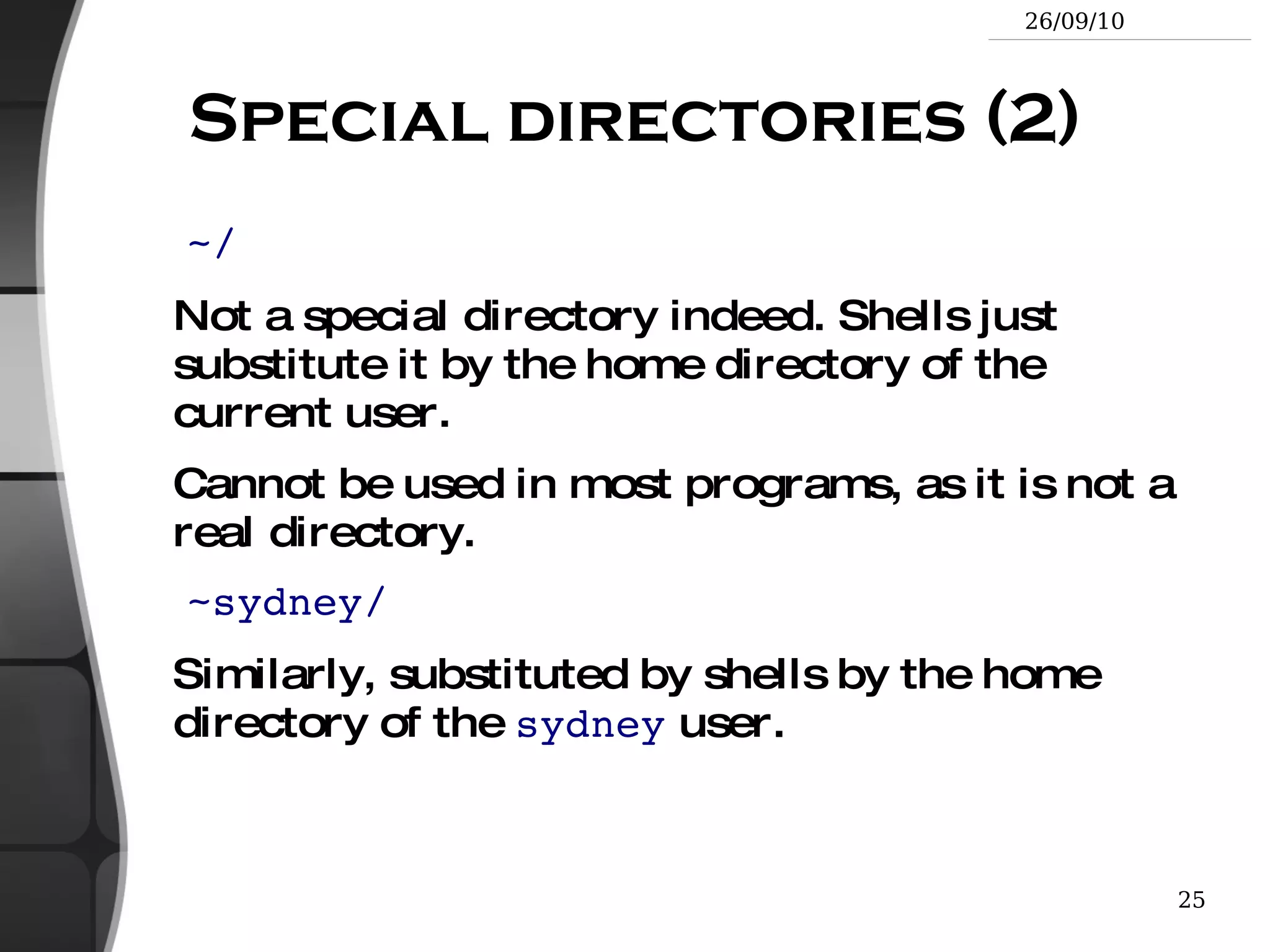
Special directories (2) ~/ Not a special directory indeed. Shells just substitute it by the home directory of the current user.
Cannot be used in most programs, as it is not a real directory. ~sydney/ Similarly, substituted by shells by the home directory of the  sydney  user.
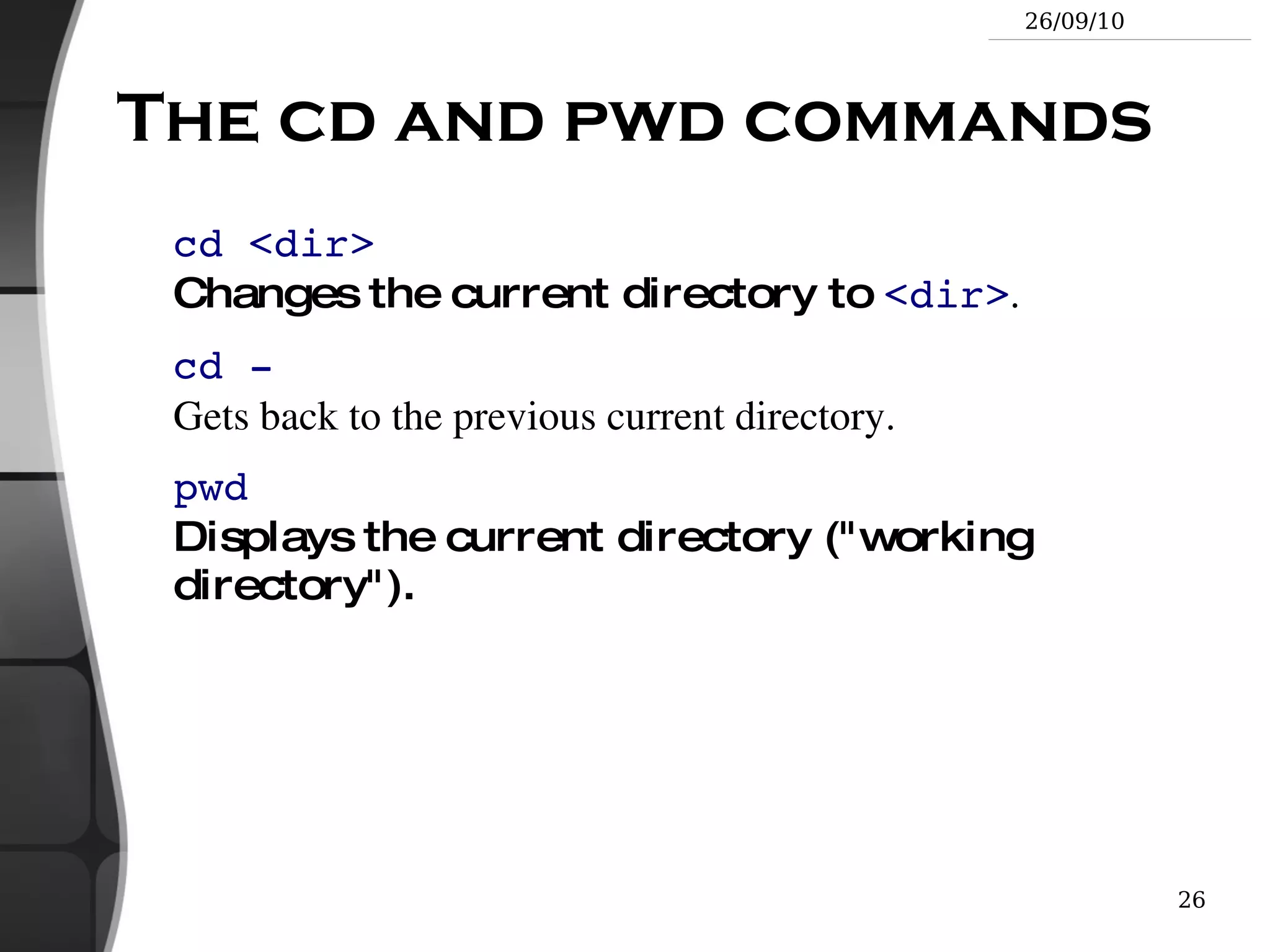
The cd and pwd commands cd <dir> Changes the current directory to  <dir> .
cd - Gets back to the previous current directory.
pwd Displays the current directory (&quot;working directory&quot;).
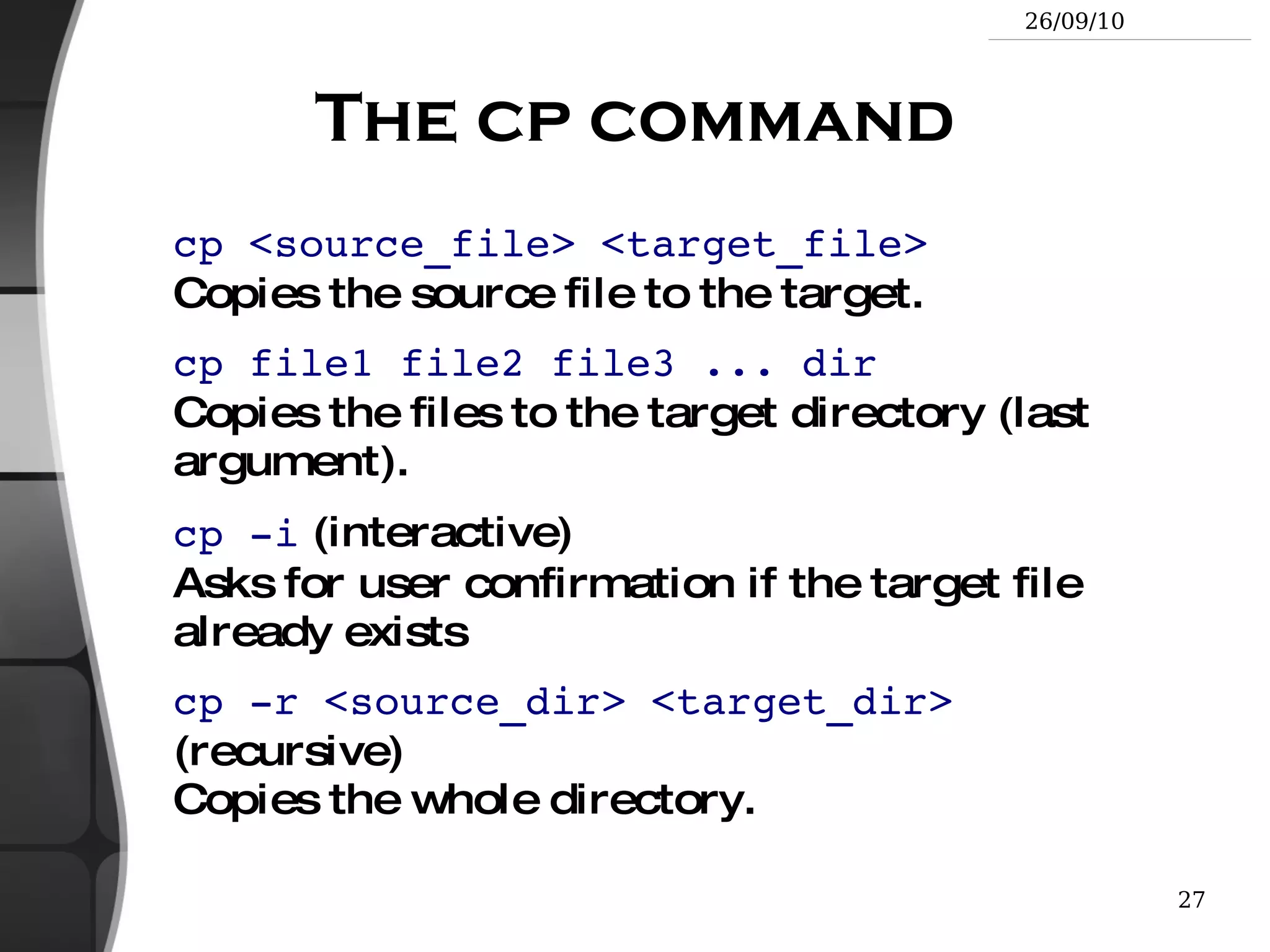
The cp command cp <source_file> <target_file> Copies the source file to the target.
cp file1 file2 file3 ... dir Copies the files to the target directory (last argument).
cp -i  (interactive) Asks for user confirmation if the target file already exists
cp -r <source_dir> <target_dir>   (recursive) Copies the whole directory.
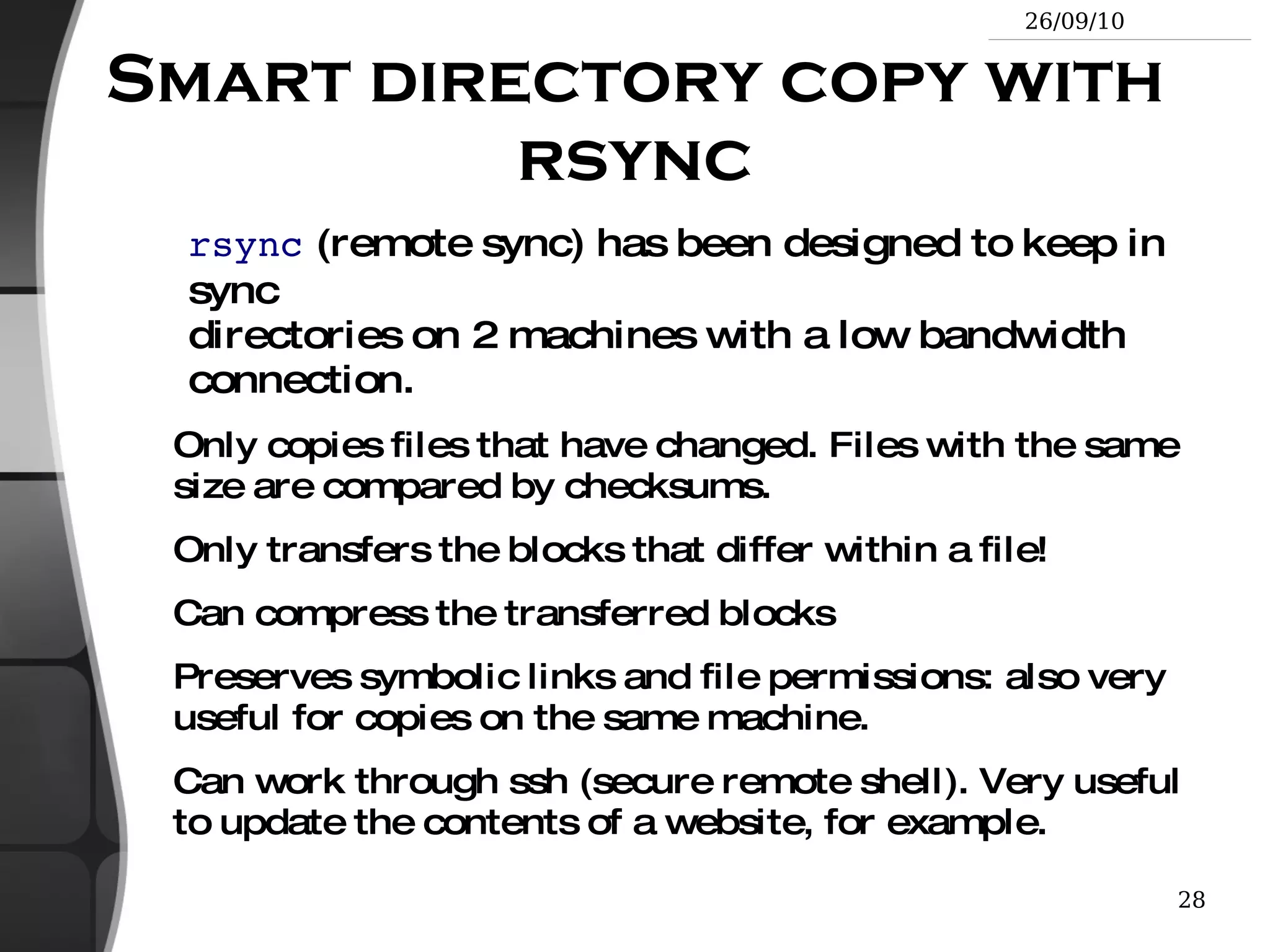
Smart directory copy with rsync rsync  (remote sync) has been designed to keep in sync directories on 2 machines with a low bandwidth connection. Only copies files that have changed. Files with the same size are compared by checksums.
Only transfers the blocks that differ within a file!
Can compress the transferred blocks
Preserves symbolic links and file permissions: also very useful for copies on the same machine.
Can work through ssh (secure remote shell). Very useful to update the contents of a website, for example.
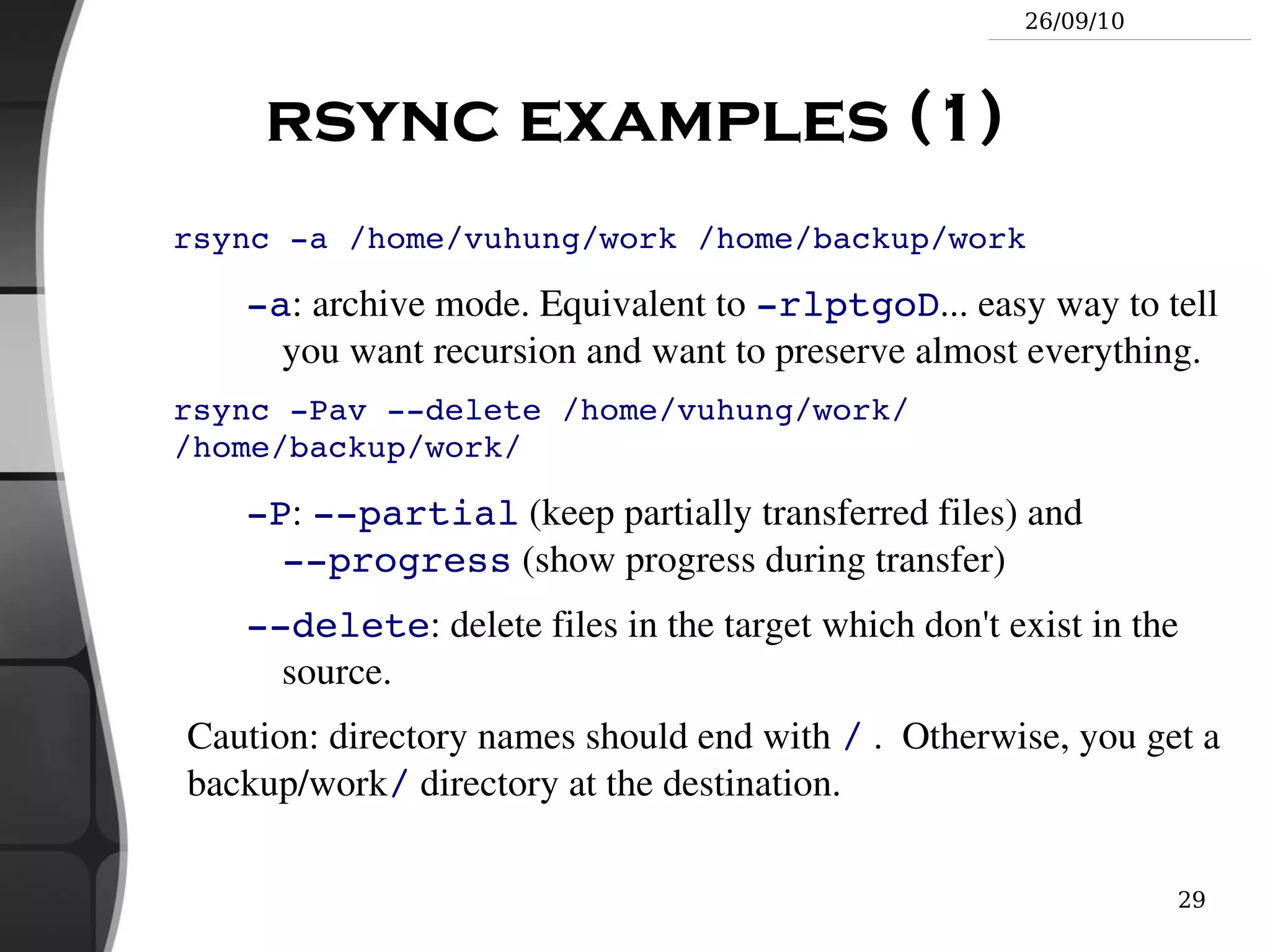
rsync examples (1) rsync -a /home/vuhung/work /home/backup/work -a : archive mode. Equivalent to  -rlptgoD ... easy way to tell you want recursion and want to preserve almost everything. rsync -Pav --delete /home/vuhung/work/ /home/backup/work/ -P :  --partial  (keep partially transferred files) and  --progress  (show progress during transfer) --delete : delete files in the target which don't exist in the source. Caution : directory names should end with  /  .  Otherwise, you get a backup/work /  directory at the destination.
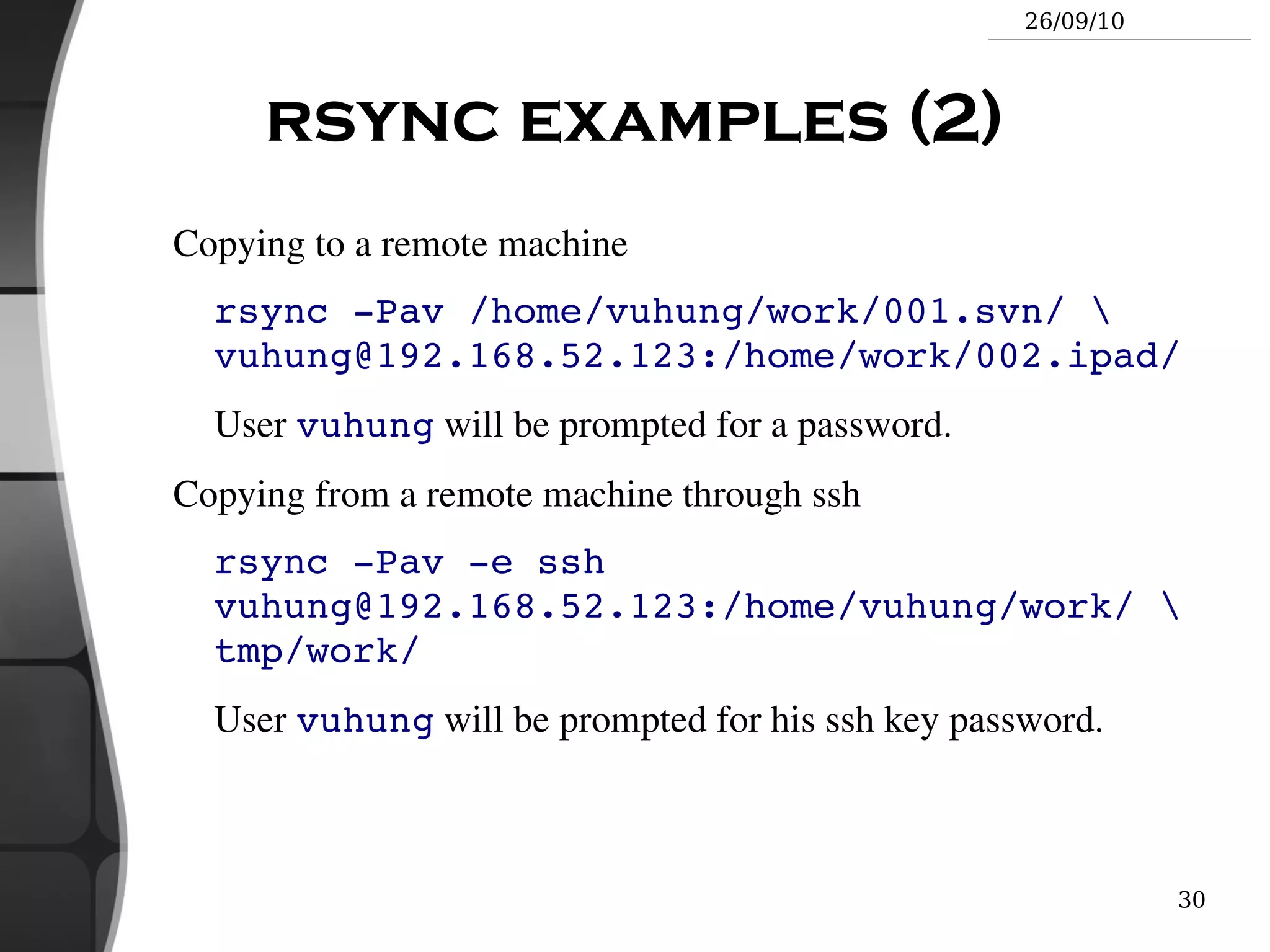
rsync examples (2) Copying to a remote machine rsync -Pav /home/vuhung/work/001.svn/ \ vuhung@192.168.52.123:/home/work/002.ipad/ User  vuhung  will be prompted for a password. Copying from a remote machine through ssh rsync -Pav -e ssh vuhung@192.168.52.123:/home/vuhung/work/ \ tmp/work/ User  vuhung  will be prompted for his ssh key password.
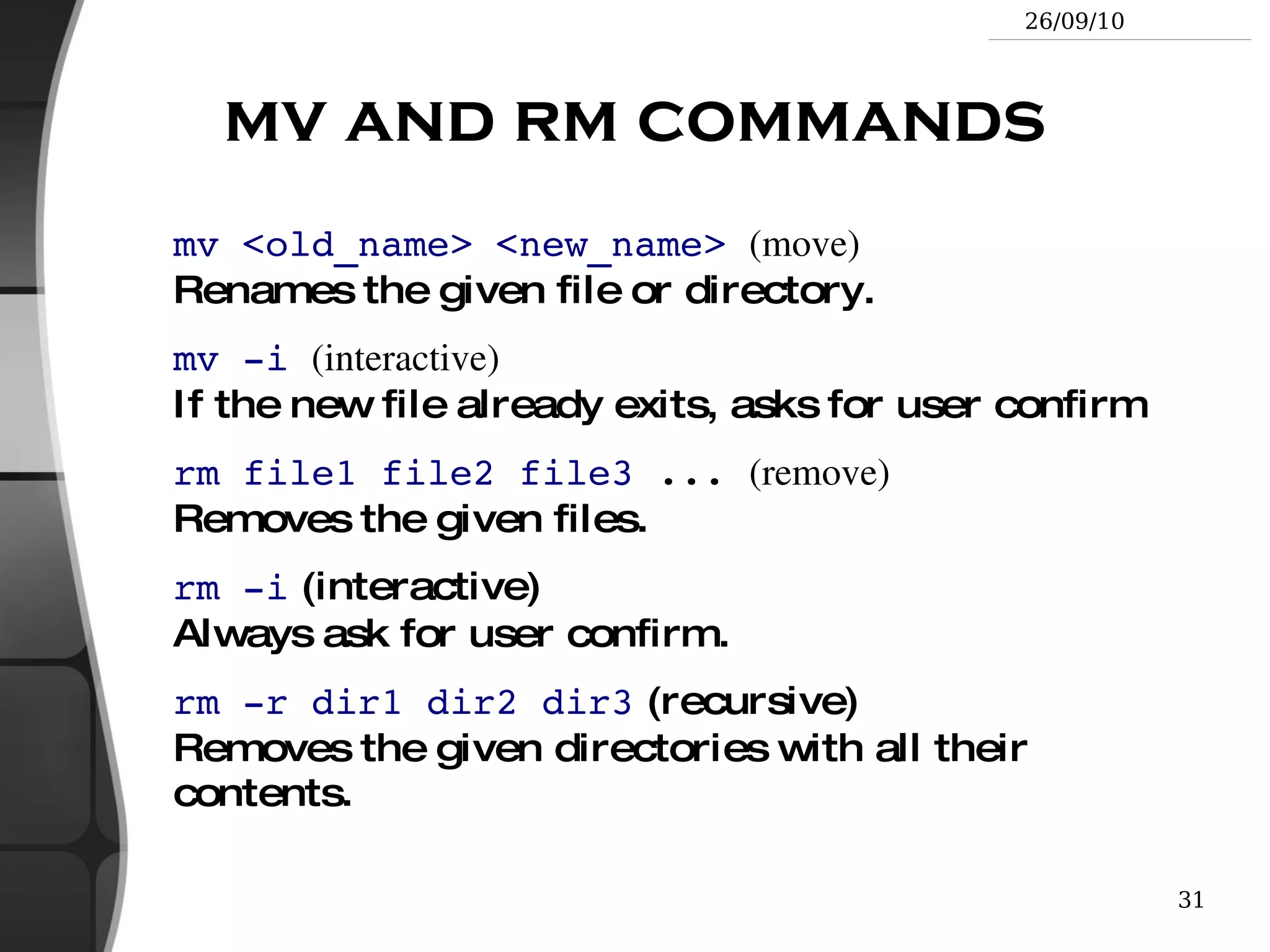
mv and rm commands mv <old_name> <new_name>   (move) Renames the given file or directory.
mv -i   (interactive) If the new file already exits, asks for user confirm
rm file1 file2 file3  ... (remove) Removes the given files.
rm -i  (interactive) Always ask for user confirm.
rm -r dir1 dir2 dir3  (recursive) Removes the given directories with all their contents.
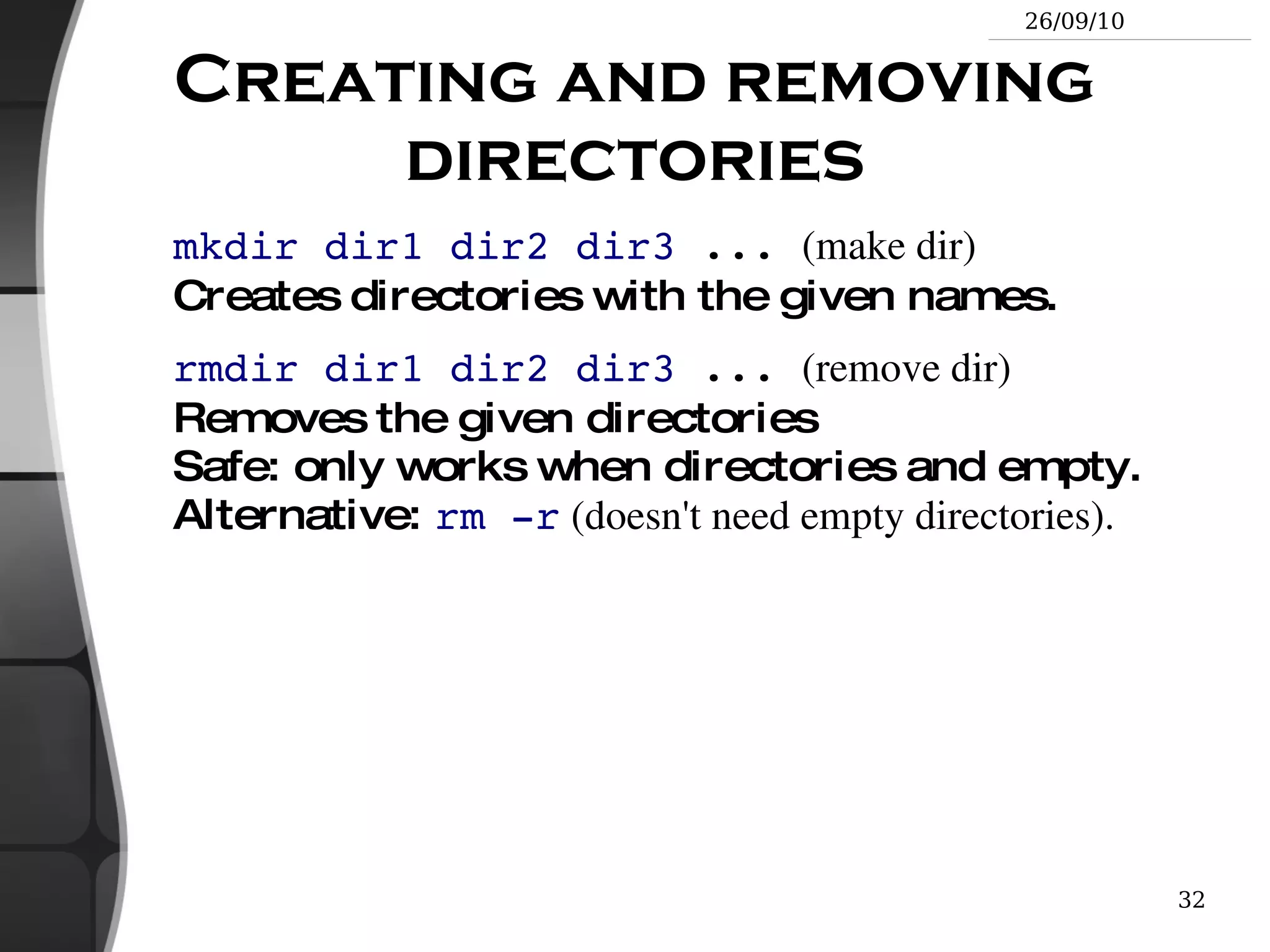
Creating and removing directories mkdir dir1 dir2 dir3  ...  (make dir) Creates directories with the given names.
rmdir dir1 dir2 dir3  ...  (remove dir) Removes the given directories Safe: only works when directories and empty. Alternative:  rm -r  (doesn't need empty directories).
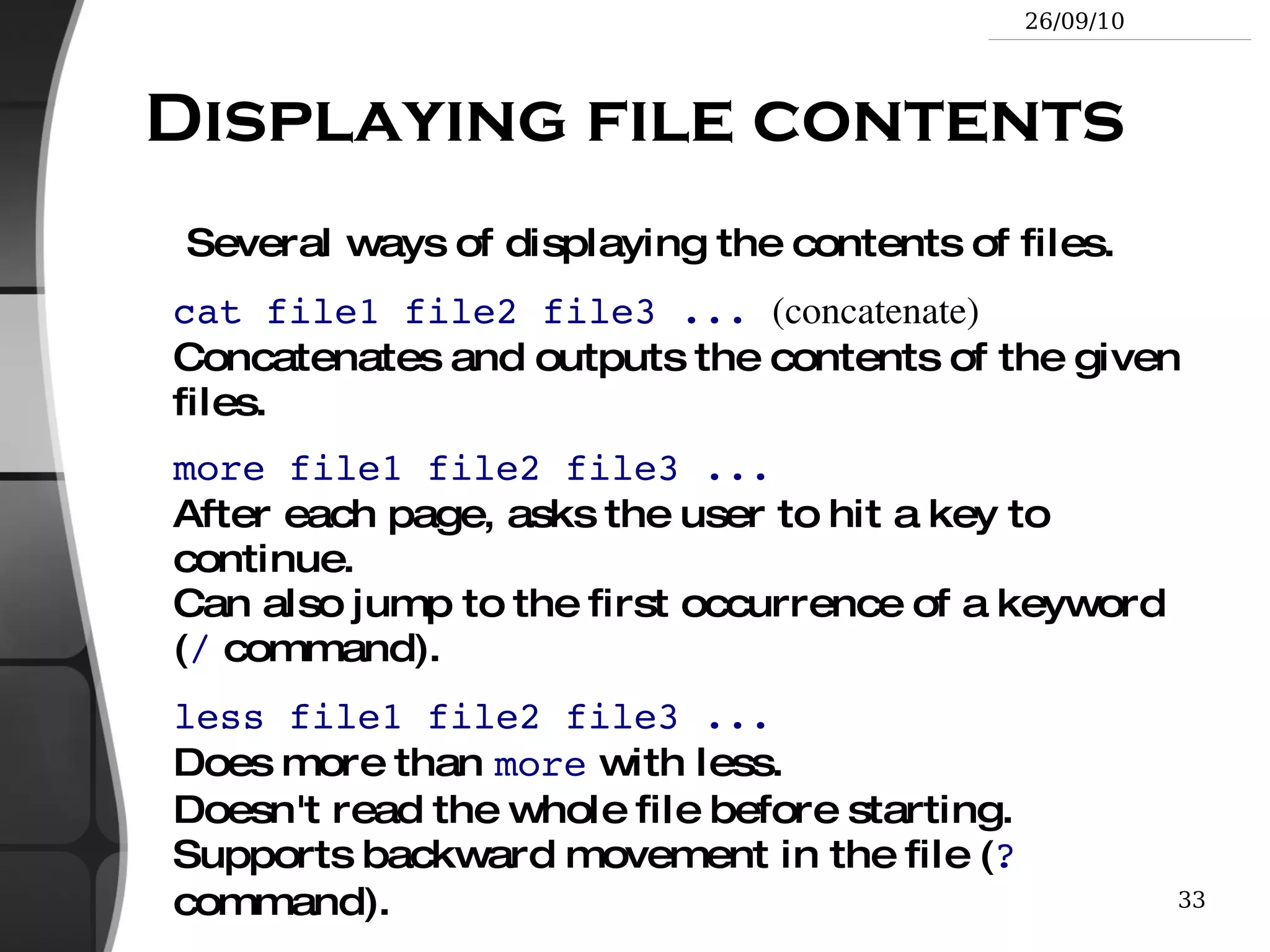
Displaying file contents Several ways of displaying the contents of files. cat file1 file2 file3 ...   (concatenate) Concatenates and outputs the contents of the given files.
more file1 file2 file3 ... After each page, asks the user to hit a key to continue. Can also jump to the first occurrence of a keyword ( /  command).
less file1 file2 file3 ... Does more than  more  with less. Doesn't read the whole file before starting. Supports backward movement in the file ( ?  command).
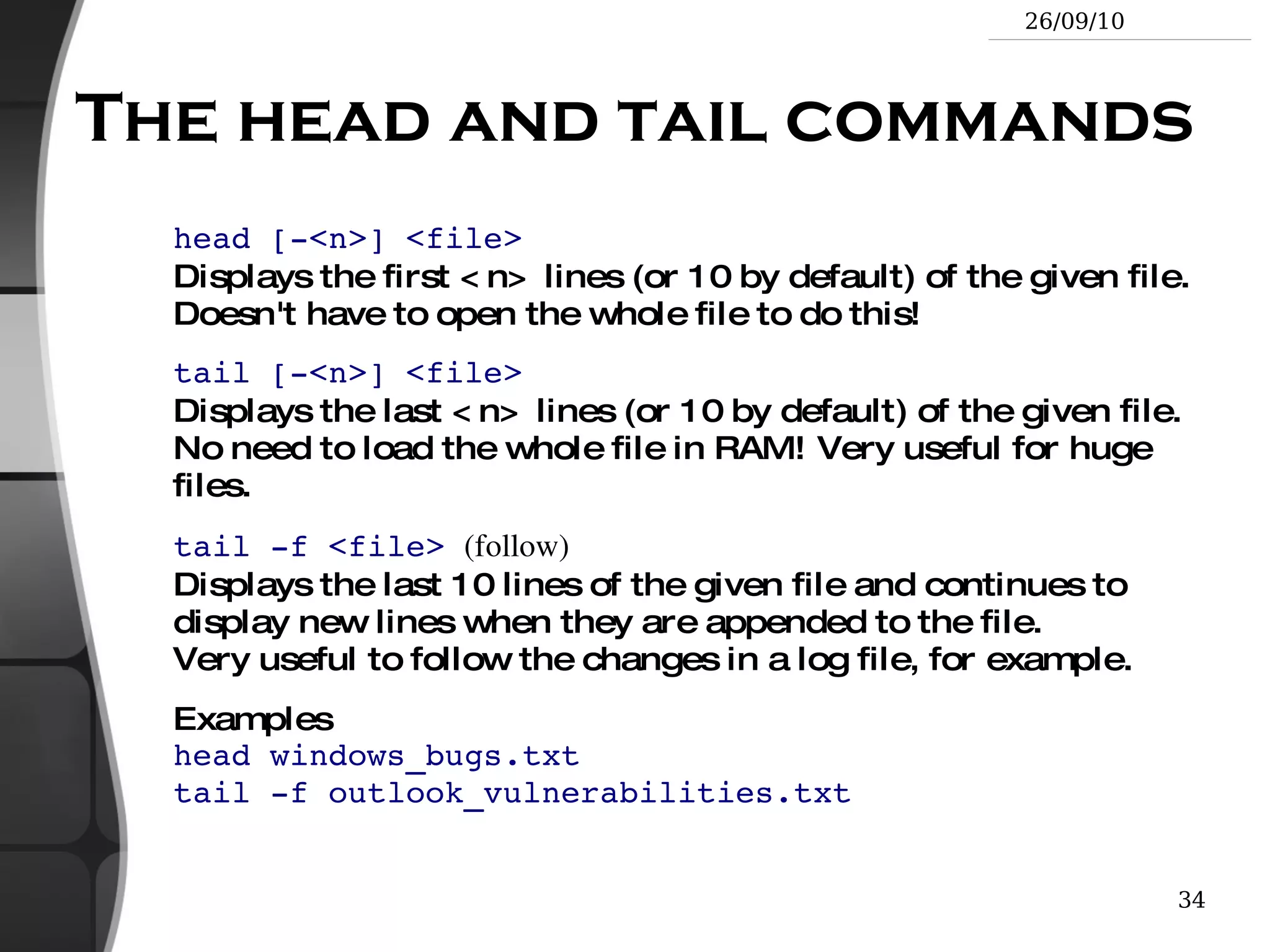
The head and tail commands head [-<n>] <file> Displays the first <n> lines (or 10 by default) of the given file. Doesn't have to open the whole file to do this!
tail [-<n>] <file> Displays the last <n> lines (or 10 by default) of the given file. No need to load the whole file in RAM! Very useful for huge files.
tail -f <file>   (follow) Displays the last 10 lines of the given file and continues to display new lines when they are appended to the file. Very useful to follow the changes in a log file, for example.
Examples head windows_bugs.txt tail -f outlook_vulnerabilities.txt
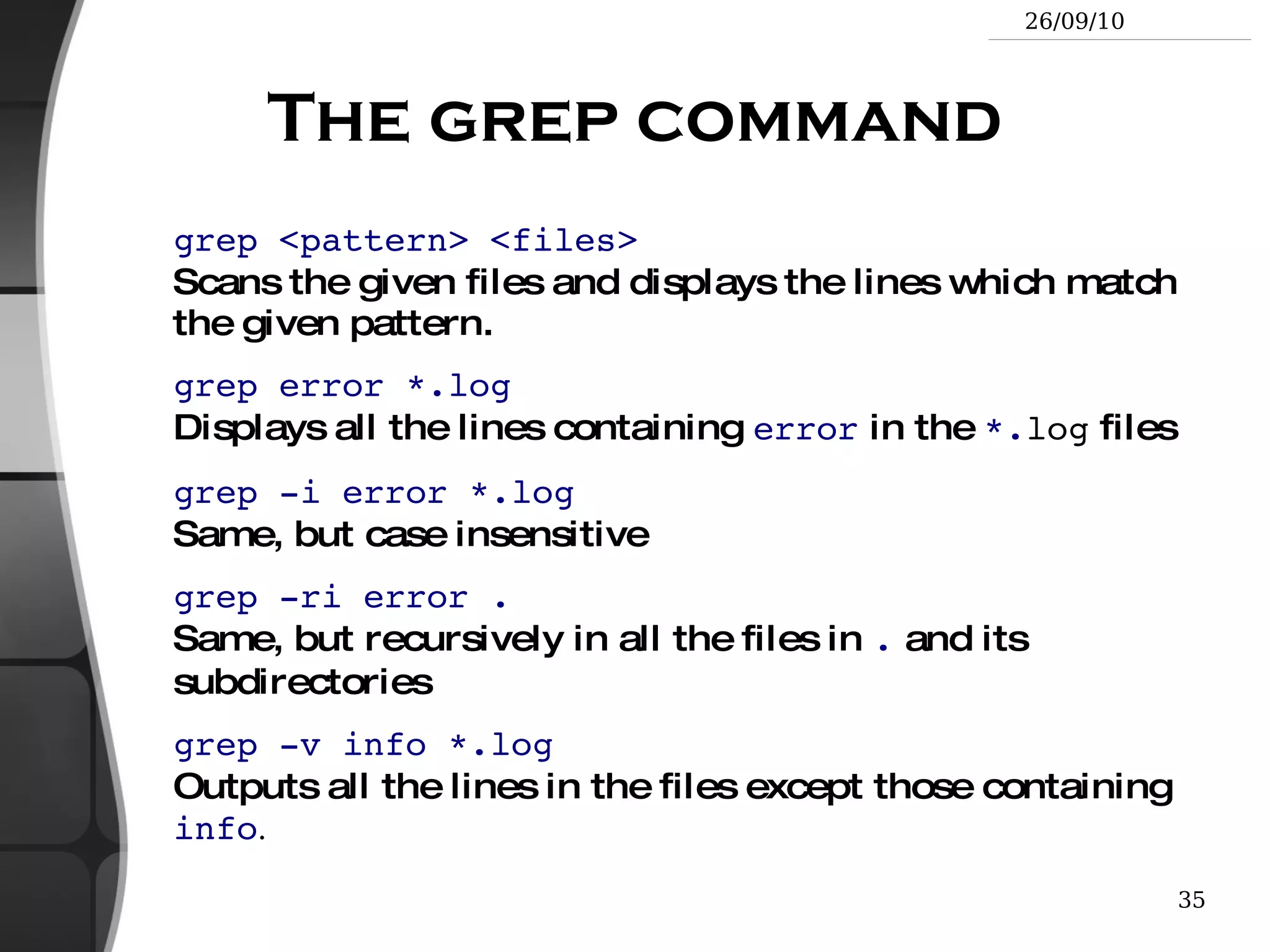
The grep command grep <pattern> <files> Scans the given files and displays the lines which match the given pattern.
grep error *.log Displays all the lines containing  error  in the  *. log  files
grep -i error *.log Same, but case insensitive
grep -ri error . Same, but recursively in all the files in  .  and its subdirectories
grep -v info *.log Outputs all the lines in the files except those containing  info .
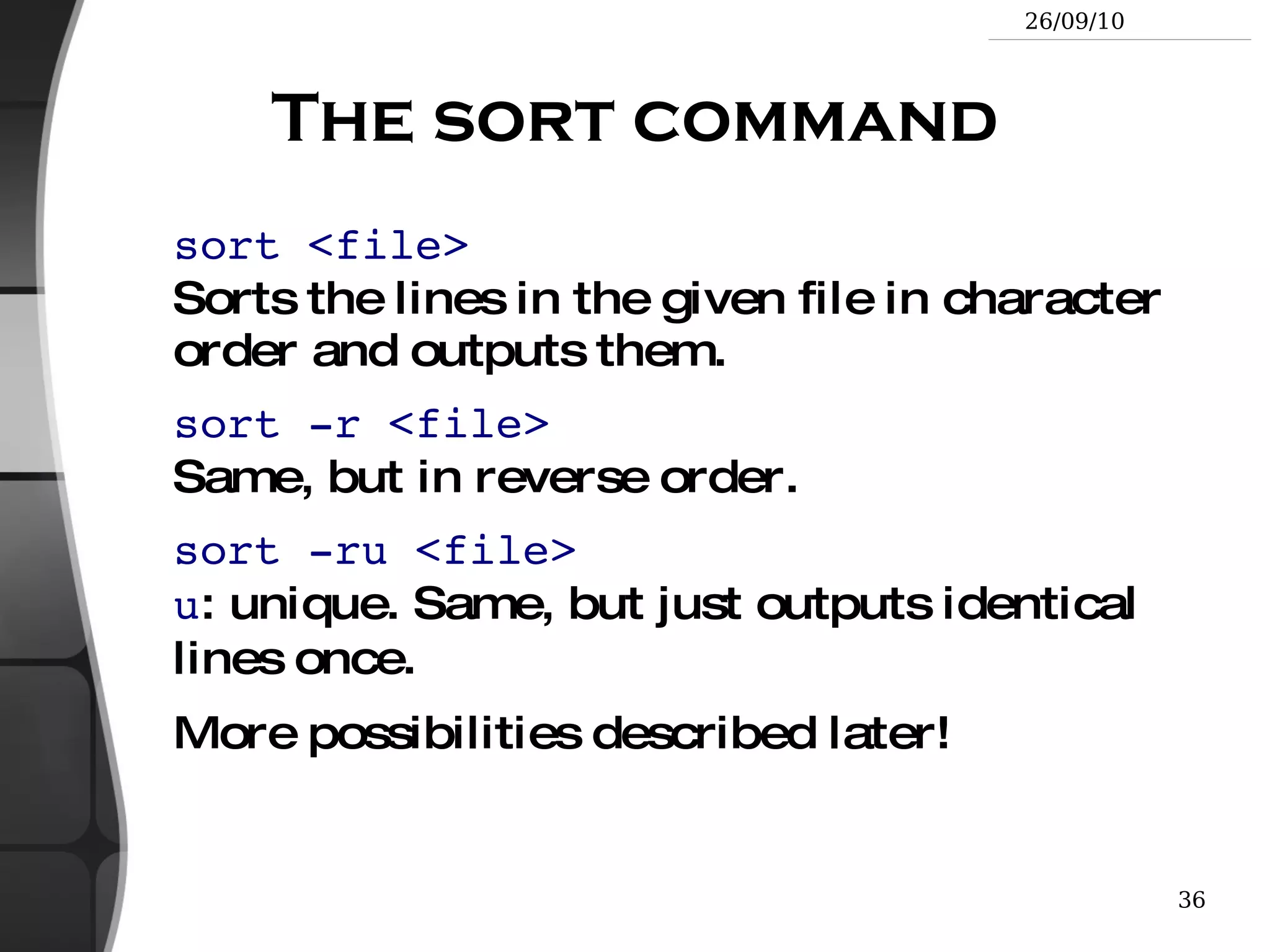
The sort command sort <file> Sorts the lines in the given file in character order and outputs them.
sort -r <file> Same, but in reverse order.
sort -ru <file> u : unique. Same, but just outputs identical lines once.
More possibilities described later!
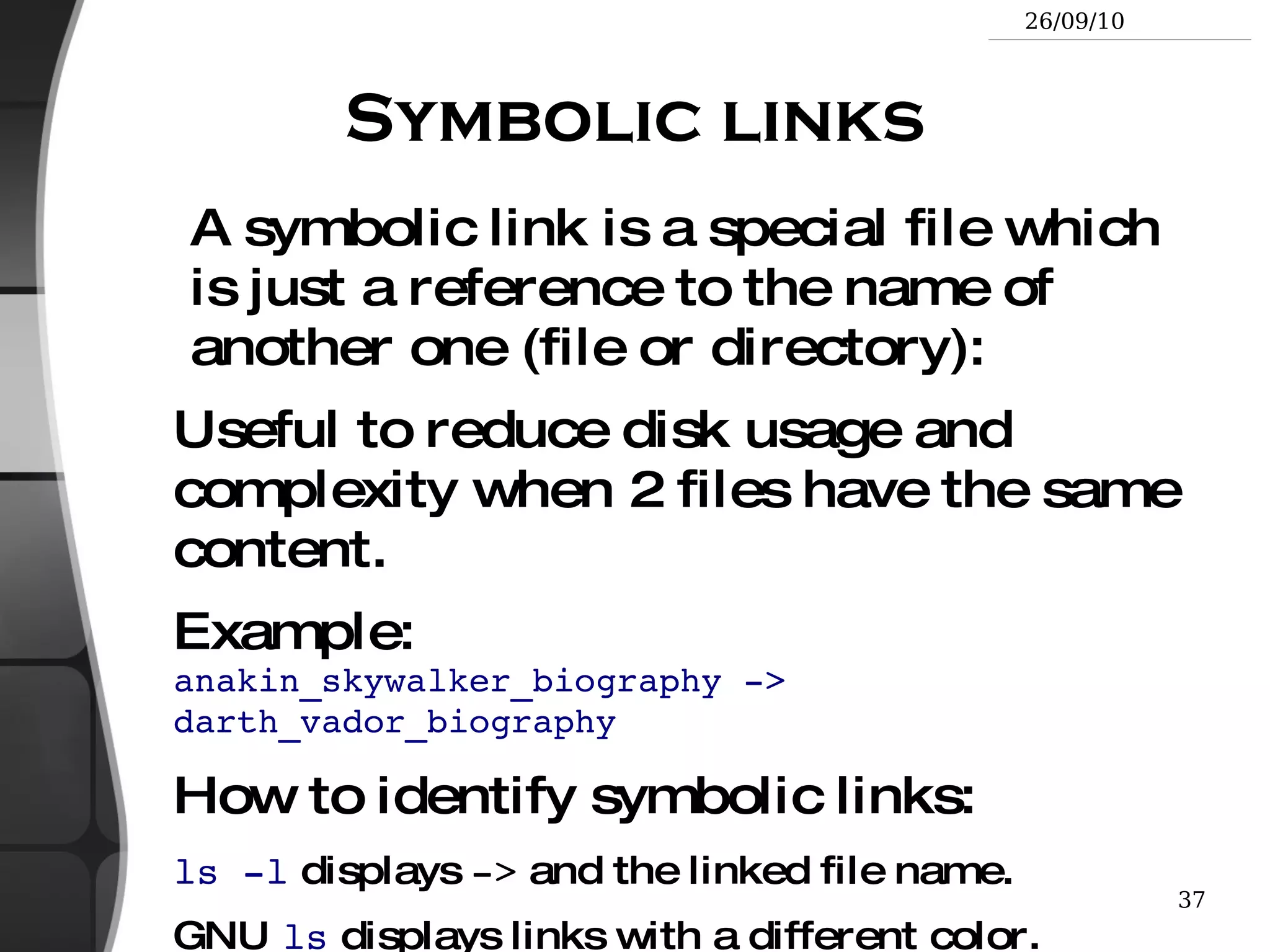
Symbolic links A symbolic link is a special file which is just a reference to the name of another one (file or directory): Useful to reduce disk usage and complexity when 2 files have the same content.
Example: anakin_skywalker_biography -> darth_vador_biography
How to identify symbolic links: ls -l  displays  ->  and the linked file name.
GNU  ls  displays links with a different color.
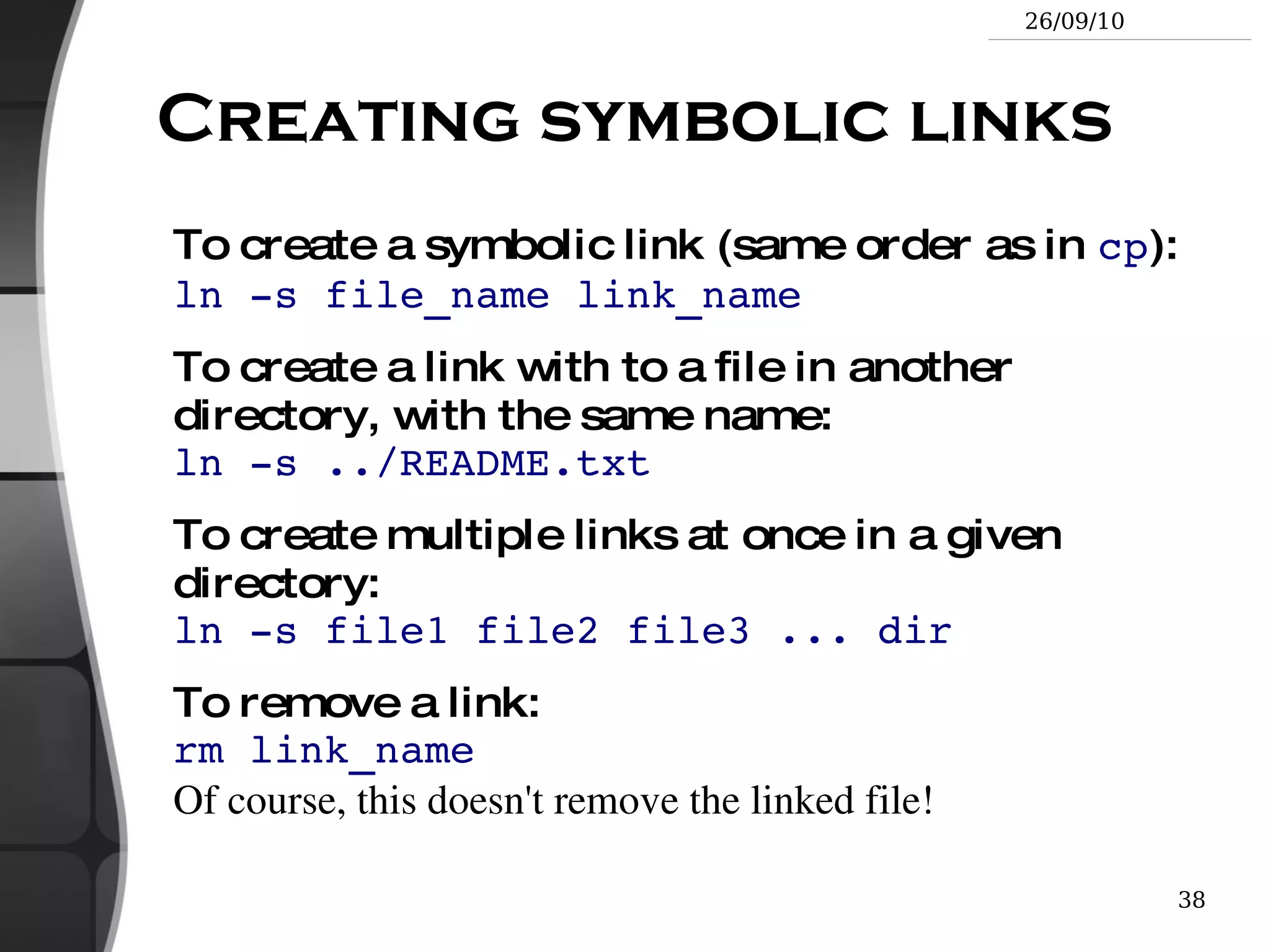
Creating symbolic links To create a symbolic link (same order as in  cp ): ln -s file_name link_name
To create a link with to a file in another directory, with the same name: ln -s ../README.txt
To create multiple links at once in a given directory: ln -s file1 file2 file3 ... dir
To remove a link: rm link_name Of course, this doesn't remove the linked file!
Hard links The default behavior for  ln  is to create  hard links
A  hard link  to a file is a regular file with exactly the same physical contents
While they still save space, hard links can't be distinguished from the original files.
If you remove the original file, there is no impact on the hard link contents.
The contents are removed when there are no more files (hard links) to them.
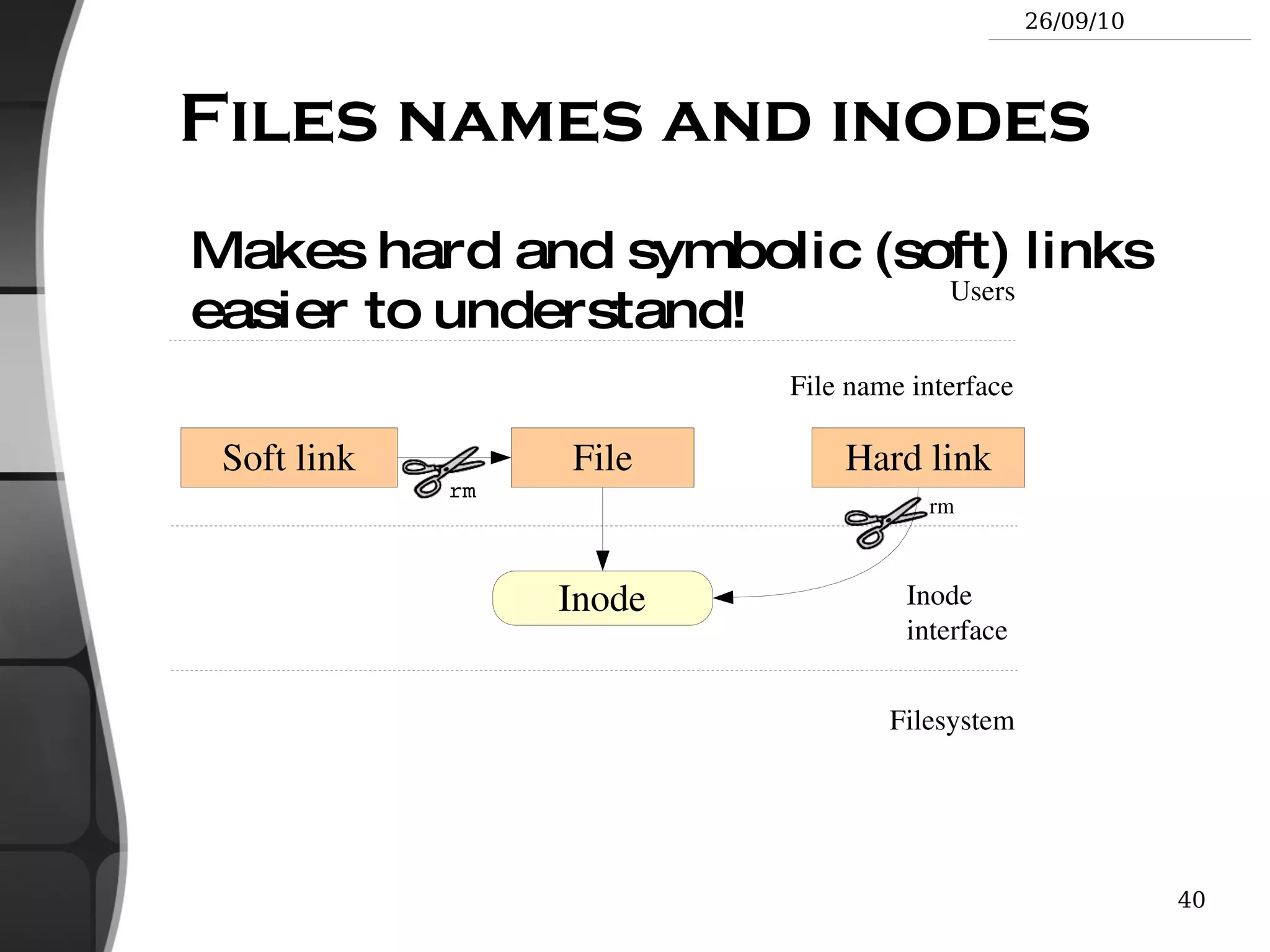
Files names and inodes Makes hard and symbolic (soft) links easier to understand!
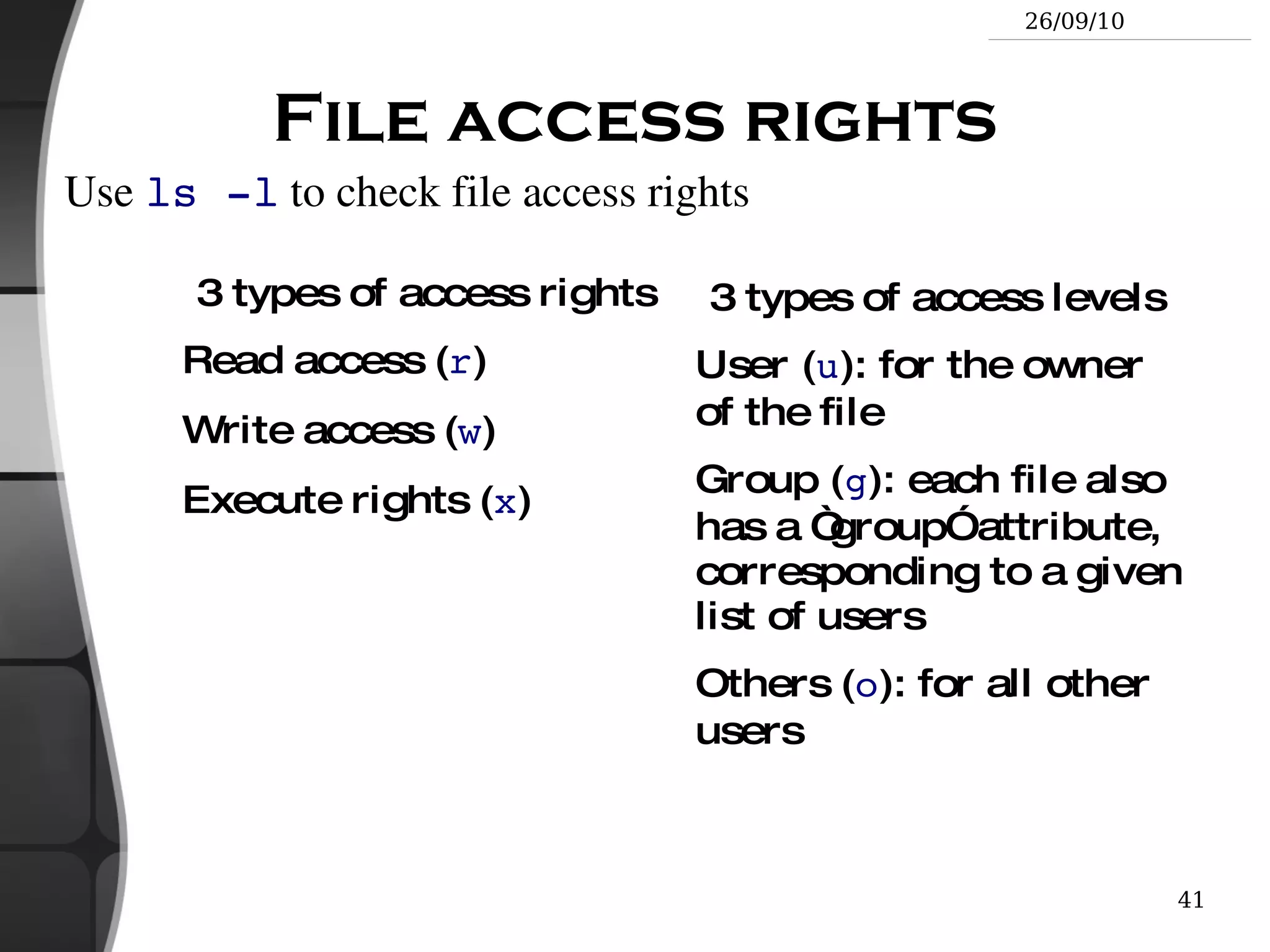
File access rights 3 types of access rights Read access ( r )
Write access ( w )
Execute rights ( x ) 3 types of access levels User ( u ): for the owner of the file
Group ( g ): each file also has a “group” attribute, corresponding to a given list of users
Others ( o ): for all other users Use  ls -l  to check file access rights
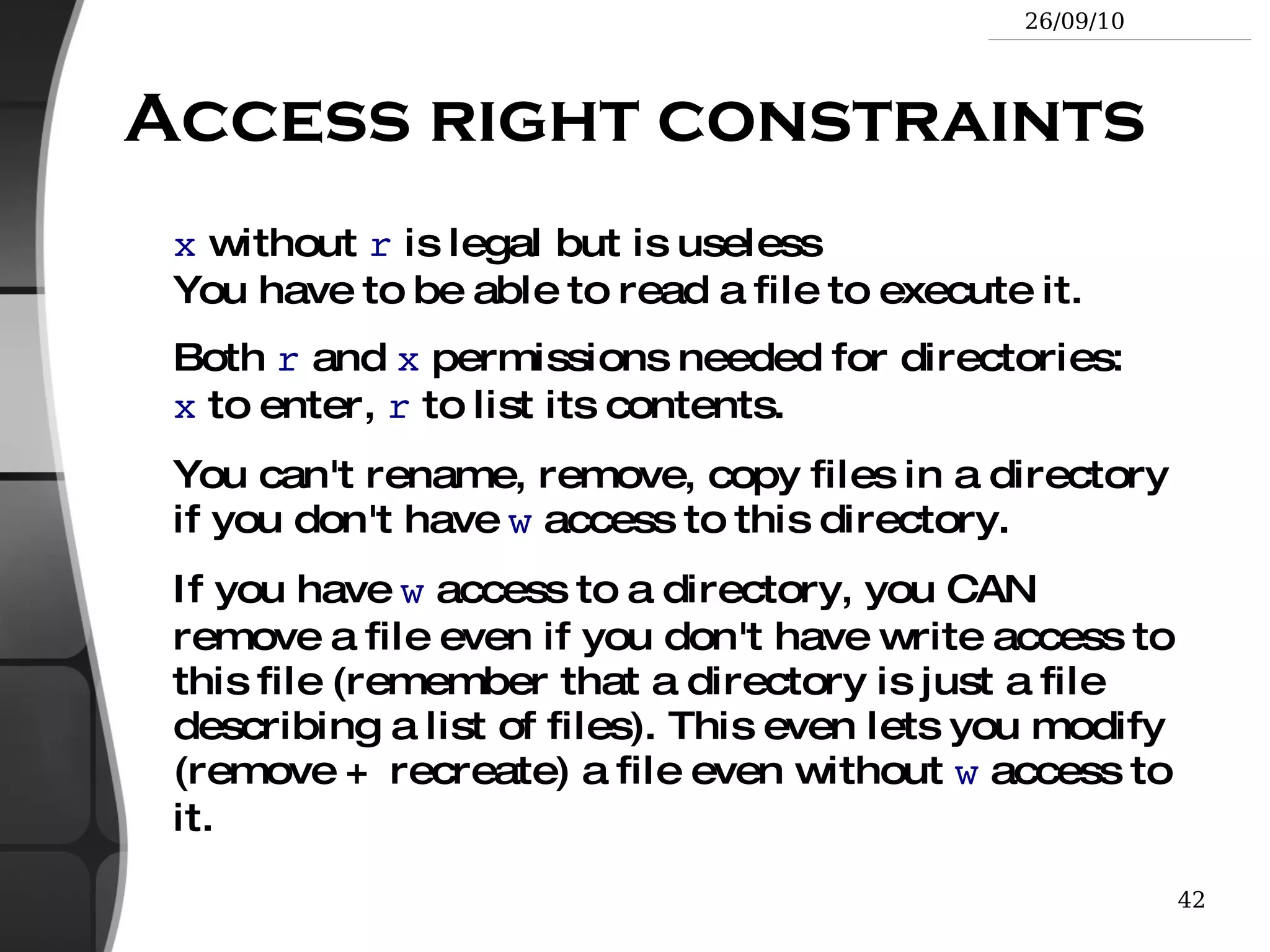
Access right constraints x  without  r  is legal but is useless You have to be able to read a file to execute it.
Both  r  and  x  permissions needed for directories: x  to enter,  r  to list its contents.
You can't rename, remove, copy files in a directory if you don't have  w  access to this directory.
If you have  w  access to a directory, you CAN remove a file even if you don't have write access to this file (remember that a directory is just a file describing a list of files). This even lets you modify (remove + recreate) a file even without  w  access to it.
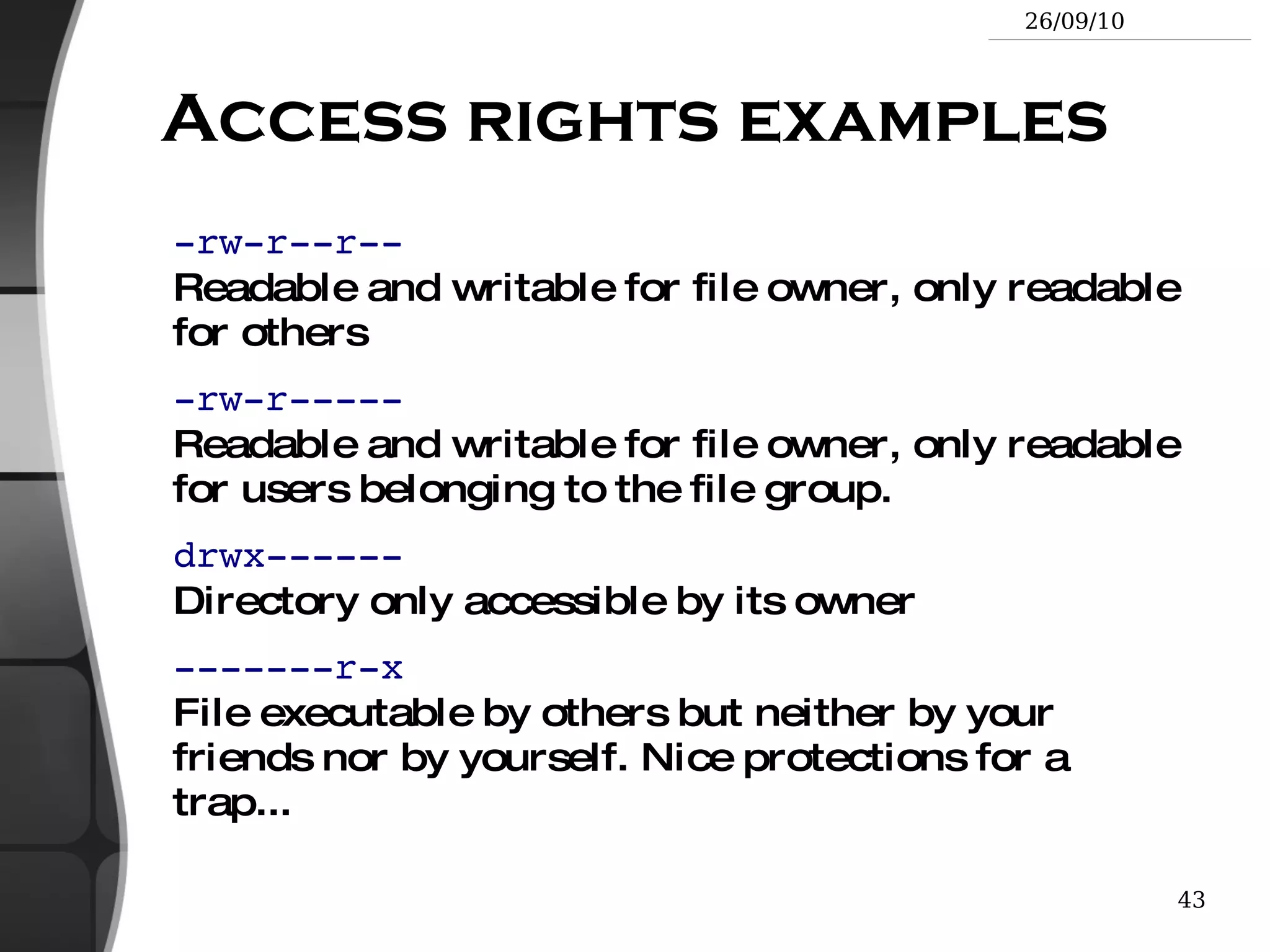
Access rights examples -rw-r--r-- Readable and writable for file owner, only readable for others
-rw-r----- Readable and writable for file owner, only readable for users belonging to the file group.
drwx------ Directory only accessible by its owner
-------r-x File executable by others but neither by your friends nor by yourself. Nice protections for a trap...
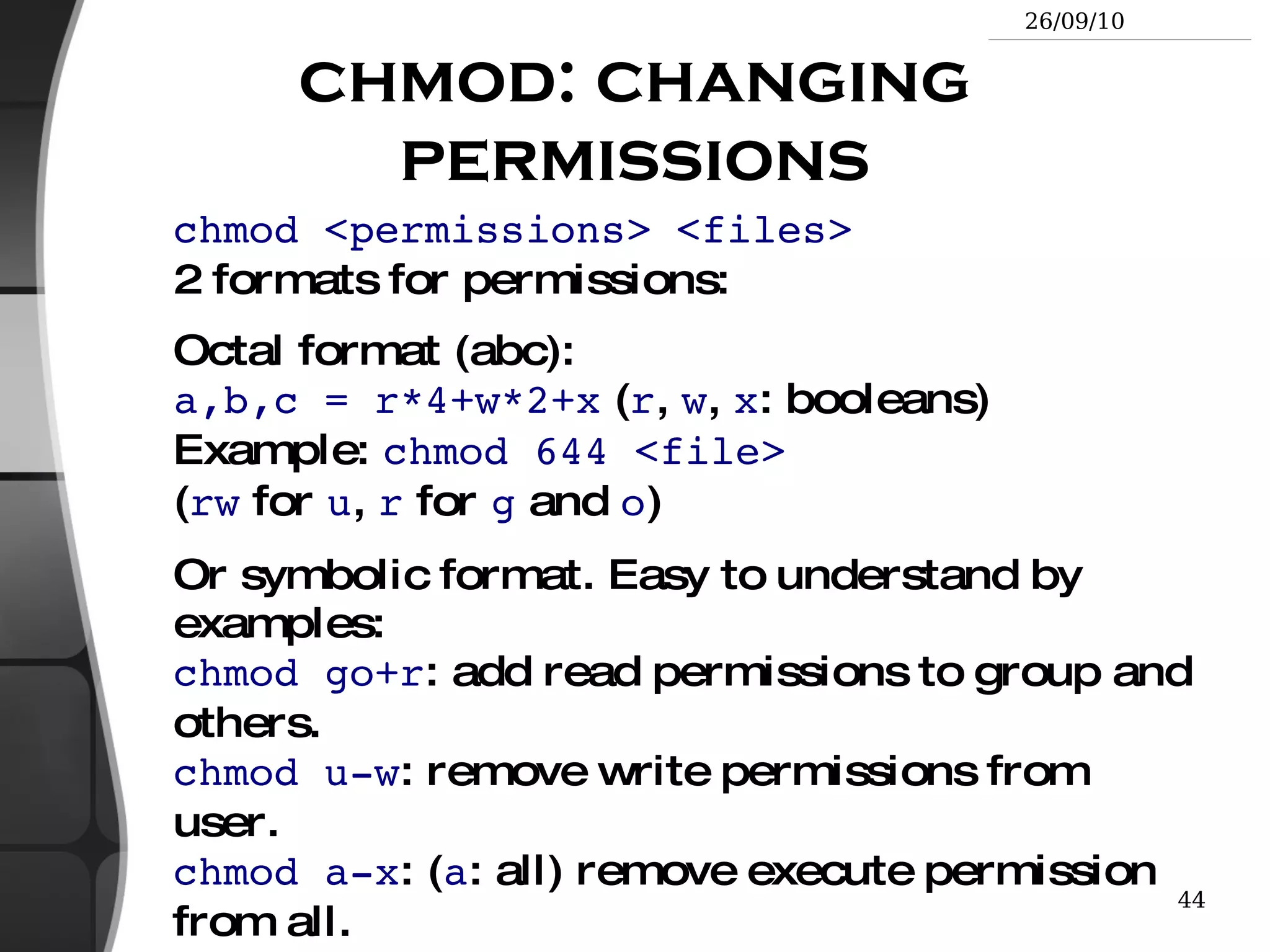
chmod: changing permissions chmod <permissions> <files> 2 formats for permissions:
Octal format (abc):  a,b,c = r*4+w*2+x  ( r ,  w ,  x : booleans) Example:  chmod 644 <file> ( rw  for  u ,  r  for  g  and  o )
Or symbolic format. Easy to understand by examples: chmod go+r : add read permissions to group and others. chmod u-w : remove write permissions from user. chmod a-x : ( a : all) remove execute permission from all.
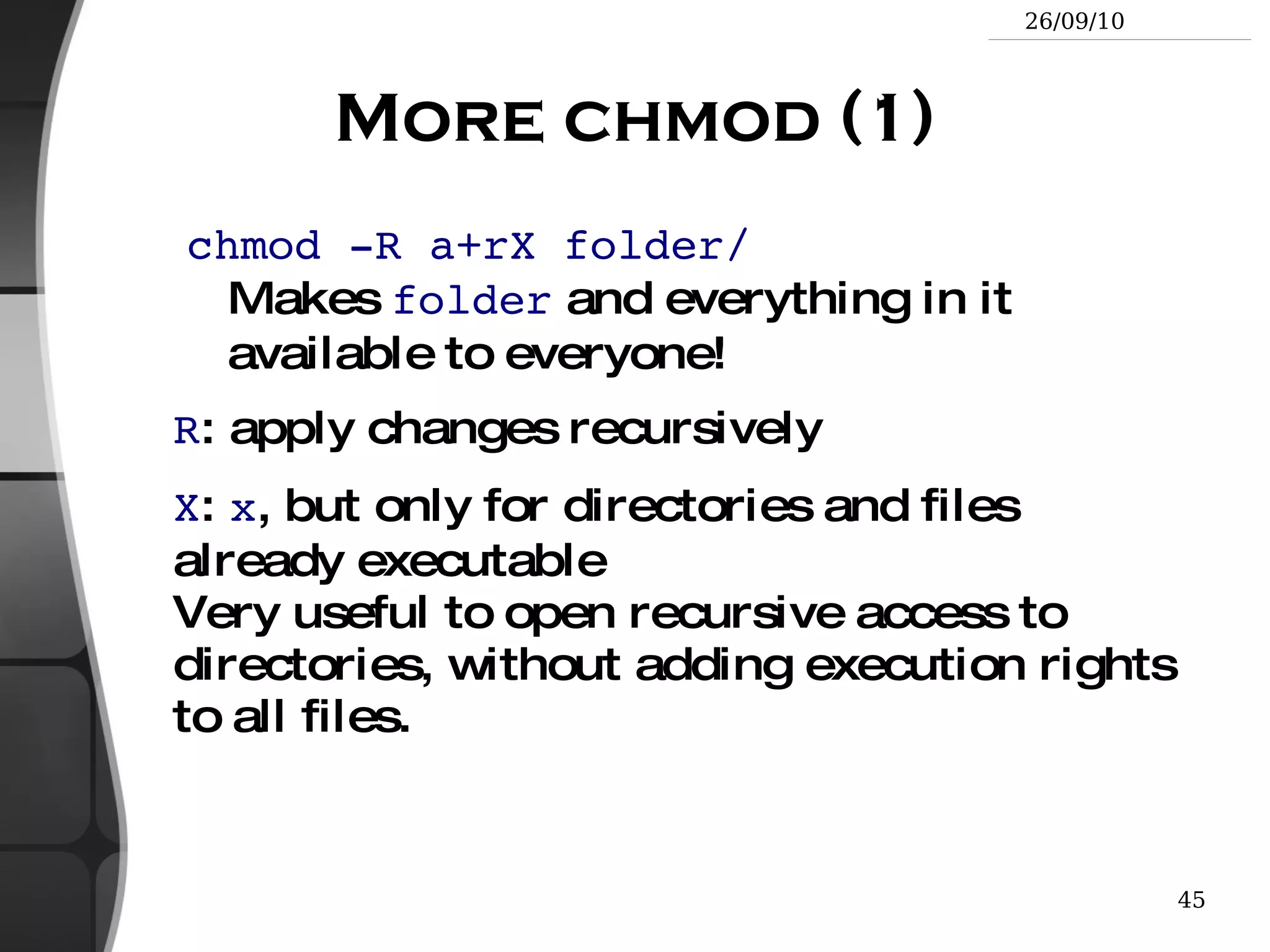
More chmod (1) chmod -R a+rX folder/ Makes  folder  and everything in it available to everyone! R : apply changes recursively
X :  x , but only for directories and files already executable Very useful to open recursive access to directories, without adding execution rights to all files.
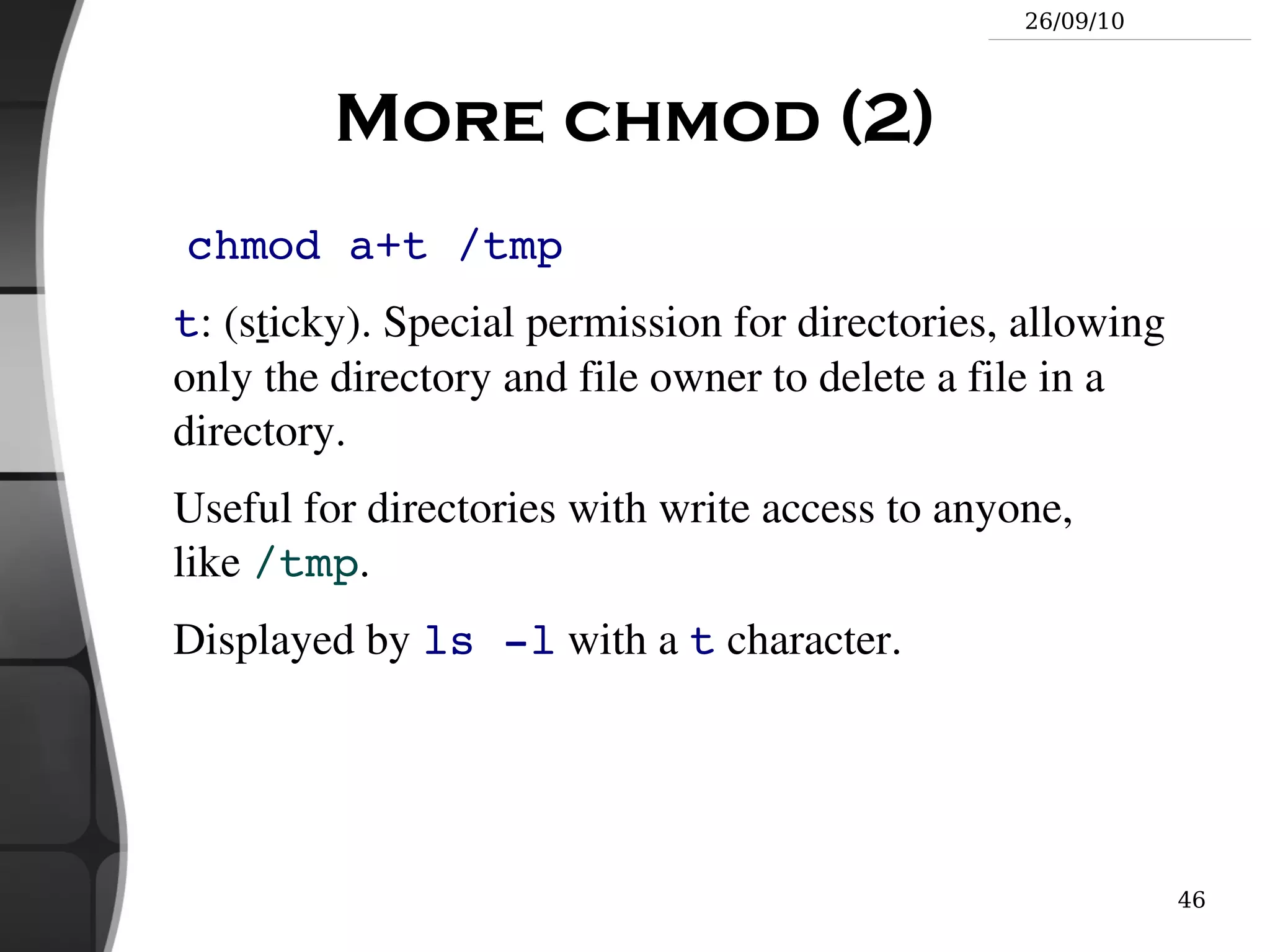
More chmod (2) chmod a+t /tmp t : (s t icky). Special permission for directories, allowing only the directory and file owner to delete a file in a directory.
Useful for directories with write access to anyone, like  /tmp .
Displayed by  ls -l  with a  t  character.
The Unix and GNU / Linux command line Standard I/O, Redirections, Pipes

Nguyễn Vũ Hưng: Basic Linux Power Tools

  • 1.
    The Unix andGNU/Linux Command Line Nguyen Vu Hung – VINICORP [email_address] 2010/09/21 Based on “intro_unix_linux” by Michael Opdenacker from Free Electrons
  • 2.
    Best viewed with...This document is best viewed with a recent PDF reader or with OpenOffice.org itself! Take advantage of internal or external hyperlinks. So, don’t hesitate to click on them!
  • 3.
    Find pages quicklythanks to automatic search
  • 4.
    Use thumbnails tonavigate in the document in a quick way
  • 5.
    Command memento sheetIt is a useful companion to this presentation. Examples for the most useful commands are given in just one sheet. Suggestions for use Stick this sheet on your wall, use it as desktop wallpaper, make it a mouse mat, print it on clothing, slice it into bookmarks... Caution Store away from mice!
  • 6.
    Training Contents (1)Shells, filesystem and file handling Everything is a file
  • 7.
    GNU / Linuxfilesystem structure
  • 8.
  • 9.
    Handling files anddirectories
  • 10.
  • 11.
  • 12.
  • 13.
    Training contents (2)Standard I/O, redirections, pipes Standard input and output, redirecting to files
  • 14.
    Pipes: redirecting standardoutput to other commands
  • 15.
  • 16.
    Training Contents (3)Task control Full control on tasks
  • 17.
    Executing in background,suspending, resuming and aborting
  • 18.
  • 19.
  • 20.
  • 21.
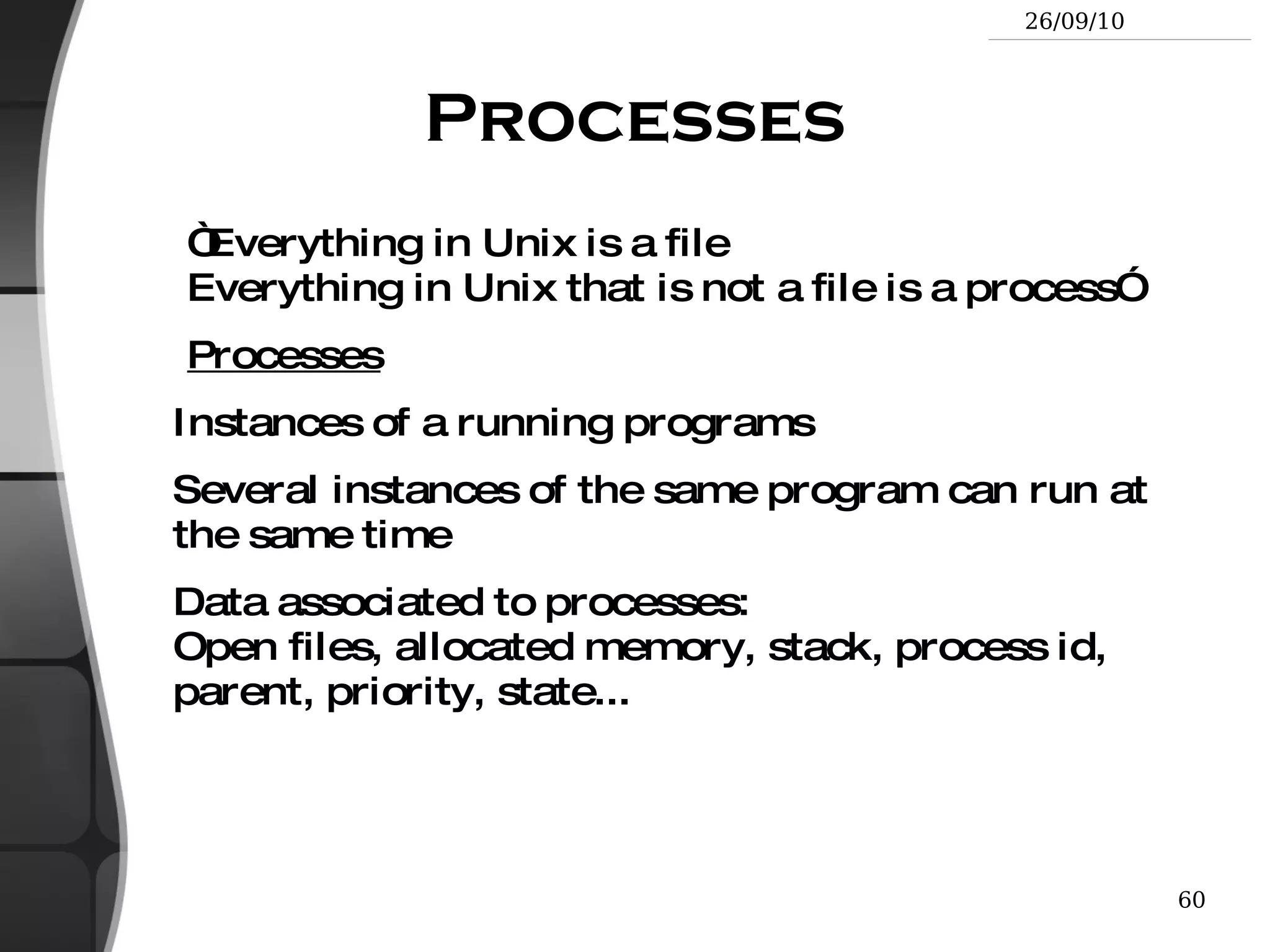
  • 22.
  • 23.
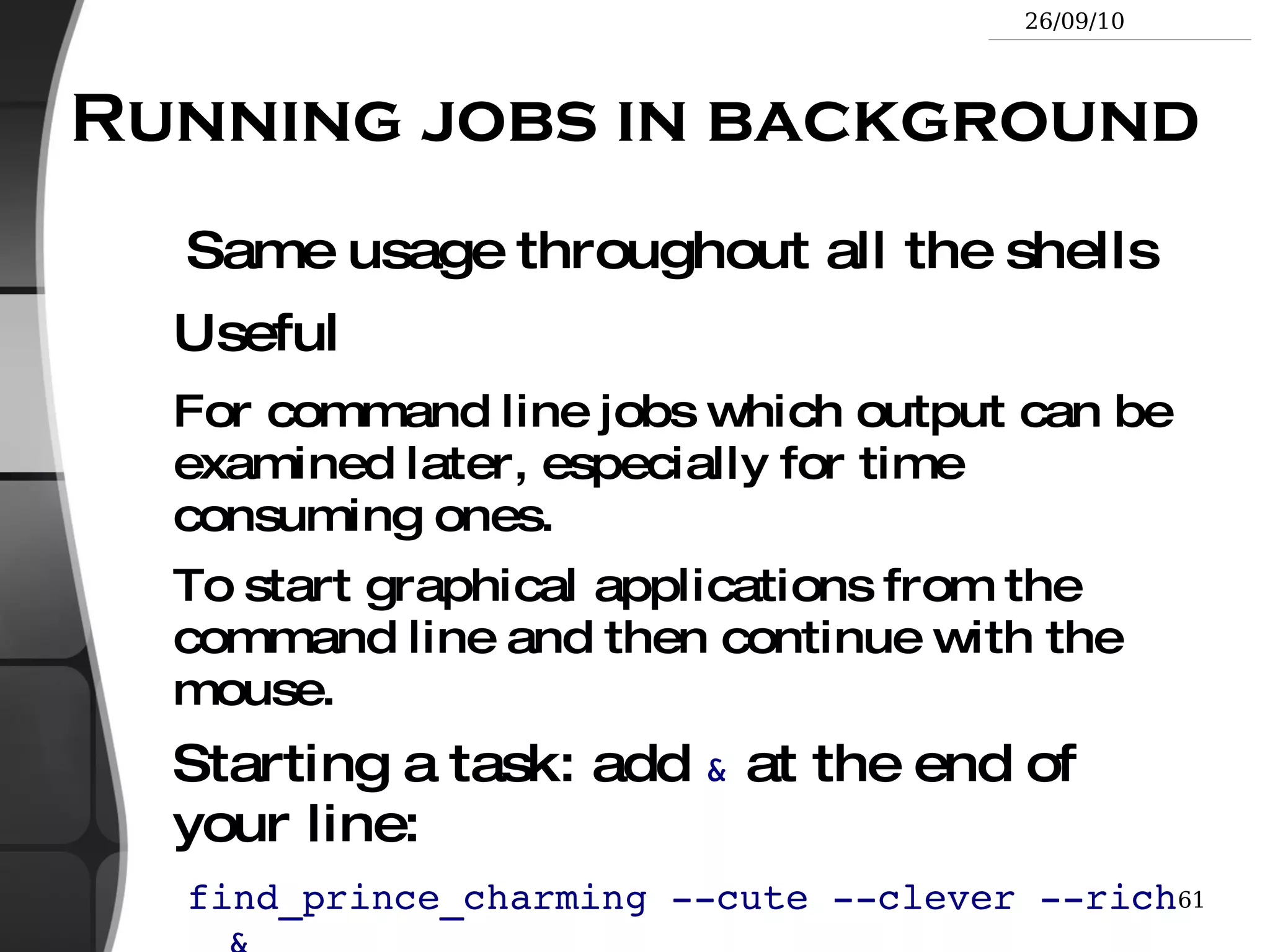
    Training contents (4)Miscellaneous Text editors
  • 24.
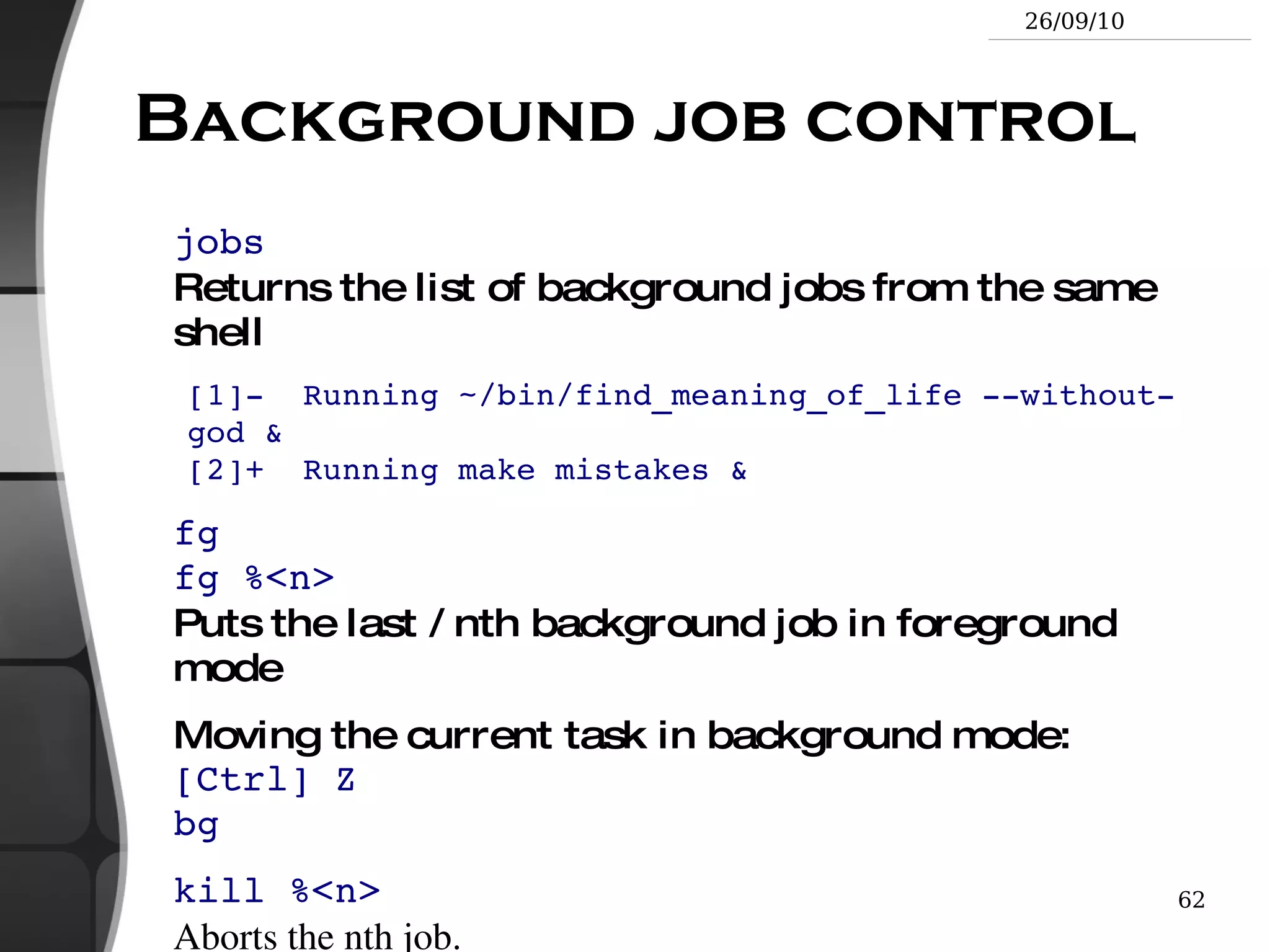
  • 25.
  • 26.
  • 27.
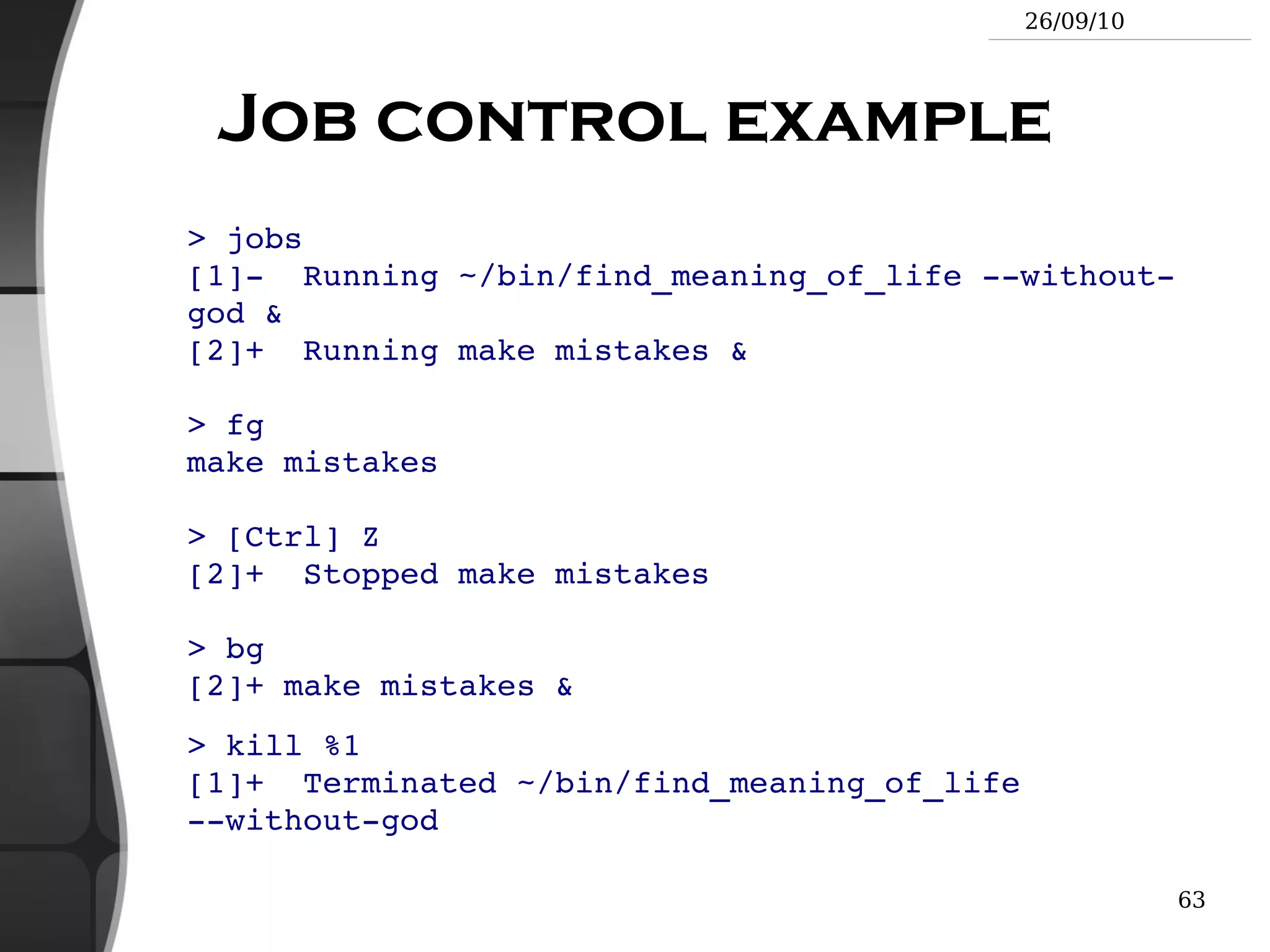
  • 28.
  • 29.
    Training contents (5)System administration basics File ownership
  • 30.
  • 31.
    Filesystems: creating andmounting Going further Getting help, accessing manual pages
  • 32.
  • 33.
    Training contents (6)Basic LAMP Administration Linux
  • 34.
  • 35.
  • 36.
    PHP Going furtherLAMP on Ubuntu
  • 37.
  • 38.
    GNU/Linux and FreeSoftware This presentation included an introduction to Free Software and Open Source: operating systems, applications, key projects and rules for success.
  • 39.
    Philosophy of theGNU Project Definition (free to run, study, distribute, change && copy)
  • 40.
    Why Software ShouldNot Have Owners
  • 41.
  • 42.
  • 43.
  • 44.
    The Unix andGNU/Linux command line Unix Filesystem
  • 45.
    Everything is afile Regular files
  • 46.
    Directories Directories arejust files listing a set of files
  • 47.
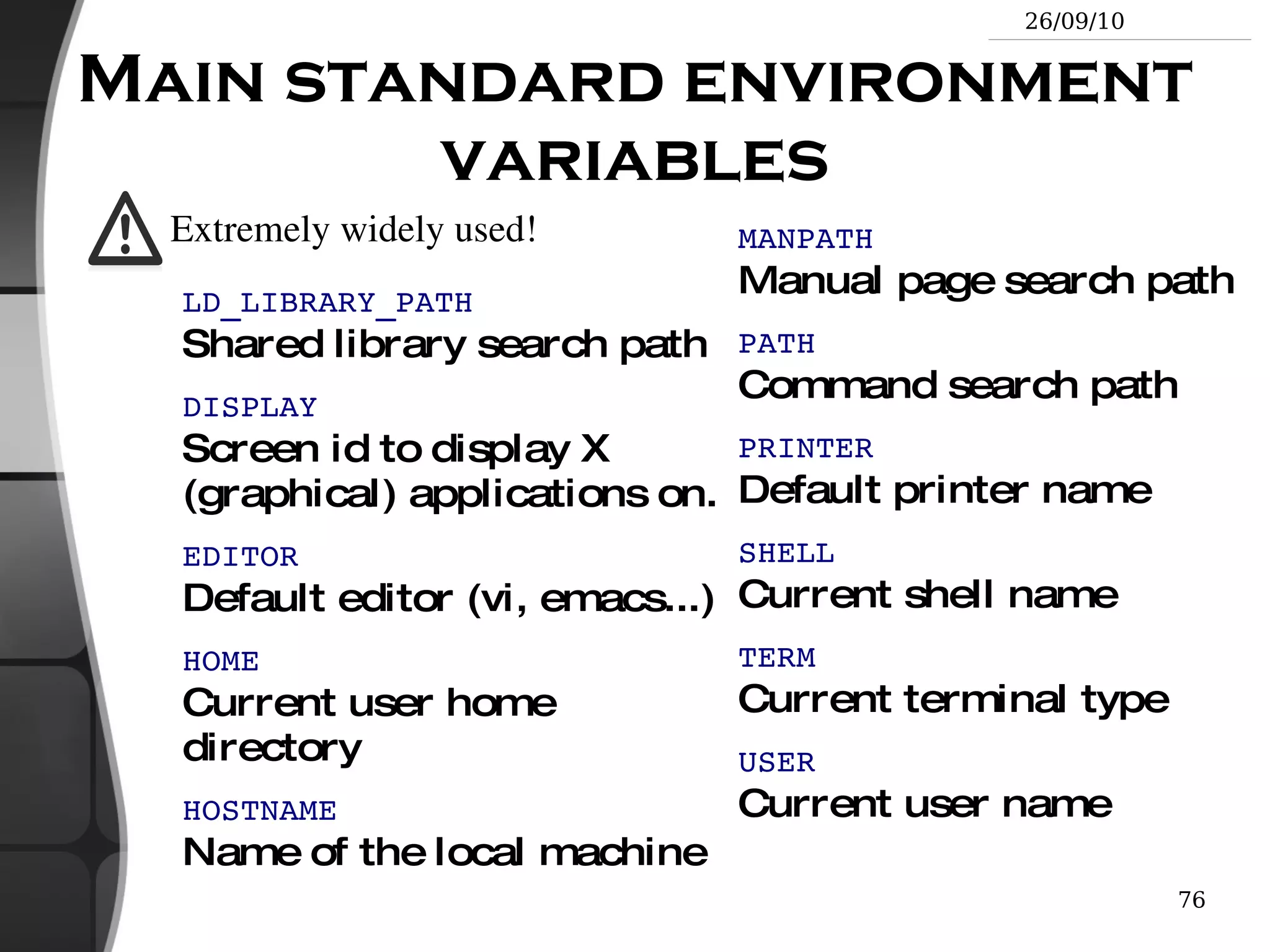
    Symbolic links Filesreferring to the name of another file Devices and peripherals Read and write from devices as with regular files
  • 48.
    Pipes Used tocascade programs cat *.log | grep error
  • 49.
    Sockets Inter processcommunication Almost everything in Unix is a file!
  • 50.
    File names Filename features since the beginning of Linux Case sensitive
  • 51.
  • 52.
    Can contain anycharacter (including whitespace, except / ). File types stored in the file (“magic numbers”). File name extensions not needed and not interpreted. Just used for user convenience.
  • 53.
    File name examples:README .bashrc Windows Buglist index.htm index.html index.html.old
  • 54.
    File paths A path is a sequence of nested directories with a file or directory at the end, separated by the / character Relative path: documents/fun/microsoft_jokes.html Relative to the current directory
  • 55.
    Absolute path: /home/bill/bugs/crash9402031614568
  • 56.
    / : root directory . Start of absolute paths for all files on the system (even for files on removable devices or network shared).
  • 57.
    GNU/Linux filesystem structure(1) Not imposed by the system. Can vary from one system to the other, even between two GNU/Linux installations! / Root directory /bin/ Basic, essential system commands /boot/ Kernel images, initrd and configuration files /dev/ Files representing devices /dev/hda : first IDE hard disk /etc/ System configuration files /home/ User directories /lib/ Basic system shared libraries
  • 58.
    GNU/Linux filesystem structure(2) /lost+found Corrupt files the system tried to recover /media Mount points for removable media: /media/usbdisk , /media/cdrom /mnt/ Mount points for temporarily mounted filesystems /opt/ Specific tools installed by the sysadmin /usr/local/ often used instead /proc/ Access to system information /proc/cpuinfo , / proc/version ... /root/ root user home directory /sbin/ Administrator-only commands /sys/ System and device controls (cpu frequency, device power, etc.)
  • 59.
    GNU/Linux filesystem structure(3) /tmp/ Temporary files /usr/ Regular user tools (not essential to the system) /usr/bin/ , /usr/lib/ , /usr/sbin ... /usr/local/ Specific software installed by the sysadmin (often preferred to /opt/ ) /var/ Data used by the system or system servers /var/log/ , /var/spool/mail (incoming mail), /var/spool/lpd (print jobs)... The Unix filesystem structure is defined by the Filesystem Hierarchy Standard (FHS): http://www.pathname.com/fhs/
  • 60.
    The Unix andGNU/Linux command line Shells and File Handling
  • 61.
    Command line interpretersShells: tools to execute user commands
  • 62.
    Called “shells” becausethey hide the details on the underlying operating system under the shell's surface.
  • 63.
    Commands are inputin a text terminal, either a window in a graphical environment or a text-only console.
  • 64.
    Results are alsodisplayed on the terminal. No graphics are needed at all.
  • 65.
    Shells can bescripted: provide all the resources to write complex programs (variable, conditionals, iterations...)
  • 66.
    Well known shellsMost famous and popular shells sh : The Bourne shell (obsolete) Traditional, basic shell found on Unix systems, by Steve Bourne.
  • 67.
    csh : TheC shell (obsolete) Once popular shell with a C-like syntax
  • 68.
    tcsh : TheTC shell (still very popular) A C shell compatible implementation with evolved features (command completion, history editing and more...)
  • 69.
    bash : TheBourne Again shell (most popular) An improved implementation of sh with lots of added features too.
  • 70.
    fish: a greatnew shell The Friendly Interactive SHell http://www.fishshell.org/ Standard features: history, command and file completion...
  • 71.
    Brand new features:command option completion, command completion with short description, syntax highlighting..
  • 72.
    Easier to anyopen files: open built-in command.
  • 73.
    Much simpler andconsistent syntax (not POSIX compliant) Makes it easier to create shell scripts. Command line beginners can learn much faster! Even experienced users should find this shell very convenient.
  • 74.
    ls command ls-a (all) Lists all the files (including .* files)
  • 75.
    ls -l (long) Long listing (type, date, size, owner, permissions)
  • 76.
    ls -t (time) Lists the most recent files first ls -S (size) Lists the biggest files first
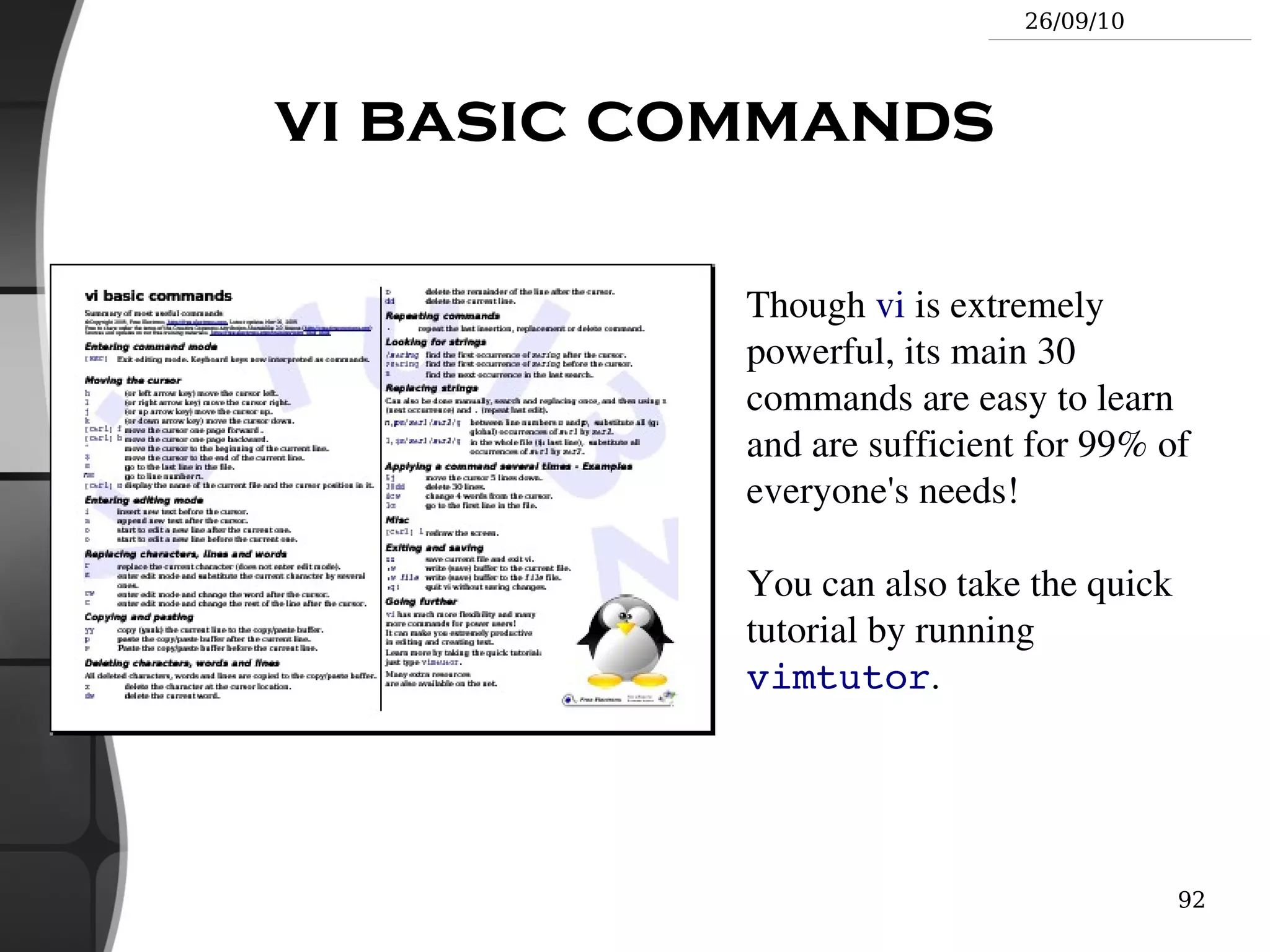
  • 77.
    ls -r (reverse) Reverses the sort order
  • 78.
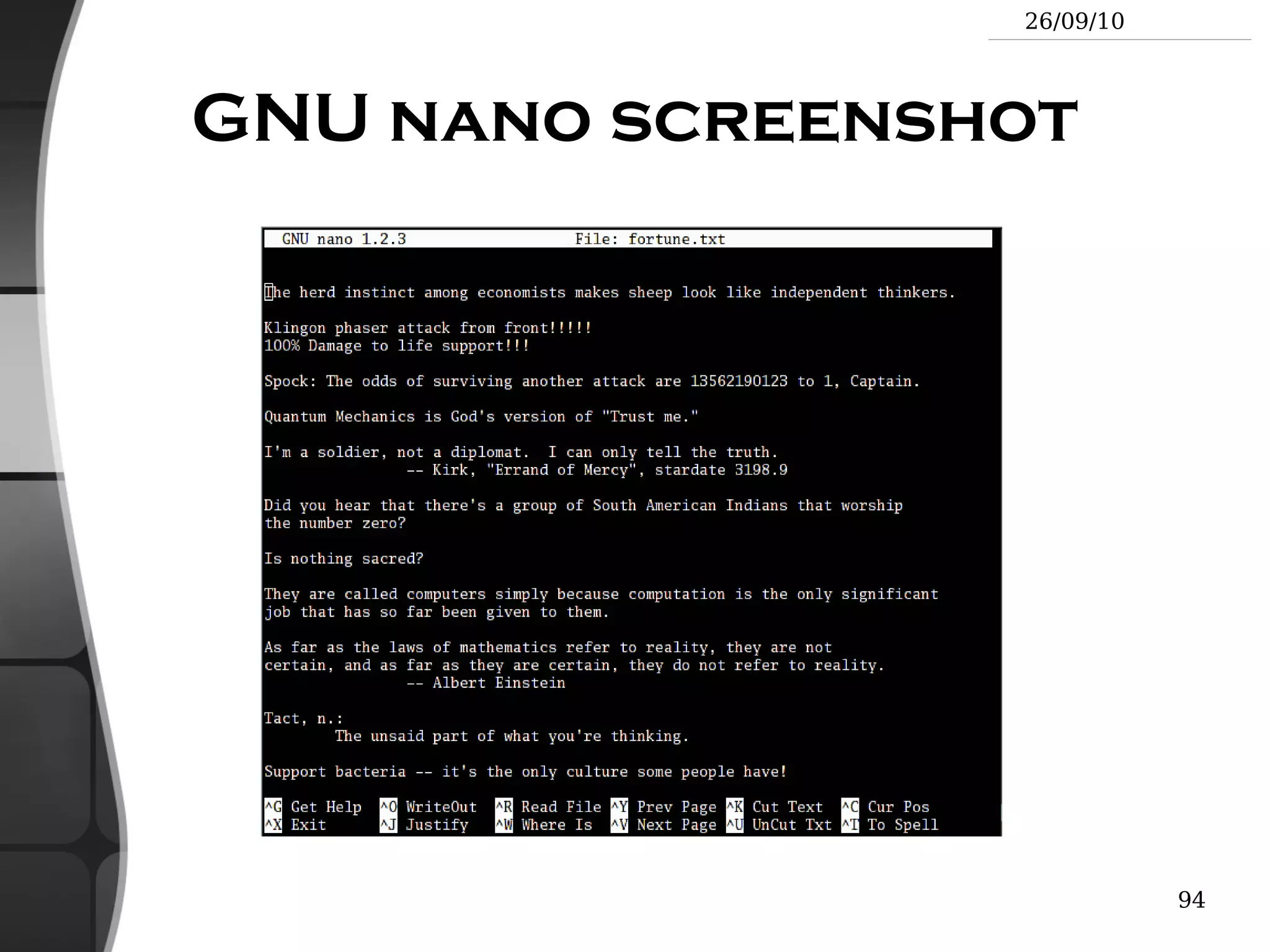
    ls -ltr (options can be combined) Long listing, most recent files at the end Lists the files in the current directory, in alphanumeric order, except files starting with the “ . ” character.
  • 79.
    File name patternsubstitutions Better introduced by examples! ls *txt The shell first replaces *txt by all the file and directory names ending by txt (including .txt ), except those starting with . , and then executes the ls command line.
  • 80.
    ls -d .*Lists all the files and directories starting with . -d tells ls not to display the contents of directories.
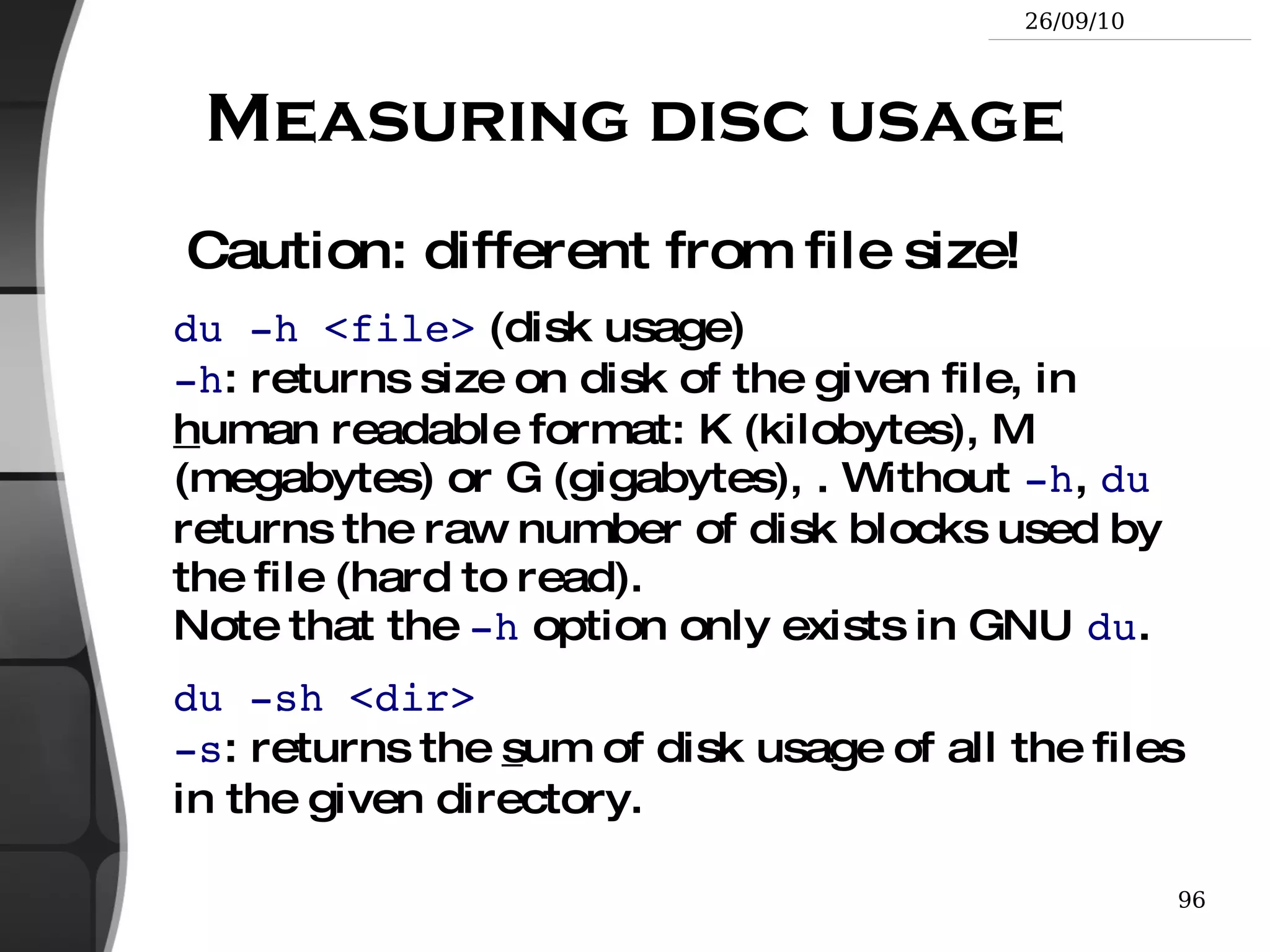
  • 81.
    cat ?.log Displaysall the files which names start by 1 character and end by .log
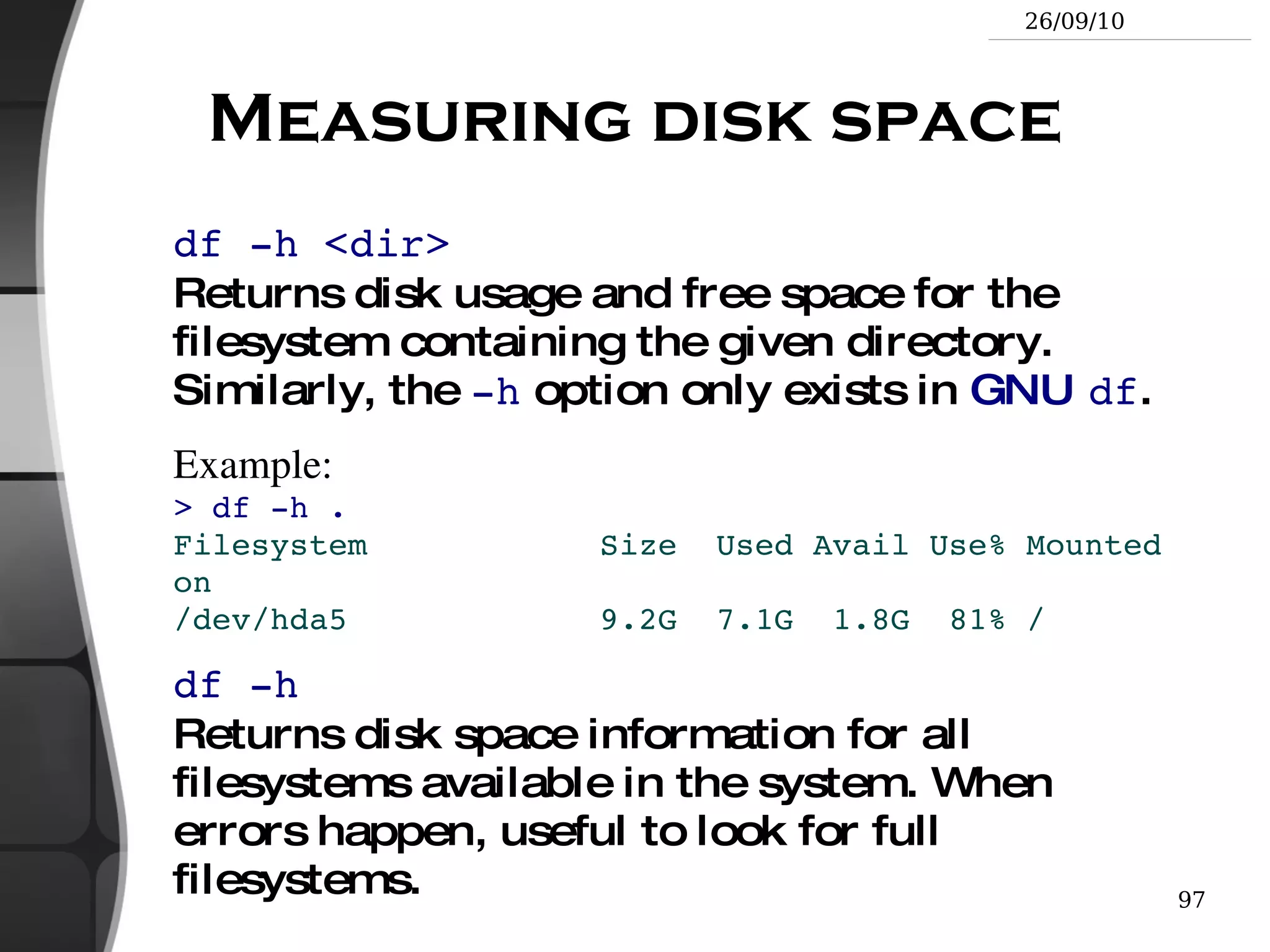
  • 82.
    Special directories (1)./ The current directory. Useful for commands taking a directory argument. Also sometimes useful to run commands in the current directory (see later).
  • 83.
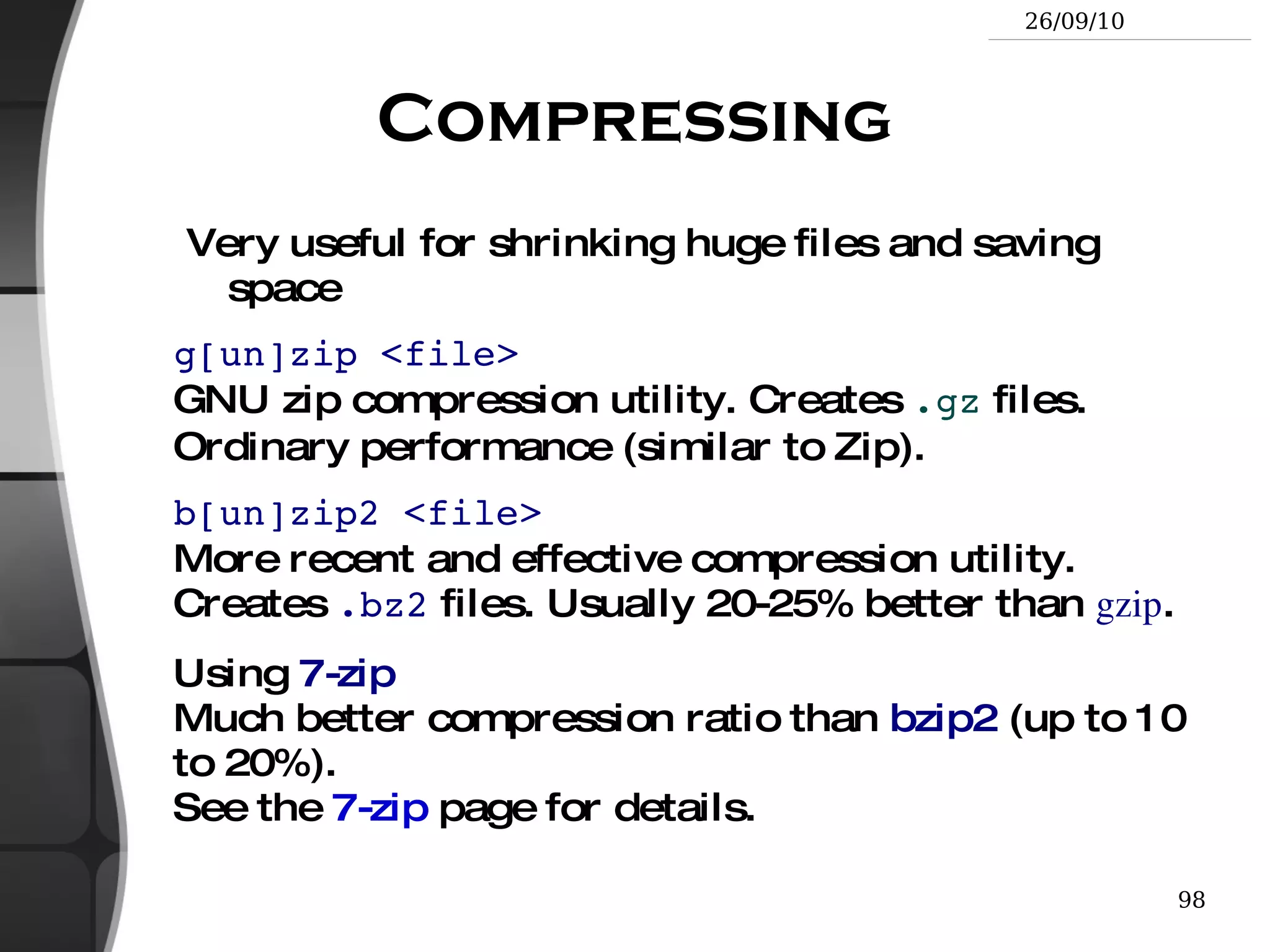
    So ./readme.txt and readme.txt are equivalent. ../ The parent (enclosing) directory. Always belongs to the . directory (see ls -a ). Only reference to the parent directory.
  • 84.
  • 85.
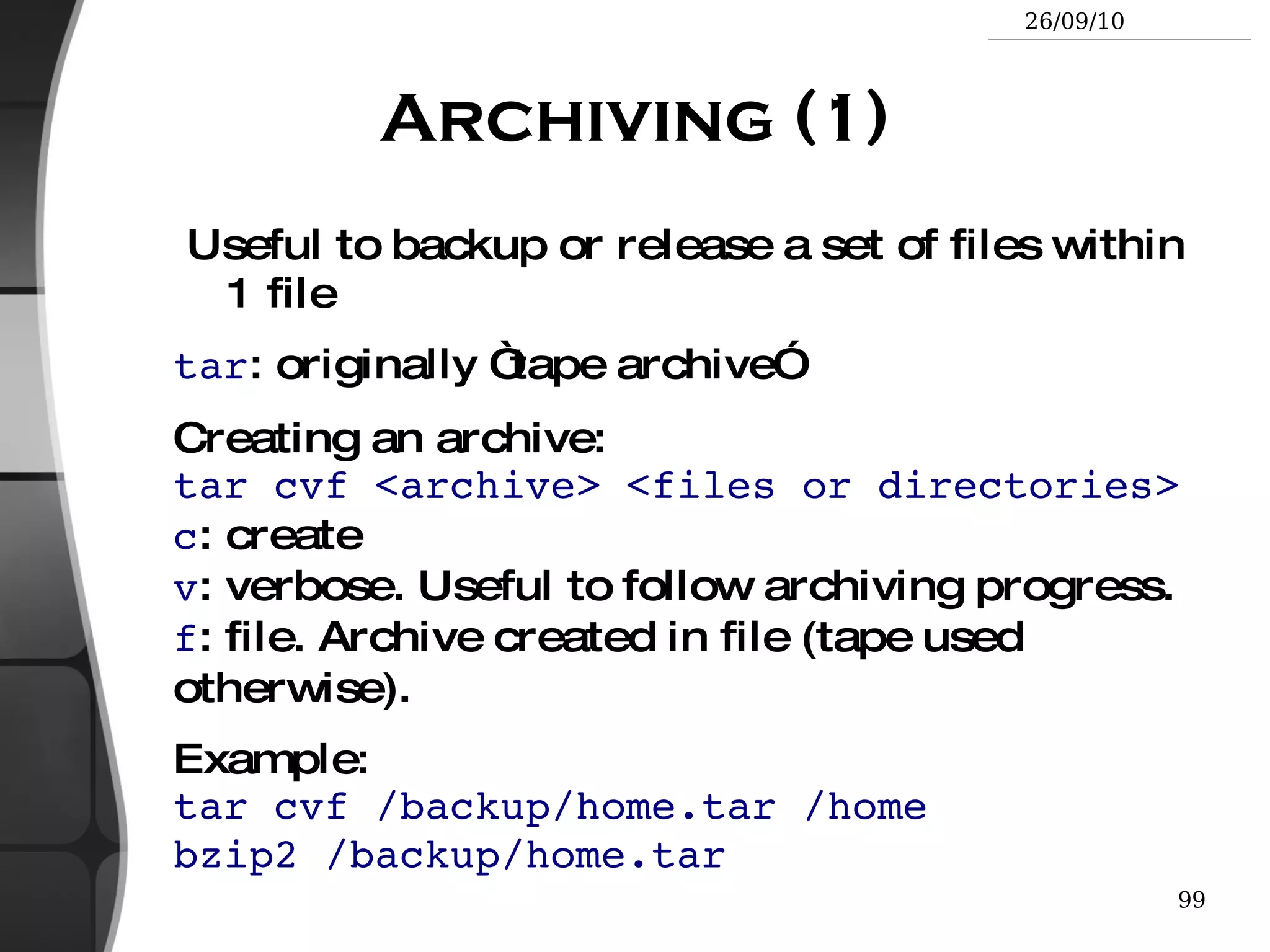
    Special directories (2)~/ Not a special directory indeed. Shells just substitute it by the home directory of the current user.
  • 86.
    Cannot be usedin most programs, as it is not a real directory. ~sydney/ Similarly, substituted by shells by the home directory of the sydney user.
  • 87.
    The cd andpwd commands cd <dir> Changes the current directory to <dir> .
  • 88.
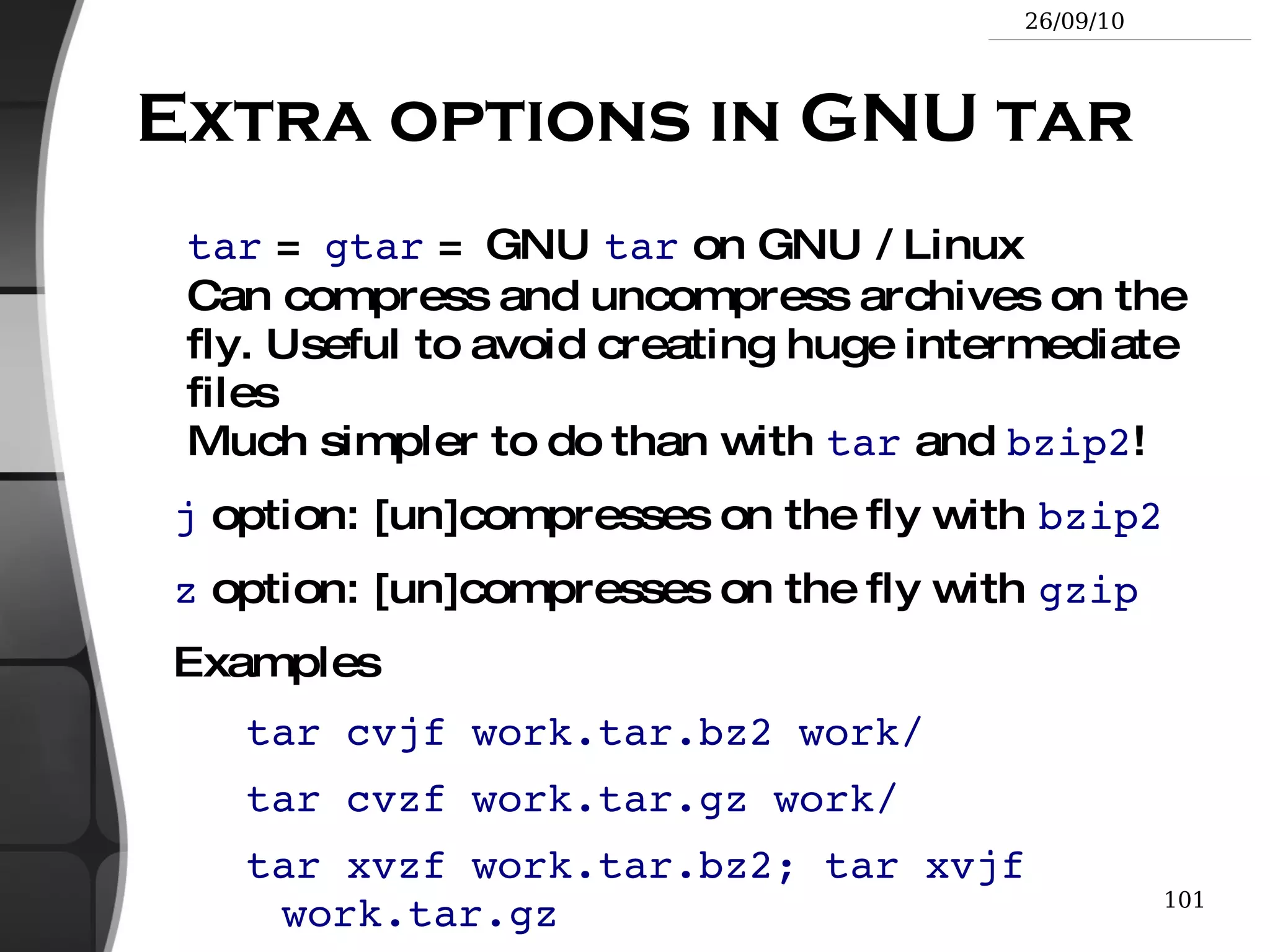
    cd - Getsback to the previous current directory.
  • 89.
    pwd Displays thecurrent directory (&quot;working directory&quot;).
  • 90.
    The cp commandcp <source_file> <target_file> Copies the source file to the target.
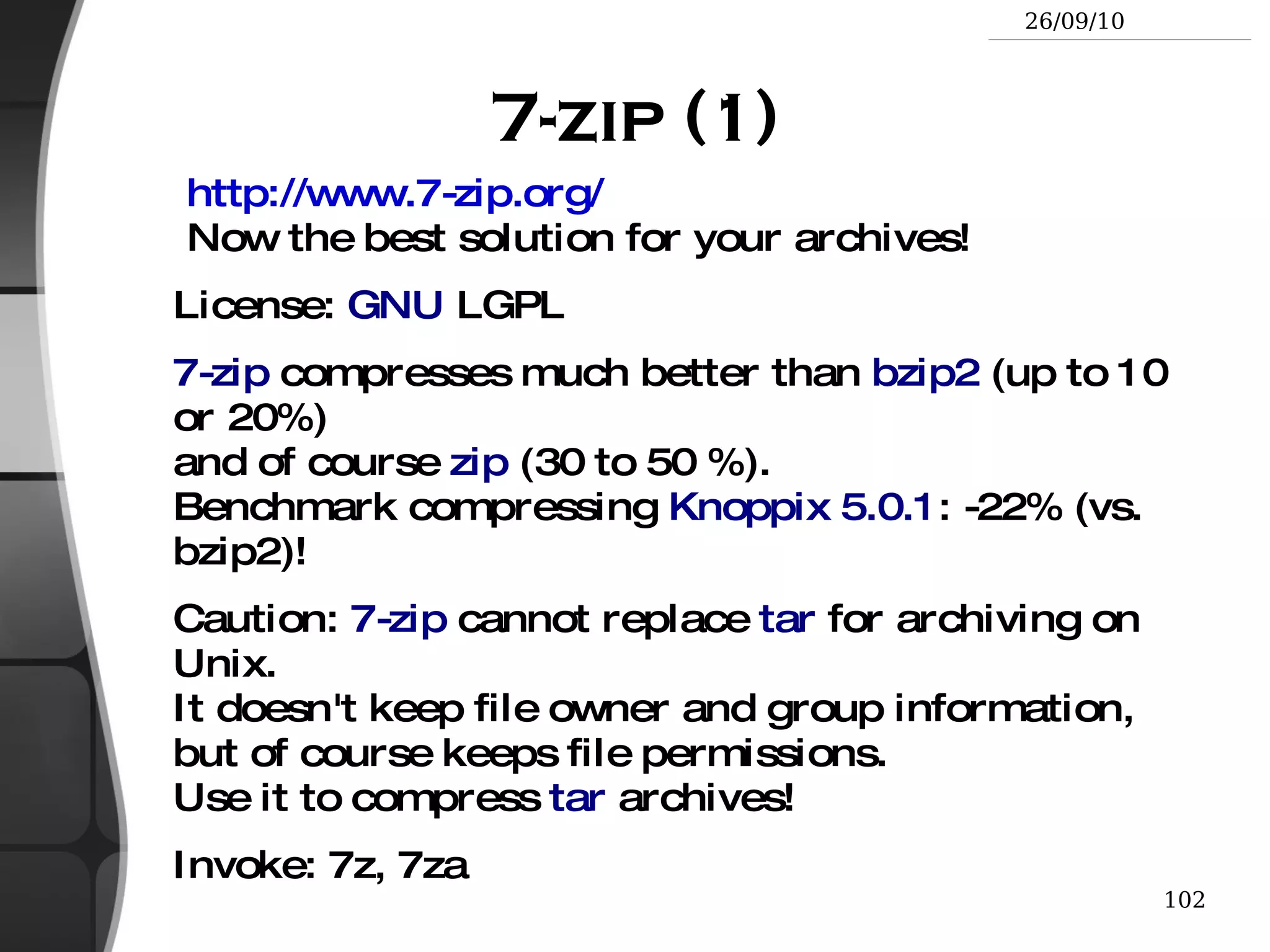
  • 91.
    cp file1 file2file3 ... dir Copies the files to the target directory (last argument).
  • 92.
    cp -i (interactive) Asks for user confirmation if the target file already exists
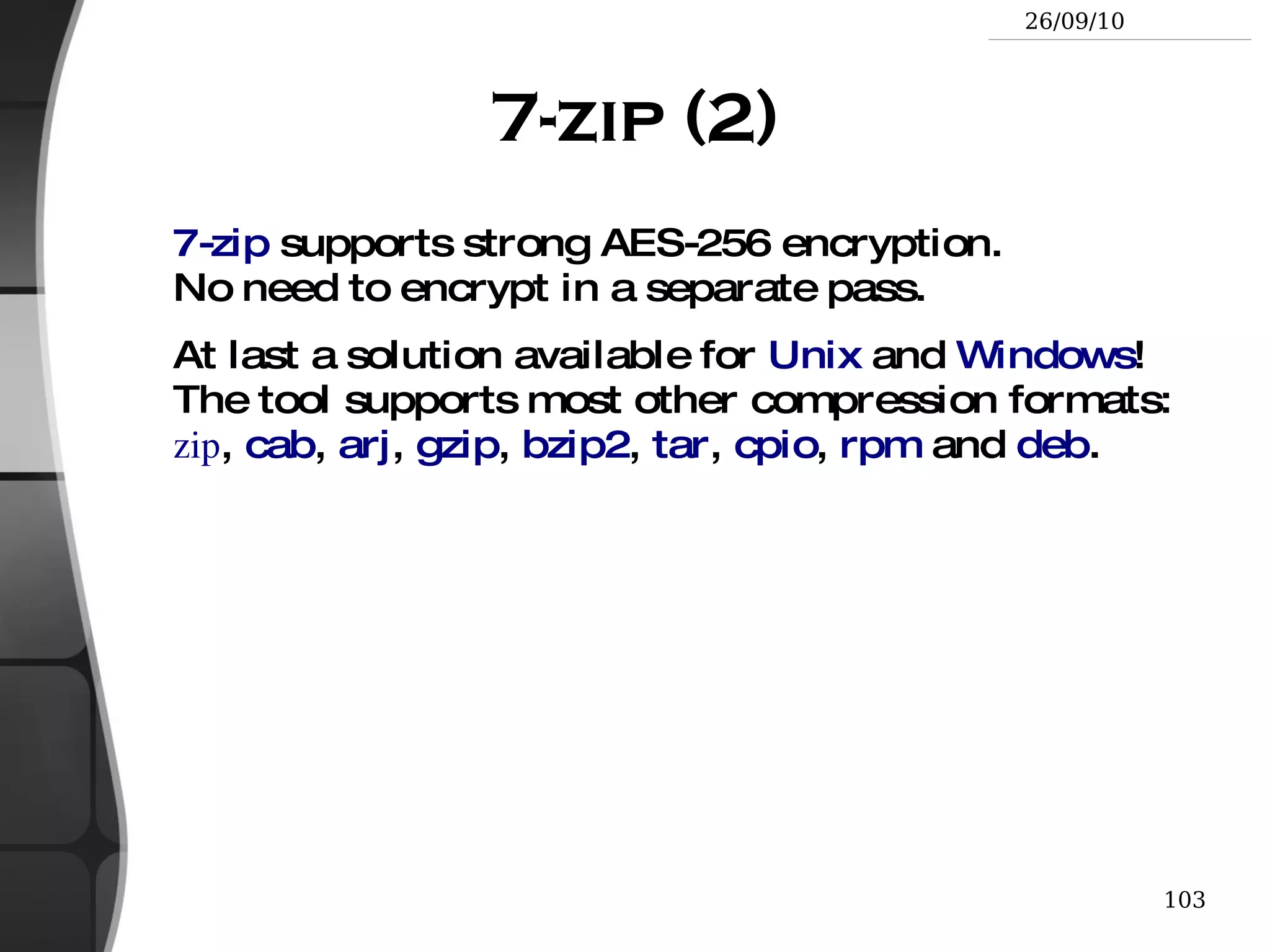
  • 93.
    cp -r <source_dir><target_dir> (recursive) Copies the whole directory.
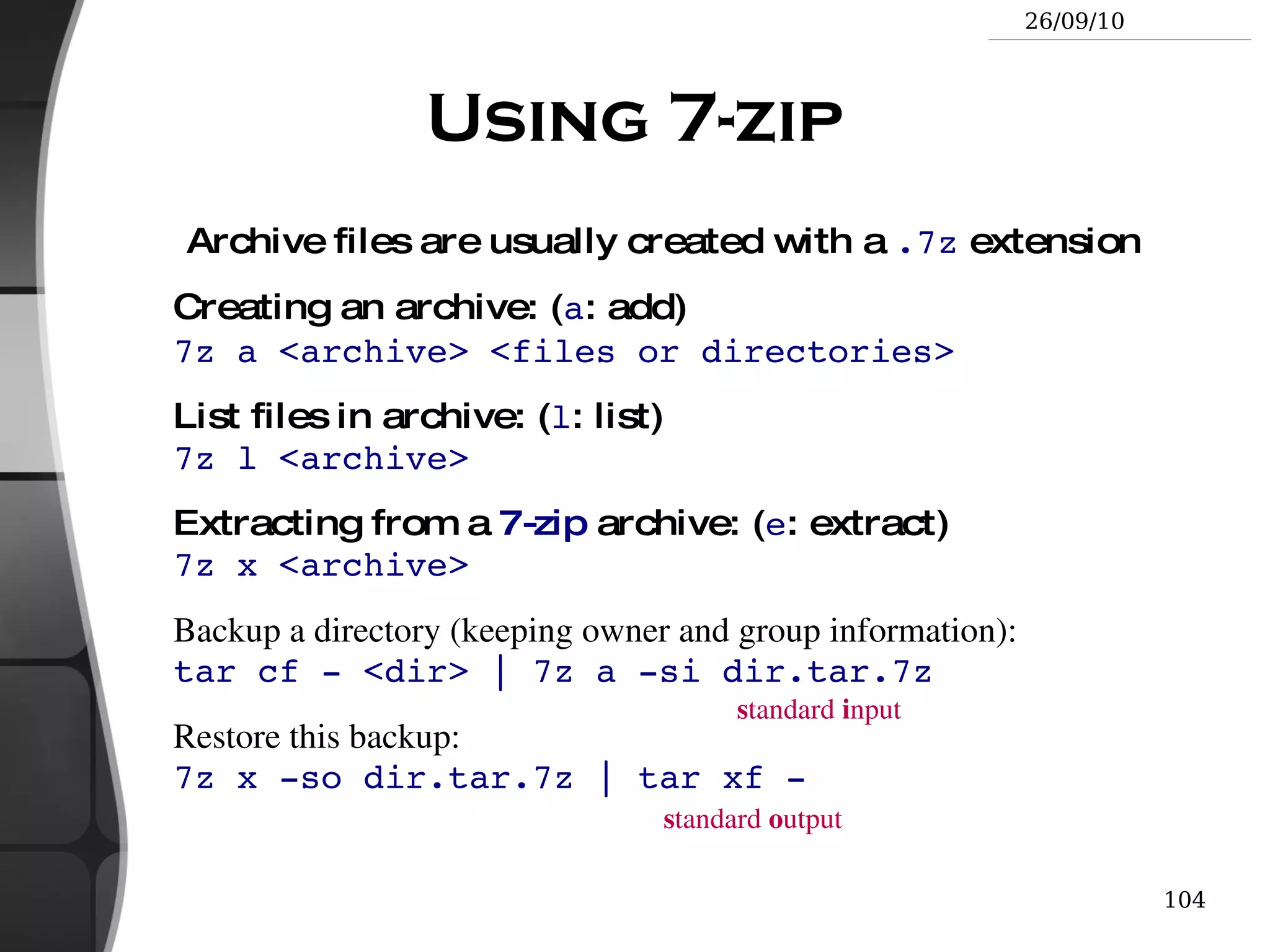
  • 94.
    Smart directory copywith rsync rsync (remote sync) has been designed to keep in sync directories on 2 machines with a low bandwidth connection. Only copies files that have changed. Files with the same size are compared by checksums.
  • 95.
    Only transfers theblocks that differ within a file!
  • 96.
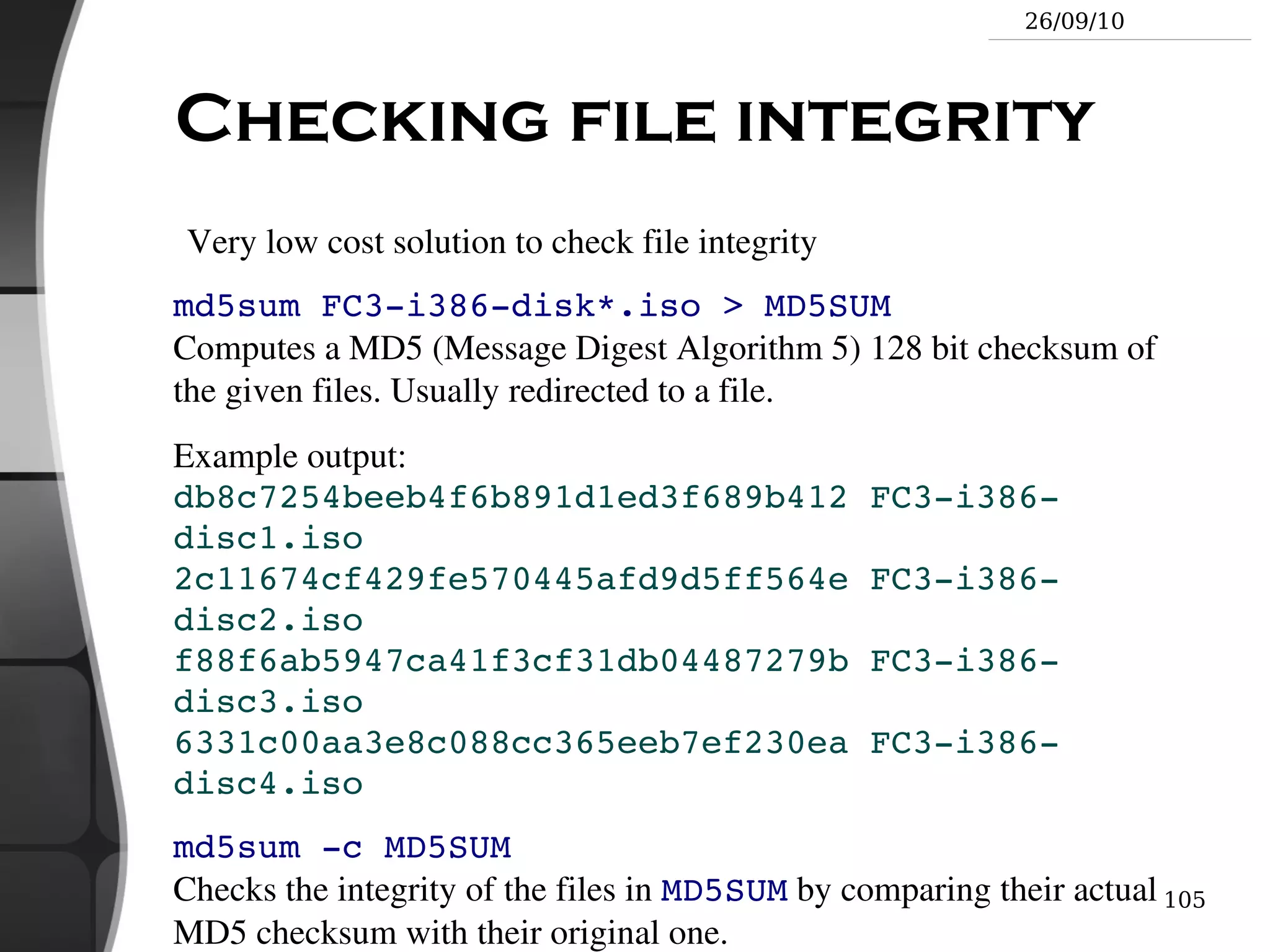
    Can compress thetransferred blocks
  • 97.
    Preserves symbolic linksand file permissions: also very useful for copies on the same machine.
  • 98.
    Can work throughssh (secure remote shell). Very useful to update the contents of a website, for example.
  • 99.
    rsync examples (1)rsync -a /home/vuhung/work /home/backup/work -a : archive mode. Equivalent to -rlptgoD ... easy way to tell you want recursion and want to preserve almost everything. rsync -Pav --delete /home/vuhung/work/ /home/backup/work/ -P : --partial (keep partially transferred files) and --progress (show progress during transfer) --delete : delete files in the target which don't exist in the source. Caution : directory names should end with / . Otherwise, you get a backup/work / directory at the destination.
  • 100.
    rsync examples (2)Copying to a remote machine rsync -Pav /home/vuhung/work/001.svn/ \ vuhung@192.168.52.123:/home/work/002.ipad/ User vuhung will be prompted for a password. Copying from a remote machine through ssh rsync -Pav -e ssh vuhung@192.168.52.123:/home/vuhung/work/ \ tmp/work/ User vuhung will be prompted for his ssh key password.
  • 101.
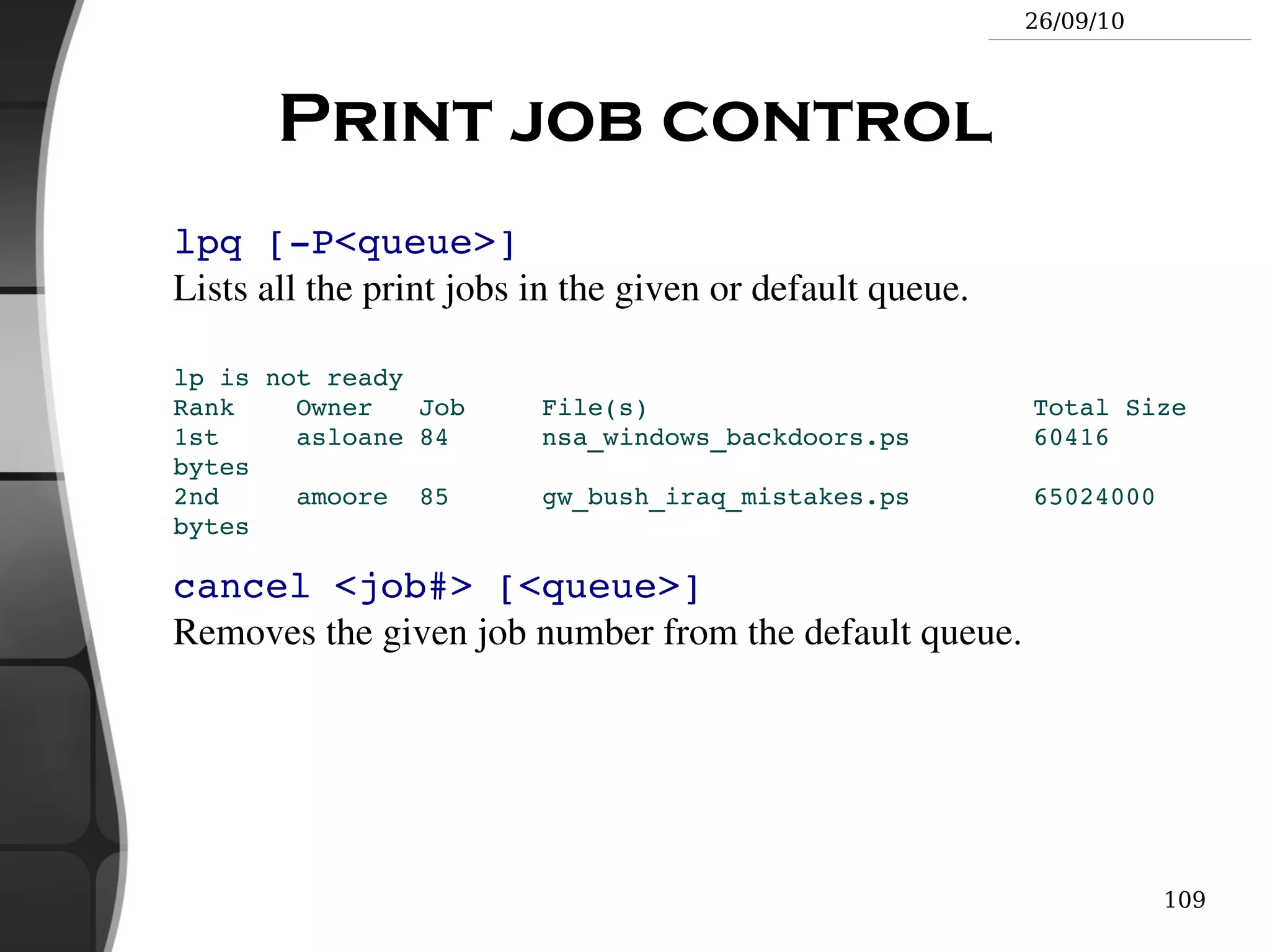
    mv and rmcommands mv <old_name> <new_name> (move) Renames the given file or directory.
  • 102.
    mv -i (interactive) If the new file already exits, asks for user confirm
  • 103.
    rm file1 file2file3 ... (remove) Removes the given files.
  • 104.
    rm -i (interactive) Always ask for user confirm.
  • 105.
    rm -r dir1dir2 dir3 (recursive) Removes the given directories with all their contents.
  • 106.
    Creating and removingdirectories mkdir dir1 dir2 dir3 ... (make dir) Creates directories with the given names.
  • 107.
    rmdir dir1 dir2dir3 ... (remove dir) Removes the given directories Safe: only works when directories and empty. Alternative: rm -r (doesn't need empty directories).
  • 108.
    Displaying file contentsSeveral ways of displaying the contents of files. cat file1 file2 file3 ... (concatenate) Concatenates and outputs the contents of the given files.
  • 109.
    more file1 file2file3 ... After each page, asks the user to hit a key to continue. Can also jump to the first occurrence of a keyword ( / command).
  • 110.
    less file1 file2file3 ... Does more than more with less. Doesn't read the whole file before starting. Supports backward movement in the file ( ? command).
  • 111.
    The head andtail commands head [-<n>] <file> Displays the first <n> lines (or 10 by default) of the given file. Doesn't have to open the whole file to do this!
  • 112.
    tail [-<n>] <file>Displays the last <n> lines (or 10 by default) of the given file. No need to load the whole file in RAM! Very useful for huge files.
  • 113.
    tail -f <file> (follow) Displays the last 10 lines of the given file and continues to display new lines when they are appended to the file. Very useful to follow the changes in a log file, for example.
  • 114.
    Examples head windows_bugs.txttail -f outlook_vulnerabilities.txt
  • 115.
    The grep commandgrep <pattern> <files> Scans the given files and displays the lines which match the given pattern.
  • 116.
    grep error *.logDisplays all the lines containing error in the *. log files
  • 117.
    grep -i error*.log Same, but case insensitive
  • 118.
    grep -ri error. Same, but recursively in all the files in . and its subdirectories
  • 119.
    grep -v info*.log Outputs all the lines in the files except those containing info .
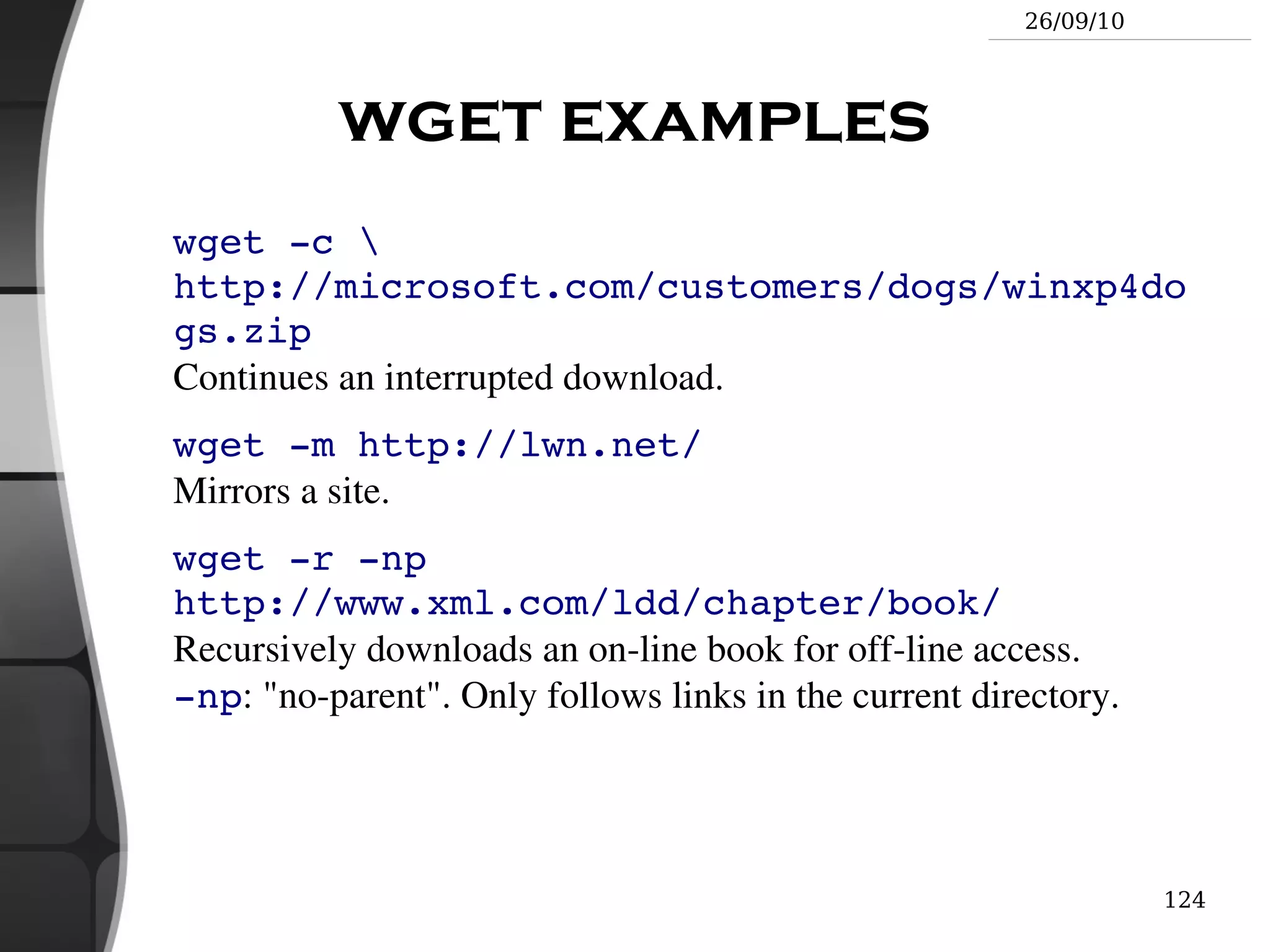
  • 120.
    The sort commandsort <file> Sorts the lines in the given file in character order and outputs them.
  • 121.
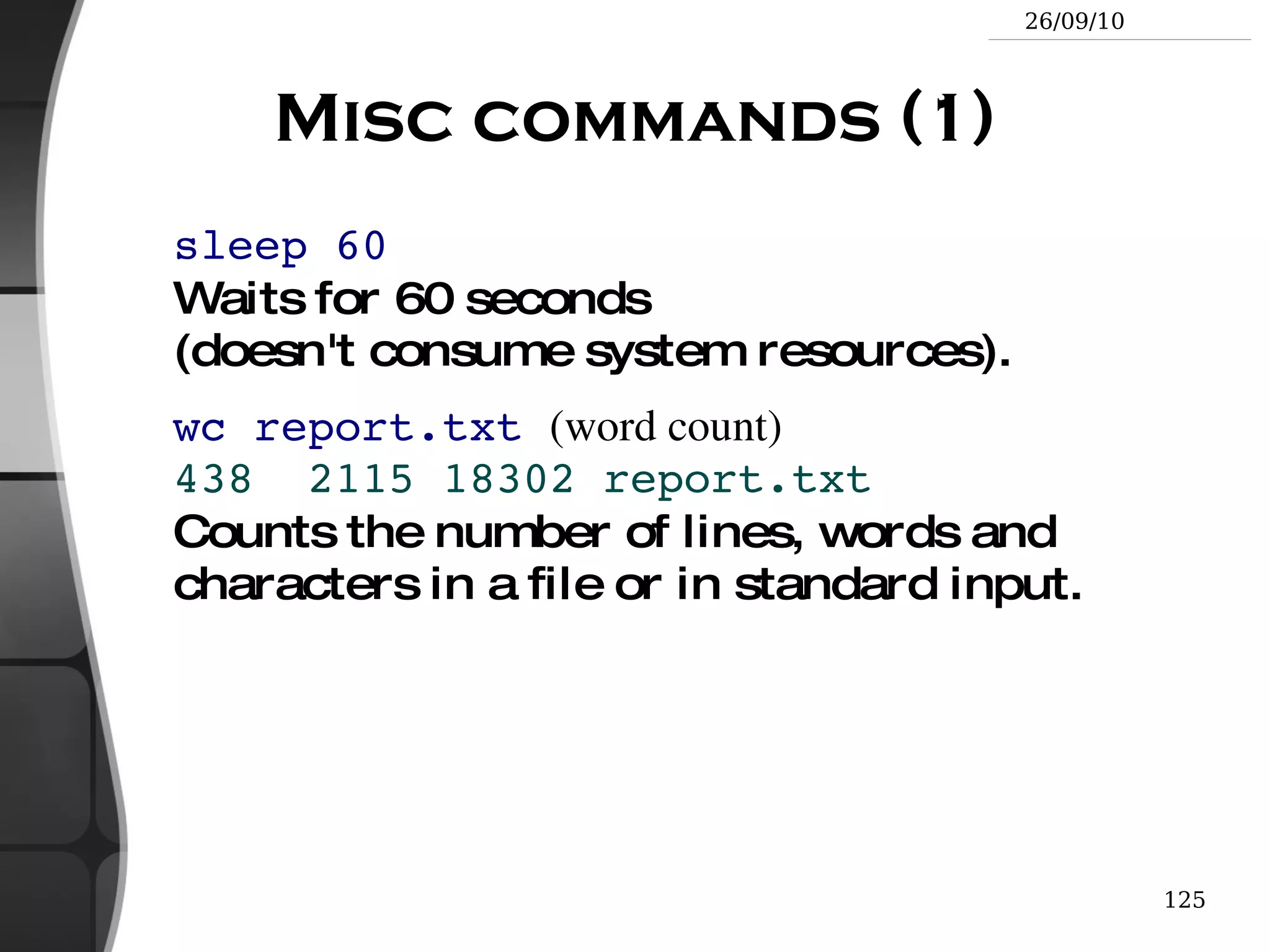
    sort -r <file>Same, but in reverse order.
  • 122.
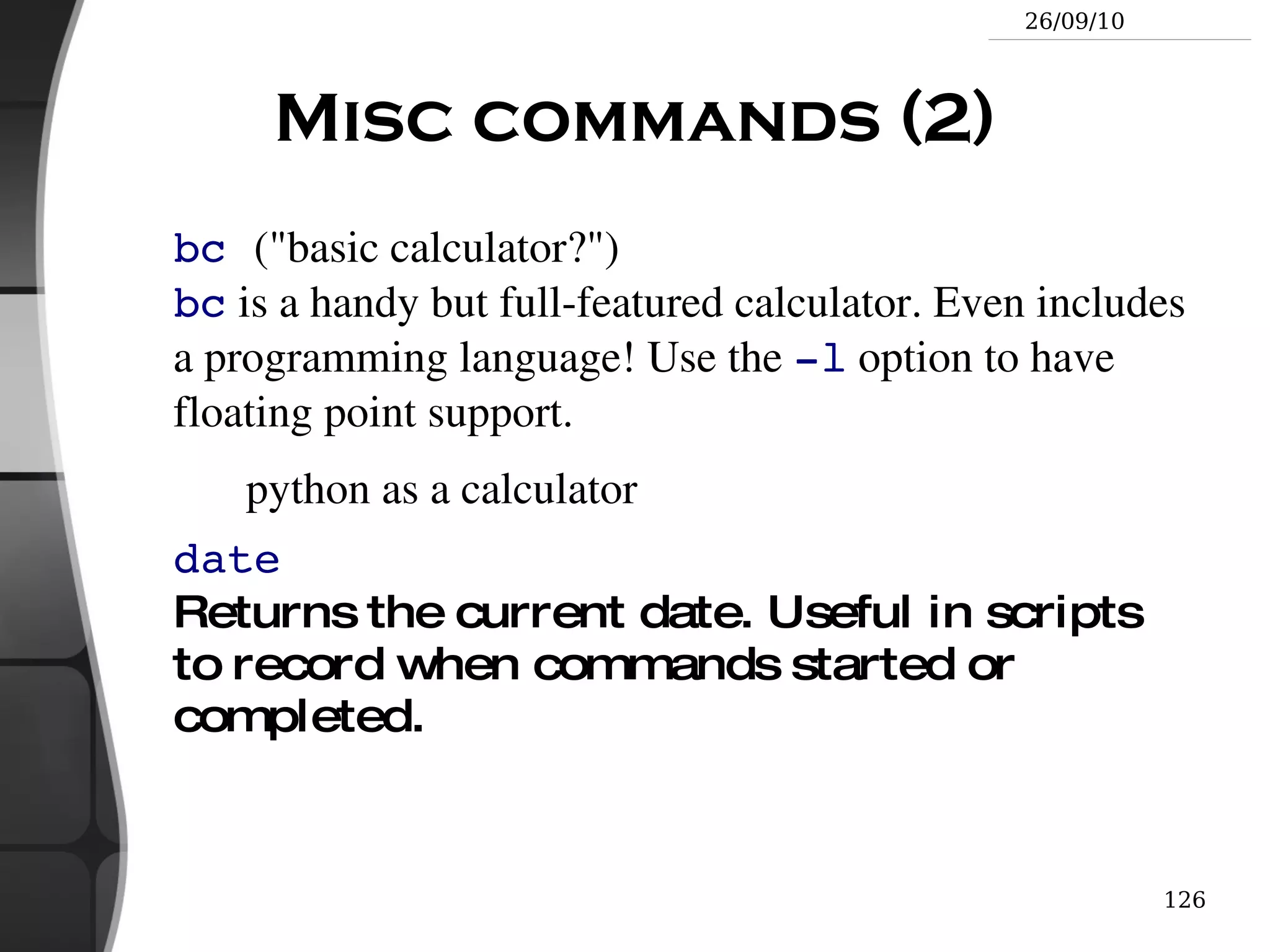
    sort -ru <file>u : unique. Same, but just outputs identical lines once.
  • 123.
  • 124.
    Symbolic links Asymbolic link is a special file which is just a reference to the name of another one (file or directory): Useful to reduce disk usage and complexity when 2 files have the same content.
  • 125.
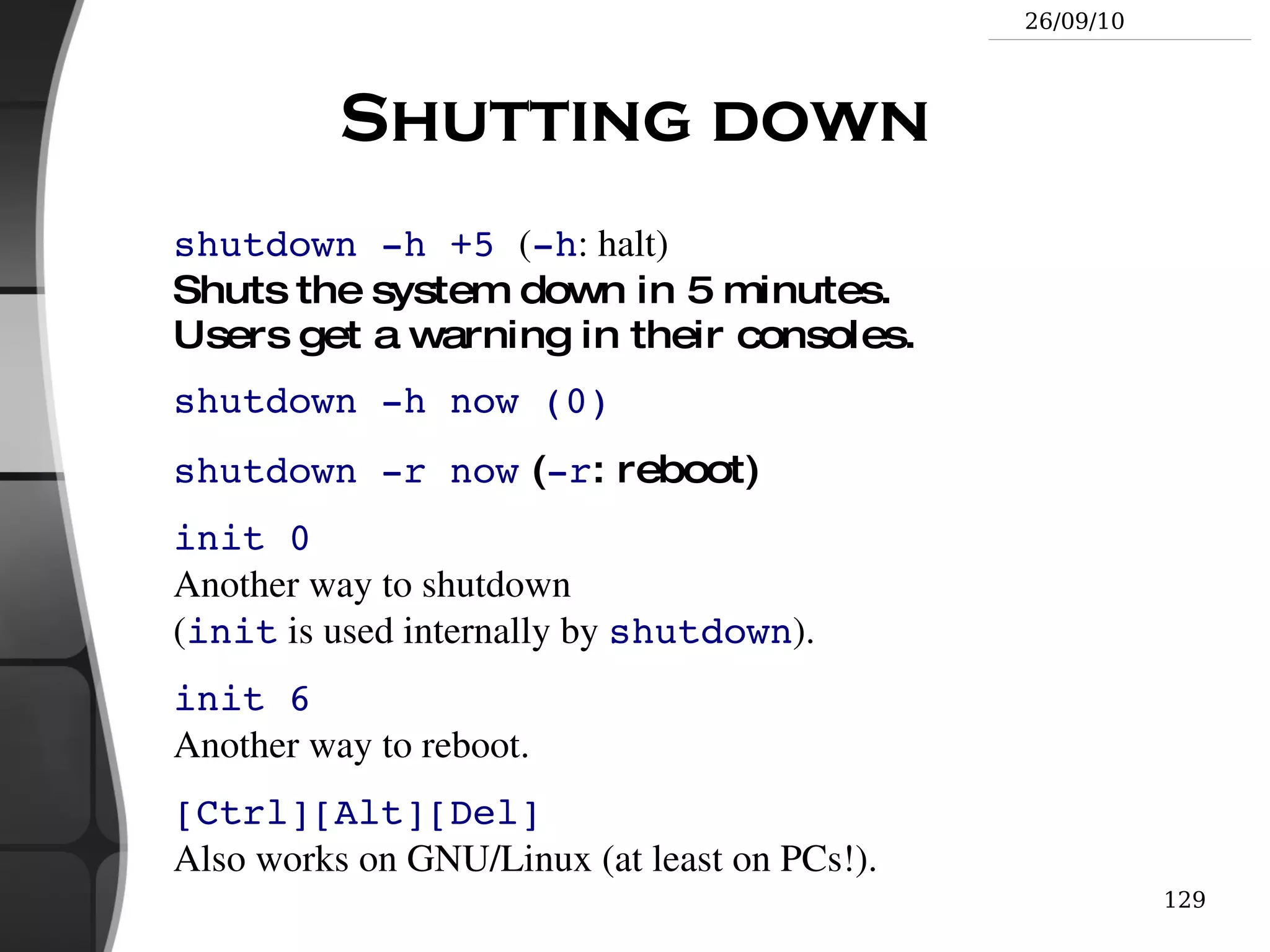
  • 126.
    How to identifysymbolic links: ls -l displays -> and the linked file name.
  • 127.
    GNU ls displays links with a different color.
  • 128.
    Creating symbolic linksTo create a symbolic link (same order as in cp ): ln -s file_name link_name
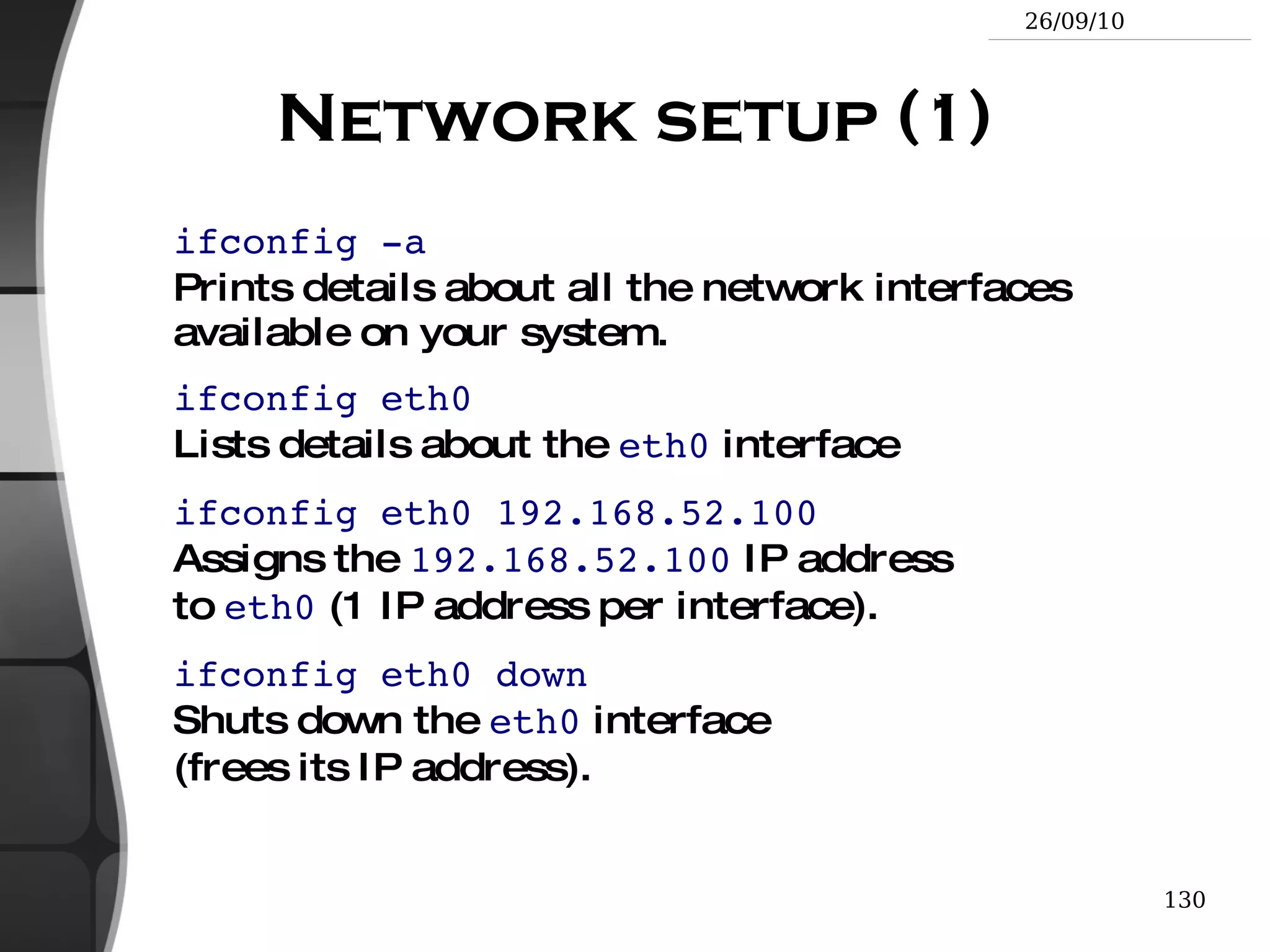
  • 129.
    To create alink with to a file in another directory, with the same name: ln -s ../README.txt
  • 130.
    To create multiplelinks at once in a given directory: ln -s file1 file2 file3 ... dir
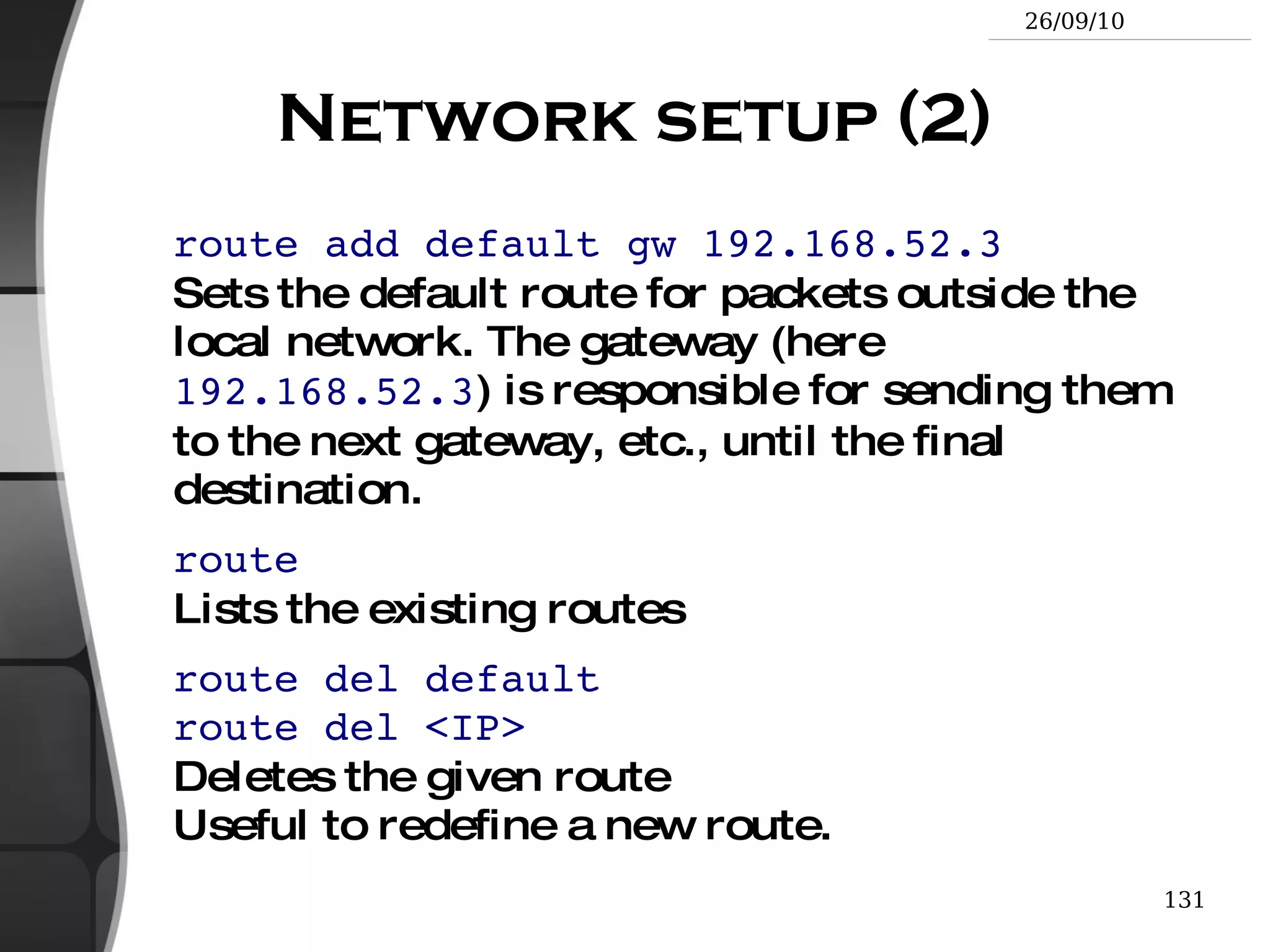
  • 131.
    To remove alink: rm link_name Of course, this doesn't remove the linked file!
  • 132.
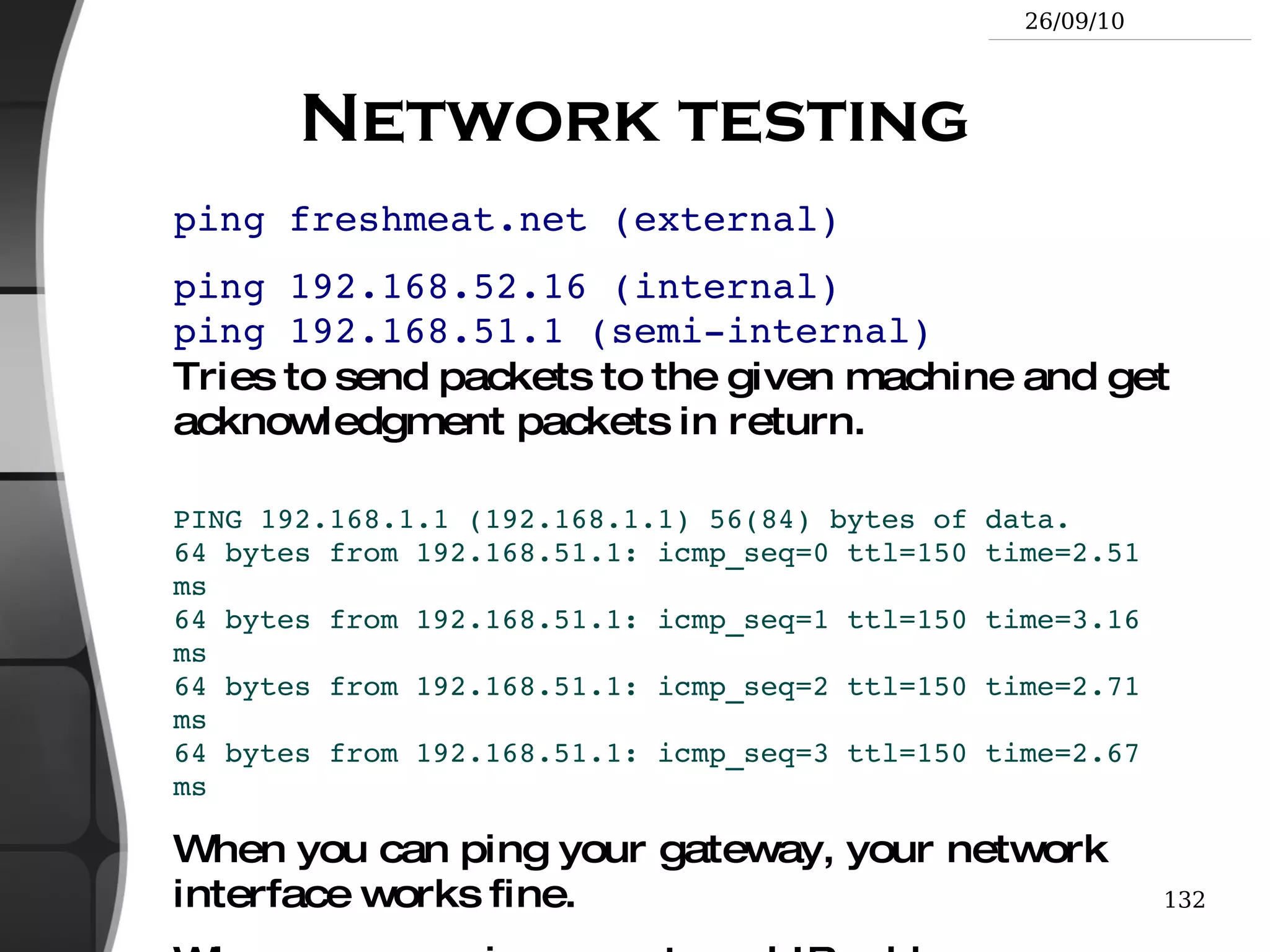
    Hard links Thedefault behavior for ln is to create hard links
  • 133.
    A hardlink to a file is a regular file with exactly the same physical contents
  • 134.
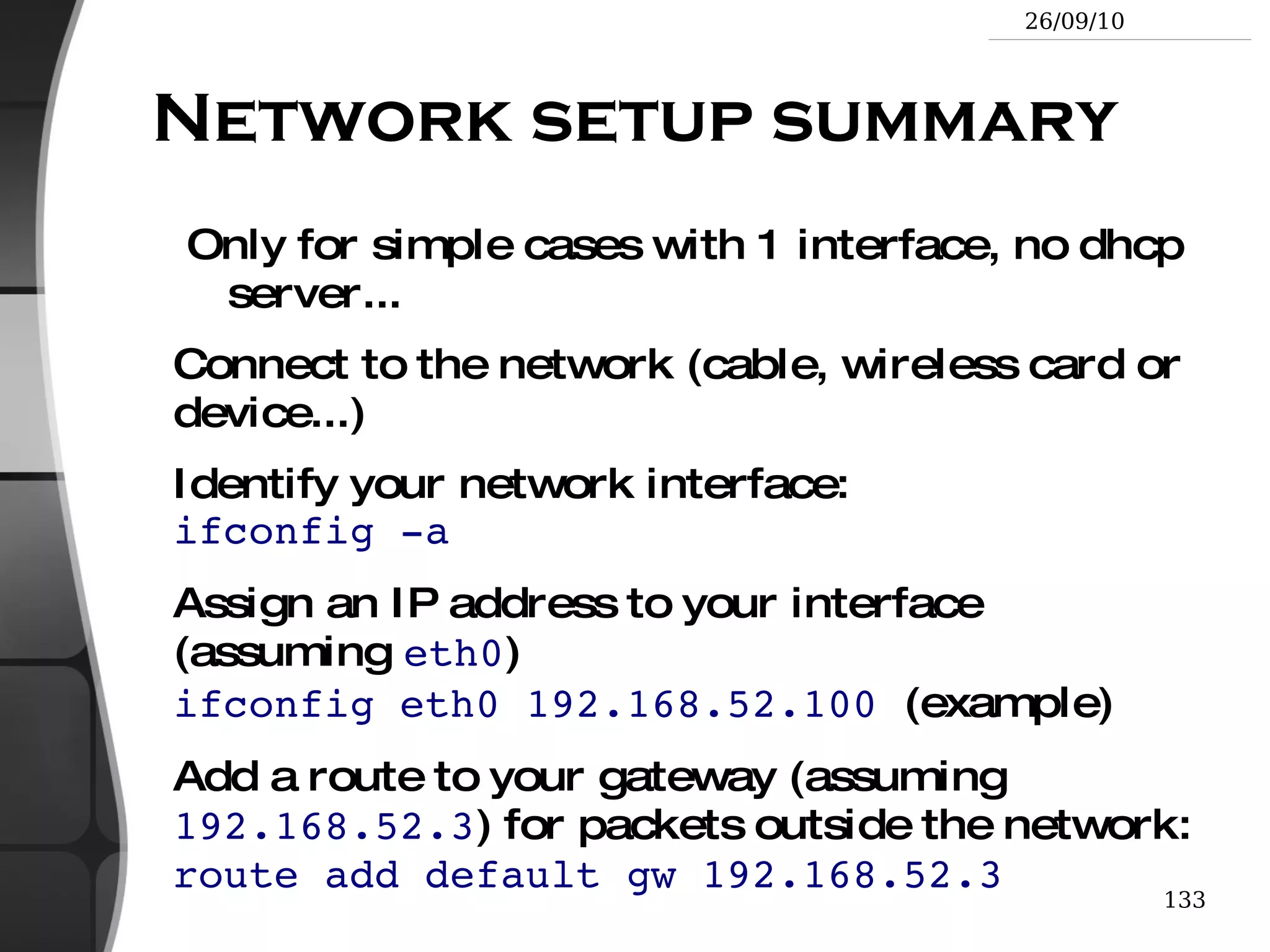
    While they stillsave space, hard links can't be distinguished from the original files.
  • 135.
    If you removethe original file, there is no impact on the hard link contents.
  • 136.
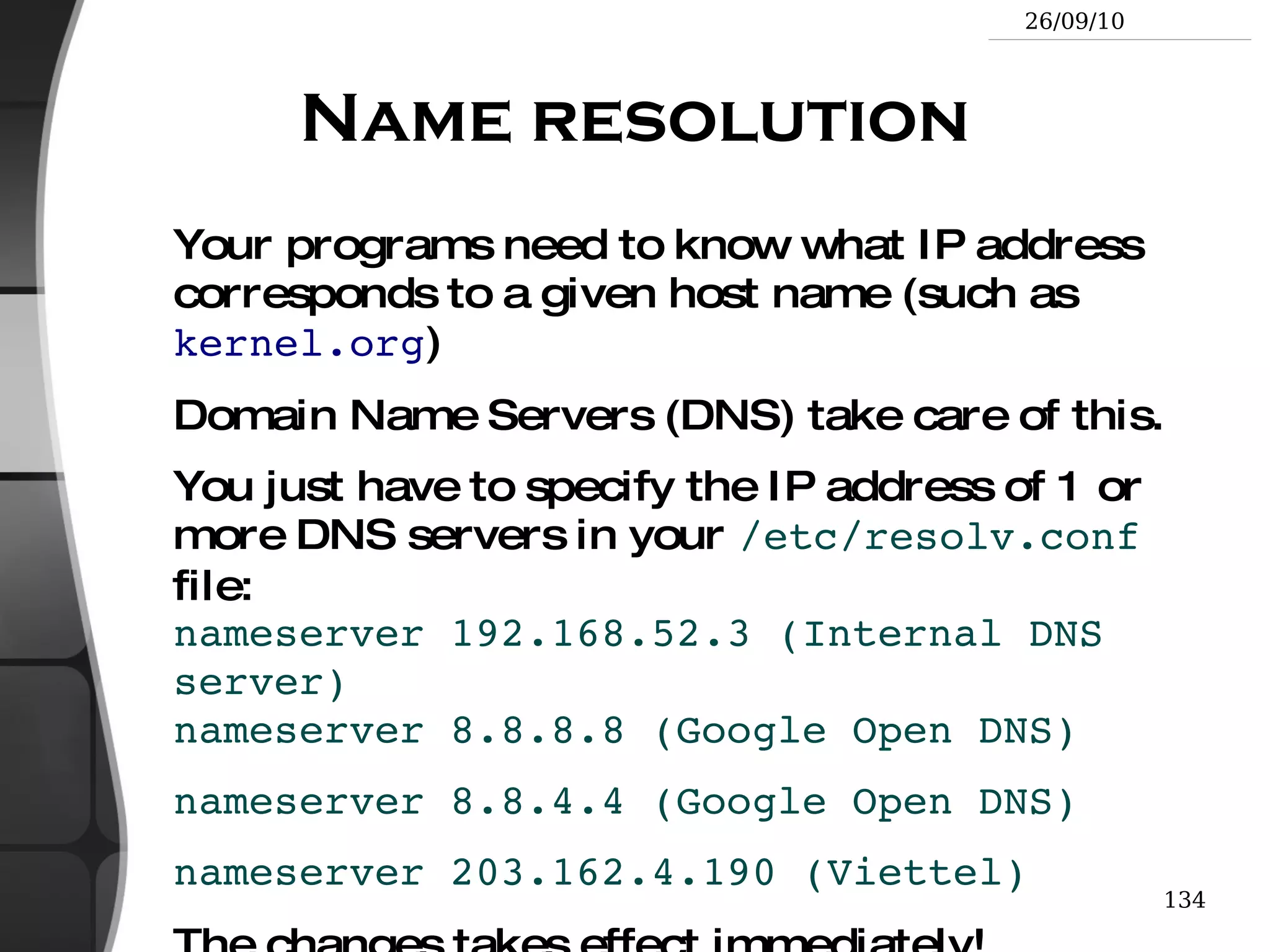
    The contents areremoved when there are no more files (hard links) to them.
  • 137.
    Files names andinodes Makes hard and symbolic (soft) links easier to understand!
  • 138.
    File access rights3 types of access rights Read access ( r )
  • 139.
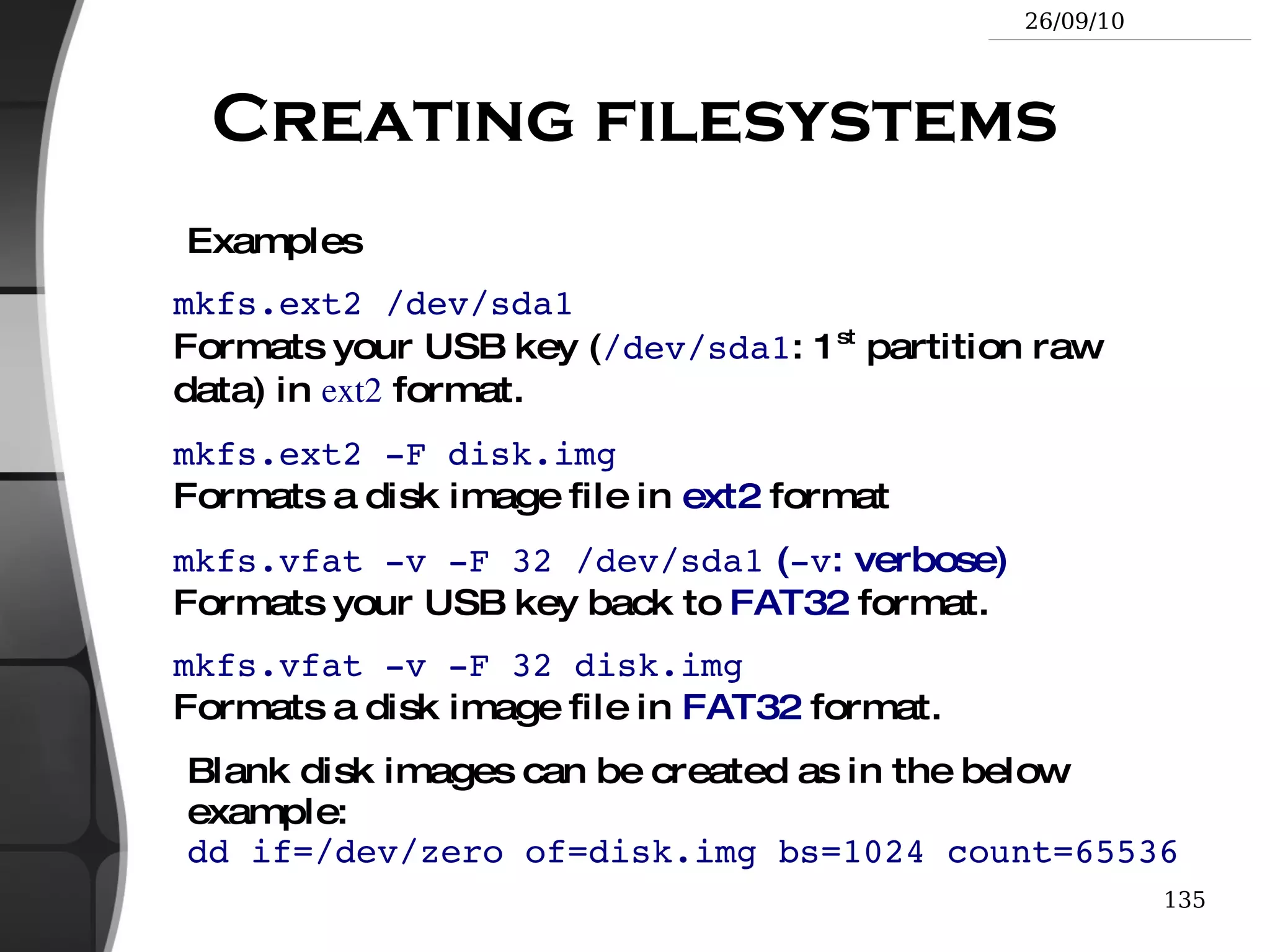
  • 140.
    Execute rights (x ) 3 types of access levels User ( u ): for the owner of the file
  • 141.
    Group ( g): each file also has a “group” attribute, corresponding to a given list of users
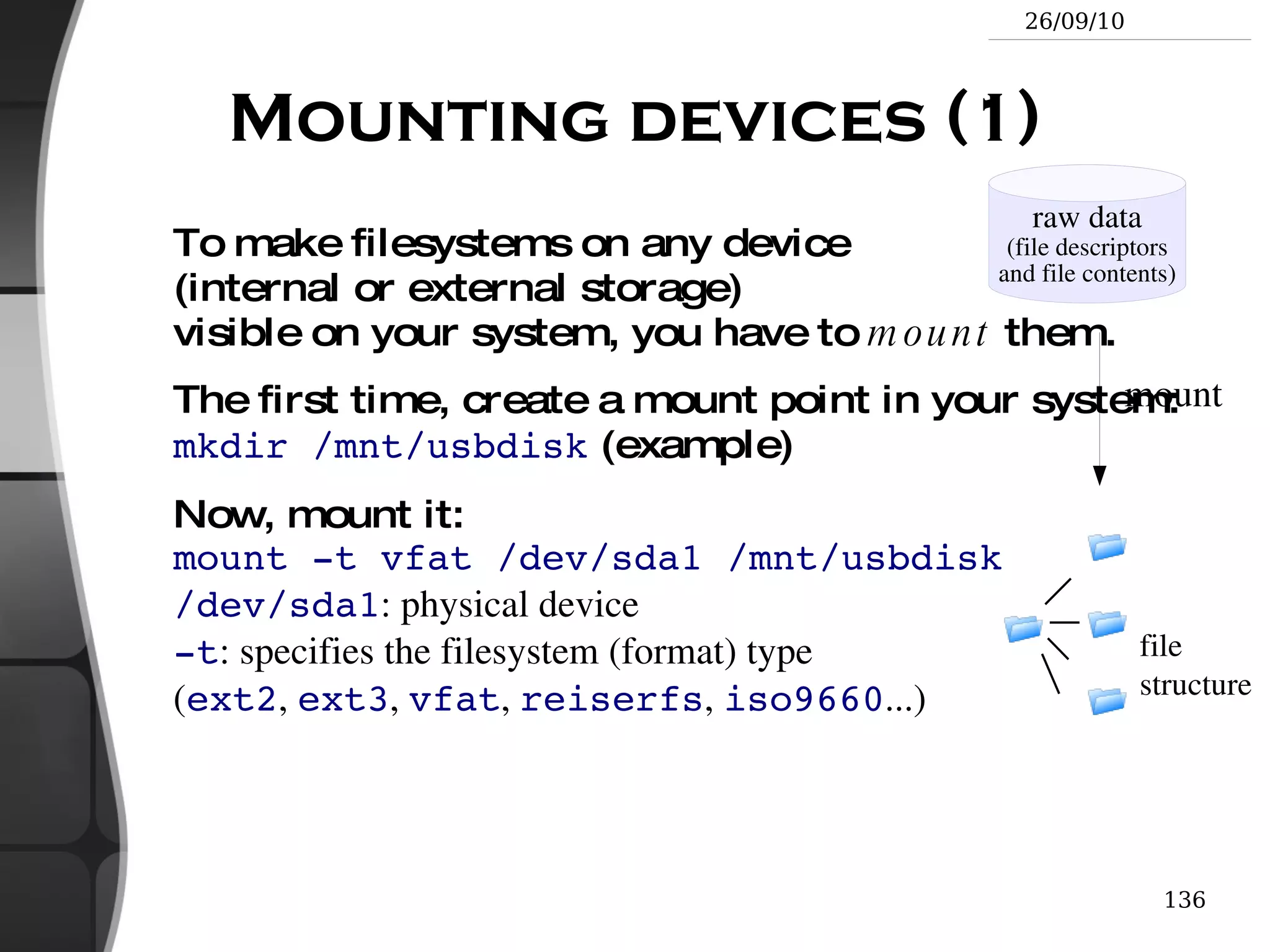
  • 142.
    Others ( o): for all other users Use ls -l to check file access rights
  • 143.
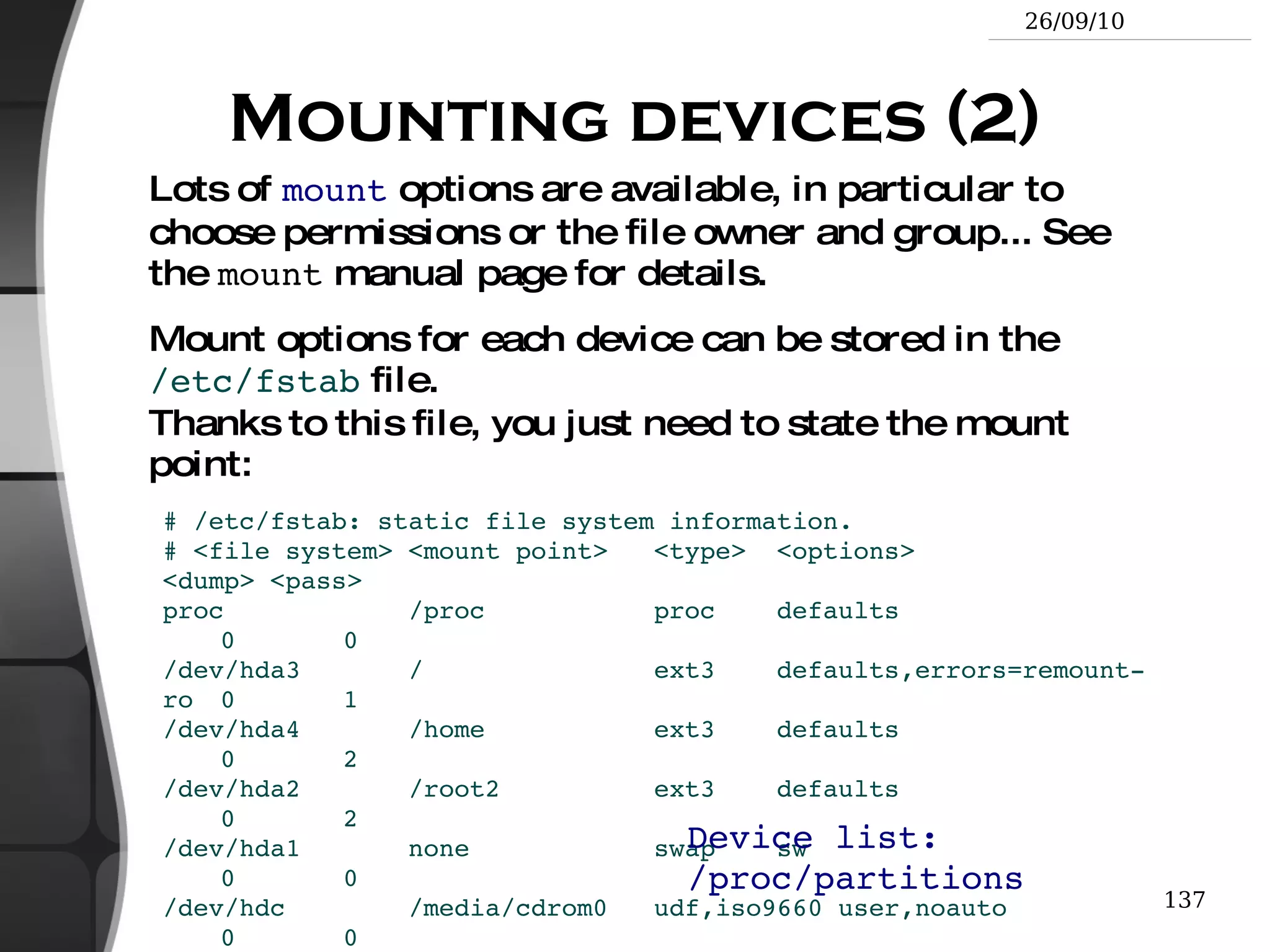
    Access right constraintsx without r is legal but is useless You have to be able to read a file to execute it.
  • 144.
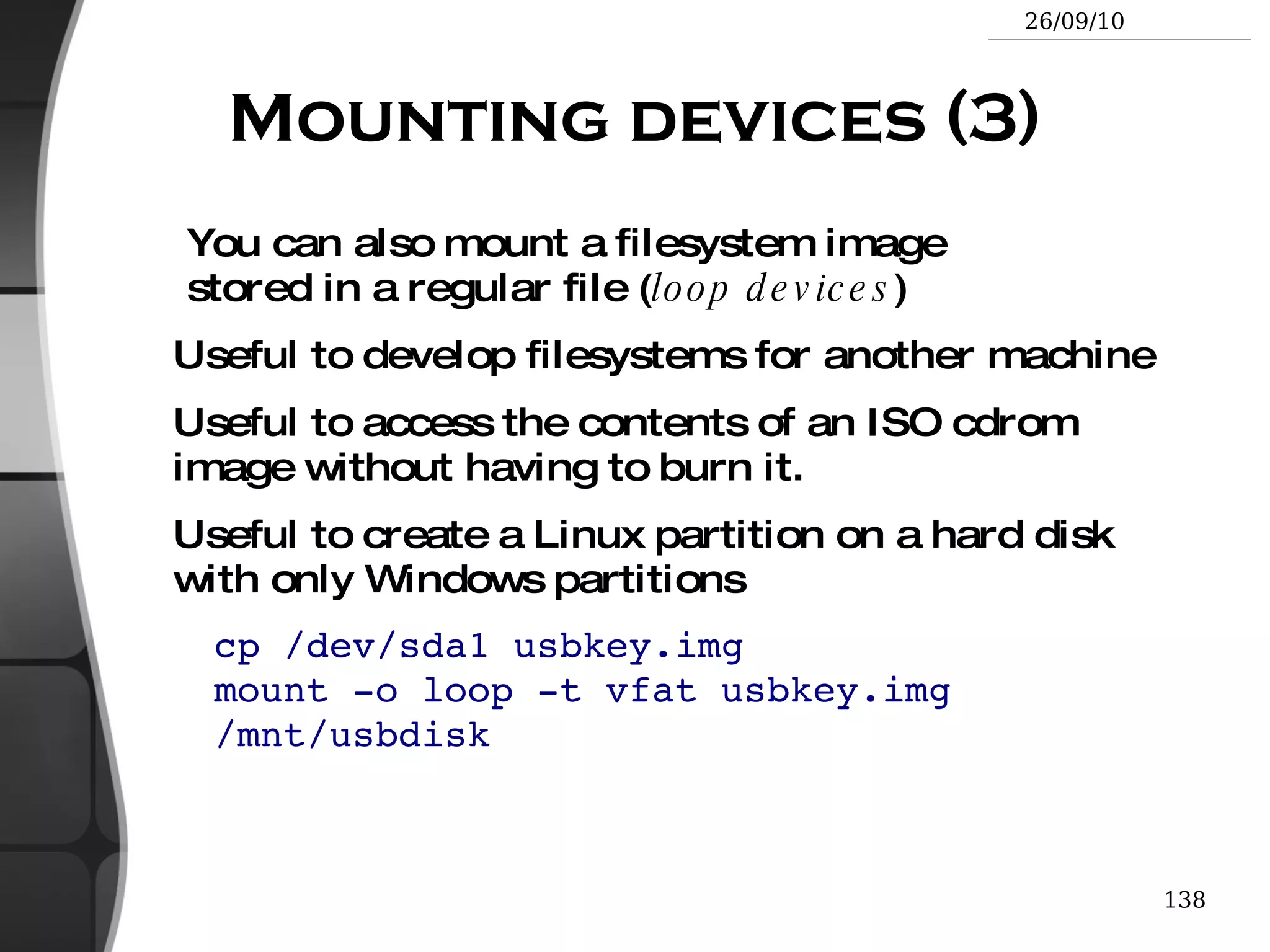
    Both r and x permissions needed for directories: x to enter, r to list its contents.
  • 145.
    You can't rename,remove, copy files in a directory if you don't have w access to this directory.
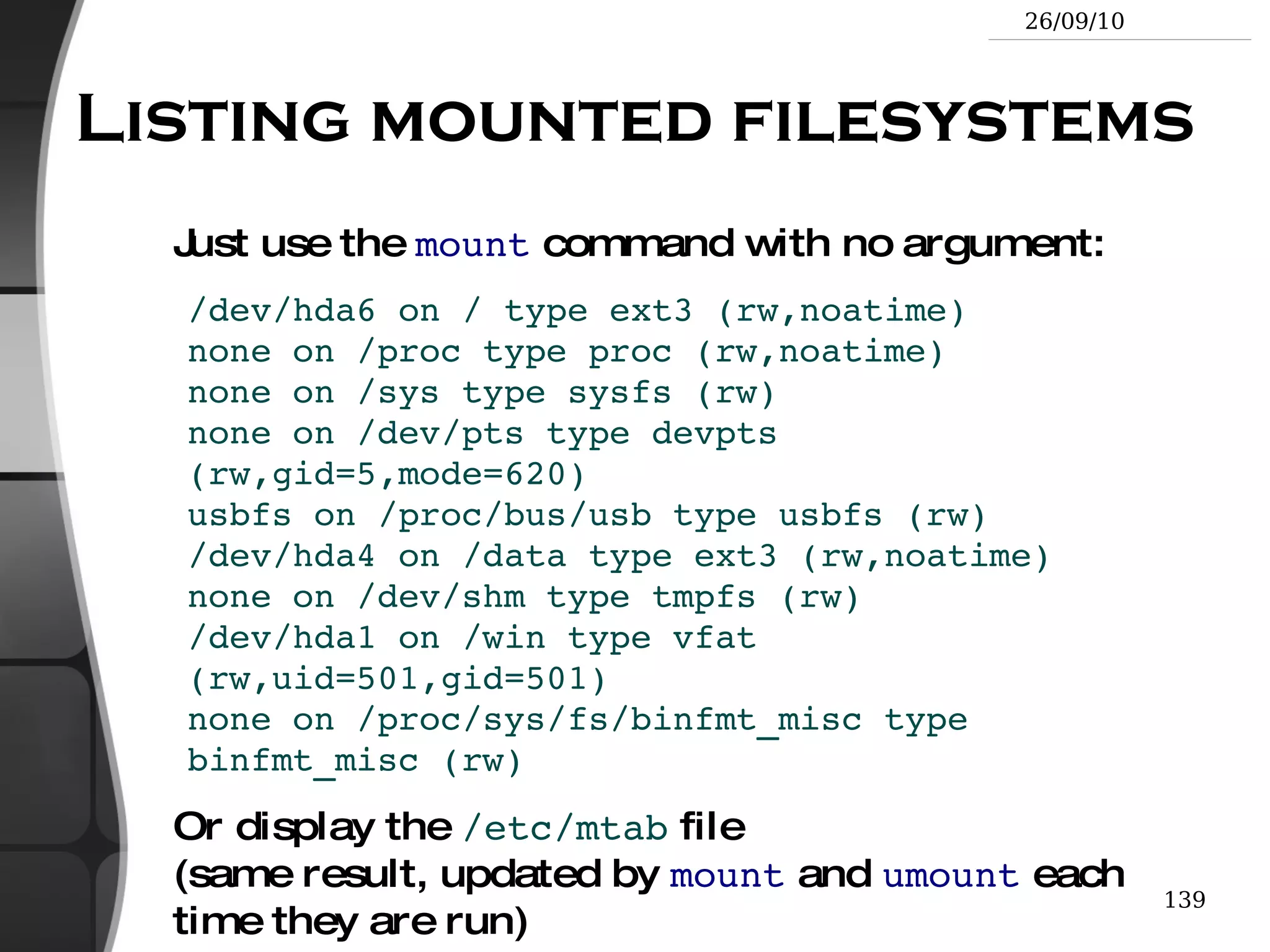
  • 146.
    If you have w access to a directory, you CAN remove a file even if you don't have write access to this file (remember that a directory is just a file describing a list of files). This even lets you modify (remove + recreate) a file even without w access to it.
  • 147.
    Access rights examples-rw-r--r-- Readable and writable for file owner, only readable for others
  • 148.
    -rw-r----- Readable andwritable for file owner, only readable for users belonging to the file group.
  • 149.
    drwx------ Directory onlyaccessible by its owner
  • 150.
    -------r-x File executableby others but neither by your friends nor by yourself. Nice protections for a trap...
  • 151.
    chmod: changing permissionschmod <permissions> <files> 2 formats for permissions:
  • 152.
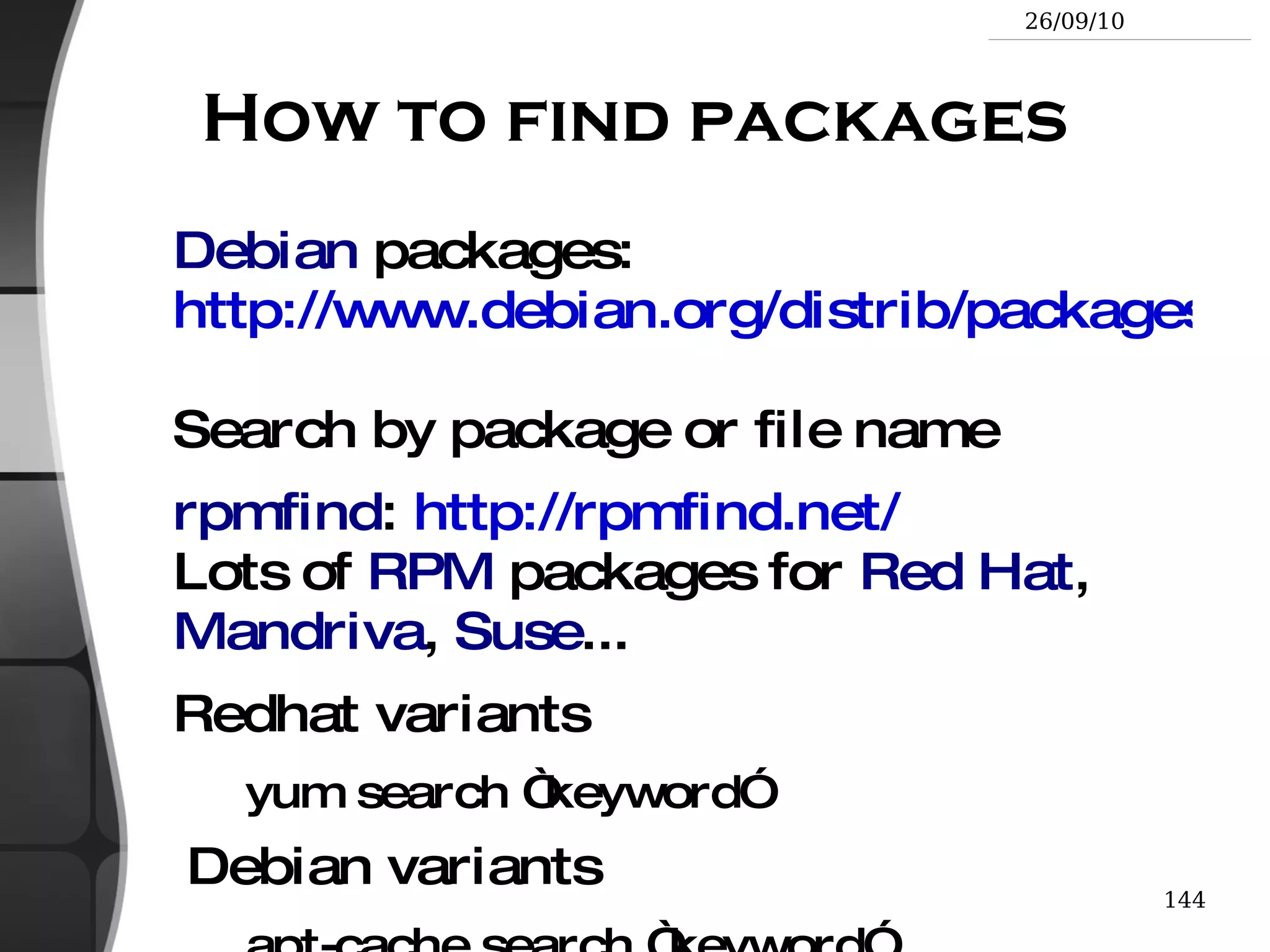
    Octal format (abc): a,b,c = r*4+w*2+x ( r , w , x : booleans) Example: chmod 644 <file> ( rw for u , r for g and o )
  • 153.
    Or symbolic format.Easy to understand by examples: chmod go+r : add read permissions to group and others. chmod u-w : remove write permissions from user. chmod a-x : ( a : all) remove execute permission from all.
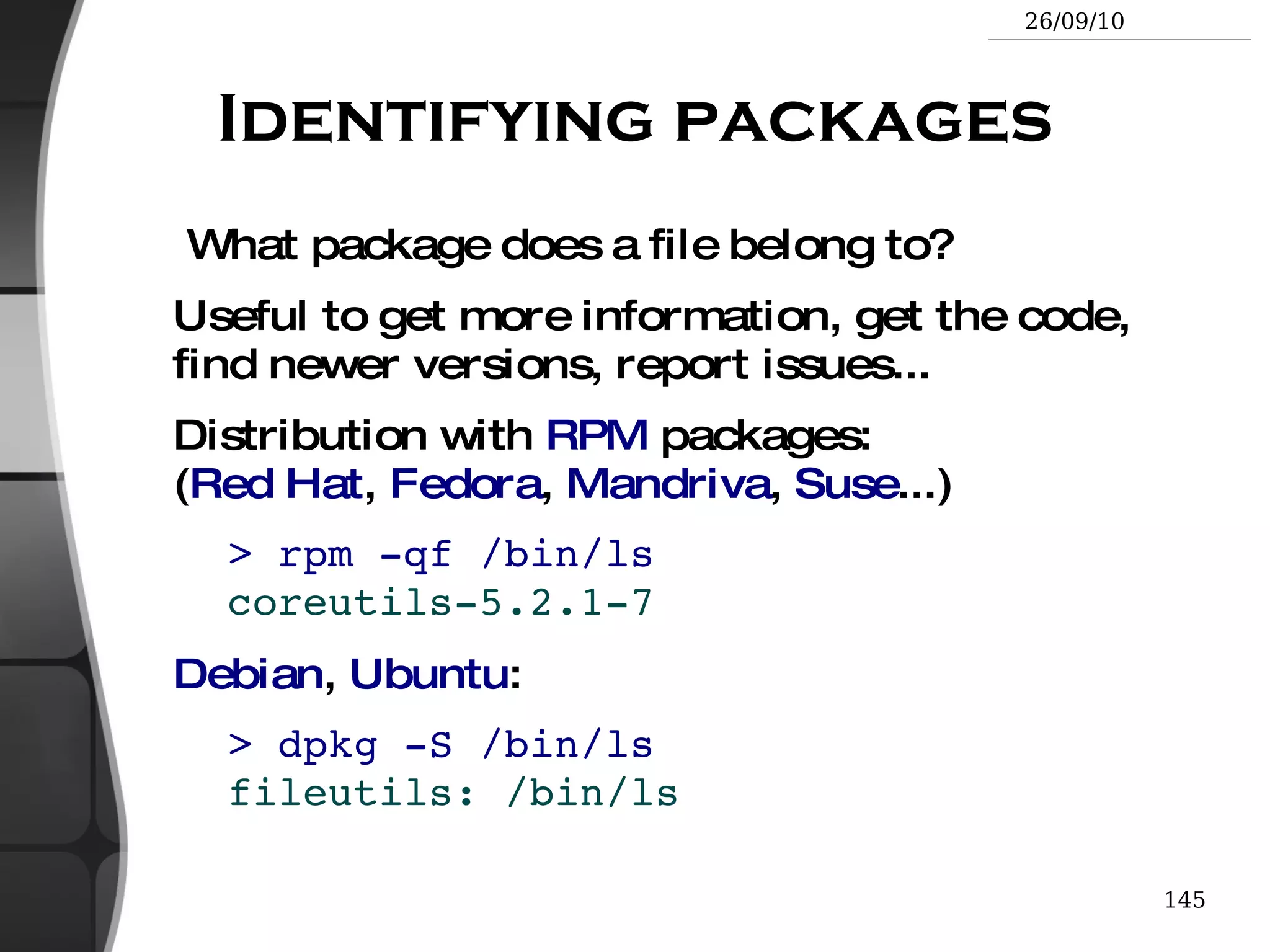
  • 154.
    More chmod (1)chmod -R a+rX folder/ Makes folder and everything in it available to everyone! R : apply changes recursively
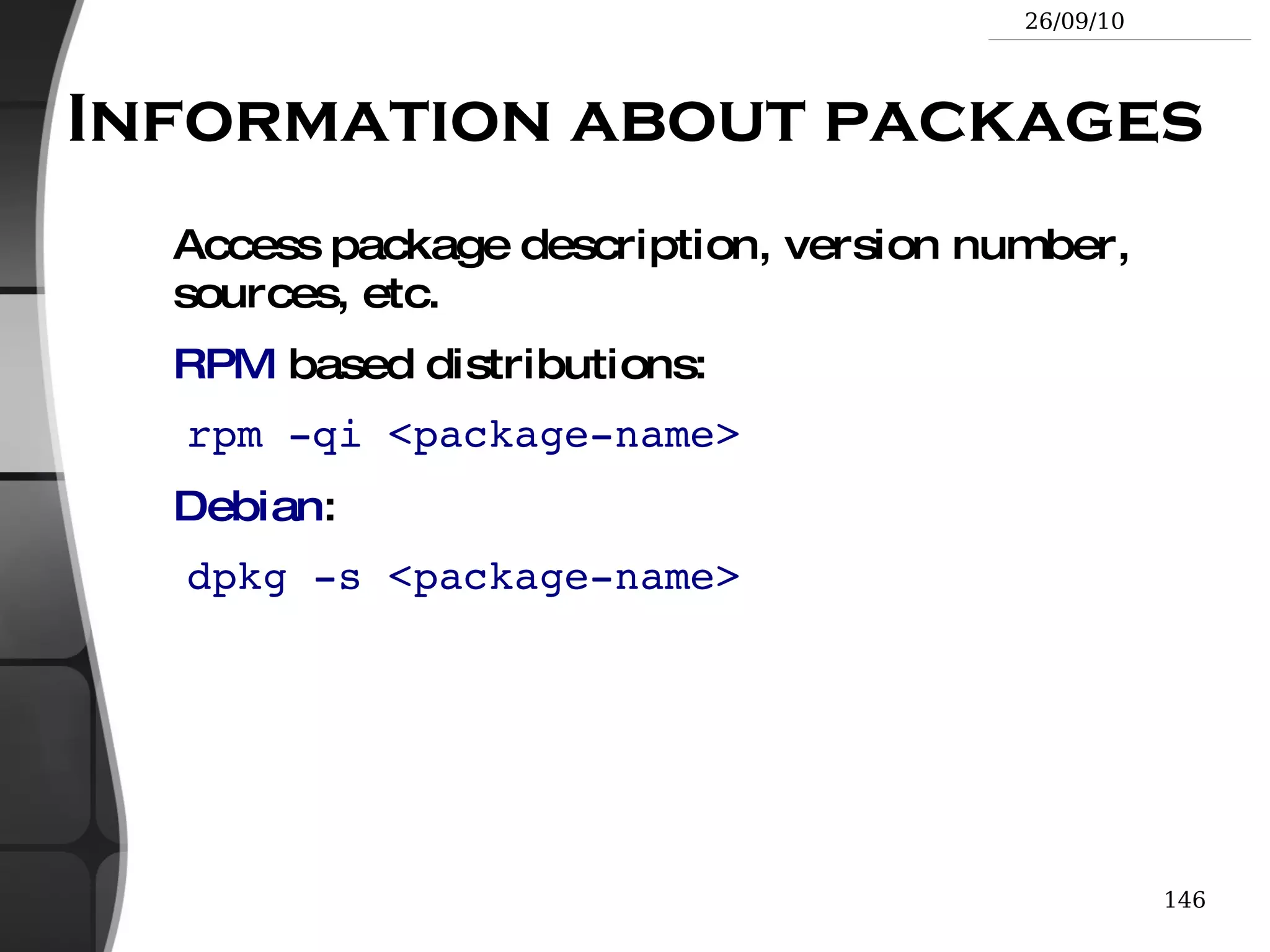
  • 155.
    X : x , but only for directories and files already executable Very useful to open recursive access to directories, without adding execution rights to all files.
  • 156.
    More chmod (2)chmod a+t /tmp t : (s t icky). Special permission for directories, allowing only the directory and file owner to delete a file in a directory.
  • 157.
    Useful for directorieswith write access to anyone, like /tmp .
  • 158.
    Displayed by ls -l with a t character.
  • 159.
    The Unix andGNU / Linux command line Standard I/O, Redirections, Pipes
  • 160.
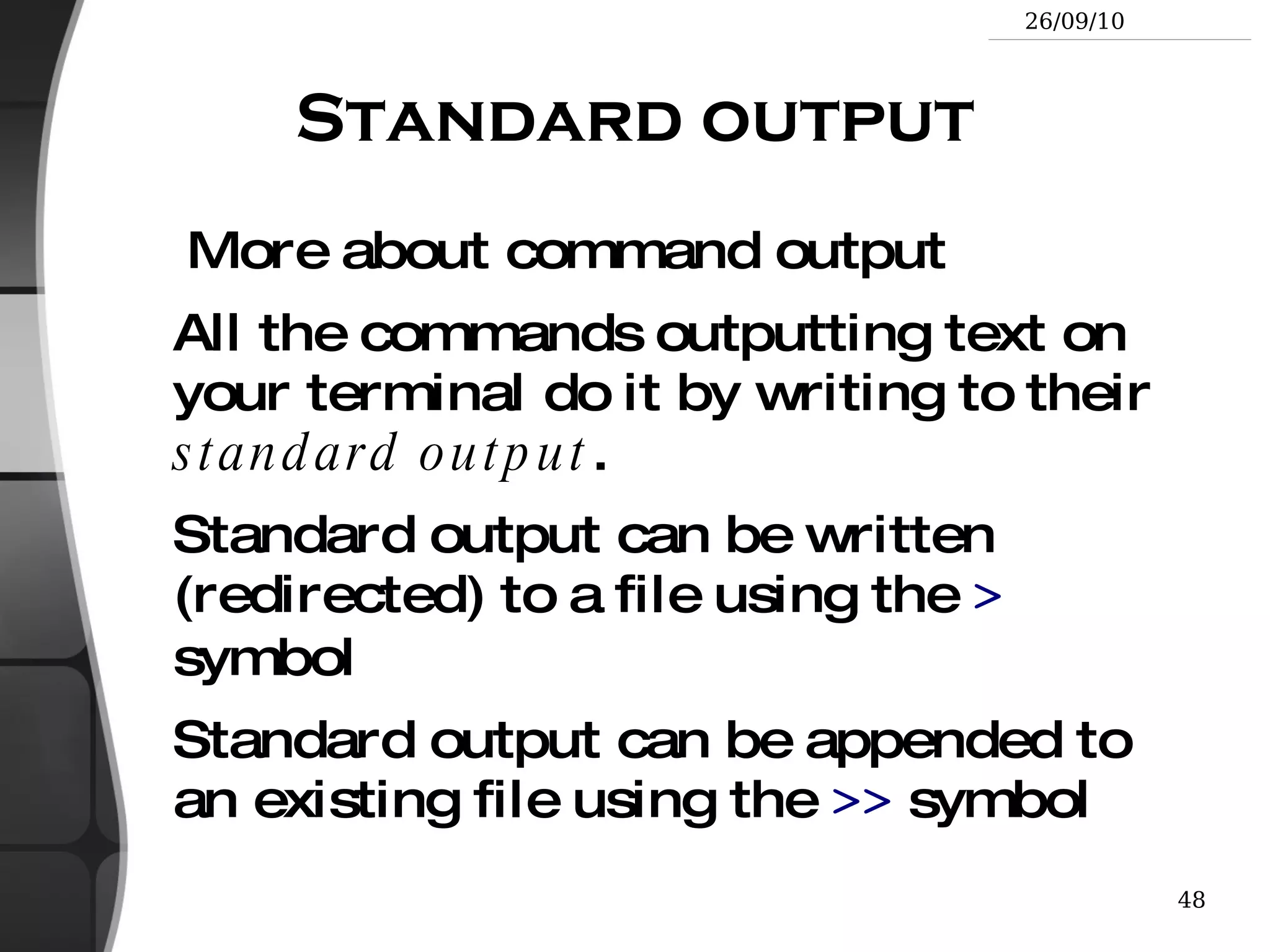
    Standard output Moreabout command output All the commands outputting text on your terminal do it by writing to their standard output .
  • 161.
    Standard output canbe written (redirected) to a file using the > symbol
  • 162.
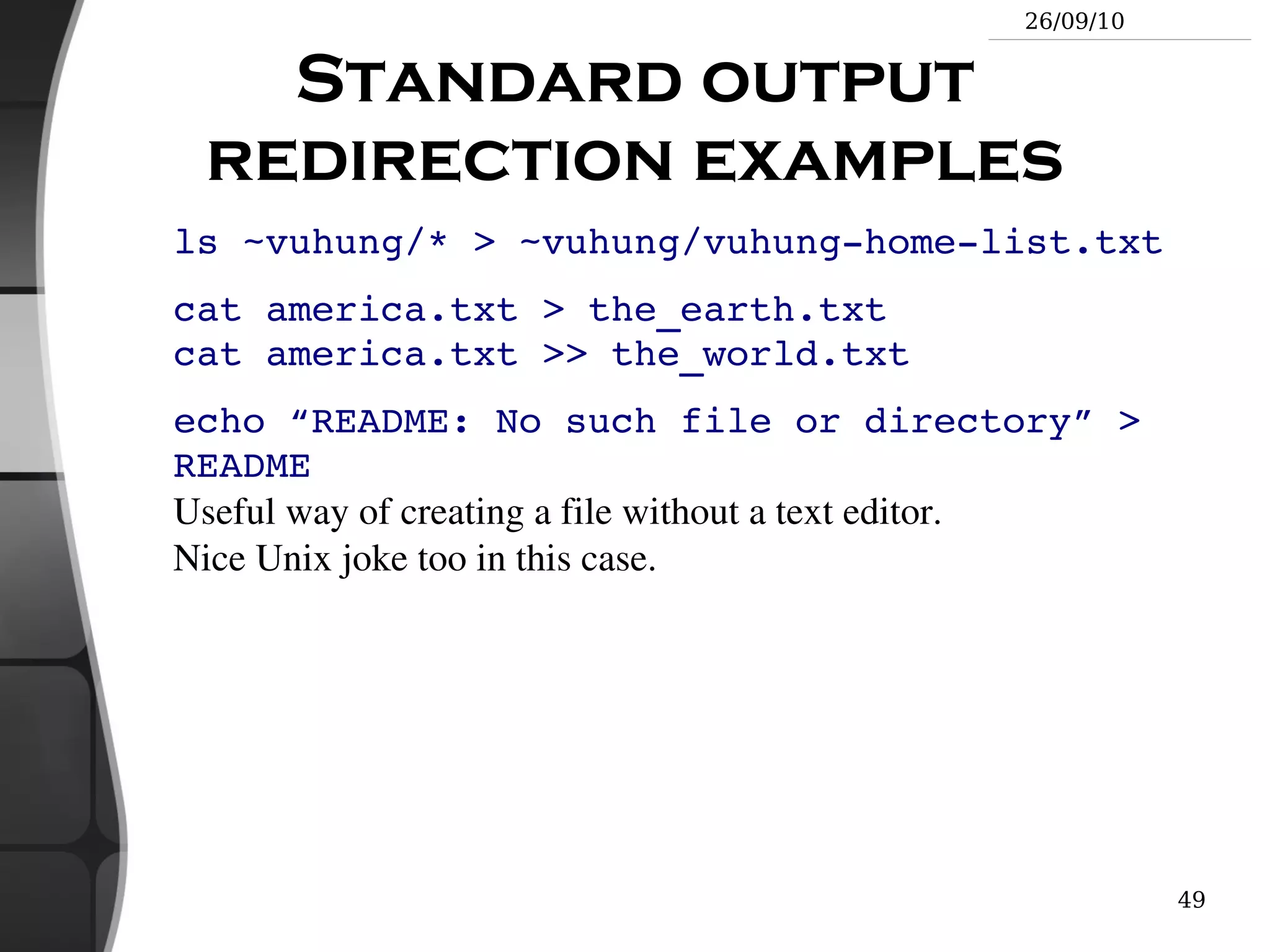
    Standard output canbe appended to an existing file using the >> symbol
  • 163.
    Standard output redirectionexamples ls ~vuhung/* > ~vuhung/vuhung-home-list.txt
  • 164.
    cat america.txt >the_earth.txt cat america.txt >> the_world.txt
  • 165.
    echo “README: Nosuch file or directory” > README Useful way of creating a file without a text editor. Nice Unix joke too in this case.
  • 166.
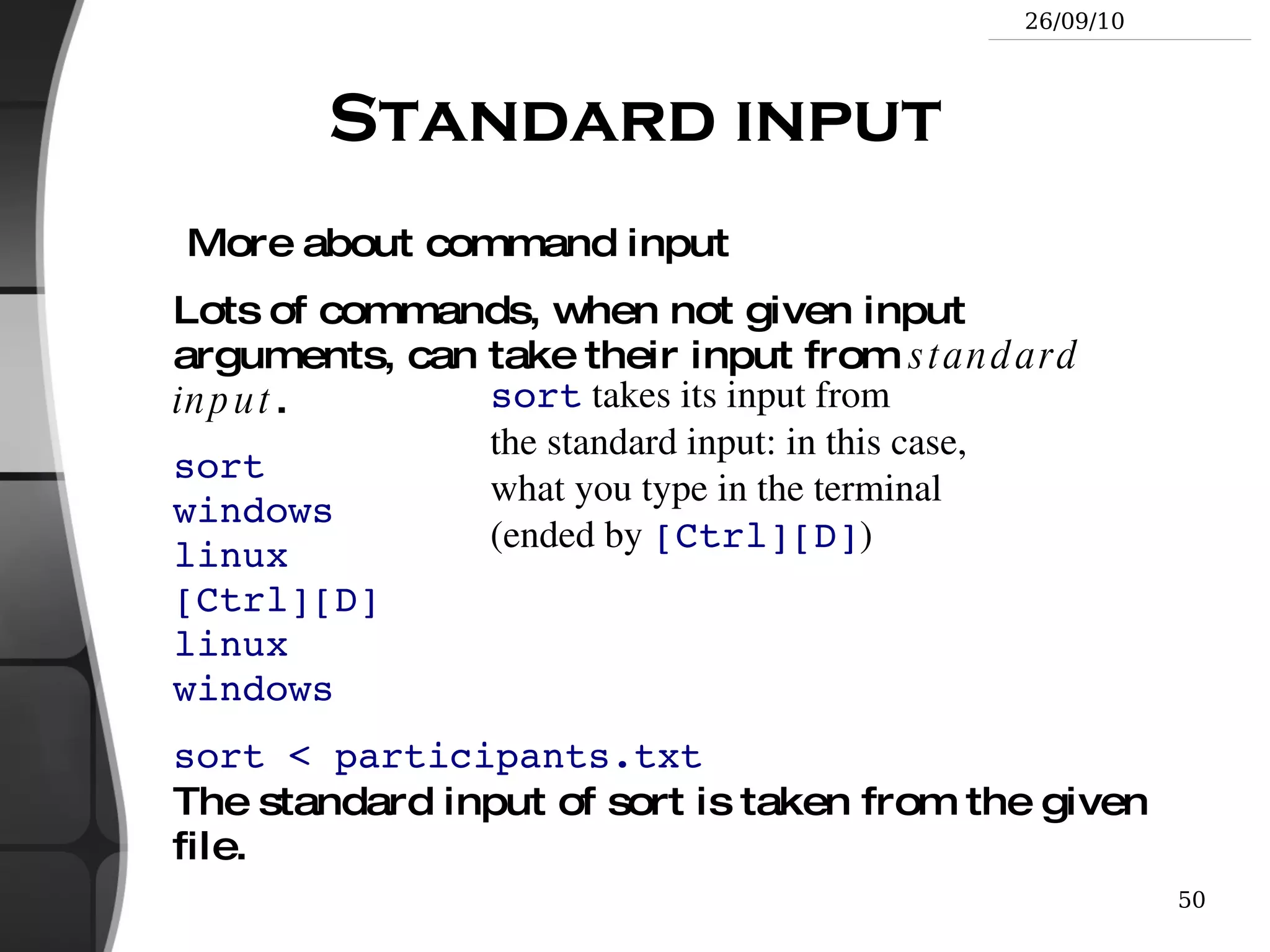
    Standard input Moreabout command input Lots of commands, when not given input arguments, can take their input from standard input .
  • 167.
    sort windows linux[Ctrl][D] linux windows
  • 168.
    sort < participants.txtThe standard input of sort is taken from the given file. sort takes its input from the standard input: in this case, what you type in the terminal (ended by [Ctrl][D] )
  • 169.
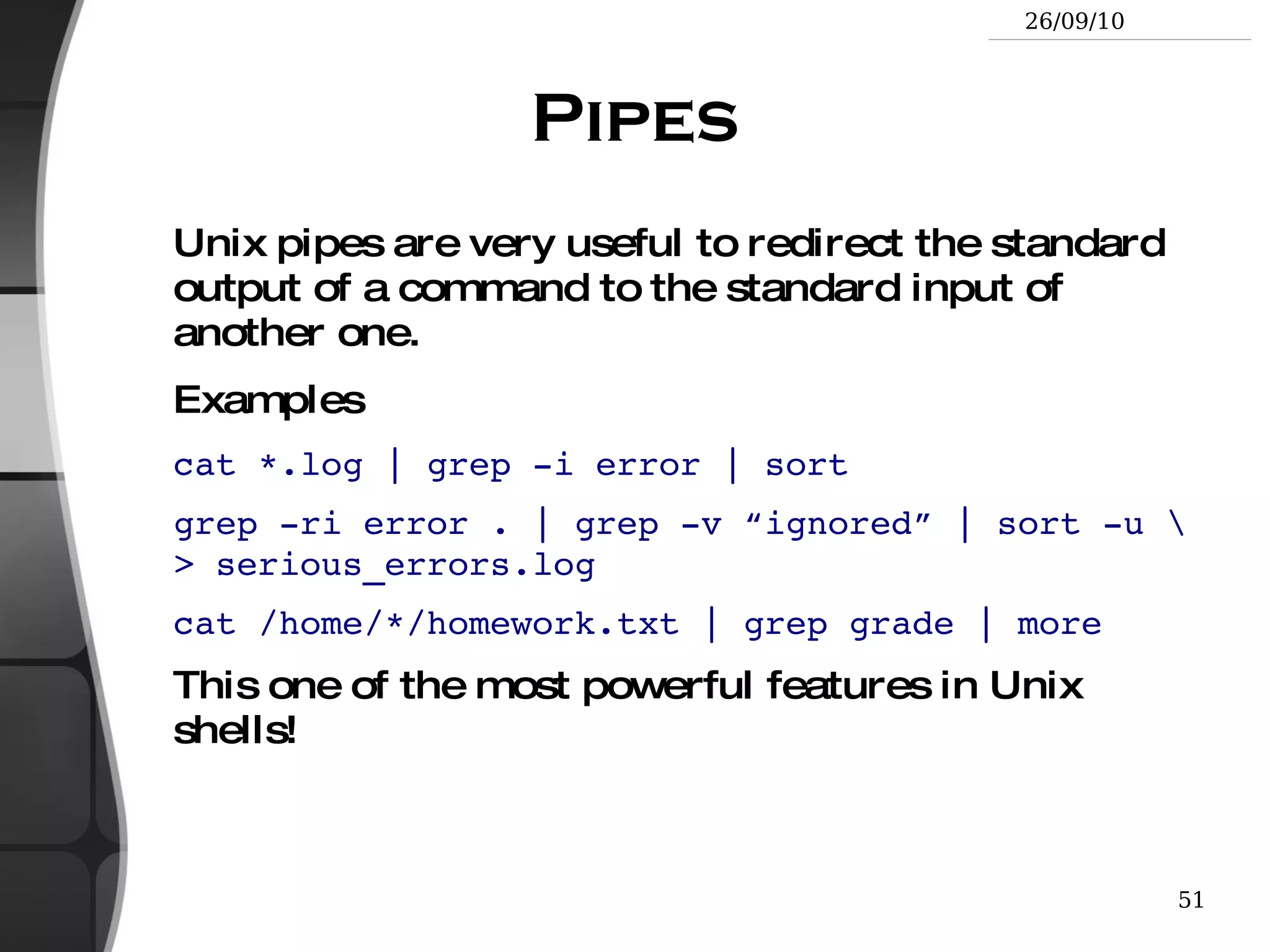
    Pipes Unix pipesare very useful to redirect the standard output of a command to the standard input of another one.
  • 170.
    Examples cat *.log| grep -i error | sort
  • 171.
    grep -ri error. | grep -v “ignored” | sort -u \ > serious_errors.log
  • 172.
    cat /home/*/homework.txt |grep grade | more This one of the most powerful features in Unix shells!
  • 173.
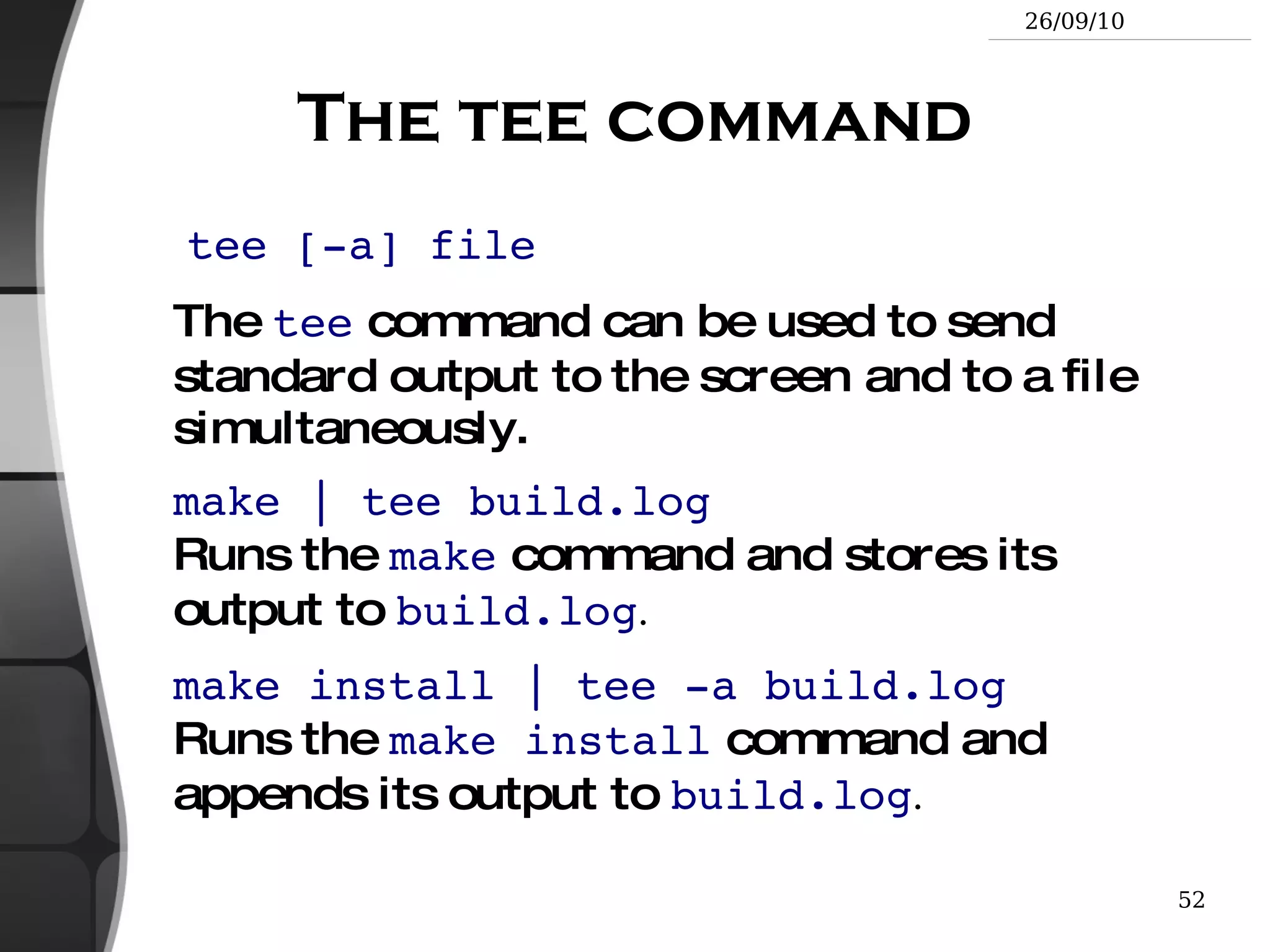
    The tee commandtee [-a] file The tee command can be used to send standard output to the screen and to a file simultaneously.
  • 174.
    make | teebuild.log Runs the make command and stores its output to build.log .
  • 175.
    make install |tee -a build.log Runs the make install command and appends its output to build.log .
  • 176.
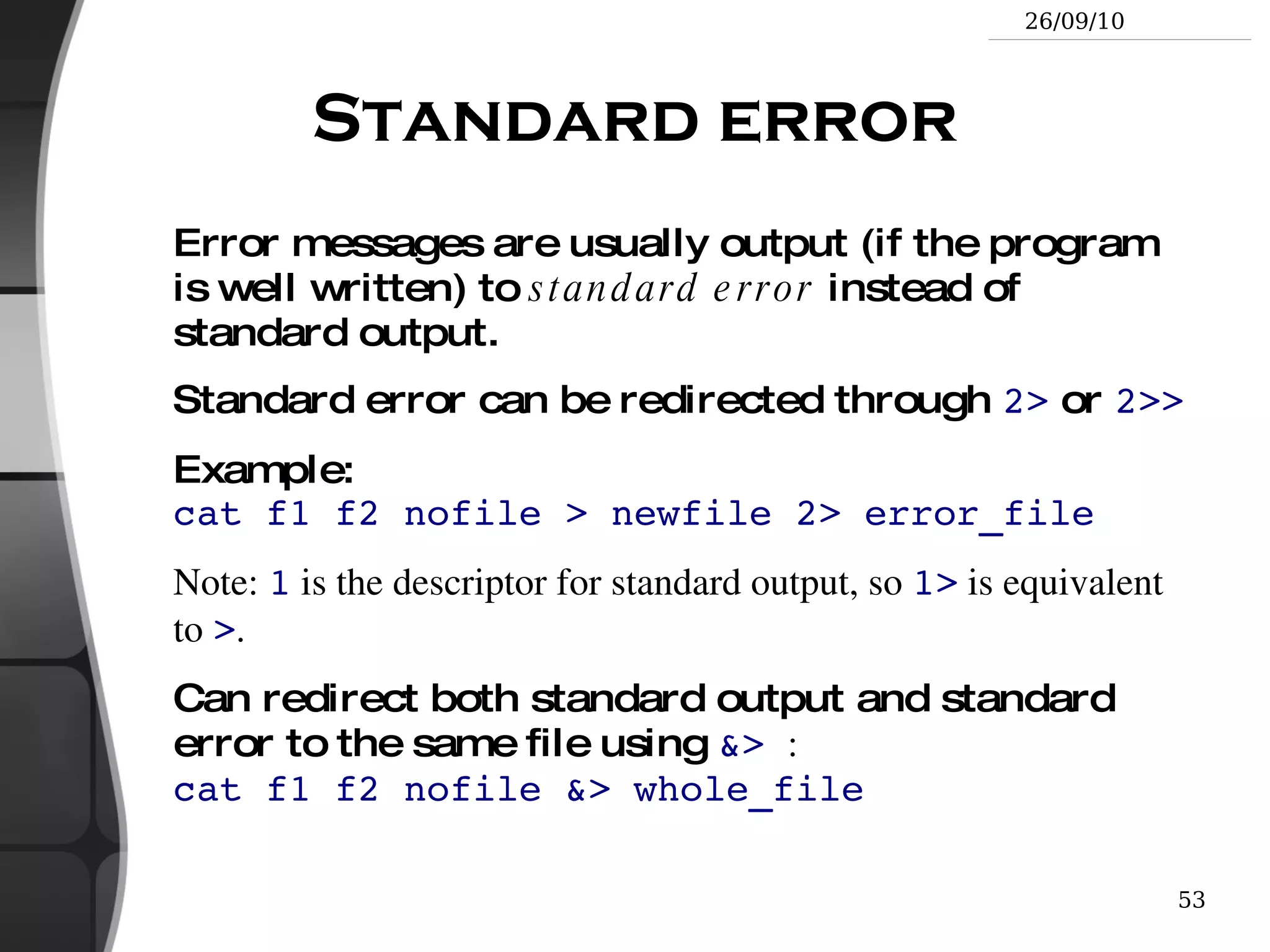
    Standard error Errormessages are usually output (if the program is well written) to standard error instead of standard output.
  • 177.
    Standard error canbe redirected through 2> or 2>>
  • 178.
    Example: cat f1f2 nofile > newfile 2> error_file
  • 179.
    Note: 1 is the descriptor for standard output, so 1> is equivalent to > .
  • 180.
    Can redirect bothstandard output and standard error to the same file using &> : cat f1 f2 nofile &> whole_file
  • 181.
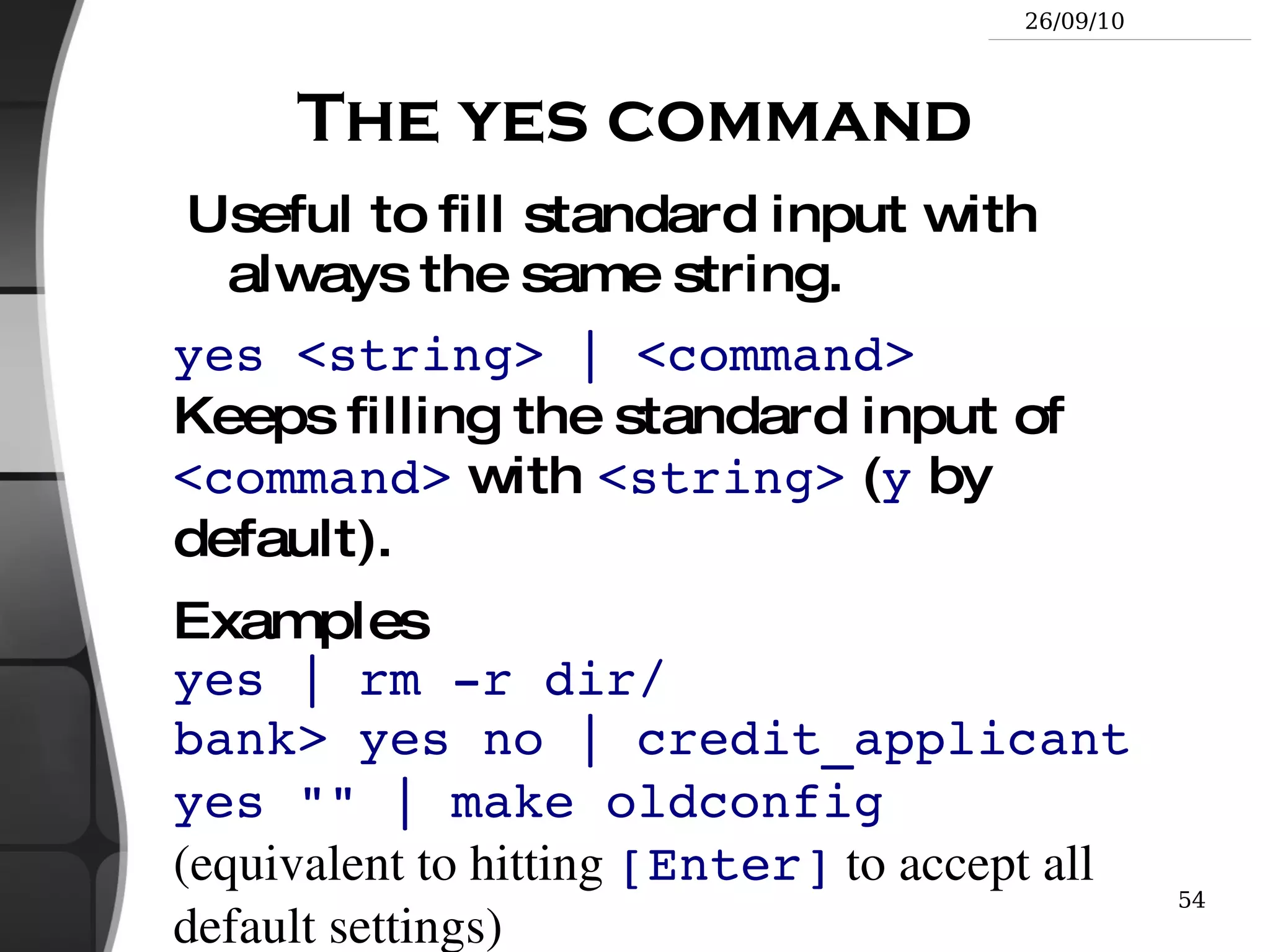
    The yes commandUseful to fill standard input with always the same string. yes <string> | <command> Keeps filling the standard input of <command> with <string> ( y by default).
  • 182.
    Examples yes |rm -r dir/ bank> yes no | credit_applicant yes &quot;&quot; | make oldconfig (equivalent to hitting [Enter] to accept all default settings)
  • 183.
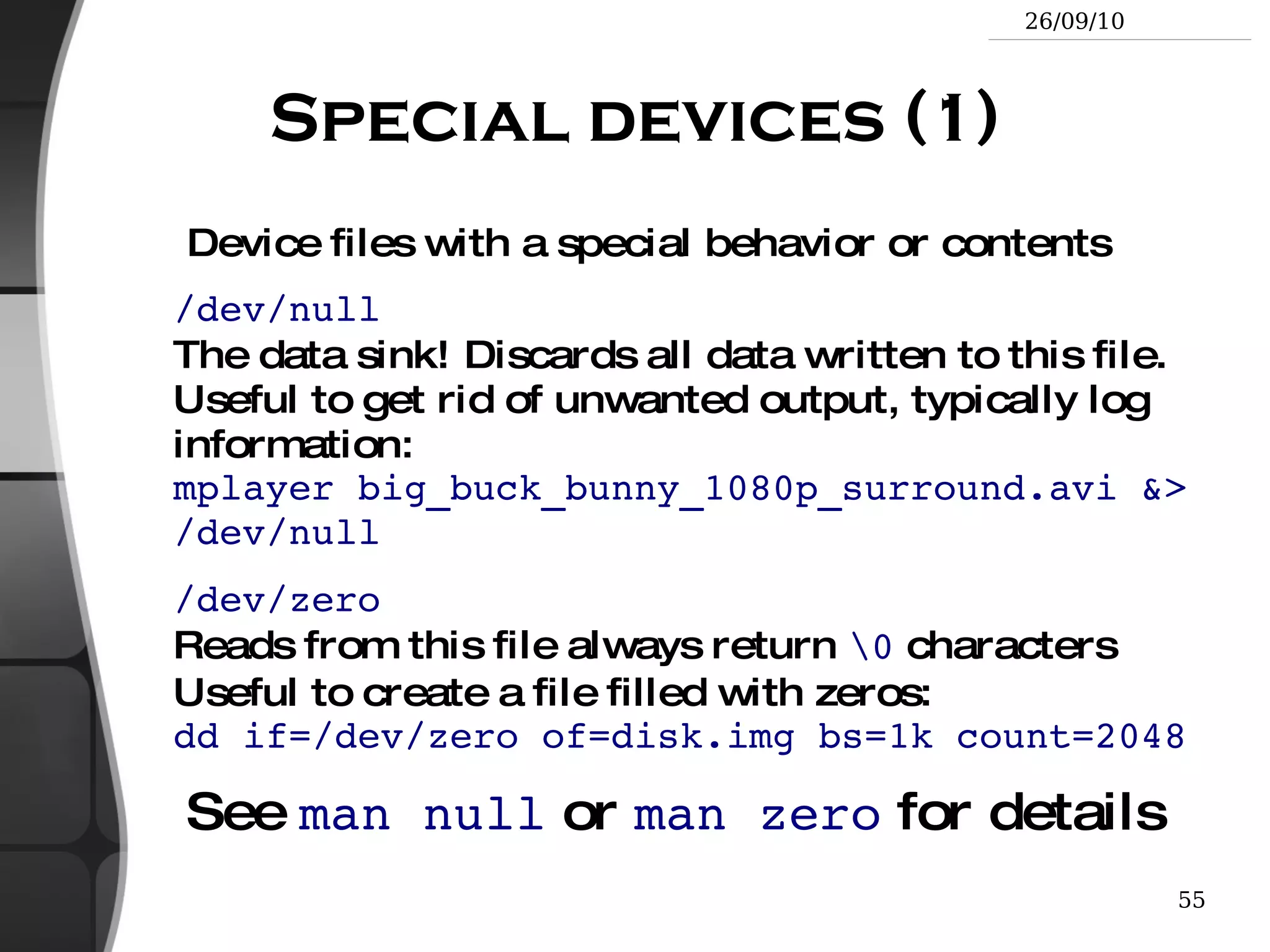
    Special devices (1)Device files with a special behavior or contents /dev/null The data sink! Discards all data written to this file. Useful to get rid of unwanted output, typically log information: mplayer big_buck_bunny_1080p_surround.avi &> /dev/null
  • 184.
    /dev/zero Reads fromthis file always return \0 characters Useful to create a file filled with zeros: dd if=/dev/zero of=disk.img bs=1k count=2048 See man null or man zero for details
  • 185.
    Special devices (2)/dev/random Returns random bytes when read. Mainly used by cryptographic programs. Uses interrupts from some device drivers as sources of true randomness (“entropy”). Reads can be blocked until enough entropy is gathered.
  • 186.
    /dev/urandom For programsfor which pseudo random numbers are fine. Always generates random bytes, even if not enough entropy is available (in which case it is possible, though still difficult, to predict future byte sequences from past ones). See man random for details.
  • 187.
    Special devices (3)/dev/full Mimics a full device. Useful to check that your application properly handles this kind of situation. See man full for details.
  • 188.
    The Unix andGNU / Linux command line Task Control
  • 189.
    Full control ontasks Since the beginning, Unix supports true preemptive multitasking.
  • 190.
    Ability to runmany tasks in parallel, and abort them even if they corrupt their own state and data.
  • 191.
    Ability to choosewhich programs you run.
  • 192.
    Ability to choosewhich input your programs takes, and where their output goes.
  • 193.
    Processes “ Everythingin Unix is a file Everything in Unix that is not a file is a process” Processes Instances of a running programs
  • 194.
    Several instances ofthe same program can run at the same time Data associated to processes: Open files, allocated memory, stack, process id, parent, priority, state...
  • 195.
    Running jobs inbackground Same usage throughout all the shells Useful For command line jobs which output can be examined later, especially for time consuming ones.
  • 196.
    To start graphicalapplications from the command line and then continue with the mouse. Starting a task: add & at the end of your line: find_prince_charming --cute --clever --rich &
  • 197.
    Background job controljobs Returns the list of background jobs from the same shell [1]- Running ~/bin/find_meaning_of_life --without-god & [2]+ Running make mistakes & fg fg %<n> Puts the last / nth background job in foreground mode
  • 198.
    Moving the currenttask in background mode: [Ctrl] Z bg
  • 199.
    kill %<n> Abortsthe nth job.
  • 200.
    Job control example> jobs [1]- Running ~/bin/find_meaning_of_life --without-god & [2]+ Running make mistakes & > fg make mistakes > [Ctrl] Z [2]+ Stopped make mistakes > bg [2]+ make mistakes & > kill %1 [1]+ Terminated ~/bin/find_meaning_of_life --without-god
  • 201.
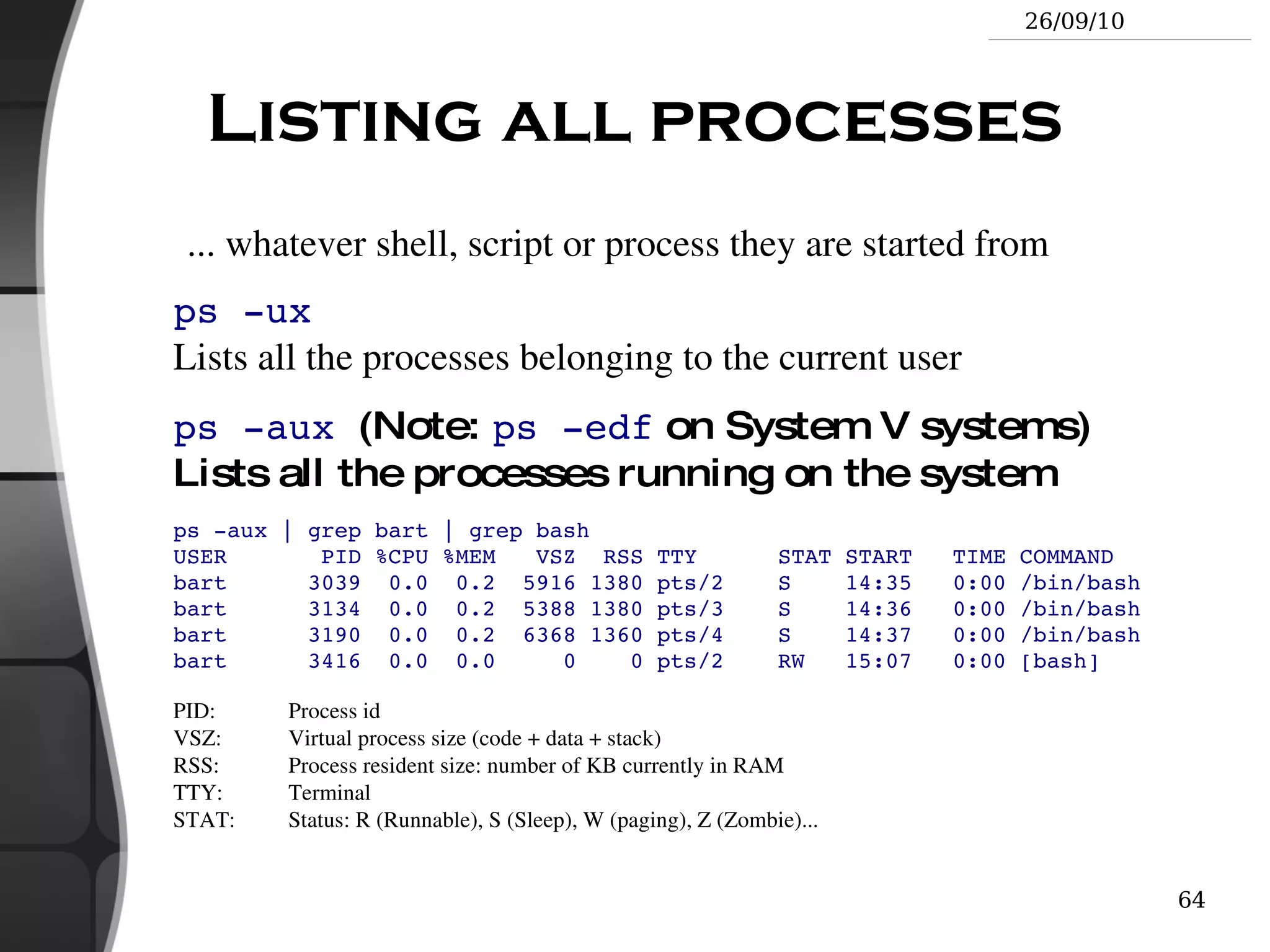
    Listing all processes... whatever shell, script or process they are started from ps -ux Lists all the processes belonging to the current user
  • 202.
    ps -aux (Note: ps -edf on System V systems) Lists all the processes running on the system
  • 203.
    ps -aux |grep bart | grep bash USER PID %CPU %MEM VSZ RSS TTY STAT START TIME COMMAND bart 3039 0.0 0.2 5916 1380 pts/2 S 14:35 0:00 /bin/bash bart 3134 0.0 0.2 5388 1380 pts/3 S 14:36 0:00 /bin/bash bart 3190 0.0 0.2 6368 1360 pts/4 S 14:37 0:00 /bin/bash bart 3416 0.0 0.0 0 0 pts/2 RW 15:07 0:00 [bash]
  • 204.
    PID: Processid VSZ: Virtual process size (code + data + stack) RSS: Process resident size: number of KB currently in RAM TTY: Terminal STAT: Status: R (Runnable), S (Sleep), W (paging), Z (Zombie)...
  • 205.
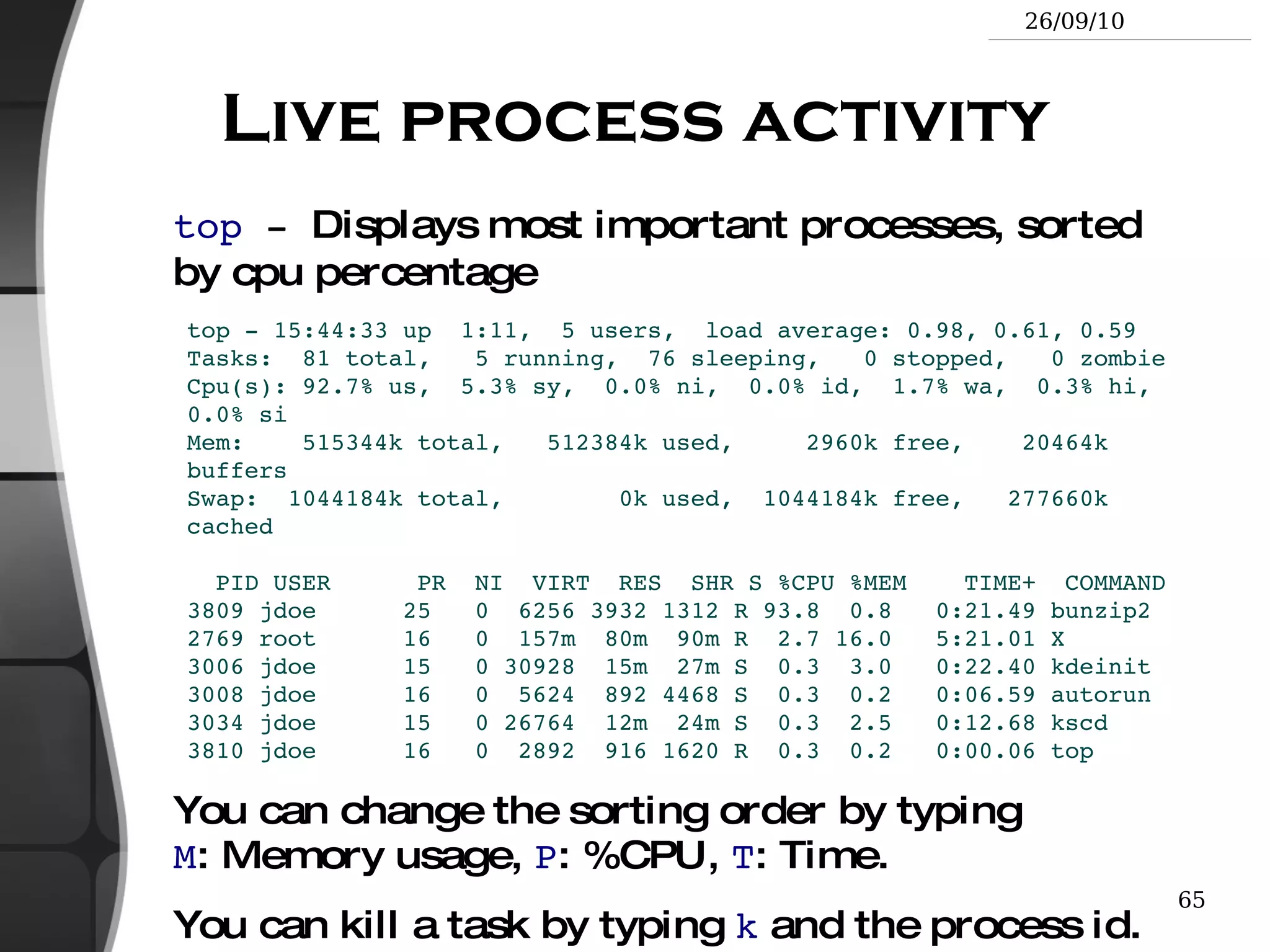
    Live process activitytop - Displays most important processes, sorted by cpu percentage top - 15:44:33 up 1:11, 5 users, load average: 0.98, 0.61, 0.59 Tasks: 81 total, 5 running, 76 sleeping, 0 stopped, 0 zombie Cpu(s): 92.7% us, 5.3% sy, 0.0% ni, 0.0% id, 1.7% wa, 0.3% hi, 0.0% si Mem: 515344k total, 512384k used, 2960k free, 20464k buffers Swap: 1044184k total, 0k used, 1044184k free, 277660k cached PID USER PR NI VIRT RES SHR S %CPU %MEM TIME+ COMMAND 3809 jdoe 25 0 6256 3932 1312 R 93.8 0.8 0:21.49 bunzip2 2769 root 16 0 157m 80m 90m R 2.7 16.0 5:21.01 X 3006 jdoe 15 0 30928 15m 27m S 0.3 3.0 0:22.40 kdeinit 3008 jdoe 16 0 5624 892 4468 S 0.3 0.2 0:06.59 autorun 3034 jdoe 15 0 26764 12m 24m S 0.3 2.5 0:12.68 kscd 3810 jdoe 16 0 2892 916 1620 R 0.3 0.2 0:00.06 top You can change the sorting order by typing M : Memory usage, P : %CPU, T : Time.
  • 206.
    You can killa task by typing k and the process id.
  • 207.
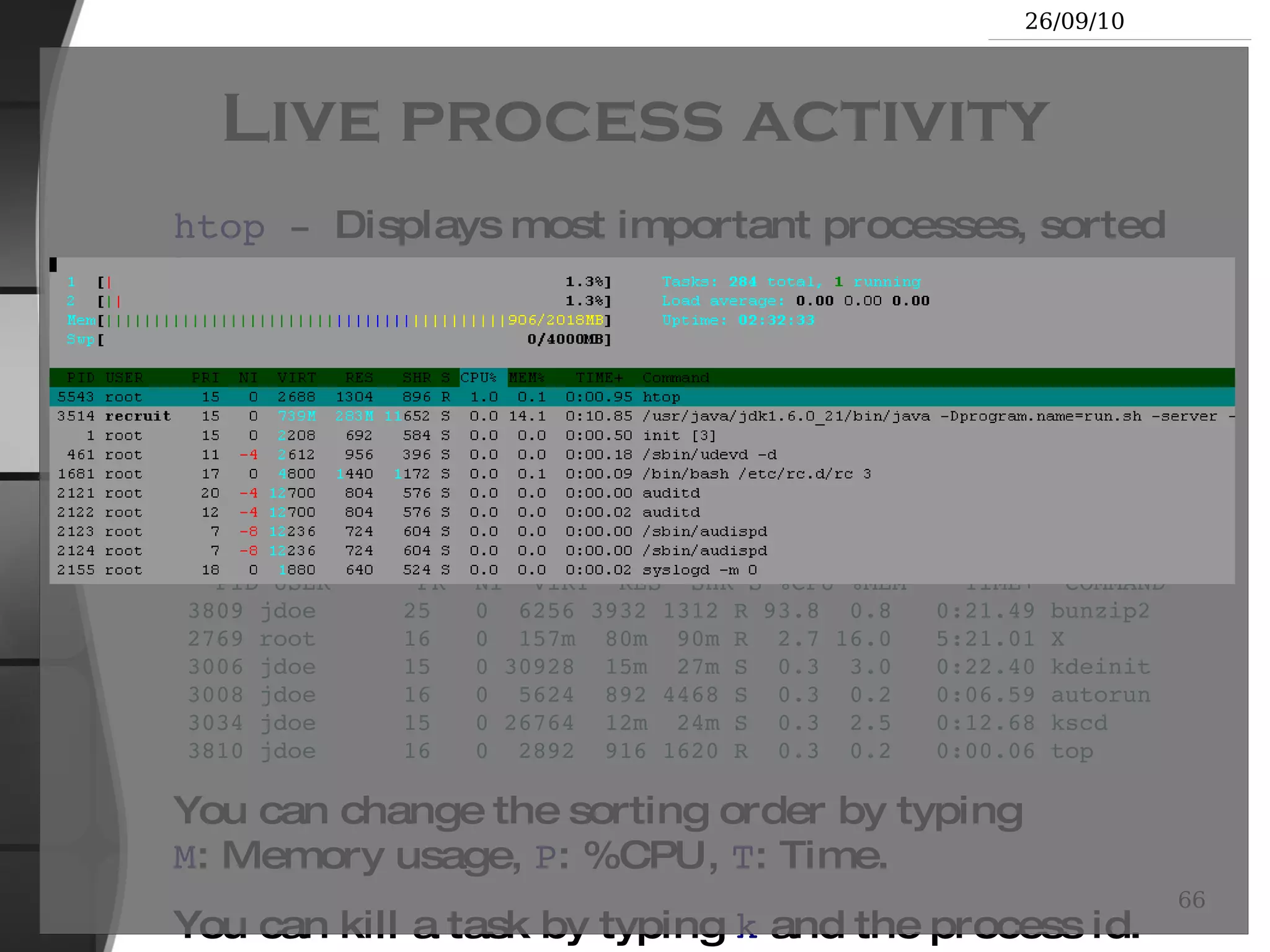
    Live process activityhtop - Displays most important processes, sorted by cpu percentage top - 15:44:33 up 1:11, 5 users, load average: 0.98, 0.61, 0.59 Tasks: 81 total, 5 running, 76 sleeping, 0 stopped, 0 zombie Cpu(s): 92.7% us, 5.3% sy, 0.0% ni, 0.0% id, 1.7% wa, 0.3% hi, 0.0% si Mem: 515344k total, 512384k used, 2960k free, 20464k buffers Swap: 1044184k total, 0k used, 1044184k free, 277660k cached PID USER PR NI VIRT RES SHR S %CPU %MEM TIME+ COMMAND 3809 jdoe 25 0 6256 3932 1312 R 93.8 0.8 0:21.49 bunzip2 2769 root 16 0 157m 80m 90m R 2.7 16.0 5:21.01 X 3006 jdoe 15 0 30928 15m 27m S 0.3 3.0 0:22.40 kdeinit 3008 jdoe 16 0 5624 892 4468 S 0.3 0.2 0:06.59 autorun 3034 jdoe 15 0 26764 12m 24m S 0.3 2.5 0:12.68 kscd 3810 jdoe 16 0 2892 916 1620 R 0.3 0.2 0:00.06 top You can change the sorting order by typing M : Memory usage, P : %CPU, T : Time.
  • 208.
    You can killa task by typing k and the process id.
  • 209.
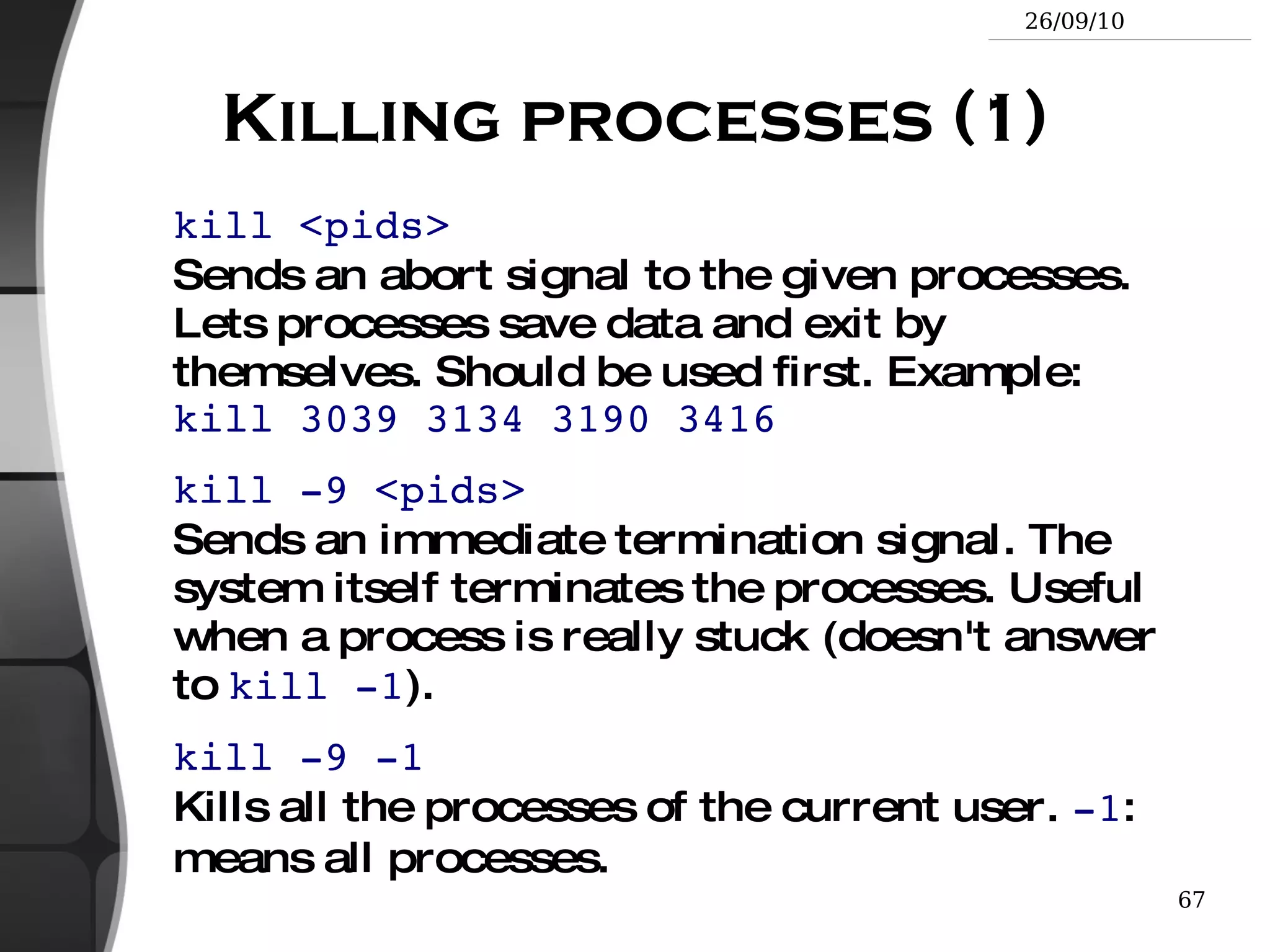
    Killing processes (1)kill <pids> Sends an abort signal to the given processes. Lets processes save data and exit by themselves. Should be used first. Example: kill 3039 3134 3190 3416
  • 210.
    kill -9 <pids>Sends an immediate termination signal. The system itself terminates the processes. Useful when a process is really stuck (doesn't answer to kill -1 ).
  • 211.
    kill -9 -1Kills all the processes of the current user. -1 : means all processes.
  • 212.
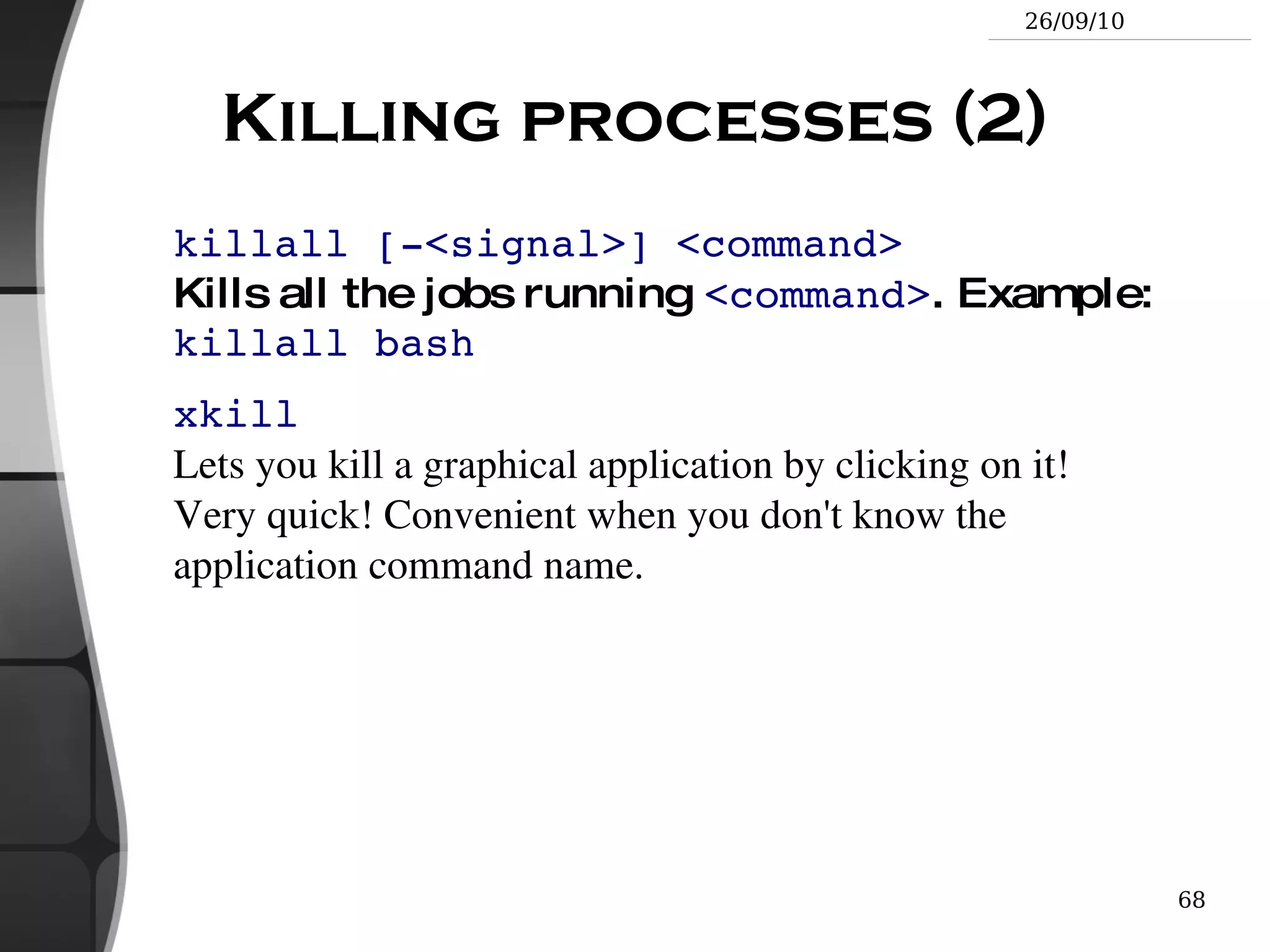
    Killing processes (2)killall [-<signal>] <command> Kills all the jobs running <command> . Example: killall bash
  • 213.
    xkill Lets youkill a graphical application by clicking on it! Very quick! Convenient when you don't know the application command name.
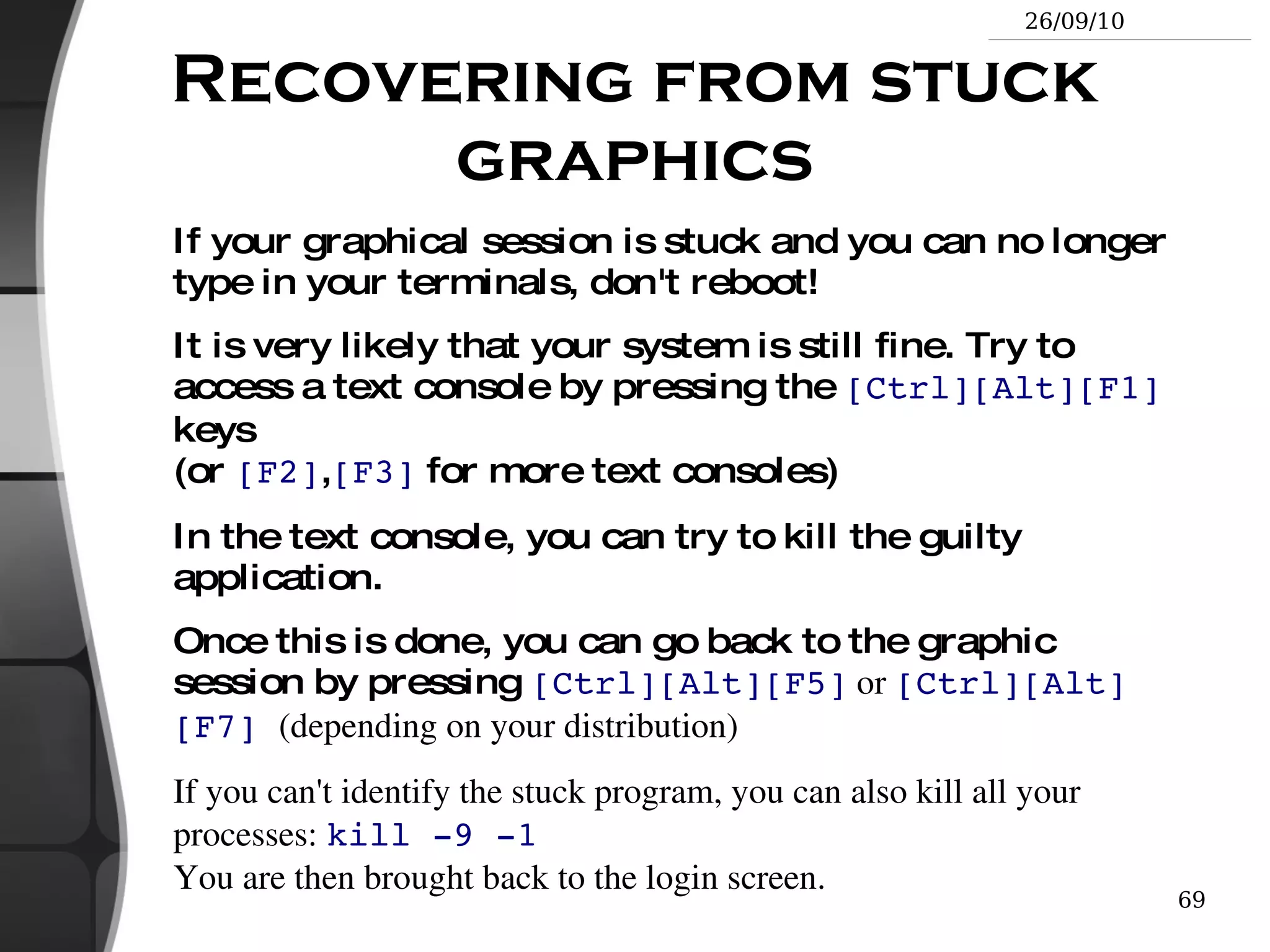
  • 214.
    Recovering from stuckgraphics If your graphical session is stuck and you can no longer type in your terminals, don't reboot!
  • 215.
    It is verylikely that your system is still fine. Try to access a text console by pressing the [Ctrl][Alt][F1] keys (or [F2] , [F3] for more text consoles)
  • 216.
    In the textconsole, you can try to kill the guilty application.
  • 217.
    Once this isdone, you can go back to the graphic session by pressing [Ctrl][Alt][F5] or [Ctrl][Alt][F7] (depending on your distribution)
  • 218.
    If you can'tidentify the stuck program, you can also kill all your processes: kill -9 -1 You are then brought back to the login screen.
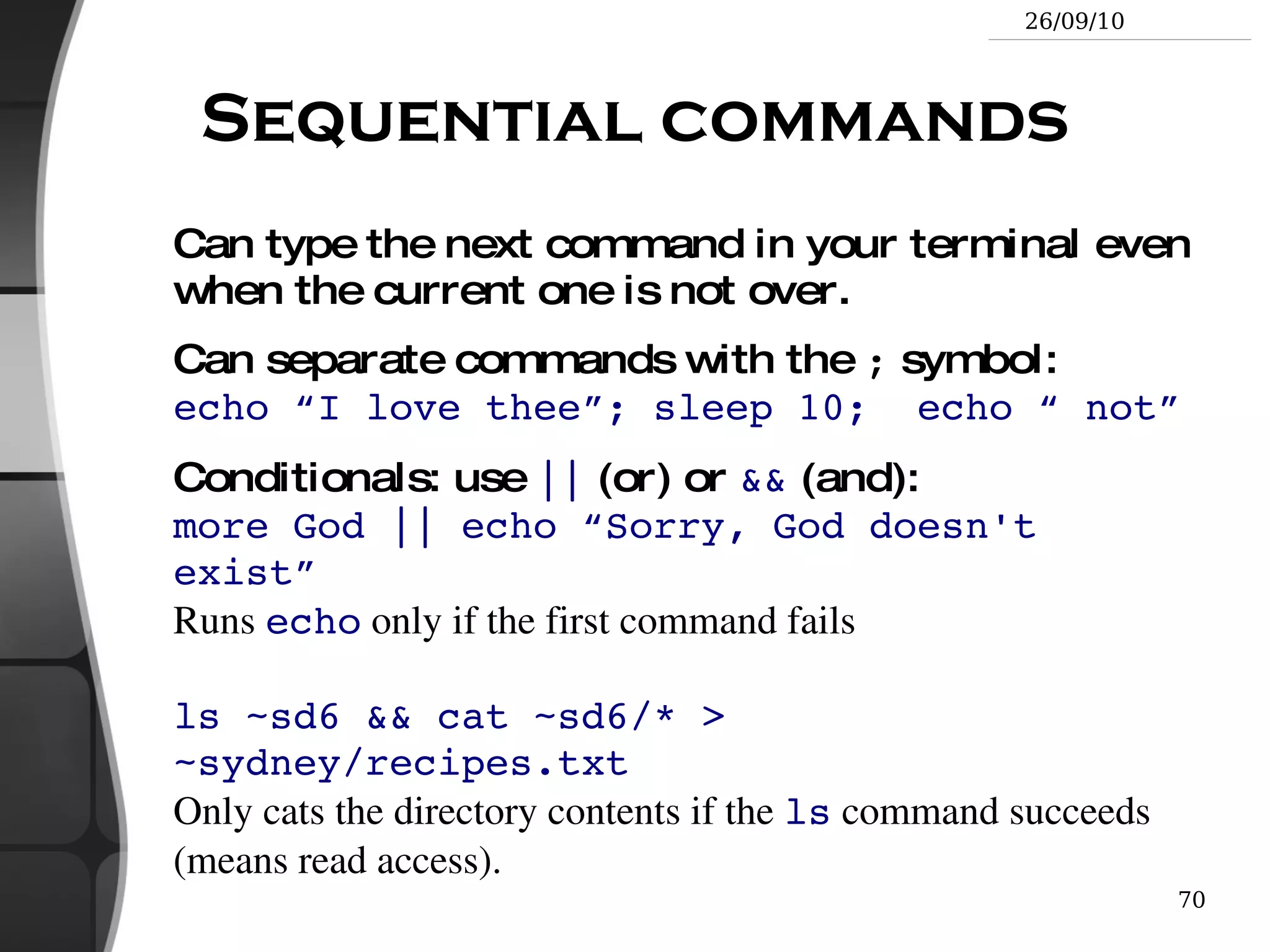
  • 219.
    Sequential commands Cantype the next command in your terminal even when the current one is not over.
  • 220.
    Can separate commandswith the ; symbol: echo “I love thee”; sleep 10; echo “ not”
  • 221.
    Conditionals: use || (or) or && (and): more God || echo “Sorry, God doesn't exist” Runs echo only if the first command fails ls ~sd6 && cat ~sd6/* > ~sydney/recipes.txt Only cats the directory contents if the ls command succeeds (means read access).
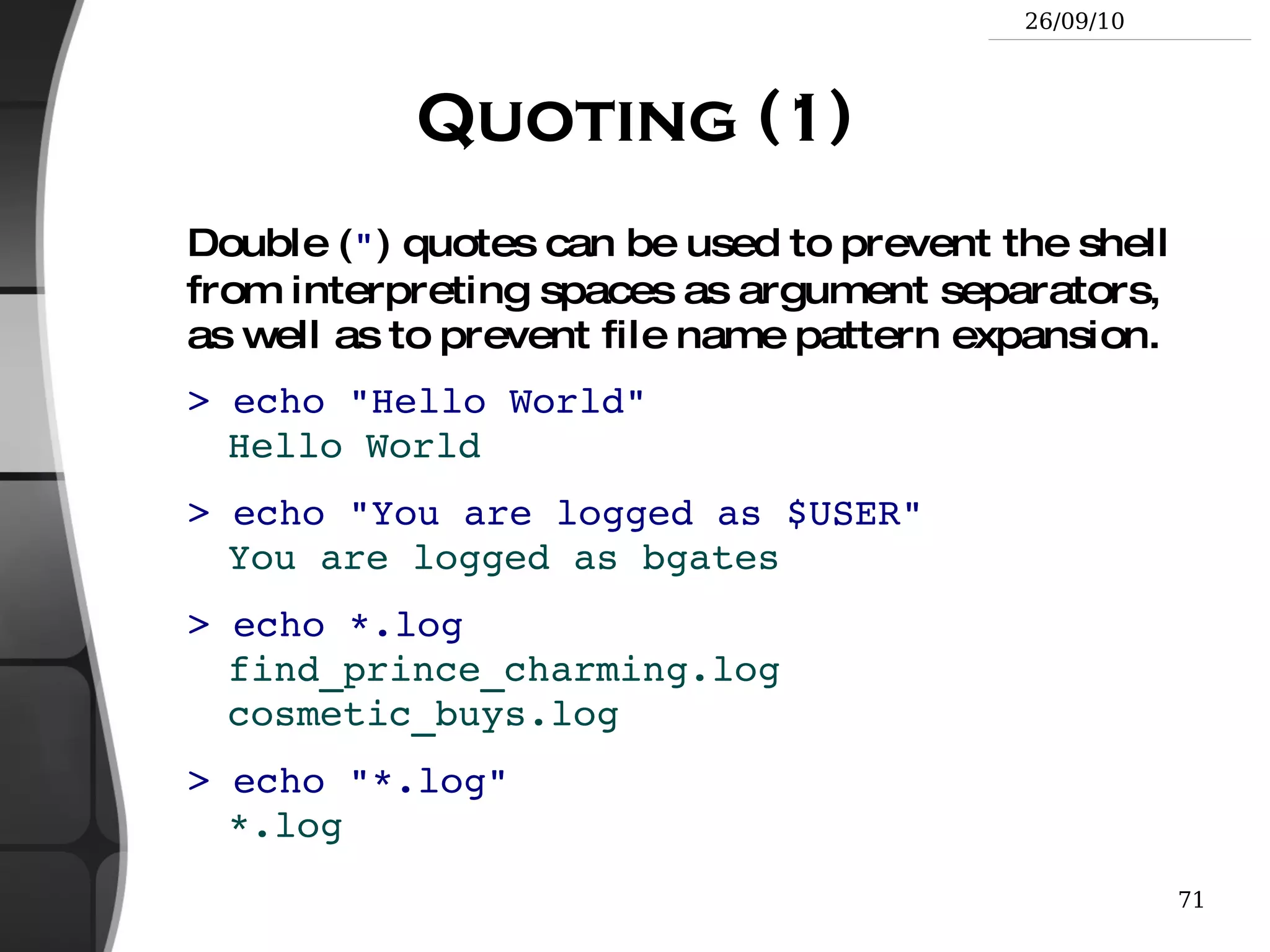
  • 222.
    Quoting (1) Double( &quot; ) quotes can be used to prevent the shell from interpreting spaces as argument separators, as well as to prevent file name pattern expansion. > echo &quot;Hello World&quot; Hello World > echo &quot;You are logged as $USER&quot; You are logged as bgates > echo *.log find_prince_charming.log cosmetic_buys.log > echo &quot;*.log&quot; *.log
  • 223.
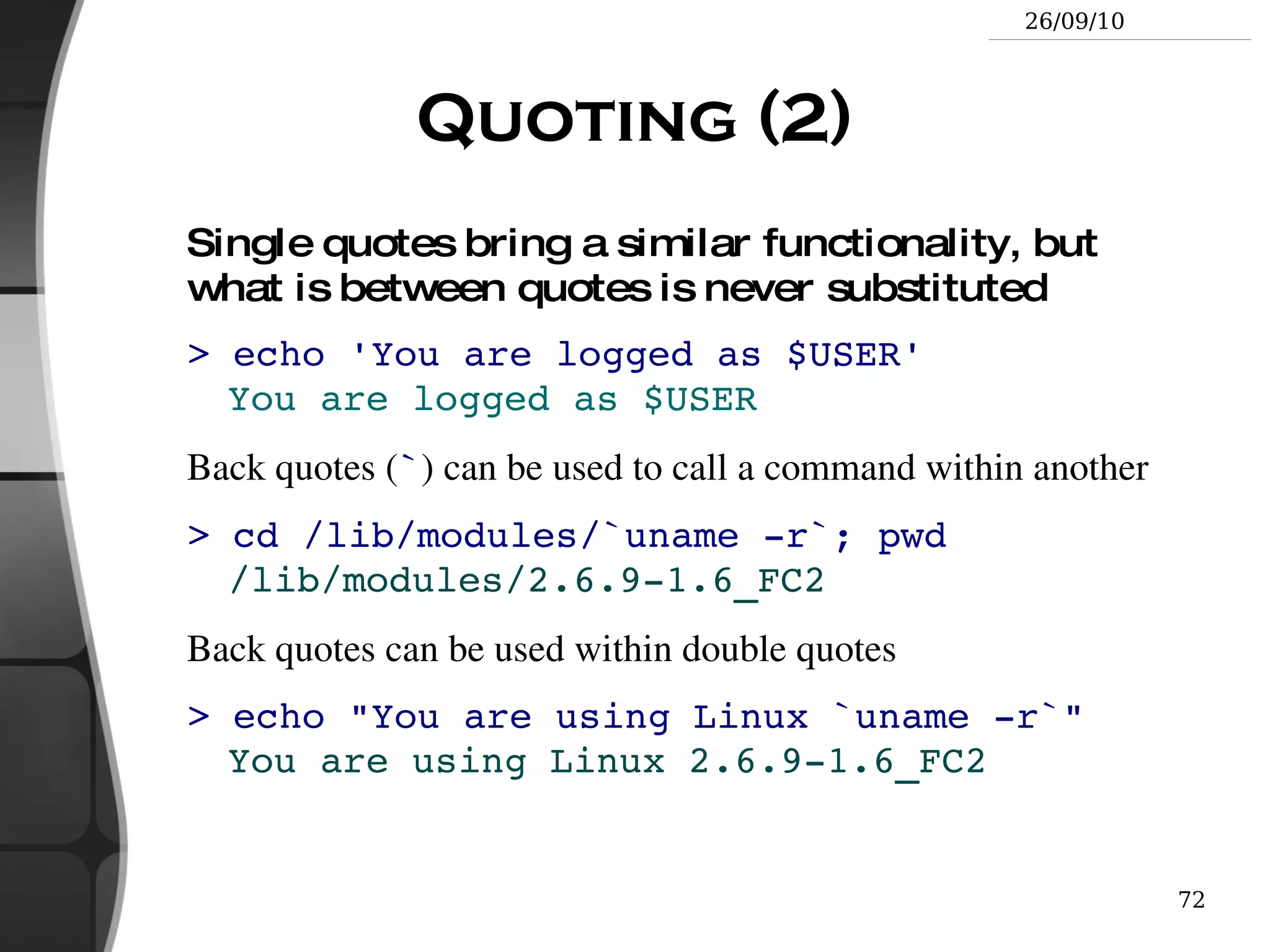
    Quoting (2) Singlequotes bring a similar functionality, but what is between quotes is never substituted > echo 'You are logged as $USER' You are logged as $USER Back quotes ( ` ) can be used to call a command within another > cd /lib/modules/`uname -r`; pwd /lib/modules/2.6.9-1.6_FC2 Back quotes can be used within double quotes > echo &quot;You are using Linux `uname -r`&quot; You are using Linux 2.6.9-1.6_FC2
  • 224.
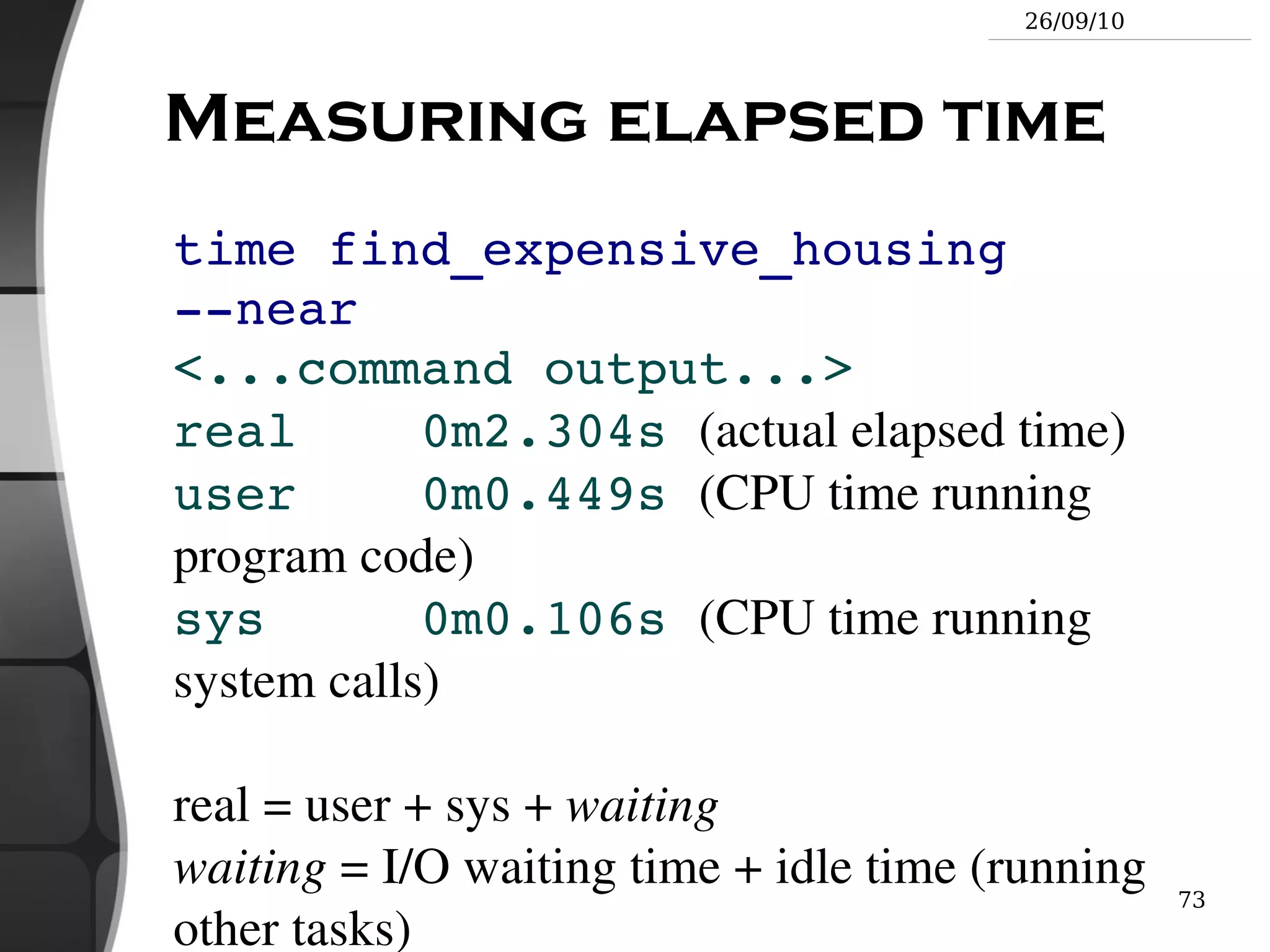
    Measuring elapsed timetime find_expensive_housing --near <...command output...> real 0m2.304s (actual elapsed time) user 0m0.449s (CPU time running program code) sys 0m0.106s (CPU time running system calls) real = user + sys + waiting waiting = I/O waiting time + idle time (running other tasks)
  • 225.
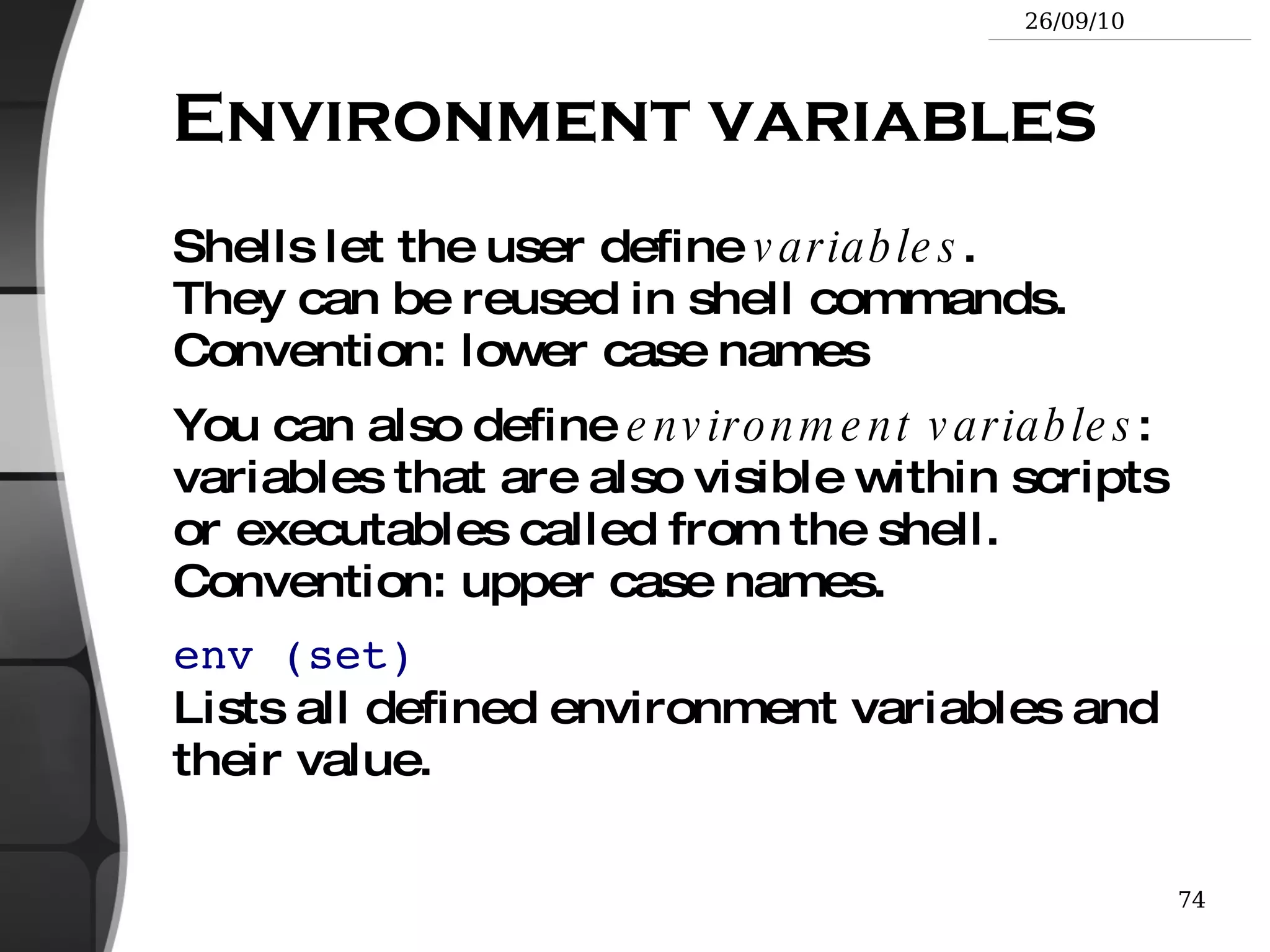
    Environment variables Shellslet the user define variables . They can be reused in shell commands. Convention: lower case names
  • 226.
    You can alsodefine environment variables : variables that are also visible within scripts or executables called from the shell. Convention: upper case names.
  • 227.
    env (set) Listsall defined environment variables and their value.
  • 228.
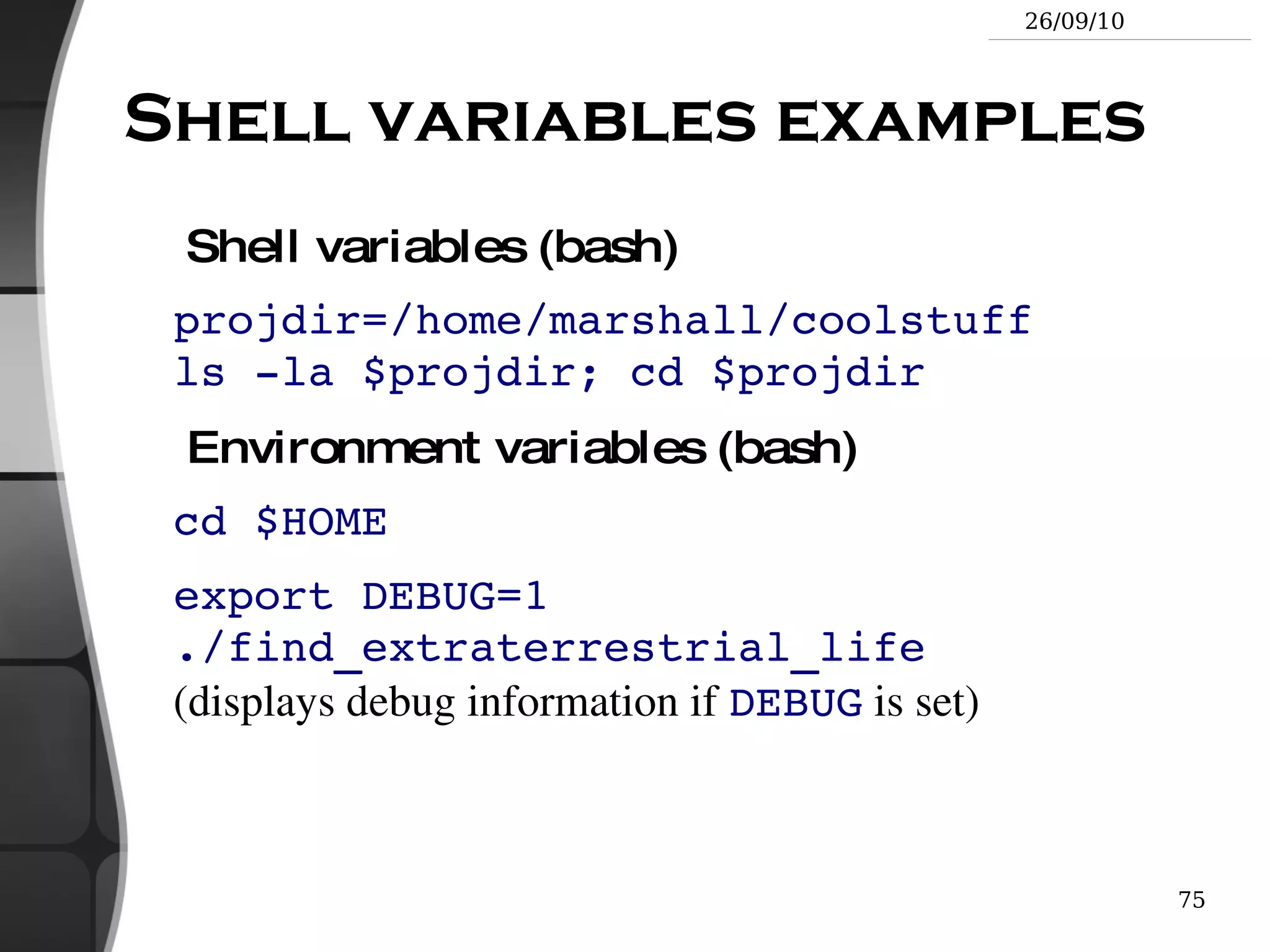
    Shell variables examplesShell variables (bash) projdir=/home/marshall/coolstuff ls -la $projdir; cd $projdir Environment variables (bash) cd $HOME
  • 229.
    export DEBUG=1 ./find_extraterrestrial_life(displays debug information if DEBUG is set)
  • 230.
    Main standard environmentvariables LD_LIBRARY_PATH Shared library search path
  • 231.
    DISPLAY Screen idto display X (graphical) applications on.
  • 232.
    EDITOR Default editor(vi, emacs...)
  • 233.
    HOME Current userhome directory
  • 234.
    HOSTNAME Name ofthe local machine MANPATH Manual page search path
  • 235.
  • 236.
  • 237.
  • 238.
  • 239.
    USER Current username Extremely widely used!
  • 240.
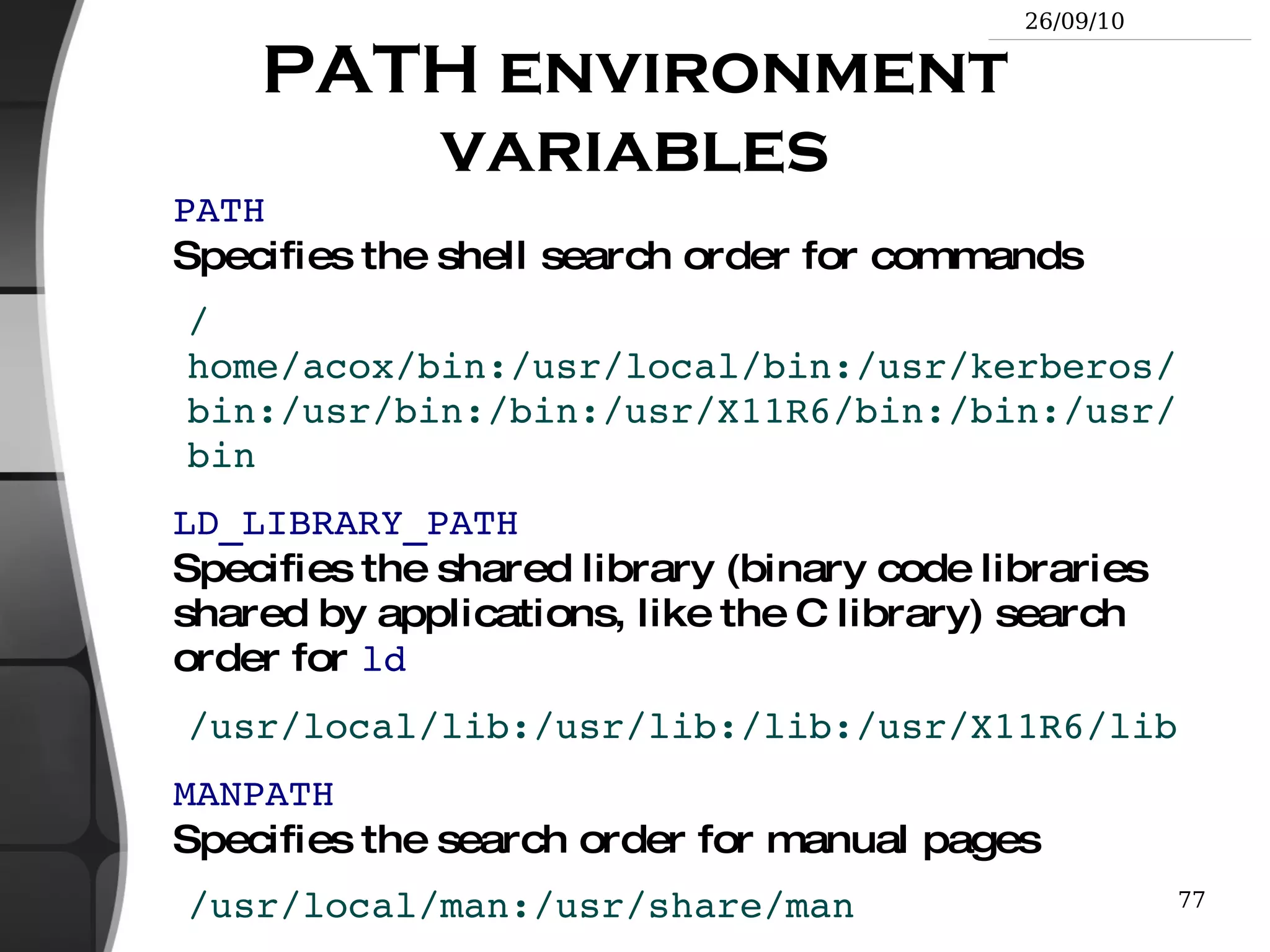
    PATH environment variablesPATH Specifies the shell search order for commands /home/acox/bin:/usr/local/bin:/usr/kerberos/bin:/usr/bin:/bin:/usr/X11R6/bin:/bin:/usr/bin LD_LIBRARY_PATH Specifies the shared library (binary code libraries shared by applications, like the C library) search order for ld /usr/local/lib:/usr/lib:/lib:/usr/X11R6/lib MANPATH Specifies the search order for manual pages /usr/local/man:/usr/share/man
  • 241.
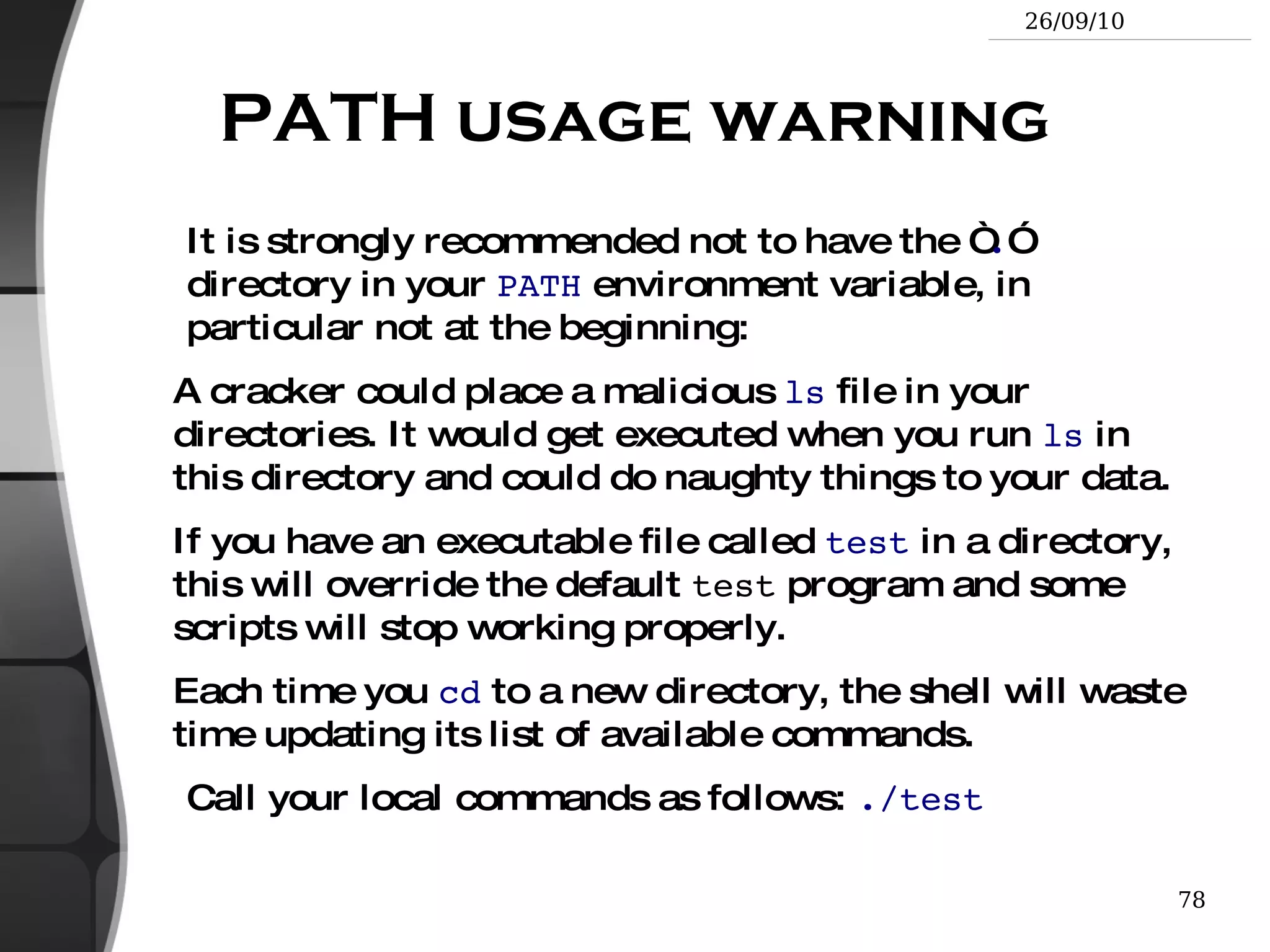
    PATH usage warningIt is strongly recommended not to have the “ . ” directory in your PATH environment variable, in particular not at the beginning: A cracker could place a malicious ls file in your directories. It would get executed when you run ls in this directory and could do naughty things to your data.
  • 242.
    If you havean executable file called test in a directory, this will override the default test program and some scripts will stop working properly.
  • 243.
    Each time you cd to a new directory, the shell will waste time updating its list of available commands. Call your local commands as follows: ./test
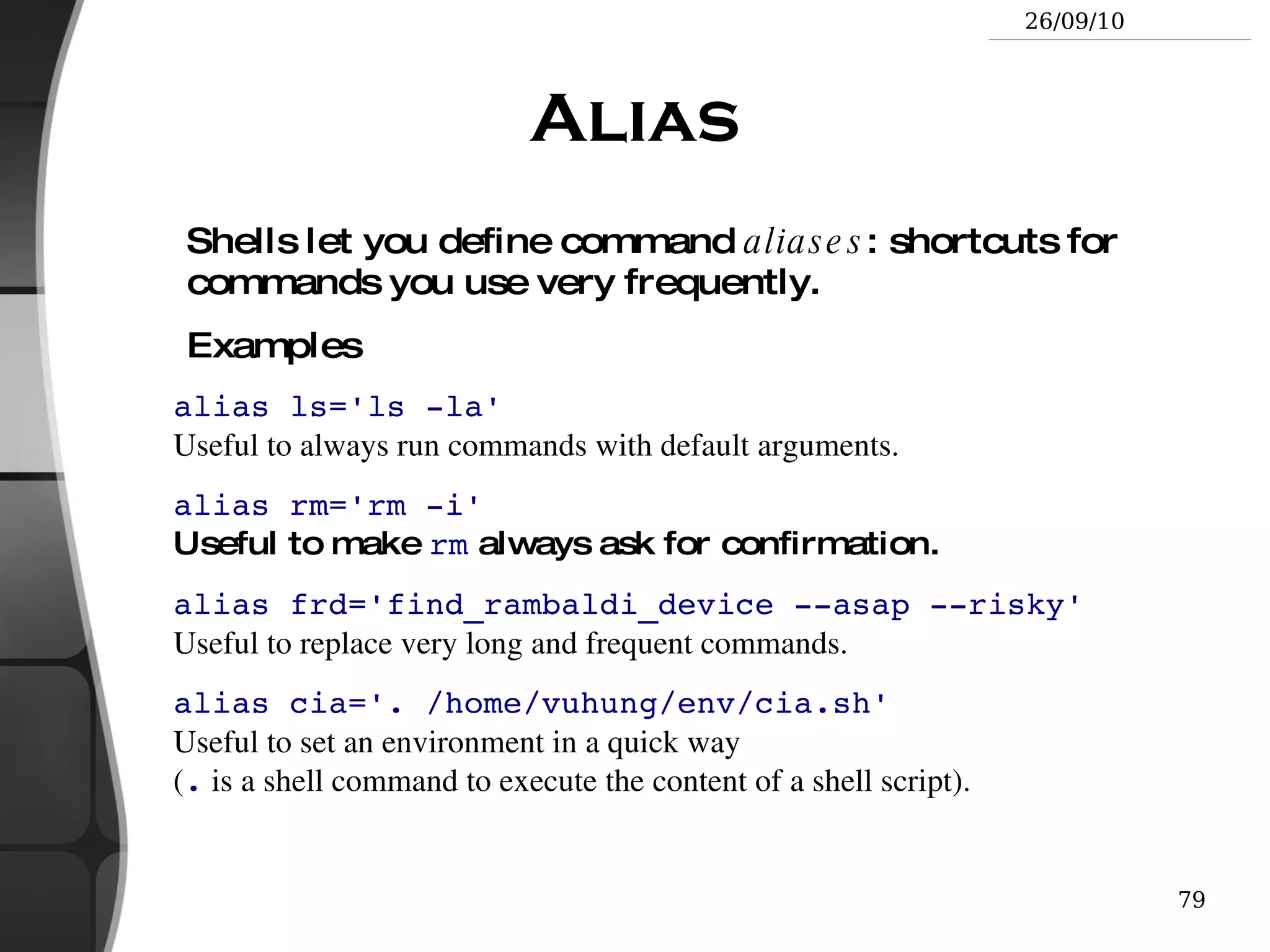
  • 244.
    Alias Shells letyou define command aliases : shortcuts for commands you use very frequently. Examples alias ls='ls -la' Useful to always run commands with default arguments.
  • 245.
    alias rm='rm -i'Useful to make rm always ask for confirmation.
  • 246.
    alias frd='find_rambaldi_device --asap--risky' Useful to replace very long and frequent commands.
  • 247.
    alias cia='. /home/vuhung/env/cia.sh'Useful to set an environment in a quick way ( . is a shell command to execute the content of a shell script).
  • 248.
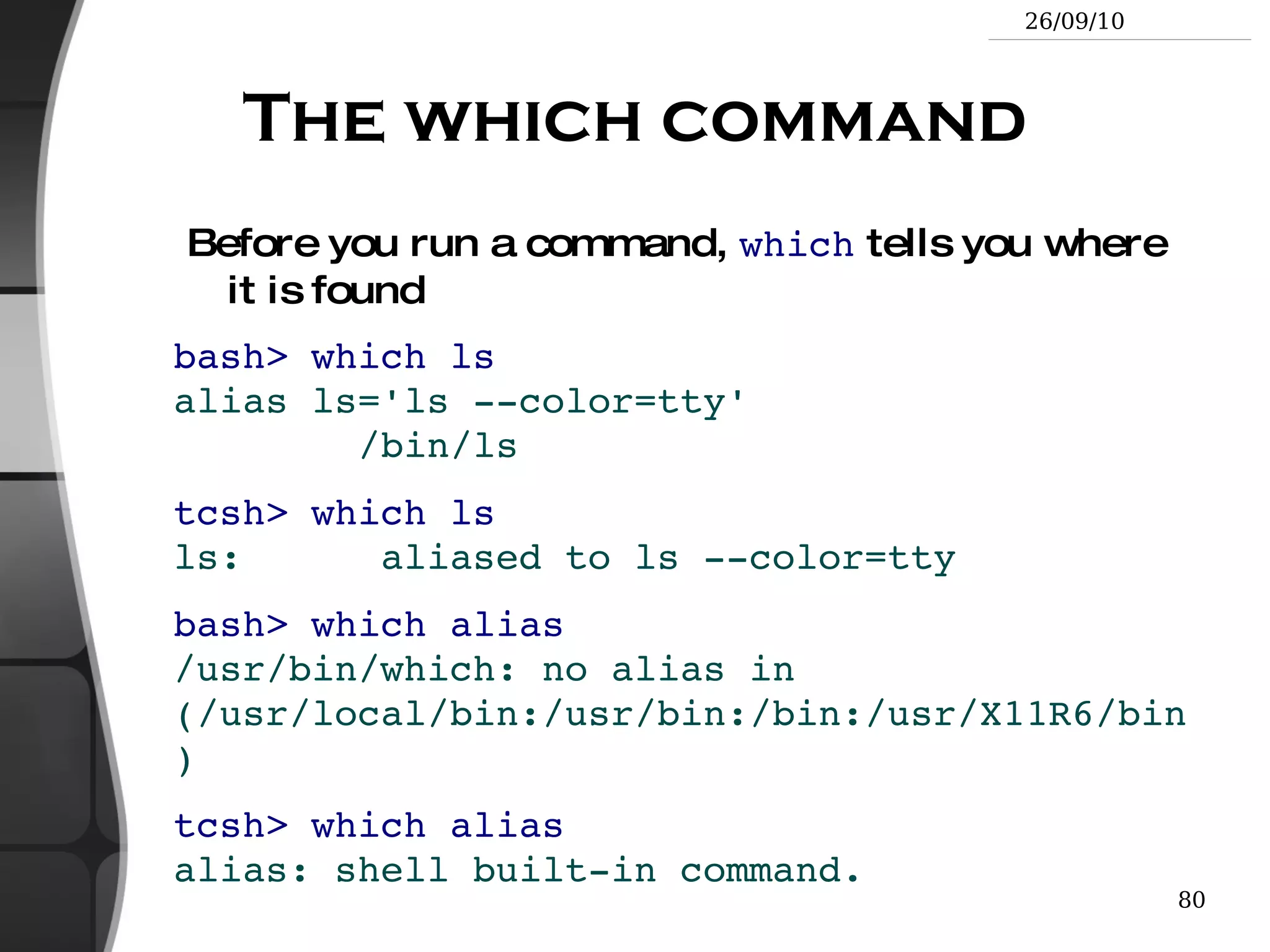
    The which commandBefore you run a command, which tells you where it is found bash> which ls alias ls='ls --color=tty' /bin/ls
  • 249.
    tcsh> which lsls: aliased to ls --color=tty
  • 250.
    bash> which alias/usr/bin/which: no alias in (/usr/local/bin:/usr/bin:/bin:/usr/X11R6/bin)
  • 251.
    tcsh> which aliasalias: shell built-in command.
  • 252.
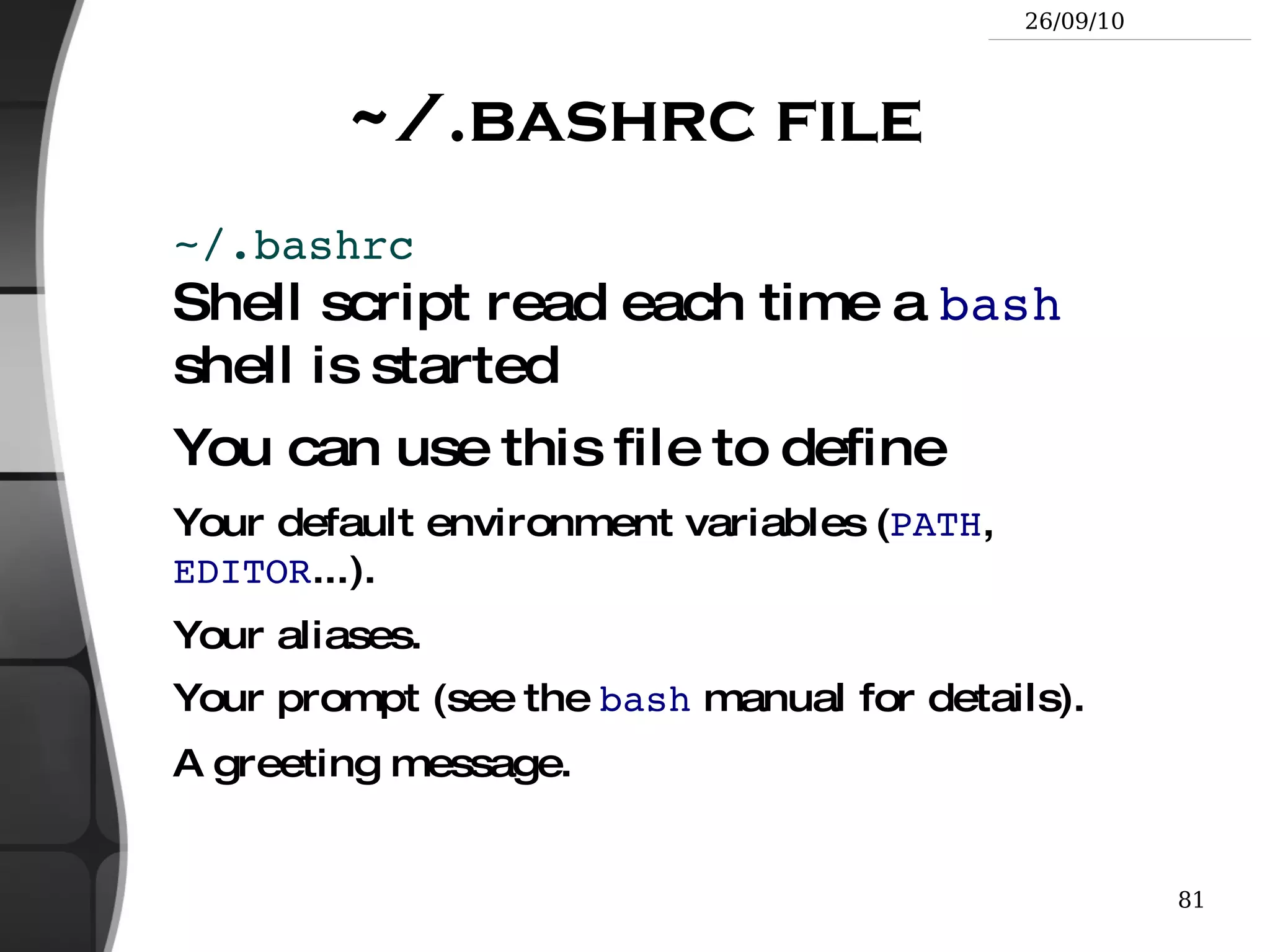
    ~/.bashrc file ~/.bashrcShell script read each time a bash shell is started
  • 253.
    You can usethis file to define Your default environment variables ( PATH , EDITOR ...).
  • 254.
  • 255.
    Your prompt (seethe bash manual for details).
  • 256.
  • 257.
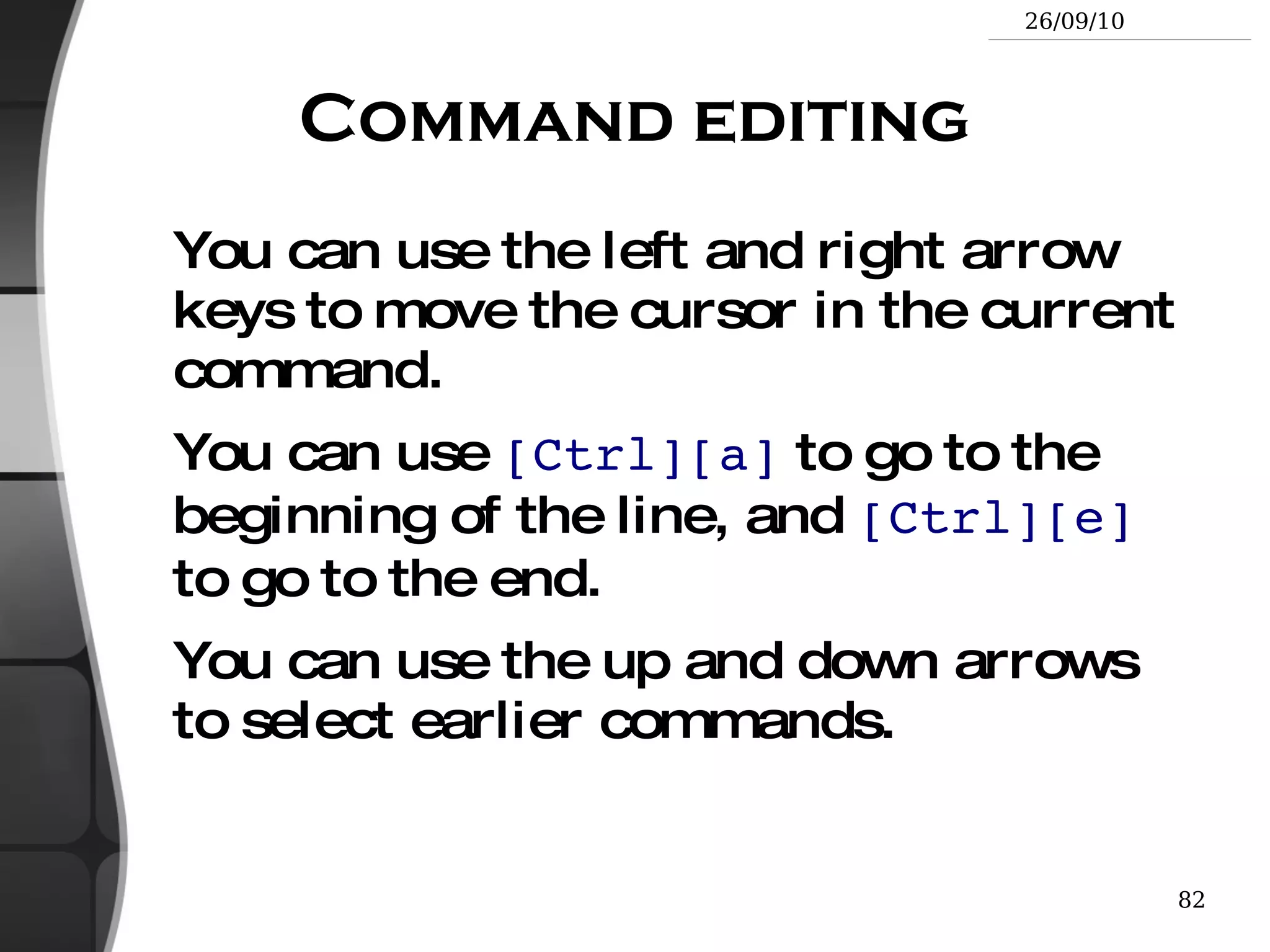
    Command editing Youcan use the left and right arrow keys to move the cursor in the current command.
  • 258.
    You can use [Ctrl][a] to go to the beginning of the line, and [Ctrl][e] to go to the end.
  • 259.
    You can usethe up and down arrows to select earlier commands.
  • 260.
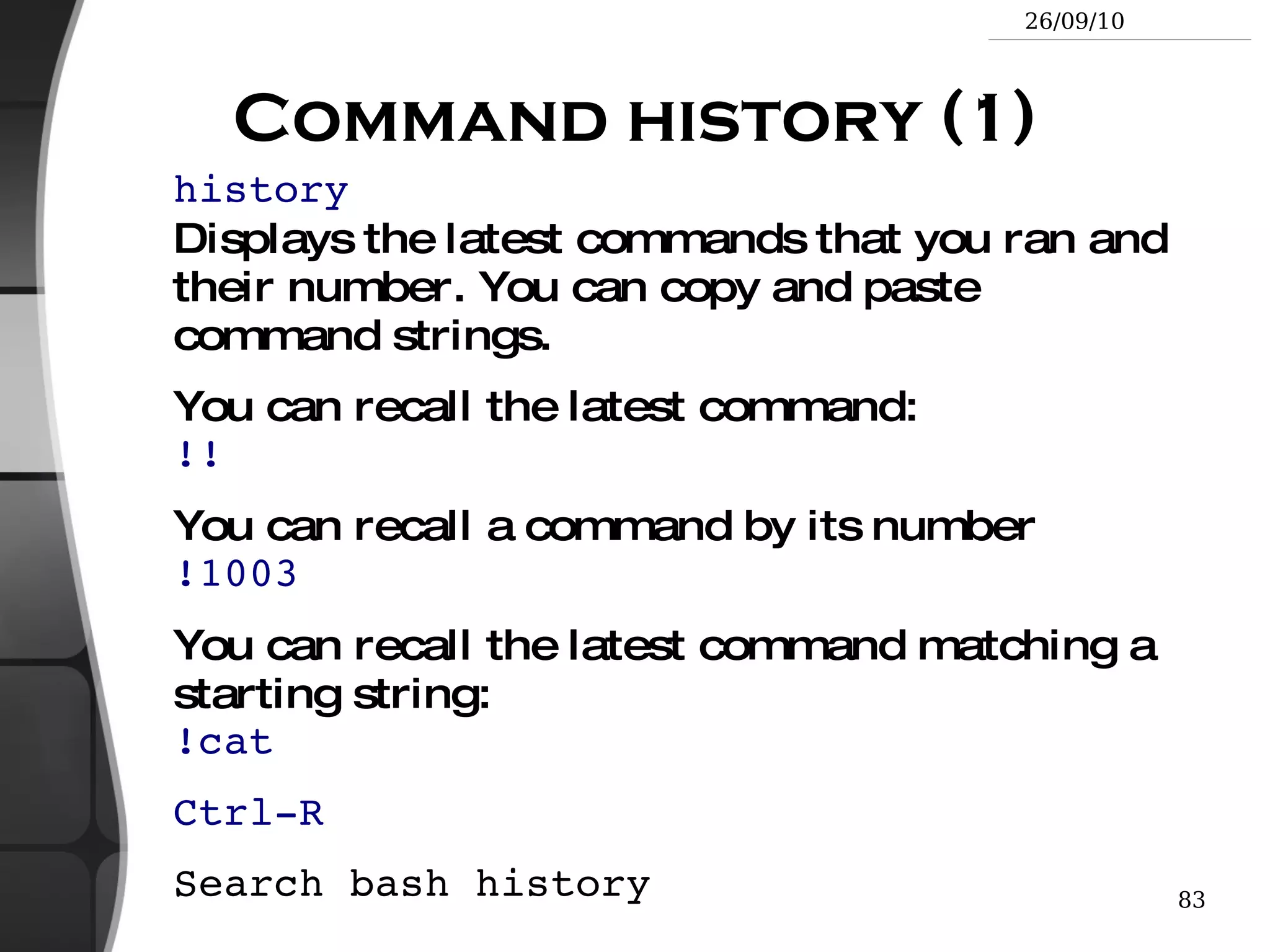
    Command history (1)history Displays the latest commands that you ran and their number. You can copy and paste command strings.
  • 261.
    You can recallthe latest command: !!
  • 262.
    You can recalla command by its number !1003
  • 263.
    You can recallthe latest command matching a starting string: !cat
  • 264.
  • 265.
  • 266.
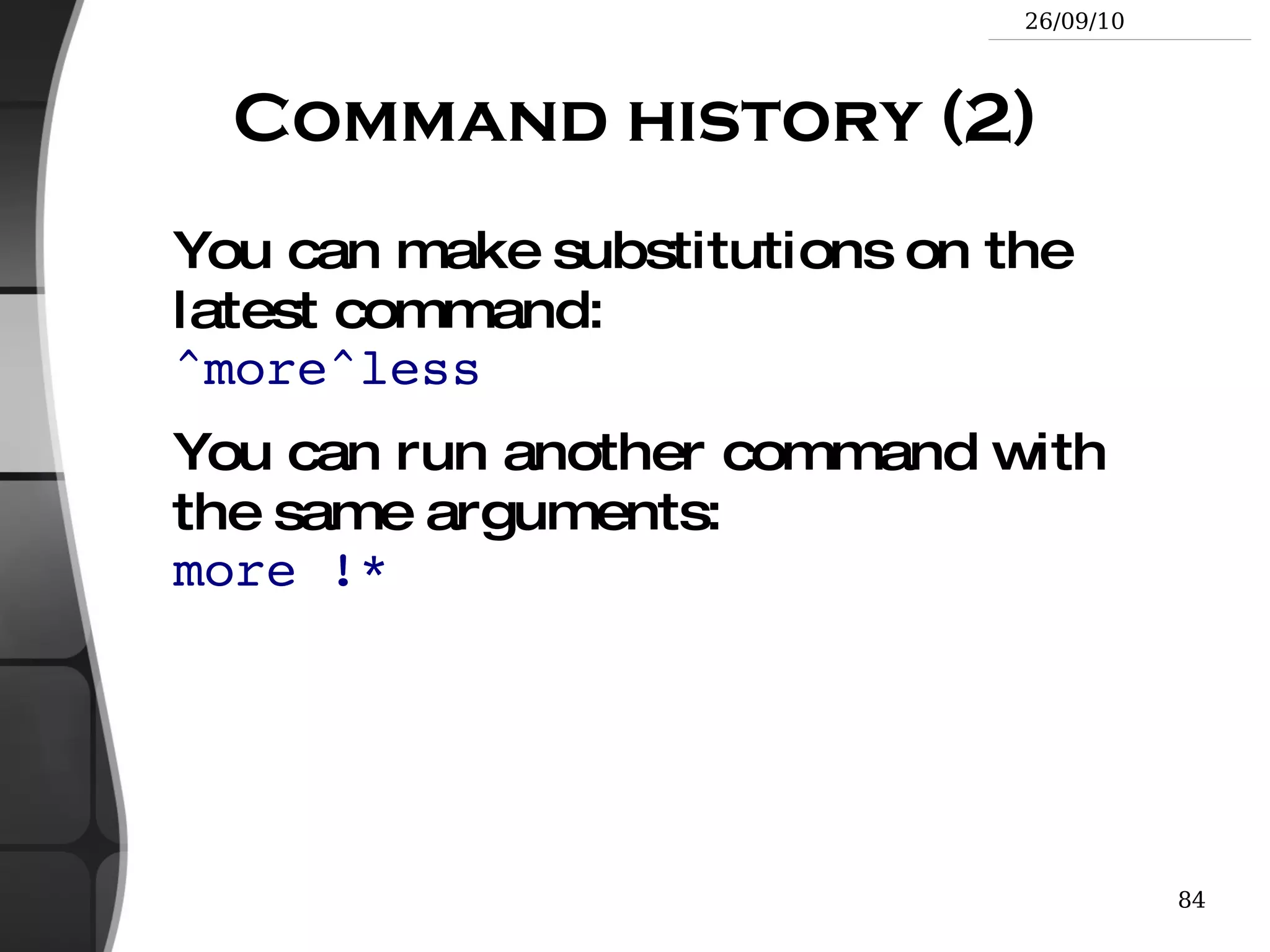
    Command history (2)You can make substitutions on the latest command: ^more^less
  • 267.
    You can runanother command with the same arguments: more !*
  • 268.
    The Unix andGNU / Linux command line Miscellaneous Text Editors
  • 269.
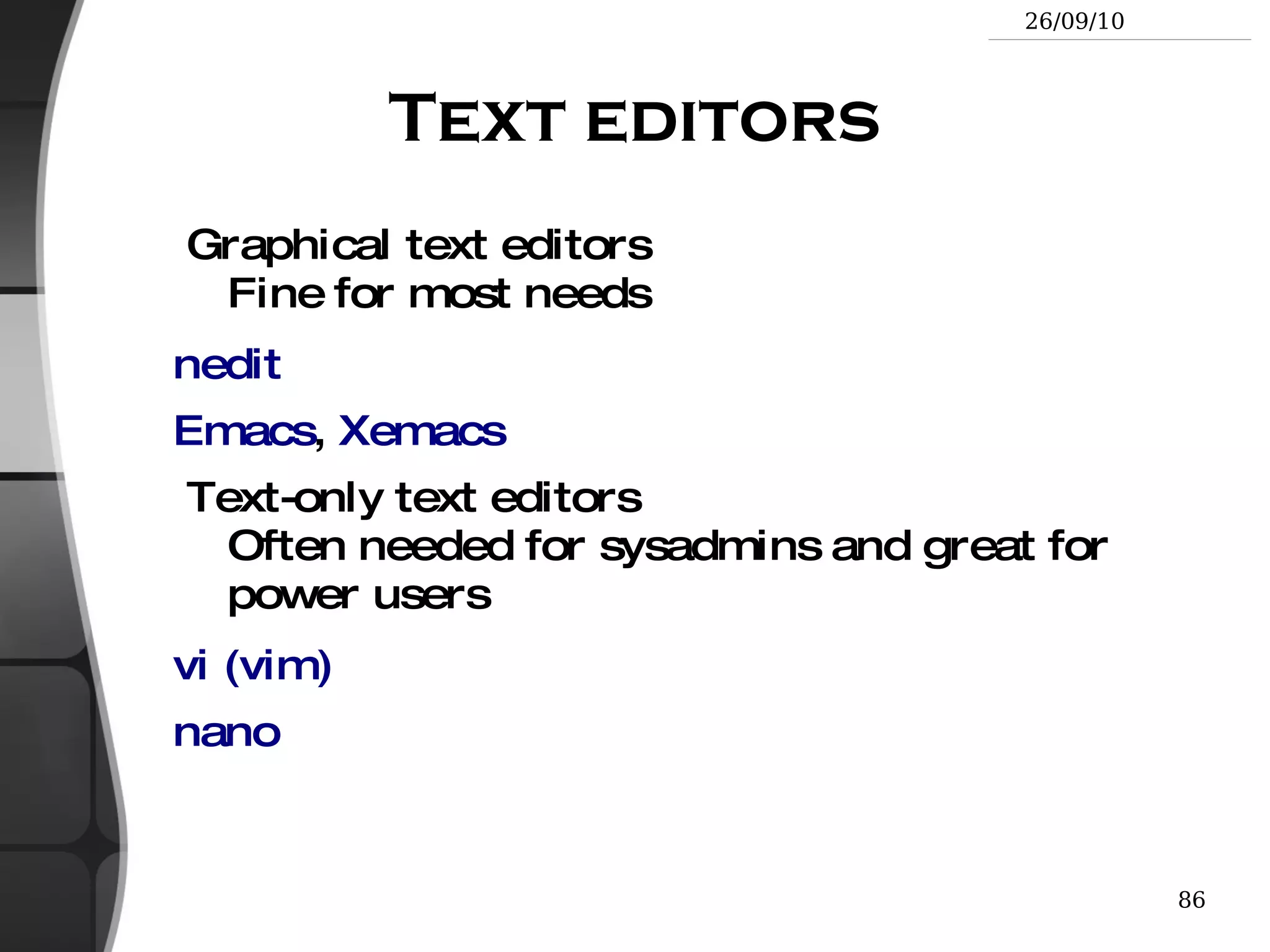
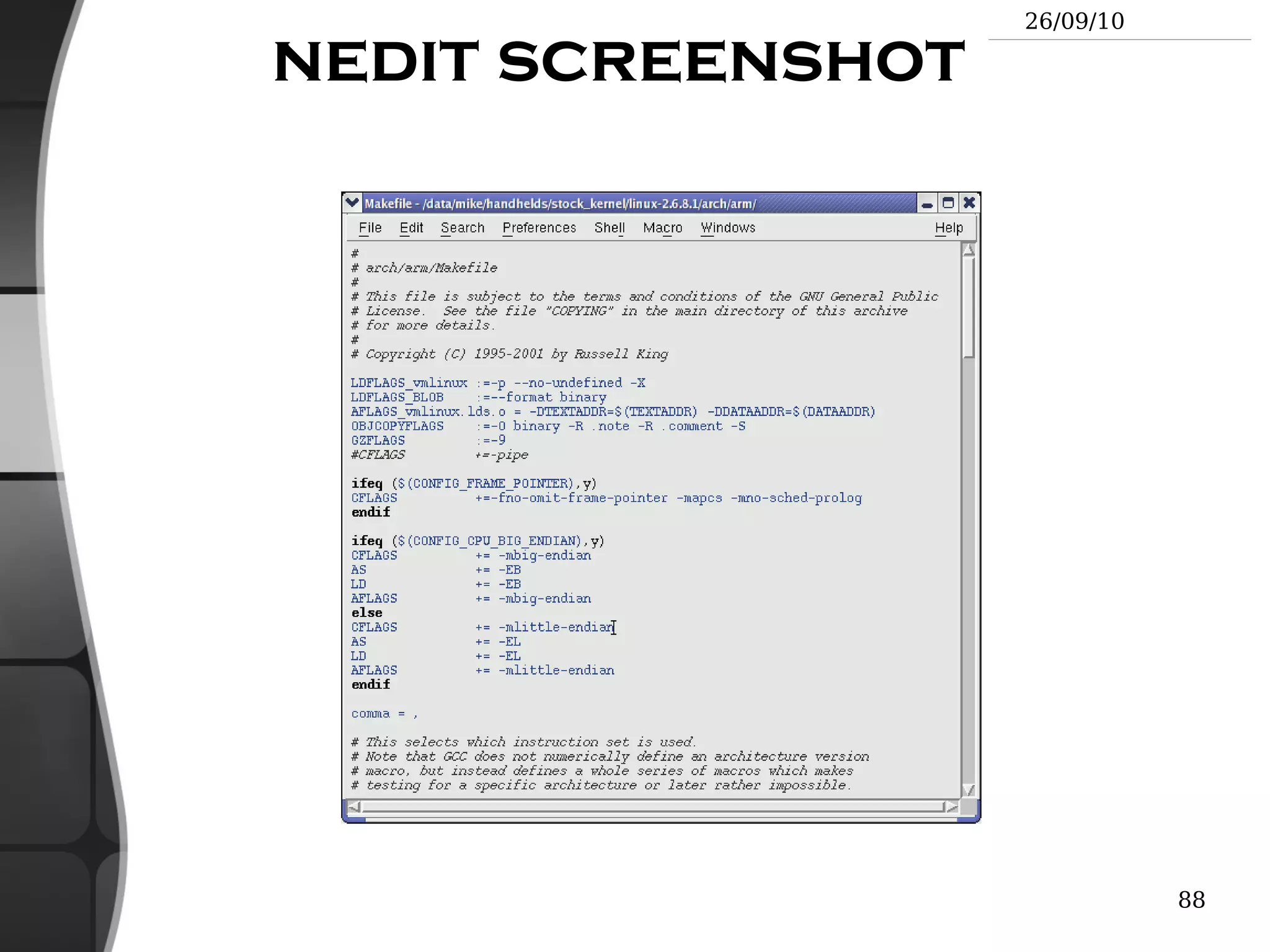
    Text editors Graphicaltext editors Fine for most needs nedit
  • 270.
    Emacs , Xemacs Text-only text editors Often needed for sysadmins and great for power users vi (vim)
  • 271.
  • 272.
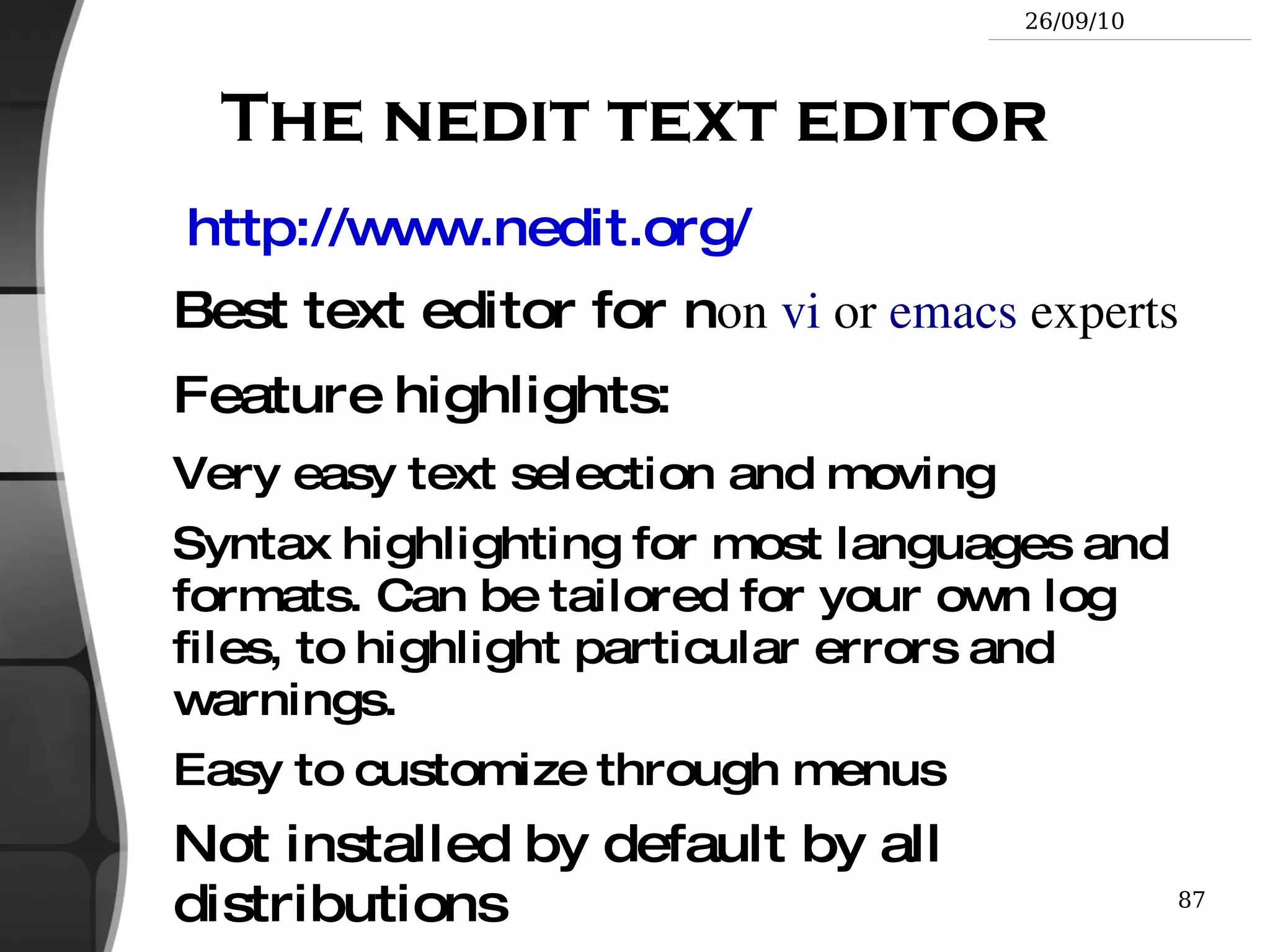
    The nedit texteditor http://www.nedit.org/ Best text editor for n on vi or emacs experts Feature highlights: Very easy text selection and moving
  • 273.
    Syntax highlighting formost languages and formats. Can be tailored for your own log files, to highlight particular errors and warnings.
  • 274.
    Easy to customizethrough menus Not installed by default by all distributions
  • 275.
  • 276.
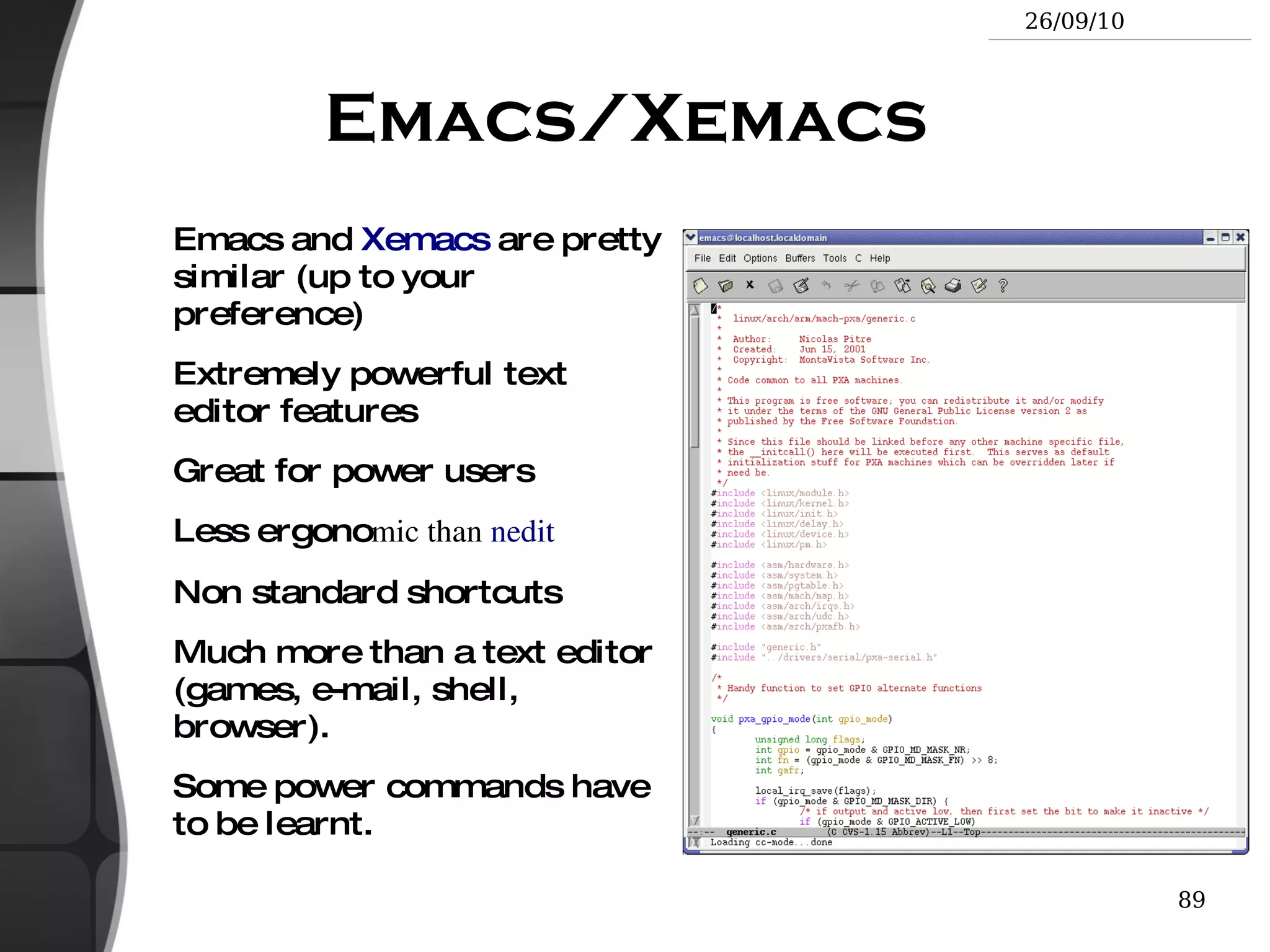
    Emacs/Xemacs Emacsand Xemacs are pretty similar (up to your preference)
  • 277.
    Extremely powerful texteditor features
  • 278.
    Great for powerusers Less ergono mic than nedit
  • 279.
  • 280.
    Much more thana text editor (games, e-mail, shell, browser). Some power commands have to be learnt.
  • 281.
    vi (vim) Text-modetext editor available in all Unix systems. Created before computers with mice appeared. Difficult to learn for beginners used to graphical text editors. Very productive for power users.
  • 282.
    Often can't bereplaced to edit files in system administration or in Embedded Systems, when you just have a text console.
  • 283.
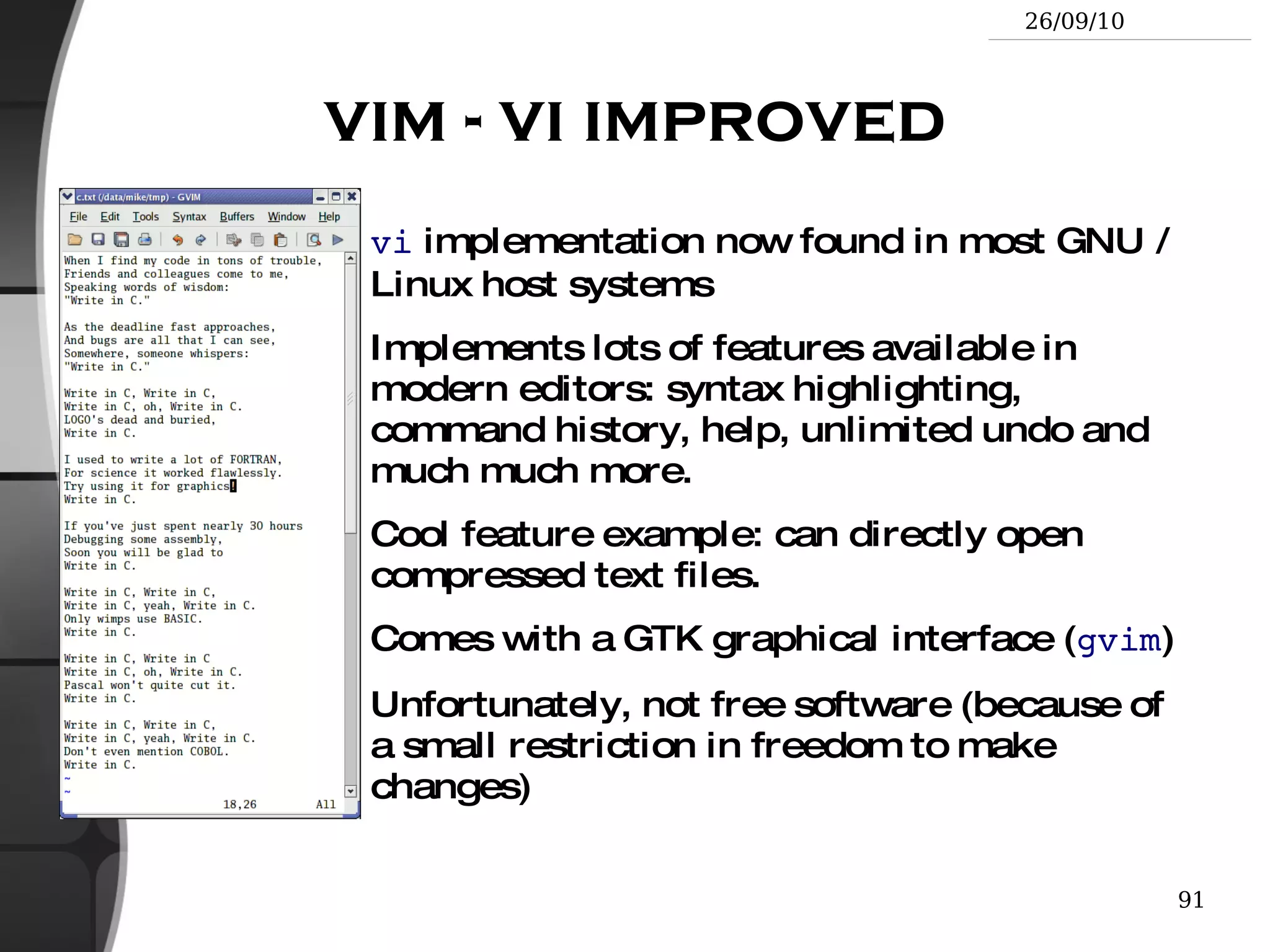
    vim - viimproved vi implementation now found in most GNU / Linux host systems
  • 284.
    Implements lots offeatures available in modern editors: syntax highlighting, command history, help, unlimited undo and much much more.
  • 285.
    Cool feature example:can directly open compressed text files.
  • 286.
    Comes with aGTK graphical interface ( gvim )
  • 287.
    Unfortunately, not freesoftware (because of a small restriction in freedom to make changes)
  • 288.
    vi basic commandsThough vi is extremely powerful, its main 30 commands are easy to learn and are sufficient for 99% of everyone's needs! You can also take the quick tutorial by running vimtutor .
  • 289.
    GNU nano http://www.nano-editor.org/Another small text-only, mouse free text editor.
  • 290.
    An enhanced Pico clone (non free editor in Pine )
  • 291.
    Friendly and easierto learn for beginners thanks to on screen command summaries.
  • 292.
    Available in binarypackages for several platforms.
  • 293.
    An alternative to vi in embedded systems. However, not available as a busybox built-in.
  • 294.
  • 295.
    The Unix andGNU/Linux command line Miscellaneous Compressing and Archiving
  • 296.
    Measuring disc usageCaution: different from file size! du -h <file> (disk usage) -h : returns size on disk of the given file, in h uman readable format: K (kilobytes), M (megabytes) or G (gigabytes), . Without -h , du returns the raw number of disk blocks used by the file (hard to read). Note that the -h option only exists in GNU du .
  • 297.
    du -sh <dir>-s : returns the s um of disk usage of all the files in the given directory.
  • 298.
    Measuring disk spacedf -h <dir> Returns disk usage and free space for the filesystem containing the given directory. Similarly, the -h option only exists in GNU df .
  • 299.
    Example: > df-h . Filesystem Size Used Avail Use% Mounted on /dev/hda5 9.2G 7.1G 1.8G 81% /
  • 300.
    df -h Returnsdisk space information for all filesystems available in the system. When errors happen, useful to look for full filesystems.
  • 301.
    Compressing Very usefulfor shrinking huge files and saving space g[un]zip <file> GNU zip compression utility. Creates .gz files. Ordinary performance (similar to Zip).
  • 302.
    b[un]zip2 <file> Morerecent and effective compression utility. Creates .bz2 files. Usually 20-25% better than gzip .
  • 303.
    Using 7-zipMuch better compression ratio than bzip2 (up to 10 to 20%). See the 7-zip page for details.
  • 304.
    Archiving (1) Usefulto backup or release a set of files within 1 file tar : originally “tape archive”
  • 305.
    Creating an archive:tar cvf <archive> <files or directories> c : create v : verbose. Useful to follow archiving progress. f : file. Archive created in file (tape used otherwise).
  • 306.
    Example: tar cvf/backup/home.tar /home bzip2 /backup/home.tar
  • 307.
    Archiving (2) Viewingthe contents of an archive or integrity check: tar tvf <archive> t : test
  • 308.
    Extracting all thefiles from an archive: tar xvf <archive>
  • 309.
    Extracting just afew files from an archive: tar xvf <archive> <files or directories> Files or directories are given with paths relative to the archive root directory.
  • 310.
    Extra options inGNU tar tar = gtar = GNU tar on GNU / Linux Can compress and uncompress archives on the fly. Useful to avoid creating huge intermediate files Much simpler to do than with tar and bzip2 ! j option: [un]compresses on the fly with bzip2
  • 311.
    z option:[un]compresses on the fly with gzip
  • 312.
    Examples tarcvjf work.tar.bz2 work/
  • 313.
  • 314.
    tar xvzf work.tar.bz2;tar xvjf work.tar.gz
  • 315.
    7-zip (1) http://www.7-zip.org/Now the best solution for your archives! License: GNU LGPL
  • 316.
    7-zip compressesmuch better than bzip2 (up to 10 or 20%) and of course zip (30 to 50 %). Benchmark compressing Knoppix 5.0.1 : -22% (vs. bzip2)!
  • 317.
    Caution: 7-zip cannot replace tar for archiving on Unix. It doesn't keep file owner and group information, but of course keeps file permissions. Use it to compress tar archives!
  • 318.
  • 319.
    7-zip (2) 7-zip supports strong AES-256 encryption. No need to encrypt in a separate pass.
  • 320.
    At last asolution available for Unix and Windows ! The tool supports most other compression formats: zip , cab , arj , gzip , bzip2 , tar , cpio , rpm and deb .
  • 321.
    Using 7-zip Archivefiles are usually created with a .7z extension Creating an archive: ( a : add) 7z a <archive> <files or directories>
  • 322.
    List files inarchive: ( l : list) 7z l <archive>
  • 323.
    Extracting from a 7-zip archive: ( e : extract) 7z x <archive>
  • 324.
    Backup a directory(keeping owner and group information): tar cf - <dir> | 7z a -si dir.tar.7z
  • 325.
    Restore this backup:7z x -so dir.tar.7z | tar xf - s tandard i nput s tandard o utput
  • 326.
    Checking file integrityVery low cost solution to check file integrity md5sum FC3-i386-disk*.iso > MD5SUM Computes a MD5 (Message Digest Algorithm 5) 128 bit checksum of the given files. Usually redirected to a file.
  • 327.
    Example output: db8c7254beeb4f6b891d1ed3f689b412FC3-i386-disc1.iso 2c11674cf429fe570445afd9d5ff564e FC3-i386-disc2.iso f88f6ab5947ca41f3cf31db04487279b FC3-i386-disc3.iso 6331c00aa3e8c088cc365eeb7ef230ea FC3-i386-disc4.iso
  • 328.
    md5sum -c MD5SUMChecks the integrity of the files in MD5SUM by comparing their actual MD5 checksum with their original one.
  • 329.
    The Unix andGNU / Linux command line Miscellaneous Printing
  • 330.
    Unix printing Multi-user,multi-job, multi-client, multi-printer In Unix / Linux, printing commands don't really print. They send jobs to printing queues, possibly on the local machine, on network printing servers or on network printers.
  • 331.
    Printer independent system:Print servers only accept jobs in PostScript or text. Printer drivers on the server take care of the conversion to each printers own format.
  • 332.
    Robust system: Reboota system, it will continue to print pending jobs.
  • 333.
    Printing commands Usefulenvironment variable: PRINTER Sets the default printer on the system. Example: export PRINTER=lp
  • 334.
    lpr [-P<queue>] <files>Sends the given files to the specified printing queue The files must be in text or PostScript format. Otherwise, you only print garbage.
  • 335.
    a2ps [-P<queue>] <files>“Any to PostScript” converts many formats to PostScript and send the output to the specified queue. Useful features: several pages / sheet, page numbering, info frame...
  • 336.
    Print job controllpq [-P<queue>] Lists all the print jobs in the given or default queue. lp is not ready Rank Owner Job File(s) Total Size 1st asloane 84 nsa_windows_backdoors.ps 60416 bytes 2nd amoore 85 gw_bush_iraq_mistakes.ps 65024000 bytes
  • 337.
    cancel <job#> [<queue>]Removes the given job number from the default queue.
  • 338.
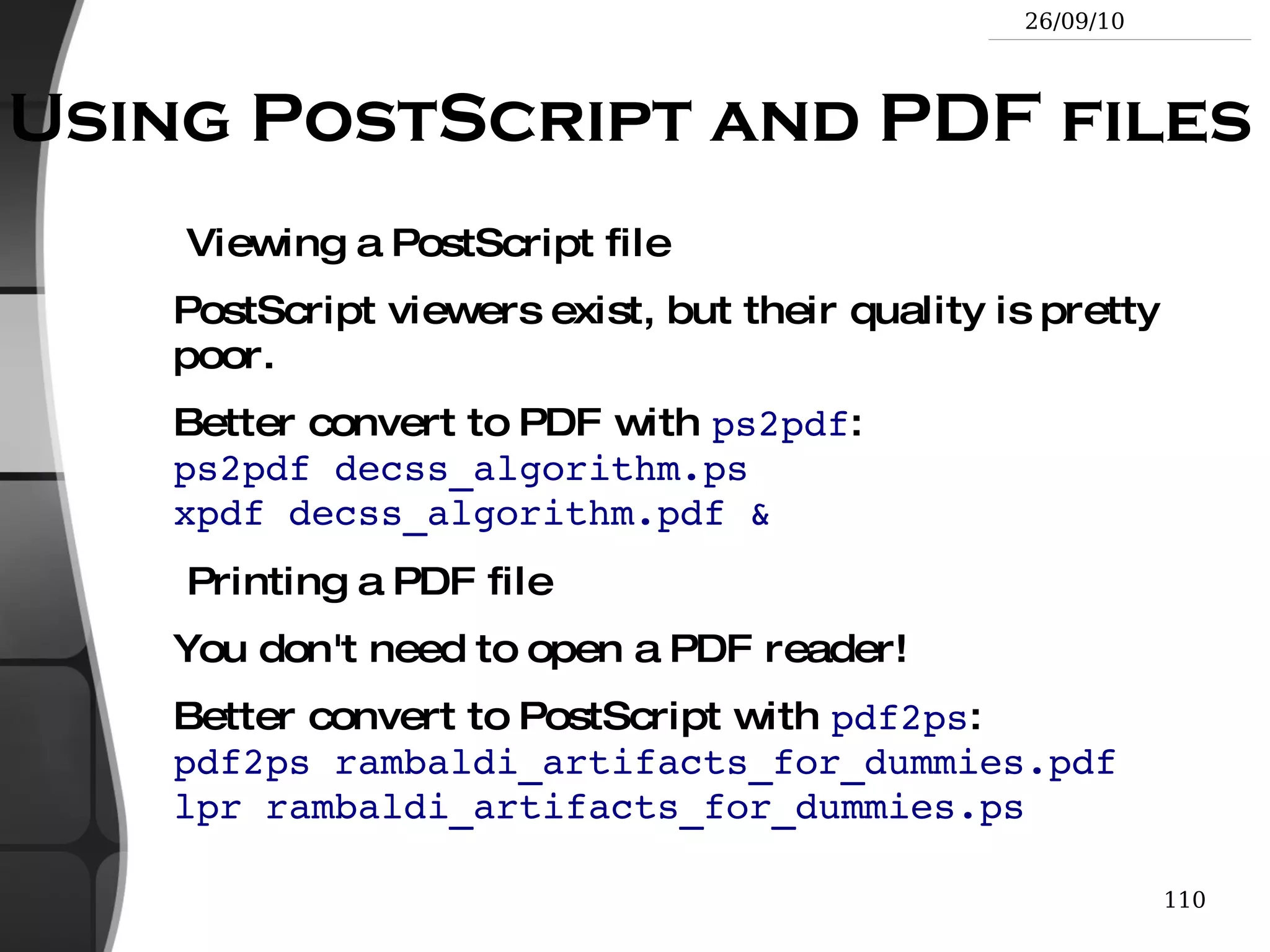
    Using PostScript andPDF files Viewing a PostScript file PostScript viewers exist, but their quality is pretty poor.
  • 339.
    Better convert toPDF with ps2pdf : ps2pdf decss_algorithm.ps xpdf decss_algorithm.pdf & Printing a PDF file You don't need to open a PDF reader!
  • 340.
    Better convert toPostScript with pdf2ps : pdf2ps rambaldi_artifacts_for_dummies.pdf lpr rambaldi_artifacts_for_dummies.ps
  • 341.
    The Unix andGNU / Linux command line Miscellaneous Comparing Files and Directories
  • 342.
    Comparing files anddirectories diff file1 file2 Reports the differences between 2 files, or nothing if the files are identical.
  • 343.
    diff -r dir1/dir2/ Reports all the differences between files with the same name in the 2 directories.
  • 344.
    To investigate differencesin detail, better use graphical tools!
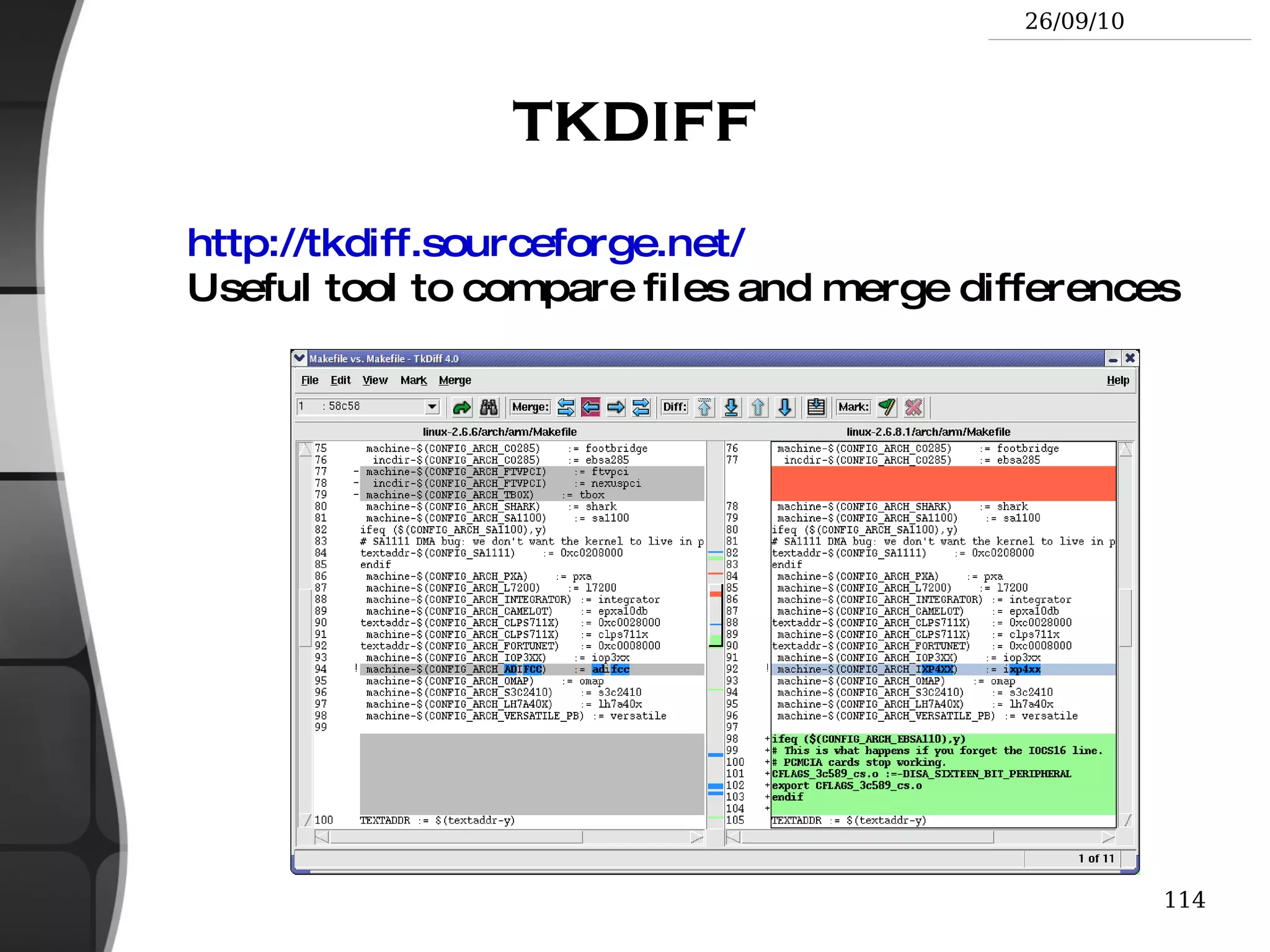
  • 345.
  • 346.
    tkdiff http://tkdiff.sourceforge.net/ Usefultool to compare files and merge differences
  • 347.
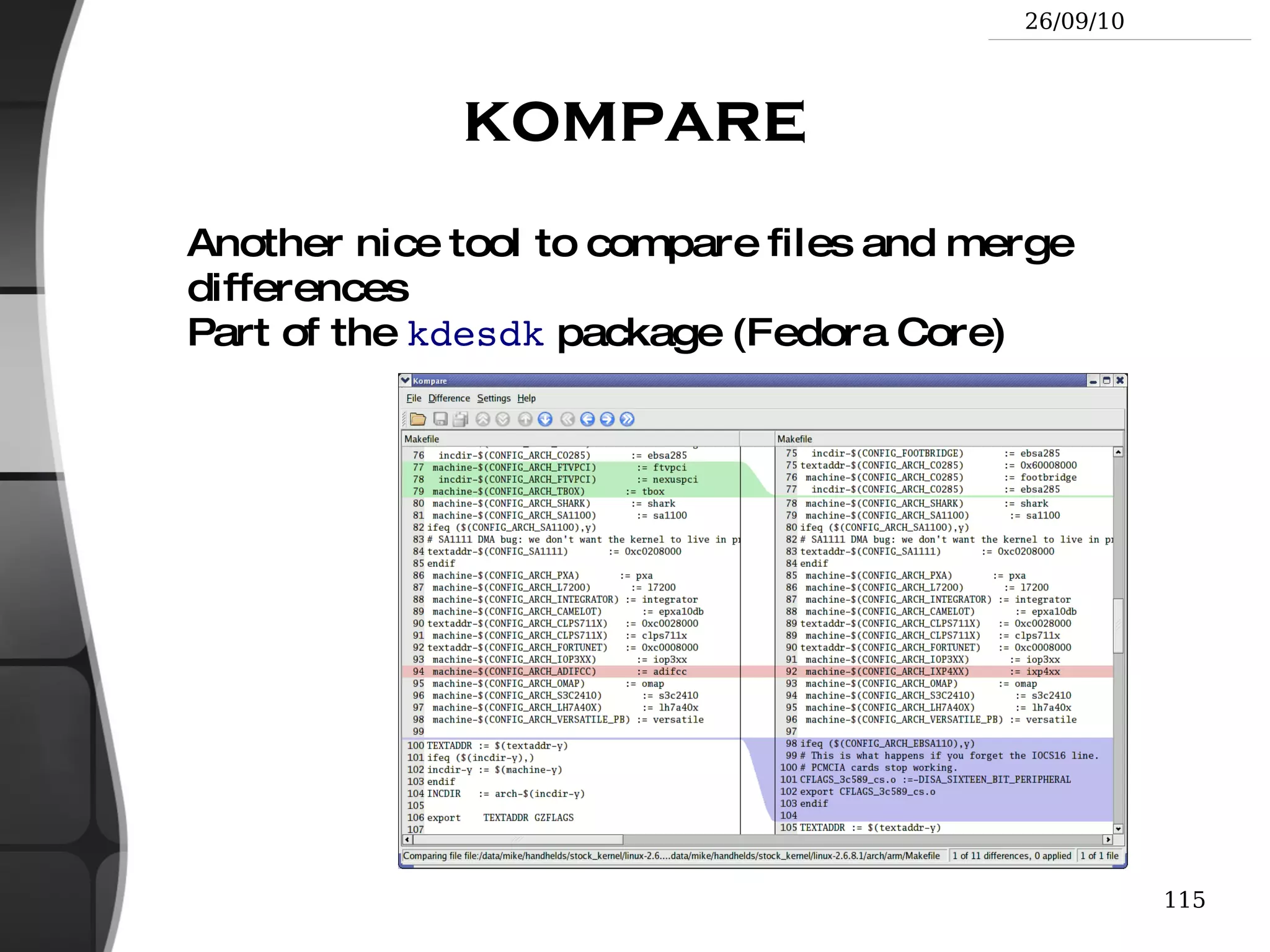
    kompare Another nicetool to compare files and merge differences Part of the kdesdk package (Fedora Core)
  • 348.
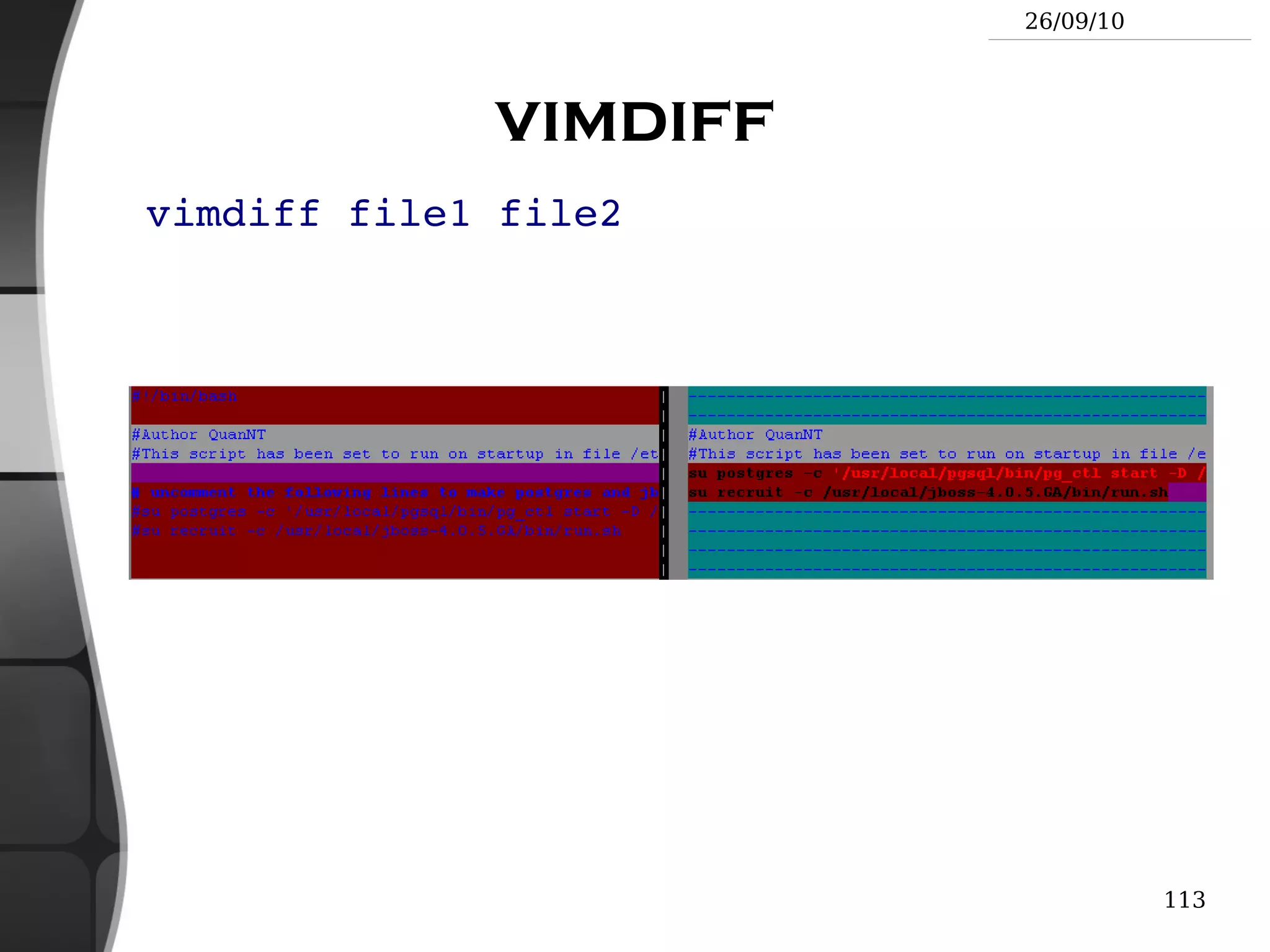
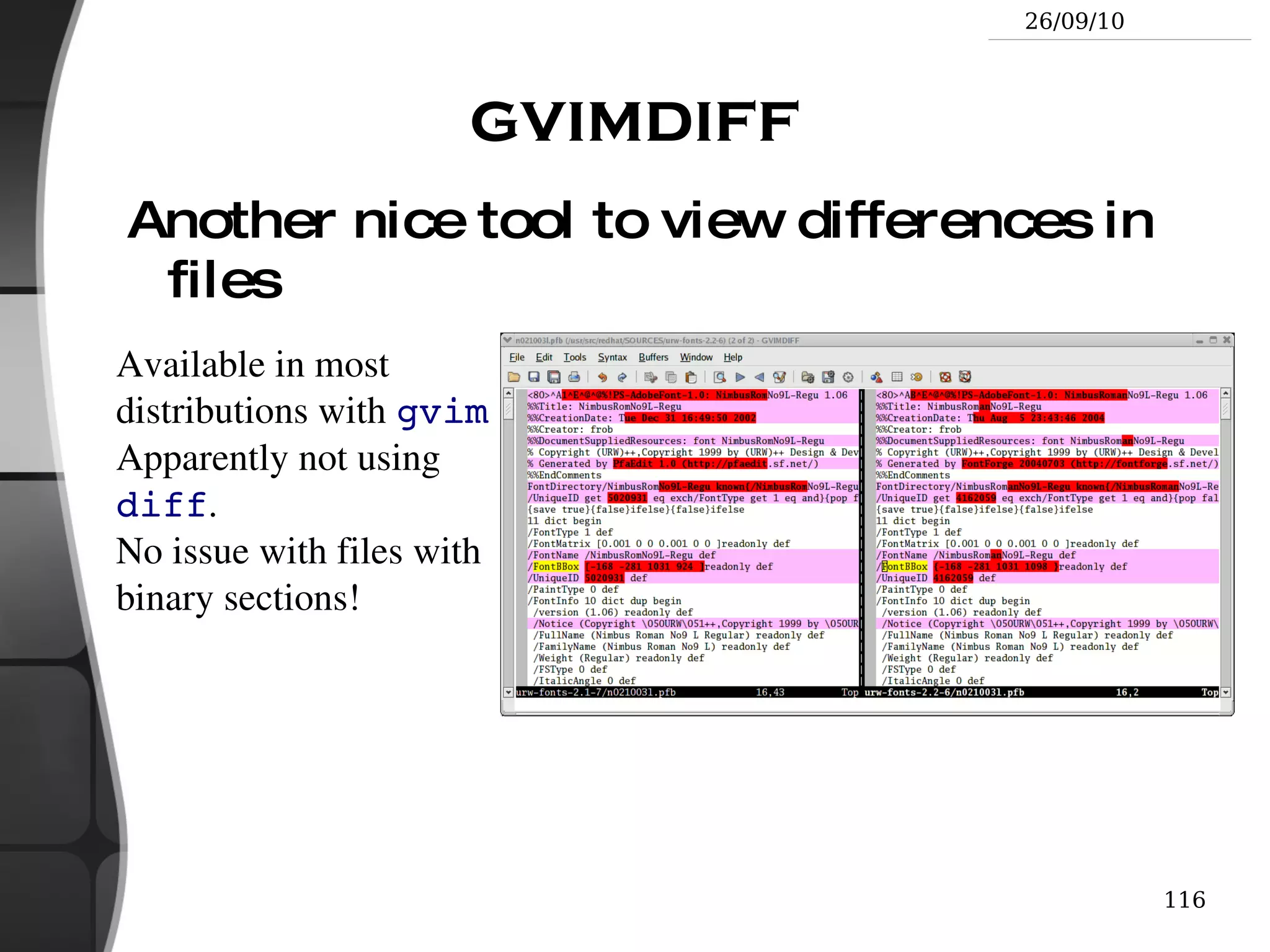
    gvimdiff Another nicetool to view differences in files Available in most distributions with gvim Apparently not using diff . No issue with files with binary sections!
  • 349.
    The Unix andGNU / Linux command line Miscellaneous Looking for Files
  • 350.
    The find commandBetter explained by a few examples! find . -name “*.pdf” Lists all the *.pdf files in the current ( . ) directory or subdirectories. You need the double quotes to prevent the shell from expanding the * character.
  • 351.
    find docs -name&quot;*.pdf&quot; -exec xpdf {} ';' Finds all the *.pdf files in the docs directory and displays one after the other.
  • 352.
    Many more possibilitiesavailable! However, the above 2 examples cover most needs.
  • 353.
    The locate commandMuch faster regular expression search alternative to find locate keys Lists all the files on your system with keys in their name.
  • 354.
    locate “*.pdf” Listsall the *.pdf files available on the whole machine
  • 355.
    locate “/home/fridge/*beer*” Listsall the *beer* files in the given directory (absolute path)
  • 356.
    locate ismuch faster because it indexes all files in a dedicated database, which is updated on a regular basis.
  • 357.
  • 358.
    find isbetter to search through recently created files.
  • 359.
    The Unix andGNU / Linux command line Miscellaneous Various Commands
  • 360.
    Getting information aboutusers who Lists all the users logged on the system.
  • 361.
    whoami Tells whatuser I am logged as.
  • 362.
    groups Tells whichgroups I belong to.
  • 363.
    groups <user> Tellswhich groups <user> belongs to.
  • 364.
    finger <user> Tellsmore details (real name, etc) about <user> Disabled in some systems (security reasons).
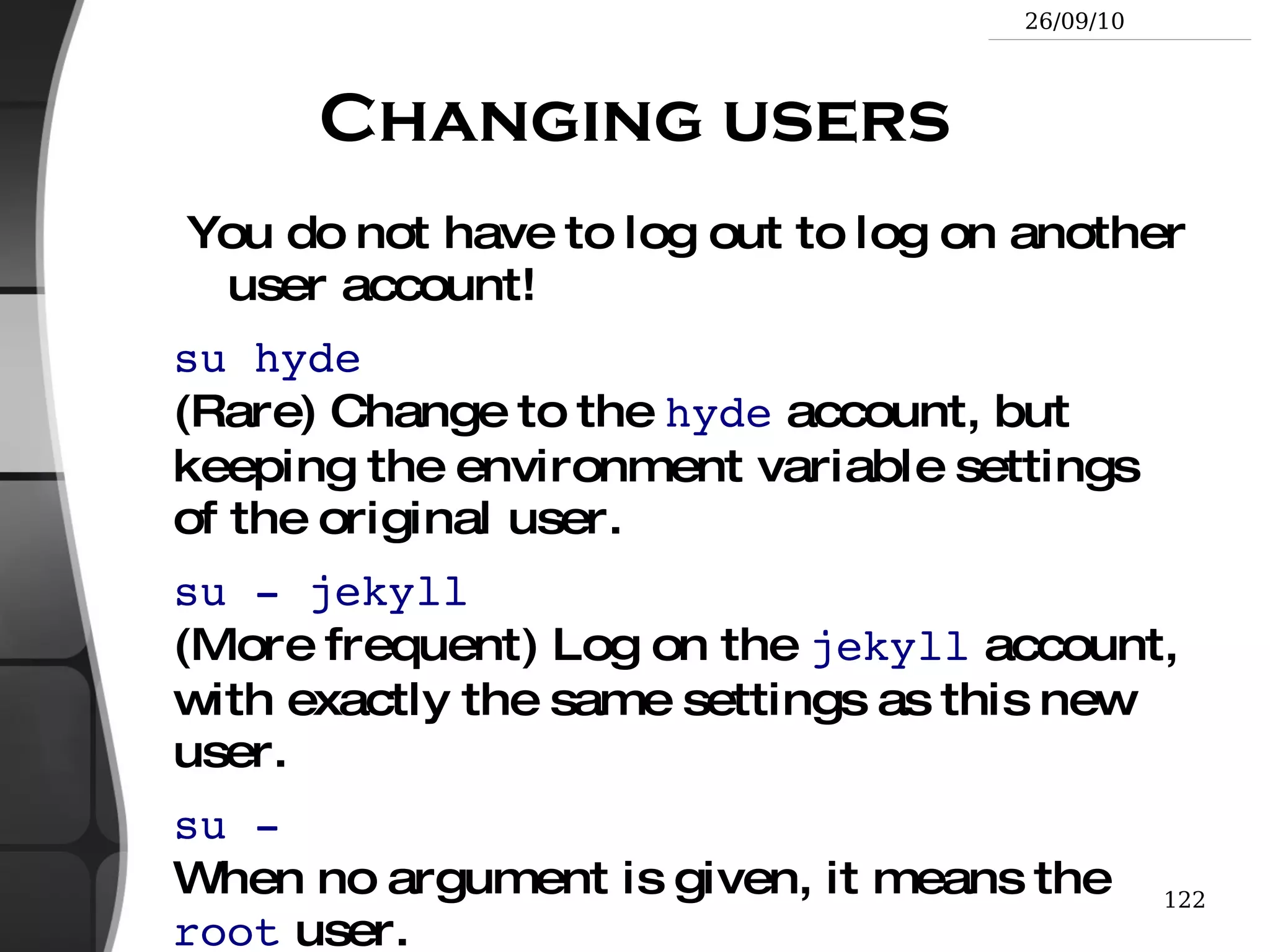
  • 365.
    Changing users Youdo not have to log out to log on another user account! su hyde (Rare) Change to the hyde account, but keeping the environment variable settings of the original user.
  • 366.
    su - jekyll(More frequent) Log on the jekyll account, with exactly the same settings as this new user.
  • 367.
    su - Whenno argument is given, it means the root user.
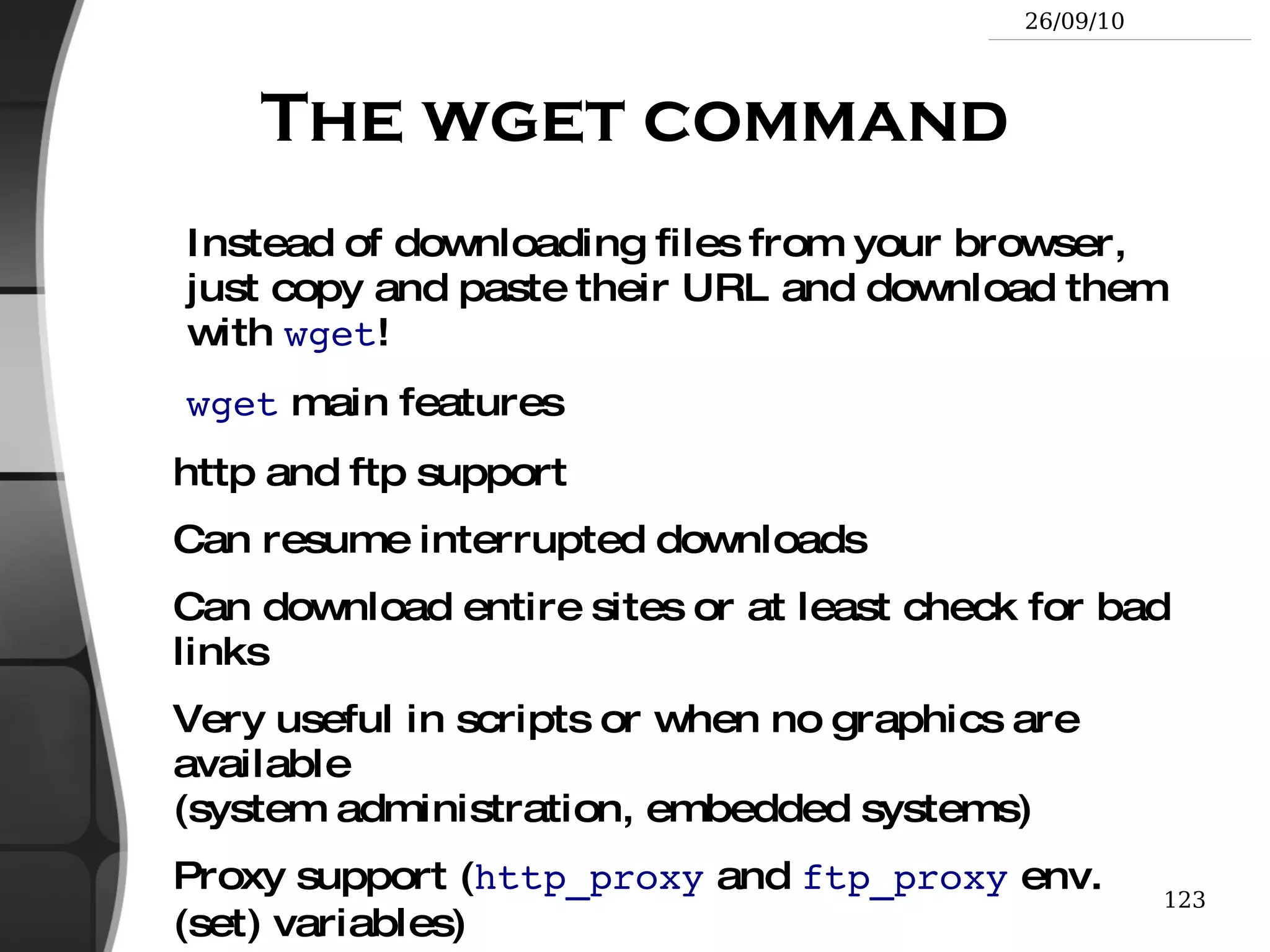
  • 368.
    The wget commandInstead of downloading files from your browser, just copy and paste their URL and download them with wget ! wget main features http and ftp support
  • 369.
  • 370.
    Can download entiresites or at least check for bad links
  • 371.
    Very useful inscripts or when no graphics are available (system administration, embedded systems)
  • 372.
    Proxy support (http_proxy and ftp_proxy env. (set) variables)
  • 373.
    wget examples wget-c \ http://microsoft.com/customers/dogs/winxp4dogs.zip Continues an interrupted download.
  • 374.
    wget -m http://lwn.net/Mirrors a site.
  • 375.
    wget -r -nphttp://www.xml.com/ldd/chapter/book/ Recursively downloads an on-line book for off-line access. -np : &quot;no-parent&quot;. Only follows links in the current directory.
  • 376.
    Misc commands (1)sleep 60 Waits for 60 seconds (doesn't consume system resources).
  • 377.
    wc report.txt (word count) 438 2115 18302 report.txt Counts the number of lines, words and characters in a file or in standard input.
  • 378.
    Misc commands (2)bc (&quot;basic calculator?&quot;) bc is a handy but full-featured calculator. Even includes a programming language! Use the -l option to have floating point support. python as a calculator date Returns the current date. Useful in scripts to record when commands started or completed.
  • 379.
    The Unix andGNU/Linux command line System Administration Basics
  • 380.
    File ownership Particularlyuseful in (embedded) system development when you create files for another system. chown -R vuhung /home/linux/src ( -R : recursive) Makes user vuhung the new owner of all the files in /home/linux/src .
  • 381.
    chgrp -R core/home/vuhung Makes core the new group of everything in /home/vuhung .
  • 382.
    chown -R vuhung:core/FileServer/Backup/ chown can be used to change the owner and group at the same time.
  • 383.
    Shutting down shutdown-h +5 ( -h : halt) Shuts the system down in 5 minutes. Users get a warning in their consoles.
  • 384.
  • 385.
    shutdown -r now ( -r : reboot)
  • 386.
    init 0 Anotherway to shutdown ( init is used internally by shutdown ).
  • 387.
    init 6 Anotherway to reboot.
  • 388.
    [Ctrl][Alt][Del] Also workson GNU/Linux (at least on PCs!).
  • 389.
    Network setup (1)ifconfig -a Prints details about all the network interfaces available on your system.
  • 390.
    ifconfig eth0 Listsdetails about the eth0 interface
  • 391.
    ifconfig eth0 192.168.52.100Assigns the 192.168.52.100 IP address to eth0 (1 IP address per interface).
  • 392.
    ifconfig eth0 downShuts down the eth0 interface (frees its IP address).
  • 393.
    Network setup (2)route add default gw 192.168.52.3 Sets the default route for packets outside the local network. The gateway (here 192.168.52.3 ) is responsible for sending them to the next gateway, etc., until the final destination.
  • 394.
    route Lists theexisting routes
  • 395.
    route del defaultroute del <IP> Deletes the given route Useful to redefine a new route.
  • 396.
    Network testing pingfreshmeat.net (external)
  • 397.
    ping 192.168.52.16 (internal)ping 192.168.51.1 (semi-internal) Tries to send packets to the given machine and get acknowledgment packets in return. PING 192.168.1.1 (192.168.1.1) 56(84) bytes of data. 64 bytes from 192.168.51.1: icmp_seq=0 ttl=150 time=2.51 ms 64 bytes from 192.168.51.1: icmp_seq=1 ttl=150 time=3.16 ms 64 bytes from 192.168.51.1: icmp_seq=2 ttl=150 time=2.71 ms 64 bytes from 192.168.51.1: icmp_seq=3 ttl=150 time=2.67 ms
  • 398.
    When you canping your gateway, your network interface works fine.
  • 399.
    When you canping an external IP address, your network settings are correct!
  • 400.
    Network setup summaryOnly for simple cases with 1 interface, no dhcp server... Connect to the network (cable, wireless card or device...)
  • 401.
    Identify your networkinterface: ifconfig -a
  • 402.
    Assign an IPaddress to your interface (assuming eth0 ) ifconfig eth0 192.168.52.100 (example)
  • 403.
    Add a routeto your gateway (assuming 192.168.52.3 ) for packets outside the network: route add default gw 192.168.52.3
  • 404.
    Name resolution Yourprograms need to know what IP address corresponds to a given host name (such as kernel.org )
  • 405.
    Domain Name Servers(DNS) take care of this.
  • 406.
    You just haveto specify the IP address of 1 or more DNS servers in your /etc/resolv.conf file: nameserver 192.168.52.3 (Internal DNS server) nameserver 8.8.8.8 (Google Open DNS)
  • 407.
  • 408.
  • 409.
    The changes takeseffect immediately!
  • 410.
    Creating filesystems Examplesmkfs.ext2 /dev/sda1 Formats your USB key ( /dev/sda1 : 1 st partition raw data) in ext2 format.
  • 411.
    mkfs.ext2 -F disk.imgFormats a disk image file in ext2 format
  • 412.
    mkfs.vfat -v -F32 /dev/sda1 ( -v : verbose) Formats your USB key back to FAT32 format.
  • 413.
    mkfs.vfat -v -F32 disk.img Formats a disk image file in FAT32 format. Blank disk images can be created as in the below example: dd if=/dev/zero of=disk.img bs=1024 count=65536
  • 414.
    Mounting devices (1)To make filesystems on any device (internal or external storage) visible on your system, you have to mount them.
  • 415.
    The first time,create a mount point in your system: mkdir /mnt/usbdisk (example)
  • 416.
    Now, mount it:mount -t vfat /dev/sda1 /mnt/usbdisk /dev/sda1 : physical device -t : sp ecifies the filesystem (format) type ( ext2 , ext3 , vfat , reiserfs , iso9660 ...) mount file structure raw data (file descriptors and file contents)
  • 417.
    Mounting devices (2)Lots of mount options are available, in particular to choose permissions or the file owner and group... See the mount manual page for details.
  • 418.
    Mount options foreach device can be stored in the /etc/fstab file. Thanks to this file, you just need to state the mount point: # /etc/fstab: static file system information. # <file system> <mount point> <type> <options> <dump> <pass> proc /proc proc defaults 0 0 /dev/hda3 / ext3 defaults,errors=remount-ro 0 1 /dev/hda4 /home ext3 defaults 0 2 /dev/hda2 /root2 ext3 defaults 0 2 /dev/hda1 none swap sw 0 0 /dev/hdc /media/cdrom0 udf,iso9660 user,noauto 0 0 mount examples with /etc/fstab : mount /proc mount /media/cdrom0 Device list: /proc/partitions
  • 419.
    Mounting devices (3)You can also mount a filesystem image stored in a regular file ( loop devices ) Useful to develop filesystems for another machine
  • 420.
    Useful to accessthe contents of an ISO cdrom image without having to burn it.
  • 421.
    Useful to createa Linux partition on a hard disk with only Windows partitions cp /dev/sda1 usbkey.img mount -o loop -t vfat usbkey.img /mnt/usbdisk
  • 422.
    Listing mounted filesystemsJust use the mount command with no argument: /dev/hda6 on / type ext3 (rw,noatime) none on /proc type proc (rw,noatime) none on /sys type sysfs (rw) none on /dev/pts type devpts (rw,gid=5,mode=620) usbfs on /proc/bus/usb type usbfs (rw) /dev/hda4 on /data type ext3 (rw,noatime) none on /dev/shm type tmpfs (rw) /dev/hda1 on /win type vfat (rw,uid=501,gid=501) none on /proc/sys/fs/binfmt_misc type binfmt_misc (rw) Or display the /etc/mtab file (same result, updated by mount and umount each time they are run)
  • 423.
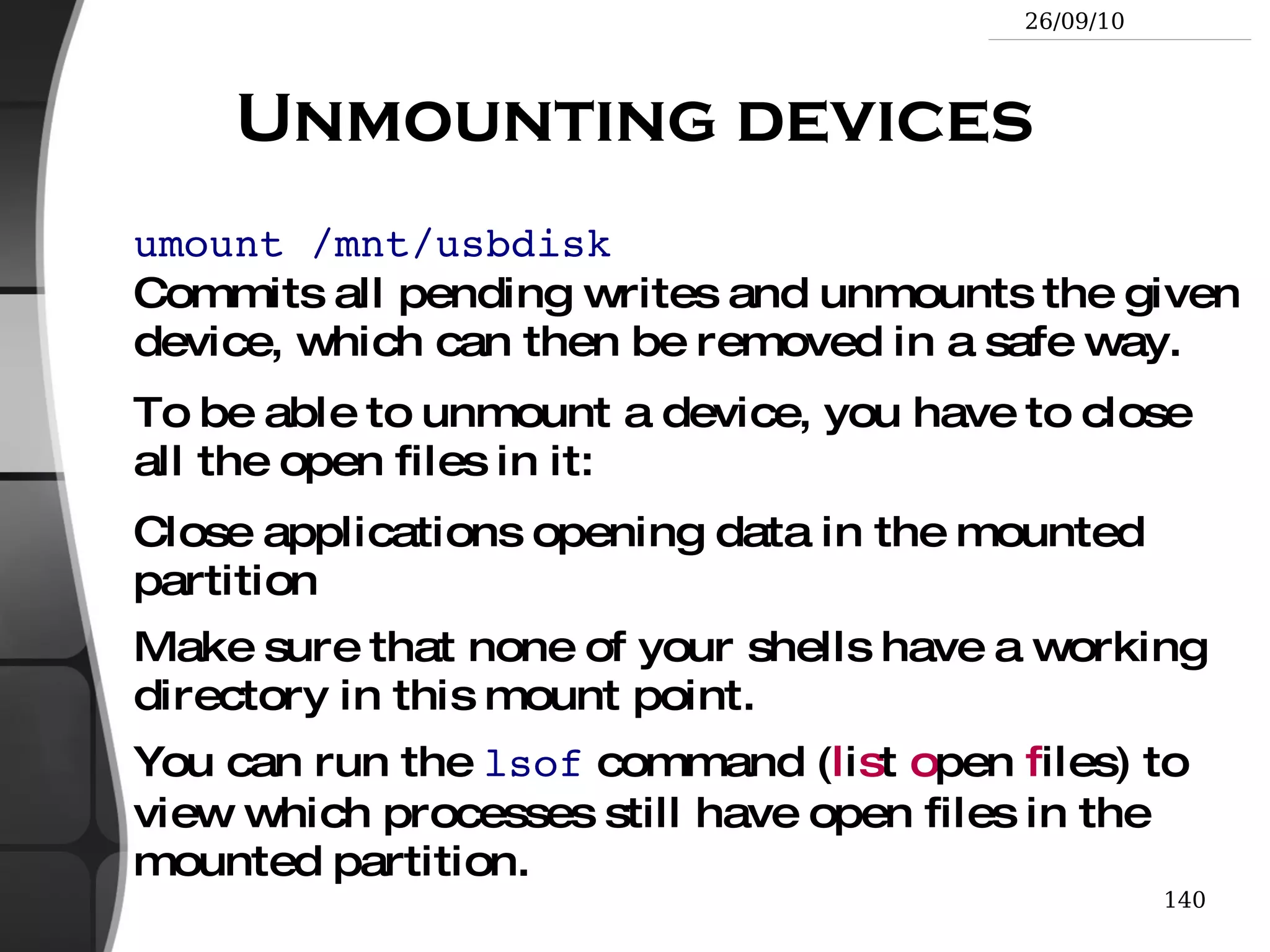
    Unmounting devices umount/mnt/usbdisk Commits all pending writes and unmounts the given device, which can then be removed in a safe way.
  • 424.
    To be ableto unmount a device, you have to close all the open files in it: Close applications opening data in the mounted partition
  • 425.
    Make sure thatnone of your shells have a working directory in this mount point.
  • 426.
    You can runthe lsof command ( l i s t o pen f iles) to view which processes still have open files in the mounted partition.
  • 427.
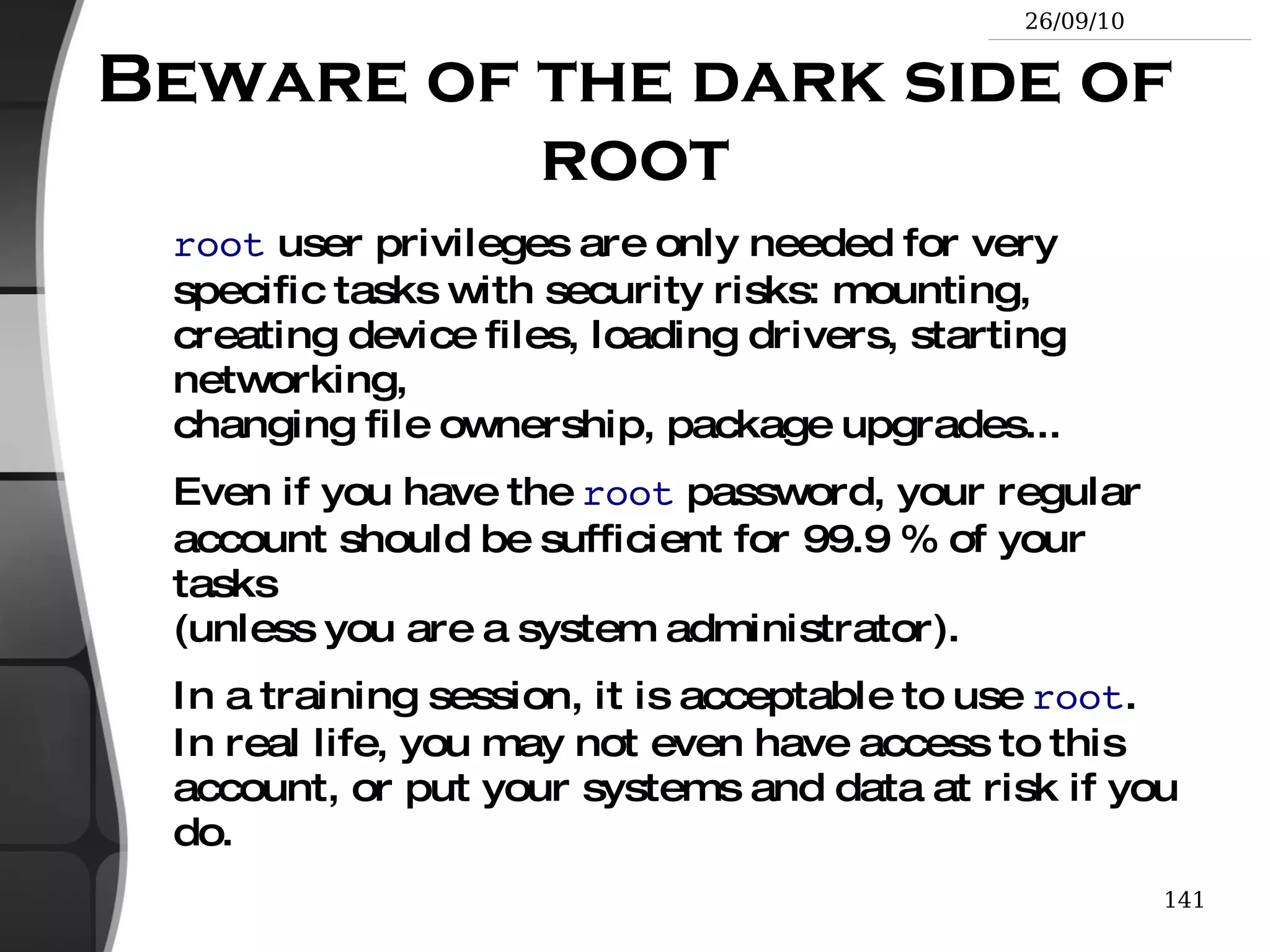
    Beware of thedark side of root root user privileges are only needed for very specific tasks with security risks: mounting, creating device files, loading drivers, starting networking, changing file ownership, package upgrades...
  • 428.
    Even if youhave the root password, your regular account should be sufficient for 99.9 % of your tasks (unless you are a system administrator).
  • 429.
    In a trainingsession, it is acceptable to use root . In real life, you may not even have access to this account, or put your systems and data at risk if you do.
  • 430.
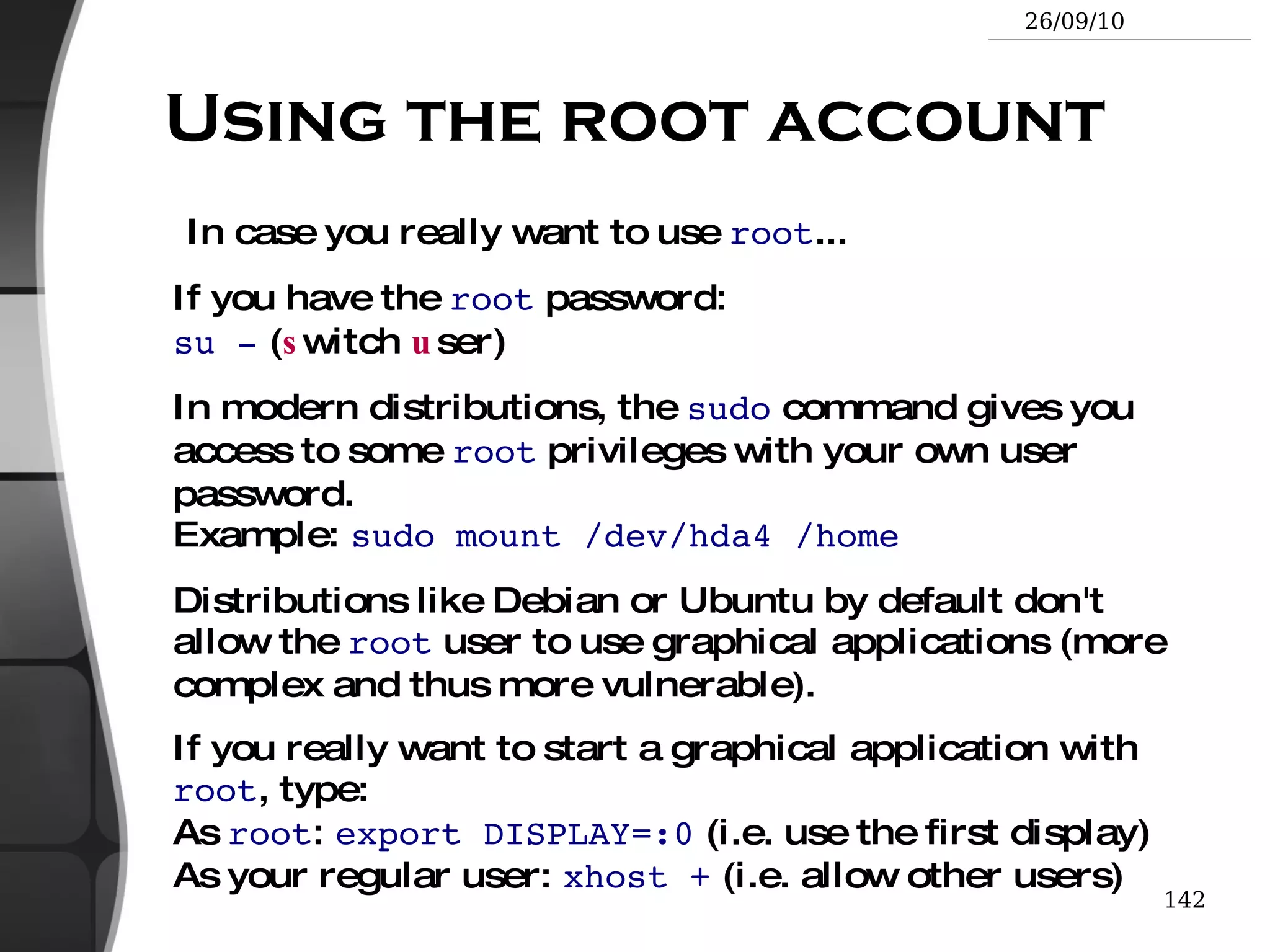
    Using the rootaccount In case you really want to use root ... If you have the root password: su - ( s witch u ser)
  • 431.
    In modern distributions,the sudo command gives you access to some root privileges with your own user password. Example: sudo mount /dev/hda4 /home
  • 432.
    Distributions like Debianor Ubuntu by default don't allow the root user to use graphical applications (more complex and thus more vulnerable).
  • 433.
    If you reallywant to start a graphical application with root , type: As root : export DISPLAY=:0 (i.e. use the first display) As your regular user: xhost + (i.e. allow other users)
  • 434.
    The Unix andGNU/Linux command line GNU/Linux: Distribution Packages
  • 435.
    How to findpackages Debian packages: http://www.debian.org/distrib/packages Search by package or file name
  • 436.
    rpmfind : http://rpmfind.net/ Lots of RPM packages for Red Hat , Mandriva , Suse ...
  • 437.
    Redhat variants yumsearch “keyword” Debian variants apt-cache search “keyword”
  • 438.
    Identifying packages Whatpackage does a file belong to? Useful to get more information, get the code, find newer versions, report issues...
  • 439.
    Distribution with RPM packages: ( Red Hat , Fedora , Mandriva , Suse ...) > rpm -qf /bin/ls coreutils-5.2.1-7 Debian , Ubuntu : > dpkg -S /bin/ls fileutils: /bin/ls
  • 440.
    Information about packagesAccess package description, version number, sources, etc.
  • 441.
    RPM baseddistributions: rpm -qi <package-name> Debian : dpkg -s <package-name>
  • 442.
    The Unix andGNU/Linux command line Going Further
  • 443.
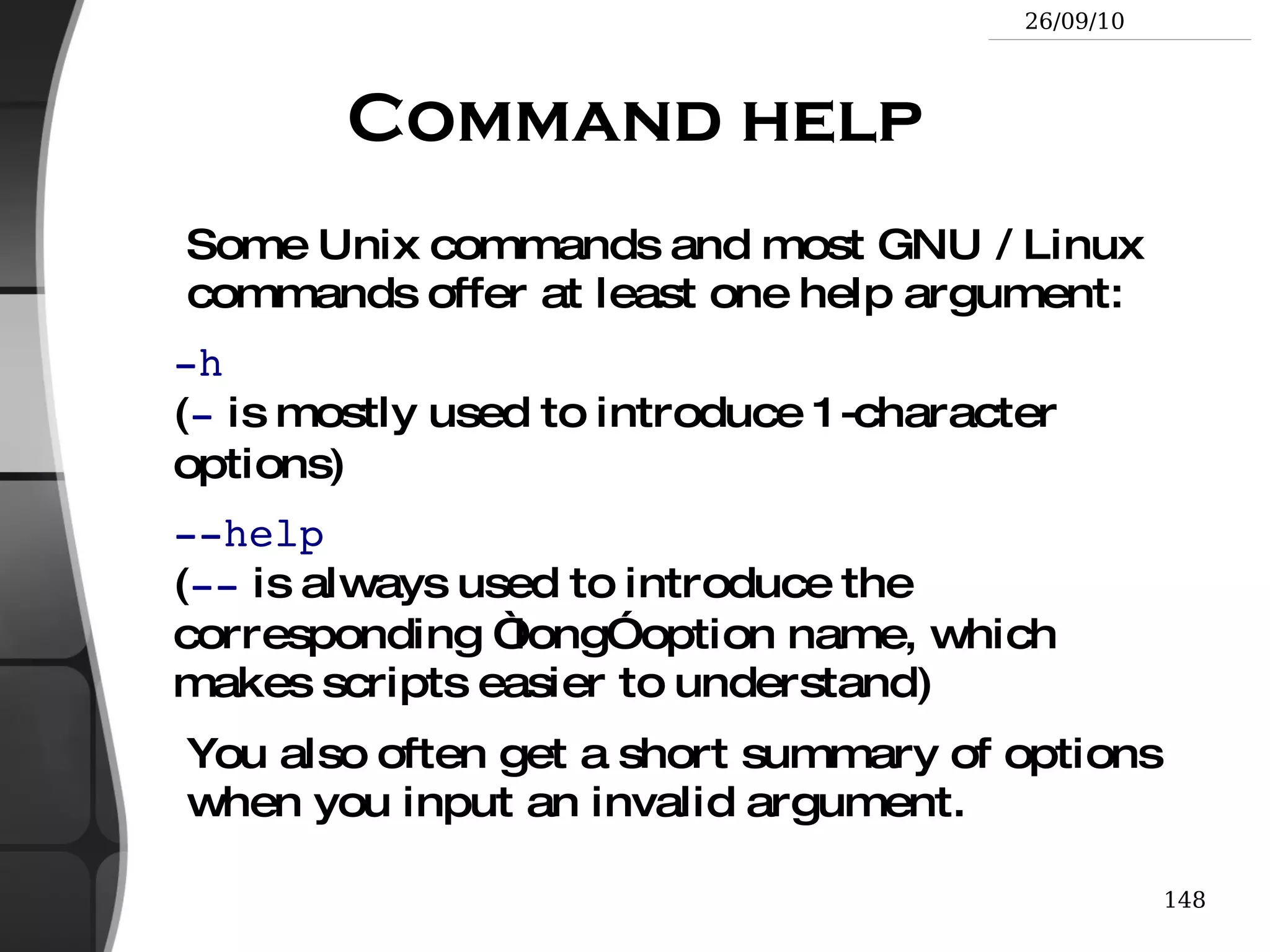
    Command help SomeUnix commands and most GNU / Linux commands offer at least one help argument: -h ( - is mostly used to introduce 1-character options)
  • 444.
    --help ( -- is always used to introduce the corresponding “long” option name, which makes scripts easier to understand) You also often get a short summary of options when you input an invalid argument.
  • 445.
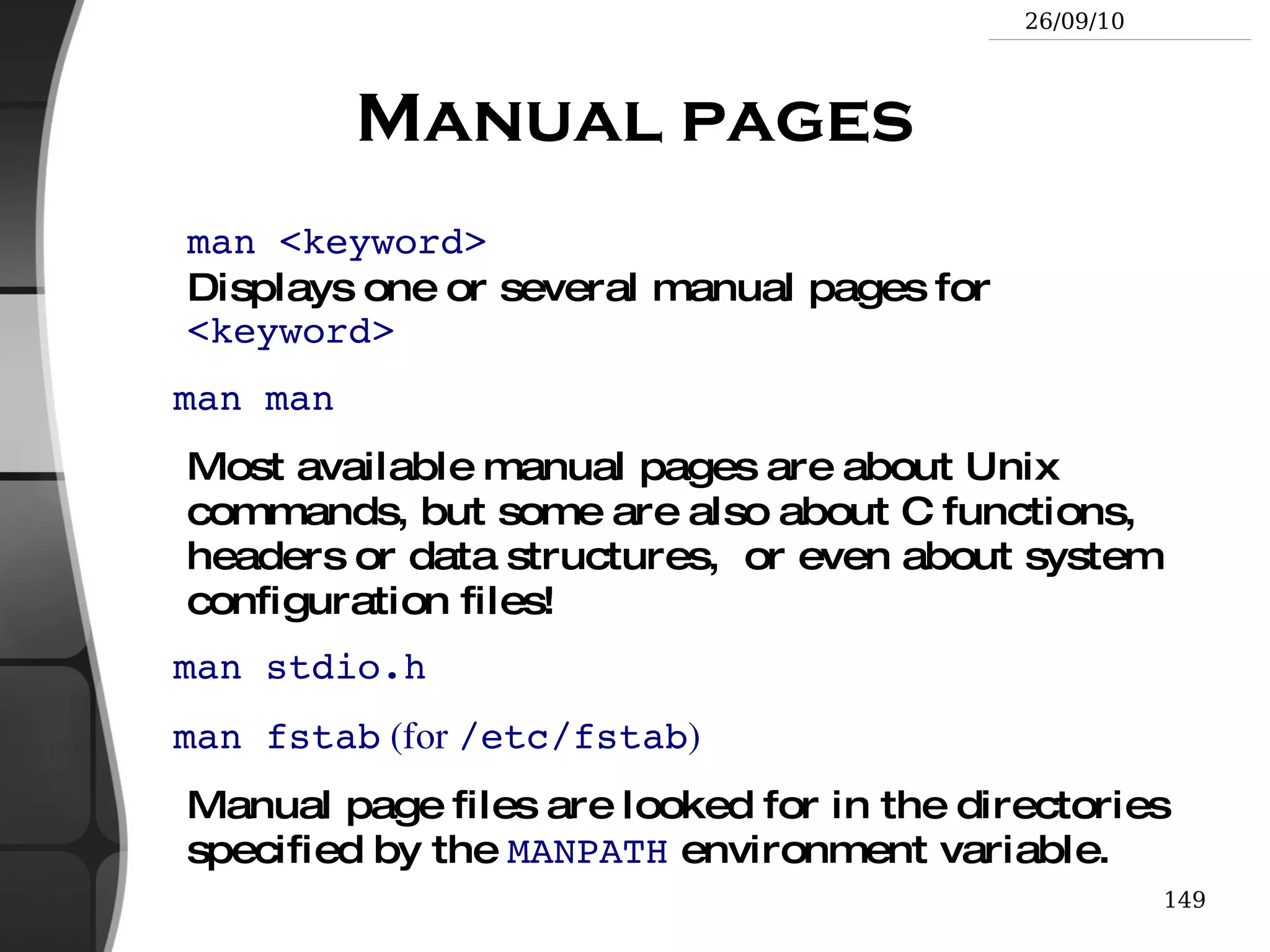
    Manual pages man<keyword> Displays one or several manual pages for <keyword> man man Most available manual pages are about Unix commands, but some are also about C functions, headers or data structures, or even about system configuration files! man stdio.h
  • 446.
    man fstab (for /etc/fstab ) Manual page files are looked for in the directories specified by the MANPATH environment variable.
  • 447.
    Info pages InGNU, man pages are being replaced by info pages. Some manual pages even tell to refer to info pages instead. info <command> info features: Documentation structured in sections (“nodes”) and subsections (“subnodes”)
  • 448.
    Possibility to navigatein this structure: top, next, prev, up
  • 449.
    Info pages generatedfrom the same texinfo source as the HTML documentation pages
  • 450.
    Searching the Internetfor resources (1) Investigating issues Most forums and mailing list archives are public, and are indexed on a very frequent basis by Google .
  • 451.
    If you investigatean error message, copy it verbatim in the search form, enclosed in double quotes (“error message”). Lots of chances that somebody else already faced the same issue.
  • 452.
    Don't forget touse Google Groups: http://groups.google.com/ This site indexes more than 20 years of newsgroups messages.
  • 453.
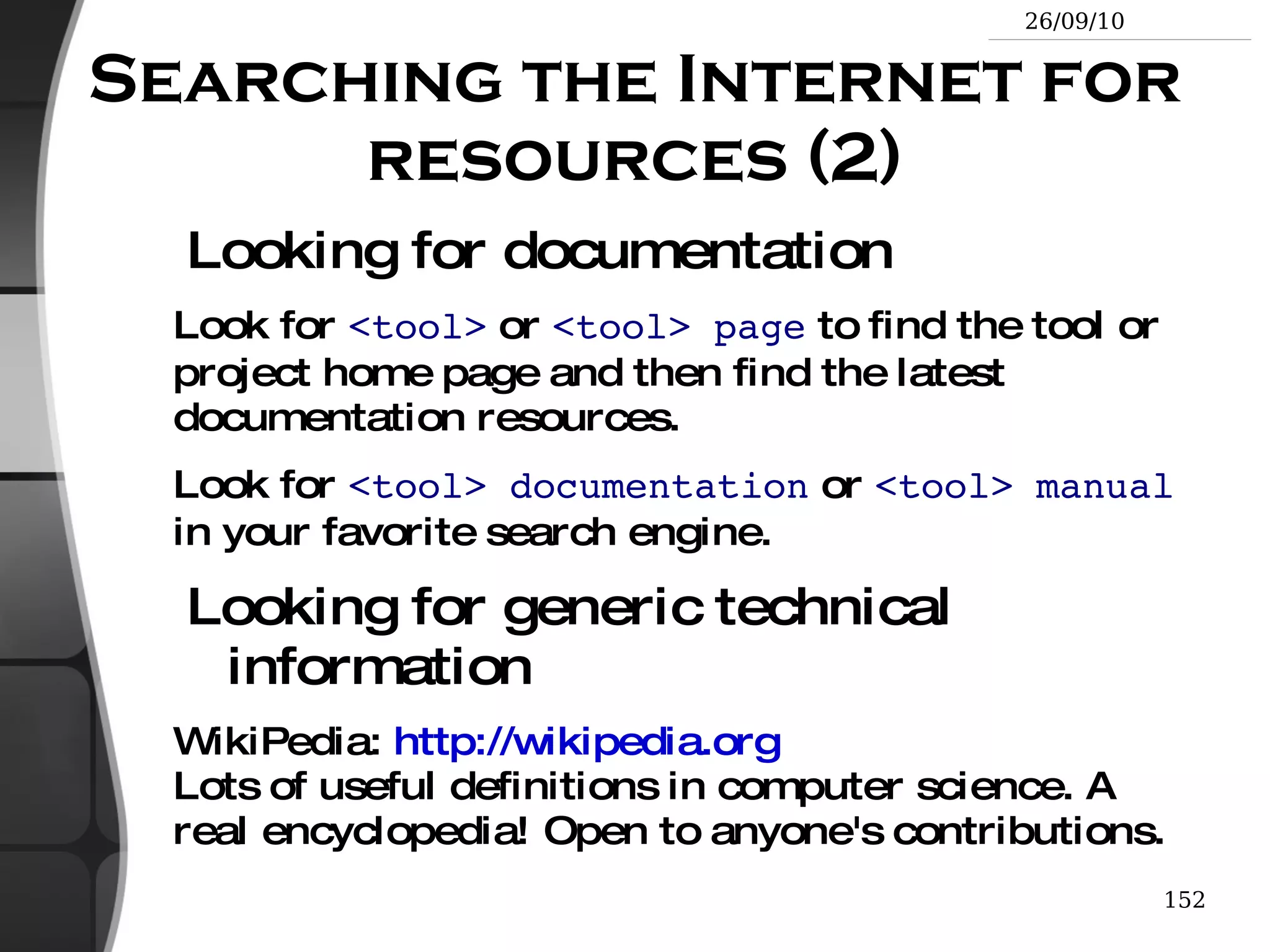
    Searching the Internetfor resources (2) Looking for documentation Look for <tool> or <tool> page to find the tool or project home page and then find the latest documentation resources.
  • 454.
    Look for <tool> documentation or <tool> manual in your favorite search engine. Looking for generic technical information WikiPedia: http://wikipedia.org Lots of useful definitions in computer science. A real encyclopedia! Open to anyone's contributions.
  • 455.
  • 456.
  • 457.
  • 458.
  • 459.
  • 460.
    Related documents http://free-electrons.com/trainingIntroduction to Unix and GNU/Linux
  • 461.
    Embedded Linux kerneland driver development
  • 462.
    Free Software toolsfor embedded Linux systems
  • 463.
    Audio in embeddedLinux systems
  • 464.
    Multimedia in embeddedLinux systems http://free-electrons.com/articles Advantages of Free Software in embedded systems
  • 465.
  • 466.
    Embedded Linux fromScratch... in 40 min! Linux USB drivers
  • 467.
    Real-time in embeddedLinux systems
  • 468.
  • 469.
    Linux on TIOMAP processors
  • 470.
  • 471.
    Java in embeddedLinux systems
  • 472.
    Introduction to GNU/Linuxand Free Software
  • 473.
  • 474.
    What's new inLinux 2.6?
  • 475.
    How to portLinux on a new PDA More than 1500 pages under free licenses.
  • 476.
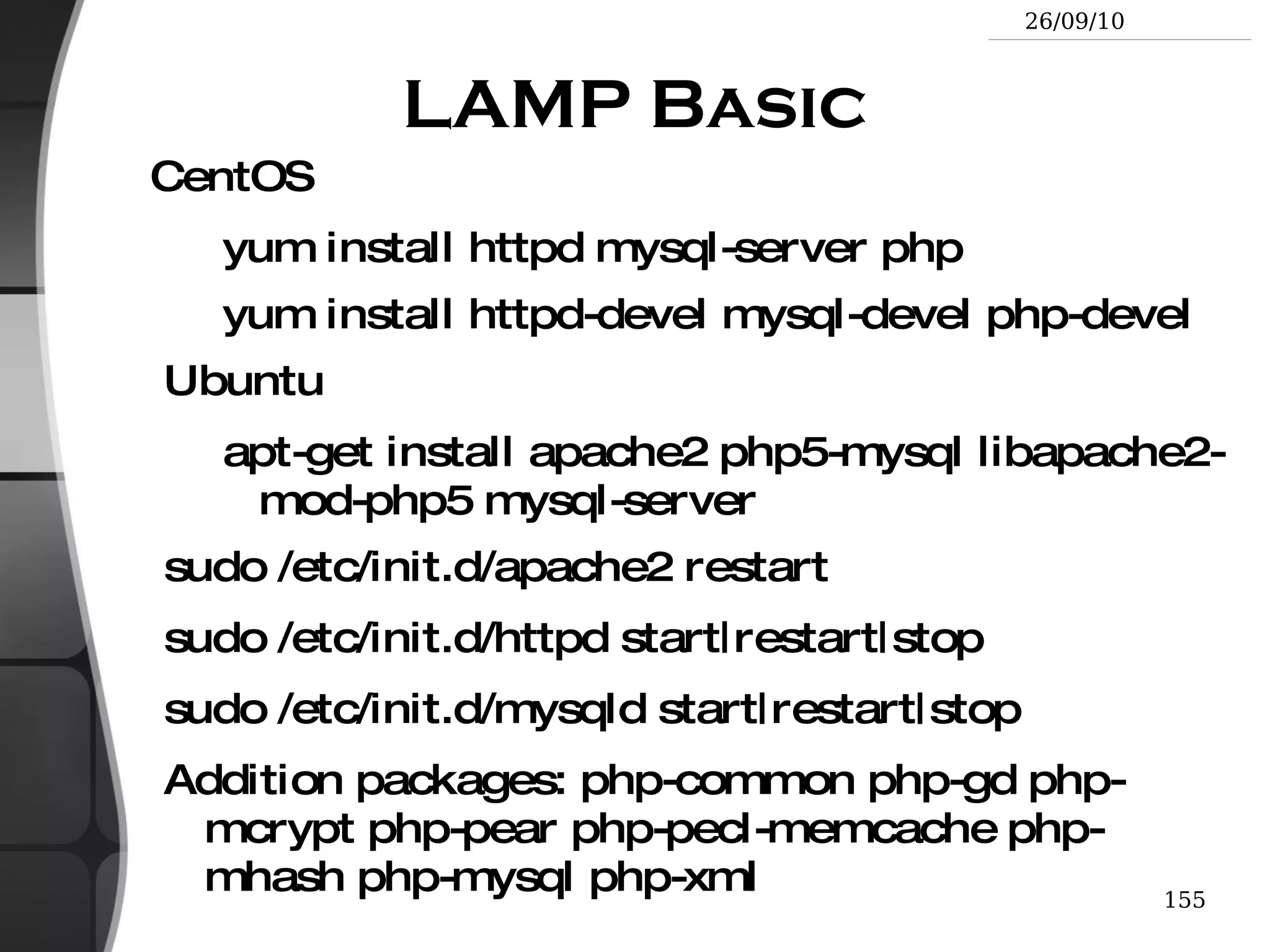
    LAMP Basic CentOSyum install httpd mysql-server php
  • 477.
    yum install httpd-develmysql-devel php-devel Ubuntu apt-get install apache2 php5-mysql libapache2-mod-php5 mysql-server sudo /etc/init.d/apache2 restart
  • 478.
  • 479.
  • 480.
    Addition packages: php-commonphp-gd php-mcrypt php-pear php-pecl-memcache php-mhash php-mysql php-xml
  • 481.
  • 482.
  • 483.
  • 484.
  • 485.
    Rights to copyAttribution – ShareAlike 2.5 You are free to copy, distribute, display, and perform the work
  • 486.
  • 487.
    to make commercialuse of the work Under the following conditions Attribution . You must give the original author credit. Share Alike . If you alter, transform, or build upon this work, you may distribute the resulting work only under a license identical to this one. For any reuse or distribution, you must make clear to others the license terms of this work.
  • 488.
    Any of theseconditions can be waived if you get permission from the copyright holder. Your fair use and other rights are in no way affected by the above. License text: http://creativecommons.org/licenses/by-sa/2.5/legalcode
  • 489.
    Copyright © Copyright 2004-2007 Free Electrons [email_address] Document sources, updates and translations: http://free-electrons.com/training/intro_unix_linux Corrections, suggestions, contributions and translations are welcome!

Editor's Notes

  • #99 No longer mentioned here [un]compress &lt;file&gt; Traditional Unix compression utility. Creates .Z files. Obsolete. Only kept for compatibility. Poor performance.