Views in Android
By
Sana Mateen
View and ViewGroup
• View and ViewGroup are the foundational blocks of Android UI.
• Views are individual UI widgets, while ViewGroups serve as
containers to arrange these widgets.
• A View is the core building block of Android UI – a rectangular area
on the screen responsible for drawing and handling user interaction.
• Examples include: TextView, Button, EditText, ImageView, CheckBox,
RadioButton, ProgressBar, Spinner, etc.
ViewGroup
• A ViewGroup is a specialized View that can contain other Views (and
even other ViewGroups), acting as an invisible container defining
layout structure.
• Common ViewGroup types include:
• LinearLayout – stacks children horizontally or vertically
• RelativeLayout, ConstraintLayout, FrameLayout, TableLayout,
GridView, ListView, WebView
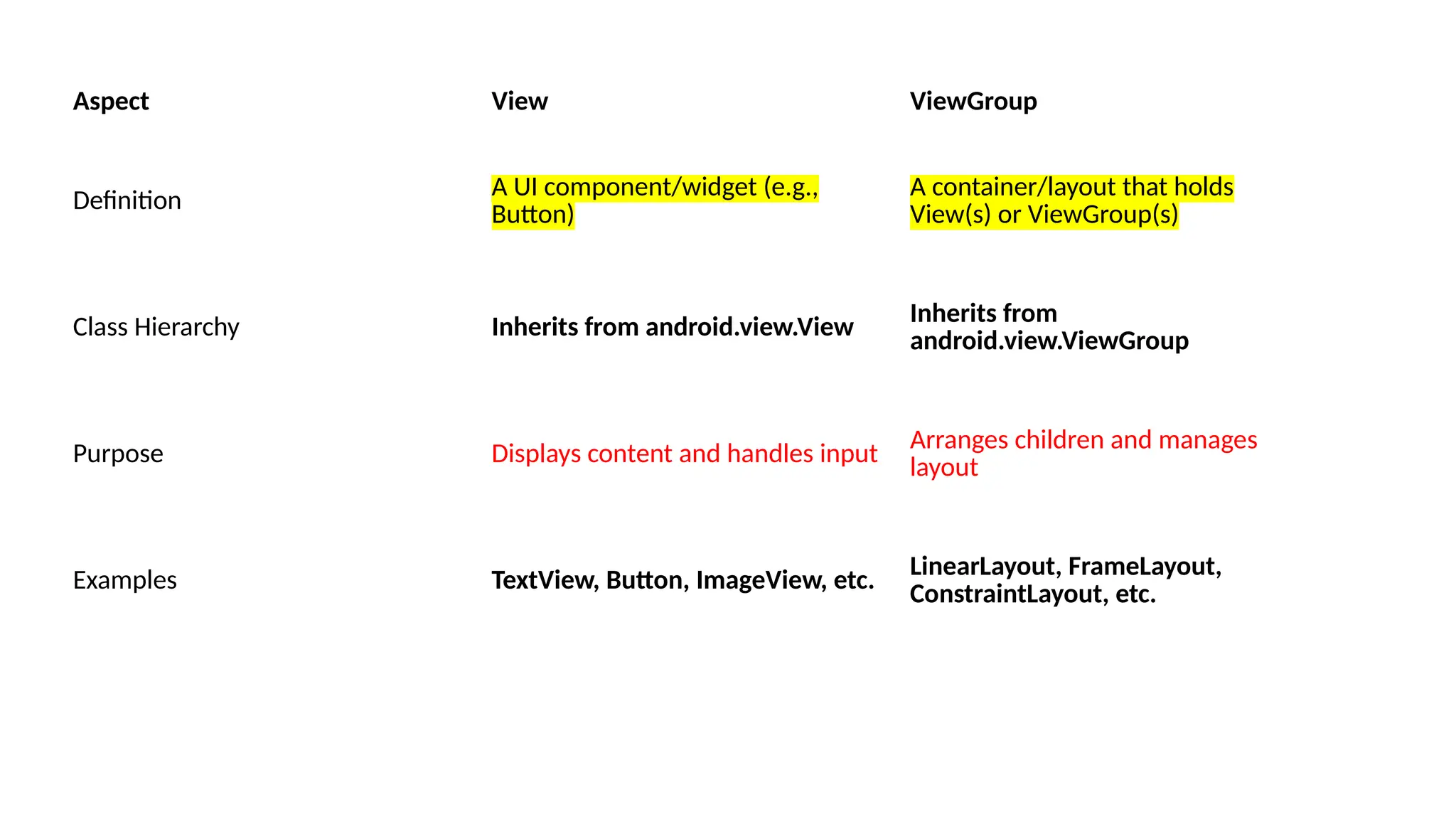
Aspect View ViewGroup
Definition A UI component/widget (e.g.,
Button)
A container/layout that holds
View(s) or ViewGroup(s)
Class Hierarchy Inherits from android.view.View Inherits from
android.view.ViewGroup
Purpose Displays content and handles input
Arranges children and manages
layout
Examples TextView, Button, ImageView, etc.
LinearLayout, FrameLayout,
ConstraintLayout, etc.
Building UI – View Hierarchy
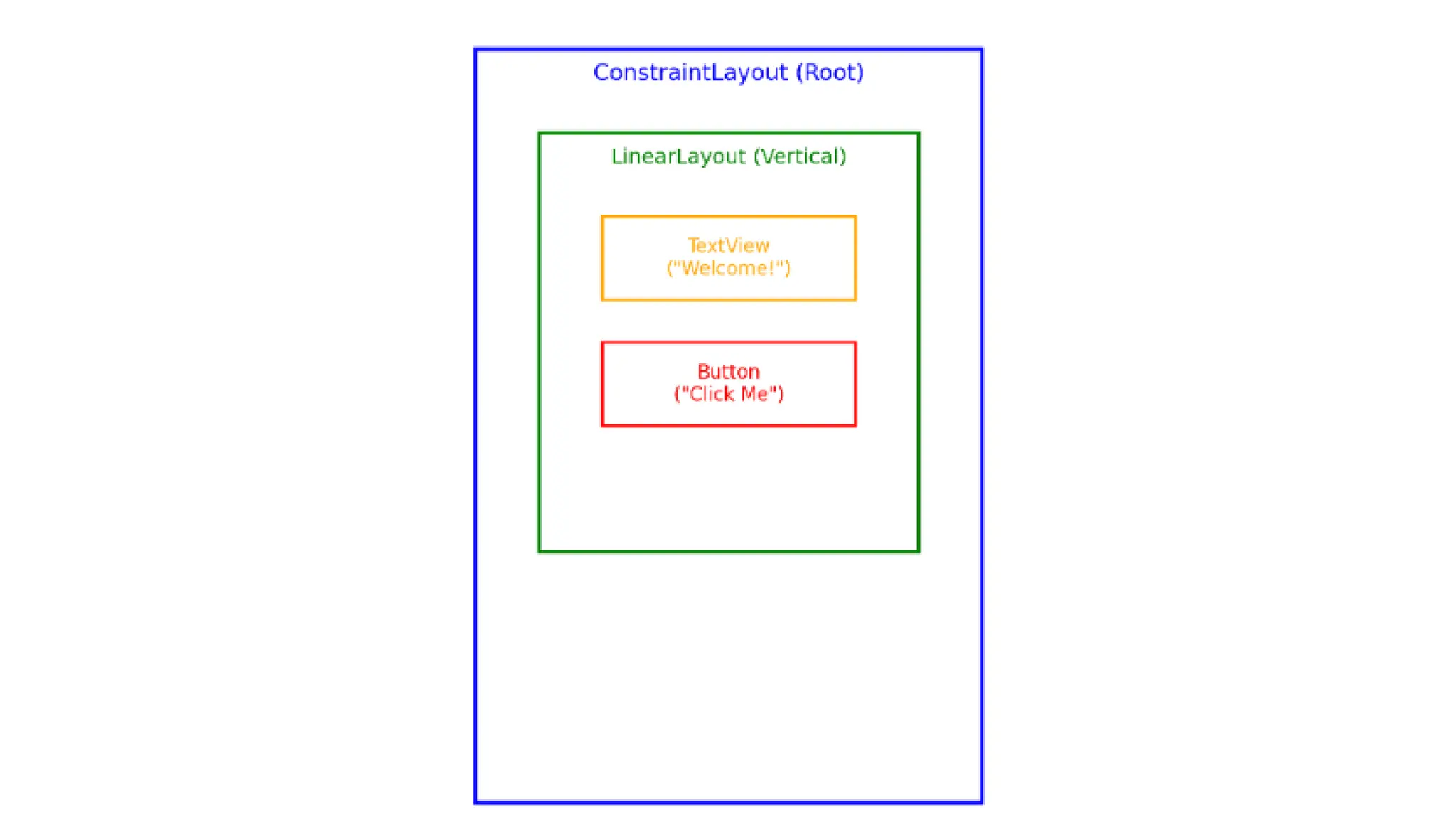
• Android UIs are structured as a hierarchy (a tree) of Views and
ViewGroups.
• Each screen has a root ViewGroup, nesting views and other
containers.
• XML is commonly used to declare these hierarchies; Android Studio's
Layout Editor can visually assist.
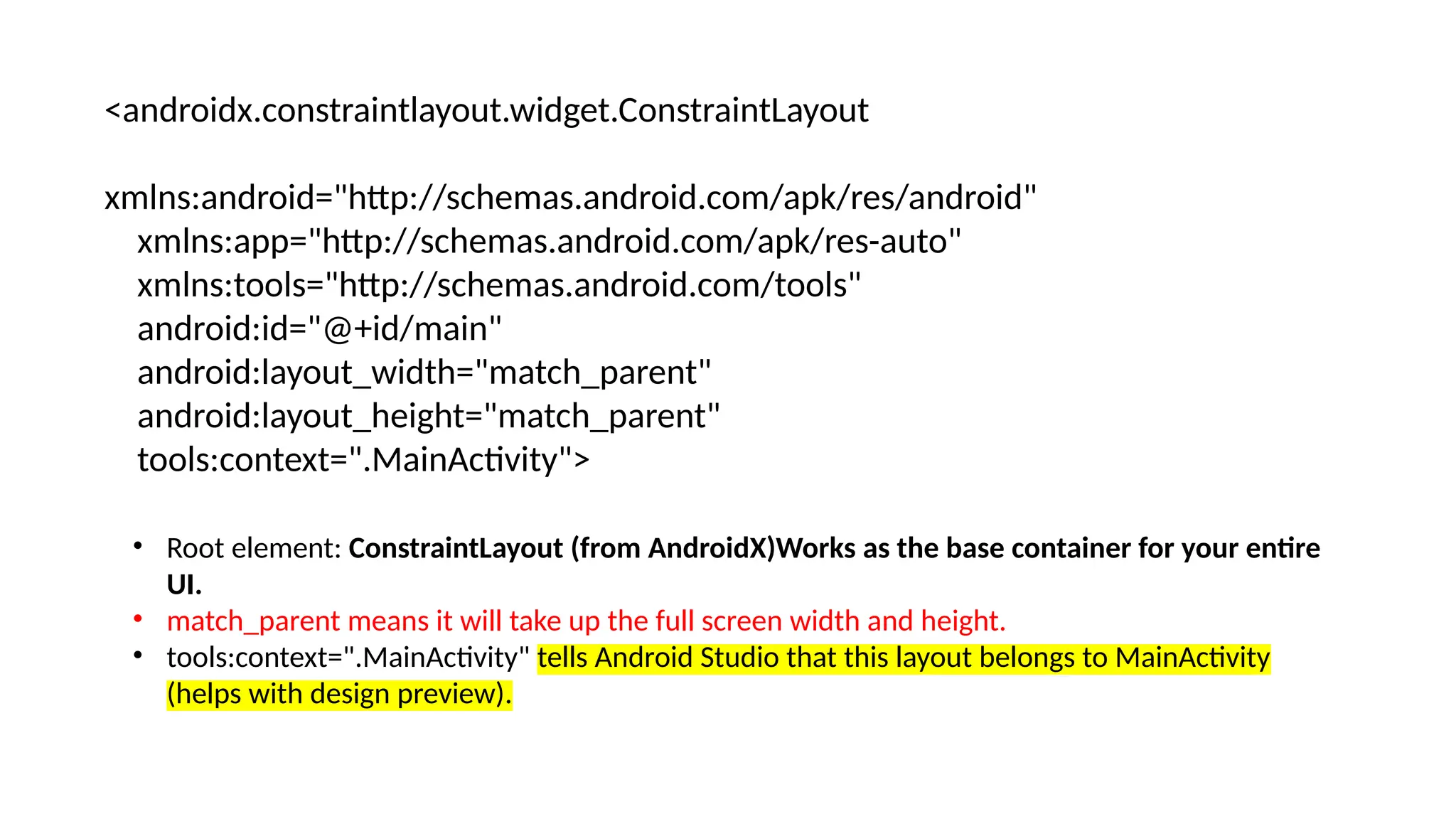
<androidx.constraintlayout.widget.ConstraintLayout
xmlns:android="http://schemas.android.com/apk/res/android"
xmlns:app="http://schemas.android.com/apk/res-auto"
xmlns:tools="http://schemas.android.com/tools"
android:id="@+id/main"
android:layout_width="match_parent"
android:layout_height="match_parent"
tools:context=".MainActivity">
• Root element: ConstraintLayout (from AndroidX)Works as the base container for your entire
UI.
• match_parent means it will take up the full screen width and height.
• tools:context=".MainActivity" tells Android Studio that this layout belongs to MainActivity
(helps with design preview).
<LinearLayout
android:layout_width="wrap_content"
android:layout_height="wrap_content"
android:orientation="vertical"
app:layout_constraintTop_toTopOf="parent"
app:layout_constraintStart_toStartOf="parent"
app:layout_constraintEnd_toEndOf="parent"
app:layout_constraintBottom_toBottomOf="parent">
<TextView
android:layout_width="wrap_content"
android:layout_height="wrap_content"
android:text="Welcome!" />
<Button
android:layout_width="wrap_content"
android:layout_height="wrap_content"
android:text="Click Me" />
</LinearLayout>
</androidx.constraintlayout.widget.ConstraintLayout>
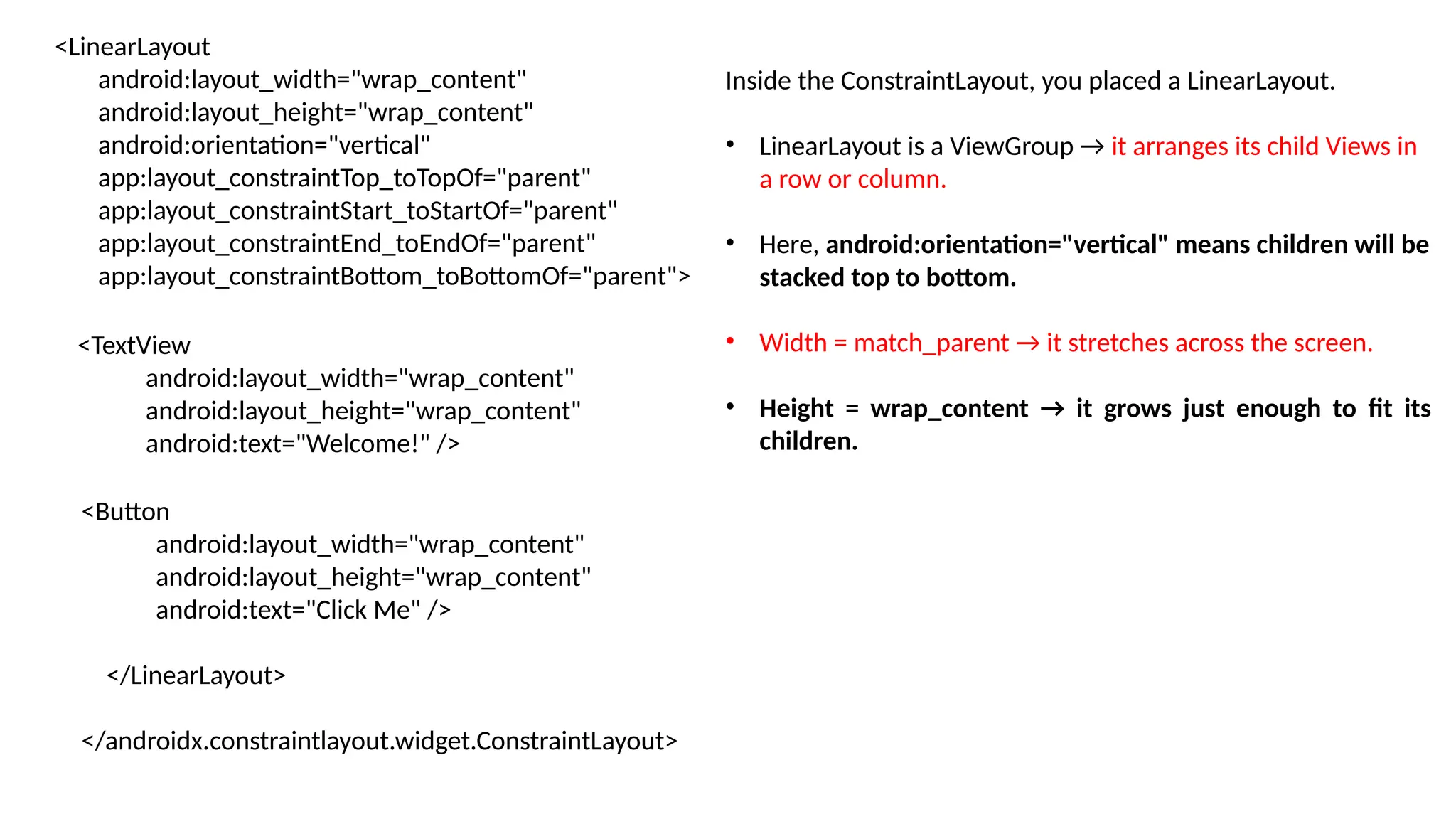
Inside the ConstraintLayout, you placed a LinearLayout.
• LinearLayout is a ViewGroup → it arranges its child Views in
a row or column.
• Here, android:orientation="vertical" means children will be
stacked top to bottom.
• Width = match_parent → it stretches across the screen.
• Height = wrap_content → it grows just enough to fit its
children.
<LinearLayout
android:layout_width="wrap_content"
android:layout_height="wrap_content"
android:orientation="vertical"
app:layout_constraintTop_toTopOf="parent"
app:layout_constraintStart_toStartOf="parent"
app:layout_constraintEnd_toEndOf="parent"
app:layout_constraintBottom_toBottomOf="parent">
<TextView
android:layout_width="wrap_content"
android:layout_height="wrap_content"
android:text="Welcome!" />
<Button
android:layout_width="wrap_content"
android:layout_height="wrap_content"
android:text="Click Me" />
</LinearLayout>
</androidx.constraintlayout.widget.ConstraintLayout>
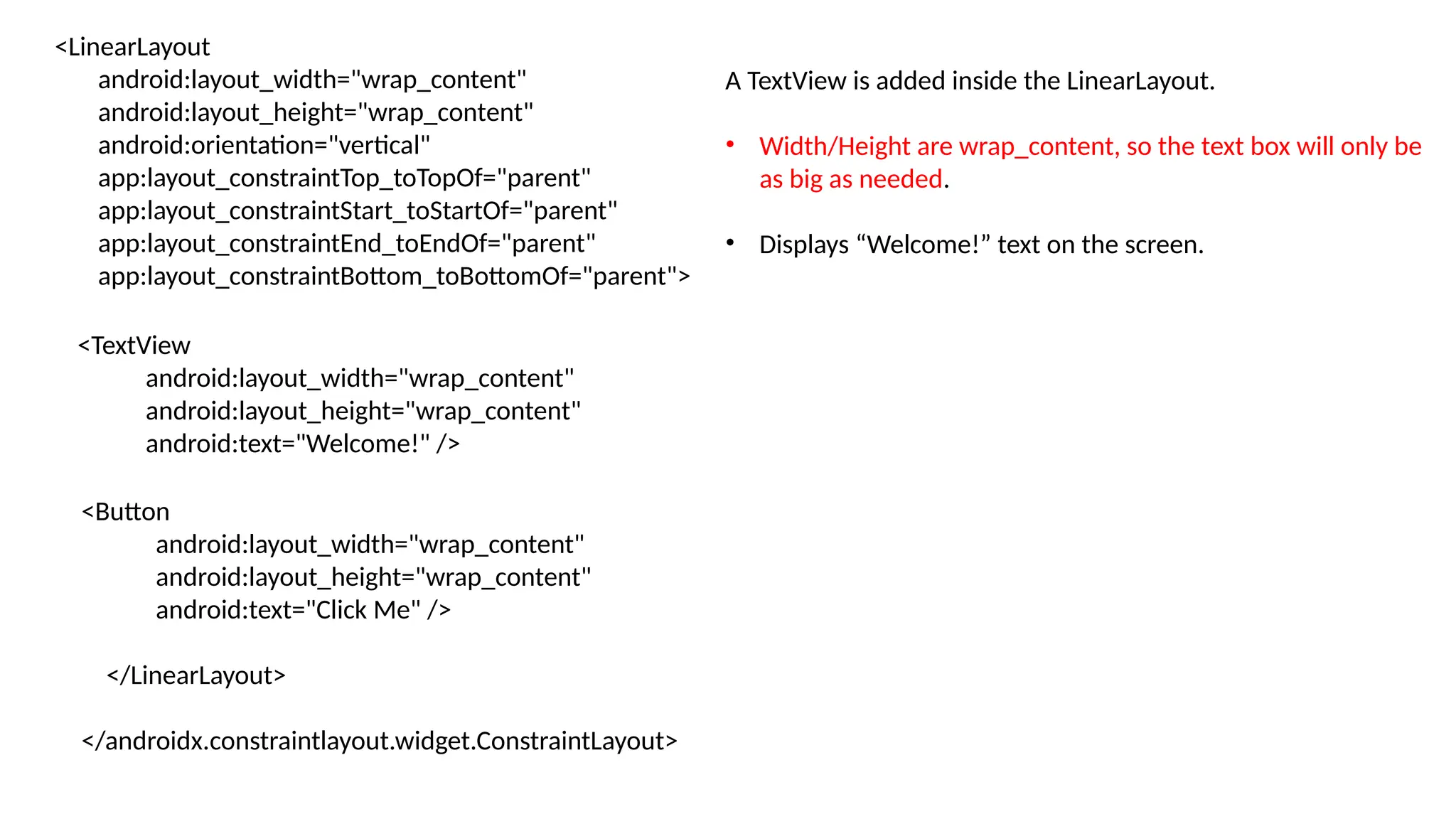
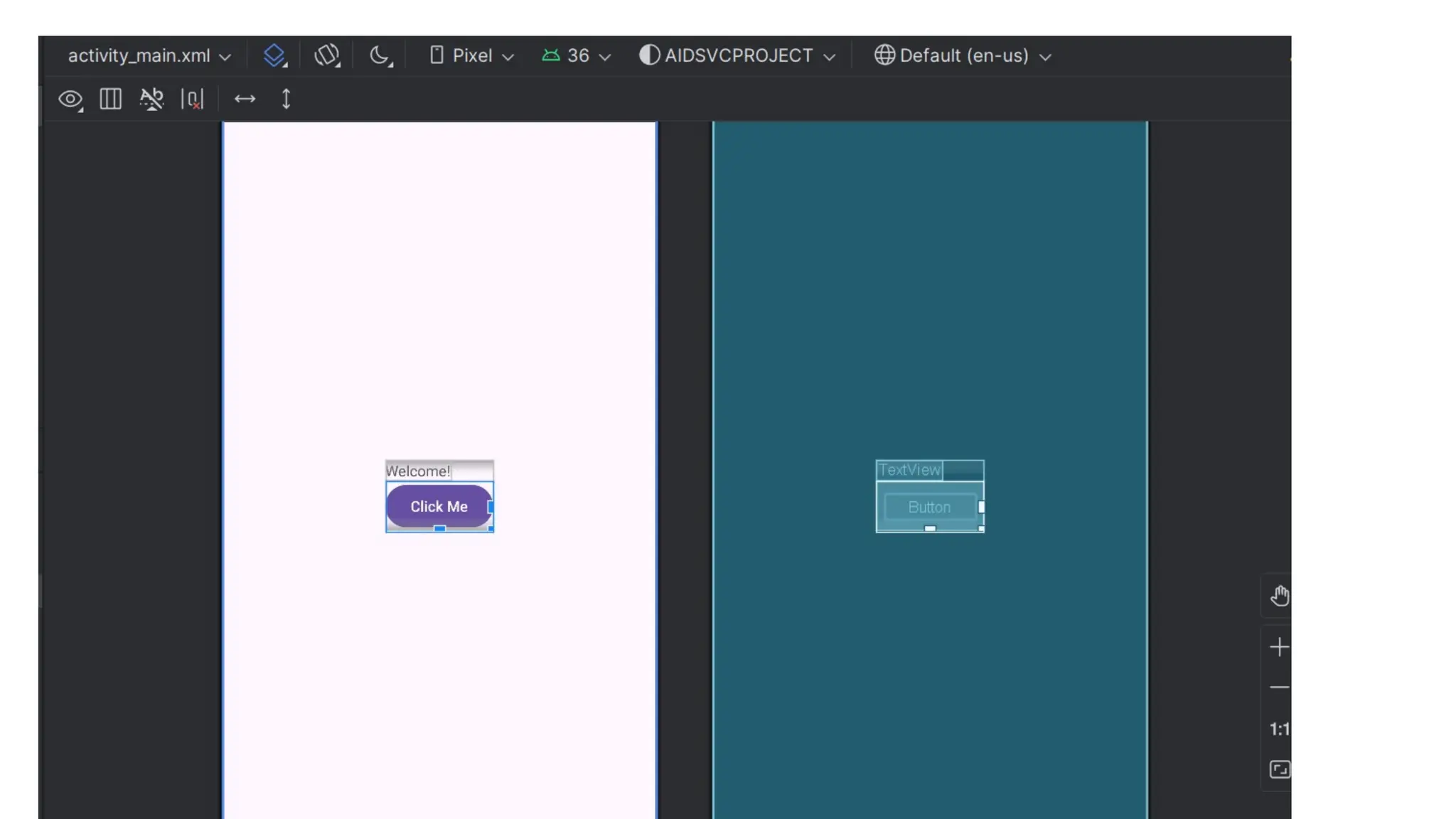
A TextView is added inside the LinearLayout.
• Width/Height are wrap_content, so the text box will only be
as big as needed.
• Displays “Welcome!” text on the screen.
<LinearLayout
android:layout_width="wrap_content"
android:layout_height="wrap_content"
android:orientation="vertical"
app:layout_constraintTop_toTopOf="parent"
app:layout_constraintStart_toStartOf="parent"
app:layout_constraintEnd_toEndOf="parent"
app:layout_constraintBottom_toBottomOf="parent">
<TextView
android:layout_width="wrap_content"
android:layout_height="wrap_content"
android:text="Welcome!" />
<Button
android:layout_width="wrap_content"
android:layout_height="wrap_content"
android:text="Click Me" />
</LinearLayout>
</androidx.constraintlayout.widget.ConstraintLayout>
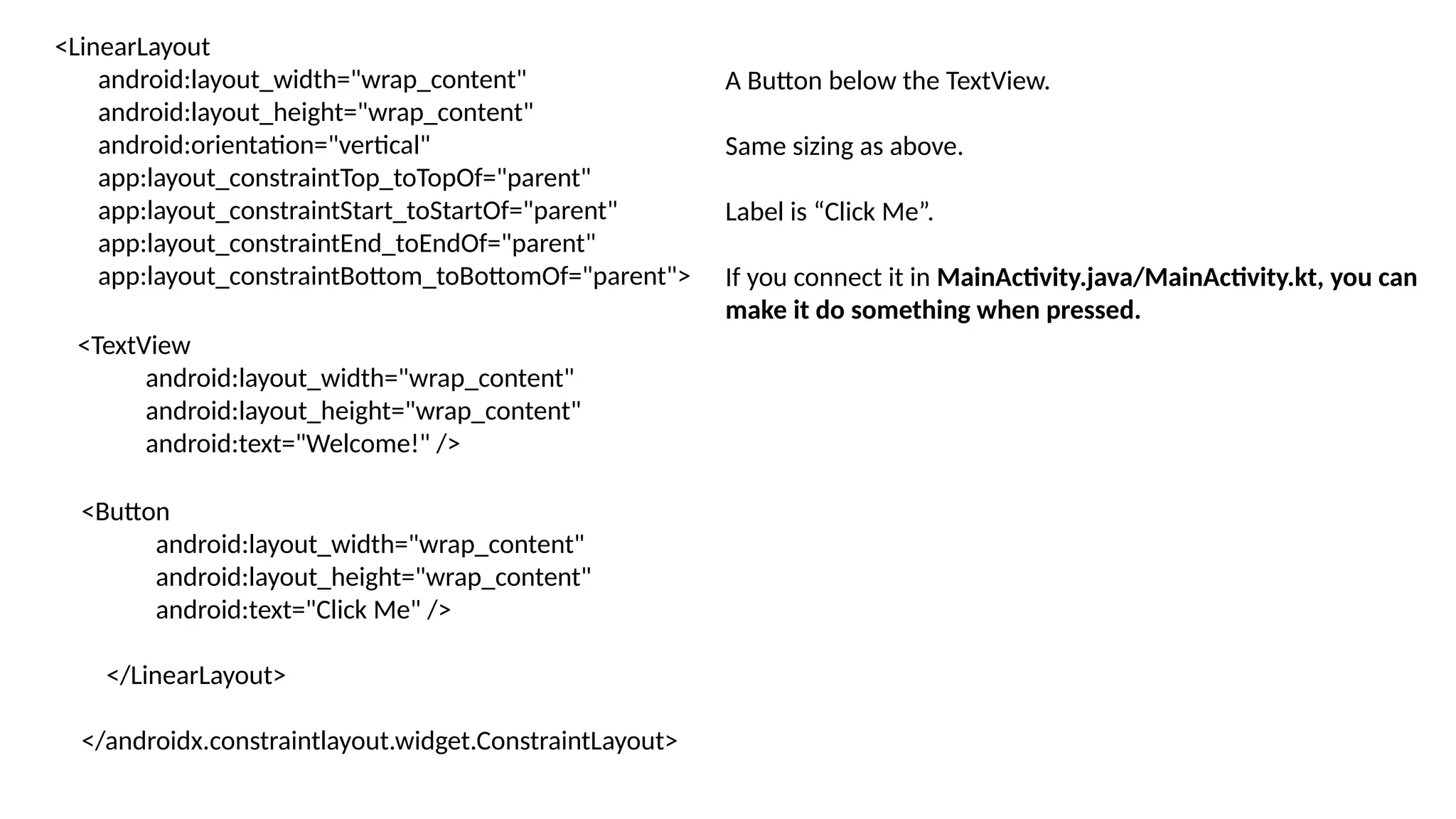
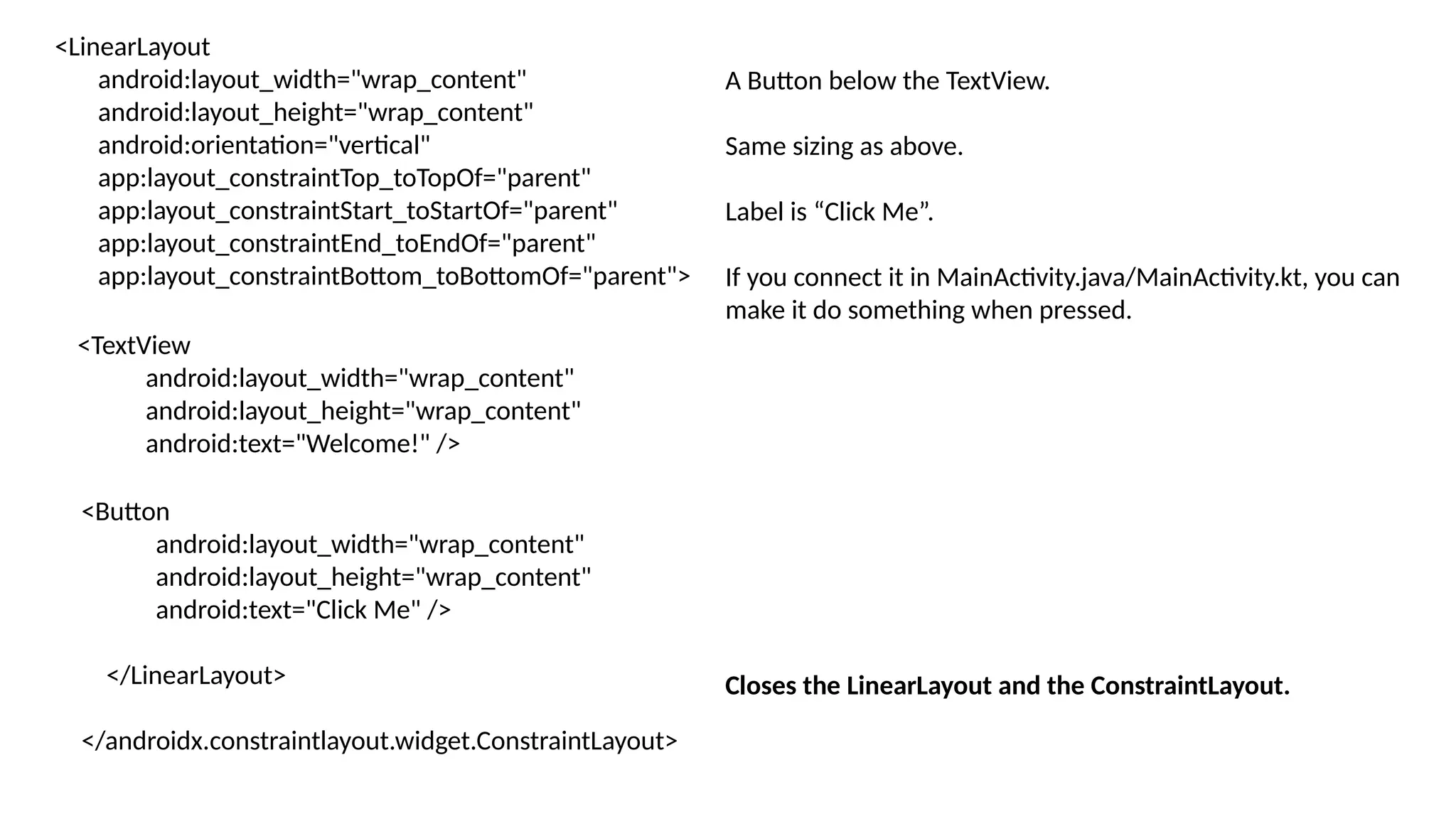
A Button below the TextView.
Same sizing as above.
Label is “Click Me”.
If you connect it in MainActivity.java/MainActivity.kt, you can
make it do something when pressed.
<LinearLayout
android:layout_width="wrap_content"
android:layout_height="wrap_content"
android:orientation="vertical"
app:layout_constraintTop_toTopOf="parent"
app:layout_constraintStart_toStartOf="parent"
app:layout_constraintEnd_toEndOf="parent"
app:layout_constraintBottom_toBottomOf="parent">
<TextView
android:layout_width="wrap_content"
android:layout_height="wrap_content"
android:text="Welcome!" />
<Button
android:layout_width="wrap_content"
android:layout_height="wrap_content"
android:text="Click Me" />
</LinearLayout>
</androidx.constraintlayout.widget.ConstraintLayout>
A Button below the TextView.
Same sizing as above.
Label is “Click Me”.
If you connect it in MainActivity.java/MainActivity.kt, you can
make it do something when pressed.
Closes the LinearLayout and the ConstraintLayout.
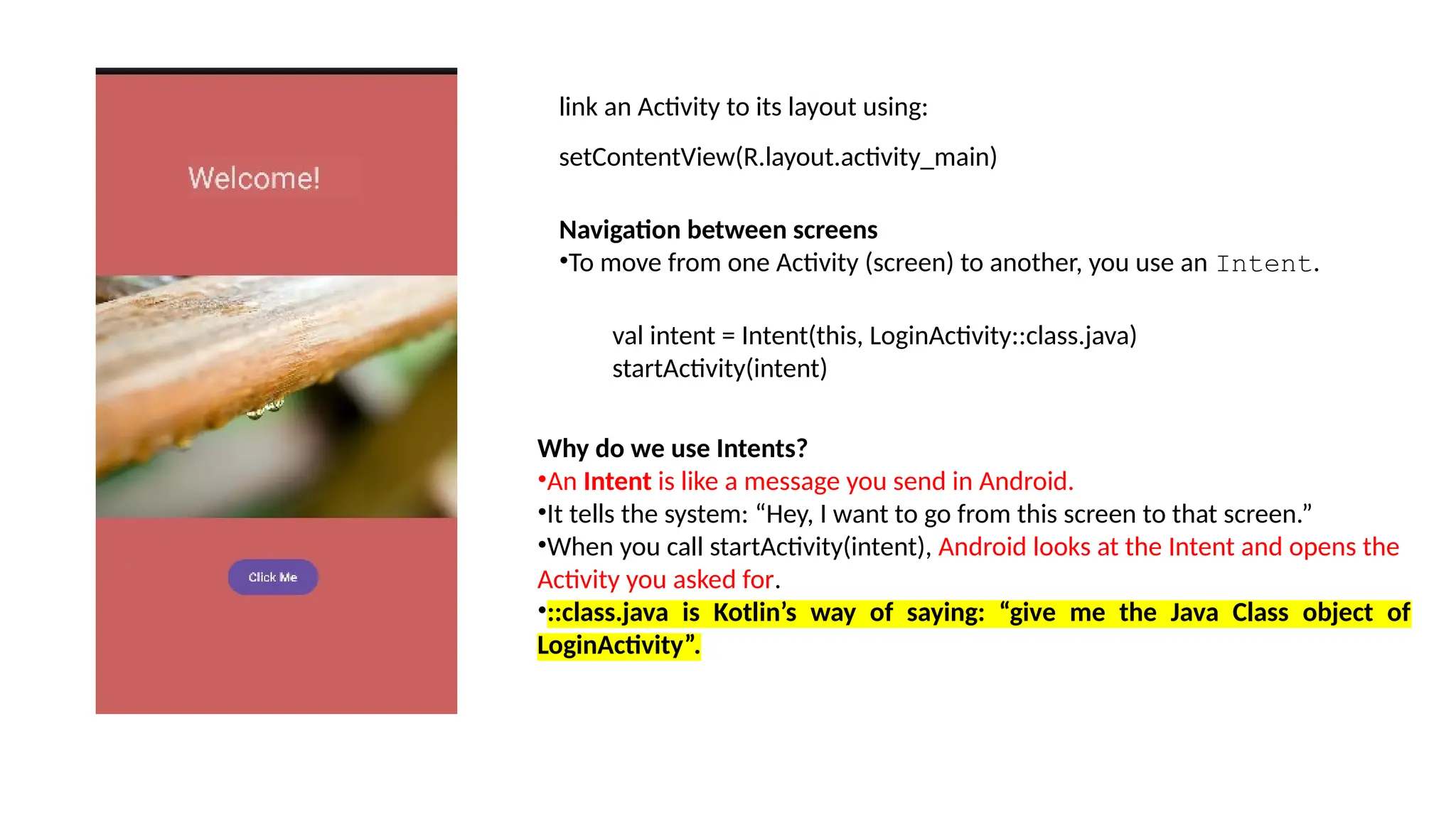
link an Activity to its layout using:
setContentView(R.layout.activity_main)
Navigation between screens
•To move from one Activity (screen) to another, you use an Intent.
val intent = Intent(this, LoginActivity::class.java)
startActivity(intent)
Why do we use Intents?
•An Intent is like a message you send in Android.
•It tells the system: “Hey, I want to go from this screen to that screen.”
•When you call startActivity(intent), Android looks at the Intent and opens the
Activity you asked for.
•::class.java is Kotlin’s way of saying: “give me the Java Class object of
LoginActivity”.
Views Android programming kotlin project

Views Android programming kotlin project