VI Editor In Linux 
 Page 1
 Page 2 
Agenda 
WHAT IS VI EDITOR? 
HISTORY OF VI. 
CHARACTERISTIC OF VI. 
STARTING VI 
MODE IN VI EDITOR. 
COMMON VI COMMAND 
HOW TO EXIT FROM VI
 Page 3 
What is Vi Editor? 
 The visual editor on the Linux. 
 The vi editor comes with every version of Linux or Unix. 
 Using vi is similar to using other editors in that you can see your file on the 
screen .. 
 The vi editor is the most popular editor in linux. The current version is 
really "vim", but to invoke it simply type "vi". 
 Before vi the primary editor used on Unix was the line editor 
- User was able to see/edit only one line of the text at a time 
 The vi editor is not a text formatter (like MS Word, Word Perfect, etc.) 
- you cannot set margins 
- center headings 
- Etc…
 Page 4 
History of Vi Editor 
 Although other stories exist, the true one tells that vi was originally written 
by Bill Joy in 1976. 
 Who is Bill Joy you ask? 
- He co-founded Sun Microsystems in 1982 and served as chief scientist until 2003.
 Page 5 
Characteristics of vi 
 The vi editor is: 
- A very powerful 
- It is hard to learn, specially for windows users 
- Move from point to point in the file, and make changes. 
- Available on all UNIX systems
 Page 6 
Starting vi 
 Type vi <filename> at the shell prompt 
 After pressing enter the command prompt disappears and you see tilde(~) 
characters on all the lines 
 These tilde characters indicate that the line is blank
 Page 7 
Vi modes 
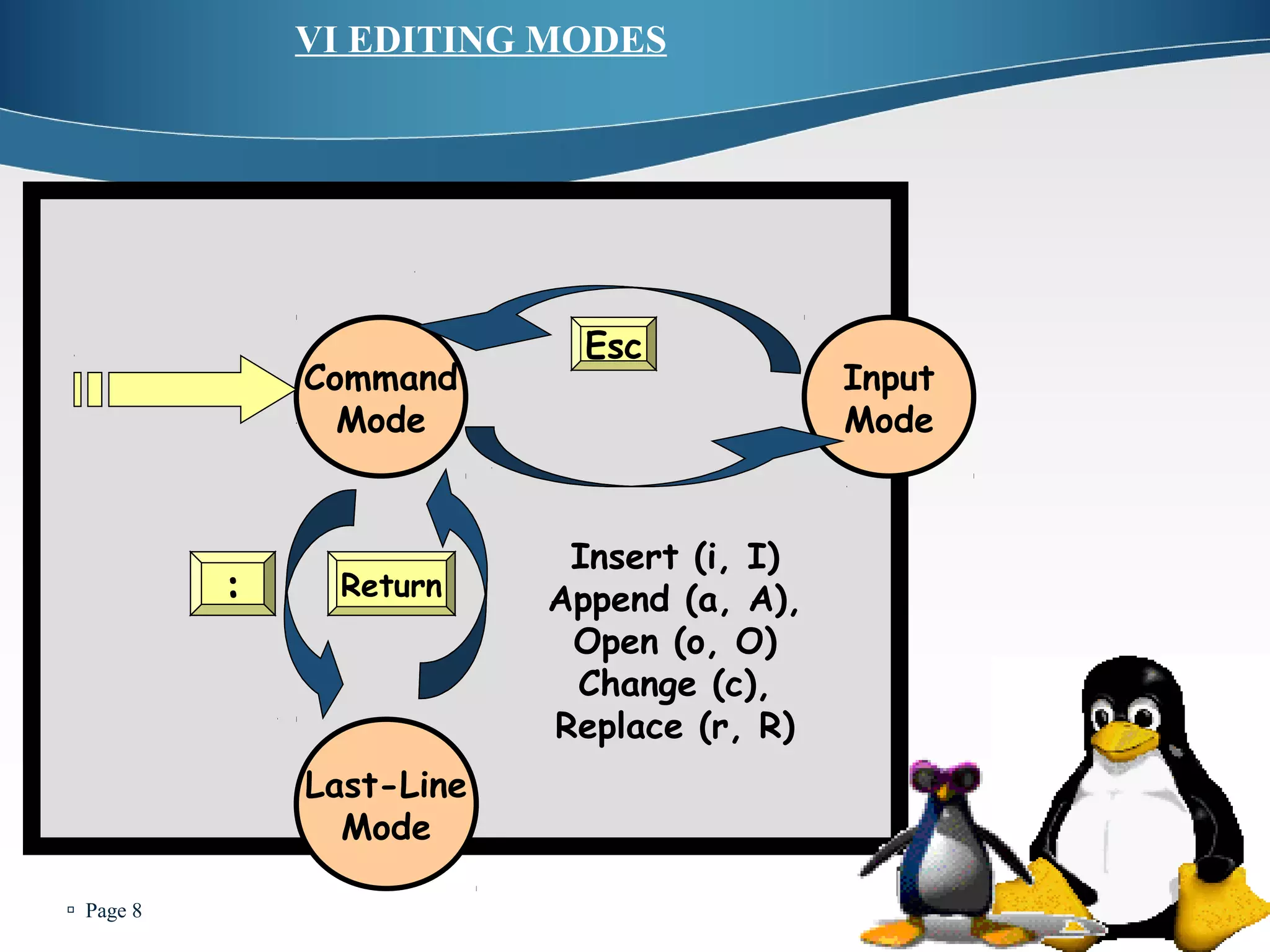
 There are three modes in vi 
- Command mode 
- Accessed by typing Esc 
- In this mode all the keys pressed by the user are interpret to the editor 
command. 
- Input mode 
- Accessed by typing “i” 
- This mode permits insertion of new text, editing of existing text or 
replacement of existing text. 
Ex mode( Last Line Mode) 
-The bottom line of the vi screen is called ex mode. 
- When you start vi by default it is in command mode 
-You exit the input mode by pressing the Esc key to get back 
to the command mode.
 Page 8 
VI EDITING MODES 
Command 
Mode 
Input 
Mode 
Last-Line 
Mode 
Esc 
Insert (i, I) 
Append (a, A), 
Open (o, O) 
Change (c), 
Replace (r, R) 
: Return
 Page 9 
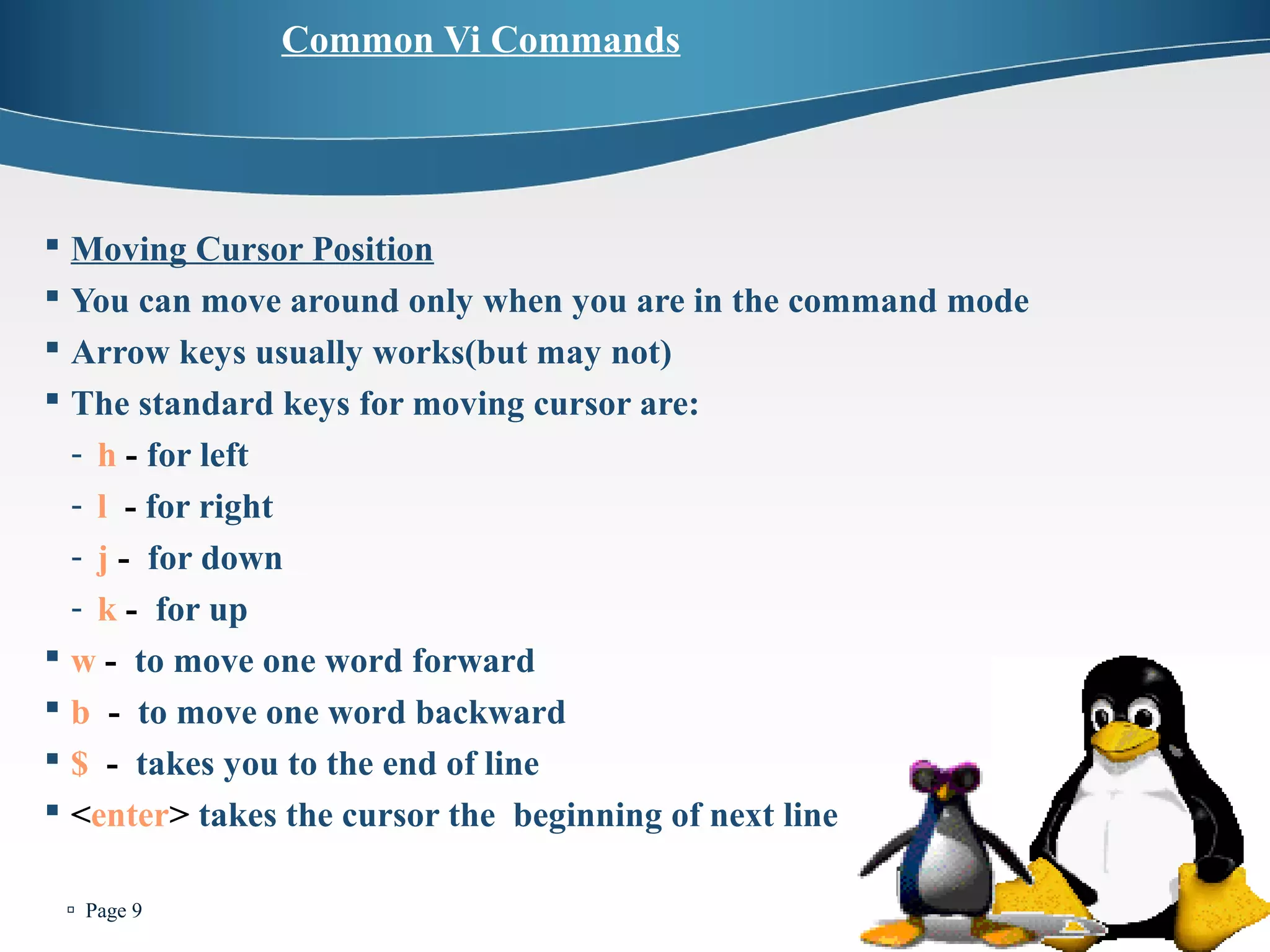
Common Vi Commands 
 Moving Cursor Position 
 You can move around only when you are in the command mode 
 Arrow keys usually works(but may not) 
 The standard keys for moving cursor are: 
- h - for left 
- l - for right 
- j - for down 
- k - for up 
 w - to move one word forward 
 b - to move one word backward 
 $ - takes you to the end of line 
 <enter> takes the cursor the beginning of next line
 Page 10 
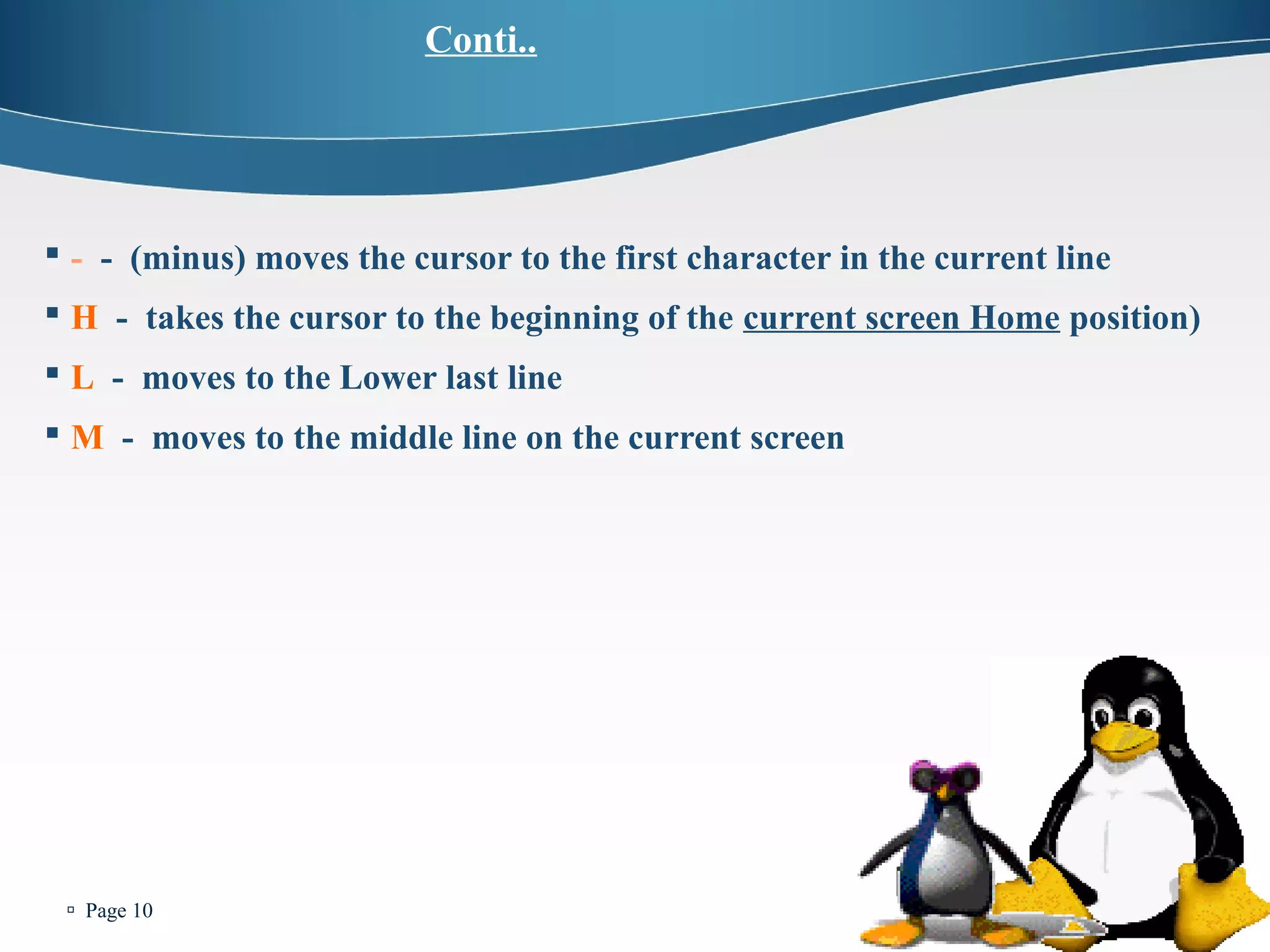
Conti.. 
 - - (minus) moves the cursor to the first character in the current line 
 H - takes the cursor to the beginning of the current screen Home position) 
 L - moves to the Lower last line 
 M - moves to the middle line on the current screen
 Page 11 
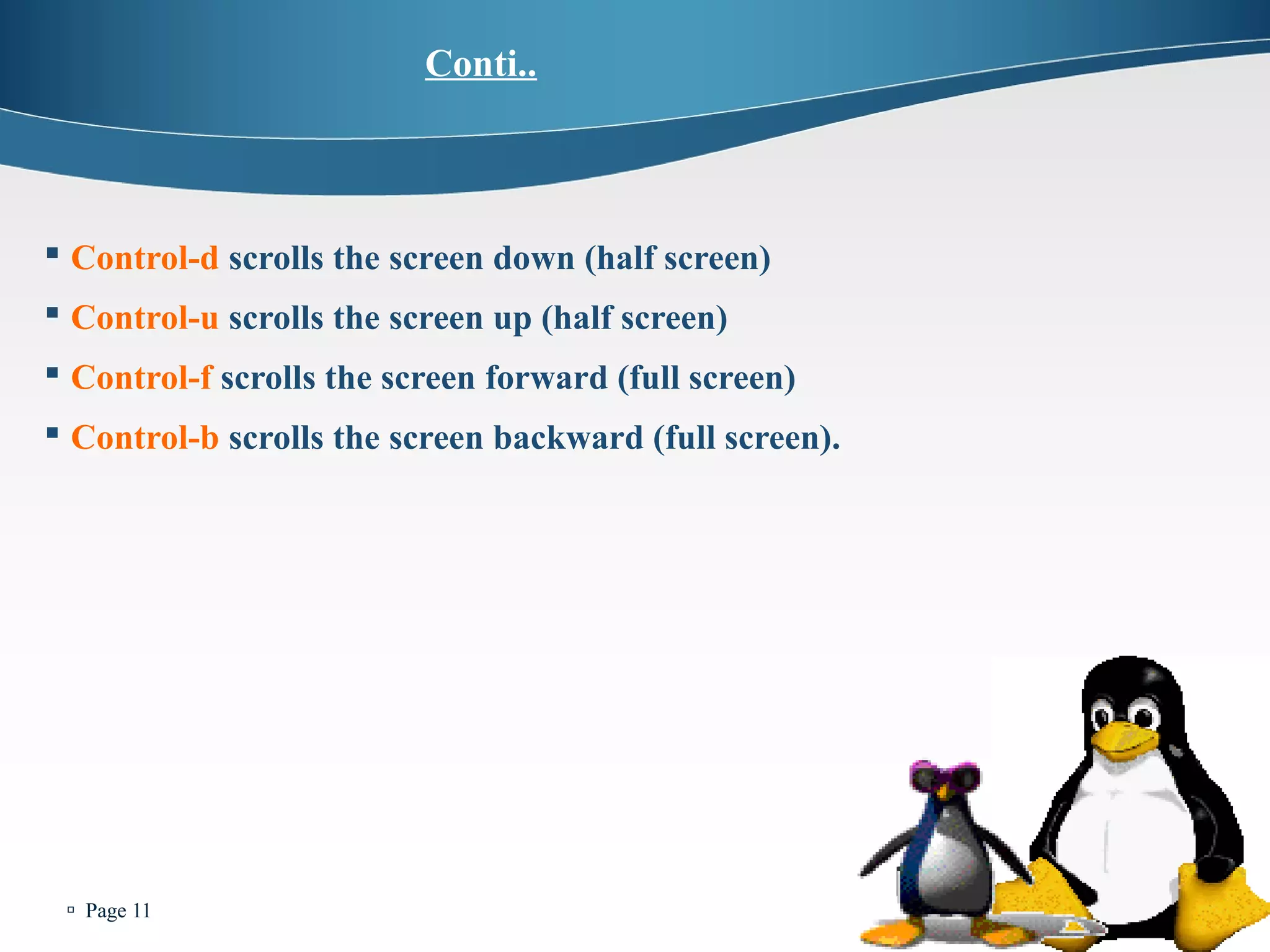
Conti.. 
 Control-d scrolls the screen down (half screen) 
 Control-u scrolls the screen up (half screen) 
 Control-f scrolls the screen forward (full screen) 
 Control-b scrolls the screen backward (full screen).
 Page 12 
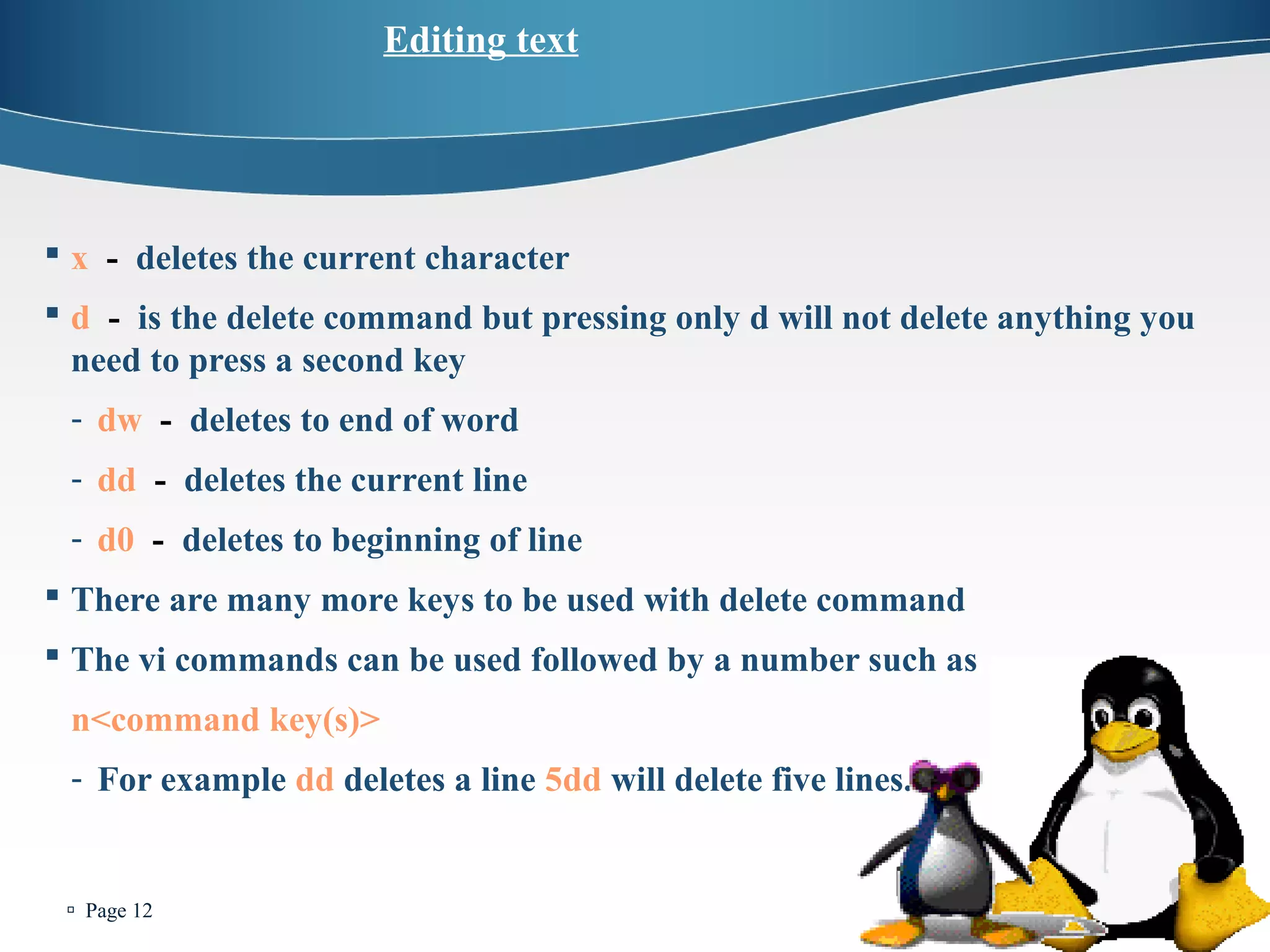
Editing text 
 x - deletes the current character 
 d - is the delete command but pressing only d will not delete anything you 
need to press a second key 
- dw - deletes to end of word 
- dd - deletes the current line 
- d0 - deletes to beginning of line 
 There are many more keys to be used with delete command 
 The vi commands can be used followed by a number such as 
n<command key(s)> 
- For example dd deletes a line 5dd will delete five lines.
 Page 13 
Copy, cut and paste in vi 
 yy - (yank) copy current line to buffer 
 nyy - Where n is number of lines 
 p - Paste the yanked lines from buffer to the line below 
 P - Paste the yanked lines from buffer to the line above
 Page 14 
Undo and repeat command 
 u - undo the changes made by editing commands 
 . - (dot or period) repeats the last edit command
 Page 15 
How to exit from vi 
(command mode) 
 ZZ is for save and Exit (Note this command is uppercase) 
 :q <enter> is to exit, if you have not made any changes to the file
 Page 16 
Thank You

Vi editor in linux

  • 1.
    VI Editor InLinux  Page 1
  • 2.
     Page 2 Agenda WHAT IS VI EDITOR? HISTORY OF VI. CHARACTERISTIC OF VI. STARTING VI MODE IN VI EDITOR. COMMON VI COMMAND HOW TO EXIT FROM VI
  • 3.
     Page 3 What is Vi Editor?  The visual editor on the Linux.  The vi editor comes with every version of Linux or Unix.  Using vi is similar to using other editors in that you can see your file on the screen ..  The vi editor is the most popular editor in linux. The current version is really "vim", but to invoke it simply type "vi".  Before vi the primary editor used on Unix was the line editor - User was able to see/edit only one line of the text at a time  The vi editor is not a text formatter (like MS Word, Word Perfect, etc.) - you cannot set margins - center headings - Etc…
  • 4.
     Page 4 History of Vi Editor  Although other stories exist, the true one tells that vi was originally written by Bill Joy in 1976.  Who is Bill Joy you ask? - He co-founded Sun Microsystems in 1982 and served as chief scientist until 2003.
  • 5.
     Page 5 Characteristics of vi  The vi editor is: - A very powerful - It is hard to learn, specially for windows users - Move from point to point in the file, and make changes. - Available on all UNIX systems
  • 6.
     Page 6 Starting vi  Type vi <filename> at the shell prompt  After pressing enter the command prompt disappears and you see tilde(~) characters on all the lines  These tilde characters indicate that the line is blank
  • 7.
     Page 7 Vi modes  There are three modes in vi - Command mode - Accessed by typing Esc - In this mode all the keys pressed by the user are interpret to the editor command. - Input mode - Accessed by typing “i” - This mode permits insertion of new text, editing of existing text or replacement of existing text. Ex mode( Last Line Mode) -The bottom line of the vi screen is called ex mode. - When you start vi by default it is in command mode -You exit the input mode by pressing the Esc key to get back to the command mode.
  • 8.
     Page 8 VI EDITING MODES Command Mode Input Mode Last-Line Mode Esc Insert (i, I) Append (a, A), Open (o, O) Change (c), Replace (r, R) : Return
  • 9.
     Page 9 Common Vi Commands  Moving Cursor Position  You can move around only when you are in the command mode  Arrow keys usually works(but may not)  The standard keys for moving cursor are: - h - for left - l - for right - j - for down - k - for up  w - to move one word forward  b - to move one word backward  $ - takes you to the end of line  <enter> takes the cursor the beginning of next line
  • 10.
     Page 10 Conti..  - - (minus) moves the cursor to the first character in the current line  H - takes the cursor to the beginning of the current screen Home position)  L - moves to the Lower last line  M - moves to the middle line on the current screen
  • 11.
     Page 11 Conti..  Control-d scrolls the screen down (half screen)  Control-u scrolls the screen up (half screen)  Control-f scrolls the screen forward (full screen)  Control-b scrolls the screen backward (full screen).
  • 12.
     Page 12 Editing text  x - deletes the current character  d - is the delete command but pressing only d will not delete anything you need to press a second key - dw - deletes to end of word - dd - deletes the current line - d0 - deletes to beginning of line  There are many more keys to be used with delete command  The vi commands can be used followed by a number such as n<command key(s)> - For example dd deletes a line 5dd will delete five lines.
  • 13.
     Page 13 Copy, cut and paste in vi  yy - (yank) copy current line to buffer  nyy - Where n is number of lines  p - Paste the yanked lines from buffer to the line below  P - Paste the yanked lines from buffer to the line above
  • 14.
     Page 14 Undo and repeat command  u - undo the changes made by editing commands  . - (dot or period) repeats the last edit command
  • 15.
     Page 15 How to exit from vi (command mode)  ZZ is for save and Exit (Note this command is uppercase)  :q <enter> is to exit, if you have not made any changes to the file
  • 16.
     Page 16 Thank You