VBA Excel Level II

    By Ben Miu
What do we know?
• Macro Recorder
• Basic Variables
• If Then Else
• Loops
• Debugging and error trapping
• Arrays
Now, how do you take your coding to a new
level?
Review Lab
• Type the following code into Excel VBA

Dim AIMCOEmployeeNames(2) as String
AIMCOEmployeeNames(1) = “Jerry”
AIMCOEmployeeNames(2) = “Yang”

For I = 1 to 5
          If Range(“A” & i).value = AIMCOEmployeeNames(1) Then Msgbox
(“Found Jerry”)

       If Range(“A” & i).value = AIMCOEmployeeNames(2) Then
Msgbox(“Found Yang”)

Next i
String Operations
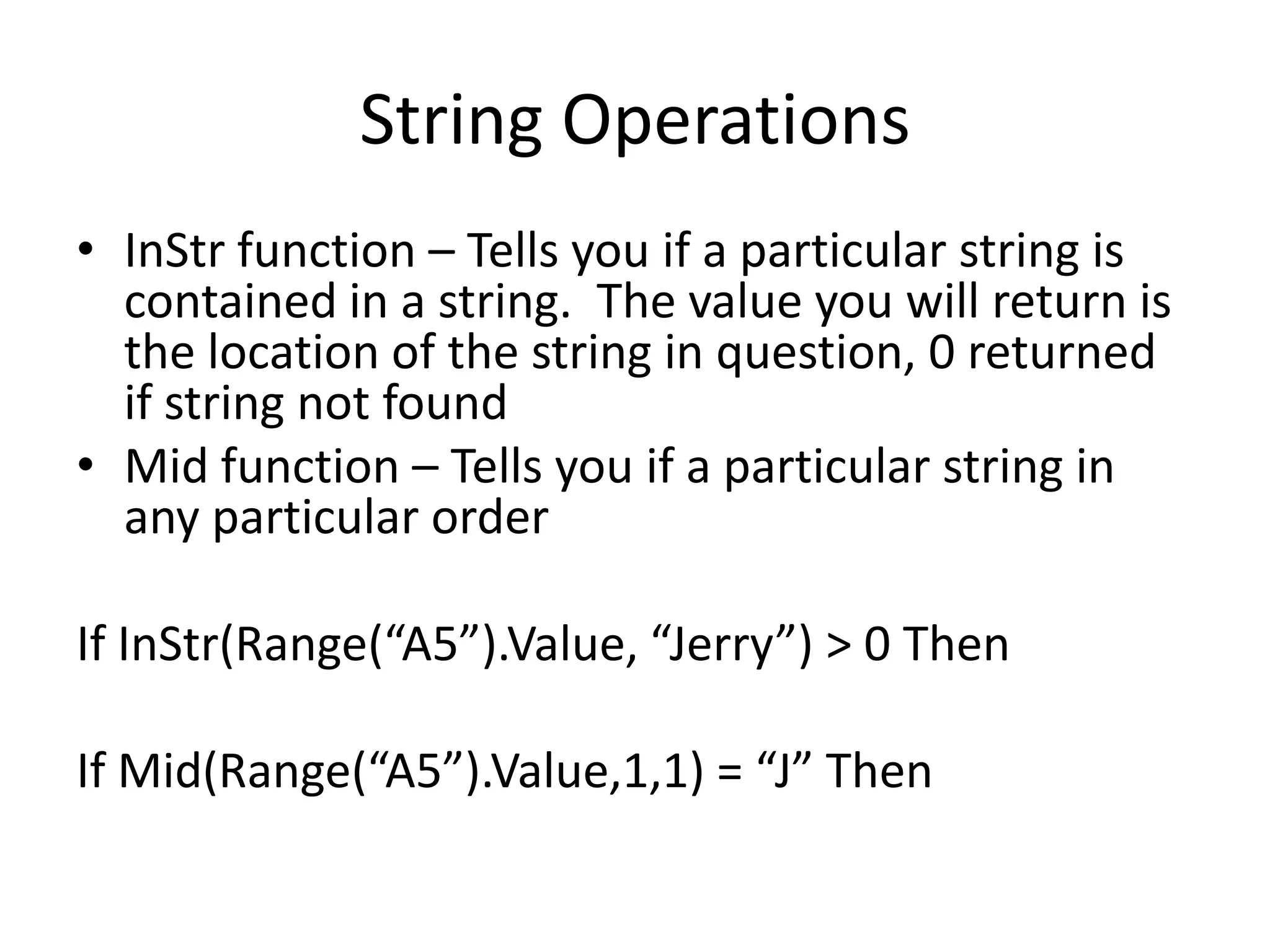
• InStr function – Tells you if a particular string is
  contained in a string. The value you will return is
  the location of the string in question, 0 returned
  if string not found
• Mid function – Tells you if a particular string in
  any particular order

If InStr(Range(“A5”).Value, “Jerry”) > 0 Then

If Mid(Range(“A5”).Value,1,1) = “J” Then
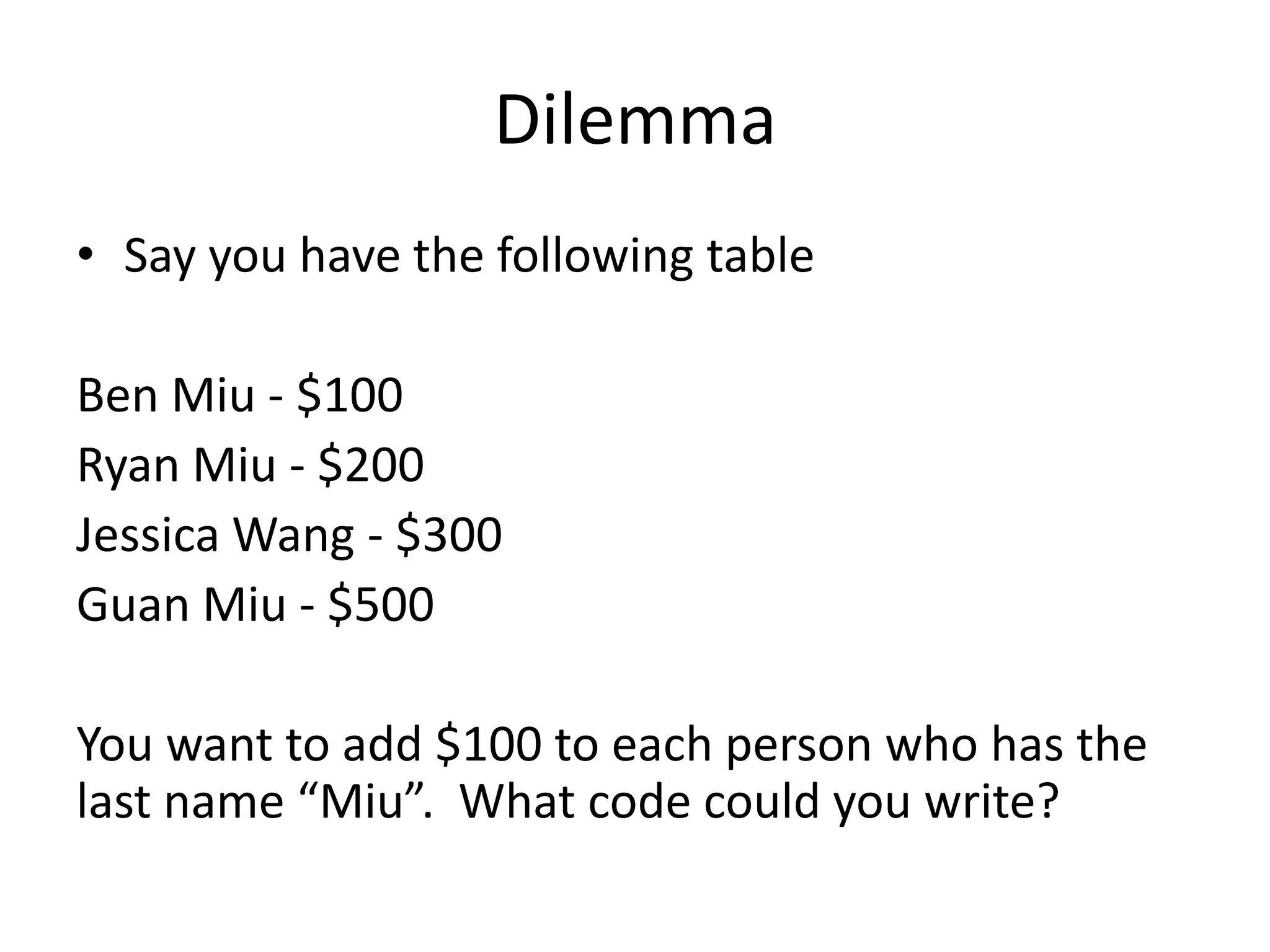
Dilemma
• Say you have the following table

Ben Miu - $100
Ryan Miu - $200
Jessica Wang - $300
Guan Miu - $500

You want to add $100 to each person who has the
last name “Miu”. What code could you write?
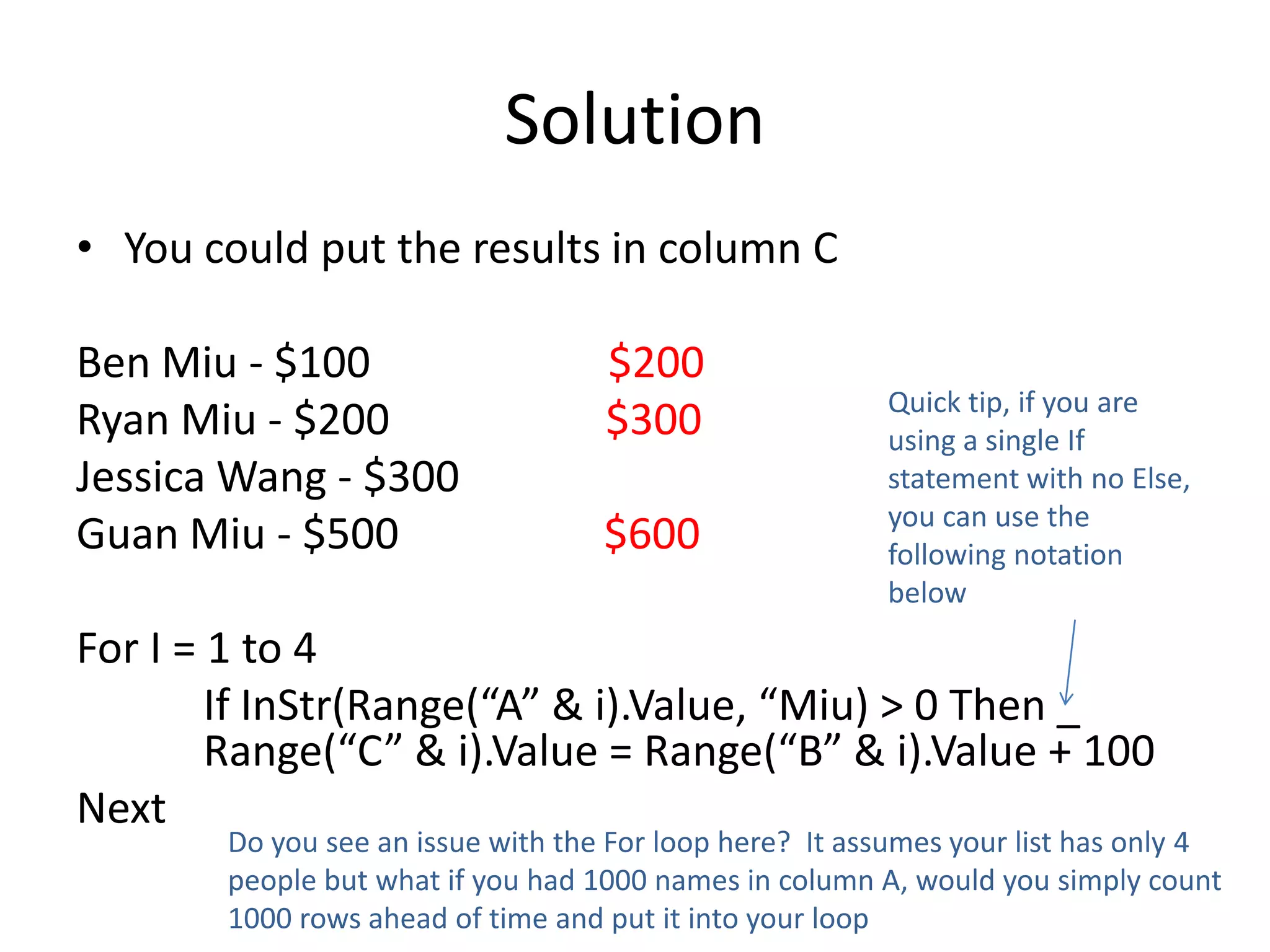
Solution
• You could put the results in column C

Ben Miu - $100                      $200
                                                         Quick tip, if you are
Ryan Miu - $200                     $300                 using a single If
Jessica Wang - $300                                      statement with no Else,
                                                         you can use the
Guan Miu - $500                     $600                 following notation
                                                         below
For I = 1 to 4
        If InStr(Range(“A” & i).Value, “Miu) > 0 Then _
        Range(“C” & i).Value = Range(“B” & i).Value + 100
Next
        Do you see an issue with the For loop here? It assumes your list has only 4
        people but what if you had 1000 names in column A, would you simply count
        1000 rows ahead of time and put it into your loop
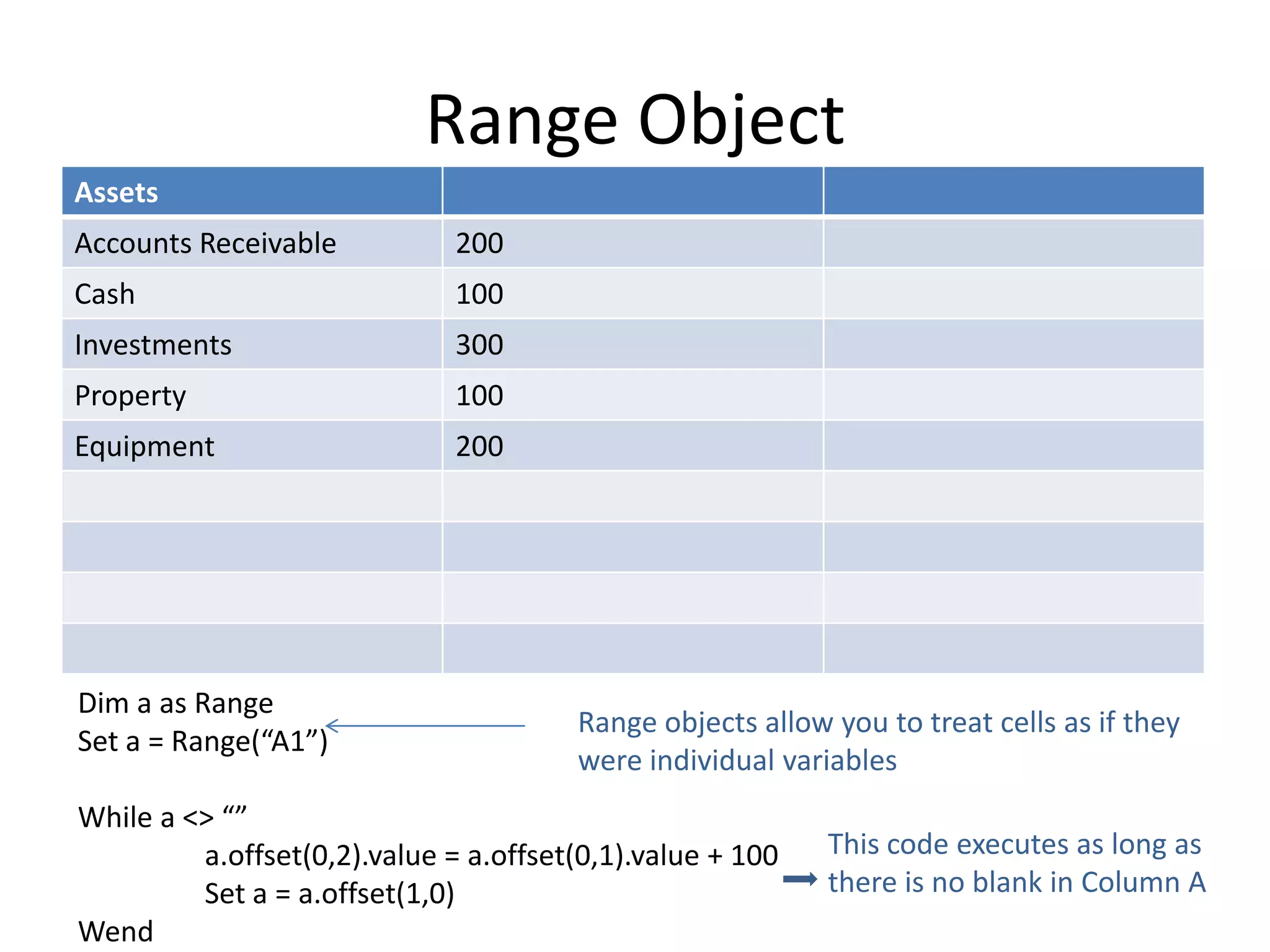
Range Object
Assets
Accounts Receivable           200
Cash                          100
Investments                   300
Property                      100
Equipment                     200


Dim a as Range
                                       Range objects allow you to treat cells as if they
Set a = Range(“A1”)
                                       were individual variables
While a <> “”
         a.offset(0,2).value = a.offset(0,1).value + 100   This code executes as long as
         Set a = a.offset(1,0)                             there is no blank in Column A
Wend
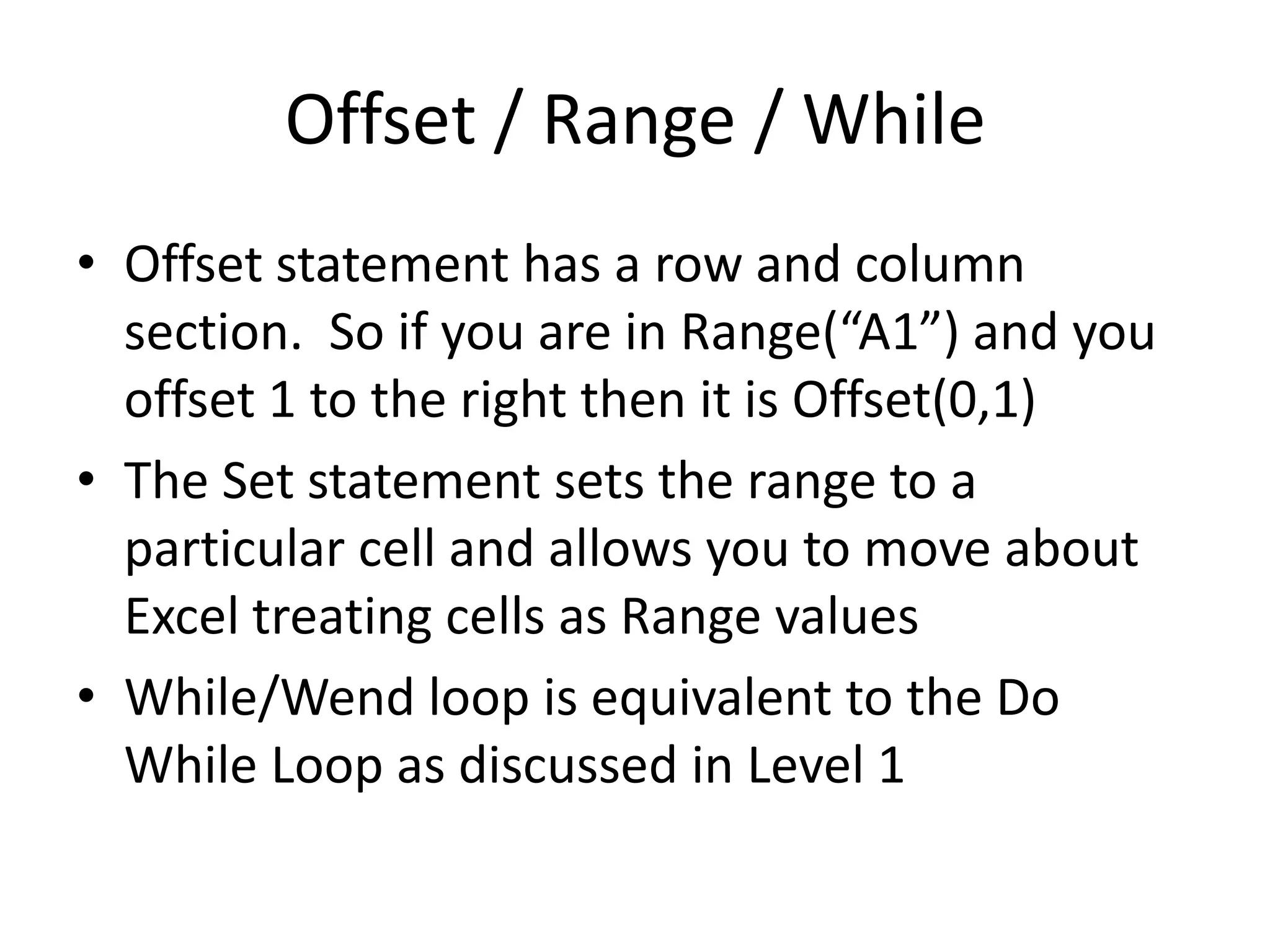
Offset / Range / While
• Offset statement has a row and column
  section. So if you are in Range(“A1”) and you
  offset 1 to the right then it is Offset(0,1)
• The Set statement sets the range to a
  particular cell and allows you to move about
  Excel treating cells as Range values
• While/Wend loop is equivalent to the Do
  While Loop as discussed in Level 1
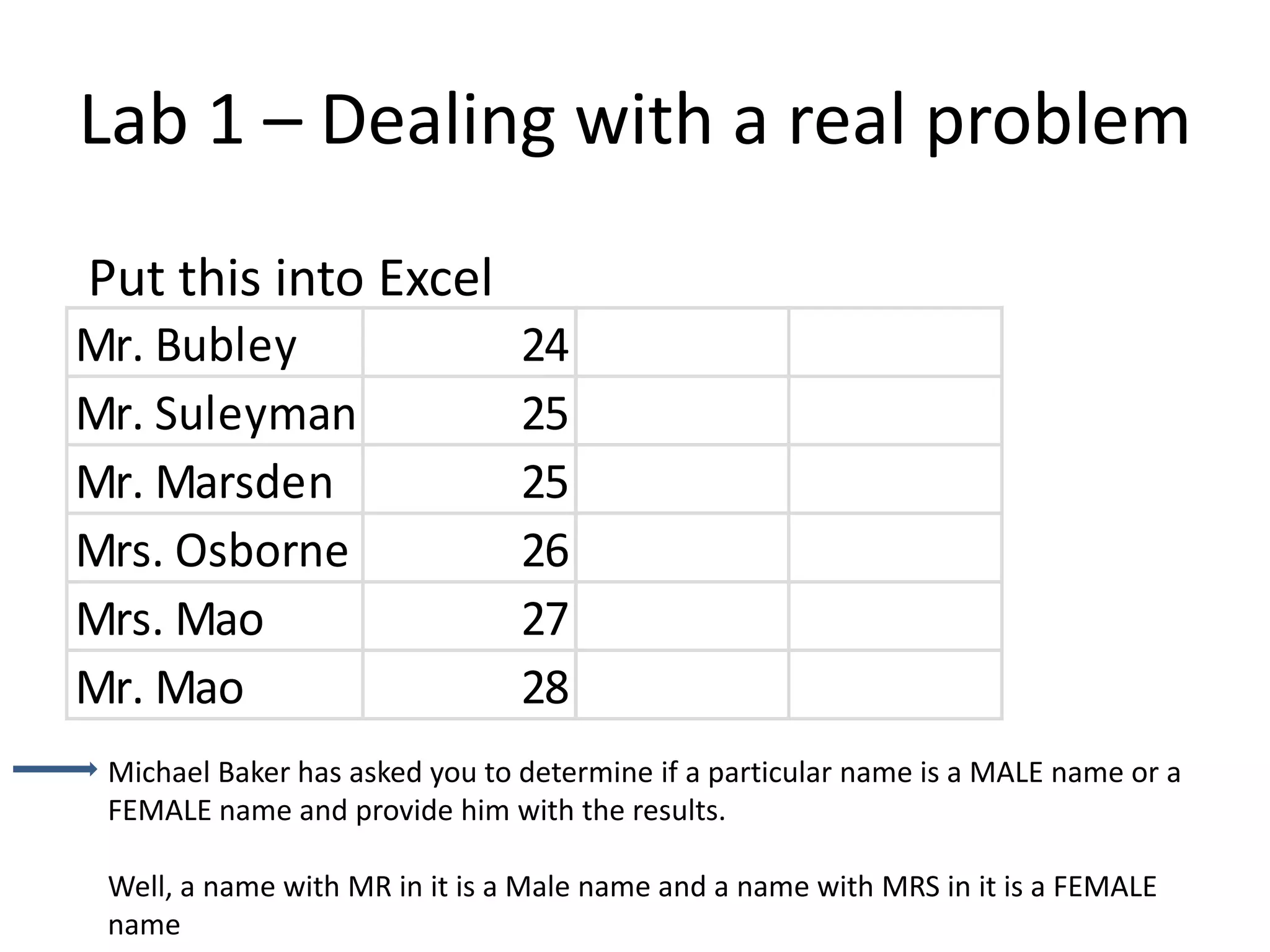
Lab 1 – Dealing with a real problem
Put this into Excel
Mr. Bubley                      24
Mr. Suleyman                    25
Mr. Marsden                     25
Mrs. Osborne                    26
Mrs. Mao                        27
Mr. Mao                         28
 Michael Baker has asked you to determine if a particular name is a MALE name or a
 FEMALE name and provide him with the results.

 Well, a name with MR in it is a Male name and a name with MRS in it is a FEMALE
 name
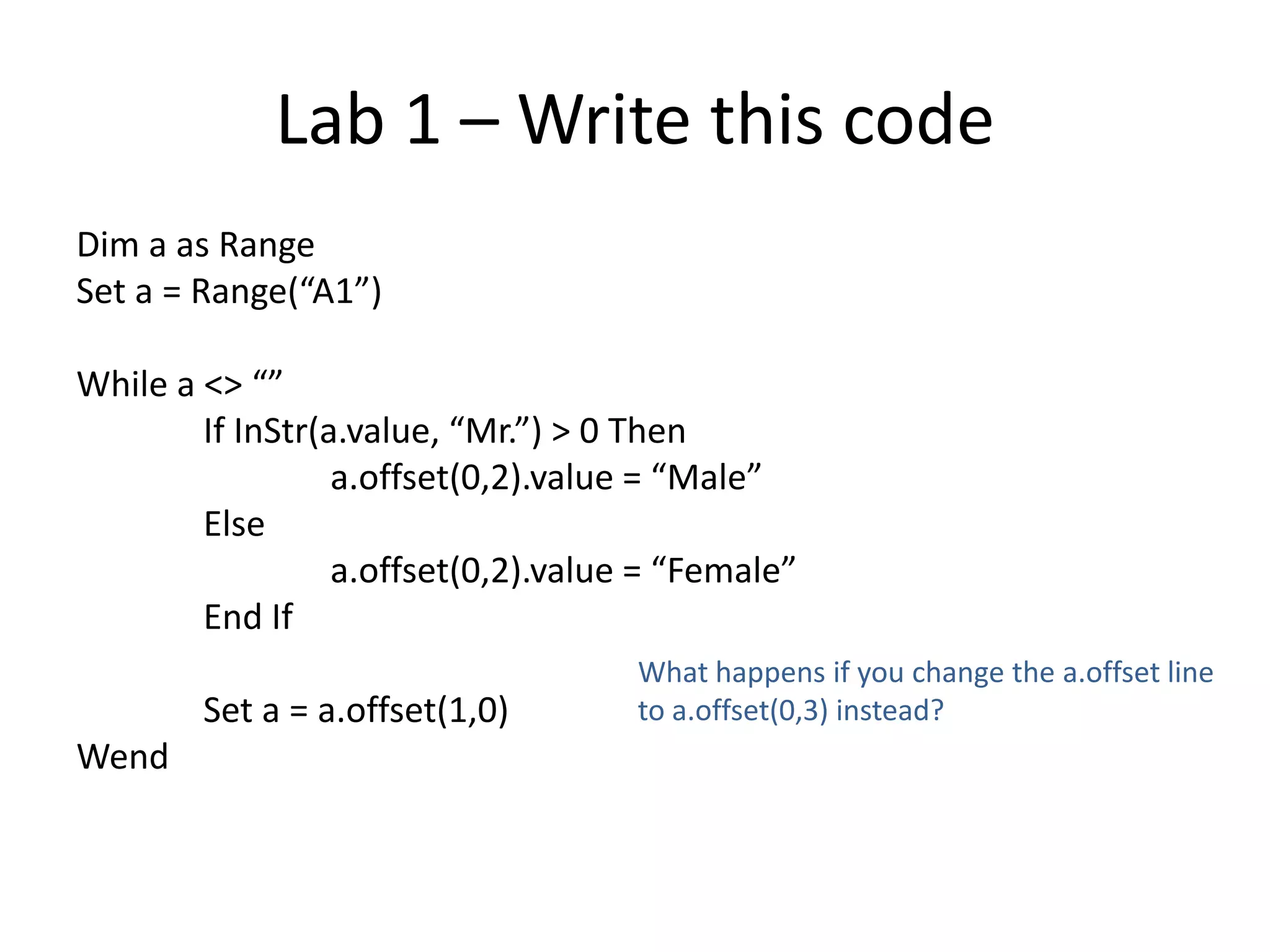
Lab 1 – Write this code
Dim a as Range
Set a = Range(“A1”)

While a <> “”
        If InStr(a.value, “Mr.”) > 0 Then
                  a.offset(0,2).value = “Male”
        Else
                  a.offset(0,2).value = “Female”
        End If
                                     What happens if you change the a.offset line
        Set a = a.offset(1,0)        to a.offset(0,3) instead?
Wend
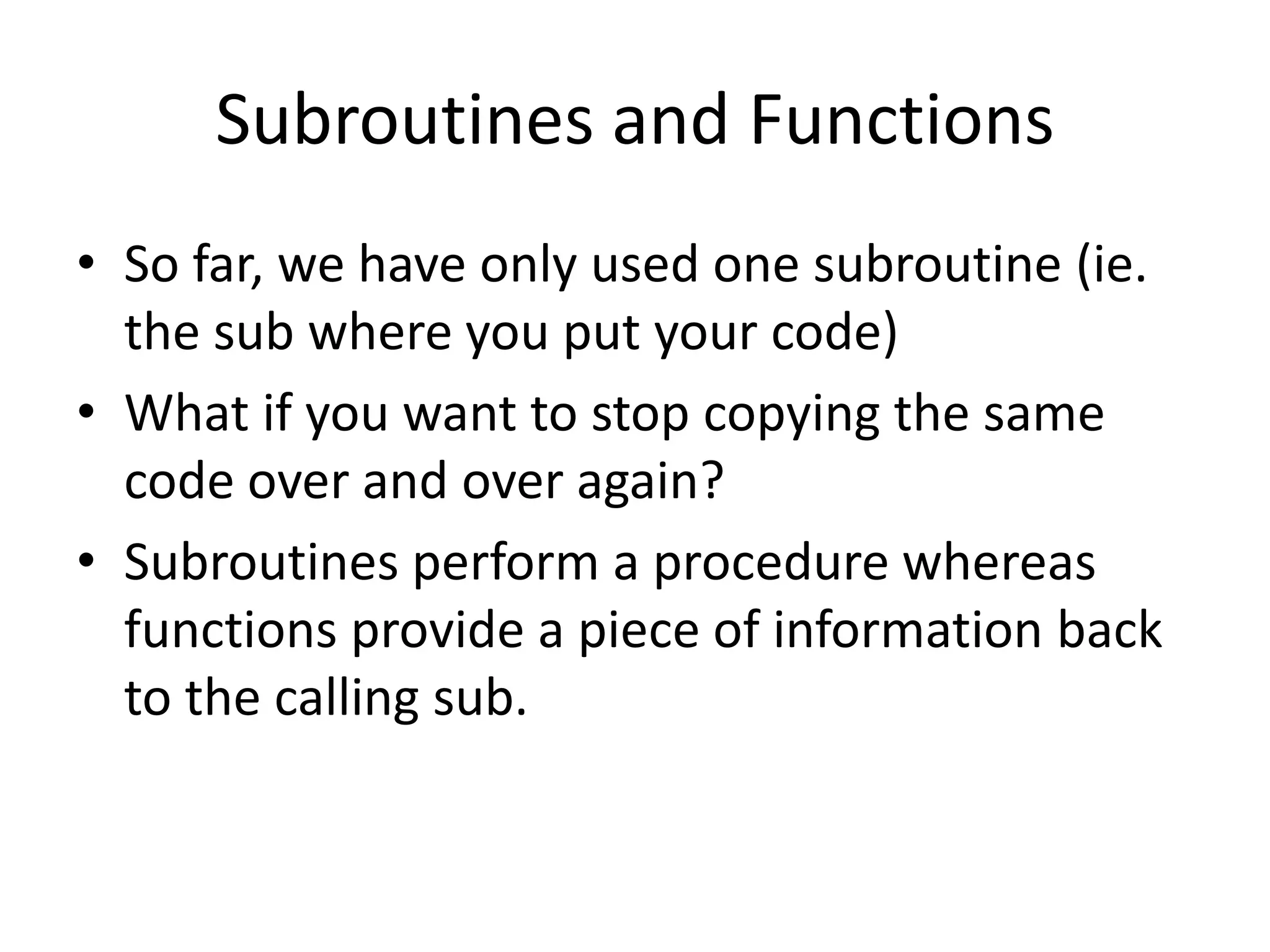
Subroutines and Functions
• So far, we have only used one subroutine (ie.
  the sub where you put your code)
• What if you want to stop copying the same
  code over and over again?
• Subroutines perform a procedure whereas
  functions provide a piece of information back
  to the calling sub.
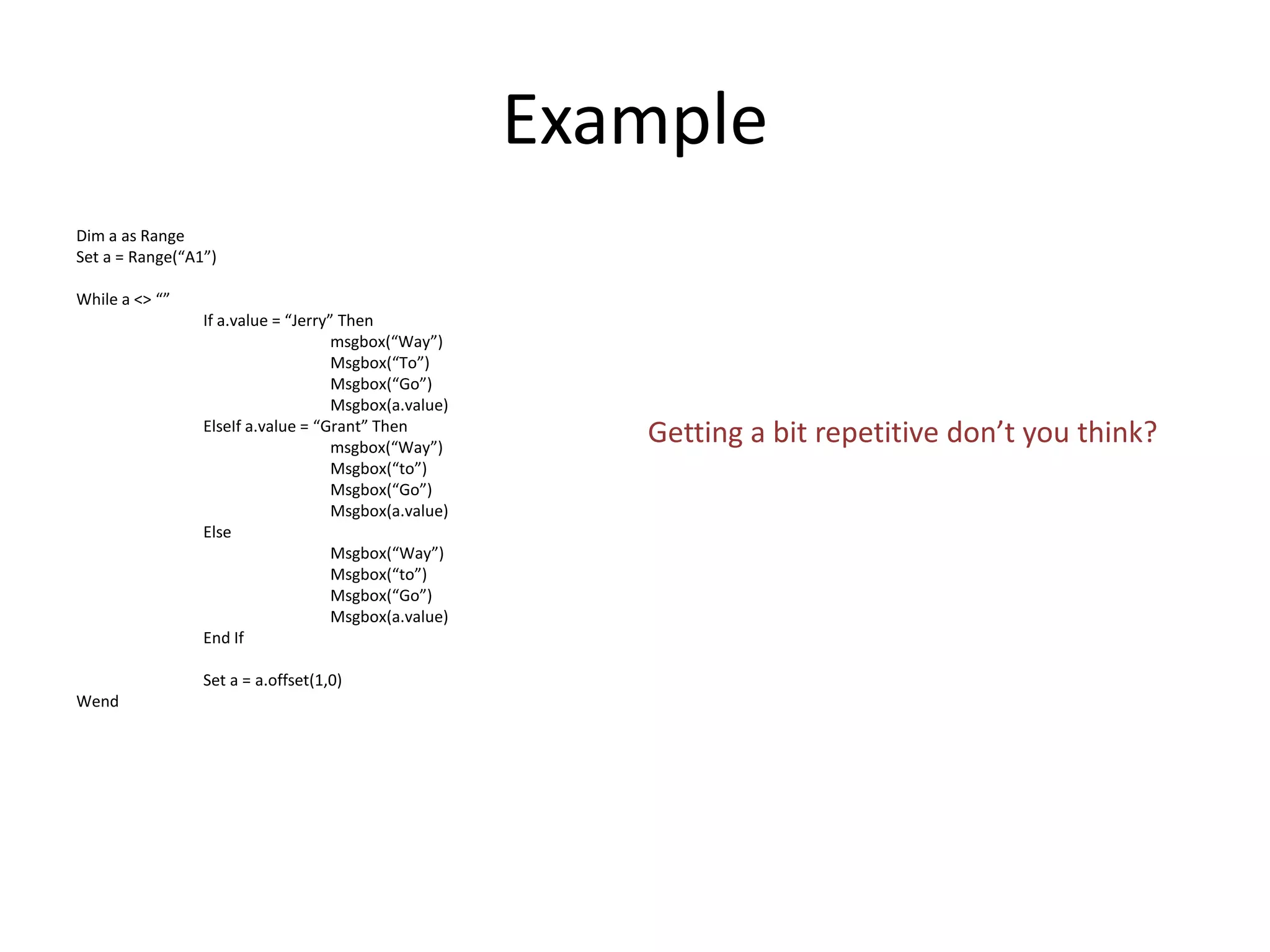
Example
Dim a as Range
Set a = Range(“A1”)

While a <> “”
                 If a.value = “Jerry” Then
                                     msgbox(“Way”)
                                     Msgbox(“To”)
                                     Msgbox(“Go”)
                                     Msgbox(a.value)
                 ElseIf a.value = “Grant” Then
                                     msgbox(“Way”)
                                                          Getting a bit repetitive don’t you think?
                                     Msgbox(“to”)
                                     Msgbox(“Go”)
                                     Msgbox(a.value)
                 Else
                                     Msgbox(“Way”)
                                     Msgbox(“to”)
                                     Msgbox(“Go”)
                                     Msgbox(a.value)
                 End If

                 Set a = a.offset(1,0)
Wend
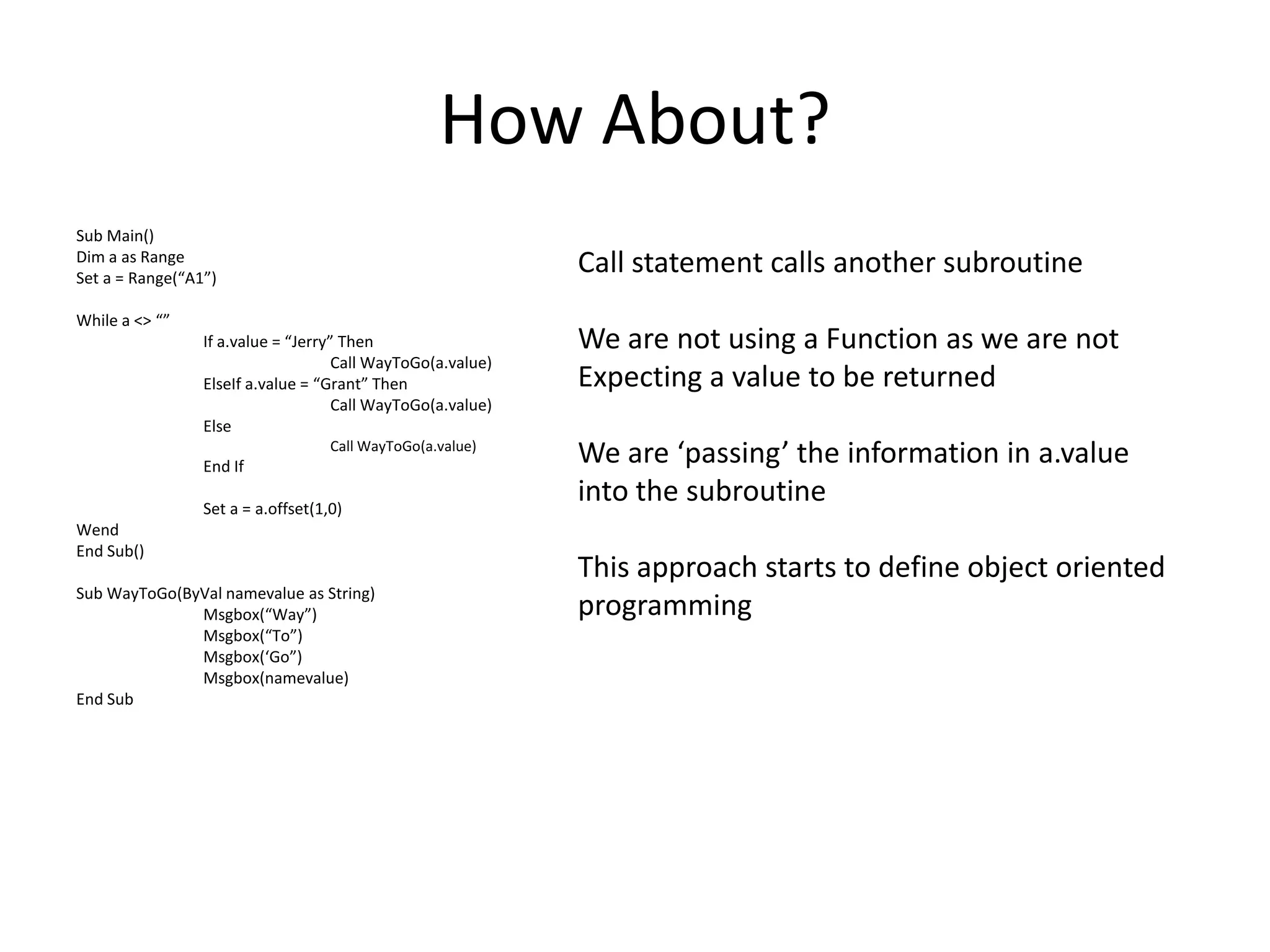
How About?
Sub Main()
Dim a as Range
Set a = Range(“A1”)
                                                             Call statement calls another subroutine
While a <> “”
                 If a.value = “Jerry” Then                   We are not using a Function as we are not
                                     Call WayToGo(a.value)
                 ElseIf a.value = “Grant” Then               Expecting a value to be returned
                                     Call WayToGo(a.value)
                 Else

                 End If
                                    Call WayToGo(a.value)
                                                             We are ‘passing’ the information in a.value
                 Set a = a.offset(1,0)
                                                             into the subroutine
Wend
End Sub()
                                                             This approach starts to define object oriented
Sub WayToGo(ByVal namevalue as String)
              Msgbox(“Way”)                                  programming
              Msgbox(“To”)
              Msgbox(‘Go”)
              Msgbox(namevalue)
End Sub
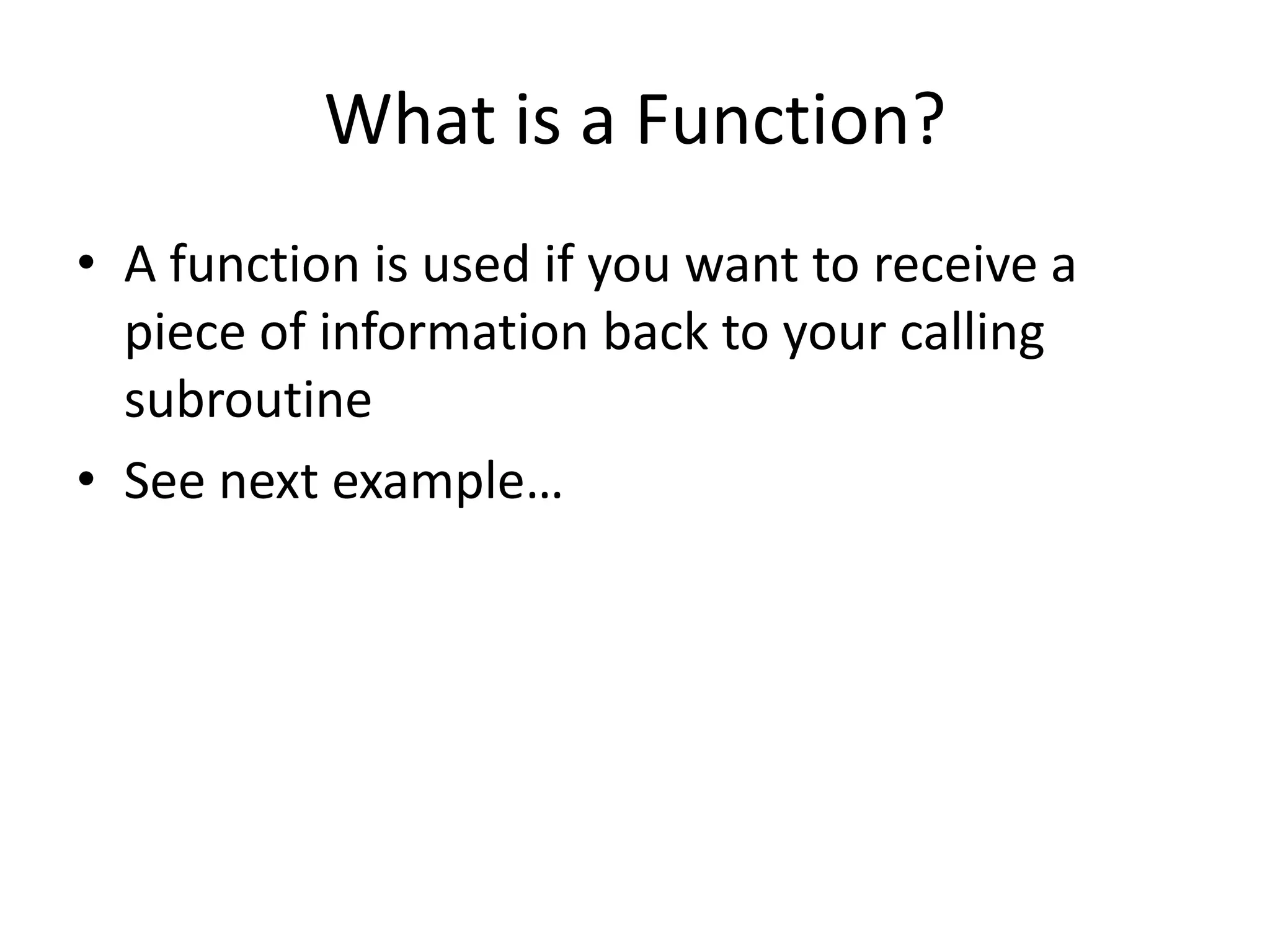
What is a Function?
• A function is used if you want to receive a
  piece of information back to your calling
  subroutine
• See next example…
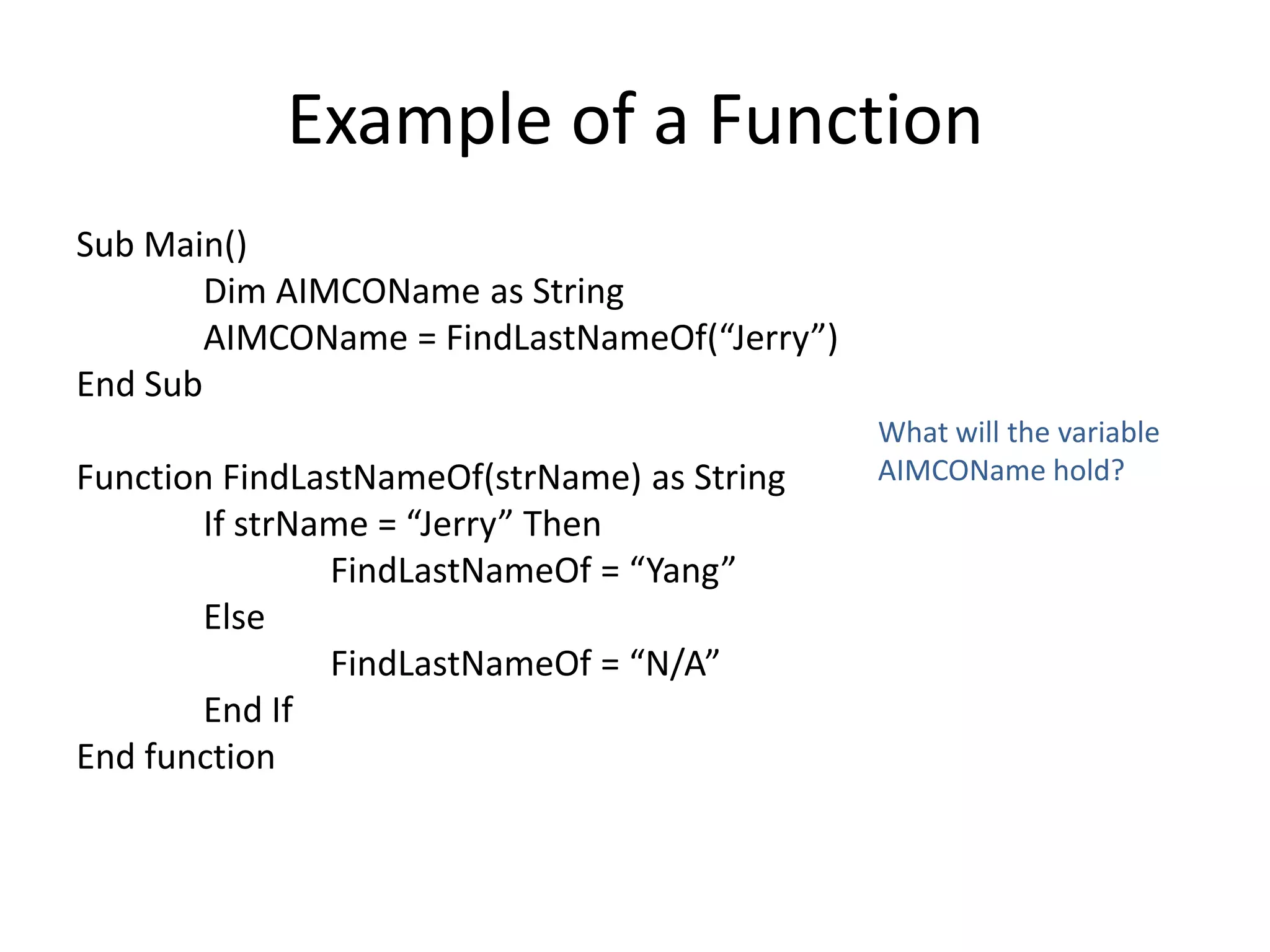
Example of a Function
Sub Main()
        Dim AIMCOName as String
        AIMCOName = FindLastNameOf(“Jerry”)
End Sub
                                              What will the variable
Function FindLastNameOf(strName) as String    AIMCOName hold?
       If strName = “Jerry” Then
               FindLastNameOf = “Yang”
       Else
               FindLastNameOf = “N/A”
       End If
End function
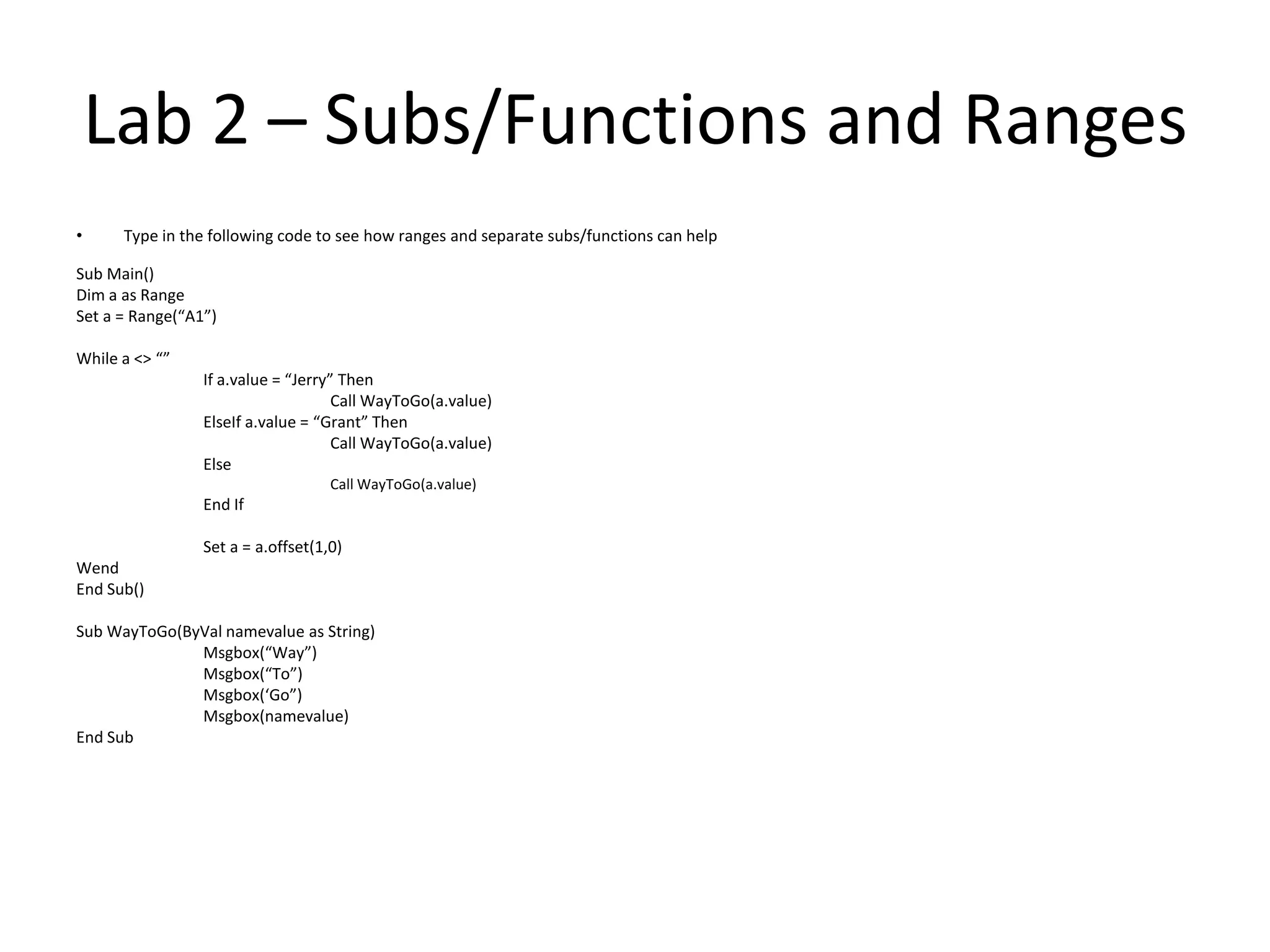
Lab 2 – Subs/Functions and Ranges
•     Type in the following code to see how ranges and separate subs/functions can help

Sub Main()
Dim a as Range
Set a = Range(“A1”)

While a <> “”
                 If a.value = “Jerry” Then
                                     Call WayToGo(a.value)
                 ElseIf a.value = “Grant” Then
                                     Call WayToGo(a.value)
                 Else
                                    Call WayToGo(a.value)
                 End If

                 Set a = a.offset(1,0)
Wend
End Sub()

Sub WayToGo(ByVal namevalue as String)
              Msgbox(“Way”)
              Msgbox(“To”)
              Msgbox(‘Go”)
              Msgbox(namevalue)
End Sub
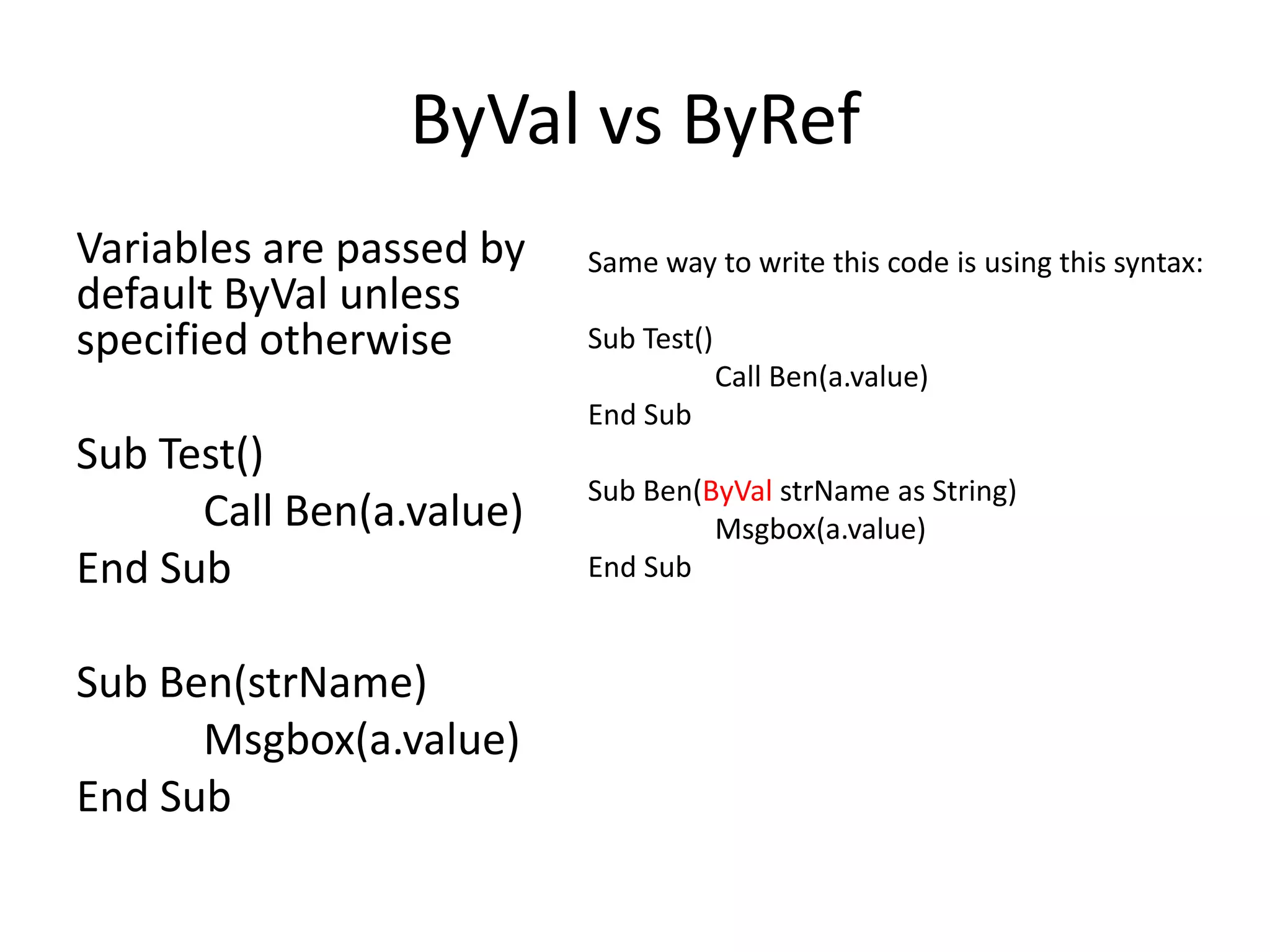
ByVal vs ByRef
Variables are passed by   Same way to write this code is using this syntax:
default ByVal unless
specified otherwise       Sub Test()
                                       Call Ben(a.value)
                          End Sub
Sub Test()
                          Sub Ben(ByVal strName as String)
      Call Ben(a.value)            Msgbox(a.value)
End Sub                   End Sub


Sub Ben(strName)
      Msgbox(a.value)
End Sub
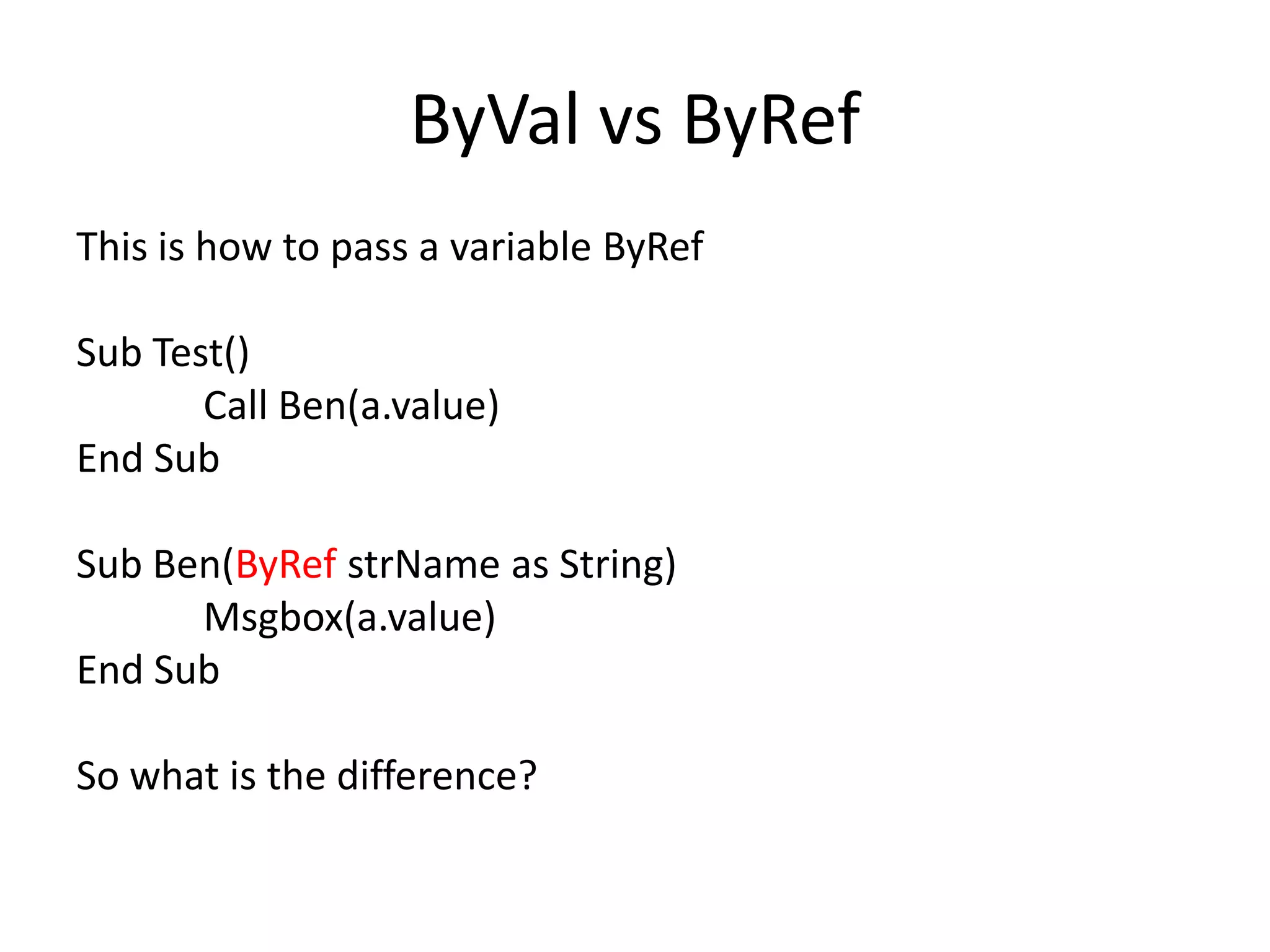
ByVal vs ByRef
This is how to pass a variable ByRef

Sub Test()
       Call Ben(a.value)
End Sub

Sub Ben(ByRef strName as String)
      Msgbox(a.value)
End Sub

So what is the difference?
ByVal vs ByRef
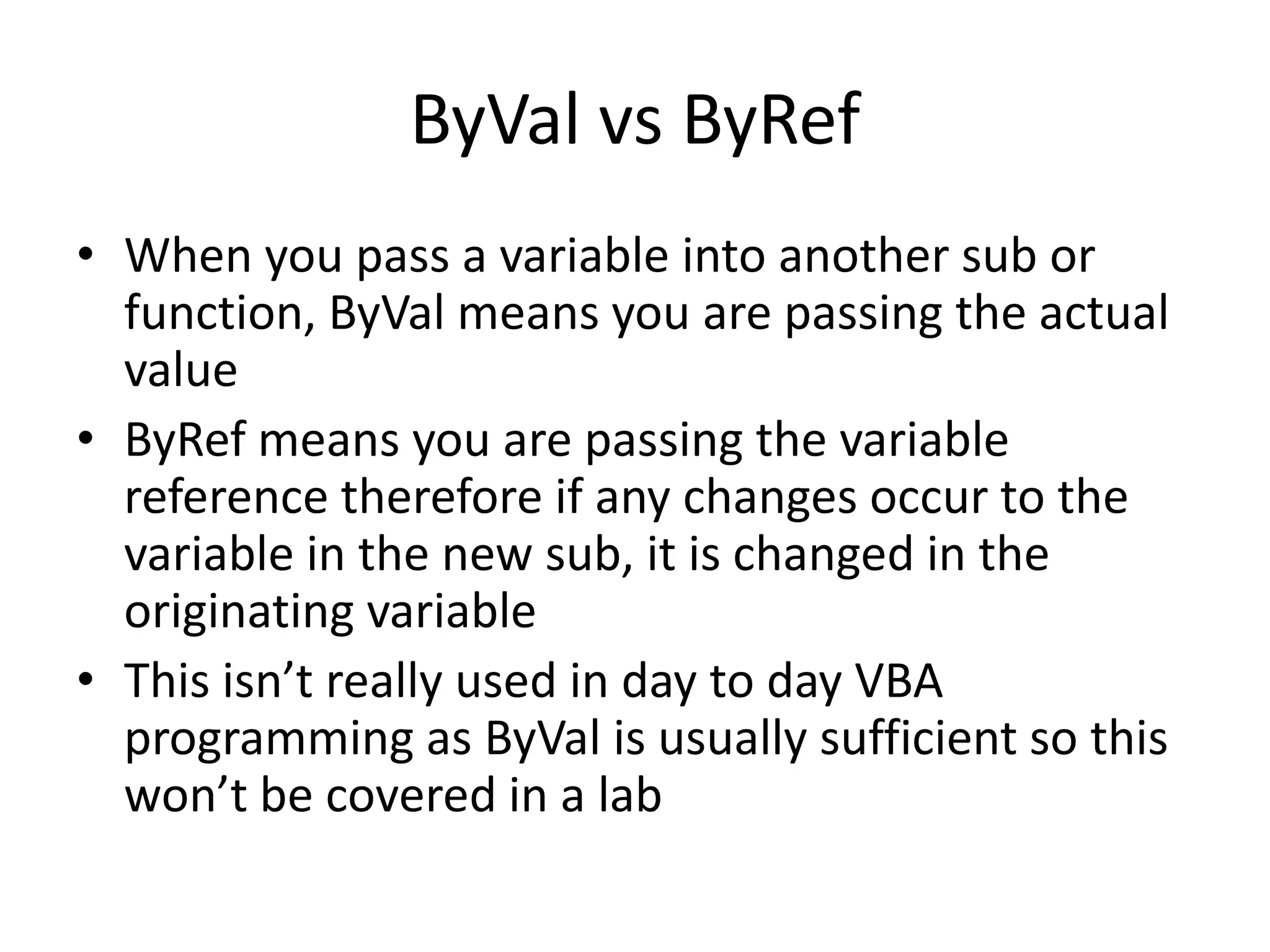
• When you pass a variable into another sub or
  function, ByVal means you are passing the actual
  value
• ByRef means you are passing the variable
  reference therefore if any changes occur to the
  variable in the new sub, it is changed in the
  originating variable
• This isn’t really used in day to day VBA
  programming as ByVal is usually sufficient so this
  won’t be covered in a lab
Dictionaries and Collections
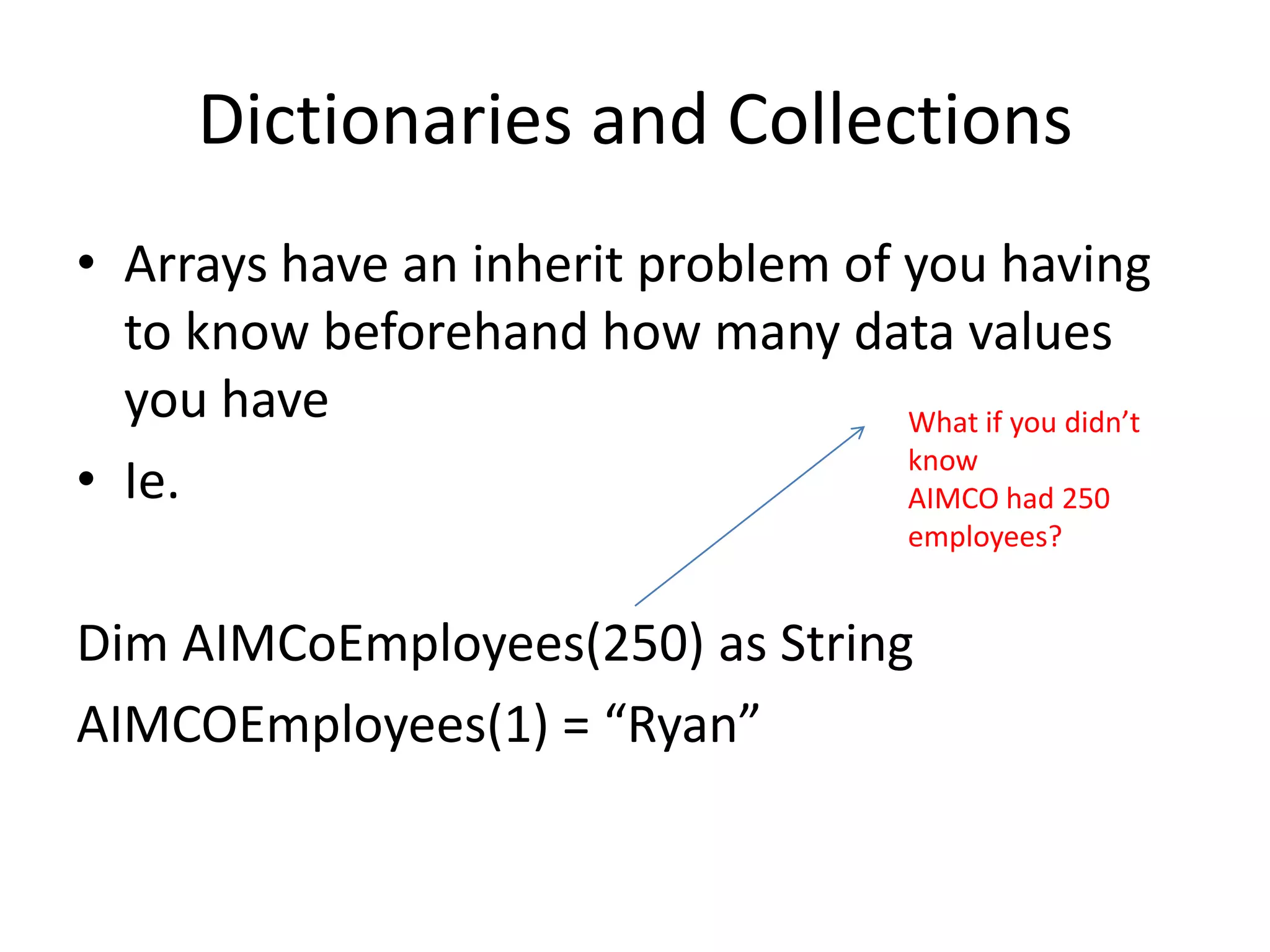
• Arrays have an inherit problem of you having
  to know beforehand how many data values
  you have                          What if you didn’t
                                    know
• Ie.                               AIMCO had 250
                                         employees?


Dim AIMCoEmployees(250) as String
AIMCOEmployees(1) = “Ryan”
Dictionaries and Collections
• What if you wanted to store more information
  and not just employee names?
• What if you wanted to store the employee
  name and also their employee number?
Dim AIMCOEmployees(250) as String
Dim AIMCOEmployeeNumber(250) as Integer
AIMCOEmployees(1) = “Ryan”
AIMCOEmployeeNumber(1) = 14000
Dictionaries and Collections
• Collections and Dictionaries are the
  foundation blocks of building a robust
  application (Daily Risk covered in level 3)
• Collections/Dictionaries is basically a phone
  book with a Key and a Item. See below:

“Jerry Yang”, 555-5555
What is the difference between
      dictionary and collection


The same thing essentially. Only difference is
the dictionary object is more user friendly and
robust as you can check if a KEY exists without
using On Error statements. You do however
have to add a library reference for the dictionary
object
Library Reference
• Library references allow you to access the
  methods and functions of other Windows
  applications
• It allows you to control Powerpoint, Access
  and Word all from within Excel. It also allows
  you to control Outlook
• For the purposes of this class, we will only
  show you how to add a library reference and
  not go deeper into this topic
Add a Library Reference
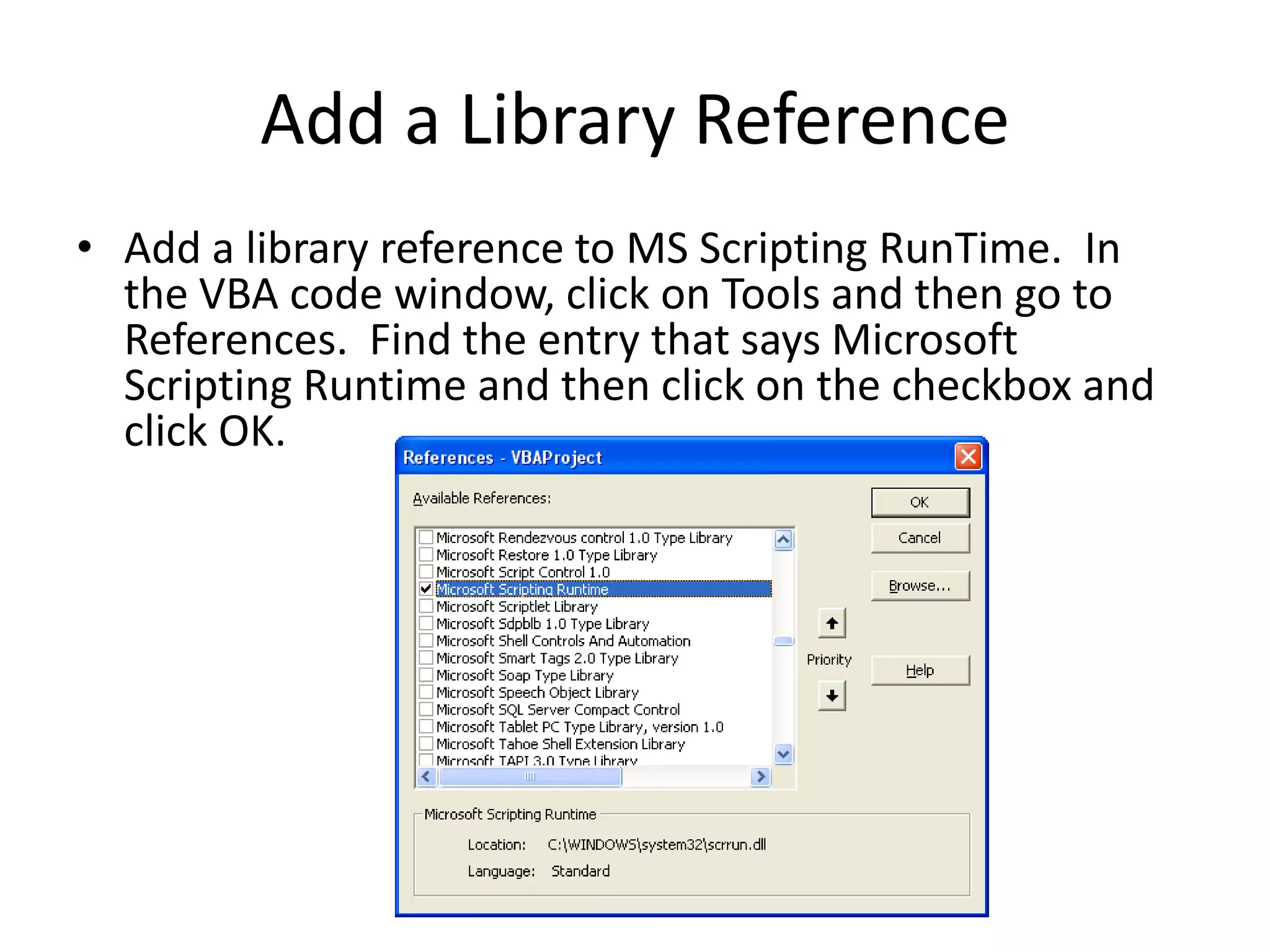
• Add a library reference to MS Scripting RunTime. In
  the VBA code window, click on Tools and then go to
  References. Find the entry that says Microsoft
  Scripting Runtime and then click on the checkbox and
  click OK.
Adding a Dictionary Reference
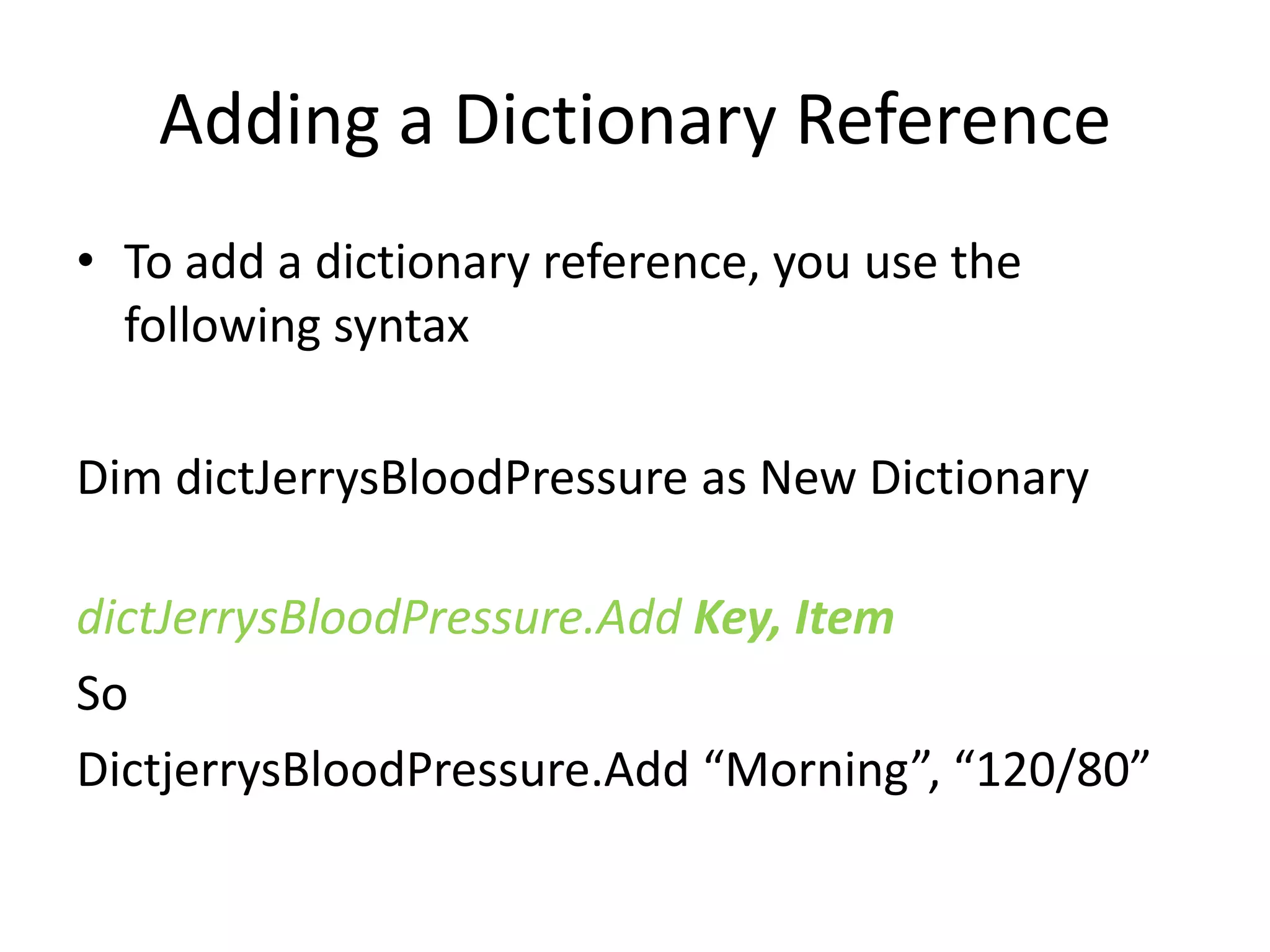
• To add a dictionary reference, you use the
  following syntax

Dim dictJerrysBloodPressure as New Dictionary

dictJerrysBloodPressure.Add Key, Item
So
DictjerrysBloodPressure.Add “Morning”, “120/80”
Referencing a dictionary reference
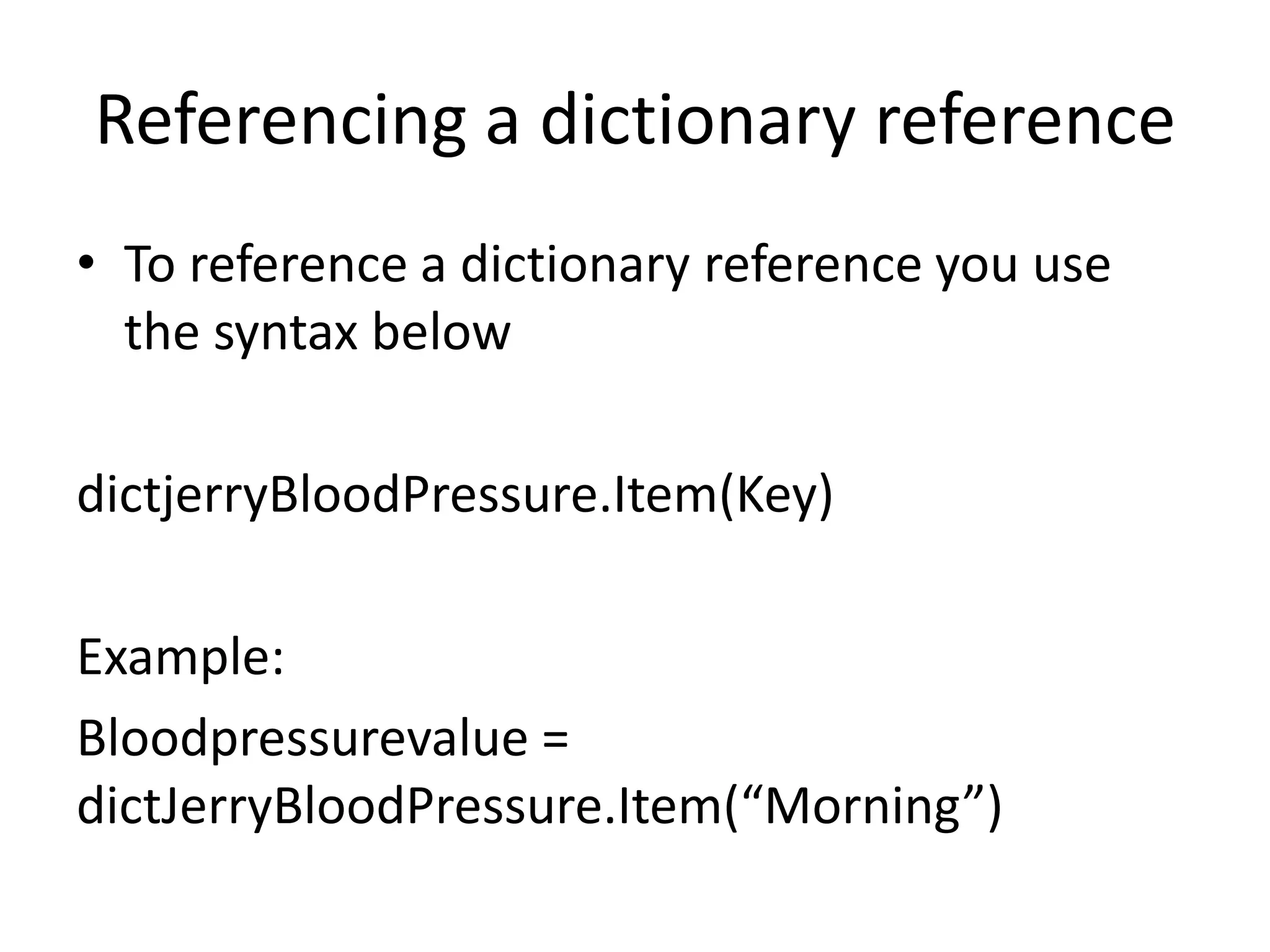
• To reference a dictionary reference you use
  the syntax below

dictjerryBloodPressure.Item(Key)

Example:
Bloodpressurevalue =
dictJerryBloodPressure.Item(“Morning”)
Automation Concepts: Xref Tables
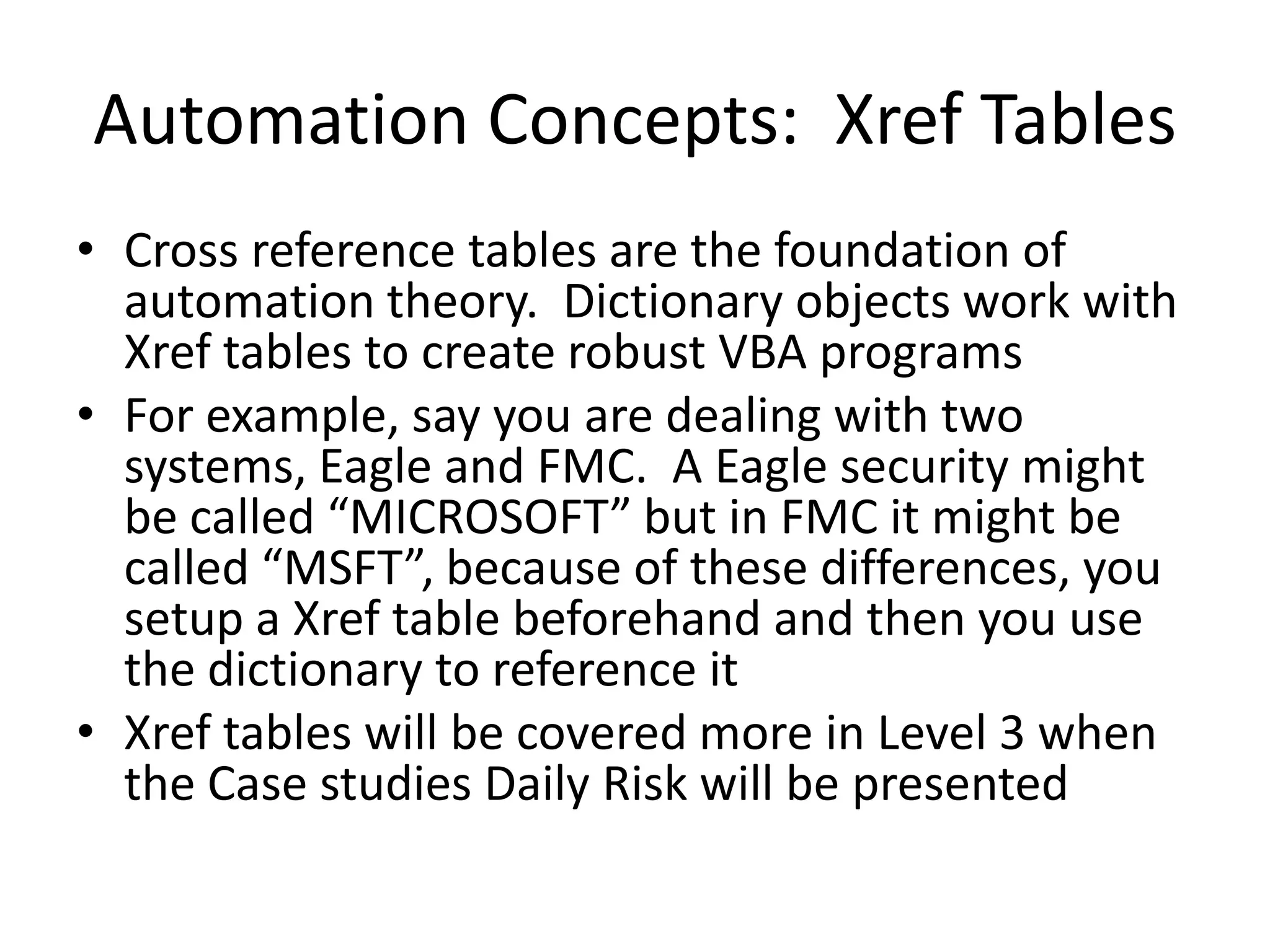
• Cross reference tables are the foundation of
  automation theory. Dictionary objects work with
  Xref tables to create robust VBA programs
• For example, say you are dealing with two
  systems, Eagle and FMC. A Eagle security might
  be called “MICROSOFT” but in FMC it might be
  called “MSFT”, because of these differences, you
  setup a Xref table beforehand and then you use
  the dictionary to reference it
• Xref tables will be covered more in Level 3 when
  the Case studies Daily Risk will be presented
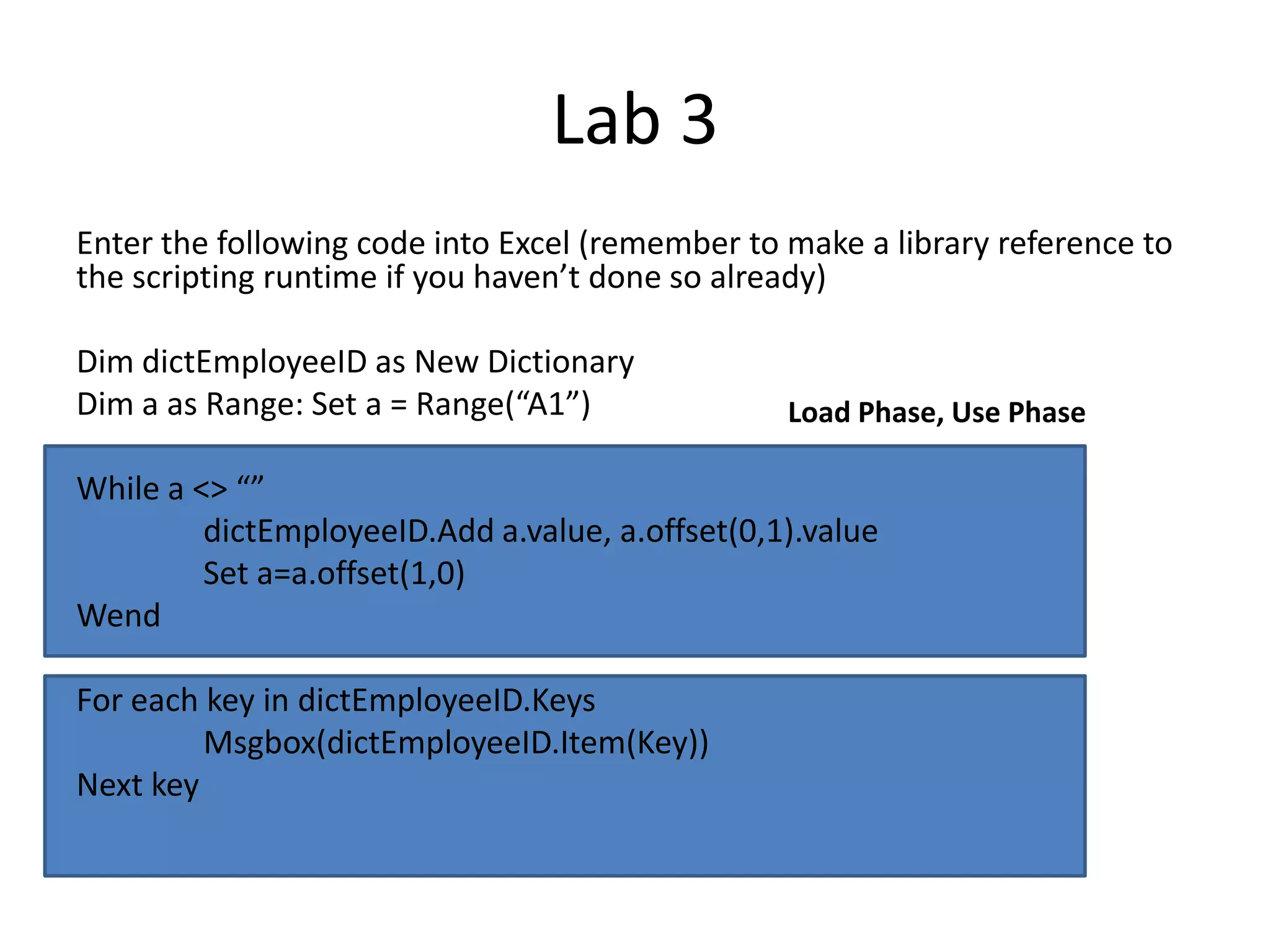
Lab 3
Enter the following code into Excel (remember to make a library reference to
the scripting runtime if you haven’t done so already)

Dim dictEmployeeID as New Dictionary
Dim a as Range: Set a = Range(“A1”)              Load Phase, Use Phase

While a <> “”
         dictEmployeeID.Add a.value, a.offset(0,1).value
         Set a=a.offset(1,0)
Wend

For each key in dictEmployeeID.Keys
         Msgbox(dictEmployeeID.Item(Key))
Next key
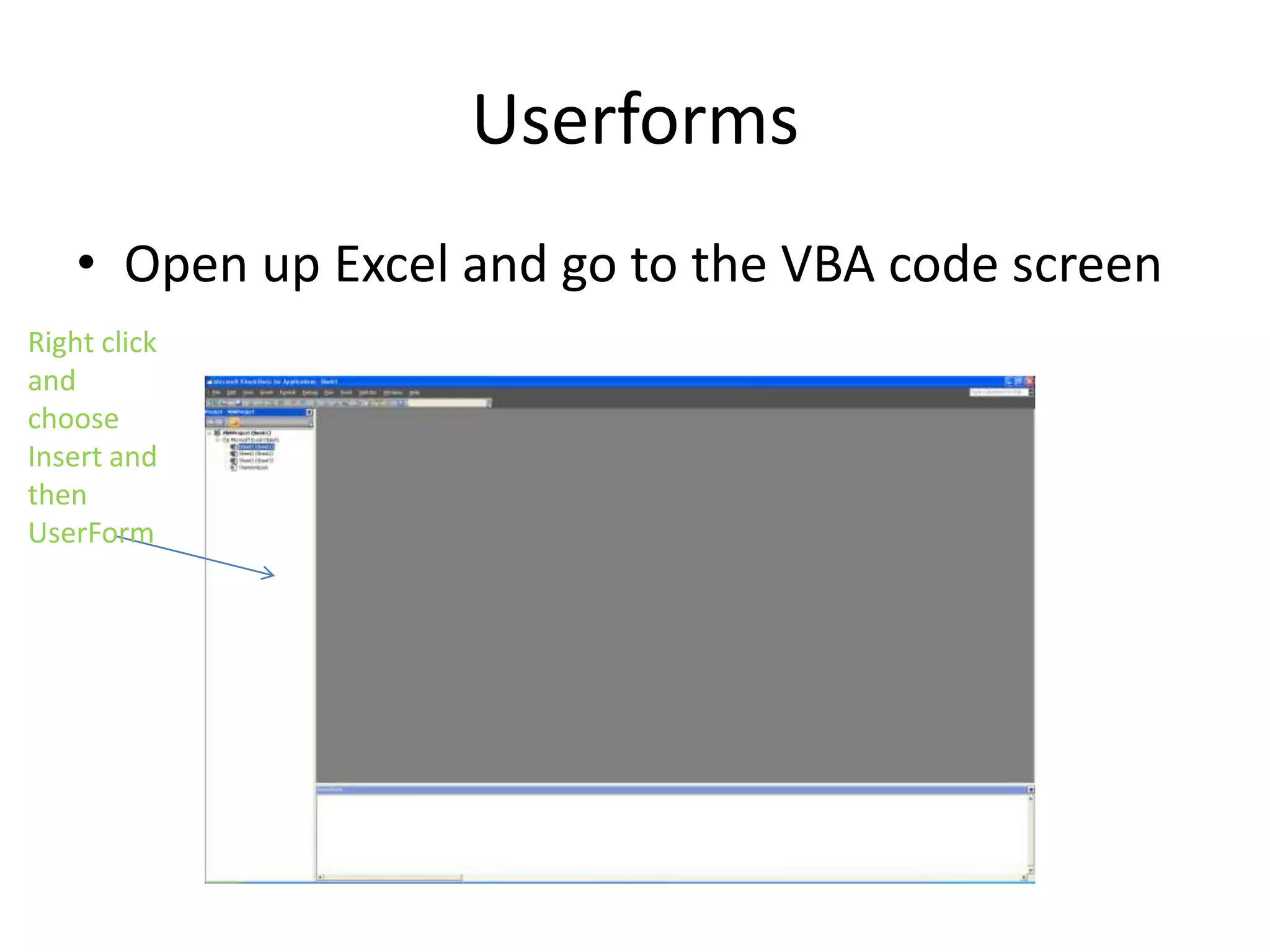
Userforms
    • Open up Excel and go to the VBA code screen
Right click
and
choose
Insert and
then
UserForm
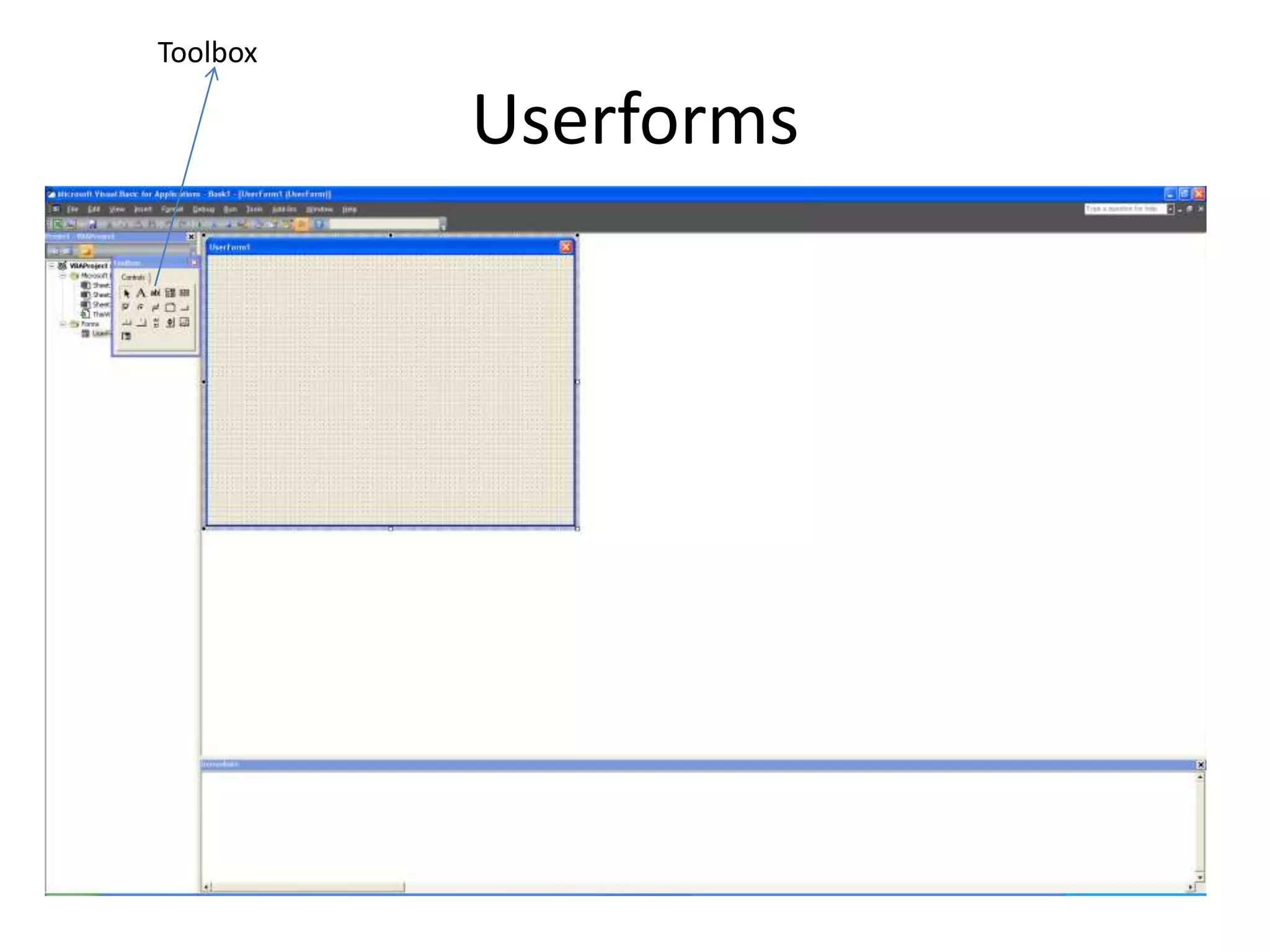
Toolbox

          Userforms
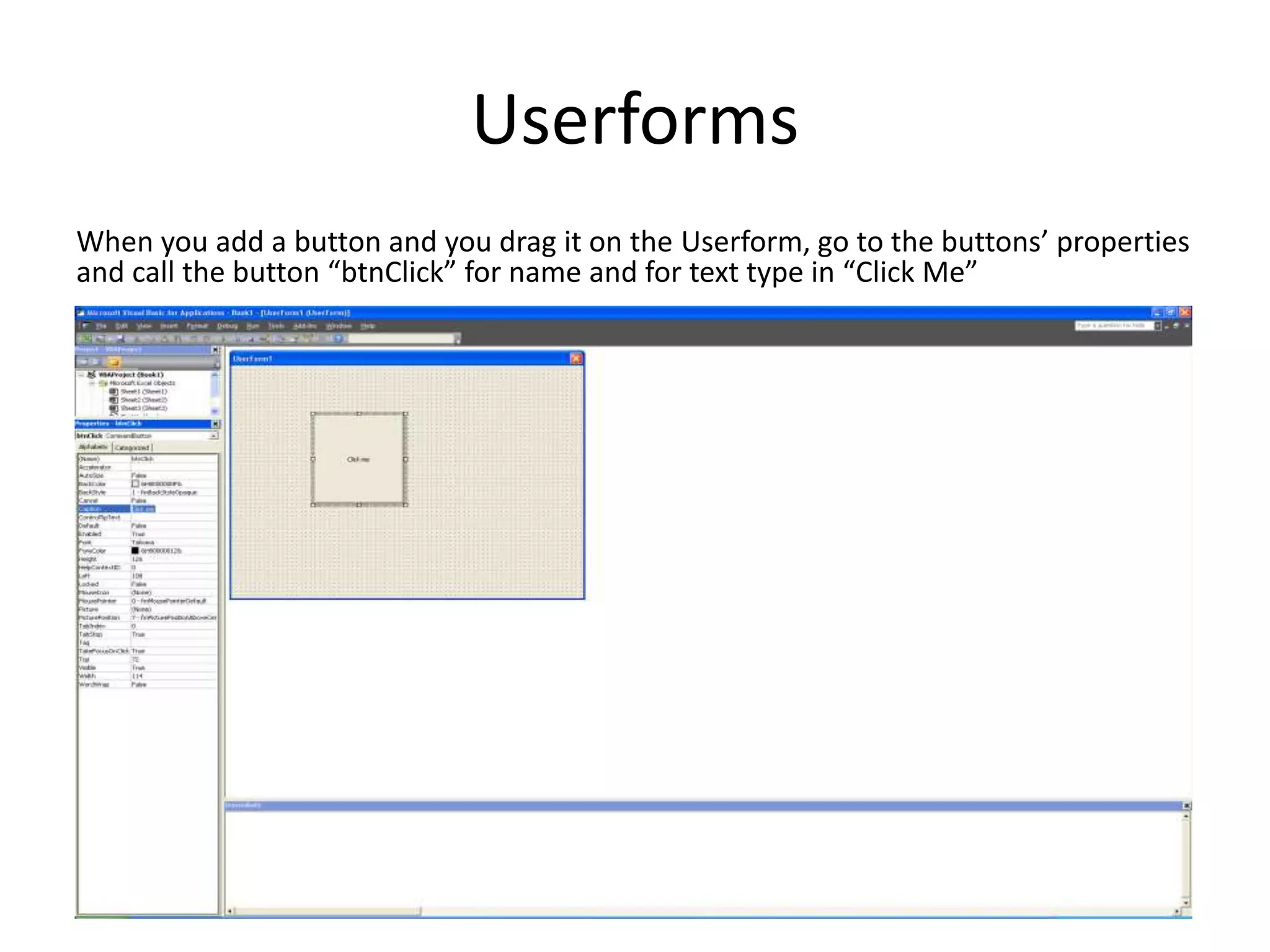
Userforms
When you add a button and you drag it on the Userform, go to the buttons’ properties
and call the button “btnClick” for name and for text type in “Click Me”
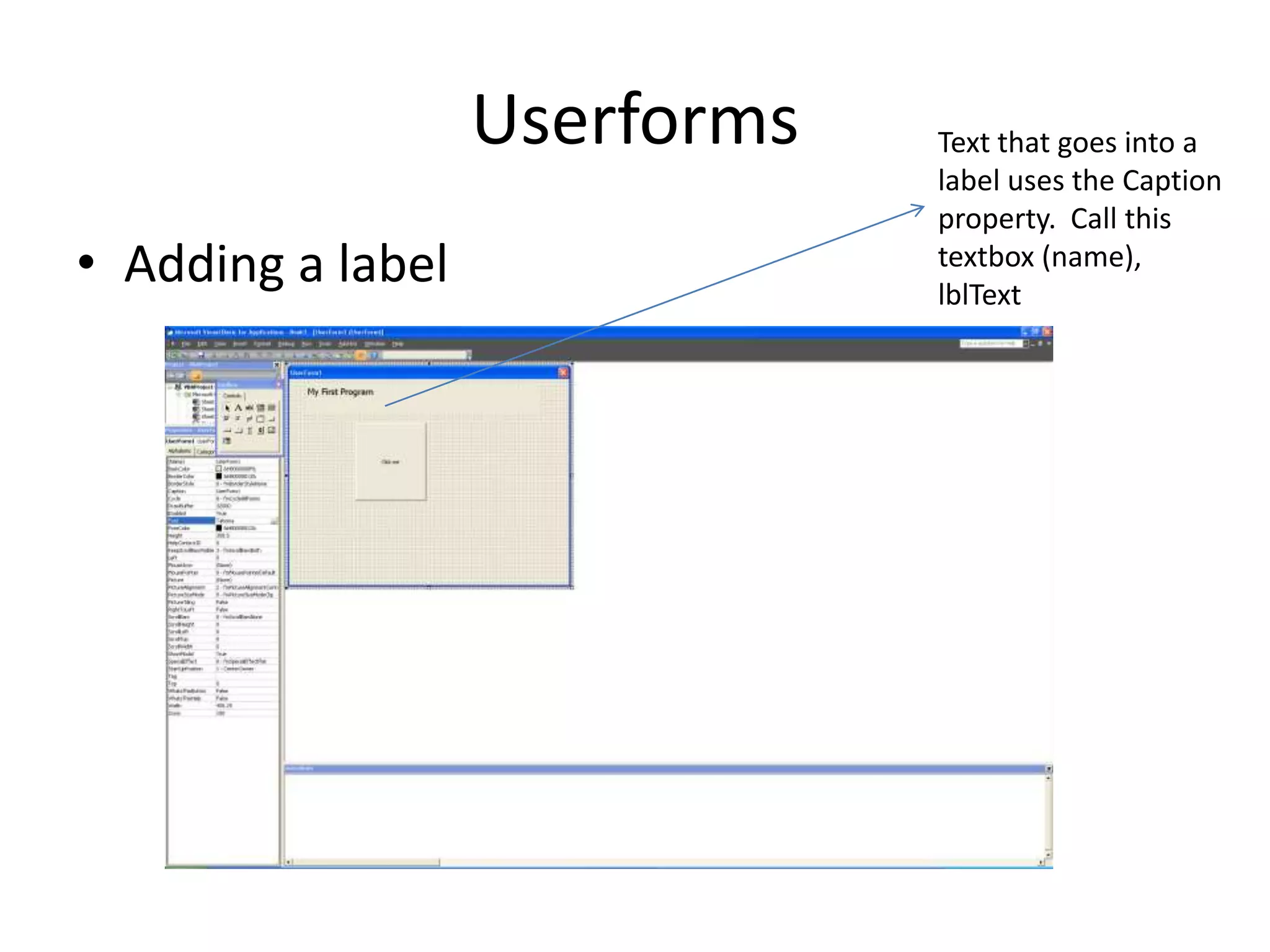
Userforms   Text that goes into a
                               label uses the Caption
                               property. Call this
• Adding a label               textbox (name),
                               lblText
Now let’s make the commandbutton
                work
• Double click on the CommandButton and type
  in this:

Private Sub btnClick_Click()
      Msgbox(“Hello”)
End Sub
Background notes
• When you double click on the button you will notice
  the following Sub was added,
• Sub btnClick_Click
The _Click at the end represents the event. Therefore,
the code executes when someone clicks on the button
You shouldn’t put too much code into the click event as
the userform code doesn’t have the full functionality of
codes in a module so you should add a new module and
put a Call statement there ie.

Call Module1.Main()
What if you wanted the userform to
 show when the person opened up
               Excel?
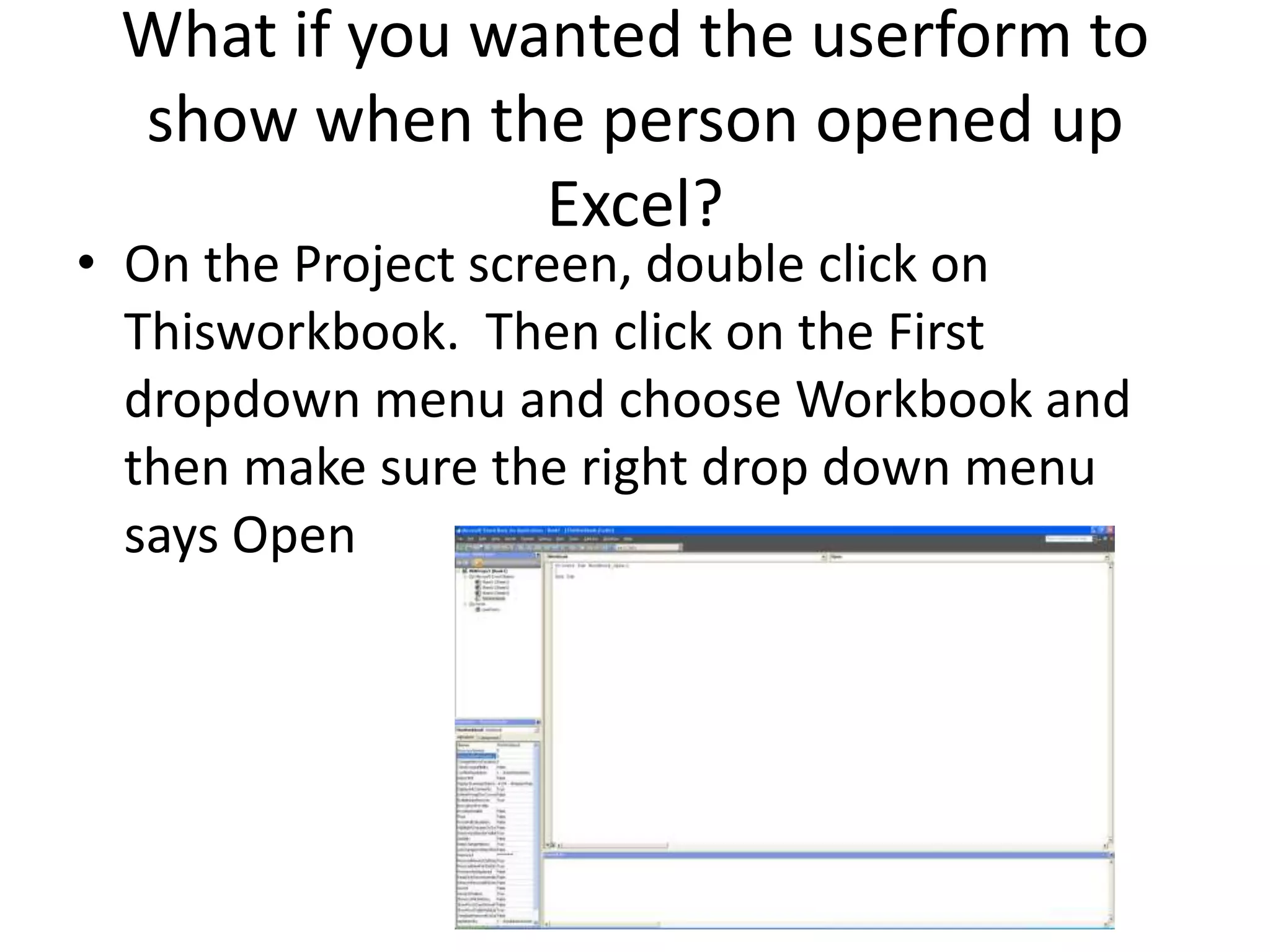
• On the Project screen, double click on
  Thisworkbook. Then click on the First
  dropdown menu and choose Workbook and
  then make sure the right drop down menu
  says Open
Type in the following Code


UserForm1.Show()

Then when the workbook opens, your user form
will show up automatically
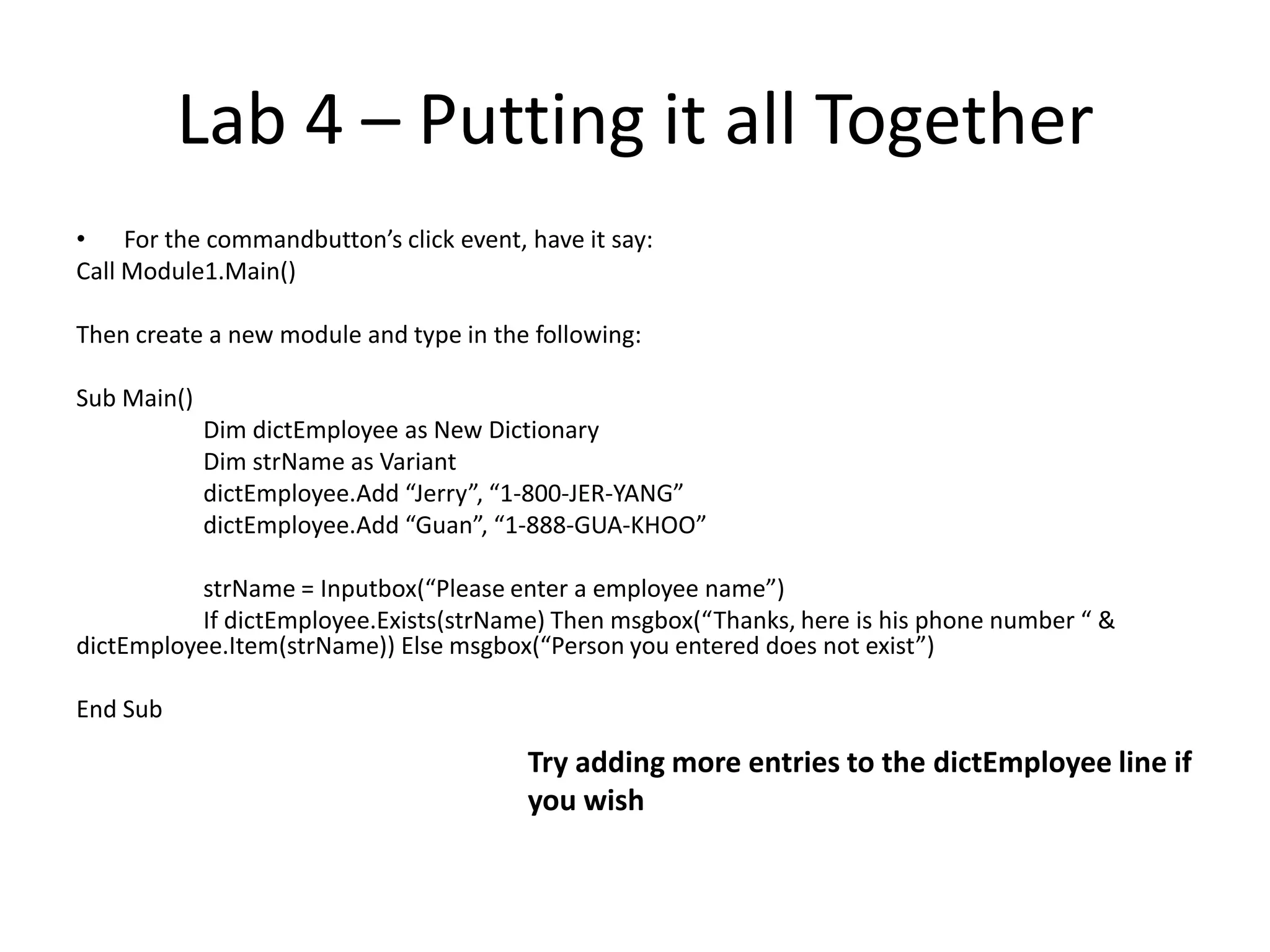
Lab 4 – Putting it all together
Create a Userform that looks like below:
Lab 4 – Putting it all Together
• For the commandbutton’s click event, have it say:
Call Module1.Main()

Then create a new module and type in the following:

Sub Main()
             Dim dictEmployee as New Dictionary
             Dim strName as Variant
             dictEmployee.Add “Jerry”, “1-800-JER-YANG”
             dictEmployee.Add “Guan”, “1-888-GUA-KHOO”

           strName = Inputbox(“Please enter a employee name”)
           If dictEmployee.Exists(strName) Then msgbox(“Thanks, here is his phone number “ &
dictEmployee.Item(strName)) Else msgbox(“Person you entered does not exist”)

End Sub

                                        Try adding more entries to the dictEmployee line if
                                        you wish
Summary
•   String Operators (InStr and Mid)
•   Subs and Functions
•   ByVal vs. ByRef
•   Dictionaries and Collections
•   Ranges
•   UserForms
•   Event Handlers
Thanks

Vba Excel Level 2

  • 1.
    VBA Excel LevelII By Ben Miu
  • 2.
    What do weknow? • Macro Recorder • Basic Variables • If Then Else • Loops • Debugging and error trapping • Arrays Now, how do you take your coding to a new level?
  • 3.
    Review Lab • Typethe following code into Excel VBA Dim AIMCOEmployeeNames(2) as String AIMCOEmployeeNames(1) = “Jerry” AIMCOEmployeeNames(2) = “Yang” For I = 1 to 5 If Range(“A” & i).value = AIMCOEmployeeNames(1) Then Msgbox (“Found Jerry”) If Range(“A” & i).value = AIMCOEmployeeNames(2) Then Msgbox(“Found Yang”) Next i
  • 4.
    String Operations • InStrfunction – Tells you if a particular string is contained in a string. The value you will return is the location of the string in question, 0 returned if string not found • Mid function – Tells you if a particular string in any particular order If InStr(Range(“A5”).Value, “Jerry”) > 0 Then If Mid(Range(“A5”).Value,1,1) = “J” Then
  • 5.
    Dilemma • Say youhave the following table Ben Miu - $100 Ryan Miu - $200 Jessica Wang - $300 Guan Miu - $500 You want to add $100 to each person who has the last name “Miu”. What code could you write?
  • 6.
    Solution • You couldput the results in column C Ben Miu - $100 $200 Quick tip, if you are Ryan Miu - $200 $300 using a single If Jessica Wang - $300 statement with no Else, you can use the Guan Miu - $500 $600 following notation below For I = 1 to 4 If InStr(Range(“A” & i).Value, “Miu) > 0 Then _ Range(“C” & i).Value = Range(“B” & i).Value + 100 Next Do you see an issue with the For loop here? It assumes your list has only 4 people but what if you had 1000 names in column A, would you simply count 1000 rows ahead of time and put it into your loop
  • 7.
    Range Object Assets Accounts Receivable 200 Cash 100 Investments 300 Property 100 Equipment 200 Dim a as Range Range objects allow you to treat cells as if they Set a = Range(“A1”) were individual variables While a <> “” a.offset(0,2).value = a.offset(0,1).value + 100 This code executes as long as Set a = a.offset(1,0) there is no blank in Column A Wend
  • 8.
    Offset / Range/ While • Offset statement has a row and column section. So if you are in Range(“A1”) and you offset 1 to the right then it is Offset(0,1) • The Set statement sets the range to a particular cell and allows you to move about Excel treating cells as Range values • While/Wend loop is equivalent to the Do While Loop as discussed in Level 1
  • 9.
    Lab 1 –Dealing with a real problem Put this into Excel Mr. Bubley 24 Mr. Suleyman 25 Mr. Marsden 25 Mrs. Osborne 26 Mrs. Mao 27 Mr. Mao 28 Michael Baker has asked you to determine if a particular name is a MALE name or a FEMALE name and provide him with the results. Well, a name with MR in it is a Male name and a name with MRS in it is a FEMALE name
  • 10.
    Lab 1 –Write this code Dim a as Range Set a = Range(“A1”) While a <> “” If InStr(a.value, “Mr.”) > 0 Then a.offset(0,2).value = “Male” Else a.offset(0,2).value = “Female” End If What happens if you change the a.offset line Set a = a.offset(1,0) to a.offset(0,3) instead? Wend
  • 11.
    Subroutines and Functions •So far, we have only used one subroutine (ie. the sub where you put your code) • What if you want to stop copying the same code over and over again? • Subroutines perform a procedure whereas functions provide a piece of information back to the calling sub.
  • 12.
    Example Dim a asRange Set a = Range(“A1”) While a <> “” If a.value = “Jerry” Then msgbox(“Way”) Msgbox(“To”) Msgbox(“Go”) Msgbox(a.value) ElseIf a.value = “Grant” Then msgbox(“Way”) Getting a bit repetitive don’t you think? Msgbox(“to”) Msgbox(“Go”) Msgbox(a.value) Else Msgbox(“Way”) Msgbox(“to”) Msgbox(“Go”) Msgbox(a.value) End If Set a = a.offset(1,0) Wend
  • 13.
    How About? Sub Main() Dima as Range Set a = Range(“A1”) Call statement calls another subroutine While a <> “” If a.value = “Jerry” Then We are not using a Function as we are not Call WayToGo(a.value) ElseIf a.value = “Grant” Then Expecting a value to be returned Call WayToGo(a.value) Else End If Call WayToGo(a.value) We are ‘passing’ the information in a.value Set a = a.offset(1,0) into the subroutine Wend End Sub() This approach starts to define object oriented Sub WayToGo(ByVal namevalue as String) Msgbox(“Way”) programming Msgbox(“To”) Msgbox(‘Go”) Msgbox(namevalue) End Sub
  • 14.
    What is aFunction? • A function is used if you want to receive a piece of information back to your calling subroutine • See next example…
  • 15.
    Example of aFunction Sub Main() Dim AIMCOName as String AIMCOName = FindLastNameOf(“Jerry”) End Sub What will the variable Function FindLastNameOf(strName) as String AIMCOName hold? If strName = “Jerry” Then FindLastNameOf = “Yang” Else FindLastNameOf = “N/A” End If End function
  • 16.
    Lab 2 –Subs/Functions and Ranges • Type in the following code to see how ranges and separate subs/functions can help Sub Main() Dim a as Range Set a = Range(“A1”) While a <> “” If a.value = “Jerry” Then Call WayToGo(a.value) ElseIf a.value = “Grant” Then Call WayToGo(a.value) Else Call WayToGo(a.value) End If Set a = a.offset(1,0) Wend End Sub() Sub WayToGo(ByVal namevalue as String) Msgbox(“Way”) Msgbox(“To”) Msgbox(‘Go”) Msgbox(namevalue) End Sub
  • 17.
    ByVal vs ByRef Variablesare passed by Same way to write this code is using this syntax: default ByVal unless specified otherwise Sub Test() Call Ben(a.value) End Sub Sub Test() Sub Ben(ByVal strName as String) Call Ben(a.value) Msgbox(a.value) End Sub End Sub Sub Ben(strName) Msgbox(a.value) End Sub
  • 18.
    ByVal vs ByRef Thisis how to pass a variable ByRef Sub Test() Call Ben(a.value) End Sub Sub Ben(ByRef strName as String) Msgbox(a.value) End Sub So what is the difference?
  • 19.
    ByVal vs ByRef •When you pass a variable into another sub or function, ByVal means you are passing the actual value • ByRef means you are passing the variable reference therefore if any changes occur to the variable in the new sub, it is changed in the originating variable • This isn’t really used in day to day VBA programming as ByVal is usually sufficient so this won’t be covered in a lab
  • 20.
    Dictionaries and Collections •Arrays have an inherit problem of you having to know beforehand how many data values you have What if you didn’t know • Ie. AIMCO had 250 employees? Dim AIMCoEmployees(250) as String AIMCOEmployees(1) = “Ryan”
  • 21.
    Dictionaries and Collections •What if you wanted to store more information and not just employee names? • What if you wanted to store the employee name and also their employee number? Dim AIMCOEmployees(250) as String Dim AIMCOEmployeeNumber(250) as Integer AIMCOEmployees(1) = “Ryan” AIMCOEmployeeNumber(1) = 14000
  • 22.
    Dictionaries and Collections •Collections and Dictionaries are the foundation blocks of building a robust application (Daily Risk covered in level 3) • Collections/Dictionaries is basically a phone book with a Key and a Item. See below: “Jerry Yang”, 555-5555
  • 23.
    What is thedifference between dictionary and collection The same thing essentially. Only difference is the dictionary object is more user friendly and robust as you can check if a KEY exists without using On Error statements. You do however have to add a library reference for the dictionary object
  • 24.
    Library Reference • Libraryreferences allow you to access the methods and functions of other Windows applications • It allows you to control Powerpoint, Access and Word all from within Excel. It also allows you to control Outlook • For the purposes of this class, we will only show you how to add a library reference and not go deeper into this topic
  • 25.
    Add a LibraryReference • Add a library reference to MS Scripting RunTime. In the VBA code window, click on Tools and then go to References. Find the entry that says Microsoft Scripting Runtime and then click on the checkbox and click OK.
  • 26.
    Adding a DictionaryReference • To add a dictionary reference, you use the following syntax Dim dictJerrysBloodPressure as New Dictionary dictJerrysBloodPressure.Add Key, Item So DictjerrysBloodPressure.Add “Morning”, “120/80”
  • 27.
    Referencing a dictionaryreference • To reference a dictionary reference you use the syntax below dictjerryBloodPressure.Item(Key) Example: Bloodpressurevalue = dictJerryBloodPressure.Item(“Morning”)
  • 28.
    Automation Concepts: XrefTables • Cross reference tables are the foundation of automation theory. Dictionary objects work with Xref tables to create robust VBA programs • For example, say you are dealing with two systems, Eagle and FMC. A Eagle security might be called “MICROSOFT” but in FMC it might be called “MSFT”, because of these differences, you setup a Xref table beforehand and then you use the dictionary to reference it • Xref tables will be covered more in Level 3 when the Case studies Daily Risk will be presented
  • 29.
    Lab 3 Enter thefollowing code into Excel (remember to make a library reference to the scripting runtime if you haven’t done so already) Dim dictEmployeeID as New Dictionary Dim a as Range: Set a = Range(“A1”) Load Phase, Use Phase While a <> “” dictEmployeeID.Add a.value, a.offset(0,1).value Set a=a.offset(1,0) Wend For each key in dictEmployeeID.Keys Msgbox(dictEmployeeID.Item(Key)) Next key
  • 30.
    Userforms • Open up Excel and go to the VBA code screen Right click and choose Insert and then UserForm
  • 31.
    Toolbox Userforms
  • 32.
    Userforms When you adda button and you drag it on the Userform, go to the buttons’ properties and call the button “btnClick” for name and for text type in “Click Me”
  • 33.
    Userforms Text that goes into a label uses the Caption property. Call this • Adding a label textbox (name), lblText
  • 34.
    Now let’s makethe commandbutton work • Double click on the CommandButton and type in this: Private Sub btnClick_Click() Msgbox(“Hello”) End Sub
  • 35.
    Background notes • Whenyou double click on the button you will notice the following Sub was added, • Sub btnClick_Click The _Click at the end represents the event. Therefore, the code executes when someone clicks on the button You shouldn’t put too much code into the click event as the userform code doesn’t have the full functionality of codes in a module so you should add a new module and put a Call statement there ie. Call Module1.Main()
  • 36.
    What if youwanted the userform to show when the person opened up Excel? • On the Project screen, double click on Thisworkbook. Then click on the First dropdown menu and choose Workbook and then make sure the right drop down menu says Open
  • 37.
    Type in thefollowing Code UserForm1.Show() Then when the workbook opens, your user form will show up automatically
  • 38.
    Lab 4 –Putting it all together Create a Userform that looks like below:
  • 39.
    Lab 4 –Putting it all Together • For the commandbutton’s click event, have it say: Call Module1.Main() Then create a new module and type in the following: Sub Main() Dim dictEmployee as New Dictionary Dim strName as Variant dictEmployee.Add “Jerry”, “1-800-JER-YANG” dictEmployee.Add “Guan”, “1-888-GUA-KHOO” strName = Inputbox(“Please enter a employee name”) If dictEmployee.Exists(strName) Then msgbox(“Thanks, here is his phone number “ & dictEmployee.Item(strName)) Else msgbox(“Person you entered does not exist”) End Sub Try adding more entries to the dictEmployee line if you wish
  • 40.
    Summary • String Operators (InStr and Mid) • Subs and Functions • ByVal vs. ByRef • Dictionaries and Collections • Ranges • UserForms • Event Handlers
  • 41.