Advanced Java Programming
by
Amol S. Gaikwad
Lecturer,
Government Polytechnic Gadchiroli
Advanced Java Programming
Unit-II
Swings and MVC
Architecture
Welcome!
Are you excited for a fun
learning session?
Unit Outcomes
Differentiate between AWT and Swing on the given aspect
Develop Graphical User Interface (GUI) programs using swing component for given
problems
Use the given type of button in Java based GUI
Develop Graphical User Interface (GUI) programs using advanced swing
component for the given problems
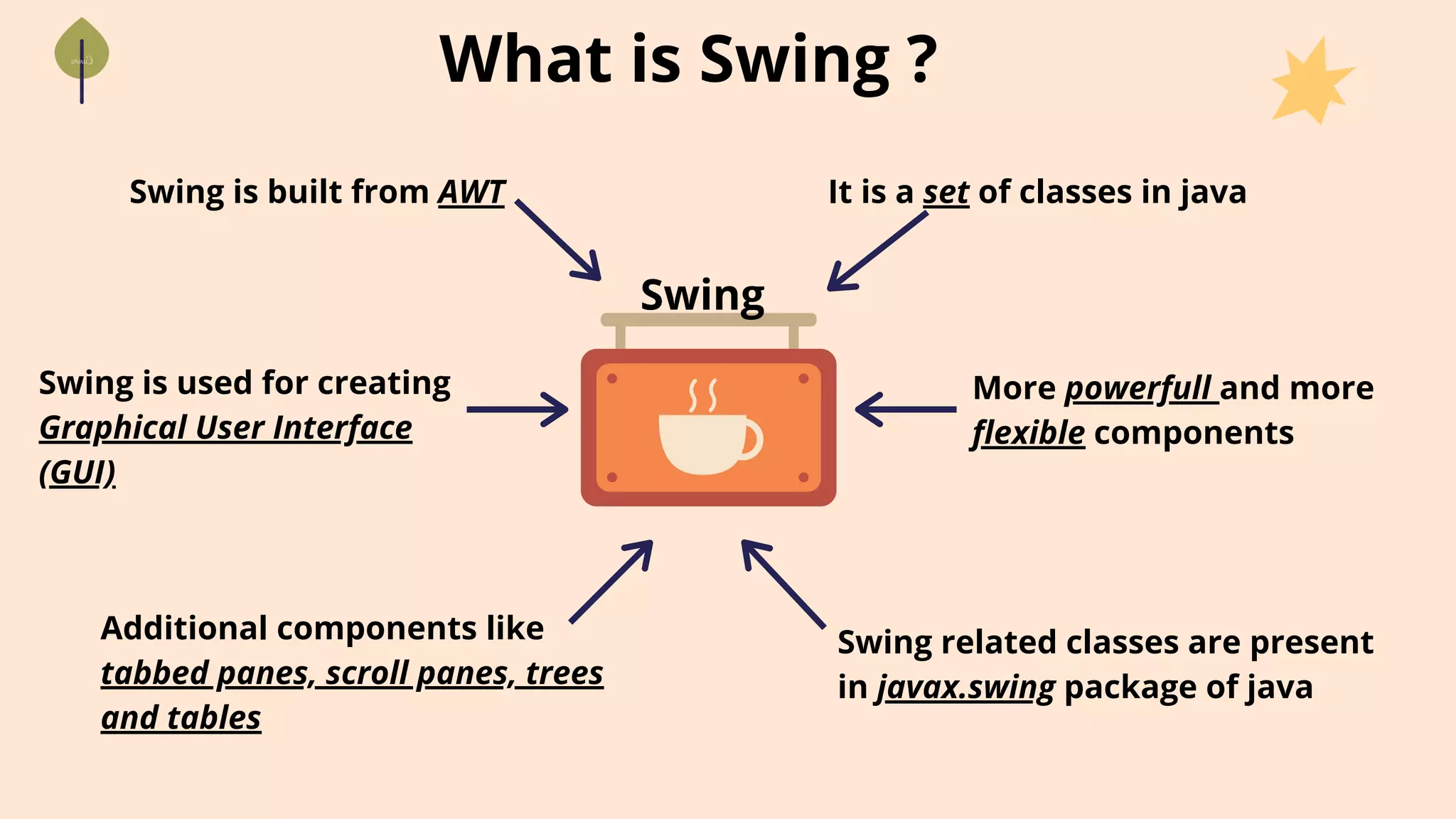
Swing is used for creating
Graphical User Interface
(GUI)
Additional components like
tabbed panes, scroll panes, trees
and tables
What is Swing ?
Swing is built from AWT
Swing
It is a set of classes in java
More powerfull and more
flexible components
Swing related classes are present
in javax.swing package of java
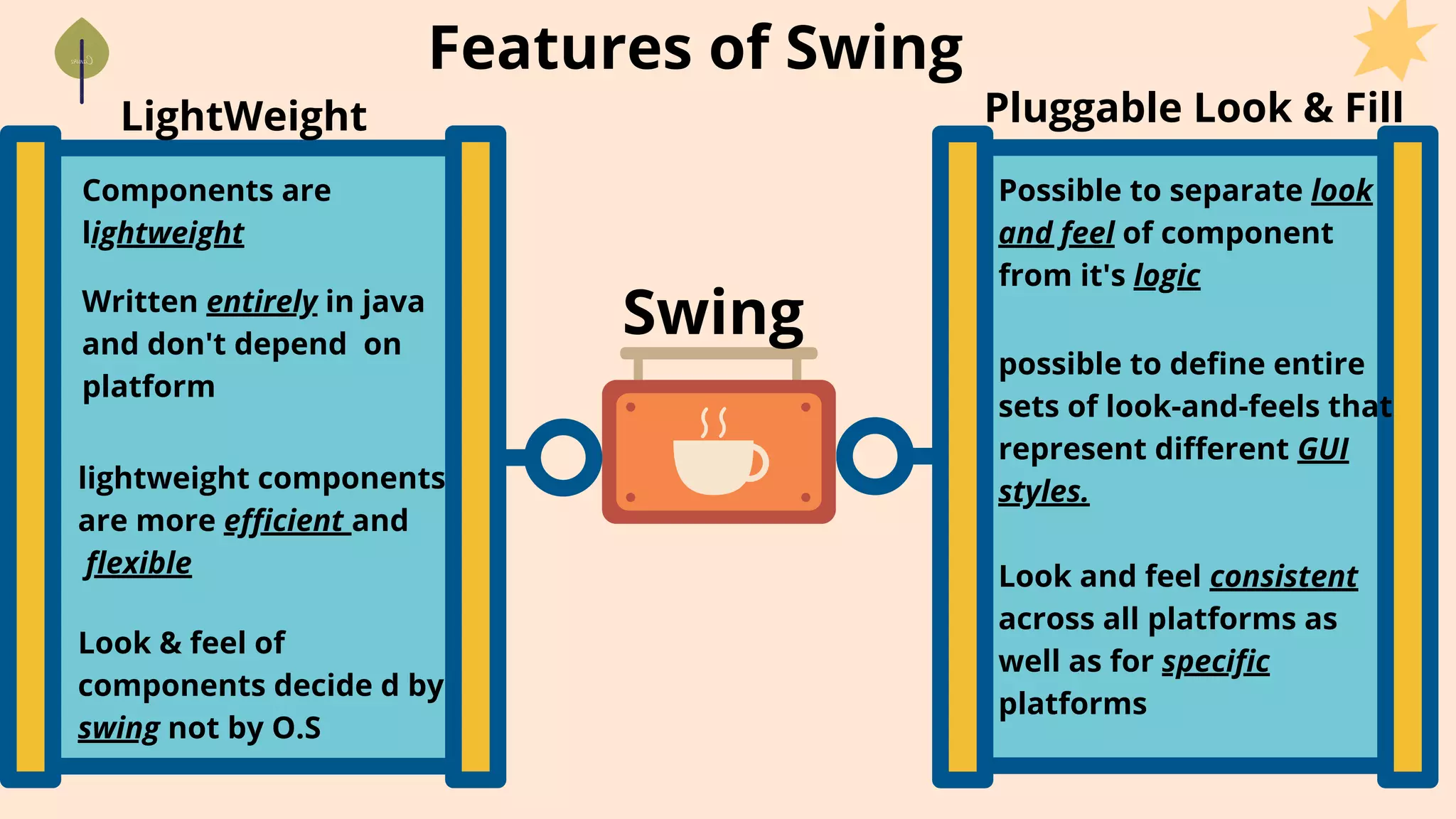
Features of Swing
Swing
LightWeight Pluggable Look & Fill
Components are
lightweight
Written entirely in java
and don't depend on
platform
lightweight components
are more efficient and
flexible
Look & feel of
components decide d by
swing not by O.S
Possible to separate look
and feel of component
from it's logic
possible to define entire
sets of look-and-feels that
represent different GUI
styles.
Look and feel consistent
across all platforms as
well as for specific
platforms
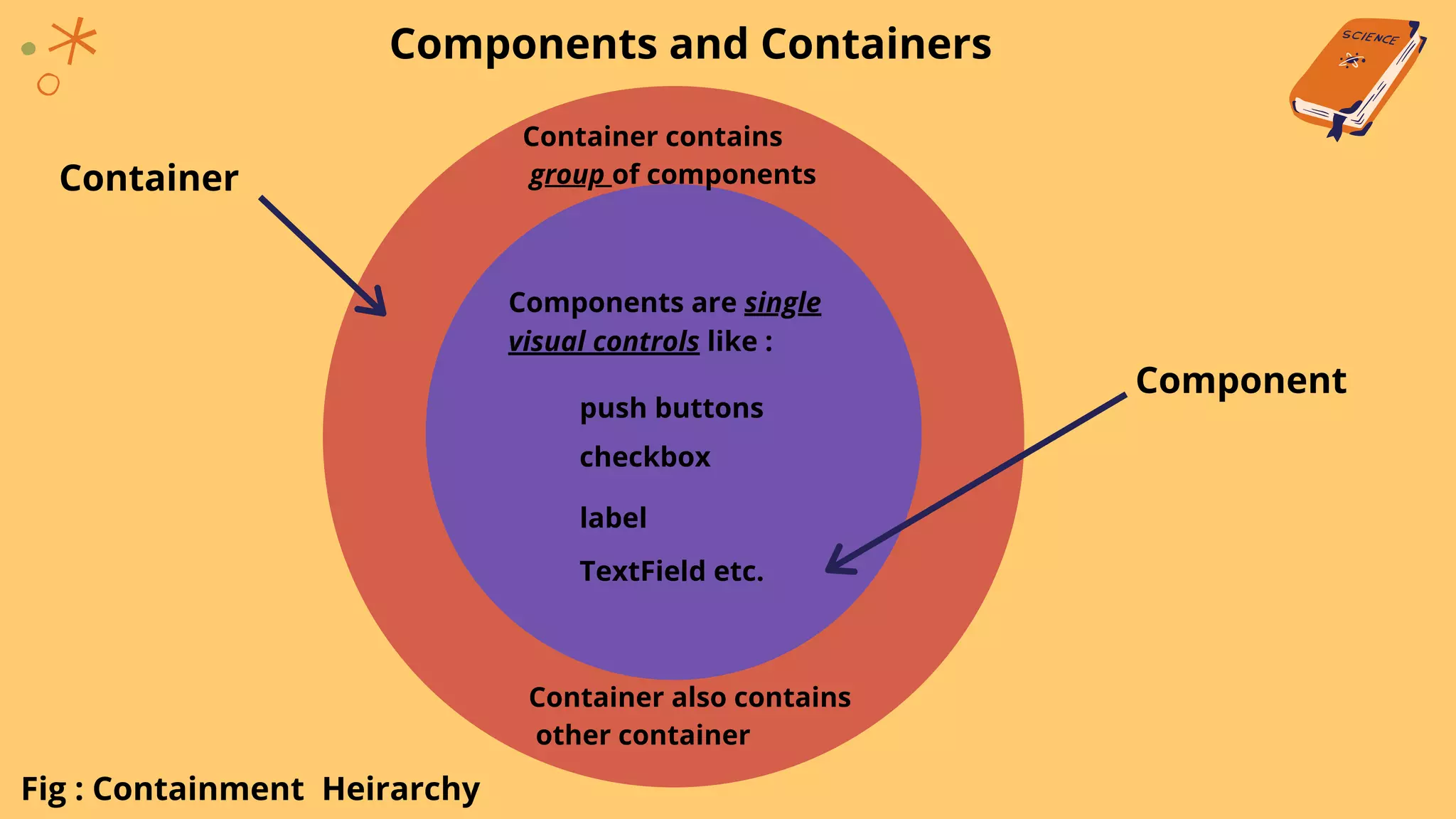
Components and Containers
Components are single
visual controls like :
push buttons
checkbox
label
TextField etc.
Container contains
group of componentsContainer
Component
Container also contains
other container
Fig : Containment Heirarchy
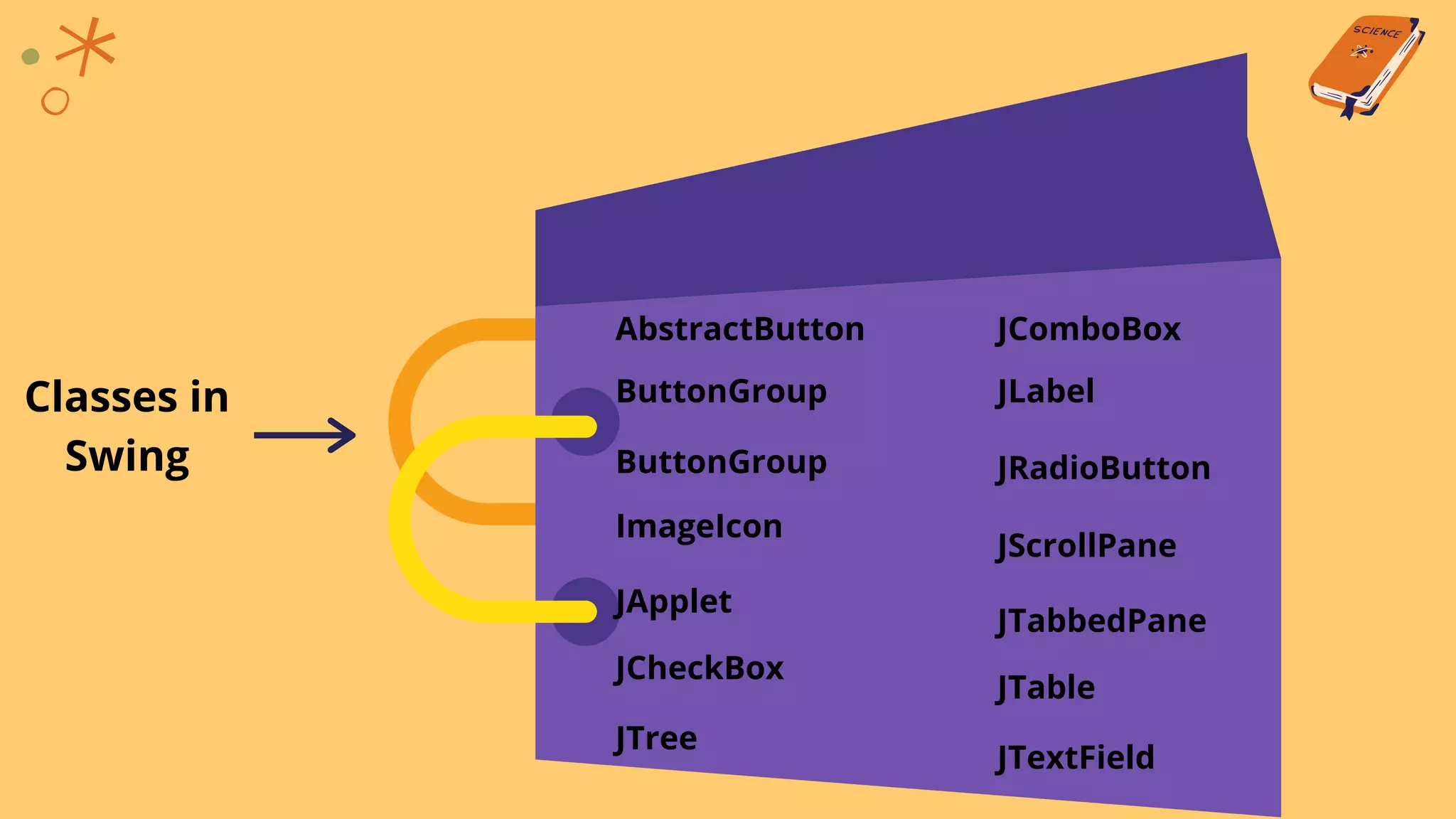
Classes in
Swing
AbstractButton
ButtonGroup
ButtonGroup
ImageIcon
JApplet
JCheckBox
JComboBox
JLabel
JRadioButton
JScrollPane
JTabbedPane
JTable
JTree
JTextField
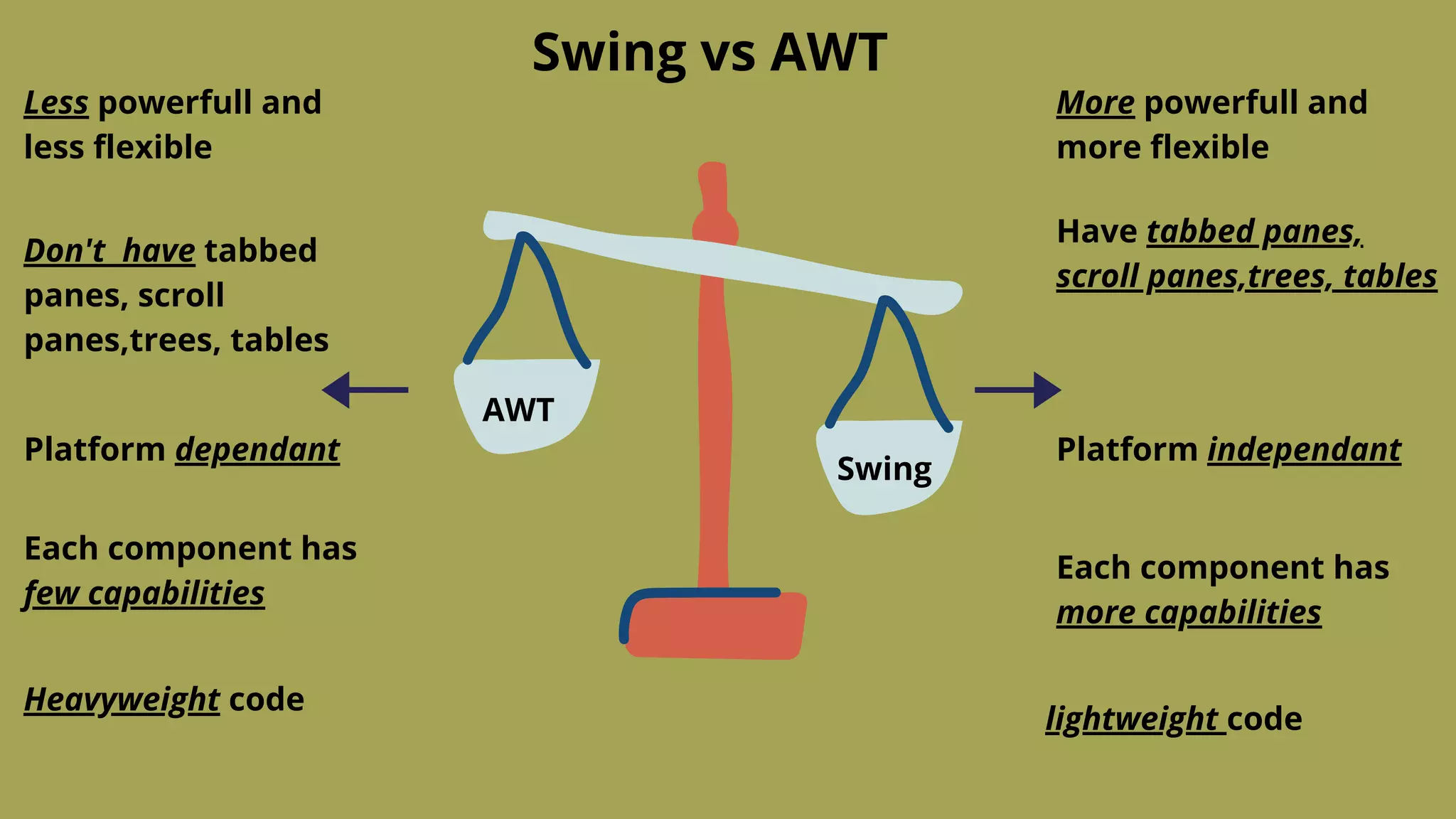
AWT
Swing
Less powerfull and
less flexible
More powerfull and
more flexible
Don't have tabbed
panes, scroll
panes,trees, tables
Have tabbed panes,
scroll panes,trees, tables
Platform dependant Platform independant
Each component has
more capabilities
Each component has
few capabilities
lightweight code
Heavyweight code
Swing vs AWT
JApplet class
If your applet uses swing then it must be subclass of JApplet class
JApplet extends Applet class
JApplet has more functionality than Applet
To add component in JApplet we create an object of Container
class which is returned by getContentPane() function
Container contentPane = getContentPane()
Call add() fuction of Container class using object of Container class
to add component to JApplet
contentPane.add(componet)
ImageIcon class and Icon interfacce
ImageIcon class is used to create icons (image)
Constructors of ImageIcon class :
ImageIcon(String filename) - creates icon from image file
ImageIcon(URL url) - creates icon from image given in resource url
Icon interface functions :
int getIconHeight() - returns height of icon in pixels
int getIconWidth() - returns width of icon in pixels
void paintIcon(Componet comp, Graphics g, int x, int y) - paints icon at
position x, y using graphics information in g object and additional
information in comp object
Labels - JLabel class
JLabel class is usedto create labels.
JLabel class is child  subclass of JComponent class
JLabel(Icon i) - creates label from icon object i
It can display text as well as icons
Constructors of JLabel class :
JLabel(String s) - creates label from string s
JLabel(String s, Icon i, int align) - creates label using both string and icon and
also aligns the label to right,center,leading or trailing
Labels - JLabel class
Functions in JLabel class :
Icon getIcon() - returns icon used in label
String getText() - returns text used in label
void setIcon(Icon i) - sets or changes icon in the label
void setText(String s) - sets or changes text in the label
import java.awt.*;
import javax.swing.*;
/*
<applet code="JLabelExample" width=250 height=150>
</applet>
*/
public class JLabelExample extends JApplet
{
public void init()
{
Container contentPane = getContentPane();
ImageIcon img = new ImageIcon("emojis.jpg");
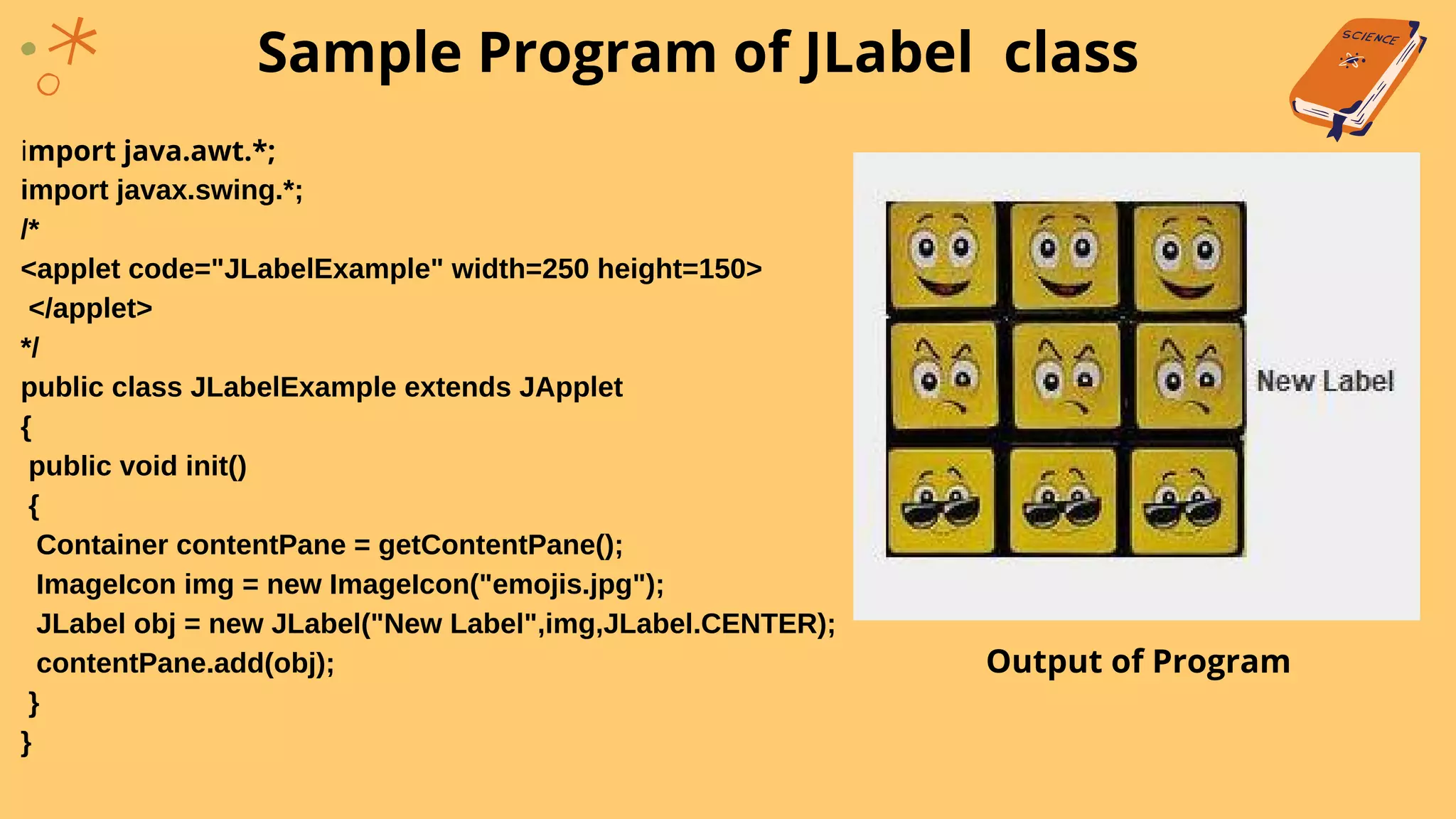
JLabel obj = new JLabel("New Label",img,JLabel.CENTER);
contentPane.add(obj);
}
}
Sample Program of JLabel class
Output of Program
TextField - JTextField class
JTextField class is used to create single line text entry
JTextField class inherits JTextComponent class and JTextComponent inherits
JComponent class
Constructors of JTextField class :
JTextField() - creates simple textfield
JTextField(int cols) - creates textfield with no. of columns equal to col
JTextField(String s,int cols) - creates textfield with string s and no. of
columns equal to col
JTextField(String s) - creates textfield with string s
import java.awt.*;
import javax.swing.*;
/*
<applet code="JTextFieldExample" width=250 height=150>
</applet>
*/
public class JTextFieldExample extends JApplet
{
JTextField obj;
public void init()
{
Container contentPane = getContentPane();
contentPane.setLayout(new FlowLayout());
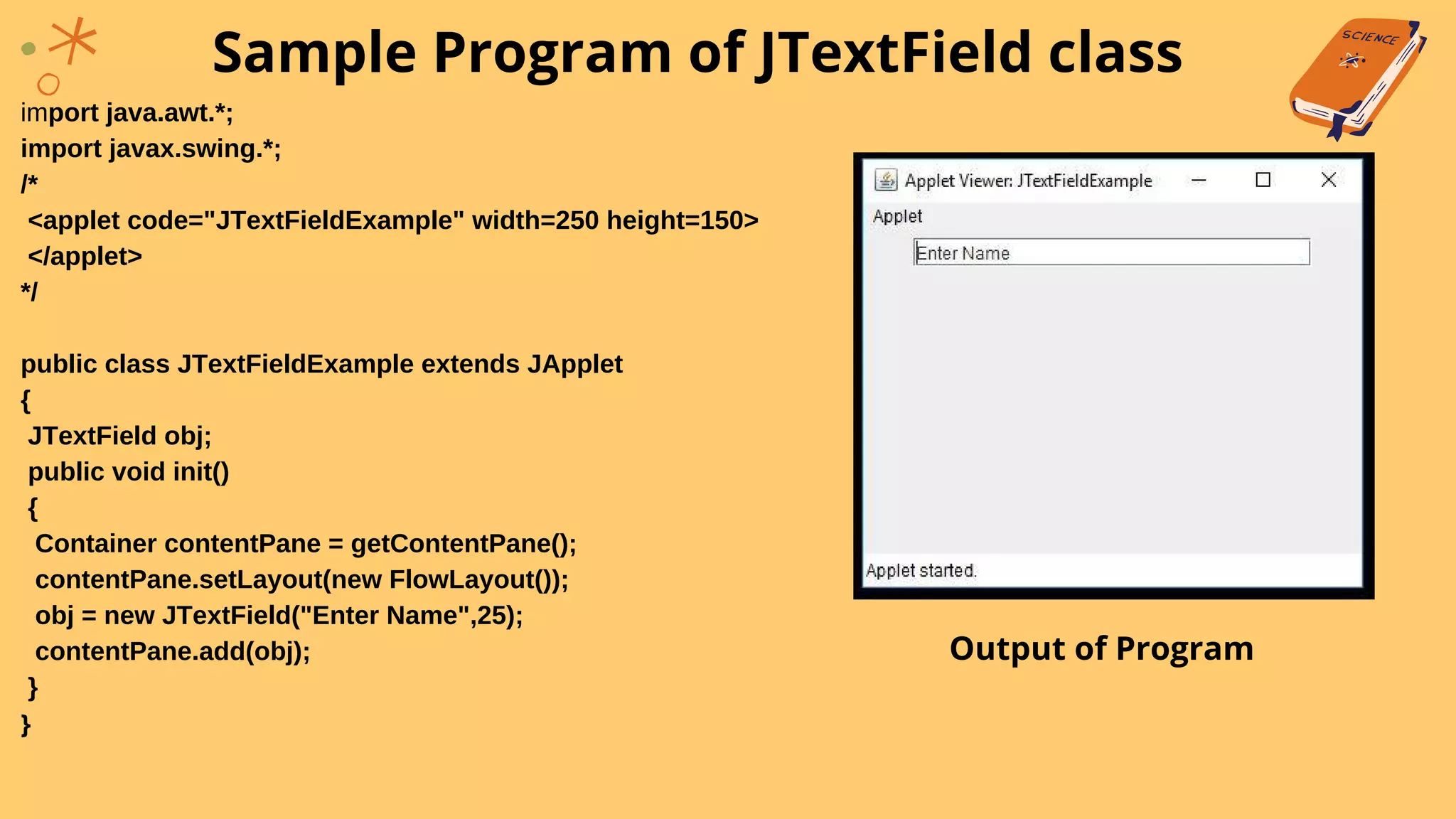
obj = new JTextField("Enter Name",25);
contentPane.add(obj);
}
}
Sample Program of JTextField class
Output of Program
Buttons in Swing
Using swing we can create button with icons
Swing buttons are subclass(child) class of AbstractButton class and
AbstractButton is subclass of JComponent class
Functions for buttons in swing :
void setDisabledIcon(Icon i) - displays icon when other icon is disabled
void setPressedIcon(Icon i) - displays icon when other icon is pressed
void setSelectedIcon(Icon i) - displays icon when other icon is selected
void setRolloverIcon(Icon i) - displays icon when mouse positioned over other icon
String getText() - returns text of a button
void setText() - changes text of button
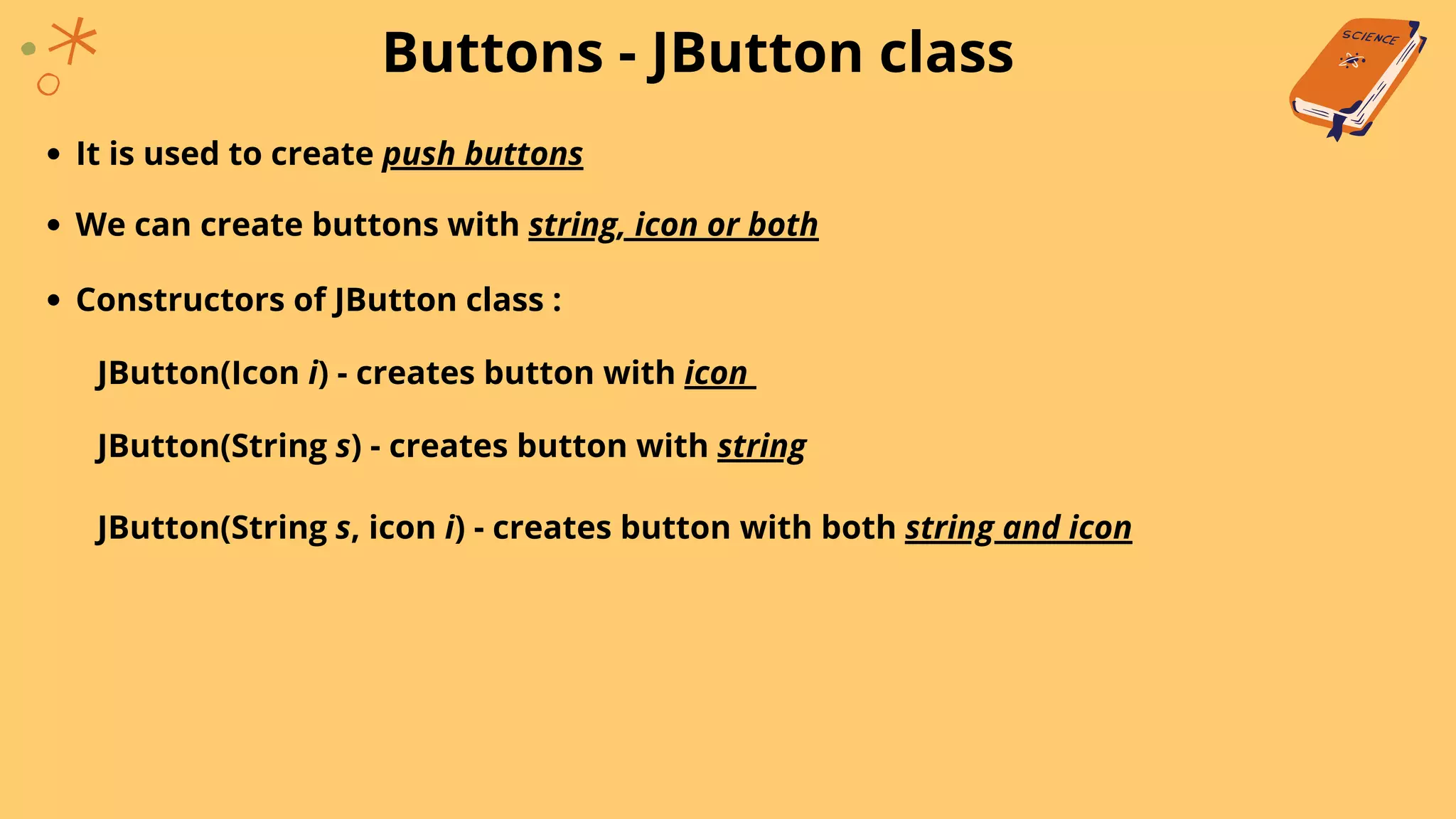
Buttons - JButton class
It is used to create push buttons
We can create buttons with string, icon or both
Constructors of JButton class :
JButton(Icon i) - creates button with icon
JButton(String s) - creates button with string
JButton(String s, icon i) - creates button with both string and icon
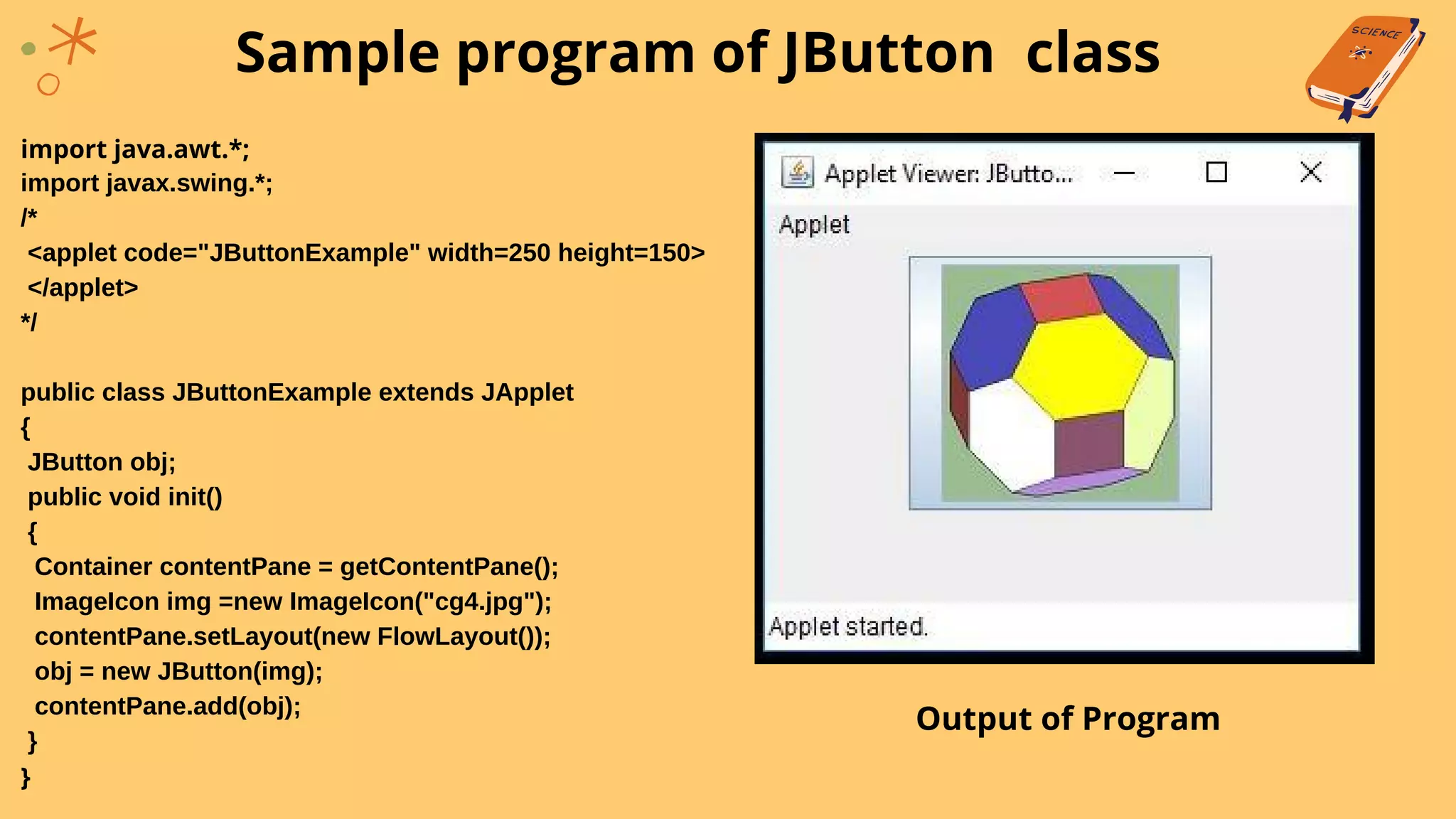
import java.awt.*;
import javax.swing.*;
/*
<applet code="JButtonExample" width=250 height=150>
</applet>
*/
public class JButtonExample extends JApplet
{
JButton obj;
public void init()
{
Container contentPane = getContentPane();
ImageIcon img =new ImageIcon("cg4.jpg");
contentPane.setLayout(new FlowLayout());
obj = new JButton(img);
contentPane.add(obj);
}
}
Sample program of JButton class
Output of Program
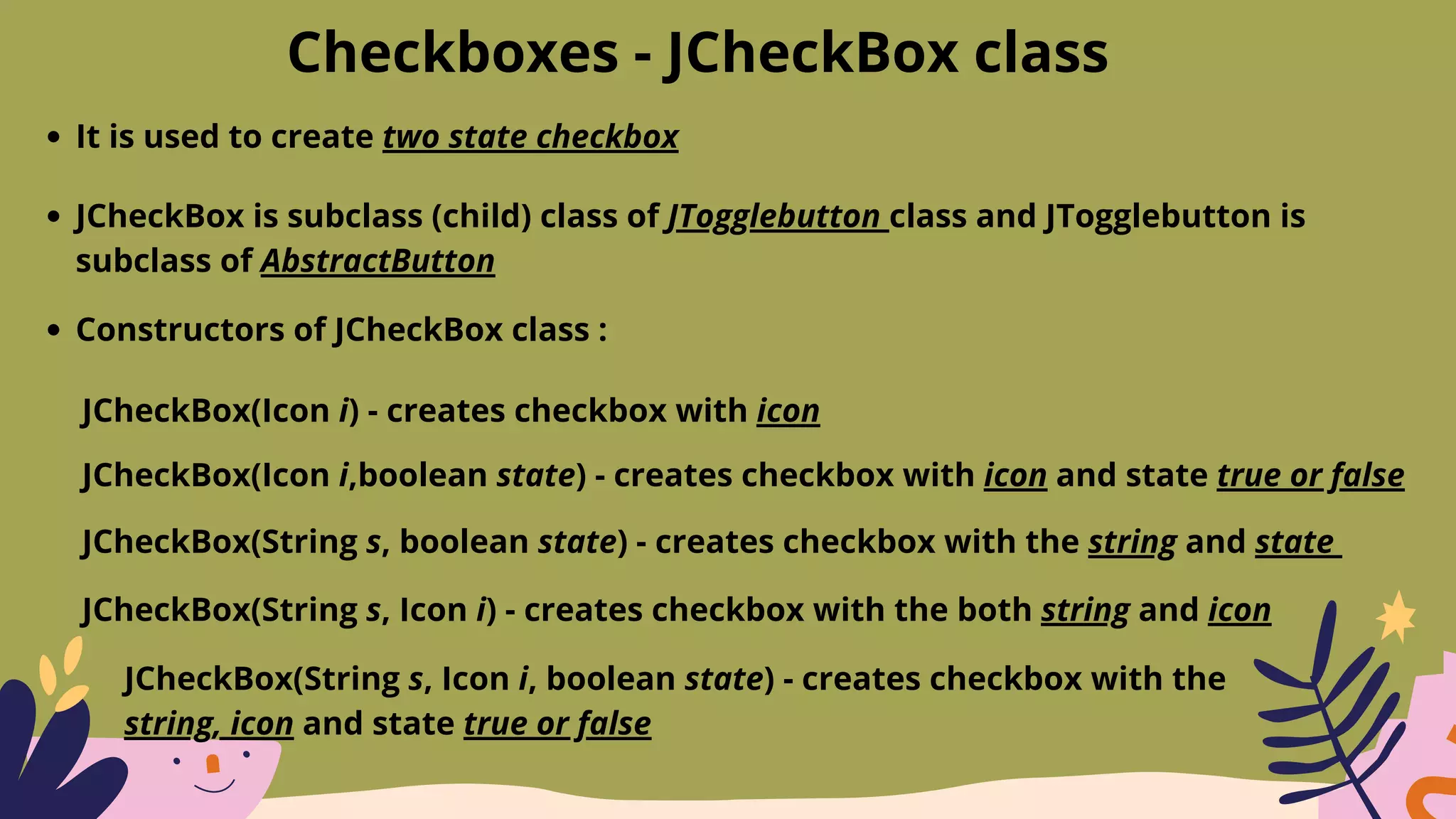
Checkboxes - JCheckBox class
It is used to create two state checkbox
JCheckBox is subclass (child) class of JTogglebutton class and JTogglebutton is
subclass of AbstractButton
Constructors of JCheckBox class :
JCheckBox(Icon i) - creates checkbox with icon
JCheckBox(Icon i,boolean state) - creates checkbox with icon and state true or false
JCheckBox(String s, boolean state) - creates checkbox with the string and state
JCheckBox(String s, Icon i) - creates checkbox with the both string and icon
JCheckBox(String s, Icon i, boolean state) - creates checkbox with the
string, icon and state true or false
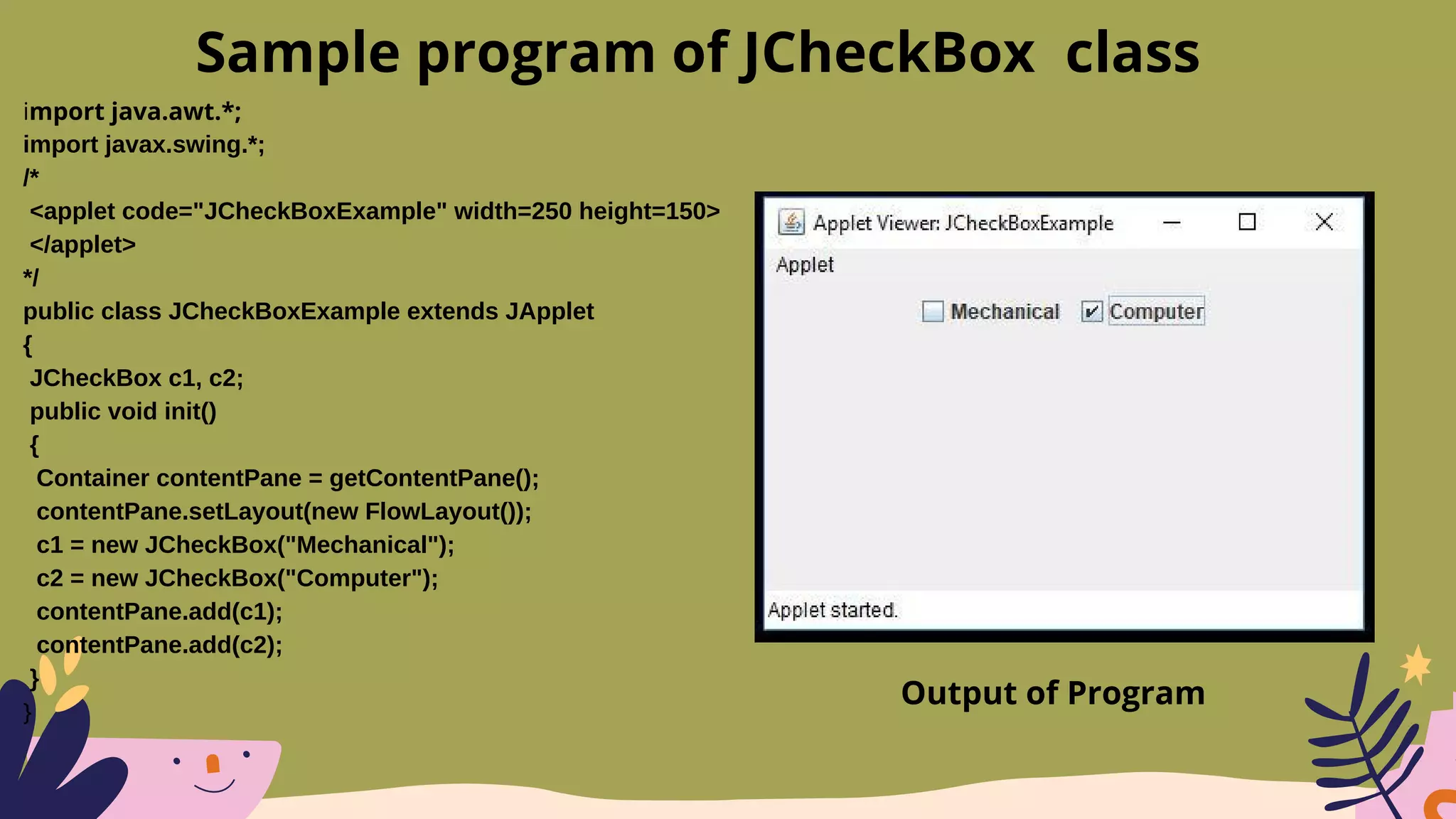
import java.awt.*;
import javax.swing.*;
/*
<applet code="JCheckBoxExample" width=250 height=150>
</applet>
*/
public class JCheckBoxExample extends JApplet
{
JCheckBox c1, c2;
public void init()
{
Container contentPane = getContentPane();
contentPane.setLayout(new FlowLayout());
c1 = new JCheckBox("Mechanical");
c2 = new JCheckBox("Computer");
contentPane.add(c1);
contentPane.add(c2);
}
}
Sample program of JCheckBox class
Output of Program
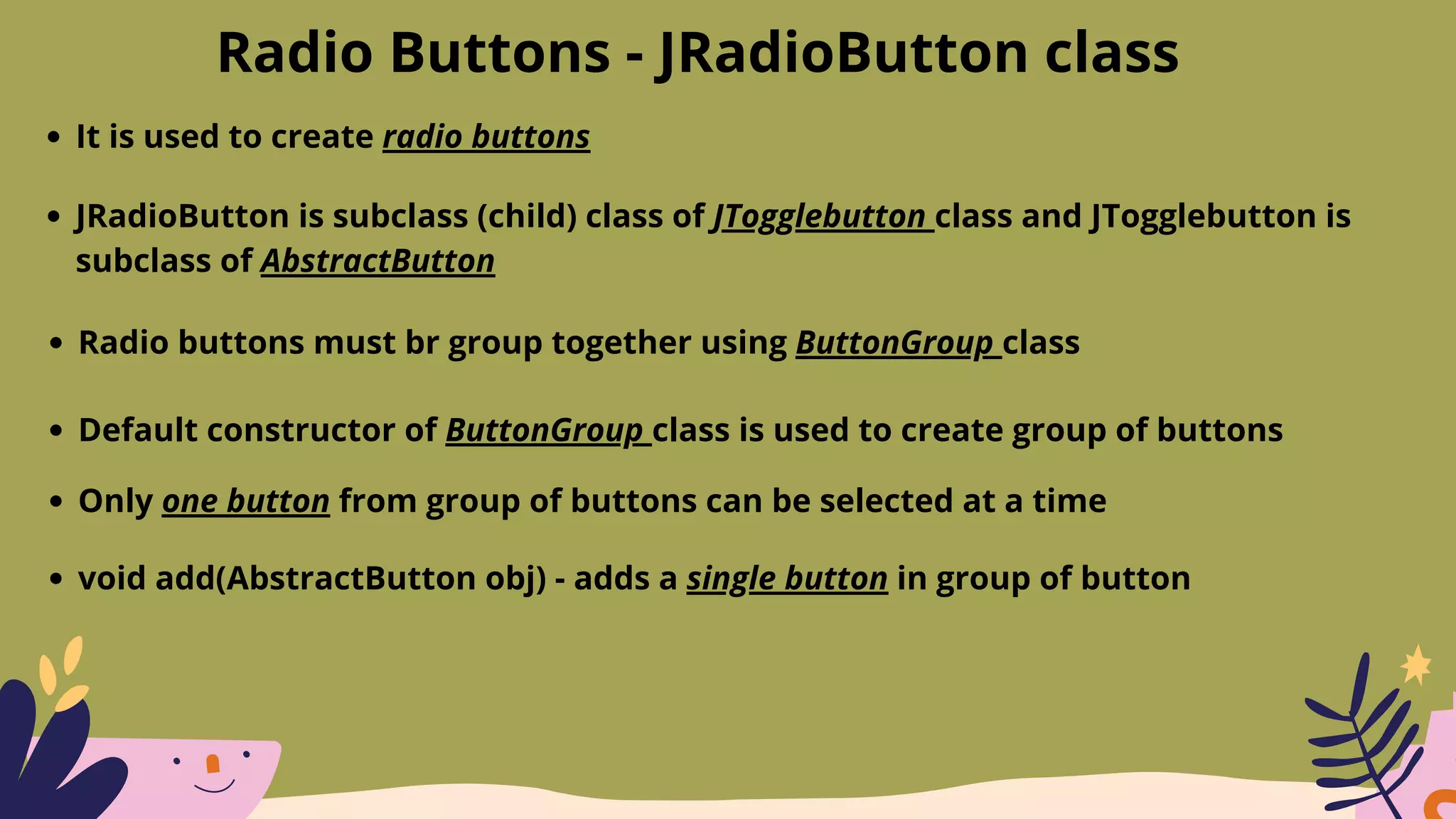
Radio Buttons - JRadioButton class
It is used to create radio buttons
JRadioButton is subclass (child) class of JTogglebutton class and JTogglebutton is
subclass of AbstractButton
Radio buttons must br group together using ButtonGroup class
Default constructor of ButtonGroup class is used to create group of buttons
Only one button from group of buttons can be selected at a time
void add(AbstractButton obj) - adds a single button in group of button
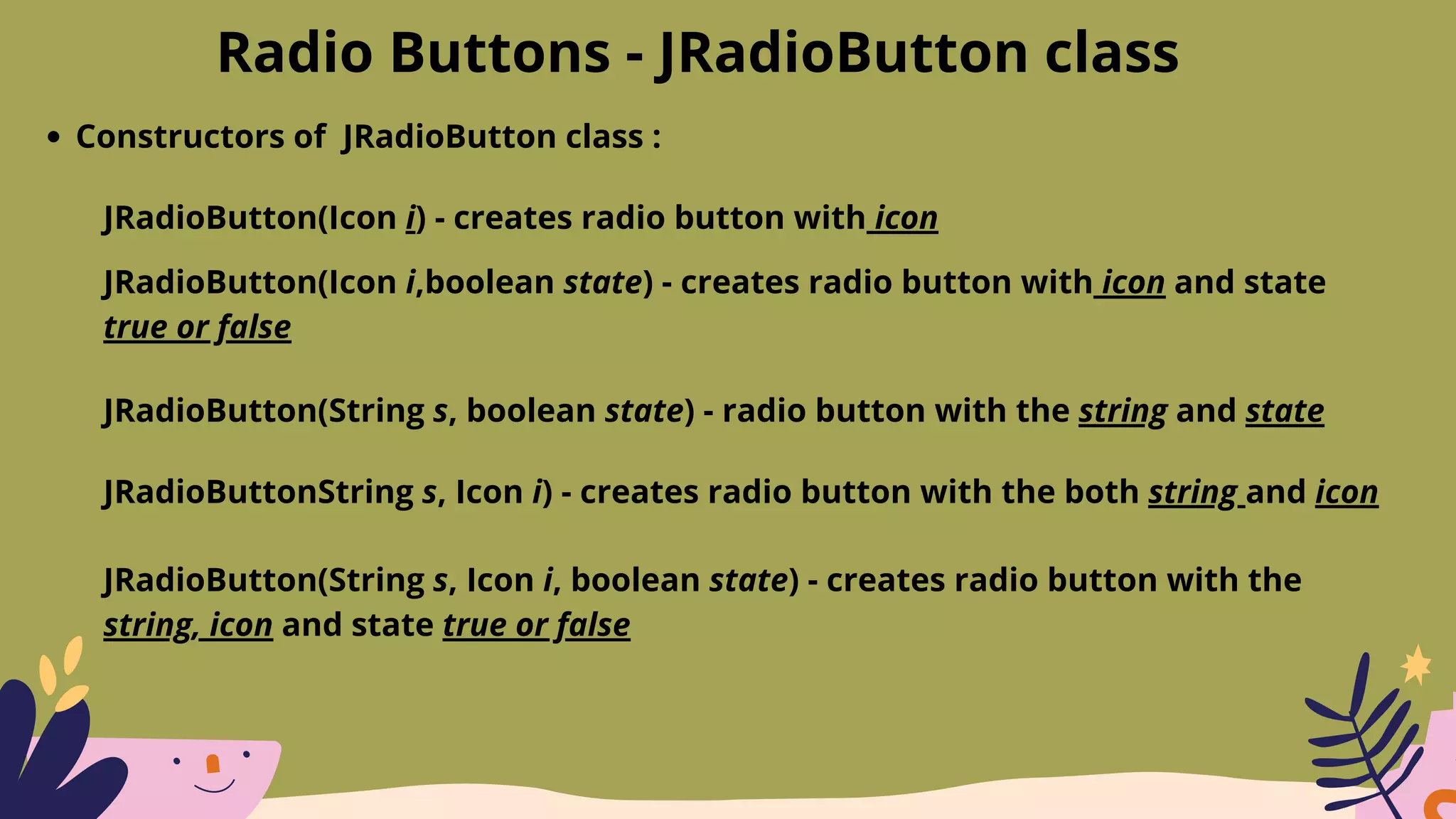
Radio Buttons - JRadioButton class
Constructors of JRadioButton class :
JRadioButton(Icon i) - creates radio button with icon
JRadioButton(Icon i,boolean state) - creates radio button with icon and state
true or false
JRadioButton(String s, boolean state) - radio button with the string and state
JRadioButtonString s, Icon i) - creates radio button with the both string and icon
JRadioButton(String s, Icon i, boolean state) - creates radio button with the
string, icon and state true or false
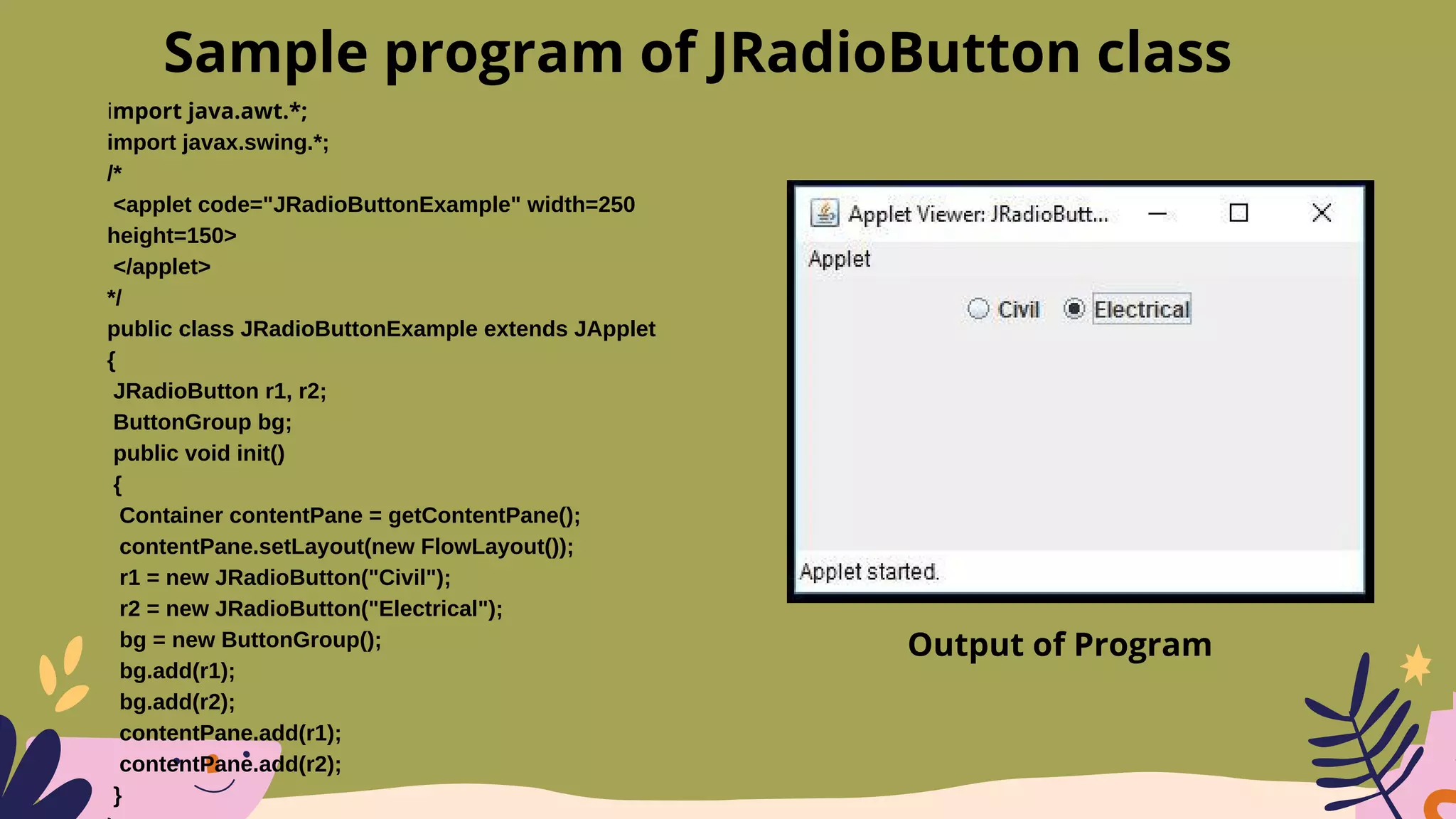
import java.awt.*;
import javax.swing.*;
/*
<applet code="JRadioButtonExample" width=250
height=150>
</applet>
*/
public class JRadioButtonExample extends JApplet
{
JRadioButton r1, r2;
ButtonGroup bg;
public void init()
{
Container contentPane = getContentPane();
contentPane.setLayout(new FlowLayout());
r1 = new JRadioButton("Civil");
r2 = new JRadioButton("Electrical");
bg = new ButtonGroup();
bg.add(r1);
bg.add(r2);
contentPane.add(r1);
contentPane.add(r2);
}
Sample program of JRadioButton class
Output of Program
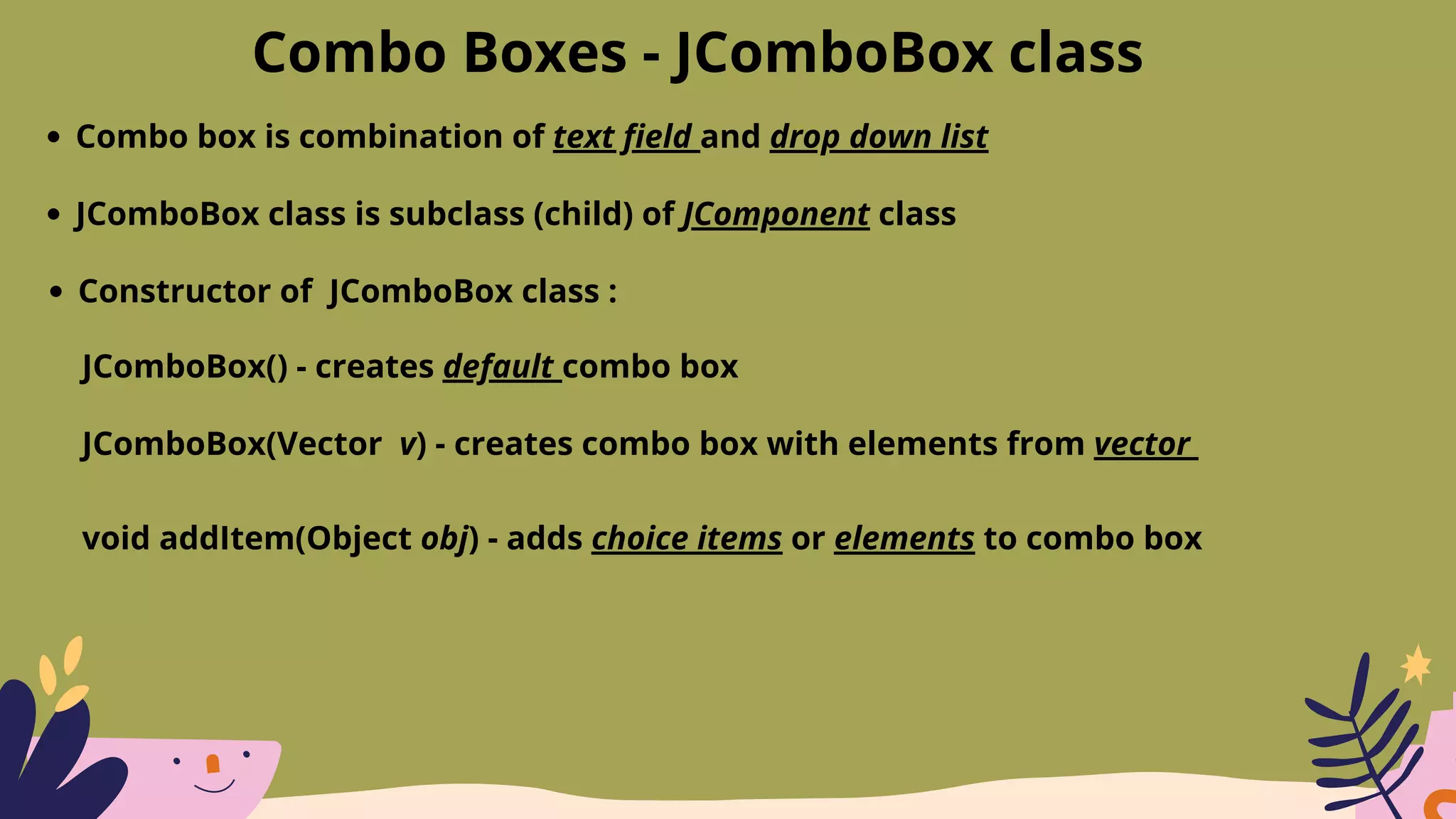
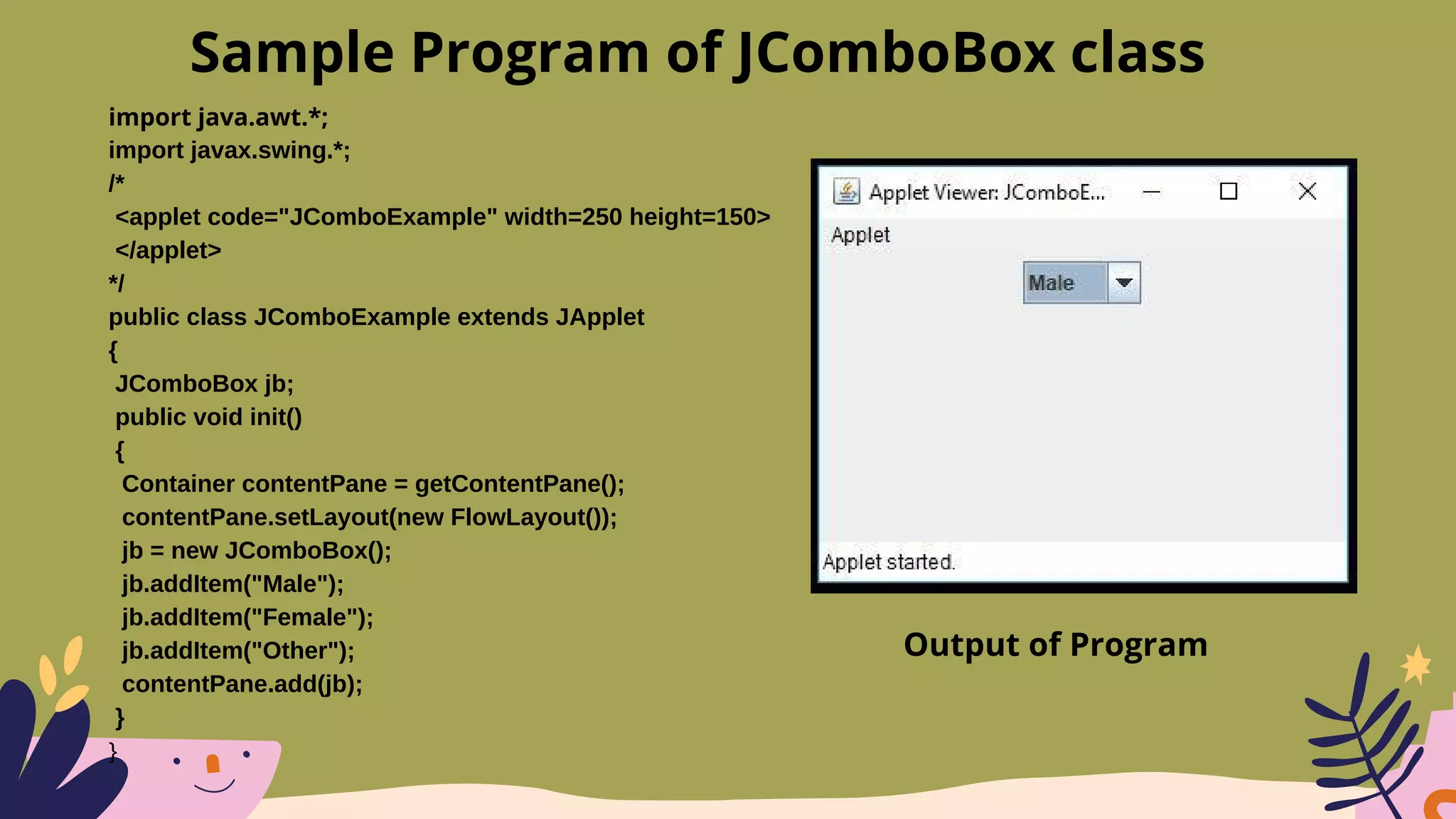
Combo Boxes - JComboBox class
Combo box is combination of text field and drop down list
JComboBox class is subclass (child) of JComponent class
Constructor of JComboBox class :
JComboBox() - creates default combo box
JComboBox(Vector v) - creates combo box with elements from vector
void addItem(Object obj) - adds choice items or elements to combo box
import java.awt.*;
import javax.swing.*;
/*
<applet code="JComboExample" width=250 height=150>
</applet>
*/
public class JComboExample extends JApplet
{
JComboBox jb;
public void init()
{
Container contentPane = getContentPane();
contentPane.setLayout(new FlowLayout());
jb = new JComboBox();
jb.addItem("Male");
jb.addItem("Female");
jb.addItem("Other");
contentPane.add(jb);
}
}
Sample Program of JComboBox class
Output of Program
Tabbed Panes - JTabbedPane class
Tabbed pane is group of folders in file cabinet, each folder has a name
Only one folder can be selected at time
Tabbed panes are commonly used for configuration setting options
JTabbedPane class is subclass (child) of JComponent class
void addTab(String str, Component comp) - adds component to a tab, str is title of a
tab and comp is component to be added to the tab
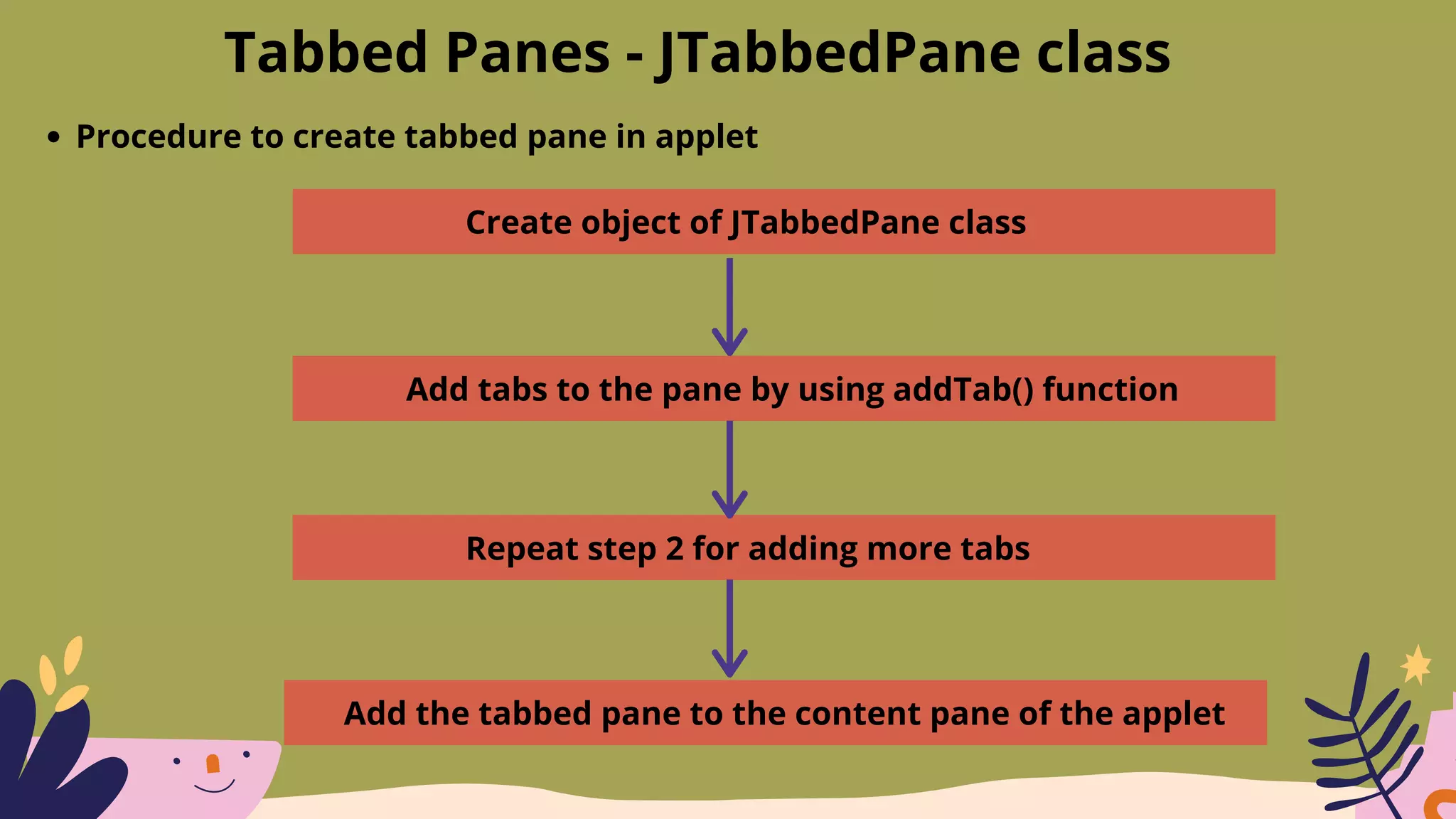
Tabbed Panes - JTabbedPane class
Procedure to create tabbed pane in applet
Create object of JTabbedPane class
Add tabs to the pane by using addTab() function
Repeat step 2 for adding more tabs
Add the tabbed pane to the content pane of the applet
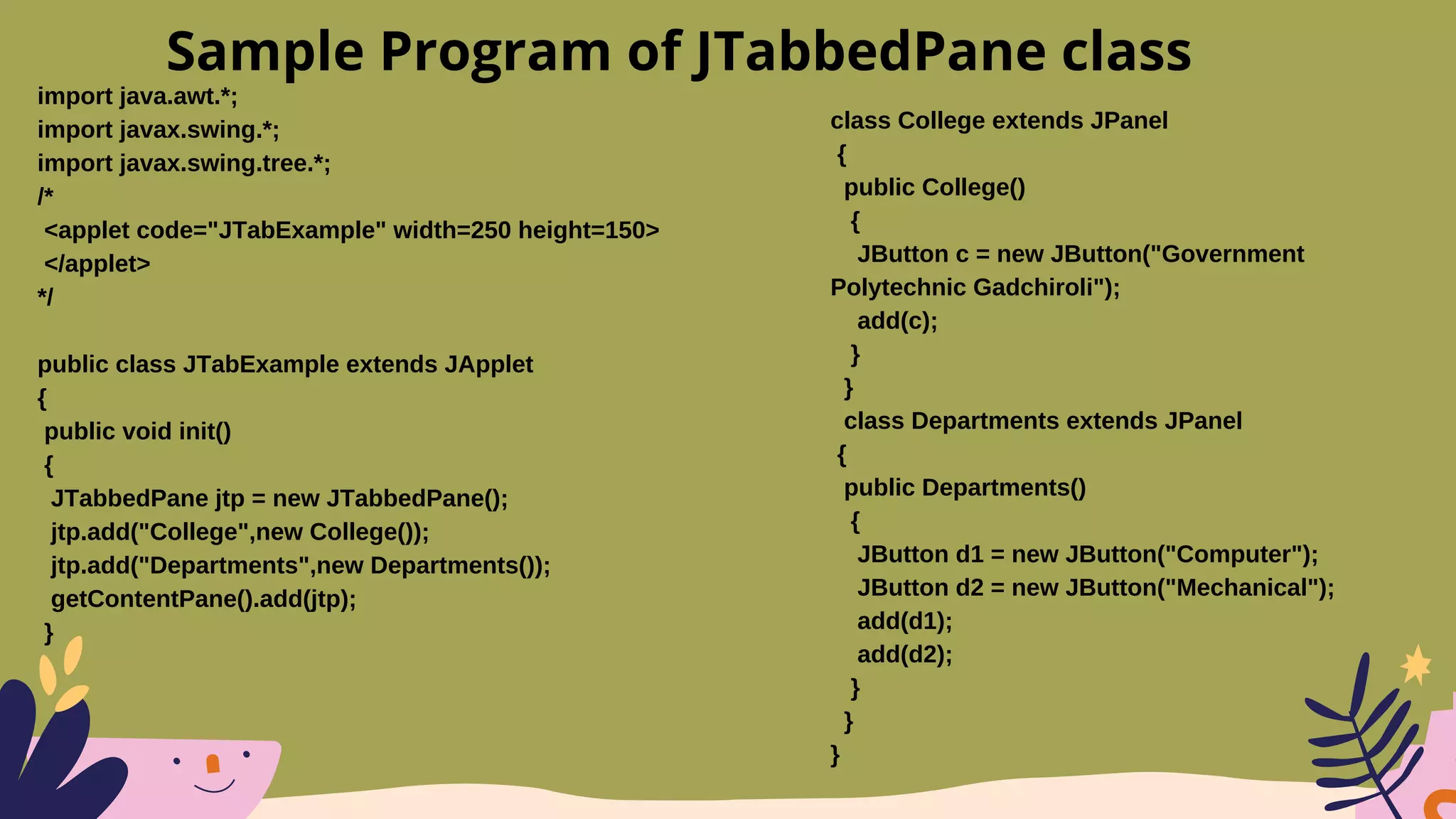
import java.awt.*;
import javax.swing.*;
import javax.swing.tree.*;
/*
<applet code="JTabExample" width=250 height=150>
</applet>
*/
public class JTabExample extends JApplet
{
public void init()
{
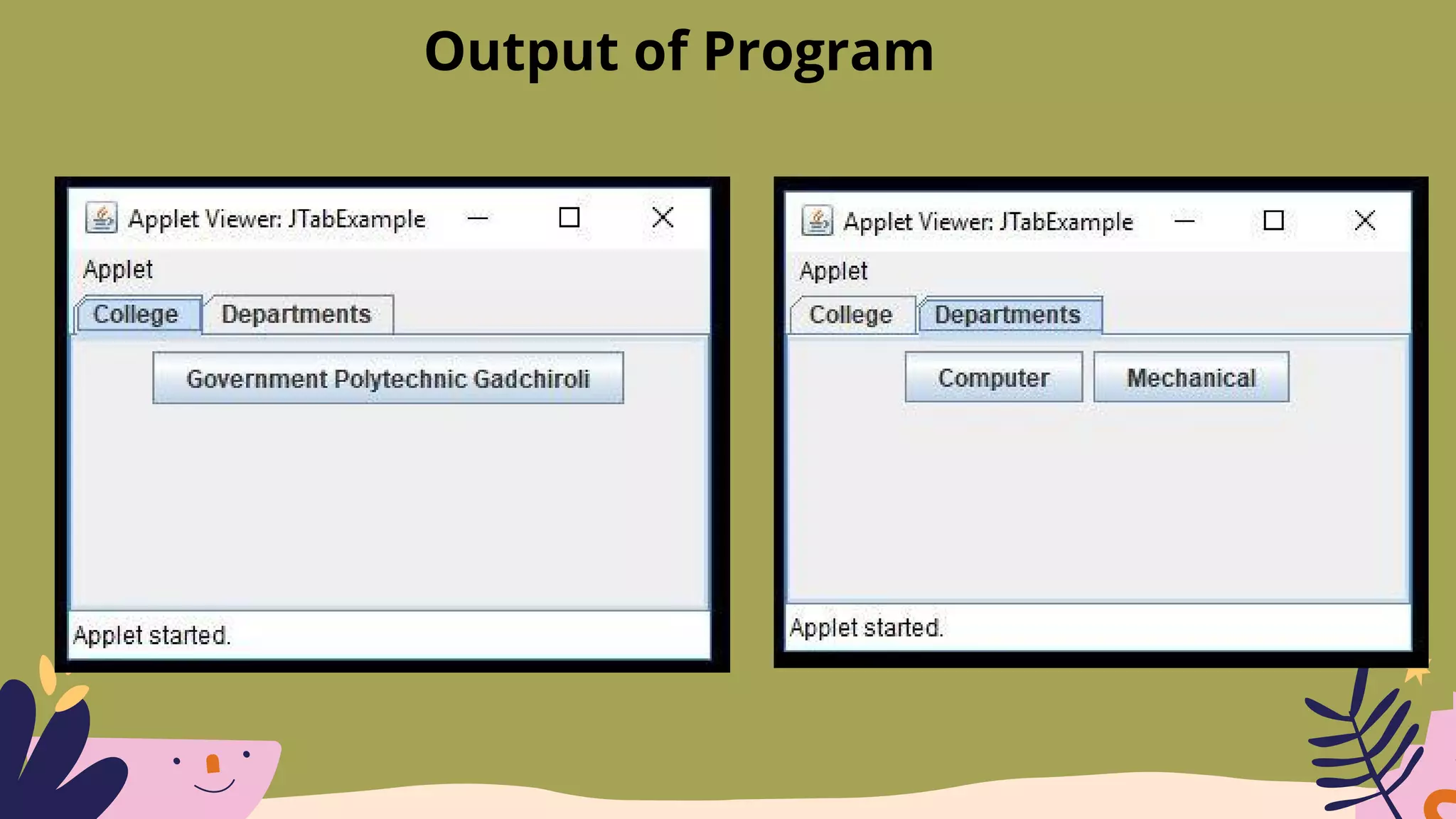
JTabbedPane jtp = new JTabbedPane();
jtp.add("College",new College());
jtp.add("Departments",new Departments());
getContentPane().add(jtp);
}
Sample Program of JTabbedPane class
class College extends JPanel
{
public College()
{
JButton c = new JButton("Government
Polytechnic Gadchiroli");
add(c);
}
}
class Departments extends JPanel
{
public Departments()
{
JButton d1 = new JButton("Computer");
JButton d2 = new JButton("Mechanical");
add(d1);
add(d2);
}
}
}
Output of Program
Scroll Panes - JScrollPane class
Scroll pane is a rectangular area in which other component can be seen
Scroll pane is created using JScrollPane class, which sublcass (child) of JComponent
class
Constructors of JScrollPane class :
JScrollPane(Component comp) - adds component to scroll pane
JScrollPane(int vsb, int hsb) - creates vertical and horizontal scroll bar
JScrollPane(Component comp, int vsb, int hsb) - adds component and creates
vertical and horizontal scroll bar
Scroll Panes - JScrollPane class
Constants in JScrollPane class :
HORIZONTAL_SCROLLBAR_ALWAYS - always used hoizontal scroll bar
HORIZONTAL_SCROLLBAR_AS_NEEDED - used hoizontal scroll bar when needed
VERTICAL_SCROLLBAR_ALWAYS - always used vertical scroll bar
VERTICAL_SCROLLBAR_AS_NEEDED - used vertical scroll bar when needed
Scroll Panes - JScrollPane class
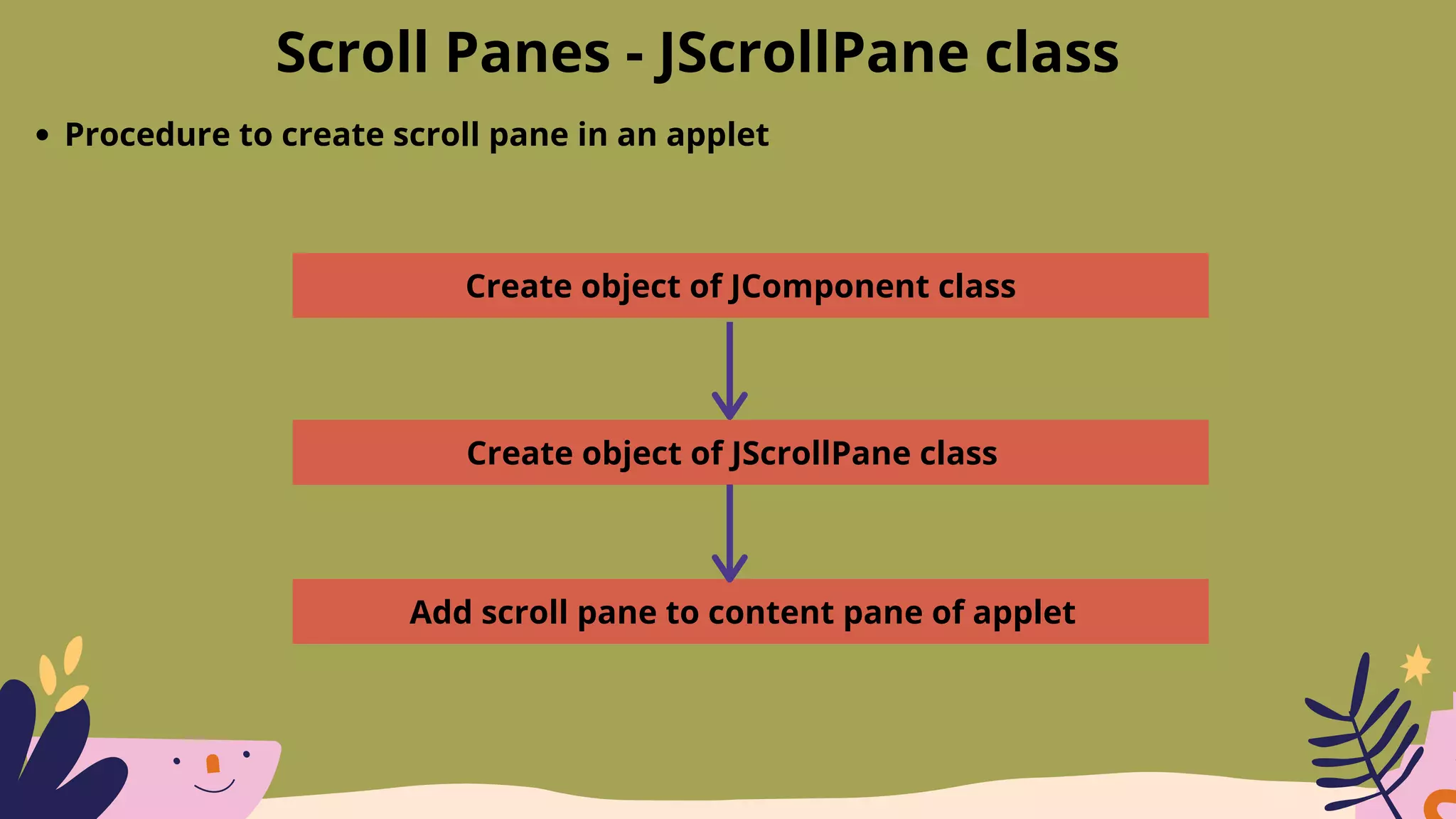
Procedure to create scroll pane in an applet
Create object of JComponent class
Create object of JScrollPane class
Add scroll pane to content pane of applet
import java.awt.*;
import javax.swing.*;
/*
<applet code="JScrollExample" width=250
height=150>
</applet>
*/
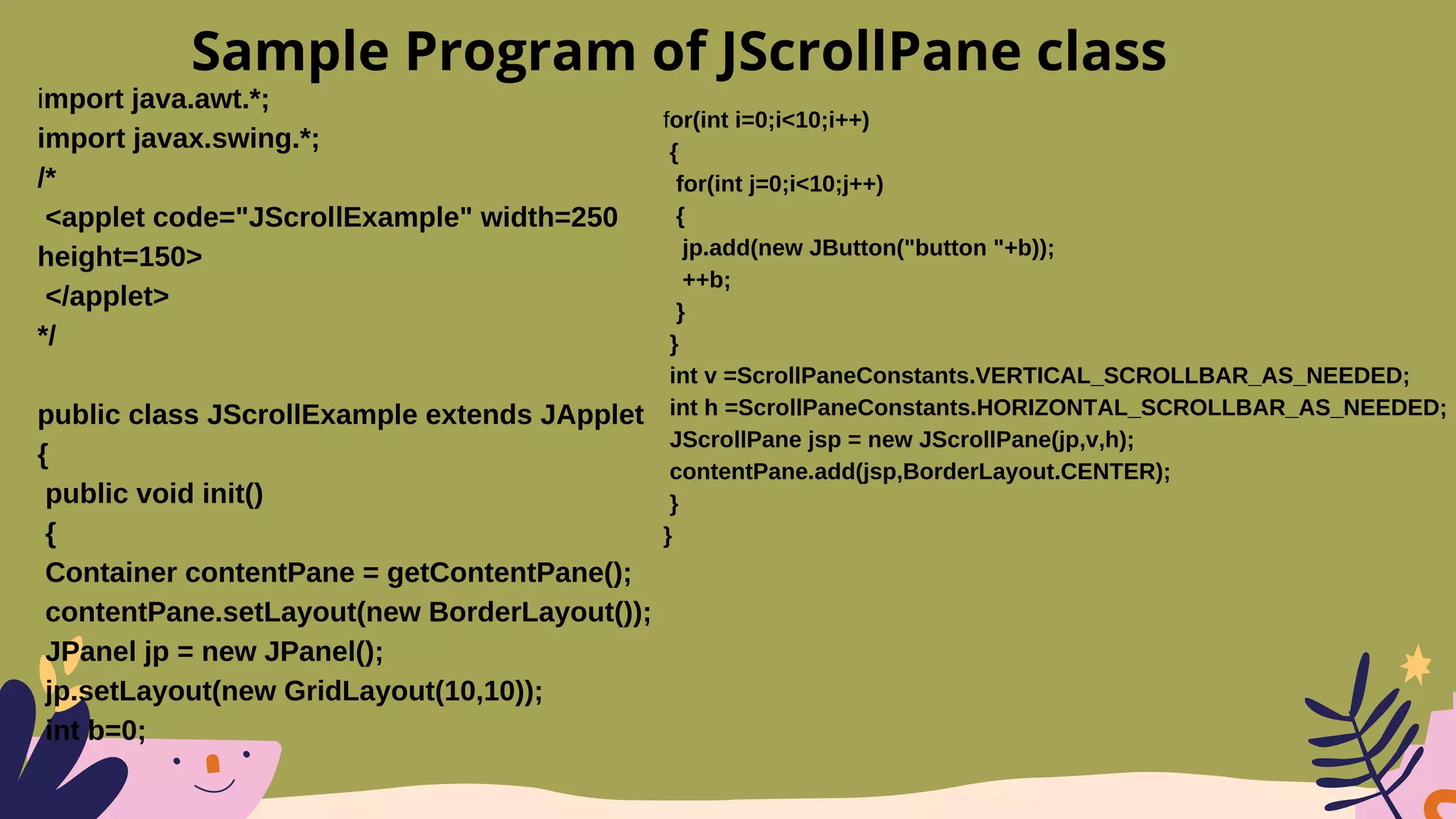
public class JScrollExample extends JApplet
{
public void init()
{
Container contentPane = getContentPane();
contentPane.setLayout(new BorderLayout());
JPanel jp = new JPanel();
jp.setLayout(new GridLayout(10,10));
int b=0;
Sample Program of JScrollPane class
for(int i=0;i<10;i++)
{
for(int j=0;i<10;j++)
{
jp.add(new JButton("button "+b));
++b;
}
}
int v =ScrollPaneConstants.VERTICAL_SCROLLBAR_AS_NEEDED;
int h =ScrollPaneConstants.HORIZONTAL_SCROLLBAR_AS_NEEDED;
JScrollPane jsp = new JScrollPane(jp,v,h);
contentPane.add(jsp,BorderLayout.CENTER);
}
}
Trees - JTree class
Tree is a component that shows heirarchical ( level by level) view of data
We can expand or collapse each subtree seen in display
Constructors of JTree class :
JTree(Hashtable ht) - creates tree with each element in hash table is child node
JTree(Object obj[ ]) - creates tree with each element in array obj is child node
JTree(TreeNode tn) - Makes node tn as root node or main node of a tree
JTree(Vector v) - creates tree with elements of vector v as child nodes
Trees - JTree class
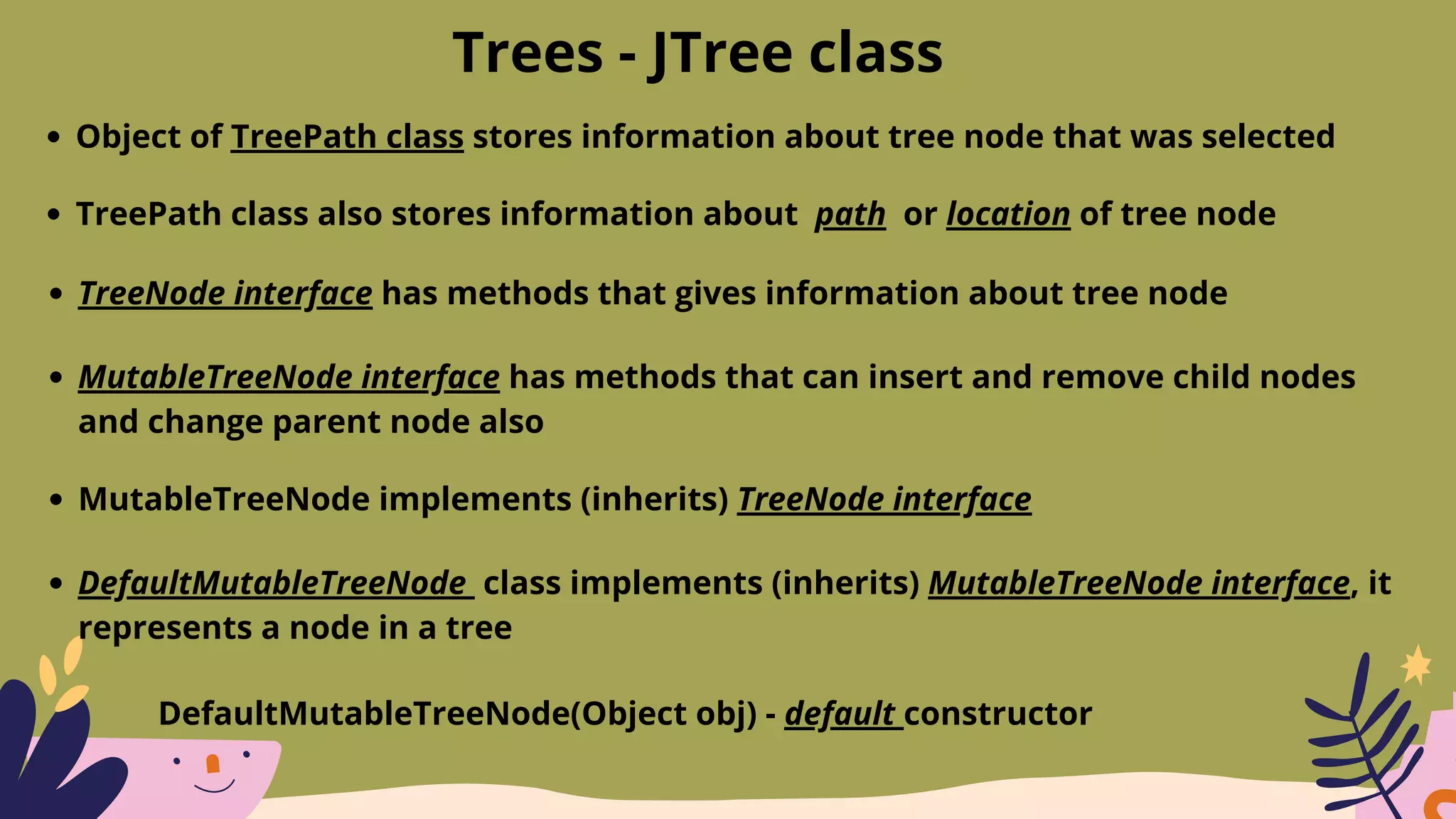
Object of TreePath class stores information about tree node that was selected
TreePath class also stores information about path or location of tree node
TreeNode interface has methods that gives information about tree node
MutableTreeNode interface has methods that can insert and remove child nodes
and change parent node also
MutableTreeNode implements (inherits) TreeNode interface
DefaultMutableTreeNode class implements (inherits) MutableTreeNode interface, it
represents a node in a tree
DefaultMutableTreeNode(Object obj) - default constructor
Trees - JTree class
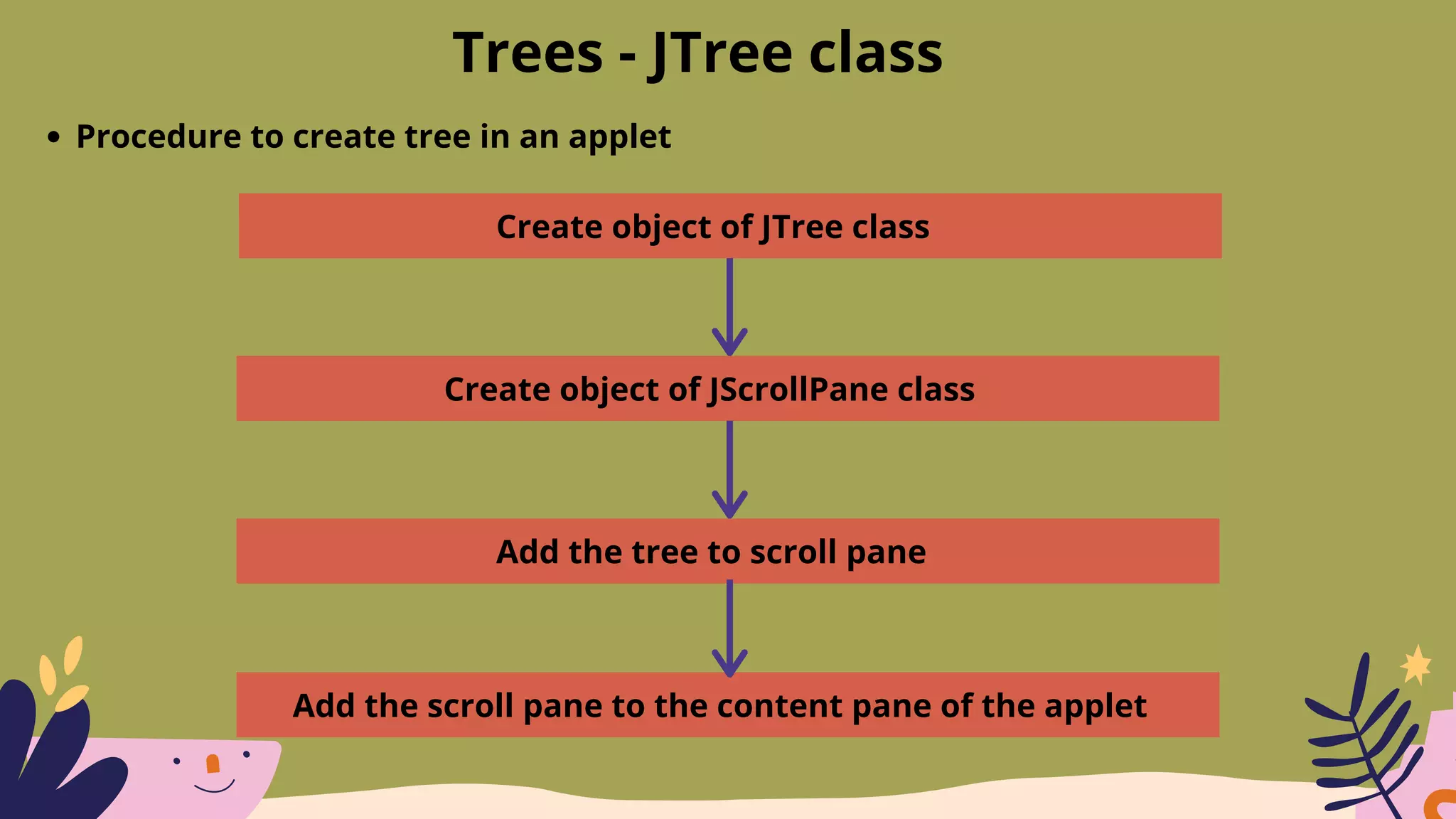
Procedure to create tree in an applet
Create object of JTree class
Create object of JScrollPane class
Add the tree to scroll pane
Add the scroll pane to the content pane of the applet
import java.awt.*;
import javax.swing.*;
import javax.swing.tree.*;
/*
<applet code="JTreeExample" width=250 height=150>
</applet>
*/
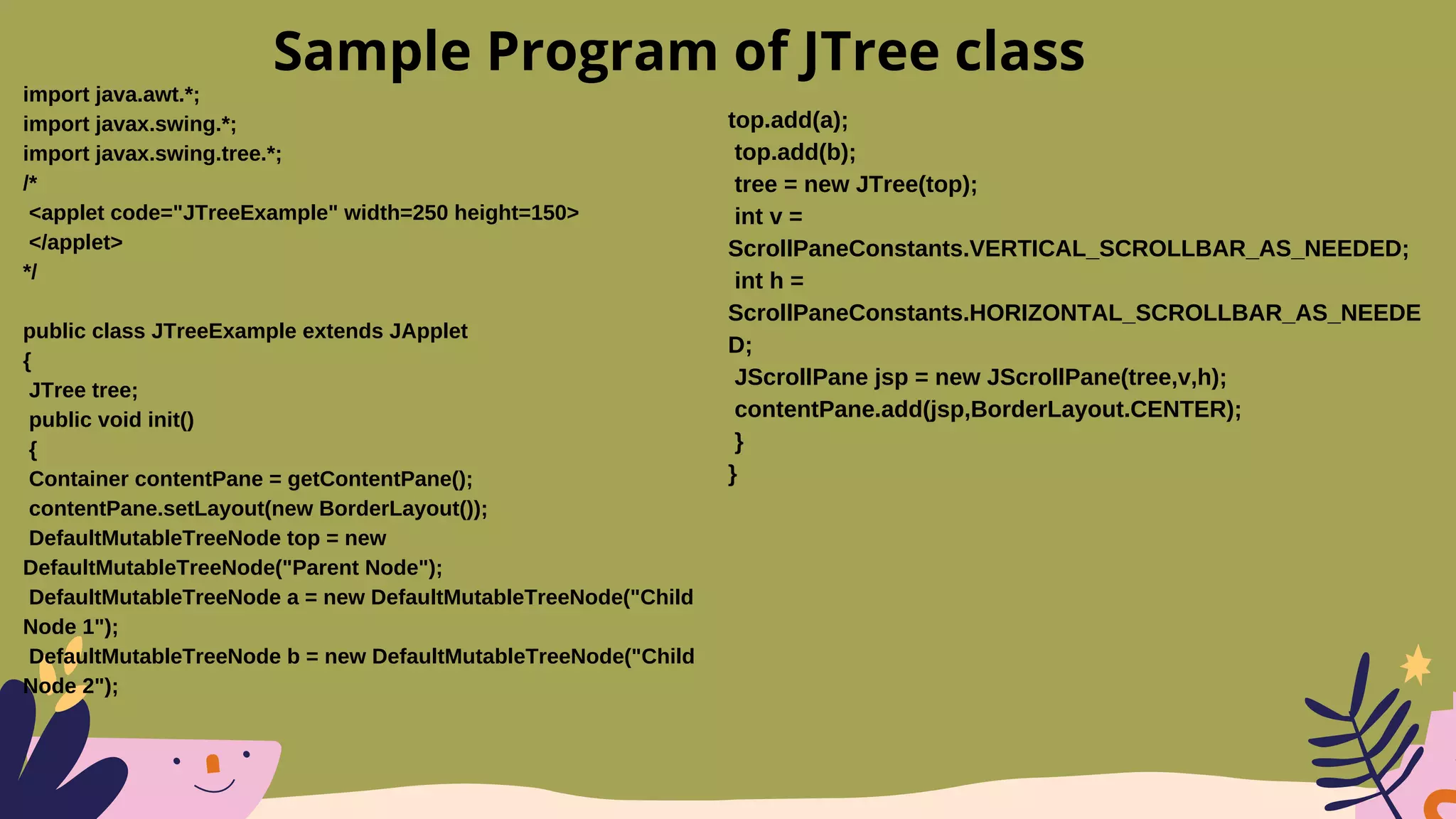
public class JTreeExample extends JApplet
{
JTree tree;
public void init()
{
Container contentPane = getContentPane();
contentPane.setLayout(new BorderLayout());
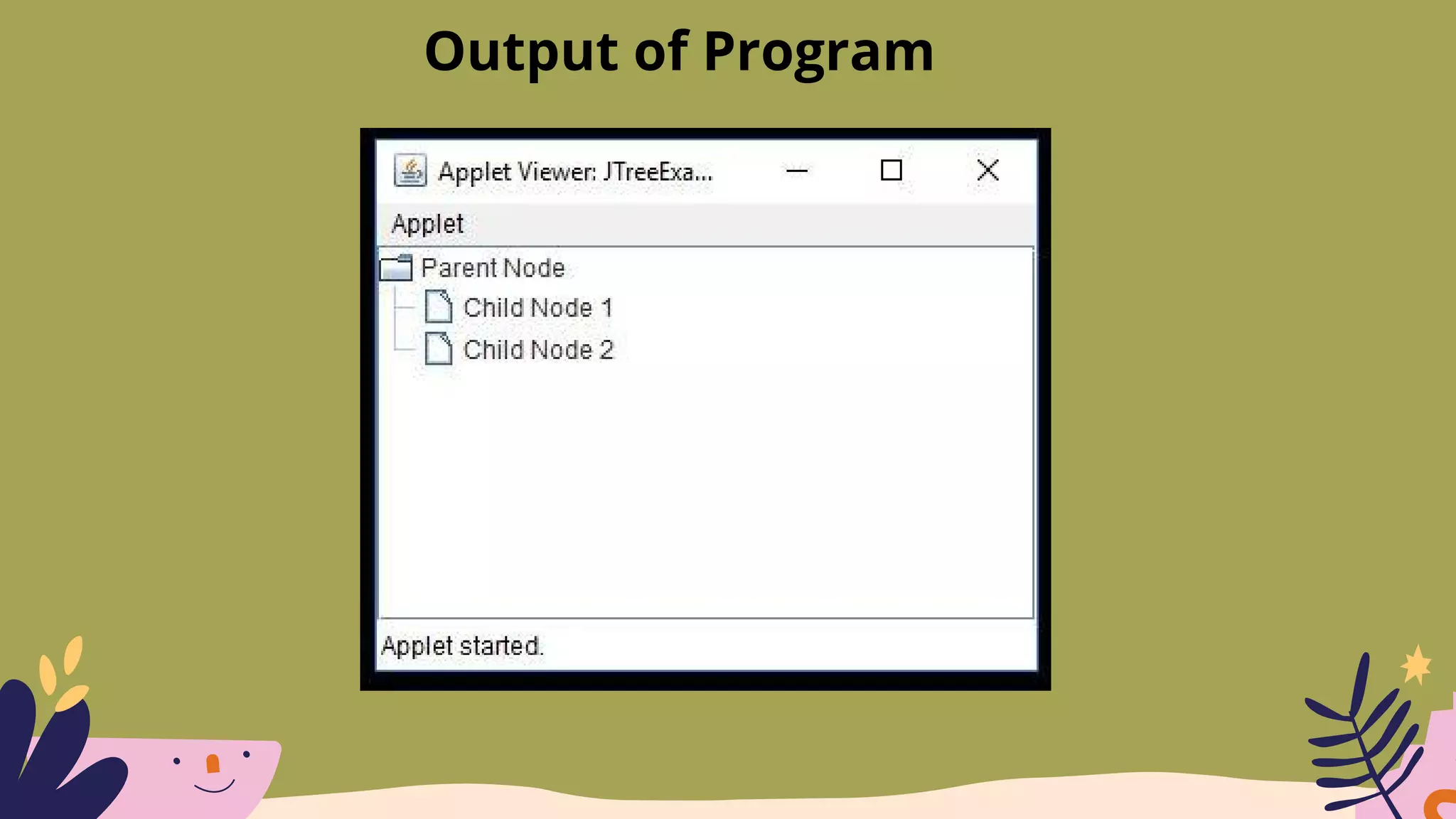
DefaultMutableTreeNode top = new
DefaultMutableTreeNode("Parent Node");
DefaultMutableTreeNode a = new DefaultMutableTreeNode("Child
Node 1");
DefaultMutableTreeNode b = new DefaultMutableTreeNode("Child
Node 2");
Sample Program of JTree class
top.add(a);
top.add(b);
tree = new JTree(top);
int v =
ScrollPaneConstants.VERTICAL_SCROLLBAR_AS_NEEDED;
int h =
ScrollPaneConstants.HORIZONTAL_SCROLLBAR_AS_NEEDE
D;
JScrollPane jsp = new JScrollPane(tree,v,h);
contentPane.add(jsp,BorderLayout.CENTER);
}
}
Output of Program
Tables - JTable class
Table is a component that displays data in rows and columns
Tables are created using JTable class , JTable class is sublcass (child) JComponent
class
Constructor of JTable class :
JTable(Object data[ ][ ],Object colheads[ ]) - creates table from data in two
dimensional array, and with headings from colheads array
Tables - JTable class
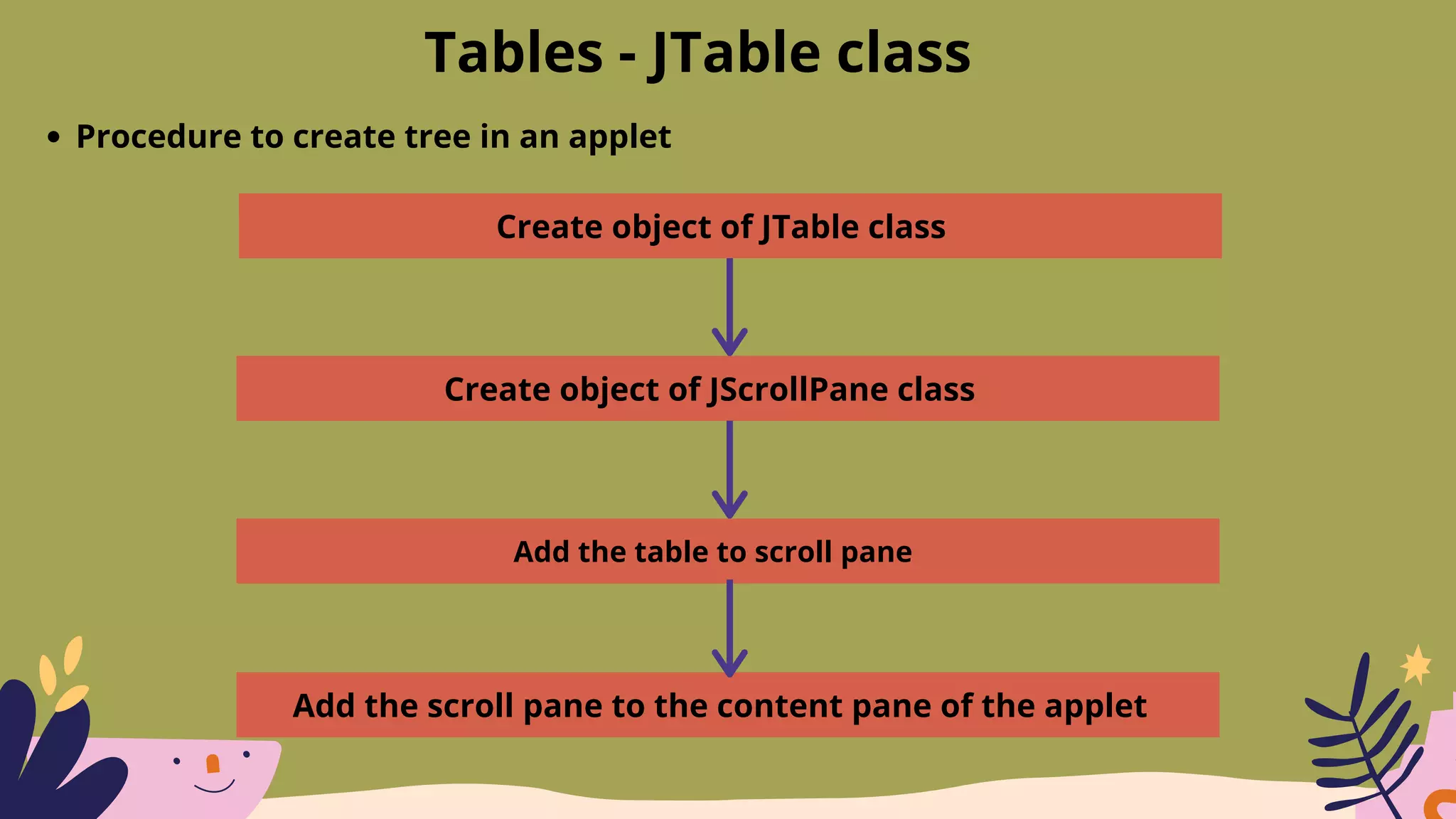
Procedure to create tree in an applet
Create object of JTable class
Create object of JScrollPane class
Add the table to scroll pane
Add the scroll pane to the content pane of the applet
import java.awt.*;
import javax.swing.*;
/*
<applet code="JTableExample" width=250
height=150>
</applet>
*/
public class JTableExample extends JApplet
{
public void init()
{
Container contentPane = getContentPane();
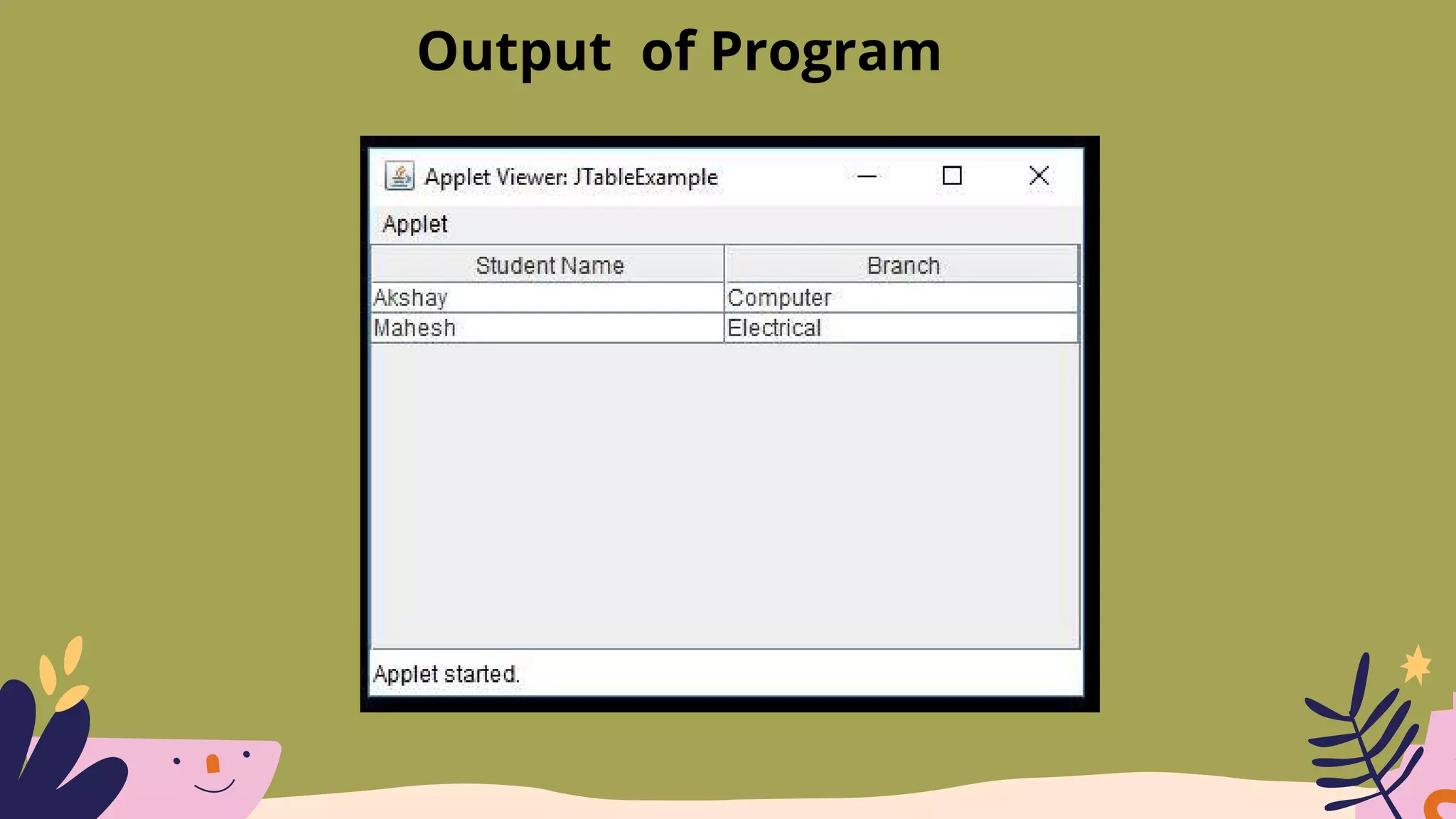
final String[] colheads = {"Student
Name","Branch"};
final Object[][] data = {{"Akshay","Computer"},
{"Mahesh","Electrical"} };
Sample Program of JTable class
JTable table = new JTable(data,colheads);
int v =ScrollPaneConstants.VERTICAL_SCROLLBAR_AS_NEEDED;
int h =ScrollPaneConstants.HORIZONTAL_SCROLLBAR_AS_NEEDED;
JScrollPane jsp = new JScrollPane(table,v,h);
contentPane.add(jsp,BorderLayout.CENTER);
}
}
}
Output of Program
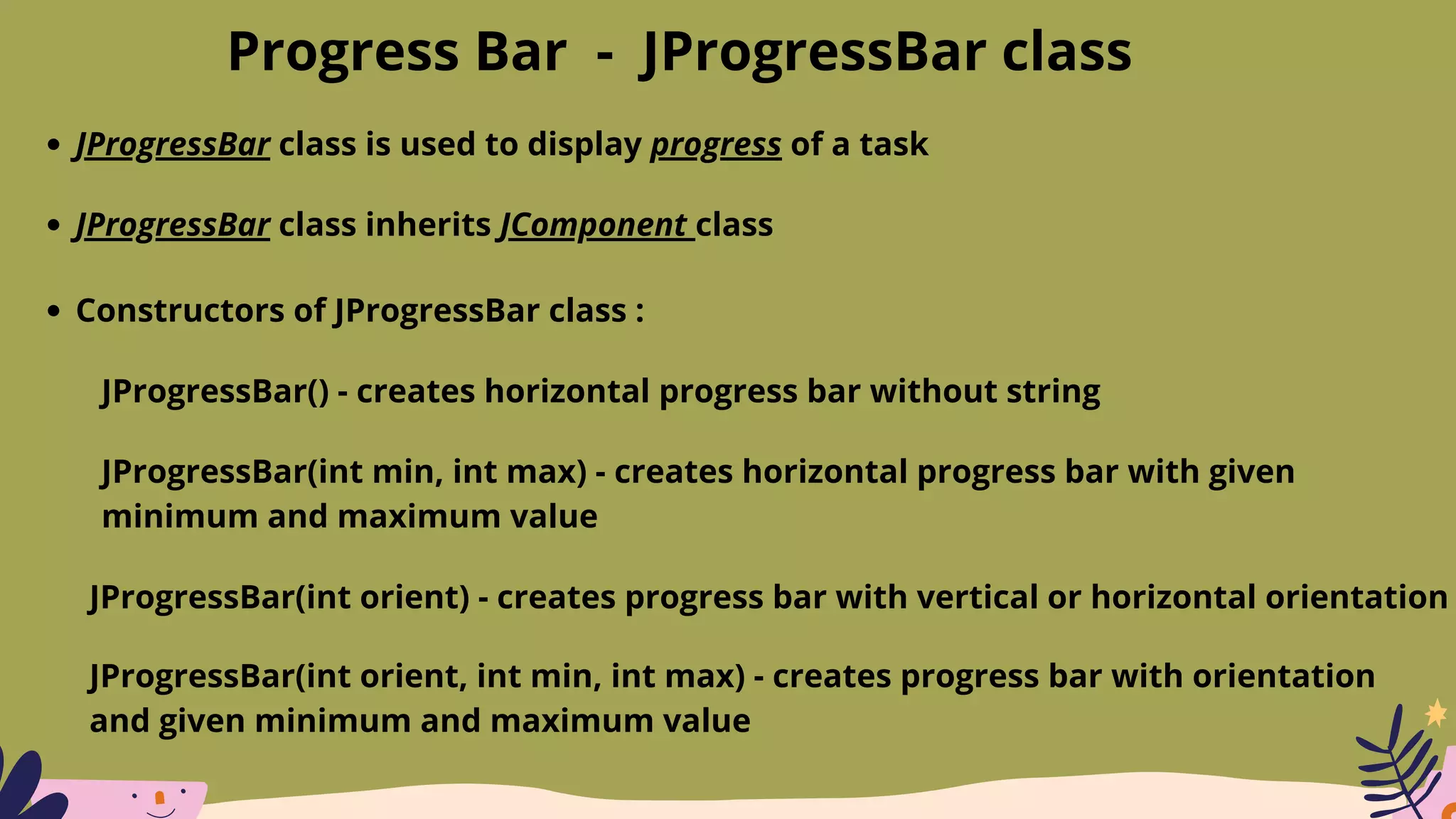
Progress Bar - JProgressBar class
JProgressBar class is used to display progress of a task
JProgressBar class inherits JComponent class
Constructors of JProgressBar class :
JProgressBar() - creates horizontal progress bar without string
JProgressBar(int min, int max) - creates horizontal progress bar with given
minimum and maximum value
JProgressBar(int orient) - creates progress bar with vertical or horizontal orientation
JProgressBar(int orient, int min, int max) - creates progress bar with orientation
and given minimum and maximum value
Progress Bar - JProgressBar class
Functions of JProgressBar class :
void setStringPainted(boolean b) - decides to show string or not
void setString(String s) - sets value to progress string
void setOrientation(int orientation) - changes orientation using VERTICAL and
HORIZONTAL constants
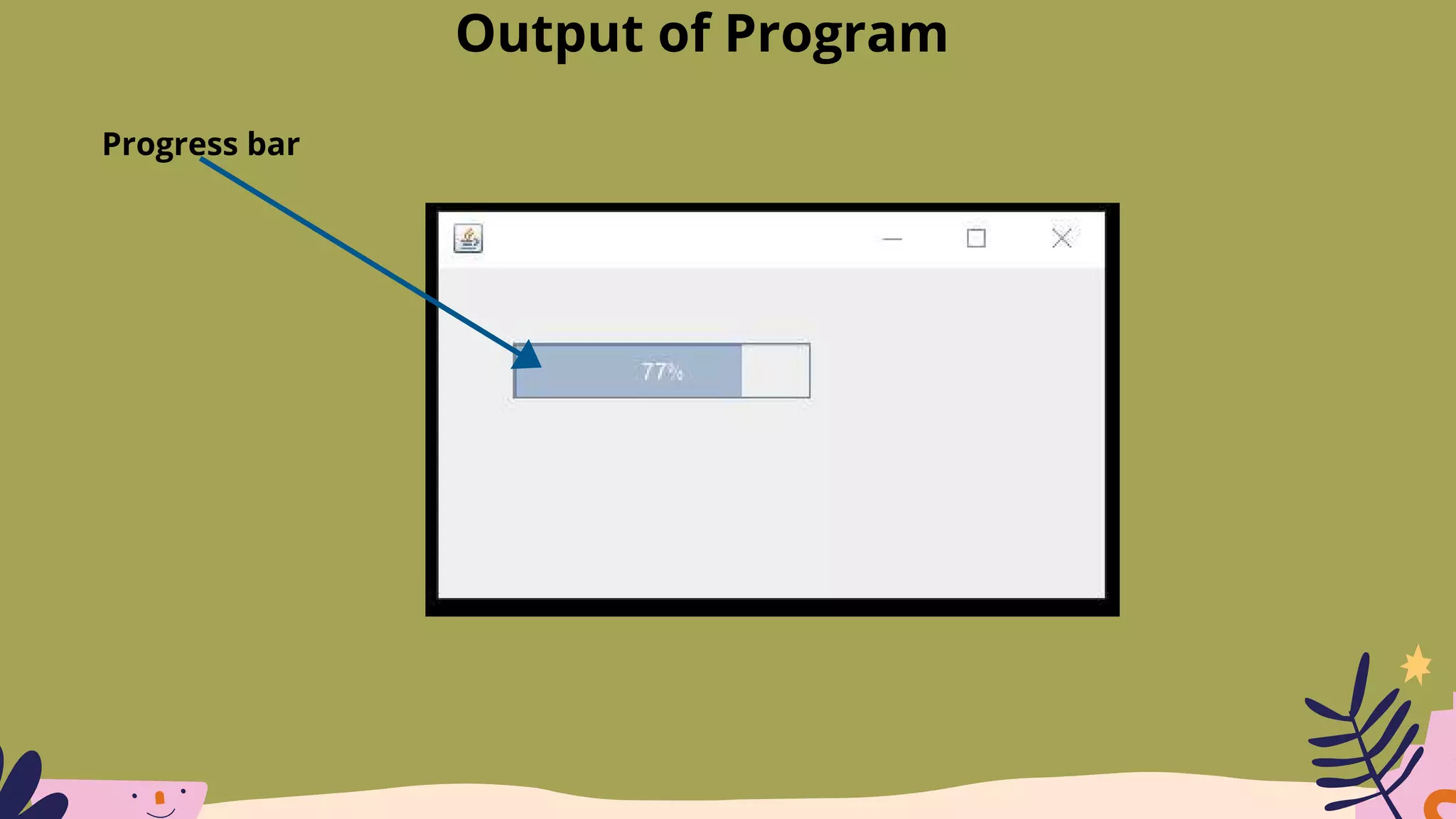
void setValue(int value) - sets current value on progess bar
Sample Program of JProgressBar
import javax.swing.*;
public class ProgressBarExample extends JFrame{
JProgressBar jp;
int i=0,num=0;
ProgressBarExample(){
jp=new JProgressBar(0,1500);
jp.setBounds(40,40,160,30);
jp.setValue(0);
jp.setStringPainted(true);
add(jp);
setSize(200,120);
setLayout(null);
}
public void repeat(){
while(i<=1500){
jp.setValue(i);
i=i+20;
try{Thread.sleep(160);}catch(Exception e){}
}
}
public static void main(String[] args) {
ProgressBarExample m=new
ProgressBarExample();
m.setVisible(true);
m.repeat();
}
}
Output of Program
Progress bar
Tooltips
Tooltip is text that appears when the cursor moves over that component
Tooltip can be used with any component in swing
setToolTipText(String s) method is used to create tooltip of the component
When the cursor enters the boundary of that component a popup appears and
text is displayed
getToolTipText() method returns th tooltip text used for the component
import javax.swing.*;
public class TooltipExample {
public static void main(String[] args) {
JFrame f=new JFrame("Tooltip Example");
JTextField name = new JPasswordField();
name.setBounds(100,100,100,30);
name.setToolTipText("this is tooltip");
JLabel L1=new JLabel("Enter your name:");
L1.setBounds(20,100, 80,30);
f.add(value); f.add(l1);
f.setSize(300,300);
f.setLayout(null);
f.setVisible(true);
}
}
Sample Program of Tooltips
Tooltip
MVC Architecture
A visual component has three distinct aspects
How it looks on screen
How it reacts to user
State information of that component
MVC architecture is suitable for such components
In MVC architecture,M = Model, V = View, C = Controller
In MVC, Modal stores information about state of the component. Example - if we
create a checkbox then modal will store information about whether checkbox is
checked or not
MVC Architecture
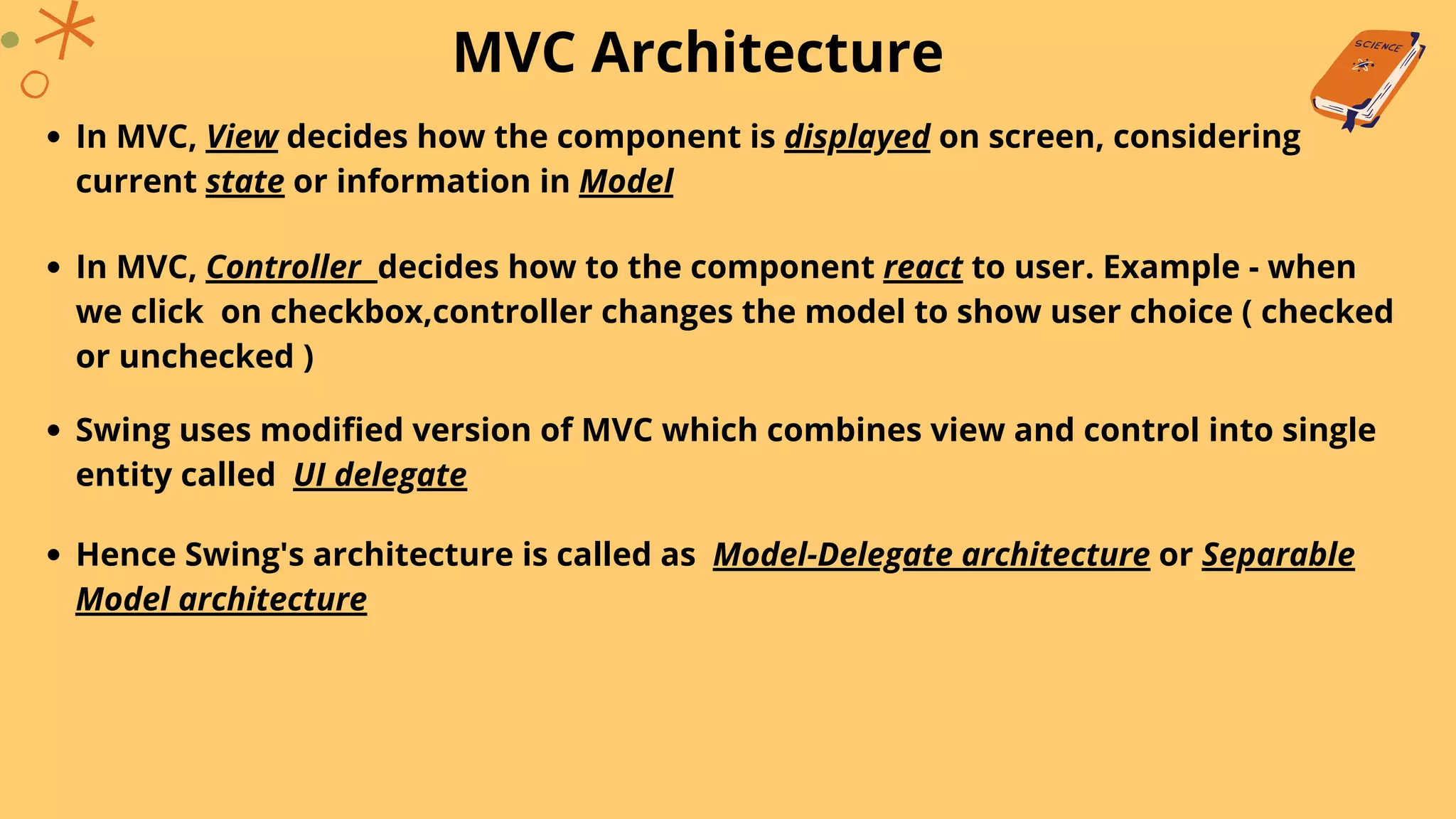
In MVC, View decides how the component is displayed on screen, considering
current state or information in Model
In MVC, Controller decides how to the component react to user. Example - when
we click on checkbox,controller changes the model to show user choice ( checked
or unchecked )
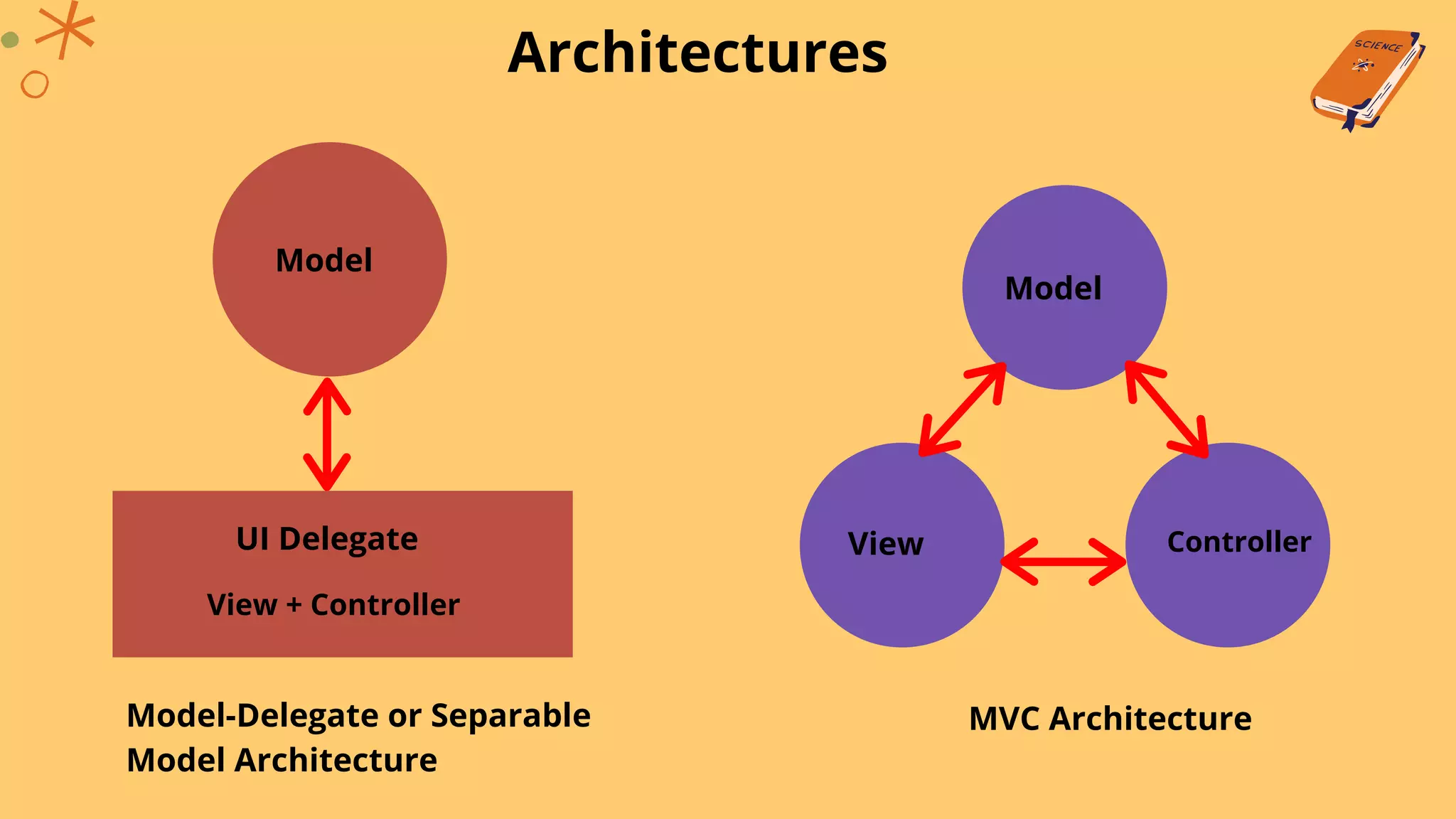
Swing uses modified version of MVC which combines view and control into single
entity called UI delegate
Hence Swing's architecture is called as Model-Delegate architecture or Separable
Model architecture
Architectures
Model
ControllerView
MVC Architecture
UI Delegate
View + Controller
Model
Model-Delegate or Separable
Model Architecture
Activity Time
Assessment Test
Program Assignment
Group Discussion
Supplemental
Video
https://nptel.ac.in/courses/106/105/1
06105191/
Additional Resources
https://www.tutorialspoint.com/java
https://www.javatpoint.com/free-java-
projects
Summary of Class
Lesson Recap 1
Swing vs
AWT
Lesson Recap 2
GUI Using
Swing
Lesson Recap 3
Buttons in GUI
21 3
3
Lesson Recap 4
Develop GUI
using swing
components
4
Refrences
The Complete Reference Java Seventh Edition - Herbert
Schildt,McGraw Hill Publication
Thank You
For Attending!

Unit-2 swing and mvc architecture

  • 1.
    Advanced Java Programming by AmolS. Gaikwad Lecturer, Government Polytechnic Gadchiroli
  • 2.
  • 3.
    Welcome! Are you excitedfor a fun learning session?
  • 4.
    Unit Outcomes Differentiate betweenAWT and Swing on the given aspect Develop Graphical User Interface (GUI) programs using swing component for given problems Use the given type of button in Java based GUI Develop Graphical User Interface (GUI) programs using advanced swing component for the given problems
  • 5.
    Swing is usedfor creating Graphical User Interface (GUI) Additional components like tabbed panes, scroll panes, trees and tables What is Swing ? Swing is built from AWT Swing It is a set of classes in java More powerfull and more flexible components Swing related classes are present in javax.swing package of java
  • 6.
    Features of Swing Swing LightWeightPluggable Look & Fill Components are lightweight Written entirely in java and don't depend on platform lightweight components are more efficient and flexible Look & feel of components decide d by swing not by O.S Possible to separate look and feel of component from it's logic possible to define entire sets of look-and-feels that represent different GUI styles. Look and feel consistent across all platforms as well as for specific platforms
  • 7.
    Components and Containers Componentsare single visual controls like : push buttons checkbox label TextField etc. Container contains group of componentsContainer Component Container also contains other container Fig : Containment Heirarchy
  • 8.
  • 9.
    AWT Swing Less powerfull and lessflexible More powerfull and more flexible Don't have tabbed panes, scroll panes,trees, tables Have tabbed panes, scroll panes,trees, tables Platform dependant Platform independant Each component has more capabilities Each component has few capabilities lightweight code Heavyweight code Swing vs AWT
  • 10.
    JApplet class If yourapplet uses swing then it must be subclass of JApplet class JApplet extends Applet class JApplet has more functionality than Applet To add component in JApplet we create an object of Container class which is returned by getContentPane() function Container contentPane = getContentPane() Call add() fuction of Container class using object of Container class to add component to JApplet contentPane.add(componet)
  • 11.
    ImageIcon class andIcon interfacce ImageIcon class is used to create icons (image) Constructors of ImageIcon class : ImageIcon(String filename) - creates icon from image file ImageIcon(URL url) - creates icon from image given in resource url Icon interface functions : int getIconHeight() - returns height of icon in pixels int getIconWidth() - returns width of icon in pixels void paintIcon(Componet comp, Graphics g, int x, int y) - paints icon at position x, y using graphics information in g object and additional information in comp object
  • 12.
    Labels - JLabelclass JLabel class is usedto create labels. JLabel class is child subclass of JComponent class JLabel(Icon i) - creates label from icon object i It can display text as well as icons Constructors of JLabel class : JLabel(String s) - creates label from string s JLabel(String s, Icon i, int align) - creates label using both string and icon and also aligns the label to right,center,leading or trailing
  • 13.
    Labels - JLabelclass Functions in JLabel class : Icon getIcon() - returns icon used in label String getText() - returns text used in label void setIcon(Icon i) - sets or changes icon in the label void setText(String s) - sets or changes text in the label
  • 14.
    import java.awt.*; import javax.swing.*; /* <appletcode="JLabelExample" width=250 height=150> </applet> */ public class JLabelExample extends JApplet { public void init() { Container contentPane = getContentPane(); ImageIcon img = new ImageIcon("emojis.jpg"); JLabel obj = new JLabel("New Label",img,JLabel.CENTER); contentPane.add(obj); } } Sample Program of JLabel class Output of Program
  • 15.
    TextField - JTextFieldclass JTextField class is used to create single line text entry JTextField class inherits JTextComponent class and JTextComponent inherits JComponent class Constructors of JTextField class : JTextField() - creates simple textfield JTextField(int cols) - creates textfield with no. of columns equal to col JTextField(String s,int cols) - creates textfield with string s and no. of columns equal to col JTextField(String s) - creates textfield with string s
  • 16.
    import java.awt.*; import javax.swing.*; /* <appletcode="JTextFieldExample" width=250 height=150> </applet> */ public class JTextFieldExample extends JApplet { JTextField obj; public void init() { Container contentPane = getContentPane(); contentPane.setLayout(new FlowLayout()); obj = new JTextField("Enter Name",25); contentPane.add(obj); } } Sample Program of JTextField class Output of Program
  • 17.
    Buttons in Swing Usingswing we can create button with icons Swing buttons are subclass(child) class of AbstractButton class and AbstractButton is subclass of JComponent class Functions for buttons in swing : void setDisabledIcon(Icon i) - displays icon when other icon is disabled void setPressedIcon(Icon i) - displays icon when other icon is pressed void setSelectedIcon(Icon i) - displays icon when other icon is selected void setRolloverIcon(Icon i) - displays icon when mouse positioned over other icon String getText() - returns text of a button void setText() - changes text of button
  • 18.
    Buttons - JButtonclass It is used to create push buttons We can create buttons with string, icon or both Constructors of JButton class : JButton(Icon i) - creates button with icon JButton(String s) - creates button with string JButton(String s, icon i) - creates button with both string and icon
  • 19.
    import java.awt.*; import javax.swing.*; /* <appletcode="JButtonExample" width=250 height=150> </applet> */ public class JButtonExample extends JApplet { JButton obj; public void init() { Container contentPane = getContentPane(); ImageIcon img =new ImageIcon("cg4.jpg"); contentPane.setLayout(new FlowLayout()); obj = new JButton(img); contentPane.add(obj); } } Sample program of JButton class Output of Program
  • 20.
    Checkboxes - JCheckBoxclass It is used to create two state checkbox JCheckBox is subclass (child) class of JTogglebutton class and JTogglebutton is subclass of AbstractButton Constructors of JCheckBox class : JCheckBox(Icon i) - creates checkbox with icon JCheckBox(Icon i,boolean state) - creates checkbox with icon and state true or false JCheckBox(String s, boolean state) - creates checkbox with the string and state JCheckBox(String s, Icon i) - creates checkbox with the both string and icon JCheckBox(String s, Icon i, boolean state) - creates checkbox with the string, icon and state true or false
  • 21.
    import java.awt.*; import javax.swing.*; /* <appletcode="JCheckBoxExample" width=250 height=150> </applet> */ public class JCheckBoxExample extends JApplet { JCheckBox c1, c2; public void init() { Container contentPane = getContentPane(); contentPane.setLayout(new FlowLayout()); c1 = new JCheckBox("Mechanical"); c2 = new JCheckBox("Computer"); contentPane.add(c1); contentPane.add(c2); } } Sample program of JCheckBox class Output of Program
  • 22.
    Radio Buttons -JRadioButton class It is used to create radio buttons JRadioButton is subclass (child) class of JTogglebutton class and JTogglebutton is subclass of AbstractButton Radio buttons must br group together using ButtonGroup class Default constructor of ButtonGroup class is used to create group of buttons Only one button from group of buttons can be selected at a time void add(AbstractButton obj) - adds a single button in group of button
  • 23.
    Radio Buttons -JRadioButton class Constructors of JRadioButton class : JRadioButton(Icon i) - creates radio button with icon JRadioButton(Icon i,boolean state) - creates radio button with icon and state true or false JRadioButton(String s, boolean state) - radio button with the string and state JRadioButtonString s, Icon i) - creates radio button with the both string and icon JRadioButton(String s, Icon i, boolean state) - creates radio button with the string, icon and state true or false
  • 24.
    import java.awt.*; import javax.swing.*; /* <appletcode="JRadioButtonExample" width=250 height=150> </applet> */ public class JRadioButtonExample extends JApplet { JRadioButton r1, r2; ButtonGroup bg; public void init() { Container contentPane = getContentPane(); contentPane.setLayout(new FlowLayout()); r1 = new JRadioButton("Civil"); r2 = new JRadioButton("Electrical"); bg = new ButtonGroup(); bg.add(r1); bg.add(r2); contentPane.add(r1); contentPane.add(r2); } Sample program of JRadioButton class Output of Program
  • 25.
    Combo Boxes -JComboBox class Combo box is combination of text field and drop down list JComboBox class is subclass (child) of JComponent class Constructor of JComboBox class : JComboBox() - creates default combo box JComboBox(Vector v) - creates combo box with elements from vector void addItem(Object obj) - adds choice items or elements to combo box
  • 26.
    import java.awt.*; import javax.swing.*; /* <appletcode="JComboExample" width=250 height=150> </applet> */ public class JComboExample extends JApplet { JComboBox jb; public void init() { Container contentPane = getContentPane(); contentPane.setLayout(new FlowLayout()); jb = new JComboBox(); jb.addItem("Male"); jb.addItem("Female"); jb.addItem("Other"); contentPane.add(jb); } } Sample Program of JComboBox class Output of Program
  • 27.
    Tabbed Panes -JTabbedPane class Tabbed pane is group of folders in file cabinet, each folder has a name Only one folder can be selected at time Tabbed panes are commonly used for configuration setting options JTabbedPane class is subclass (child) of JComponent class void addTab(String str, Component comp) - adds component to a tab, str is title of a tab and comp is component to be added to the tab
  • 28.
    Tabbed Panes -JTabbedPane class Procedure to create tabbed pane in applet Create object of JTabbedPane class Add tabs to the pane by using addTab() function Repeat step 2 for adding more tabs Add the tabbed pane to the content pane of the applet
  • 29.
    import java.awt.*; import javax.swing.*; importjavax.swing.tree.*; /* <applet code="JTabExample" width=250 height=150> </applet> */ public class JTabExample extends JApplet { public void init() { JTabbedPane jtp = new JTabbedPane(); jtp.add("College",new College()); jtp.add("Departments",new Departments()); getContentPane().add(jtp); } Sample Program of JTabbedPane class class College extends JPanel { public College() { JButton c = new JButton("Government Polytechnic Gadchiroli"); add(c); } } class Departments extends JPanel { public Departments() { JButton d1 = new JButton("Computer"); JButton d2 = new JButton("Mechanical"); add(d1); add(d2); } } }
  • 30.
  • 31.
    Scroll Panes -JScrollPane class Scroll pane is a rectangular area in which other component can be seen Scroll pane is created using JScrollPane class, which sublcass (child) of JComponent class Constructors of JScrollPane class : JScrollPane(Component comp) - adds component to scroll pane JScrollPane(int vsb, int hsb) - creates vertical and horizontal scroll bar JScrollPane(Component comp, int vsb, int hsb) - adds component and creates vertical and horizontal scroll bar
  • 32.
    Scroll Panes -JScrollPane class Constants in JScrollPane class : HORIZONTAL_SCROLLBAR_ALWAYS - always used hoizontal scroll bar HORIZONTAL_SCROLLBAR_AS_NEEDED - used hoizontal scroll bar when needed VERTICAL_SCROLLBAR_ALWAYS - always used vertical scroll bar VERTICAL_SCROLLBAR_AS_NEEDED - used vertical scroll bar when needed
  • 33.
    Scroll Panes -JScrollPane class Procedure to create scroll pane in an applet Create object of JComponent class Create object of JScrollPane class Add scroll pane to content pane of applet
  • 34.
    import java.awt.*; import javax.swing.*; /* <appletcode="JScrollExample" width=250 height=150> </applet> */ public class JScrollExample extends JApplet { public void init() { Container contentPane = getContentPane(); contentPane.setLayout(new BorderLayout()); JPanel jp = new JPanel(); jp.setLayout(new GridLayout(10,10)); int b=0; Sample Program of JScrollPane class for(int i=0;i<10;i++) { for(int j=0;i<10;j++) { jp.add(new JButton("button "+b)); ++b; } } int v =ScrollPaneConstants.VERTICAL_SCROLLBAR_AS_NEEDED; int h =ScrollPaneConstants.HORIZONTAL_SCROLLBAR_AS_NEEDED; JScrollPane jsp = new JScrollPane(jp,v,h); contentPane.add(jsp,BorderLayout.CENTER); } }
  • 35.
    Trees - JTreeclass Tree is a component that shows heirarchical ( level by level) view of data We can expand or collapse each subtree seen in display Constructors of JTree class : JTree(Hashtable ht) - creates tree with each element in hash table is child node JTree(Object obj[ ]) - creates tree with each element in array obj is child node JTree(TreeNode tn) - Makes node tn as root node or main node of a tree JTree(Vector v) - creates tree with elements of vector v as child nodes
  • 36.
    Trees - JTreeclass Object of TreePath class stores information about tree node that was selected TreePath class also stores information about path or location of tree node TreeNode interface has methods that gives information about tree node MutableTreeNode interface has methods that can insert and remove child nodes and change parent node also MutableTreeNode implements (inherits) TreeNode interface DefaultMutableTreeNode class implements (inherits) MutableTreeNode interface, it represents a node in a tree DefaultMutableTreeNode(Object obj) - default constructor
  • 37.
    Trees - JTreeclass Procedure to create tree in an applet Create object of JTree class Create object of JScrollPane class Add the tree to scroll pane Add the scroll pane to the content pane of the applet
  • 38.
    import java.awt.*; import javax.swing.*; importjavax.swing.tree.*; /* <applet code="JTreeExample" width=250 height=150> </applet> */ public class JTreeExample extends JApplet { JTree tree; public void init() { Container contentPane = getContentPane(); contentPane.setLayout(new BorderLayout()); DefaultMutableTreeNode top = new DefaultMutableTreeNode("Parent Node"); DefaultMutableTreeNode a = new DefaultMutableTreeNode("Child Node 1"); DefaultMutableTreeNode b = new DefaultMutableTreeNode("Child Node 2"); Sample Program of JTree class top.add(a); top.add(b); tree = new JTree(top); int v = ScrollPaneConstants.VERTICAL_SCROLLBAR_AS_NEEDED; int h = ScrollPaneConstants.HORIZONTAL_SCROLLBAR_AS_NEEDE D; JScrollPane jsp = new JScrollPane(tree,v,h); contentPane.add(jsp,BorderLayout.CENTER); } }
  • 39.
  • 40.
    Tables - JTableclass Table is a component that displays data in rows and columns Tables are created using JTable class , JTable class is sublcass (child) JComponent class Constructor of JTable class : JTable(Object data[ ][ ],Object colheads[ ]) - creates table from data in two dimensional array, and with headings from colheads array
  • 41.
    Tables - JTableclass Procedure to create tree in an applet Create object of JTable class Create object of JScrollPane class Add the table to scroll pane Add the scroll pane to the content pane of the applet
  • 42.
    import java.awt.*; import javax.swing.*; /* <appletcode="JTableExample" width=250 height=150> </applet> */ public class JTableExample extends JApplet { public void init() { Container contentPane = getContentPane(); final String[] colheads = {"Student Name","Branch"}; final Object[][] data = {{"Akshay","Computer"}, {"Mahesh","Electrical"} }; Sample Program of JTable class JTable table = new JTable(data,colheads); int v =ScrollPaneConstants.VERTICAL_SCROLLBAR_AS_NEEDED; int h =ScrollPaneConstants.HORIZONTAL_SCROLLBAR_AS_NEEDED; JScrollPane jsp = new JScrollPane(table,v,h); contentPane.add(jsp,BorderLayout.CENTER); } } }
  • 43.
  • 44.
    Progress Bar -JProgressBar class JProgressBar class is used to display progress of a task JProgressBar class inherits JComponent class Constructors of JProgressBar class : JProgressBar() - creates horizontal progress bar without string JProgressBar(int min, int max) - creates horizontal progress bar with given minimum and maximum value JProgressBar(int orient) - creates progress bar with vertical or horizontal orientation JProgressBar(int orient, int min, int max) - creates progress bar with orientation and given minimum and maximum value
  • 45.
    Progress Bar -JProgressBar class Functions of JProgressBar class : void setStringPainted(boolean b) - decides to show string or not void setString(String s) - sets value to progress string void setOrientation(int orientation) - changes orientation using VERTICAL and HORIZONTAL constants void setValue(int value) - sets current value on progess bar
  • 46.
    Sample Program ofJProgressBar import javax.swing.*; public class ProgressBarExample extends JFrame{ JProgressBar jp; int i=0,num=0; ProgressBarExample(){ jp=new JProgressBar(0,1500); jp.setBounds(40,40,160,30); jp.setValue(0); jp.setStringPainted(true); add(jp); setSize(200,120); setLayout(null); } public void repeat(){ while(i<=1500){ jp.setValue(i); i=i+20; try{Thread.sleep(160);}catch(Exception e){} } } public static void main(String[] args) { ProgressBarExample m=new ProgressBarExample(); m.setVisible(true); m.repeat(); } }
  • 47.
  • 48.
    Tooltips Tooltip is textthat appears when the cursor moves over that component Tooltip can be used with any component in swing setToolTipText(String s) method is used to create tooltip of the component When the cursor enters the boundary of that component a popup appears and text is displayed getToolTipText() method returns th tooltip text used for the component
  • 49.
    import javax.swing.*; public classTooltipExample { public static void main(String[] args) { JFrame f=new JFrame("Tooltip Example"); JTextField name = new JPasswordField(); name.setBounds(100,100,100,30); name.setToolTipText("this is tooltip"); JLabel L1=new JLabel("Enter your name:"); L1.setBounds(20,100, 80,30); f.add(value); f.add(l1); f.setSize(300,300); f.setLayout(null); f.setVisible(true); } } Sample Program of Tooltips Tooltip
  • 50.
    MVC Architecture A visualcomponent has three distinct aspects How it looks on screen How it reacts to user State information of that component MVC architecture is suitable for such components In MVC architecture,M = Model, V = View, C = Controller In MVC, Modal stores information about state of the component. Example - if we create a checkbox then modal will store information about whether checkbox is checked or not
  • 51.
    MVC Architecture In MVC,View decides how the component is displayed on screen, considering current state or information in Model In MVC, Controller decides how to the component react to user. Example - when we click on checkbox,controller changes the model to show user choice ( checked or unchecked ) Swing uses modified version of MVC which combines view and control into single entity called UI delegate Hence Swing's architecture is called as Model-Delegate architecture or Separable Model architecture
  • 52.
    Architectures Model ControllerView MVC Architecture UI Delegate View+ Controller Model Model-Delegate or Separable Model Architecture
  • 53.
    Activity Time Assessment Test ProgramAssignment Group Discussion
  • 54.
  • 55.
  • 56.
    Summary of Class LessonRecap 1 Swing vs AWT Lesson Recap 2 GUI Using Swing Lesson Recap 3 Buttons in GUI 21 3 3 Lesson Recap 4 Develop GUI using swing components 4
  • 57.
    Refrences The Complete ReferenceJava Seventh Edition - Herbert Schildt,McGraw Hill Publication
  • 58.