Linux System Fundamentals
Lesson 2: Understanding Linux File System
Sadia Bashir
Contents
 Linux File Types
 Linux File System Hierarchy
 Default Directories
 Understanding Linux Configuration files
 Common Linux File Extensions
• Hidden Files
• Environment Variables
• Symbolic Links
Linux File Types
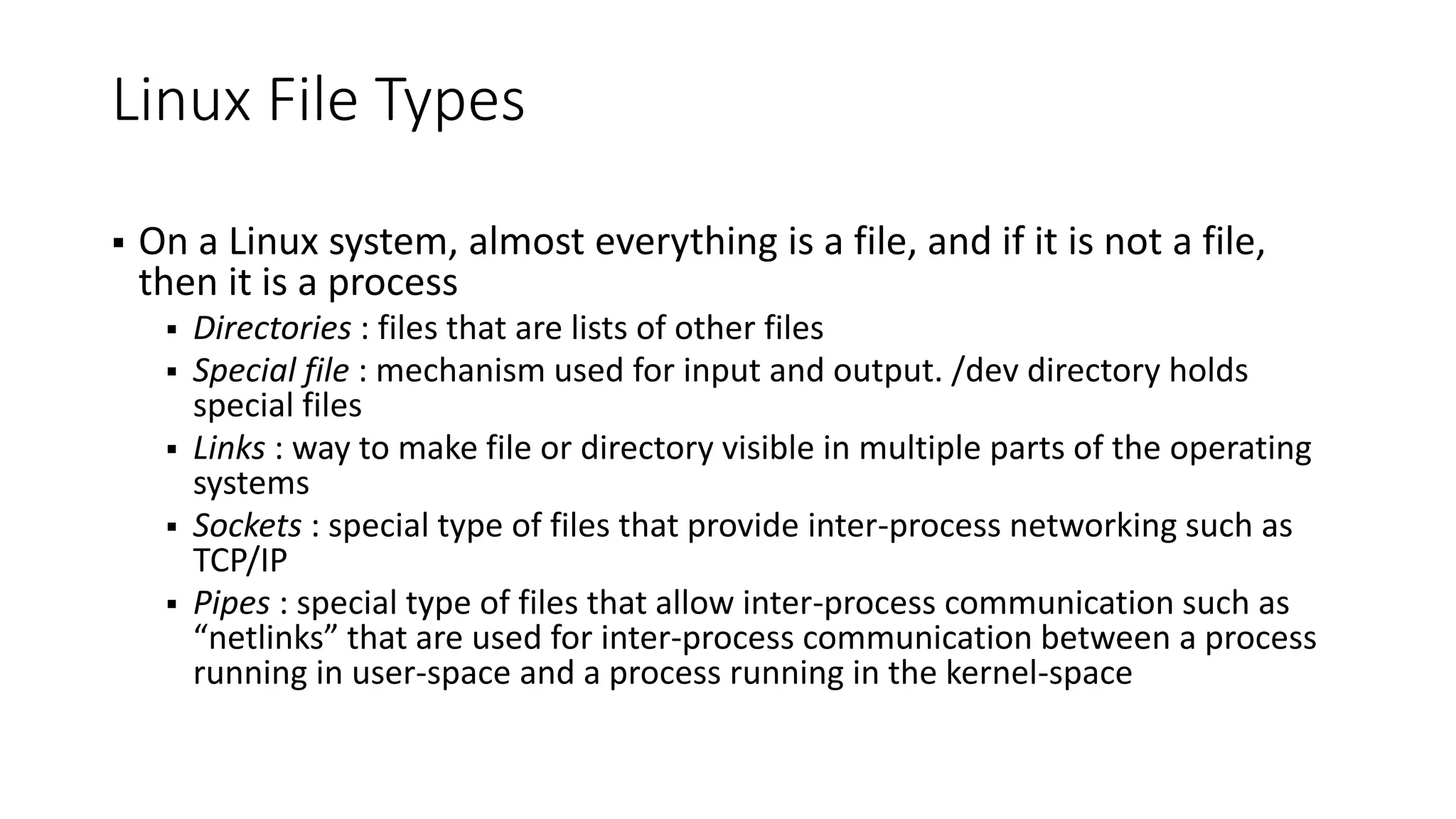
 On a Linux system, almost everything is a file, and if it is not a file,
then it is a process
 Directories : files that are lists of other files
 Special file : mechanism used for input and output. /dev directory holds
special files
 Links : way to make file or directory visible in multiple parts of the operating
systems
 Sockets : special type of files that provide inter-process networking such as
TCP/IP
 Pipes : special type of files that allow inter-process communication such as
“netlinks” that are used for inter-process communication between a process
running in user-space and a process running in the kernel-space
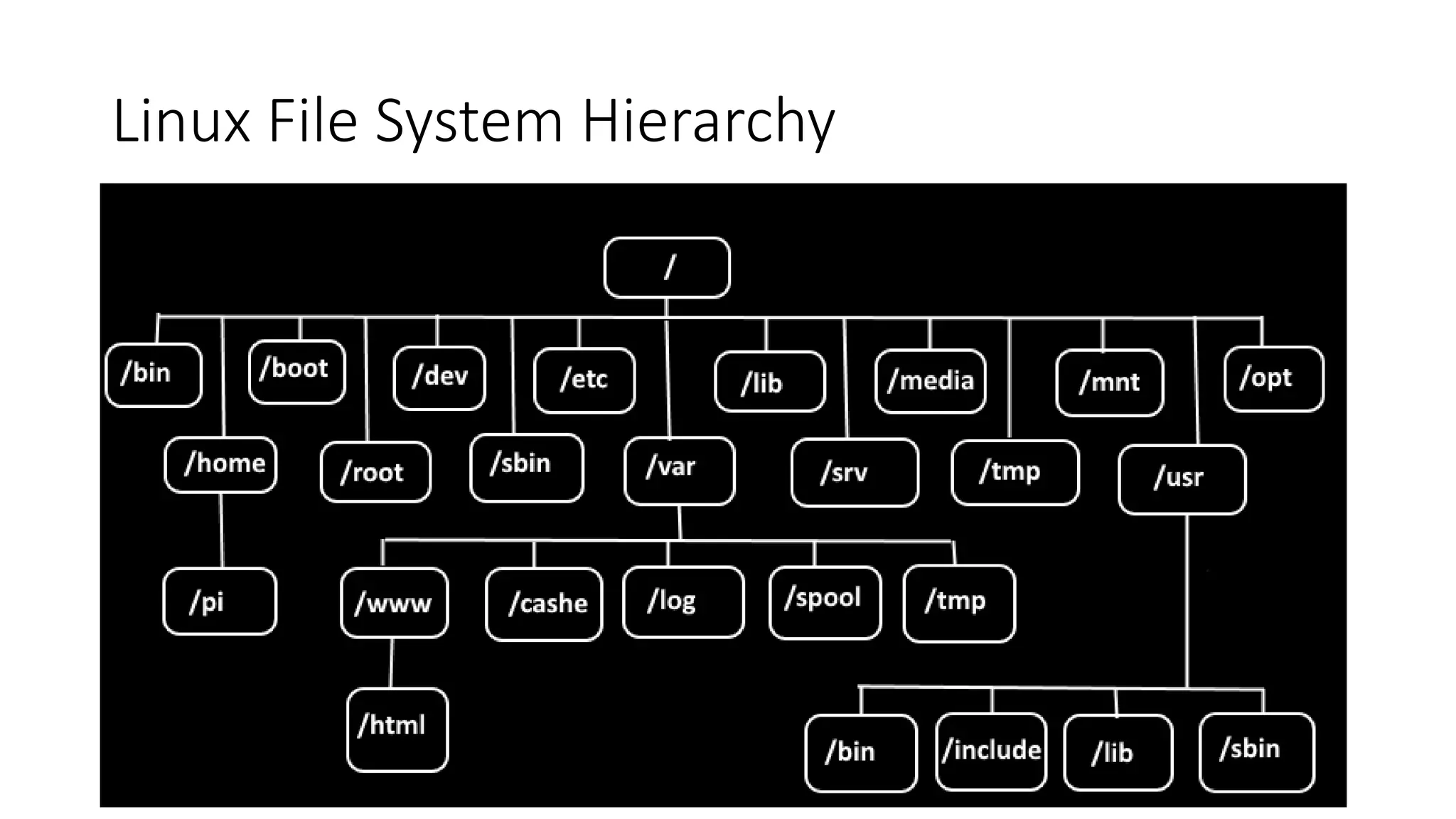
Linux File System Hierarchy
Linux File System Hierarchy - Default Directories
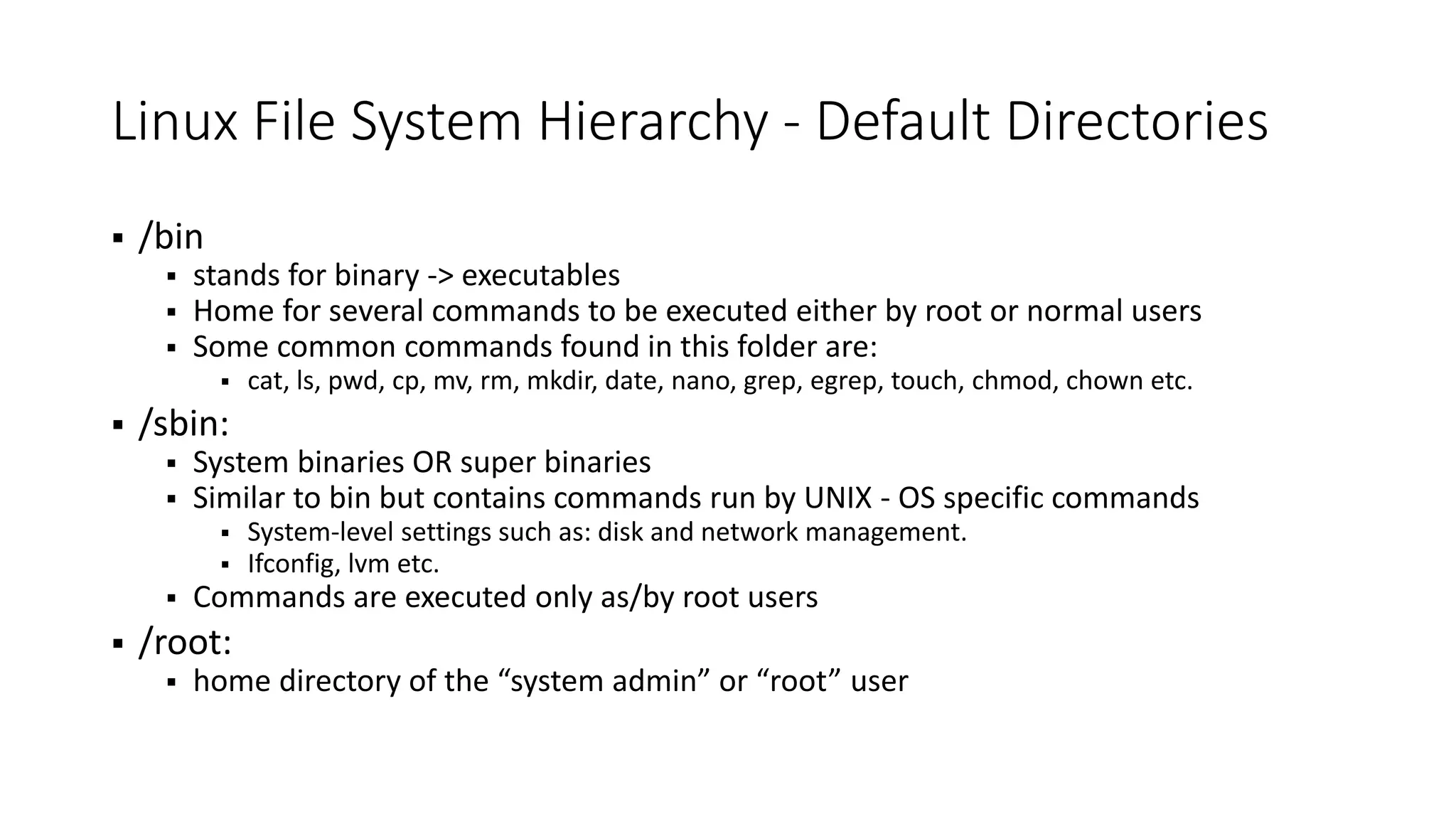
 /bin
 stands for binary -> executables
 Home for several commands to be executed either by root or normal users
 Some common commands found in this folder are:
 cat, ls, pwd, cp, mv, rm, mkdir, date, nano, grep, egrep, touch, chmod, chown etc.
 /sbin:
 System binaries OR super binaries
 Similar to bin but contains commands run by UNIX - OS specific commands
 System-level settings such as: disk and network management.
 Ifconfig, lvm etc.
 Commands are executed only as/by root users
 /root:
 home directory of the “system admin” or “root” user
Linux File System Format (contd….)
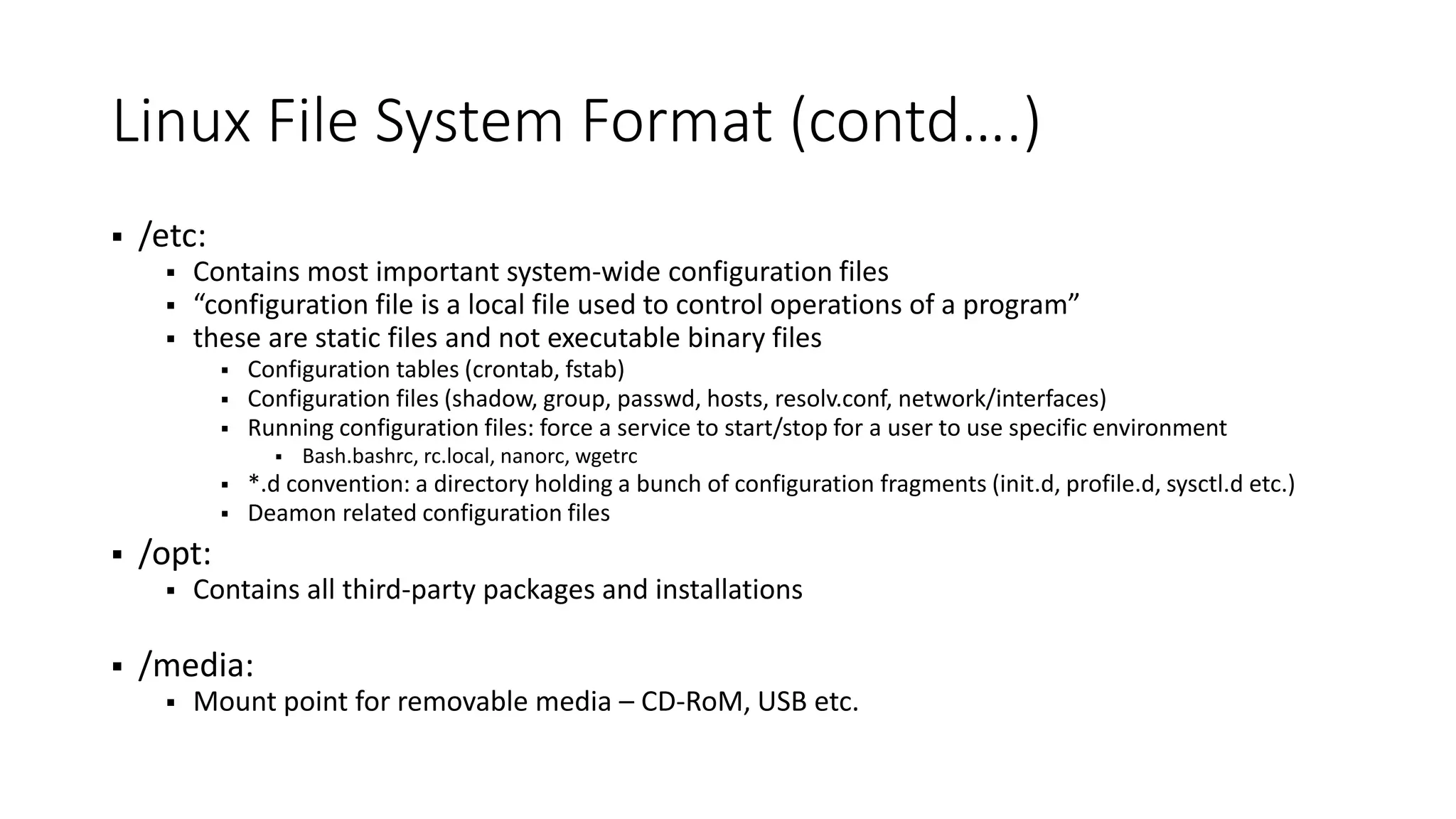
 /etc:
 Contains most important system-wide configuration files
 “configuration file is a local file used to control operations of a program”
 these are static files and not executable binary files
 Configuration tables (crontab, fstab)
 Configuration files (shadow, group, passwd, hosts, resolv.conf, network/interfaces)
 Running configuration files: force a service to start/stop for a user to use specific environment
 Bash.bashrc, rc.local, nanorc, wgetrc
 *.d convention: a directory holding a bunch of configuration fragments (init.d, profile.d, sysctl.d etc.)
 Deamon related configuration files
 /opt:
 Contains all third-party packages and installations
 /media:
 Mount point for removable media – CD-RoM, USB etc.
Linux File System Format (contd….)
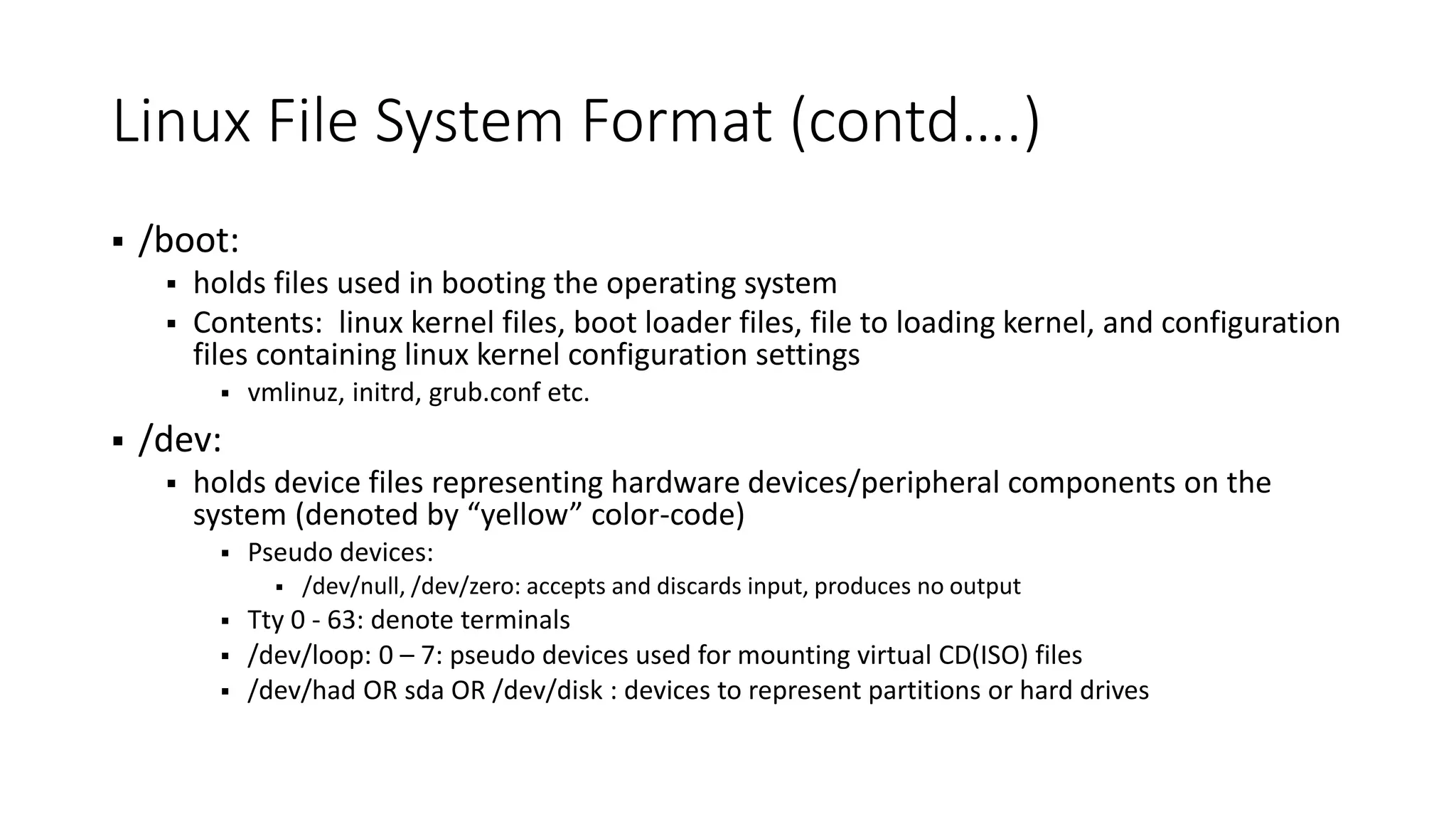
 /boot:
 holds files used in booting the operating system
 Contents: linux kernel files, boot loader files, file to loading kernel, and configuration
files containing linux kernel configuration settings
 vmlinuz, initrd, grub.conf etc.
 /dev:
 holds device files representing hardware devices/peripheral components on the
system (denoted by “yellow” color-code)
 Pseudo devices:
 /dev/null, /dev/zero: accepts and discards input, produces no output
 Tty 0 - 63: denote terminals
 /dev/loop: 0 – 7: pseudo devices used for mounting virtual CD(ISO) files
 /dev/had OR sda OR /dev/disk : devices to represent partitions or hard drives
Linux File System Format (contd….)
 /lib:
 Library essentials for binaries in /bin and /sbin - shared libraries needed by the programs on
the root filesystem
 Libraries required to boot the system and run the command in root
 Libraries essential for basic system functionality
 Modules: Loadable kernel modules, especially those needed to boot the system after disasters.
 /usr (UNIX System Resources):
 holds sharable read-only data - contains all commands, libraries, man pages, games and static
files for normal operation
 bin - Almost all user commands – man, who, whoami etc.
 sbin – Extended set of system admin commands not needed on the root filesystem
 lib - Unchanging data files for programs and subsystems
 local - The place for locally installed software and other third party programs
 man - Manual pages
 doc - Documentation
Linux File System Format (contd….)
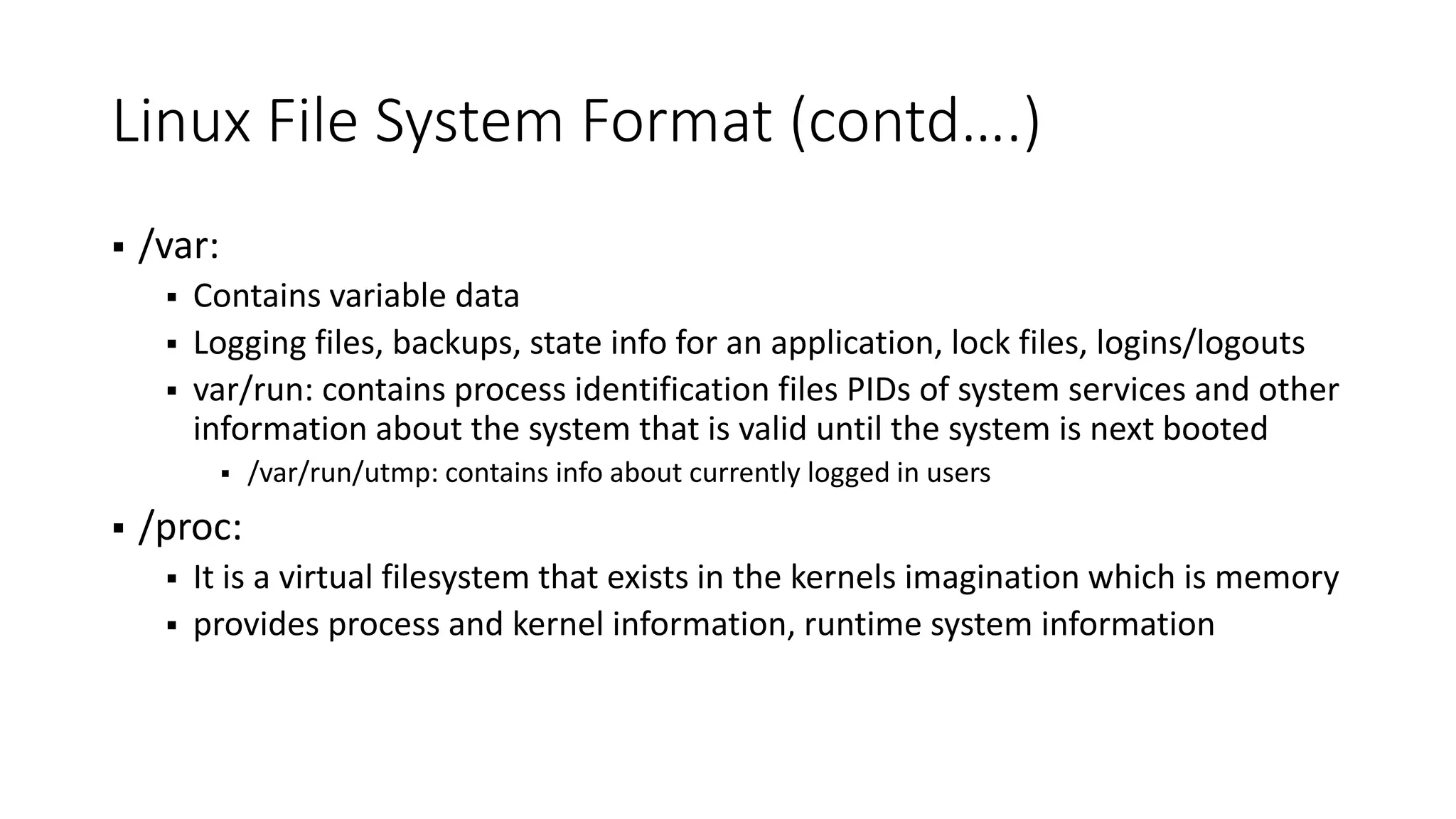
 /var:
 Contains variable data
 Logging files, backups, state info for an application, lock files, logins/logouts
 var/run: contains process identification files PIDs of system services and other
information about the system that is valid until the system is next booted
 /var/run/utmp: contains info about currently logged in users
 /proc:
 It is a virtual filesystem that exists in the kernels imagination which is memory
 provides process and kernel information, runtime system information
Linux File System Format (contd….)
 /mnt:
 Generic mount point used to point external file system such as CD-ROM or
Digital Camera
 after mounting, file’ll be accessible under mount point
 additional mount points can be created here
 /tmp:
 Temporary files (also /var/tmp) often not preserved between system reboots
Mounting:
In Linux, partitions or devices are typically not visible in the directory tree unless they are mounted, it means they
are integrated into the file system at a specific location in the directory tree. A normal user can access data on a
partition or a device after it is mounted.
Understanding Linux configuration files
 System Administration
 /etc/group : Contains the valid group names and the users included in the specified groups
 /etc/passwd : Holds some user account info including passwords
 /etc/shadow : Secure user account information
 /etc/shell : Holds the list of possible "shells" available to the system
 /etc/crontab : Lists commands and times to run them for the cron deamon.
 Networking
 /etc/networks : Lists names and addresses of our own and other networks, used by the route
command.
 /etc/resolv.conf : Tells the kernel which name server should be queried when a program asks to
"resolve" an IP Address
 /etc/network/interfaces : describes the network interfaces available on your system and how
to activate them
 /etc/host.conf : Specifies how host names are resolved
 /etc/hosts : List hosts for name lookup use that are locally required
Understanding Linux configuration files (contd….)
 User Configuration Files
 /.bashrc : Initialization script executed whenever the bash shell is started
 /.bash_history : a file containing up to 1000 of the most recent commands available for recall
using the up and down arrow keys
 /.bash_logout : script that is run automatically by the bash shell when the user logs out of the
system
 /.bash_profile : It is the initialization script which is run by the bash shell upon user login to
setup user’s customized environment such as variables and aliases. Upon login, if bash fails to find
.bash_profile file in the user’s home directory, it looks for .bash_login, If there is no .bash_login
file, it then looks for a .profile file.
Note: most user programs define two configuration files: the first one at a "system" level, located in /etc/;
and the other one, "private" to the user, that can be found in his or her home directory.
Common Linux File Extensions
 .au : an audio file
 .bin : binary file meant to be executed
 .bz2 : a file compressed using bzip2
 .conf : a configuration file
 .deb : a Debian Package
 .html/.htm : an HTML file
 .iso : an image (copy) of a CD-ROM or DVD
 .lock : a lock file that prevents the use of another file
 .log : a system or program’s log file
 .pid : Some programs write their process ID into a file with this extention
 .sh : a shell script
 .so : a Shared Object, which is a shared library
 .src : a source code file
 .tar.bz2, .tar.gz : a compressed file per File Compression
 .txt : a plain text file
 .zip : extension for files in ZIP format, a popular file compression format
Hidden (dot) Files
 Hidden files have names that begin with a period; hence, they have
been given the nickname of dot files.
 Hidden files found in the user’s home directory, are dependent upon
several factors, such as; applications installed on the system, the
utilities that are in use and, the command shell that is being
used. The home directory contains the bash related scripts as the
default shell for Linux is the bash shell.
 many of the configuration files are hidden
 Examples:
 .bashrc, .bash_history, .profile, .login, .logout etc.
Environment Variables
 What are Environment variables?
 Dynamic values which affect the processes or programs on a computer
 Can be created, edited, saved and deleted
 Gives information about the system behavior
 Environment variables can change the way a software/programs behaves.
 variables are case-sensitive and are created in upper case
 Examples: PATH, USER, UID, SHELL, HOME
 List ENV Variables: env, printenv, set
 Accessing Environment Variables: echo $VARIABLE
 Defining New Environment Variables : VARIABLE_NAME= variable_value
 Deleting Variables : unset VARIABLE_NAME
 Setting Environment Variables:
 VARIABLE=«some value» : sets variable only for current shell
 export PATH=${PATH}:/home/Eva/bin OR
 export PATH=${PATH}:${HOME}/bin
 export –p : list all exported variables
 /etc/environment : variables are added in /etc/environment to set them permanently, and system wide (all users, all
processes)
set it for current shell and all processes
started from current shell
Symbolic Links
 shortcuts or references to the actual file or directory
 Symbolic links are used to link libraries and make sure files are in consistent places
without moving or copying the original file
 Links are used to “store” multiple copies of the same file in different places but still
reference to one file
 Can reference a file/folder on a different hard disk/volume
 Link remains if the original file is deleted
 Link will NOT reference the file anymore if it is moved
 Creating a Symbolic link : ln -s /path/to/original/ /path/to/linkName
 What happens if a link is edited? Any modifications to the linked file will be made on the
original file
 What happens if a link is deleted? If a link is deleted, the original file will be unchanged
and it will still exist
 What happens if the original file is deleted but not the link? The link will remain but will
point to a file that does not exist. This is called an orphaned or dangling link.

Lesson 2 Understanding Linux File System

  • 1.
    Linux System Fundamentals Lesson2: Understanding Linux File System Sadia Bashir
  • 2.
    Contents  Linux FileTypes  Linux File System Hierarchy  Default Directories  Understanding Linux Configuration files  Common Linux File Extensions • Hidden Files • Environment Variables • Symbolic Links
  • 3.
    Linux File Types On a Linux system, almost everything is a file, and if it is not a file, then it is a process  Directories : files that are lists of other files  Special file : mechanism used for input and output. /dev directory holds special files  Links : way to make file or directory visible in multiple parts of the operating systems  Sockets : special type of files that provide inter-process networking such as TCP/IP  Pipes : special type of files that allow inter-process communication such as “netlinks” that are used for inter-process communication between a process running in user-space and a process running in the kernel-space
  • 4.
  • 5.
    Linux File SystemHierarchy - Default Directories  /bin  stands for binary -> executables  Home for several commands to be executed either by root or normal users  Some common commands found in this folder are:  cat, ls, pwd, cp, mv, rm, mkdir, date, nano, grep, egrep, touch, chmod, chown etc.  /sbin:  System binaries OR super binaries  Similar to bin but contains commands run by UNIX - OS specific commands  System-level settings such as: disk and network management.  Ifconfig, lvm etc.  Commands are executed only as/by root users  /root:  home directory of the “system admin” or “root” user
  • 6.
    Linux File SystemFormat (contd….)  /etc:  Contains most important system-wide configuration files  “configuration file is a local file used to control operations of a program”  these are static files and not executable binary files  Configuration tables (crontab, fstab)  Configuration files (shadow, group, passwd, hosts, resolv.conf, network/interfaces)  Running configuration files: force a service to start/stop for a user to use specific environment  Bash.bashrc, rc.local, nanorc, wgetrc  *.d convention: a directory holding a bunch of configuration fragments (init.d, profile.d, sysctl.d etc.)  Deamon related configuration files  /opt:  Contains all third-party packages and installations  /media:  Mount point for removable media – CD-RoM, USB etc.
  • 7.
    Linux File SystemFormat (contd….)  /boot:  holds files used in booting the operating system  Contents: linux kernel files, boot loader files, file to loading kernel, and configuration files containing linux kernel configuration settings  vmlinuz, initrd, grub.conf etc.  /dev:  holds device files representing hardware devices/peripheral components on the system (denoted by “yellow” color-code)  Pseudo devices:  /dev/null, /dev/zero: accepts and discards input, produces no output  Tty 0 - 63: denote terminals  /dev/loop: 0 – 7: pseudo devices used for mounting virtual CD(ISO) files  /dev/had OR sda OR /dev/disk : devices to represent partitions or hard drives
  • 8.
    Linux File SystemFormat (contd….)  /lib:  Library essentials for binaries in /bin and /sbin - shared libraries needed by the programs on the root filesystem  Libraries required to boot the system and run the command in root  Libraries essential for basic system functionality  Modules: Loadable kernel modules, especially those needed to boot the system after disasters.  /usr (UNIX System Resources):  holds sharable read-only data - contains all commands, libraries, man pages, games and static files for normal operation  bin - Almost all user commands – man, who, whoami etc.  sbin – Extended set of system admin commands not needed on the root filesystem  lib - Unchanging data files for programs and subsystems  local - The place for locally installed software and other third party programs  man - Manual pages  doc - Documentation
  • 9.
    Linux File SystemFormat (contd….)  /var:  Contains variable data  Logging files, backups, state info for an application, lock files, logins/logouts  var/run: contains process identification files PIDs of system services and other information about the system that is valid until the system is next booted  /var/run/utmp: contains info about currently logged in users  /proc:  It is a virtual filesystem that exists in the kernels imagination which is memory  provides process and kernel information, runtime system information
  • 10.
    Linux File SystemFormat (contd….)  /mnt:  Generic mount point used to point external file system such as CD-ROM or Digital Camera  after mounting, file’ll be accessible under mount point  additional mount points can be created here  /tmp:  Temporary files (also /var/tmp) often not preserved between system reboots Mounting: In Linux, partitions or devices are typically not visible in the directory tree unless they are mounted, it means they are integrated into the file system at a specific location in the directory tree. A normal user can access data on a partition or a device after it is mounted.
  • 11.
    Understanding Linux configurationfiles  System Administration  /etc/group : Contains the valid group names and the users included in the specified groups  /etc/passwd : Holds some user account info including passwords  /etc/shadow : Secure user account information  /etc/shell : Holds the list of possible "shells" available to the system  /etc/crontab : Lists commands and times to run them for the cron deamon.  Networking  /etc/networks : Lists names and addresses of our own and other networks, used by the route command.  /etc/resolv.conf : Tells the kernel which name server should be queried when a program asks to "resolve" an IP Address  /etc/network/interfaces : describes the network interfaces available on your system and how to activate them  /etc/host.conf : Specifies how host names are resolved  /etc/hosts : List hosts for name lookup use that are locally required
  • 12.
    Understanding Linux configurationfiles (contd….)  User Configuration Files  /.bashrc : Initialization script executed whenever the bash shell is started  /.bash_history : a file containing up to 1000 of the most recent commands available for recall using the up and down arrow keys  /.bash_logout : script that is run automatically by the bash shell when the user logs out of the system  /.bash_profile : It is the initialization script which is run by the bash shell upon user login to setup user’s customized environment such as variables and aliases. Upon login, if bash fails to find .bash_profile file in the user’s home directory, it looks for .bash_login, If there is no .bash_login file, it then looks for a .profile file. Note: most user programs define two configuration files: the first one at a "system" level, located in /etc/; and the other one, "private" to the user, that can be found in his or her home directory.
  • 13.
    Common Linux FileExtensions  .au : an audio file  .bin : binary file meant to be executed  .bz2 : a file compressed using bzip2  .conf : a configuration file  .deb : a Debian Package  .html/.htm : an HTML file  .iso : an image (copy) of a CD-ROM or DVD  .lock : a lock file that prevents the use of another file  .log : a system or program’s log file  .pid : Some programs write their process ID into a file with this extention  .sh : a shell script  .so : a Shared Object, which is a shared library  .src : a source code file  .tar.bz2, .tar.gz : a compressed file per File Compression  .txt : a plain text file  .zip : extension for files in ZIP format, a popular file compression format
  • 14.
    Hidden (dot) Files Hidden files have names that begin with a period; hence, they have been given the nickname of dot files.  Hidden files found in the user’s home directory, are dependent upon several factors, such as; applications installed on the system, the utilities that are in use and, the command shell that is being used. The home directory contains the bash related scripts as the default shell for Linux is the bash shell.  many of the configuration files are hidden  Examples:  .bashrc, .bash_history, .profile, .login, .logout etc.
  • 15.
    Environment Variables  Whatare Environment variables?  Dynamic values which affect the processes or programs on a computer  Can be created, edited, saved and deleted  Gives information about the system behavior  Environment variables can change the way a software/programs behaves.  variables are case-sensitive and are created in upper case  Examples: PATH, USER, UID, SHELL, HOME  List ENV Variables: env, printenv, set  Accessing Environment Variables: echo $VARIABLE  Defining New Environment Variables : VARIABLE_NAME= variable_value  Deleting Variables : unset VARIABLE_NAME  Setting Environment Variables:  VARIABLE=«some value» : sets variable only for current shell  export PATH=${PATH}:/home/Eva/bin OR  export PATH=${PATH}:${HOME}/bin  export –p : list all exported variables  /etc/environment : variables are added in /etc/environment to set them permanently, and system wide (all users, all processes) set it for current shell and all processes started from current shell
  • 16.
    Symbolic Links  shortcutsor references to the actual file or directory  Symbolic links are used to link libraries and make sure files are in consistent places without moving or copying the original file  Links are used to “store” multiple copies of the same file in different places but still reference to one file  Can reference a file/folder on a different hard disk/volume  Link remains if the original file is deleted  Link will NOT reference the file anymore if it is moved  Creating a Symbolic link : ln -s /path/to/original/ /path/to/linkName  What happens if a link is edited? Any modifications to the linked file will be made on the original file  What happens if a link is deleted? If a link is deleted, the original file will be unchanged and it will still exist  What happens if the original file is deleted but not the link? The link will remain but will point to a file that does not exist. This is called an orphaned or dangling link.