Copyright © 2020 Syncfusion, Inc. All rights reserved.
February 2020
PRESENTER
Copyright © 2020 Syncfusion, Inc. All rights reserved.
February 2020
Codrina Merigo
Software Engineer
Q&A SEGMENT
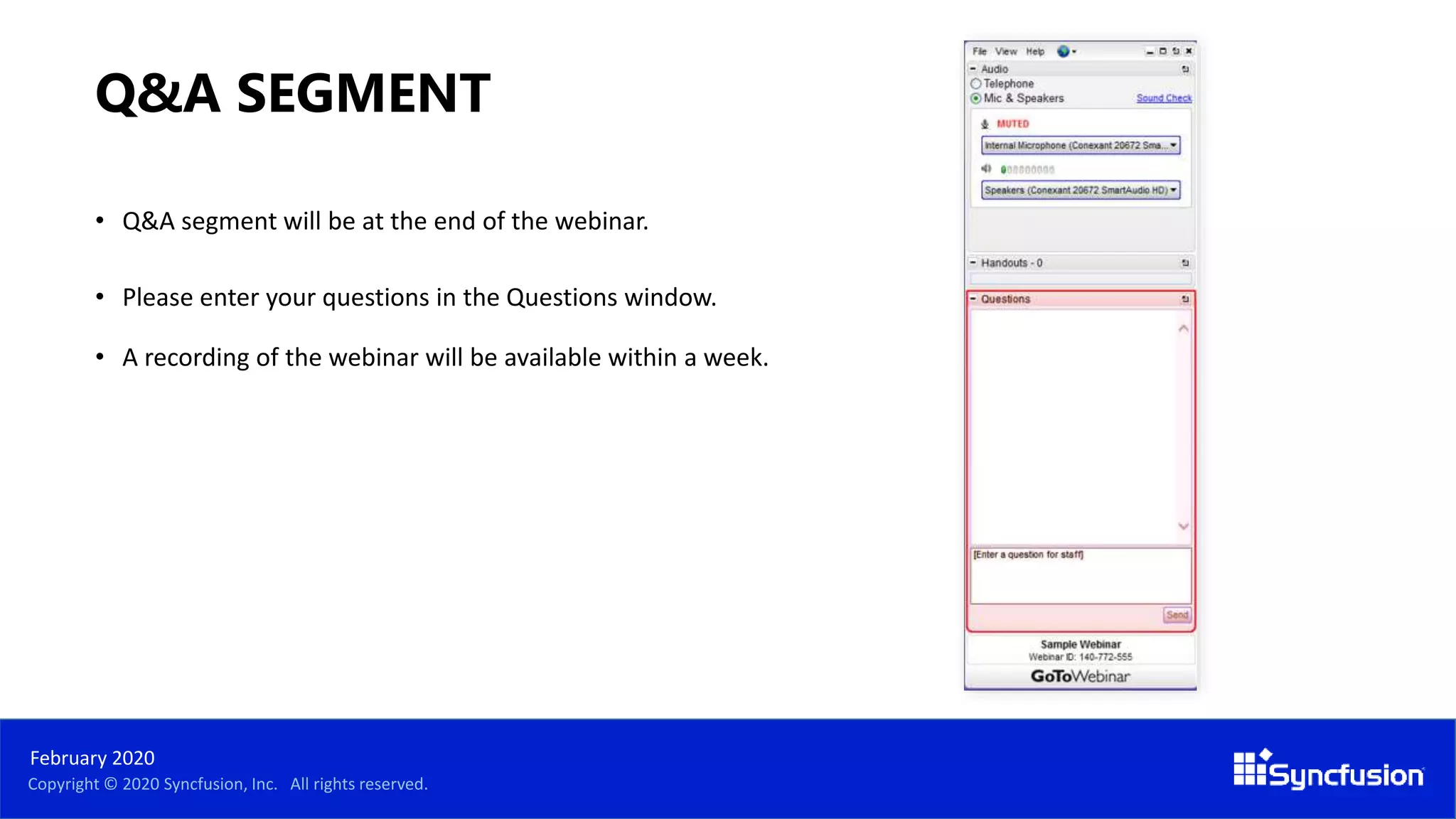
• Q&A segment will be at the end of the webinar.
• Please enter your questions in the Questions window.
• A recording of the webinar will be available within a week.
Copyright © 2020 Syncfusion, Inc. All rights reserved.
February 2020
Copyright © 2020 Syncfusion, Inc. All rights reserved.
February 2020
Copyright © 2020 Syncfusion, Inc. All rights reserved.
February 2020
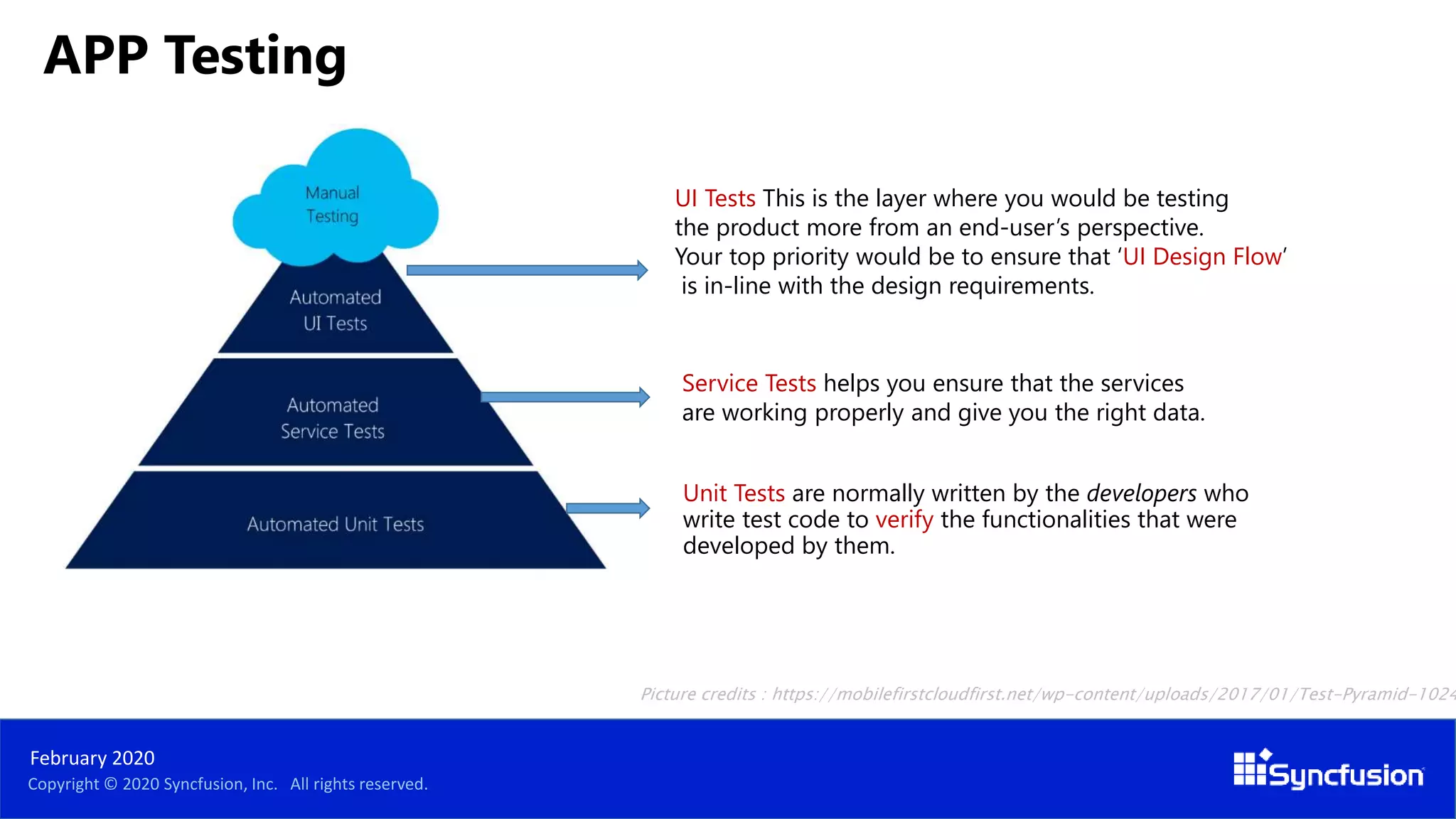
Unit Tests are normally written by the developers who
write test code to verify the functionalities that were
developed by them.
Picture credits : https://mobilefirstcloudfirst.net/wp-content/uploads/2017/01/Test-Pyramid-1024
UI Tests This is the layer where you would be testing
the product more from an end-user’s perspective.
Your top priority would be to ensure that ‘UI Design Flow’
is in-line with the design requirements.
Service Tests helps you ensure that the services
are working properly and give you the right data.
APP Testing
Copyright © 2020 Syncfusion, Inc. All rights reserved.
February 2020
Since the testing at UI level is so brittle,
it is recommended to focus on these tests
to only verify ‘UI flow & interactions’
without looking into the system functionality.
Copyright © 2020 Syncfusion, Inc. All rights reserved.
February 2020
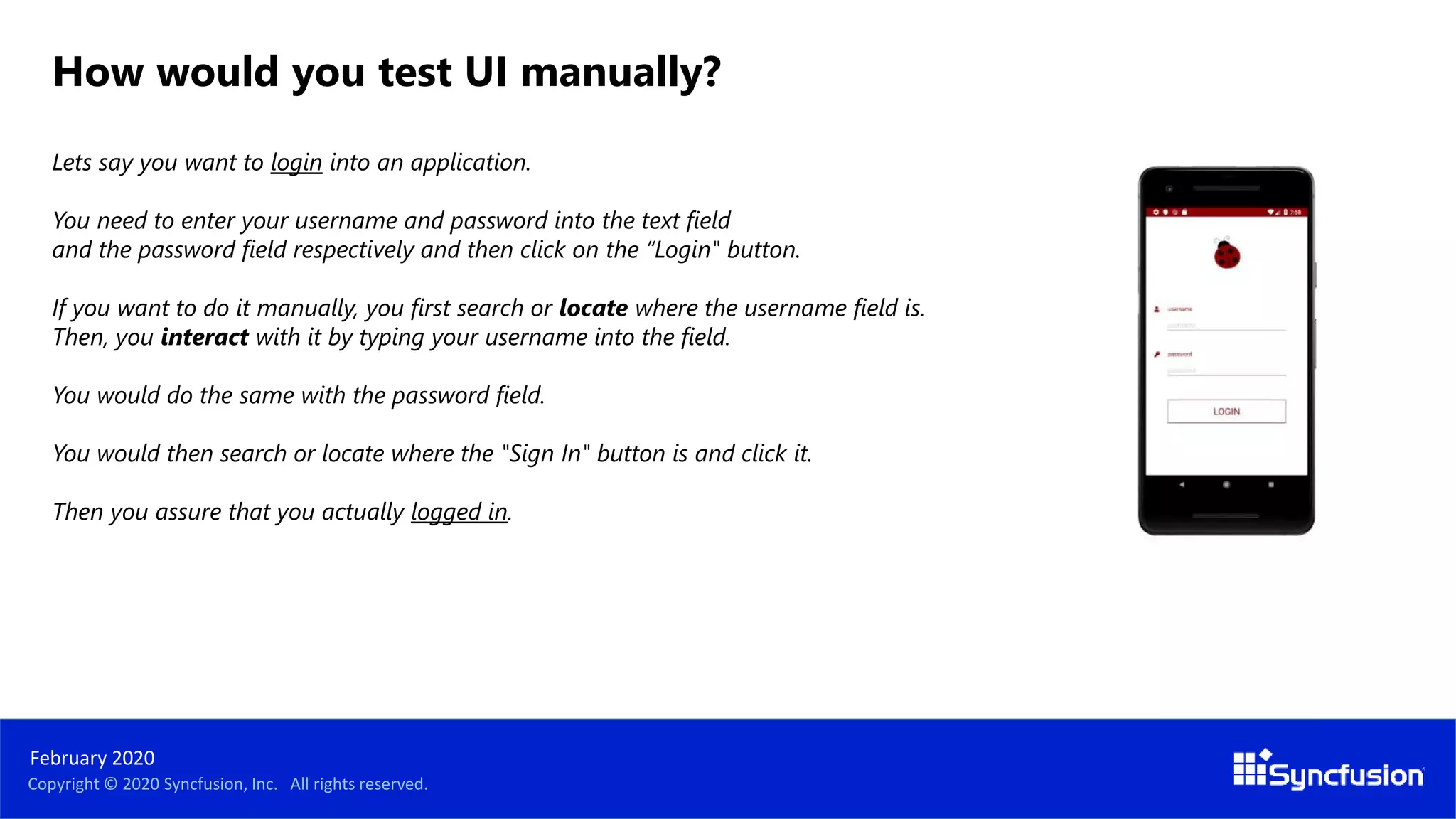
How would you test UI manually?
Lets say you want to login into an application.
You need to enter your username and password into the text field
and the password field respectively and then click on the “Login" button.
If you want to do it manually, you first search or locate where the username field is.
Then, you interact with it by typing your username into the field.
You would do the same with the password field.
You would then search or locate where the "Sign In" button is and click it.
Then you assure that you actually logged in.
1
Copyright © 2020 Syncfusion, Inc. All rights reserved.
February 2020
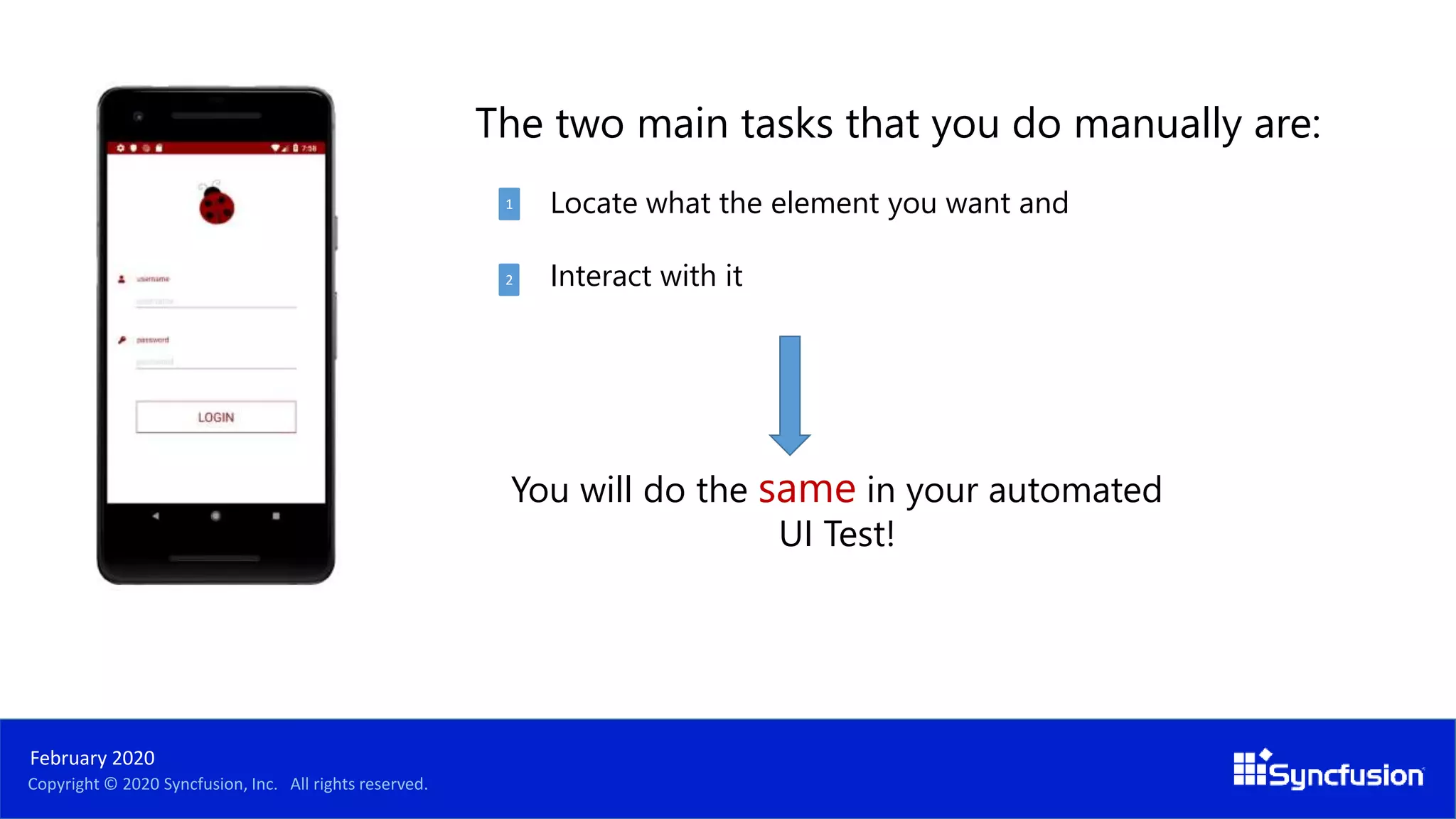
The two main tasks that you do manually are:
Locate what the element you want and
Interact with it
1
You will do the same in your automated
UI Test!
2
1
Copyright © 2020 Syncfusion, Inc. All rights reserved.
February 2020
Fast - ui tests are slow but dev must try not to write them even slower
Independent - not use other tests
Repeatable - not use constants like access tokens
Self-validating - by using asserts
Timely - try not to be very complicated, maybe an action can be split in multiple tests
FIRST Principles
Copyright © 2020 Syncfusion, Inc. All rights reserved.
February 2020
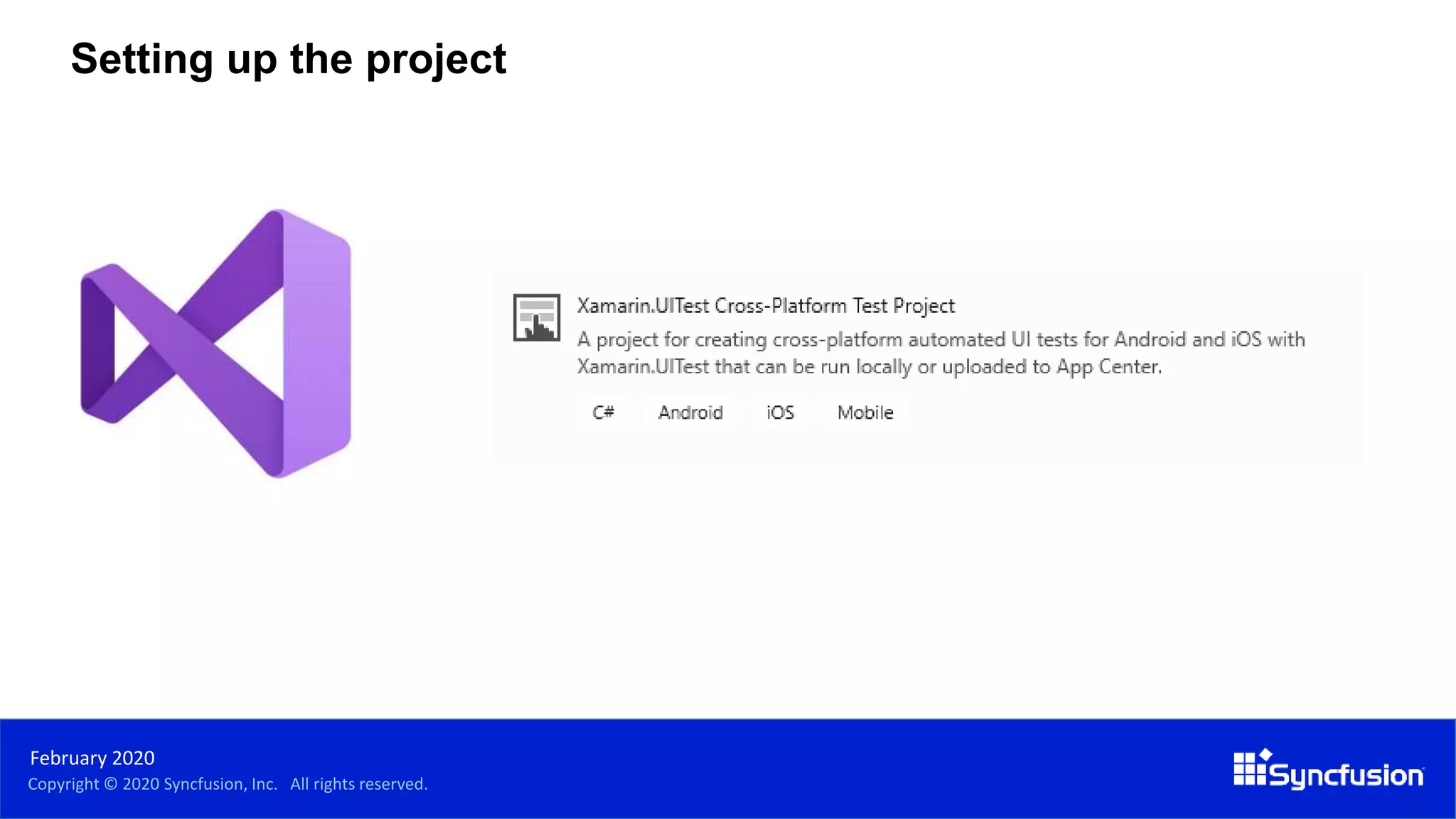
Setting up the project
Copyright © 2020 Syncfusion, Inc. All rights reserved.
February 2020
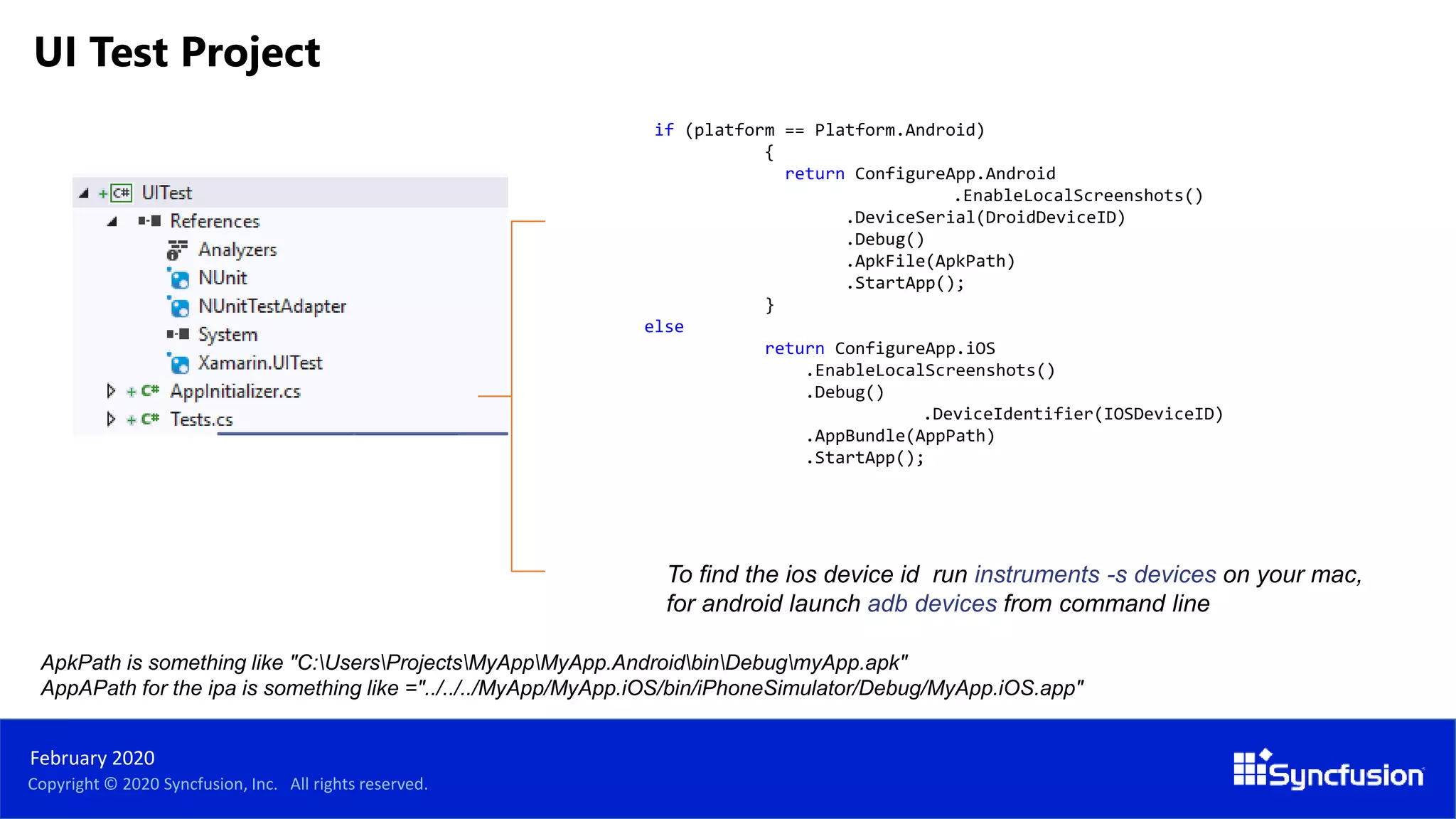
if (platform == Platform.Android)
{
return ConfigureApp.Android
.EnableLocalScreenshots()
.DeviceSerial(DroidDeviceID)
.Debug()
.ApkFile(ApkPath)
.StartApp();
}
else
return ConfigureApp.iOS
.EnableLocalScreenshots()
.Debug()
.DeviceIdentifier(IOSDeviceID)
.AppBundle(AppPath)
.StartApp();
To find the ios device id run instruments -s devices on your mac,
for android launch adb devices from command line
ApkPath is something like "C:UsersProjectsMyAppMyApp.AndroidbinDebugmyApp.apk"
AppAPath for the ipa is something like ="../../../MyApp/MyApp.iOS/bin/iPhoneSimulator/Debug/MyApp.iOS.app"
UI Test Project
February 2020
DEMO
app.Flash(e=>e.All())
Copyright © 2020 Syncfusion, Inc. All rights reserved.
February 2020
The REPL is a console-like environment in which the developer enters expressions or commands.
It will then evaluate those expressions and display the results to the user.
tree
app.Query(e =>
e.All())
Repl() - read-eval-print-loop
Copyright © 2020 Syncfusion, Inc. All rights reserved.
February 2020
The REPL is helpful when creating
UITests as it allows us to explore the
user interface
and create the queries and
statements so that the test may
interact with the application.
February 2020
DEMO
Copyright © 2020 Syncfusion, Inc. All rights reserved.
February 2020
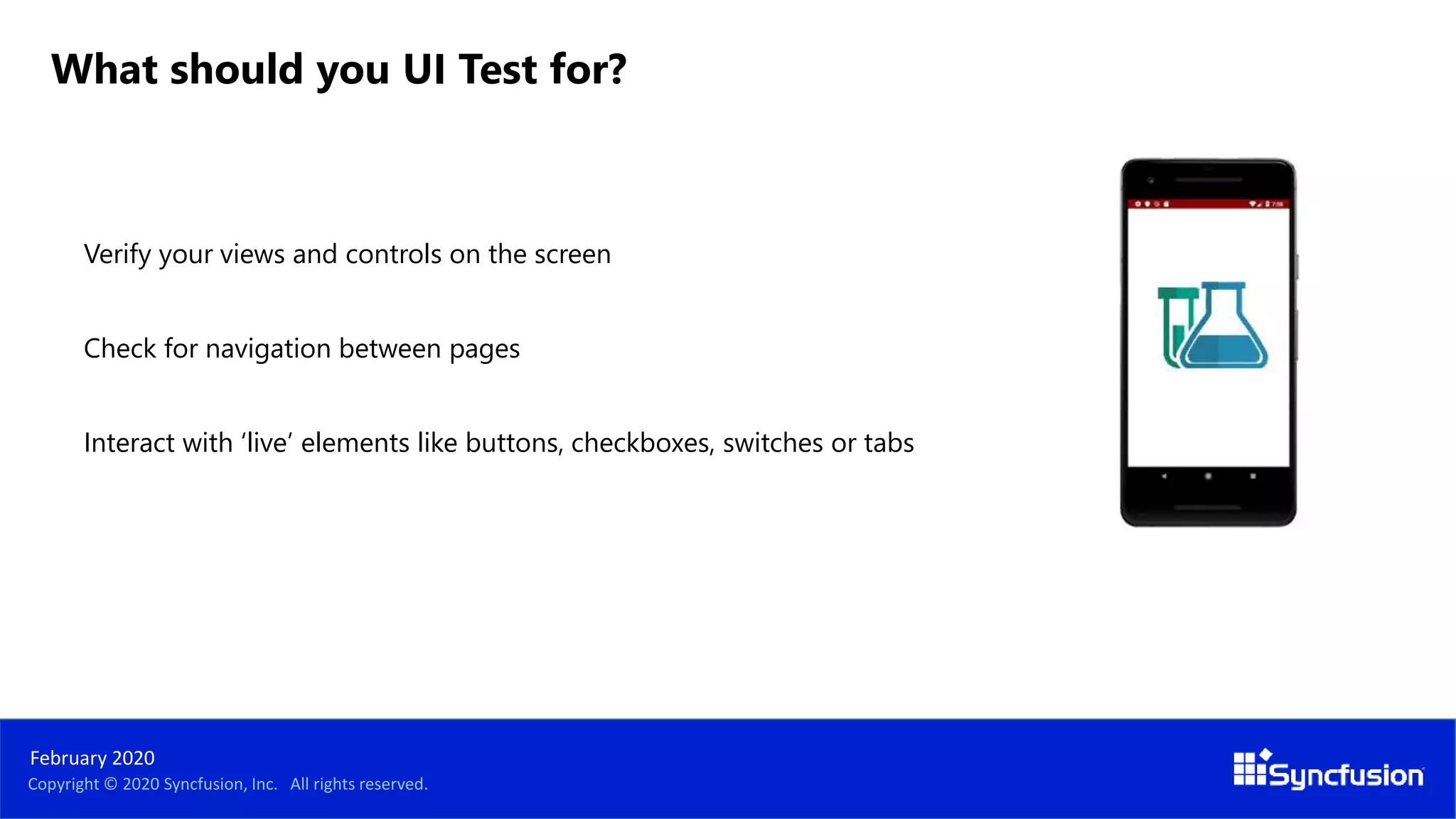
Verify your views and controls on the screen
Check for navigation between pages
Interact with ‘live’ elements like buttons, checkboxes, switches or tabs
What should you UI Test for?
Copyright © 2020 Syncfusion, Inc. All rights reserved.
February 2020
Sample
Arrange, Act, Assert
public int MySum(int a, int b)
{
return a + b;
}
[Test]
public void TestMySum()
{
// Arrange
int a = 5;
int b = 7;
// Act
int result = MySum(a, b);
// Assert
Assert.AreEqual(12, result);
}
AAA Pattern
Copyright © 2020 Syncfusion, Inc. All rights reserved.
February 2020
This process allows you to write tests a non-technical language that
everyone can understand (e.g. a domain-specific language like Gherkin).
BDD forms an approach for building a shared understanding on what
kind of software to build by discussing examples.
Behavior Driven Development
Given When Then
As a [role]
I want [feature]
So that [benefit]
As a registered user,
I want to be able to login,
so that I can see the Application.
Scenario 1: User is able to log in.
Given that I am a registered user,
when I enter the username ‘Codrina’
and password ‘ladybug’,
then I should see
the first screen of the app.
Sample
BDD Approach
Copyright © 2020 Syncfusion, Inc. All rights reserved.
February 2020
In order to identify a control on the screen, each control needs an unique identifier called
AutomationId set to the visual element, for example:
<Label x:Name="label1" AutomationId="MyLabel" Text="Hello, Xamarin.Forms!" />
Or
var label1 = new Label {
Text = "Hello, Xamarin.Forms!",
AutomationId = "MyLabel"
};
It’s important also to write every single action and
not take anything for granted
Meet the AutomationId
February 2020
DEMO
Copyright © 2020 Syncfusion, Inc. All rights reserved.
February 2020
UI Automation is supposed to run slow
in order to emulate an actual user
interaction - keep that in mind that
sometimes we may wait for an element
to pop on the screen before we verify if
it is actually on the screen.
Copyright © 2020 Syncfusion, Inc. All rights reserved.
February 2020
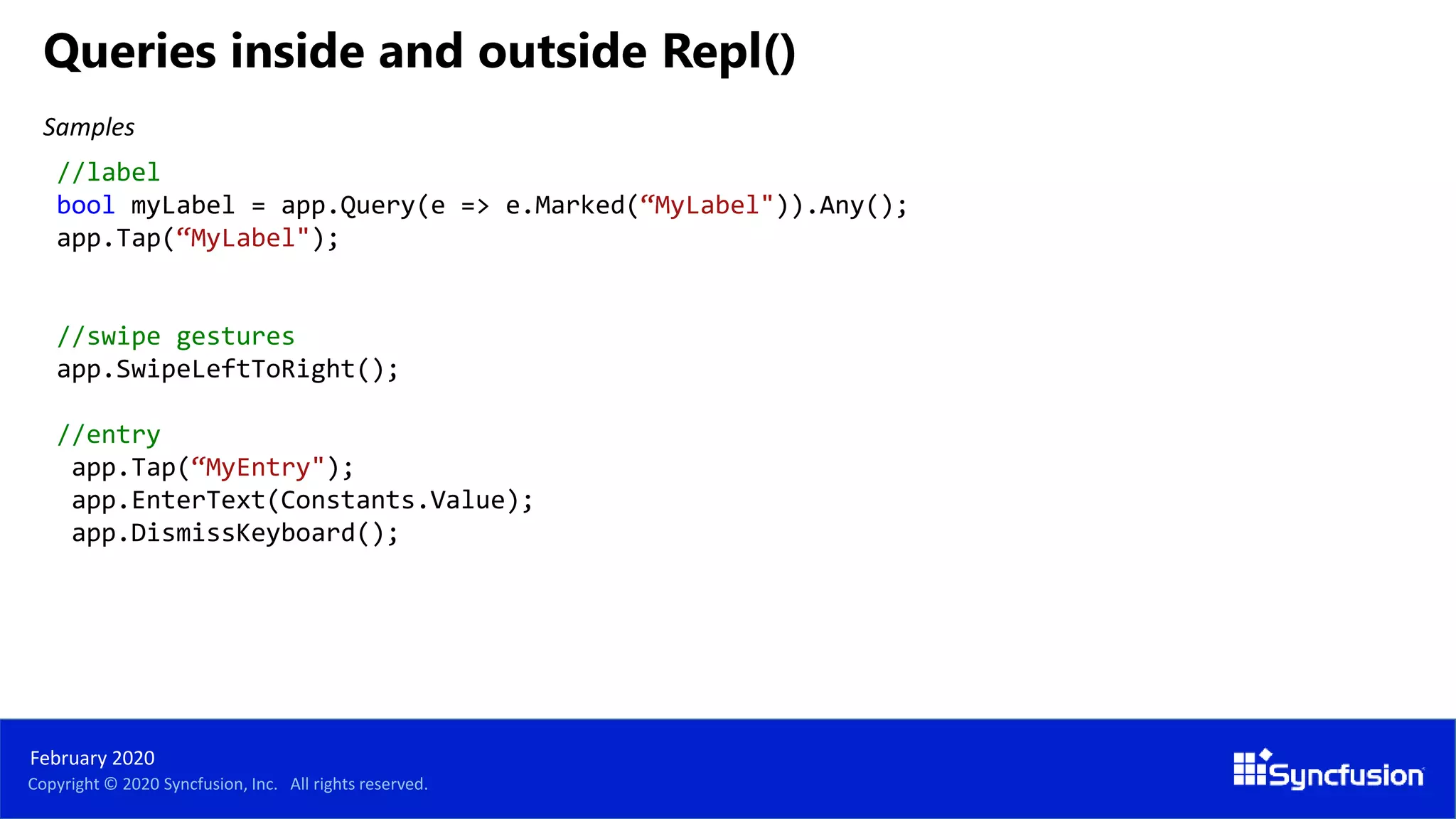
Samples
//label
bool myLabel = app.Query(e => e.Marked(“MyLabel")).Any();
app.Tap(“MyLabel");
//swipe gestures
app.SwipeLeftToRight();
//entry
app.Tap(“MyEntry");
app.EnterText(Constants.Value);
app.DismissKeyboard();
Queries inside and outside Repl()
February 2020
DEMO
Copyright © 2020 Syncfusion, Inc. All rights reserved.
February 2020
Samples
//syncfusion element
switches = app.Query(e => e.Marked("SfSwitch Control. State changed"));
x = (float)switches[c].Rect.CenterX;
y = (float)switches[c].Rect.CenterY;
app.TapCoordinates(x, y);
//inside webview
/*through Safari for iOS
and through Chrome for Android
use the browser developer tools
to visually identify
the elements inside the DOM.*/
app.Tap(c => c.WebView().Css("#element"));
More queries
Copyright © 2020 Syncfusion, Inc. All rights reserved.
February 2020
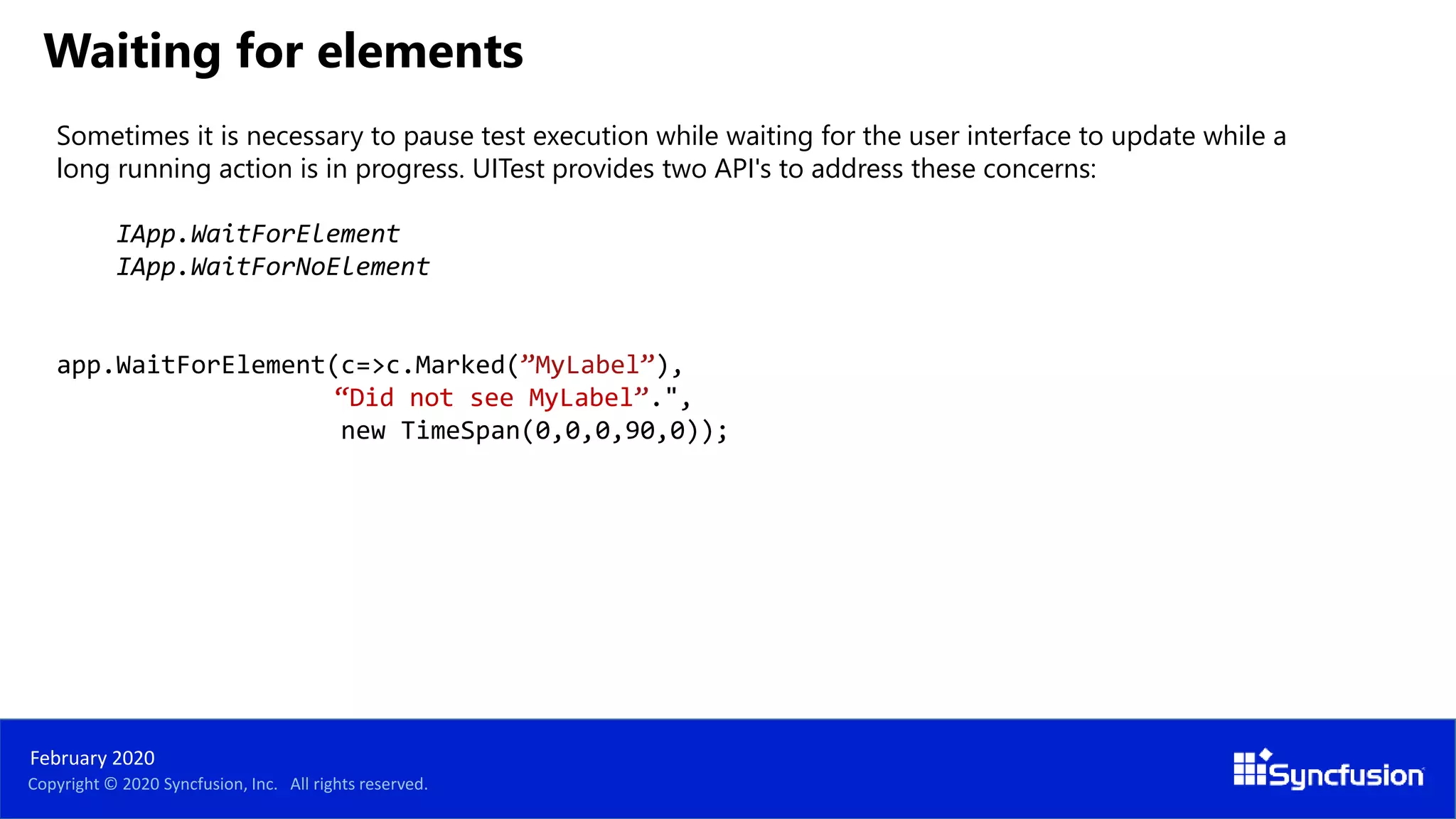
Sometimes it is necessary to pause test execution while waiting for the user interface to update while a
long running action is in progress. UITest provides two API's to address these concerns:
IApp.WaitForElement
IApp.WaitForNoElement
app.WaitForElement(c=>c.Marked(”MyLabel”),
“Did not see MyLabel”.",
new TimeSpan(0,0,0,90,0));
Waiting for elements
Copyright © 2020 Syncfusion, Inc. All rights reserved.
February 2020
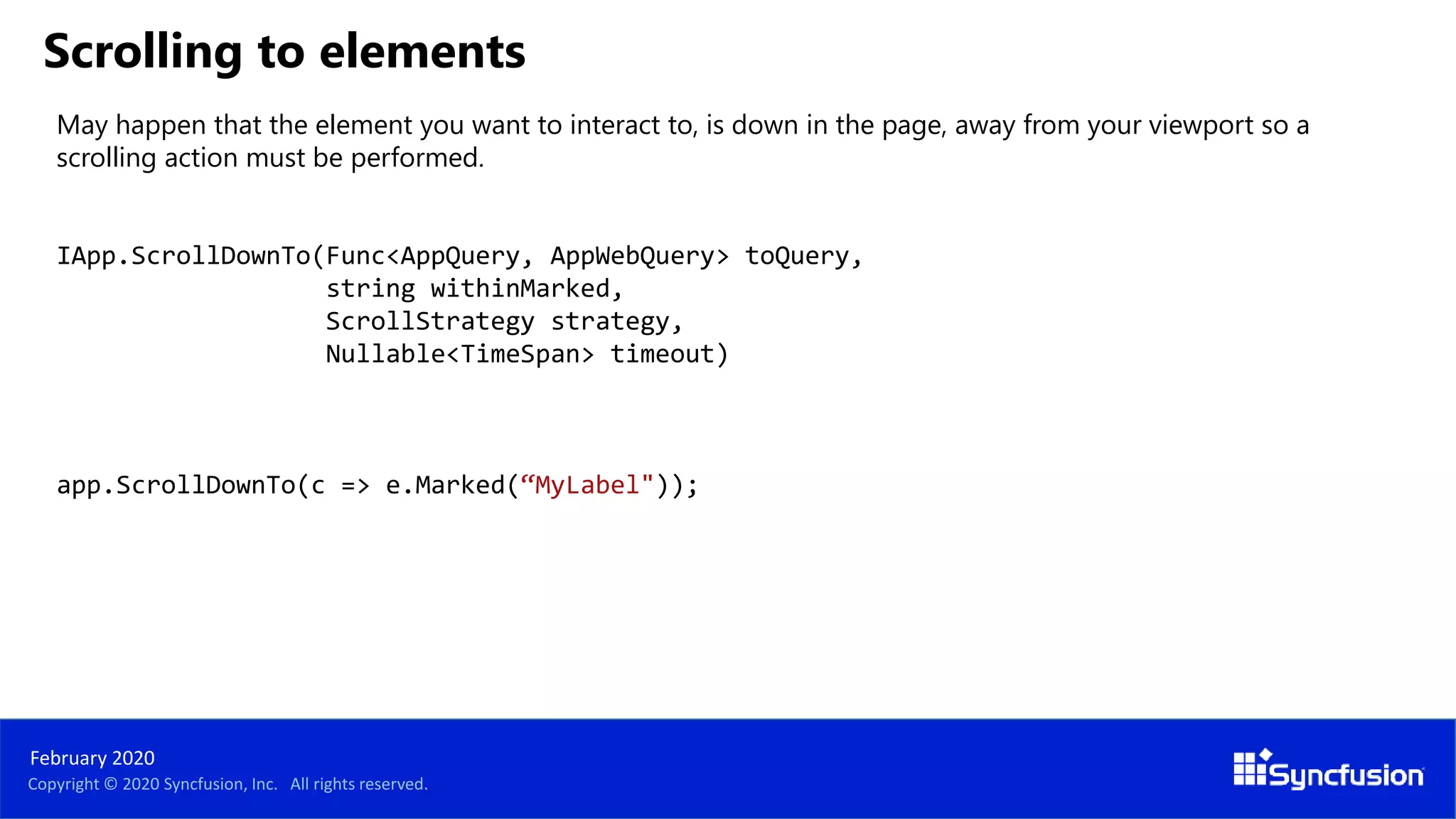
May happen that the element you want to interact to, is down in the page, away from your viewport so a
scrolling action must be performed.
IApp.ScrollDownTo(Func<AppQuery, AppWebQuery> toQuery,
string withinMarked,
ScrollStrategy strategy,
Nullable<TimeSpan> timeout)
app.ScrollDownTo(c => e.Marked(“MyLabel"));
Scrolling to elements
Copyright © 2020 Syncfusion, Inc. All rights reserved.
February 2020
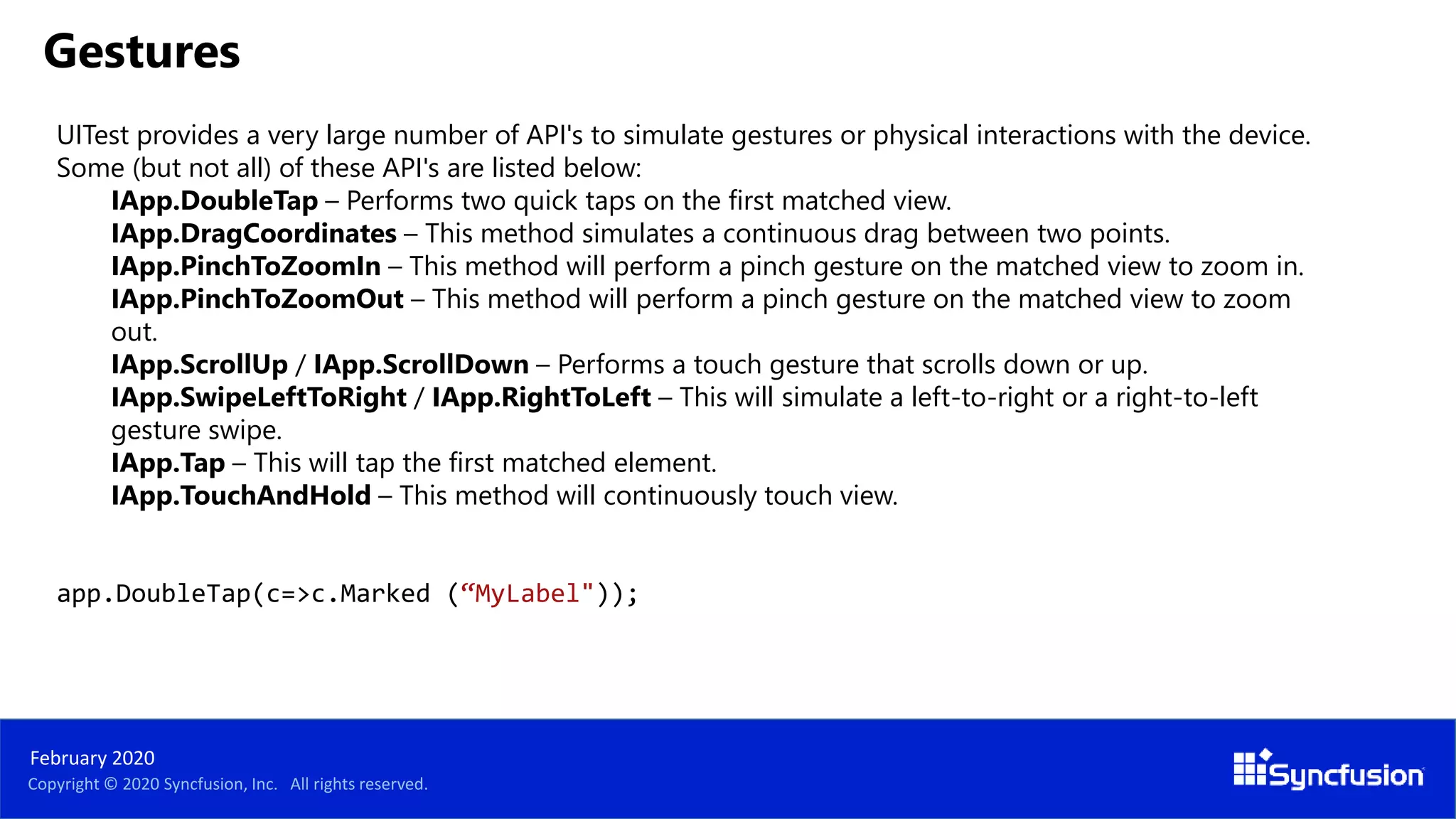
UITest provides a very large number of API's to simulate gestures or physical interactions with the device.
Some (but not all) of these API's are listed below:
IApp.DoubleTap – Performs two quick taps on the first matched view.
IApp.DragCoordinates – This method simulates a continuous drag between two points.
IApp.PinchToZoomIn – This method will perform a pinch gesture on the matched view to zoom in.
IApp.PinchToZoomOut – This method will perform a pinch gesture on the matched view to zoom
out.
IApp.ScrollUp / IApp.ScrollDown – Performs a touch gesture that scrolls down or up.
IApp.SwipeLeftToRight / IApp.RightToLeft – This will simulate a left-to-right or a right-to-left
gesture swipe.
IApp.Tap – This will tap the first matched element.
IApp.TouchAndHold – This method will continuously touch view.
app.DoubleTap(c=>c.Marked (“MyLabel"));
Gestures
Copyright © 2020 Syncfusion, Inc. All rights reserved.
February 2020
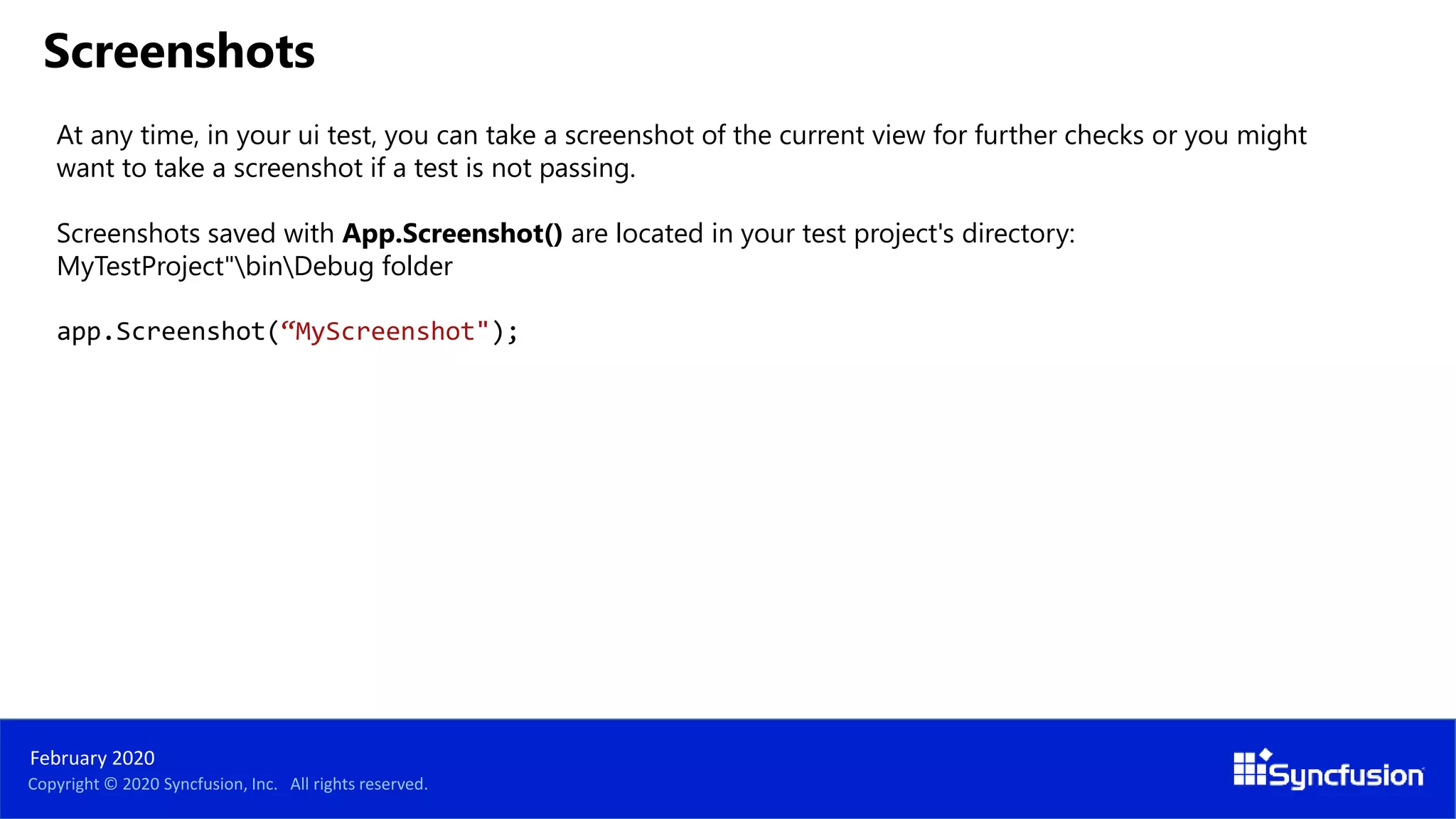
At any time, in your ui test, you can take a screenshot of the current view for further checks or you might
want to take a screenshot if a test is not passing.
Screenshots saved with App.Screenshot() are located in your test project's directory:
MyTestProject"binDebug folder
app.Screenshot(“MyScreenshot");
Screenshots
Copyright © 2020 Syncfusion, Inc. All rights reserved.
February 2020
Writing the test in natural language
and performing them manually before
coding them can help you write
complete automated tests.
Copyright © 2020 Syncfusion, Inc. All rights reserved.
February 2020
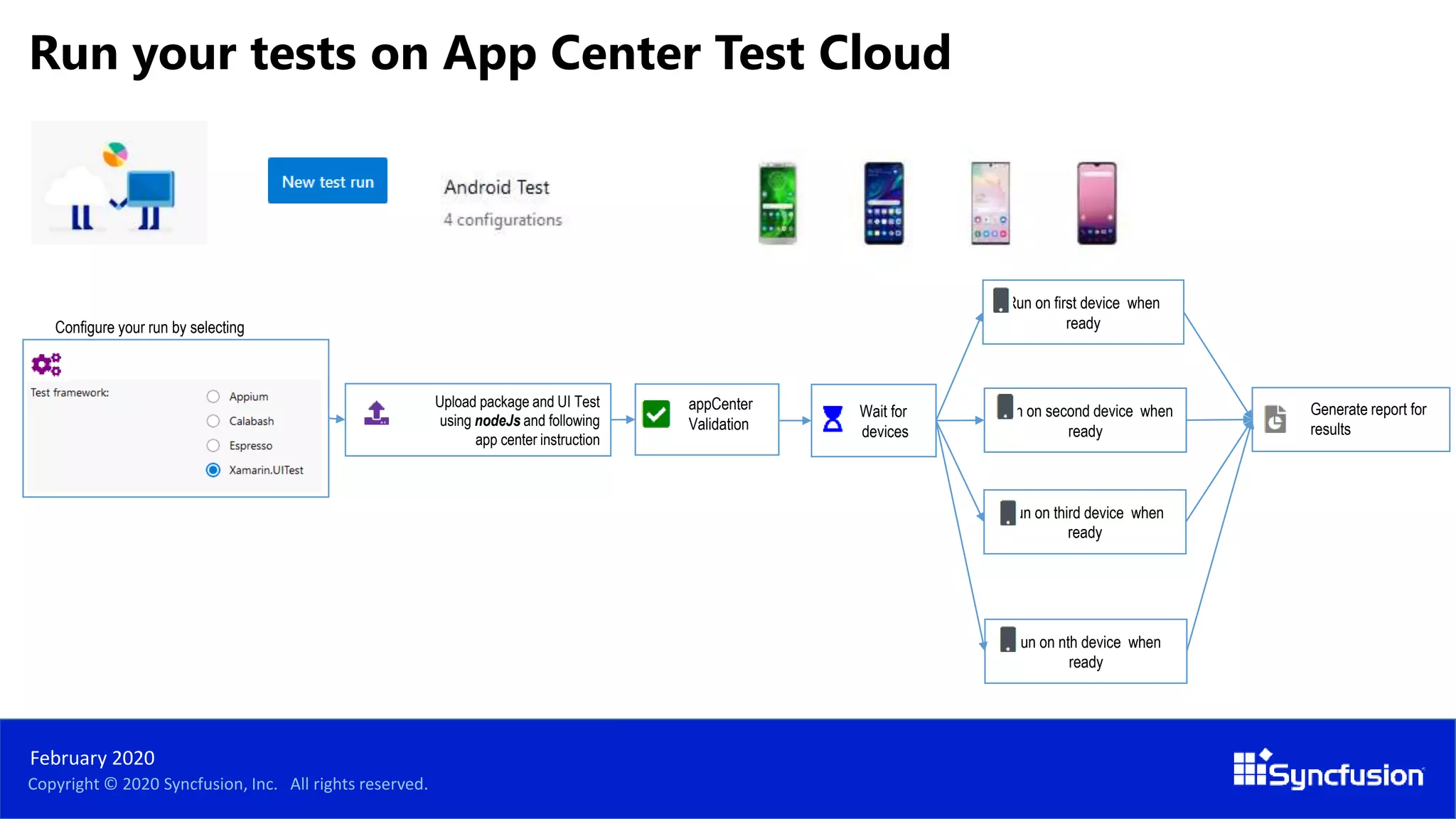
appCenter
Validation
Upload package and UI Test
using nodeJs and following
app center instruction
Wait for
devices
Run on first device when
ready
Run on second device when
ready
Run on nth device when
ready
Configure your run by selecting
Generate report for
results
Run on third device when
ready
Run your tests on App Center Test Cloud
Copyright © 2020 Syncfusion, Inc. All rights reserved.
February 2020
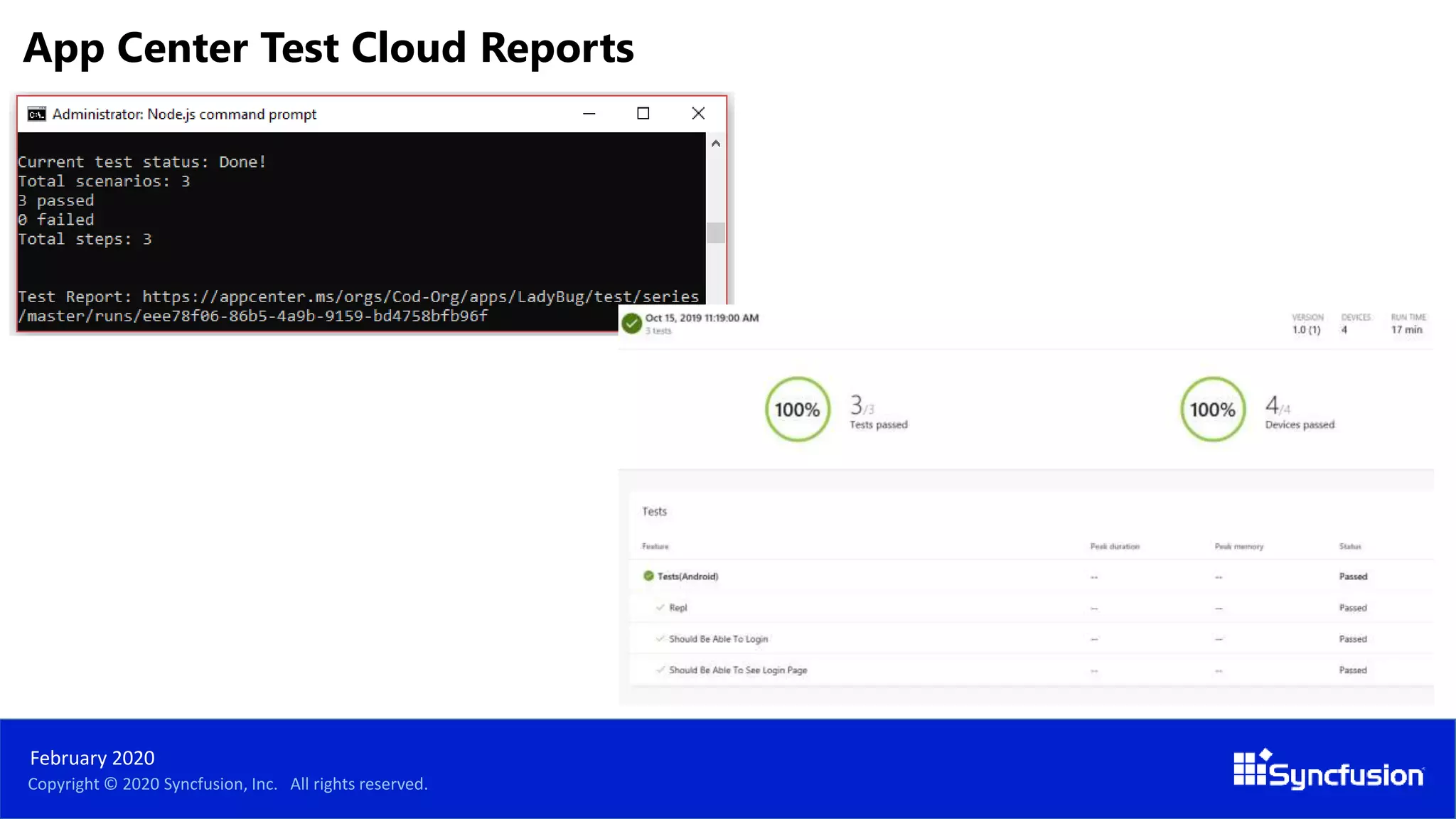
App Center Test Cloud Reports
Copyright © 2020 Syncfusion, Inc. All rights reserved.
February 2020
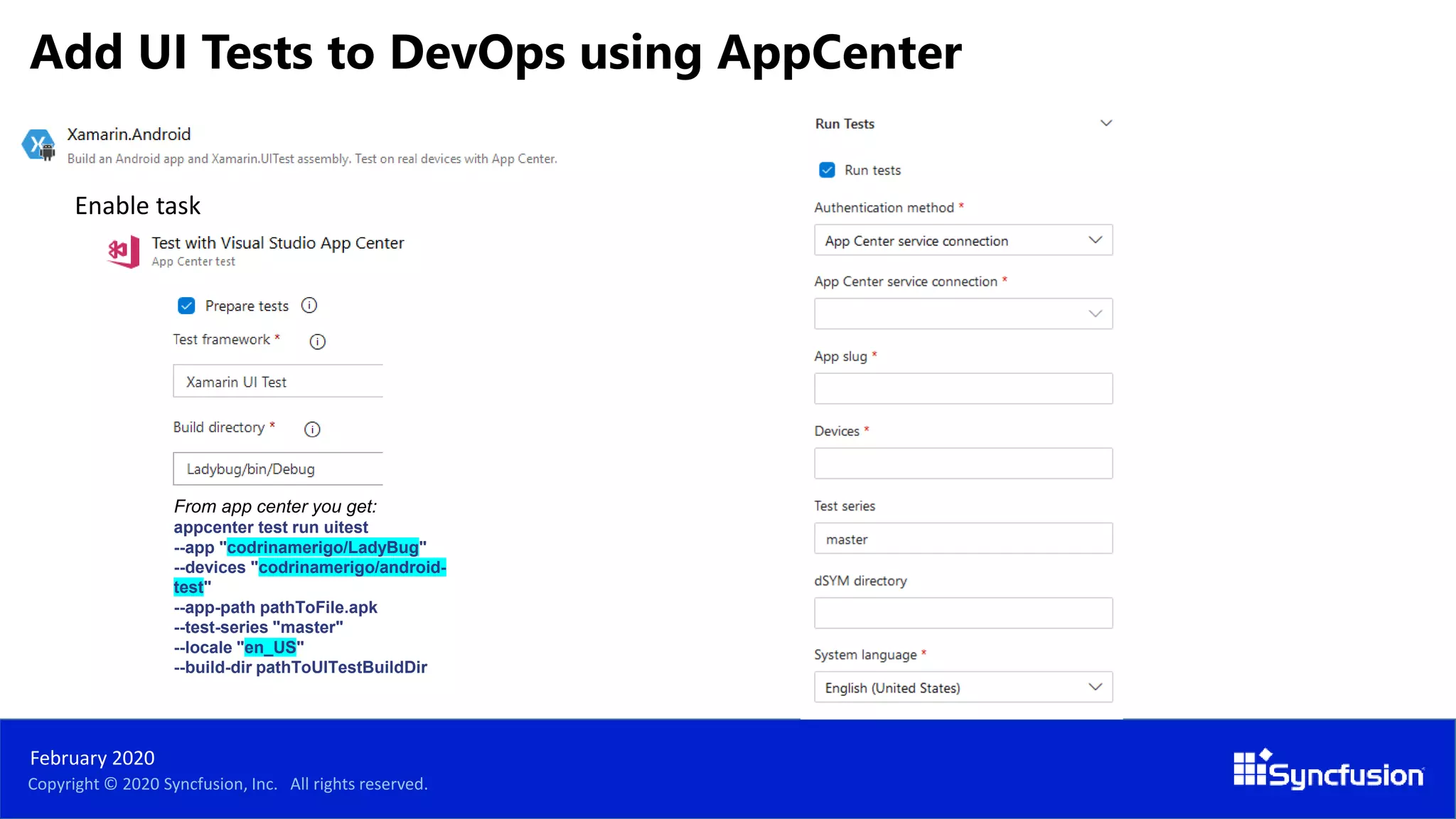
From app center you get:
appcenter test run uitest
--app "codrinamerigo/LadyBug"
--devices "codrinamerigo/android-
test"
--app-path pathToFile.apk
--test-series "master"
--locale "en_US"
--build-dir pathToUITestBuildDir
Enable task
Add UI Tests to DevOps using AppCenter
Copyright © 2020 Syncfusion, Inc. All rights reserved.
February 2020
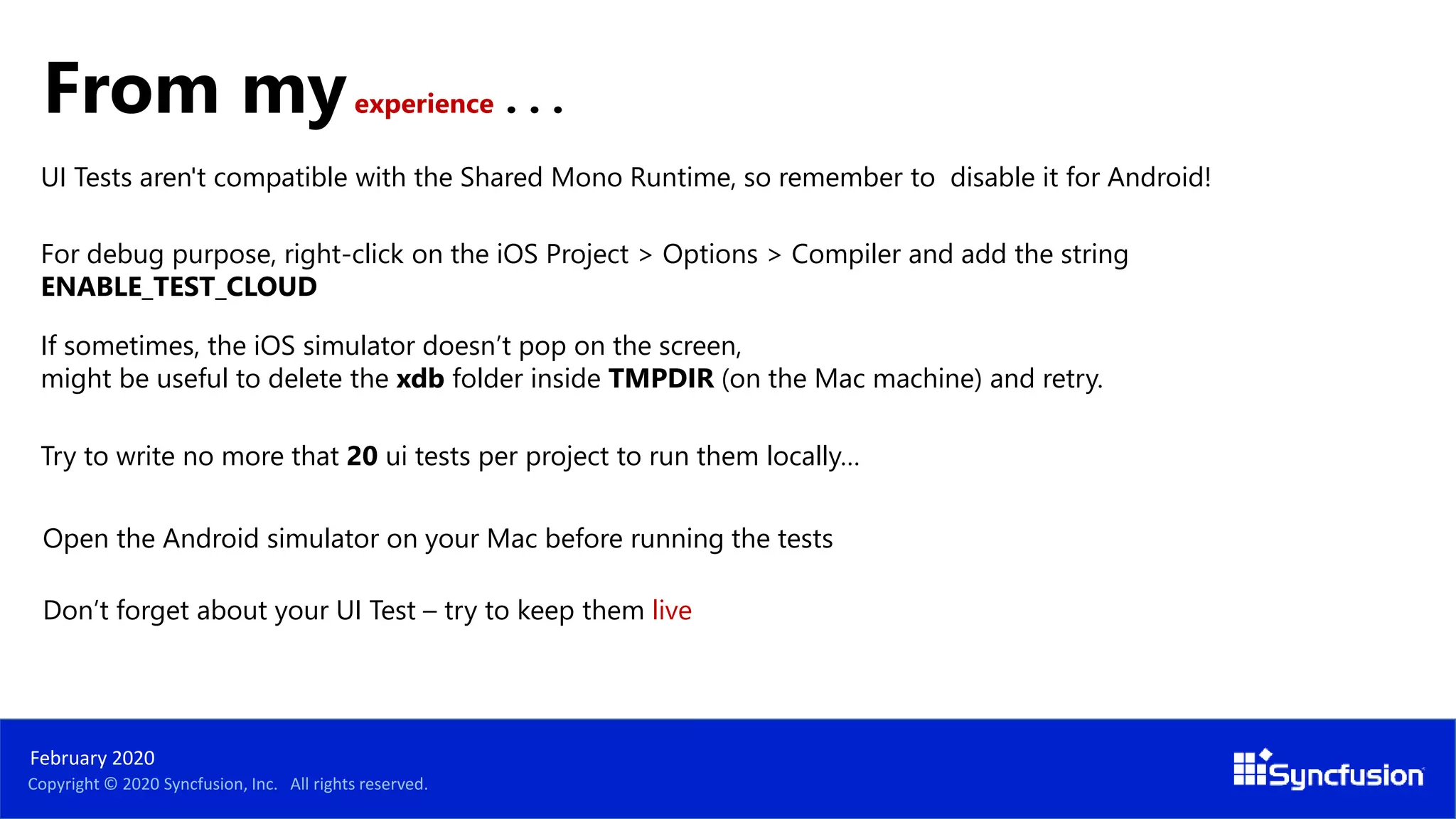
If sometimes, the iOS simulator doesn’t pop on the screen,
might be useful to delete the xdb folder inside TMPDIR (on the Mac machine) and retry.
For debug purpose, right-click on the iOS Project > Options > Compiler and add the string
ENABLE_TEST_CLOUD
Try to write no more that 20 ui tests per project to run them locally…
Open the Android simulator on your Mac before running the tests
Don’t forget about your UI Test – try to keep them live
UI Tests aren't compatible with the Shared Mono Runtime, so remember to disable it for Android!
From myexperience . . .
ALL THE TOOLS. ONE FLAT FEE. NO HASSLE.
Connect with us on social media:
Give us a call:
Toll Free: +1 888.936.8638 (US)
Phone: +1 919.481.1974 (World)
Send us an email:
sales@syncfusion.com
Copyright © 2020 Syncfusion, Inc. All rights reserved.
January 2020
_Codrina_

UI Testing for Your Xamarin.Forms Apps

  • 1.
    Copyright © 2020Syncfusion, Inc. All rights reserved. February 2020
  • 2.
    PRESENTER Copyright © 2020Syncfusion, Inc. All rights reserved. February 2020 Codrina Merigo Software Engineer
  • 3.
    Q&A SEGMENT • Q&Asegment will be at the end of the webinar. • Please enter your questions in the Questions window. • A recording of the webinar will be available within a week. Copyright © 2020 Syncfusion, Inc. All rights reserved. February 2020
  • 4.
    Copyright © 2020Syncfusion, Inc. All rights reserved. February 2020
  • 5.
    Copyright © 2020Syncfusion, Inc. All rights reserved. February 2020 Unit Tests are normally written by the developers who write test code to verify the functionalities that were developed by them. Picture credits : https://mobilefirstcloudfirst.net/wp-content/uploads/2017/01/Test-Pyramid-1024 UI Tests This is the layer where you would be testing the product more from an end-user’s perspective. Your top priority would be to ensure that ‘UI Design Flow’ is in-line with the design requirements. Service Tests helps you ensure that the services are working properly and give you the right data. APP Testing
  • 6.
    Copyright © 2020Syncfusion, Inc. All rights reserved. February 2020 Since the testing at UI level is so brittle, it is recommended to focus on these tests to only verify ‘UI flow & interactions’ without looking into the system functionality.
  • 7.
    Copyright © 2020Syncfusion, Inc. All rights reserved. February 2020 How would you test UI manually? Lets say you want to login into an application. You need to enter your username and password into the text field and the password field respectively and then click on the “Login" button. If you want to do it manually, you first search or locate where the username field is. Then, you interact with it by typing your username into the field. You would do the same with the password field. You would then search or locate where the "Sign In" button is and click it. Then you assure that you actually logged in. 1
  • 8.
    Copyright © 2020Syncfusion, Inc. All rights reserved. February 2020 The two main tasks that you do manually are: Locate what the element you want and Interact with it 1 You will do the same in your automated UI Test! 2 1
  • 9.
    Copyright © 2020Syncfusion, Inc. All rights reserved. February 2020 Fast - ui tests are slow but dev must try not to write them even slower Independent - not use other tests Repeatable - not use constants like access tokens Self-validating - by using asserts Timely - try not to be very complicated, maybe an action can be split in multiple tests FIRST Principles
  • 10.
    Copyright © 2020Syncfusion, Inc. All rights reserved. February 2020 Setting up the project
  • 11.
    Copyright © 2020Syncfusion, Inc. All rights reserved. February 2020 if (platform == Platform.Android) { return ConfigureApp.Android .EnableLocalScreenshots() .DeviceSerial(DroidDeviceID) .Debug() .ApkFile(ApkPath) .StartApp(); } else return ConfigureApp.iOS .EnableLocalScreenshots() .Debug() .DeviceIdentifier(IOSDeviceID) .AppBundle(AppPath) .StartApp(); To find the ios device id run instruments -s devices on your mac, for android launch adb devices from command line ApkPath is something like "C:UsersProjectsMyAppMyApp.AndroidbinDebugmyApp.apk" AppAPath for the ipa is something like ="../../../MyApp/MyApp.iOS/bin/iPhoneSimulator/Debug/MyApp.iOS.app" UI Test Project
  • 12.
  • 13.
    app.Flash(e=>e.All()) Copyright © 2020Syncfusion, Inc. All rights reserved. February 2020 The REPL is a console-like environment in which the developer enters expressions or commands. It will then evaluate those expressions and display the results to the user. tree app.Query(e => e.All()) Repl() - read-eval-print-loop
  • 14.
    Copyright © 2020Syncfusion, Inc. All rights reserved. February 2020 The REPL is helpful when creating UITests as it allows us to explore the user interface and create the queries and statements so that the test may interact with the application.
  • 15.
  • 16.
    Copyright © 2020Syncfusion, Inc. All rights reserved. February 2020 Verify your views and controls on the screen Check for navigation between pages Interact with ‘live’ elements like buttons, checkboxes, switches or tabs What should you UI Test for?
  • 17.
    Copyright © 2020Syncfusion, Inc. All rights reserved. February 2020 Sample Arrange, Act, Assert public int MySum(int a, int b) { return a + b; } [Test] public void TestMySum() { // Arrange int a = 5; int b = 7; // Act int result = MySum(a, b); // Assert Assert.AreEqual(12, result); } AAA Pattern
  • 18.
    Copyright © 2020Syncfusion, Inc. All rights reserved. February 2020 This process allows you to write tests a non-technical language that everyone can understand (e.g. a domain-specific language like Gherkin). BDD forms an approach for building a shared understanding on what kind of software to build by discussing examples. Behavior Driven Development Given When Then As a [role] I want [feature] So that [benefit] As a registered user, I want to be able to login, so that I can see the Application. Scenario 1: User is able to log in. Given that I am a registered user, when I enter the username ‘Codrina’ and password ‘ladybug’, then I should see the first screen of the app. Sample BDD Approach
  • 19.
    Copyright © 2020Syncfusion, Inc. All rights reserved. February 2020 In order to identify a control on the screen, each control needs an unique identifier called AutomationId set to the visual element, for example: <Label x:Name="label1" AutomationId="MyLabel" Text="Hello, Xamarin.Forms!" /> Or var label1 = new Label { Text = "Hello, Xamarin.Forms!", AutomationId = "MyLabel" }; It’s important also to write every single action and not take anything for granted Meet the AutomationId
  • 20.
  • 21.
    Copyright © 2020Syncfusion, Inc. All rights reserved. February 2020 UI Automation is supposed to run slow in order to emulate an actual user interaction - keep that in mind that sometimes we may wait for an element to pop on the screen before we verify if it is actually on the screen.
  • 22.
    Copyright © 2020Syncfusion, Inc. All rights reserved. February 2020 Samples //label bool myLabel = app.Query(e => e.Marked(“MyLabel")).Any(); app.Tap(“MyLabel"); //swipe gestures app.SwipeLeftToRight(); //entry app.Tap(“MyEntry"); app.EnterText(Constants.Value); app.DismissKeyboard(); Queries inside and outside Repl()
  • 23.
  • 24.
    Copyright © 2020Syncfusion, Inc. All rights reserved. February 2020 Samples //syncfusion element switches = app.Query(e => e.Marked("SfSwitch Control. State changed")); x = (float)switches[c].Rect.CenterX; y = (float)switches[c].Rect.CenterY; app.TapCoordinates(x, y); //inside webview /*through Safari for iOS and through Chrome for Android use the browser developer tools to visually identify the elements inside the DOM.*/ app.Tap(c => c.WebView().Css("#element")); More queries
  • 25.
    Copyright © 2020Syncfusion, Inc. All rights reserved. February 2020 Sometimes it is necessary to pause test execution while waiting for the user interface to update while a long running action is in progress. UITest provides two API's to address these concerns: IApp.WaitForElement IApp.WaitForNoElement app.WaitForElement(c=>c.Marked(”MyLabel”), “Did not see MyLabel”.", new TimeSpan(0,0,0,90,0)); Waiting for elements
  • 26.
    Copyright © 2020Syncfusion, Inc. All rights reserved. February 2020 May happen that the element you want to interact to, is down in the page, away from your viewport so a scrolling action must be performed. IApp.ScrollDownTo(Func<AppQuery, AppWebQuery> toQuery, string withinMarked, ScrollStrategy strategy, Nullable<TimeSpan> timeout) app.ScrollDownTo(c => e.Marked(“MyLabel")); Scrolling to elements
  • 27.
    Copyright © 2020Syncfusion, Inc. All rights reserved. February 2020 UITest provides a very large number of API's to simulate gestures or physical interactions with the device. Some (but not all) of these API's are listed below: IApp.DoubleTap – Performs two quick taps on the first matched view. IApp.DragCoordinates – This method simulates a continuous drag between two points. IApp.PinchToZoomIn – This method will perform a pinch gesture on the matched view to zoom in. IApp.PinchToZoomOut – This method will perform a pinch gesture on the matched view to zoom out. IApp.ScrollUp / IApp.ScrollDown – Performs a touch gesture that scrolls down or up. IApp.SwipeLeftToRight / IApp.RightToLeft – This will simulate a left-to-right or a right-to-left gesture swipe. IApp.Tap – This will tap the first matched element. IApp.TouchAndHold – This method will continuously touch view. app.DoubleTap(c=>c.Marked (“MyLabel")); Gestures
  • 28.
    Copyright © 2020Syncfusion, Inc. All rights reserved. February 2020 At any time, in your ui test, you can take a screenshot of the current view for further checks or you might want to take a screenshot if a test is not passing. Screenshots saved with App.Screenshot() are located in your test project's directory: MyTestProject"binDebug folder app.Screenshot(“MyScreenshot"); Screenshots
  • 29.
    Copyright © 2020Syncfusion, Inc. All rights reserved. February 2020 Writing the test in natural language and performing them manually before coding them can help you write complete automated tests.
  • 30.
    Copyright © 2020Syncfusion, Inc. All rights reserved. February 2020 appCenter Validation Upload package and UI Test using nodeJs and following app center instruction Wait for devices Run on first device when ready Run on second device when ready Run on nth device when ready Configure your run by selecting Generate report for results Run on third device when ready Run your tests on App Center Test Cloud
  • 31.
    Copyright © 2020Syncfusion, Inc. All rights reserved. February 2020 App Center Test Cloud Reports
  • 32.
    Copyright © 2020Syncfusion, Inc. All rights reserved. February 2020 From app center you get: appcenter test run uitest --app "codrinamerigo/LadyBug" --devices "codrinamerigo/android- test" --app-path pathToFile.apk --test-series "master" --locale "en_US" --build-dir pathToUITestBuildDir Enable task Add UI Tests to DevOps using AppCenter
  • 33.
    Copyright © 2020Syncfusion, Inc. All rights reserved. February 2020 If sometimes, the iOS simulator doesn’t pop on the screen, might be useful to delete the xdb folder inside TMPDIR (on the Mac machine) and retry. For debug purpose, right-click on the iOS Project > Options > Compiler and add the string ENABLE_TEST_CLOUD Try to write no more that 20 ui tests per project to run them locally… Open the Android simulator on your Mac before running the tests Don’t forget about your UI Test – try to keep them live UI Tests aren't compatible with the Shared Mono Runtime, so remember to disable it for Android! From myexperience . . .
  • 34.
    ALL THE TOOLS.ONE FLAT FEE. NO HASSLE. Connect with us on social media: Give us a call: Toll Free: +1 888.936.8638 (US) Phone: +1 919.481.1974 (World) Send us an email: sales@syncfusion.com Copyright © 2020 Syncfusion, Inc. All rights reserved. January 2020 _Codrina_

Editor's Notes

  • #11 Iapp.Flash
  • #13 Visual studio and project
  • #14 Iapp.Flash
  • #15 Iapp.Flash
  • #16 repl
  • #17 aproaches
  • #18 Here we have an example of a function, that given two integers, a and b, I returns ‘a+b’ . So a simple way of using the pattern might be : Another way of writing the ui tests is using the so called feature files that are written in some cases of ‘ behavior driven development or BDD.
  • #20 (for example: the keyboard pops on the screen, an input text is always empty, the keyboard disappears or hides a part of the screen which contains the ‘Login’ button, the popup is shown and is completely loaded)
  • #21 automationid
  • #24 First ui test
  • #26 toQuery – this is a UITest web query that will locate a DOM element in the web view. withinMarked – this is a string that will located the web view on the screen. This parameter is optional if there is only one web view on the screen. This string will used by IApp.Marked to locate the web view on the screen. strategy – this optional parameter tells UITest how to scroll within the web view. ScrollStrategy.Gesture will try to emulate how a user would scroll, by dragging the screen. ScrollStrategy.Programatic frees up UITest to scroll in the quickest way possible. ScrollStrategy.Auto tells UITest to use any combination of Gesture and Programatic to scroll (with a preference to Programatic). timeout – an optional parameter that specifies how long UITest should wait before timing out the query.
  • #27 toQuery – this is a UITest web query that will locate a DOM element in the web view. withinMarked – this is a string that will located the web view on the screen. This parameter is optional if there is only one web view on the screen. This string will used by IApp.Marked to locate the web view on the screen. strategy – this optional parameter tells UITest how to scroll within the web view. ScrollStrategy.Gesture will try to emulate how a user would scroll, by dragging the screen. ScrollStrategy.Programatic frees up UITest to scroll in the quickest way possible. ScrollStrategy.Auto tells UITest to use any combination of Gesture and Programatic to scroll (with a preference to Programatic). timeout – an optional parameter that specifies how long UITest should wait before timing out the query.
  • #28 toQuery – this is a UITest web query that will locate a DOM element in the web view. withinMarked – this is a string that will located the web view on the screen. This parameter is optional if there is only one web view on the screen. This string will used by IApp.Marked to locate the web view on the screen. strategy – this optional parameter tells UITest how to scroll within the web view. ScrollStrategy.Gesture will try to emulate how a user would scroll, by dragging the screen. ScrollStrategy.Programatic frees up UITest to scroll in the quickest way possible. ScrollStrategy.Auto tells UITest to use any combination of Gesture and Programatic to scroll (with a preference to Programatic). timeout – an optional parameter that specifies how long UITest should wait before timing out the query.
  • #29 toQuery – this is a UITest web query that will locate a DOM element in the web view. withinMarked – this is a string that will located the web view on the screen. This parameter is optional if there is only one web view on the screen. This string will used by IApp.Marked to locate the web view on the screen. strategy – this optional parameter tells UITest how to scroll within the web view. ScrollStrategy.Gesture will try to emulate how a user would scroll, by dragging the screen. ScrollStrategy.Programatic frees up UITest to scroll in the quickest way possible. ScrollStrategy.Auto tells UITest to use any combination of Gesture and Programatic to scroll (with a preference to Programatic). timeout – an optional parameter that specifies how long UITest should wait before timing out the query.
  • #34 Don’t use the shared runtime: You can turn off the shared mono runtime from the project properties. In Visual Studio for Windows you’ll find it in the ‘Android Options’ tab at the top of the ‘Packaging’ page, on Mac it’s on the ‘Android Build’ tab at the top of the ‘General’ page. Untick the ‘Use Shared Mono Runtime’ box to turn this off, but be aware that this increases your build times. Release builds: Release builds don’t have the shared mono runtime turned on. After all, when you build a release version it’s usually for deployment such as to the store, and your users won’t have the shared mono runtime installed. The downside to using a release build is that you need to grant your app permission to access the internet. This isn’t a problem if your app already accesses the internet, but if it doesn’t you many not want to ask your users for this extra permission as they might not want to grant it. If you want to use a release build, then you can grant this permission in Visual Studio by opening the project properties, heading to the ‘Android Manifest’ tab and finding the INTERNET permission in the ‘Required Permissions’ list and ticking it. On Mac, double-click on the AndroidManifest.xml file in the Properties folder and tick the permission.