Java Script: Functions 
Learning by examples: 
by: Engr. Esmeraldo T. Guimbarda Jr.
Activity: 
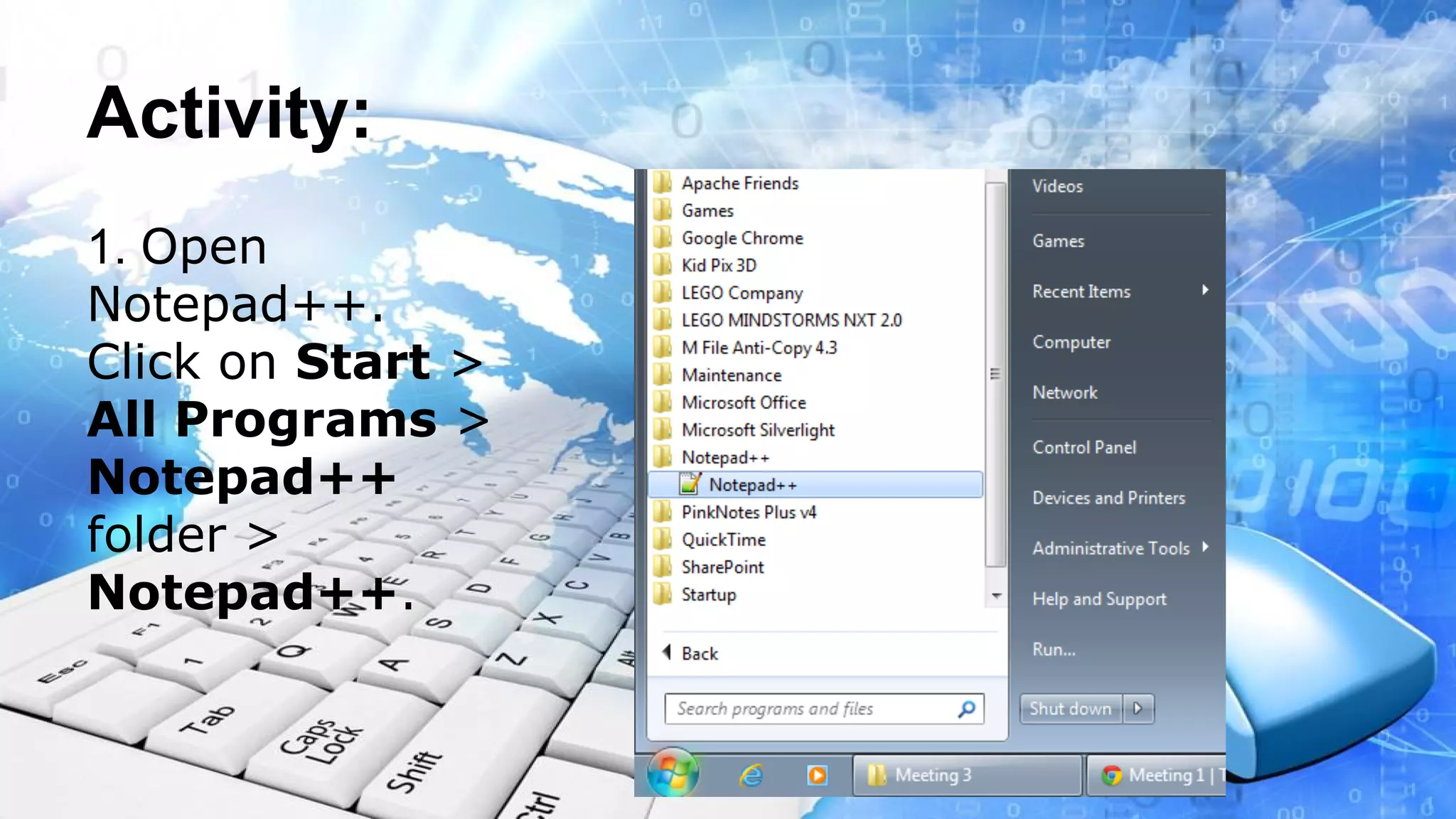
1. Open 
Notepad++. 
Click on Start > 
All Programs > 
Notepad++ 
folder > 
Notepad++.
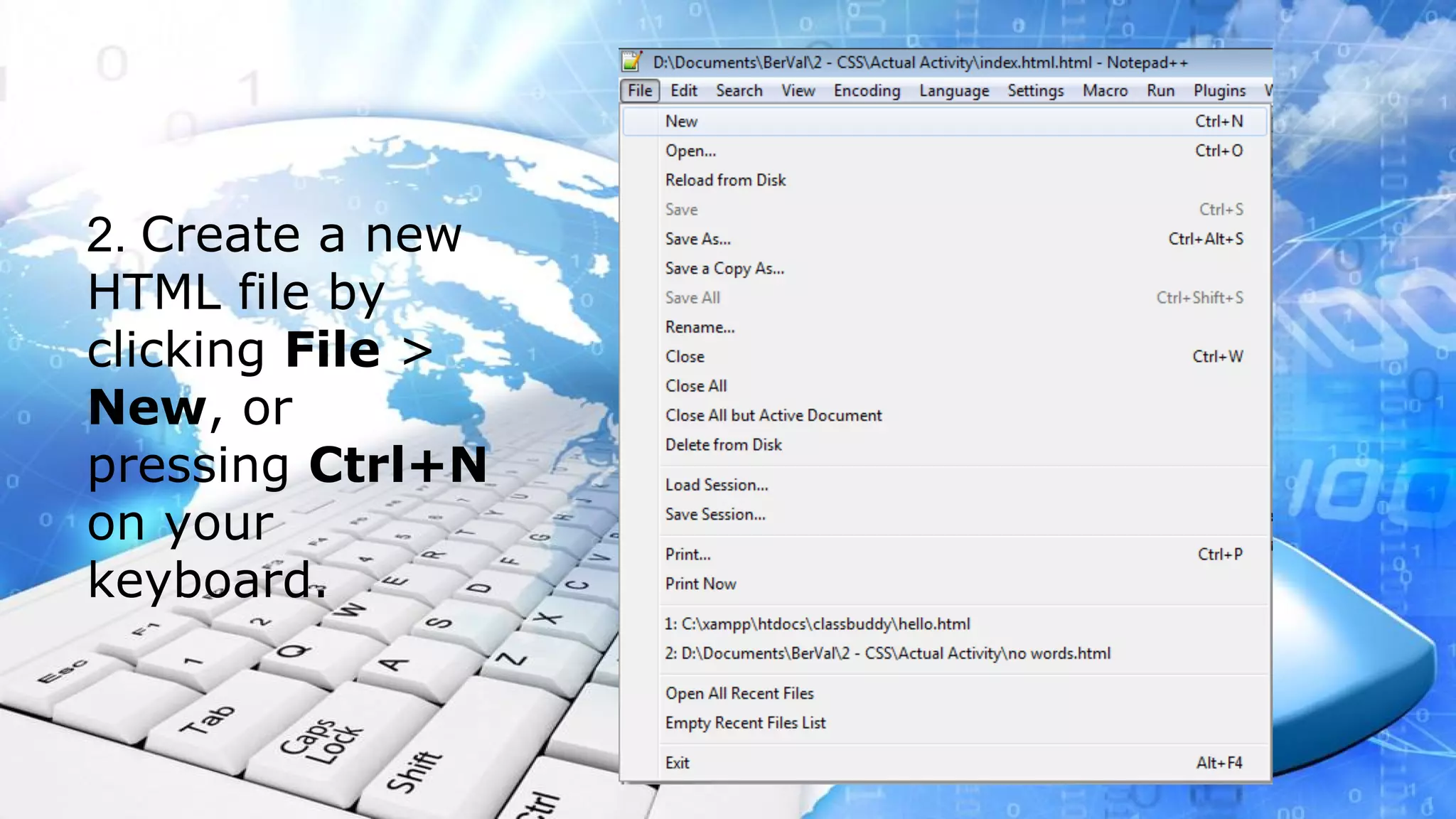
2. Create a new 
HTML file by 
clicking File > 
New, or 
pressing Ctrl+N 
on your 
keyboard.
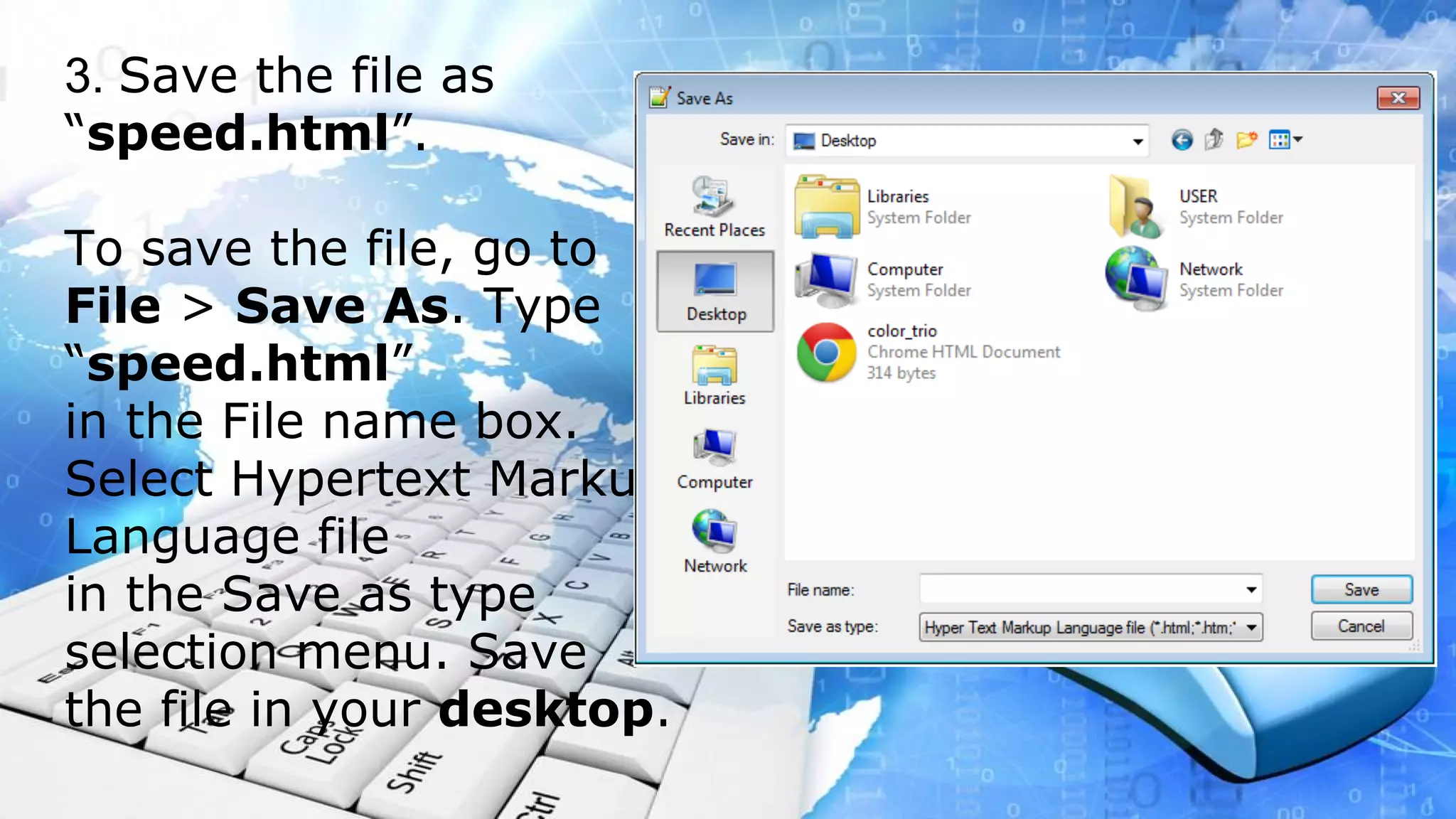
3. Save the file as 
“speed.html”. 
To save the file, go to 
File > Save As. Type 
“speed.html” 
in the File name box. 
Select Hypertext Markup 
Language file 
in the Save as type 
selection menu. Save 
the file in your desktop.
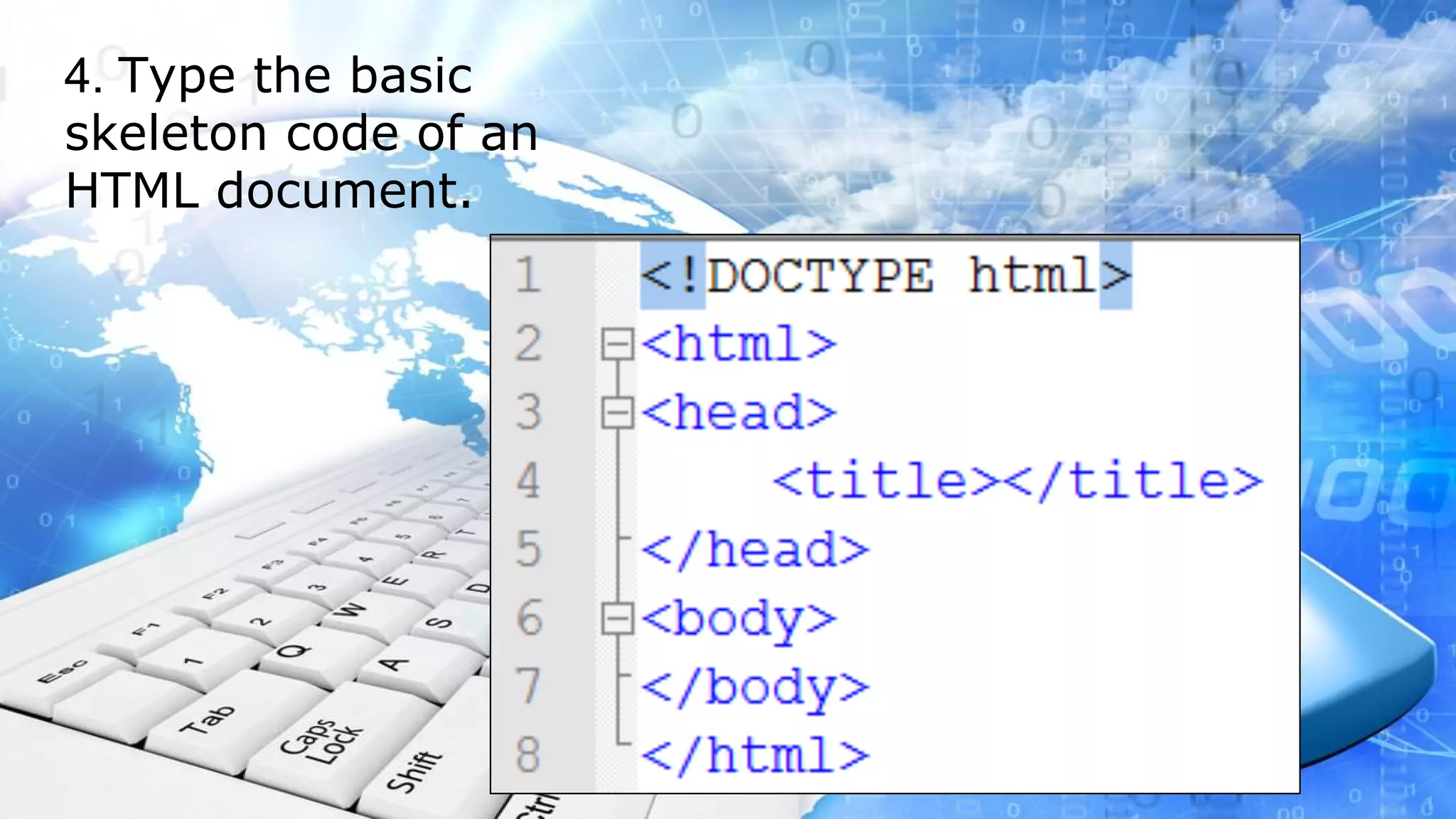
4. Type the basic 
skeleton code of an 
HTML document.
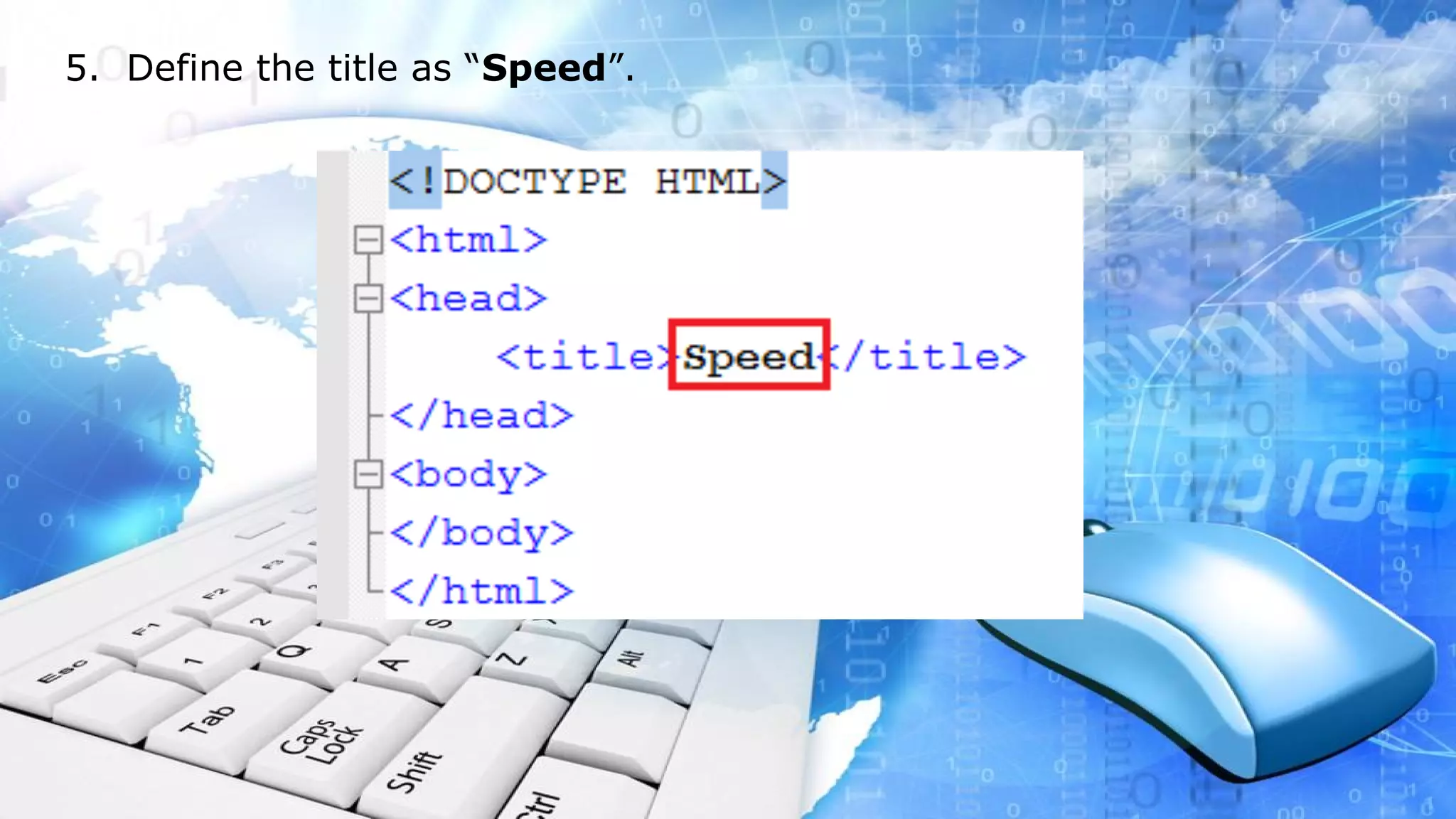
5. Define the title as “Speed”.
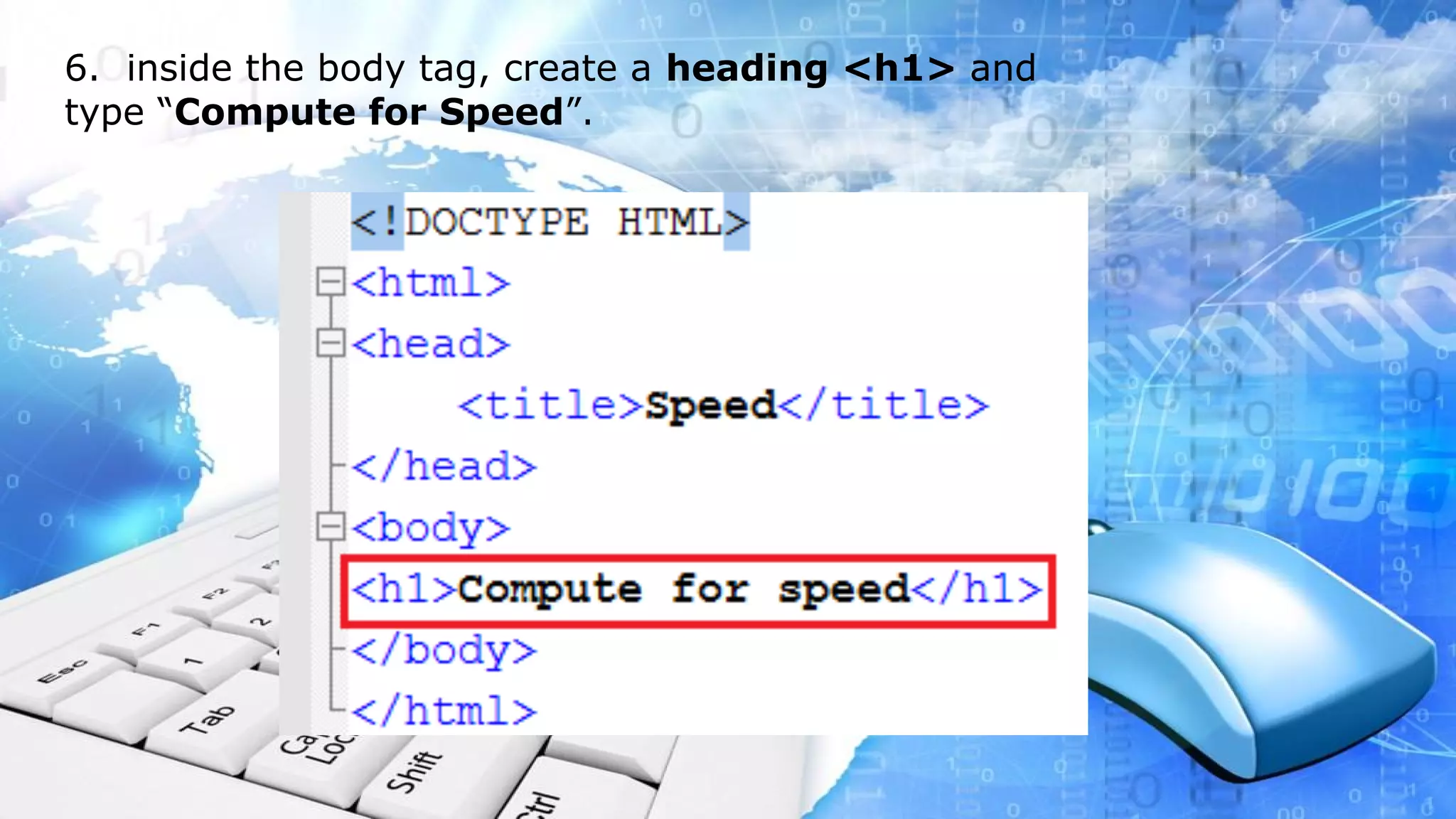
6. inside the body tag, create a heading <h1> and 
type “Compute for Speed”.
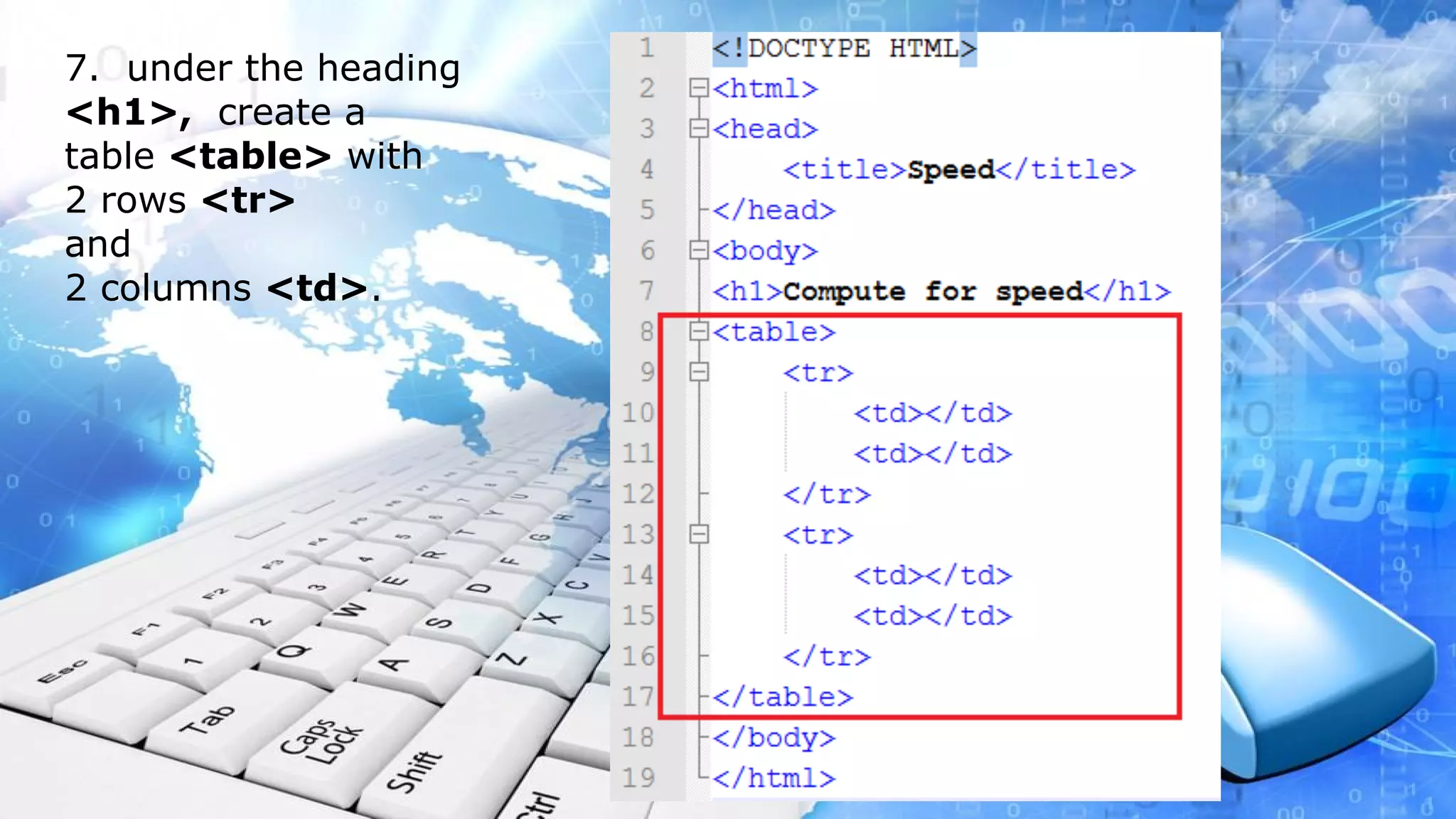
7. under the heading 
<h1>, create a 
table <table> with 
2 rows <tr> 
and 
2 columns <td>.
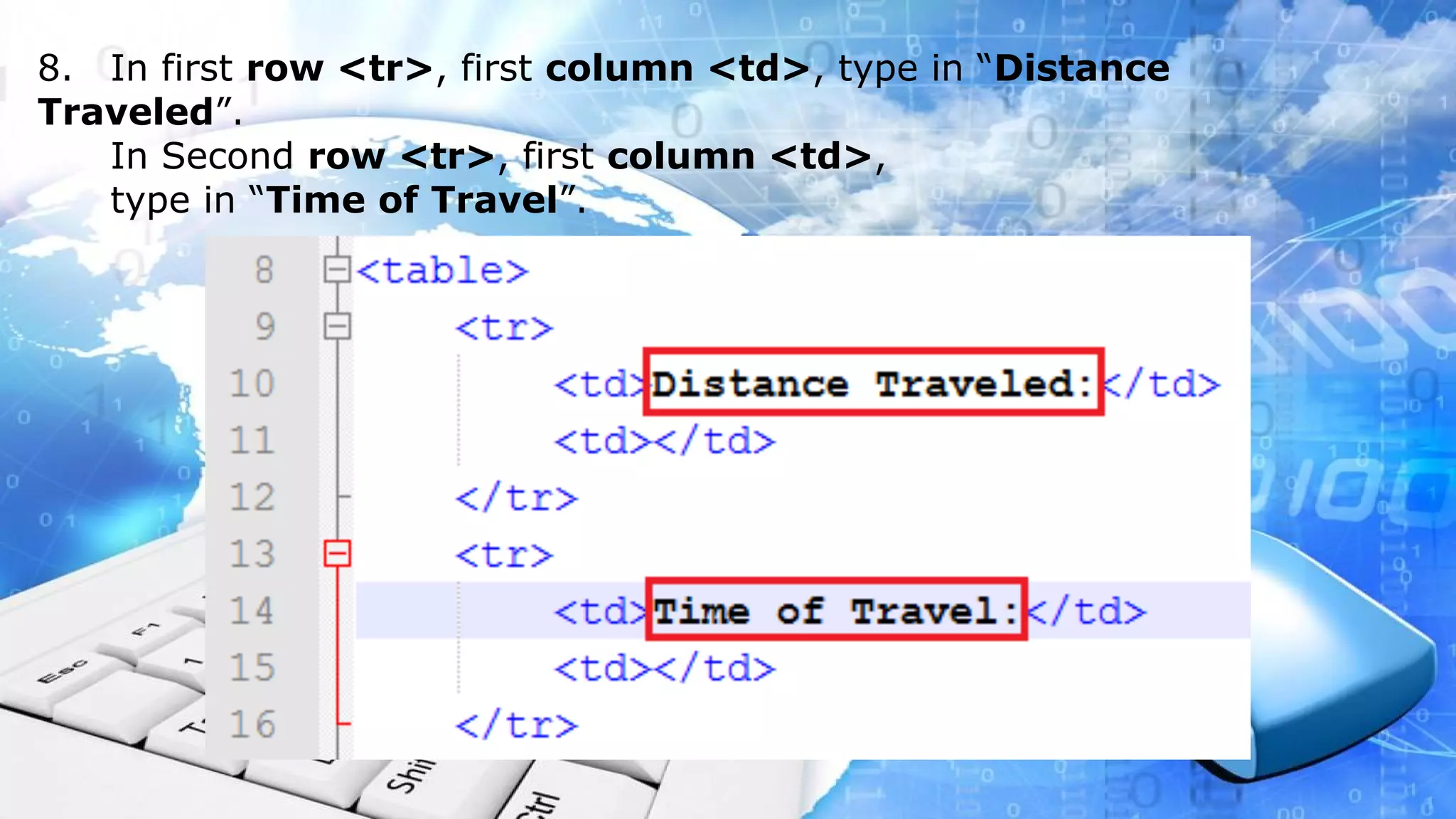
8. In first row <tr>, first column <td>, type in “Distance 
Traveled”. 
In Second row <tr>, first column <td>, 
type in “Time of Travel”.
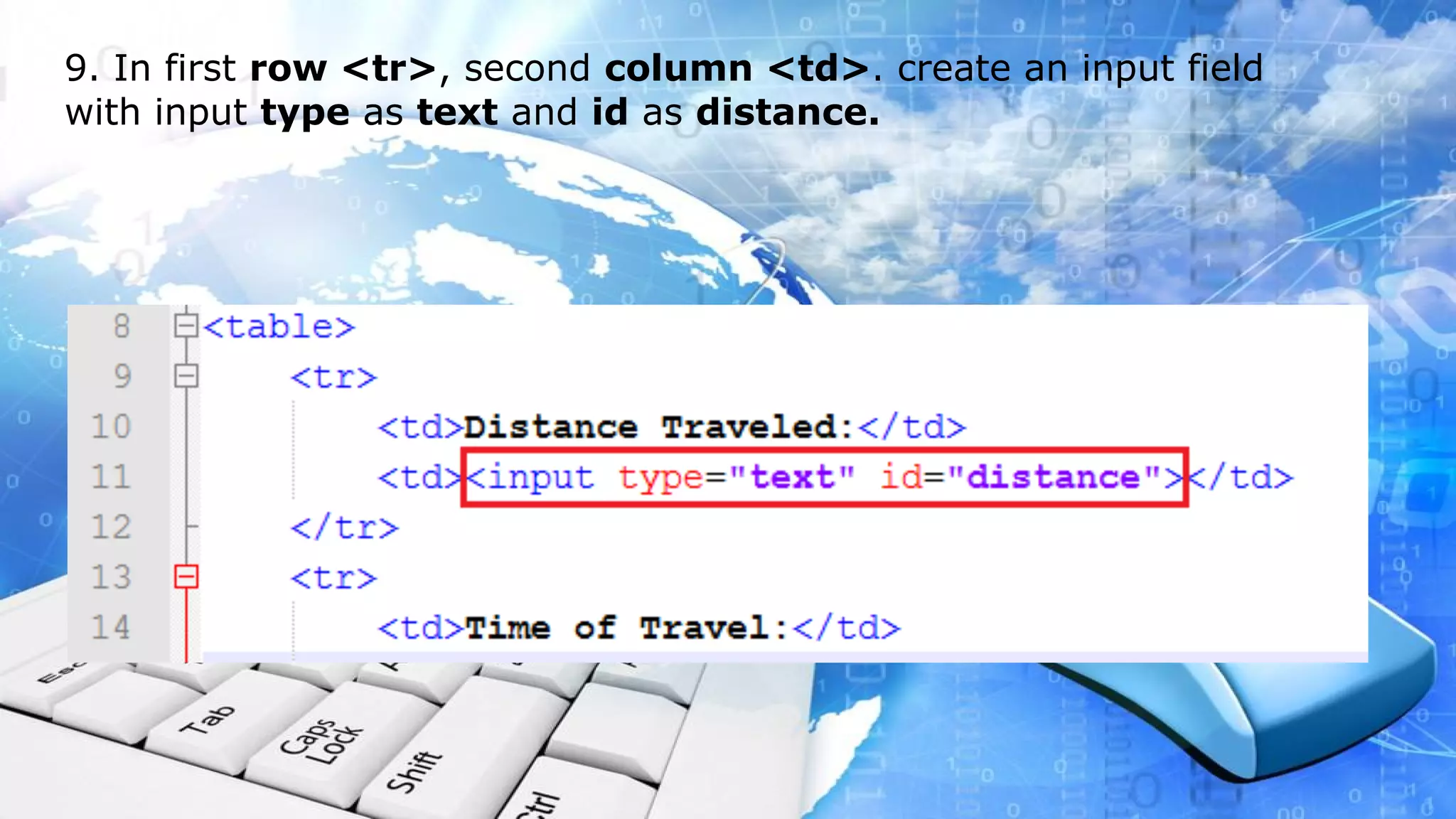
9. In first row <tr>, second column <td>. create an input field 
with input type as text and id as distance.
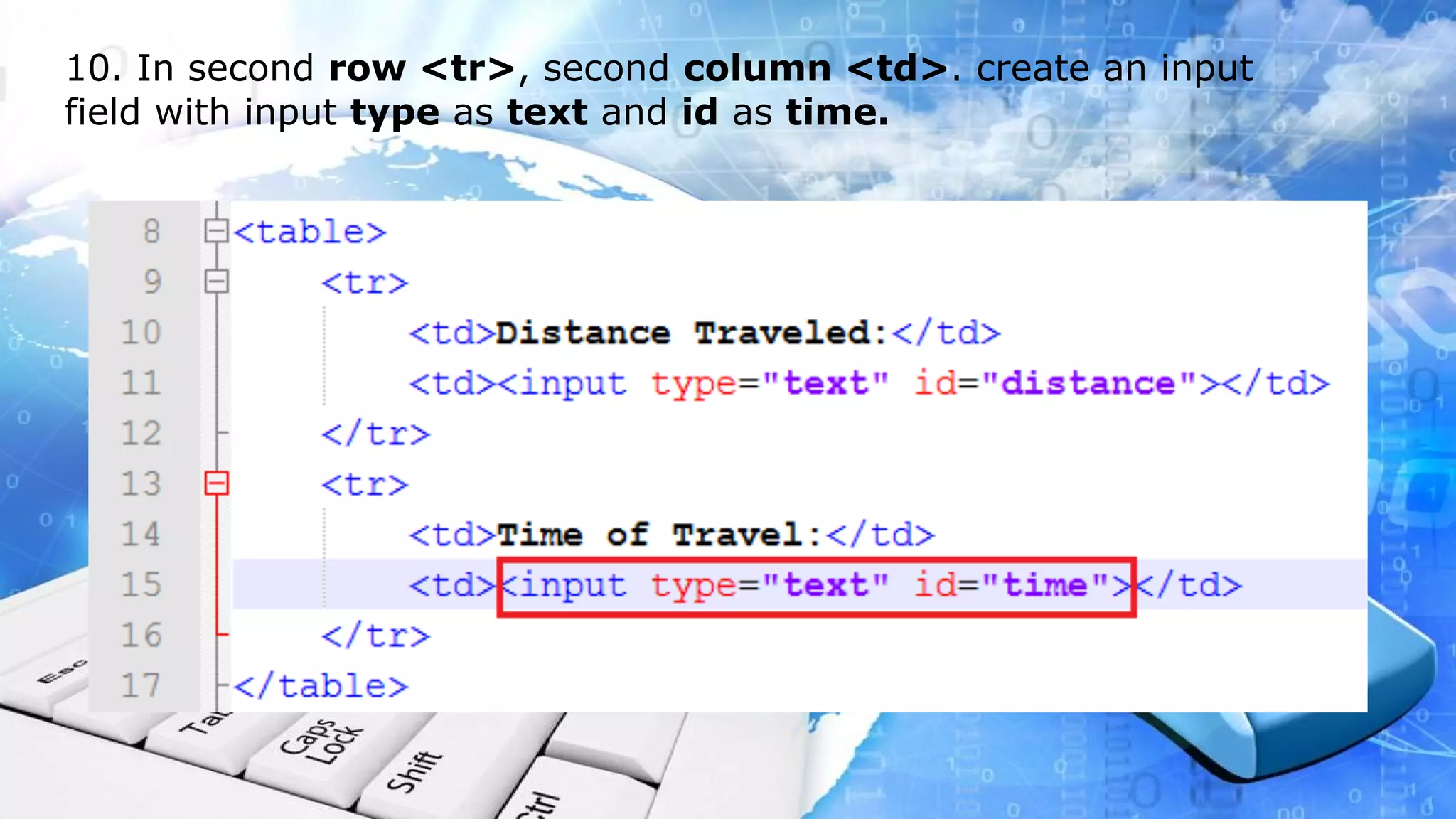
10. In second row <tr>, second column <td>. create an input 
field with input type as text and id as time.
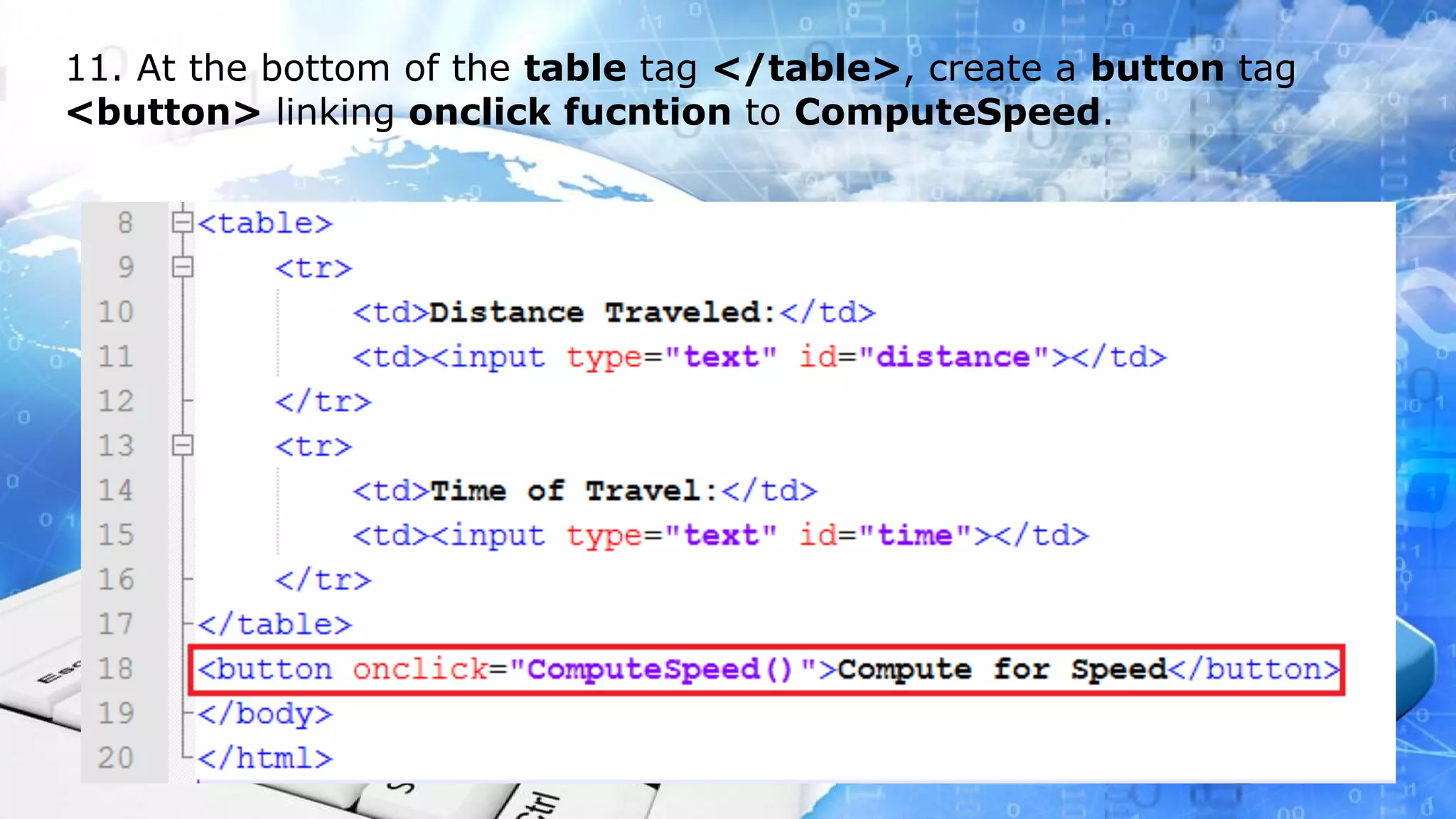
11. At the bottom of the table tag </table>, create a button tag 
<button> linking onclick fucntion to ComputeSpeed.
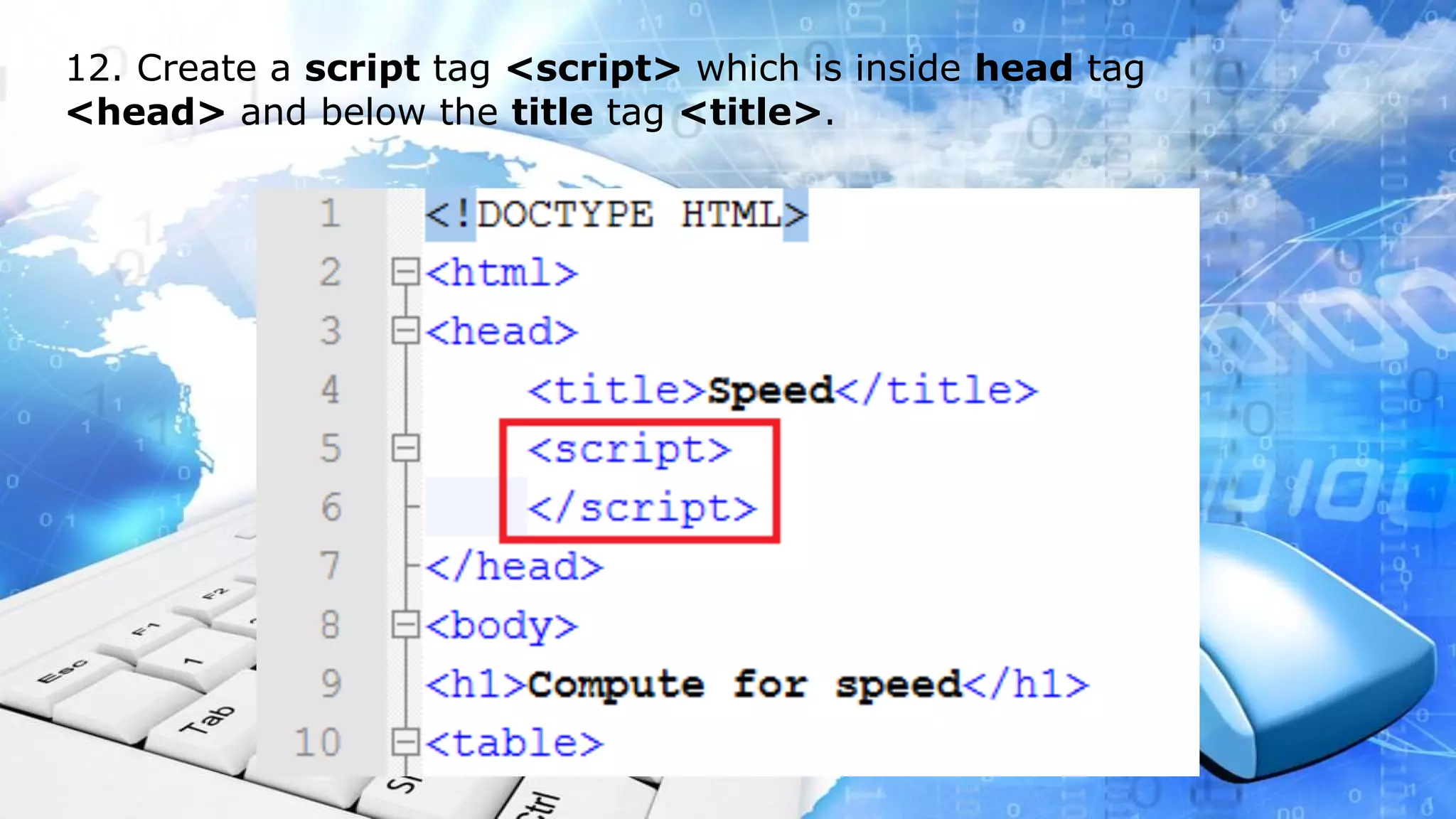
12. Create a script tag <script> which is inside head tag 
<head> and below the title tag <title>.
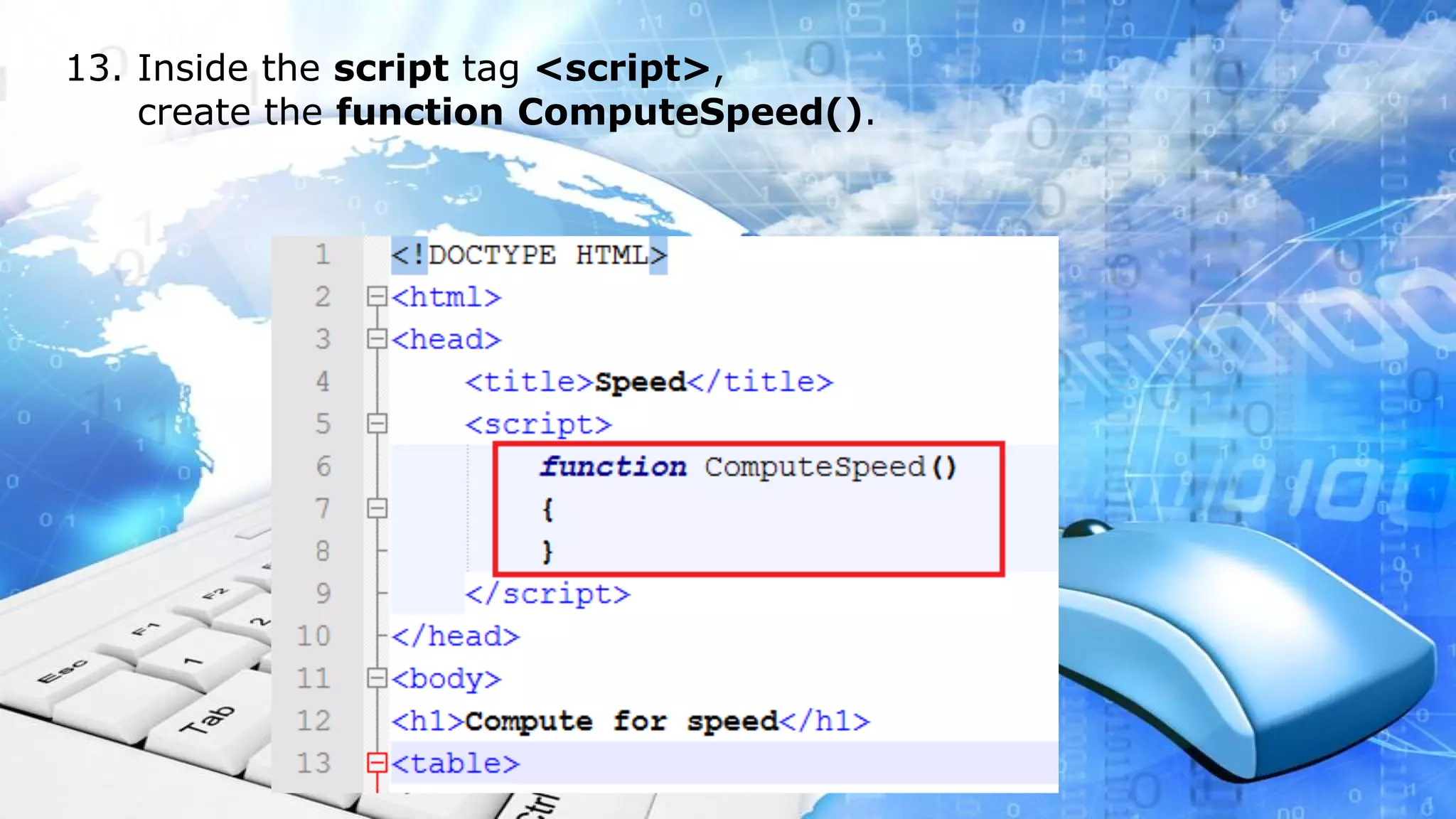
13. Inside the script tag <script>, 
create the function ComputeSpeed().
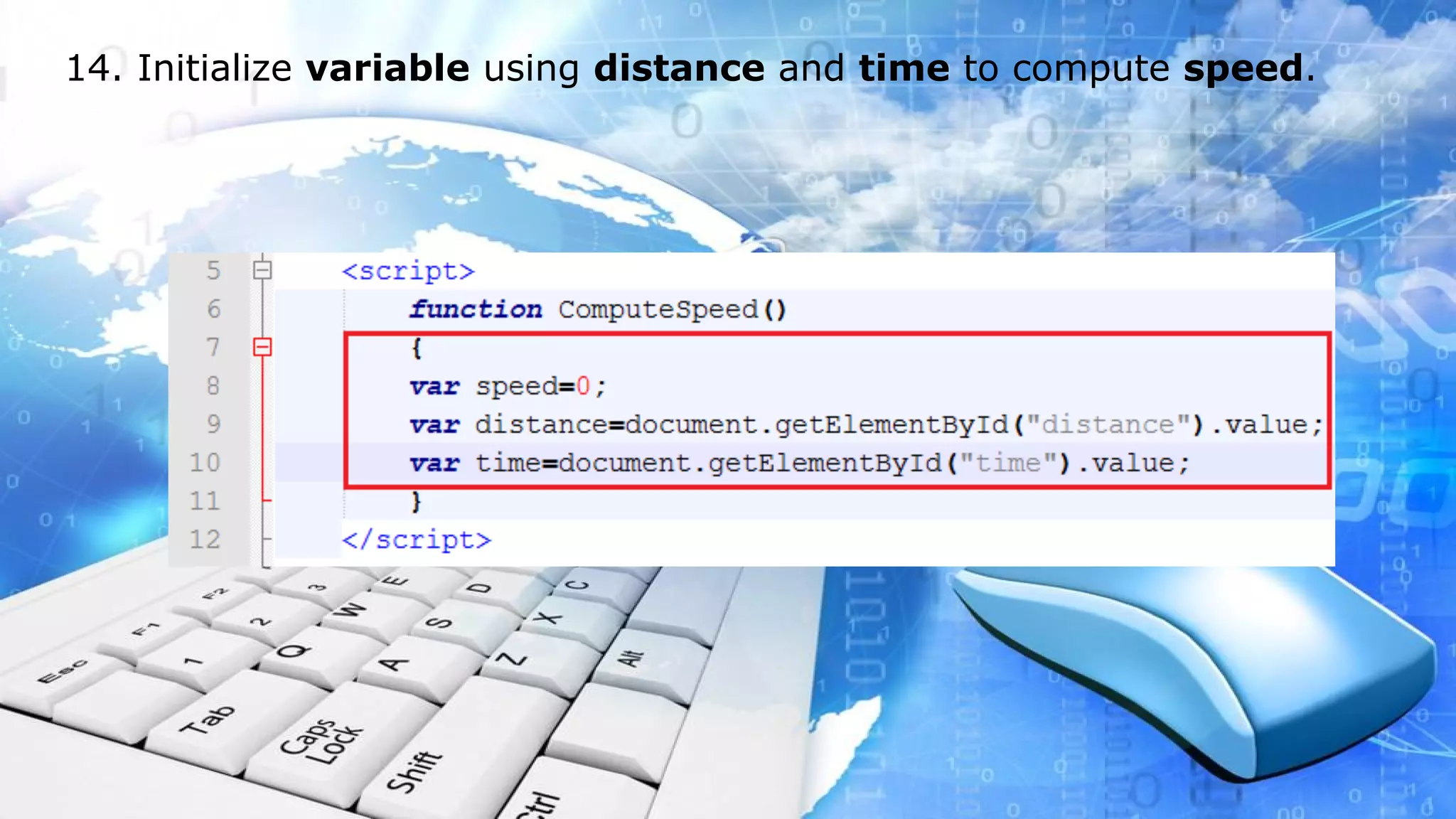
14. Initialize variable using distance and time to compute speed.
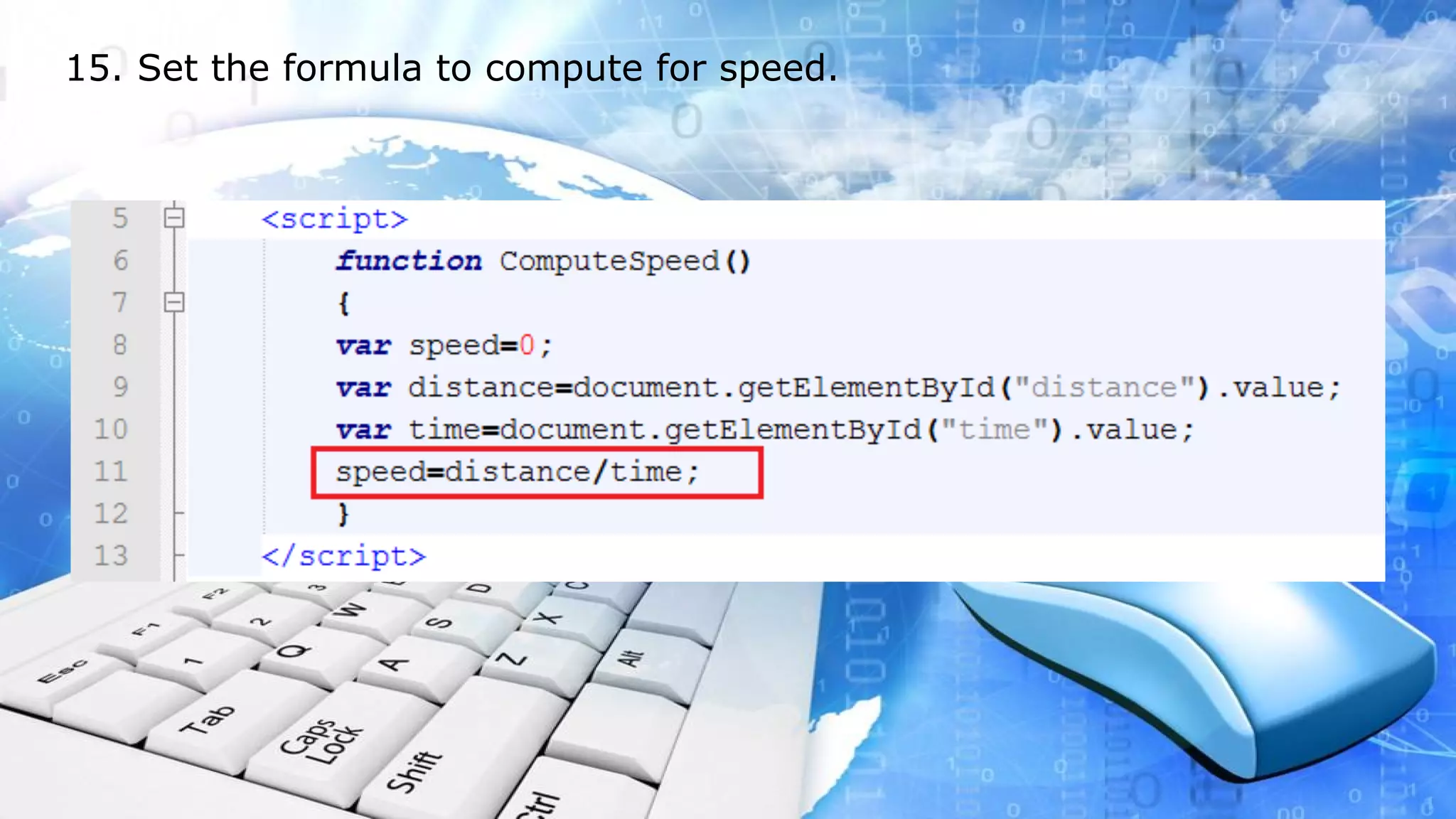
15. Set the formula to compute for speed.
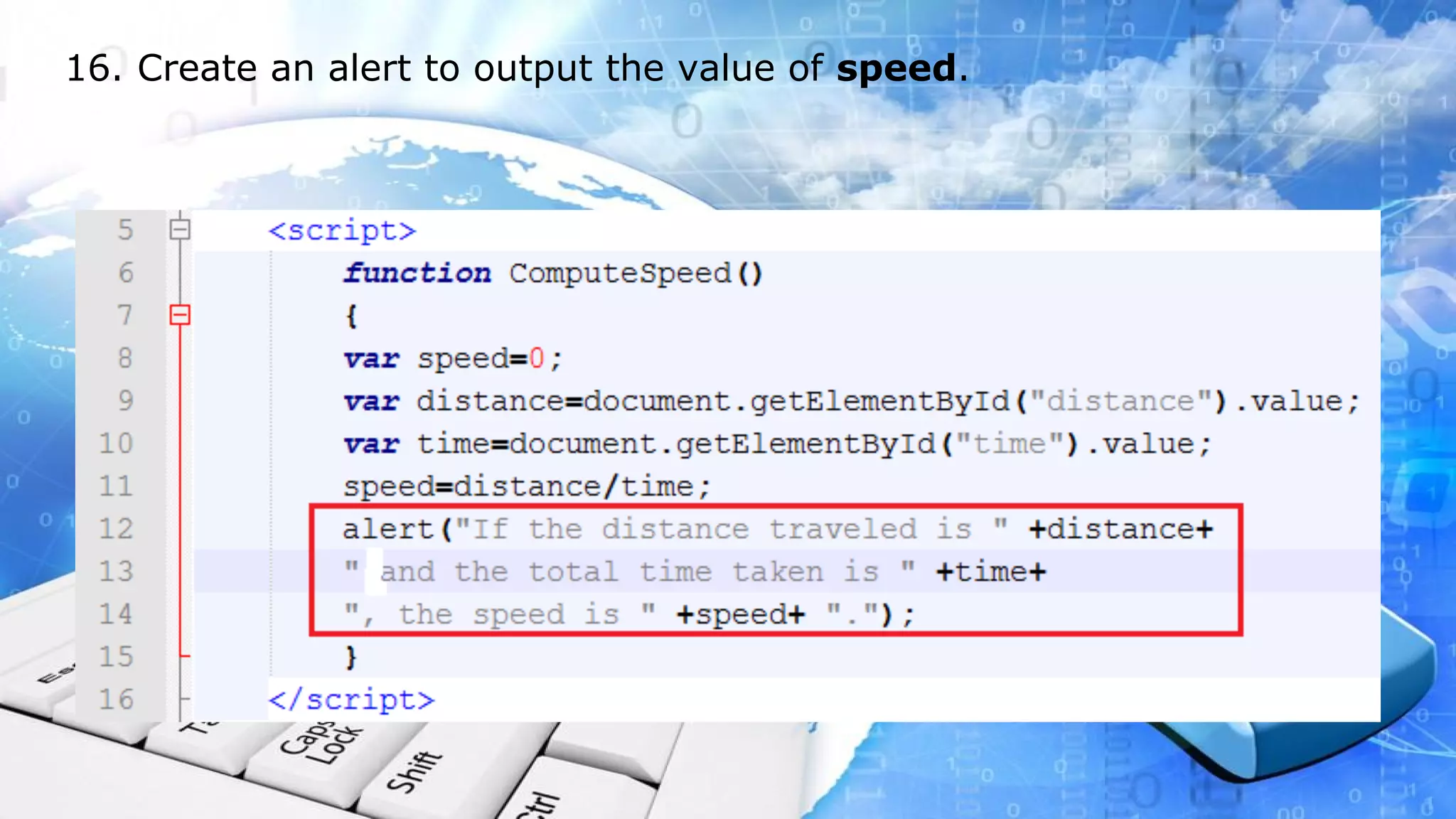
16. Create an alert to output the value of speed.
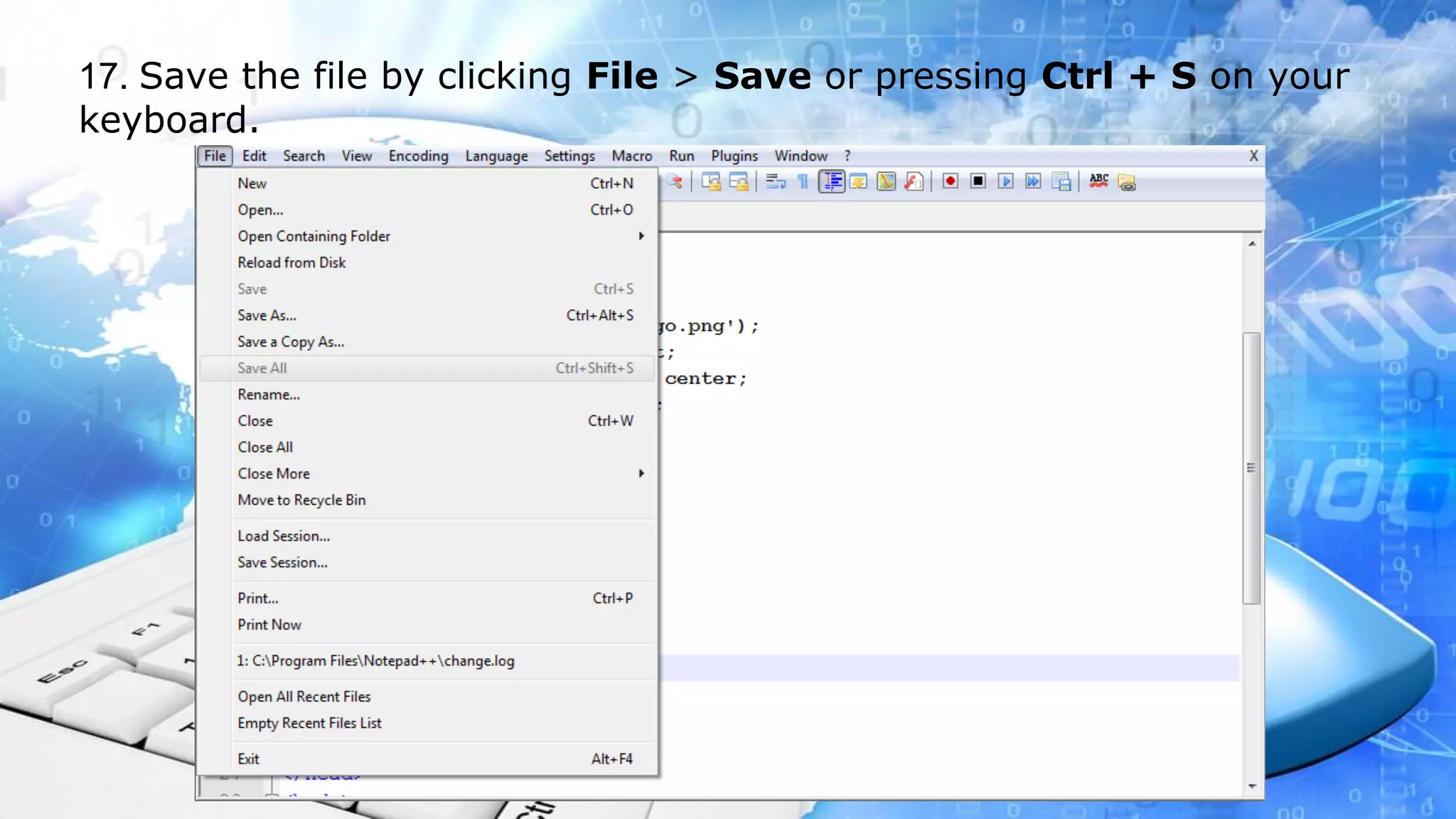
17. Save the file by clicking File > Save or pressing Ctrl + S on your 
keyboard.
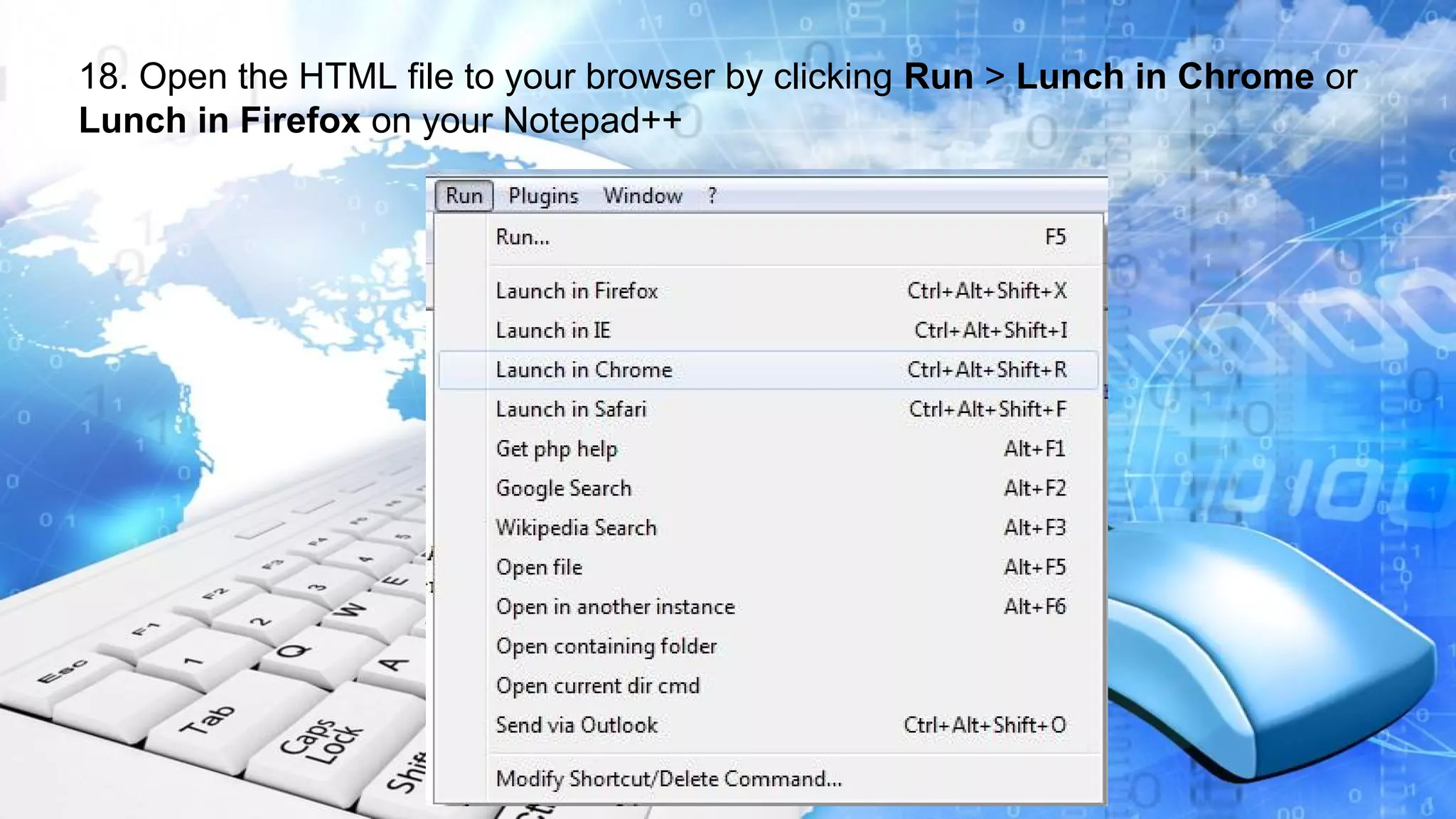
18. Open the HTML file to your browser by clicking Run > Lunch in Chrome or 
Lunch in Firefox on your Notepad++
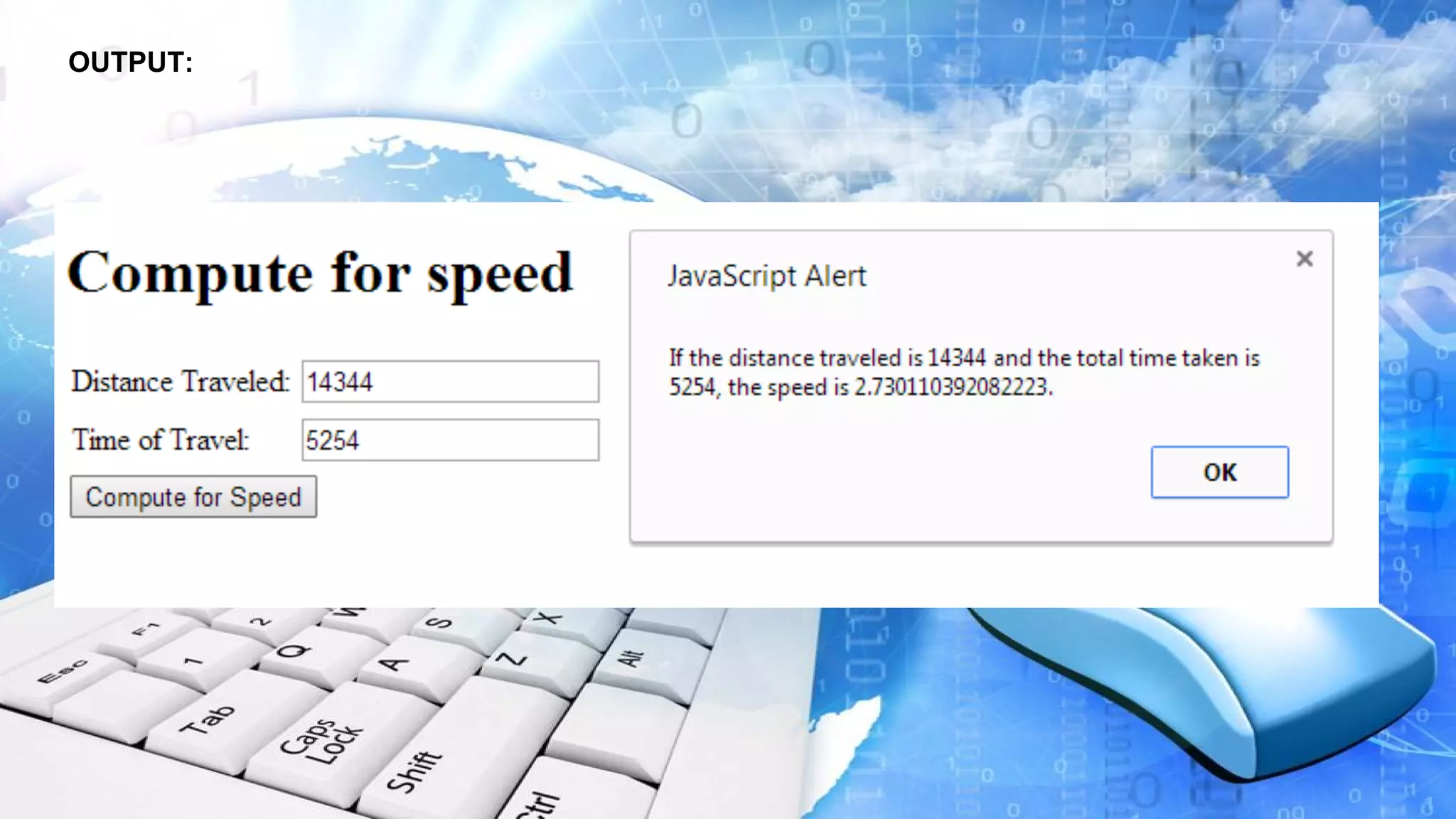
OUTPUT:

TM 2nd qtr-3ndmeeting(java script-functions)

  • 1.
    Java Script: Functions Learning by examples: by: Engr. Esmeraldo T. Guimbarda Jr.
  • 2.
    Activity: 1. Open Notepad++. Click on Start > All Programs > Notepad++ folder > Notepad++.
  • 3.
    2. Create anew HTML file by clicking File > New, or pressing Ctrl+N on your keyboard.
  • 4.
    3. Save thefile as “speed.html”. To save the file, go to File > Save As. Type “speed.html” in the File name box. Select Hypertext Markup Language file in the Save as type selection menu. Save the file in your desktop.
  • 5.
    4. Type thebasic skeleton code of an HTML document.
  • 6.
    5. Define thetitle as “Speed”.
  • 7.
    6. inside thebody tag, create a heading <h1> and type “Compute for Speed”.
  • 8.
    7. under theheading <h1>, create a table <table> with 2 rows <tr> and 2 columns <td>.
  • 9.
    8. In firstrow <tr>, first column <td>, type in “Distance Traveled”. In Second row <tr>, first column <td>, type in “Time of Travel”.
  • 10.
    9. In firstrow <tr>, second column <td>. create an input field with input type as text and id as distance.
  • 11.
    10. In secondrow <tr>, second column <td>. create an input field with input type as text and id as time.
  • 12.
    11. At thebottom of the table tag </table>, create a button tag <button> linking onclick fucntion to ComputeSpeed.
  • 13.
    12. Create ascript tag <script> which is inside head tag <head> and below the title tag <title>.
  • 14.
    13. Inside thescript tag <script>, create the function ComputeSpeed().
  • 15.
    14. Initialize variableusing distance and time to compute speed.
  • 16.
    15. Set theformula to compute for speed.
  • 17.
    16. Create analert to output the value of speed.
  • 18.
    17. Save thefile by clicking File > Save or pressing Ctrl + S on your keyboard.
  • 19.
    18. Open theHTML file to your browser by clicking Run > Lunch in Chrome or Lunch in Firefox on your Notepad++
  • 20.