This Project Demonstrates How to Create, Configure, Activate, and Test a
REST-based Application Integration in Oracle Integration Cloud Using NexInfo
Step 1: Access the Integrations Workspace
< Design = ORACLE Q <S^ ® FS
ffl Integrations Integrations Import
<5
-
Connections Q. - C JE il
'HIM II ■
Lookups 3 integrations
m Libraries Name Version Style Last
updated
Status
©
Packages
Agents
XX SC Test Integration 01 New 1.0.0 Schedule
Apr 30.2023
05:02:59 PM 1ST
Configured
•o Adapters
-»<£■ XX AD Test Integration 01 New
1.0.0
Application Apr 30.2023
05:02:59 PM 1ST
Configured
-XX AD Review Parameter Int... New
1.0.0
Application Apr 30,2023
05:00:03 PM 1ST
Configured
Cookie Preferences k
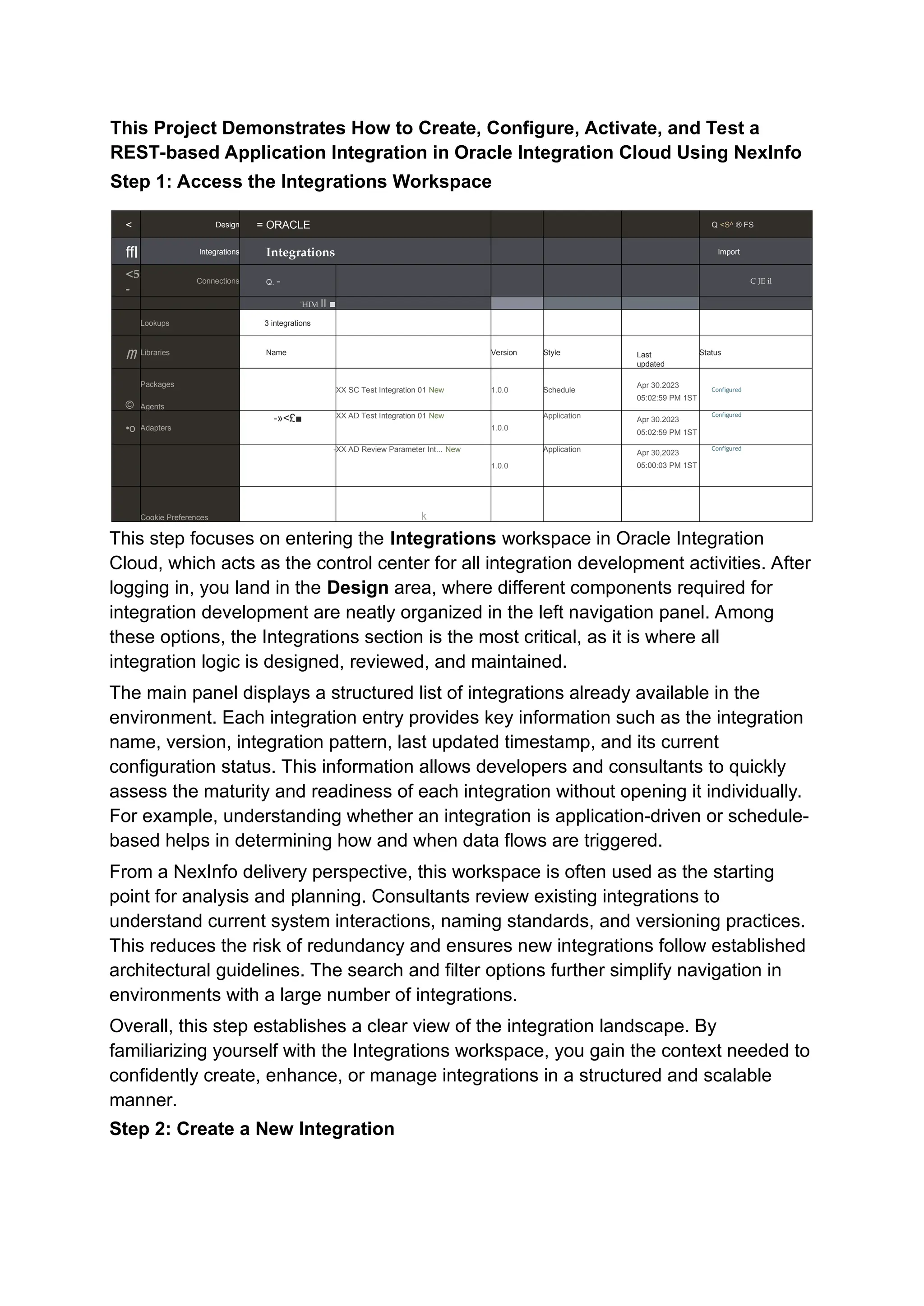
This step focuses on entering the Integrations workspace in Oracle Integration
Cloud, which acts as the control center for all integration development activities. After
logging in, you land in the Design area, where different components required for
integration development are neatly organized in the left navigation panel. Among
these options, the Integrations section is the most critical, as it is where all
integration logic is designed, reviewed, and maintained.
The main panel displays a structured list of integrations already available in the
environment. Each integration entry provides key information such as the integration
name, version, integration pattern, last updated timestamp, and its current
configuration status. This information allows developers and consultants to quickly
assess the maturity and readiness of each integration without opening it individually.
For example, understanding whether an integration is application-driven or schedule-
based helps in determining how and when data flows are triggered.
From a NexInfo delivery perspective, this workspace is often used as the starting
point for analysis and planning. Consultants review existing integrations to
understand current system interactions, naming standards, and versioning practices.
This reduces the risk of redundancy and ensures new integrations follow established
architectural guidelines. The search and filter options further simplify navigation in
environments with a large number of integrations.
Overall, this step establishes a clear view of the integration landscape. By
familiarizing yourself with the Integrations workspace, you gain the context needed to
confidently create, enhance, or manage integrations in a structured and scalable
manner.
Step 2: Create a New Integration
< Design = ORACLE 0 (^ © FS
s Integrations Integrations Import
<5- Connections Q. - C JE HI
A "V 1
Lookups 3 integrations
mLibraries Name Version Style Last
updated
Status
©
Packages
Agents
m*<5-
XX SC Test Integration 01 new 1.0.0 Schedule
Apr 30.2023
05:02:59 PM 1ST
Configured
Adapters a-»©
XX AD Test Integration 01 New
1.0.0
Application Apr 30,2023
05:02:59 PM 1ST
Configured
&->€■
XX AD Review Parameter Int... New
1.0.0
Application Apr 30,2023
05:00:03 PM 1ST
Configured
Cookie Preferences k
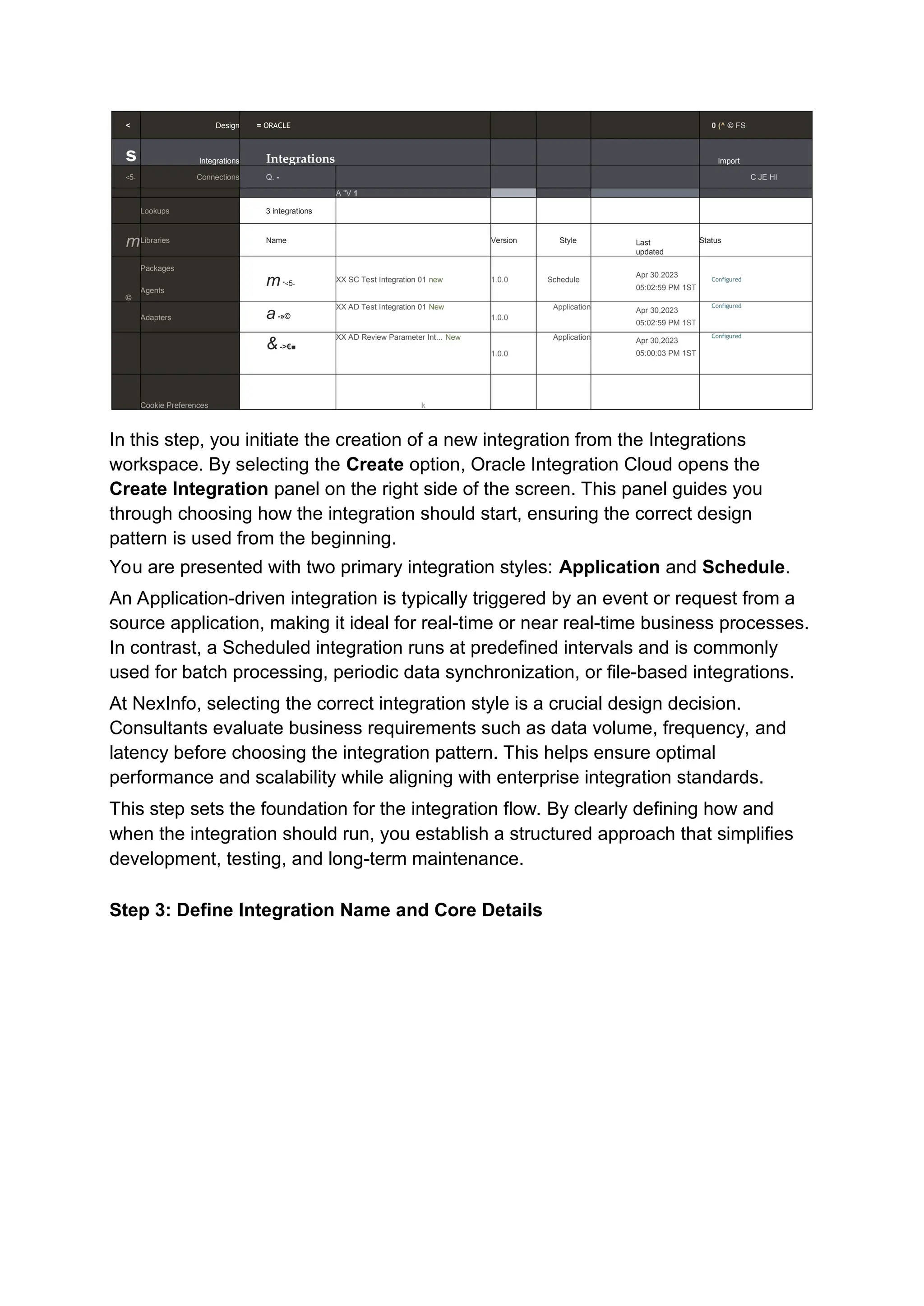
In this step, you initiate the creation of a new integration from the Integrations
workspace. By selecting the Create option, Oracle Integration Cloud opens the
Create Integration panel on the right side of the screen. This panel guides you
through choosing how the integration should start, ensuring the correct design
pattern is used from the beginning.
You are presented with two primary integration styles: Application and Schedule.
An Application-driven integration is typically triggered by an event or request from a
source application, making it ideal for real-time or near real-time business processes.
In contrast, a Scheduled integration runs at predefined intervals and is commonly
used for batch processing, periodic data synchronization, or file-based integrations.
At NexInfo, selecting the correct integration style is a crucial design decision.
Consultants evaluate business requirements such as data volume, frequency, and
latency before choosing the integration pattern. This helps ensure optimal
performance and scalability while aligning with enterprise integration standards.
This step sets the foundation for the integration flow. By clearly defining how and
when the integration should run, you establish a structured approach that simplifies
development, testing, and long-term maintenance.
Step 3: Define Integration Name and Core Details
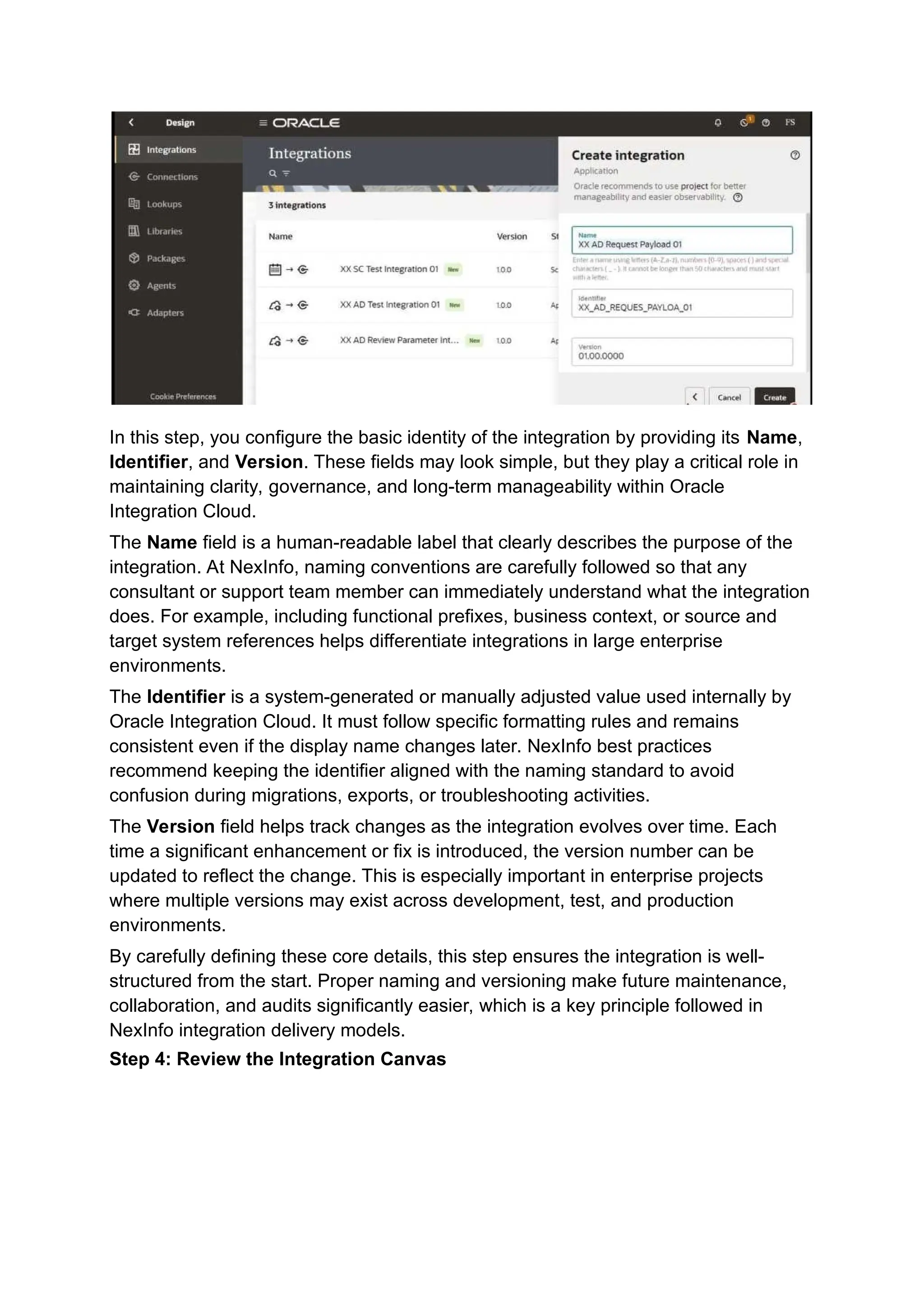
In this step, you configure the basic identity of the integration by providing its Name,
Identifier, and Version. These fields may look simple, but they play a critical role in
maintaining clarity, governance, and long-term manageability within Oracle
Integration Cloud.
The Name field is a human-readable label that clearly describes the purpose of the
integration. At NexInfo, naming conventions are carefully followed so that any
consultant or support team member can immediately understand what the integration
does. For example, including functional prefixes, business context, or source and
target system references helps differentiate integrations in large enterprise
environments.
The Identifier is a system-generated or manually adjusted value used internally by
Oracle Integration Cloud. It must follow specific formatting rules and remains
consistent even if the display name changes later. NexInfo best practices
recommend keeping the identifier aligned with the naming standard to avoid
confusion during migrations, exports, or troubleshooting activities.
The Version field helps track changes as the integration evolves over time. Each
time a significant enhancement or fix is introduced, the version number can be
updated to reflect the change. This is especially important in enterprise projects
where multiple versions may exist across development, test, and production
environments.
By carefully defining these core details, this step ensures the integration is well-
structured from the start. Proper naming and versioning make future maintenance,
collaboration, and audits significantly easier, which is a key principle followed in
NexInfo integration delivery models.
Step 4: Review the Integration Canvas
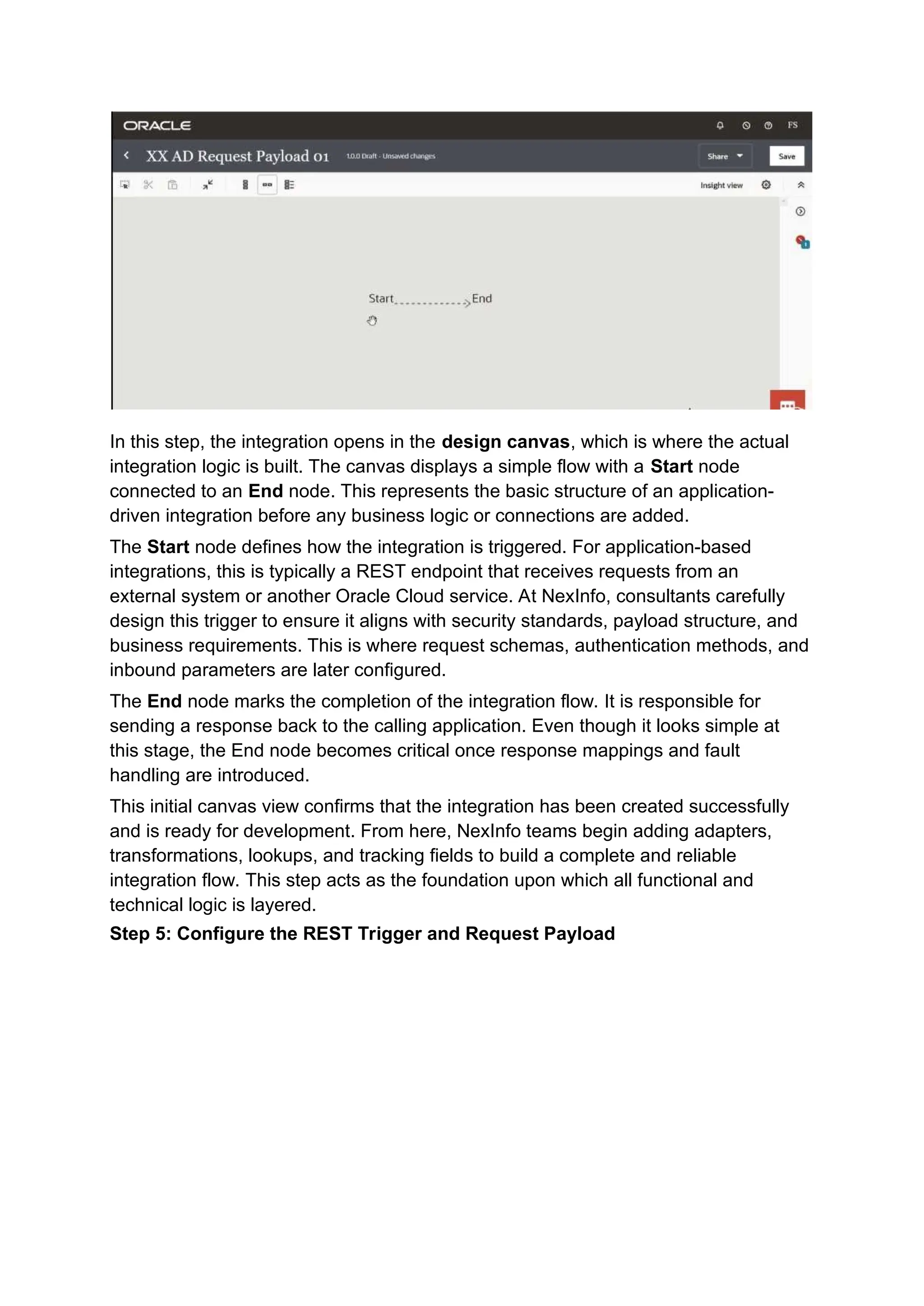
In this step, the integration opens in the design canvas, which is where the actual
integration logic is built. The canvas displays a simple flow with a Start node
connected to an End node. This represents the basic structure of an application-
driven integration before any business logic or connections are added.
The Start node defines how the integration is triggered. For application-based
integrations, this is typically a REST endpoint that receives requests from an
external system or another Oracle Cloud service. At NexInfo, consultants carefully
design this trigger to ensure it aligns with security standards, payload structure, and
business requirements. This is where request schemas, authentication methods, and
inbound parameters are later configured.
The End node marks the completion of the integration flow. It is responsible for
sending a response back to the calling application. Even though it looks simple at
this stage, the End node becomes critical once response mappings and fault
handling are introduced.
This initial canvas view confirms that the integration has been created successfully
and is ready for development. From here, NexInfo teams begin adding adapters,
transformations, lookups, and tracking fields to build a complete and reliable
integration flow. This step acts as the foundation upon which all functional and
technical logic is layered.
Step 5: Configure the REST Trigger and Request Payload
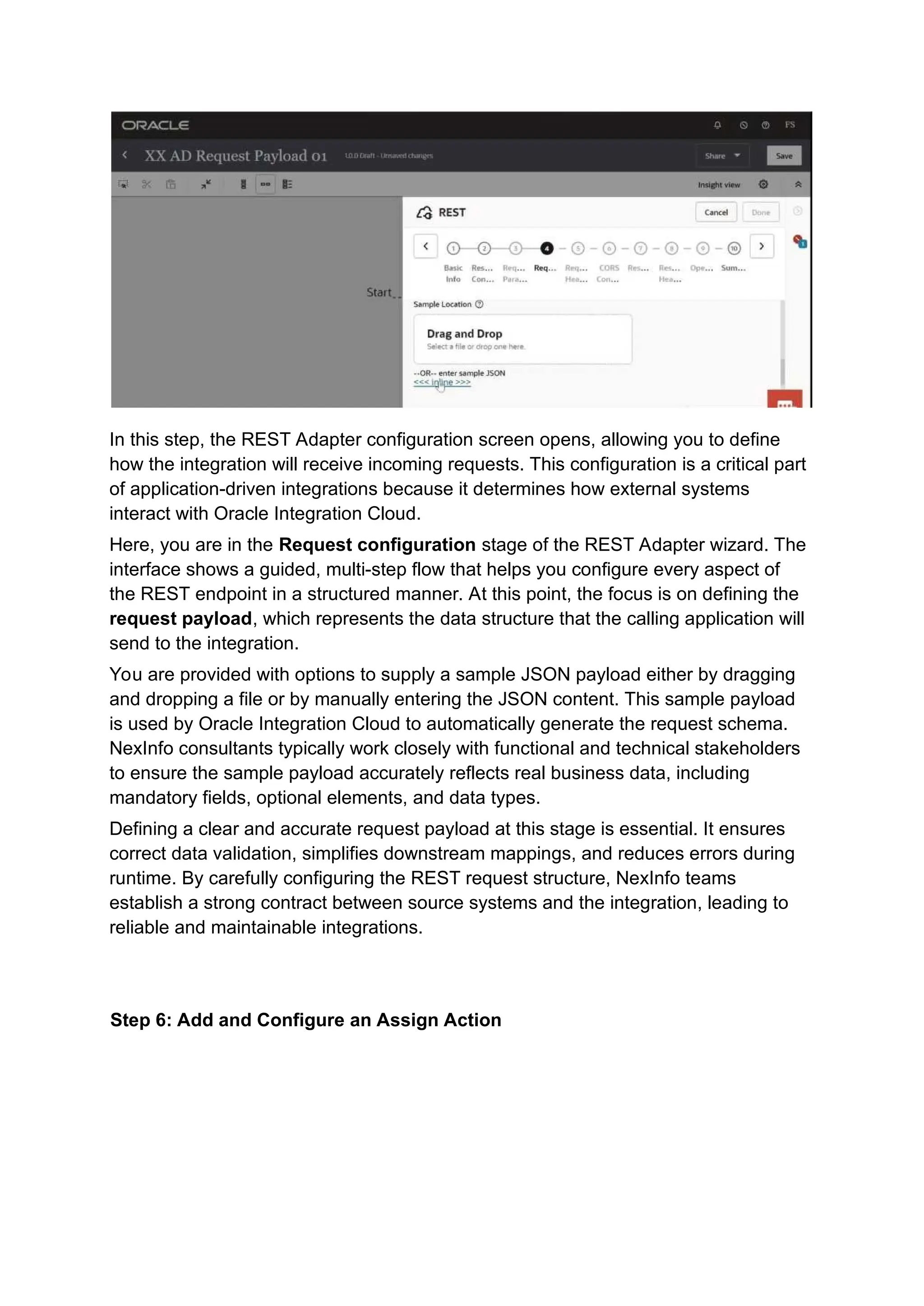
In this step, the REST Adapter configuration screen opens, allowing you to define
how the integration will receive incoming requests. This configuration is a critical part
of application-driven integrations because it determines how external systems
interact with Oracle Integration Cloud.
Here, you are in the Request configuration stage of the REST Adapter wizard. The
interface shows a guided, multi-step flow that helps you configure every aspect of
the REST endpoint in a structured manner. At this point, the focus is on defining the
request payload, which represents the data structure that the calling application will
send to the integration.
You are provided with options to supply a sample JSON payload either by dragging
and dropping a file or by manually entering the JSON content. This sample payload
is used by Oracle Integration Cloud to automatically generate the request schema.
NexInfo consultants typically work closely with functional and technical stakeholders
to ensure the sample payload accurately reflects real business data, including
mandatory fields, optional elements, and data types.
Defining a clear and accurate request payload at this stage is essential. It ensures
correct data validation, simplifies downstream mappings, and reduces errors during
runtime. By carefully configuring the REST request structure, NexInfo teams
establish a strong contract between source systems and the integration, leading to
reliable and maintainable integrations.
Step 6: Add and Configure an Assign Action
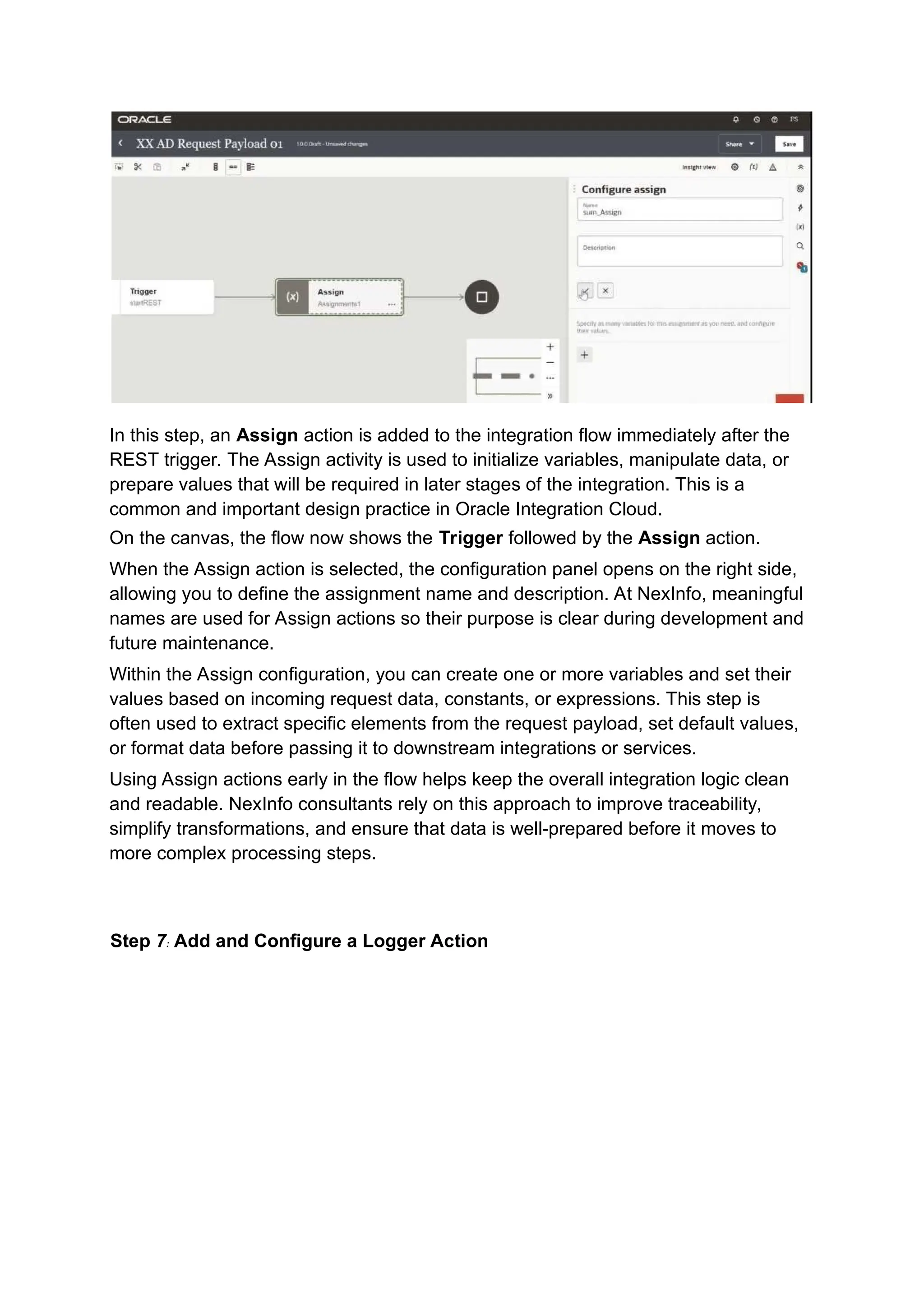
In this step, an Assign action is added to the integration flow immediately after the
REST trigger. The Assign activity is used to initialize variables, manipulate data, or
prepare values that will be required in later stages of the integration. This is a
common and important design practice in Oracle Integration Cloud.
On the canvas, the flow now shows the Trigger followed by the Assign action.
When the Assign action is selected, the configuration panel opens on the right side,
allowing you to define the assignment name and description. At NexInfo, meaningful
names are used for Assign actions so their purpose is clear during development and
future maintenance.
Within the Assign configuration, you can create one or more variables and set their
values based on incoming request data, constants, or expressions. This step is
often used to extract specific elements from the request payload, set default values,
or format data before passing it to downstream integrations or services.
Using Assign actions early in the flow helps keep the overall integration logic clean
and readable. NexInfo consultants rely on this approach to improve traceability,
simplify transformations, and ensure that data is well-prepared before it moves to
more complex processing steps.
Step 7: Add and Configure a Logger Action
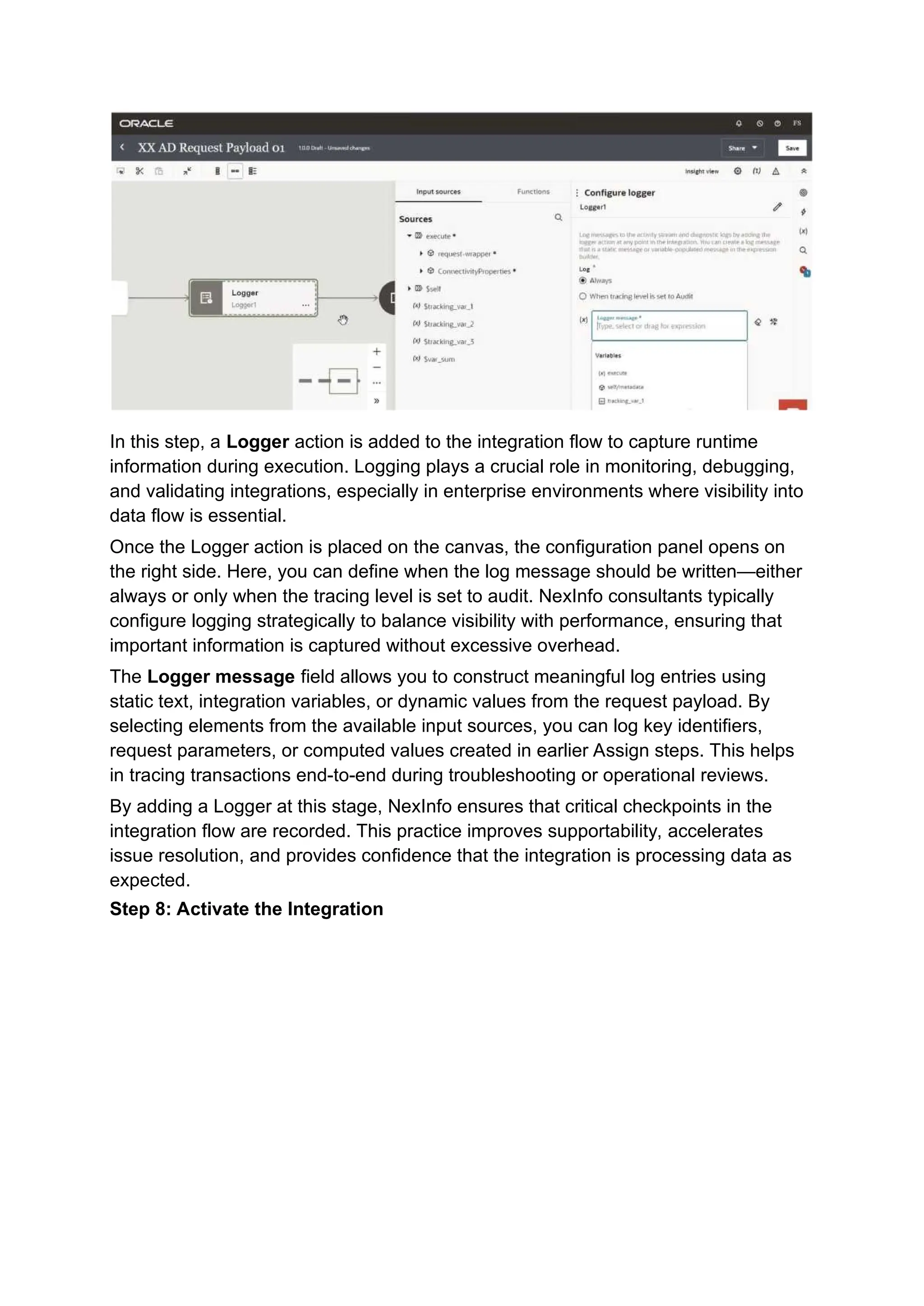
In this step, a Logger action is added to the integration flow to capture runtime
information during execution. Logging plays a crucial role in monitoring, debugging,
and validating integrations, especially in enterprise environments where visibility into
data flow is essential.
Once the Logger action is placed on the canvas, the configuration panel opens on
the right side. Here, you can define when the log message should be written—either
always or only when the tracing level is set to audit. NexInfo consultants typically
configure logging strategically to balance visibility with performance, ensuring that
important information is captured without excessive overhead.
The Logger message field allows you to construct meaningful log entries using
static text, integration variables, or dynamic values from the request payload. By
selecting elements from the available input sources, you can log key identifiers,
request parameters, or computed values created in earlier Assign steps. This helps
in tracing transactions end-to-end during troubleshooting or operational reviews.
By adding a Logger at this stage, NexInfo ensures that critical checkpoints in the
integration flow are recorded. This practice improves supportability, accelerates
issue resolution, and provides confidence that the integration is processing data as
expected.
Step 8: Activate the Integration
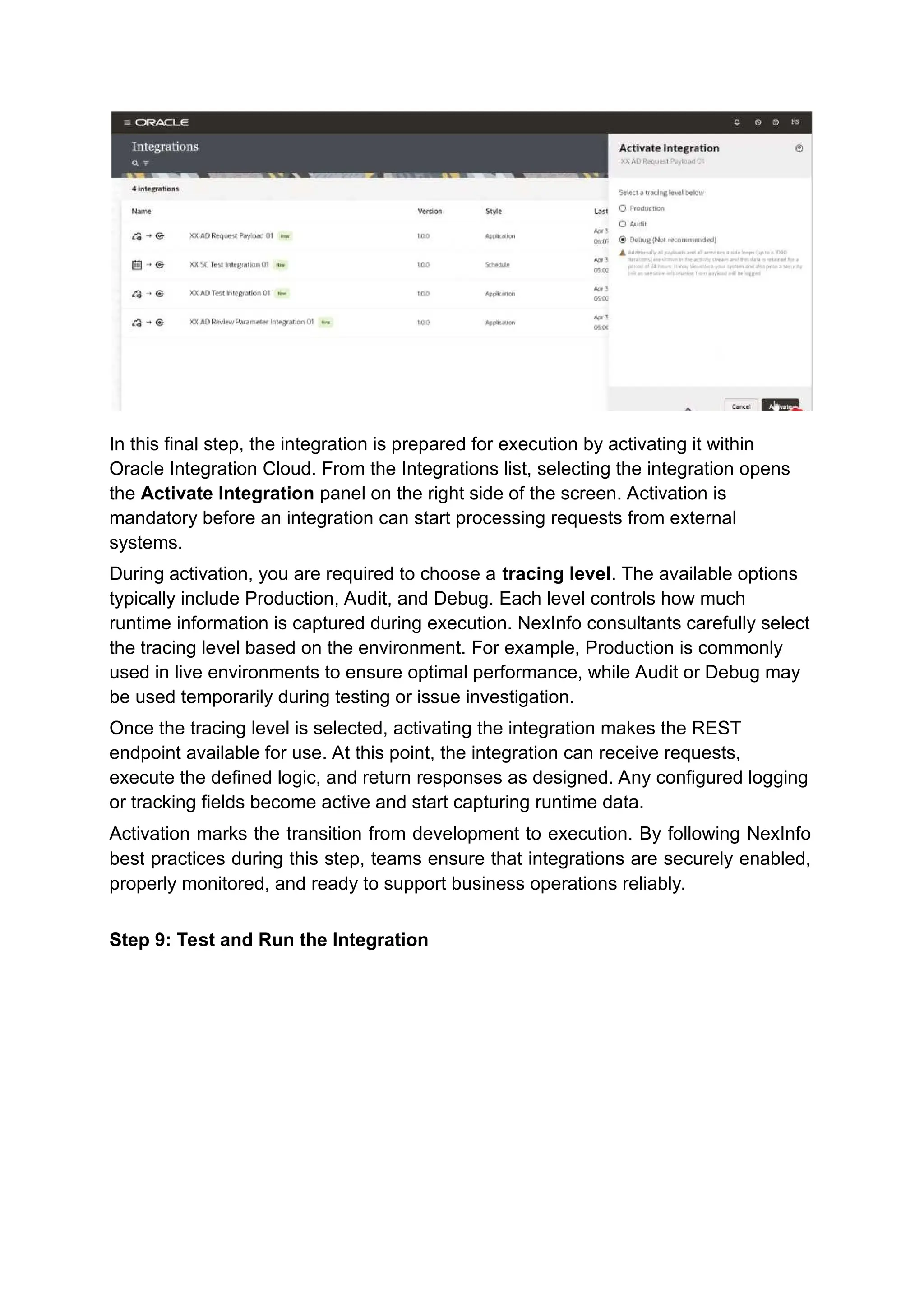
In this final step, the integration is prepared for execution by activating it within
Oracle Integration Cloud. From the Integrations list, selecting the integration opens
the Activate Integration panel on the right side of the screen. Activation is
mandatory before an integration can start processing requests from external
systems.
During activation, you are required to choose a tracing level. The available options
typically include Production, Audit, and Debug. Each level controls how much
runtime information is captured during execution. NexInfo consultants carefully select
the tracing level based on the environment. For example, Production is commonly
used in live environments to ensure optimal performance, while Audit or Debug may
be used temporarily during testing or issue investigation.
Once the tracing level is selected, activating the integration makes the REST
endpoint available for use. At this point, the integration can receive requests,
execute the defined logic, and return responses as designed. Any configured logging
or tracking fields become active and start capturing runtime data.
Activation marks the transition from development to execution. By following NexInfo
best practices during this step, teams ensure that integrations are securely enabled,
properly monitored, and ready to support business operations reliably.
Step 9: Test and Run the Integration
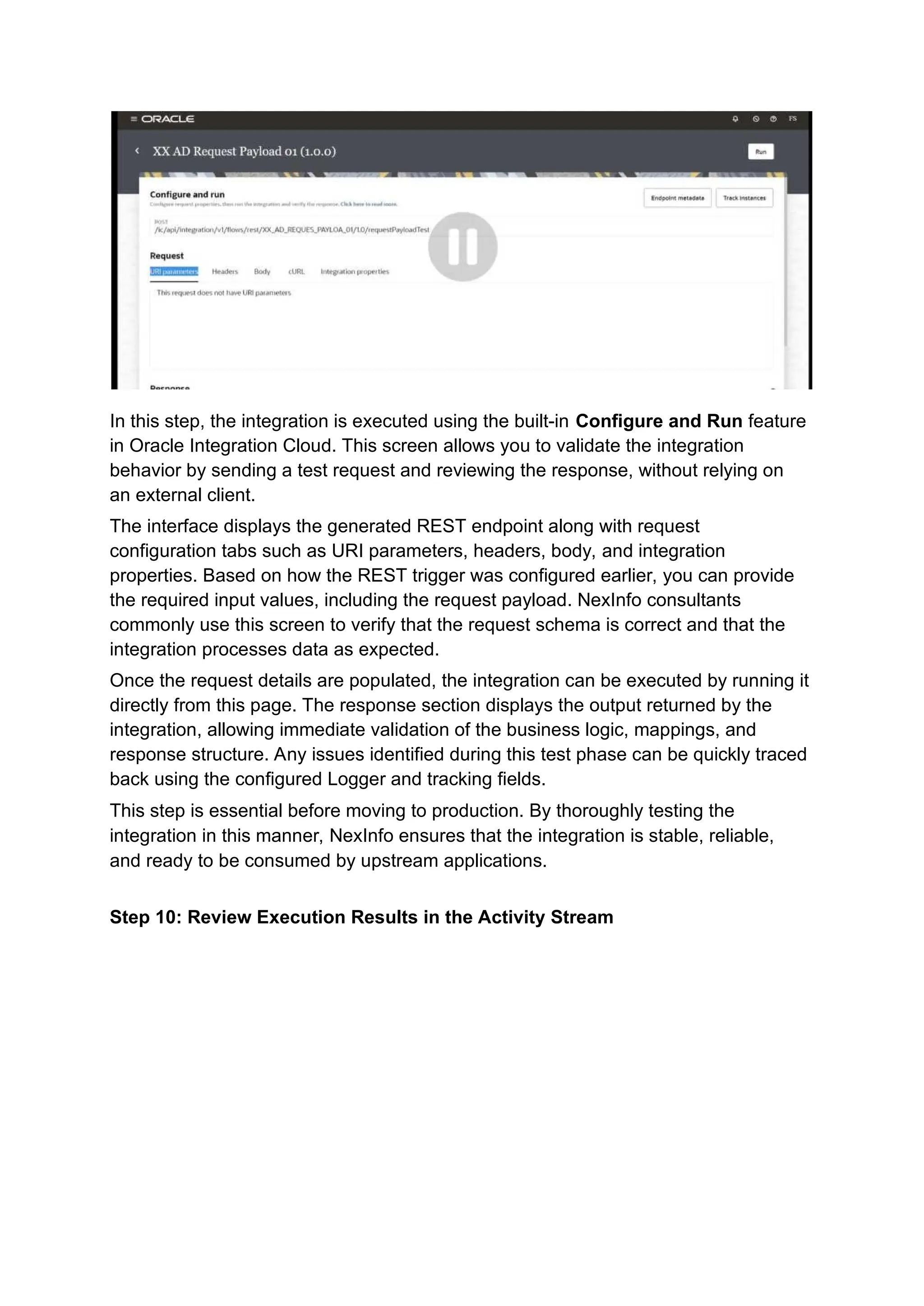
In this step, the integration is executed using the built-in Configure and Run feature
in Oracle Integration Cloud. This screen allows you to validate the integration
behavior by sending a test request and reviewing the response, without relying on
an external client.
The interface displays the generated REST endpoint along with request
configuration tabs such as URI parameters, headers, body, and integration
properties. Based on how the REST trigger was configured earlier, you can provide
the required input values, including the request payload. NexInfo consultants
commonly use this screen to verify that the request schema is correct and that the
integration processes data as expected.
Once the request details are populated, the integration can be executed by running it
directly from this page. The response section displays the output returned by the
integration, allowing immediate validation of the business logic, mappings, and
response structure. Any issues identified during this test phase can be quickly traced
back using the configured Logger and tracking fields.
This step is essential before moving to production. By thoroughly testing the
integration in this manner, NexInfo ensures that the integration is stable, reliable,
and ready to be consumed by upstream applications.
Step 10: Review Execution Results in the Activity Stream
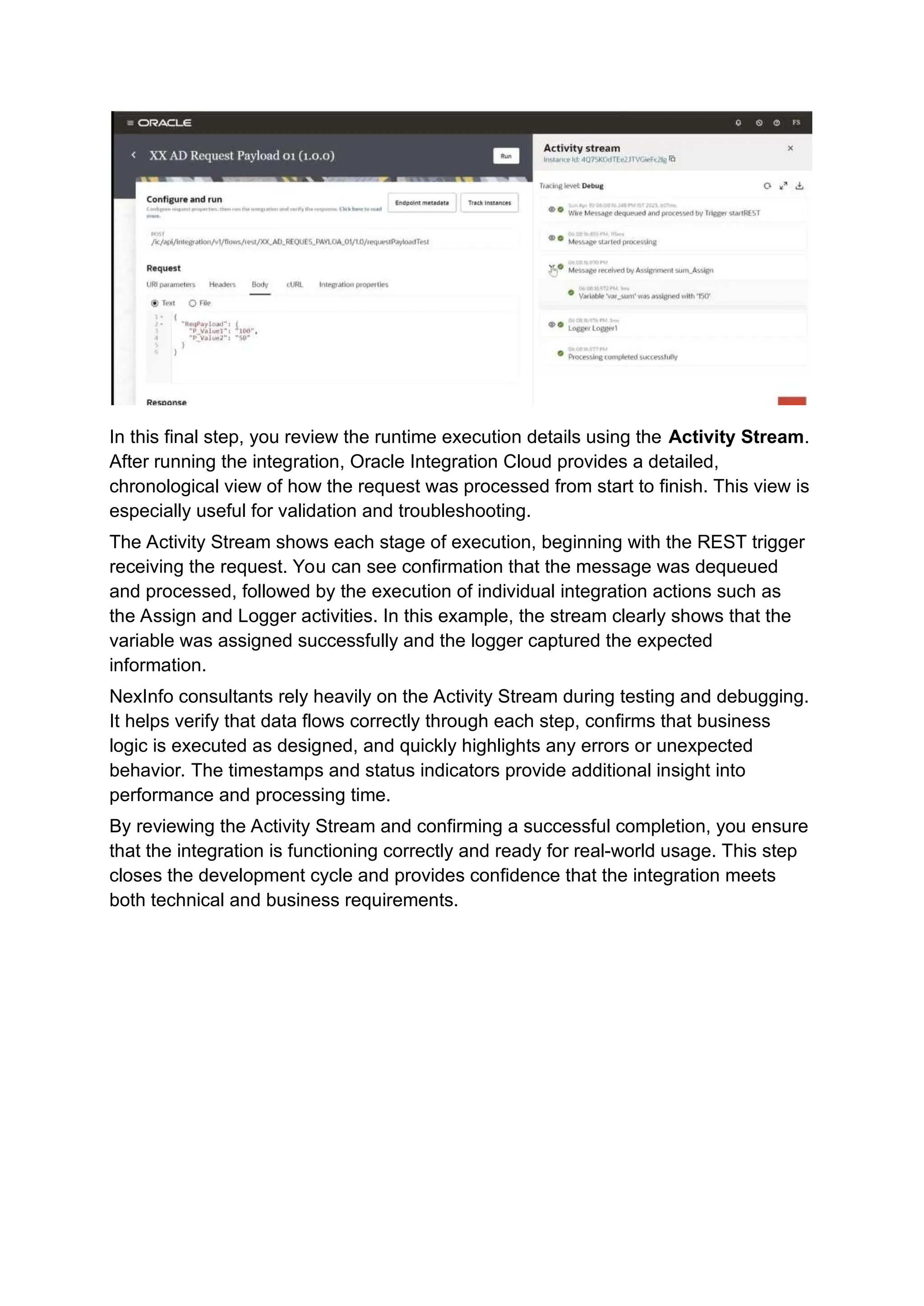
In this final step, you review the runtime execution details using the Activity Stream.
After running the integration, Oracle Integration Cloud provides a detailed,
chronological view of how the request was processed from start to finish. This view is
especially useful for validation and troubleshooting.
The Activity Stream shows each stage of execution, beginning with the REST trigger
receiving the request. You can see confirmation that the message was dequeued
and processed, followed by the execution of individual integration actions such as
the Assign and Logger activities. In this example, the stream clearly shows that the
variable was assigned successfully and the logger captured the expected
information.
NexInfo consultants rely heavily on the Activity Stream during testing and debugging.
It helps verify that data flows correctly through each step, confirms that business
logic is executed as designed, and quickly highlights any errors or unexpected
behavior. The timestamps and status indicators provide additional insight into
performance and processing time.
By reviewing the Activity Stream and confirming a successful completion, you ensure
that the integration is functioning correctly and ready for real-world usage. This step
closes the development cycle and provides confidence that the integration meets
both technical and business requirements.

This-Project-Demonstrates-How-to-Create.ppt

  • 1.
    This Project DemonstratesHow to Create, Configure, Activate, and Test a REST-based Application Integration in Oracle Integration Cloud Using NexInfo Step 1: Access the Integrations Workspace < Design = ORACLE Q <S^ ® FS ffl Integrations Integrations Import <5 - Connections Q. - C JE il 'HIM II ■ Lookups 3 integrations m Libraries Name Version Style Last updated Status © Packages Agents XX SC Test Integration 01 New 1.0.0 Schedule Apr 30.2023 05:02:59 PM 1ST Configured •o Adapters -»<£■ XX AD Test Integration 01 New 1.0.0 Application Apr 30.2023 05:02:59 PM 1ST Configured -XX AD Review Parameter Int... New 1.0.0 Application Apr 30,2023 05:00:03 PM 1ST Configured Cookie Preferences k This step focuses on entering the Integrations workspace in Oracle Integration Cloud, which acts as the control center for all integration development activities. After logging in, you land in the Design area, where different components required for integration development are neatly organized in the left navigation panel. Among these options, the Integrations section is the most critical, as it is where all integration logic is designed, reviewed, and maintained. The main panel displays a structured list of integrations already available in the environment. Each integration entry provides key information such as the integration name, version, integration pattern, last updated timestamp, and its current configuration status. This information allows developers and consultants to quickly assess the maturity and readiness of each integration without opening it individually. For example, understanding whether an integration is application-driven or schedule- based helps in determining how and when data flows are triggered. From a NexInfo delivery perspective, this workspace is often used as the starting point for analysis and planning. Consultants review existing integrations to understand current system interactions, naming standards, and versioning practices. This reduces the risk of redundancy and ensures new integrations follow established architectural guidelines. The search and filter options further simplify navigation in environments with a large number of integrations. Overall, this step establishes a clear view of the integration landscape. By familiarizing yourself with the Integrations workspace, you gain the context needed to confidently create, enhance, or manage integrations in a structured and scalable manner. Step 2: Create a New Integration
  • 2.
    < Design =ORACLE 0 (^ © FS s Integrations Integrations Import <5- Connections Q. - C JE HI A "V 1 Lookups 3 integrations mLibraries Name Version Style Last updated Status © Packages Agents m*<5- XX SC Test Integration 01 new 1.0.0 Schedule Apr 30.2023 05:02:59 PM 1ST Configured Adapters a-»© XX AD Test Integration 01 New 1.0.0 Application Apr 30,2023 05:02:59 PM 1ST Configured &->€■ XX AD Review Parameter Int... New 1.0.0 Application Apr 30,2023 05:00:03 PM 1ST Configured Cookie Preferences k In this step, you initiate the creation of a new integration from the Integrations workspace. By selecting the Create option, Oracle Integration Cloud opens the Create Integration panel on the right side of the screen. This panel guides you through choosing how the integration should start, ensuring the correct design pattern is used from the beginning. You are presented with two primary integration styles: Application and Schedule. An Application-driven integration is typically triggered by an event or request from a source application, making it ideal for real-time or near real-time business processes. In contrast, a Scheduled integration runs at predefined intervals and is commonly used for batch processing, periodic data synchronization, or file-based integrations. At NexInfo, selecting the correct integration style is a crucial design decision. Consultants evaluate business requirements such as data volume, frequency, and latency before choosing the integration pattern. This helps ensure optimal performance and scalability while aligning with enterprise integration standards. This step sets the foundation for the integration flow. By clearly defining how and when the integration should run, you establish a structured approach that simplifies development, testing, and long-term maintenance. Step 3: Define Integration Name and Core Details
  • 3.
    In this step,you configure the basic identity of the integration by providing its Name, Identifier, and Version. These fields may look simple, but they play a critical role in maintaining clarity, governance, and long-term manageability within Oracle Integration Cloud. The Name field is a human-readable label that clearly describes the purpose of the integration. At NexInfo, naming conventions are carefully followed so that any consultant or support team member can immediately understand what the integration does. For example, including functional prefixes, business context, or source and target system references helps differentiate integrations in large enterprise environments. The Identifier is a system-generated or manually adjusted value used internally by Oracle Integration Cloud. It must follow specific formatting rules and remains consistent even if the display name changes later. NexInfo best practices recommend keeping the identifier aligned with the naming standard to avoid confusion during migrations, exports, or troubleshooting activities. The Version field helps track changes as the integration evolves over time. Each time a significant enhancement or fix is introduced, the version number can be updated to reflect the change. This is especially important in enterprise projects where multiple versions may exist across development, test, and production environments. By carefully defining these core details, this step ensures the integration is well- structured from the start. Proper naming and versioning make future maintenance, collaboration, and audits significantly easier, which is a key principle followed in NexInfo integration delivery models. Step 4: Review the Integration Canvas
  • 4.
    In this step,the integration opens in the design canvas, which is where the actual integration logic is built. The canvas displays a simple flow with a Start node connected to an End node. This represents the basic structure of an application- driven integration before any business logic or connections are added. The Start node defines how the integration is triggered. For application-based integrations, this is typically a REST endpoint that receives requests from an external system or another Oracle Cloud service. At NexInfo, consultants carefully design this trigger to ensure it aligns with security standards, payload structure, and business requirements. This is where request schemas, authentication methods, and inbound parameters are later configured. The End node marks the completion of the integration flow. It is responsible for sending a response back to the calling application. Even though it looks simple at this stage, the End node becomes critical once response mappings and fault handling are introduced. This initial canvas view confirms that the integration has been created successfully and is ready for development. From here, NexInfo teams begin adding adapters, transformations, lookups, and tracking fields to build a complete and reliable integration flow. This step acts as the foundation upon which all functional and technical logic is layered. Step 5: Configure the REST Trigger and Request Payload
  • 5.
    In this step,the REST Adapter configuration screen opens, allowing you to define how the integration will receive incoming requests. This configuration is a critical part of application-driven integrations because it determines how external systems interact with Oracle Integration Cloud. Here, you are in the Request configuration stage of the REST Adapter wizard. The interface shows a guided, multi-step flow that helps you configure every aspect of the REST endpoint in a structured manner. At this point, the focus is on defining the request payload, which represents the data structure that the calling application will send to the integration. You are provided with options to supply a sample JSON payload either by dragging and dropping a file or by manually entering the JSON content. This sample payload is used by Oracle Integration Cloud to automatically generate the request schema. NexInfo consultants typically work closely with functional and technical stakeholders to ensure the sample payload accurately reflects real business data, including mandatory fields, optional elements, and data types. Defining a clear and accurate request payload at this stage is essential. It ensures correct data validation, simplifies downstream mappings, and reduces errors during runtime. By carefully configuring the REST request structure, NexInfo teams establish a strong contract between source systems and the integration, leading to reliable and maintainable integrations. Step 6: Add and Configure an Assign Action
  • 6.
    In this step,an Assign action is added to the integration flow immediately after the REST trigger. The Assign activity is used to initialize variables, manipulate data, or prepare values that will be required in later stages of the integration. This is a common and important design practice in Oracle Integration Cloud. On the canvas, the flow now shows the Trigger followed by the Assign action. When the Assign action is selected, the configuration panel opens on the right side, allowing you to define the assignment name and description. At NexInfo, meaningful names are used for Assign actions so their purpose is clear during development and future maintenance. Within the Assign configuration, you can create one or more variables and set their values based on incoming request data, constants, or expressions. This step is often used to extract specific elements from the request payload, set default values, or format data before passing it to downstream integrations or services. Using Assign actions early in the flow helps keep the overall integration logic clean and readable. NexInfo consultants rely on this approach to improve traceability, simplify transformations, and ensure that data is well-prepared before it moves to more complex processing steps. Step 7: Add and Configure a Logger Action
  • 7.
    In this step,a Logger action is added to the integration flow to capture runtime information during execution. Logging plays a crucial role in monitoring, debugging, and validating integrations, especially in enterprise environments where visibility into data flow is essential. Once the Logger action is placed on the canvas, the configuration panel opens on the right side. Here, you can define when the log message should be written—either always or only when the tracing level is set to audit. NexInfo consultants typically configure logging strategically to balance visibility with performance, ensuring that important information is captured without excessive overhead. The Logger message field allows you to construct meaningful log entries using static text, integration variables, or dynamic values from the request payload. By selecting elements from the available input sources, you can log key identifiers, request parameters, or computed values created in earlier Assign steps. This helps in tracing transactions end-to-end during troubleshooting or operational reviews. By adding a Logger at this stage, NexInfo ensures that critical checkpoints in the integration flow are recorded. This practice improves supportability, accelerates issue resolution, and provides confidence that the integration is processing data as expected. Step 8: Activate the Integration
  • 8.
    In this finalstep, the integration is prepared for execution by activating it within Oracle Integration Cloud. From the Integrations list, selecting the integration opens the Activate Integration panel on the right side of the screen. Activation is mandatory before an integration can start processing requests from external systems. During activation, you are required to choose a tracing level. The available options typically include Production, Audit, and Debug. Each level controls how much runtime information is captured during execution. NexInfo consultants carefully select the tracing level based on the environment. For example, Production is commonly used in live environments to ensure optimal performance, while Audit or Debug may be used temporarily during testing or issue investigation. Once the tracing level is selected, activating the integration makes the REST endpoint available for use. At this point, the integration can receive requests, execute the defined logic, and return responses as designed. Any configured logging or tracking fields become active and start capturing runtime data. Activation marks the transition from development to execution. By following NexInfo best practices during this step, teams ensure that integrations are securely enabled, properly monitored, and ready to support business operations reliably. Step 9: Test and Run the Integration
  • 9.
    In this step,the integration is executed using the built-in Configure and Run feature in Oracle Integration Cloud. This screen allows you to validate the integration behavior by sending a test request and reviewing the response, without relying on an external client. The interface displays the generated REST endpoint along with request configuration tabs such as URI parameters, headers, body, and integration properties. Based on how the REST trigger was configured earlier, you can provide the required input values, including the request payload. NexInfo consultants commonly use this screen to verify that the request schema is correct and that the integration processes data as expected. Once the request details are populated, the integration can be executed by running it directly from this page. The response section displays the output returned by the integration, allowing immediate validation of the business logic, mappings, and response structure. Any issues identified during this test phase can be quickly traced back using the configured Logger and tracking fields. This step is essential before moving to production. By thoroughly testing the integration in this manner, NexInfo ensures that the integration is stable, reliable, and ready to be consumed by upstream applications. Step 10: Review Execution Results in the Activity Stream
  • 10.
    In this finalstep, you review the runtime execution details using the Activity Stream. After running the integration, Oracle Integration Cloud provides a detailed, chronological view of how the request was processed from start to finish. This view is especially useful for validation and troubleshooting. The Activity Stream shows each stage of execution, beginning with the REST trigger receiving the request. You can see confirmation that the message was dequeued and processed, followed by the execution of individual integration actions such as the Assign and Logger activities. In this example, the stream clearly shows that the variable was assigned successfully and the logger captured the expected information. NexInfo consultants rely heavily on the Activity Stream during testing and debugging. It helps verify that data flows correctly through each step, confirms that business logic is executed as designed, and quickly highlights any errors or unexpected behavior. The timestamps and status indicators provide additional insight into performance and processing time. By reviewing the Activity Stream and confirming a successful completion, you ensure that the integration is functioning correctly and ready for real-world usage. This step closes the development cycle and provides confidence that the integration meets both technical and business requirements.