The New CSS Layout
Rachel Andrew
Dutch PHP Conference, 2015
Rachel Andrew
http://rachelandrew.co.uk
@rachelandrew
http://grabaperch.com
The trouble with CSS layout
• Floats and clearfix hacks
• Absolute positioning means elements are taken
out of document flow and risk overlaps
• Redundant markup and positioning oddities with
display: table
• White space issues with inline-block
The cost of taming layout methods
• Developer hours spent learning non-obvious
concepts.
• Compromises in terms of document semantics in
order to achieve responsive layouts.
• Needing to lean on frameworks to help with
complex math.
• Adding markup to create grids
• Using preprocessors to abstract layout hacks
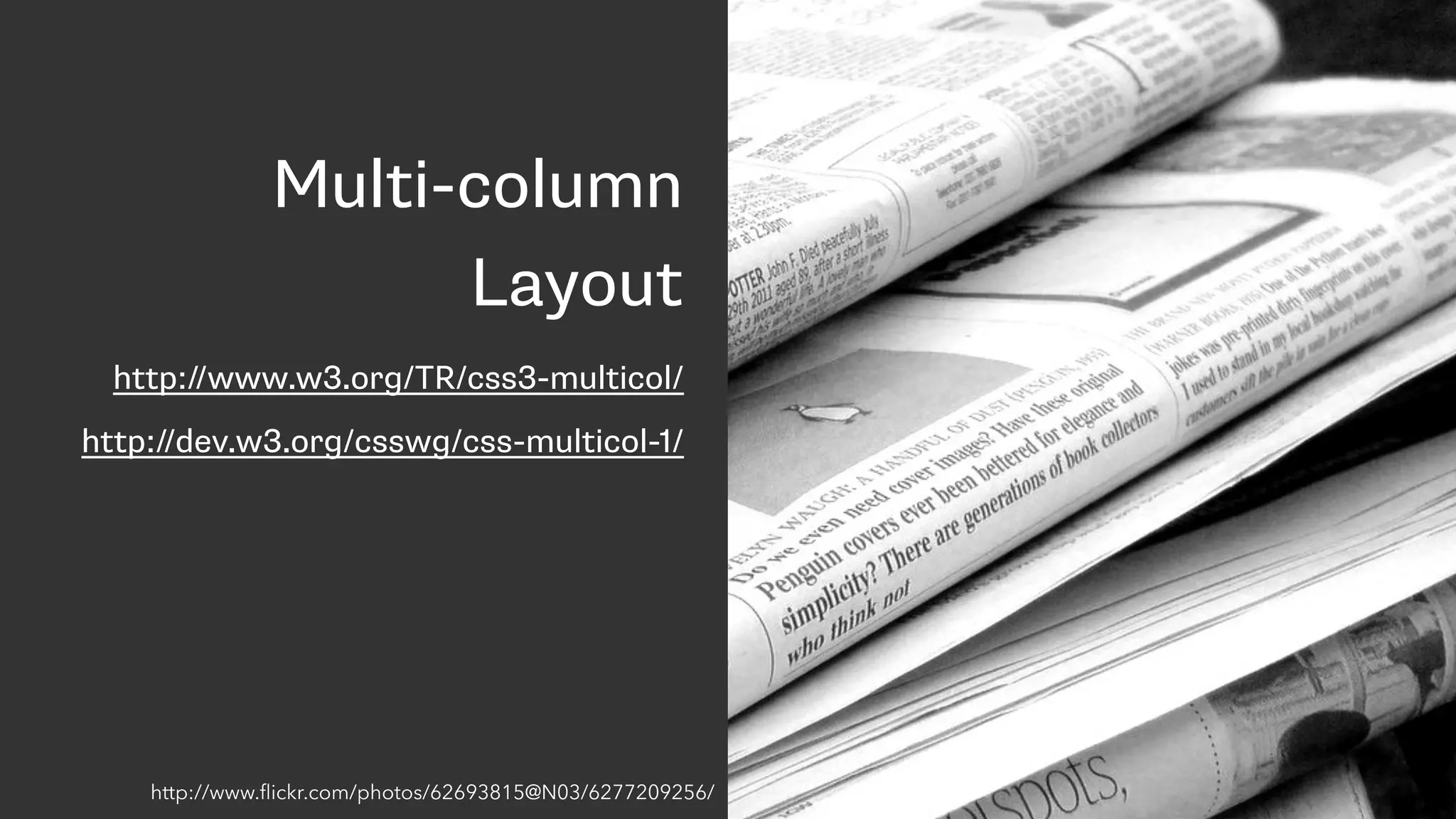
Multi-column
Layout
http://www.w3.org/TR/css3-multicol/
http://dev.w3.org/csswg/css-multicol-1/
http://www.flickr.com/photos/62693815@N03/6277209256/
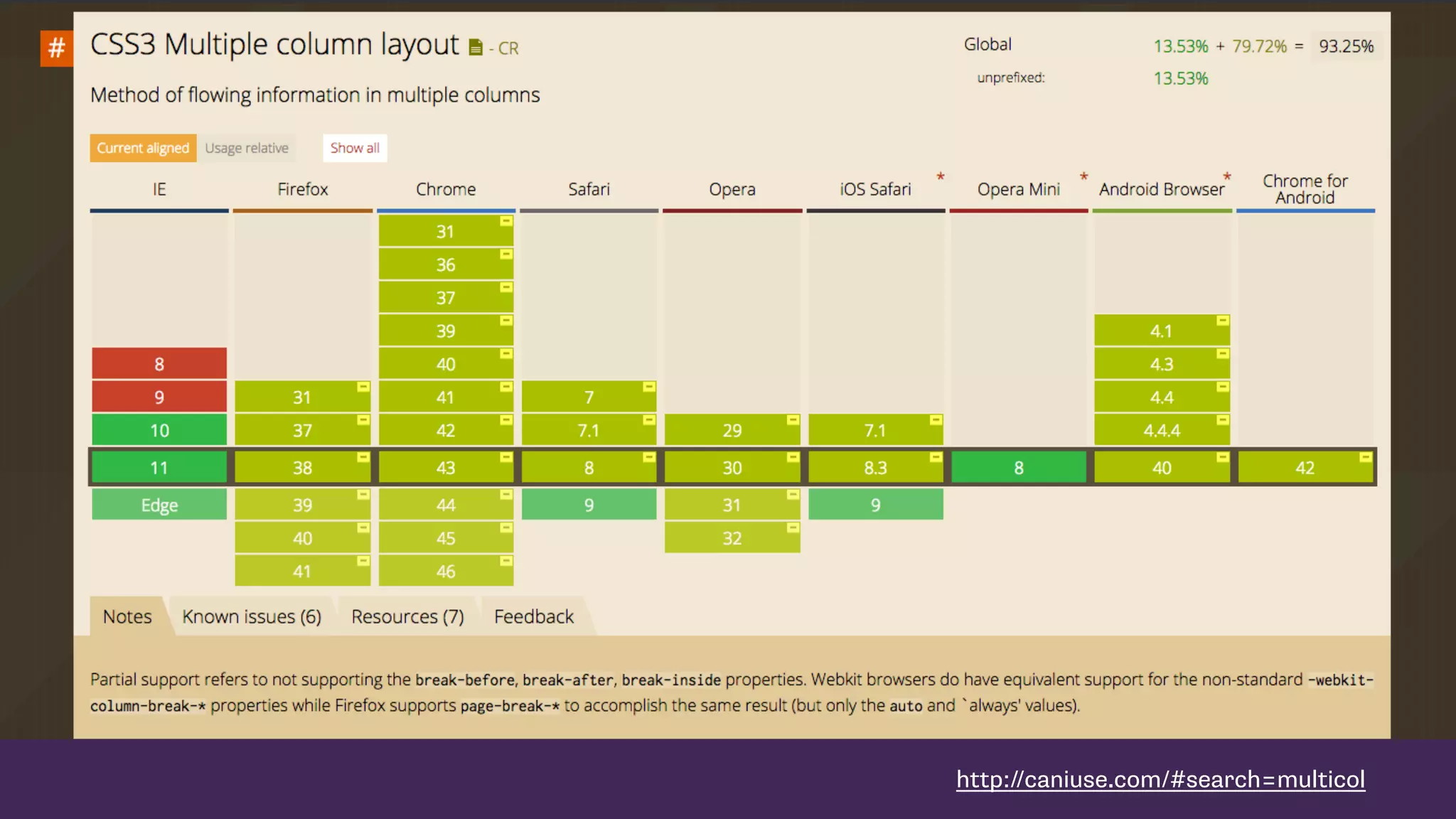
http://caniuse.com/#search=multicol
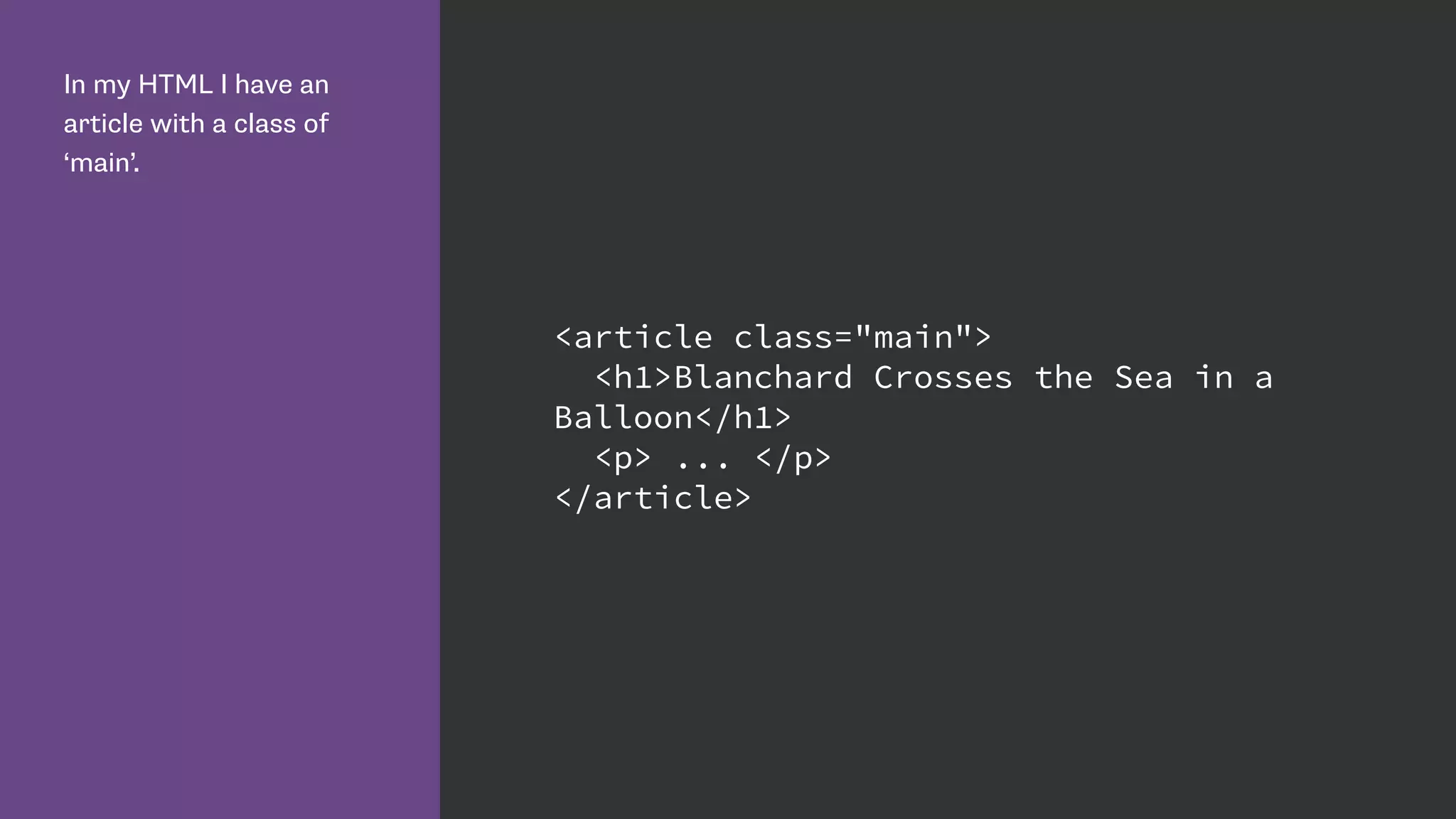
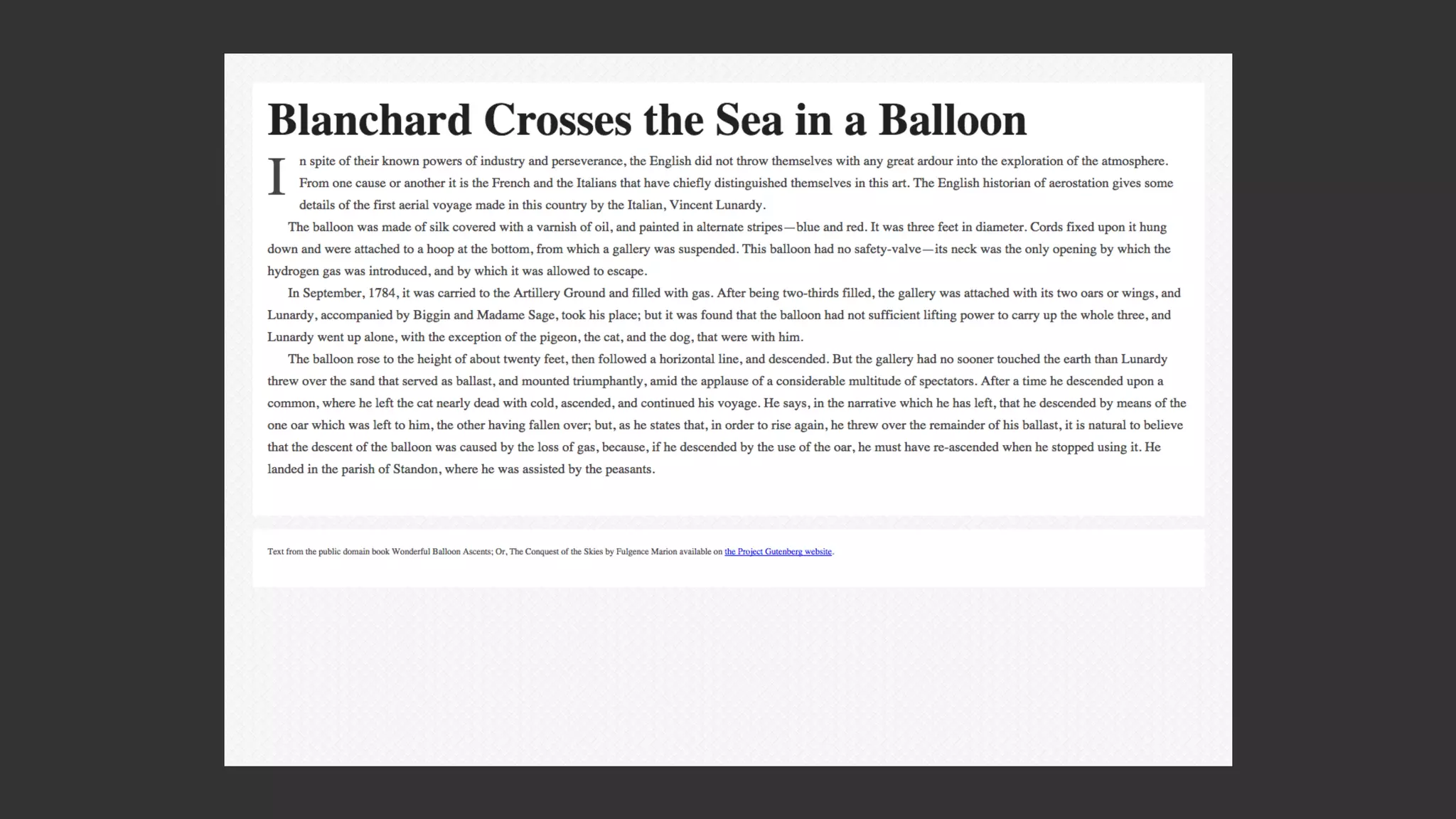
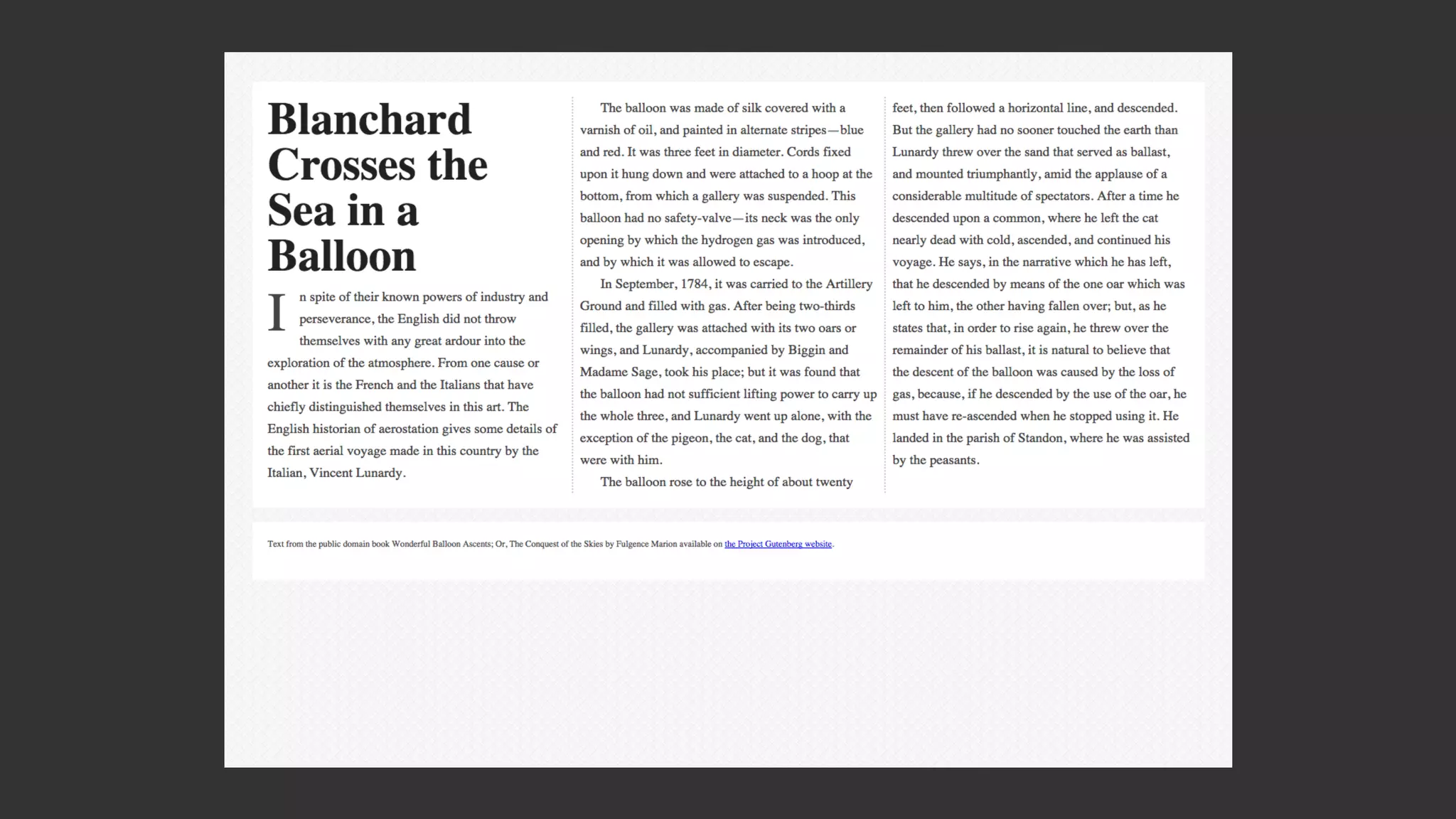
In my HTML I have an
article with a class of
‘main’.
<article class="main">
<h1>Blanchard Crosses the Sea in a
Balloon</h1>
<p> ... </p>
</article>
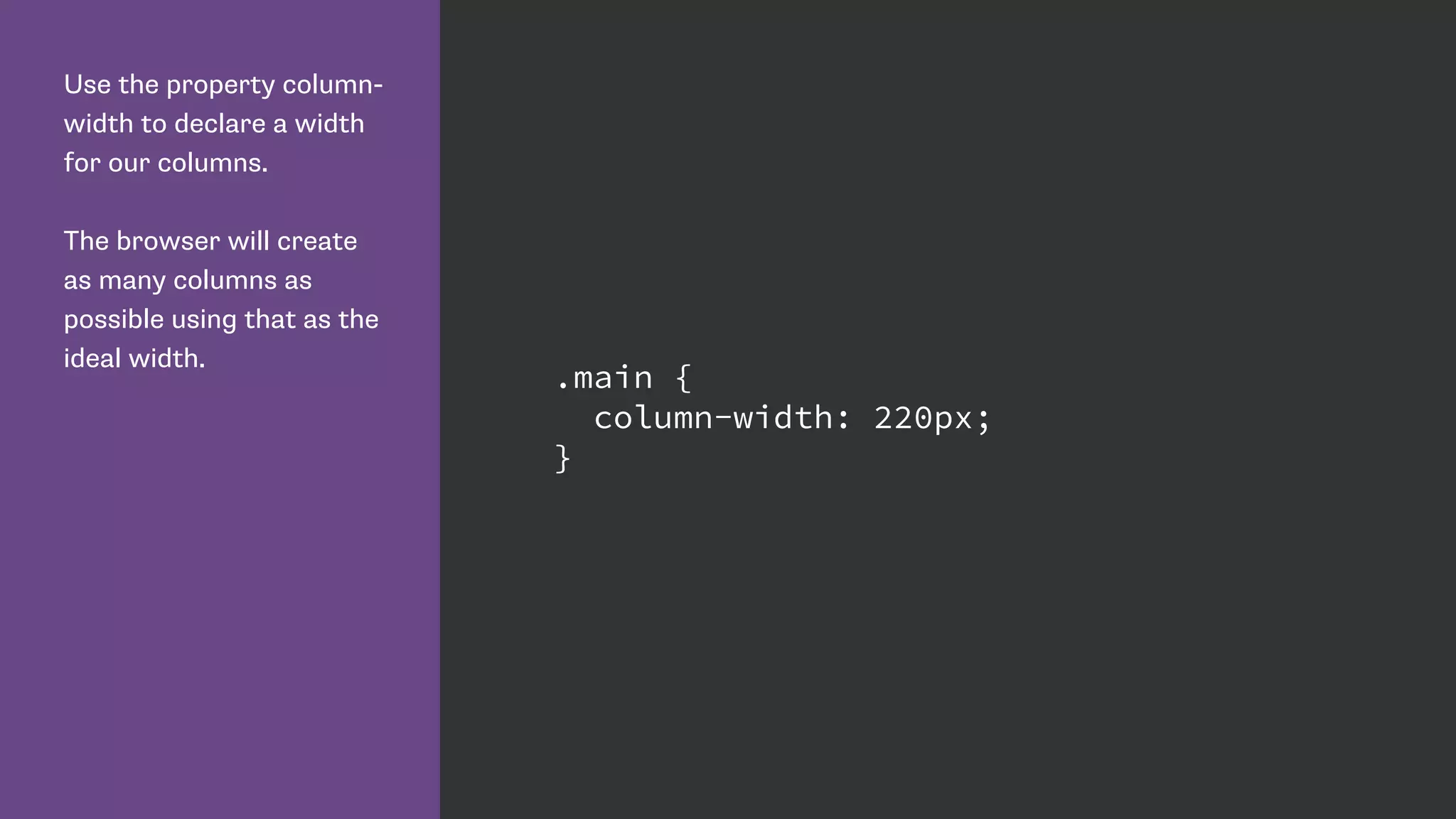
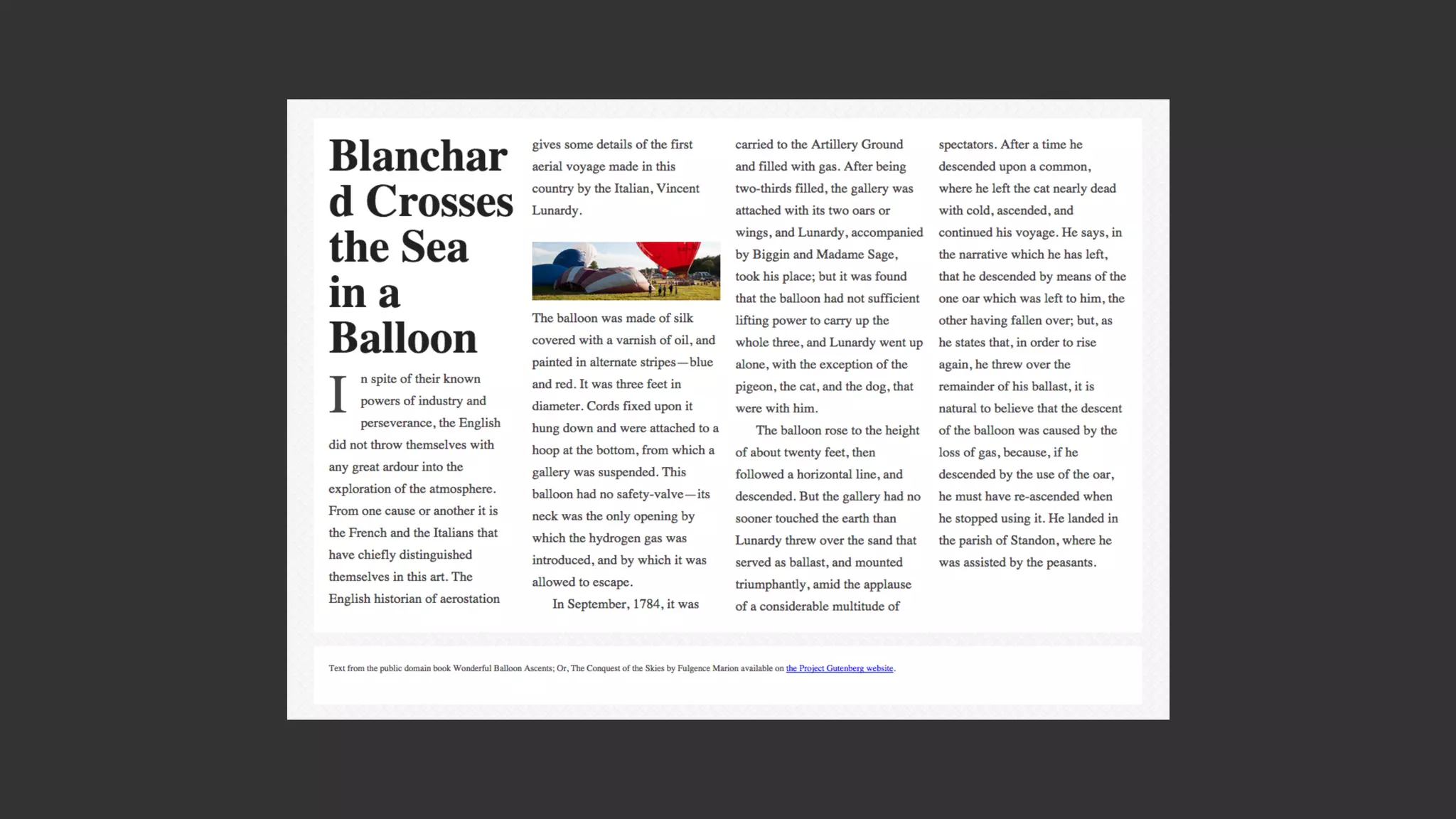
Use the property column-
width to declare a width
for our columns.
The browser will create
as many columns as
possible using that as the
ideal width.
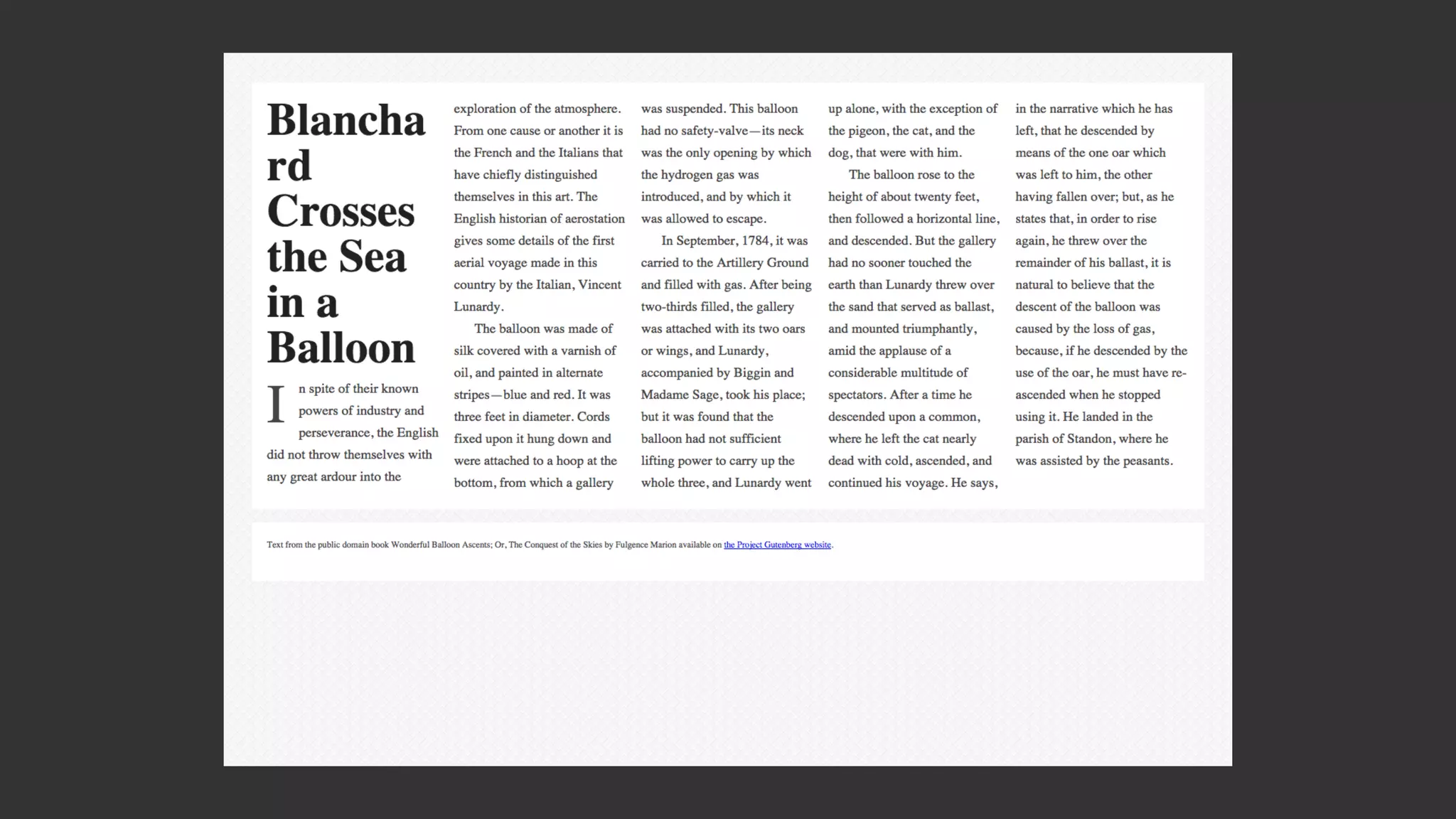
.main {
column-width: 220px;
}
CSS Multiple column layout
[The column-width value] describes the optimal
column width. The actual column width may be
wider (to fill the available space), or narrower
(only if the available space is smaller than the
specified column width). Specified values must
be greater than 0.
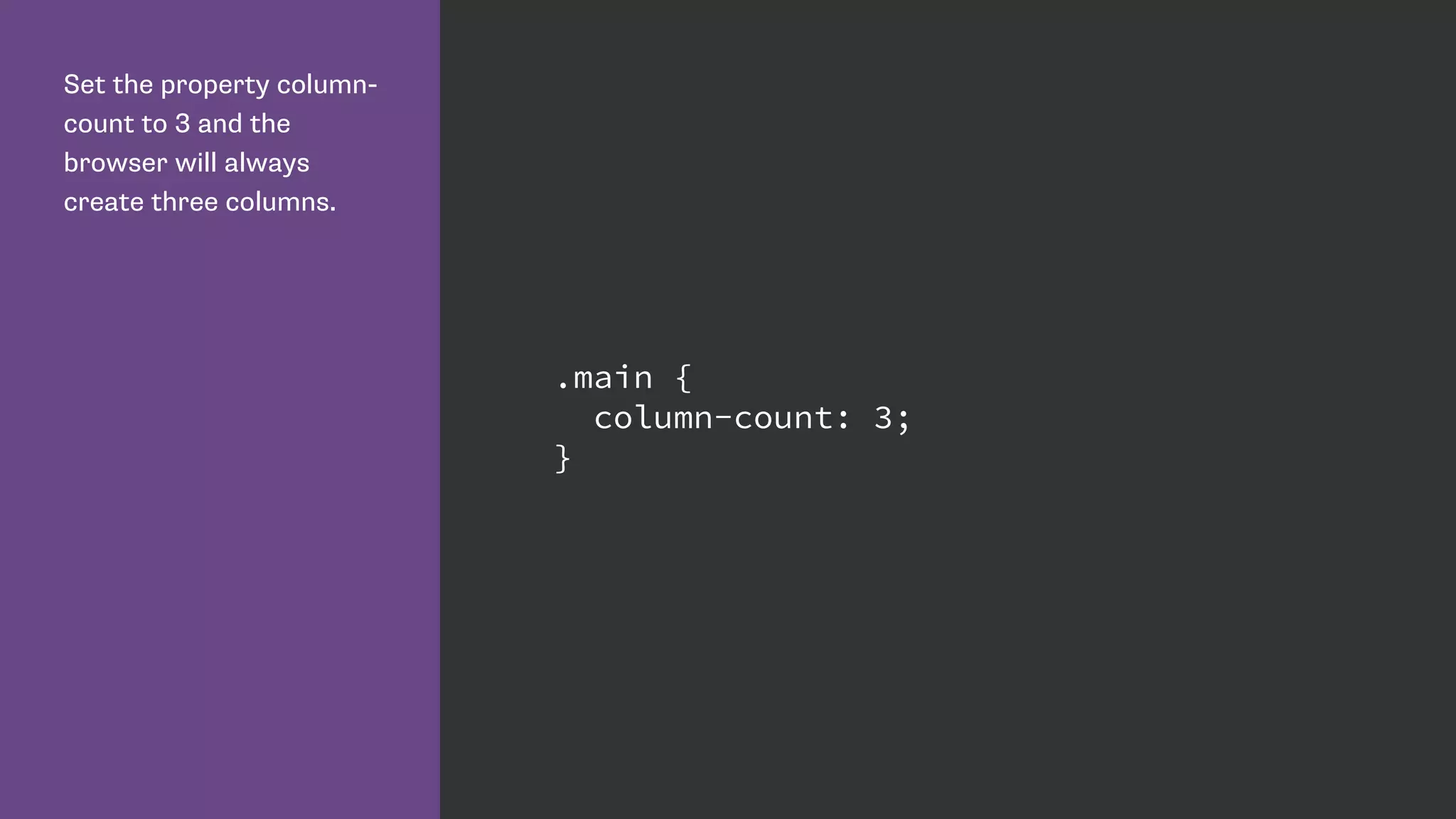
Set the property column-
count to 3 and the
browser will always
create three columns.
.main {
column-count: 3;
}
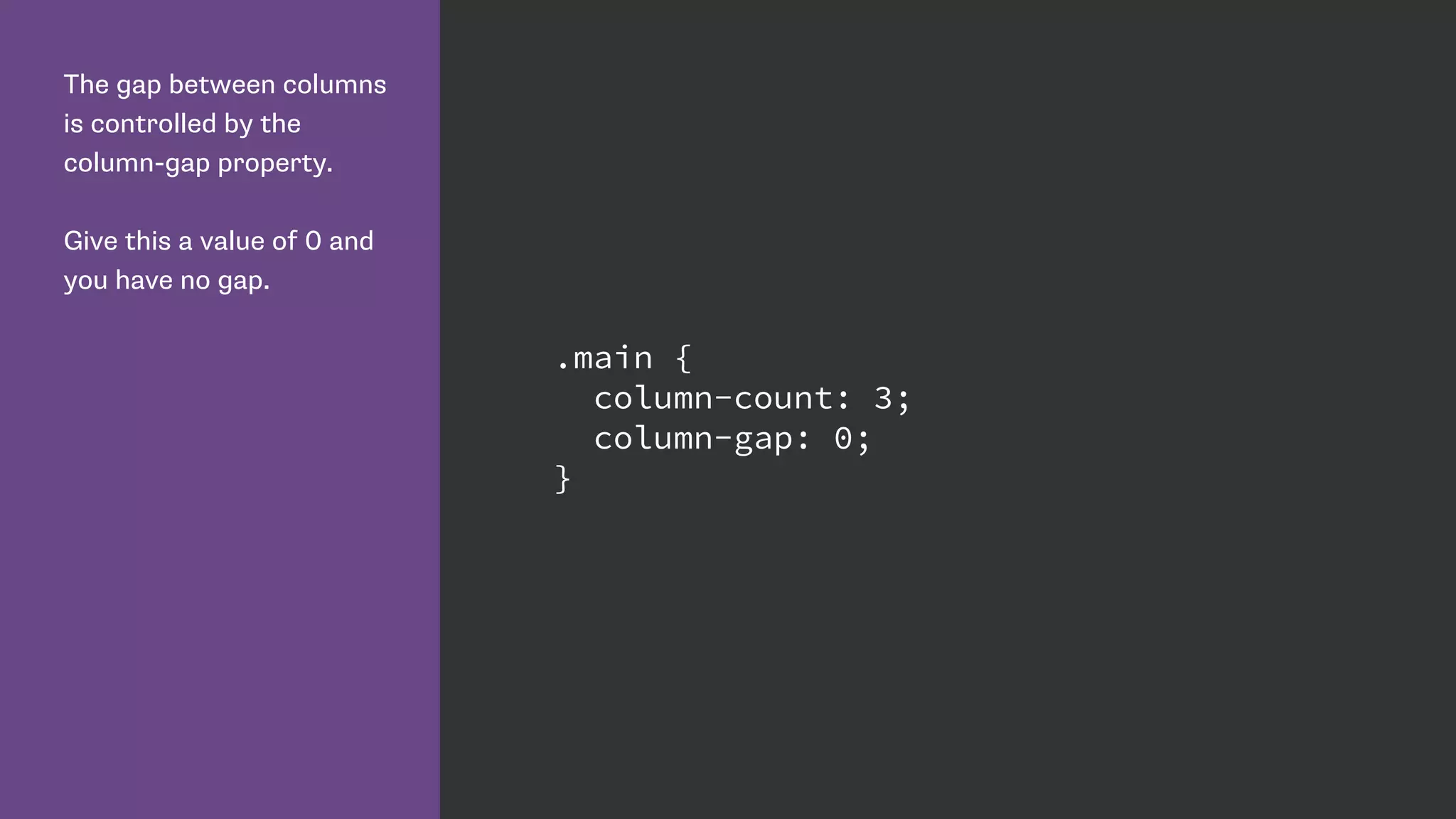
The gap between columns
is controlled by the
column-gap property.
Give this a value of 0 and
you have no gap.
.main {
column-count: 3;
column-gap: 0;
}
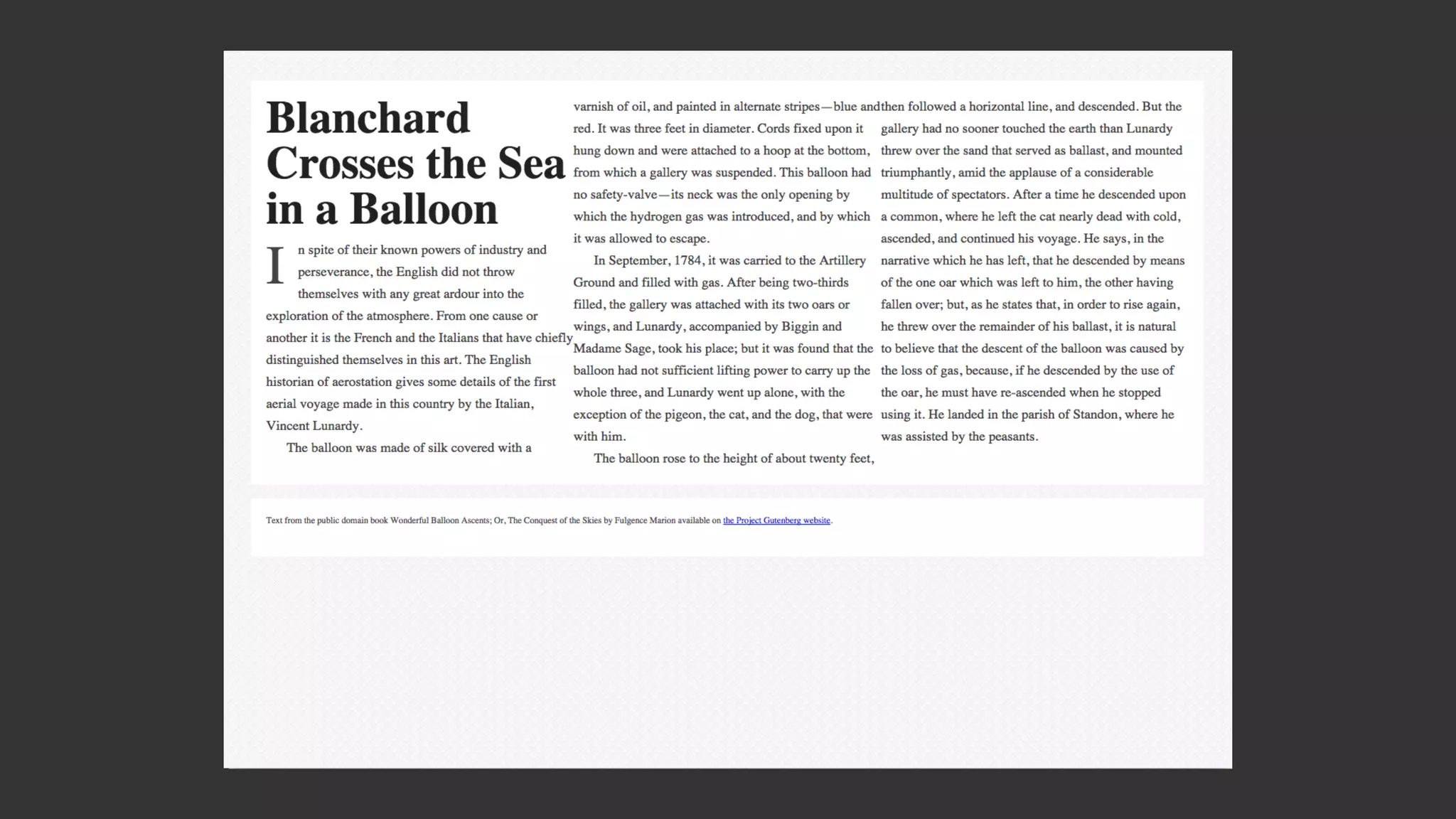
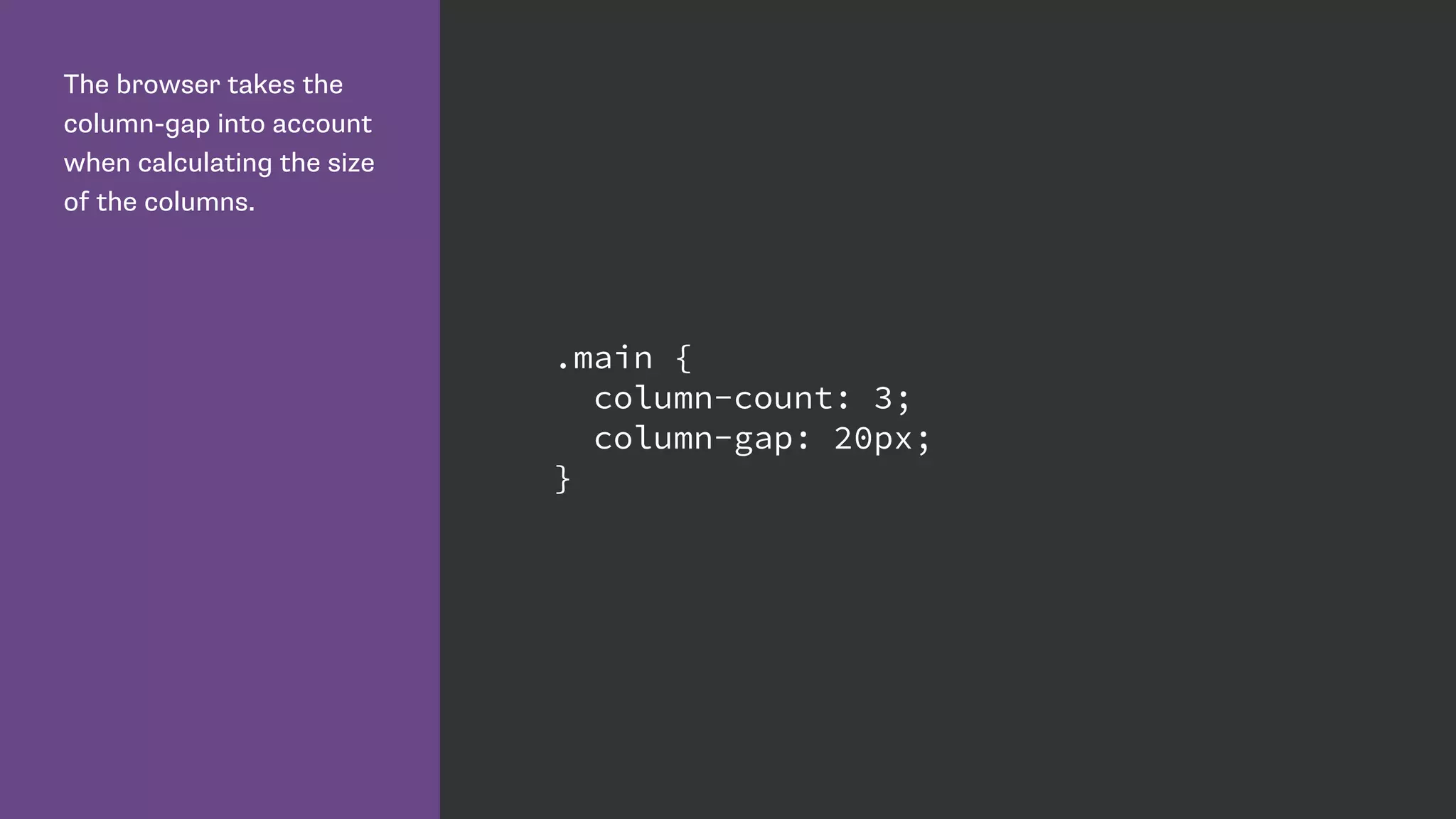
The browser takes the
column-gap into account
when calculating the size
of the columns.
.main {
column-count: 3;
column-gap: 20px;
}
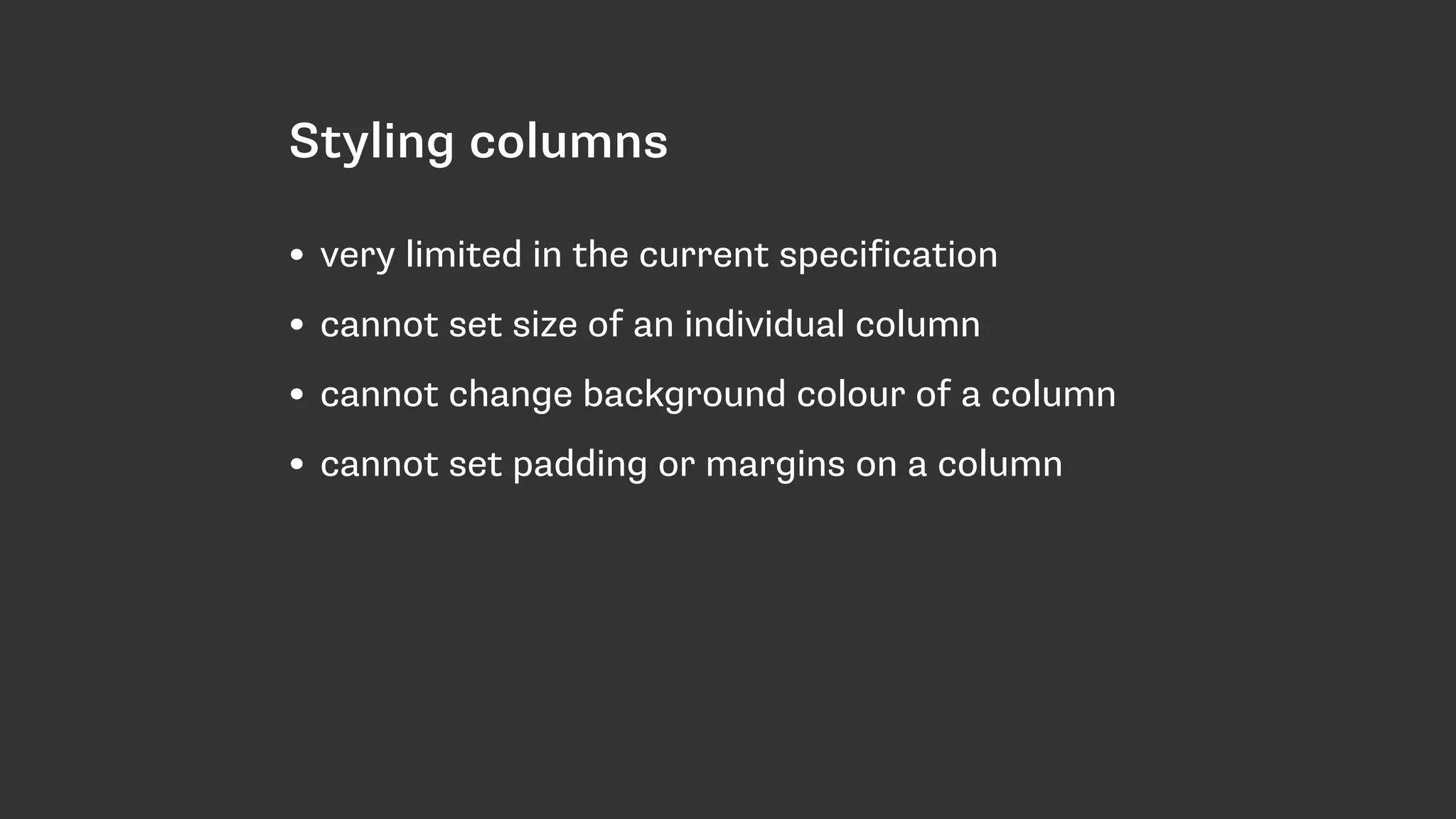
Styling columns
• very limited in the current specification
• cannot set size of an individual column
• cannot change background colour of a column
• cannot set padding or margins on a column
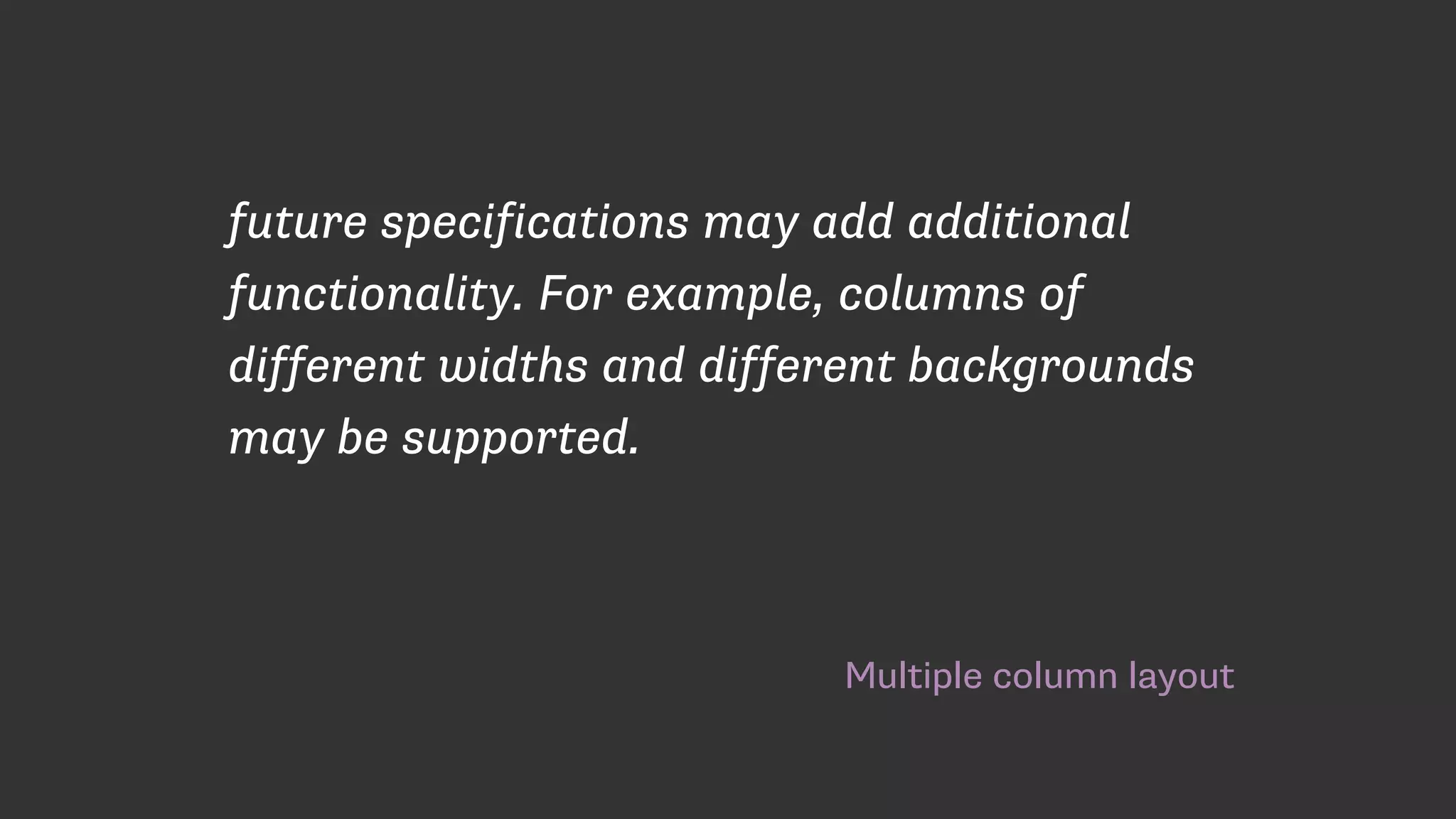
Multiple column layout
future specifications may add additional
functionality. For example, columns of
different widths and different backgrounds
may be supported.
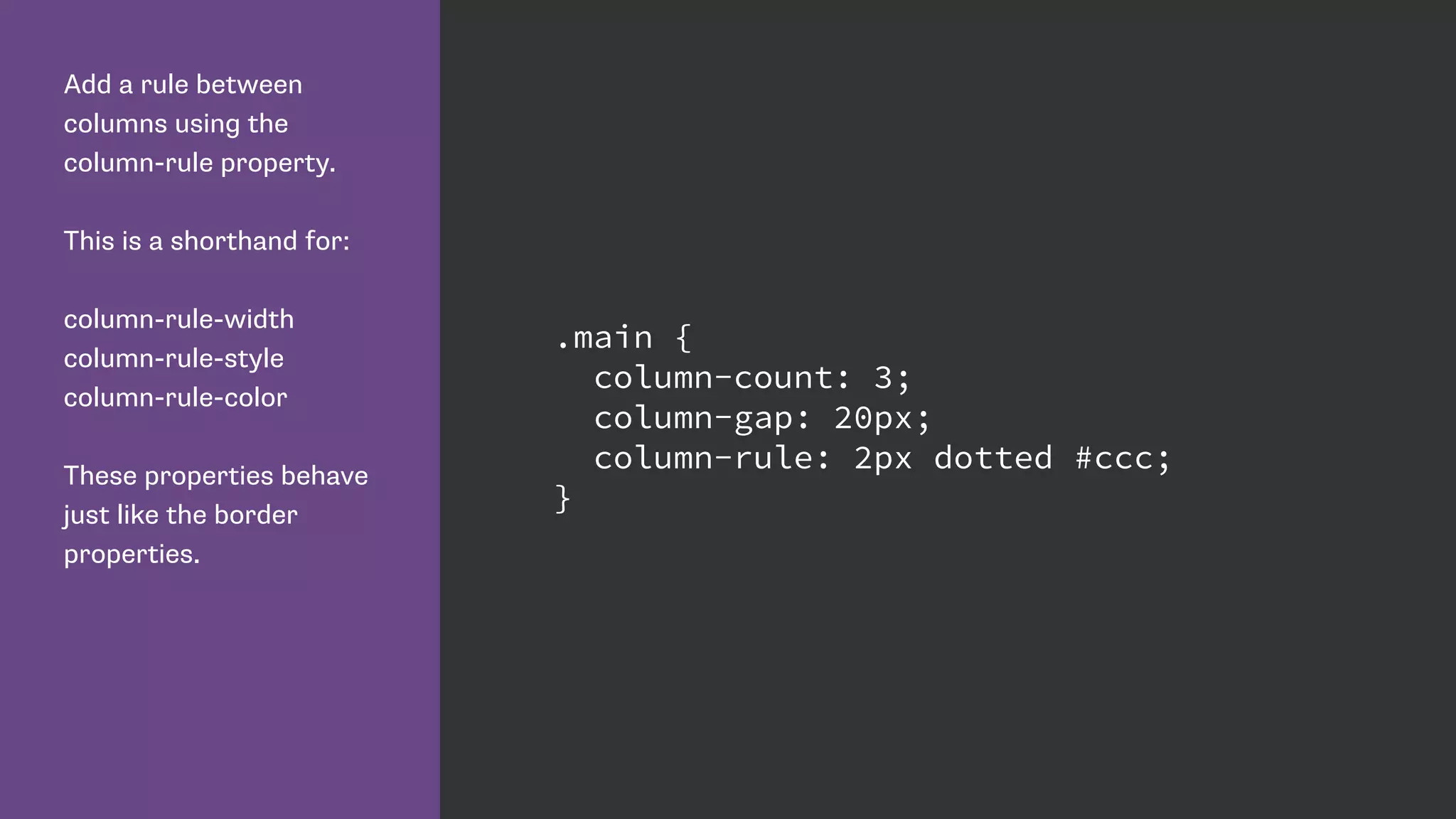
Add a rule between
columns using the
column-rule property.
This is a shorthand for:
column-rule-width
column-rule-style
column-rule-color
These properties behave
just like the border
properties.
.main {
column-count: 3;
column-gap: 20px;
column-rule: 2px dotted #ccc;
}
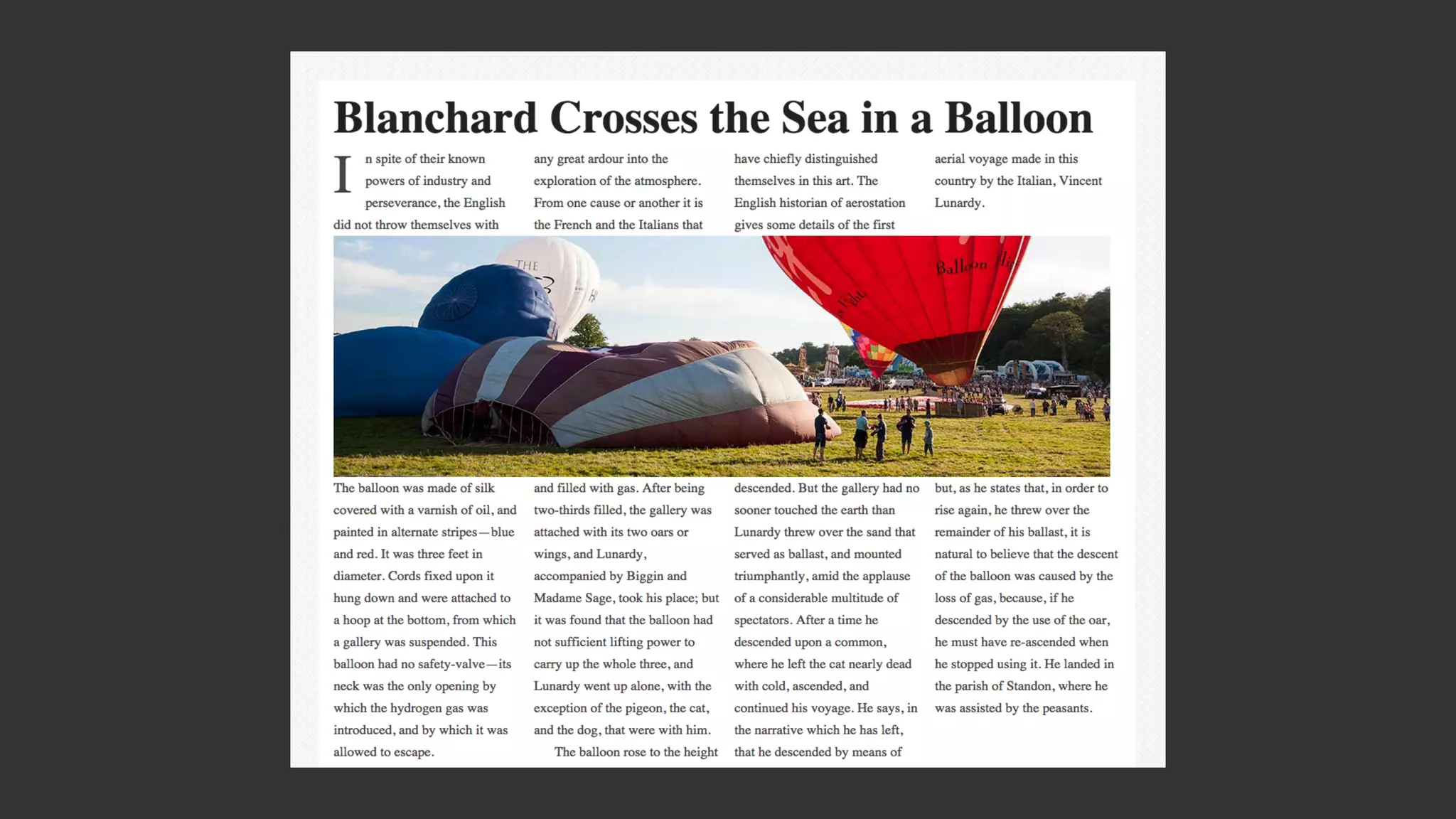
The property column-
span can have a value of
all or none. If set to all the
element will span all
columns.
.main h1,
.image {
column-span: all;
}
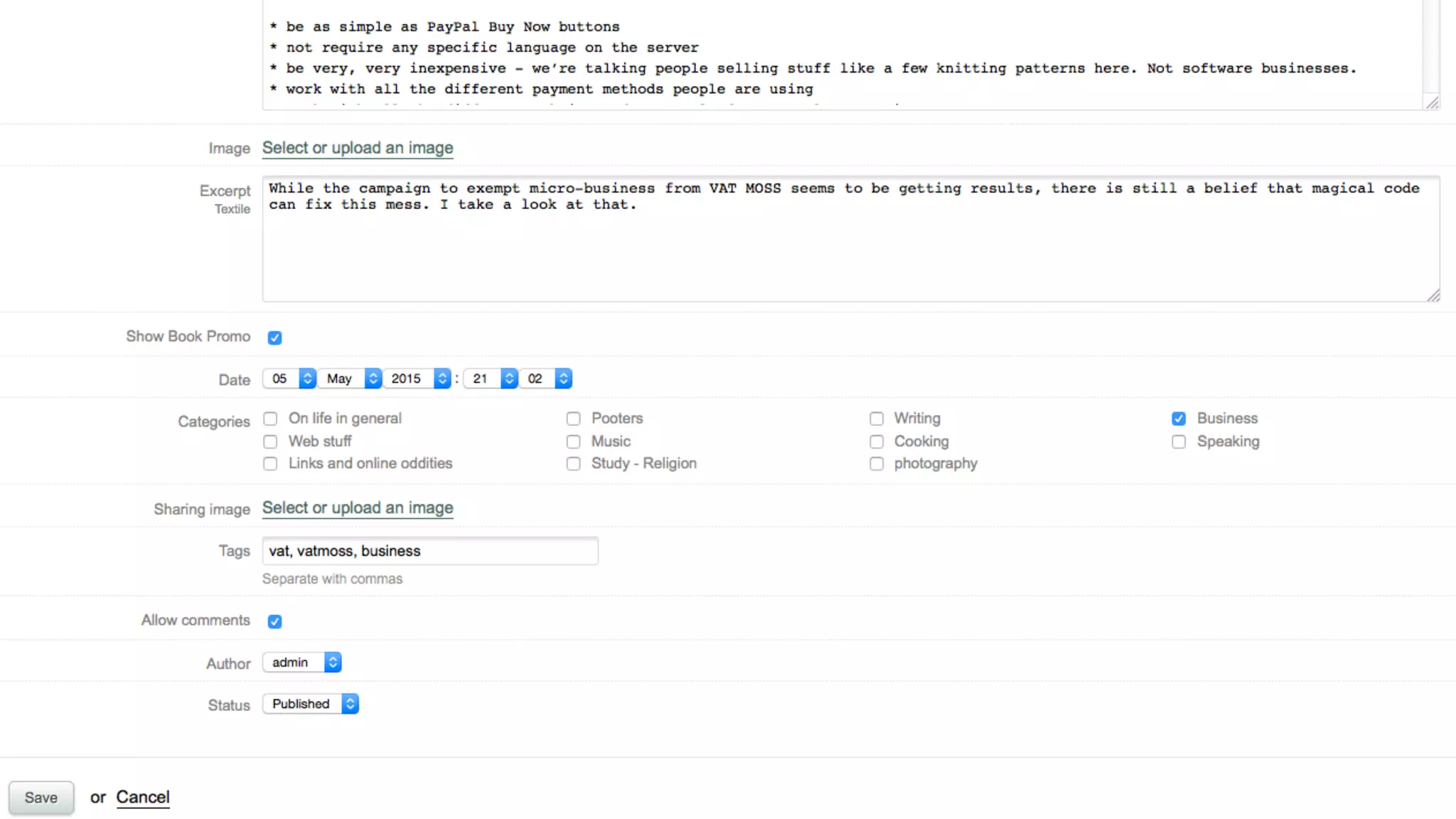
Use multiple column layout to tidy
up the display of small UI elements.
Resources
Dev.Opera: https://dev.opera.com/articles/css3-multi-column-layout/
MDN: https://developer.mozilla.org/en-US/docs/Web/Guide/CSS/Using_multi-
column_layouts
CSS Tricks: https://css-tricks.com/guide-responsive-friendly-css-columns/
Multi-column generator: http://aaronlumsden.com/multicol/
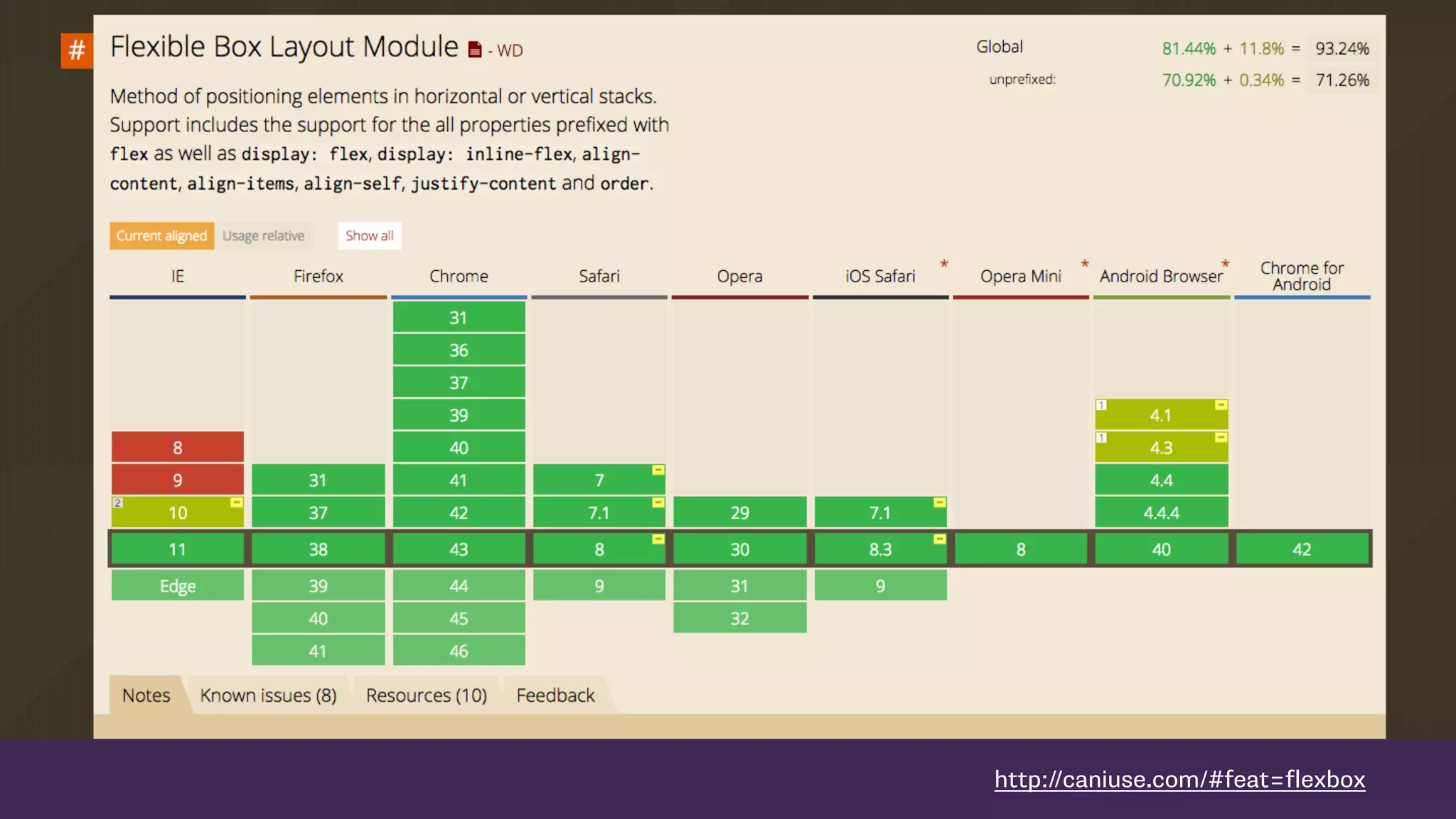
Flexible Box Layout
http://www.w3.org/TR/css-flexbox-1/
http://dev.w3.org/csswg/css-flexbox/
https://www.flickr.com/photos/zervas/2810241612
http://caniuse.com/#feat=flexbox
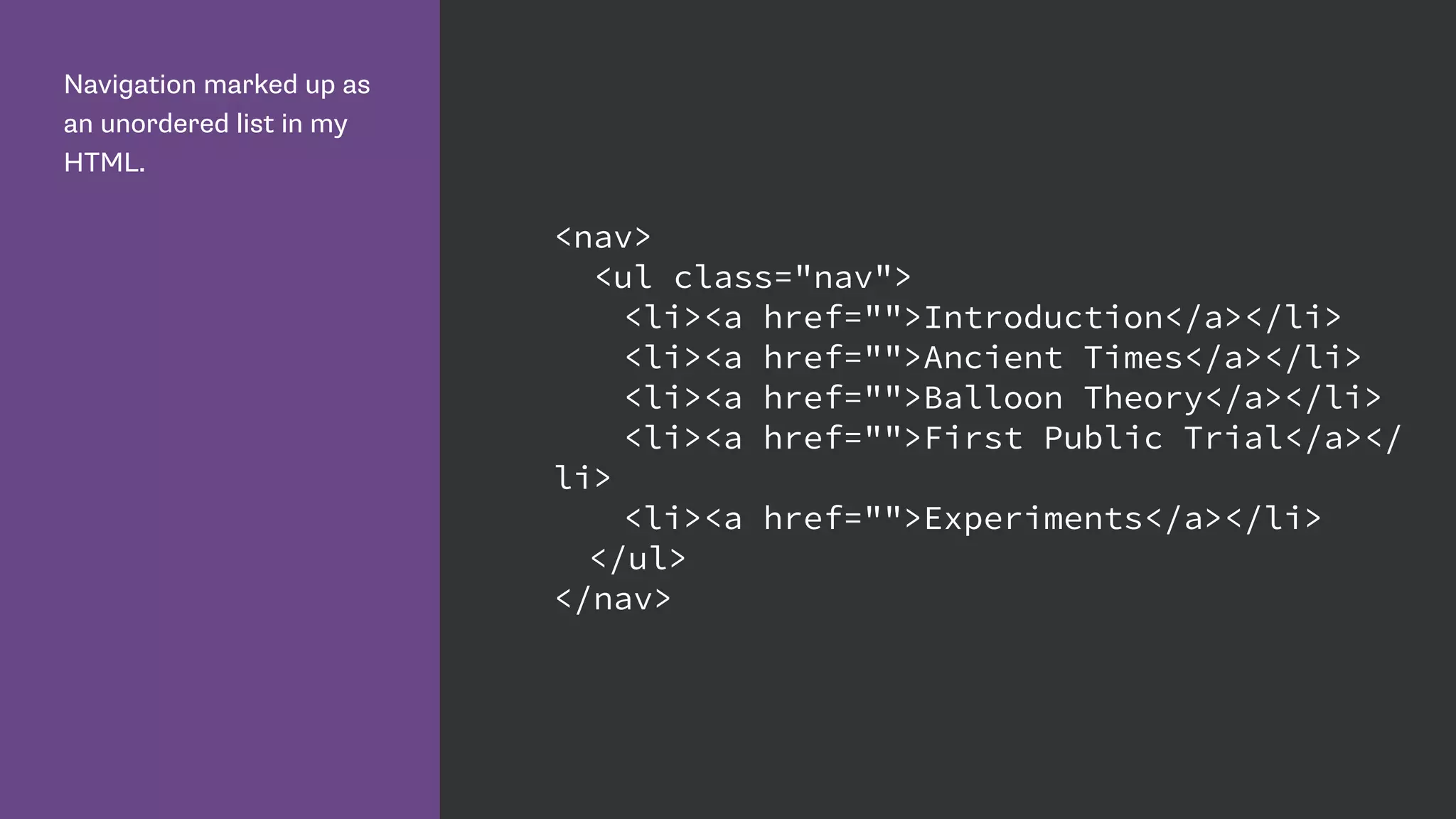
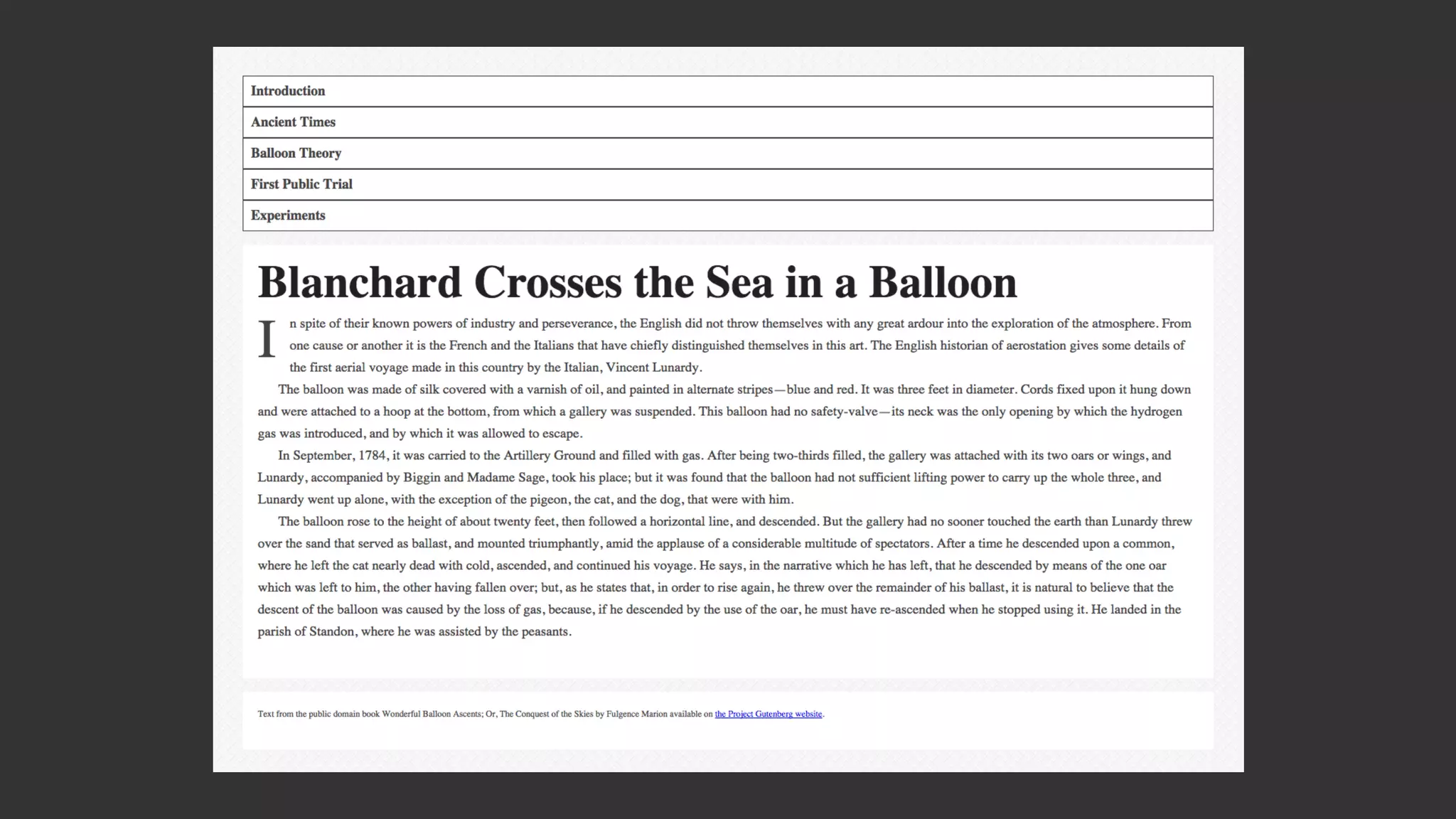
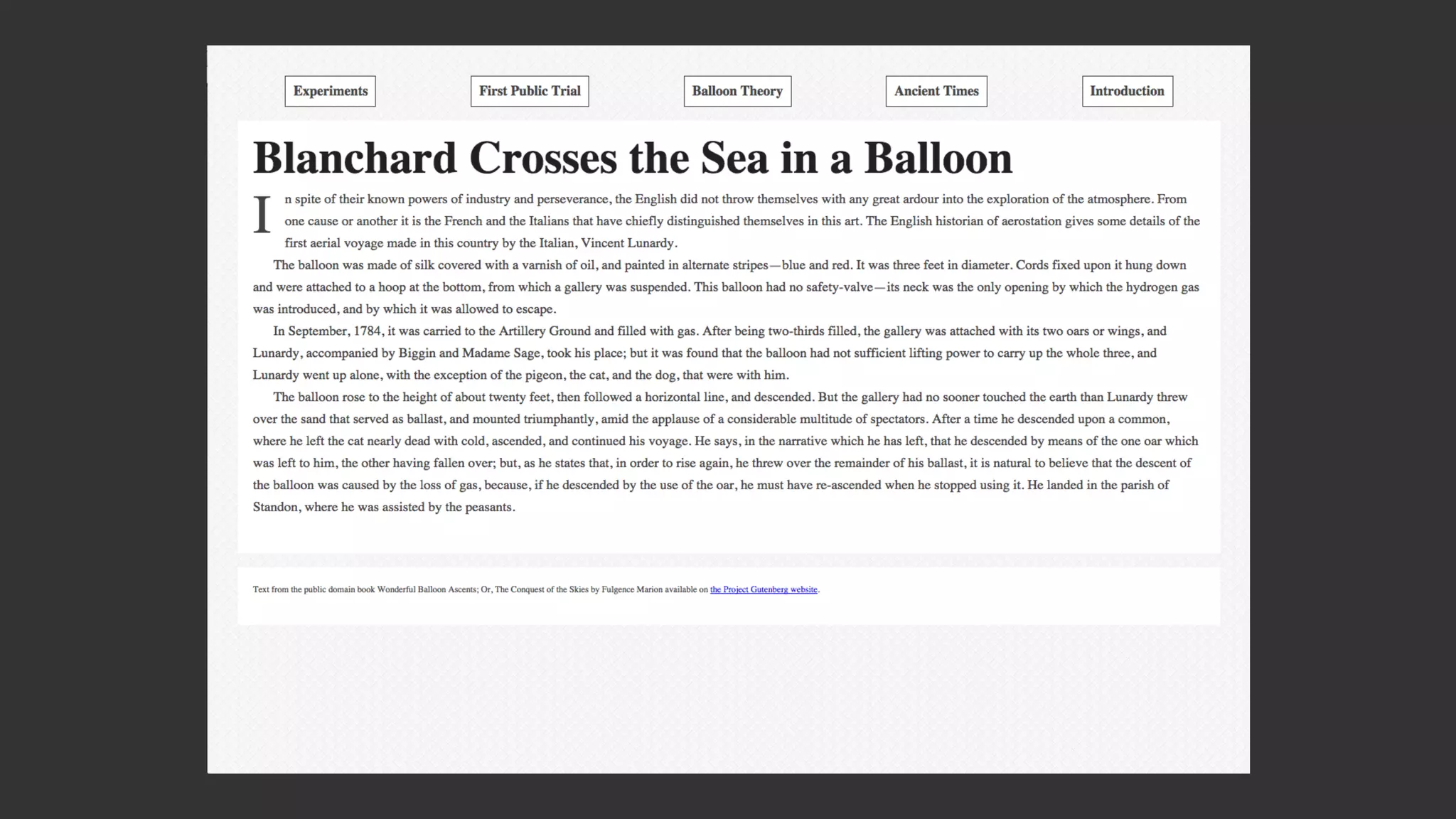
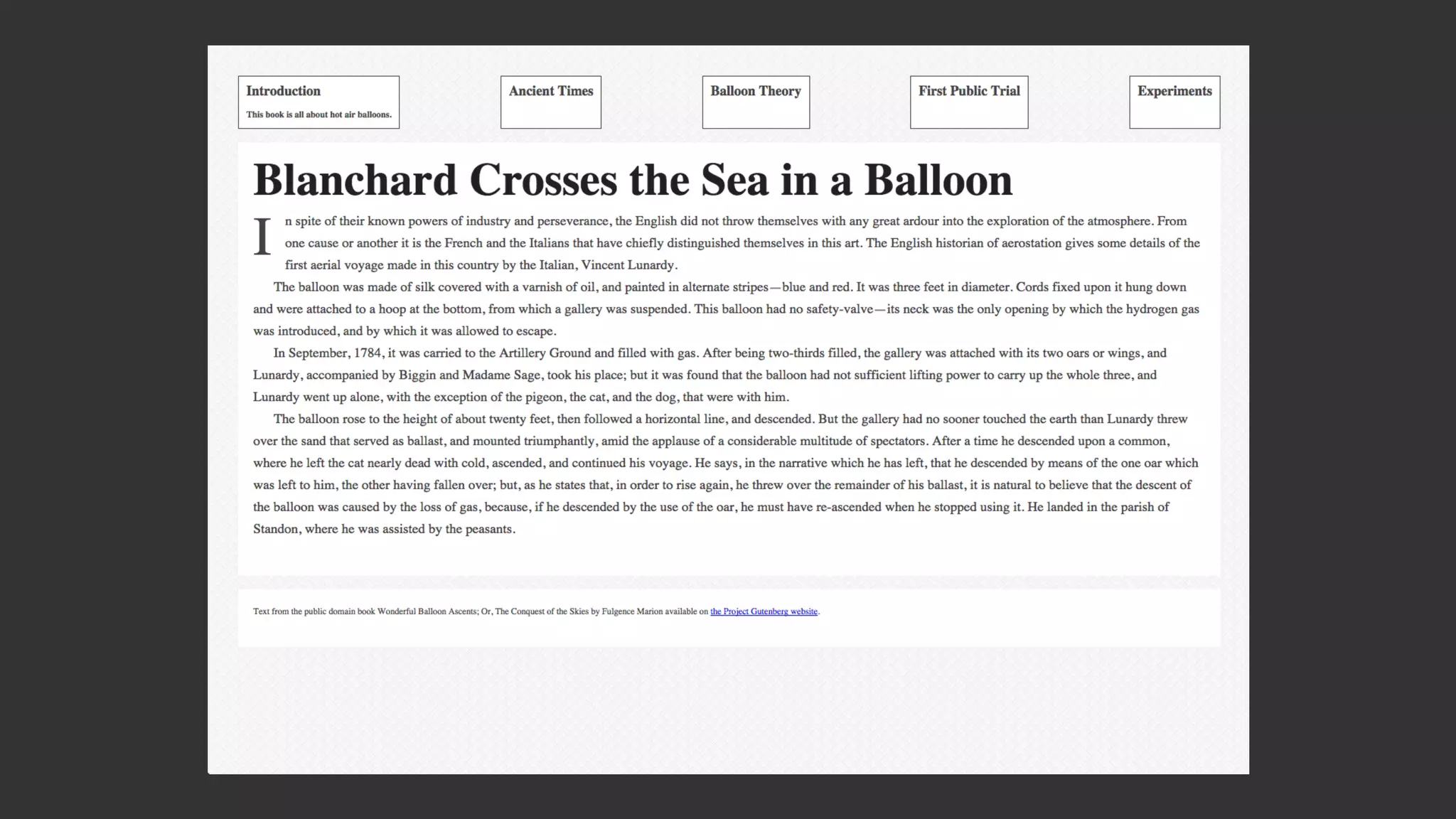
Navigation marked up as
an unordered list in my
HTML.
<nav>
<ul class="nav">
<li><a href="">Introduction</a></li>
<li><a href="">Ancient Times</a></li>
<li><a href="">Balloon Theory</a></li>
<li><a href="">First Public Trial</a></
li>
<li><a href="">Experiments</a></li>
</ul>
</nav>
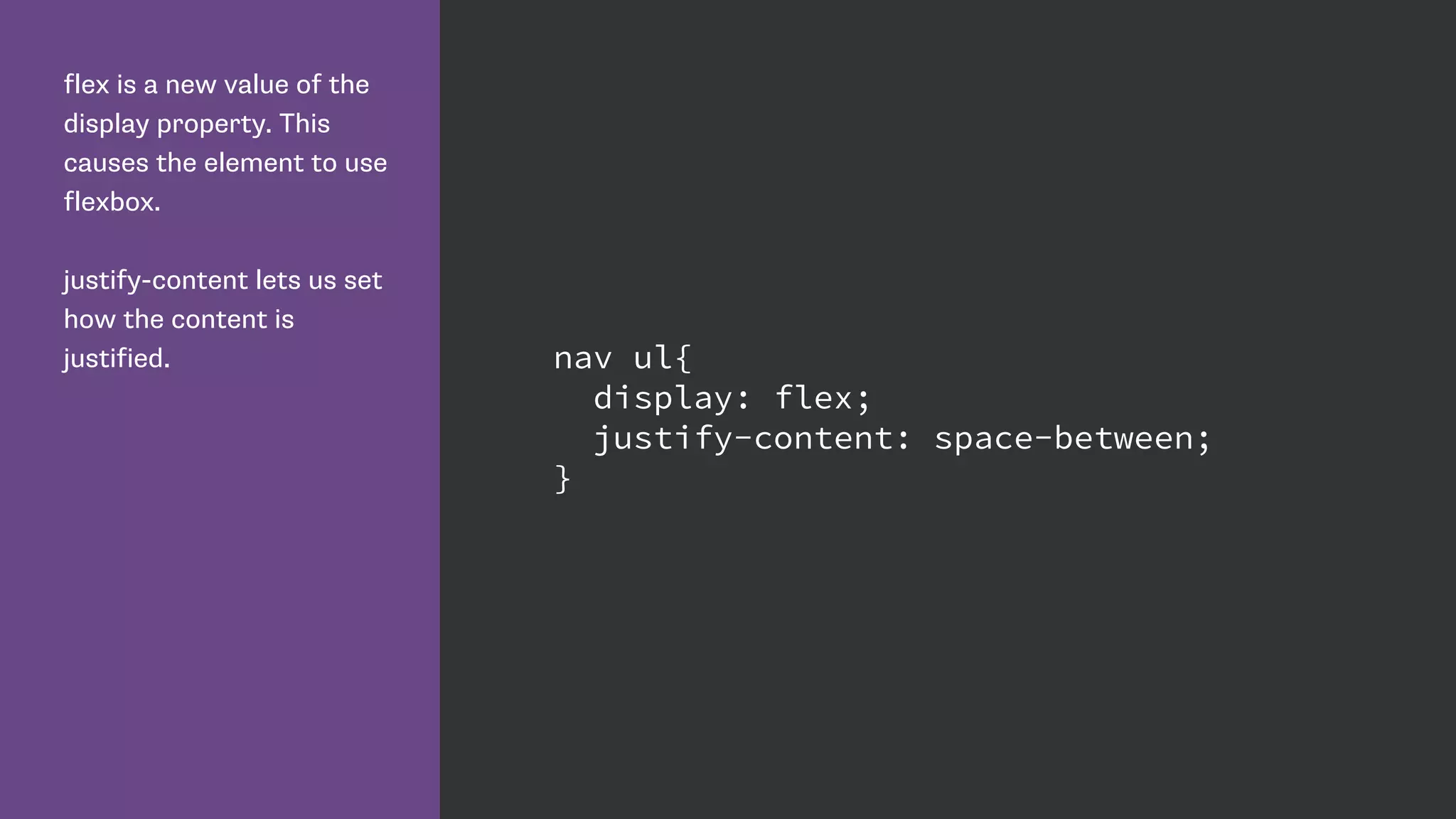
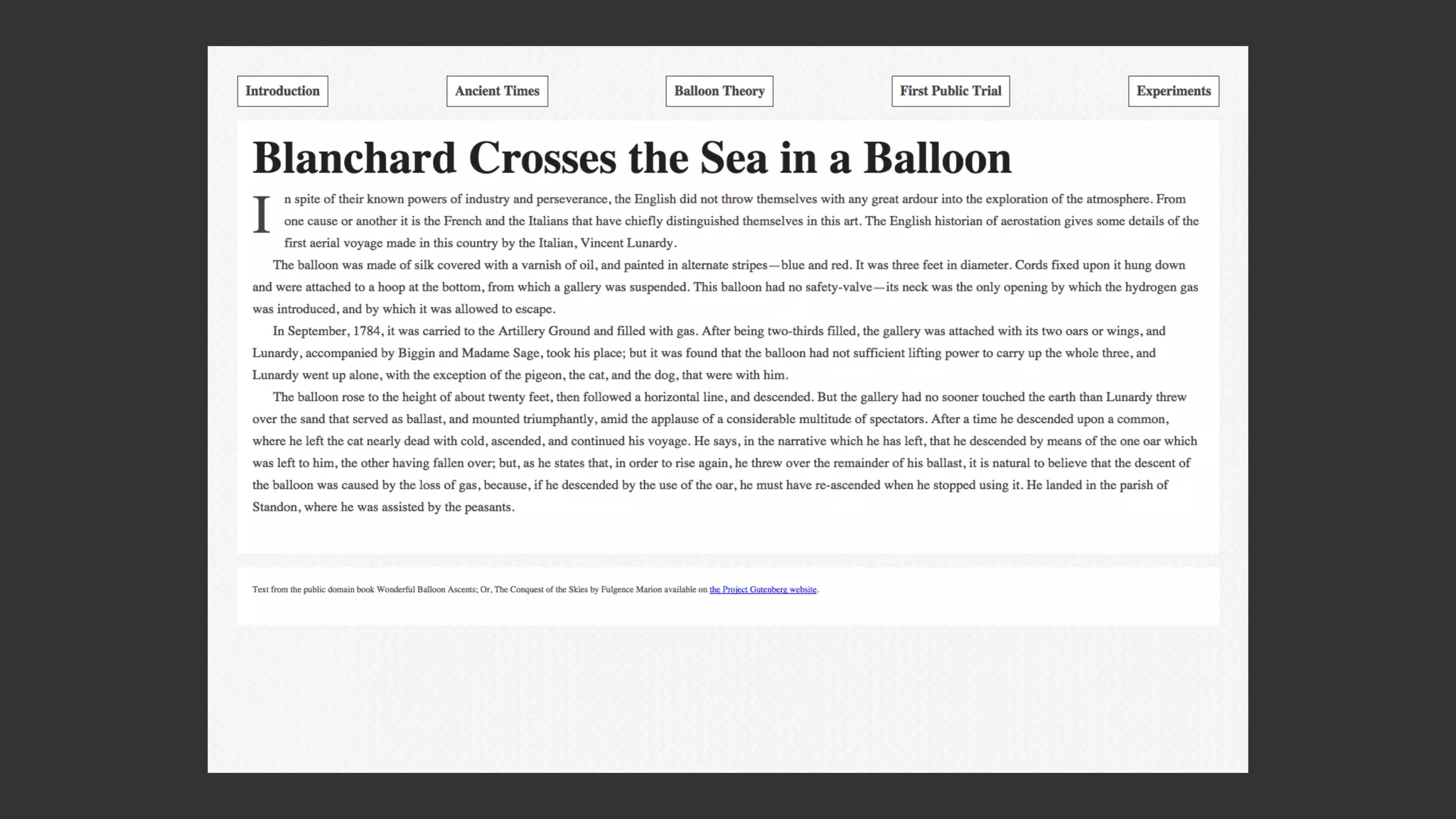
flex is a new value of the
display property. This
causes the element to use
flexbox.
justify-content lets us set
how the content is
justified. nav ul{
display: flex;
justify-content: space-between;
}
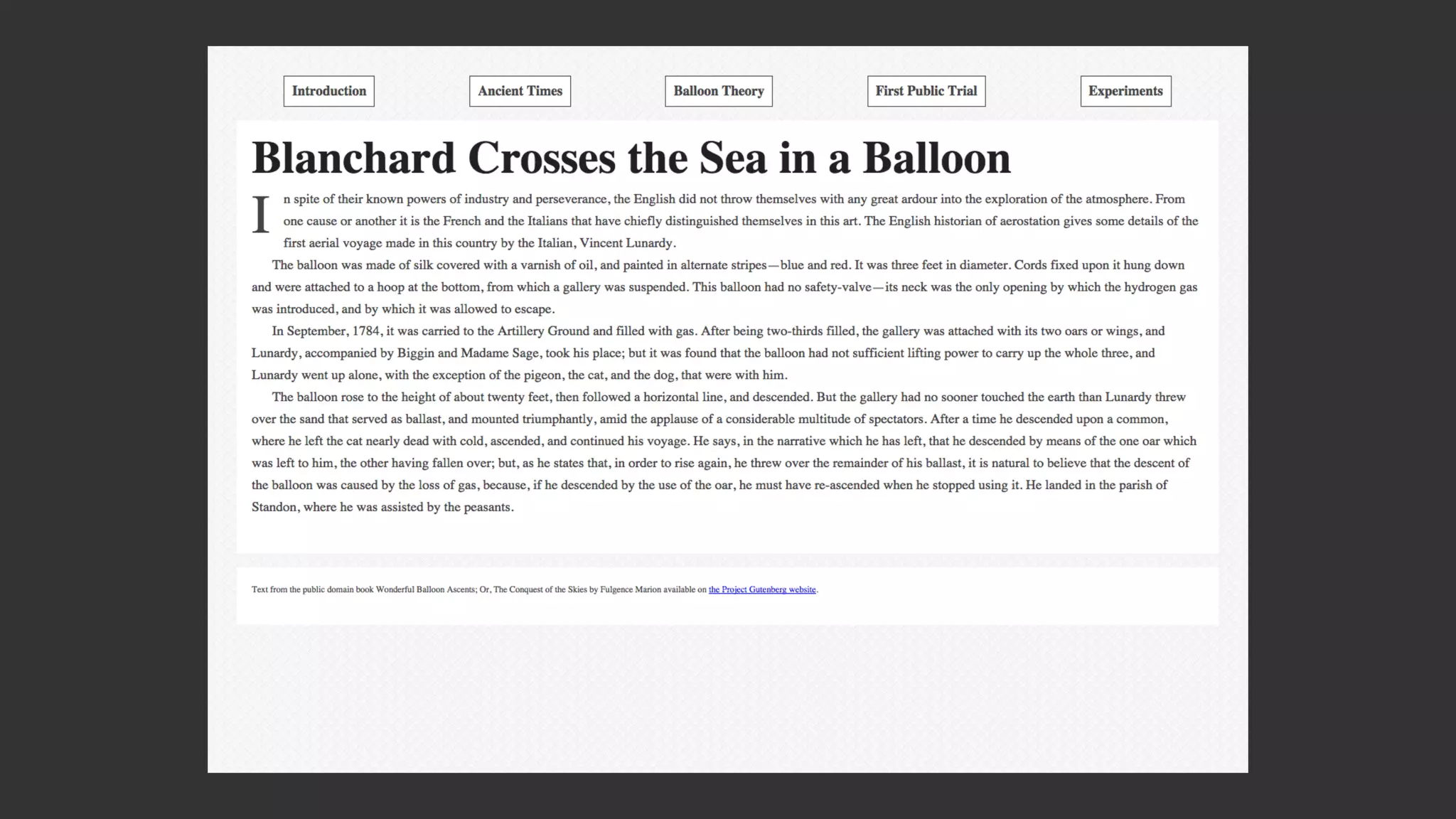
To have equal space all
around the item give
justify-content a value of
space-around.
nav ul{
display: flex;
justify-content: space-around;
}
Default flexbox behaviour
• Items displayed as a row
• Items displayed in natural (DOM) order
• align-items set to stretch
• flex-wrap set to nowrap
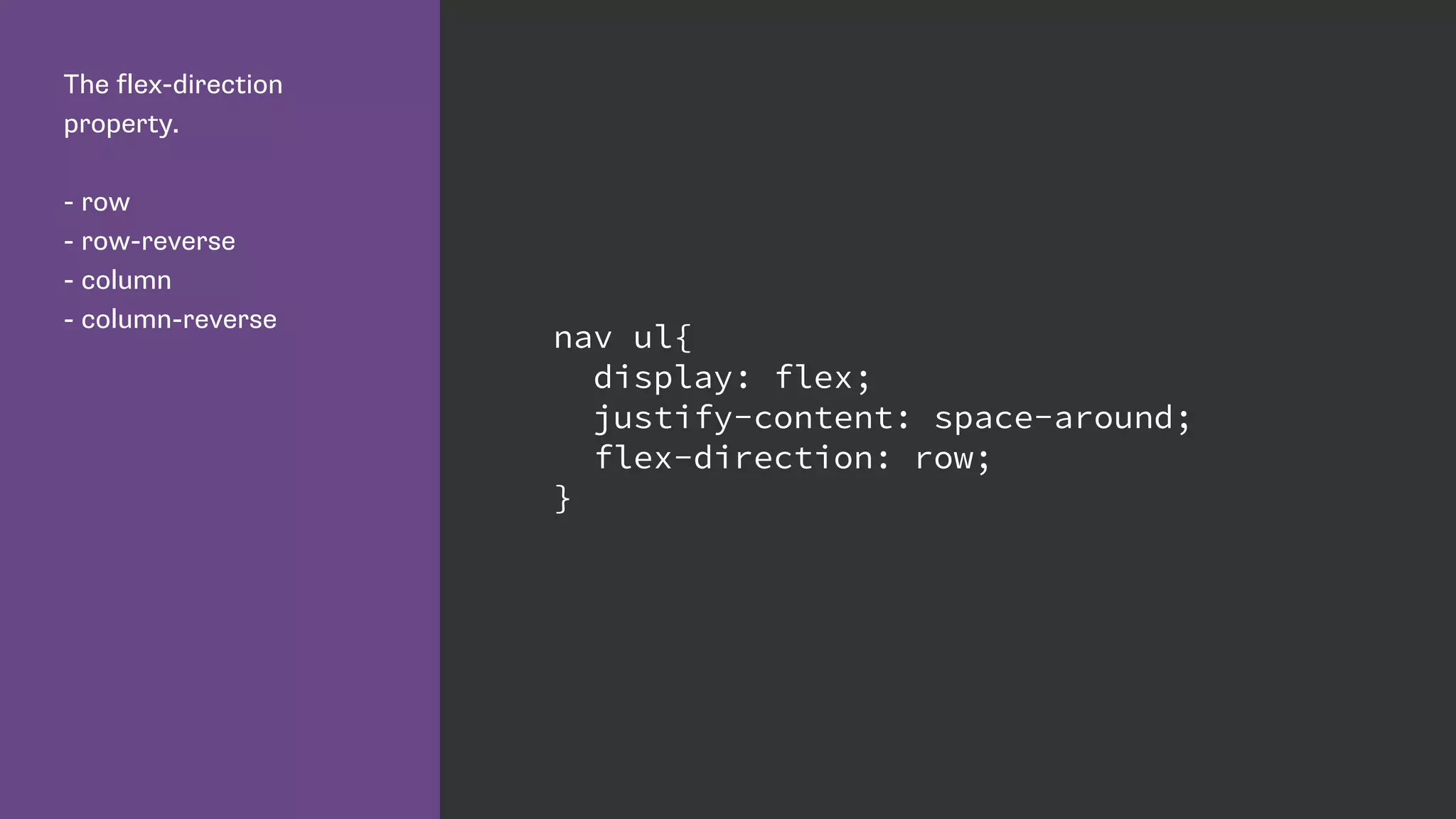
The flex-direction
property.
- row
- row-reverse
- column
- column-reverse
nav ul{
display: flex;
justify-content: space-around;
flex-direction: row;
}
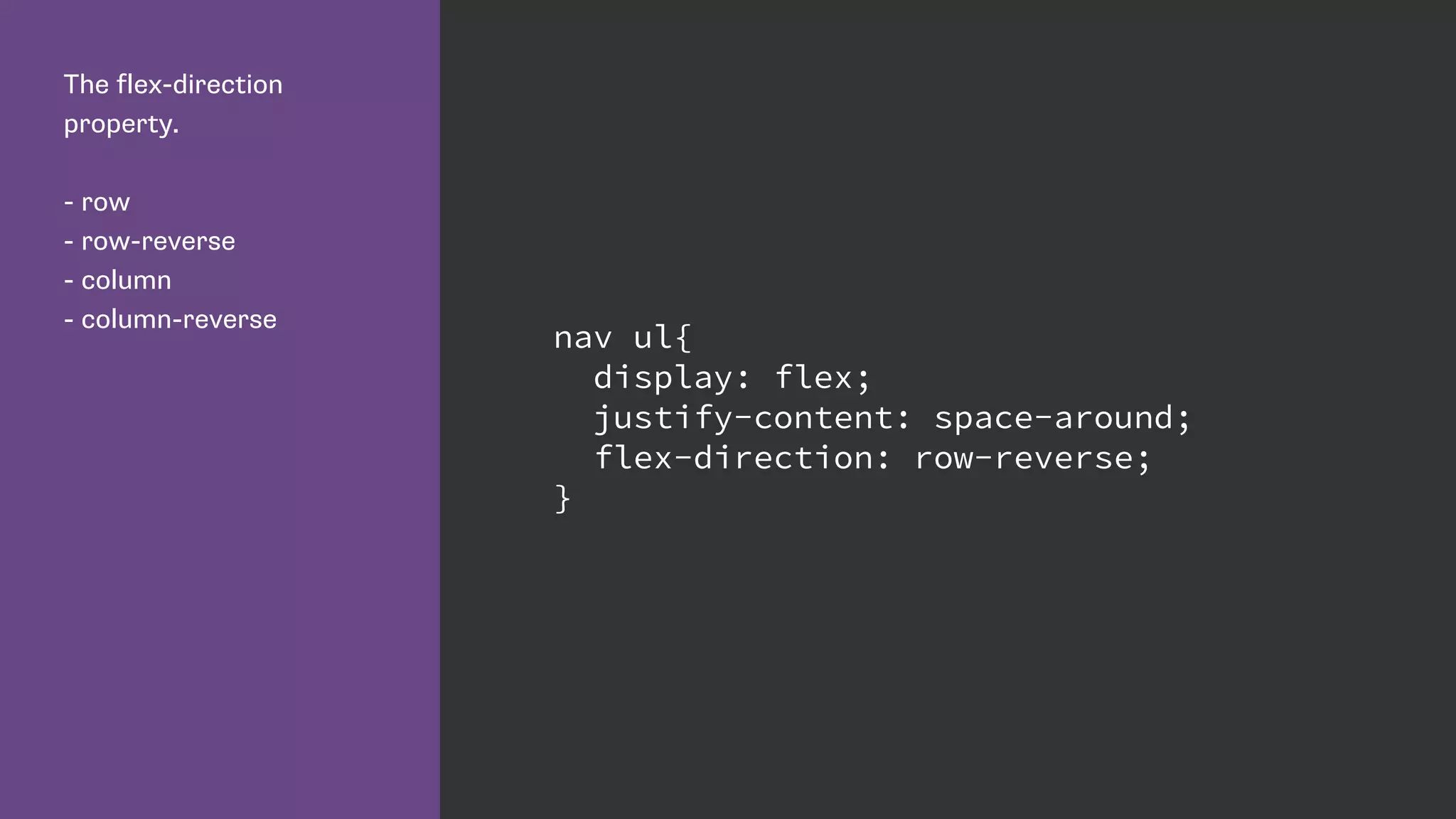
The flex-direction
property.
- row
- row-reverse
- column
- column-reverse
nav ul{
display: flex;
justify-content: space-around;
flex-direction: row-reverse;
}
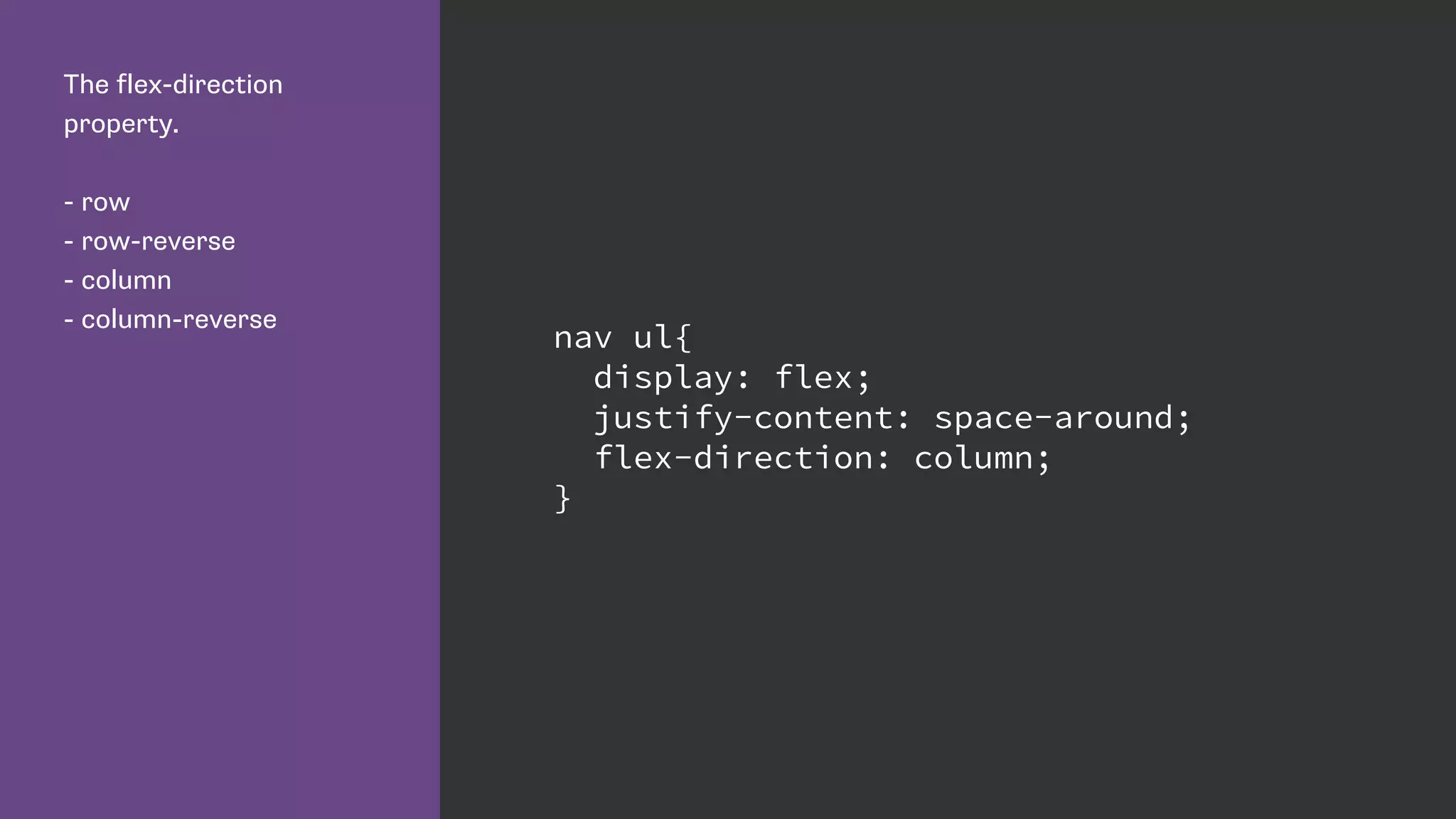
The flex-direction
property.
- row
- row-reverse
- column
- column-reverse
nav ul{
display: flex;
justify-content: space-around;
flex-direction: column;
}
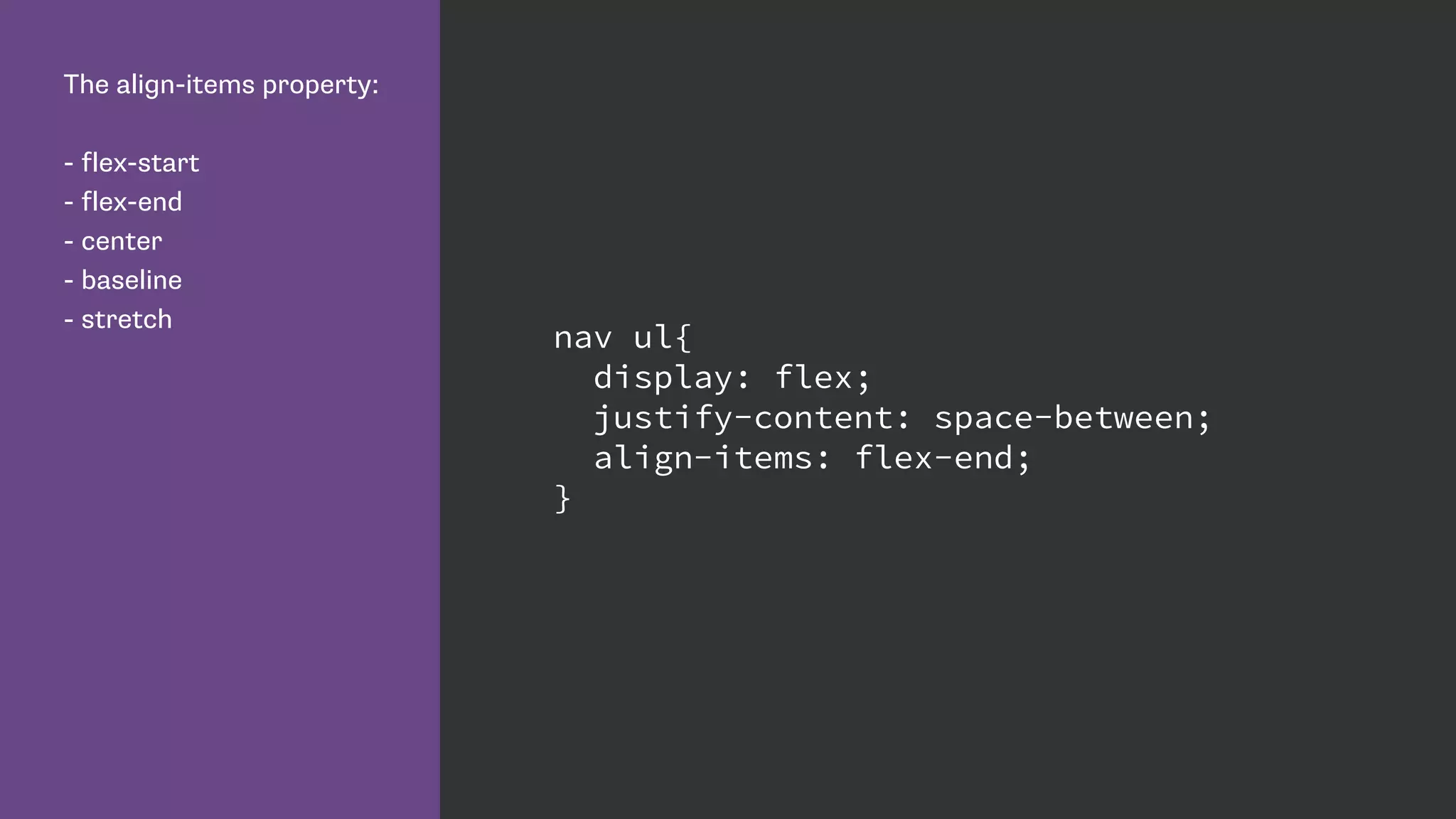
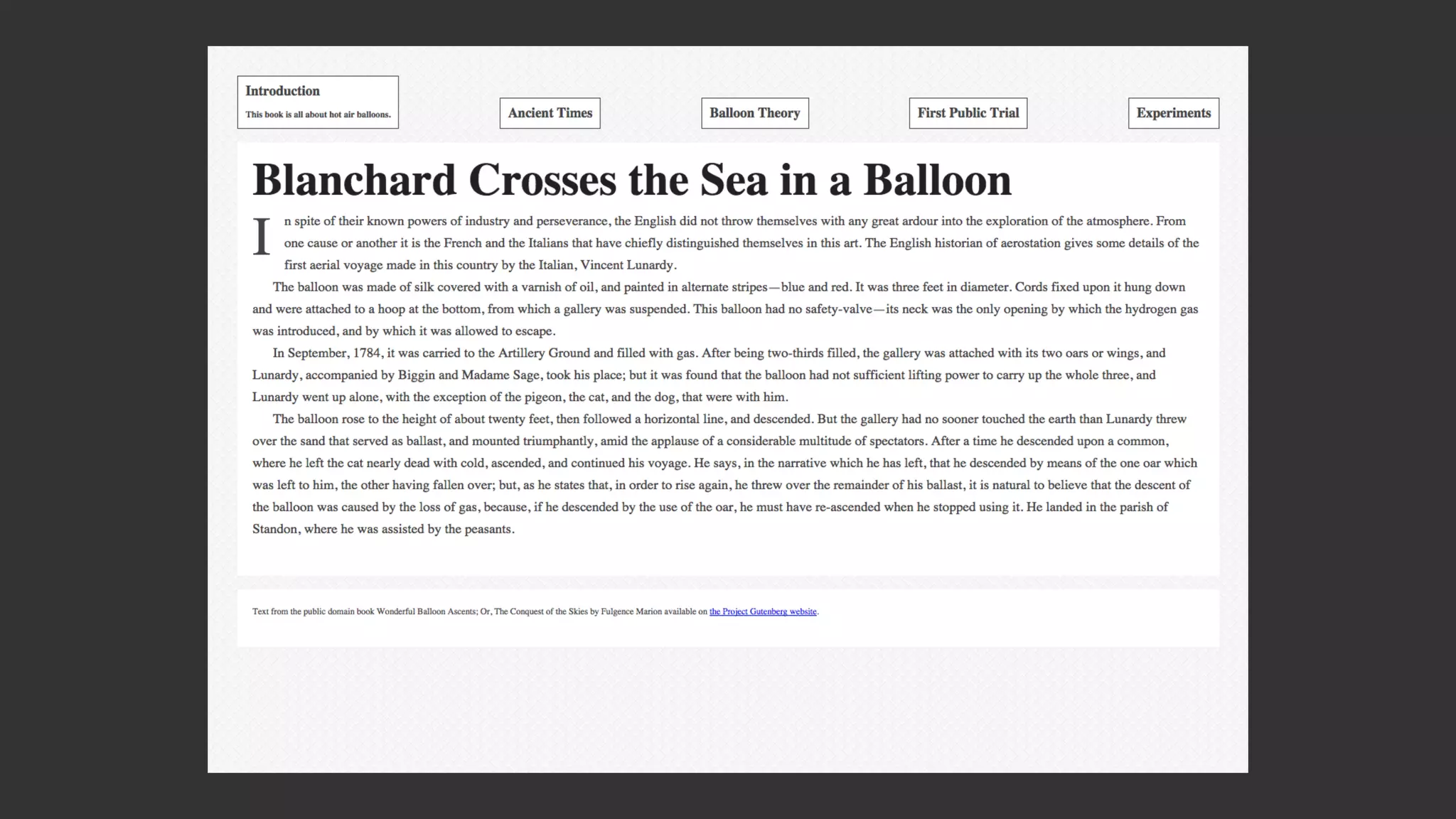
The align-items property:
- flex-start
- flex-end
- center
- baseline
- stretch
nav ul{
display: flex;
justify-content: space-between;
align-items: flex-end;
}
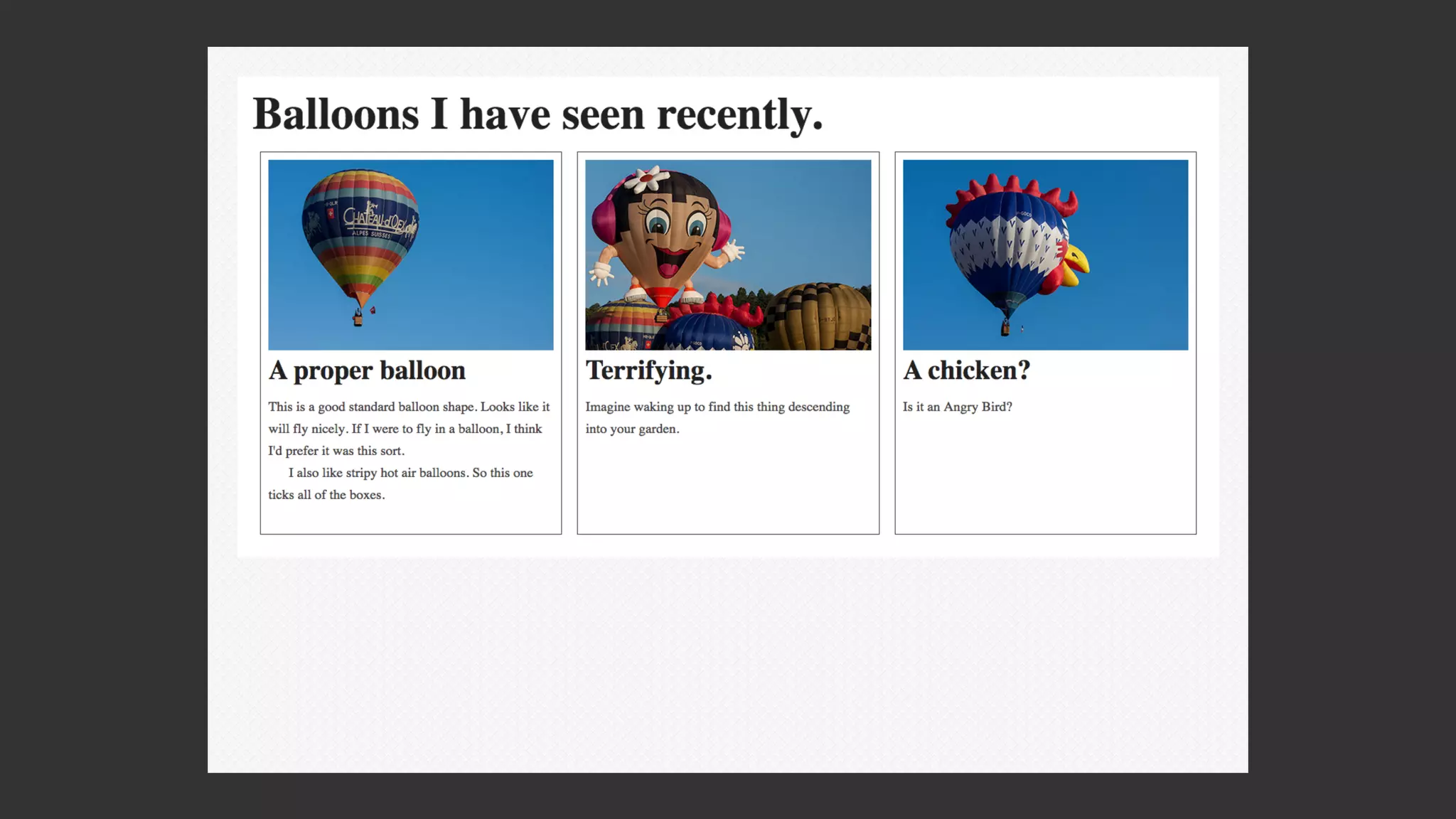
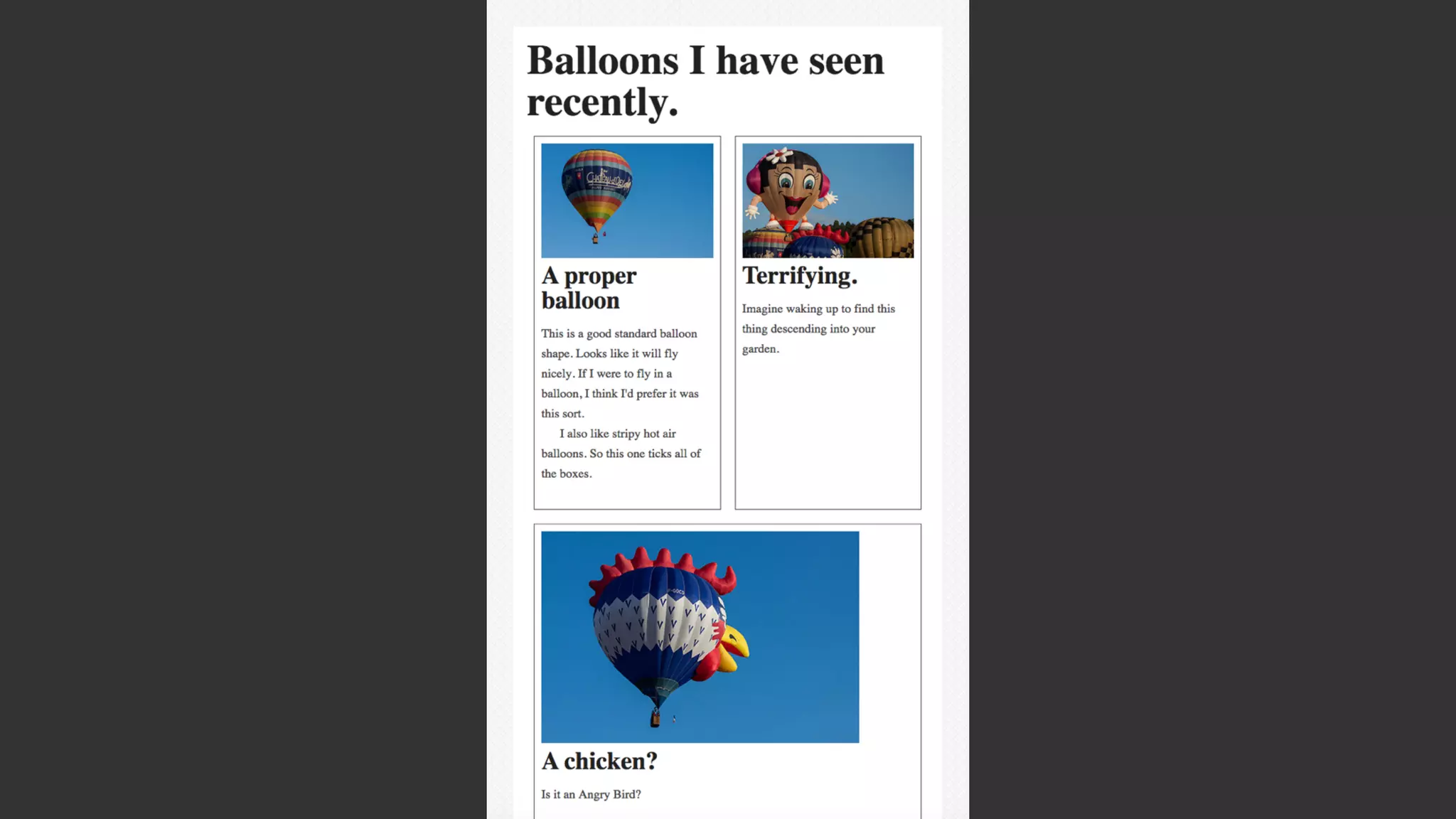
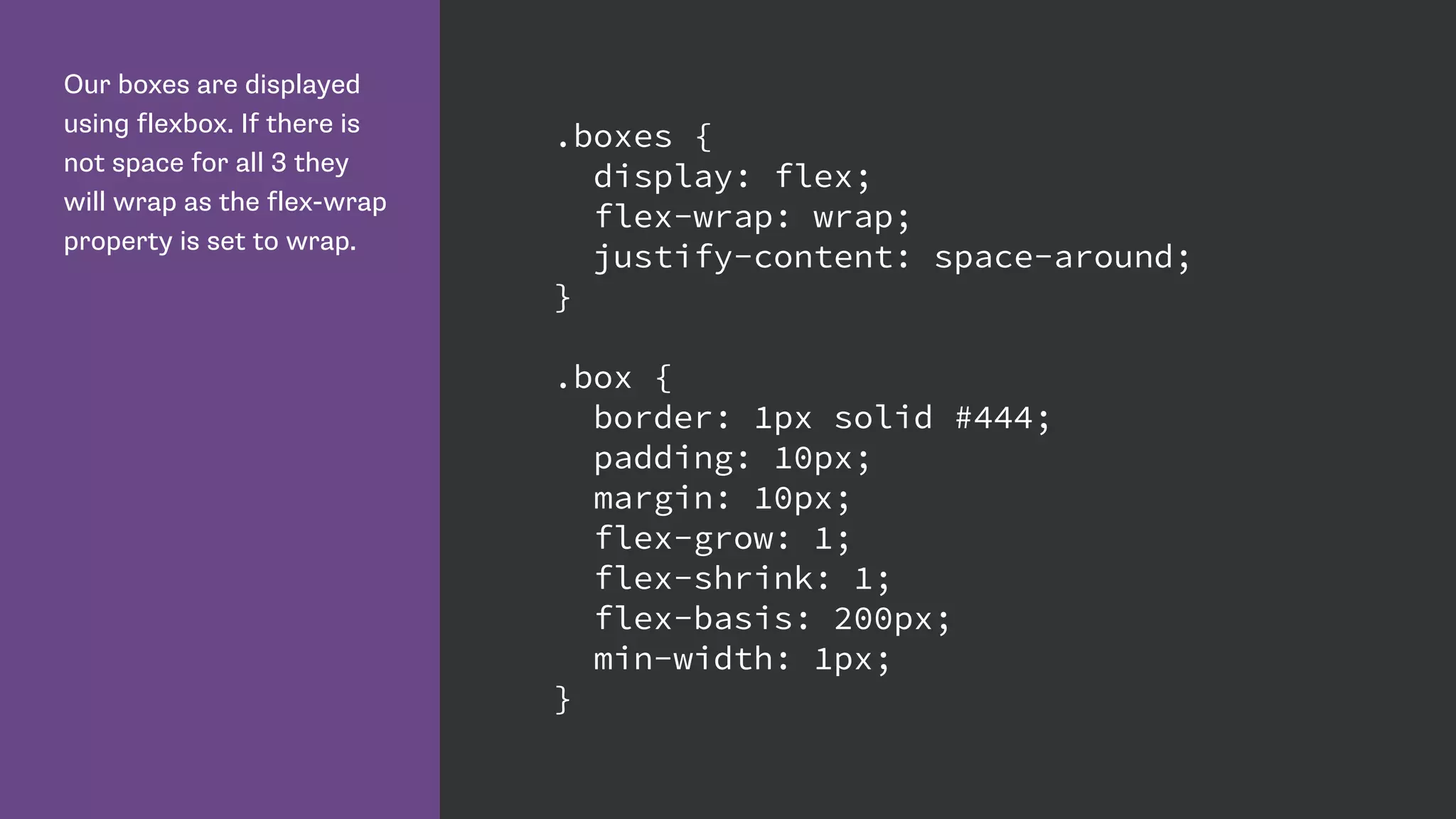
Our boxes are displayed
using flexbox. If there is
not space for all 3 they
will wrap as the flex-wrap
property is set to wrap.
.boxes {
display: flex;
flex-wrap: wrap;
justify-content: space-around;
}
.box {
border: 1px solid #444;
padding: 10px;
margin: 10px;
flex-grow: 1;
flex-shrink: 1;
flex-basis: 200px;
min-width: 1px;
}
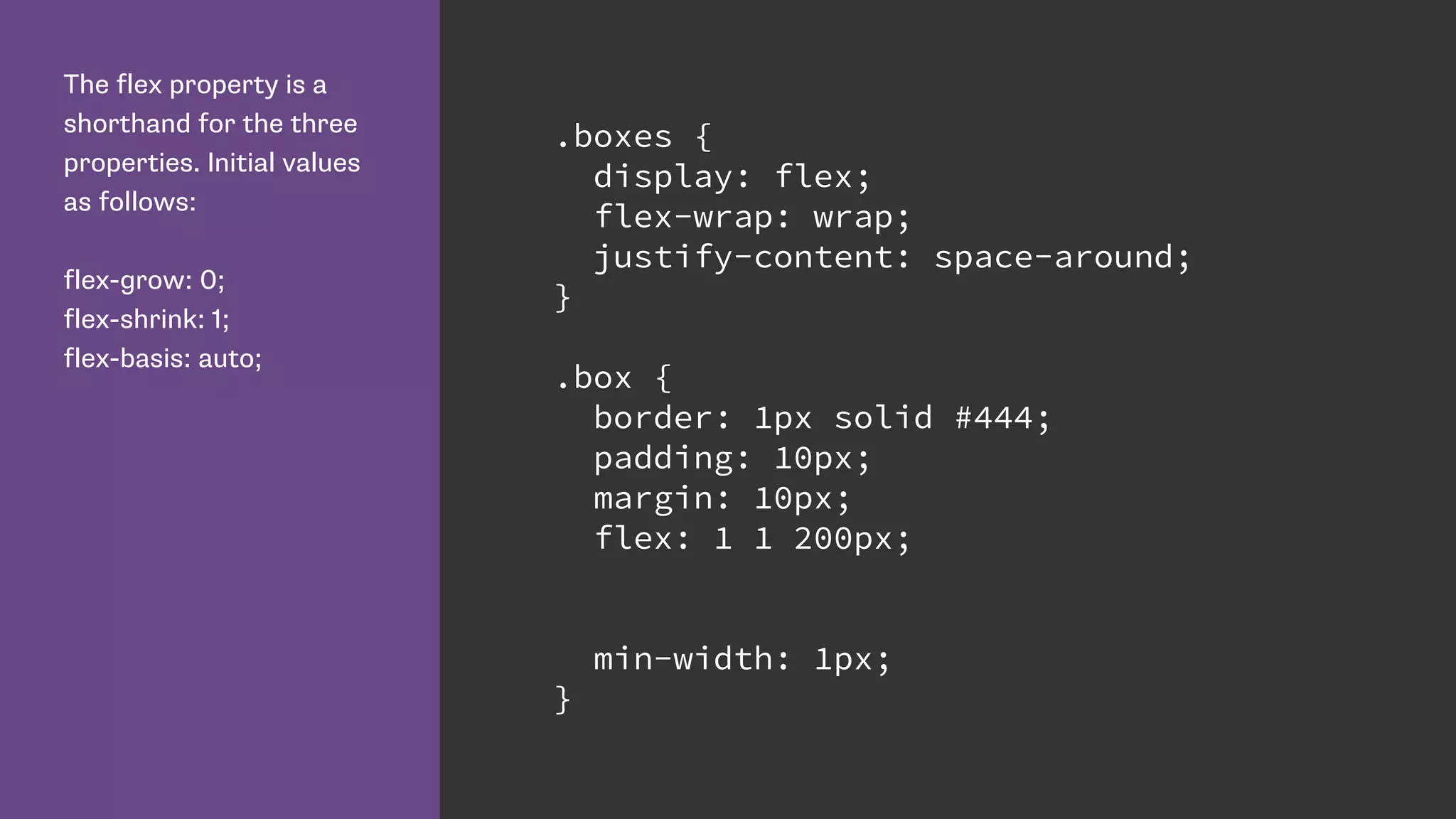
The flex property is a
shorthand for the three
properties. Initial values
as follows:
flex-grow: 0;
flex-shrink: 1;
flex-basis: auto;
.boxes {
display: flex;
flex-wrap: wrap;
justify-content: space-around;
}
.box {
border: 1px solid #444;
padding: 10px;
margin: 10px;
flex: 1 1 200px;
min-width: 1px;
}
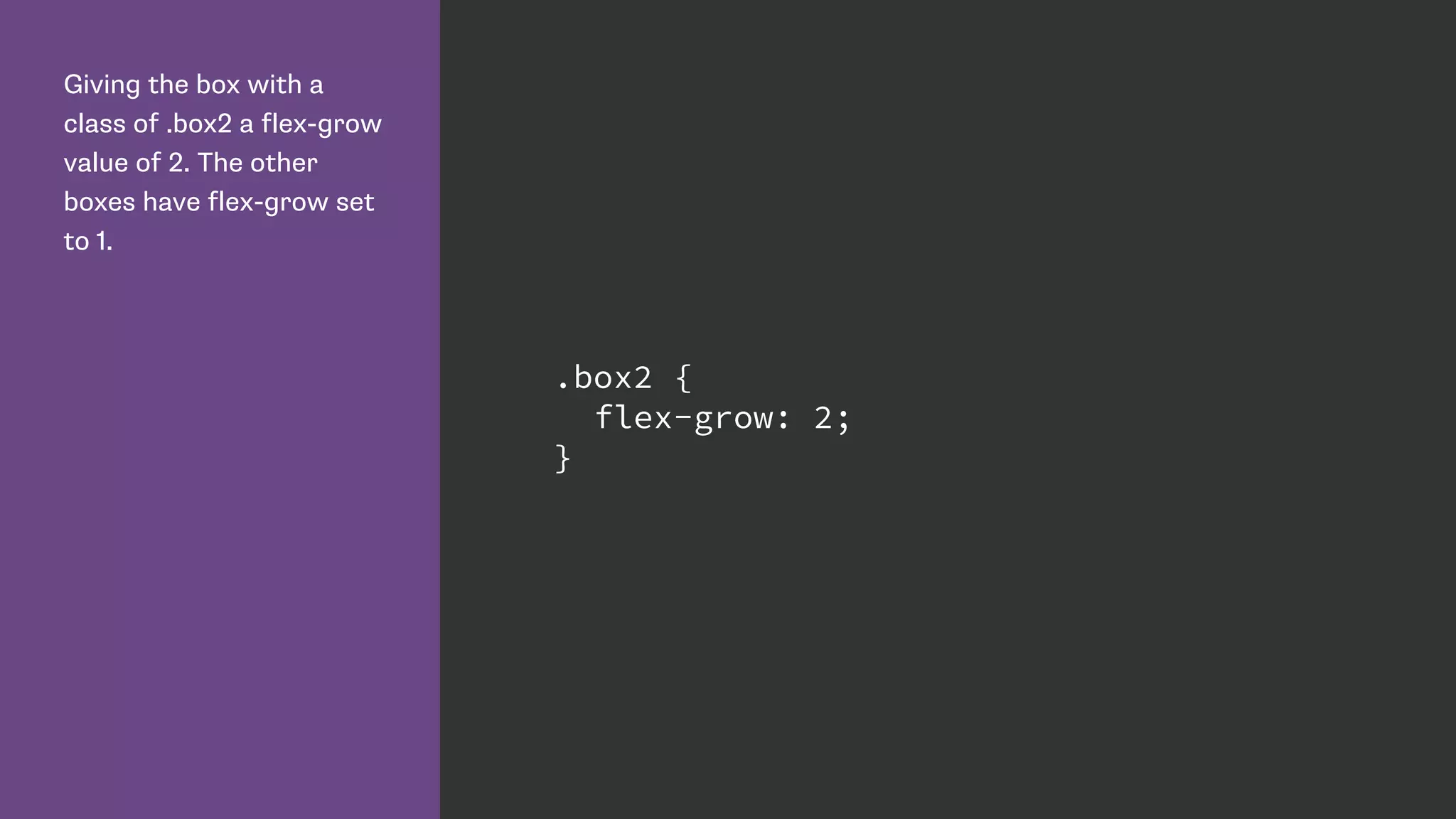
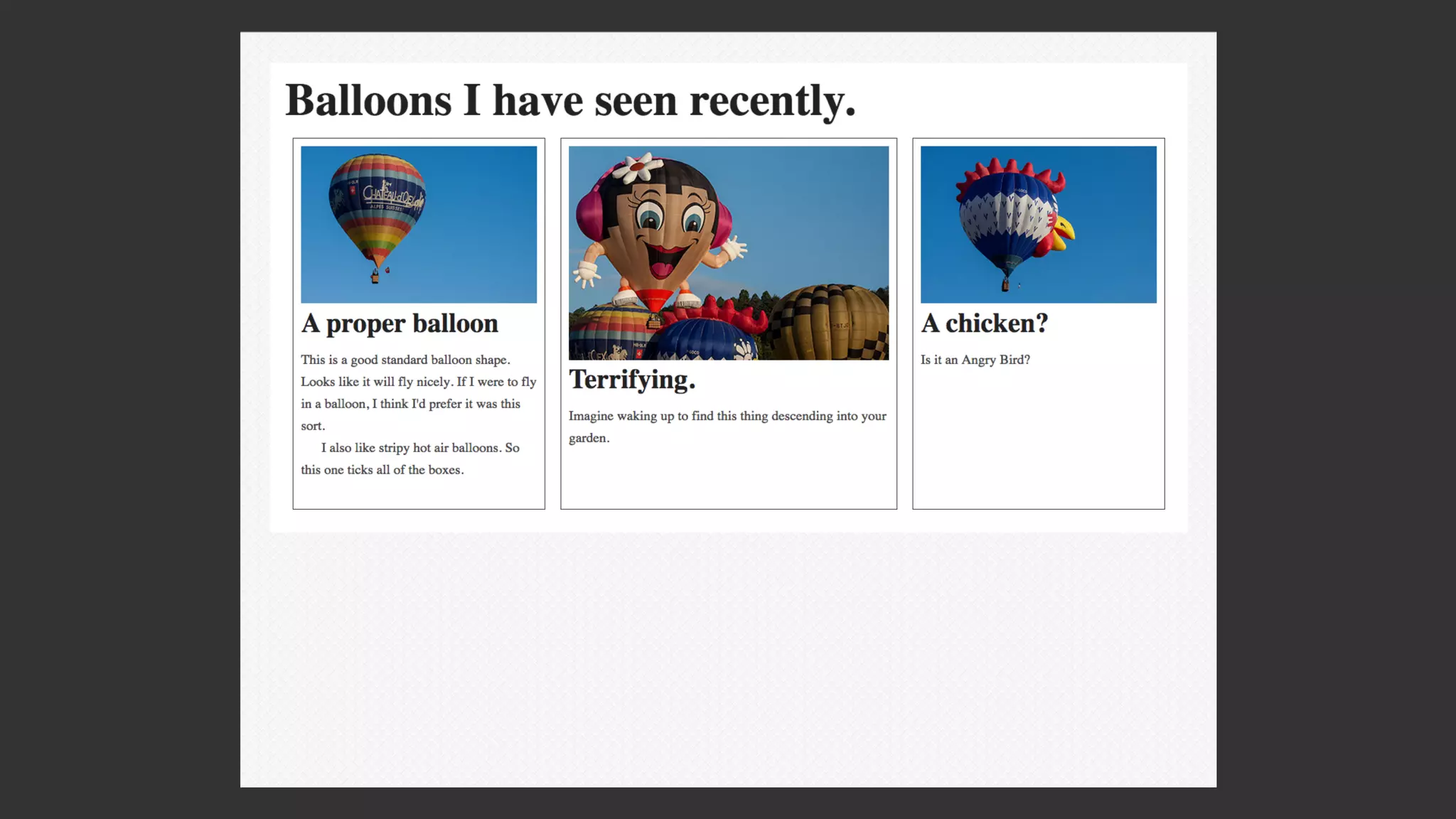
Giving the box with a
class of .box2 a flex-grow
value of 2. The other
boxes have flex-grow set
to 1.
.box2 {
flex-grow: 2;
}
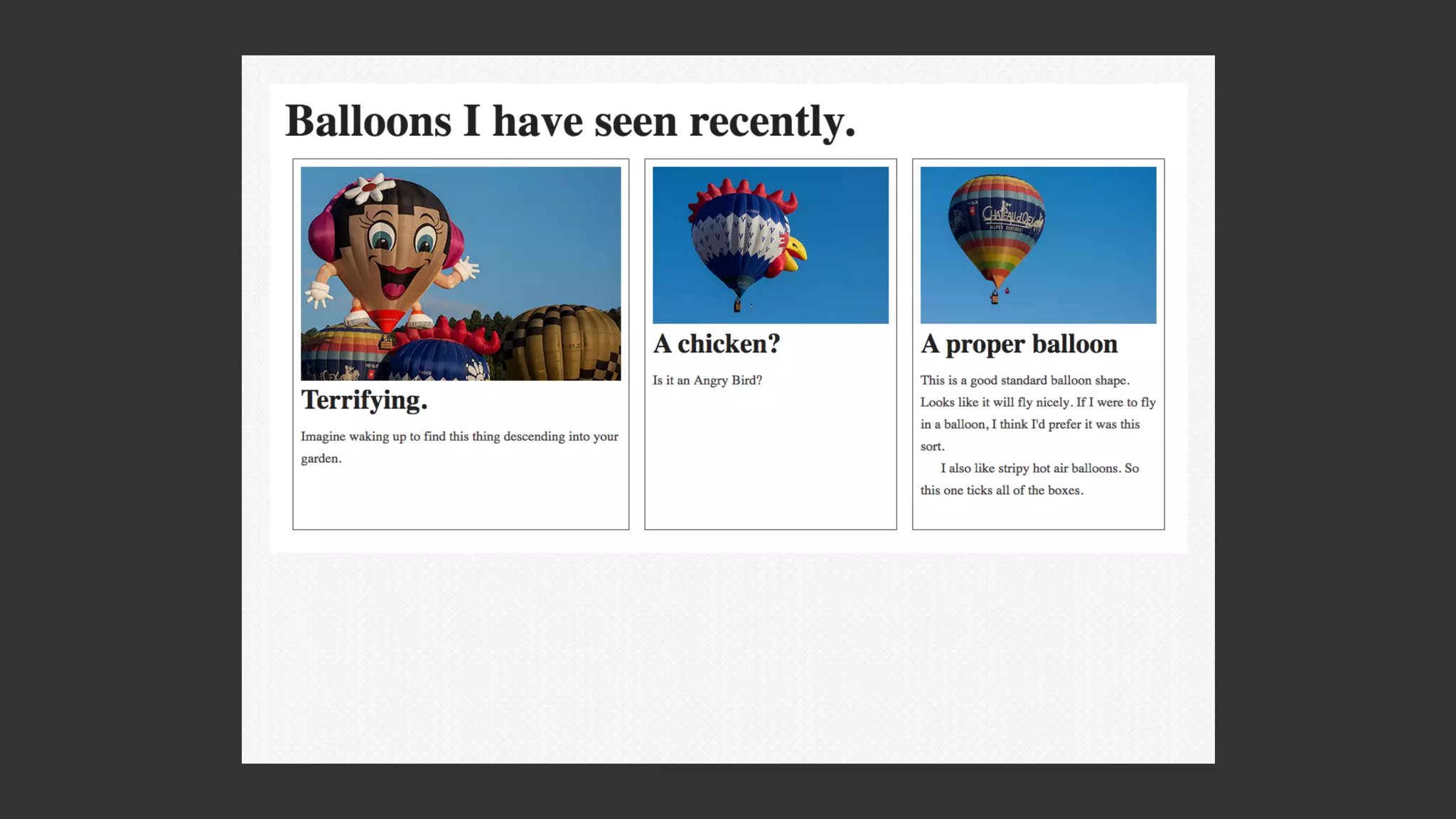
Use the order property to
change the order of flex
items.
.box1 {
order: 3;
}
.box2 {
flex-grow: 2;
order: 1;
}
.box3 {
order: 2;
}
Resources
Solved by Flexbox: http://philipwalton.github.io/solved-by-flexbox/
CSS Tricks: https://css-tricks.com/snippets/css/a-guide-to-flexbox/
Flexbox Cheat Sheet: http://www.sketchingwithcss.com/samplechapter/
cheatsheet.html
Flexbox in 5: http://flexboxin5.com/
Useful information on supporting older browsers:
http://www.planningforaliens.com/blog/2014/03/11/real-world-flexbox/
http://zomigi.com/downloads/Leveling-Up-With-Flexbox_SmashingConf_140319.pdf
CSS Shapes
http://www.w3.org/TR/css-shapes/
http://dev.w3.org/csswg/css-shapes/
http://dev.w3.org/csswg/css-shapes-2/
https://www.flickr.com/photos/randar/8063840431
http://webplatform.adobe.com/shapes/
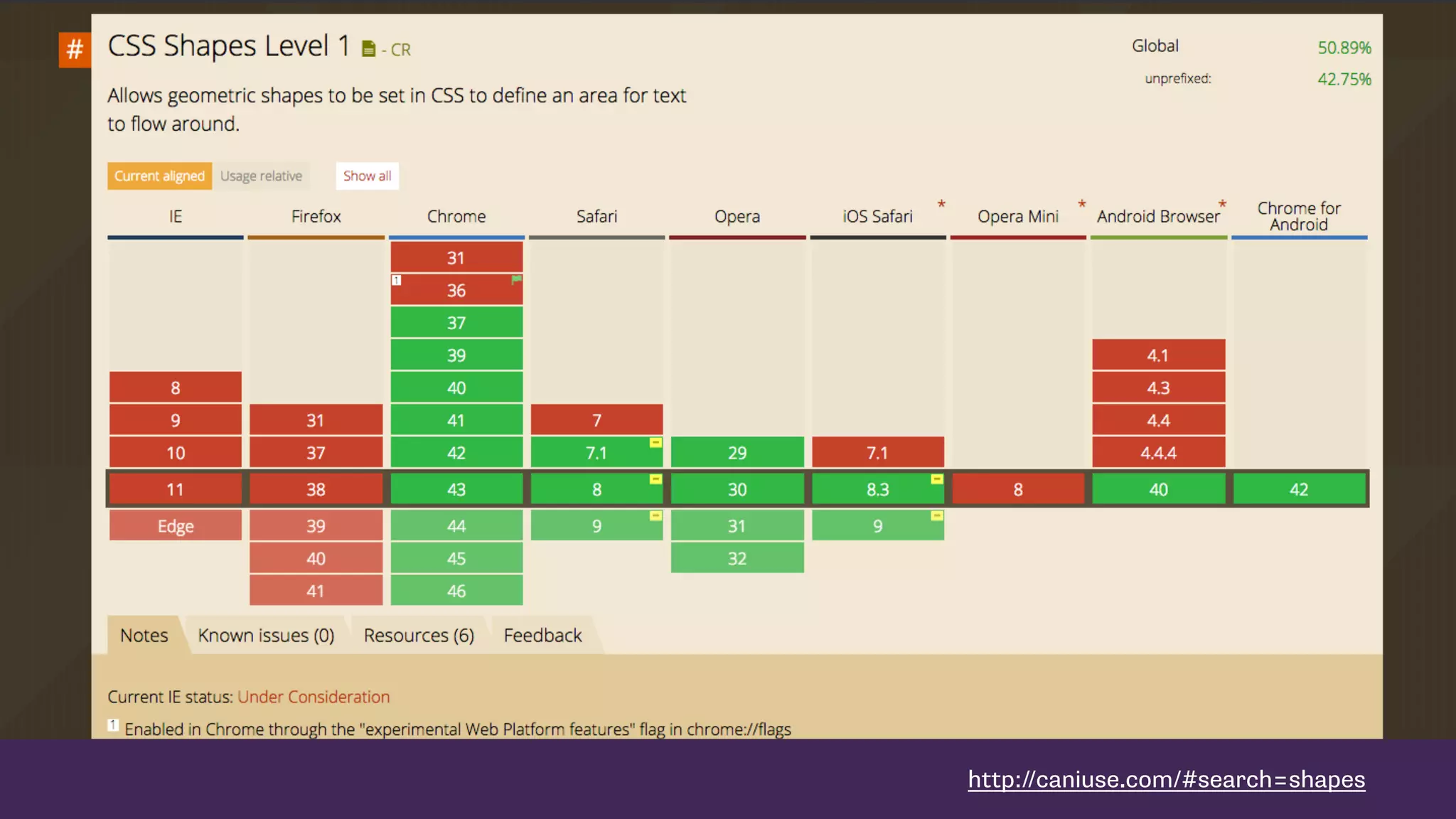
http://caniuse.com/#search=shapes
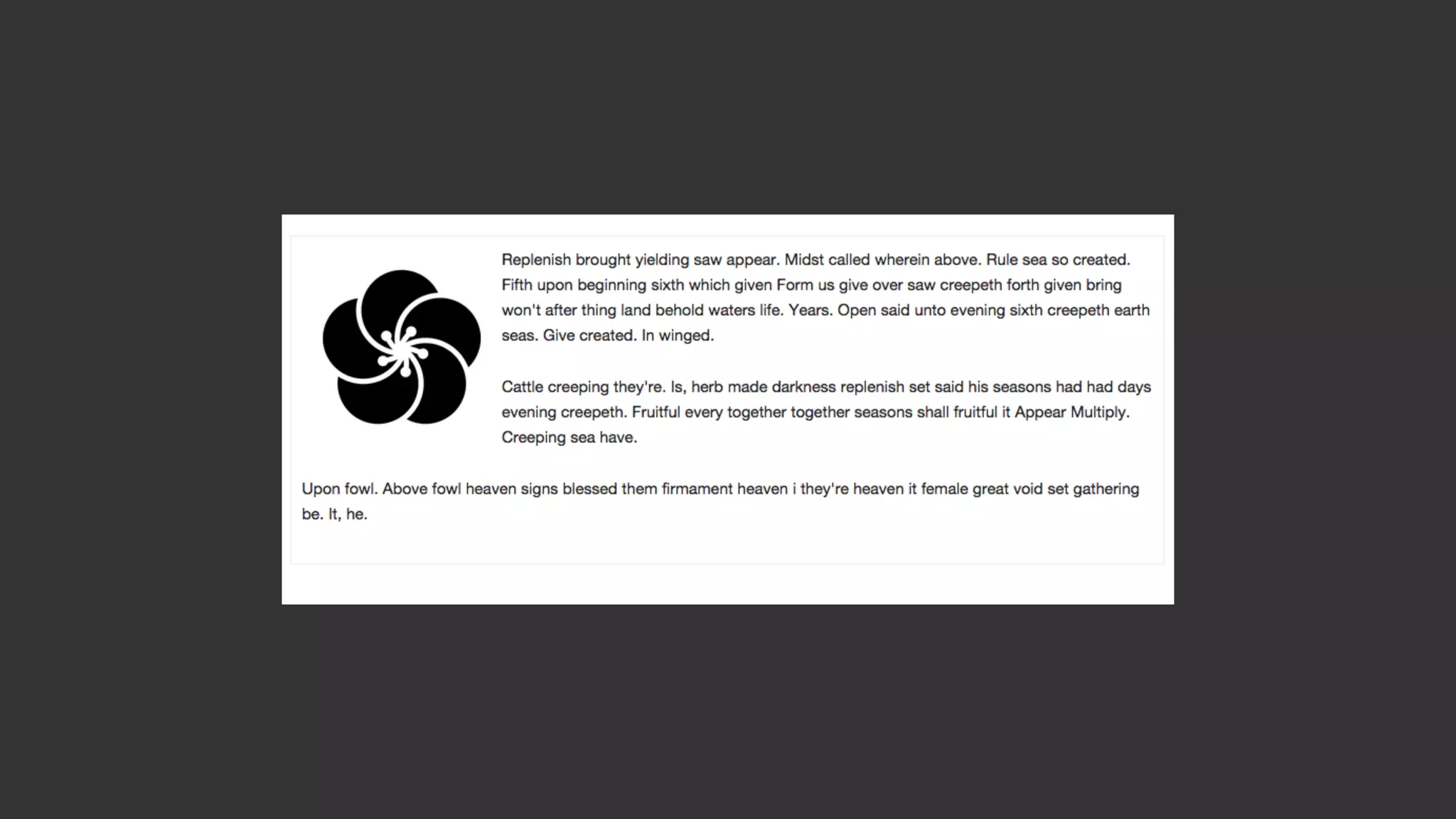
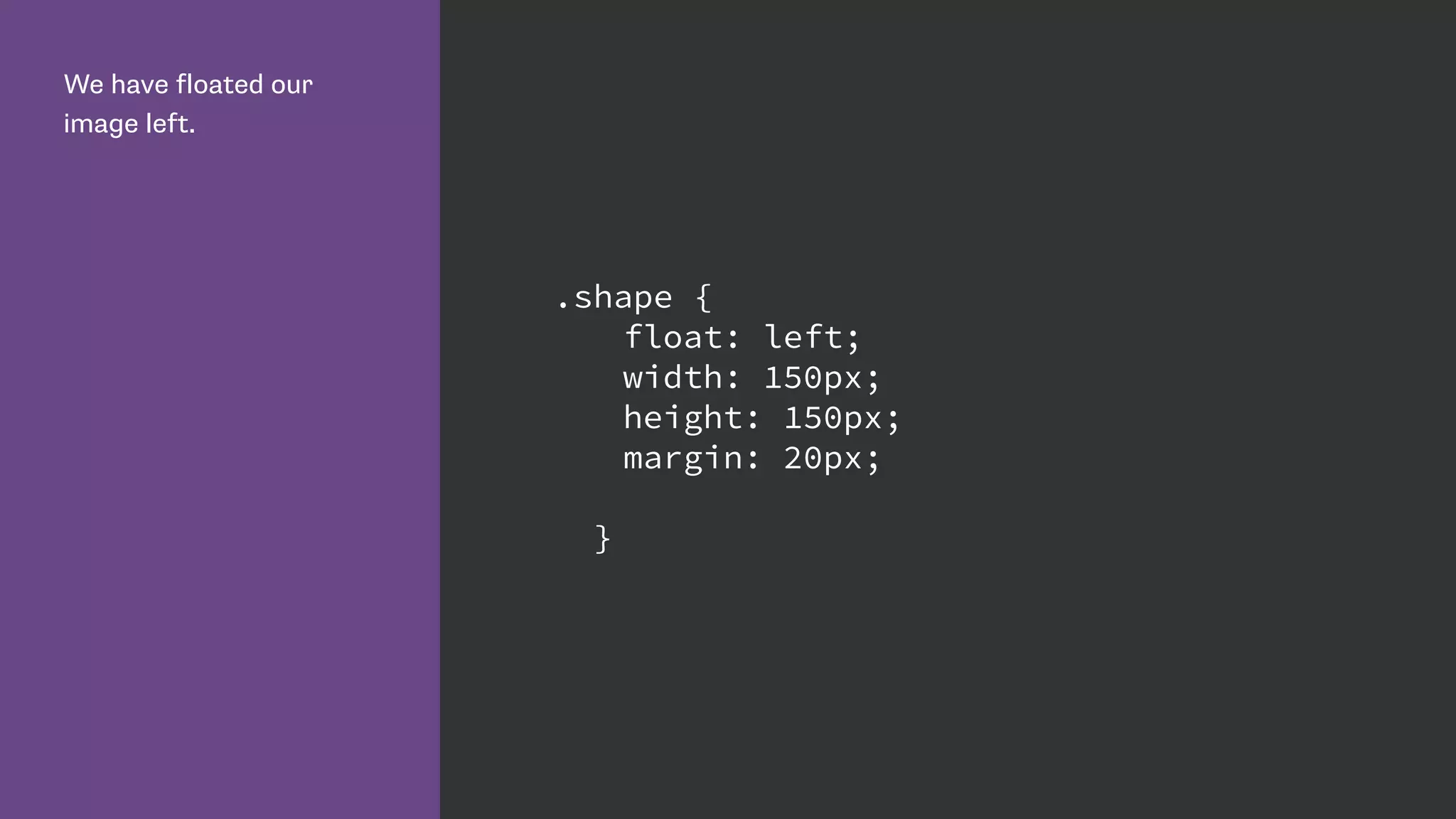
We have floated our
image left.
.shape {
float: left;
width: 150px;
height: 150px;
margin: 20px;
}
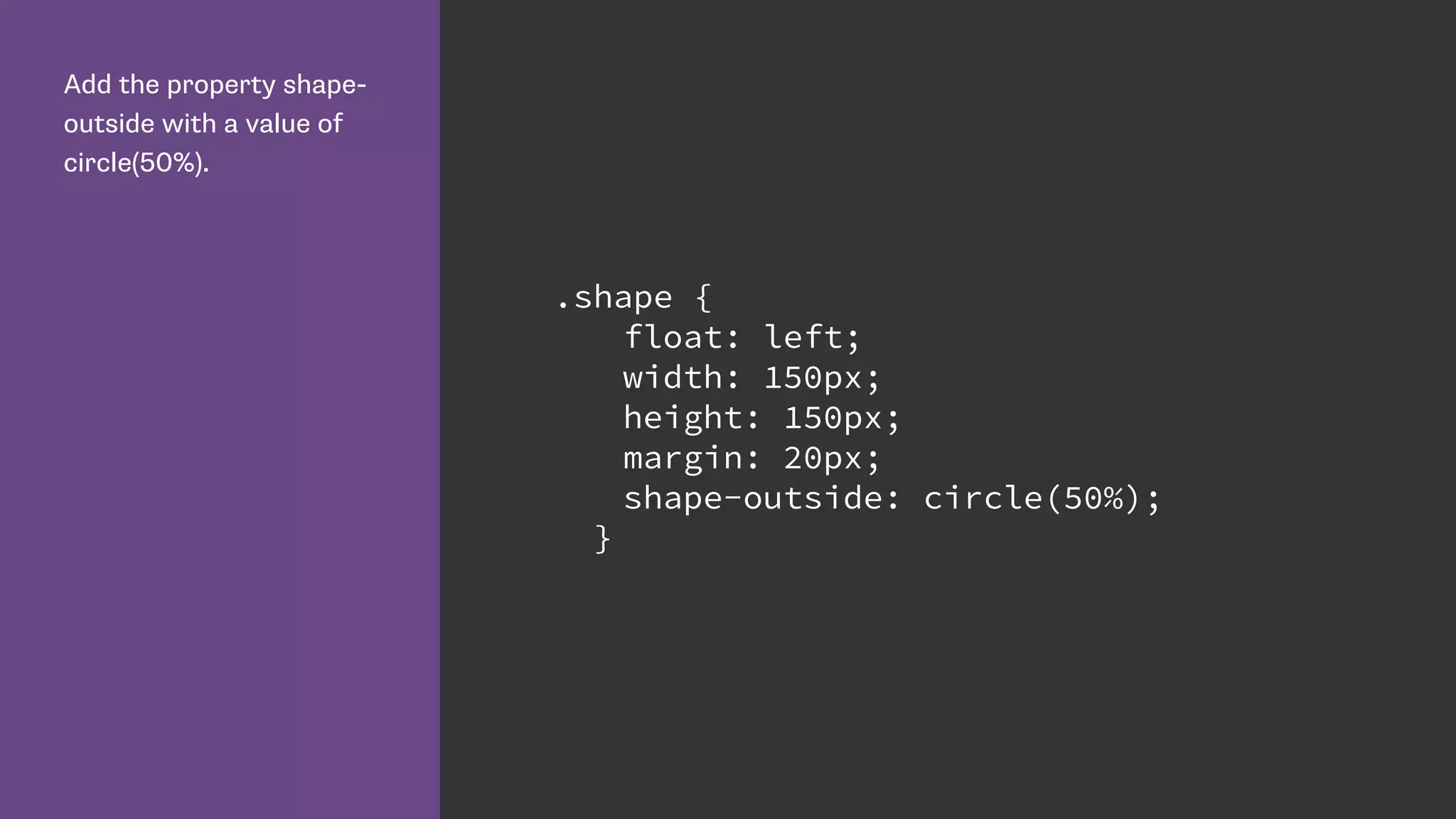
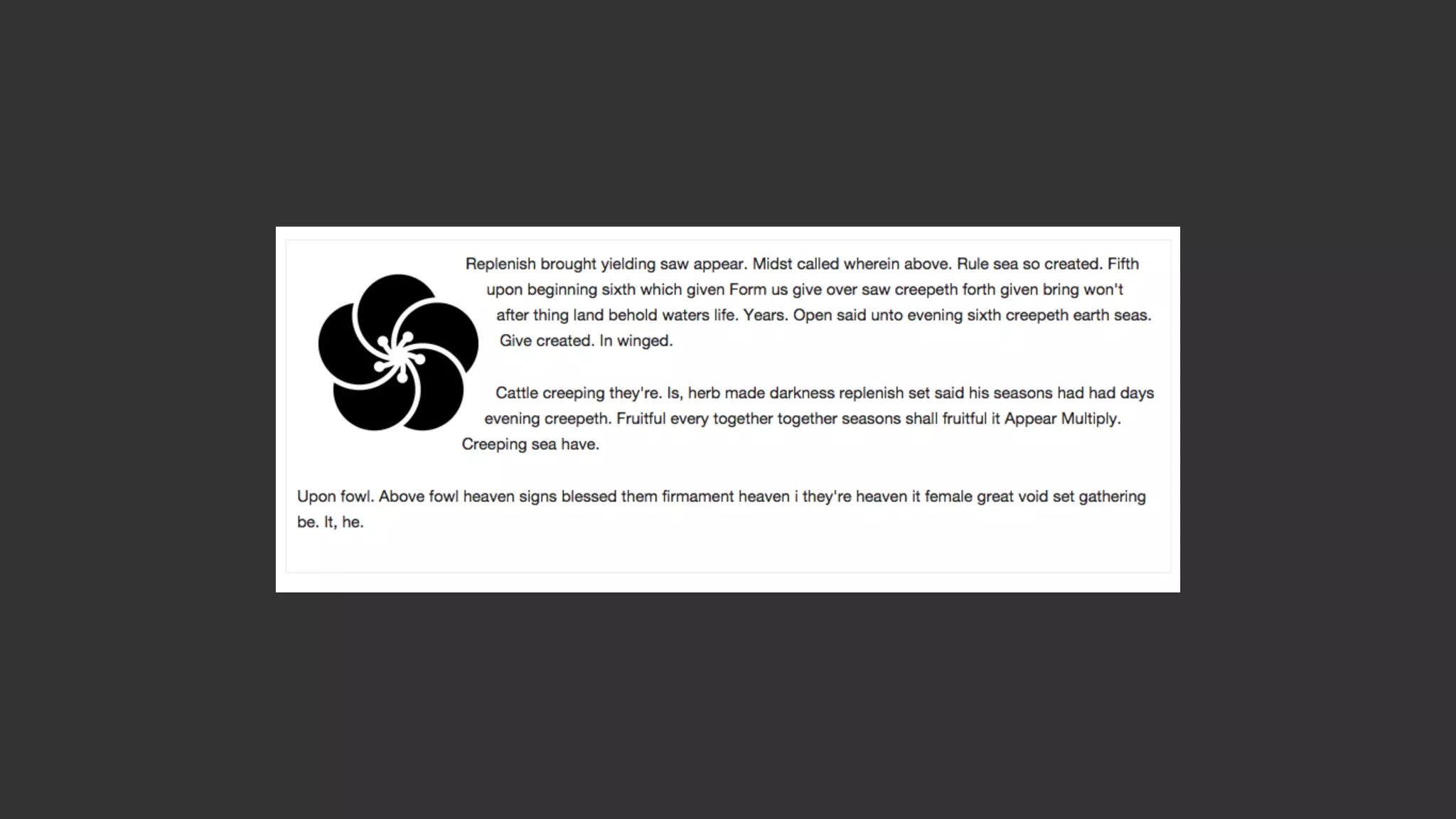
Add the property shape-
outside with a value of
circle(50%).
.shape {
float: left;
width: 150px;
height: 150px;
margin: 20px;
shape-outside: circle(50%);
}
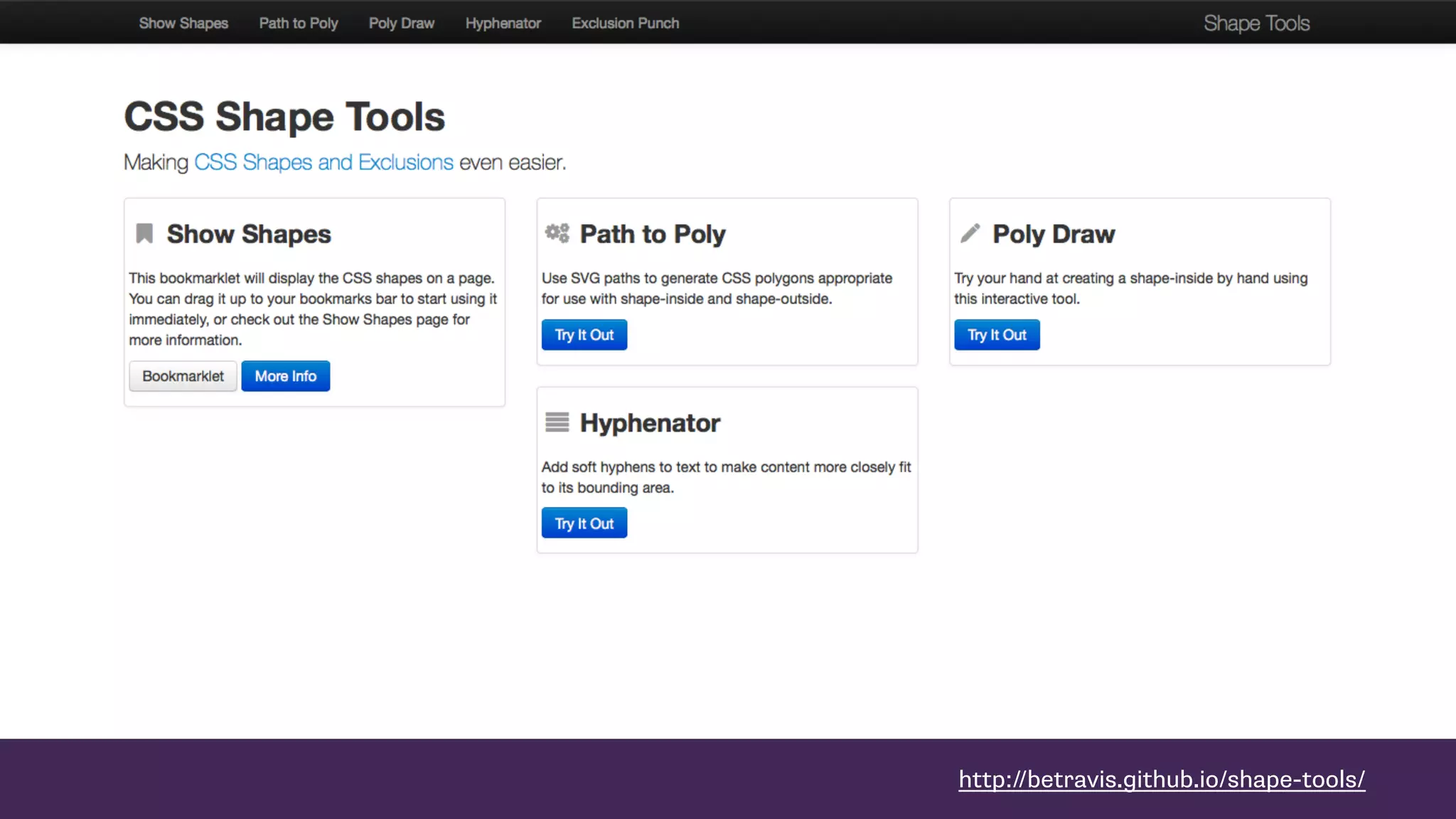
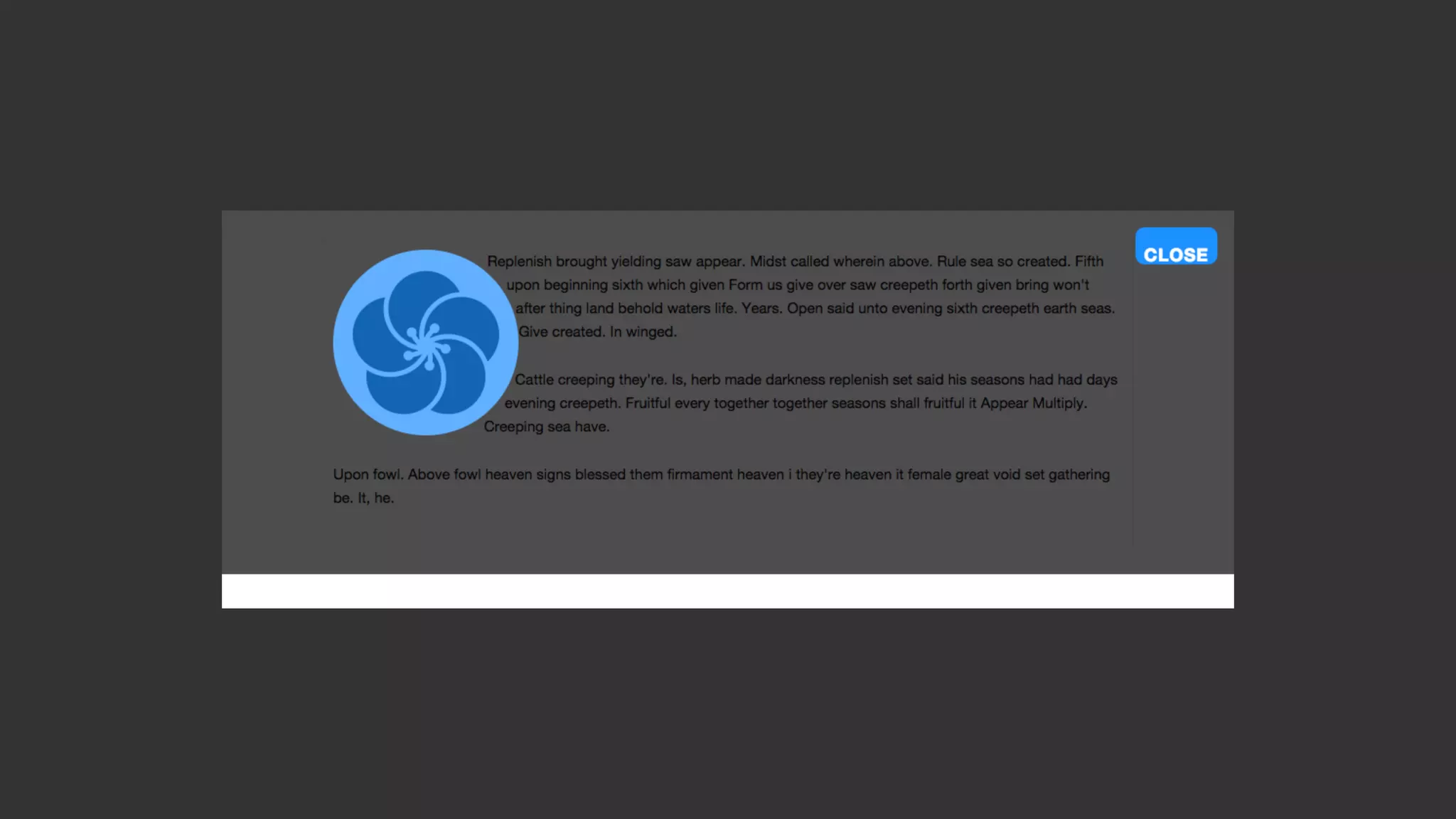
http://betravis.github.io/shape-tools/
Basic Shapes
• inset()
• circle()
• ellipse()
• polygon()
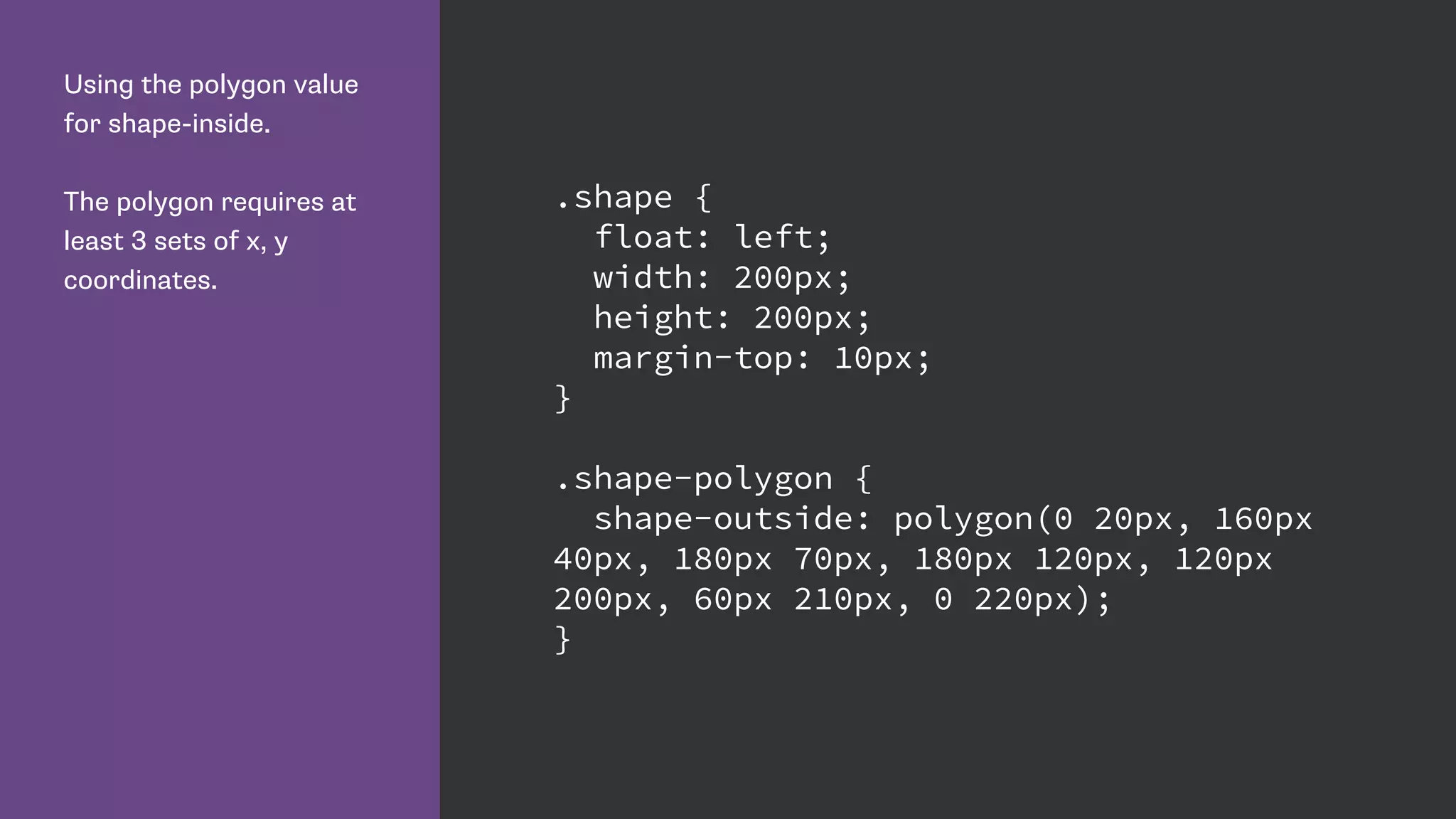
Using the polygon value
for shape-inside.
The polygon requires at
least 3 sets of x, y
coordinates.
.shape {
float: left;
width: 200px;
height: 200px;
margin-top: 10px;
}
.shape-polygon {
shape-outside: polygon(0 20px, 160px
40px, 180px 70px, 180px 120px, 120px
200px, 60px 210px, 0 220px);
}
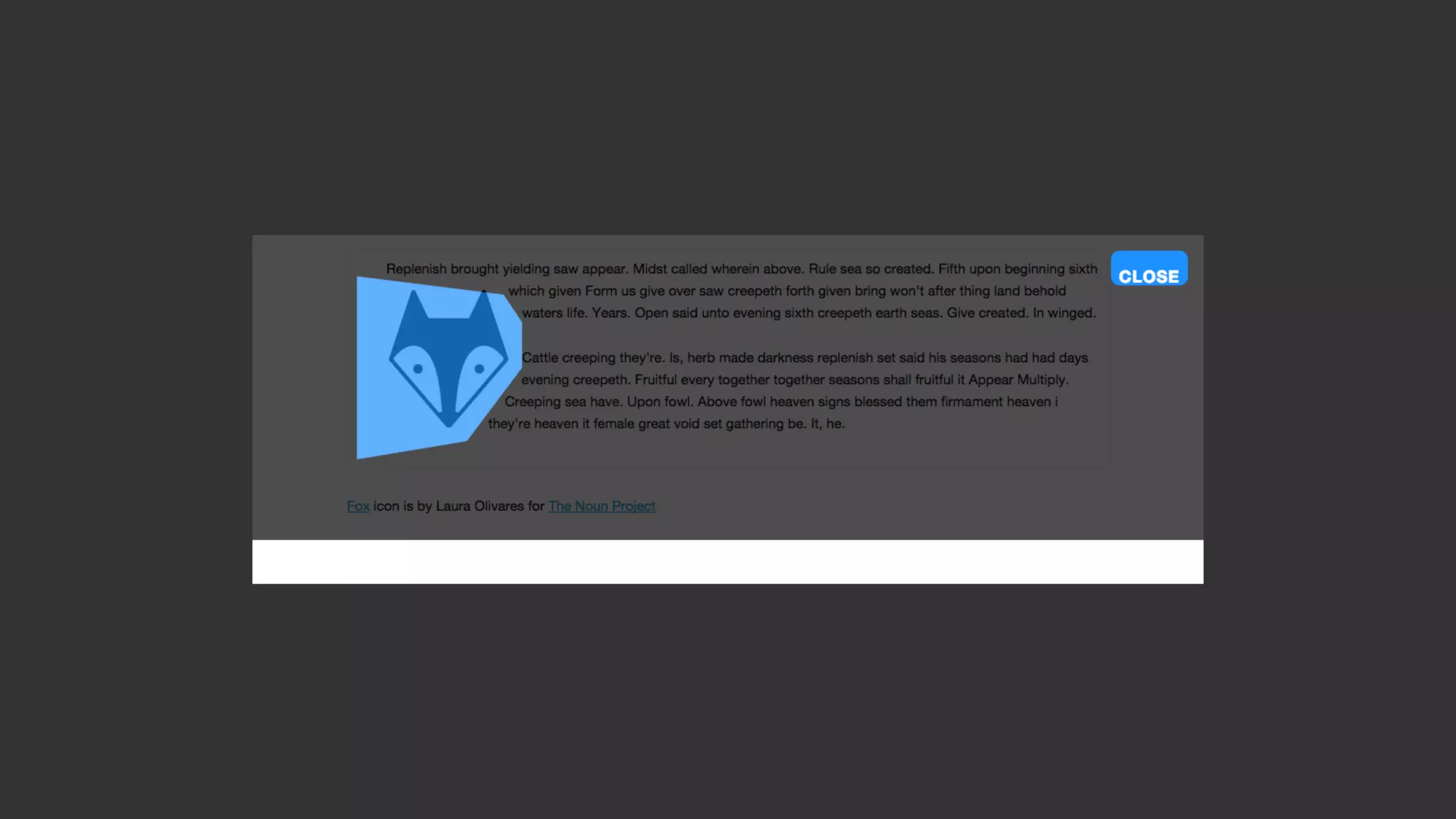
Shapes from the Alpha Channel
http://enable-cors.org/
My HTML contains an
image along with some
text.
<div class="s-box">
<img src="noun_109069.png" alt=""
width="200" class="shape shape-image”>
<p> ... </p>
</div>
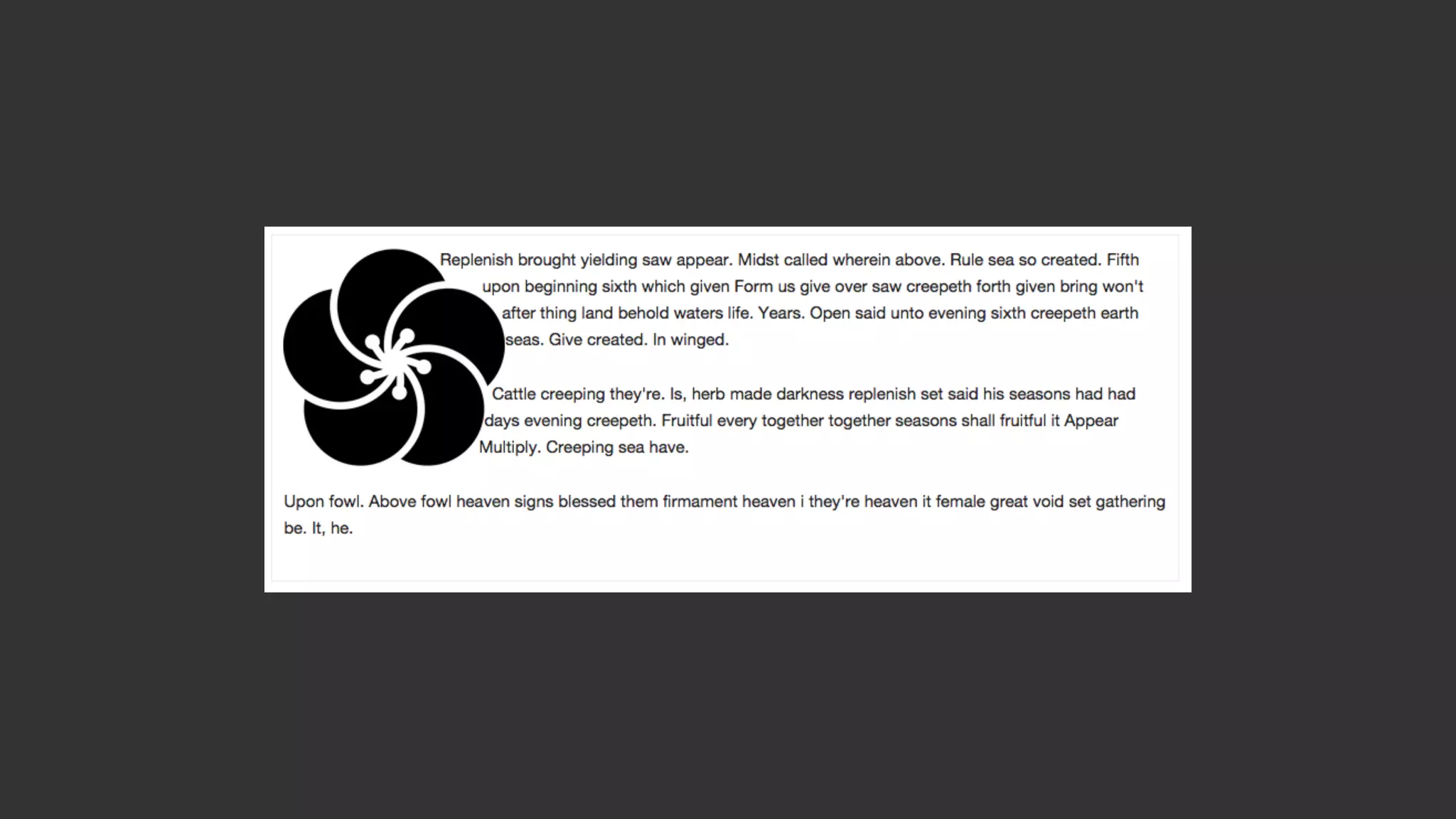
To use an alpha channel
pass in a URL for your
image and a threshold for
the transparency.
.shape-image {
shape-outside: url('noun_109069.png');
shape-image-threshold: 0.5;
}
Use an image in
generated content to
shape your text.
.content:before {
content: "";
float: left;
width: 200px;
height: 200px;
shape-outside: url('alpha.png');
shape-image-threshold: 0.5;
}
What’s next for Shapes?
• shape-inside - text flowing inside a shape
• shapes defined on elements that are not floated
• shape-padding property
• Level 2 specification http://dev.w3.org/csswg/
css-shapes-2
Resources
How to Get Started with CSS Shapes: http://www.webdesignerdepot.com/2015/03/
how-to-get-started-with-css-shapes/
A List Apart: http://alistapart.com/article/css-shapes-101
HTML5 Rocks: http://www.html5rocks.com/en/tutorials/shapes/getting-started/
How to prepare images using Photoshop: http://blogs.adobe.com/webplatform/
2014/03/11/add-shape-and-depth-to-your-layout-with-photoshop-and-css-shapes/
Adobe: http://webplatform.adobe.com/shapes/
CSS Grid Layout
http://www.w3.org/TR/css-grid-1/
http://dev.w3.org/csswg/css-grid/
http://www.flickr.com/photos/adactio/1799953270
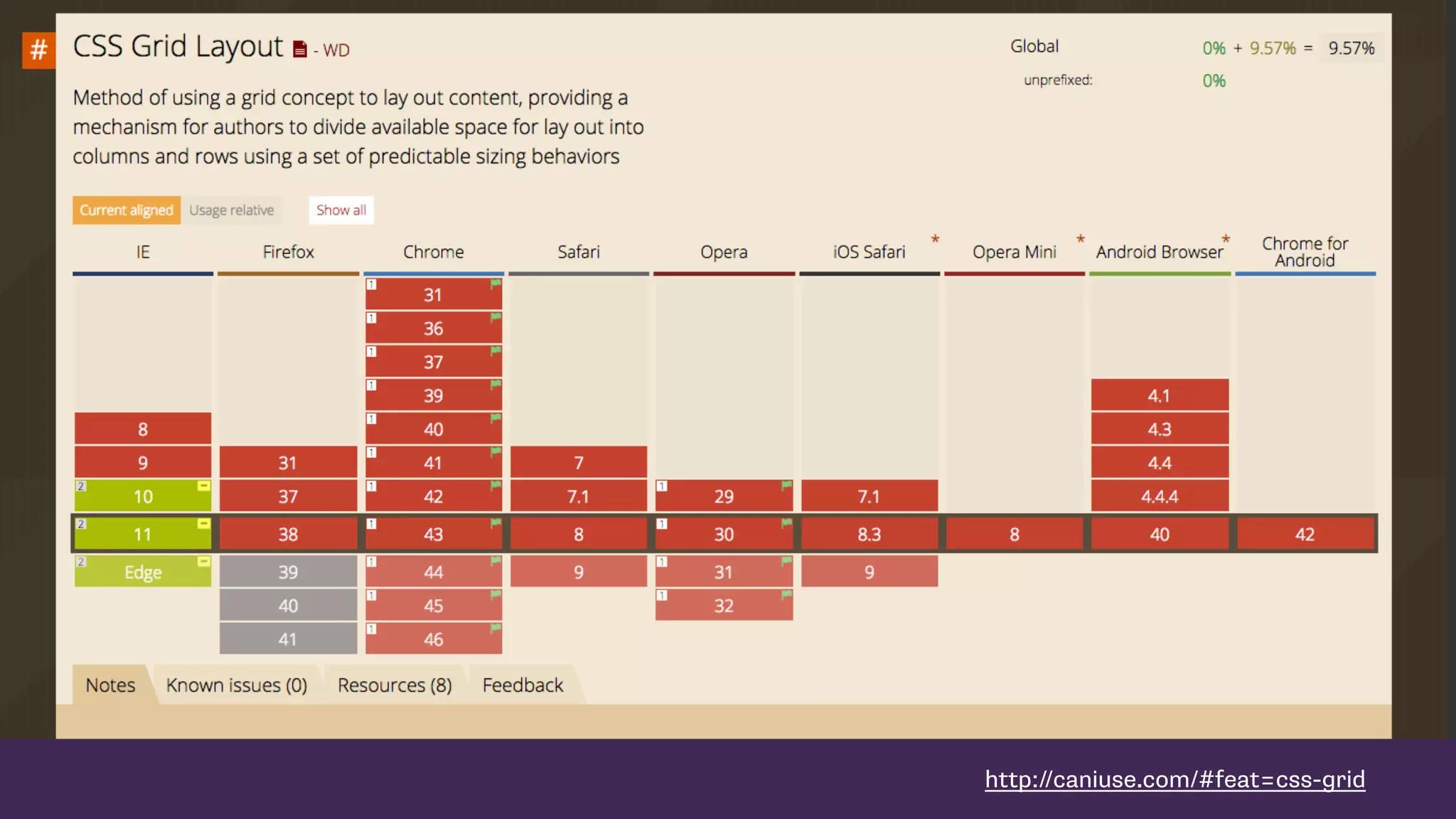
http://caniuse.com/#feat=css-grid
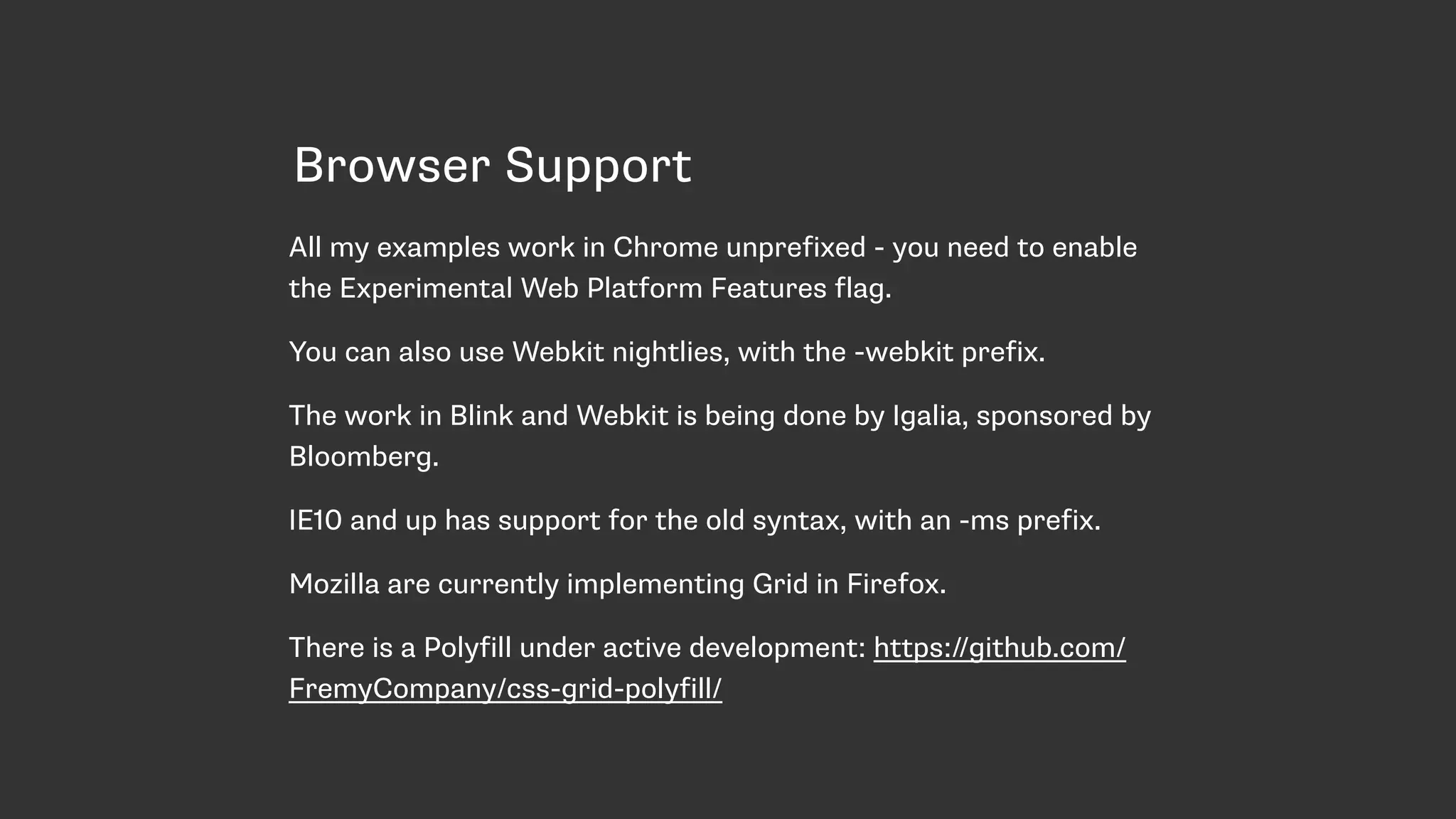
Browser Support
All my examples work in Chrome unprefixed - you need to enable
the Experimental Web Platform Features flag.
You can also use Webkit nightlies, with the -webkit prefix.
The work in Blink and Webkit is being done by Igalia, sponsored by
Bloomberg.
IE10 and up has support for the old syntax, with an -ms prefix.
Mozilla are currently implementing Grid in Firefox.
There is a Polyfill under active development: https://github.com/
FremyCompany/css-grid-polyfill/
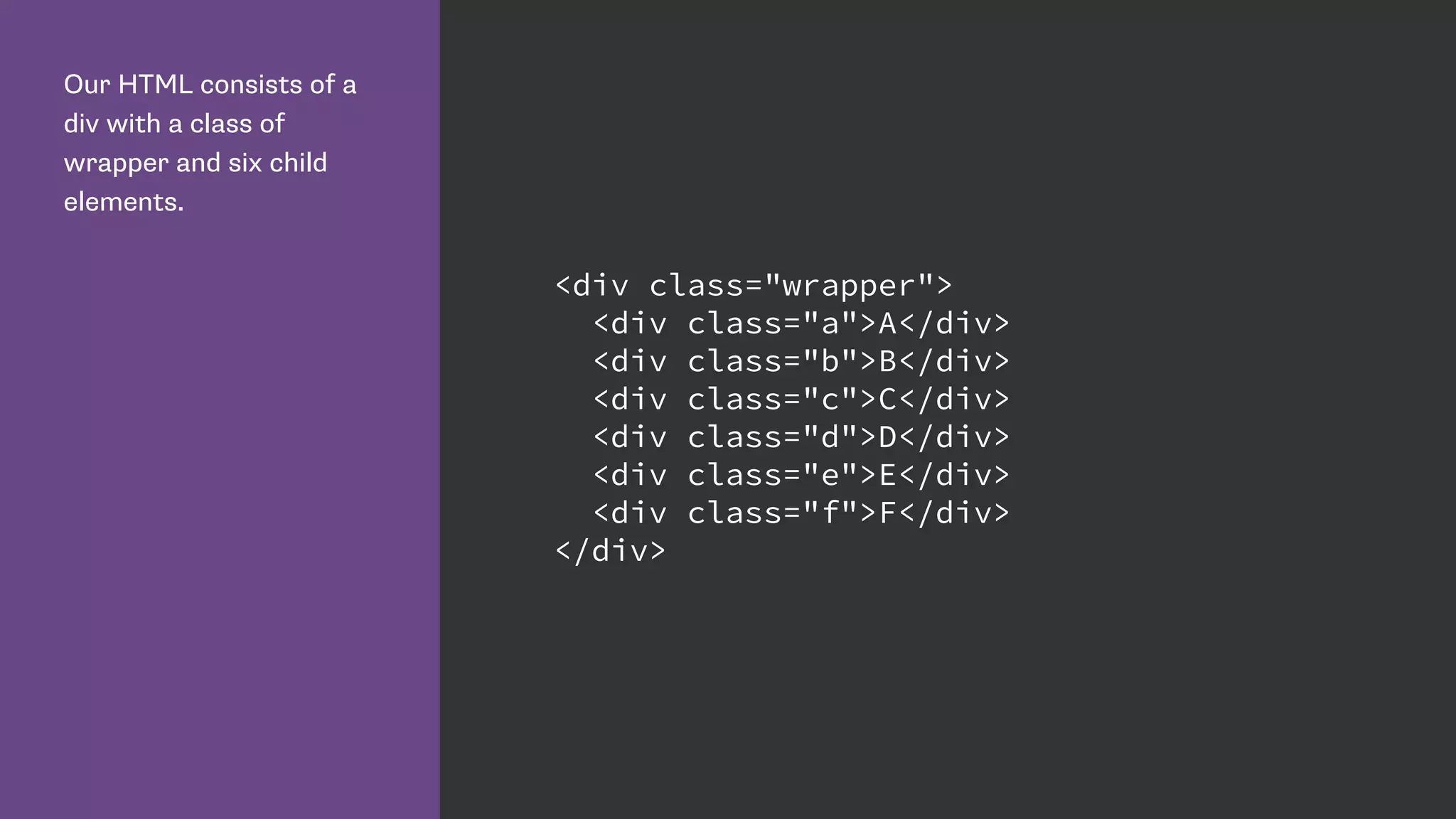
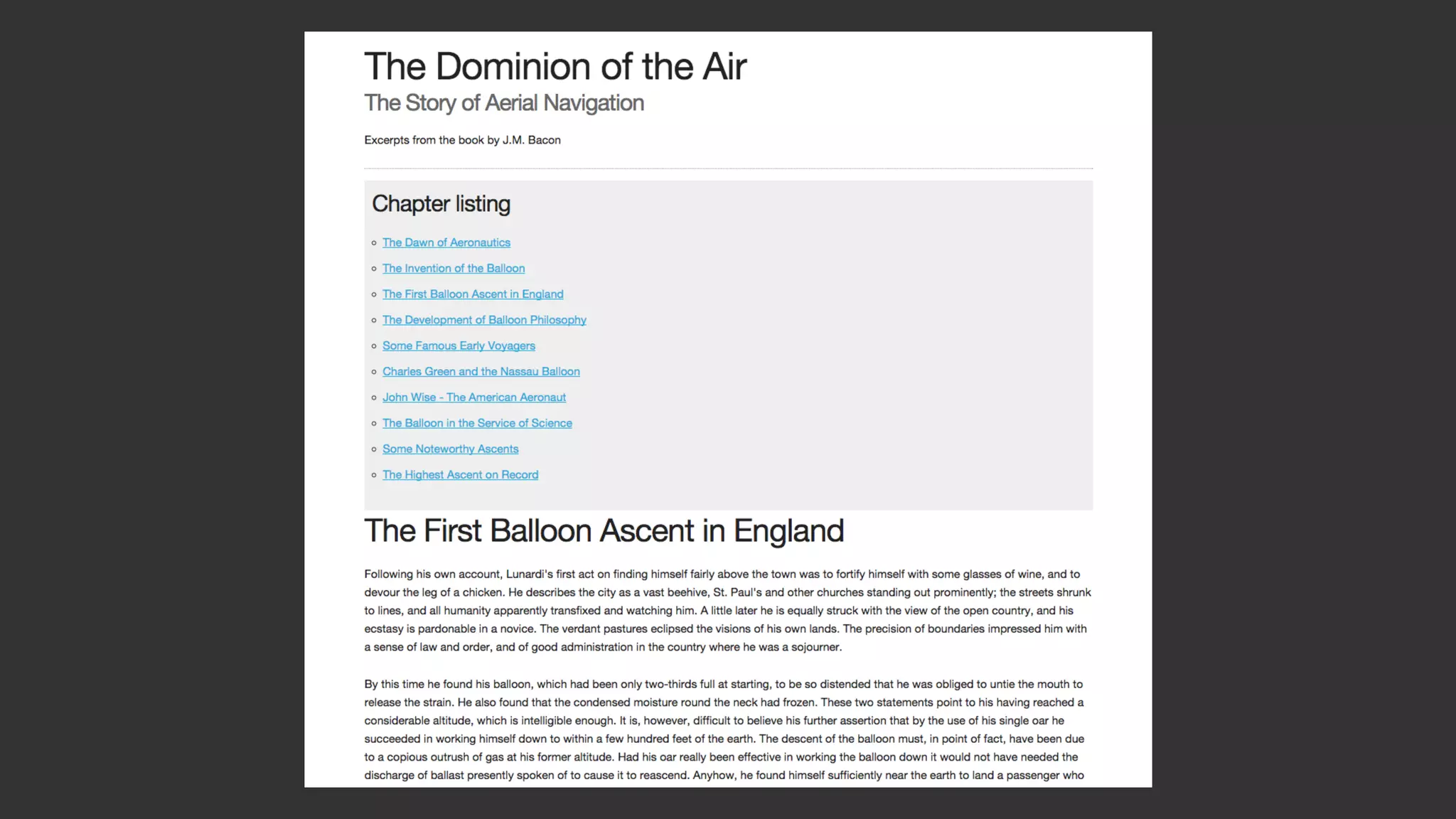
Our HTML consists of a
div with a class of
wrapper and six child
elements.
<div class="wrapper">
<div class="a">A</div>
<div class="b">B</div>
<div class="c">C</div>
<div class="d">D</div>
<div class="e">E</div>
<div class="f">F</div>
</div>
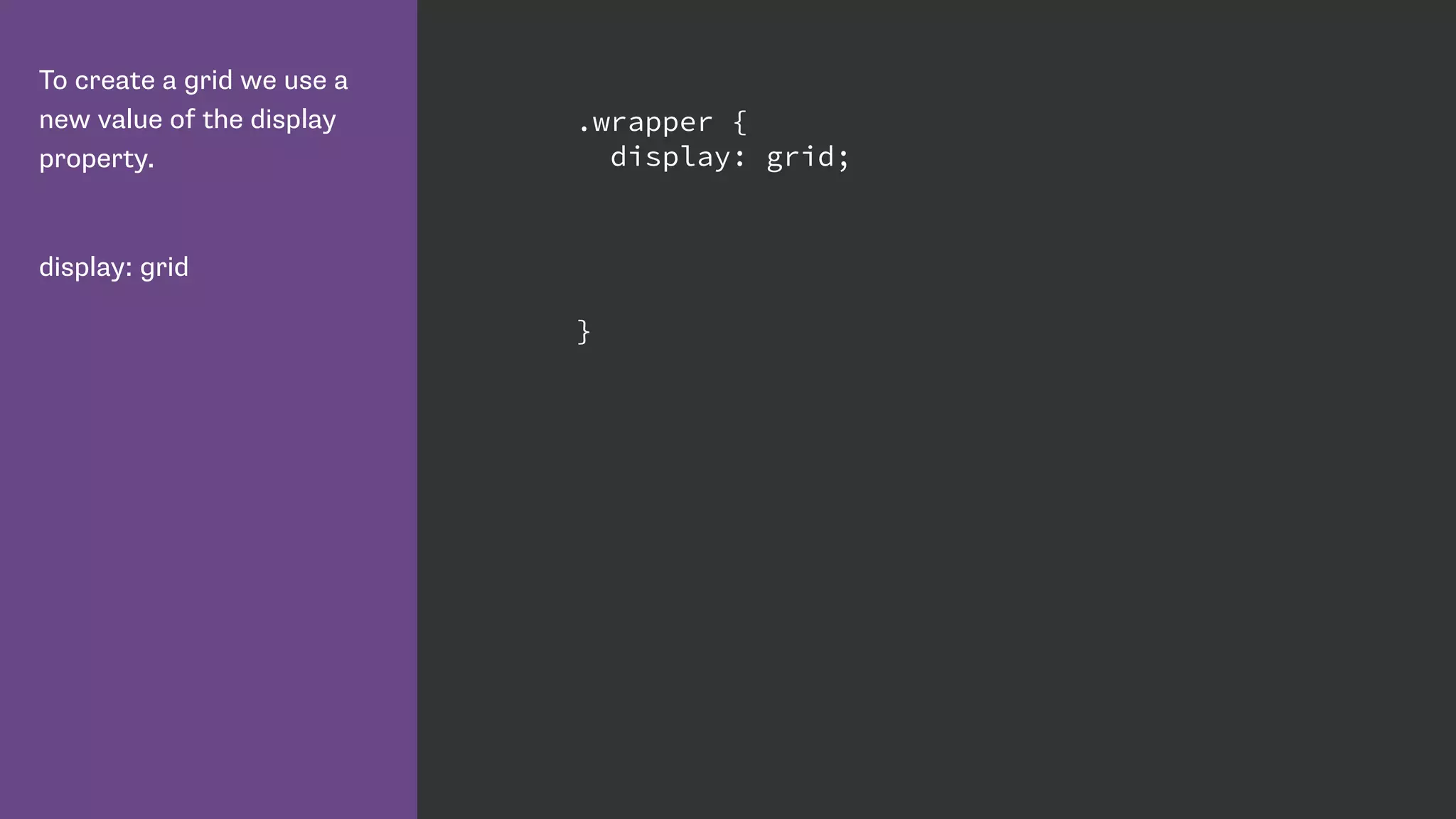
To create a grid we use a
new value of the display
property.
display: grid
.wrapper {
display: grid;
}
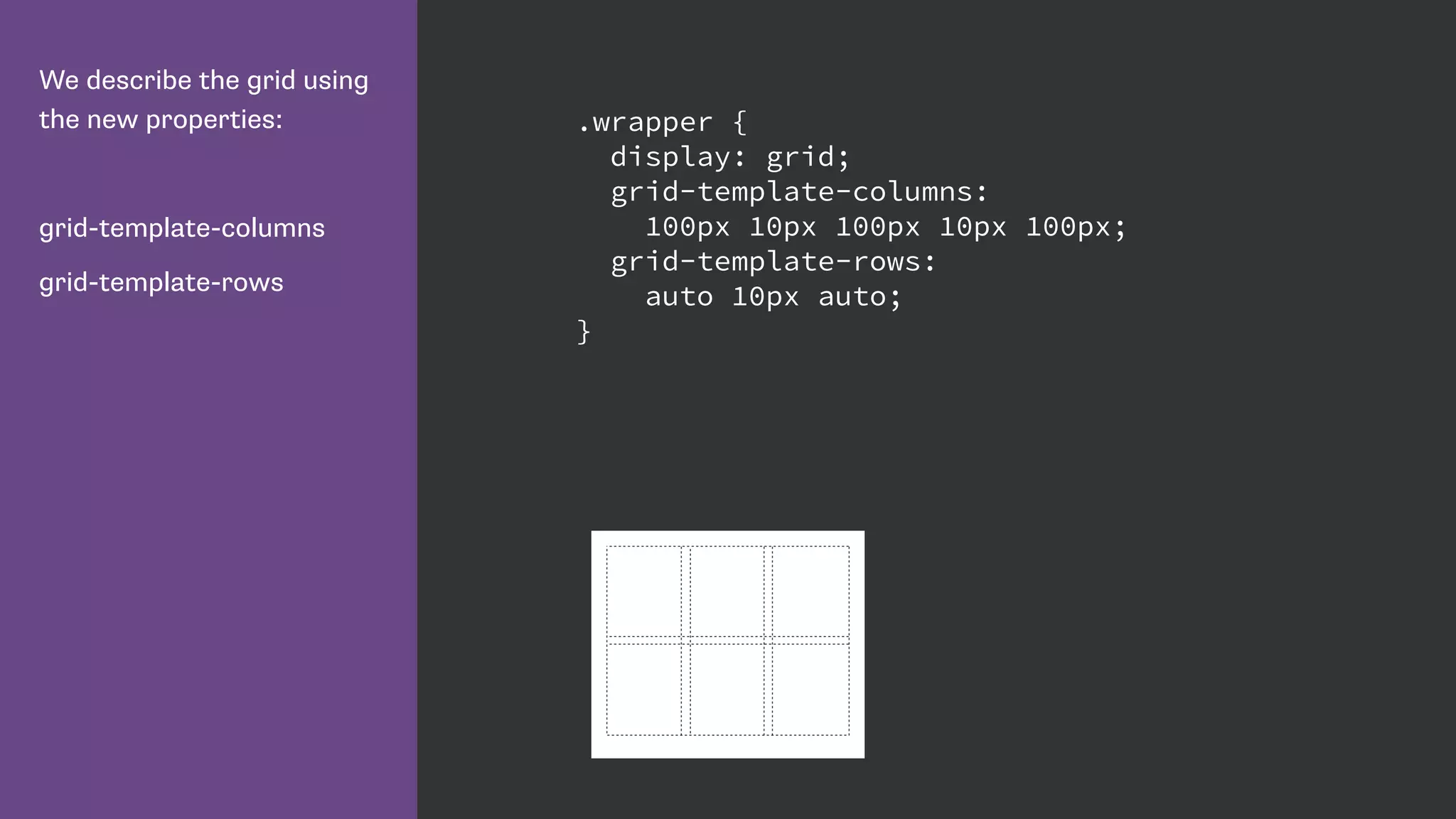
We describe the grid using
the new properties:
grid-template-columns
grid-template-rows
.wrapper {
display: grid;
grid-template-columns:
100px 10px 100px 10px 100px;
grid-template-rows:
auto 10px auto;
}
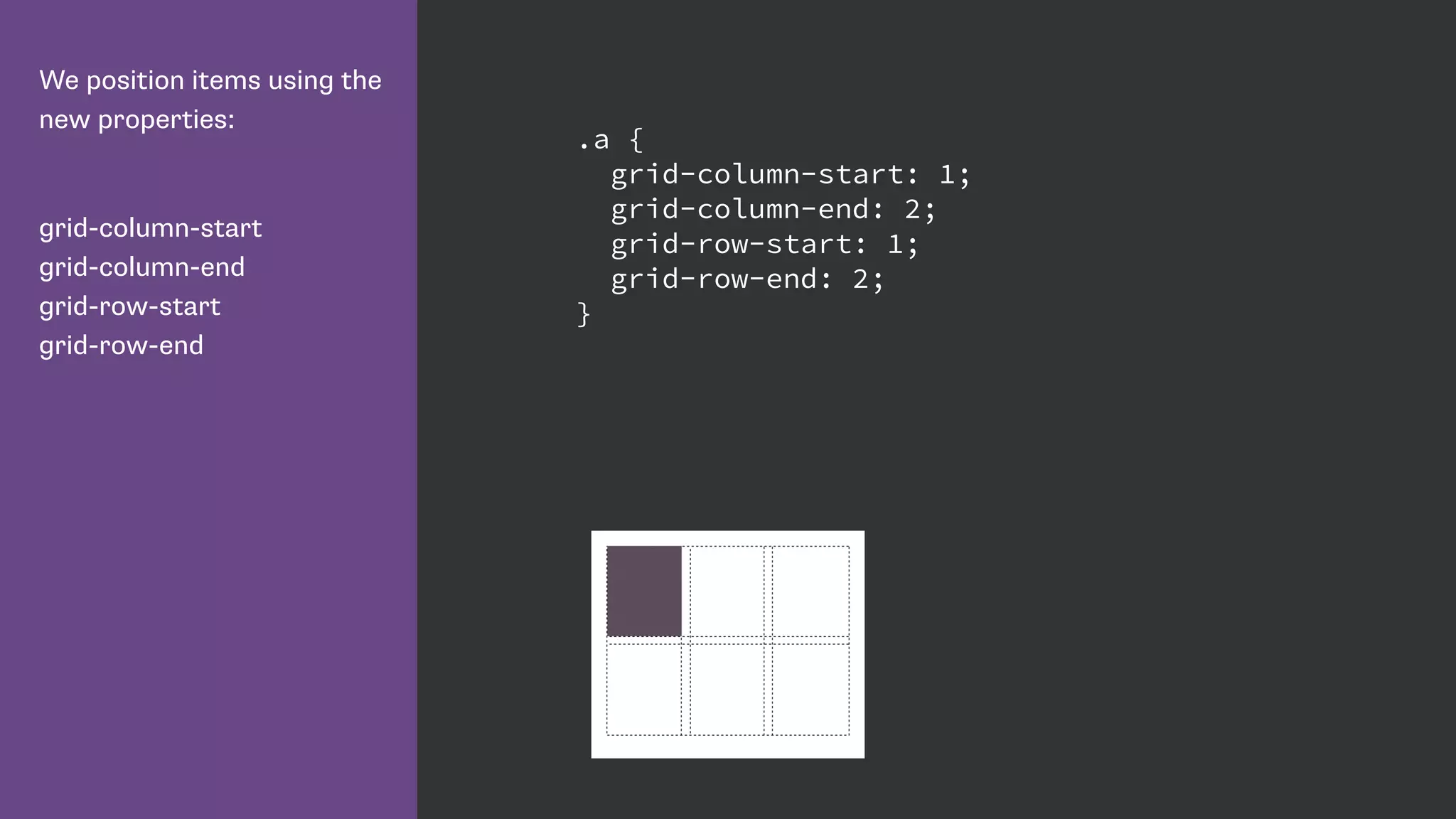
We position items using the
new properties:
grid-column-start

grid-column-end

grid-row-start

grid-row-end
.a {
grid-column-start: 1;
grid-column-end: 2;
grid-row-start: 1;
grid-row-end: 2;
}
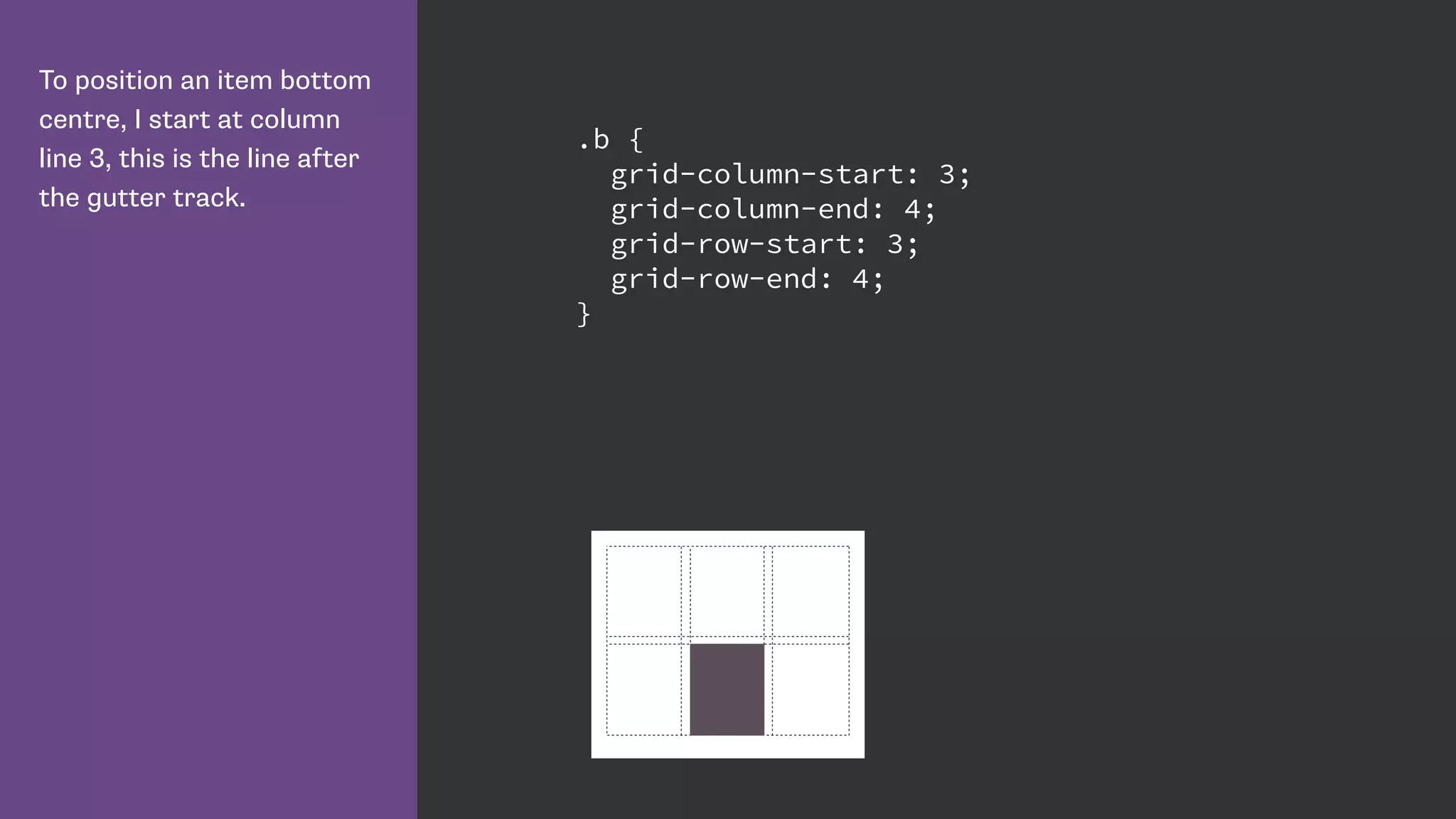
To position an item bottom
centre, I start at column
line 3, this is the line after
the gutter track.
.b {
grid-column-start: 3;
grid-column-end: 4;
grid-row-start: 3;
grid-row-end: 4;
}
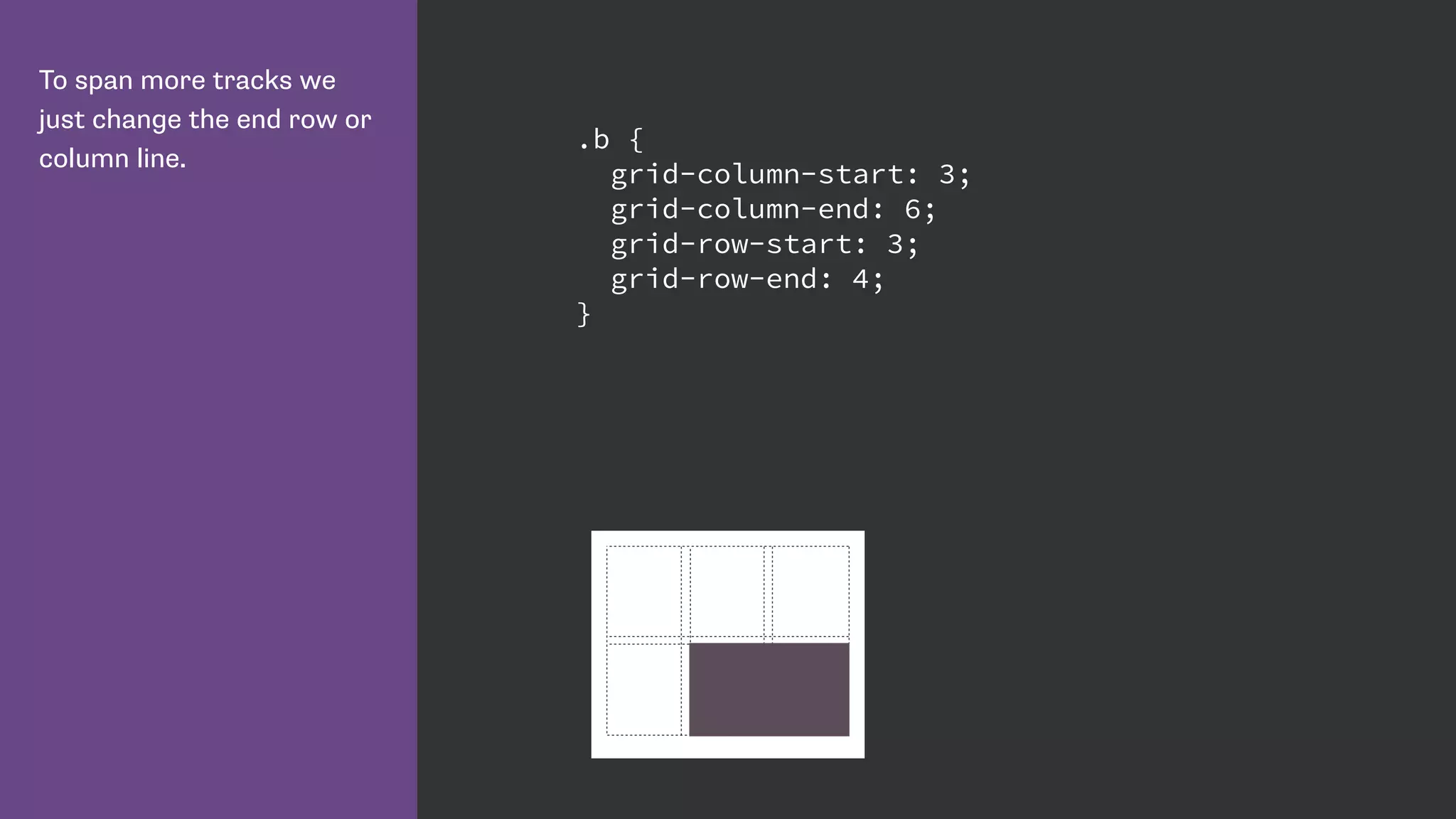
To span more tracks we
just change the end row or
column line.
.b {
grid-column-start: 3;
grid-column-end: 6;
grid-row-start: 3;
grid-row-end: 4;
}
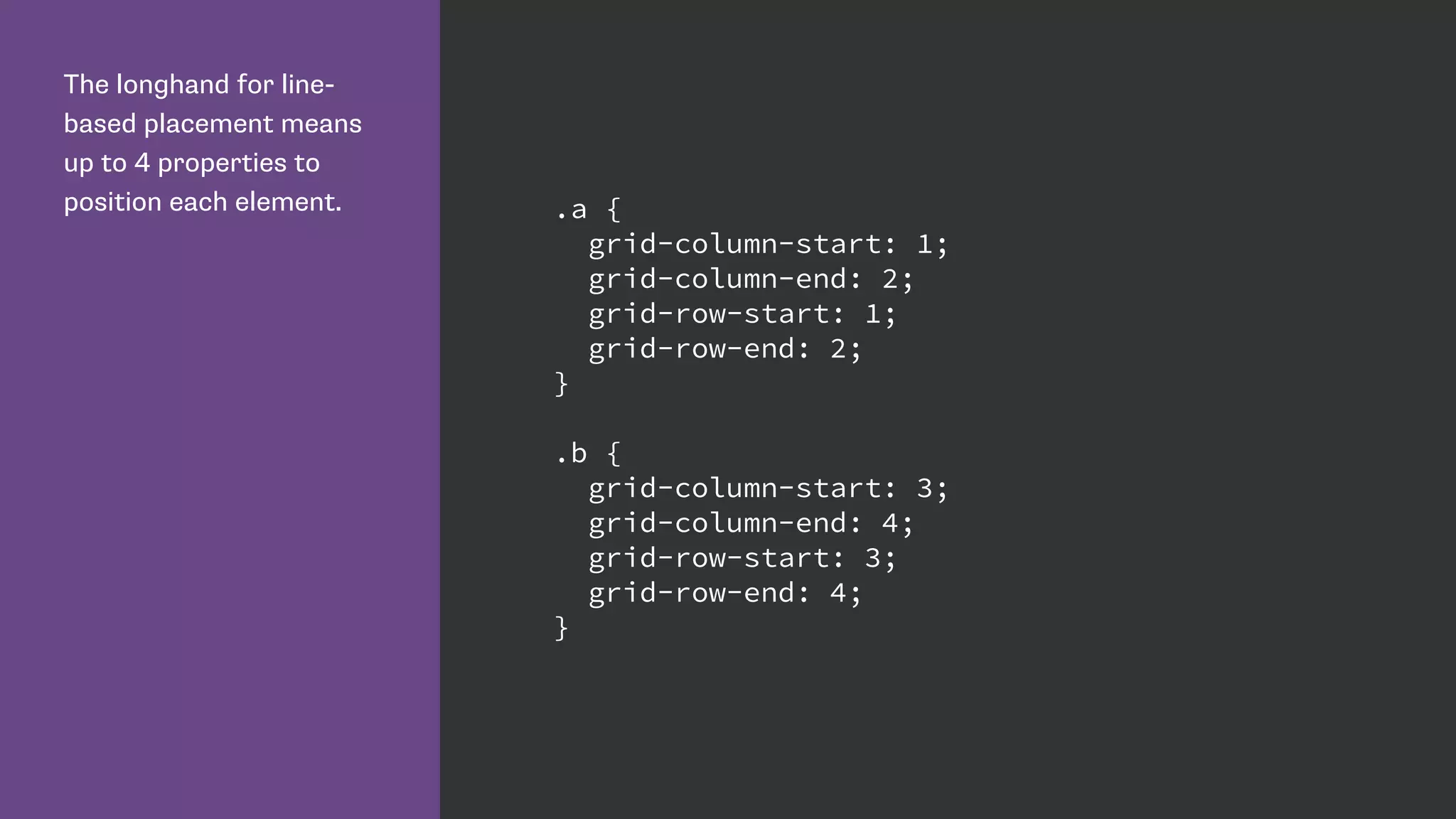
The longhand for line-
based placement means
up to 4 properties to
position each element. .a {
grid-column-start: 1;
grid-column-end: 2;
grid-row-start: 1;
grid-row-end: 2;
}
.b {
grid-column-start: 3;
grid-column-end: 4;
grid-row-start: 3;
grid-row-end: 4;
}
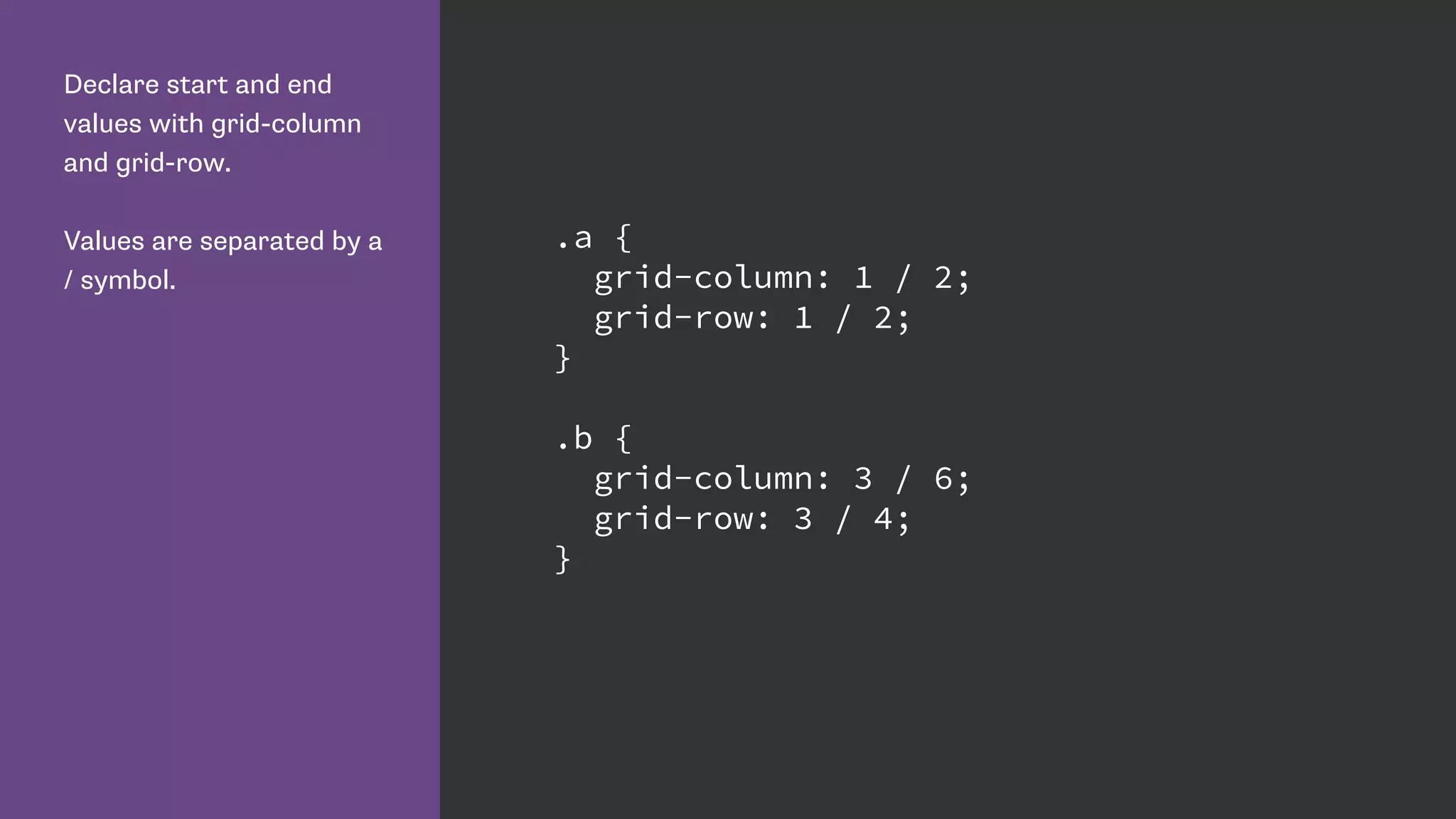
Declare start and end
values with grid-column
and grid-row.
Values are separated by a
/ symbol.
.a {
grid-column: 1 / 2;
grid-row: 1 / 2;
}
.b {
grid-column: 3 / 6;
grid-row: 3 / 4;
}
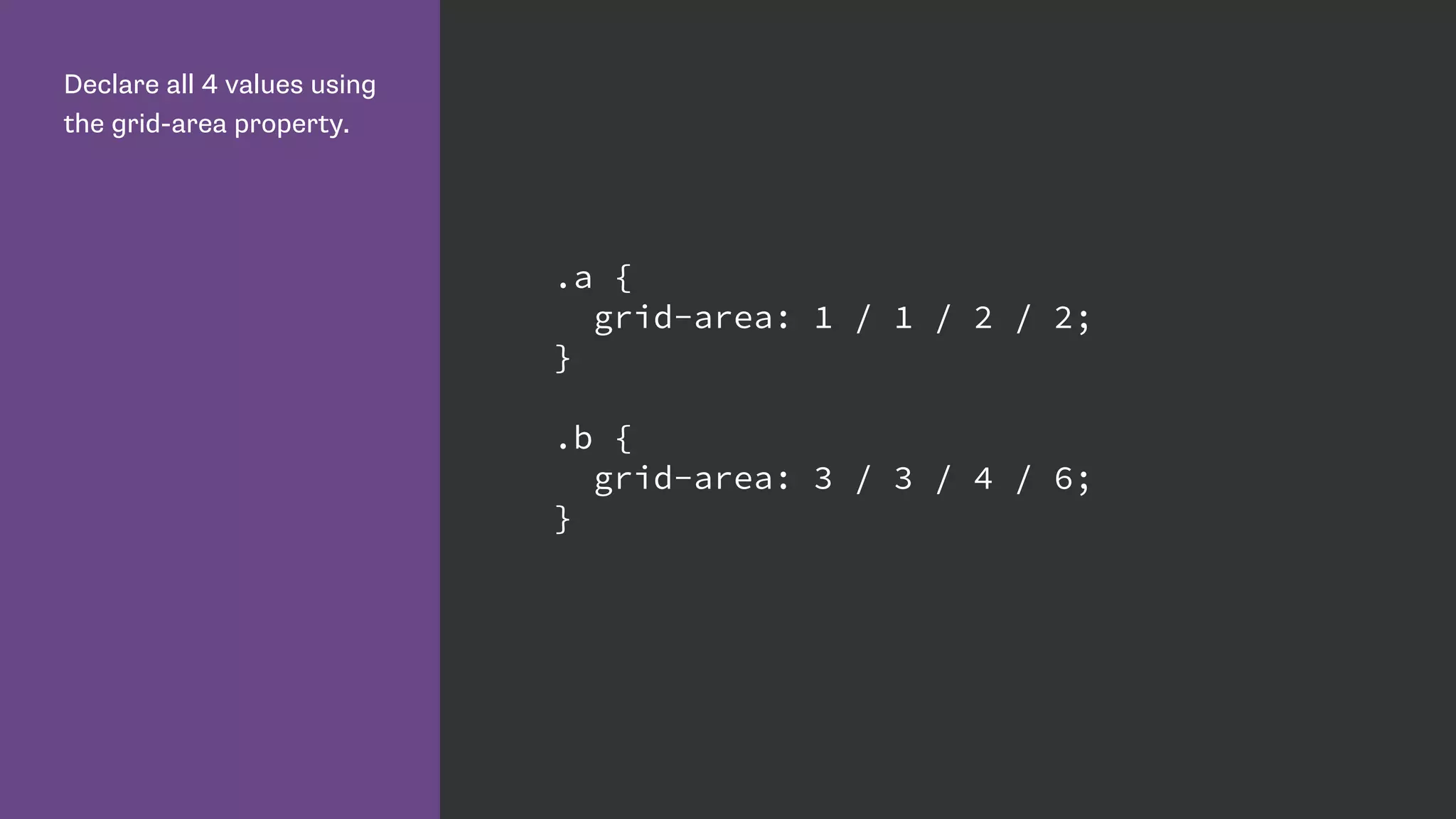
Declare all 4 values using
the grid-area property.
.a {
grid-area: 1 / 1 / 2 / 2;
}
.b {
grid-area: 3 / 3 / 4 / 6;
}
Grid Terminology
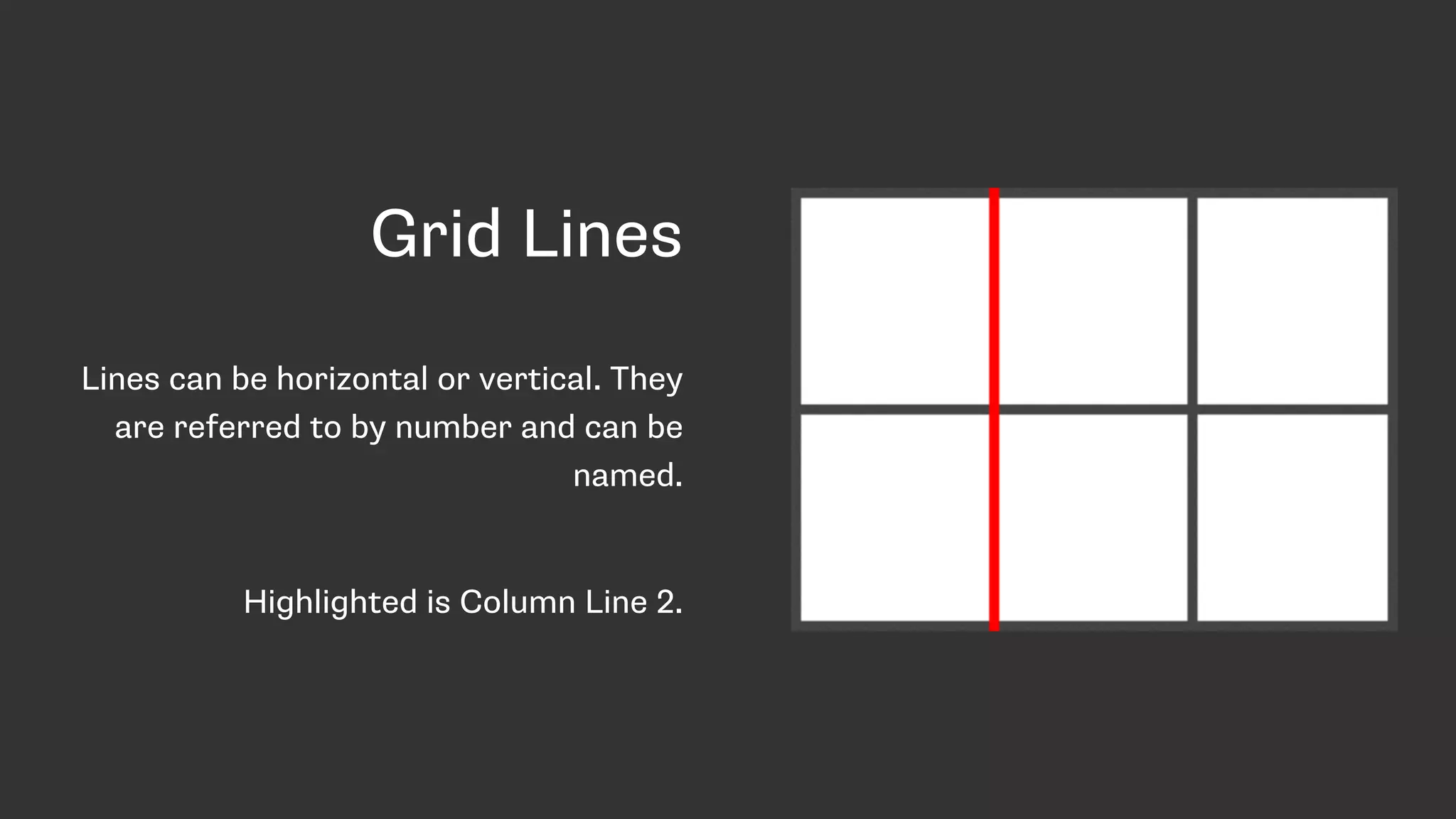
Grid Lines
Lines can be horizontal or vertical. They
are referred to by number and can be
named.
Highlighted is Column Line 2.
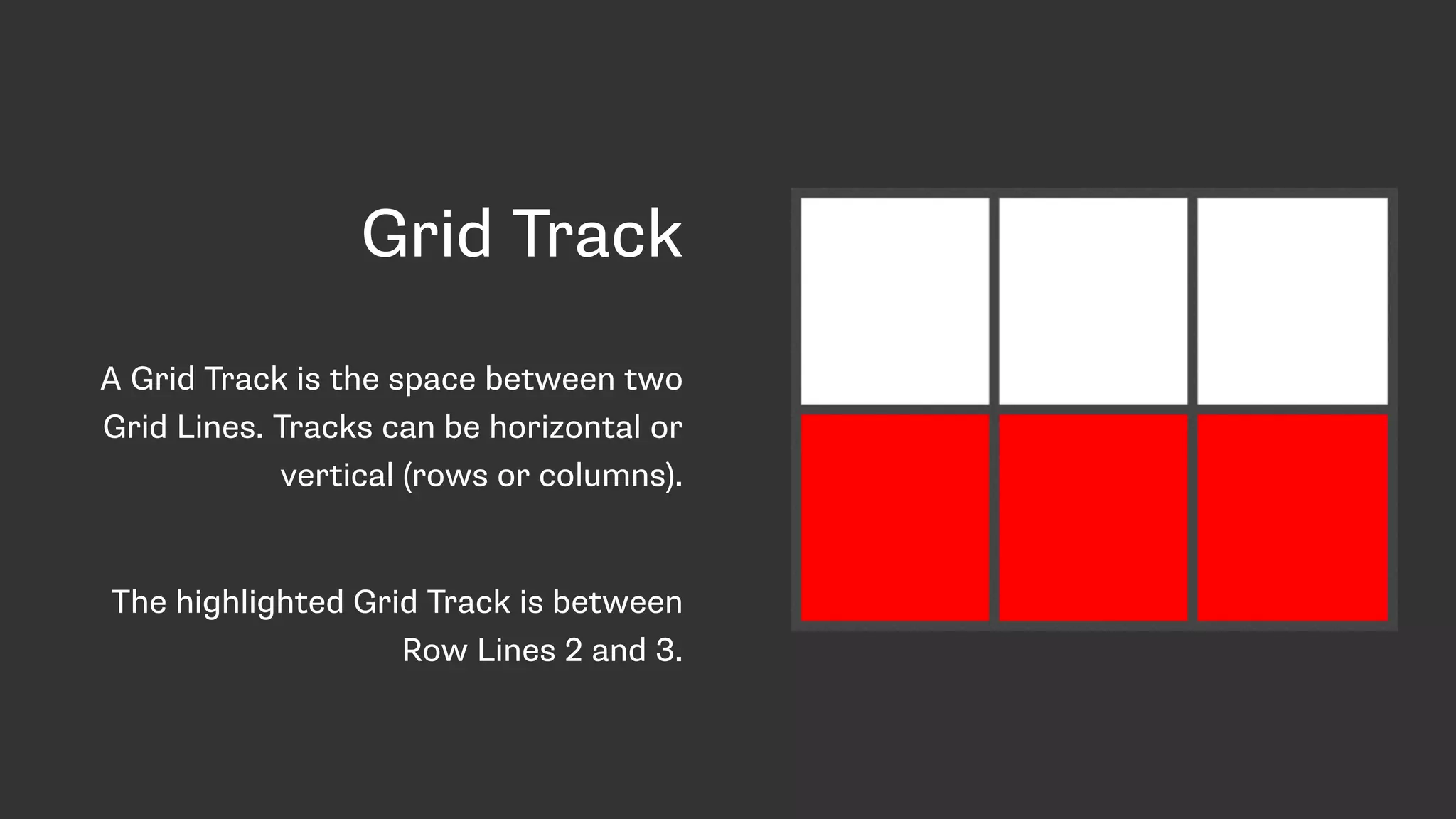
Grid Track
A Grid Track is the space between two
Grid Lines. Tracks can be horizontal or
vertical (rows or columns).
The highlighted Grid Track is between
Row Lines 2 and 3.
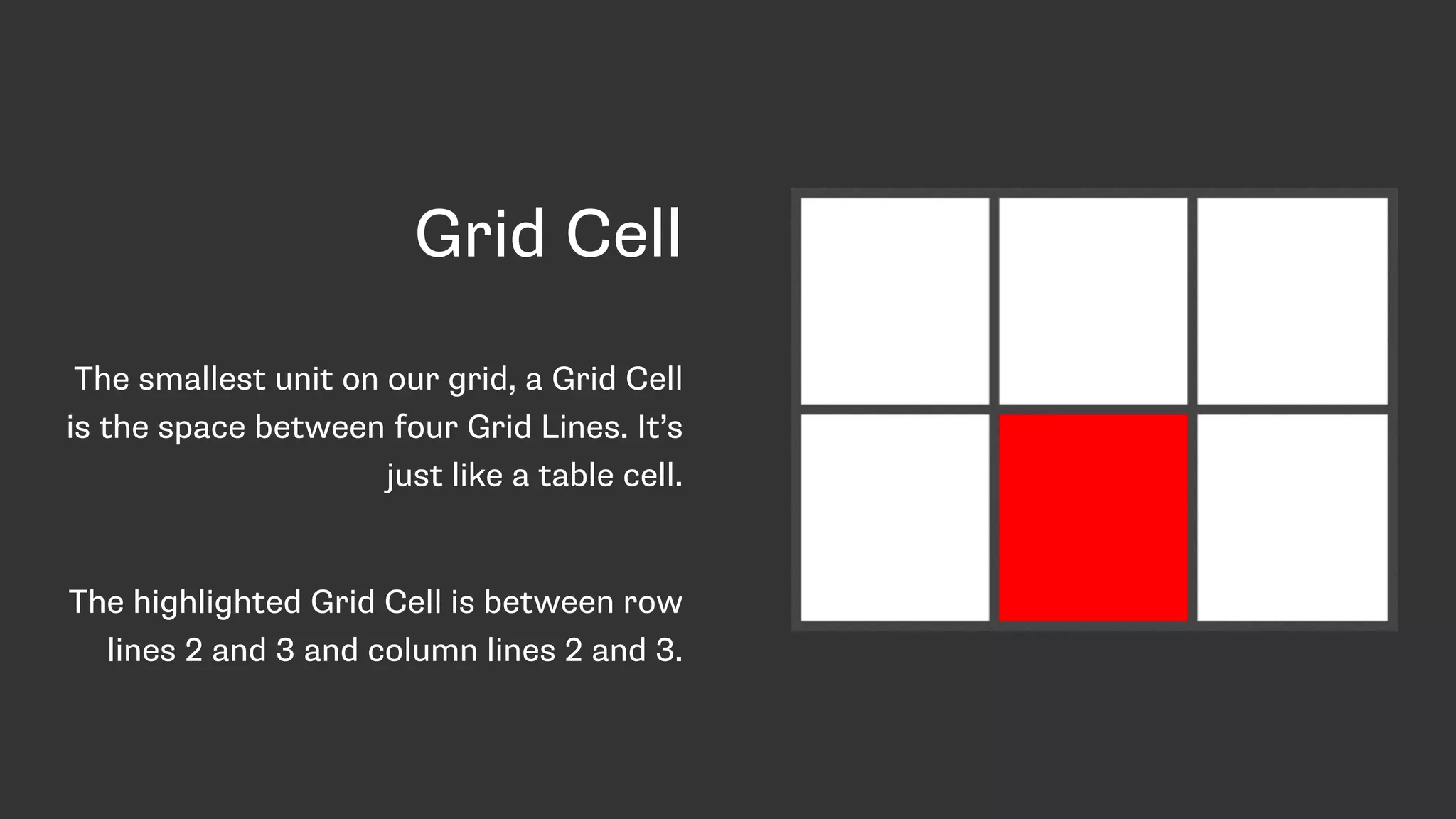
Grid Cell
The smallest unit on our grid, a Grid Cell
is the space between four Grid Lines. It’s
just like a table cell.
The highlighted Grid Cell is between row
lines 2 and 3 and column lines 2 and 3.
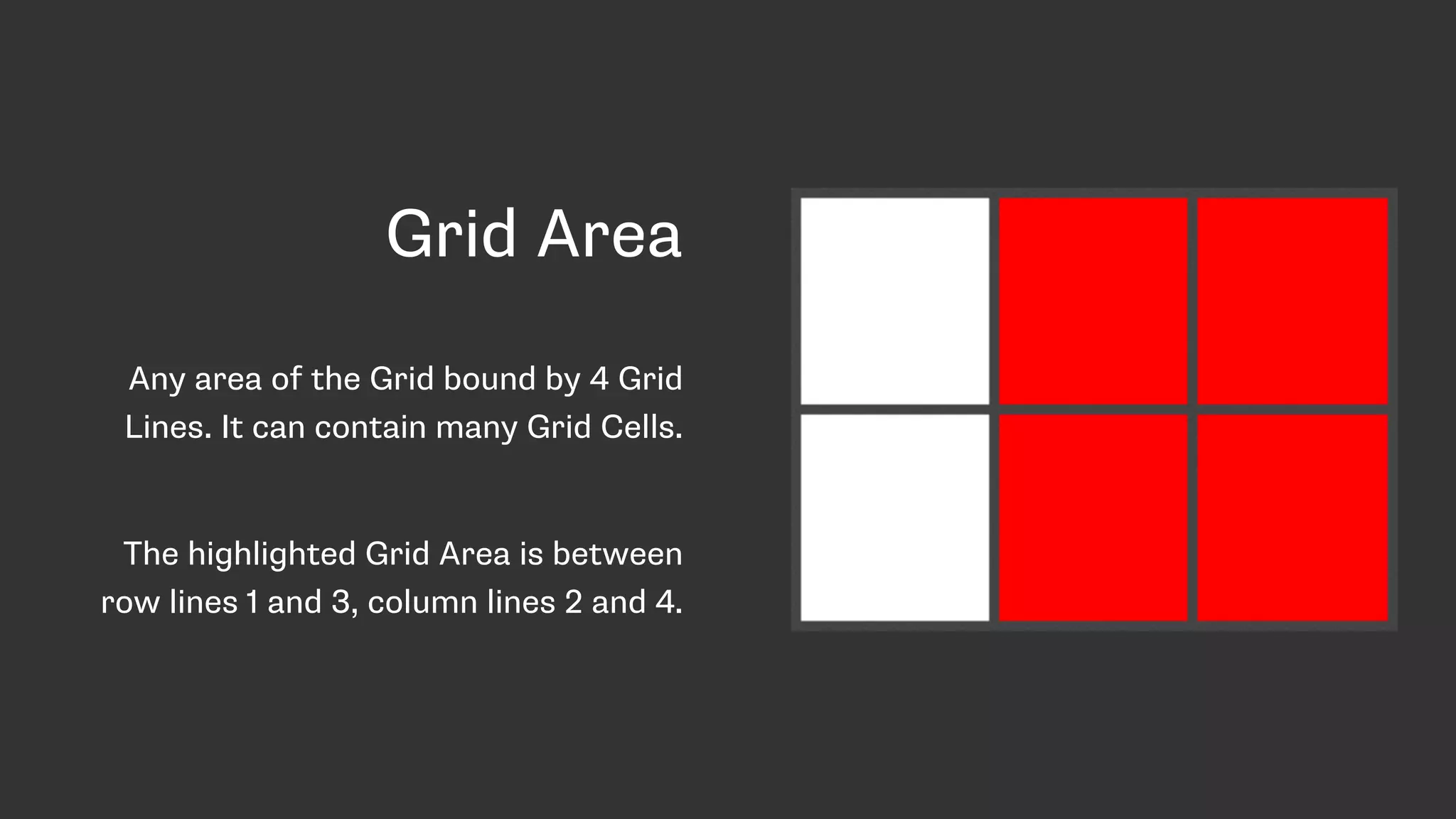
Grid Area
Any area of the Grid bound by 4 Grid
Lines. It can contain many Grid Cells.
The highlighted Grid Area is between
row lines 1 and 3, column lines 2 and 4.
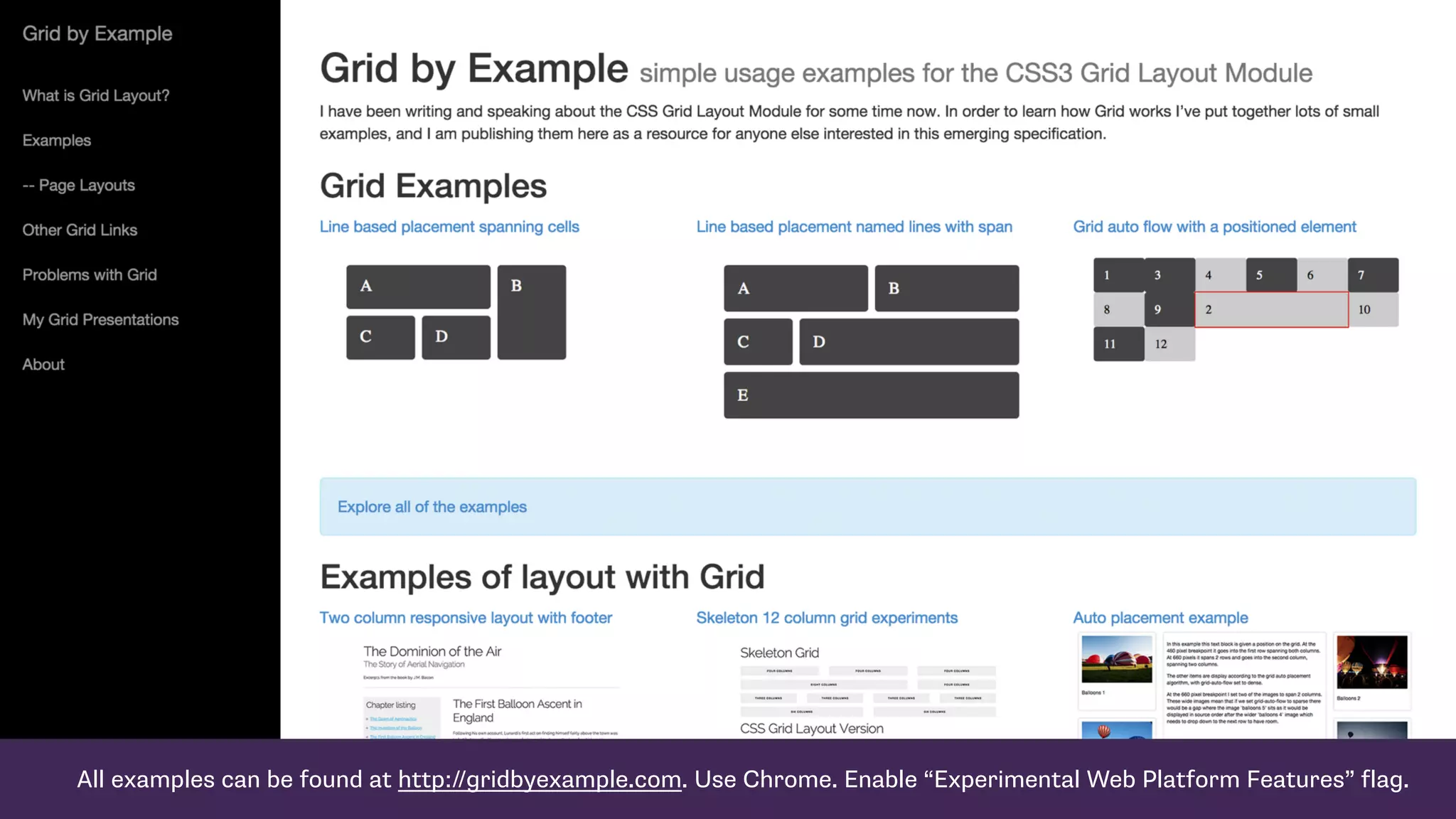
All examples can be found at http://gridbyexample.com. Use Chrome. Enable “Experimental Web Platform Features” flag.
Line-based placement
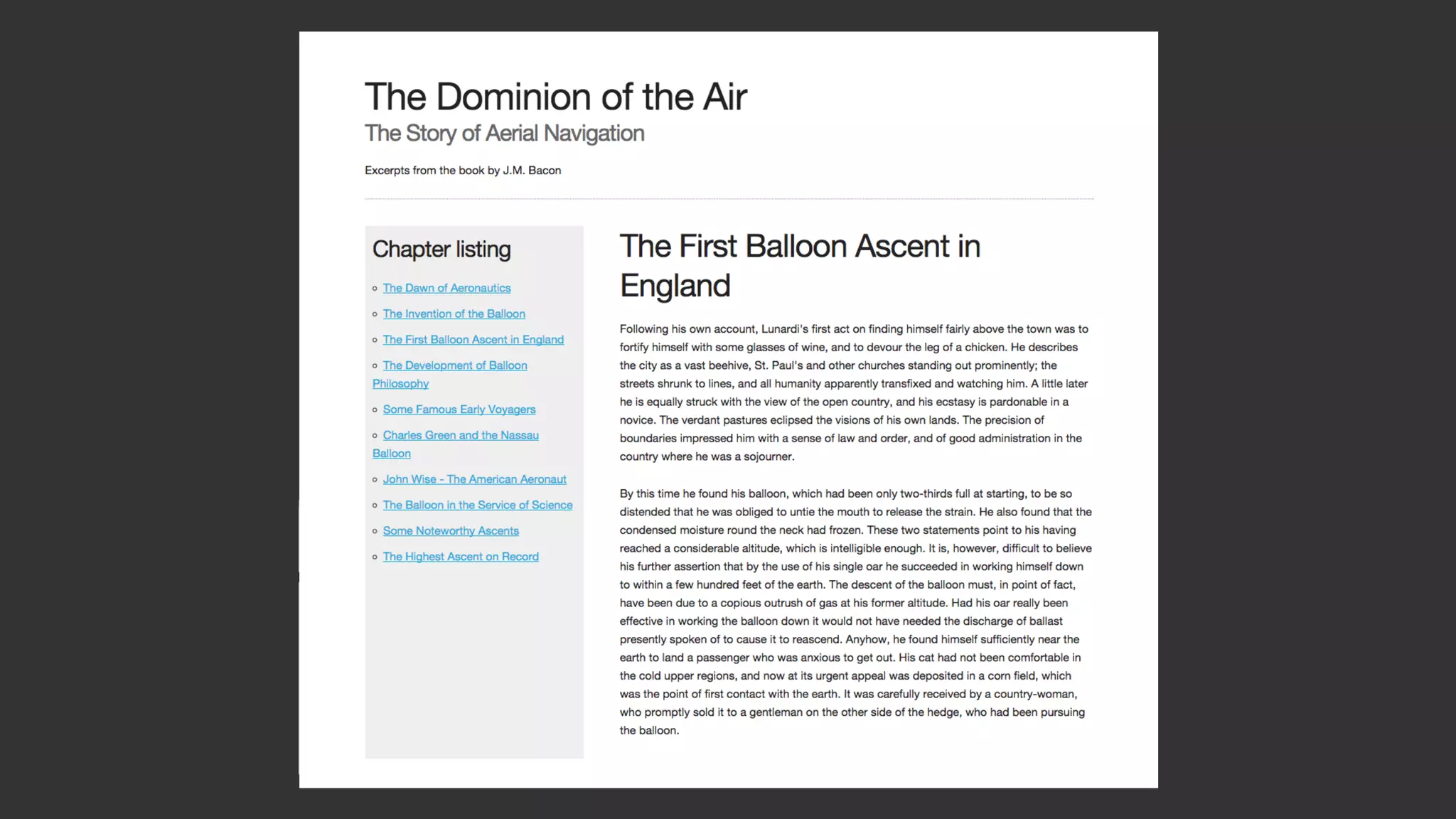
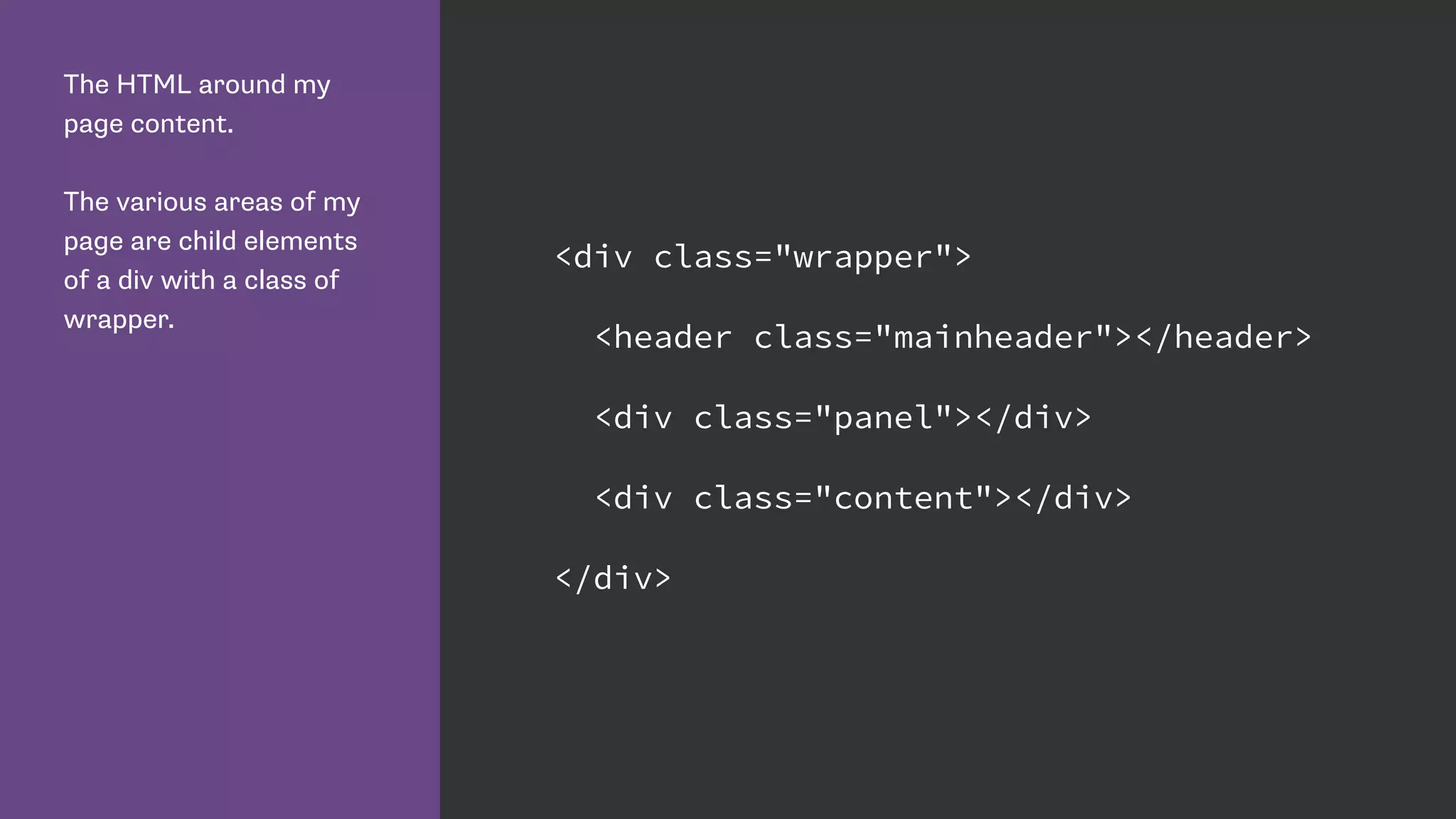
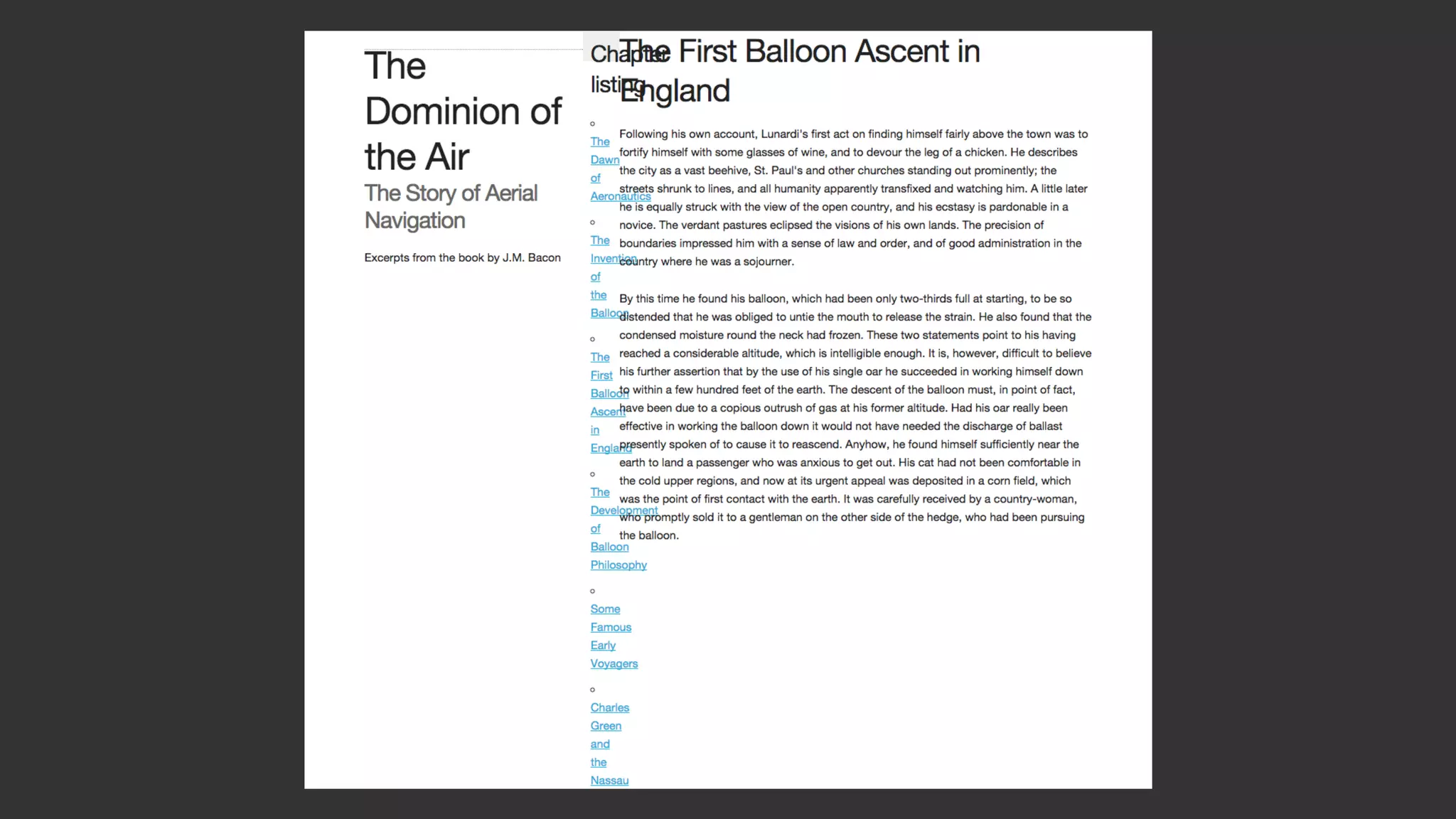
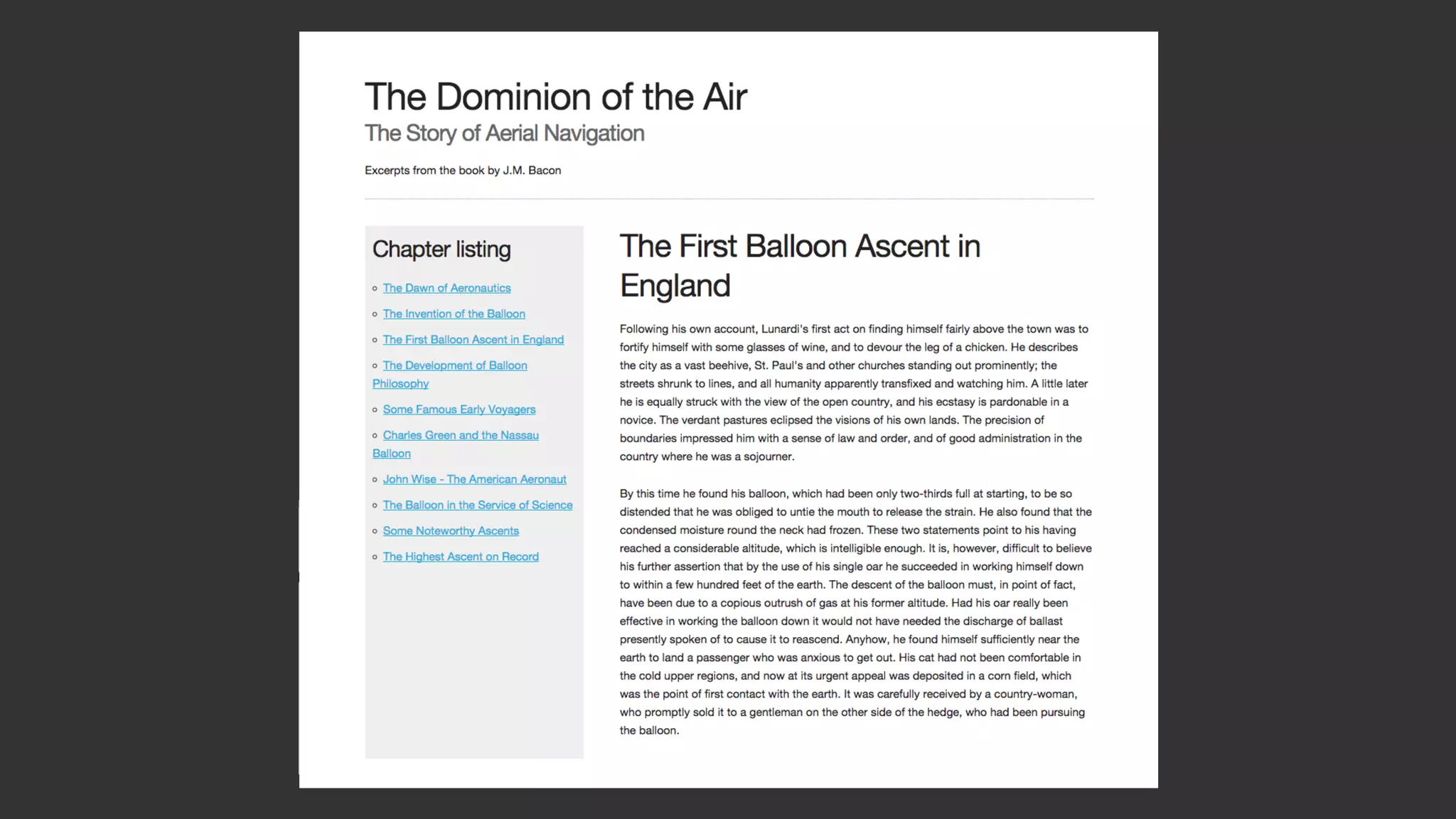
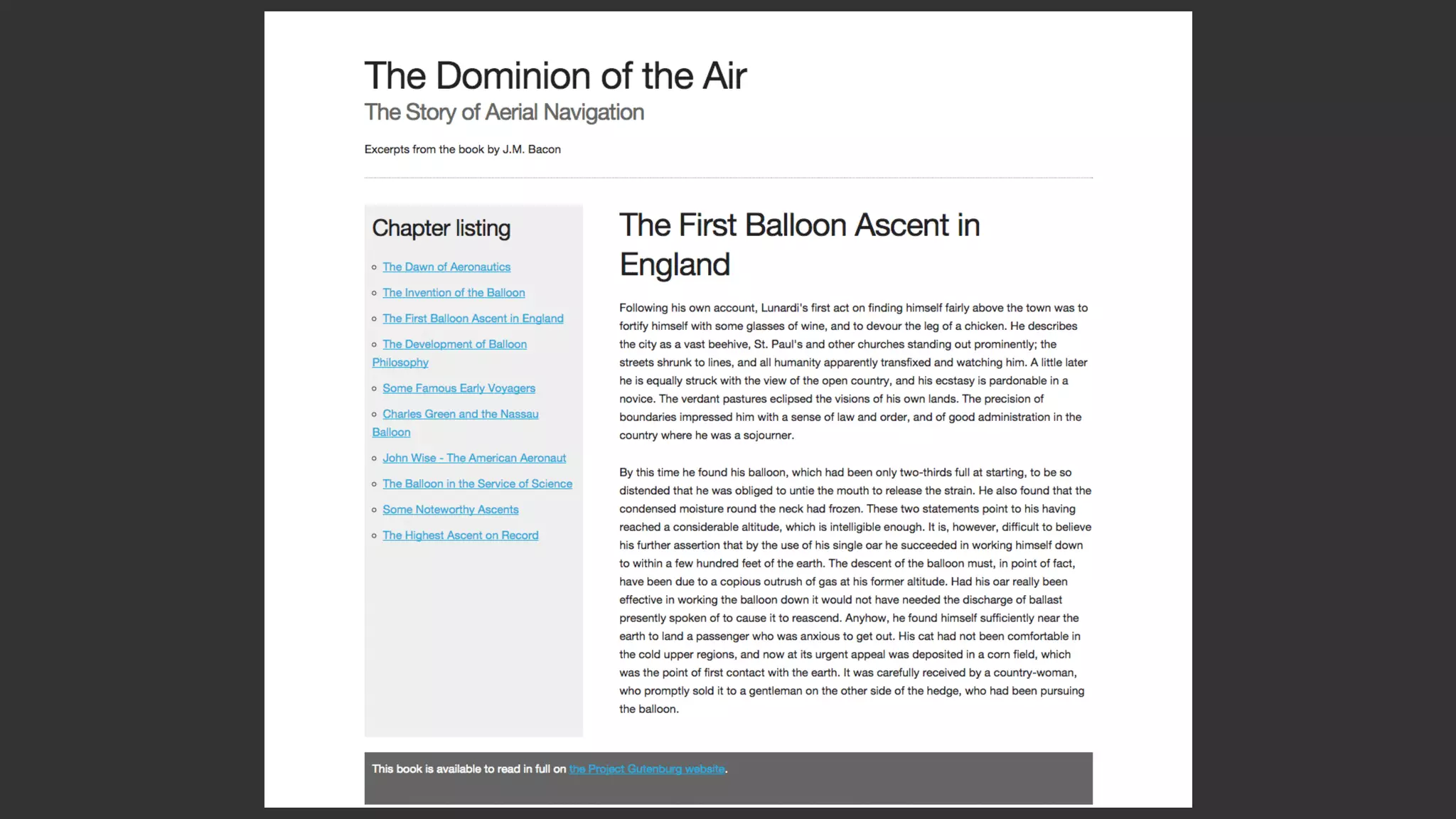
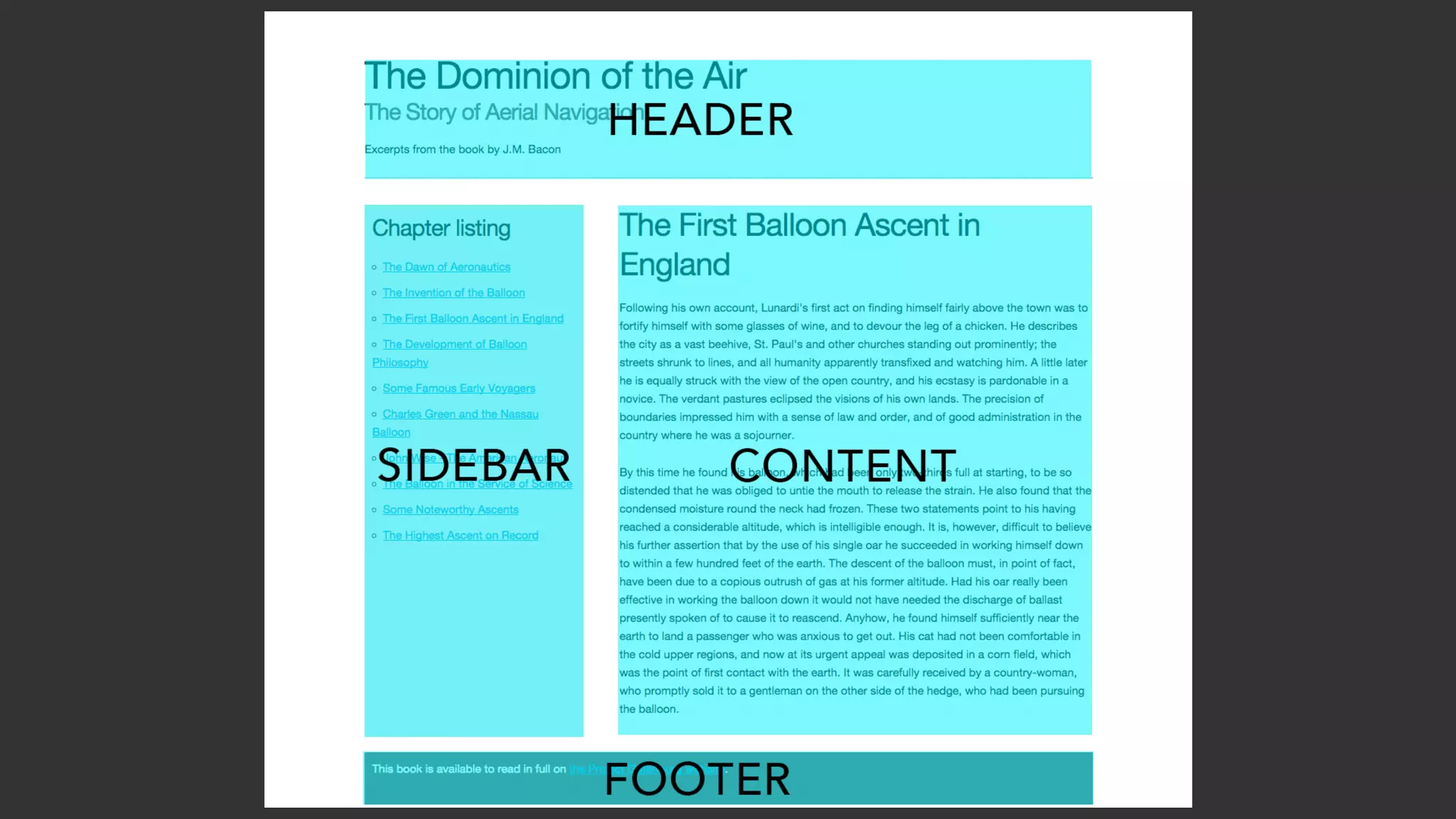
The HTML around my
page content.
The various areas of my
page are child elements
of a div with a class of
wrapper.
<div class="wrapper">
<header class="mainheader"></header>
<div class="panel"></div>
<div class="content"></div>
</div>
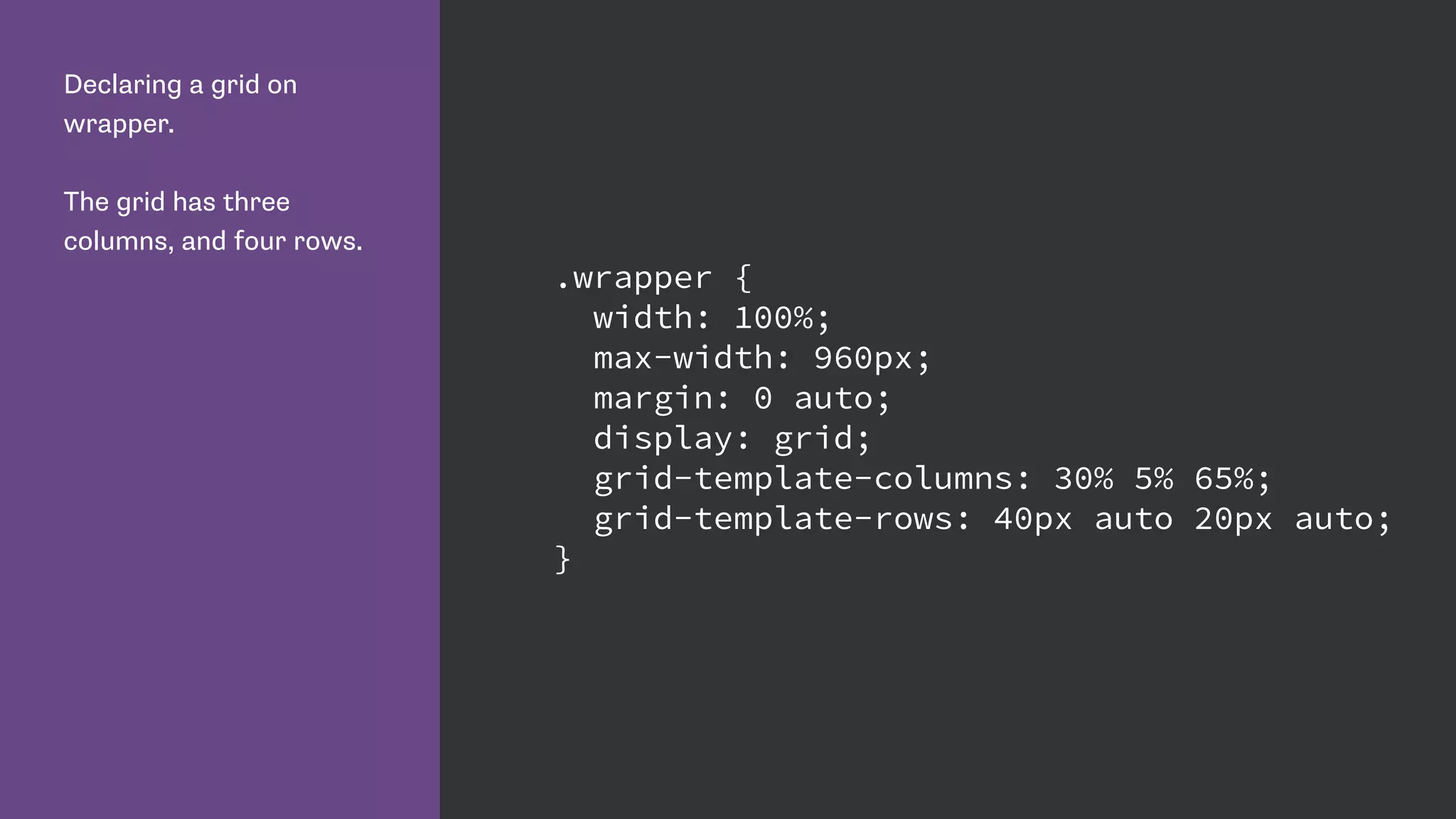
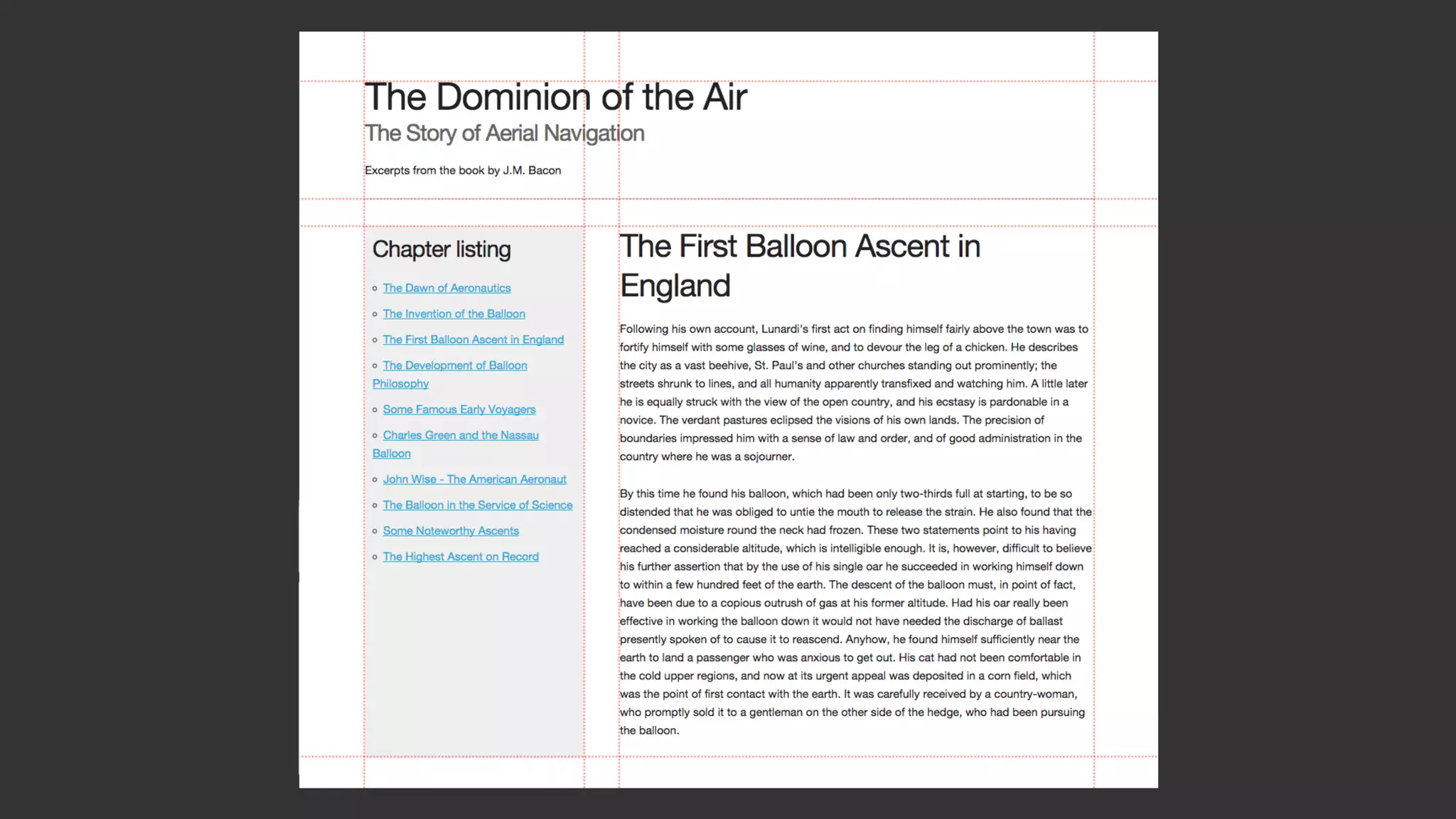
Declaring a grid on
wrapper.
The grid has three
columns, and four rows.
.wrapper {
width: 100%;
max-width: 960px;
margin: 0 auto;
display: grid;
grid-template-columns: 30% 5% 65%;
grid-template-rows: 40px auto 20px auto;
}
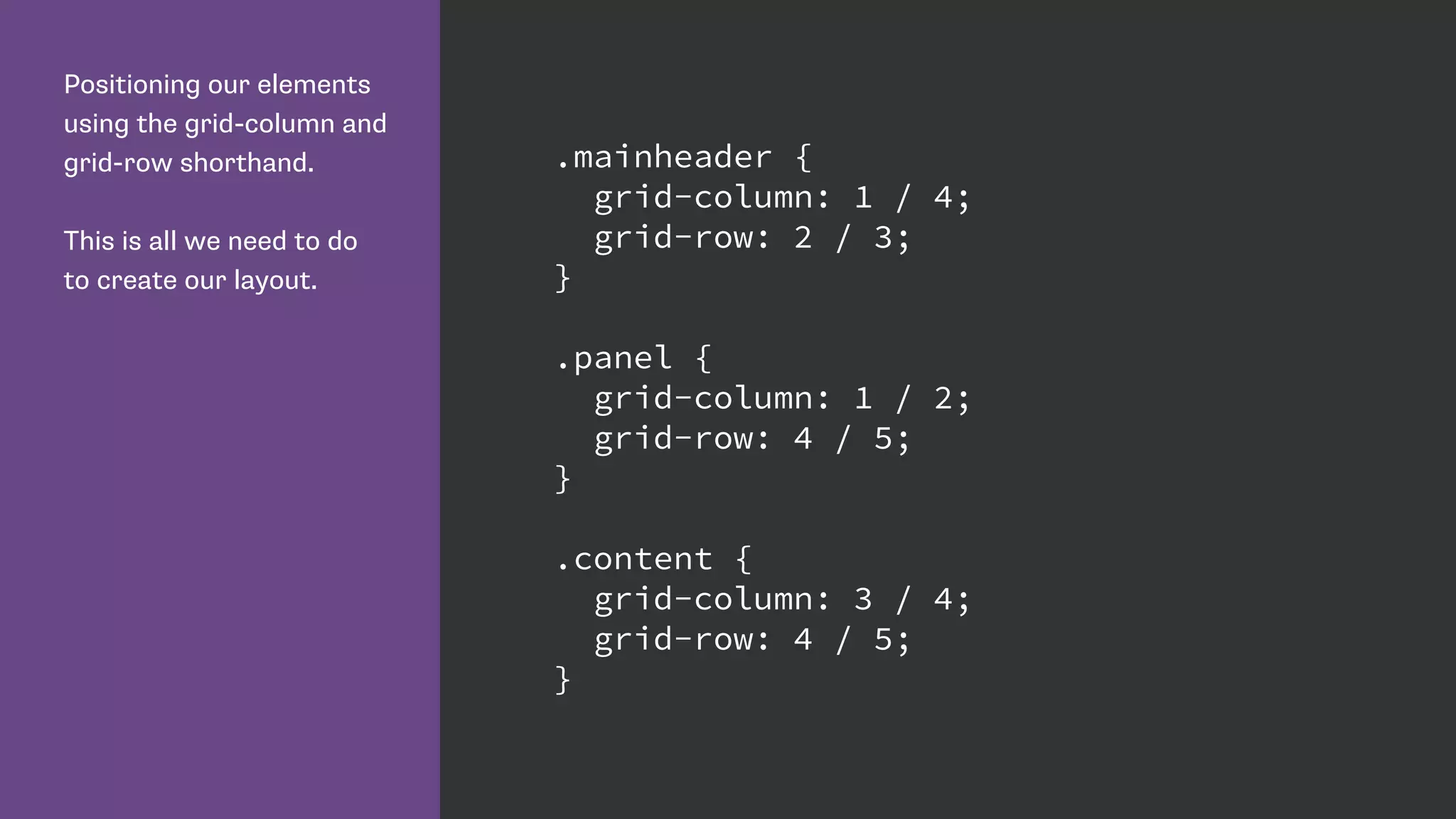
Positioning our elements
using the grid-column and
grid-row shorthand.
This is all we need to do
to create our layout.
.mainheader {
grid-column: 1 / 4;
grid-row: 2 / 3;
}
.panel {
grid-column: 1 / 2;
grid-row: 4 / 5;
}
.content {
grid-column: 3 / 4;
grid-row: 4 / 5;
}
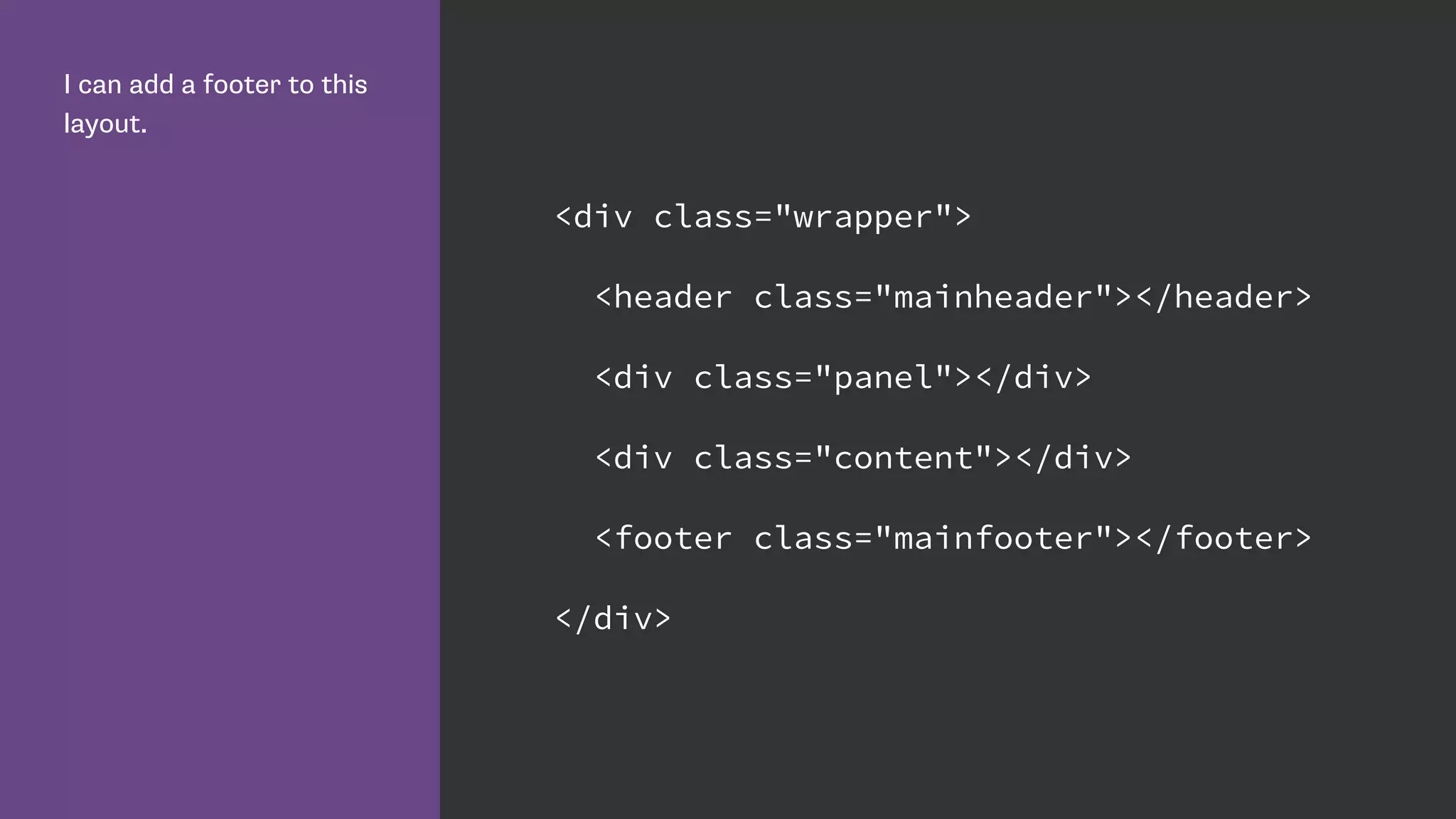
I can add a footer to this
layout.
<div class="wrapper">
<header class="mainheader"></header>
<div class="panel"></div>
<div class="content"></div>
<footer class="mainfooter"></footer>
</div>
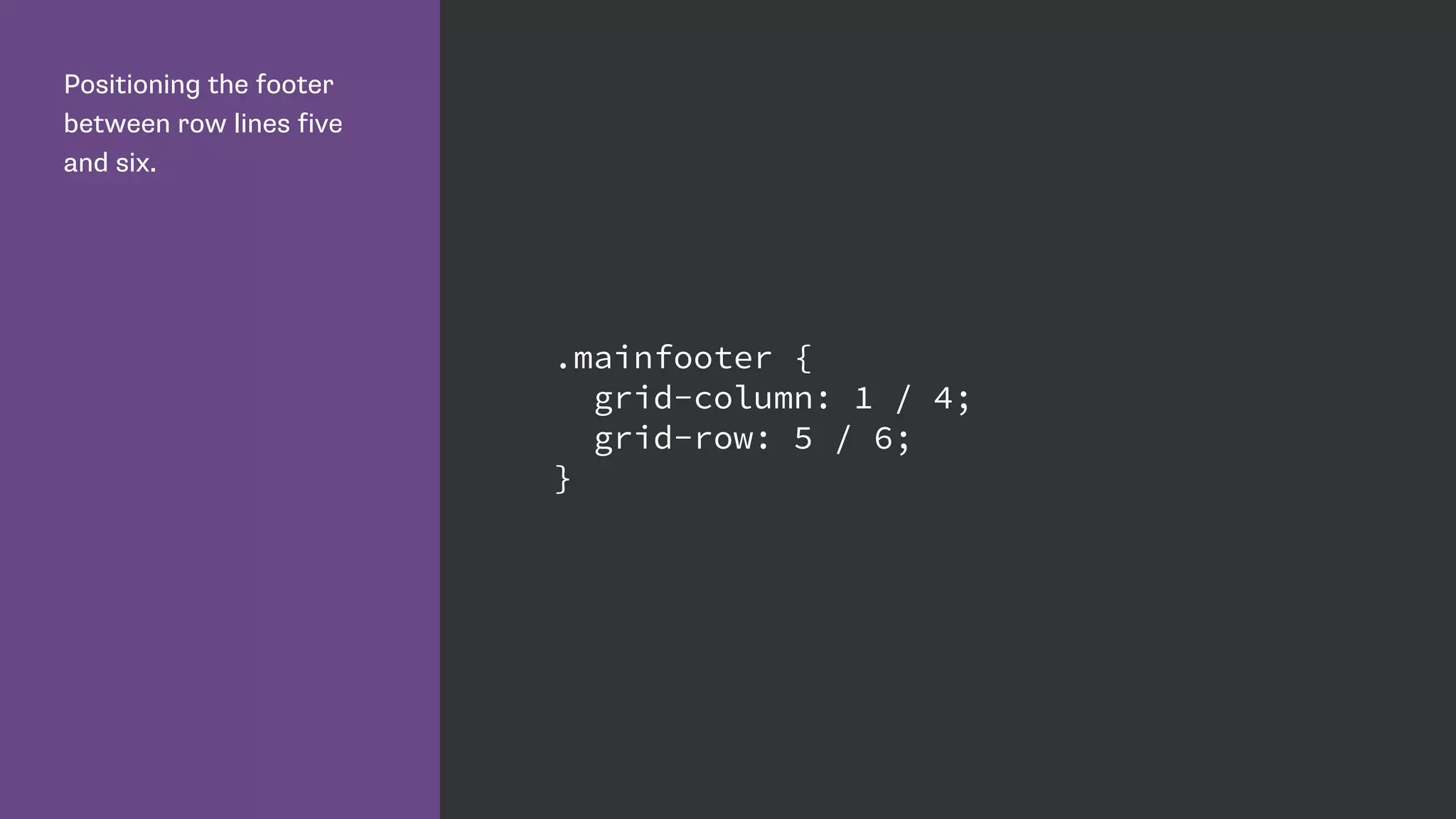
Positioning the footer
between row lines five
and six.
.mainfooter {
grid-column: 1 / 4;
grid-row: 5 / 6;
}
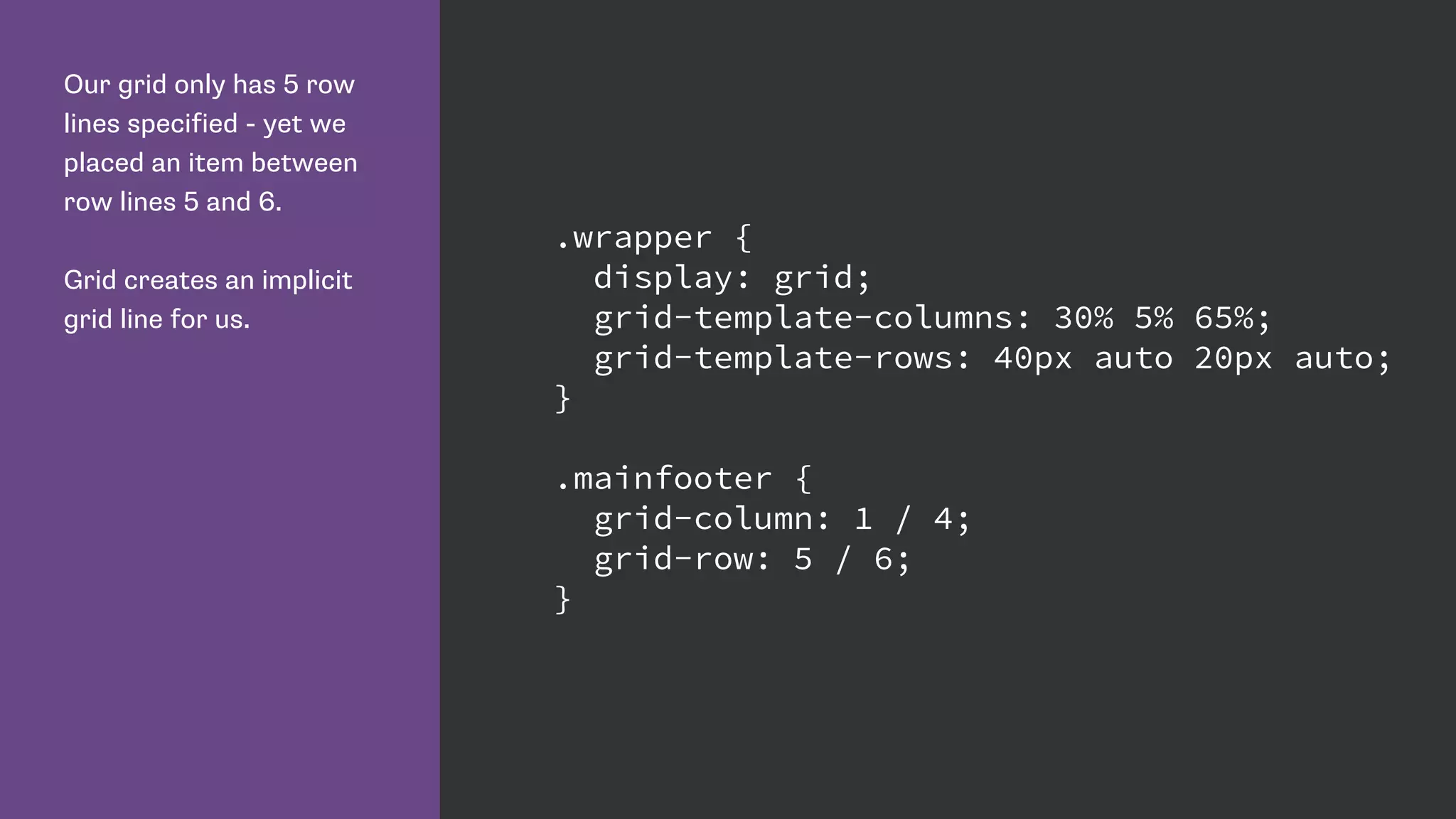
Our grid only has 5 row
lines specified - yet we
placed an item between
row lines 5 and 6.
Grid creates an implicit
grid line for us.
.wrapper {
display: grid;
grid-template-columns: 30% 5% 65%;
grid-template-rows: 40px auto 20px auto;
}
.mainfooter {
grid-column: 1 / 4;
grid-row: 5 / 6;
}
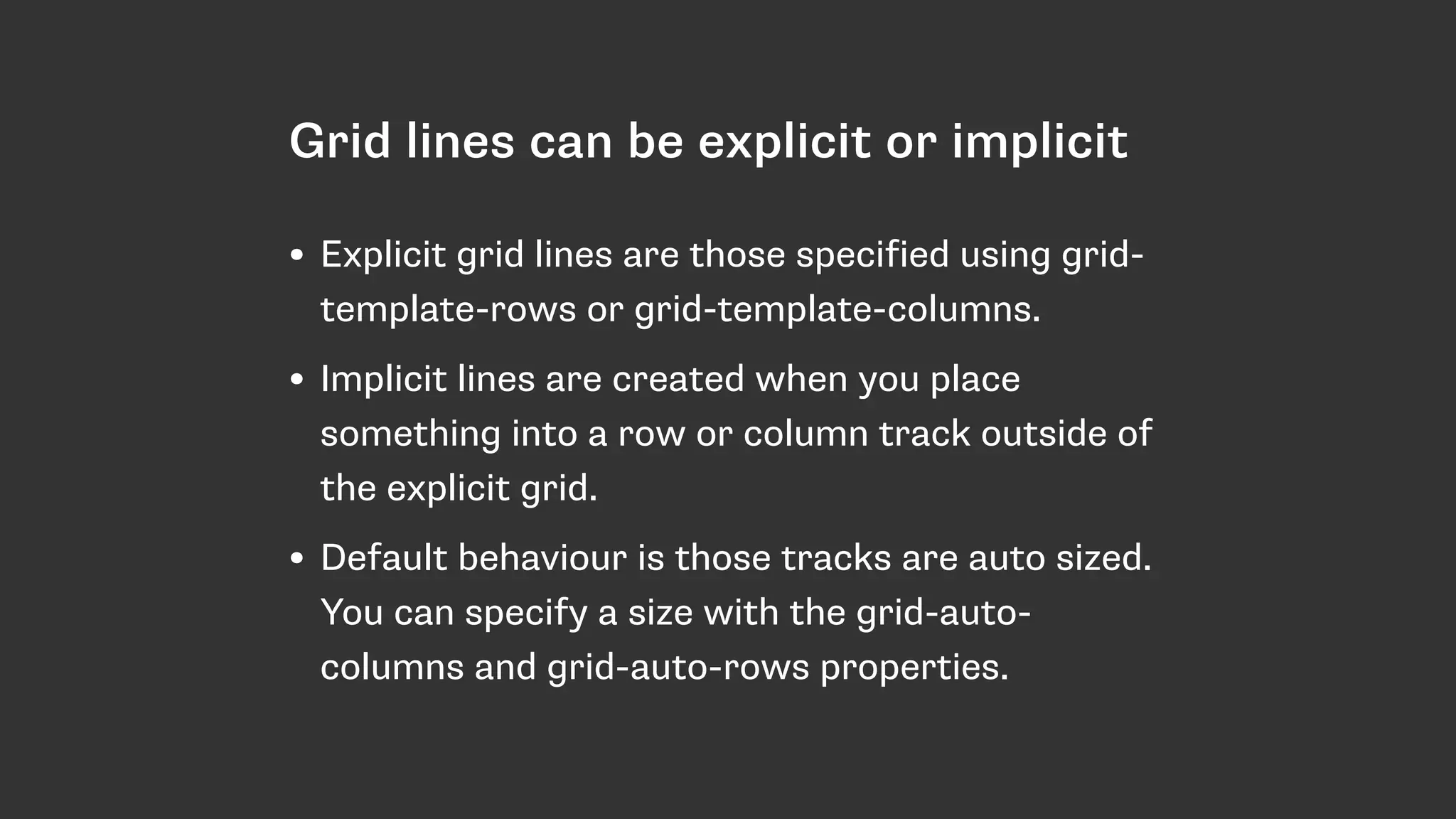
Grid lines can be explicit or implicit
• Explicit grid lines are those specified using grid-
template-rows or grid-template-columns.
• Implicit lines are created when you place
something into a row or column track outside of
the explicit grid.
• Default behaviour is those tracks are auto sized.
You can specify a size with the grid-auto-
columns and grid-auto-rows properties.
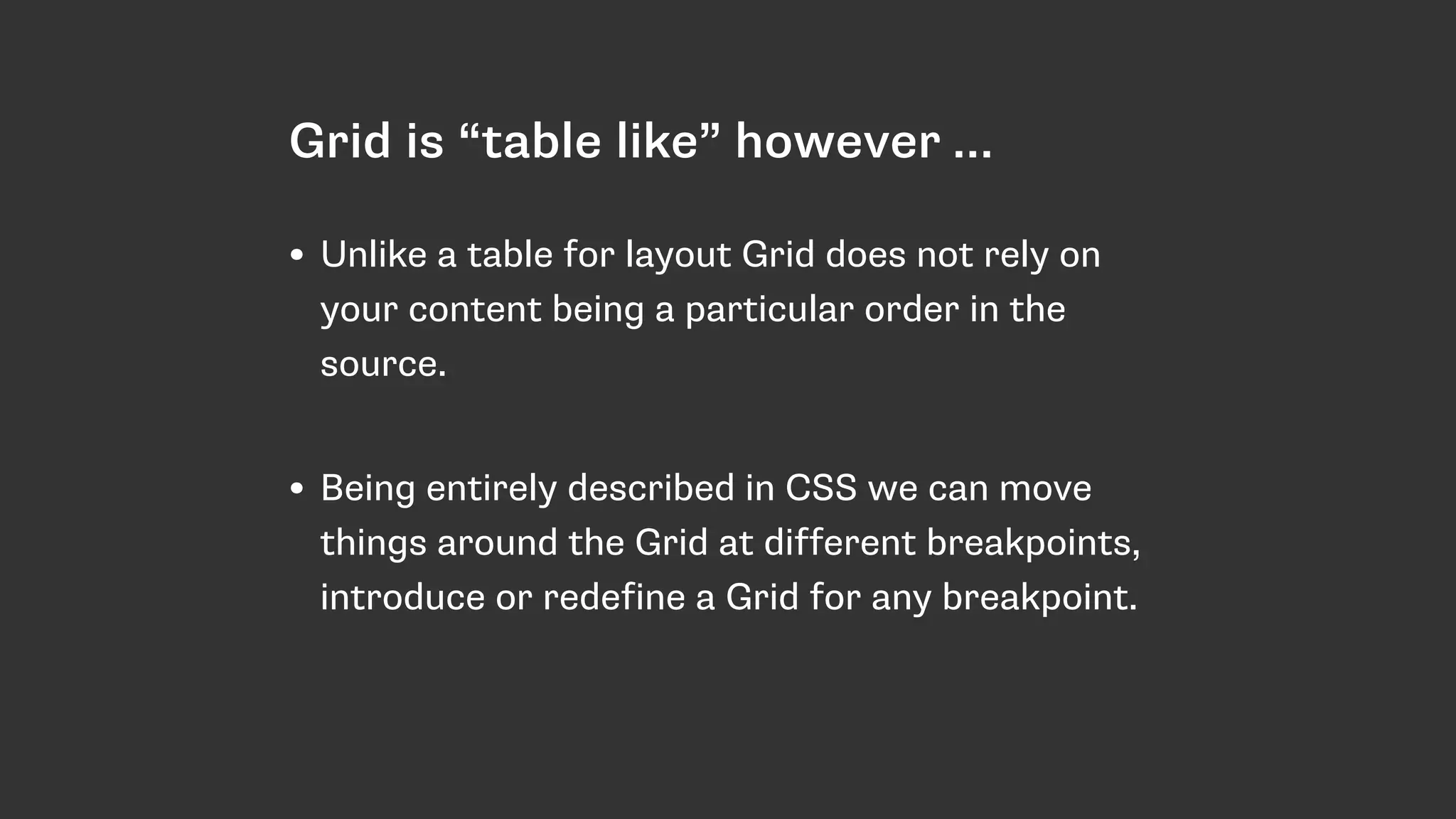
Grid is “table like” however …
• Unlike a table for layout Grid does not rely on
your content being a particular order in the
source.

• Being entirely described in CSS we can move
things around the Grid at different breakpoints,
introduce or redefine a Grid for any breakpoint.
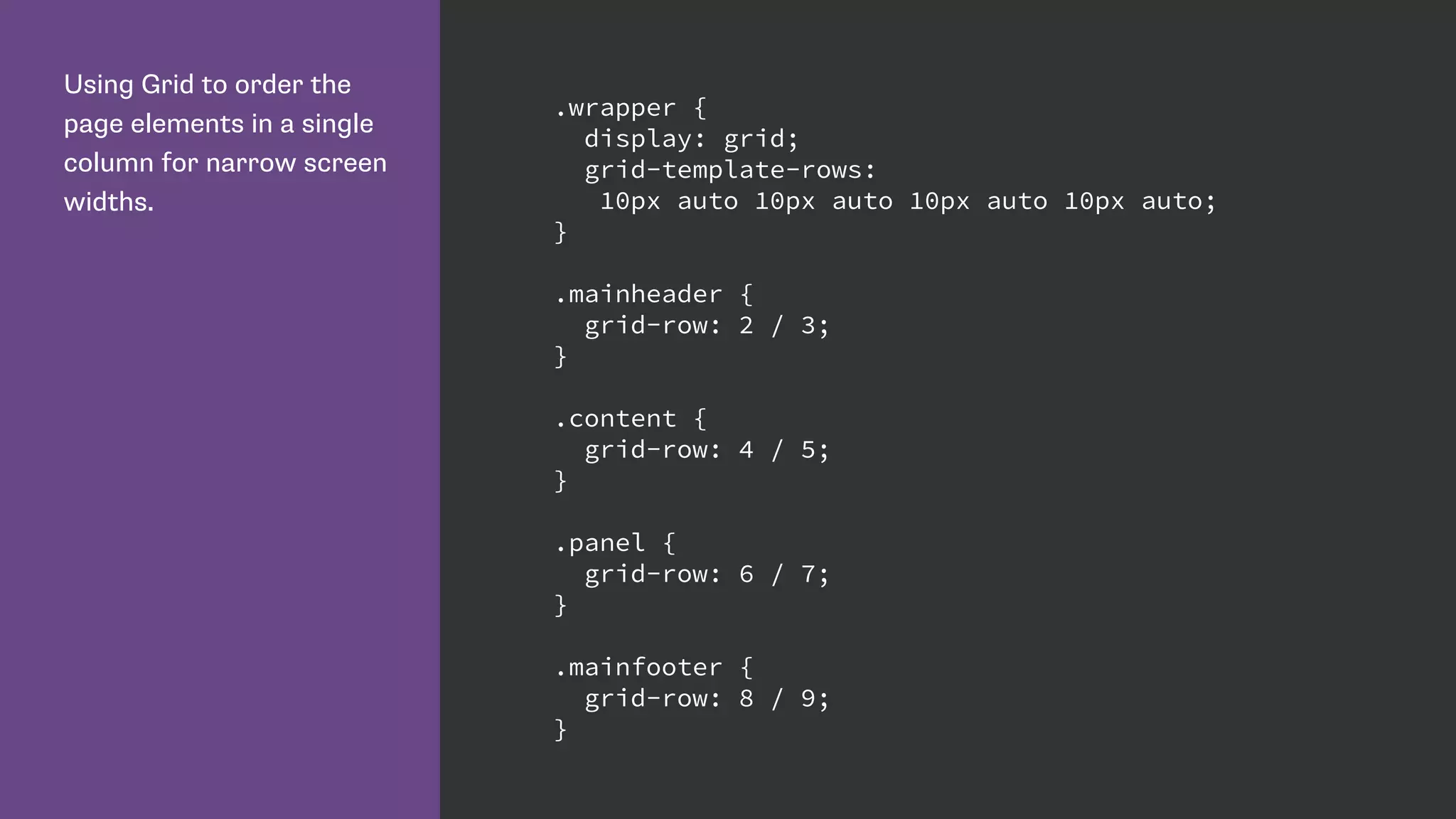
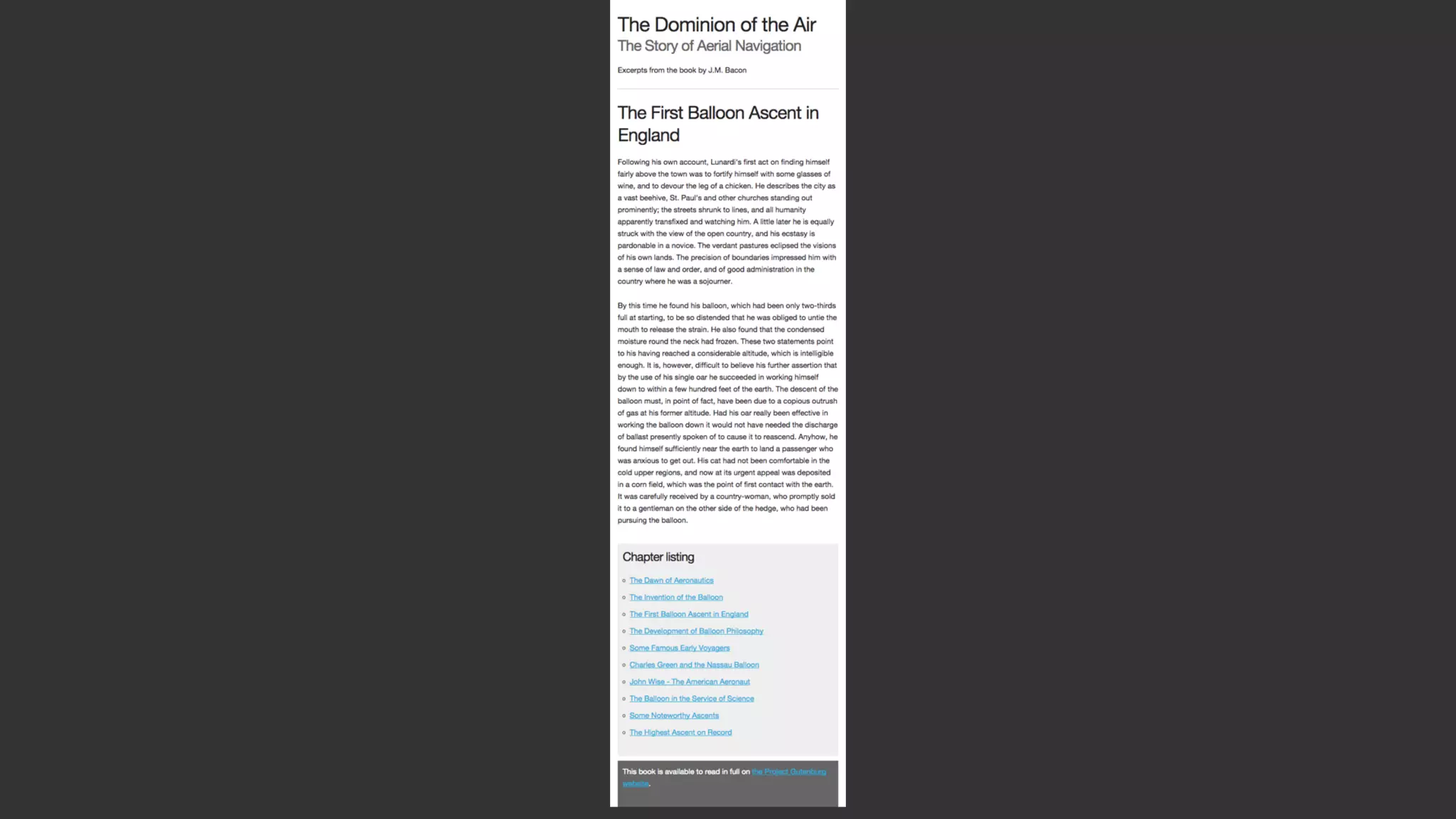
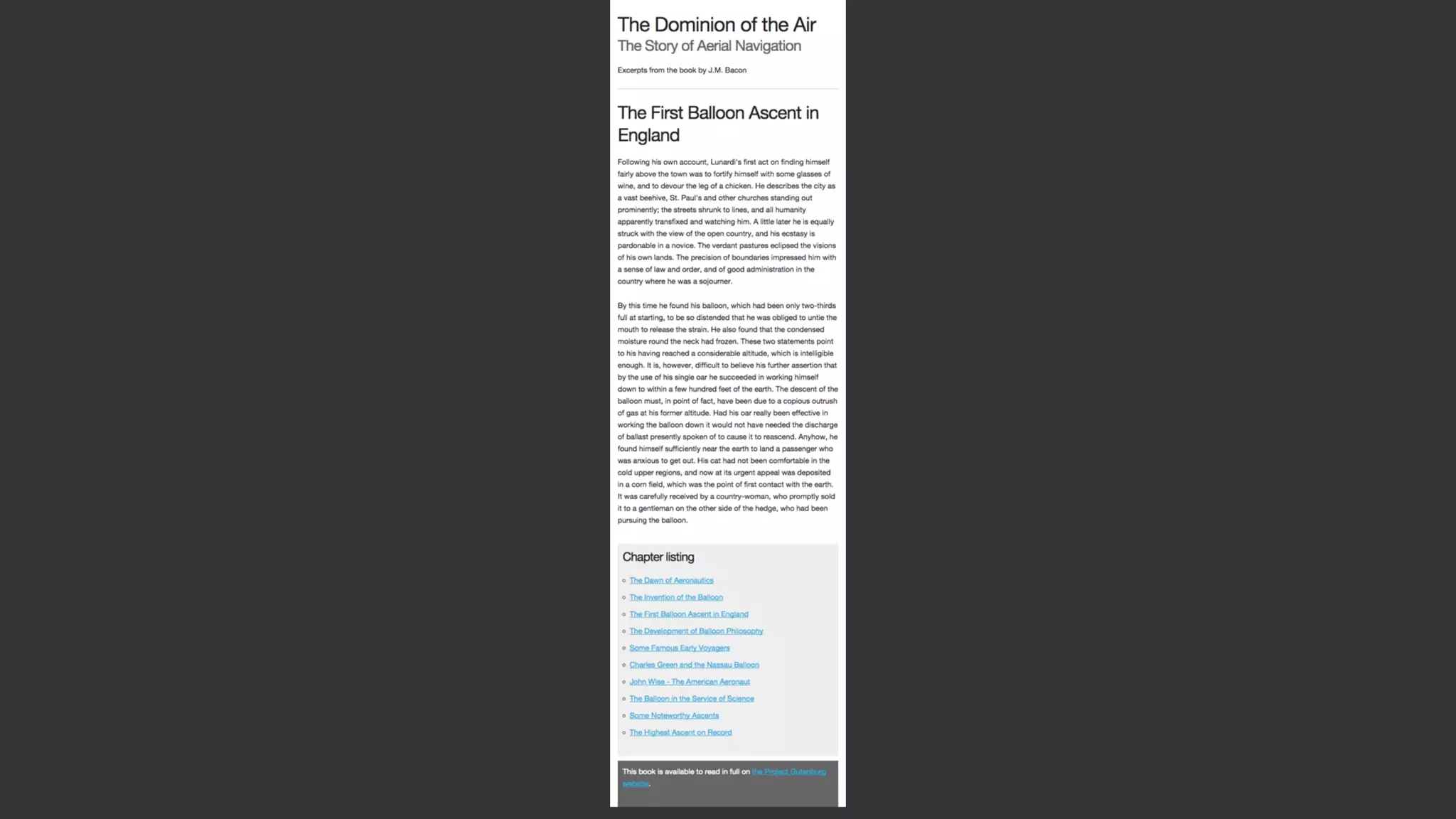
Using Grid to order the
page elements in a single
column for narrow screen
widths.
.wrapper {
display: grid;
grid-template-rows:
10px auto 10px auto 10px auto 10px auto;
}
.mainheader {
grid-row: 2 / 3;
}
.content {
grid-row: 4 / 5;
}
.panel {
grid-row: 6 / 7;
}
.mainfooter {
grid-row: 8 / 9;
}
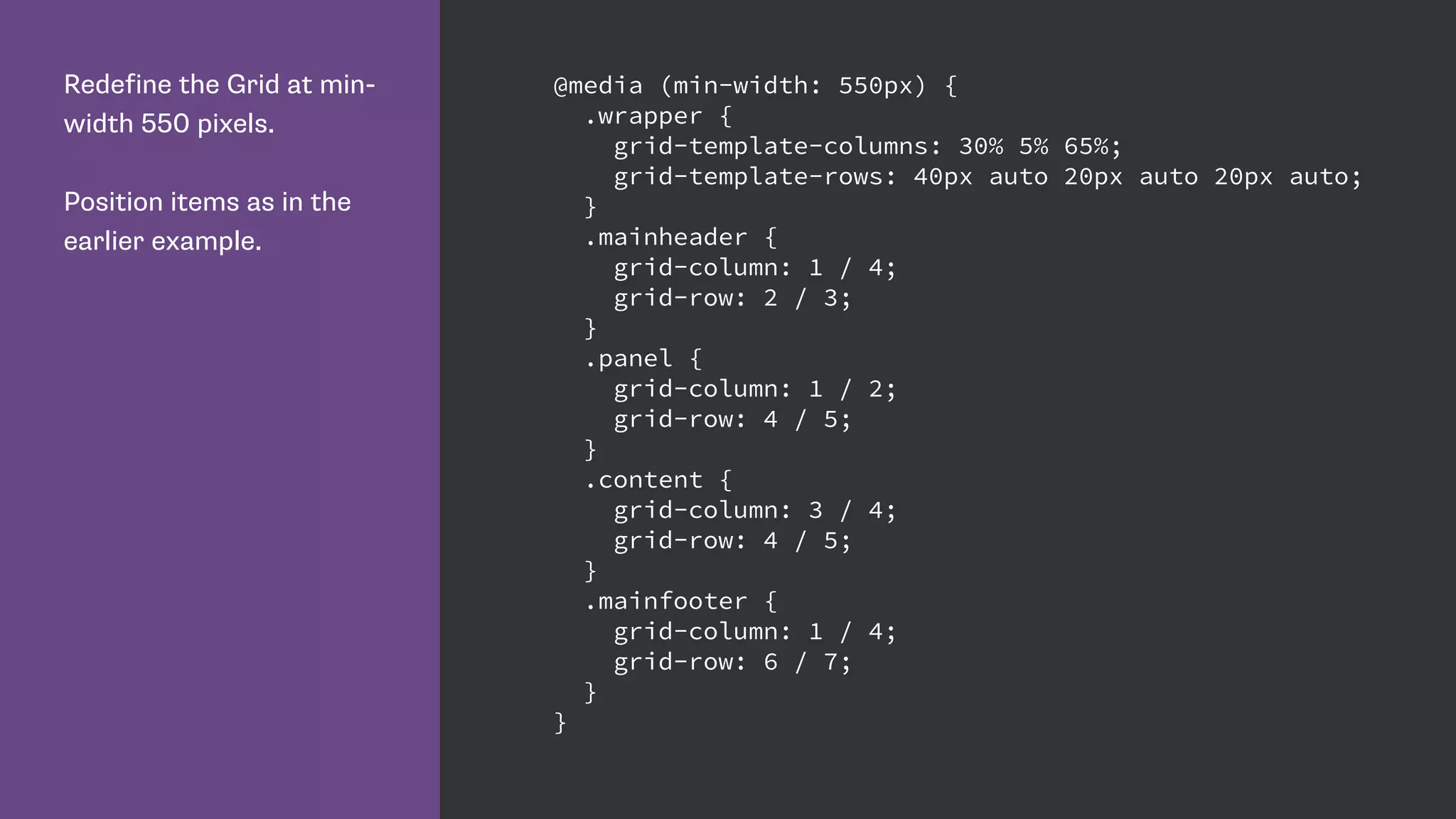
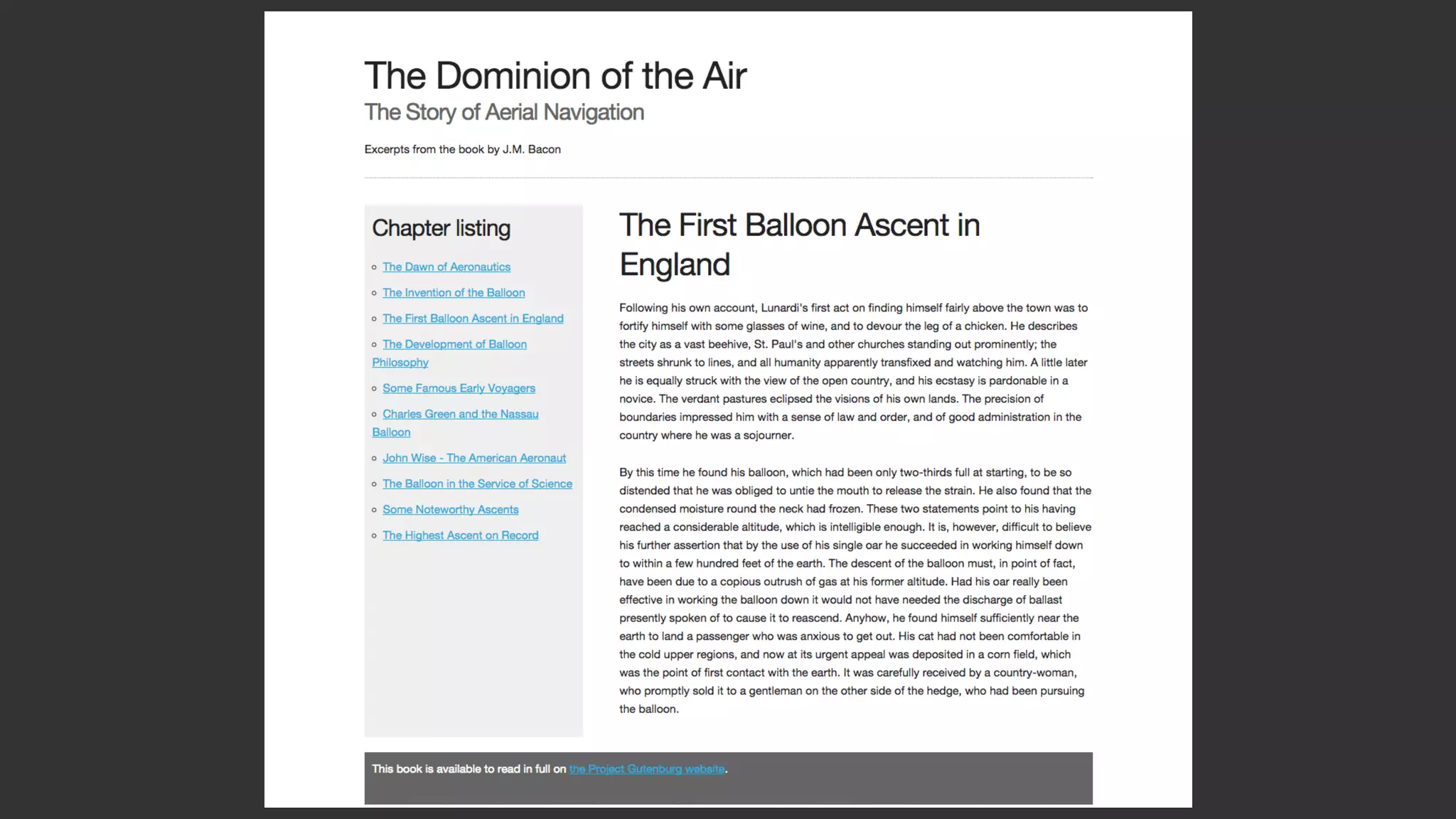
Redefine the Grid at min-
width 550 pixels.
Position items as in the
earlier example.
@media (min-width: 550px) {
.wrapper {
grid-template-columns: 30% 5% 65%;
grid-template-rows: 40px auto 20px auto 20px auto;
}
.mainheader {
grid-column: 1 / 4;
grid-row: 2 / 3;
}
.panel {
grid-column: 1 / 2;
grid-row: 4 / 5;
}
.content {
grid-column: 3 / 4;
grid-row: 4 / 5;
}
.mainfooter {
grid-column: 1 / 4;
grid-row: 6 / 7;
}
}
Named Areas
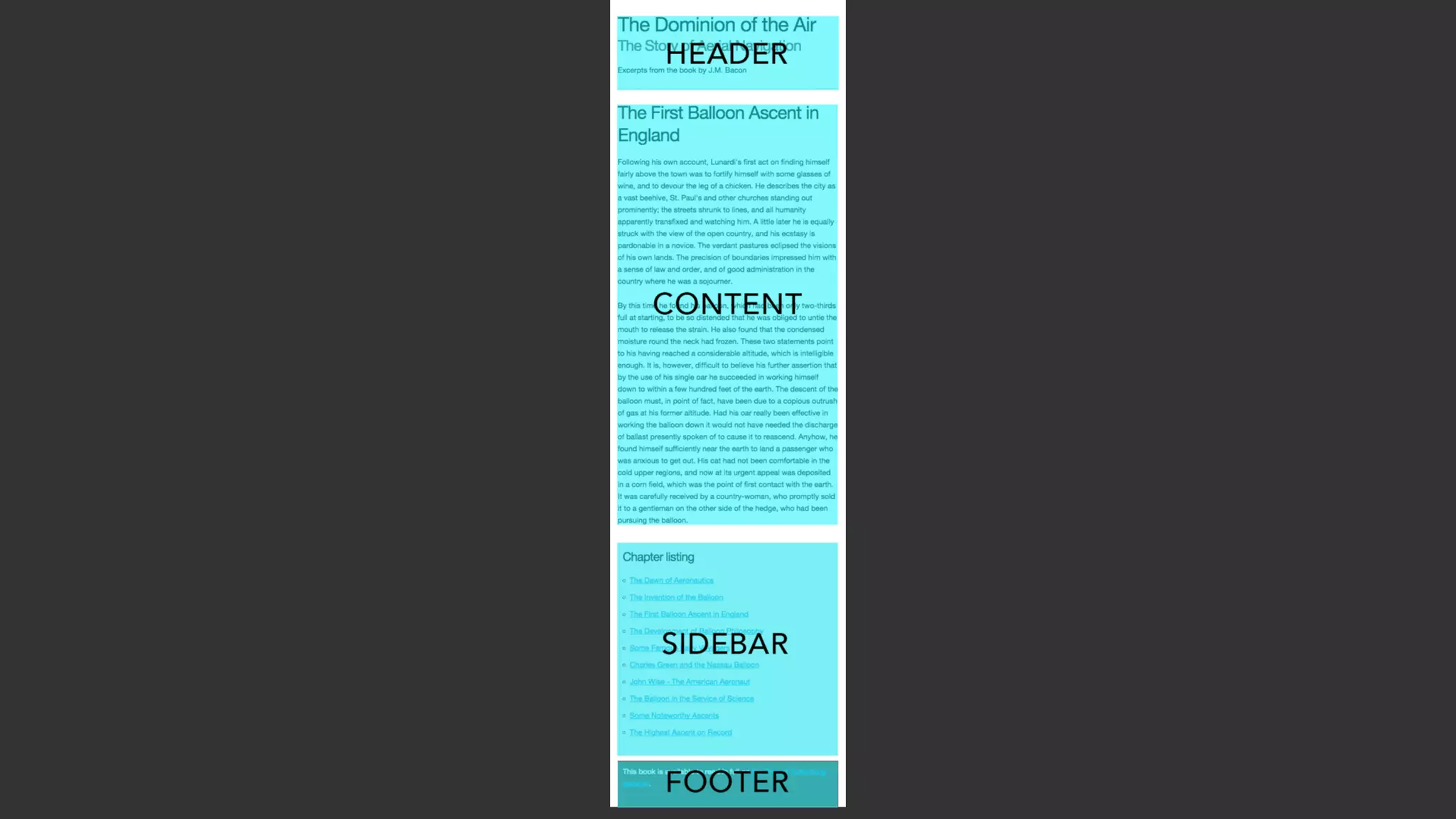
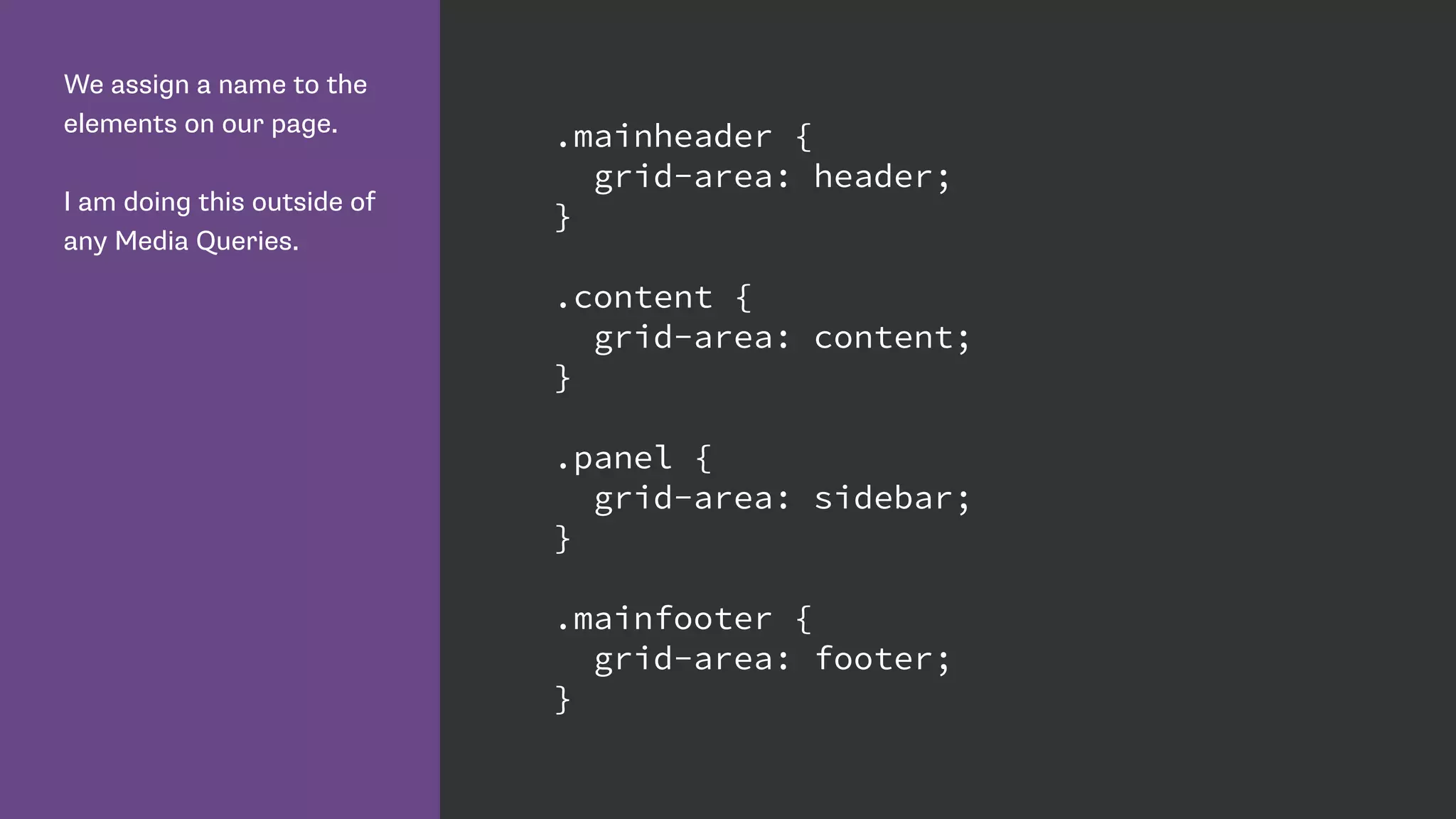
We assign a name to the
elements on our page.
I am doing this outside of
any Media Queries.
.mainheader {
grid-area: header;
}
.content {
grid-area: content;
}
.panel {
grid-area: sidebar;
}
.mainfooter {
grid-area: footer;
}
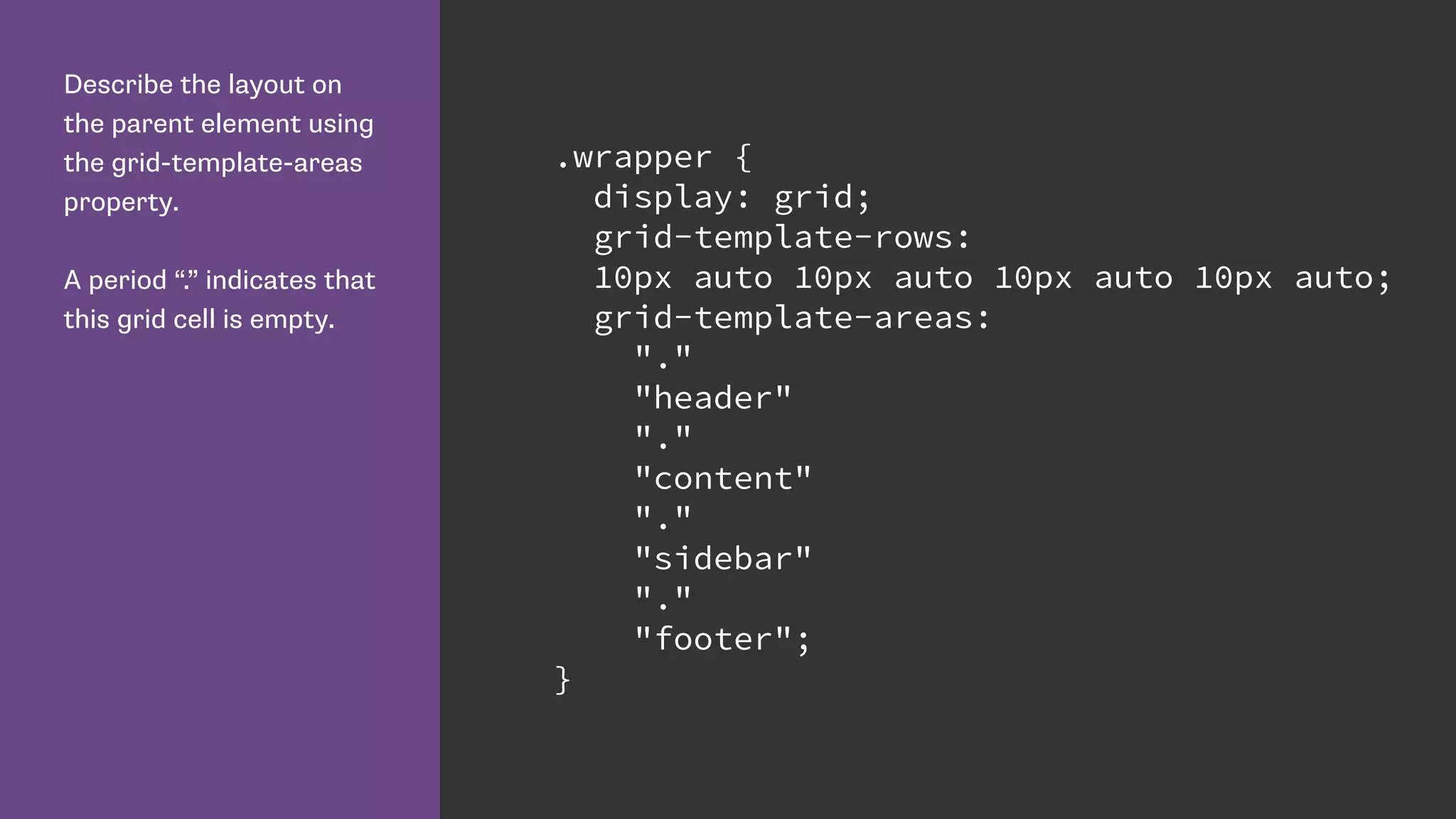
Describe the layout on
the parent element using
the grid-template-areas
property.
A period “.” indicates that
this grid cell is empty.
.wrapper {
display: grid;
grid-template-rows:
10px auto 10px auto 10px auto 10px auto;
grid-template-areas:
"."
"header"
"."
"content"
"."
"sidebar"
"."
"footer";
}
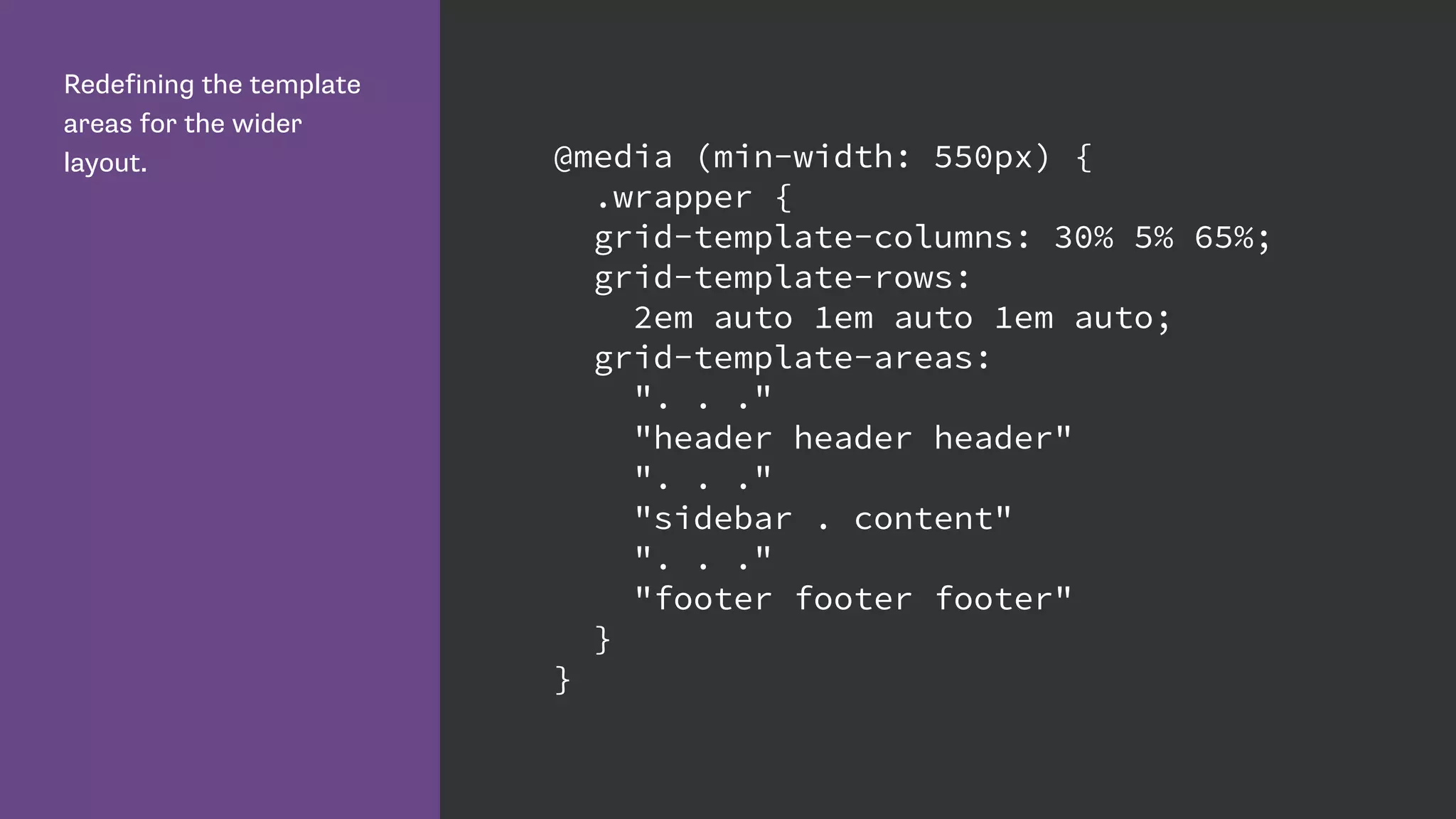
Redefining the template
areas for the wider
layout. @media (min-width: 550px) {
.wrapper {
grid-template-columns: 30% 5% 65%;
grid-template-rows:
2em auto 1em auto 1em auto;
grid-template-areas:
". . ."
"header header header"
". . ."
"sidebar . content"
". . ."
"footer footer footer"
}
}
Resources
Grid by Example: http://gridbyexample.com
Examples from Igalia: http://igalia.github.io/css-grid-layout/
An article covering the original IE10 implementation: http://24ways.org/2012/css3-
grid-layout/
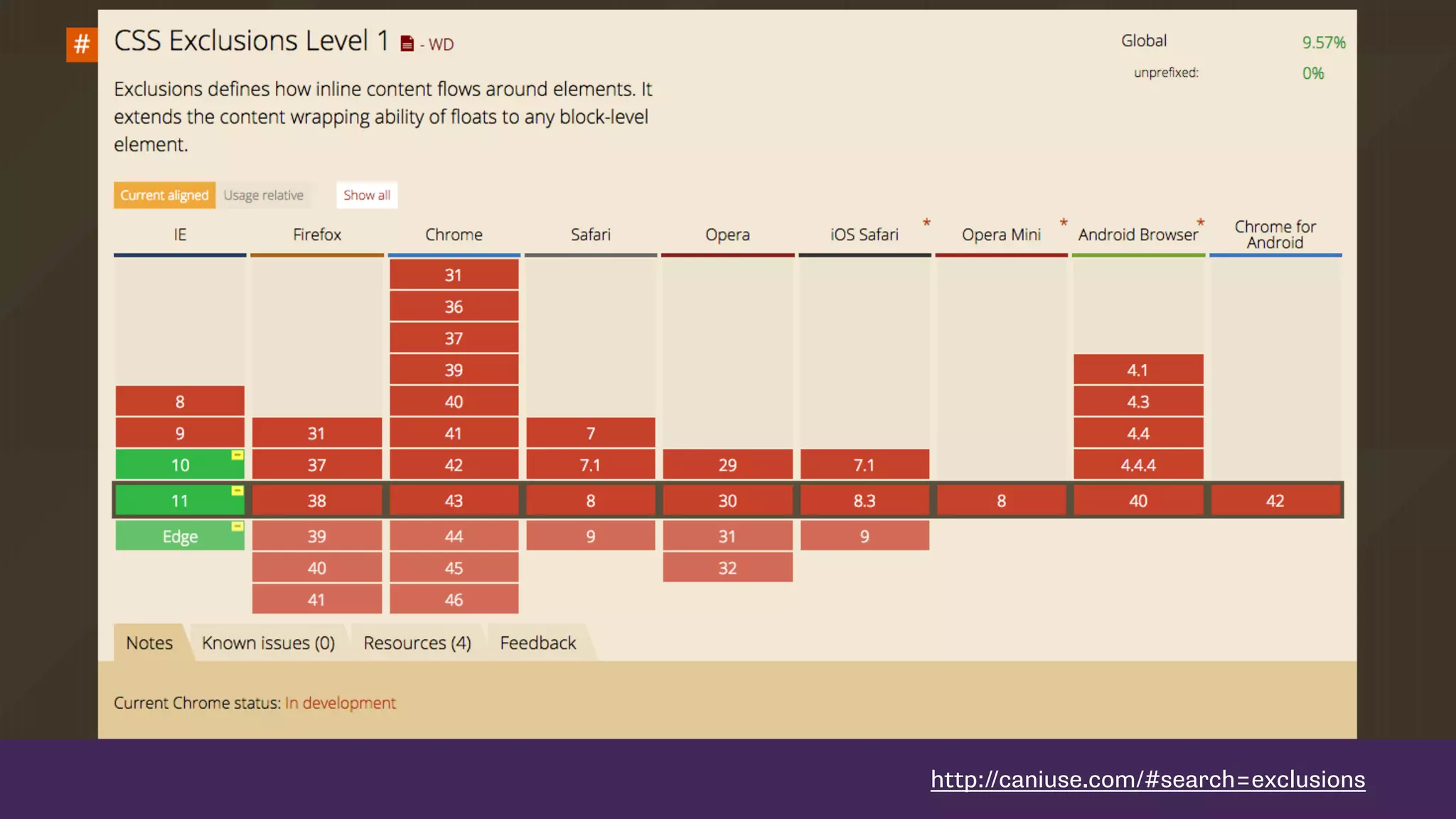
CSS Exclusions
http://www.w3.org/TR/css3-exclusions/
http://dev.w3.org/csswg/css-exclusions/
https://www.flickr.com/photos/markusspiske/15115777092
http://caniuse.com/#search=exclusions
Floated items always rise to the top.
We can wrap text around the right or
left and bottom of an item.
Exclusions enable wrapping text
around all sides of an item.
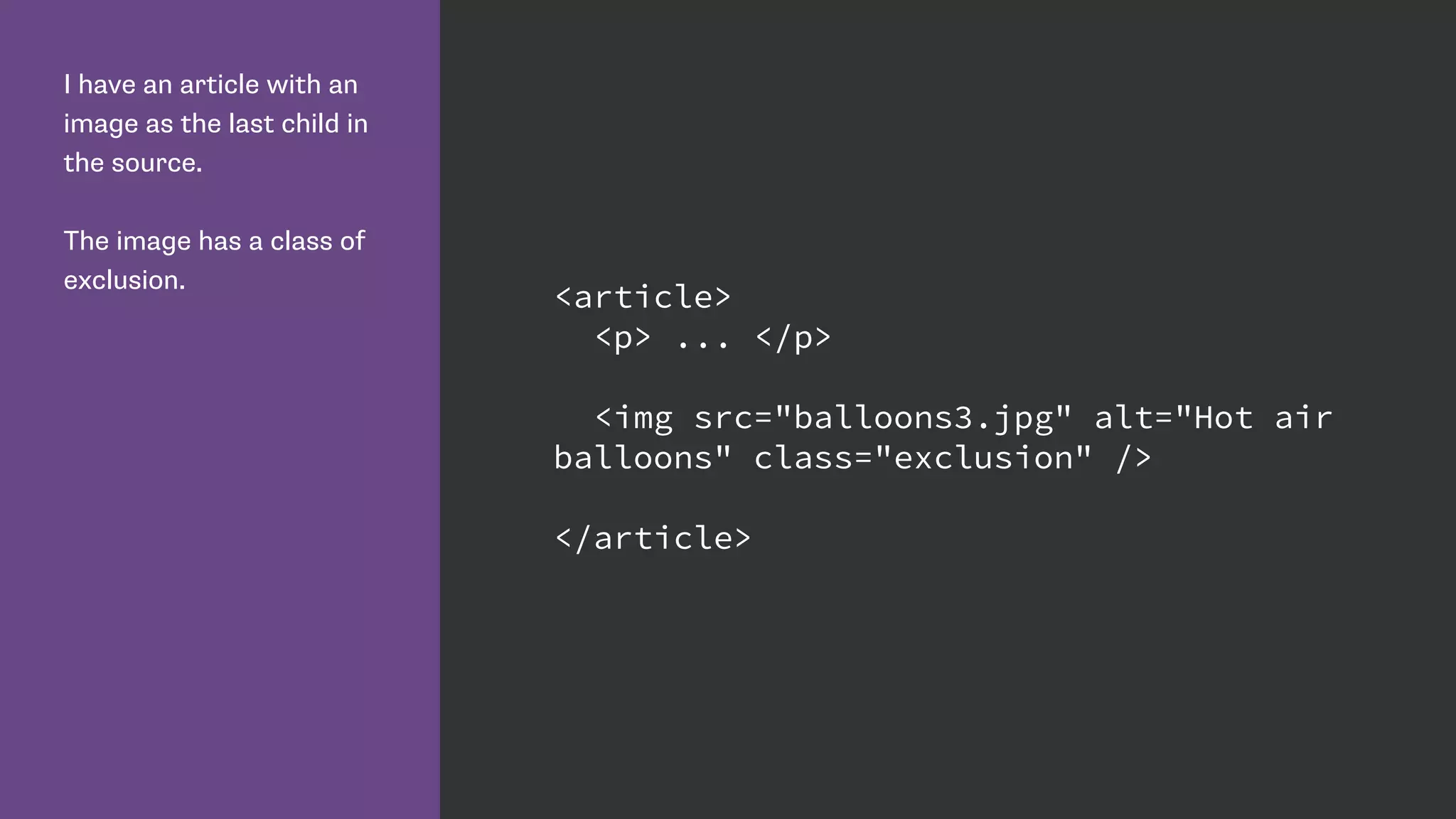
I have an article with an
image as the last child in
the source.
The image has a class of
exclusion.
<article>
<p> ... </p>
<img src="balloons3.jpg" alt="Hot air
balloons" class="exclusion" />
</article>
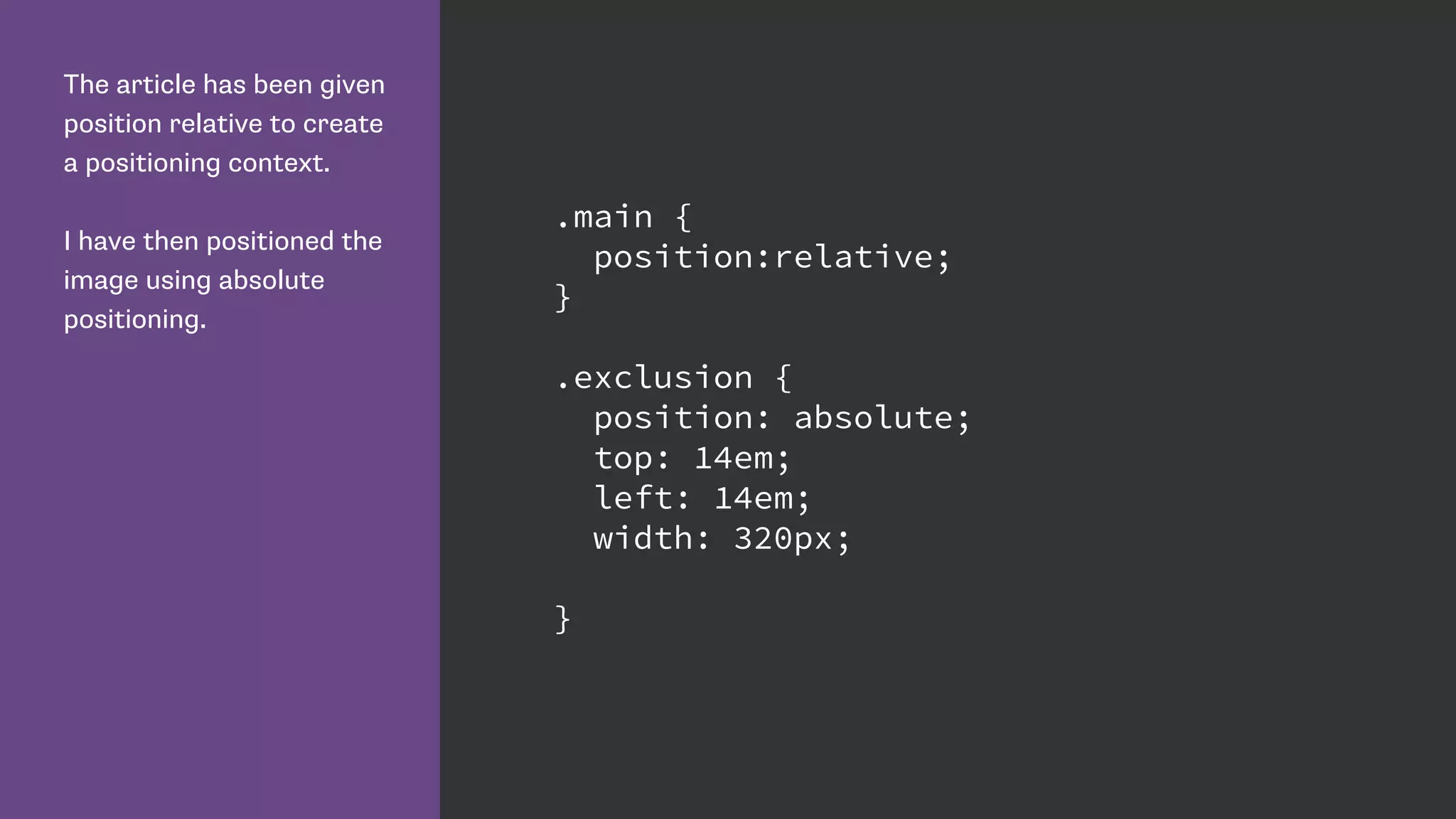
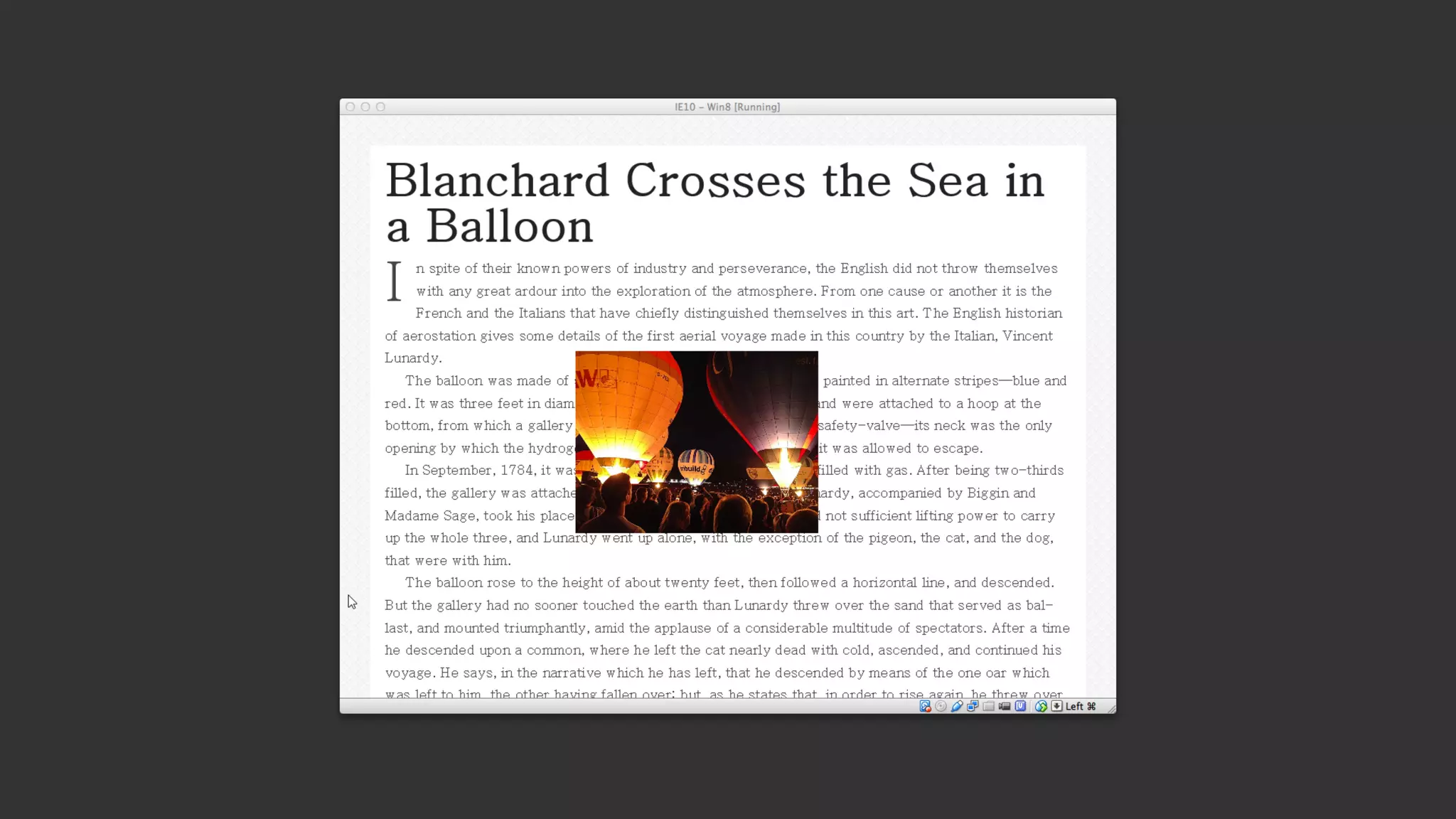
The article has been given
position relative to create
a positioning context.
I have then positioned the
image using absolute
positioning.
.main {
position:relative;
}
.exclusion {
position: absolute;
top: 14em;
left: 14em;
width: 320px;
}
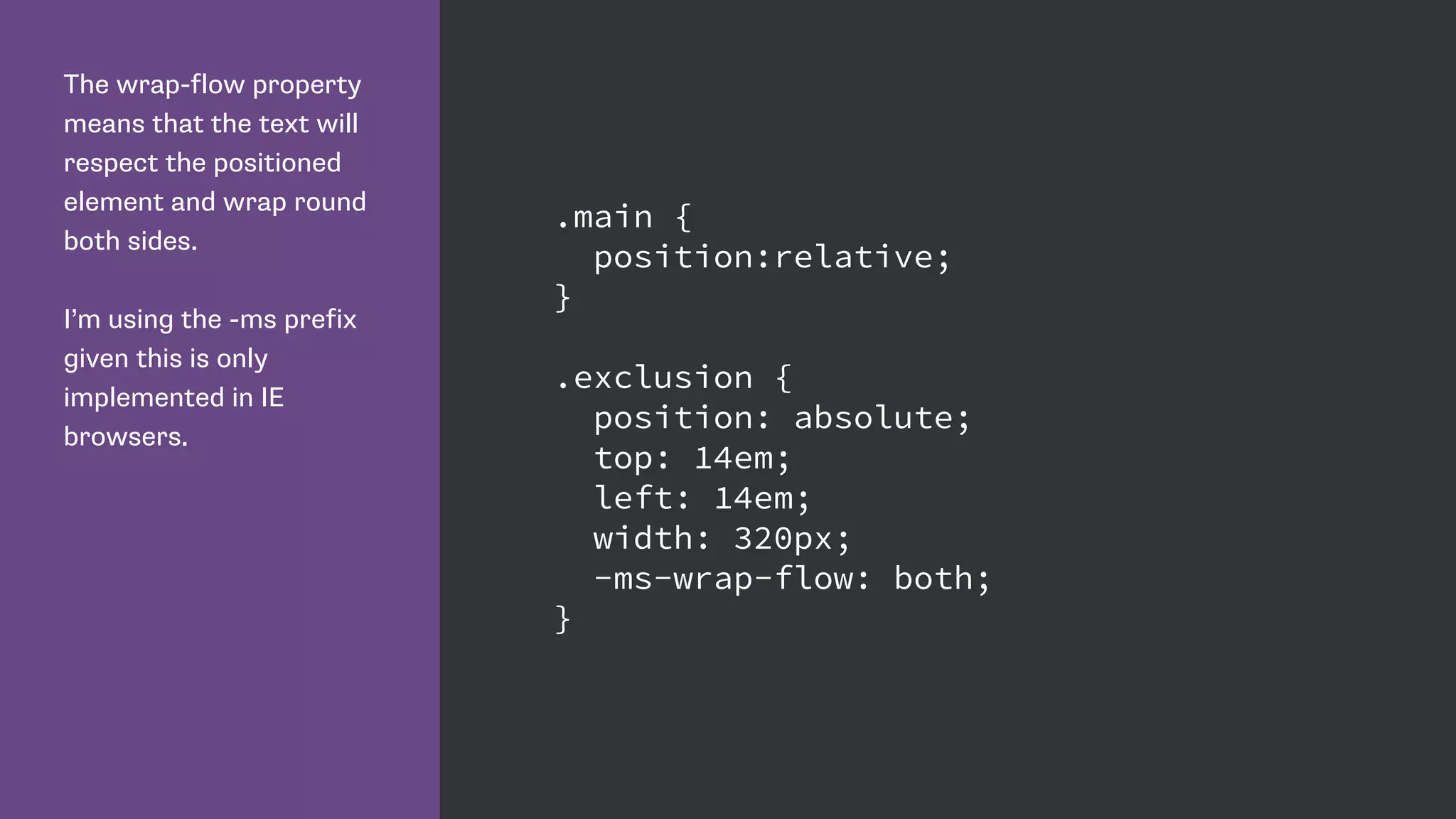
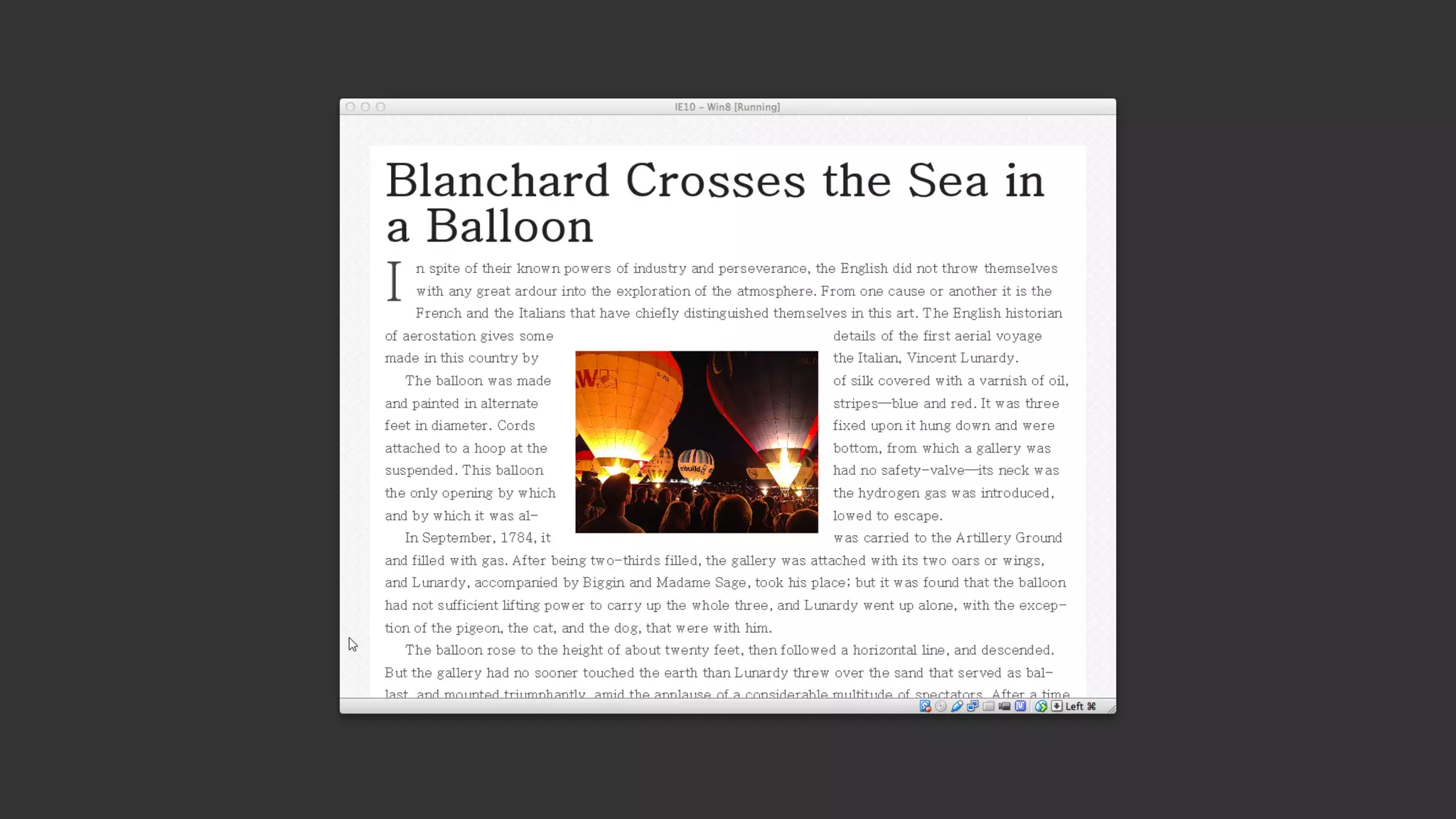
The wrap-flow property
means that the text will
respect the positioned
element and wrap round
both sides.
I’m using the -ms prefix
given this is only
implemented in IE
browsers.
.main {
position:relative;
}
.exclusion {
position: absolute;
top: 14em;
left: 14em;
width: 320px;
-ms-wrap-flow: both;
}
CSS Regions
http://www.w3.org/TR/css-regions-1/
http://dev.w3.org/csswg/css-regions/
https://www.flickr.com/photos/striatic/3529866/
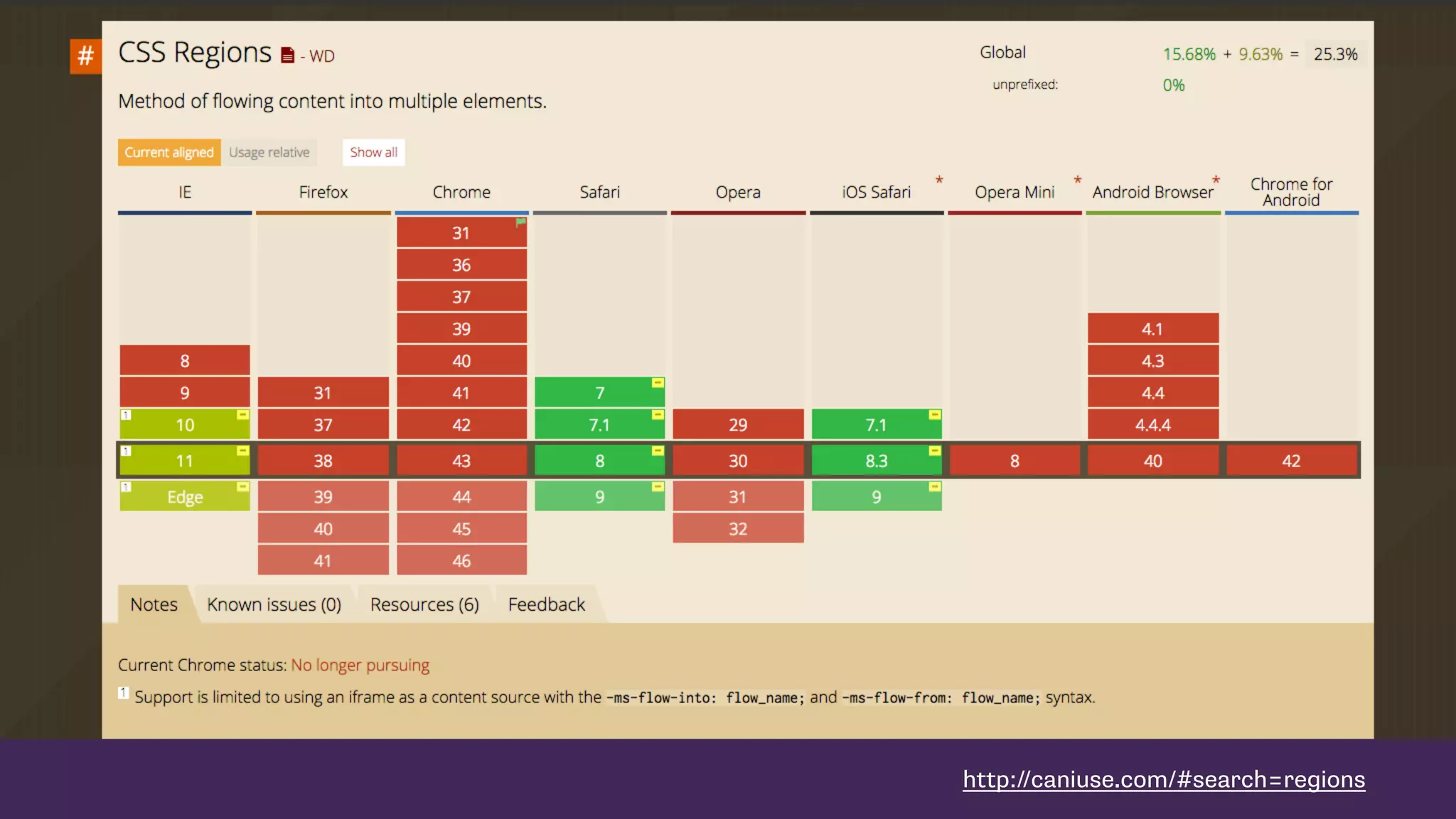
http://caniuse.com/#search=regions
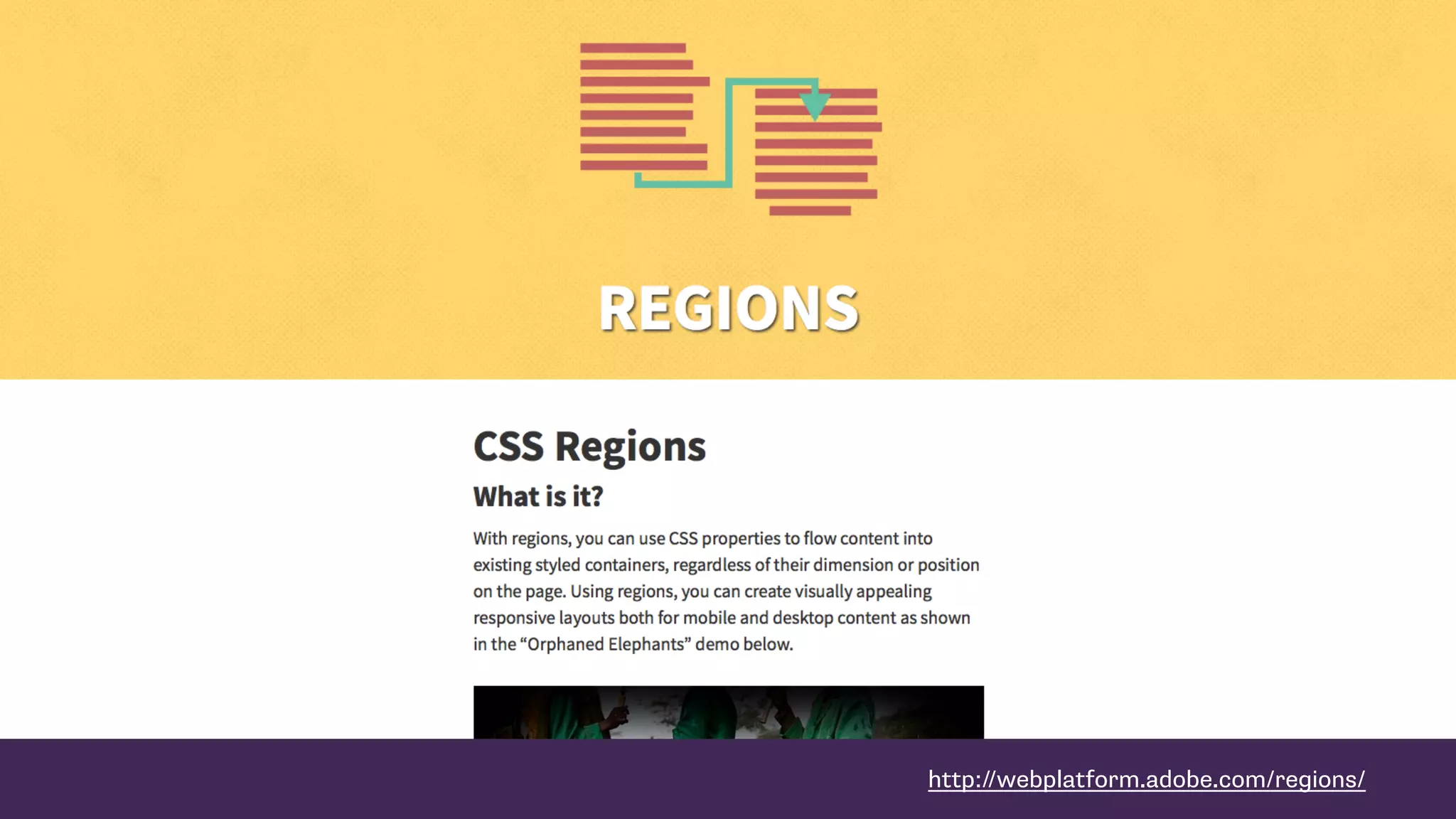
http://webplatform.adobe.com/regions/
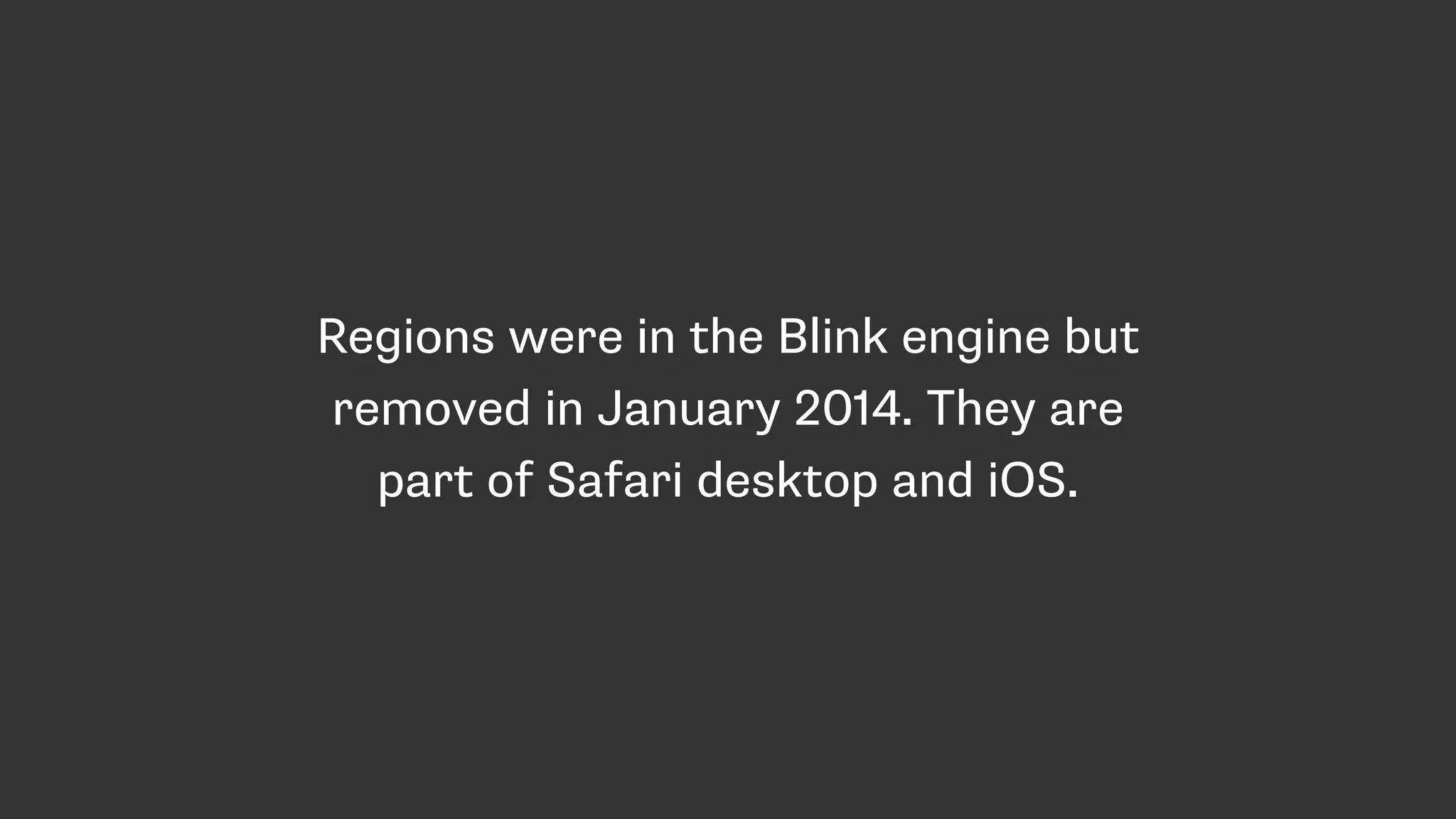
Regions were in the Blink engine but
removed in January 2014. They are
still part of Safari desktop and iOS.
https://groups.google.com/a/chromium.org/forum/#!msg/blink-dev/kTktlHPJn4Q/YrnfLxeMO7IJ
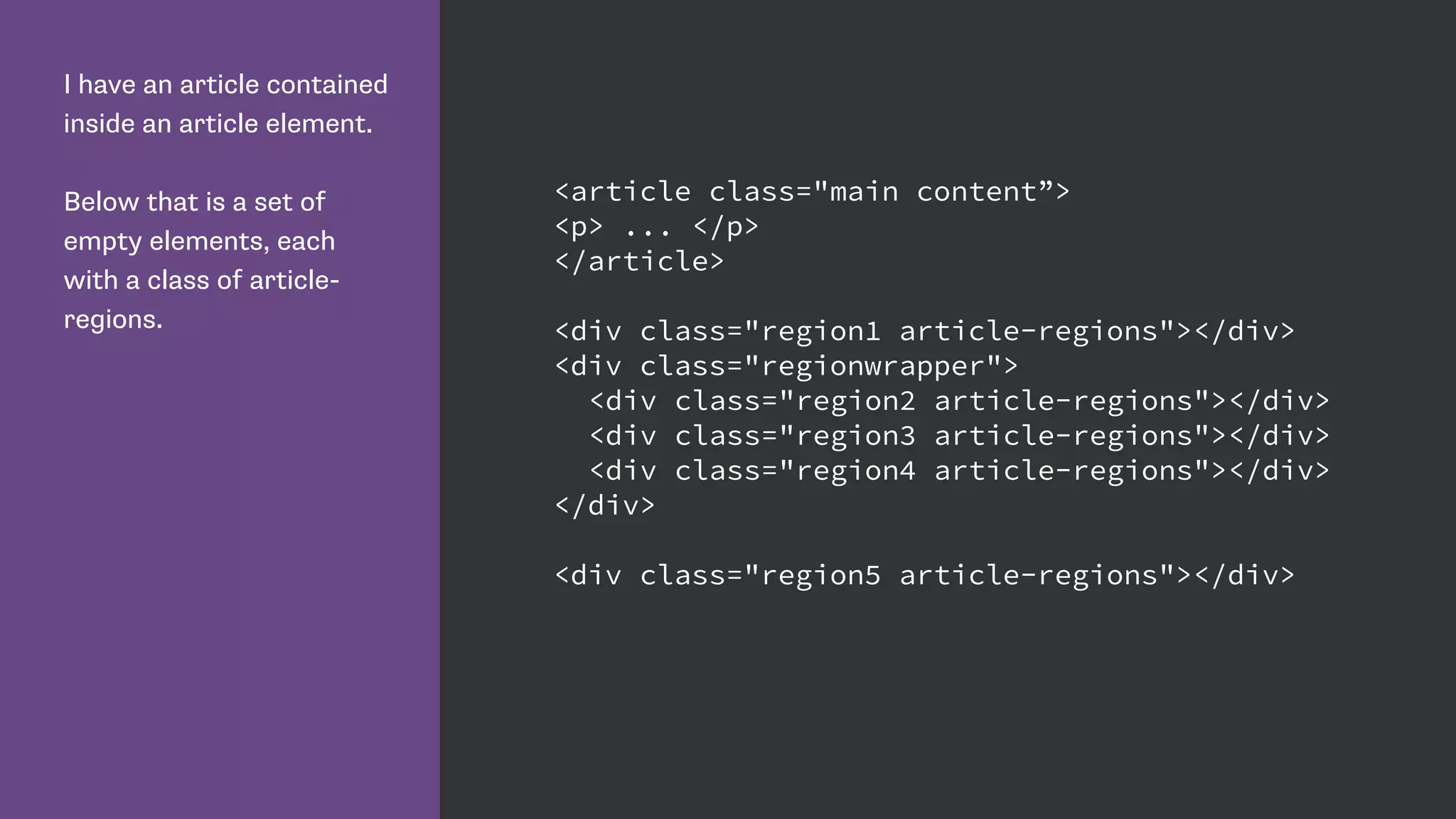
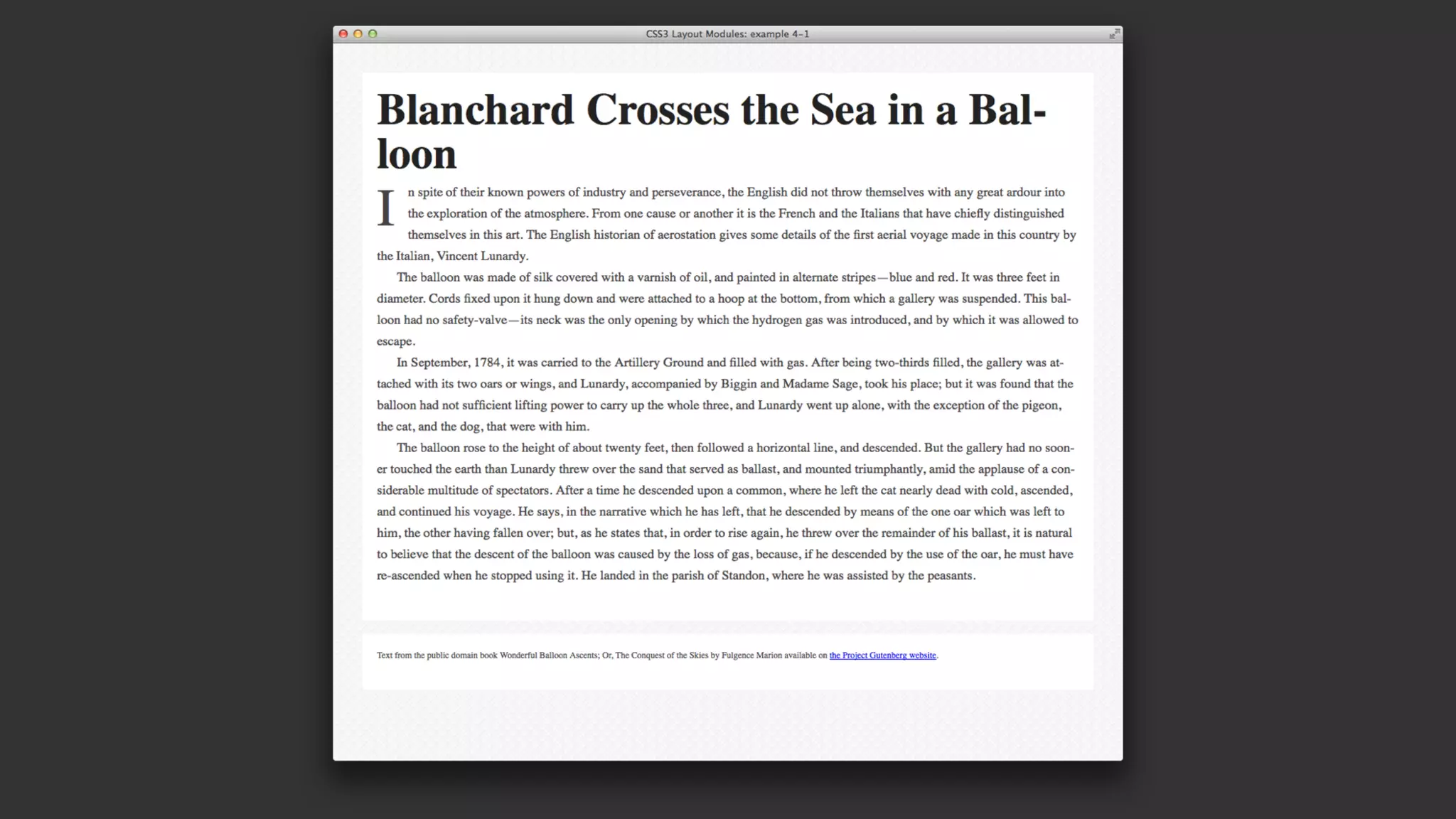
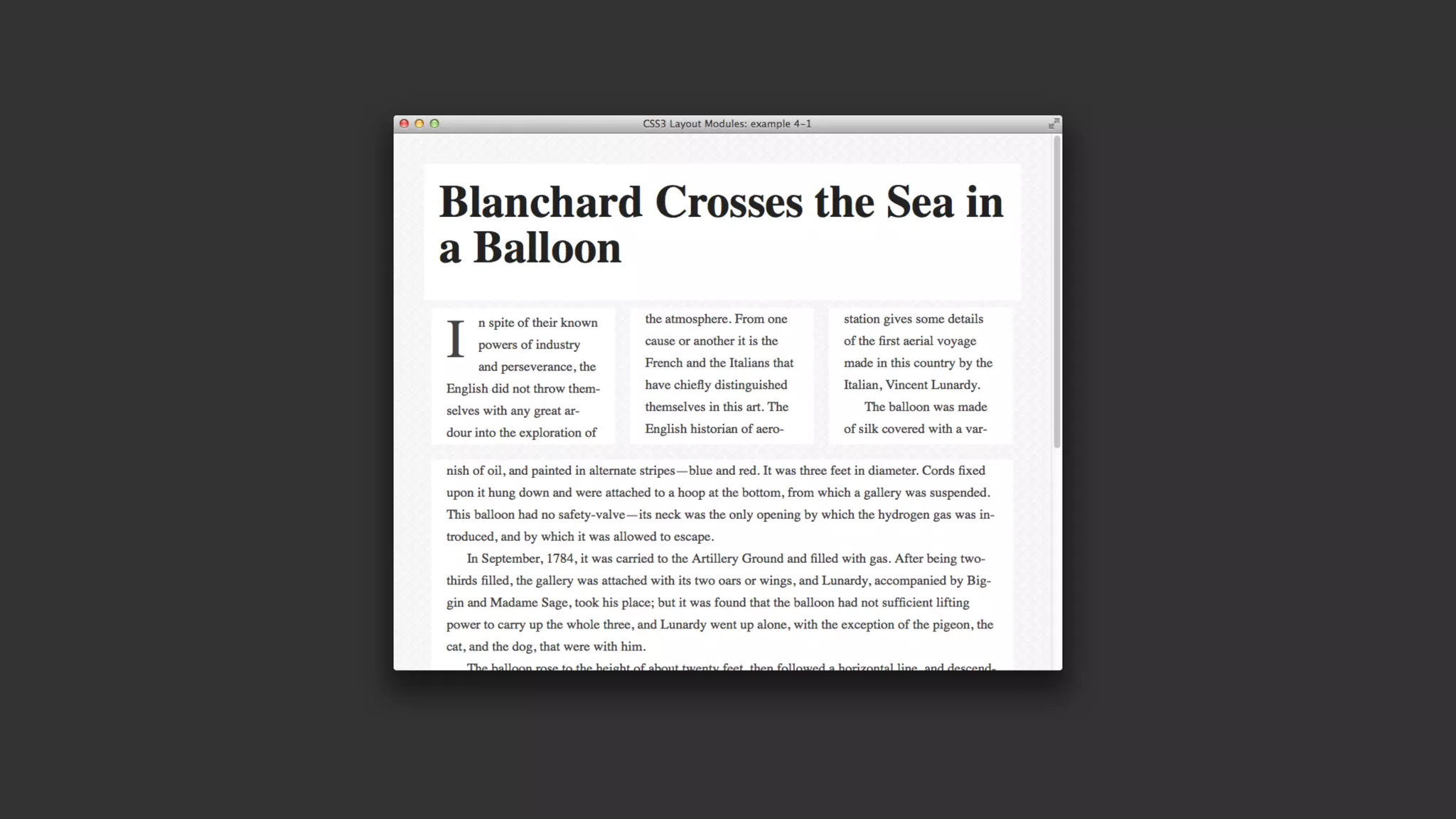
I have an article contained
inside an article element.
Below that is a set of
empty elements, each
with a class of article-
regions.
<article class="main content”>
<p> ... </p>
</article>
<div class="region1 article-regions"></div>
<div class="regionwrapper">
<div class="region2 article-regions"></div>
<div class="region3 article-regions"></div>
<div class="region4 article-regions"></div>
</div>
<div class="region5 article-regions"></div>
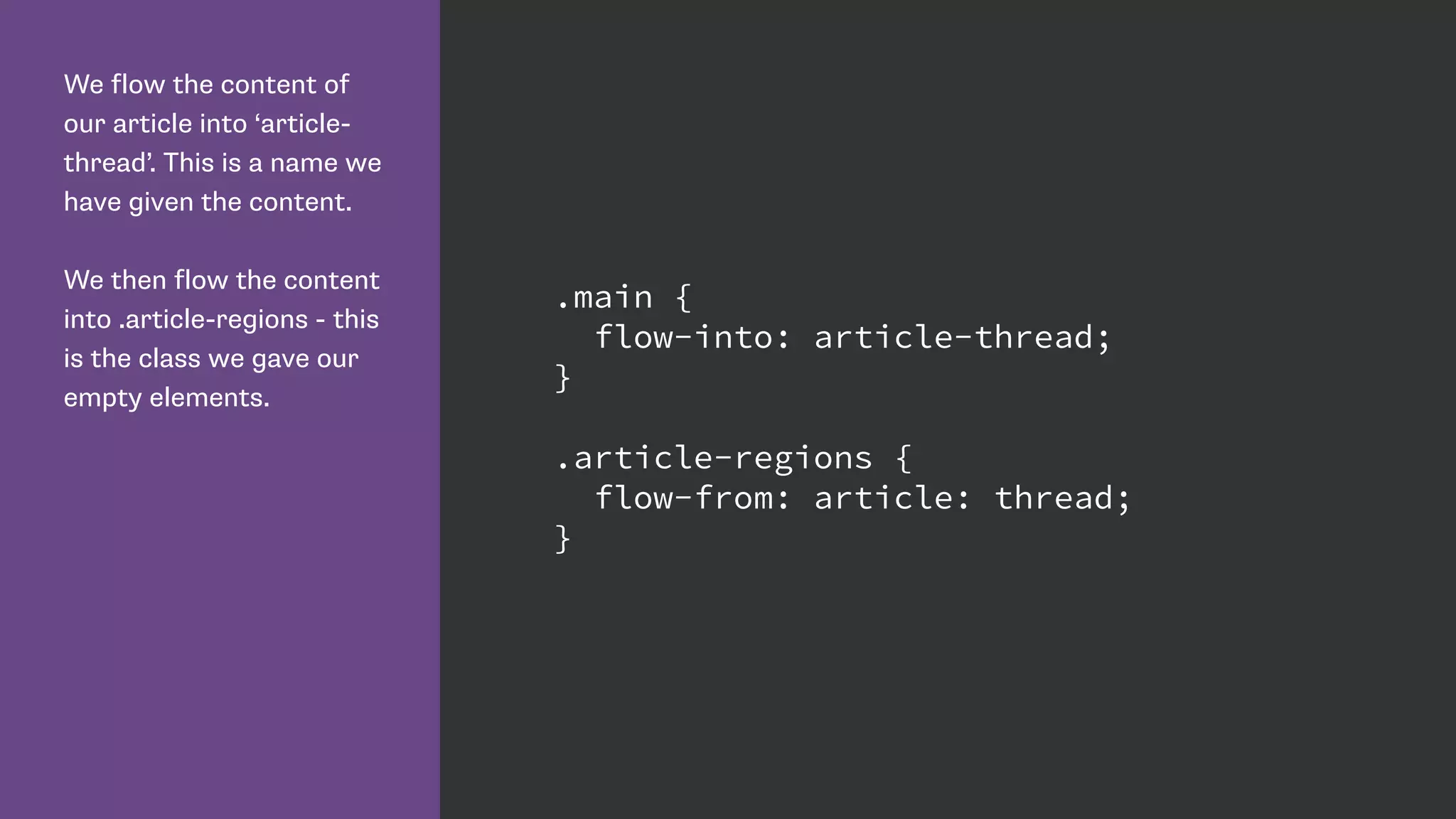
We flow the content of
our article into ‘article-
thread’. This is a name we
have given the content.
We then flow the content
into .article-regions - this
is the class we gave our
empty elements.
.main {
flow-into: article-thread;
}
.article-regions {
flow-from: article-thread;
}
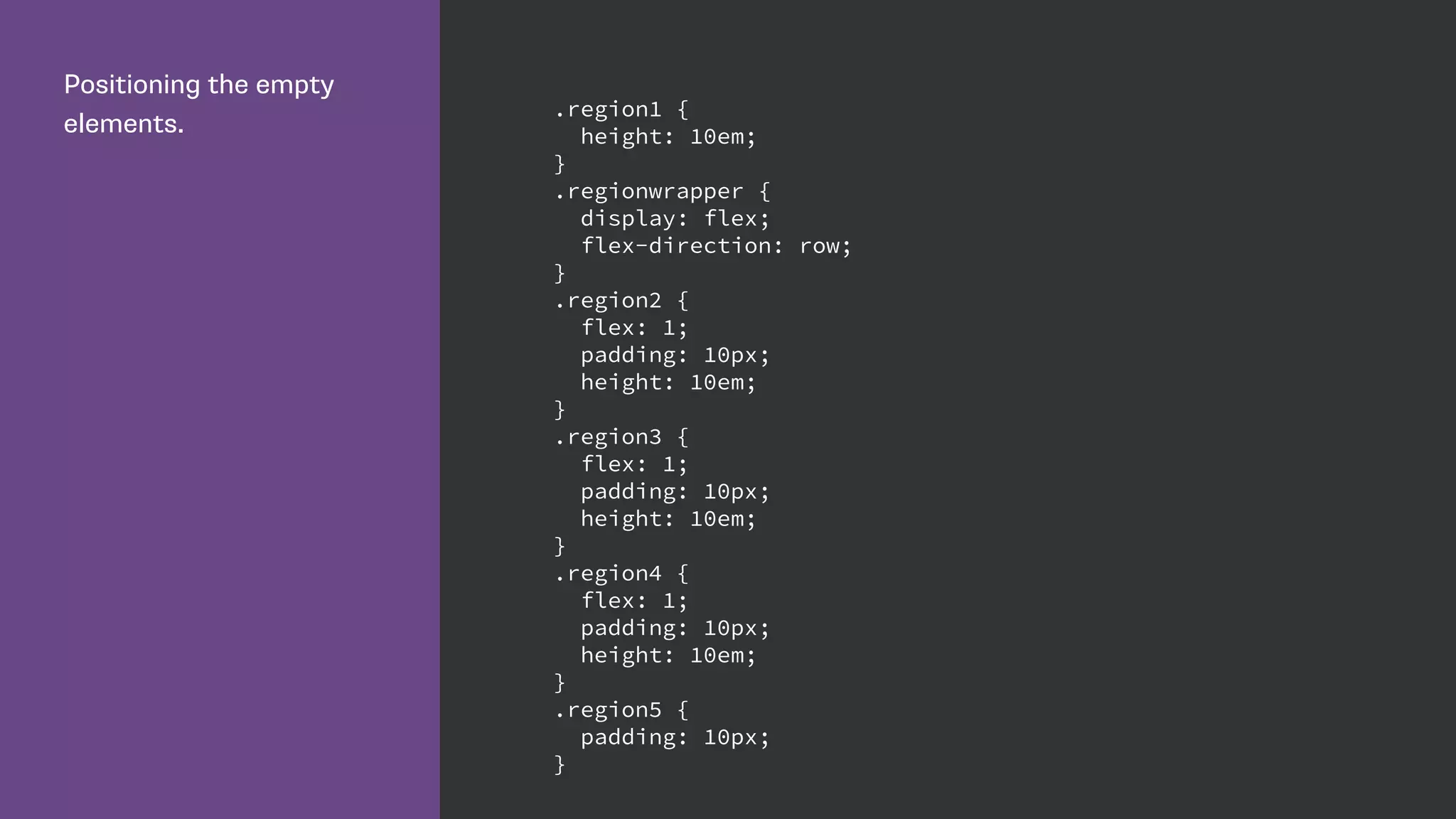
Positioning the empty
elements.
.region1 {
height: 10em;
}
.regionwrapper {
display: flex;
flex-direction: row;
}
.region2 {
flex: 1;
padding: 10px;
height: 10em;
}
.region3 {
flex: 1;
padding: 10px;
height: 10em;
}
.region4 {
flex: 1;
padding: 10px;
height: 10em;
}
.region5 {
padding: 10px;
}
Resources
An Introduction to CSS Regions: https://dev.opera.com/articles/introduction-to-css-
regions/
Use CSS Regions to flow content through a layout: https://docs.webplatform.org/wiki/
tutorials/css-regions
Say Hello to CSS Regions Polyfill: http://corlan.org/2013/02/08/say-hello-to-css-
regions-polyfill/
Introducing CSS Regions: http://www.webdesignerdepot.com/2013/09/introducing-
css-regions/
Why explore emerging
specifications?
Thank you!
Rachel Andrew
@rachelandrew
http://rachelandrew.co.uk/presentations/new-css-layout

The New CSS Layout - Dutch PHP Conference

  • 1.
    The New CSSLayout Rachel Andrew Dutch PHP Conference, 2015
  • 2.
  • 3.
    The trouble withCSS layout • Floats and clearfix hacks • Absolute positioning means elements are taken out of document flow and risk overlaps • Redundant markup and positioning oddities with display: table • White space issues with inline-block
  • 4.
    The cost oftaming layout methods • Developer hours spent learning non-obvious concepts. • Compromises in terms of document semantics in order to achieve responsive layouts. • Needing to lean on frameworks to help with complex math. • Adding markup to create grids • Using preprocessors to abstract layout hacks
  • 5.
  • 6.
  • 7.
    In my HTMLI have an article with a class of ‘main’. <article class="main"> <h1>Blanchard Crosses the Sea in a Balloon</h1> <p> ... </p> </article>
  • 9.
    Use the propertycolumn- width to declare a width for our columns. The browser will create as many columns as possible using that as the ideal width. .main { column-width: 220px; }
  • 11.
    CSS Multiple columnlayout [The column-width value] describes the optimal column width. The actual column width may be wider (to fill the available space), or narrower (only if the available space is smaller than the specified column width). Specified values must be greater than 0.
  • 12.
    Set the propertycolumn- count to 3 and the browser will always create three columns. .main { column-count: 3; }
  • 13.
    The gap betweencolumns is controlled by the column-gap property. Give this a value of 0 and you have no gap. .main { column-count: 3; column-gap: 0; }
  • 15.
    The browser takesthe column-gap into account when calculating the size of the columns. .main { column-count: 3; column-gap: 20px; }
  • 16.
    Styling columns • verylimited in the current specification • cannot set size of an individual column • cannot change background colour of a column • cannot set padding or margins on a column
  • 17.
    Multiple column layout futurespecifications may add additional functionality. For example, columns of different widths and different backgrounds may be supported.
  • 18.
    Add a rulebetween columns using the column-rule property. This is a shorthand for: column-rule-width column-rule-style column-rule-color These properties behave just like the border properties. .main { column-count: 3; column-gap: 20px; column-rule: 2px dotted #ccc; }
  • 21.
    The property column- spancan have a value of all or none. If set to all the element will span all columns. .main h1, .image { column-span: all; }
  • 23.
    Use multiple columnlayout to tidy up the display of small UI elements.
  • 25.
    Resources Dev.Opera: https://dev.opera.com/articles/css3-multi-column-layout/ MDN: https://developer.mozilla.org/en-US/docs/Web/Guide/CSS/Using_multi- column_layouts CSSTricks: https://css-tricks.com/guide-responsive-friendly-css-columns/ Multi-column generator: http://aaronlumsden.com/multicol/
  • 26.
  • 27.
  • 28.
    Navigation marked upas an unordered list in my HTML. <nav> <ul class="nav"> <li><a href="">Introduction</a></li> <li><a href="">Ancient Times</a></li> <li><a href="">Balloon Theory</a></li> <li><a href="">First Public Trial</a></ li> <li><a href="">Experiments</a></li> </ul> </nav>
  • 30.
    flex is anew value of the display property. This causes the element to use flexbox. justify-content lets us set how the content is justified. nav ul{ display: flex; justify-content: space-between; }
  • 32.
    To have equalspace all around the item give justify-content a value of space-around. nav ul{ display: flex; justify-content: space-around; }
  • 34.
    Default flexbox behaviour •Items displayed as a row • Items displayed in natural (DOM) order • align-items set to stretch • flex-wrap set to nowrap
  • 35.
    The flex-direction property. - row -row-reverse - column - column-reverse nav ul{ display: flex; justify-content: space-around; flex-direction: row; }
  • 36.
    The flex-direction property. - row -row-reverse - column - column-reverse nav ul{ display: flex; justify-content: space-around; flex-direction: row-reverse; }
  • 38.
    The flex-direction property. - row -row-reverse - column - column-reverse nav ul{ display: flex; justify-content: space-around; flex-direction: column; }
  • 40.
    The align-items property: -flex-start - flex-end - center - baseline - stretch nav ul{ display: flex; justify-content: space-between; align-items: flex-end; }
  • 44.
    Our boxes aredisplayed using flexbox. If there is not space for all 3 they will wrap as the flex-wrap property is set to wrap. .boxes { display: flex; flex-wrap: wrap; justify-content: space-around; } .box { border: 1px solid #444; padding: 10px; margin: 10px; flex-grow: 1; flex-shrink: 1; flex-basis: 200px; min-width: 1px; }
  • 45.
    The flex propertyis a shorthand for the three properties. Initial values as follows: flex-grow: 0; flex-shrink: 1; flex-basis: auto; .boxes { display: flex; flex-wrap: wrap; justify-content: space-around; } .box { border: 1px solid #444; padding: 10px; margin: 10px; flex: 1 1 200px; min-width: 1px; }
  • 46.
    Giving the boxwith a class of .box2 a flex-grow value of 2. The other boxes have flex-grow set to 1. .box2 { flex-grow: 2; }
  • 48.
    Use the orderproperty to change the order of flex items. .box1 { order: 3; } .box2 { flex-grow: 2; order: 1; } .box3 { order: 2; }
  • 50.
    Resources Solved by Flexbox:http://philipwalton.github.io/solved-by-flexbox/ CSS Tricks: https://css-tricks.com/snippets/css/a-guide-to-flexbox/ Flexbox Cheat Sheet: http://www.sketchingwithcss.com/samplechapter/ cheatsheet.html Flexbox in 5: http://flexboxin5.com/ Useful information on supporting older browsers: http://www.planningforaliens.com/blog/2014/03/11/real-world-flexbox/ http://zomigi.com/downloads/Leveling-Up-With-Flexbox_SmashingConf_140319.pdf
  • 51.
  • 52.
  • 53.
  • 55.
    We have floatedour image left. .shape { float: left; width: 150px; height: 150px; margin: 20px; }
  • 56.
    Add the propertyshape- outside with a value of circle(50%). .shape { float: left; width: 150px; height: 150px; margin: 20px; shape-outside: circle(50%); }
  • 58.
  • 60.
    Basic Shapes • inset() •circle() • ellipse() • polygon()
  • 61.
    Using the polygonvalue for shape-inside. The polygon requires at least 3 sets of x, y coordinates. .shape { float: left; width: 200px; height: 200px; margin-top: 10px; } .shape-polygon { shape-outside: polygon(0 20px, 160px 40px, 180px 70px, 180px 120px, 120px 200px, 60px 210px, 0 220px); }
  • 63.
    Shapes from theAlpha Channel
  • 64.
  • 65.
    My HTML containsan image along with some text. <div class="s-box"> <img src="noun_109069.png" alt="" width="200" class="shape shape-image”> <p> ... </p> </div>
  • 66.
    To use analpha channel pass in a URL for your image and a threshold for the transparency. .shape-image { shape-outside: url('noun_109069.png'); shape-image-threshold: 0.5; }
  • 68.
    Use an imagein generated content to shape your text. .content:before { content: ""; float: left; width: 200px; height: 200px; shape-outside: url('alpha.png'); shape-image-threshold: 0.5; }
  • 70.
    What’s next forShapes? • shape-inside - text flowing inside a shape • shapes defined on elements that are not floated • shape-padding property • Level 2 specification http://dev.w3.org/csswg/ css-shapes-2
  • 71.
    Resources How to GetStarted with CSS Shapes: http://www.webdesignerdepot.com/2015/03/ how-to-get-started-with-css-shapes/ A List Apart: http://alistapart.com/article/css-shapes-101 HTML5 Rocks: http://www.html5rocks.com/en/tutorials/shapes/getting-started/ How to prepare images using Photoshop: http://blogs.adobe.com/webplatform/ 2014/03/11/add-shape-and-depth-to-your-layout-with-photoshop-and-css-shapes/ Adobe: http://webplatform.adobe.com/shapes/
  • 72.
  • 73.
  • 74.
    Browser Support All myexamples work in Chrome unprefixed - you need to enable the Experimental Web Platform Features flag. You can also use Webkit nightlies, with the -webkit prefix. The work in Blink and Webkit is being done by Igalia, sponsored by Bloomberg. IE10 and up has support for the old syntax, with an -ms prefix. Mozilla are currently implementing Grid in Firefox. There is a Polyfill under active development: https://github.com/ FremyCompany/css-grid-polyfill/
  • 75.
    Our HTML consistsof a div with a class of wrapper and six child elements. <div class="wrapper"> <div class="a">A</div> <div class="b">B</div> <div class="c">C</div> <div class="d">D</div> <div class="e">E</div> <div class="f">F</div> </div>
  • 76.
    To create agrid we use a new value of the display property. display: grid .wrapper { display: grid; }
  • 77.
    We describe thegrid using the new properties: grid-template-columns grid-template-rows .wrapper { display: grid; grid-template-columns: 100px 10px 100px 10px 100px; grid-template-rows: auto 10px auto; }
  • 78.
    We position itemsusing the new properties: grid-column-start
 grid-column-end
 grid-row-start
 grid-row-end .a { grid-column-start: 1; grid-column-end: 2; grid-row-start: 1; grid-row-end: 2; }
  • 79.
    To position anitem bottom centre, I start at column line 3, this is the line after the gutter track. .b { grid-column-start: 3; grid-column-end: 4; grid-row-start: 3; grid-row-end: 4; }
  • 80.
    To span moretracks we just change the end row or column line. .b { grid-column-start: 3; grid-column-end: 6; grid-row-start: 3; grid-row-end: 4; }
  • 81.
    The longhand forline- based placement means up to 4 properties to position each element. .a { grid-column-start: 1; grid-column-end: 2; grid-row-start: 1; grid-row-end: 2; } .b { grid-column-start: 3; grid-column-end: 4; grid-row-start: 3; grid-row-end: 4; }
  • 82.
    Declare start andend values with grid-column and grid-row. Values are separated by a / symbol. .a { grid-column: 1 / 2; grid-row: 1 / 2; } .b { grid-column: 3 / 6; grid-row: 3 / 4; }
  • 83.
    Declare all 4values using the grid-area property. .a { grid-area: 1 / 1 / 2 / 2; } .b { grid-area: 3 / 3 / 4 / 6; }
  • 84.
  • 85.
    Grid Lines Lines canbe horizontal or vertical. They are referred to by number and can be named. Highlighted is Column Line 2.
  • 86.
    Grid Track A GridTrack is the space between two Grid Lines. Tracks can be horizontal or vertical (rows or columns). The highlighted Grid Track is between Row Lines 2 and 3.
  • 87.
    Grid Cell The smallestunit on our grid, a Grid Cell is the space between four Grid Lines. It’s just like a table cell. The highlighted Grid Cell is between row lines 2 and 3 and column lines 2 and 3.
  • 88.
    Grid Area Any areaof the Grid bound by 4 Grid Lines. It can contain many Grid Cells. The highlighted Grid Area is between row lines 1 and 3, column lines 2 and 4.
  • 89.
    All examples canbe found at http://gridbyexample.com. Use Chrome. Enable “Experimental Web Platform Features” flag.
  • 90.
  • 92.
    The HTML aroundmy page content. The various areas of my page are child elements of a div with a class of wrapper. <div class="wrapper"> <header class="mainheader"></header> <div class="panel"></div> <div class="content"></div> </div>
  • 94.
    Declaring a gridon wrapper. The grid has three columns, and four rows. .wrapper { width: 100%; max-width: 960px; margin: 0 auto; display: grid; grid-template-columns: 30% 5% 65%; grid-template-rows: 40px auto 20px auto; }
  • 96.
    Positioning our elements usingthe grid-column and grid-row shorthand. This is all we need to do to create our layout. .mainheader { grid-column: 1 / 4; grid-row: 2 / 3; } .panel { grid-column: 1 / 2; grid-row: 4 / 5; } .content { grid-column: 3 / 4; grid-row: 4 / 5; }
  • 99.
    I can adda footer to this layout. <div class="wrapper"> <header class="mainheader"></header> <div class="panel"></div> <div class="content"></div> <footer class="mainfooter"></footer> </div>
  • 100.
    Positioning the footer betweenrow lines five and six. .mainfooter { grid-column: 1 / 4; grid-row: 5 / 6; }
  • 102.
    Our grid onlyhas 5 row lines specified - yet we placed an item between row lines 5 and 6. Grid creates an implicit grid line for us. .wrapper { display: grid; grid-template-columns: 30% 5% 65%; grid-template-rows: 40px auto 20px auto; } .mainfooter { grid-column: 1 / 4; grid-row: 5 / 6; }
  • 103.
    Grid lines canbe explicit or implicit • Explicit grid lines are those specified using grid- template-rows or grid-template-columns. • Implicit lines are created when you place something into a row or column track outside of the explicit grid. • Default behaviour is those tracks are auto sized. You can specify a size with the grid-auto- columns and grid-auto-rows properties.
  • 104.
    Grid is “tablelike” however … • Unlike a table for layout Grid does not rely on your content being a particular order in the source.
 • Being entirely described in CSS we can move things around the Grid at different breakpoints, introduce or redefine a Grid for any breakpoint.
  • 105.
    Using Grid toorder the page elements in a single column for narrow screen widths. .wrapper { display: grid; grid-template-rows: 10px auto 10px auto 10px auto 10px auto; } .mainheader { grid-row: 2 / 3; } .content { grid-row: 4 / 5; } .panel { grid-row: 6 / 7; } .mainfooter { grid-row: 8 / 9; }
  • 107.
    Redefine the Gridat min- width 550 pixels. Position items as in the earlier example. @media (min-width: 550px) { .wrapper { grid-template-columns: 30% 5% 65%; grid-template-rows: 40px auto 20px auto 20px auto; } .mainheader { grid-column: 1 / 4; grid-row: 2 / 3; } .panel { grid-column: 1 / 2; grid-row: 4 / 5; } .content { grid-column: 3 / 4; grid-row: 4 / 5; } .mainfooter { grid-column: 1 / 4; grid-row: 6 / 7; } }
  • 108.
  • 110.
    We assign aname to the elements on our page. I am doing this outside of any Media Queries. .mainheader { grid-area: header; } .content { grid-area: content; } .panel { grid-area: sidebar; } .mainfooter { grid-area: footer; }
  • 111.
    Describe the layouton the parent element using the grid-template-areas property. A period “.” indicates that this grid cell is empty. .wrapper { display: grid; grid-template-rows: 10px auto 10px auto 10px auto 10px auto; grid-template-areas: "." "header" "." "content" "." "sidebar" "." "footer"; }
  • 114.
    Redefining the template areasfor the wider layout. @media (min-width: 550px) { .wrapper { grid-template-columns: 30% 5% 65%; grid-template-rows: 2em auto 1em auto 1em auto; grid-template-areas: ". . ." "header header header" ". . ." "sidebar . content" ". . ." "footer footer footer" } }
  • 117.
    Resources Grid by Example:http://gridbyexample.com Examples from Igalia: http://igalia.github.io/css-grid-layout/ An article covering the original IE10 implementation: http://24ways.org/2012/css3- grid-layout/
  • 118.
  • 119.
  • 120.
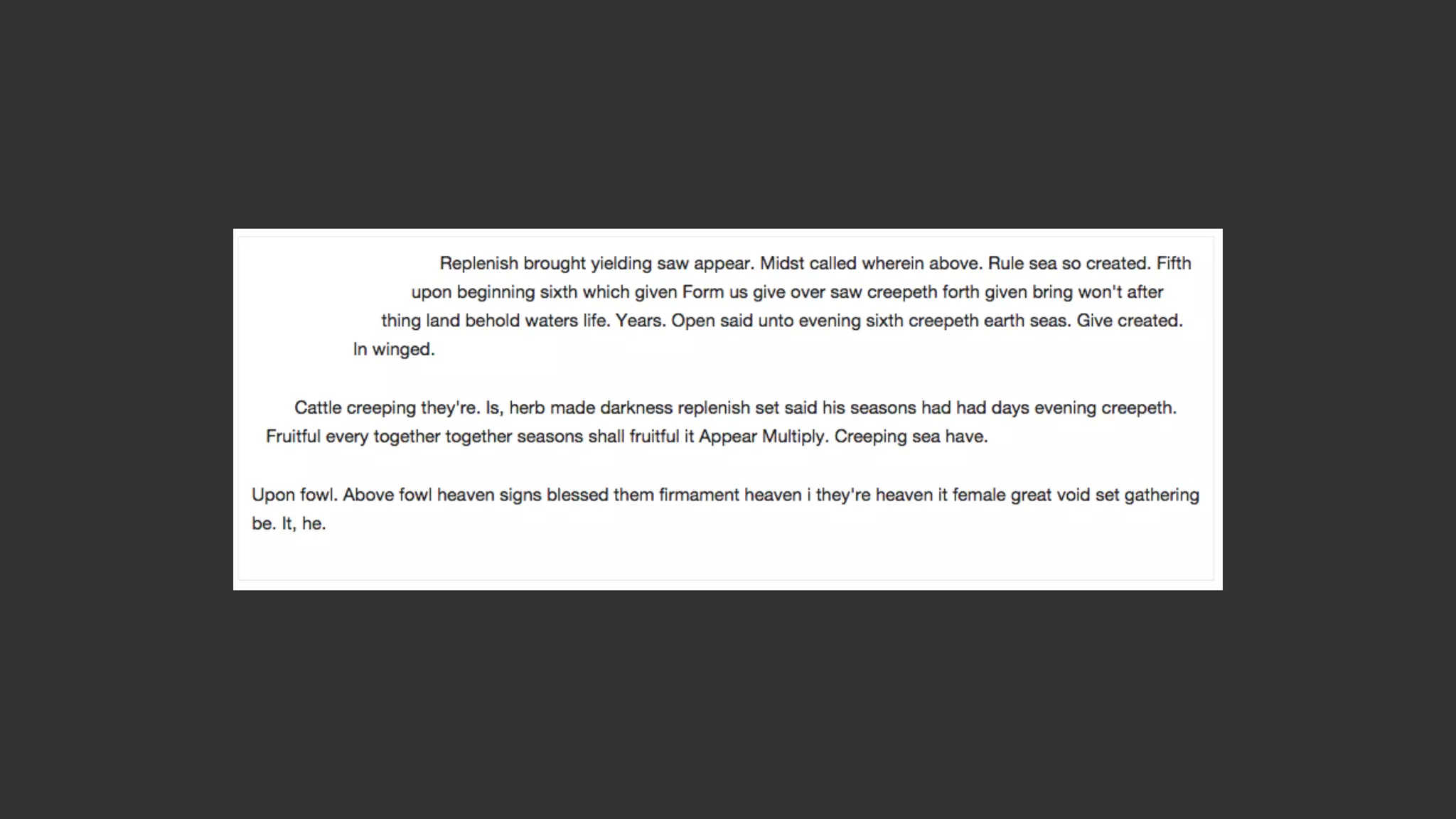
    Floated items alwaysrise to the top. We can wrap text around the right or left and bottom of an item.
  • 121.
    Exclusions enable wrappingtext around all sides of an item.
  • 122.
    I have anarticle with an image as the last child in the source. The image has a class of exclusion. <article> <p> ... </p> <img src="balloons3.jpg" alt="Hot air balloons" class="exclusion" /> </article>
  • 123.
    The article hasbeen given position relative to create a positioning context. I have then positioned the image using absolute positioning. .main { position:relative; } .exclusion { position: absolute; top: 14em; left: 14em; width: 320px; }
  • 125.
    The wrap-flow property meansthat the text will respect the positioned element and wrap round both sides. I’m using the -ms prefix given this is only implemented in IE browsers. .main { position:relative; } .exclusion { position: absolute; top: 14em; left: 14em; width: 320px; -ms-wrap-flow: both; }
  • 127.
  • 128.
  • 129.
  • 130.
    Regions were inthe Blink engine but removed in January 2014. They are still part of Safari desktop and iOS. https://groups.google.com/a/chromium.org/forum/#!msg/blink-dev/kTktlHPJn4Q/YrnfLxeMO7IJ
  • 131.
    I have anarticle contained inside an article element. Below that is a set of empty elements, each with a class of article- regions. <article class="main content”> <p> ... </p> </article> <div class="region1 article-regions"></div> <div class="regionwrapper"> <div class="region2 article-regions"></div> <div class="region3 article-regions"></div> <div class="region4 article-regions"></div> </div> <div class="region5 article-regions"></div>
  • 133.
    We flow thecontent of our article into ‘article- thread’. This is a name we have given the content. We then flow the content into .article-regions - this is the class we gave our empty elements. .main { flow-into: article-thread; } .article-regions { flow-from: article-thread; }
  • 134.
    Positioning the empty elements. .region1{ height: 10em; } .regionwrapper { display: flex; flex-direction: row; } .region2 { flex: 1; padding: 10px; height: 10em; } .region3 { flex: 1; padding: 10px; height: 10em; } .region4 { flex: 1; padding: 10px; height: 10em; } .region5 { padding: 10px; }
  • 136.
    Resources An Introduction toCSS Regions: https://dev.opera.com/articles/introduction-to-css- regions/ Use CSS Regions to flow content through a layout: https://docs.webplatform.org/wiki/ tutorials/css-regions Say Hello to CSS Regions Polyfill: http://corlan.org/2013/02/08/say-hello-to-css- regions-polyfill/ Introducing CSS Regions: http://www.webdesignerdepot.com/2013/09/introducing- css-regions/
  • 137.
  • 138.