What is NFS ?
Benefits of NFS
NFS Server
NFS Client
The Share Command
NFS Server Configuration
NFS Client Configuration
Ethics
NFS TroubleShooting
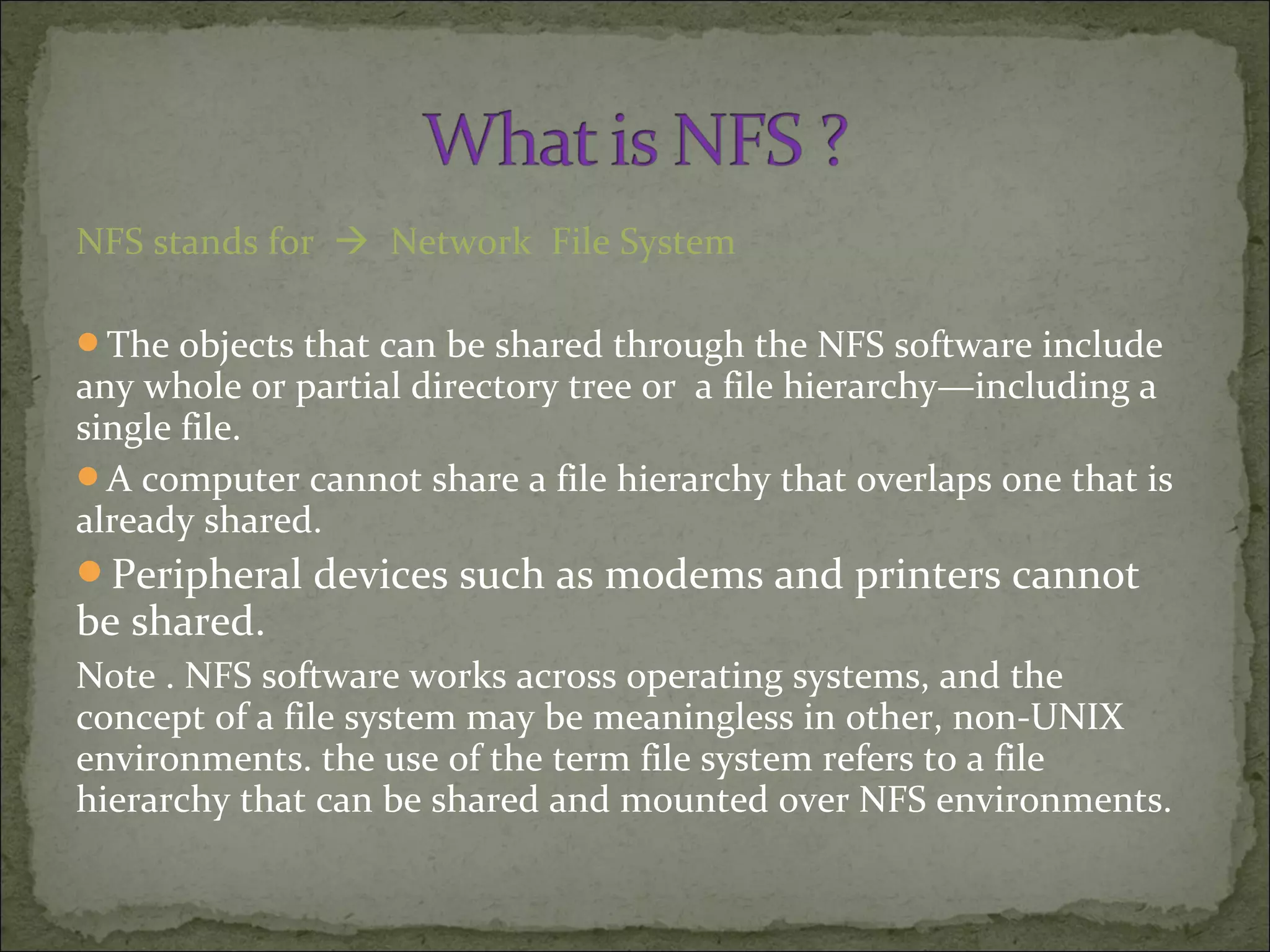
NFS stands for  Network File System
The objects that can be shared through the NFS software include
any whole or partial directory tree or a file hierarchy—including a
single file.
A computer cannot share a file hierarchy that overlaps one that is
already shared.
Peripheral devices such as modems and printers cannot
be shared.
Note . NFS software works across operating systems, and the
concept of a file system may be meaningless in other, non-UNIX
environments. the use of the term file system refers to a file
hierarchy that can be shared and mounted over NFS environments.
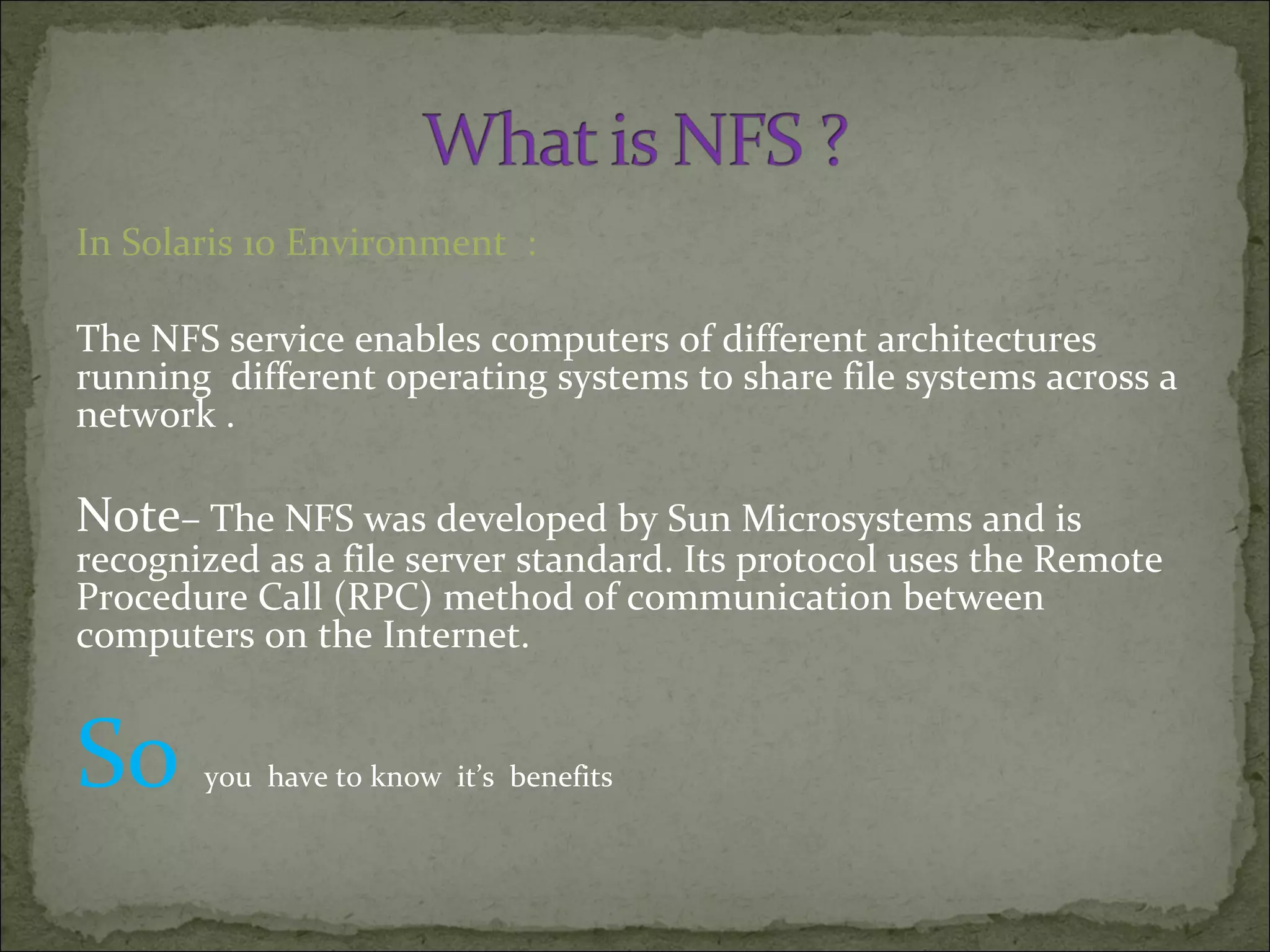
In Solaris 10 Environment :
The NFS service enables computers of different architectures
running different operating systems to share file systems across a
network .
Note– The NFS was developed by Sun Microsystems and is
recognized as a file server standard. Its protocol uses the Remote
Procedure Call (RPC) method of communication between
computers on the Internet.
So you have to know it’s benefits
Allows multiple computers to use the same files,
because all users on the network can access the same
data
Reduces storage costs by sharing applications on
computers instead of allocating local disk space for
each user application
Provides data consistency and reliability, because all
users can read the same set of files
Reduces system administration overhead
the NFS service enables you to place one copy of the
files on one computer’s hard disk. All other systems
can then access the files across the network.
When using the NFS service, remote file systems are
almost indistinguishable from local file systems.
The NFS Environment contains the following
components
-NFS Server
-NFS Client
The NFS server contains file resources shared with
other systems on the network.
 A computer acts as a server when it makes files and
directories on its hard disk available to the other
computers on the network.
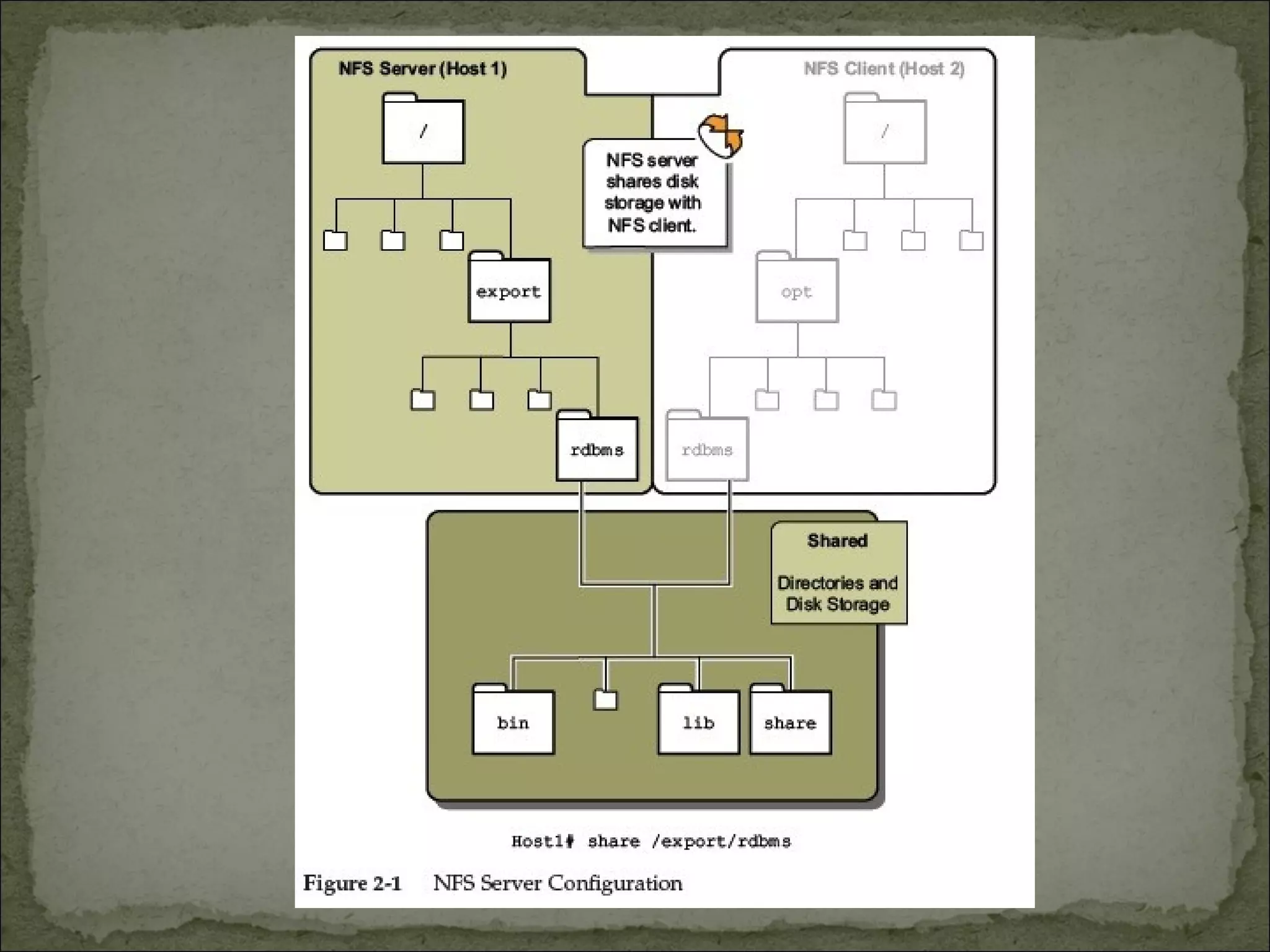
NFS server shares disk storage with NFS client.
“NFS Server Configuration” shows how files and
directories on an NFS server are made available to
NFS clients. The NFS server is sharing the
/export/rdbms directory over NFS
The NFS client system mounts file resources shared
over the network and presents the file resources to
users as if they were local files.
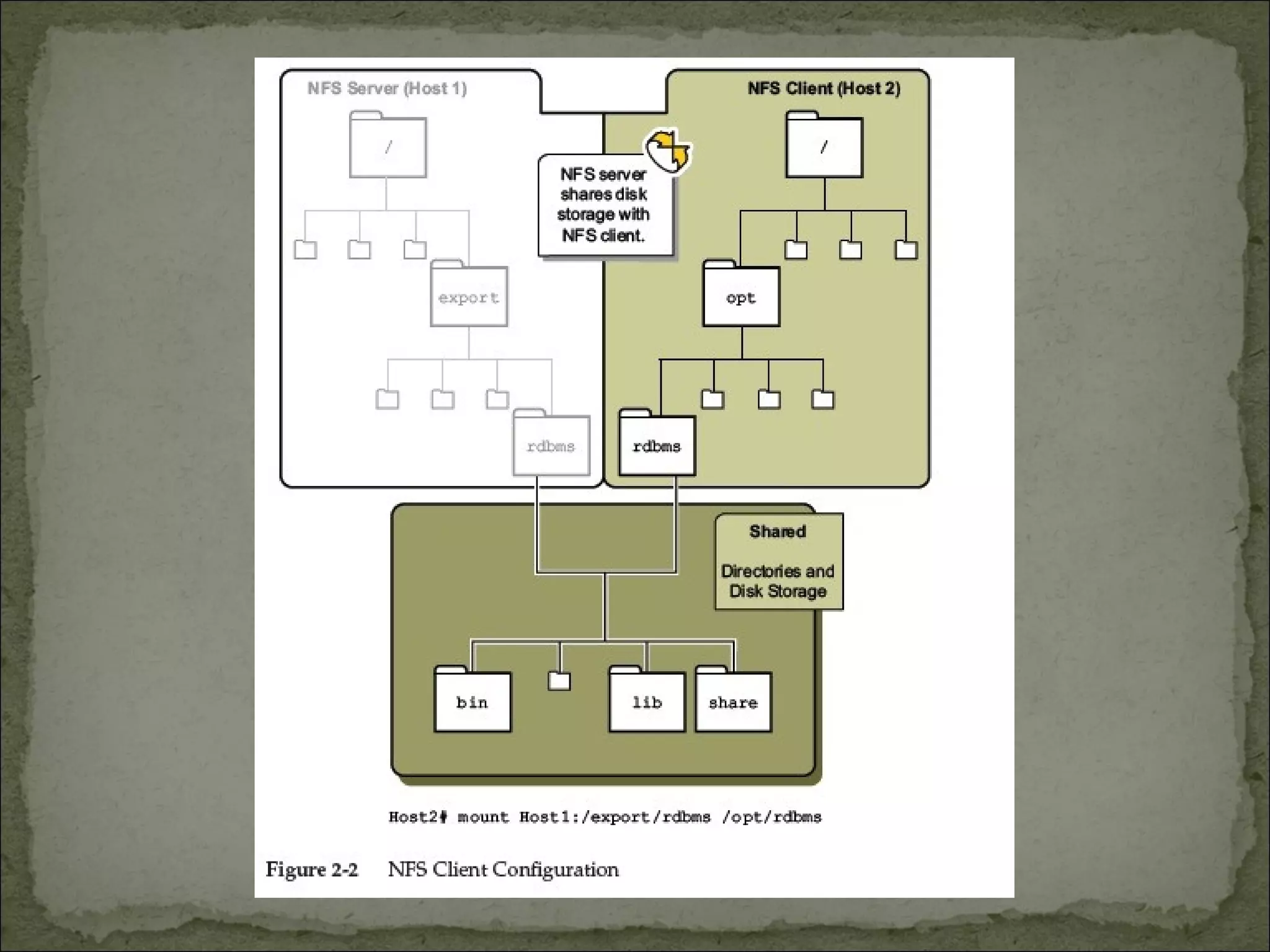
“NFS Client Configuration” shows how an NFS client
uses the files and directories shared by an NFS server.
The /export/rdbms directory, shared by the NFS
server, is mounted on the NFS client on the
/opt/rdbms mount point. The resource mount point
exists on the NFS client, and the NFS server shares the
file resources with other computers on the network
 The machine which provides the disk files and
directories to share is called the NFS server.
 The machine which accesses the server is called the
NFS client.
* It is possible to restrict access to a defined list of
machines.
* It is possible to encrypt NFS traffic using secure
NFS options when mounting.
* NFS activity can be logged using options to NFS
shares.
 The command has several options, for example:-
# share -F nfs -o ro,rw=ahmed:abada /usr
* This shares /usr read-only to all machines except
ahmed and abada, to which it is shared read-write.
# share -F nfs -o rw=ahmed:abada,root=ahmed /usr
* This shares /usr read-write to only fa and harwell,
with root access granted to the root account on harwell.
* Sharing as root is dangerous; don’t be tempted
to use this too frequently!
# share -F nfs -o ro,anon=0 /extra/sol10
* Shares /extra/sol10 read-only, with the UID for
unkown user ID access as 0, and logs accesses.
* The anon=0 effectively gives all machines full
root access to this share, but with ro it’s read-only.
 If the machine is already running as an NFS server,
we can dispense with the “-F nfs” option when
entering share commands on the command line:-
# share /opt
* Default access is read-write to all known hosts.
The root option must be given a list of machines, or an
error message is generated:- "share_nfs: missing root
list“
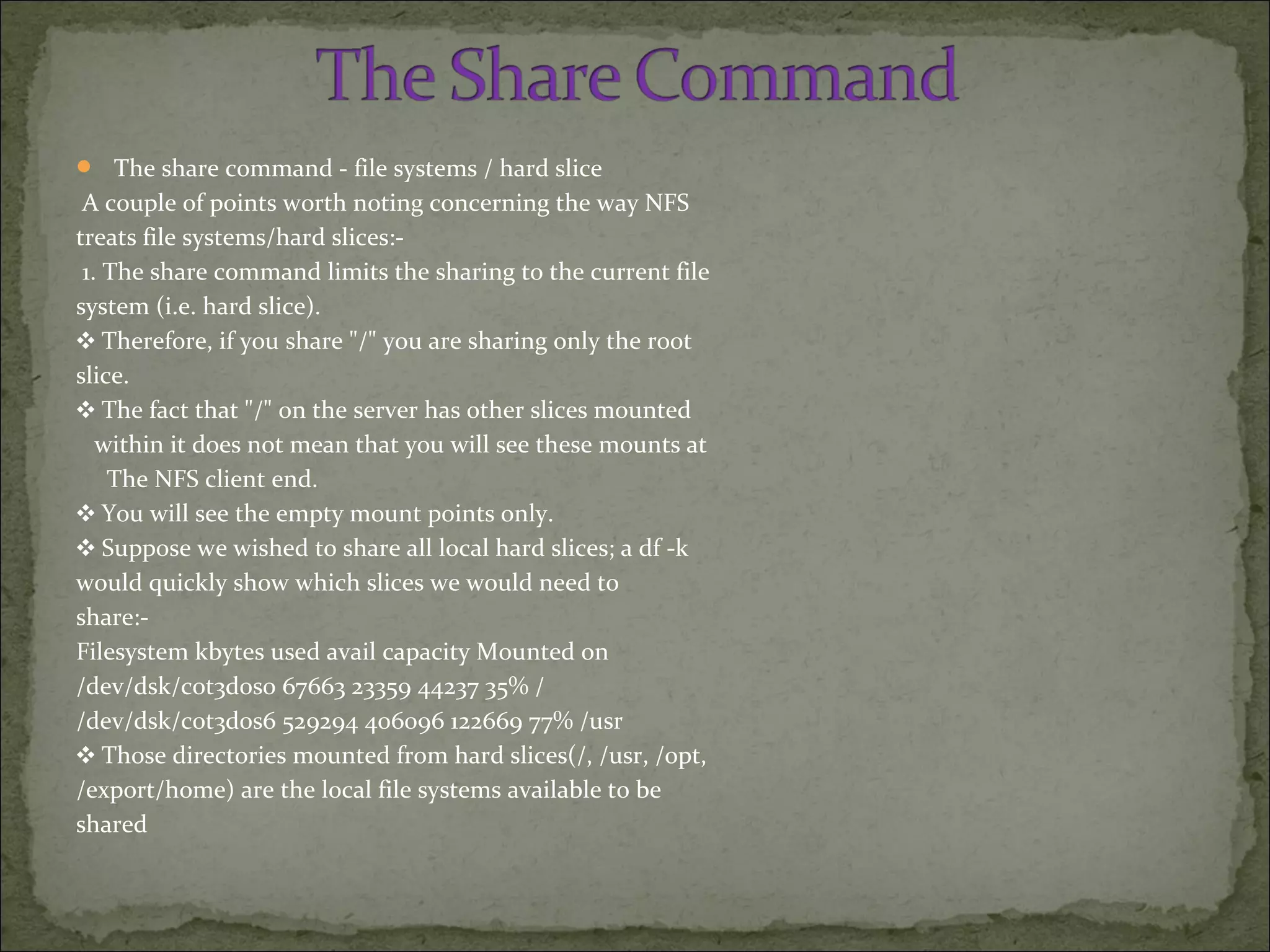
 The share command - file systems / hard slice
A couple of points worth noting concerning the way NFS
treats file systems/hard slices:-
1. The share command limits the sharing to the current file
system (i.e. hard slice).
❖ Therefore, if you share "/" you are sharing only the root
slice.
❖ The fact that "/" on the server has other slices mounted
within it does not mean that you will see these mounts at
The NFS client end.
❖ You will see the empty mount points only.
❖ Suppose we wished to share all local hard slices; a df -k
would quickly show which slices we would need to
share:-
Filesystem kbytes used avail capacity Mounted on
/dev/dsk/c0t3d0s0 67663 23359 44237 35% /
/dev/dsk/c0t3d0s6 529294 406096 122669 77% /usr
❖ Those directories mounted from hard slices(/, /usr, /opt,
/export/home) are the local file systems available to be
shared
2. Once a directory is shared, you cannot then share a
directory (in the same slice) below it; for example:-
❖ If /usr is shared, /usr/man cannot then be shared separately. (If it is on
the same slice as /usr, which it probably is). You’ll get an error message:-
share_nfs: /usr/man: parent-directory (/usr) already shared
❖ You may, for example, wish to do this to apply different share
permissions such as read-only or read-write.
❖ You will have to share each directory below /usr on an individual basis if
you wish to do this.
❖ You can share a subdirectory, if it is on a separate slice;
for example, if you have shared "/", you can still share /opt and /usr.
Remember: to make the shared file systems available permanently,
place the share commands in /etc/dfs/dfstab.
Details of file systems currently being shared are held in
/etc/dfs/sharetab, but this file is maintained by the system.
 If you have updated /etc/dfs/dfstabwithout running the share commands
manually, you can make them come into force by running:- # shareall
Note: shareall command read /etc/dfs/dfstab and share all uncommented share
lines all
 Unsharing
 To take a resource out of the share list, simply unshare it:- # unshare /opt
* Unshares the /opt directory
# unshareall
* Unshares all currently shared directories.
Note: unshareall command read /etc/dfs/sharetab and unshare all it’s values
 Unsharing, or changing share options, comes into effect
immediately. For example, if I am accessing an NFS mounted file system,
and it is then unshared on the server, I will get the message:-
Stale NFS file handle
• .. if I try to access it.
 The first task is to enable our machines to be NFS servers, then
we can proceed to access their files and directories as clients.
 The NFS service is provided, as with many other services, by
daemons which can automatically be started at boot time.
(automatically when you in run level 3)
 These daemons are:-
❖ nfsd  this daemon provides the actual reading and writing
services. It is written using multi-threading programming
technniques, allowing it to handle a specified number of
concurrent NFS requests. (16 by default - change this in
/etc/default/nfs)
stopping & Starting nfs daemon
this ensures that the /etc/dfs/dfstab are read and automatic
sharing take place but this is not advised when users are
currently using nfs share use shareall command instead.
create a directory , share it ready for mounting and
then mount it from the client machine.
we have two machines : mido  server , ahmed  clien
Server Side first (mido):-
 These daemons are:-
❖ mountd  this daemon answers and validates mount
requests from remote machines.
• Under Solaris 10, the SMF facility must be employed to
enable the NFS services - these are actually enabled by
default. (More about this shortly)
• There is a very simple condition which causes these daemons to
be started at boot time, and thus automatically configure the
machine as an NFS server:-
❖ The file /etc/dfs/dfstabmust exist, and must contain valid
share commands.
Note : NFS daemons will start automatically at boot time when
there are an uncommented share command in the
“/etc/dfs/dfstab”
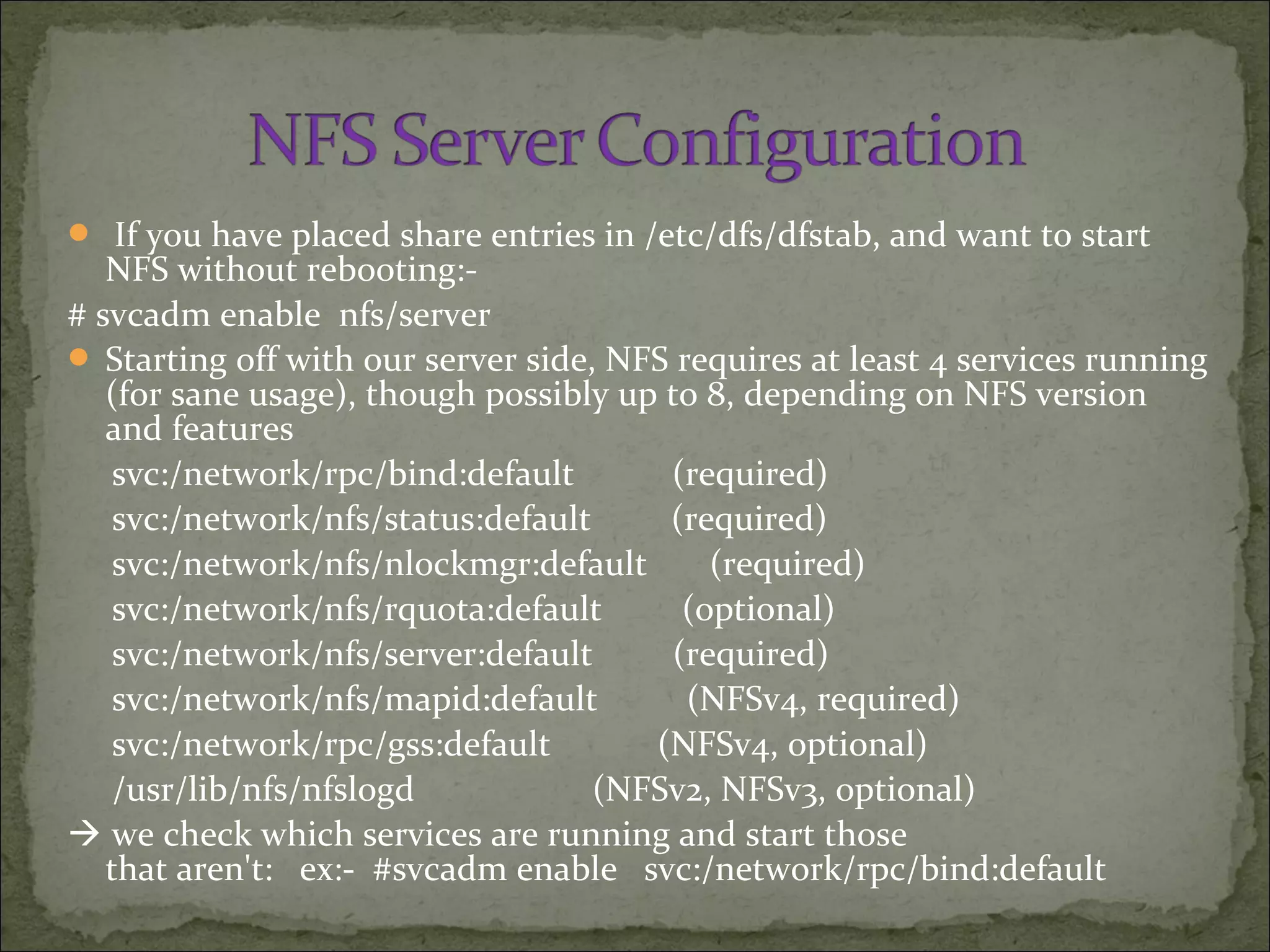
 If you have placed share entries in /etc/dfs/dfstab, and want to start
NFS without rebooting:-
# svcadm enable nfs/server
 Starting off with our server side, NFS requires at least 4 services running
(for sane usage), though possibly up to 8, depending on NFS version
and features
svc:/network/rpc/bind:default (required)
svc:/network/nfs/status:default (required)
svc:/network/nfs/nlockmgr:default (required)
svc:/network/nfs/rquota:default (optional)
svc:/network/nfs/server:default (required)
svc:/network/nfs/mapid:default (NFSv4, required)
svc:/network/rpc/gss:default (NFSv4, optional)
/usr/lib/nfs/nfslogd (NFSv2, NFSv3, optional)
 we check which services are running and start those
that aren't: ex:- #svcadm enable svc:/network/rpc/bind:default
 You can also use svcadm to restart or disable NFS:-
# svcadm restart nfs/server (Will not work if nfs disabled)
# svcadm disable nfs/server
We could have alternately enabled the necessary NFS
services via
#svcadm enable -r svc:/network/nfs/server:default
To verify our exported filesystems, we can use
'dfshares', 'share', or review the contents of 'sharetab':
 Note that if you omit the -F nfs option to the share
command (or any NFS-related command which
supports-F FSType) the
the first entry in the file /etc/dfs/fstypes is taken as the
default filesystem type. The happens to be nfs in all
Solaris versions.
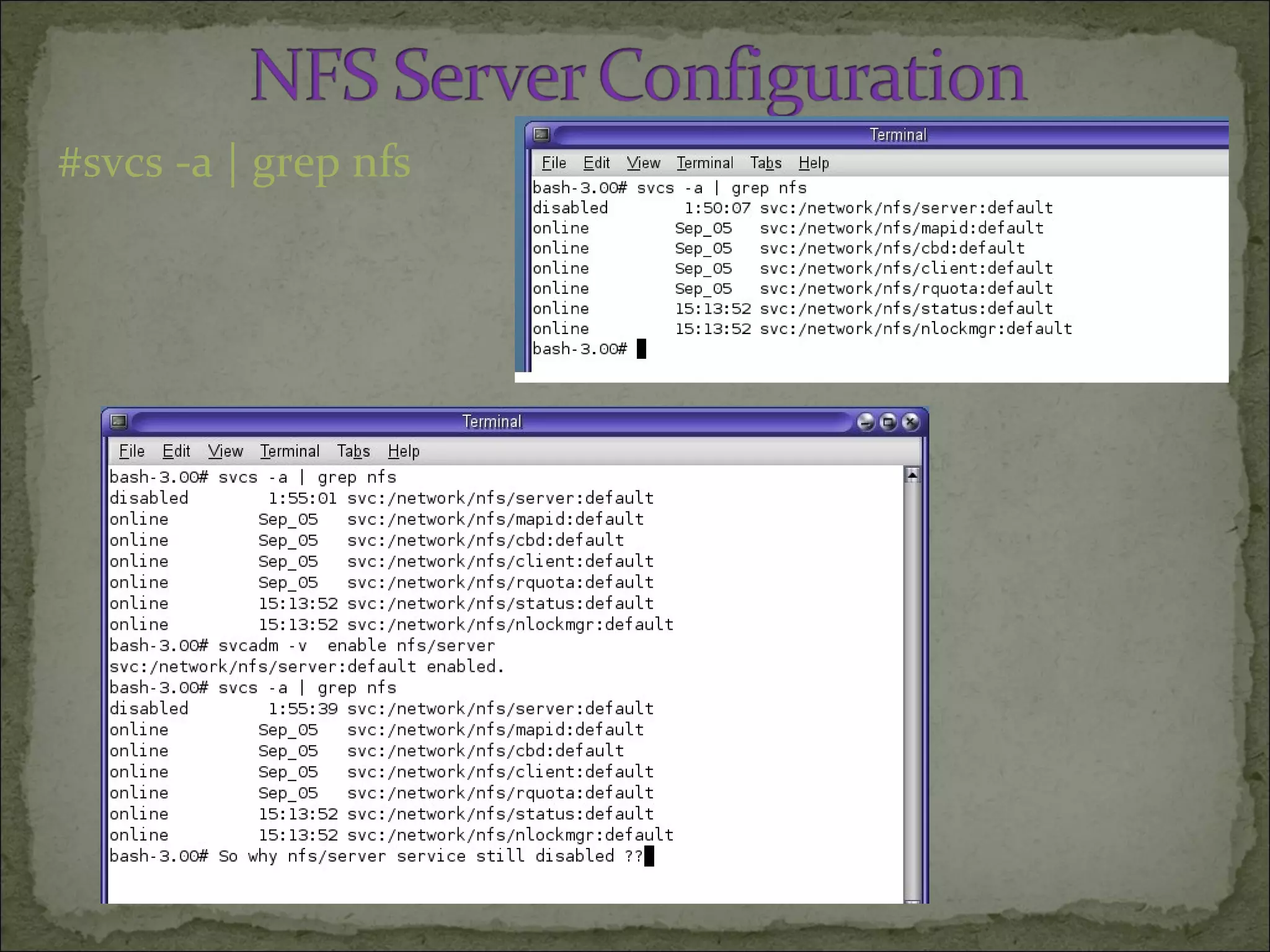
#svcs -a | grep nfs
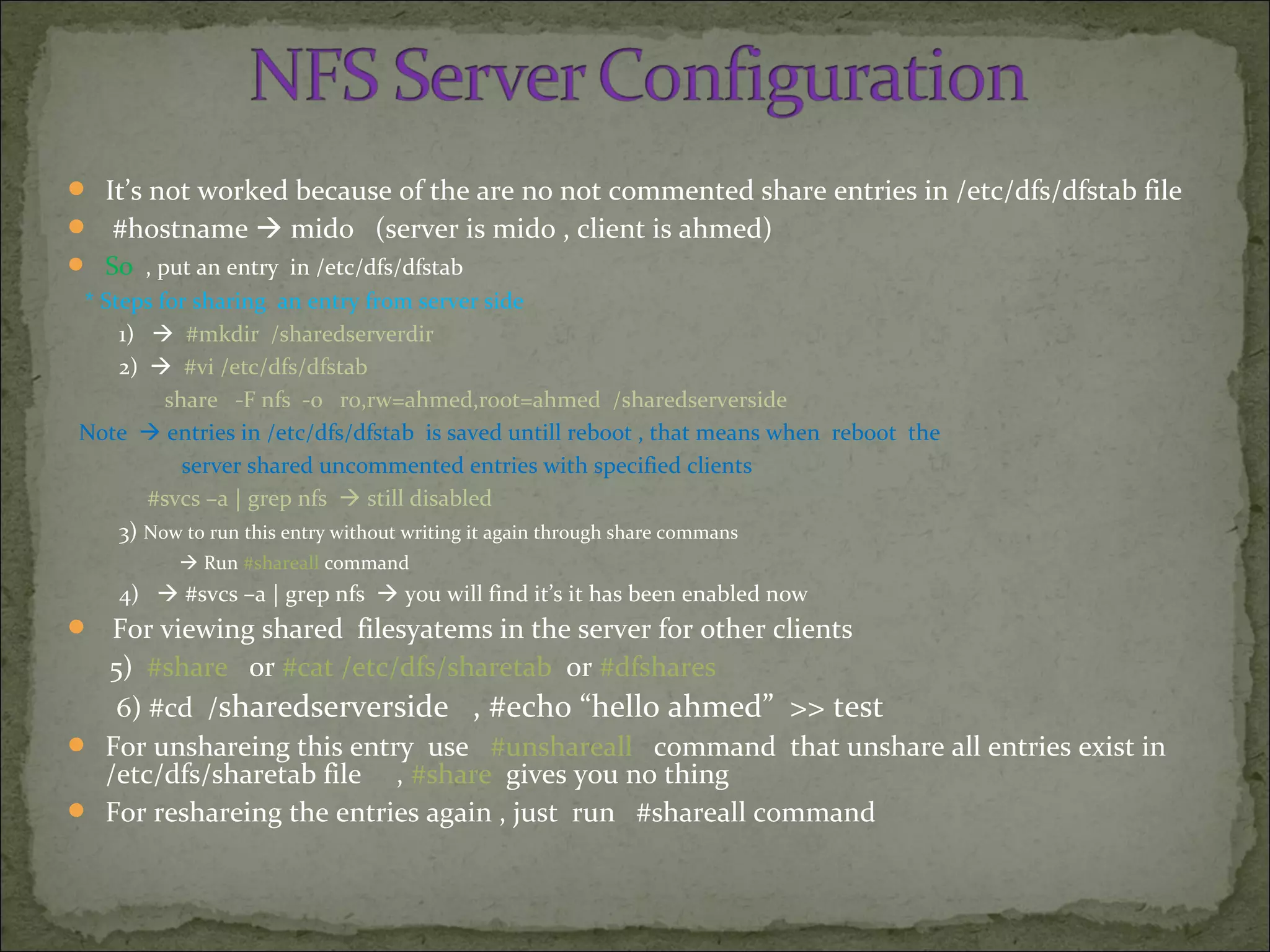
 It’s not worked because of the are no not commented share entries in /etc/dfs/dfstab file
 #hostname  mido (server is mido , client is ahmed)
 So , put an entry in /etc/dfs/dfstab
* Steps for sharing an entry from server side
1)  #mkdir /sharedserverdir
2)  #vi /etc/dfs/dfstab
share -F nfs -o r0,rw=ahmed,root=ahmed /sharedserverside
Note  entries in /etc/dfs/dfstab is saved untill reboot , that means when reboot the
server shared uncommented entries with specified clients
#svcs –a | grep nfs  still disabled
3) Now to run this entry without writing it again through share commans
 Run #shareall command
4)  #svcs –a | grep nfs  you will find it’s it has been enabled now
 For viewing shared filesyatems in the server for other clients
5) #share or #cat /etc/dfs/sharetab or #dfshares
6) #cd /sharedserverside , #echo “hello ahmed” >> test
 For unshareing this entry use #unshareall command that unshare all entries exist in
/etc/dfs/sharetab file , #share gives you no thing
 For reshareing the entries again , just run #shareall command
 share commands allow a server to make it’s disk resources available to
other machines, for example:-
# share -F nfs /export/home
 This means:-
* - any known host can mount from/export/home or
anywhere underneath.
 To view resources that are currently being shared:- 3 ways 
1) #dfshares or 2) #cat /etc/dfs/sharetab
3) # share
 On the server, you can use 'unshareall' to stop sharing all exported
filesystems and verify with 'dfshares'
- /export/home rw “ “
Note: This shared resource could be made permanently available by
placing the share command in the /etc/dfs/dfstab file.
#hostname  ahmed (client )
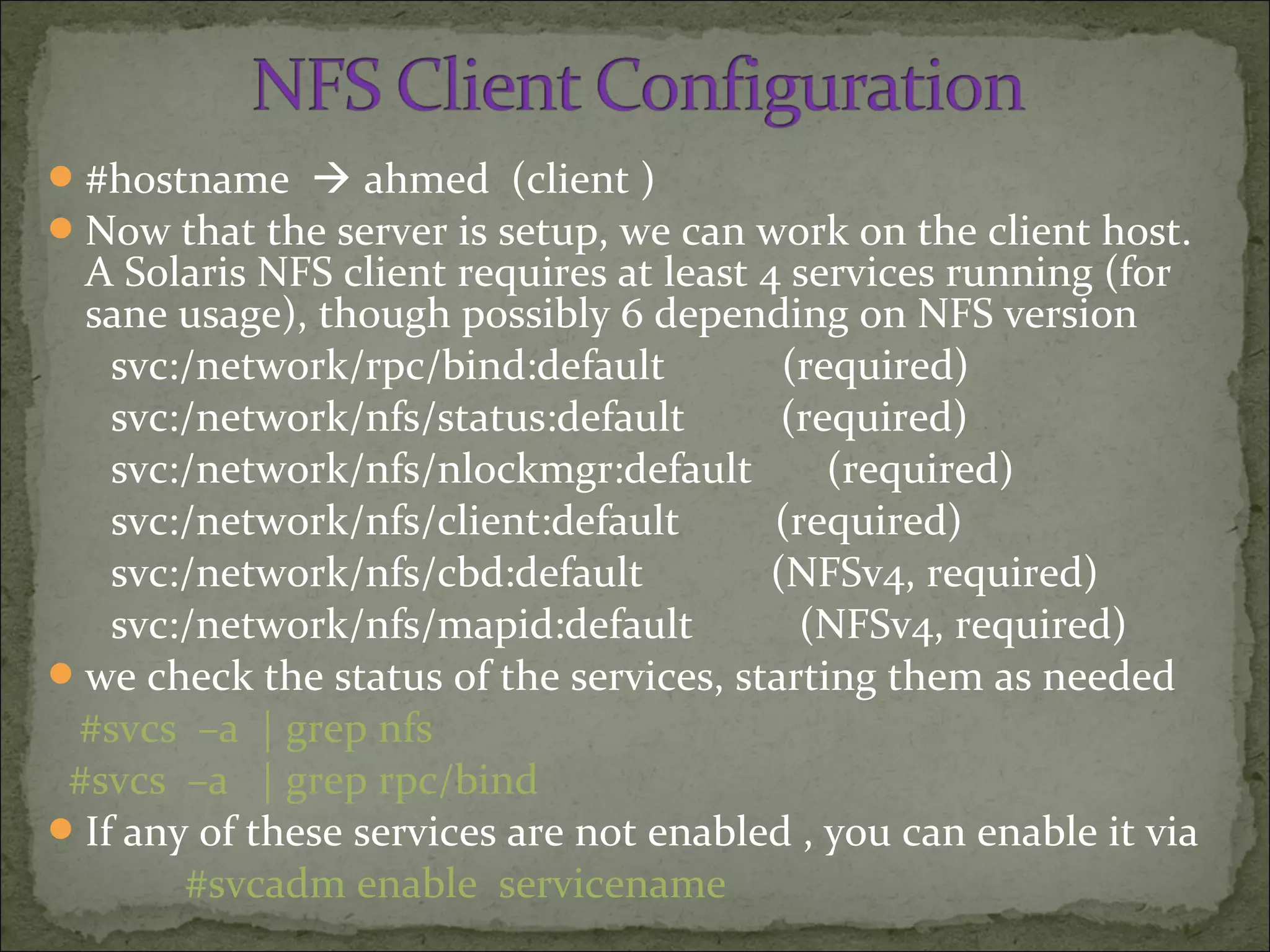
Now that the server is setup, we can work on the client host.
A Solaris NFS client requires at least 4 services running (for
sane usage), though possibly 6 depending on NFS version
svc:/network/rpc/bind:default (required)
svc:/network/nfs/status:default (required)
svc:/network/nfs/nlockmgr:default (required)
svc:/network/nfs/client:default (required)
svc:/network/nfs/cbd:default (NFSv4, required)
svc:/network/nfs/mapid:default (NFSv4, required)
we check the status of the services, starting them as needed
#svcs –a | grep nfs
#svcs –a | grep rpc/bind
If any of these services are not enabled , you can enable it via
#svcadm enable servicename
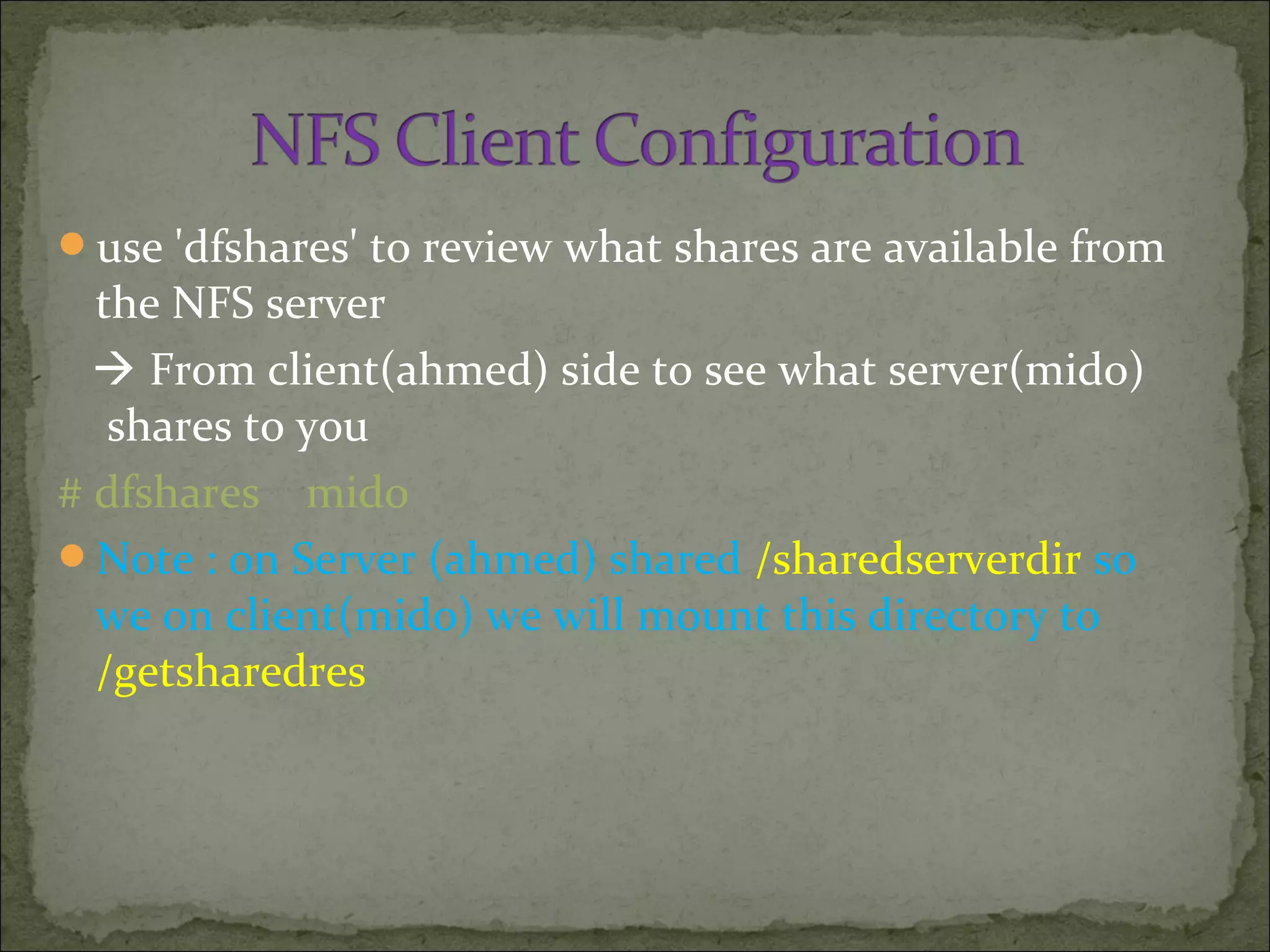
use 'dfshares' to review what shares are available from
the NFS server
 From client(ahmed) side to see what server(mido)
shares to you
# dfshares mido
Note : on Server (ahmed) shared /sharedserverdir so
we on client(mido) we will mount this directory to
/getsharedres
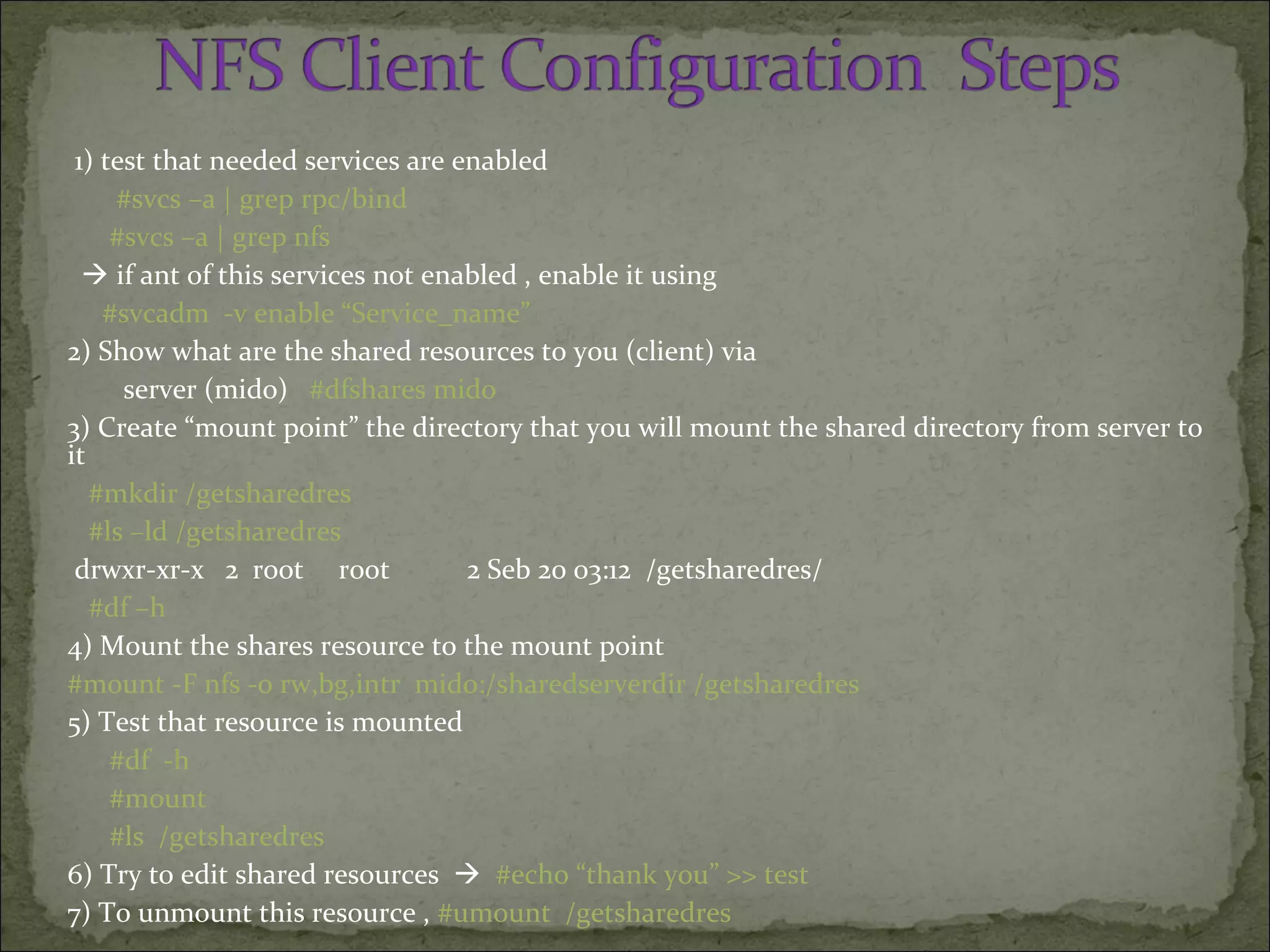
1) test that needed services are enabled
#svcs –a | grep rpc/bind
#svcs –a | grep nfs
 if ant of this services not enabled , enable it using
#svcadm -v enable “Service_name”
2) Show what are the shared resources to you (client) via
server (mido) #dfshares mido
3) Create “mount point” the directory that you will mount the shared directory from server to
it
#mkdir /getsharedres
#ls –ld /getsharedres
drwxr-xr-x 2 root root 2 Seb 20 03:12 /getsharedres/
#df –h
4) Mount the shares resource to the mount point
#mount -F nfs -o rw,bg,intr mido:/sharedserverdir /getsharedres
5) Test that resource is mounted
#df -h
#mount
#ls /getsharedres
6) Try to edit shared resources  #echo “thank you” >> test
7) To unmount this resource , #umount /getsharedres
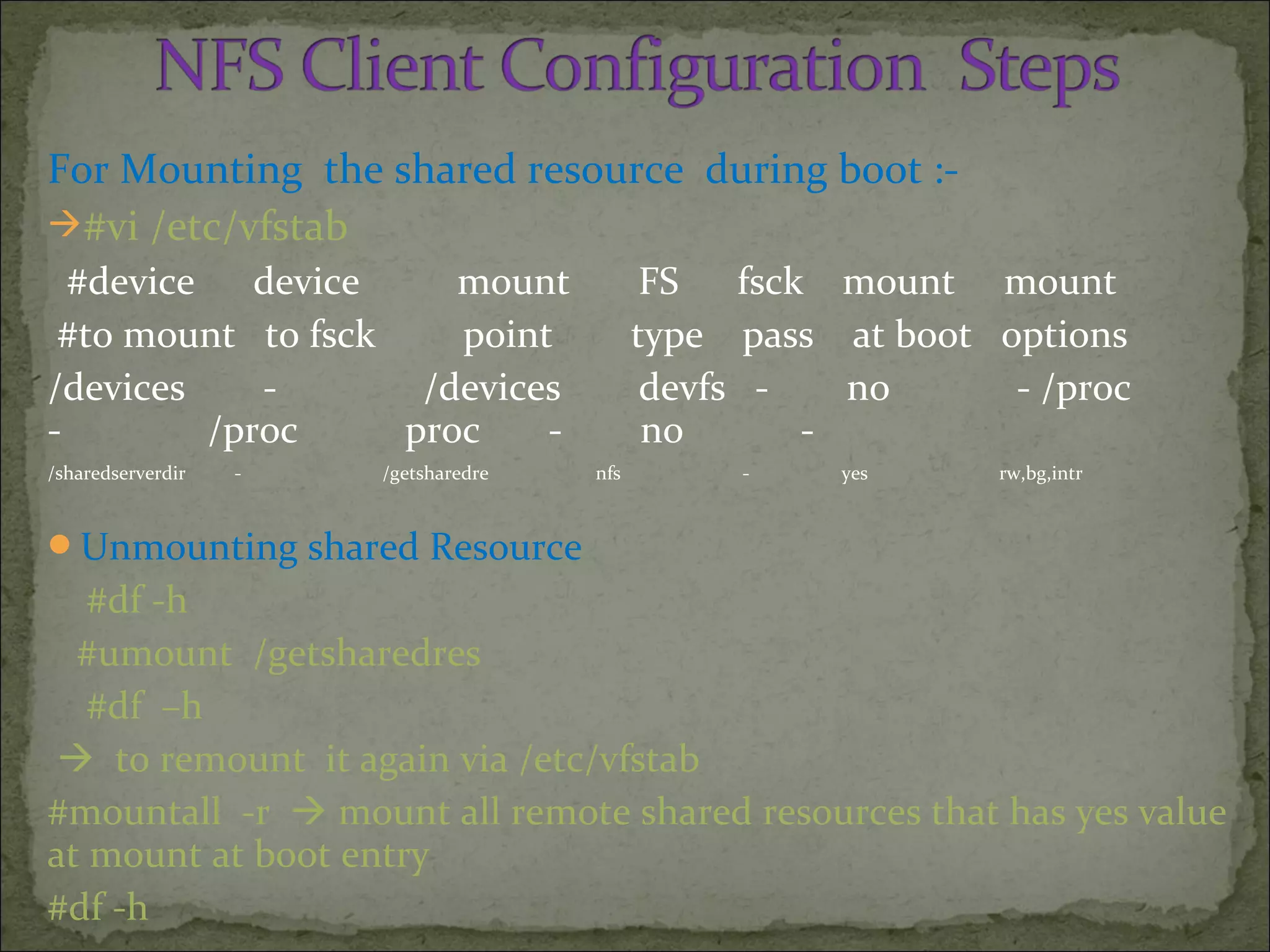
For Mounting the shared resource during boot :-
#vi /etc/vfstab
#device device mount FS fsck mount mount
#to mount to fsck point type pass at boot options
/devices - /devices devfs - no - /proc
- /proc proc - no -
/sharedserverdir - /getsharedre nfs - yes rw,bg,intr
Unmounting shared Resource
#df -h
#umount /getsharedres
#df –h
 to remount it again via /etc/vfstab
#mountall -r  mount all remote shared resources that has yes value
at mount at boot entry
#df -h
Share from server /testagain dir with options
rw,setuid and mount it to /clientgetdir in the
client and …. ??????????
Note
we can start client services using svcs
nfs/client,not by restart nfs/server service.
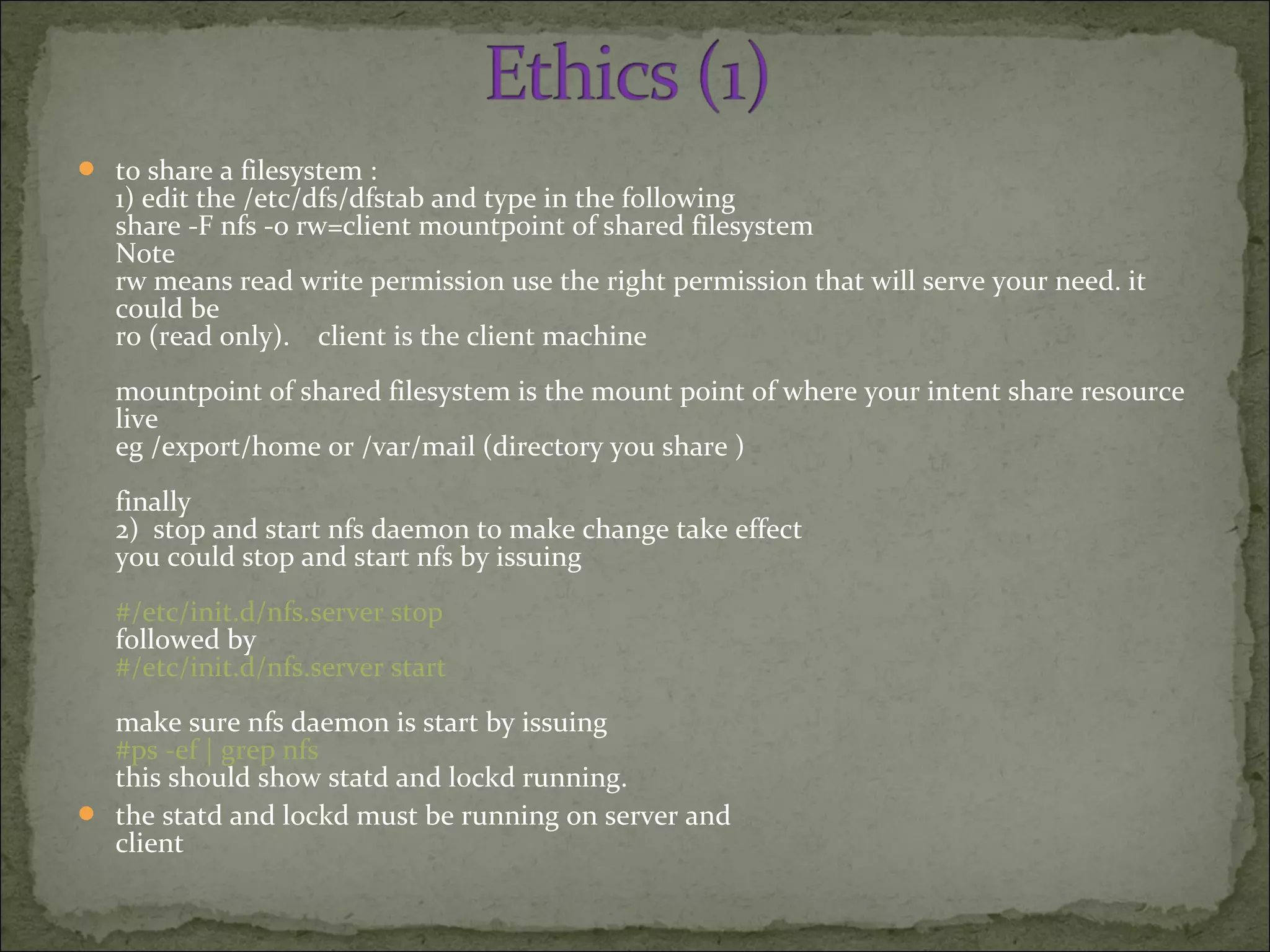
 to share a filesystem :
1) edit the /etc/dfs/dfstab and type in the following
share -F nfs -o rw=client mountpoint of shared filesystem
Note
rw means read write permission use the right permission that will serve your need. it
could be
ro (read only). client is the client machine
mountpoint of shared filesystem is the mount point of where your intent share resource
live
eg /export/home or /var/mail (directory you share )
finally
2) stop and start nfs daemon to make change take effect
you could stop and start nfs by issuing
#/etc/init.d/nfs.server stop
followed by
#/etc/init.d/nfs.server start
make sure nfs daemon is start by issuing
#ps -ef | grep nfs
this should show statd and lockd running.
 the statd and lockd must be running on server and
client
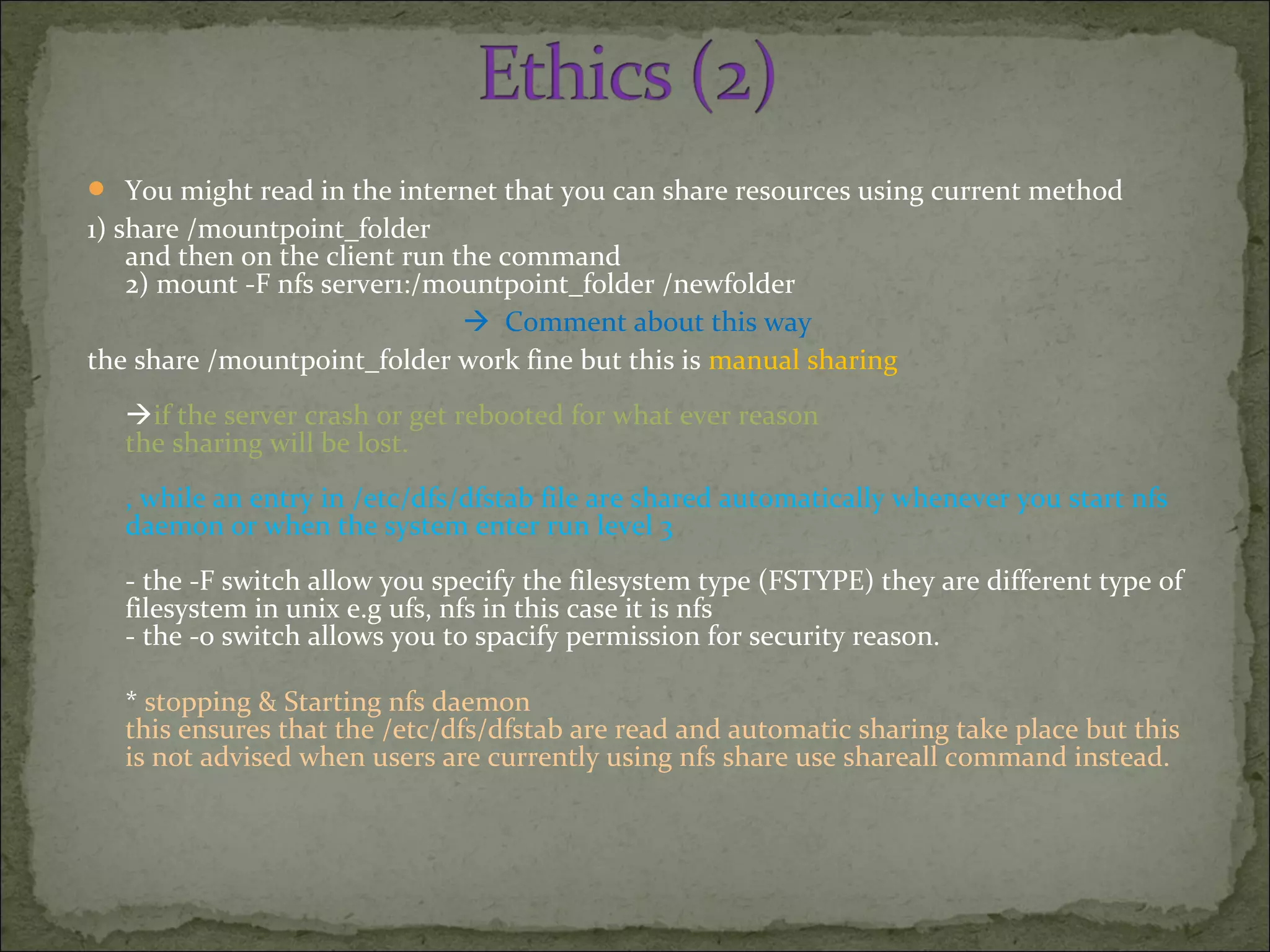
 You might read in the internet that you can share resources using current method
1) share /mountpoint_folder
and then on the client run the command
2) mount -F nfs server1:/mountpoint_folder /newfolder
 Comment about this way
the share /mountpoint_folder work fine but this is manual sharing
if the server crash or get rebooted for what ever reason
the sharing will be lost.
, while an entry in /etc/dfs/dfstab file are shared automatically whenever you start nfs
daemon or when the system enter run level 3
- the -F switch allow you specify the filesystem type (FSTYPE) they are different type of
filesystem in unix e.g ufs, nfs in this case it is nfs
- the -o switch allows you to spacify permission for security reason.
* stopping & Starting nfs daemon
this ensures that the /etc/dfs/dfstab are read and automatic sharing take place but this
is not advised when users are currently using nfs share use shareall command instead.
1. Determine the NFS version:
To determine what version and transport of NFS is currently available, run rpcinfo on the
NFS server.
# rpcinfo -p | grep 100003
100003 2 udp 0.0.0.0.8.1 nfs superuser , 100003 3 udp 0.0.0.0.8.1 nfs superuser
100003 2 tcp 0.0.0.0.8.1 nfs superuser , 100003 3 tcp 0.0.0.0.8.1 nfs superuser
the second column above is the NFS version, the third column is the transport protocol.
Sun has implemented the following versions of NFS on it’s operating systems, for both
client and server:*The UDP transport is not supported in NFSv4, as it does not contain the required
congestion control methods
OS Version NFSv2 NFSv3 NFSv4
SunOS UDP    
Solaris[TM] 2.4
and below
UDP    
Solaris[TM]
2.5,2.6,7,8,9
UDP and/or TCP UDP and/or TCP  
Solaris[TM] 10 UDP and/or TCP UDP and/or TCP TCP*
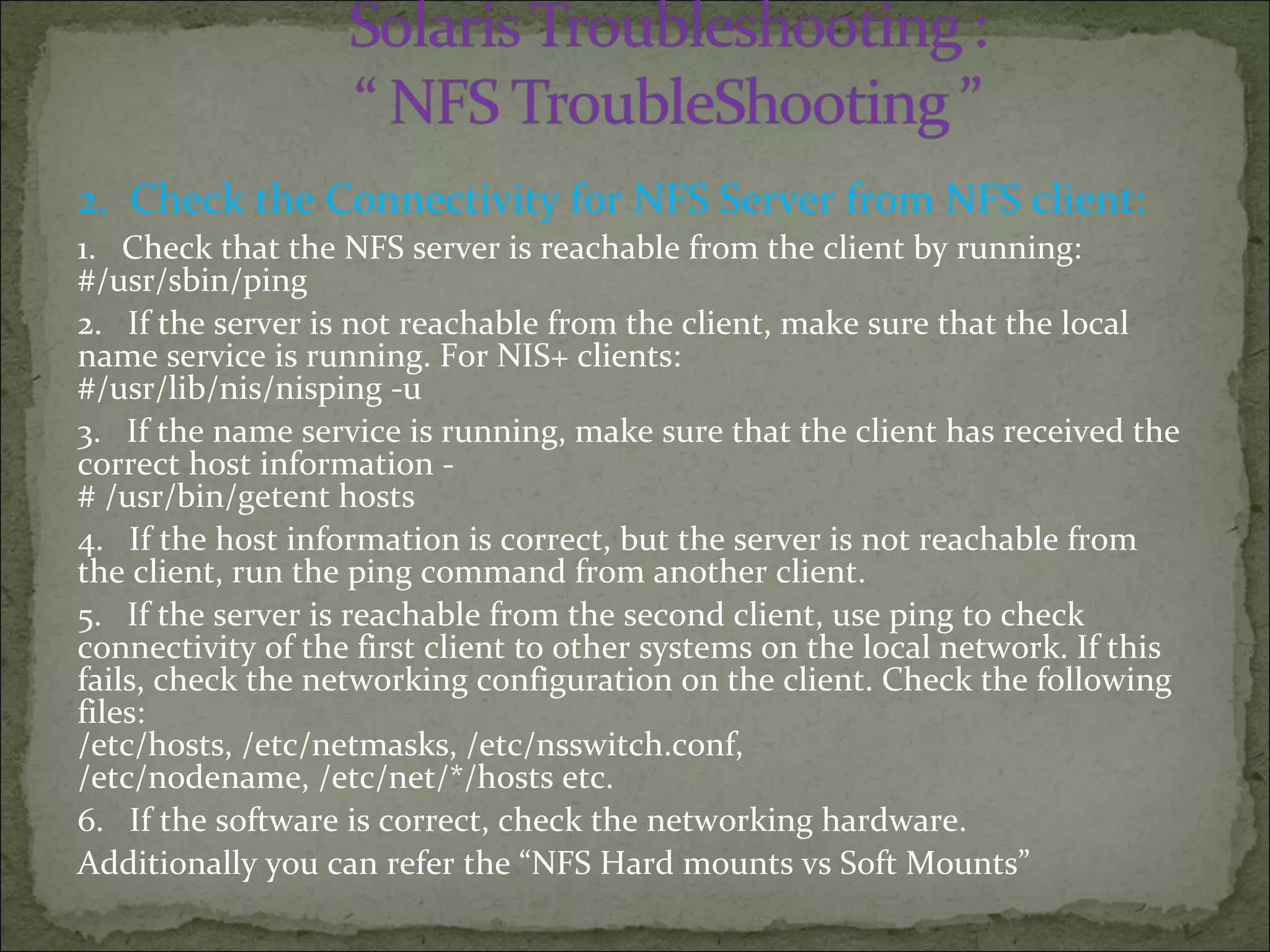
2. Check the Connectivity for NFS Server from NFS client:
1. Check that the NFS server is reachable from the client by running:
#/usr/sbin/ping
2. If the server is not reachable from the client, make sure that the local
name service is running. For NIS+ clients:
#/usr/lib/nis/nisping -u
3. If the name service is running, make sure that the client has received the
correct host information -
# /usr/bin/getent hosts
4. If the host information is correct, but the server is not reachable from
the client, run the ping command from another client.
5. If the server is reachable from the second client, use ping to check
connectivity of the first client to other systems on the local network. If this
fails, check the networking configuration on the client. Check the following
files:
/etc/hosts, /etc/netmasks, /etc/nsswitch.conf,
/etc/nodename, /etc/net/*/hosts etc.
6. If the software is correct, check the networking hardware.
Additionally you can refer the “NFS Hard mounts vs Soft Mounts”
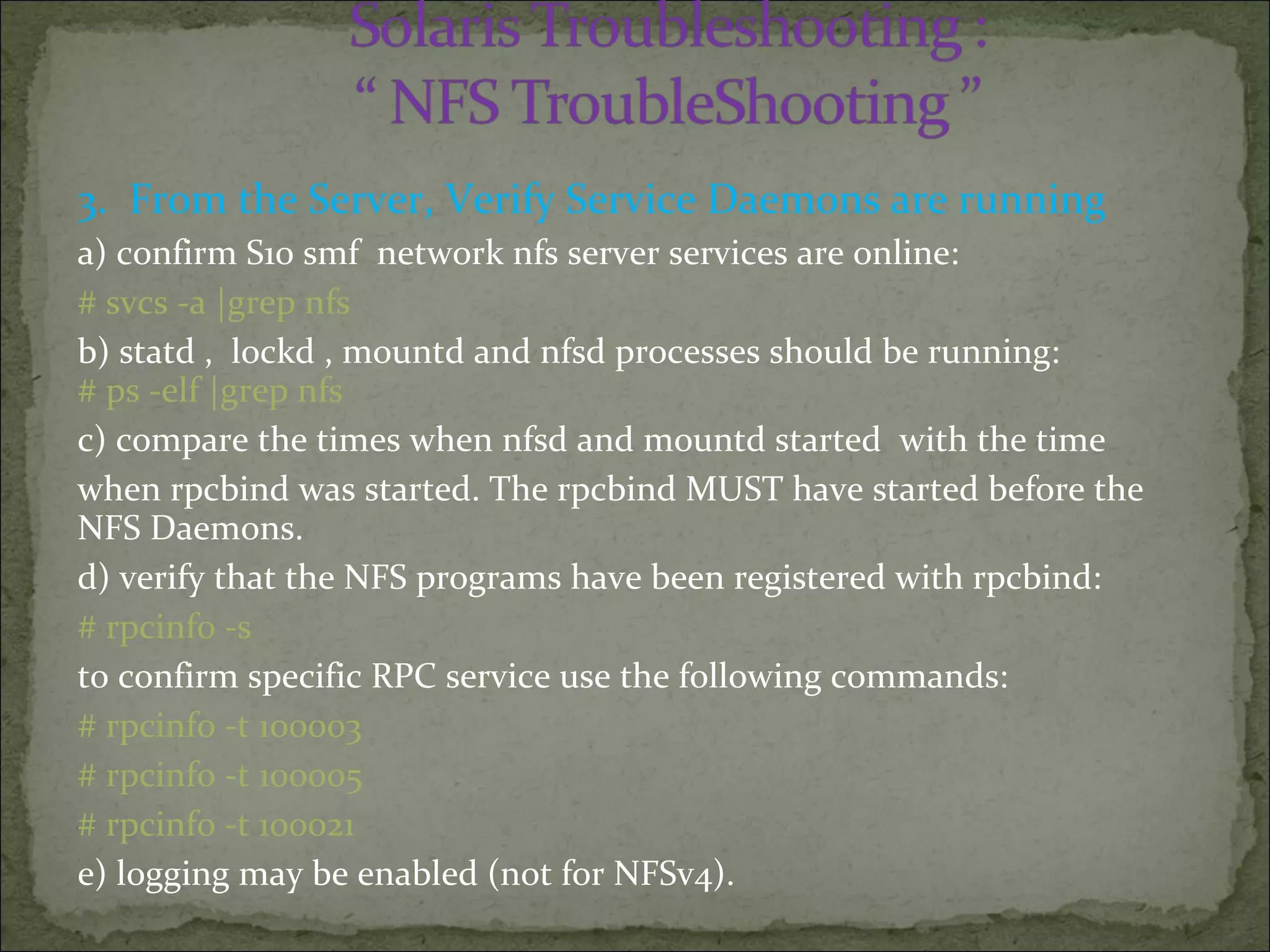
3. From the Server, Verify Service Daemons are running
a) confirm S10 smf network nfs server services are online:
# svcs -a |grep nfs
b) statd , lockd , mountd and nfsd processes should be running:
# ps -elf |grep nfs
c) compare the times when nfsd and mountd started with the time
when rpcbind was started. The rpcbind MUST have started before the
NFS Daemons.
d) verify that the NFS programs have been registered with rpcbind:
# rpcinfo -s
to confirm specific RPC service use the following commands:
# rpcinfo -t 100003
# rpcinfo -t 100005
# rpcinfo -t 100021
e) logging may be enabled (not for NFSv4).
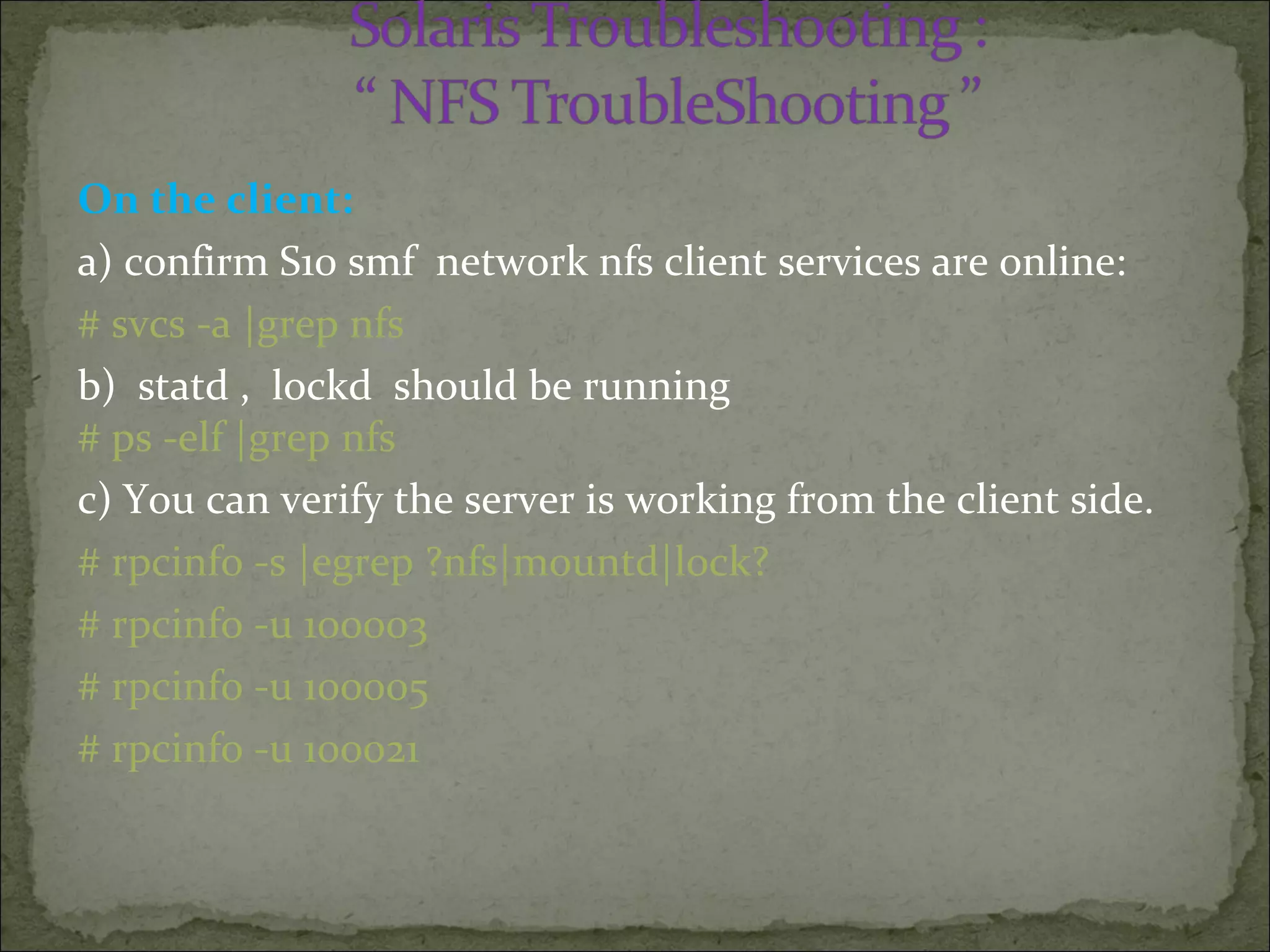
On the client:
a) confirm S10 smf network nfs client services are online:
# svcs -a |grep nfs
b) statd , lockd should be running
# ps -elf |grep nfs
c) You can verify the server is working from the client side.
# rpcinfo -s |egrep ?nfs|mountd|lock?
# rpcinfo -u 100003
# rpcinfo -u 100005
# rpcinfo -u 100021
4. Confirm proper syntax of dfstab share entries on NFS server.
Solaris OS defines shared (or exported) filesystems in the /etc/dfs/dfstab file.
The standard syntax of lines in that file is:
share [-F fstype] [ -o options] [-d ""] [resource]
For example, the following /etc/dfs/dfstab file is for a server that makes available the
filesystems /usr, /var/spool/mail and /home:
share -F nfs /usr
share -F nfs /var/spool/mail
share -F nfs /home
You can add normal mount options to these lines, such as ro, rw and root. This is done by
proceeding the options with a -o flag. The following example shows our /etc/dfs/dfstab file, with
all filesystems shared read only:
share -F nfs -o ro /usr
share -F nfs -o ro /var/spool/mail
share -F nfs -o ro /home
To add new shares to existing ones, simply run the shareallcommand:
# shareall
This will share ALL filesystems available in the /etc/dfs/dfstab file. If you have never shared
filesystems from this machine before, you
must run the nfs.server script:
# /etc/init.d/nfs.server start
This will run the shareall(1M) command and start the nfs daemons, mountd(1M), and nfsd. The
“nfs.server start” procedure is also run on bootup, when the system enters run level 3.
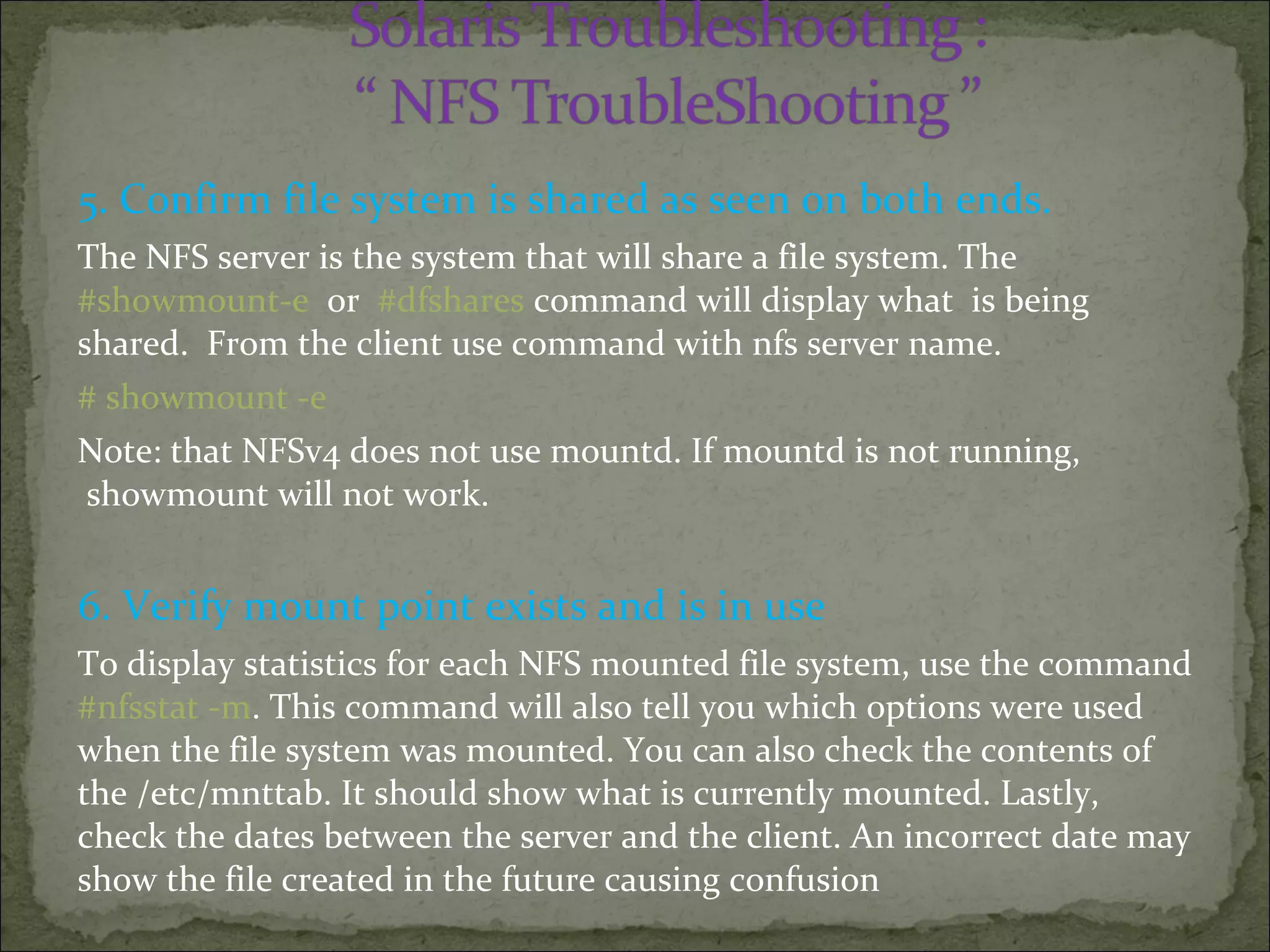
5. Confirm file system is shared as seen on both ends.
The NFS server is the system that will share a file system. The
#showmount-e or #dfshares command will display what is being
shared. From the client use command with nfs server name.
# showmount -e
Note: that NFSv4 does not use mountd. If mountd is not running,
showmount will not work.
6. Verify mount point exists and is in use
To display statistics for each NFS mounted file system, use the command
#nfsstat -m. This command will also tell you which options were used
when the file system was mounted. You can also check the contents of
the /etc/mnttab. It should show what is currently mounted. Lastly,
check the dates between the server and the client. An incorrect date may
show the file created in the future causing confusion
Thank
You

Solaris 10 administration 2 Configuring NFS

  • 2.
    What is NFS? Benefits of NFS NFS Server NFS Client The Share Command NFS Server Configuration NFS Client Configuration Ethics NFS TroubleShooting
  • 3.
    NFS stands for Network File System The objects that can be shared through the NFS software include any whole or partial directory tree or a file hierarchy—including a single file. A computer cannot share a file hierarchy that overlaps one that is already shared. Peripheral devices such as modems and printers cannot be shared. Note . NFS software works across operating systems, and the concept of a file system may be meaningless in other, non-UNIX environments. the use of the term file system refers to a file hierarchy that can be shared and mounted over NFS environments.
  • 4.
    In Solaris 10Environment : The NFS service enables computers of different architectures running different operating systems to share file systems across a network . Note– The NFS was developed by Sun Microsystems and is recognized as a file server standard. Its protocol uses the Remote Procedure Call (RPC) method of communication between computers on the Internet. So you have to know it’s benefits
  • 5.
    Allows multiple computersto use the same files, because all users on the network can access the same data Reduces storage costs by sharing applications on computers instead of allocating local disk space for each user application Provides data consistency and reliability, because all users can read the same set of files Reduces system administration overhead
  • 6.
    the NFS serviceenables you to place one copy of the files on one computer’s hard disk. All other systems can then access the files across the network. When using the NFS service, remote file systems are almost indistinguishable from local file systems. The NFS Environment contains the following components -NFS Server -NFS Client
  • 7.
    The NFS servercontains file resources shared with other systems on the network.  A computer acts as a server when it makes files and directories on its hard disk available to the other computers on the network. NFS server shares disk storage with NFS client. “NFS Server Configuration” shows how files and directories on an NFS server are made available to NFS clients. The NFS server is sharing the /export/rdbms directory over NFS
  • 9.
    The NFS clientsystem mounts file resources shared over the network and presents the file resources to users as if they were local files. “NFS Client Configuration” shows how an NFS client uses the files and directories shared by an NFS server. The /export/rdbms directory, shared by the NFS server, is mounted on the NFS client on the /opt/rdbms mount point. The resource mount point exists on the NFS client, and the NFS server shares the file resources with other computers on the network
  • 11.
     The machinewhich provides the disk files and directories to share is called the NFS server.  The machine which accesses the server is called the NFS client. * It is possible to restrict access to a defined list of machines. * It is possible to encrypt NFS traffic using secure NFS options when mounting. * NFS activity can be logged using options to NFS shares.
  • 12.
     The commandhas several options, for example:- # share -F nfs -o ro,rw=ahmed:abada /usr * This shares /usr read-only to all machines except ahmed and abada, to which it is shared read-write. # share -F nfs -o rw=ahmed:abada,root=ahmed /usr * This shares /usr read-write to only fa and harwell, with root access granted to the root account on harwell. * Sharing as root is dangerous; don’t be tempted to use this too frequently! # share -F nfs -o ro,anon=0 /extra/sol10 * Shares /extra/sol10 read-only, with the UID for unkown user ID access as 0, and logs accesses. * The anon=0 effectively gives all machines full root access to this share, but with ro it’s read-only.
  • 13.
     If themachine is already running as an NFS server, we can dispense with the “-F nfs” option when entering share commands on the command line:- # share /opt * Default access is read-write to all known hosts. The root option must be given a list of machines, or an error message is generated:- "share_nfs: missing root list“
  • 14.
     The sharecommand - file systems / hard slice A couple of points worth noting concerning the way NFS treats file systems/hard slices:- 1. The share command limits the sharing to the current file system (i.e. hard slice). ❖ Therefore, if you share "/" you are sharing only the root slice. ❖ The fact that "/" on the server has other slices mounted within it does not mean that you will see these mounts at The NFS client end. ❖ You will see the empty mount points only. ❖ Suppose we wished to share all local hard slices; a df -k would quickly show which slices we would need to share:- Filesystem kbytes used avail capacity Mounted on /dev/dsk/c0t3d0s0 67663 23359 44237 35% / /dev/dsk/c0t3d0s6 529294 406096 122669 77% /usr ❖ Those directories mounted from hard slices(/, /usr, /opt, /export/home) are the local file systems available to be shared
  • 15.
    2. Once adirectory is shared, you cannot then share a directory (in the same slice) below it; for example:- ❖ If /usr is shared, /usr/man cannot then be shared separately. (If it is on the same slice as /usr, which it probably is). You’ll get an error message:- share_nfs: /usr/man: parent-directory (/usr) already shared ❖ You may, for example, wish to do this to apply different share permissions such as read-only or read-write. ❖ You will have to share each directory below /usr on an individual basis if you wish to do this. ❖ You can share a subdirectory, if it is on a separate slice; for example, if you have shared "/", you can still share /opt and /usr. Remember: to make the shared file systems available permanently, place the share commands in /etc/dfs/dfstab. Details of file systems currently being shared are held in /etc/dfs/sharetab, but this file is maintained by the system.
  • 16.
     If youhave updated /etc/dfs/dfstabwithout running the share commands manually, you can make them come into force by running:- # shareall Note: shareall command read /etc/dfs/dfstab and share all uncommented share lines all  Unsharing  To take a resource out of the share list, simply unshare it:- # unshare /opt * Unshares the /opt directory # unshareall * Unshares all currently shared directories. Note: unshareall command read /etc/dfs/sharetab and unshare all it’s values  Unsharing, or changing share options, comes into effect immediately. For example, if I am accessing an NFS mounted file system, and it is then unshared on the server, I will get the message:- Stale NFS file handle • .. if I try to access it.
  • 17.
     The firsttask is to enable our machines to be NFS servers, then we can proceed to access their files and directories as clients.  The NFS service is provided, as with many other services, by daemons which can automatically be started at boot time. (automatically when you in run level 3)  These daemons are:- ❖ nfsd  this daemon provides the actual reading and writing services. It is written using multi-threading programming technniques, allowing it to handle a specified number of concurrent NFS requests. (16 by default - change this in /etc/default/nfs) stopping & Starting nfs daemon this ensures that the /etc/dfs/dfstab are read and automatic sharing take place but this is not advised when users are currently using nfs share use shareall command instead.
  • 18.
    create a directory, share it ready for mounting and then mount it from the client machine. we have two machines : mido  server , ahmed  clien Server Side first (mido):-
  • 19.
     These daemonsare:- ❖ mountd  this daemon answers and validates mount requests from remote machines. • Under Solaris 10, the SMF facility must be employed to enable the NFS services - these are actually enabled by default. (More about this shortly) • There is a very simple condition which causes these daemons to be started at boot time, and thus automatically configure the machine as an NFS server:- ❖ The file /etc/dfs/dfstabmust exist, and must contain valid share commands. Note : NFS daemons will start automatically at boot time when there are an uncommented share command in the “/etc/dfs/dfstab”
  • 20.
     If youhave placed share entries in /etc/dfs/dfstab, and want to start NFS without rebooting:- # svcadm enable nfs/server  Starting off with our server side, NFS requires at least 4 services running (for sane usage), though possibly up to 8, depending on NFS version and features svc:/network/rpc/bind:default (required) svc:/network/nfs/status:default (required) svc:/network/nfs/nlockmgr:default (required) svc:/network/nfs/rquota:default (optional) svc:/network/nfs/server:default (required) svc:/network/nfs/mapid:default (NFSv4, required) svc:/network/rpc/gss:default (NFSv4, optional) /usr/lib/nfs/nfslogd (NFSv2, NFSv3, optional)  we check which services are running and start those that aren't: ex:- #svcadm enable svc:/network/rpc/bind:default
  • 21.
     You canalso use svcadm to restart or disable NFS:- # svcadm restart nfs/server (Will not work if nfs disabled) # svcadm disable nfs/server We could have alternately enabled the necessary NFS services via #svcadm enable -r svc:/network/nfs/server:default To verify our exported filesystems, we can use 'dfshares', 'share', or review the contents of 'sharetab':  Note that if you omit the -F nfs option to the share command (or any NFS-related command which supports-F FSType) the the first entry in the file /etc/dfs/fstypes is taken as the default filesystem type. The happens to be nfs in all Solaris versions.
  • 22.
    #svcs -a |grep nfs
  • 23.
     It’s notworked because of the are no not commented share entries in /etc/dfs/dfstab file  #hostname  mido (server is mido , client is ahmed)  So , put an entry in /etc/dfs/dfstab * Steps for sharing an entry from server side 1)  #mkdir /sharedserverdir 2)  #vi /etc/dfs/dfstab share -F nfs -o r0,rw=ahmed,root=ahmed /sharedserverside Note  entries in /etc/dfs/dfstab is saved untill reboot , that means when reboot the server shared uncommented entries with specified clients #svcs –a | grep nfs  still disabled 3) Now to run this entry without writing it again through share commans  Run #shareall command 4)  #svcs –a | grep nfs  you will find it’s it has been enabled now  For viewing shared filesyatems in the server for other clients 5) #share or #cat /etc/dfs/sharetab or #dfshares 6) #cd /sharedserverside , #echo “hello ahmed” >> test  For unshareing this entry use #unshareall command that unshare all entries exist in /etc/dfs/sharetab file , #share gives you no thing  For reshareing the entries again , just run #shareall command
  • 24.
     share commandsallow a server to make it’s disk resources available to other machines, for example:- # share -F nfs /export/home  This means:- * - any known host can mount from/export/home or anywhere underneath.  To view resources that are currently being shared:- 3 ways  1) #dfshares or 2) #cat /etc/dfs/sharetab 3) # share  On the server, you can use 'unshareall' to stop sharing all exported filesystems and verify with 'dfshares' - /export/home rw “ “ Note: This shared resource could be made permanently available by placing the share command in the /etc/dfs/dfstab file.
  • 25.
    #hostname  ahmed(client ) Now that the server is setup, we can work on the client host. A Solaris NFS client requires at least 4 services running (for sane usage), though possibly 6 depending on NFS version svc:/network/rpc/bind:default (required) svc:/network/nfs/status:default (required) svc:/network/nfs/nlockmgr:default (required) svc:/network/nfs/client:default (required) svc:/network/nfs/cbd:default (NFSv4, required) svc:/network/nfs/mapid:default (NFSv4, required) we check the status of the services, starting them as needed #svcs –a | grep nfs #svcs –a | grep rpc/bind If any of these services are not enabled , you can enable it via #svcadm enable servicename
  • 26.
    use 'dfshares' toreview what shares are available from the NFS server  From client(ahmed) side to see what server(mido) shares to you # dfshares mido Note : on Server (ahmed) shared /sharedserverdir so we on client(mido) we will mount this directory to /getsharedres
  • 27.
    1) test thatneeded services are enabled #svcs –a | grep rpc/bind #svcs –a | grep nfs  if ant of this services not enabled , enable it using #svcadm -v enable “Service_name” 2) Show what are the shared resources to you (client) via server (mido) #dfshares mido 3) Create “mount point” the directory that you will mount the shared directory from server to it #mkdir /getsharedres #ls –ld /getsharedres drwxr-xr-x 2 root root 2 Seb 20 03:12 /getsharedres/ #df –h 4) Mount the shares resource to the mount point #mount -F nfs -o rw,bg,intr mido:/sharedserverdir /getsharedres 5) Test that resource is mounted #df -h #mount #ls /getsharedres 6) Try to edit shared resources  #echo “thank you” >> test 7) To unmount this resource , #umount /getsharedres
  • 28.
    For Mounting theshared resource during boot :- #vi /etc/vfstab #device device mount FS fsck mount mount #to mount to fsck point type pass at boot options /devices - /devices devfs - no - /proc - /proc proc - no - /sharedserverdir - /getsharedre nfs - yes rw,bg,intr Unmounting shared Resource #df -h #umount /getsharedres #df –h  to remount it again via /etc/vfstab #mountall -r  mount all remote shared resources that has yes value at mount at boot entry #df -h
  • 29.
    Share from server/testagain dir with options rw,setuid and mount it to /clientgetdir in the client and …. ?????????? Note we can start client services using svcs nfs/client,not by restart nfs/server service.
  • 30.
     to sharea filesystem : 1) edit the /etc/dfs/dfstab and type in the following share -F nfs -o rw=client mountpoint of shared filesystem Note rw means read write permission use the right permission that will serve your need. it could be ro (read only). client is the client machine mountpoint of shared filesystem is the mount point of where your intent share resource live eg /export/home or /var/mail (directory you share ) finally 2) stop and start nfs daemon to make change take effect you could stop and start nfs by issuing #/etc/init.d/nfs.server stop followed by #/etc/init.d/nfs.server start make sure nfs daemon is start by issuing #ps -ef | grep nfs this should show statd and lockd running.  the statd and lockd must be running on server and client
  • 31.
     You mightread in the internet that you can share resources using current method 1) share /mountpoint_folder and then on the client run the command 2) mount -F nfs server1:/mountpoint_folder /newfolder  Comment about this way the share /mountpoint_folder work fine but this is manual sharing if the server crash or get rebooted for what ever reason the sharing will be lost. , while an entry in /etc/dfs/dfstab file are shared automatically whenever you start nfs daemon or when the system enter run level 3 - the -F switch allow you specify the filesystem type (FSTYPE) they are different type of filesystem in unix e.g ufs, nfs in this case it is nfs - the -o switch allows you to spacify permission for security reason. * stopping & Starting nfs daemon this ensures that the /etc/dfs/dfstab are read and automatic sharing take place but this is not advised when users are currently using nfs share use shareall command instead.
  • 32.
    1. Determine theNFS version: To determine what version and transport of NFS is currently available, run rpcinfo on the NFS server. # rpcinfo -p | grep 100003 100003 2 udp 0.0.0.0.8.1 nfs superuser , 100003 3 udp 0.0.0.0.8.1 nfs superuser 100003 2 tcp 0.0.0.0.8.1 nfs superuser , 100003 3 tcp 0.0.0.0.8.1 nfs superuser the second column above is the NFS version, the third column is the transport protocol. Sun has implemented the following versions of NFS on it’s operating systems, for both client and server:*The UDP transport is not supported in NFSv4, as it does not contain the required congestion control methods OS Version NFSv2 NFSv3 NFSv4 SunOS UDP     Solaris[TM] 2.4 and below UDP     Solaris[TM] 2.5,2.6,7,8,9 UDP and/or TCP UDP and/or TCP   Solaris[TM] 10 UDP and/or TCP UDP and/or TCP TCP*
  • 33.
    2. Check theConnectivity for NFS Server from NFS client: 1. Check that the NFS server is reachable from the client by running: #/usr/sbin/ping 2. If the server is not reachable from the client, make sure that the local name service is running. For NIS+ clients: #/usr/lib/nis/nisping -u 3. If the name service is running, make sure that the client has received the correct host information - # /usr/bin/getent hosts 4. If the host information is correct, but the server is not reachable from the client, run the ping command from another client. 5. If the server is reachable from the second client, use ping to check connectivity of the first client to other systems on the local network. If this fails, check the networking configuration on the client. Check the following files: /etc/hosts, /etc/netmasks, /etc/nsswitch.conf, /etc/nodename, /etc/net/*/hosts etc. 6. If the software is correct, check the networking hardware. Additionally you can refer the “NFS Hard mounts vs Soft Mounts”
  • 34.
    3. From theServer, Verify Service Daemons are running a) confirm S10 smf network nfs server services are online: # svcs -a |grep nfs b) statd , lockd , mountd and nfsd processes should be running: # ps -elf |grep nfs c) compare the times when nfsd and mountd started with the time when rpcbind was started. The rpcbind MUST have started before the NFS Daemons. d) verify that the NFS programs have been registered with rpcbind: # rpcinfo -s to confirm specific RPC service use the following commands: # rpcinfo -t 100003 # rpcinfo -t 100005 # rpcinfo -t 100021 e) logging may be enabled (not for NFSv4).
  • 35.
    On the client: a)confirm S10 smf network nfs client services are online: # svcs -a |grep nfs b) statd , lockd should be running # ps -elf |grep nfs c) You can verify the server is working from the client side. # rpcinfo -s |egrep ?nfs|mountd|lock? # rpcinfo -u 100003 # rpcinfo -u 100005 # rpcinfo -u 100021
  • 36.
    4. Confirm propersyntax of dfstab share entries on NFS server. Solaris OS defines shared (or exported) filesystems in the /etc/dfs/dfstab file. The standard syntax of lines in that file is: share [-F fstype] [ -o options] [-d ""] [resource] For example, the following /etc/dfs/dfstab file is for a server that makes available the filesystems /usr, /var/spool/mail and /home: share -F nfs /usr share -F nfs /var/spool/mail share -F nfs /home You can add normal mount options to these lines, such as ro, rw and root. This is done by proceeding the options with a -o flag. The following example shows our /etc/dfs/dfstab file, with all filesystems shared read only: share -F nfs -o ro /usr share -F nfs -o ro /var/spool/mail share -F nfs -o ro /home To add new shares to existing ones, simply run the shareallcommand: # shareall This will share ALL filesystems available in the /etc/dfs/dfstab file. If you have never shared filesystems from this machine before, you must run the nfs.server script: # /etc/init.d/nfs.server start This will run the shareall(1M) command and start the nfs daemons, mountd(1M), and nfsd. The “nfs.server start” procedure is also run on bootup, when the system enters run level 3.
  • 37.
    5. Confirm filesystem is shared as seen on both ends. The NFS server is the system that will share a file system. The #showmount-e or #dfshares command will display what is being shared. From the client use command with nfs server name. # showmount -e Note: that NFSv4 does not use mountd. If mountd is not running, showmount will not work. 6. Verify mount point exists and is in use To display statistics for each NFS mounted file system, use the command #nfsstat -m. This command will also tell you which options were used when the file system was mounted. You can also check the contents of the /etc/mnttab. It should show what is currently mounted. Lastly, check the dates between the server and the client. An incorrect date may show the file created in the future causing confusion
  • 38.