Team
Md. Iftiar Uddin Ahmed [011 122 084 ]
Md.Tanvir Hossain [ 011 101 035]
Rafid asrar prottoy [ 011 132 124 ]
Amit ghosh [011 132 134]
About Shell | Shell Scripts
Overview
 A short history of Linux
 About Shell
 About Shell Script
Linux
Introduction
 In 80’s, Microsoft’s DOS was the dominated OS for PC
 Apple MAC was better, but expensive
 UNIX was much better, but much, much more
expensive. Only for minicomputer for commercial
applications
 People was looking for a UNIX based system, which is
cheaper and can run on PC
 Both DOS, MAC and UNIX were proprietary, i.e., the
source code of their kernel is protected
 No modification is possible without paying high license
fees
Before
Linux
Beginning of
Linux
 A famous professor Andrew Tanenbaum developed Minix,
a simplified version of UNIX that runs on PC
 Minix is for class teaching only. No intention for
commercial use
 In Sept 1991, Linus Torvalds, a second year student of
Computer Science at the University of Helsinki,
developed the preliminary kernel of Linux, known as
Linux version 0.0.1
Linux
Introduction
Linux
Introduction
 Linux has been used for many computing platforms
– PC, PDA, Supercomputer,…
 Not only character user interface but graphical user interface is
available
 Commercial vendors moved in Linux itself to provide freely
distributed code. They make their money by compiling up
various software and gathering them in a distributable format
– Red Hat, Slackware, etc
Linux
Today
Shell
Shell is an command language interpreter that executes
commands read from the standard input device (keyboard) or from a
file. Shell is not part of system kernel, but uses the system kernel to
execute programs, create files etc.
Simply put, the shell is a program that takes your commands from
the keyboard and gives them to the operating system to perform.
What is Shell
Shell
Commands
 Shell commands are interpreted directly by the
shell you specify.
 The commands are similar to the statement in
some programming languages, such as C.
 Popular shells include:
 Enhanced C-shell tchs (csh+)
 Bourne-Again Shell, bash (sh+)
 Korn Shell (ksh)
Shells’
Features
 In particular:
 Pass arguments to your script
 Set and reference variables
 Use of control flow
 Interact with the user (read user input)
 Comments…
 Info on commands a given shell offers can be found
in the man pages for that shell.
 There are many Linux/UNIX references that give
detailed information and tips.
Shell Scripts
 To automate certain common activities an user
performs routinely.
 They serve the same purpose as batch files in
DOS/Windows.
 Example:
 rename 1000 files from upper case to
lowercase
What are they for?
What are Shell
Scripts
 Just text/ASCII files with:
 a set of standard UNIX/Linux commands (ls,
mv, cp, less, cat, etc.) along with
 flow of control
 some conditional logic and branching
(if-then),
 loop structures (foreach, for, while), and
 I/O facilities (echo, print, set, ...).
 They allow use of variables.
 They are interpreted by a shell directly.
 Some of them (csh, tcsh) share some of C
syntax.
 DOS/Win equivalent - batch files (.bat)
Why not use
C/C++ for
that?
 C/C++ programming requires compilation and
linkage, maybe libraries, which may not be
available (production servers).
 For the typical tasks much faster in development,
debugging, and maintenance (because they are
interpreted and do not require compilation).
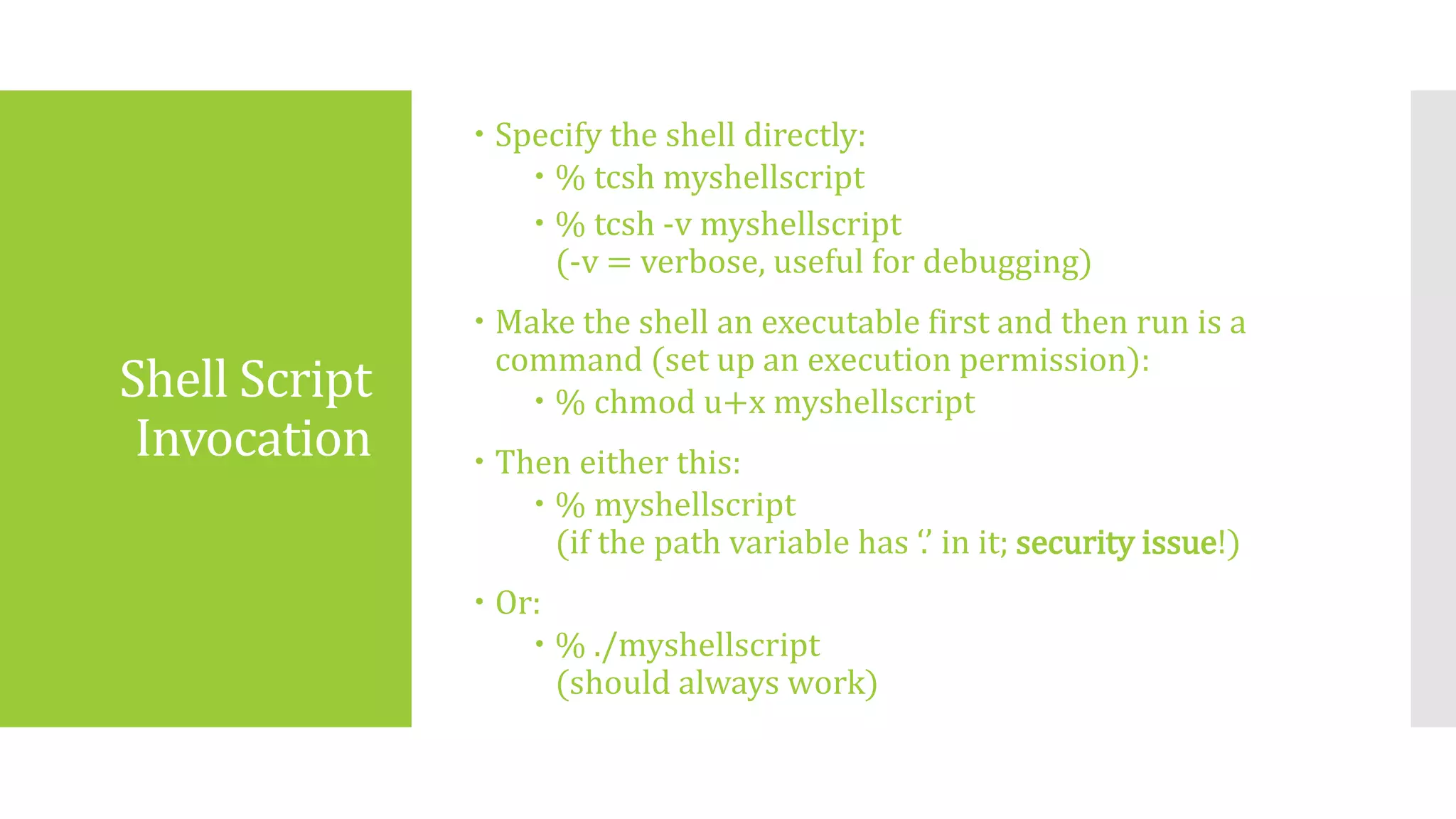
Shell Script
Invocation
 Specify the shell directly:
 % tcsh myshellscript
 % tcsh -v myshellscript
(-v = verbose, useful for debugging)
 Make the shell an executable first and then run is a
command (set up an execution permission):
 % chmod u+x myshellscript
 Then either this:
 % myshellscript
(if the path variable has ‘.’ in it; security issue!)
 Or:
 % ./myshellscript
(should always work)
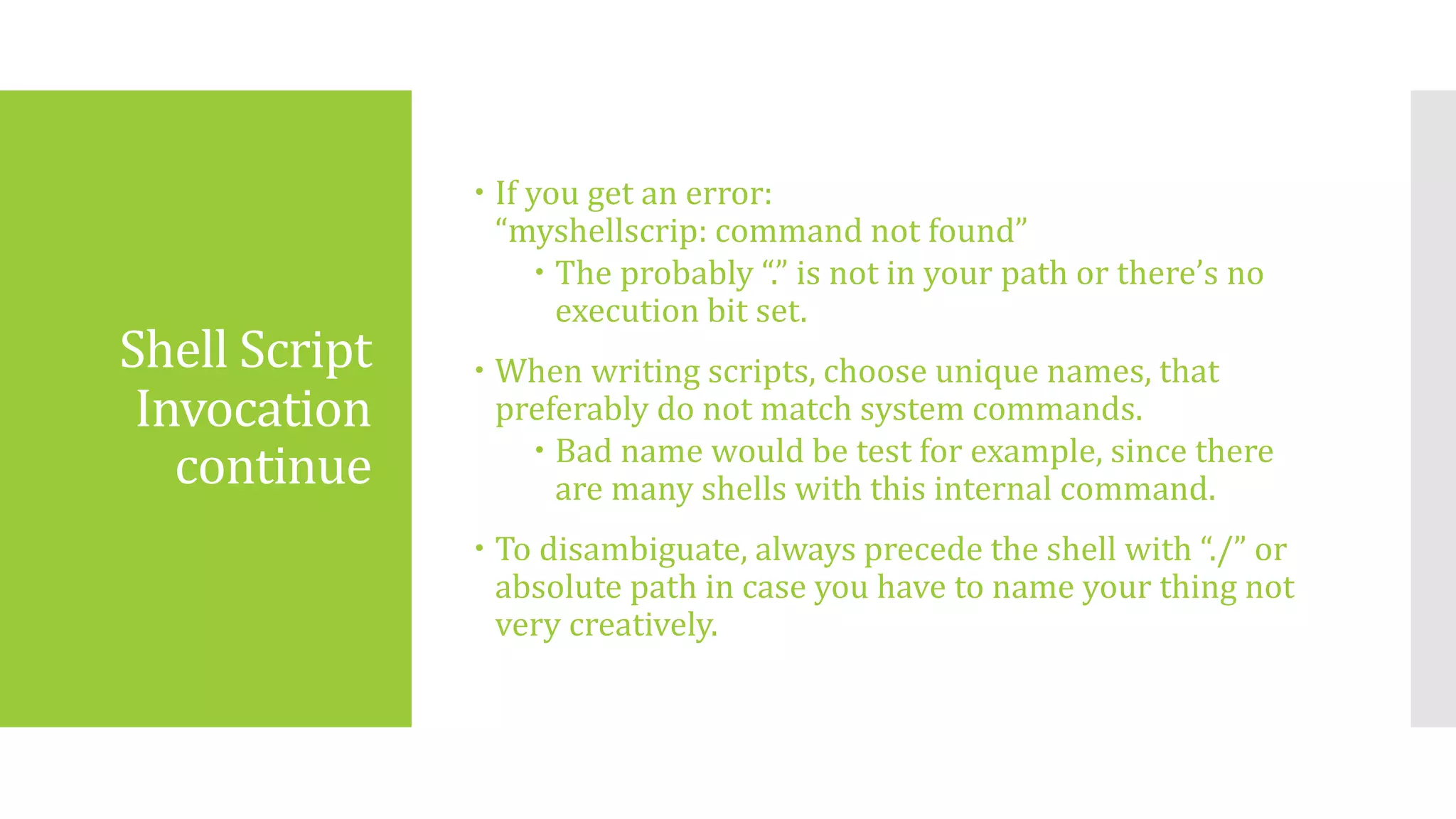
Shell Script
Invocation
continue
 If you get an error:
“myshellscrip: command not found”
 The probably “.” is not in your path or there’s no
execution bit set.
 When writing scripts, choose unique names, that
preferably do not match system commands.
 Bad name would be test for example, since there
are many shells with this internal command.
 To disambiguate, always precede the shell with “./” or
absolute path in case you have to name your thing not
very creatively.
Start Writing a
Shell Script
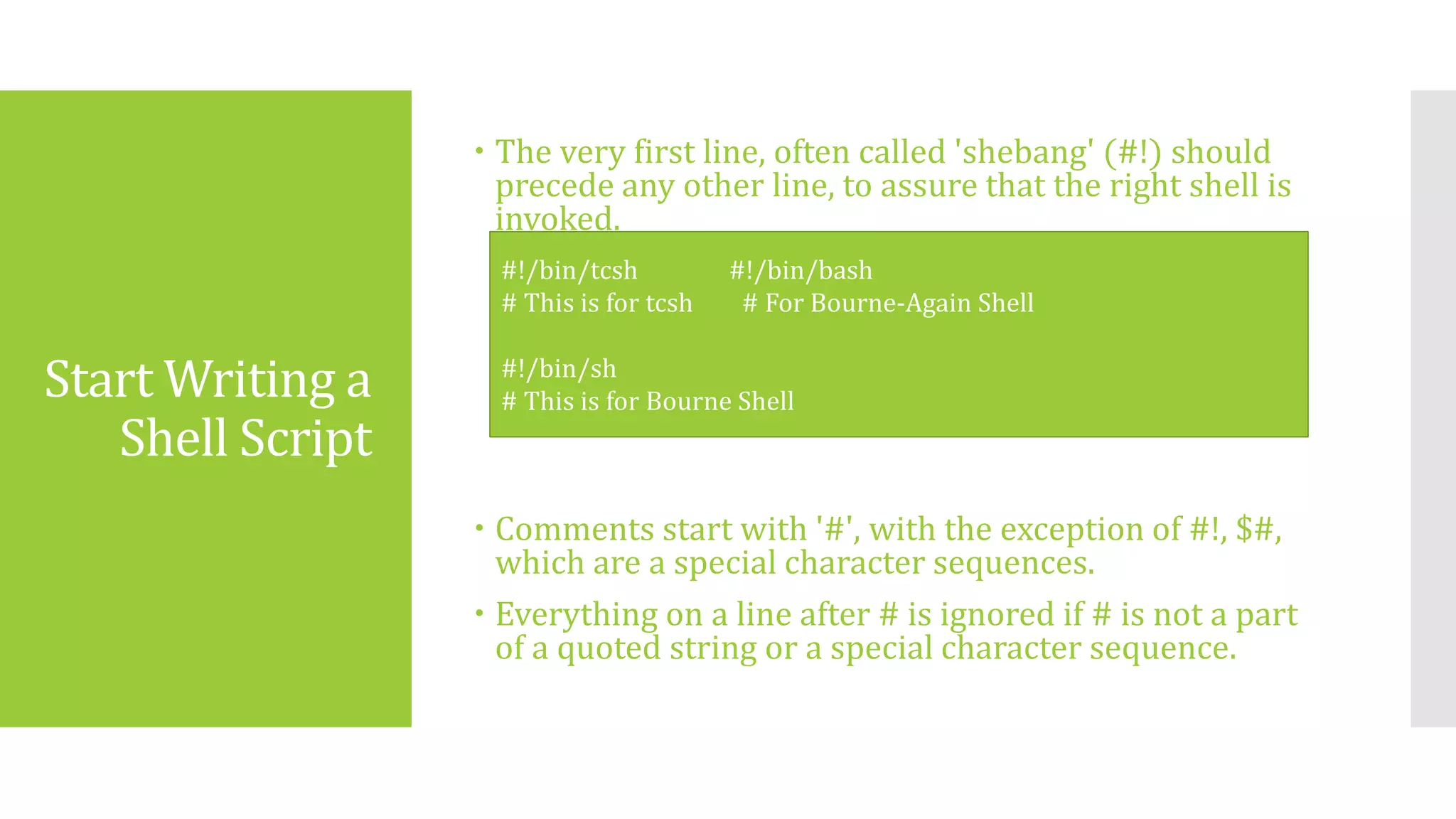
 The very first line, often called 'shebang' (#!) should
precede any other line, to assure that the right shell is
invoked.
 Comments start with '#', with the exception of #!, $#,
which are a special character sequences.
 Everything on a line after # is ignored if # is not a part
of a quoted string or a special character sequence.
#!/bin/tcsh #!/bin/bash
# This is for tcsh # For Bourne-Again Shell
#!/bin/sh
# This is for Bourne Shell
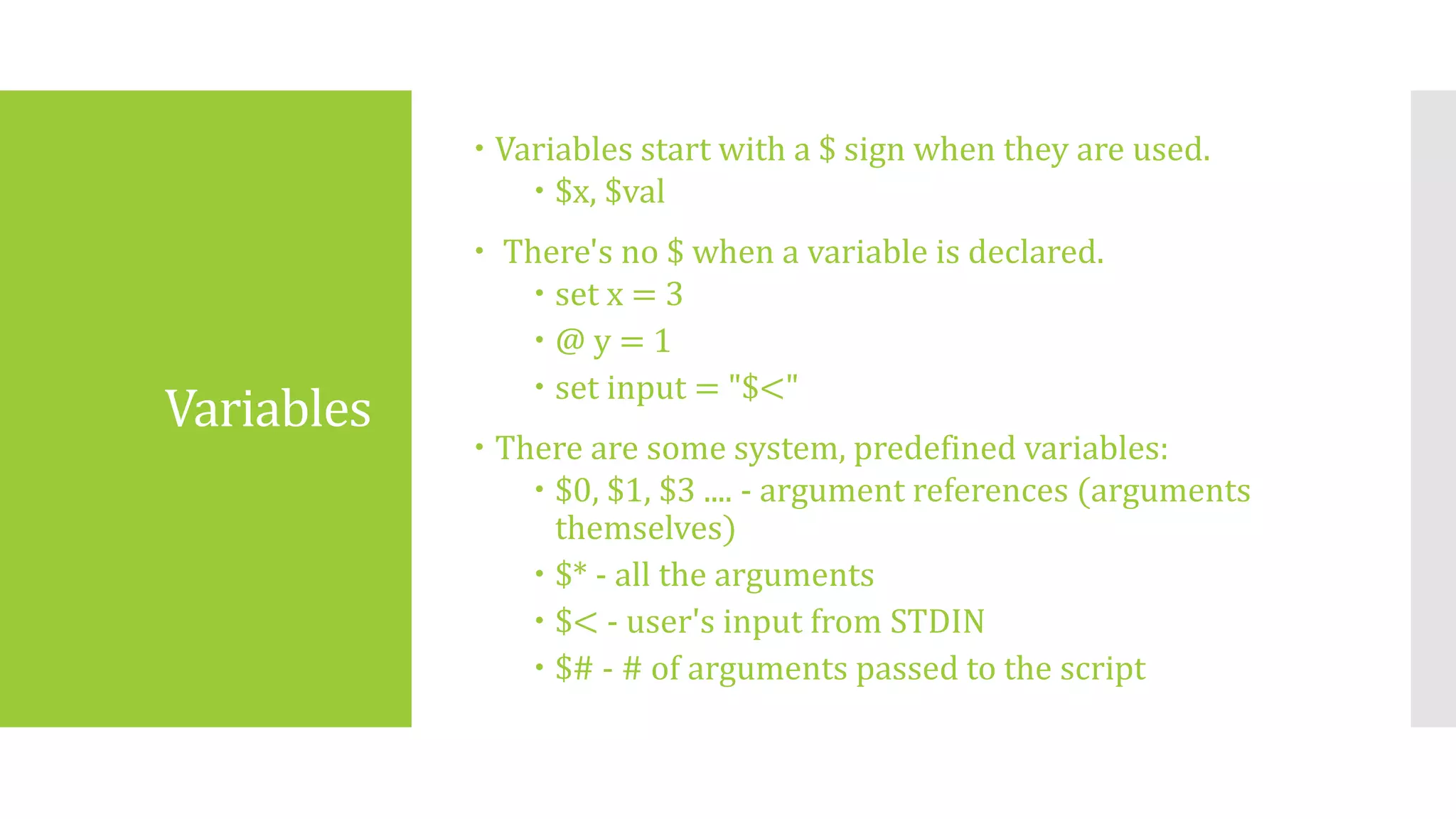
Variables
 Variables start with a $ sign when they are used.
 $x, $val
 There's no $ when a variable is declared.
 set x = 3
 @ y = 1
 set input = "$<"
 There are some system, predefined variables:
 $0, $1, $3 .... - argument references (arguments
themselves)
 $* - all the arguments
 $< - user's input from STDIN
 $# - # of arguments passed to the script
Read
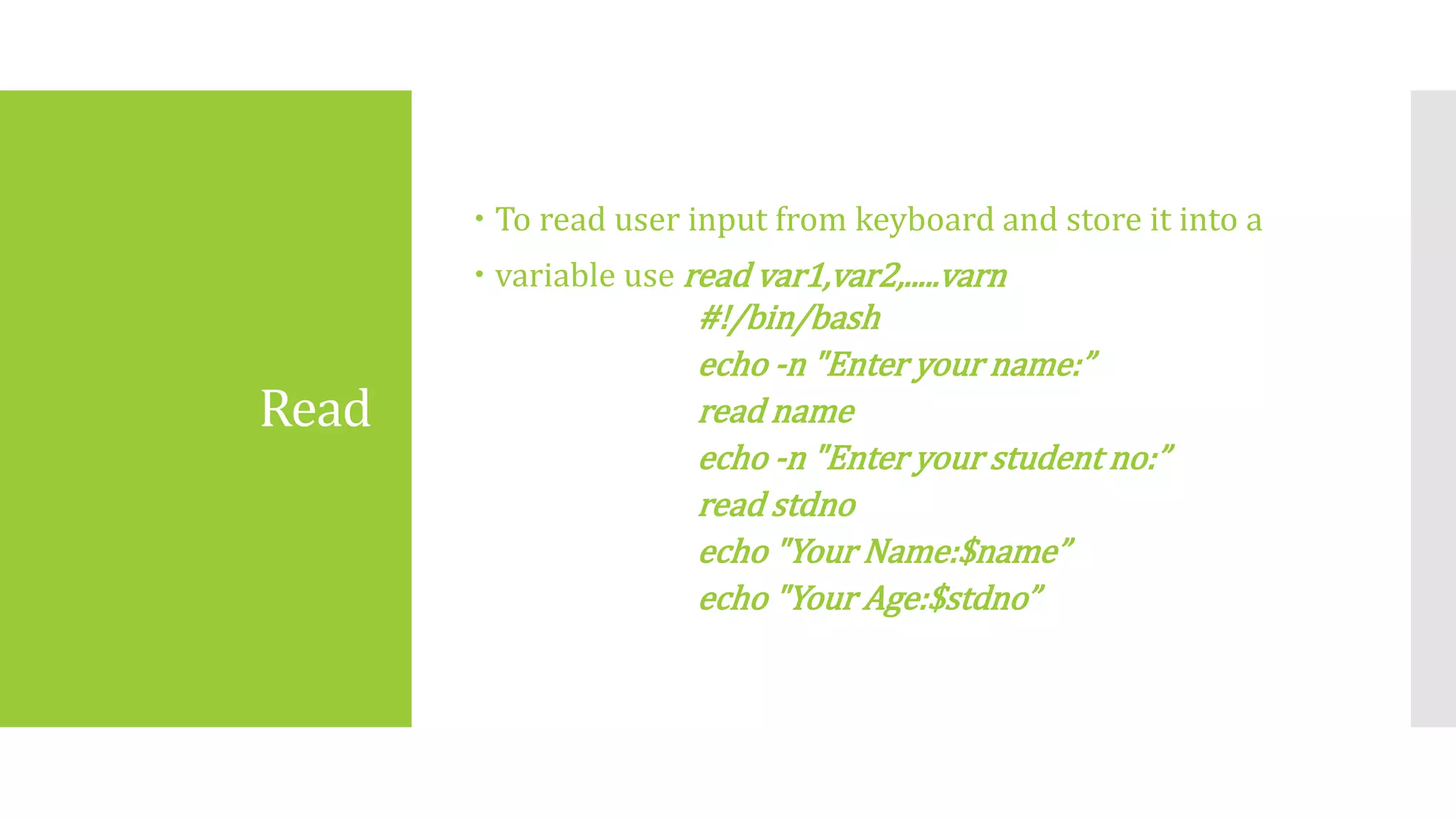
 To read user input from keyboard and store it into a
 variable use read var1,var2,.....varn
#!/bin/bash
echo ‐n "Enter your name:”
read name
echo ‐n "Enter your student no:”
read stdno
echo "Your Name:$name”
echo "Your Age:$stdno”
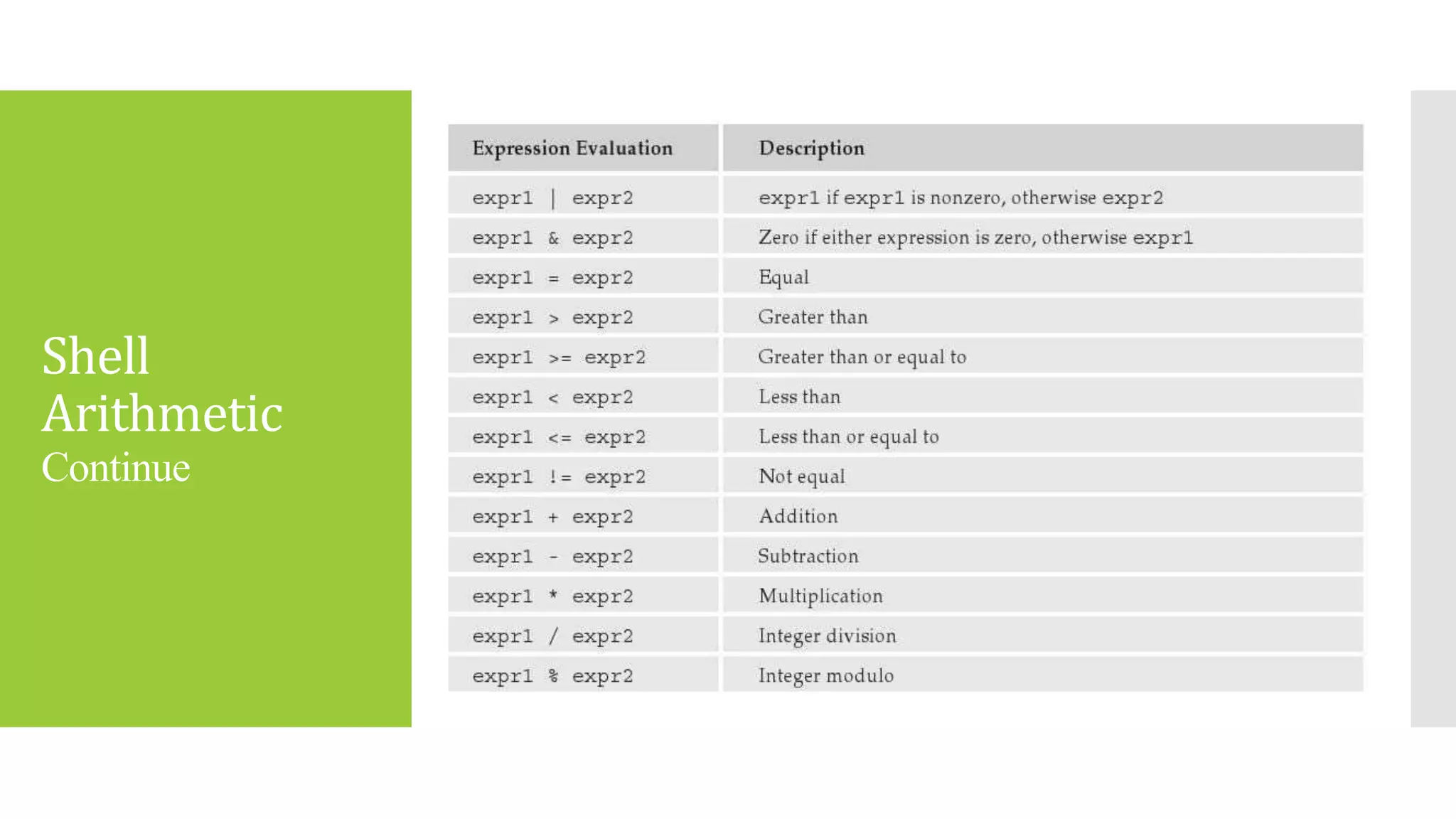
Shell
Arithmetic
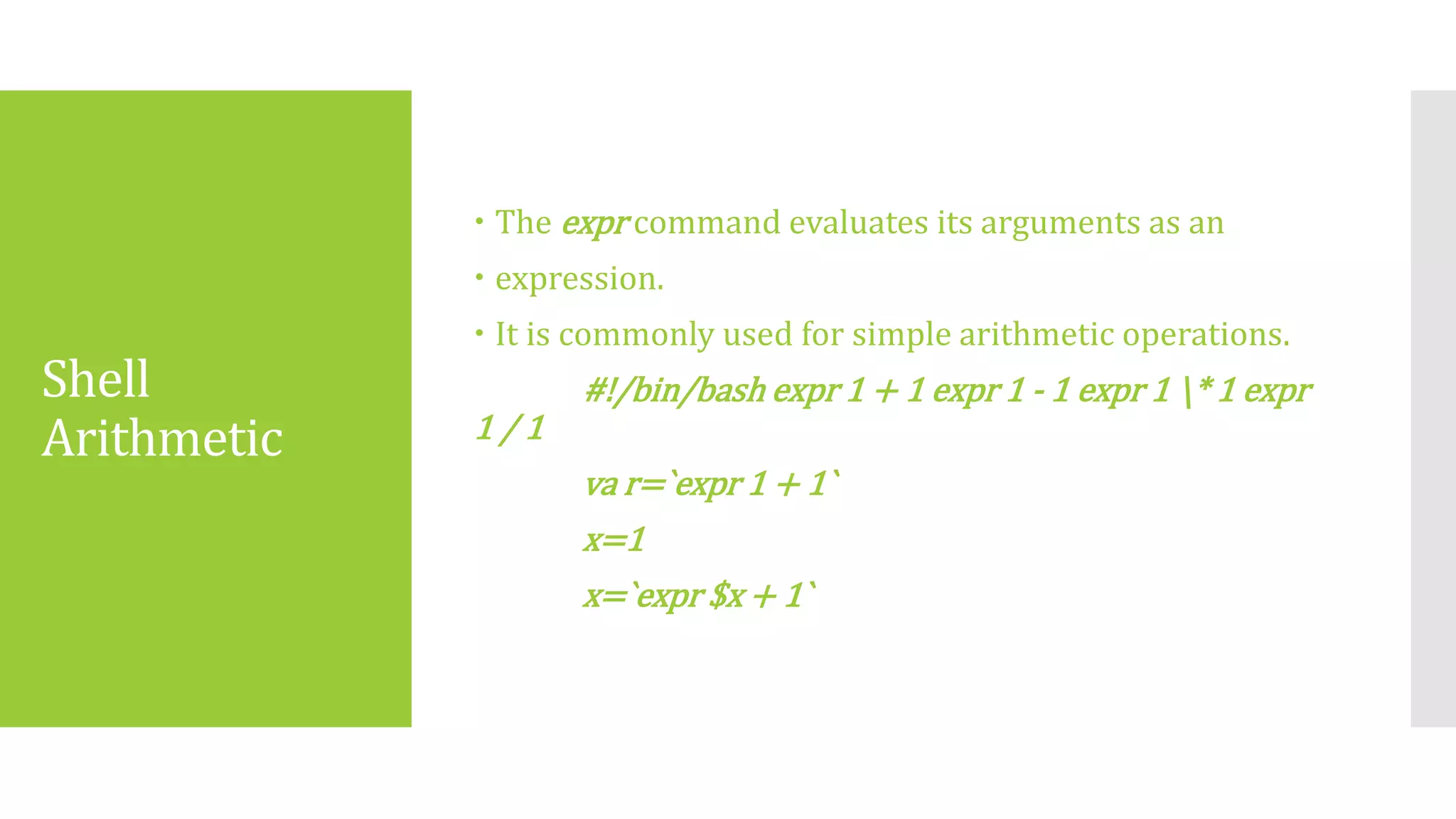
 The expr command evaluates its arguments as an
 expression.
 It is commonly used for simple arithmetic operations.
#!/bin/bash expr 1 + 1 expr 1 ‐ 1 expr 1 * 1 expr
1 / 1
va r=`expr 1 + 1`
x=1
x=`expr $x + 1`
Shell
Arithmetic
Continue
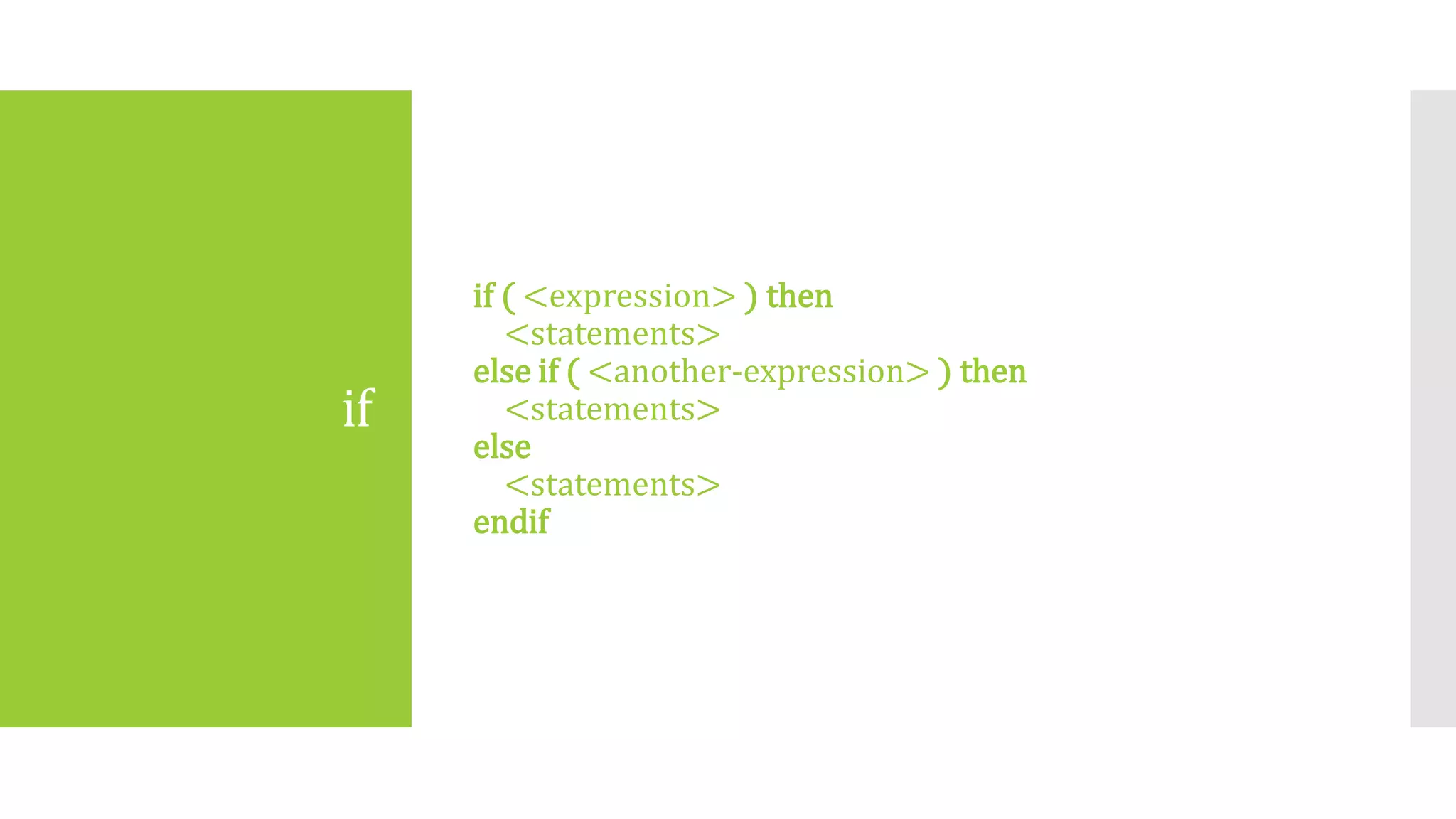
if
if ( <expression> ) then
<statements>
else if ( <another-expression> ) then
<statements>
else
<statements>
endif
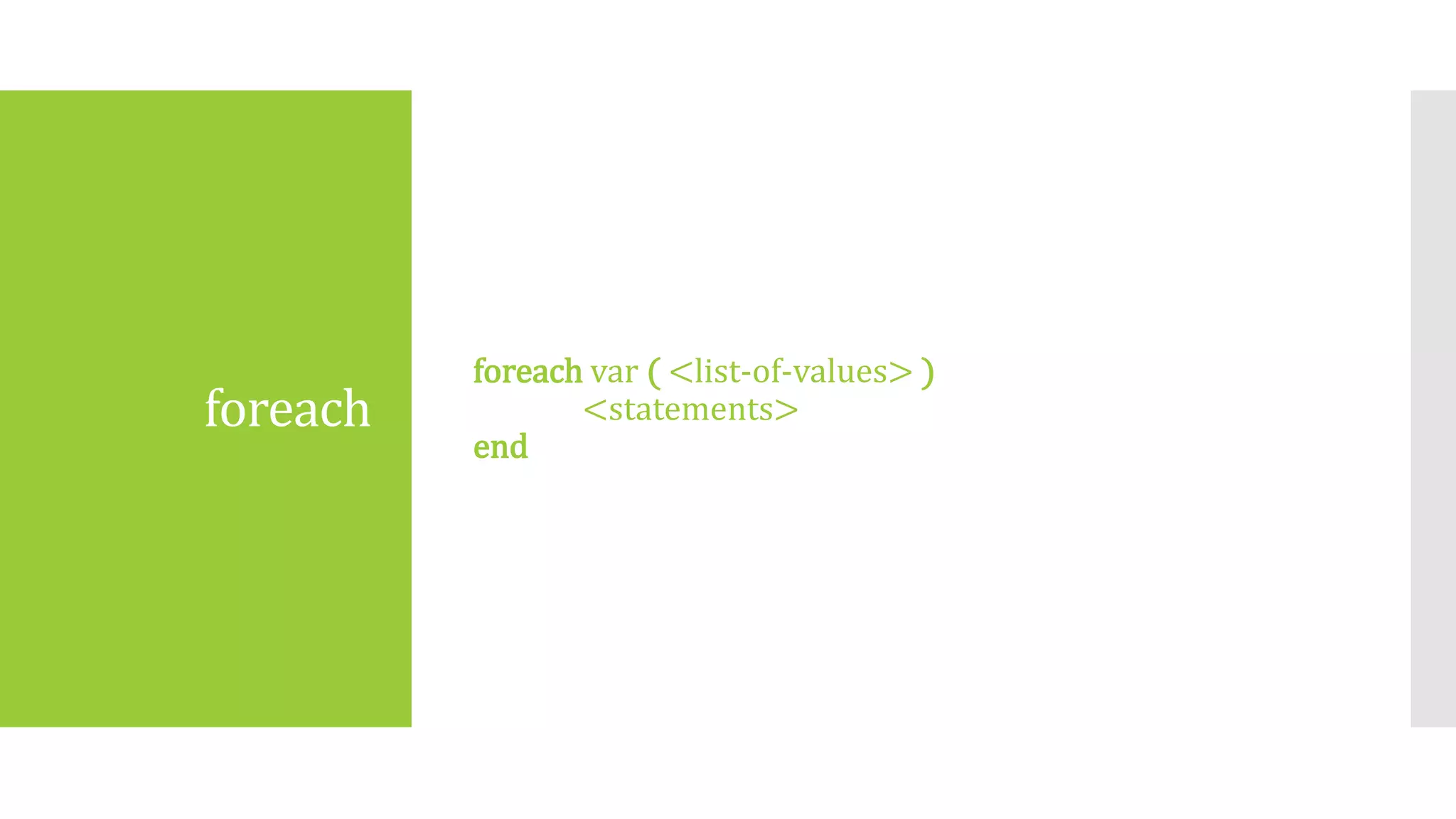
foreach
foreach var ( <list-of-values> )
<statements>
end
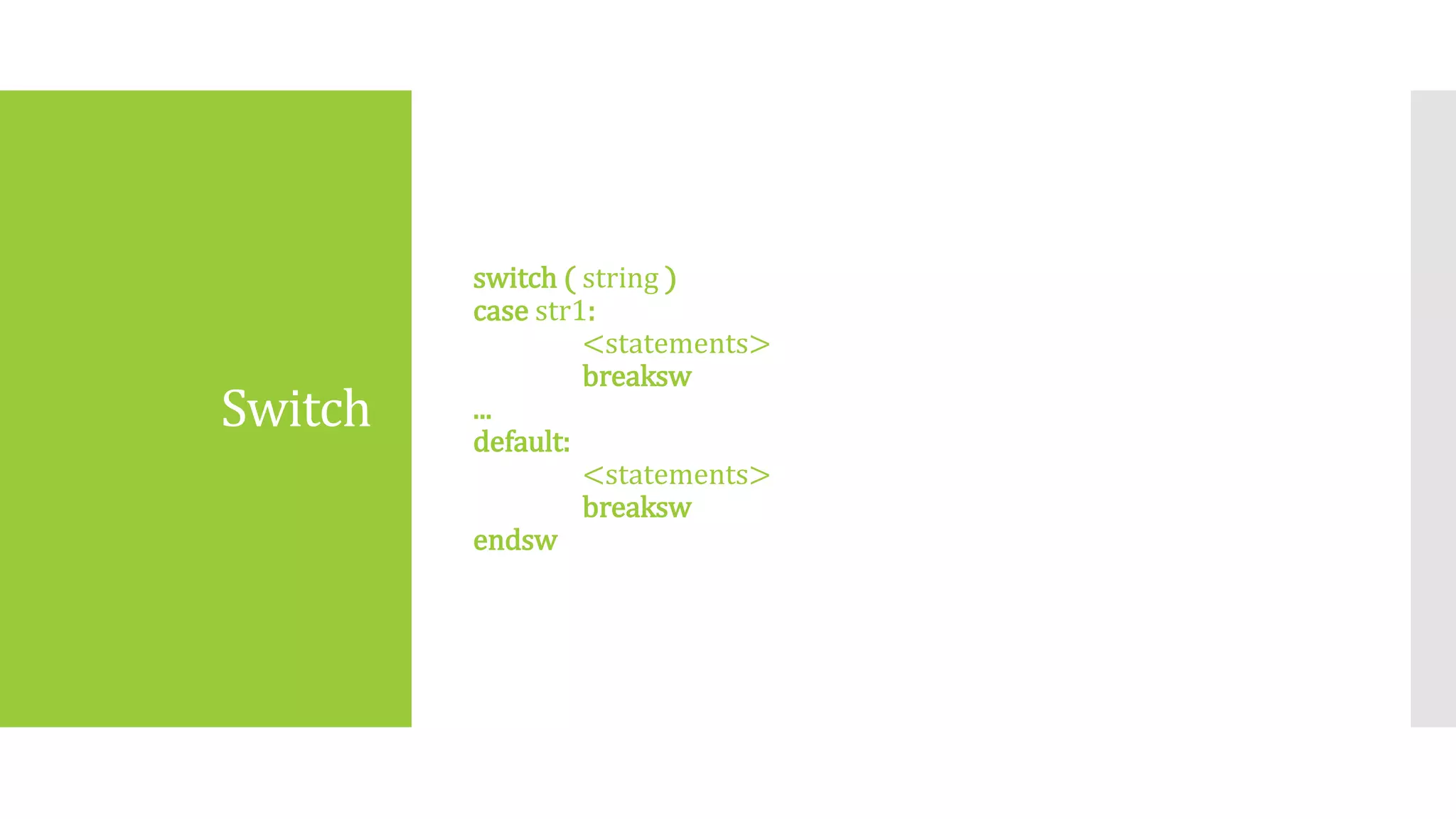
Switch
switch ( string )
case str1:
<statements>
breaksw
...
default:
<statements>
breaksw
endsw
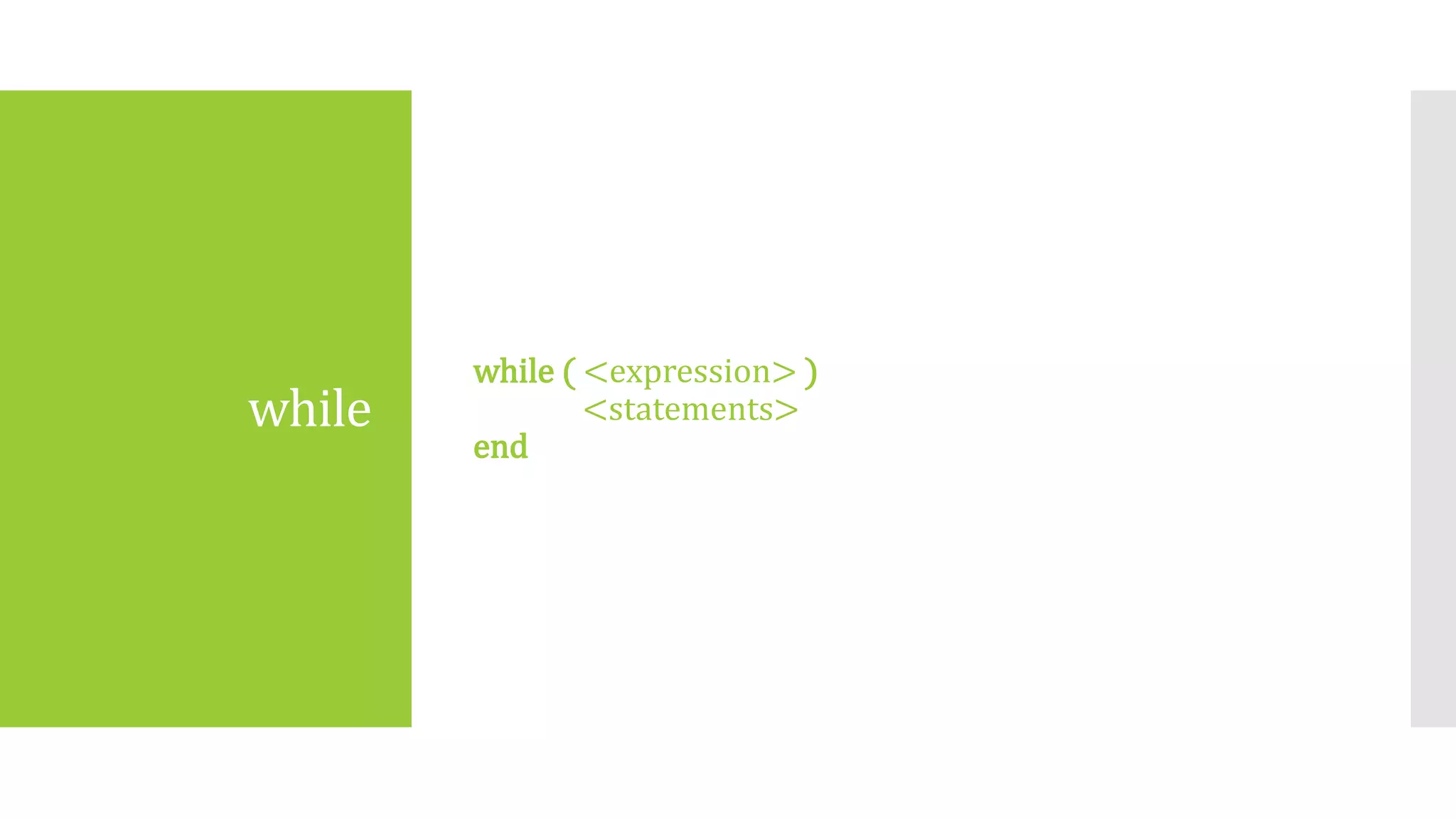
while
while ( <expression> )
<statements>
end
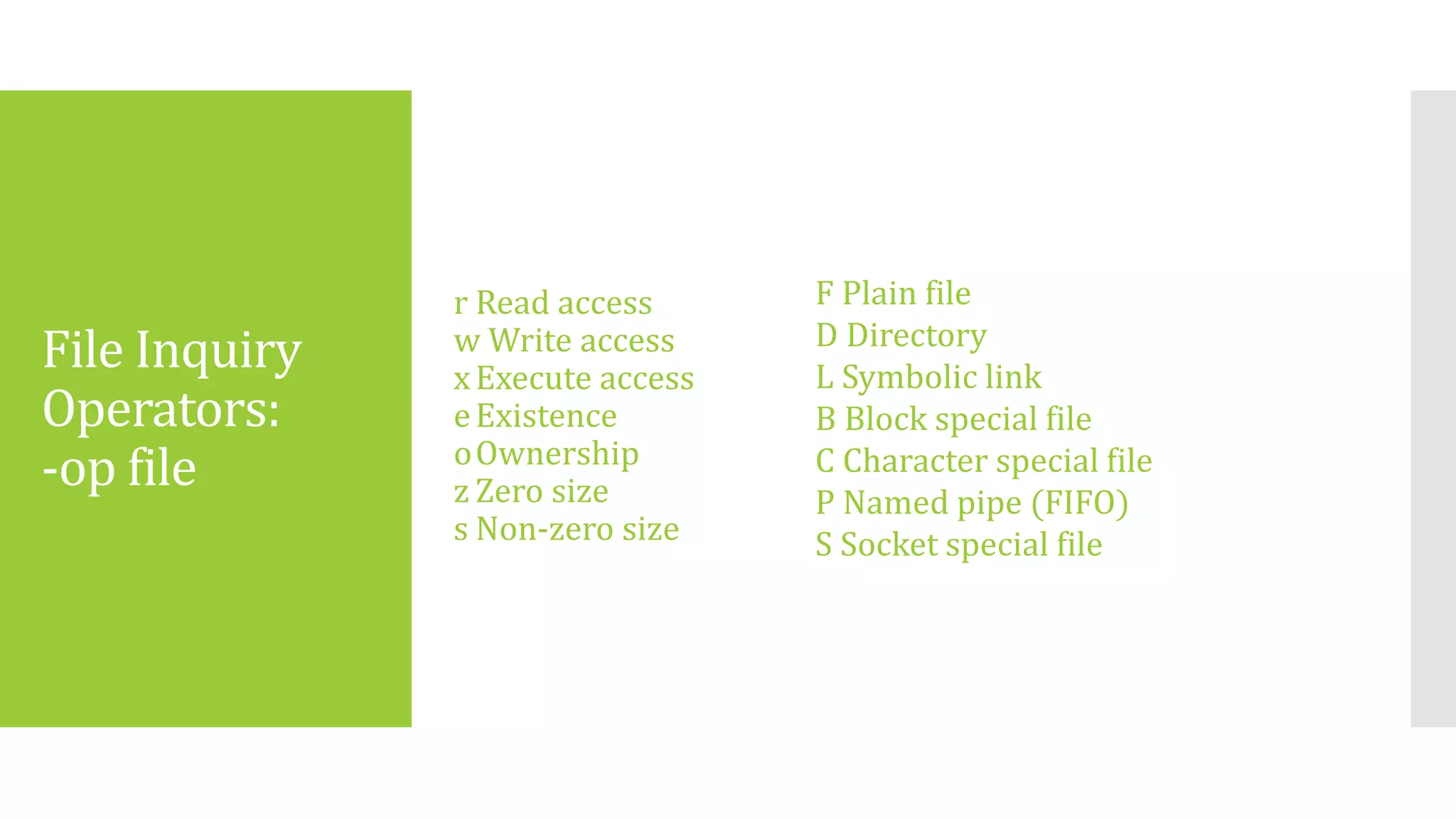
File Inquiry
Operators:
-op file
r Read access
w Write access
xExecute access
eExistence
oOwnership
z Zero size
s Non-zero size
F Plain file
D Directory
L Symbolic link
B Block special file
C Character special file
P Named pipe (FIFO)
S Socket special file

Shell & Shell Script

  • 1.
    Team Md. Iftiar UddinAhmed [011 122 084 ] Md.Tanvir Hossain [ 011 101 035] Rafid asrar prottoy [ 011 132 124 ] Amit ghosh [011 132 134]
  • 2.
    About Shell |Shell Scripts
  • 3.
    Overview  A shorthistory of Linux  About Shell  About Shell Script
  • 4.
    Linux Introduction  In 80’s,Microsoft’s DOS was the dominated OS for PC  Apple MAC was better, but expensive  UNIX was much better, but much, much more expensive. Only for minicomputer for commercial applications  People was looking for a UNIX based system, which is cheaper and can run on PC  Both DOS, MAC and UNIX were proprietary, i.e., the source code of their kernel is protected  No modification is possible without paying high license fees Before Linux
  • 5.
    Beginning of Linux  Afamous professor Andrew Tanenbaum developed Minix, a simplified version of UNIX that runs on PC  Minix is for class teaching only. No intention for commercial use  In Sept 1991, Linus Torvalds, a second year student of Computer Science at the University of Helsinki, developed the preliminary kernel of Linux, known as Linux version 0.0.1 Linux Introduction
  • 6.
    Linux Introduction  Linux hasbeen used for many computing platforms – PC, PDA, Supercomputer,…  Not only character user interface but graphical user interface is available  Commercial vendors moved in Linux itself to provide freely distributed code. They make their money by compiling up various software and gathering them in a distributable format – Red Hat, Slackware, etc Linux Today
  • 7.
    Shell Shell is ancommand language interpreter that executes commands read from the standard input device (keyboard) or from a file. Shell is not part of system kernel, but uses the system kernel to execute programs, create files etc. Simply put, the shell is a program that takes your commands from the keyboard and gives them to the operating system to perform. What is Shell
  • 8.
    Shell Commands  Shell commandsare interpreted directly by the shell you specify.  The commands are similar to the statement in some programming languages, such as C.  Popular shells include:  Enhanced C-shell tchs (csh+)  Bourne-Again Shell, bash (sh+)  Korn Shell (ksh)
  • 9.
    Shells’ Features  In particular: Pass arguments to your script  Set and reference variables  Use of control flow  Interact with the user (read user input)  Comments…  Info on commands a given shell offers can be found in the man pages for that shell.  There are many Linux/UNIX references that give detailed information and tips.
  • 10.
    Shell Scripts  Toautomate certain common activities an user performs routinely.  They serve the same purpose as batch files in DOS/Windows.  Example:  rename 1000 files from upper case to lowercase What are they for?
  • 11.
    What are Shell Scripts Just text/ASCII files with:  a set of standard UNIX/Linux commands (ls, mv, cp, less, cat, etc.) along with  flow of control  some conditional logic and branching (if-then),  loop structures (foreach, for, while), and  I/O facilities (echo, print, set, ...).  They allow use of variables.  They are interpreted by a shell directly.  Some of them (csh, tcsh) share some of C syntax.  DOS/Win equivalent - batch files (.bat)
  • 12.
    Why not use C/C++for that?  C/C++ programming requires compilation and linkage, maybe libraries, which may not be available (production servers).  For the typical tasks much faster in development, debugging, and maintenance (because they are interpreted and do not require compilation).
  • 13.
    Shell Script Invocation  Specifythe shell directly:  % tcsh myshellscript  % tcsh -v myshellscript (-v = verbose, useful for debugging)  Make the shell an executable first and then run is a command (set up an execution permission):  % chmod u+x myshellscript  Then either this:  % myshellscript (if the path variable has ‘.’ in it; security issue!)  Or:  % ./myshellscript (should always work)
  • 14.
    Shell Script Invocation continue  Ifyou get an error: “myshellscrip: command not found”  The probably “.” is not in your path or there’s no execution bit set.  When writing scripts, choose unique names, that preferably do not match system commands.  Bad name would be test for example, since there are many shells with this internal command.  To disambiguate, always precede the shell with “./” or absolute path in case you have to name your thing not very creatively.
  • 15.
    Start Writing a ShellScript  The very first line, often called 'shebang' (#!) should precede any other line, to assure that the right shell is invoked.  Comments start with '#', with the exception of #!, $#, which are a special character sequences.  Everything on a line after # is ignored if # is not a part of a quoted string or a special character sequence. #!/bin/tcsh #!/bin/bash # This is for tcsh # For Bourne-Again Shell #!/bin/sh # This is for Bourne Shell
  • 16.
    Variables  Variables startwith a $ sign when they are used.  $x, $val  There's no $ when a variable is declared.  set x = 3  @ y = 1  set input = "$<"  There are some system, predefined variables:  $0, $1, $3 .... - argument references (arguments themselves)  $* - all the arguments  $< - user's input from STDIN  $# - # of arguments passed to the script
  • 17.
    Read  To readuser input from keyboard and store it into a  variable use read var1,var2,.....varn #!/bin/bash echo ‐n "Enter your name:” read name echo ‐n "Enter your student no:” read stdno echo "Your Name:$name” echo "Your Age:$stdno”
  • 18.
    Shell Arithmetic  The exprcommand evaluates its arguments as an  expression.  It is commonly used for simple arithmetic operations. #!/bin/bash expr 1 + 1 expr 1 ‐ 1 expr 1 * 1 expr 1 / 1 va r=`expr 1 + 1` x=1 x=`expr $x + 1`
  • 19.
  • 20.
    if if ( <expression>) then <statements> else if ( <another-expression> ) then <statements> else <statements> endif
  • 21.
    foreach foreach var (<list-of-values> ) <statements> end
  • 22.
    Switch switch ( string) case str1: <statements> breaksw ... default: <statements> breaksw endsw
  • 23.
    while while ( <expression>) <statements> end
  • 24.
    File Inquiry Operators: -op file rRead access w Write access xExecute access eExistence oOwnership z Zero size s Non-zero size F Plain file D Directory L Symbolic link B Block special file C Character special file P Named pipe (FIFO) S Socket special file

Editor's Notes

  • #6 This is Linus Torvalds birthday 