Shell Scripting
Chitrakshi Jaiswal
• Basics ………..…3
• First script ______________________________ ………….…4
• Variables and Comments ………….…5
• System defined Variables __________________ ………….…6
• User defined variables ____________________ ………….…7
• Use of Backslash character ________________ ………….…9
• Backtick Symbol _________________________ ………….…11
• Read User Input ………….…12
• Use of “-p” (Read as it is) __________________ ………….…13
• For multiple Variables ____________________ ………….…14
• Hide input _____________________________ ………….…15
2
PART-1
Basics
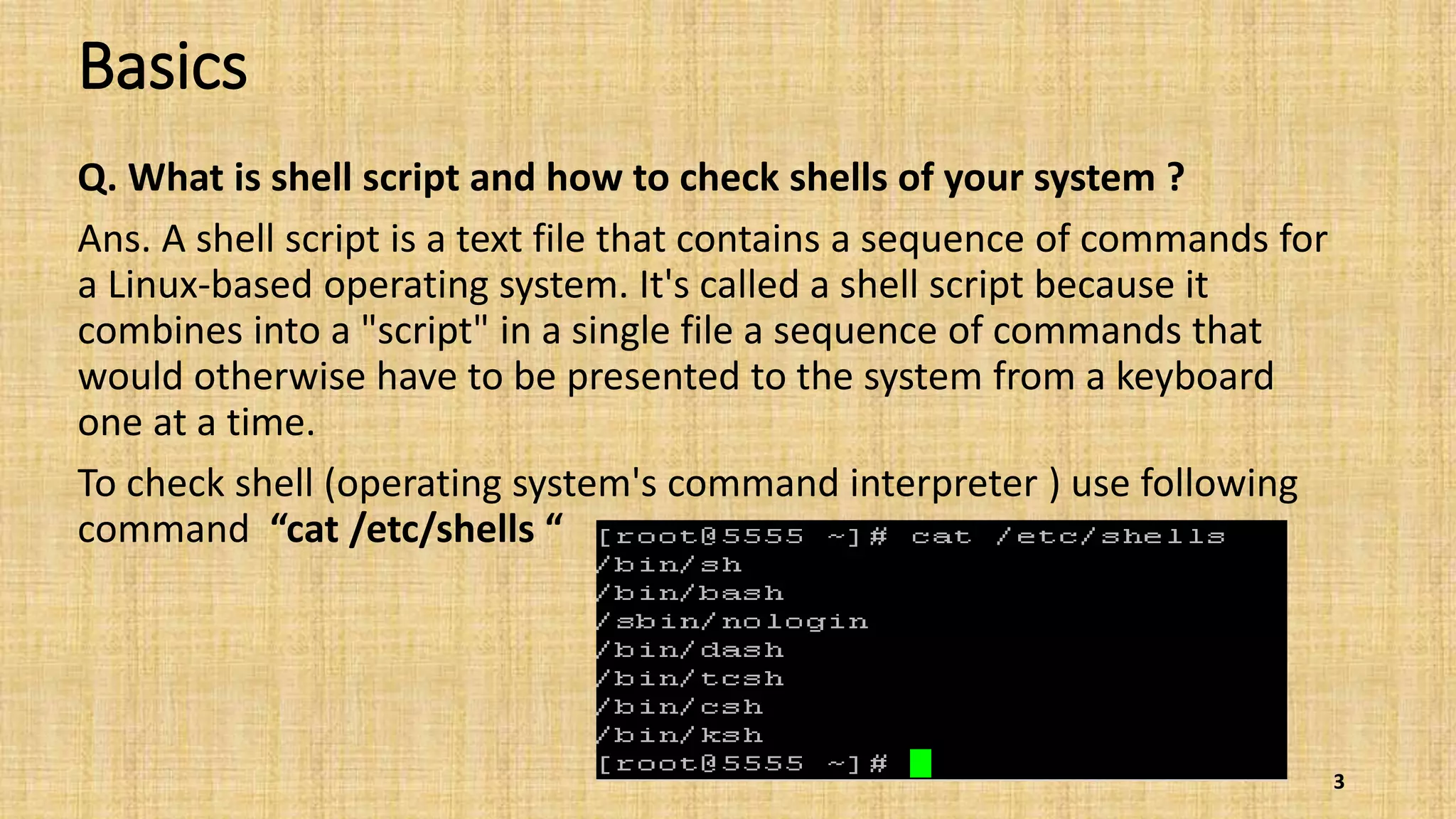
Q. What is shell script and how to check shells of your system ?
Ans. A shell script is a text file that contains a sequence of commands for
a Linux-based operating system. It's called a shell script because it
combines into a "script" in a single file a sequence of commands that
would otherwise have to be presented to the system from a keyboard
one at a time.
To check shell (operating system's command interpreter ) use following
command “cat /etc/shells “
3
First Script…
Let’s start our first script with “echo” command……..
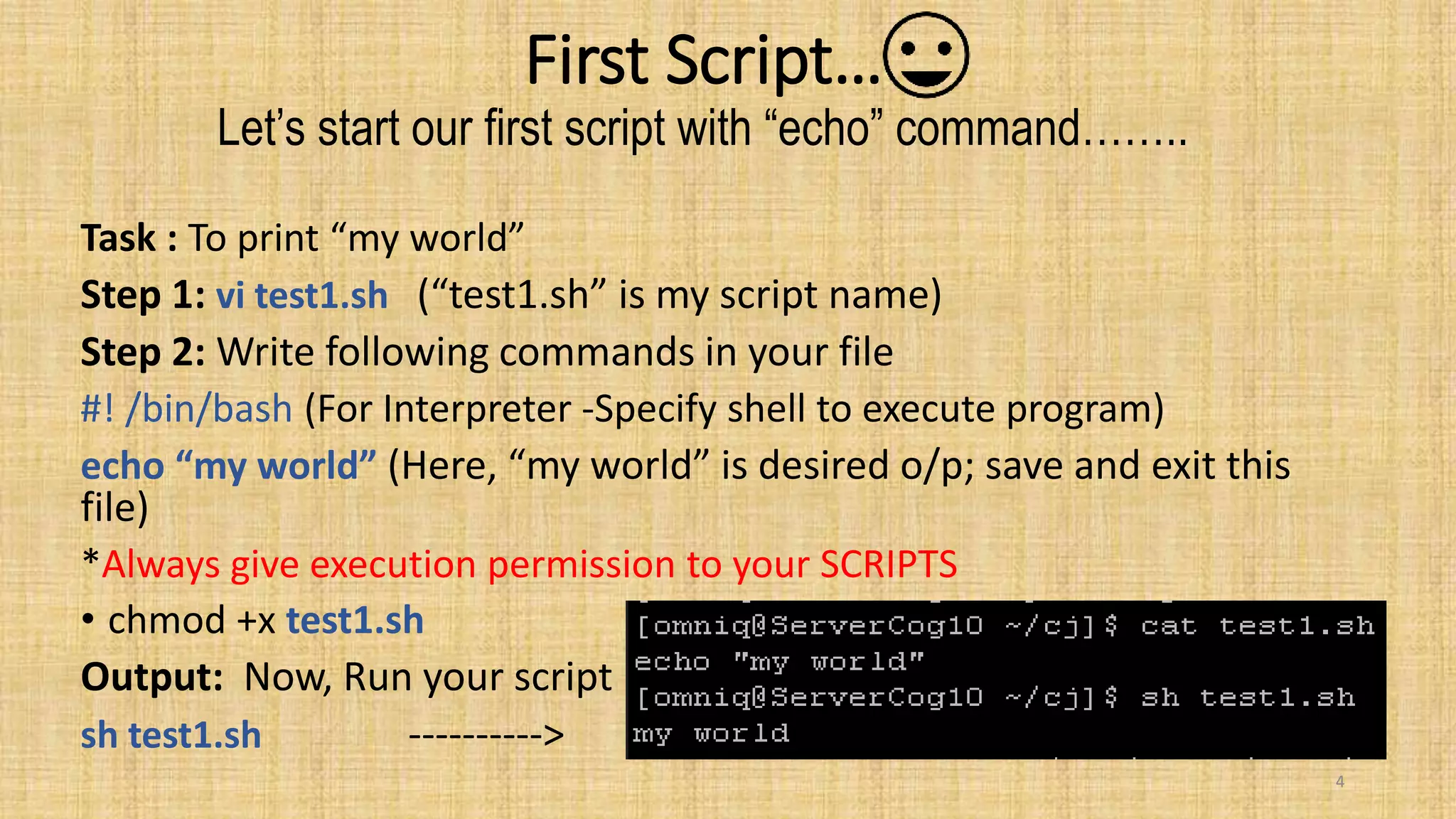
Task : To print “my world”
Step 1: vi test1.sh (“test1.sh” is my script name)
Step 2: Write following commands in your file
#! /bin/bash (For Interpreter -Specify shell to execute program)
echo “my world” (Here, “my world” is desired o/p; save and exit this
file)
*Always give execution permission to your SCRIPTS
• chmod +x test1.sh
Output: Now, Run your script
sh test1.sh ---------->
4
Variables and comments
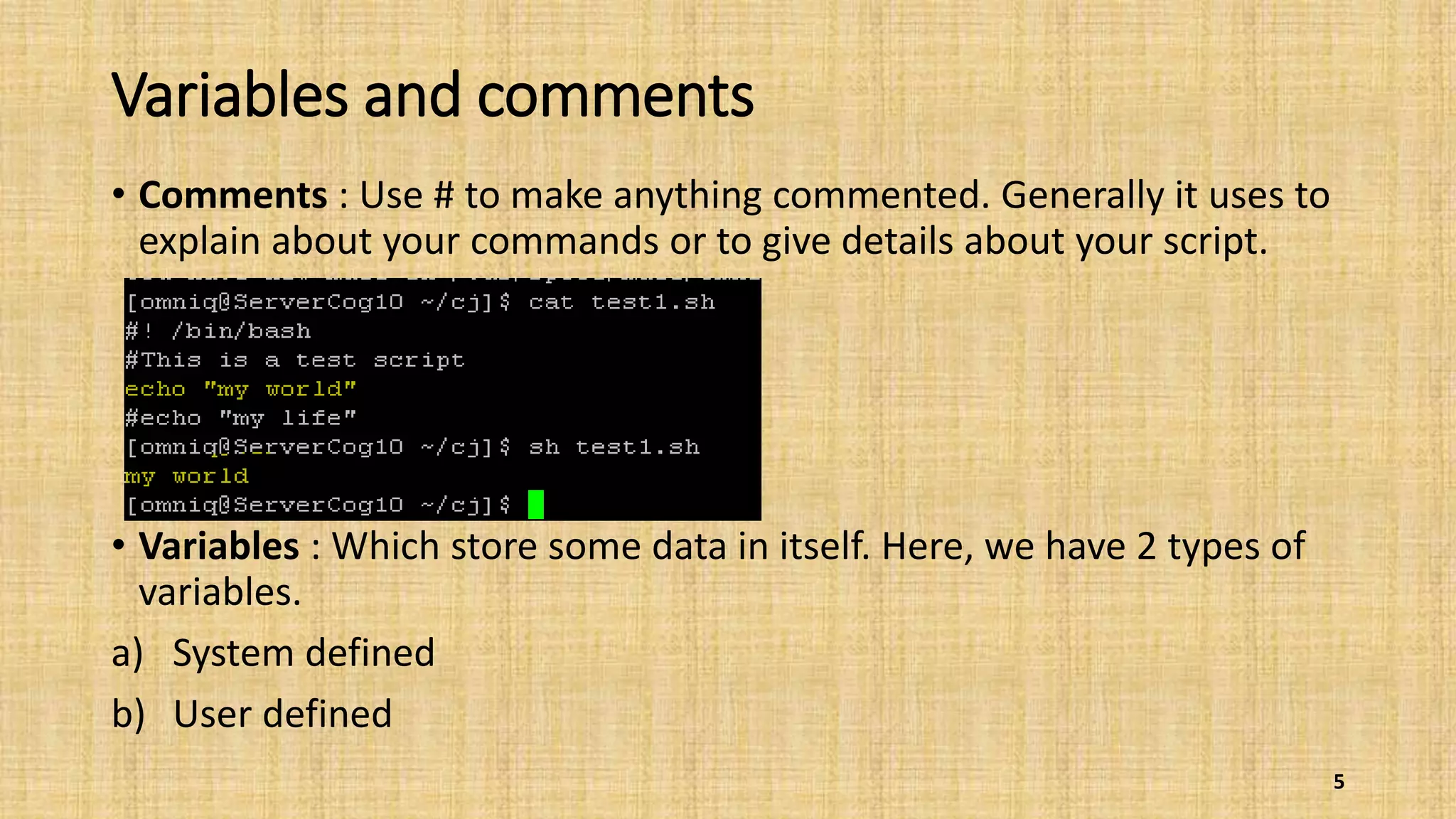
• Comments : Use # to make anything commented. Generally it uses to
explain about your commands or to give details about your script.
• Variables : Which store some data in itself. Here, we have 2 types of
variables.
a) System defined
b) User defined
5
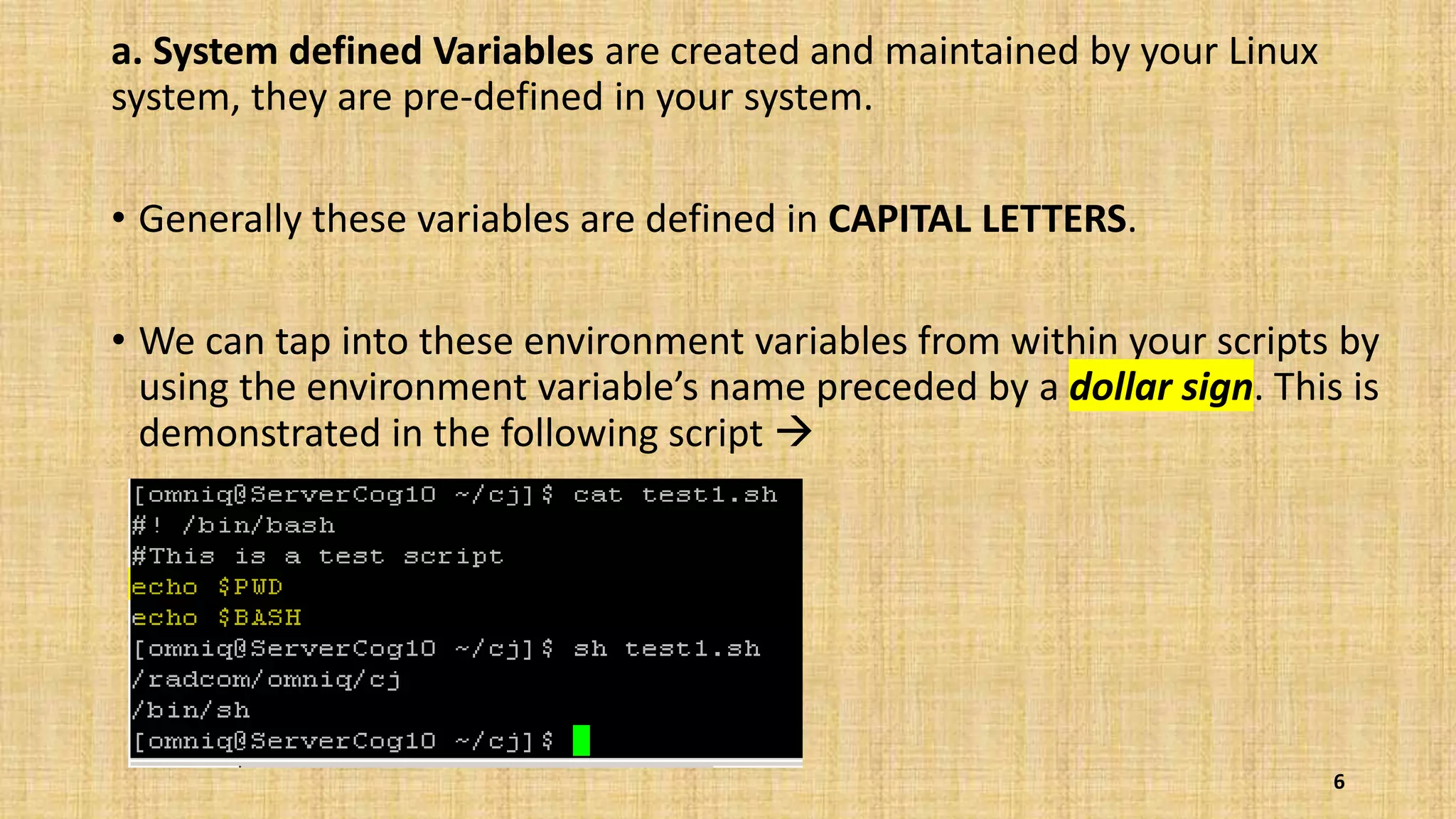
a. System defined Variables are created and maintained by your Linux
system, they are pre-defined in your system.
• Generally these variables are defined in CAPITAL LETTERS.
• We can tap into these environment variables from within your scripts by
using the environment variable’s name preceded by a dollar sign. This is
demonstrated in the following script 
6
b. User defined Variables are case sensitive, so the variable Var1 is different from
the variable var1.
• Values are assigned to user variables using an equal sign. (There is no space
b/w var and def. var)
• Here are a few examples of assigning values to user variables:
i. var1=10
ii. var2=-57
iii. var3=testing
iv. var4=“still more testing”
• The shell script automatically determines the data type used for the variable
value.
7
Example 1:
(Just like system variables, user variables can be referenced using the
dollar sign)
Output : (Each time the variable is referenced, it produces the value
currently assigned to it.)
8
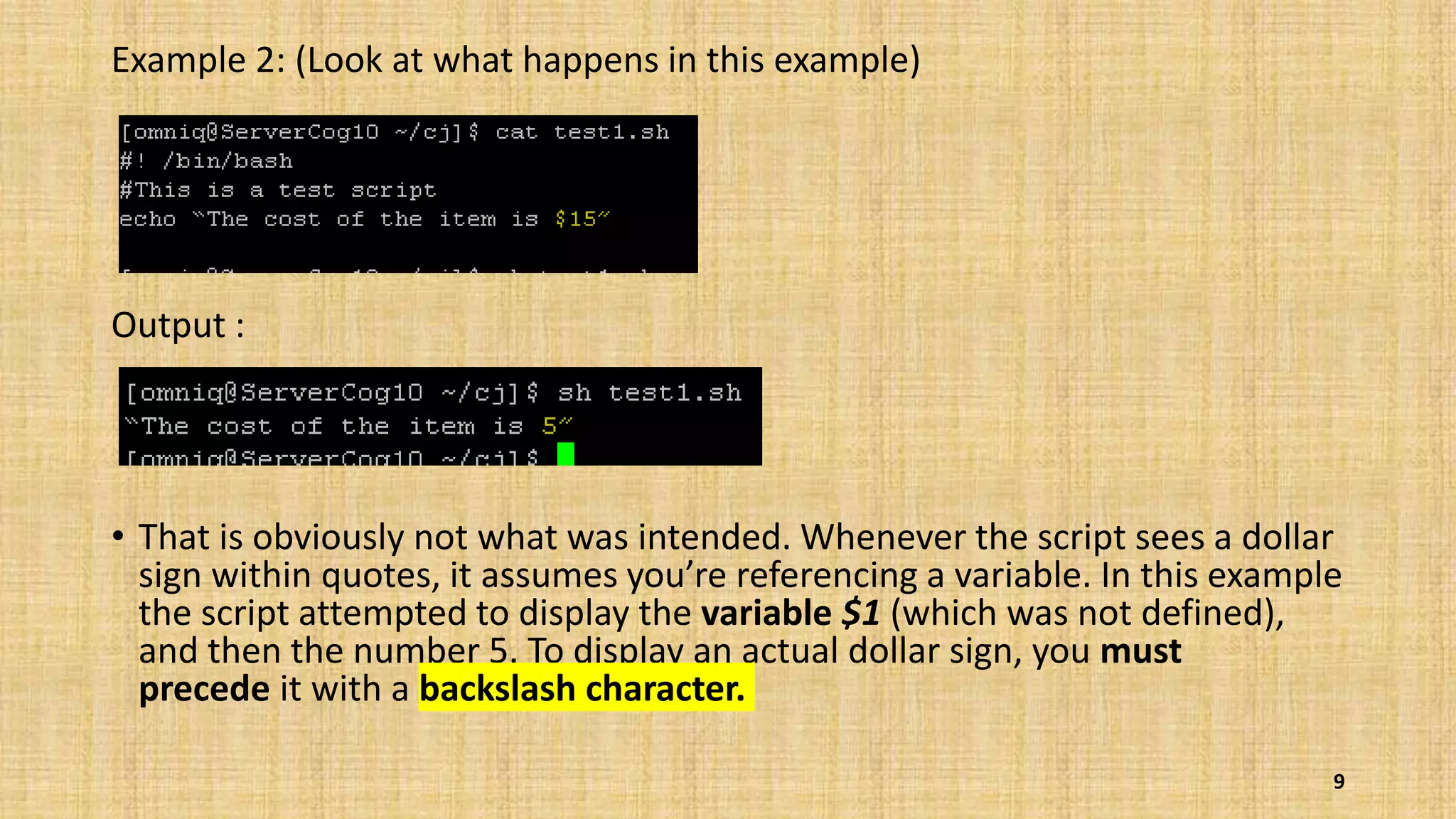
Example 2: (Look at what happens in this example)
Output :
• That is obviously not what was intended. Whenever the script sees a dollar
sign within quotes, it assumes you’re referencing a variable. In this example
the script attempted to display the variable $1 (which was not defined),
and then the number 5. To display an actual dollar sign, you must
precede it with a backslash character.
9
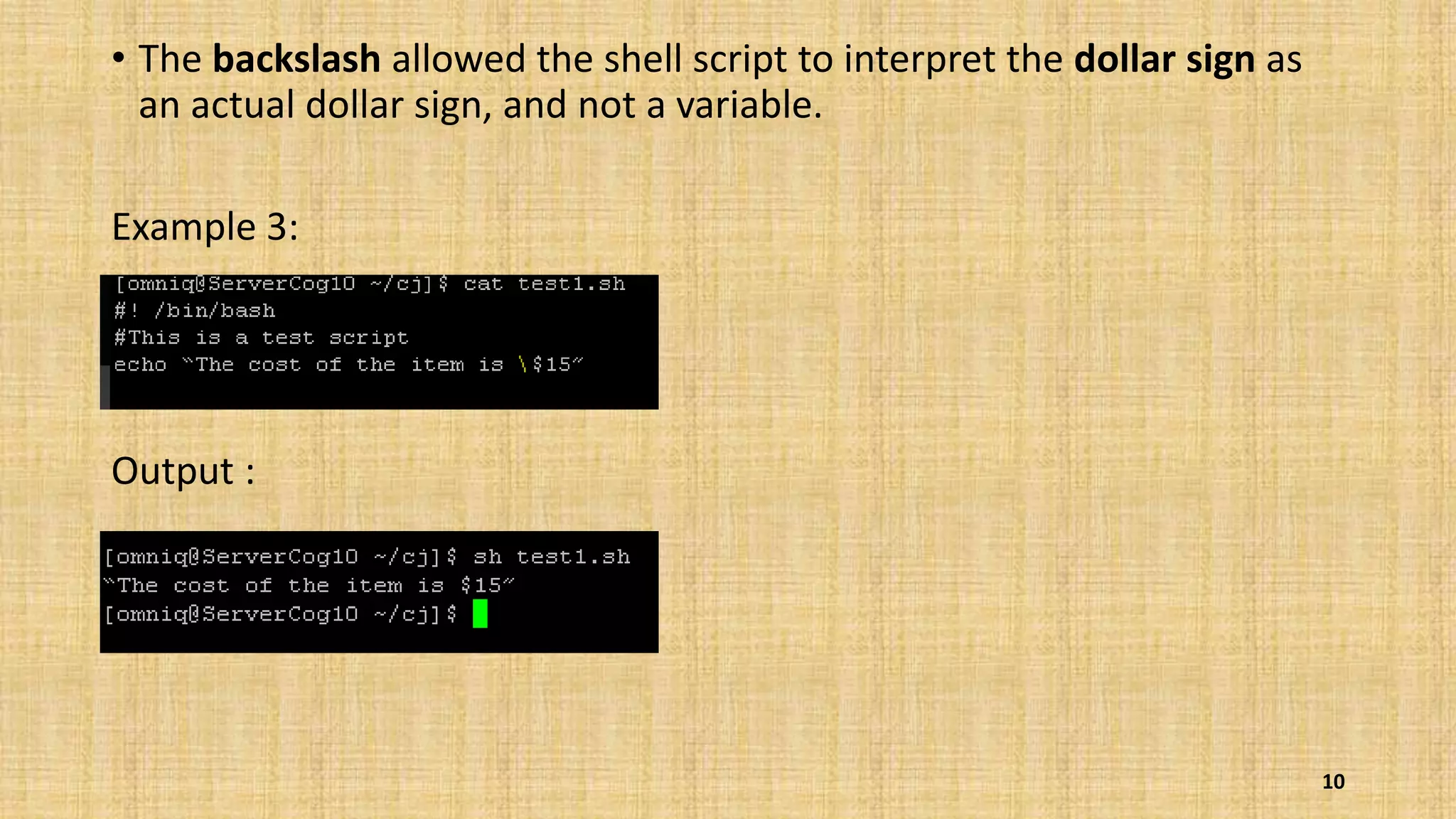
• The backslash allowed the shell script to interpret the dollar sign as
an actual dollar sign, and not a variable.
Example 3:
Output :
10
Example 4: (Use of Backtick symbol (`) in shell variables)
The shell runs the command within the backticks and assigns the output to
the variable testing
Output :
Note : In bash you can also use the alternative $(…) syntax in place of
backtick (`),which has the advantage of being re-entrant.
11
Read User Input
• read command is used for getting user input.
Example 1:
Output : (Here, cj is the user input)
12
When we want input at same place  Use “-p”
Example 2:
Output : (Compare this with Example1)
13
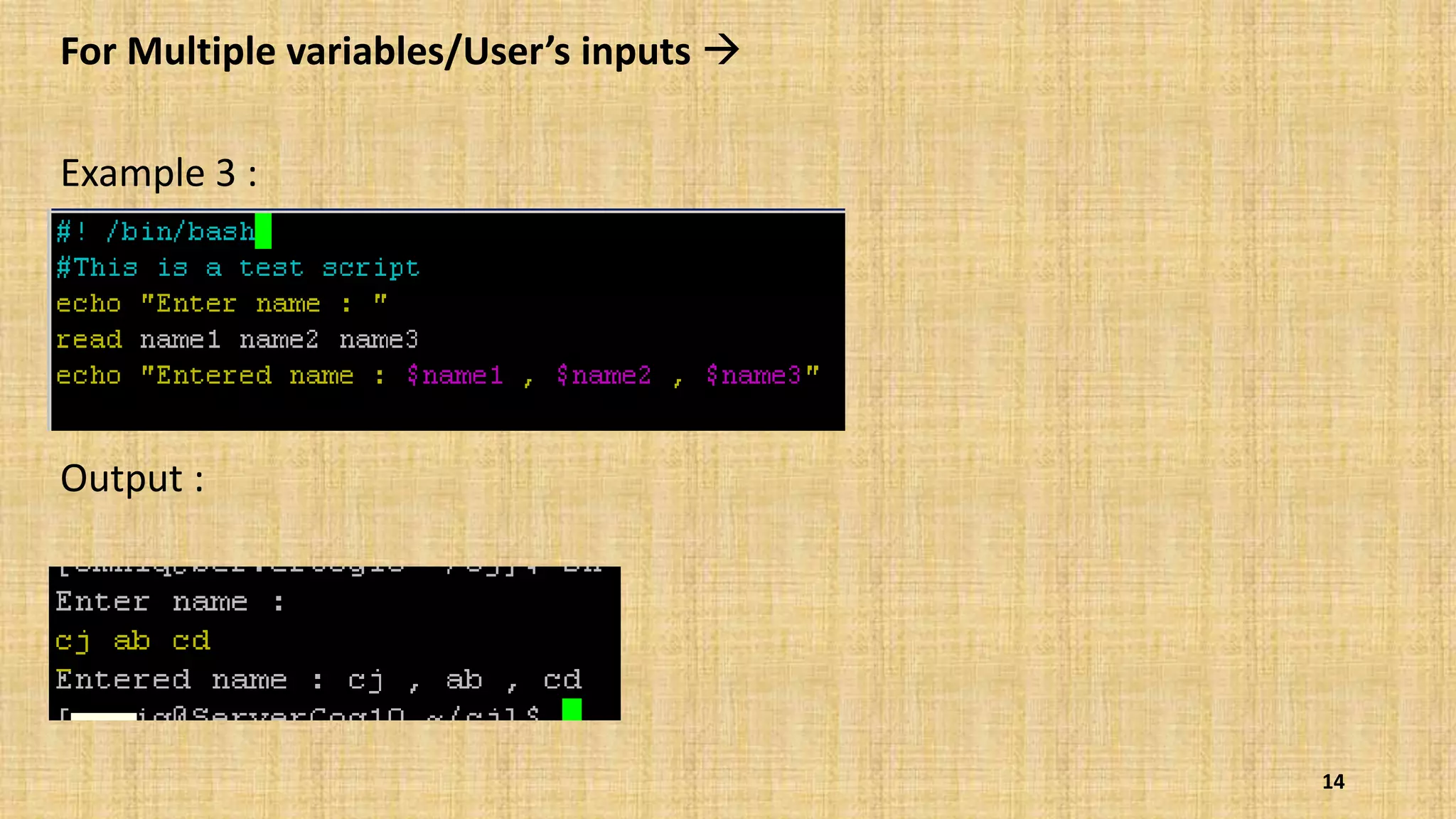
For Multiple variables/User’s inputs 
Example 3 :
Output :
14
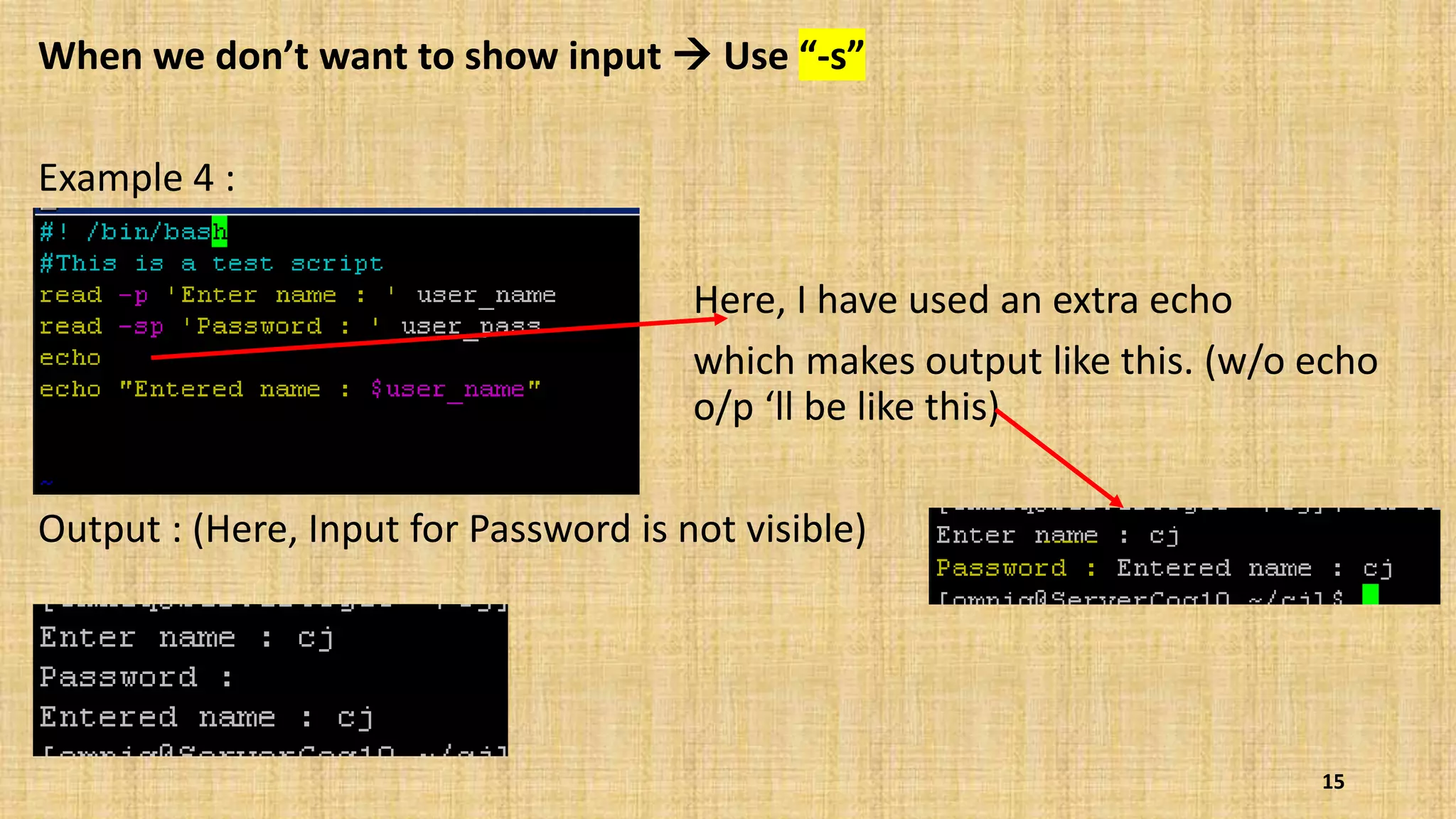
When we don’t want to show input  Use “-s”
Example 4 :
Here, I have used an extra echo
which makes output like this. (w/o echo
o/p ‘ll be like this)
Output : (Here, Input for Password is not visible)
15
PART-2
To be continued……….
16
• Array
• Input - Output redirection
• Pipes
• Control structures (if)
• Loops

Shell scripting - Basic (PART -1)

  • 1.
  • 2.
    • Basics ………..…3 •First script ______________________________ ………….…4 • Variables and Comments ………….…5 • System defined Variables __________________ ………….…6 • User defined variables ____________________ ………….…7 • Use of Backslash character ________________ ………….…9 • Backtick Symbol _________________________ ………….…11 • Read User Input ………….…12 • Use of “-p” (Read as it is) __________________ ………….…13 • For multiple Variables ____________________ ………….…14 • Hide input _____________________________ ………….…15 2 PART-1
  • 3.
    Basics Q. What isshell script and how to check shells of your system ? Ans. A shell script is a text file that contains a sequence of commands for a Linux-based operating system. It's called a shell script because it combines into a "script" in a single file a sequence of commands that would otherwise have to be presented to the system from a keyboard one at a time. To check shell (operating system's command interpreter ) use following command “cat /etc/shells “ 3
  • 4.
    First Script… Let’s startour first script with “echo” command…….. Task : To print “my world” Step 1: vi test1.sh (“test1.sh” is my script name) Step 2: Write following commands in your file #! /bin/bash (For Interpreter -Specify shell to execute program) echo “my world” (Here, “my world” is desired o/p; save and exit this file) *Always give execution permission to your SCRIPTS • chmod +x test1.sh Output: Now, Run your script sh test1.sh ----------> 4
  • 5.
    Variables and comments •Comments : Use # to make anything commented. Generally it uses to explain about your commands or to give details about your script. • Variables : Which store some data in itself. Here, we have 2 types of variables. a) System defined b) User defined 5
  • 6.
    a. System definedVariables are created and maintained by your Linux system, they are pre-defined in your system. • Generally these variables are defined in CAPITAL LETTERS. • We can tap into these environment variables from within your scripts by using the environment variable’s name preceded by a dollar sign. This is demonstrated in the following script  6
  • 7.
    b. User definedVariables are case sensitive, so the variable Var1 is different from the variable var1. • Values are assigned to user variables using an equal sign. (There is no space b/w var and def. var) • Here are a few examples of assigning values to user variables: i. var1=10 ii. var2=-57 iii. var3=testing iv. var4=“still more testing” • The shell script automatically determines the data type used for the variable value. 7
  • 8.
    Example 1: (Just likesystem variables, user variables can be referenced using the dollar sign) Output : (Each time the variable is referenced, it produces the value currently assigned to it.) 8
  • 9.
    Example 2: (Lookat what happens in this example) Output : • That is obviously not what was intended. Whenever the script sees a dollar sign within quotes, it assumes you’re referencing a variable. In this example the script attempted to display the variable $1 (which was not defined), and then the number 5. To display an actual dollar sign, you must precede it with a backslash character. 9
  • 10.
    • The backslashallowed the shell script to interpret the dollar sign as an actual dollar sign, and not a variable. Example 3: Output : 10
  • 11.
    Example 4: (Useof Backtick symbol (`) in shell variables) The shell runs the command within the backticks and assigns the output to the variable testing Output : Note : In bash you can also use the alternative $(…) syntax in place of backtick (`),which has the advantage of being re-entrant. 11
  • 12.
    Read User Input •read command is used for getting user input. Example 1: Output : (Here, cj is the user input) 12
  • 13.
    When we wantinput at same place  Use “-p” Example 2: Output : (Compare this with Example1) 13
  • 14.
    For Multiple variables/User’sinputs  Example 3 : Output : 14
  • 15.
    When we don’twant to show input  Use “-s” Example 4 : Here, I have used an extra echo which makes output like this. (w/o echo o/p ‘ll be like this) Output : (Here, Input for Password is not visible) 15
  • 16.
    PART-2 To be continued………. 16 •Array • Input - Output redirection • Pipes • Control structures (if) • Loops