www.techvilla.org.in
TECHVILLA
www.techvilla.org.in
Working with the Shell
 What is shell?
 Different shells in linux.
 Programming in shell.
 Shell vs windows cmd
www.techvilla.org.in
What’s Shell?
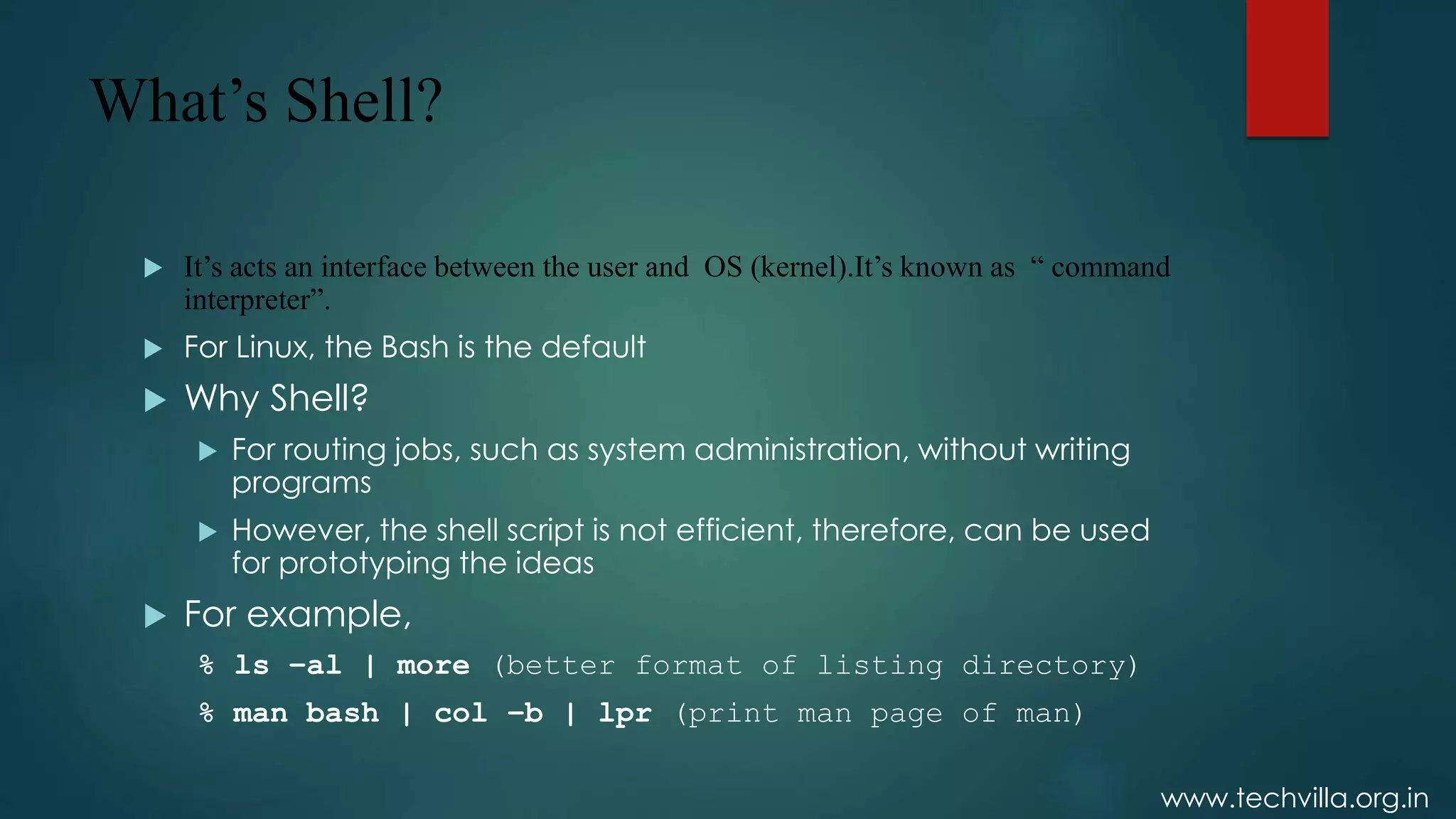
 It’s acts an interface between the user and OS (kernel).It’s known as “ command
interpreter”.
 For Linux, the Bash is the default
 Why Shell?
 For routing jobs, such as system administration, without writing
programs
 However, the shell script is not efficient, therefore, can be used
for prototyping the ideas
 For example,
% ls –al | more (better format of listing directory)
% man bash | col –b | lpr (print man page of man)
www.techvilla.org.in
Shell basics
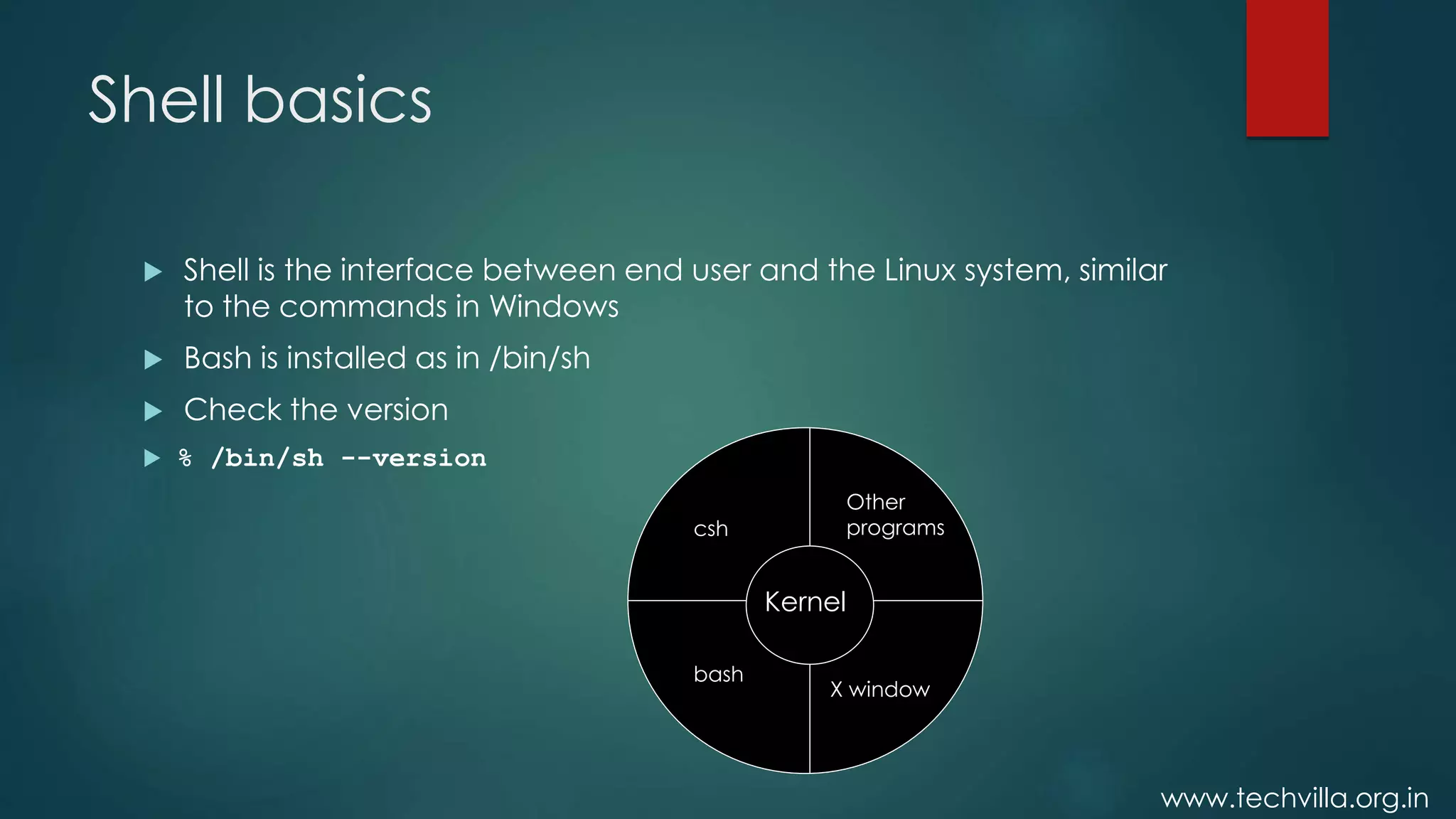
 Shell is the interface between end user and the Linux system, similar
to the commands in Windows
 Bash is installed as in /bin/sh
 Check the version
 % /bin/sh --version
Kernel
Other
programs
X window
bash
csh
www.techvilla.org.in
Pipe and Redirection
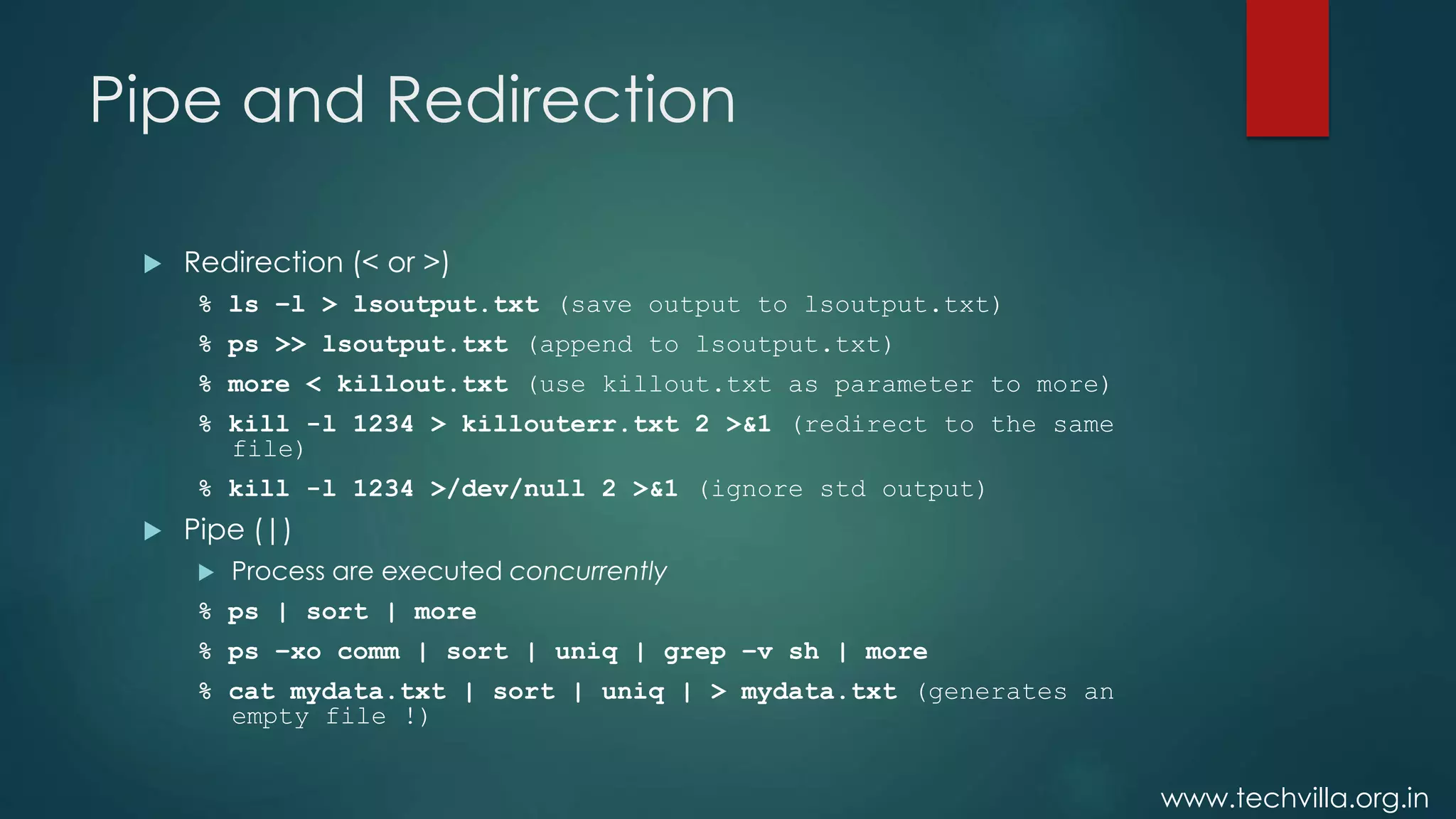
 Redirection (< or >)
% ls –l > lsoutput.txt (save output to lsoutput.txt)
% ps >> lsoutput.txt (append to lsoutput.txt)
% more < killout.txt (use killout.txt as parameter to more)
% kill -l 1234 > killouterr.txt 2 >&1 (redirect to the same
file)
% kill -l 1234 >/dev/null 2 >&1 (ignore std output)
 Pipe (|)
 Process are executed concurrently
% ps | sort | more
% ps –xo comm | sort | uniq | grep –v sh | more
% cat mydata.txt | sort | uniq | > mydata.txt (generates an
empty file !)
www.techvilla.org.in
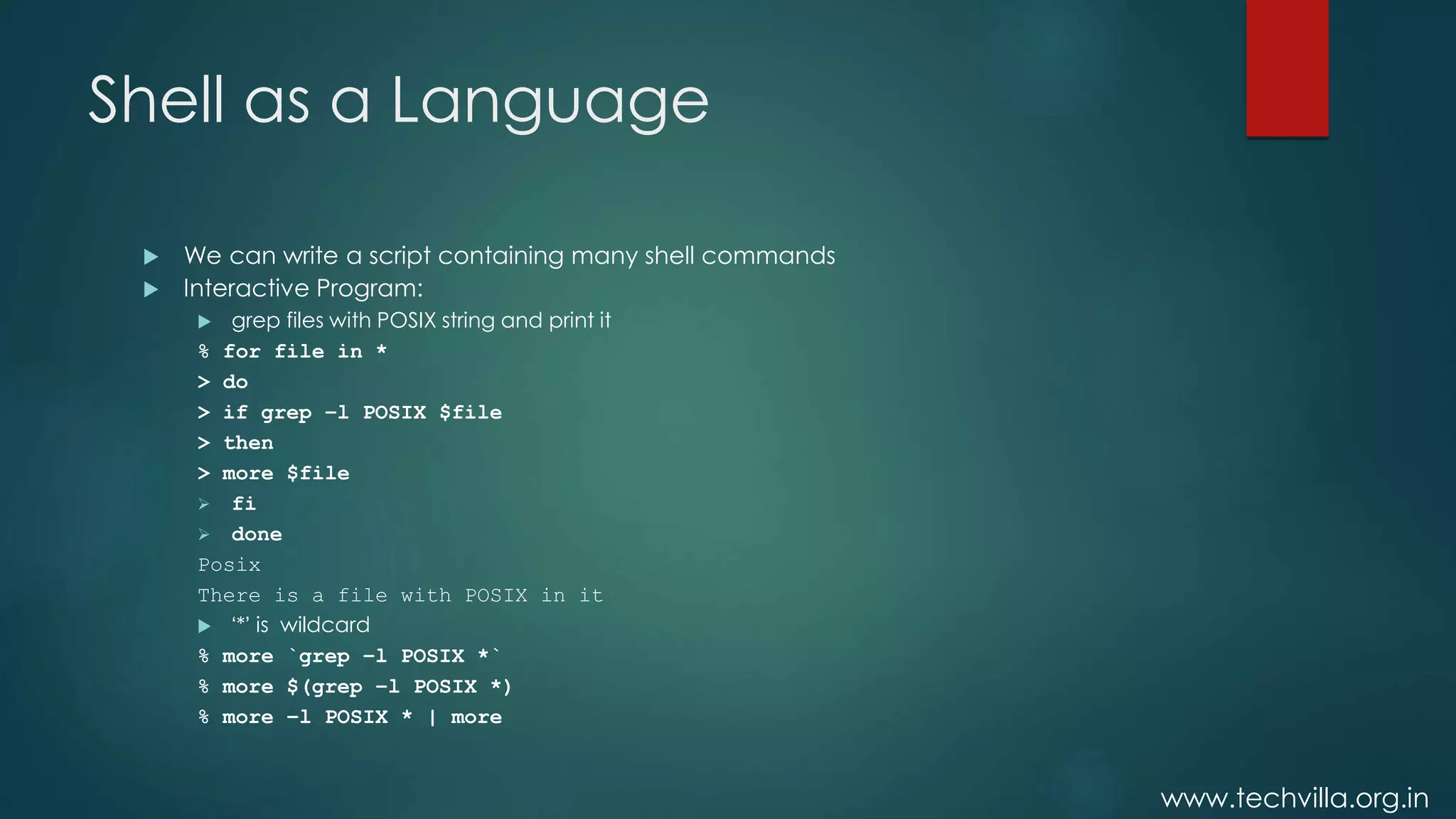
Shell as a Language
 We can write a script containing many shell commands
 Interactive Program:
 grep files with POSIX string and print it
% for file in *
> do
> if grep –l POSIX $file
> then
> more $file
 fi
 done
Posix
There is a file with POSIX in it
 ‘*’ is wildcard
% more `grep –l POSIX *`
% more $(grep –l POSIX *)
% more –l POSIX * | more
www.techvilla.org.in
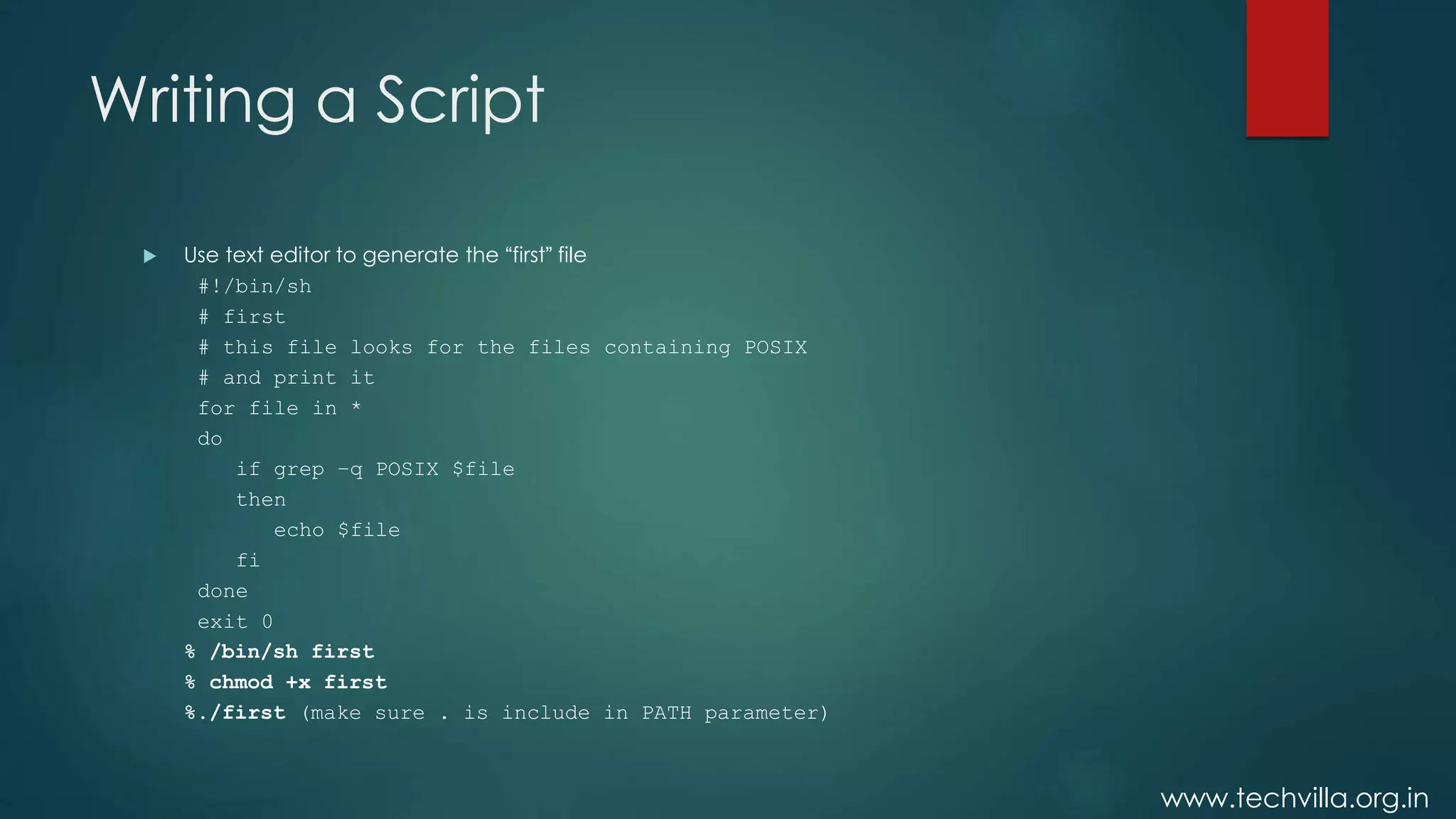
Writing a Script
 Use text editor to generate the “first” file
#!/bin/sh
# first
# this file looks for the files containing POSIX
# and print it
for file in *
do
if grep –q POSIX $file
then
echo $file
fi
done
exit 0
% /bin/sh first
% chmod +x first
%./first (make sure . is include in PATH parameter)
www.techvilla.org.in
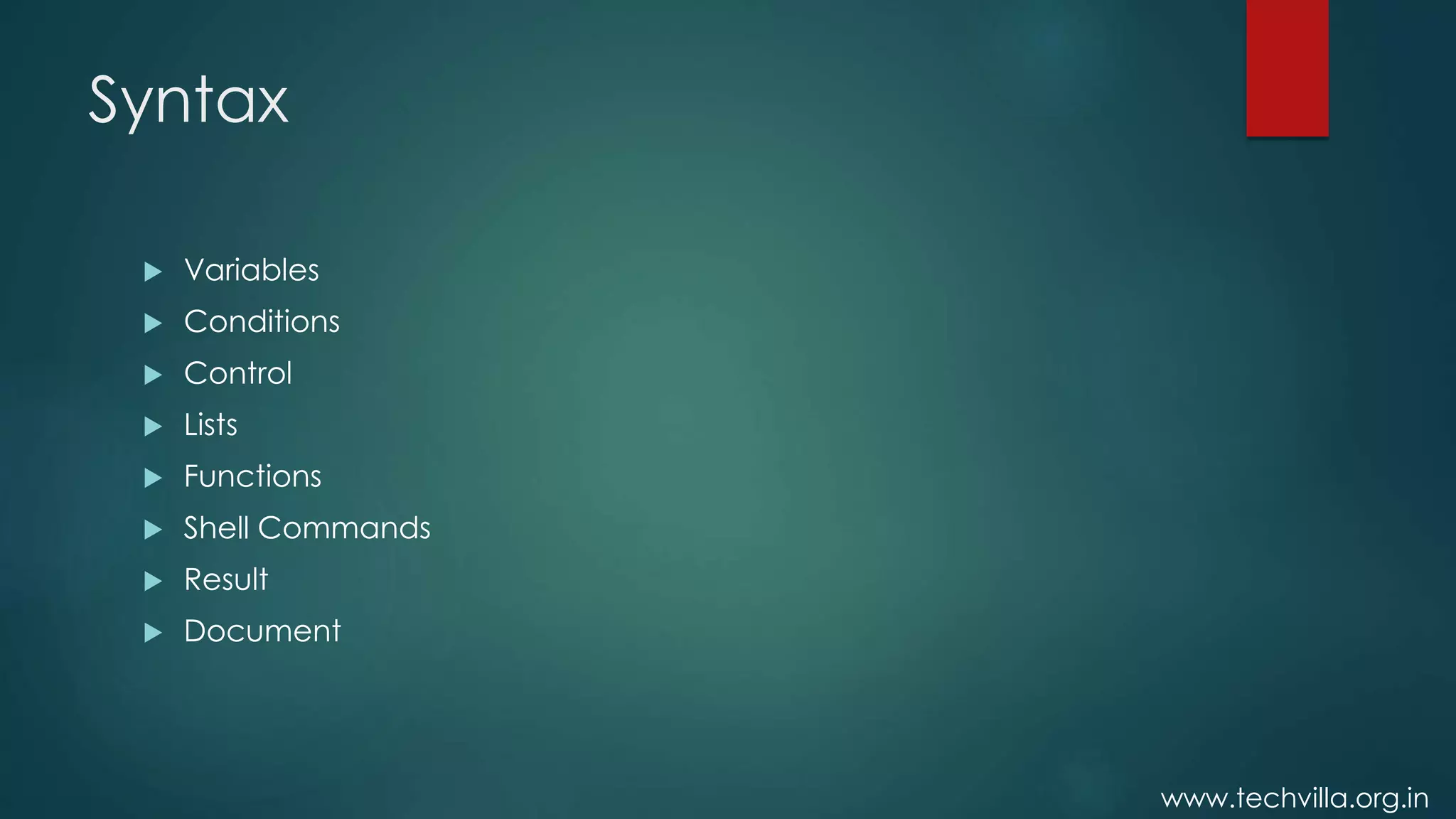
Syntax
 Variables
 Conditions
 Control
 Lists
 Functions
 Shell Commands
 Result
 Document
www.techvilla.org.in
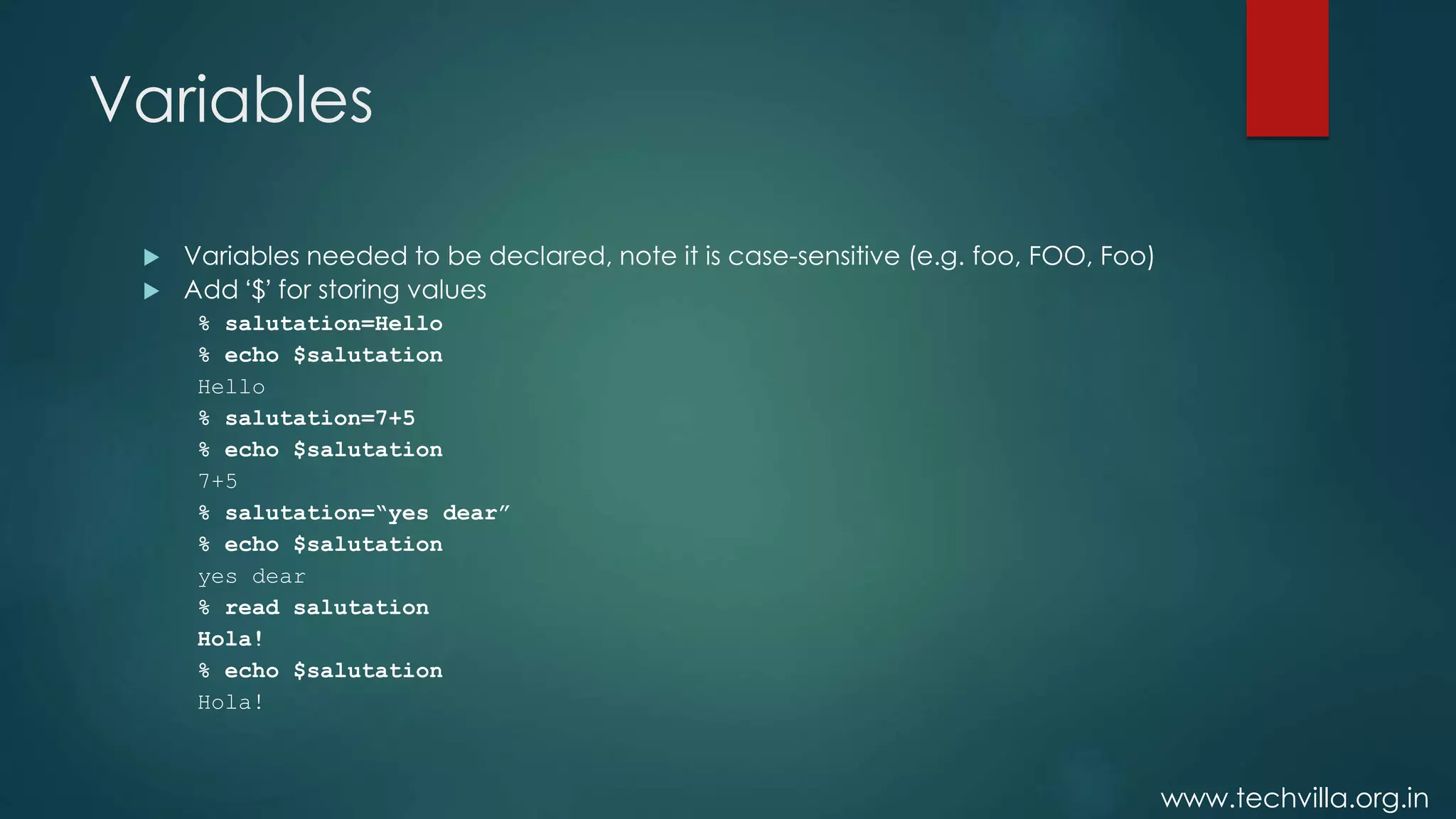
Variables
 Variables needed to be declared, note it is case-sensitive (e.g. foo, FOO, Foo)
 Add ‘$’ for storing values
% salutation=Hello
% echo $salutation
Hello
% salutation=7+5
% echo $salutation
7+5
% salutation=“yes dear”
% echo $salutation
yes dear
% read salutation
Hola!
% echo $salutation
Hola!
www.techvilla.org.in
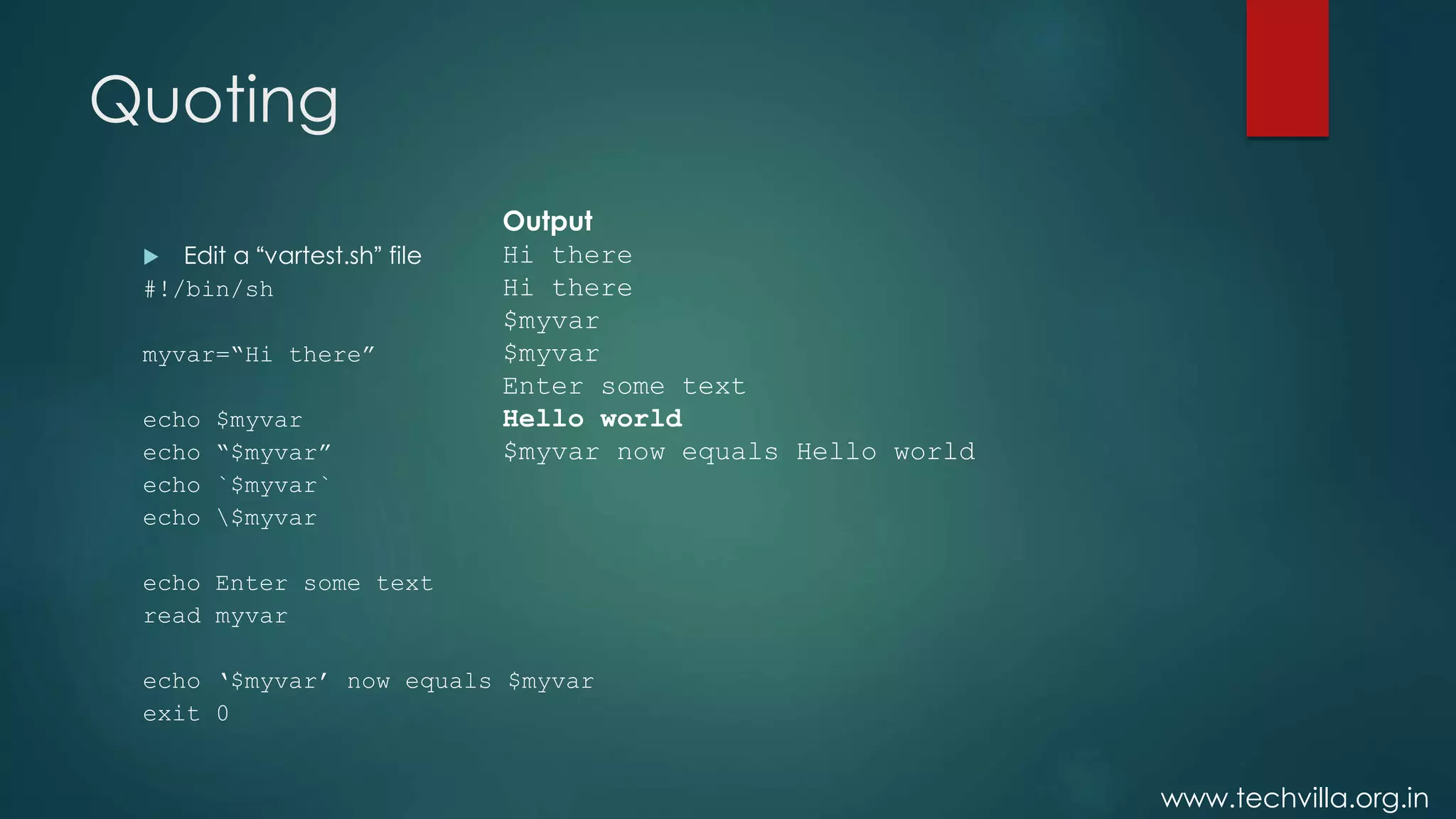
Quoting
 Edit a “vartest.sh” file
#!/bin/sh
myvar=“Hi there”
echo $myvar
echo “$myvar”
echo `$myvar`
echo $myvar
echo Enter some text
read myvar
echo ‘$myvar’ now equals $myvar
exit 0
Output
Hi there
Hi there
$myvar
$myvar
Enter some text
Hello world
$myvar now equals Hello world
www.techvilla.org.in
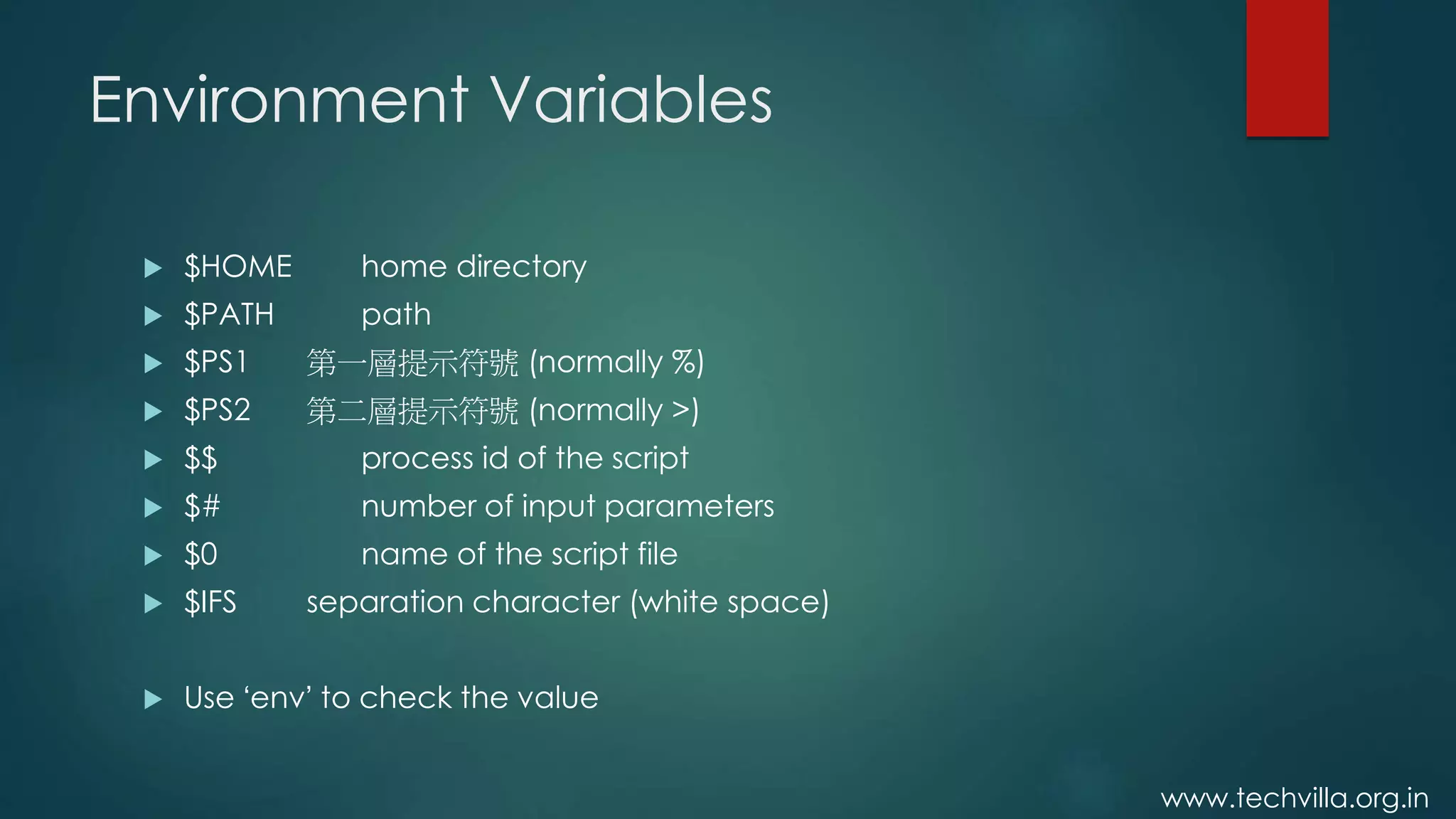
Environment Variables
 $HOME home directory
 $PATH path
 $PS1 第一層提示符號 (normally %)
 $PS2 第二層提示符號 (normally >)
 $$ process id of the script
 $# number of input parameters
 $0 name of the script file
 $IFS separation character (white space)
 Use ‘env’ to check the value
www.techvilla.org.in
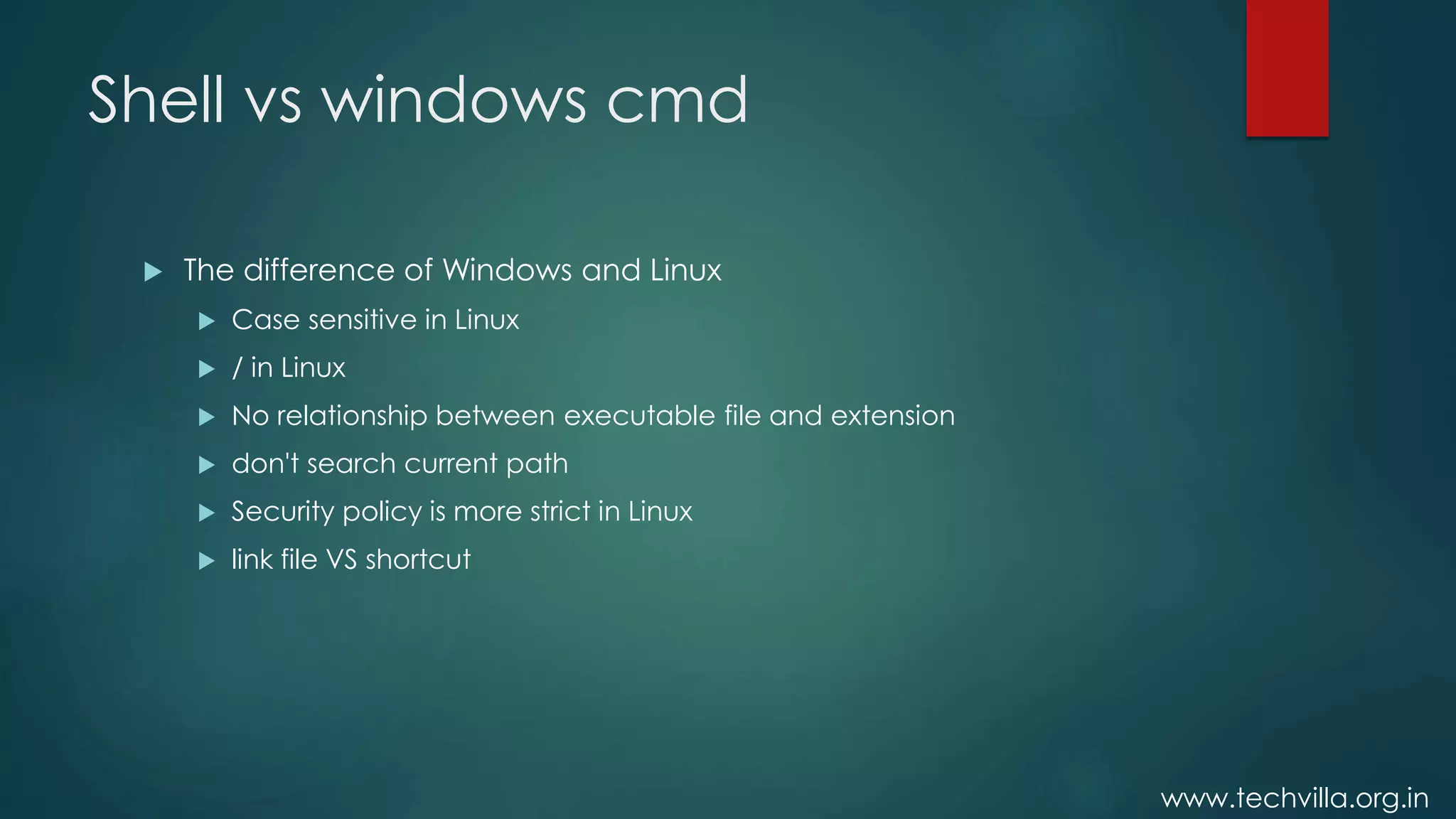
Shell vs windows cmd
 The difference of Windows and Linux
 Case sensitive in Linux
 / in Linux
 No relationship between executable file and extension
 don't search current path
 Security policy is more strict in Linux
 link file VS shortcut

Raspberry pi Part 4

  • 1.
  • 2.
    www.techvilla.org.in Working with theShell  What is shell?  Different shells in linux.  Programming in shell.  Shell vs windows cmd
  • 3.
    www.techvilla.org.in What’s Shell?  It’sacts an interface between the user and OS (kernel).It’s known as “ command interpreter”.  For Linux, the Bash is the default  Why Shell?  For routing jobs, such as system administration, without writing programs  However, the shell script is not efficient, therefore, can be used for prototyping the ideas  For example, % ls –al | more (better format of listing directory) % man bash | col –b | lpr (print man page of man)
  • 4.
    www.techvilla.org.in Shell basics  Shellis the interface between end user and the Linux system, similar to the commands in Windows  Bash is installed as in /bin/sh  Check the version  % /bin/sh --version Kernel Other programs X window bash csh
  • 5.
    www.techvilla.org.in Pipe and Redirection Redirection (< or >) % ls –l > lsoutput.txt (save output to lsoutput.txt) % ps >> lsoutput.txt (append to lsoutput.txt) % more < killout.txt (use killout.txt as parameter to more) % kill -l 1234 > killouterr.txt 2 >&1 (redirect to the same file) % kill -l 1234 >/dev/null 2 >&1 (ignore std output)  Pipe (|)  Process are executed concurrently % ps | sort | more % ps –xo comm | sort | uniq | grep –v sh | more % cat mydata.txt | sort | uniq | > mydata.txt (generates an empty file !)
  • 6.
    www.techvilla.org.in Shell as aLanguage  We can write a script containing many shell commands  Interactive Program:  grep files with POSIX string and print it % for file in * > do > if grep –l POSIX $file > then > more $file  fi  done Posix There is a file with POSIX in it  ‘*’ is wildcard % more `grep –l POSIX *` % more $(grep –l POSIX *) % more –l POSIX * | more
  • 7.
    www.techvilla.org.in Writing a Script Use text editor to generate the “first” file #!/bin/sh # first # this file looks for the files containing POSIX # and print it for file in * do if grep –q POSIX $file then echo $file fi done exit 0 % /bin/sh first % chmod +x first %./first (make sure . is include in PATH parameter)
  • 8.
    www.techvilla.org.in Syntax  Variables  Conditions Control  Lists  Functions  Shell Commands  Result  Document
  • 9.
    www.techvilla.org.in Variables  Variables neededto be declared, note it is case-sensitive (e.g. foo, FOO, Foo)  Add ‘$’ for storing values % salutation=Hello % echo $salutation Hello % salutation=7+5 % echo $salutation 7+5 % salutation=“yes dear” % echo $salutation yes dear % read salutation Hola! % echo $salutation Hola!
  • 10.
    www.techvilla.org.in Quoting  Edit a“vartest.sh” file #!/bin/sh myvar=“Hi there” echo $myvar echo “$myvar” echo `$myvar` echo $myvar echo Enter some text read myvar echo ‘$myvar’ now equals $myvar exit 0 Output Hi there Hi there $myvar $myvar Enter some text Hello world $myvar now equals Hello world
  • 11.
    www.techvilla.org.in Environment Variables  $HOMEhome directory  $PATH path  $PS1 第一層提示符號 (normally %)  $PS2 第二層提示符號 (normally >)  $$ process id of the script  $# number of input parameters  $0 name of the script file  $IFS separation character (white space)  Use ‘env’ to check the value
  • 12.
    www.techvilla.org.in Shell vs windowscmd  The difference of Windows and Linux  Case sensitive in Linux  / in Linux  No relationship between executable file and extension  don't search current path  Security policy is more strict in Linux  link file VS shortcut