New Features
in iOS 15 and
Swift 5.5


https://www.bacancytechnology.com/
Introduction
At Worldwide Developers Conference
21, Apple has overcome many
limitations by announcing some
important features for developers.
Apple has made sure while introducing
the new features in iOS 15 and Swift 5.5
that every developer can build the best
interactive applications with minimal
time and effort. In this blog post, we
will learn a few new features that have
been introduced and see how we can
implement them in our code.
New Features
in iOS 15 and
Swift 5.5
1. UISheetPresentation Controller
Apple provided some new API
improvements in WWDC 21 to present the
bottom sheets. In iOS 14, they introduced
this, but it didn’t have any customization,
but from iOS 15, we can implement apple
maps like a bottom sheet with a smaller
height. It has customization like height
adjustment, adding a grabber to the top of
the sheet.


UIViewController has a new property
called sheetPresentationController; you
can present the bottom sheet. We can
access the sheetPresentationController
property to get the instance of
UISheetPresentationController for
customizing its appearance.
@IBAction func openSheetAction(_
sender : UIButton) {
if let bSheet =
bottomSheet.sheetPresentationController
{
bSheet.detents = [.medium(),
.large()]
bSheet.prefersGrabberVisible = true
bSheet.largestUndimmedDetentIdentifie
r = .medium
bSheet.prefersScrollingExpandsWhenScr
olledToEdge = false
bSheet.preferredCornerRadius = 30.0
}
present(bottomSheet, animated: true,
completion: nil)
}
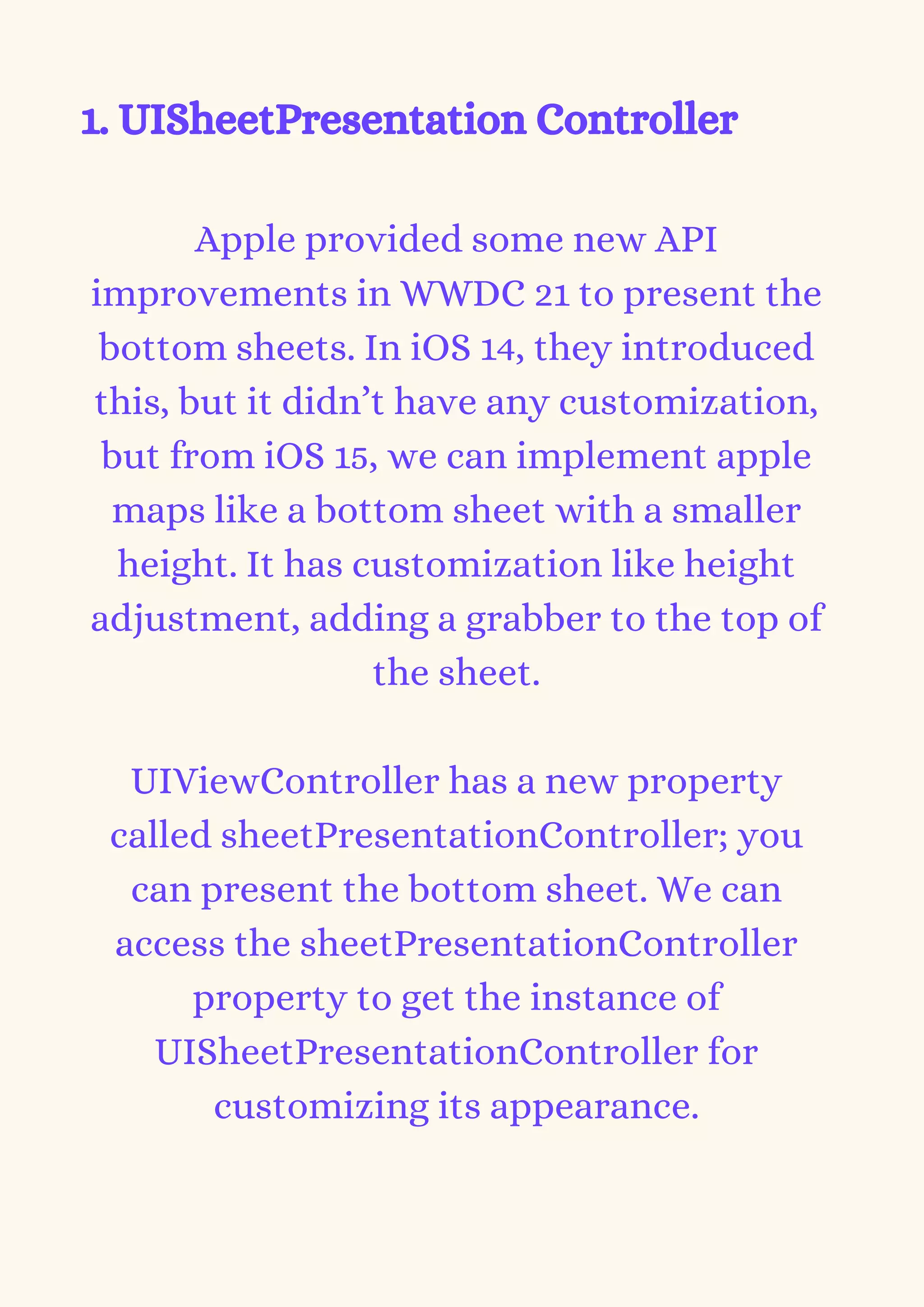
Here, we can use detents to adjust the
height of the bottom sheet. It has 2
values .large() & .medium(). .large() will
show height for full screen & .medium()
will occupy height of half of screen
height. Here, We have passed an array
for detents, so first, it will show in half
of the screen height & then we can drag
it up to the full screen.
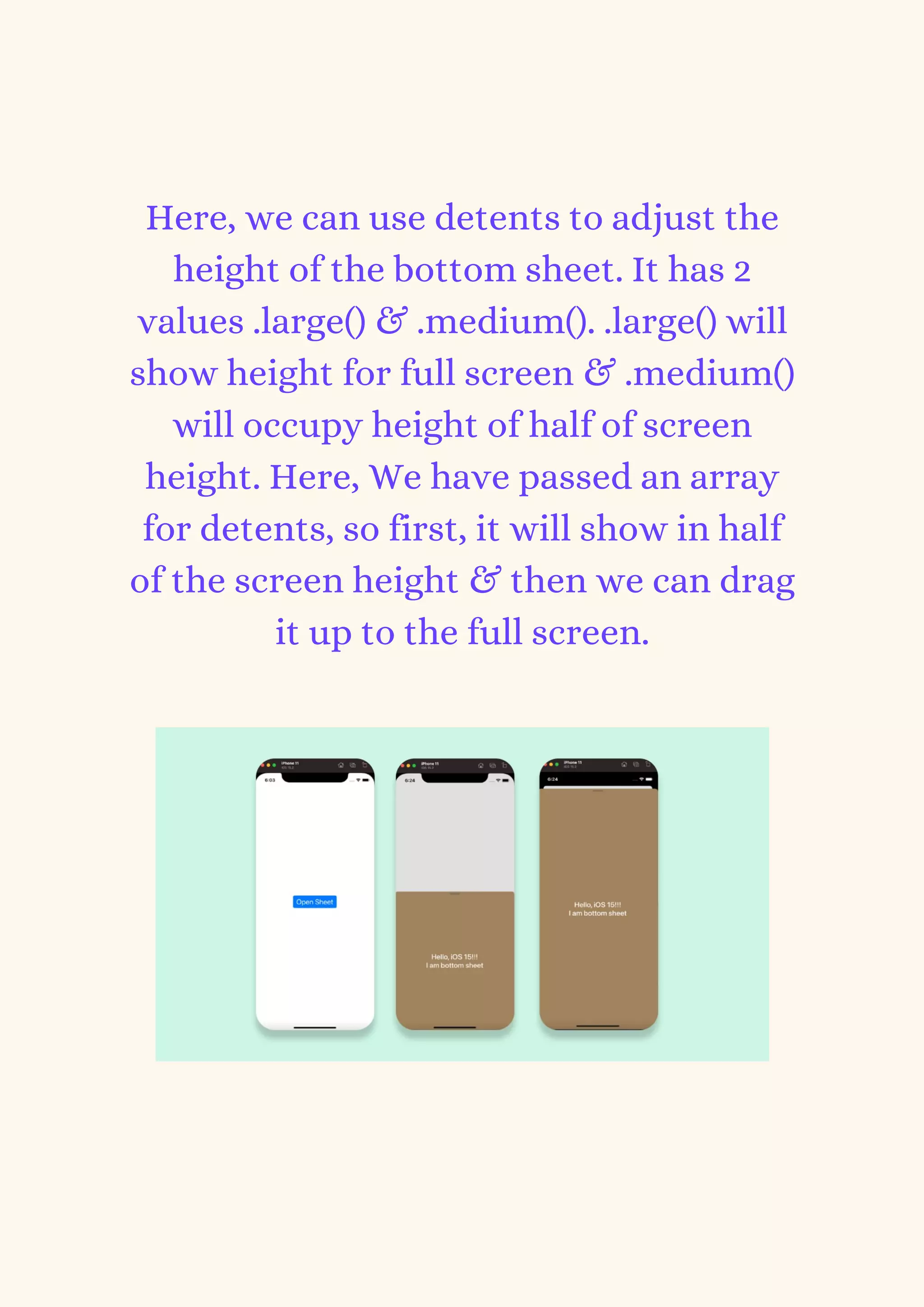
Here, we added a grabber on top of the
sheet, so users can understand how to
drag it & drag it.
When the bottom sheet is presented, the
view behind it dims automatically; if you
want to prevent it, you can set the value
of largestUndimmedDetentIdentifier to
.medium.
bSheet.largestUndimmedDetentIdentifie
r = .medium


If your bottom sheet has scrollable
content, we can set
prefersScrollingExpandsWhenScroll
edToEdge to false so that it will
scroll without going down & using
grabber; you can drag the sheet &
show it in full screen.
bSheet.prefersScrollingExpandsWh
enScrolledToEdge = false
We can set the corner radius for the
bottom sheet also using
preferredCornerRadius.
bSheet.preferredCornerRadius =
30.0


Want to get dedicated and highly-
skilled iOS developers?
Contact the best mobile
development company: Bacancy,
to hire iOS developer and start
building brilliant mobile apps.
2. UIMenu:


iOS 14 introduced UIMenu, but if you
want to add a submenu, it was not
possible in iOS 14. So, iOS 15
introduced UIMenu with SubMenu
added to it.


Using UIMenu, we can create an
instance of the menu; it has a
parameter called children that can
take an array of UIMenu & UIAction.


UIAction takes the title, image,
attributes, state & handler as its
parameters.
UIMenu takes the title, image, options,
handler & other parameters. The state
in
UIAction is used to show a checkmark
to show selection.


It has 3 values .displayInline,
.destructive, .singleSelection. Using the
.singleSelection or .destructive option in
UIMenu, we can show the submenu.
When using .singleSelection It will allow
only 1 item as selected in the menu or
submenu.
@IBAction func menuAction(_ sender
: UIButton) {
let more = UIMenu(title: "More",
image: UIImage(systemName:
"ellipsis"), options: .singleSelection,
children: [
UIAction(title: "Share", image:
UIImage(systemName:
"square.and.arrow.up"), handler: { _ in
}),
UIAction(title: "Save", image:
UIImage(systemName: "folder"),
handler: { _ in }),
UIAction(title: "Edit", image:
UIImage(systemName: "pencil"),
state: .on, handler: { _ in })
])
let destruct = UIAction(title: "Delete",
image: UIImage(systemName:
"trash"), attributes: .destructive) { _
in }
let disable = UIAction(title:
"Standard", image:
UIImage(systemName: "sun.max"),
attributes: .disabled) { _ in }
btnMenu.menu = UIMenu(title:
"", children: [more, destruct, disable])
}
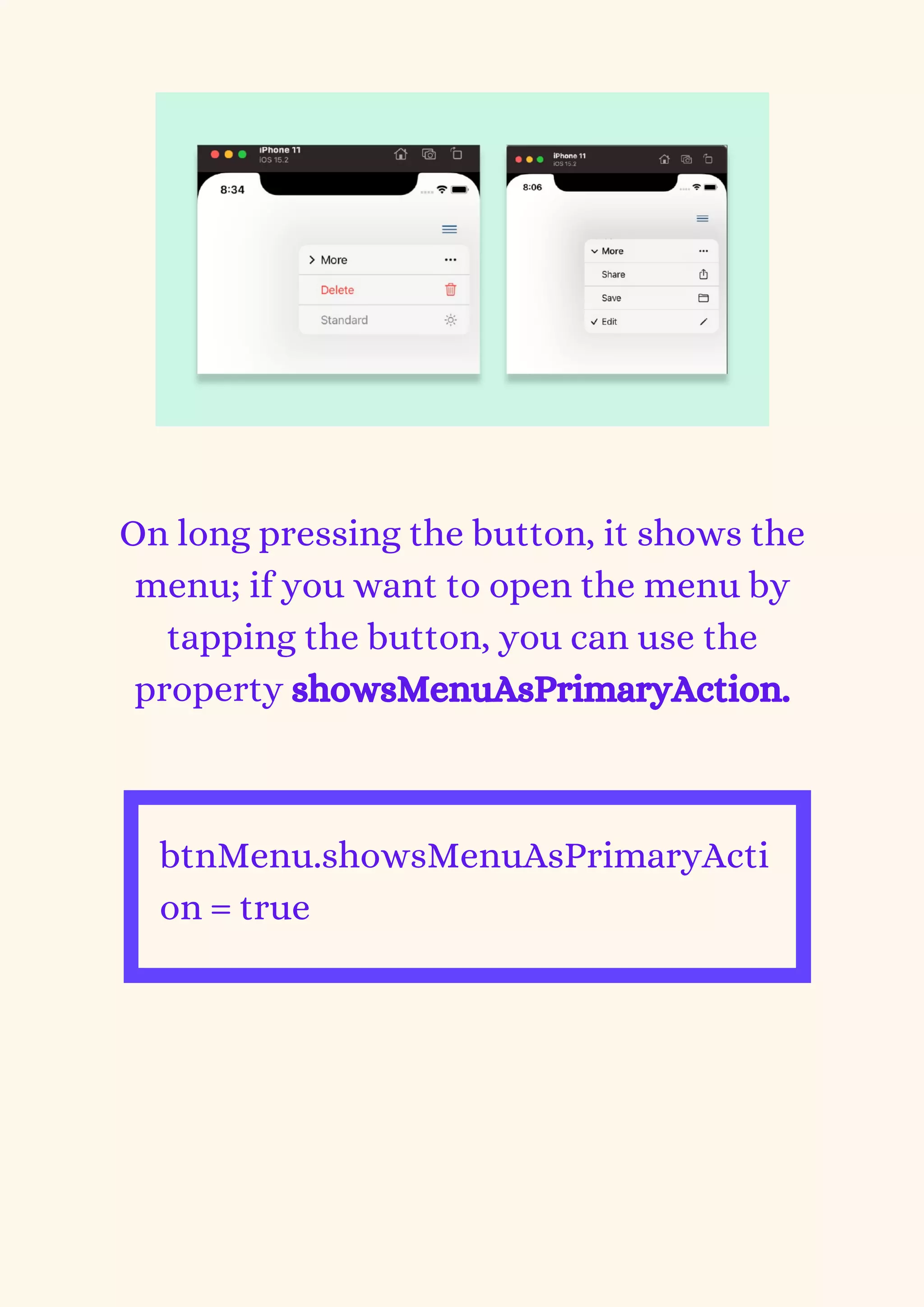
On long pressing the button, it shows the
menu; if you want to open the menu by
tapping the button, you can use the
property showsMenuAsPrimaryAction.


btnMenu.showsMenuAsPrimaryActi
on = true
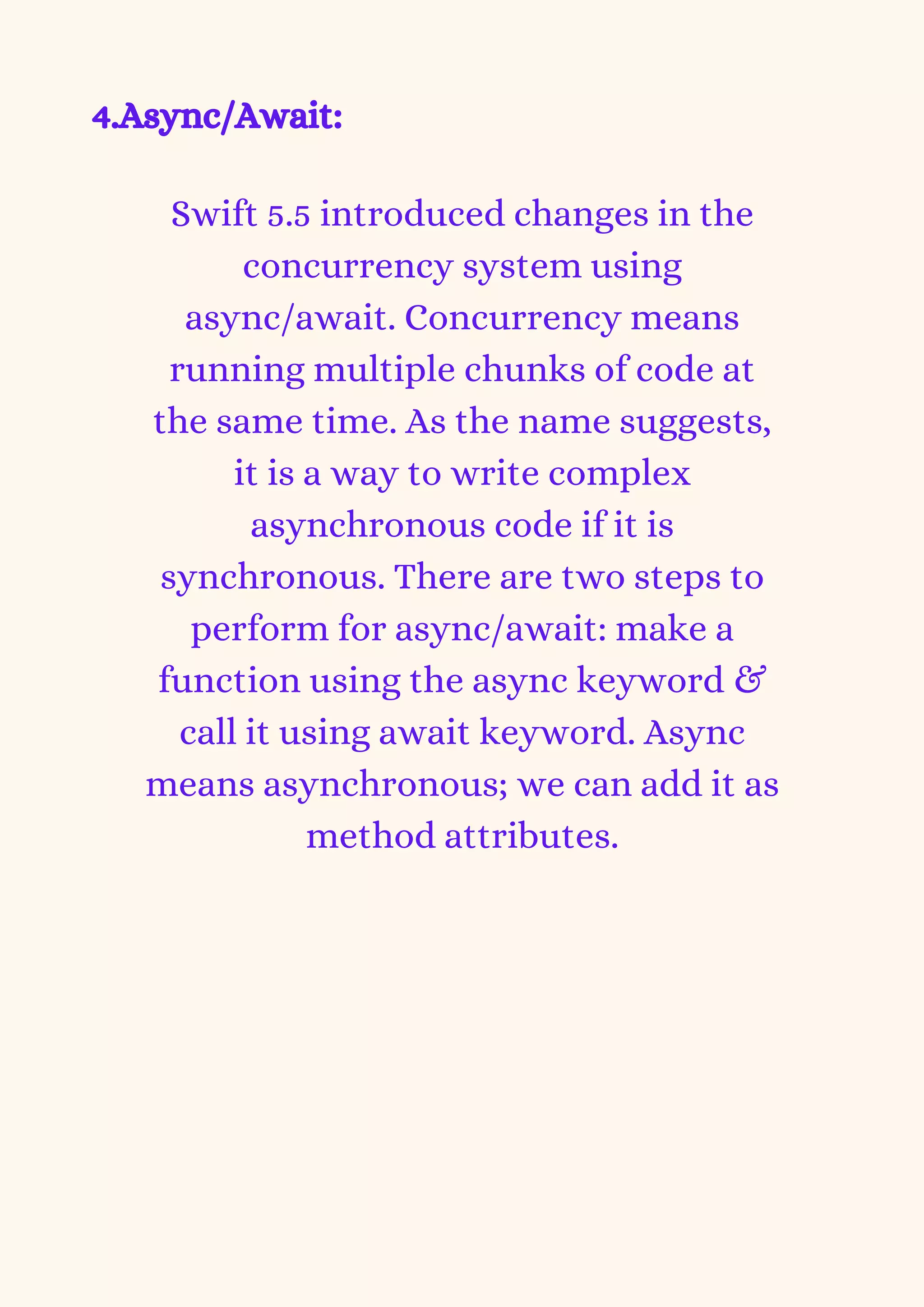
3.CLLocationButton
In iOS 13, new location permission was
introduced to access it only once. So,
whenever a user tries to access the
location, it asks for permission. In iOS
15, Apple improved that feature. They
are providing location button UI by
default. So, the first time it will ask the
user for permission. Whenever users
open the app again, the user can simply
click on the location button & it will
give access to the current location
without asking for permission alert.


If the user has denied permission for
the first time, when the user clicks on
the location button next time, it will
give access to the current location
without asking for a permission alert.
Once the location access is granted, even if
the application is in the background, it will
get location data. Location data access will
expire once the user or system terminates
the app.
4.Async/Await:


Swift 5.5 introduced changes in the
concurrency system using
async/await. Concurrency means
running multiple chunks of code at
the same time. As the name suggests,
it is a way to write complex
asynchronous code if it is
synchronous. There are two steps to
perform for async/await: make a
function using the async keyword &
call it using await keyword. Async
means asynchronous; we can add it as
method attributes.
func generateRandomNumbers()
async -> [Int] {
(1...100).map { _ in
Int.random(in: 1...100)
}
}


To call this method, we need to use
await keyword ahead of the method call
& add it in an asynchronous context,
Task.
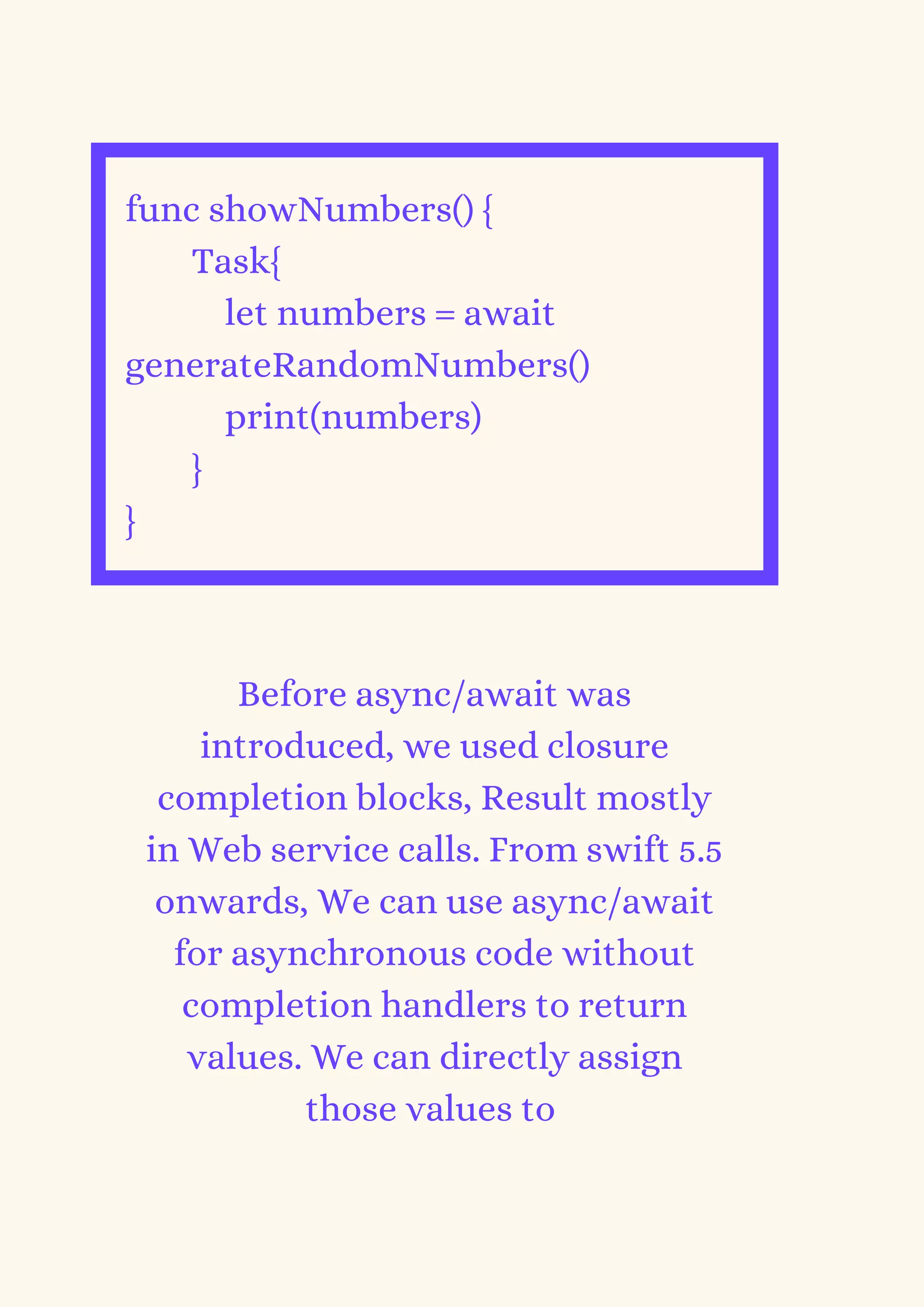
func showNumbers() {
Task{
let numbers = await
generateRandomNumbers()
print(numbers)
}
}
Before async/await was
introduced, we used closure
completion blocks, Result mostly
in Web service calls. From swift 5.5
onwards, We can use async/await
for asynchronous code without
completion handlers to return
values. We can directly assign
those values to
their respective variables. Using await
keyword in a function call will stop
further code execution until a response
comes.
To execute further code while
asynchronous code is executing, you
can keep the async keyword before the
variable & await the keyword while
accessing its result.
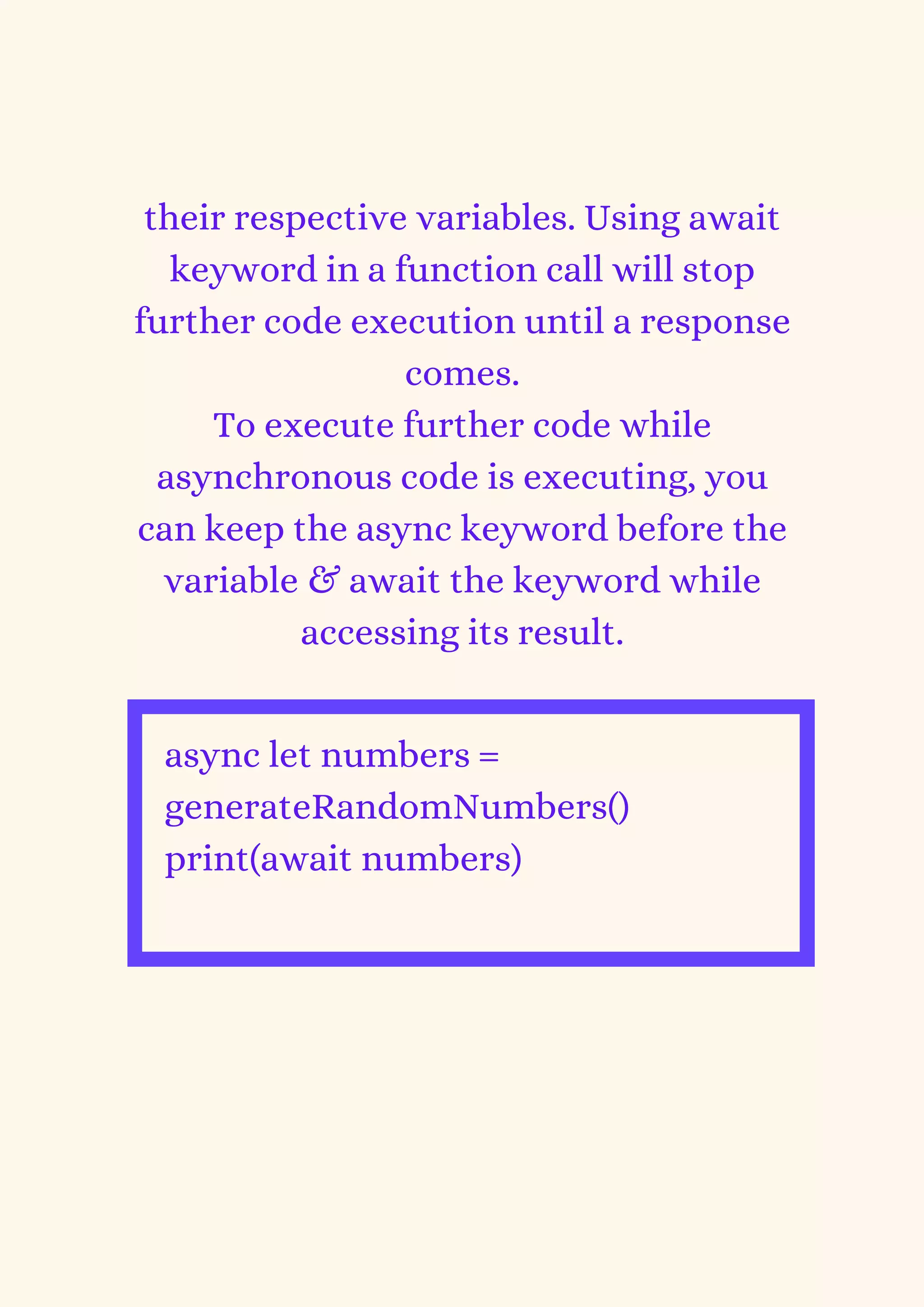
async let numbers =
generateRandomNumbers()
print(await numbers)
If we want to call multiple asynchronous
functions parallel, we can also do it with
async/await.
async let numbersInt =
generateRandomNumbersInt()
async let numbersDouble =
generateRandomNumbersDouble()
let numbers = await [numbersInt,
numbersDouble] as [Any]
print(numbers)


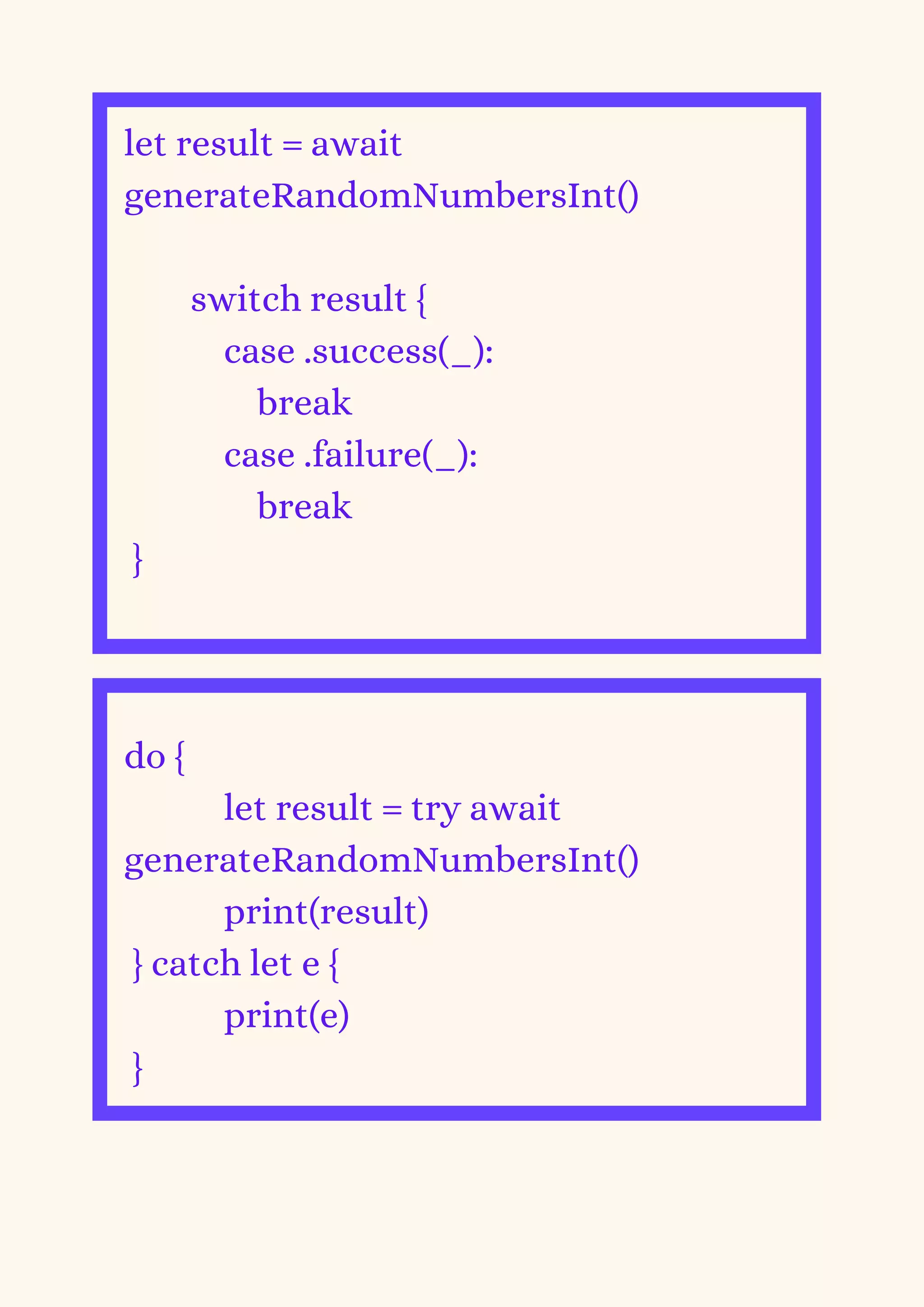
For error handling, in async/await, we
can use Result or try/catch.
let result = await
generateRandomNumbersInt()
switch result {
case .success(_):
break
case .failure(_):
break
}
do {
let result = try await
generateRandomNumbersInt()
print(result)
} catch let e {
print(e)
}
5. Double & CGFloat Interchangeable
Types:


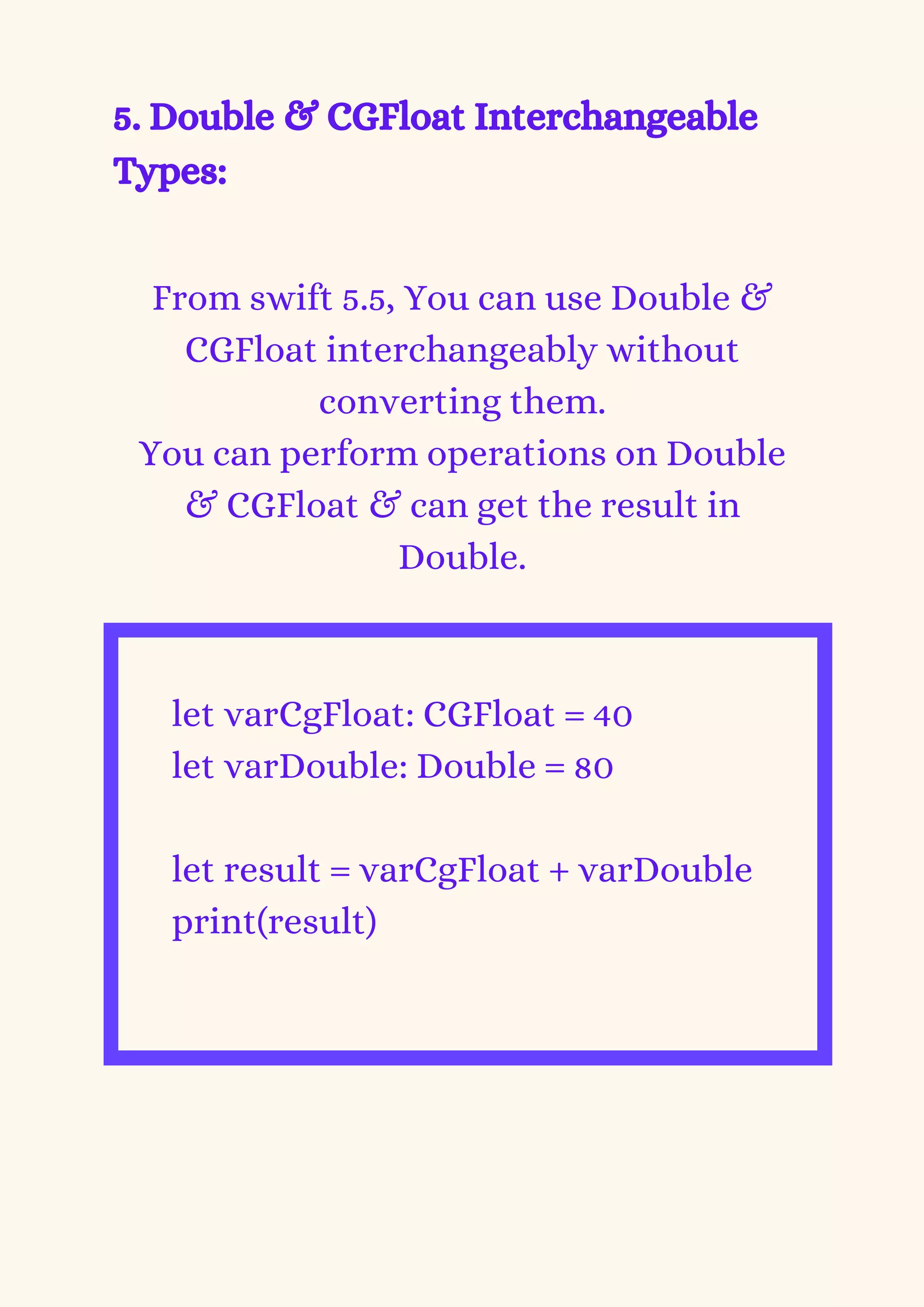
From swift 5.5, You can use Double &
CGFloat interchangeably without
converting them.
You can perform operations on Double
& CGFloat & can get the result in
Double.


let varCgFloat: CGFloat = 40
let varDouble: Double = 80
let result = varCgFloat + varDouble
print(result)
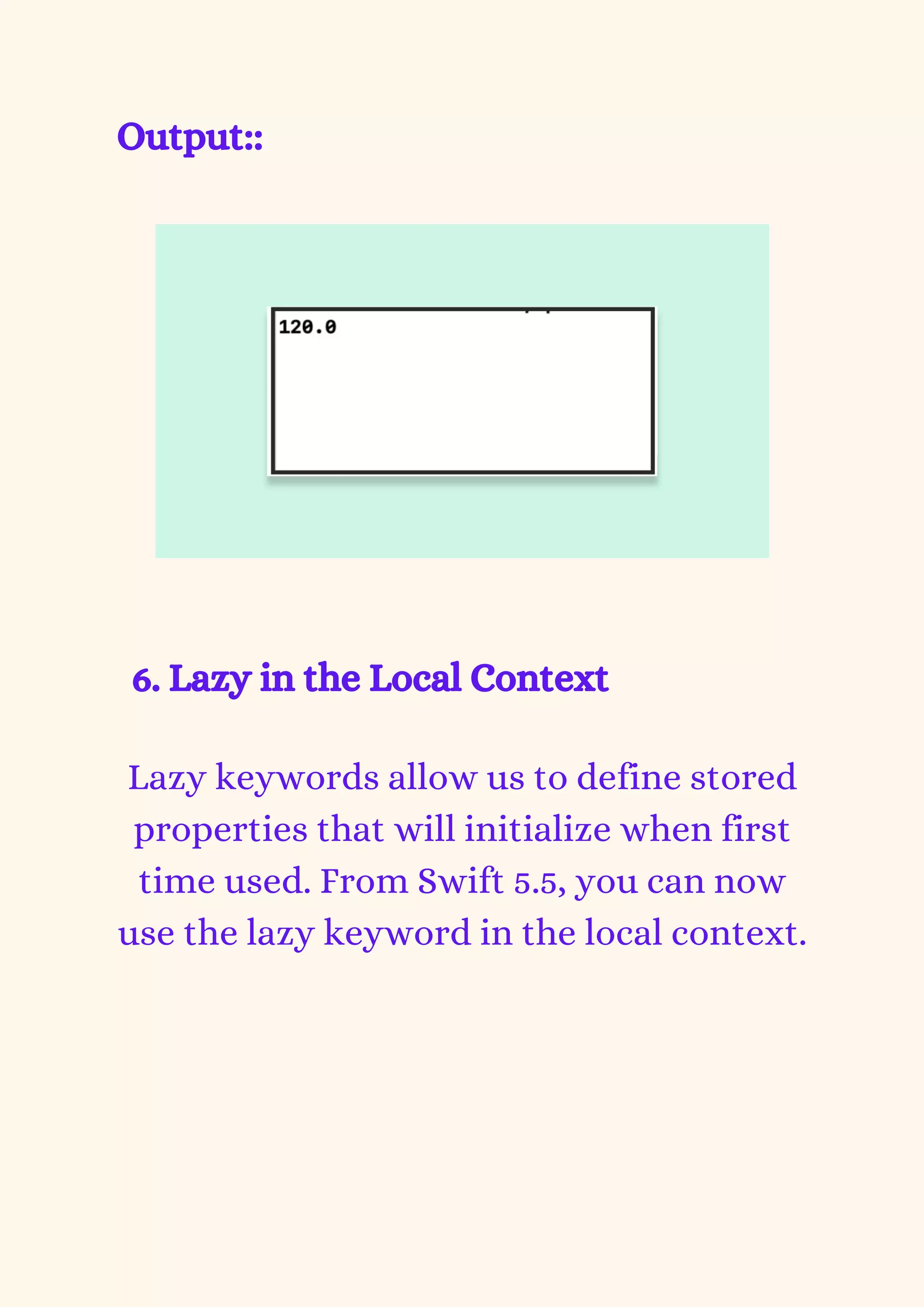
Output::
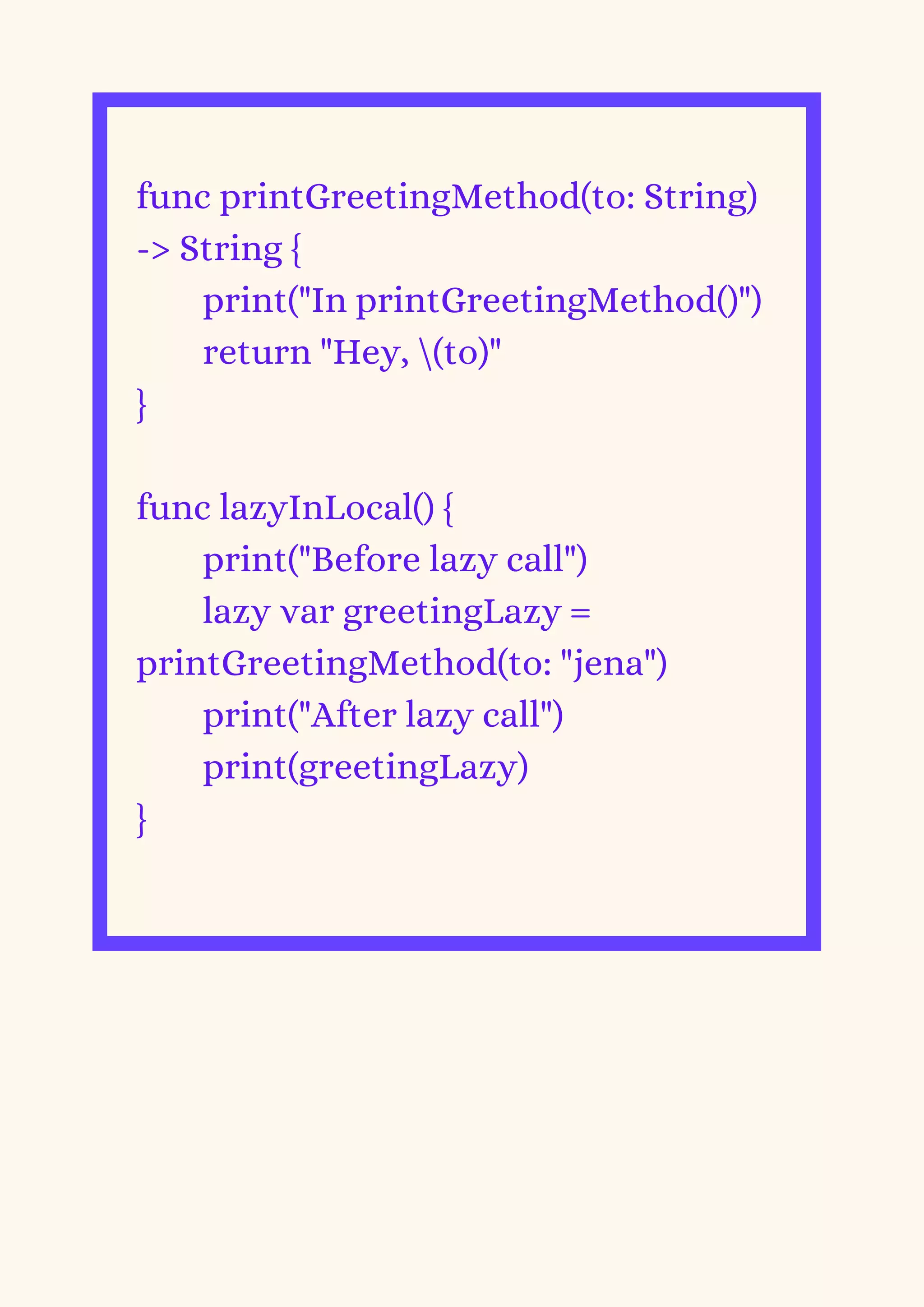
6. Lazy in the Local Context


Lazy keywords allow us to define stored
properties that will initialize when first
time used. From Swift 5.5, you can now
use the lazy keyword in the local context.
func printGreetingMethod(to: String)
-> String {
print("In printGreetingMethod()")
return "Hey, (to)"
}
func lazyInLocal() {
print("Before lazy call")
lazy var greetingLazy =
printGreetingMethod(to: "jena")
print("After lazy call")
print(greetingLazy)
}
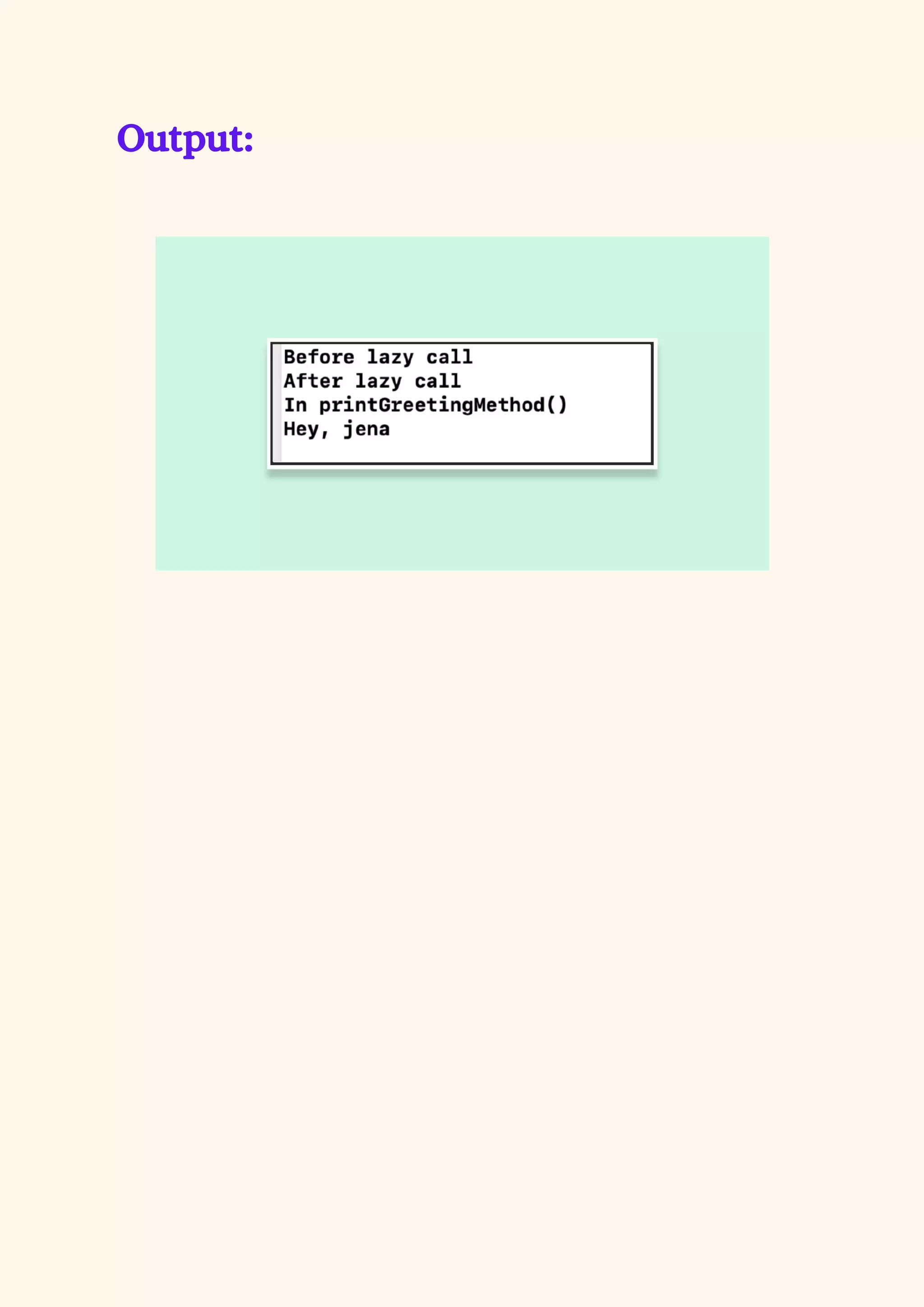
Output:
Conclusion
With the introduction of new
features in iOS 15 and Swift 5.5, the
application development became
less challenging with more robust
outcomes. The lightweight and
straightforward syntax with
powerful pattern matching has
made development better for iOS
developers.
Thank You
https://www.bacancytechnology.com/

New Features in iOS 15 and Swift 5.5.pdf

  • 1.
    New Features in iOS15 and Swift 5.5 https://www.bacancytechnology.com/
  • 2.
  • 4.
    At Worldwide DevelopersConference 21, Apple has overcome many limitations by announcing some important features for developers. Apple has made sure while introducing the new features in iOS 15 and Swift 5.5 that every developer can build the best interactive applications with minimal time and effort. In this blog post, we will learn a few new features that have been introduced and see how we can implement them in our code.
  • 5.
    New Features in iOS15 and Swift 5.5
  • 6.
    1. UISheetPresentation Controller Appleprovided some new API improvements in WWDC 21 to present the bottom sheets. In iOS 14, they introduced this, but it didn’t have any customization, but from iOS 15, we can implement apple maps like a bottom sheet with a smaller height. It has customization like height adjustment, adding a grabber to the top of the sheet. UIViewController has a new property called sheetPresentationController; you can present the bottom sheet. We can access the sheetPresentationController property to get the instance of UISheetPresentationController for customizing its appearance.
  • 7.
    @IBAction func openSheetAction(_ sender: UIButton) { if let bSheet = bottomSheet.sheetPresentationController { bSheet.detents = [.medium(), .large()] bSheet.prefersGrabberVisible = true bSheet.largestUndimmedDetentIdentifie r = .medium bSheet.prefersScrollingExpandsWhenScr olledToEdge = false bSheet.preferredCornerRadius = 30.0 } present(bottomSheet, animated: true, completion: nil) }
  • 8.
    Here, we canuse detents to adjust the height of the bottom sheet. It has 2 values .large() & .medium(). .large() will show height for full screen & .medium() will occupy height of half of screen height. Here, We have passed an array for detents, so first, it will show in half of the screen height & then we can drag it up to the full screen.
  • 9.
    Here, we addeda grabber on top of the sheet, so users can understand how to drag it & drag it. When the bottom sheet is presented, the view behind it dims automatically; if you want to prevent it, you can set the value of largestUndimmedDetentIdentifier to .medium.
  • 10.
    bSheet.largestUndimmedDetentIdentifie r = .medium Ifyour bottom sheet has scrollable content, we can set prefersScrollingExpandsWhenScroll edToEdge to false so that it will scroll without going down & using grabber; you can drag the sheet & show it in full screen. bSheet.prefersScrollingExpandsWh enScrolledToEdge = false
  • 11.
    We can setthe corner radius for the bottom sheet also using preferredCornerRadius. bSheet.preferredCornerRadius = 30.0 Want to get dedicated and highly- skilled iOS developers? Contact the best mobile development company: Bacancy, to hire iOS developer and start building brilliant mobile apps.
  • 12.
    2. UIMenu: iOS 14introduced UIMenu, but if you want to add a submenu, it was not possible in iOS 14. So, iOS 15 introduced UIMenu with SubMenu added to it. Using UIMenu, we can create an instance of the menu; it has a parameter called children that can take an array of UIMenu & UIAction. UIAction takes the title, image, attributes, state & handler as its parameters.
  • 13.
    UIMenu takes thetitle, image, options, handler & other parameters. The state in UIAction is used to show a checkmark to show selection. It has 3 values .displayInline, .destructive, .singleSelection. Using the .singleSelection or .destructive option in UIMenu, we can show the submenu. When using .singleSelection It will allow only 1 item as selected in the menu or submenu.
  • 14.
    @IBAction func menuAction(_sender : UIButton) { let more = UIMenu(title: "More", image: UIImage(systemName: "ellipsis"), options: .singleSelection, children: [ UIAction(title: "Share", image: UIImage(systemName: "square.and.arrow.up"), handler: { _ in }), UIAction(title: "Save", image: UIImage(systemName: "folder"), handler: { _ in }), UIAction(title: "Edit", image: UIImage(systemName: "pencil"), state: .on, handler: { _ in }) ])
  • 15.
    let destruct =UIAction(title: "Delete", image: UIImage(systemName: "trash"), attributes: .destructive) { _ in } let disable = UIAction(title: "Standard", image: UIImage(systemName: "sun.max"), attributes: .disabled) { _ in } btnMenu.menu = UIMenu(title: "", children: [more, destruct, disable]) }
  • 16.
    On long pressingthe button, it shows the menu; if you want to open the menu by tapping the button, you can use the property showsMenuAsPrimaryAction. btnMenu.showsMenuAsPrimaryActi on = true
  • 17.
    3.CLLocationButton In iOS 13,new location permission was introduced to access it only once. So, whenever a user tries to access the location, it asks for permission. In iOS 15, Apple improved that feature. They are providing location button UI by default. So, the first time it will ask the user for permission. Whenever users open the app again, the user can simply click on the location button & it will give access to the current location without asking for permission alert. If the user has denied permission for the first time, when the user clicks on the location button next time, it will give access to the current location
  • 18.
    without asking fora permission alert. Once the location access is granted, even if the application is in the background, it will get location data. Location data access will expire once the user or system terminates the app.
  • 19.
    4.Async/Await: Swift 5.5 introducedchanges in the concurrency system using async/await. Concurrency means running multiple chunks of code at the same time. As the name suggests, it is a way to write complex asynchronous code if it is synchronous. There are two steps to perform for async/await: make a function using the async keyword & call it using await keyword. Async means asynchronous; we can add it as method attributes.
  • 20.
    func generateRandomNumbers() async ->[Int] { (1...100).map { _ in Int.random(in: 1...100) } } To call this method, we need to use await keyword ahead of the method call & add it in an asynchronous context, Task.
  • 21.
    func showNumbers() { Task{ letnumbers = await generateRandomNumbers() print(numbers) } } Before async/await was introduced, we used closure completion blocks, Result mostly in Web service calls. From swift 5.5 onwards, We can use async/await for asynchronous code without completion handlers to return values. We can directly assign those values to
  • 22.
    their respective variables.Using await keyword in a function call will stop further code execution until a response comes. To execute further code while asynchronous code is executing, you can keep the async keyword before the variable & await the keyword while accessing its result. async let numbers = generateRandomNumbers() print(await numbers)
  • 23.
    If we wantto call multiple asynchronous functions parallel, we can also do it with async/await. async let numbersInt = generateRandomNumbersInt() async let numbersDouble = generateRandomNumbersDouble() let numbers = await [numbersInt, numbersDouble] as [Any] print(numbers) For error handling, in async/await, we can use Result or try/catch.
  • 24.
    let result =await generateRandomNumbersInt() switch result { case .success(_): break case .failure(_): break } do { let result = try await generateRandomNumbersInt() print(result) } catch let e { print(e) }
  • 25.
    5. Double &CGFloat Interchangeable Types: From swift 5.5, You can use Double & CGFloat interchangeably without converting them. You can perform operations on Double & CGFloat & can get the result in Double. let varCgFloat: CGFloat = 40 let varDouble: Double = 80 let result = varCgFloat + varDouble print(result)
  • 26.
    Output:: 6. Lazy inthe Local Context Lazy keywords allow us to define stored properties that will initialize when first time used. From Swift 5.5, you can now use the lazy keyword in the local context.
  • 27.
    func printGreetingMethod(to: String) ->String { print("In printGreetingMethod()") return "Hey, (to)" } func lazyInLocal() { print("Before lazy call") lazy var greetingLazy = printGreetingMethod(to: "jena") print("After lazy call") print(greetingLazy) }
  • 28.
  • 29.
  • 30.
    With the introductionof new features in iOS 15 and Swift 5.5, the application development became less challenging with more robust outcomes. The lightweight and straightforward syntax with powerful pattern matching has made development better for iOS developers.
  • 31.