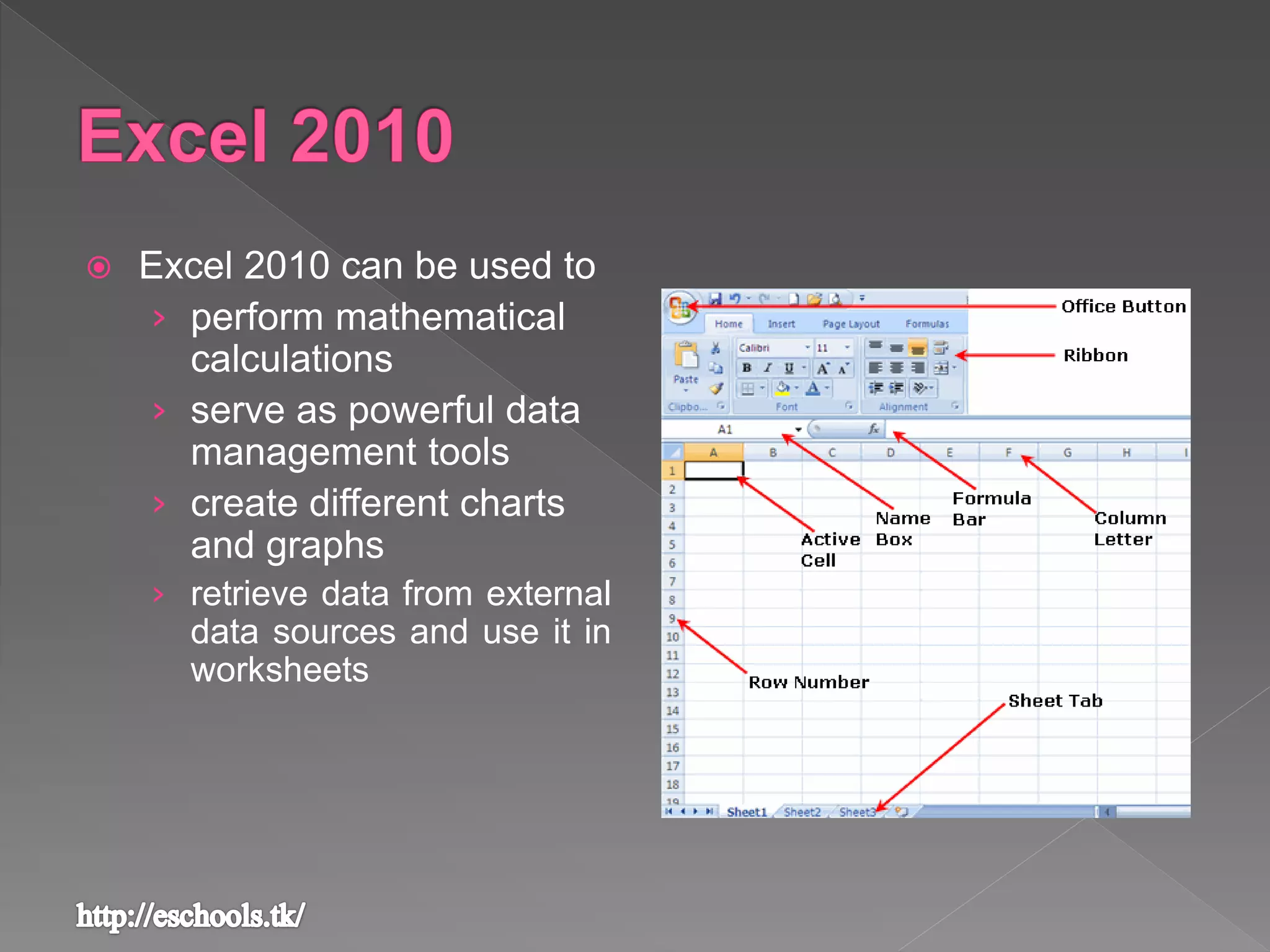
 Excel 2010 can be used to
› perform mathematical
calculations
› serve as powerful data
management tools
› create different charts
and graphs
› retrieve data from external
data sources and use it in

worksheets
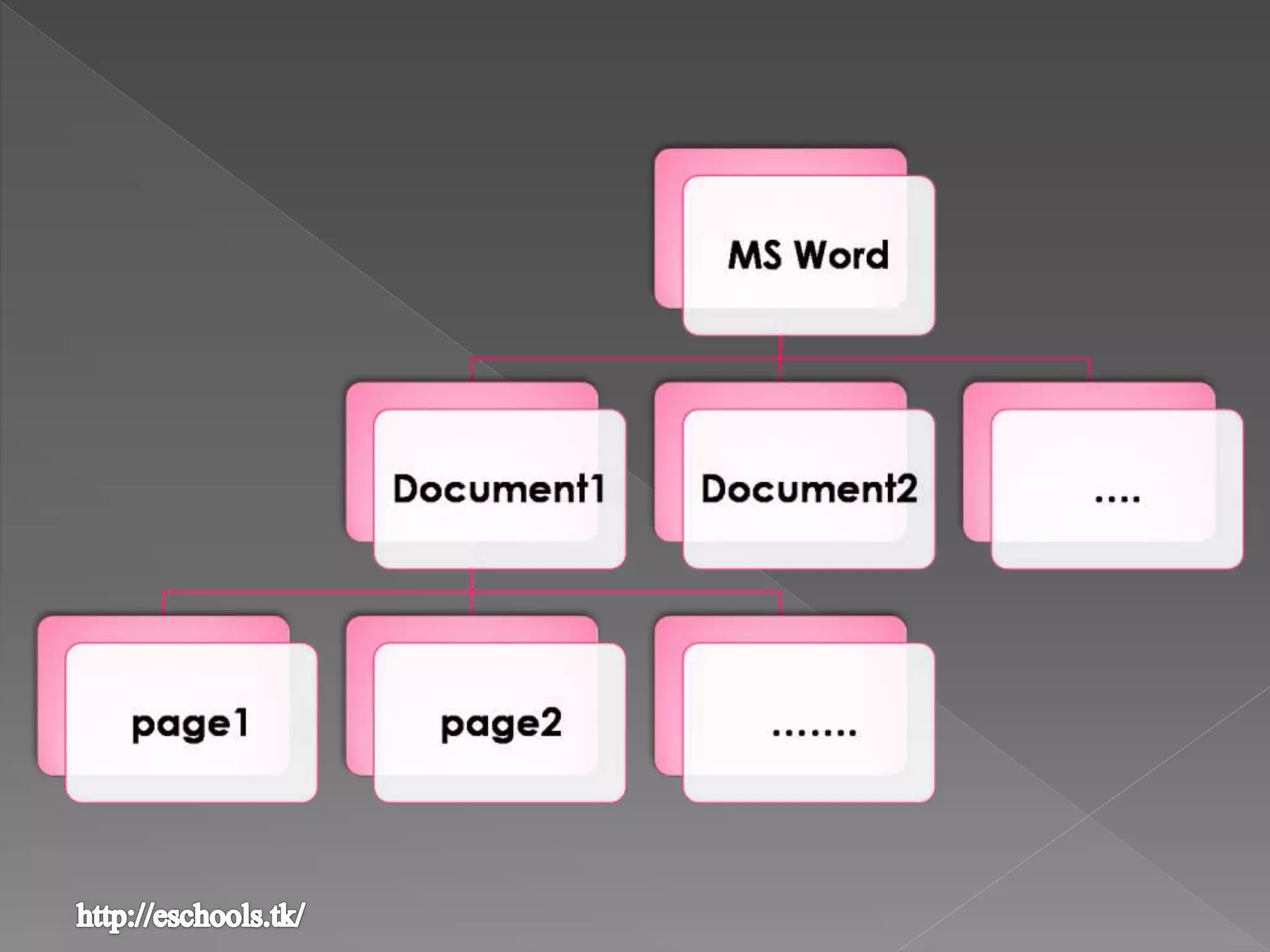
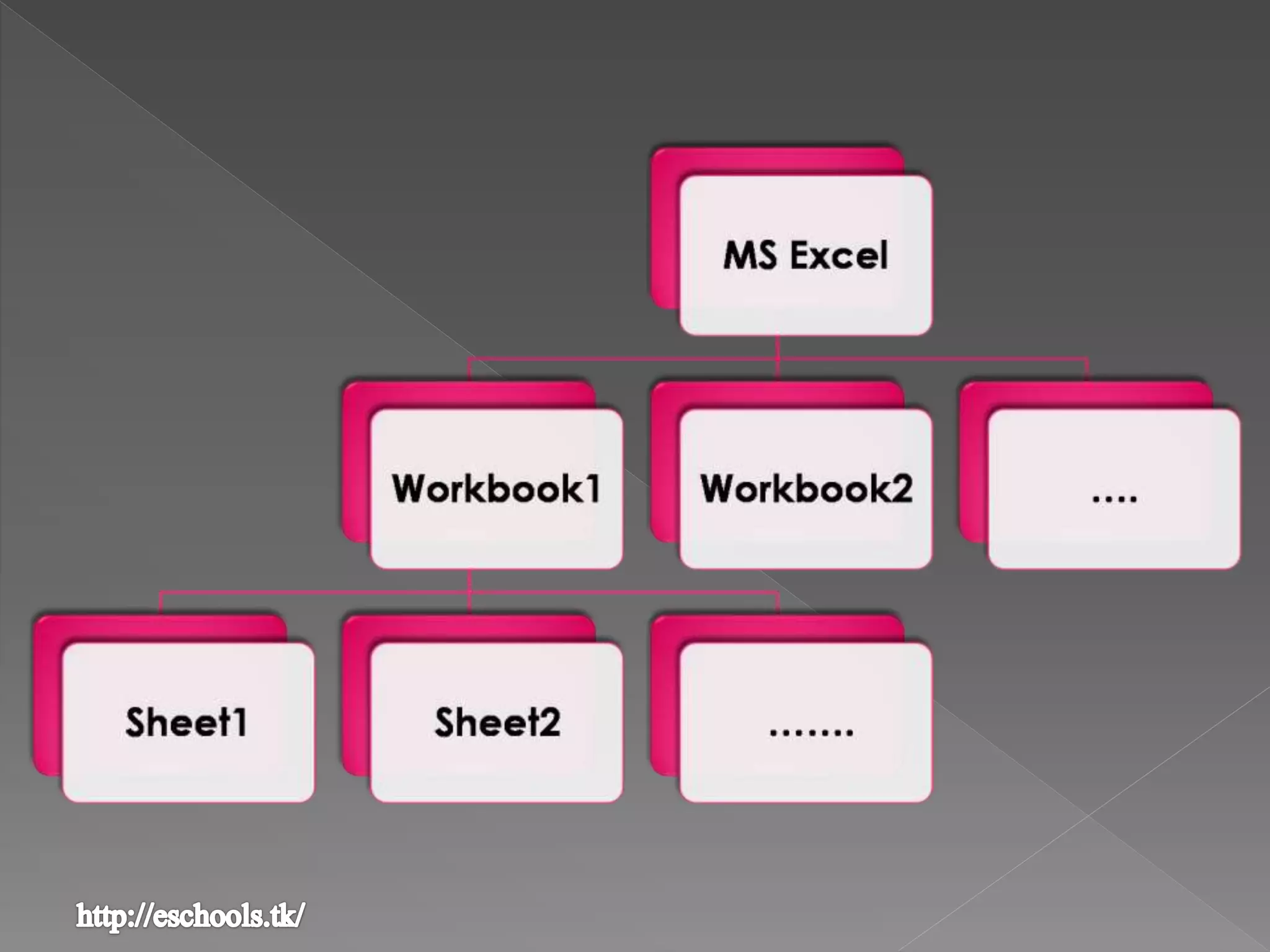
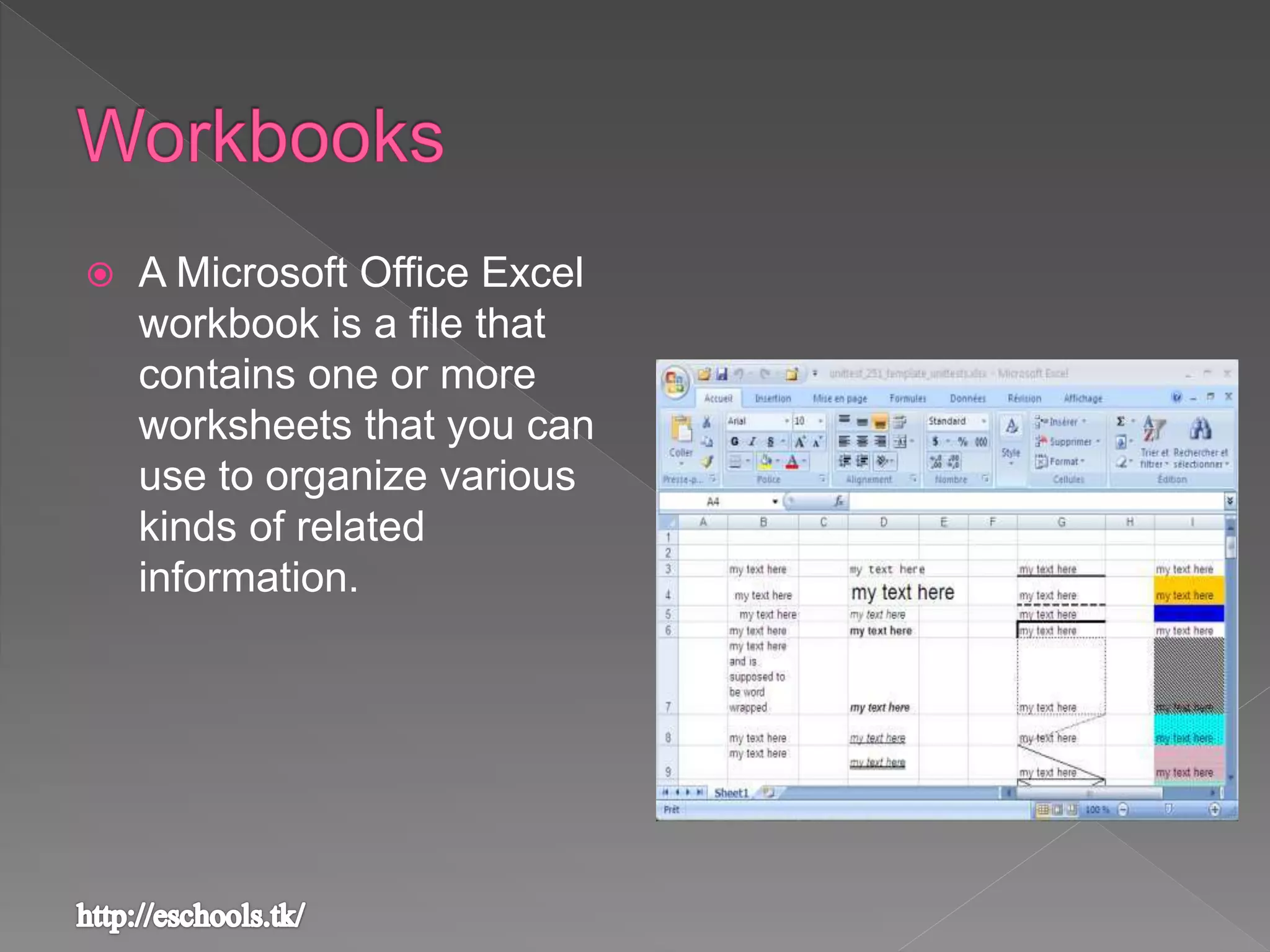
 A Microsoft Office Excel
workbook is a file that
contains one or more
worksheets that you can
use to organize various
kinds of related
information.
 The primary document that you use in Excel to store
and work with data. Also called a spreadsheet. A
worksheet is always stored in a workbook
 A worksheet consists of cells that are organized into
columns and rows
 By default, Microsoft Office Excel provides three
worksheets in a workbook
 Calculations can be made based on data from multiple
worksheets
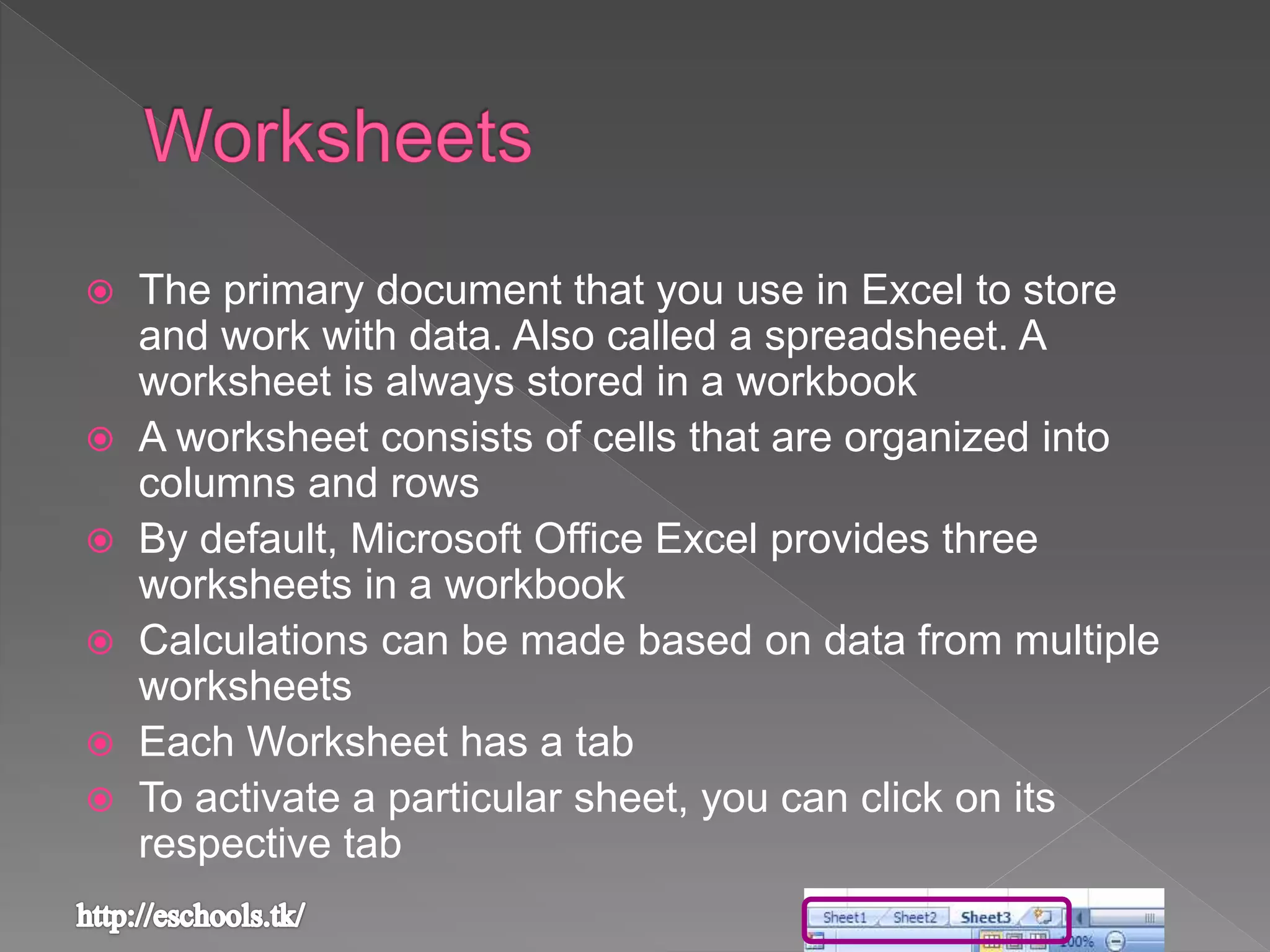
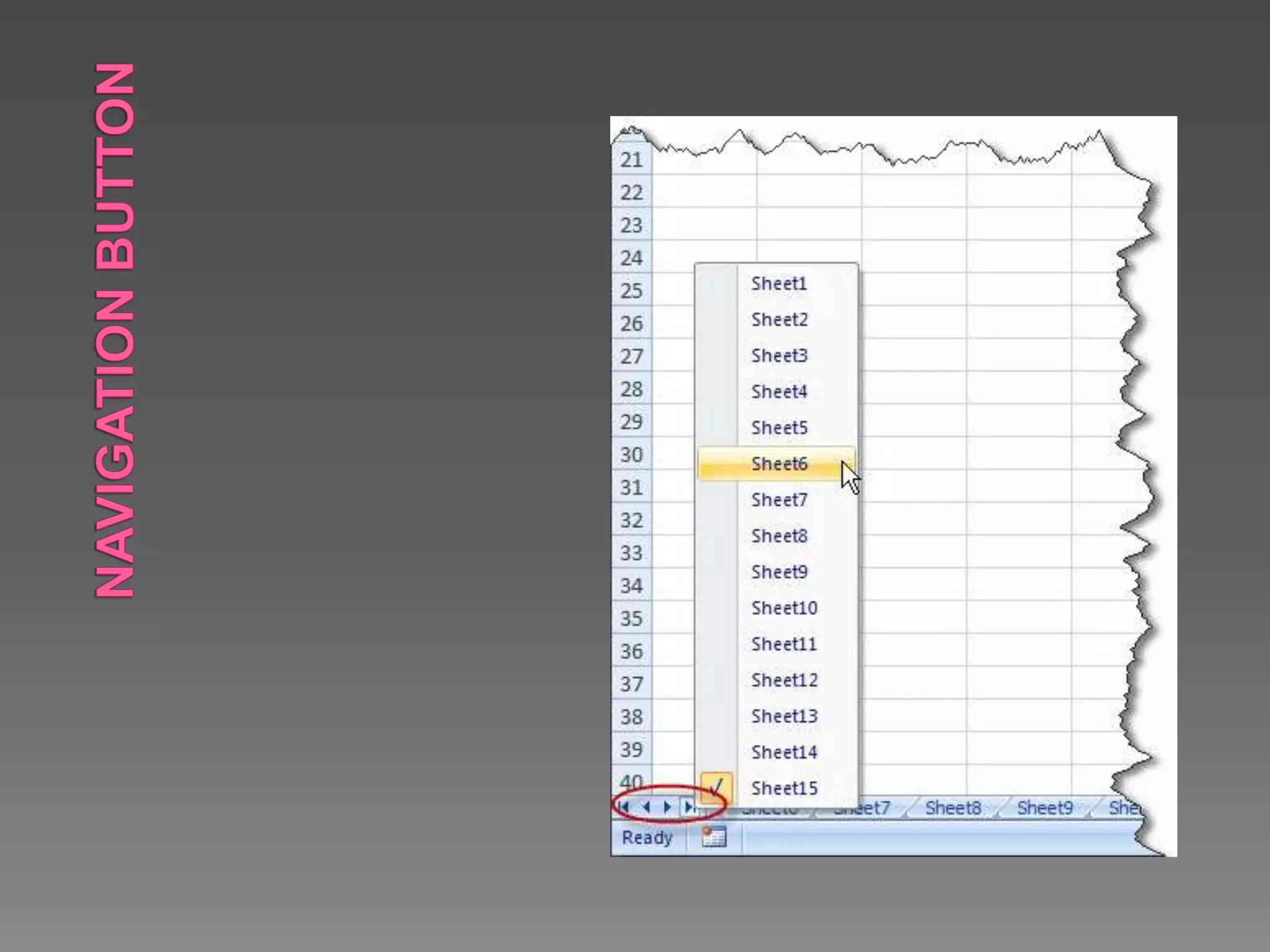
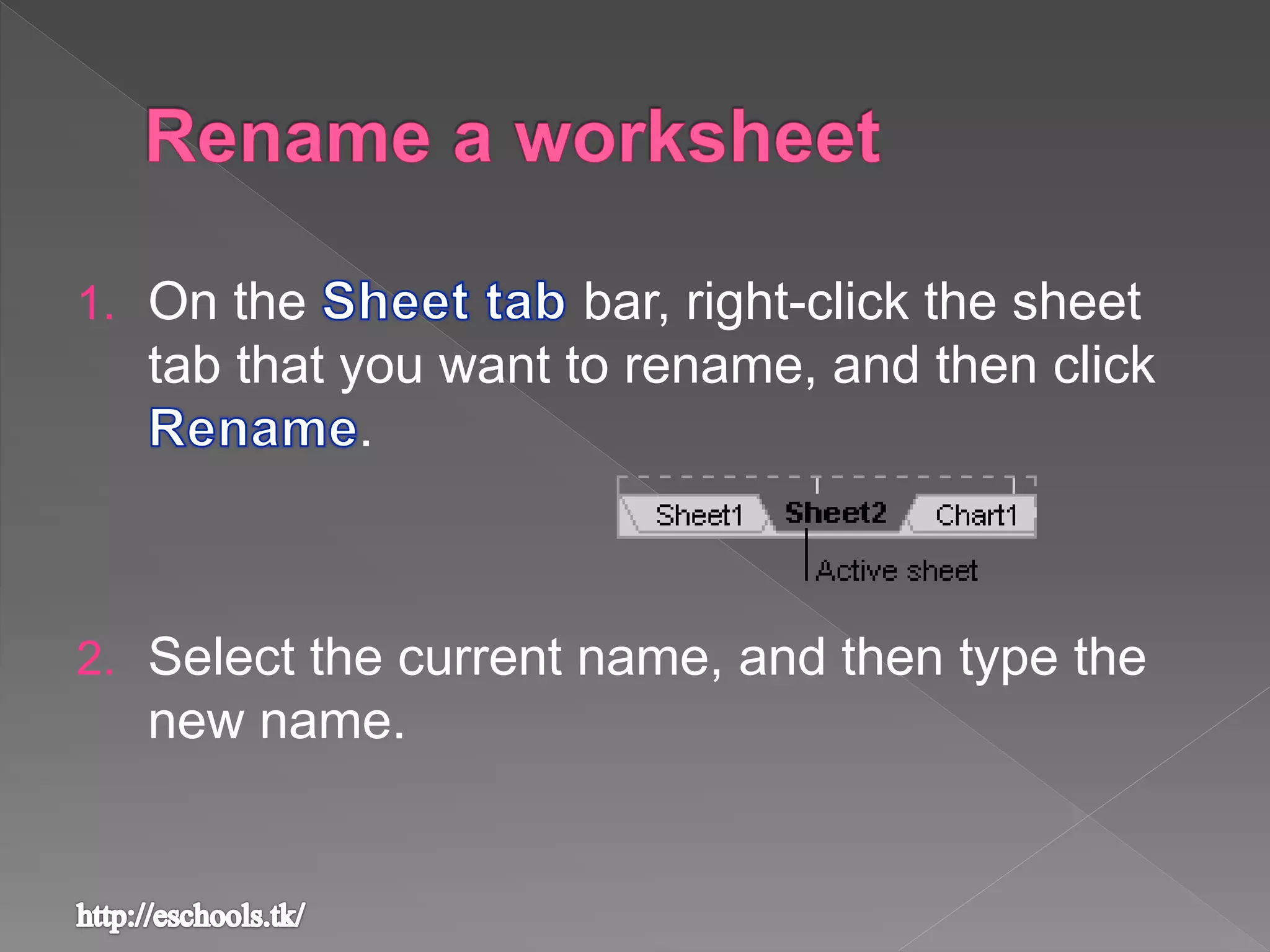
 Each Worksheet has a tab
 To activate a particular sheet, you can click on its
respective tab
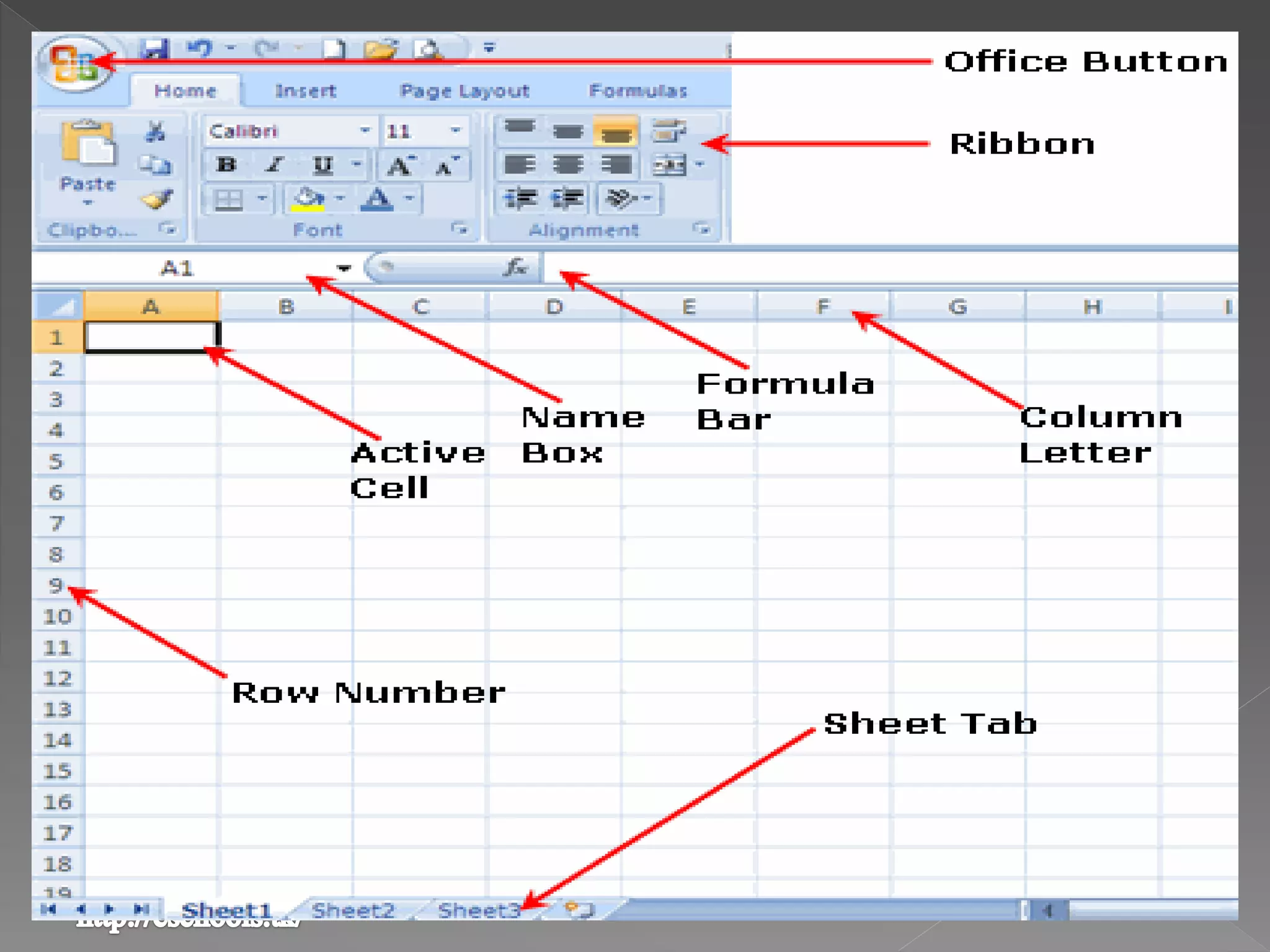
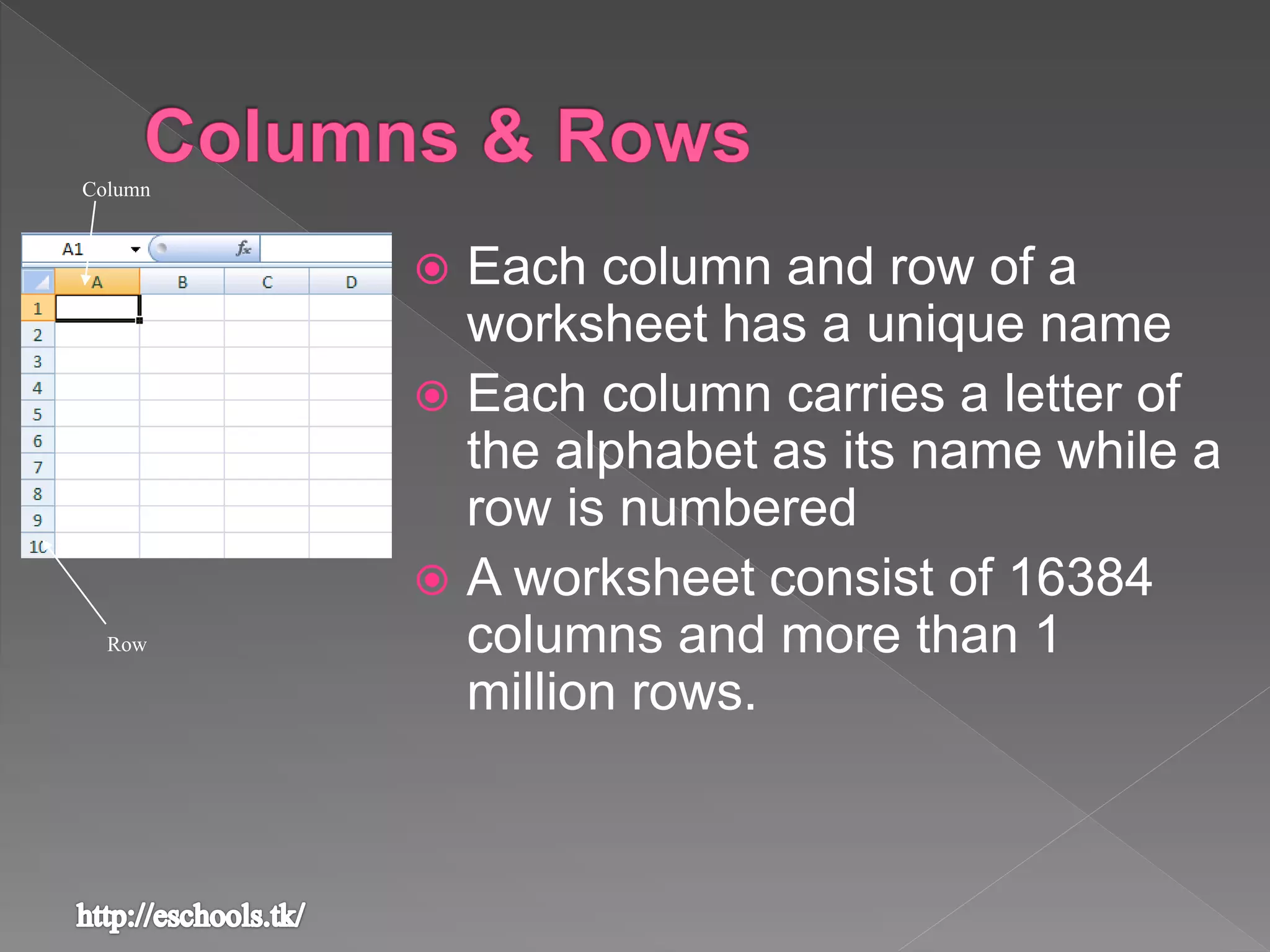
 Each column and row of a
worksheet has a unique name
 Each column carries a letter of
the alphabet as its name while a
row is numbered
 A worksheet consist of 16384
columns and more than 1
million rows.
Column
Row
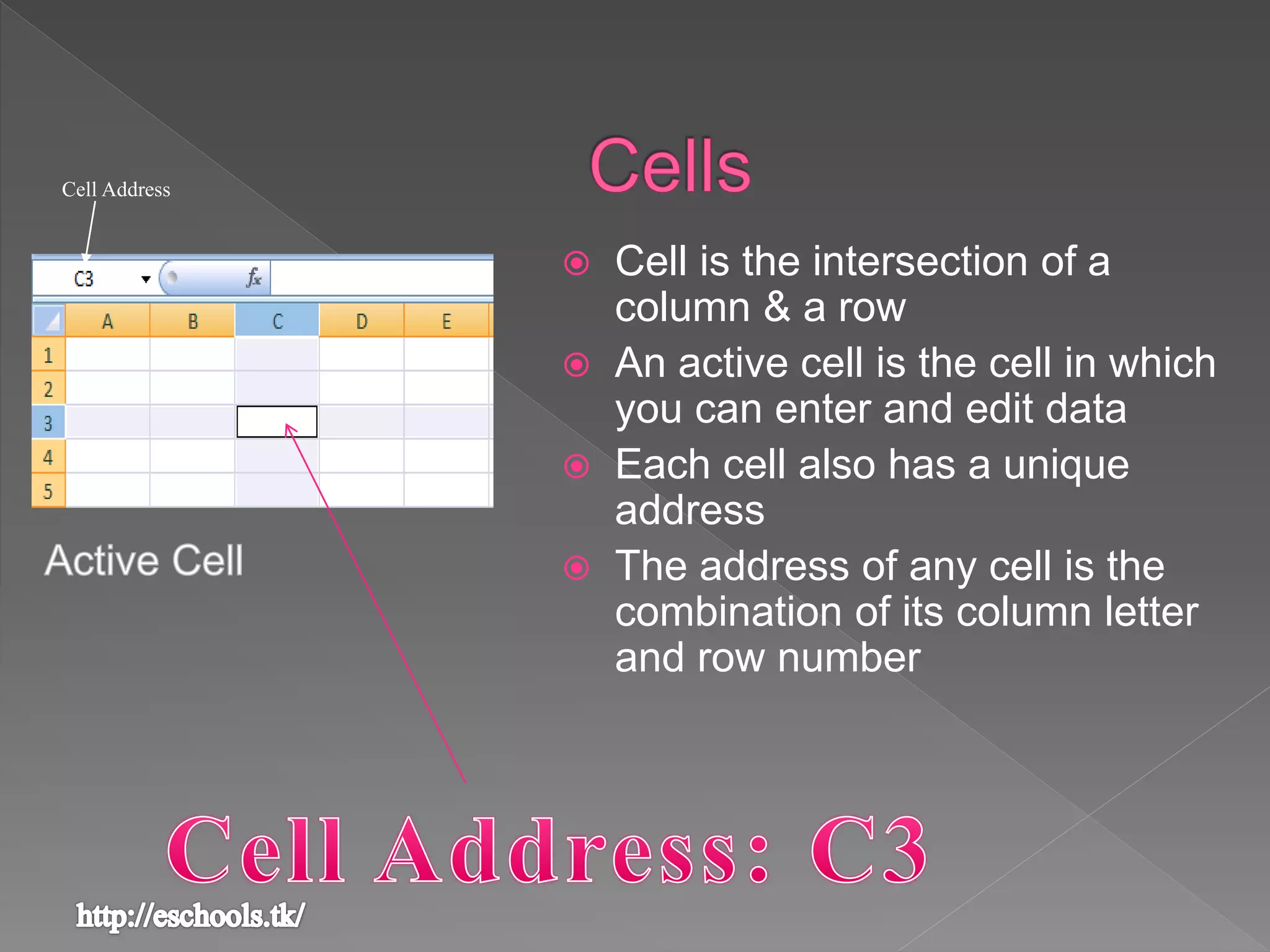
 Cell is the intersection of a
column & a row
 An active cell is the cell in which
you can enter and edit data
 Each cell also has a unique
address
 The address of any cell is the
combination of its column letter
and row number
Cell Address
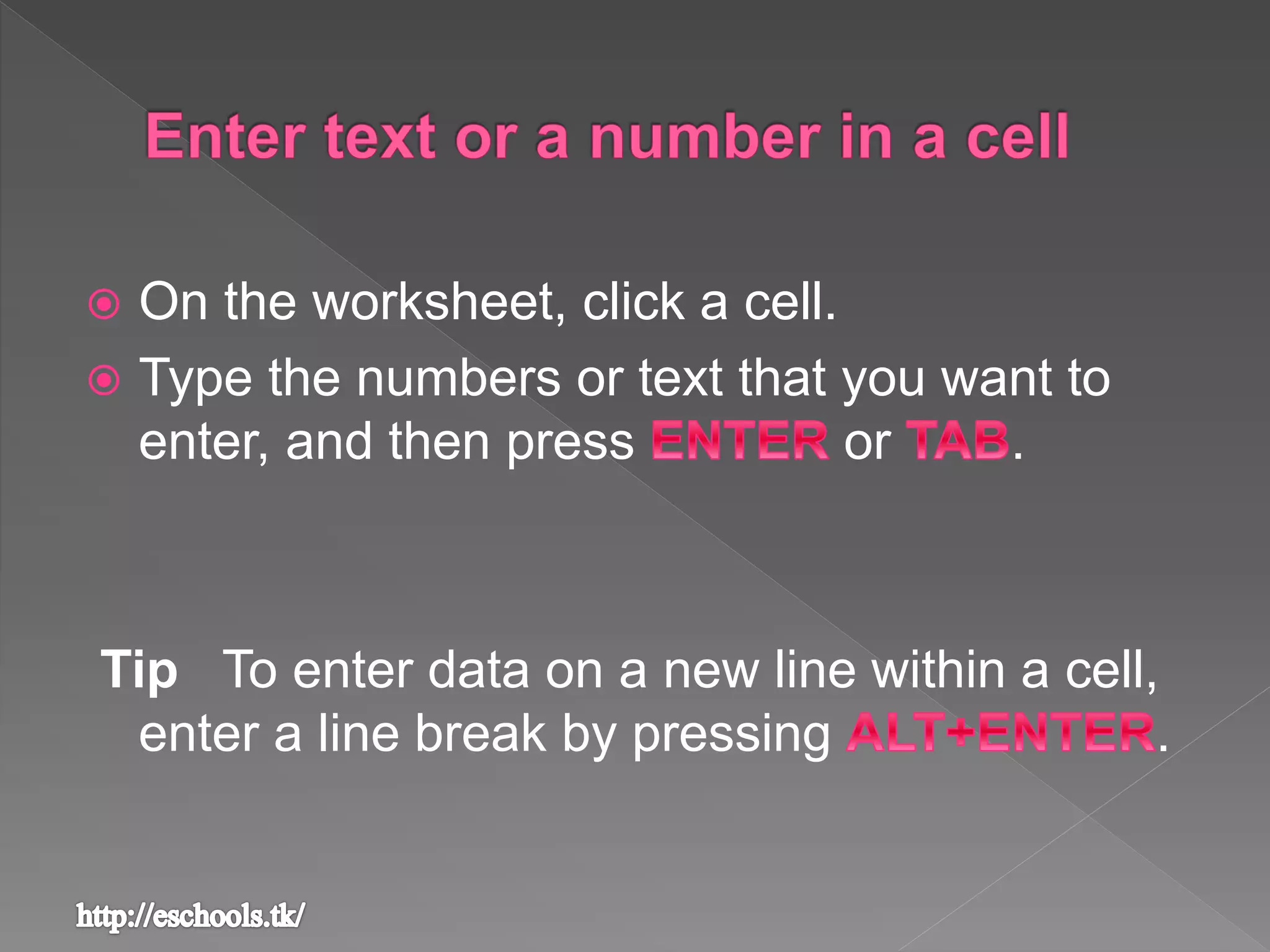
 On the worksheet, click a cell.
 Type the numbers or text that you want to
enter, and then press or .
Tip To enter data on a new line within a cell,
enter a line break by pressing .
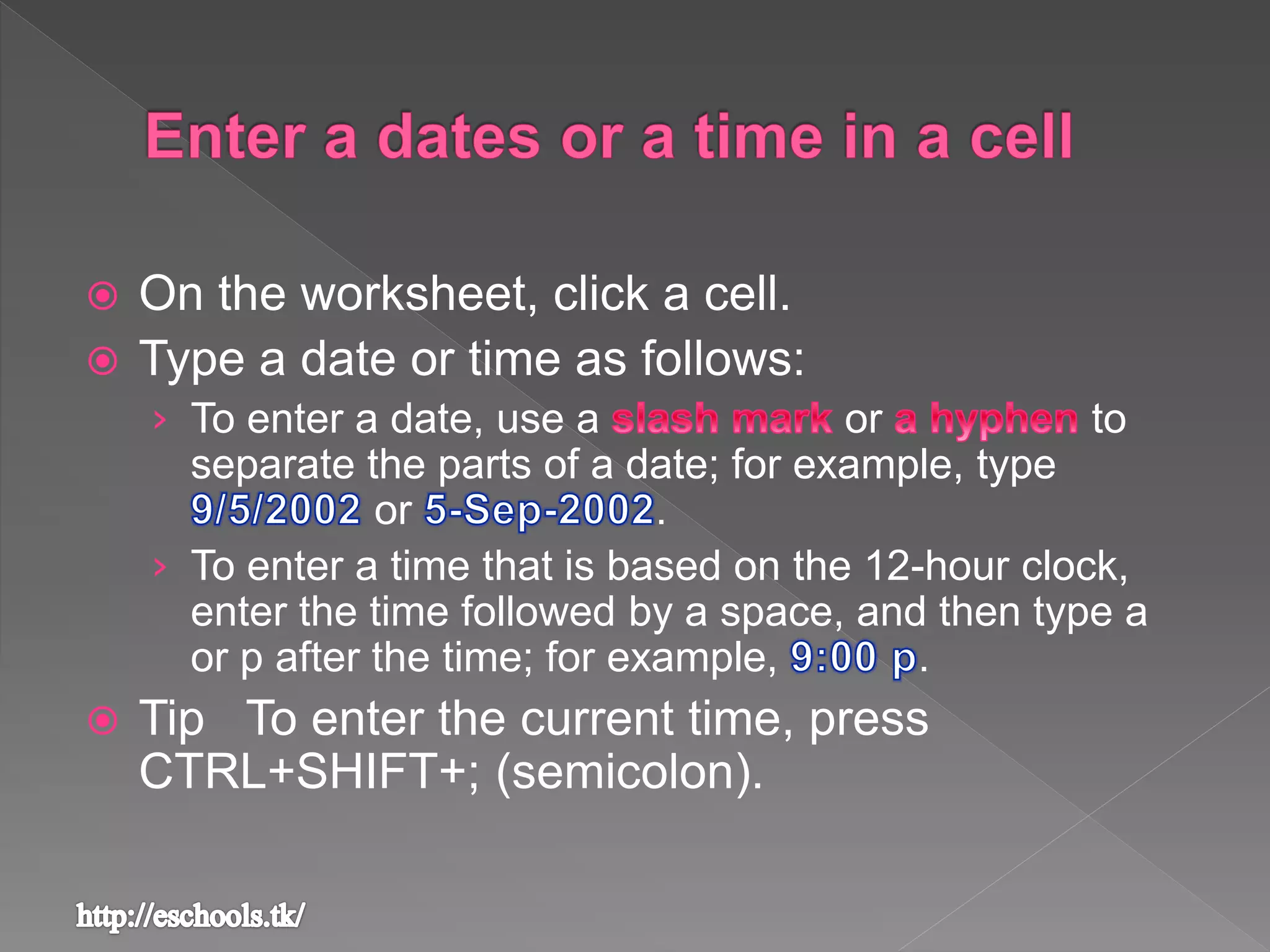
 On the worksheet, click a cell.
 Type a date or time as follows:
› To enter a date, use a or to
separate the parts of a date; for example, type
or .
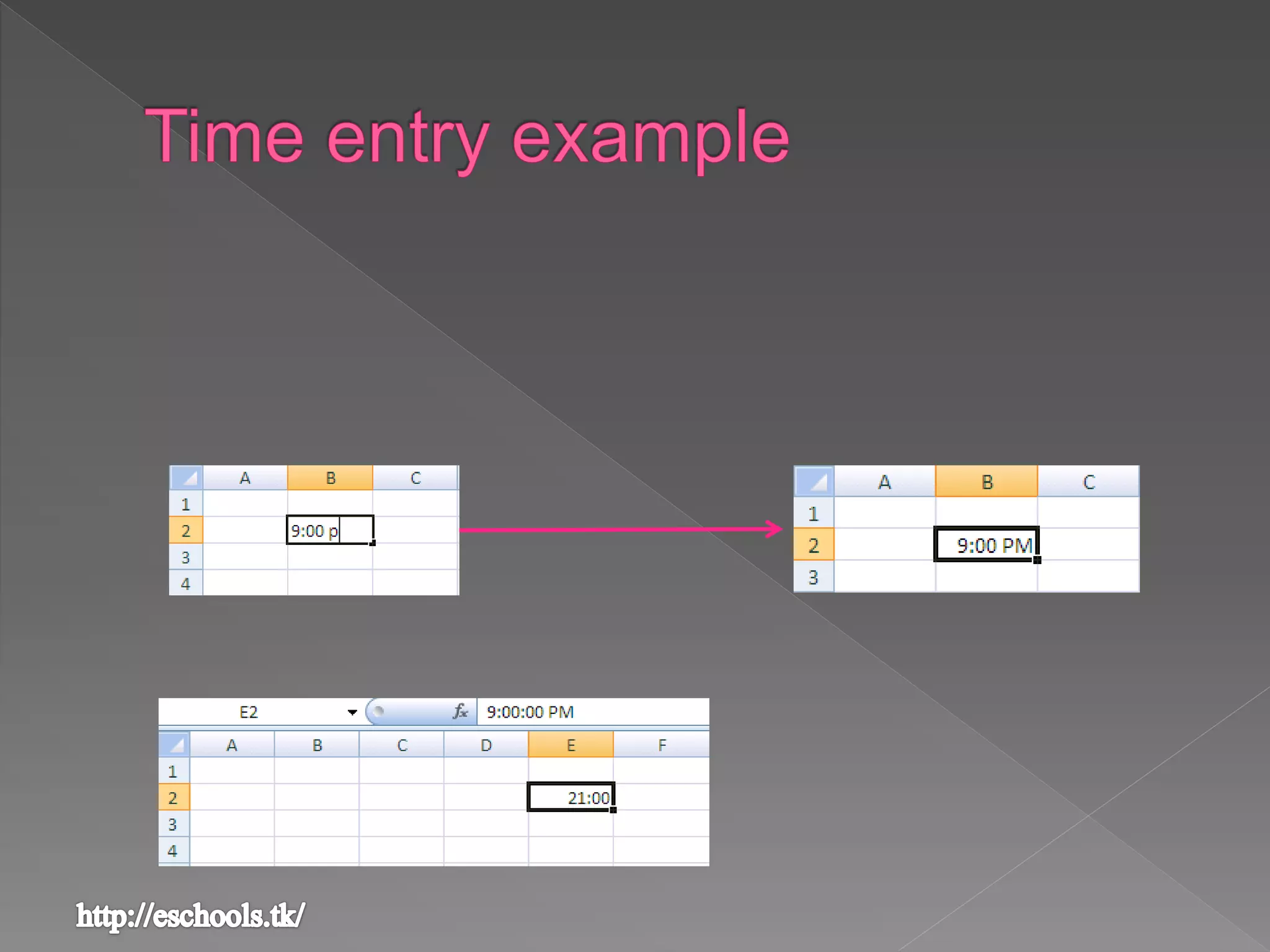
› To enter a time that is based on the 12-hour clock,
enter the time followed by a space, and then type a
or p after the time; for example, .
 Tip To enter the current time, press
CTRL+SHIFT+; (semicolon).
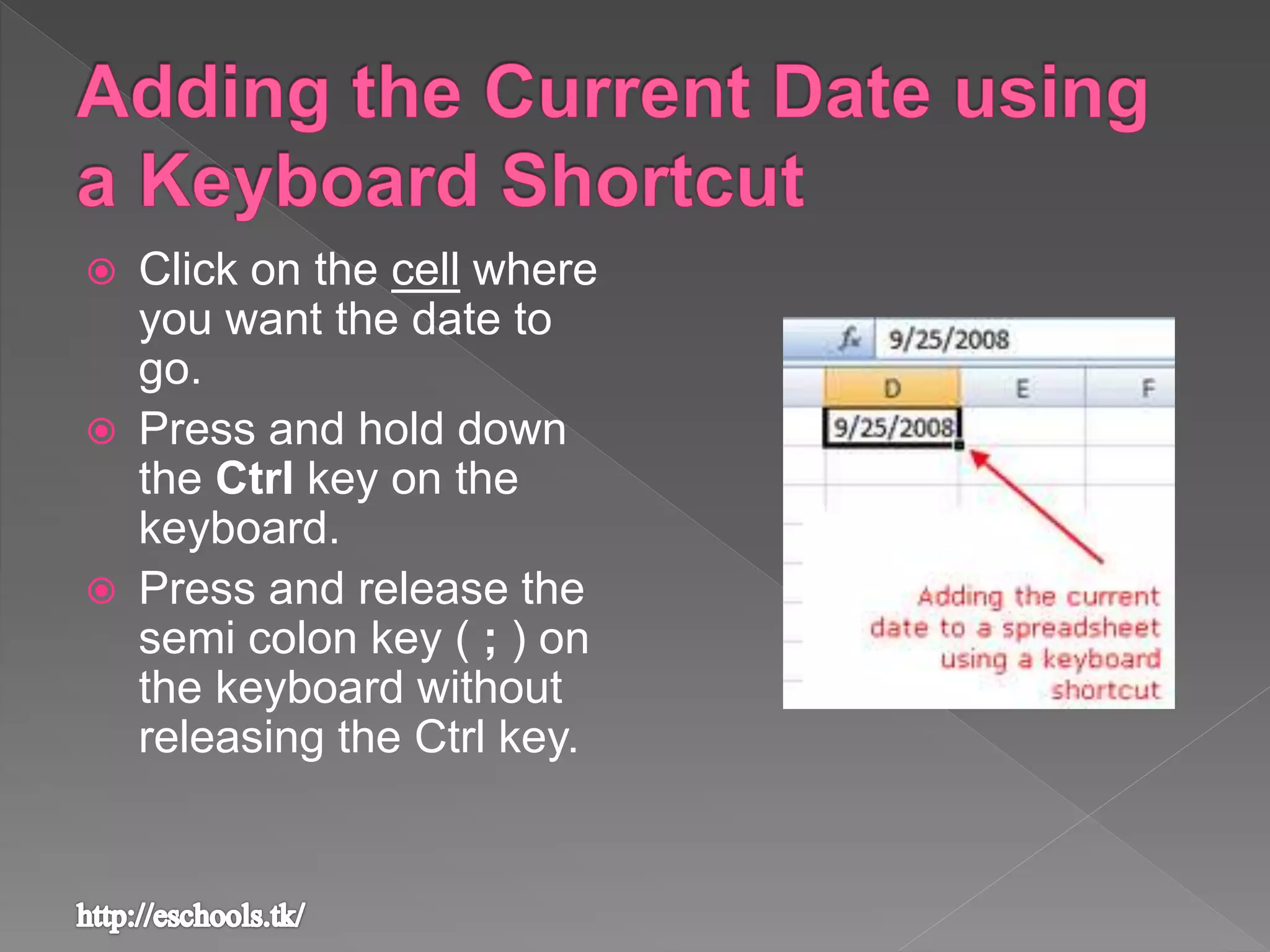
 Click on the cell where
you want the date to
go.
 Press and hold down
the Ctrl key on the
keyboard.
 Press and release the
semi colon key ( ; ) on
the keyboard without
releasing the Ctrl key.
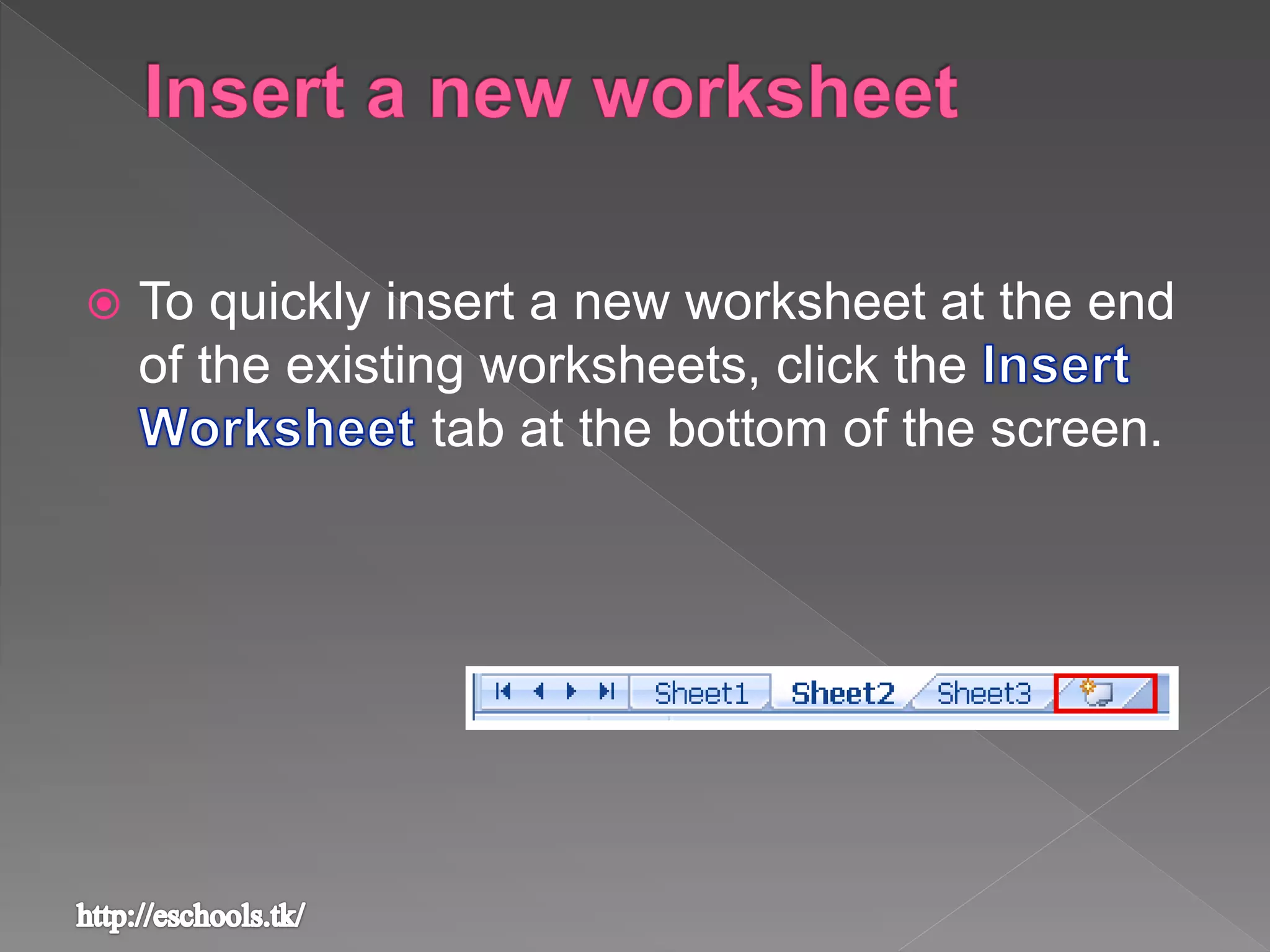
 To quickly insert a new worksheet at the end
of the existing worksheets, click the
tab at the bottom of the screen.
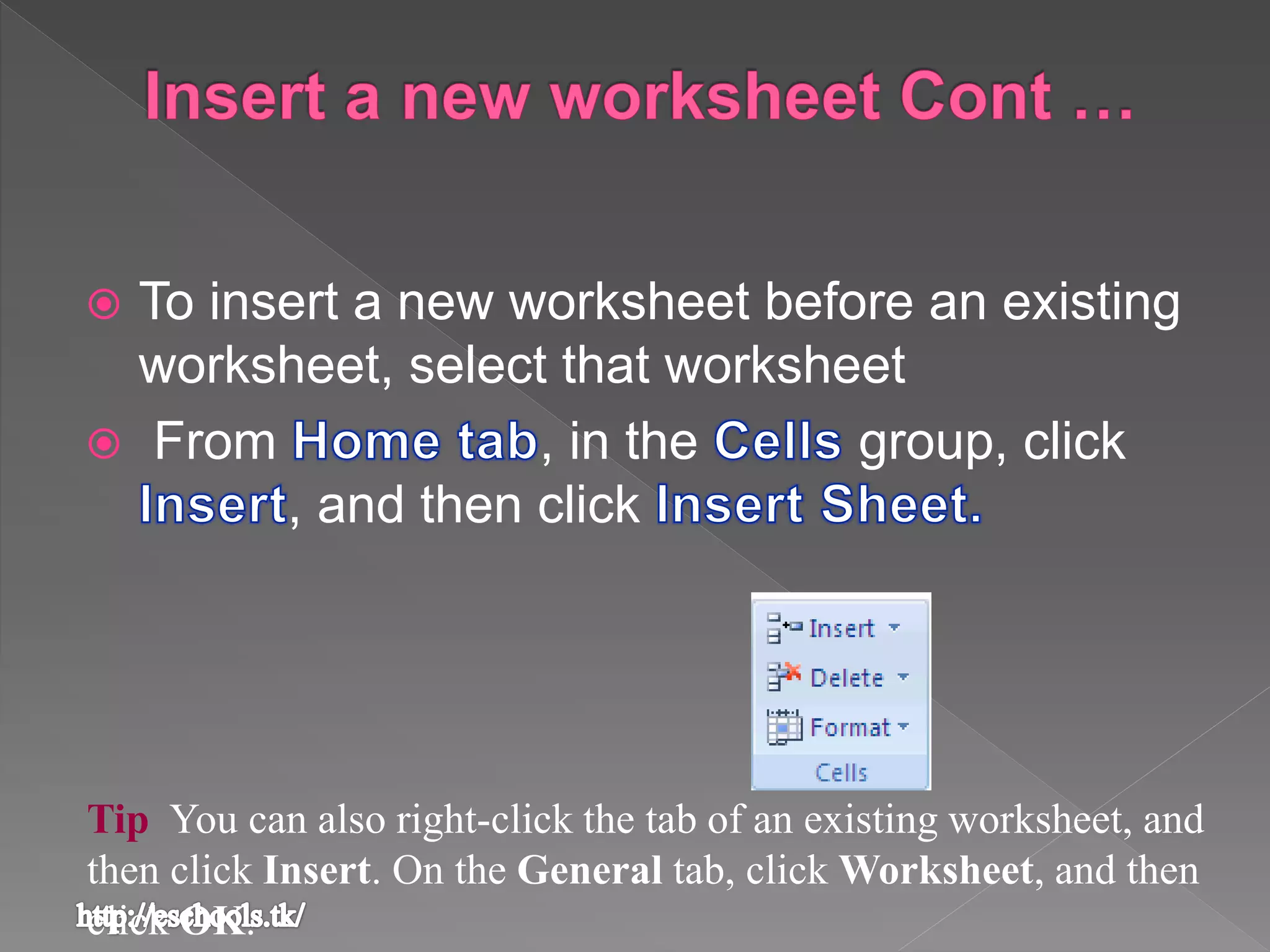
 To insert a new worksheet before an existing
worksheet, select that worksheet
 From , in the group, click
, and then click
Tip You can also right-click the tab of an existing worksheet, and
then click Insert. On the General tab, click Worksheet, and then
click OK.
1. On the bar, right-click the sheet
tab that you want to rename, and then click
.
2. Select the current name, and then type the
new name.
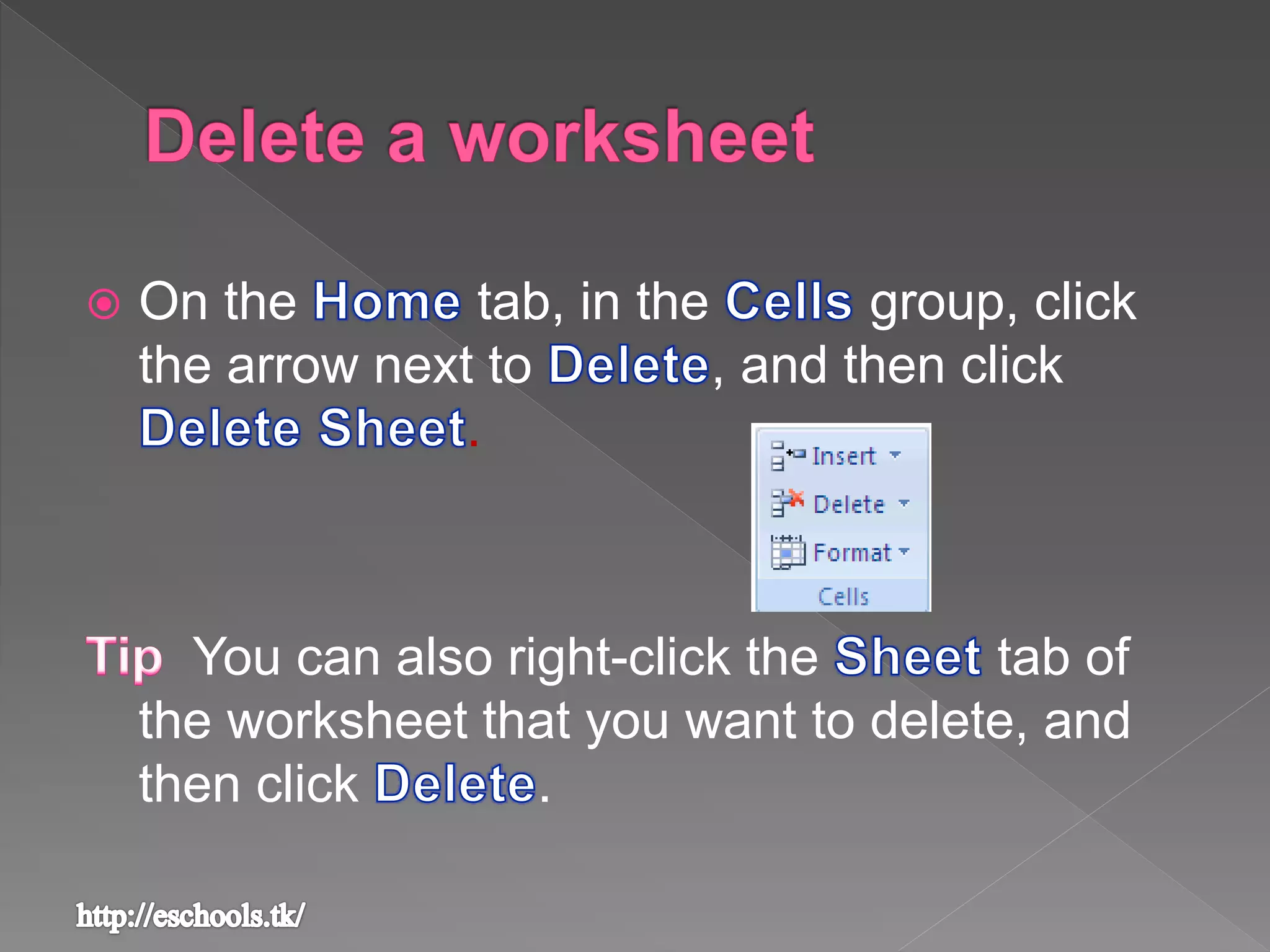
 On the tab, in the group, click
the arrow next to , and then click
.
You can also right-click the tab of
the worksheet that you want to delete, and
then click .
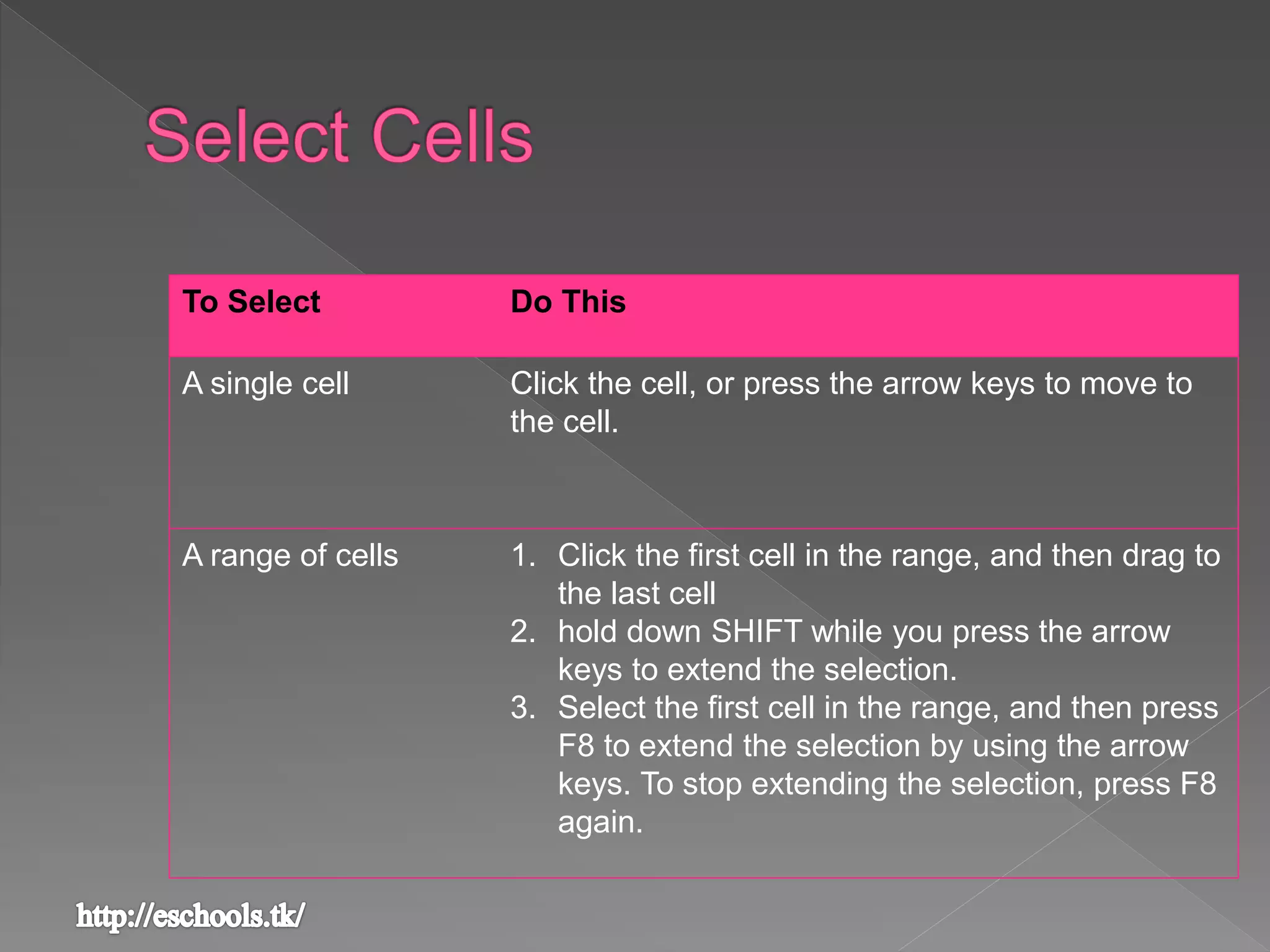
To Select Do This
A single cell Click the cell, or press the arrow keys to move to
the cell.
A range of cells 1. Click the first cell in the range, and then drag to
the last cell
2. hold down SHIFT while you press the arrow
keys to extend the selection.
3. Select the first cell in the range, and then press
F8 to extend the selection by using the arrow
keys. To stop extending the selection, press F8
again.
To Select Do This
All cells on a
worksheet
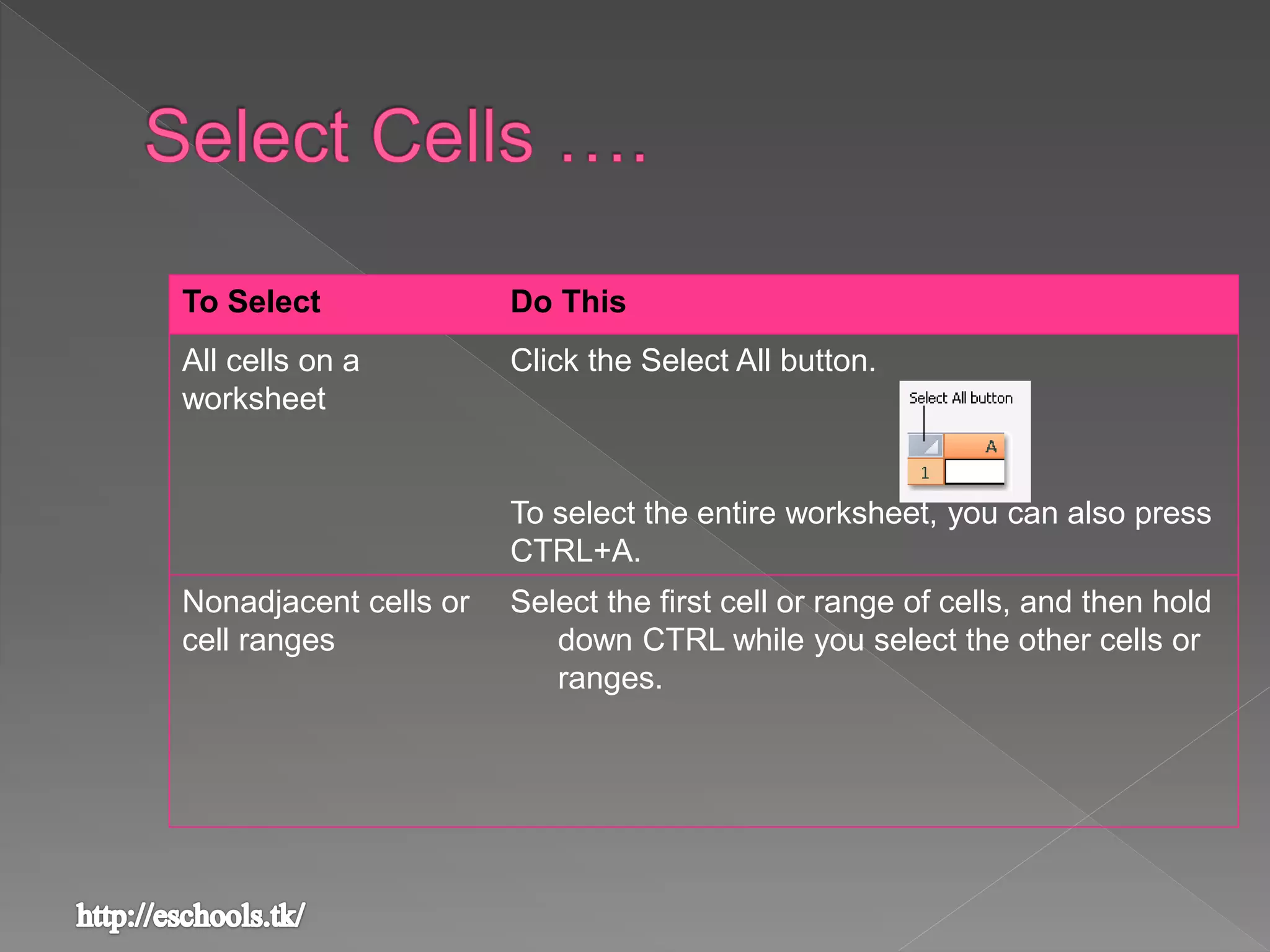
Click the Select All button.
To select the entire worksheet, you can also press
CTRL+A.
Nonadjacent cells or
cell ranges
Select the first cell or range of cells, and then hold
down CTRL while you select the other cells or
ranges.
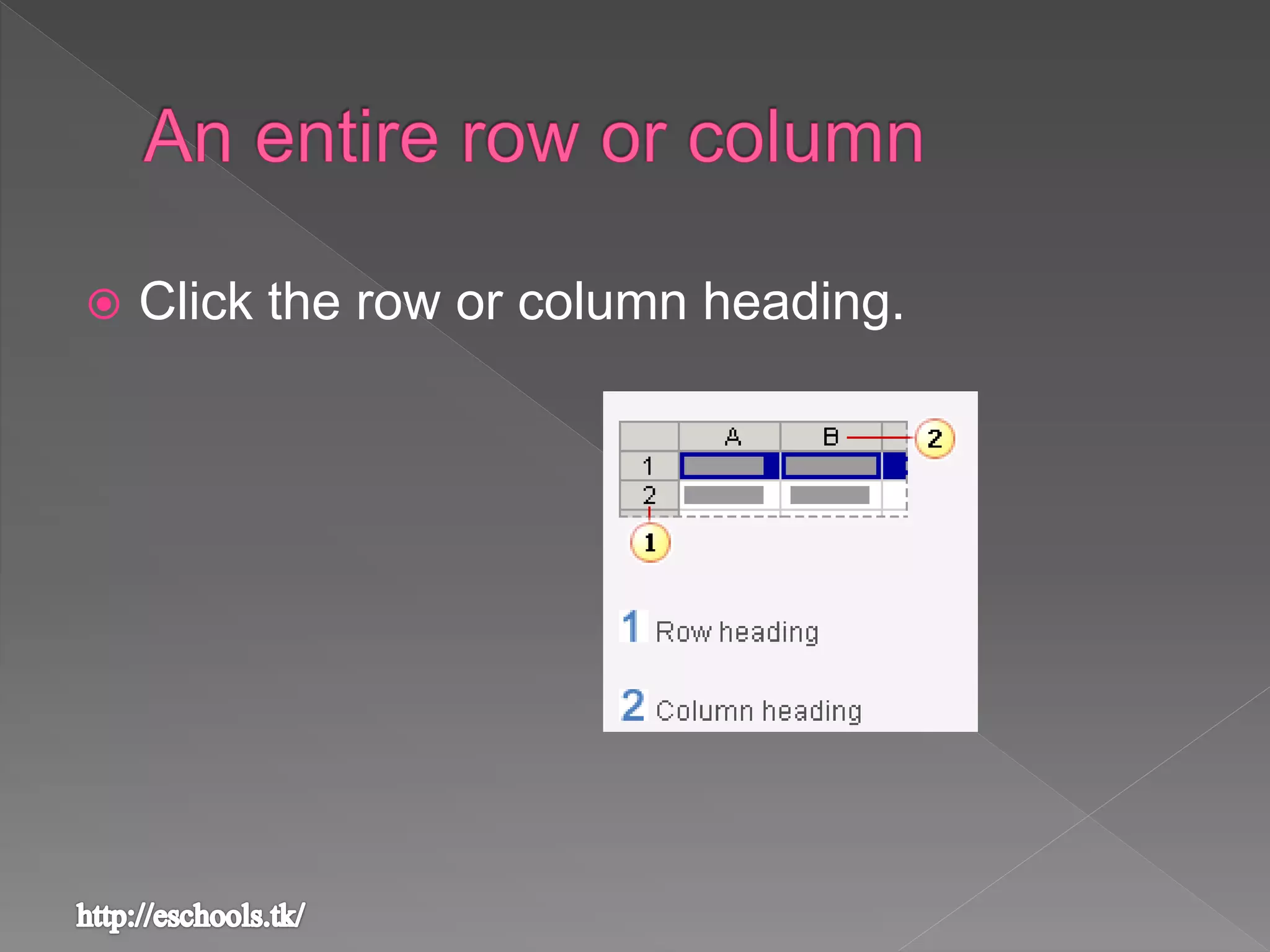
 Click the row or column heading.
To Select Do This
Adjacent rows or
columns
Drag across the row or column headings.
Or select the first row or column; then
hold down SHIFT while you select the
last row or column.
Nonadjacent
rows or columns
Click the column or row heading of the
first row or column in your selection; then
hold down CTRL while you click the
column or row headings of other rows or
columns that you want to add to the
selection.
To select the contents of
a cell
Do this
In the cell Double-click the cell, and then drag
across the contents of the cell that you
want to select.
By using the keyboard Press F2 to edit the cell, use the arrow
keys to position the insertion point, and
then press SHIFT+ARROW key to
select the contents.
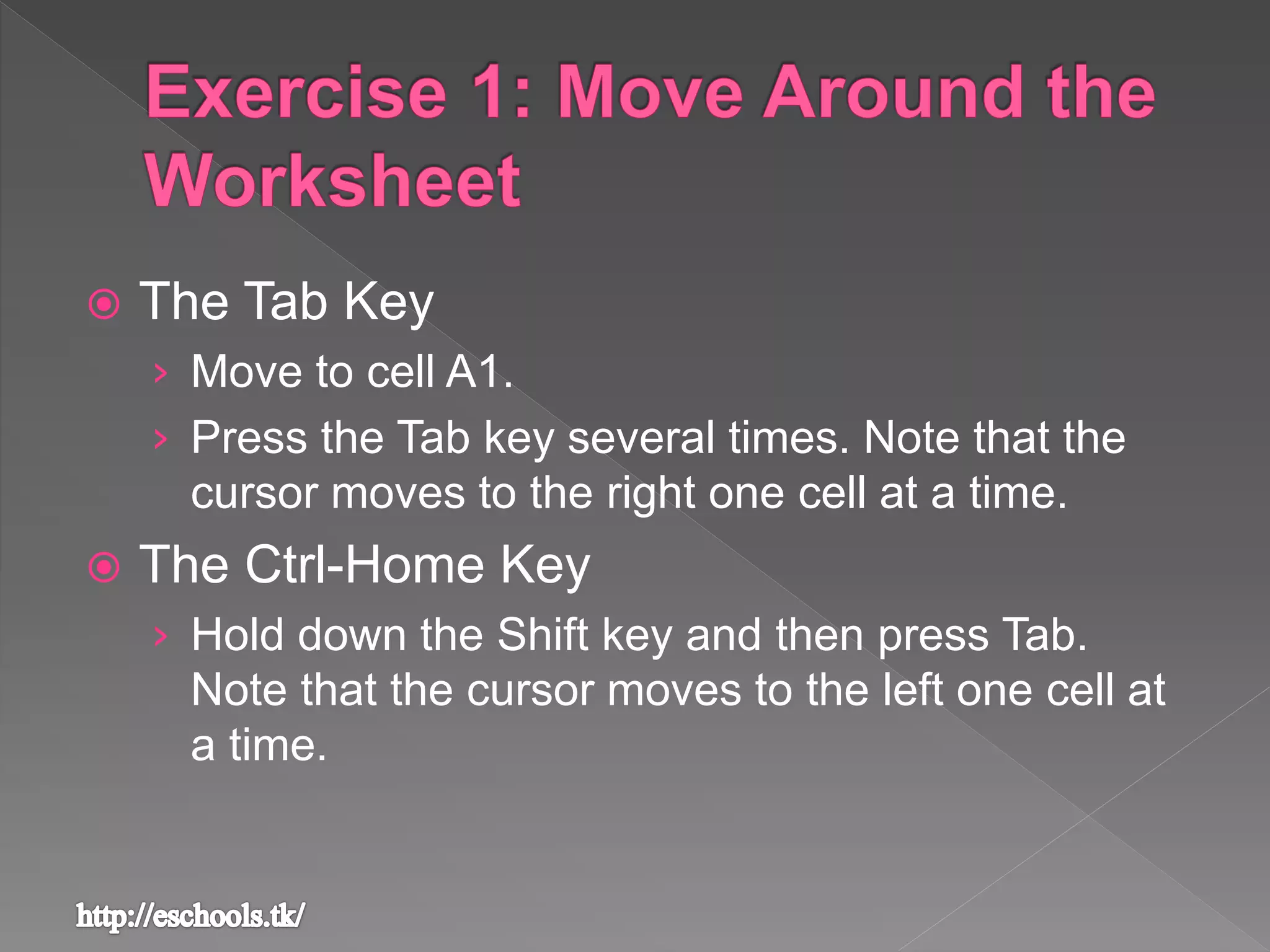
 The Tab Key
› Move to cell A1.
› Press the Tab key several times. Note that the
cursor moves to the right one cell at a time.
 The Ctrl-Home Key
› Hold down the Shift key and then press Tab.
Note that the cursor moves to the left one cell at
a time.
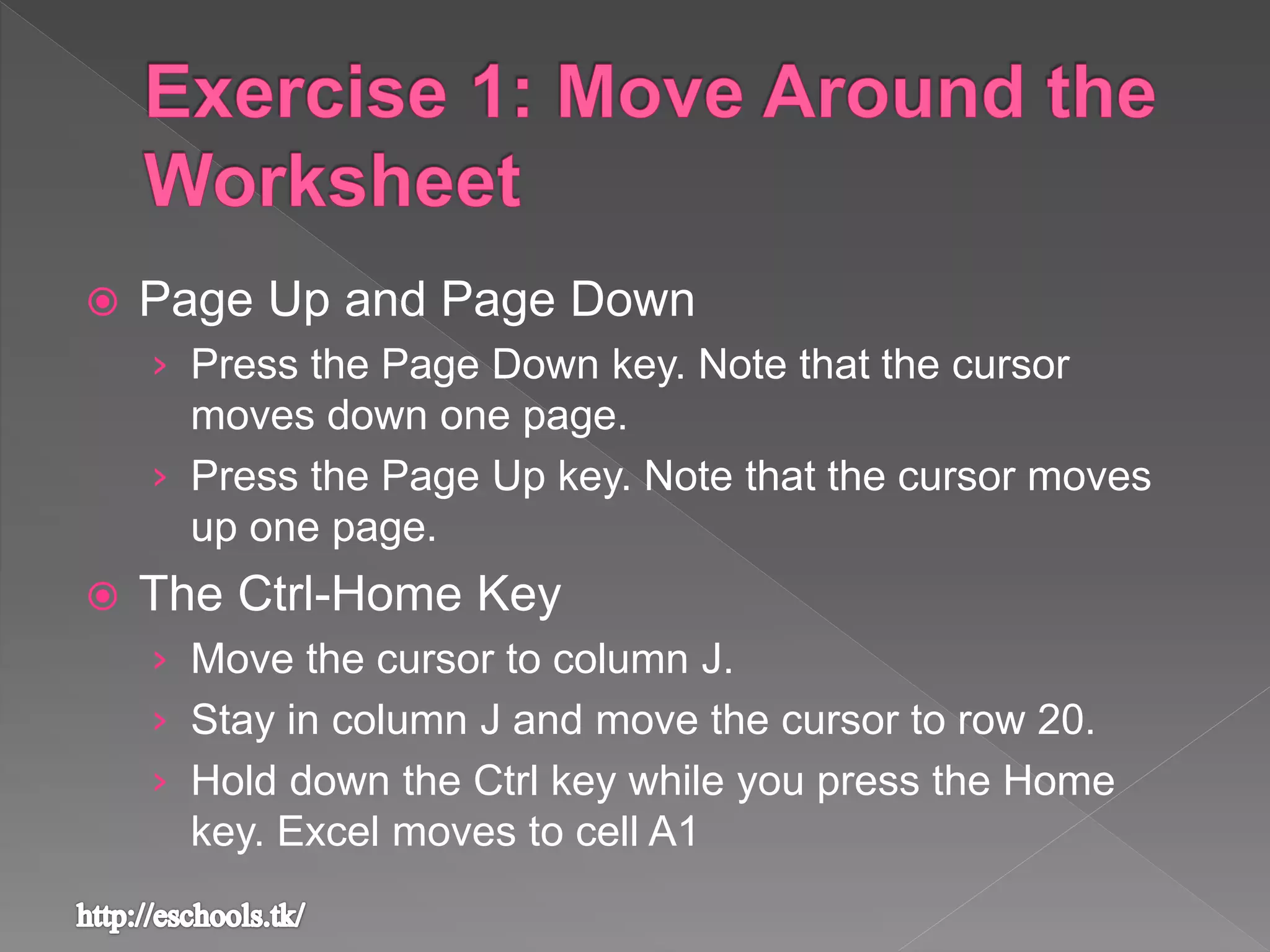
 Page Up and Page Down
› Press the Page Down key. Note that the cursor
moves down one page.
› Press the Page Up key. Note that the cursor moves
up one page.
 The Ctrl-Home Key
› Move the cursor to column J.
› Stay in column J and move the cursor to row 20.
› Hold down the Ctrl key while you press the Home
key. Excel moves to cell A1
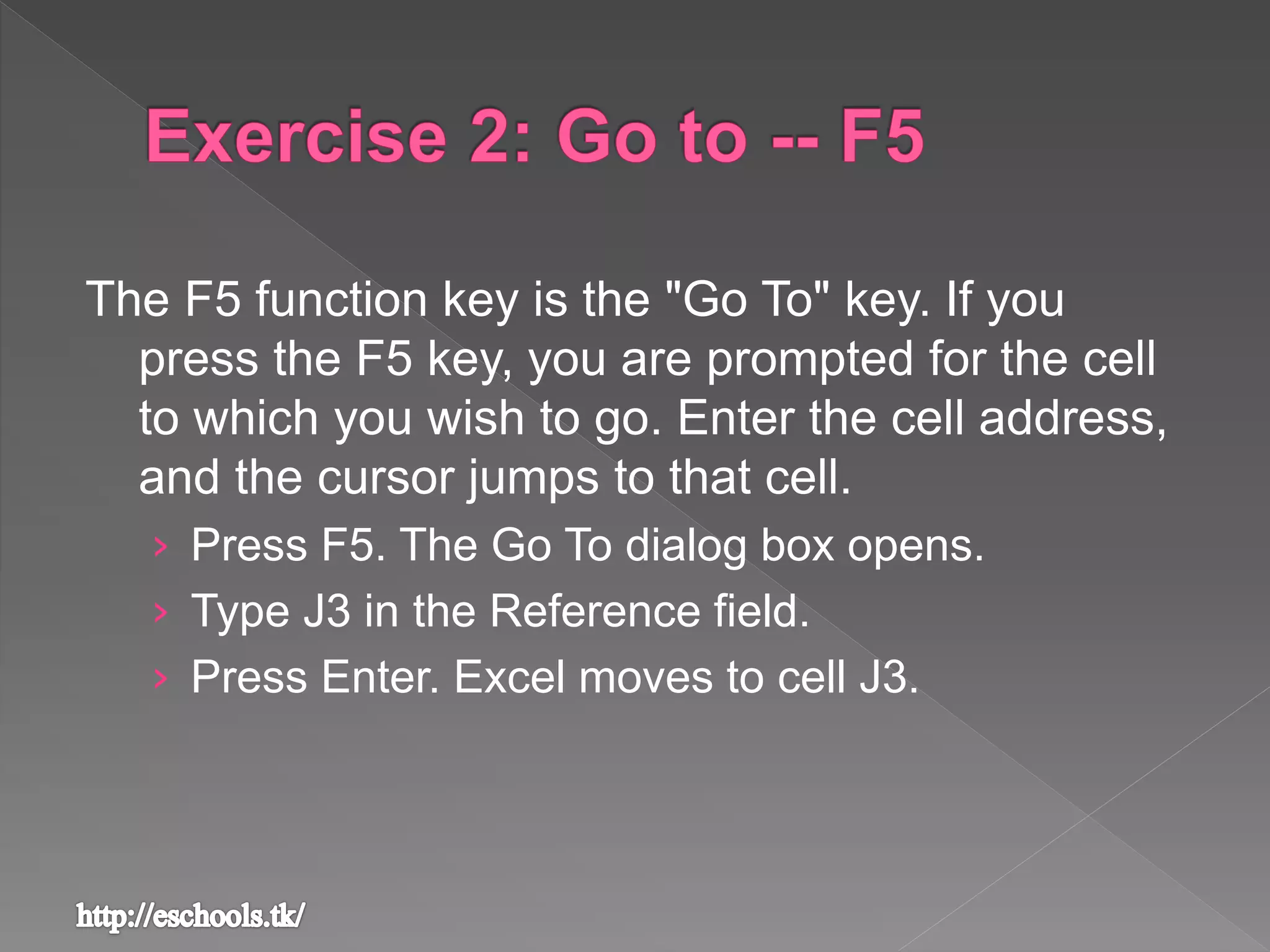
The F5 function key is the "Go To" key. If you
press the F5 key, you are prompted for the cell
to which you wish to go. Enter the cell address,
and the cursor jumps to that cell.
› Press F5. The Go To dialog box opens.
› Type J3 in the Reference field.
› Press Enter. Excel moves to cell J3.
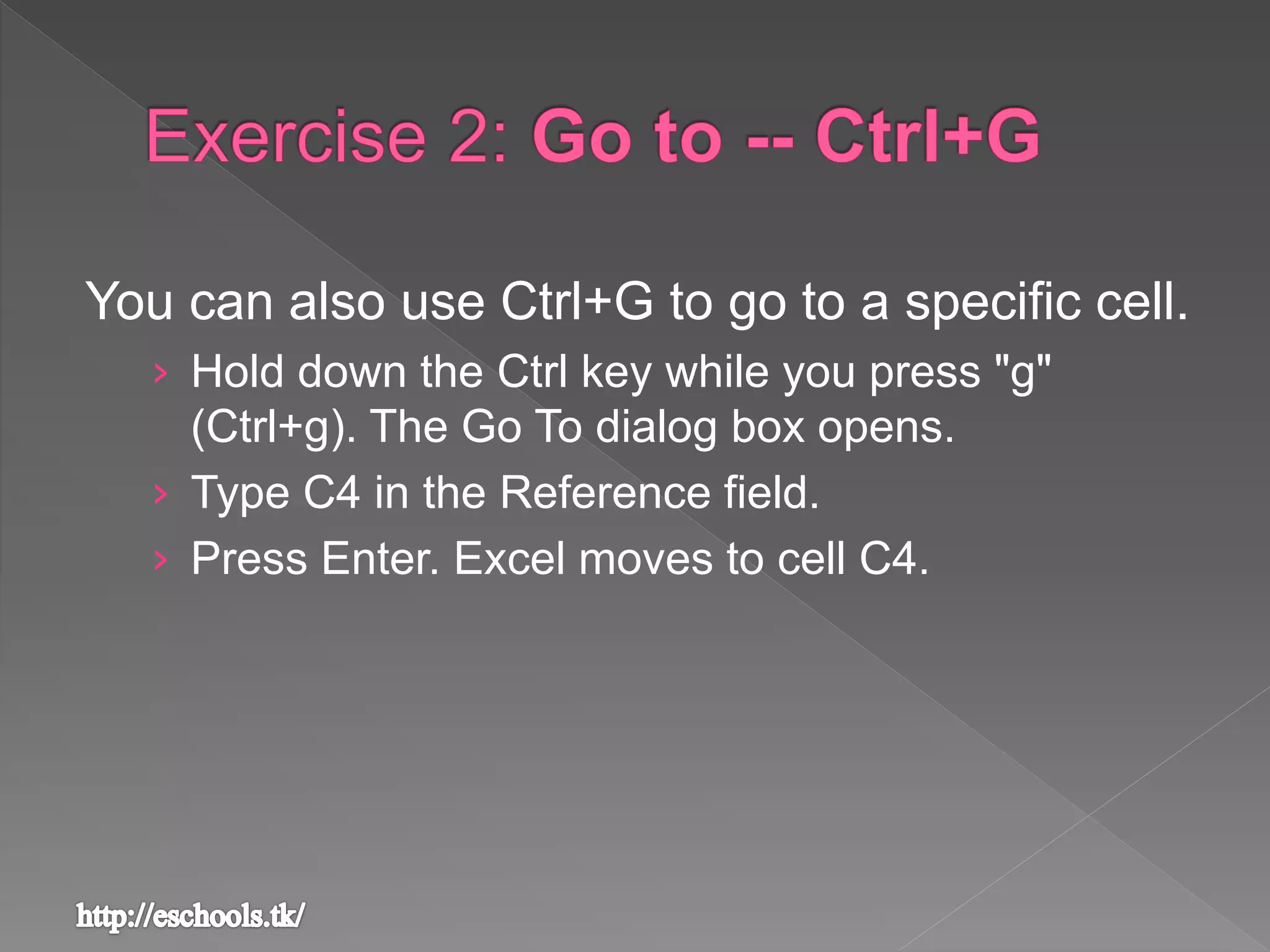
You can also use Ctrl+G to go to a specific cell.
› Hold down the Ctrl key while you press "g"
(Ctrl+g). The Go To dialog box opens.
› Type C4 in the Reference field.
› Press Enter. Excel moves to cell C4.
To select cells A1 to E1:
1. Go to cell A1.
2. Press the key. This anchors the cursor.
3. Note that "Extend Selection" appears on the
Status bar in the lower-left corner of the
window. You are in the Extend mode.
4. Click in cell E7. Excel highlights cells A1 to E7.
5. Press Esc and click anywhere on the
worksheet to clear the highlighting.
 Enter Data
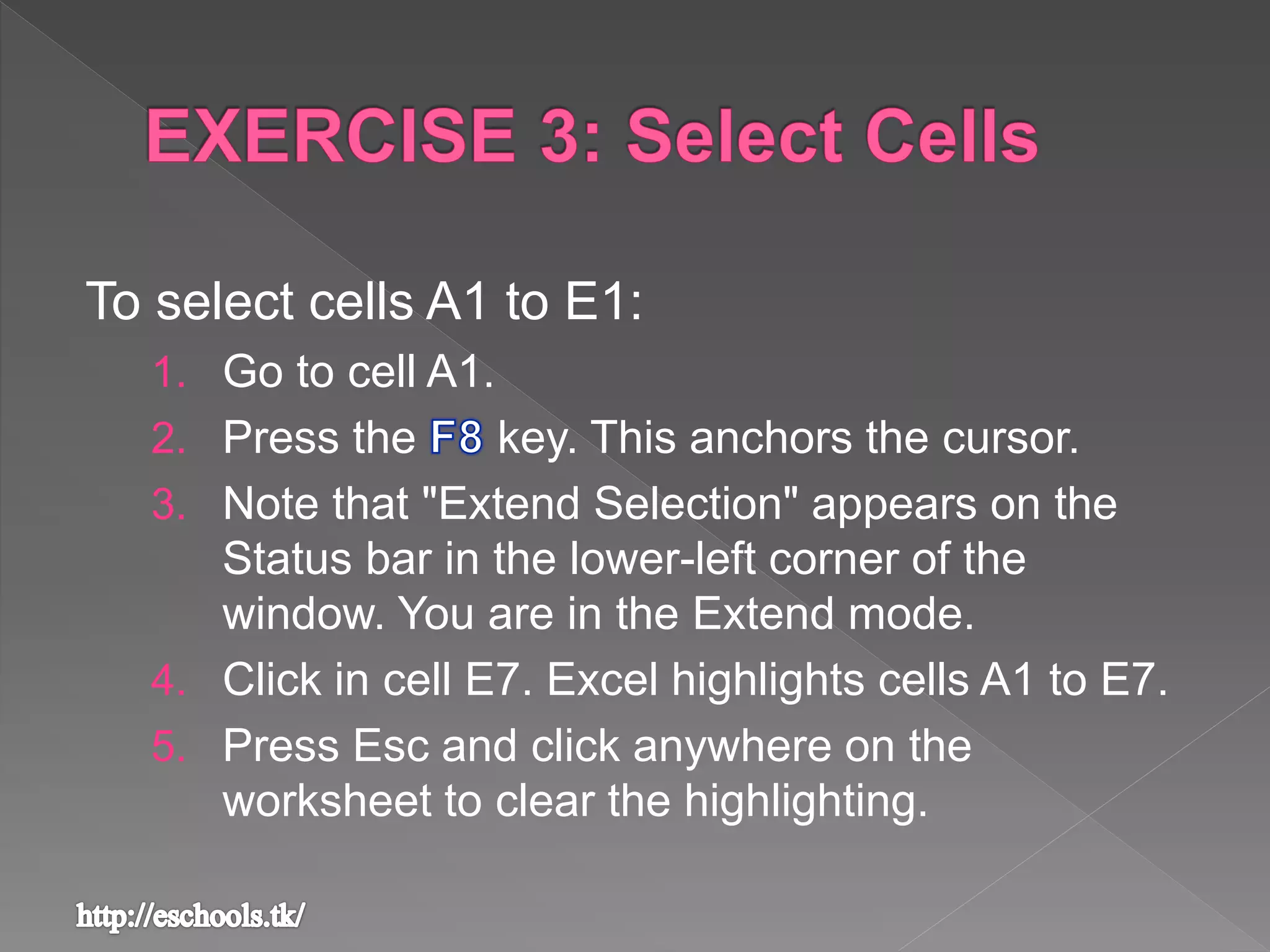
› Place the cursor in cell
A1.
› Type John Jordan. Do
not press Enter at this
time.
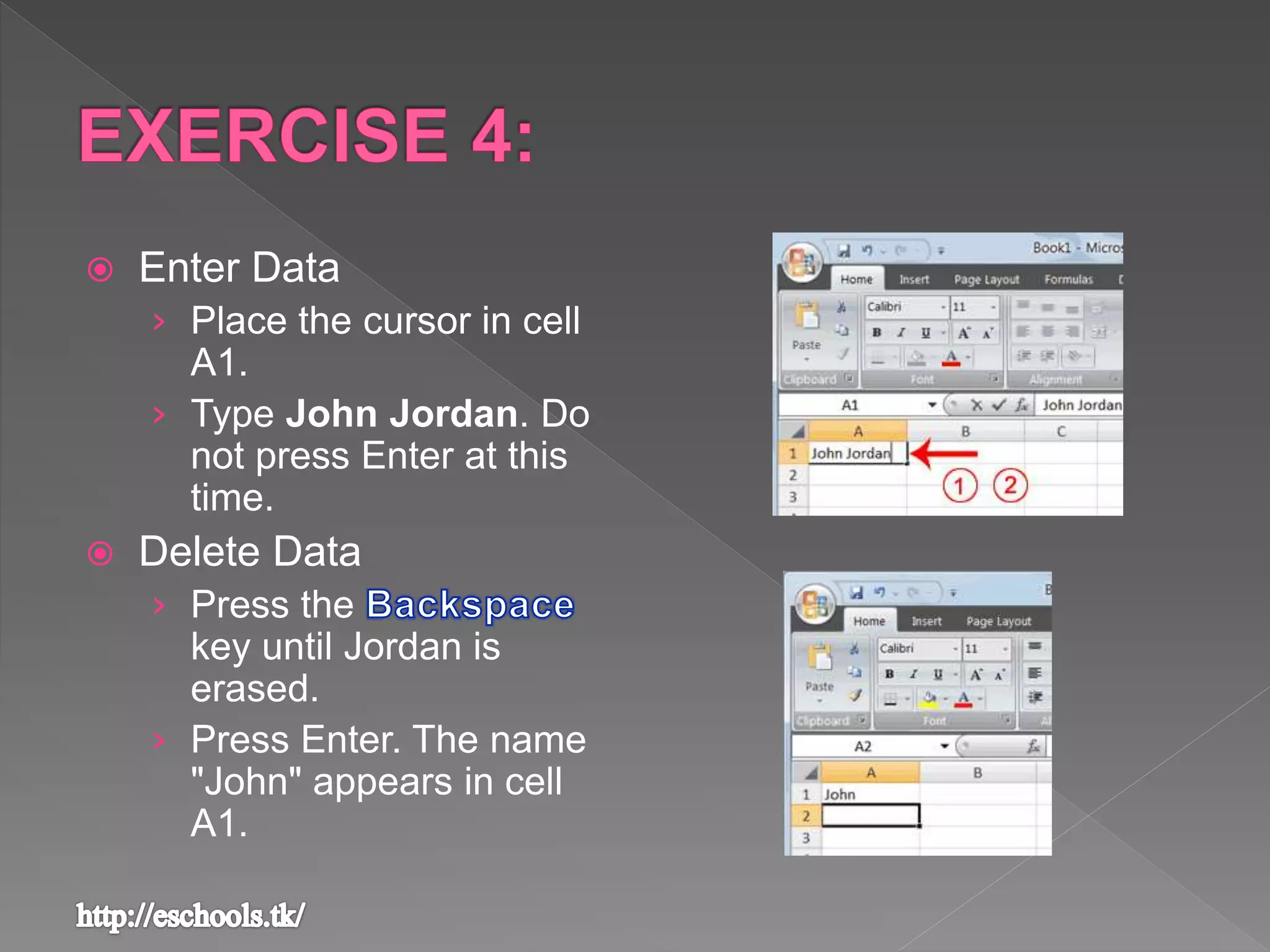
 Delete Data
› Press the
key until Jordan is
erased.
› Press Enter. The name
"John" appears in cell
A1.
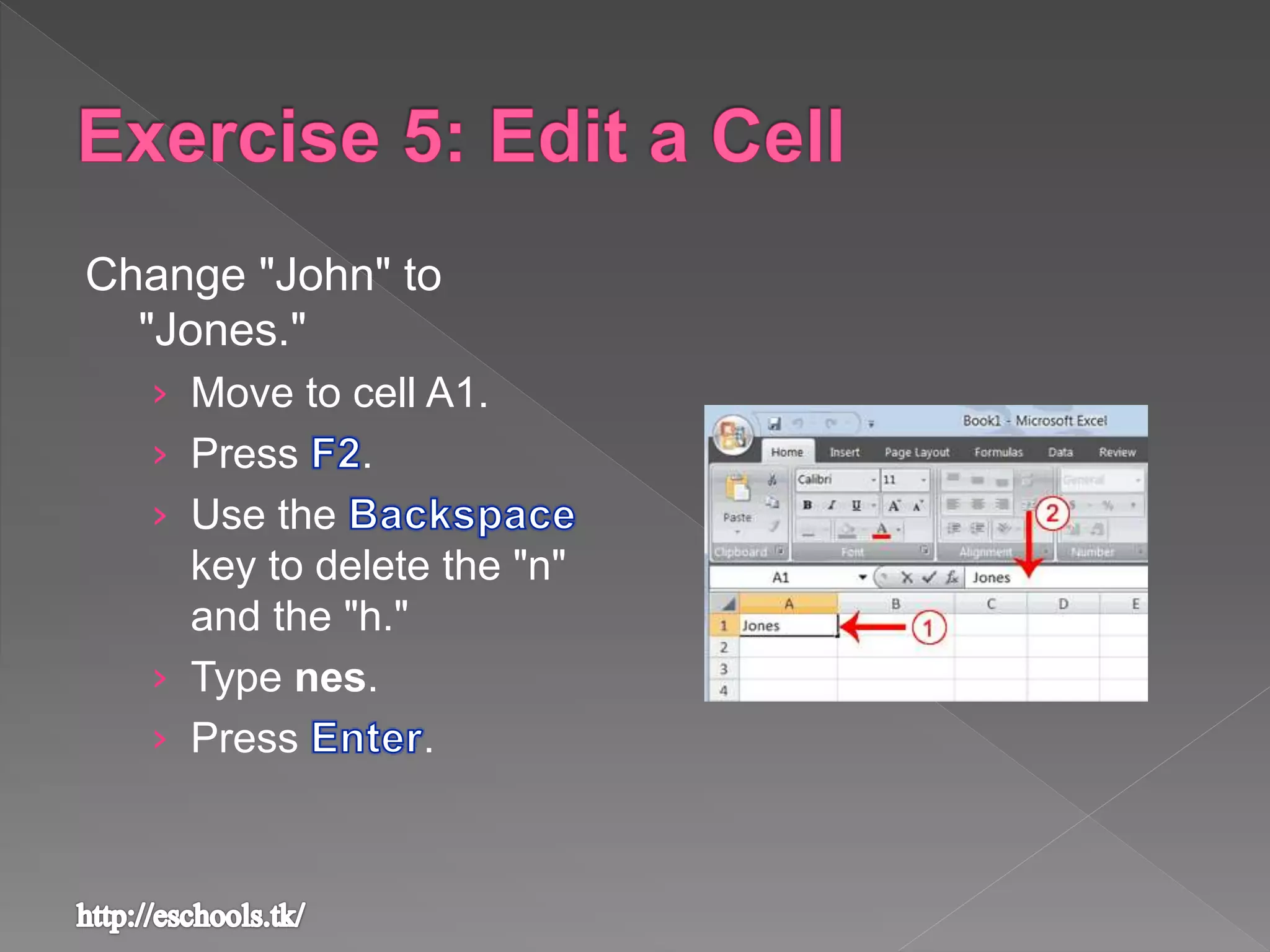
Change "John" to
"Jones."
› Move to cell A1.
› Press .
› Use the
key to delete the "n"
and the "h."
› Type nes.
› Press .
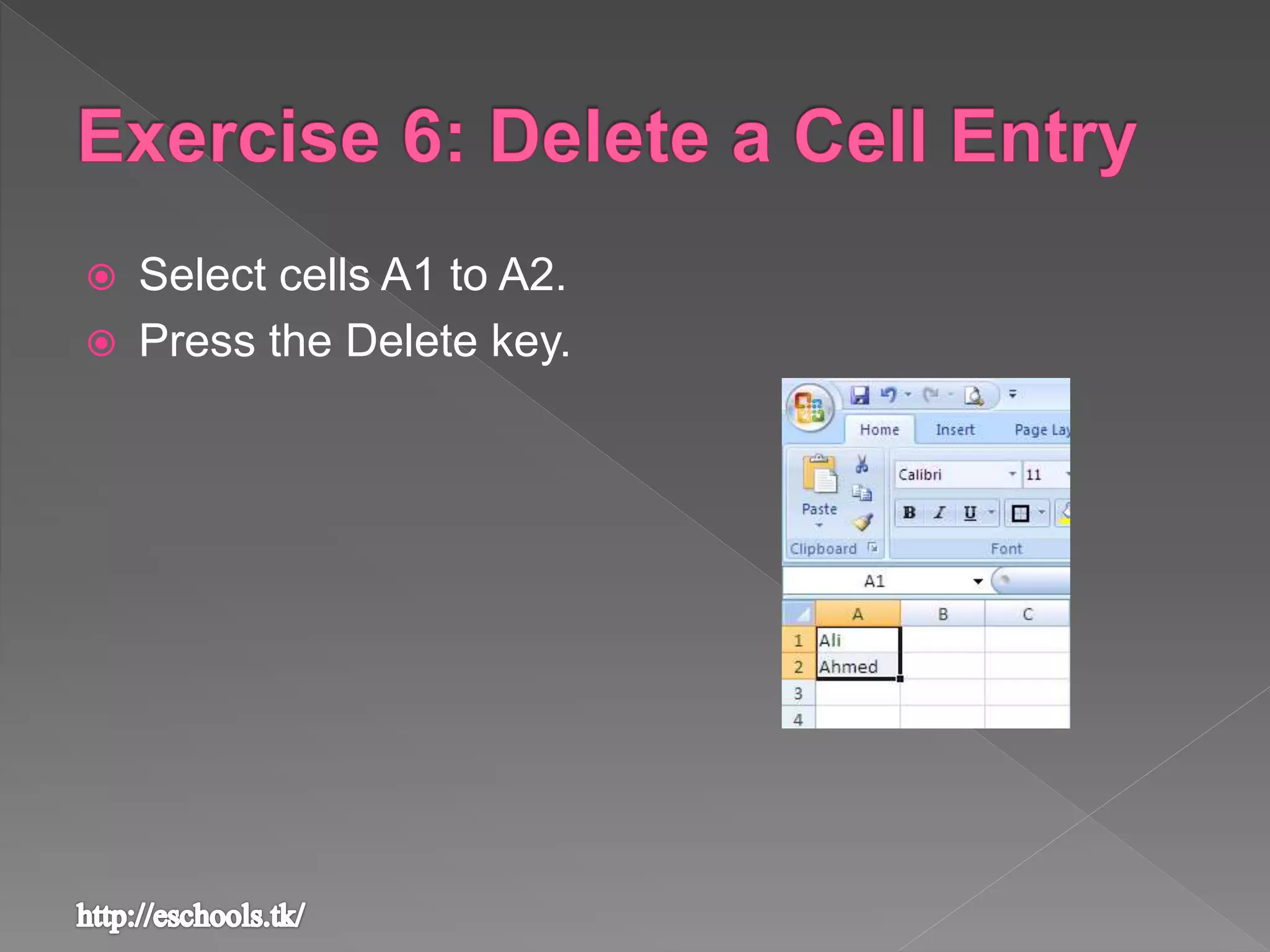
 Select cells A1 to A2.
 Press the Delete key.
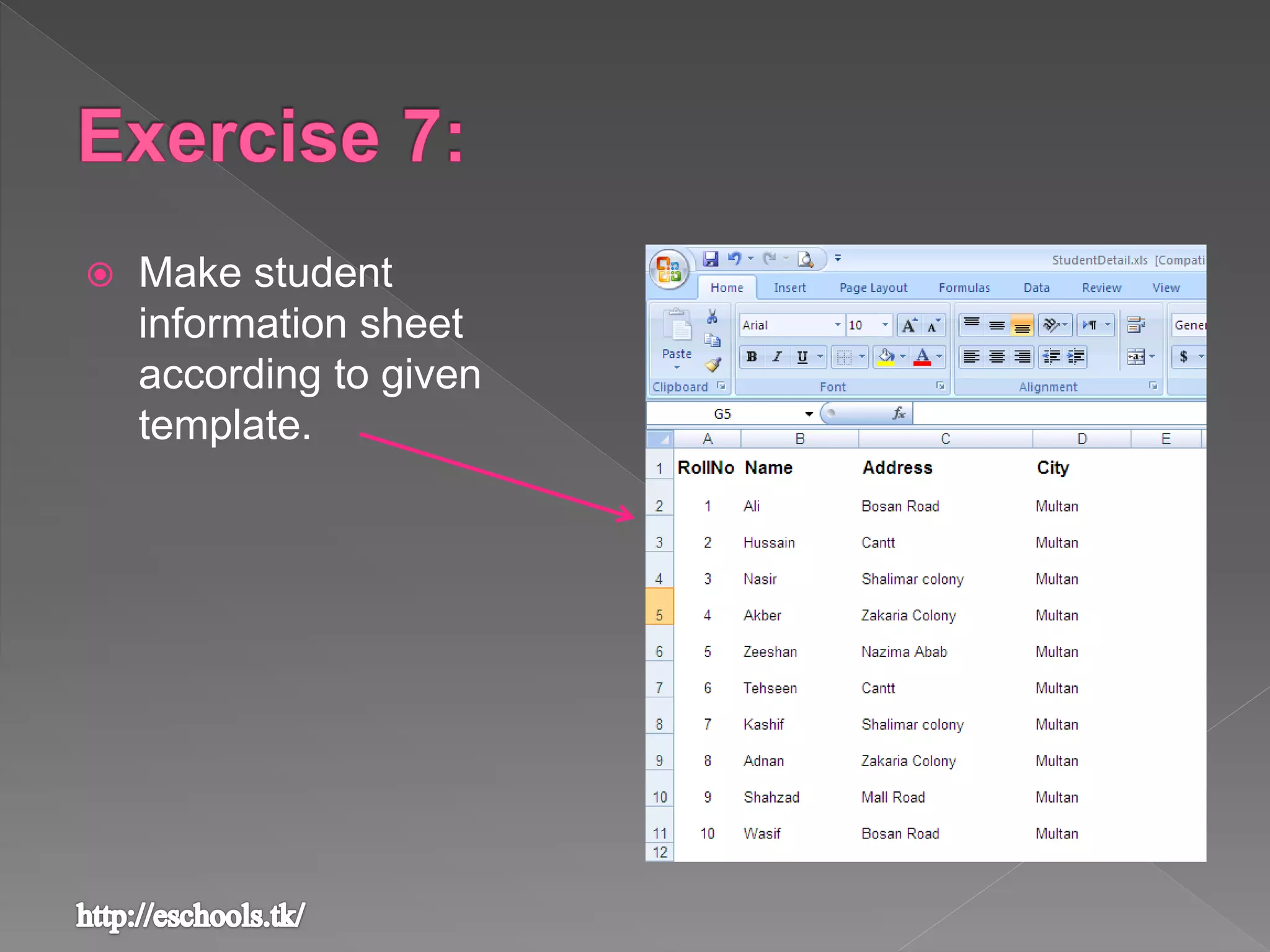
 Make student
information sheet
according to given
template.
 MS Excel Basics

MS Excel Basics

  • 2.
     Excel 2010can be used to › perform mathematical calculations › serve as powerful data management tools › create different charts and graphs › retrieve data from external data sources and use it in worksheets
  • 7.
     A MicrosoftOffice Excel workbook is a file that contains one or more worksheets that you can use to organize various kinds of related information.
  • 8.
     The primarydocument that you use in Excel to store and work with data. Also called a spreadsheet. A worksheet is always stored in a workbook  A worksheet consists of cells that are organized into columns and rows  By default, Microsoft Office Excel provides three worksheets in a workbook  Calculations can be made based on data from multiple worksheets  Each Worksheet has a tab  To activate a particular sheet, you can click on its respective tab
  • 9.
     Each columnand row of a worksheet has a unique name  Each column carries a letter of the alphabet as its name while a row is numbered  A worksheet consist of 16384 columns and more than 1 million rows. Column Row
  • 10.
     Cell isthe intersection of a column & a row  An active cell is the cell in which you can enter and edit data  Each cell also has a unique address  The address of any cell is the combination of its column letter and row number Cell Address
  • 13.
     On theworksheet, click a cell.  Type the numbers or text that you want to enter, and then press or . Tip To enter data on a new line within a cell, enter a line break by pressing .
  • 14.
     On theworksheet, click a cell.  Type a date or time as follows: › To enter a date, use a or to separate the parts of a date; for example, type or . › To enter a time that is based on the 12-hour clock, enter the time followed by a space, and then type a or p after the time; for example, .  Tip To enter the current time, press CTRL+SHIFT+; (semicolon).
  • 16.
     Click onthe cell where you want the date to go.  Press and hold down the Ctrl key on the keyboard.  Press and release the semi colon key ( ; ) on the keyboard without releasing the Ctrl key.
  • 18.
     To quicklyinsert a new worksheet at the end of the existing worksheets, click the tab at the bottom of the screen.
  • 19.
     To inserta new worksheet before an existing worksheet, select that worksheet  From , in the group, click , and then click Tip You can also right-click the tab of an existing worksheet, and then click Insert. On the General tab, click Worksheet, and then click OK.
  • 20.
    1. On thebar, right-click the sheet tab that you want to rename, and then click . 2. Select the current name, and then type the new name.
  • 21.
     On thetab, in the group, click the arrow next to , and then click . You can also right-click the tab of the worksheet that you want to delete, and then click .
  • 23.
    To Select DoThis A single cell Click the cell, or press the arrow keys to move to the cell. A range of cells 1. Click the first cell in the range, and then drag to the last cell 2. hold down SHIFT while you press the arrow keys to extend the selection. 3. Select the first cell in the range, and then press F8 to extend the selection by using the arrow keys. To stop extending the selection, press F8 again.
  • 24.
    To Select DoThis All cells on a worksheet Click the Select All button. To select the entire worksheet, you can also press CTRL+A. Nonadjacent cells or cell ranges Select the first cell or range of cells, and then hold down CTRL while you select the other cells or ranges.
  • 25.
     Click therow or column heading.
  • 26.
    To Select DoThis Adjacent rows or columns Drag across the row or column headings. Or select the first row or column; then hold down SHIFT while you select the last row or column. Nonadjacent rows or columns Click the column or row heading of the first row or column in your selection; then hold down CTRL while you click the column or row headings of other rows or columns that you want to add to the selection.
  • 27.
    To select thecontents of a cell Do this In the cell Double-click the cell, and then drag across the contents of the cell that you want to select. By using the keyboard Press F2 to edit the cell, use the arrow keys to position the insertion point, and then press SHIFT+ARROW key to select the contents.
  • 29.
     The TabKey › Move to cell A1. › Press the Tab key several times. Note that the cursor moves to the right one cell at a time.  The Ctrl-Home Key › Hold down the Shift key and then press Tab. Note that the cursor moves to the left one cell at a time.
  • 30.
     Page Upand Page Down › Press the Page Down key. Note that the cursor moves down one page. › Press the Page Up key. Note that the cursor moves up one page.  The Ctrl-Home Key › Move the cursor to column J. › Stay in column J and move the cursor to row 20. › Hold down the Ctrl key while you press the Home key. Excel moves to cell A1
  • 31.
    The F5 functionkey is the "Go To" key. If you press the F5 key, you are prompted for the cell to which you wish to go. Enter the cell address, and the cursor jumps to that cell. › Press F5. The Go To dialog box opens. › Type J3 in the Reference field. › Press Enter. Excel moves to cell J3.
  • 32.
    You can alsouse Ctrl+G to go to a specific cell. › Hold down the Ctrl key while you press "g" (Ctrl+g). The Go To dialog box opens. › Type C4 in the Reference field. › Press Enter. Excel moves to cell C4.
  • 33.
    To select cellsA1 to E1: 1. Go to cell A1. 2. Press the key. This anchors the cursor. 3. Note that "Extend Selection" appears on the Status bar in the lower-left corner of the window. You are in the Extend mode. 4. Click in cell E7. Excel highlights cells A1 to E7. 5. Press Esc and click anywhere on the worksheet to clear the highlighting.
  • 34.
     Enter Data ›Place the cursor in cell A1. › Type John Jordan. Do not press Enter at this time.  Delete Data › Press the key until Jordan is erased. › Press Enter. The name "John" appears in cell A1.
  • 35.
    Change "John" to "Jones." ›Move to cell A1. › Press . › Use the key to delete the "n" and the "h." › Type nes. › Press .
  • 36.
     Select cellsA1 to A2.  Press the Delete key.
  • 37.
     Make student informationsheet according to given template.