2. Modules, Scripts, and I/O
Topics:
Script Mode
Modules
The print andinput statements
Formatting
First look at importing stuff from
other modules
The Windchill Calculation
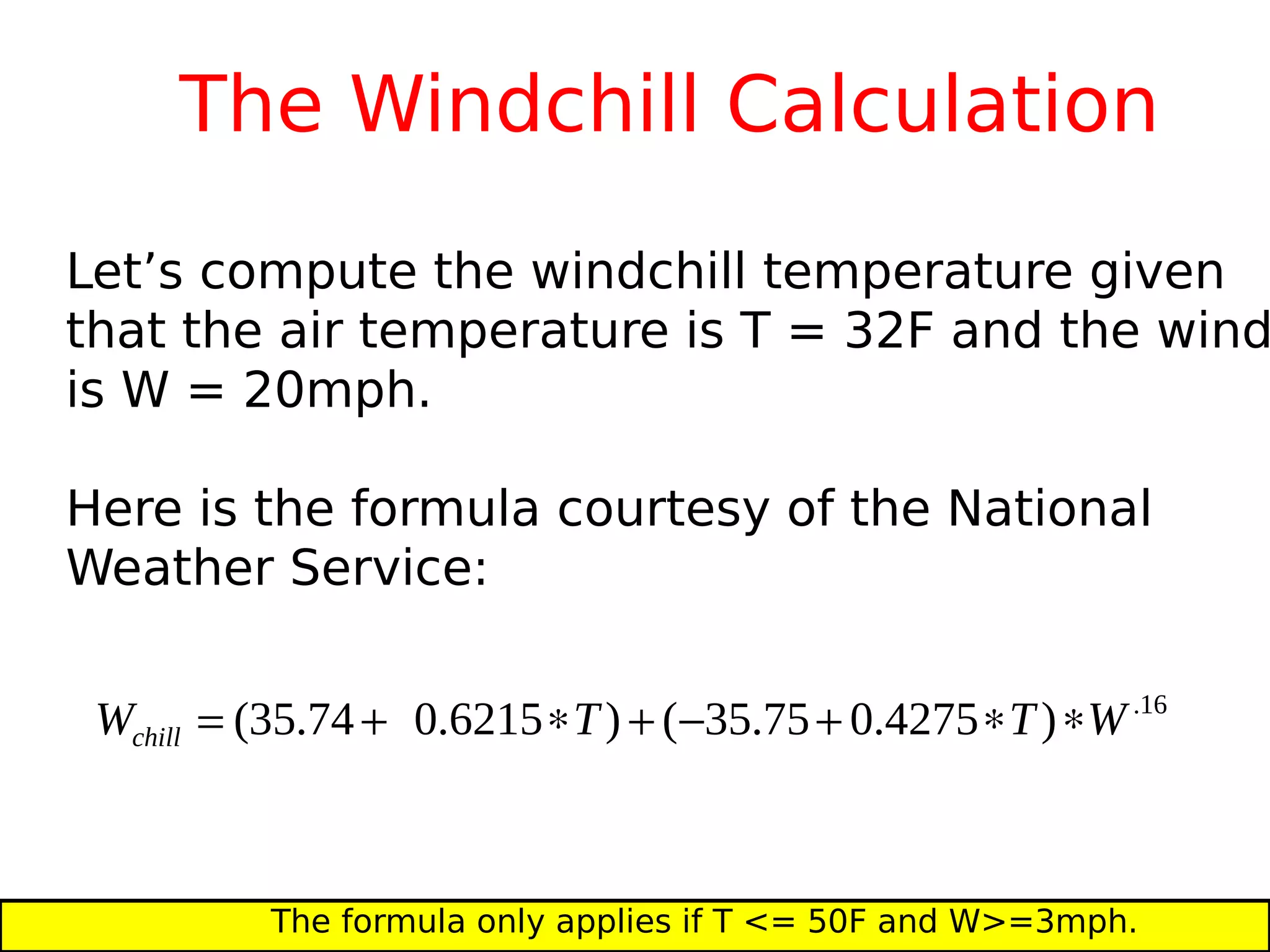
Let’s compute the windchill temperature given
that the air temperature is T = 32F and the wind
is W = 20mph.
Here is the formula courtesy of the National
Weather Service:
The formula only applies if T <= 50F and W>=3mph.
16.
)4275.075.35()6215.074.35( WTTWchill 
Use Python in Interactive Mode
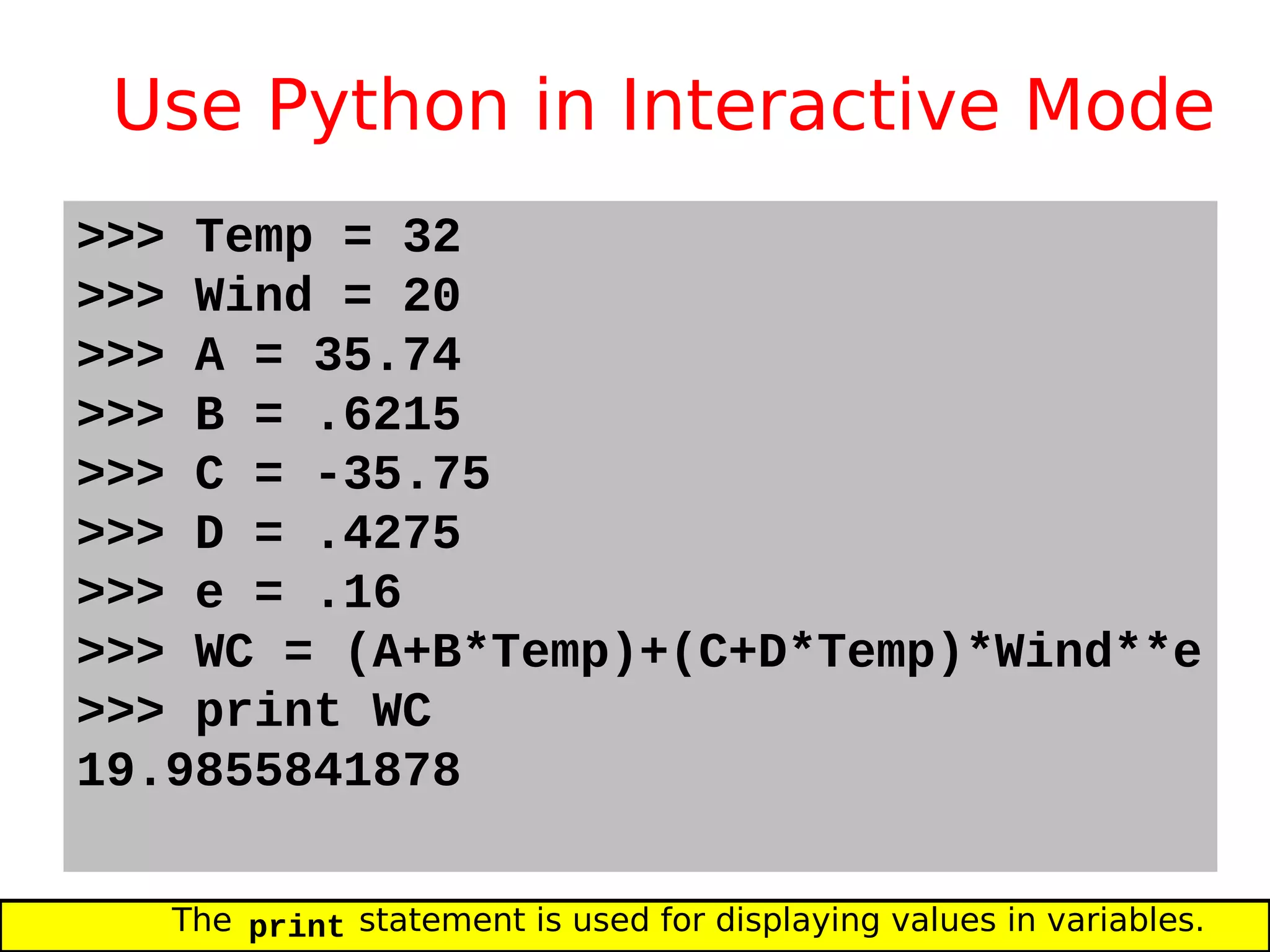
>>> Temp = 32
>>> Wind = 20
>>> A = 35.74
>>> B = .6215
>>> C = -35.75
>>> D = .4275
>>> e = .16
>>> WC = (A+B*Temp)+(C+D*Temp)*Wind**e
>>> print WC
19.9855841878
The print statement is used for displaying values in variables.
Quick Note on print
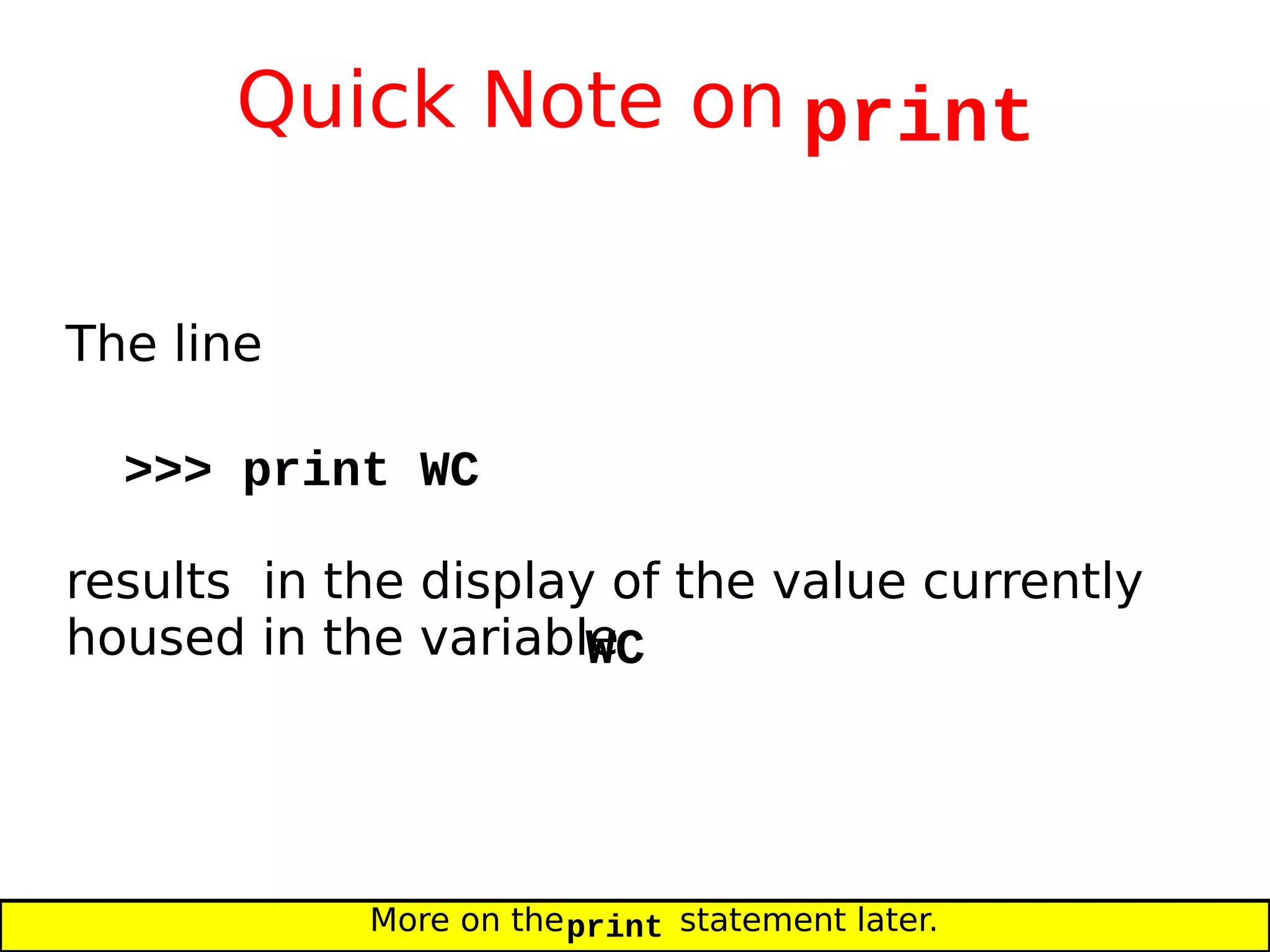
The line
>>> print WC
results in the display of the value currently
housed in the variableWC
More on theprint statement later.
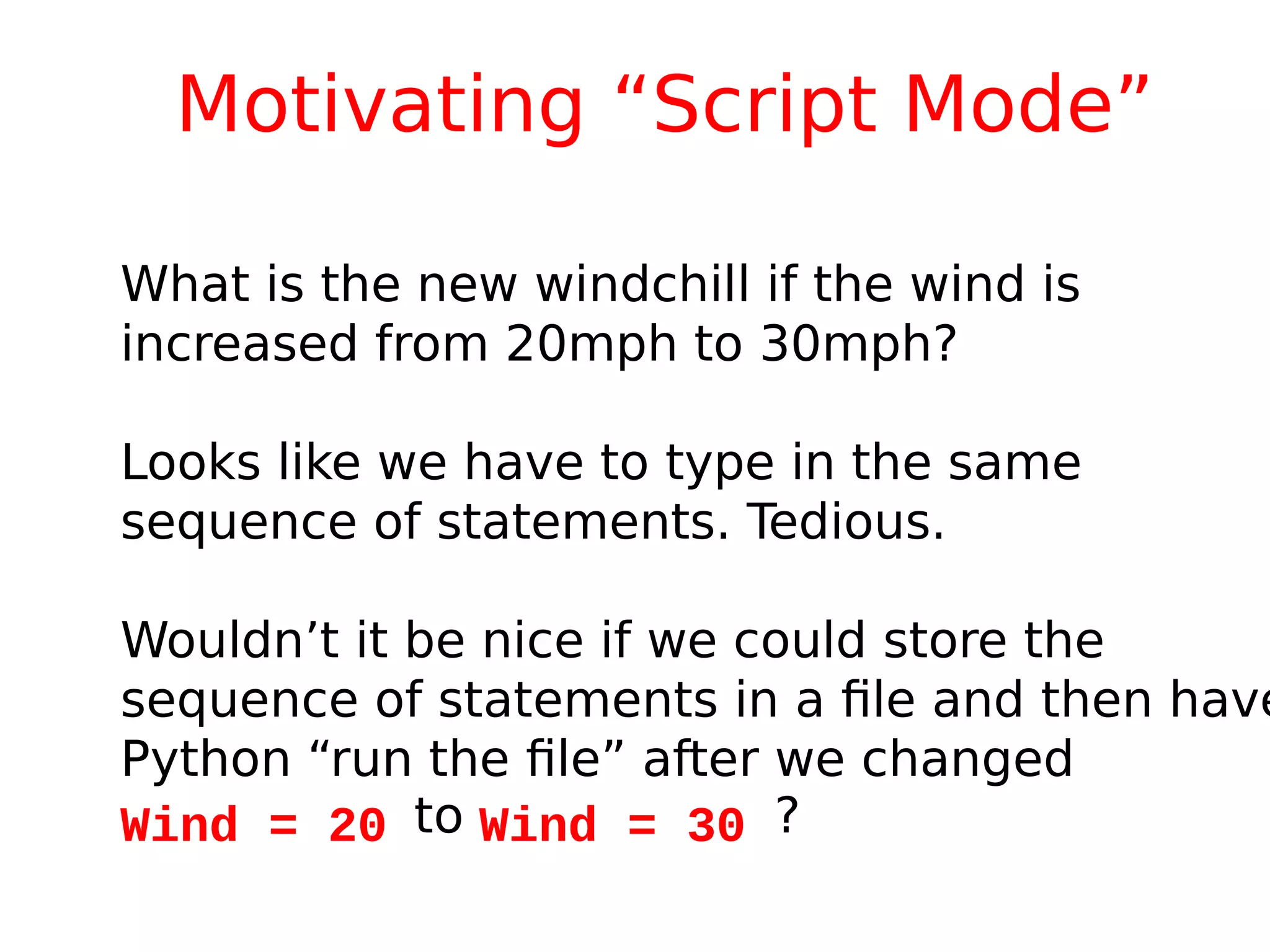
Motivating “Script Mode”
What is the new windchill if the wind is
increased from 20mph to 30mph?
Looks like we have to type in the same
sequence of statements. Tedious.
Wouldn’t it be nice if we could store the
sequence of statements in a file and then have
Python “run the file” after we changed
Wind = 20 to Wind = 30 ?
Script Mode
Instead of running Python in interactive mode,
we run Python in script mode.
The code to be run (called a script) is entered
into a file (called a module).
We then ask Python to “run the script”.
What is a Module?
A module is a .py file that contains Python code.
In CS 1110, these are created using Komodo Edit.
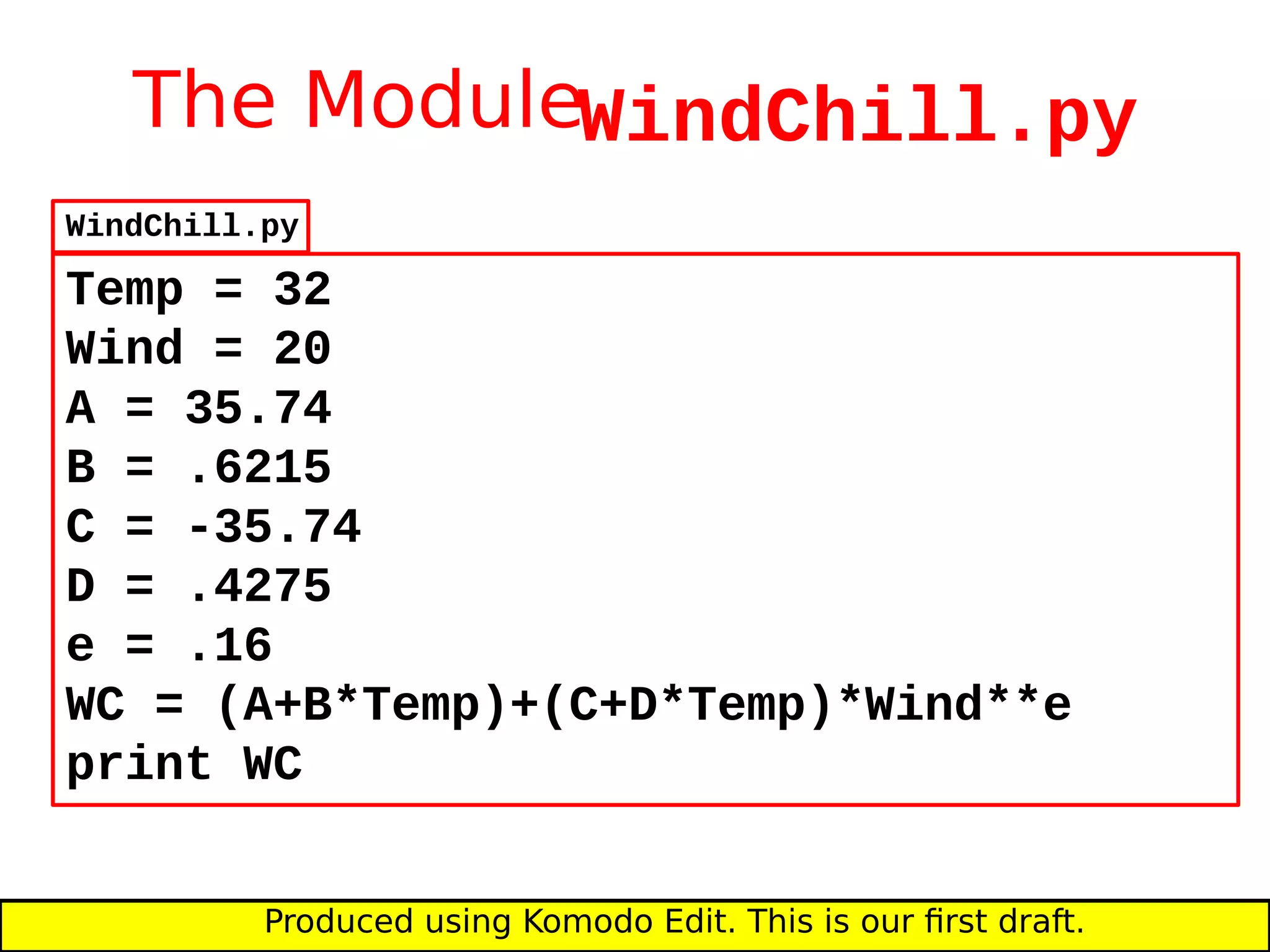
The ModuleWindChill.py
Temp = 32
Wind = 20
A = 35.74
B = .6215
C = -35.74
D = .4275
e = .16
WC = (A+B*Temp)+(C+D*Temp)*Wind**e
print WC
Produced using Komodo Edit. This is our first draft.
WindChill.py
Running the Module
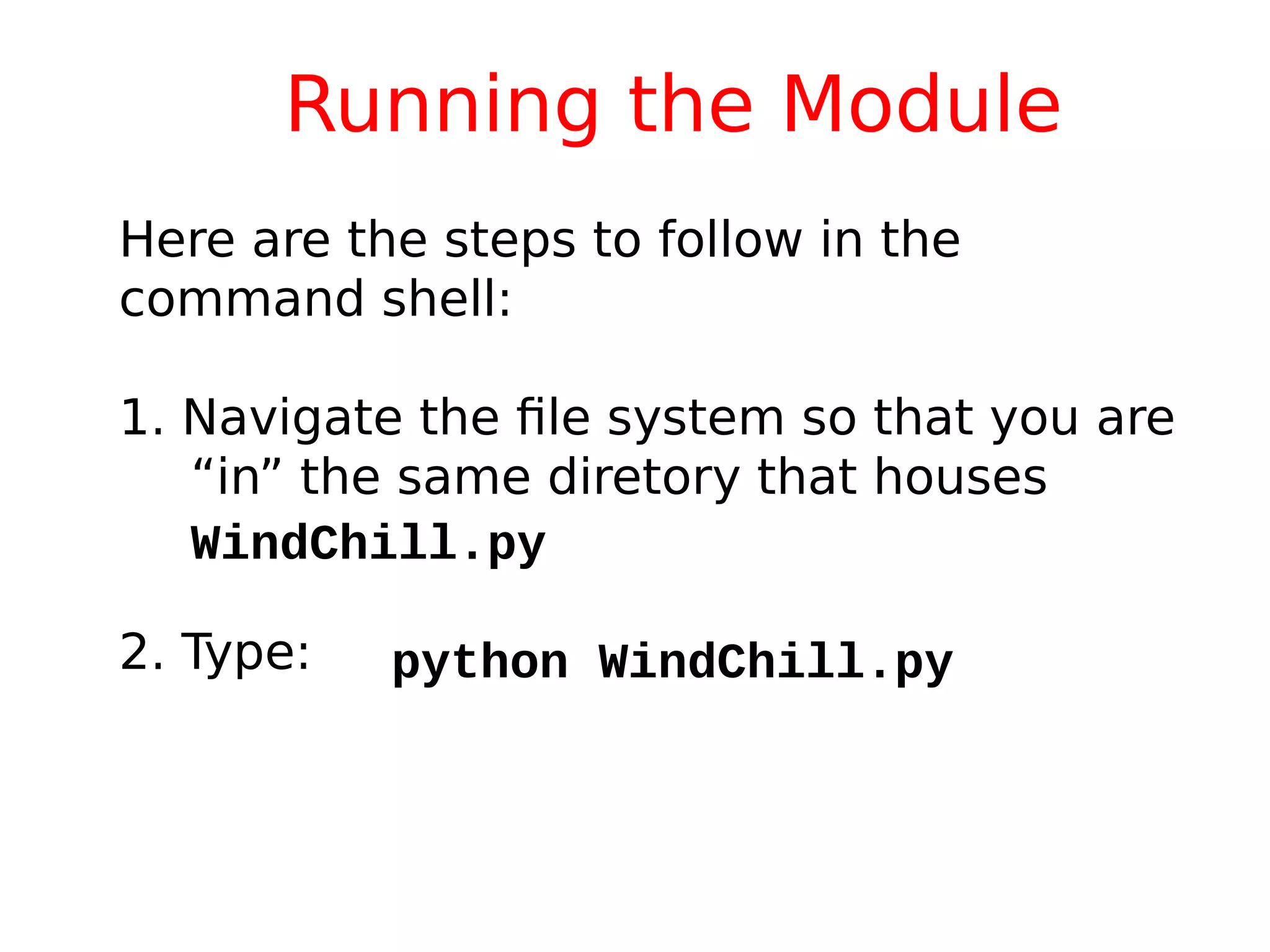
Here are the steps to follow in the
command shell:
1. Navigate the file system so that you are
“in” the same diretory that houses
WindChill.py
2. Type: python WindChill.py
Details
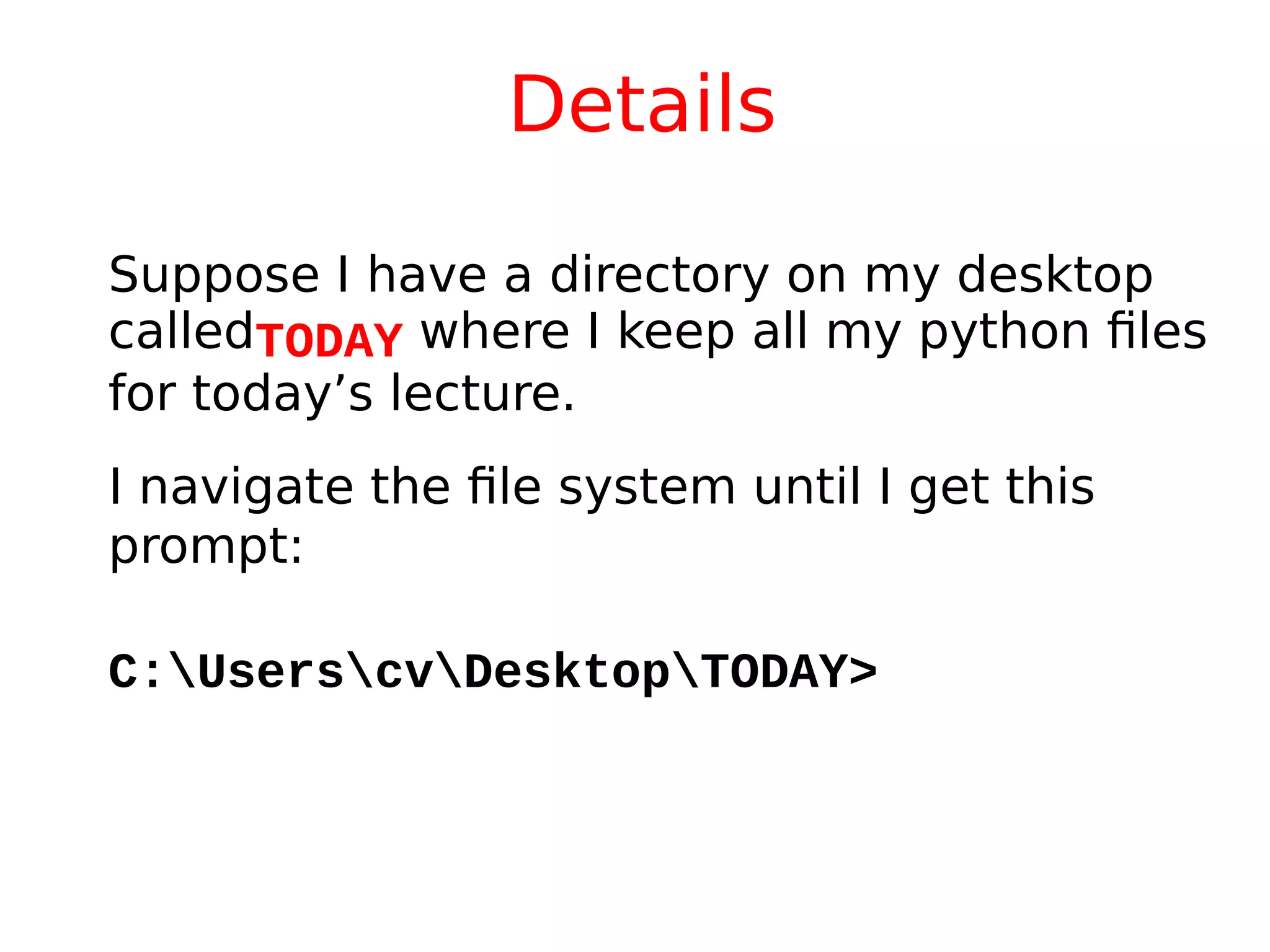
Suppose I have a directory on my desktop
calledTODAY where I keep all my python files
for today’s lecture.
I navigate the file system until I get this
prompt:
C:UserscvDesktopTODAY>
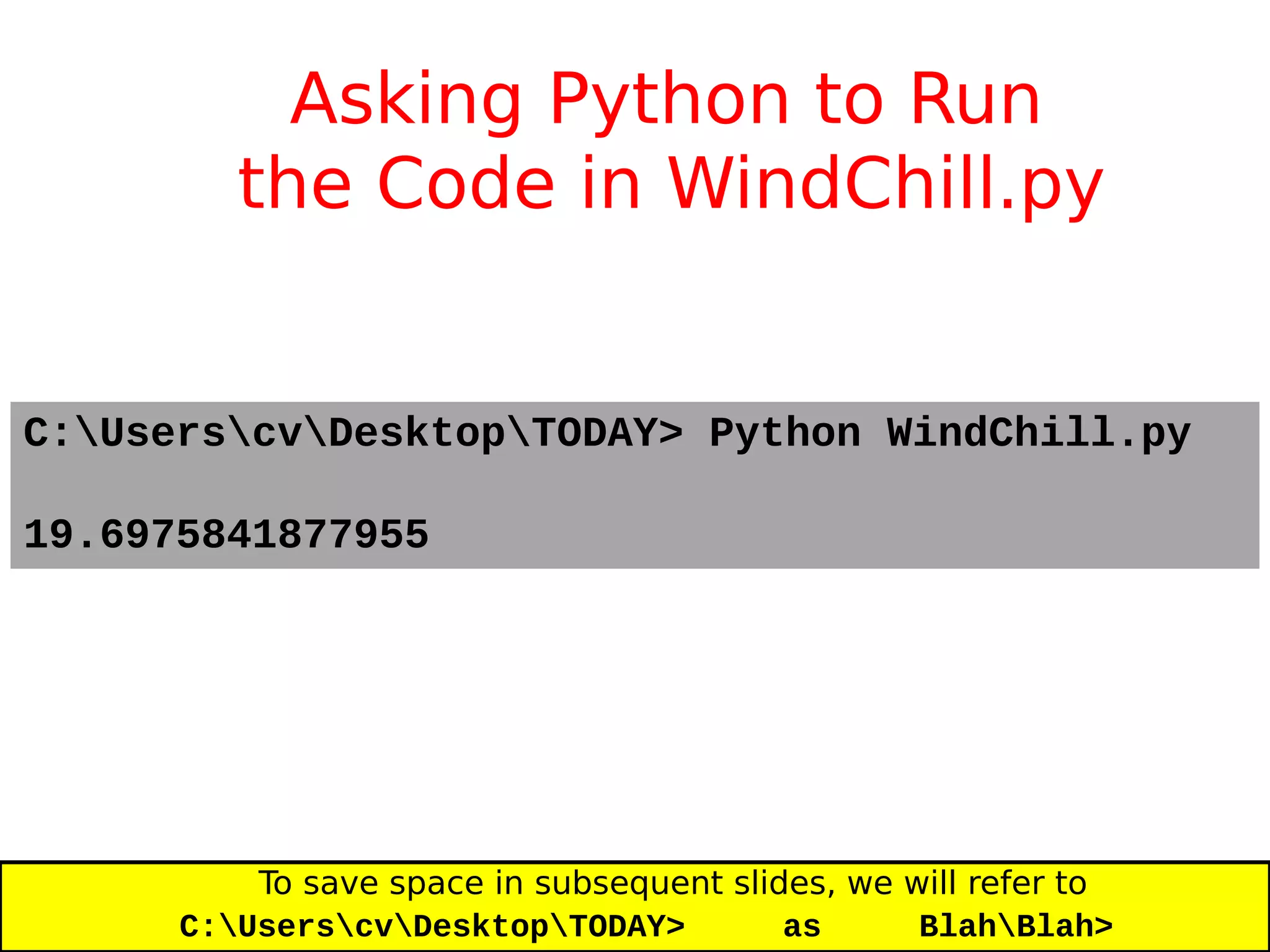
Asking Python to Run
the Code in WindChill.py
C:UserscvDesktopTODAY> Python WindChill.py
19.6975841877955
To save space in subsequent slides, we will refer to
C:UserscvDesktopTODAY> as BlahBlah>
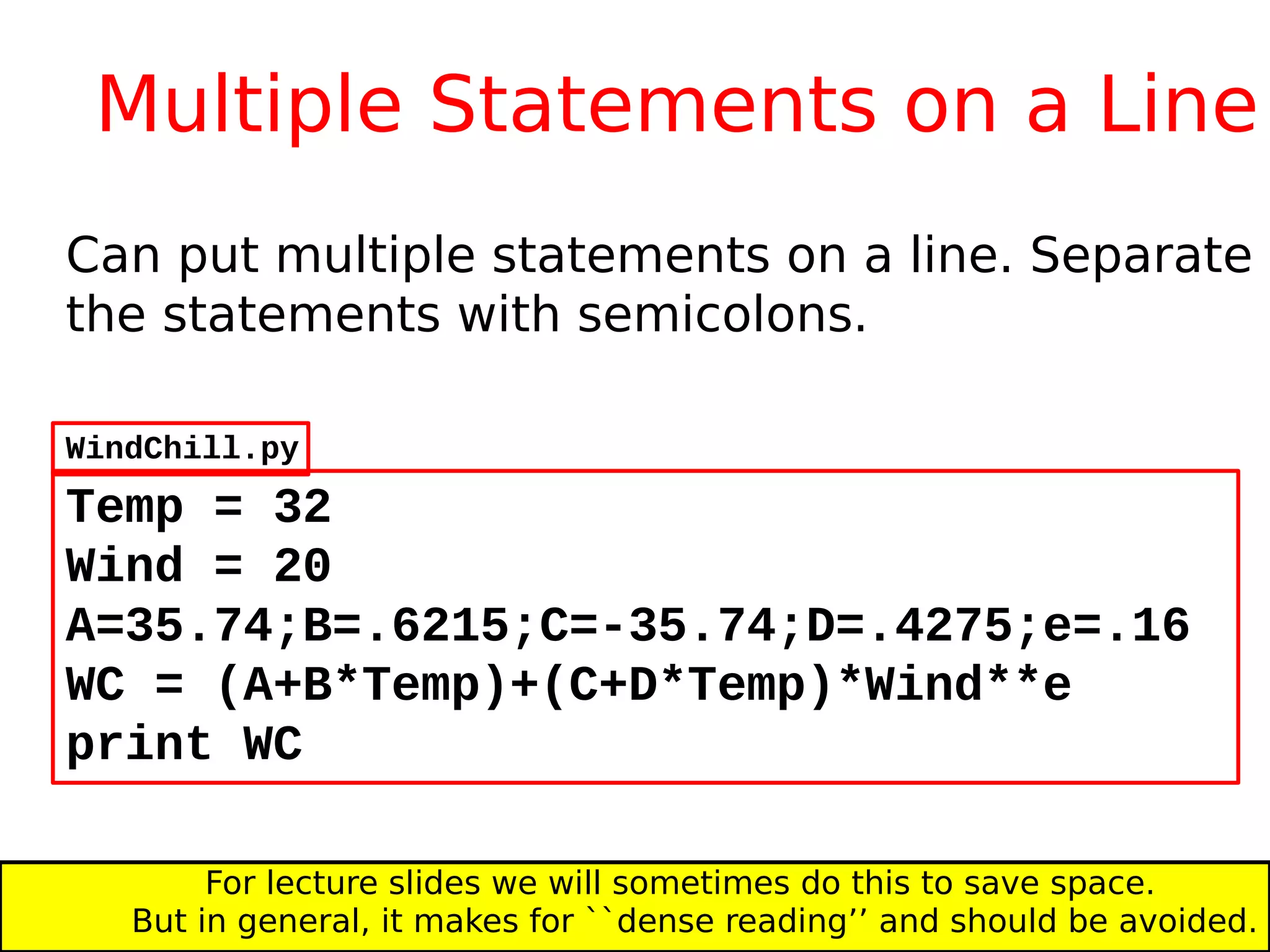
Multiple Statements on a Line
Temp = 32
Wind = 20
A=35.74;B=.6215;C=-35.74;D=.4275;e=.16
WC = (A+B*Temp)+(C+D*Temp)*Wind**e
print WC
Can put multiple statements on a line. Separate
the statements with semicolons.
WindChill.py
For lecture slides we will sometimes do this to save space.
But in general, it makes for ``dense reading’’ and should be avoided.
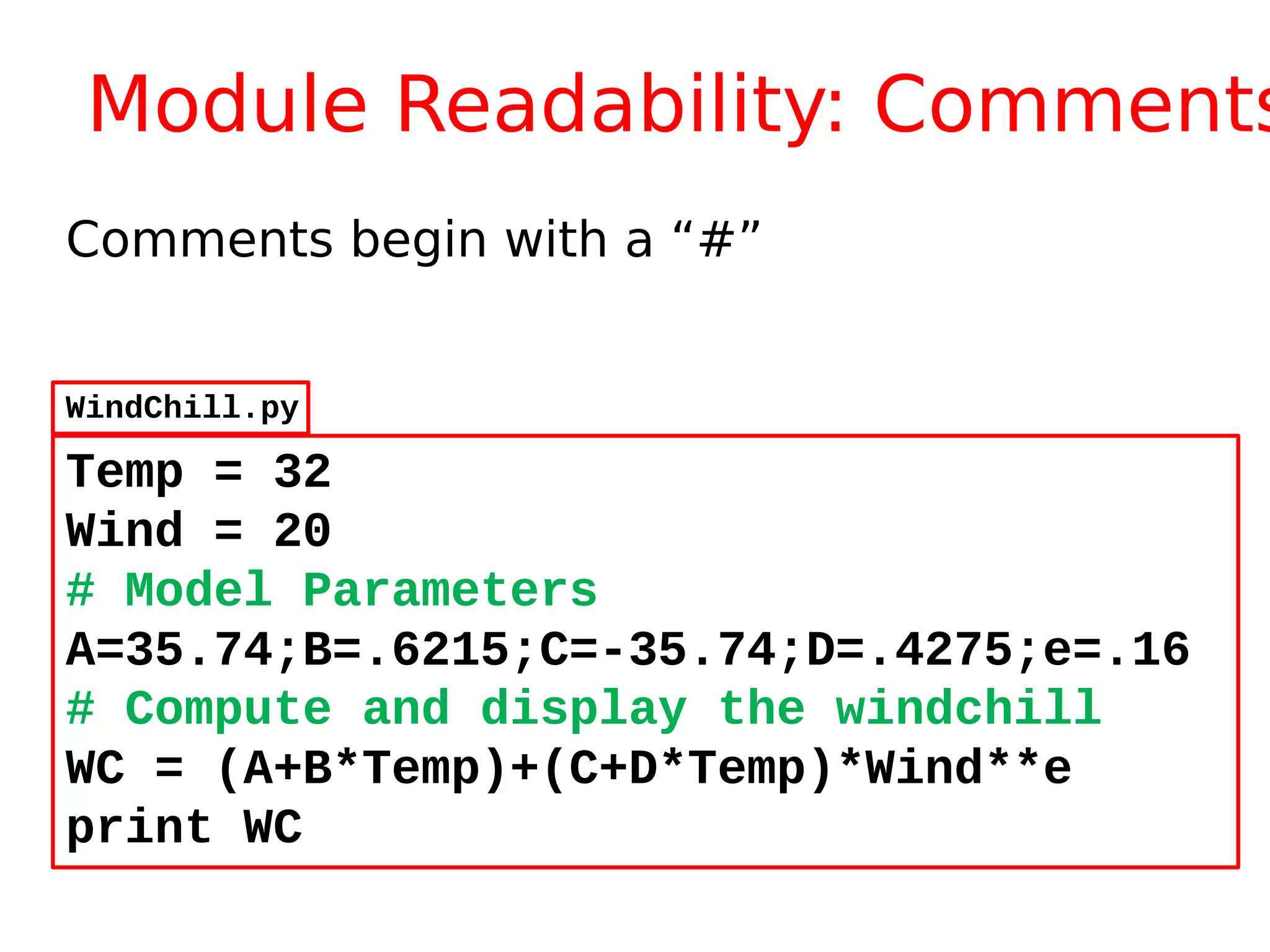
Module Readability: Comments
Comments begin with a “#”
Temp = 32
Wind = 20
# Model Parameters
A=35.74;B=.6215;C=-35.74;D=.4275;e=.16
# Compute and display the windchill
WC = (A+B*Temp)+(C+D*Temp)*Wind**e
print WC
WindChill.py
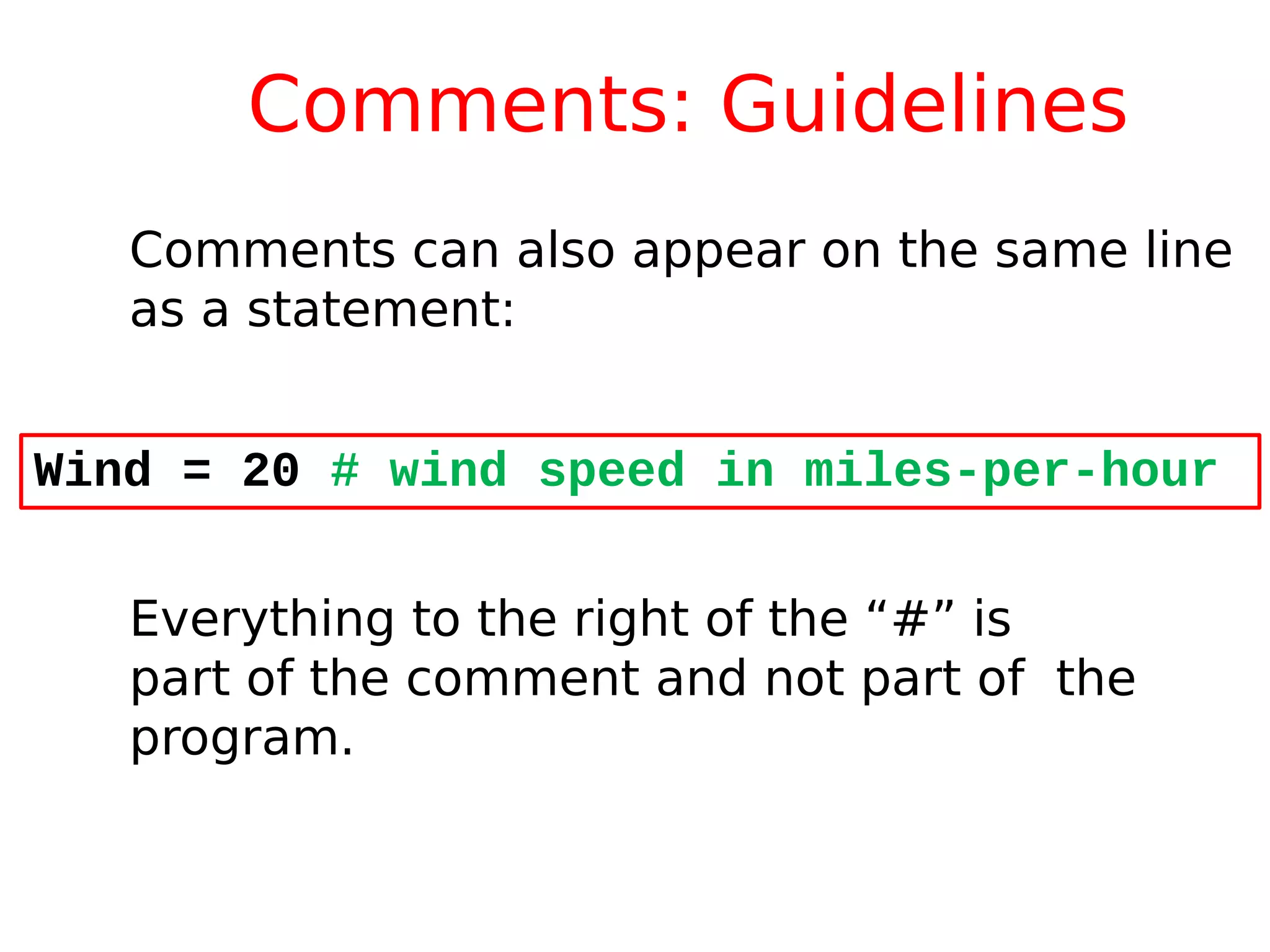
Comments: Guidelines
Wind = 20 # wind speed in miles-per-hour
Comments can also appear on the same line
as a statement:
Everything to the right of the “#” is
part of the comment and not part of the
program.
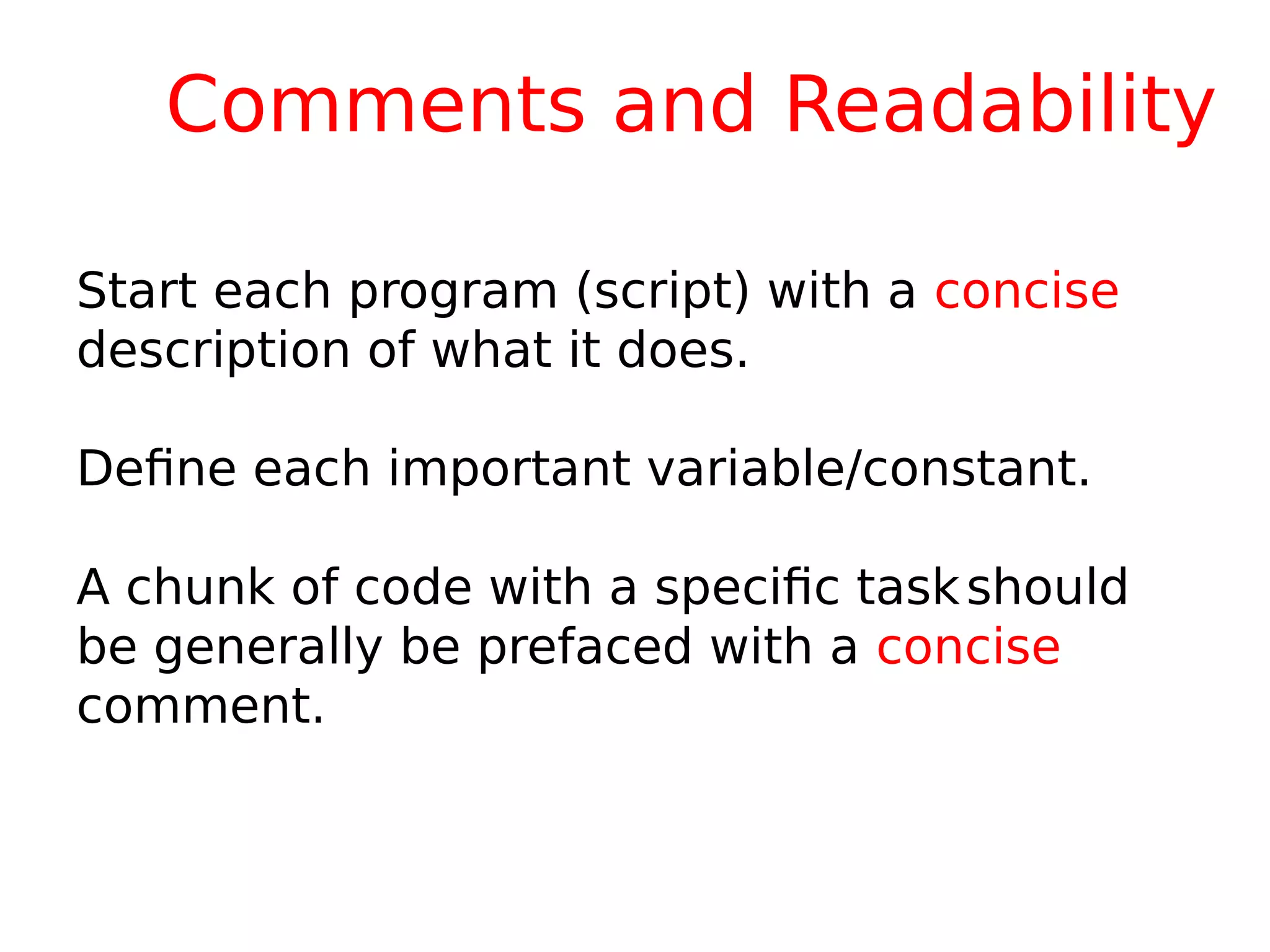
Comments and Readability
Start each program (script) with a concise
description of what it does.
Define each important variable/constant.
A chunk of code with a specific taskshould
be generally be prefaced with a concise
comment.
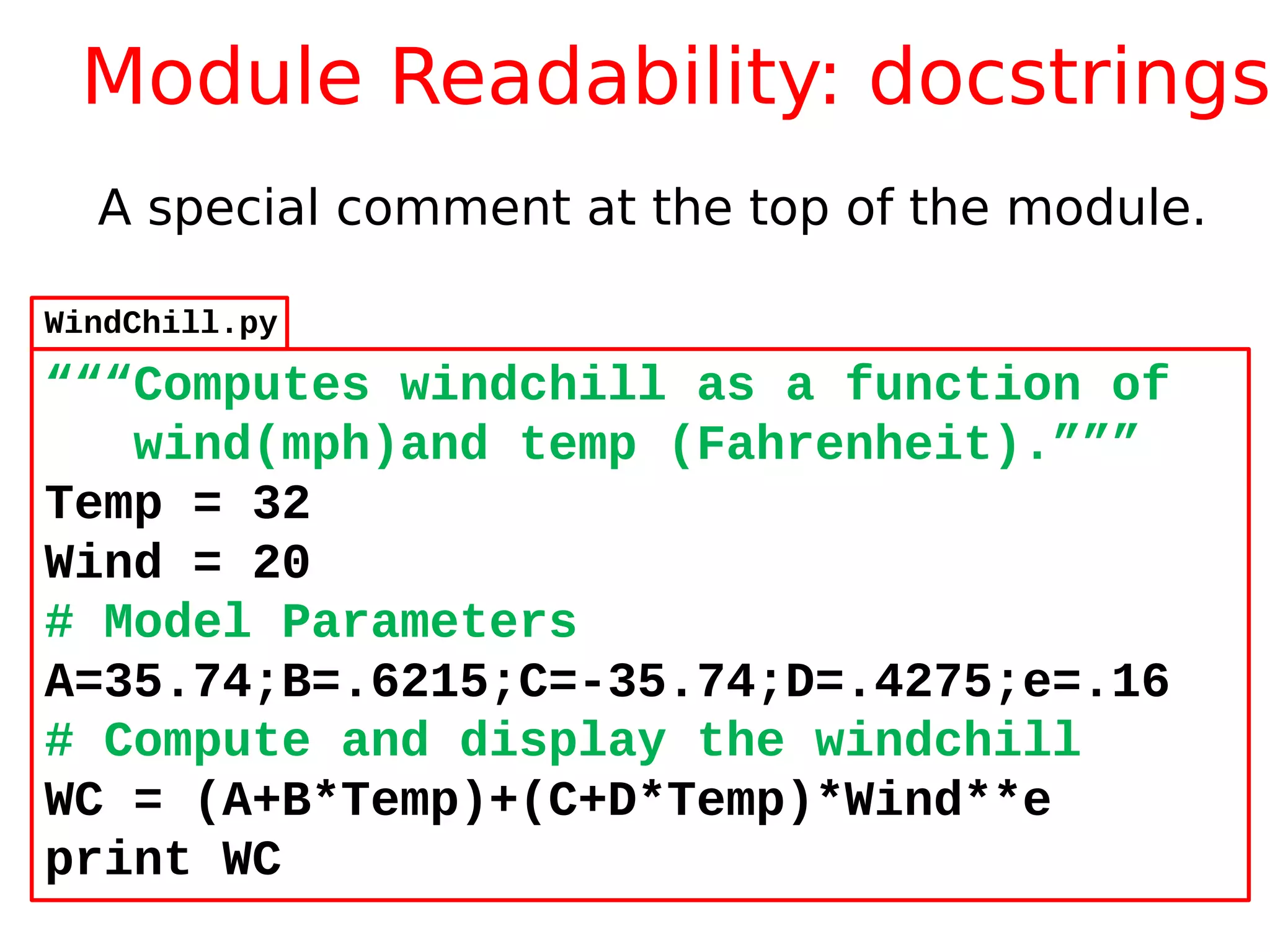
Module Readability: docstrings
A special comment at the top of the module.
“““Computes windchill as a function of
wind(mph)and temp (Fahrenheit).”””
Temp = 32
Wind = 20
# Model Parameters
A=35.74;B=.6215;C=-35.74;D=.4275;e=.16
# Compute and display the windchill
WC = (A+B*Temp)+(C+D*Temp)*Wind**e
print WC
WindChill.py
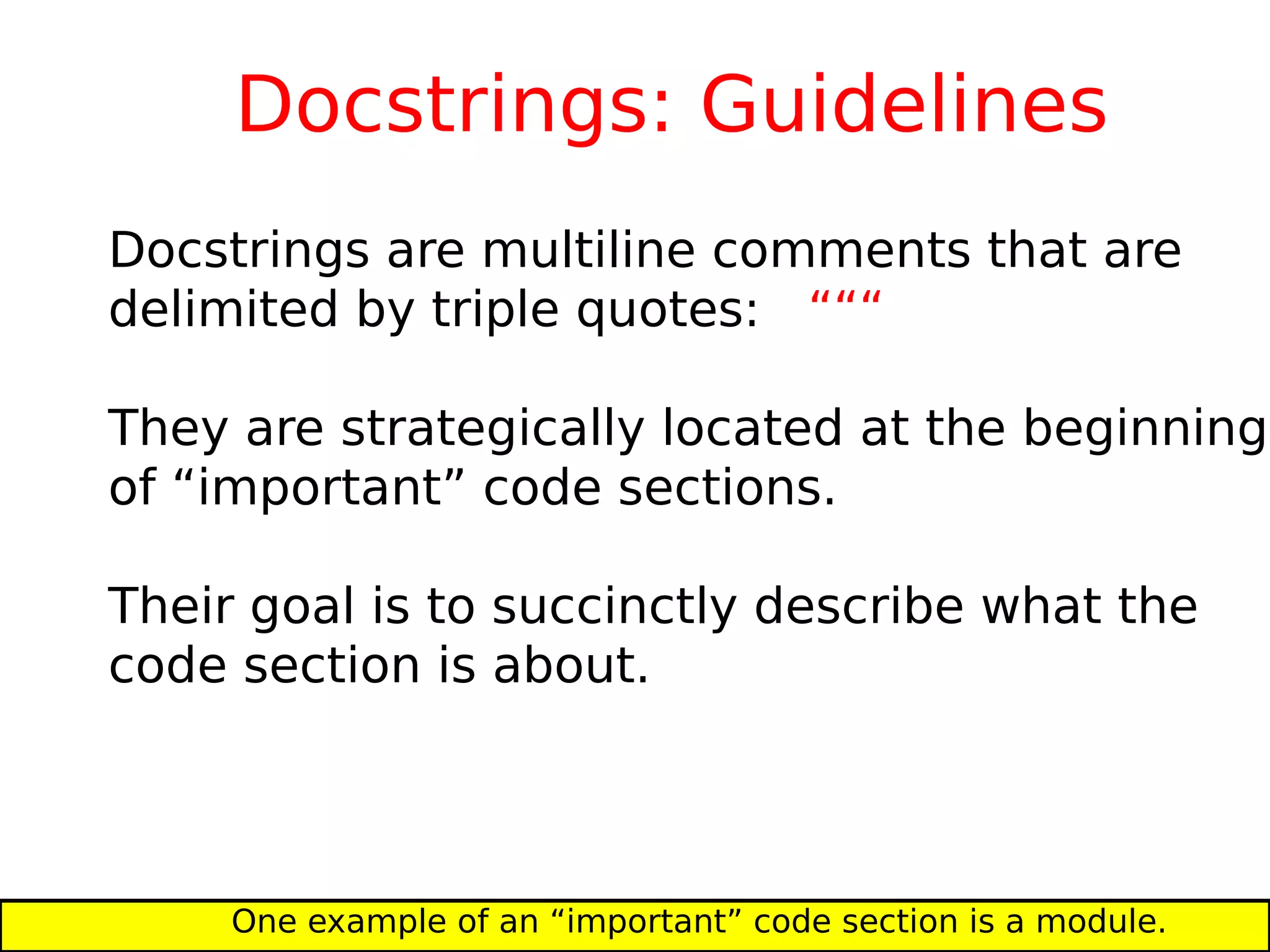
Docstrings: Guidelines
Docstrings are multiline comments that are
delimited by triple quotes: “““
They are strategically located at the beginning
of “important” code sections.
Their goal is to succinctly describe what the
code section is about.
One example of an “important” code section is a module.
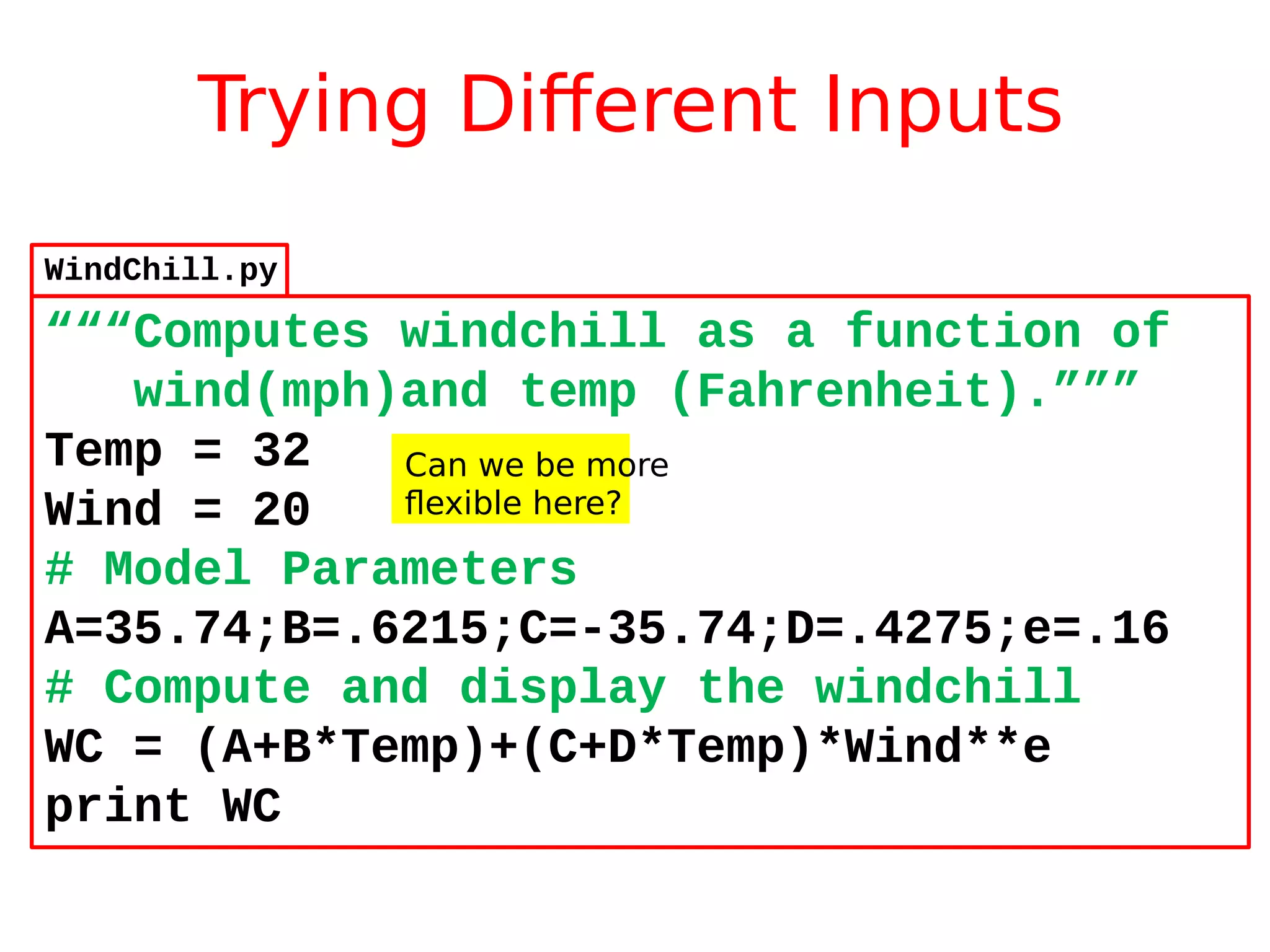
Trying Different Inputs
“““Computes windchill as a function of
wind(mph)and temp (Fahrenheit).”””
Temp = 32
Wind = 20
# Model Parameters
A=35.74;B=.6215;C=-35.74;D=.4275;e=.16
# Compute and display the windchill
WC = (A+B*Temp)+(C+D*Temp)*Wind**e
print WC
Can we be more
flexible here?
WindChill.py
Handy Input
If we want to explore windchill as a
function of windspeed and temperature,
then it is awkward to proceed by editing
the moduleWindChill.py every time
we want to check out a new wind/temp
combination.
The input statement addresses this issue.
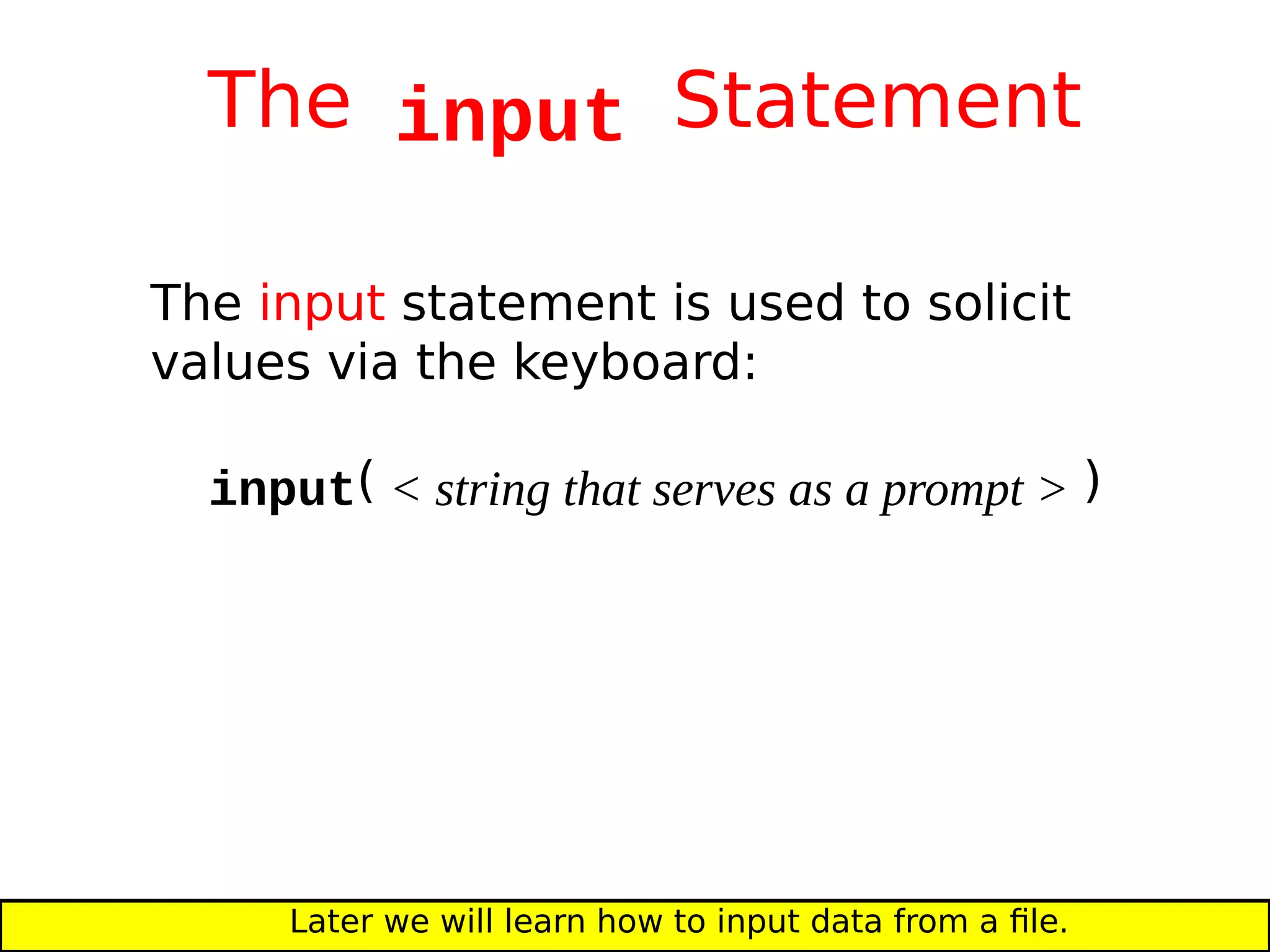
The input Statement
The input statement is used to solicit
values via the keyboard:
input( < string that serves as a prompt > )
Later we will learn how to input data from a file.
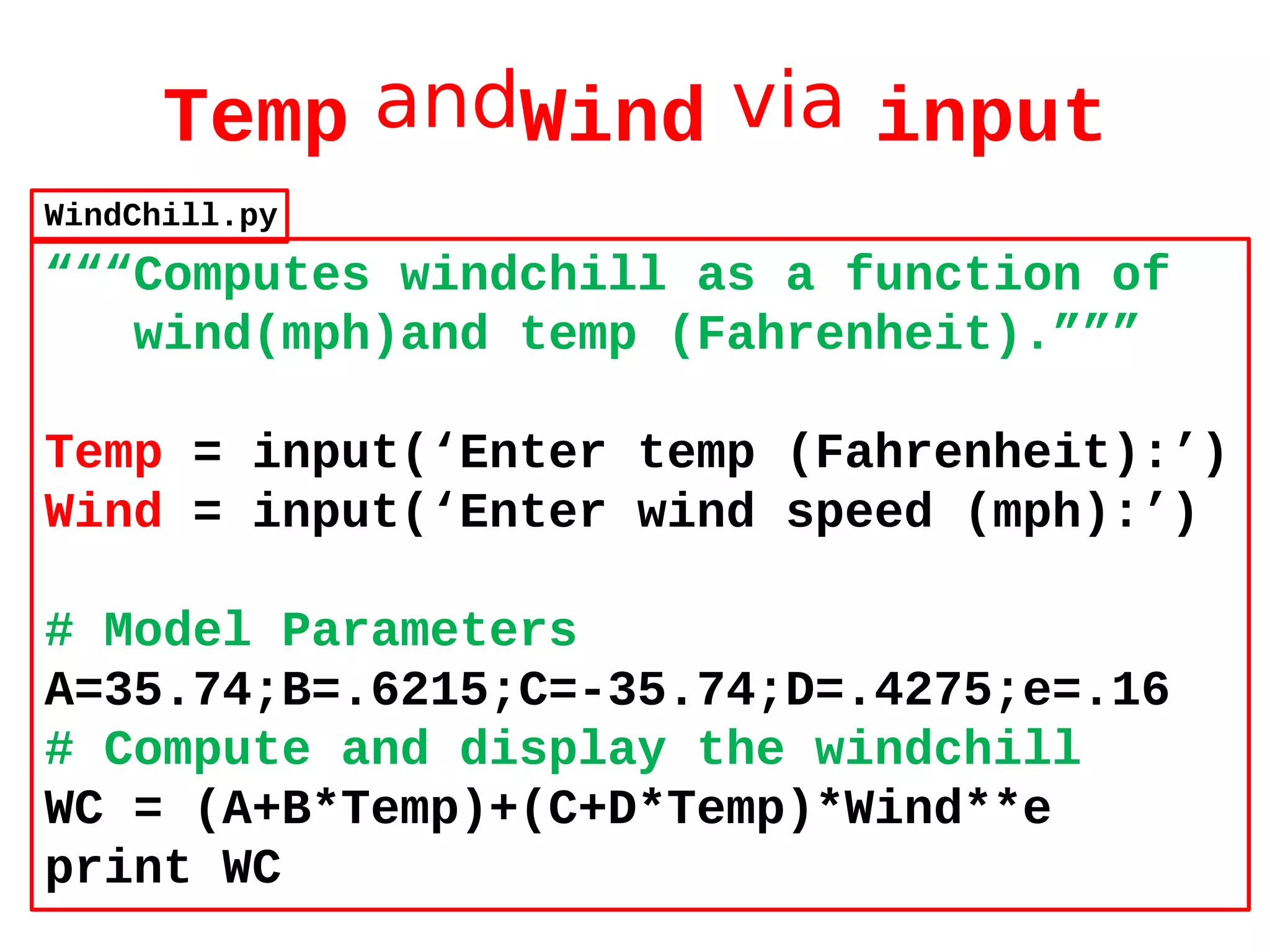
Temp andWind via input
“““Computes windchill as a function of
wind(mph)and temp (Fahrenheit).”””
Temp = input(‘Enter temp (Fahrenheit):’)
Wind = input(‘Enter wind speed (mph):’)
# Model Parameters
A=35.74;B=.6215;C=-35.74;D=.4275;e=.16
# Compute and display the windchill
WC = (A+B*Temp)+(C+D*Temp)*Wind**e
print WC
WindChill.py
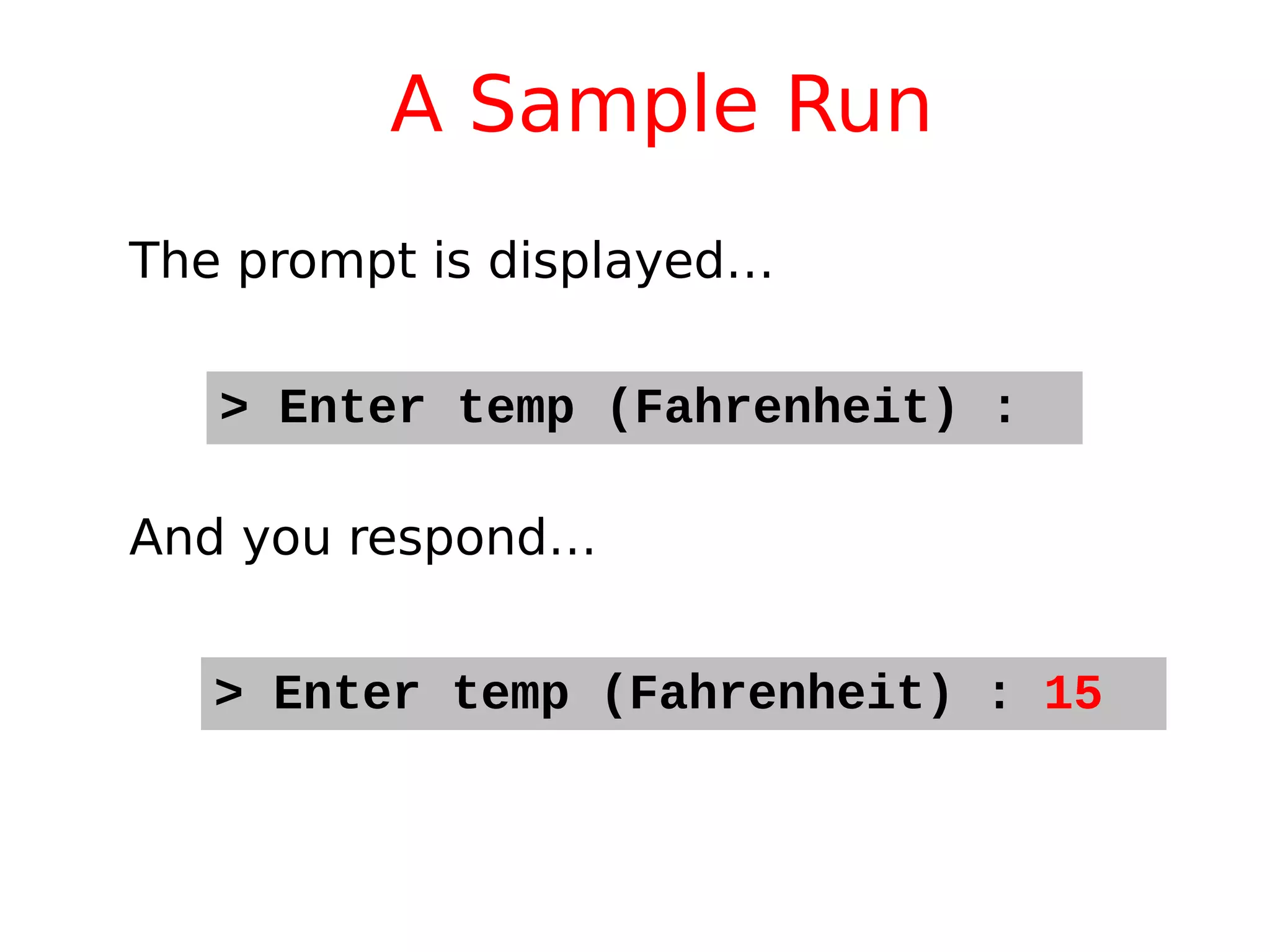
A Sample Run
> Enter temp (Fahrenheit) :
The prompt is displayed…
And you respond…
> Enter temp (Fahrenheit) : 15
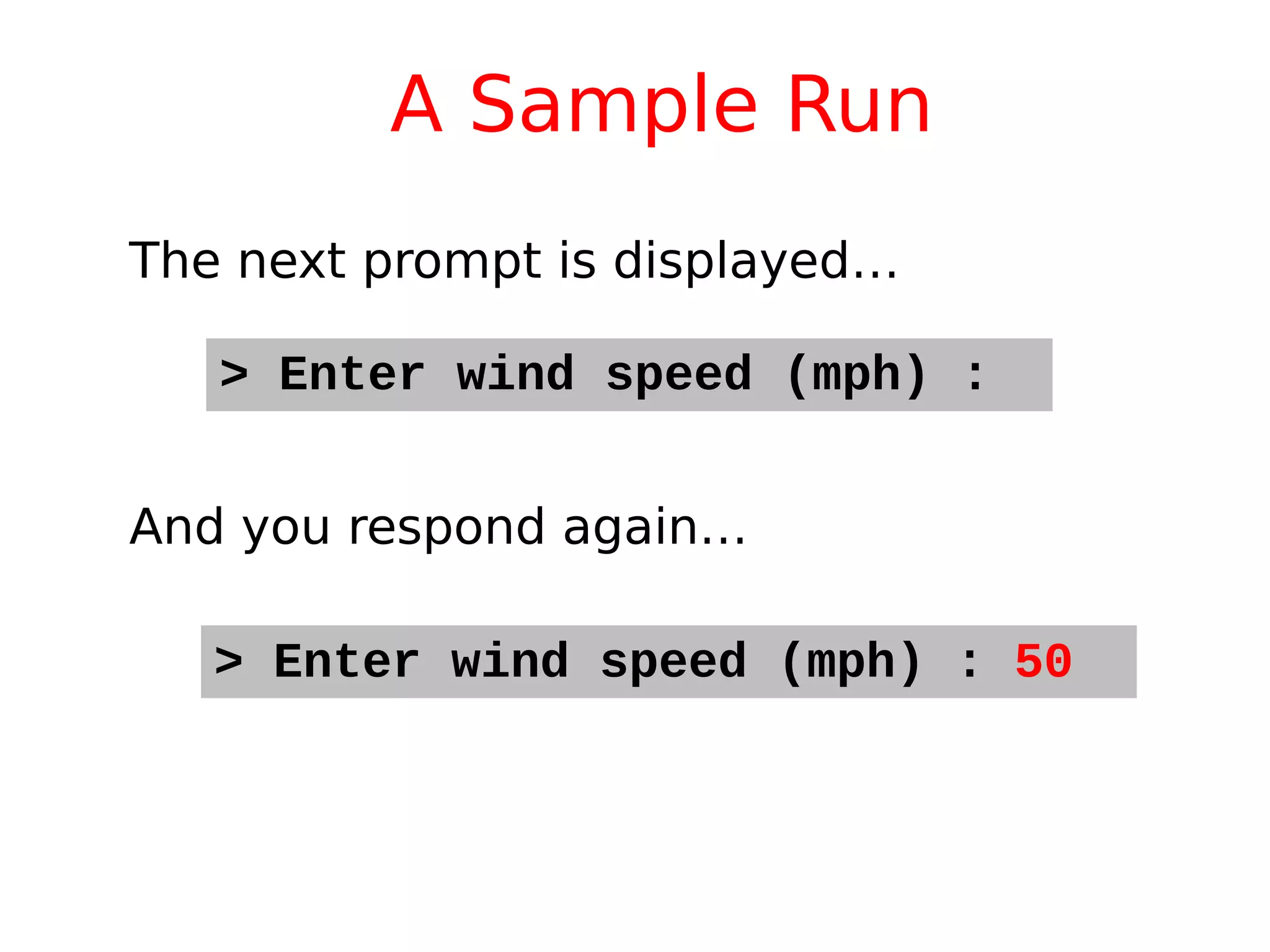
A Sample Run
> Enter wind speed (mph) :
The next prompt is displayed…
And you respond again…
> Enter wind speed (mph) : 50
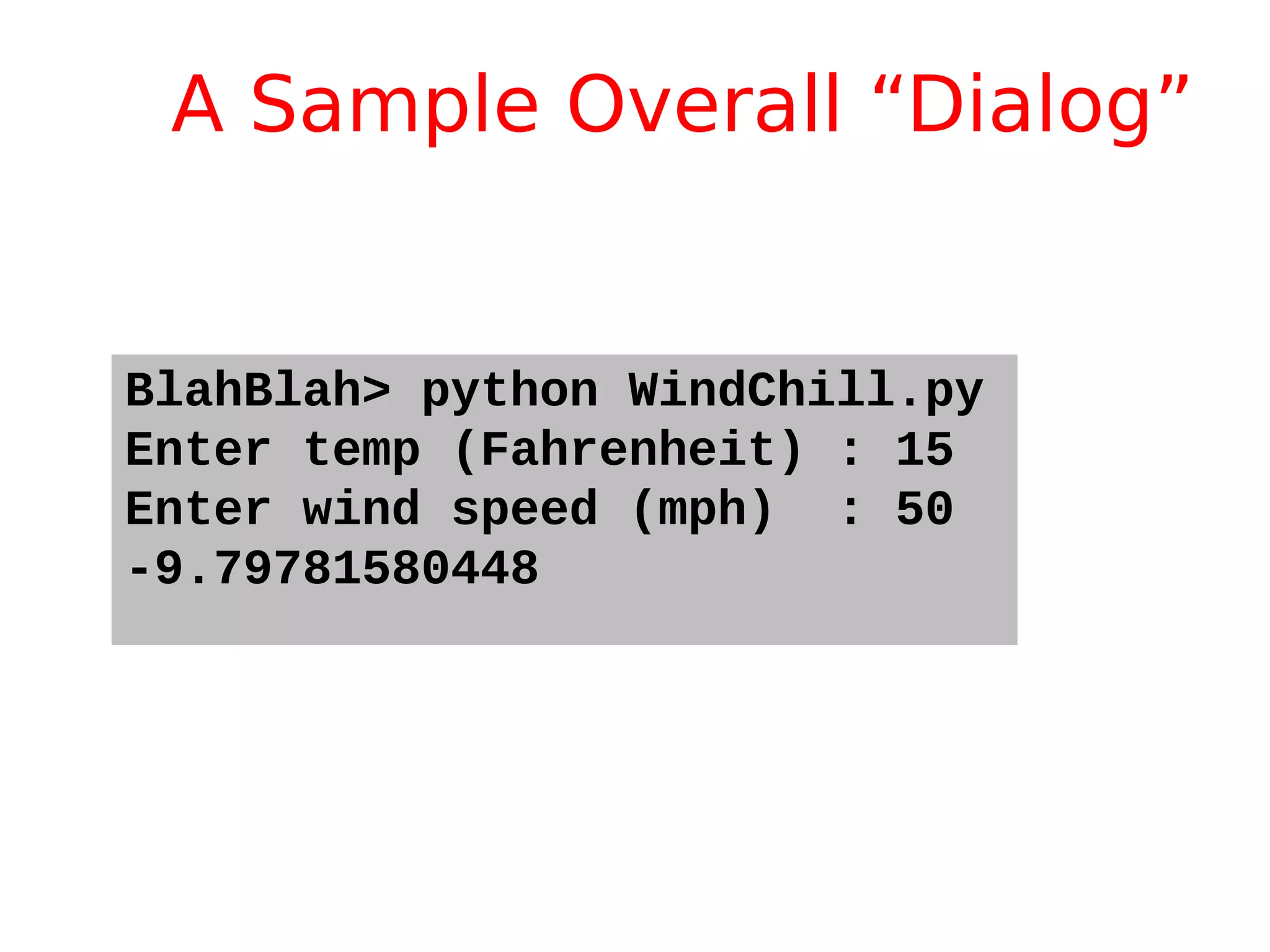
A Sample Overall “Dialog”
BlahBlah> python WindChill.py
Enter temp (Fahrenheit) : 15
Enter wind speed (mph) : 50
-9.79781580448
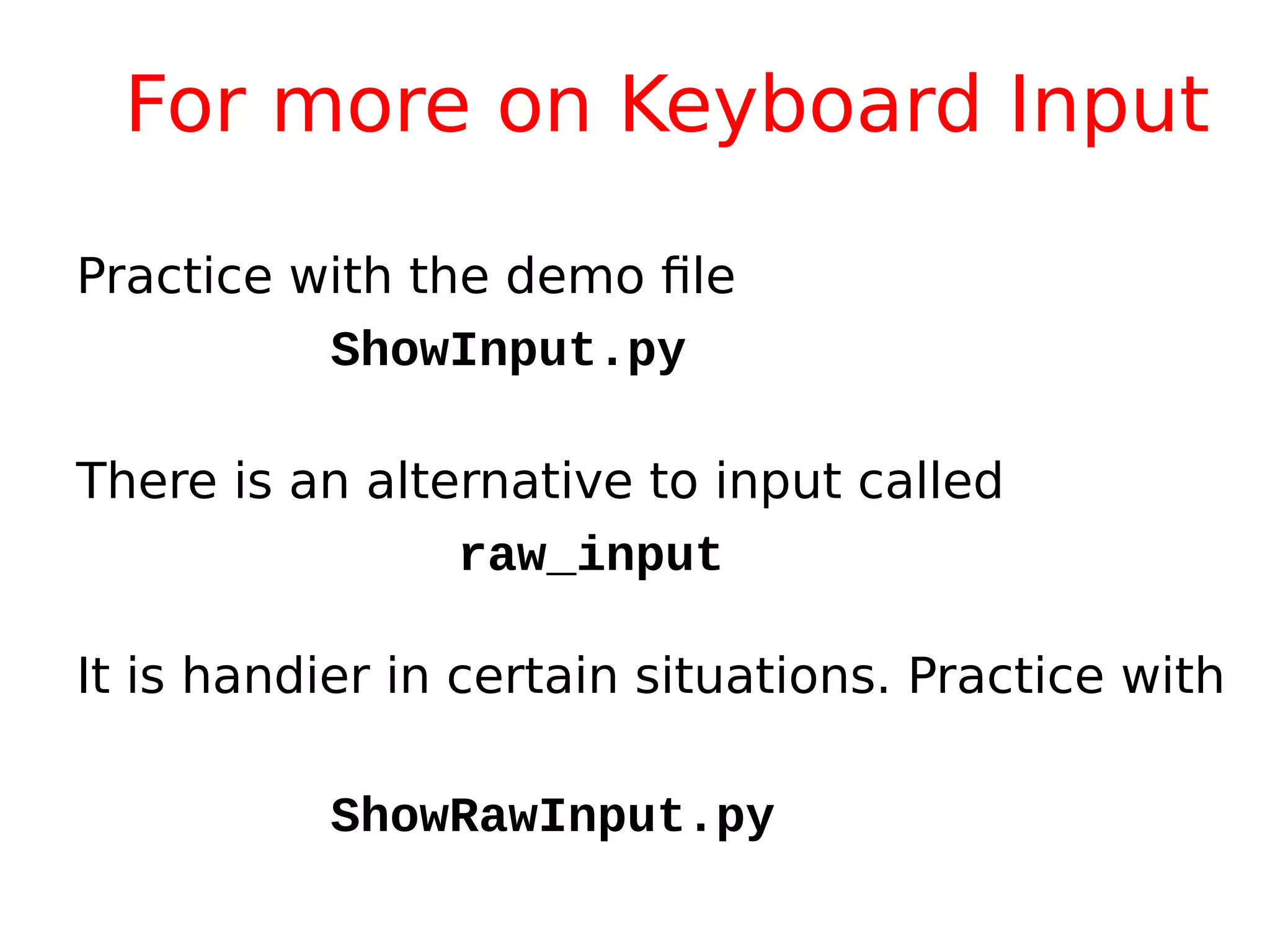
For more on Keyboard Input
Practice with the demo file
ShowInput.py
There is an alternative to input called
raw_input
It is handier in certain situations. Practice with
ShowRawInput.py
More Readable Output
The print statement can be used to format
output in a way that facilitates the
communication of results.
We don’t need to show wind chill to the
12th decimal!
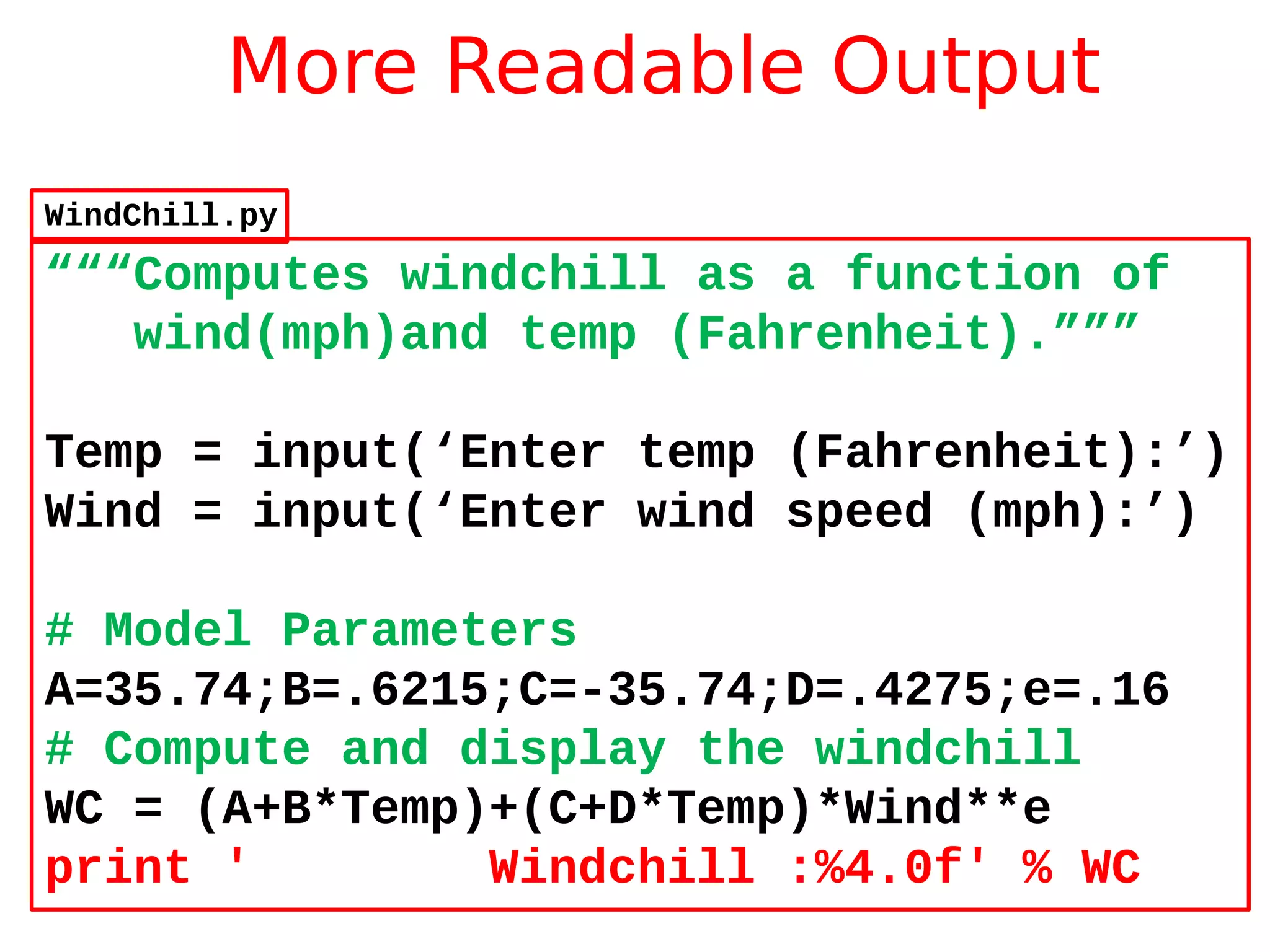
More Readable Output
“““Computes windchill as a function of
wind(mph)and temp (Fahrenheit).”””
Temp = input(‘Enter temp (Fahrenheit):’)
Wind = input(‘Enter wind speed (mph):’)
# Model Parameters
A=35.74;B=.6215;C=-35.74;D=.4275;e=.16
# Compute and display the windchill
WC = (A+B*Temp)+(C+D*Temp)*Wind**e
print ' Windchill :%4.0f' % WC
WindChill.py
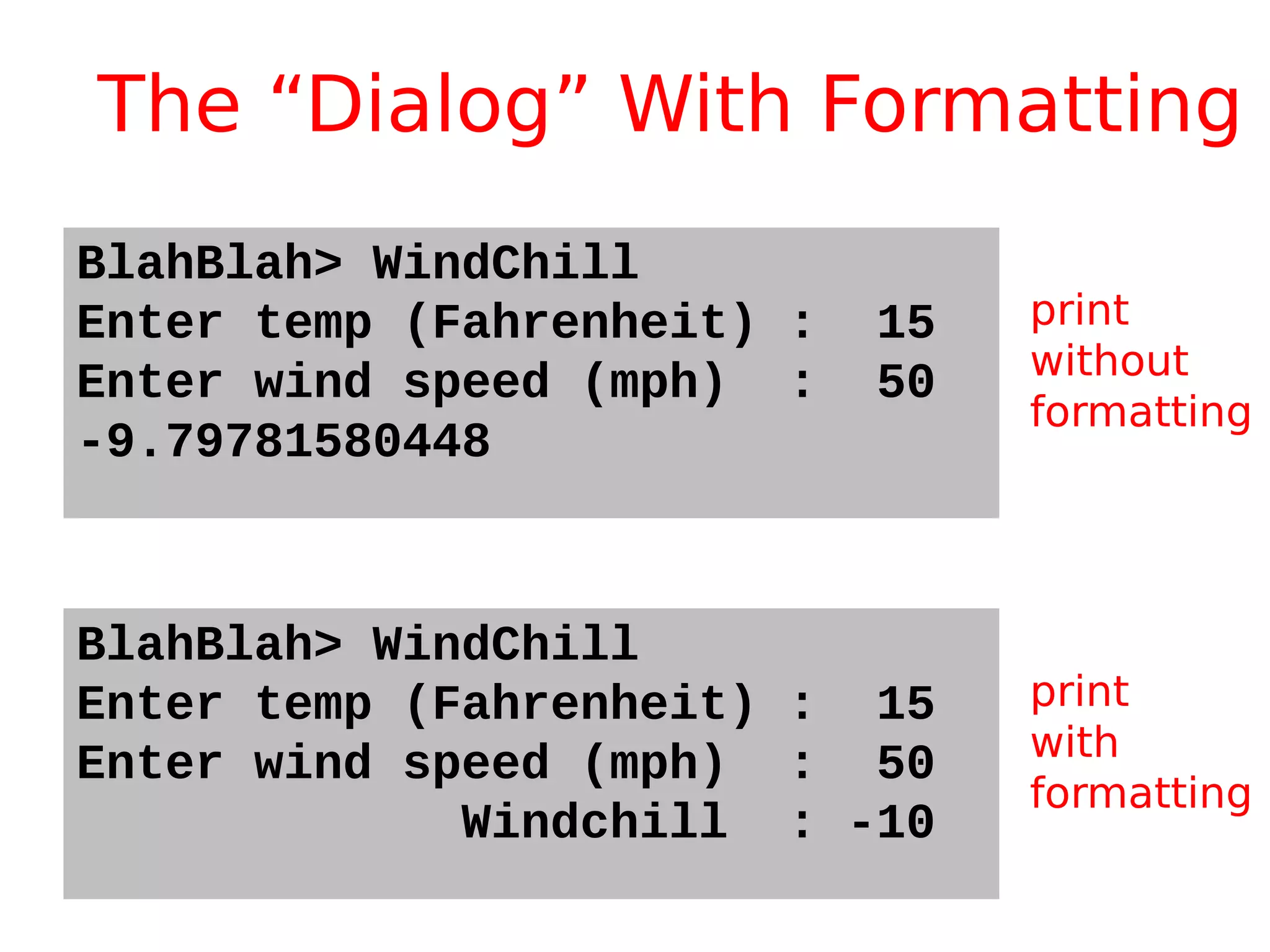
The “Dialog” With Formatting
BlahBlah> WindChill
Enter temp (Fahrenheit) : 15
Enter wind speed (mph) : 50
-9.79781580448
BlahBlah> WindChill
Enter temp (Fahrenheit) : 15
Enter wind speed (mph) : 50
Windchill : -10
print
without
formatting
print
with
formatting
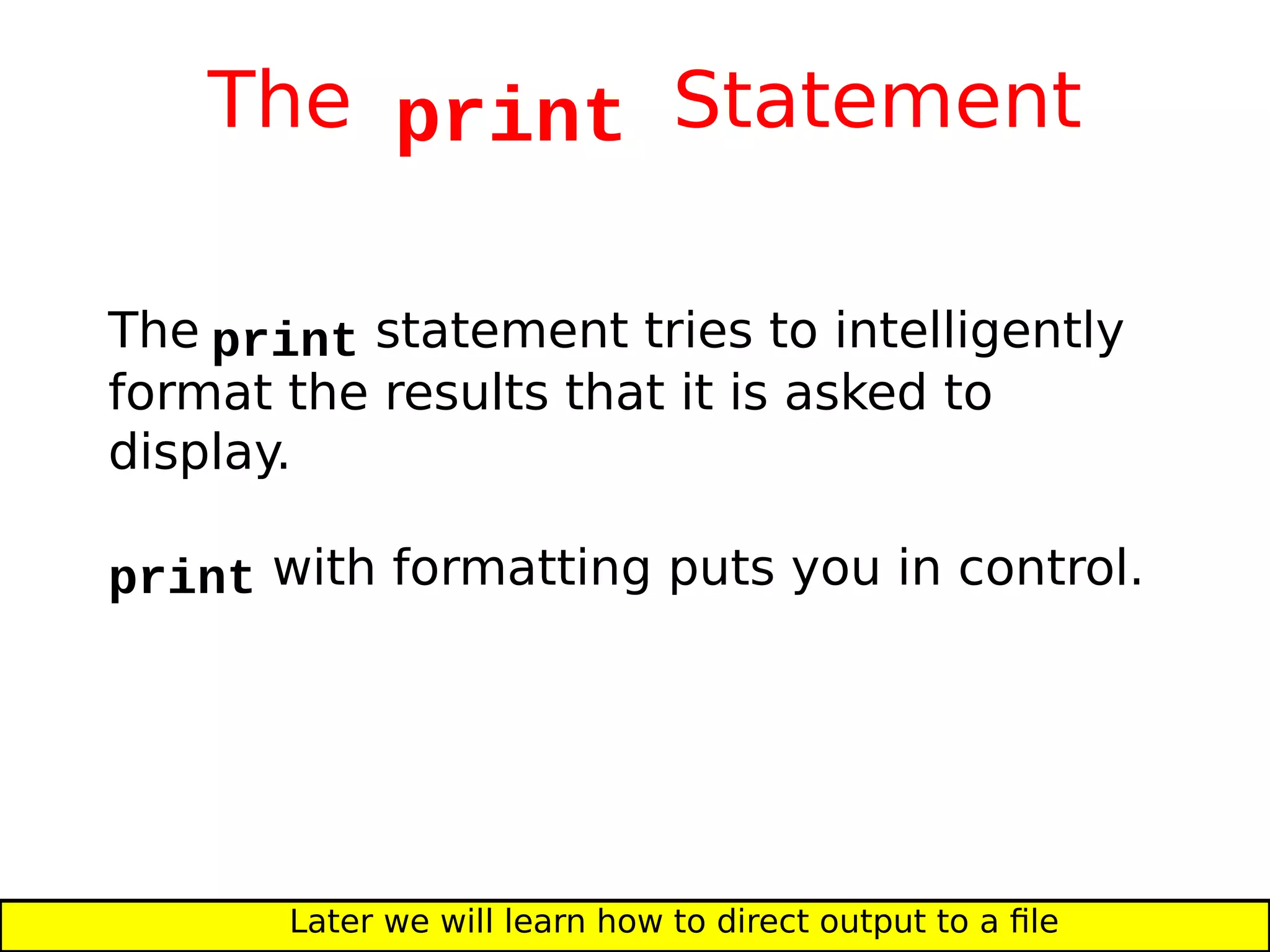
The print Statement
The print statement tries to intelligently
format the results that it is asked to
display.
print with formatting puts you in control.
Later we will learn how to direct output to a file
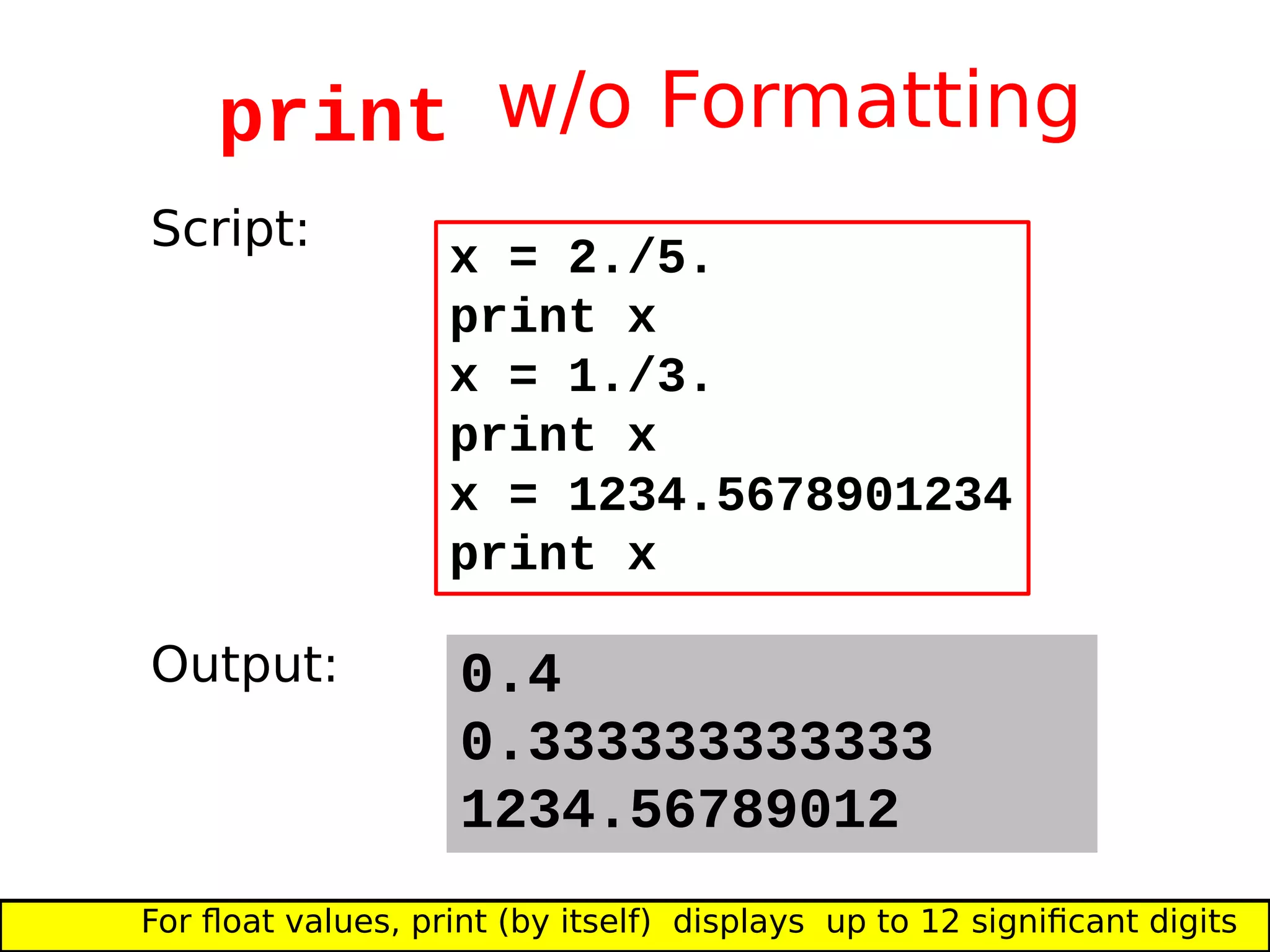
print w/o Formatting
0.4
0.333333333333
1234.56789012
For float values, print (by itself) displays up to 12 significant digits
x = 2./5.
print x
x = 1./3.
print x
x = 1234.5678901234
print x
Script:
Output:
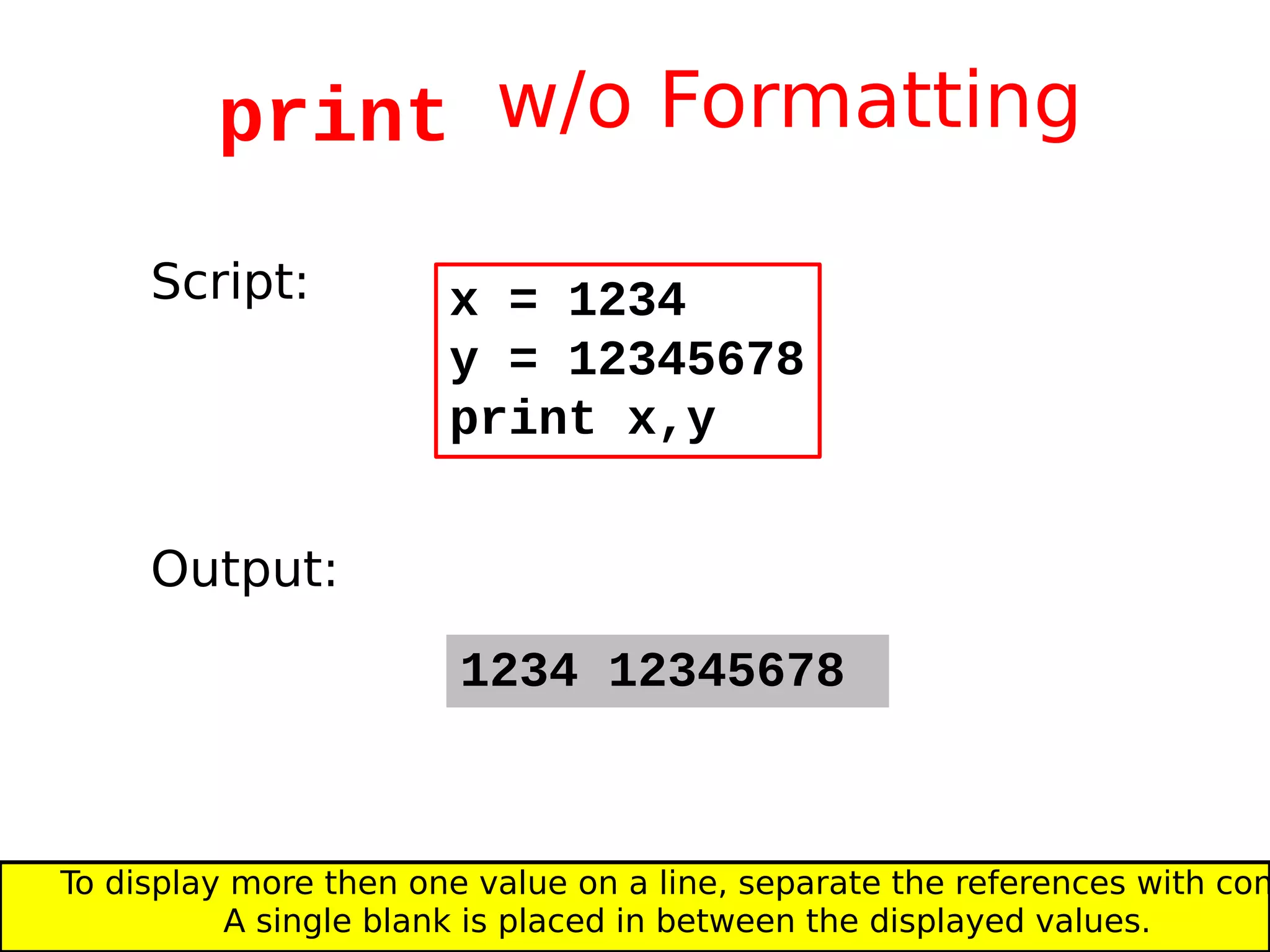
print w/o Formatting
1234 12345678
x = 1234
y = 12345678
print x,y
Script:
Output:
To display more then one value on a line, separate the references with com
A single blank is placed in between the displayed values.
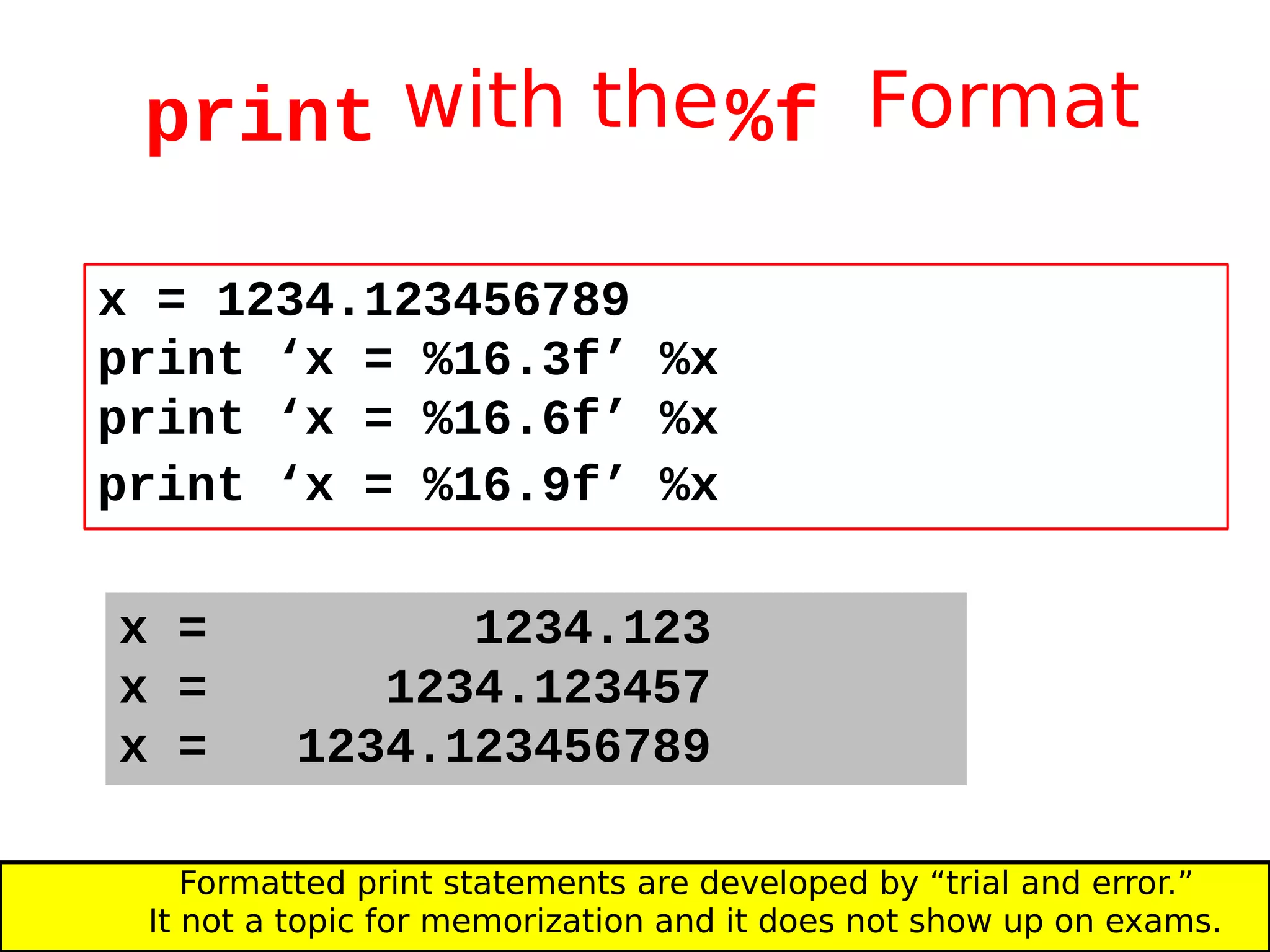
print with the%f Format
x = 1234.123456789
print ‘x = %16.3f’ %x
print ‘x = %16.6f’ %x
print ‘x = %16.9f’ %x
x = 1234.123
x = 1234.123457
x = 1234.123456789
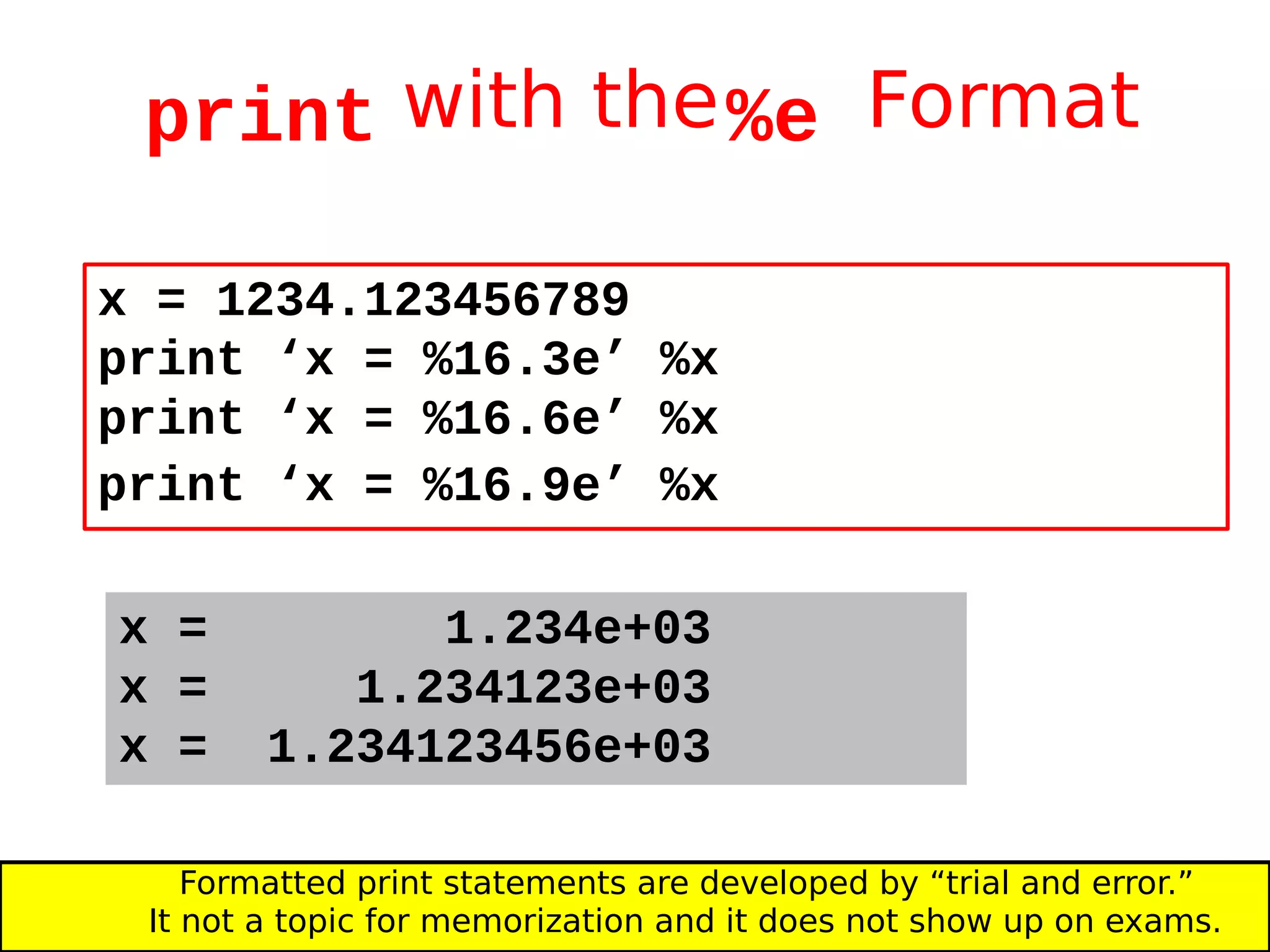
Formatted print statements are developed by “trial and error.”
It not a topic for memorization and it does not show up on exams.
print with the%e Format
x = 1234.123456789
print ‘x = %16.3e’ %x
print ‘x = %16.6e’ %x
print ‘x = %16.9e’ %x
x = 1.234e+03
x = 1.234123e+03
x = 1.234123456e+03
Formatted print statements are developed by “trial and error.”
It not a topic for memorization and it does not show up on exams.
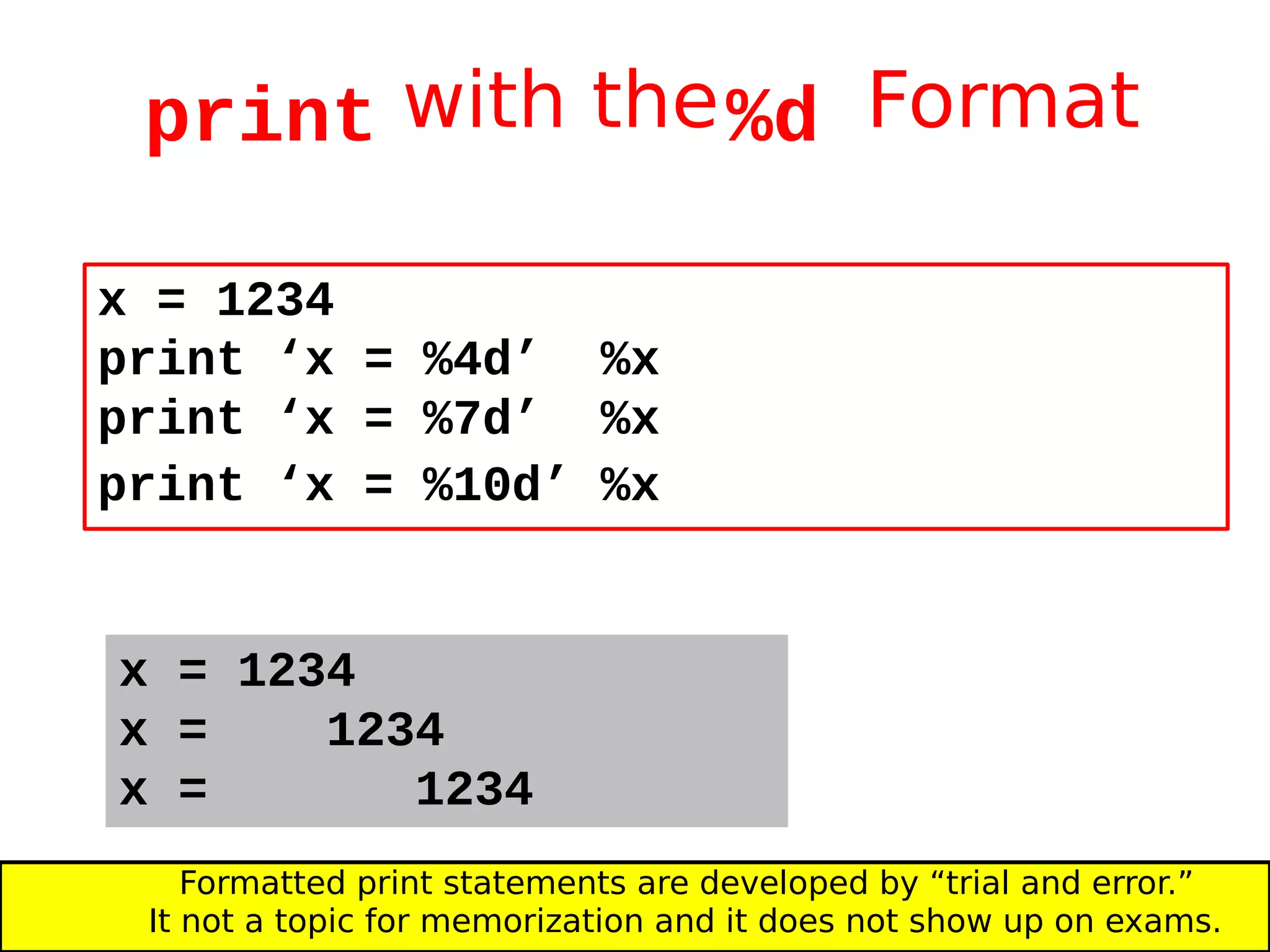
print with the%d Format
x = 1234
print ‘x = %4d’ %x
print ‘x = %7d’ %x
print ‘x = %10d’ %x
x = 1234
x = 1234
x = 1234
Formatted print statements are developed by “trial and error.”
It not a topic for memorization and it does not show up on exams.
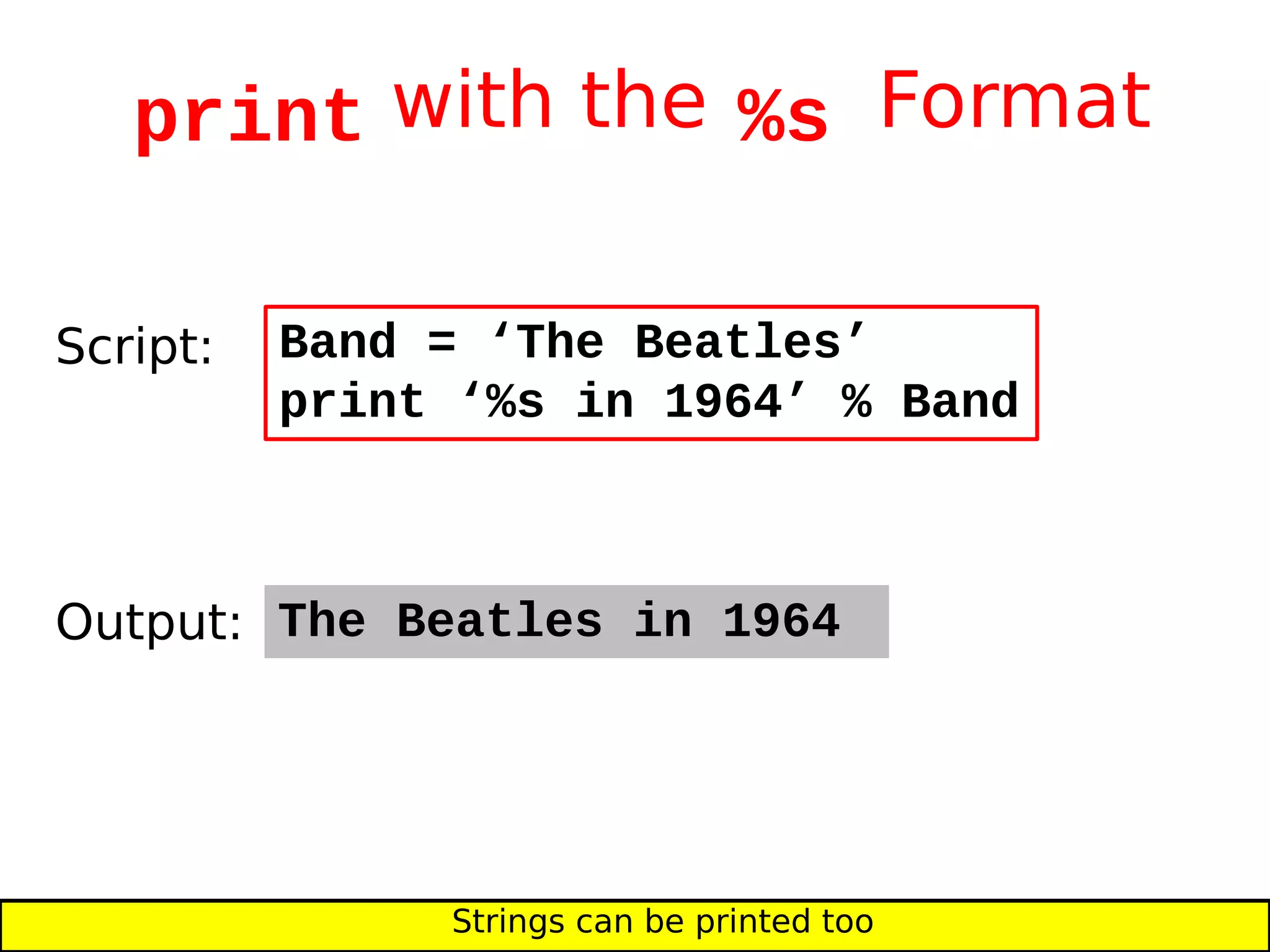
print with the %s Format
The Beatles in 1964
Band = ‘The Beatles’
print ‘%s in 1964’ % Band
Script:
Output:
Strings can be printed too
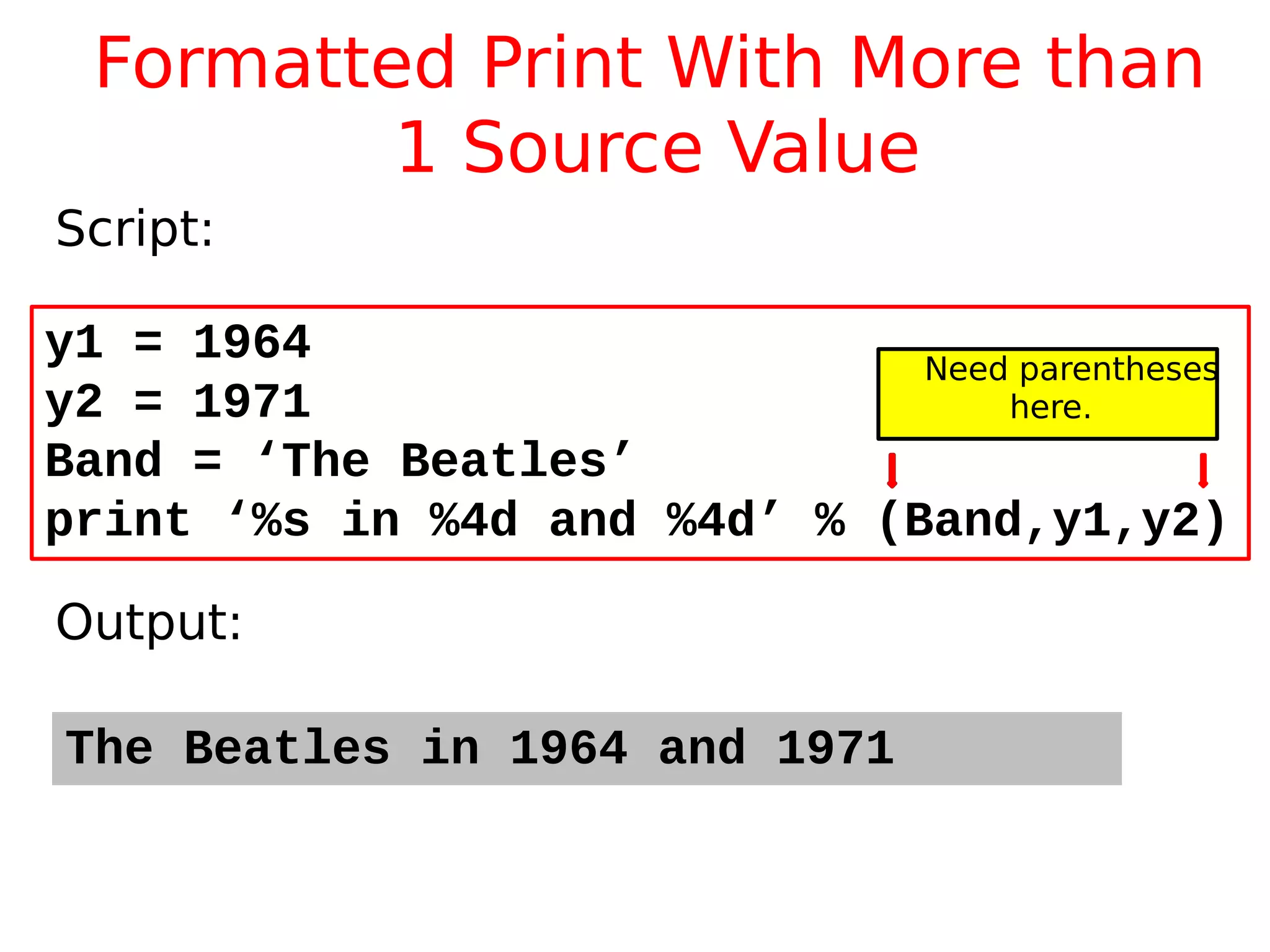
Formatted Print With More than
1 Source Value
The Beatles in 1964 and 1971
y1 = 1964
y2 = 1971
Band = ‘The Beatles’
print ‘%s in %4d and %4d’ % (Band,y1,y2)
Script:
Output:
Need parentheses
here.
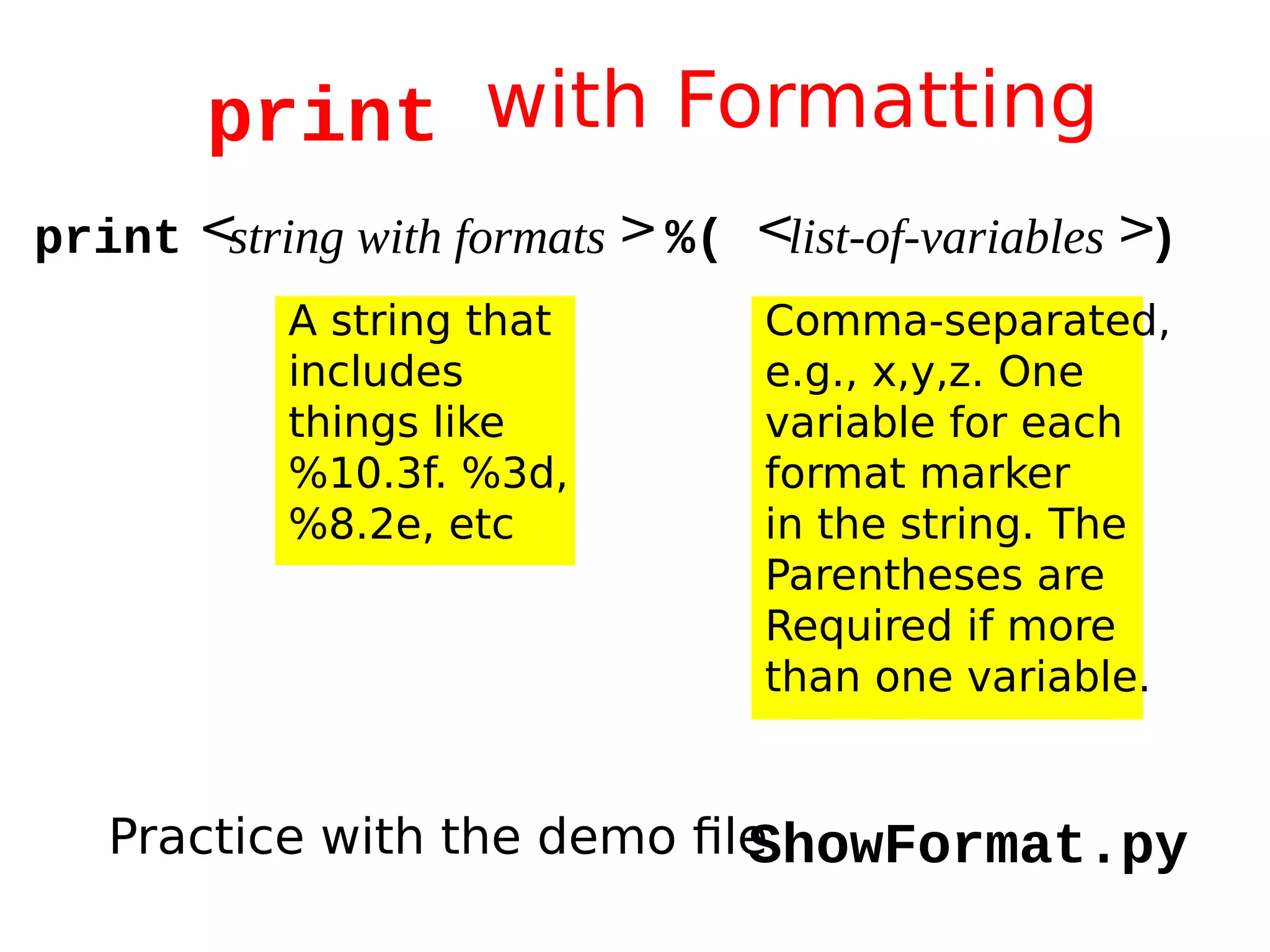
print with Formatting
print <string with formats >%( <list-of-variables >)
A string that
includes
things like
%10.3f. %3d,
%8.2e, etc
Comma-separated,
e.g., x,y,z. One
variable for each
format marker
in the string. The
Parentheses are
Required if more
than one variable.
Practice with the demo fileShowFormat.py
Why Program Readability and
Style is Important
How we “do business” in commerical, scientific,
and engineering settings increasingly relies on
software.
Lack of attention to style and substandard
documentation promotes error and makes it
hard to build on one another’s software.
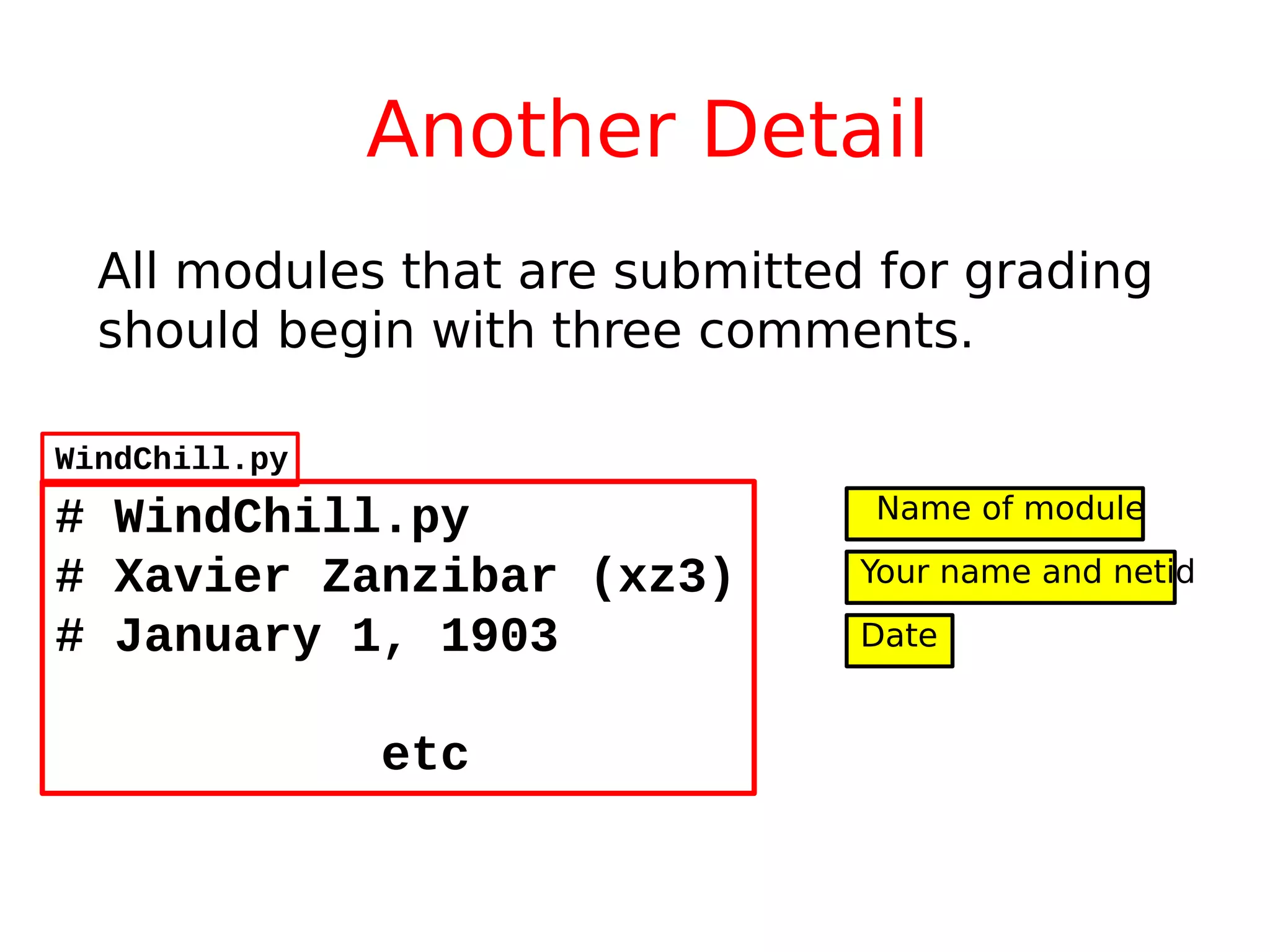
Another Detail
All modules that are submitted for grading
should begin with three comments.
# WindChill.py
# Xavier Zanzibar (xz3)
# January 1, 1903
etc
Name of module
Your name and netid
Date
WindChill.py
A Final Example
Write a script that solicits the area of
a circle and prints out the radius.
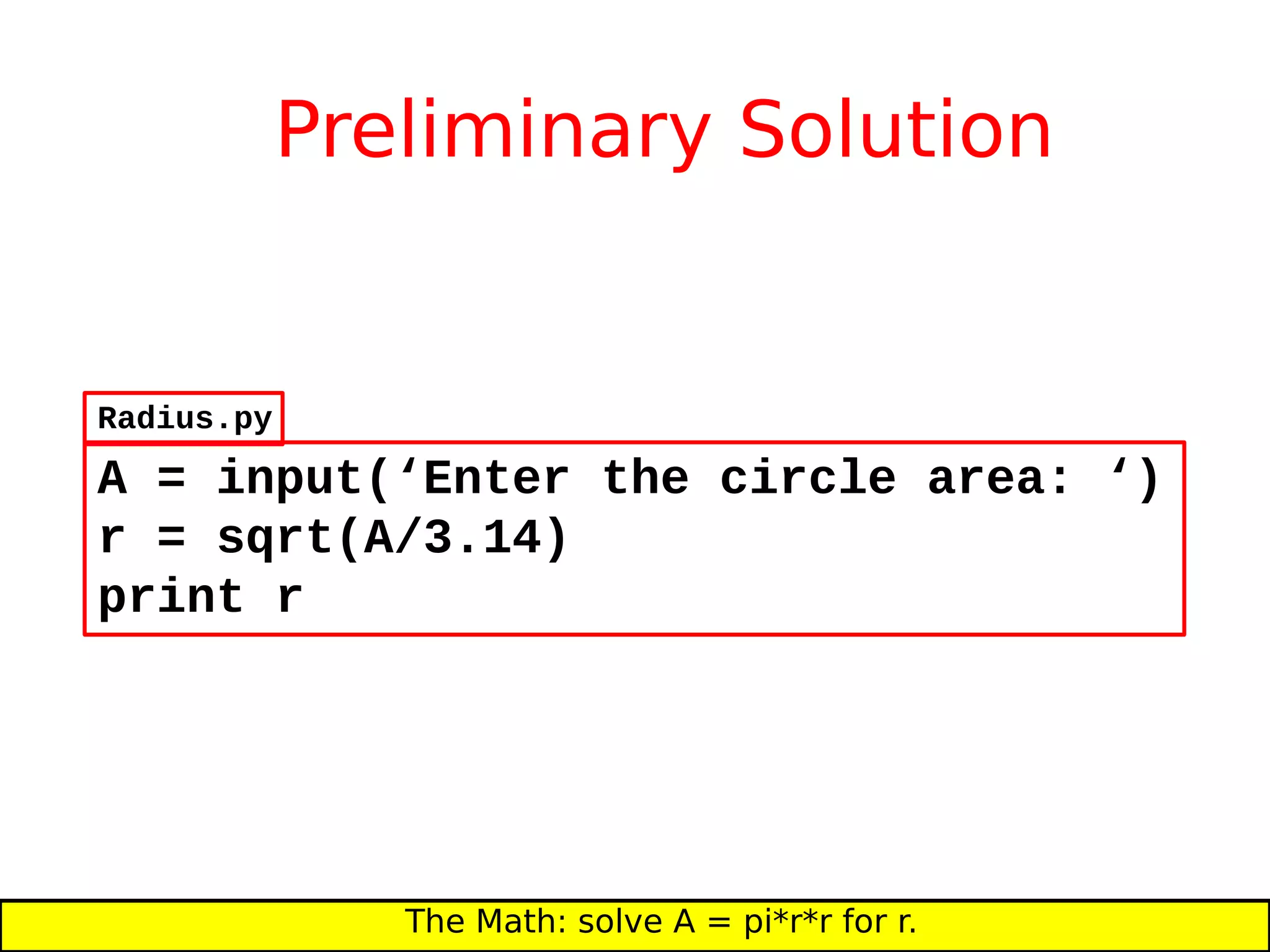
Preliminary Solution
A = input(‘Enter the circle area: ‘)
r = sqrt(A/3.14)
print r
The Math: solve A = pi*r*r for r.
Radius.py
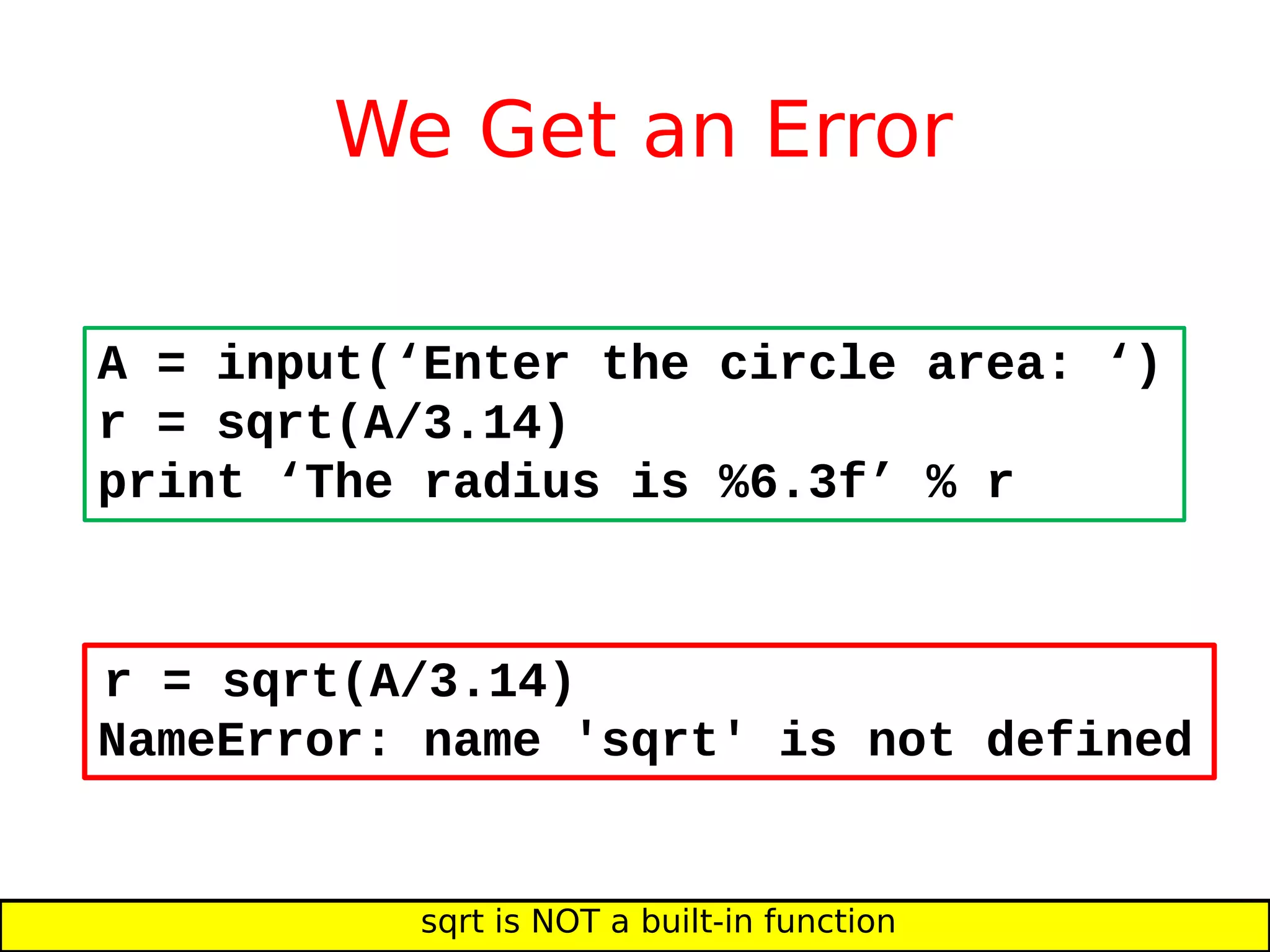
We Get an Error
A = input(‘Enter the circle area: ‘)
r = sqrt(A/3.14)
print ‘The radius is %6.3f’ % r
sqrt is NOT a built-in function
r = sqrt(A/3.14)
NameError: name 'sqrt' is not defined
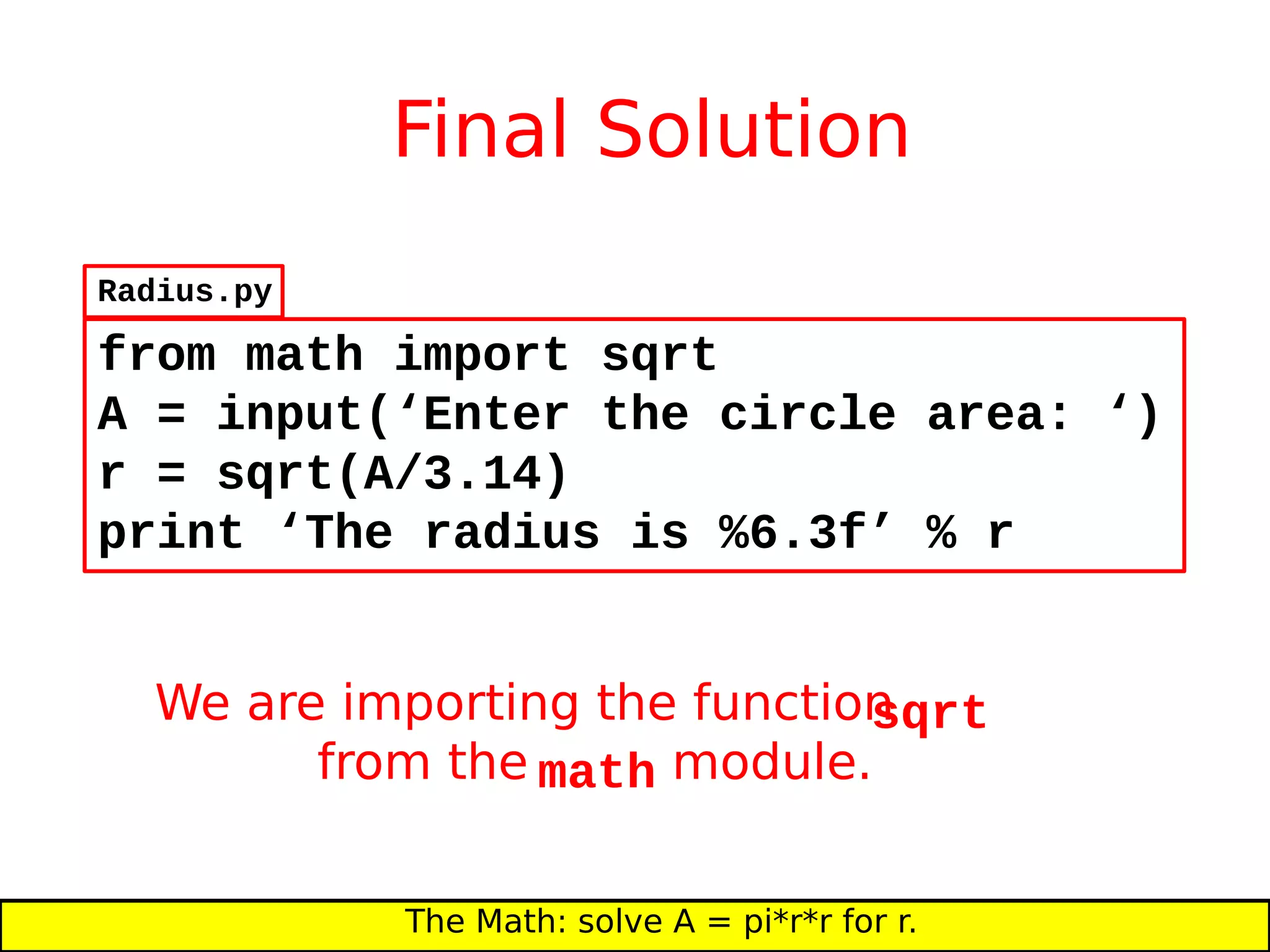
Final Solution
from math import sqrt
A = input(‘Enter the circle area: ‘)
r = sqrt(A/3.14)
print ‘The radius is %6.3f’ % r
The Math: solve A = pi*r*r for r.
We are importing the functionsqrt
from the math module.
Radius.py
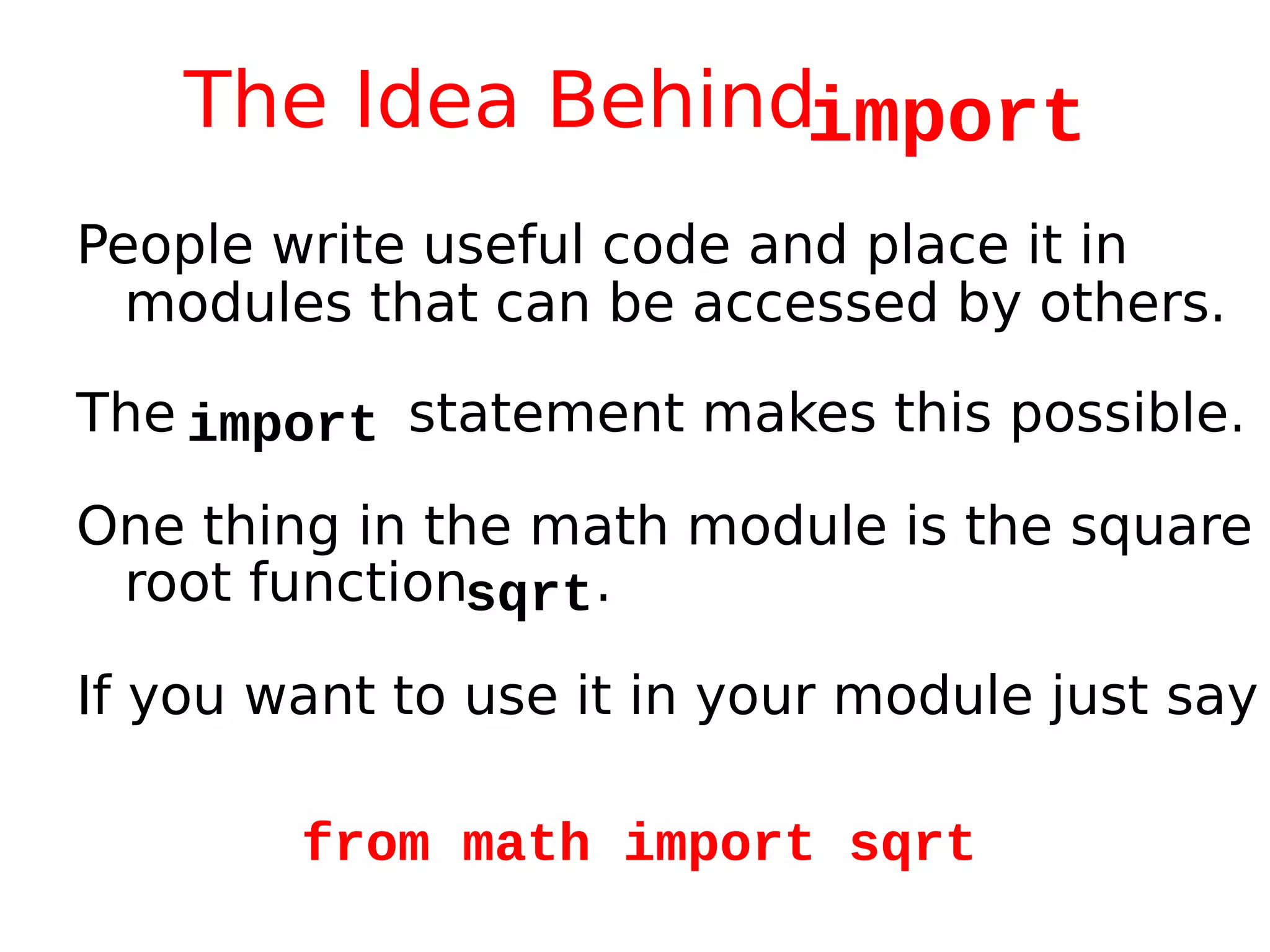
The Idea Behindimport
People write useful code and place it in
modules that can be accessed by others.
The import statement makes this possible.
One thing in the math module is the square
root functionsqrt.
If you want to use it in your module just say
from math import sqrt
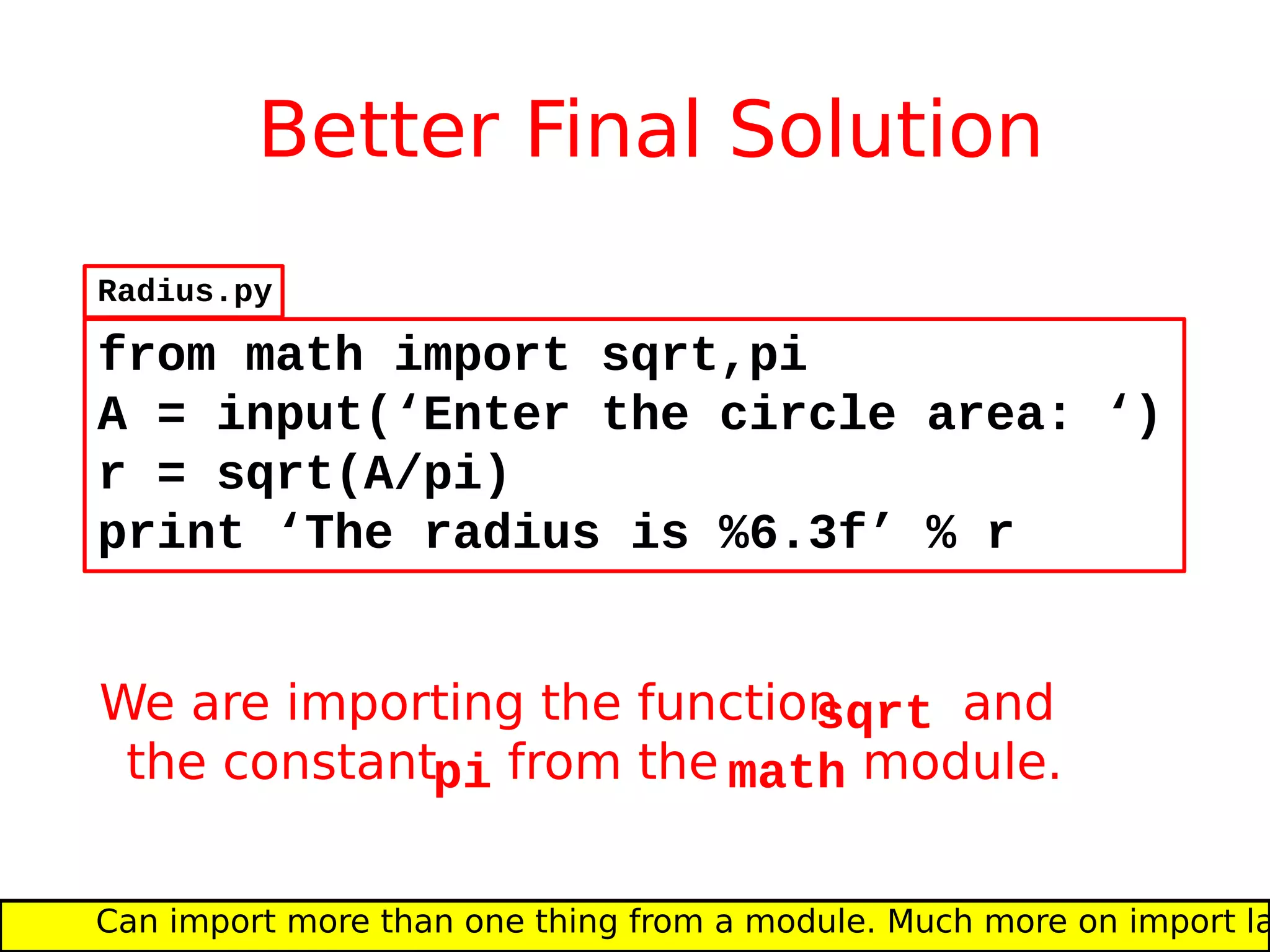
Better Final Solution
from math import sqrt,pi
A = input(‘Enter the circle area: ‘)
r = sqrt(A/pi)
print ‘The radius is %6.3f’ % r
Can import more than one thing from a module. Much more on import la
We are importing the functionsqrt and
the constantpi from the math module.
Radius.py
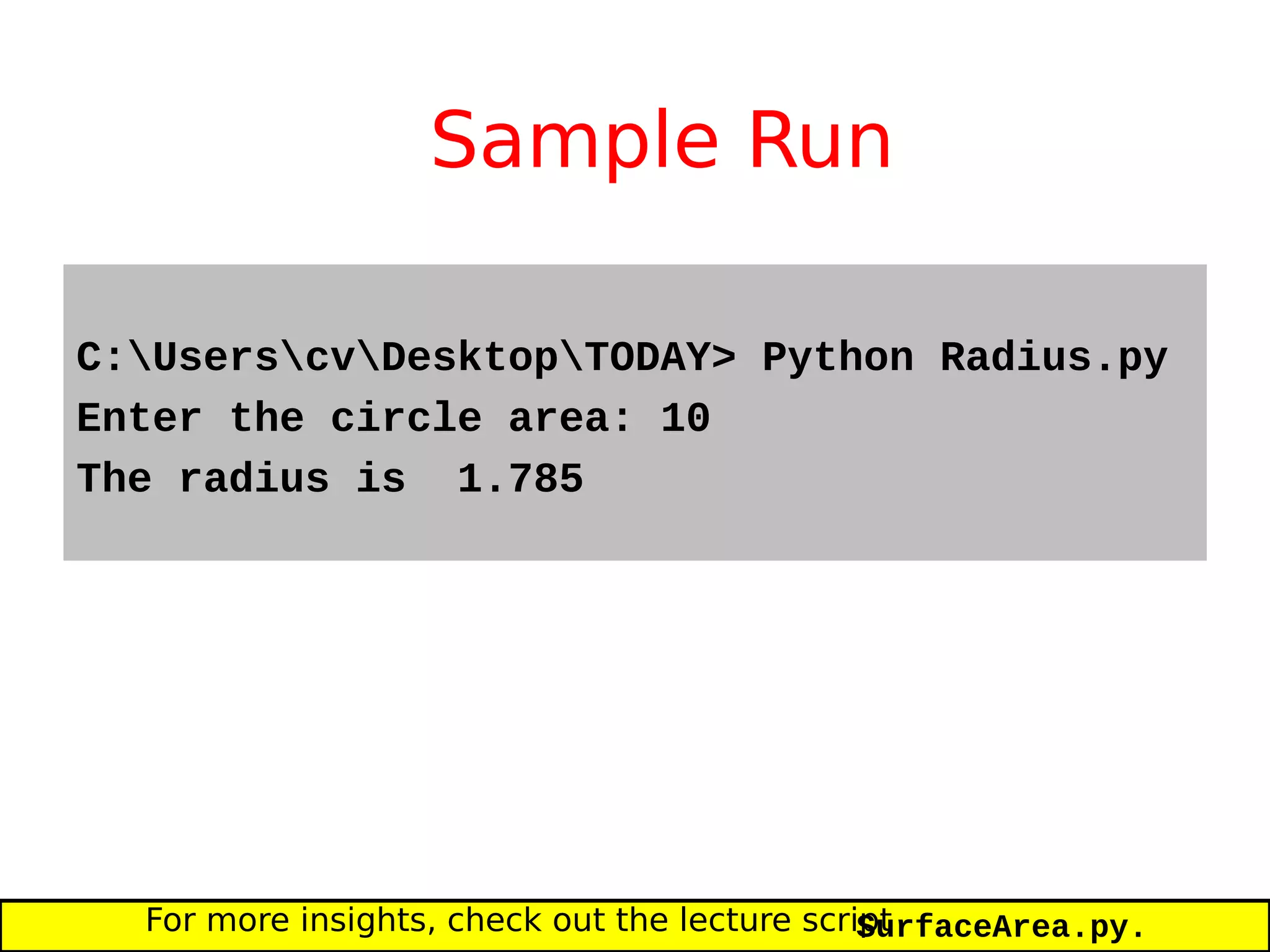
Sample Run
C:UserscvDesktopTODAY> Python Radius.py
Enter the circle area: 10
The radius is 1.785
For more insights, check out the lecture scriptSurfaceArea.py.
Modules and Scripts- Python Assignment Help

Modules and Scripts- Python Assignment Help

  • 2.
    2. Modules, Scripts,and I/O Topics: Script Mode Modules The print andinput statements Formatting First look at importing stuff from other modules
  • 3.
    The Windchill Calculation Let’scompute the windchill temperature given that the air temperature is T = 32F and the wind is W = 20mph. Here is the formula courtesy of the National Weather Service: The formula only applies if T <= 50F and W>=3mph. 16. )4275.075.35()6215.074.35( WTTWchill 
  • 4.
    Use Python inInteractive Mode >>> Temp = 32 >>> Wind = 20 >>> A = 35.74 >>> B = .6215 >>> C = -35.75 >>> D = .4275 >>> e = .16 >>> WC = (A+B*Temp)+(C+D*Temp)*Wind**e >>> print WC 19.9855841878 The print statement is used for displaying values in variables.
  • 5.
    Quick Note onprint The line >>> print WC results in the display of the value currently housed in the variableWC More on theprint statement later.
  • 6.
    Motivating “Script Mode” Whatis the new windchill if the wind is increased from 20mph to 30mph? Looks like we have to type in the same sequence of statements. Tedious. Wouldn’t it be nice if we could store the sequence of statements in a file and then have Python “run the file” after we changed Wind = 20 to Wind = 30 ?
  • 7.
    Script Mode Instead ofrunning Python in interactive mode, we run Python in script mode. The code to be run (called a script) is entered into a file (called a module). We then ask Python to “run the script”.
  • 8.
    What is aModule? A module is a .py file that contains Python code. In CS 1110, these are created using Komodo Edit.
  • 9.
    The ModuleWindChill.py Temp =32 Wind = 20 A = 35.74 B = .6215 C = -35.74 D = .4275 e = .16 WC = (A+B*Temp)+(C+D*Temp)*Wind**e print WC Produced using Komodo Edit. This is our first draft. WindChill.py
  • 10.
    Running the Module Hereare the steps to follow in the command shell: 1. Navigate the file system so that you are “in” the same diretory that houses WindChill.py 2. Type: python WindChill.py
  • 11.
    Details Suppose I havea directory on my desktop calledTODAY where I keep all my python files for today’s lecture. I navigate the file system until I get this prompt: C:UserscvDesktopTODAY>
  • 12.
    Asking Python toRun the Code in WindChill.py C:UserscvDesktopTODAY> Python WindChill.py 19.6975841877955 To save space in subsequent slides, we will refer to C:UserscvDesktopTODAY> as BlahBlah>
  • 13.
    Multiple Statements ona Line Temp = 32 Wind = 20 A=35.74;B=.6215;C=-35.74;D=.4275;e=.16 WC = (A+B*Temp)+(C+D*Temp)*Wind**e print WC Can put multiple statements on a line. Separate the statements with semicolons. WindChill.py For lecture slides we will sometimes do this to save space. But in general, it makes for ``dense reading’’ and should be avoided.
  • 14.
    Module Readability: Comments Commentsbegin with a “#” Temp = 32 Wind = 20 # Model Parameters A=35.74;B=.6215;C=-35.74;D=.4275;e=.16 # Compute and display the windchill WC = (A+B*Temp)+(C+D*Temp)*Wind**e print WC WindChill.py
  • 15.
    Comments: Guidelines Wind =20 # wind speed in miles-per-hour Comments can also appear on the same line as a statement: Everything to the right of the “#” is part of the comment and not part of the program.
  • 16.
    Comments and Readability Starteach program (script) with a concise description of what it does. Define each important variable/constant. A chunk of code with a specific taskshould be generally be prefaced with a concise comment.
  • 17.
    Module Readability: docstrings Aspecial comment at the top of the module. “““Computes windchill as a function of wind(mph)and temp (Fahrenheit).””” Temp = 32 Wind = 20 # Model Parameters A=35.74;B=.6215;C=-35.74;D=.4275;e=.16 # Compute and display the windchill WC = (A+B*Temp)+(C+D*Temp)*Wind**e print WC WindChill.py
  • 18.
    Docstrings: Guidelines Docstrings aremultiline comments that are delimited by triple quotes: “““ They are strategically located at the beginning of “important” code sections. Their goal is to succinctly describe what the code section is about. One example of an “important” code section is a module.
  • 19.
    Trying Different Inputs “““Computeswindchill as a function of wind(mph)and temp (Fahrenheit).””” Temp = 32 Wind = 20 # Model Parameters A=35.74;B=.6215;C=-35.74;D=.4275;e=.16 # Compute and display the windchill WC = (A+B*Temp)+(C+D*Temp)*Wind**e print WC Can we be more flexible here? WindChill.py
  • 20.
    Handy Input If wewant to explore windchill as a function of windspeed and temperature, then it is awkward to proceed by editing the moduleWindChill.py every time we want to check out a new wind/temp combination. The input statement addresses this issue.
  • 21.
    The input Statement Theinput statement is used to solicit values via the keyboard: input( < string that serves as a prompt > ) Later we will learn how to input data from a file.
  • 22.
    Temp andWind viainput “““Computes windchill as a function of wind(mph)and temp (Fahrenheit).””” Temp = input(‘Enter temp (Fahrenheit):’) Wind = input(‘Enter wind speed (mph):’) # Model Parameters A=35.74;B=.6215;C=-35.74;D=.4275;e=.16 # Compute and display the windchill WC = (A+B*Temp)+(C+D*Temp)*Wind**e print WC WindChill.py
  • 23.
    A Sample Run >Enter temp (Fahrenheit) : The prompt is displayed… And you respond… > Enter temp (Fahrenheit) : 15
  • 24.
    A Sample Run >Enter wind speed (mph) : The next prompt is displayed… And you respond again… > Enter wind speed (mph) : 50
  • 25.
    A Sample Overall“Dialog” BlahBlah> python WindChill.py Enter temp (Fahrenheit) : 15 Enter wind speed (mph) : 50 -9.79781580448
  • 26.
    For more onKeyboard Input Practice with the demo file ShowInput.py There is an alternative to input called raw_input It is handier in certain situations. Practice with ShowRawInput.py
  • 27.
    More Readable Output Theprint statement can be used to format output in a way that facilitates the communication of results. We don’t need to show wind chill to the 12th decimal!
  • 28.
    More Readable Output “““Computeswindchill as a function of wind(mph)and temp (Fahrenheit).””” Temp = input(‘Enter temp (Fahrenheit):’) Wind = input(‘Enter wind speed (mph):’) # Model Parameters A=35.74;B=.6215;C=-35.74;D=.4275;e=.16 # Compute and display the windchill WC = (A+B*Temp)+(C+D*Temp)*Wind**e print ' Windchill :%4.0f' % WC WindChill.py
  • 29.
    The “Dialog” WithFormatting BlahBlah> WindChill Enter temp (Fahrenheit) : 15 Enter wind speed (mph) : 50 -9.79781580448 BlahBlah> WindChill Enter temp (Fahrenheit) : 15 Enter wind speed (mph) : 50 Windchill : -10 print without formatting print with formatting
  • 30.
    The print Statement Theprint statement tries to intelligently format the results that it is asked to display. print with formatting puts you in control. Later we will learn how to direct output to a file
  • 31.
    print w/o Formatting 0.4 0.333333333333 1234.56789012 Forfloat values, print (by itself) displays up to 12 significant digits x = 2./5. print x x = 1./3. print x x = 1234.5678901234 print x Script: Output:
  • 32.
    print w/o Formatting 123412345678 x = 1234 y = 12345678 print x,y Script: Output: To display more then one value on a line, separate the references with com A single blank is placed in between the displayed values.
  • 33.
    print with the%fFormat x = 1234.123456789 print ‘x = %16.3f’ %x print ‘x = %16.6f’ %x print ‘x = %16.9f’ %x x = 1234.123 x = 1234.123457 x = 1234.123456789 Formatted print statements are developed by “trial and error.” It not a topic for memorization and it does not show up on exams.
  • 34.
    print with the%eFormat x = 1234.123456789 print ‘x = %16.3e’ %x print ‘x = %16.6e’ %x print ‘x = %16.9e’ %x x = 1.234e+03 x = 1.234123e+03 x = 1.234123456e+03 Formatted print statements are developed by “trial and error.” It not a topic for memorization and it does not show up on exams.
  • 35.
    print with the%dFormat x = 1234 print ‘x = %4d’ %x print ‘x = %7d’ %x print ‘x = %10d’ %x x = 1234 x = 1234 x = 1234 Formatted print statements are developed by “trial and error.” It not a topic for memorization and it does not show up on exams.
  • 36.
    print with the%s Format The Beatles in 1964 Band = ‘The Beatles’ print ‘%s in 1964’ % Band Script: Output: Strings can be printed too
  • 37.
    Formatted Print WithMore than 1 Source Value The Beatles in 1964 and 1971 y1 = 1964 y2 = 1971 Band = ‘The Beatles’ print ‘%s in %4d and %4d’ % (Band,y1,y2) Script: Output: Need parentheses here.
  • 38.
    print with Formatting print<string with formats >%( <list-of-variables >) A string that includes things like %10.3f. %3d, %8.2e, etc Comma-separated, e.g., x,y,z. One variable for each format marker in the string. The Parentheses are Required if more than one variable. Practice with the demo fileShowFormat.py
  • 39.
    Why Program Readabilityand Style is Important How we “do business” in commerical, scientific, and engineering settings increasingly relies on software. Lack of attention to style and substandard documentation promotes error and makes it hard to build on one another’s software.
  • 40.
    Another Detail All modulesthat are submitted for grading should begin with three comments. # WindChill.py # Xavier Zanzibar (xz3) # January 1, 1903 etc Name of module Your name and netid Date WindChill.py
  • 41.
    A Final Example Writea script that solicits the area of a circle and prints out the radius.
  • 42.
    Preliminary Solution A =input(‘Enter the circle area: ‘) r = sqrt(A/3.14) print r The Math: solve A = pi*r*r for r. Radius.py
  • 43.
    We Get anError A = input(‘Enter the circle area: ‘) r = sqrt(A/3.14) print ‘The radius is %6.3f’ % r sqrt is NOT a built-in function r = sqrt(A/3.14) NameError: name 'sqrt' is not defined
  • 44.
    Final Solution from mathimport sqrt A = input(‘Enter the circle area: ‘) r = sqrt(A/3.14) print ‘The radius is %6.3f’ % r The Math: solve A = pi*r*r for r. We are importing the functionsqrt from the math module. Radius.py
  • 45.
    The Idea Behindimport Peoplewrite useful code and place it in modules that can be accessed by others. The import statement makes this possible. One thing in the math module is the square root functionsqrt. If you want to use it in your module just say from math import sqrt
  • 46.
    Better Final Solution frommath import sqrt,pi A = input(‘Enter the circle area: ‘) r = sqrt(A/pi) print ‘The radius is %6.3f’ % r Can import more than one thing from a module. Much more on import la We are importing the functionsqrt and the constantpi from the math module. Radius.py
  • 47.
    Sample Run C:UserscvDesktopTODAY> PythonRadius.py Enter the circle area: 10 The radius is 1.785 For more insights, check out the lecture scriptSurfaceArea.py.