Basic shell scripting
CS2204
Class meeting 7
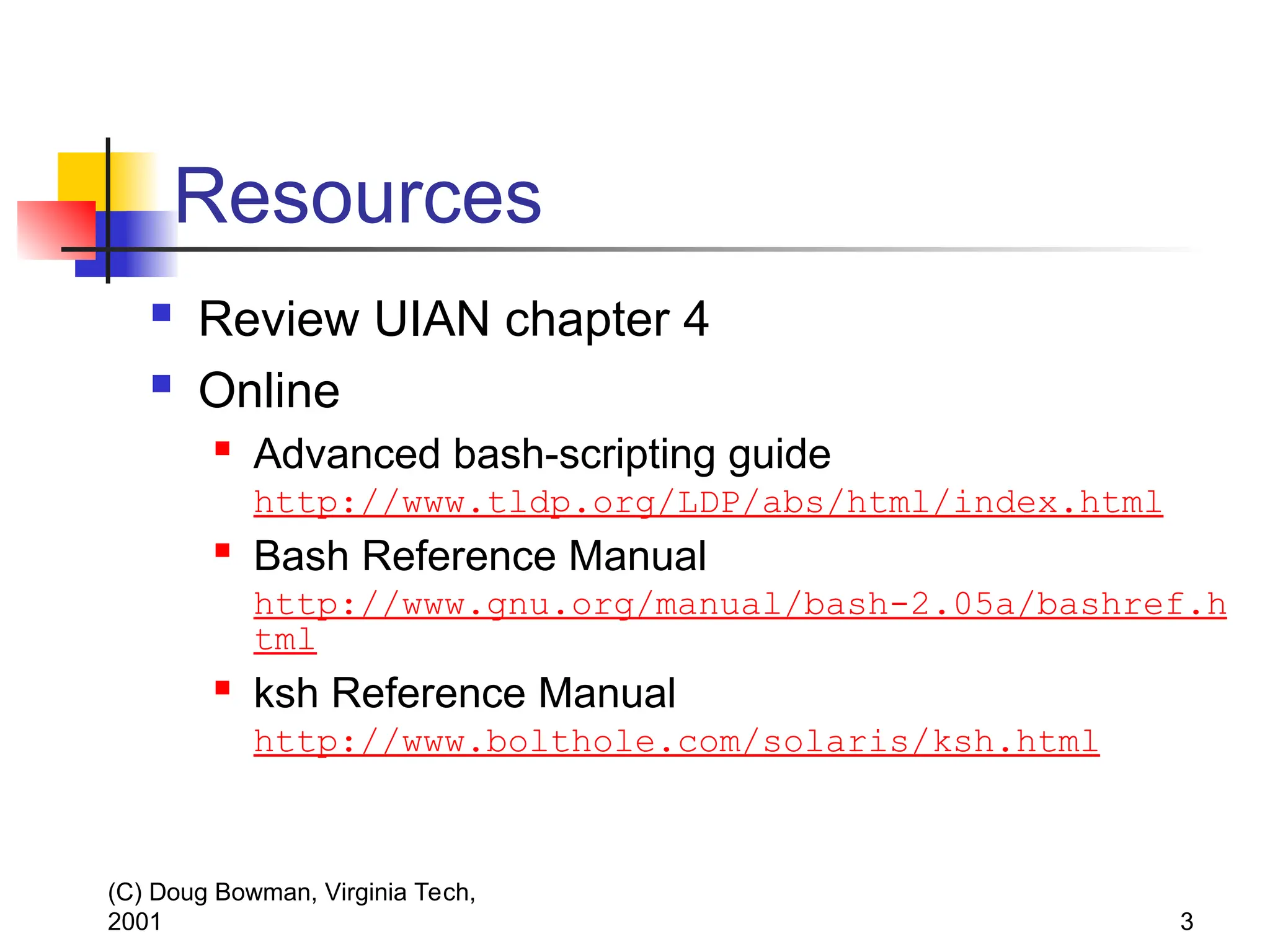
*Notes by Doug Bowman and other members of the
CS faculty at Virginia Tech. Copyright 2001-2003.
2.
(C) Doug Bowman,Virginia Tech,
2001 2
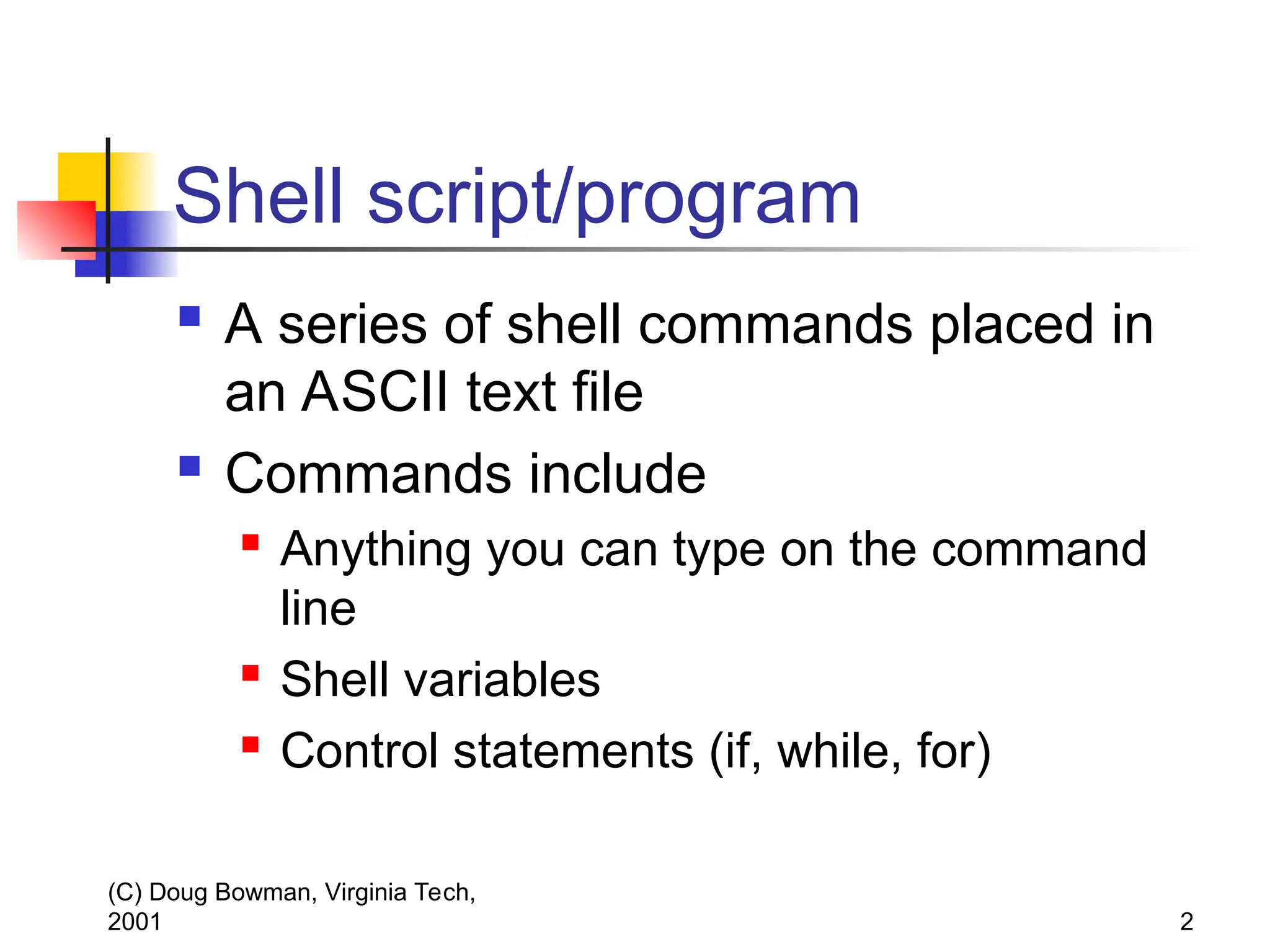
Shell script/program
A series of shell commands placed in
an ASCII text file
Commands include
Anything you can type on the command
line
Shell variables
Control statements (if, while, for)
(C) Doug Bowman,Virginia Tech,
2001 4
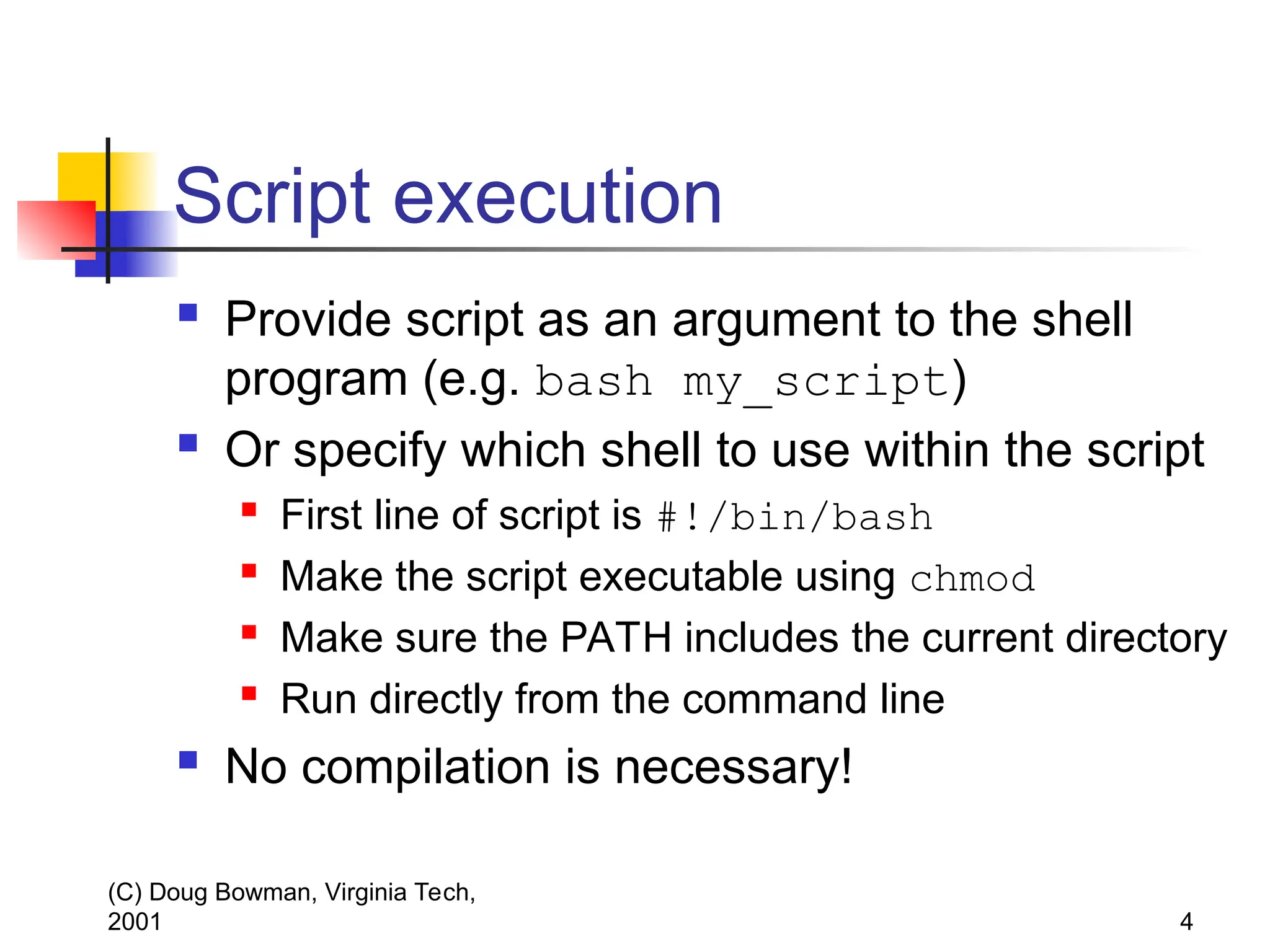
Script execution
Provide script as an argument to the shell
program (e.g. bash my_script)
Or specify which shell to use within the script
First line of script is #!/bin/bash
Make the script executable using chmod
Make sure the PATH includes the current directory
Run directly from the command line
No compilation is necessary!
5.
(C) Doug Bowman,Virginia Tech,
2001 5
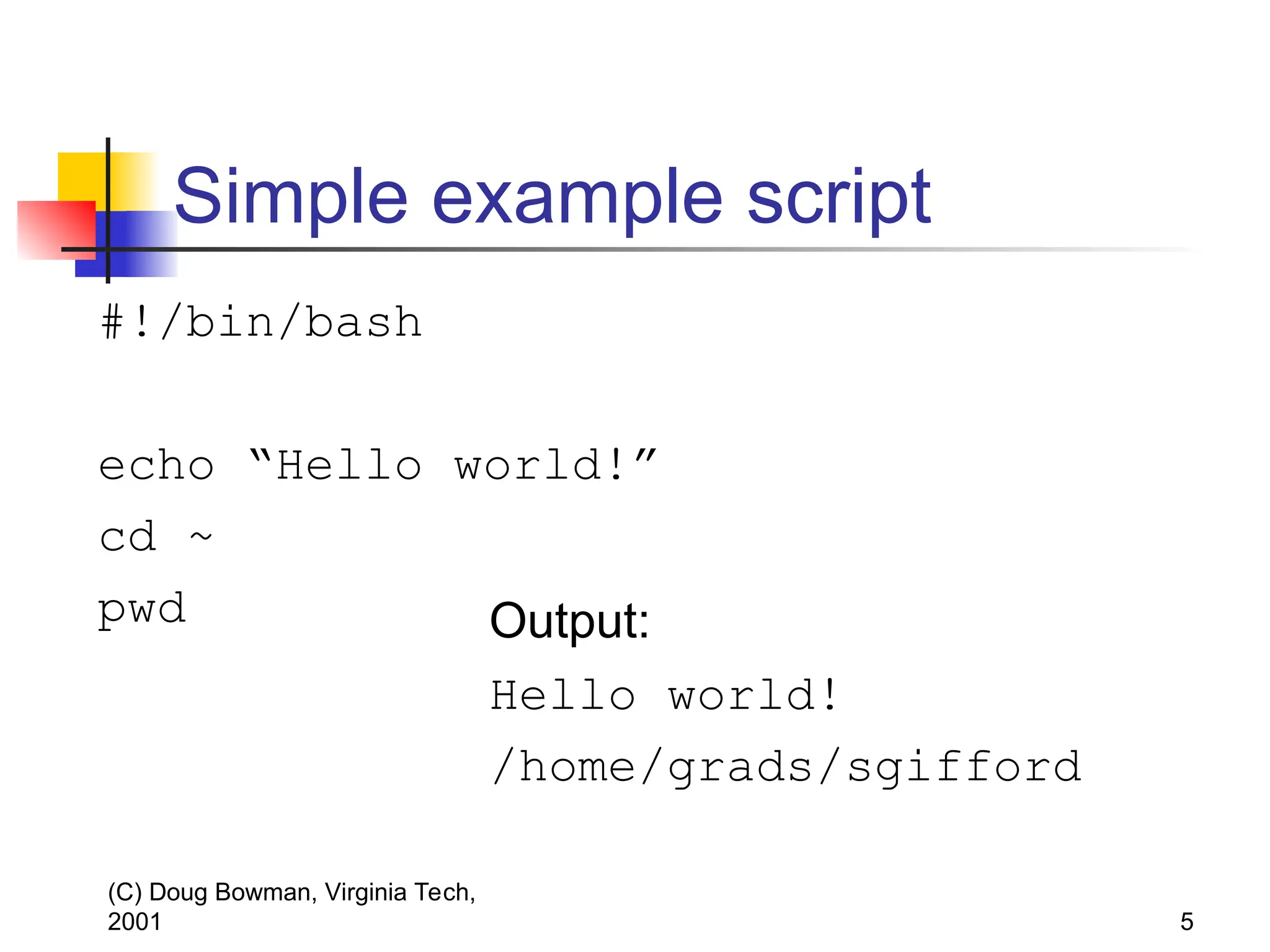
Simple example script
#!/bin/bash
echo “Hello world!”
cd ~
pwd Output:
Hello world!
/home/grads/sgifford
6.
(C) Doug Bowman,Virginia Tech,
2001 6
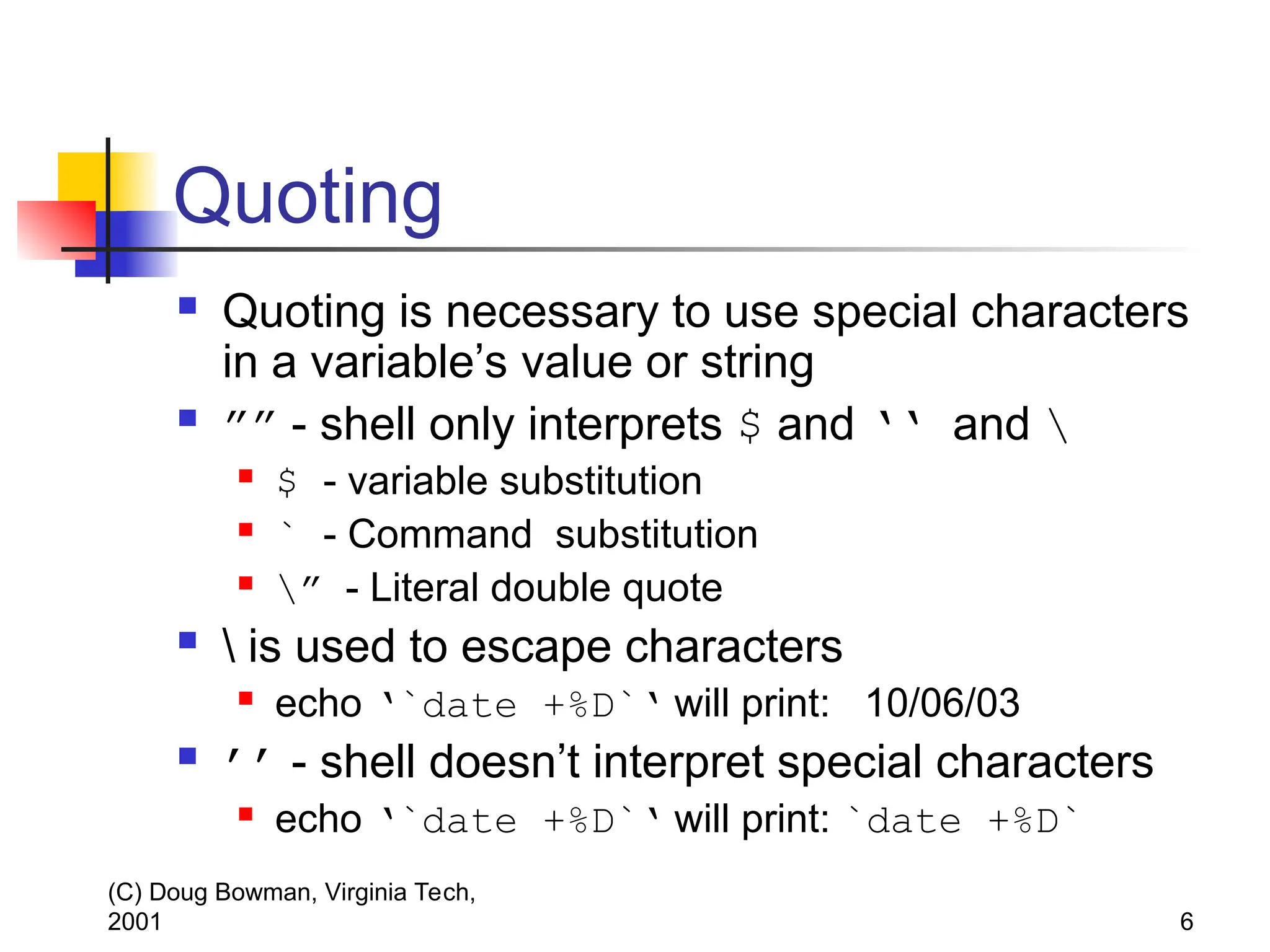
Quoting
Quoting is necessary to use special characters
in a variable’s value or string
”” - shell only interprets $ and ‘‘ and
$ - variable substitution
` - Command substitution
” - Literal double quote
is used to escape characters
echo ‘`date +%D`‘ will print: 10/06/03
’’ - shell doesn’t interpret special characters
echo ‘`date +%D`‘ will print: `date +%D`
7.
(C) Doug Bowman,Virginia Tech,
2001 7
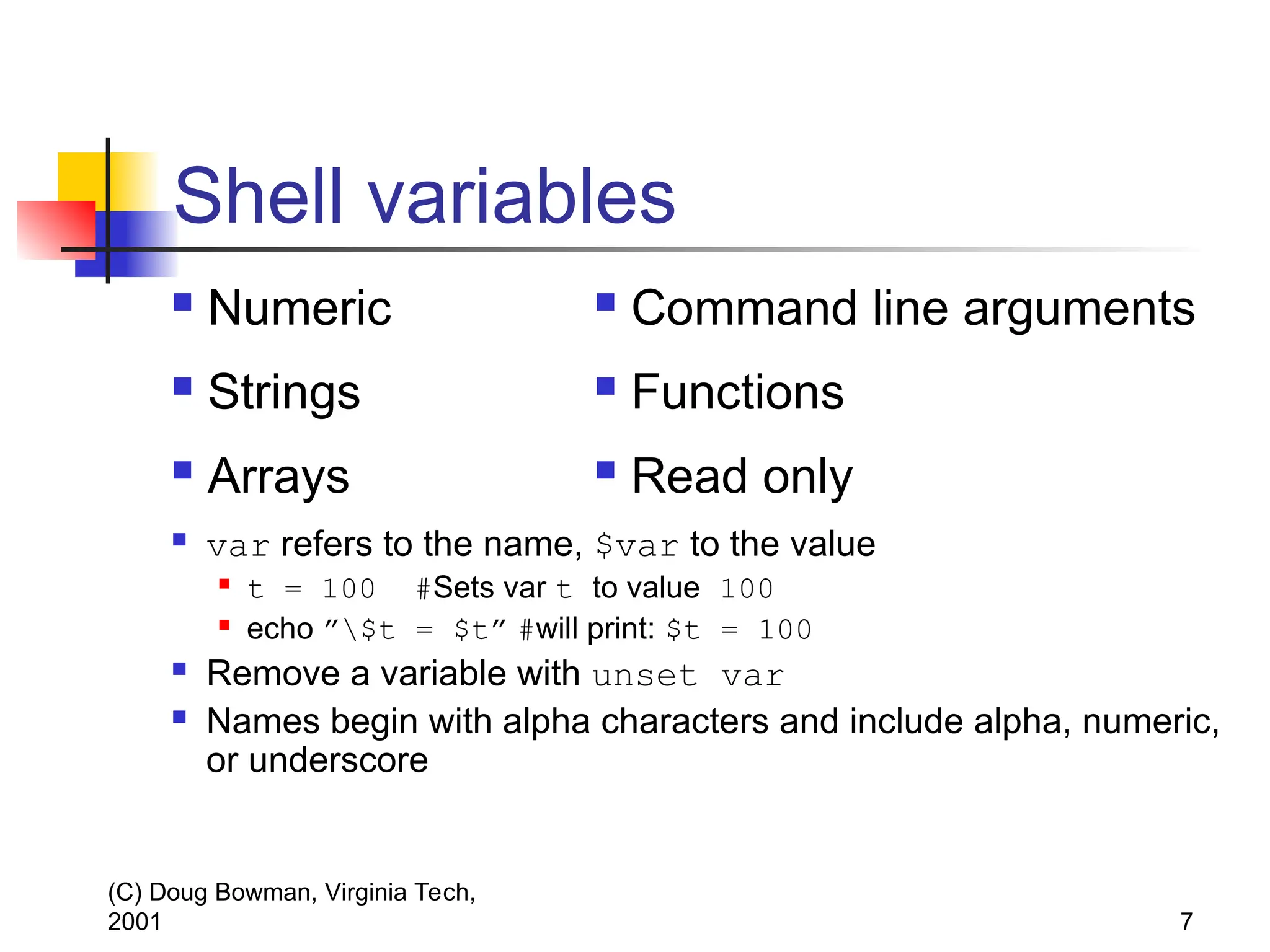
Shell variables
var refers to the name, $var to the value
t = 100 #Sets var t to value 100
echo ”$t = $t” #will print: $t = 100
Remove a variable with unset var
Names begin with alpha characters and include alpha, numeric,
or underscore
Numeric
Strings
Arrays
Command line arguments
Functions
Read only
8.
(C) Doug Bowman,Virginia Tech,
2001 8
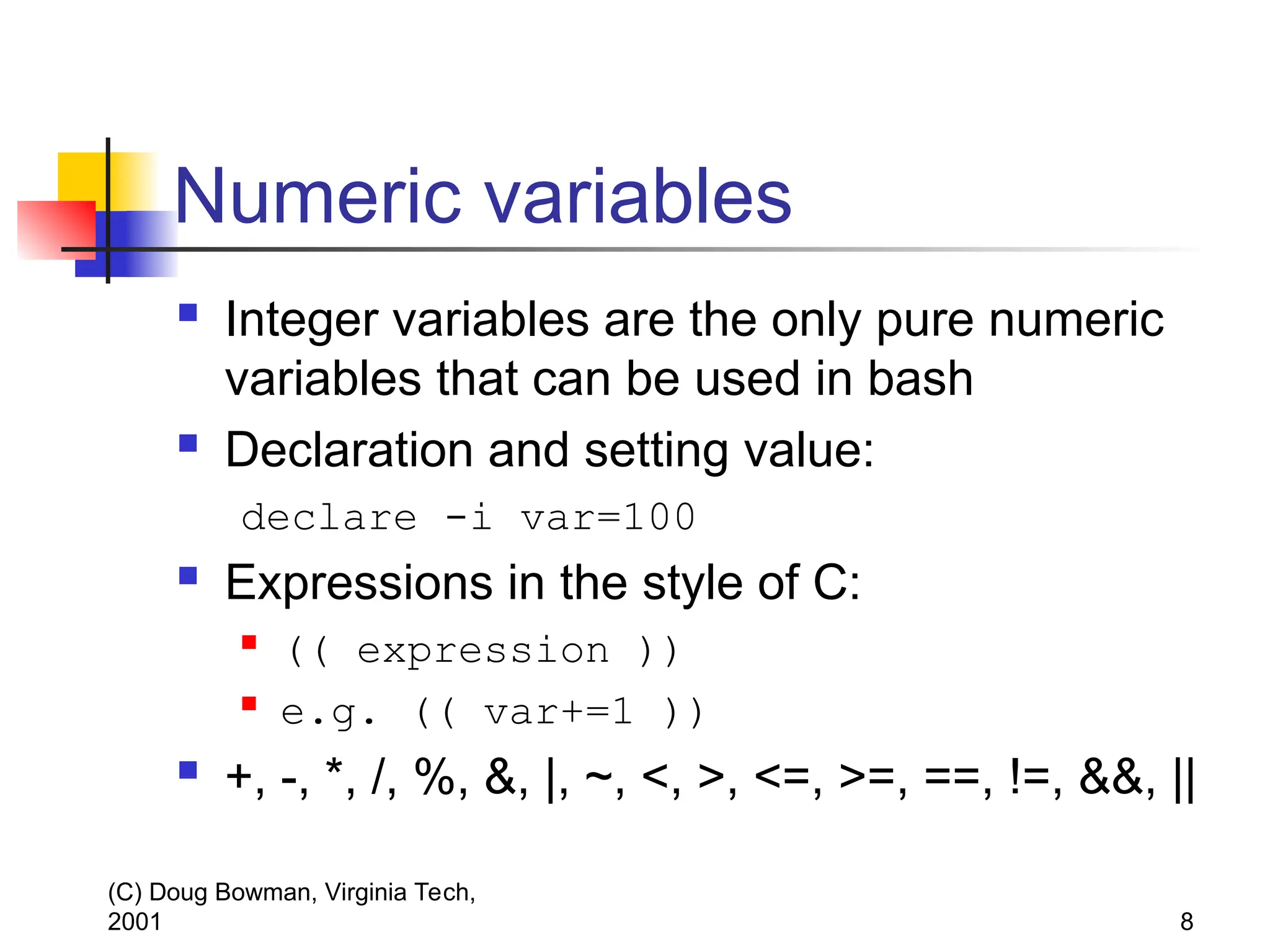
Numeric variables
Integer variables are the only pure numeric
variables that can be used in bash
Declaration and setting value:
declare -i var=100
Expressions in the style of C:
(( expression ))
e.g. (( var+=1 ))
+, -, *, /, %, &, |, ~, <, >, <=, >=, ==, !=, &&, ||
9.
(C) Doug Bowman,Virginia Tech,
2001 9
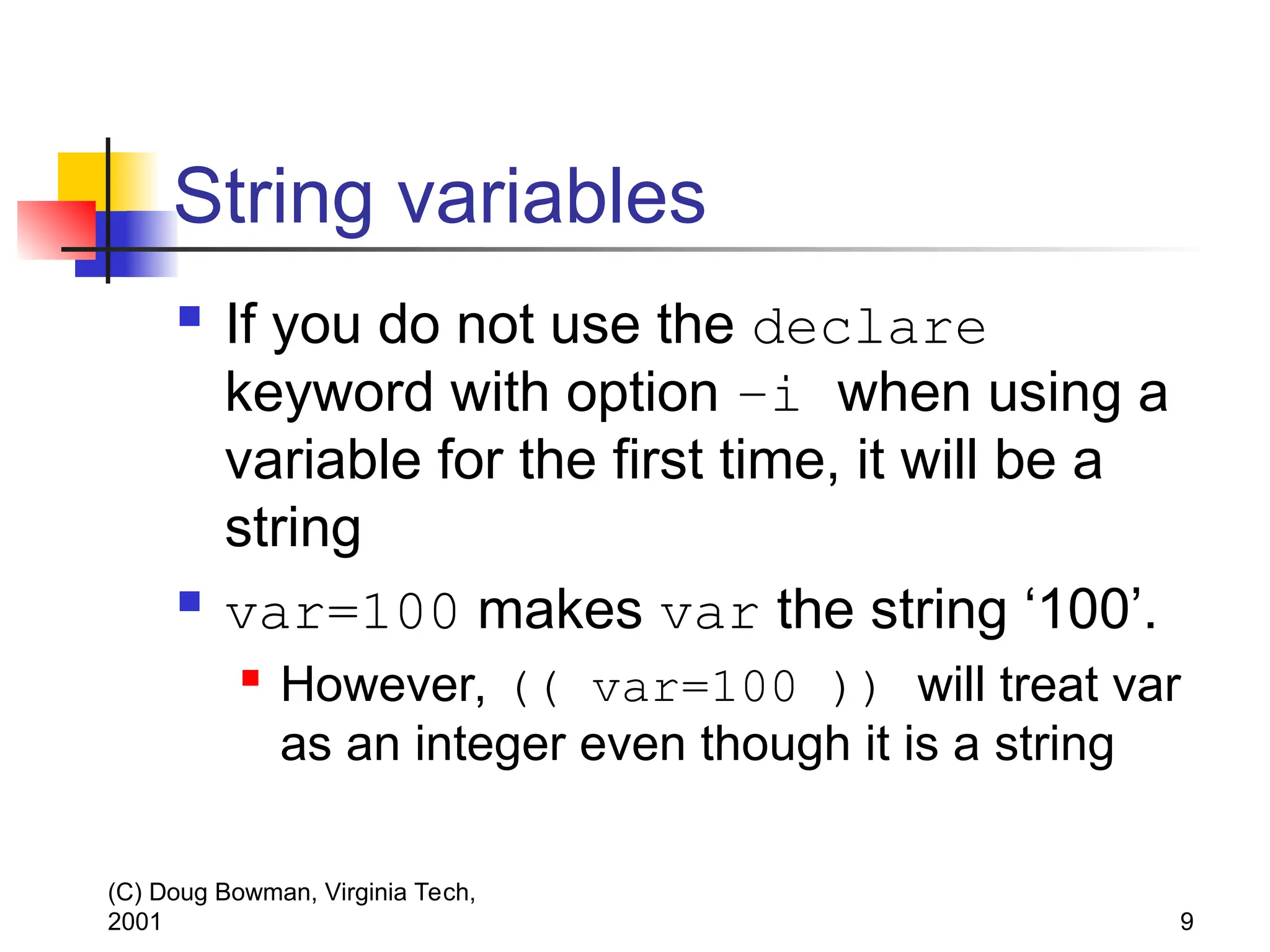
String variables
If you do not use the declare
keyword with option –i when using a
variable for the first time, it will be a
string
var=100 makes var the string ‘100’.
However, (( var=100 )) will treat var
as an integer even though it is a string
10.
(C) Doug Bowman,Virginia Tech,
2001 10
Array variables
Array is a list of values
Don’t have to declare size
Reference a value by ${name[index]}
${a[3]}
$a (same as ${a[0]})
Use the declare -a command to declare an
array
declare –a sports
sports=(ball frisbee puck)
sports[3]=bat
11.
(C) Doug Bowman,Virginia Tech,
2001 11
Arrays
Array initialization
sports=(football basketball)
moresports=(${sports[*]} tennis)
${array[@]} or ${array[*]}
refers to the entire array contents
echo ${moresports[*]} produces
football basketball tennis
12.
(C) Doug Bowman,Virginia Tech,
2001 12
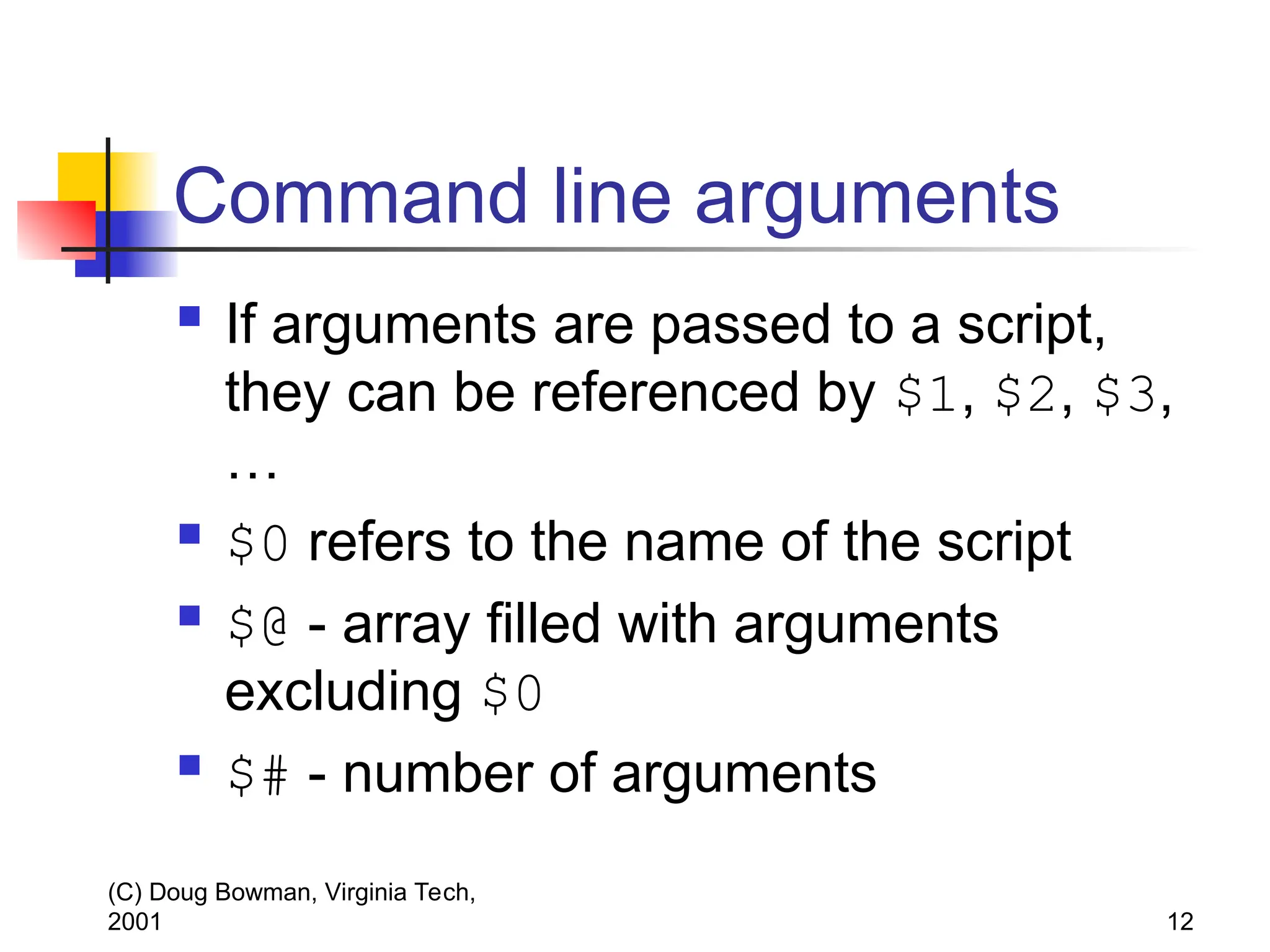
Command line arguments
If arguments are passed to a script,
they can be referenced by $1, $2, $3,
…
$0 refers to the name of the script
$@ - array filled with arguments
excluding $0
$# - number of arguments
13.
(C) Doug Bowman,Virginia Tech,
2001 13
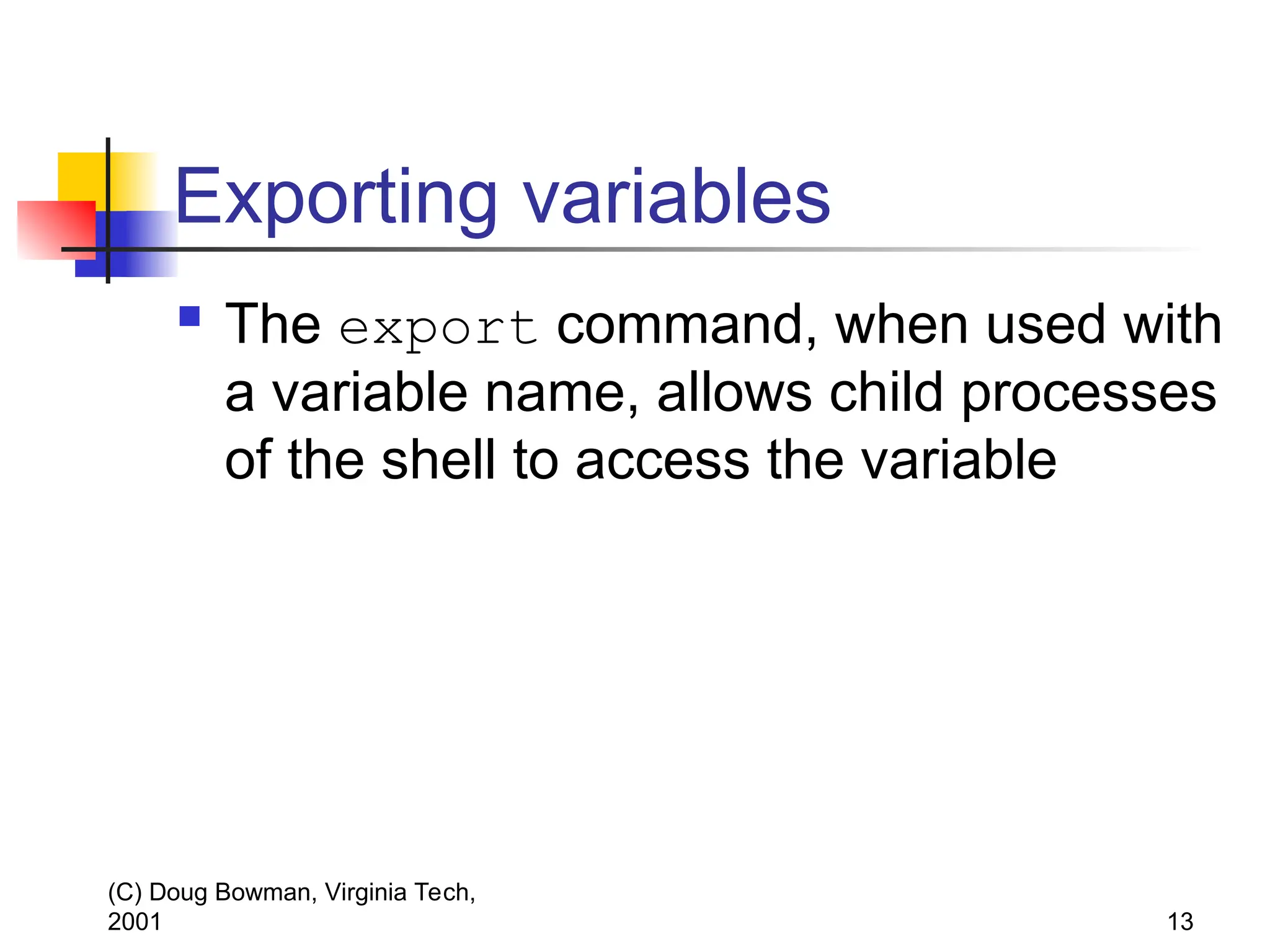
Exporting variables
The export command, when used with
a variable name, allows child processes
of the shell to access the variable
14.
(C) Doug Bowman,Virginia Tech,
2001 14
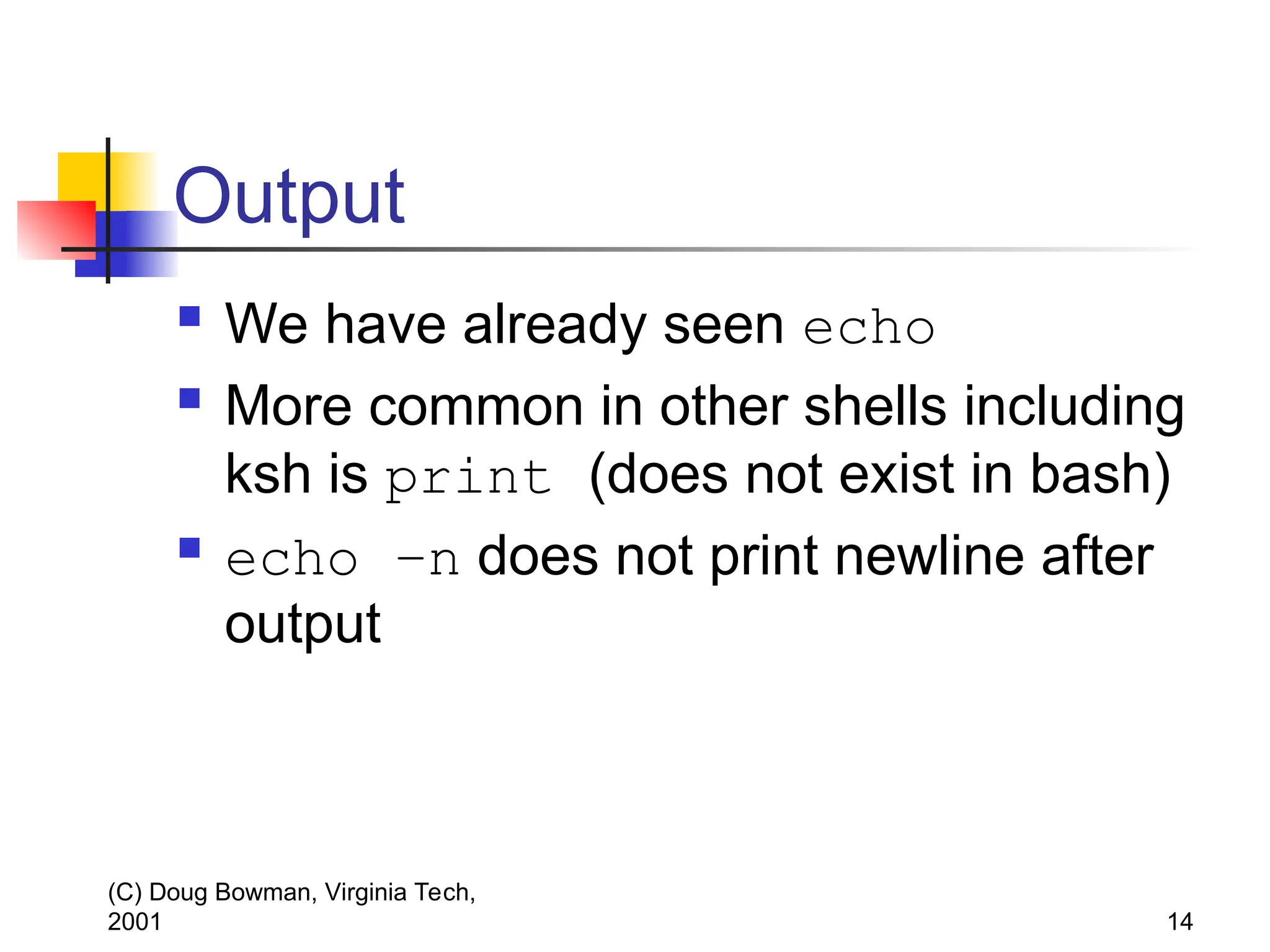
Output
We have already seen echo
More common in other shells including
ksh is print (does not exist in bash)
echo –n does not print newline after
output
15.
(C) Doug Bowman,Virginia Tech,
2001 15
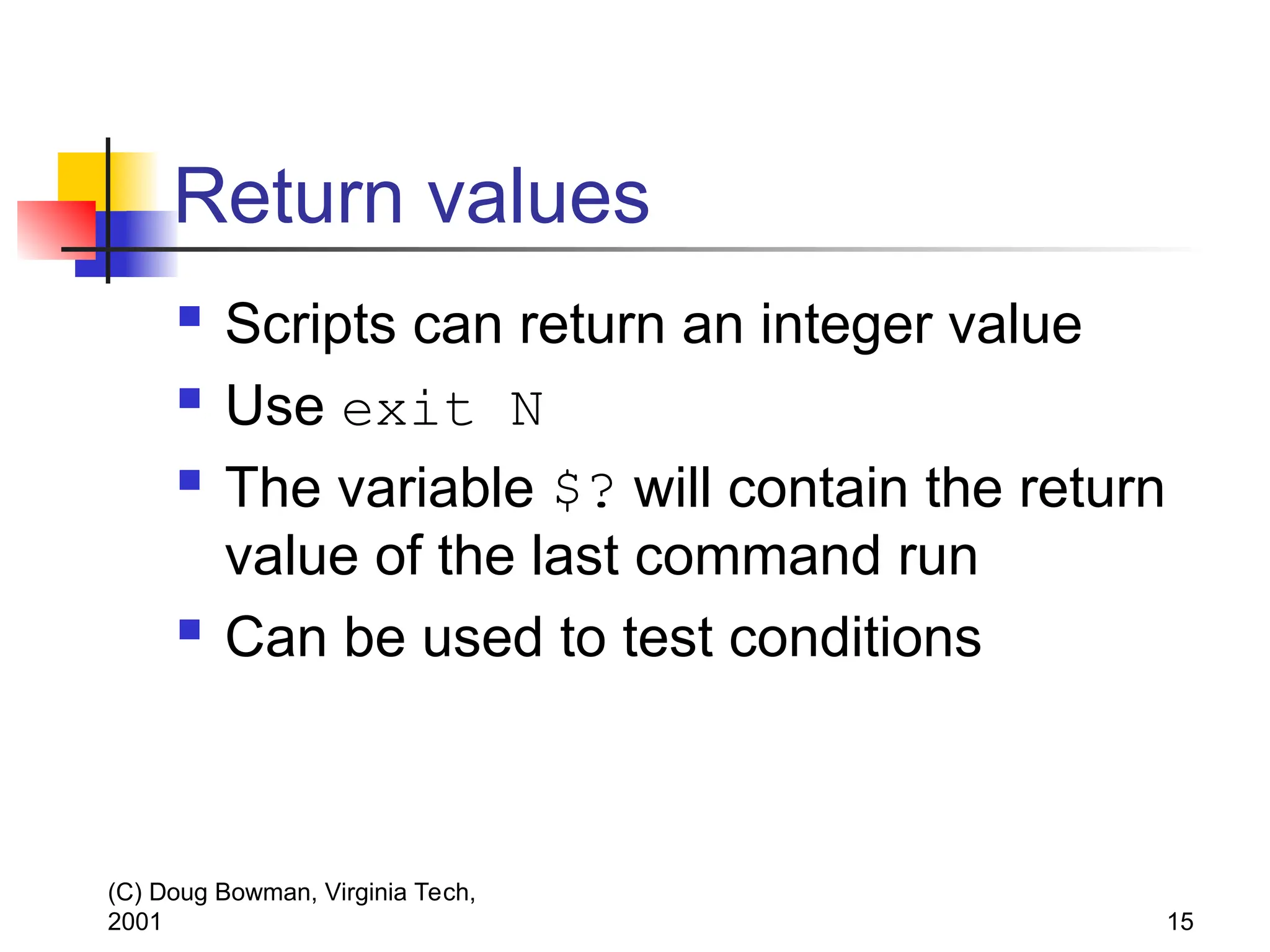
Return values
Scripts can return an integer value
Use exit N
The variable $? will contain the return
value of the last command run
Can be used to test conditions
16.
(C) Doug Bowman,Virginia Tech,
2001 16
Conditions
If using integers: (( condition ))
If using strings: [[ condition ]]
Examples:
(( a == 10 ))
(( b >= 3 ))
[[ $1 = -n ]]
[[ ($v != fun) && ($v != games) ]]
Special conditions for file existence, file
permissions, ownership, file type, etc.
(C) Doug Bowman,Virginia Tech,
2001 18
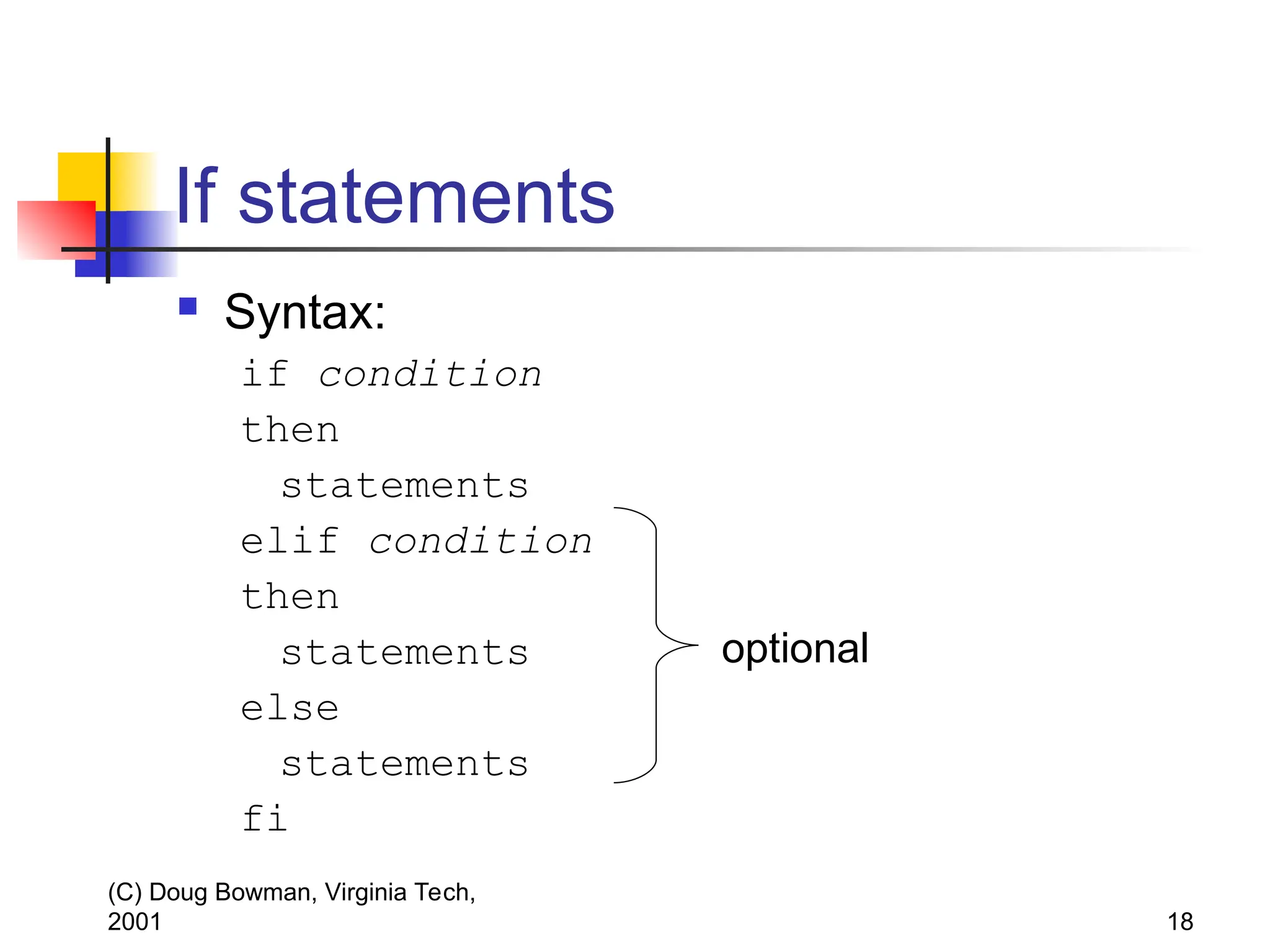
If statements
Syntax:
if condition
then
statements
elif condition
then
statements
else
statements
fi
optional
19.
(C) Doug Bowman,Virginia Tech,
2001 19
If statement
Example
if [[ -r $fname ]]
then
echo ’$fname is readable’
elif [[ -w $fname && -x $fname ]]
then
echo ’$fname is writeable and
executable’
fi
20.
(C) Doug Bowman,Virginia Tech,
2001 20
For loops
Syntax:
for var [in list]
do
statements
done
If list is omitted, $@ is assumed
Otherwise ${list[*]}
where list is an array variable.
21.
(C) Doug Bowman,Virginia Tech,
2001 21
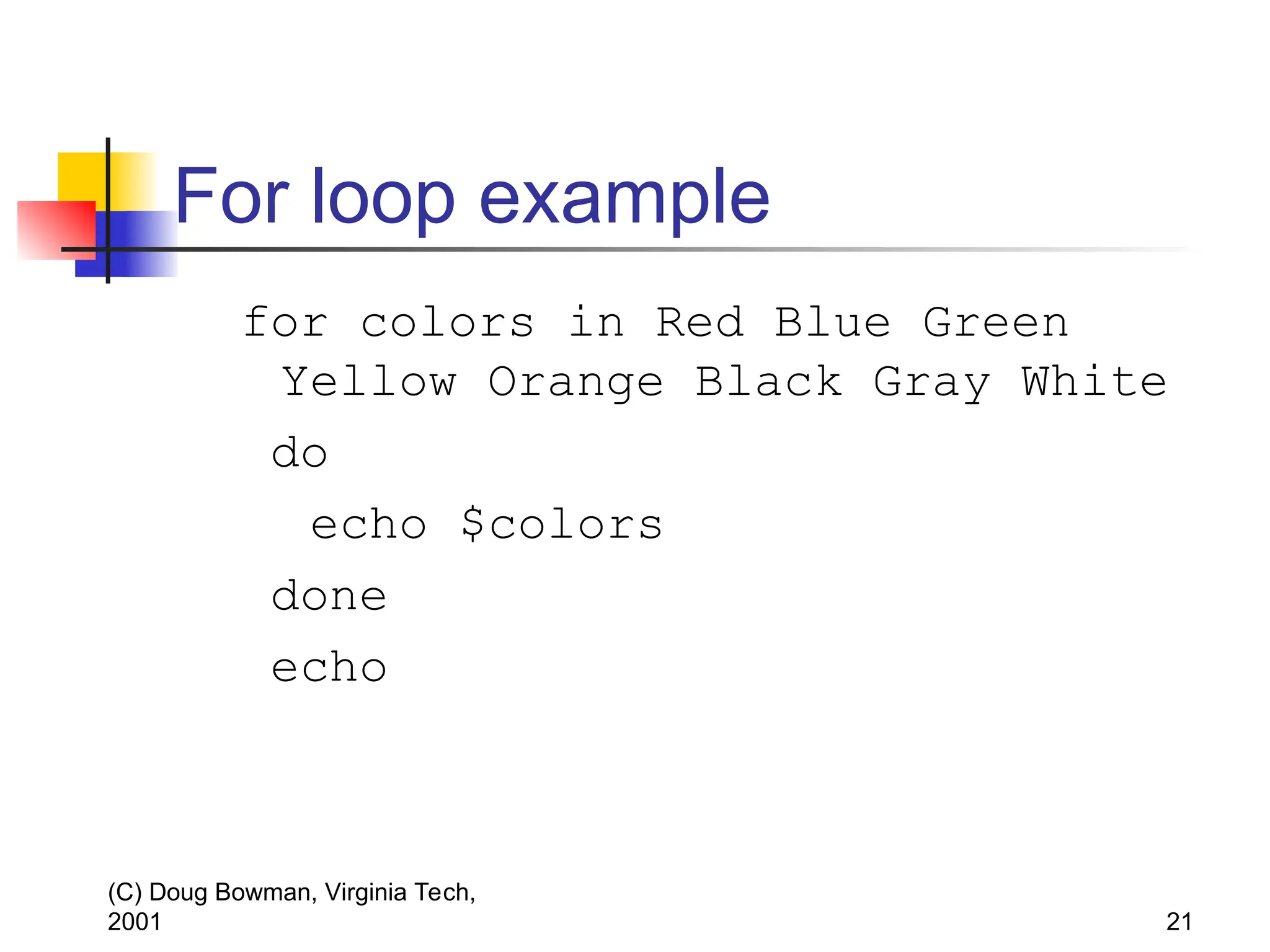
For loop example
for colors in Red Blue Green
Yellow Orange Black Gray White
do
echo $colors
done
echo
22.
(C) Doug Bowman,Virginia Tech,
2001 22
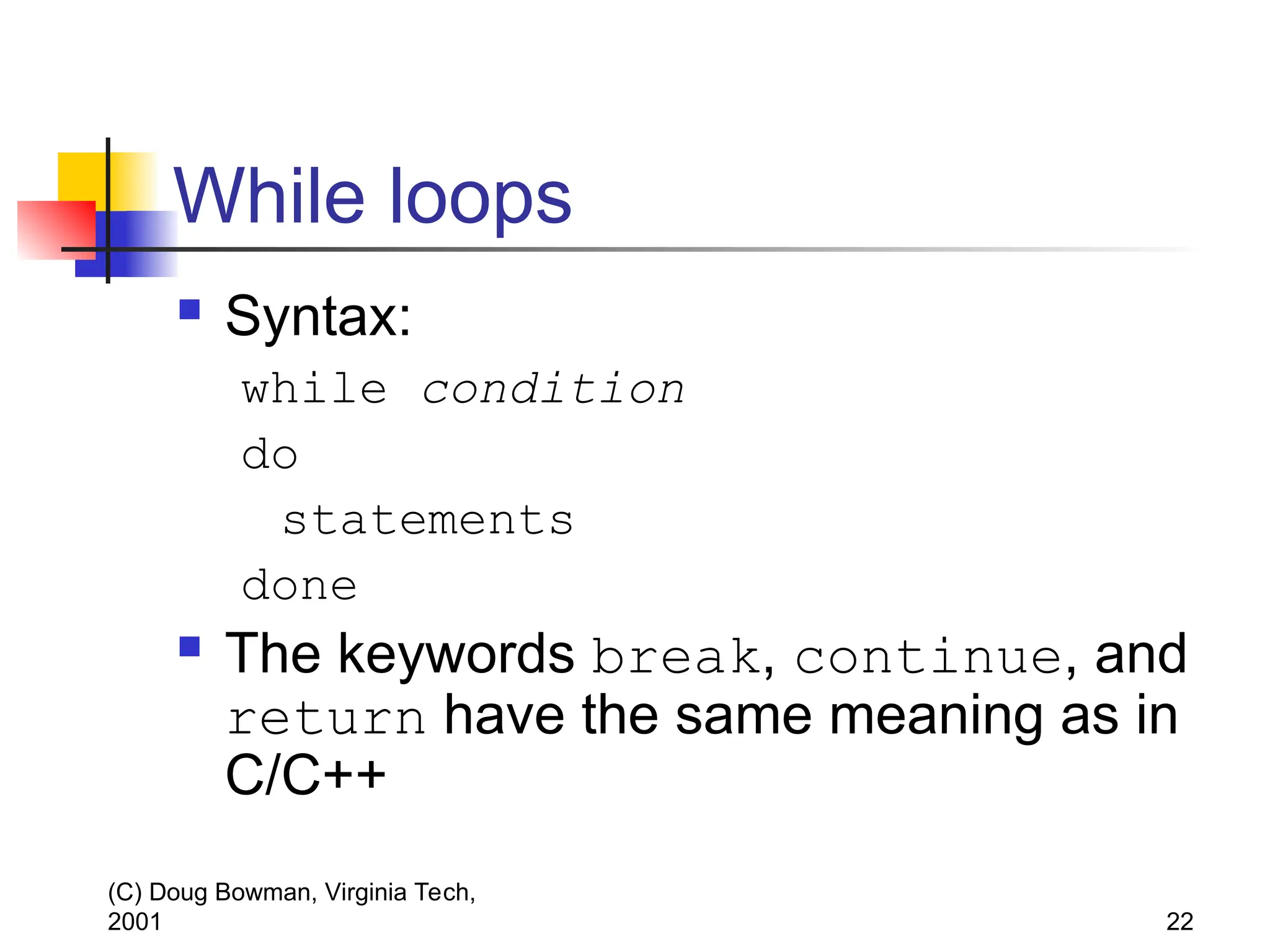
While loops
Syntax:
while condition
do
statements
done
The keywords break, continue, and
return have the same meaning as in
C/C++
23.
(C) Doug Bowman,Virginia Tech,
2001 23
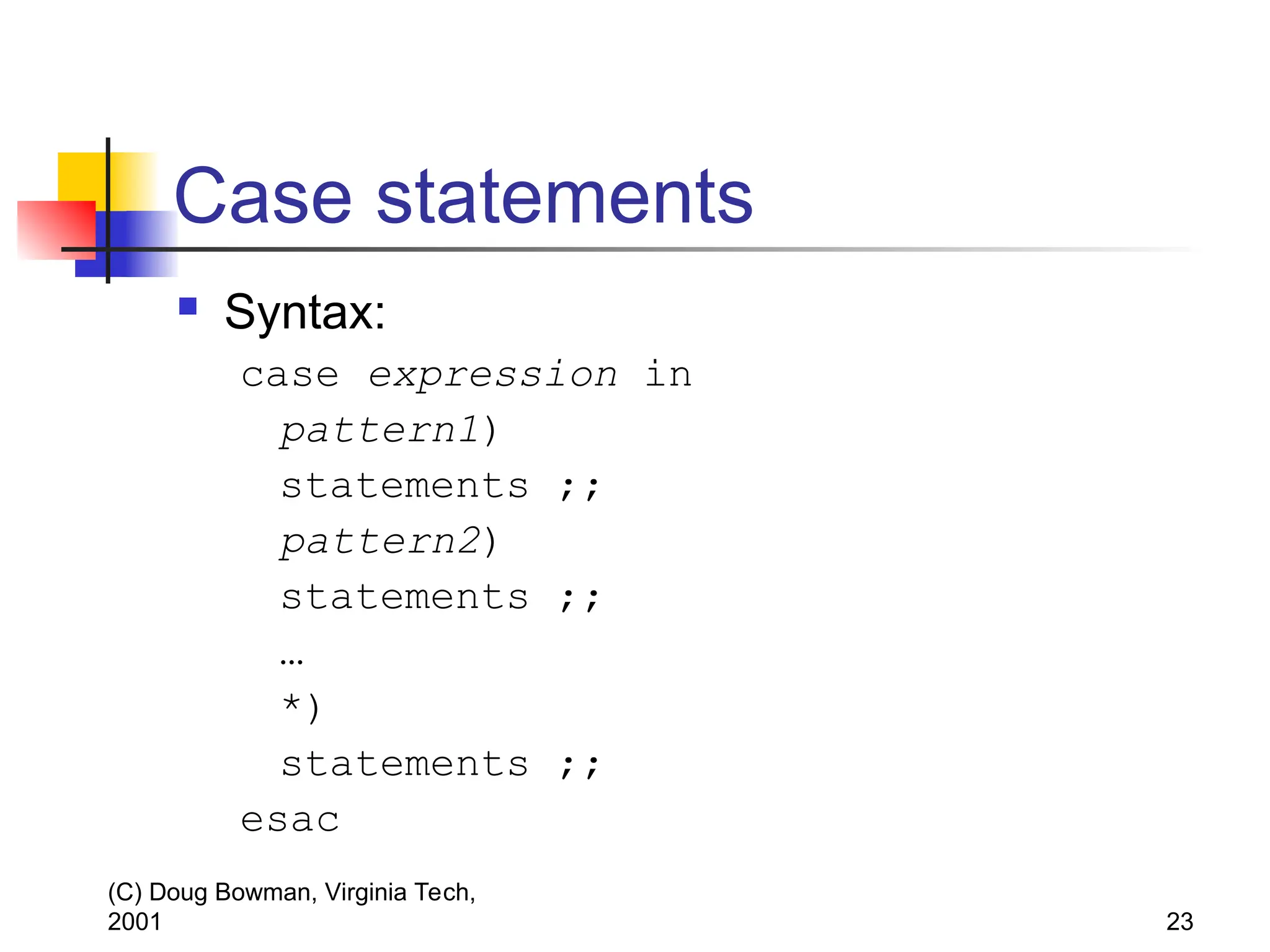
Case statements
Syntax:
case expression in
pattern1)
statements ;;
pattern2)
statements ;;
…
*)
statements ;;
esac
24.
(C) Doug Bowman,Virginia Tech,
2001 24
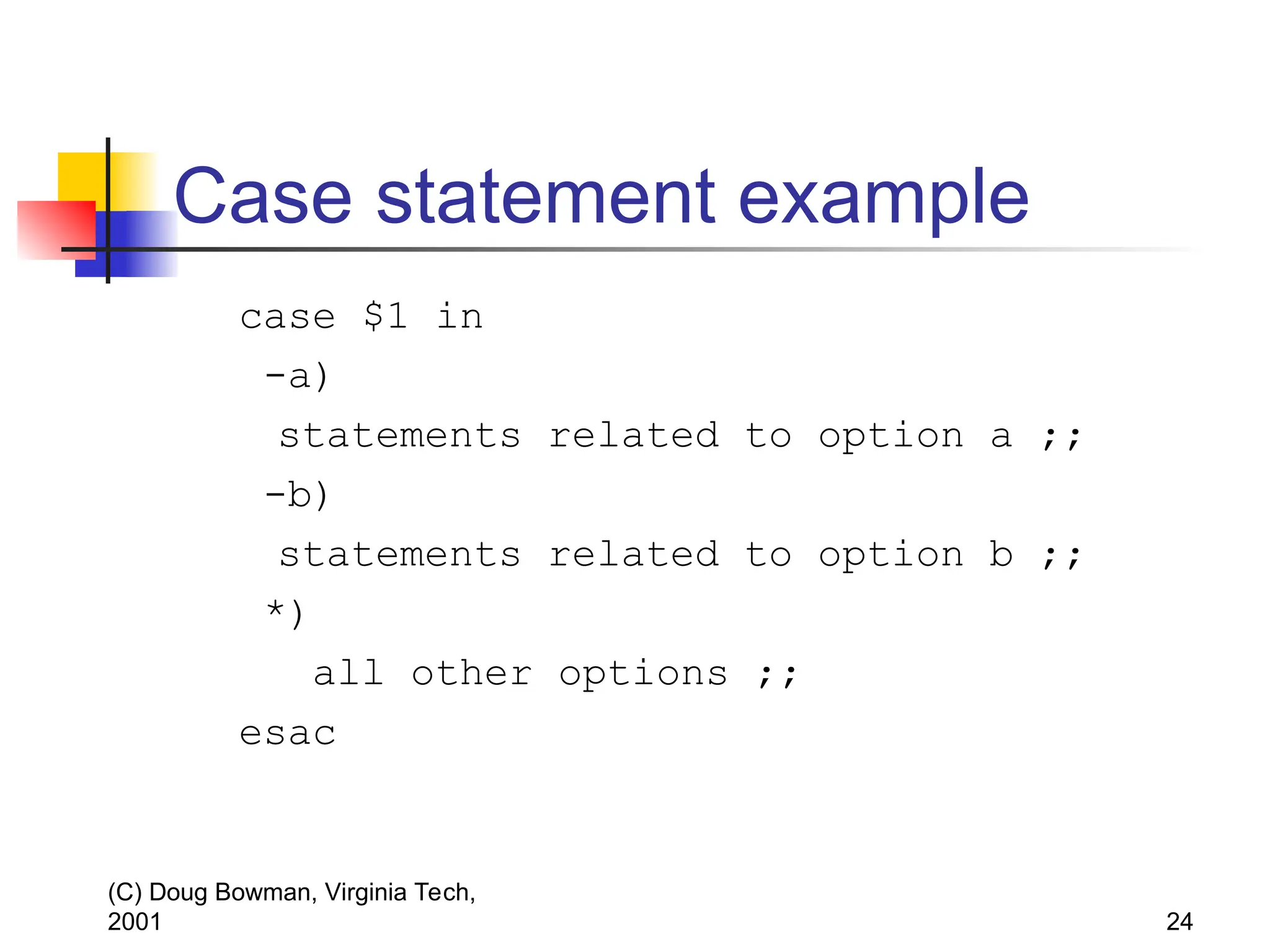
Case statement example
case $1 in
-a)
statements related to option a ;;
-b)
statements related to option b ;;
*)
all other options ;;
esac
25.
(C) Doug Bowman,Virginia Tech,
2001 25
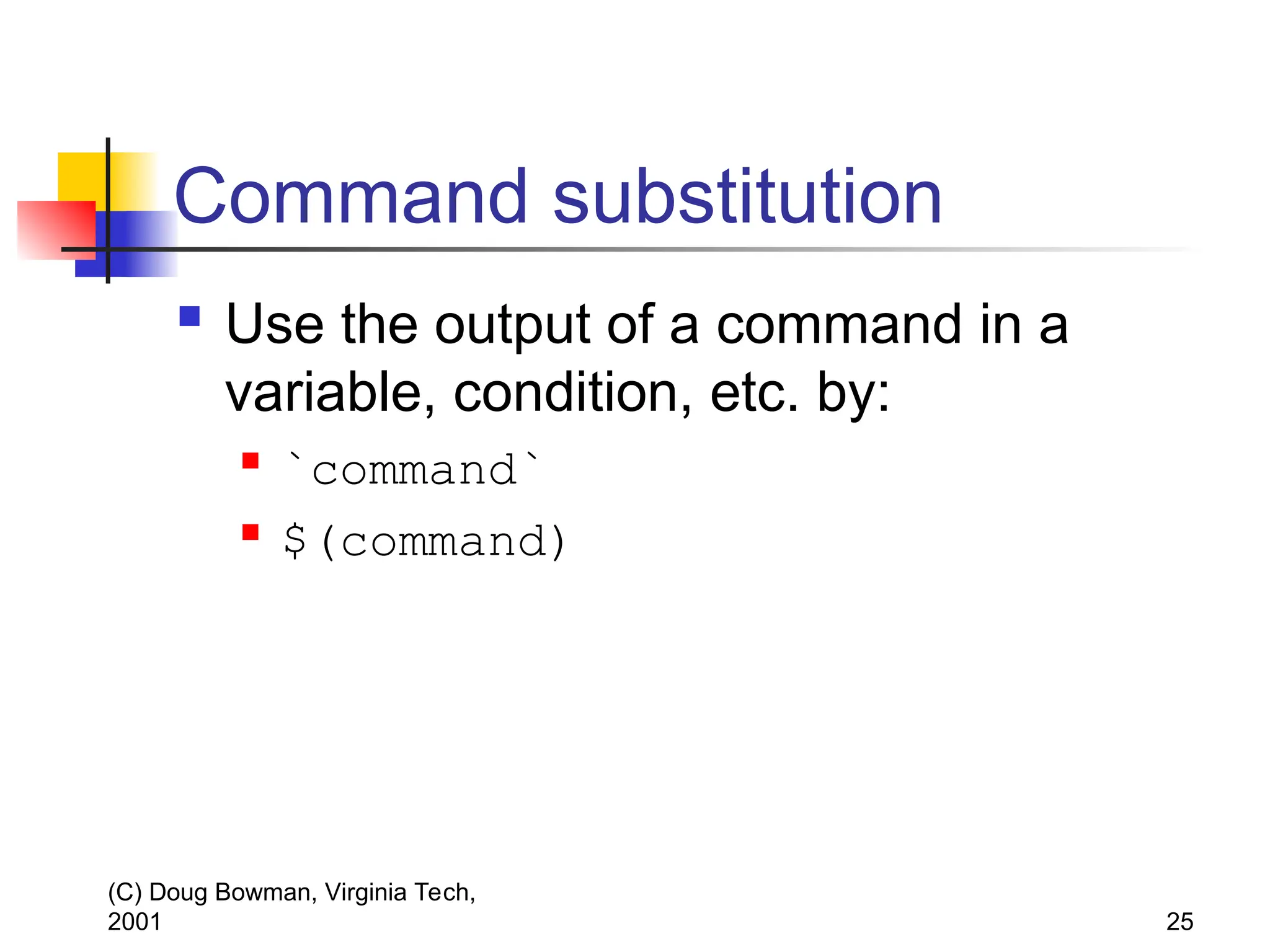
Command substitution
Use the output of a command in a
variable, condition, etc. by:
`command`
$(command)
26.
(C) Doug Bowman,Virginia Tech,
2001 26
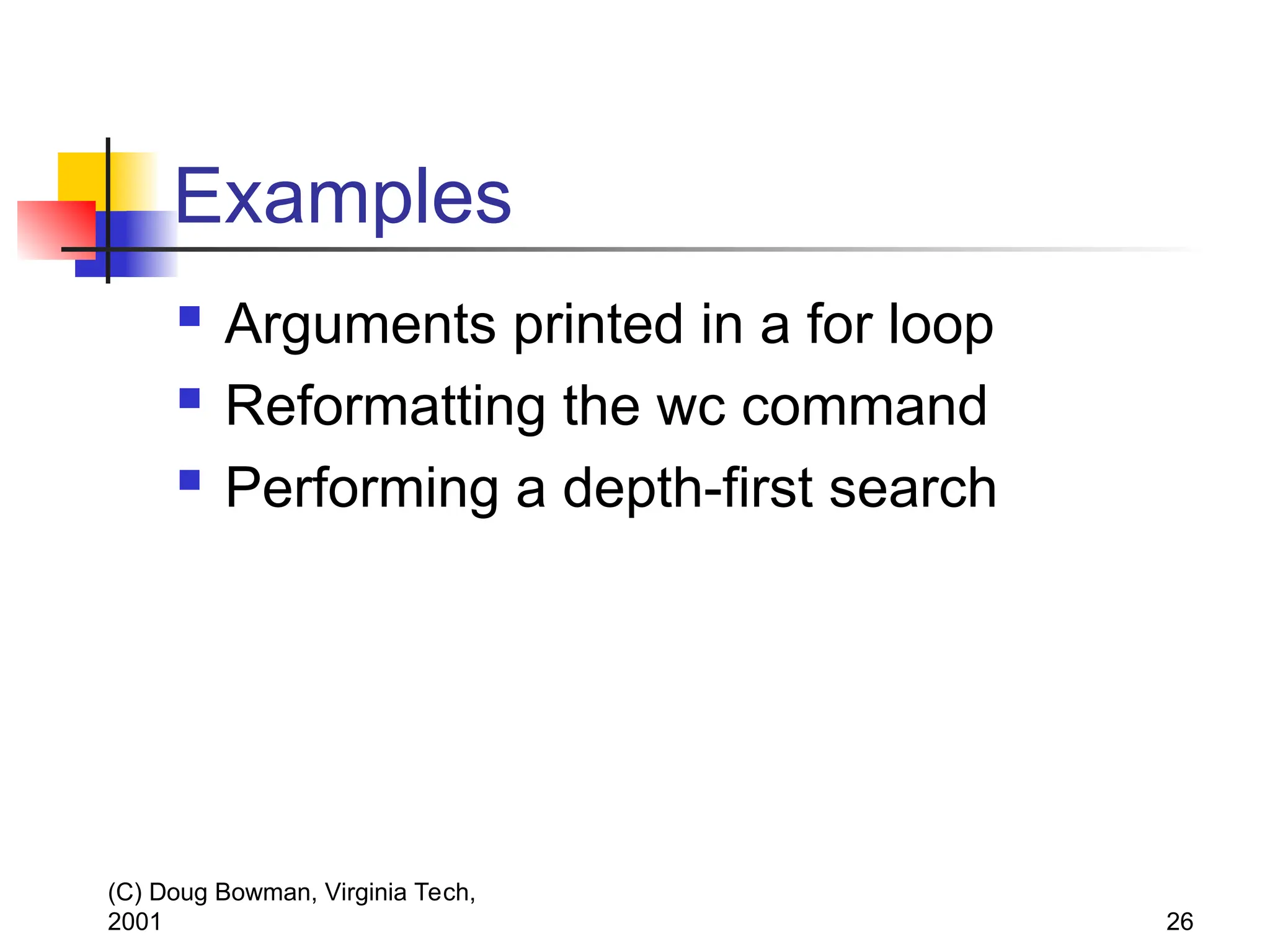
Examples
Arguments printed in a for loop
Reformatting the wc command
Performing a depth-first search
![(C) Doug Bowman, Virginia Tech,
2001 10
Array variables
Array is a list of values
Don’t have to declare size
Reference a value by ${name[index]}
${a[3]}
$a (same as ${a[0]})
Use the declare -a command to declare an
array
declare –a sports
sports=(ball frisbee puck)
sports[3]=bat](https://image.slidesharecdn.com/linux-shellscripting-250731062842-bea19548/75/Linux-shell_scripting-for-new-user-shell-script-10-2048.jpg)
![(C) Doug Bowman, Virginia Tech,
2001 11
Arrays
Array initialization
sports=(football basketball)
moresports=(${sports[*]} tennis)
${array[@]} or ${array[*]}
refers to the entire array contents
echo ${moresports[*]} produces
football basketball tennis](https://image.slidesharecdn.com/linux-shellscripting-250731062842-bea19548/75/Linux-shell_scripting-for-new-user-shell-script-11-2048.jpg)
![(C) Doug Bowman, Virginia Tech,
2001 16
Conditions
If using integers: (( condition ))
If using strings: [[ condition ]]
Examples:
(( a == 10 ))
(( b >= 3 ))
[[ $1 = -n ]]
[[ ($v != fun) && ($v != games) ]]
Special conditions for file existence, file
permissions, ownership, file type, etc.](https://image.slidesharecdn.com/linux-shellscripting-250731062842-bea19548/75/Linux-shell_scripting-for-new-user-shell-script-16-2048.jpg)
![(C) Doug Bowman, Virginia Tech,
2001 17
Conditions (continued…)
[[ -e $file]] – File exists?
[[ -f $file]] – Regular file?
[[ -d $file]] – Directory?
[[ -L $file]] – Symbolic link?
[[ -r $file]] – File has read permission?
[[ -w $file]] – File has write permission?
[[ -x $file]] – File has execute perm?
[[ -p $file]] – File is a pipe?](https://image.slidesharecdn.com/linux-shellscripting-250731062842-bea19548/75/Linux-shell_scripting-for-new-user-shell-script-17-2048.jpg)
![(C) Doug Bowman, Virginia Tech,
2001 19
If statement
Example
if [[ -r $fname ]]
then
echo ’$fname is readable’
elif [[ -w $fname && -x $fname ]]
then
echo ’$fname is writeable and
executable’
fi](https://image.slidesharecdn.com/linux-shellscripting-250731062842-bea19548/75/Linux-shell_scripting-for-new-user-shell-script-19-2048.jpg)
![(C) Doug Bowman, Virginia Tech,
2001 20
For loops
Syntax:
for var [in list]
do
statements
done
If list is omitted, $@ is assumed
Otherwise ${list[*]}
where list is an array variable.](https://image.slidesharecdn.com/linux-shellscripting-250731062842-bea19548/75/Linux-shell_scripting-for-new-user-shell-script-20-2048.jpg)