
Leveraging Elastic Web-Scale Computing
with AWS
Shiva Narayanaswamy
EC2 Basics
Instance Lifecycle
EC2 Instance Types
Using Amazon Machine Images
Bootstrapping EC2 Instances
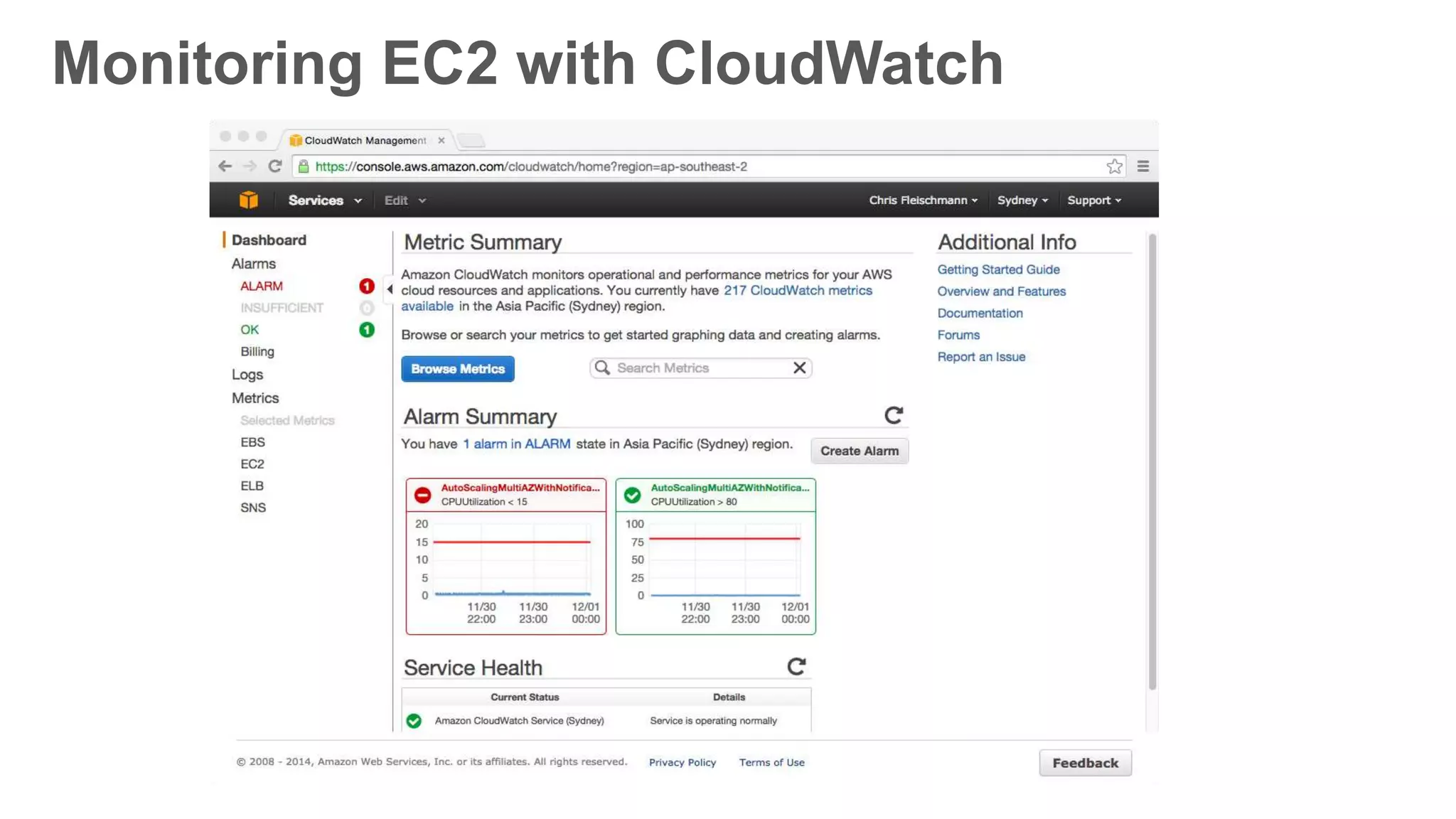
Monitoring EC2 with CloudWatch
Autoscaling
EC2 Basics
Instance Lifecycle
EC2 Instance Types
Using Amazon Machine Images
Bootstrapping EC2 Instances
Monitoring EC2 with CloudWatch
Autoscaling
EC2 Basics
Virtual Servers in the Cloud
• One instance to thousands of instances
• In any public AWS region
• Create, start, stop, configure, monitor as desired
• Install any software: web, business, client/server,
batch processing
• Pay only for capacity you use
• Variety of cost models Amazon EC2
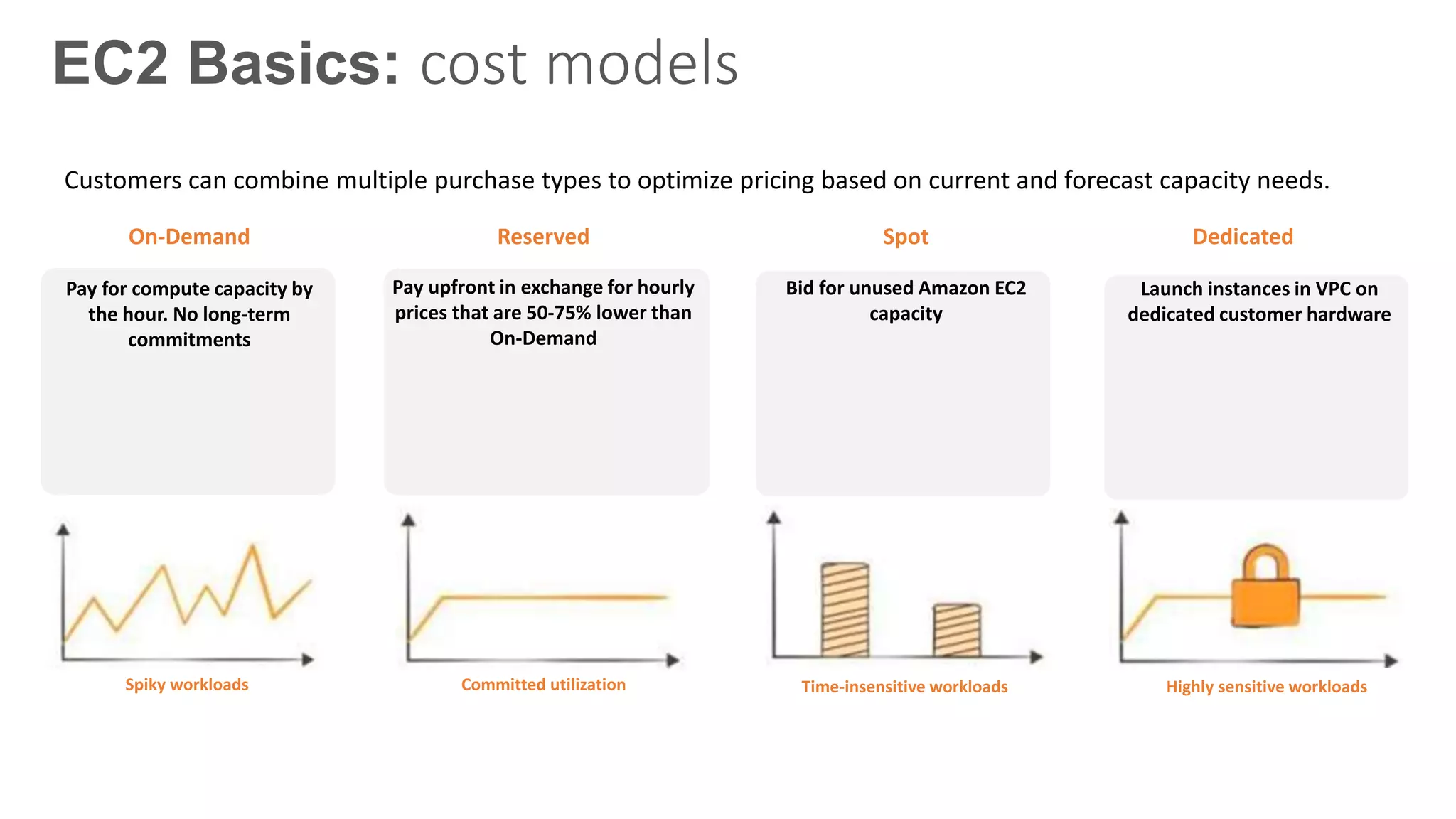
EC2 Basics: cost models
On-Demand Reserved Spot Dedicated
Pay upfront in exchange for hourly
prices that are 50-75% lower than
On-Demand
Pay for compute capacity by
the hour. No long-term
commitments
Bid for unused Amazon EC2
capacity
Launch instances in VPC on
dedicated customer hardware
Customers can combine multiple purchase types to optimize pricing based on current and forecast capacity needs.
Spiky workloads Committed utilization Time-insensitive workloads Highly sensitive workloads
EC2 Basics
Instance Lifecycle
EC2 Instance Types
Using Amazon Machine Images
Bootstrapping EC2 Instances
Monitoring EC2 with CloudWatch
Autoscaling
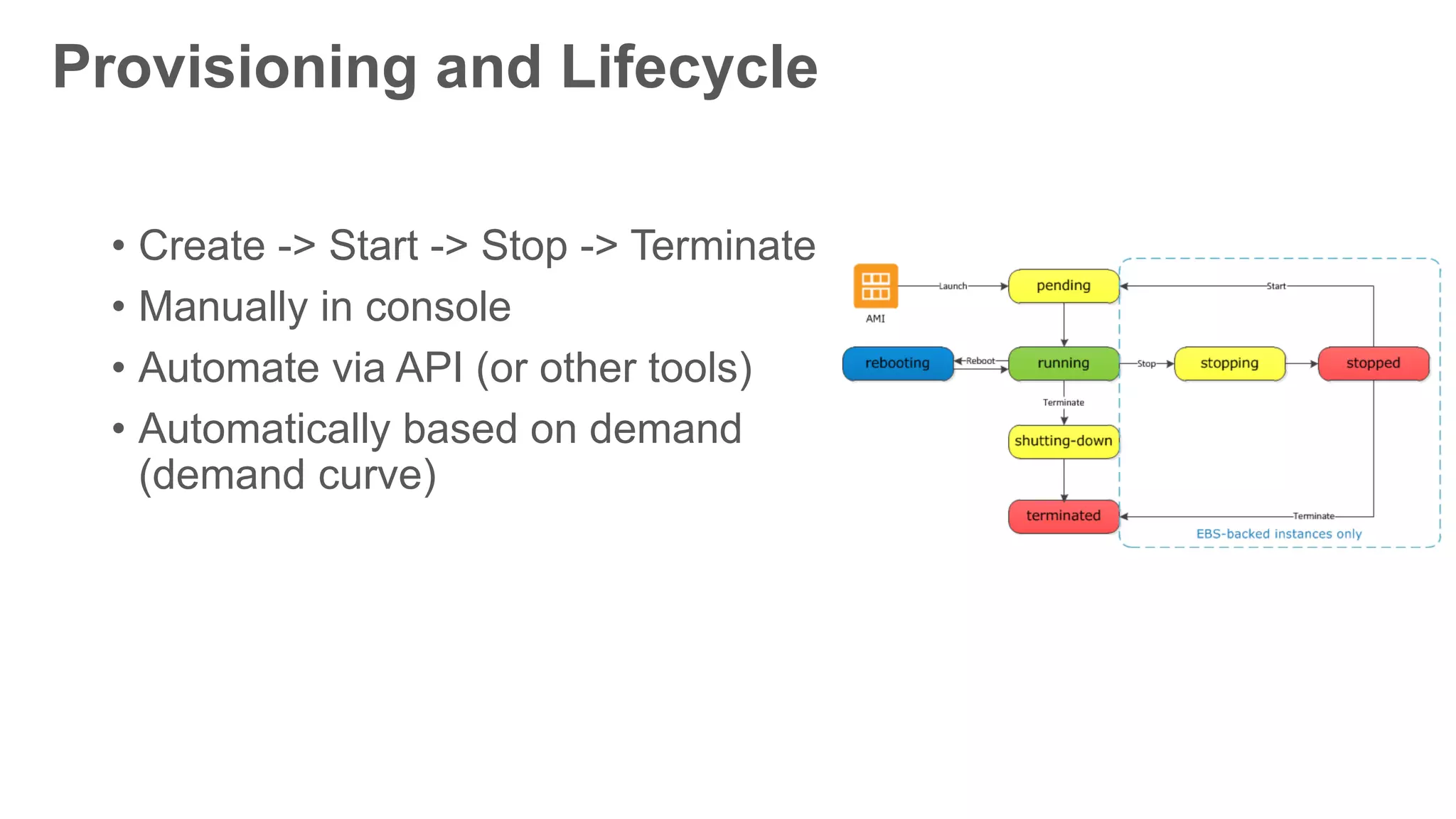
Provisioning and Lifecycle
• Create -> Start -> Stop -> Terminate
• Manually in console
• Automate via API (or other tools)
• Automatically based on demand
(demand curve)
EC2 Basics
Instance Lifecycle
EC2 Instance Types
Using Amazon Machine Images
Bootstrapping EC2 Instances
Monitoring EC2 with CloudWatch
Autoscaling
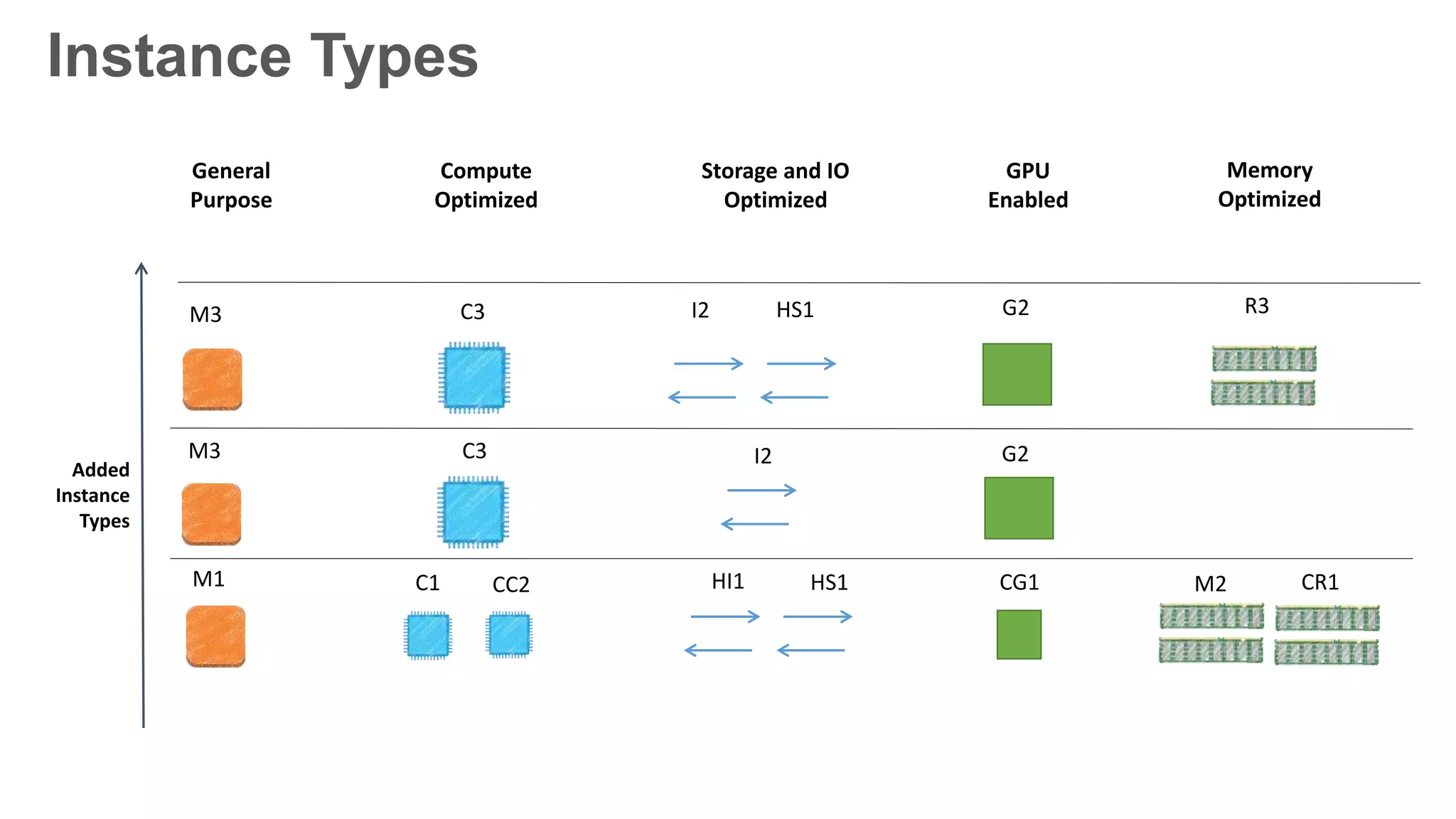
Instance Types
GPU
Enabled
General
Purpose
Storage and IO
Optimized
Compute
Optimized
Memory
Optimized
M3 C3 I2
CG1M1 C1 CR1CC2 HI1 HS1
G2
M3 C3 I2 HS1
M2
R3G2
Added
Instance
Types
EC2 Basics
Instance Lifecycle
EC2 Instance Types
Using Amazon Machine Images
Bootstrapping EC2 Instances
Monitoring EC2 with CloudWatch
Autoscaling
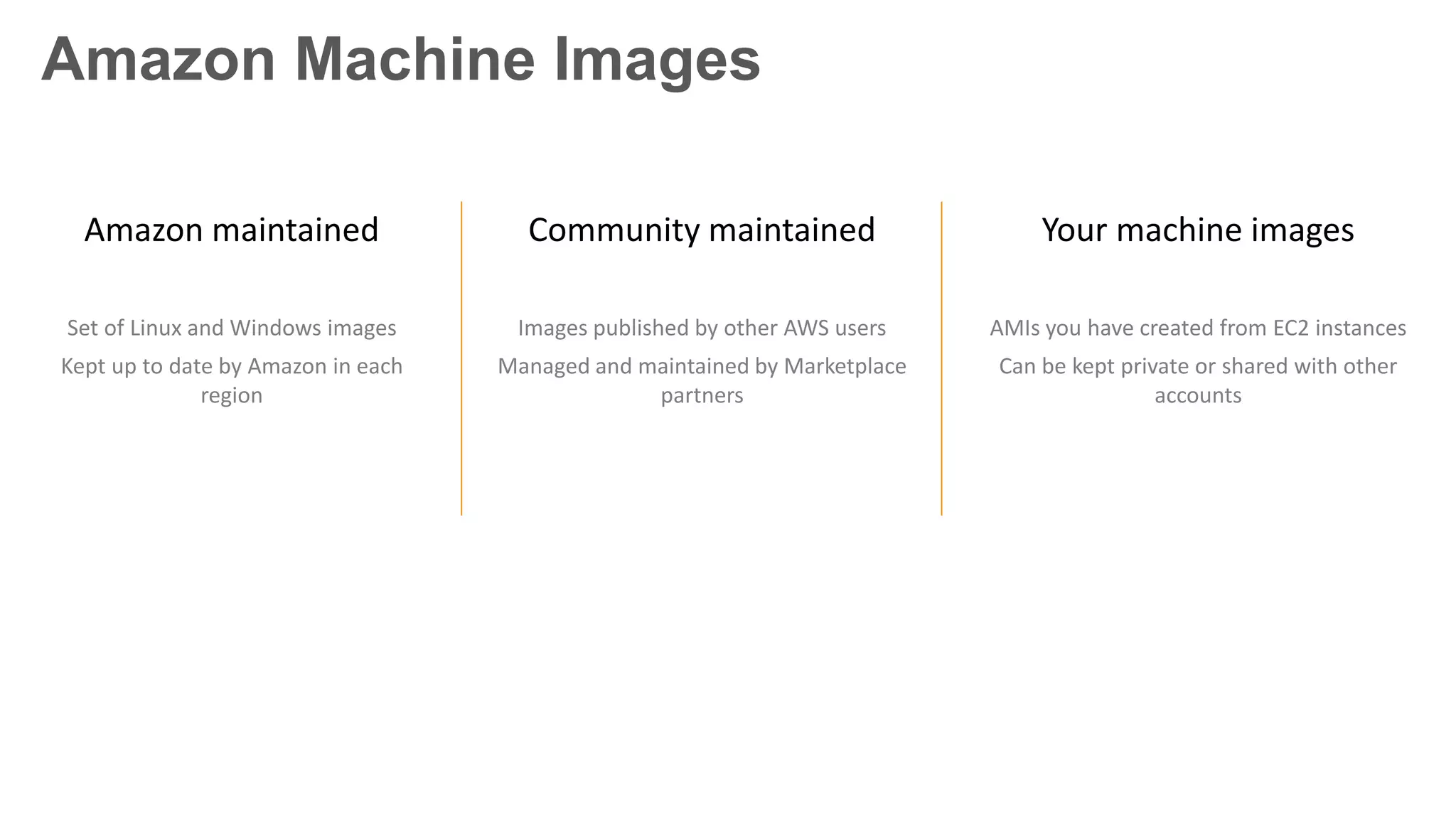
Amazon Machine Images
Your machine images
AMIs you have created from EC2 instances
Can be kept private or shared with other
accounts
Amazon maintained
Set of Linux and Windows images
Kept up to date by Amazon in each
region
Community maintained
Images published by other AWS users
Managed and maintained by Marketplace
partners
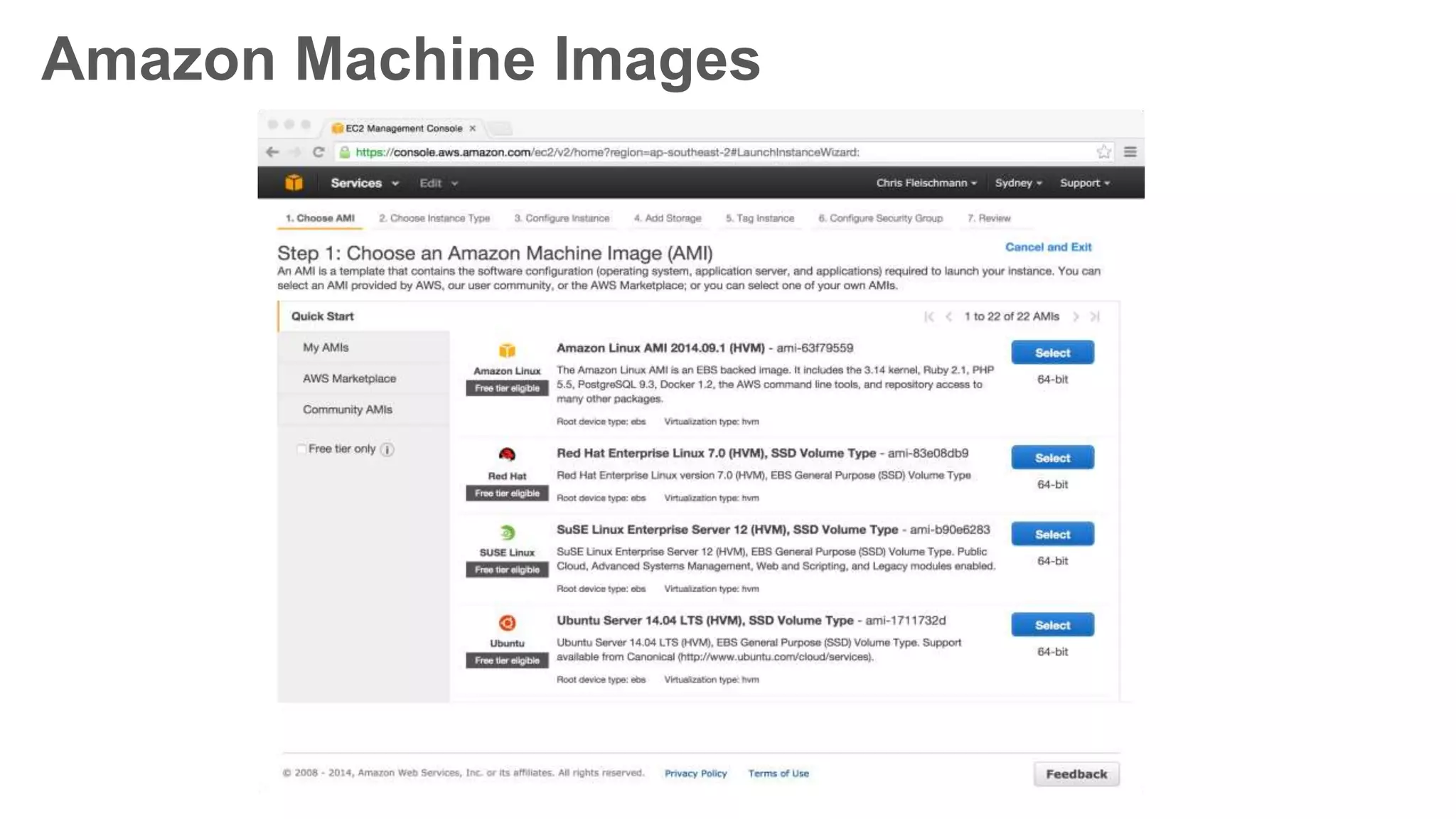
Amazon Machine Images
EC2 Basics
Instance Lifecycle
EC2 Instance Types
Using Amazon Machine Images
Bootstrapping EC2 Instances
Monitoring EC2 with CloudWatch
Autoscaling
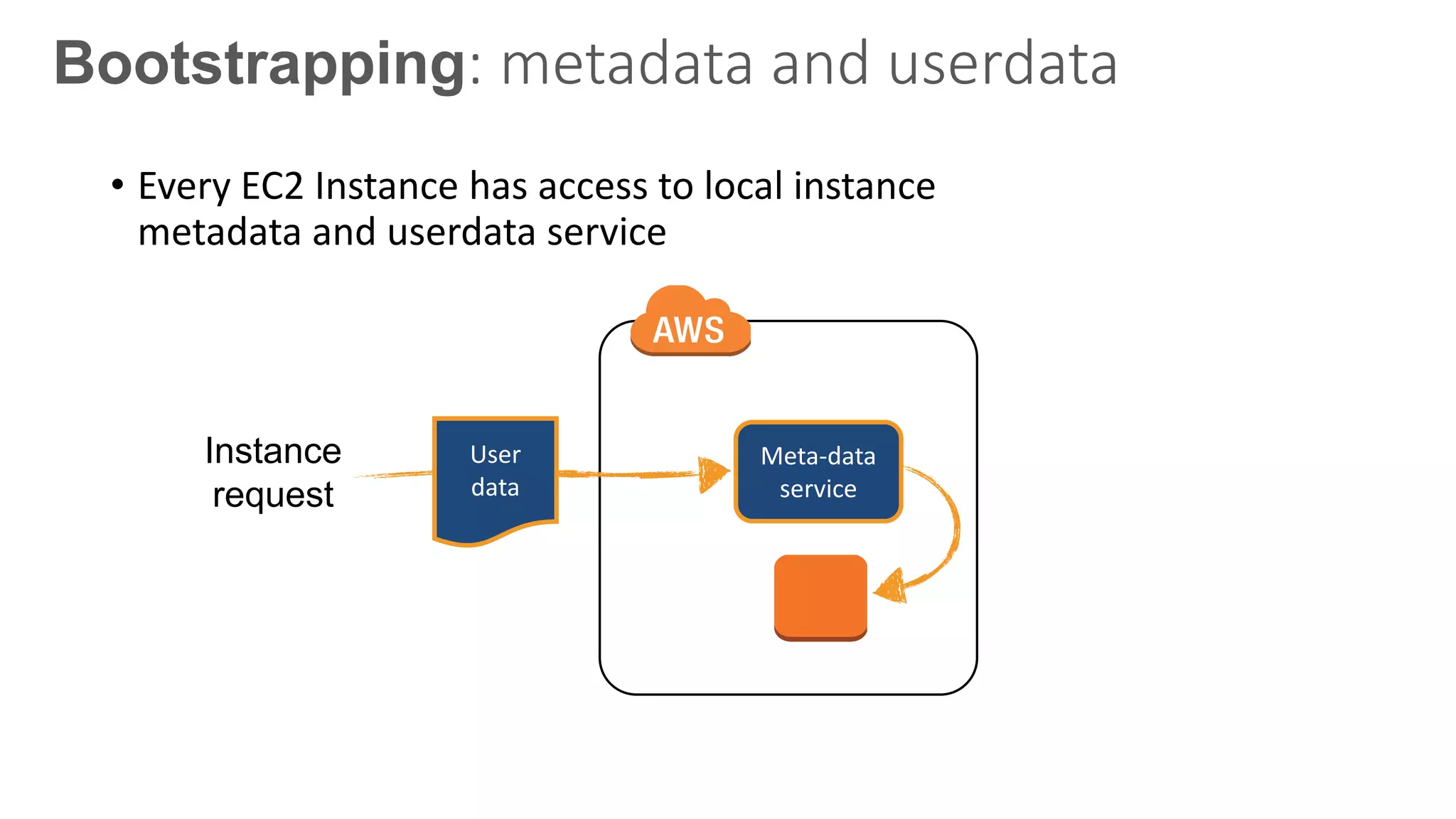
Bootstrapping: metadata and userdata
• Every EC2 Instance has access to local instance
metadata and userdata service
Instance
request
User
data
Instance
Meta-data
service
Bootstrapping: metadata and userdata
• Metadata: immutable information about the instance
• Accessible from within the instance via HTTP at
http://169.254.169.254/latest/meta-data/
• Script(s) on instance may retrieve useful information about the
instance, such as:
• Host name
• AMI ID
• Instance ID
• Public/Private DNS
• Availability Zone
Bootstrapping: metadata and userdata
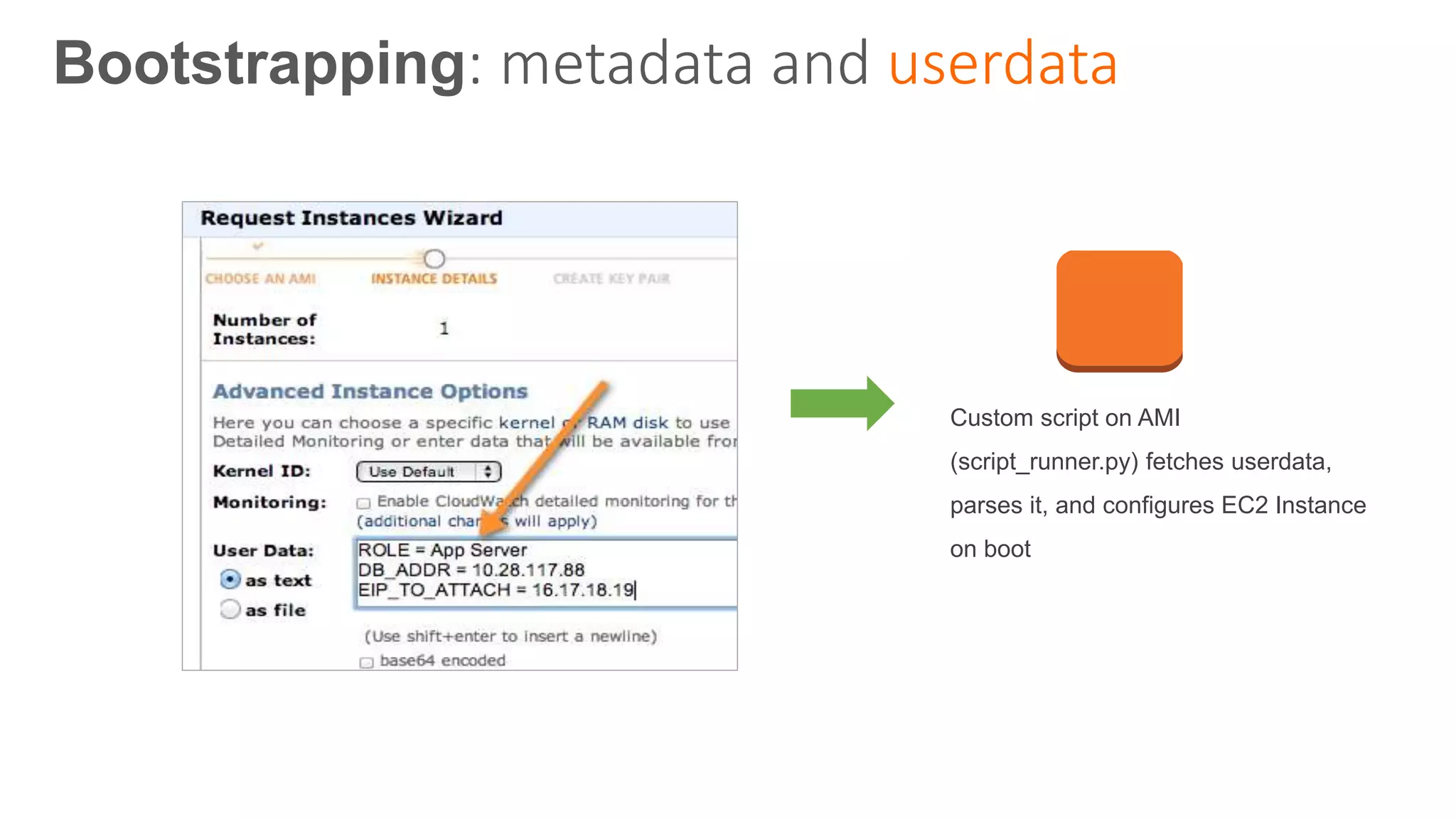
• User Data: pass up to 16KB of text to an instance on launch
• Accessible from within the instance via HTTP at
http://169.254.169.254/latest/user-data/
• Text can be parsed by script on instance and used to configure the
machine
Custom script on AMI
(script_runner.py) fetches userdata,
parses it, and configures EC2 Instance
on boot
Bootstrapping: metadata and userdata
• CloudInit executes UserData on first boot if UserData begins with:
• #! (Linux)
• <script> (Windows; technically, EC2Config, not CloudInit, does this)
• CloudInit is installed on Amazon Linux, Ubuntu, and RHEL AMIs
• EC2Config is installed on Windows Server AMIs
• Both may be installed on other distributions via a package repo or
source
Bootstrapping: UserData and CloudInit
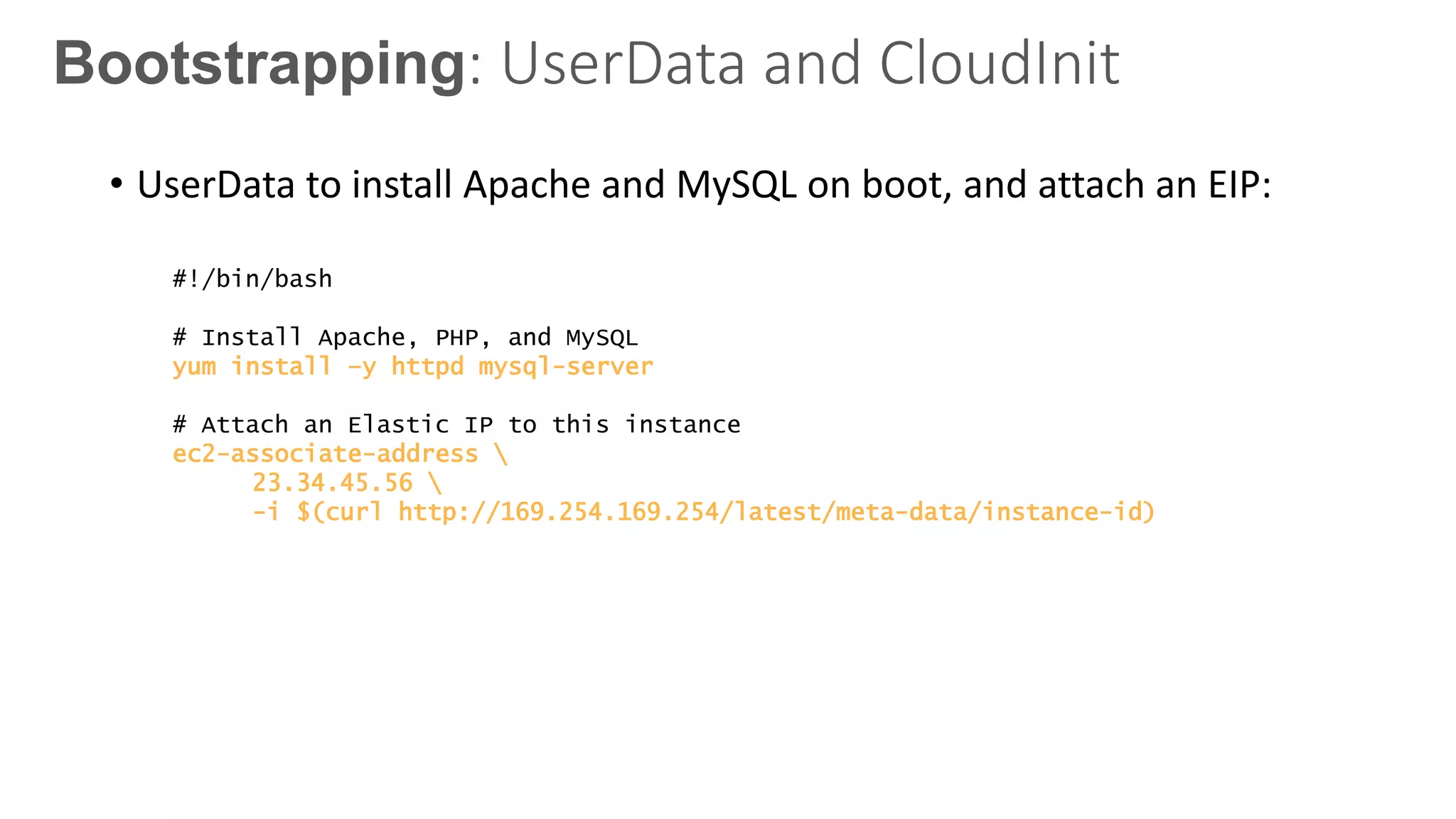
• UserData to install Apache and MySQL on boot, and attach an EIP:
#!/bin/bash
# Install Apache, PHP, and MySQL
yum install –y httpd mysql-server
# Attach an Elastic IP to this instance
ec2-associate-address 
23.34.45.56 
-i $(curl http://169.254.169.254/latest/meta-data/instance-id)
Bootstrapping: UserData and CloudInit
Bootstrapping
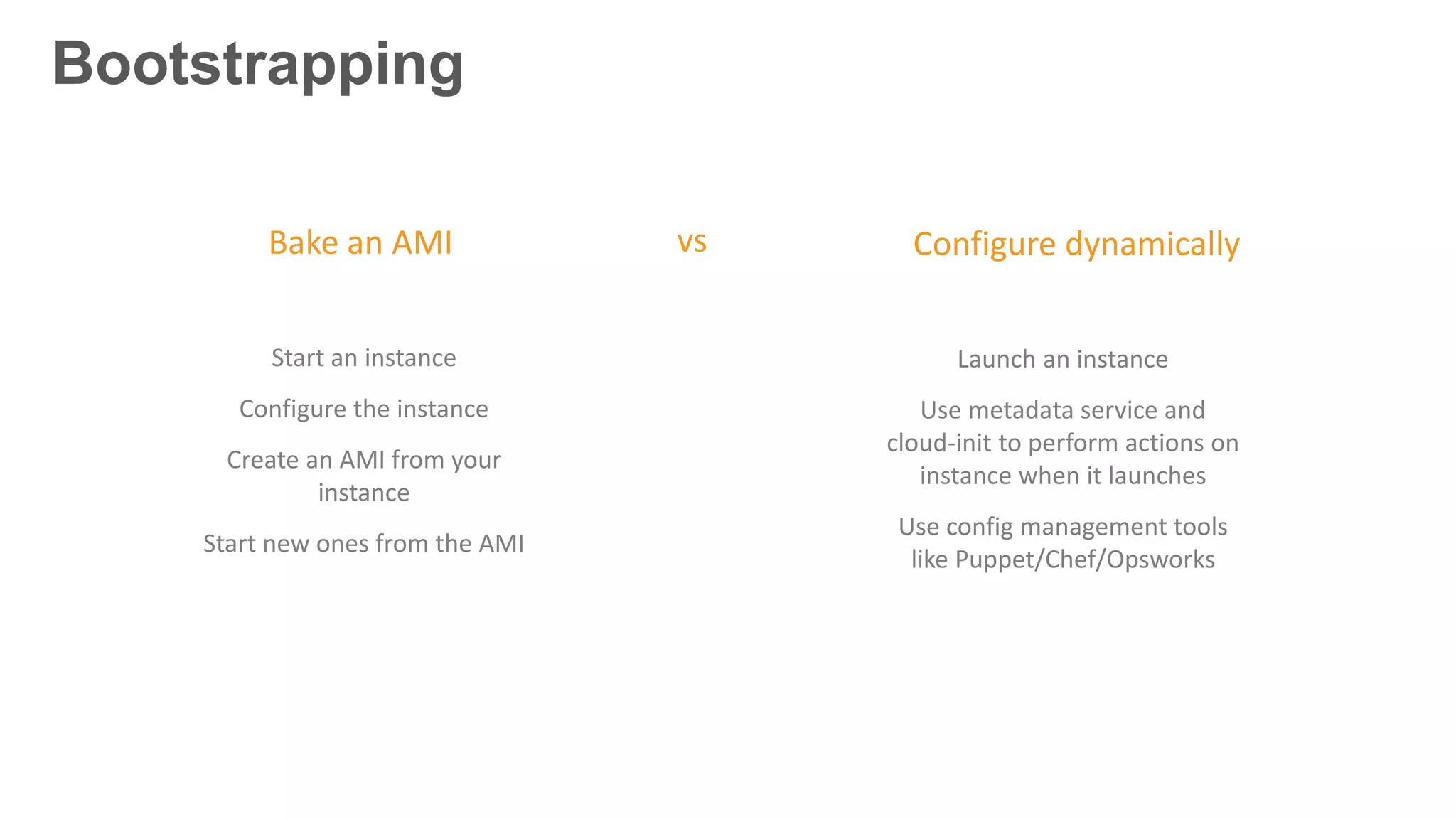
Bake an AMI
Start an instance
Configure the instance
Create an AMI from your
instance
Start new ones from the AMI
Configure dynamically
Launch an instance
Use metadata service and
cloud-init to perform actions on
instance when it launches
Use config management tools
like Puppet/Chef/Opsworks
vs
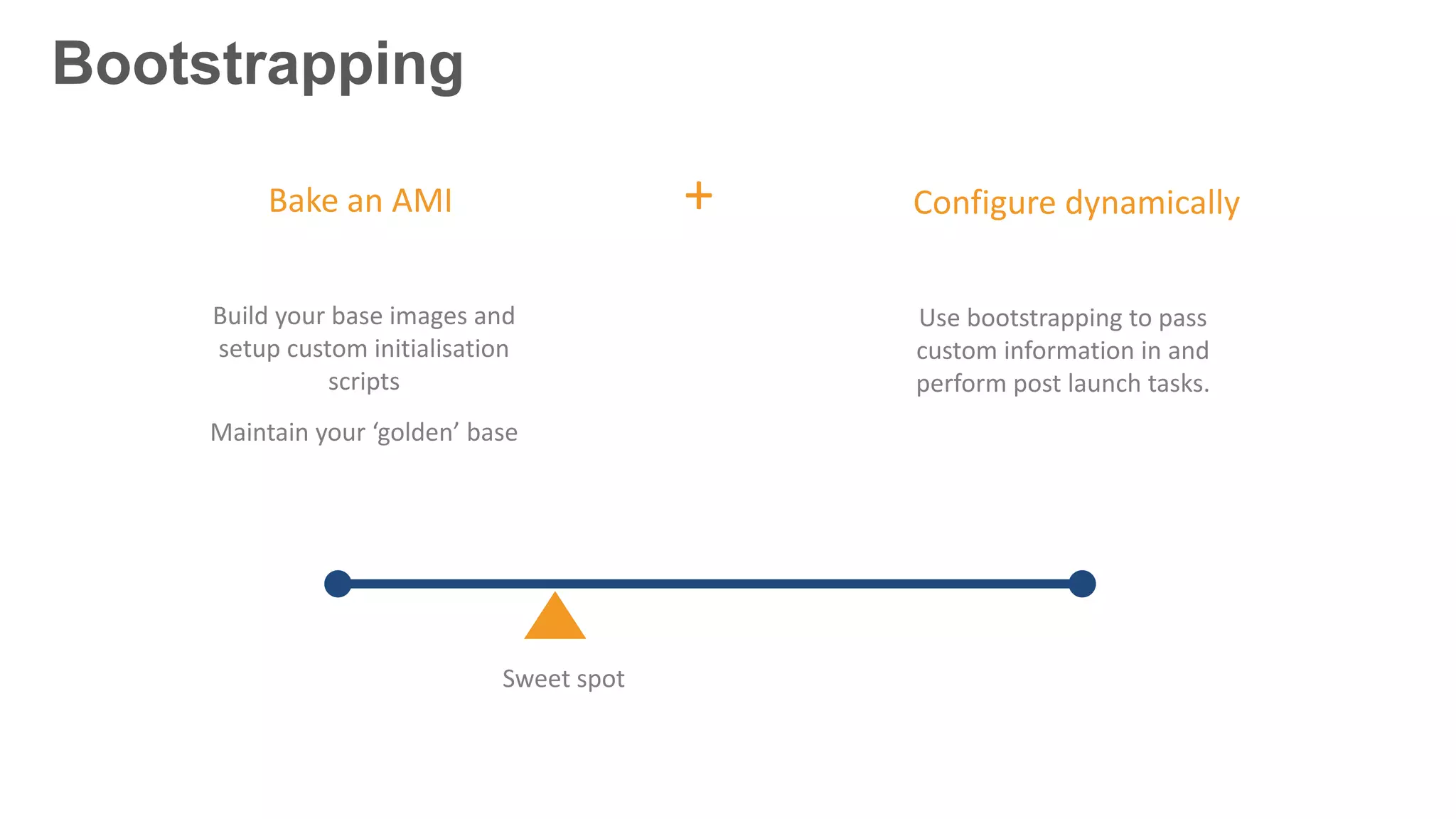
Bootstrapping
Bake an AMI Configure dynamically
Build your base images and
setup custom initialisation
scripts
Maintain your ‘golden’ base
Use bootstrapping to pass
custom information in and
perform post launch tasks.
+
Sweet spot
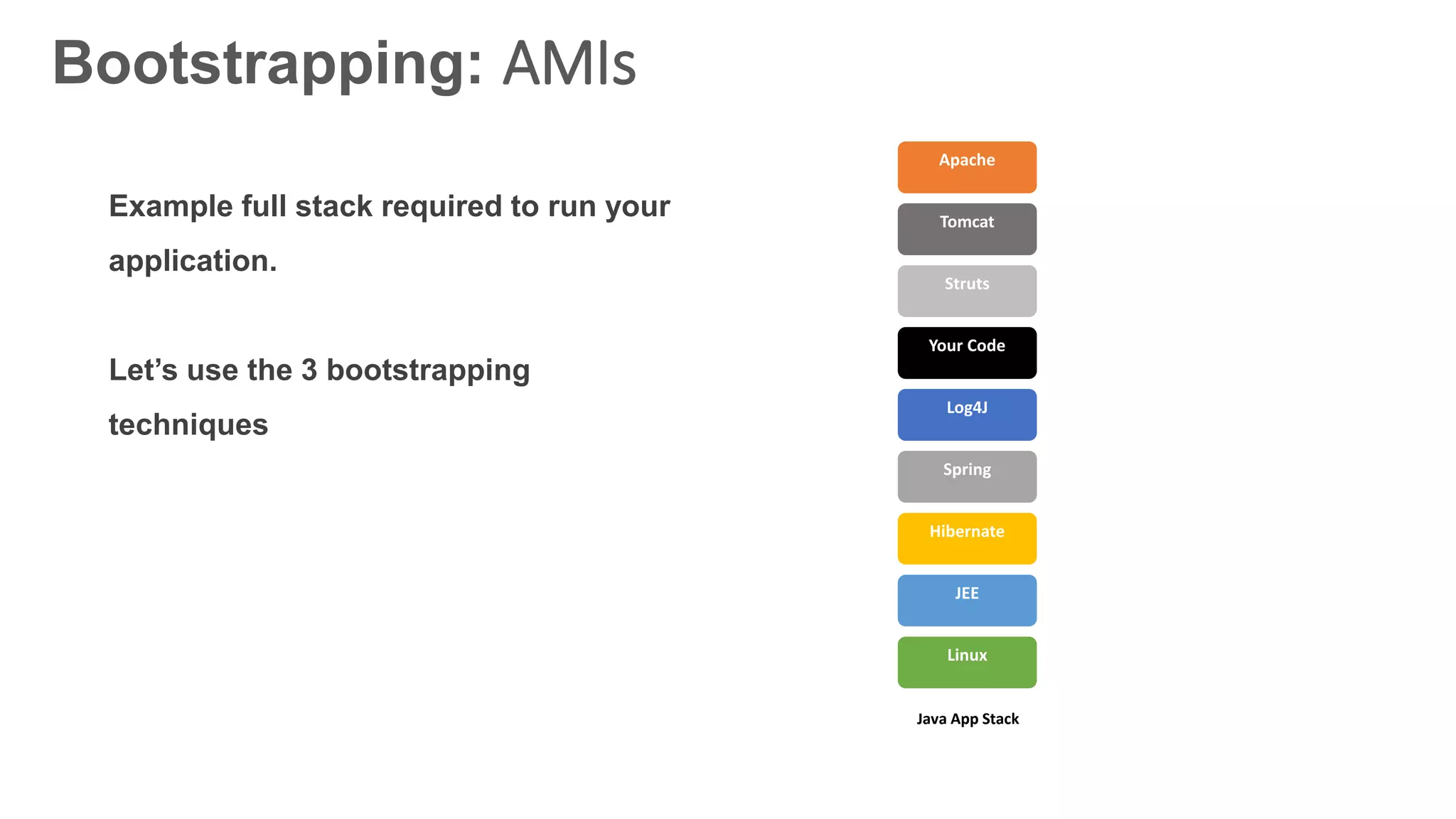
Bootstrapping: AMIs
Linux
JEE
Your Code
Log4J
Spring
Hibernate
Struts
Tomcat
Apache
Java App Stack
Example full stack required to run your
application.
Let’s use the 3 bootstrapping
techniques
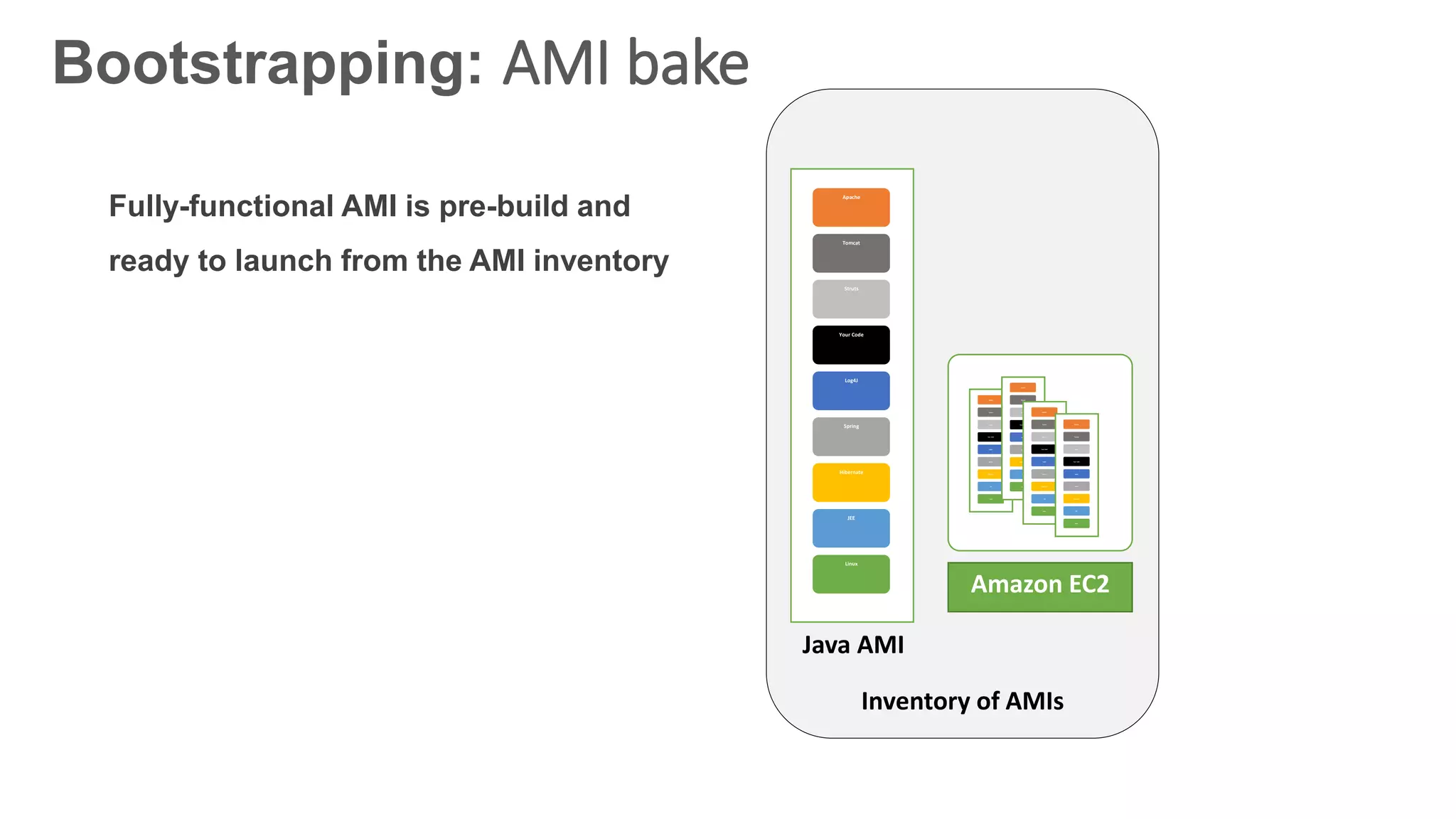
Bootstrapping: AMI bake
Fully-functional AMI is pre-build and
ready to launch from the AMI inventory
Inventory of AMIs
Linux
JEE
Your Code
Log4J
Spring
Hibernate
Struts
Tomcat
Apache
Amazon EC2
Linux
JEE
Your Code
Log4J
Spring
Hibernate
Struts
Tomcat
Apache
Linux
JEE
Your Code
Log4J
Spring
Hibernate
Struts
Tomcat
Apache
Linux
JEE
Your Code
Log4J
Spring
Hibernate
Struts
Tomcat
Apache
Linux
JEE
Your Code
Log4J
Spring
Hibernate
Struts
Tomcat
Apache
Java AMI
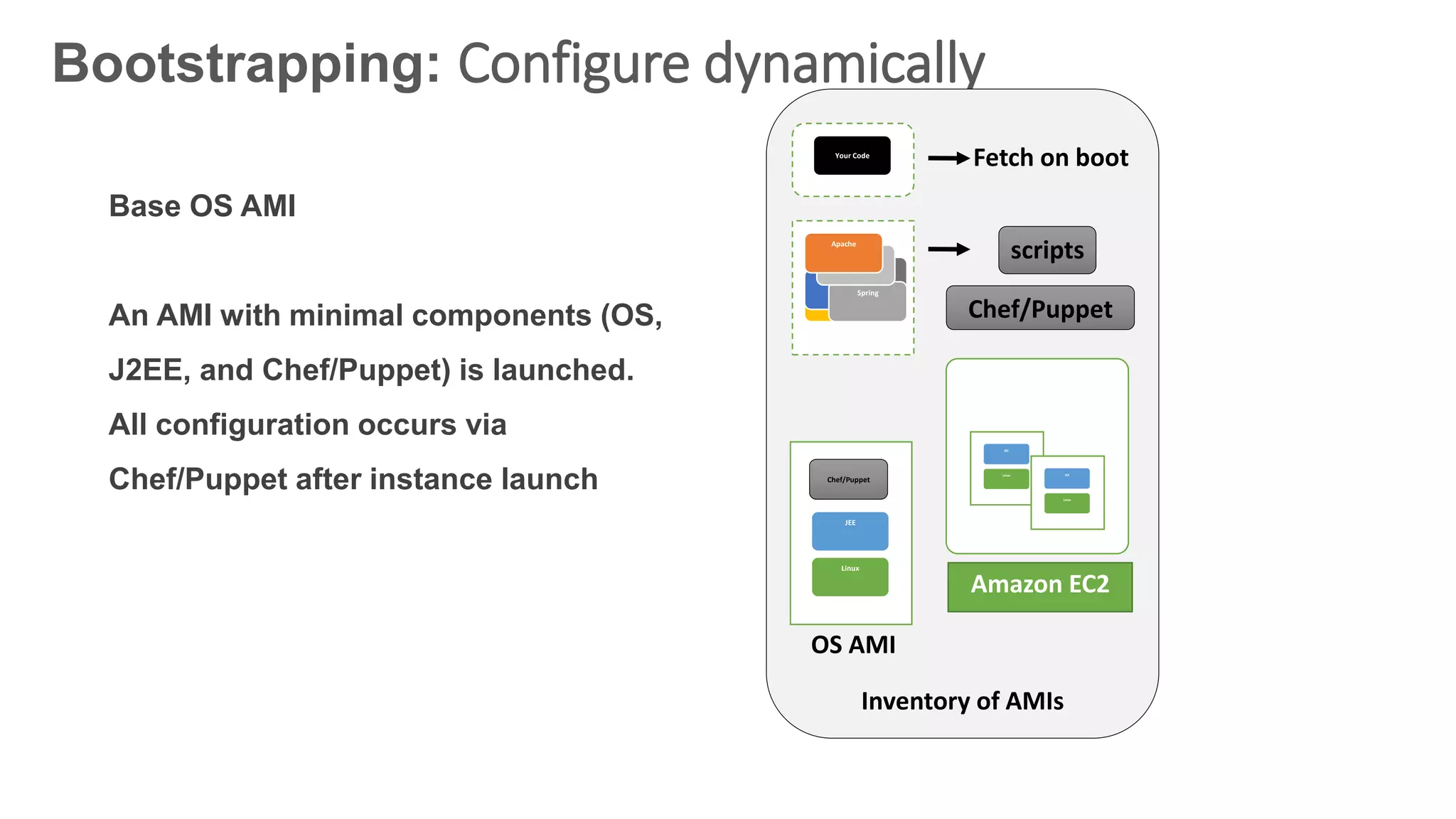
Bootstrapping: Configure dynamically
Base OS AMI
An AMI with minimal components (OS,
J2EE, and Chef/Puppet) is launched.
All configuration occurs via
Chef/Puppet after instance launch
Inventory of AMIs
Amazon EC2
OS AMI
Fetch on boot
Linux
JEE
Your Code
S3
Hibernate
Tomcat
Log4J
Spring
Struts
Apache
Linux
JEE
Linux
JEE
Chef/Puppet
Chef/Puppet
scripts
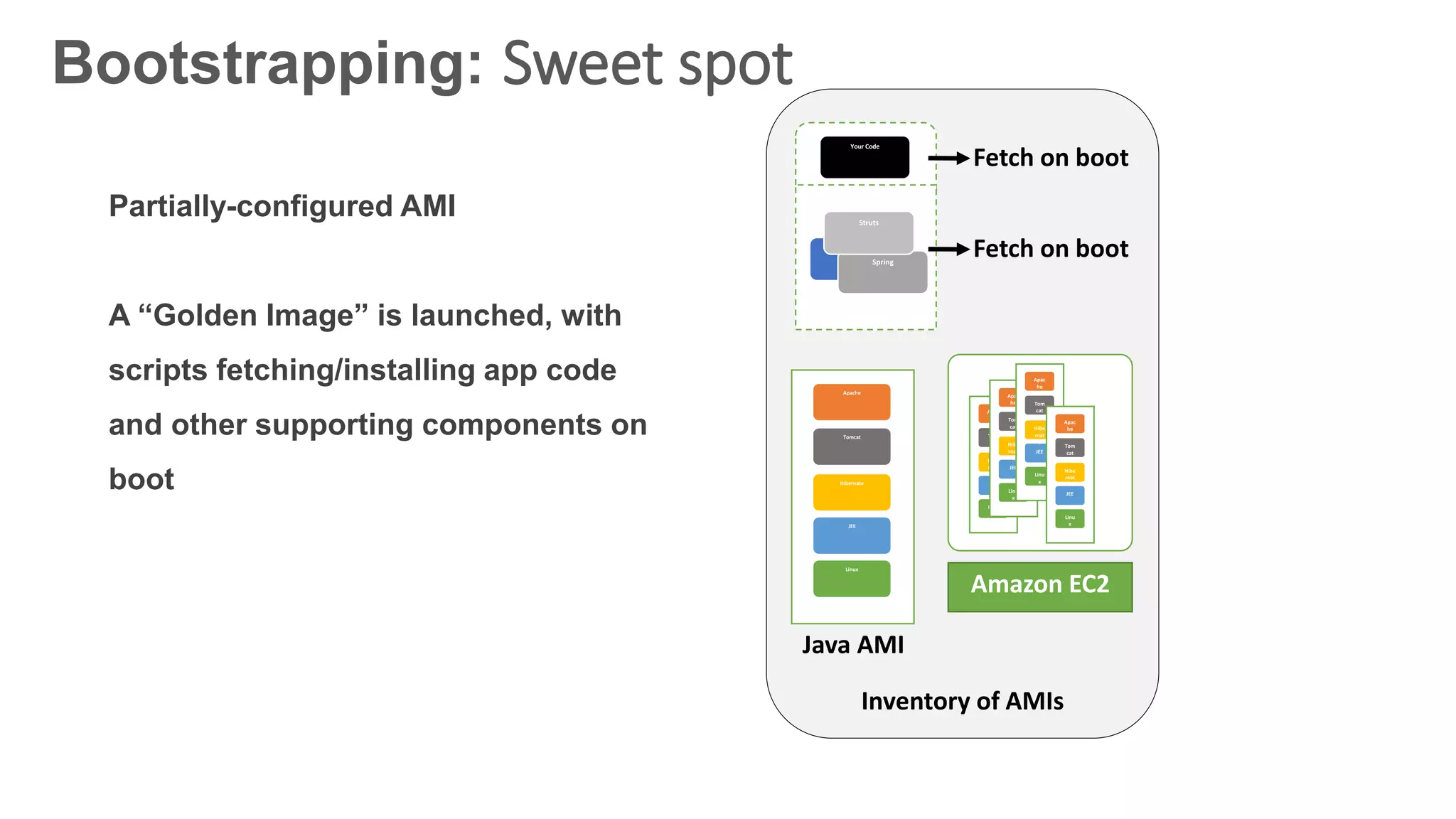
Bootstrapping: Sweet spot
Partially-configured AMI
A “Golden Image” is launched, with
scripts fetching/installing app code
and other supporting components on
boot
Inventory of AMIs
Amazon EC2
Java AMI
Your Code
S3
Log4J
Spring
Struts
Linux
JEE
Hibernate
Tomcat
Apache
Fetch on boot
Fetch on boot
Linu
x
JEE
Hibe
rnat
e
Tom
cat
Apac
he
Linu
x
JEE
Hibe
rnat
e
Tom
cat
Apac
he
Linu
x
JEE
Hibe
rnat
e
Tom
cat
Apac
he
Linu
x
JEE
Hibe
rnat
e
Tom
cat
Apac
he
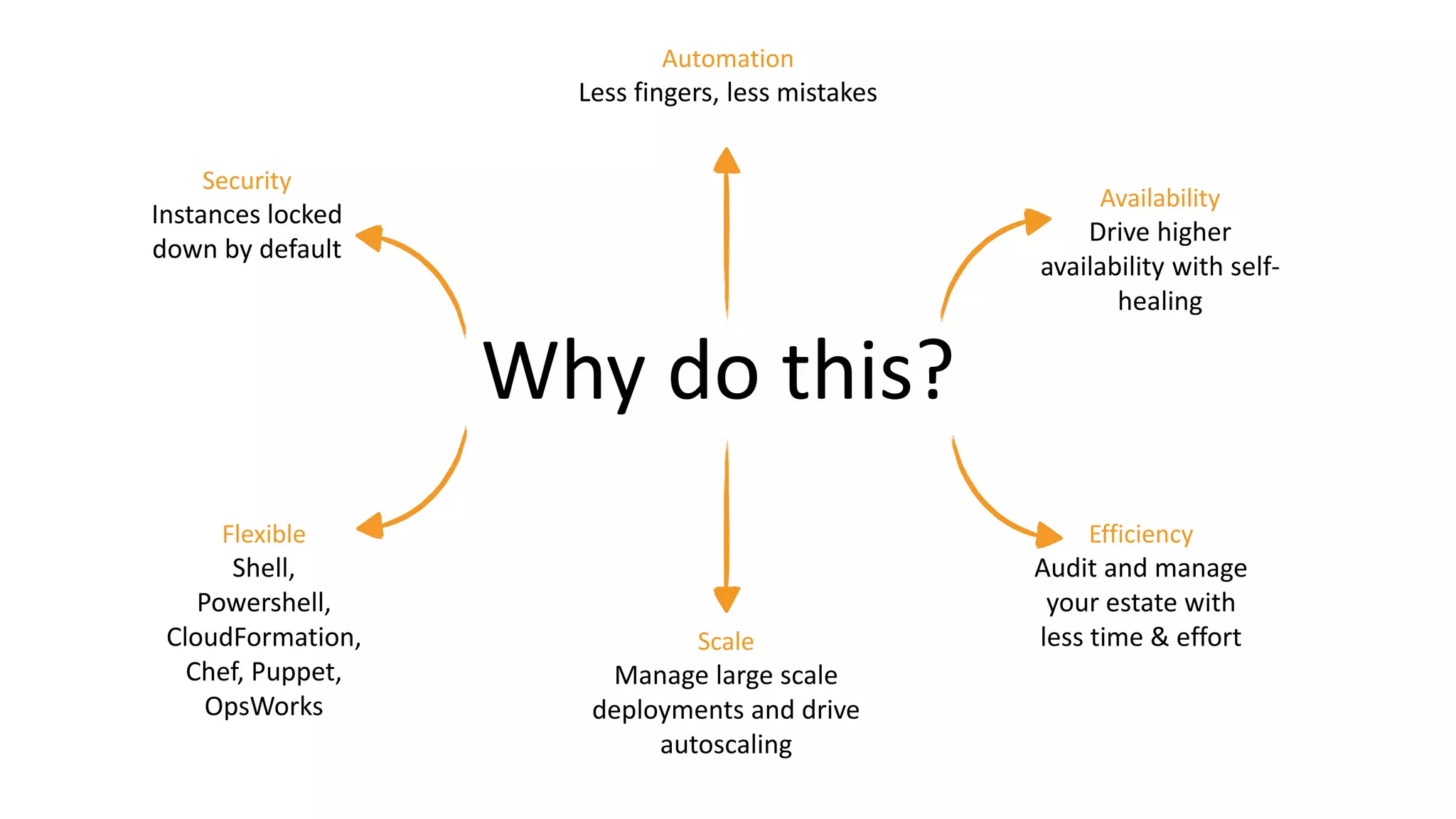
Why do this?
Automation
Less fingers, less mistakes
Availability
Drive higher
availability with self-
healing
Security
Instances locked
down by default
Flexible
Shell,
Powershell,
CloudFormation,
Chef, Puppet,
OpsWorks
Scale
Manage large scale
deployments and drive
autoscaling
Efficiency
Audit and manage
your estate with
less time & effort
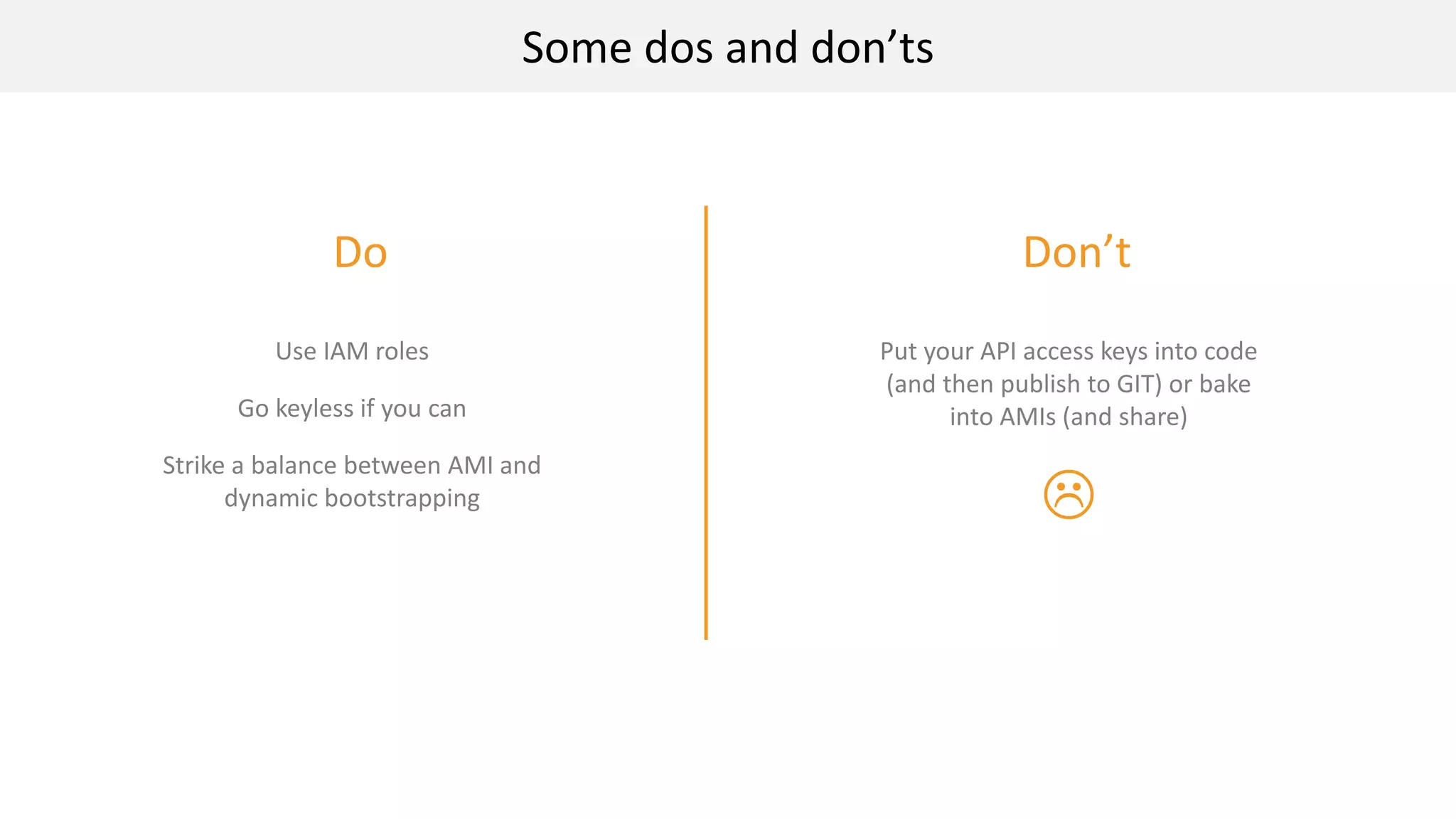
Do Don’t
Some dos and don’ts
Use IAM roles
Go keyless if you can
Strike a balance between AMI and
dynamic bootstrapping
Put your API access keys into code
(and then publish to GIT) or bake
into AMIs (and share)

EC2 Basics
Instance Lifecycle
EC2 Instance Types
Using Amazon Machine Images
Bootstrapping EC2 Instances
Monitoring EC2 with CloudWatch
Autoscaling
Monitoring EC2 with CloudWatch
EC2 Basics
Instance Lifecycle
EC2 Instance Types
Using Amazon Machine Images
Bootstrapping EC2 Instances
Monitoring EC2 with CloudWatch
Autoscaling
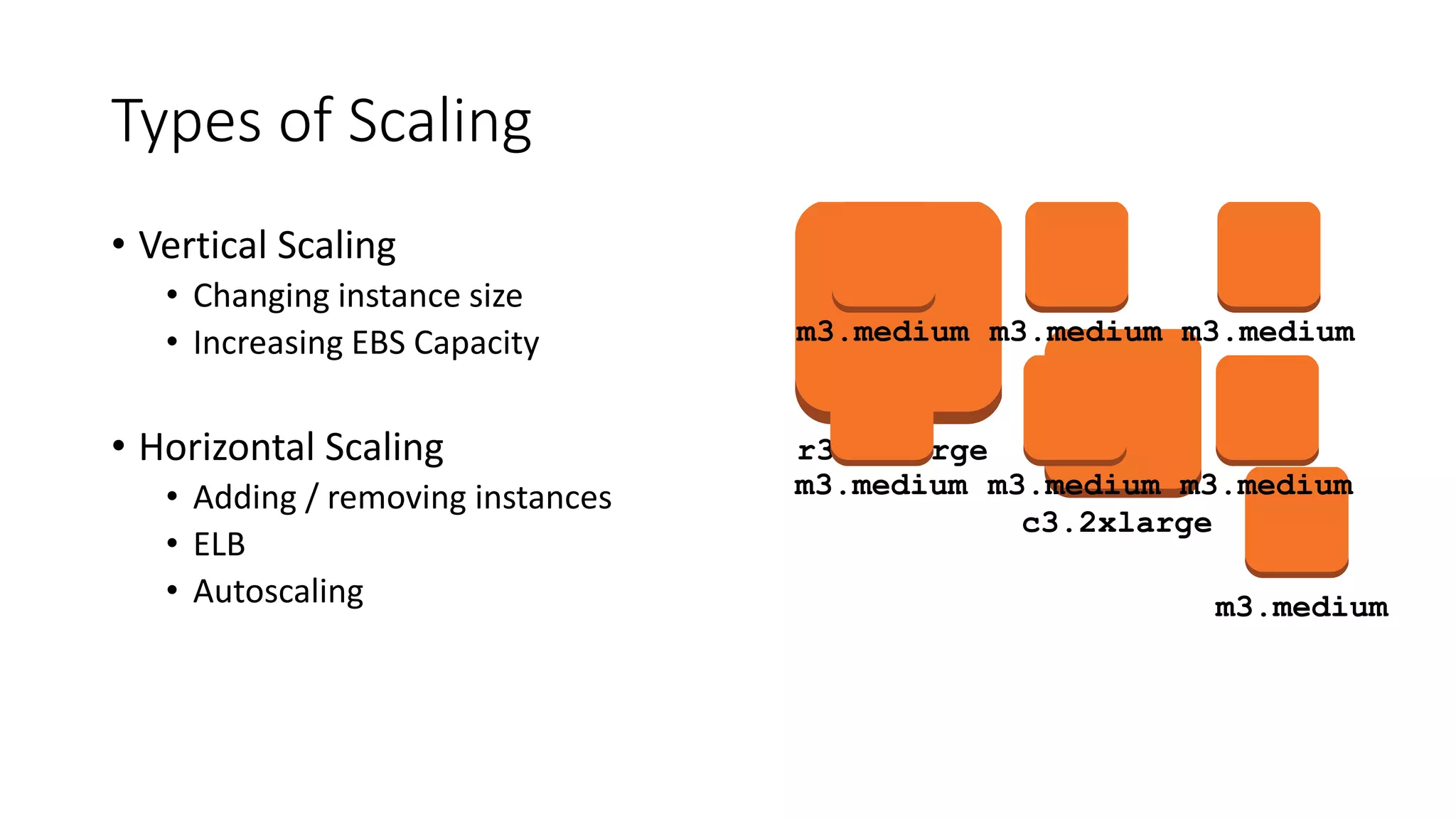
Types of Scaling
• Vertical Scaling
• Changing instance size
• Increasing EBS Capacity
• Horizontal Scaling
• Adding / removing instances
• ELB
• Autoscaling
r3.8xlarge
c3.2xlarge
m3.medium
m3.medium m3.medium m3.medium
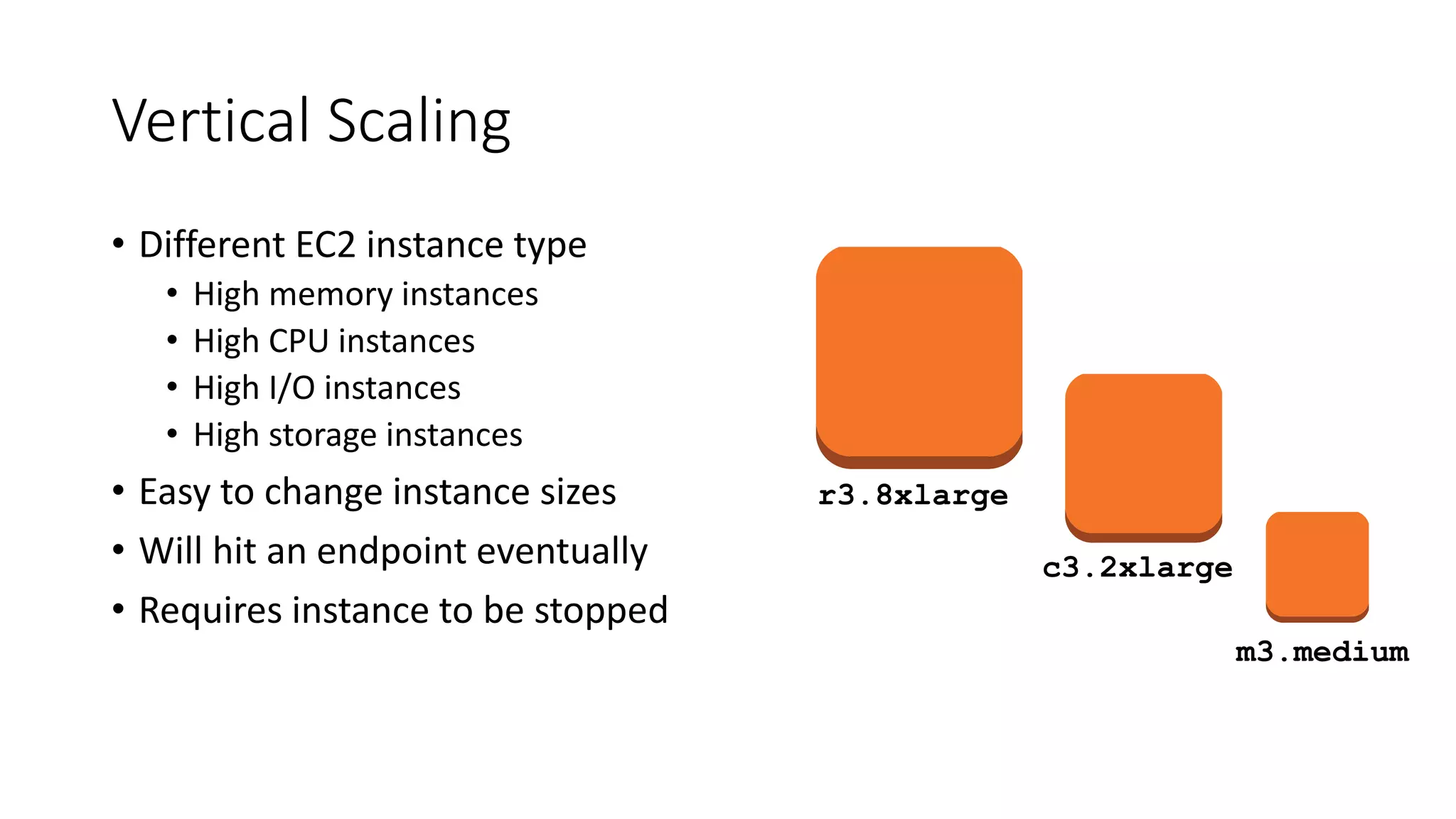
Vertical Scaling
• Different EC2 instance type
• High memory instances
• High CPU instances
• High I/O instances
• High storage instances
• Easy to change instance sizes
• Will hit an endpoint eventually
• Requires instance to be stopped
r3.8xlarge
c3.2xlarge
m3.medium
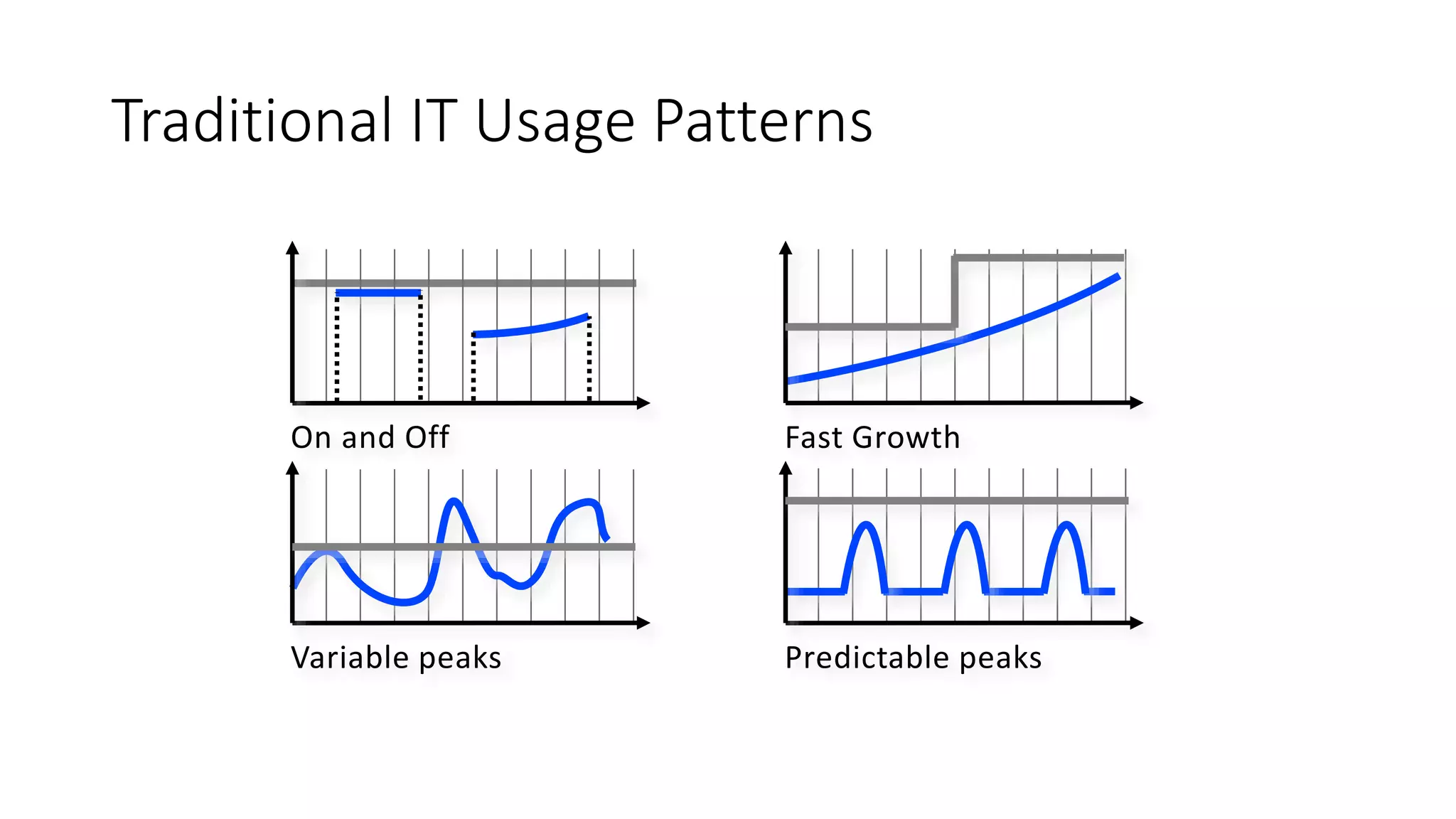
Traditional IT Usage Patterns
On and Off Fast Growth
Variable peaks Predictable peaks
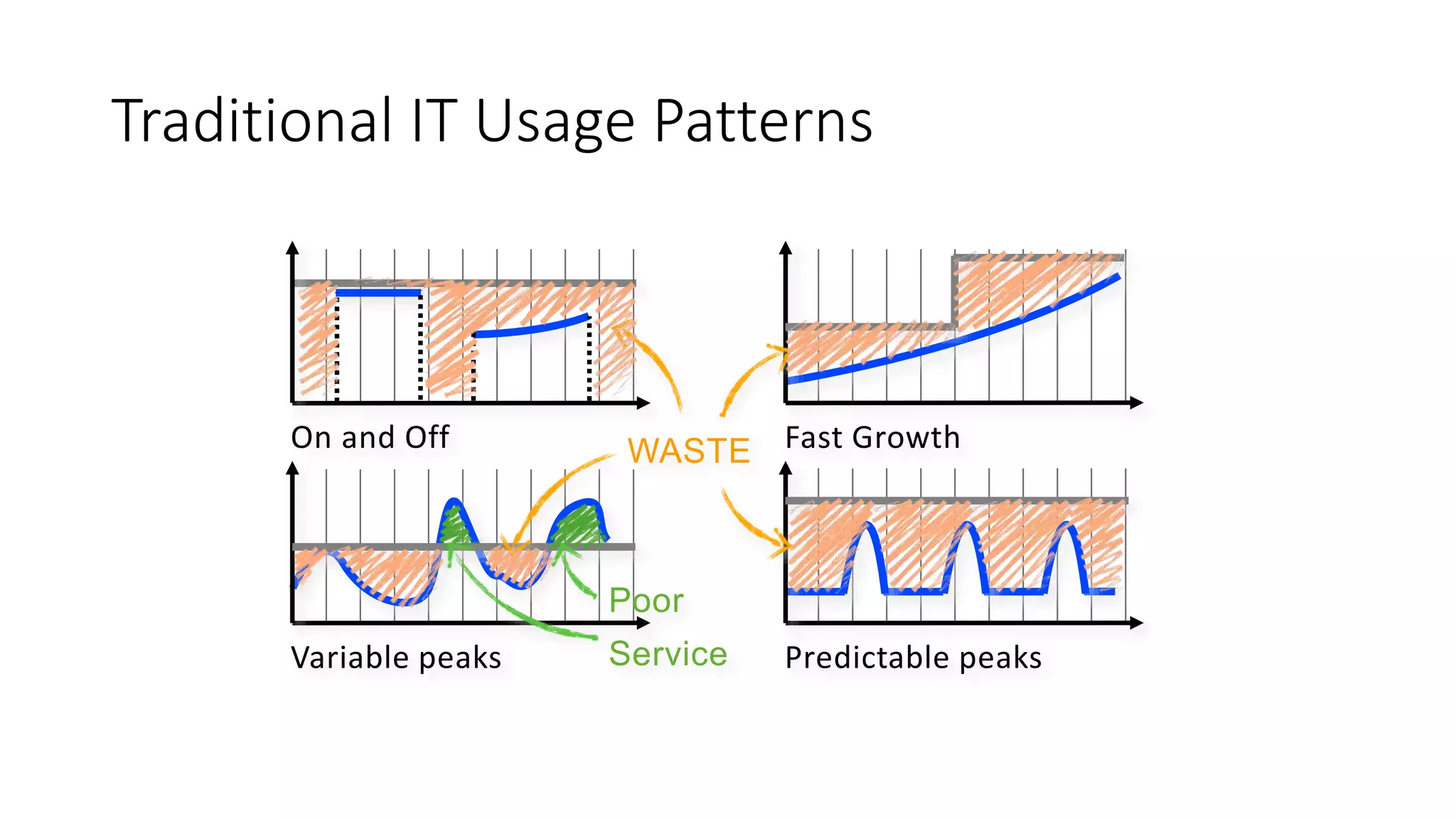
Traditional IT Usage Patterns
On and Off Fast Growth
Variable peaks Predictable peaks
Poor
Service
WASTE
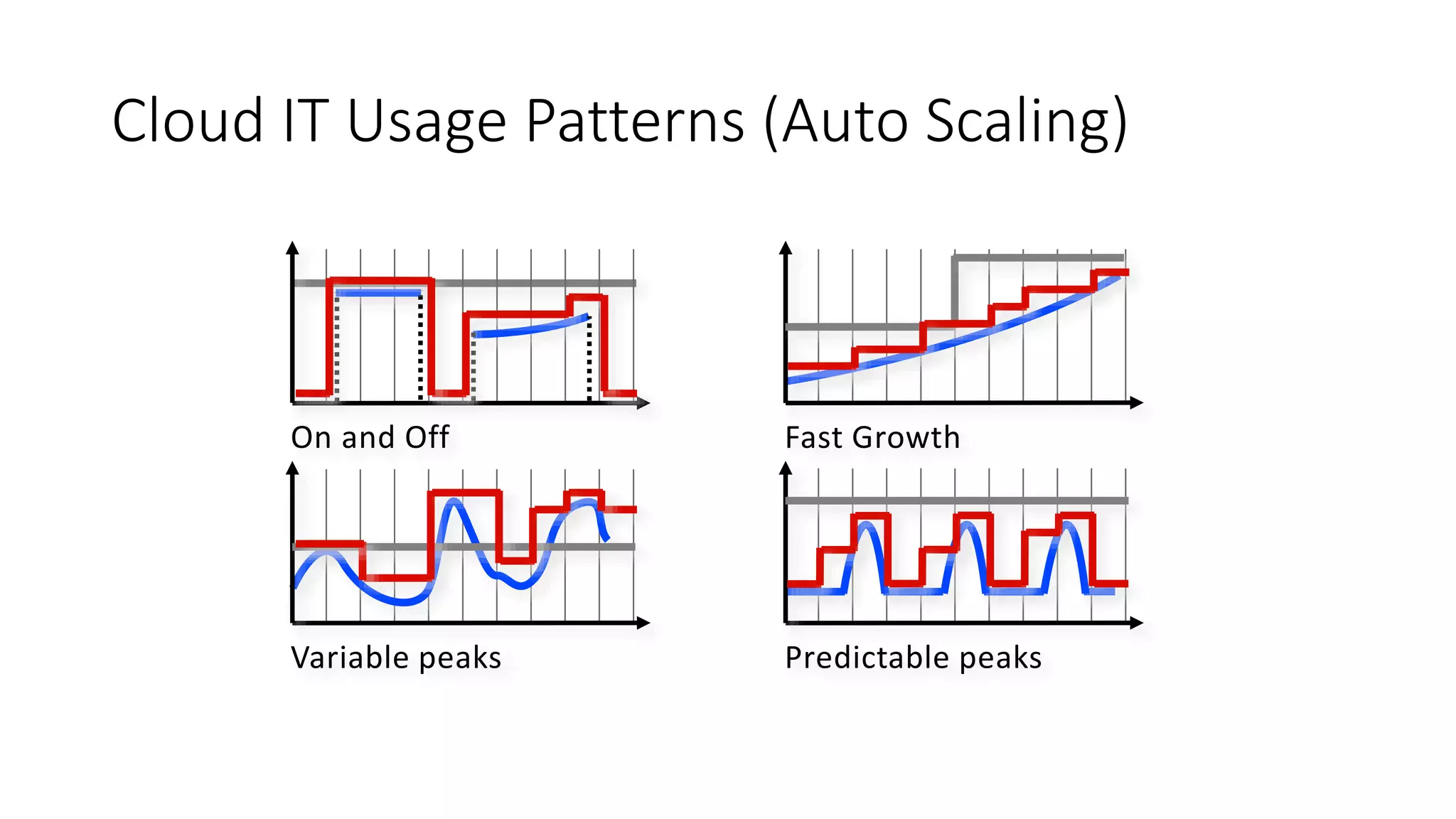
Cloud IT Usage Patterns (Auto Scaling)
On and Off Fast Growth
Variable peaks Predictable peaks
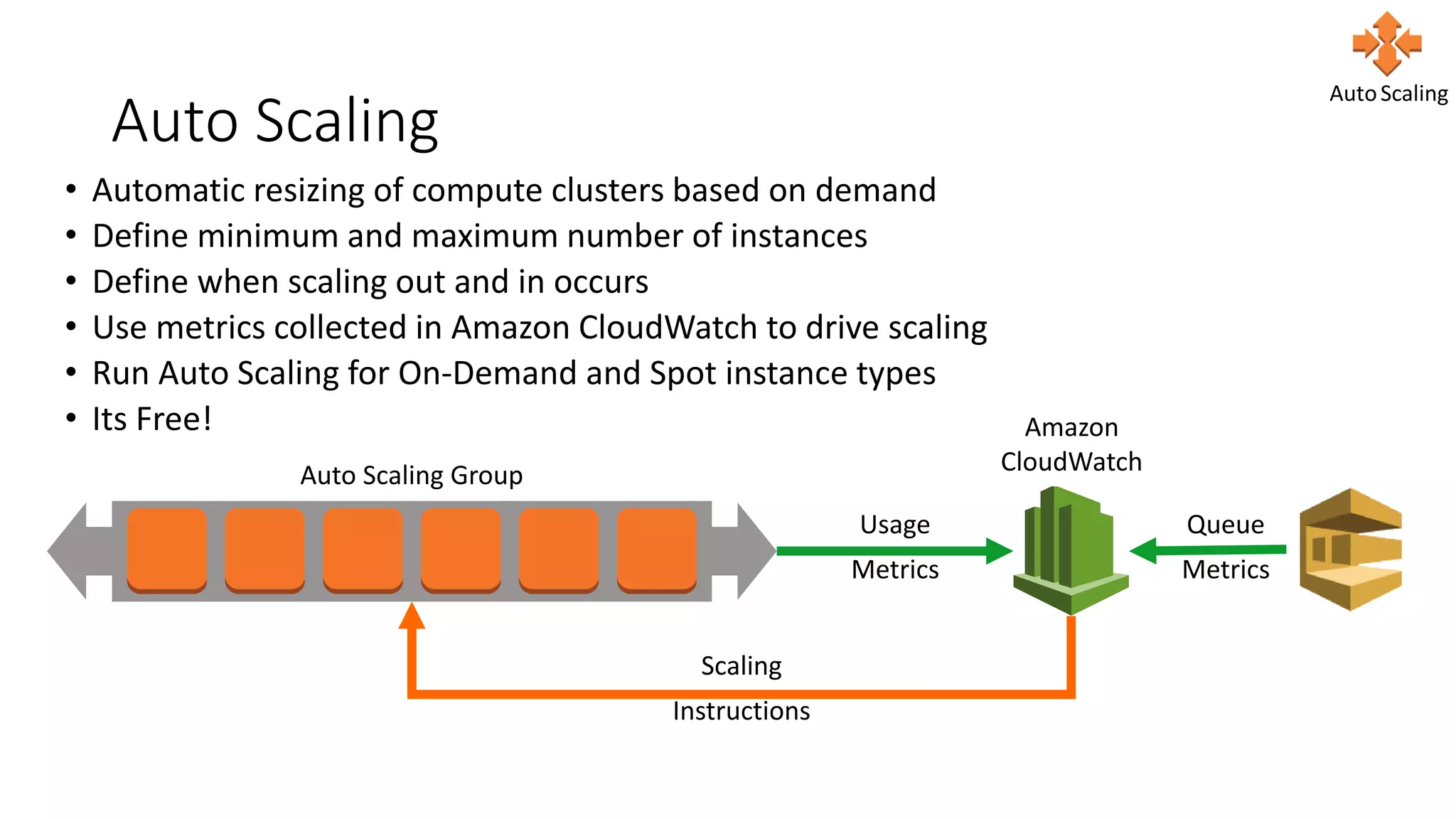
Auto Scaling
• Automatic resizing of compute clusters based on demand
• Define minimum and maximum number of instances
• Define when scaling out and in occurs
• Use metrics collected in Amazon CloudWatch to drive scaling
• Run Auto Scaling for On-Demand and Spot instance types
• Its Free! Amazon
CloudWatch
Usage
Metrics
Scaling
Instructions
Auto Scaling Group
Queue
Metrics
AutoScaling
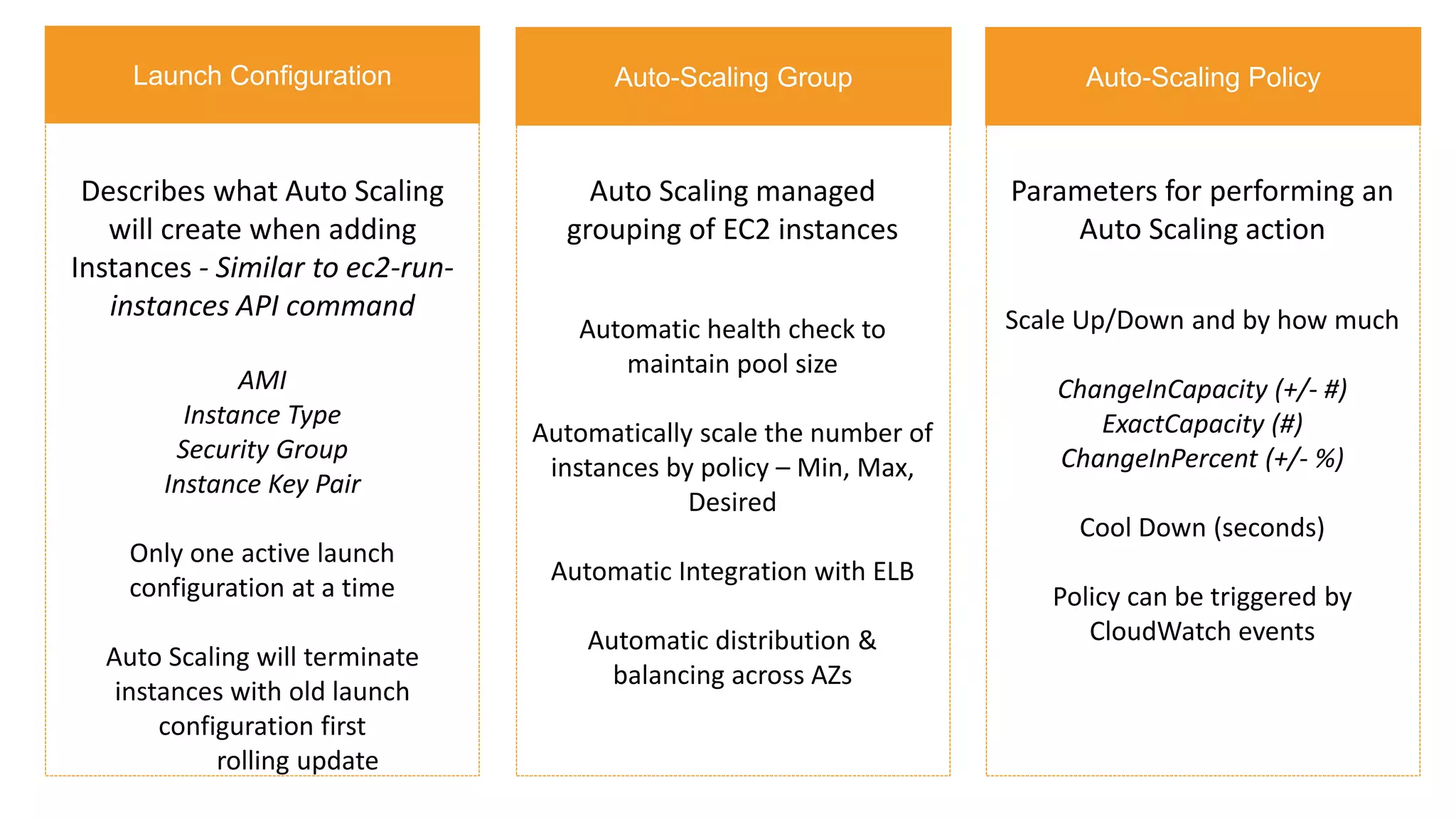
Describes what Auto Scaling
will create when adding
Instances - Similar to ec2-run-
instances API command
AMI
Instance Type
Security Group
Instance Key Pair
Only one active launch
configuration at a time
Auto Scaling will terminate
instances with old launch
configuration first
rolling update
Auto Scaling managed
grouping of EC2 instances
Automatic health check to
maintain pool size
Automatically scale the number of
instances by policy – Min, Max,
Desired
Automatic Integration with ELB
Automatic distribution &
balancing across AZs
Parameters for performing an
Auto Scaling action
Scale Up/Down and by how much
ChangeInCapacity (+/- #)
ExactCapacity (#)
ChangeInPercent (+/- %)
Cool Down (seconds)
Policy can be triggered by
CloudWatch events
Launch Configuration Auto-Scaling Group Auto-Scaling Policy
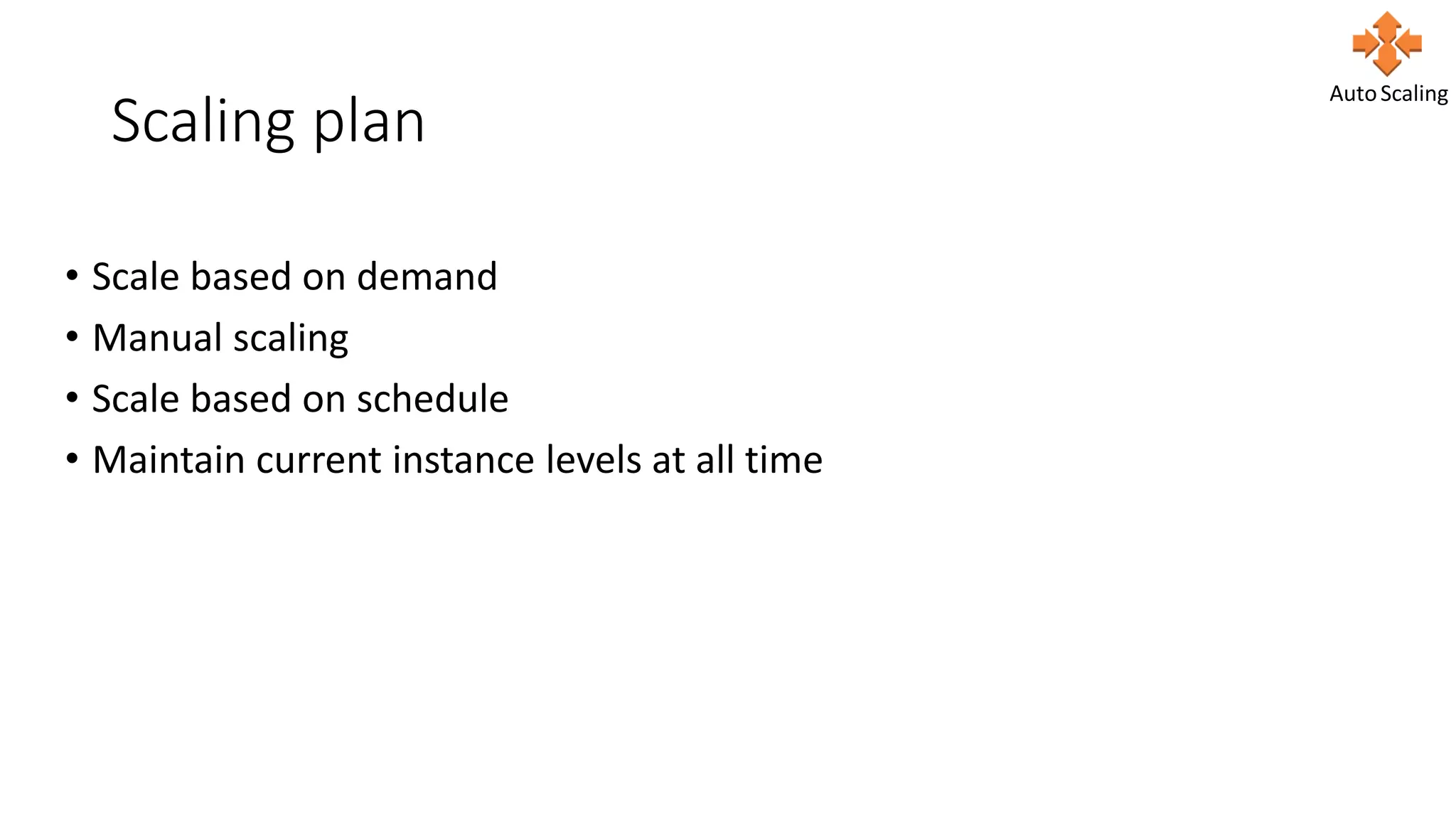
Scaling plan
• Scale based on demand
• Manual scaling
• Scale based on schedule
• Maintain current instance levels at all time
AutoScaling
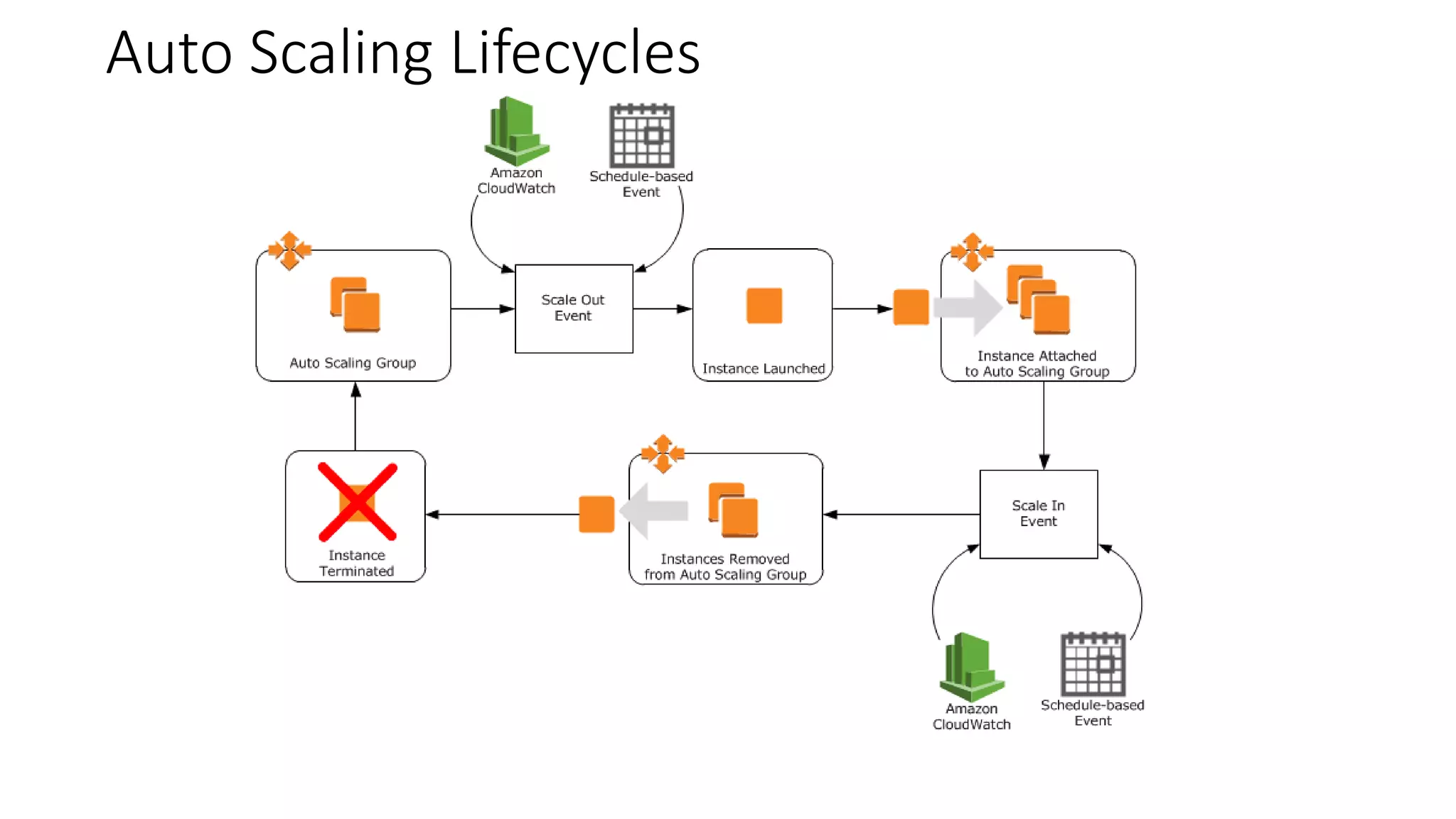
Auto Scaling Lifecycles
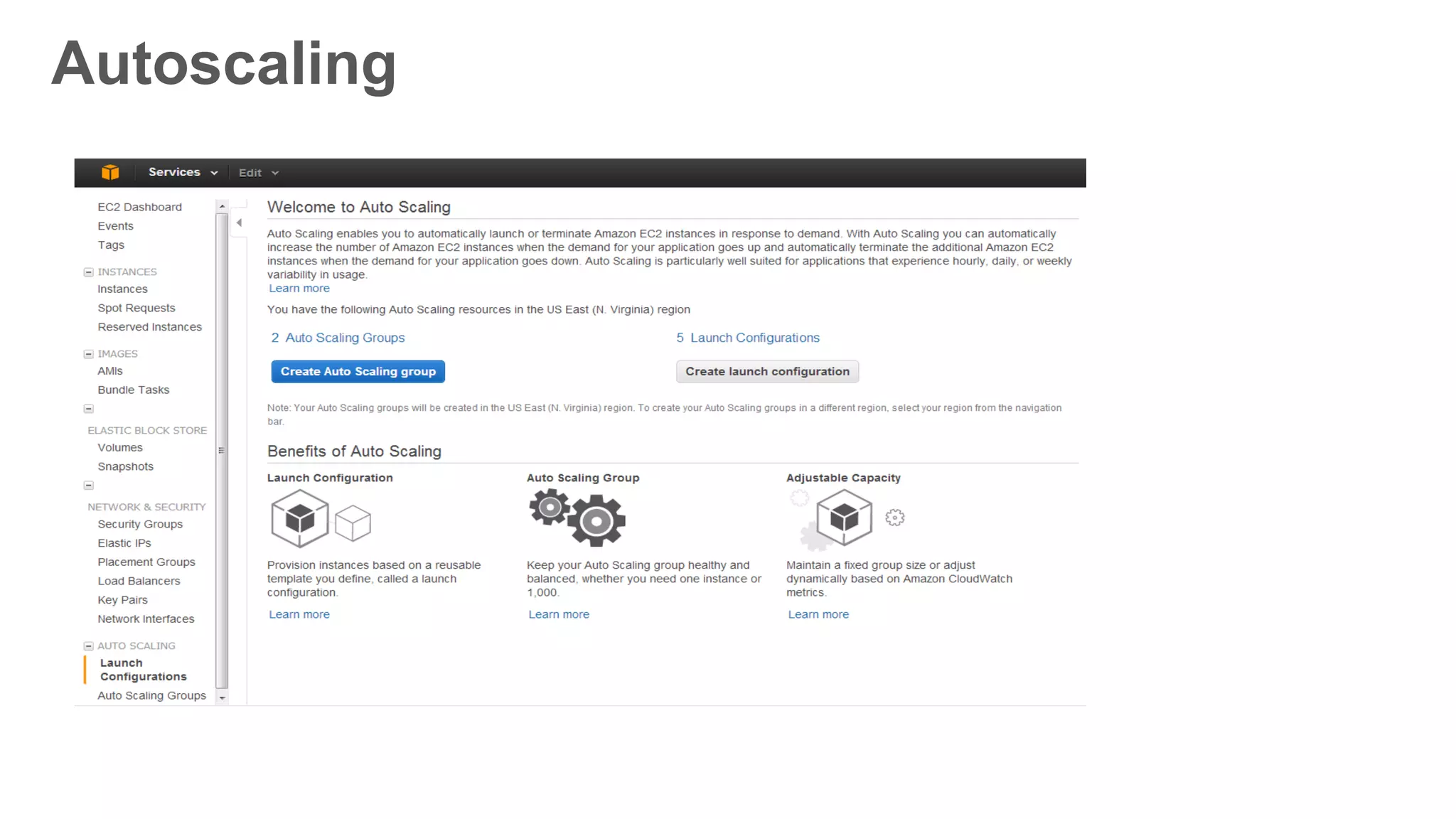
Autoscaling
Autoscaling
Autoscaling
Autoscaling
Autoscaling
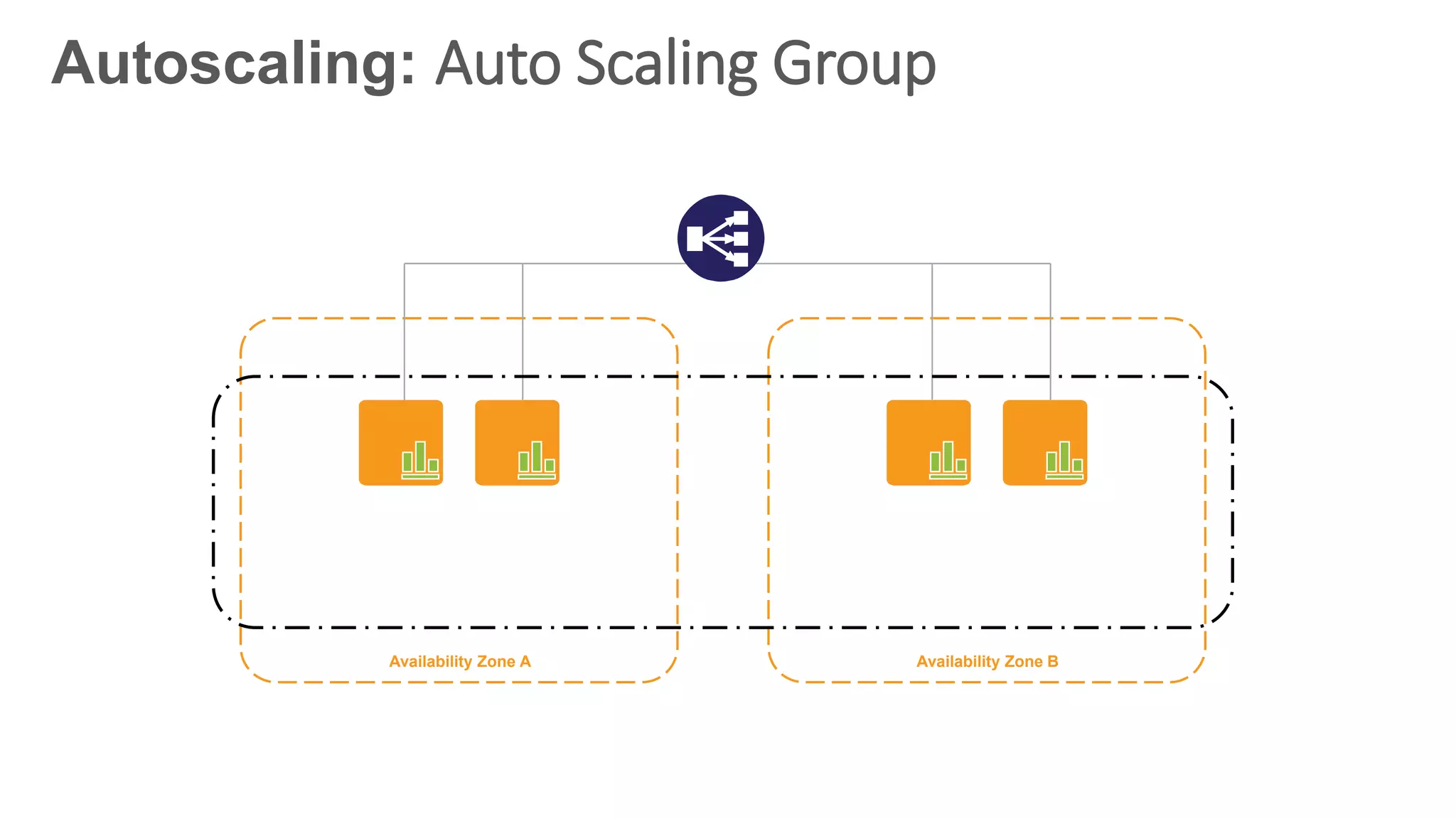
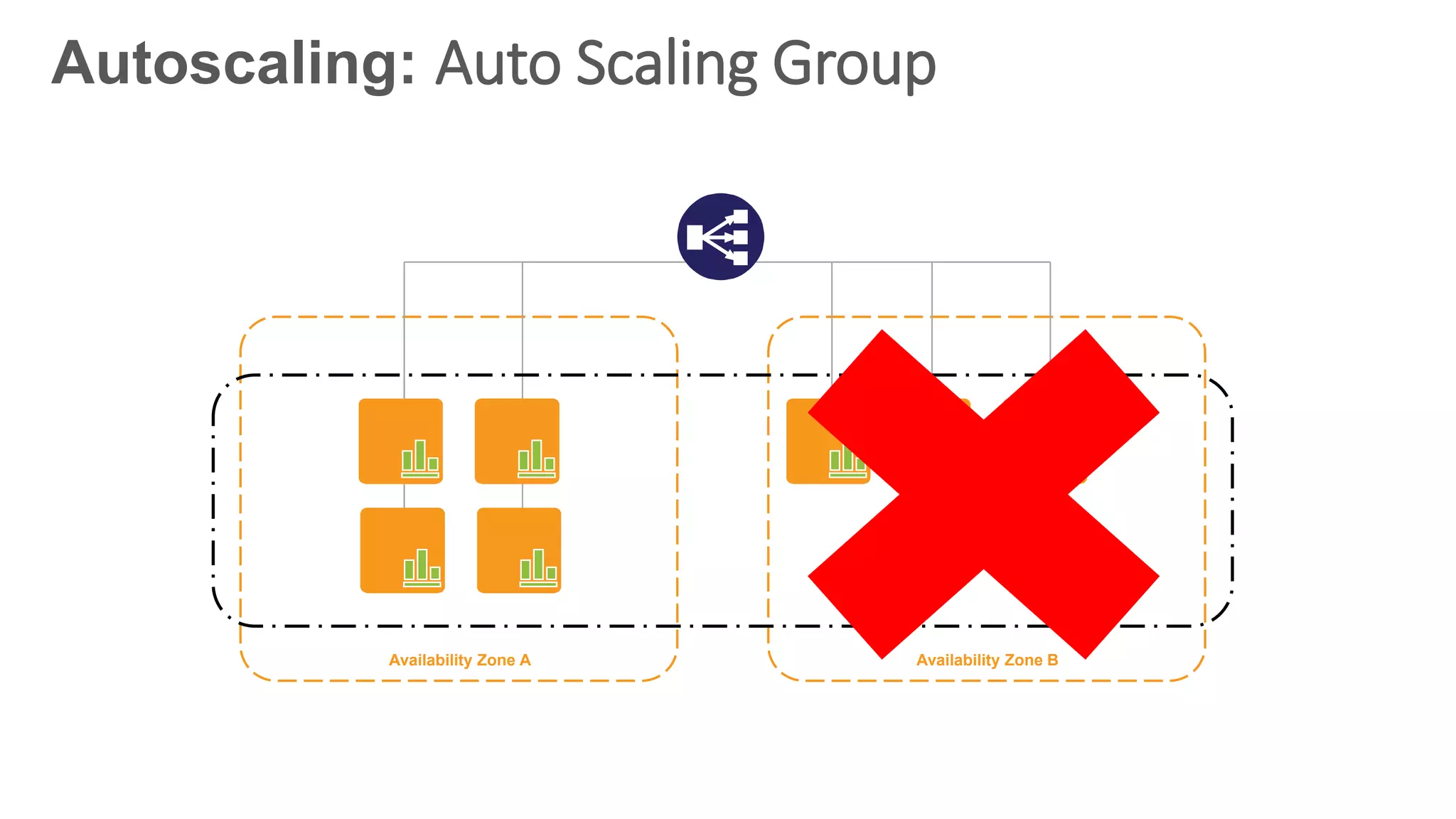
Availability Zone A Availability Zone B
Autoscaling: Auto Scaling Group
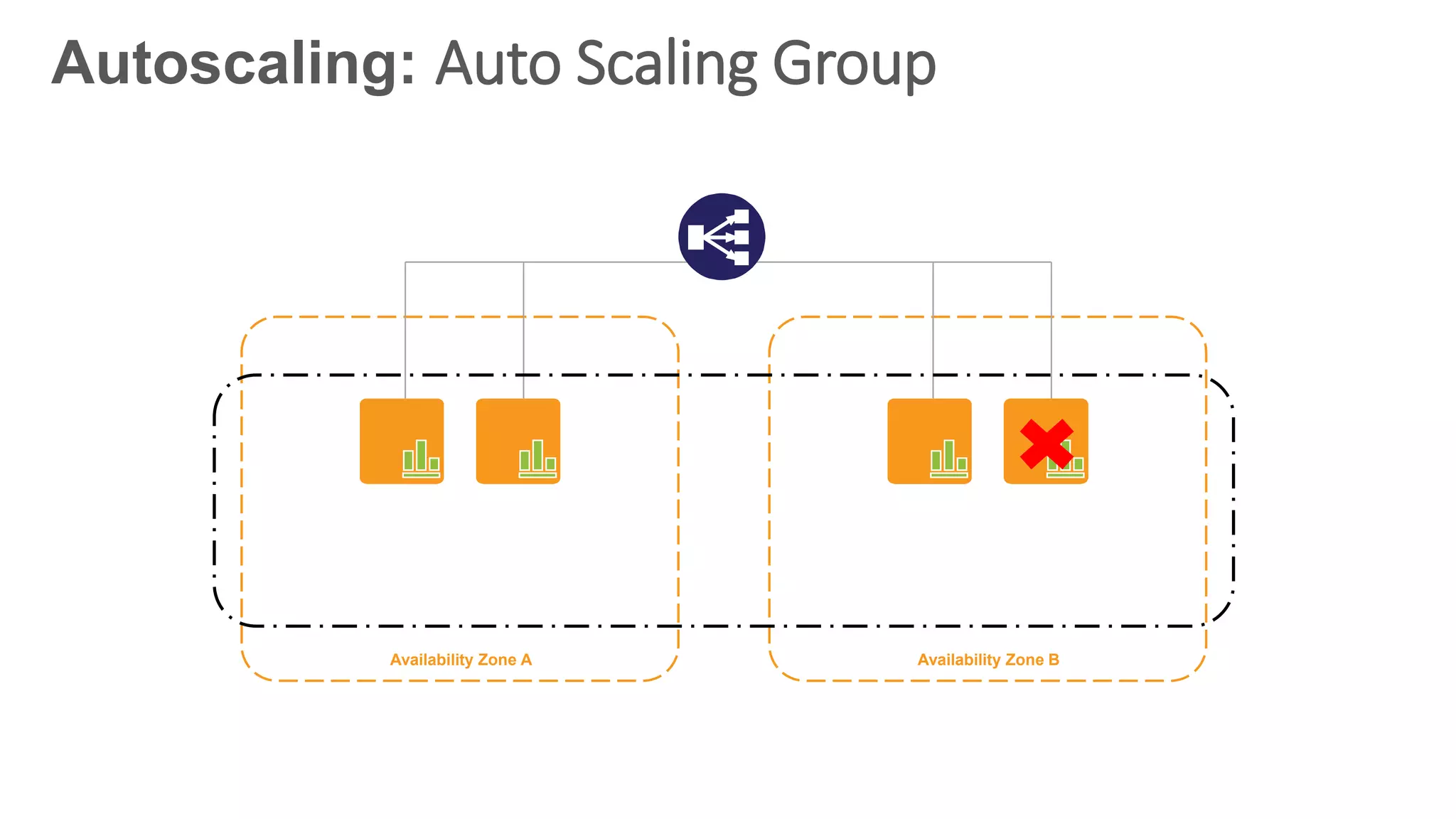
Availability Zone A Availability Zone B
Autoscaling: Auto Scaling Group
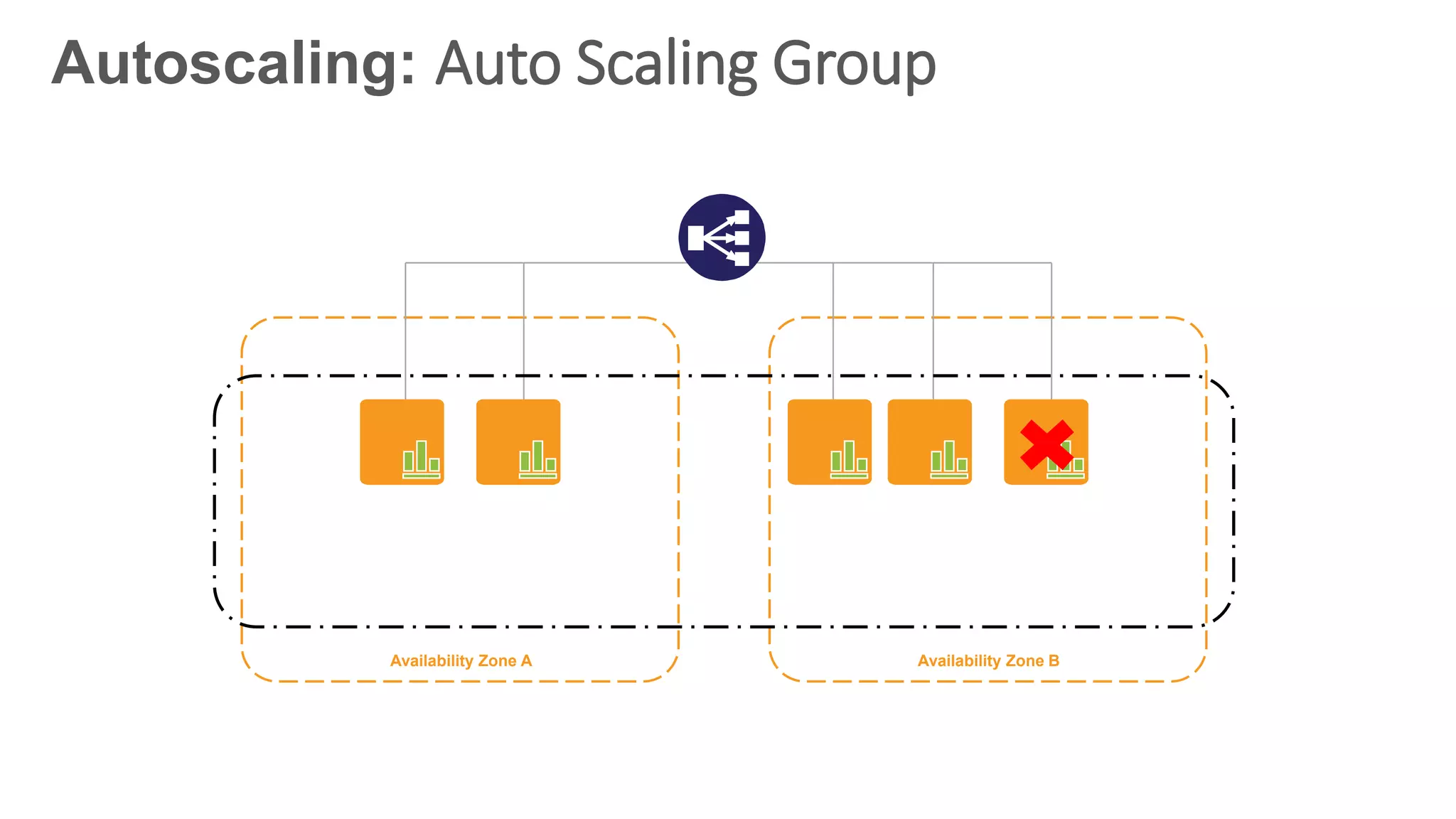
Availability Zone A Availability Zone B
Autoscaling: Auto Scaling Group
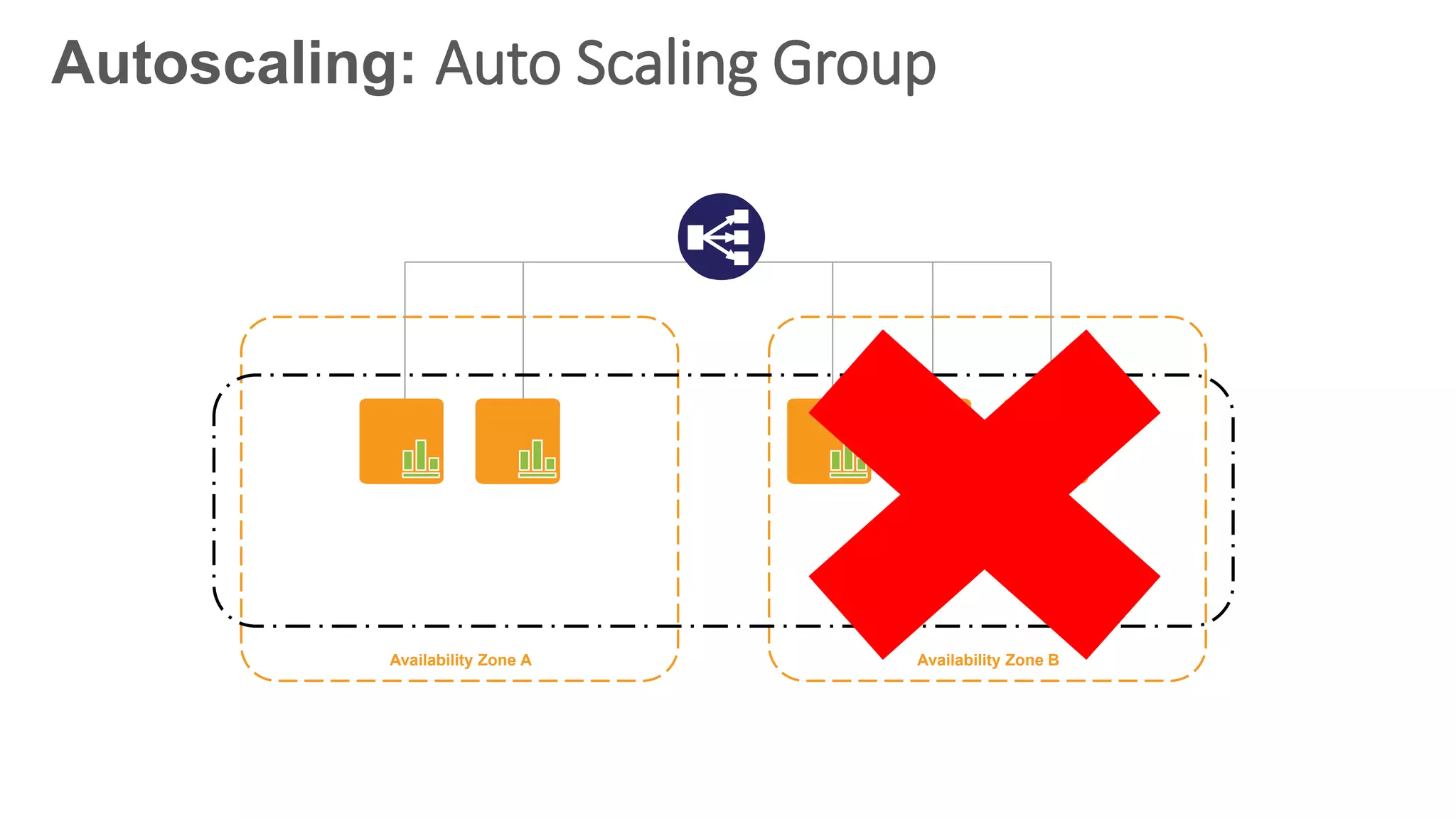
Availability Zone A Availability Zone B
Autoscaling: Auto Scaling Group
Availability Zone A Availability Zone B
Autoscaling: Auto Scaling Group
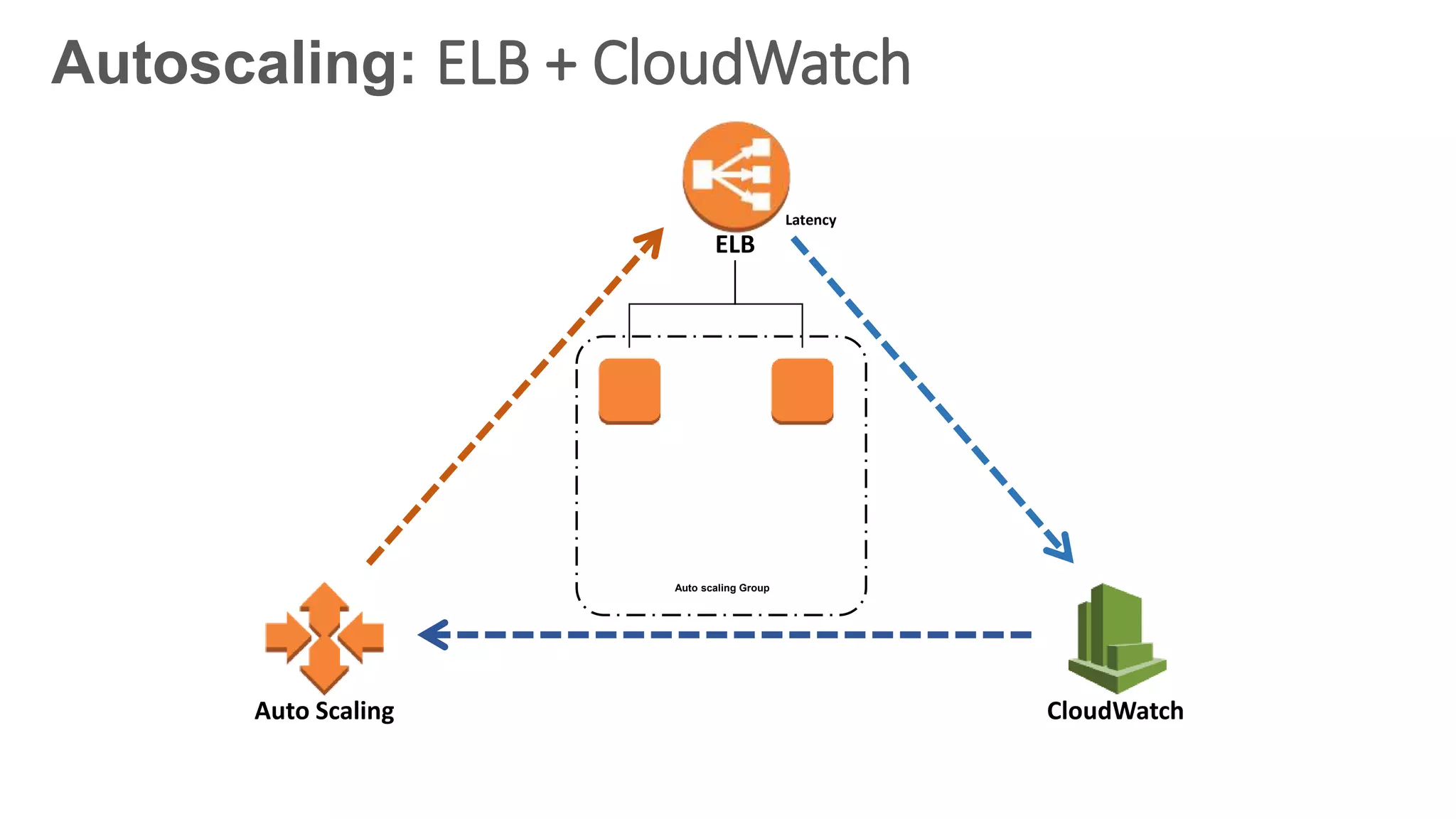
Latency
CloudWatchAuto Scaling
ELB
Auto scaling Group
Autoscaling: ELB + CloudWatch
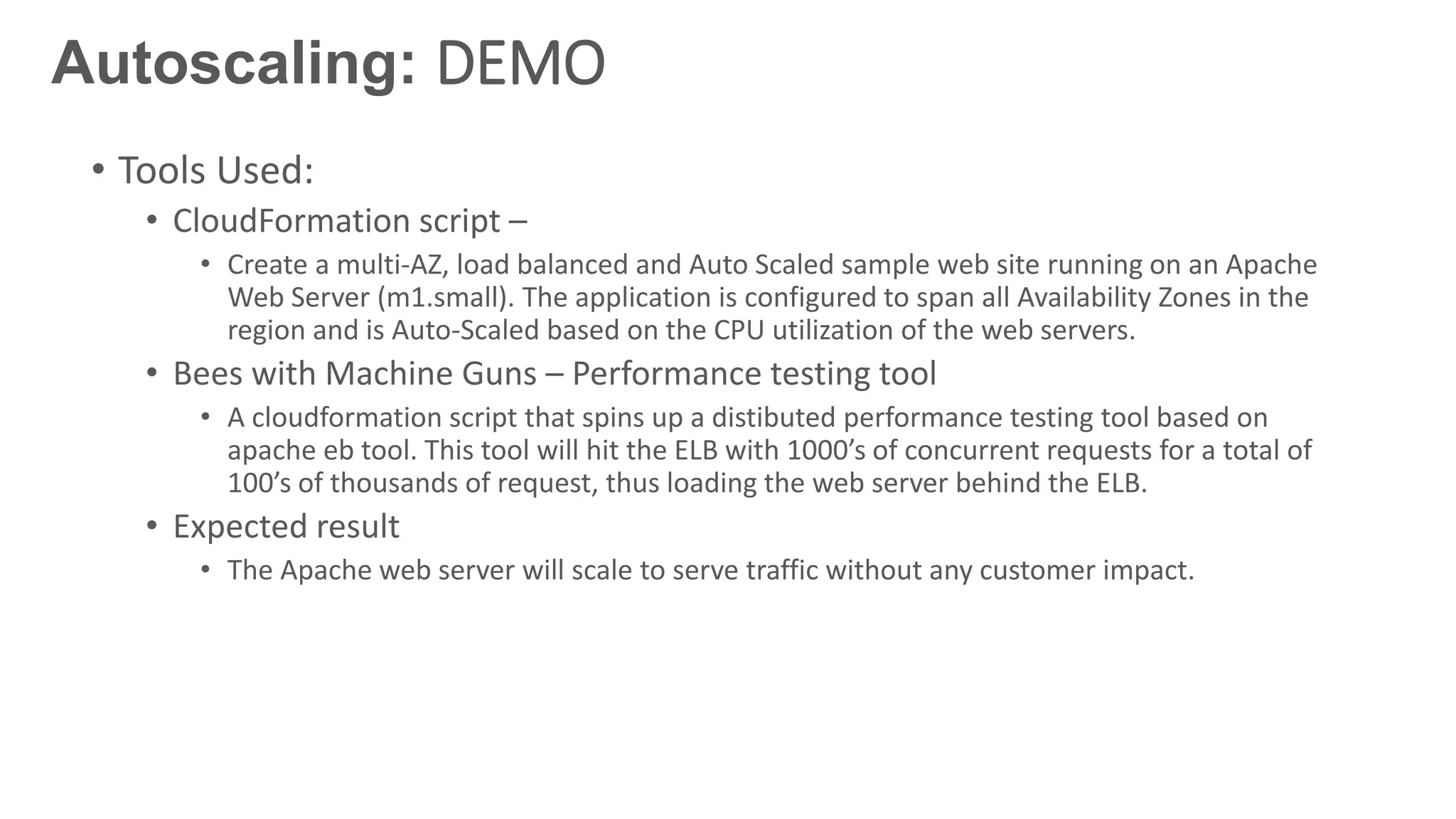
• Tools Used:
• CloudFormation script –
• Create a multi-AZ, load balanced and Auto Scaled sample web site running on an Apache
Web Server (m1.small). The application is configured to span all Availability Zones in the
region and is Auto-Scaled based on the CPU utilization of the web servers.
• Bees with Machine Guns – Performance testing tool
• A cloudformation script that spins up a distibuted performance testing tool based on
apache eb tool. This tool will hit the ELB with 1000’s of concurrent requests for a total of
100’s of thousands of request, thus loading the web server behind the ELB.
• Expected result
• The Apache web server will scale to serve traffic without any customer impact.
Autoscaling: DEMO
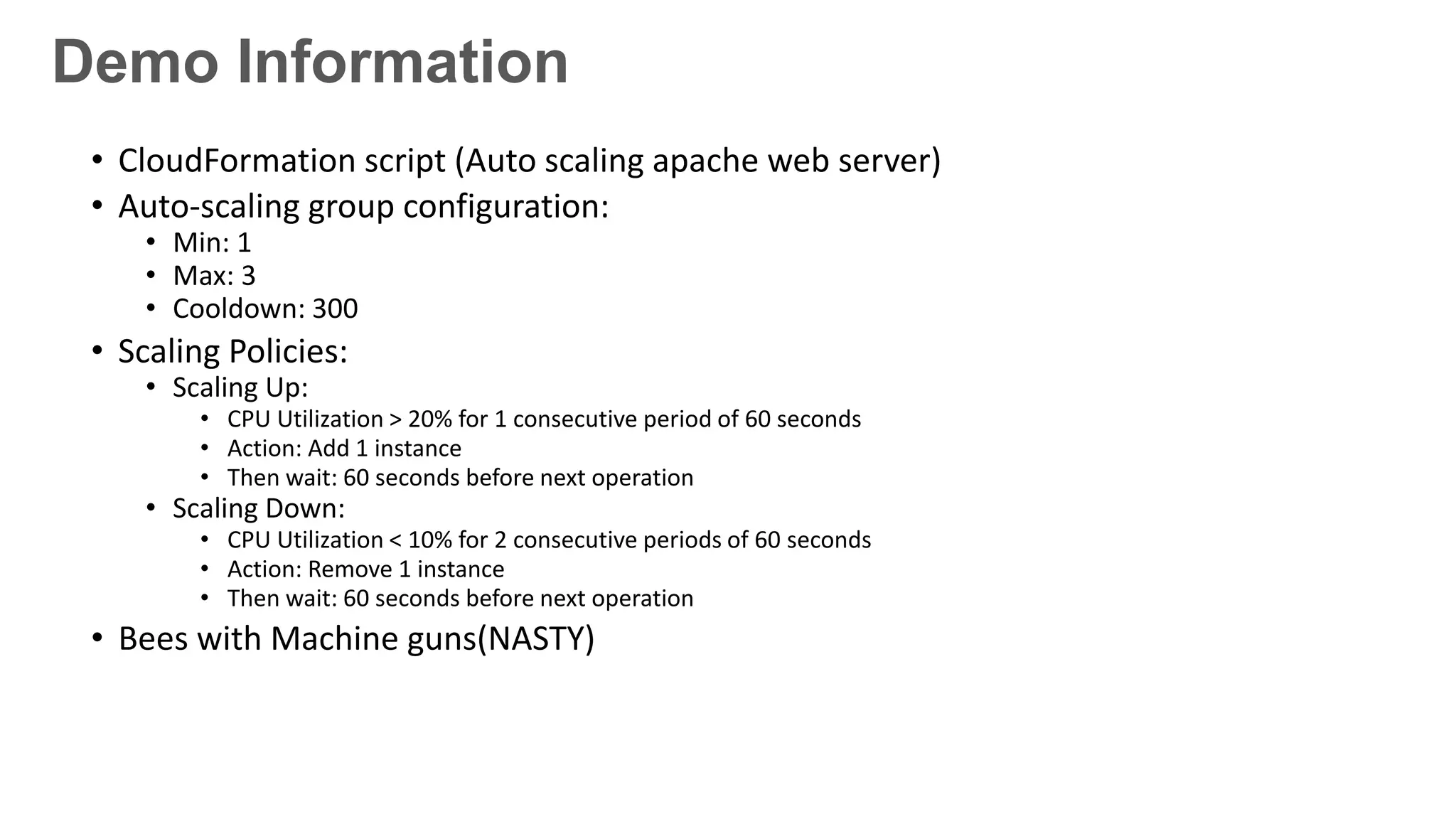
• CloudFormation script (Auto scaling apache web server)
• Auto-scaling group configuration:
• Min: 1
• Max: 3
• Cooldown: 300
• Scaling Policies:
• Scaling Up:
• CPU Utilization > 20% for 1 consecutive period of 60 seconds
• Action: Add 1 instance
• Then wait: 60 seconds before next operation
• Scaling Down:
• CPU Utilization < 10% for 2 consecutive periods of 60 seconds
• Action: Remove 1 instance
• Then wait: 60 seconds before next operation
• Bees with Machine guns(NASTY)
Demo Information
Autoscaling isn’t one size fits all
• Choose the right metrics
• CPU Usage
• Queue Depth
• Number of concurrent users
• Scale too aggressively
• Overprovisioning: increases costs
• Bounciness: Add more than you need and have to partially scale back shortly after
scaling up, increasing costs.
• Scale too timidly
• Poor performance
• Outages due to lack of capacity
• Scale out early / Scale in slowly
Stop doing these:
Provisioning and fixing servers
Treating compute as physical things
Thinking of compute as a finite commitment
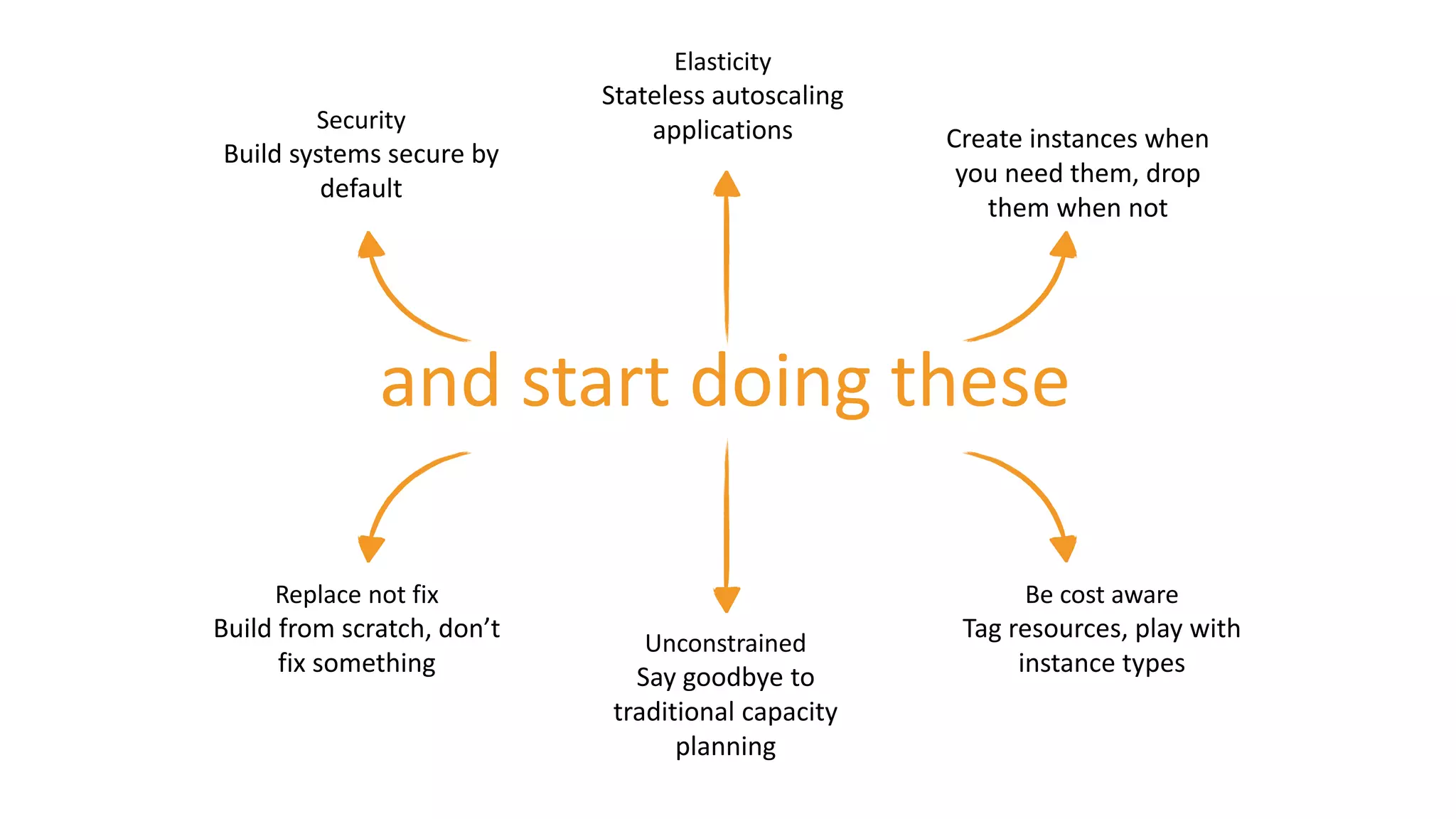
and start doing these
Security
Build systems secure by
default
Elasticity
Stateless autoscaling
applications
Replace not fix
Build from scratch, don’t
fix something
Unconstrained
Say goodbye to
traditional capacity
planning
Be cost aware
Tag resources, play with
instance types
Automation
Create instances when
you need them, drop
them when not
What’s more?
• Attach / Detach Instances from Auto Scaling Groups
• Place instances into Standby State to Troubleshoot
• Hold instances in Pending state for installing software / retrieve logs
• Create an Auto Scaling Group / Launch Configuration based on a
running instance
• Auto scaling Lifecycle hooks
Questions?

Leveraging elastic web scale computing with AWS

  • 1.
    Leveraging Elastic Web-ScaleComputing with AWS Shiva Narayanaswamy
  • 2.
    EC2 Basics Instance Lifecycle EC2Instance Types Using Amazon Machine Images Bootstrapping EC2 Instances Monitoring EC2 with CloudWatch Autoscaling
  • 3.
    EC2 Basics Instance Lifecycle EC2Instance Types Using Amazon Machine Images Bootstrapping EC2 Instances Monitoring EC2 with CloudWatch Autoscaling
  • 4.
    EC2 Basics Virtual Serversin the Cloud • One instance to thousands of instances • In any public AWS region • Create, start, stop, configure, monitor as desired • Install any software: web, business, client/server, batch processing • Pay only for capacity you use • Variety of cost models Amazon EC2
  • 5.
    EC2 Basics: costmodels On-Demand Reserved Spot Dedicated Pay upfront in exchange for hourly prices that are 50-75% lower than On-Demand Pay for compute capacity by the hour. No long-term commitments Bid for unused Amazon EC2 capacity Launch instances in VPC on dedicated customer hardware Customers can combine multiple purchase types to optimize pricing based on current and forecast capacity needs. Spiky workloads Committed utilization Time-insensitive workloads Highly sensitive workloads
  • 6.
    EC2 Basics Instance Lifecycle EC2Instance Types Using Amazon Machine Images Bootstrapping EC2 Instances Monitoring EC2 with CloudWatch Autoscaling
  • 7.
    Provisioning and Lifecycle •Create -> Start -> Stop -> Terminate • Manually in console • Automate via API (or other tools) • Automatically based on demand (demand curve)
  • 8.
    EC2 Basics Instance Lifecycle EC2Instance Types Using Amazon Machine Images Bootstrapping EC2 Instances Monitoring EC2 with CloudWatch Autoscaling
  • 9.
    Instance Types GPU Enabled General Purpose Storage andIO Optimized Compute Optimized Memory Optimized M3 C3 I2 CG1M1 C1 CR1CC2 HI1 HS1 G2 M3 C3 I2 HS1 M2 R3G2 Added Instance Types
  • 10.
    EC2 Basics Instance Lifecycle EC2Instance Types Using Amazon Machine Images Bootstrapping EC2 Instances Monitoring EC2 with CloudWatch Autoscaling
  • 11.
    Amazon Machine Images Yourmachine images AMIs you have created from EC2 instances Can be kept private or shared with other accounts Amazon maintained Set of Linux and Windows images Kept up to date by Amazon in each region Community maintained Images published by other AWS users Managed and maintained by Marketplace partners
  • 12.
  • 13.
    EC2 Basics Instance Lifecycle EC2Instance Types Using Amazon Machine Images Bootstrapping EC2 Instances Monitoring EC2 with CloudWatch Autoscaling
  • 14.
    Bootstrapping: metadata anduserdata • Every EC2 Instance has access to local instance metadata and userdata service Instance request User data Instance Meta-data service
  • 15.
    Bootstrapping: metadata anduserdata • Metadata: immutable information about the instance • Accessible from within the instance via HTTP at http://169.254.169.254/latest/meta-data/ • Script(s) on instance may retrieve useful information about the instance, such as: • Host name • AMI ID • Instance ID • Public/Private DNS • Availability Zone
  • 16.
    Bootstrapping: metadata anduserdata • User Data: pass up to 16KB of text to an instance on launch • Accessible from within the instance via HTTP at http://169.254.169.254/latest/user-data/ • Text can be parsed by script on instance and used to configure the machine
  • 17.
    Custom script onAMI (script_runner.py) fetches userdata, parses it, and configures EC2 Instance on boot Bootstrapping: metadata and userdata
  • 18.
    • CloudInit executesUserData on first boot if UserData begins with: • #! (Linux) • <script> (Windows; technically, EC2Config, not CloudInit, does this) • CloudInit is installed on Amazon Linux, Ubuntu, and RHEL AMIs • EC2Config is installed on Windows Server AMIs • Both may be installed on other distributions via a package repo or source Bootstrapping: UserData and CloudInit
  • 19.
    • UserData toinstall Apache and MySQL on boot, and attach an EIP: #!/bin/bash # Install Apache, PHP, and MySQL yum install –y httpd mysql-server # Attach an Elastic IP to this instance ec2-associate-address 23.34.45.56 -i $(curl http://169.254.169.254/latest/meta-data/instance-id) Bootstrapping: UserData and CloudInit
  • 20.
    Bootstrapping Bake an AMI Startan instance Configure the instance Create an AMI from your instance Start new ones from the AMI Configure dynamically Launch an instance Use metadata service and cloud-init to perform actions on instance when it launches Use config management tools like Puppet/Chef/Opsworks vs
  • 21.
    Bootstrapping Bake an AMIConfigure dynamically Build your base images and setup custom initialisation scripts Maintain your ‘golden’ base Use bootstrapping to pass custom information in and perform post launch tasks. + Sweet spot
  • 22.
    Bootstrapping: AMIs Linux JEE Your Code Log4J Spring Hibernate Struts Tomcat Apache JavaApp Stack Example full stack required to run your application. Let’s use the 3 bootstrapping techniques
  • 23.
    Bootstrapping: AMI bake Fully-functionalAMI is pre-build and ready to launch from the AMI inventory Inventory of AMIs Linux JEE Your Code Log4J Spring Hibernate Struts Tomcat Apache Amazon EC2 Linux JEE Your Code Log4J Spring Hibernate Struts Tomcat Apache Linux JEE Your Code Log4J Spring Hibernate Struts Tomcat Apache Linux JEE Your Code Log4J Spring Hibernate Struts Tomcat Apache Linux JEE Your Code Log4J Spring Hibernate Struts Tomcat Apache Java AMI
  • 24.
    Bootstrapping: Configure dynamically BaseOS AMI An AMI with minimal components (OS, J2EE, and Chef/Puppet) is launched. All configuration occurs via Chef/Puppet after instance launch Inventory of AMIs Amazon EC2 OS AMI Fetch on boot Linux JEE Your Code S3 Hibernate Tomcat Log4J Spring Struts Apache Linux JEE Linux JEE Chef/Puppet Chef/Puppet scripts
  • 25.
    Bootstrapping: Sweet spot Partially-configuredAMI A “Golden Image” is launched, with scripts fetching/installing app code and other supporting components on boot Inventory of AMIs Amazon EC2 Java AMI Your Code S3 Log4J Spring Struts Linux JEE Hibernate Tomcat Apache Fetch on boot Fetch on boot Linu x JEE Hibe rnat e Tom cat Apac he Linu x JEE Hibe rnat e Tom cat Apac he Linu x JEE Hibe rnat e Tom cat Apac he Linu x JEE Hibe rnat e Tom cat Apac he
  • 26.
    Why do this? Automation Lessfingers, less mistakes Availability Drive higher availability with self- healing Security Instances locked down by default Flexible Shell, Powershell, CloudFormation, Chef, Puppet, OpsWorks Scale Manage large scale deployments and drive autoscaling Efficiency Audit and manage your estate with less time & effort
  • 27.
    Do Don’t Some dosand don’ts Use IAM roles Go keyless if you can Strike a balance between AMI and dynamic bootstrapping Put your API access keys into code (and then publish to GIT) or bake into AMIs (and share) 
  • 28.
    EC2 Basics Instance Lifecycle EC2Instance Types Using Amazon Machine Images Bootstrapping EC2 Instances Monitoring EC2 with CloudWatch Autoscaling
  • 29.
  • 30.
    EC2 Basics Instance Lifecycle EC2Instance Types Using Amazon Machine Images Bootstrapping EC2 Instances Monitoring EC2 with CloudWatch Autoscaling
  • 31.
    Types of Scaling •Vertical Scaling • Changing instance size • Increasing EBS Capacity • Horizontal Scaling • Adding / removing instances • ELB • Autoscaling r3.8xlarge c3.2xlarge m3.medium m3.medium m3.medium m3.medium m3.medium m3.medium m3.medium
  • 32.
    Vertical Scaling • DifferentEC2 instance type • High memory instances • High CPU instances • High I/O instances • High storage instances • Easy to change instance sizes • Will hit an endpoint eventually • Requires instance to be stopped r3.8xlarge c3.2xlarge m3.medium
  • 33.
    Traditional IT UsagePatterns On and Off Fast Growth Variable peaks Predictable peaks
  • 34.
    Traditional IT UsagePatterns On and Off Fast Growth Variable peaks Predictable peaks Poor Service WASTE
  • 35.
    Cloud IT UsagePatterns (Auto Scaling) On and Off Fast Growth Variable peaks Predictable peaks
  • 36.
    Auto Scaling • Automaticresizing of compute clusters based on demand • Define minimum and maximum number of instances • Define when scaling out and in occurs • Use metrics collected in Amazon CloudWatch to drive scaling • Run Auto Scaling for On-Demand and Spot instance types • Its Free! Amazon CloudWatch Usage Metrics Scaling Instructions Auto Scaling Group Queue Metrics AutoScaling
  • 37.
    Describes what AutoScaling will create when adding Instances - Similar to ec2-run- instances API command AMI Instance Type Security Group Instance Key Pair Only one active launch configuration at a time Auto Scaling will terminate instances with old launch configuration first rolling update Auto Scaling managed grouping of EC2 instances Automatic health check to maintain pool size Automatically scale the number of instances by policy – Min, Max, Desired Automatic Integration with ELB Automatic distribution & balancing across AZs Parameters for performing an Auto Scaling action Scale Up/Down and by how much ChangeInCapacity (+/- #) ExactCapacity (#) ChangeInPercent (+/- %) Cool Down (seconds) Policy can be triggered by CloudWatch events Launch Configuration Auto-Scaling Group Auto-Scaling Policy
  • 38.
    Scaling plan • Scalebased on demand • Manual scaling • Scale based on schedule • Maintain current instance levels at all time AutoScaling
  • 39.
  • 40.
  • 41.
  • 42.
  • 43.
  • 44.
  • 45.
    Availability Zone AAvailability Zone B Autoscaling: Auto Scaling Group
  • 46.
    Availability Zone AAvailability Zone B Autoscaling: Auto Scaling Group
  • 47.
    Availability Zone AAvailability Zone B Autoscaling: Auto Scaling Group
  • 48.
    Availability Zone AAvailability Zone B Autoscaling: Auto Scaling Group
  • 49.
    Availability Zone AAvailability Zone B Autoscaling: Auto Scaling Group
  • 50.
    Latency CloudWatchAuto Scaling ELB Auto scalingGroup Autoscaling: ELB + CloudWatch
  • 51.
    • Tools Used: •CloudFormation script – • Create a multi-AZ, load balanced and Auto Scaled sample web site running on an Apache Web Server (m1.small). The application is configured to span all Availability Zones in the region and is Auto-Scaled based on the CPU utilization of the web servers. • Bees with Machine Guns – Performance testing tool • A cloudformation script that spins up a distibuted performance testing tool based on apache eb tool. This tool will hit the ELB with 1000’s of concurrent requests for a total of 100’s of thousands of request, thus loading the web server behind the ELB. • Expected result • The Apache web server will scale to serve traffic without any customer impact. Autoscaling: DEMO
  • 52.
    • CloudFormation script(Auto scaling apache web server) • Auto-scaling group configuration: • Min: 1 • Max: 3 • Cooldown: 300 • Scaling Policies: • Scaling Up: • CPU Utilization > 20% for 1 consecutive period of 60 seconds • Action: Add 1 instance • Then wait: 60 seconds before next operation • Scaling Down: • CPU Utilization < 10% for 2 consecutive periods of 60 seconds • Action: Remove 1 instance • Then wait: 60 seconds before next operation • Bees with Machine guns(NASTY) Demo Information
  • 53.
    Autoscaling isn’t onesize fits all • Choose the right metrics • CPU Usage • Queue Depth • Number of concurrent users • Scale too aggressively • Overprovisioning: increases costs • Bounciness: Add more than you need and have to partially scale back shortly after scaling up, increasing costs. • Scale too timidly • Poor performance • Outages due to lack of capacity • Scale out early / Scale in slowly
  • 54.
    Stop doing these: Provisioningand fixing servers Treating compute as physical things Thinking of compute as a finite commitment
  • 55.
    and start doingthese Security Build systems secure by default Elasticity Stateless autoscaling applications Replace not fix Build from scratch, don’t fix something Unconstrained Say goodbye to traditional capacity planning Be cost aware Tag resources, play with instance types Automation Create instances when you need them, drop them when not
  • 56.
    What’s more? • Attach/ Detach Instances from Auto Scaling Groups • Place instances into Standby State to Troubleshoot • Hold instances in Pending state for installing software / retrieve logs • Create an Auto Scaling Group / Launch Configuration based on a running instance • Auto scaling Lifecycle hooks
  • 57.

Editor's Notes

  • #6 The AWS Core Benefit – Cost Savings Pricing Models There are a number of types of pricing models available that give companies of all sizes flexibility. Here are 3 pricing models. On-Demand Instances let you pay for compute capacity by the hour with no long-term commitments. This frees you from the costs and complexities of planning, purchasing, and maintaining hardware and transforms what are commonly large fixed costs into much smaller variable costs. Reserved Instances give you the option to make a low, one-time payment for each instance you want to reserve and in turn receive a significant discount on the hourly charge for that instance. This is good for those with steady-state workloads who want to pay upfront in exchange for hourly prices that are 50-75% lower than what you get for on-demand instances. Spot Instances enable you to bid for unused Amazon EC2 capacity. Instances are charged the Spot Price, which is set by Amazon EC2 and fluctuates periodically depending on the supply of and demand for Spot Instance capacity. This is good for customers who have opportunistic workloads that can afford to be interrupted and want the lowest possible price. Dedicated Instances Dedicated Instances are Amazon EC2 instances launched within your VPC that run hardware dedicated to a single customer. Dedicated Instances let you take full advantage of the benefits of Amazon VPC and the AWS cloud – on-demand elastic provisioning, pay only for what you use, and a private, isolated virtual network, all while ensuring that your Amazon EC2 compute instances will be isolated at the hardware level. Some of the larger customers run reserved instances for their steady-state workloads to maximize their savings on an per-hourly basis. They then fill in the rest of their workloads with either on-demand or spot instances depending on whether or not their applications can afford to be utilized over a period of time or be interrupted.
  • #8 The following illustration represents the transitions between instance states. Notice that you can't stop and start an instance store-backed instance. For more information about instance store-backed instances, see Storage for the Root Device.
  • #10 Broad Set of Compute Instance Types A good example of the breadth of features and of AWS’ approach, is in the instance types available on EC2. After eight years, AWS has built out a collection of instance types which move beyond just general purpose utility computing, into application-optimized instances. AWS has spent a lot of time in the past year adding what it considers to be the next generation of instance families to EC2, for both general purpose workloads, and application specific optimized instances. Today, these instance families have been extended further.
  • #15 Bootstrapping actions can be almost anything. Here are some examples.
  • #18 You can specify UserData in a couple of ways. The Management Console, for example, provides you with the option of including UserData when you spin up a new EC2 instance.
  • #19 I said that most EC2 instances use CloudInit (or EC2Config). Let’s get more specific: CloudInit is available on Amazon Linux, Ubuntu, and RHEL Amazon Machine Images (AMIs). EC2Config is on all Windows Server AMIs. Either one may be available on other distributions, however.
  • #20 Here’s an example of UserData that: Installs Apache Installs MySQL Attaches an Amazon Elastic IP address (EIP)
  • #33 Scaling the one EC2 instance we have to a larger one is the most simple approach to start with. There are a lot of different AWS instance types to go with depending on your work load. Some have high I/O, CPU, Memory, or local storage. You can also make use of EBS-Optimized instances and Provisioned IOPs to help scale the storage for this instance quite a bit.
  • #37 Talk about auto-scaling.
  • #39 Talk about auto-scaling.
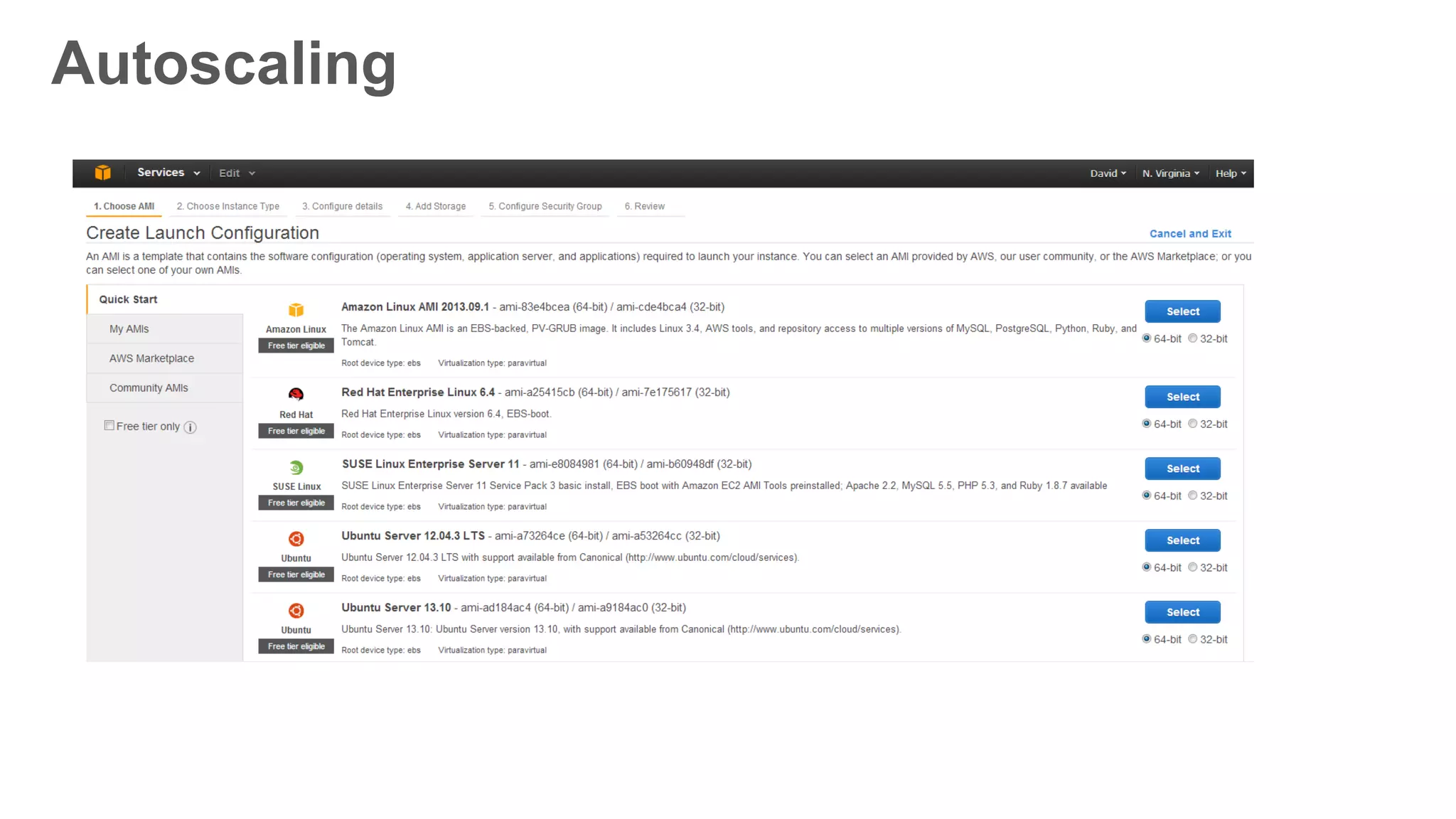
  • #41 You can configure Auto Scaling through the EC2 dashboard, as shown here.
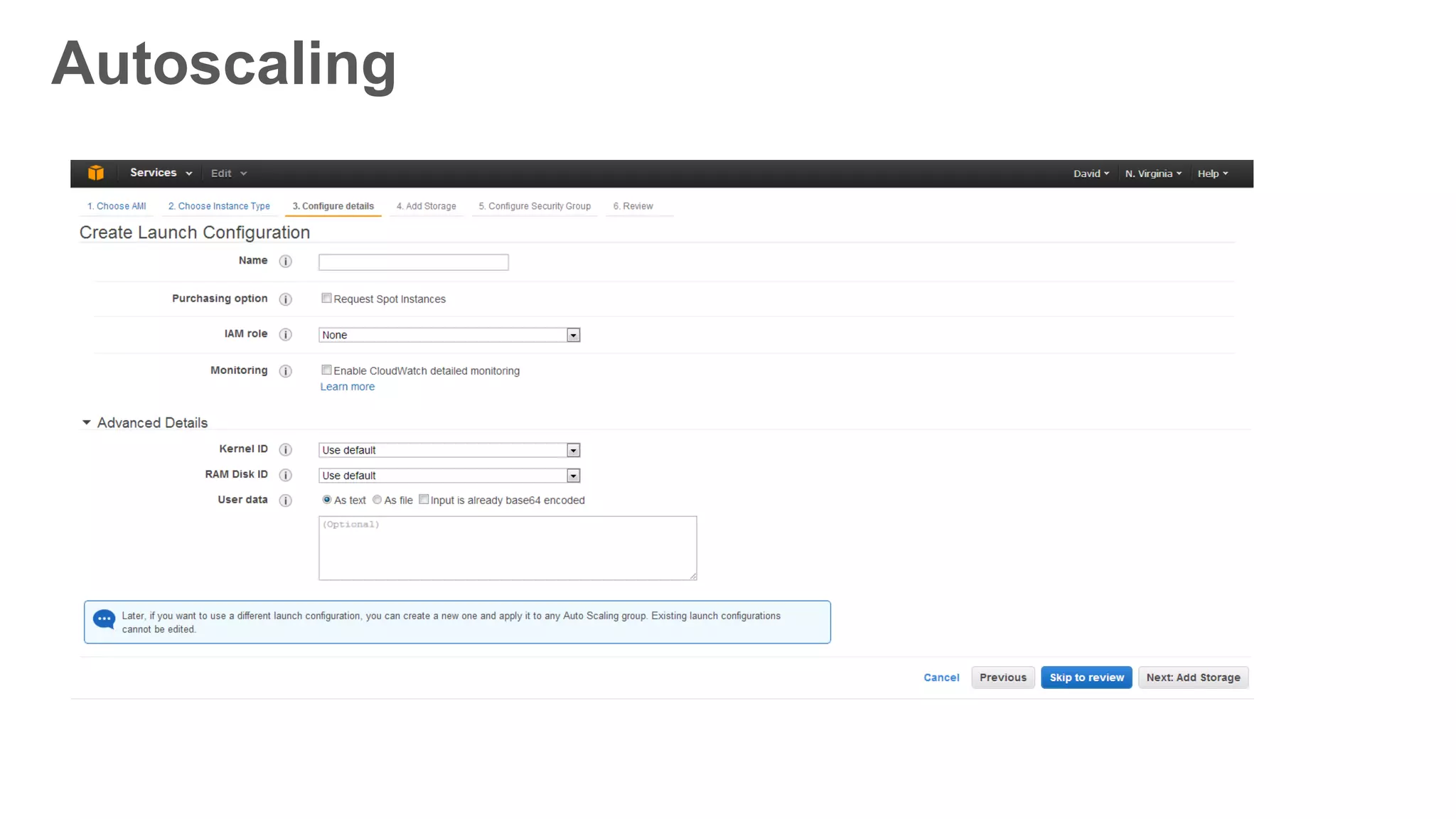
  • #42 Creating a launch configuration is almost identical to launching an EC2 instance. You specify options for the AMI, storage, tags, and so on.
  • #43 Auto Scaling configurations can also take bootstrapping scripts and configuration instructions, just like EC2 instances. Notice also that you need to give every launch configuration that you create a name.
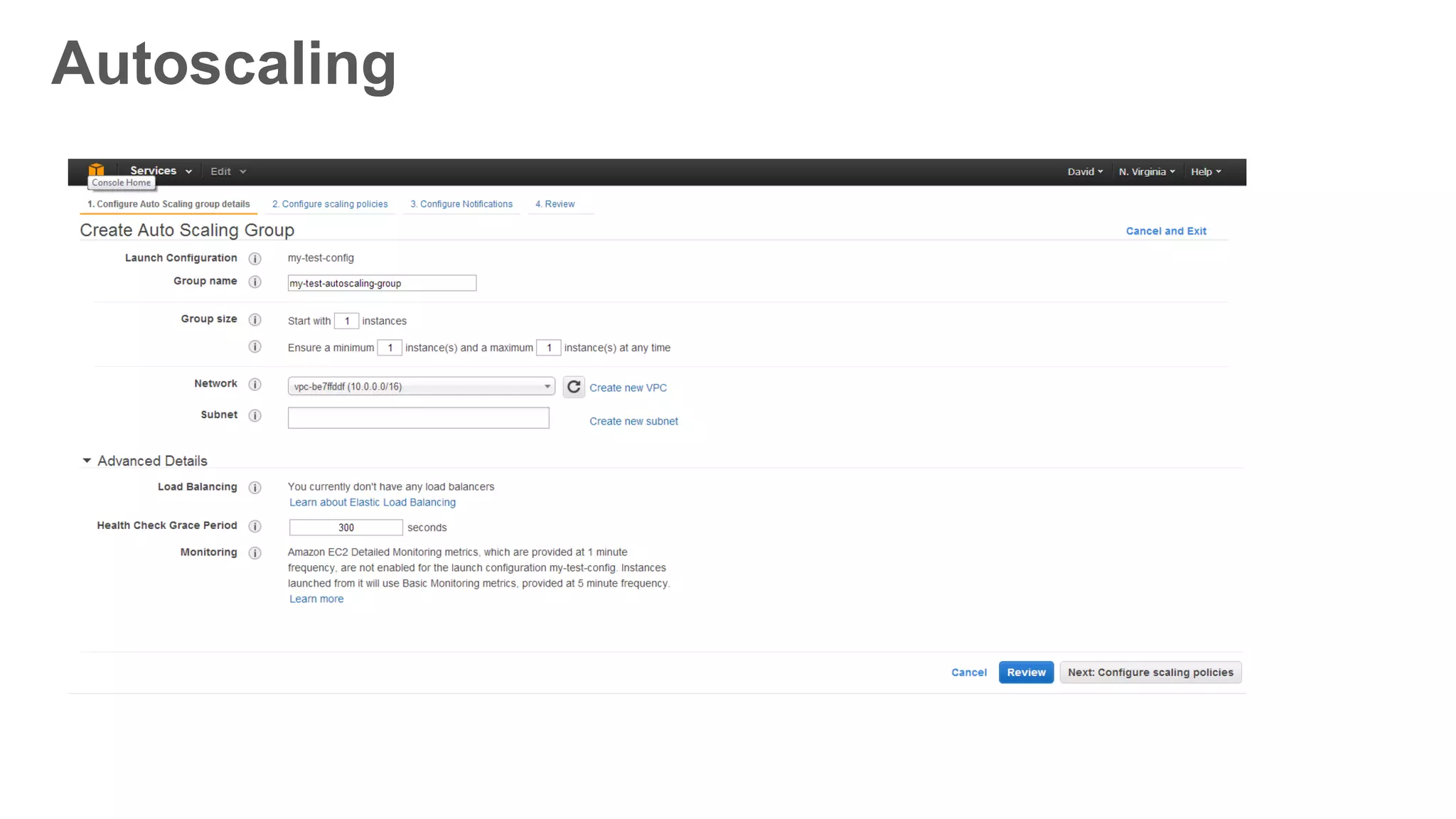
  • #44 Again, you can create an Auto Scaling group using the AWS Management Console. With an auto scaling group, you define: The name of the group The launch configuration you want to use The size of the auto scaling group Whether to launch the Auto Scaling group within a VPC or not How to load balance between auto scaling group instances How to monitor the health of instances in an auto scaling group
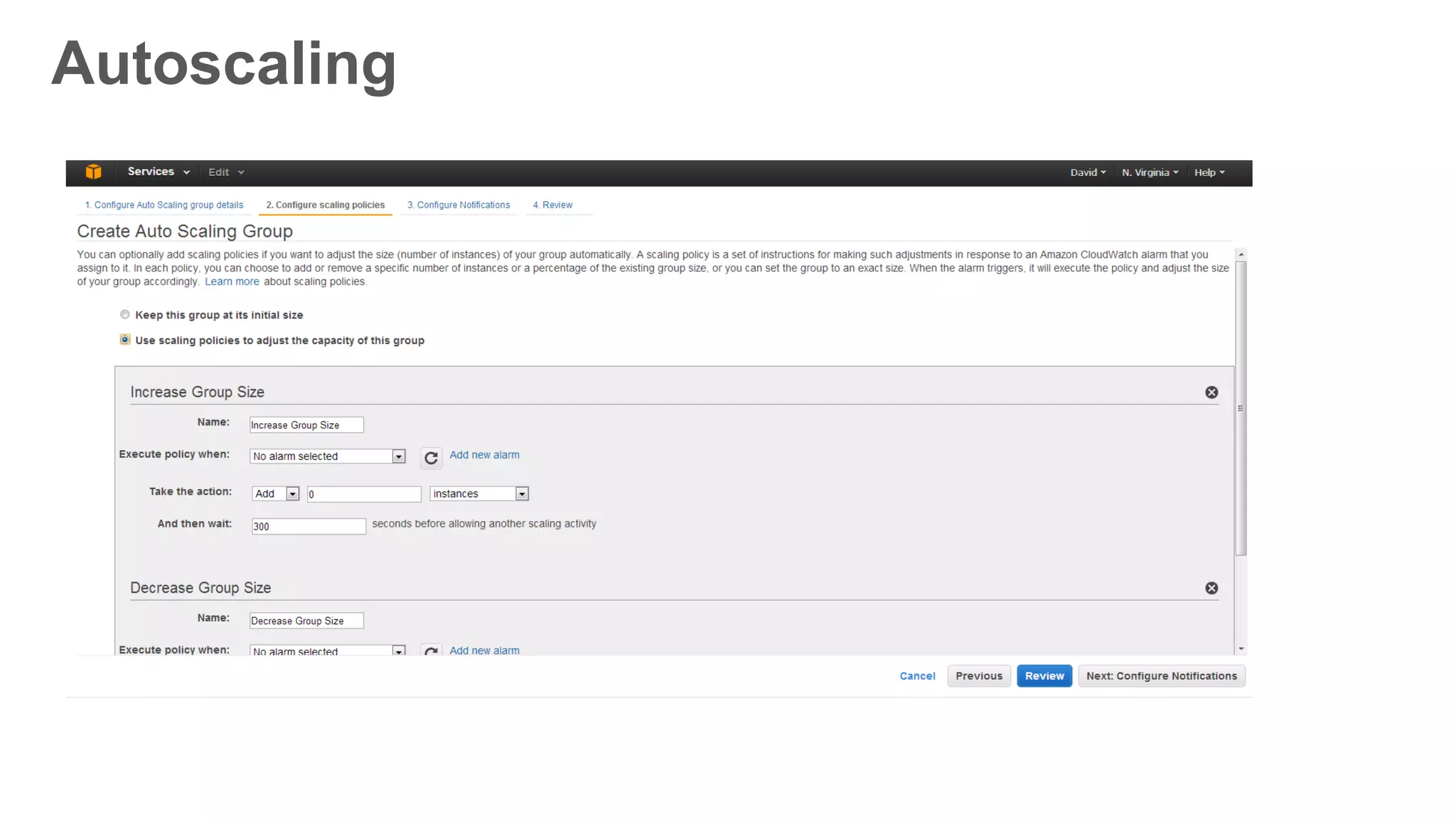
  • #45 In addition, you can also establish auto scaling policies, which dynamic increase or decrease EC2 instances based on CloudWatch alarms. Note that it's always a good idea to ensure that your auto scaling group handles both scaling UP (adding instances) and scaling DOWN (removing instances). This is one way you can help maximize your IT budget—by adding and removing instances when needed.
  • #46 Here’s what this Auto Scaling group looks like. Notice that we have four instances (as we specified in the desired-capacity parameter) running across two Availability Zones, all registered with one ELB.
  • #47 If one instance goes down…
  • #48 The Auto Scaling group spins up a new one.
  • #49 If the instances in one Availability Zone aren’t accessible…
  • #50 New instances are started in the other Availability Zone.
  • #51 All of these service work well individually, but together the become more powerful and increase the control and flexibility our customers demand.
  • #53 All of these service work well individually, but together the become more powerful and increase the control and flexibility our customers demand.
  • #57 You now have more control over what happens to the Amazon EC2 instances running in your Auto Scaling groups at each stage of their lifecycle, from launch through termination. This makes it easier to update and run software on your EC2 instances, and troubleshoot and fix problems. Starting today, you can use new instance lifecycle action APIs to hold your newly launched instances in a pending state while you perform actions on them, such as installing software, before they are added to your Auto Scaling group and become in service. Similarly, when instances are terminating, you can temporarily stop the termination to investigate the cause or retrieve logs from an instance before it terminates. While instances are running in your Auto Scaling group, you can use the new DetachInstances action, and manage them just like instances that are not members of an Auto Scaling group. Combined with the AttachInstances action, you can easily move instances into and out of groups. You can also place instances into the new Standby state to troubleshoot or perform maintenance on them, then put them back into service once you are finished. When you place an instance in Standby, it will no longer receive new inbound connections from Elastic Load Balancers or count toward your group’s capacity until you put it back into service again. You can access these new features using the Auto Scaling API and command-line tools. They will be available in the AWS SDKs soon. To learn more about Auto Scaling, please visit the Auto Scaling Developer Guide.