JCrete Embedded Java 
Hacking 
Stephen Chin 
Java Technology Ambassador 
JavaOne Content Chair 
@steveonjava
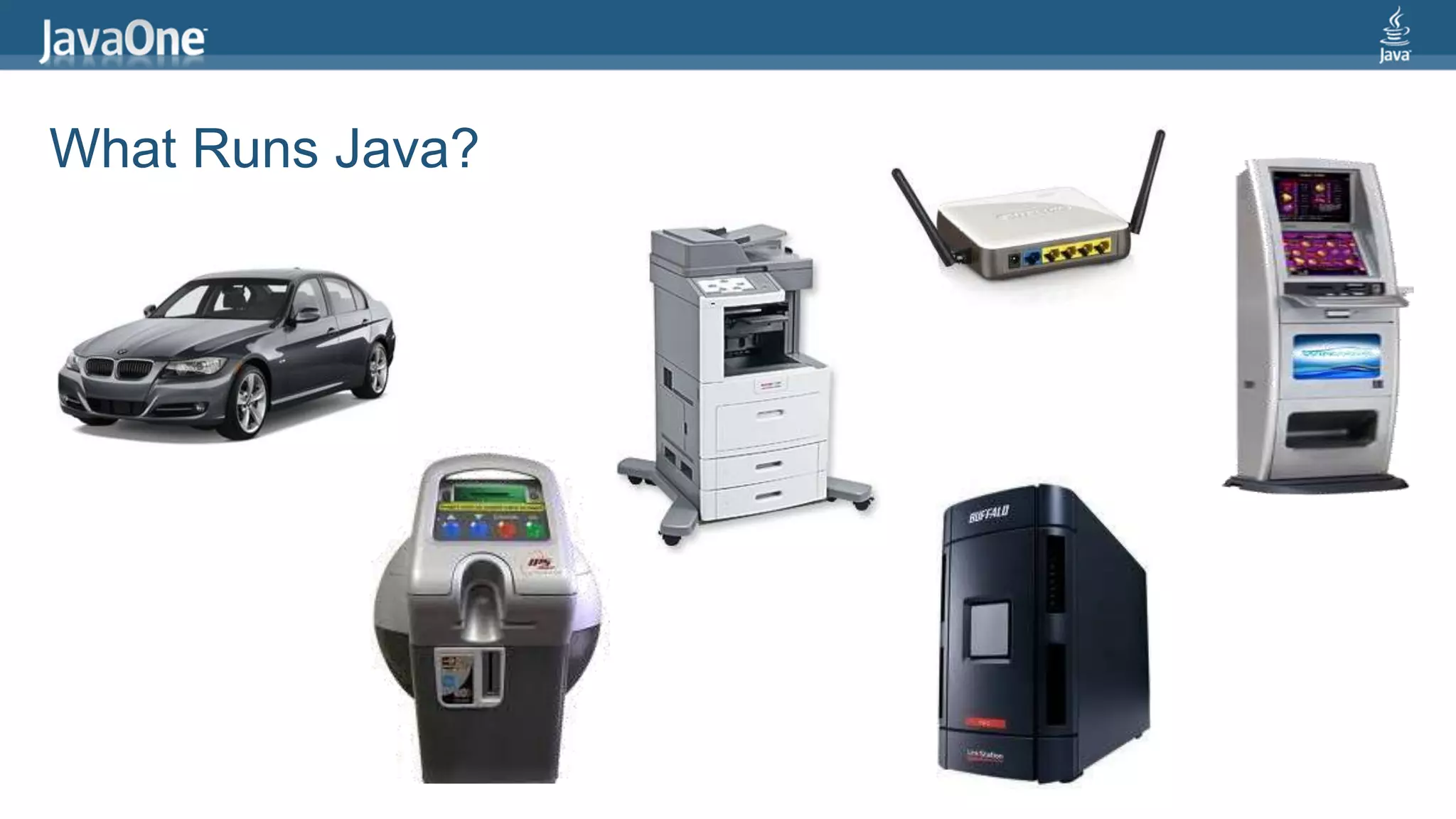
What Runs Java?
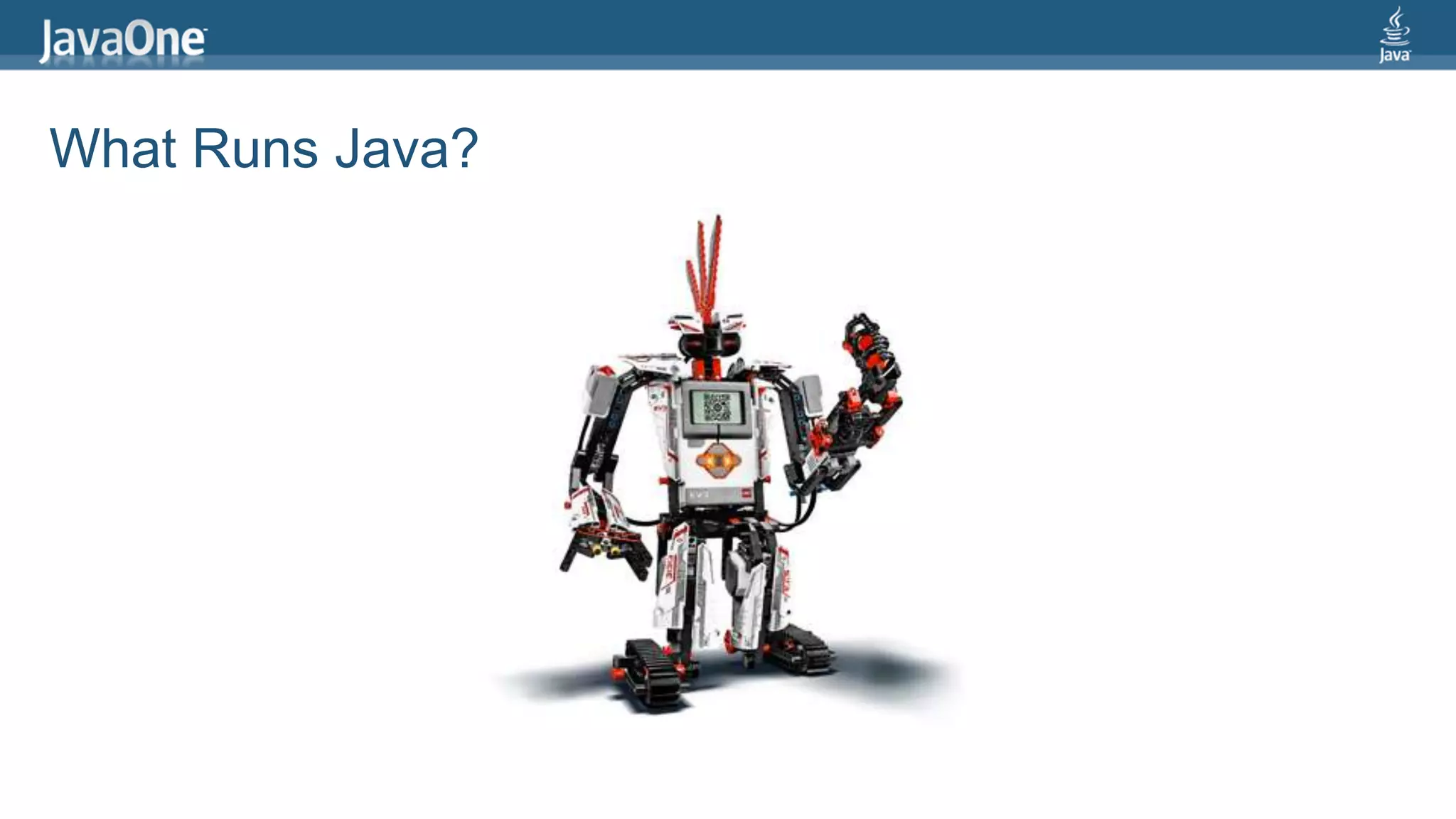
What Runs Java?
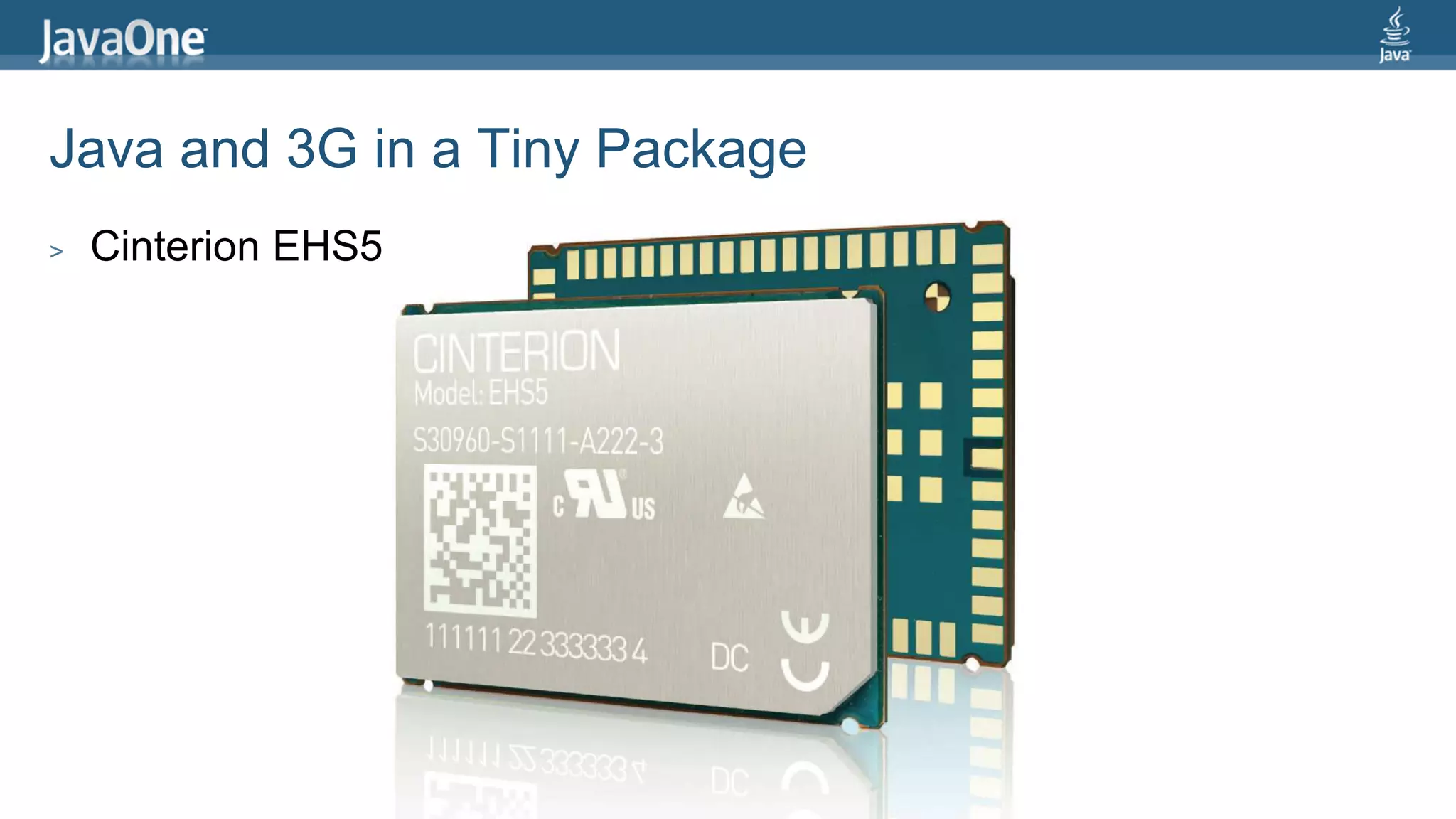
Java and 3G in a Tiny Package 
> Cinterion EHS5
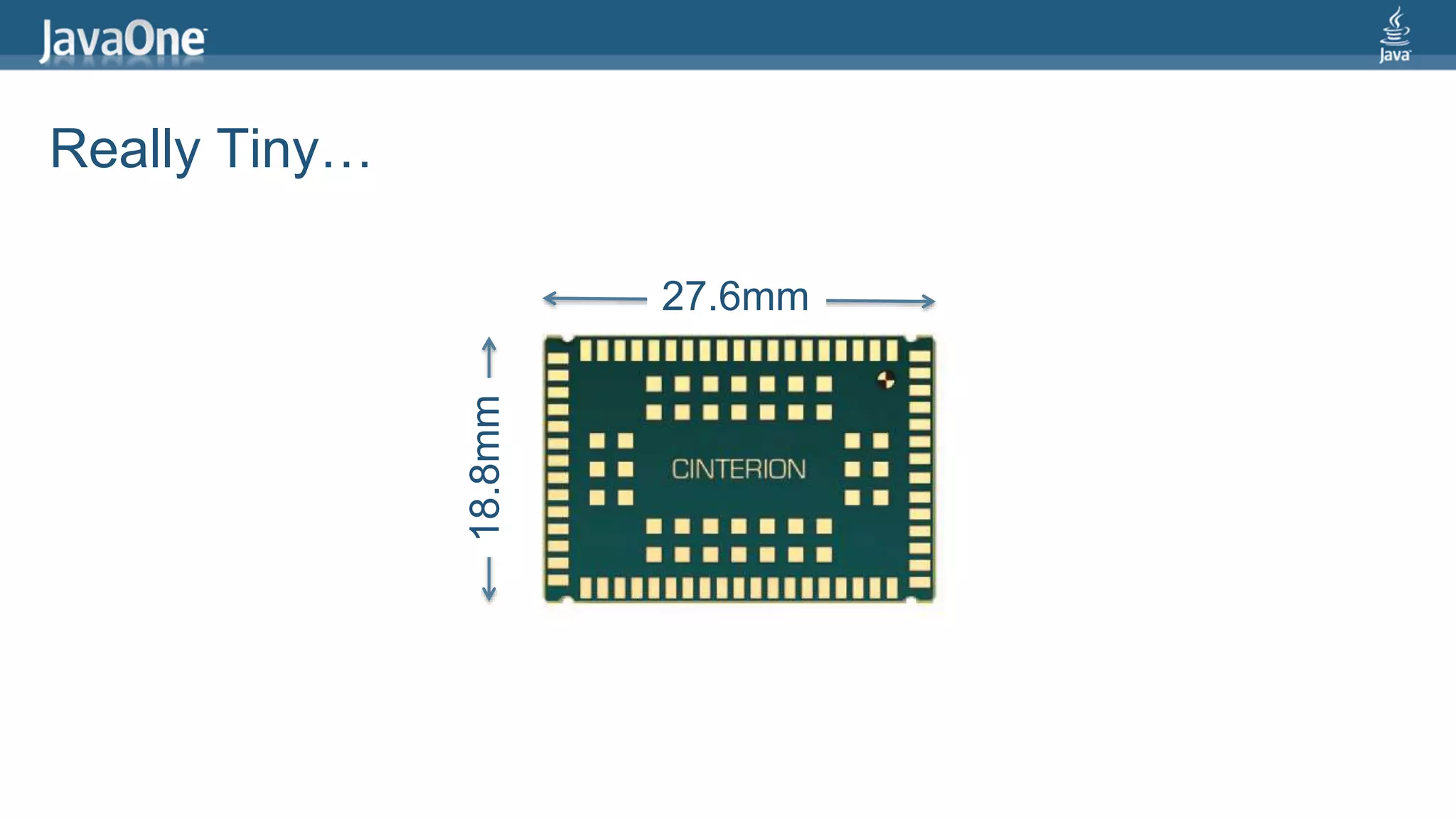
Really Tiny… 
27.6mm 
18.8mm
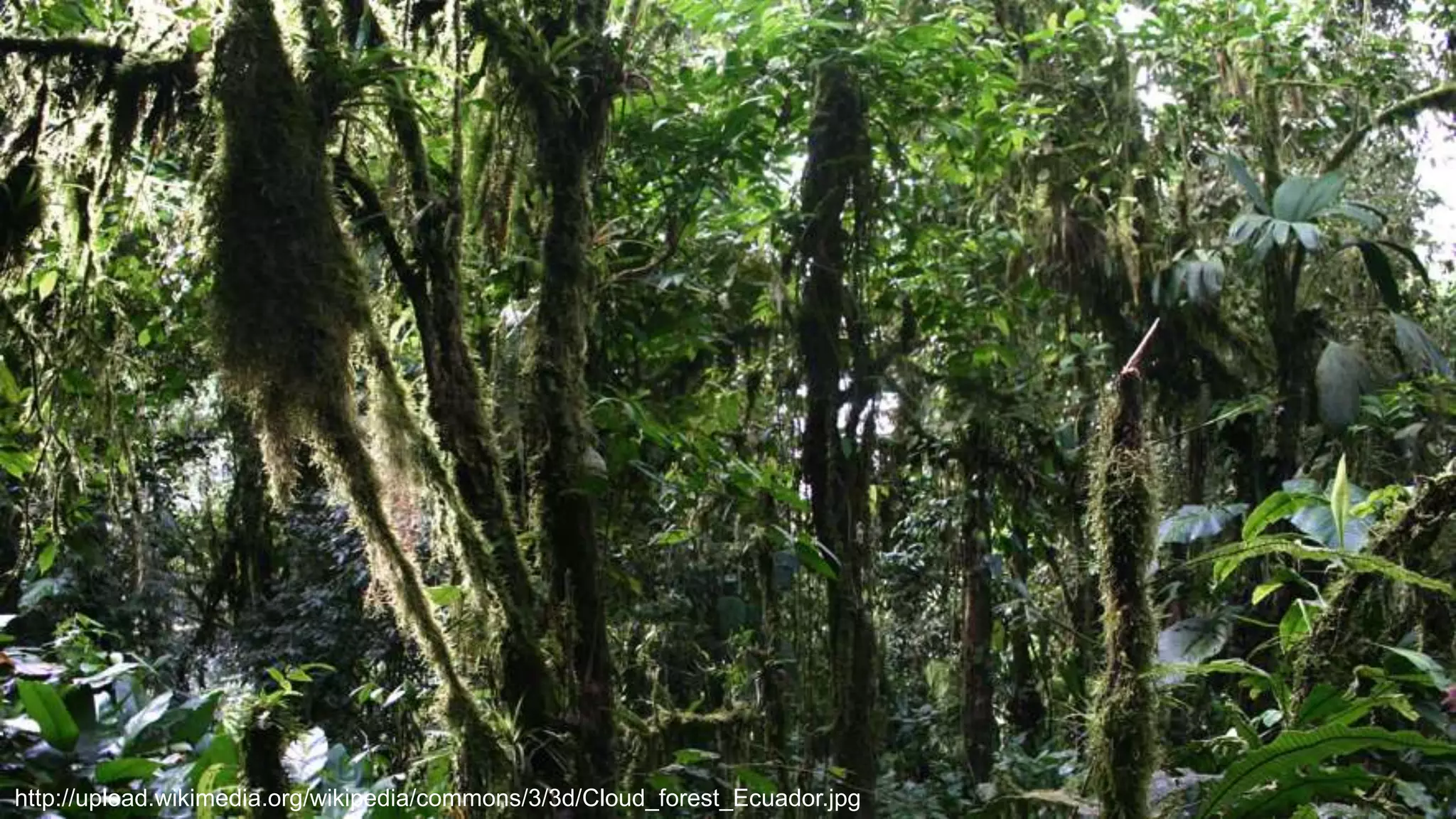
http://upload.wikimedia.org/wikipedia/commons/3/3d/Cloud_forest_Ecuador.jpg
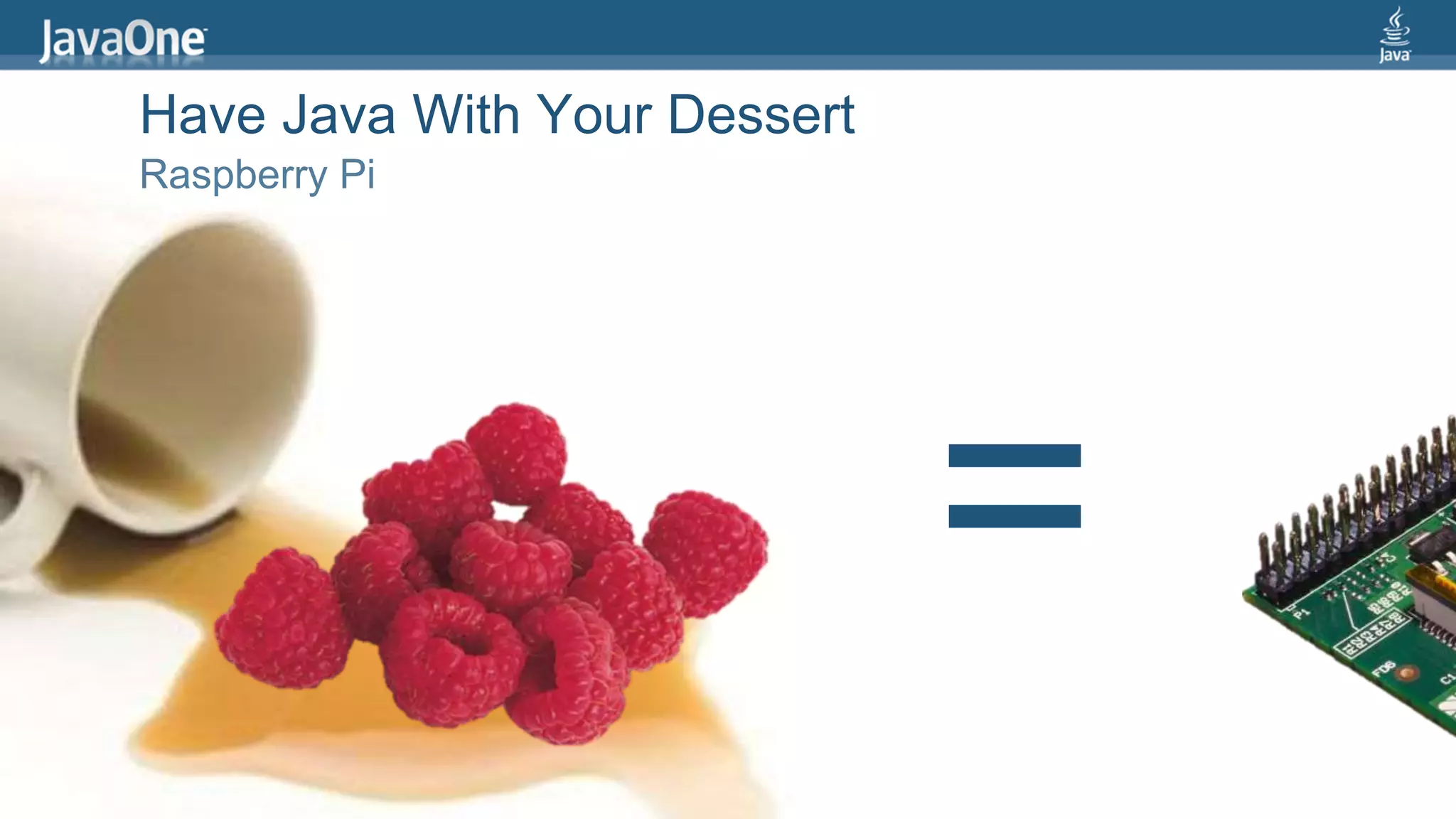
= 
Have Java With Your Dessert 
Raspberry Pi
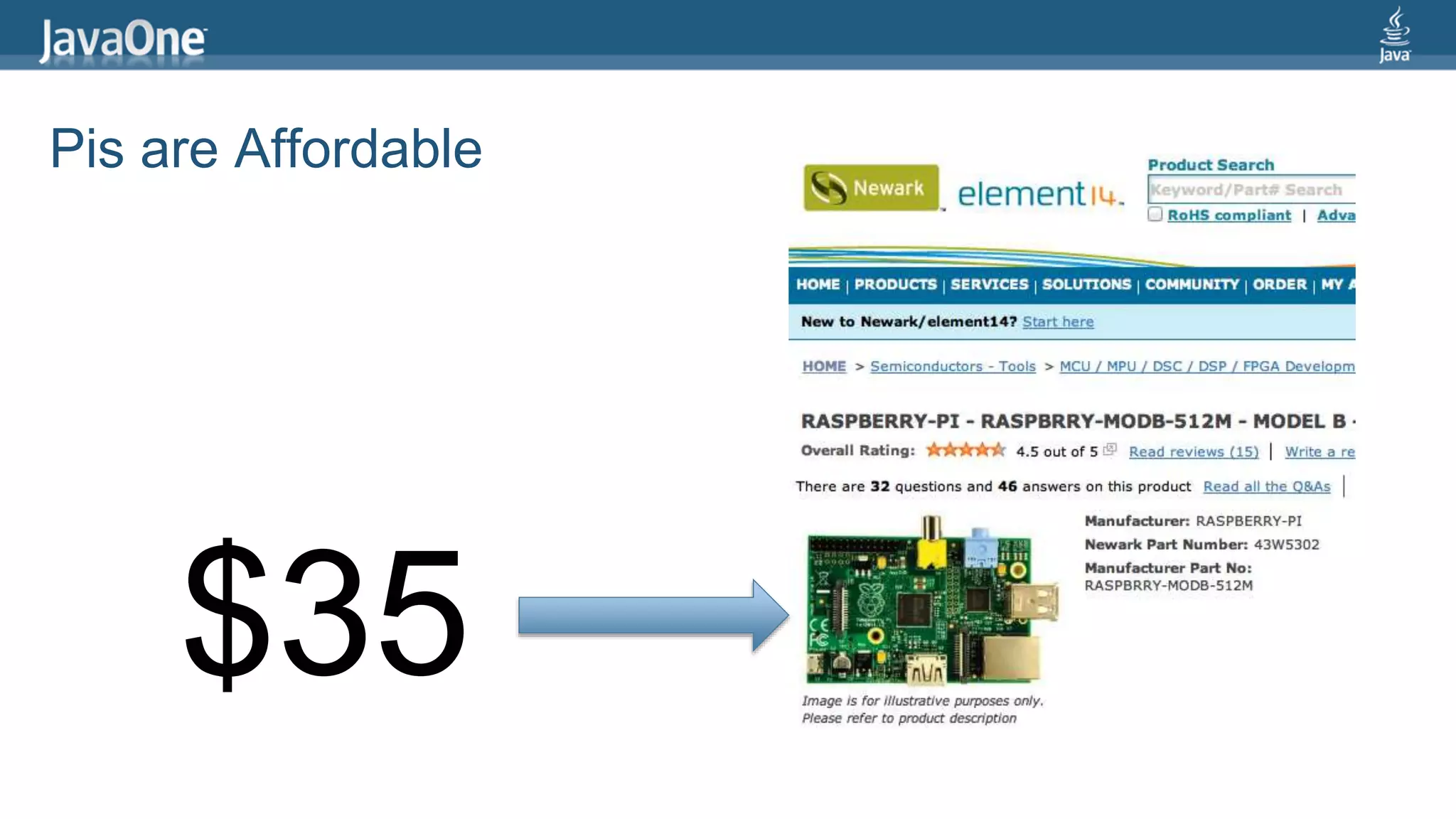
Pis are Affordable 
$35
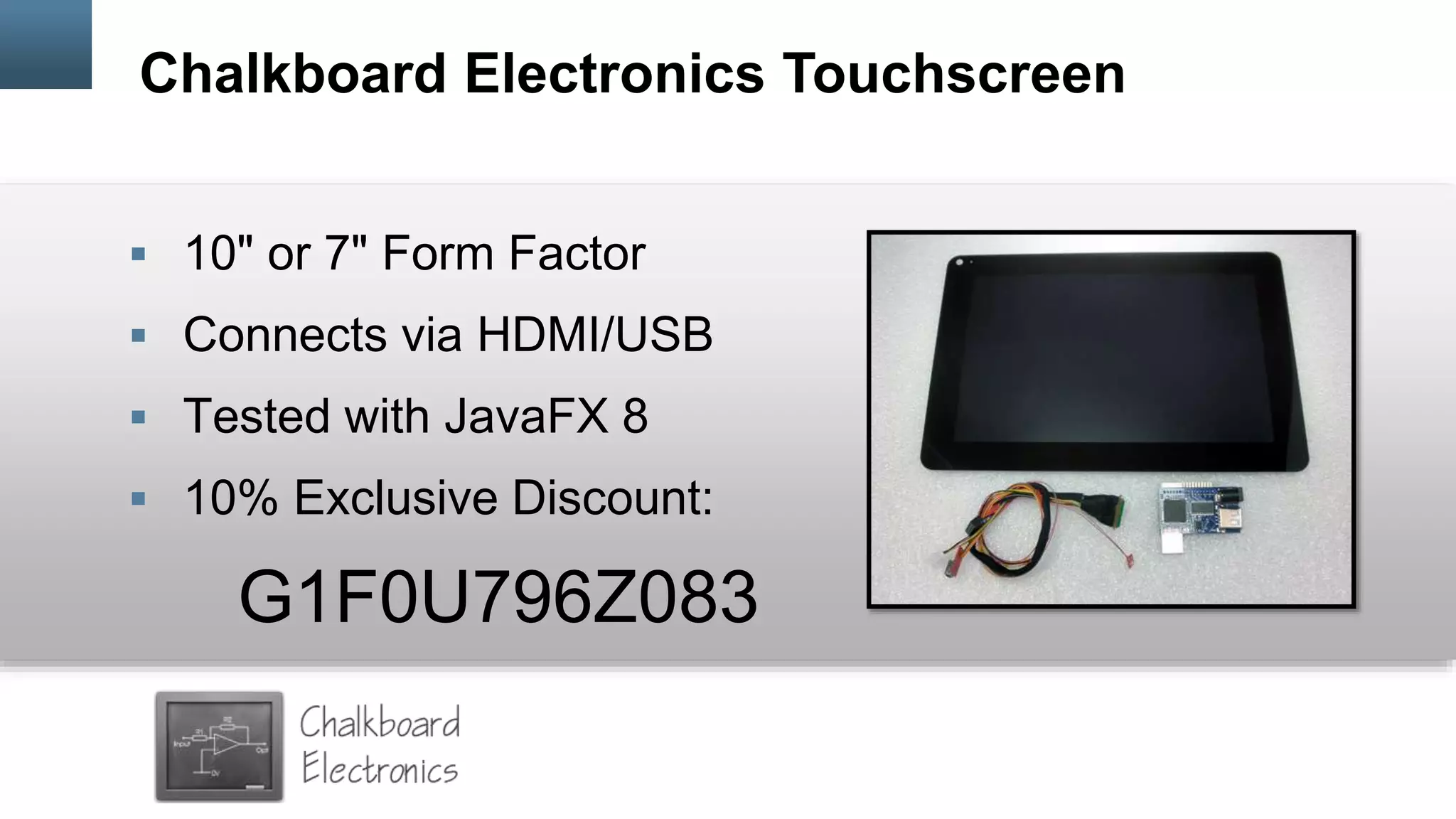
Chalkboard Electronics Touchscreen 
 10" or 7" Form Factor 
 Connects via HDMI/USB 
 Tested with JavaFX 8 
 10% Exclusive Discount: 
G1F0U796Z083
How to Setup Your Pi 
> Step 1: Install Linux 
> Step 2: Download/Copy Java 8 for ARM 
> Step 3: Deploy and Run JVM Language Apps 
http://steveonjava.com/ 
javafx-on-raspberry-pi-3-easy-steps/
Electronic Safety! 
> Unplug from wall before wiring 
> Get rid of static by touching a metal 
surface 
> Don't touch exposed wires/metal 
> Never remove/insert SD Card while 
power is on 
11
What Comes in Your Lab Kit 
1. Touch Screen 
2. SD Card 
3. Keyboard 
4. Yellow Box: 
 Power Adapter 
 LVDS Cable/Board 
 Raspberry Pi Model B 
 Mini-USB Cable (power) 
Please Save All the Packaging for Later
Hooking Up the Pi (Part A) 
1. Insert the SD Card in to the Pi 
 Will appear upside down when looking at the top 
of your Pi 
2. Insert the HDMI board into the Pi's HDMI 
jack 
3. Connect the Pi power to the HDMI board 
 Use the Micro USB Cable (short one) 
13 
Important: Connect everything before plugging into the wall
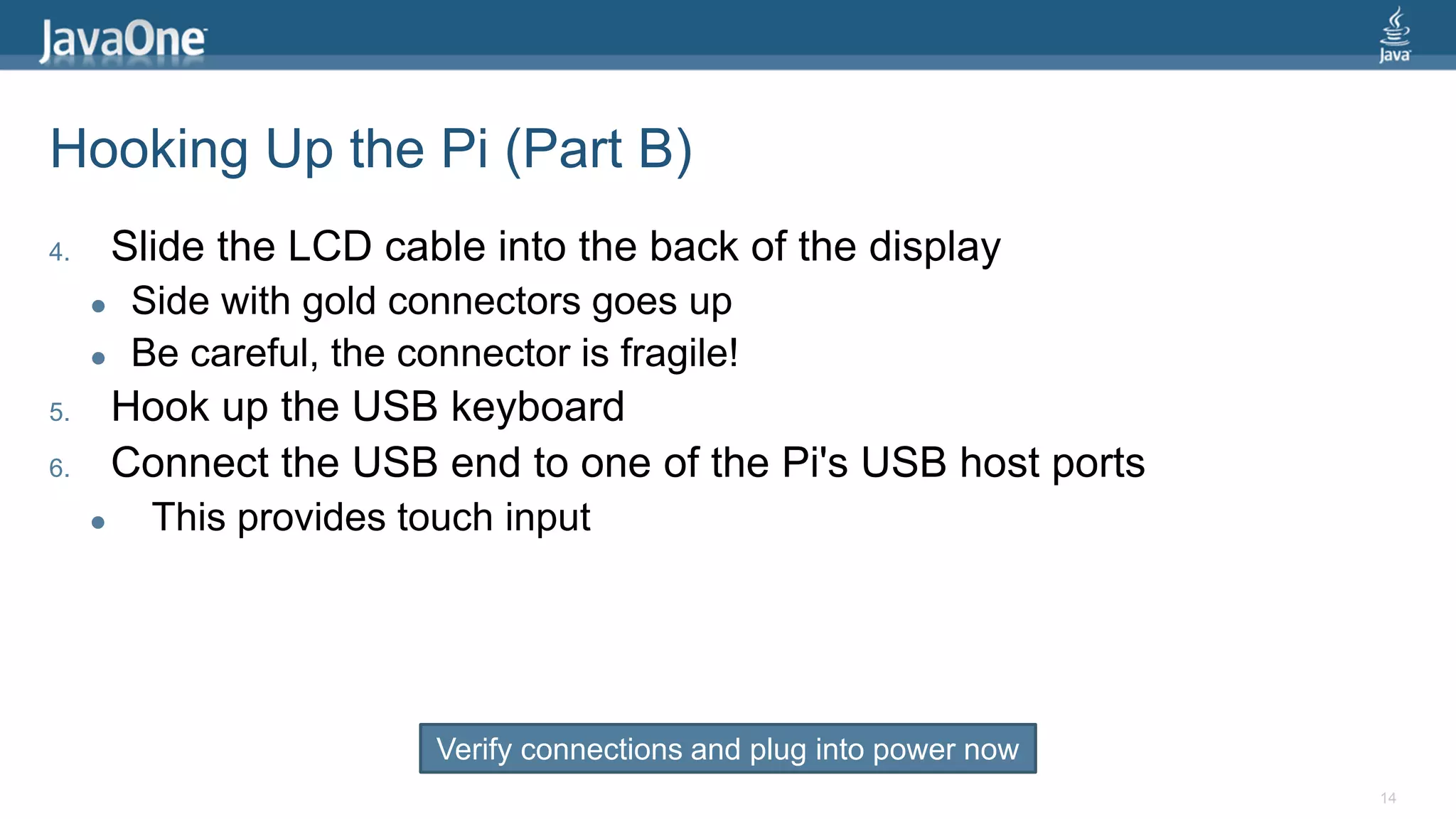
Hooking Up the Pi (Part B) 
4. Slide the LCD cable into the back of the display 
 Side with gold connectors goes up 
 Be careful, the connector is fragile! 
5. Hook up the USB keyboard 
6. Connect the USB end to one of the Pi's USB host ports 
 This provides touch input 
14 
Verify connections and plug into power now
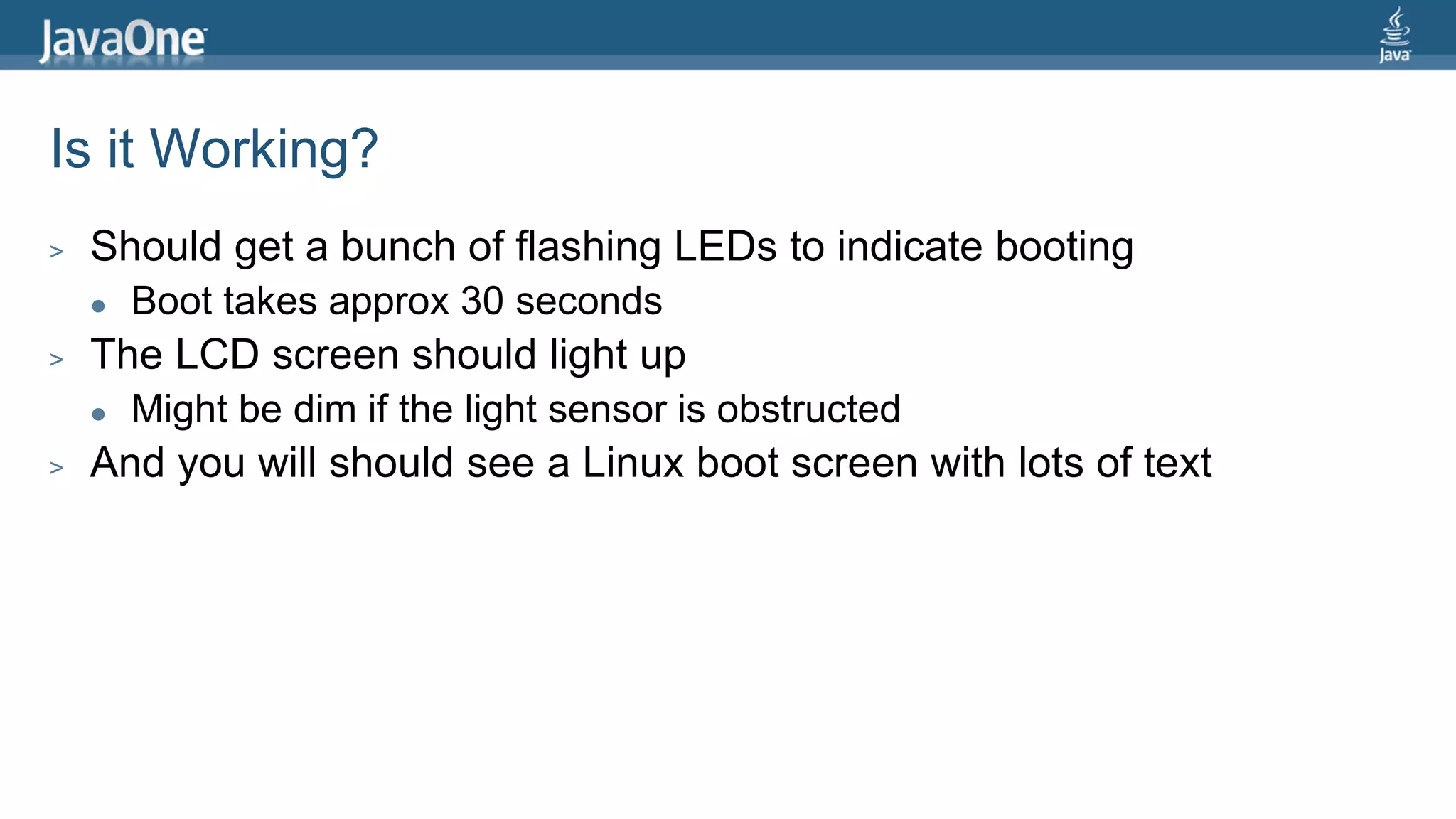
Is it Working? 
> Should get a bunch of flashing LEDs to indicate booting 
 Boot takes approx 30 seconds 
> The LCD screen should light up 
 Might be dim if the light sensor is obstructed 
> And you will should see a Linux boot screen with lots of text
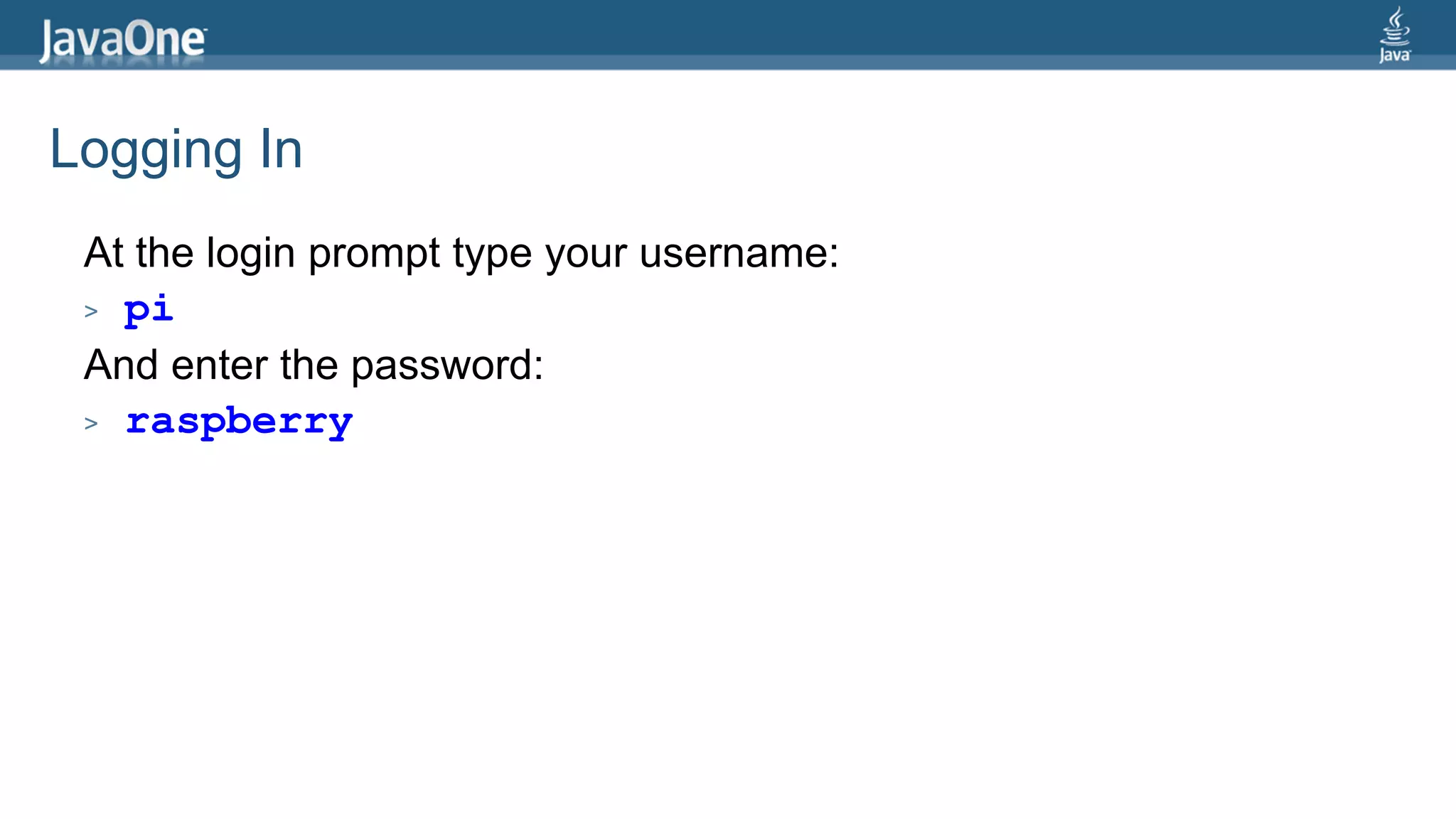
Logging In 
At the login prompt type your username: 
> pi 
And enter the password: 
> raspberry
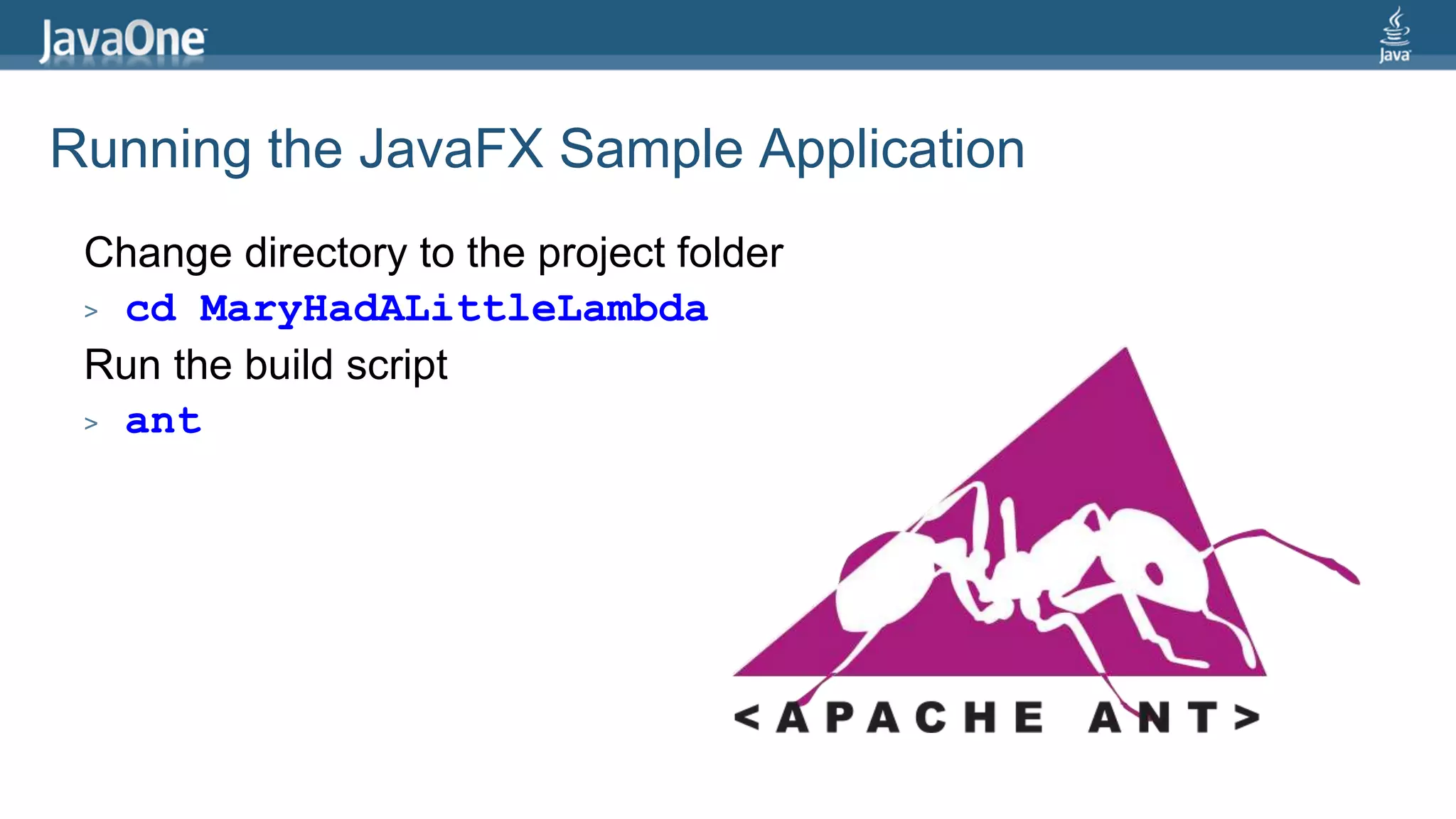
Running the JavaFX Sample Application 
Change directory to the project folder 
> cd MaryHadALittleLambda 
Run the build script 
> ant
18
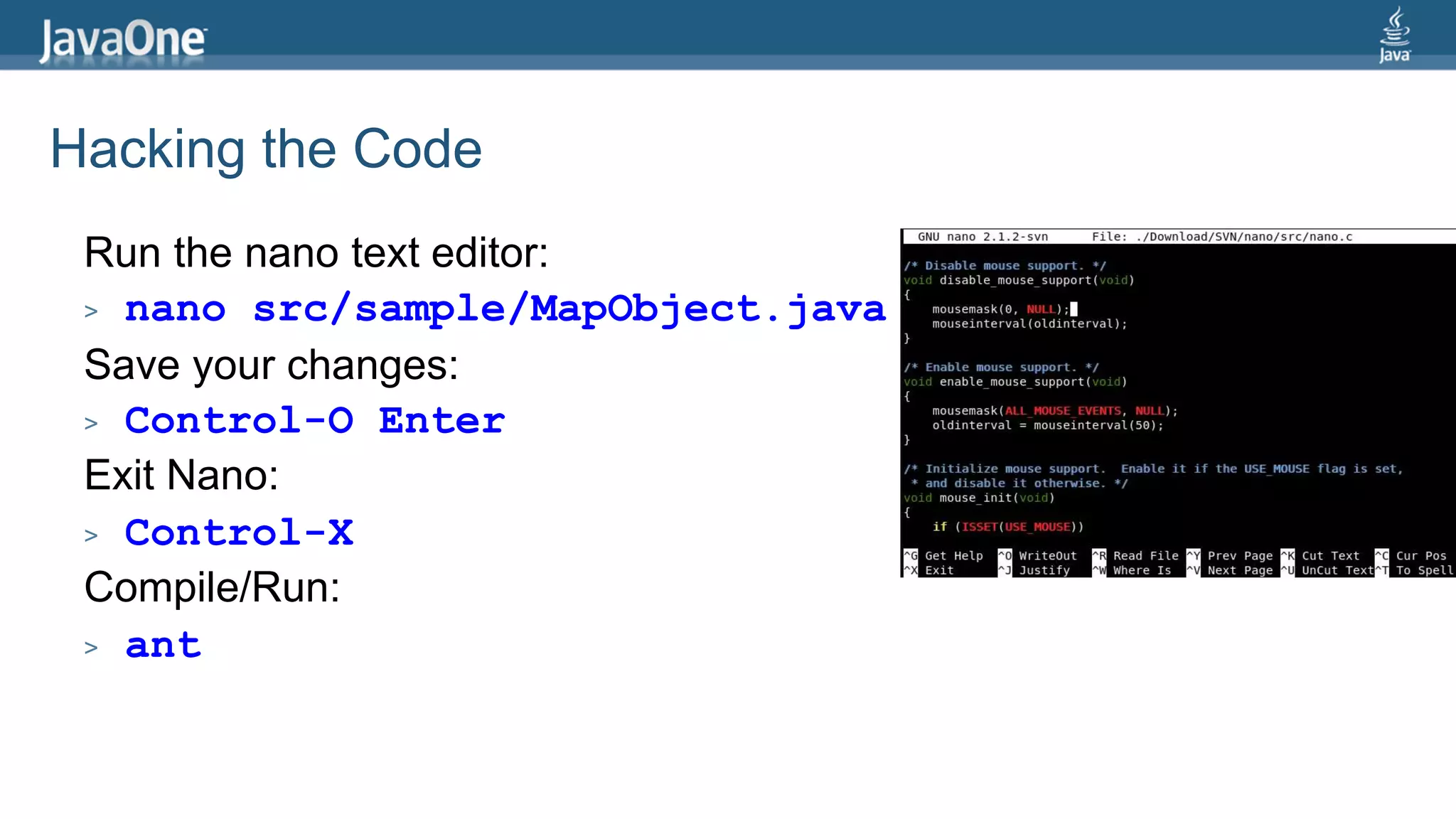
Hacking the Code 
Run the nano text editor: 
> nano src/sample/MapObject.java 
Save your changes: 
> Control-O Enter 
Exit Nano: 
> Control-X 
Compile/Run: 
> ant
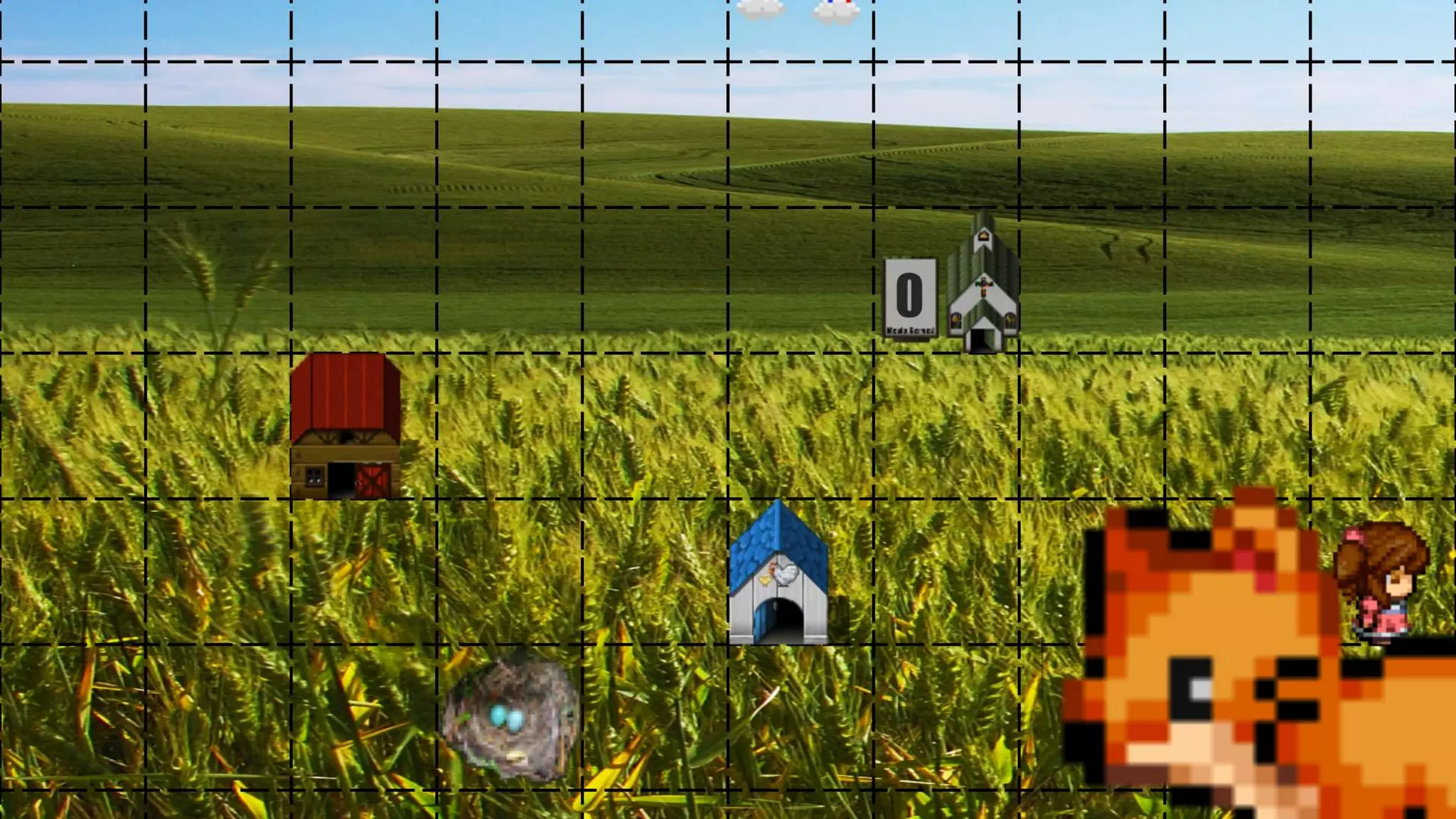
Mary Had a Little Lambda Project 
> Open-source project to demonstrate lambda features 
> Visual representation of streams, filters, and maps 
20 
https://github.com/steveonjava/MaryHadALittleLambda
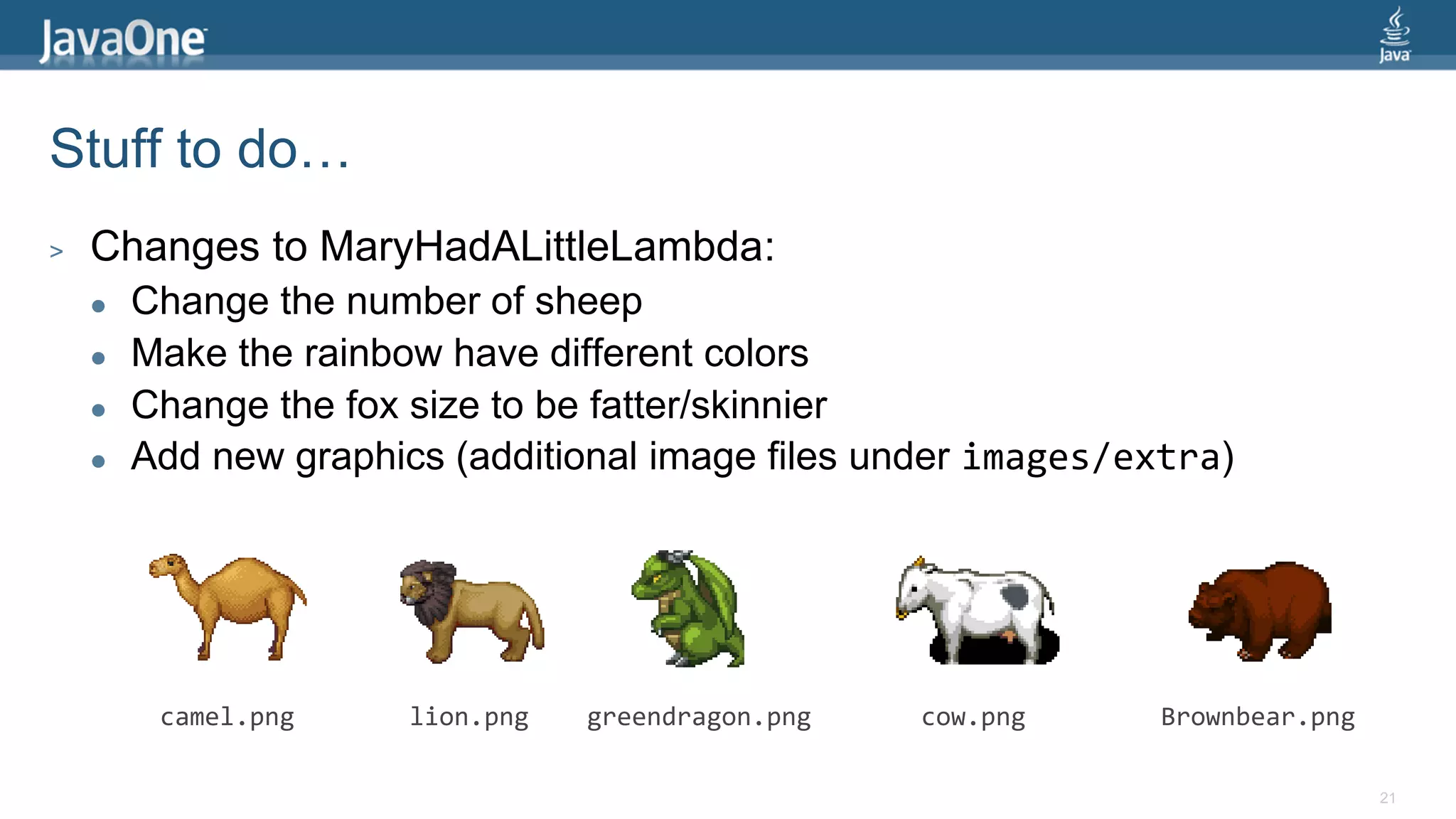
Stuff to do… 
> Changes to MaryHadALittleLambda: 
 Change the number of sheep 
 Make the rainbow have different colors 
 Change the fox size to be fatter/skinnier 
 Add new graphics (additional image files under images/extra) 
21 
camel.png lion.png greendragon.png cow.png Brownbear.png
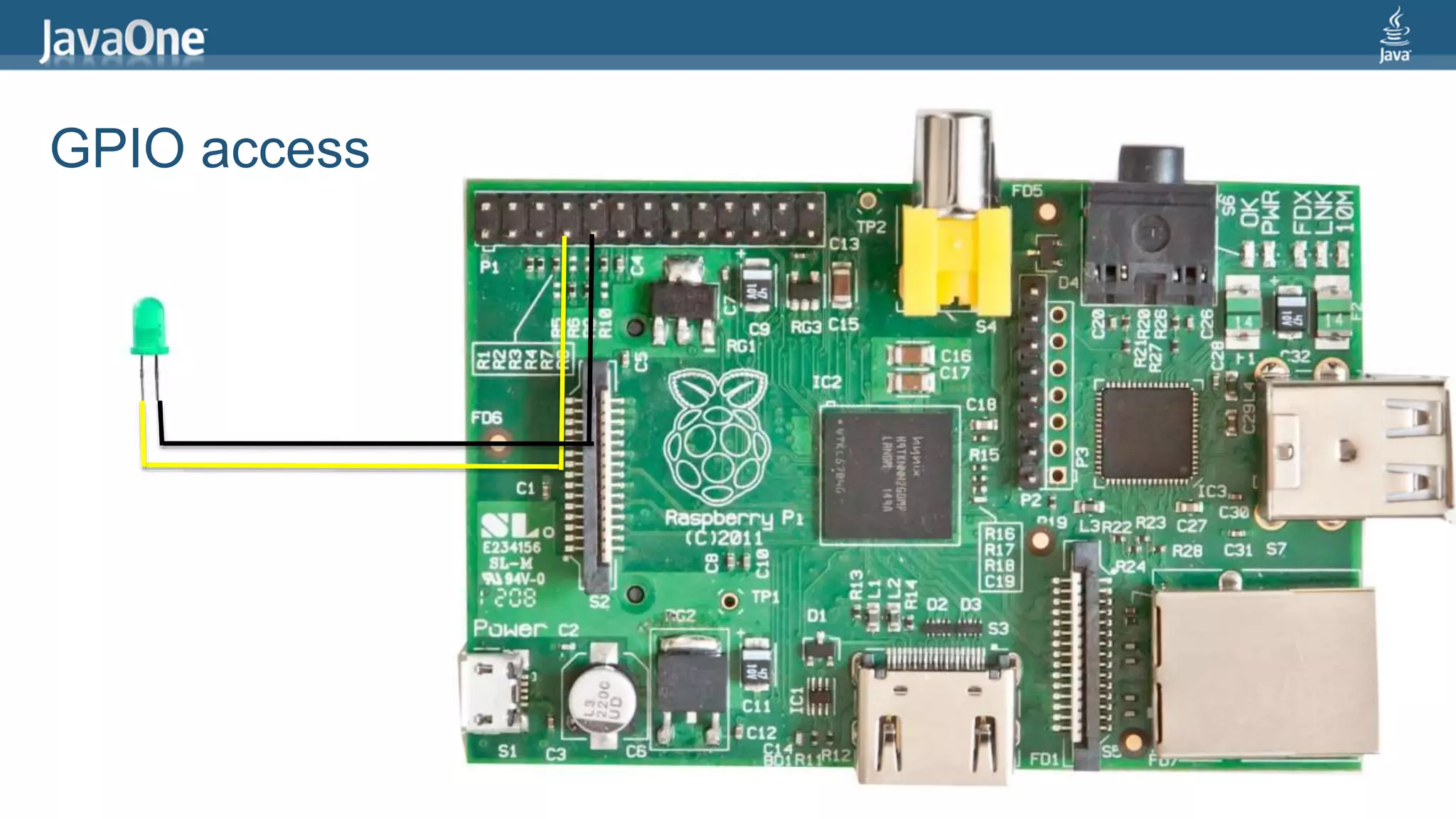
GPIO access
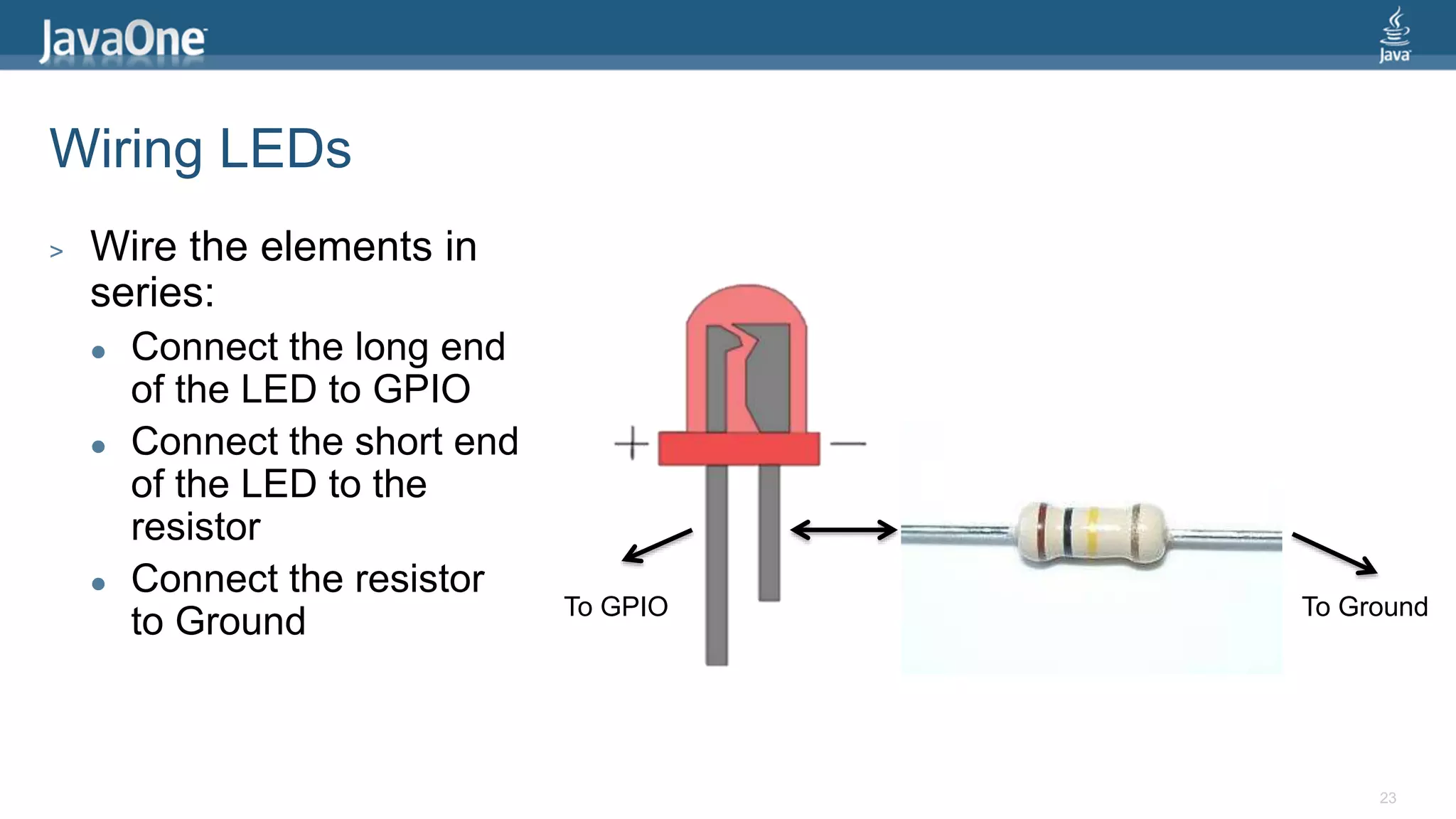
Wiring LEDs 
> Wire the elements in 
series: 
 Connect the long end 
of the LED to GPIO 
 Connect the short end 
of the LED to the 
resistor 
 Connect the resistor 
to Ground 
To GPIO To Ground 
23
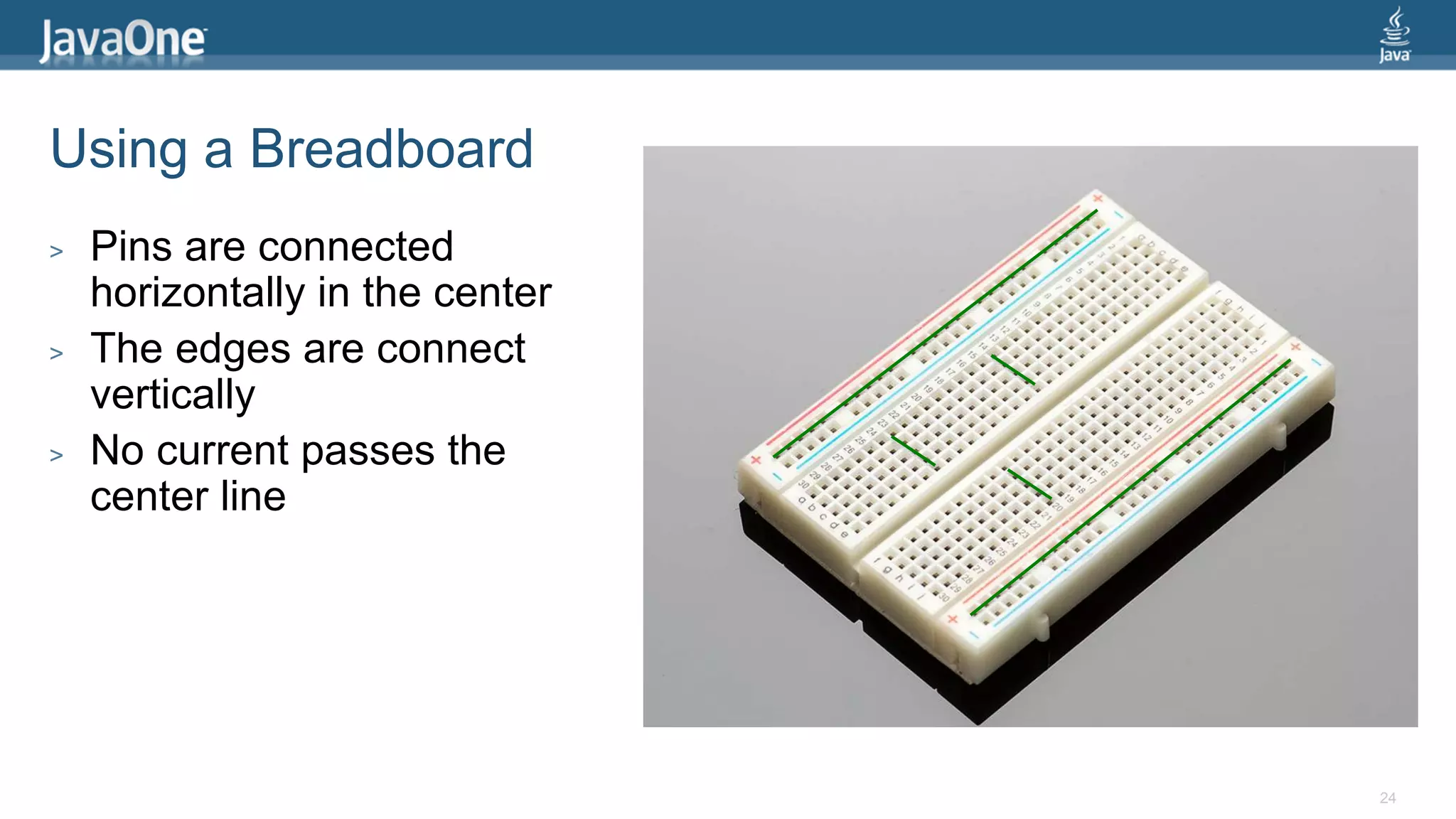
Using a Breadboard 
> Pins are connected 
horizontally in the center 
> The edges are connect 
vertically 
> No current passes the 
center line 
24
Pi Cobbler 
> Connects your Pi to the 
Breadboard 
> The white line is Pin 1 
> Connect it in the center 
top of your Breadboard 
25
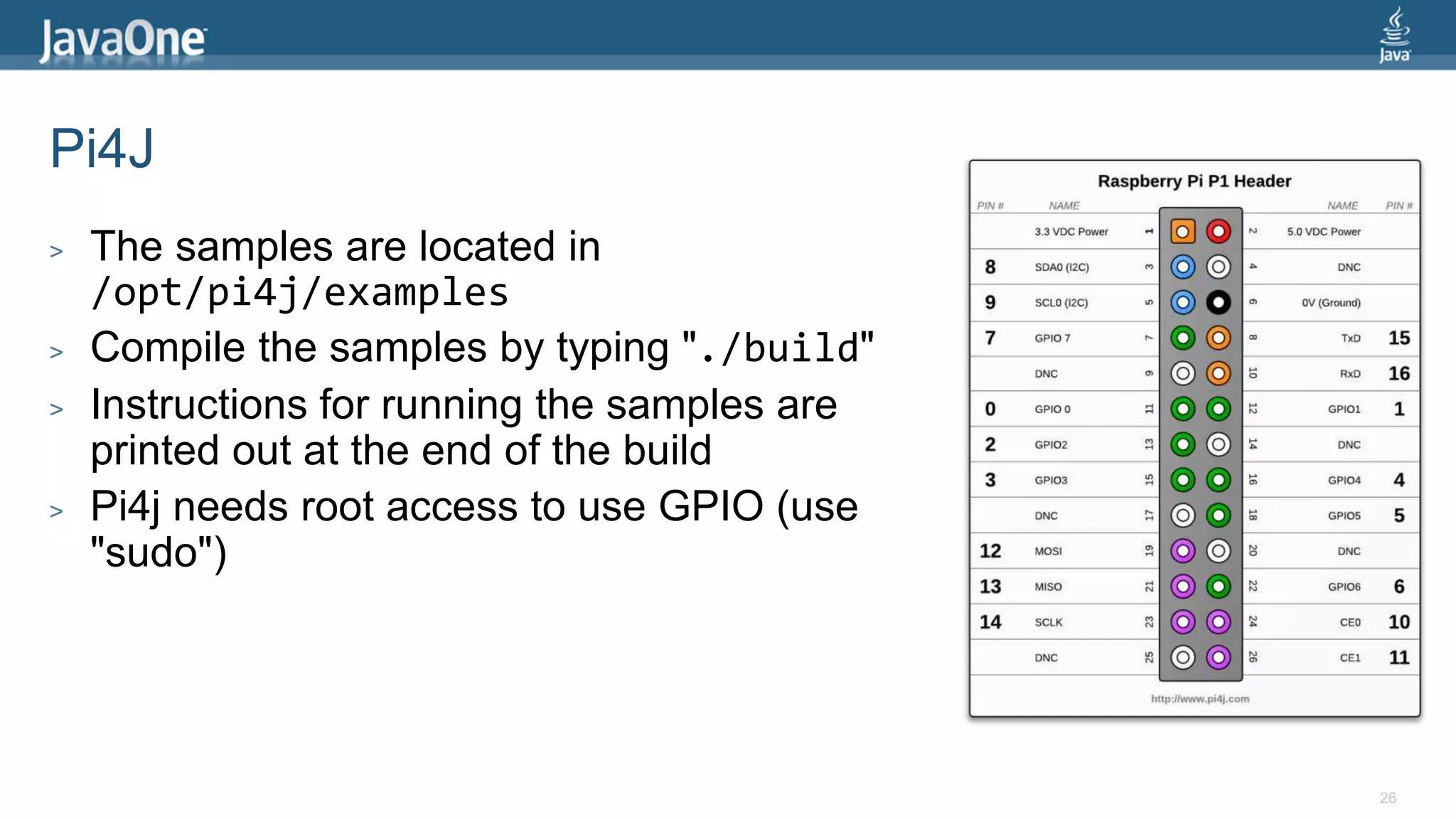
Pi4J 
> The samples are located in 
/opt/pi4j/examples 
> Compile the samples by typing "./build" 
> Instructions for running the samples are 
printed out at the end of the build 
> Pi4j needs root access to use GPIO (use 
"sudo") 
26
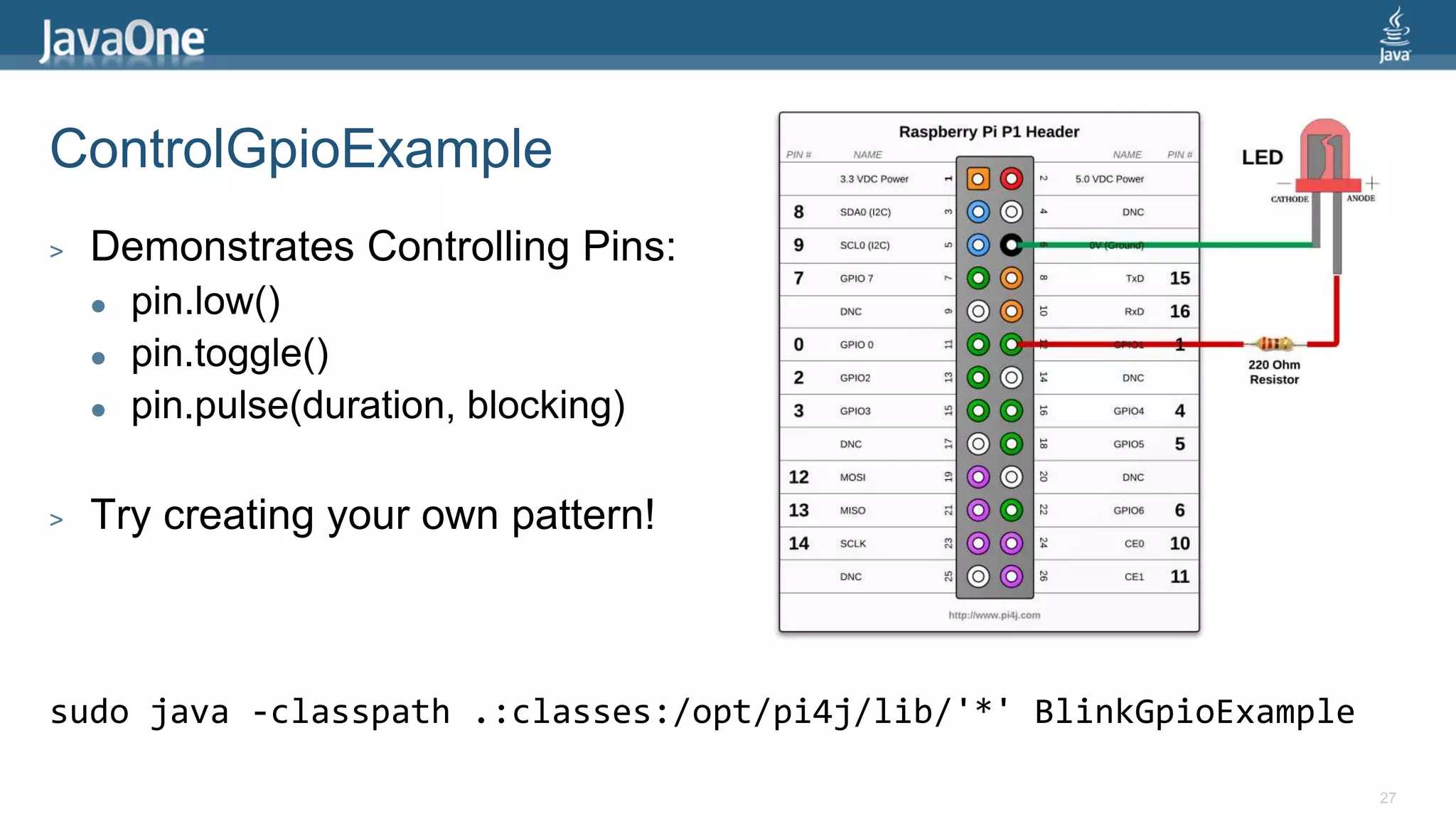
ControlGpioExample 
27 
> Demonstrates Controlling Pins: 
 pin.low() 
 pin.toggle() 
 pin.pulse(duration, blocking) 
> Try creating your own pattern! 
sudo java -classpath .:classes:/opt/pi4j/lib/'*' BlinkGpioExample
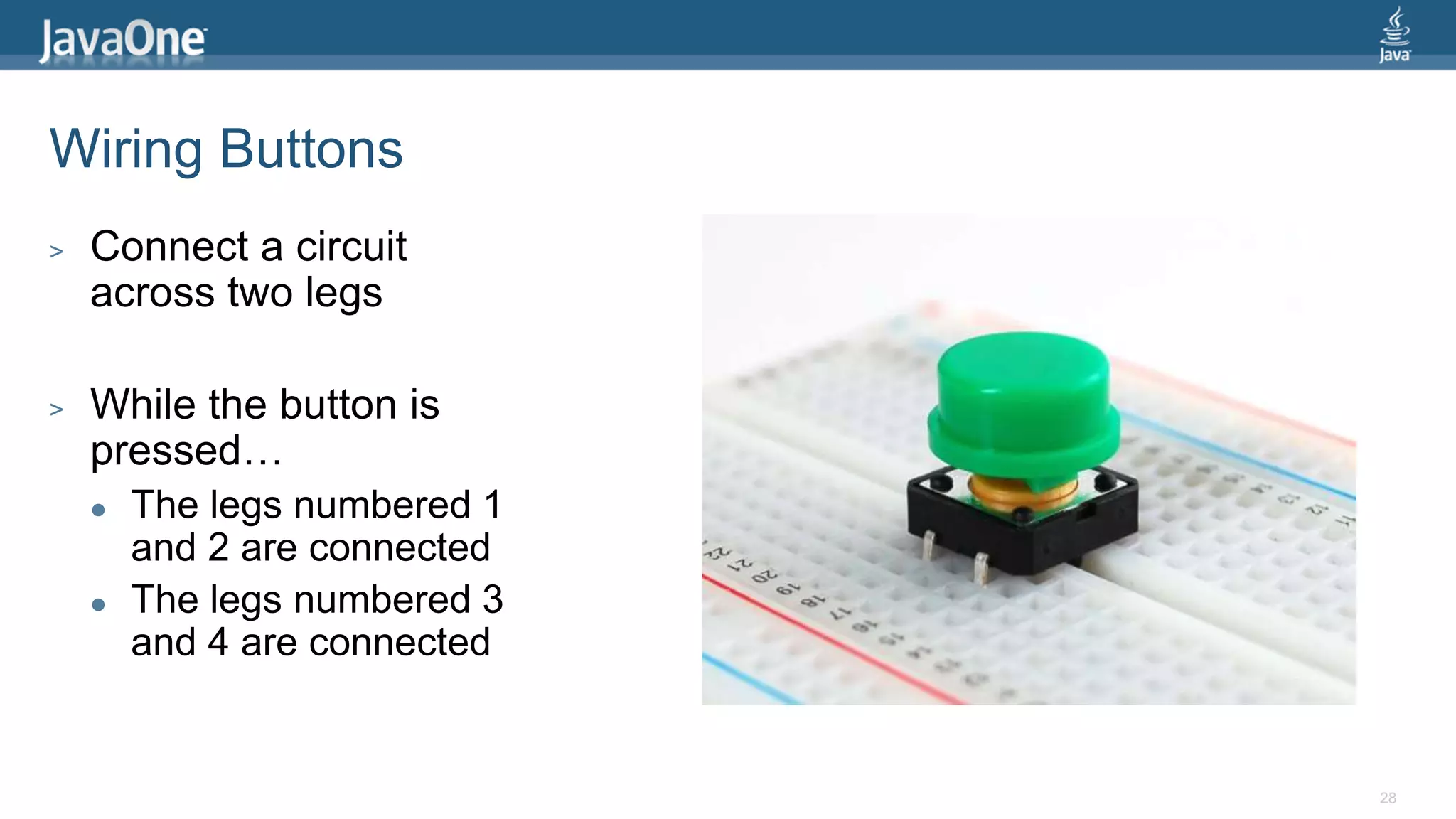
Wiring Buttons 
> Connect a circuit 
across two legs 
> While the button is 
pressed… 
 The legs numbered 1 
and 2 are connected 
 The legs numbered 3 
and 4 are connected 
28
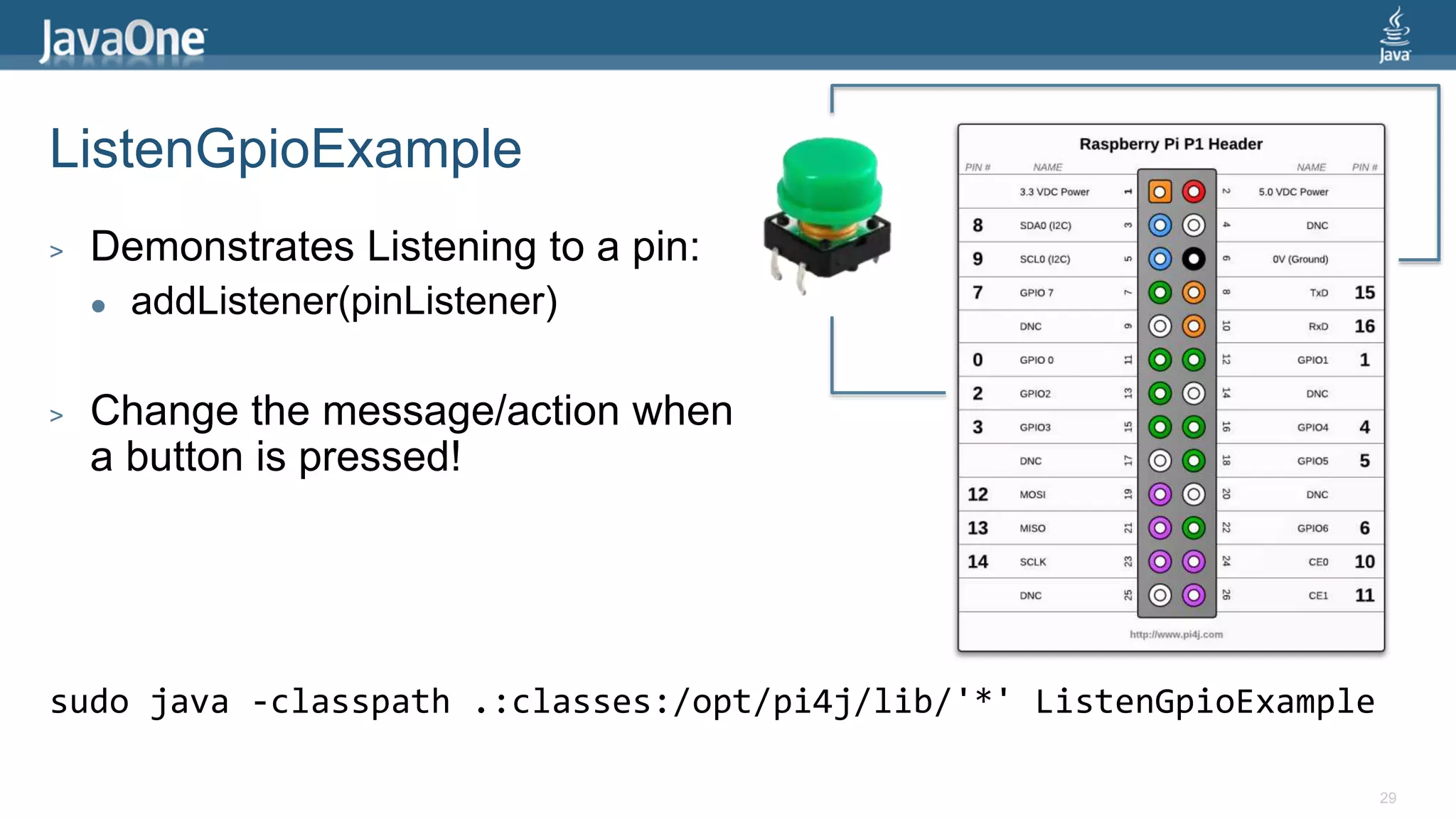
ListenGpioExample 
29 
> Demonstrates Listening to a pin: 
 addListener(pinListener) 
> Change the message/action when 
a button is pressed! 
sudo java -classpath .:classes:/opt/pi4j/lib/'*' ListenGpioExample
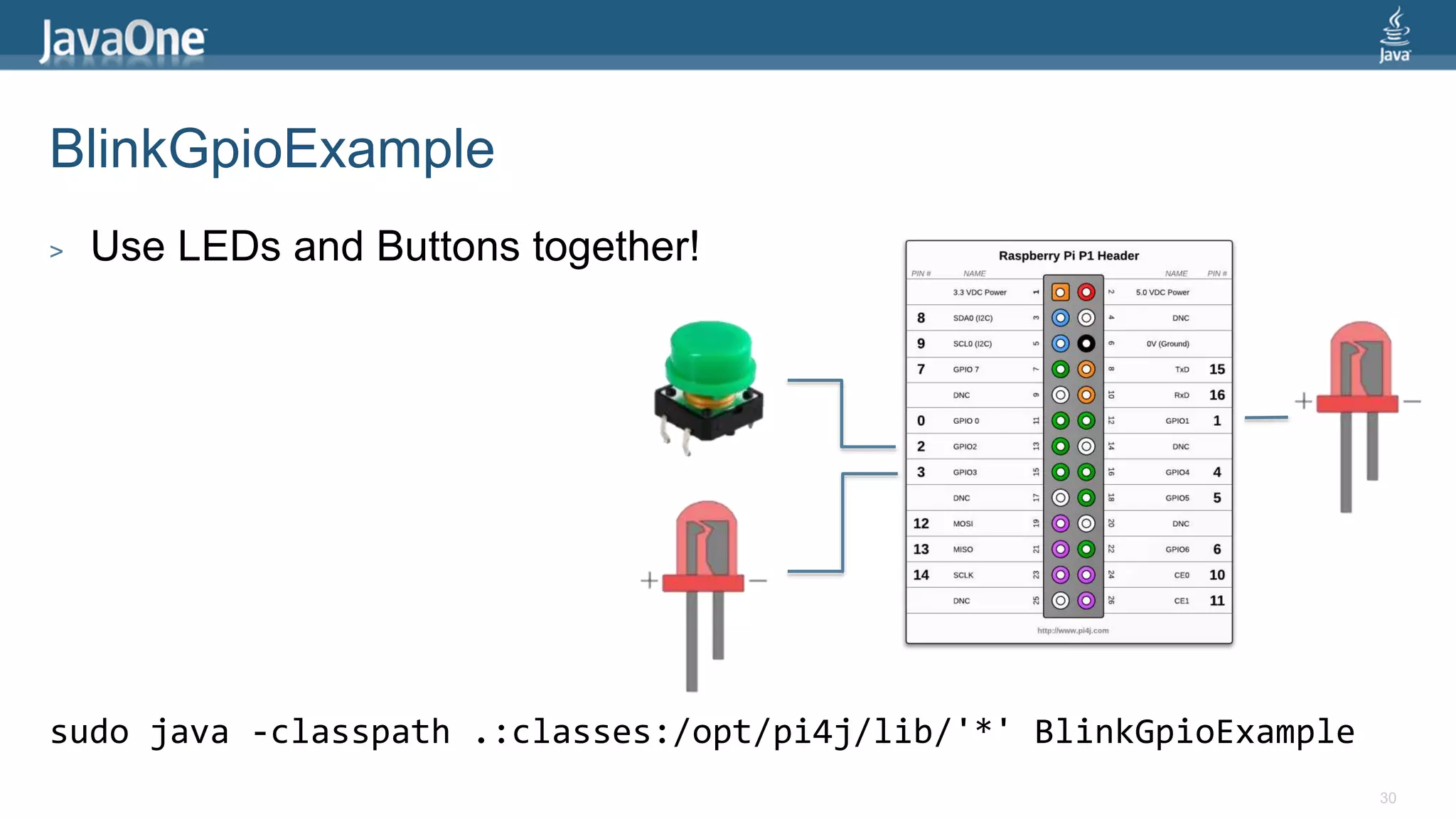
BlinkGpioExample 
30 
> Use LEDs and Buttons together! 
sudo java -classpath .:classes:/opt/pi4j/lib/'*' BlinkGpioExample
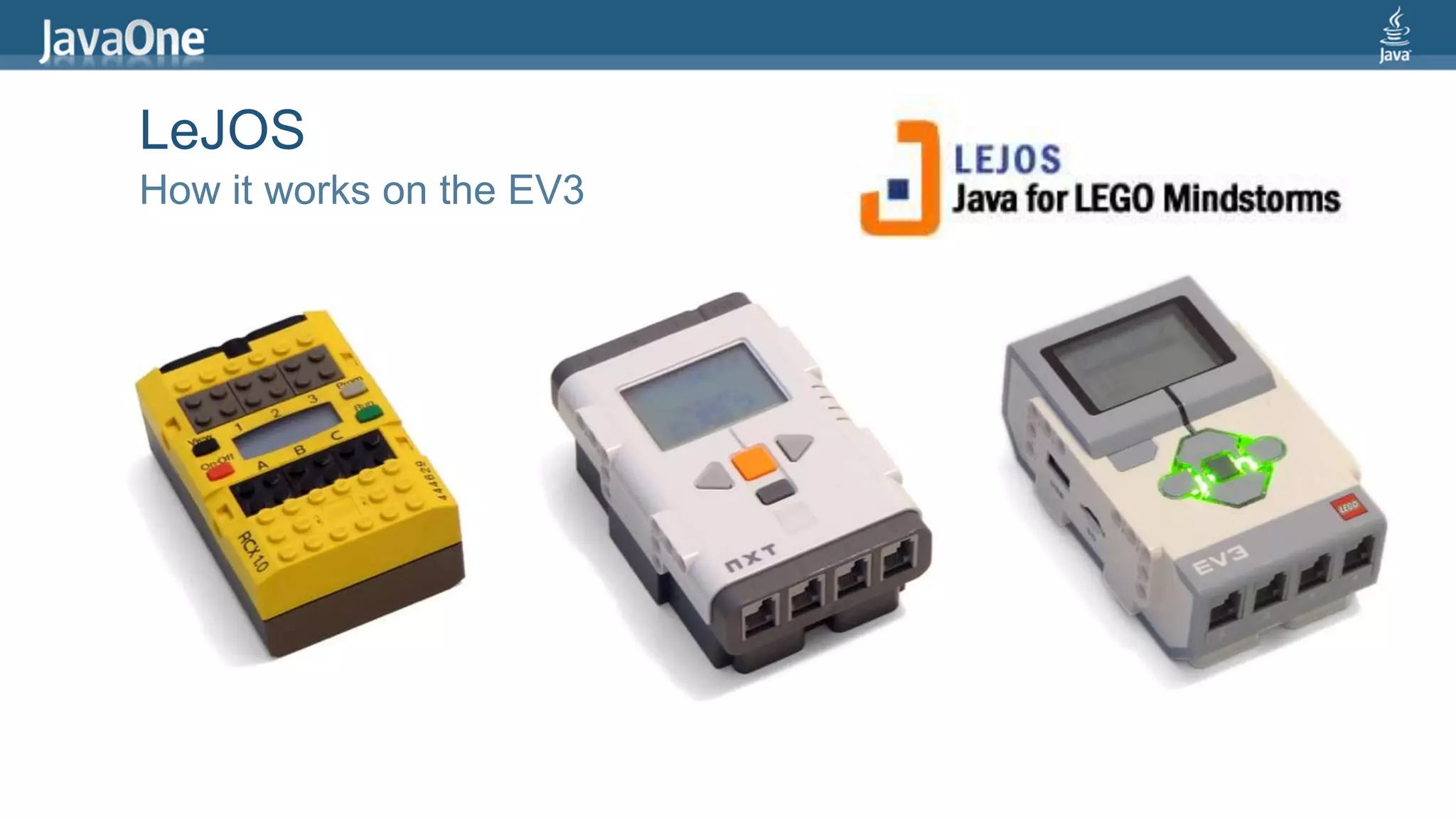
LeJOS 
How it works on the EV3
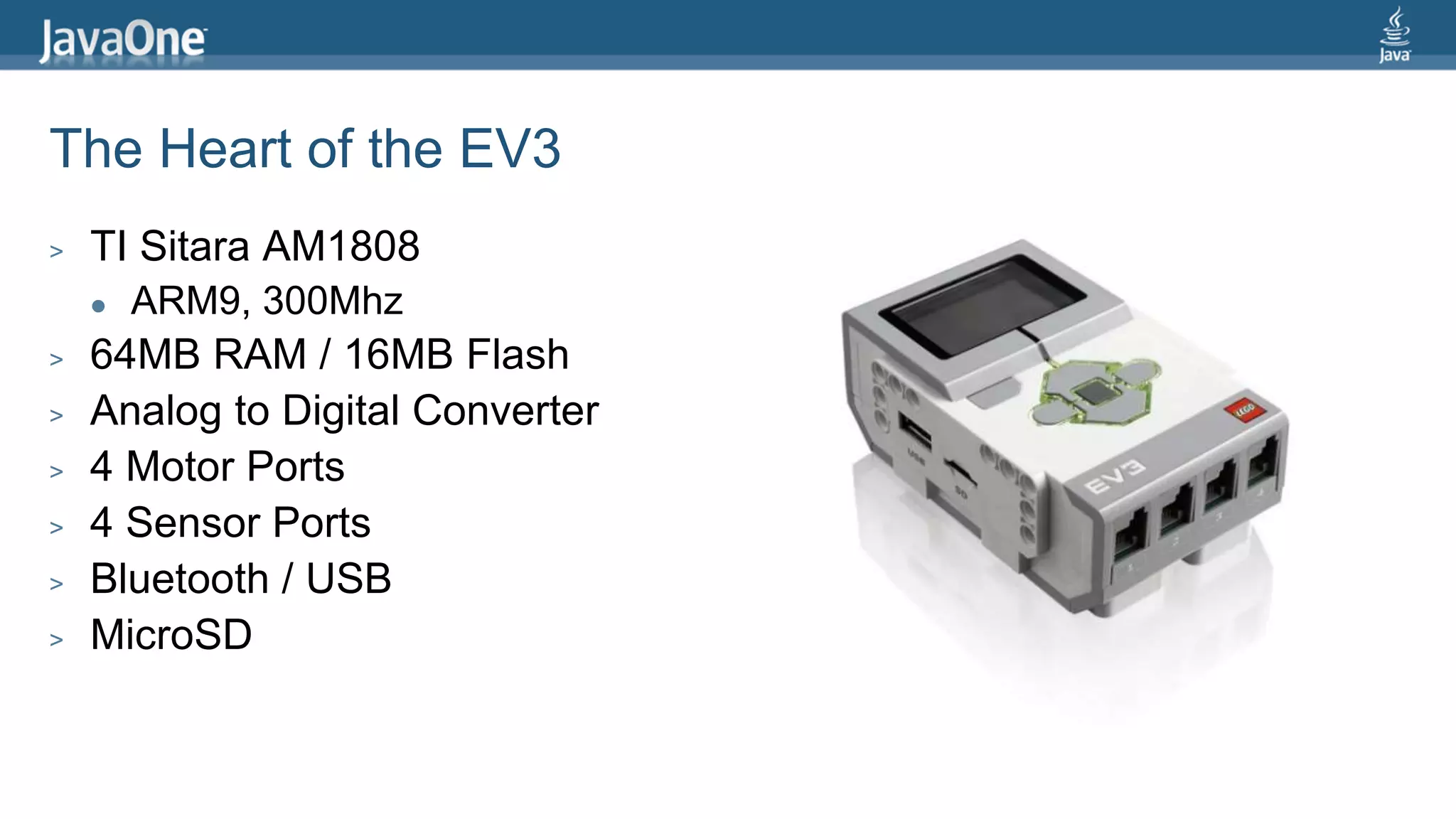
The Heart of the EV3 
> TI Sitara AM1808 
 ARM9, 300Mhz 
> 64MB RAM / 16MB Flash 
> Analog to Digital Converter 
> 4 Motor Ports 
> 4 Sensor Ports 
> Bluetooth / USB 
> MicroSD
EV3 Motors
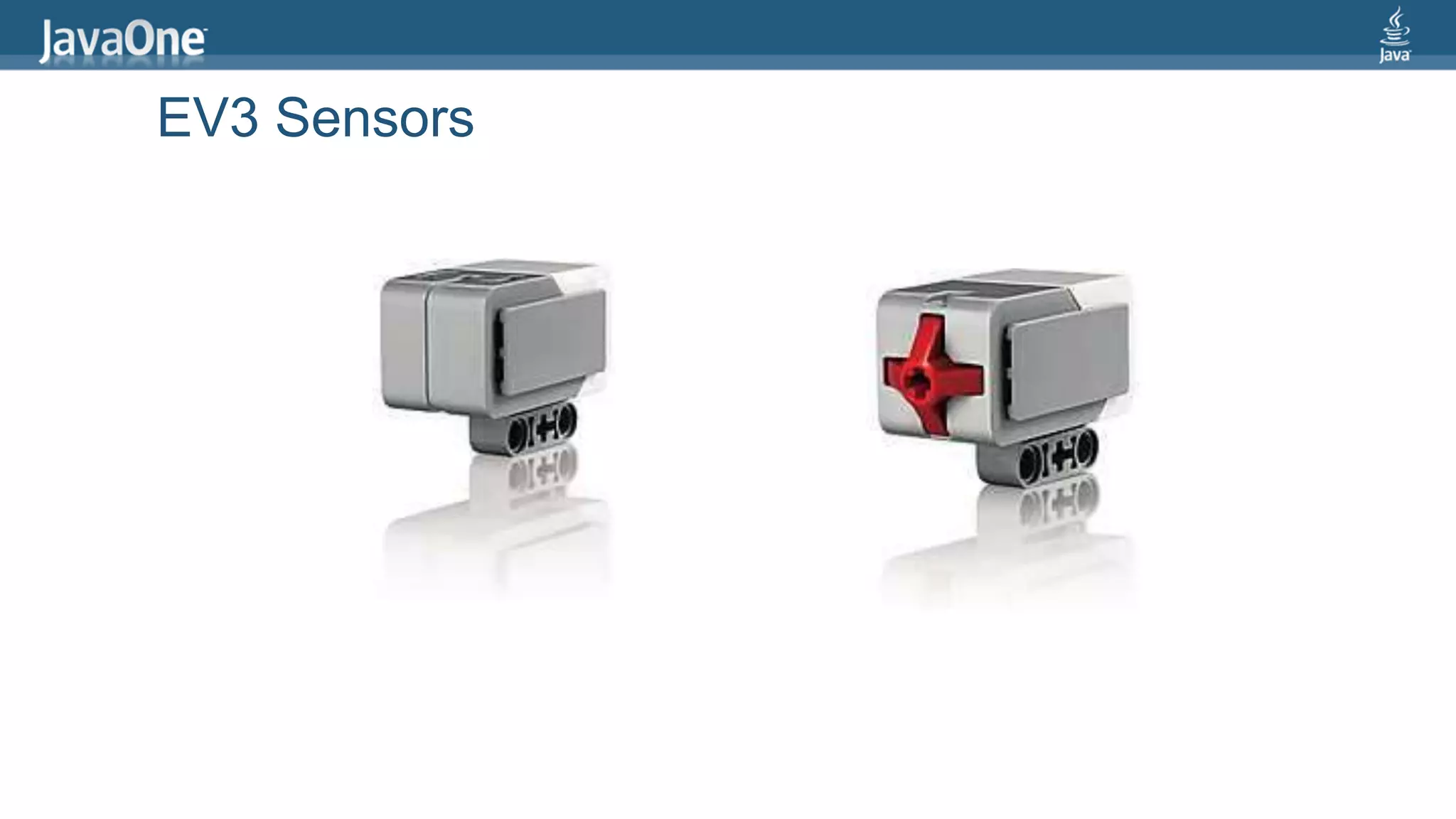
EV3 Sensors
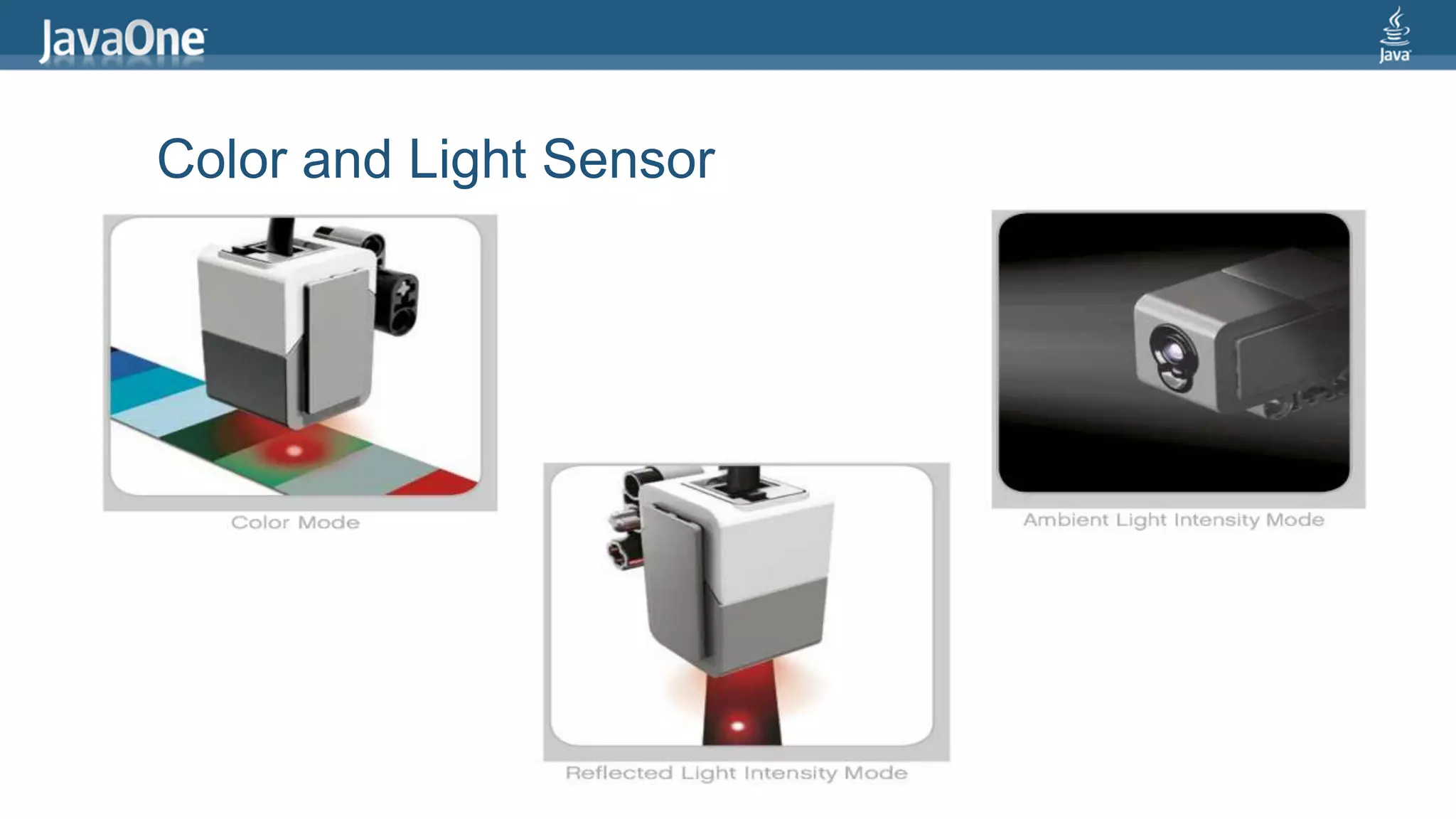
Color and Light Sensor
High frequency 
sound waves 
Ultrasonic Sensor 
Measuring mode Vs Presence Mode
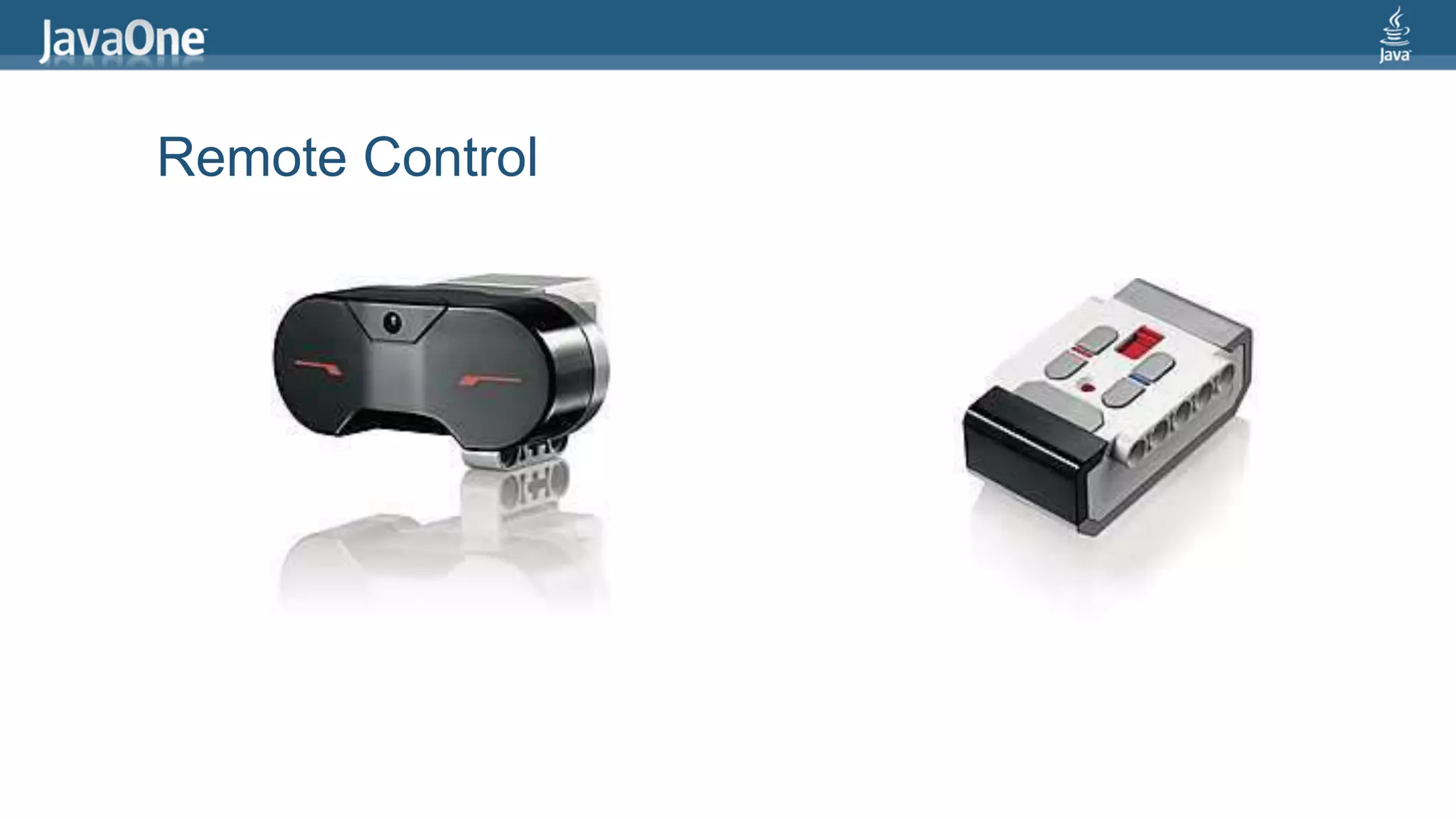
Infrared Sensor
Remote Control
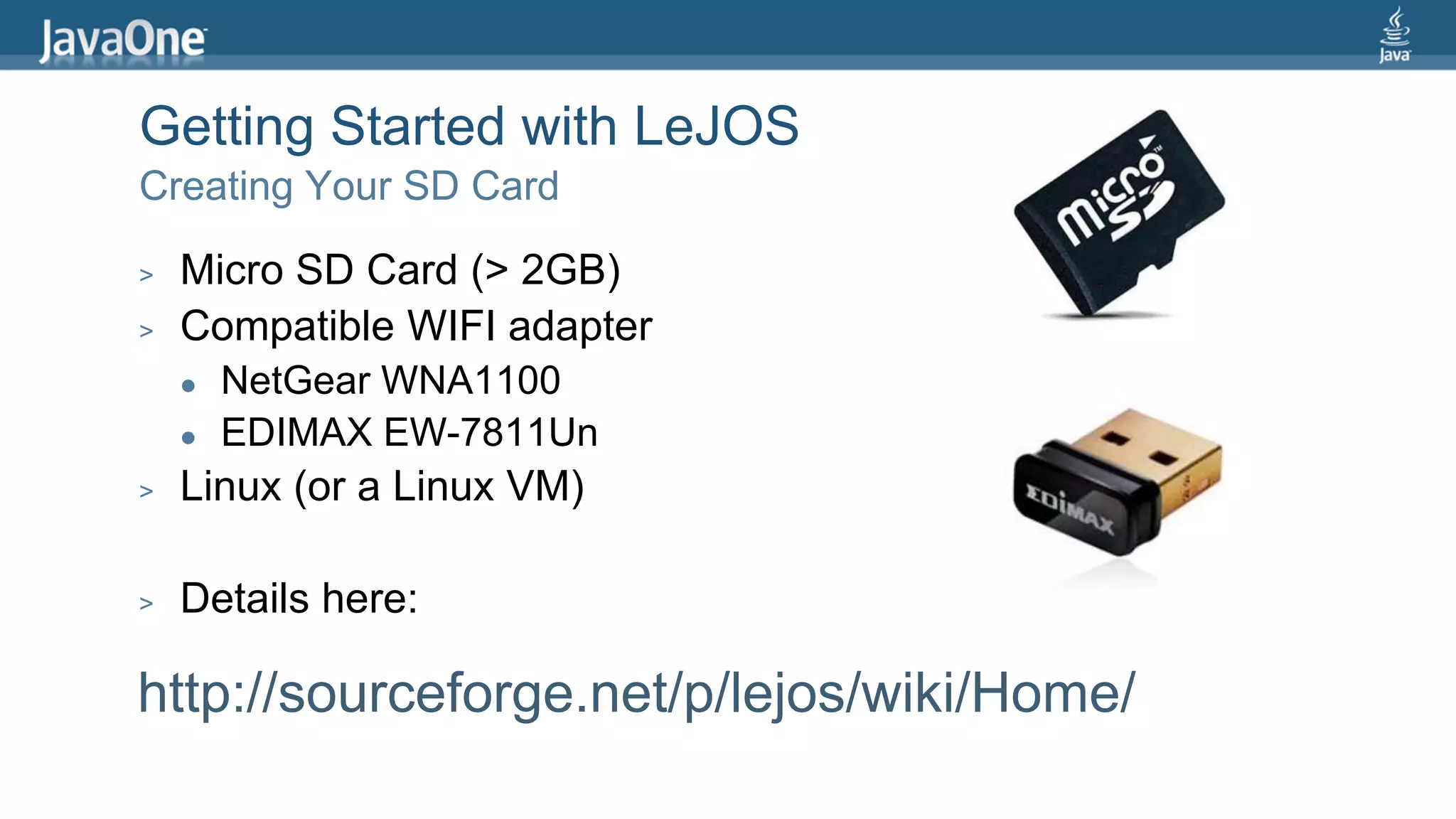
Getting Started with LeJOS 
Creating Your SD Card 
> Micro SD Card (> 2GB) 
> Compatible WIFI adapter 
 NetGear WNA1100 
 EDIMAX EW-7811Un 
> Linux (or a Linux VM) 
> Details here: 
http://sourceforge.net/p/lejos/wiki/Home/
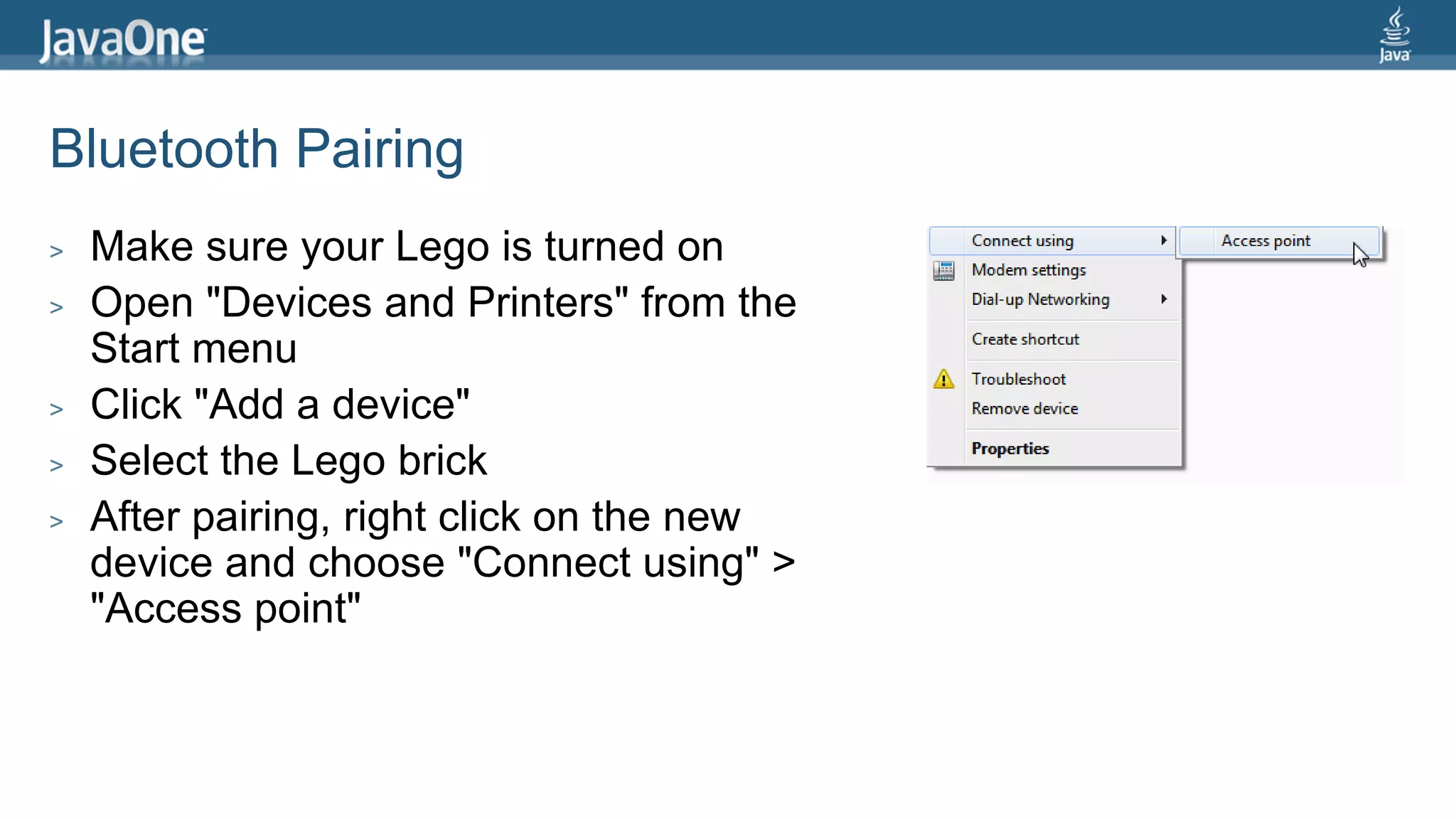
Bluetooth Pairing 
> Make sure your Lego is turned on 
> Open "Devices and Printers" from the 
Start menu 
> Click "Add a device" 
> Select the Lego brick 
> After pairing, right click on the new 
device and choose "Connect using" > 
"Access point"
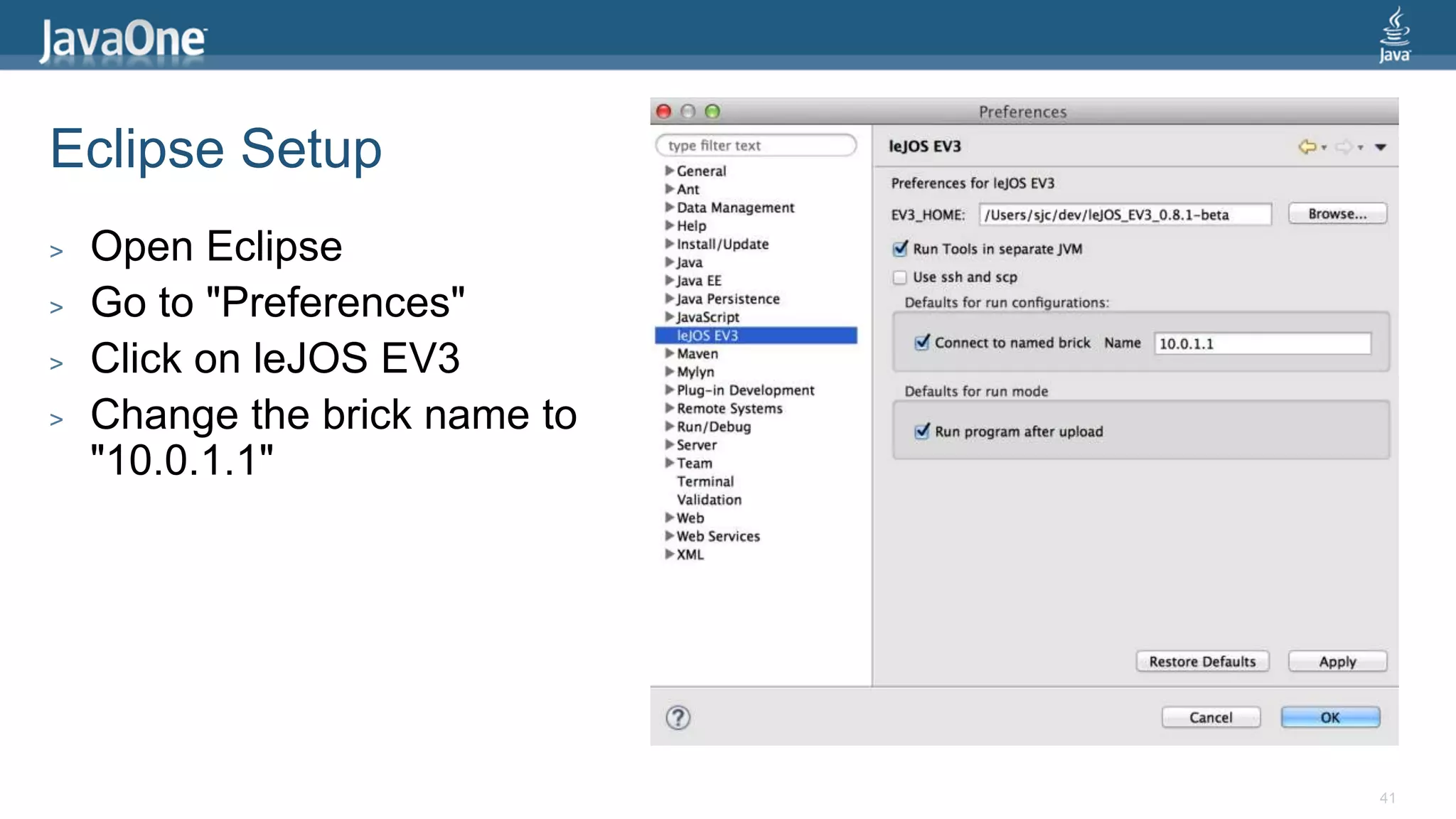
Eclipse Setup 
> Open Eclipse 
> Go to "Preferences" 
> Click on leJOS EV3 
> Change the brick name to 
"10.0.1.1" 
41
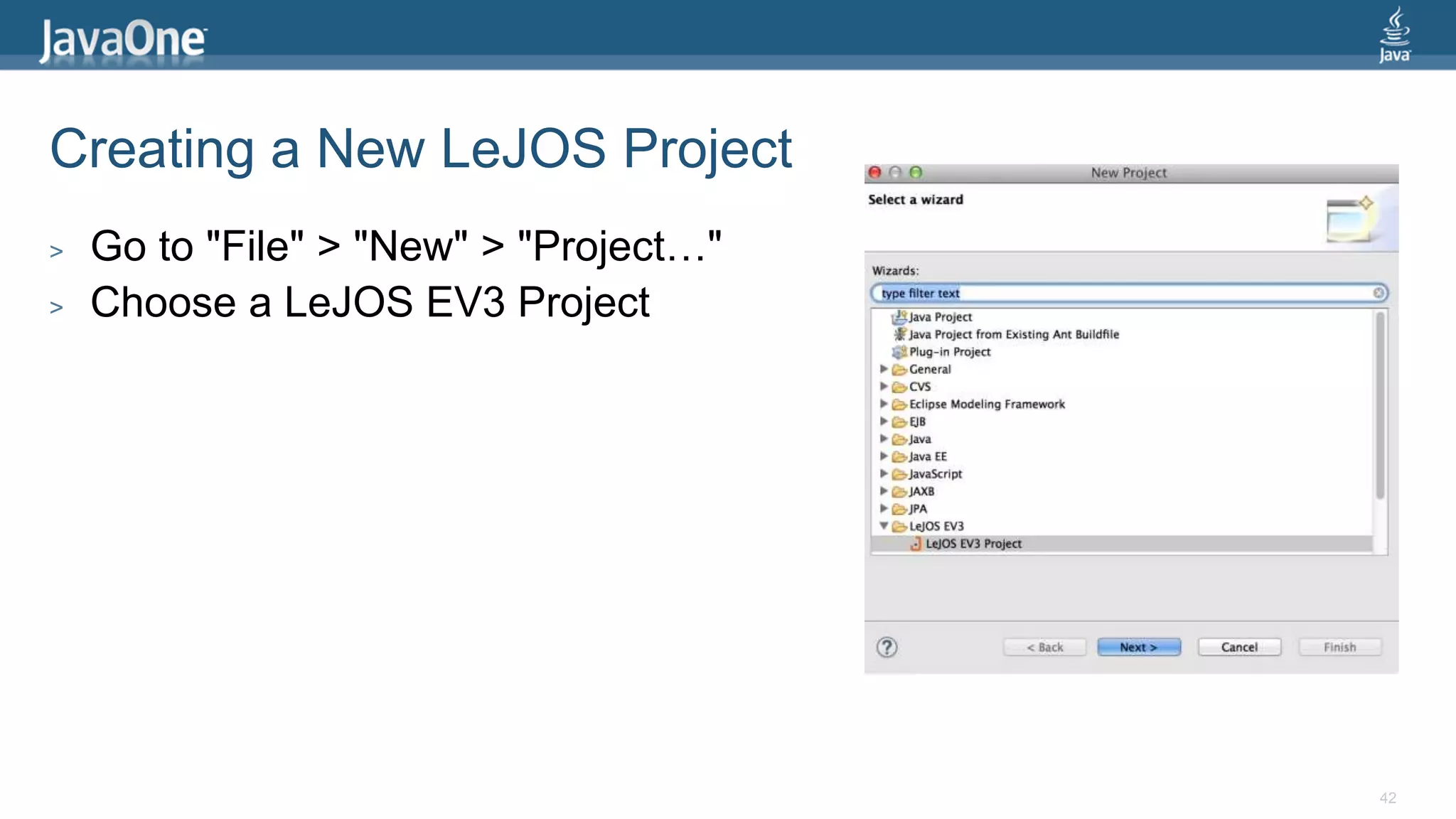
Creating a New LeJOS Project 
> Go to "File" > "New" > "Project…" 
> Choose a LeJOS EV3 Project 
42
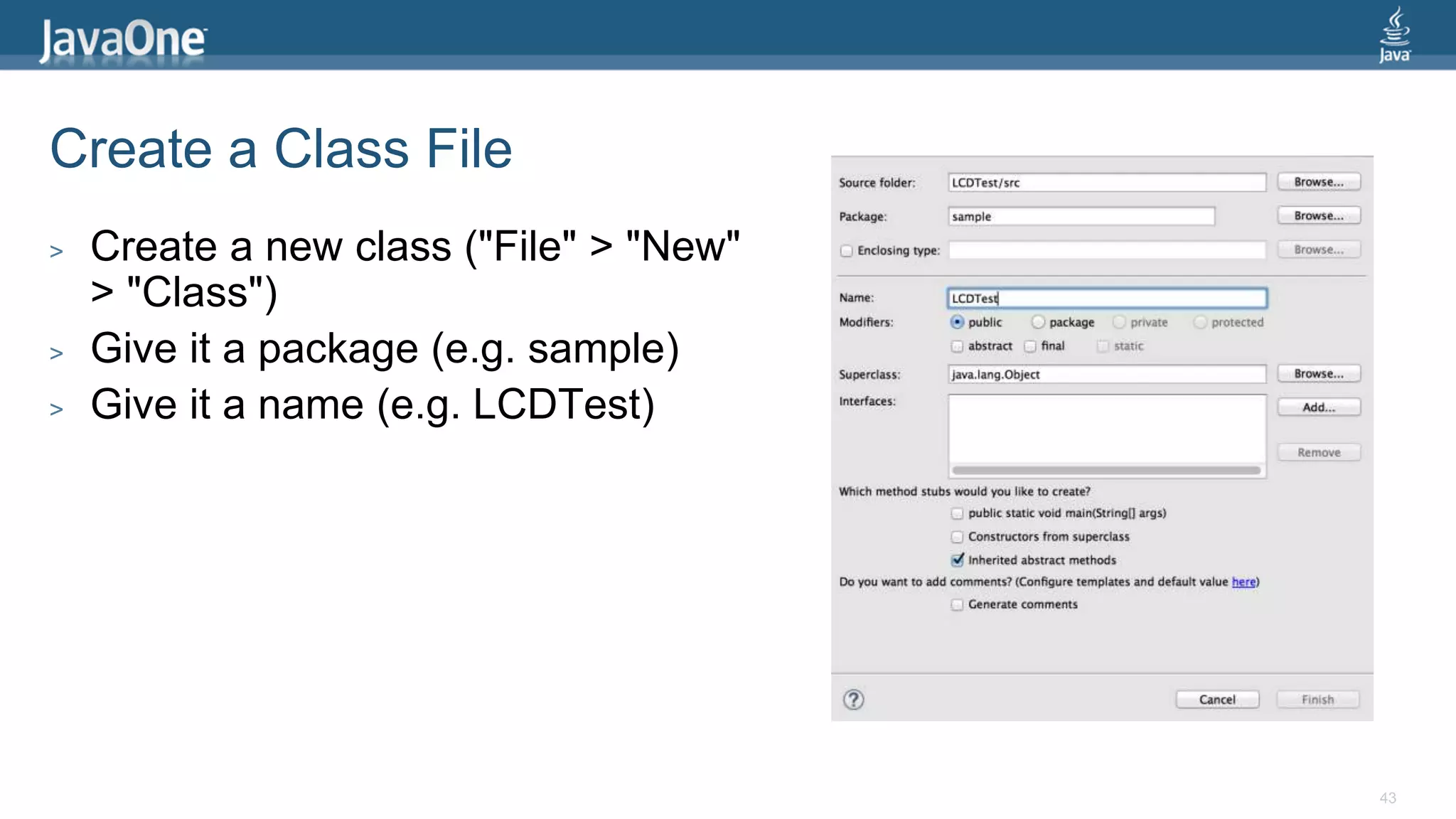
Create a Class File 
> Create a new class ("File" > "New" 
> "Class") 
> Give it a package (e.g. sample) 
> Give it a name (e.g. LCDTest) 
43
Simple LeJOS Application 
import lejos.nxt.Button; 
import lejos.nxt.LCD; 
public class EV3FirstProgram { 
public static void main(String[] args) { 
LCD.clear(); 
LCD.drawString("First EV3 Program", 0, 5); 
Button.waitForAnyPress(); 
LCD.clear(); 
LCD.refresh(); 
} 
}
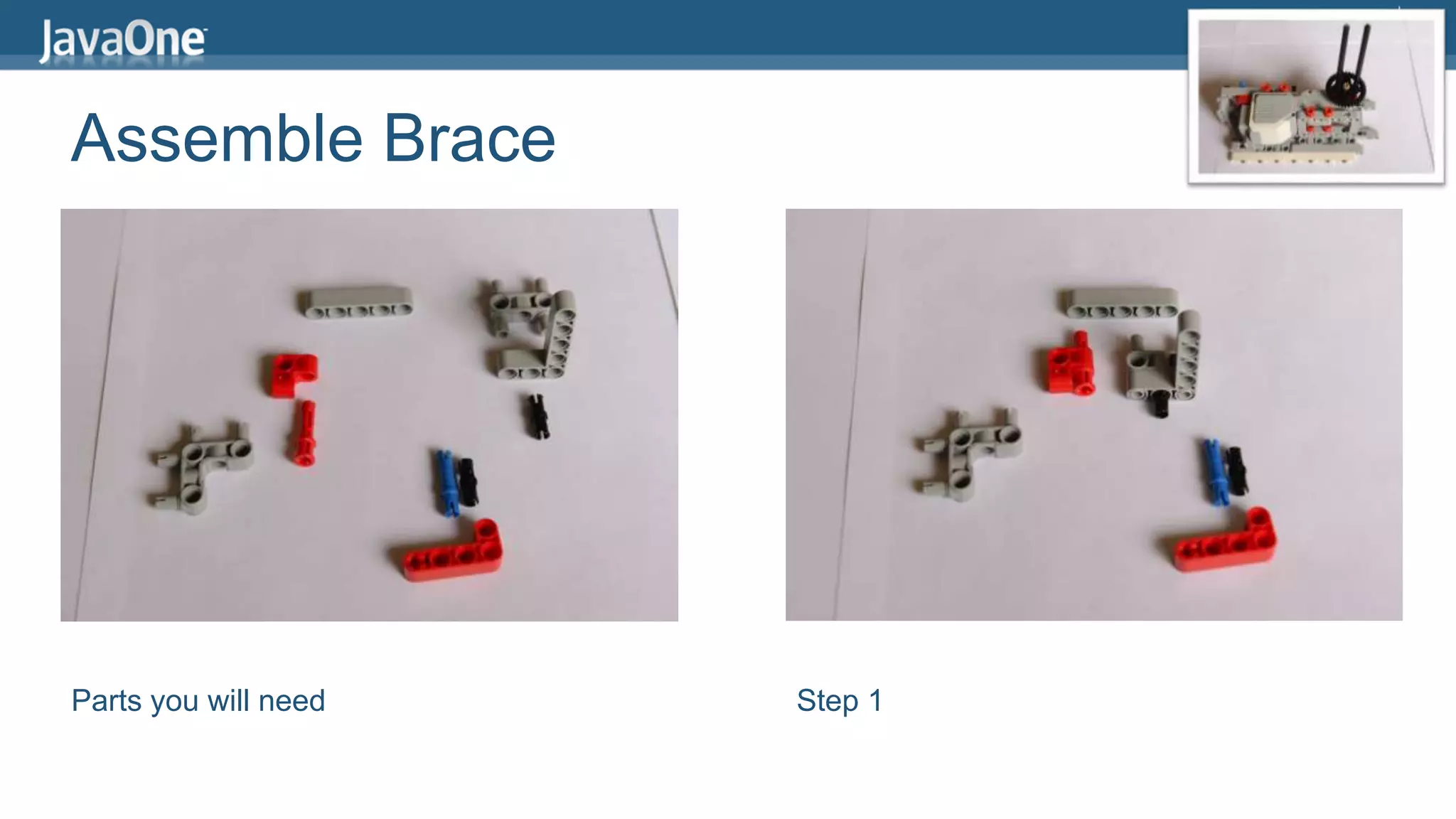
Assemble Brace 
Parts you will need Step 1
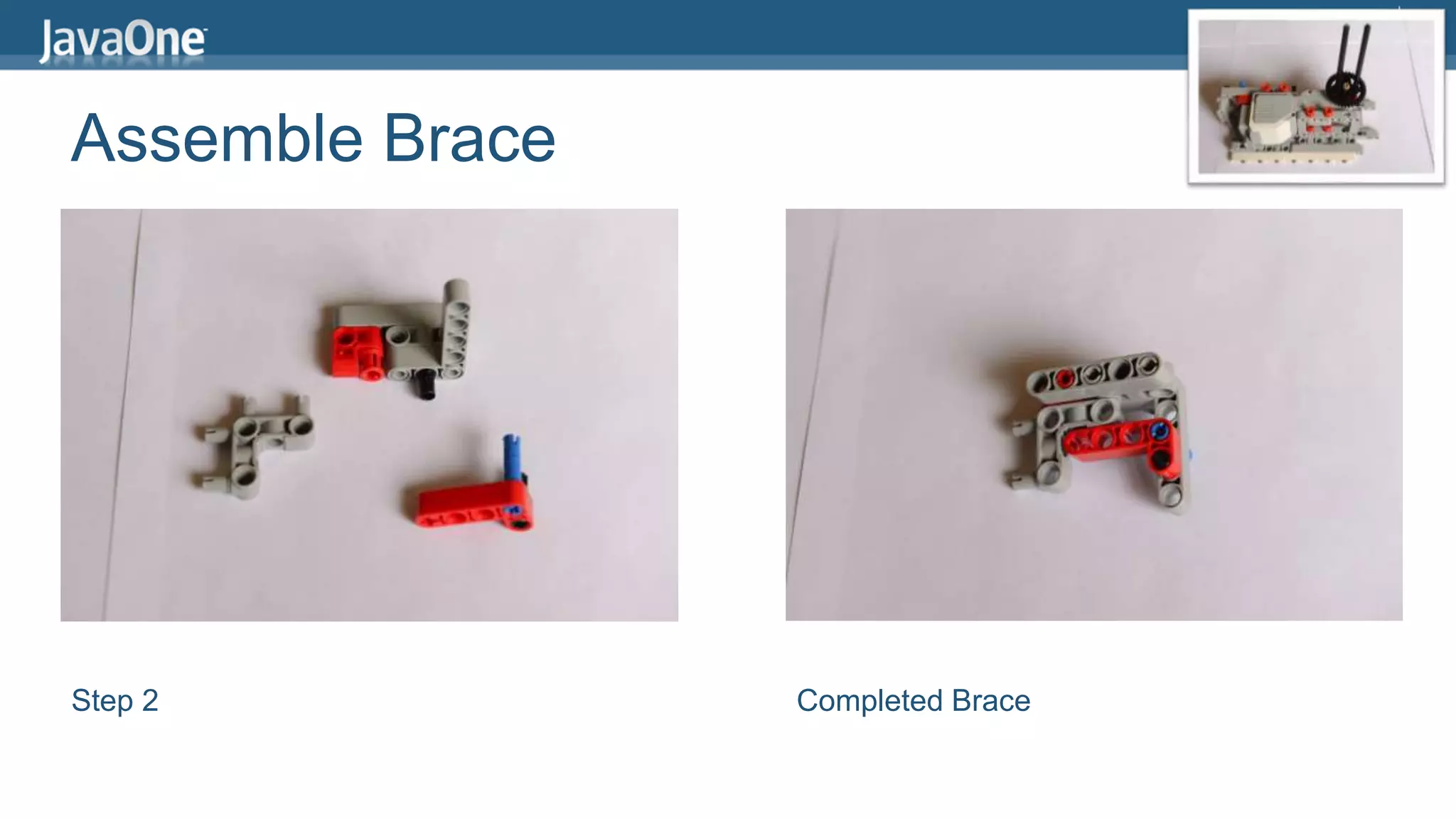
Assemble Brace 
Step 2 Completed Brace
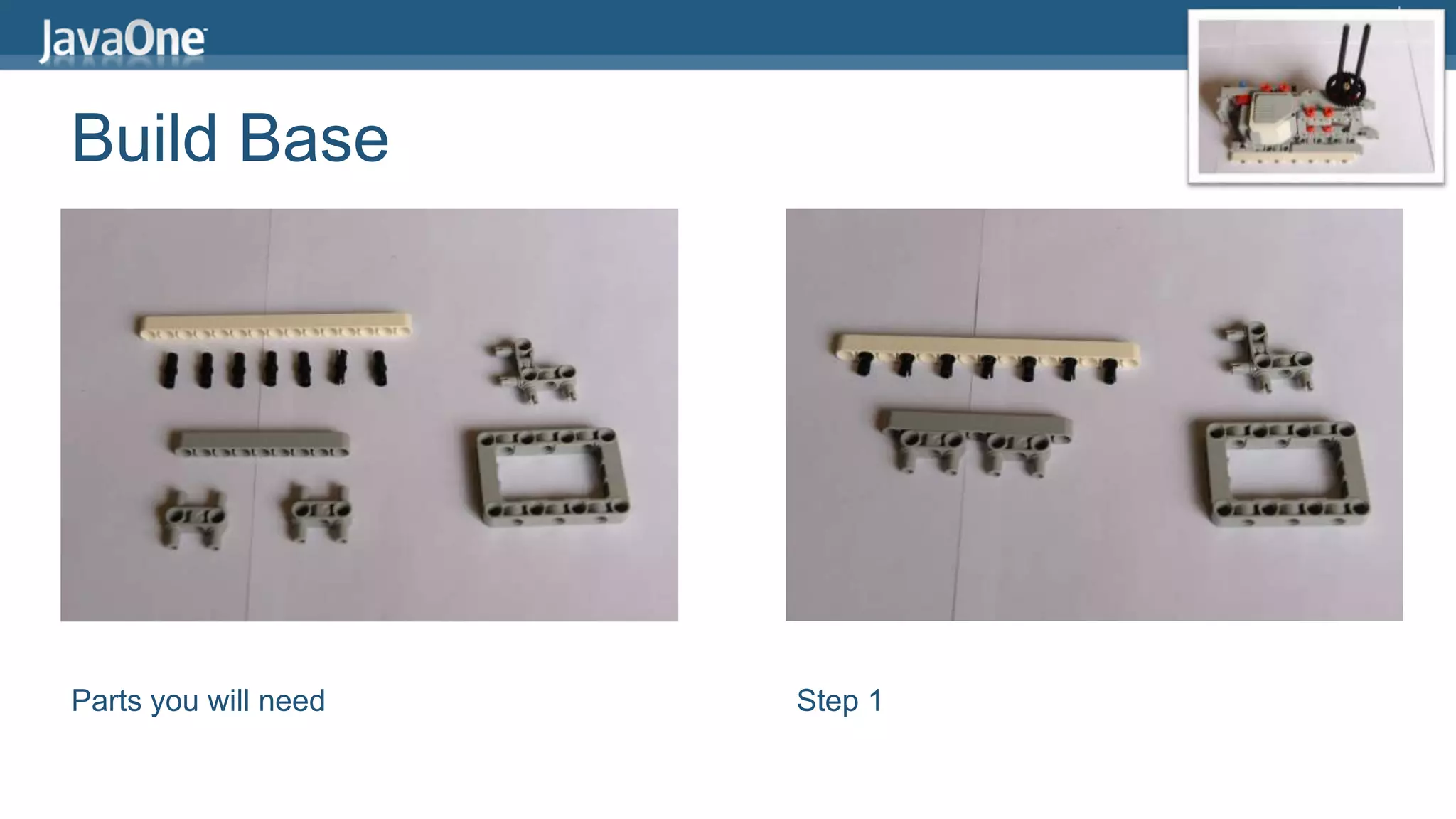
Build Base 
Parts you will need Step 1
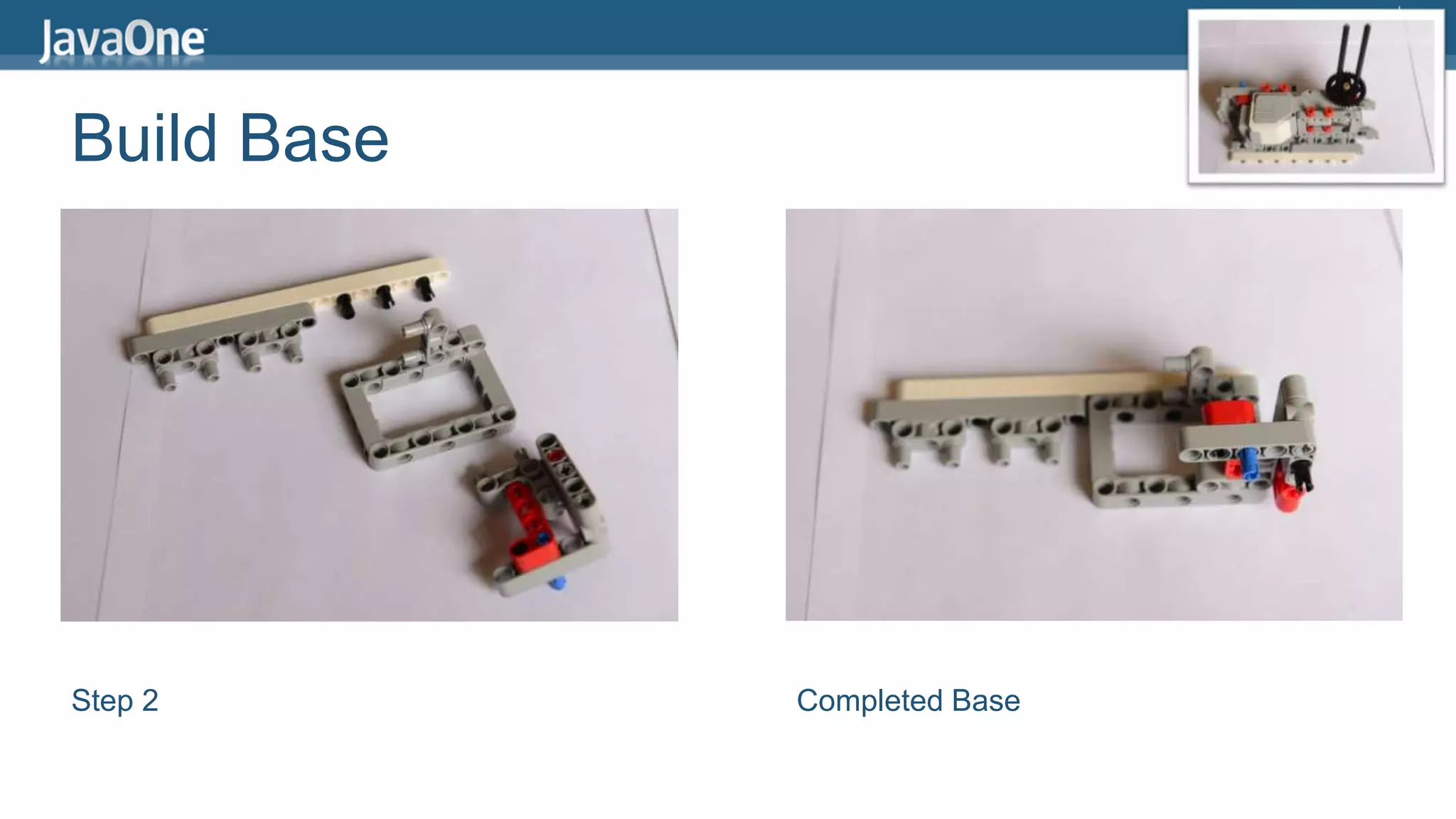
Build Base 
Step 2 Completed Base
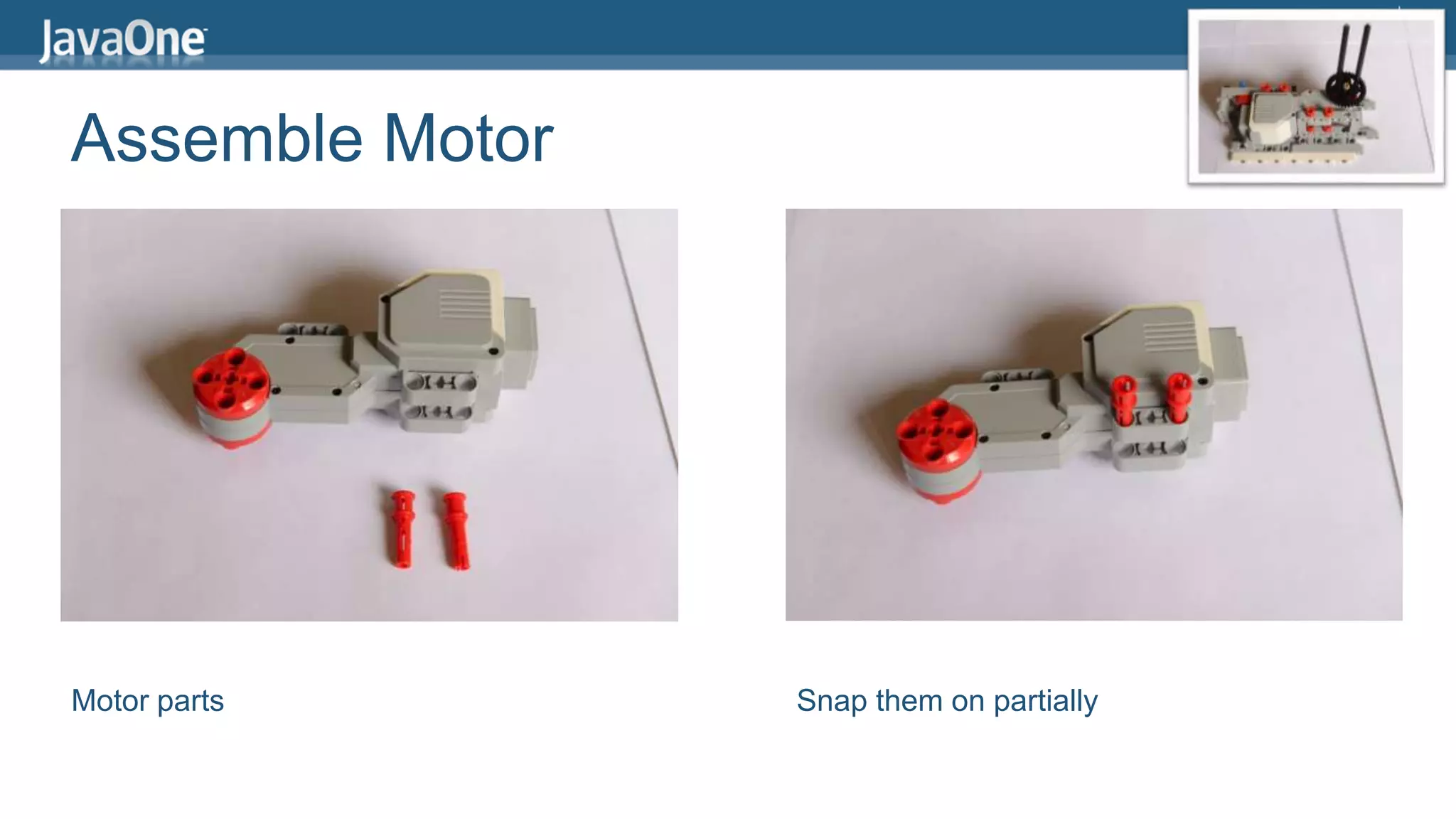
Assemble Motor 
Motor parts Snap them on partially
Assemble Motor 
Take motor and base And connect them like this
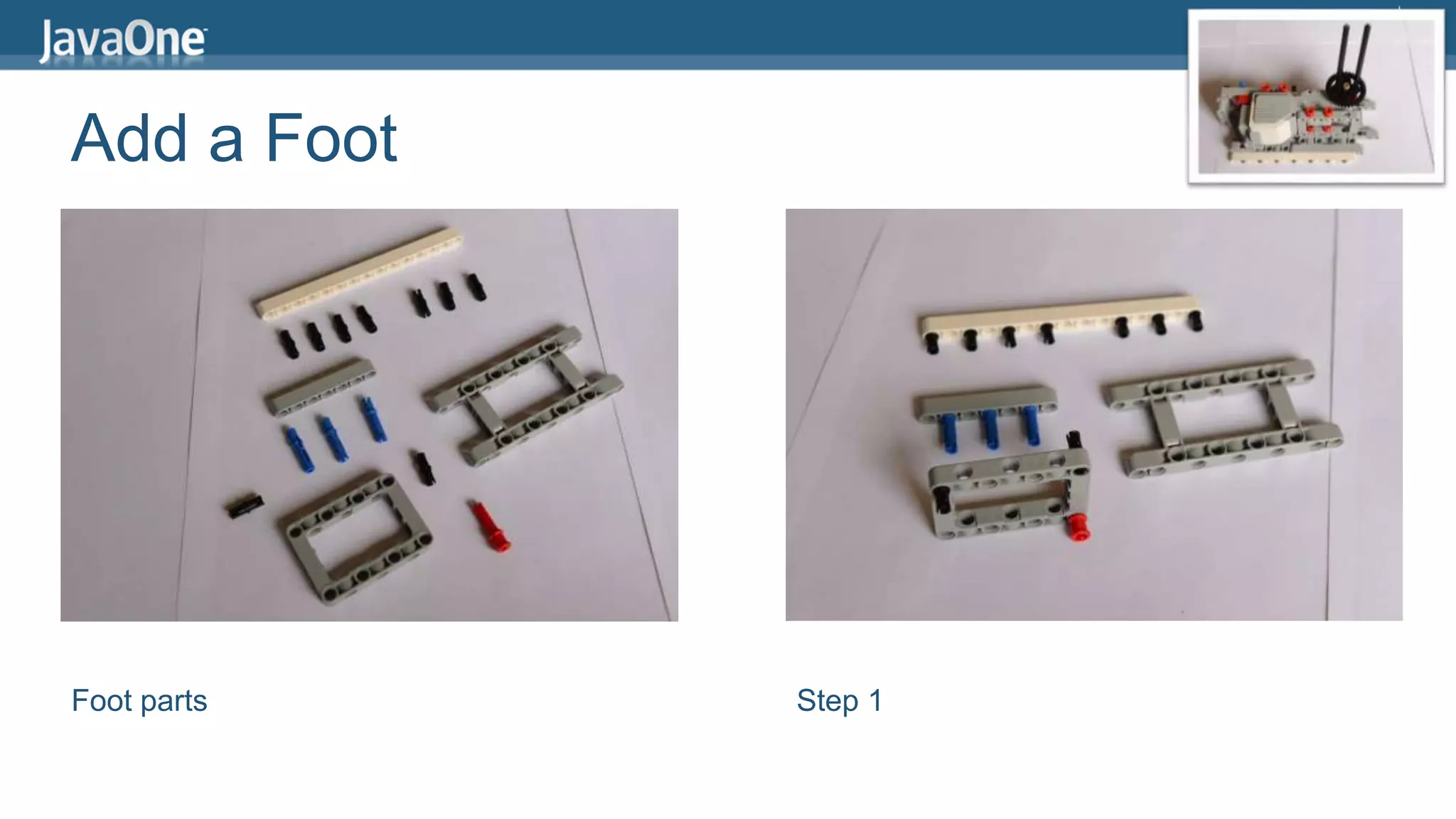
Add a Foot 
Foot parts Step 1
Add a Foot 
Step 2 Add the Foot to the Base
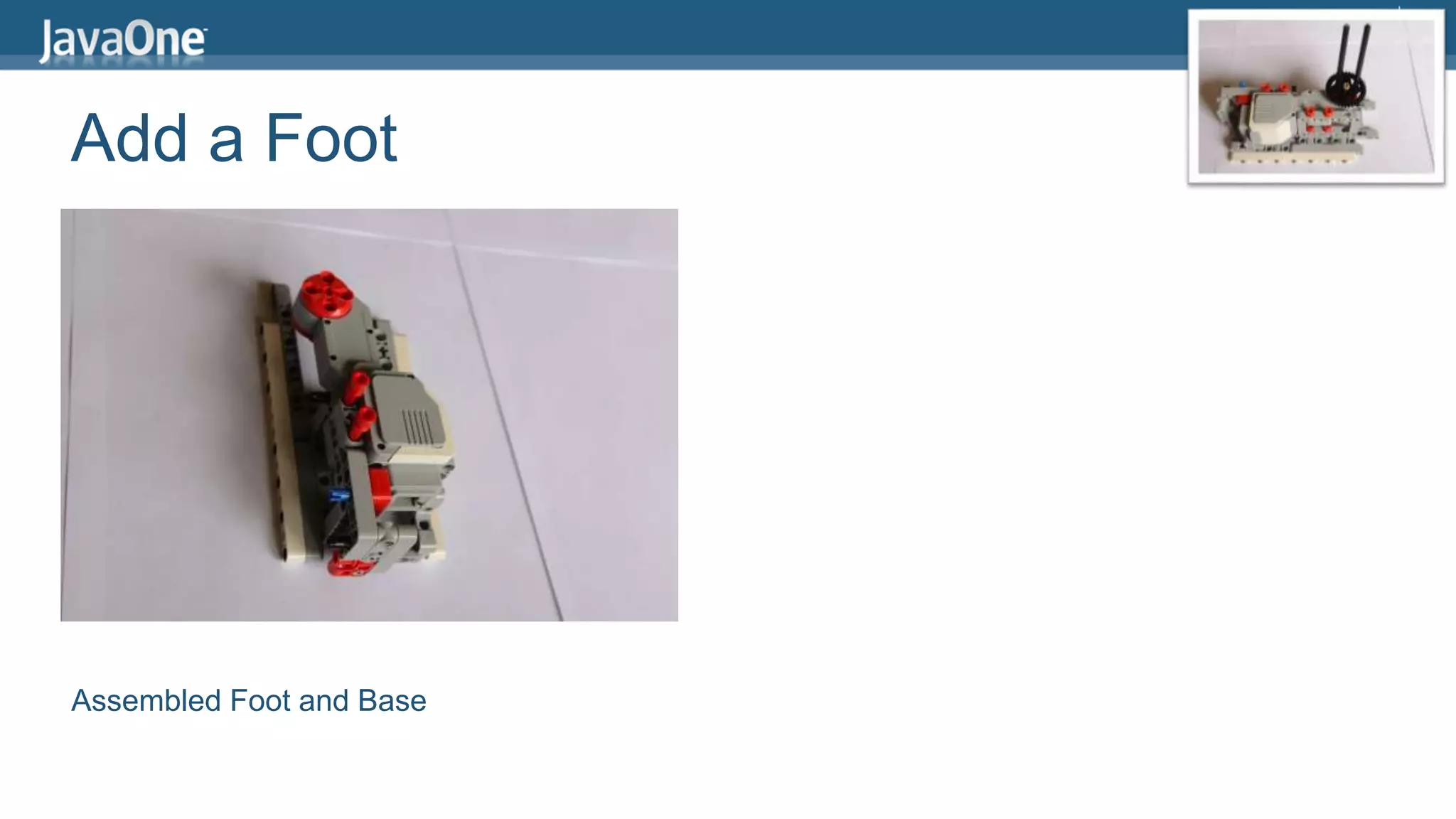
Add a Foot 
Assembled Foot and Base
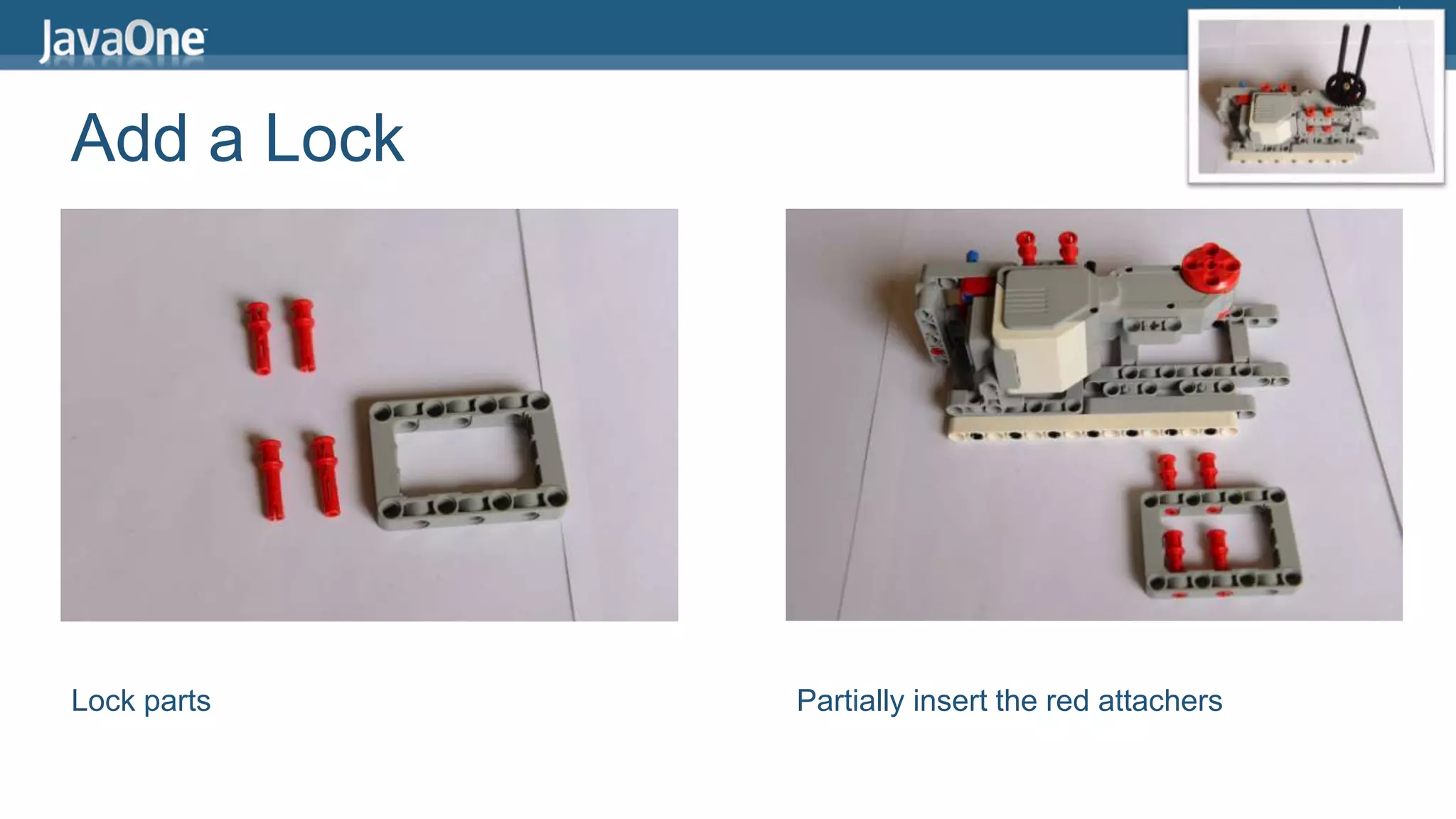
Add a Lock 
Lock parts Partially insert the red attachers
Add a Lock 
Attach the lock Push down the red attachers to secure
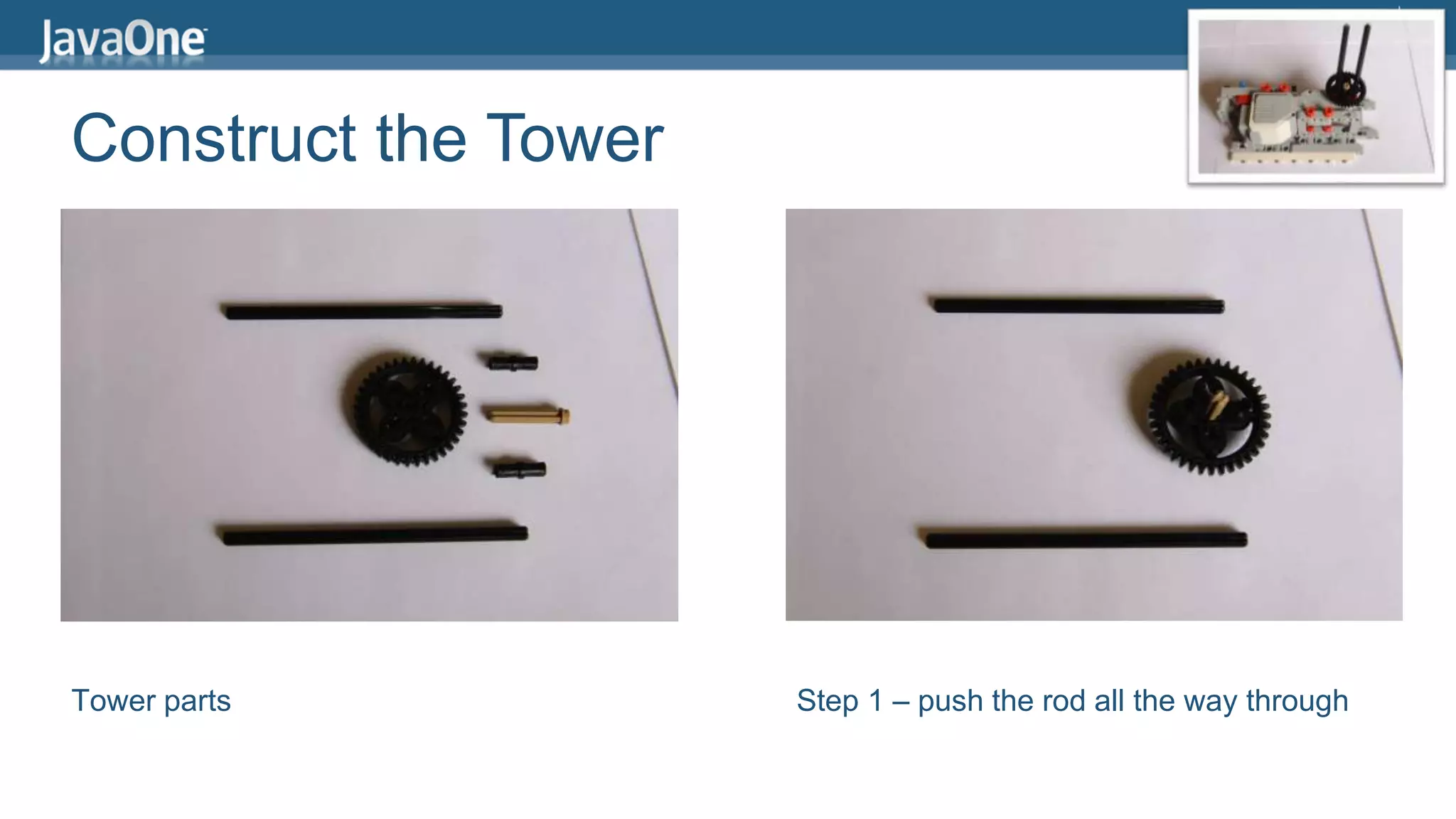
Construct the Tower 
Tower parts Step 1 – push the rod all the way through
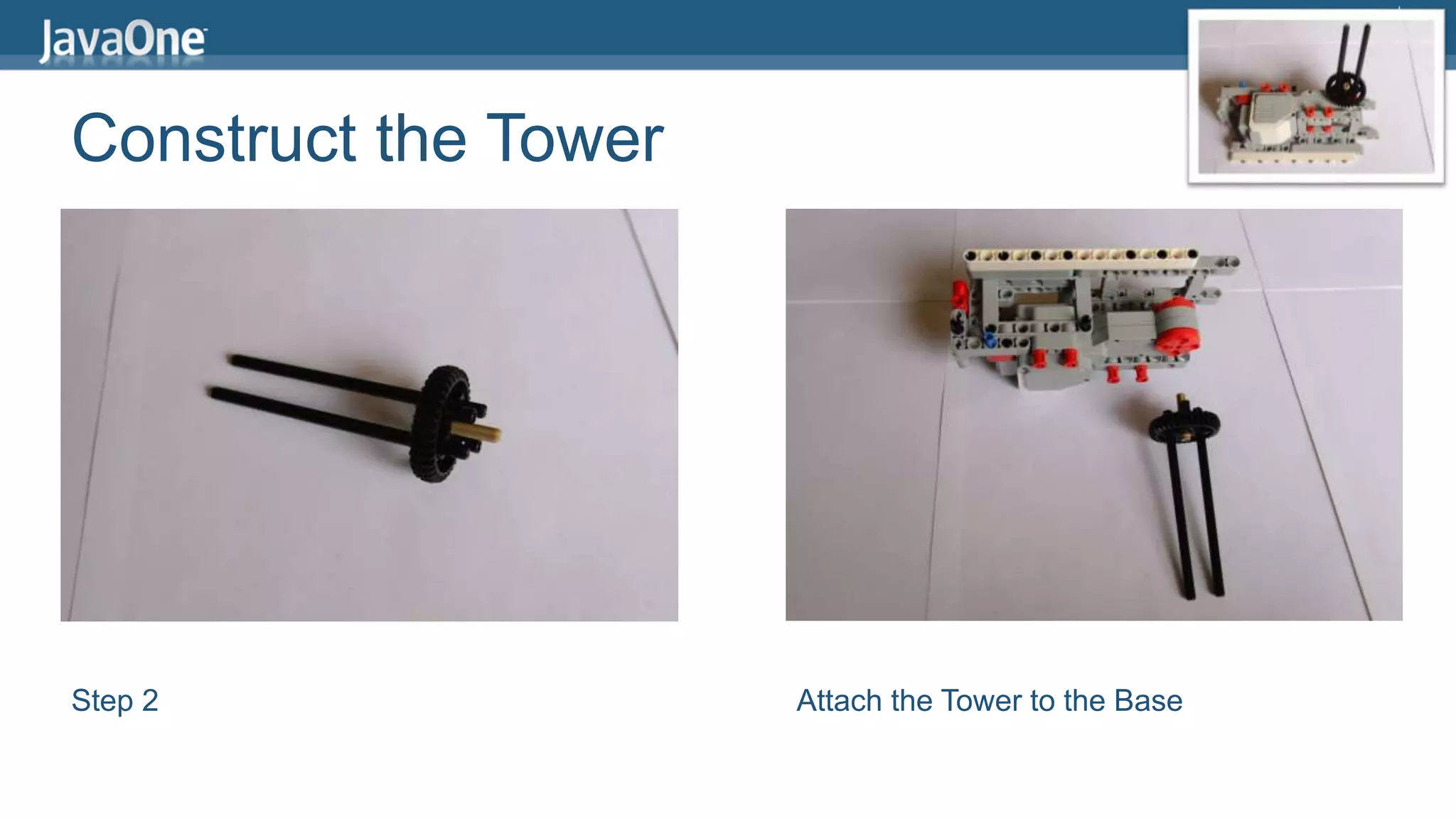
Construct the Tower 
Step 2 Attach the Tower to the Base
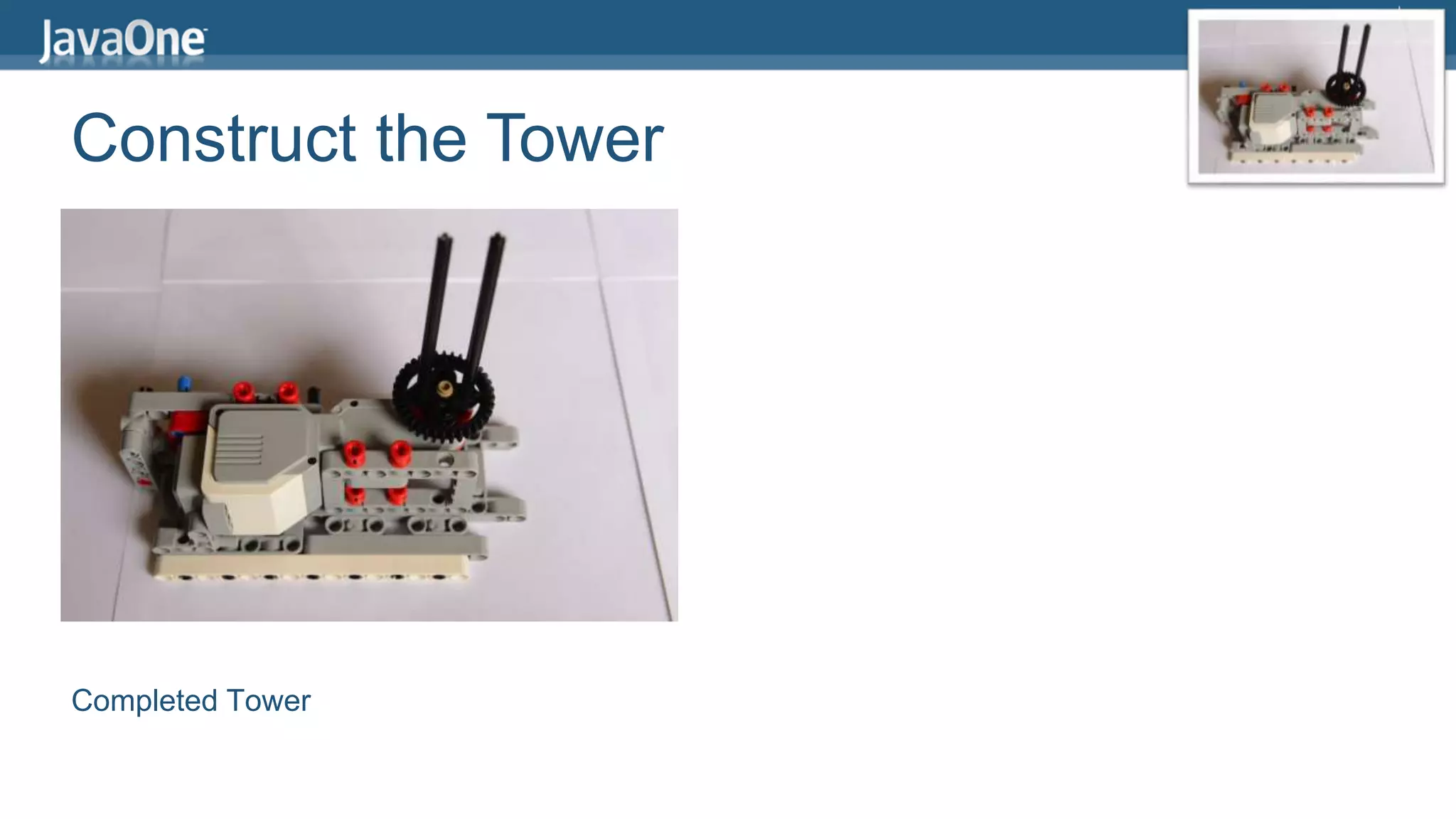
Construct the Tower 
Completed Tower
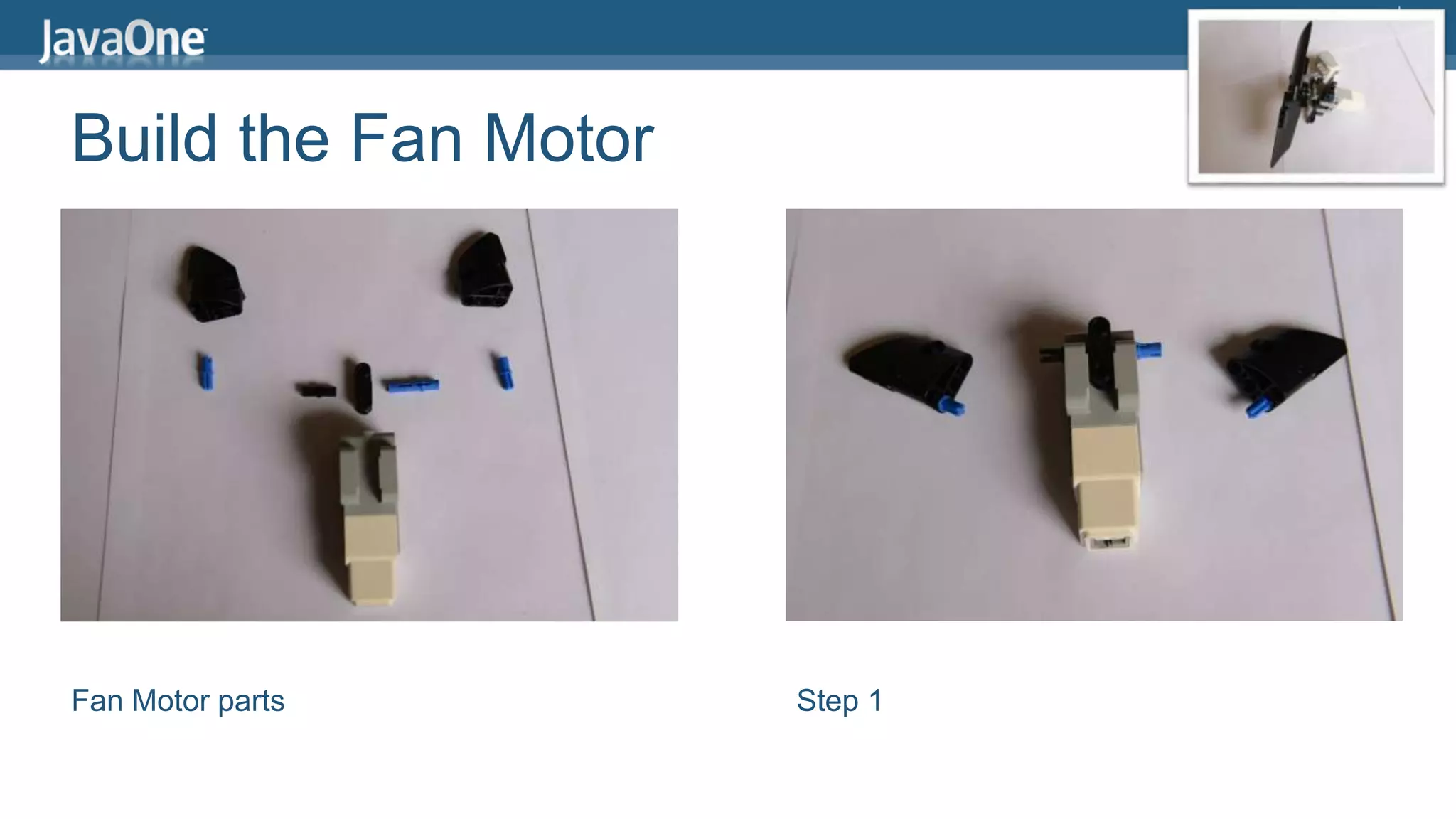
Build the Fan Motor 
Fan Motor parts Step 1
Build the Fan Motor 
Completed Fan Motor
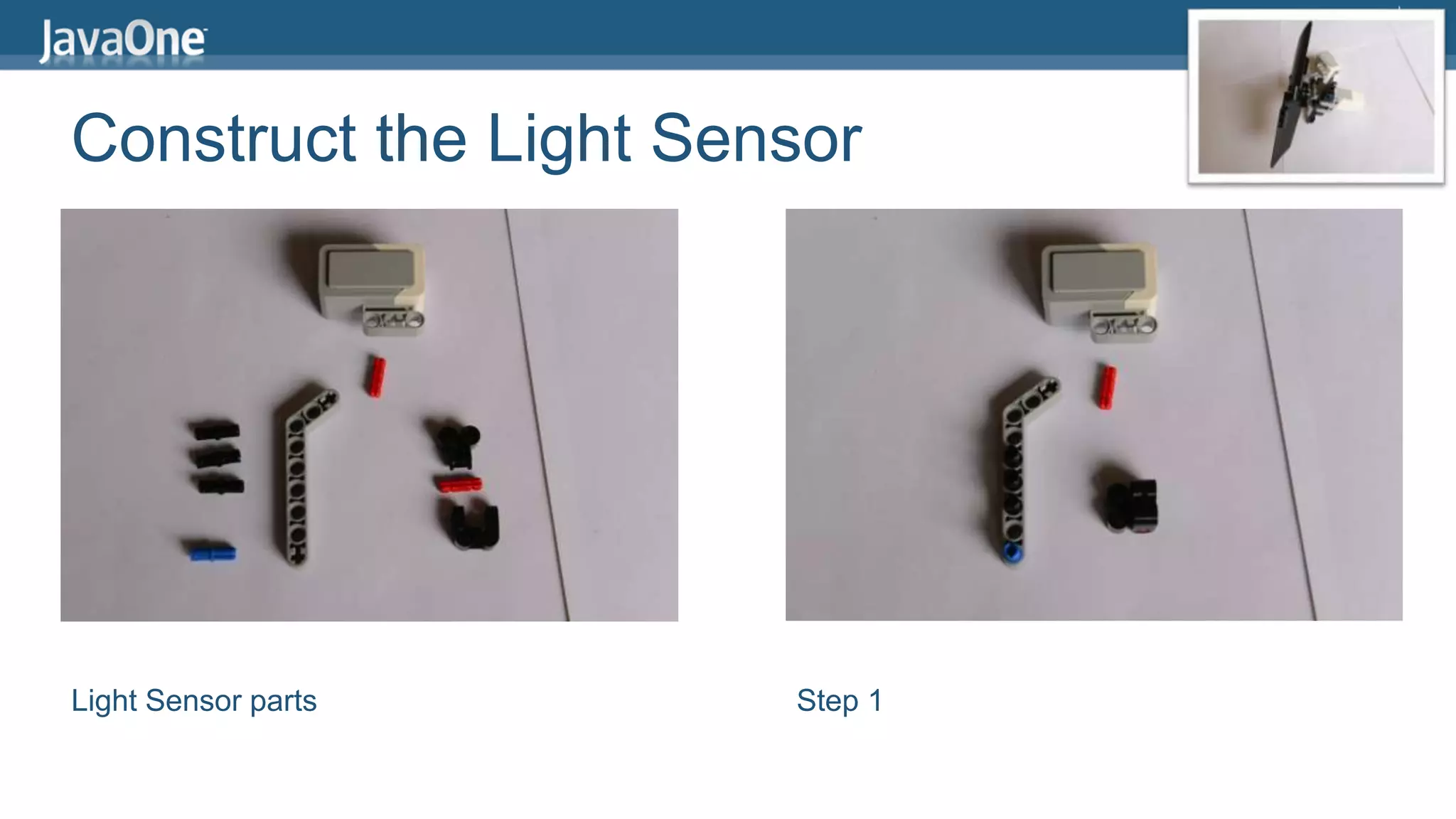
Construct the Light Sensor 
Light Sensor parts Step 1
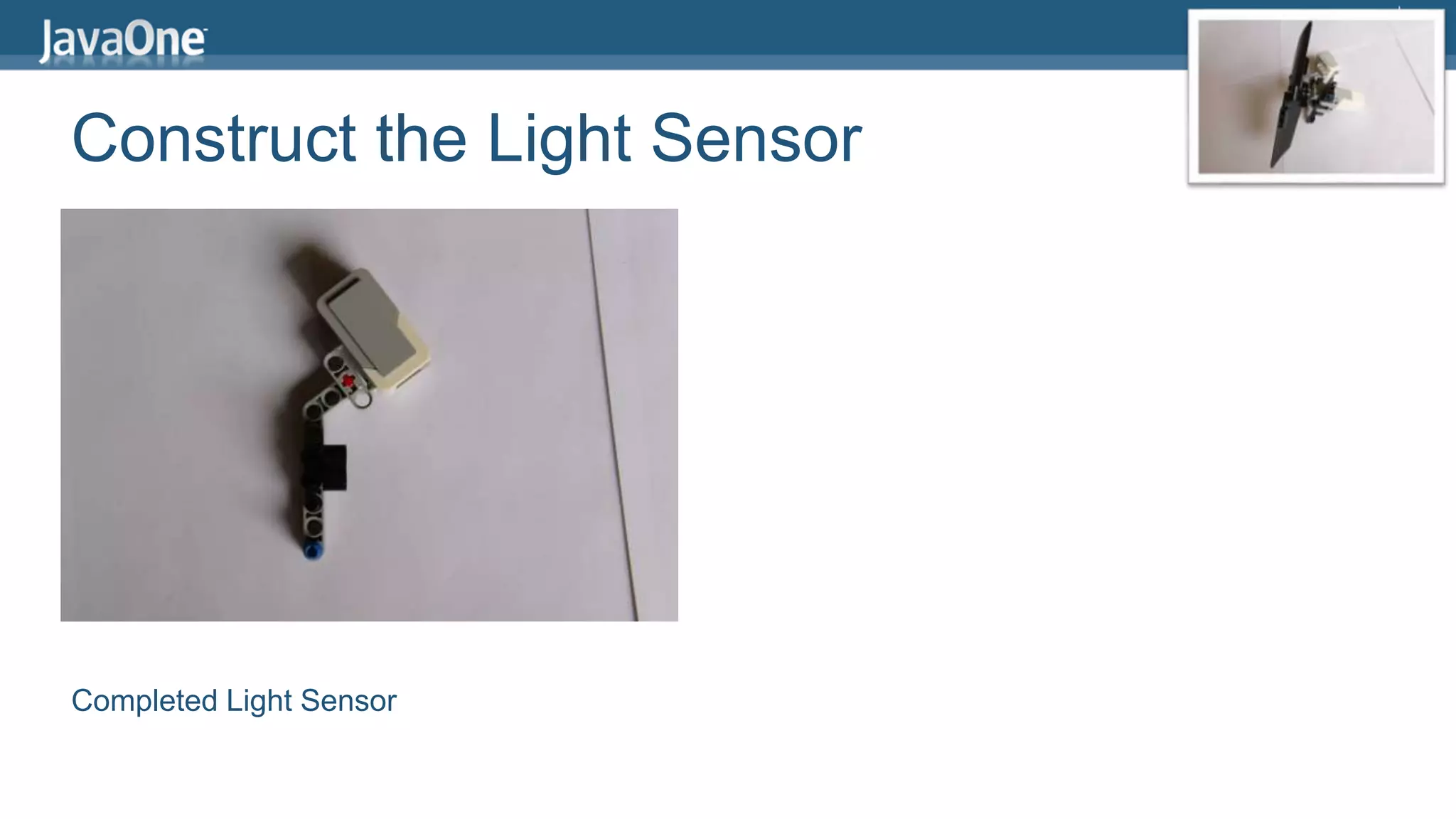
Construct the Light Sensor 
Completed Light Sensor
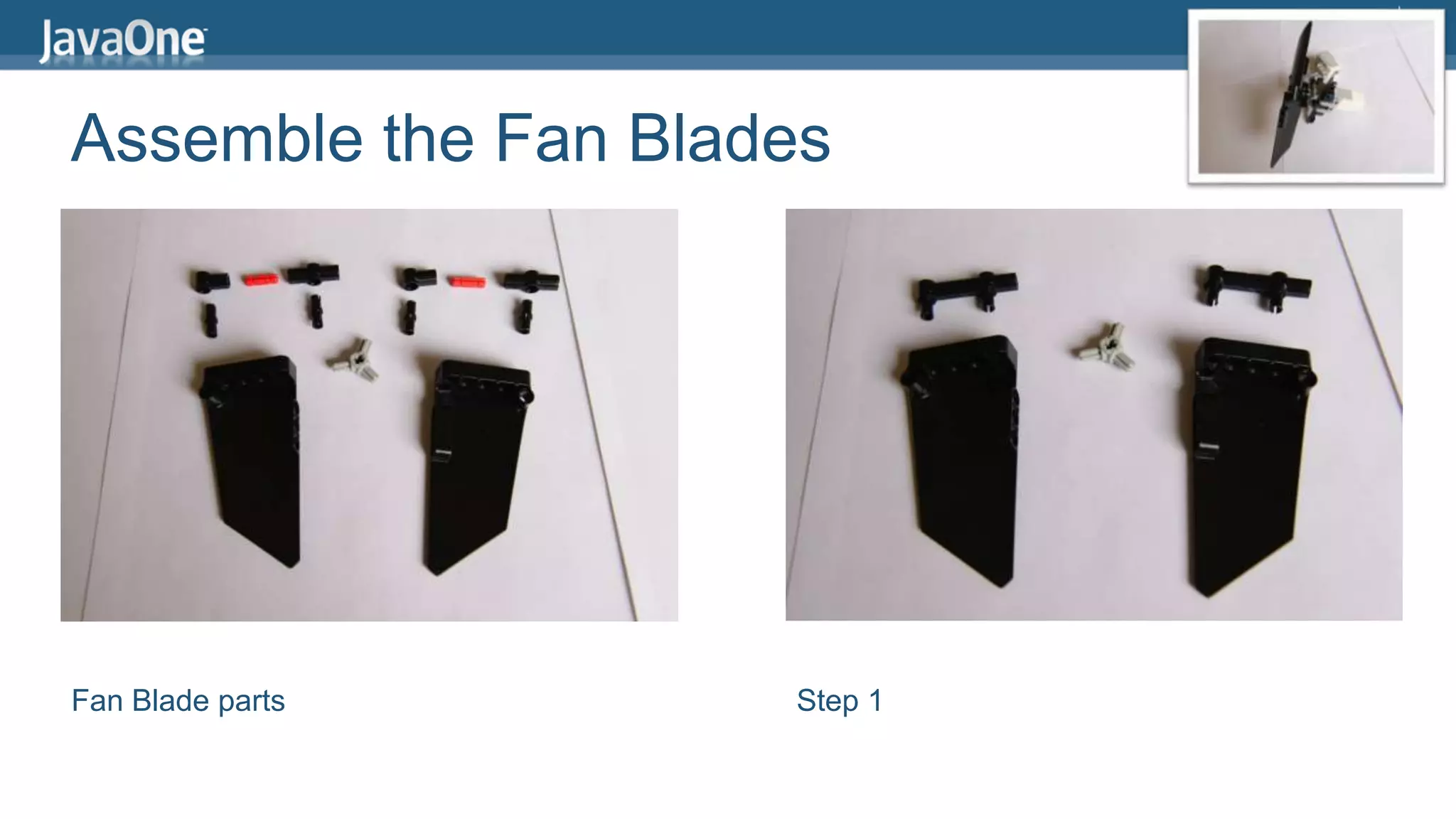
Assemble the Fan Blades 
Fan Blade parts Step 1
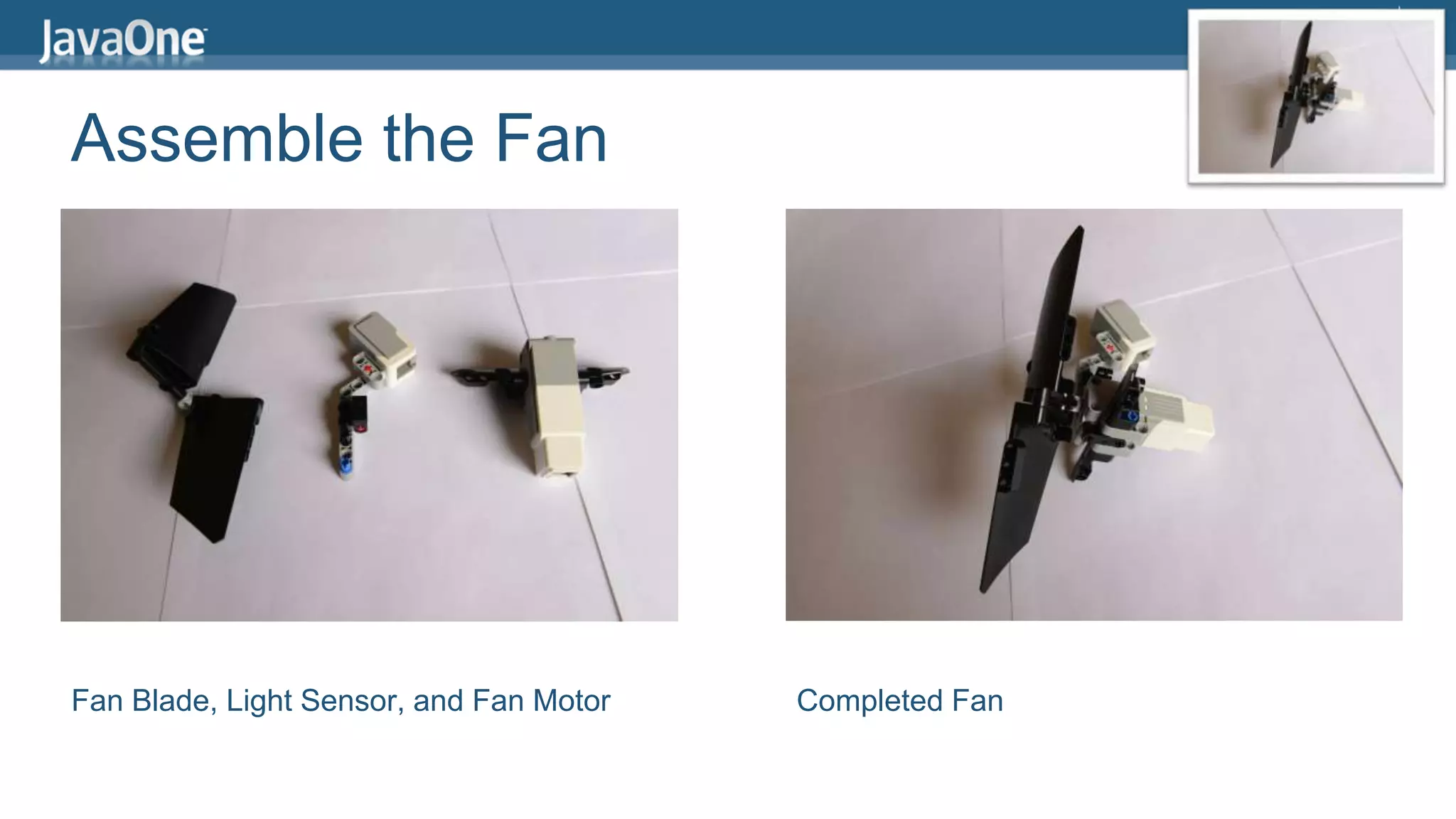
Assemble the Fan 
Fan Blade, Light Sensor, and Fan Motor Completed Fan
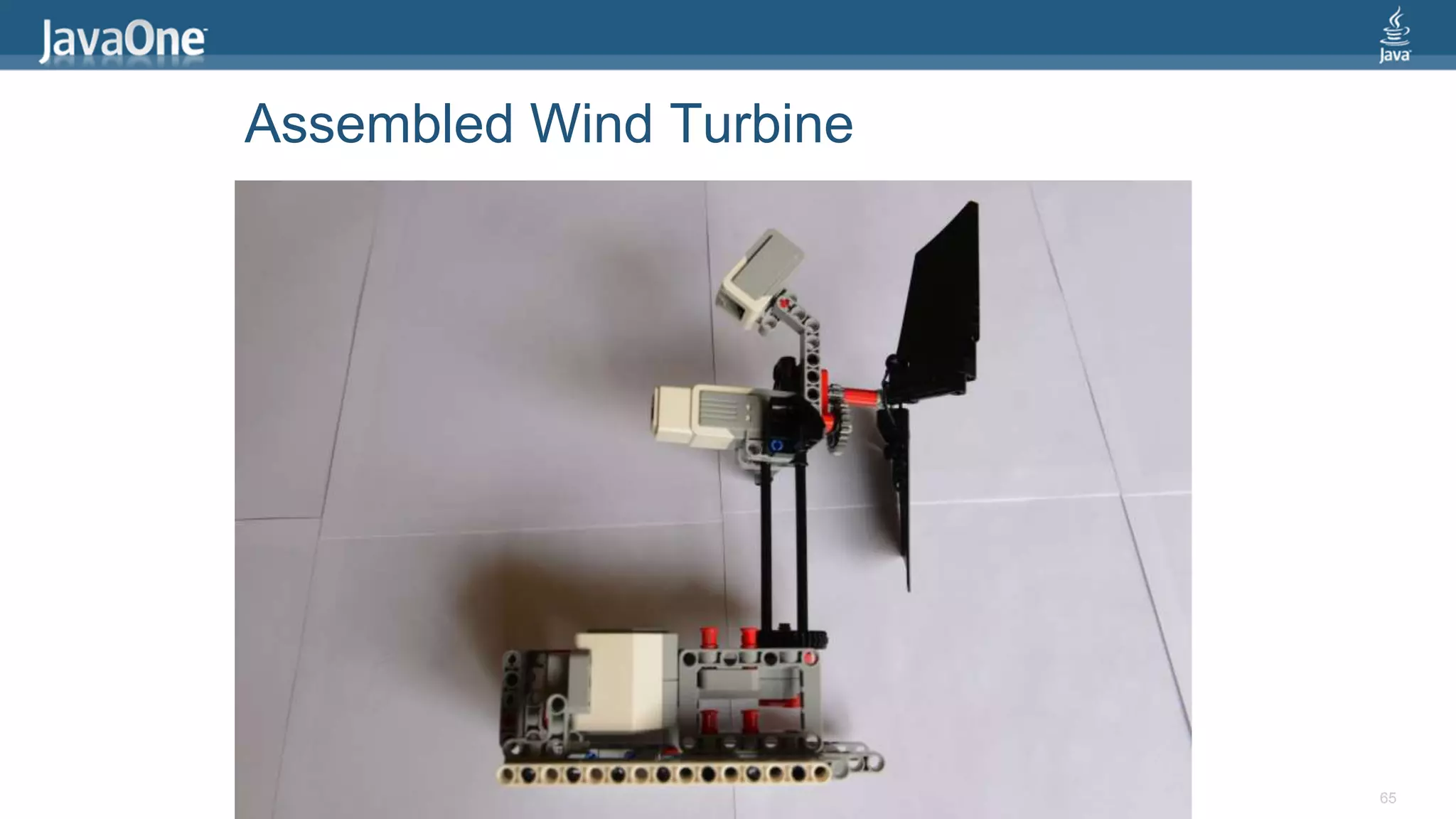
Assembled Wind Turbine 
65
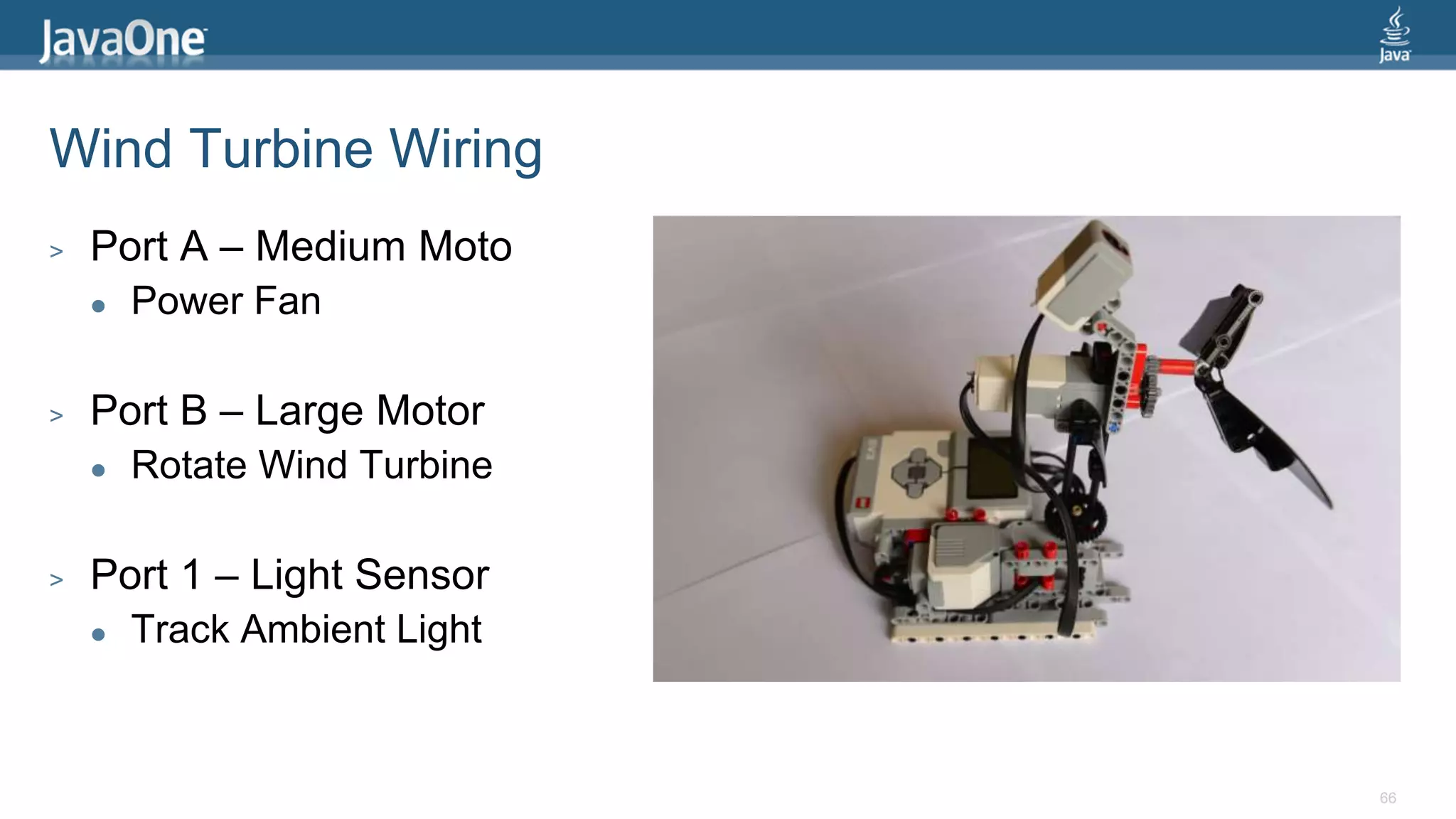
Wind Turbine Wiring 
> Port A – Medium Moto 
 Power Fan 
> Port B – Large Motor 
 Rotate Wind Turbine 
> Port 1 – Light Sensor 
 Track Ambient Light 
66
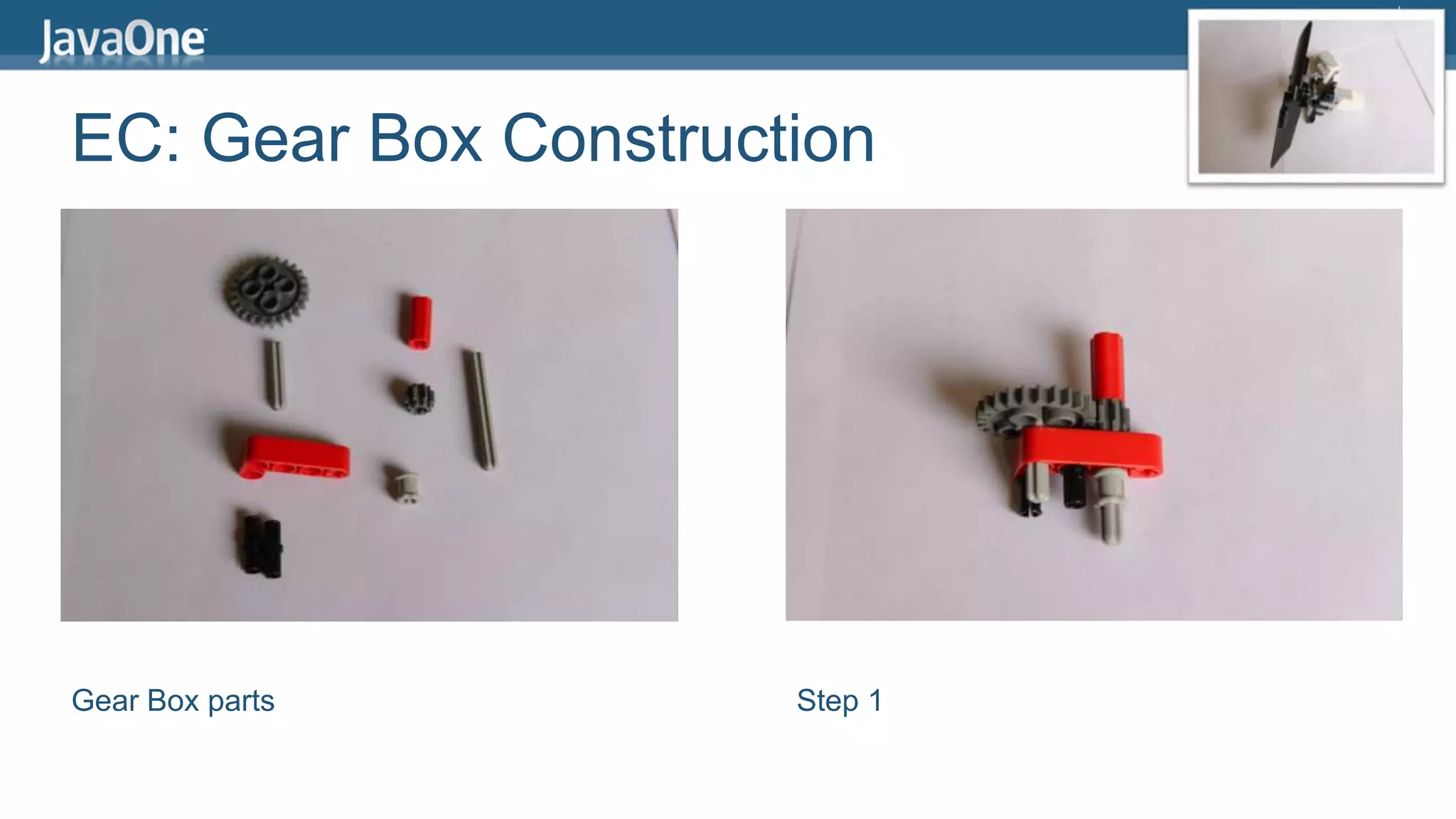
EC: Gear Box Construction 
Gear Box parts Step 1
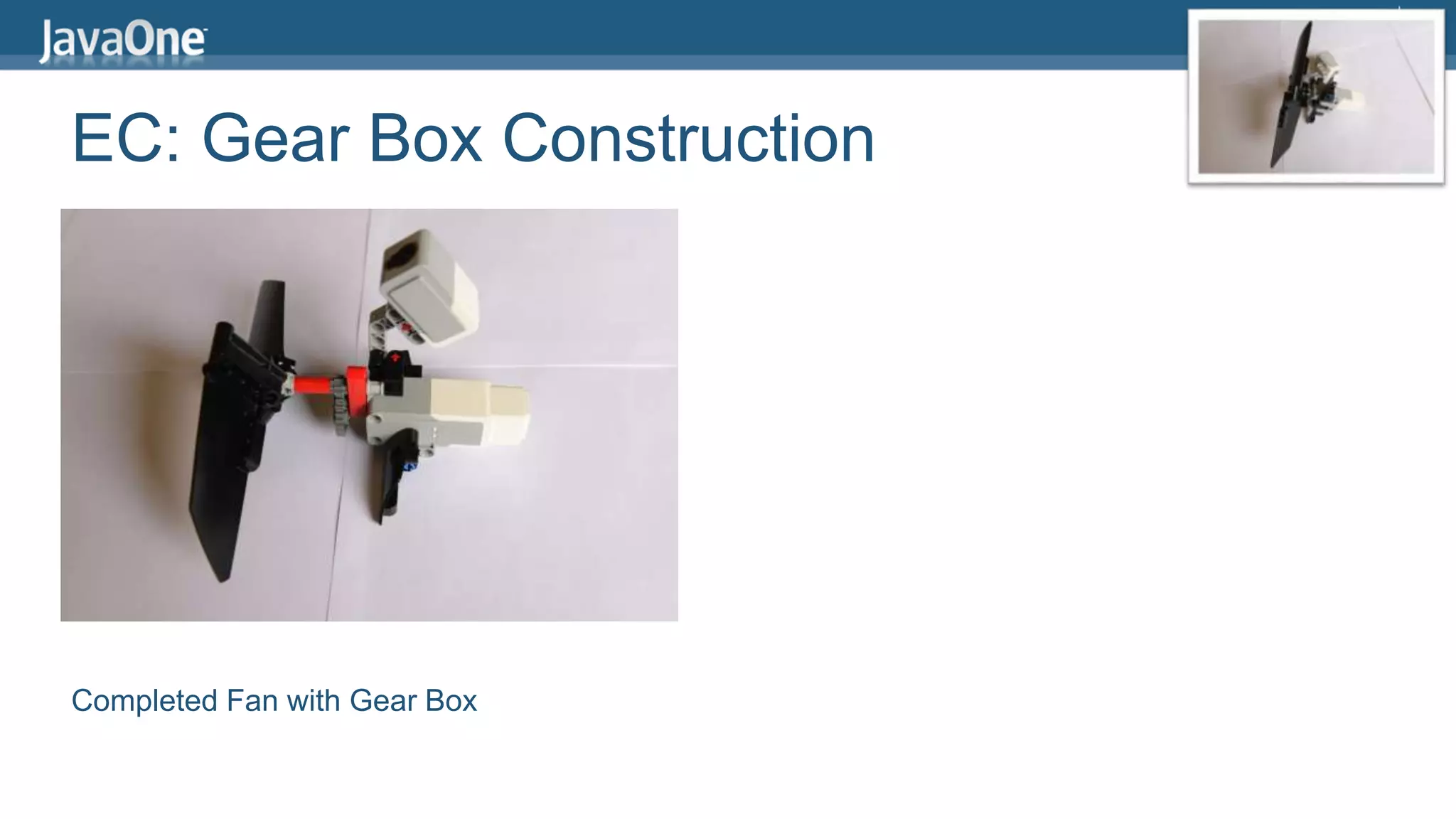
EC: Gear Box Construction 
Completed Fan with Gear Box
Making the Wind turbine turn 
public class WindTurbine { 
public static void main(String[] args) { 
EV3MediumRegulatedMotor fan = 
new EV3MediumRegulatedMotor(MotorPort.A); 
fan.setSpeed(1500); 
fan.setAcceleration(150); 
fan.backward(); 
Delay.msDelay(10000); 
} 
}
Making the Tower spin 
public class WindTurbine { 
public static void main(String[] args) { 
EV3LargeRegulatedMotor base = 
new EV3LargeRegulatedMotor(MotorPort.B); 
base.setSpeed(80); 
base.rotateTo(-90); 
base.rotateTo(90); 
} 
}
Checking the Ambient Light 
public class WindTurbine { 
public static void main(String[] args) { 
EV3ColorSensor light = 
new EV3ColorSensor(SensorPort.S1); 
float[] sample = new float[1]; 
SensorMode mode = light.getAmbientMode(); 
mode.fetchSample(sample, 0); 
LCD.drawString("Light = " + sample[0], 0, 4); 
Delay.msDelay(5000); 
} 
}
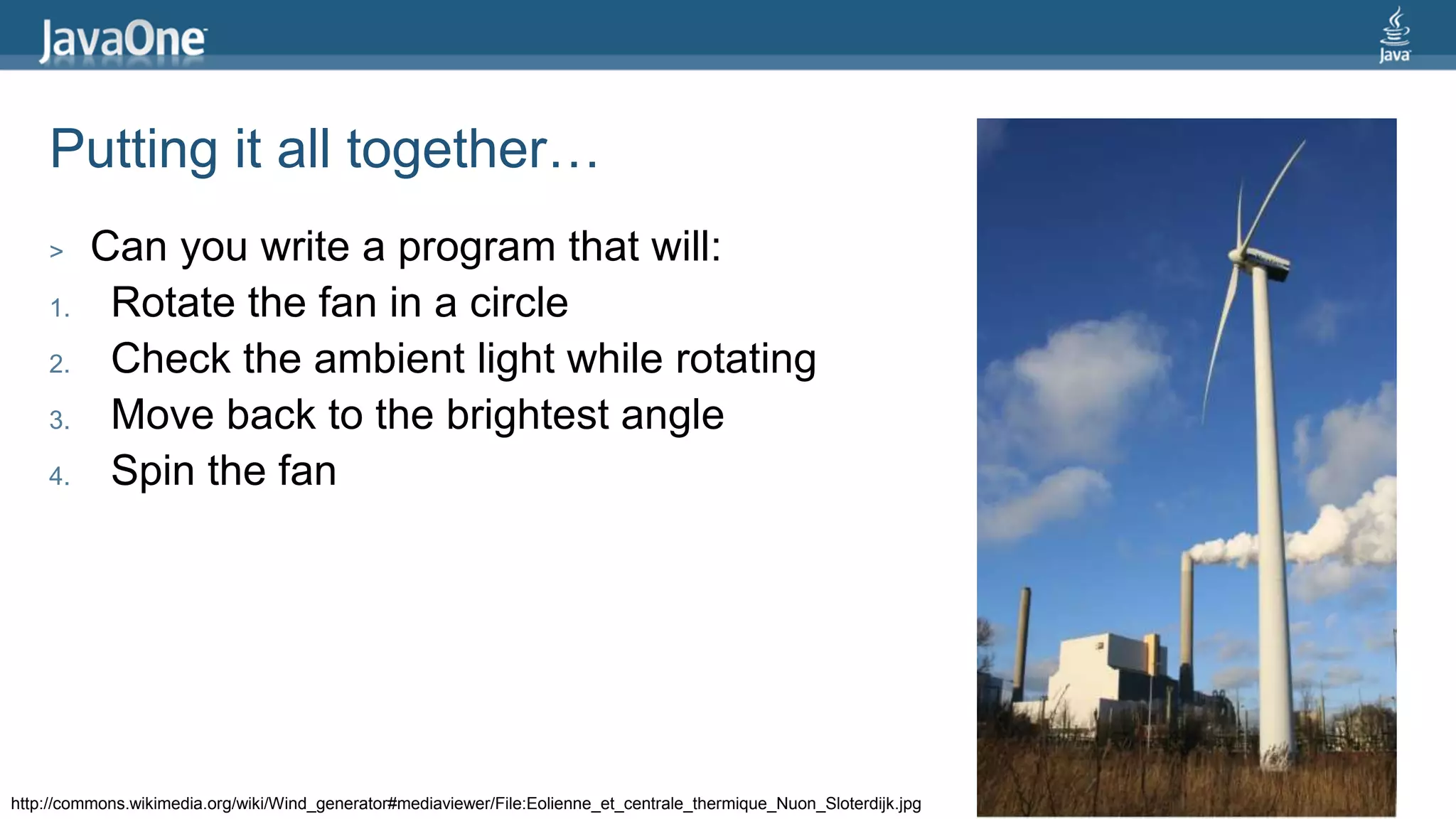
Putting it all together… 
> Can you write a program that will: 
1. Rotate the fan in a circle 
2. Check the ambient light while rotating 
3. Move back to the brightest angle 
4. Spin the fan 
http://commons.wikimedia.org/wiki/Wind_generator#mediaviewer/File:Eolienne_et_centrale_thermique_Nuon_Sloterdijk.jpg
Stephen Chin 
tweet: @steveonjava 
blog: http://steveonjava.com 
NightHacking Tour 
Real Geeks 
Live Hacking 
nighthacking.com
Safe Harbor Statement 
The preceding is intended to outline our general product 
direction. It is intended for information purposes only, and 
may not be incorporated into any contract. It is not a 
commitment to deliver any material, code, or functionality, 
and should not be relied upon in making purchasing 
decisions. The development, release, and timing of any 
features or functionality described for Oracle’s products 
remains at the sole discretion of Oracle.

JCrete Embedded Java Workshop

  • 1.
    JCrete Embedded Java Hacking Stephen Chin Java Technology Ambassador JavaOne Content Chair @steveonjava
  • 2.
  • 3.
  • 4.
    Java and 3Gin a Tiny Package > Cinterion EHS5
  • 5.
  • 6.
  • 7.
    = Have JavaWith Your Dessert Raspberry Pi
  • 8.
  • 9.
    Chalkboard Electronics Touchscreen  10" or 7" Form Factor  Connects via HDMI/USB  Tested with JavaFX 8  10% Exclusive Discount: G1F0U796Z083
  • 10.
    How to SetupYour Pi > Step 1: Install Linux > Step 2: Download/Copy Java 8 for ARM > Step 3: Deploy and Run JVM Language Apps http://steveonjava.com/ javafx-on-raspberry-pi-3-easy-steps/
  • 11.
    Electronic Safety! >Unplug from wall before wiring > Get rid of static by touching a metal surface > Don't touch exposed wires/metal > Never remove/insert SD Card while power is on 11
  • 12.
    What Comes inYour Lab Kit 1. Touch Screen 2. SD Card 3. Keyboard 4. Yellow Box:  Power Adapter  LVDS Cable/Board  Raspberry Pi Model B  Mini-USB Cable (power) Please Save All the Packaging for Later
  • 13.
    Hooking Up thePi (Part A) 1. Insert the SD Card in to the Pi  Will appear upside down when looking at the top of your Pi 2. Insert the HDMI board into the Pi's HDMI jack 3. Connect the Pi power to the HDMI board  Use the Micro USB Cable (short one) 13 Important: Connect everything before plugging into the wall
  • 14.
    Hooking Up thePi (Part B) 4. Slide the LCD cable into the back of the display  Side with gold connectors goes up  Be careful, the connector is fragile! 5. Hook up the USB keyboard 6. Connect the USB end to one of the Pi's USB host ports  This provides touch input 14 Verify connections and plug into power now
  • 15.
    Is it Working? > Should get a bunch of flashing LEDs to indicate booting  Boot takes approx 30 seconds > The LCD screen should light up  Might be dim if the light sensor is obstructed > And you will should see a Linux boot screen with lots of text
  • 16.
    Logging In Atthe login prompt type your username: > pi And enter the password: > raspberry
  • 17.
    Running the JavaFXSample Application Change directory to the project folder > cd MaryHadALittleLambda Run the build script > ant
  • 18.
  • 19.
    Hacking the Code Run the nano text editor: > nano src/sample/MapObject.java Save your changes: > Control-O Enter Exit Nano: > Control-X Compile/Run: > ant
  • 20.
    Mary Had aLittle Lambda Project > Open-source project to demonstrate lambda features > Visual representation of streams, filters, and maps 20 https://github.com/steveonjava/MaryHadALittleLambda
  • 21.
    Stuff to do… > Changes to MaryHadALittleLambda:  Change the number of sheep  Make the rainbow have different colors  Change the fox size to be fatter/skinnier  Add new graphics (additional image files under images/extra) 21 camel.png lion.png greendragon.png cow.png Brownbear.png
  • 22.
  • 23.
    Wiring LEDs >Wire the elements in series:  Connect the long end of the LED to GPIO  Connect the short end of the LED to the resistor  Connect the resistor to Ground To GPIO To Ground 23
  • 24.
    Using a Breadboard > Pins are connected horizontally in the center > The edges are connect vertically > No current passes the center line 24
  • 25.
    Pi Cobbler >Connects your Pi to the Breadboard > The white line is Pin 1 > Connect it in the center top of your Breadboard 25
  • 26.
    Pi4J > Thesamples are located in /opt/pi4j/examples > Compile the samples by typing "./build" > Instructions for running the samples are printed out at the end of the build > Pi4j needs root access to use GPIO (use "sudo") 26
  • 27.
    ControlGpioExample 27 >Demonstrates Controlling Pins:  pin.low()  pin.toggle()  pin.pulse(duration, blocking) > Try creating your own pattern! sudo java -classpath .:classes:/opt/pi4j/lib/'*' BlinkGpioExample
  • 28.
    Wiring Buttons >Connect a circuit across two legs > While the button is pressed…  The legs numbered 1 and 2 are connected  The legs numbered 3 and 4 are connected 28
  • 29.
    ListenGpioExample 29 >Demonstrates Listening to a pin:  addListener(pinListener) > Change the message/action when a button is pressed! sudo java -classpath .:classes:/opt/pi4j/lib/'*' ListenGpioExample
  • 30.
    BlinkGpioExample 30 >Use LEDs and Buttons together! sudo java -classpath .:classes:/opt/pi4j/lib/'*' BlinkGpioExample
  • 31.
    LeJOS How itworks on the EV3
  • 32.
    The Heart ofthe EV3 > TI Sitara AM1808  ARM9, 300Mhz > 64MB RAM / 16MB Flash > Analog to Digital Converter > 4 Motor Ports > 4 Sensor Ports > Bluetooth / USB > MicroSD
  • 33.
  • 34.
  • 35.
  • 36.
    High frequency soundwaves Ultrasonic Sensor Measuring mode Vs Presence Mode
  • 37.
  • 38.
  • 39.
    Getting Started withLeJOS Creating Your SD Card > Micro SD Card (> 2GB) > Compatible WIFI adapter  NetGear WNA1100  EDIMAX EW-7811Un > Linux (or a Linux VM) > Details here: http://sourceforge.net/p/lejos/wiki/Home/
  • 40.
    Bluetooth Pairing >Make sure your Lego is turned on > Open "Devices and Printers" from the Start menu > Click "Add a device" > Select the Lego brick > After pairing, right click on the new device and choose "Connect using" > "Access point"
  • 41.
    Eclipse Setup >Open Eclipse > Go to "Preferences" > Click on leJOS EV3 > Change the brick name to "10.0.1.1" 41
  • 42.
    Creating a NewLeJOS Project > Go to "File" > "New" > "Project…" > Choose a LeJOS EV3 Project 42
  • 43.
    Create a ClassFile > Create a new class ("File" > "New" > "Class") > Give it a package (e.g. sample) > Give it a name (e.g. LCDTest) 43
  • 44.
    Simple LeJOS Application import lejos.nxt.Button; import lejos.nxt.LCD; public class EV3FirstProgram { public static void main(String[] args) { LCD.clear(); LCD.drawString("First EV3 Program", 0, 5); Button.waitForAnyPress(); LCD.clear(); LCD.refresh(); } }
  • 45.
    Assemble Brace Partsyou will need Step 1
  • 46.
    Assemble Brace Step2 Completed Brace
  • 47.
    Build Base Partsyou will need Step 1
  • 48.
    Build Base Step2 Completed Base
  • 49.
    Assemble Motor Motorparts Snap them on partially
  • 50.
    Assemble Motor Takemotor and base And connect them like this
  • 51.
    Add a Foot Foot parts Step 1
  • 52.
    Add a Foot Step 2 Add the Foot to the Base
  • 53.
    Add a Foot Assembled Foot and Base
  • 54.
    Add a Lock Lock parts Partially insert the red attachers
  • 55.
    Add a Lock Attach the lock Push down the red attachers to secure
  • 56.
    Construct the Tower Tower parts Step 1 – push the rod all the way through
  • 57.
    Construct the Tower Step 2 Attach the Tower to the Base
  • 58.
    Construct the Tower Completed Tower
  • 59.
    Build the FanMotor Fan Motor parts Step 1
  • 60.
    Build the FanMotor Completed Fan Motor
  • 61.
    Construct the LightSensor Light Sensor parts Step 1
  • 62.
    Construct the LightSensor Completed Light Sensor
  • 63.
    Assemble the FanBlades Fan Blade parts Step 1
  • 64.
    Assemble the Fan Fan Blade, Light Sensor, and Fan Motor Completed Fan
  • 65.
  • 66.
    Wind Turbine Wiring > Port A – Medium Moto  Power Fan > Port B – Large Motor  Rotate Wind Turbine > Port 1 – Light Sensor  Track Ambient Light 66
  • 67.
    EC: Gear BoxConstruction Gear Box parts Step 1
  • 68.
    EC: Gear BoxConstruction Completed Fan with Gear Box
  • 69.
    Making the Windturbine turn public class WindTurbine { public static void main(String[] args) { EV3MediumRegulatedMotor fan = new EV3MediumRegulatedMotor(MotorPort.A); fan.setSpeed(1500); fan.setAcceleration(150); fan.backward(); Delay.msDelay(10000); } }
  • 70.
    Making the Towerspin public class WindTurbine { public static void main(String[] args) { EV3LargeRegulatedMotor base = new EV3LargeRegulatedMotor(MotorPort.B); base.setSpeed(80); base.rotateTo(-90); base.rotateTo(90); } }
  • 71.
    Checking the AmbientLight public class WindTurbine { public static void main(String[] args) { EV3ColorSensor light = new EV3ColorSensor(SensorPort.S1); float[] sample = new float[1]; SensorMode mode = light.getAmbientMode(); mode.fetchSample(sample, 0); LCD.drawString("Light = " + sample[0], 0, 4); Delay.msDelay(5000); } }
  • 72.
    Putting it alltogether… > Can you write a program that will: 1. Rotate the fan in a circle 2. Check the ambient light while rotating 3. Move back to the brightest angle 4. Spin the fan http://commons.wikimedia.org/wiki/Wind_generator#mediaviewer/File:Eolienne_et_centrale_thermique_Nuon_Sloterdijk.jpg
  • 73.
    Stephen Chin tweet:@steveonjava blog: http://steveonjava.com NightHacking Tour Real Geeks Live Hacking nighthacking.com
  • 74.
    Safe Harbor Statement The preceding is intended to outline our general product direction. It is intended for information purposes only, and may not be incorporated into any contract. It is not a commitment to deliver any material, code, or functionality, and should not be relied upon in making purchasing decisions. The development, release, and timing of any features or functionality described for Oracle’s products remains at the sole discretion of Oracle.