JavaScript Basics
Presented by : Manisha Chugh
Batch Code: B-14/PHP/04-01
Registration id: R13010624
What is JavaScript?
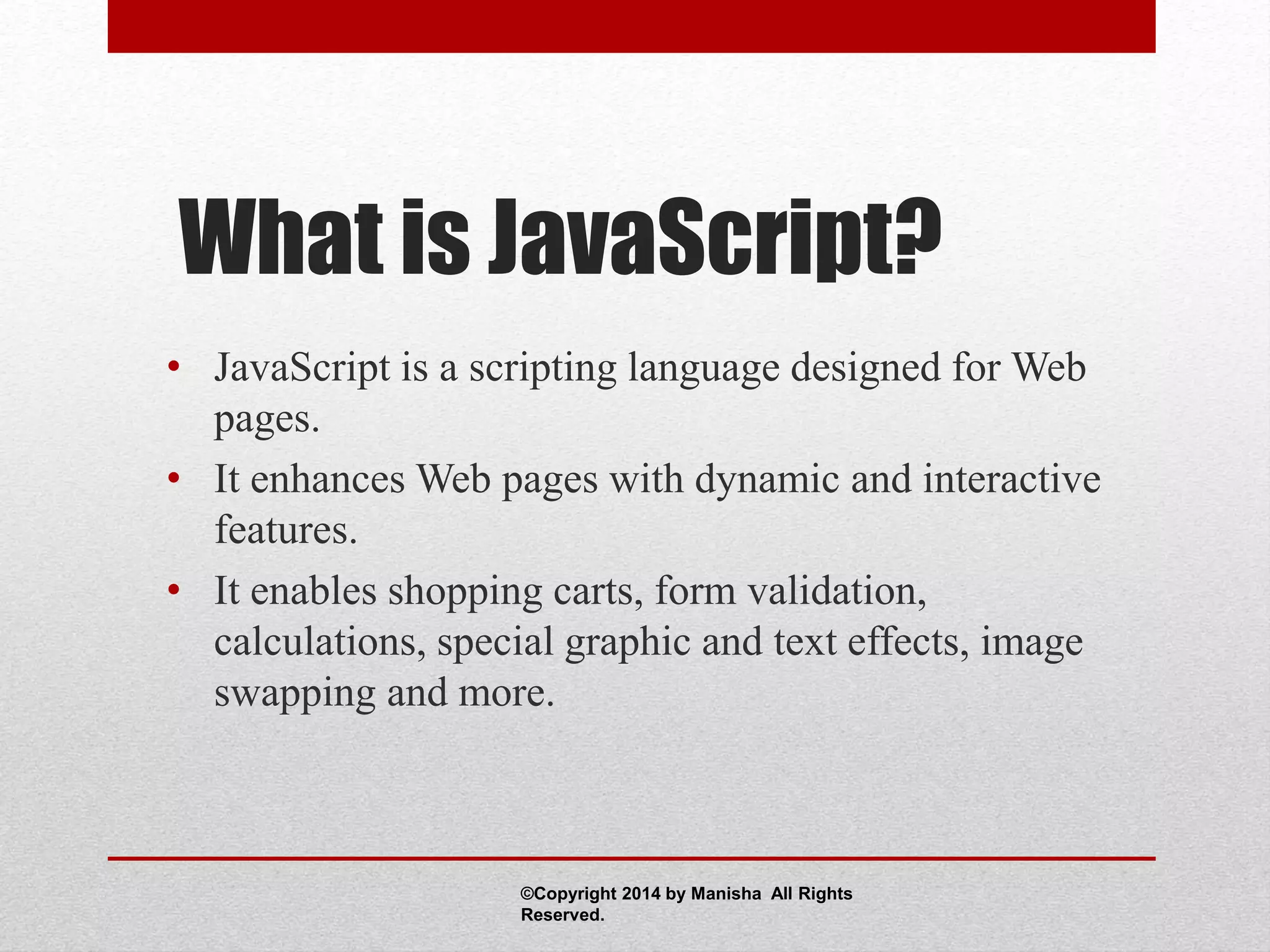
• JavaScript is a scripting language designed for Web
pages.
• It enhances Web pages with dynamic and interactive
features.
• It enables shopping carts, form validation,
calculations, special graphic and text effects, image
swapping and more.
©Copyright 2014 by Manisha All Rights
Reserved.
Methods of Using
JavaScript
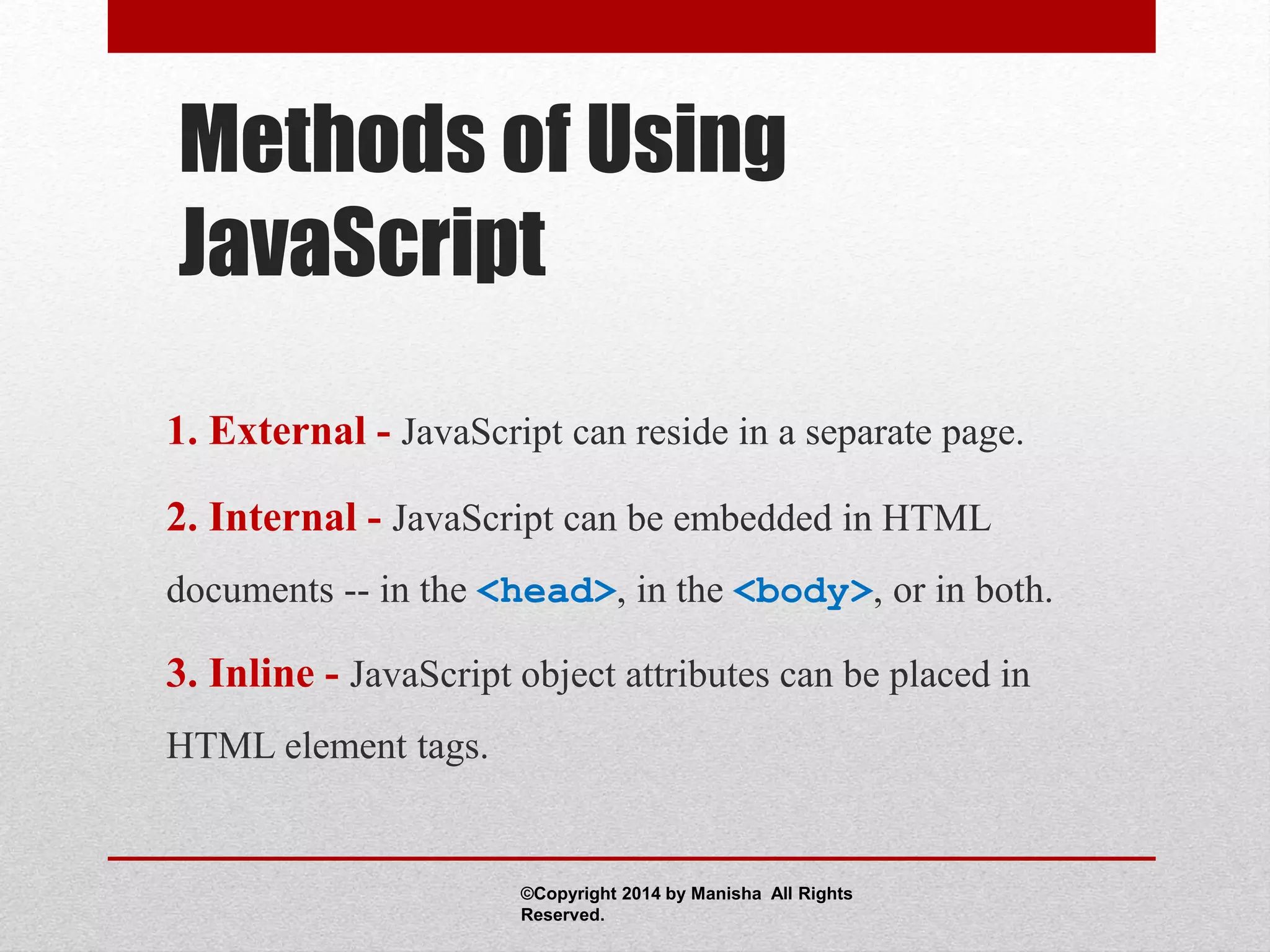
1. External - JavaScript can reside in a separate page.
2. Internal - JavaScript can be embedded in HTML
documents -- in the <head>, in the <body>, or in both.
3. Inline - JavaScript object attributes can be placed in
HTML element tags.
©Copyright 2014 by Manisha All Rights
Reserved.
External JavaScript
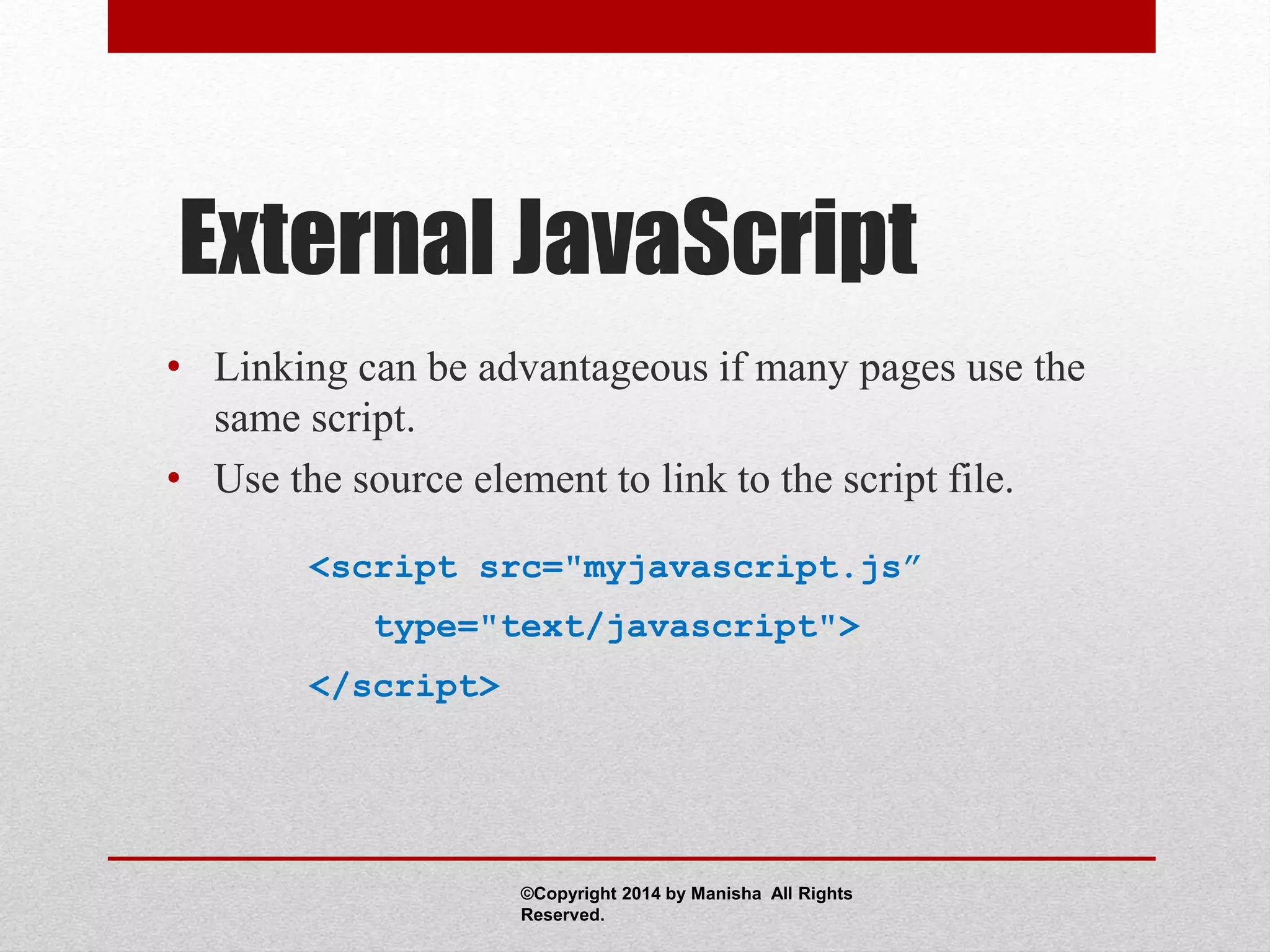
• Linking can be advantageous if many pages use the
same script.
• Use the source element to link to the script file.
<script src="myjavascript.js”
type="text/javascript">
</script>
©Copyright 2014 by Manisha All Rights
Reserved.
Internal JavaScript
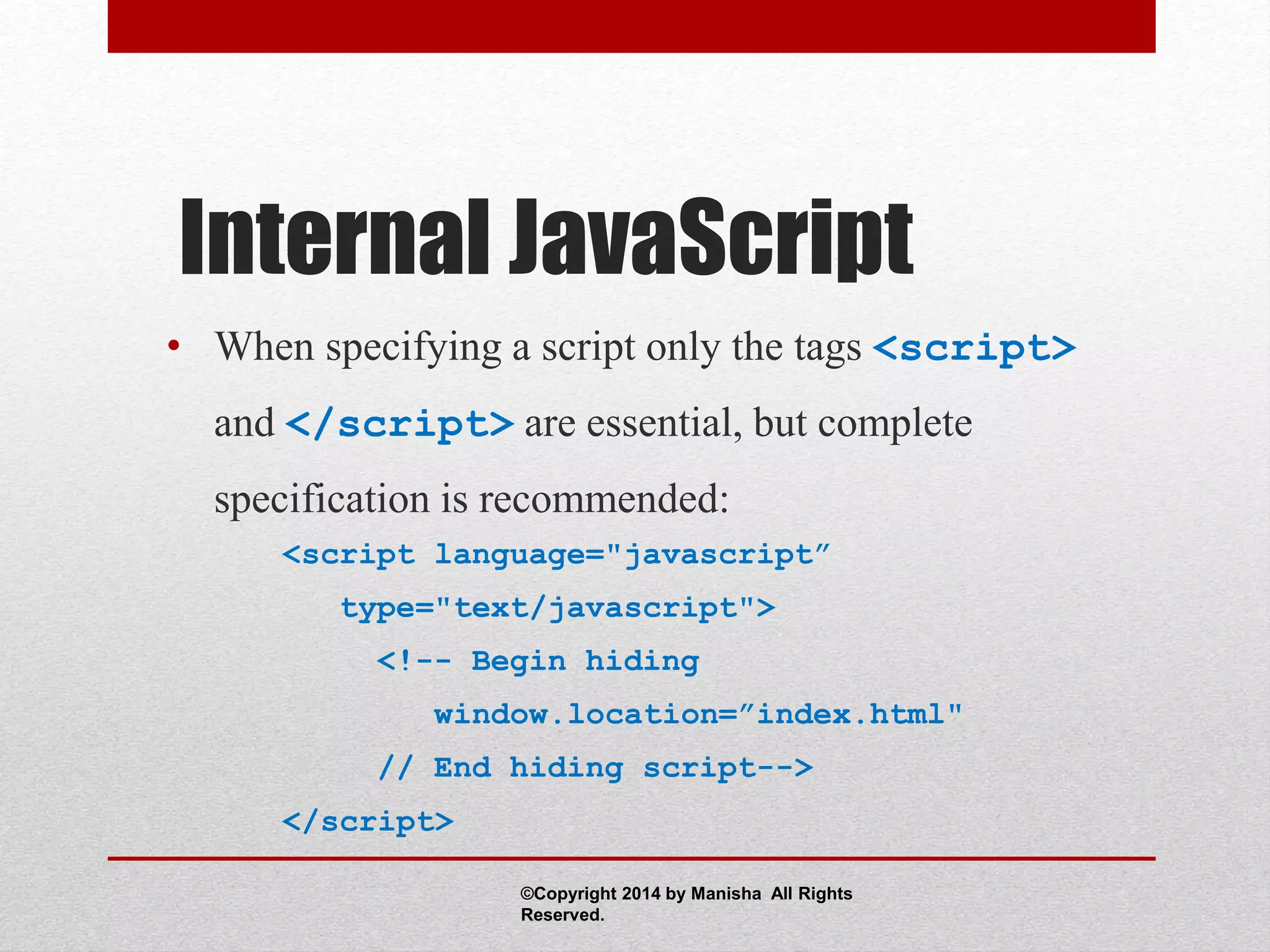
• When specifying a script only the tags <script>
and </script> are essential, but complete
specification is recommended:
<script language="javascript”
type="text/javascript">
<!-- Begin hiding
window.location=”index.html"
// End hiding script-->
</script>
©Copyright 2014 by Manisha All Rights
Reserved.
Using Comment Tags
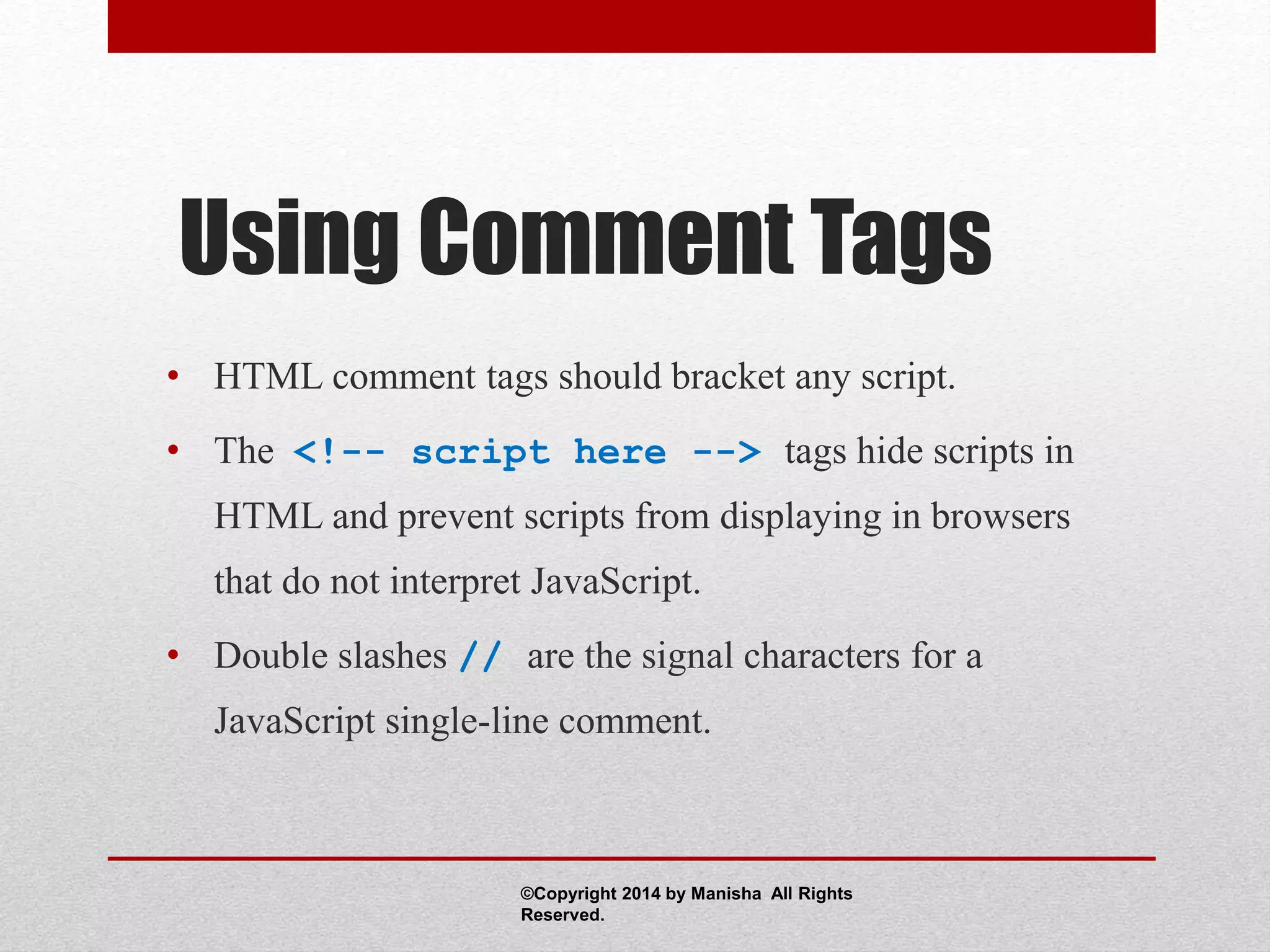
• HTML comment tags should bracket any script.
• The <!-- script here --> tags hide scripts in
HTML and prevent scripts from displaying in browsers
that do not interpret JavaScript.
• Double slashes // are the signal characters for a
JavaScript single-line comment.
©Copyright 2014 by Manisha All Rights
Reserved.
Inline JavaScript
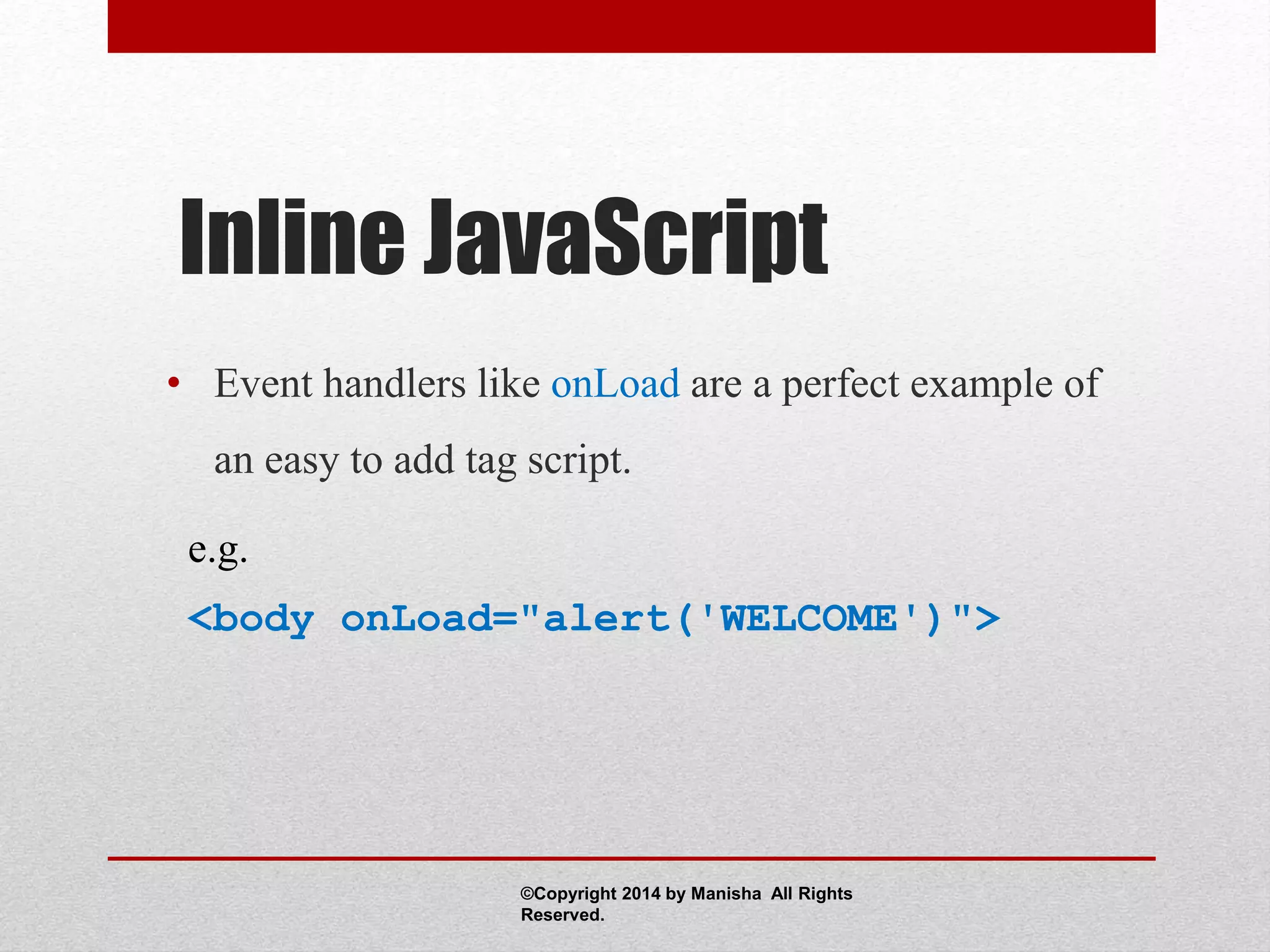
• Event handlers like onLoad are a perfect example of
an easy to add tag script.
e.g.
<body onLoad="alert('WELCOME')">
©Copyright 2014 by Manisha All Rights
Reserved.
JavaScript Terminology
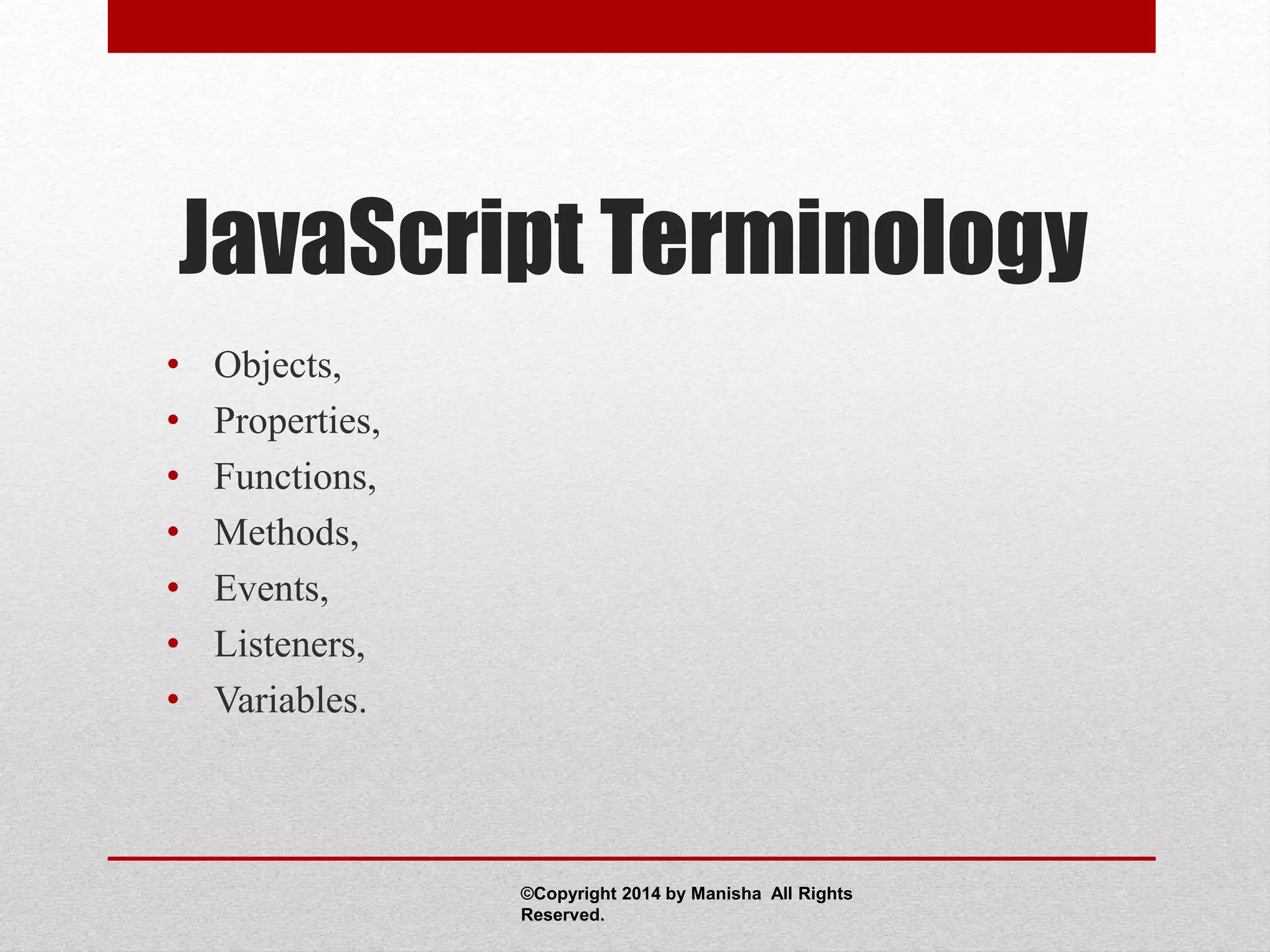
• Objects,
• Properties,
• Functions,
• Methods,
• Events,
• Listeners,
• Variables.
©Copyright 2014 by Manisha All Rights
Reserved.
Objects
• Objects refers to windows, documents, images,
tables, forms, buttons or links, etc.
• Objects should be named.
• Objects have properties that act as modifiers.
©Copyright 2014 by Manisha All Rights
Reserved.
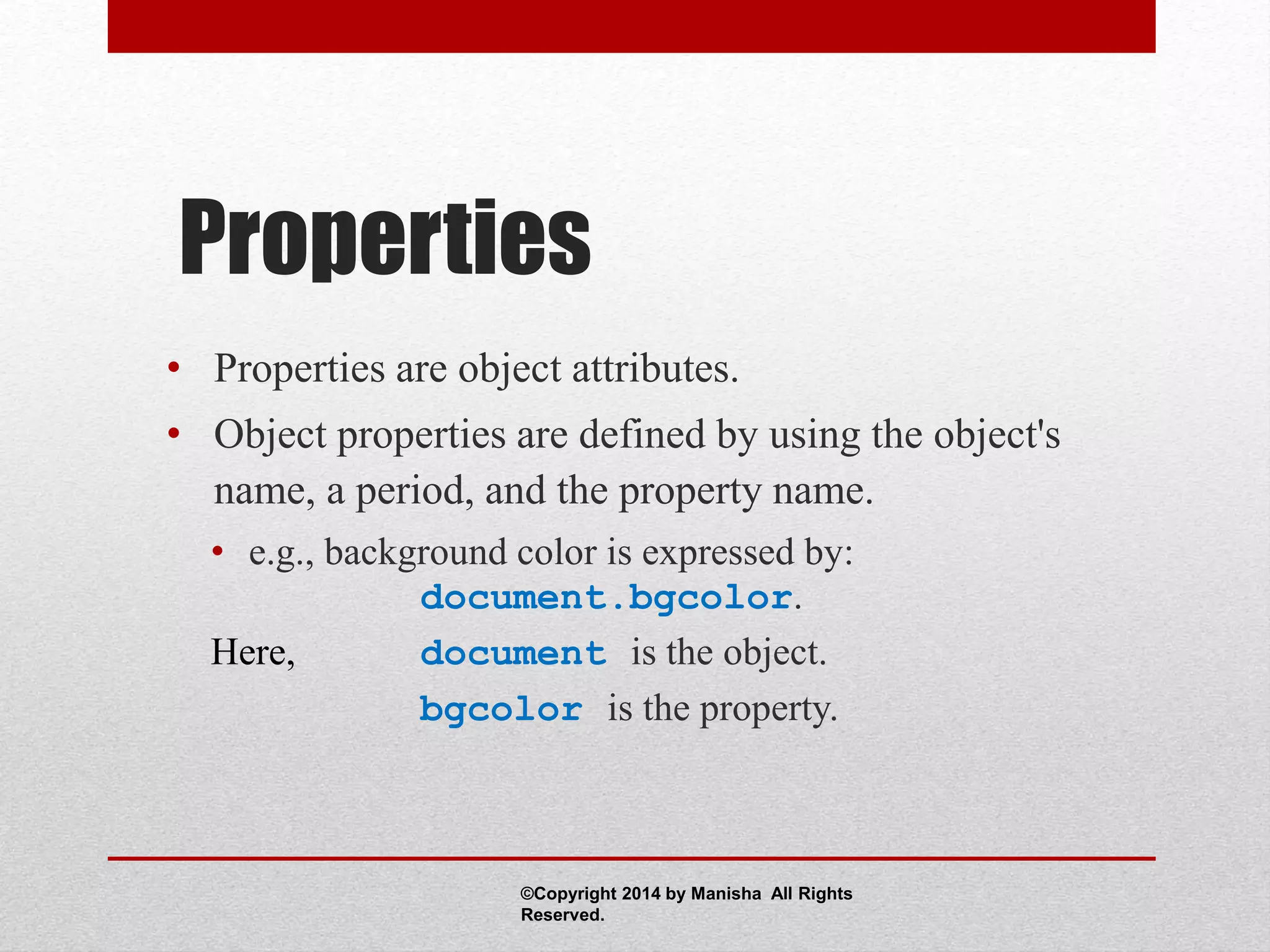
Properties
• Properties are object attributes.
• Object properties are defined by using the object's
name, a period, and the property name.
• e.g., background color is expressed by:
document.bgcolor.
Here, document is the object.
bgcolor is the property.
©Copyright 2014 by Manisha All Rights
Reserved.
Functions
• A group of statements that is put together once and
then can be used repeatedly on a Web page.
• JavaScript has built-in functions, and you can write
your own.
©Copyright 2014 by Manisha All Rights
Reserved.
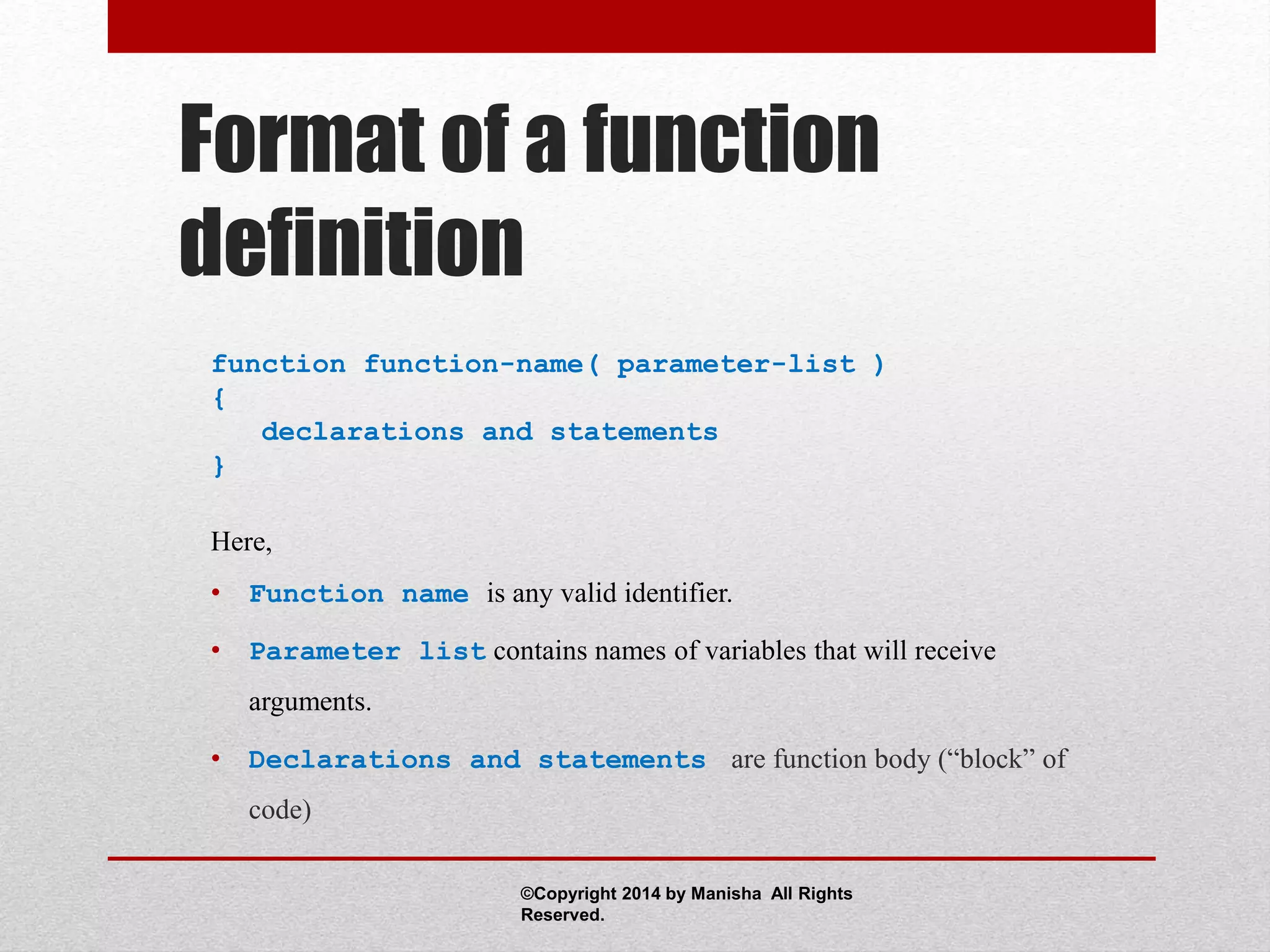
Format of a function
definition
function function-name( parameter-list )
{
declarations and statements
}
Here,
• Function name is any valid identifier.
• Parameter list contains names of variables that will receive
arguments.
• Declarations and statements are function body (“block” of
code)
©Copyright 2014 by Manisha All Rights
Reserved.
Methods
• Methods are functions.
• They are unusual in the sense that they are stored as
properties of objects.
• e.g., document.write(”Hello World")
Here, document is the object.
write is the method.
©Copyright 2014 by Manisha All Rights
Reserved.
Events
• Events are visitor’s and browser’s activities.
• There can be two types of events:
• User-Initiated Events
• Browser-Initiated Events
©Copyright 2014 by Manisha All Rights
Reserved.
Browser-Initiated Events
• load
• unload
• error
• abort
©Copyright 2014 by Manisha All Rights
Reserved.
User-Initiated Events
• click
• dblclick
• keydown
• keyup
• keypress
• mouseover
• mouseout
• mousedown
• mouseup
• mousemove
• change
• resize
• scroll
• select
• blur
• focus
• submit
©Copyright 2014 by Manisha All Rights
Reserved.
Listeners
• Listeners capture and actually respond to those
events. Thus, they are also known as Event
Handlers.
• The system sends events to the listener program and
the program responds to them as they arrive.
©Copyright 2014 by Manisha All Rights
Reserved.
Listeners (Cont.)
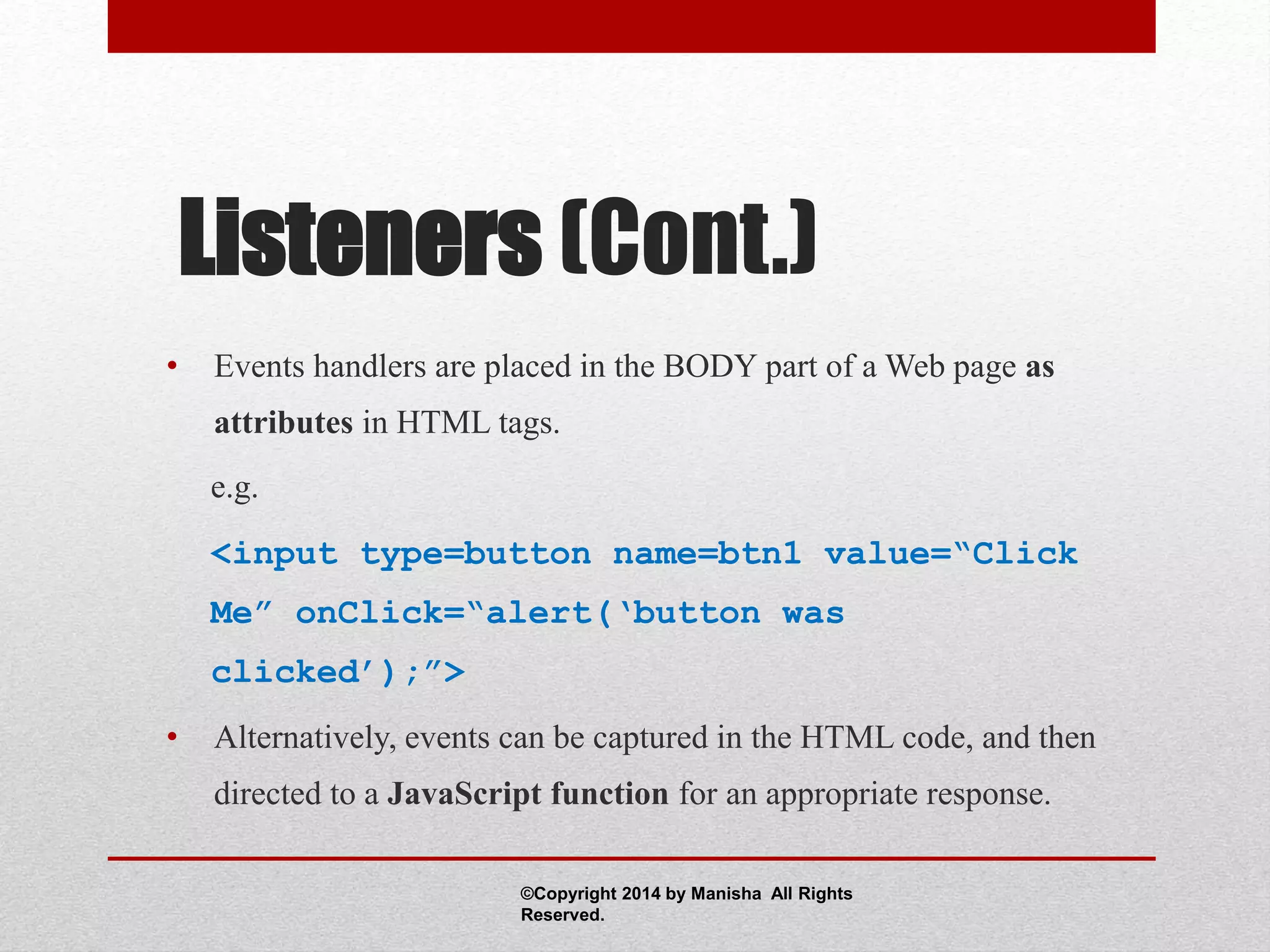
• Events handlers are placed in the BODY part of a Web page as
attributes in HTML tags.
e.g.
<input type=button name=btn1 value=“Click
Me” onClick=“alert(‘button was
clicked’);”>
• Alternatively, events can be captured in the HTML code, and then
directed to a JavaScript function for an appropriate response.
©Copyright 2014 by Manisha All Rights
Reserved.
Listeners (Cont.)
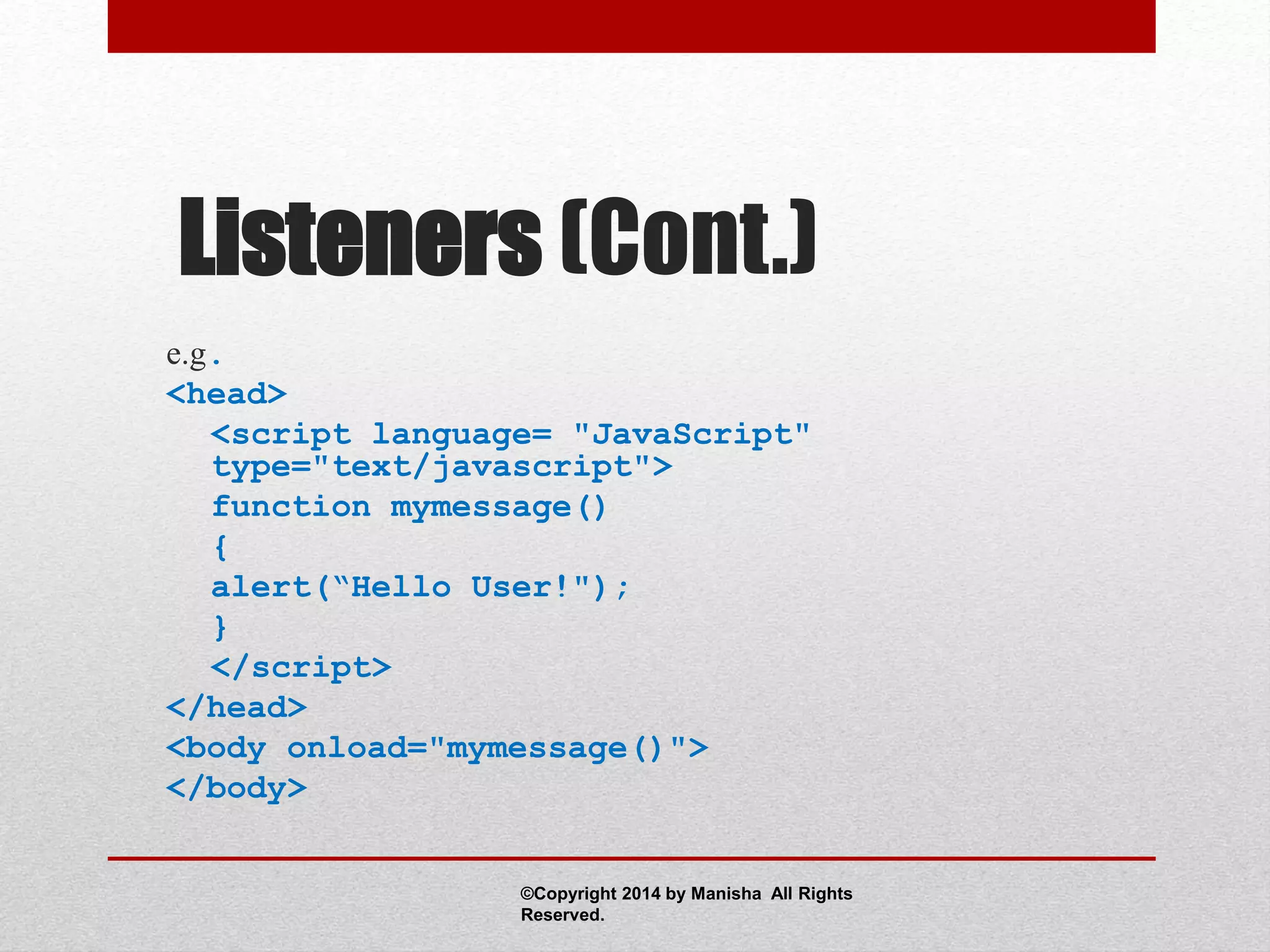
e.g.
<head>
<script language= "JavaScript"
type="text/javascript">
function mymessage()
{
alert(“Hello User!");
}
</script>
</head>
<body onload="mymessage()">
</body>
©Copyright 2014 by Manisha All Rights
Reserved.
Various Event Handlers
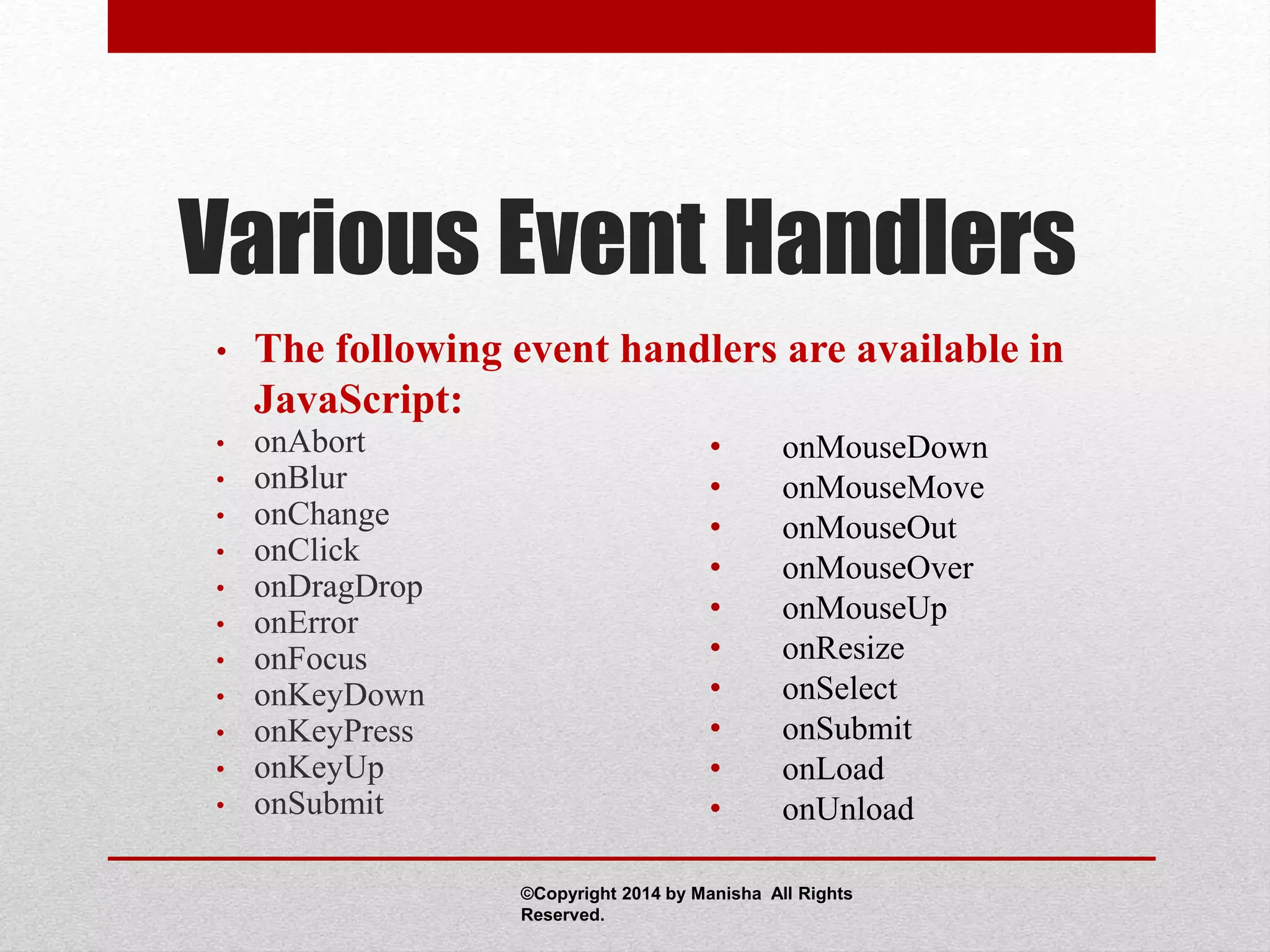
• The following event handlers are available in
JavaScript:
• onAbort
• onBlur
• onChange
• onClick
• onDragDrop
• onError
• onFocus
• onKeyDown
• onKeyPress
• onKeyUp
• onSubmit
• onMouseDown
• onMouseMove
• onMouseOut
• onMouseOver
• onMouseUp
• onResize
• onSelect
• onSubmit
• onLoad
• onUnload
©Copyright 2014 by Manisha All Rights
Reserved.
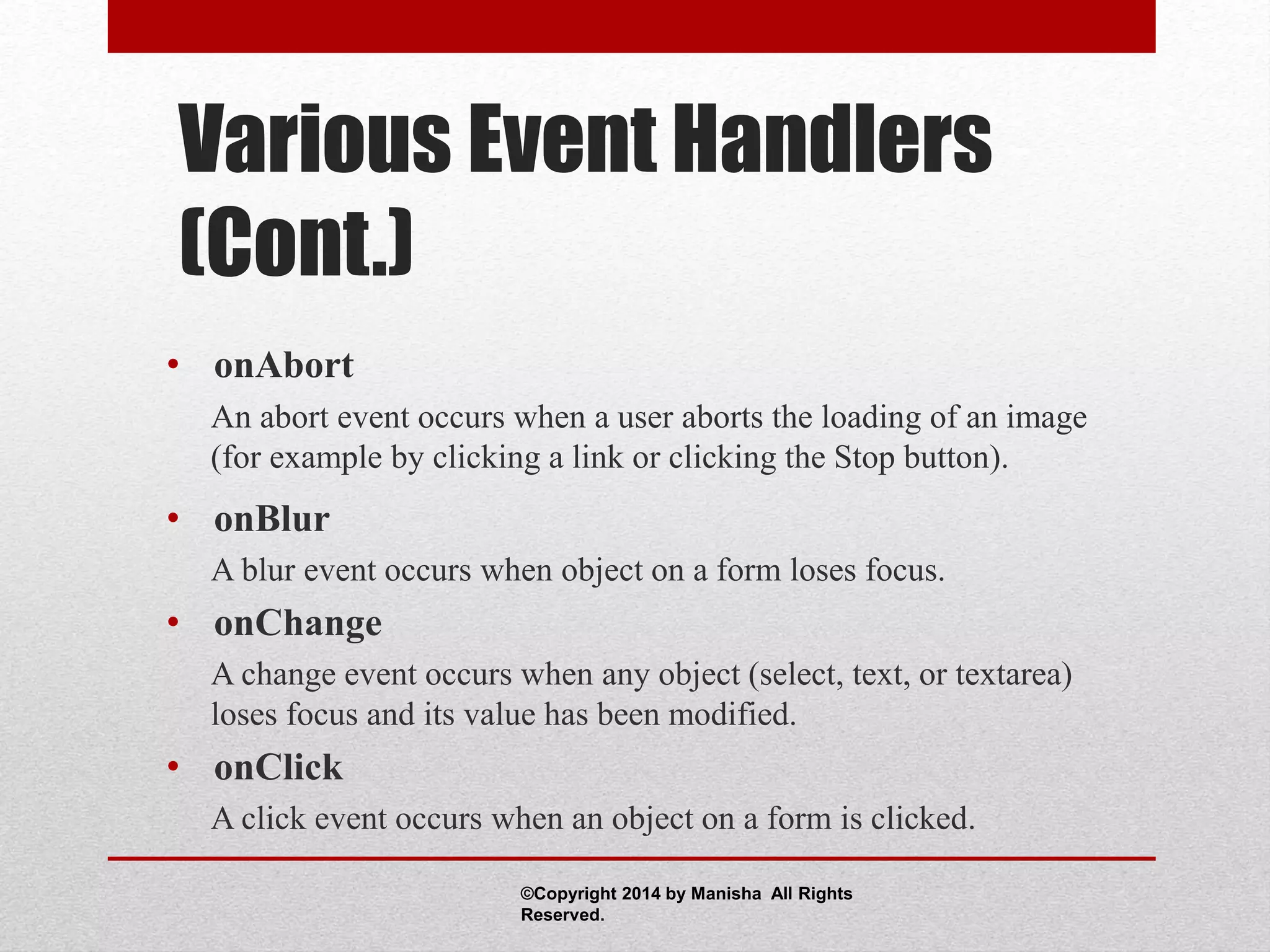
Various Event Handlers
(Cont.)
• onAbort
An abort event occurs when a user aborts the loading of an image
(for example by clicking a link or clicking the Stop button).
• onBlur
A blur event occurs when object on a form loses focus.
• onChange
A change event occurs when any object (select, text, or textarea)
loses focus and its value has been modified.
• onClick
A click event occurs when an object on a form is clicked.
©Copyright 2014 by Manisha All Rights
Reserved.
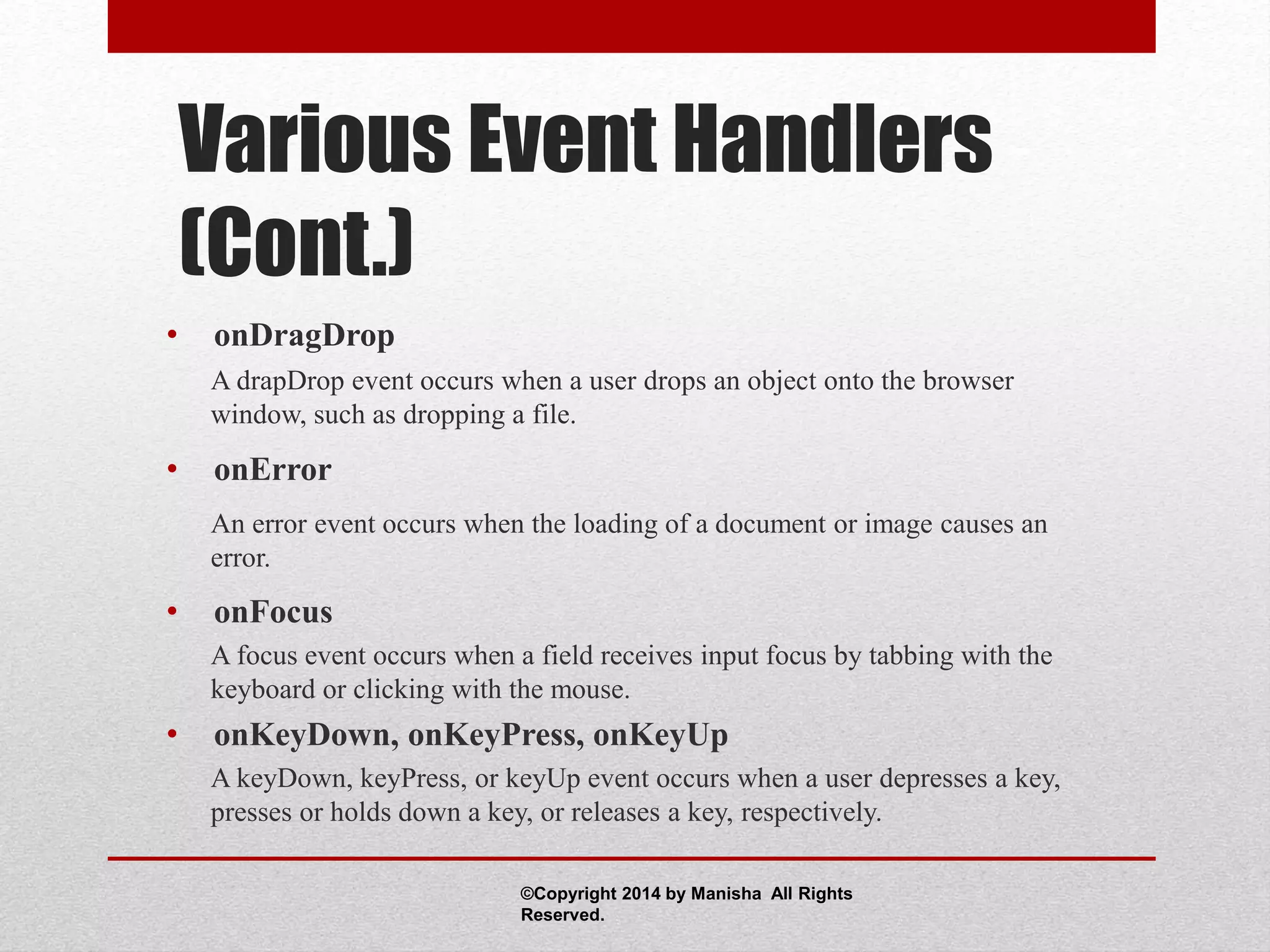
Various Event Handlers
(Cont.)
• onDragDrop
A drapDrop event occurs when a user drops an object onto the browser
window, such as dropping a file.
• onError
An error event occurs when the loading of a document or image causes an
error.
• onFocus
A focus event occurs when a field receives input focus by tabbing with the
keyboard or clicking with the mouse.
• onKeyDown, onKeyPress, onKeyUp
A keyDown, keyPress, or keyUp event occurs when a user depresses a key,
presses or holds down a key, or releases a key, respectively.
©Copyright 2014 by Manisha All Rights
Reserved.
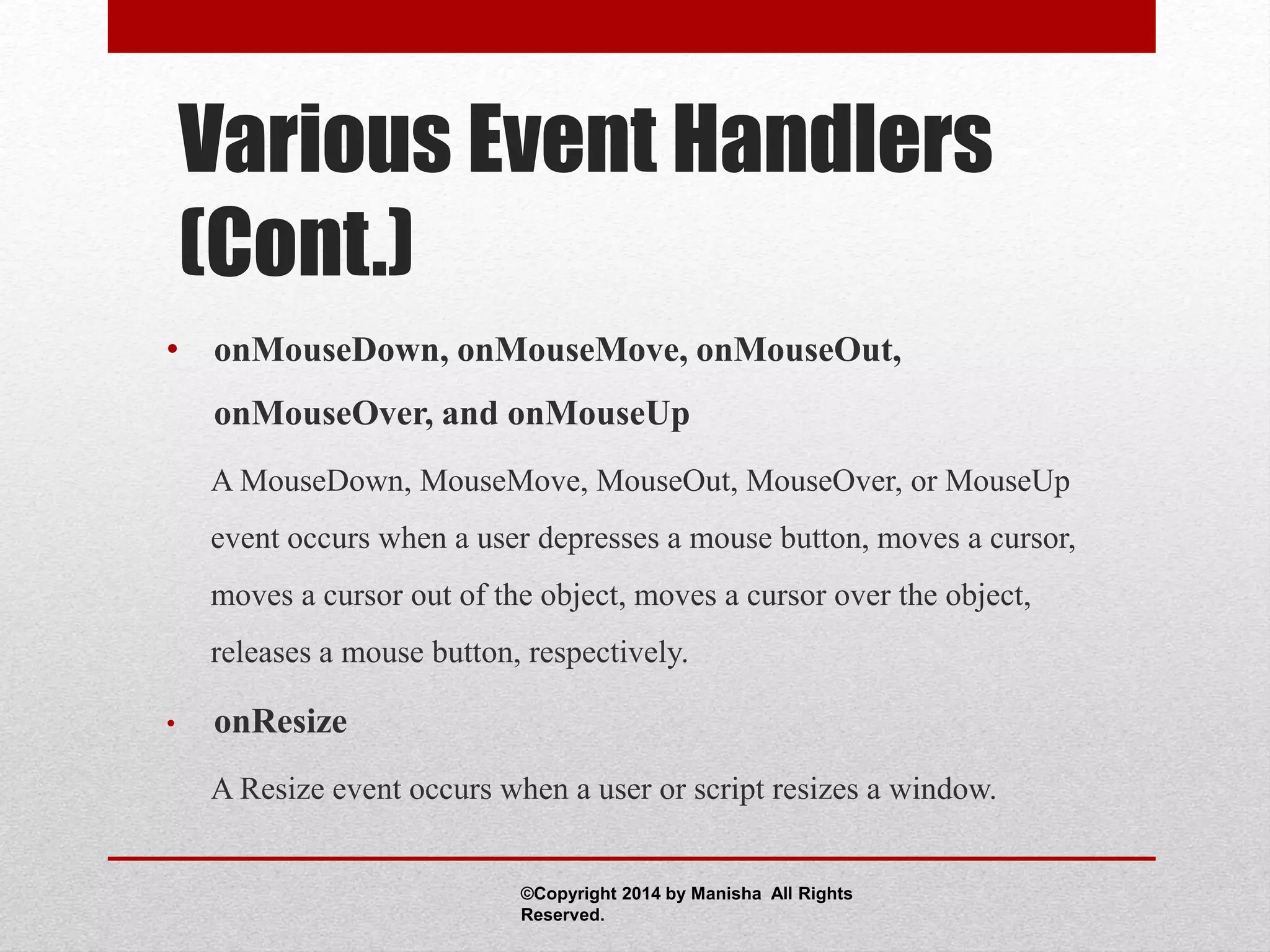
Various Event Handlers
(Cont.)
• onMouseDown, onMouseMove, onMouseOut,
onMouseOver, and onMouseUp
A MouseDown, MouseMove, MouseOut, MouseOver, or MouseUp
event occurs when a user depresses a mouse button, moves a cursor,
moves a cursor out of the object, moves a cursor over the object,
releases a mouse button, respectively.
• onResize
A Resize event occurs when a user or script resizes a window.
©Copyright 2014 by Manisha All Rights
Reserved.
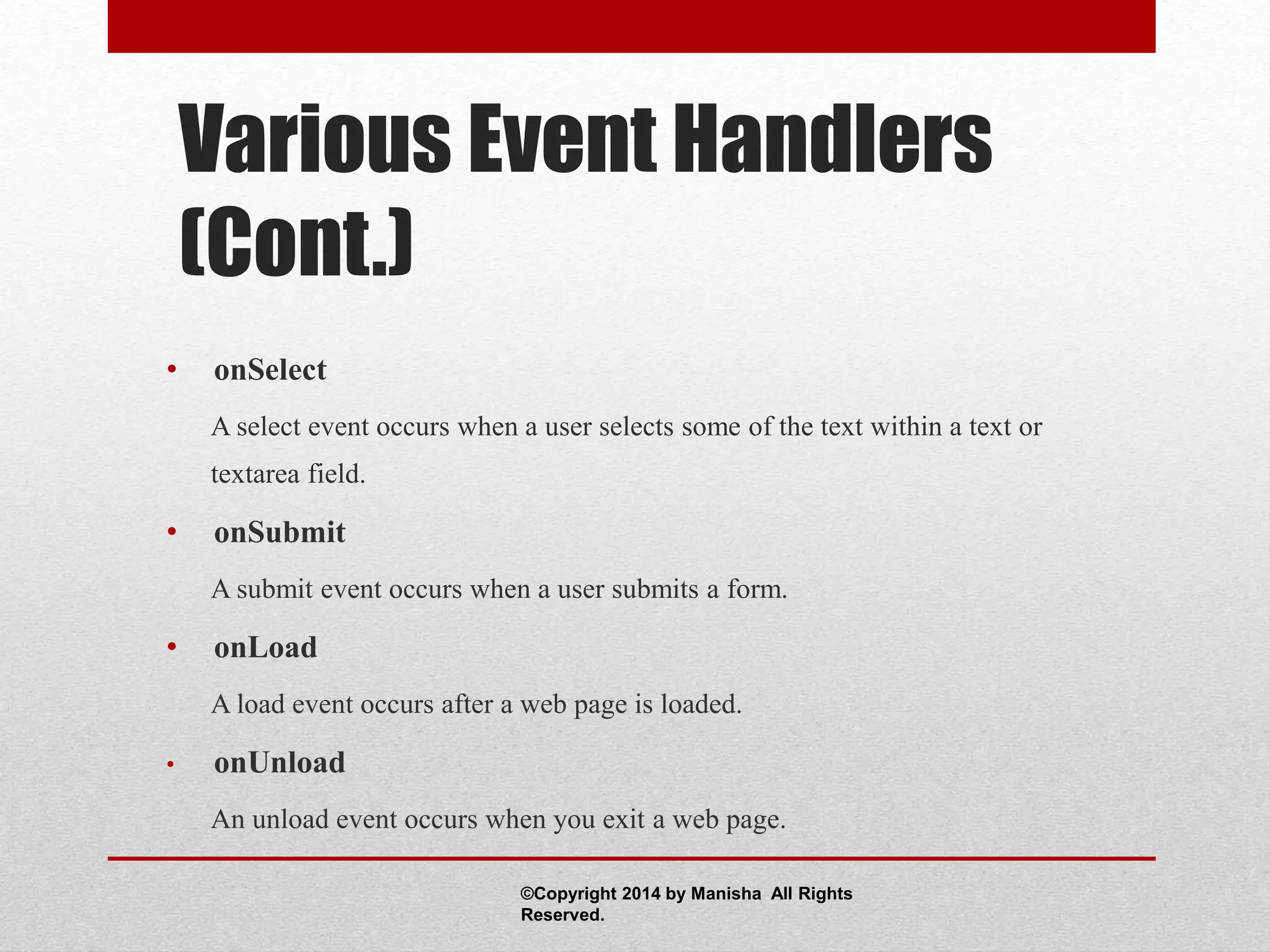
Various Event Handlers
(Cont.)
• onSelect
A select event occurs when a user selects some of the text within a text or
textarea field.
• onSubmit
A submit event occurs when a user submits a form.
• onLoad
A load event occurs after a web page is loaded.
• onUnload
An unload event occurs when you exit a web page.
©Copyright 2014 by Manisha All Rights
Reserved.
Event Handlers and the
“this” Keyword
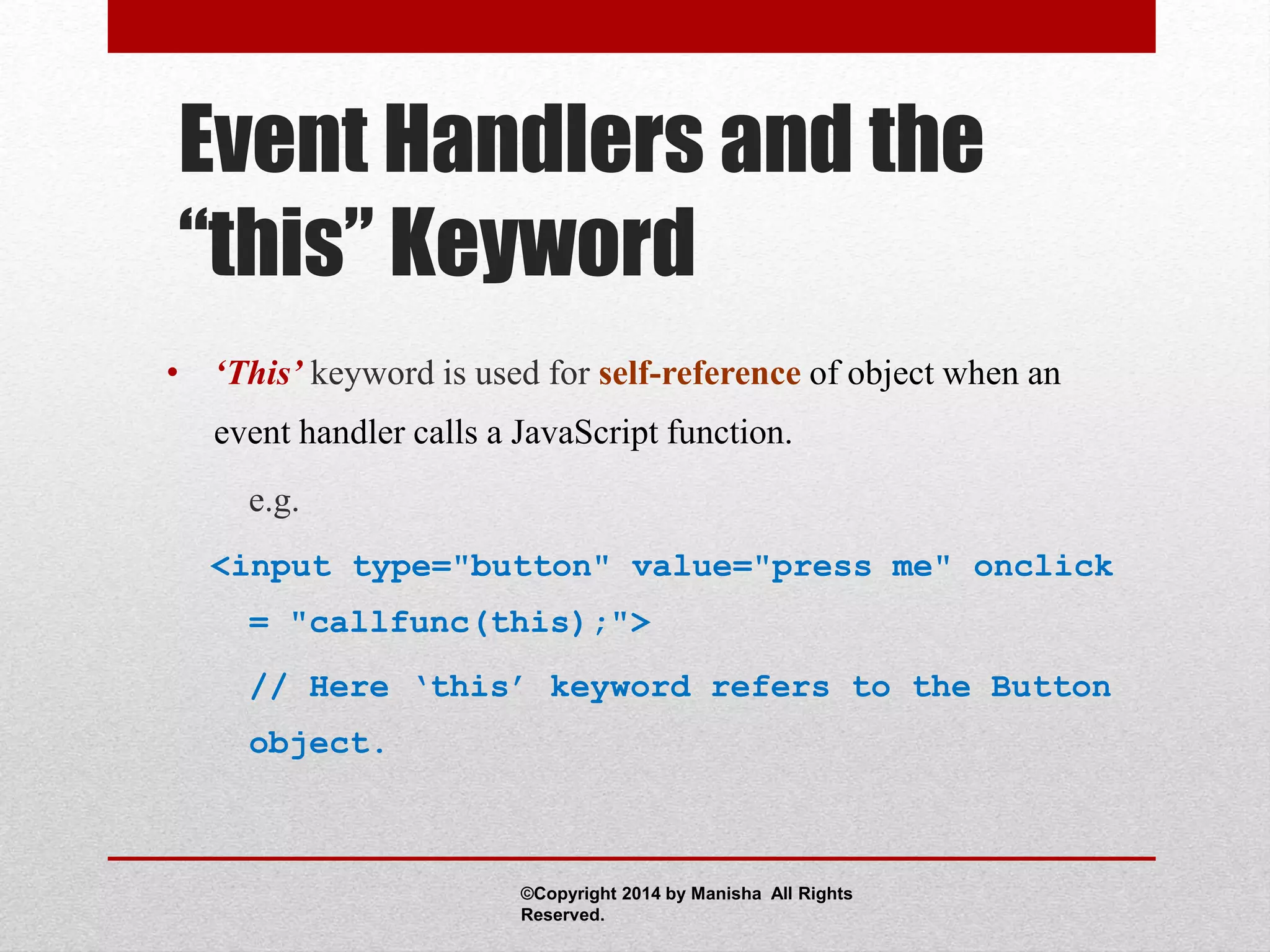
• ‘This’ keyword is used for self-reference of object when an
event handler calls a JavaScript function.
e.g.
<input type="button" value="press me" onclick
= "callfunc(this);">
// Here ‘this’ keyword refers to the Button
object.
©Copyright 2014 by Manisha All Rights
Reserved.
Variables
• Variables contain values and use the equal sign to specify
their value.
• Variables are created by declaration using the var
command with or without an initial value state.
• e.g. var month;
• e.g. var month = April;
©Copyright 2014 by Manisha All Rights
Reserved.
Dialog Boxes
• Dialog boxes can be used to –
• inform the user of errors or events
• confirm actions initiated by the user
• ask some information from the user
©Copyright 2014 by Manisha All Rights
Reserved.
Alert Dialog Box
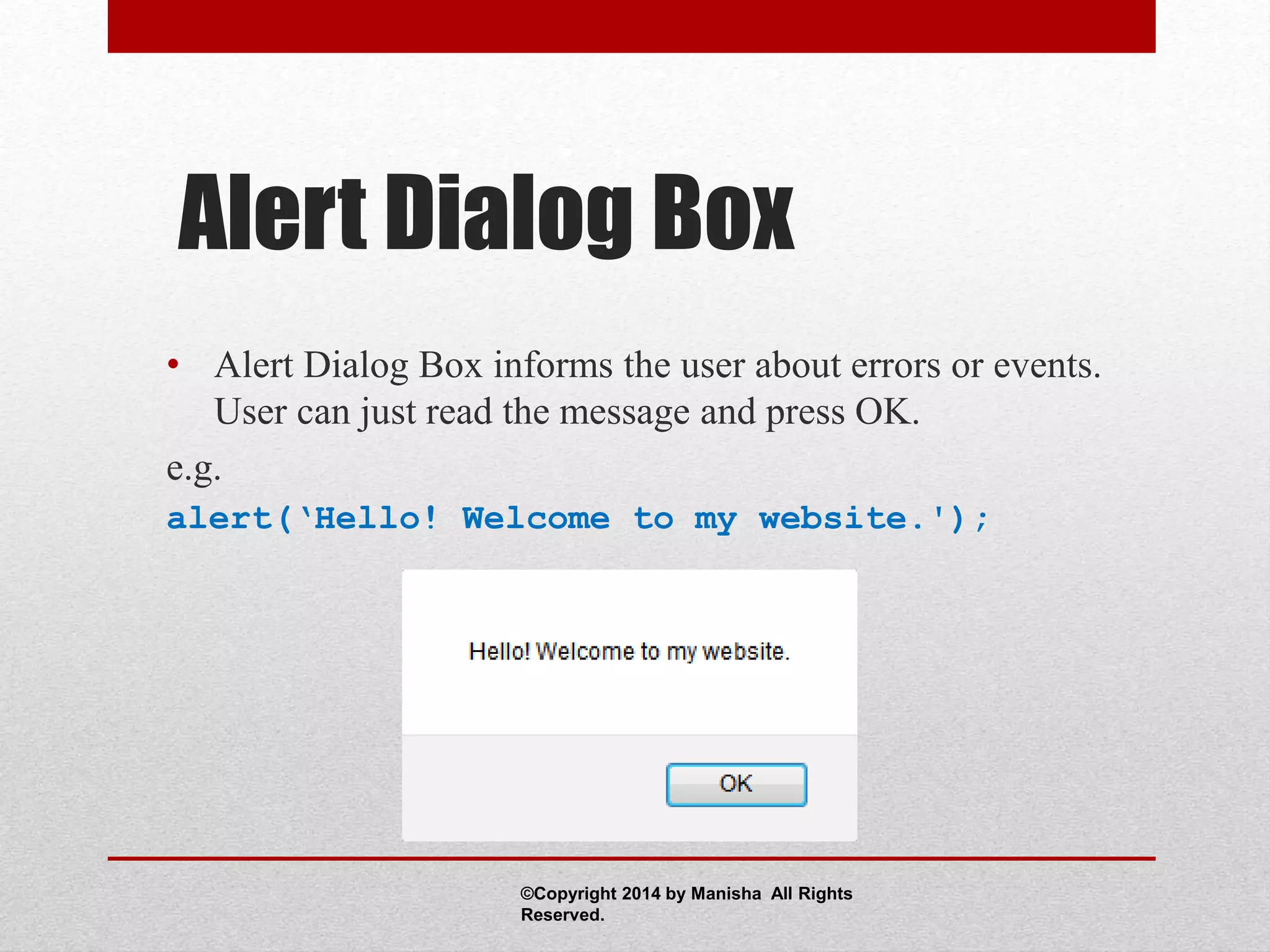
• Alert Dialog Box informs the user about errors or events.
User can just read the message and press OK.
e.g.
alert(‘Hello! Welcome to my website.');
©Copyright 2014 by Manisha All Rights
Reserved.
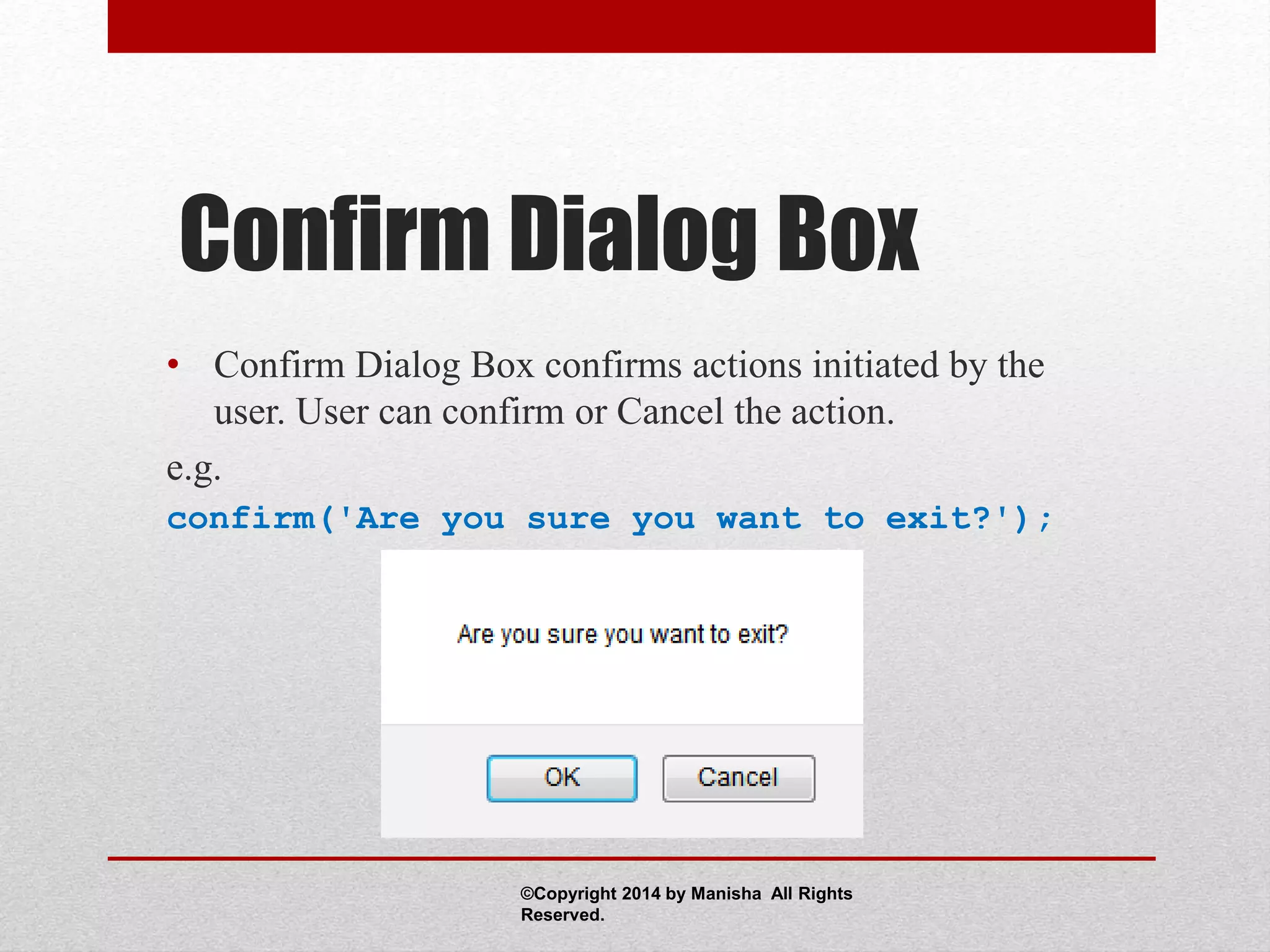
Confirm Dialog Box
• Confirm Dialog Box confirms actions initiated by the
user. User can confirm or Cancel the action.
e.g.
confirm('Are you sure you want to exit?');
©Copyright 2014 by Manisha All Rights
Reserved.
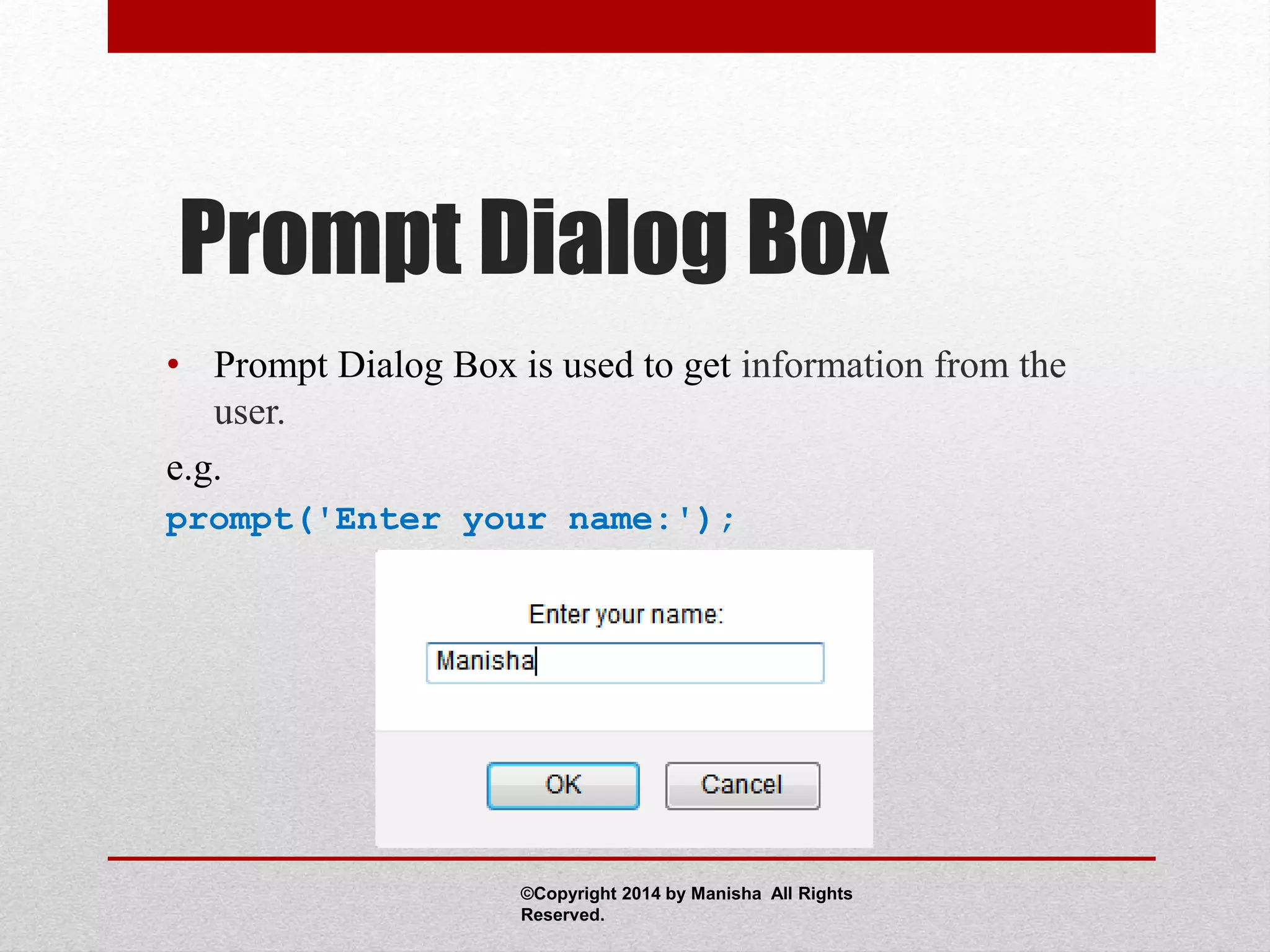
Prompt Dialog Box
• Prompt Dialog Box is used to get information from the
user.
e.g.
prompt('Enter your name:');
©Copyright 2014 by Manisha All Rights
Reserved.
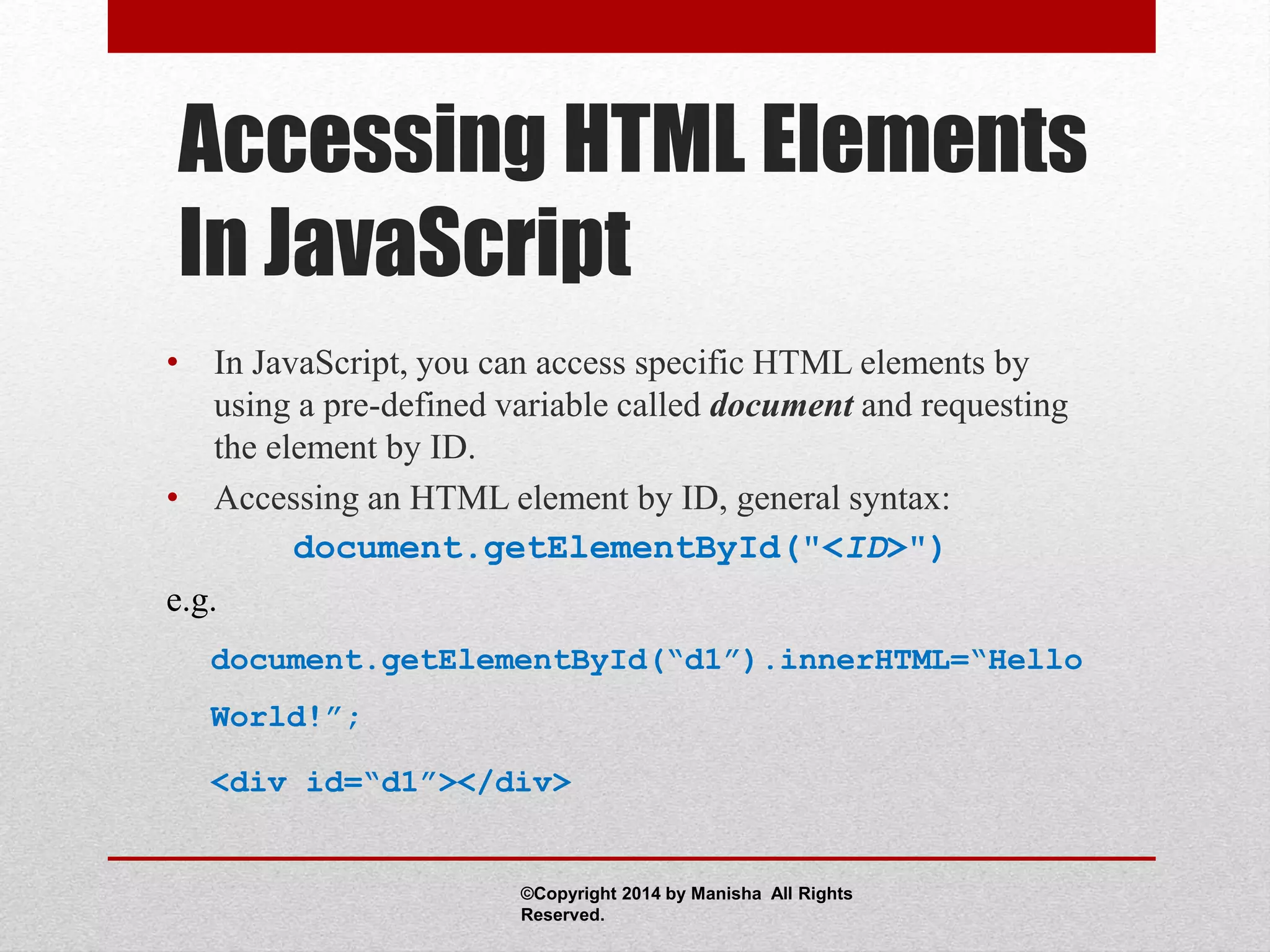
Accessing HTML Elements
In JavaScript
• In JavaScript, you can access specific HTML elements by
using a pre-defined variable called document and requesting
the element by ID.
• Accessing an HTML element by ID, general syntax:
document.getElementById("<ID>")
e.g.
document.getElementById(“d1”).innerHTML=“Hello
World!”;
<div id=“d1”></div>
©Copyright 2014 by Manisha All Rights
Reserved.
Accessing HTML Elements
In JavaScript (Cont.)
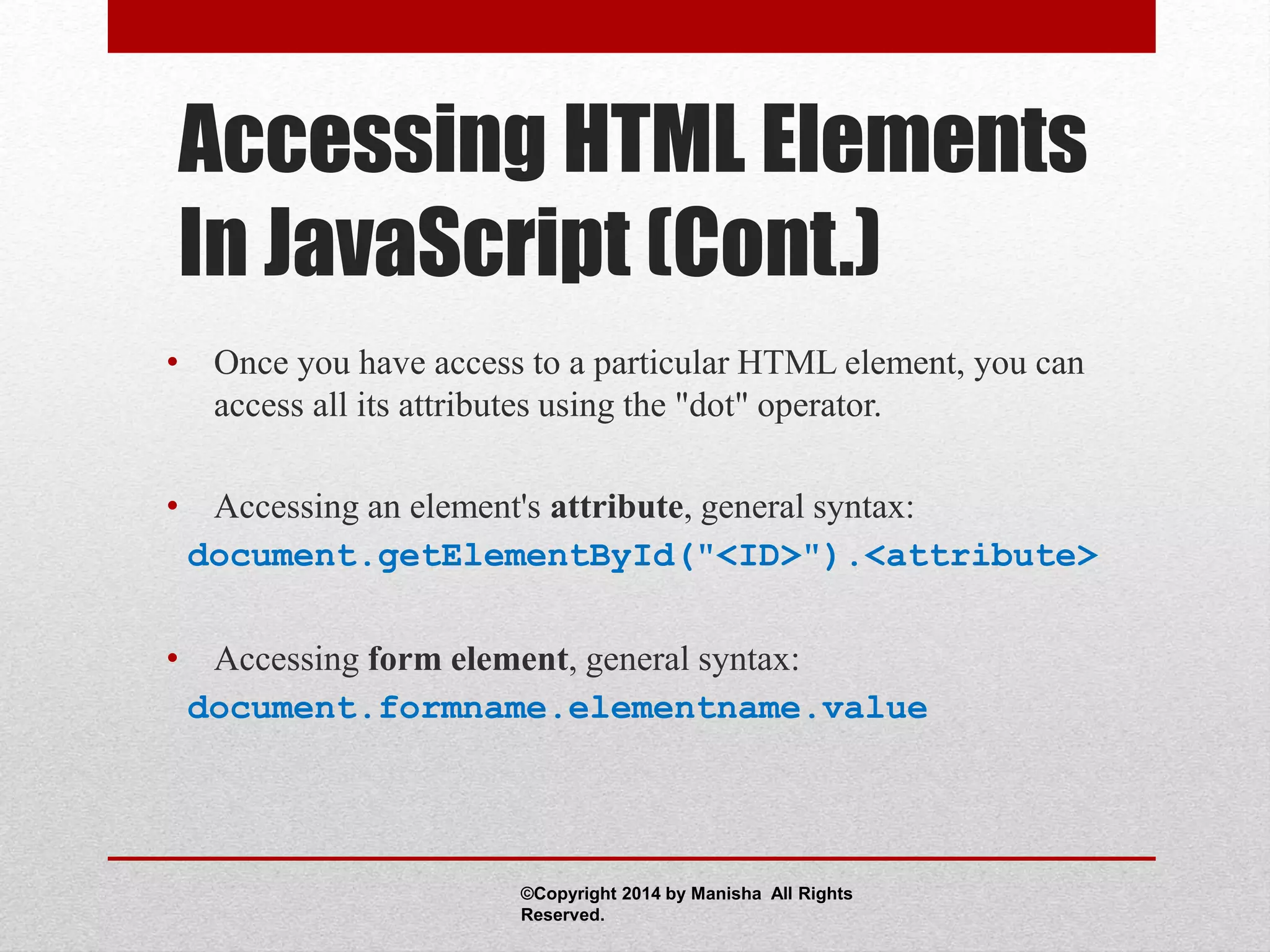
• Once you have access to a particular HTML element, you can
access all its attributes using the "dot" operator.
• Accessing an element's attribute, general syntax:
document.getElementById("<ID>").<attribute>
• Accessing form element, general syntax:
document.formname.elementname.value
©Copyright 2014 by Manisha All Rights
Reserved.
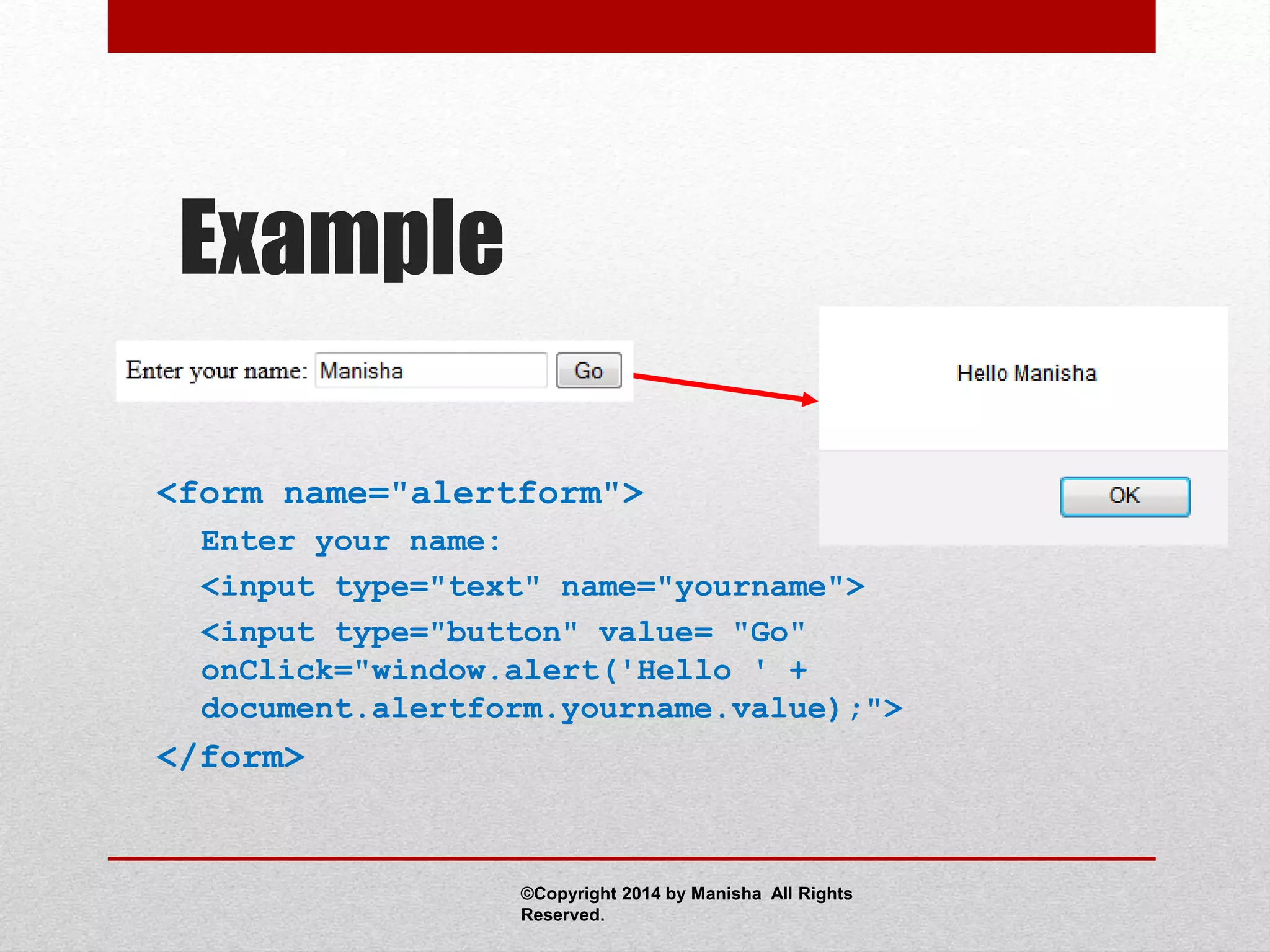
Example
<form name="alertform">
Enter your name:
<input type="text" name="yourname">
<input type="button" value= "Go"
onClick="window.alert('Hello ' +
document.alertform.yourname.value);">
</form>
©Copyright 2014 by Manisha All Rights
Reserved.
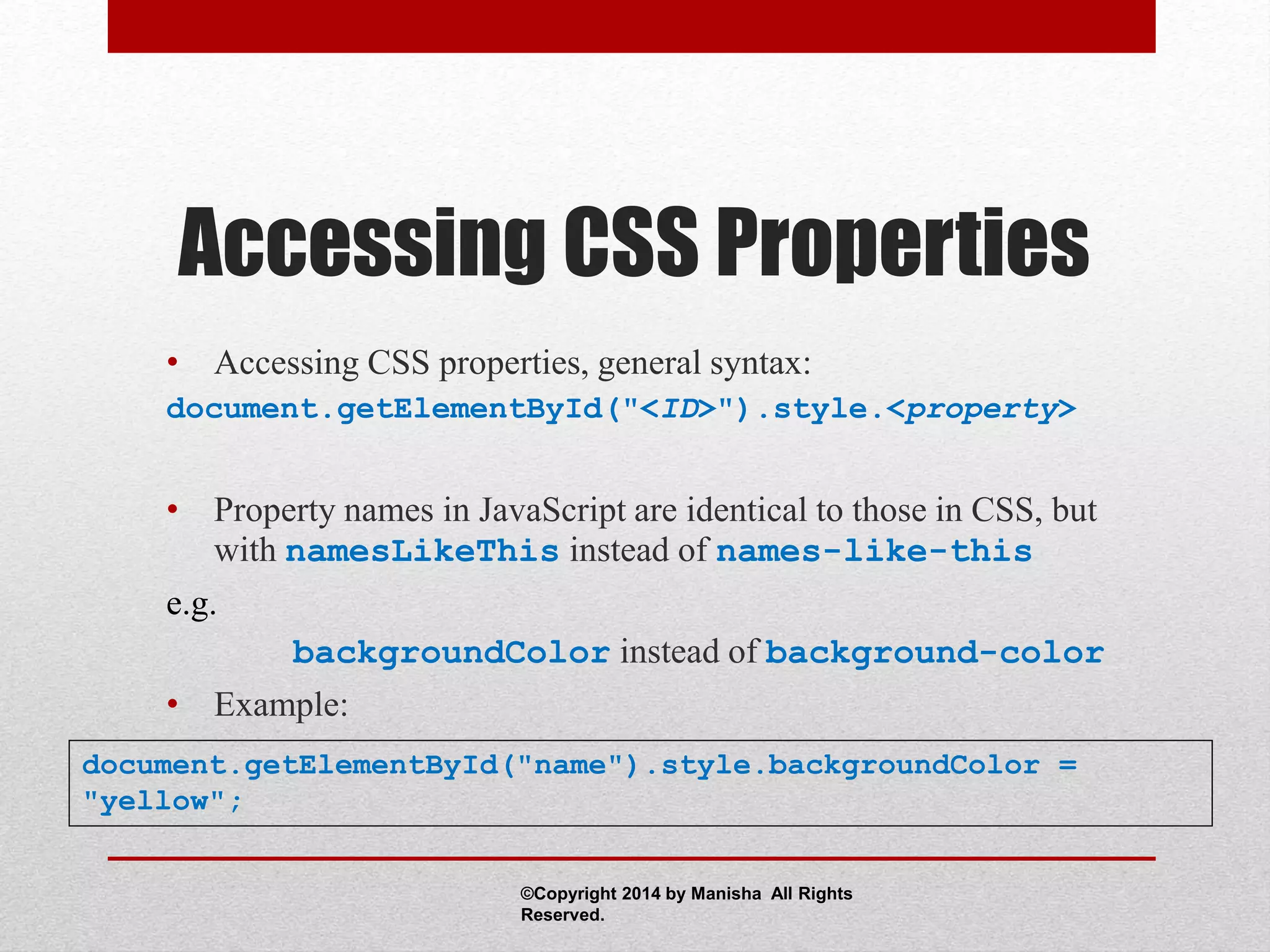
Accessing CSS Properties
• Accessing CSS properties, general syntax:
document.getElementById("<ID>").style.<property>
• Property names in JavaScript are identical to those in CSS, but
with namesLikeThis instead of names-like-this
e.g.
backgroundColor instead of background-color
• Example:
document.getElementById("name").style.backgroundColor =
"yellow";
©Copyright 2014 by Manisha All Rights
Reserved.
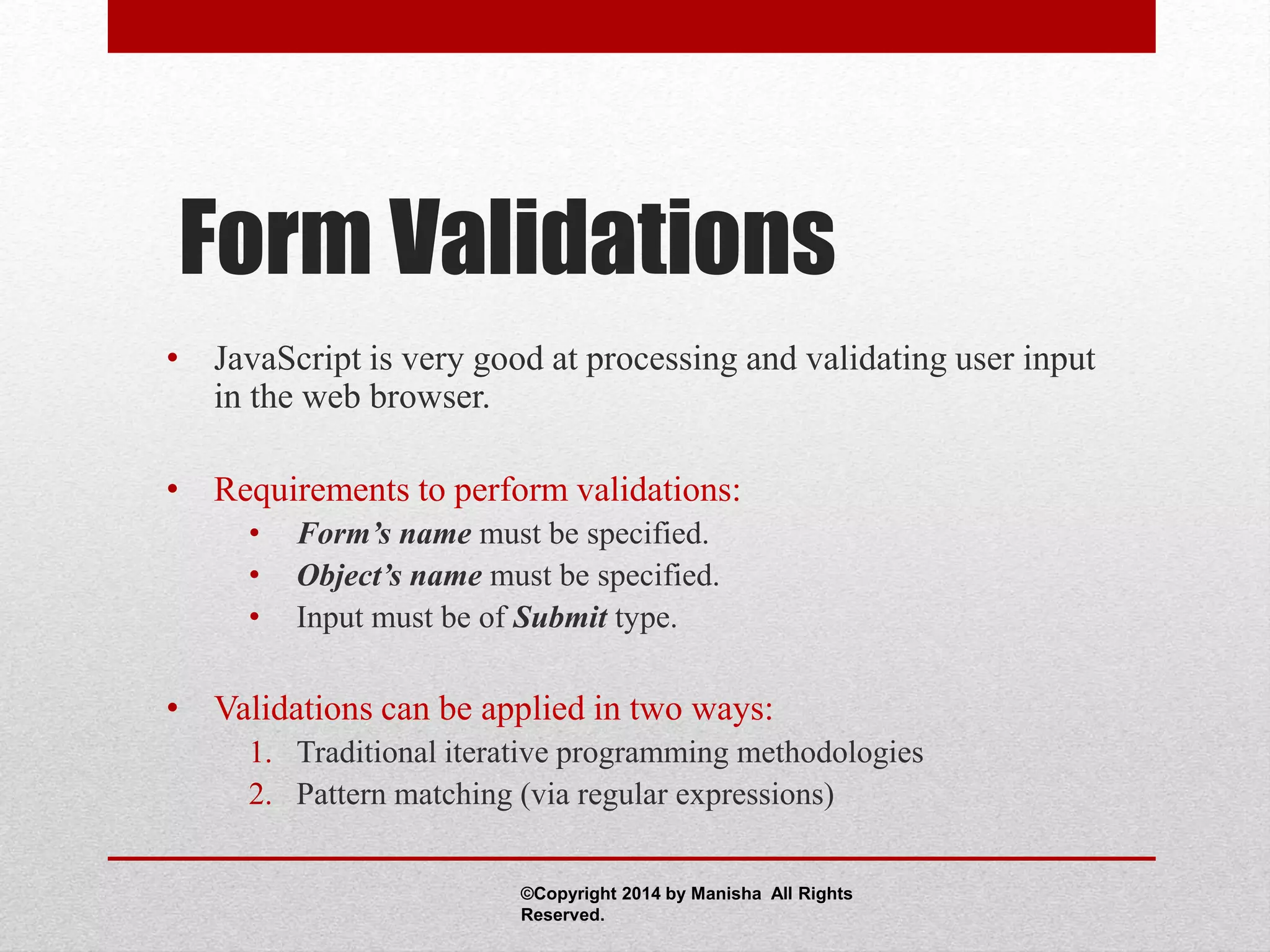
Form Validations
• JavaScript is very good at processing and validating user input
in the web browser.
• Requirements to perform validations:
• Form’s name must be specified.
• Object’s name must be specified.
• Input must be of Submit type.
• Validations can be applied in two ways:
1. Traditional iterative programming methodologies
2. Pattern matching (via regular expressions)
©Copyright 2014 by Manisha All Rights
Reserved.
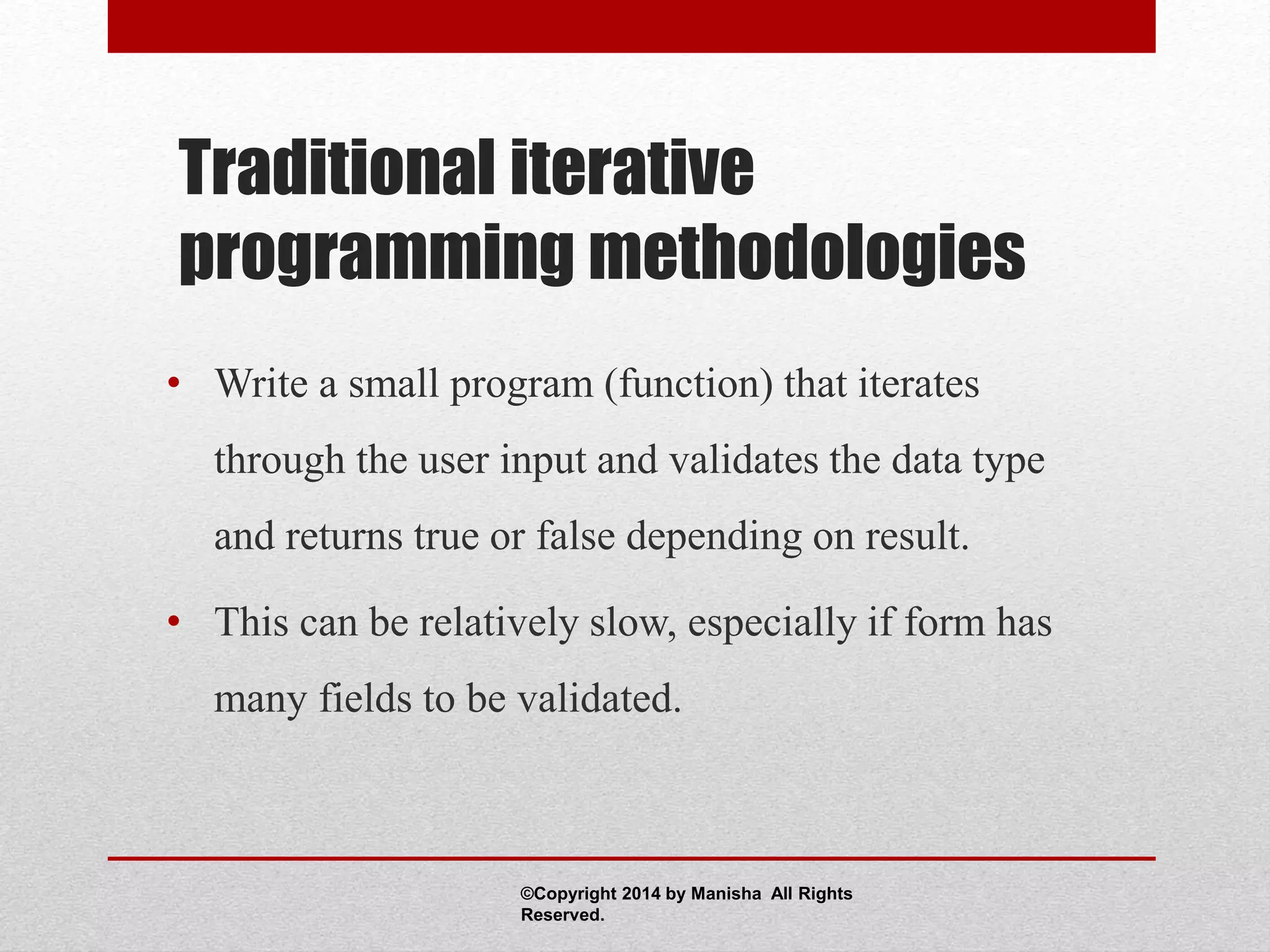
Traditional iterative
programming methodologies
• Write a small program (function) that iterates
through the user input and validates the data type
and returns true or false depending on result.
• This can be relatively slow, especially if form has
many fields to be validated.
©Copyright 2014 by Manisha All Rights
Reserved.
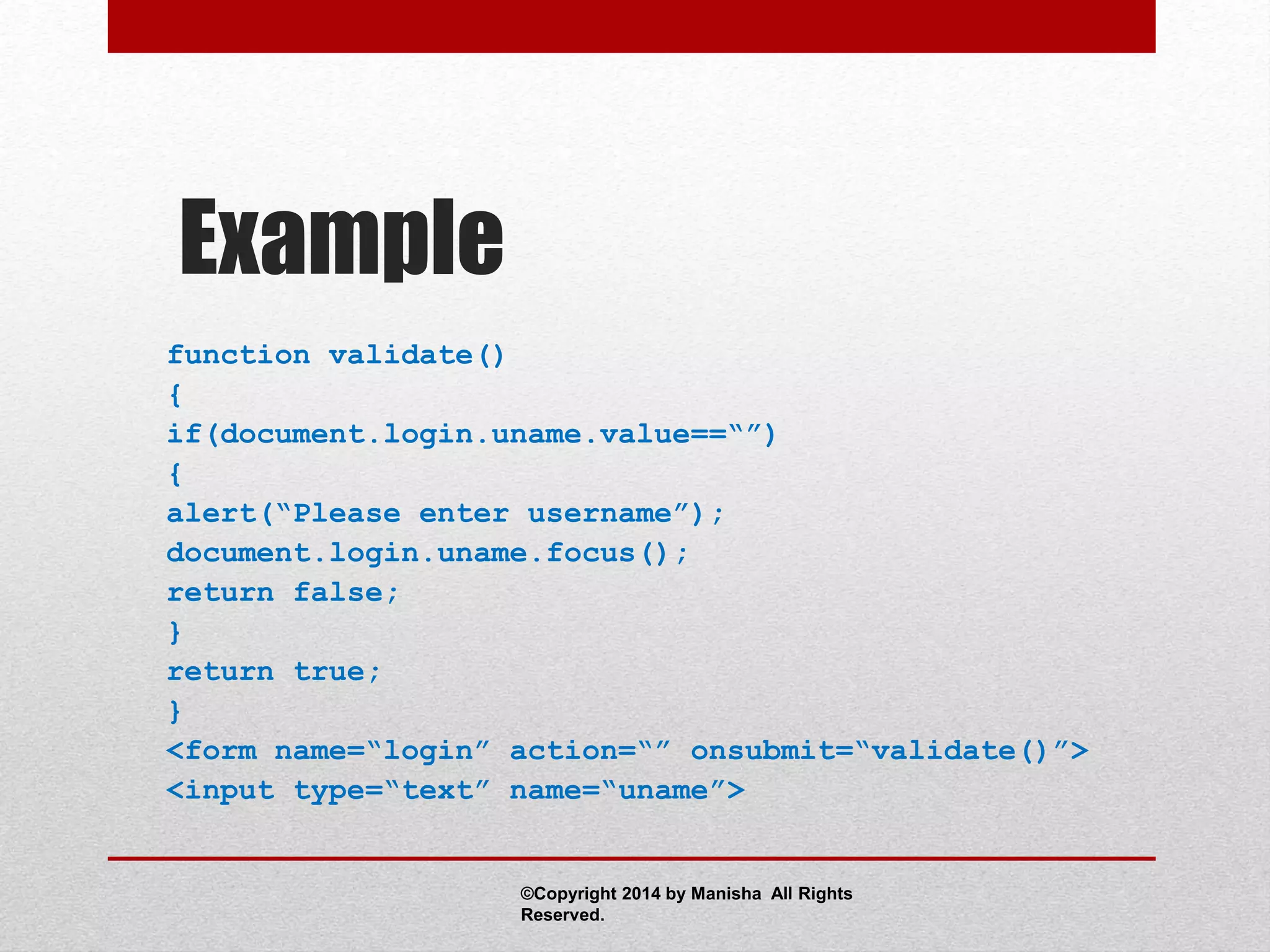
Example
function validate()
{
if(document.login.uname.value==“”)
{
alert(“Please enter username”);
document.login.uname.focus();
return false;
}
return true;
}
<form name=“login” action=“” onsubmit=“validate()”>
<input type=“text” name=“uname”>
©Copyright 2014 by Manisha All Rights
Reserved.
Pattern matching
• Create a regular expression pattern for the data type
and let the system validate the user input via its
pattern matching capabilities.
• Pattern matching is very quick (even for long
forms).
©Copyright 2014 by Manisha All Rights
Reserved.
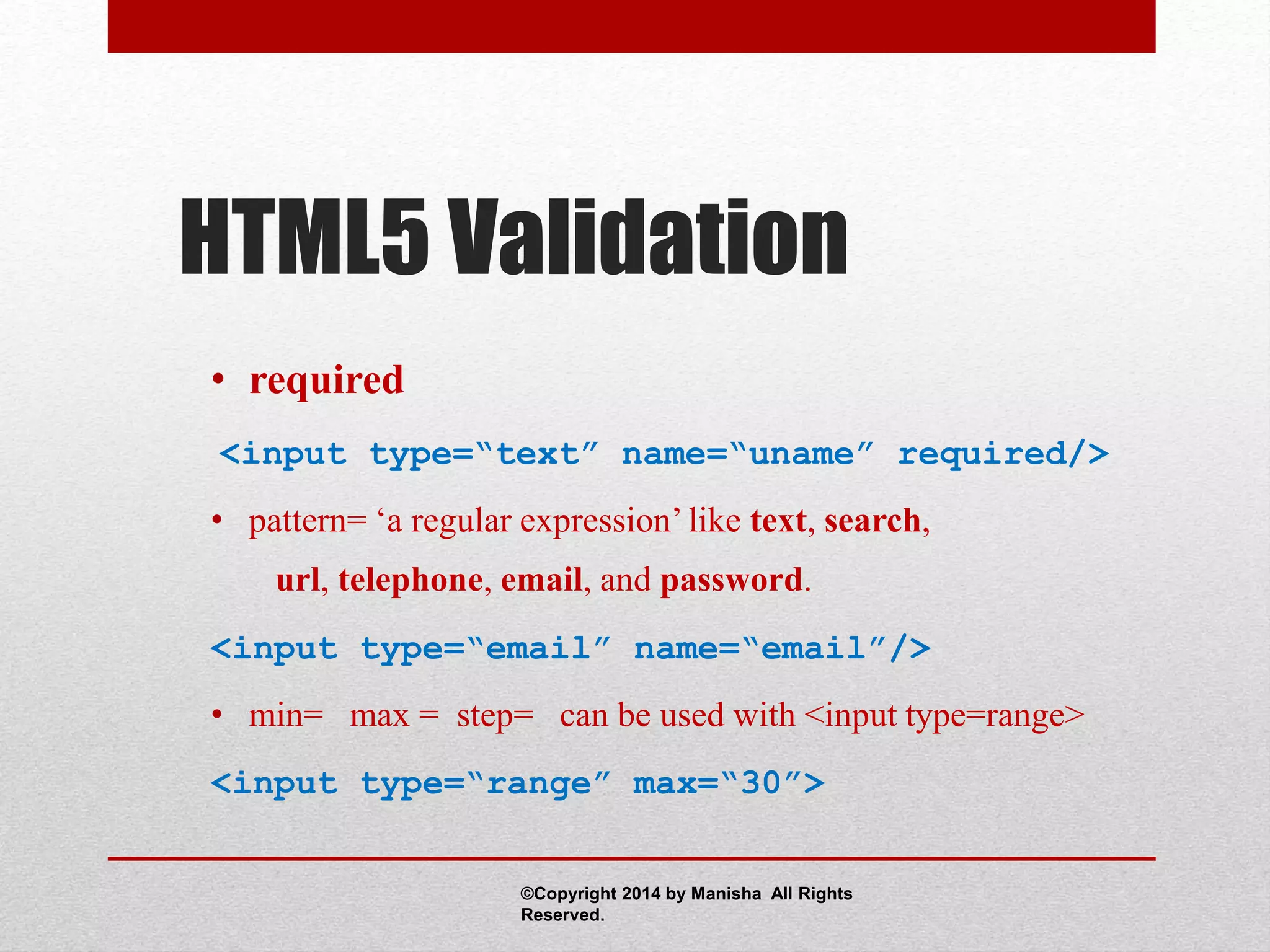
HTML5 Validation
• required
<input type=“text” name=“uname” required/>
• pattern= ‘a regular expression’ like text, search,
url, telephone, email, and password.
<input type=“email” name=“email”/>
• min= max = step= can be used with <input type=range>
<input type=“range” max=“30”>
©Copyright 2014 by Manisha All Rights
Reserved.
Thank You!

Learn Javascript Basics

  • 1.
    JavaScript Basics Presented by: Manisha Chugh Batch Code: B-14/PHP/04-01 Registration id: R13010624
  • 2.
    What is JavaScript? •JavaScript is a scripting language designed for Web pages. • It enhances Web pages with dynamic and interactive features. • It enables shopping carts, form validation, calculations, special graphic and text effects, image swapping and more. ©Copyright 2014 by Manisha All Rights Reserved.
  • 3.
    Methods of Using JavaScript 1.External - JavaScript can reside in a separate page. 2. Internal - JavaScript can be embedded in HTML documents -- in the <head>, in the <body>, or in both. 3. Inline - JavaScript object attributes can be placed in HTML element tags. ©Copyright 2014 by Manisha All Rights Reserved.
  • 4.
    External JavaScript • Linkingcan be advantageous if many pages use the same script. • Use the source element to link to the script file. <script src="myjavascript.js” type="text/javascript"> </script> ©Copyright 2014 by Manisha All Rights Reserved.
  • 5.
    Internal JavaScript • Whenspecifying a script only the tags <script> and </script> are essential, but complete specification is recommended: <script language="javascript” type="text/javascript"> <!-- Begin hiding window.location=”index.html" // End hiding script--> </script> ©Copyright 2014 by Manisha All Rights Reserved.
  • 6.
    Using Comment Tags •HTML comment tags should bracket any script. • The <!-- script here --> tags hide scripts in HTML and prevent scripts from displaying in browsers that do not interpret JavaScript. • Double slashes // are the signal characters for a JavaScript single-line comment. ©Copyright 2014 by Manisha All Rights Reserved.
  • 7.
    Inline JavaScript • Eventhandlers like onLoad are a perfect example of an easy to add tag script. e.g. <body onLoad="alert('WELCOME')"> ©Copyright 2014 by Manisha All Rights Reserved.
  • 8.
    JavaScript Terminology • Objects, •Properties, • Functions, • Methods, • Events, • Listeners, • Variables. ©Copyright 2014 by Manisha All Rights Reserved.
  • 9.
    Objects • Objects refersto windows, documents, images, tables, forms, buttons or links, etc. • Objects should be named. • Objects have properties that act as modifiers. ©Copyright 2014 by Manisha All Rights Reserved.
  • 10.
    Properties • Properties areobject attributes. • Object properties are defined by using the object's name, a period, and the property name. • e.g., background color is expressed by: document.bgcolor. Here, document is the object. bgcolor is the property. ©Copyright 2014 by Manisha All Rights Reserved.
  • 11.
    Functions • A groupof statements that is put together once and then can be used repeatedly on a Web page. • JavaScript has built-in functions, and you can write your own. ©Copyright 2014 by Manisha All Rights Reserved.
  • 12.
    Format of afunction definition function function-name( parameter-list ) { declarations and statements } Here, • Function name is any valid identifier. • Parameter list contains names of variables that will receive arguments. • Declarations and statements are function body (“block” of code) ©Copyright 2014 by Manisha All Rights Reserved.
  • 13.
    Methods • Methods arefunctions. • They are unusual in the sense that they are stored as properties of objects. • e.g., document.write(”Hello World") Here, document is the object. write is the method. ©Copyright 2014 by Manisha All Rights Reserved.
  • 14.
    Events • Events arevisitor’s and browser’s activities. • There can be two types of events: • User-Initiated Events • Browser-Initiated Events ©Copyright 2014 by Manisha All Rights Reserved.
  • 15.
    Browser-Initiated Events • load •unload • error • abort ©Copyright 2014 by Manisha All Rights Reserved.
  • 16.
    User-Initiated Events • click •dblclick • keydown • keyup • keypress • mouseover • mouseout • mousedown • mouseup • mousemove • change • resize • scroll • select • blur • focus • submit ©Copyright 2014 by Manisha All Rights Reserved.
  • 17.
    Listeners • Listeners captureand actually respond to those events. Thus, they are also known as Event Handlers. • The system sends events to the listener program and the program responds to them as they arrive. ©Copyright 2014 by Manisha All Rights Reserved.
  • 18.
    Listeners (Cont.) • Eventshandlers are placed in the BODY part of a Web page as attributes in HTML tags. e.g. <input type=button name=btn1 value=“Click Me” onClick=“alert(‘button was clicked’);”> • Alternatively, events can be captured in the HTML code, and then directed to a JavaScript function for an appropriate response. ©Copyright 2014 by Manisha All Rights Reserved.
  • 19.
    Listeners (Cont.) e.g. <head> <script language="JavaScript" type="text/javascript"> function mymessage() { alert(“Hello User!"); } </script> </head> <body onload="mymessage()"> </body> ©Copyright 2014 by Manisha All Rights Reserved.
  • 20.
    Various Event Handlers •The following event handlers are available in JavaScript: • onAbort • onBlur • onChange • onClick • onDragDrop • onError • onFocus • onKeyDown • onKeyPress • onKeyUp • onSubmit • onMouseDown • onMouseMove • onMouseOut • onMouseOver • onMouseUp • onResize • onSelect • onSubmit • onLoad • onUnload ©Copyright 2014 by Manisha All Rights Reserved.
  • 21.
    Various Event Handlers (Cont.) •onAbort An abort event occurs when a user aborts the loading of an image (for example by clicking a link or clicking the Stop button). • onBlur A blur event occurs when object on a form loses focus. • onChange A change event occurs when any object (select, text, or textarea) loses focus and its value has been modified. • onClick A click event occurs when an object on a form is clicked. ©Copyright 2014 by Manisha All Rights Reserved.
  • 22.
    Various Event Handlers (Cont.) •onDragDrop A drapDrop event occurs when a user drops an object onto the browser window, such as dropping a file. • onError An error event occurs when the loading of a document or image causes an error. • onFocus A focus event occurs when a field receives input focus by tabbing with the keyboard or clicking with the mouse. • onKeyDown, onKeyPress, onKeyUp A keyDown, keyPress, or keyUp event occurs when a user depresses a key, presses or holds down a key, or releases a key, respectively. ©Copyright 2014 by Manisha All Rights Reserved.
  • 23.
    Various Event Handlers (Cont.) •onMouseDown, onMouseMove, onMouseOut, onMouseOver, and onMouseUp A MouseDown, MouseMove, MouseOut, MouseOver, or MouseUp event occurs when a user depresses a mouse button, moves a cursor, moves a cursor out of the object, moves a cursor over the object, releases a mouse button, respectively. • onResize A Resize event occurs when a user or script resizes a window. ©Copyright 2014 by Manisha All Rights Reserved.
  • 24.
    Various Event Handlers (Cont.) •onSelect A select event occurs when a user selects some of the text within a text or textarea field. • onSubmit A submit event occurs when a user submits a form. • onLoad A load event occurs after a web page is loaded. • onUnload An unload event occurs when you exit a web page. ©Copyright 2014 by Manisha All Rights Reserved.
  • 25.
    Event Handlers andthe “this” Keyword • ‘This’ keyword is used for self-reference of object when an event handler calls a JavaScript function. e.g. <input type="button" value="press me" onclick = "callfunc(this);"> // Here ‘this’ keyword refers to the Button object. ©Copyright 2014 by Manisha All Rights Reserved.
  • 26.
    Variables • Variables containvalues and use the equal sign to specify their value. • Variables are created by declaration using the var command with or without an initial value state. • e.g. var month; • e.g. var month = April; ©Copyright 2014 by Manisha All Rights Reserved.
  • 27.
    Dialog Boxes • Dialogboxes can be used to – • inform the user of errors or events • confirm actions initiated by the user • ask some information from the user ©Copyright 2014 by Manisha All Rights Reserved.
  • 28.
    Alert Dialog Box •Alert Dialog Box informs the user about errors or events. User can just read the message and press OK. e.g. alert(‘Hello! Welcome to my website.'); ©Copyright 2014 by Manisha All Rights Reserved.
  • 29.
    Confirm Dialog Box •Confirm Dialog Box confirms actions initiated by the user. User can confirm or Cancel the action. e.g. confirm('Are you sure you want to exit?'); ©Copyright 2014 by Manisha All Rights Reserved.
  • 30.
    Prompt Dialog Box •Prompt Dialog Box is used to get information from the user. e.g. prompt('Enter your name:'); ©Copyright 2014 by Manisha All Rights Reserved.
  • 31.
    Accessing HTML Elements InJavaScript • In JavaScript, you can access specific HTML elements by using a pre-defined variable called document and requesting the element by ID. • Accessing an HTML element by ID, general syntax: document.getElementById("<ID>") e.g. document.getElementById(“d1”).innerHTML=“Hello World!”; <div id=“d1”></div> ©Copyright 2014 by Manisha All Rights Reserved.
  • 32.
    Accessing HTML Elements InJavaScript (Cont.) • Once you have access to a particular HTML element, you can access all its attributes using the "dot" operator. • Accessing an element's attribute, general syntax: document.getElementById("<ID>").<attribute> • Accessing form element, general syntax: document.formname.elementname.value ©Copyright 2014 by Manisha All Rights Reserved.
  • 33.
    Example <form name="alertform"> Enter yourname: <input type="text" name="yourname"> <input type="button" value= "Go" onClick="window.alert('Hello ' + document.alertform.yourname.value);"> </form> ©Copyright 2014 by Manisha All Rights Reserved.
  • 34.
    Accessing CSS Properties •Accessing CSS properties, general syntax: document.getElementById("<ID>").style.<property> • Property names in JavaScript are identical to those in CSS, but with namesLikeThis instead of names-like-this e.g. backgroundColor instead of background-color • Example: document.getElementById("name").style.backgroundColor = "yellow"; ©Copyright 2014 by Manisha All Rights Reserved.
  • 35.
    Form Validations • JavaScriptis very good at processing and validating user input in the web browser. • Requirements to perform validations: • Form’s name must be specified. • Object’s name must be specified. • Input must be of Submit type. • Validations can be applied in two ways: 1. Traditional iterative programming methodologies 2. Pattern matching (via regular expressions) ©Copyright 2014 by Manisha All Rights Reserved.
  • 36.
    Traditional iterative programming methodologies •Write a small program (function) that iterates through the user input and validates the data type and returns true or false depending on result. • This can be relatively slow, especially if form has many fields to be validated. ©Copyright 2014 by Manisha All Rights Reserved.
  • 37.
    Example function validate() { if(document.login.uname.value==“”) { alert(“Please enterusername”); document.login.uname.focus(); return false; } return true; } <form name=“login” action=“” onsubmit=“validate()”> <input type=“text” name=“uname”> ©Copyright 2014 by Manisha All Rights Reserved.
  • 38.
    Pattern matching • Createa regular expression pattern for the data type and let the system validate the user input via its pattern matching capabilities. • Pattern matching is very quick (even for long forms). ©Copyright 2014 by Manisha All Rights Reserved.
  • 39.
    HTML5 Validation • required <inputtype=“text” name=“uname” required/> • pattern= ‘a regular expression’ like text, search, url, telephone, email, and password. <input type=“email” name=“email”/> • min= max = step= can be used with <input type=range> <input type=“range” max=“30”> ©Copyright 2014 by Manisha All Rights Reserved.
  • 40.