Introduction to Unix and Spring: Basic Line COmmands
1.
Introduction to Unix:
BasicCommand Line Commands
Ricky Patterson
Research Librarian for Science & Engineering
University of Virginia Library
ricky@virginia.edu
Based on slides from Turgut Yilmaz – Istanbul Teknik University
2.
2
What We WillLearn
• The fundamental commands of the
Unix operating system.
Everything here is also applicable to
the Linux operating system.
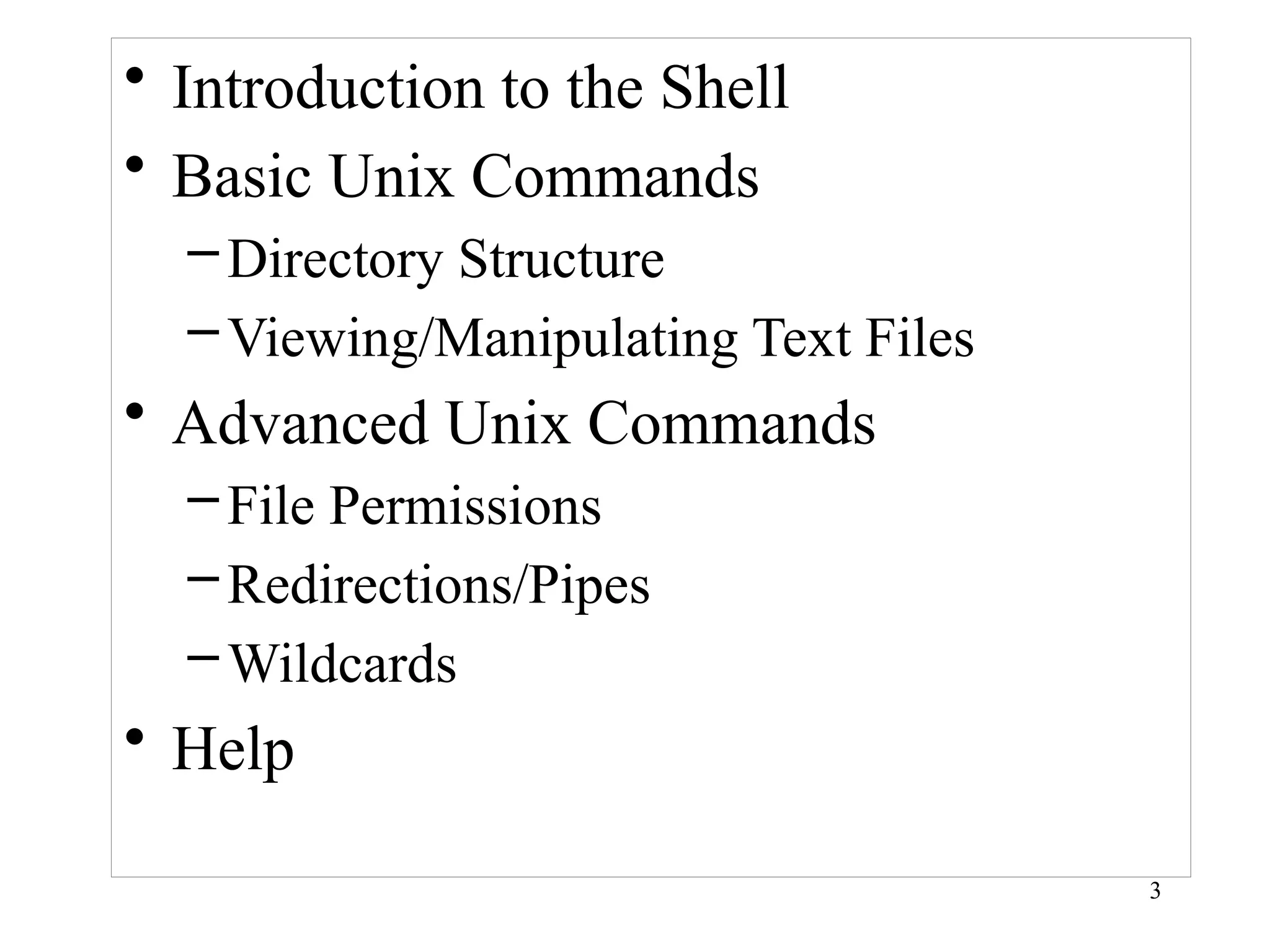
4
What Is Unix?
•Unix is a computer operating system, a control
program that works with users to
– run programs,
– manage resources, and
– communicate with other computer systems.
• Unix is
– Multiuser: Several people can use a Unix computer at
the same time
– Multitasking: Any of these users can also run multiple
programs at the same time
– Plain Text Data Storage
– Hierachical File System
5.
5
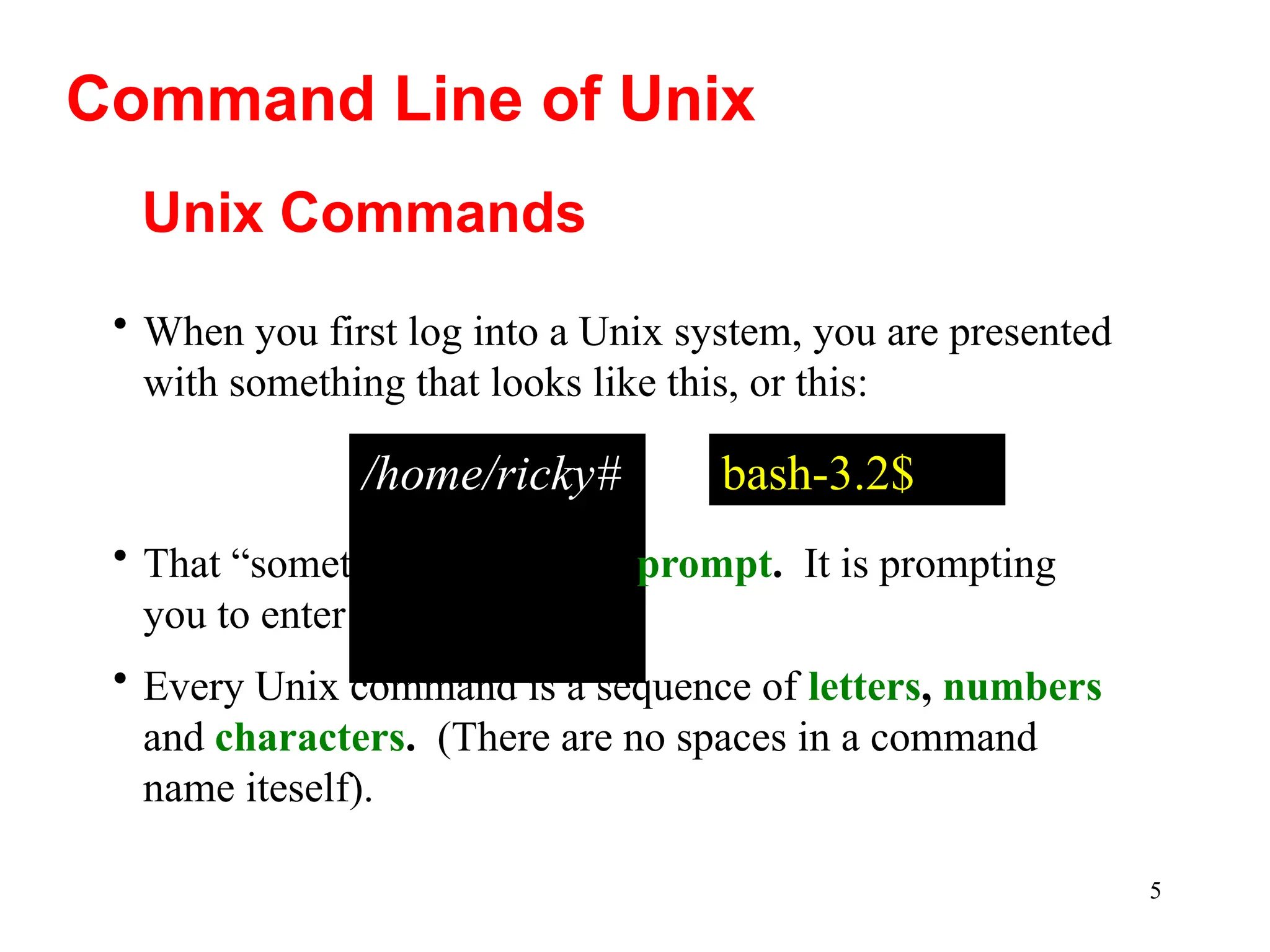
Unix Commands
/home/ricky#
• That“something” is called a prompt. It is prompting
you to enter a command.
• Every Unix command is a sequence of letters, numbers
and characters. (There are no spaces in a command
name iteself).
• When you first log into a Unix system, you are presented
with something that looks like this, or this:
Command Line of Unix
bash-3.2$
6.
6
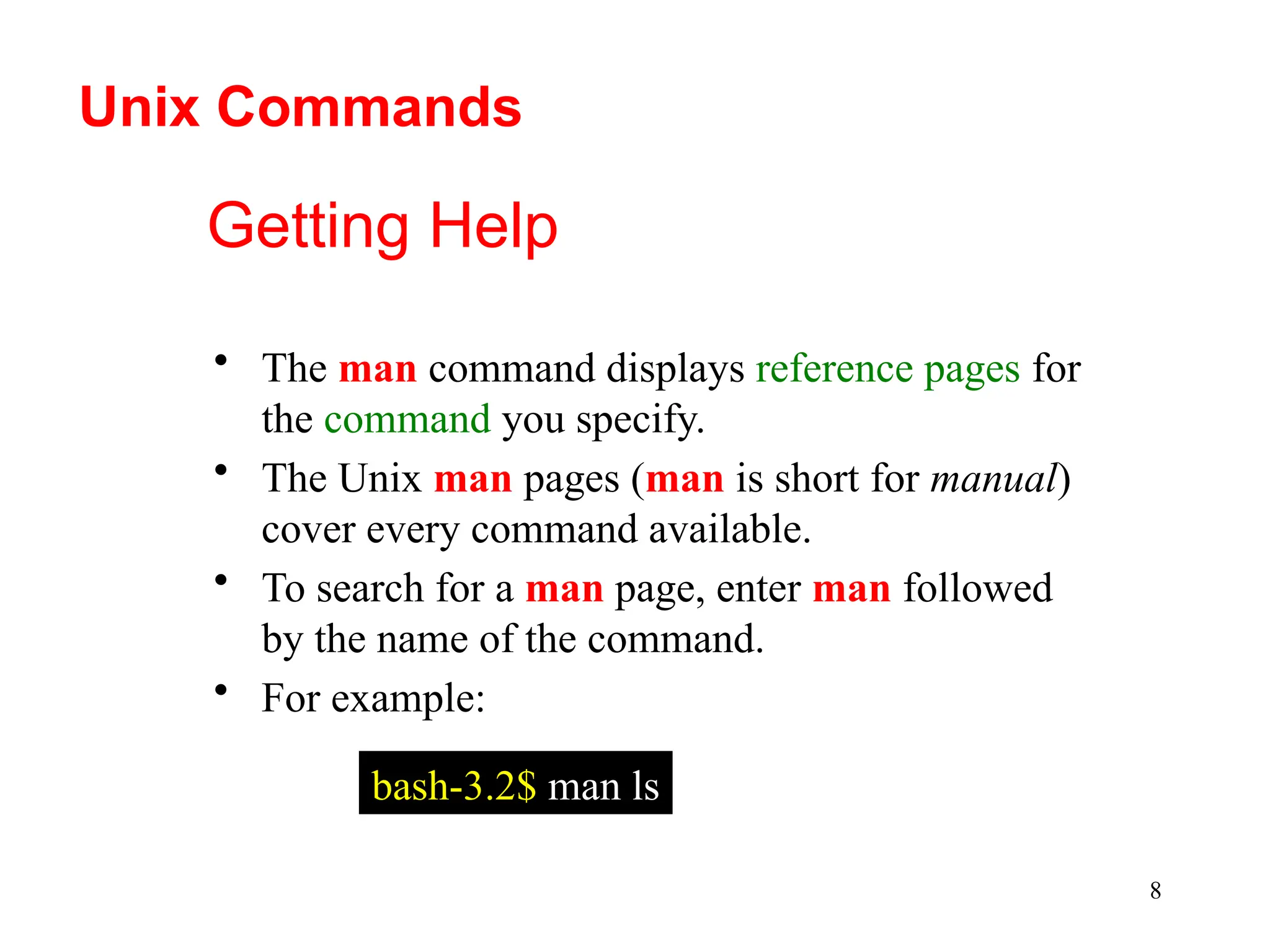
• Unix isalso case-sensitive. This means that cat and
Cat and CAT are all different commands (which
may or may not be understood).
• The prompt is displayed by a special program called
the shell.
• Shells accept commands, and run those commands.
• Shells can also be programmed in their own
language. These programs are called “shell scripts”.
Shell scripts are powerful, but beyond the scope of
7.
7
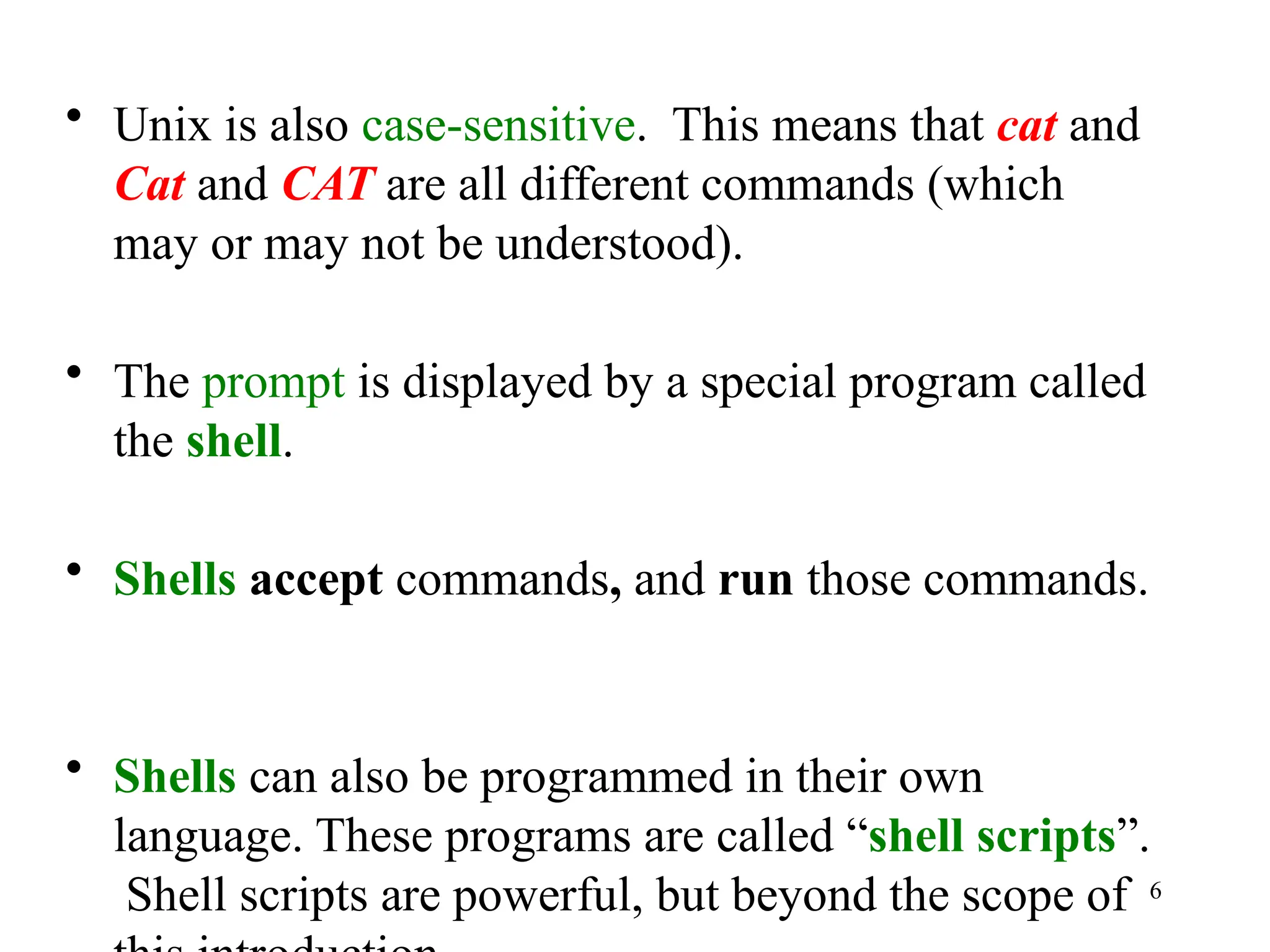
• When youfirst login, the prompt is displayed
by bash, and you are running your first Unix
program, the bash shell.
• As long as you remain logged in, the bash
shell will constantly be running (unless you
choose to change to another shell).
• Other shells available include csh, tcsh, ksh,
zsh and fish. They all behave very similarly,
but have differences/quirks that appeal to
different users.
8.
8
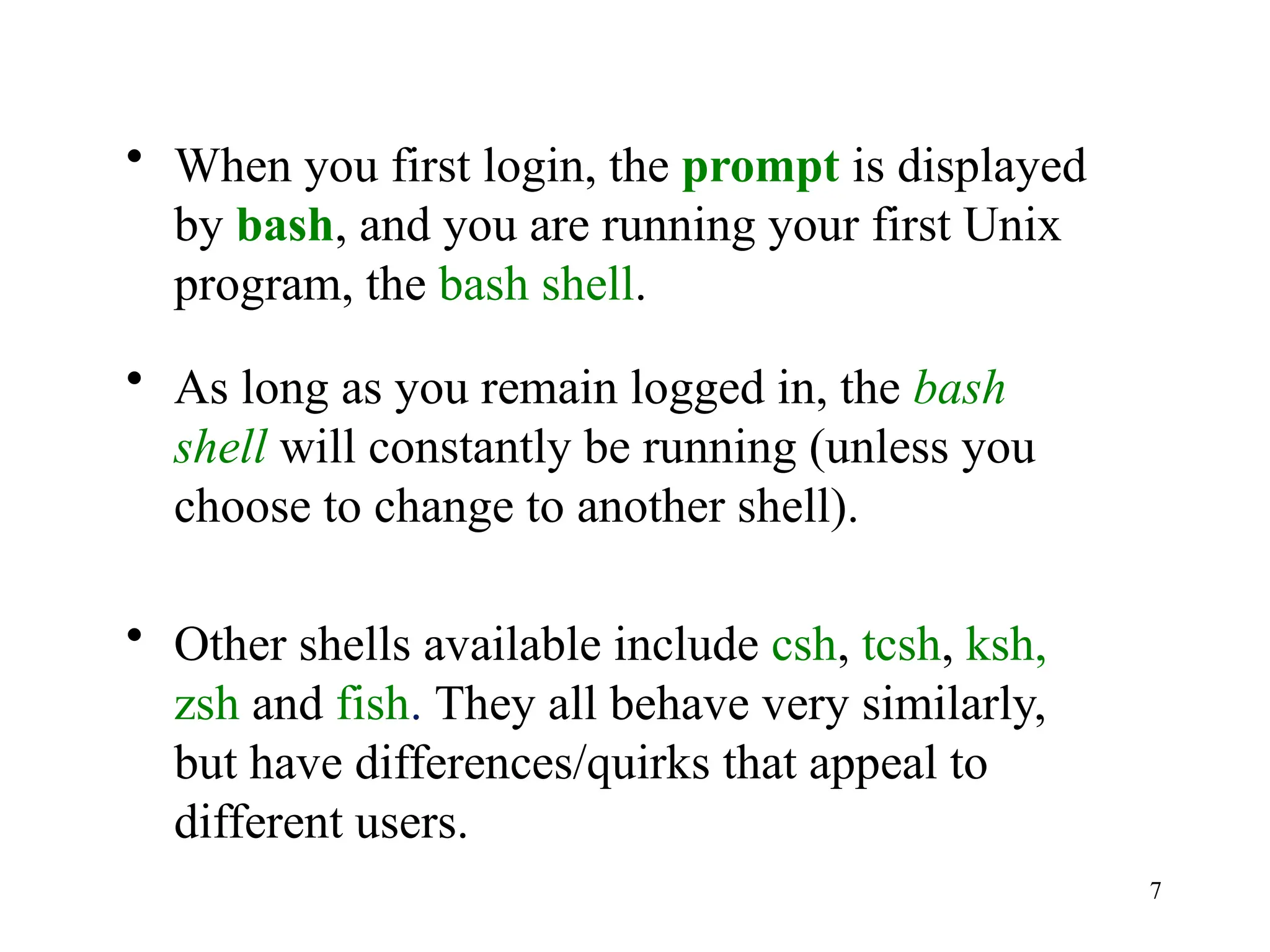
Getting Help
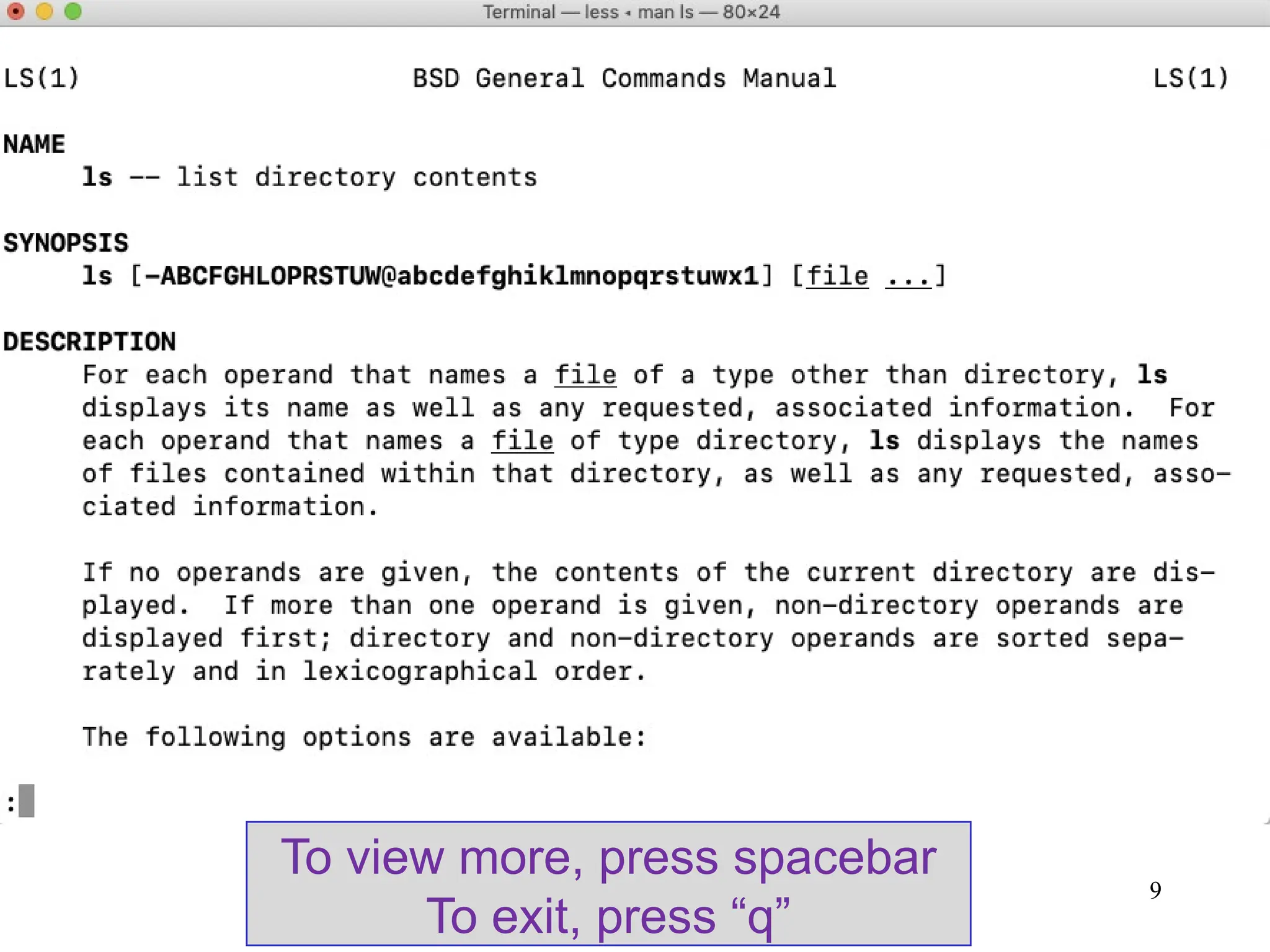
• Theman command displays reference pages for
the command you specify.
• The Unix man pages (man is short for manual)
cover every command available.
• To search for a man page, enter man followed
by the name of the command.
• For example:
bash-3.2$ man ls
Unix Commands
10
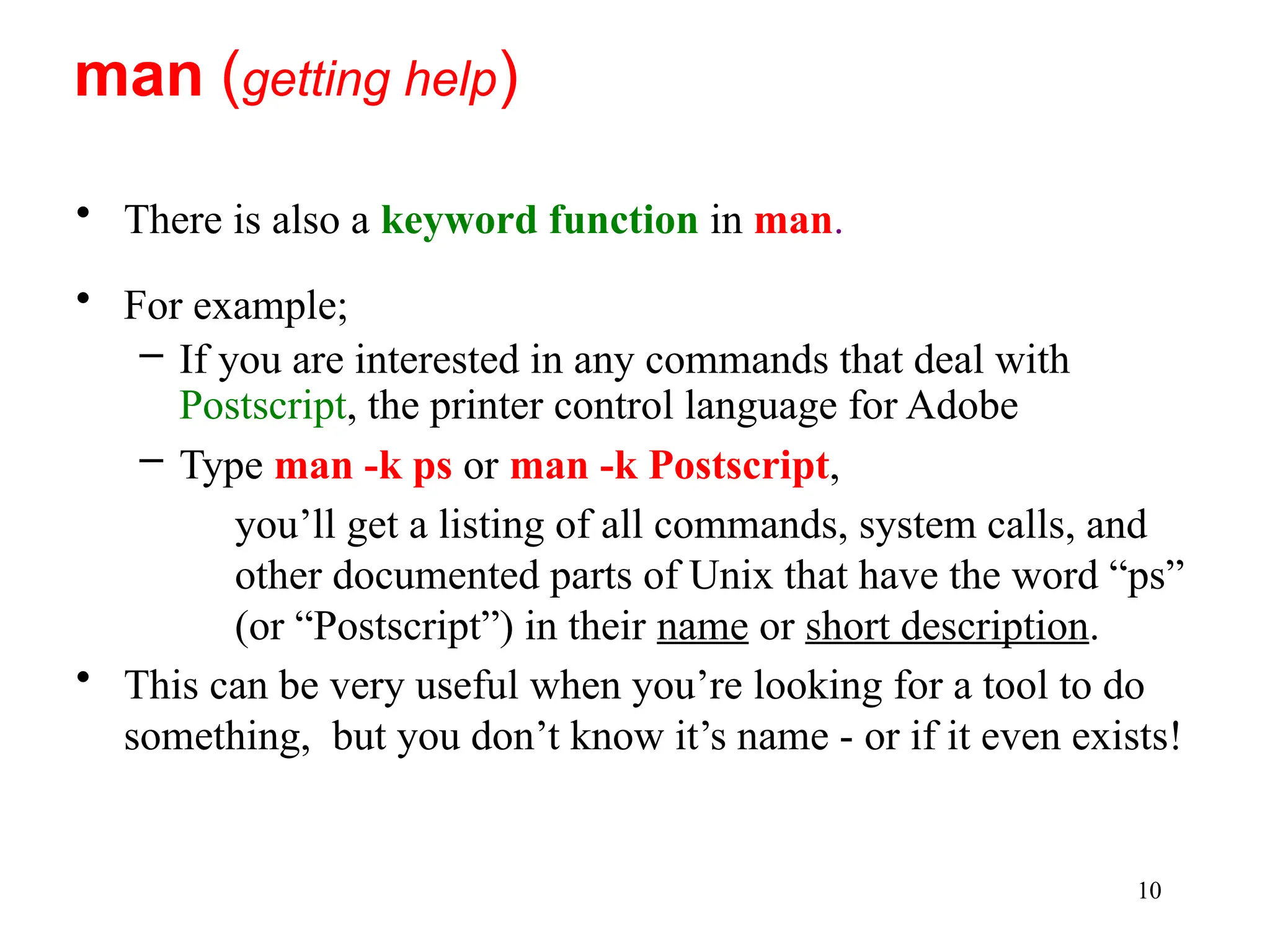
• There isalso a keyword function in man.
• For example;
– If you are interested in any commands that deal with
Postscript, the printer control language for Adobe
– Type man -k ps or man -k Postscript,
you’ll get a listing of all commands, system calls, and
other documented parts of Unix that have the word “ps”
(or “Postscript”) in their name or short description.
• This can be very useful when you’re looking for a tool to do
something, but you don’t know it’s name - or if it even exists!
man (getting help)
11.
11
• cat commandis used to concatenate or displays the contents
of a file.
• To use it, type cat, and then press enter key:
Then the next line of text is
what we just typed into cat
cat
bash-3.2$ cat
• This starts the cat program.
If you type this row
and then press
enter
• To end many Unix commands, type the end-of-file command
(EOF) [hold down the key labeled “Ctrl” and press “d” (Ctrl+d)
Windows: Ctrl-Z]
bash-3.2$ cat
Help, I’m stuck inside a Unix program!
Help, I’m stuck inside a Unix program!
12.
12
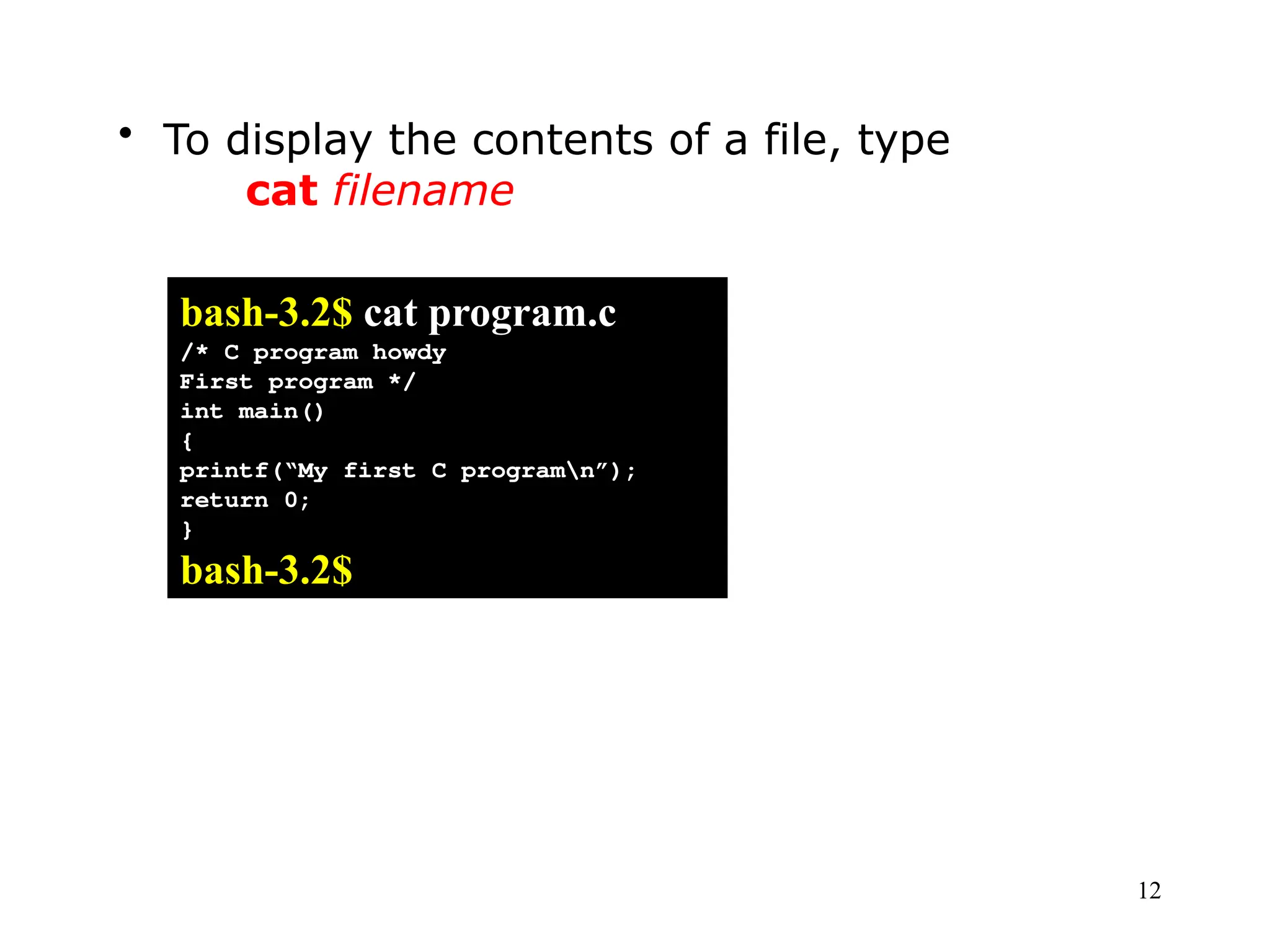
• To displaythe contents of a file, type
cat filename
bash-3.2$ cat program.c
/* C program howdy
First program */
int main()
{
printf(“My first C programn”);
return 0;
}
bash-3.2$
13.
13
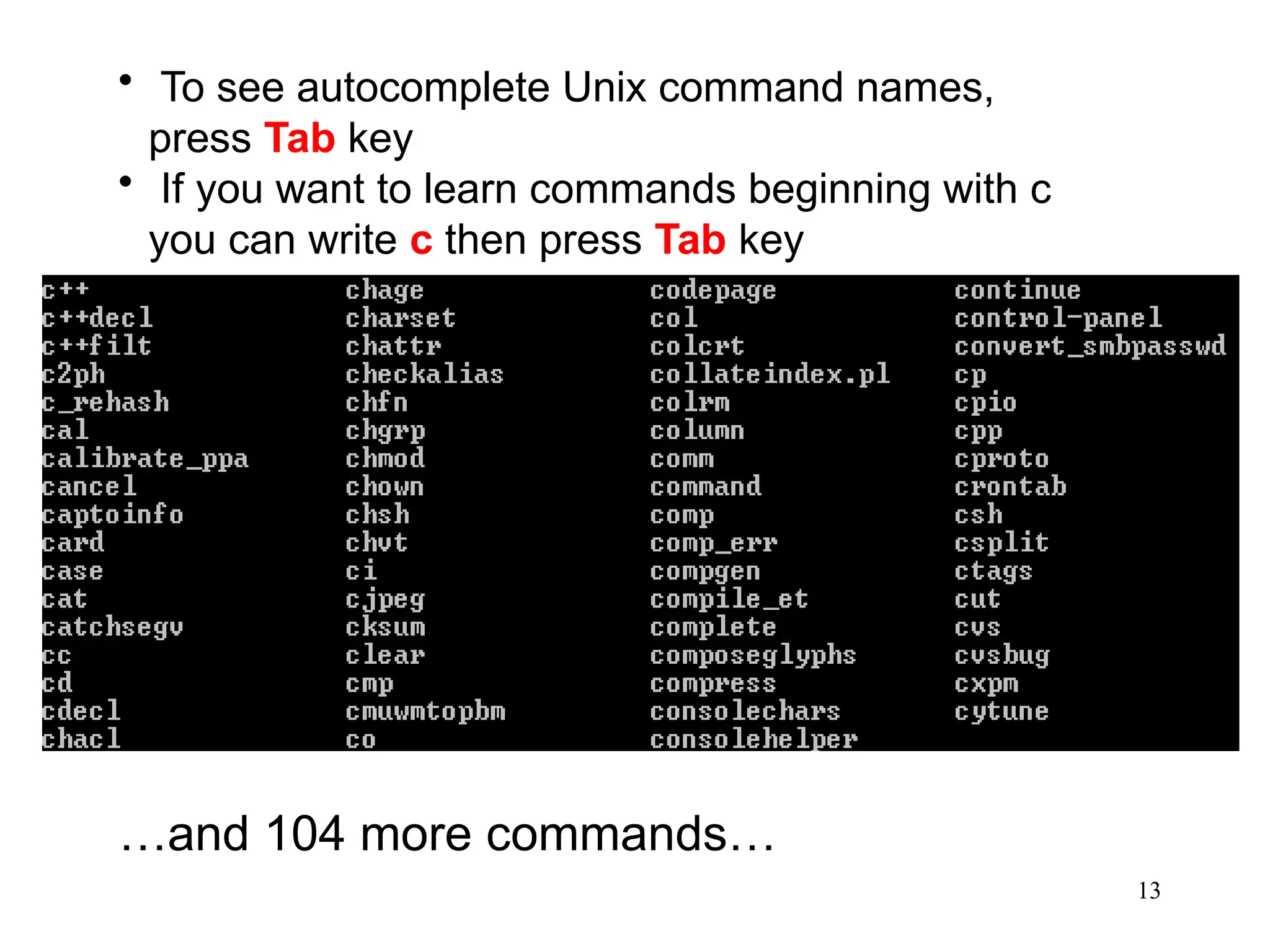
• To seeautocomplete Unix command names,
press Tab key
• If you want to learn commands beginning with c
you can write c then press Tab key
…and 104 more commands…
14.
14
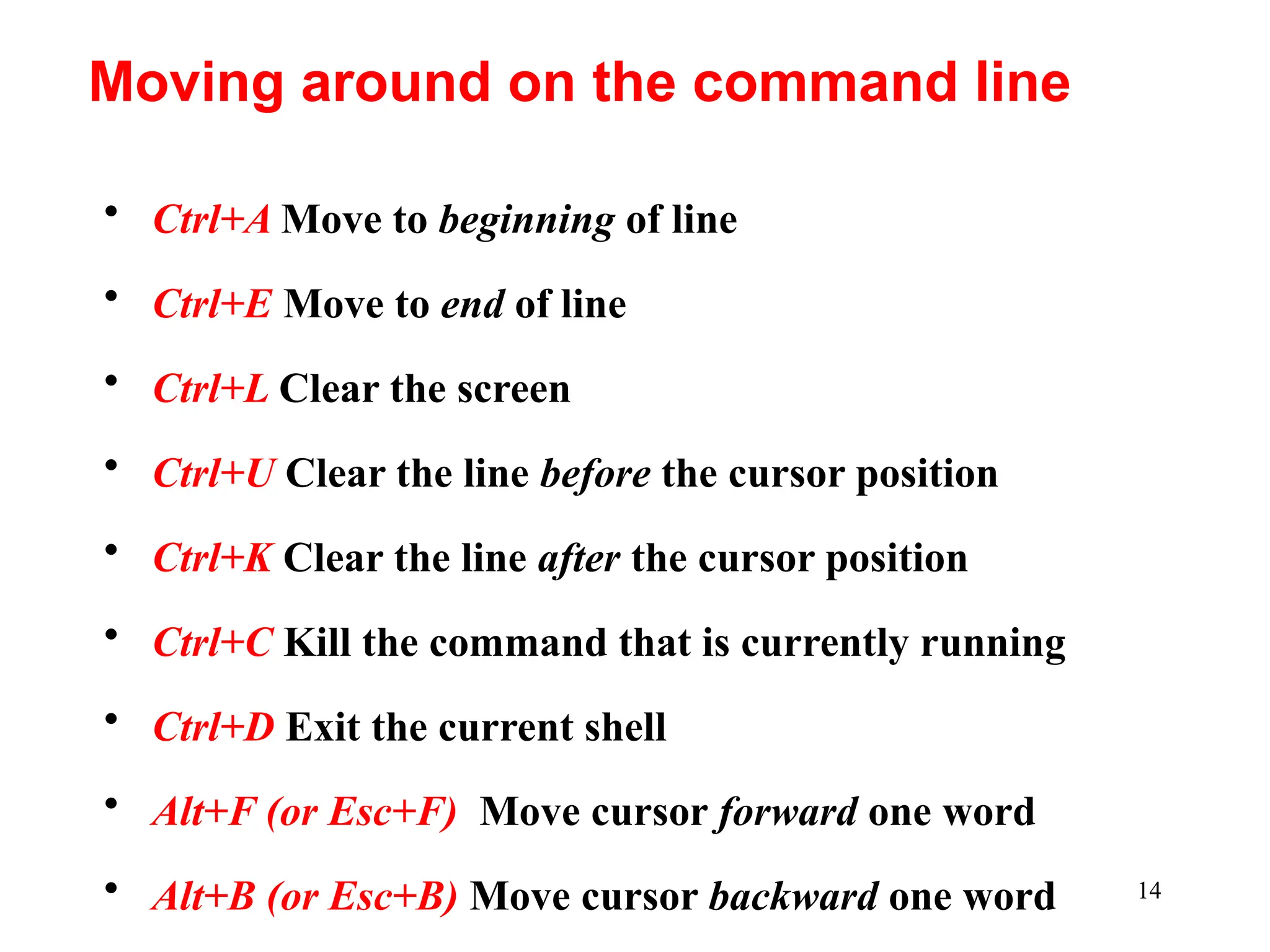
• Ctrl+A Moveto beginning of line
• Ctrl+E Move to end of line
• Ctrl+L Clear the screen
• Ctrl+U Clear the line before the cursor position
• Ctrl+K Clear the line after the cursor position
• Ctrl+C Kill the command that is currently running
• Ctrl+D Exit the current shell
• Alt+F (or Esc+F) Move cursor forward one word
• Alt+B (or Esc+B) Move cursor backward one word
Moving around on the command line
15.
15
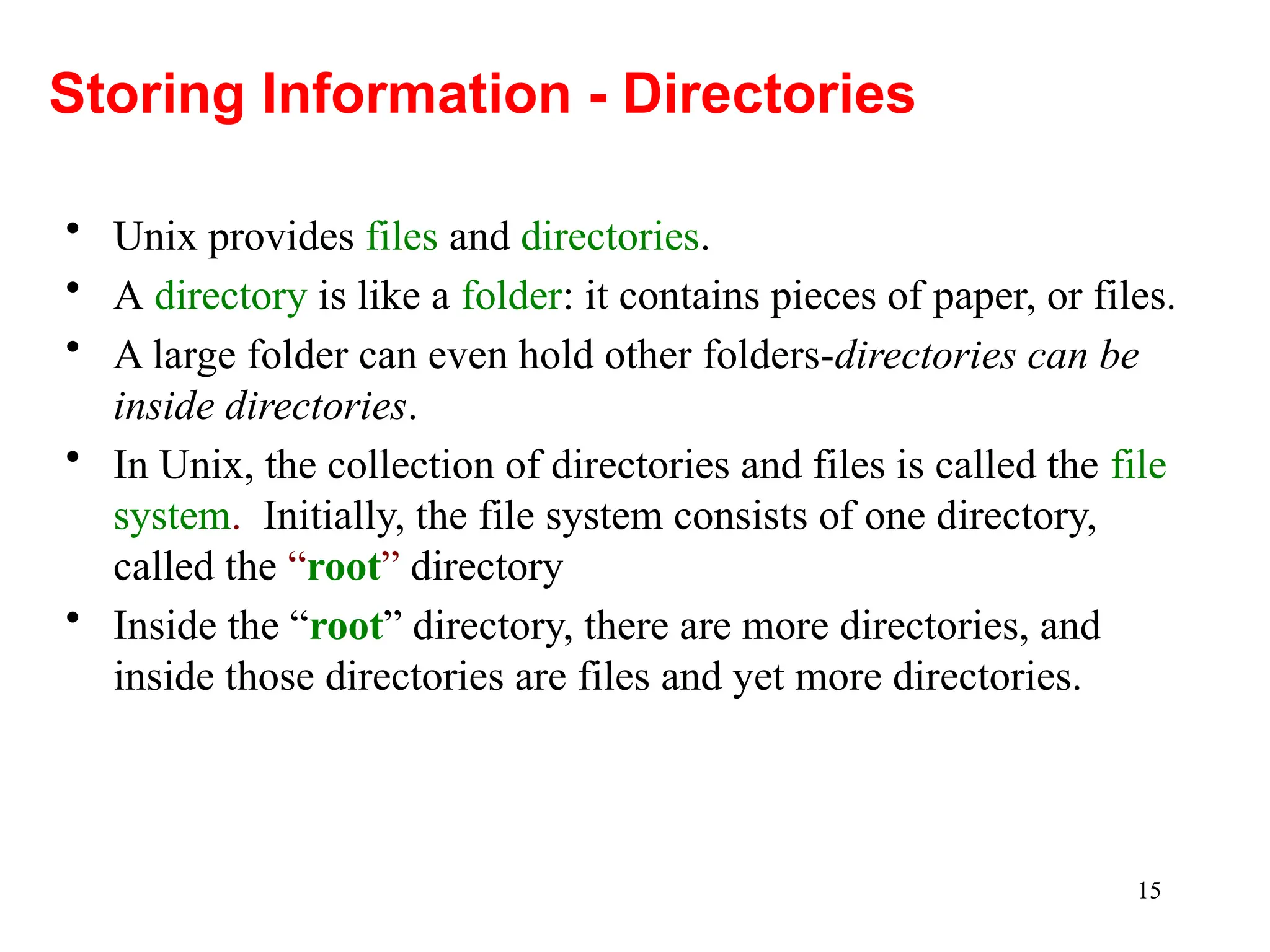
• Unix providesfiles and directories.
• A directory is like a folder: it contains pieces of paper, or files.
• A large folder can even hold other folders-directories can be
inside directories.
• In Unix, the collection of directories and files is called the file
system. Initially, the file system consists of one directory,
called the “root” directory
• Inside the “root” directory, there are more directories, and
inside those directories are files and yet more directories.
Storing Information - Directories
16.
16
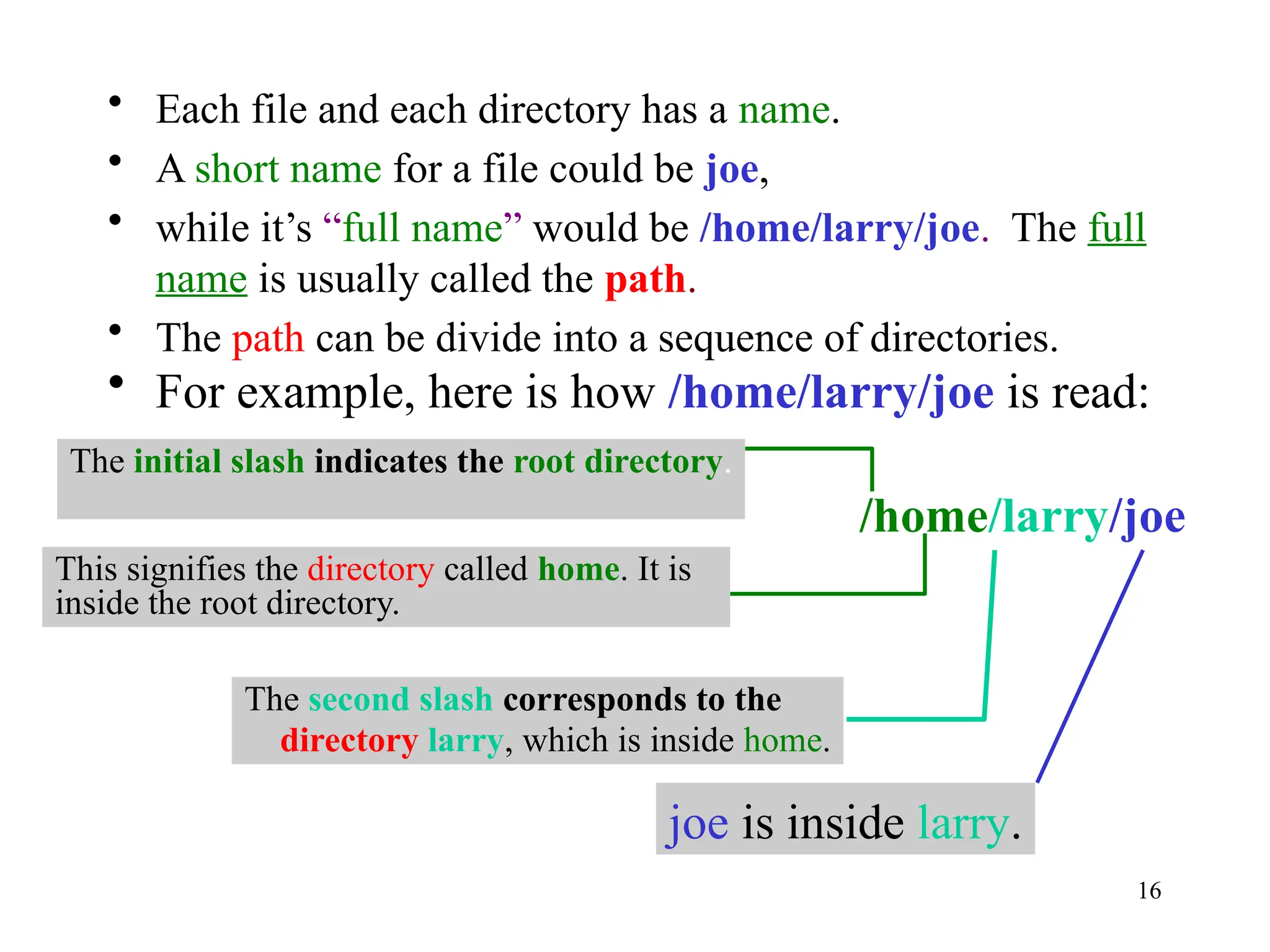
• Each fileand each directory has a name.
• A short name for a file could be joe,
• while it’s “full name” would be /home/larry/joe. The full
name is usually called the path.
• The path can be divide into a sequence of directories.
• For example, here is how /home/larry/joe is read:
/home/larry/joe
This signifies the directory called home. It is
inside the root directory.
The second slash corresponds to the
directory larry, which is inside home.
joe is inside larry.
The initial slash indicates the root directory.
17.
17
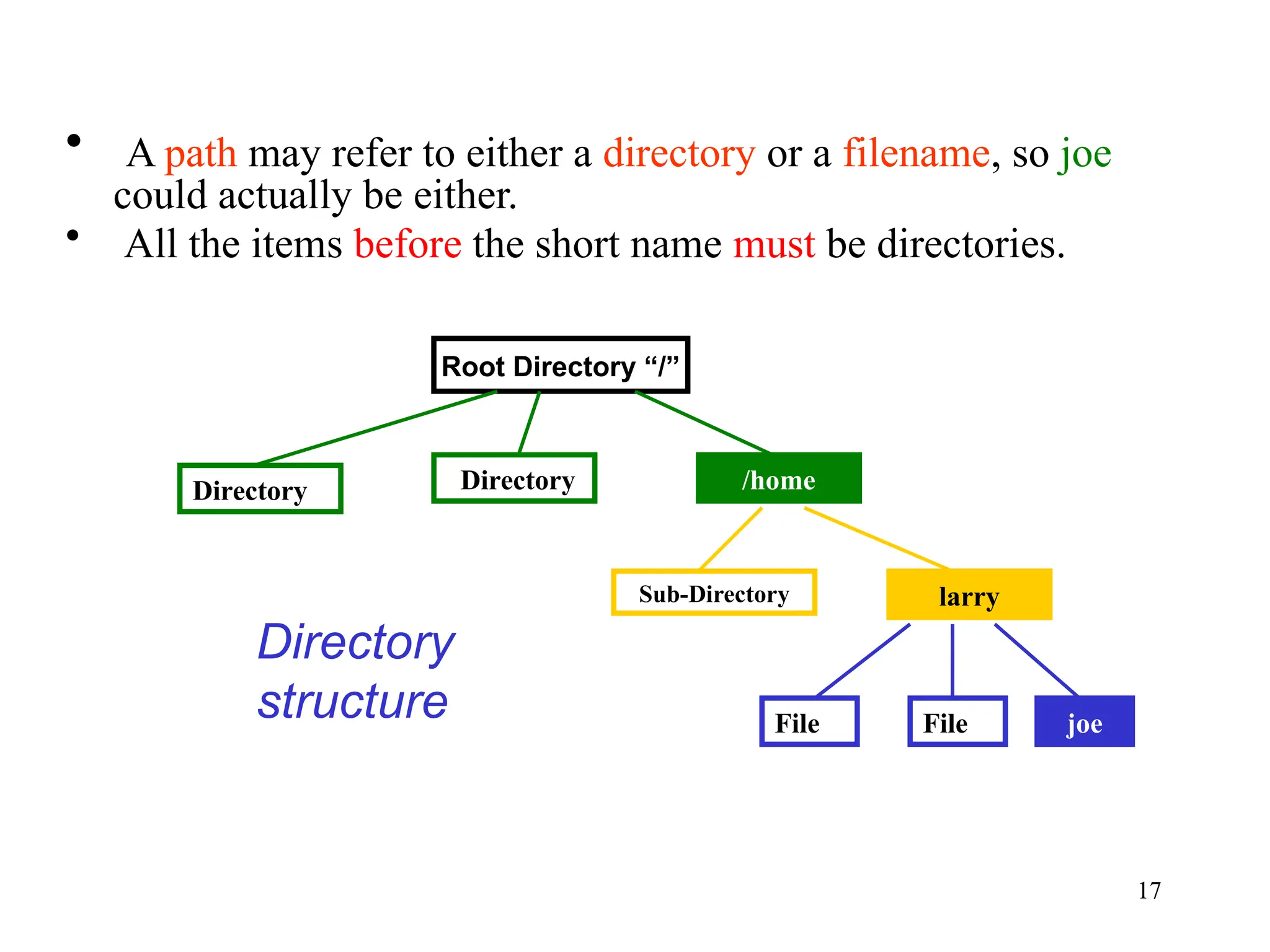
• A pathmay refer to either a directory or a filename, so joe
could actually be either.
• All the items before the short name must be directories.
Root Directory “/”
Sub-Directory
/home
Directory
Directory
larry
joe
File
File
Directory
structure
18.
18
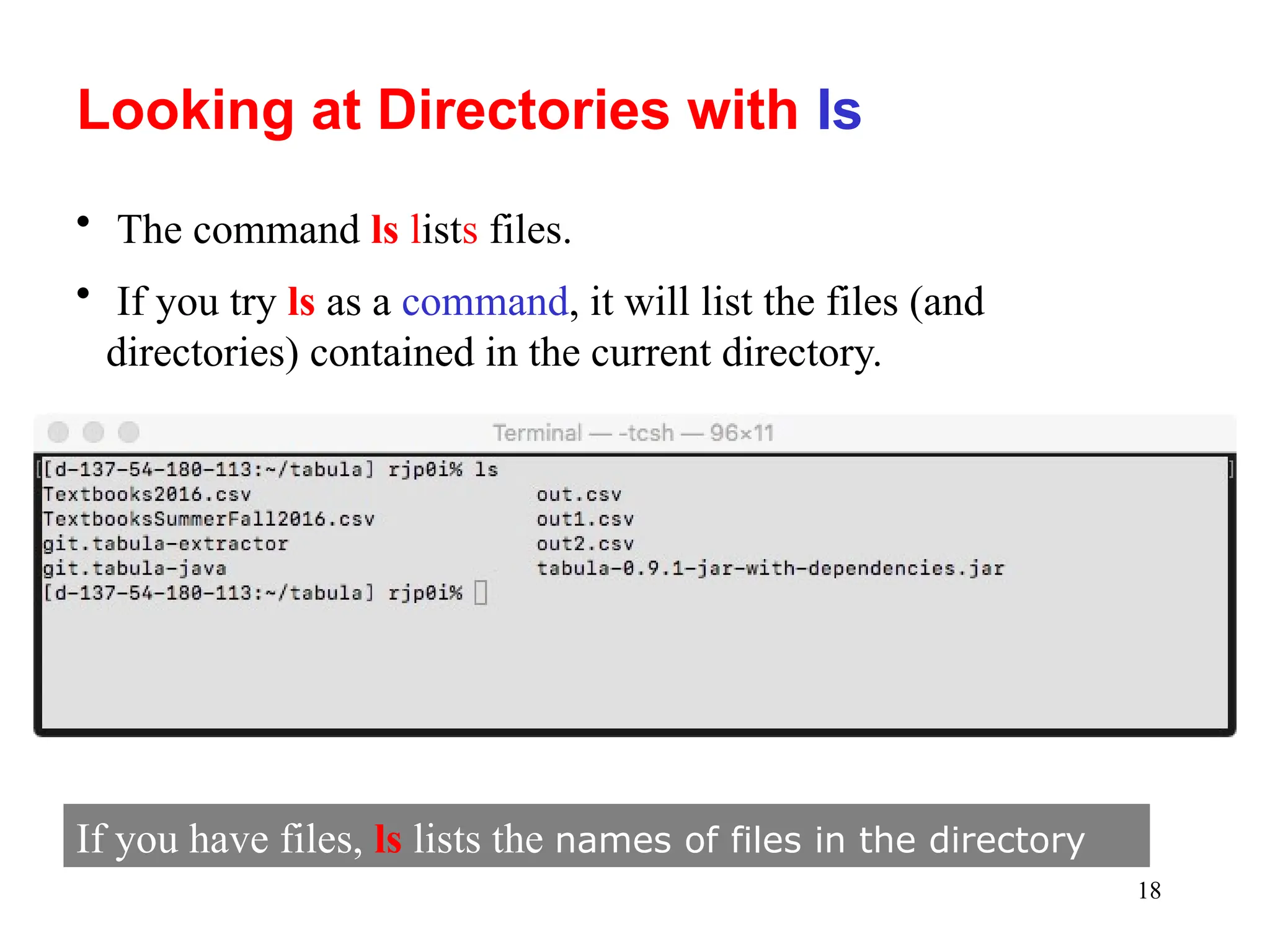
Looking at Directorieswith Is
• The command ls lists files.
• If you try ls as a command, it will list the files (and
directories) contained in the current directory.
If you have files, ls lists the names of files in the directory
19.
19
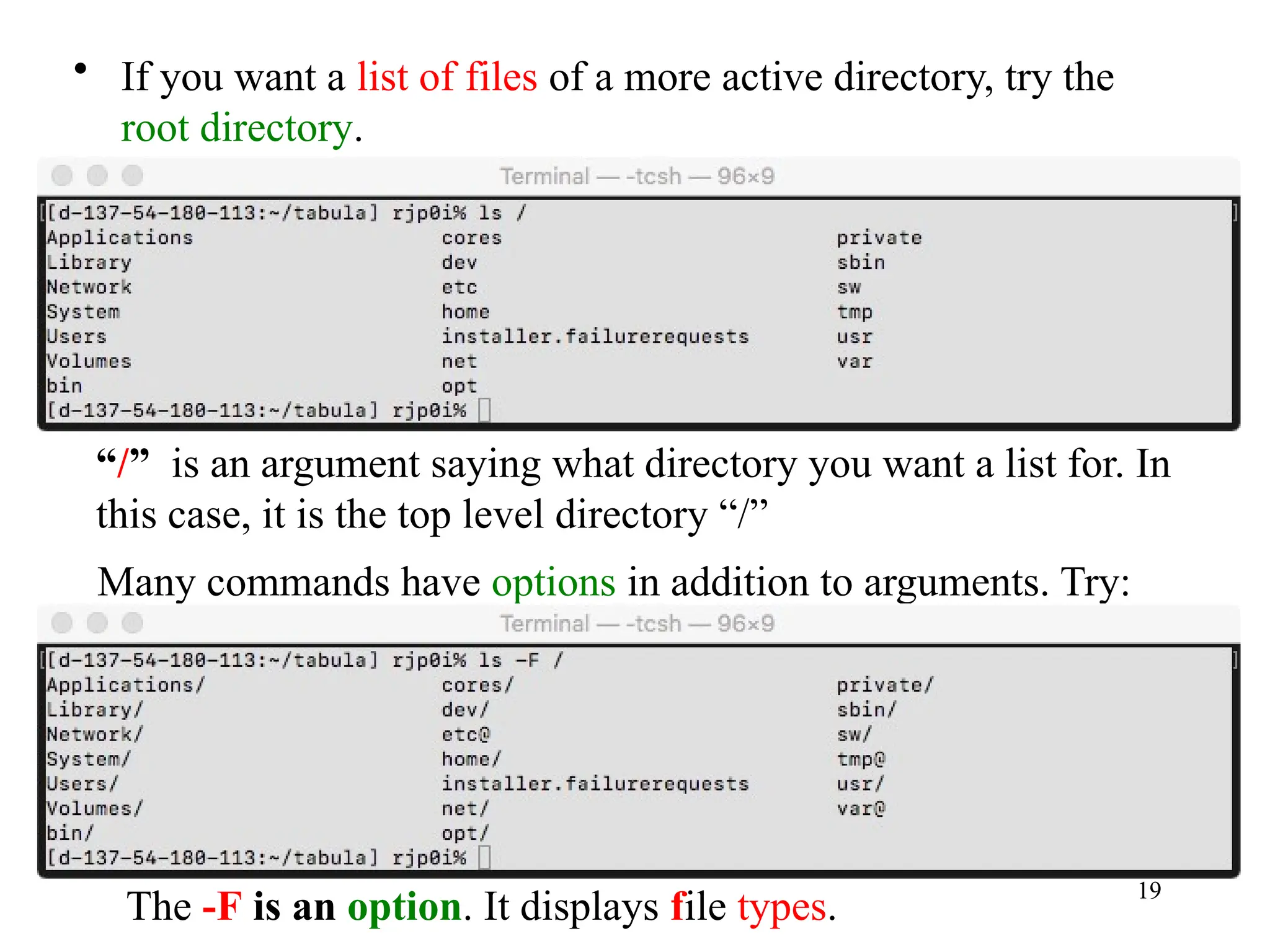
• If youwant a list of files of a more active directory, try the
root directory.
“/” is an argument saying what directory you want a list for. In
this case, it is the top level directory “/”
Many commands have options in addition to arguments. Try:
The -F is an option. It displays file types.
20.
20
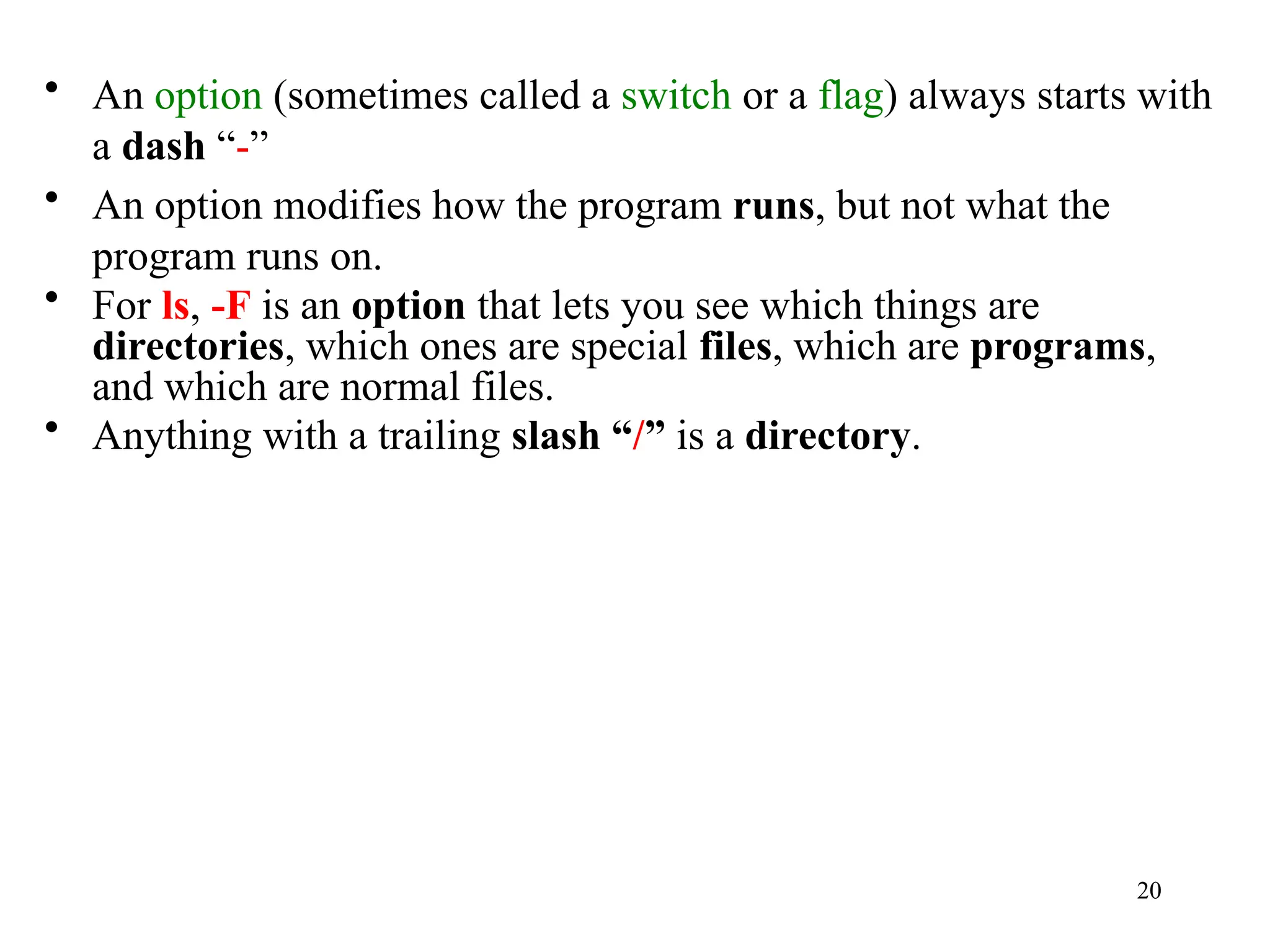
• An option(sometimes called a switch or a flag) always starts with
a dash “-”
• An option modifies how the program runs, but not what the
program runs on.
• For ls, -F is an option that lets you see which things are
directories, which ones are special files, which are programs,
and which are normal files.
• Anything with a trailing slash “/” is a directory.
21.
21
• Many Unixcommands are like ls.
– They have options, which are generally one
character after a dash, and they have arguments.
• Unlike ls, some commands require certain
arguments and/or options.
22.
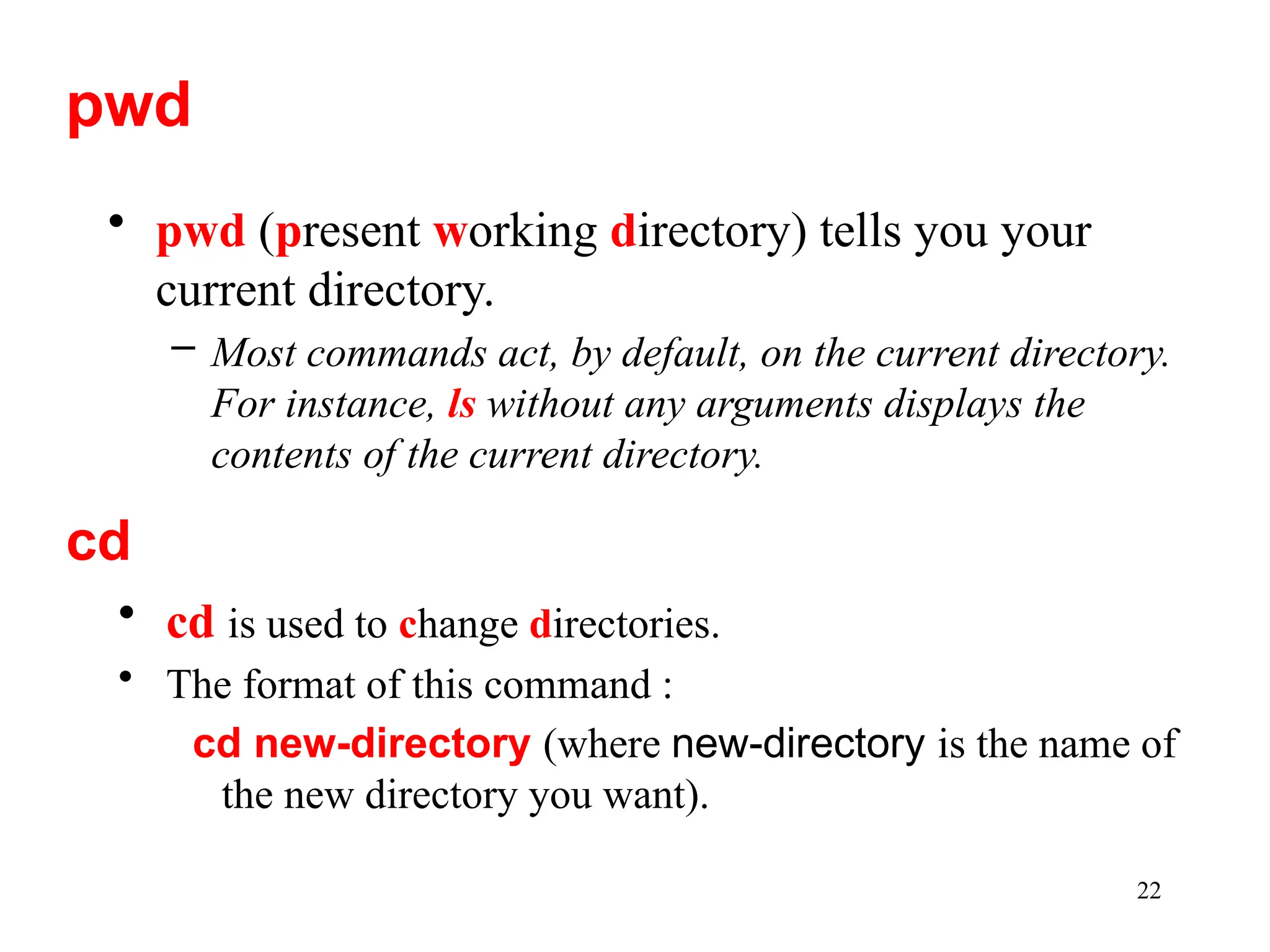
22
• pwd (presentworking directory) tells you your
current directory.
– Most commands act, by default, on the current directory.
For instance, ls without any arguments displays the
contents of the current directory.
pwd
cd
• cd is used to change directories.
• The format of this command :
cd new-directory (where new-directory is the name of
the new directory you want).
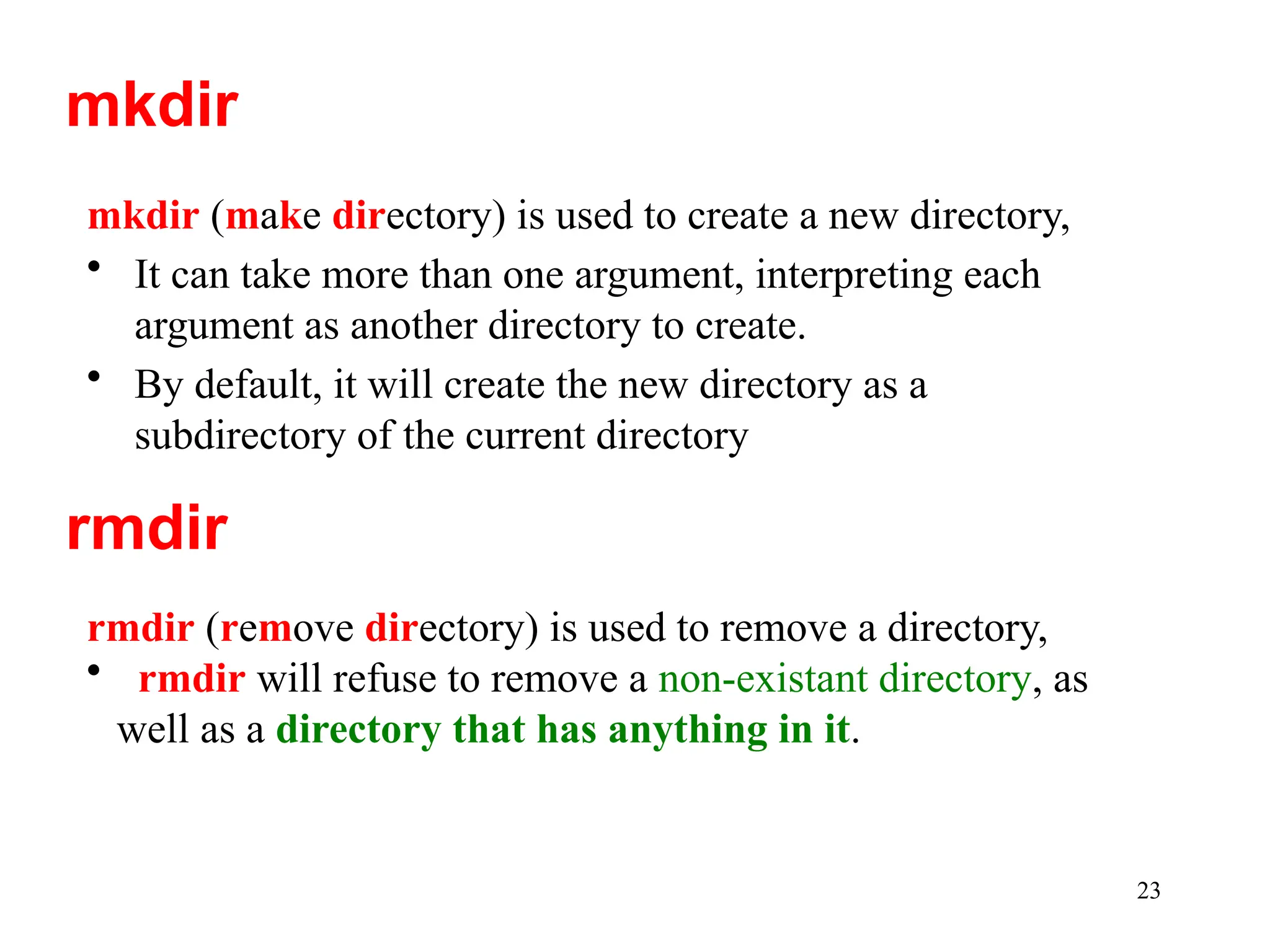
23.
23
mkdir (make directory)is used to create a new directory,
• It can take more than one argument, interpreting each
argument as another directory to create.
• By default, it will create the new directory as a
subdirectory of the current directory
mkdir
rmdir
rmdir (remove directory) is used to remove a directory,
• rmdir will refuse to remove a non-existant directory, as
well as a directory that has anything in it.
24.
24
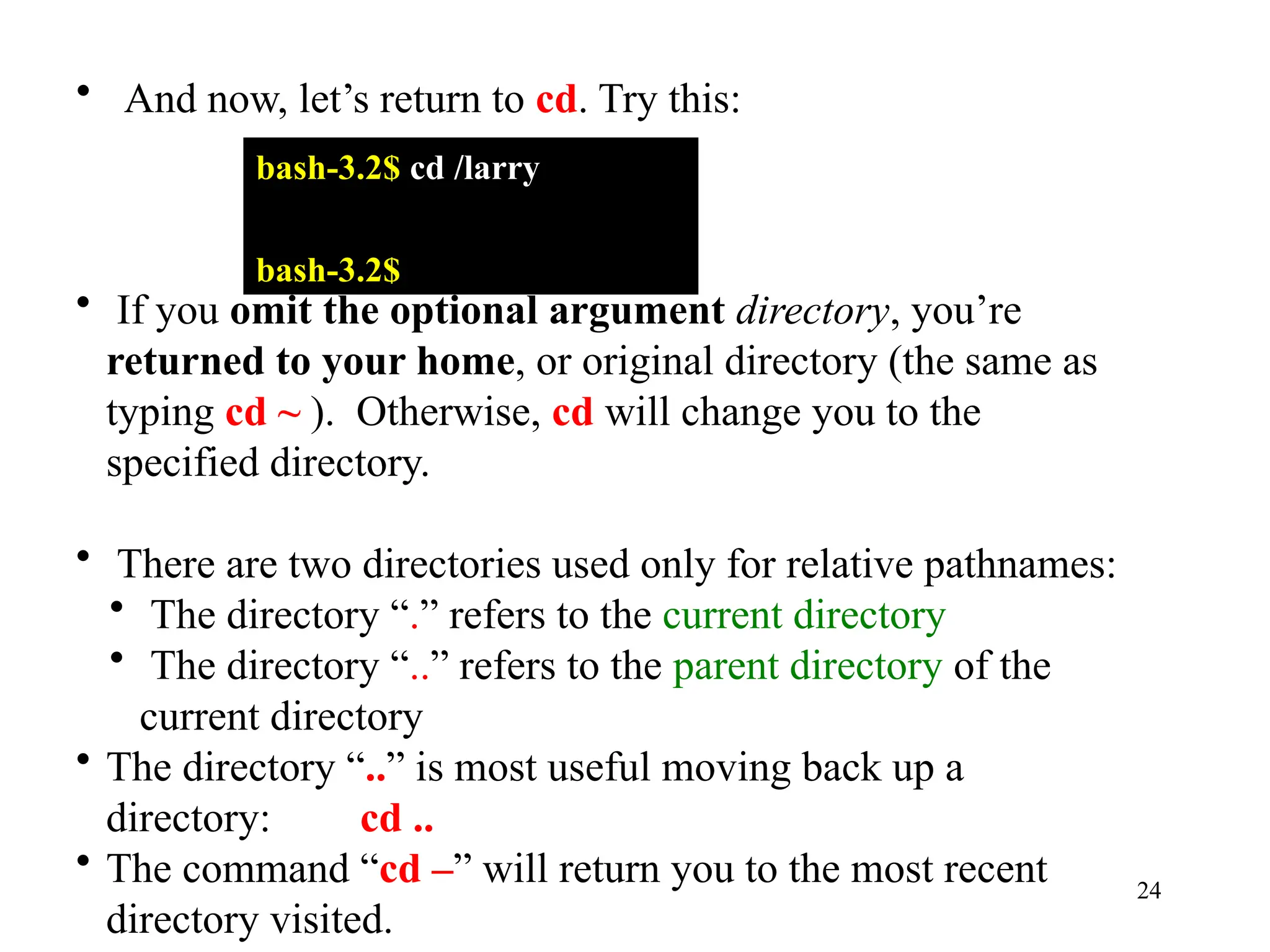
• And now,let’s return to cd. Try this:
bash-3.2$ cd /larry
bash-3.2$
• If you omit the optional argument directory, you’re
returned to your home, or original directory (the same as
typing cd ~ ). Otherwise, cd will change you to the
specified directory.
• There are two directories used only for relative pathnames:
• The directory “.” refers to the current directory
• The directory “..” refers to the parent directory of the
current directory
• The directory “..” is most useful moving back up a
directory: cd ..
• The command “cd –” will return you to the most recent
directory visited.
25.
25
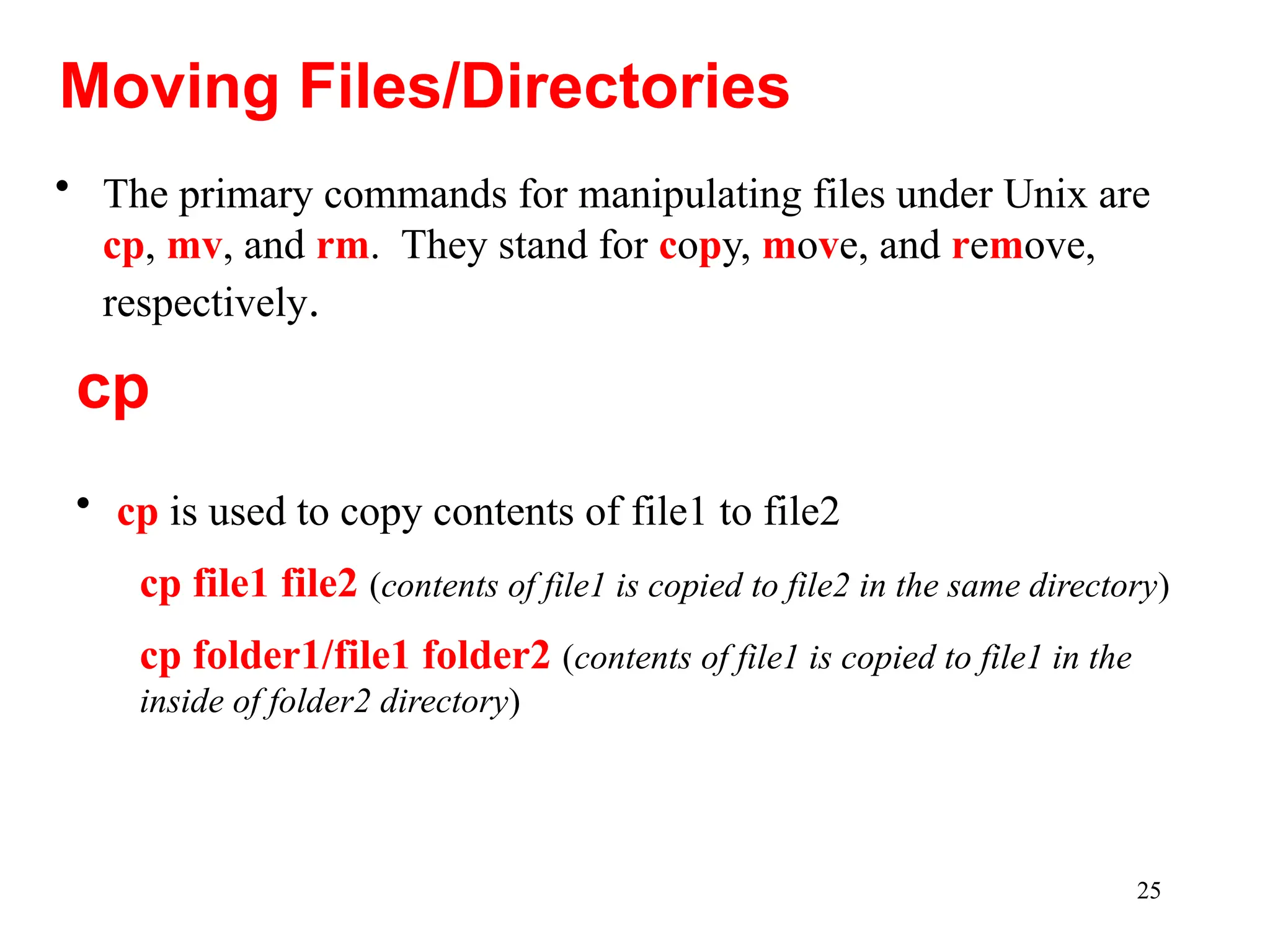
• The primarycommands for manipulating files under Unix are
cp, mv, and rm. They stand for copy, move, and remove,
respectively.
Moving Files/Directories
• cp is used to copy contents of file1 to file2
cp file1 file2 (contents of file1 is copied to file2 in the same directory)
cp folder1/file1 folder2 (contents of file1 is copied to file1 in the
inside of folder2 directory)
cp
26.
26
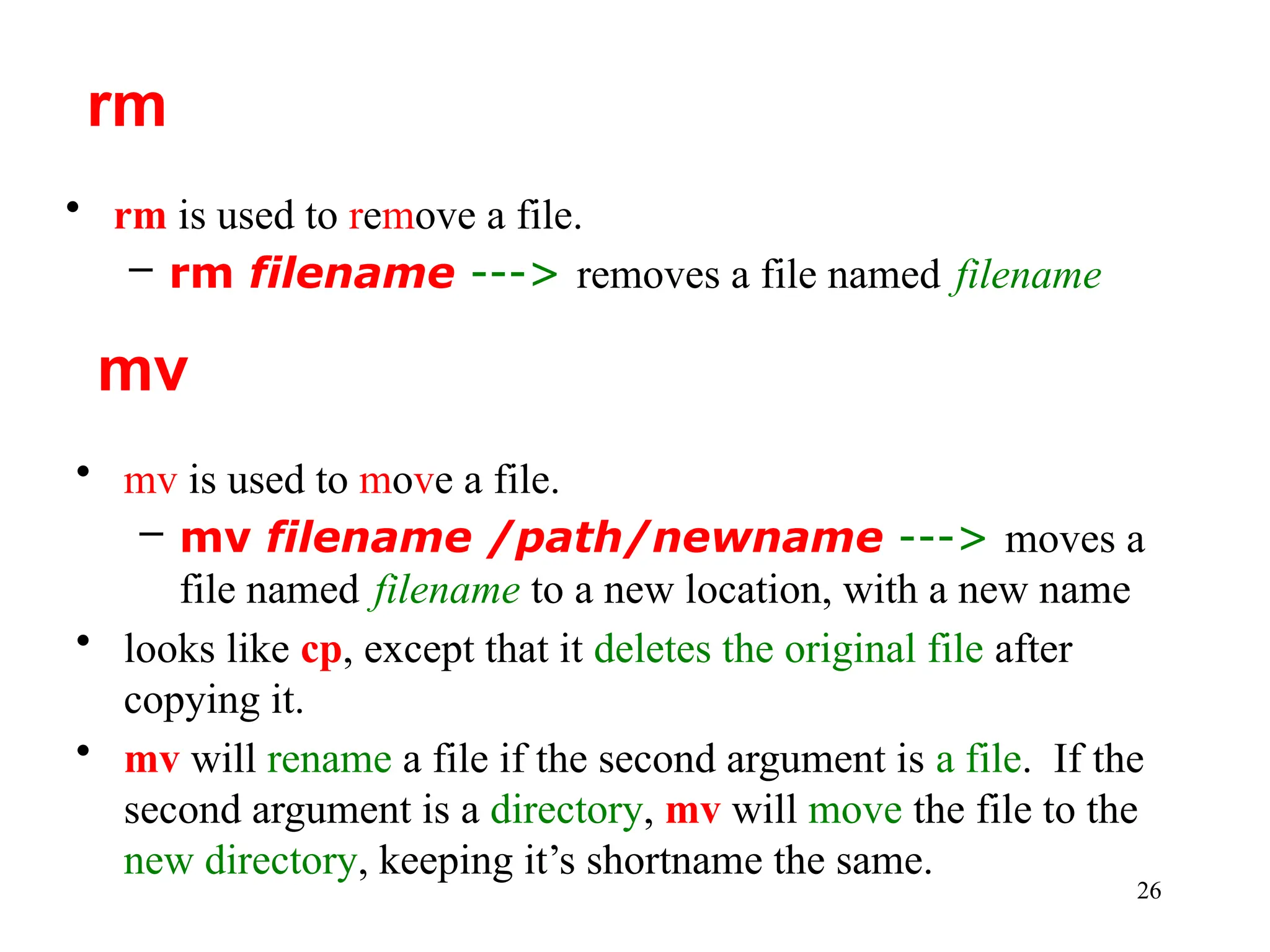
• rm isused to remove a file.
– rm filename ---> removes a file named filename
rm
• mv is used to move a file.
– mv filename /path/newname ---> moves a
file named filename to a new location, with a new name
• looks like cp, except that it deletes the original file after
copying it.
• mv will rename a file if the second argument is a file. If the
second argument is a directory, mv will move the file to the
new directory, keeping it’s shortname the same.
mv
27.
27
Some Other UnixCommands
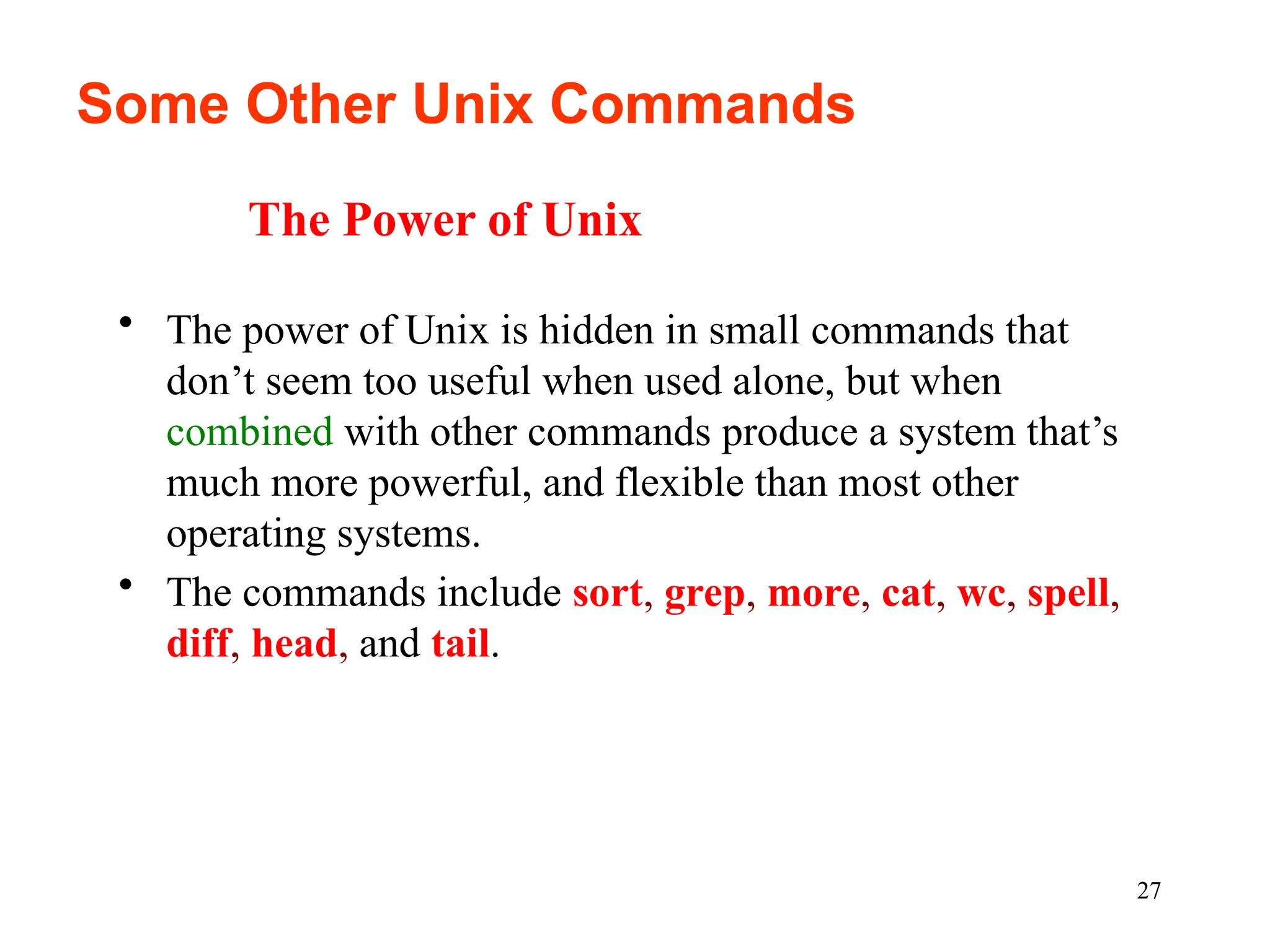
• The power of Unix is hidden in small commands that
don’t seem too useful when used alone, but when
combined with other commands produce a system that’s
much more powerful, and flexible than most other
operating systems.
• The commands include sort, grep, more, cat, wc, spell,
diff, head, and tail.
The Power of Unix
28.
28
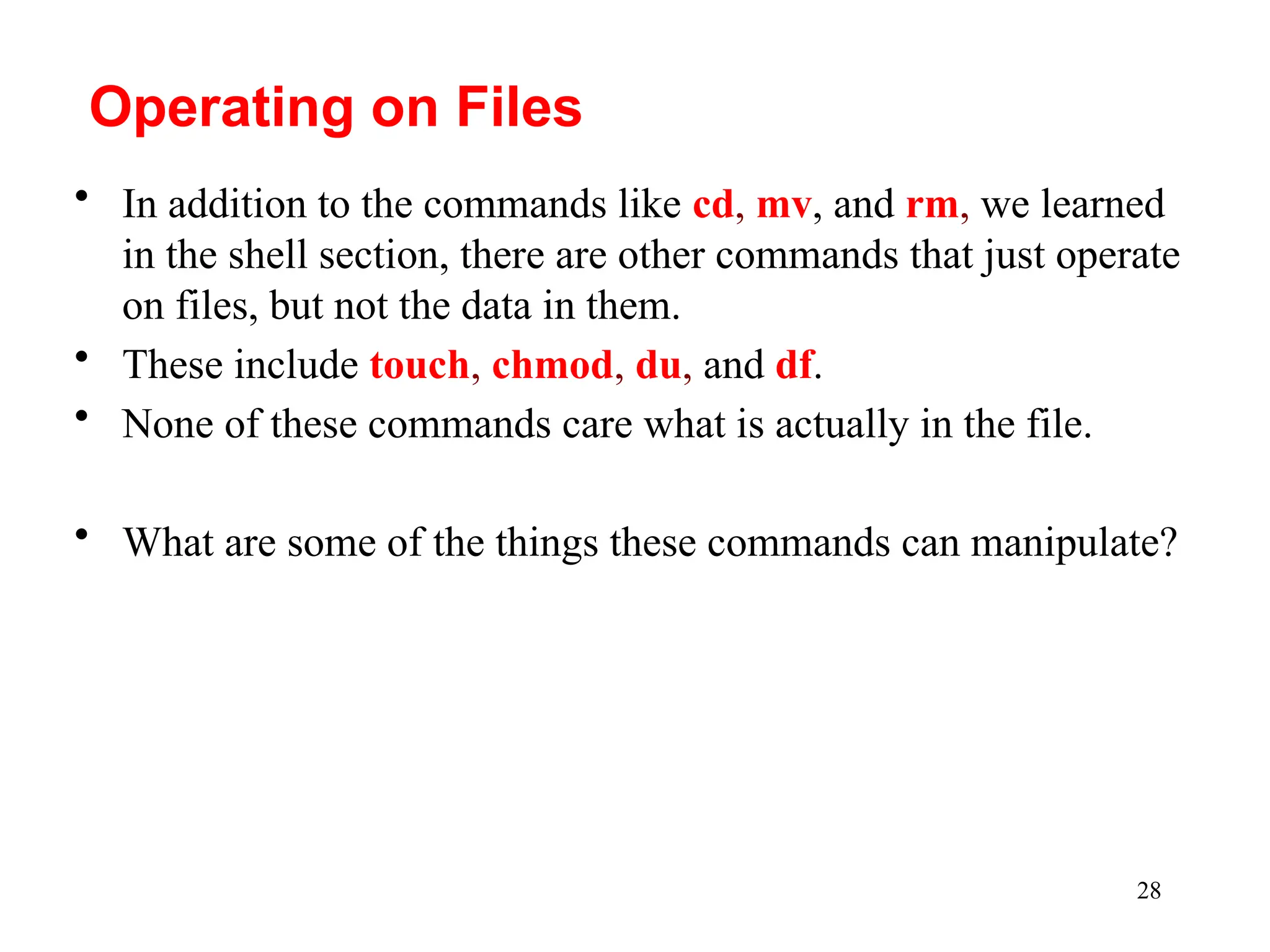
• In additionto the commands like cd, mv, and rm, we learned
in the shell section, there are other commands that just operate
on files, but not the data in them.
• These include touch, chmod, du, and df.
• None of these commands care what is actually in the file.
• What are some of the things these commands can manipulate?
Operating on Files
30
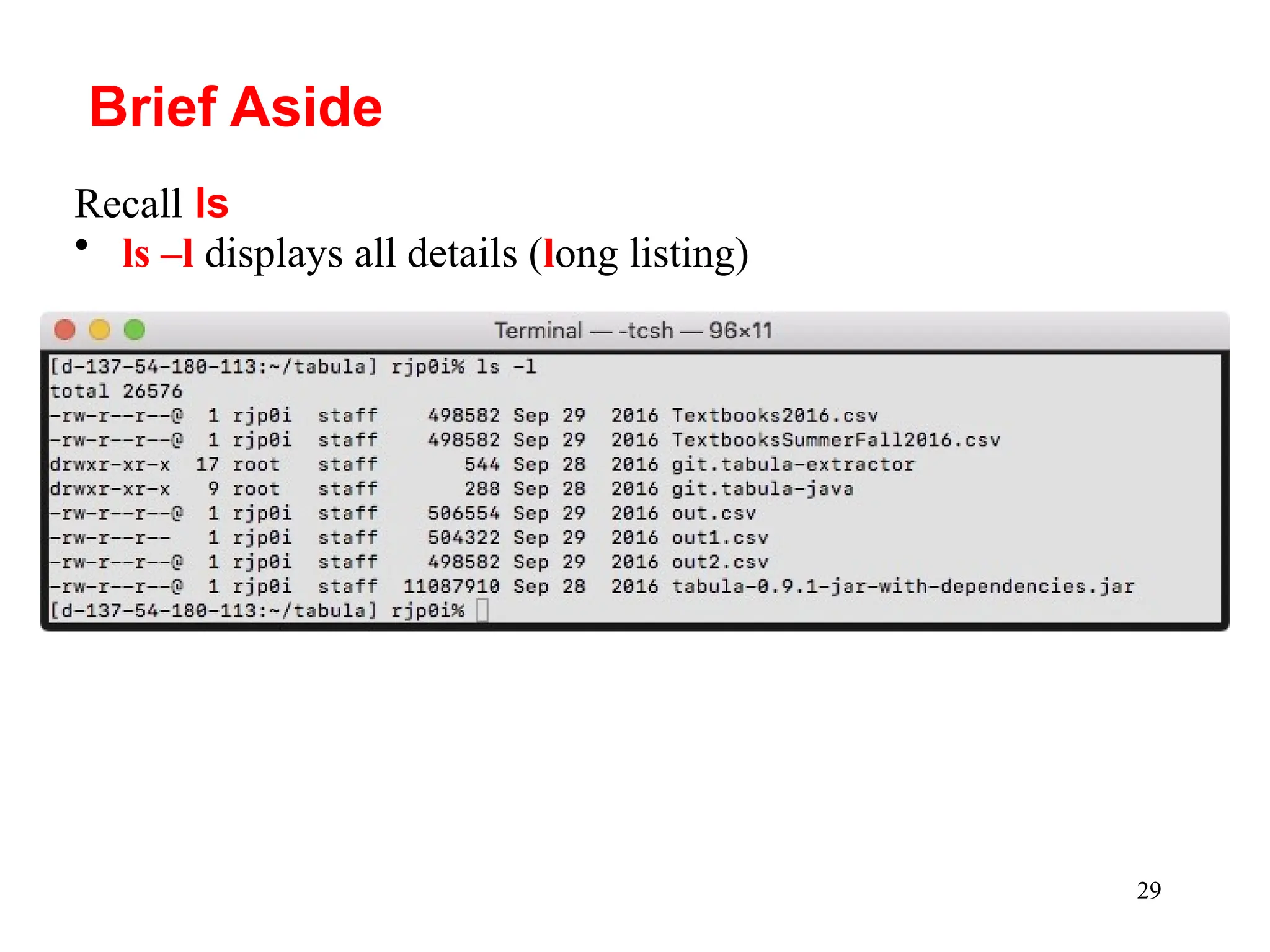
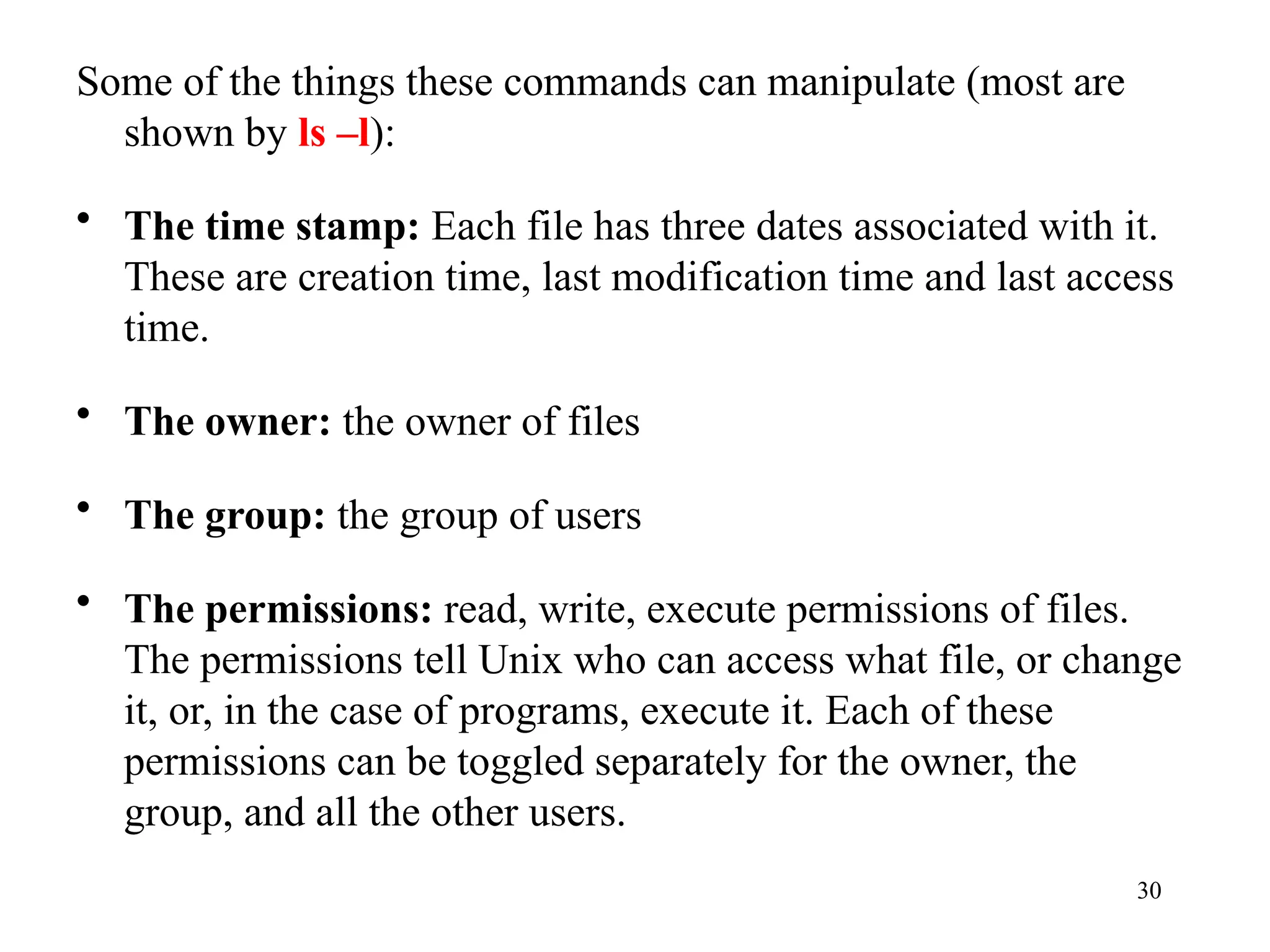
Some of thethings these commands can manipulate (most are
shown by ls –l):
• The time stamp: Each file has three dates associated with it.
These are creation time, last modification time and last access
time.
• The owner: the owner of files
• The group: the group of users
• The permissions: read, write, execute permissions of files.
The permissions tell Unix who can access what file, or change
it, or, in the case of programs, execute it. Each of these
permissions can be toggled separately for the owner, the
group, and all the other users.
31.
31
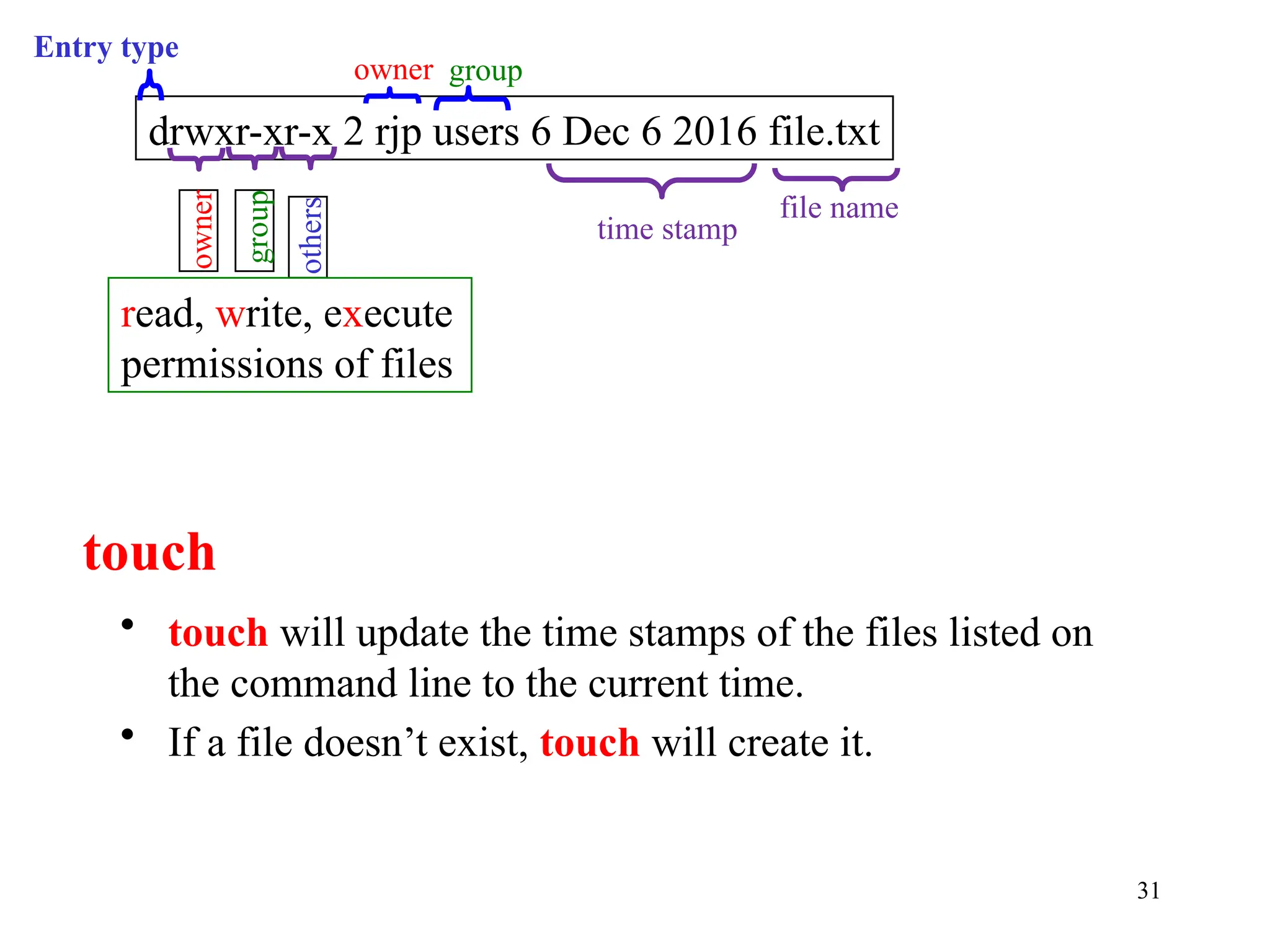
• touch willupdate the time stamps of the files listed on
the command line to the current time.
• If a file doesn’t exist, touch will create it.
touch
drwxr-xr-x 2 rjp users 6 Dec 6 2016 file.txt
owner
group
others
file name
read, write, execute
permissions of files
owner group
time stamp
Entry type
32.
32
(owner) (group) (others)
chmod[number][number][number] file1
Number = (read)4 + (write)2 + (execute)1
• Example: chmod 754 file1
for owner: read, write and execute permissions (4+2+1)
for group: read and execute permissions (4+0+1)
for others: only read permission (4+0+0)
chmod
• chmod (change mode) is used to change the permissions
on a file.
33.
33
(owner) (group) (others)
chmod[user/group/others/all]operator[permission]
[file(s)]
operator can be +, -, or =
• Example: chmod u+rwx,g+rx,o+r file1
for owner: read, write and execute permissions (u+rwx)
for group: read and execute permissions (g+rx)
for others: only read permission (o+r)
chmod
• chmod can also be set in alpha mode (non-octal)
34.
34
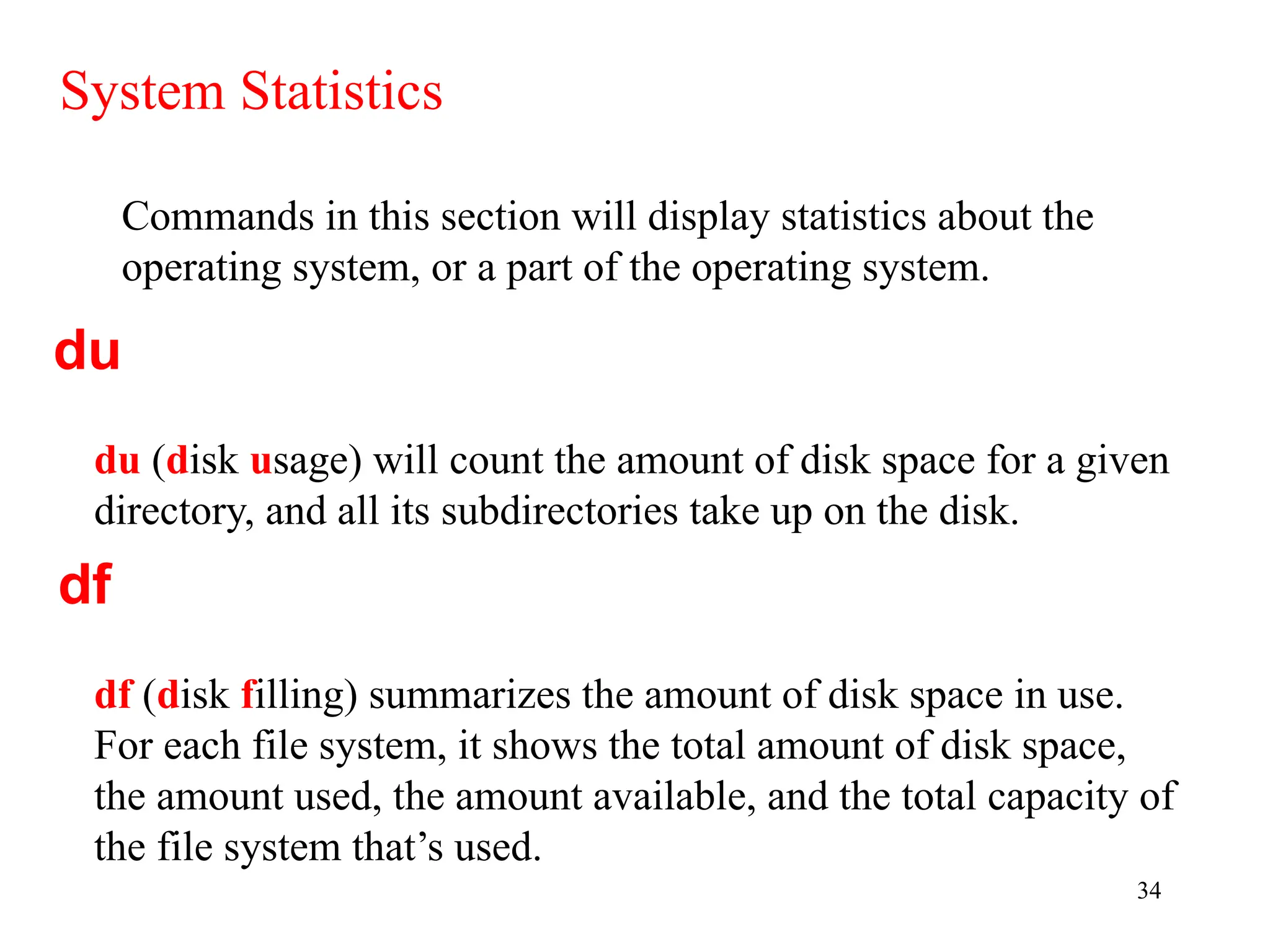
Commands in thissection will display statistics about the
operating system, or a part of the operating system.
System Statistics
du (disk usage) will count the amount of disk space for a given
directory, and all its subdirectories take up on the disk.
du
df
df (disk filling) summarizes the amount of disk space in use.
For each file system, it shows the total amount of disk space,
the amount used, the amount available, and the total capacity of
the file system that’s used.
35.
35
• There aretwo major commands used in Unix for listing files,
cat, and more (and less). head and tail are also useful.
What’s in the File?
cat
• cat shows the contents of the file.
cat [-nA] [file1 file2 . . . fileN]
• cat is not a user friendly command-it doesn’t wait for you to
read the file, and is mostly used in conjuction with pipes.
• However, cat does have some useful command-line options.
For instance, n will number all the lines in the file, and A will
show control characters.
36.
36
less is similarto more but also allows you to scroll
backwards or forward through a file. less also quickly loads
a file, and can operate on a file that is still being written to.
less > more or “less is more, more or less”
more
• more is much more useful, and is the command that you’ll
want to use when browsing ASCII text files
more [-l] [+linenumber}] [file1 file2 ... fileN]
• A useful option is l, which will tell more that you aren't
interested in treating the character Ctrl-L} as a ``new page”
character. more can also start on a specified linenumber.
less
37.
37
head will displaythe first ten lines in the listed files.
head [- lines}] [l file1 file2 ... fileN]
• Any numeric option will be taken as the number of lines to
print, so head -15 frog will print the first fifteen lines of
the file frog
head
tail
• Like head, tail display only a fraction of the file.
• tail also accepts an option specifying the number of lines.
tail [-lines] [l file1 file2 ... fileN]
38.
38
• file commandattempts to identify what format a particular
file is written in.
file [file1 file2 ... fileN]
• Since not all files have extentions or other easy to identify
marks, the file command performs some rudimentary
checks to try and figure out exactly what it contains.
file
39.
39
These commands willsearch a file, perform certain operations
on the file, or display statistics about the file.
More info about the file
• grep is the generalized regular expression parser.
• This is a fancy name for a utility which can only search a text
file.
grep [-nvwx] [-number] { expression} [file1 file2 ... fileN]
grep
40.
40
• spell isvery simple Unix spelling program, usually for
American English. spell is a filter, like most of the other
programs we’ve talked about.
spell [file1 file2 ... fileN]
wc
• wc (word count) simply counts the number of words,
lines, and characters in the file(s).
wc [-clw] [file1 file2 ... fileN]
• The three options, clw, stand for character, line, and
word respectively, and tell wc which of the three to
count.
spell
41.
41
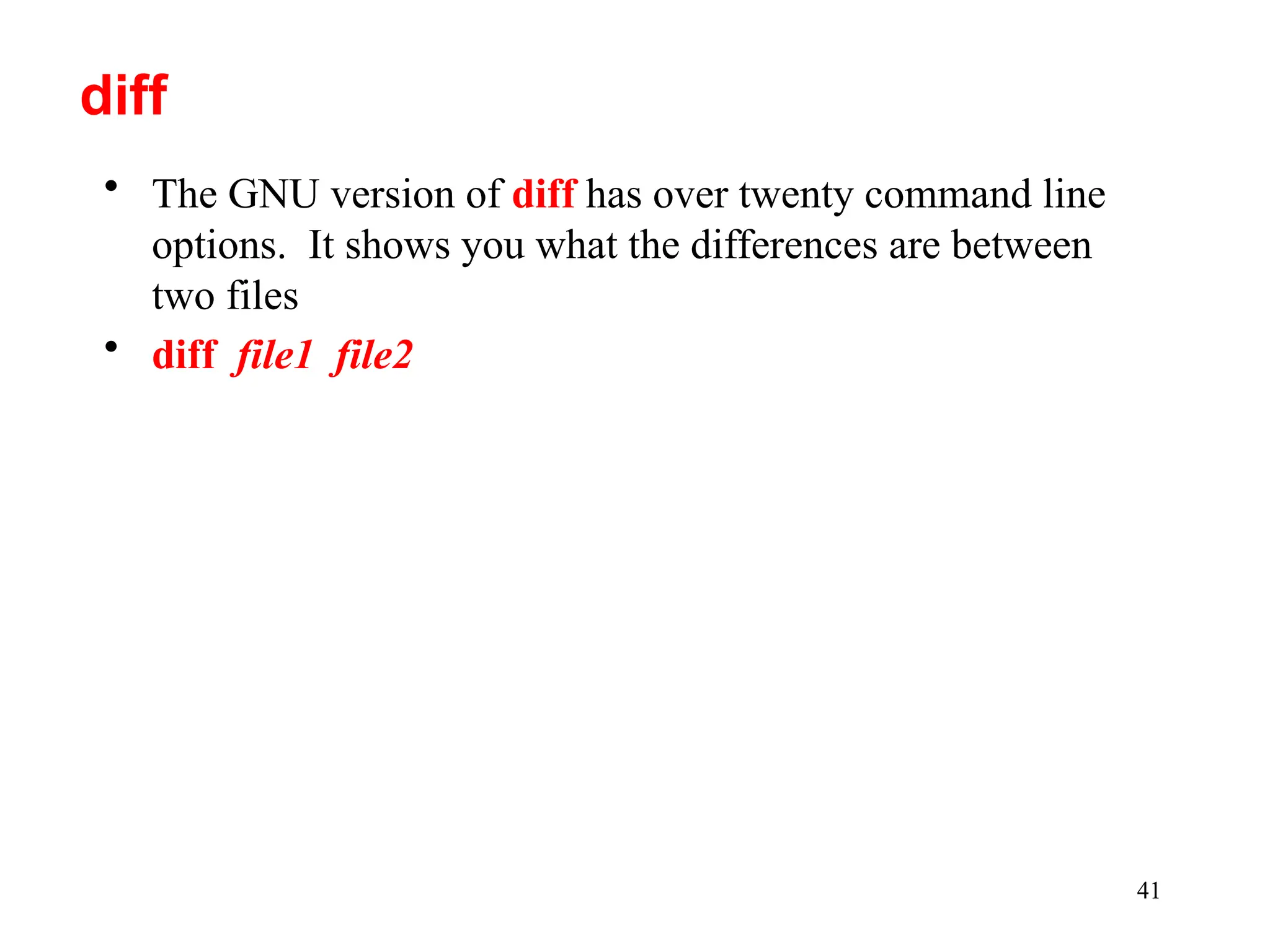
• The GNUversion of diff has over twenty command line
options. It shows you what the differences are between
two files
• diff file1 file2
diff
42.
42
• Combining Unixcommands greatly expands your ability
to interrogate and manipulate files.
• So far, we have just output the results of commands to the
screen.
• Let’s now redirect the output of a command to a file, and
pipe the output of a command into another command
Putting it all Together
43.
43
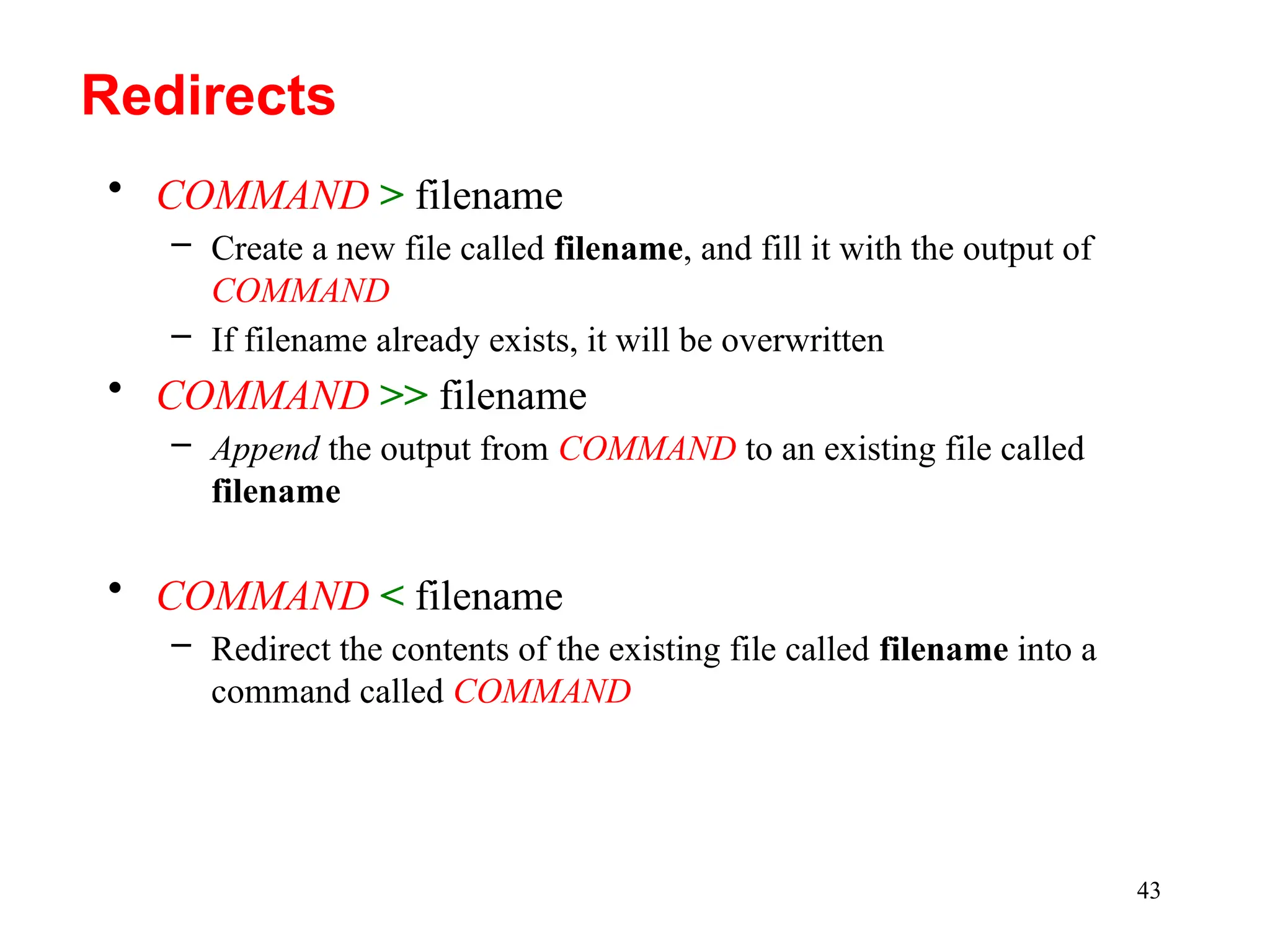
• COMMAND >filename
– Create a new file called filename, and fill it with the output of
COMMAND
– If filename already exists, it will be overwritten
• COMMAND >> filename
– Append the output from COMMAND to an existing file called
filename
• COMMAND < filename
– Redirect the contents of the existing file called filename into a
command called COMMAND
Redirects
44.
44
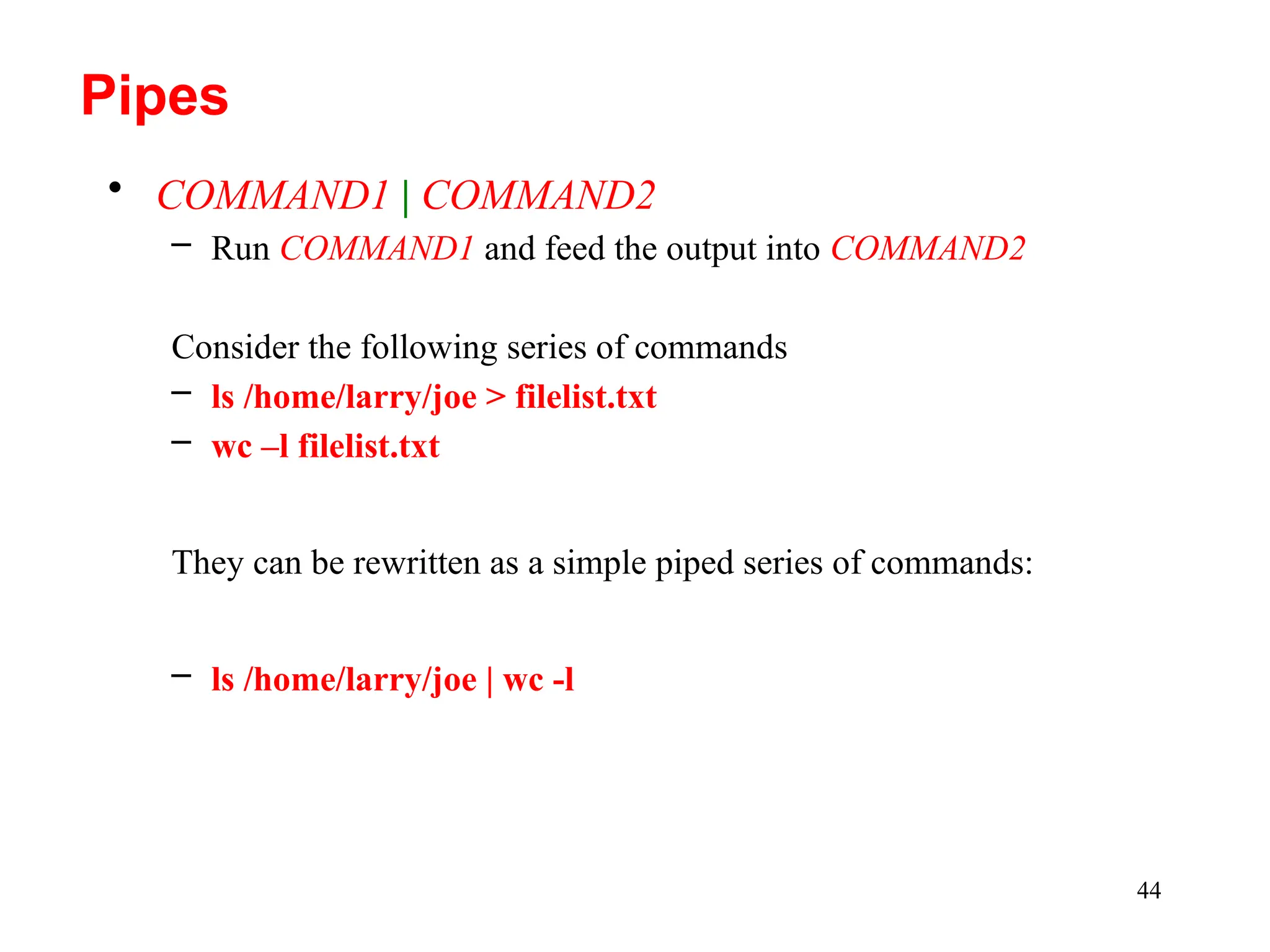
• COMMAND1 |COMMAND2
– Run COMMAND1 and feed the output into COMMAND2
Consider the following series of commands
– ls /home/larry/joe > filelist.txt
– wc –l filelist.txt
They can be rewritten as a simple piped series of commands:
– ls /home/larry/joe | wc -l
Pipes
45.
45
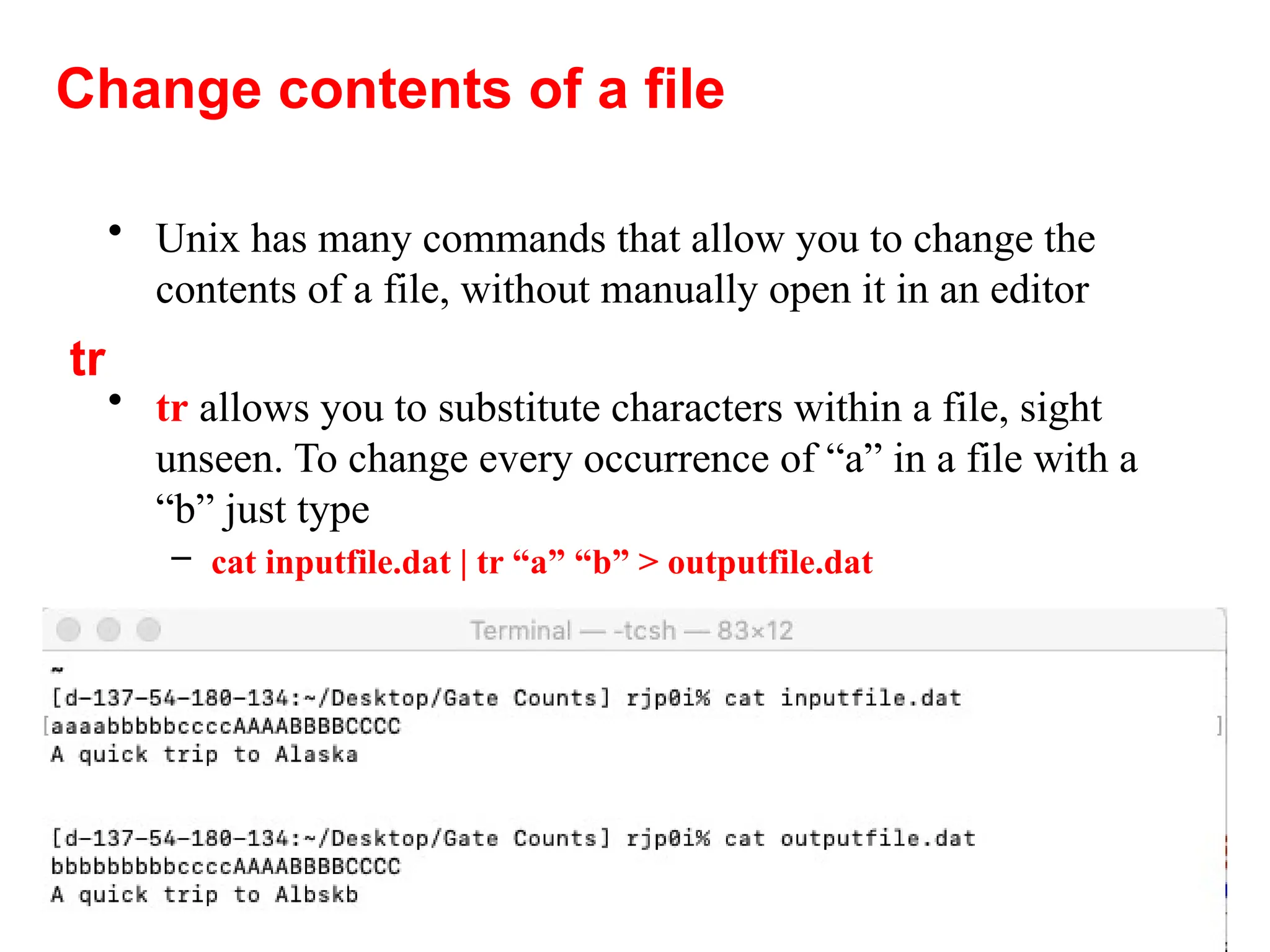
• Unix hasmany commands that allow you to change the
contents of a file, without manually open it in an editor
• tr allows you to substitute characters within a file, sight
unseen. To change every occurrence of “a” in a file with a
“b” just type
– cat inputfile.dat | tr “a” “b” > outputfile.dat
Change contents of a file
tr
46.
46
• You canalso change entire classes of characters
– cat inputfile.dat | tr [:lower:] [:upper:] > outputfile.dat
– cat inputfile.dat | tr a-c 1-3 “b” > outputfile.dat
– cat inputfile.dat | tr 1-9 0 > outputfile.dat
– cat inputfile.dat | tr “ ” “t” > outputfile.dat
• You can even delete all occurrences of a character
– cat inputfile.dat | tr –d a > outputfile.dat
• Or “squeeze” all occurrences of a character into a single
occurence
– cat inputfile.dat | tr –s “a” > outputfile.dat
tr
47.
47
gzip [-v#] [file1file2 ... fileN]
gunzip [-v] [file1 file2 ... fileN]
zcat [{file1 file2 ... fileN]
• These three programs are used to compress and decompress
data.
• gzip, or GNU Zip, is the program that reads in the original
file(s) and outputs files that are compressed, and therefore
smaller.
• gzip deletes the files specified on the command line and
replaces them with files that have an identical name except
that they have “.gz” appended to them.
48.
48
More help
• Chapter1 of Computing Skills for Biologists
(Allesina & Wilmes) (See Virgo for ebook)
• LinkedIn Learning free courses, including:
– “Learning Linux Command Line”
– “Unix for Mac OS X Users”
• Be sure to access it using via the Library’s Research
Portal to take advantage of the UVa subscription:
www.library.virginia.edu/research/
• Lots of online resources (stackexchange…)
– http://www.doc.ic.ac.uk/~wjk/UnixIntro/
• Me – Please contact me (ricky@virginia.edu)
Editor's Notes
#23 Try this, make a directory now, create one called larry.
![11
• cat command is used to concatenate or displays the contents
of a file.
• To use it, type cat, and then press enter key:
Then the next line of text is
what we just typed into cat
cat
bash-3.2$ cat
• This starts the cat program.
If you type this row
and then press
enter
• To end many Unix commands, type the end-of-file command
(EOF) [hold down the key labeled “Ctrl” and press “d” (Ctrl+d)
Windows: Ctrl-Z]
bash-3.2$ cat
Help, I’m stuck inside a Unix program!
Help, I’m stuck inside a Unix program!](https://image.slidesharecdn.com/intro2unixspring2020-251126151307-d9349584/75/Introduction-to-Unix-and-Spring-Basic-Line-COmmands-11-2048.jpg)
![32
(owner) (group) (others)
chmod [number][number][number] file1
Number = (read)4 + (write)2 + (execute)1
• Example: chmod 754 file1
for owner: read, write and execute permissions (4+2+1)
for group: read and execute permissions (4+0+1)
for others: only read permission (4+0+0)
chmod
• chmod (change mode) is used to change the permissions
on a file.](https://image.slidesharecdn.com/intro2unixspring2020-251126151307-d9349584/75/Introduction-to-Unix-and-Spring-Basic-Line-COmmands-32-2048.jpg)
![33
(owner) (group) (others)
chmod [user/group/others/all]operator[permission]
[file(s)]
operator can be +, -, or =
• Example: chmod u+rwx,g+rx,o+r file1
for owner: read, write and execute permissions (u+rwx)
for group: read and execute permissions (g+rx)
for others: only read permission (o+r)
chmod
• chmod can also be set in alpha mode (non-octal)](https://image.slidesharecdn.com/intro2unixspring2020-251126151307-d9349584/75/Introduction-to-Unix-and-Spring-Basic-Line-COmmands-33-2048.jpg)
![35
• There are two major commands used in Unix for listing files,
cat, and more (and less). head and tail are also useful.
What’s in the File?
cat
• cat shows the contents of the file.
cat [-nA] [file1 file2 . . . fileN]
• cat is not a user friendly command-it doesn’t wait for you to
read the file, and is mostly used in conjuction with pipes.
• However, cat does have some useful command-line options.
For instance, n will number all the lines in the file, and A will
show control characters.](https://image.slidesharecdn.com/intro2unixspring2020-251126151307-d9349584/75/Introduction-to-Unix-and-Spring-Basic-Line-COmmands-35-2048.jpg)
![36
less is similar to more but also allows you to scroll
backwards or forward through a file. less also quickly loads
a file, and can operate on a file that is still being written to.
less > more or “less is more, more or less”
more
• more is much more useful, and is the command that you’ll
want to use when browsing ASCII text files
more [-l] [+linenumber}] [file1 file2 ... fileN]
• A useful option is l, which will tell more that you aren't
interested in treating the character Ctrl-L} as a ``new page”
character. more can also start on a specified linenumber.
less](https://image.slidesharecdn.com/intro2unixspring2020-251126151307-d9349584/75/Introduction-to-Unix-and-Spring-Basic-Line-COmmands-36-2048.jpg)
![37
head will display the first ten lines in the listed files.
head [- lines}] [l file1 file2 ... fileN]
• Any numeric option will be taken as the number of lines to
print, so head -15 frog will print the first fifteen lines of
the file frog
head
tail
• Like head, tail display only a fraction of the file.
• tail also accepts an option specifying the number of lines.
tail [-lines] [l file1 file2 ... fileN]](https://image.slidesharecdn.com/intro2unixspring2020-251126151307-d9349584/75/Introduction-to-Unix-and-Spring-Basic-Line-COmmands-37-2048.jpg)
![38
• file command attempts to identify what format a particular
file is written in.
file [file1 file2 ... fileN]
• Since not all files have extentions or other easy to identify
marks, the file command performs some rudimentary
checks to try and figure out exactly what it contains.
file](https://image.slidesharecdn.com/intro2unixspring2020-251126151307-d9349584/75/Introduction-to-Unix-and-Spring-Basic-Line-COmmands-38-2048.jpg)
![39
These commands will search a file, perform certain operations
on the file, or display statistics about the file.
More info about the file
• grep is the generalized regular expression parser.
• This is a fancy name for a utility which can only search a text
file.
grep [-nvwx] [-number] { expression} [file1 file2 ... fileN]
grep](https://image.slidesharecdn.com/intro2unixspring2020-251126151307-d9349584/75/Introduction-to-Unix-and-Spring-Basic-Line-COmmands-39-2048.jpg)
![40
• spell is very simple Unix spelling program, usually for
American English. spell is a filter, like most of the other
programs we’ve talked about.
spell [file1 file2 ... fileN]
wc
• wc (word count) simply counts the number of words,
lines, and characters in the file(s).
wc [-clw] [file1 file2 ... fileN]
• The three options, clw, stand for character, line, and
word respectively, and tell wc which of the three to
count.
spell](https://image.slidesharecdn.com/intro2unixspring2020-251126151307-d9349584/75/Introduction-to-Unix-and-Spring-Basic-Line-COmmands-40-2048.jpg)
![46
• You can also change entire classes of characters
– cat inputfile.dat | tr [:lower:] [:upper:] > outputfile.dat
– cat inputfile.dat | tr a-c 1-3 “b” > outputfile.dat
– cat inputfile.dat | tr 1-9 0 > outputfile.dat
– cat inputfile.dat | tr “ ” “t” > outputfile.dat
• You can even delete all occurrences of a character
– cat inputfile.dat | tr –d a > outputfile.dat
• Or “squeeze” all occurrences of a character into a single
occurence
– cat inputfile.dat | tr –s “a” > outputfile.dat
tr](https://image.slidesharecdn.com/intro2unixspring2020-251126151307-d9349584/75/Introduction-to-Unix-and-Spring-Basic-Line-COmmands-46-2048.jpg)
![47
gzip [-v#] [file1 file2 ... fileN]
gunzip [-v] [file1 file2 ... fileN]
zcat [{file1 file2 ... fileN]
• These three programs are used to compress and decompress
data.
• gzip, or GNU Zip, is the program that reads in the original
file(s) and outputs files that are compressed, and therefore
smaller.
• gzip deletes the files specified on the command line and
replaces them with files that have an identical name except
that they have “.gz” appended to them.](https://image.slidesharecdn.com/intro2unixspring2020-251126151307-d9349584/75/Introduction-to-Unix-and-Spring-Basic-Line-COmmands-47-2048.jpg)



![Unix environment [autosaved]](https://cdn.slidesharecdn.com/ss_thumbnails/unixenvironmentautosaved-151015111256-lva1-app6892-thumbnail.jpg?width=640&height=640&fit=bounds)


![Unix environment [autosaved]](https://cdn.slidesharecdn.com/ss_thumbnails/unixenvironmentautosaved-151015111303-lva1-app6892-thumbnail.jpg?width=640&height=640&fit=bounds)


