The document provides an overview of data visualization in Python, primarily focusing on the matplotlib library, its usage, and various types of plots including bar, pie, and step plots. It includes multiple code examples illustrating how to implement these plots for different scenarios and customization options. Key aspects such as importing libraries, plotting data, and saving figures are also discussed.

![Ø Importing Matplotlib in Python-
• import matplotlib.pyplot as plt
OR
• from matplotlib import pyplot as plt
Example-
import matplotlib.pyplot as plt
x=[1,2,3,4,5]
y=[6,7,8,9,10]
plt.plot(x,y)
plt.show ()
Example-
import matplotlib.pyplot as plt
x=[1,2,3,4,5]
y=[6,7,8,9,10]
plt.bar(x,y)
plt.show ()](https://image.slidesharecdn.com/matplotlib-240507062511-cac3754b/75/Introduction-to-Data-Visualization-Matplotlib-pdf-4-2048.jpg)
![Ø Importing Matplotlib in Python-
Example-
import matplotlib.pyplot as plt
x=[1,2,3,4,5]
y=[6,7,8,9,10]
Z=['b','g','r','black','pink']
plt.bar(x,y,color=Z)
plt.show ()
Base Color-](https://image.slidesharecdn.com/matplotlib-240507062511-cac3754b/75/Introduction-to-Data-Visualization-Matplotlib-pdf-5-2048.jpg)

![Ø Matplotlib Bar Plot-
• import matplotlib.pyplot as plt
x = ['Python','C','C++', 'Java']
y = [90,65,82,85]
plt.bar(x,y)
plt.show ()](https://image.slidesharecdn.com/matplotlib-240507062511-cac3754b/75/Introduction-to-Data-Visualization-Matplotlib-pdf-7-2048.jpg)
![Ø Matplotlib Bar Plot-
• import matplotlib.pyplot as plt
x=[ ]
y=[ ]
z=[ ]
plt.bar(x,y, width=0.4, color=“y”, align= “edge” (or center),
edgecolor=“r”, linewidth=10, linestyle=“:”, alpha=0.4,
label=“Popularity”)
plt.bar(x,z, width=0.4, color=“g”, align=edge, edgecolor=“r”,
linewidth=10, linestyle=“:”, alpha=0.4, label=“Popularity1”)...for
multiple bar graphs
plt.legend()
plt.show( )
plt.xlabel (“languages”, fontsize=10)
plt.ylabel(“No.” ”, font size=10)
plt.title(“Graph1” ”, font size=10)
Note- To apply the label we must apply for legend.](https://image.slidesharecdn.com/matplotlib-240507062511-cac3754b/75/Introduction-to-Data-Visualization-Matplotlib-pdf-8-2048.jpg)
![Ø Matplotlib Bar Plot-
• import matplotlib.pyplot as plt
x=[ ]
y=[ ]
z=[ ]
plt.bar(x,y, width=0.4, color=“y”,label=“Popularity”)
plt.bar(x,z, width=0.4, color=“g”, label=“Popularity1”)...for
multiple bar graphs.....overlapped
plt.legend()
plt.show( )
plt.xlabel (“languages”, fontsize=10)
plt.ylabel(“No.” ”, font size=10)
plt.title(“Graph1” ”, font size=10)
Note- To apply the label we must apply for legend.](https://image.slidesharecdn.com/matplotlib-240507062511-cac3754b/75/Introduction-to-Data-Visualization-Matplotlib-pdf-9-2048.jpg)
![Ø Matplotlib Bar Plot- Side by Side Graph
• import matplotlib.pyplot as plt
• import numpy as np
x=[ “python”, “c”, “c++”, “java”]
y=[80,70,60,82 ]
z=[ 20,30,40,50]
p = [0,1,2,3].....indexing of x
OR
p = np.arange(len(x))...by importing numpy also we can create an array of indexing
width = 0.4
plt.bar(p,y, width, color=“y”,label=“Popularity”)....x replaced with ‘p’
plt.bar(p,z, width, color=“g”, label=“Popularity1”)....x replaced with ‘p’
plt.legend()
plt.show( )
plt.xlabel (“languages”, fontsize=10)
plt.ylabel(“No.” ”, font size=10)
plt.title(“Graph1” ”, font size=10)
Note- To apply the label we must apply for legend.
gives number
at x-axis and
is over lapped](https://image.slidesharecdn.com/matplotlib-240507062511-cac3754b/75/Introduction-to-Data-Visualization-Matplotlib-pdf-10-2048.jpg)
![Ø Matplotlib Bar Plot- Side by Side Graph
• import matplotlib.pyplot as plt
• import numpy as np
x=[ “python”, “c”, “c++”, “java”]
y=[80,70,60,82 ]
z=[ 20,30,40,50]
width = 0.4
p = np.arange(len(x))
p1=[ j+width for j in p]...will create another graph of same width on side
plt.bar(p,y, width, color=“y”,label=“Popularity”)....x replaced with ‘p’
plt.bar(p1,z, width, color=“g”, label=“Popularity1”)....x replaced with ‘p’
plt.legend()
plt.show( )
plt.xlabel (“languages”, fontsize=10)
plt.ylabel(“No.” ”, font size=10)
plt.title(“Graph1” ”, font size=10)
Note- To apply the label we must apply for legend.
gives number
at x-axis](https://image.slidesharecdn.com/matplotlib-240507062511-cac3754b/75/Introduction-to-Data-Visualization-Matplotlib-pdf-11-2048.jpg)
![Ø Matplotlib Bar Plot- Side by Side Graph
• import matplotlib.pyplot as plt
• import numpy as np
x=[ “python”, “c”, “c++”, “java”]
y=[80,70,60,82 ]
z=[ 20,30,40,50]
width = 0.4
p = np.arange(len(x))
p1=[ j+width for j in p]...will create another graph of same width on side
plt.bar(p,y, width, color=“y”,label=“Popularity”)....x replaced with ‘p’
plt.bar(p1,z, width, color=“g”, label=“Popularity1”)....x replaced with ‘p’
plt.xticks(p+width,x)......to show name at x-axisand at right hand side
plt.legend()
plt.show( )
plt.xlabel (“languages”, fontsize=10)
plt.ylabel(“No.” ”, font size=10)
plt.title(“Graph1” ”, font size=10)
Note- To apply the label we must apply for legend.
gives name at
RHS](https://image.slidesharecdn.com/matplotlib-240507062511-cac3754b/75/Introduction-to-Data-Visualization-Matplotlib-pdf-12-2048.jpg)
![Ø Matplotlib Bar Plot- Side by Side Graph
• import matplotlib.pyplot as plt
• import numpy as np
x=[ “python”, “c”, “c++”, “java”]
y=[80,70,60,82 ]
z=[ 20,30,40,50]
width = 0.4
p = np.arange(len(x))
p1=[ j+width for j in p]...will create another graph of same width on side
plt.bar(p,y, width, color=“y”,label=“Popularity”)....x replaced with ‘p’
plt.bar(p1,z, width, color=“g”, label=“Popularity1”)....x replaced with ‘p’
plt.xticks(p+width/2,x,rotation=10)......to show name at x-axis and at
center
plt.legend()
plt.show( )
plt.xlabel (“languages”, fontsize=10)
plt.ylabel(“No.” ”, font size=10)
plt.title(“Graph1” ”, font size=10)
Note- To apply the label we must apply for legend.
gives name in
rotation](https://image.slidesharecdn.com/matplotlib-240507062511-cac3754b/75/Introduction-to-Data-Visualization-Matplotlib-pdf-13-2048.jpg)
![Ø Matplotlib Bar Plot- Horizontal Graph
• import matplotlib.pyplot as plt
• import numpy as np
• x=['Python','C','C++', 'Java']
• y=[90,65,82,85]
• z=[23,52,29,20]
• width = 0.8
• p=np.arange(len(x))
• p1=[j+width for j in p]
• plt.barh(p,y, width, color='r')
• plt.bar(p1,z, width, color='k')
• plt.xticks(p+width/2,x,rotation=50)
• plt.show ()](https://image.slidesharecdn.com/matplotlib-240507062511-cac3754b/75/Introduction-to-Data-Visualization-Matplotlib-pdf-14-2048.jpg)
![Ø Matplotlib Step Plot-
• import matplotlib.pyplot as plt
x=[ ]
y=[ ]
plt.step(x,y,marker= “o”, color= “r”, ms=10, mfc=
“g”)
plt.legend()
plt.grid()
plt.show( )
plt.xlabel (“languages”, font size=10)
plt.ylabel(“No.” ”, font size=10)
plt.title(“Graph1” ”, font size=10)
Note-To align the bars on the right edge pass a negative
width and align='edge'](https://image.slidesharecdn.com/matplotlib-240507062511-cac3754b/75/Introduction-to-Data-Visualization-Matplotlib-pdf-15-2048.jpg)
![Ø Matplotlib Pie Plot-
• import matplotlib.pyplot as plt
• x=[1,2,3,4]
• y=["C","C++","Java","Python"]
• plt.pie(x)
• plt.show ()
• import matplotlib.pyplot as plt
• x=[1,2,3,4]
• y=["C","C++","Java","Python"]
• plt.pie(x,labels=y)
• plt.show ()](https://image.slidesharecdn.com/matplotlib-240507062511-cac3754b/75/Introduction-to-Data-Visualization-Matplotlib-pdf-16-2048.jpg)
![Ø Matplotlib Pie Plot-
• import matplotlib.pyplot as plt
• x=[1,2,3,4]
• y=["C","C++","Java","Python"]
• z=[0.4,0.0,0.0,0.0]
• plt.pie(x,labels=y,explode=z)
• plt.show ()
• import matplotlib.pyplot as plt
• x=[1,2,3,4]
• y=["C","C++","Java","Python"]
• z=[0.4,0.0,0.0,0.0]
• var1=["r","c","g","orange"]
• plt.pie(x,labels=y,explode=z,colors=var1)
• plt.show ()](https://image.slidesharecdn.com/matplotlib-240507062511-cac3754b/75/Introduction-to-Data-Visualization-Matplotlib-pdf-17-2048.jpg)
![Ø Matplotlib Pie Plot-
• import matplotlib.pyplot as plt
• x=[1,2,3,4]
• y=["C","C++","Java","Python"]
• z=[0.4,0.0,0.0,0.0]
• var1=["r","c","g","orange"]
• plt.pie(x,labels=y,explode=z,colors=var1,autopct="%0.
1f%%")](https://image.slidesharecdn.com/matplotlib-240507062511-cac3754b/75/Introduction-to-Data-Visualization-Matplotlib-pdf-18-2048.jpg)
![Ø Matplotlib Pie Plot-
• import matplotlib.pyplot as plt
• x=[1,2,3,4]
• y=["C","C++","Java","Python"]
• z=[0.4,0.0,0.0,0.0]
• var1=["r","c","g","orange"]
• plt.pie(x,labels=y,explode=z,colors=var1,autopct="%0.
3f%%")](https://image.slidesharecdn.com/matplotlib-240507062511-cac3754b/75/Introduction-to-Data-Visualization-Matplotlib-pdf-19-2048.jpg)
![Ø Matplotlib Pie Plot-
• import matplotlib.pyplot as plt
• x=[1,2,3,4]
• y=["C","C++","Java","Python"]
• z=[0.4,0.0,0.0,0.0]
• plt.pie(x,labels=y,explode=z,autopct="%0.3f%%",shad
ow=True)
• plt.show ()](https://image.slidesharecdn.com/matplotlib-240507062511-cac3754b/75/Introduction-to-Data-Visualization-Matplotlib-pdf-20-2048.jpg)
![Ø Matplotlib Pie Plot-
• import matplotlib.pyplot as plt
• x=[1,2,3,4]
• y=["C","C++","Java","Python"]
• z=[0.4,0.0,0.0,0.0]
• plt.pie(x,labels=y,explode=z,autopct="%0.3f%%",radiu
s=1.5)
• plt.show ()](https://image.slidesharecdn.com/matplotlib-240507062511-cac3754b/75/Introduction-to-Data-Visualization-Matplotlib-pdf-21-2048.jpg)
![Ø Matplotlib Pie Plot-
• import matplotlib.pyplot as plt
• x=[1,2,3,4]
• y=["C","C++","Java","Python"]
• z=[0.4,0.0,0.0,0.0]
• plt.pie(x,labels=y,explode=z,autopct="%0.3f%%",label
distance=1.3)
• plt.show ()](https://image.slidesharecdn.com/matplotlib-240507062511-cac3754b/75/Introduction-to-Data-Visualization-Matplotlib-pdf-22-2048.jpg)
![Ø Matplotlib Pie Plot-
• import matplotlib.pyplot as plt
• x=[1,2,3,4]
• y=["C","C++","Java","Python"]
• z=[0.4,0.0,0.0,0.0]
• plt.pie(x,labels=y,explode=z,autopct="%0.3f%%",start
angle=90)
• plt.show ()](https://image.slidesharecdn.com/matplotlib-240507062511-cac3754b/75/Introduction-to-Data-Visualization-Matplotlib-pdf-23-2048.jpg)
![Ø Matplotlib Pie Plot-
• import matplotlib.pyplot as plt
• x=[1,2,3,4]
• y=["C","C++","Java","Python"]
• z=[0.4,0.0,0.0,0.0]
• plt.pie(x,labels=y,explode=z,autopct="%0.3f%%",textp
rops={"fontsize":15})
• plt.show ()](https://image.slidesharecdn.com/matplotlib-240507062511-cac3754b/75/Introduction-to-Data-Visualization-Matplotlib-pdf-24-2048.jpg)
![Ø Matplotlib Pie Plot-
• import matplotlib.pyplot as plt
• x=[1,2,3,4]
• y=["C","C++","Java","Python"]
• z=[0.4,0.0,0.0,0.0]
• plt.pie(x,labels=y,explode=z,autopct="%0.3f%%",textp
rops={"fontsize":15},counterclock=False)
• plt.show ()](https://image.slidesharecdn.com/matplotlib-240507062511-cac3754b/75/Introduction-to-Data-Visualization-Matplotlib-pdf-25-2048.jpg)
![Ø Matplotlib Pie Plot-
• import matplotlib.pyplot as plt
• x=[1,2,3,4]
• y=["C","C++","Java","Python"]
• z=[0.4,0.0,0.0,0.0]
• plt.pie(x,labels=y,explode=z,autopct="%0.3f%%",shad
ow=True,textprops={"fontsize":15},wedgeprops={"line
width":5})
• plt.show ()](https://image.slidesharecdn.com/matplotlib-240507062511-cac3754b/75/Introduction-to-Data-Visualization-Matplotlib-pdf-26-2048.jpg)
![Ø Matplotlib Pie Plot-
• import matplotlib.pyplot as plt
• x=[1,2,3,4]
• y=["C","C++","Java","Python"]
• z=[0.4,0.0,0.0,0.0]
• plt.pie(x,labels=y,explode=z,autopct="%0.3f%%",shad
ow=True,textprops={"fontsize":15},wedgeprops={"line
width":5,"edgecolor":"c"})
• plt.show ()](https://image.slidesharecdn.com/matplotlib-240507062511-cac3754b/75/Introduction-to-Data-Visualization-Matplotlib-pdf-27-2048.jpg)
![Ø Matplotlib Pie Plot-
• import matplotlib.pyplot as plt
• x=[1,2,3,4]
• y=["C","C++","Java","Python"]
• z=[0.4,0.0,0.0,0.0]
• plt.pie(x,labels=y,explode=z,autopct="%0.3f%%",shad
ow=True,textprops={"fontsize":15},wedgeprops={"line
width":5},rotatelabels=True)
• plt.show ()](https://image.slidesharecdn.com/matplotlib-240507062511-cac3754b/75/Introduction-to-Data-Visualization-Matplotlib-pdf-28-2048.jpg)
![Ø Matplotlib Pie Plot-
• import matplotlib.pyplot as plt
• x=[1,2,3,4]
• y=["C","C++","Java","Python"]
• z=[0.4,0.0,0.0,0.0]
• plt.pie(x,labels=y,explode=z,autopct="%0.3f%%",radiu
s=0.9,shadow=True,textprops={"fontsize":15},wedgep
rops={"linewidth":5},rotatelabels=True)
• plt.title("Computers and Structures")
• plt.show ()](https://image.slidesharecdn.com/matplotlib-240507062511-cac3754b/75/Introduction-to-Data-Visualization-Matplotlib-pdf-29-2048.jpg)
![Ø Matplotlib Pie Plot-
• import matplotlib.pyplot as plt
• x=[1,2,3,4]
• y=["C","C++","Java","Python"]
• z=[0.4,0.0,0.0,0.0]
• plt.pie(x,labels=y,explode=z,autopct="%0.3f%%",radiu
s=0.9,shadow=True,textprops={"fontsize":15},wedgep
rops={"linewidth":5},rotatelabels=True)
• plt.title("Computers and Structures")
• plt.legend(loc=1).....loc=1 to 10
• plt.show ()](https://image.slidesharecdn.com/matplotlib-240507062511-cac3754b/75/Introduction-to-Data-Visualization-Matplotlib-pdf-30-2048.jpg)
![Ø Matplotlib Pie Plot-
• import matplotlib.pyplot as plt
• x=[1,2,3,4]
• x1=[40,30,20,10]
• y=["C","C++","Java","Python"]
• z=[0.4,0.0,0.0,0.0]
• plt.pie(x,labels=y,radius=1.5)
• plt.pie(x1,radius=1)
• plt.show ()](https://image.slidesharecdn.com/matplotlib-240507062511-cac3754b/75/Introduction-to-Data-Visualization-Matplotlib-pdf-31-2048.jpg)
![Ø Matplotlib Pie Plot-
• import matplotlib.pyplot as plt
• x=[1,2,3,4]
• x1=[40,30,20,10]
• y=["C","C++","Java","Python"]
• z=[0.4,0.0,0.0,0.0]
• plt.pie(x,labels=y,radius=1.5)
• plt.pie([1],colors="w",radius=1)
• plt.show ()](https://image.slidesharecdn.com/matplotlib-240507062511-cac3754b/75/Introduction-to-Data-Visualization-Matplotlib-pdf-32-2048.jpg)
![Ø Matplotlib Save Figure-
• import matplotlib.pyplot as plt
x=[ ]
y=[ ]
plt.plot(x,y)
plt.savefig(“fname”, dpi=1000, facecolor= “g”,
transparent=True)
plt.savefig(fname.pdf)......save in format as per
requirement
plt.show( )
Ex-
import matplotlib.pyplot as plt
x=[1,2,3,4,5]
y=[90,65,82,85,80]
plt.plot(x,y)
plt.savefig("line")
plt.show()
Note- File gets saved in a folder location](https://image.slidesharecdn.com/matplotlib-240507062511-cac3754b/75/Introduction-to-Data-Visualization-Matplotlib-pdf-33-2048.jpg)
![Ø Matplotlib Work With Axes-
• import matplotlib.pyplot as plt
• x=[1,2,3,4,5]
• y=[3,2,1,3,4]
• plt.plot(x,y)
• plt.xticks(x)
• plt.yticks(x)
• plt.show ()](https://image.slidesharecdn.com/matplotlib-240507062511-cac3754b/75/Introduction-to-Data-Visualization-Matplotlib-pdf-34-2048.jpg)
![Ø Matplotlib Work With Axes-
• import matplotlib.pyplot as plt
• x=[1,2,3,4,5]
• y=[3,2,1,3,4]
• plt.plot(x,y)
• plt.xticks(x,labels=["Python","Java","C","C++","HTML"])
• plt.yticks(x)
• plt.show ()](https://image.slidesharecdn.com/matplotlib-240507062511-cac3754b/75/Introduction-to-Data-Visualization-Matplotlib-pdf-35-2048.jpg)
![Ø Matplotlib Work With Axes-
• import matplotlib.pyplot as plt
• x=[1,2,3,4,5]
• y=[3,2,1,3,4]
• plt.plot(x,y)
• plt.xlim(0,10)
• plt.show ()](https://image.slidesharecdn.com/matplotlib-240507062511-cac3754b/75/Introduction-to-Data-Visualization-Matplotlib-pdf-36-2048.jpg)
![Ø Matplotlib Work With Axes-
• import matplotlib.pyplot as plt
• x=[1,2,3,4,5]
• y=[3,2,1,3,4]
• plt.plot(x,y)
• plt.axis([0,10,0,7])
• plt.show ()](https://image.slidesharecdn.com/matplotlib-240507062511-cac3754b/75/Introduction-to-Data-Visualization-Matplotlib-pdf-37-2048.jpg)
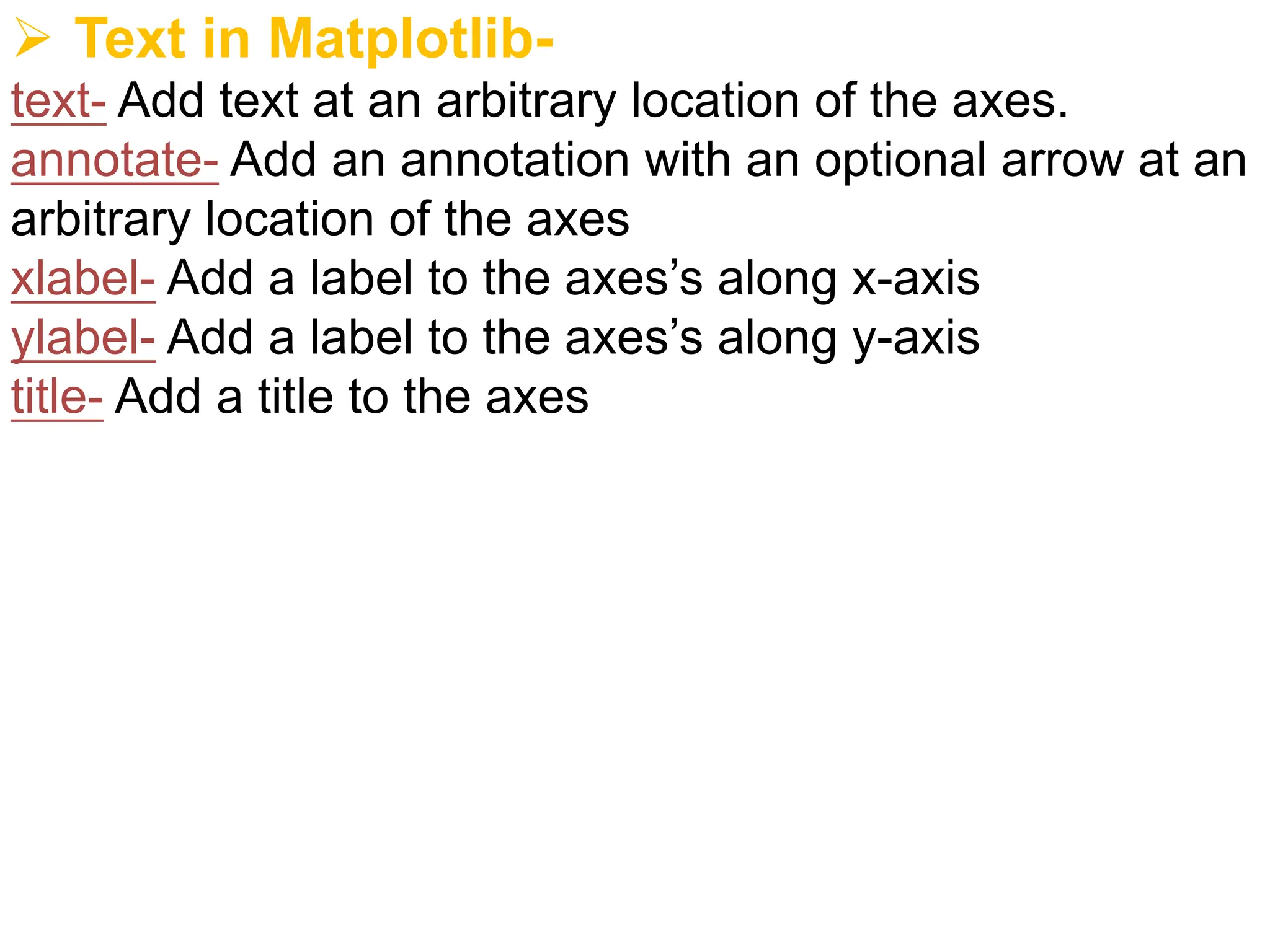
![Ø Text in Matplotlib-
Ex-
import matplotlib.pyplot as plt
x=[1,2,3,4,5]
y=[3,2,1,3,4]
plt.plot(x,y)
plt.text(2,3,"java",style="italic",bbox={"facecolor":"c"})
plt.annotate("python",xy=(2,1),xytext=(4,4),arrowprops=dict(facec
olor="green"))
plt.legend(["up"],loc=9,facecolor="red",edgecolor="c",framealpha
=0.5,shadow=True)
plt.show ()
text position on x and y
axis](https://image.slidesharecdn.com/matplotlib-240507062511-cac3754b/75/Introduction-to-Data-Visualization-Matplotlib-pdf-39-2048.jpg)