You Have A LinkedIn 
Account Now What?! 
(Intermediate to Advanced) 
Lisa Miller, UOP Faculty, LMFT
Learning Objectives 
 Review the basics of utilizing a professional 
LinkedIn profile. 
 Learn to utilize supporting programs such as 
HootSuite and SlideShare in order to bring 
more traffic to their professional LinkedIn 
profile. 
 Customize their LinkedIn URL 
 Develop a personalized plan for better using 
LinkedIn in their professional life
The Basics 
 Headshot 
 Headline 
 Summary 
 Experience 
 Including Recommendations
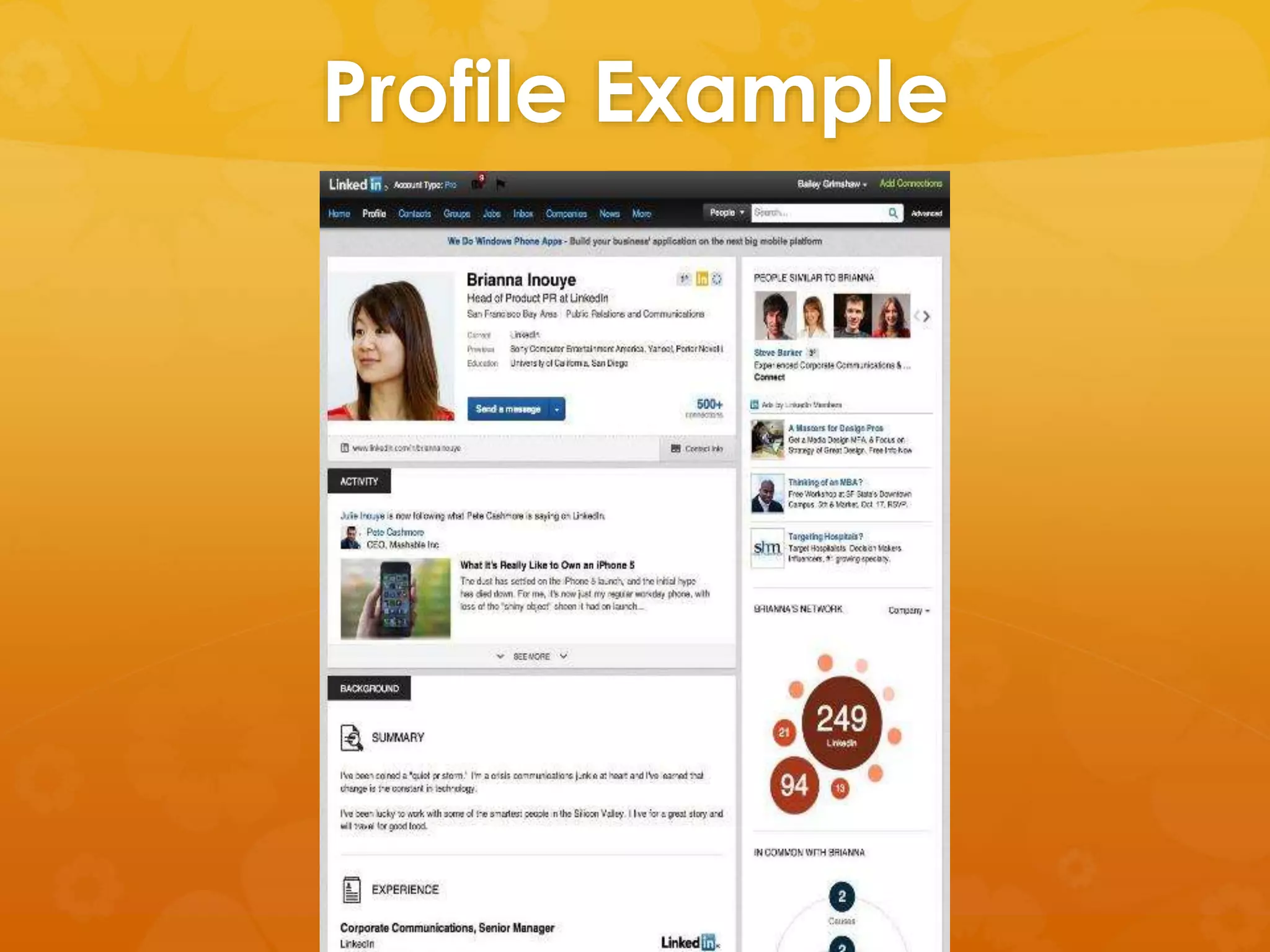
Profile Example
Headshot 
 Use a professional that will help you look 
your best 
 Wear comfortable clothes that are new or 
look new 
 Avoid alcohol and/or drugs the day of or 
night before photo is taken 
 Drink lots of water and be well rested
Headline 
 Found directly under your name 
 This is your professional identity 
 Hook the reader! 
 Don’t just list your most recent position 
 Use key-words for search engine 
optimization
Summary 
 Never leave this section blank! 
 Write in the first person. 
 Use this as an opportunity to utilize even 
more keywords for search engine 
optimization. 
 Add website link, blog link, or links to your 
other professional sites. 
 Upload examples of your work using media 
(pictures, flyers, video).
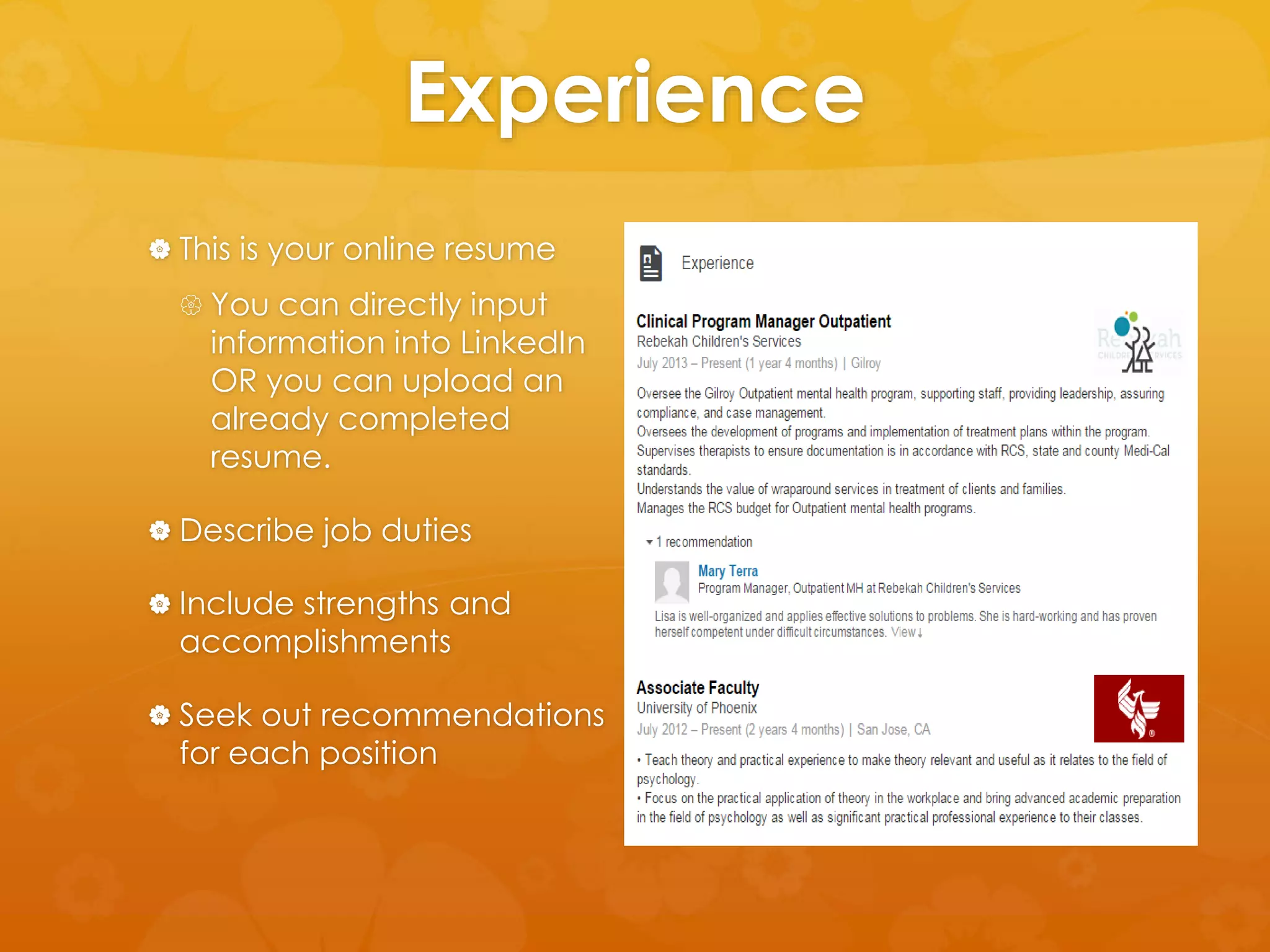
Experience 
 This is your online resume 
 You can directly input 
information into LinkedIn 
OR you can upload an 
already completed 
resume. 
 Describe job duties 
 Include strengths and 
accomplishments 
 Seek out recommendations 
for each position
Experience: 
Getting Recommendations 
 Best way to get recommendations is to give 
them! 
 Once you have written for them ask them to 
return the favor. 
 You manage all recommendations and can 
accept/decline as necessary. 
 Remember that your professional reputation 
is tied to the person.
Networking 
 Connect with current and former 
colleagues 
 Follow company’s that you have a business 
relationship with or would like to eventually 
work for 
 Join LinkedIn Groups related to your business 
or future career interests
Stay Visible 
 Share articles and videos of interest 
 Post status updates about business and/or 
professional success 
 Participate in discussions 
 Connect your other professional social 
media sites
Customized LinkedIn URL 
 Click edit under profile picture 
 Move to column on right and click on 
current URL 
 Pick new URL name 
 Ex: www.linkedin.com/in/lisamillerlmft
• Share presentations 
publicly or privately 
• Add YouTube videos 
into presentations 
• Add presentations 
into blogs, websites, 
and social media. 
• Community for 
sharing presentations 
and other 
professional content 
• Find presentations on 
any topic you can 
think of
Slideshare: 
Getting Started 
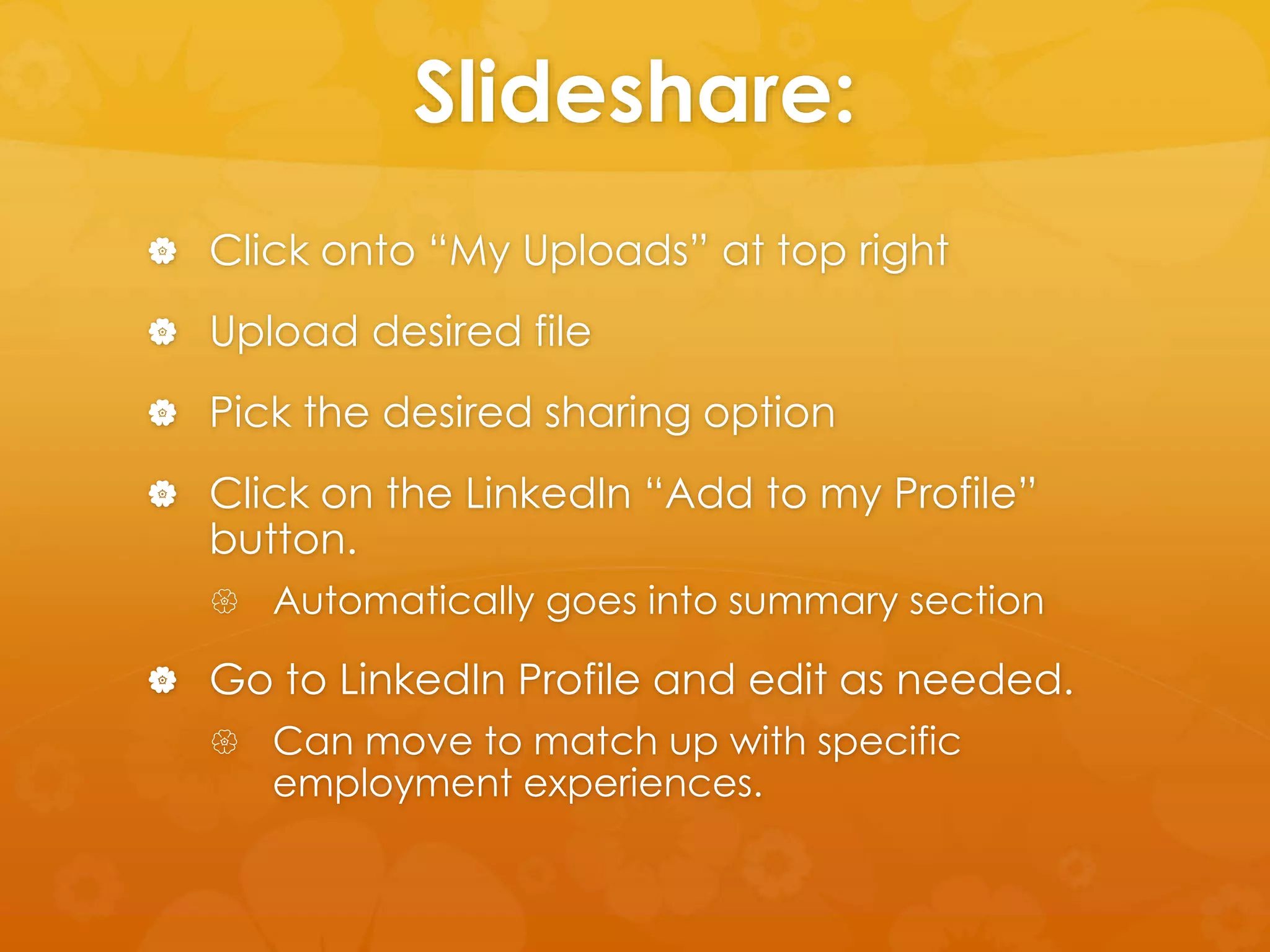
 Go to www.slideshare.net 
 Click on Signup at top right 
 Complete requested information 
 Click connect with LinkedIn
Slideshare: 
 Click onto “My Uploads” at top right 
 Upload desired file 
 Pick the desired sharing option 
 Click on the LinkedIn “Add to my Profile” 
button. 
 Automatically goes into summary section 
 Go to LinkedIn Profile and edit as needed. 
 Can move to match up with specific 
employment experiences.
What is HootSuite? 
 Social Media Management System 
 Supports you in tracking and managing you 
social media such as Facebook, LinkedIn, 
Twitter, Google+, Wordpress Blog, etc. 
 Basic use is FREE! 
 Allows you to cross post to multiple social 
media. 
 Pick the days/times for postings in advance
HootSuite: 
Getting Started 
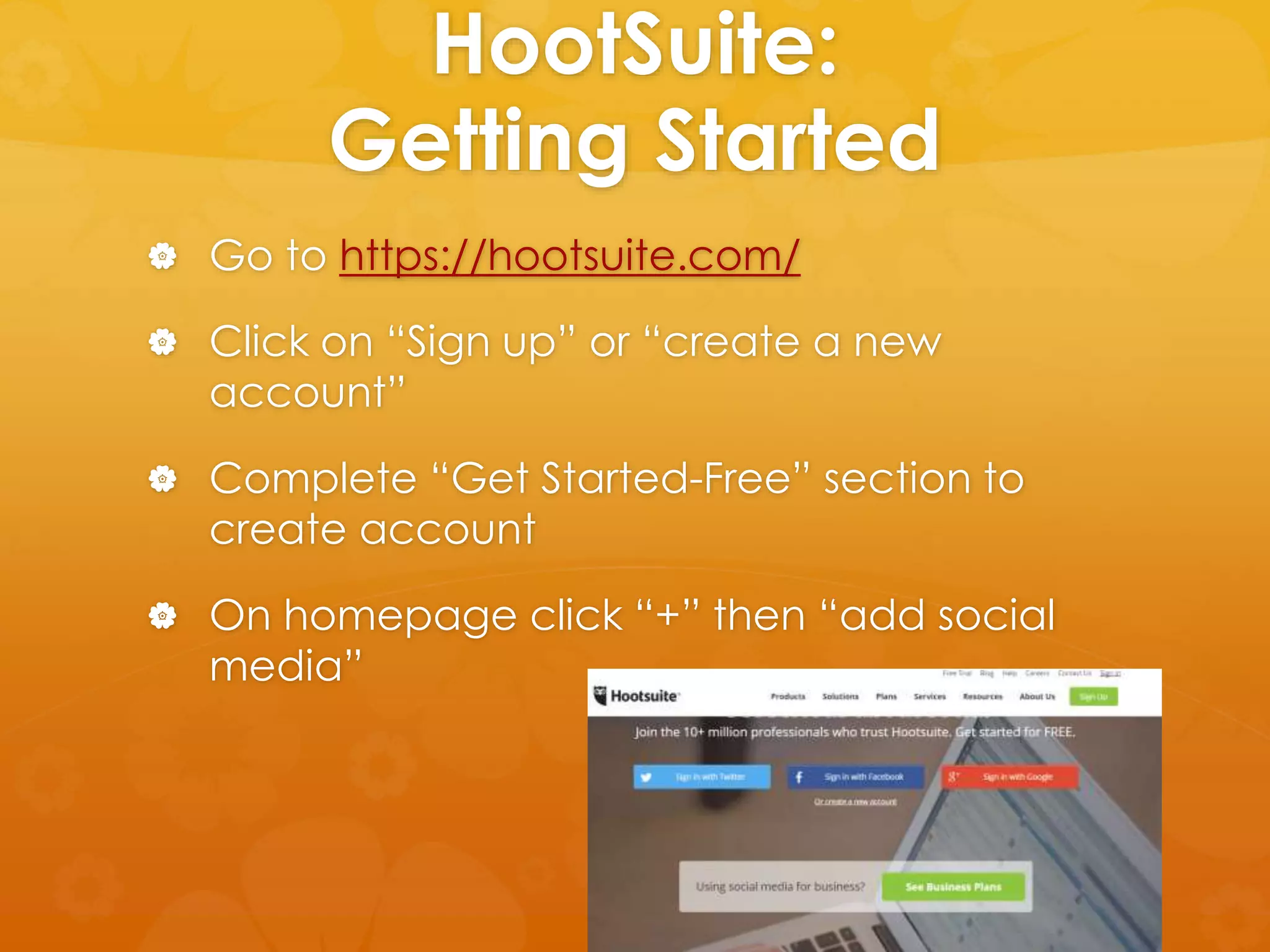
 Go to https://hootsuite.com/ 
 Click on “Sign up” or “create a new 
account” 
 Complete “Get Started-Free” section to 
create account 
 On homepage click “+” then “add social 
media”
HootSuite 
 Pick different articles found online 
 Log into Hootsuite account 
 Click on “send to” box 
 Input link to article, click shrink, and chose 
which social media pages to post to. 
 Chose date and time for posting 
 Click schedule
Get The Phone Apps
Questions/Comments

Intermediate-Advanced Linkedin

  • 1.
    You Have ALinkedIn Account Now What?! (Intermediate to Advanced) Lisa Miller, UOP Faculty, LMFT
  • 2.
    Learning Objectives Review the basics of utilizing a professional LinkedIn profile.  Learn to utilize supporting programs such as HootSuite and SlideShare in order to bring more traffic to their professional LinkedIn profile.  Customize their LinkedIn URL  Develop a personalized plan for better using LinkedIn in their professional life
  • 3.
    The Basics Headshot  Headline  Summary  Experience  Including Recommendations
  • 4.
  • 5.
    Headshot  Usea professional that will help you look your best  Wear comfortable clothes that are new or look new  Avoid alcohol and/or drugs the day of or night before photo is taken  Drink lots of water and be well rested
  • 6.
    Headline  Founddirectly under your name  This is your professional identity  Hook the reader!  Don’t just list your most recent position  Use key-words for search engine optimization
  • 7.
    Summary  Neverleave this section blank!  Write in the first person.  Use this as an opportunity to utilize even more keywords for search engine optimization.  Add website link, blog link, or links to your other professional sites.  Upload examples of your work using media (pictures, flyers, video).
  • 8.
    Experience  Thisis your online resume  You can directly input information into LinkedIn OR you can upload an already completed resume.  Describe job duties  Include strengths and accomplishments  Seek out recommendations for each position
  • 9.
    Experience: Getting Recommendations  Best way to get recommendations is to give them!  Once you have written for them ask them to return the favor.  You manage all recommendations and can accept/decline as necessary.  Remember that your professional reputation is tied to the person.
  • 10.
    Networking  Connectwith current and former colleagues  Follow company’s that you have a business relationship with or would like to eventually work for  Join LinkedIn Groups related to your business or future career interests
  • 11.
    Stay Visible Share articles and videos of interest  Post status updates about business and/or professional success  Participate in discussions  Connect your other professional social media sites
  • 12.
    Customized LinkedIn URL  Click edit under profile picture  Move to column on right and click on current URL  Pick new URL name  Ex: www.linkedin.com/in/lisamillerlmft
  • 13.
    • Share presentations publicly or privately • Add YouTube videos into presentations • Add presentations into blogs, websites, and social media. • Community for sharing presentations and other professional content • Find presentations on any topic you can think of
  • 14.
    Slideshare: Getting Started  Go to www.slideshare.net  Click on Signup at top right  Complete requested information  Click connect with LinkedIn
  • 15.
    Slideshare:  Clickonto “My Uploads” at top right  Upload desired file  Pick the desired sharing option  Click on the LinkedIn “Add to my Profile” button.  Automatically goes into summary section  Go to LinkedIn Profile and edit as needed.  Can move to match up with specific employment experiences.
  • 16.
    What is HootSuite?  Social Media Management System  Supports you in tracking and managing you social media such as Facebook, LinkedIn, Twitter, Google+, Wordpress Blog, etc.  Basic use is FREE!  Allows you to cross post to multiple social media.  Pick the days/times for postings in advance
  • 17.
    HootSuite: Getting Started  Go to https://hootsuite.com/  Click on “Sign up” or “create a new account”  Complete “Get Started-Free” section to create account  On homepage click “+” then “add social media”
  • 18.
    HootSuite  Pickdifferent articles found online  Log into Hootsuite account  Click on “send to” box  Input link to article, click shrink, and chose which social media pages to post to.  Chose date and time for posting  Click schedule
  • 19.
  • 20.

Editor's Notes

  • #4 Have participants take out PDF of LinkedIn Profile to follow along and/or begin filling in.
  • #6 http://www.headshot-photos.com/tips_for_business_portraits.php What to wear - Men: The standard business look is a suit jacket, dress shirt and tie A casual business look is often a jacket and open dress shirt, shirt and tie (no jacket), or dress shirt on it's own Polo shirts are a good look for some businesses. Be sure the shirt is in good condition and fits well For a no-jacket casual look, bring colored shirts - ideally darker than your skin tone A white dress shirt by itself is a bad idea - unless you plan to wear it underneath something (jacket or sweater) Bring a few different jackets, shirt colors and ties so we have choices for the photo What to wear - Women: Avoid big prints and busy patterns Different necklines will change the apparent shape of your face. Bring a variety different shirts/blouses to see what works best For a no-jacket casual look, bring various colored blouses - ideally darker than your skin tone Be stylish and fashionable, but remember the picture is about your face and not your clothes Remember: Select and wear clothes that make you feel comfortable. Select something that makes you look and feel good. Jewelry: Keep jewelry extremely simple - small is better Avoid jewelry that would distract from your face or that looks dated The picture is about your face, not your jewelry Be prepared to remove facial piercings or multiple ear piercings
  • #7 Here are a few things to consider when creating your winning headline: Three or four keywords that represent what you do. Three or four keywords others use when needing your services. How are you different from others with the same job title? Identify what decision-makers care about when they hire someone like you. Be specific. Use a human voice. https://www.linkedin.com/pulse/article/20140508125335-96757-craft-a-powerful-linkedin-professional-headline
  • #11 You can do this by searching their names, allowing LinkedIn to explore your contact lists (this will email LinkedIn invites to everyone), exploring connections of colleagues/friends/family This allows you to see who they are connected to, what advances/direction the company is making, what groups employees of the company are part of, and essentially find out the needs of the company as well as how you can fill those needs. Pick top 3-5 groups that relate to your target demographic, contribute to the most popular discussions in order to be “seen”, start your own discussions/group, keep your topics/discussions going by commenting back to responders
  • #13 Easier link to rember Increase overall visibility Make it easier for others to find you Connects to other social media (i.e. websites, twitter, etc.) Put into email signature page Include on resumes and business cards
  • #18 1