www.flydata.com
How to Extract Data
From Amazon Redshift
Copyright © 2014 FlyData Inc. All rights reserved. www.flydata.com
How to Extract Data From Amazon Redshift
Copyright © 2014 FlyData Inc. All rights reserved.
After using FlyData to load your data into Amazon
Redshift, you may want to extract data from your
Redshift Tables to S3.
Here are some reasons that you might want to do this:
● You want to load data from your Redshift tables to
some other data source
● You want to load some unused data to S3
● Extract transformed data to S3
● You want to copy data from one Redshift cluster to
another
www.flydata.com
Whatever the reason, Redshift provides you with the
UNLOAD SQL command to accomplish this.
www.flydata.com
How to Use
UNLOAD
Copyright © 2014 FlyData Inc. All rights reserved. www.flydata.com
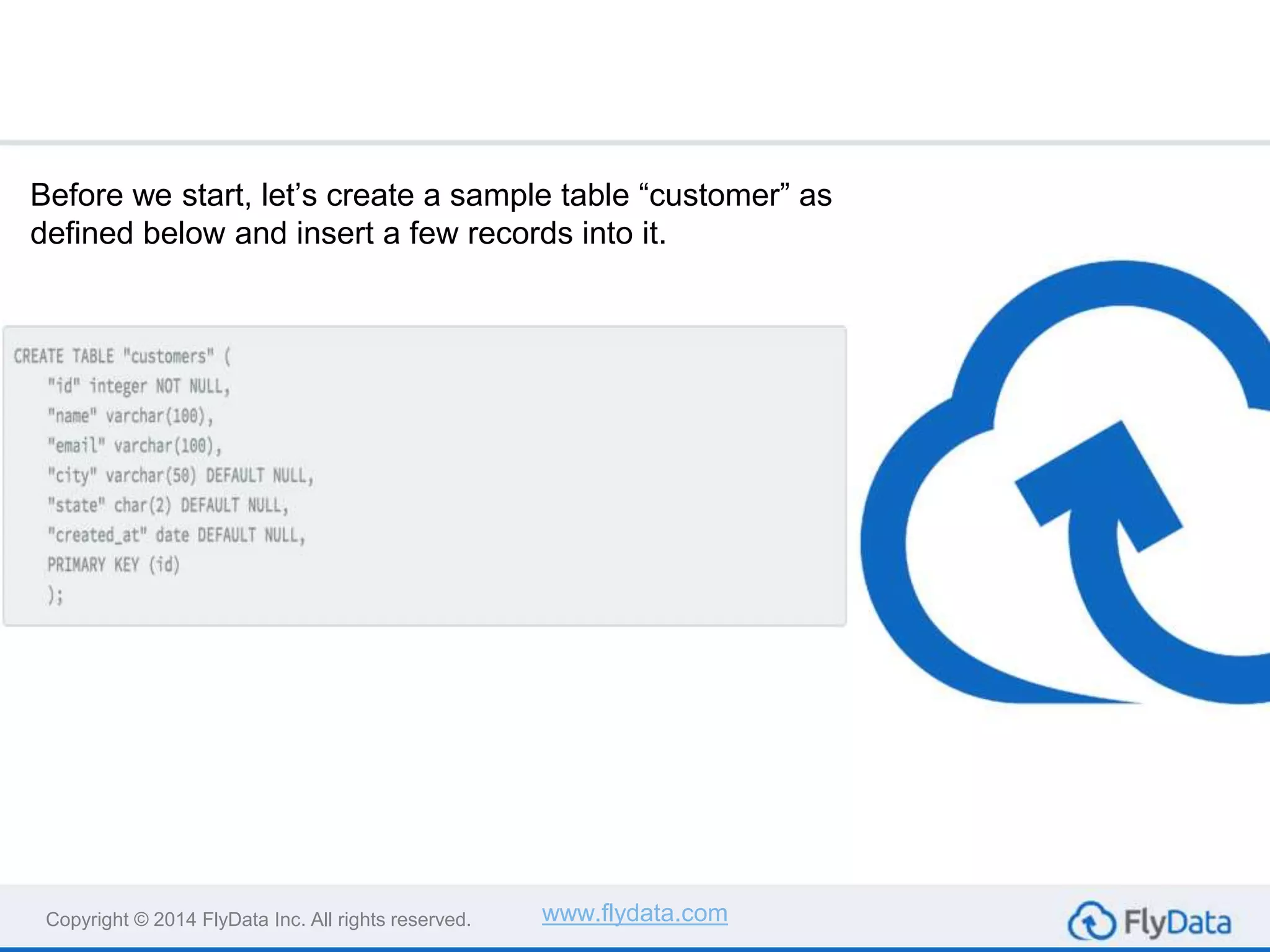
Before we start, let’s create a sample table “customer” as
defined below and insert a few records into it.
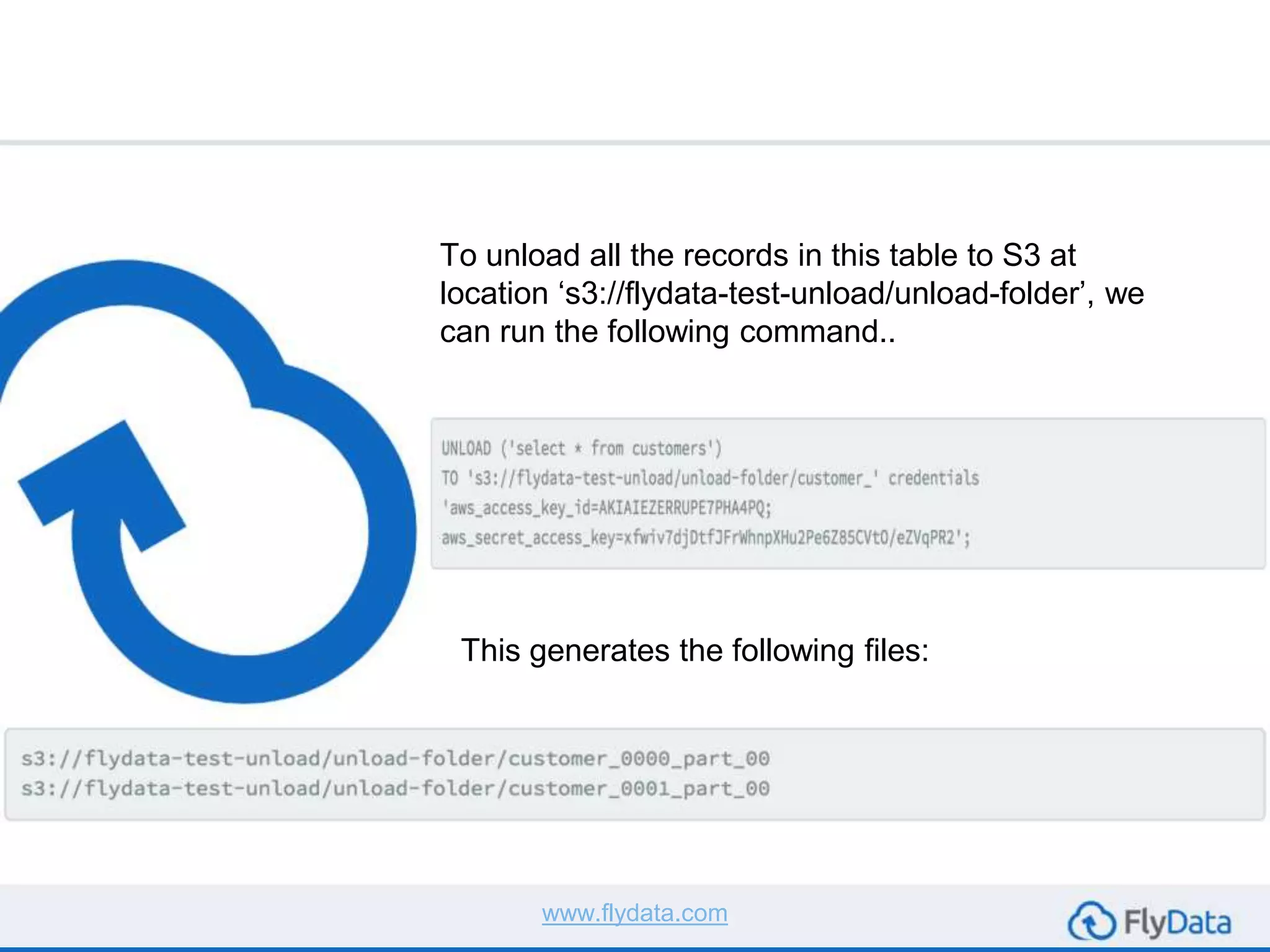
To unload all the records in this table to S3 at
location ‘s3://flydata-test-unload/unload-folder’, we
can run the following command..
This generates the following files:
www.flydata.com
Why did the command generate multiple files
even though there were few records in the table?
The reason is that I was running UNLOAD on a
single node cluster that has two slices.
By default, UNLOAD writes one or more files per
slice. Also, as you can see, each file takes the
prefix that was specified in the command
(customer_).
www.flydata.com
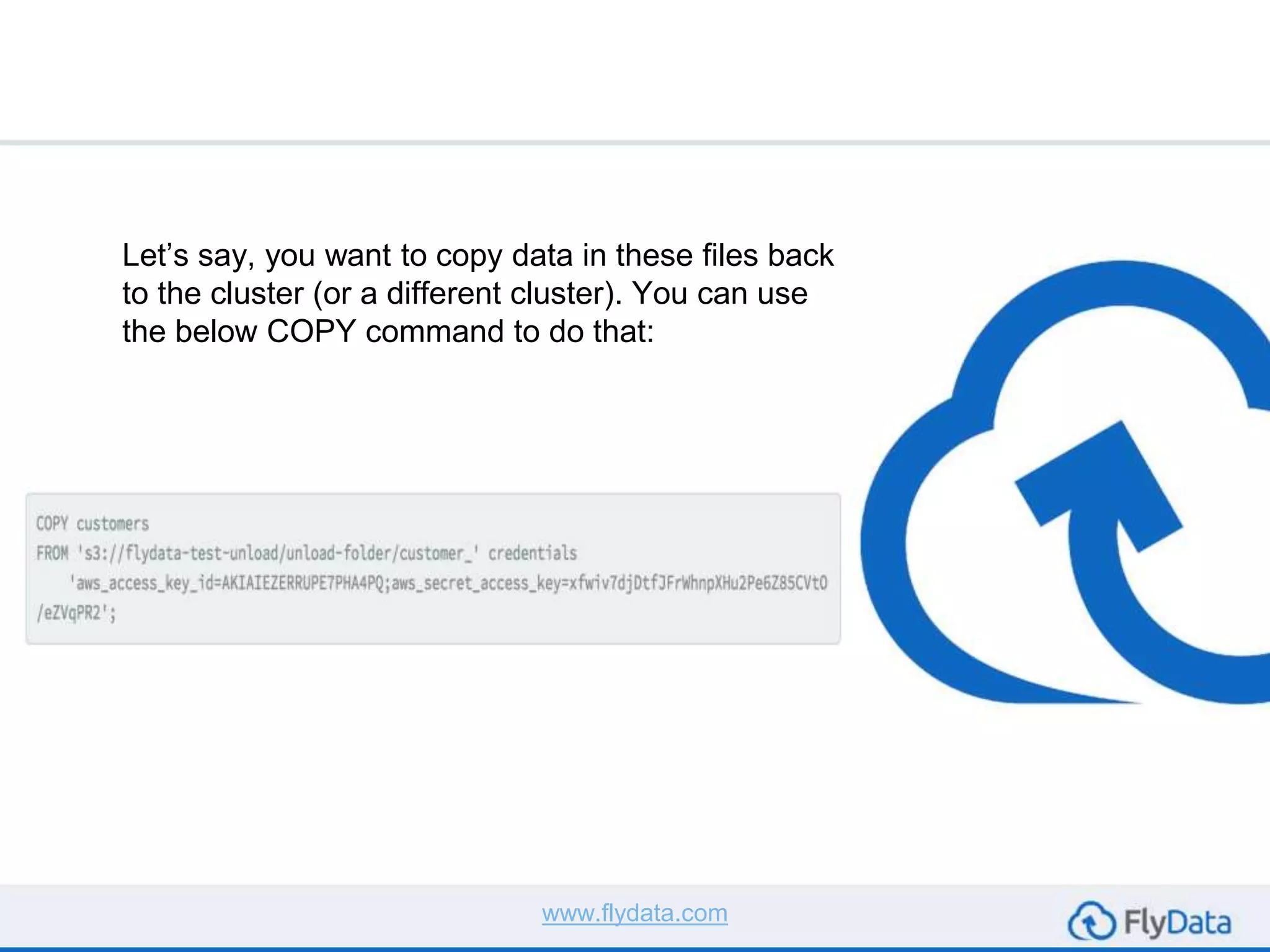
Let’s say, you want to copy data in these files back
to the cluster (or a different cluster). You can use
the below COPY command to do that:
www.flydata.com
Things to be Aware
of When Using
UNLOAD
Copyright © 2014 FlyData Inc. All rights reserved. www.flydata.com
Below is a list of things to be aware of when using
UNLOAD:
● Pipe (|) is the default delimiter. You can override this by
using DELIMITER AS ‘delimiter_char’ option.
● The S3 bucket specified in the command should be in
the same region as your cluster. If not, you’ll most likely
see an error when trying to UNLOAD.
● If there are quotes in the query, they need to be
escaped.
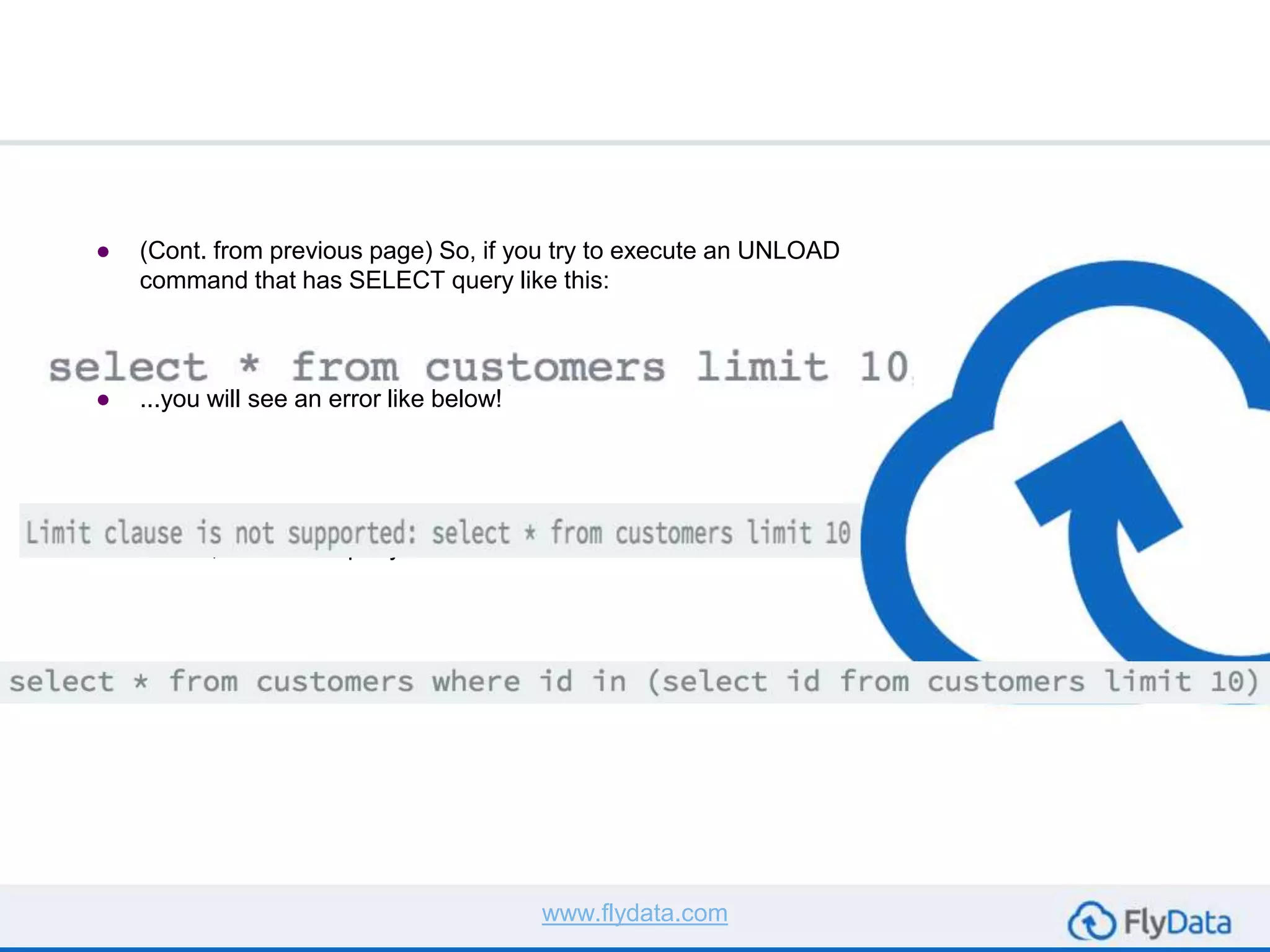
● You cannot use the LIMIT clause in the outer SELECT
statement of your query.
www.flydata.com
● (Cont. from previous page) So, if you try to execute an UNLOAD
command that has SELECT query like this:
● ...you will see an error like below!
● To work around this limitation, you can use a nested LIMIT
clause, the above query can be rewritten as:
www.flydata.com
● If the destination folder already contains unloaded data,
UNLOAD will fail with with “ERROR: Specified unload
destination on S3 is not empty”.
○ You should either manually delete the files or
specify ALLOWOVERWRITE option.
● If the data you are unloading includes the delimiter you
are using, then you should use ESCAPE option with the
UNLOAD command.
○ If you don’t, subsequent copy operations may fail
or they will give undesirable results
● To compress the unloaded data, you can use the GZIP
option with the command
www.flydata.com
Some More Tips
Copyright © 2014 FlyData Inc. All rights reserved. www.flydata.com
● Problem: you have limited data in your table and would like to
unload the data into a single S3 file and not one file per slice
○ Solution: UNLOAD provides the PARALLEL option for
this.
● By default, PARALLEL is ON, you can set it to OFF using the
PARALLEL OFF option.
○ When you turn it off, Redshift writes to S3 serially and will
not create multiple files according to the number of slices
in the cluster.
○ Please be aware that the maximum size of a data file is
6.2GB. If you UNLOAD data exceeding that limit, you will
still see multiple files on S3.
www.flydata.com
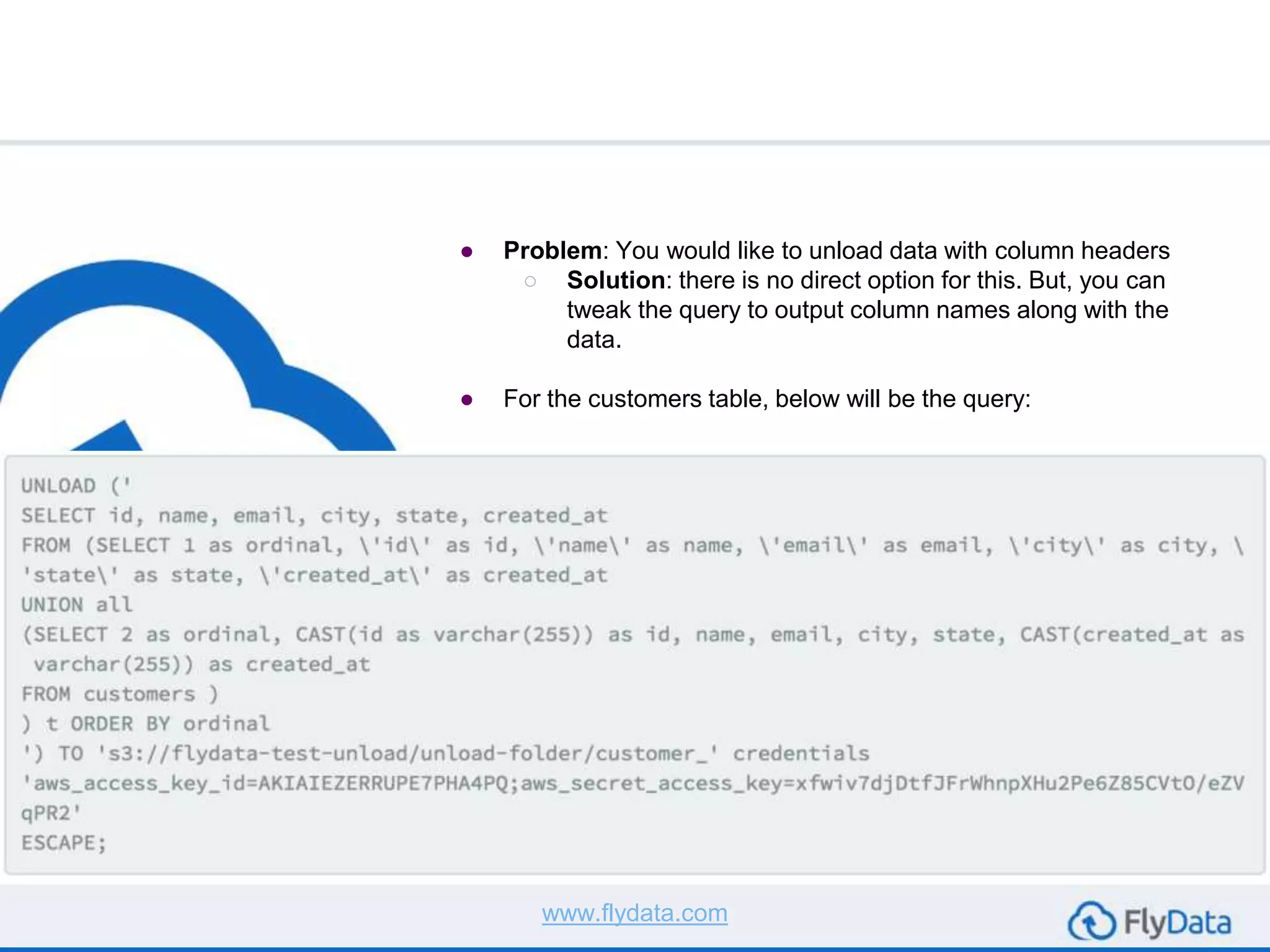
● Problem: You would like to unload data with column headers
○ Solution: there is no direct option for this. But, you can
tweak the query to output column names along with the
data.
● For the customers table, below will be the query:
www.flydata.com
Conclusion
Copyright © 2014 FlyData Inc. All rights reserved. www.flydata.com
Conclusion
● Though it’s easy to use the UNLOAD command, there
are a few things you need to take care of, as explained
in this article.
○ First, try the command on sample data and make
sure that all your options are set right before
trying to extract large amounts of data!
● There are also a few other options that UNLOAD
supports which we have not covered here. You can
find them in AWS documentation!
www.flydata.com
www.flydata.com www.flydata.com
Check us out!
-> http://flydata.com
sales@flydata.com
Toll Free: 1-855-427-9787
http://flydata.com
We are an official data integration
partner of Amazon Redshift

How to Extract Data from Amazon Redshift

  • 1.
    www.flydata.com How to ExtractData From Amazon Redshift Copyright © 2014 FlyData Inc. All rights reserved. www.flydata.com
  • 2.
    How to ExtractData From Amazon Redshift Copyright © 2014 FlyData Inc. All rights reserved. After using FlyData to load your data into Amazon Redshift, you may want to extract data from your Redshift Tables to S3. Here are some reasons that you might want to do this: ● You want to load data from your Redshift tables to some other data source ● You want to load some unused data to S3 ● Extract transformed data to S3 ● You want to copy data from one Redshift cluster to another www.flydata.com
  • 3.
    Whatever the reason,Redshift provides you with the UNLOAD SQL command to accomplish this. www.flydata.com
  • 4.
    How to Use UNLOAD Copyright© 2014 FlyData Inc. All rights reserved. www.flydata.com
  • 5.
    Copyright © 2014FlyData Inc. All rights reserved. www.flydata.com Before we start, let’s create a sample table “customer” as defined below and insert a few records into it.
  • 6.
    To unload allthe records in this table to S3 at location ‘s3://flydata-test-unload/unload-folder’, we can run the following command.. This generates the following files: www.flydata.com
  • 7.
    Why did thecommand generate multiple files even though there were few records in the table? The reason is that I was running UNLOAD on a single node cluster that has two slices. By default, UNLOAD writes one or more files per slice. Also, as you can see, each file takes the prefix that was specified in the command (customer_). www.flydata.com
  • 8.
    Let’s say, youwant to copy data in these files back to the cluster (or a different cluster). You can use the below COPY command to do that: www.flydata.com
  • 9.
    Things to beAware of When Using UNLOAD Copyright © 2014 FlyData Inc. All rights reserved. www.flydata.com
  • 10.
    Below is alist of things to be aware of when using UNLOAD: ● Pipe (|) is the default delimiter. You can override this by using DELIMITER AS ‘delimiter_char’ option. ● The S3 bucket specified in the command should be in the same region as your cluster. If not, you’ll most likely see an error when trying to UNLOAD. ● If there are quotes in the query, they need to be escaped. ● You cannot use the LIMIT clause in the outer SELECT statement of your query. www.flydata.com
  • 11.
    ● (Cont. fromprevious page) So, if you try to execute an UNLOAD command that has SELECT query like this: ● ...you will see an error like below! ● To work around this limitation, you can use a nested LIMIT clause, the above query can be rewritten as: www.flydata.com
  • 12.
    ● If thedestination folder already contains unloaded data, UNLOAD will fail with with “ERROR: Specified unload destination on S3 is not empty”. ○ You should either manually delete the files or specify ALLOWOVERWRITE option. ● If the data you are unloading includes the delimiter you are using, then you should use ESCAPE option with the UNLOAD command. ○ If you don’t, subsequent copy operations may fail or they will give undesirable results ● To compress the unloaded data, you can use the GZIP option with the command www.flydata.com
  • 13.
    Some More Tips Copyright© 2014 FlyData Inc. All rights reserved. www.flydata.com
  • 14.
    ● Problem: youhave limited data in your table and would like to unload the data into a single S3 file and not one file per slice ○ Solution: UNLOAD provides the PARALLEL option for this. ● By default, PARALLEL is ON, you can set it to OFF using the PARALLEL OFF option. ○ When you turn it off, Redshift writes to S3 serially and will not create multiple files according to the number of slices in the cluster. ○ Please be aware that the maximum size of a data file is 6.2GB. If you UNLOAD data exceeding that limit, you will still see multiple files on S3. www.flydata.com
  • 15.
    ● Problem: Youwould like to unload data with column headers ○ Solution: there is no direct option for this. But, you can tweak the query to output column names along with the data. ● For the customers table, below will be the query: www.flydata.com
  • 16.
    Conclusion Copyright © 2014FlyData Inc. All rights reserved. www.flydata.com
  • 17.
    Conclusion ● Though it’seasy to use the UNLOAD command, there are a few things you need to take care of, as explained in this article. ○ First, try the command on sample data and make sure that all your options are set right before trying to extract large amounts of data! ● There are also a few other options that UNLOAD supports which we have not covered here. You can find them in AWS documentation! www.flydata.com
  • 18.
    www.flydata.com www.flydata.com Check usout! -> http://flydata.com sales@flydata.com Toll Free: 1-855-427-9787 http://flydata.com We are an official data integration partner of Amazon Redshift