UNIT I
Generation of Computer Languages
• The first generation languages, or 1GL, are low-level languages that
are machine language.
• The second-generation languages, or 2GL, are also low-level assembly
languages. They are sometimes used in kernels and hardware drives,
but more commonly used for video editing and video games.
• The third-generation languages, or 3GL, are high-level languages, such
as C, C++, Java, JavaScript, and Visual Basic.
• The fourth-generation languages, or 4GL, are languages that consist
of statements similar to statements in a human language. Fourth
generation languages are commonly used in database programming
and scripts examples include Perl, PHP, Python, Ruby, and SQL.
• The fifth-generation languages, or 5GL, are programming languages
that contain visual tools to help develop a program. Examples of fifth
generation languages include Mercury, OPS5, and Prolog.
Internet Concepts
• What is Internet?
• The Internet is essentially a global network of computing resources.
You can think of the Internet as a physical collection of routers and
circuits as a set of shared resources.
• Some common definitions given in the past include −
• A network of networks based on the TCP/IP communications protocol.
• A community of people who use and develop those networks.
Internet-Based Services
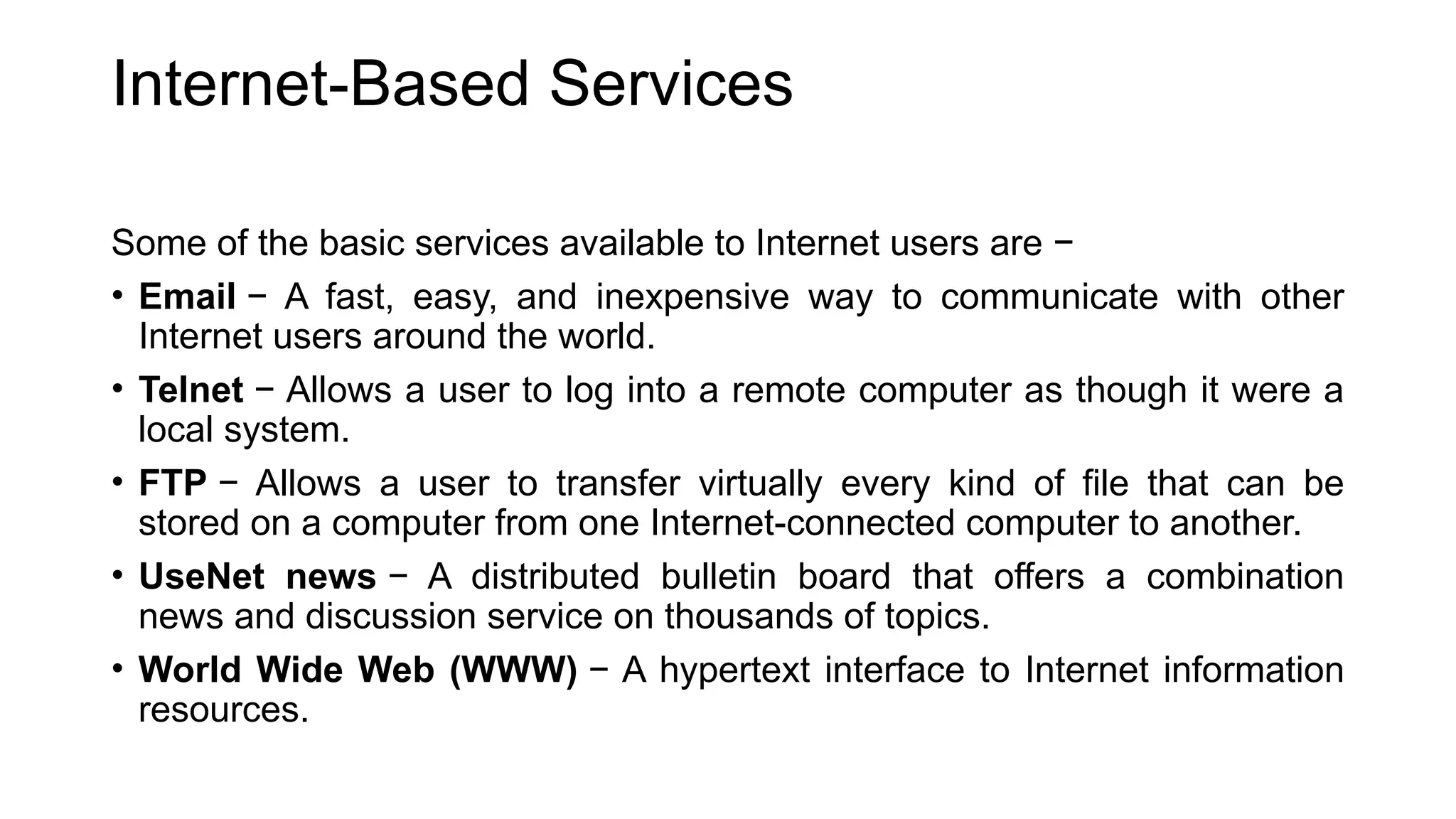
Some of the basic services available to Internet users are −
• Email − A fast, easy, and inexpensive way to communicate with other
Internet users around the world.
• Telnet − Allows a user to log into a remote computer as though it were a
local system.
• FTP − Allows a user to transfer virtually every kind of file that can be
stored on a computer from one Internet-connected computer to another.
• UseNet news − A distributed bulletin board that offers a combination
news and discussion service on thousands of topics.
• World Wide Web (WWW) − A hypertext interface to Internet information
resources.
What is WWW?
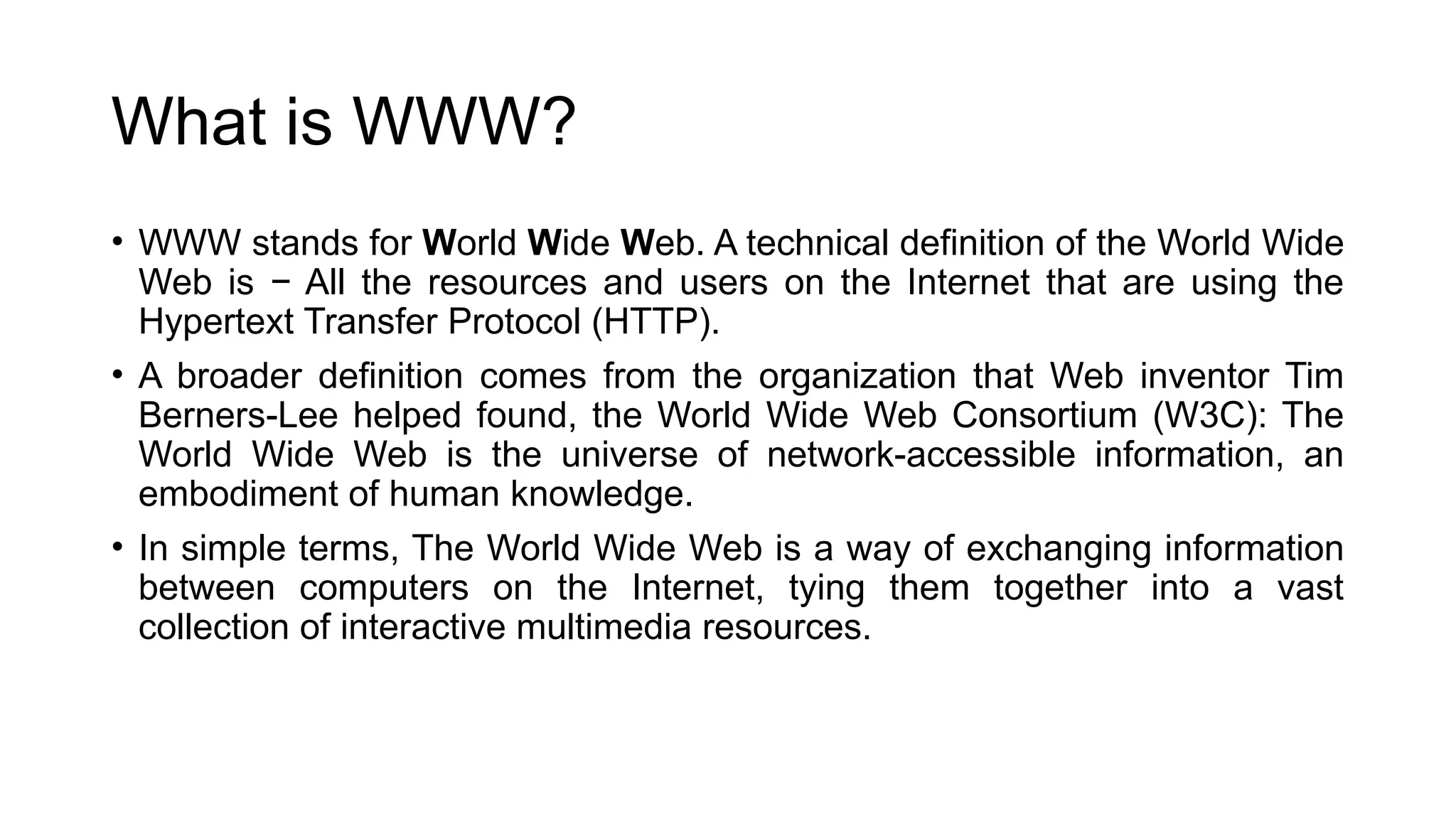
• WWW stands for World Wide Web. A technical definition of the World Wide
Web is − All the resources and users on the Internet that are using the
Hypertext Transfer Protocol (HTTP).
• A broader definition comes from the organization that Web inventor Tim
Berners-Lee helped found, the World Wide Web Consortium (W3C): The
World Wide Web is the universe of network-accessible information, an
embodiment of human knowledge.
• In simple terms, The World Wide Web is a way of exchanging information
between computers on the Internet, tying them together into a vast
collection of interactive multimedia resources.
What is HTTP?
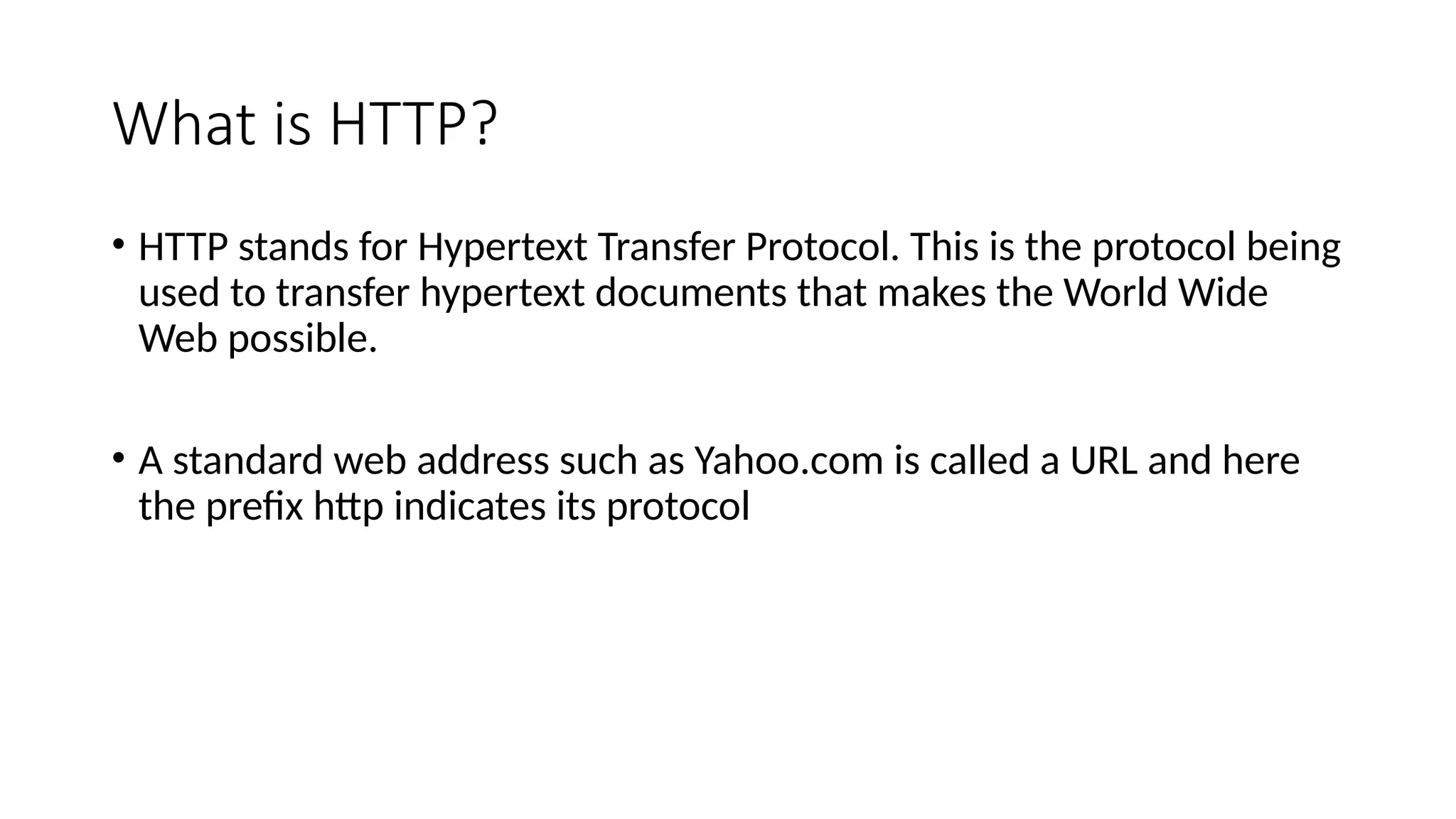
• HTTP stands for Hypertext Transfer Protocol. This is the protocol being
used to transfer hypertext documents that makes the World Wide
Web possible.
• A standard web address such as Yahoo.com is called a URL and here
the prefix http indicates its protocol
What is URL?
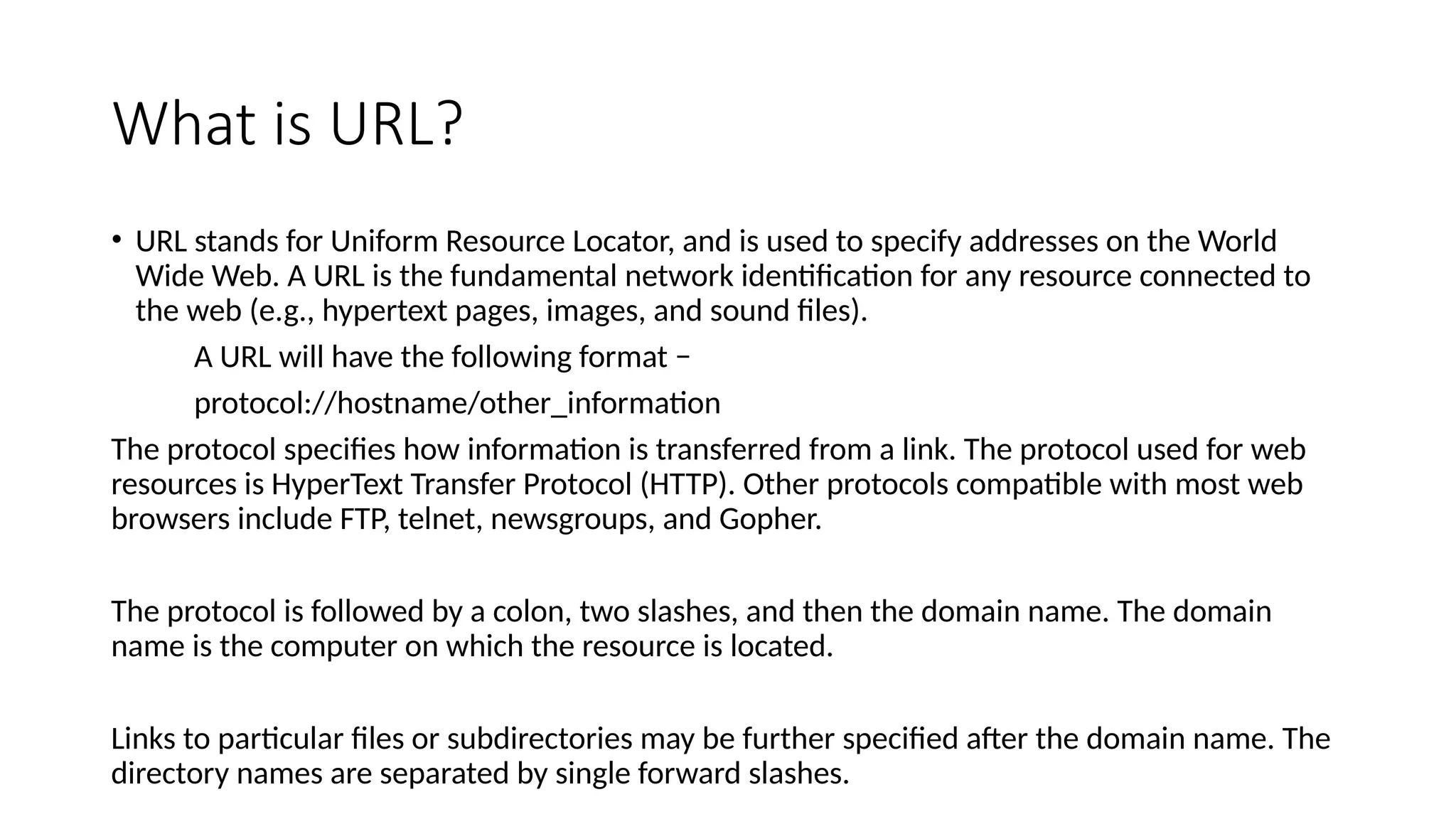
• URL stands for Uniform Resource Locator, and is used to specify addresses on the World
Wide Web. A URL is the fundamental network identification for any resource connected to
the web (e.g., hypertext pages, images, and sound files).
A URL will have the following format −
protocol://hostname/other_information
The protocol specifies how information is transferred from a link. The protocol used for web
resources is HyperText Transfer Protocol (HTTP). Other protocols compatible with most web
browsers include FTP, telnet, newsgroups, and Gopher.
The protocol is followed by a colon, two slashes, and then the domain name. The domain
name is the computer on which the resource is located.
Links to particular files or subdirectories may be further specified after the domain name. The
directory names are separated by single forward slashes.
Hardware and Software Requirements for
Internet connection:
• Connecting a computer using Wireless Broadband
• Connecting a computer using an Ethernet Cable
• Connecting a Computer Using Dial-Up Community
Hardware Requirement :
To connect the Internet, any one of the following is mandatory.
• Modem is used to connect Internet through Telephone connection.
• NIC- Network Interface Card(wired/ wireless) facility is the most important
hardware required to connect Internet. For example, the Laptop can be
connected Internet through the wired/wireless.
• Dongle is used to connect the Internet using cellular network
• Wi-Fi router or Hotspot is used to connect the Internet using wireless network
• Electronic device which supports cellular network
• Internet Connectivity such as Dial-up connection, ISDN, DSL, Cable TV, wired
and wireless (Cellular) Network.
Software Requirement
• The operating system should support TCP (Transfer Control Protocol) /
IP (Internet Protocol), SMTP (Simple Mail Transfer Protocol), FTP (File
Transfer Protocol), HTTP (Hyper Text Transfer Protocol) and HTTPS
(Hyper Text Transfer Protocol Secured) protocols.
• Browsers and other Internet clients access to the web applications
such as Outlook, Gmail, Whatsapp, Facebook, Twitter and etc.
Types of Internet Connections
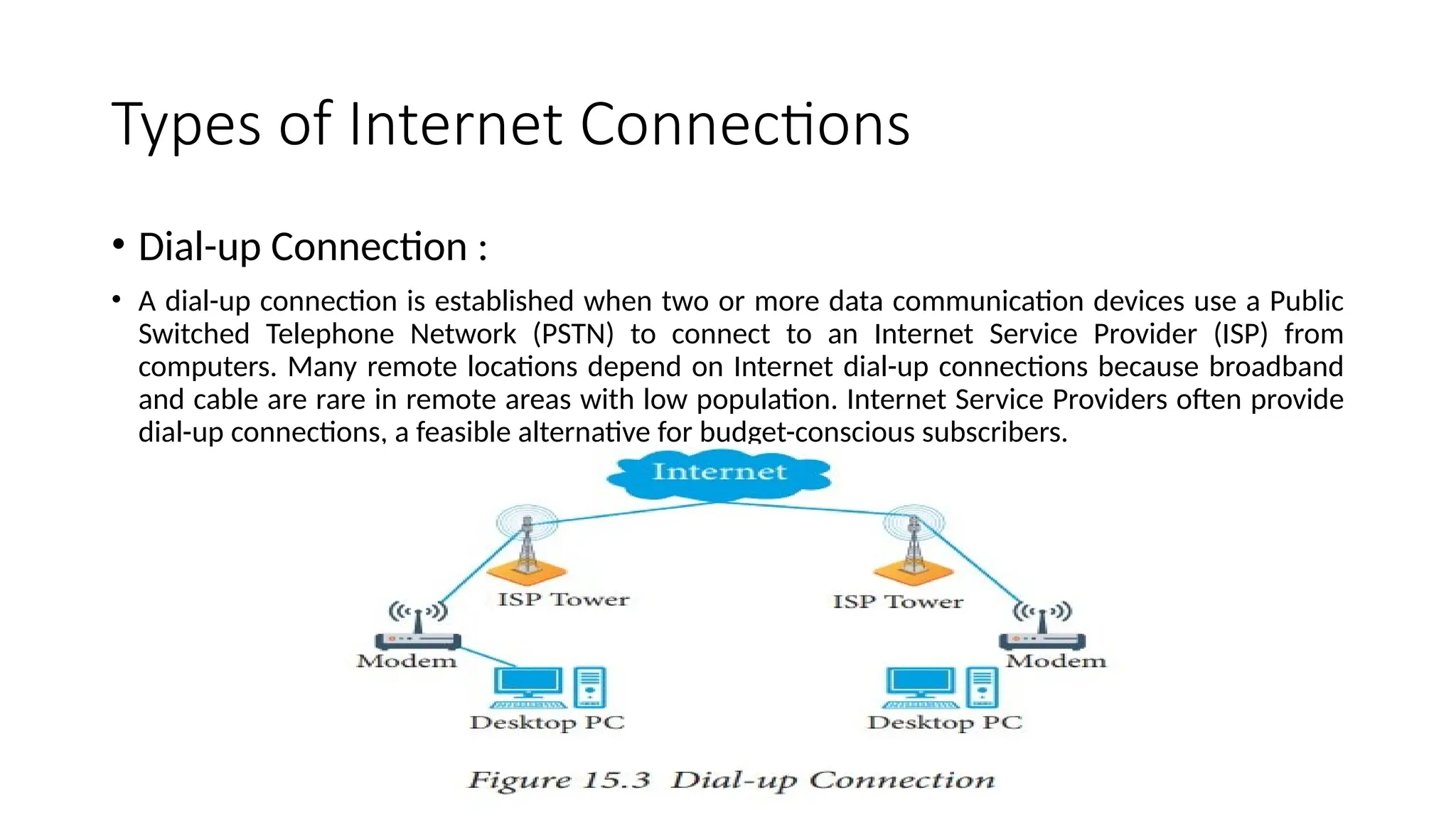
• Dial-up Connection :
• A dial-up connection is established when two or more data communication devices use a Public
Switched Telephone Network (PSTN) to connect to an Internet Service Provider (ISP) from
computers. Many remote locations depend on Internet dial-up connections because broadband
and cable are rare in remote areas with low population. Internet Service Providers often provide
dial-up connections, a feasible alternative for budget-conscious subscribers.
Types of Internet Connections
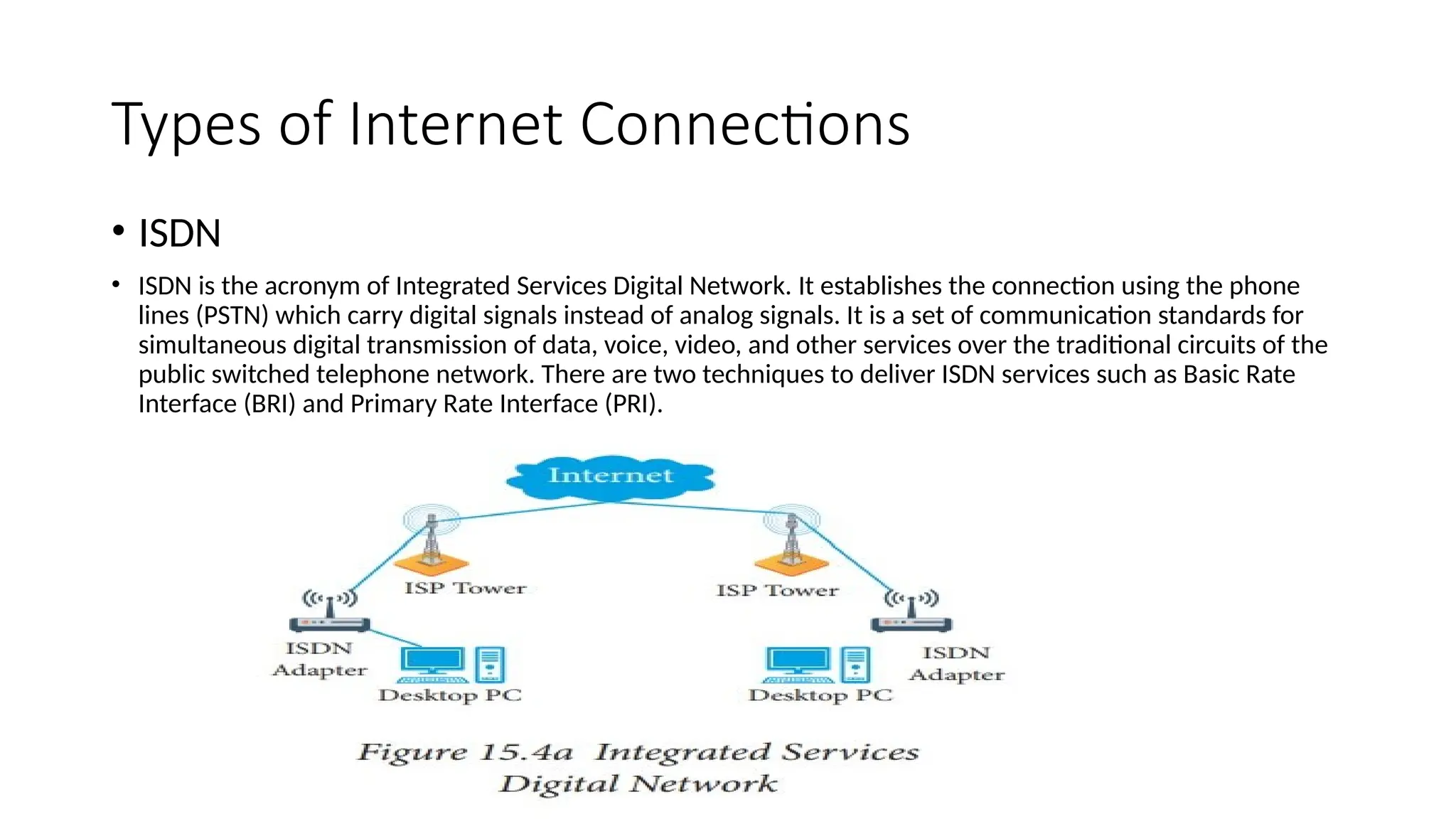
• ISDN
• ISDN is the acronym of Integrated Services Digital Network. It establishes the connection using the phone
lines (PSTN) which carry digital signals instead of analog signals. It is a set of communication standards for
simultaneous digital transmission of data, voice, video, and other services over the traditional circuits of the
public switched telephone network. There are two techniques to deliver ISDN services such as Basic Rate
Interface (BRI) and Primary Rate Interface (PRI).
Types of Internet Connections
• DSL:
• Digital Subscriber Line (DSL) is a high-speed Internet service for homes and
businesses that competes with cable and other forms of broadband Internet. DSL
provides high-speed networking over ordinary Telephone lines using broadband
modem technology. The technology behind DSL enables Internet and telephone
service to work over the same phone line without requiring customers to
disconnect either their Voice or Internet connections.
Types of Internet Connections
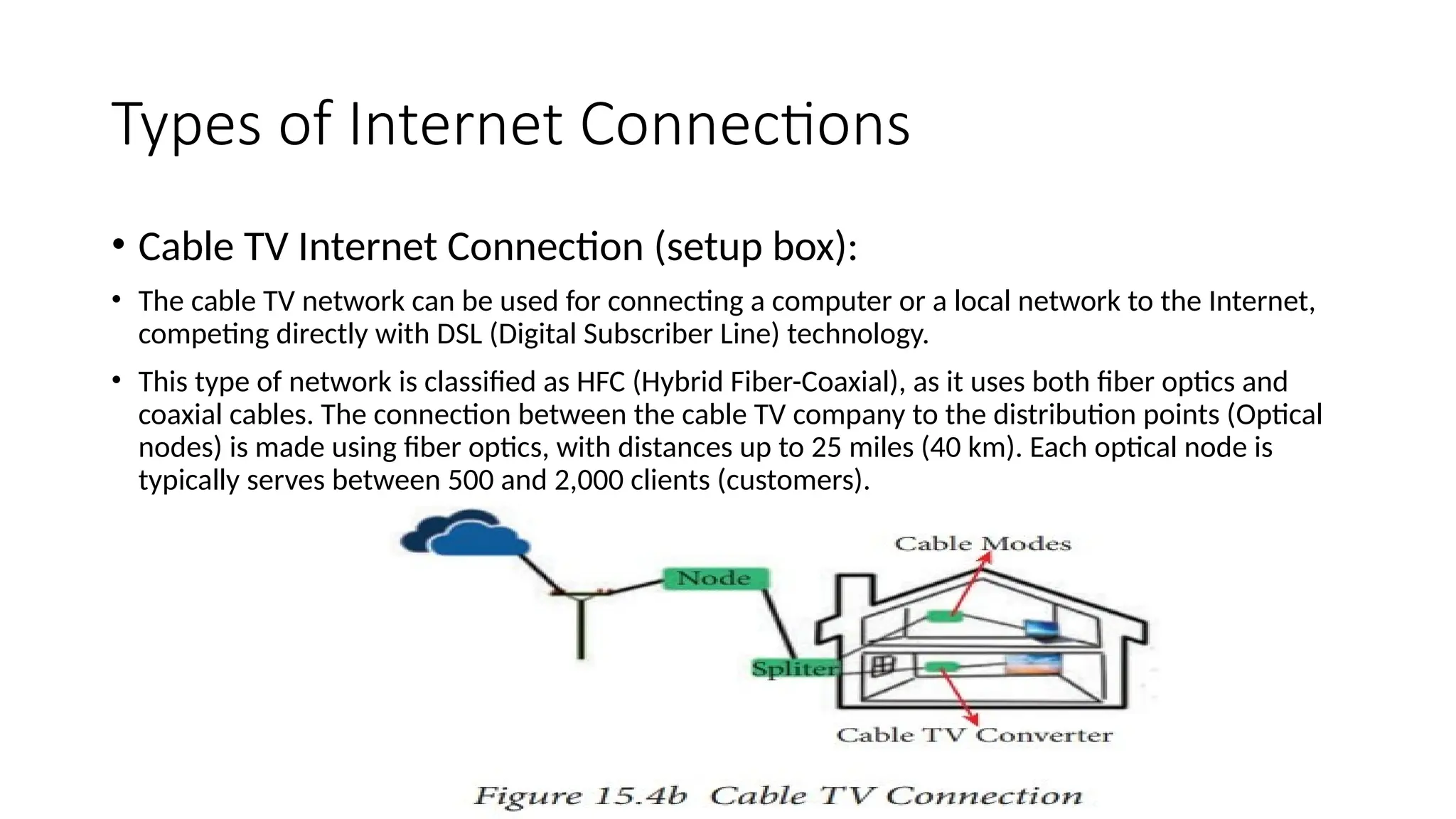
• Cable TV Internet Connection (setup box):
• The cable TV network can be used for connecting a computer or a local network to the Internet,
competing directly with DSL (Digital Subscriber Line) technology.
• This type of network is classified as HFC (Hybrid Fiber-Coaxial), as it uses both fiber optics and
coaxial cables. The connection between the cable TV company to the distribution points (Optical
nodes) is made using fiber optics, with distances up to 25 miles (40 km). Each optical node is
typically serves between 500 and 2,000 clients (customers).
Types of Internet Connections
• Satellite Internet Connection:
• Satellite Internet access is Internet access provided through satellite
communication for domestic and enterprise usage. The facility of modern
consumer grade satellite Internet service is typically provided to individual users
through geostationary satellites . It provides fairly high data speeds, along with
latest satellites using Ka-band to attain downstream data speeds up to 50 Mbps
internet speed.
Types of Internet Connections
• Wireless Internet Connection:
• It is a technology for wireless local area networking with devices based on the
IEEE 802.11 standards. Devices that can use Wi-Fi technology include personal
computers, video-game consoles, phones and tablets, digital cameras, smart TVs,
digital audio players and modern printers. Wi-Fi compatible devices can connect
to the Internet via a WLAN and a wireless access point. Such an access point (or
hotspot) has a range of about 20 meters (66 feet) indoors and a greater range of
outdoors. Hotspot coverage can be as small as a single room with walls that block
radio waves, or as large as many square kilometres achieved by using multiple
overlapping access points.
Services Available on the Internet:
• Data Transfer
• Internet banking
• E-commerce
• E-Learning
• E-Governance
• Browsing and Chatting
• E-Mail
Services Available on the Internet:
• Data Transfer:
• Data transfer is the process of using computing techniques and technologies to
transmit or transfer electronic or analog data from one computer node to
another. Data is transferred in the form of bits and bytes over a internet digital or
analog medium, and the process enables digital or analog communications and
its movement between devices. Data transfer is also known as data transmission.
Services Available on the Internet:
• Internet Banking:
• Traditionally, customers used to access banking services through Retail/ corporate
branch. But in this digital era Online Banking has taken vital role. The online
banking is also called as internet banking, virtual banking or e-banking. This is a
value added application to connecting the core banking system and provide the
self service bank facilities for customers via online.
Services Available on the Internet:
• E-commerce:
• E-commerce application is a transaction of buying or selling good and services
through online. Electronic commerce attraction technologies such as mobile
commerce, electronic funds transfer, supply chain management, Internet
marketing, online transaction processing, electronic data interchange (EDI),
inventory management systems, and automated data collection systems.
Services Available on the Internet:
• e-Marketing: (Electronic Marketing)
E-Marketing is the process of marketing a product or service using the internet. It also includes
marketing done via e-mail and wireless media. It also called Digital Marketing.
• E-Learning :
A learning system based on electronic resources is known as E-learning. The use of computers and
the Internet forms the major component of E-learning. The E-learning can also be termed as a
network enabled transfer of skills and knowledge and the delivery of education is made to a large
number of recipients at the same or different times.
Services Available on the Internet:
• E-Governance:
• E-governance is the application of Information and Communication Technology (ICT) for delivering
government services, exchange of information, communication transactions, integration of
various stand-alone systems and services between government-to-citizen (G2C), Government-to-
business (G2B), Government-to-Government (G2G), Government -to-Employees (G2E) as well as
back office processes and interactions within the entire government framework. Through e-
governance, government services will be made available to citizens in a convenient, efficient and
transparent manner. The three main target groups that can be distinguished in governance
concepts are government, citizens and businesses/ interest groups. In e-governance there are no
distinct boundaries
Services Available on the Internet:
• Online Chatting:
• Online chat refers to any kind of communication via the Internet that offers a real-time
transmission of text messages from sender to receiver. The chat messages are generally short in
order to enable other participants to respond quickly. Online chat may address point-to-point
communications as well as multicast communications from one sender to many receivers and
voice and video chat and web conferencing service.
Windows XP
• Often abbreviated as XP, Microsoft Windows XP was code-named
Whistler and is short for Windows eXPerience. Windows XP is an
operating system that was first released on October 25, 2001, by
Microsoft and designed to help bridge the gap between Windows 9x/ME
and Windows NT/2000. The Windows XP upgrade was available for
Windows 98, ME, and 2000 users. The two primary versions of Windows
XP are Windows XP Home Edition and Windows XP Professional.
• Home Edition - Full or upgrade and only 32-bit.
• Professional - Full or upgrade and 32-bit or 64-bit.
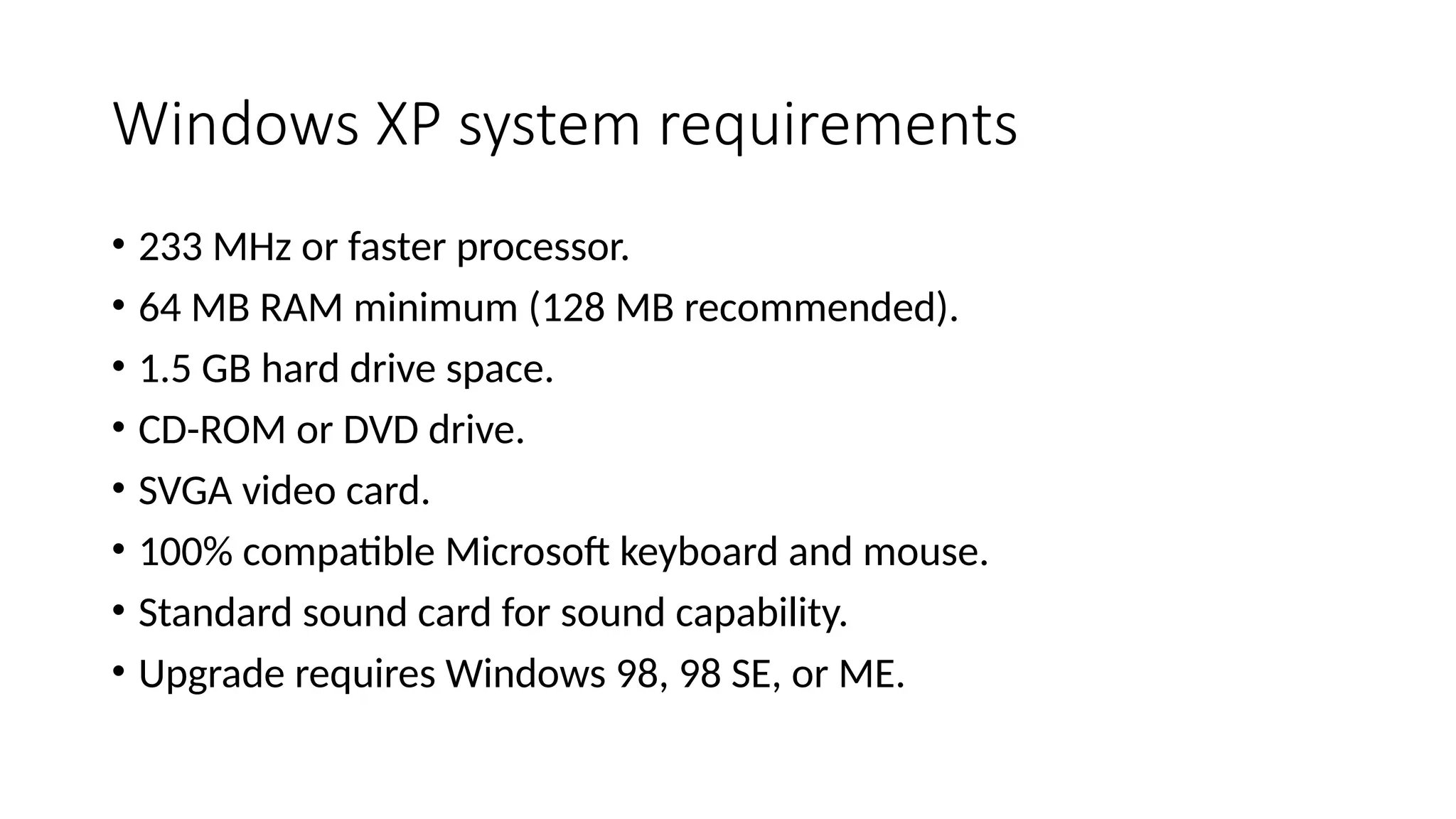
Windows XP system requirements
• 233 MHz or faster processor.
• 64 MB RAM minimum (128 MB recommended).
• 1.5 GB hard drive space.
• CD-ROM or DVD drive.
• SVGA video card.
• 100% compatible Microsoft keyboard and mouse.
• Standard sound card for sound capability.
• Upgrade requires Windows 98, 98 SE, or ME.
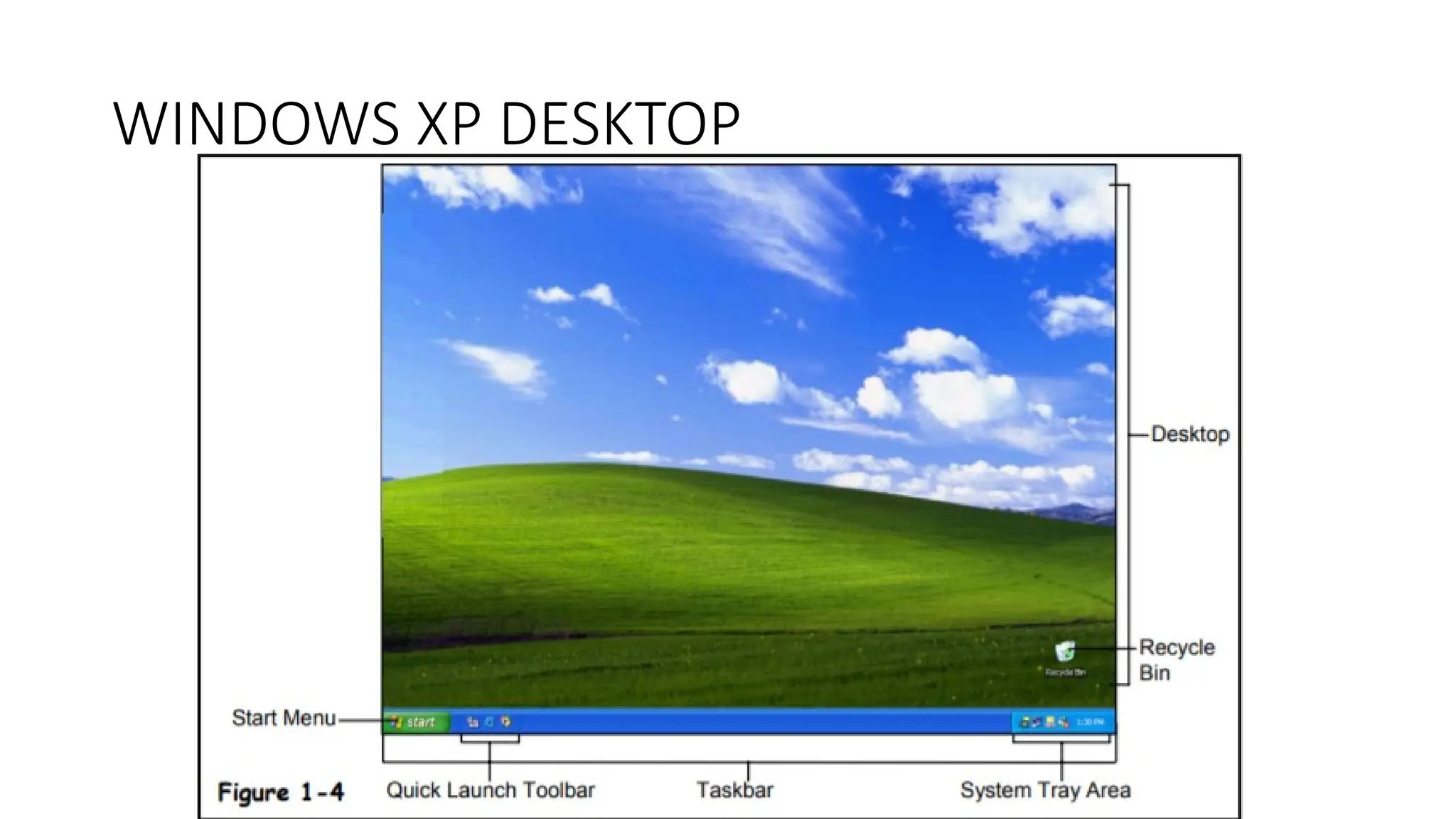
WINDOWS XP DESKTOP
MENU
Basic Operations of Windows XP
• Safe and Easy Personal Computing.. Windows XP makes personal
computing easy and enjoyable! Power, performance, a bright new
look, and plenty of help when you need it. Windows XP has it all,
along with unmatched dependability and security.
• Unlock the World of Digital Media.. Unlock the exciting world of
digital media at home, at work, and on the Internet. Enjoy
photography, music, videos, computer games, and more.
• The Connected Home and Office Share files, photos, music, even a
printer and Internet connection—all on a network that is private and
secure.
What’s New in Windows XP?
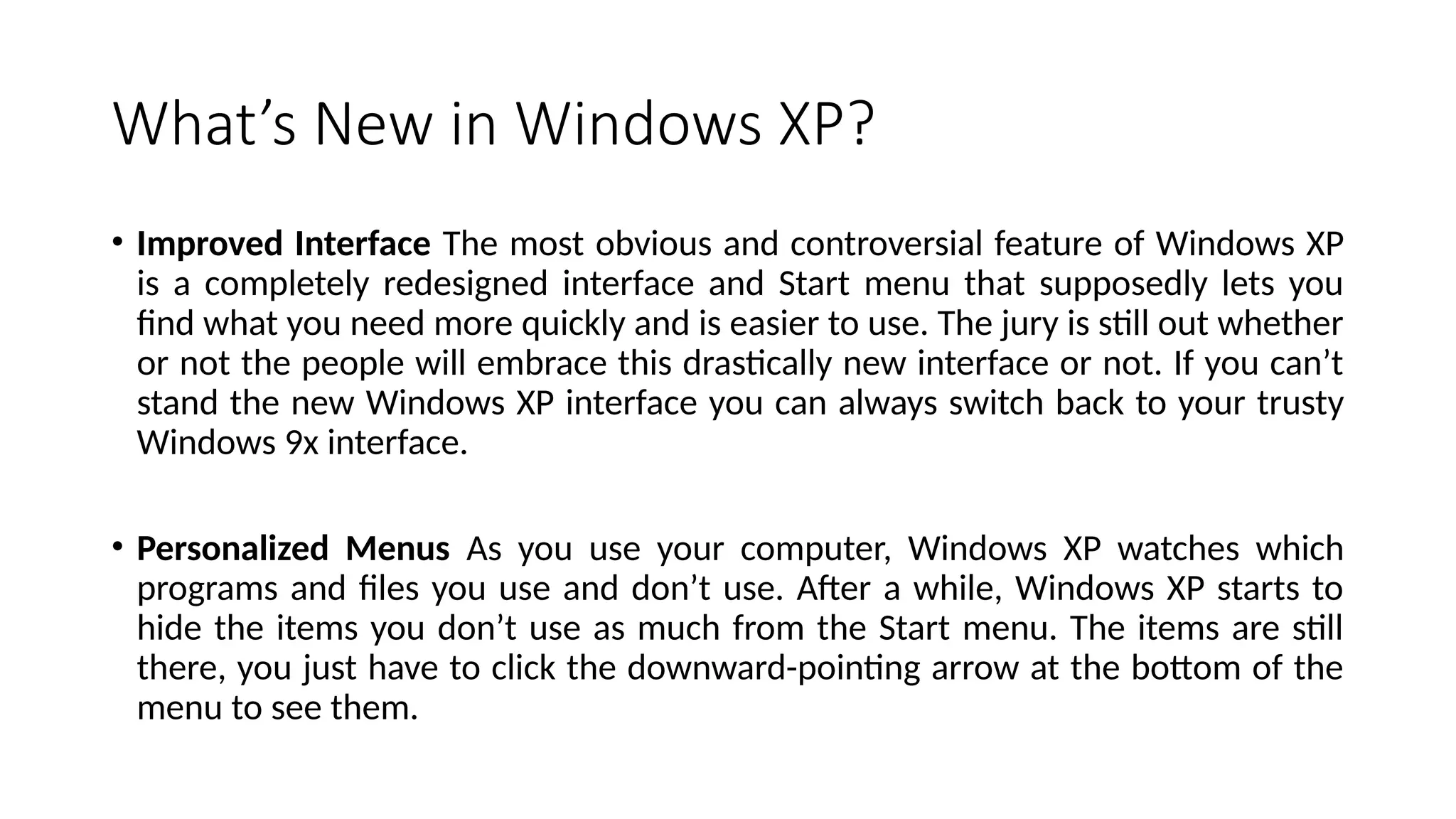
• Improved Interface The most obvious and controversial feature of Windows XP
is a completely redesigned interface and Start menu that supposedly lets you
find what you need more quickly and is easier to use. The jury is still out whether
or not the people will embrace this drastically new interface or not. If you can’t
stand the new Windows XP interface you can always switch back to your trusty
Windows 9x interface.
• Personalized Menus As you use your computer, Windows XP watches which
programs and files you use and don’t use. After a while, Windows XP starts to
hide the items you don’t use as much from the Start menu. The items are still
there, you just have to click the downward-pointing arrow at the bottom of the
menu to see them.
What’s New in Windows XP?
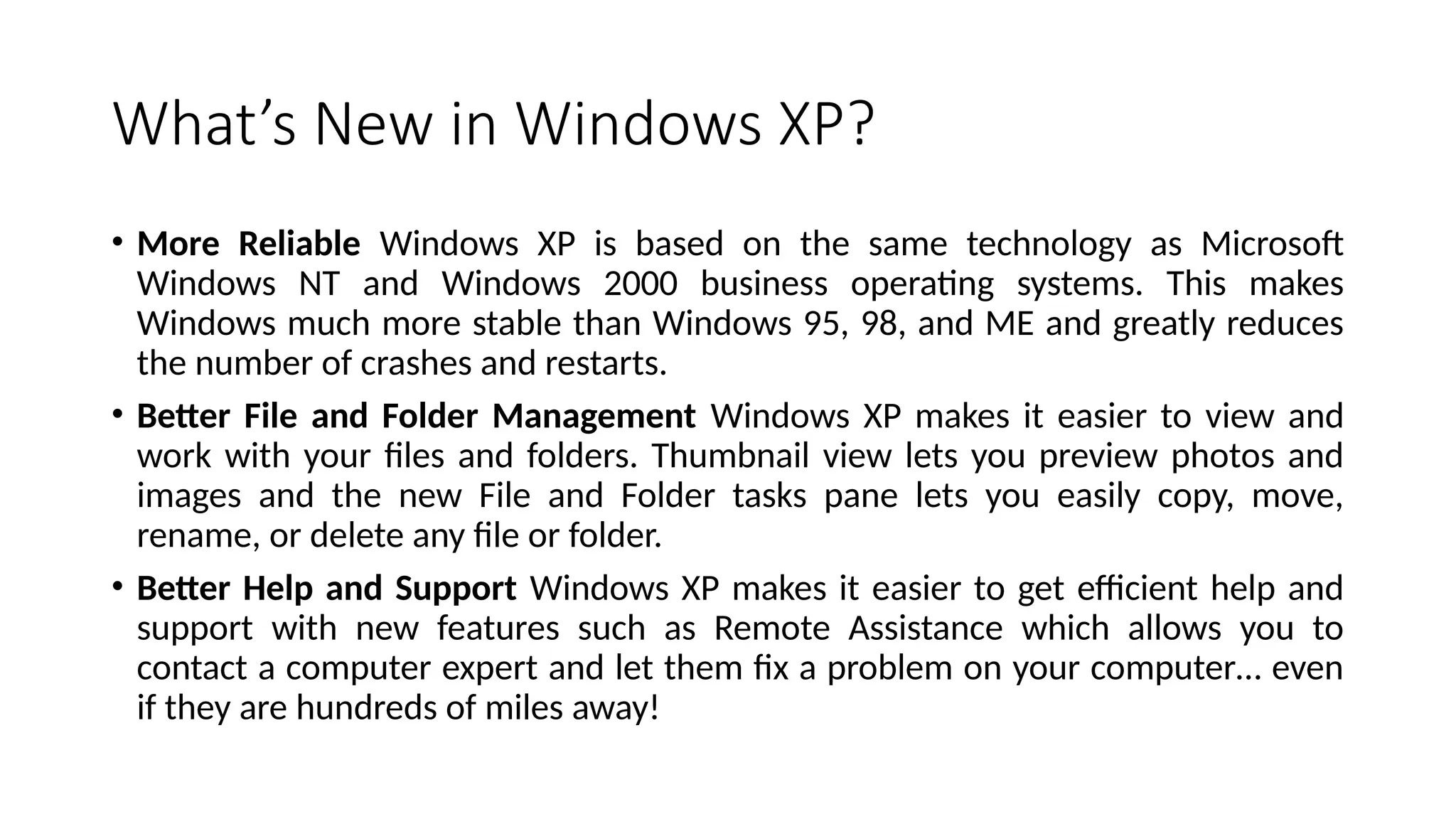
• More Reliable Windows XP is based on the same technology as Microsoft
Windows NT and Windows 2000 business operating systems. This makes
Windows much more stable than Windows 95, 98, and ME and greatly reduces
the number of crashes and restarts.
• Better File and Folder Management Windows XP makes it easier to view and
work with your files and folders. Thumbnail view lets you preview photos and
images and the new File and Folder tasks pane lets you easily copy, move,
rename, or delete any file or folder.
• Better Help and Support Windows XP makes it easier to get efficient help and
support with new features such as Remote Assistance which allows you to
contact a computer expert and let them fix a problem on your computer… even
if they are hundreds of miles away!
Features of Windows XP
• New User Interface (UI) : Facilitate searching for required data at specific time
• Reliability: Configured on the reliability-proven kernel of Windows 2000
• Windows Media Player for Windows XP: Primary software for searching, playing back, managing and
storing digital media
• Network Setup Wizard: Facilitating the sharing of a computer and devices by combining them at home
• Windows Messenger: Communication/collaboration tool with Instant Messaging, Audio/Video Meeting
and application sharing function
• Help and Support Center: Providing easy recovery from troubles and necessary help and support.
• Support for enhanced mobile functions accessible from outside: Expansion support of notebook
computers (Clear type support, multi-monitor, improvement of power management), providing an
environment where user can operate the computer in the office remotely.
• Wireless connection:Automatic configuration of 802.1x wireless network.
• Remote desktop:User can access the data and applications in a computer remotely from
another computer.
Features of Windows XP
• Off-line files and off-line folders: Even when the connection is discontinued from the server, you can access
files and folders shared on the network.
• Faster response even in processing multi-tasks.
• High-speed startup and improvement of power management.
• Multi-task: Operate multiple applications at the same time.
• Expandable processor support:Supporting up to 2 multi-processors
• Retention of data security and protection of user privacy
• Firewall for the Internet connection
• Internet Explorer 6 Privacy support: Protecting private information during access to Web
pages.
• Encryption of file system: Protecting confidential data in files saved to the NTFS file system.
• Installation and maintenance of software: Automating the installation, settings, recovery and deletion of
software applications.
• Multi-lingual user interface (MUI): Can change the user interface language, in compliance
with the languages in dialog boxes, menus, help files, dictionary and proof tools.

Fundamentals of Computers and Information System

  • 1.
  • 2.
    Generation of ComputerLanguages • The first generation languages, or 1GL, are low-level languages that are machine language. • The second-generation languages, or 2GL, are also low-level assembly languages. They are sometimes used in kernels and hardware drives, but more commonly used for video editing and video games.
  • 3.
    • The third-generationlanguages, or 3GL, are high-level languages, such as C, C++, Java, JavaScript, and Visual Basic. • The fourth-generation languages, or 4GL, are languages that consist of statements similar to statements in a human language. Fourth generation languages are commonly used in database programming and scripts examples include Perl, PHP, Python, Ruby, and SQL.
  • 4.
    • The fifth-generationlanguages, or 5GL, are programming languages that contain visual tools to help develop a program. Examples of fifth generation languages include Mercury, OPS5, and Prolog.
  • 5.
    Internet Concepts • Whatis Internet? • The Internet is essentially a global network of computing resources. You can think of the Internet as a physical collection of routers and circuits as a set of shared resources. • Some common definitions given in the past include − • A network of networks based on the TCP/IP communications protocol. • A community of people who use and develop those networks.
  • 6.
    Internet-Based Services Some ofthe basic services available to Internet users are − • Email − A fast, easy, and inexpensive way to communicate with other Internet users around the world. • Telnet − Allows a user to log into a remote computer as though it were a local system. • FTP − Allows a user to transfer virtually every kind of file that can be stored on a computer from one Internet-connected computer to another. • UseNet news − A distributed bulletin board that offers a combination news and discussion service on thousands of topics. • World Wide Web (WWW) − A hypertext interface to Internet information resources.
  • 7.
    What is WWW? •WWW stands for World Wide Web. A technical definition of the World Wide Web is − All the resources and users on the Internet that are using the Hypertext Transfer Protocol (HTTP). • A broader definition comes from the organization that Web inventor Tim Berners-Lee helped found, the World Wide Web Consortium (W3C): The World Wide Web is the universe of network-accessible information, an embodiment of human knowledge. • In simple terms, The World Wide Web is a way of exchanging information between computers on the Internet, tying them together into a vast collection of interactive multimedia resources.
  • 8.
    What is HTTP? •HTTP stands for Hypertext Transfer Protocol. This is the protocol being used to transfer hypertext documents that makes the World Wide Web possible. • A standard web address such as Yahoo.com is called a URL and here the prefix http indicates its protocol
  • 9.
    What is URL? •URL stands for Uniform Resource Locator, and is used to specify addresses on the World Wide Web. A URL is the fundamental network identification for any resource connected to the web (e.g., hypertext pages, images, and sound files). A URL will have the following format − protocol://hostname/other_information The protocol specifies how information is transferred from a link. The protocol used for web resources is HyperText Transfer Protocol (HTTP). Other protocols compatible with most web browsers include FTP, telnet, newsgroups, and Gopher. The protocol is followed by a colon, two slashes, and then the domain name. The domain name is the computer on which the resource is located. Links to particular files or subdirectories may be further specified after the domain name. The directory names are separated by single forward slashes.
  • 10.
    Hardware and SoftwareRequirements for Internet connection: • Connecting a computer using Wireless Broadband • Connecting a computer using an Ethernet Cable • Connecting a Computer Using Dial-Up Community
  • 11.
    Hardware Requirement : Toconnect the Internet, any one of the following is mandatory. • Modem is used to connect Internet through Telephone connection. • NIC- Network Interface Card(wired/ wireless) facility is the most important hardware required to connect Internet. For example, the Laptop can be connected Internet through the wired/wireless. • Dongle is used to connect the Internet using cellular network • Wi-Fi router or Hotspot is used to connect the Internet using wireless network • Electronic device which supports cellular network • Internet Connectivity such as Dial-up connection, ISDN, DSL, Cable TV, wired and wireless (Cellular) Network.
  • 12.
    Software Requirement • Theoperating system should support TCP (Transfer Control Protocol) / IP (Internet Protocol), SMTP (Simple Mail Transfer Protocol), FTP (File Transfer Protocol), HTTP (Hyper Text Transfer Protocol) and HTTPS (Hyper Text Transfer Protocol Secured) protocols. • Browsers and other Internet clients access to the web applications such as Outlook, Gmail, Whatsapp, Facebook, Twitter and etc.
  • 13.
    Types of InternetConnections • Dial-up Connection : • A dial-up connection is established when two or more data communication devices use a Public Switched Telephone Network (PSTN) to connect to an Internet Service Provider (ISP) from computers. Many remote locations depend on Internet dial-up connections because broadband and cable are rare in remote areas with low population. Internet Service Providers often provide dial-up connections, a feasible alternative for budget-conscious subscribers.
  • 14.
    Types of InternetConnections • ISDN • ISDN is the acronym of Integrated Services Digital Network. It establishes the connection using the phone lines (PSTN) which carry digital signals instead of analog signals. It is a set of communication standards for simultaneous digital transmission of data, voice, video, and other services over the traditional circuits of the public switched telephone network. There are two techniques to deliver ISDN services such as Basic Rate Interface (BRI) and Primary Rate Interface (PRI).
  • 15.
    Types of InternetConnections • DSL: • Digital Subscriber Line (DSL) is a high-speed Internet service for homes and businesses that competes with cable and other forms of broadband Internet. DSL provides high-speed networking over ordinary Telephone lines using broadband modem technology. The technology behind DSL enables Internet and telephone service to work over the same phone line without requiring customers to disconnect either their Voice or Internet connections.
  • 16.
    Types of InternetConnections • Cable TV Internet Connection (setup box): • The cable TV network can be used for connecting a computer or a local network to the Internet, competing directly with DSL (Digital Subscriber Line) technology. • This type of network is classified as HFC (Hybrid Fiber-Coaxial), as it uses both fiber optics and coaxial cables. The connection between the cable TV company to the distribution points (Optical nodes) is made using fiber optics, with distances up to 25 miles (40 km). Each optical node is typically serves between 500 and 2,000 clients (customers).
  • 17.
    Types of InternetConnections • Satellite Internet Connection: • Satellite Internet access is Internet access provided through satellite communication for domestic and enterprise usage. The facility of modern consumer grade satellite Internet service is typically provided to individual users through geostationary satellites . It provides fairly high data speeds, along with latest satellites using Ka-band to attain downstream data speeds up to 50 Mbps internet speed.
  • 18.
    Types of InternetConnections • Wireless Internet Connection: • It is a technology for wireless local area networking with devices based on the IEEE 802.11 standards. Devices that can use Wi-Fi technology include personal computers, video-game consoles, phones and tablets, digital cameras, smart TVs, digital audio players and modern printers. Wi-Fi compatible devices can connect to the Internet via a WLAN and a wireless access point. Such an access point (or hotspot) has a range of about 20 meters (66 feet) indoors and a greater range of outdoors. Hotspot coverage can be as small as a single room with walls that block radio waves, or as large as many square kilometres achieved by using multiple overlapping access points.
  • 19.
    Services Available onthe Internet: • Data Transfer • Internet banking • E-commerce • E-Learning • E-Governance • Browsing and Chatting • E-Mail
  • 20.
    Services Available onthe Internet: • Data Transfer: • Data transfer is the process of using computing techniques and technologies to transmit or transfer electronic or analog data from one computer node to another. Data is transferred in the form of bits and bytes over a internet digital or analog medium, and the process enables digital or analog communications and its movement between devices. Data transfer is also known as data transmission.
  • 21.
    Services Available onthe Internet: • Internet Banking: • Traditionally, customers used to access banking services through Retail/ corporate branch. But in this digital era Online Banking has taken vital role. The online banking is also called as internet banking, virtual banking or e-banking. This is a value added application to connecting the core banking system and provide the self service bank facilities for customers via online.
  • 22.
    Services Available onthe Internet: • E-commerce: • E-commerce application is a transaction of buying or selling good and services through online. Electronic commerce attraction technologies such as mobile commerce, electronic funds transfer, supply chain management, Internet marketing, online transaction processing, electronic data interchange (EDI), inventory management systems, and automated data collection systems.
  • 23.
    Services Available onthe Internet: • e-Marketing: (Electronic Marketing) E-Marketing is the process of marketing a product or service using the internet. It also includes marketing done via e-mail and wireless media. It also called Digital Marketing. • E-Learning : A learning system based on electronic resources is known as E-learning. The use of computers and the Internet forms the major component of E-learning. The E-learning can also be termed as a network enabled transfer of skills and knowledge and the delivery of education is made to a large number of recipients at the same or different times.
  • 24.
    Services Available onthe Internet: • E-Governance: • E-governance is the application of Information and Communication Technology (ICT) for delivering government services, exchange of information, communication transactions, integration of various stand-alone systems and services between government-to-citizen (G2C), Government-to- business (G2B), Government-to-Government (G2G), Government -to-Employees (G2E) as well as back office processes and interactions within the entire government framework. Through e- governance, government services will be made available to citizens in a convenient, efficient and transparent manner. The three main target groups that can be distinguished in governance concepts are government, citizens and businesses/ interest groups. In e-governance there are no distinct boundaries
  • 25.
    Services Available onthe Internet: • Online Chatting: • Online chat refers to any kind of communication via the Internet that offers a real-time transmission of text messages from sender to receiver. The chat messages are generally short in order to enable other participants to respond quickly. Online chat may address point-to-point communications as well as multicast communications from one sender to many receivers and voice and video chat and web conferencing service.
  • 26.
    Windows XP • Oftenabbreviated as XP, Microsoft Windows XP was code-named Whistler and is short for Windows eXPerience. Windows XP is an operating system that was first released on October 25, 2001, by Microsoft and designed to help bridge the gap between Windows 9x/ME and Windows NT/2000. The Windows XP upgrade was available for Windows 98, ME, and 2000 users. The two primary versions of Windows XP are Windows XP Home Edition and Windows XP Professional. • Home Edition - Full or upgrade and only 32-bit. • Professional - Full or upgrade and 32-bit or 64-bit.
  • 27.
    Windows XP systemrequirements • 233 MHz or faster processor. • 64 MB RAM minimum (128 MB recommended). • 1.5 GB hard drive space. • CD-ROM or DVD drive. • SVGA video card. • 100% compatible Microsoft keyboard and mouse. • Standard sound card for sound capability. • Upgrade requires Windows 98, 98 SE, or ME.
  • 28.
  • 29.
  • 30.
    Basic Operations ofWindows XP • Safe and Easy Personal Computing.. Windows XP makes personal computing easy and enjoyable! Power, performance, a bright new look, and plenty of help when you need it. Windows XP has it all, along with unmatched dependability and security. • Unlock the World of Digital Media.. Unlock the exciting world of digital media at home, at work, and on the Internet. Enjoy photography, music, videos, computer games, and more. • The Connected Home and Office Share files, photos, music, even a printer and Internet connection—all on a network that is private and secure.
  • 31.
    What’s New inWindows XP? • Improved Interface The most obvious and controversial feature of Windows XP is a completely redesigned interface and Start menu that supposedly lets you find what you need more quickly and is easier to use. The jury is still out whether or not the people will embrace this drastically new interface or not. If you can’t stand the new Windows XP interface you can always switch back to your trusty Windows 9x interface. • Personalized Menus As you use your computer, Windows XP watches which programs and files you use and don’t use. After a while, Windows XP starts to hide the items you don’t use as much from the Start menu. The items are still there, you just have to click the downward-pointing arrow at the bottom of the menu to see them.
  • 32.
    What’s New inWindows XP? • More Reliable Windows XP is based on the same technology as Microsoft Windows NT and Windows 2000 business operating systems. This makes Windows much more stable than Windows 95, 98, and ME and greatly reduces the number of crashes and restarts. • Better File and Folder Management Windows XP makes it easier to view and work with your files and folders. Thumbnail view lets you preview photos and images and the new File and Folder tasks pane lets you easily copy, move, rename, or delete any file or folder. • Better Help and Support Windows XP makes it easier to get efficient help and support with new features such as Remote Assistance which allows you to contact a computer expert and let them fix a problem on your computer… even if they are hundreds of miles away!
  • 33.
    Features of WindowsXP • New User Interface (UI) : Facilitate searching for required data at specific time • Reliability: Configured on the reliability-proven kernel of Windows 2000 • Windows Media Player for Windows XP: Primary software for searching, playing back, managing and storing digital media • Network Setup Wizard: Facilitating the sharing of a computer and devices by combining them at home • Windows Messenger: Communication/collaboration tool with Instant Messaging, Audio/Video Meeting and application sharing function • Help and Support Center: Providing easy recovery from troubles and necessary help and support. • Support for enhanced mobile functions accessible from outside: Expansion support of notebook computers (Clear type support, multi-monitor, improvement of power management), providing an environment where user can operate the computer in the office remotely. • Wireless connection:Automatic configuration of 802.1x wireless network. • Remote desktop:User can access the data and applications in a computer remotely from another computer.
  • 34.
    Features of WindowsXP • Off-line files and off-line folders: Even when the connection is discontinued from the server, you can access files and folders shared on the network. • Faster response even in processing multi-tasks. • High-speed startup and improvement of power management. • Multi-task: Operate multiple applications at the same time. • Expandable processor support:Supporting up to 2 multi-processors • Retention of data security and protection of user privacy • Firewall for the Internet connection • Internet Explorer 6 Privacy support: Protecting private information during access to Web pages. • Encryption of file system: Protecting confidential data in files saved to the NTFS file system. • Installation and maintenance of software: Automating the installation, settings, recovery and deletion of software applications. • Multi-lingual user interface (MUI): Can change the user interface language, in compliance with the languages in dialog boxes, menus, help files, dictionary and proof tools.