Full Angular 7 Firebase Authentication 
System 
 
Hello folks! in this tutorial, I am going to share with you ​How to create a full step 
by step Angular 7 Firebase Authentication System from scratch using Firebase 
API? 
In this article, you’ll be able to create Firebase authentication system using social 
auth provider 
For the demo purpose, I’m going to create a basic app in which a user can 
perform the following tasks. 
Angular 7 Firebase Authentication System’s 
Functionalities: 
● Sign in with Google 
● Sign in with username/password 
● Sign up with username/password 
● Recover forget password 
● Send email verification to a newly created user 
● Protect app’s inner pages URL using route guard’s canActivate method 
● Prevent user to access sign in and sign up URL when a user is already 
logged in 
● Maintain logged in state of Firebase user in localStorage 
Step by step Explanation 
1. Technologies used 
2. GitHub project files + project demo link 
3. Prerequisite 
4. Firebase account set up and AngularFire2 library integration 
5. Generate required Angular components 
6. Setup router service for navigating between components 
7. Create firebase authentication service using Firebase API 
8. Create Sign in authentication service using AuthService API 
○ Create sign in with Username/Password 
○ Create sign in with Google 
○ Create sign in with Facebook 
9. Create Firebase sign up service using Firebase API in Angular 7 
10.Create Firebase forgot password service using Firebase API in Angular 7 
11.How to send email Verification using Firebase API in Angular 7? 
12.How to use CanActivate method to prevent Access of URLs in Angular 7 app 
using route guards? 
13.How to maintain logged in state of Firebase user in localStorage with Angular 7? 
1. Technologies used 
● Node 8.11.1 
● Angular CLI 7.0.7 
● Angular 7.0.7 
● Firebase 5.7.0 
● RxJS 6.3.3 
● Typescript 3.1.6 
2. GitHub Project Files + Project Demo Link 
GitHub Resources​Project Demo 
3. Prerequisite 
– Setup Node JS development environment 
Before we move ahead I’m assuming you already have ​Node JS development 
environment​ set up in your system. 
Please follow this link ​How to Set up Node JS Development Environment? 
– Install Angular CLI 
Install Angular CLI, Ignore if Angular CLI is already installed. 
npm​ ​install​ -g @angular/cli 
– Angular 7 Project Set up 
Use the given below cmd to setup the Angular project. 
ng new angularfiebase-authentication 
Once the project is downloaded, get into the project directory. 
cd​ angularfirebase-authentication 
Congrats! You are in your project directory. 
For the demo purpose, we’ll be using Bootstrap4, use the given below command 
to install Bootstrap4 in your project. 
npm install bootstrap 
Go to ​angular.json​ file and replace the given below code with “styles”: [ ] array. 
"styles"​:​ ​[ 
​"node_modules/bootstrap/dist/css/bootstrap.min.css"​, 
​"src/styles.css" 
​] 
Run the following command to start your project. 
ng serve --open 
How to Setup Angular 7 Project using Bootstrap 4, SASS, Font Awesome, and 
Ng Bootstrap? 
4. Firebase Account Set up and AngularFire2 Library 
Integration 
I assume you have already created a basic project in Firebase account, if not then 
follow this tutorial ​How to setup a basic Firebase account and set up a Firebase 
Project? 
How to include Firebase AngularFire2 library in your Angular app? 
Include AngularFire2 library in your Angular 7 app from Node Package 
Manager(NPM). 
Run the given below command using Angular CLI. 
npm​ ​install​ firebase @angular/fire --save 
Once the AngularFire2 library included in the app then go to 
src/app/app.module.ts​ file and add the given below code. 
// Firebase services + enviorment module 
import​ ​{​ AngularFireModule ​}​ ​from​ ​"@angular/fire"​; 
import​ ​{​ AngularFireAuthModule ​}​ ​from​ ​"@angular/fire/auth"​; 
import​ ​{​ AngularFirestoreModule ​}​ ​from​ ​'@angular/fire/firestore'​; 
import​ ​{​ environment ​}​ ​from​ ​'../environments/environment'​; 
 
 
@​NgModule​({ 
imports​:​ ​[ 
AngularFireModule​.​initializeApp​(​environment​.​firebase​), 
AngularFireAuthModule​, 
AngularFirestoreModule​, 
​] 
}) 
5. Generate Required Angular Components 
In order to create a complete Angular 7 Firebase Authentication system, we are 
required to generate components, services, route guards, routing services etc. 
Generate Components for Angular 7 Firebase Authentication System App 
ng g c components​/​dashboard 
ng g c components​/​sign​-​in 
ng g c components​/​sign​-​up 
ng g c components​/​forgot​-​password 
ng g c components/verify-email 
 
6. Setup Router Service for Navigating between 
Components 
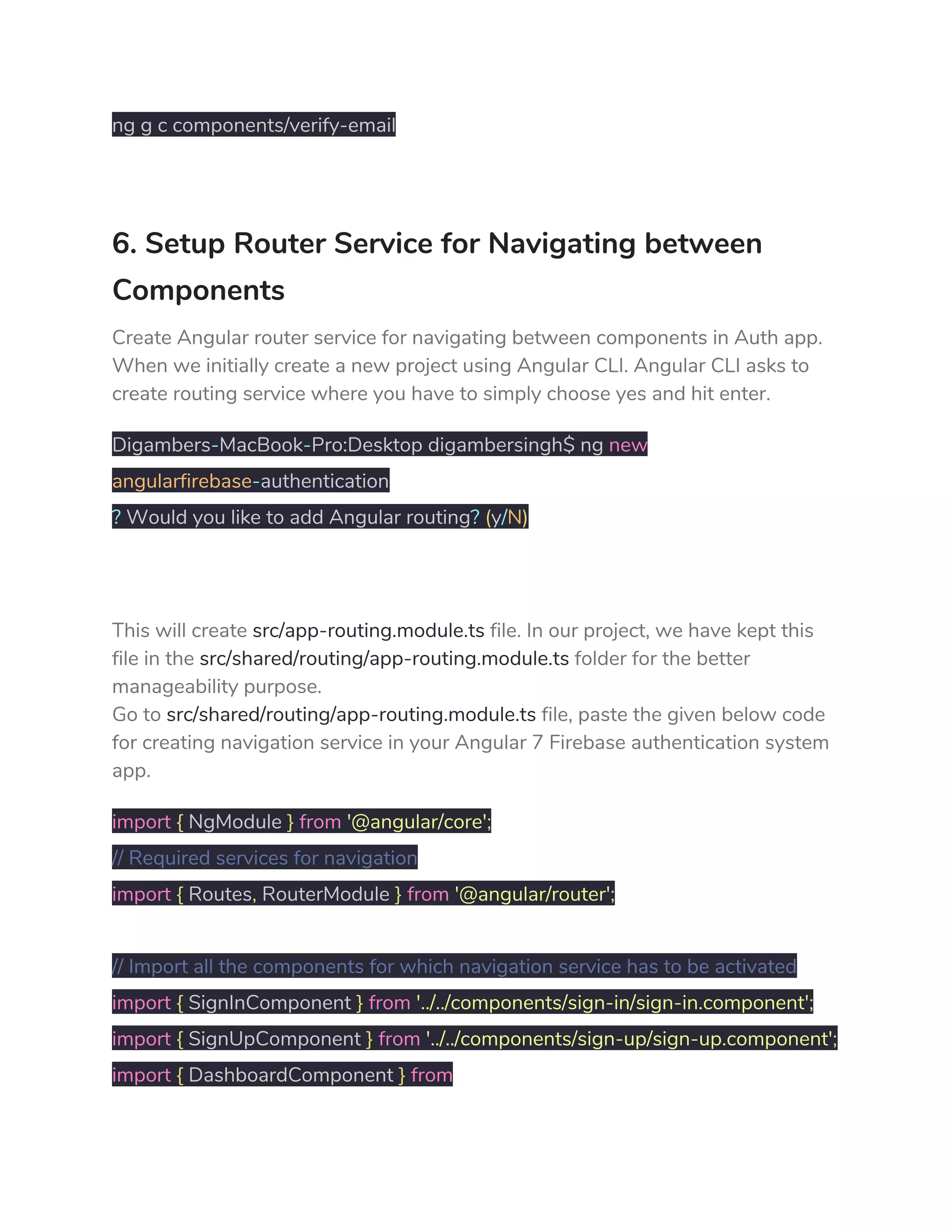
Create Angular router service for navigating between components in Auth app. 
When we initially create a new project using Angular CLI. Angular CLI asks to 
create routing service where you have to simply choose yes and hit enter. 
Digambers​-​MacBook​-​Pro​:​Desktop digambersingh$ ng ​new 
angularfirebase​-​authentication 
?​ Would you like to add Angular routing​?​ ​(​y​/​N​) 
 
This will create ​src/app-routing.module.ts​ file. In our project, we have kept this 
file in the ​src/shared/routing/app-routing.module.ts​ folder for the better 
manageability purpose. 
Go to ​src/shared/routing/app-routing.module.ts​ file, paste the given below code 
for creating navigation service in your Angular 7 Firebase authentication system 
app. 
import​ ​{​ NgModule ​}​ ​from​ ​'@angular/core'​; 
// Required services for navigation 
import​ ​{​ Routes​,​ RouterModule ​}​ ​from​ ​'@angular/router'​; 
 
// Import all the components for which navigation service has to be activated  
import​ ​{​ SignInComponent ​}​ ​from​ ​'../../components/sign-in/sign-in.component'​; 
import​ ​{​ SignUpComponent ​}​ ​from​ ​'../../components/sign-up/sign-up.component'​; 
import​ ​{​ DashboardComponent ​}​ ​from 
'../../components/dashboard/dashboard.component'​; 
import​ ​{​ ForgotPasswordComponent ​}​ ​from 
'../../components/forgot-password/forgot-password.component'​; 
import​ ​{​ AuthGuard ​}​ ​from​ ​"../../shared/guard/auth.guard"​; 
import​ ​{​ VerifyEmailComponent ​}​ ​from 
'../../components/verify-email/verify-email.component'​; 
 
const​ routes​:​ Routes ​=​ ​[ 
​{​ path​:​ ​''​,​ redirectTo​:​ ​'/sign-in'​,​ pathMatch​:​ ​'full'​ ​}, 
​{​ path​:​ ​'sign-in'​,​ component​:​ SignInComponent ​}, 
​{​ path​:​ ​'register-user'​,​ component​:​ SignUpComponent ​}, 
​{​ path​:​ ​'dashboard'​,​ component​:​ DashboardComponent ​}, 
​{​ path​:​ ​'forgot-password'​,​ component​:​ ForgotPasswordComponent ​}, 
​{​ path​:​ ​'verify-email-address'​,​ component​:​ VerifyEmailComponent ​} 
]; 
 
@​NgModule​({ 
imports​:​ ​[​RouterModule​.​forRoot​(​routes​)], 
exports​:​ ​[​RouterModule​] 
}) 
 
export​ ​class​ ​AppRoutingModule​ ​{​ ​} 
Go to ​app.module.ts​ file and include app routing service and also include in 
imports array like given below. 
// App routing modules 
import​ ​{​ AppRoutingModule ​}​ ​from​ ​'./shared/routing/app-routing.module'​; 
 
@​NgModule​({ 
declarations​:​ ​[​...​], 
imports​:​ ​[ 
AppRoutingModule 
​], 
providers​:​ ​[​...​], 
bootstrap​:​ ​[​...​] 
}) 
7. Create Firebase Authentication Service using 
Firebase API 
Generate auth service and user interface files to create a Firebase authentication 
system with Angular 7. 
– Create ​user.ts​ file 
ng generate ​interface​ ​shared​/​services​/​user 
Go to ​shared/services/user.ts 
This user interface class will hold the data types of the User class. 
export​ ​interface​ ​User​ ​{ 
uid​:​ ​string​; 
email​:​ ​string​; 
displayName​:​ ​string​; 
photoURL​:​ ​string​; 
emailVerified​:​ ​boolean​; 
} 
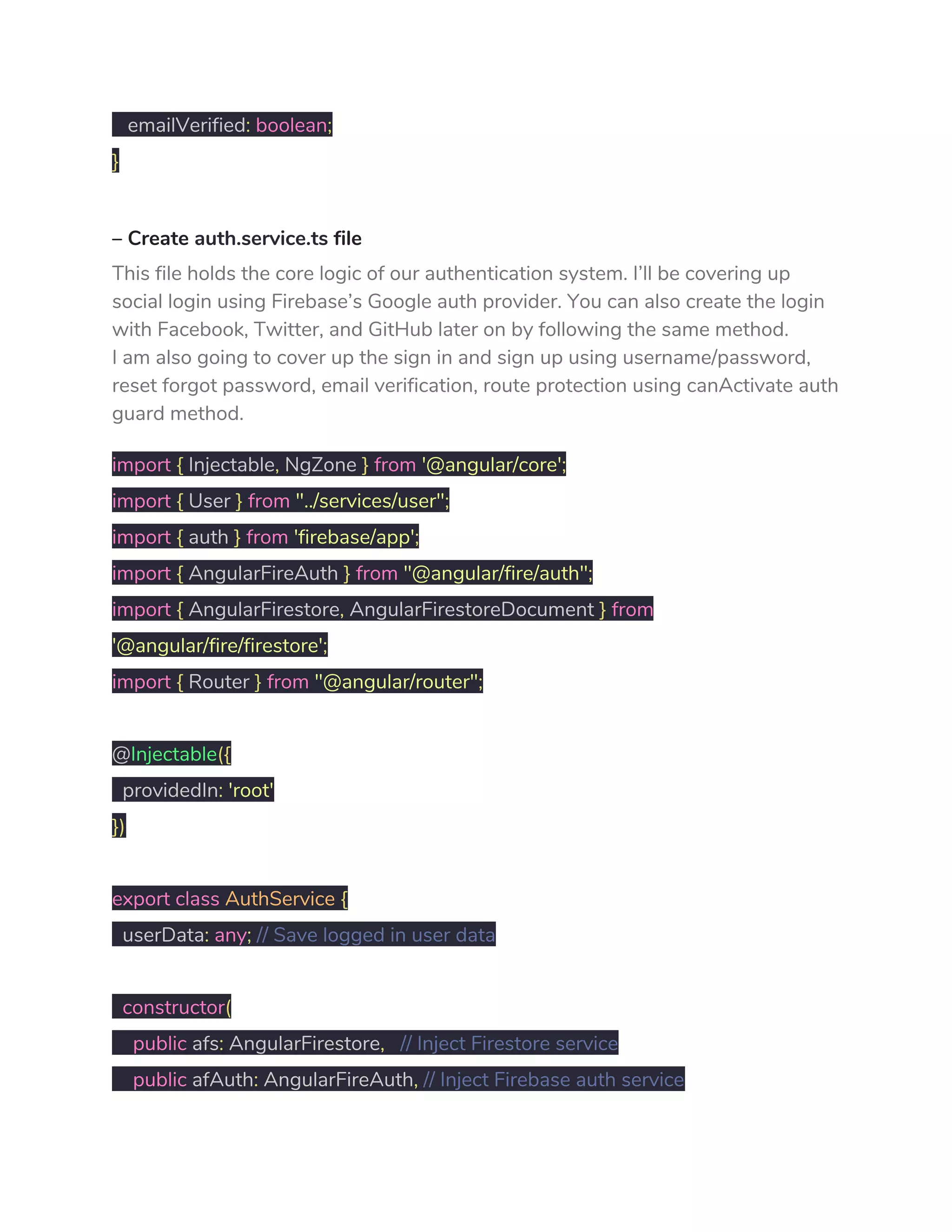
– Create ​auth.service.ts​ file 
This file holds the core logic of our authentication system. I’ll be covering up 
social login using Firebase’s Google auth provider. You can also create the login 
with Facebook, Twitter, and GitHub later on by following the same method. 
I am also going to cover up the sign in and sign up using username/password, 
reset forgot password, email verification, route protection using canActivate auth 
guard method. 
import​ ​{​ Injectable​,​ NgZone ​}​ ​from​ ​'@angular/core'​; 
import​ ​{​ User ​}​ ​from​ ​"../services/user"​; 
import​ ​{​ auth ​}​ ​from​ ​'firebase/app'​; 
import​ ​{​ AngularFireAuth ​}​ ​from​ ​"@angular/fire/auth"​; 
import​ ​{​ AngularFirestore​,​ AngularFirestoreDocument ​}​ ​from 
'@angular/fire/firestore'​; 
import​ ​{​ Router ​}​ ​from​ ​"@angular/router"​; 
 
@​Injectable​({ 
providedIn​:​ ​'root' 
}) 
 
export​ ​class​ ​AuthService​ ​{ 
userData​:​ ​any​;​ ​// Save logged in user data 
 
​constructor​( 
​public​ afs​:​ AngularFirestore​,​ ​// Inject Firestore service 
​public​ afAuth​:​ AngularFireAuth​,​ ​// Inject Firebase auth service 
​public​ router​:​ Router​,   
​public​ ngZone​:​ NgZone ​// NgZone service to remove outside scope warning 
​)​ ​{   
​/* Saving user data in localstorage when  
logged in and setting up null when logged out */ 
​this​.​afAuth​.​authState​.​subscribe​(​user​ ​=>​ ​{ 
​if​ ​(​user​)​ ​{ 
​this​.​userData ​=​ user​; 
localStorage​.​setItem​(​'user'​,​ ​JSON​.​stringify​(​this​.​userData​)); 
​JSON​.​parse​(​localStorage​.​getItem​(​'user'​)); 
​}​ ​else​ ​{ 
localStorage​.​setItem​(​'user'​,​ ​null​); 
​JSON​.​parse​(​localStorage​.​getItem​(​'user'​)); 
​} 
​}) 
​} 
 
​// Sign in with email/password 
​SignIn​(​email​,​ password​)​ ​{ 
​return​ ​this​.​afAuth​.​auth​.​signInWithEmailAndPassword​(​email​,​ password​) 
​.​then​((​result​)​ ​=>​ ​{ 
​this​.​ngZone​.​run​(()​ ​=>​ ​{ 
​this​.​router​.​navigate​([​'dashboard'​]); 
​}); 
​this​.​SetUserData​(​result​.​user​); 
​}).​catch​((​error​)​ ​=>​ ​{ 
window​.​alert​(​error​.​message​) 
​}) 
​} 
 
​// Sign up with email/password 
​SignUp​(​email​,​ password​)​ ​{ 
​return​ ​this​.​afAuth​.​auth​.​createUserWithEmailAndPassword​(​email​,​ password​) 
​.​then​((​result​)​ ​=>​ ​{ 
​/* Call the SendVerificaitonMail() function when new user sign  
up and returns promise */ 
​this​.​SendVerificationMail​(); 
​this​.​SetUserData​(​result​.​user​); 
​}).​catch​((​error​)​ ​=>​ ​{ 
window​.​alert​(​error​.​message​) 
​}) 
​} 
 
​// Send email verfificaiton when new user sign up 
​SendVerificationMail​()​ ​{ 
​return​ ​this​.​afAuth​.​auth​.​currentUser​.​sendEmailVerification​() 
​.​then​(()​ ​=>​ ​{ 
​this​.​router​.​navigate​([​'verify-email-address'​]); 
​}) 
​} 
 
​// Reset Forggot password 
​ForgotPassword​(​passwordResetEmail​)​ ​{ 
​return​ ​this​.​afAuth​.​auth​.​sendPasswordResetEmail​(​passwordResetEmail​) 
​.​then​(()​ ​=>​ ​{ 
window​.​alert​(​'Password reset email sent, check your inbox.'​); 
​}).​catch​((​error​)​ ​=>​ ​{ 
window​.​alert​(​error​) 
​}) 
​} 
 
​// Returns true when user is looged in and email is verified 
​get​ ​isLoggedIn​():​ ​boolean​ ​{ 
​const​ user ​=​ ​JSON​.​parse​(​localStorage​.​getItem​(​'user'​)); 
​return​ ​(​user ​!==​ ​null​ ​&&​ user​.​emailVerified ​!==​ ​false​)​ ​?​ ​true​ ​:​ ​false​; 
​} 
 
​// Sign in with Google 
​GoogleAuth​()​ ​{ 
​return​ ​this​.​AuthLogin​(​new​ ​auth​.​GoogleAuthProvider​()); 
​} 
 
​// Auth logic to run auth providers 
​AuthLogin​(​provider​)​ ​{ 
​return​ ​this​.​afAuth​.​auth​.​signInWithPopup​(​provider​) 
​.​then​((​result​)​ ​=>​ ​{ 
​this​.​ngZone​.​run​(()​ ​=>​ ​{ 
​this​.​router​.​navigate​([​'dashboard'​]); 
​}) 
​this​.​SetUserData​(​result​.​user​); 
​}).​catch​((​error​)​ ​=>​ ​{ 
window​.​alert​(​error​) 
​}) 
​} 
 
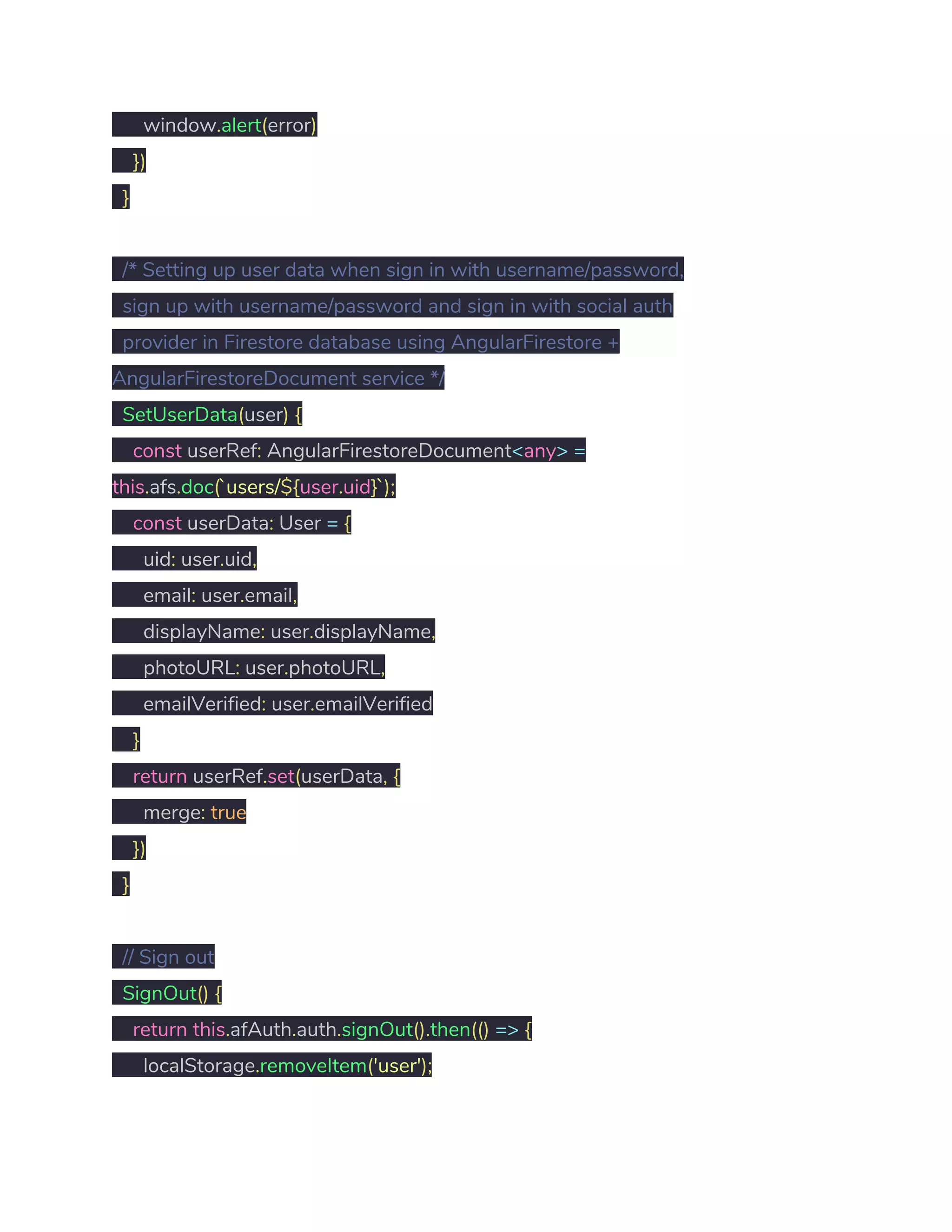
​/* Setting up user data when sign in with username/password,  
sign up with username/password and sign in with social auth   
provider in Firestore database using AngularFirestore + 
AngularFirestoreDocument service */ 
​SetUserData​(​user​)​ ​{ 
​const​ userRef​:​ AngularFirestoreDocument​<​any​>​ ​= 
this​.​afs​.​doc​(​`users/​${​user​.​uid​}​`​); 
​const​ userData​:​ User ​=​ ​{ 
uid​:​ user​.​uid​, 
email​:​ user​.​email​, 
displayName​:​ user​.​displayName​, 
photoURL​:​ user​.​photoURL​, 
emailVerified​:​ user​.​emailVerified 
​} 
​return​ userRef​.​set​(​userData​,​ ​{ 
merge​:​ ​true 
​}) 
​} 
 
​// Sign out  
​SignOut​()​ ​{ 
​return​ ​this​.​afAuth​.​auth​.​signOut​().​then​(()​ ​=>​ ​{ 
localStorage​.​removeItem​(​'user'​); 
​this​.​router​.​navigate​([​'sign-in'​]); 
​}) 
​} 
 
} 
After that, go to ​src/app.module.ts​ file and import authentication service and 
pass the AuthService class into ​providers: [AuthService]​ array. By doing this our 
authentication service will be available throughout the application. 
// Auth service 
import​ ​{​ AuthService ​}​ ​from​ ​"./shared/services/auth.service"​; 
 
@​NgModule​({ 
declarations​:​ ​[​...​], 
imports​:​ ​[​...​], 
providers​:​ ​[​AuthService​], 
bootstrap​:​ ​[​...​] 
}) 
8. Create Sign in Authentication Service using 
AuthService API 
It’s time to consume custom AuthService API, we’ll be consuming following 
services using AuthService API. 
● Create Sign in with Username and Password 
● Create Sign in with Google 
● Create Sign in with Facebook 
In order to consume custom API from ​AuthService​ class we need to import 
AuthService​ class into ​src/app/components/sign-in/sign-in.component.ts​ file and 
then inject AuthService class into the constructor so that these services will be 
available throughout the same template. 
Go to ​src/app/components/sign-in/sign-in.component.ts​ file and paste the 
following code. 
import​ ​{​ Component​,​ OnInit ​}​ ​from​ ​'@angular/core'​; 
import​ ​{​ AuthService ​}​ ​from​ ​"../../shared/services/auth.service"​; 
 
@​Component​({ 
selector​:​ ​'app-sign-in'​, 
templateUrl​:​ ​'./sign-in.component.html'​, 
styleUrls​:​ ​[​'./sign-in.component.css'​] 
}) 
 
export​ ​class​ ​SignInComponent​ ​implements​ ​OnInit​ ​{ 
 
​constructor​( 
​public authService​:​ AuthService 
​)​ ​{​ ​} 
 
​ngOnInit​()​ ​{​ ​} 
 
} 
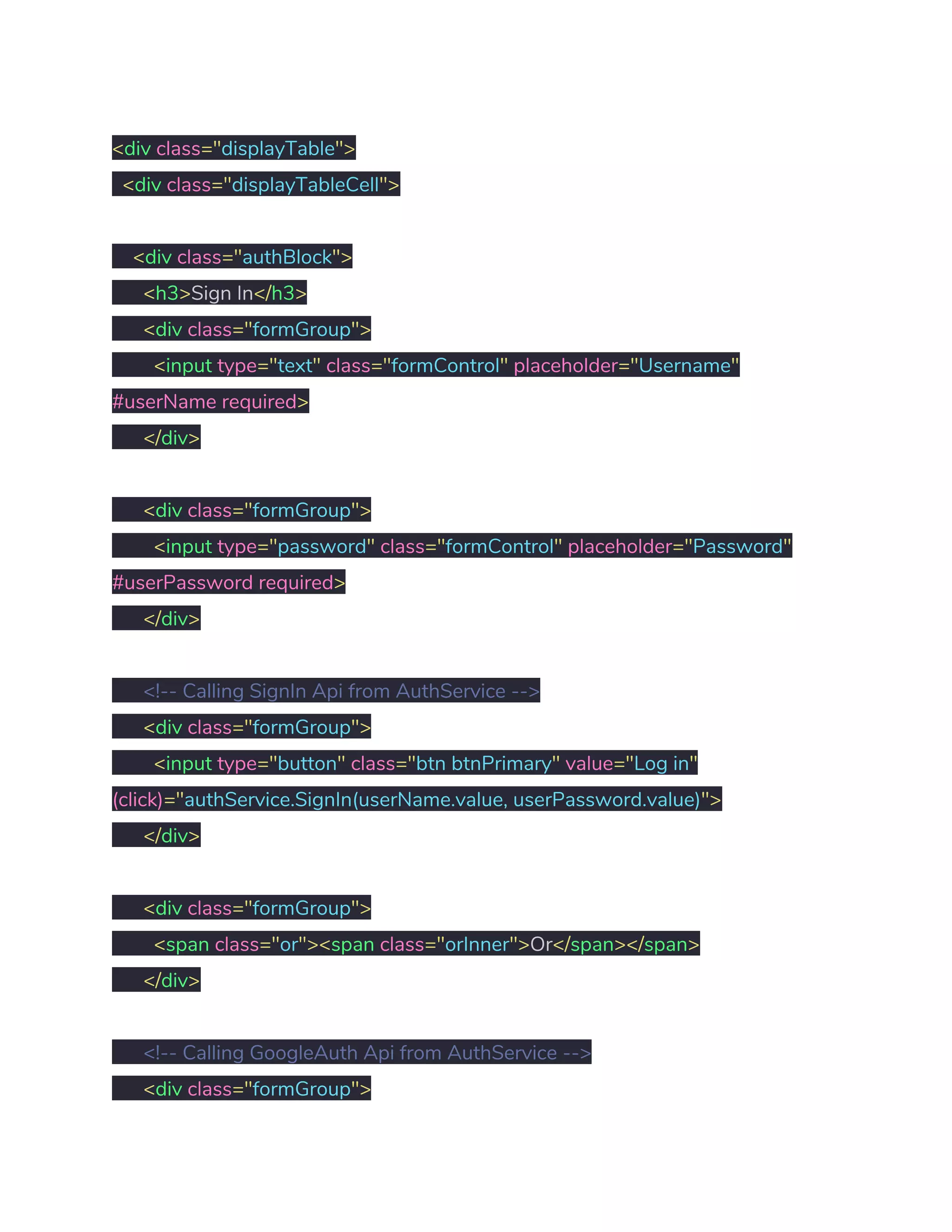
We’ve already generated our components, go to 
src/app/components/sign-in/sign-in.component.html​ file and paste the following 
code. 
<​div ​class​="​displayTable​"> 
​<​div ​class​="​displayTableCell​"> 
 
​<​div ​class​="​authBlock​"> 
​<​h3​>​Sign In​</​h3​> 
​<​div ​class​="​formGroup​"> 
​<​input ​type​="​text​"​ ​class​="​formControl​"​ ​placeholder​="​Username​" 
#userName​ ​required​> 
​</​div​> 
 
​<​div ​class​="​formGroup​"> 
​<​input ​type​="​password​"​ ​class​="​formControl​"​ ​placeholder​="​Password​" 
#userPassword​ ​required​> 
​</​div​> 
 
​<!-- Calling SignIn Api from AuthService --> 
​<​div ​class​="​formGroup​"> 
​<​input ​type​="​button​"​ ​class​="​btn btnPrimary​"​ ​value​="​Log in​" 
(click)​="​authService.SignIn(userName.value, userPassword.value)​"> 
​</​div​> 
 
​<​div ​class​="​formGroup​"> 
​<​span ​class​="​or​"><​span ​class​="​orInner​">​Or​</​span​></​span​> 
​</​div​> 
 
​<!-- Calling GoogleAuth Api from AuthService --> 
​<​div ​class​="​formGroup​"> 
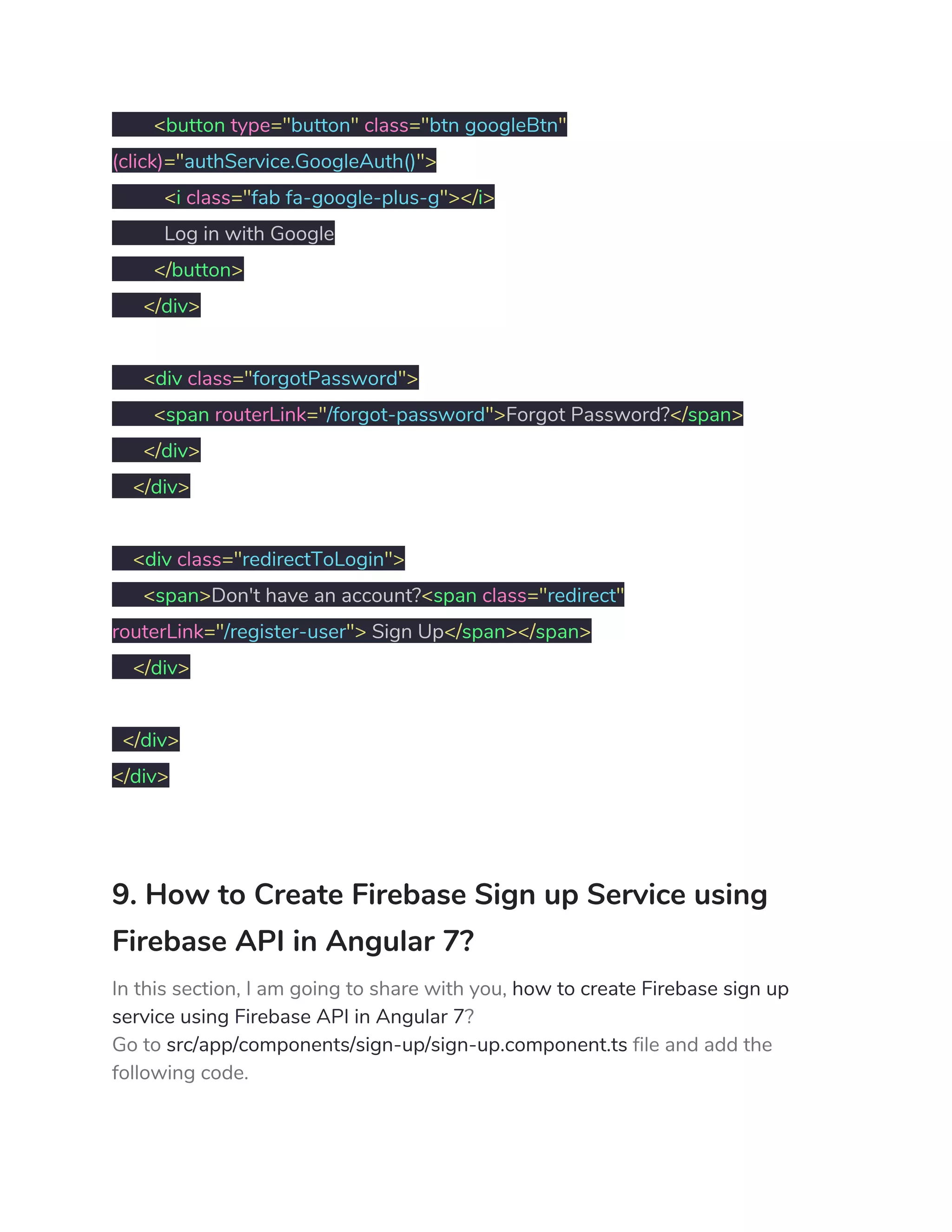
​<​button ​type​="​button​"​ ​class​="​btn googleBtn​" 
(click)​="​authService.GoogleAuth()​"> 
​<​i ​class​="​fab fa-google-plus-g​"></​i​> 
Log in with Google 
​</​button​> 
​</​div​> 
 
​<​div ​class​="​forgotPassword​"> 
​<​span ​routerLink​="​/forgot-password​">​Forgot Password?​</​span​> 
​</​div​> 
​</​div​> 
 
​<​div ​class​="​redirectToLogin​"> 
​<​span​>​Don't have an account?​<​span ​class​="​redirect​" 
routerLink​="​/register-user​">​ Sign Up​</​span​></​span​> 
​</​div​> 
 
​</​div​> 
</​div​> 
 
9. How to Create Firebase Sign up Service using 
Firebase API in Angular 7? 
In this section, I am going to share with you, ​how to create Firebase sign up 
service using Firebase API in Angular 7​? 
Go to ​src/app/components/sign-up/sign-up.component.ts​ file and add the 
following code. 
import​ ​{​ Component​,​ OnInit ​}​ ​from​ ​'@angular/core'​; 
import​ ​{​ AuthService ​}​ ​from​ ​"../../shared/services/auth.service"​; 
 
@​Component​({ 
selector​:​ ​'app-sign-up'​, 
templateUrl​:​ ​'./sign-up.component.html'​, 
styleUrls​:​ ​[​'./sign-up.component.css'​] 
}) 
 
export​ ​class​ ​SignUpComponent​ ​implements​ ​OnInit​ ​{ 
 
​constructor​( 
​public authService​:​ AuthService 
​)​ ​{​ ​} 
 
​ngOnInit​()​ ​{​ ​} 
 
} 
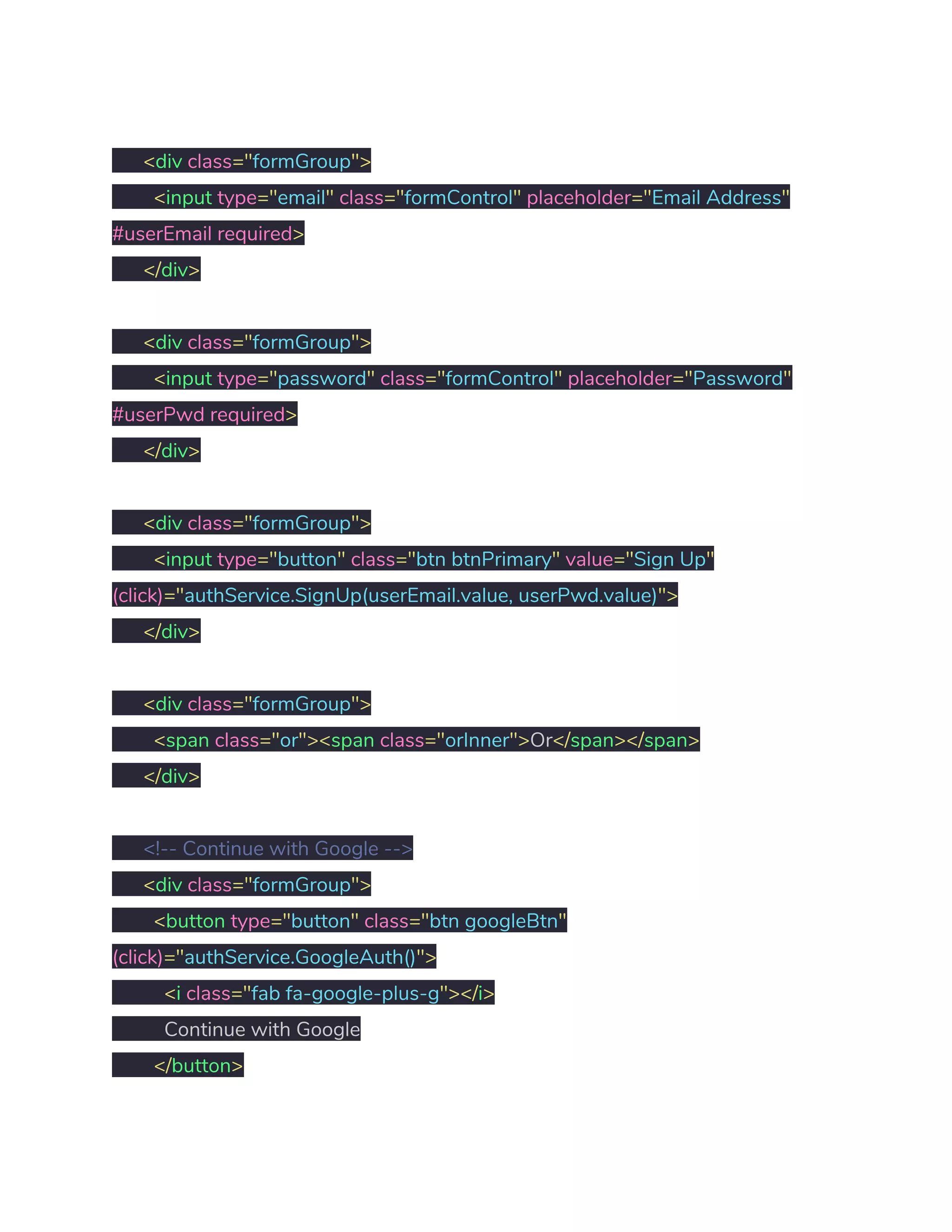
Go to ​src/app/components/sign-up/sign-up.component.html​ file and add the 
following code. 
<​div ​class​="​displayTable​"> 
​<​div ​class​="​displayTableCell​"> 
 
​<​div ​class​="​authBlock​"> 
​<​h3​>​Sign Up​</​h3​> 
 
​<​div ​class​="​formGroup​"> 
​<​input ​type​="​email​"​ ​class​="​formControl​"​ ​placeholder​="​Email Address​" 
#userEmail​ ​required​> 
​</​div​> 
 
​<​div ​class​="​formGroup​"> 
​<​input ​type​="​password​"​ ​class​="​formControl​"​ ​placeholder​="​Password​" 
#userPwd​ ​required​> 
​</​div​> 
 
​<​div ​class​="​formGroup​"> 
​<​input ​type​="​button​"​ ​class​="​btn btnPrimary​"​ ​value​="​Sign Up​" 
(click)​="​authService.SignUp(userEmail.value, userPwd.value)​"> 
​</​div​> 
 
​<​div ​class​="​formGroup​"> 
​<​span ​class​="​or​"><​span ​class​="​orInner​">​Or​</​span​></​span​> 
​</​div​> 
 
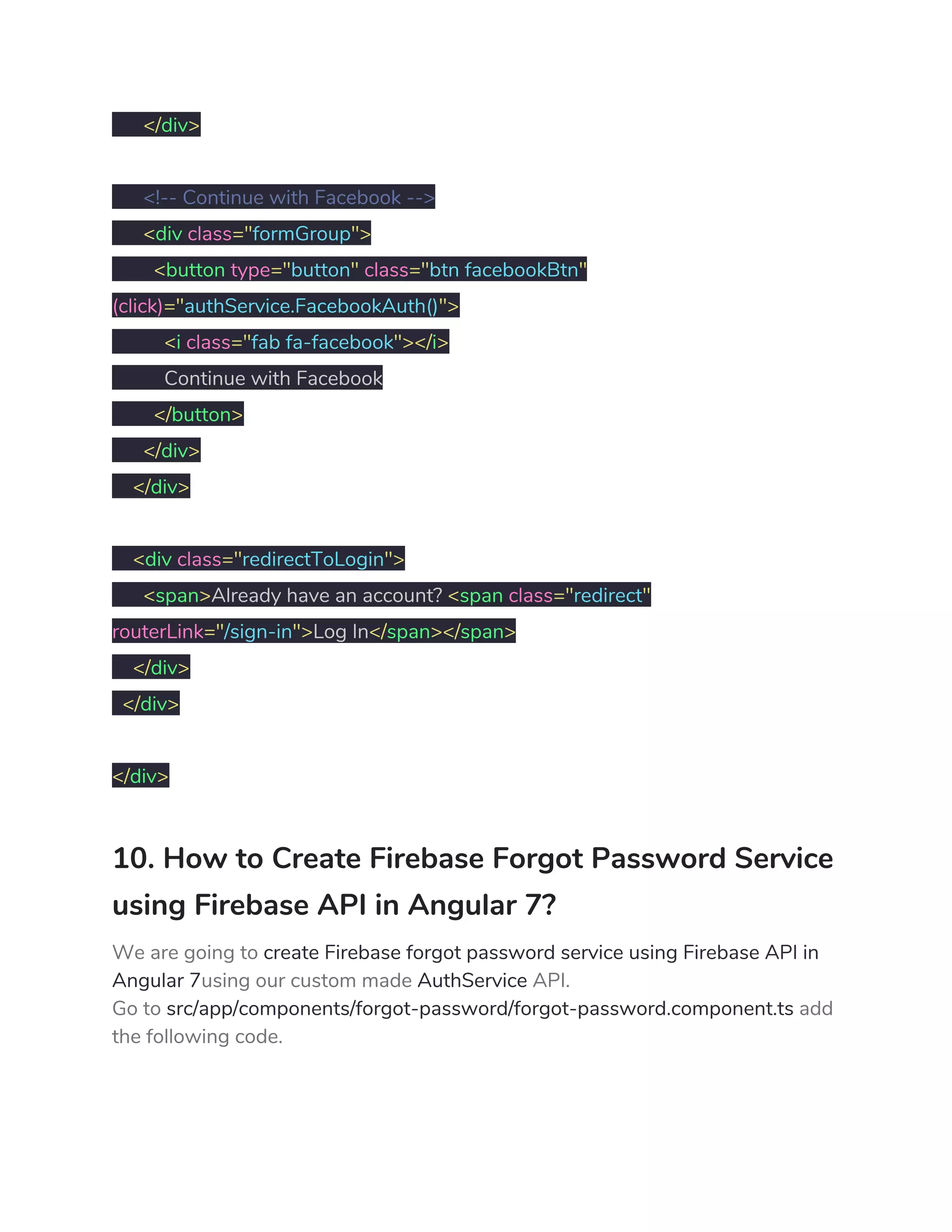
​<!-- Continue with Google --> 
​<​div ​class​="​formGroup​"> 
​<​button ​type​="​button​"​ ​class​="​btn googleBtn​" 
(click)​="​authService.GoogleAuth()​"> 
​<​i ​class​="​fab fa-google-plus-g​"></​i​> 
Continue with Google 
​</​button​> 
​</​div​> 
 
​<!-- Continue with Facebook --> 
​<​div ​class​="​formGroup​"> 
​<​button ​type​="​button​"​ ​class​="​btn facebookBtn​" 
(click)​="​authService.FacebookAuth()​"> 
​<​i ​class​="​fab fa-facebook​"></​i​> 
Continue with Facebook 
​</​button​> 
​</​div​> 
​</​div​> 
 
​<​div ​class​="​redirectToLogin​"> 
​<​span​>​Already have an account? ​<​span ​class​="​redirect​" 
routerLink​="​/sign-in​">​Log In​</​span​></​span​> 
​</​div​> 
​</​div​> 
 
</​div​> 
10. How to Create Firebase Forgot Password Service 
using Firebase API in Angular 7? 
We are going to ​create Firebase forgot password service using Firebase API in 
Angular 7​using our custom made ​AuthService​ API. 
Go to ​src/app/components/forgot-password/forgot-password.component.ts​ add 
the following code. 
import​ ​{​ Component​,​ OnInit ​}​ ​from​ ​'@angular/core'​; 
import​ ​{​ AuthService ​}​ ​from​ ​"../../shared/services/auth.service"​; 
 
@​Component​({ 
selector​:​ ​'app-forgot-password'​, 
templateUrl​:​ ​'./forgot-password.component.html'​, 
styleUrls​:​ ​[​'./forgot-password.component.css'​] 
}) 
 
export​ ​class​ ​ForgotPasswordComponent​ ​implements​ ​OnInit​ ​{ 
 
​constructor​( 
​public authService​:​ AuthService 
​)​ ​{​ ​} 
 
​ngOnInit​()​ ​{ 
​} 
 
} 
Go to ​src/app/components/forgot-password/forgot-password.component.html 
add the following code. 
<​div ​class​="​displayTable​"> 
​<​div ​class​="​displayTableCell​"> 
​<​div ​class​="​authBlock​"> 
​<​h3​>​Reset Password​</​h3​> 
 
​<​p ​class​="​text-center​">​Please enter your email address to request a 
password reset.​</​p​> 
 
​<​div ​class​="​formGroup​"> 
​<​input ​type​="​email​"​ ​class​="​formControl​"​ ​placeholder​="​Email Address​" 
#passwordResetEmail​ ​required​> 
​</​div​> 
 
​<!-- Calling ForgotPassword from AuthService Api --> 
​<​div ​class​="​formGroup​"> 
​<​input ​type​="​submit​"​ ​class​="​btn btnPrimary​"​ ​value​="​Reset Password​" 
(click)​="​authService.ForgotPassword(passwordResetEmail.value)​"> 
​</​div​> 
​</​div​> 
 
​<​div ​class​="​redirectToLogin​"> 
​<​span​>​Go back to ? ​<​span ​class​="​redirect​"​ ​routerLink​="​/sign-in​">​Log 
In​</​span​></​span​> 
​</​div​> 
 
​</​div​> 
</​div​> 
11. How to Send Email Verification using Firebase 
API in Angular 7? 
Firebase allows us to send email verification smoothly. I am going to show you 
how you can achieve this functionality easily using Firebase API. 
Go to ​src/app/components/verify-email/verify-email.component.ts​ file and add 
the given below code. 
import​ ​{​ Component​,​ OnInit ​}​ ​from​ ​'@angular/core'​; 
import​ ​{​ AuthService ​}​ ​from​ ​"../../shared/services/auth.service"​; 
 
@​Component​({ 
selector​:​ ​'app-verify-email'​, 
templateUrl​:​ ​'./verify-email.component.html'​, 
styleUrls​:​ ​[​'./verify-email.component.css'​] 
}) 
export​ ​class​ ​VerifyEmailComponent​ ​implements​ ​OnInit​ ​{ 
 
​constructor​( 
​public authService​:​ AuthService 
​)​ ​{​ ​} 
 
​ngOnInit​()​ ​{ 
​} 
 
} 
Go to ​src/app/components/verify-email/verify-email.component.html​ file and add 
the given below code. 
<​div ​class​="​displayTable​"> 
​<​div ​class​="​displayTableCell​"> 
 
​<​div ​class​="​authBlock​"> 
​<​h3​>​Thank You for Registering​</​h3​> 
 
​<​div ​class​="​formGroup​"​ ​*ngIf​="​authService.userData as user​"> 
​<​p ​class​="​text-center​">​We have sent a confirmation email to 
<​strong​>​{{user.email}}​</​strong​>​.​</​p​> 
​<​p ​class​="​text-center​">​Please check your email and click on the link to 
verfiy your email address.​</​p​> 
​</​div​> 
   
​<!-- Calling SendVerificationMail() method using authService Api --> 
​<​div ​class​="​formGroup​"> 
​<​button ​type​="​button​"​ ​class​="​btn btnPrimary​" 
(click)​="​authService.SendVerificationMail()​"> 
​<​i ​class​="​fas fa-redo-alt​"></​i​> 
Resend Verification Email 
​</​button​> 
​</​div​> 
 
​</​div​> 
 
​<​div ​class​="​redirectToLogin​"> 
​<​span​>​Go back to?​<​span ​class​="​redirect​"​ ​routerLink​="​/sign-in​">​ Sign 
in​</​span​></​span​> 
​</​div​> 
 
​</​div​> 
</​div​> 
12. How to Use CanActivate method to Prevent 
Access of URL in Angular 7 App using Route 
Guards? 
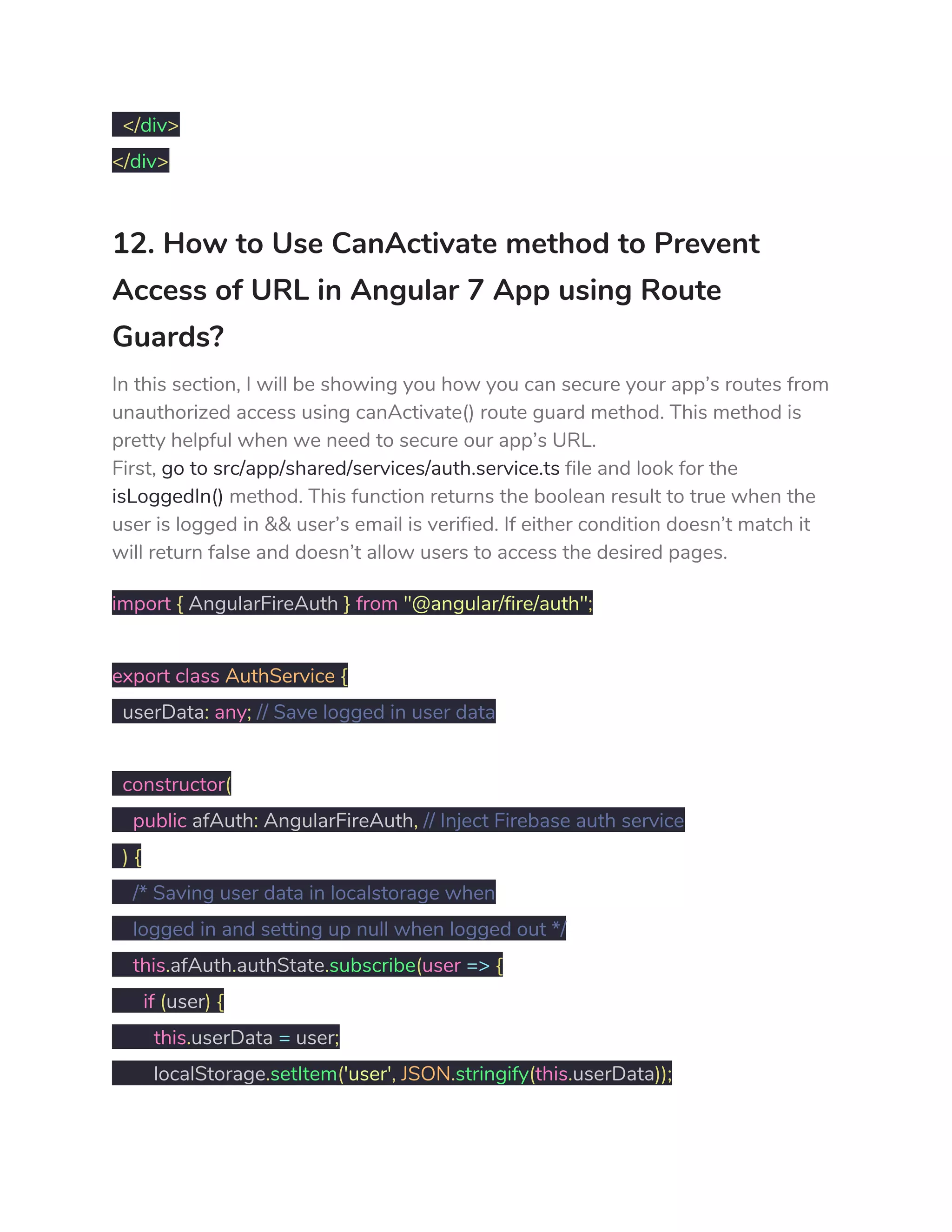
In this section, I will be showing you how you can secure your app’s routes from 
unauthorized access using canActivate() route guard method. This method is 
pretty helpful when we need to secure our app’s URL. 
First, ​go to src/app/shared/services/auth.service.ts​ file and look for the 
isLoggedIn()​ method. This function returns the boolean result to true when the 
user is logged in && user’s email is verified. If either condition doesn’t match it 
will return false and doesn’t allow users to access the desired pages. 
import​ ​{​ AngularFireAuth ​}​ ​from​ ​"@angular/fire/auth"​; 
 
export​ ​class​ ​AuthService​ ​{ 
userData​:​ ​any​;​ ​// Save logged in user data 
 
​constructor​( 
​public​ afAuth​:​ AngularFireAuth​,​ ​// Inject Firebase auth service 
​)​ ​{   
​/* Saving user data in localstorage when  
logged in and setting up null when logged out */ 
​this​.​afAuth​.​authState​.​subscribe​(​user​ ​=>​ ​{ 
​if​ ​(​user​)​ ​{ 
​this​.​userData ​=​ user​; 
localStorage​.​setItem​(​'user'​,​ ​JSON​.​stringify​(​this​.​userData​)); 
​JSON​.​parse​(​localStorage​.​getItem​(​'user'​)); 
​}​ ​else​ ​{ 
localStorage​.​setItem​(​'user'​,​ ​null​); 
​JSON​.​parse​(​localStorage​.​getItem​(​'user'​)); 
​} 
​}) 
​} 
 
​// Returns true when user is looged in and email is verified 
​get​ ​isLoggedIn​():​ ​boolean​ ​{ 
​const​ user ​=​ ​JSON​.​parse​(​localStorage​.​getItem​(​'user'​)); 
​return​ ​(​user ​!==​ ​null​ ​&&​ user​.​emailVerified ​!==​ ​false​)​ ​?​ ​true​ ​:​ ​false​; 
​} 
 
} 
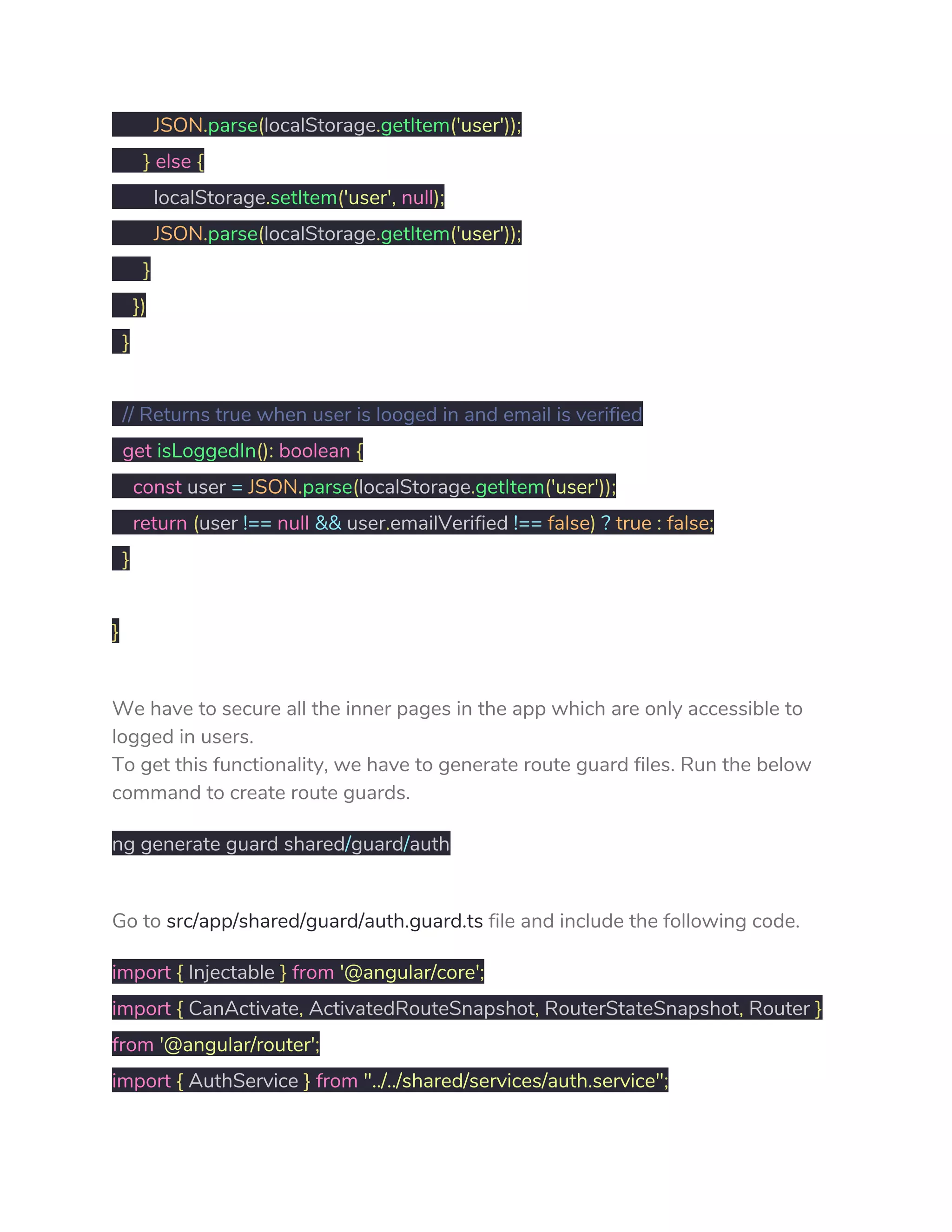
We have to secure all the inner pages in the app which are only accessible to 
logged in users. 
To get this functionality, we have to generate route guard files. Run the below 
command to create route guards. 
ng generate guard shared​/​guard​/​auth 
Go to ​src/app/shared/guard/auth.guard.ts​ file and include the following code. 
import​ ​{​ Injectable ​}​ ​from​ ​'@angular/core'​; 
import​ ​{​ CanActivate​,​ ActivatedRouteSnapshot​,​ RouterStateSnapshot​,​ Router ​} 
from​ ​'@angular/router'​; 
import​ ​{​ AuthService ​}​ ​from​ ​"../../shared/services/auth.service"​; 
import​ ​{​ Observable ​}​ ​from​ ​'rxjs'​; 
 
@​Injectable​({ 
providedIn​:​ ​'root' 
}) 
 
export​ ​class​ ​AuthGuard​ ​implements​ ​CanActivate​ ​{ 
   
​constructor​( 
​public authService​:​ AuthService​, 
public router​:​ Router 
​){​ ​} 
 
​canActivate​( 
next​:​ ActivatedRouteSnapshot​, 
state​:​ RouterStateSnapshot​):​ Observable​<​boolean​>​ ​|​ ​Promise​<​boolean​>​ ​| 
boolean​ ​{ 
​if​(​this​.​authService​.​isLoggedIn ​!==​ ​true​)​ ​{ 
​this​.​router​.​navigate​([​'sign-in'​]) 
​} 
​return​ ​true​; 
​} 
 
} 
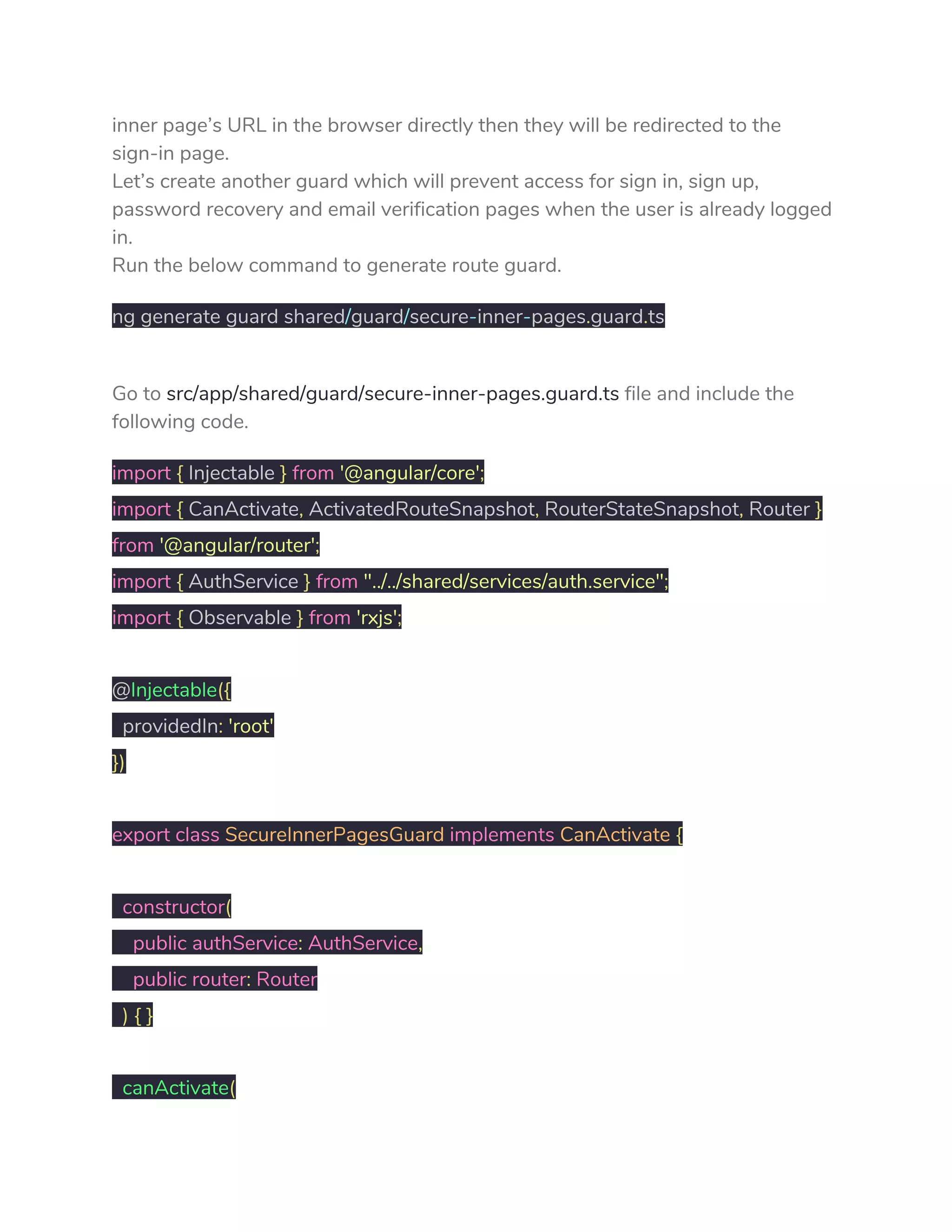
We have successfully secured our app’s inner pages now if no user will be able 
to access our app’s inner pages unless they are logged in. If anybody puts the 
inner page’s URL in the browser directly then they will be redirected to the 
sign-in page. 
Let’s create another guard which will prevent access for sign in, sign up, 
password recovery and email verification pages when the user is already logged 
in. 
Run the below command to generate route guard. 
ng generate guard shared​/​guard​/​secure​-​inner​-​pages​.​guard​.​ts 
Go to ​src/app/shared/guard/secure-inner-pages.guard.ts​ file and include the 
following code. 
import​ ​{​ Injectable ​}​ ​from​ ​'@angular/core'​; 
import​ ​{​ CanActivate​,​ ActivatedRouteSnapshot​,​ RouterStateSnapshot​,​ Router ​} 
from​ ​'@angular/router'​; 
import​ ​{​ AuthService ​}​ ​from​ ​"../../shared/services/auth.service"​; 
import​ ​{​ Observable ​}​ ​from​ ​'rxjs'​; 
 
@​Injectable​({ 
providedIn​:​ ​'root' 
}) 
 
export​ ​class​ ​SecureInnerPagesGuard​ ​implements​ ​CanActivate​ ​{ 
 
​constructor​( 
​public authService​:​ AuthService​, 
public router​:​ Router 
​)​ ​{​ ​} 
 
​canActivate​( 
next​:​ ActivatedRouteSnapshot​, 
state​:​ RouterStateSnapshot​):​ Observable​<​boolean​>​ ​|​ ​Promise​<​boolean​>​ ​| 
boolean​ ​{ 
​if​(​this​.​authService​.​isLoggedIn​)​ ​{ 
window​.​alert​(​"You are not allowed to access this URL!"​); 
​this​.​router​.​navigate​([​'dashboard'​]) 
​} 
​return​ ​true​; 
​} 
 
} 
We’ve successfully created canActivated guards now we have to include these 
guards in routes services. 
Go to ​src/app/shared/routing/app-routing.module.ts​ file. 
import​ ​{​ NgModule ​}​ ​from​ ​'@angular/core'​; 
import​ ​{​ Routes​,​ RouterModule ​}​ ​from​ ​'@angular/router'​; 
 
// Required components for which route services to be activated 
import​ ​{​ SignInComponent ​}​ ​from​ ​'../../components/sign-in/sign-in.component'​; 
import​ ​{​ SignUpComponent ​}​ ​from​ ​'../../components/sign-up/sign-up.component'​; 
import​ ​{​ DashboardComponent ​}​ ​from 
'../../components/dashboard/dashboard.component'​; 
import​ ​{​ ForgotPasswordComponent ​}​ ​from 
'../../components/forgot-password/forgot-password.component'​; 
import​ ​{​ VerifyEmailComponent ​}​ ​from 
'../../components/verify-email/verify-email.component'​; 
 
// Import canActivate guard services 
import​ ​{​ AuthGuard ​}​ ​from​ ​"../../shared/guard/auth.guard"​; 
import​ ​{​ SecureInnerPagesGuard ​}​ ​from 
"../../shared/guard/secure-inner-pages.guard"​; 
 
// Include route guard in routes array 
const​ routes​:​ Routes ​=​ ​[ 
​{​ path​:​ ​''​,​ redirectTo​:​ ​'/sign-in'​,​ pathMatch​:​ ​'full'​}, 
​{​ path​:​ ​'sign-in'​,​ component​:​ SignInComponent​,​ canActivate​: 
[​SecureInnerPagesGuard​]}, 
​{​ path​:​ ​'register-user'​,​ component​:​ SignUpComponent​,​ canActivate​: 
[​SecureInnerPagesGuard​]}, 
​{​ path​:​ ​'dashboard'​,​ component​:​ DashboardComponent​,​ canActivate​: 
[​AuthGuard​]​ ​}, 
​{​ path​:​ ​'forgot-password'​,​ component​:​ ForgotPasswordComponent​, 
canActivate​:​ ​[​SecureInnerPagesGuard​]​ ​}, 
​{​ path​:​ ​'verify-email-address'​,​ component​:​ VerifyEmailComponent​,​ canActivate​: 
[​SecureInnerPagesGuard​]​ ​} 
]; 
 
@​NgModule​({ 
imports​:​ ​[​RouterModule​.​forRoot​(​routes​)], 
exports​:​ ​[​RouterModule​] 
}) 
 
export​ ​class​ ​AppRoutingModule​ ​{​ ​} 
13. How to Maintain Logged in State of Firebase 
User in localStorage with Angular 7? 
I will be discussing with you how you can maintain the logged in user data in 
Local Storage with Angular 7. 
Our logic is pretty straightforward when the user is logged in we will save the 
user data in Local Storage, user details will be available even if we refresh the 
page. We will remove the user data from local storage if we log out from the 
app. 
Without wasting time let’s write our logic. 
Go to ​src/app/services/auth.service.ts​ file and add the given below code. 
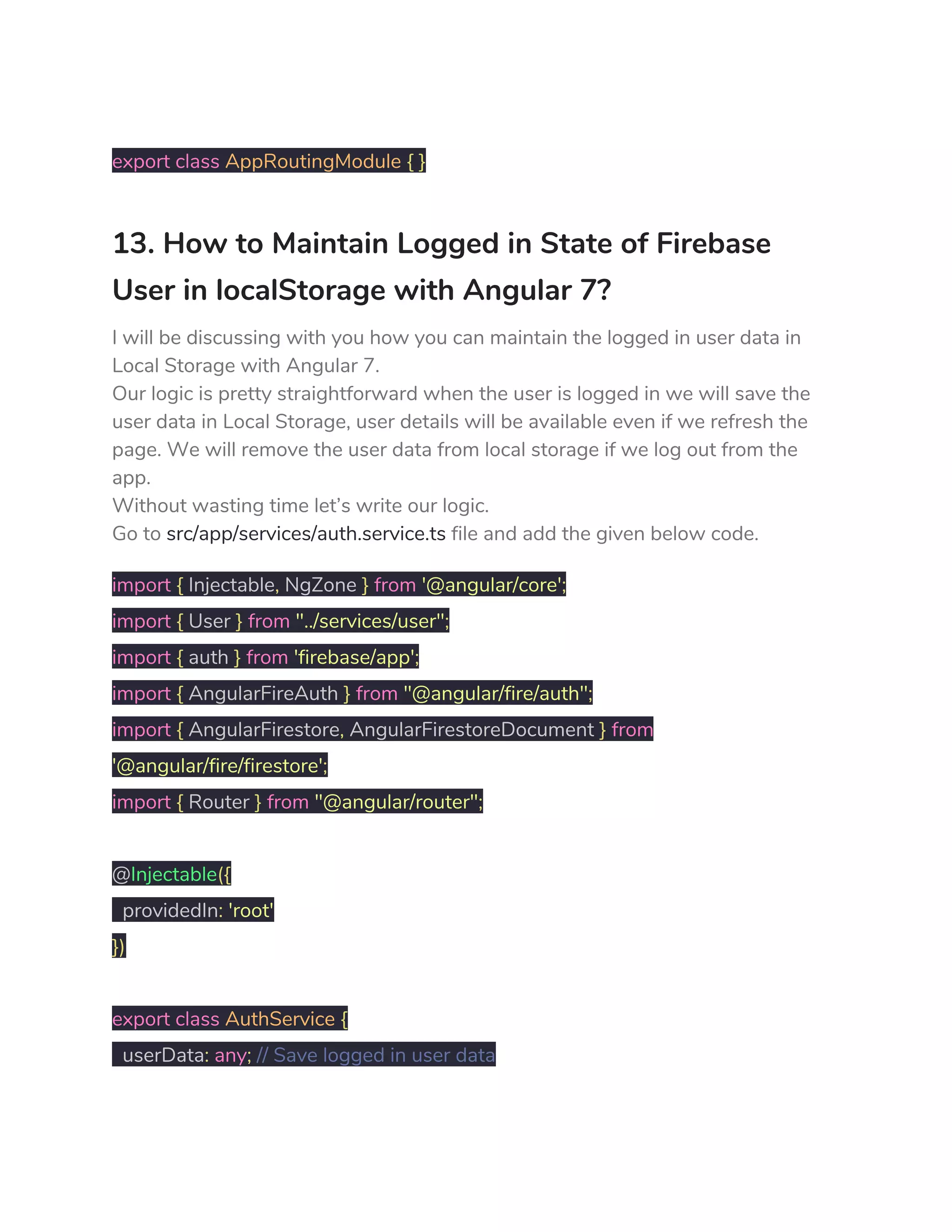
import​ ​{​ Injectable​,​ NgZone ​}​ ​from​ ​'@angular/core'​; 
import​ ​{​ User ​}​ ​from​ ​"../services/user"​; 
import​ ​{​ auth ​}​ ​from​ ​'firebase/app'​; 
import​ ​{​ AngularFireAuth ​}​ ​from​ ​"@angular/fire/auth"​; 
import​ ​{​ AngularFirestore​,​ AngularFirestoreDocument ​}​ ​from 
'@angular/fire/firestore'​; 
import​ ​{​ Router ​}​ ​from​ ​"@angular/router"​; 
 
@​Injectable​({ 
providedIn​:​ ​'root' 
}) 
 
export​ ​class​ ​AuthService​ ​{ 
userData​:​ ​any​;​ ​// Save logged in user data 
 
​constructor​( 
​public​ afs​:​ AngularFirestore​,​ ​// Inject Firestore service 
​public​ afAuth​:​ AngularFireAuth​,​ ​// Inject Firebase auth service 
​public​ router​:​ Router​,   
​public​ ngZone​:​ NgZone ​// NgZone service to remove outside scope warning 
​)​ ​{   
​/* Saving user data in localstorage when  
logged in and setting up null when logged out */ 
​this​.​afAuth​.​authState​.​subscribe​(​user​ ​=>​ ​{ 
​if​ ​(​user​)​ ​{ 
​this​.​userData ​=​ user​; 
localStorage​.​setItem​(​'user'​,​ ​JSON​.​stringify​(​this​.​userData​)); 
​JSON​.​parse​(​localStorage​.​getItem​(​'user'​)); 
​}​ ​else​ ​{ 
localStorage​.​setItem​(​'user'​,​ ​null​); 
​JSON​.​parse​(​localStorage​.​getItem​(​'user'​)); 
​} 
​}) 
​} 
 
​// Sign in with email/password 
​SignIn​(​email​,​ password​)​ ​{ 
​return​ ​this​.​afAuth​.​auth​.​signInWithEmailAndPassword​(​email​,​ password​) 
​.​then​((​result​)​ ​=>​ ​{ 
​this​.​ngZone​.​run​(()​ ​=>​ ​{ 
​this​.​router​.​navigate​([​'dashboard'​]); 
​}); 
​this​.​SetUserData​(​result​.​user​); 
​}).​catch​((​error​)​ ​=>​ ​{ 
window​.​alert​(​error​.​message​) 
​}) 
​} 
 
​// Sign up with email/password 
​SignUp​(​email​,​ password​)​ ​{ 
​return​ ​this​.​afAuth​.​auth​.​createUserWithEmailAndPassword​(​email​,​ password​) 
​.​then​((​result​)​ ​=>​ ​{ 
​/* Call the SendVerificaitonMail() function when new user sign  
up and returns promise */ 
​this​.​SendVerificationMail​(); 
​this​.​SetUserData​(​result​.​user​); 
​}).​catch​((​error​)​ ​=>​ ​{ 
window​.​alert​(​error​.​message​) 
​}) 
​} 
 
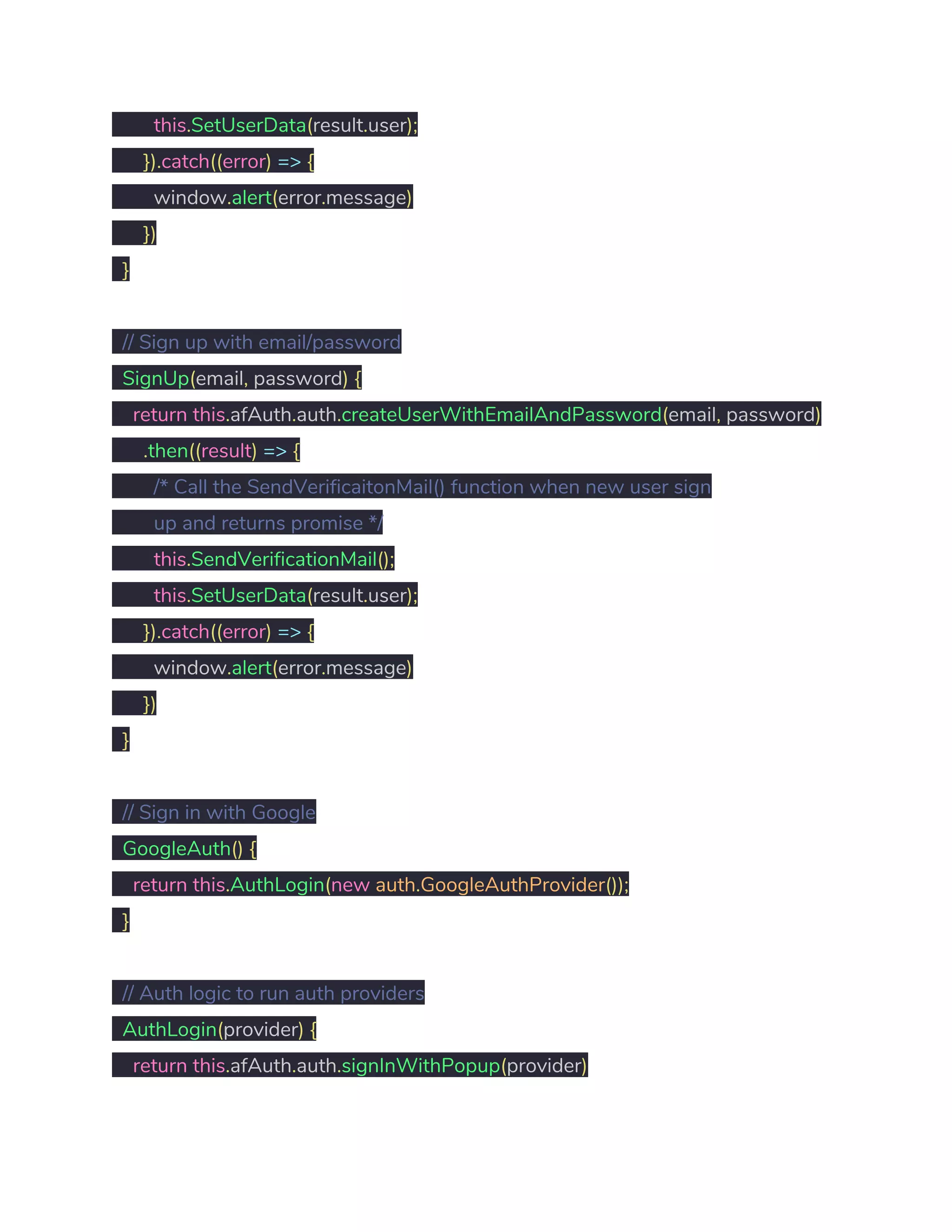
​// Sign in with Google 
​GoogleAuth​()​ ​{ 
​return​ ​this​.​AuthLogin​(​new​ ​auth​.​GoogleAuthProvider​()); 
​}   
 
​// Auth logic to run auth providers 
​AuthLogin​(​provider​)​ ​{ 
​return​ ​this​.​afAuth​.​auth​.​signInWithPopup​(​provider​) 
​.​then​((​result​)​ ​=>​ ​{ 
​this​.​ngZone​.​run​(()​ ​=>​ ​{ 
​this​.​router​.​navigate​([​'dashboard'​]); 
​}) 
​this​.​SetUserData​(​result​.​user​); 
​}).​catch​((​error​)​ ​=>​ ​{ 
window​.​alert​(​error​) 
​}) 
​} 
 
​/* Setting up user data when sign in with username/password,  
sign up with username/password and sign in with social auth   
provider in Firestore database using AngularFirestore + 
AngularFirestoreDocument service */ 
​SetUserData​(​user​)​ ​{ 
​const​ userRef​:​ AngularFirestoreDocument​<​any​>​ ​= 
this​.​afs​.​doc​(​`users/​${​user​.​uid​}​`​); 
​const​ userData​:​ User ​=​ ​{ 
uid​:​ user​.​uid​, 
email​:​ user​.​email​, 
displayName​:​ user​.​displayName​, 
photoURL​:​ user​.​photoURL​, 
emailVerified​:​ user​.​emailVerified 
​} 
​return​ userRef​.​set​(​userData​,​ ​{ 
merge​:​ ​true 
​}) 
​} 
 
​// Sign out  
​SignOut​()​ ​{ 
​return​ ​this​.​afAuth​.​auth​.​signOut​().​then​(()​ ​=>​ ​{ 
localStorage​.​removeItem​(​'user'​); 
​this​.​router​.​navigate​([​'sign-in'​]); 
​}) 
​} 
 
} 
Consume AuthService API just go to 
src/app/components/dashboard/dashboard.component.html​ file and add the 
following code. 
<!-- Top navigation --> 
<​nav ​class​="​navbar navbar-dark fixed-top bg-dark flex-md-nowrap p-0 
shadow​"> 
​<​a ​class​="​navbar-brand col-sm-3 col-md-2 mr-0​" 
routerLink​="​/register-student​"> 
​<​img ​class​="​brand-logo​"​ ​src​="​assets/logo-positronx-white.svg​" 
alt​="​positronX.io Logo​"> 
​<​span ​class​="​dasboard-text​">​Dashboard​</​span​> 
​</​a​> 
</​nav​> 
 
<!-- Sidebar navigation --> 
<​div ​class​="​container-fluid​"> 
​<​div ​class​="​row​"> 
 
​<​nav ​class​="​col-md-2 d-md-block bg-light sidebar​"> 
​<​div ​class​="​sidebar-sticky​"> 
​<​ul ​class​="​nav flex-column​"> 
​<​li ​class​="​nav-item​"> 
​<​a ​class​="​nav-link active​"> 
​<​i ​class​="​fas fa-user​"></​i​>​User Profile 
​</​a​> 
​</​li​> 
​<!-- Calling SignOut() Api from AuthService --> 
​<​li ​class​="​nav-item​"> 
​<​a ​class​="​nav-link​"​ ​(click)​="​authService.SignOut()​"> 
​<​i ​class​="​fas fa-sign-out-alt​"></​i​>​Log out 
​</​a​> 
​</​li​> 
​</​ul​> 
​</​div​> 
​</​nav​> 
 
​<!-- Main content --> 
​<​main ​role​="​main​"​ ​class​="​col-md-9 ml-sm-auto col-lg-10 px-4​"> 
​<​div ​class​="​inner-adjust​"> 
 
​<​div ​class​="​pt-3 pb-2 mb-3 border-bottom​"> 
​<​h1 ​class​="​h2​">​User Profile​</​h1​> 
​</​div​> 
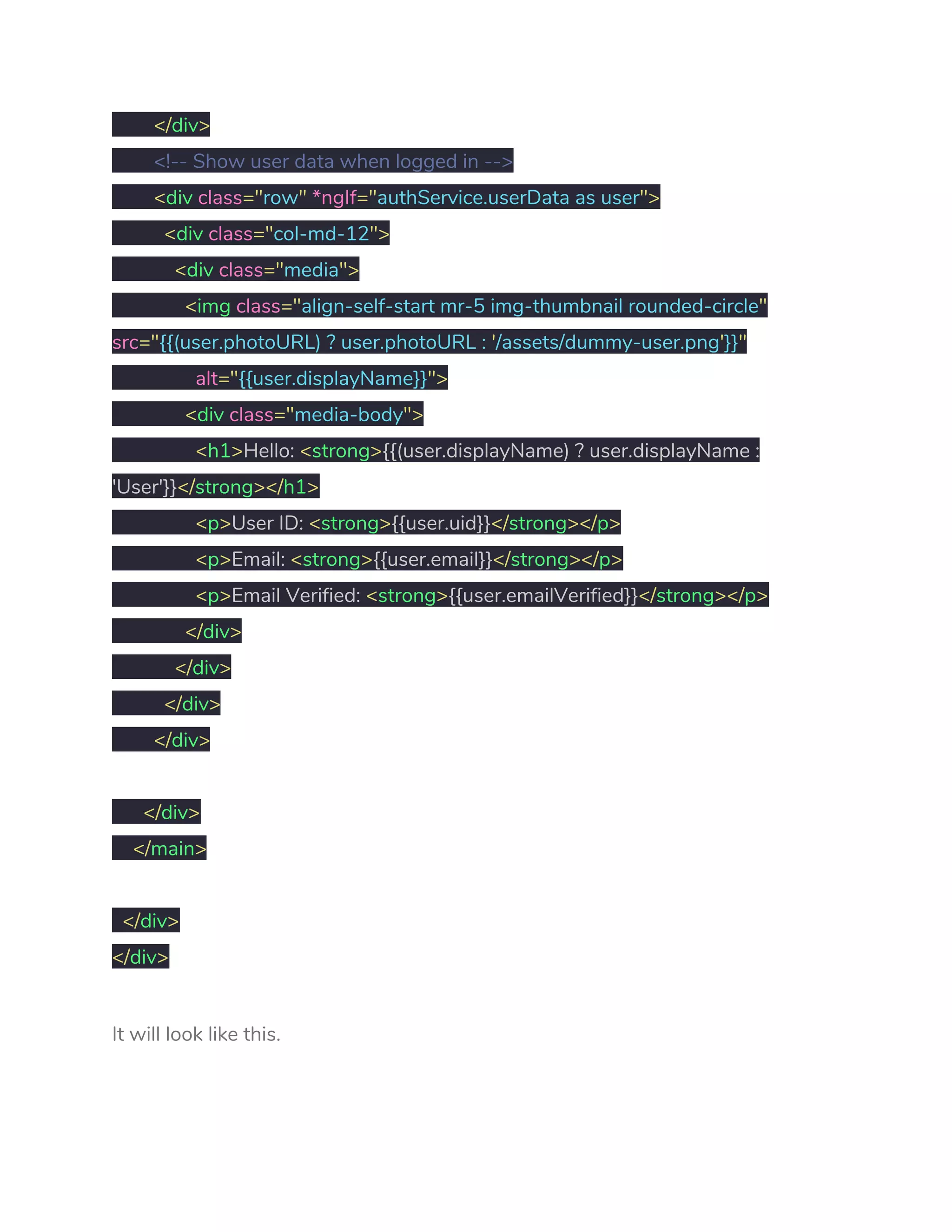
​<!-- Show user data when logged in --> 
​<​div ​class​="​row​"​ ​*ngIf​="​authService.userData as user​"> 
​<​div ​class​="​col-md-12​"> 
​<​div ​class​="​media​"> 
​<​img ​class​="​align-self-start mr-5 img-thumbnail rounded-circle​" 
src​="​{{(user.photoURL) ? user.photoURL : ​'​/assets/dummy-user.png​'​}}​" 
​alt​="​{{user.displayName}}​"> 
​<​div ​class​="​media-body​"> 
​<​h1​>​Hello: ​<​strong​>​{{(user.displayName) ? user.displayName : 
'User'}}​</​strong​></​h1​> 
​<​p​>​User ID: ​<​strong​>​{{user.uid}}​</​strong​></​p​> 
​<​p​>​Email: ​<​strong​>​{{user.email}}​</​strong​></​p​> 
​<​p​>​Email Verified: ​<​strong​>​{{user.emailVerified}}​</​strong​></​p​> 
​</​div​> 
​</​div​> 
​</​div​> 
​</​div​> 
 
​</​div​> 
​</​main​> 
 
​</​div​> 
</​div​> 
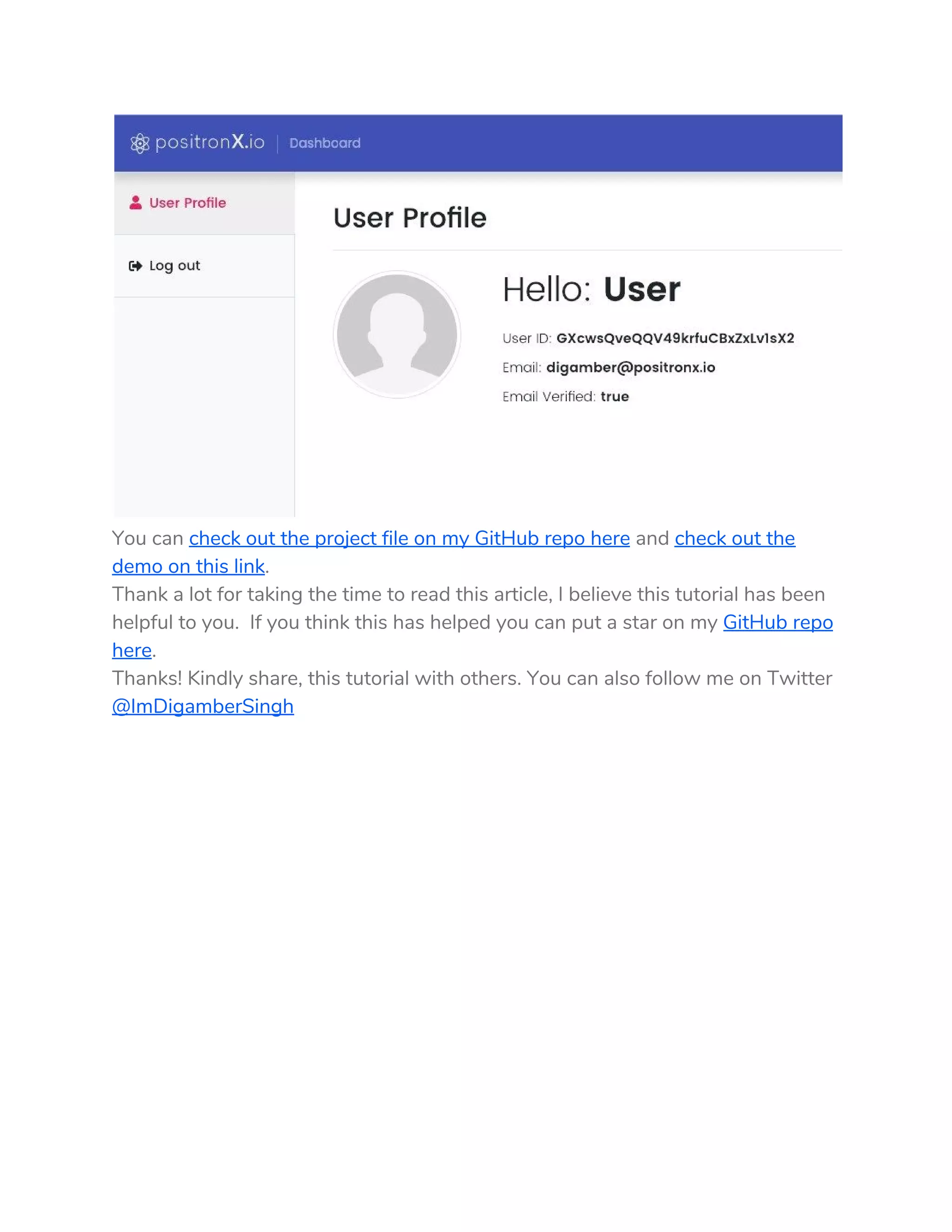
It will look like this. 
 
You can ​check out the project file on my GitHub repo here​ and ​check out the 
demo on this link​. 
Thank a lot for taking the time to read this article, I believe this tutorial has been 
helpful to you. If you think this has helped you can put a star on my ​GitHub repo 
here​. 
Thanks! Kindly share, this tutorial with others. You can also follow me on Twitter 
@ImDigamberSingh 

Full Angular 7 Firebase Authentication System

  • 1.
    Full Angular 7Firebase Authentication  System    Hello folks! in this tutorial, I am going to share with you ​How to create a full step  by step Angular 7 Firebase Authentication System from scratch using Firebase  API?  In this article, you’ll be able to create Firebase authentication system using social  auth provider  For the demo purpose, I’m going to create a basic app in which a user can  perform the following tasks.  Angular 7 Firebase Authentication System’s  Functionalities:  ● Sign in with Google  ● Sign in with username/password  ● Sign up with username/password  ● Recover forget password  ● Send email verification to a newly created user 
  • 2.
    ● Protect app’sinner pages URL using route guard’s canActivate method  ● Prevent user to access sign in and sign up URL when a user is already  logged in  ● Maintain logged in state of Firebase user in localStorage  Step by step Explanation  1. Technologies used  2. GitHub project files + project demo link  3. Prerequisite  4. Firebase account set up and AngularFire2 library integration  5. Generate required Angular components  6. Setup router service for navigating between components  7. Create firebase authentication service using Firebase API  8. Create Sign in authentication service using AuthService API  ○ Create sign in with Username/Password  ○ Create sign in with Google  ○ Create sign in with Facebook  9. Create Firebase sign up service using Firebase API in Angular 7  10.Create Firebase forgot password service using Firebase API in Angular 7  11.How to send email Verification using Firebase API in Angular 7?  12.How to use CanActivate method to prevent Access of URLs in Angular 7 app  using route guards?  13.How to maintain logged in state of Firebase user in localStorage with Angular 7?  1. Technologies used  ● Node 8.11.1  ● Angular CLI 7.0.7  ● Angular 7.0.7  ● Firebase 5.7.0  ● RxJS 6.3.3  ● Typescript 3.1.6  2. GitHub Project Files + Project Demo Link 
  • 3.
    GitHub Resources​Project Demo  3.Prerequisite  – Setup Node JS development environment  Before we move ahead I’m assuming you already have ​Node JS development  environment​ set up in your system.  Please follow this link ​How to Set up Node JS Development Environment?  – Install Angular CLI  Install Angular CLI, Ignore if Angular CLI is already installed.  npm​ ​install​ -g @angular/cli  – Angular 7 Project Set up  Use the given below cmd to setup the Angular project.  ng new angularfiebase-authentication  Once the project is downloaded, get into the project directory.  cd​ angularfirebase-authentication  Congrats! You are in your project directory.  For the demo purpose, we’ll be using Bootstrap4, use the given below command  to install Bootstrap4 in your project.  npm install bootstrap  Go to ​angular.json​ file and replace the given below code with “styles”: [ ] array. 
  • 4.
    "styles"​:​ ​[  ​"node_modules/bootstrap/dist/css/bootstrap.min.css"​,  ​"src/styles.css"  ​]  Run thefollowing command to start your project.  ng serve --open  How to Setup Angular 7 Project using Bootstrap 4, SASS, Font Awesome, and  Ng Bootstrap?  4. Firebase Account Set up and AngularFire2 Library  Integration  I assume you have already created a basic project in Firebase account, if not then  follow this tutorial ​How to setup a basic Firebase account and set up a Firebase  Project?  How to include Firebase AngularFire2 library in your Angular app?  Include AngularFire2 library in your Angular 7 app from Node Package  Manager(NPM).  Run the given below command using Angular CLI.  npm​ ​install​ firebase @angular/fire --save  Once the AngularFire2 library included in the app then go to  src/app/app.module.ts​ file and add the given below code.  // Firebase services + enviorment module  import​ ​{​ AngularFireModule ​}​ ​from​ ​"@angular/fire"​; 
  • 5.
    import​ ​{​ AngularFireAuthModule​}​ ​from​ ​"@angular/fire/auth"​;  import​ ​{​ AngularFirestoreModule ​}​ ​from​ ​'@angular/fire/firestore'​;  import​ ​{​ environment ​}​ ​from​ ​'../environments/environment'​;      @​NgModule​({  imports​:​ ​[  AngularFireModule​.​initializeApp​(​environment​.​firebase​),  AngularFireAuthModule​,  AngularFirestoreModule​,  ​]  })  5. Generate Required Angular Components  In order to create a complete Angular 7 Firebase Authentication system, we are  required to generate components, services, route guards, routing services etc.  Generate Components for Angular 7 Firebase Authentication System App  ng g c components​/​dashboard  ng g c components​/​sign​-​in  ng g c components​/​sign​-​up  ng g c components​/​forgot​-​password 
  • 6.
    ng g ccomponents/verify-email    6. Setup Router Service for Navigating between  Components  Create Angular router service for navigating between components in Auth app.  When we initially create a new project using Angular CLI. Angular CLI asks to  create routing service where you have to simply choose yes and hit enter.  Digambers​-​MacBook​-​Pro​:​Desktop digambersingh$ ng ​new  angularfirebase​-​authentication  ?​ Would you like to add Angular routing​?​ ​(​y​/​N​)    This will create ​src/app-routing.module.ts​ file. In our project, we have kept this  file in the ​src/shared/routing/app-routing.module.ts​ folder for the better  manageability purpose.  Go to ​src/shared/routing/app-routing.module.ts​ file, paste the given below code  for creating navigation service in your Angular 7 Firebase authentication system  app.  import​ ​{​ NgModule ​}​ ​from​ ​'@angular/core'​;  // Required services for navigation  import​ ​{​ Routes​,​ RouterModule ​}​ ​from​ ​'@angular/router'​;    // Import all the components for which navigation service has to be activated   import​ ​{​ SignInComponent ​}​ ​from​ ​'../../components/sign-in/sign-in.component'​;  import​ ​{​ SignUpComponent ​}​ ​from​ ​'../../components/sign-up/sign-up.component'​;  import​ ​{​ DashboardComponent ​}​ ​from 
  • 7.
    '../../components/dashboard/dashboard.component'​;  import​ ​{​ ForgotPasswordComponent​}​ ​from  '../../components/forgot-password/forgot-password.component'​;  import​ ​{​ AuthGuard ​}​ ​from​ ​"../../shared/guard/auth.guard"​;  import​ ​{​ VerifyEmailComponent ​}​ ​from  '../../components/verify-email/verify-email.component'​;    const​ routes​:​ Routes ​=​ ​[  ​{​ path​:​ ​''​,​ redirectTo​:​ ​'/sign-in'​,​ pathMatch​:​ ​'full'​ ​},  ​{​ path​:​ ​'sign-in'​,​ component​:​ SignInComponent ​},  ​{​ path​:​ ​'register-user'​,​ component​:​ SignUpComponent ​},  ​{​ path​:​ ​'dashboard'​,​ component​:​ DashboardComponent ​},  ​{​ path​:​ ​'forgot-password'​,​ component​:​ ForgotPasswordComponent ​},  ​{​ path​:​ ​'verify-email-address'​,​ component​:​ VerifyEmailComponent ​}  ];    @​NgModule​({  imports​:​ ​[​RouterModule​.​forRoot​(​routes​)],  exports​:​ ​[​RouterModule​]  })    export​ ​class​ ​AppRoutingModule​ ​{​ ​}  Go to ​app.module.ts​ file and include app routing service and also include in  imports array like given below.  // App routing modules  import​ ​{​ AppRoutingModule ​}​ ​from​ ​'./shared/routing/app-routing.module'​; 
  • 8.
      @​NgModule​({  declarations​:​ ​[​...​],  imports​:​ ​[  AppRoutingModule  ​],  providers​:​​[​...​],  bootstrap​:​ ​[​...​]  })  7. Create Firebase Authentication Service using  Firebase API  Generate auth service and user interface files to create a Firebase authentication  system with Angular 7.  – Create ​user.ts​ file  ng generate ​interface​ ​shared​/​services​/​user  Go to ​shared/services/user.ts  This user interface class will hold the data types of the User class.  export​ ​interface​ ​User​ ​{  uid​:​ ​string​;  email​:​ ​string​;  displayName​:​ ​string​;  photoURL​:​ ​string​; 
  • 9.
    emailVerified​:​ ​boolean​;  }  – Create​auth.service.ts​ file  This file holds the core logic of our authentication system. I’ll be covering up  social login using Firebase’s Google auth provider. You can also create the login  with Facebook, Twitter, and GitHub later on by following the same method.  I am also going to cover up the sign in and sign up using username/password,  reset forgot password, email verification, route protection using canActivate auth  guard method.  import​ ​{​ Injectable​,​ NgZone ​}​ ​from​ ​'@angular/core'​;  import​ ​{​ User ​}​ ​from​ ​"../services/user"​;  import​ ​{​ auth ​}​ ​from​ ​'firebase/app'​;  import​ ​{​ AngularFireAuth ​}​ ​from​ ​"@angular/fire/auth"​;  import​ ​{​ AngularFirestore​,​ AngularFirestoreDocument ​}​ ​from  '@angular/fire/firestore'​;  import​ ​{​ Router ​}​ ​from​ ​"@angular/router"​;    @​Injectable​({  providedIn​:​ ​'root'  })    export​ ​class​ ​AuthService​ ​{  userData​:​ ​any​;​ ​// Save logged in user data    ​constructor​(  ​public​ afs​:​ AngularFirestore​,​ ​// Inject Firestore service  ​public​ afAuth​:​ AngularFireAuth​,​ ​// Inject Firebase auth service 
  • 10.
    ​public​ router​:​ Router​,   ​public​ ngZone​:​ NgZone ​// NgZone service to remove outside scope warning  ​)​ ​{    ​/* Saving user data in localstorage when   logged in and setting up null when logged out */  ​this​.​afAuth​.​authState​.​subscribe​(​user​ ​=>​ ​{  ​if​ ​(​user​)​ ​{  ​this​.​userData ​=​ user​;  localStorage​.​setItem​(​'user'​,​ ​JSON​.​stringify​(​this​.​userData​));  ​JSON​.​parse​(​localStorage​.​getItem​(​'user'​));  ​}​ ​else​ ​{  localStorage​.​setItem​(​'user'​,​ ​null​);  ​JSON​.​parse​(​localStorage​.​getItem​(​'user'​));  ​}  ​})  ​}    ​// Sign in with email/password  ​SignIn​(​email​,​ password​)​ ​{  ​return​ ​this​.​afAuth​.​auth​.​signInWithEmailAndPassword​(​email​,​ password​)  ​.​then​((​result​)​ ​=>​ ​{  ​this​.​ngZone​.​run​(()​ ​=>​ ​{  ​this​.​router​.​navigate​([​'dashboard'​]);  ​});  ​this​.​SetUserData​(​result​.​user​);  ​}).​catch​((​error​)​ ​=>​ ​{  window​.​alert​(​error​.​message​) 
  • 11.
    ​})  ​}    ​// Sign upwith email/password  ​SignUp​(​email​,​ password​)​ ​{  ​return​ ​this​.​afAuth​.​auth​.​createUserWithEmailAndPassword​(​email​,​ password​)  ​.​then​((​result​)​ ​=>​ ​{  ​/* Call the SendVerificaitonMail() function when new user sign   up and returns promise */  ​this​.​SendVerificationMail​();  ​this​.​SetUserData​(​result​.​user​);  ​}).​catch​((​error​)​ ​=>​ ​{  window​.​alert​(​error​.​message​)  ​})  ​}    ​// Send email verfificaiton when new user sign up  ​SendVerificationMail​()​ ​{  ​return​ ​this​.​afAuth​.​auth​.​currentUser​.​sendEmailVerification​()  ​.​then​(()​ ​=>​ ​{  ​this​.​router​.​navigate​([​'verify-email-address'​]);  ​})  ​}    ​// Reset Forggot password  ​ForgotPassword​(​passwordResetEmail​)​ ​{  ​return​ ​this​.​afAuth​.​auth​.​sendPasswordResetEmail​(​passwordResetEmail​) 
  • 12.
    ​.​then​(()​ ​=>​ ​{  window​.​alert​(​'Passwordreset email sent, check your inbox.'​);  ​}).​catch​((​error​)​ ​=>​ ​{  window​.​alert​(​error​)  ​})  ​}    ​// Returns true when user is looged in and email is verified  ​get​ ​isLoggedIn​():​ ​boolean​ ​{  ​const​ user ​=​ ​JSON​.​parse​(​localStorage​.​getItem​(​'user'​));  ​return​ ​(​user ​!==​ ​null​ ​&&​ user​.​emailVerified ​!==​ ​false​)​ ​?​ ​true​ ​:​ ​false​;  ​}    ​// Sign in with Google  ​GoogleAuth​()​ ​{  ​return​ ​this​.​AuthLogin​(​new​ ​auth​.​GoogleAuthProvider​());  ​}    ​// Auth logic to run auth providers  ​AuthLogin​(​provider​)​ ​{  ​return​ ​this​.​afAuth​.​auth​.​signInWithPopup​(​provider​)  ​.​then​((​result​)​ ​=>​ ​{  ​this​.​ngZone​.​run​(()​ ​=>​ ​{  ​this​.​router​.​navigate​([​'dashboard'​]);  ​})  ​this​.​SetUserData​(​result​.​user​);  ​}).​catch​((​error​)​ ​=>​ ​{ 
  • 13.
    window​.​alert​(​error​)  ​})  ​}    ​/* Setting upuser data when sign in with username/password,   sign up with username/password and sign in with social auth    provider in Firestore database using AngularFirestore +  AngularFirestoreDocument service */  ​SetUserData​(​user​)​ ​{  ​const​ userRef​:​ AngularFirestoreDocument​<​any​>​ ​=  this​.​afs​.​doc​(​`users/​${​user​.​uid​}​`​);  ​const​ userData​:​ User ​=​ ​{  uid​:​ user​.​uid​,  email​:​ user​.​email​,  displayName​:​ user​.​displayName​,  photoURL​:​ user​.​photoURL​,  emailVerified​:​ user​.​emailVerified  ​}  ​return​ userRef​.​set​(​userData​,​ ​{  merge​:​ ​true  ​})  ​}    ​// Sign out   ​SignOut​()​ ​{  ​return​ ​this​.​afAuth​.​auth​.​signOut​().​then​(()​ ​=>​ ​{  localStorage​.​removeItem​(​'user'​); 
  • 14.
    ​this​.​router​.​navigate​([​'sign-in'​]);  ​})  ​}    }  After that, goto ​src/app.module.ts​ file and import authentication service and  pass the AuthService class into ​providers: [AuthService]​ array. By doing this our  authentication service will be available throughout the application.  // Auth service  import​ ​{​ AuthService ​}​ ​from​ ​"./shared/services/auth.service"​;    @​NgModule​({  declarations​:​ ​[​...​],  imports​:​ ​[​...​],  providers​:​ ​[​AuthService​],  bootstrap​:​ ​[​...​]  })  8. Create Sign in Authentication Service using  AuthService API  It’s time to consume custom AuthService API, we’ll be consuming following  services using AuthService API.  ● Create Sign in with Username and Password  ● Create Sign in with Google  ● Create Sign in with Facebook 
  • 15.
    In order toconsume custom API from ​AuthService​ class we need to import  AuthService​ class into ​src/app/components/sign-in/sign-in.component.ts​ file and  then inject AuthService class into the constructor so that these services will be  available throughout the same template.  Go to ​src/app/components/sign-in/sign-in.component.ts​ file and paste the  following code.  import​ ​{​ Component​,​ OnInit ​}​ ​from​ ​'@angular/core'​;  import​ ​{​ AuthService ​}​ ​from​ ​"../../shared/services/auth.service"​;    @​Component​({  selector​:​ ​'app-sign-in'​,  templateUrl​:​ ​'./sign-in.component.html'​,  styleUrls​:​ ​[​'./sign-in.component.css'​]  })    export​ ​class​ ​SignInComponent​ ​implements​ ​OnInit​ ​{    ​constructor​(  ​public authService​:​ AuthService  ​)​ ​{​ ​}    ​ngOnInit​()​ ​{​ ​}    }  We’ve already generated our components, go to  src/app/components/sign-in/sign-in.component.html​ file and paste the following  code. 
  • 16.
    <​div ​class​="​displayTable​">  ​<​div ​class​="​displayTableCell​">    ​<​div​class​="​authBlock​">  ​<​h3​>​Sign In​</​h3​>  ​<​div ​class​="​formGroup​">  ​<​input ​type​="​text​"​ ​class​="​formControl​"​ ​placeholder​="​Username​"  #userName​ ​required​>  ​</​div​>    ​<​div ​class​="​formGroup​">  ​<​input ​type​="​password​"​ ​class​="​formControl​"​ ​placeholder​="​Password​"  #userPassword​ ​required​>  ​</​div​>    ​<!-- Calling SignIn Api from AuthService -->  ​<​div ​class​="​formGroup​">  ​<​input ​type​="​button​"​ ​class​="​btn btnPrimary​"​ ​value​="​Log in​"  (click)​="​authService.SignIn(userName.value, userPassword.value)​">  ​</​div​>    ​<​div ​class​="​formGroup​">  ​<​span ​class​="​or​"><​span ​class​="​orInner​">​Or​</​span​></​span​>  ​</​div​>    ​<!-- Calling GoogleAuth Api from AuthService -->  ​<​div ​class​="​formGroup​"> 
  • 17.
    ​<​button ​type​="​button​"​ ​class​="​btngoogleBtn​"  (click)​="​authService.GoogleAuth()​">  ​<​i ​class​="​fab fa-google-plus-g​"></​i​>  Log in with Google  ​</​button​>  ​</​div​>    ​<​div ​class​="​forgotPassword​">  ​<​span ​routerLink​="​/forgot-password​">​Forgot Password?​</​span​>  ​</​div​>  ​</​div​>    ​<​div ​class​="​redirectToLogin​">  ​<​span​>​Don't have an account?​<​span ​class​="​redirect​"  routerLink​="​/register-user​">​ Sign Up​</​span​></​span​>  ​</​div​>    ​</​div​>  </​div​>    9. How to Create Firebase Sign up Service using  Firebase API in Angular 7?  In this section, I am going to share with you, ​how to create Firebase sign up  service using Firebase API in Angular 7​?  Go to ​src/app/components/sign-up/sign-up.component.ts​ file and add the  following code. 
  • 18.
    import​ ​{​ Component​,​OnInit ​}​ ​from​ ​'@angular/core'​;  import​ ​{​ AuthService ​}​ ​from​ ​"../../shared/services/auth.service"​;    @​Component​({  selector​:​ ​'app-sign-up'​,  templateUrl​:​ ​'./sign-up.component.html'​,  styleUrls​:​ ​[​'./sign-up.component.css'​]  })    export​ ​class​ ​SignUpComponent​ ​implements​ ​OnInit​ ​{    ​constructor​(  ​public authService​:​ AuthService  ​)​ ​{​ ​}    ​ngOnInit​()​ ​{​ ​}    }  Go to ​src/app/components/sign-up/sign-up.component.html​ file and add the  following code.  <​div ​class​="​displayTable​">  ​<​div ​class​="​displayTableCell​">    ​<​div ​class​="​authBlock​">  ​<​h3​>​Sign Up​</​h3​> 
  • 19.
      ​<​div ​class​="​formGroup​">  ​<​input ​type​="​email​"​​class​="​formControl​"​ ​placeholder​="​Email Address​"  #userEmail​ ​required​>  ​</​div​>    ​<​div ​class​="​formGroup​">  ​<​input ​type​="​password​"​ ​class​="​formControl​"​ ​placeholder​="​Password​"  #userPwd​ ​required​>  ​</​div​>    ​<​div ​class​="​formGroup​">  ​<​input ​type​="​button​"​ ​class​="​btn btnPrimary​"​ ​value​="​Sign Up​"  (click)​="​authService.SignUp(userEmail.value, userPwd.value)​">  ​</​div​>    ​<​div ​class​="​formGroup​">  ​<​span ​class​="​or​"><​span ​class​="​orInner​">​Or​</​span​></​span​>  ​</​div​>    ​<!-- Continue with Google -->  ​<​div ​class​="​formGroup​">  ​<​button ​type​="​button​"​ ​class​="​btn googleBtn​"  (click)​="​authService.GoogleAuth()​">  ​<​i ​class​="​fab fa-google-plus-g​"></​i​>  Continue with Google  ​</​button​> 
  • 20.
    ​</​div​>    ​<!-- Continue withFacebook -->  ​<​div ​class​="​formGroup​">  ​<​button ​type​="​button​"​ ​class​="​btn facebookBtn​"  (click)​="​authService.FacebookAuth()​">  ​<​i ​class​="​fab fa-facebook​"></​i​>  Continue with Facebook  ​</​button​>  ​</​div​>  ​</​div​>    ​<​div ​class​="​redirectToLogin​">  ​<​span​>​Already have an account? ​<​span ​class​="​redirect​"  routerLink​="​/sign-in​">​Log In​</​span​></​span​>  ​</​div​>  ​</​div​>    </​div​>  10. How to Create Firebase Forgot Password Service  using Firebase API in Angular 7?  We are going to ​create Firebase forgot password service using Firebase API in  Angular 7​using our custom made ​AuthService​ API.  Go to ​src/app/components/forgot-password/forgot-password.component.ts​ add  the following code. 
  • 21.
    import​ ​{​ Component​,​OnInit ​}​ ​from​ ​'@angular/core'​;  import​ ​{​ AuthService ​}​ ​from​ ​"../../shared/services/auth.service"​;    @​Component​({  selector​:​ ​'app-forgot-password'​,  templateUrl​:​ ​'./forgot-password.component.html'​,  styleUrls​:​ ​[​'./forgot-password.component.css'​]  })    export​ ​class​ ​ForgotPasswordComponent​ ​implements​ ​OnInit​ ​{    ​constructor​(  ​public authService​:​ AuthService  ​)​ ​{​ ​}    ​ngOnInit​()​ ​{  ​}    }  Go to ​src/app/components/forgot-password/forgot-password.component.html  add the following code.  <​div ​class​="​displayTable​">  ​<​div ​class​="​displayTableCell​">  ​<​div ​class​="​authBlock​">  ​<​h3​>​Reset Password​</​h3​> 
  • 22.
      ​<​p ​class​="​text-center​">​Please enteryour email address to request a  password reset.​</​p​>    ​<​div ​class​="​formGroup​">  ​<​input ​type​="​email​"​ ​class​="​formControl​"​ ​placeholder​="​Email Address​"  #passwordResetEmail​ ​required​>  ​</​div​>    ​<!-- Calling ForgotPassword from AuthService Api -->  ​<​div ​class​="​formGroup​">  ​<​input ​type​="​submit​"​ ​class​="​btn btnPrimary​"​ ​value​="​Reset Password​"  (click)​="​authService.ForgotPassword(passwordResetEmail.value)​">  ​</​div​>  ​</​div​>    ​<​div ​class​="​redirectToLogin​">  ​<​span​>​Go back to ? ​<​span ​class​="​redirect​"​ ​routerLink​="​/sign-in​">​Log  In​</​span​></​span​>  ​</​div​>    ​</​div​>  </​div​>  11. How to Send Email Verification using Firebase  API in Angular 7? 
  • 23.
    Firebase allows usto send email verification smoothly. I am going to show you  how you can achieve this functionality easily using Firebase API.  Go to ​src/app/components/verify-email/verify-email.component.ts​ file and add  the given below code.  import​ ​{​ Component​,​ OnInit ​}​ ​from​ ​'@angular/core'​;  import​ ​{​ AuthService ​}​ ​from​ ​"../../shared/services/auth.service"​;    @​Component​({  selector​:​ ​'app-verify-email'​,  templateUrl​:​ ​'./verify-email.component.html'​,  styleUrls​:​ ​[​'./verify-email.component.css'​]  })  export​ ​class​ ​VerifyEmailComponent​ ​implements​ ​OnInit​ ​{    ​constructor​(  ​public authService​:​ AuthService  ​)​ ​{​ ​}    ​ngOnInit​()​ ​{  ​}    }  Go to ​src/app/components/verify-email/verify-email.component.html​ file and add  the given below code.  <​div ​class​="​displayTable​">  ​<​div ​class​="​displayTableCell​"> 
  • 24.
      ​<​div ​class​="​authBlock​">  ​<​h3​>​Thank Youfor Registering​</​h3​>    ​<​div ​class​="​formGroup​"​ ​*ngIf​="​authService.userData as user​">  ​<​p ​class​="​text-center​">​We have sent a confirmation email to  <​strong​>​{{user.email}}​</​strong​>​.​</​p​>  ​<​p ​class​="​text-center​">​Please check your email and click on the link to  verfiy your email address.​</​p​>  ​</​div​>      ​<!-- Calling SendVerificationMail() method using authService Api -->  ​<​div ​class​="​formGroup​">  ​<​button ​type​="​button​"​ ​class​="​btn btnPrimary​"  (click)​="​authService.SendVerificationMail()​">  ​<​i ​class​="​fas fa-redo-alt​"></​i​>  Resend Verification Email  ​</​button​>  ​</​div​>    ​</​div​>    ​<​div ​class​="​redirectToLogin​">  ​<​span​>​Go back to?​<​span ​class​="​redirect​"​ ​routerLink​="​/sign-in​">​ Sign  in​</​span​></​span​>  ​</​div​>   
  • 25.
    ​</​div​>  </​div​>  12. How toUse CanActivate method to Prevent  Access of URL in Angular 7 App using Route  Guards?  In this section, I will be showing you how you can secure your app’s routes from  unauthorized access using canActivate() route guard method. This method is  pretty helpful when we need to secure our app’s URL.  First, ​go to src/app/shared/services/auth.service.ts​ file and look for the  isLoggedIn()​ method. This function returns the boolean result to true when the  user is logged in && user’s email is verified. If either condition doesn’t match it  will return false and doesn’t allow users to access the desired pages.  import​ ​{​ AngularFireAuth ​}​ ​from​ ​"@angular/fire/auth"​;    export​ ​class​ ​AuthService​ ​{  userData​:​ ​any​;​ ​// Save logged in user data    ​constructor​(  ​public​ afAuth​:​ AngularFireAuth​,​ ​// Inject Firebase auth service  ​)​ ​{    ​/* Saving user data in localstorage when   logged in and setting up null when logged out */  ​this​.​afAuth​.​authState​.​subscribe​(​user​ ​=>​ ​{  ​if​ ​(​user​)​ ​{  ​this​.​userData ​=​ user​;  localStorage​.​setItem​(​'user'​,​ ​JSON​.​stringify​(​this​.​userData​)); 
  • 26.
    ​JSON​.​parse​(​localStorage​.​getItem​(​'user'​));  ​}​ ​else​ ​{  localStorage​.​setItem​(​'user'​,​​null​);  ​JSON​.​parse​(​localStorage​.​getItem​(​'user'​));  ​}  ​})  ​}    ​// Returns true when user is looged in and email is verified  ​get​ ​isLoggedIn​():​ ​boolean​ ​{  ​const​ user ​=​ ​JSON​.​parse​(​localStorage​.​getItem​(​'user'​));  ​return​ ​(​user ​!==​ ​null​ ​&&​ user​.​emailVerified ​!==​ ​false​)​ ​?​ ​true​ ​:​ ​false​;  ​}    }  We have to secure all the inner pages in the app which are only accessible to  logged in users.  To get this functionality, we have to generate route guard files. Run the below  command to create route guards.  ng generate guard shared​/​guard​/​auth  Go to ​src/app/shared/guard/auth.guard.ts​ file and include the following code.  import​ ​{​ Injectable ​}​ ​from​ ​'@angular/core'​;  import​ ​{​ CanActivate​,​ ActivatedRouteSnapshot​,​ RouterStateSnapshot​,​ Router ​}  from​ ​'@angular/router'​;  import​ ​{​ AuthService ​}​ ​from​ ​"../../shared/services/auth.service"​; 
  • 27.
    import​ ​{​ Observable​}​ ​from​ ​'rxjs'​;    @​Injectable​({  providedIn​:​ ​'root'  })    export​ ​class​ ​AuthGuard​ ​implements​ ​CanActivate​ ​{      ​constructor​(  ​public authService​:​ AuthService​,  public router​:​ Router  ​){​ ​}    ​canActivate​(  next​:​ ActivatedRouteSnapshot​,  state​:​ RouterStateSnapshot​):​ Observable​<​boolean​>​ ​|​ ​Promise​<​boolean​>​ ​|  boolean​ ​{  ​if​(​this​.​authService​.​isLoggedIn ​!==​ ​true​)​ ​{  ​this​.​router​.​navigate​([​'sign-in'​])  ​}  ​return​ ​true​;  ​}    }  We have successfully secured our app’s inner pages now if no user will be able  to access our app’s inner pages unless they are logged in. If anybody puts the 
  • 28.
    inner page’s URLin the browser directly then they will be redirected to the  sign-in page.  Let’s create another guard which will prevent access for sign in, sign up,  password recovery and email verification pages when the user is already logged  in.  Run the below command to generate route guard.  ng generate guard shared​/​guard​/​secure​-​inner​-​pages​.​guard​.​ts  Go to ​src/app/shared/guard/secure-inner-pages.guard.ts​ file and include the  following code.  import​ ​{​ Injectable ​}​ ​from​ ​'@angular/core'​;  import​ ​{​ CanActivate​,​ ActivatedRouteSnapshot​,​ RouterStateSnapshot​,​ Router ​}  from​ ​'@angular/router'​;  import​ ​{​ AuthService ​}​ ​from​ ​"../../shared/services/auth.service"​;  import​ ​{​ Observable ​}​ ​from​ ​'rxjs'​;    @​Injectable​({  providedIn​:​ ​'root'  })    export​ ​class​ ​SecureInnerPagesGuard​ ​implements​ ​CanActivate​ ​{    ​constructor​(  ​public authService​:​ AuthService​,  public router​:​ Router  ​)​ ​{​ ​}    ​canActivate​( 
  • 29.
    next​:​ ActivatedRouteSnapshot​,  state​:​ RouterStateSnapshot​):​Observable​<​boolean​>​ ​|​ ​Promise​<​boolean​>​ ​|  boolean​ ​{  ​if​(​this​.​authService​.​isLoggedIn​)​ ​{  window​.​alert​(​"You are not allowed to access this URL!"​);  ​this​.​router​.​navigate​([​'dashboard'​])  ​}  ​return​ ​true​;  ​}    }  We’ve successfully created canActivated guards now we have to include these  guards in routes services.  Go to ​src/app/shared/routing/app-routing.module.ts​ file.  import​ ​{​ NgModule ​}​ ​from​ ​'@angular/core'​;  import​ ​{​ Routes​,​ RouterModule ​}​ ​from​ ​'@angular/router'​;    // Required components for which route services to be activated  import​ ​{​ SignInComponent ​}​ ​from​ ​'../../components/sign-in/sign-in.component'​;  import​ ​{​ SignUpComponent ​}​ ​from​ ​'../../components/sign-up/sign-up.component'​;  import​ ​{​ DashboardComponent ​}​ ​from  '../../components/dashboard/dashboard.component'​;  import​ ​{​ ForgotPasswordComponent ​}​ ​from  '../../components/forgot-password/forgot-password.component'​;  import​ ​{​ VerifyEmailComponent ​}​ ​from  '../../components/verify-email/verify-email.component'​; 
  • 30.
      // Import canActivateguard services  import​ ​{​ AuthGuard ​}​ ​from​ ​"../../shared/guard/auth.guard"​;  import​ ​{​ SecureInnerPagesGuard ​}​ ​from  "../../shared/guard/secure-inner-pages.guard"​;    // Include route guard in routes array  const​ routes​:​ Routes ​=​ ​[  ​{​ path​:​ ​''​,​ redirectTo​:​ ​'/sign-in'​,​ pathMatch​:​ ​'full'​},  ​{​ path​:​ ​'sign-in'​,​ component​:​ SignInComponent​,​ canActivate​:  [​SecureInnerPagesGuard​]},  ​{​ path​:​ ​'register-user'​,​ component​:​ SignUpComponent​,​ canActivate​:  [​SecureInnerPagesGuard​]},  ​{​ path​:​ ​'dashboard'​,​ component​:​ DashboardComponent​,​ canActivate​:  [​AuthGuard​]​ ​},  ​{​ path​:​ ​'forgot-password'​,​ component​:​ ForgotPasswordComponent​,  canActivate​:​ ​[​SecureInnerPagesGuard​]​ ​},  ​{​ path​:​ ​'verify-email-address'​,​ component​:​ VerifyEmailComponent​,​ canActivate​:  [​SecureInnerPagesGuard​]​ ​}  ];    @​NgModule​({  imports​:​ ​[​RouterModule​.​forRoot​(​routes​)],  exports​:​ ​[​RouterModule​]  }) 
  • 31.
      export​ ​class​ ​AppRoutingModule​​{​ ​}  13. How to Maintain Logged in State of Firebase  User in localStorage with Angular 7?  I will be discussing with you how you can maintain the logged in user data in  Local Storage with Angular 7.  Our logic is pretty straightforward when the user is logged in we will save the  user data in Local Storage, user details will be available even if we refresh the  page. We will remove the user data from local storage if we log out from the  app.  Without wasting time let’s write our logic.  Go to ​src/app/services/auth.service.ts​ file and add the given below code.  import​ ​{​ Injectable​,​ NgZone ​}​ ​from​ ​'@angular/core'​;  import​ ​{​ User ​}​ ​from​ ​"../services/user"​;  import​ ​{​ auth ​}​ ​from​ ​'firebase/app'​;  import​ ​{​ AngularFireAuth ​}​ ​from​ ​"@angular/fire/auth"​;  import​ ​{​ AngularFirestore​,​ AngularFirestoreDocument ​}​ ​from  '@angular/fire/firestore'​;  import​ ​{​ Router ​}​ ​from​ ​"@angular/router"​;    @​Injectable​({  providedIn​:​ ​'root'  })    export​ ​class​ ​AuthService​ ​{  userData​:​ ​any​;​ ​// Save logged in user data   
  • 32.
    ​constructor​(  ​public​ afs​:​ AngularFirestore​,​​// Inject Firestore service  ​public​ afAuth​:​ AngularFireAuth​,​ ​// Inject Firebase auth service  ​public​ router​:​ Router​,    ​public​ ngZone​:​ NgZone ​// NgZone service to remove outside scope warning  ​)​ ​{    ​/* Saving user data in localstorage when   logged in and setting up null when logged out */  ​this​.​afAuth​.​authState​.​subscribe​(​user​ ​=>​ ​{  ​if​ ​(​user​)​ ​{  ​this​.​userData ​=​ user​;  localStorage​.​setItem​(​'user'​,​ ​JSON​.​stringify​(​this​.​userData​));  ​JSON​.​parse​(​localStorage​.​getItem​(​'user'​));  ​}​ ​else​ ​{  localStorage​.​setItem​(​'user'​,​ ​null​);  ​JSON​.​parse​(​localStorage​.​getItem​(​'user'​));  ​}  ​})  ​}    ​// Sign in with email/password  ​SignIn​(​email​,​ password​)​ ​{  ​return​ ​this​.​afAuth​.​auth​.​signInWithEmailAndPassword​(​email​,​ password​)  ​.​then​((​result​)​ ​=>​ ​{  ​this​.​ngZone​.​run​(()​ ​=>​ ​{  ​this​.​router​.​navigate​([​'dashboard'​]);  ​}); 
  • 33.
    ​this​.​SetUserData​(​result​.​user​);  ​}).​catch​((​error​)​ ​=>​ ​{  window​.​alert​(​error​.​message​)  ​})  ​}    ​//Sign up with email/password  ​SignUp​(​email​,​ password​)​ ​{  ​return​ ​this​.​afAuth​.​auth​.​createUserWithEmailAndPassword​(​email​,​ password​)  ​.​then​((​result​)​ ​=>​ ​{  ​/* Call the SendVerificaitonMail() function when new user sign   up and returns promise */  ​this​.​SendVerificationMail​();  ​this​.​SetUserData​(​result​.​user​);  ​}).​catch​((​error​)​ ​=>​ ​{  window​.​alert​(​error​.​message​)  ​})  ​}    ​// Sign in with Google  ​GoogleAuth​()​ ​{  ​return​ ​this​.​AuthLogin​(​new​ ​auth​.​GoogleAuthProvider​());  ​}      ​// Auth logic to run auth providers  ​AuthLogin​(​provider​)​ ​{  ​return​ ​this​.​afAuth​.​auth​.​signInWithPopup​(​provider​) 
  • 34.
    ​.​then​((​result​)​ ​=>​ ​{  ​this​.​ngZone​.​run​(()​​=>​ ​{  ​this​.​router​.​navigate​([​'dashboard'​]);  ​})  ​this​.​SetUserData​(​result​.​user​);  ​}).​catch​((​error​)​ ​=>​ ​{  window​.​alert​(​error​)  ​})  ​}    ​/* Setting up user data when sign in with username/password,   sign up with username/password and sign in with social auth    provider in Firestore database using AngularFirestore +  AngularFirestoreDocument service */  ​SetUserData​(​user​)​ ​{  ​const​ userRef​:​ AngularFirestoreDocument​<​any​>​ ​=  this​.​afs​.​doc​(​`users/​${​user​.​uid​}​`​);  ​const​ userData​:​ User ​=​ ​{  uid​:​ user​.​uid​,  email​:​ user​.​email​,  displayName​:​ user​.​displayName​,  photoURL​:​ user​.​photoURL​,  emailVerified​:​ user​.​emailVerified  ​}  ​return​ userRef​.​set​(​userData​,​ ​{  merge​:​ ​true  ​}) 
  • 35.
    ​}    ​// Sign out   ​SignOut​()​​{  ​return​ ​this​.​afAuth​.​auth​.​signOut​().​then​(()​ ​=>​ ​{  localStorage​.​removeItem​(​'user'​);  ​this​.​router​.​navigate​([​'sign-in'​]);  ​})  ​}    }  Consume AuthService API just go to  src/app/components/dashboard/dashboard.component.html​ file and add the  following code.  <!-- Top navigation -->  <​nav ​class​="​navbar navbar-dark fixed-top bg-dark flex-md-nowrap p-0  shadow​">  ​<​a ​class​="​navbar-brand col-sm-3 col-md-2 mr-0​"  routerLink​="​/register-student​">  ​<​img ​class​="​brand-logo​"​ ​src​="​assets/logo-positronx-white.svg​"  alt​="​positronX.io Logo​">  ​<​span ​class​="​dasboard-text​">​Dashboard​</​span​>  ​</​a​>  </​nav​>    <!-- Sidebar navigation --> 
  • 36.
    <​div ​class​="​container-fluid​">  ​<​div ​class​="​row​">    ​<​nav​class​="​col-md-2 d-md-block bg-light sidebar​">  ​<​div ​class​="​sidebar-sticky​">  ​<​ul ​class​="​nav flex-column​">  ​<​li ​class​="​nav-item​">  ​<​a ​class​="​nav-link active​">  ​<​i ​class​="​fas fa-user​"></​i​>​User Profile  ​</​a​>  ​</​li​>  ​<!-- Calling SignOut() Api from AuthService -->  ​<​li ​class​="​nav-item​">  ​<​a ​class​="​nav-link​"​ ​(click)​="​authService.SignOut()​">  ​<​i ​class​="​fas fa-sign-out-alt​"></​i​>​Log out  ​</​a​>  ​</​li​>  ​</​ul​>  ​</​div​>  ​</​nav​>    ​<!-- Main content -->  ​<​main ​role​="​main​"​ ​class​="​col-md-9 ml-sm-auto col-lg-10 px-4​">  ​<​div ​class​="​inner-adjust​">    ​<​div ​class​="​pt-3 pb-2 mb-3 border-bottom​">  ​<​h1 ​class​="​h2​">​User Profile​</​h1​> 
  • 37.
    ​</​div​>  ​<!-- Show userdata when logged in -->  ​<​div ​class​="​row​"​ ​*ngIf​="​authService.userData as user​">  ​<​div ​class​="​col-md-12​">  ​<​div ​class​="​media​">  ​<​img ​class​="​align-self-start mr-5 img-thumbnail rounded-circle​"  src​="​{{(user.photoURL) ? user.photoURL : ​'​/assets/dummy-user.png​'​}}​"  ​alt​="​{{user.displayName}}​">  ​<​div ​class​="​media-body​">  ​<​h1​>​Hello: ​<​strong​>​{{(user.displayName) ? user.displayName :  'User'}}​</​strong​></​h1​>  ​<​p​>​User ID: ​<​strong​>​{{user.uid}}​</​strong​></​p​>  ​<​p​>​Email: ​<​strong​>​{{user.email}}​</​strong​></​p​>  ​<​p​>​Email Verified: ​<​strong​>​{{user.emailVerified}}​</​strong​></​p​>  ​</​div​>  ​</​div​>  ​</​div​>  ​</​div​>    ​</​div​>  ​</​main​>    ​</​div​>  </​div​>  It will look like this. 
  • 38.
      You can ​checkout the project file on my GitHub repo here​ and ​check out the  demo on this link​.  Thank a lot for taking the time to read this article, I believe this tutorial has been  helpful to you. If you think this has helped you can put a star on my ​GitHub repo  here​.  Thanks! Kindly share, this tutorial with others. You can also follow me on Twitter  @ImDigamberSingh