1. Declare a variable in VBA using the Dim keyword.
1. Public Sub number()
Dim x As Integer
x = 36
Range("A5").Value = x
End Sub
2. Public Sub string_value()
Dim book As String
Country = "India"
Range("F3").Value = Country
End Sub
3. Public Sub double_value()
Dim book As Double
a = 10.5
MsgBox "Value of a is " & a //Displaying a message box
End Sub
4. Public Sub FunWithProcedures()
Dim userInput As String
userInput = "Excel VBA"
ActiveCell.Value = userInput
End Sub
2. Display your name when you click on a button
Sub name()
MsgBox (“My name is Daniel”)
End Sub
3. Display the number present in a cell when you run the macro.
Sub number()
MsgBox ("Entered value is " & Range("A1").Value)
End Sub
4. Display a message when you Open the Excel Workbook
Sub Auto_Open()
MsgBox ("Welcome to our Workbook")
End Sub
5. Click a button that will display your name.
Sub Entername()
Dim name As String
name = InputBox("Enter you name")
MsgBox "Hello my name is " + name
End Sub
6. Add a value to a cell
Public Sub addvalue()
Range("B3").Value = 3
End Sub
7. Add a value to a cell or a range of cells
Public Sub add_value()
Range("A1:A4").Value = 10
End Sub
Public Sub add_value()
Range("A1:A4").Value = 30
Range("C1:C4,D1:D4").Value = 20
End Sub
Public Sub add_value()
Range("qty").Value = 15
Range("C1:C4,D1:D4").Value = 20
End Sub
Public Sub add_value()
Cells(3, 2).Value = 10
Range(Cells(1, 2), Cells(3, 5)).Value = 30
End Sub
8. Declare a range object using Dim and Set.
Public Sub add_values()
Dim example As Range
Set example = Range("A1:C4")
example.Value = 10
End Sub
9. Select a range of cells in the same sheet
Public Sub Select_range()
Dim example As Range
Set example = Range("A1:C4")
example.Select
End Sub
10. Select a range of cells in another sheet
Public Sub Select_range()
Worksheets(5).Activate
Worksheets(5).Range("B2:C7").Select
End Sub
11. Copy cell contents and paste to another location
Public Sub copy_paste()
Range("A1:C4").Select
Selection.Copy
Range("E6").Select
ActiveSheet.Paste
End Sub
12. Count the number of cells in a range
Public Sub count_cells()
Dim example As Range
Set example = Range("A1:C4")
MsgBox example.Count
End Sub
13. To count the rows and columns in a selected range
Public Sub count_rows()
Dim example As Range
Set example = Range("A1:C4")
MsgBox (example.Columns.Count)
End Sub
14. Using the if statement in VBA
Public Sub If_stmt()
Dim score As Integer, result As String
score = Range("A1").Value
If score >= 60 Then result = "pass"
Range("B1").Value = result
End Sub
Public Sub If_stmt()
Dim userInput As String
userInput = "100"
If userInput > 50 Then
ActiveCell.Value = “It’s a valid entry”
Else
ActiveCell.Value = userInput
End If
End Sub
15. Using the if-else statement in VBA
Public Sub If_else_stmt()
Dim score As Integer, result As String
score = Range("A1").Value
If score >= 40 Then
result = "pass"
Else
result = "fail"
End If
Range("B1").Value = result
End Sub
16. Use the For loop to add the first 10 positive integers.
Sub AddNumbers()
Dim Total As Integer
Dim Count As Integer
Total = 0
For Count = 1 To 10
Total = Total + Count
Next Count
MsgBox Total
End Sub
17. Add all the positive integers in a certain range starting from 10.
Sub AddEvenNumbers()
Dim a As Integer
Dim Total As Integer
Dim Count As Integer
a = 25
Total = 0
For Count = 10 To a Step 2
Total = Total + Count
Next Count
MsgBox Total
End Sub
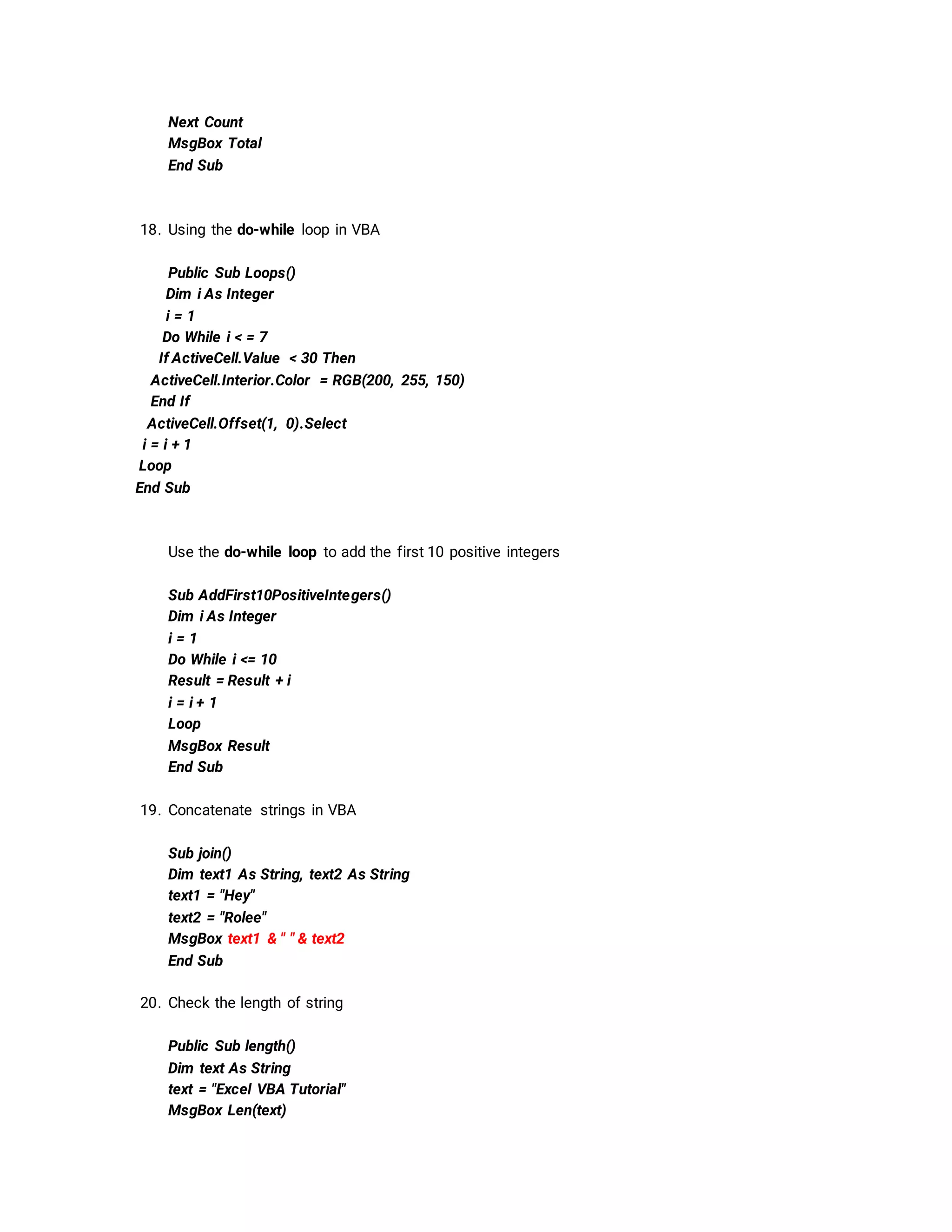
18. Using the do-while loop in VBA
Public Sub Loops()
Dim i As Integer
i = 1
Do While i < = 7
If ActiveCell.Value < 30 Then
ActiveCell.Interior.Color = RGB(200, 255, 150)
End If
ActiveCell.Offset(1, 0).Select
i = i + 1
Loop
End Sub
Use the do-while loop to add the first 10 positive integers
Sub AddFirst10PositiveIntegers()
Dim i As Integer
i = 1
Do While i <= 10
Result = Result + i
i = i + 1
Loop
MsgBox Result
End Sub
19. Concatenate strings in VBA
Sub join()
Dim text1 As String, text2 As String
text1 = "Hey"
text2 = "Rolee"
MsgBox text1 & " " & text2
End Sub
20. Check the length of string
Public Sub length()
Dim text As String
text = "Excel VBA Tutorial"
MsgBox Len(text)
End Sub

Excel Macros and VBA Demo.docx

  • 1.
    1. Declare avariable in VBA using the Dim keyword. 1. Public Sub number() Dim x As Integer x = 36 Range("A5").Value = x End Sub 2. Public Sub string_value() Dim book As String Country = "India" Range("F3").Value = Country End Sub 3. Public Sub double_value() Dim book As Double a = 10.5 MsgBox "Value of a is " & a //Displaying a message box End Sub 4. Public Sub FunWithProcedures() Dim userInput As String userInput = "Excel VBA" ActiveCell.Value = userInput End Sub 2. Display your name when you click on a button Sub name() MsgBox (“My name is Daniel”) End Sub 3. Display the number present in a cell when you run the macro. Sub number() MsgBox ("Entered value is " & Range("A1").Value) End Sub 4. Display a message when you Open the Excel Workbook Sub Auto_Open() MsgBox ("Welcome to our Workbook") End Sub 5. Click a button that will display your name.
  • 2.
    Sub Entername() Dim nameAs String name = InputBox("Enter you name") MsgBox "Hello my name is " + name End Sub 6. Add a value to a cell Public Sub addvalue() Range("B3").Value = 3 End Sub 7. Add a value to a cell or a range of cells Public Sub add_value() Range("A1:A4").Value = 10 End Sub Public Sub add_value() Range("A1:A4").Value = 30 Range("C1:C4,D1:D4").Value = 20 End Sub Public Sub add_value() Range("qty").Value = 15 Range("C1:C4,D1:D4").Value = 20 End Sub Public Sub add_value() Cells(3, 2).Value = 10 Range(Cells(1, 2), Cells(3, 5)).Value = 30 End Sub 8. Declare a range object using Dim and Set. Public Sub add_values() Dim example As Range Set example = Range("A1:C4") example.Value = 10 End Sub 9. Select a range of cells in the same sheet Public Sub Select_range() Dim example As Range
  • 3.
    Set example =Range("A1:C4") example.Select End Sub 10. Select a range of cells in another sheet Public Sub Select_range() Worksheets(5).Activate Worksheets(5).Range("B2:C7").Select End Sub 11. Copy cell contents and paste to another location Public Sub copy_paste() Range("A1:C4").Select Selection.Copy Range("E6").Select ActiveSheet.Paste End Sub 12. Count the number of cells in a range Public Sub count_cells() Dim example As Range Set example = Range("A1:C4") MsgBox example.Count End Sub 13. To count the rows and columns in a selected range Public Sub count_rows() Dim example As Range Set example = Range("A1:C4") MsgBox (example.Columns.Count) End Sub 14. Using the if statement in VBA Public Sub If_stmt() Dim score As Integer, result As String score = Range("A1").Value If score >= 60 Then result = "pass" Range("B1").Value = result End Sub
  • 4.
    Public Sub If_stmt() DimuserInput As String userInput = "100" If userInput > 50 Then ActiveCell.Value = “It’s a valid entry” Else ActiveCell.Value = userInput End If End Sub 15. Using the if-else statement in VBA Public Sub If_else_stmt() Dim score As Integer, result As String score = Range("A1").Value If score >= 40 Then result = "pass" Else result = "fail" End If Range("B1").Value = result End Sub 16. Use the For loop to add the first 10 positive integers. Sub AddNumbers() Dim Total As Integer Dim Count As Integer Total = 0 For Count = 1 To 10 Total = Total + Count Next Count MsgBox Total End Sub 17. Add all the positive integers in a certain range starting from 10. Sub AddEvenNumbers() Dim a As Integer Dim Total As Integer Dim Count As Integer a = 25 Total = 0 For Count = 10 To a Step 2 Total = Total + Count
  • 5.
    Next Count MsgBox Total EndSub 18. Using the do-while loop in VBA Public Sub Loops() Dim i As Integer i = 1 Do While i < = 7 If ActiveCell.Value < 30 Then ActiveCell.Interior.Color = RGB(200, 255, 150) End If ActiveCell.Offset(1, 0).Select i = i + 1 Loop End Sub Use the do-while loop to add the first 10 positive integers Sub AddFirst10PositiveIntegers() Dim i As Integer i = 1 Do While i <= 10 Result = Result + i i = i + 1 Loop MsgBox Result End Sub 19. Concatenate strings in VBA Sub join() Dim text1 As String, text2 As String text1 = "Hey" text2 = "Rolee" MsgBox text1 & " " & text2 End Sub 20. Check the length of string Public Sub length() Dim text As String text = "Excel VBA Tutorial" MsgBox Len(text)
  • 6.