LearnIT@Lunch


Understanding Formulas
    and Functions
    In Excel 2007


IT-User Services
Using Formulas
During this session you will learn about:

•   Basic mathematical operators
•   Relative and absolute cell references
•   Using Functions
•   Using the IF function
•   Finding the right function
•   Fixing errors
•   Working with range name
Formula vs. Function
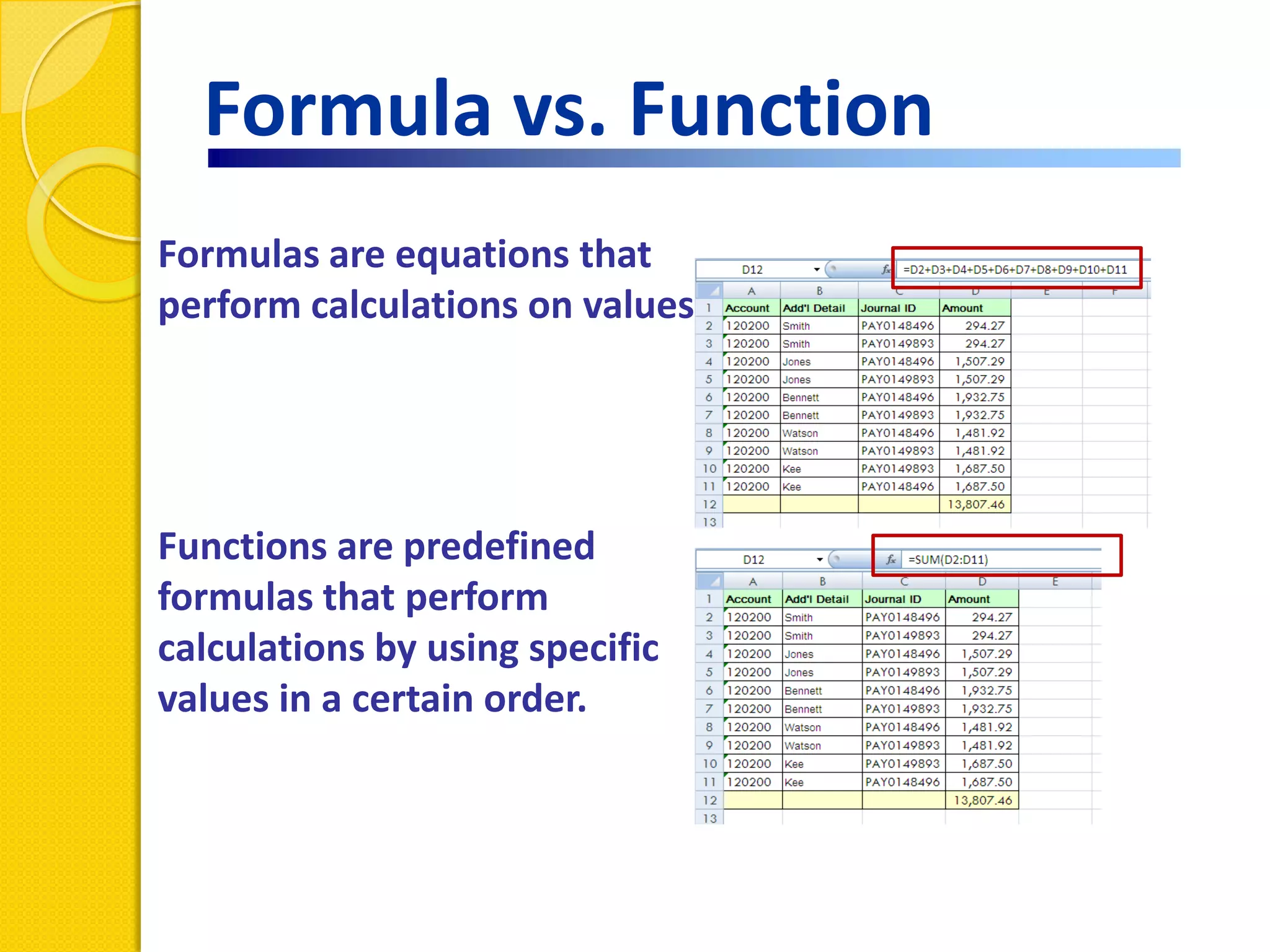
Formulas are equations that
perform calculations on values.


Functions are predefined
formulas that perform
calculations by using specific
values in a certain order.
Mathematical Operators

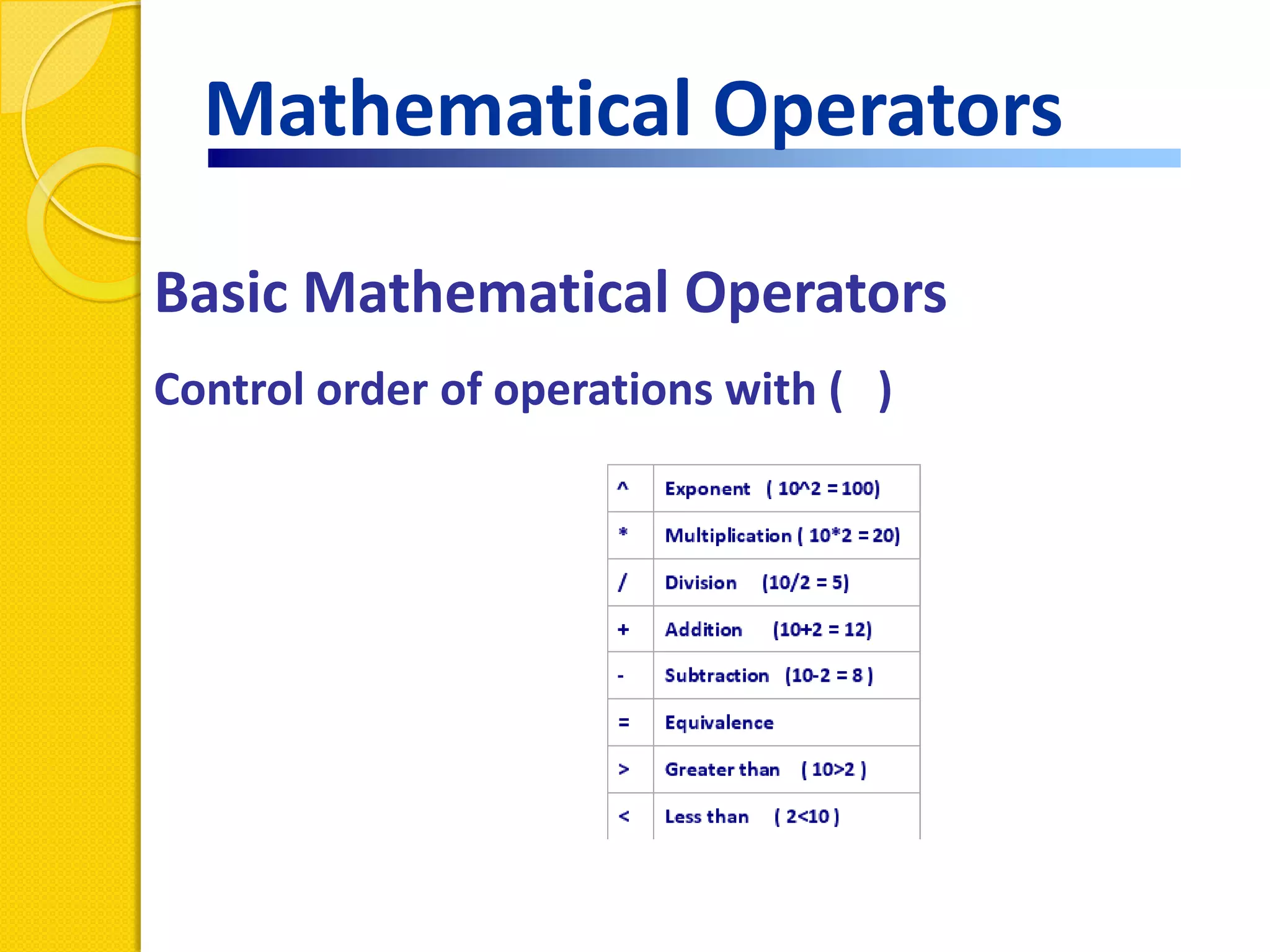
Basic Mathematical Operators
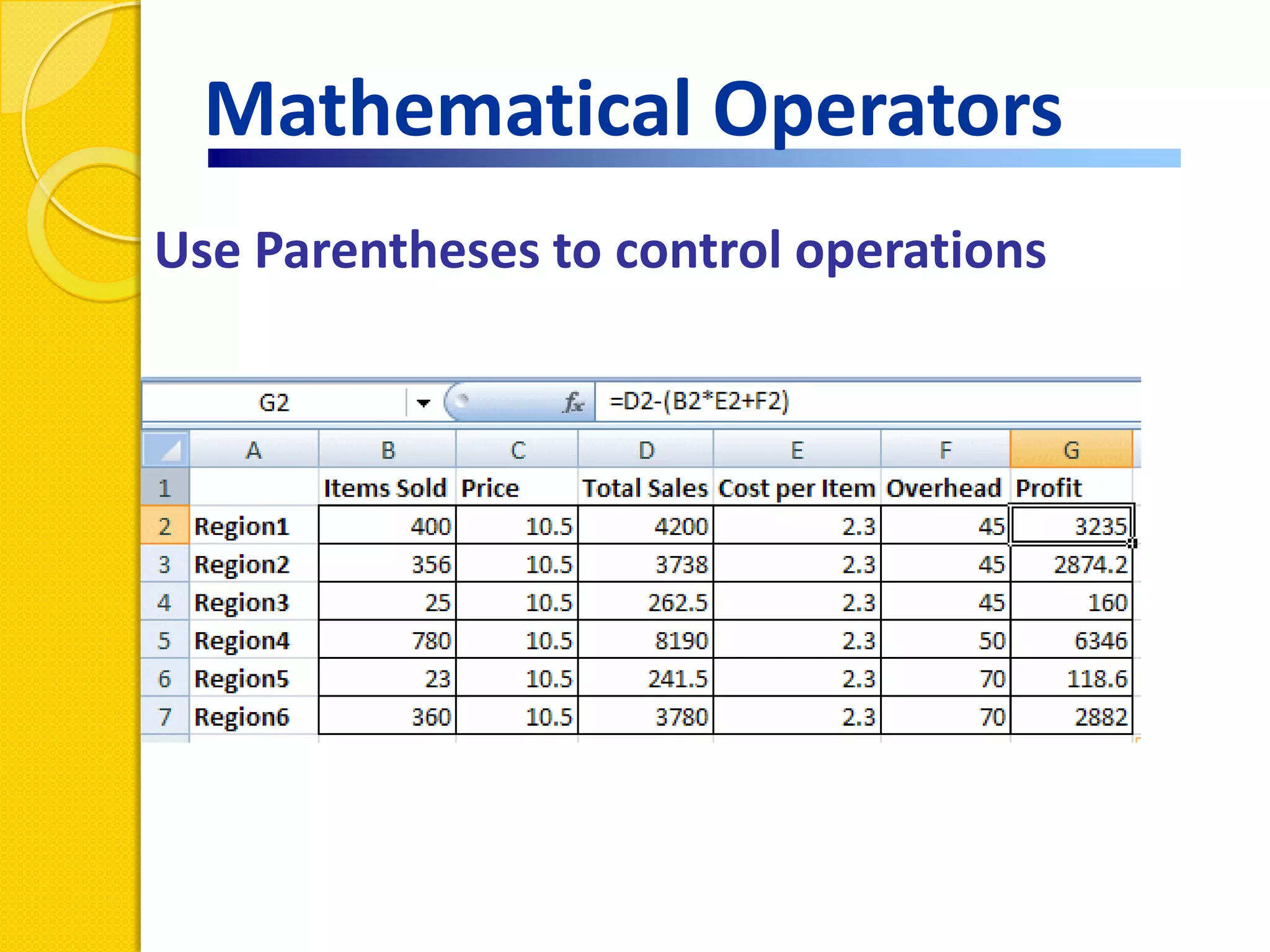
Control order of operations with ( )
Mathematical Operators
Use Parentheses to control operations
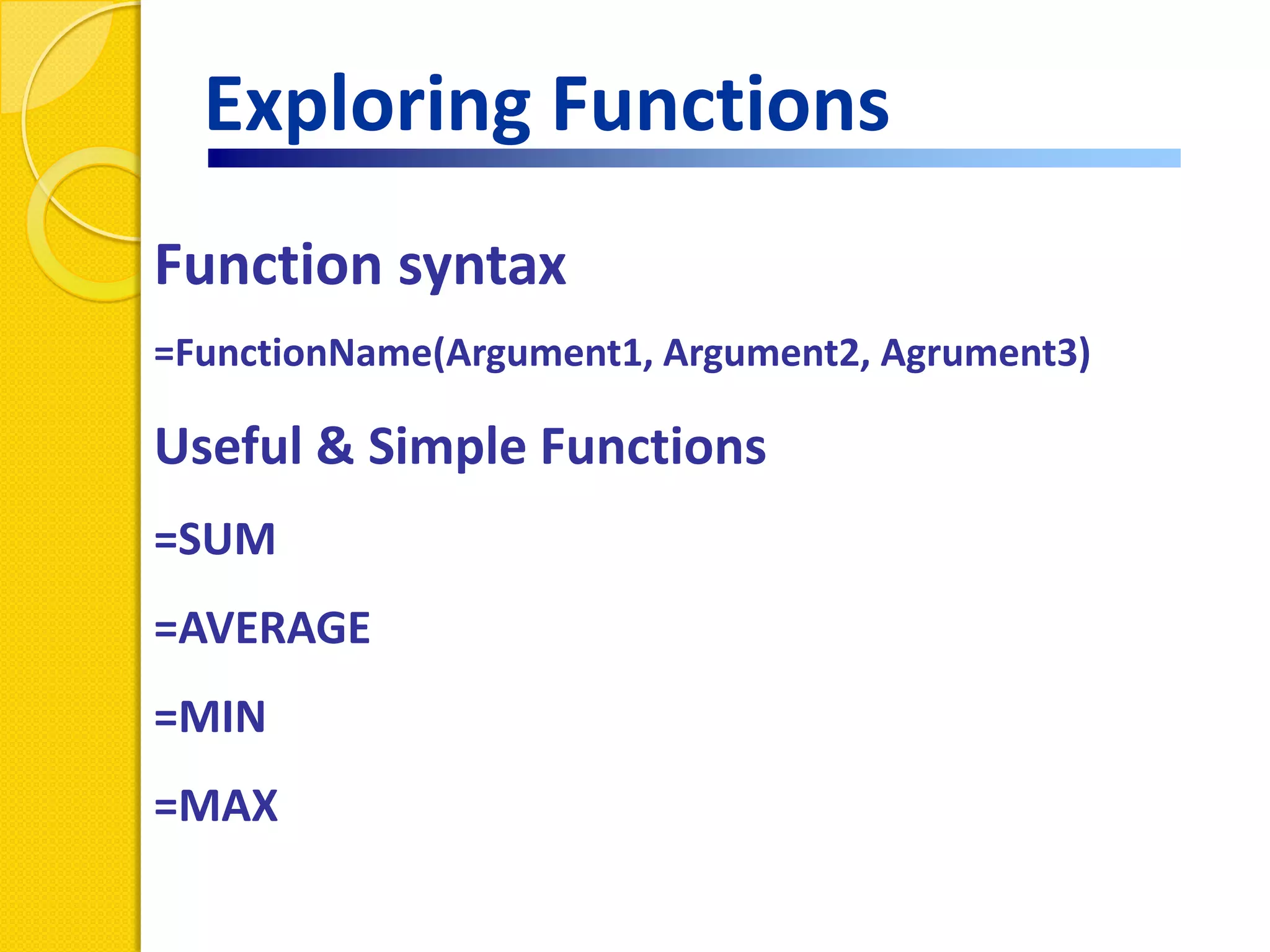
Exploring Functions
Function syntax
=FunctionName(Argument1, Argument2, Agrument3)

Useful & Simple Functions
=SUM
=AVERAGE
=MIN
=MAX
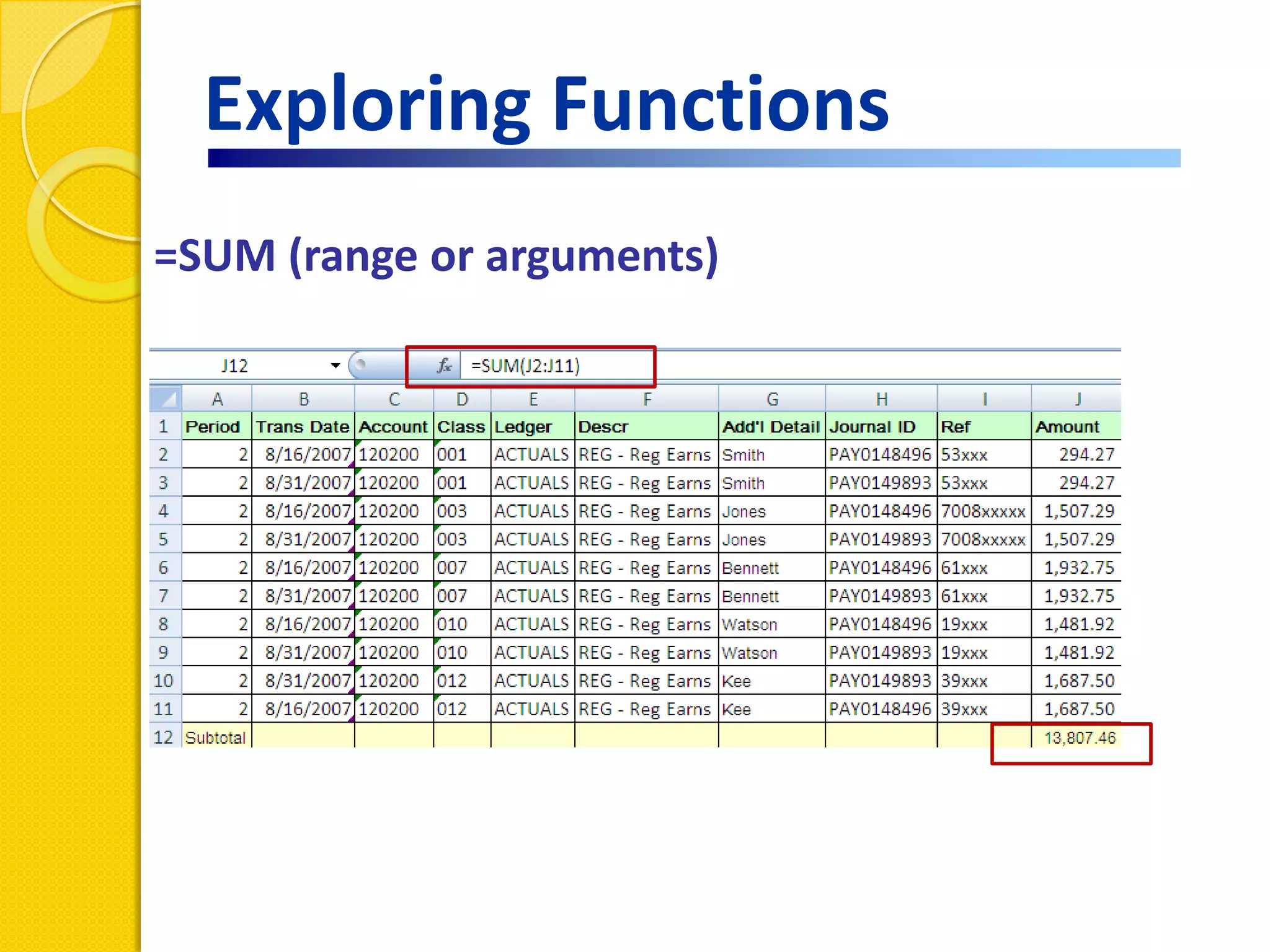
Exploring Functions
=SUM (range or arguments)
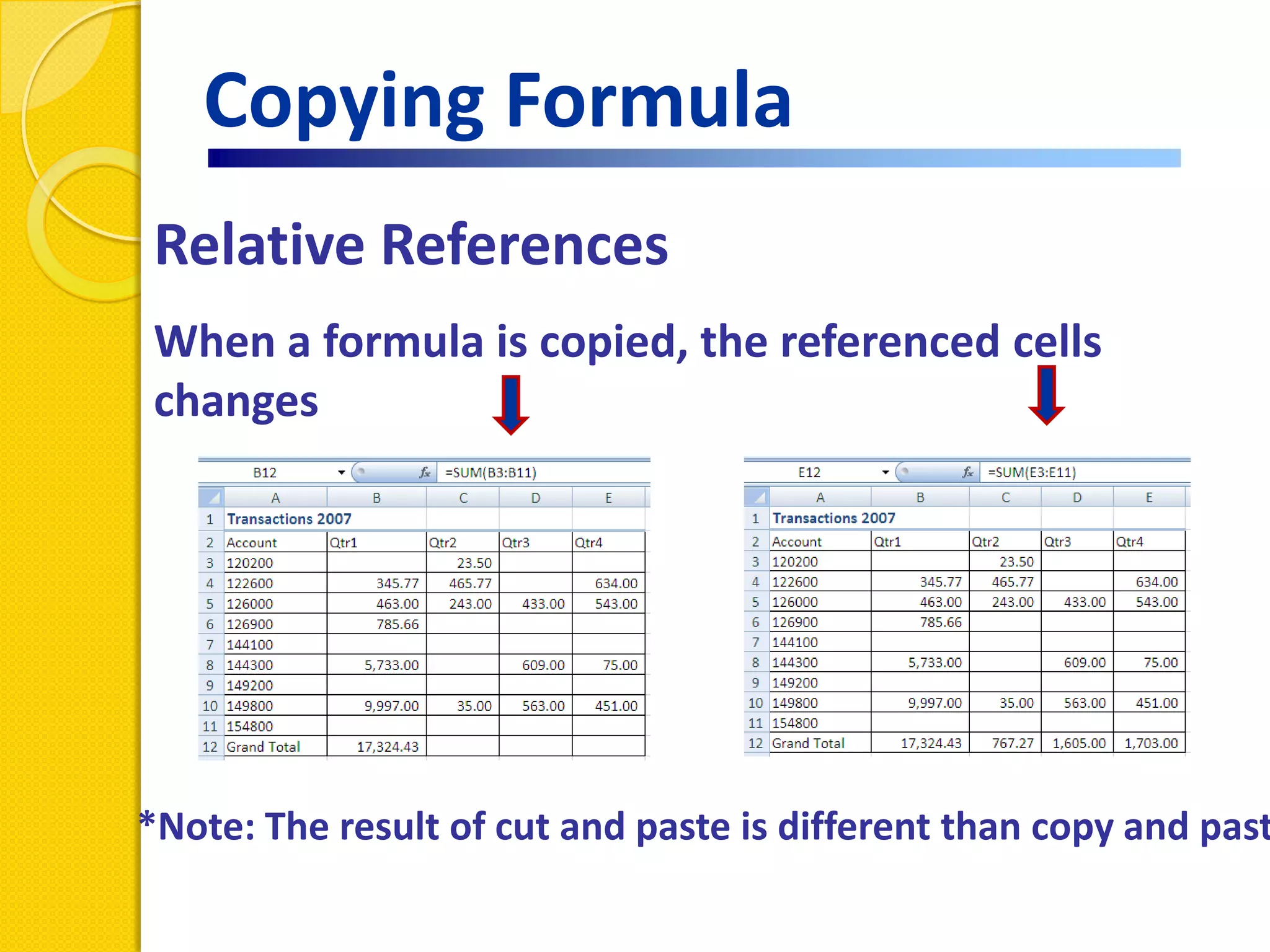
Copying Formula
Relative References
When a formula is copied, the referenced cells
changes


*Note: The result of cut and paste is different than copy and past
Copying Formula
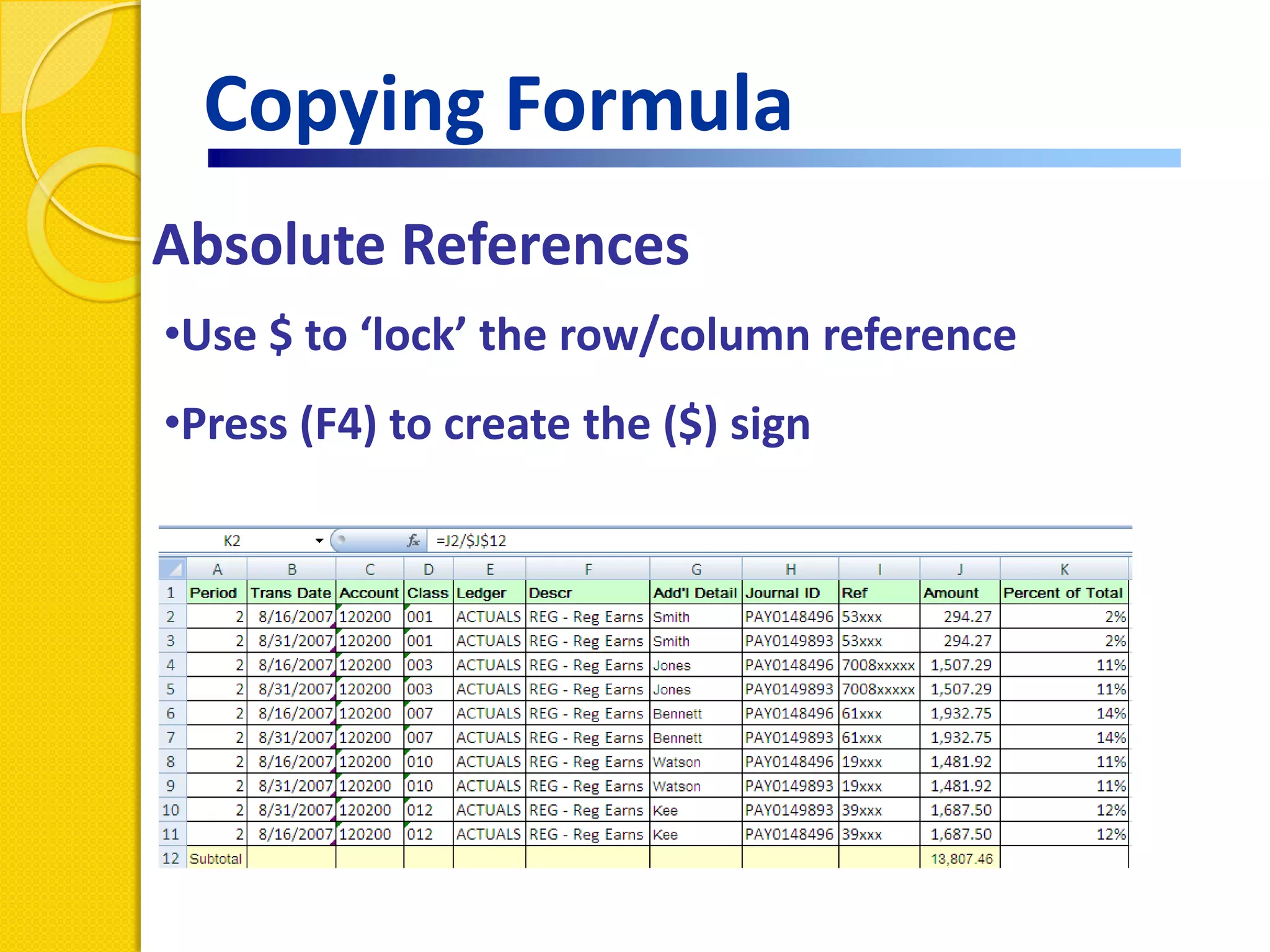
Absolute References
•Use $ to ‘lock’ the row/column reference
•Press (F4) to create the ($) sign
Copying Formula
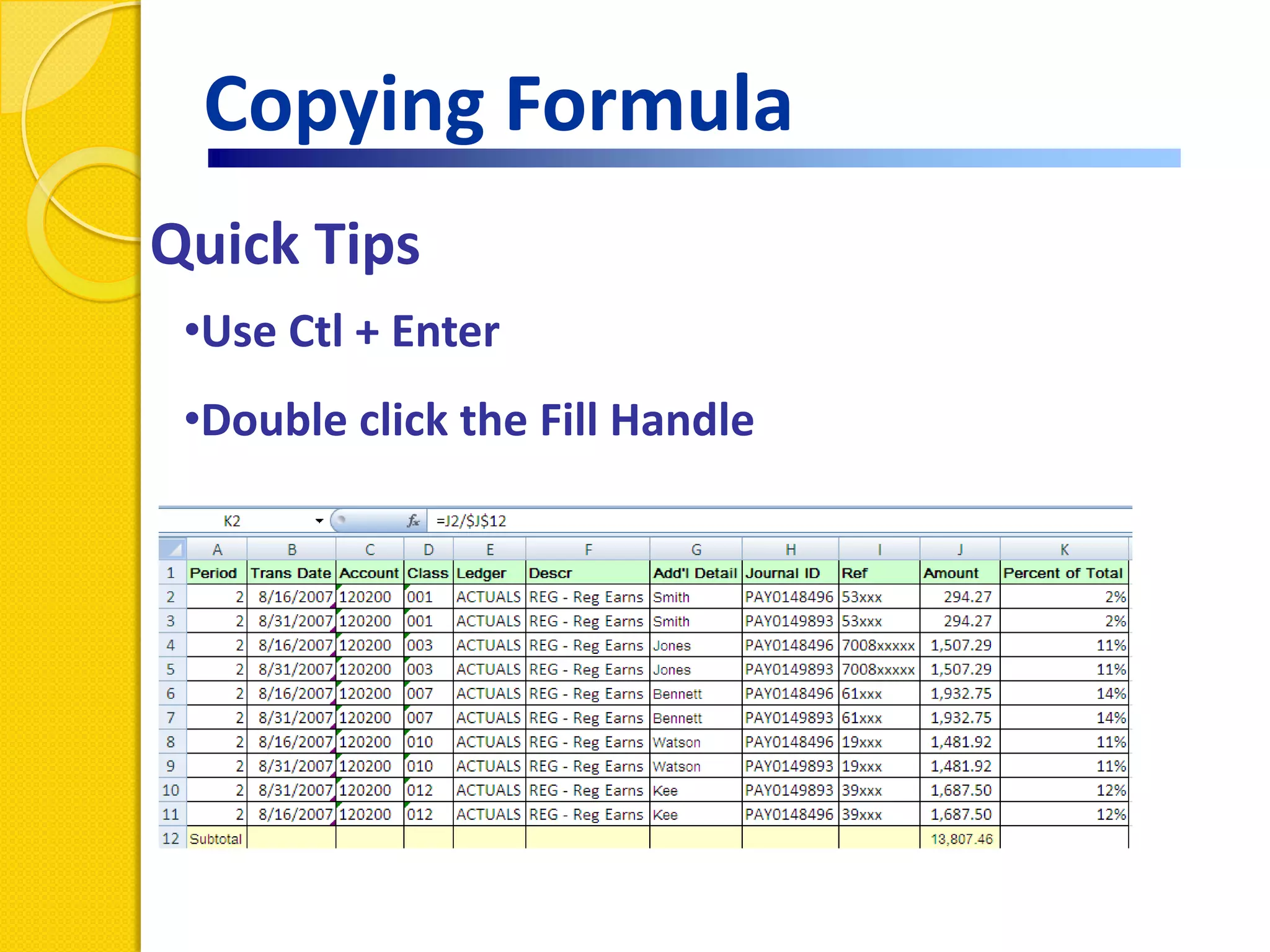
Quick Tips
 •Use Ctl + Enter
 •Double click the Fill Handle
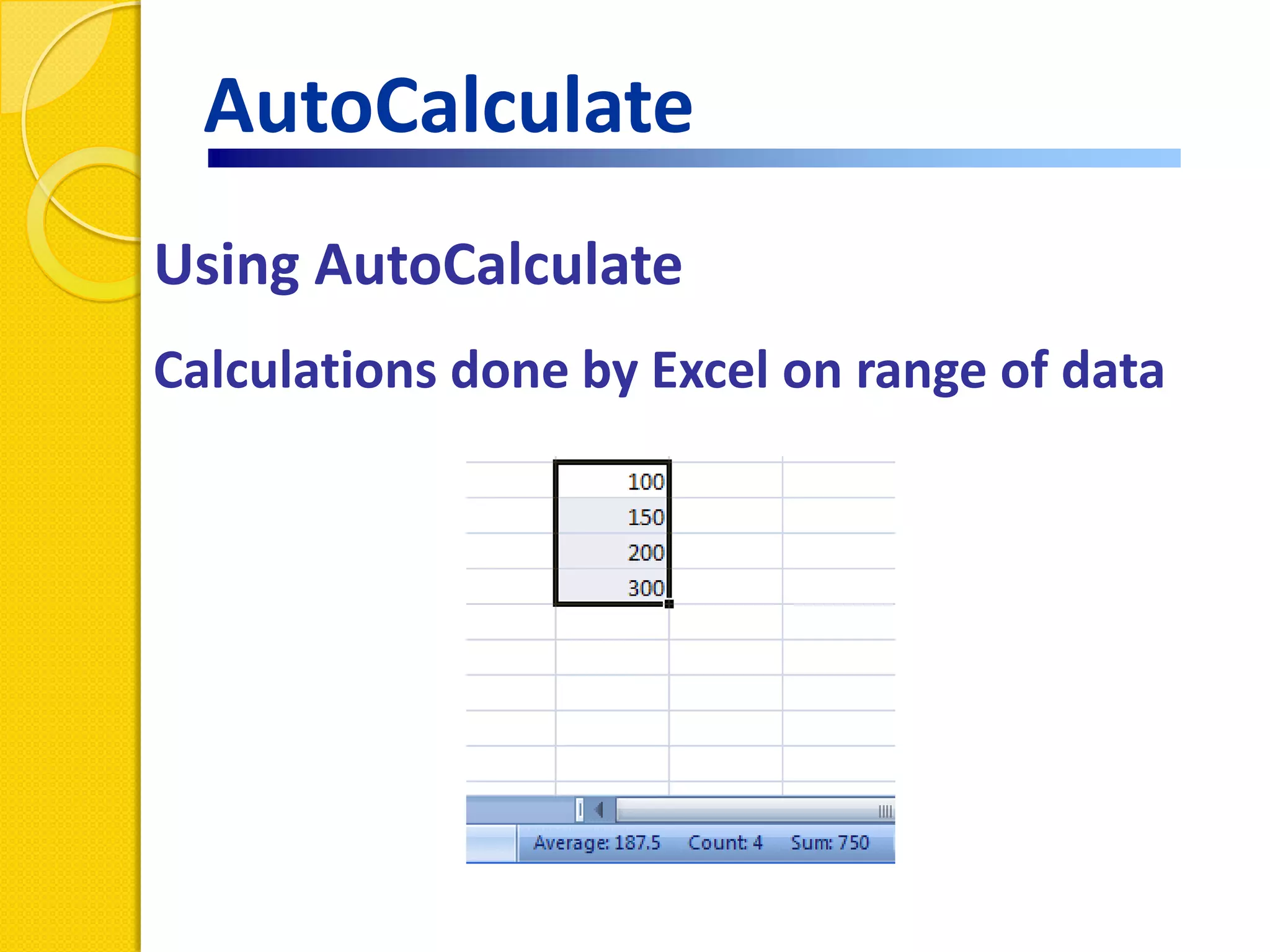
AutoCalculate
Using AutoCalculate
Calculations done by Excel on range of data
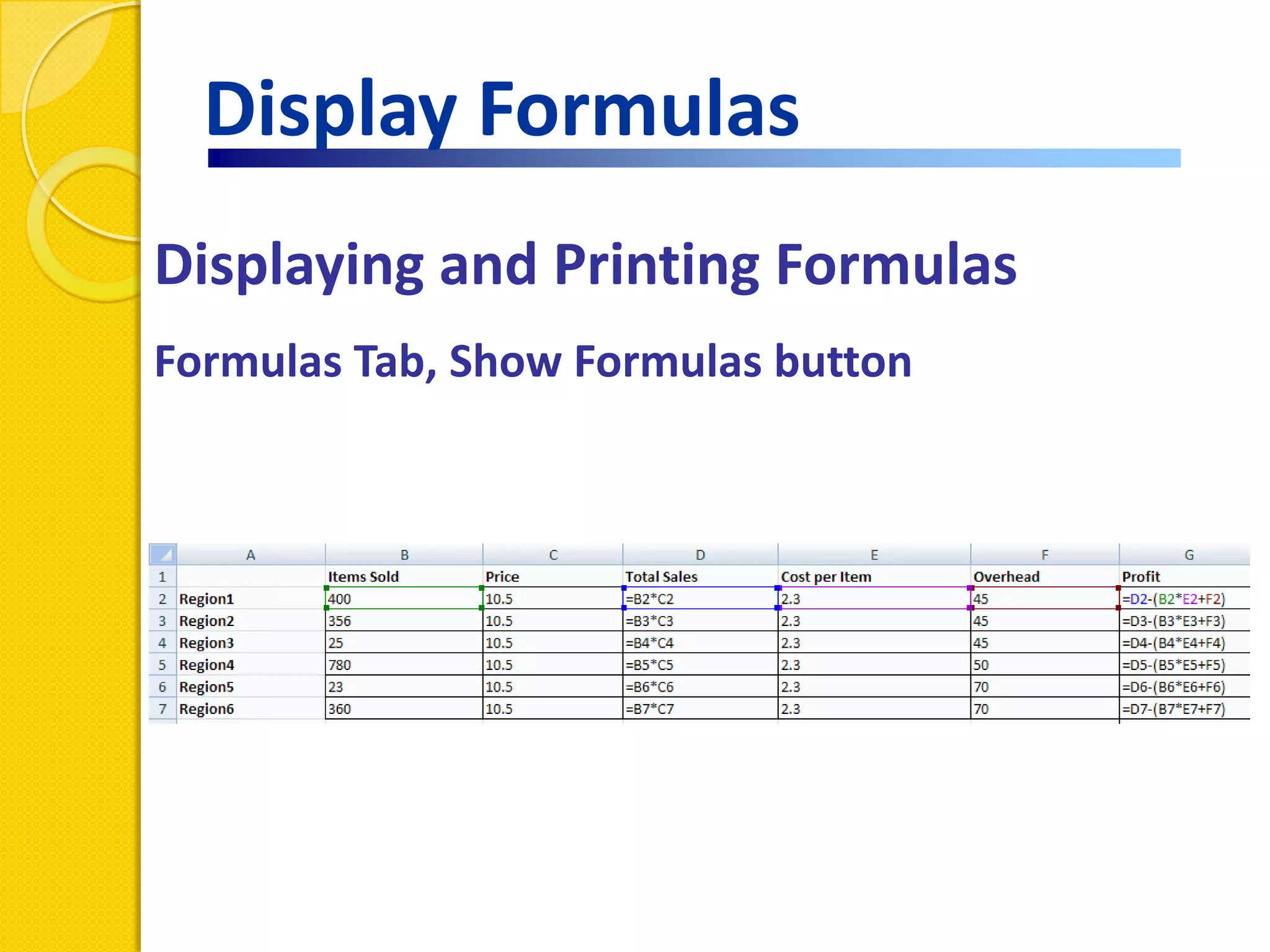
Display Formulas
Displaying and Printing Formulas
Formulas Tab, Show Formulas button
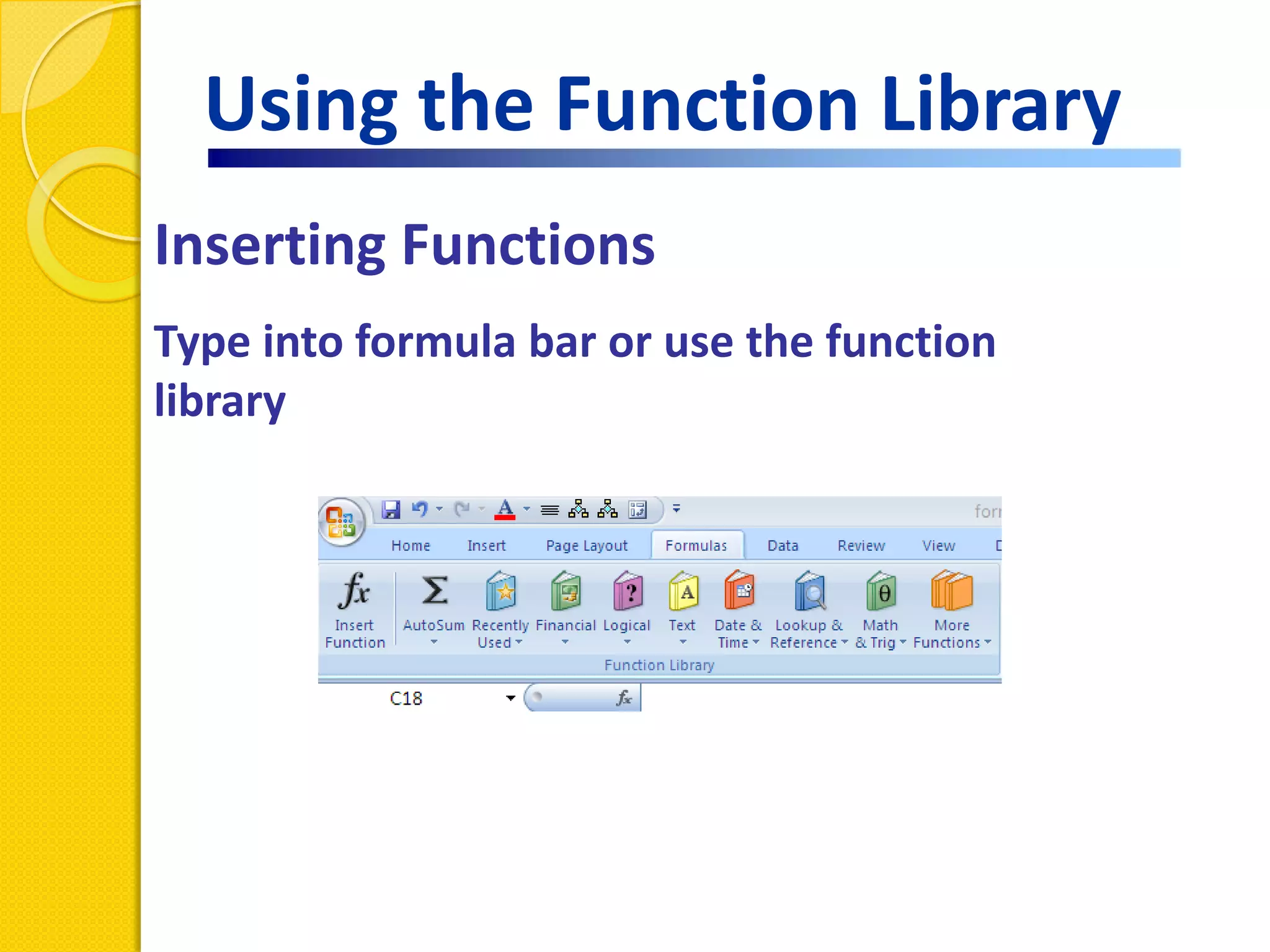
Using the Function Library
Inserting Functions
Type into formula bar or use the function
library
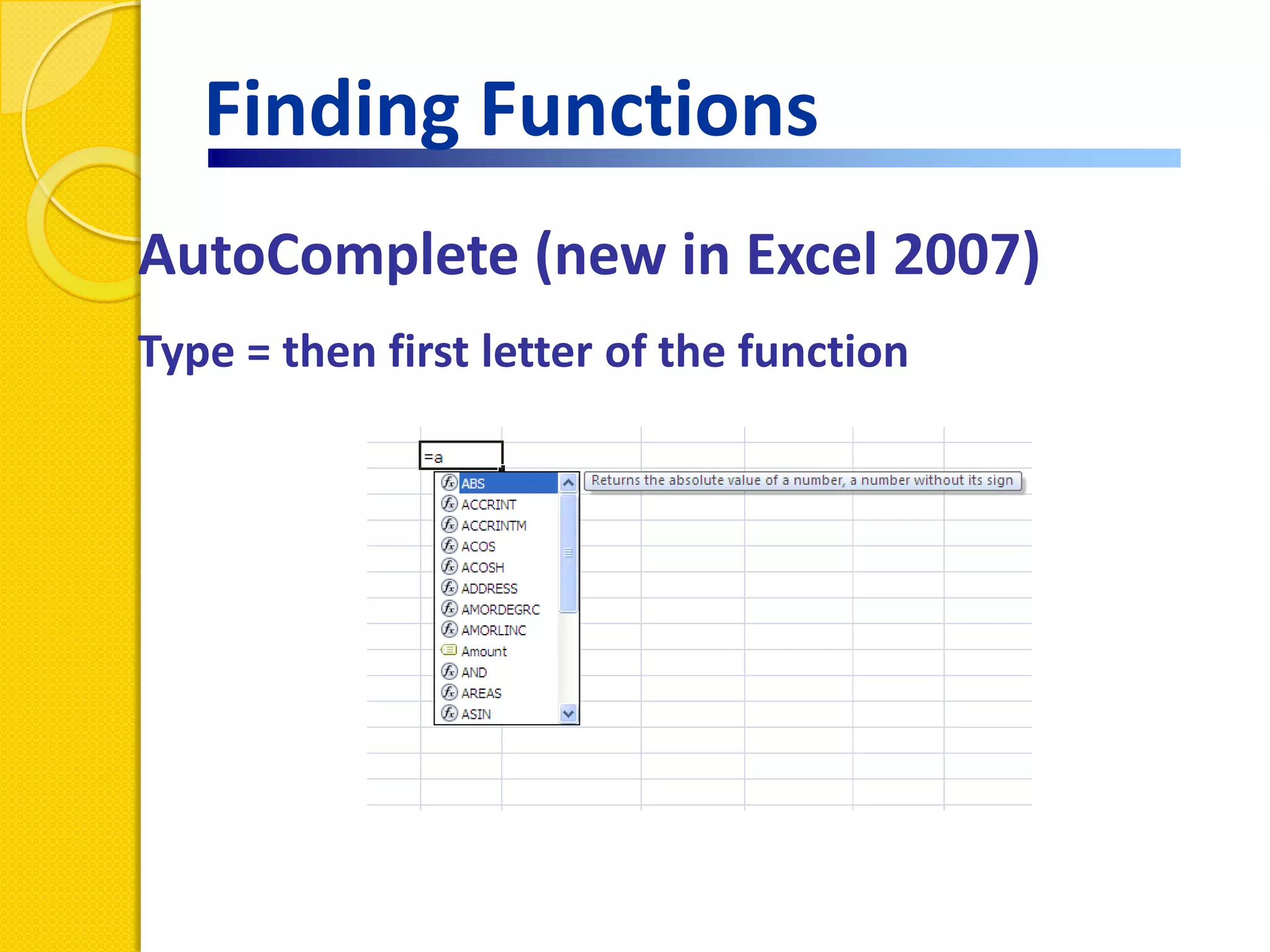
Finding Functions
AutoComplete (new in Excel 2007)
Type = then first letter of the function
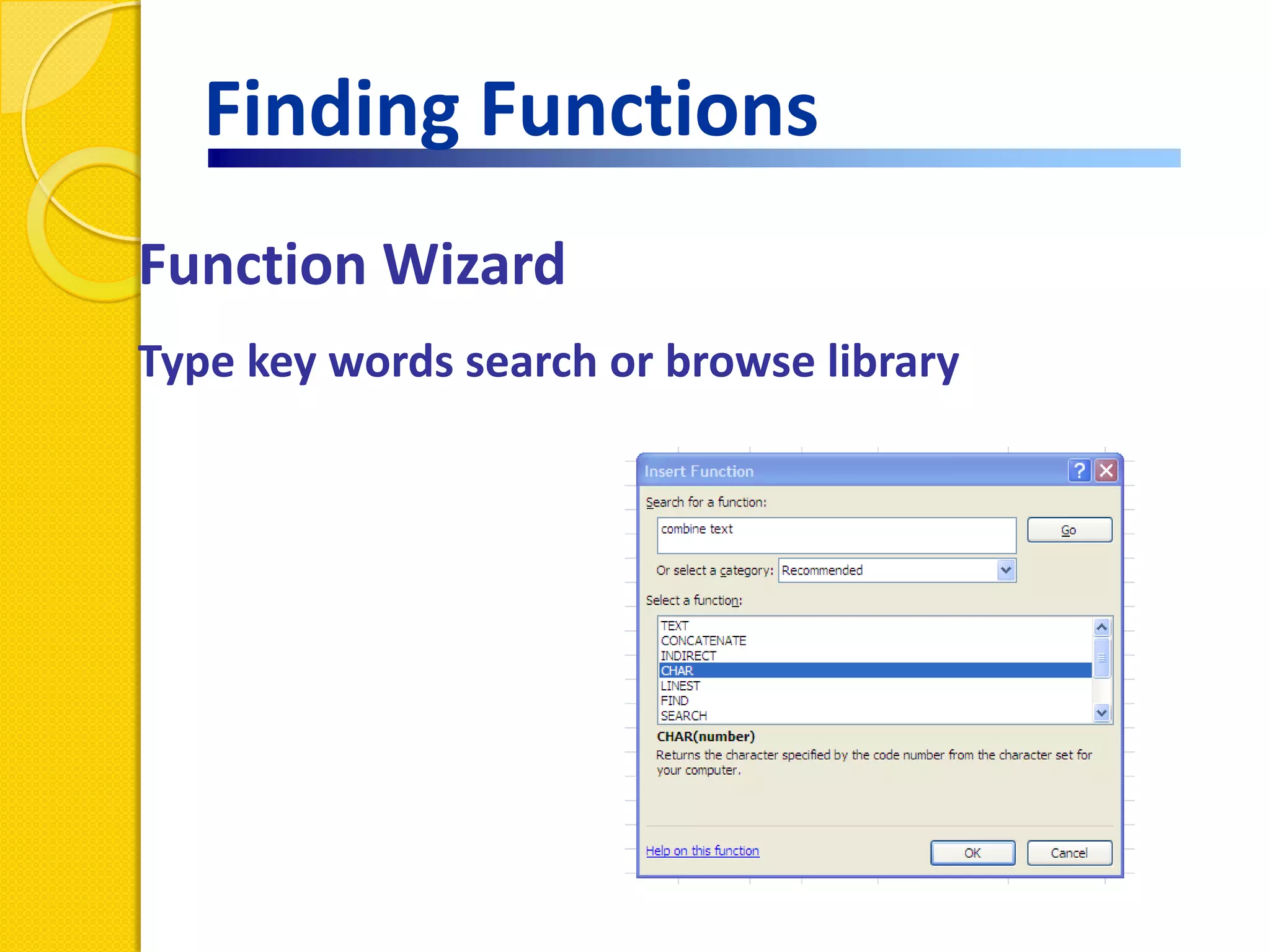
Finding Functions
Function Wizard
Type key words search or browse library
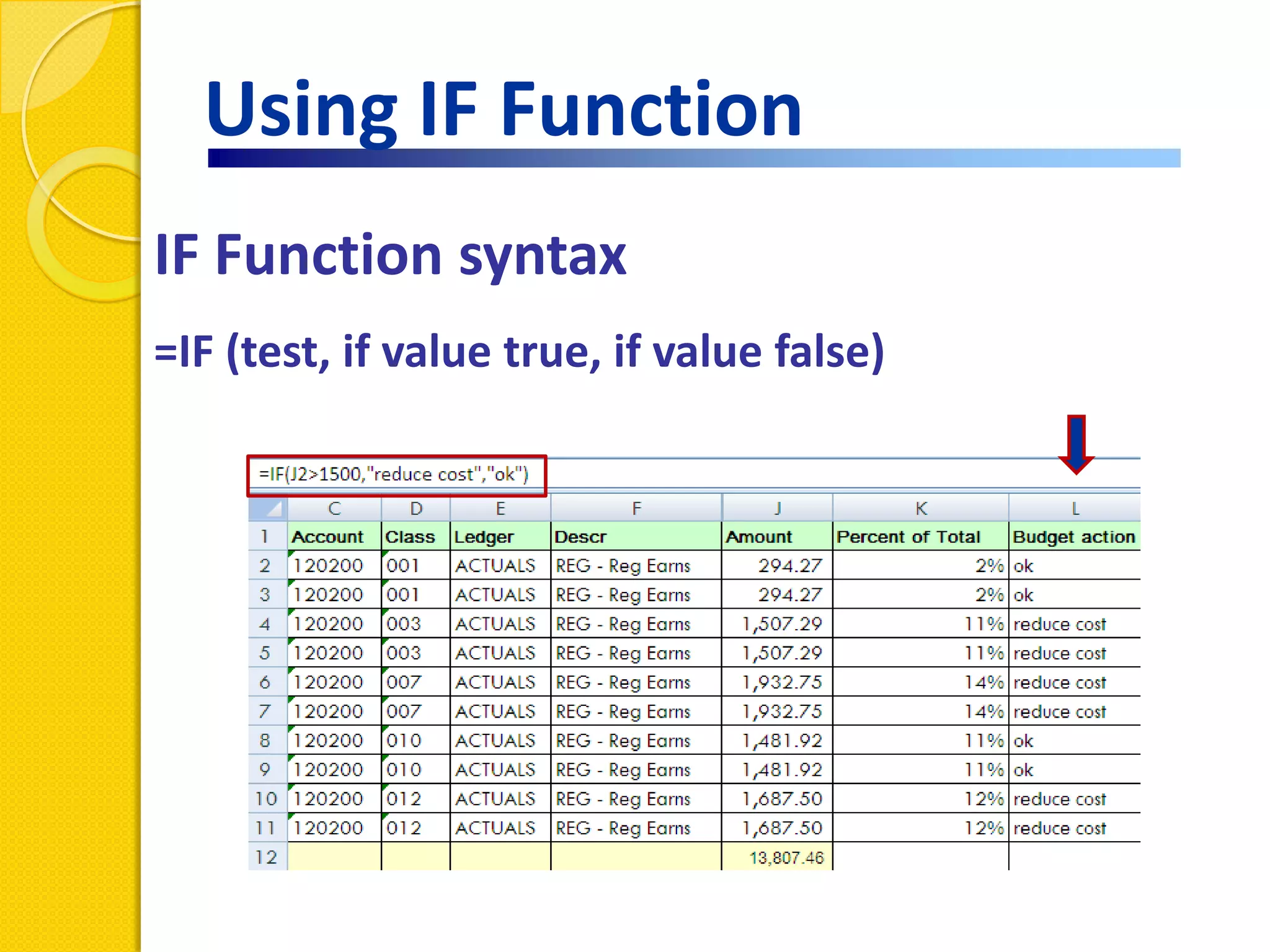
Using IF Function
IF Function syntax
=IF (test, if value true, if value false)
VLOOKUP Syntax
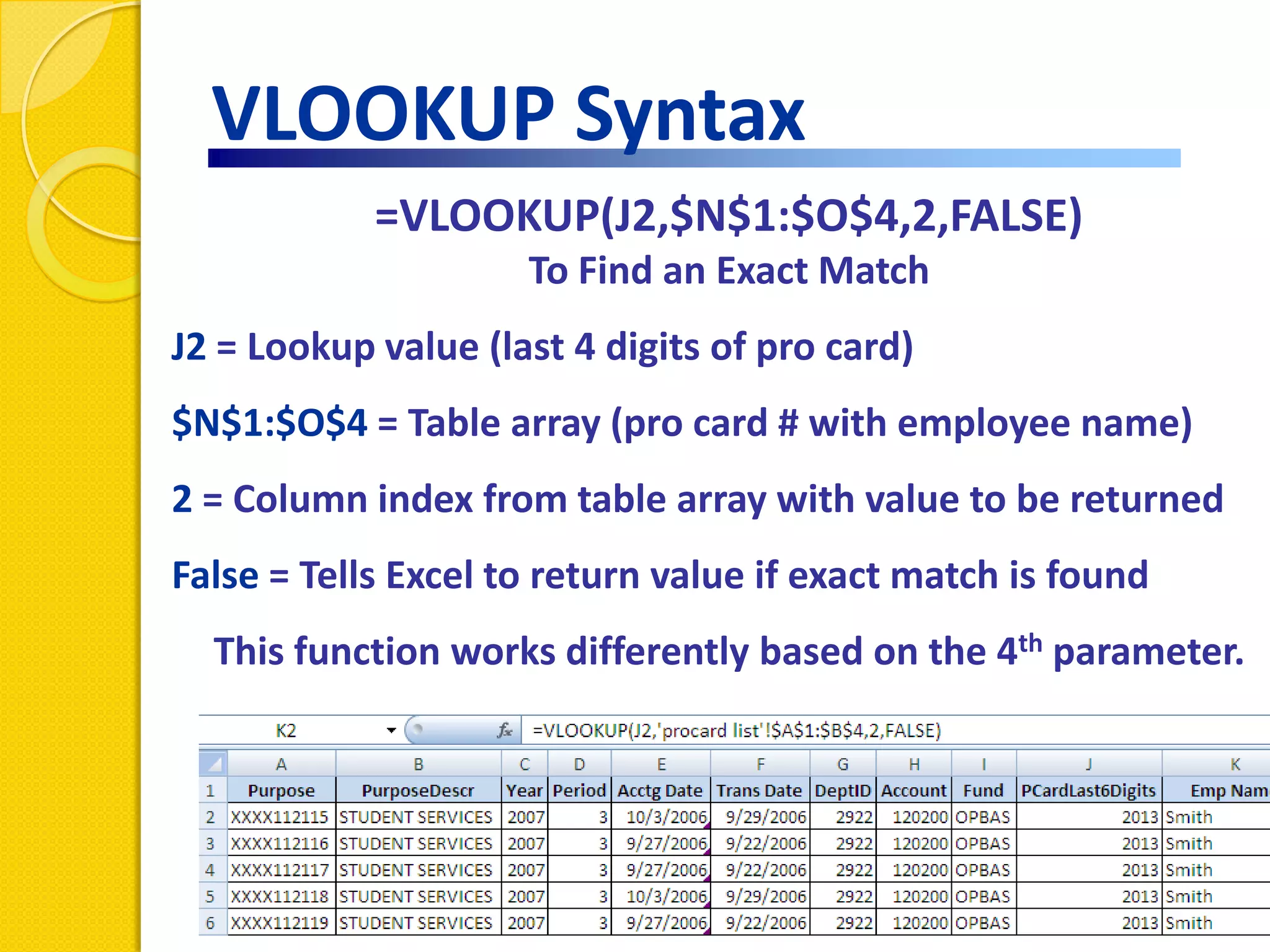
            =VLOOKUP(J2,$N$1:$O$4,2,FALSE)
                     To Find an Exact Match
J2 = Lookup value (last 4 digits of pro card)
$N$1:$O$4 = Table array (pro card # with employee name)
2 = Column index from table array with value to be returned
False = Tells Excel to return value if exact match is found
  This function works differently based on the 4th parameter.
Using Functions
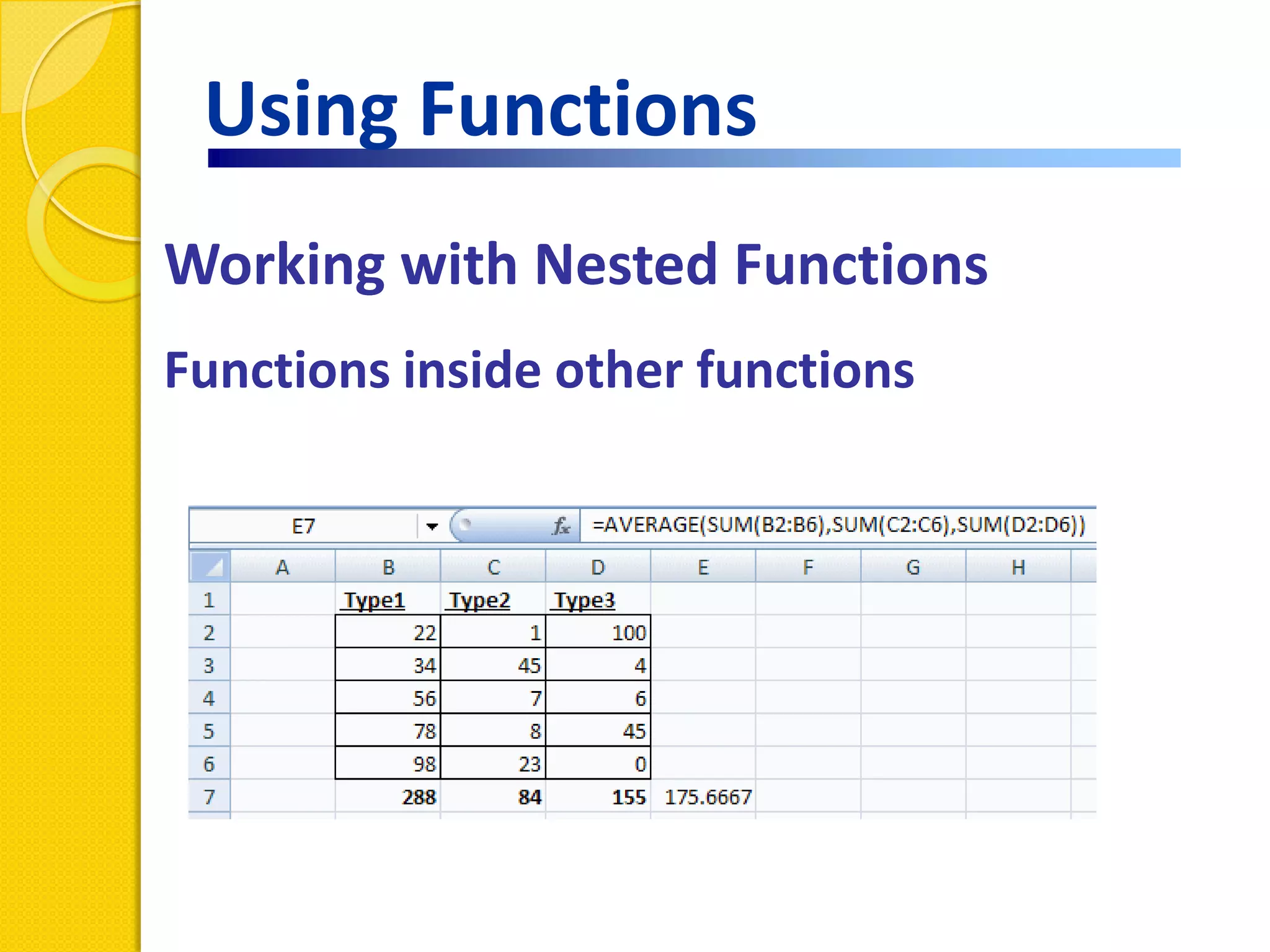
Working with Nested Functions
Functions inside other functions
Identifying Errors
Error Messages
#VALUE! – Trying to do math with nonnumeric data.

#DIV/0! – Trying to divide by zero.

#REF! – Occurs when a cell reference is not valid. (When a cell
referenced in formula has been deleted.)

#N/A! – Occurs when a value is not available to a function or
formula.
Naming a cell or range
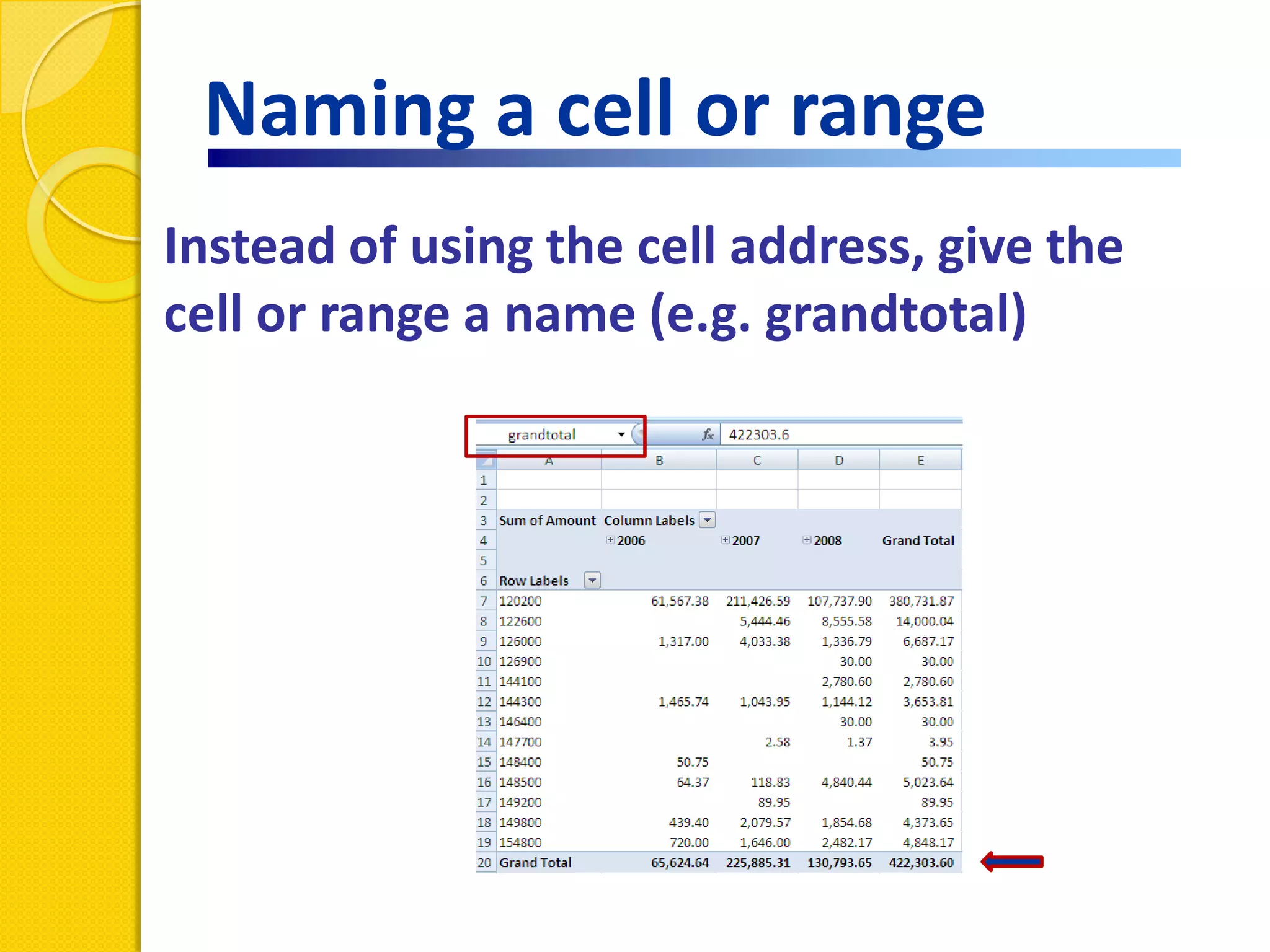
Instead of using the cell address, give the
cell or range a name (e.g. grandtotal)
Naming a cell or range
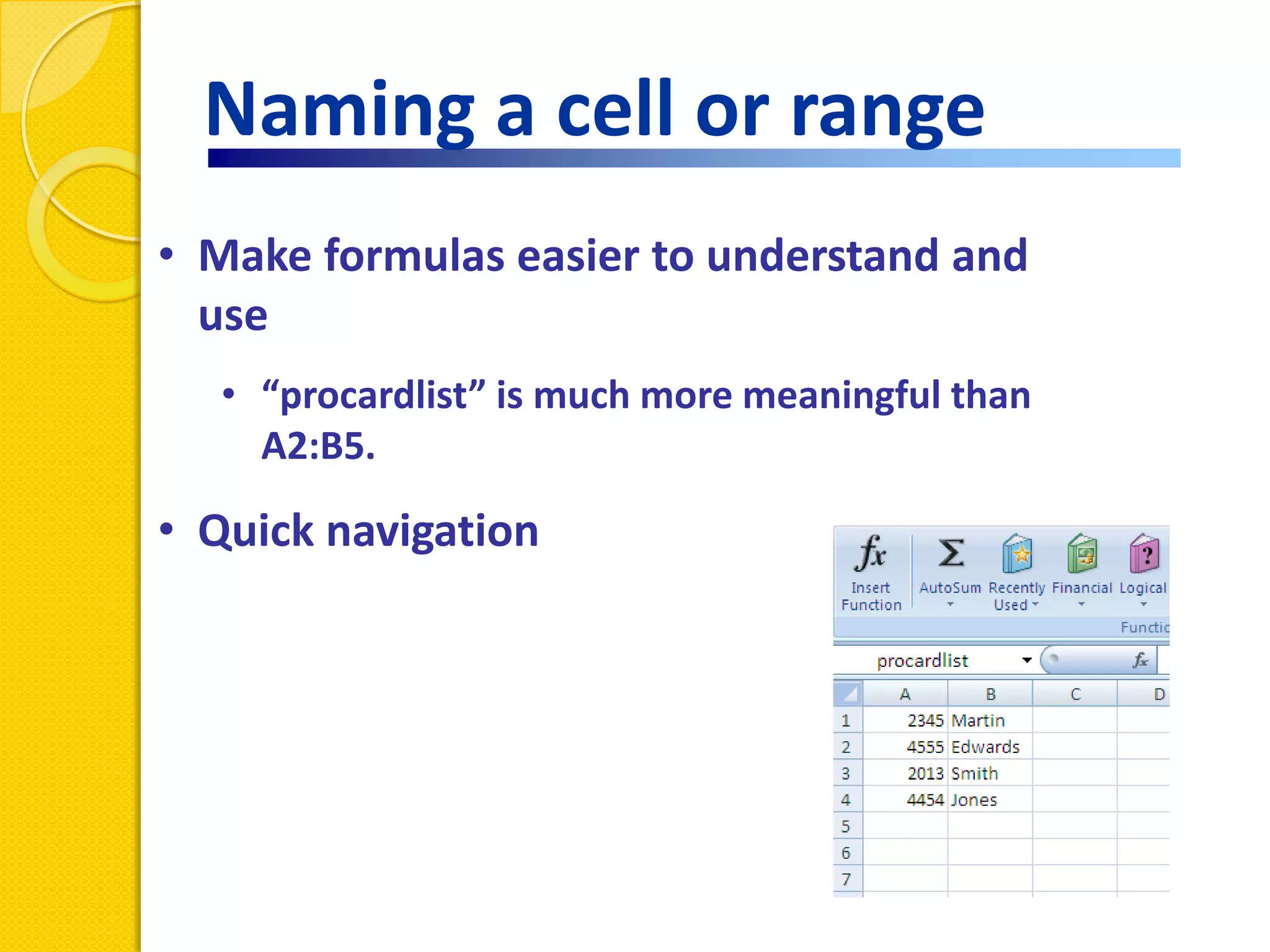
• Make formulas easier to understand and
  use
  • “procardlist” is much more meaningful than
    A2:B5.

• Quick navigation
Naming a cell or range
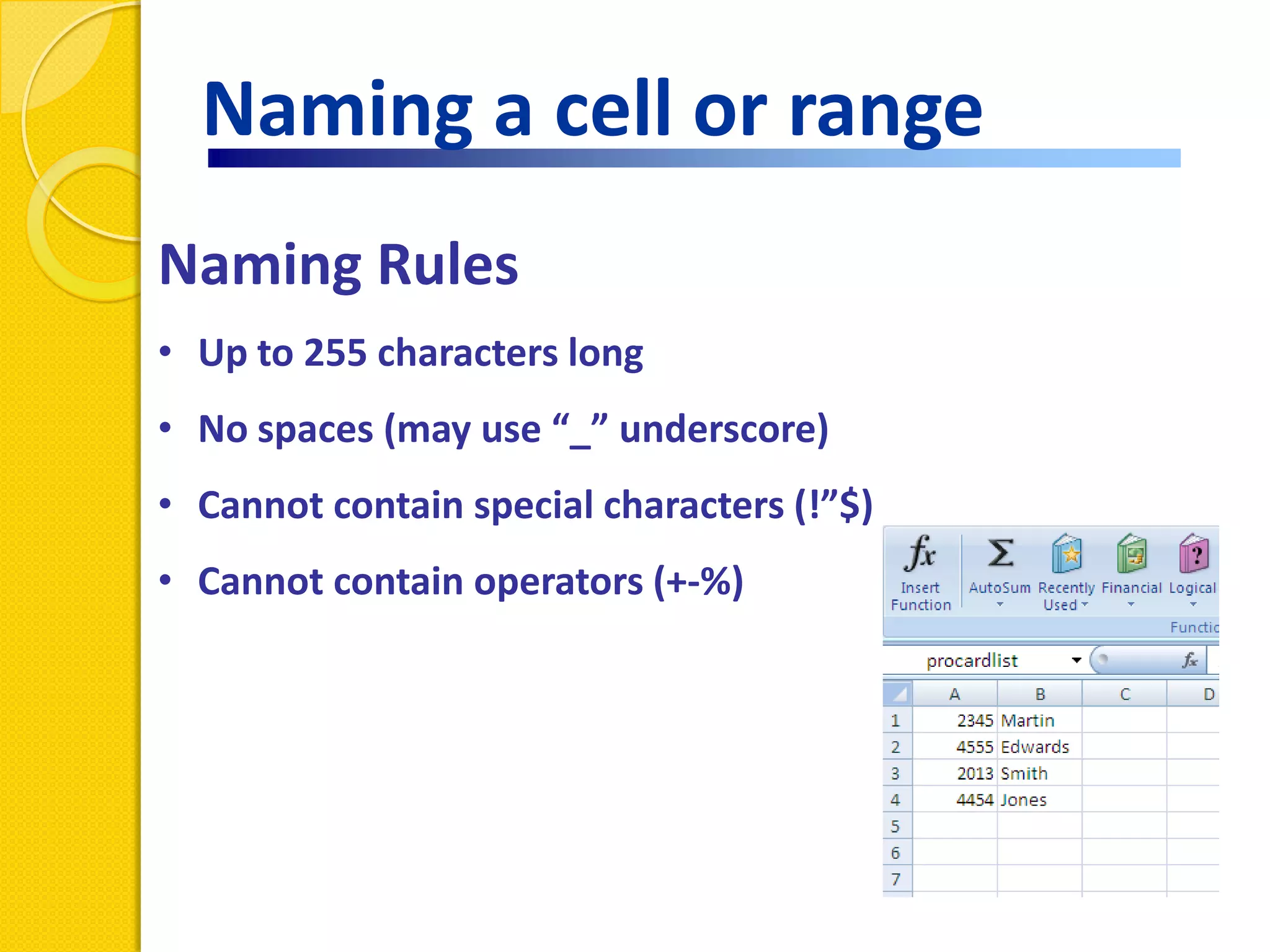
Naming Rules
• Up to 255 characters long
• No spaces (may use “_” underscore)
• Cannot contain special characters (!”$)
• Cannot contain operators (+-%)
Naming a cell or range
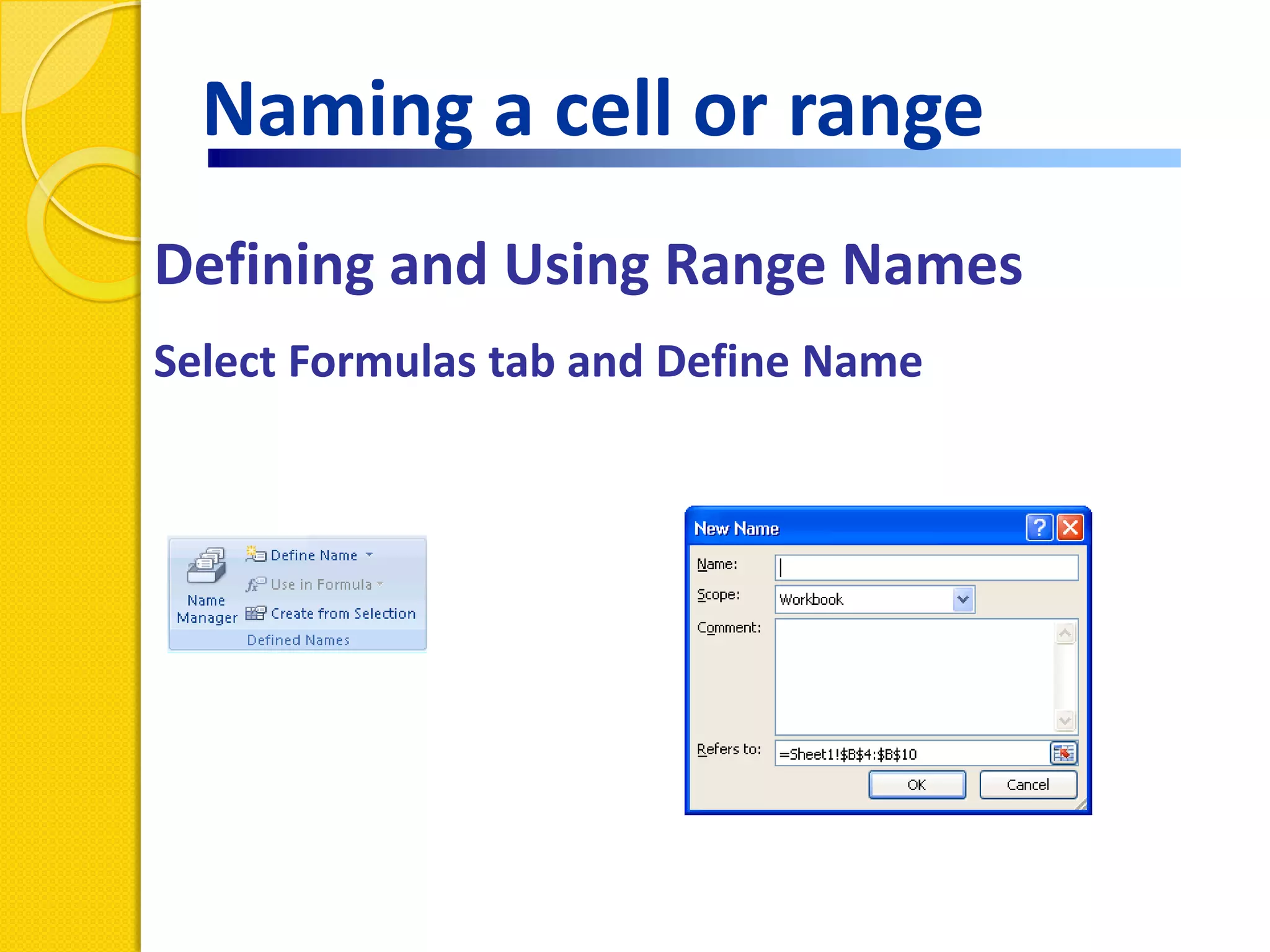
Defining and Using Range Names
Select Formulas tab and Define Name
Helpful Resources
www.udel.edu/learn
www.udel.edu/help or call 831-6000
www.datapigtechnologies.com
http://office.microsoft.com/en-us/training

Excel functions formulas