DroidCon 2015
Enhancing UI/UX using Java animations
-Naman Dwivedi
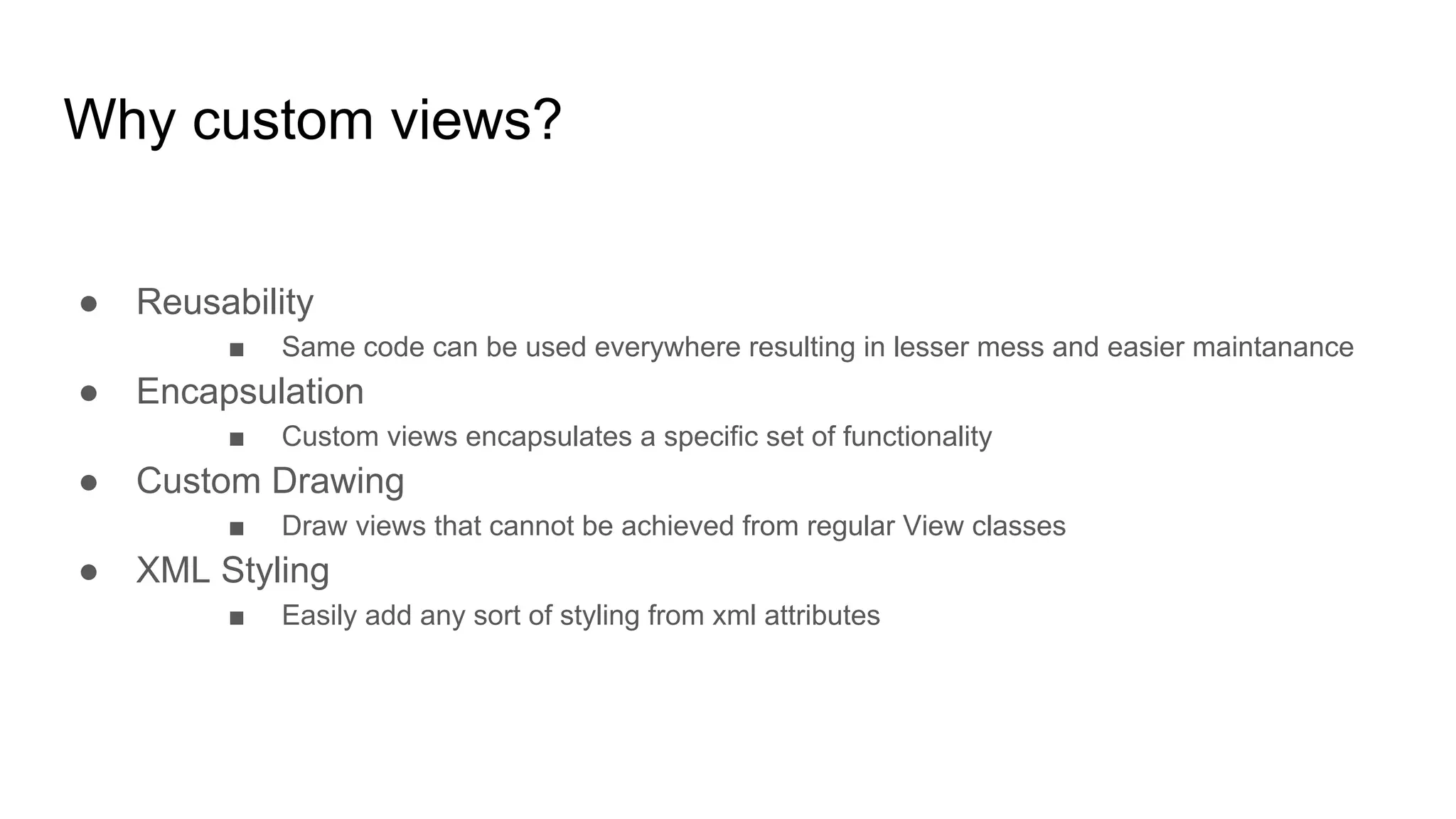
Why custom views?
● Reusability
■ Same code can be used everywhere resulting in lesser mess and easier maintanance
Why custom views?
● Reusability
■ Same code can be used everywhere resulting in lesser mess and easier maintanance
● Encapsulation
■ Custom views encapsulates a specific set of functionality
Why custom views?
● Reusability
■ Same code can be used everywhere resulting in lesser mess and easier maintanance
● Encapsulation
■ Custom views encapsulates a specific set of functionality
● Custom Drawing
■ Draw views that cannot be achieved from regular View classes
Why custom views?
● Reusability
■ Same code can be used everywhere resulting in lesser mess and easier maintanance
● Encapsulation
■ Custom views encapsulates a specific set of functionality
● Custom Drawing
■ Draw views that cannot be achieved from regular View classes
● XML Styling
■ Easily add any sort of styling from xml attributes
Overview of View class
View.java is huge (22551 lines in API 23)
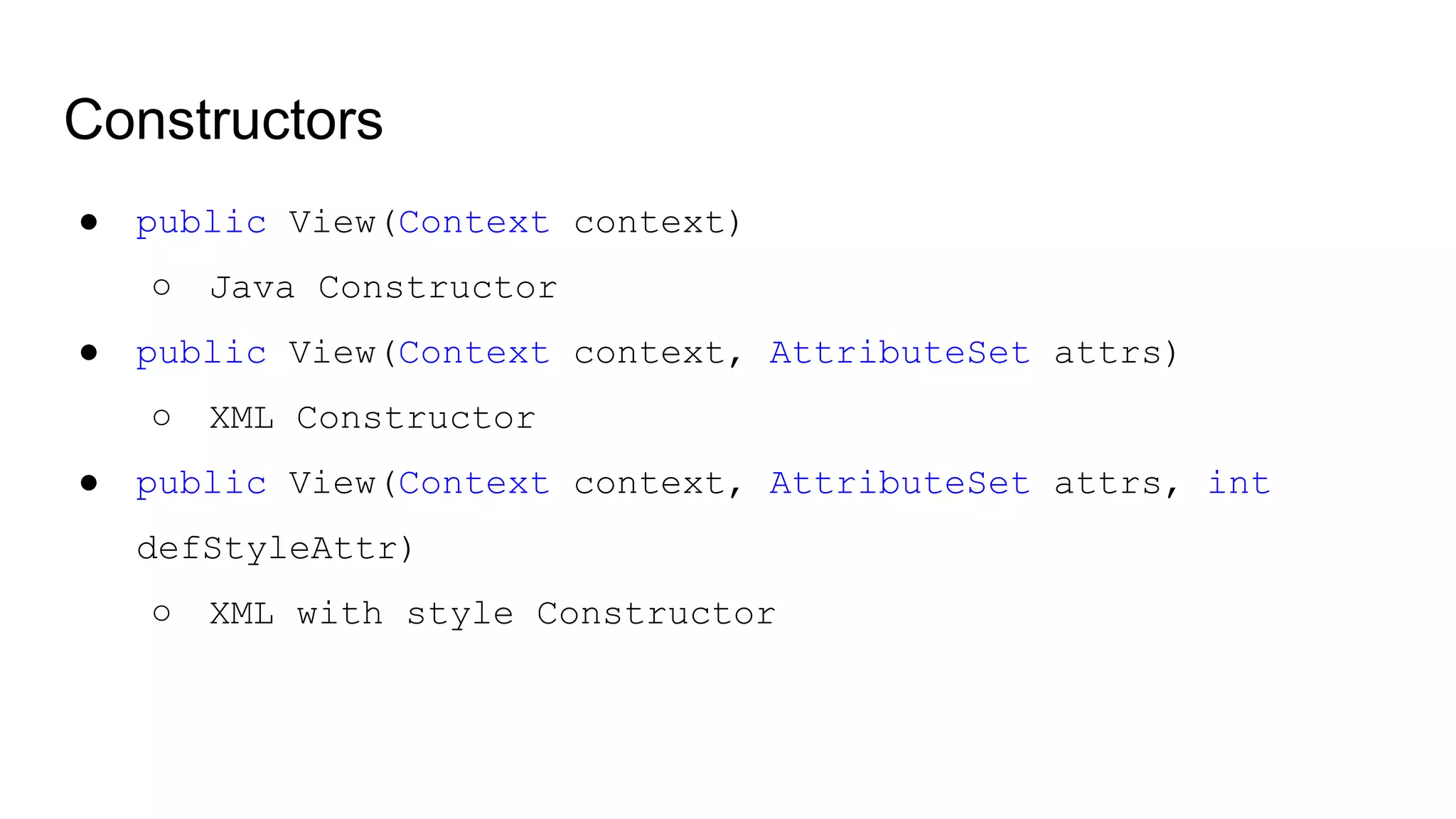
Constructors
● public View(Context context)
○ Java Constructor
● public View(Context context, AttributeSet attrs)
○ XML Constructor
● public View(Context context, AttributeSet attrs, int defStyleAttr)
○ XML with style Constructor
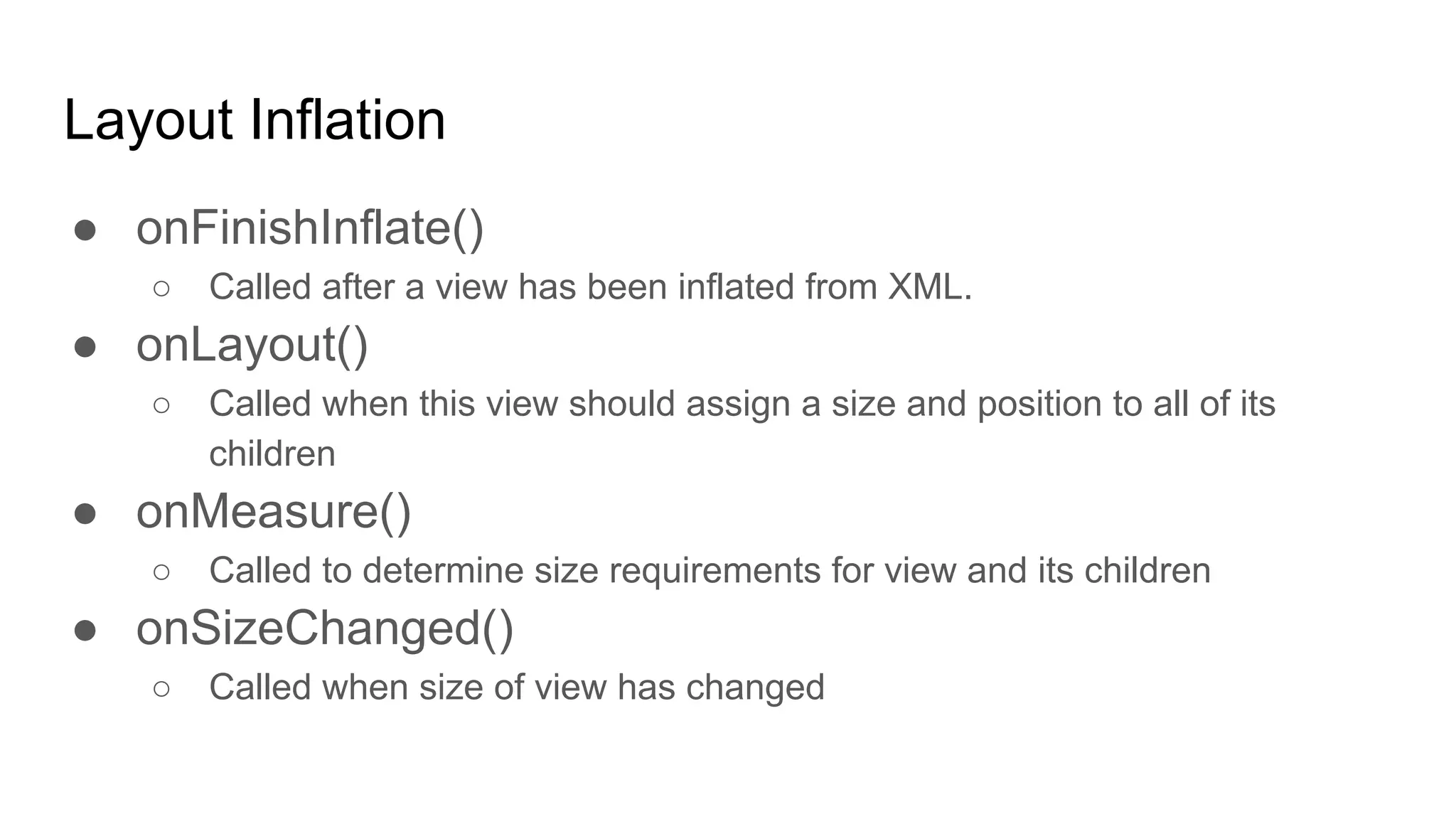
Layout Inflation
● onFinishInflate()
○ Called after a view has been inflated from XML.
● onLayout()
○ Called when this view should assign a size and position to all of its
children
● onMeasure()
○ Called to determine size requirements for view and its children
● onSizeChanged()
○ Called when size of view has changed
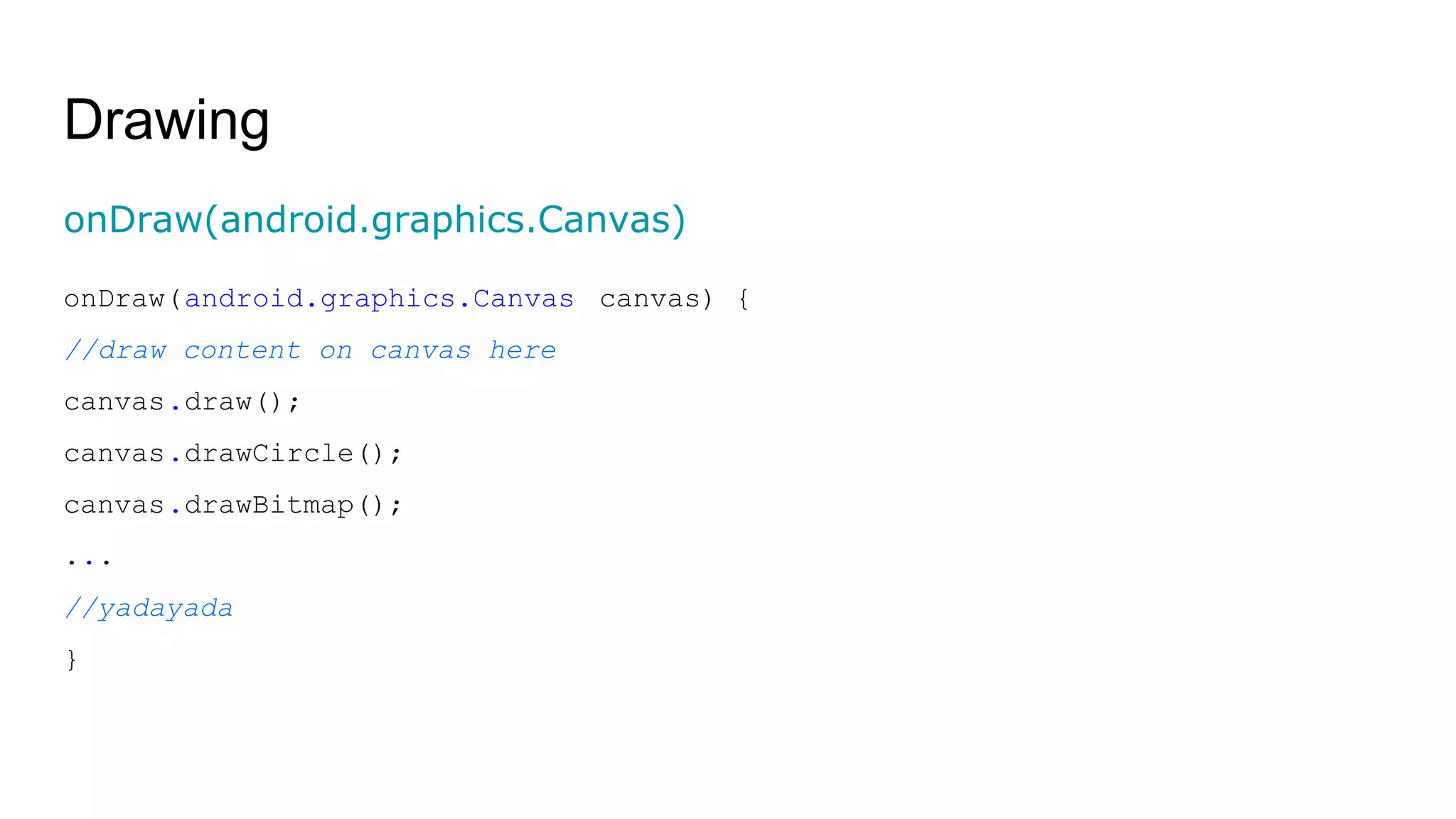
Drawing
onDraw(android.graphics.Canvas)
onDraw(android.graphics.Canvas canvas) {
//draw content on canvas here
canvas.draw();
canvas.drawCircle();
canvas.drawBitmap();
...
//yadayada
}
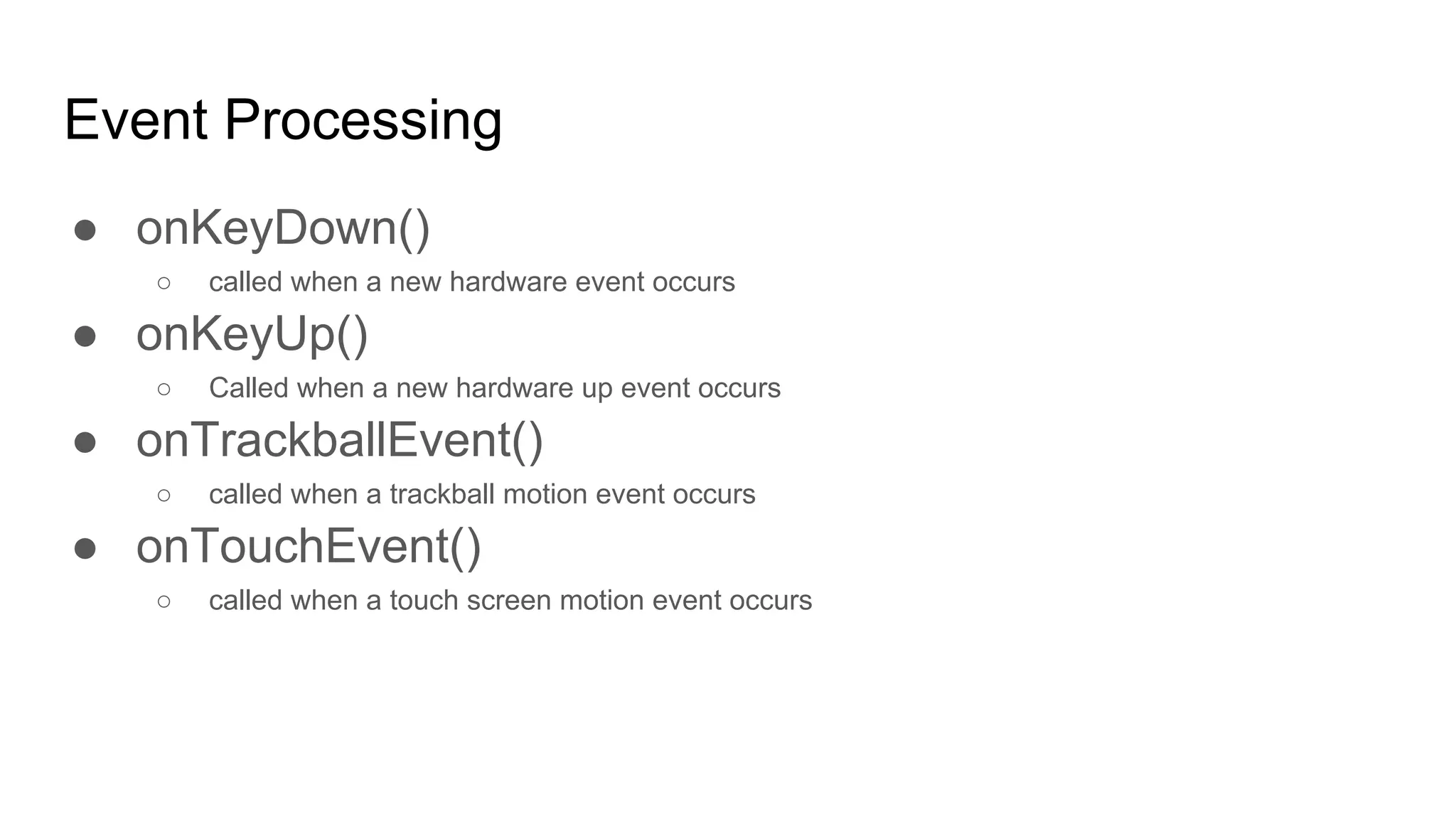
Event Processing
● onKeyDown()
○ called when a new hardware event occurs
● onKeyUp()
○ Called when a new hardware up event occurs
● onTrackballEvent()
○ called when a trackball motion event occurs
● onTouchEvent()
○ called when a touch screen motion event occurs
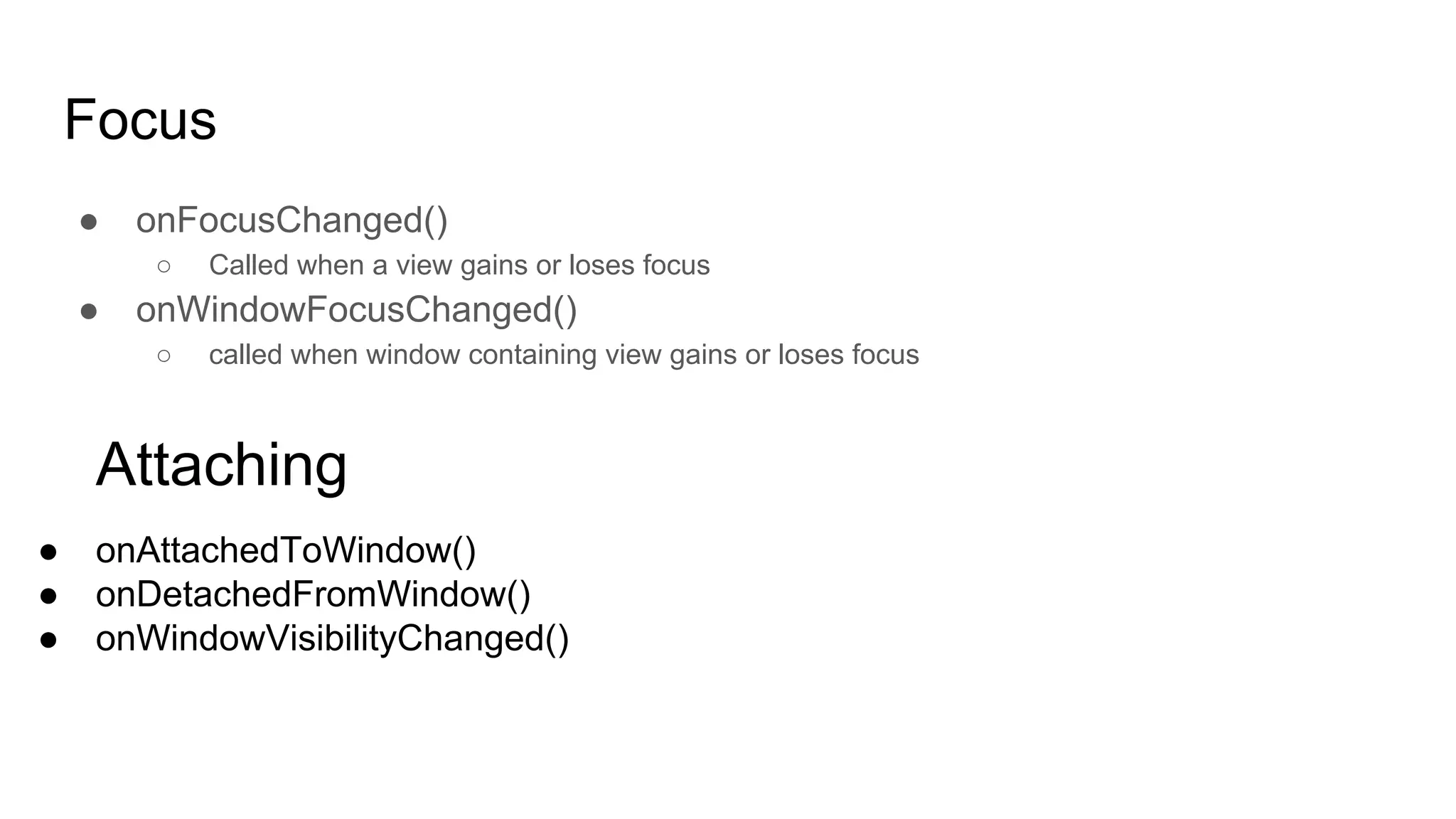
Focus
● onFocusChanged()
○ Called when a view gains or loses focus
● onWindowFocusChanged()
○ called when window containing view gains or loses focus
Attaching
● onAttachedToWindow()
● onDetachedFromWindow()
● onWindowVisibilityChanged()
getHeight() and getWidth()
getHeight() and getWidth() returns the width and height of the view respectively.
These methods must be used only when the view is ready and has been laid out
on the screen. Otherwise these will return 0.
In Constructors, using getHeight() and getWidth() will always return 0.
onSizeChanged() or onLayout() can be used to keep track of the width and height
of the view.
Constructors (View is not ready yet, getHeight(), getWidth() will return 0)
…………………..
onSizeChanged() (called whenever size of view is changed)
(getHeight() and getWidth() will return height and height of the view)
…………………...
onDraw() (getHeight() and getWidth() will return height and height of the view)
Creating Custom View
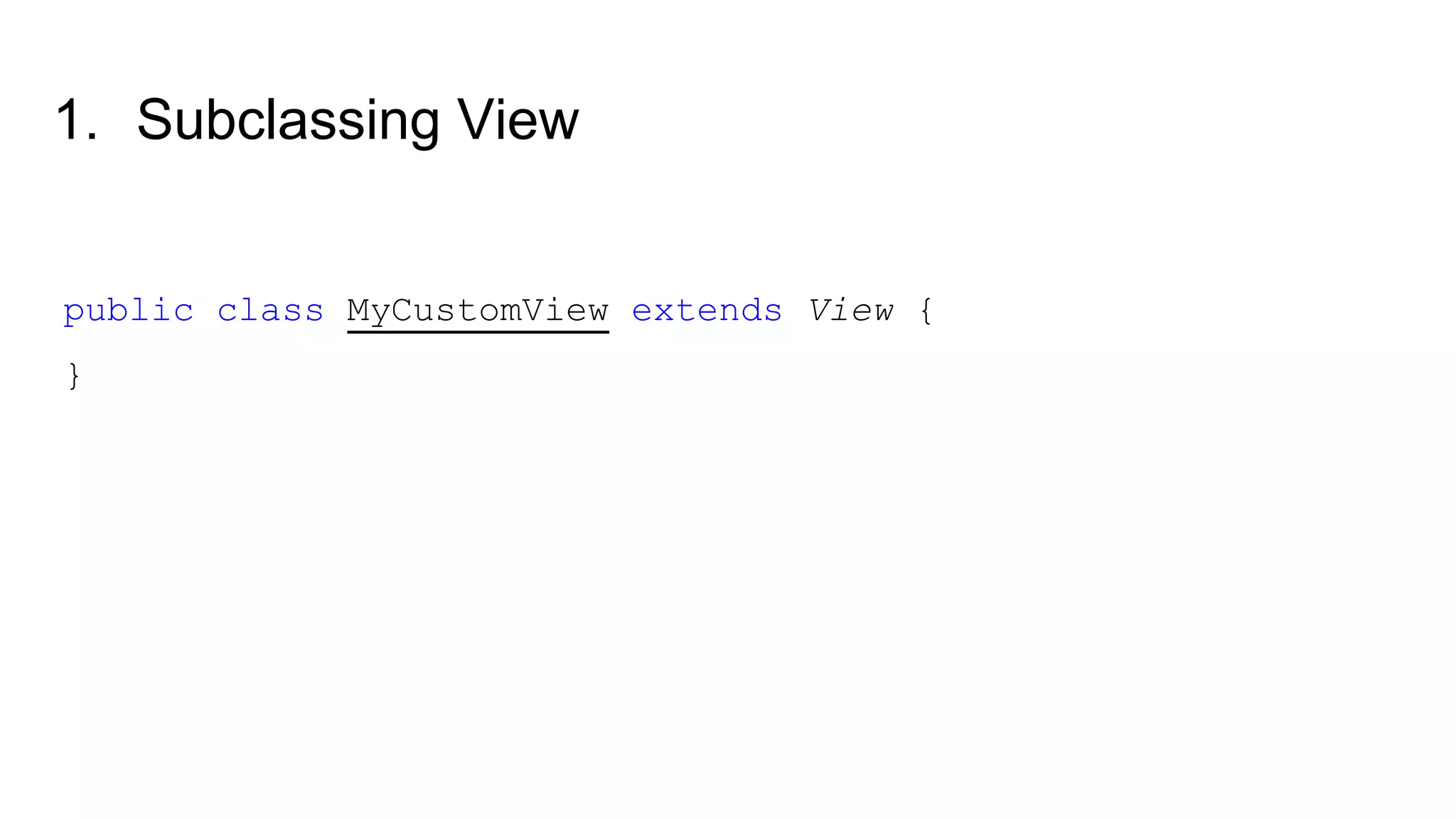
1. Subclassing View
public class MyCustomView extends View {
}
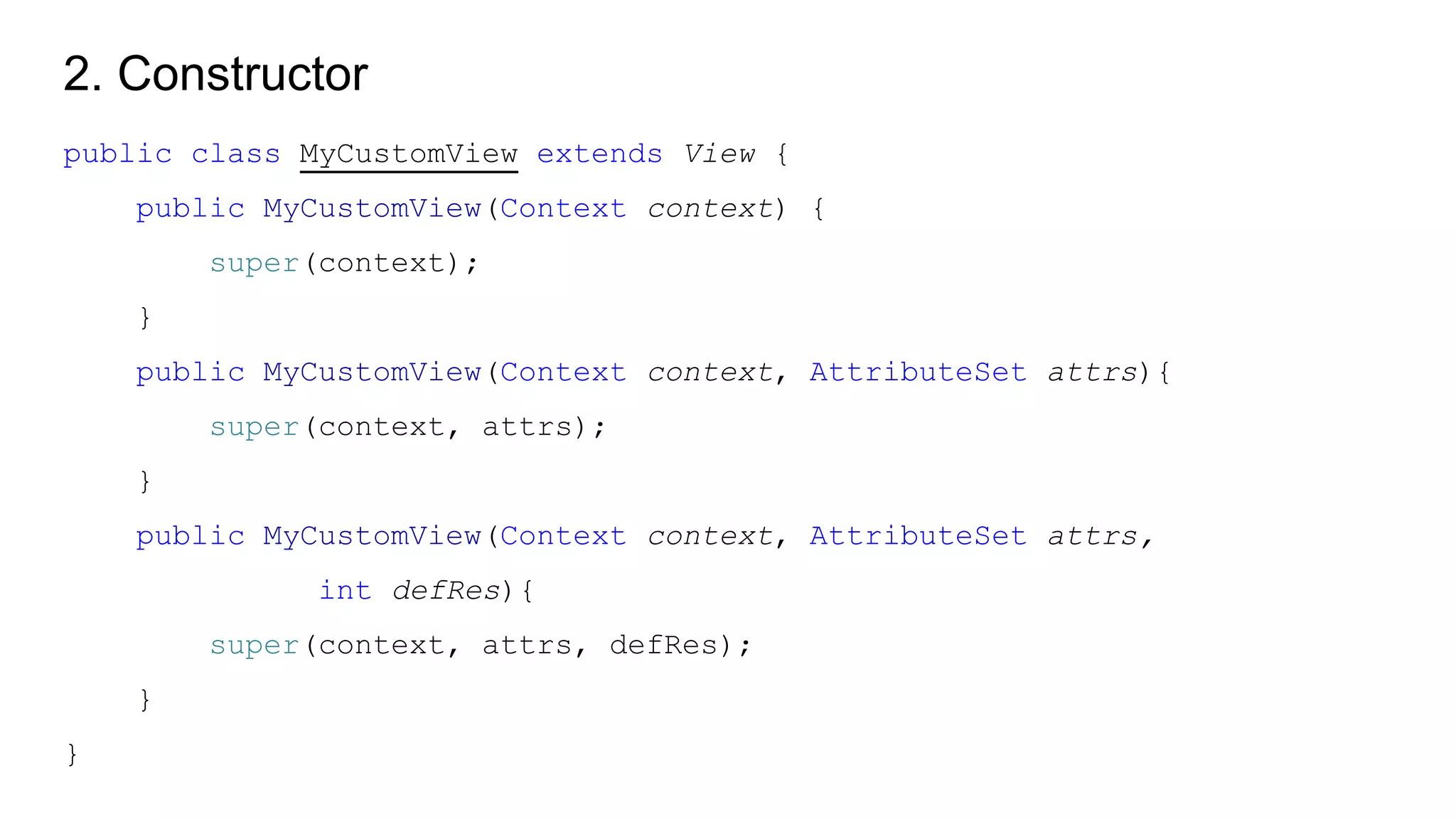
2. Constructor
public class MyCustomView extends View {
public MyCustomView(Context context) {
super(context);
}
public MyCustomView(Context context, AttributeSet attrs){
super(context, attrs);
}
public MyCustomView(Context context, AttributeSet attrs,
int defRes){
super(context, attrs, defRes);
}
}
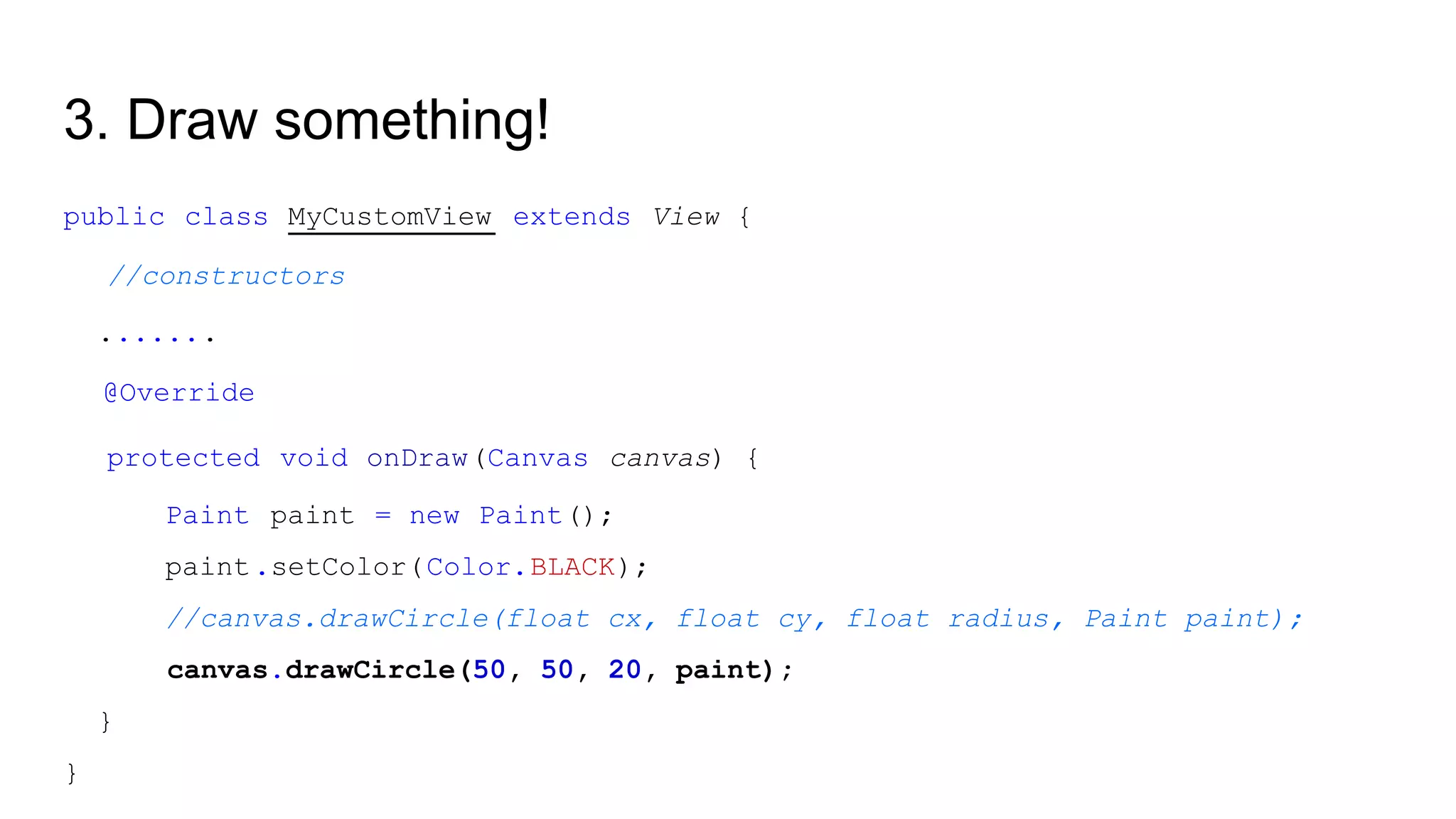
3. Draw something!
public class MyCustomView extends View {
//constructors
.......
@Override
protected void onDraw(Canvas canvas) {
Paint paint = new Paint();
paint.setColor(Color.BLACK);
//canvas.drawCircle(float cx, float cy, float radius, Paint paint);
canvas.drawCircle(50, 50, 20, paint);
}
}
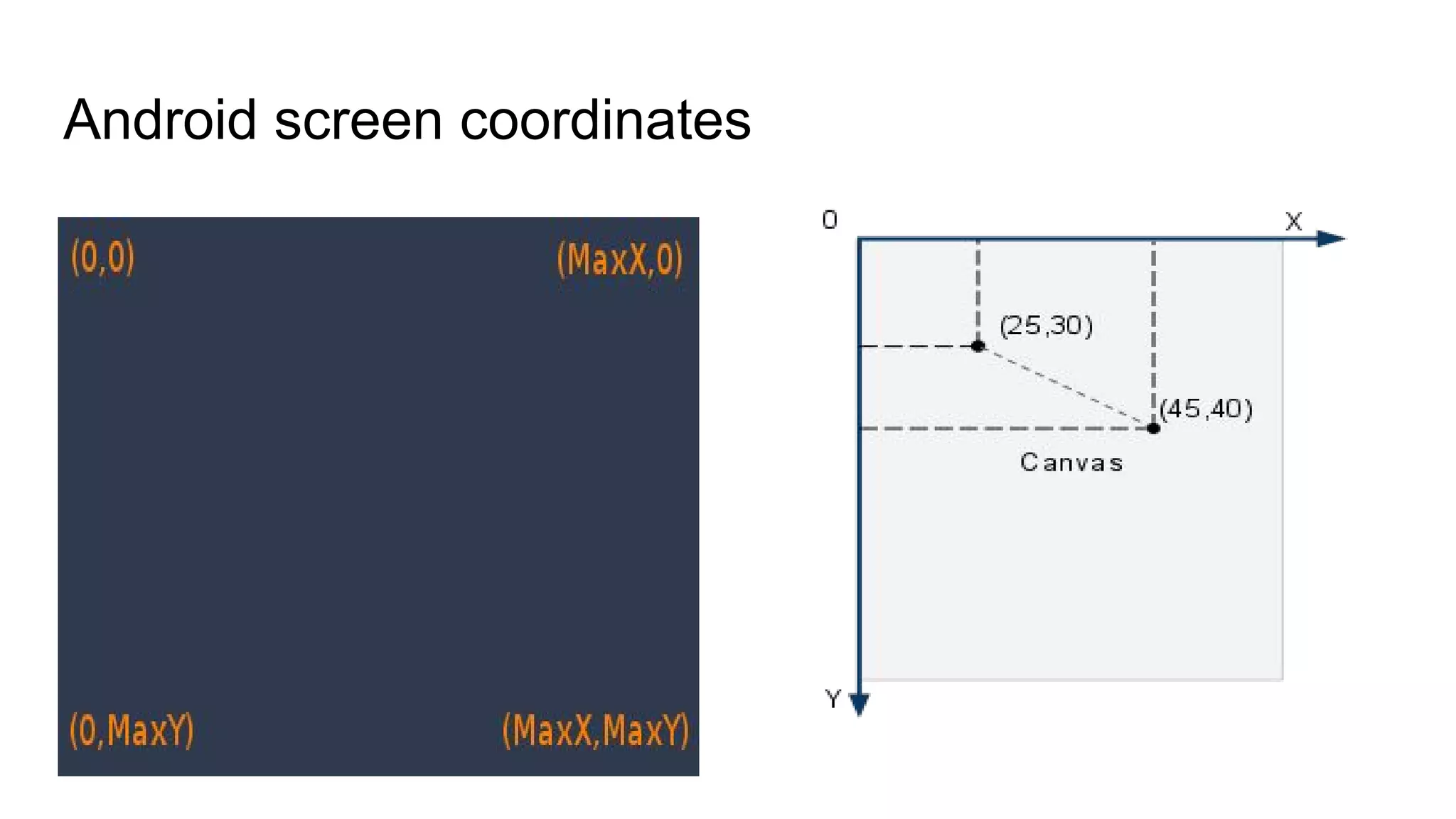
Android screen coordinates
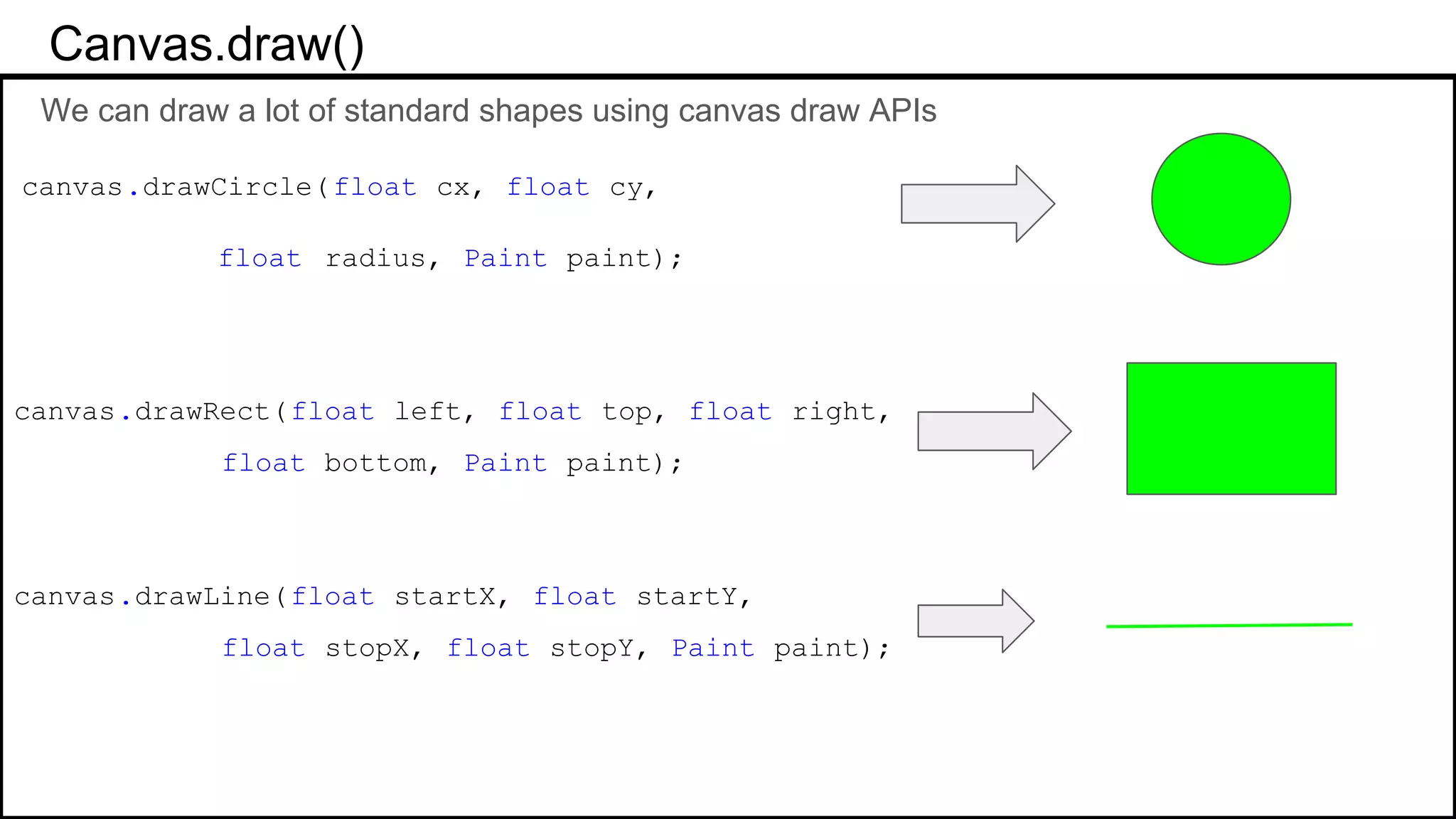
Canvas.draw()
We can draw a lot of standard shapes using canvas draw APIs
canvas.drawCircle(float cx, float cy,
float radius, Paint paint);
canvas.drawRect(float left, float top, float right,
float bottom, Paint paint);
canvas.drawLine(float startX, float startY,
float stopX, float stopY, Paint paint);
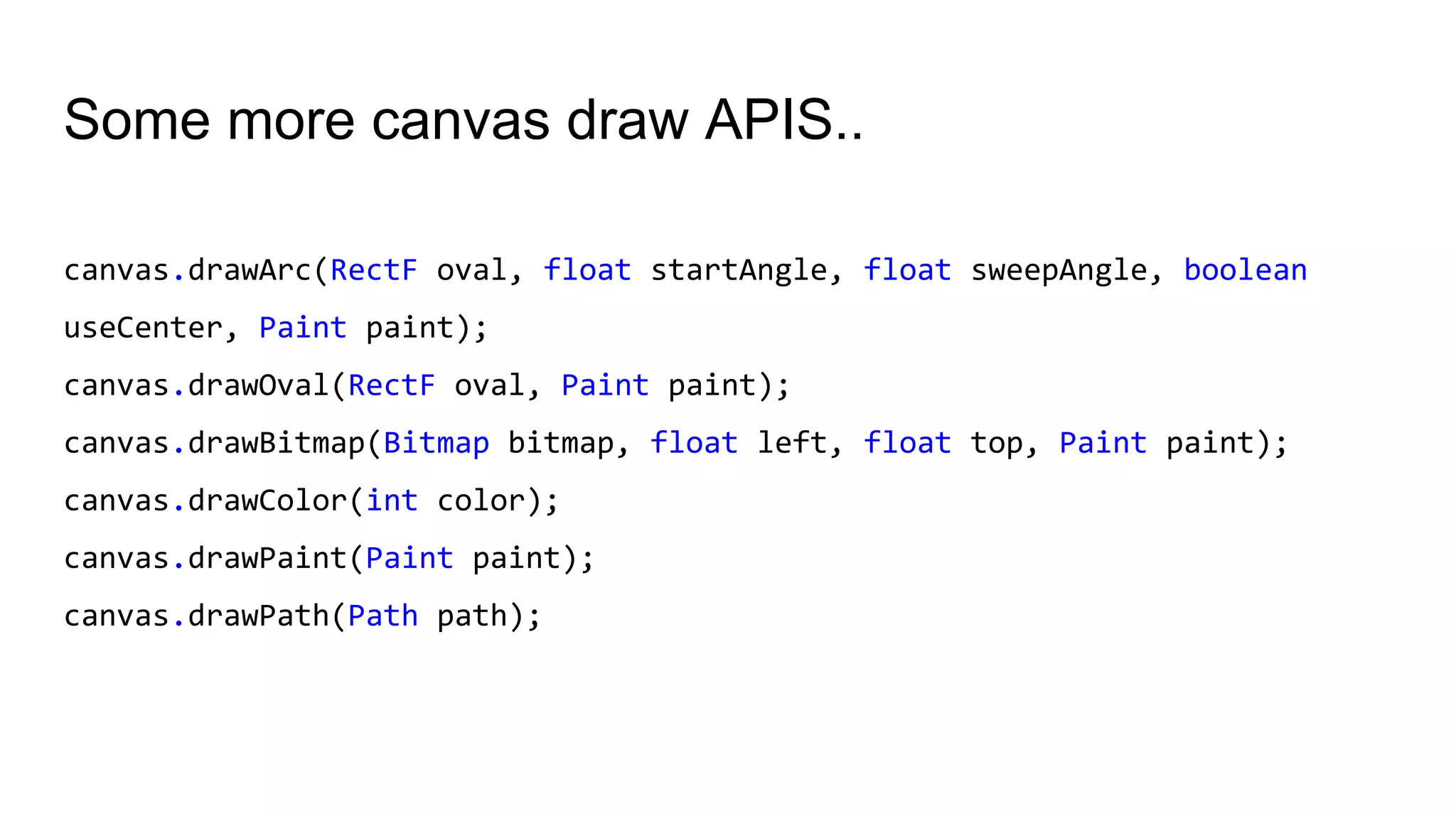
Some more canvas draw APIs..
canvas.drawArc(RectF oval, float startAngle, float sweepAngle, boolean
useCenter, Paint paint);
canvas.drawOval(RectF oval, Paint paint);
canvas.drawBitmap(Bitmap bitmap, float left, float top, Paint paint);
canvas.drawColor(int color);
canvas.drawPaint(Paint paint);
canvas.drawPath(Path path);
XML Styling
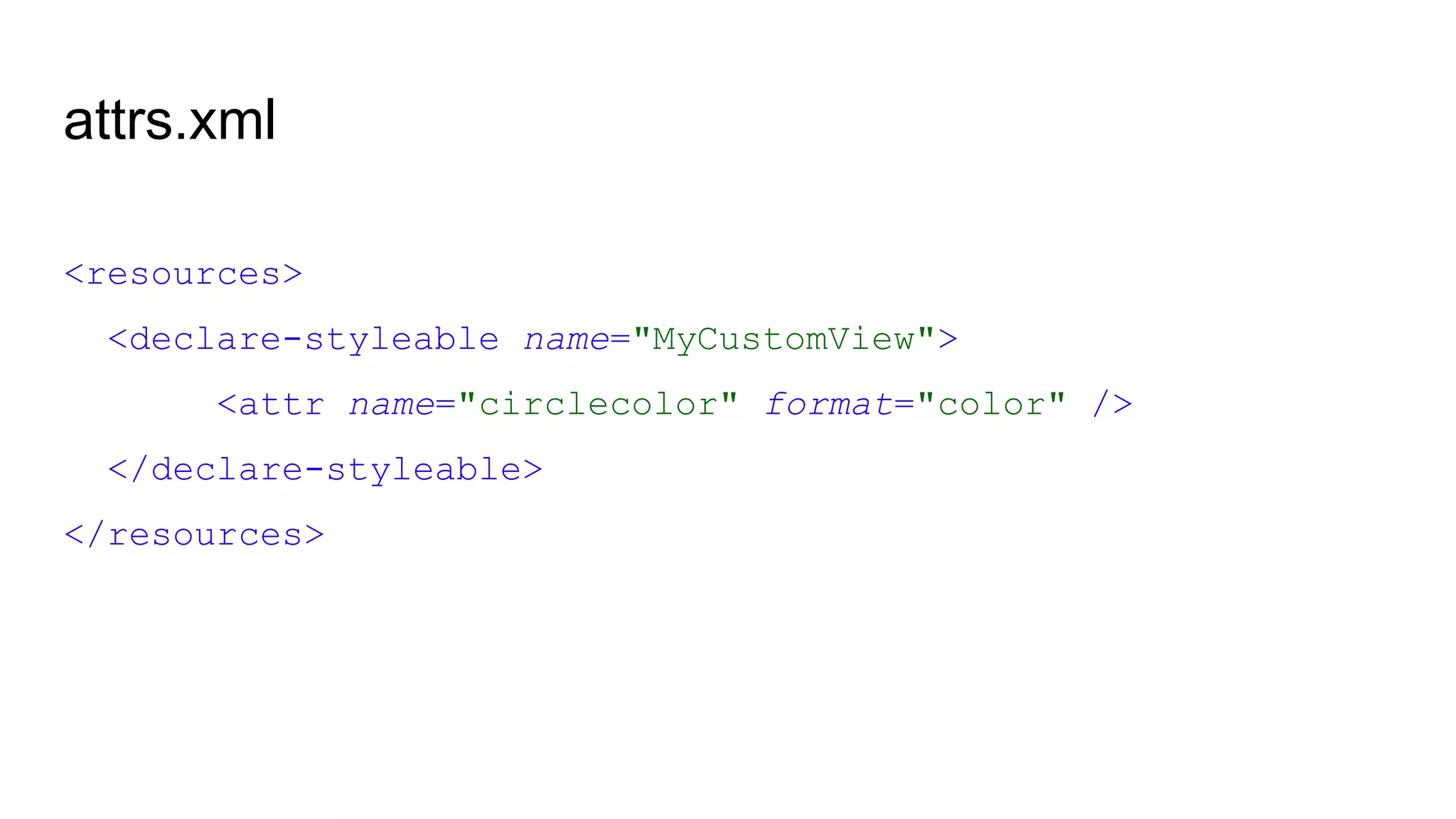
attrs.xml
<resources>
<declare-styleable name="MyCustomView">
<attr name="circlecolor" format="color" />
</declare-styleable>
</resources>
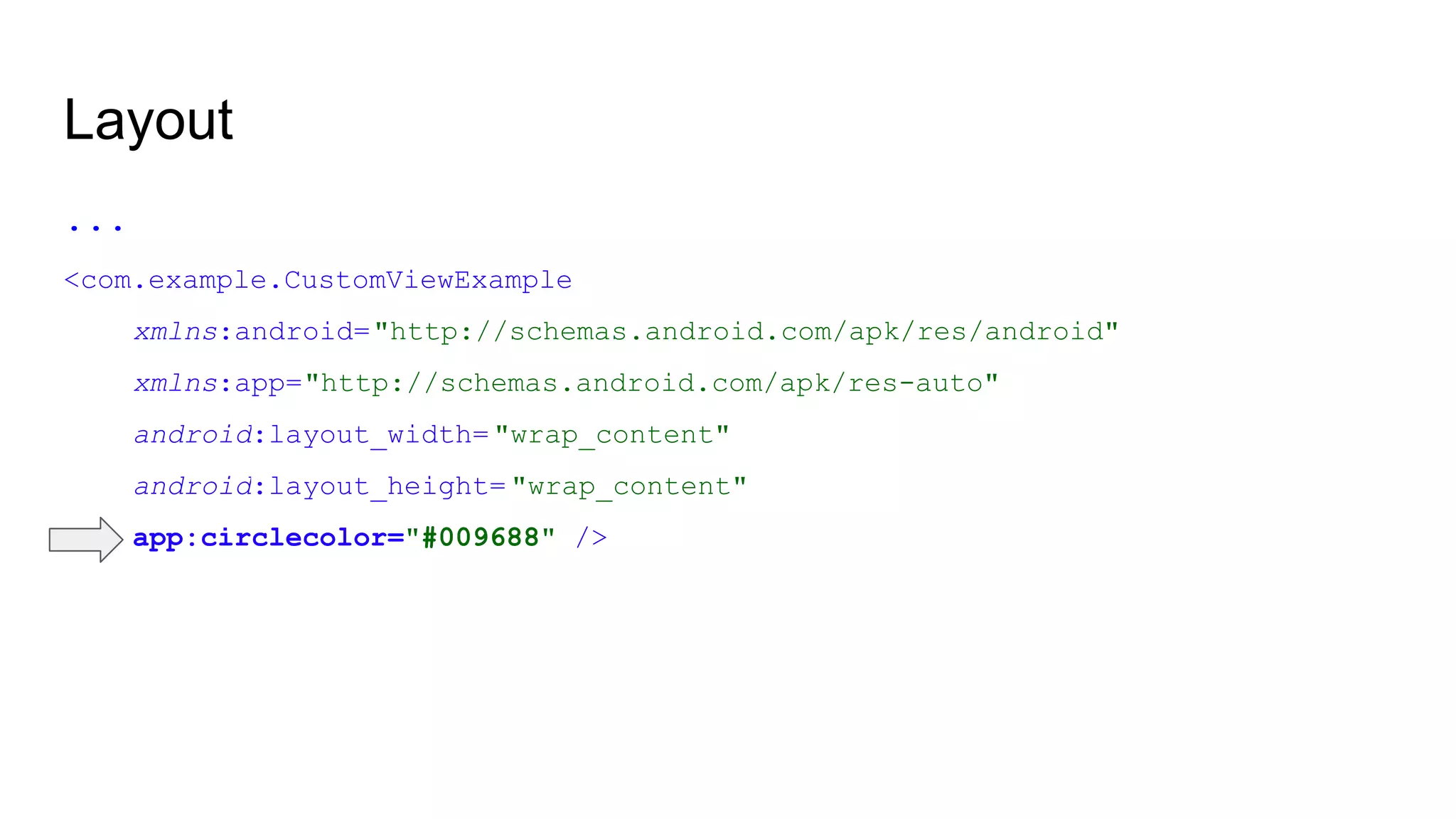
Layout
...
<com.example.CustomViewExample
xmlns:android="http://schemas.android.com/apk/res/android"
xmlns:app="http://schemas.android.com/apk/res-auto"
android:layout_width="wrap_content"
android:layout_height="wrap_content"
app:circlecolor="#009688" />
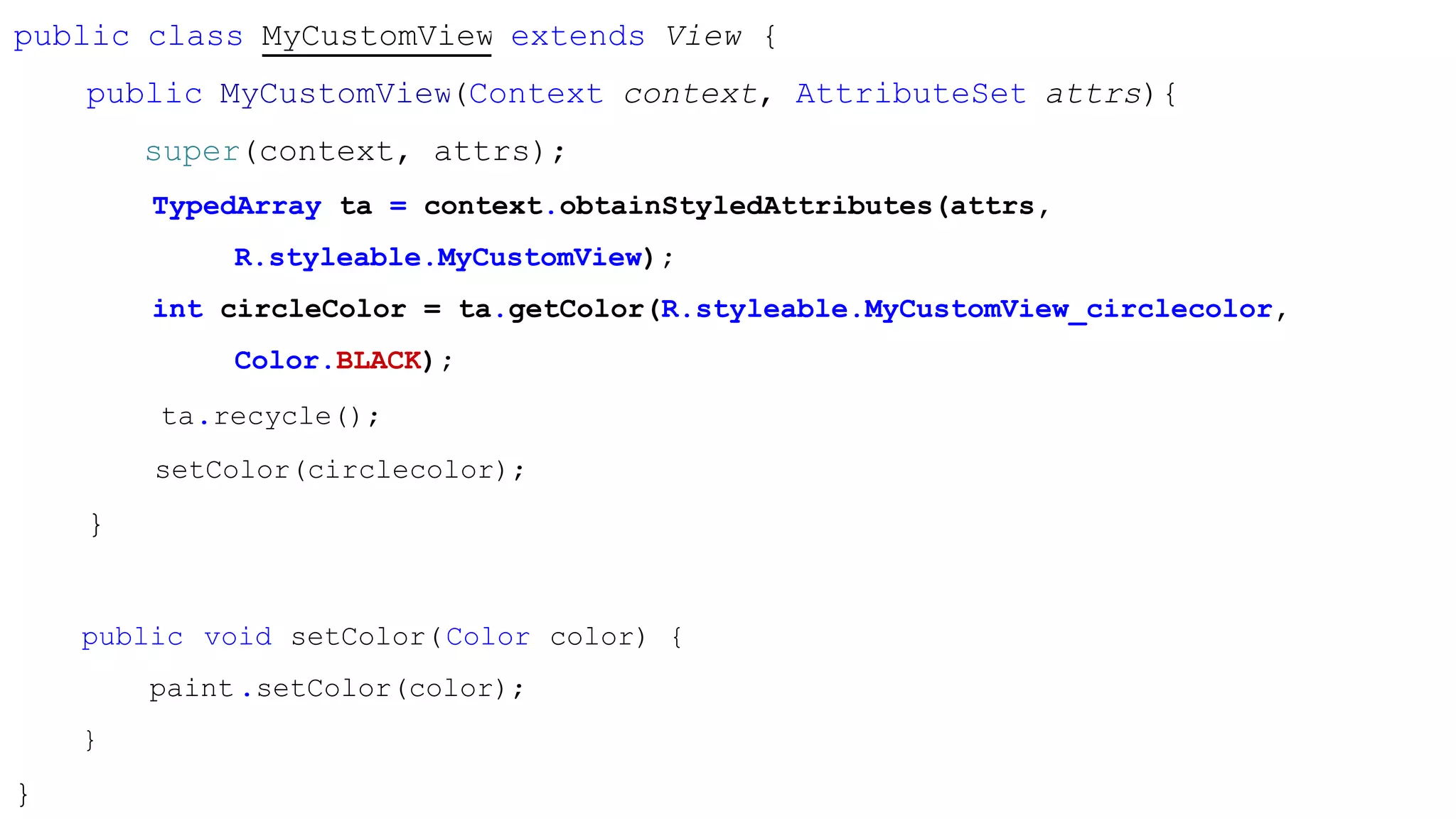
public class MyCustomView extends View {
public MyCustomView(Context context, AttributeSet attrs){
super(context, attrs);
TypedArray ta = context.obtainStyledAttributes(attrs,
R.styleable.MyCustomView);
int circleColor = ta.getColor(R.styleable.MyCustomView_circlecolor,
Color.BLACK);
ta.recycle();
setColor(circlecolor);
}
public void setColor(Color color) {
paint.setColor(color);
}
}
Path
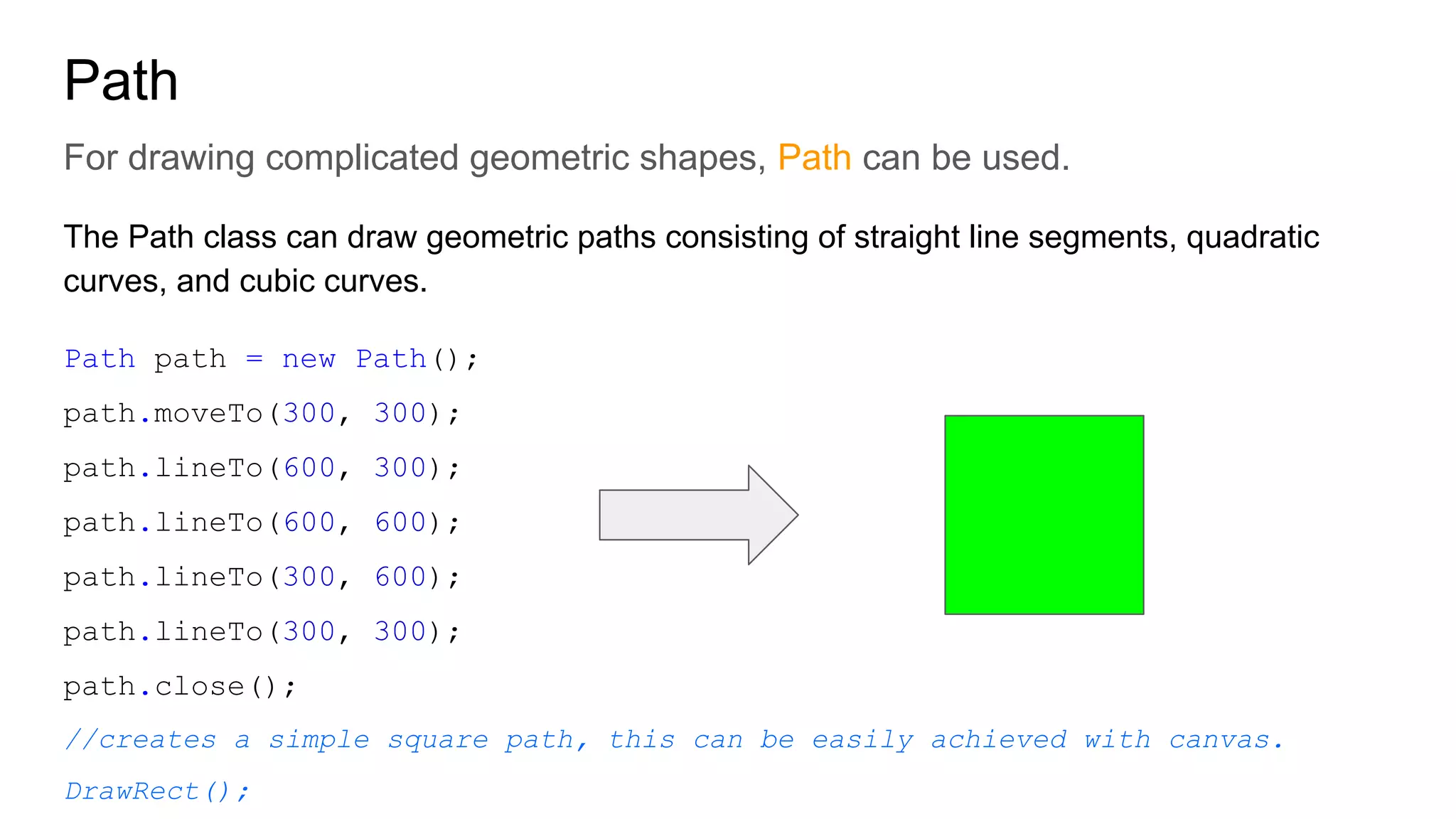
For drawing complicated geometric shapes, Path can be used.
The Path class can draw geometric paths consisting of straight line segments, quadratic
curves, and cubic curves.
Path path = new Path();
path.moveTo(300, 300);
path.lineTo(600, 300);
path.lineTo(600, 600);
path.lineTo(300, 600);
path.lineTo(300, 300);
path.close();
//creates a simple square path
Why use Path?
Path keeps the last position coordinates stored and Path can be used to create
much more complicated shapes or curves
path.moveTo(300,300) will move the path pointer to 300,300 coordinates.
Similarly path.lineTo(700,700) will create a line and move the path pointer
from previous coordinates to new coordinates.
While canvas.drawLine() requires the initial xy coordinates and the final xy
coordinates thus using canvas apis directly can prove to be cumbersome.
A path can be drawn on canvas using -
canvas.drawPath(path,paint)
Animating Views
How you can animate view?
Runnables and view invalidation
Much more powerful method of creating a variety of advanced animations. You have more control over
the animations.
Basic concept is-
Update the drawing properties every n milliseconds.Redraw the view every n milliseconds using a
Runnable and invalidate() method.
invalidate() redraws the view and a call to onDraw() method is sent on each invalidate()
A simple animation using Runnable
float posX = 0;
Every 15 milliseconds (using Runnable) -
posX += 10; //increase x coordinate by 10
invalidate();
Invalidate calls onDraw() where-
canvas.drawLine(0, getHeight()/2, posX, getHeight()/2, paint);
This will result in a straight line starting from 0 and slowly reaching the end of screen
private Runnable animateLine = new Runnable() {
@Override
public void run() {
boolean reachedEnd = false;
if (posX < getWidth())
posX+= 10;
else reachedEnd = true;
if (!reachedEnd) {
postDelayed(this, 15);
}
invalidate();
}
};
Value animator
Property Animation
With Value animators, we can animate a property of an object from an initial value to a final
value over a duration of time
ValueAnimator animation = ValueAnimator.ofFloat(0f, 1f);
animation.setDuration(1000);
animation.start();
Value animator calculates the property with respect to time between the given values. It
does not actually animates a give object or view, it just calculates the values which can be
used to do something on an object.
Object animator
Object animator is a sub-class of ValueAnimator designed to calculate the
animation values and directly apply them to an object.
ObjectAnimator anim = ObjectAnimator.ofFloat(myObject, "alpha", 0f, 1f);
anim.setDuration(1000);
anim.start();
The above object animator will animate the alpha of myObject from 0f to 1f.
We can provide a view to the ObjectAnimator and we can animate any property of that view
between two values
Interpolator
Interpolator defines a relation between values and time.
With different interpolator, we can define how values are calculated as a function of time.
LinearInterpolator- Changes the values at the same speed
public float getInterpolation(float input) {
return input;
}
AccelerateDecelerateInterpolator- It accelerates into the animation and decelerates out of it
public float getInterpolation(float input) {
return (float)(Math.cos((input + 1) * Math.PI) / 2.0f) + 0.5f;
}
LinearInterpolator
AccelerateDecelerateInterpolator
What properties can be animated?
● translationX and translationY: These properties control where the View is located as a delta from its left and
top coordinates which are set by its layout container.
● rotation, rotationX, and rotationY: These properties control the rotation in 2D (rotationproperty) and 3D
around the pivot point.
● scaleX and scaleY: These properties control the 2D scaling of a View around its pivot point.
● pivotX and pivotY: These properties control the location of the pivot point, around which the rotation and scaling
transforms occur. By default, the pivot point is located at the center of the object.
● x and y: These are simple utility properties to describe the final location of the View in its container, as a sum of
the left and top values and translationX and translationY values.
● alpha: Represents the alpha transparency on the View. This value is 1 (opaque) by default, with a value of 0
representing full transparency (not visible).
(This is not the full list of properties that can be animated)
Move a TextView horizontally
ObjectAnimator anim = ObjectAnimator.ofFloat(textView, "translationX", 0f, 500f);
anim.setDuration(1000);
anim.start();
//this will move a textview horizontally by 500 starting from 0.
Move a TextView along a Path
ValueAnimator pathAnimator = ObjectAnimator.ofFloat(textView, "x", "y", path);
//path can be any complex geometric shapes as mentioned earlier
(works on API 21+ only, for below api 21, use a value animator to
get animated fraction in onAnimationUpdate listener)

Enhancing UI/UX using Java animations

  • 1.
    DroidCon 2015 Enhancing UI/UXusing Java animations -Naman Dwivedi
  • 2.
    Why custom views? ●Reusability ■ Same code can be used everywhere resulting in lesser mess and easier maintanance
  • 3.
    Why custom views? ●Reusability ■ Same code can be used everywhere resulting in lesser mess and easier maintanance ● Encapsulation ■ Custom views encapsulates a specific set of functionality
  • 4.
    Why custom views? ●Reusability ■ Same code can be used everywhere resulting in lesser mess and easier maintanance ● Encapsulation ■ Custom views encapsulates a specific set of functionality ● Custom Drawing ■ Draw views that cannot be achieved from regular View classes
  • 5.
    Why custom views? ●Reusability ■ Same code can be used everywhere resulting in lesser mess and easier maintanance ● Encapsulation ■ Custom views encapsulates a specific set of functionality ● Custom Drawing ■ Draw views that cannot be achieved from regular View classes ● XML Styling ■ Easily add any sort of styling from xml attributes
  • 6.
    Overview of Viewclass View.java is huge (22551 lines in API 23)
  • 7.
    Constructors ● public View(Contextcontext) ○ Java Constructor ● public View(Context context, AttributeSet attrs) ○ XML Constructor ● public View(Context context, AttributeSet attrs, int defStyleAttr) ○ XML with style Constructor
  • 8.
    Layout Inflation ● onFinishInflate() ○Called after a view has been inflated from XML. ● onLayout() ○ Called when this view should assign a size and position to all of its children ● onMeasure() ○ Called to determine size requirements for view and its children ● onSizeChanged() ○ Called when size of view has changed
  • 9.
    Drawing onDraw(android.graphics.Canvas) onDraw(android.graphics.Canvas canvas) { //drawcontent on canvas here canvas.draw(); canvas.drawCircle(); canvas.drawBitmap(); ... //yadayada }
  • 10.
    Event Processing ● onKeyDown() ○called when a new hardware event occurs ● onKeyUp() ○ Called when a new hardware up event occurs ● onTrackballEvent() ○ called when a trackball motion event occurs ● onTouchEvent() ○ called when a touch screen motion event occurs
  • 11.
    Focus ● onFocusChanged() ○ Calledwhen a view gains or loses focus ● onWindowFocusChanged() ○ called when window containing view gains or loses focus Attaching ● onAttachedToWindow() ● onDetachedFromWindow() ● onWindowVisibilityChanged()
  • 12.
    getHeight() and getWidth() getHeight()and getWidth() returns the width and height of the view respectively. These methods must be used only when the view is ready and has been laid out on the screen. Otherwise these will return 0. In Constructors, using getHeight() and getWidth() will always return 0. onSizeChanged() or onLayout() can be used to keep track of the width and height of the view.
  • 13.
    Constructors (View isnot ready yet, getHeight(), getWidth() will return 0) ………………….. onSizeChanged() (called whenever size of view is changed) (getHeight() and getWidth() will return height and height of the view) …………………... onDraw() (getHeight() and getWidth() will return height and height of the view)
  • 14.
  • 15.
    1. Subclassing View publicclass MyCustomView extends View { }
  • 16.
    2. Constructor public classMyCustomView extends View { public MyCustomView(Context context) { super(context); } public MyCustomView(Context context, AttributeSet attrs){ super(context, attrs); } public MyCustomView(Context context, AttributeSet attrs, int defRes){ super(context, attrs, defRes); } }
  • 17.
    3. Draw something! publicclass MyCustomView extends View { //constructors ....... @Override protected void onDraw(Canvas canvas) { Paint paint = new Paint(); paint.setColor(Color.BLACK); //canvas.drawCircle(float cx, float cy, float radius, Paint paint); canvas.drawCircle(50, 50, 20, paint); } }
  • 18.
  • 19.
    Canvas.draw() We can drawa lot of standard shapes using canvas draw APIs canvas.drawCircle(float cx, float cy, float radius, Paint paint); canvas.drawRect(float left, float top, float right, float bottom, Paint paint); canvas.drawLine(float startX, float startY, float stopX, float stopY, Paint paint);
  • 20.
    Some more canvasdraw APIs.. canvas.drawArc(RectF oval, float startAngle, float sweepAngle, boolean useCenter, Paint paint); canvas.drawOval(RectF oval, Paint paint); canvas.drawBitmap(Bitmap bitmap, float left, float top, Paint paint); canvas.drawColor(int color); canvas.drawPaint(Paint paint); canvas.drawPath(Path path);
  • 21.
  • 22.
  • 23.
  • 24.
    public class MyCustomViewextends View { public MyCustomView(Context context, AttributeSet attrs){ super(context, attrs); TypedArray ta = context.obtainStyledAttributes(attrs, R.styleable.MyCustomView); int circleColor = ta.getColor(R.styleable.MyCustomView_circlecolor, Color.BLACK); ta.recycle(); setColor(circlecolor); } public void setColor(Color color) { paint.setColor(color); } }
  • 25.
    Path For drawing complicatedgeometric shapes, Path can be used. The Path class can draw geometric paths consisting of straight line segments, quadratic curves, and cubic curves. Path path = new Path(); path.moveTo(300, 300); path.lineTo(600, 300); path.lineTo(600, 600); path.lineTo(300, 600); path.lineTo(300, 300); path.close(); //creates a simple square path
  • 26.
    Why use Path? Pathkeeps the last position coordinates stored and Path can be used to create much more complicated shapes or curves path.moveTo(300,300) will move the path pointer to 300,300 coordinates. Similarly path.lineTo(700,700) will create a line and move the path pointer from previous coordinates to new coordinates. While canvas.drawLine() requires the initial xy coordinates and the final xy coordinates thus using canvas apis directly can prove to be cumbersome. A path can be drawn on canvas using - canvas.drawPath(path,paint)
  • 27.
  • 28.
    How you cananimate view? Runnables and view invalidation Much more powerful method of creating a variety of advanced animations. You have more control over the animations. Basic concept is- Update the drawing properties every n milliseconds.Redraw the view every n milliseconds using a Runnable and invalidate() method. invalidate() redraws the view and a call to onDraw() method is sent on each invalidate()
  • 29.
    A simple animationusing Runnable float posX = 0; Every 15 milliseconds (using Runnable) - posX += 10; //increase x coordinate by 10 invalidate(); Invalidate calls onDraw() where- canvas.drawLine(0, getHeight()/2, posX, getHeight()/2, paint); This will result in a straight line starting from 0 and slowly reaching the end of screen
  • 30.
    private Runnable animateLine= new Runnable() { @Override public void run() { boolean reachedEnd = false; if (posX < getWidth()) posX+= 10; else reachedEnd = true; if (!reachedEnd) { postDelayed(this, 15); } invalidate(); } };
  • 31.
    Value animator Property Animation WithValue animators, we can animate a property of an object from an initial value to a final value over a duration of time ValueAnimator animation = ValueAnimator.ofFloat(0f, 1f); animation.setDuration(1000); animation.start(); Value animator calculates the property with respect to time between the given values. It does not actually animates a give object or view, it just calculates the values which can be used to do something on an object.
  • 32.
    Object animator Object animatoris a sub-class of ValueAnimator designed to calculate the animation values and directly apply them to an object. ObjectAnimator anim = ObjectAnimator.ofFloat(myObject, "alpha", 0f, 1f); anim.setDuration(1000); anim.start(); The above object animator will animate the alpha of myObject from 0f to 1f. We can provide a view to the ObjectAnimator and we can animate any property of that view between two values
  • 33.
    Interpolator Interpolator defines arelation between values and time. With different interpolator, we can define how values are calculated as a function of time. LinearInterpolator- Changes the values at the same speed public float getInterpolation(float input) { return input; } AccelerateDecelerateInterpolator- It accelerates into the animation and decelerates out of it public float getInterpolation(float input) { return (float)(Math.cos((input + 1) * Math.PI) / 2.0f) + 0.5f; }
  • 34.
  • 35.
    What properties canbe animated? ● translationX and translationY: These properties control where the View is located as a delta from its left and top coordinates which are set by its layout container. ● rotation, rotationX, and rotationY: These properties control the rotation in 2D (rotationproperty) and 3D around the pivot point. ● scaleX and scaleY: These properties control the 2D scaling of a View around its pivot point. ● pivotX and pivotY: These properties control the location of the pivot point, around which the rotation and scaling transforms occur. By default, the pivot point is located at the center of the object. ● x and y: These are simple utility properties to describe the final location of the View in its container, as a sum of the left and top values and translationX and translationY values. ● alpha: Represents the alpha transparency on the View. This value is 1 (opaque) by default, with a value of 0 representing full transparency (not visible). (This is not the full list of properties that can be animated)
  • 36.
    Move a TextViewhorizontally ObjectAnimator anim = ObjectAnimator.ofFloat(textView, "translationX", 0f, 500f); anim.setDuration(1000); anim.start(); //this will move a textview horizontally by 500 starting from 0. Move a TextView along a Path ValueAnimator pathAnimator = ObjectAnimator.ofFloat(textView, "x", "y", path); //path can be any complex geometric shapes as mentioned earlier (works on API 21+ only, for below api 21, use a value animator to get animated fraction in onAnimationUpdate listener)