DockerCompose
Explained
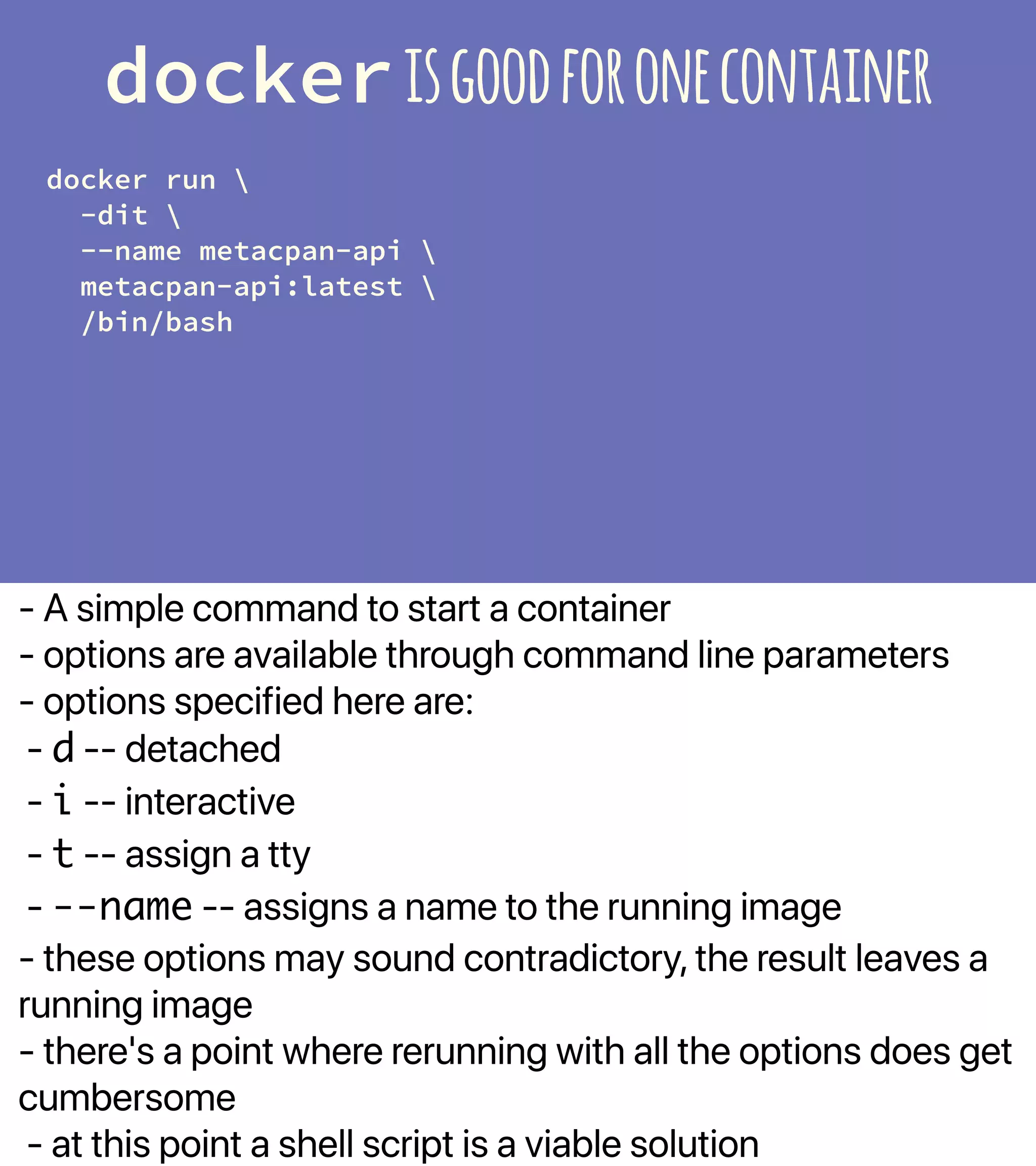
- A simple command to start a container
- options are available through command line parameters
- options specified here are:
- d -- detached
- i -- interactive
- t -- assign a tty
- --name -- assigns a name to the running image
- these options may sound contradictory, the result leaves a
running image
- there's a point where rerunning with all the options does get
cumbersome
- at this point a shell script is a viable solution
dockerisgoodforonecontainer
docker run 
-dit 
--name metacpan-api 
metacpan-api:latest 
/bin/bash
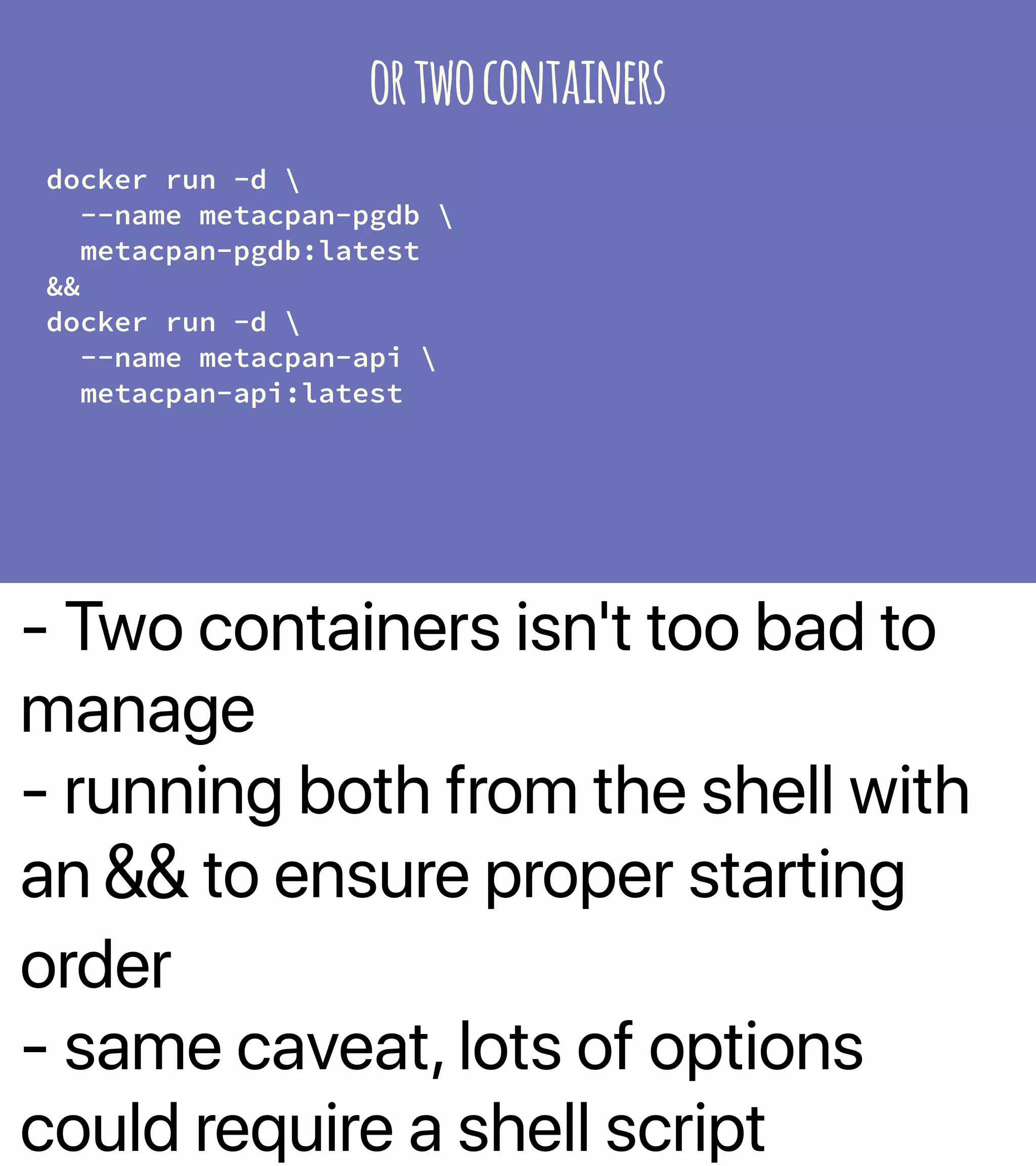
- Two containers isn't too bad to
manage
- running both from the shell with
an && to ensure proper starting
order
- same caveat, lots of options
could require a shell script
ortwocontainers
docker run -d 
--name metacpan-pgdb 
metacpan-pgdb:latest
&&
docker run -d 
--name metacpan-api 
metacpan-api:latest
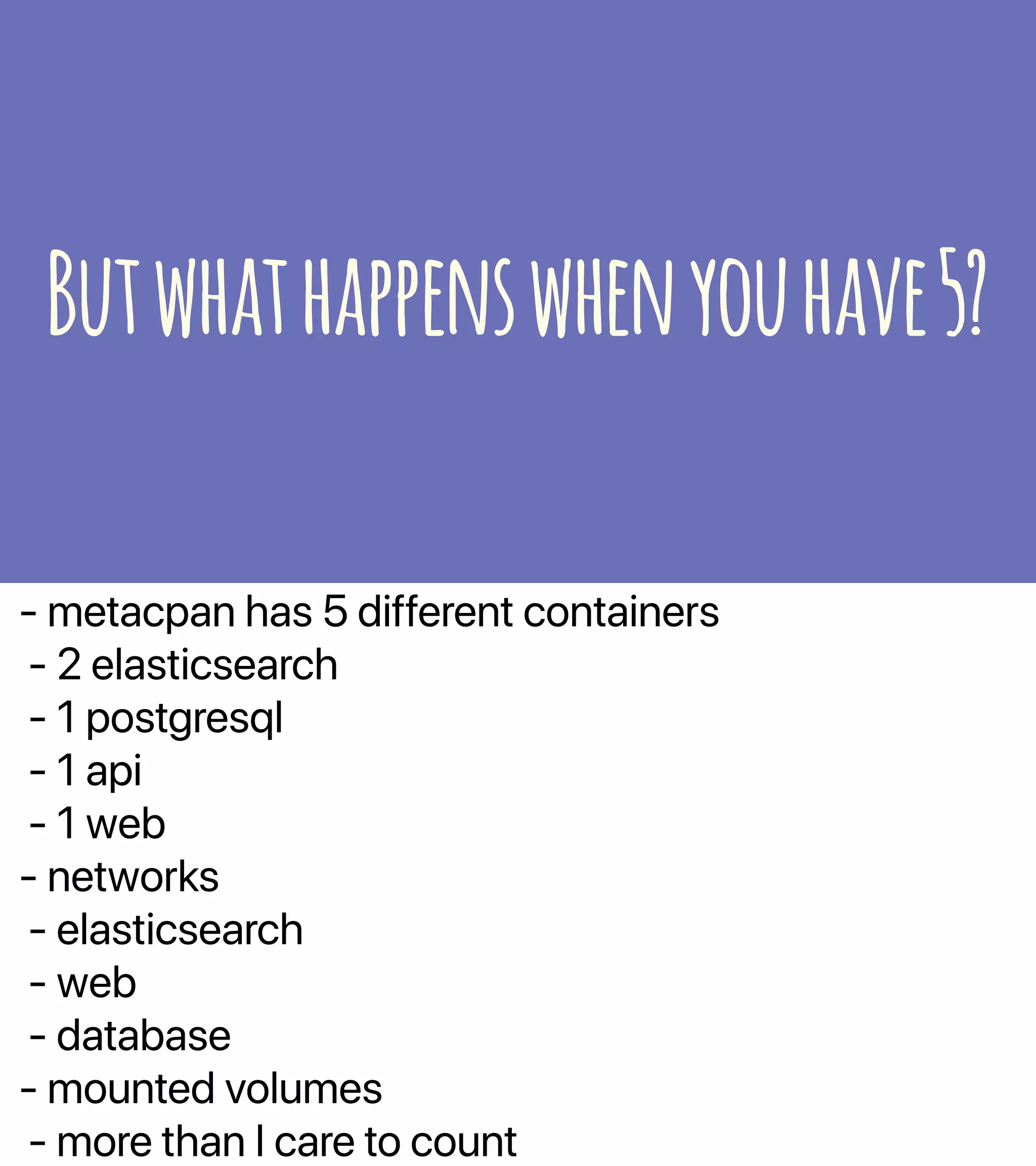
- metacpan has 5 different containers
- 2 elasticsearch
- 1 postgresql
- 1 api
- 1 web
- networks
- elasticsearch
- web
- database
- mounted volumes
- more than I care to count
Butwhathappenswhenyouhave5?
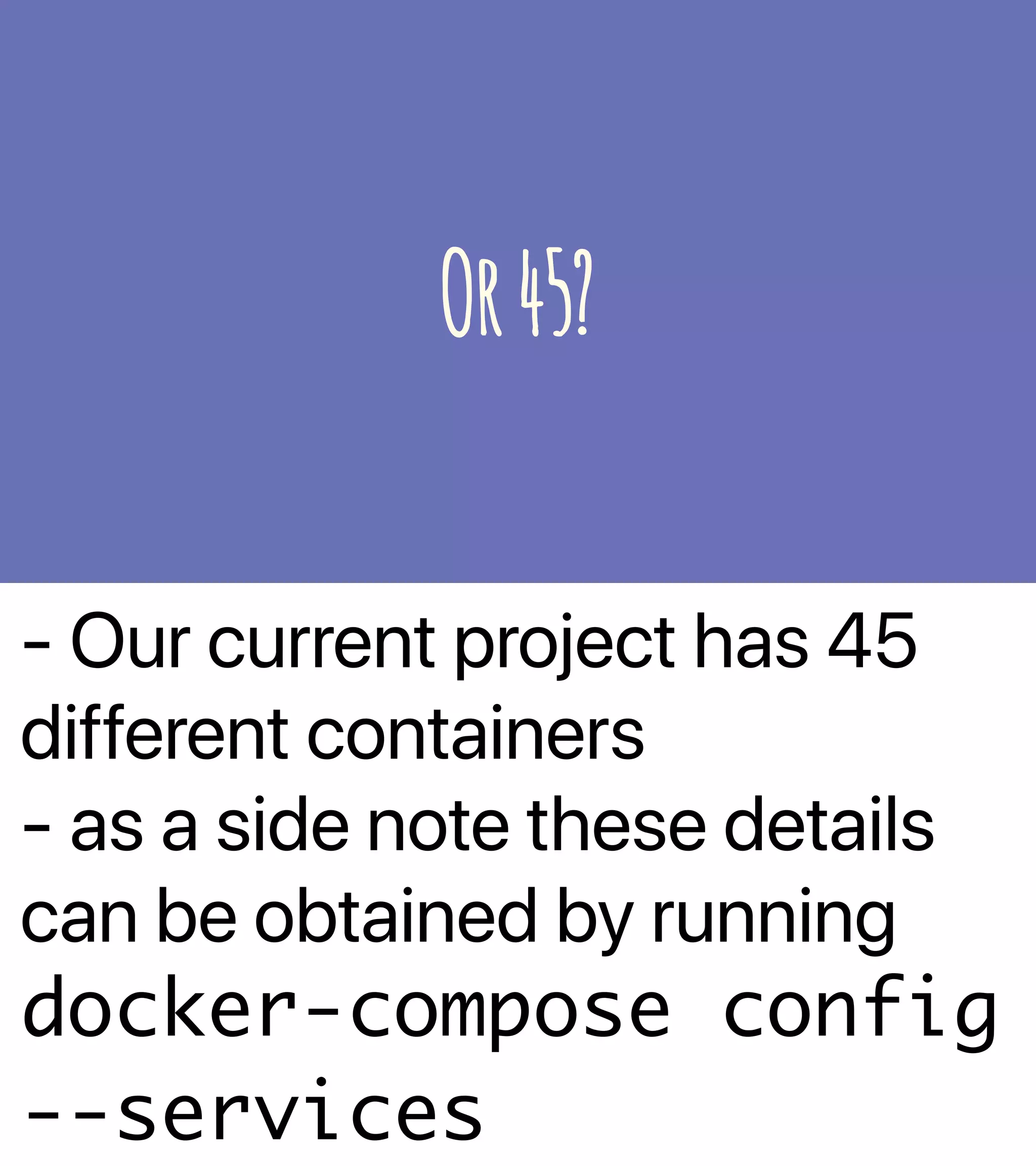
- Our current project has 45
different containers
- as a side note these details
can be obtained by running
docker-compose config
--services
Or45?
- Compose is a tool for defining and
running multi-container Docker
applications.
- YAML file to configure your
applicationʼs services.
- single command, you create and
start all the services from your
configuration.
Whatis
docker-compose
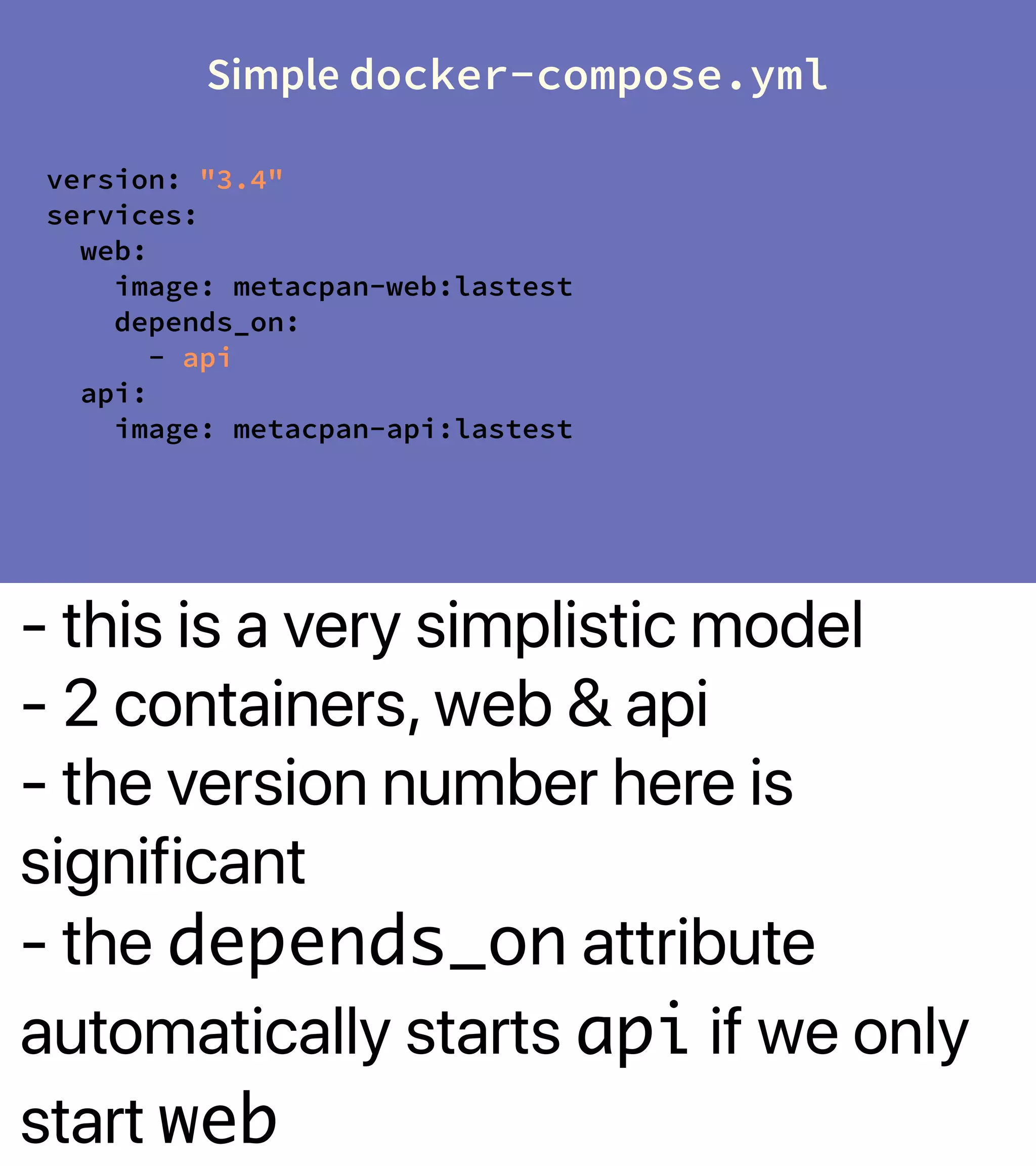
- this is a very simplistic model
- 2 containers, web & api
- the version number here is
significant
- the depends_on attribute
automatically starts api if we only
start web
Simple docker-compose.yml
version: "3.4"
services:
web:
image: metacpan-web:lastest
depends_on:
- api
api:
image: metacpan-api:lastest
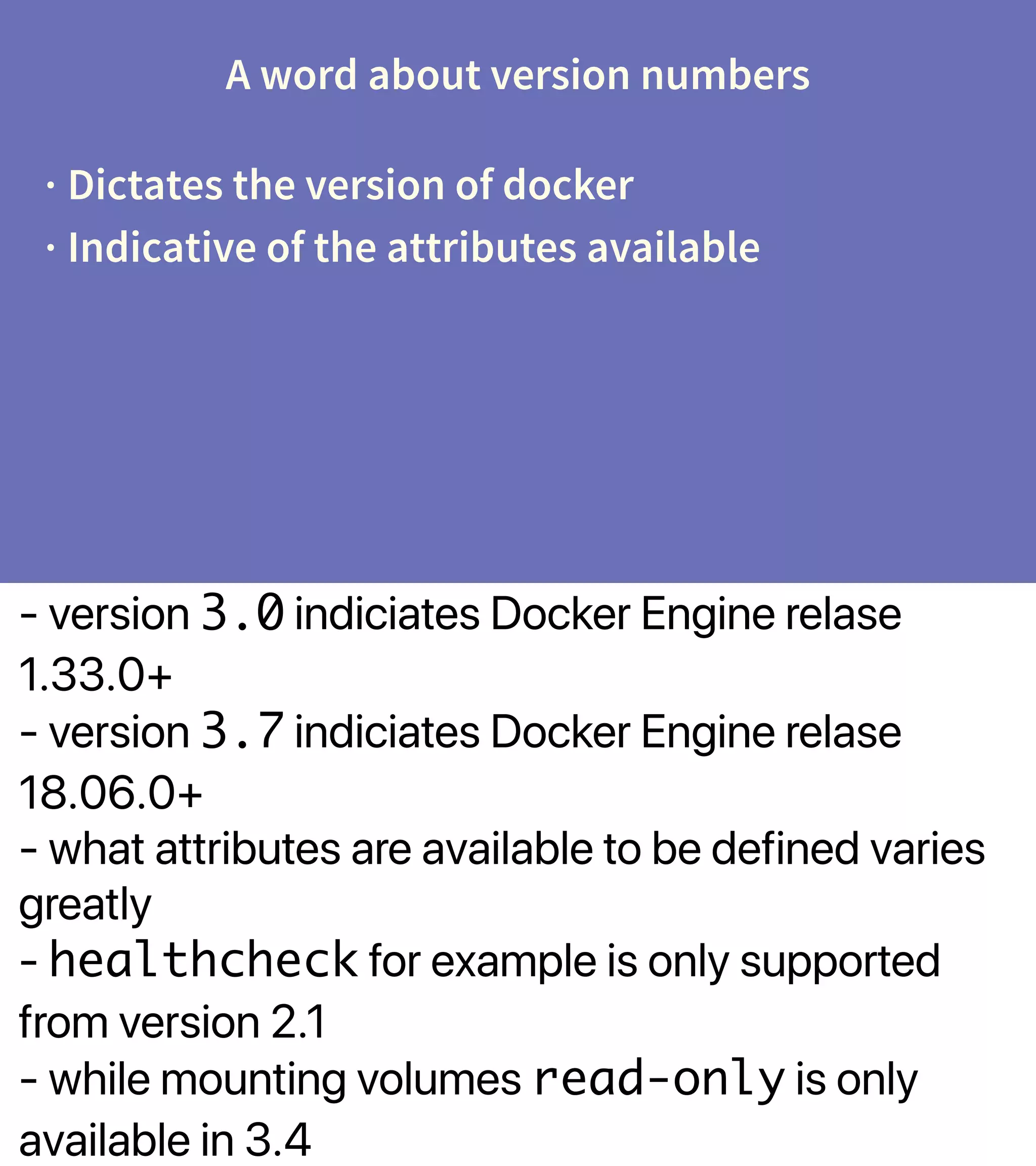
- version 3.0 indiciates Docker Engine relase
1.33.0+
- version 3.7 indiciates Docker Engine relase
18.06.0+
- what attributes are available to be defined varies
greatly
- healthcheck for example is only supported
from version 2.1
- while mounting volumes read-only is only
available in 3.4
A word about version numbers
· Dictates the version of docker
· Indicative of the attributes available
- A little side story
- I had intended to use reveal.js for this presentation
- the formatting and code highlighting really bugged me
- I've reverted back to using DeckSet
- but had I continue...
- this is the run command suggested for running this
presentation in a container
- there are a lot of volumes to be mounted, and rerunning
by hand is definitely not something you'd want to do
- docker image is from https://github.com/
nbrownuk/docker-revealjs
Example of docker run with many options
docker run -it --rm -p 8000:8000 
-v $PWD/index.html:/reveal.js/index.html 
-v $PWD/media:/reveal.js/media 
-v $PWD/custom.css:/reveal.js/css/theme/custom.css 
-v $PWD/menu:/reveal.js/plugin/menu 
nbrown/revealjs
Docker image is from https://github.com/
nbrownuk/docker-revealjs
- let's convert the docker run
command from the previous
slide into a working docker-
compose.yml
Exercise
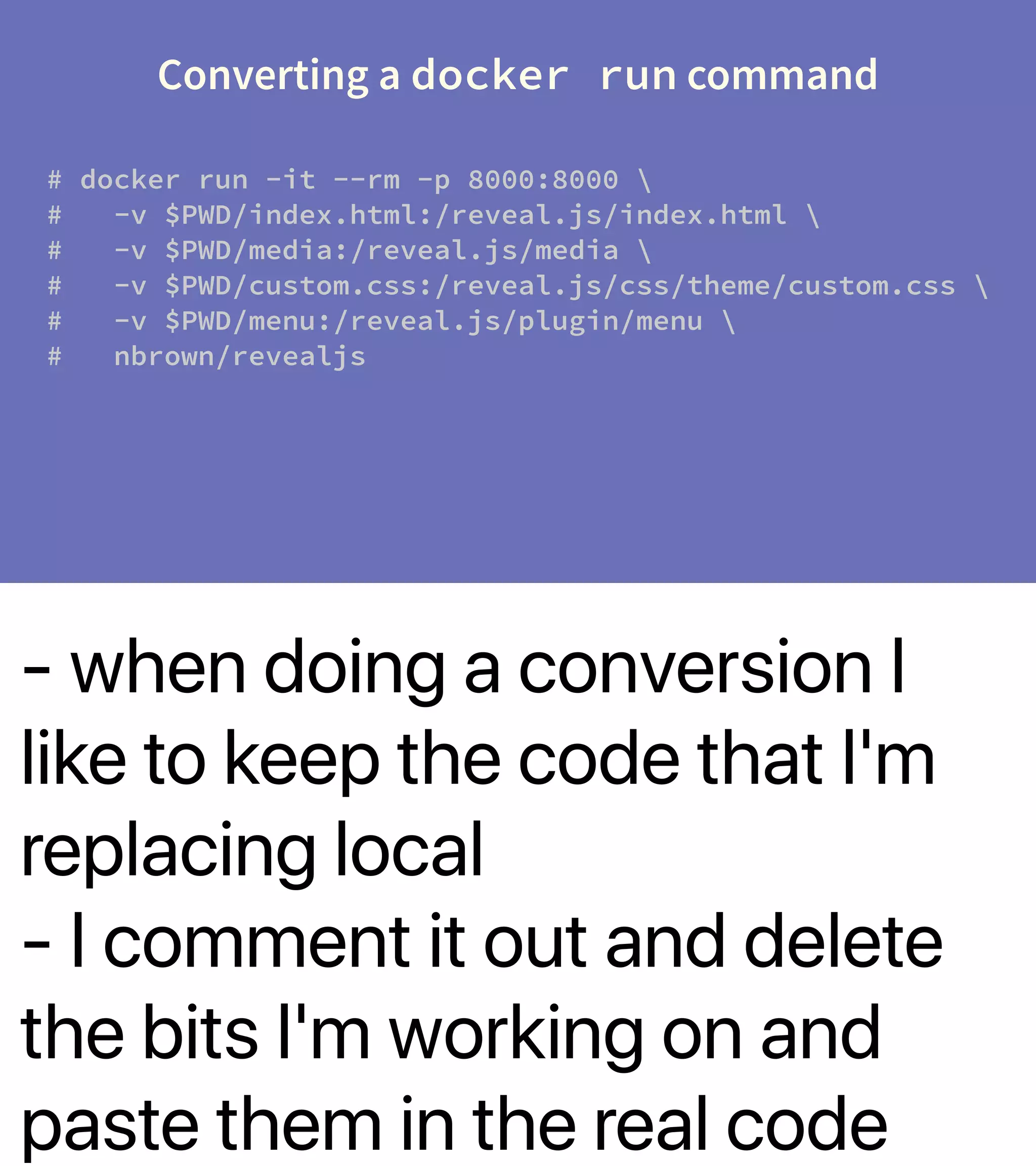
- when doing a conversion I
like to keep the code that I'm
replacing local
- I comment it out and delete
the bits I'm working on and
paste them in the real code
Converting a docker run command
# docker run -it --rm -p 8000:8000 
# -v $PWD/index.html:/reveal.js/index.html 
# -v $PWD/media:/reveal.js/media 
# -v $PWD/custom.css:/reveal.js/css/theme/custom.css 
# -v $PWD/menu:/reveal.js/plugin/menu 
# nbrown/revealjs
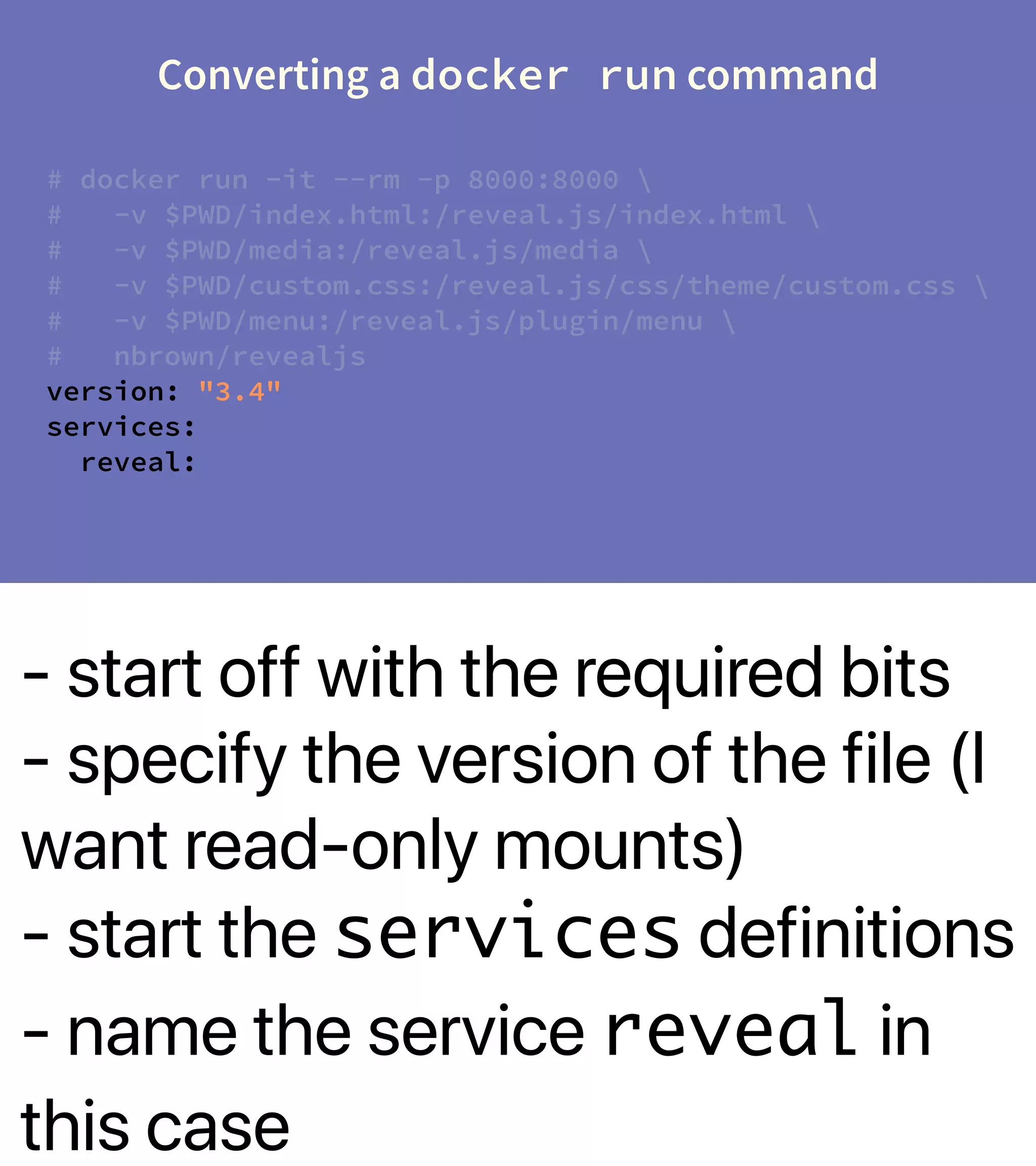
- start off with the required bits
- specify the version of the file (I
want read-only mounts)
- start the services definitions
- name the service reveal in
this case
Converting a docker run command
# docker run -it --rm -p 8000:8000 
# -v $PWD/index.html:/reveal.js/index.html 
# -v $PWD/media:/reveal.js/media 
# -v $PWD/custom.css:/reveal.js/css/theme/custom.css 
# -v $PWD/menu:/reveal.js/plugin/menu 
# nbrown/revealjs
version: "3.4"
services:
reveal:
- we're going to define the
image
Converting a docker run command
# docker run -it --rm -p 8000:8000 
# -v $PWD/index.html:/reveal.js/index.html 
# -v $PWD/media:/reveal.js/media 
# -v $PWD/custom.css:/reveal.js/css/theme/custom.css 
# -v $PWD/menu:/reveal.js/plugin/menu 
# nbrown/revealjs
version: "3.4"
services:
reveal:
image: nbrown/revealjs:latest
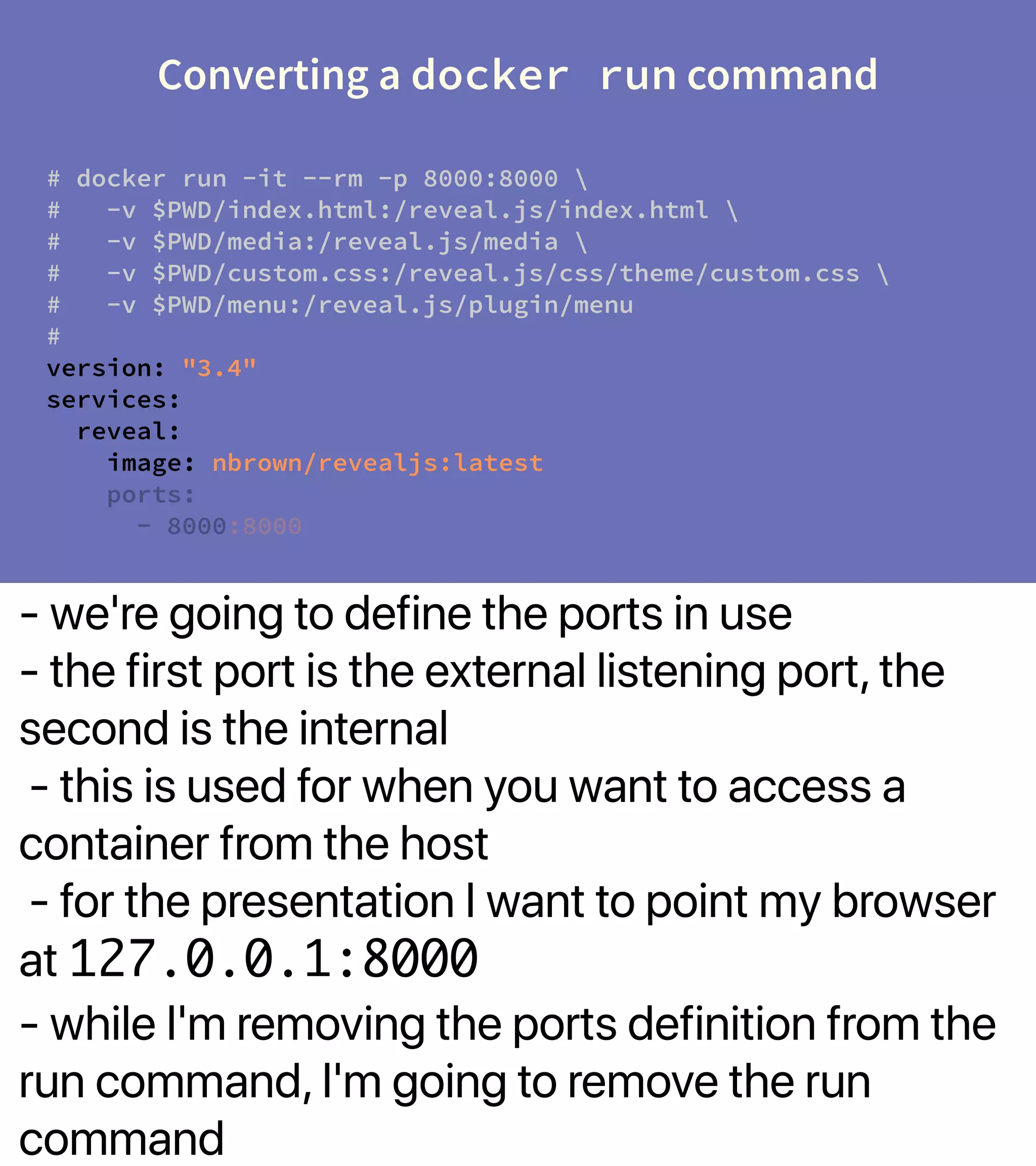
- we're going to define the ports in use
- the first port is the external listening port, the
second is the internal
- this is used for when you want to access a
container from the host
- for the presentation I want to point my browser
at 127.0.0.1:8000
- while I'm removing the ports definition from the
run command, I'm going to remove the run
command
Converting a docker run command
# docker run -it --rm -p 8000:8000 
# -v $PWD/index.html:/reveal.js/index.html 
# -v $PWD/media:/reveal.js/media 
# -v $PWD/custom.css:/reveal.js/css/theme/custom.css 
# -v $PWD/menu:/reveal.js/plugin/menu
#
version: "3.4"
services:
reveal:
image: nbrown/revealjs:latest
ports:
- 8000:8000
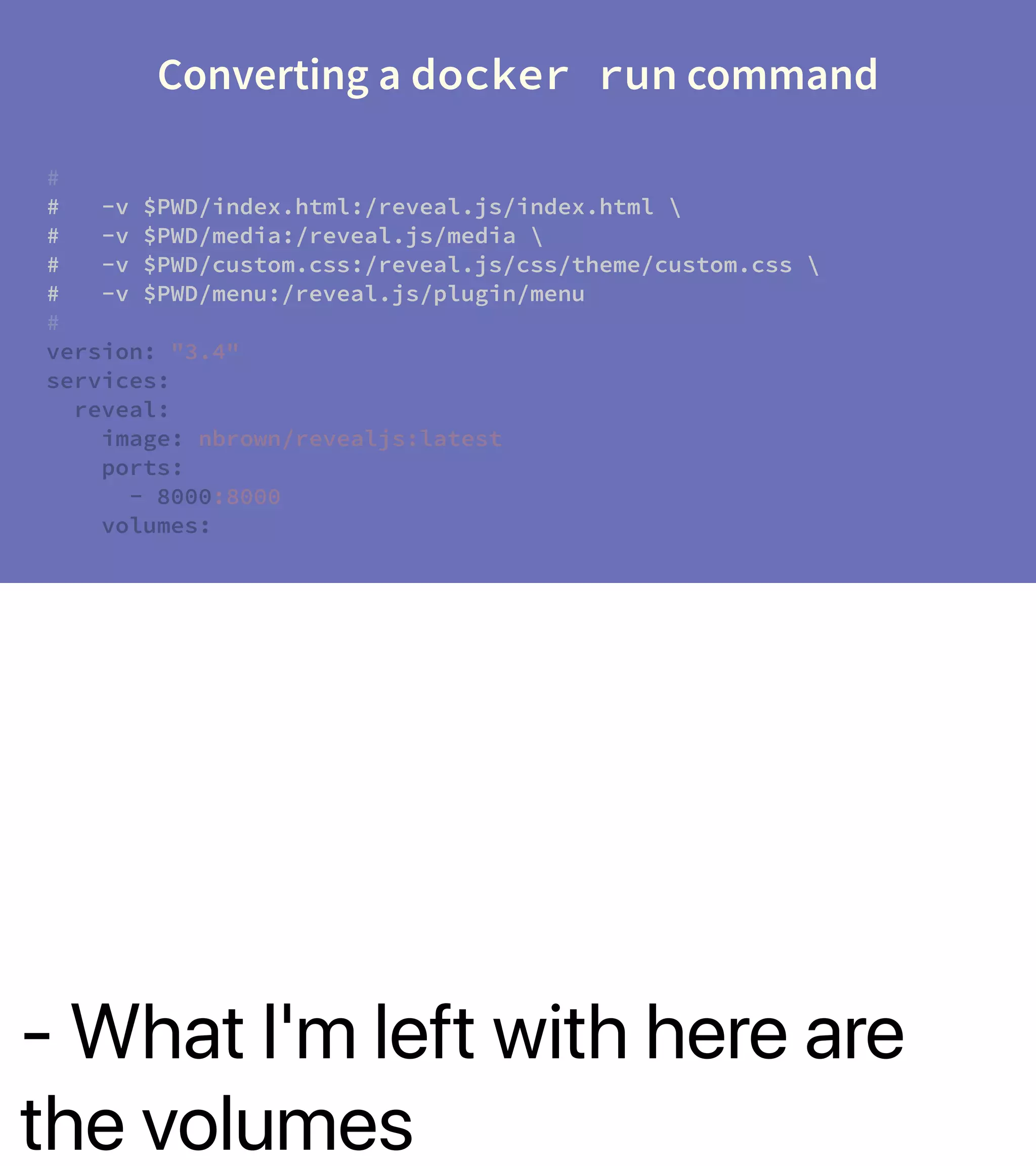
- What I'm left with here are
the volumes
Converting a docker run command
#
# -v $PWD/index.html:/reveal.js/index.html 
# -v $PWD/media:/reveal.js/media 
# -v $PWD/custom.css:/reveal.js/css/theme/custom.css 
# -v $PWD/menu:/reveal.js/plugin/menu
#
version: "3.4"
services:
reveal:
image: nbrown/revealjs:latest
ports:
- 8000:8000
volumes:
- What I'm left with here are
the volumes
Converting a docker run command
#
# -v $PWD/index.html:/reveal.js/index.html 
# -v $PWD/media:/reveal.js/media 
# -v $PWD/custom.css:/reveal.js/css/theme/custom.css 
# -v $PWD/menu:/reveal.js/plugin/menu
#
version: "3.4"
services:
reveal:
image: nbrown/revealjs:latest
ports:
- 8000:8000
volumes:
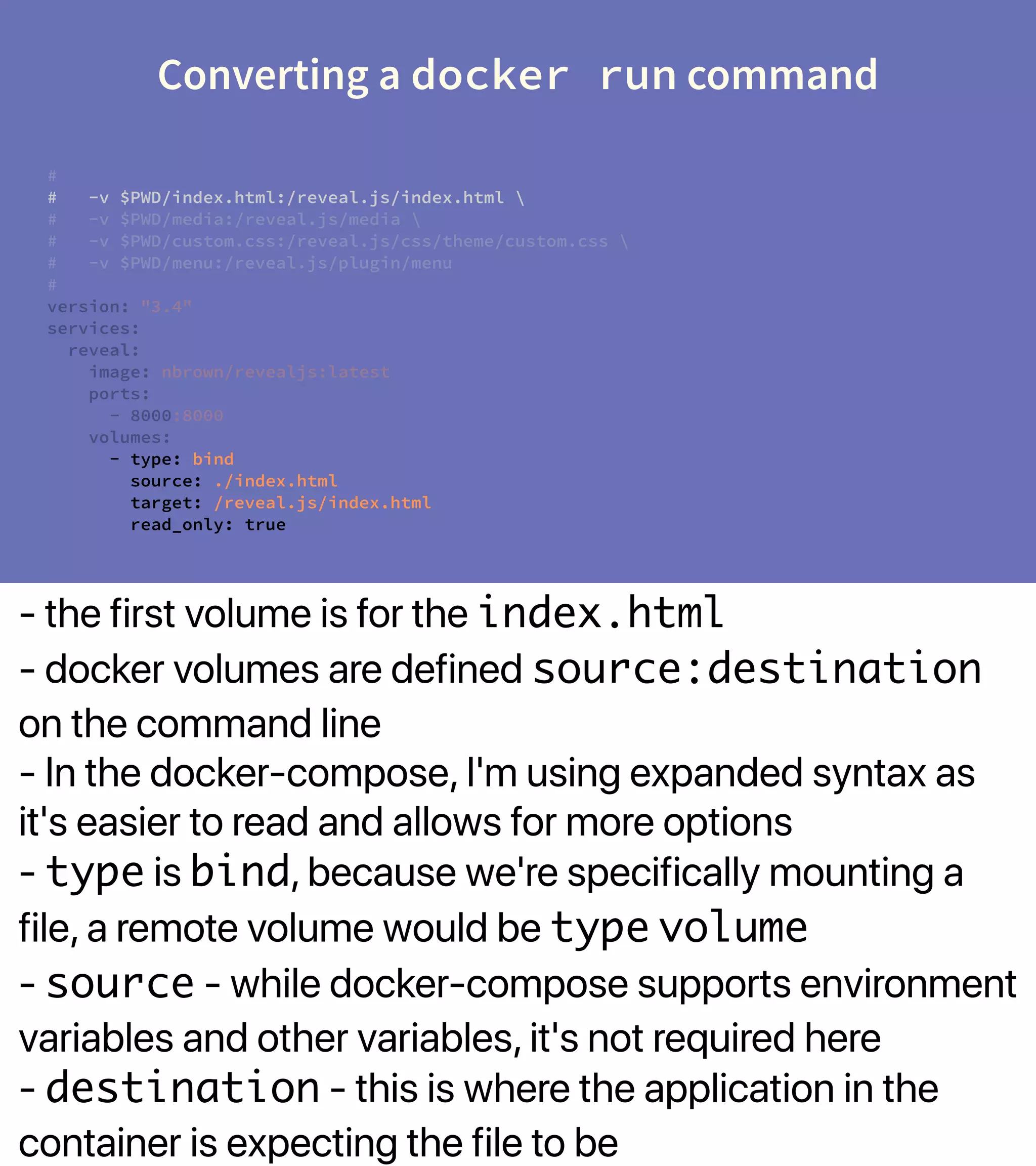
- the first volume is for the index.html
- docker volumes are defined source:destination
on the command line
- In the docker-compose, I'm using expanded syntax as
it's easier to read and allows for more options
- type is bind, because we're specifically mounting a
file, a remote volume would be type volume
- source - while docker-compose supports environment
variables and other variables, it's not required here
- destination - this is where the application in the
container is expecting the file to be
Converting a docker run command
#
# -v $PWD/index.html:/reveal.js/index.html 
# -v $PWD/media:/reveal.js/media 
# -v $PWD/custom.css:/reveal.js/css/theme/custom.css 
# -v $PWD/menu:/reveal.js/plugin/menu
#
version: "3.4"
services:
reveal:
image: nbrown/revealjs:latest
ports:
- 8000:8000
volumes:
- type: bind
source: ./index.html
target: /reveal.js/index.html
read_only: true
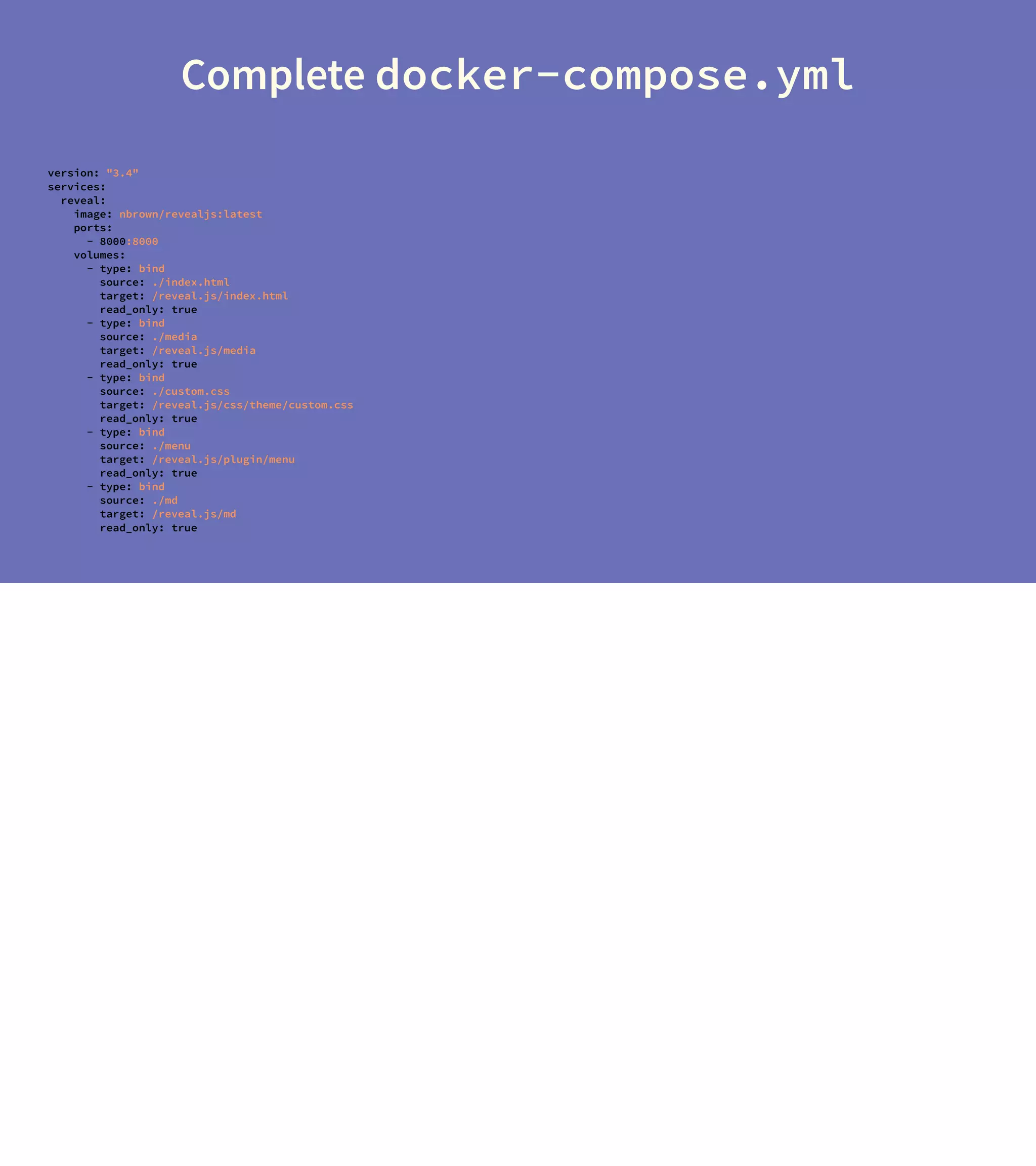
Complete docker-compose.yml
version: "3.4"
services:
reveal:
image: nbrown/revealjs:latest
ports:
- 8000:8000
volumes:
- type: bind
source: ./index.html
target: /reveal.js/index.html
read_only: true
- type: bind
source: ./media
target: /reveal.js/media
read_only: true
- type: bind
source: ./custom.css
target: /reveal.js/css/theme/custom.css
read_only: true
- type: bind
source: ./menu
target: /reveal.js/plugin/menu
read_only: true
- type: bind
source: ./md
target: /reveal.js/md
read_only: true
- without the -d option docker-compose up will
start containers and logging in the foreground
- the --volumes options to docker-compose down
removes any persistent storage volumes that are defined
- useful if you can recreate your database from scratch
- log is extremely useful if you've started containers in
detached mode, it also supports -f just like tail
- docker-compose was originally called fig, which is a
lot less typing
- create an alias, save your fingers
Simple Commands
· docker-compose up
builds creates/recreates and attaches to containers
· docker-compose down
stops and removes containers, networks and volumes
· docker-compose stop
stops containers without removing them
· docker-compose start
starts existing containers for a service
· docker-compose log
starts existing containers for a service
Furtherreading
· Docker Compose documentation
https://docs.docker.com/v17.09/compose/
overview/`
END

Docker Compose Explained

  • 1.
  • 2.
    - A simplecommand to start a container - options are available through command line parameters - options specified here are: - d -- detached - i -- interactive - t -- assign a tty - --name -- assigns a name to the running image - these options may sound contradictory, the result leaves a running image - there's a point where rerunning with all the options does get cumbersome - at this point a shell script is a viable solution dockerisgoodforonecontainer docker run -dit --name metacpan-api metacpan-api:latest /bin/bash
  • 3.
    - Two containersisn't too bad to manage - running both from the shell with an && to ensure proper starting order - same caveat, lots of options could require a shell script ortwocontainers docker run -d --name metacpan-pgdb metacpan-pgdb:latest && docker run -d --name metacpan-api metacpan-api:latest
  • 4.
    - metacpan has5 different containers - 2 elasticsearch - 1 postgresql - 1 api - 1 web - networks - elasticsearch - web - database - mounted volumes - more than I care to count Butwhathappenswhenyouhave5?
  • 5.
    - Our currentproject has 45 different containers - as a side note these details can be obtained by running docker-compose config --services Or45?
  • 6.
    - Compose isa tool for defining and running multi-container Docker applications. - YAML file to configure your applicationʼs services. - single command, you create and start all the services from your configuration. Whatis docker-compose
  • 7.
    - this isa very simplistic model - 2 containers, web & api - the version number here is significant - the depends_on attribute automatically starts api if we only start web Simple docker-compose.yml version: "3.4" services: web: image: metacpan-web:lastest depends_on: - api api: image: metacpan-api:lastest
  • 8.
    - version 3.0indiciates Docker Engine relase 1.33.0+ - version 3.7 indiciates Docker Engine relase 18.06.0+ - what attributes are available to be defined varies greatly - healthcheck for example is only supported from version 2.1 - while mounting volumes read-only is only available in 3.4 A word about version numbers · Dictates the version of docker · Indicative of the attributes available
  • 9.
    - A littleside story - I had intended to use reveal.js for this presentation - the formatting and code highlighting really bugged me - I've reverted back to using DeckSet - but had I continue... - this is the run command suggested for running this presentation in a container - there are a lot of volumes to be mounted, and rerunning by hand is definitely not something you'd want to do - docker image is from https://github.com/ nbrownuk/docker-revealjs Example of docker run with many options docker run -it --rm -p 8000:8000 -v $PWD/index.html:/reveal.js/index.html -v $PWD/media:/reveal.js/media -v $PWD/custom.css:/reveal.js/css/theme/custom.css -v $PWD/menu:/reveal.js/plugin/menu nbrown/revealjs Docker image is from https://github.com/ nbrownuk/docker-revealjs
  • 10.
    - let's convertthe docker run command from the previous slide into a working docker- compose.yml Exercise
  • 11.
    - when doinga conversion I like to keep the code that I'm replacing local - I comment it out and delete the bits I'm working on and paste them in the real code Converting a docker run command # docker run -it --rm -p 8000:8000 # -v $PWD/index.html:/reveal.js/index.html # -v $PWD/media:/reveal.js/media # -v $PWD/custom.css:/reveal.js/css/theme/custom.css # -v $PWD/menu:/reveal.js/plugin/menu # nbrown/revealjs
  • 12.
    - start offwith the required bits - specify the version of the file (I want read-only mounts) - start the services definitions - name the service reveal in this case Converting a docker run command # docker run -it --rm -p 8000:8000 # -v $PWD/index.html:/reveal.js/index.html # -v $PWD/media:/reveal.js/media # -v $PWD/custom.css:/reveal.js/css/theme/custom.css # -v $PWD/menu:/reveal.js/plugin/menu # nbrown/revealjs version: "3.4" services: reveal:
  • 13.
    - we're goingto define the image Converting a docker run command # docker run -it --rm -p 8000:8000 # -v $PWD/index.html:/reveal.js/index.html # -v $PWD/media:/reveal.js/media # -v $PWD/custom.css:/reveal.js/css/theme/custom.css # -v $PWD/menu:/reveal.js/plugin/menu # nbrown/revealjs version: "3.4" services: reveal: image: nbrown/revealjs:latest
  • 14.
    - we're goingto define the ports in use - the first port is the external listening port, the second is the internal - this is used for when you want to access a container from the host - for the presentation I want to point my browser at 127.0.0.1:8000 - while I'm removing the ports definition from the run command, I'm going to remove the run command Converting a docker run command # docker run -it --rm -p 8000:8000 # -v $PWD/index.html:/reveal.js/index.html # -v $PWD/media:/reveal.js/media # -v $PWD/custom.css:/reveal.js/css/theme/custom.css # -v $PWD/menu:/reveal.js/plugin/menu # version: "3.4" services: reveal: image: nbrown/revealjs:latest ports: - 8000:8000
  • 15.
    - What I'mleft with here are the volumes Converting a docker run command # # -v $PWD/index.html:/reveal.js/index.html # -v $PWD/media:/reveal.js/media # -v $PWD/custom.css:/reveal.js/css/theme/custom.css # -v $PWD/menu:/reveal.js/plugin/menu # version: "3.4" services: reveal: image: nbrown/revealjs:latest ports: - 8000:8000 volumes:
  • 16.
    - What I'mleft with here are the volumes Converting a docker run command # # -v $PWD/index.html:/reveal.js/index.html # -v $PWD/media:/reveal.js/media # -v $PWD/custom.css:/reveal.js/css/theme/custom.css # -v $PWD/menu:/reveal.js/plugin/menu # version: "3.4" services: reveal: image: nbrown/revealjs:latest ports: - 8000:8000 volumes:
  • 17.
    - the firstvolume is for the index.html - docker volumes are defined source:destination on the command line - In the docker-compose, I'm using expanded syntax as it's easier to read and allows for more options - type is bind, because we're specifically mounting a file, a remote volume would be type volume - source - while docker-compose supports environment variables and other variables, it's not required here - destination - this is where the application in the container is expecting the file to be Converting a docker run command # # -v $PWD/index.html:/reveal.js/index.html # -v $PWD/media:/reveal.js/media # -v $PWD/custom.css:/reveal.js/css/theme/custom.css # -v $PWD/menu:/reveal.js/plugin/menu # version: "3.4" services: reveal: image: nbrown/revealjs:latest ports: - 8000:8000 volumes: - type: bind source: ./index.html target: /reveal.js/index.html read_only: true
  • 18.
    Complete docker-compose.yml version: "3.4" services: reveal: image:nbrown/revealjs:latest ports: - 8000:8000 volumes: - type: bind source: ./index.html target: /reveal.js/index.html read_only: true - type: bind source: ./media target: /reveal.js/media read_only: true - type: bind source: ./custom.css target: /reveal.js/css/theme/custom.css read_only: true - type: bind source: ./menu target: /reveal.js/plugin/menu read_only: true - type: bind source: ./md target: /reveal.js/md read_only: true
  • 19.
    - without the-d option docker-compose up will start containers and logging in the foreground - the --volumes options to docker-compose down removes any persistent storage volumes that are defined - useful if you can recreate your database from scratch - log is extremely useful if you've started containers in detached mode, it also supports -f just like tail - docker-compose was originally called fig, which is a lot less typing - create an alias, save your fingers Simple Commands · docker-compose up builds creates/recreates and attaches to containers · docker-compose down stops and removes containers, networks and volumes · docker-compose stop stops containers without removing them · docker-compose start starts existing containers for a service · docker-compose log starts existing containers for a service
  • 20.
    Furtherreading · Docker Composedocumentation https://docs.docker.com/v17.09/compose/ overview/`
  • 21.