DEVELOPING VR
EXPERIENCES WITH UNITY
Mark Billinghurst
University of South Australia
July 30th 2019
INTRO TO UNITY
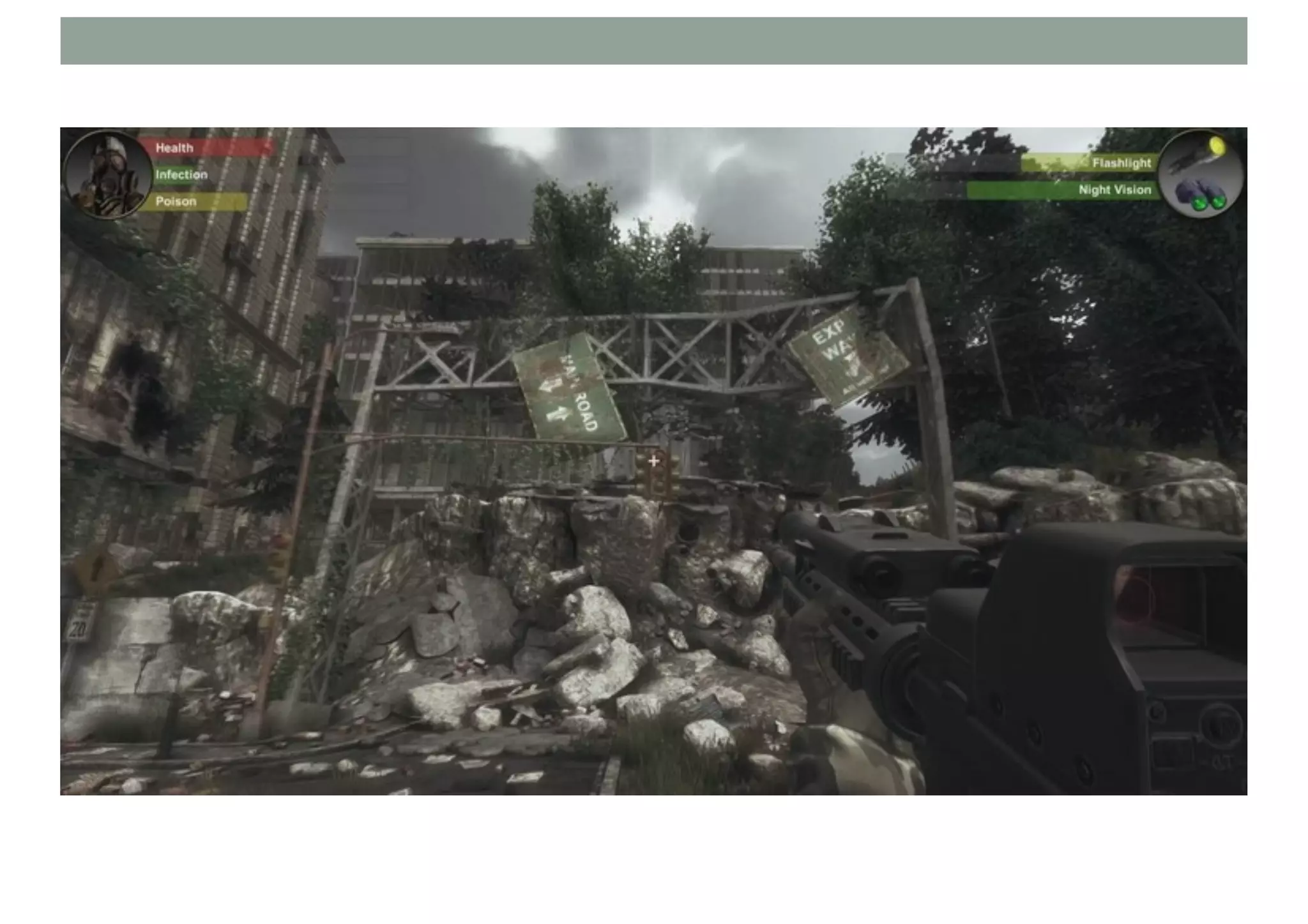
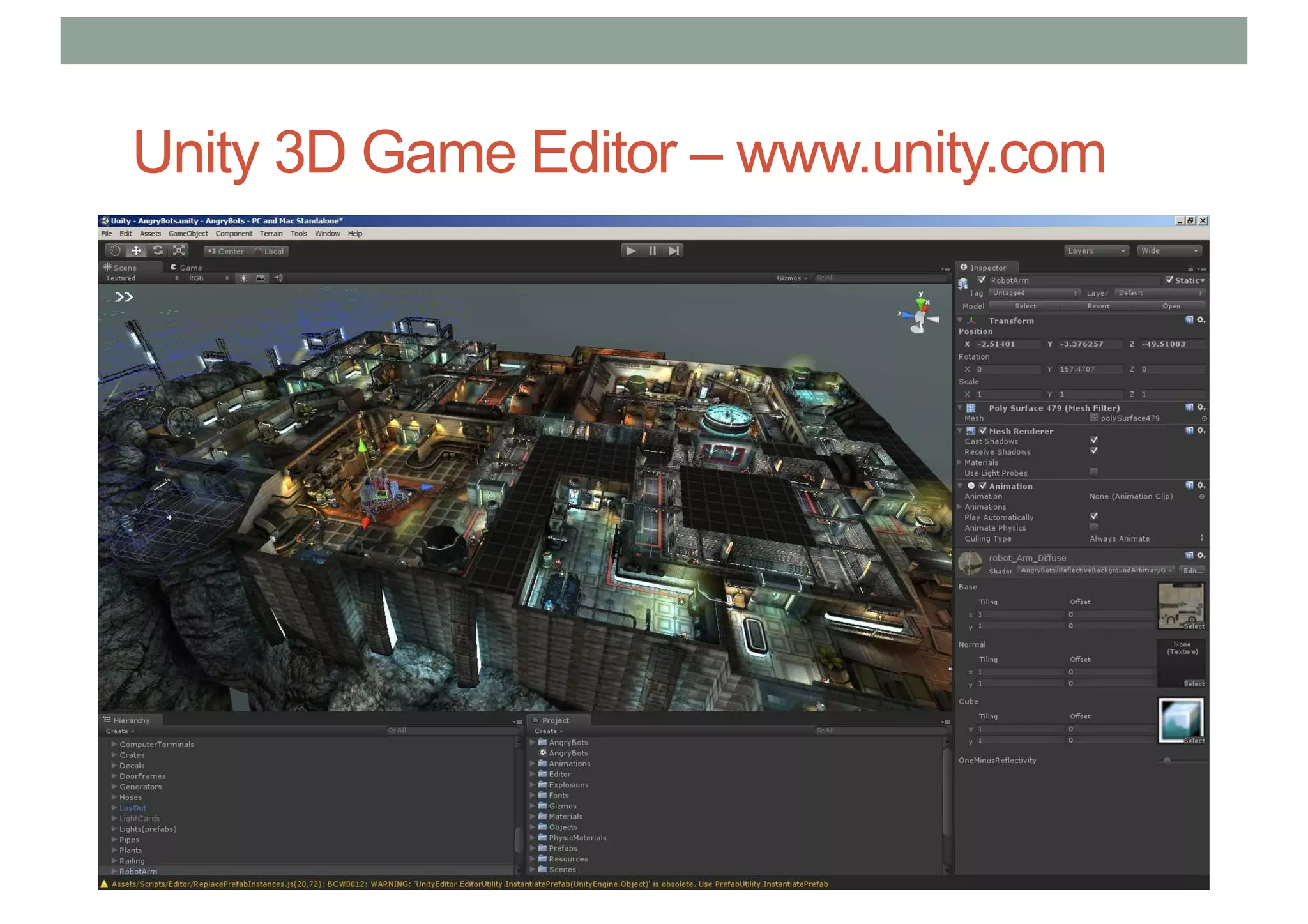
Unity 3D Game Editor – www.unity.com
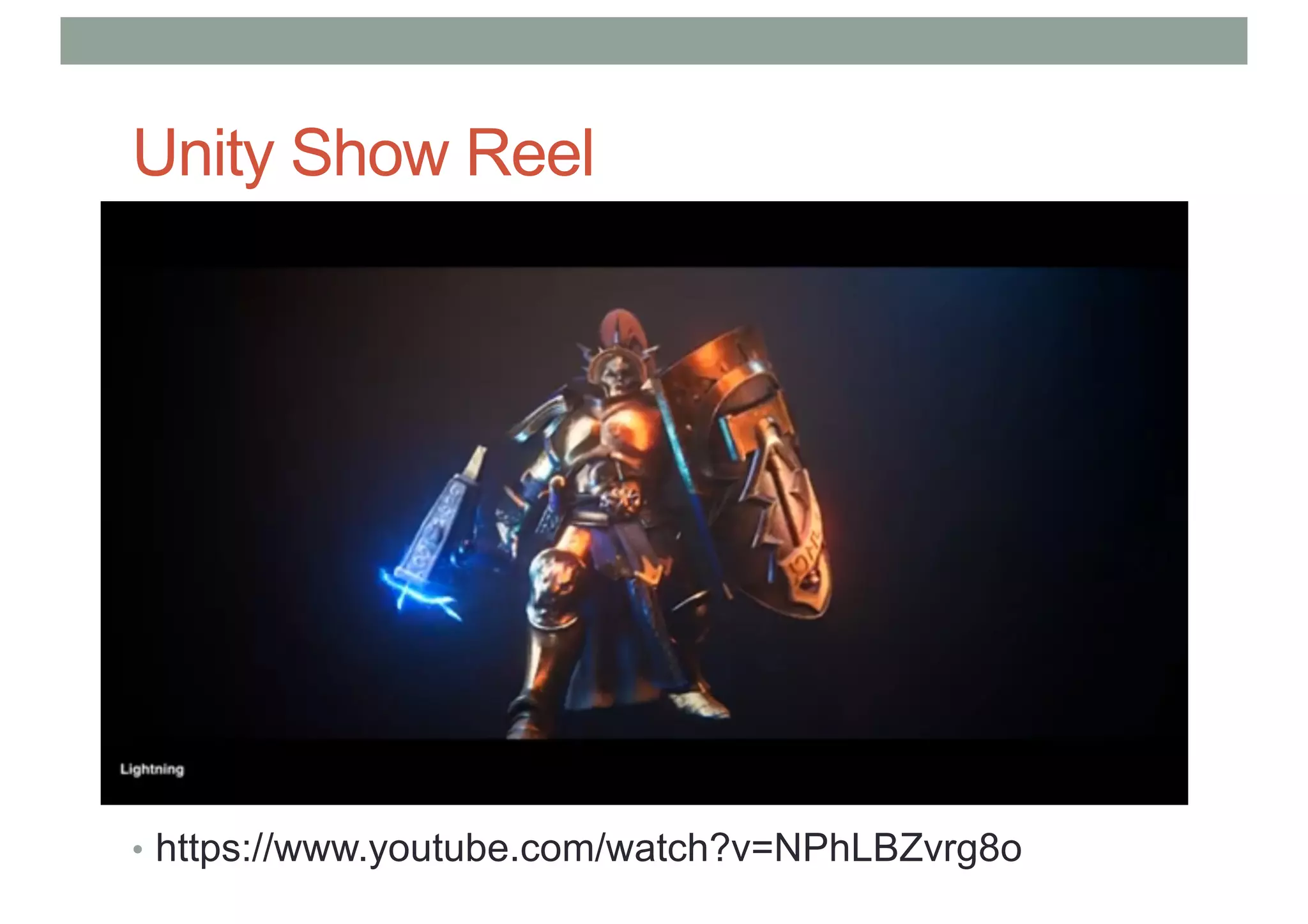
Unity Show Reel
• https://www.youtube.com/watch?v=NPhLBZvrg8o
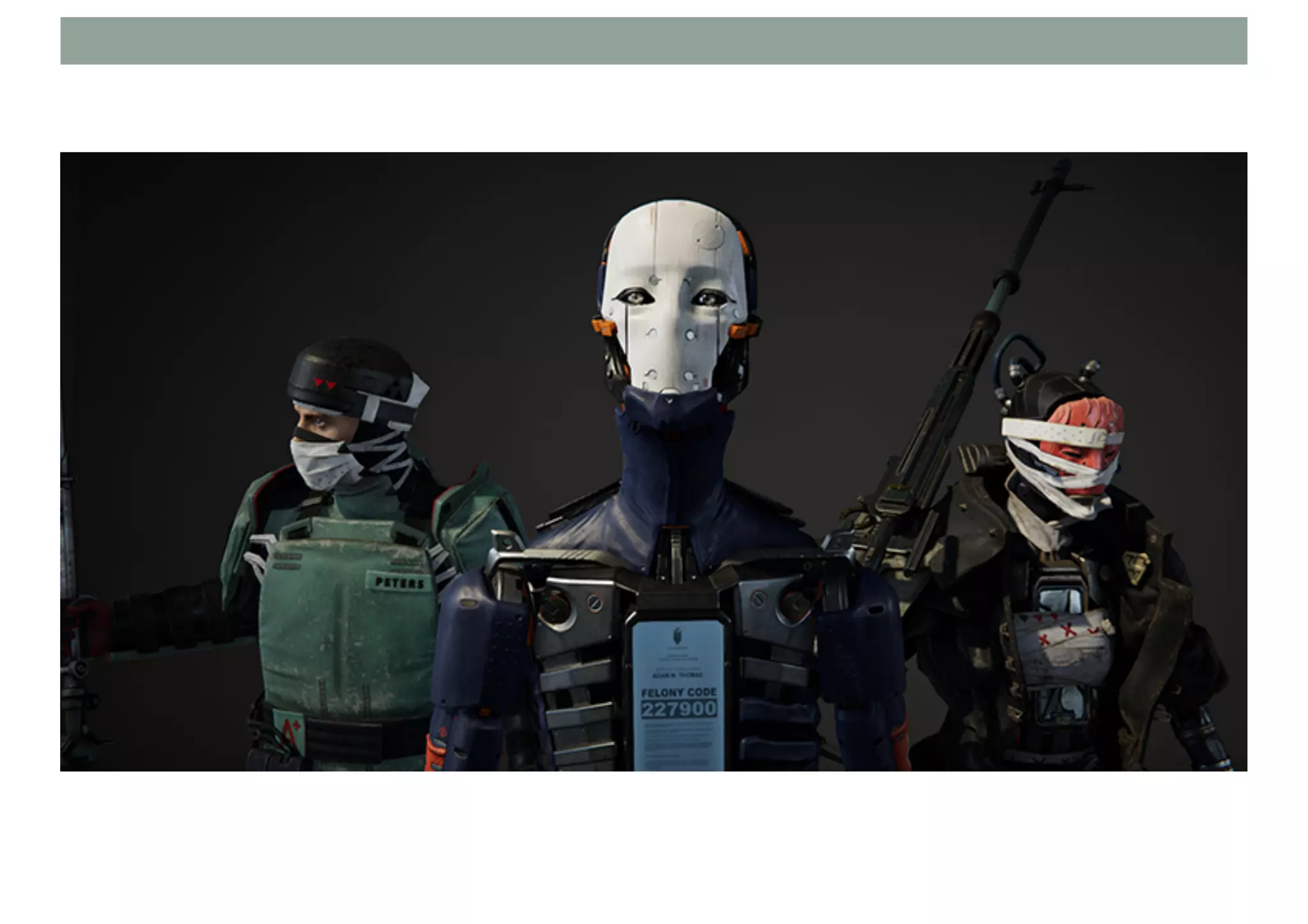
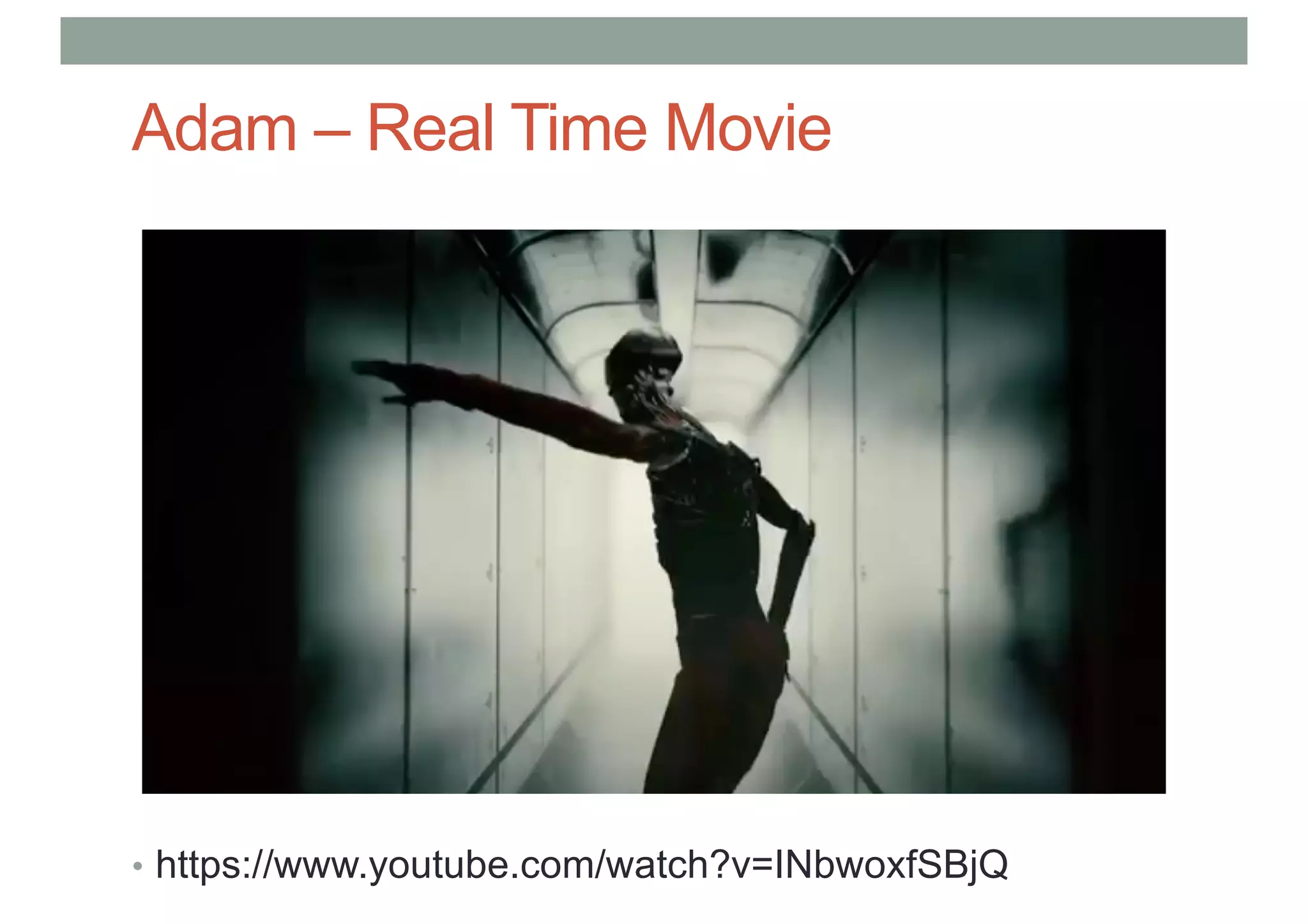
Adam – Real Time Movie
• https://www.youtube.com/watch?v=INbwoxfSBjQ
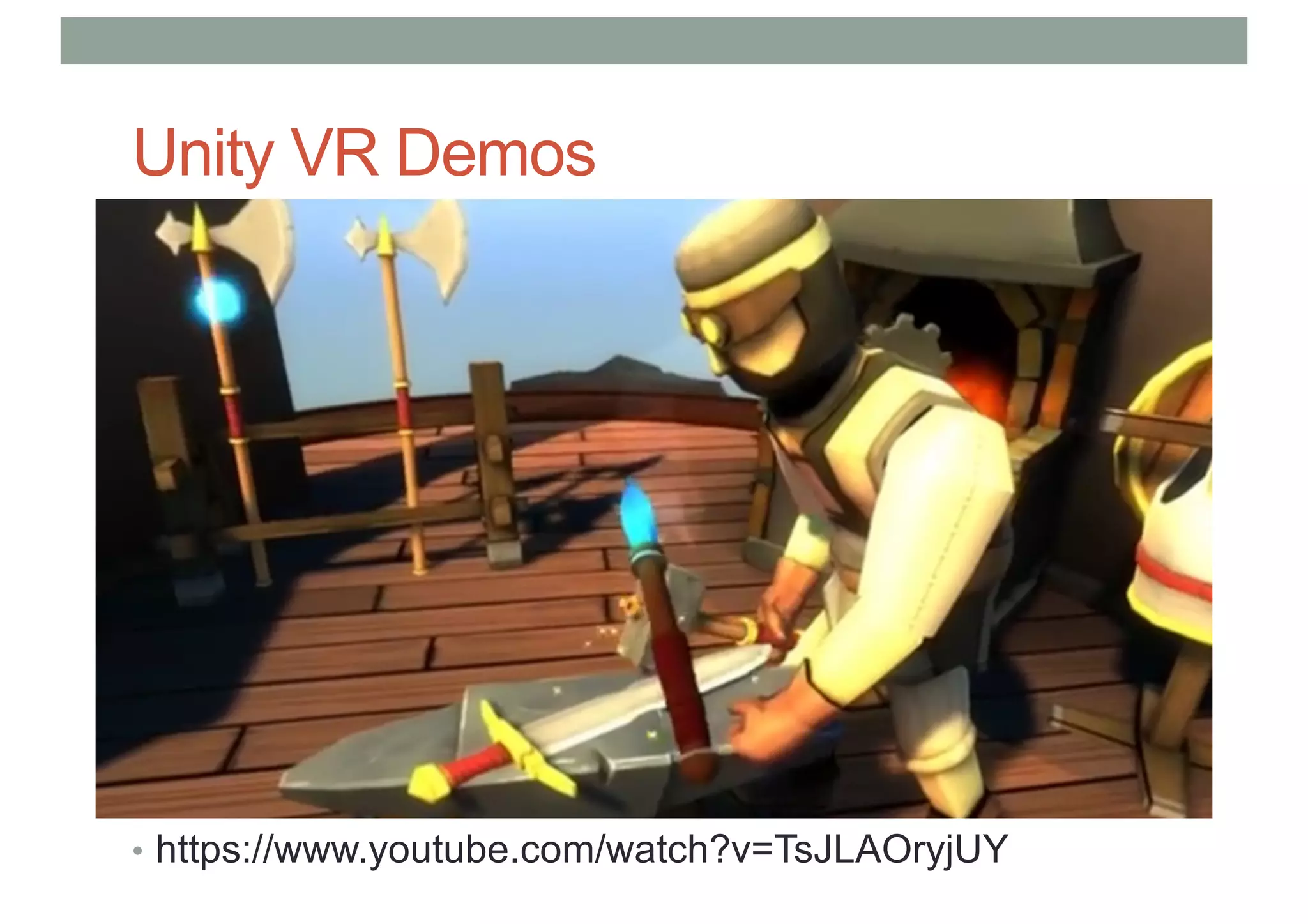
Unity VR Demos
• https://www.youtube.com/watch?v=TsJLAOryjUY
Unity 3D features
• Cross platform
• Windows, OSX, iOS, Android, Linux, WebGL, etc.
• Fast rapid development
• Visual scene assembly, rapid prototyping
• Control over rendering pipeline
• Access to low level graphics, shader programming
• Scripting in multiple coding languages
• C#, C++, Javascript, etc.
• Asset store with thousands of contributions
• Models, behaviours, programming tools, etc.
• Very large developer/support community
SETUP
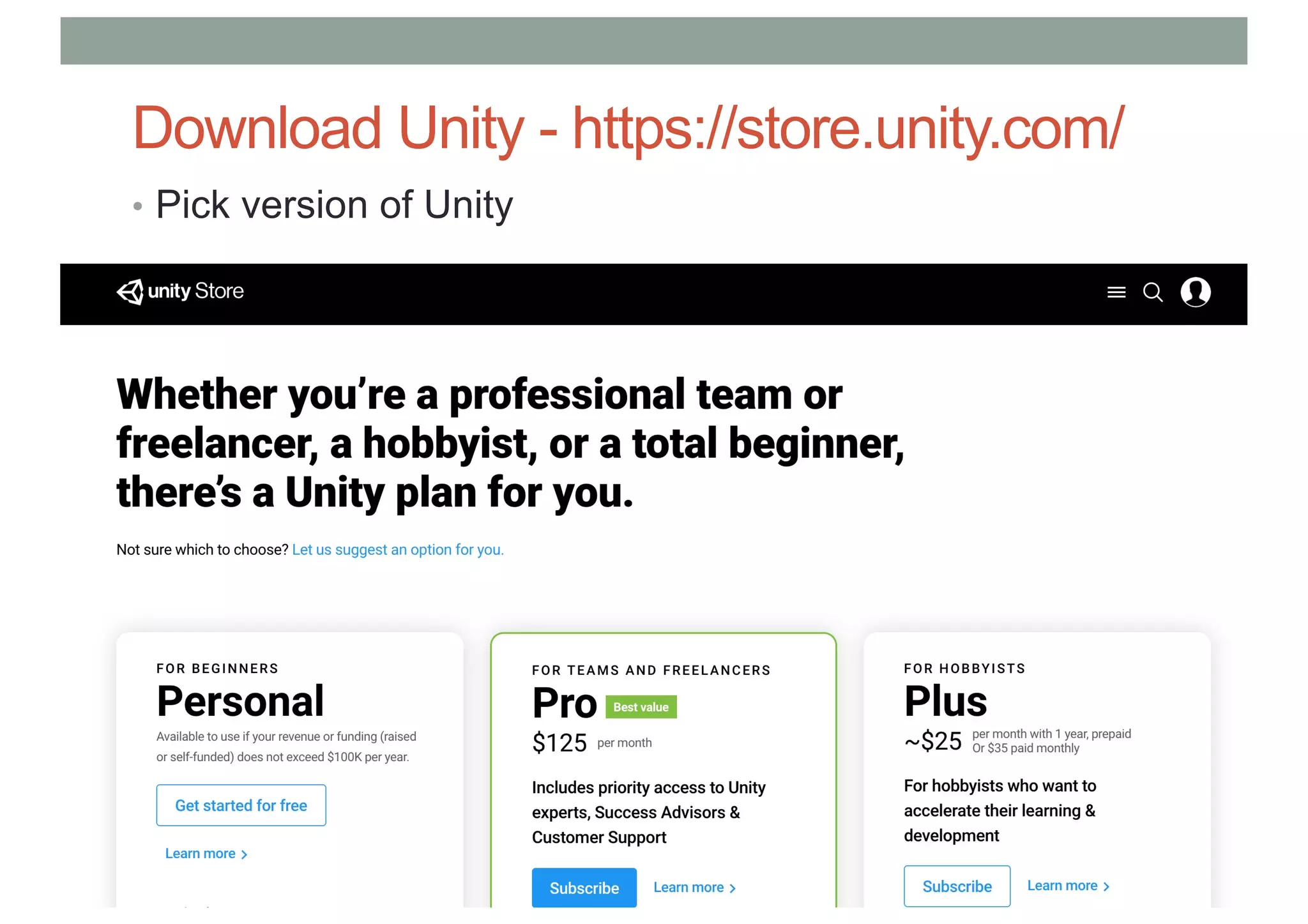
Download Unity - https://store.unity.com/
• Pick version of Unity
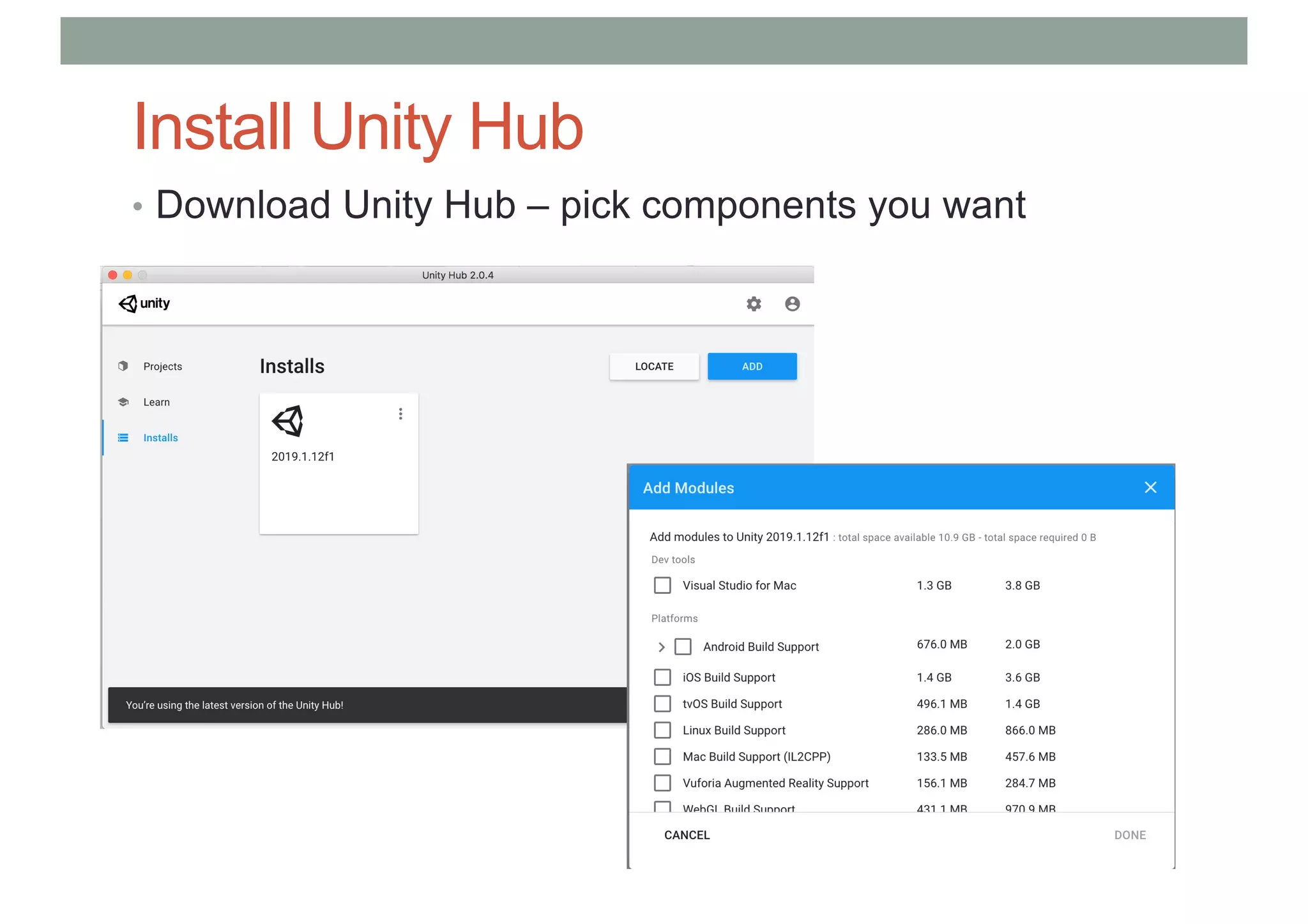
Install Unity Hub
• Download Unity Hub – pick components you want
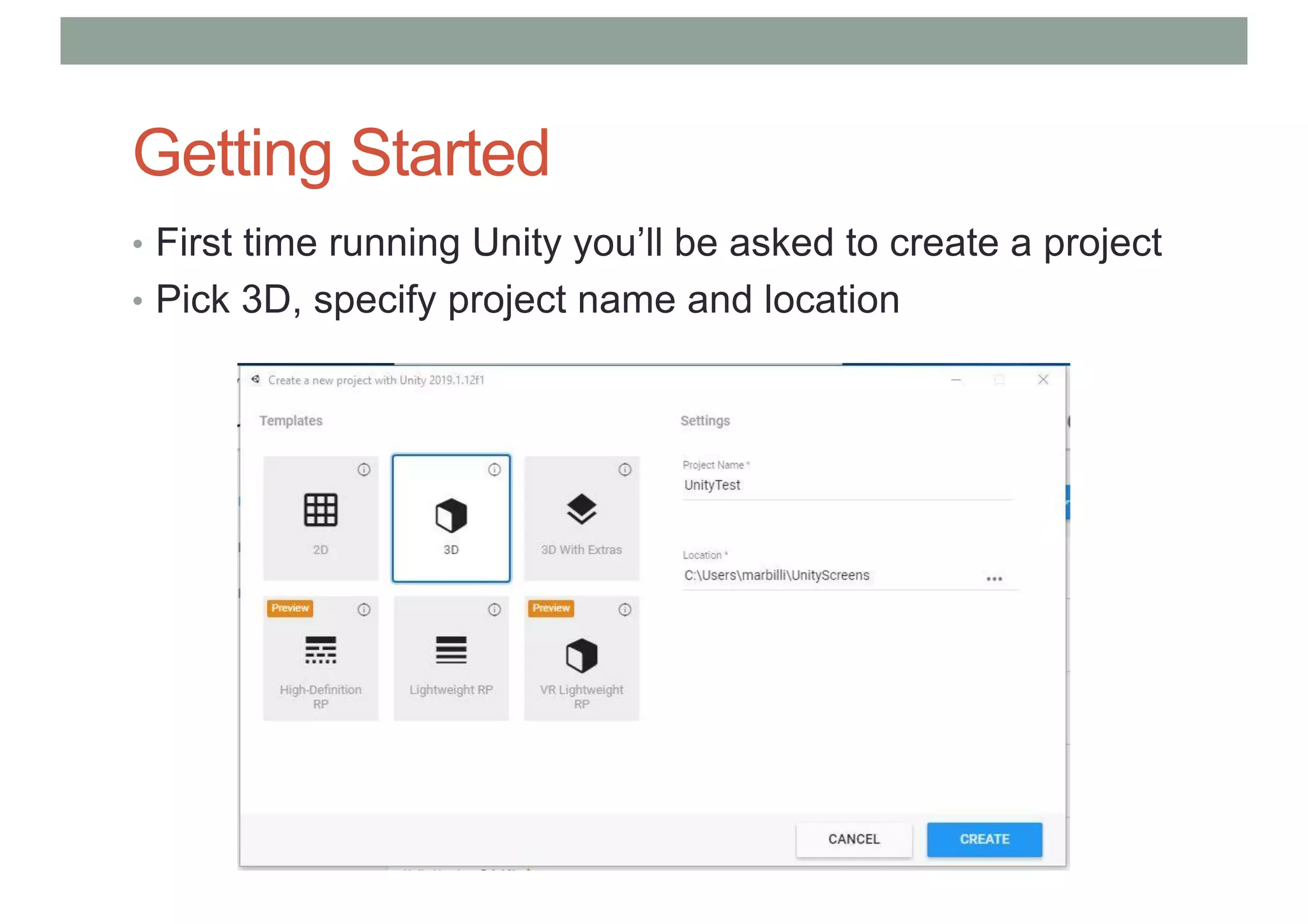
Getting Started
• First time running Unity you’ll be asked to create a project
• Pick 3D, specify project name and location
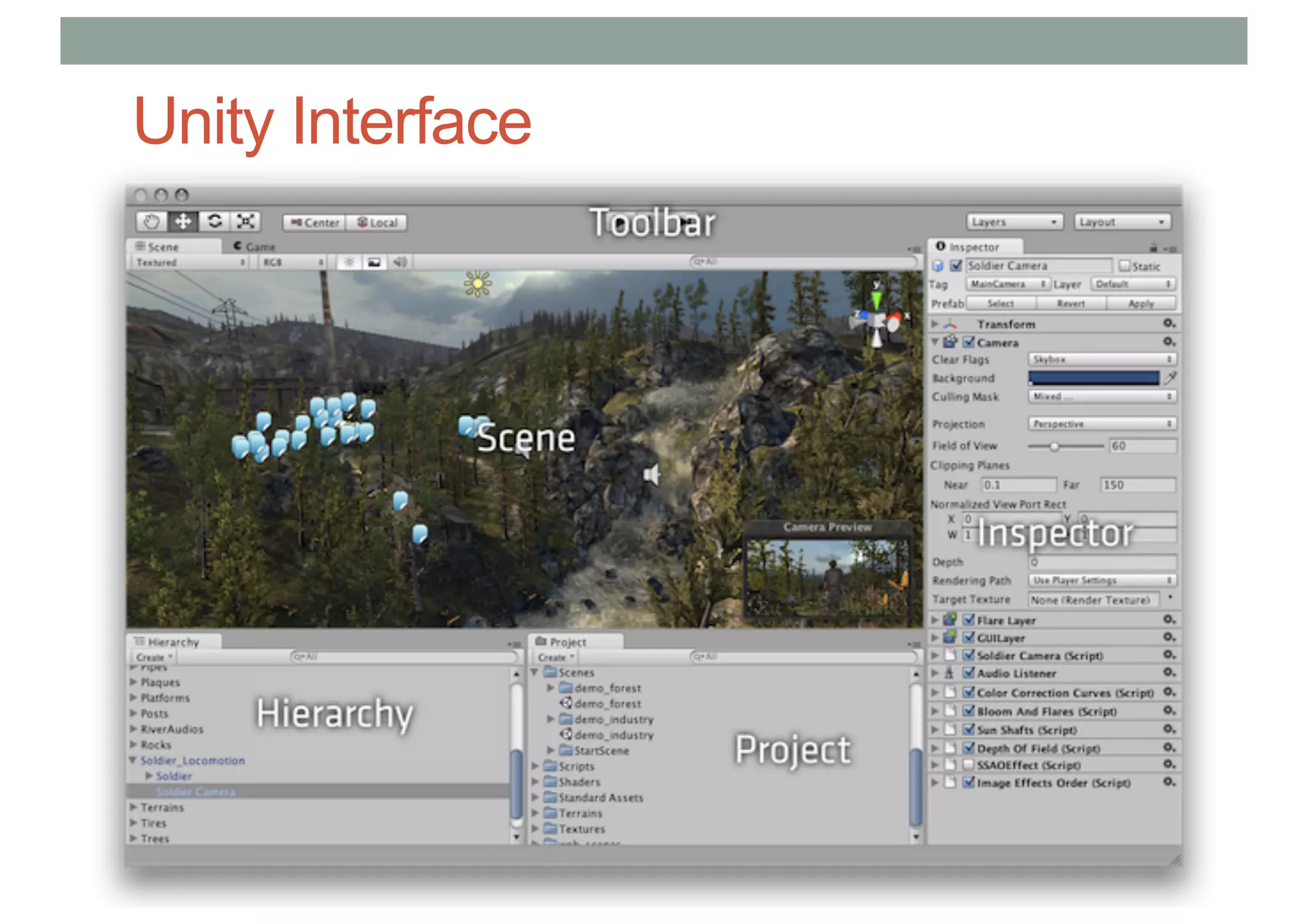
Unity Interface
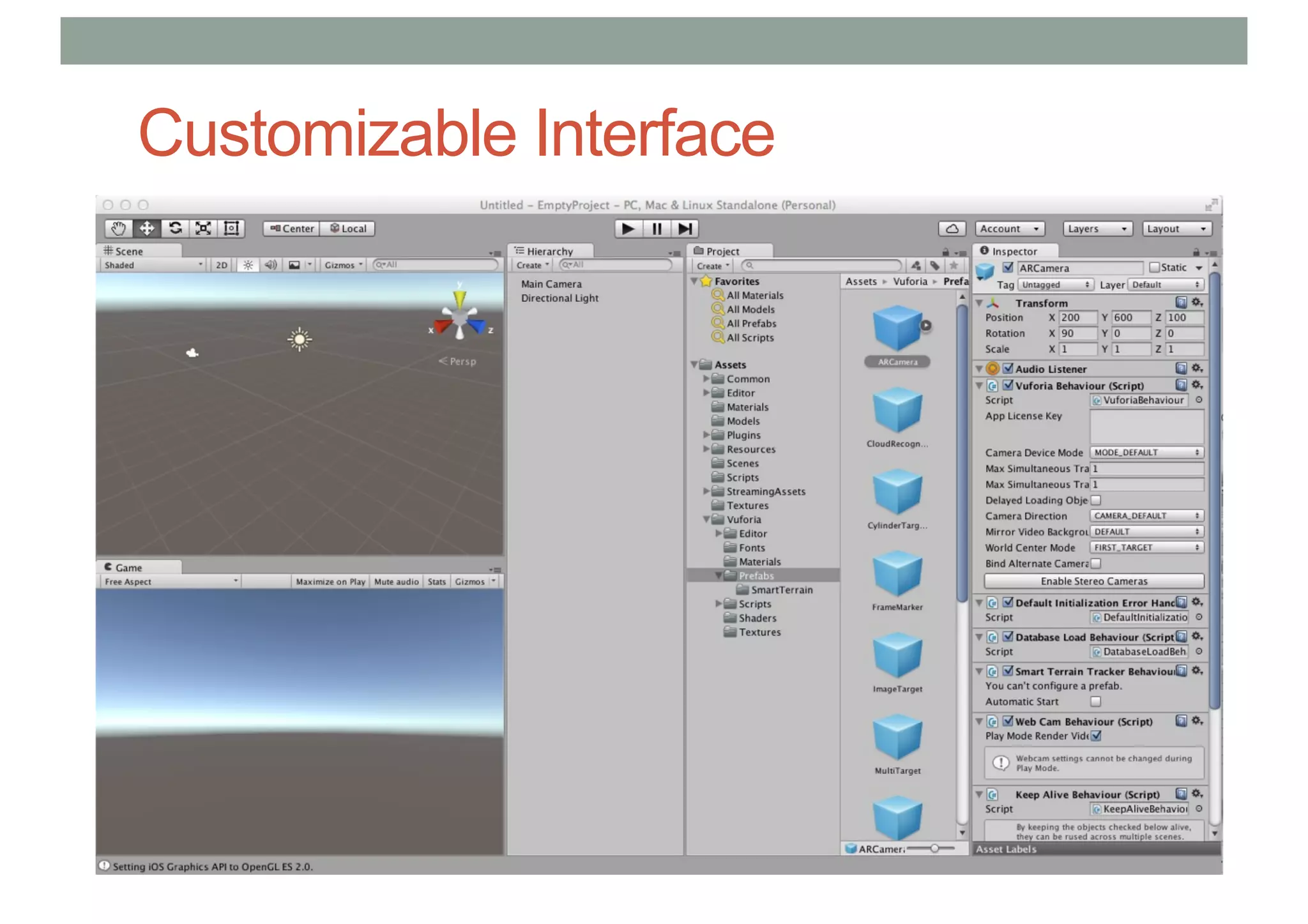
Customizable Interface
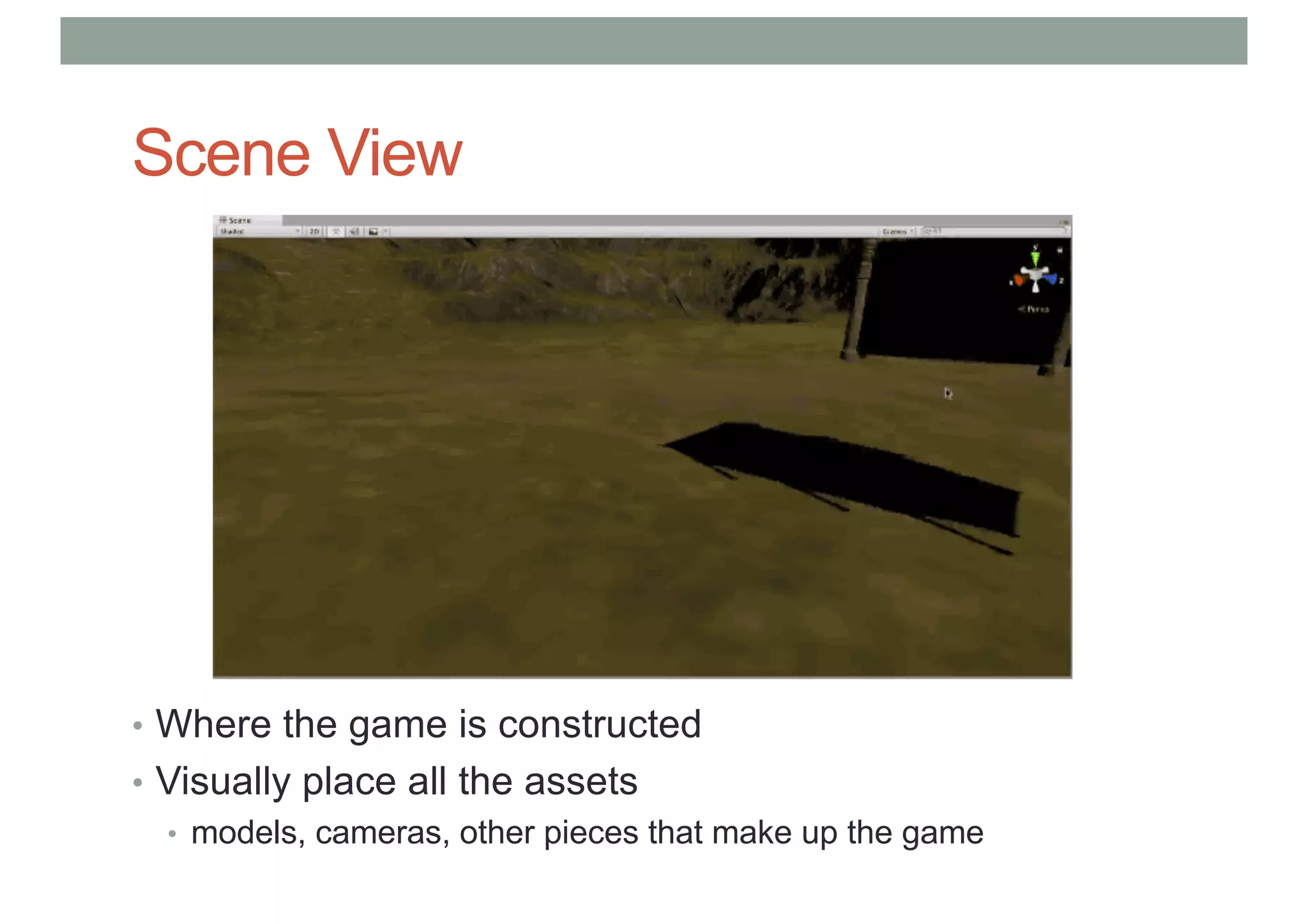
Scene View
• Where the game is constructed
• Visually place all the assets
• models, cameras, other pieces that make up the game
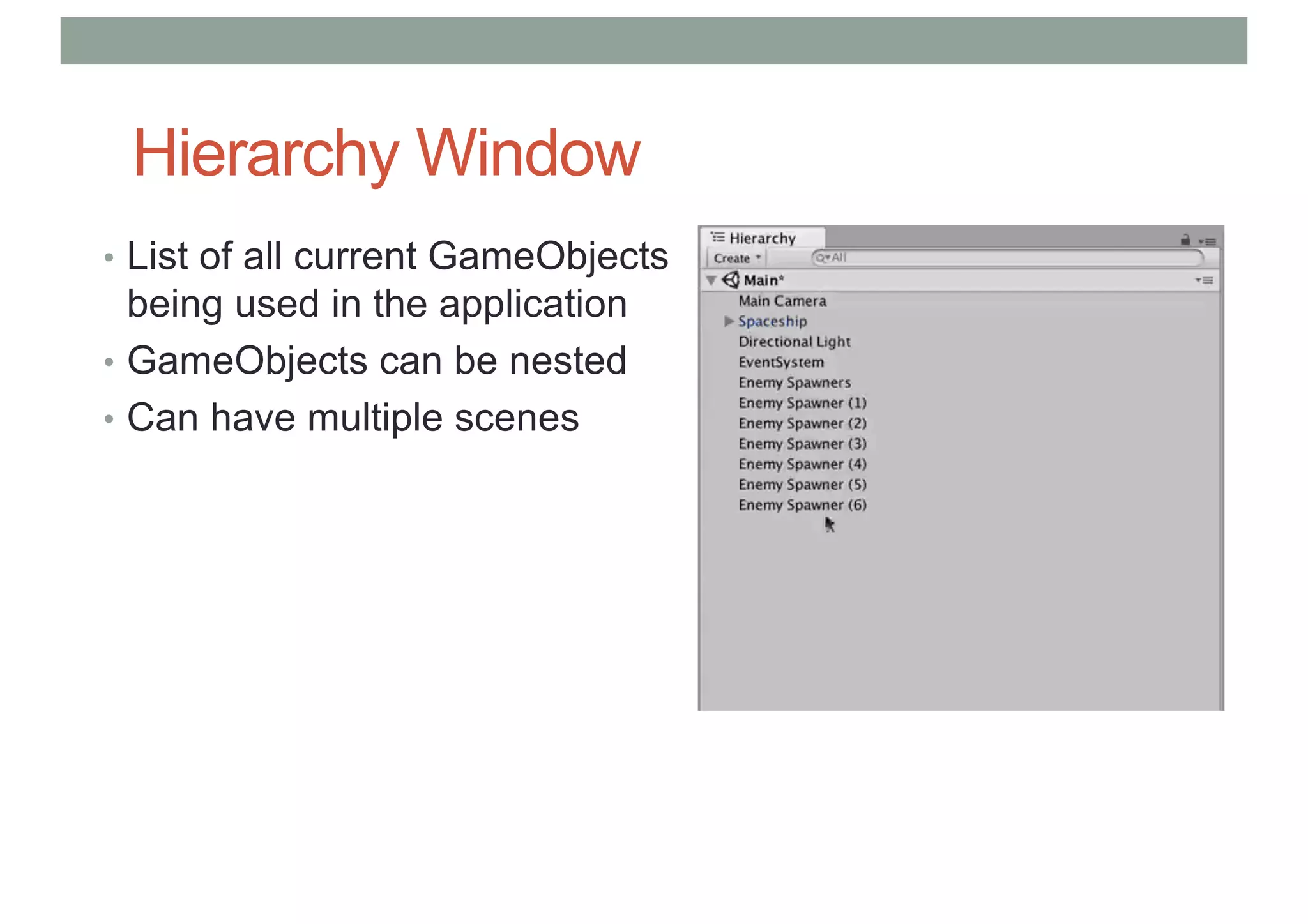
Hierarchy Window
• List of all current GameObjects
being used in the application
• GameObjects can be nested
• Can have multiple scenes
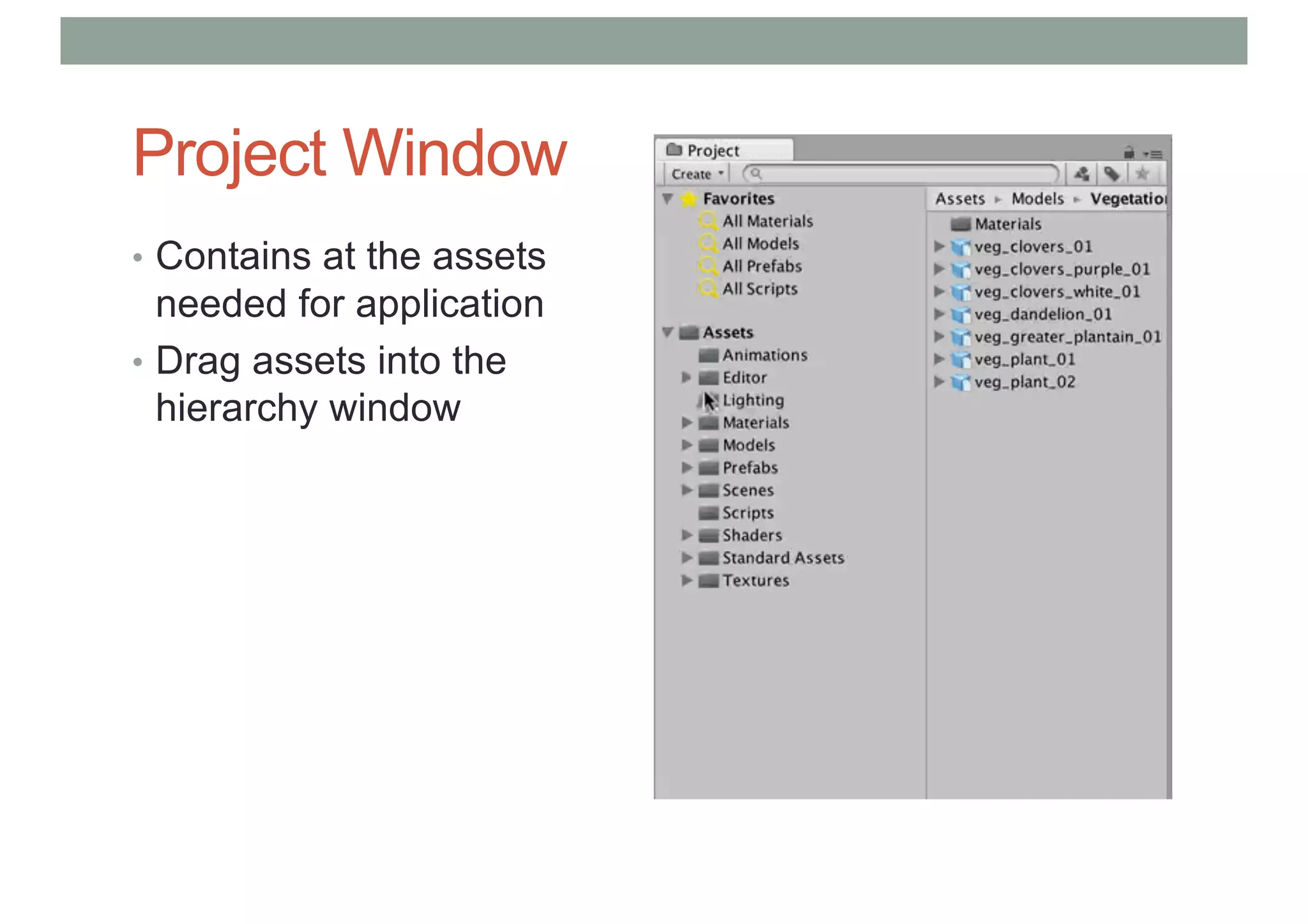
Project Window
• Contains at the assets
needed for application
• Drag assets into the
hierarchy window
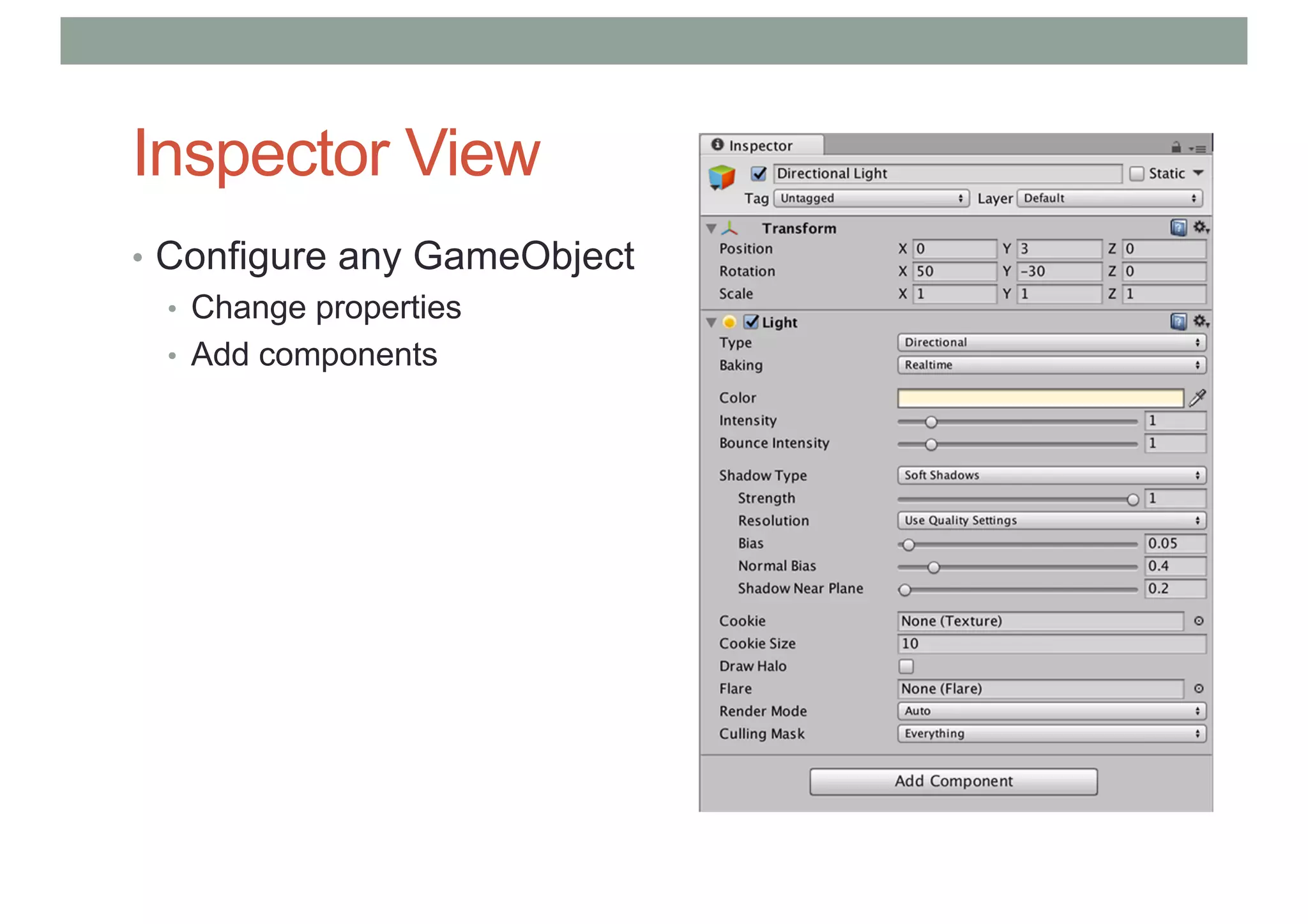
Inspector View
• Configure any GameObject
• Change properties
• Add components
Building Scenes
• Use GameObjects:
• Containers that hold different components
• Eg 3D model, texture, animation
• Use Inspector
• View and edit object properties and other settings
• Use Scene View
• Position objects, camera, lights, other GameObjects etc
• Scripting
• Adding interaction, user input, events, etc
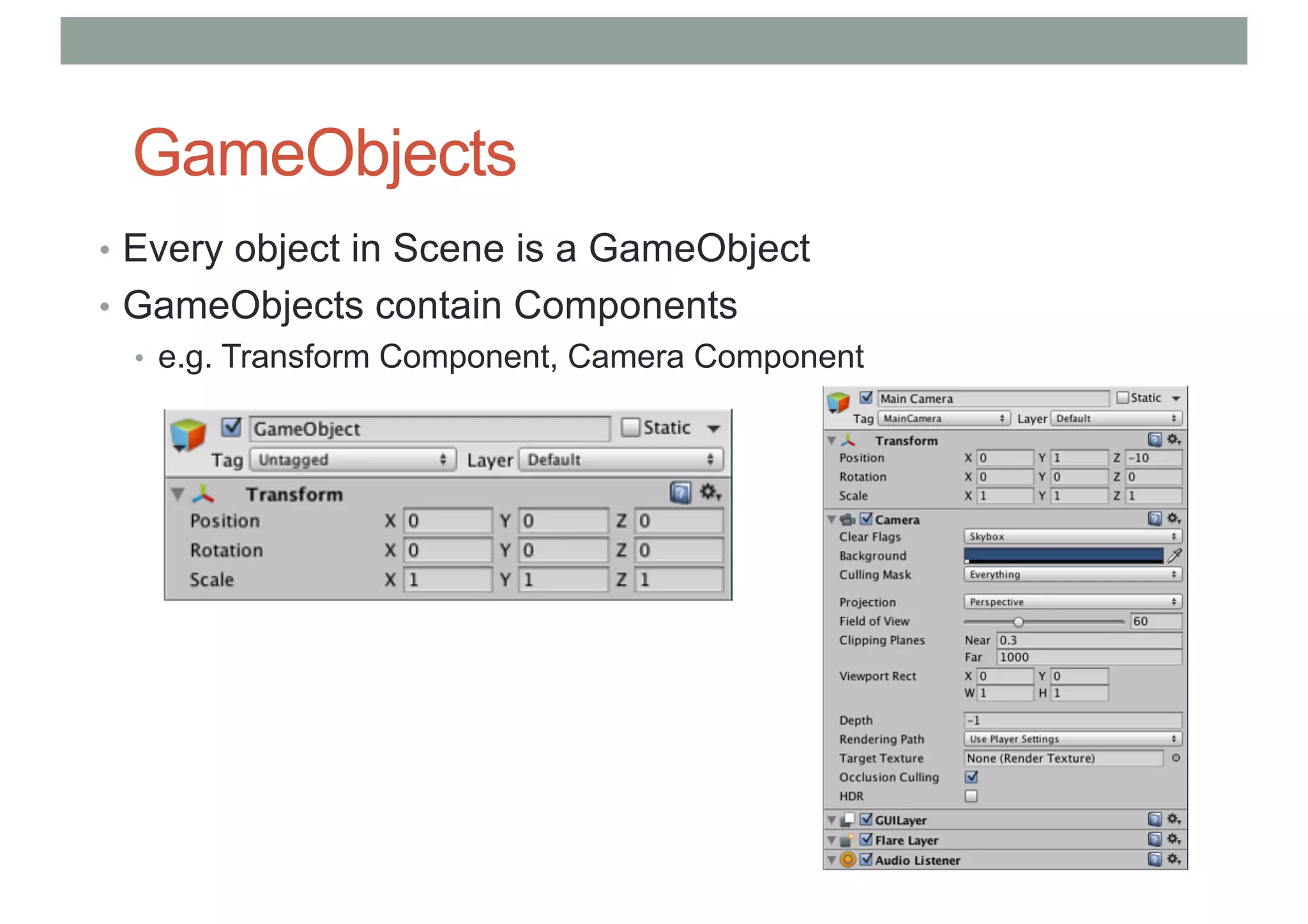
GameObjects
• Every object in Scene is a GameObject
• GameObjects contain Components
• e.g. Transform Component, Camera Component
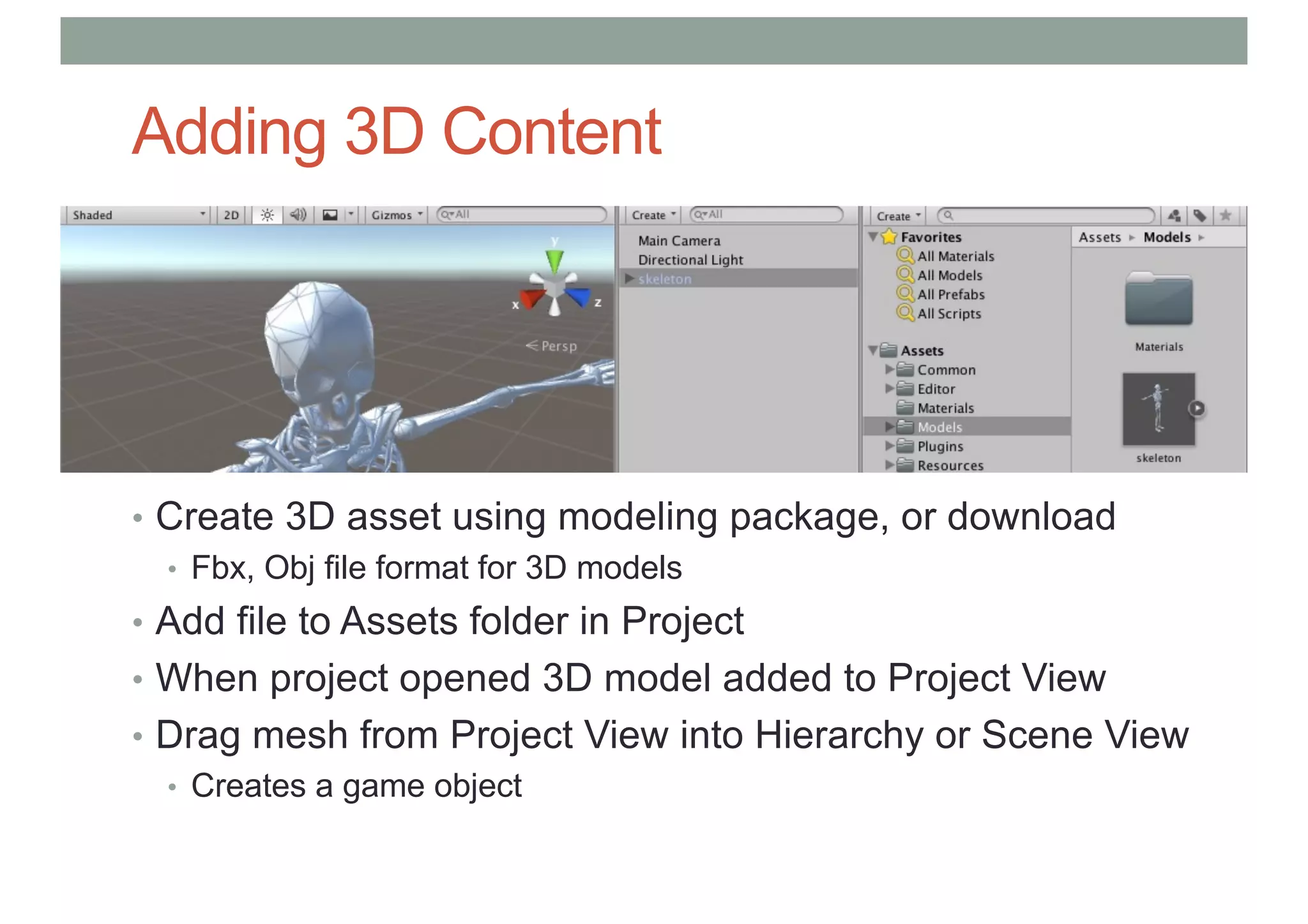
Adding 3D Content
• Create 3D asset using modeling package, or download
• Fbx, Obj file format for 3D models
• Add file to Assets folder in Project
• When project opened 3D model added to Project View
• Drag mesh from Project View into Hierarchy or Scene View
• Creates a game object
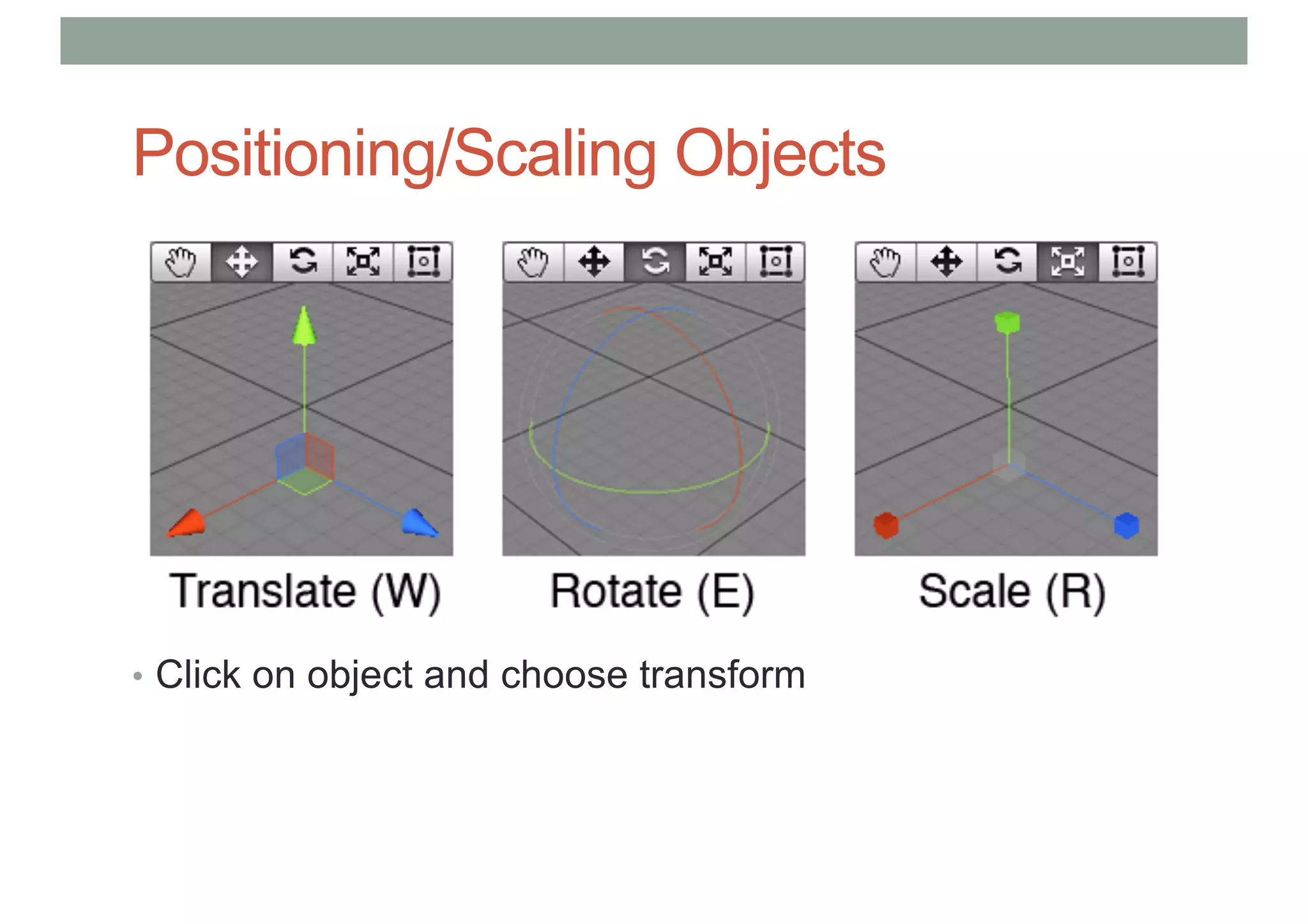
Positioning/Scaling Objects
• Click on object and choose transform
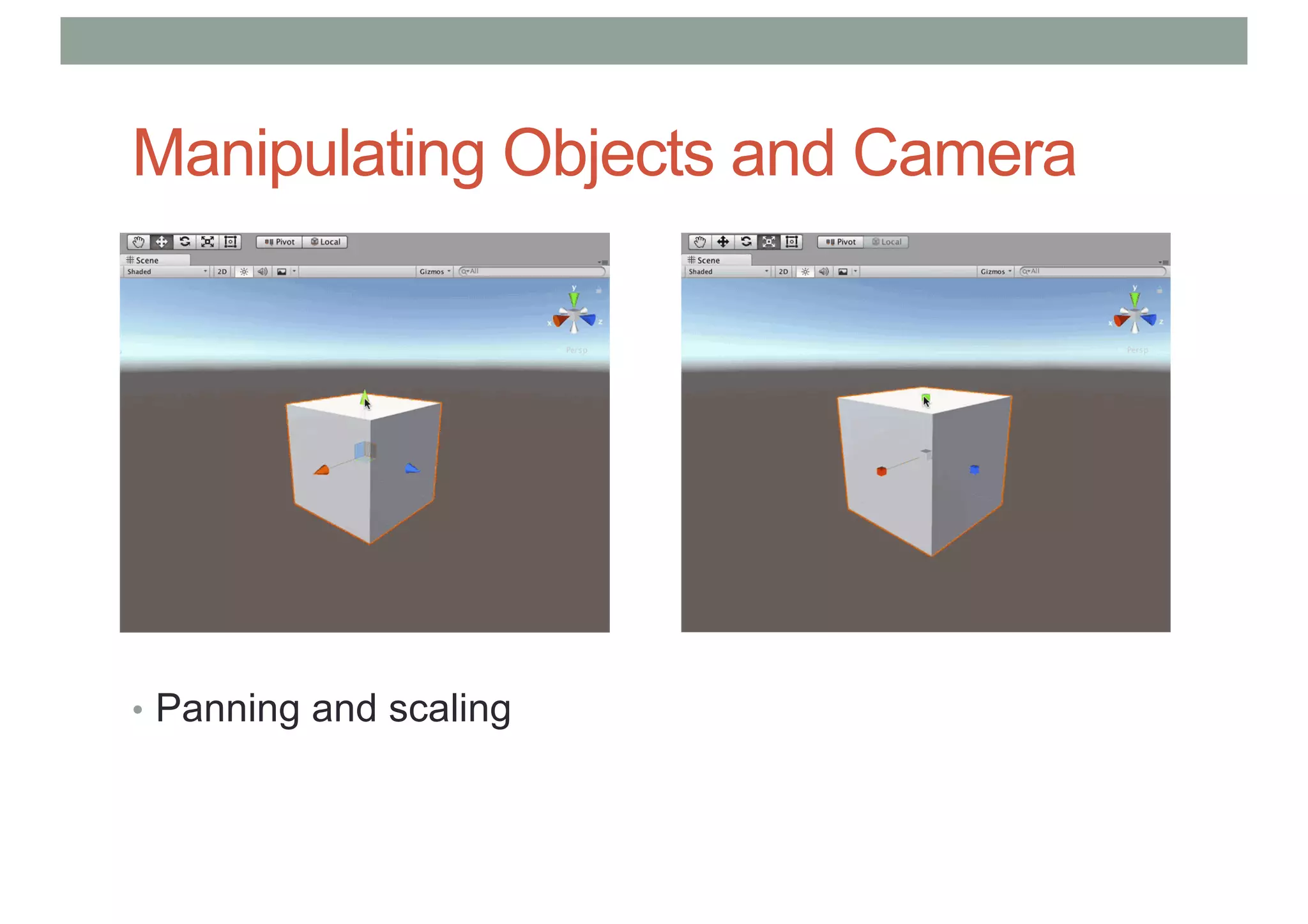
Manipulating Objects and Camera
• Panning and scaling
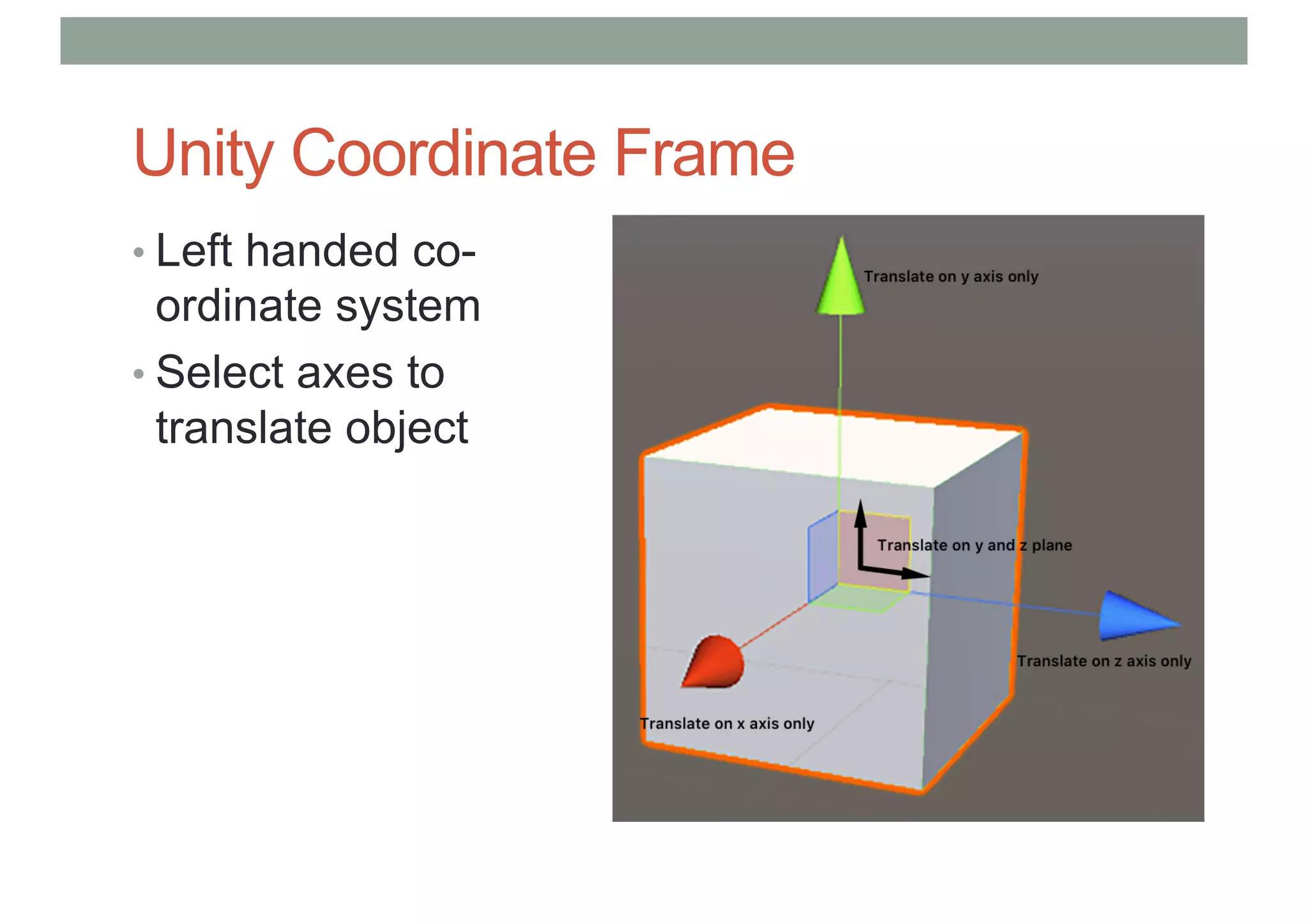
Unity Coordinate Frame
• Left handed co-
ordinate system
• Select axes to
translate object
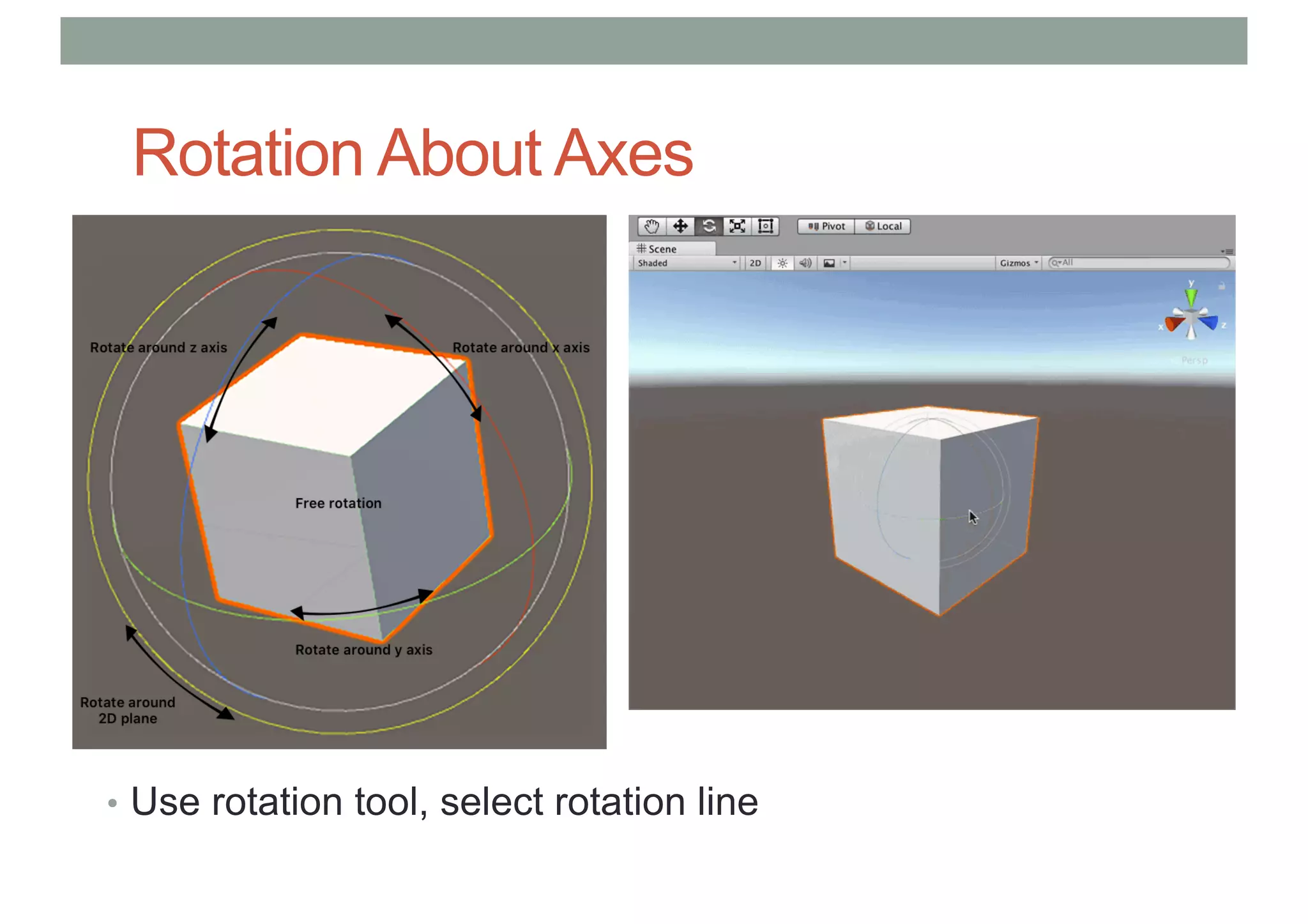
Rotation About Axes
• Use rotation tool, select rotation line
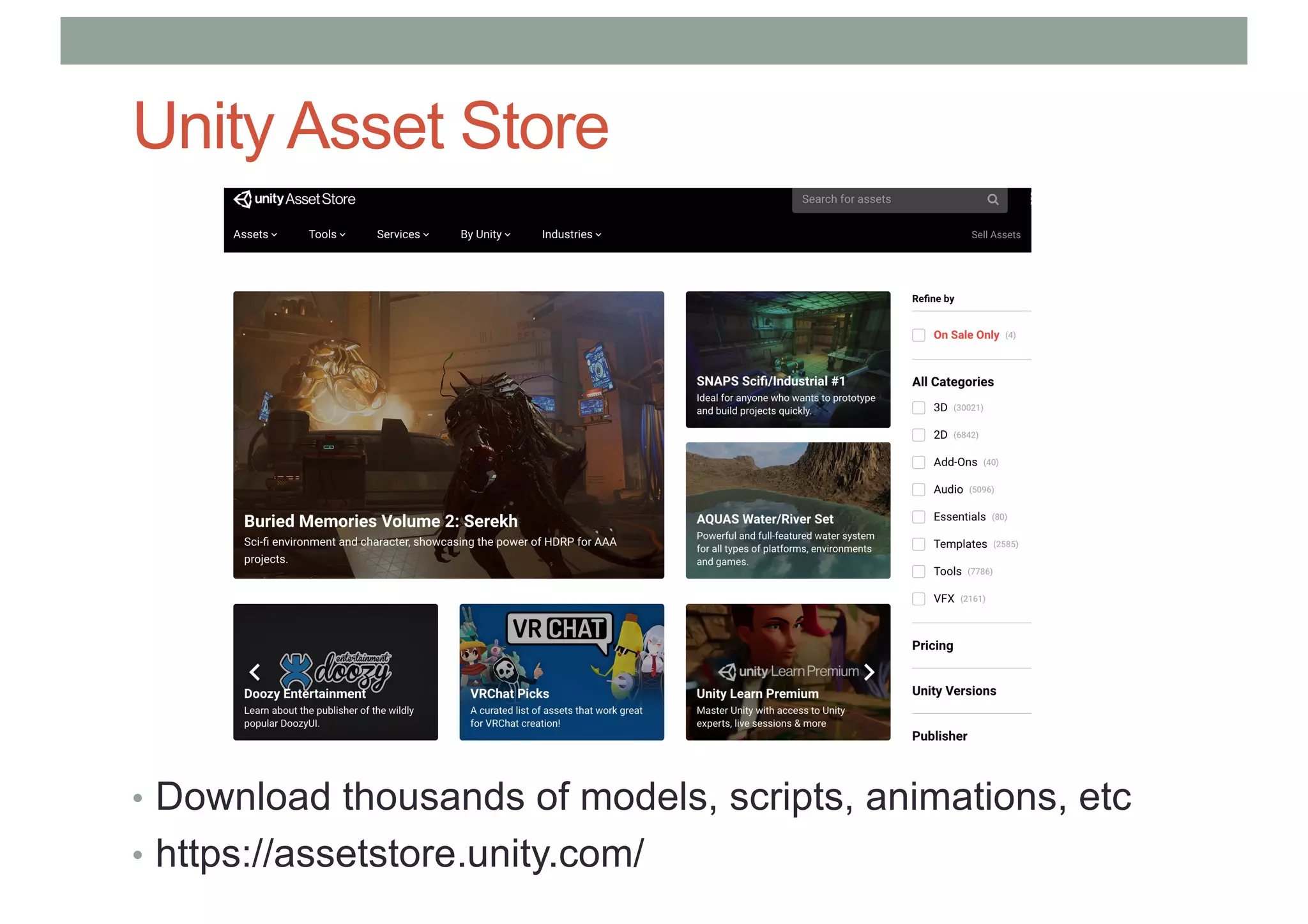
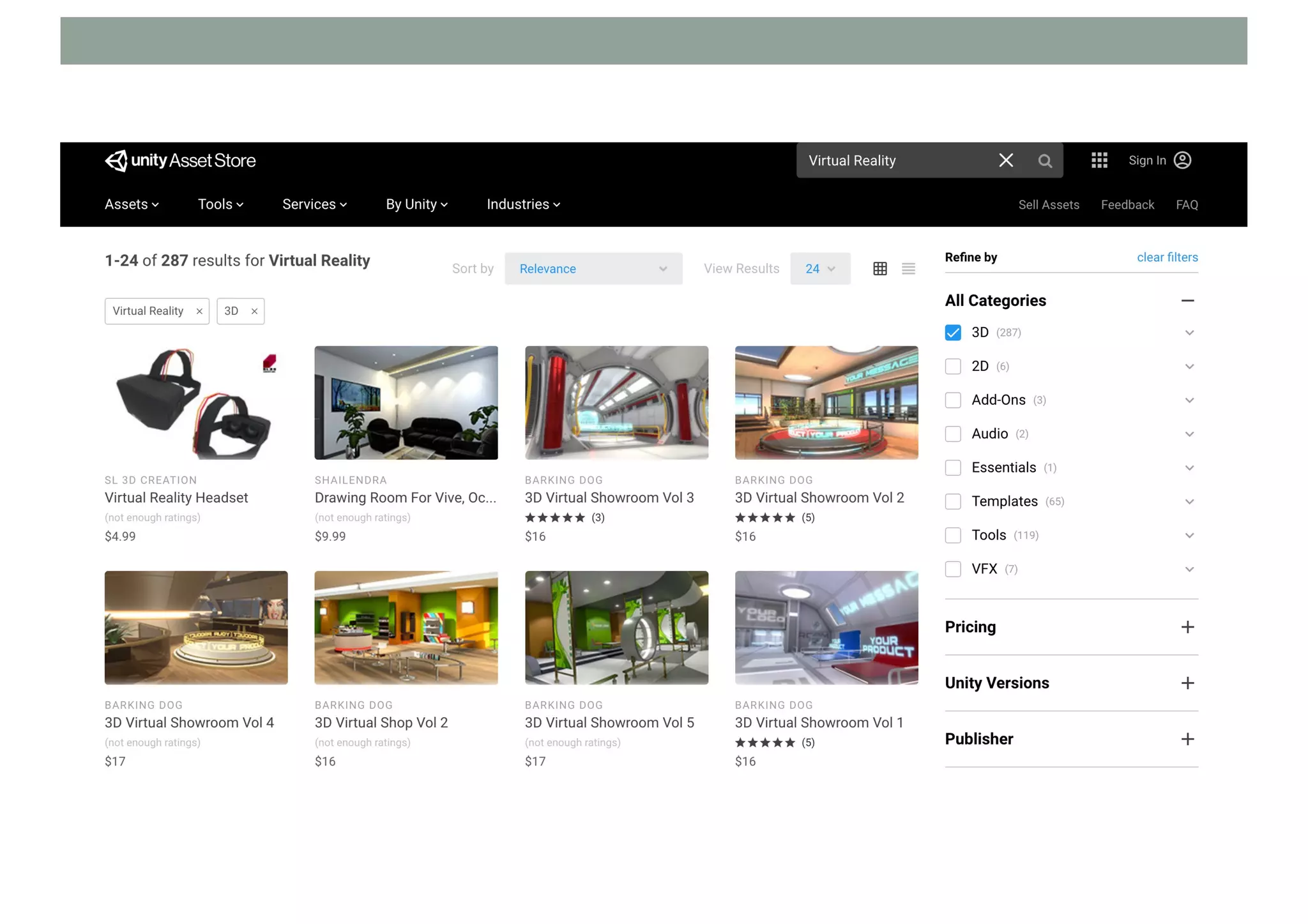
Unity Asset Store
• Download thousands of models, scripts, animations, etc
• https://assetstore.unity.com/
UNITY BASICS
Making a Simple Scene
1. Create New Project
2. Create Game Object
3. Moving main camera position
4. Adding lights
5. Adding more objects
6. Adding physics
7. Changing object materials
8. Adding script behaviour
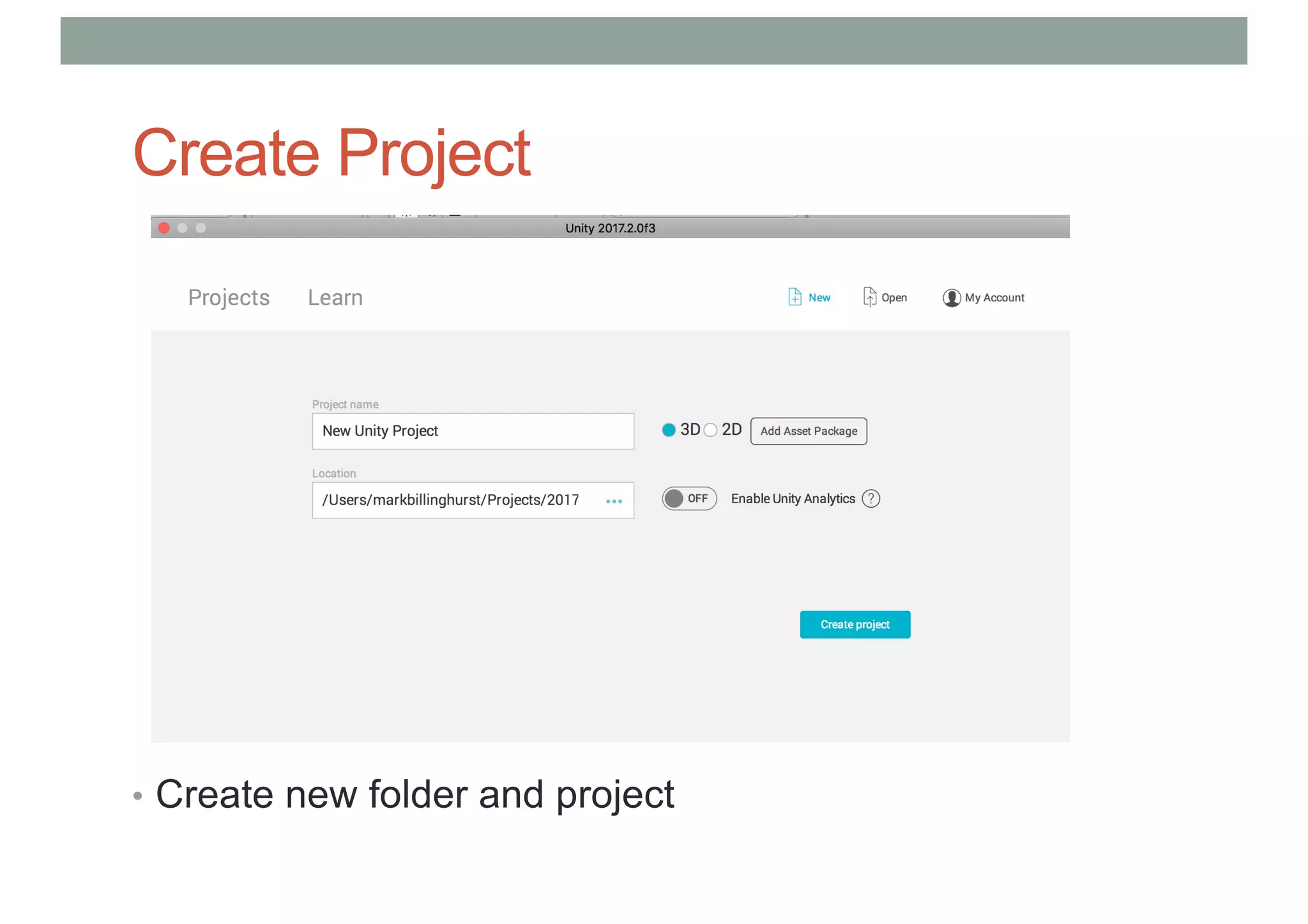
Create Project
• Create new folder and project
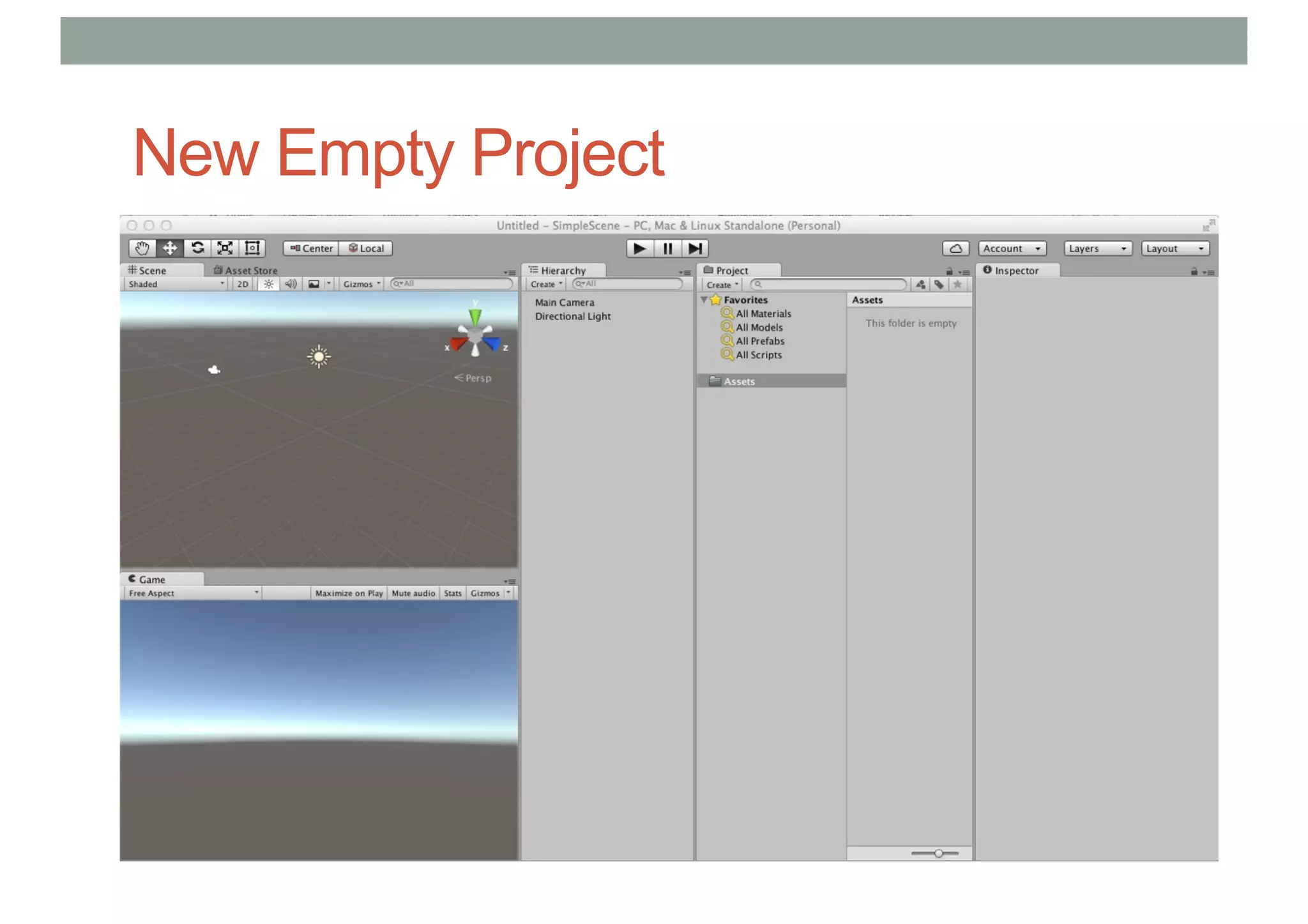
New Empty Project
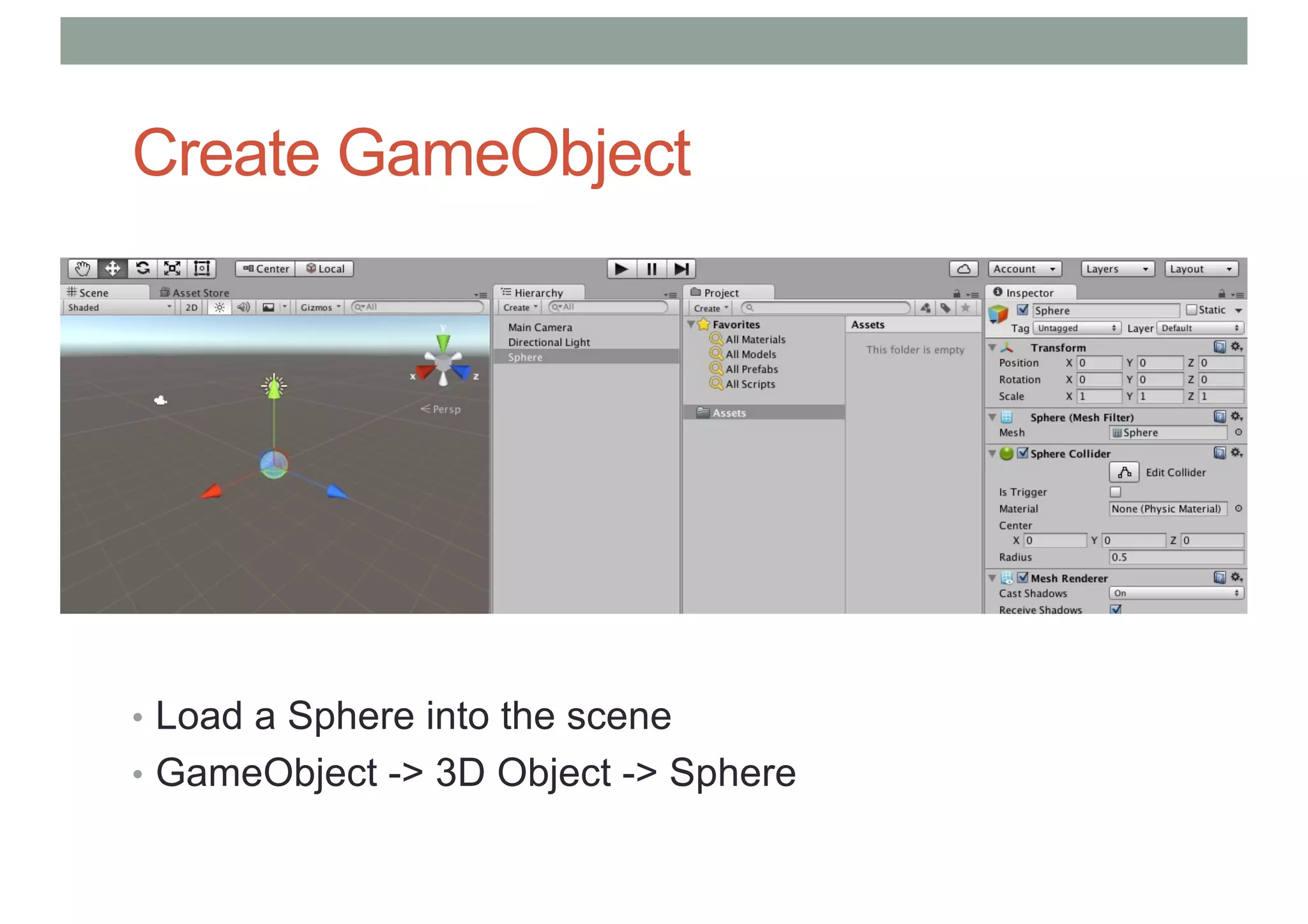
Create GameObject
• Load a Sphere into the scene
• GameObject -> 3D Object -> Sphere
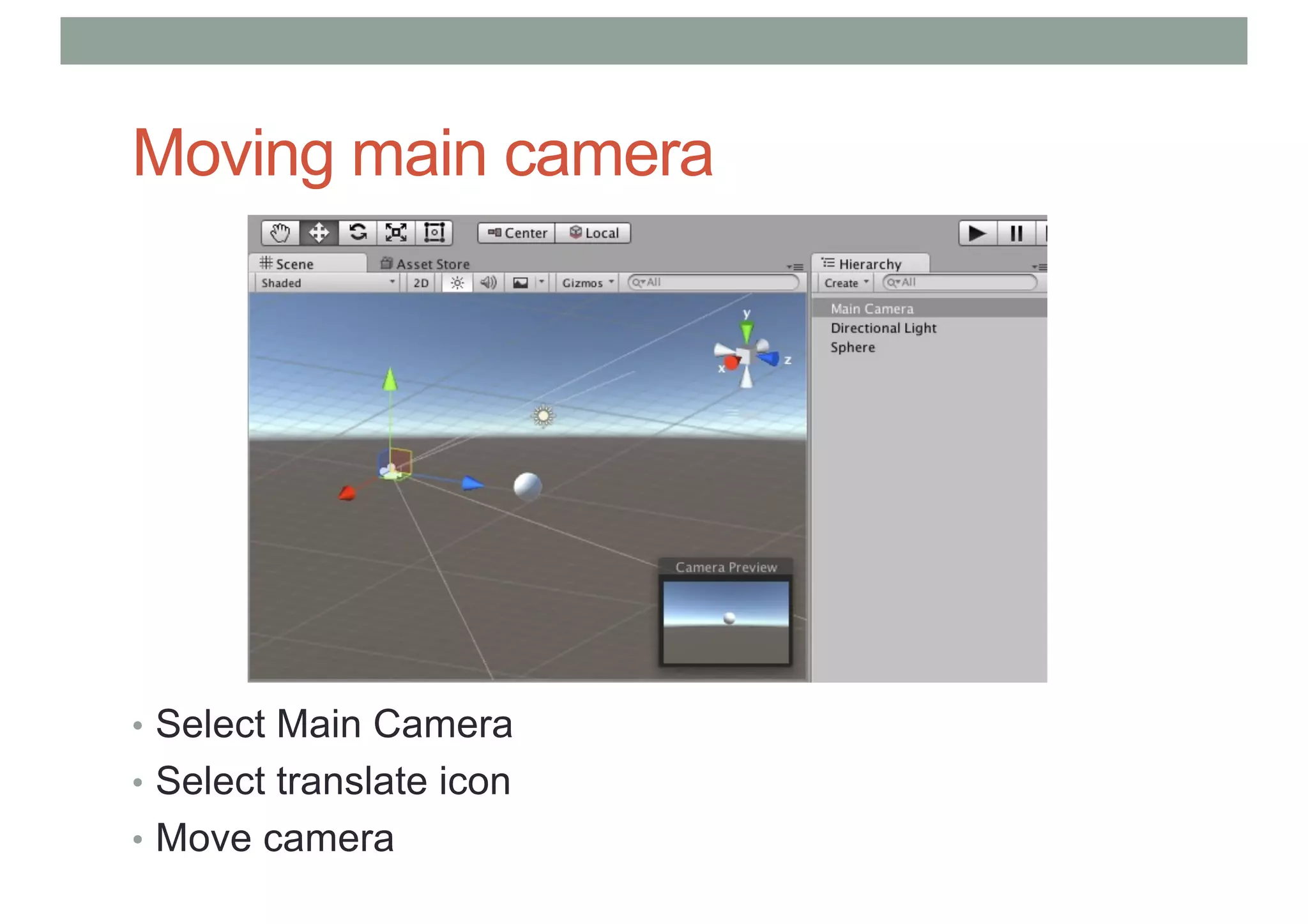
Moving main camera
• Select Main Camera
• Select translate icon
• Move camera
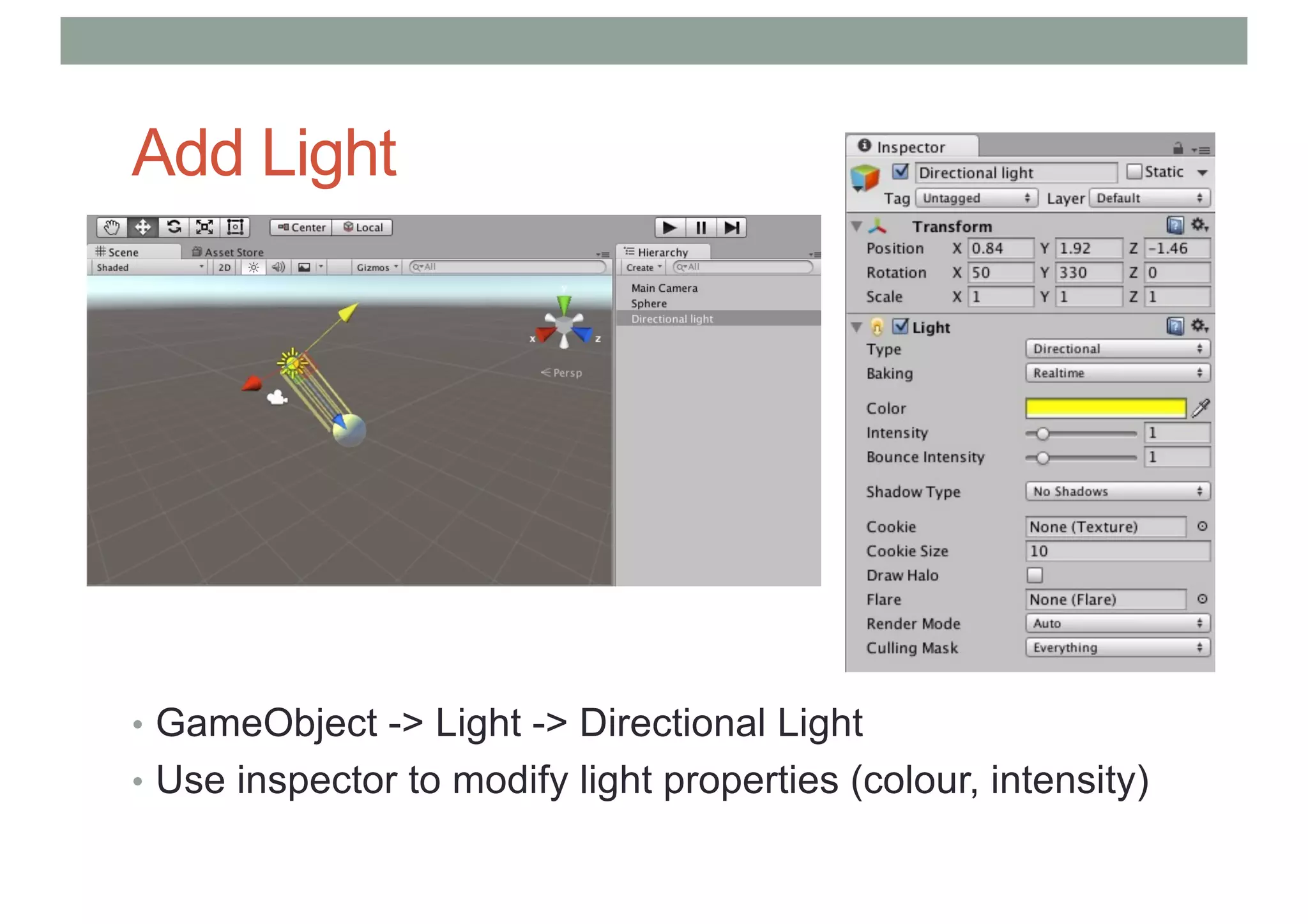
Add Light
• GameObject -> Light -> Directional Light
• Use inspector to modify light properties (colour, intensity)
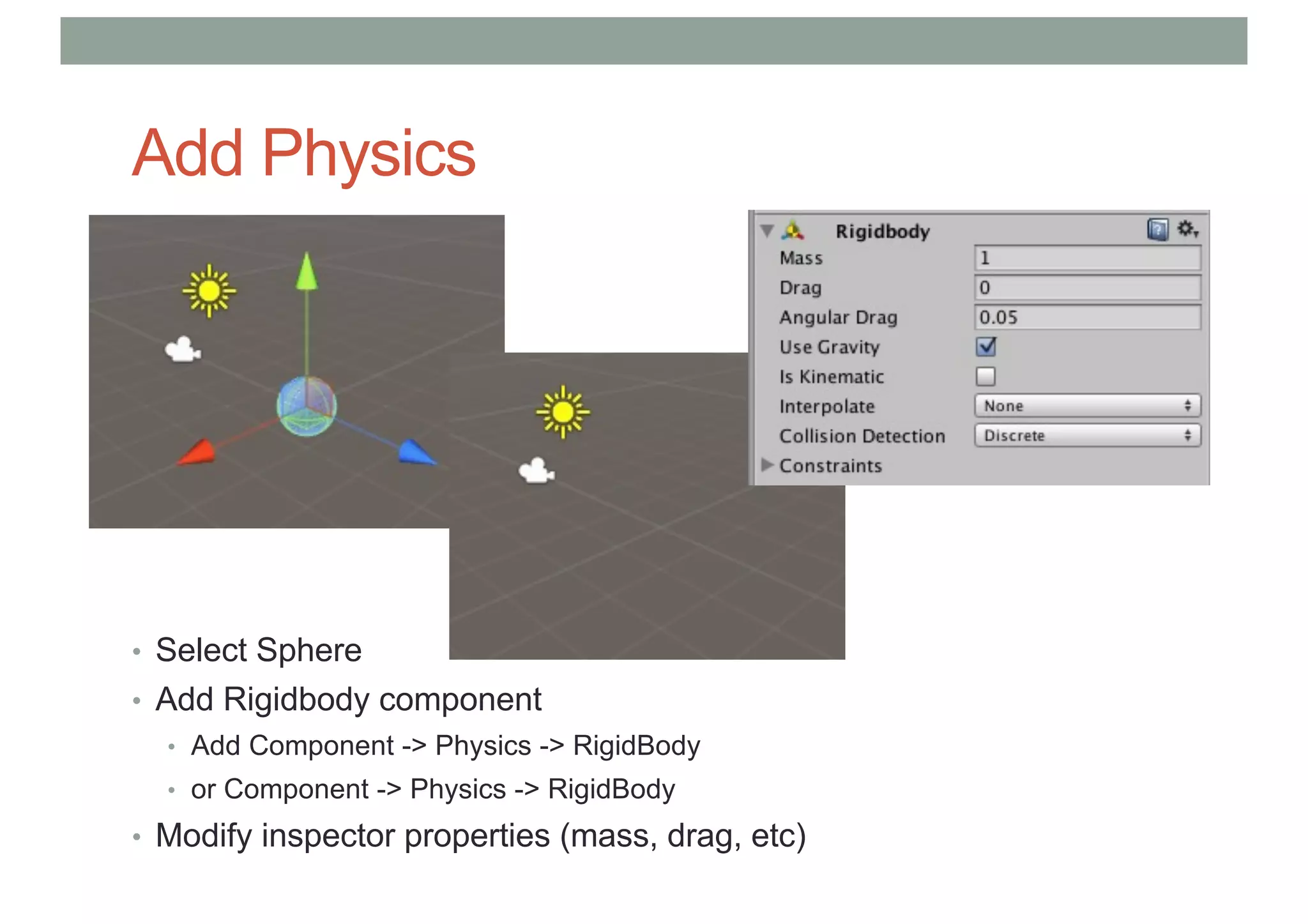
Add Physics
• Select Sphere
• Add Rigidbody component
• Add Component -> Physics -> RigidBody
• or Component -> Physics -> RigidBody
• Modify inspector properties (mass, drag, etc)
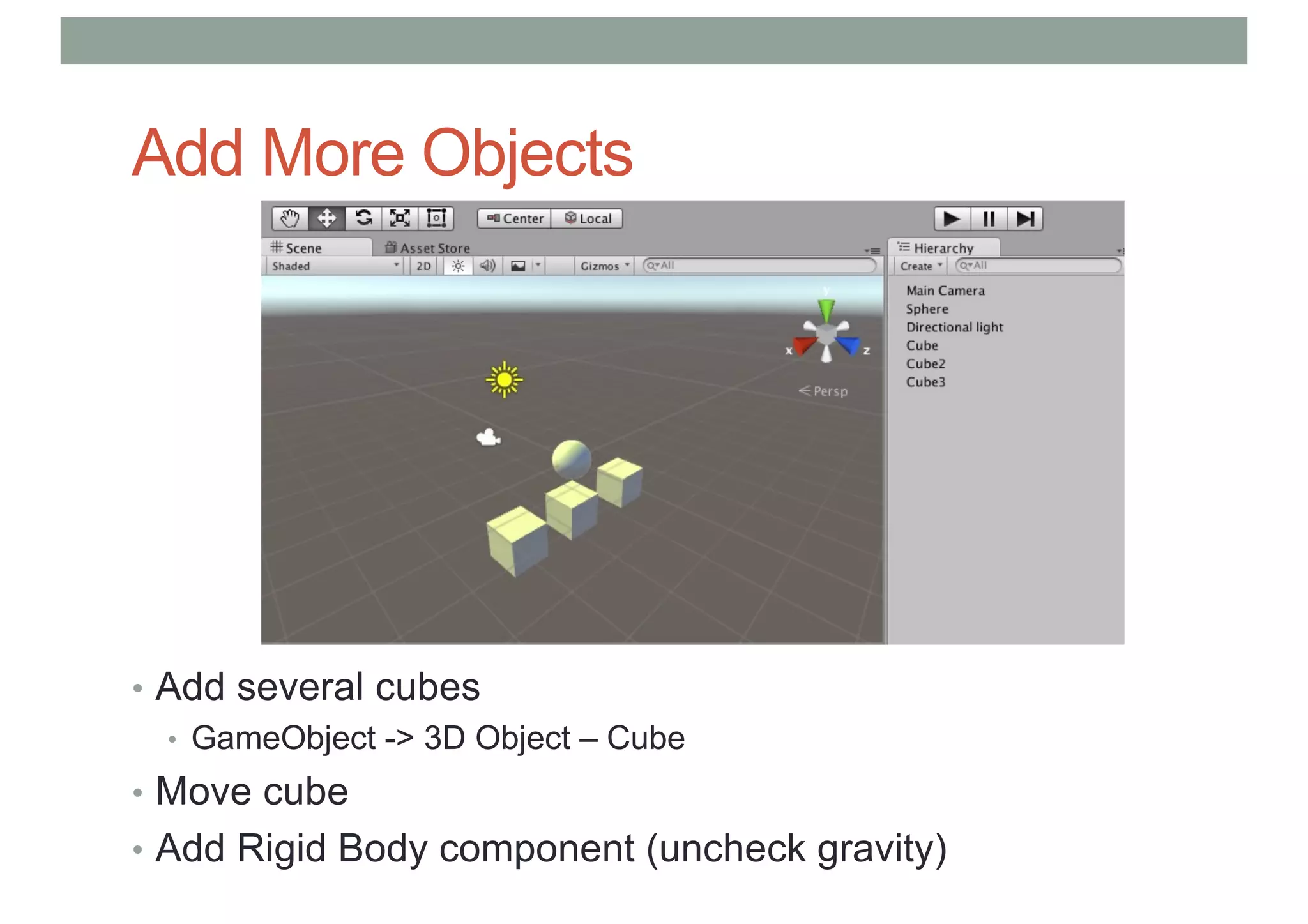
Add More Objects
• Add several cubes
• GameObject -> 3D Object – Cube
• Move cube
• Add Rigid Body component (uncheck gravity)
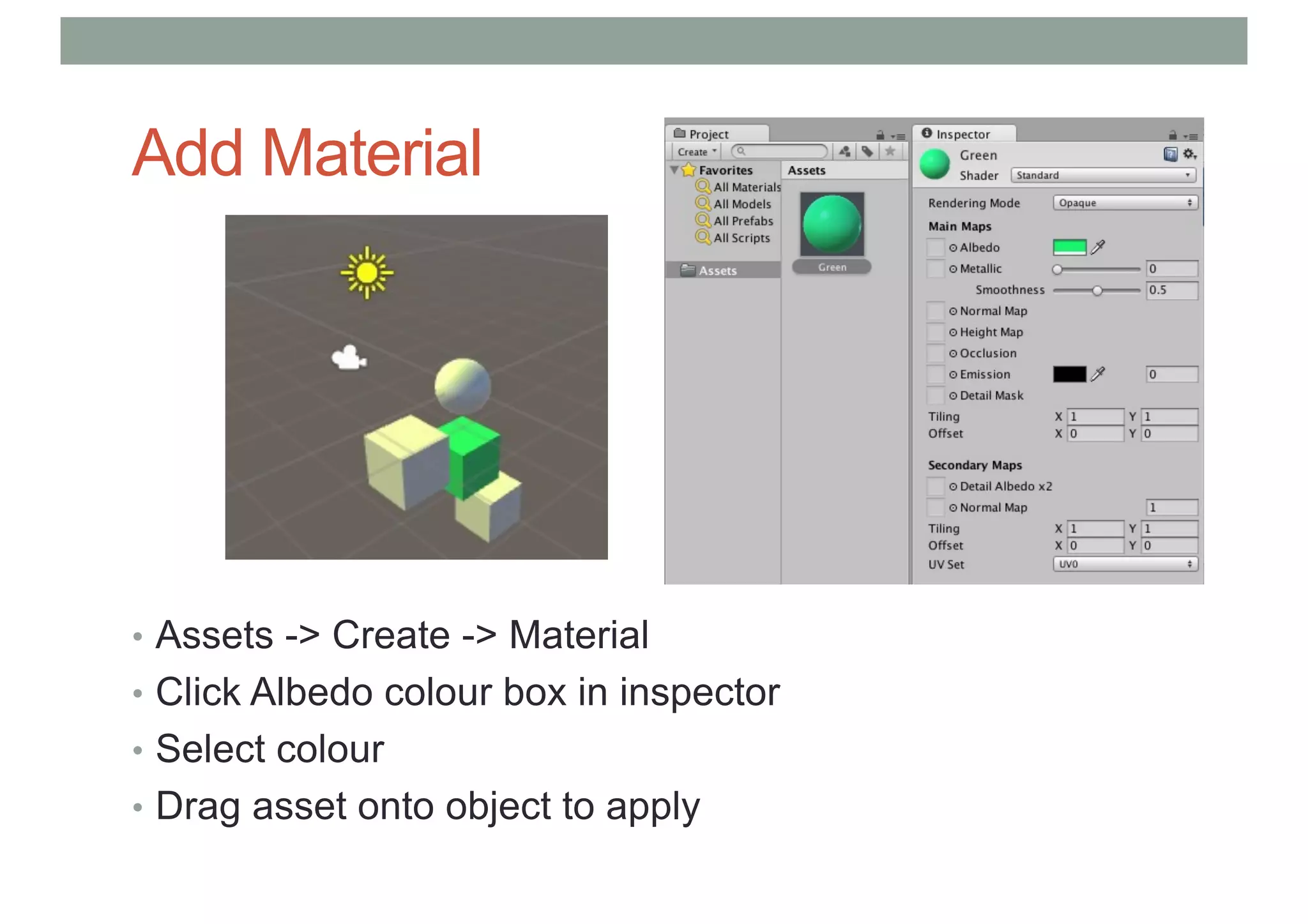
Add Material
• Assets -> Create -> Material
• Click Albedo colour box in inspector
• Select colour
• Drag asset onto object to apply
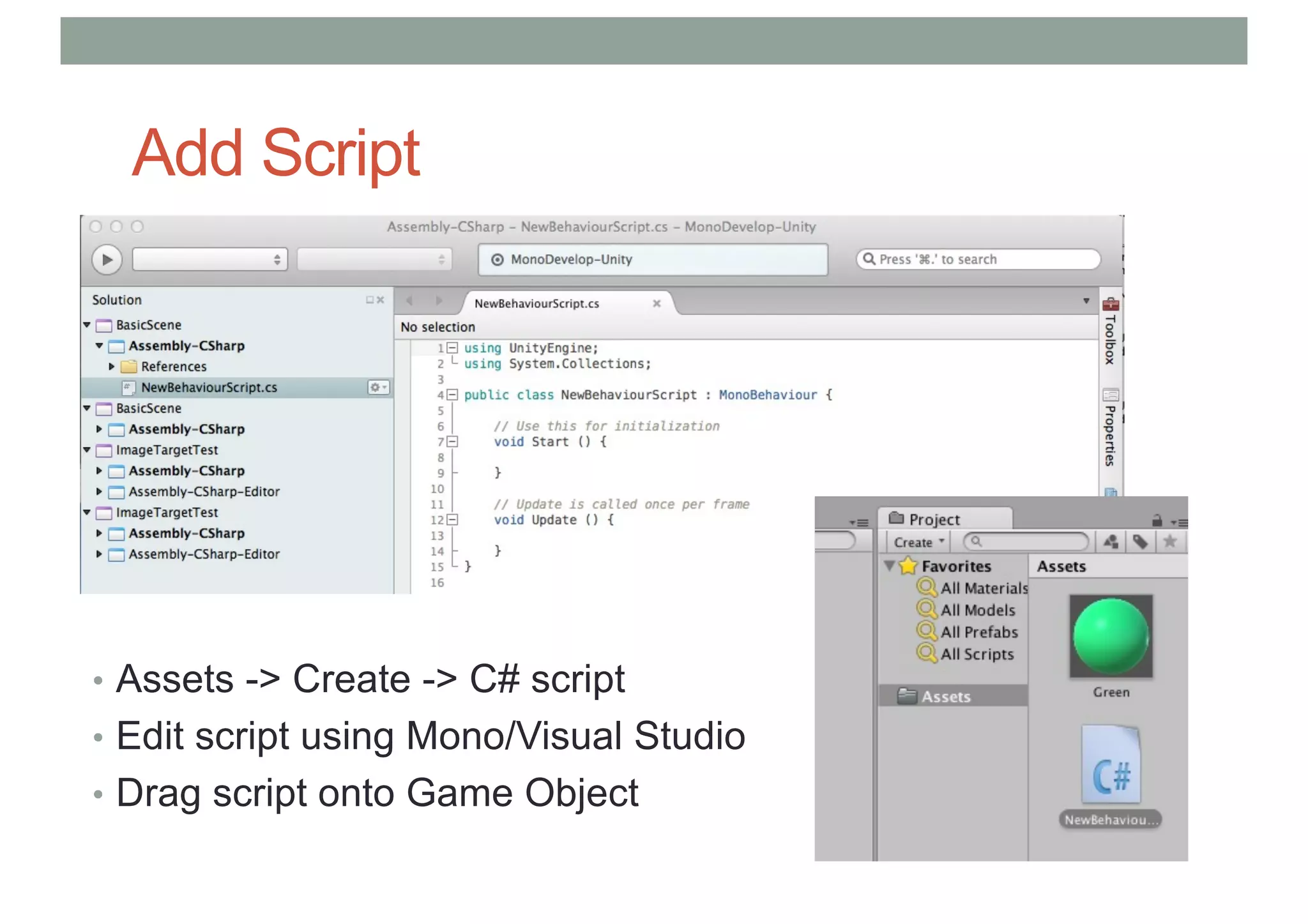
Add Script
• Assets -> Create -> C# script
• Edit script using Mono/Visual Studio
• Drag script onto Game Object
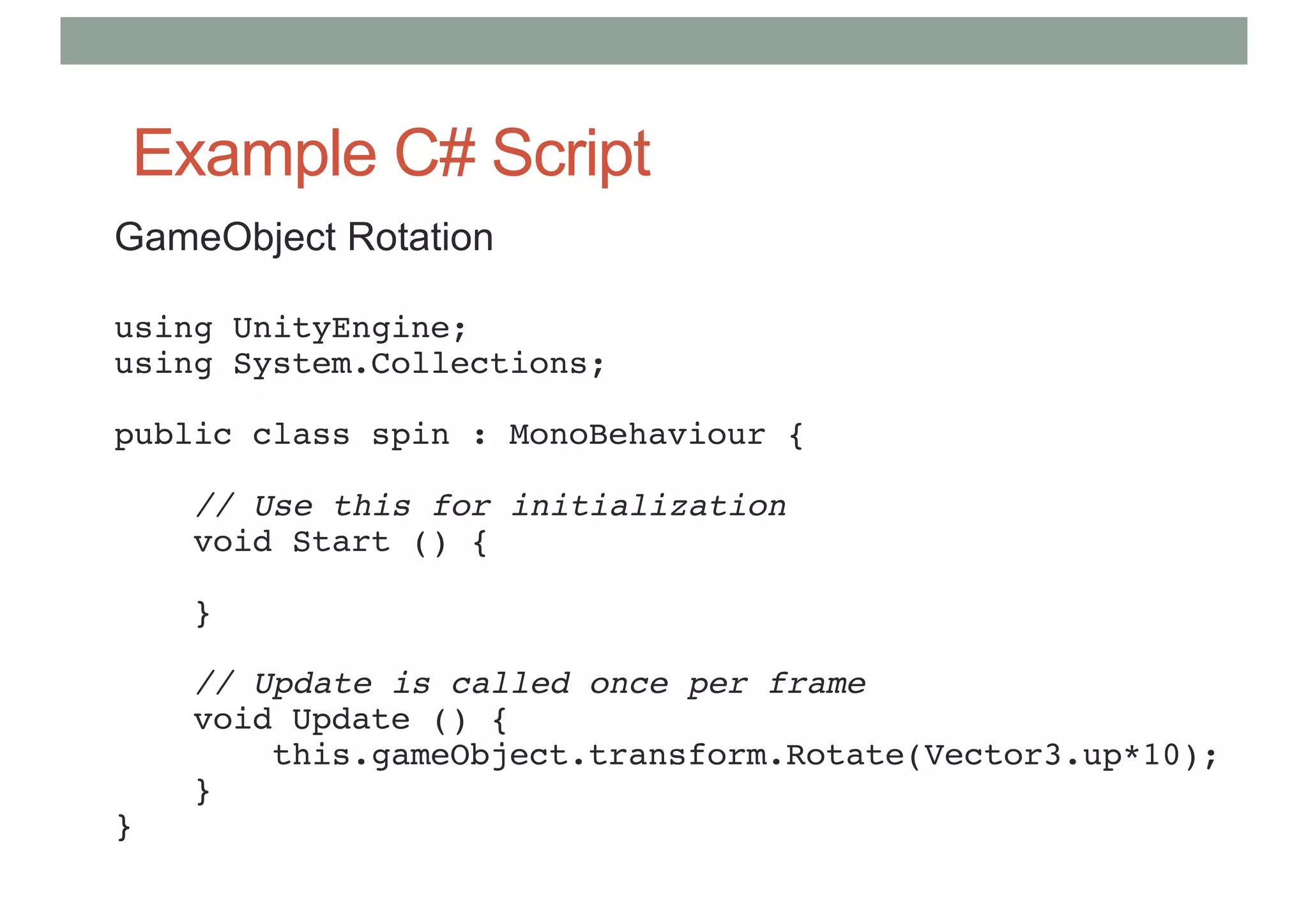
Example C# Script
GameObject Rotation
using UnityEngine;
using System.Collections;
public class spin : MonoBehaviour {
// Use this for initialization
void Start () {
}
// Update is called once per frame
void Update () {
this.gameObject.transform.Rotate(Vector3.up*10);
}
}
Scripting C# Unity 3D
• void Awake():
• Is called when the first scene is loaded and the game object is active
• void Start():
• Called on first frame update
• void FixedUpdate():
• Called before physics calculations are made
• void Update():
• Called every frame before rendering
• void LateUpdate():
• Once per frame after update finished
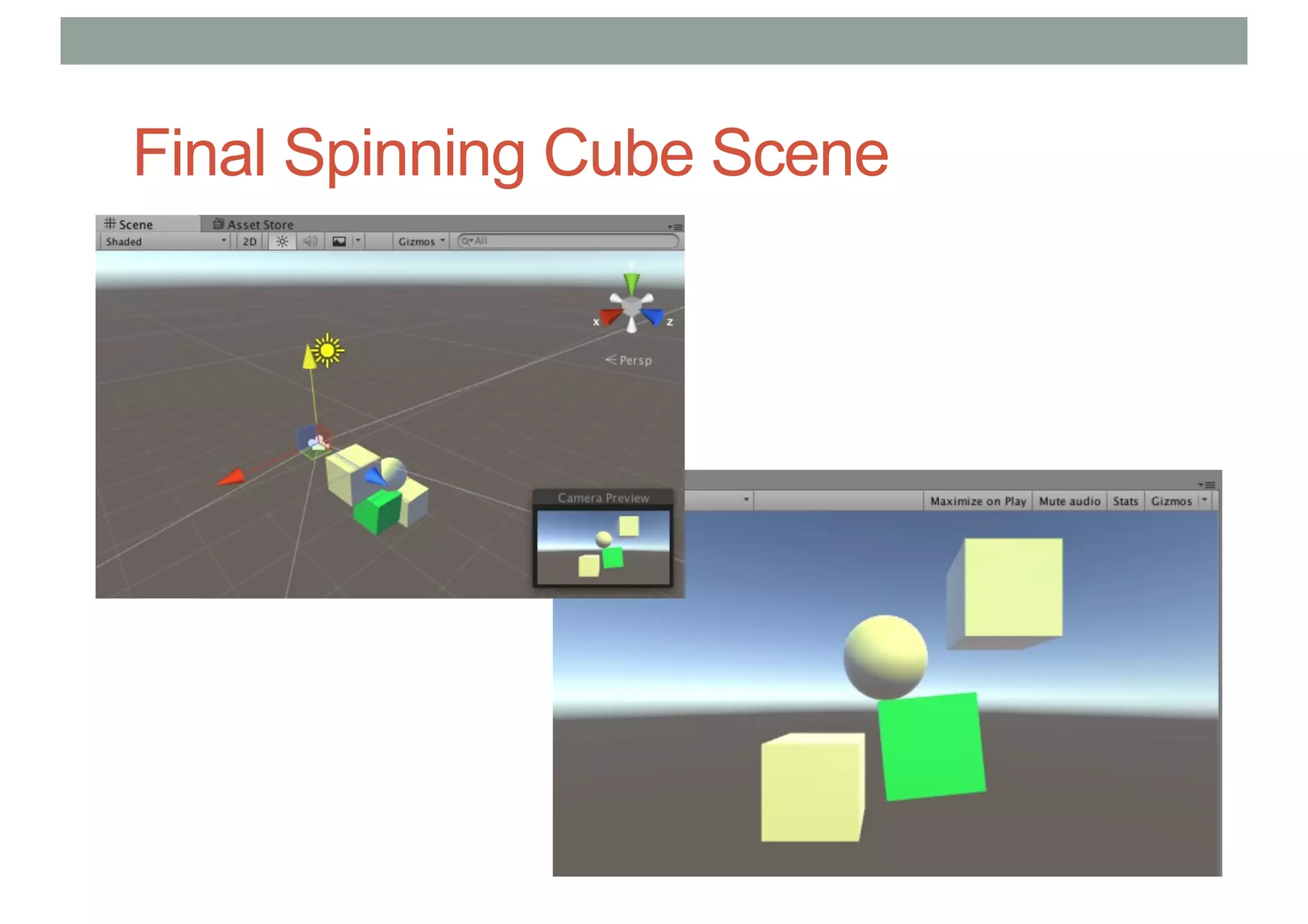
Final Spinning Cube Scene
Resources
• Unity Main site
• https://unity.com/
•Holistic Development with Unity
• http://holistic3d.com
• Official Unity Tutorials
• https://learn.unity.com/
•Unity Coder Blog
• http://unitycoder.com
CREATING A VR SCENE
Key Steps
1. Install SteamVR platform
2. Install SteamVR Unity plugin
3. Setting up simple VR scene
4. Setting up Teleportation
5. Trying out Interactions Demo
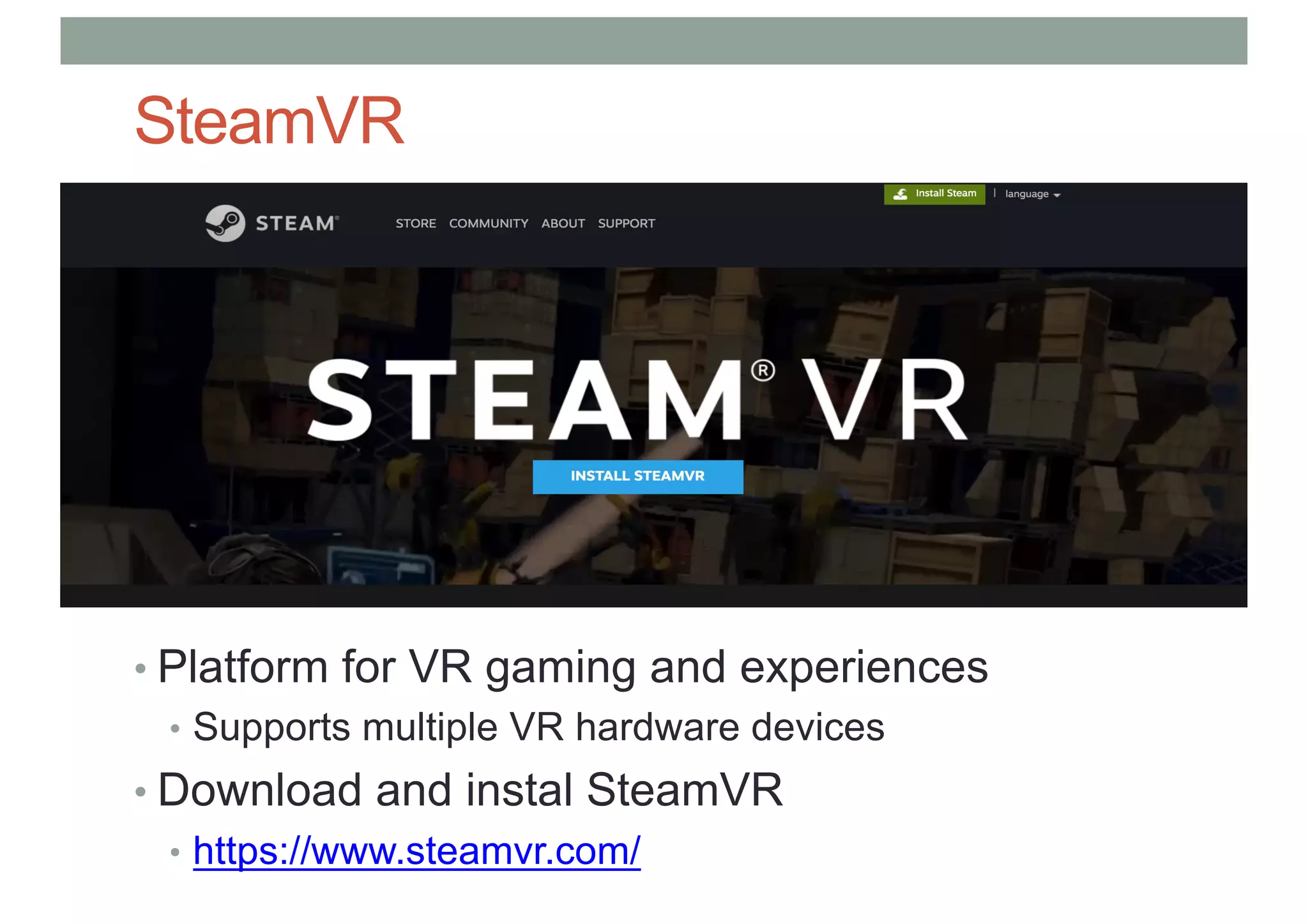
SteamVR
• Platform for VR gaming and experiences
• Supports multiple VR hardware devices
• Download and instal SteamVR
• https://www.steamvr.com/
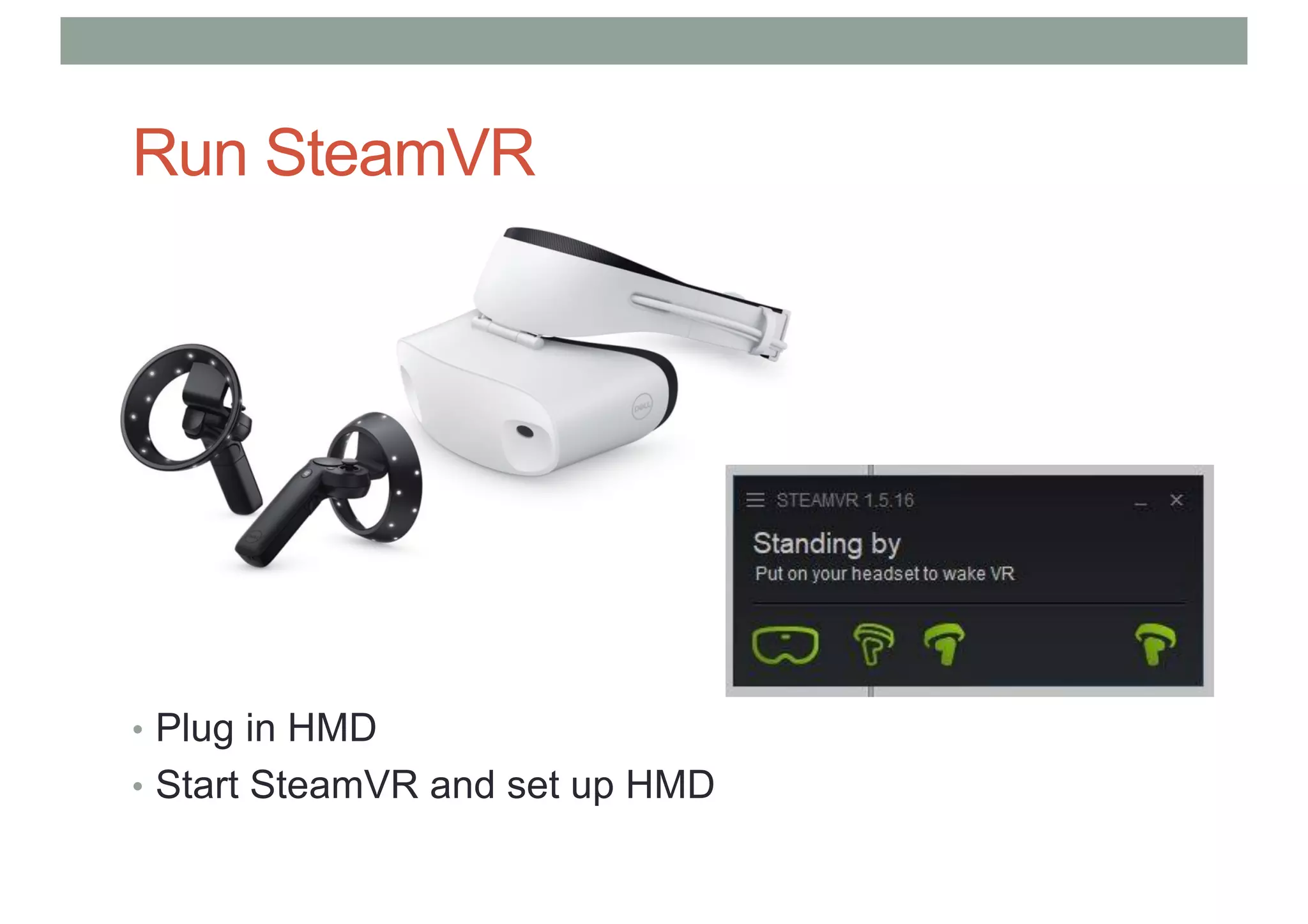
Run SteamVR
• Plug in HMD
• Start SteamVR and set up HMD
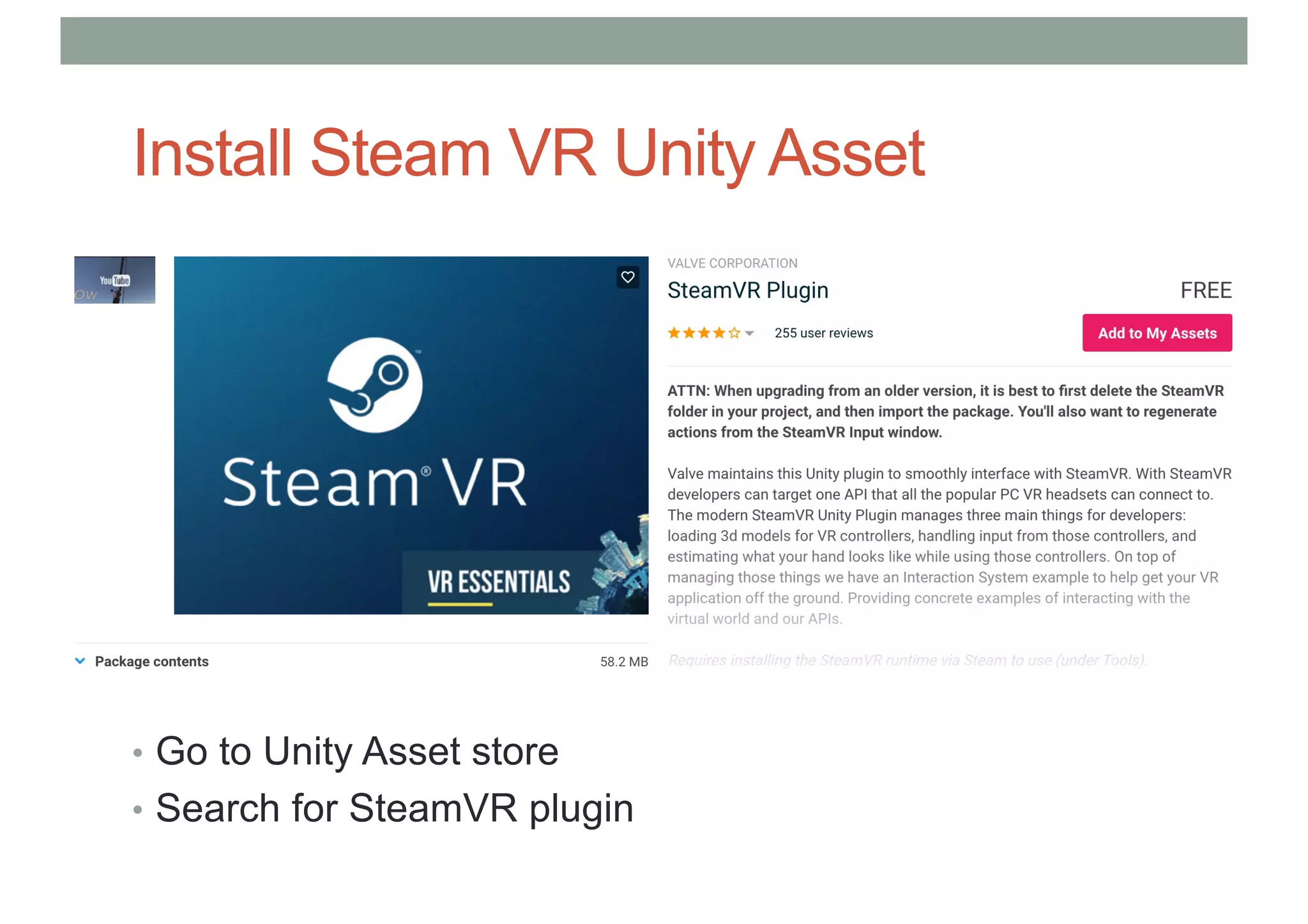
Install Steam VR Unity Asset
• Go to Unity Asset store
• Search for SteamVR plugin
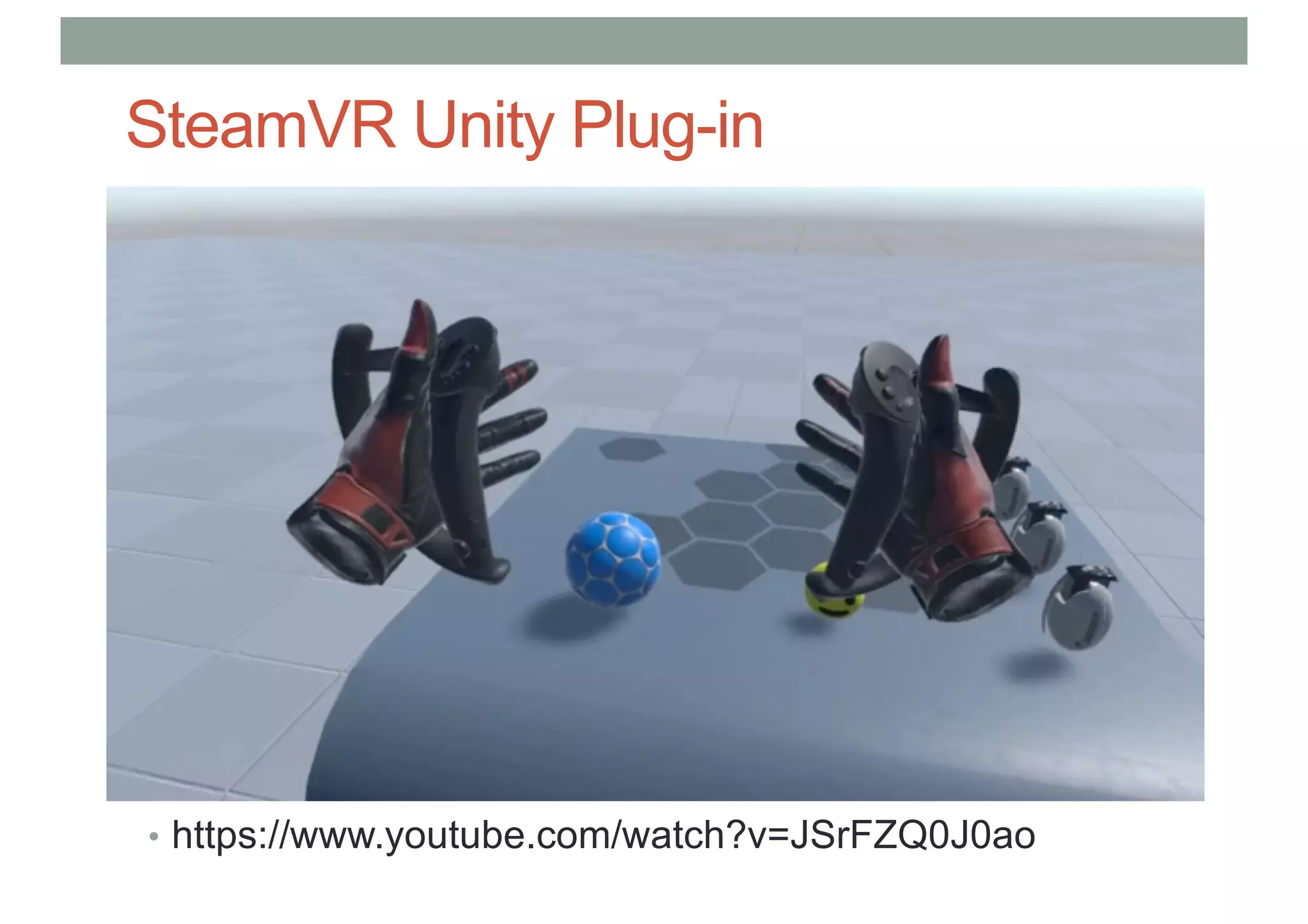
SteamVR Unity Plug-in
• https://www.youtube.com/watch?v=JSrFZQ0J0ao
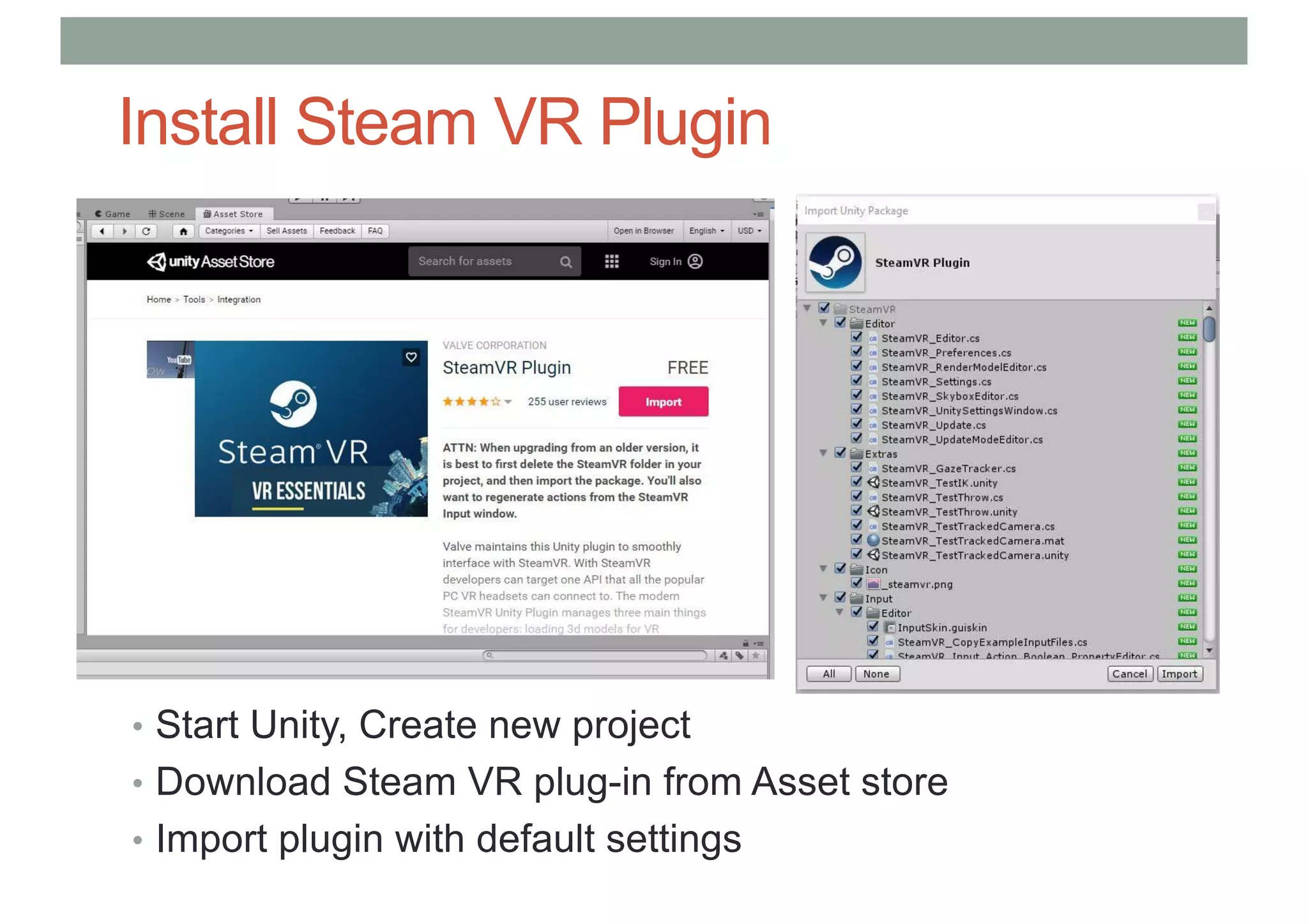
Install Steam VR Plugin
• Start Unity, Create new project
• Download Steam VR plug-in from Asset store
• Import plugin with default settings
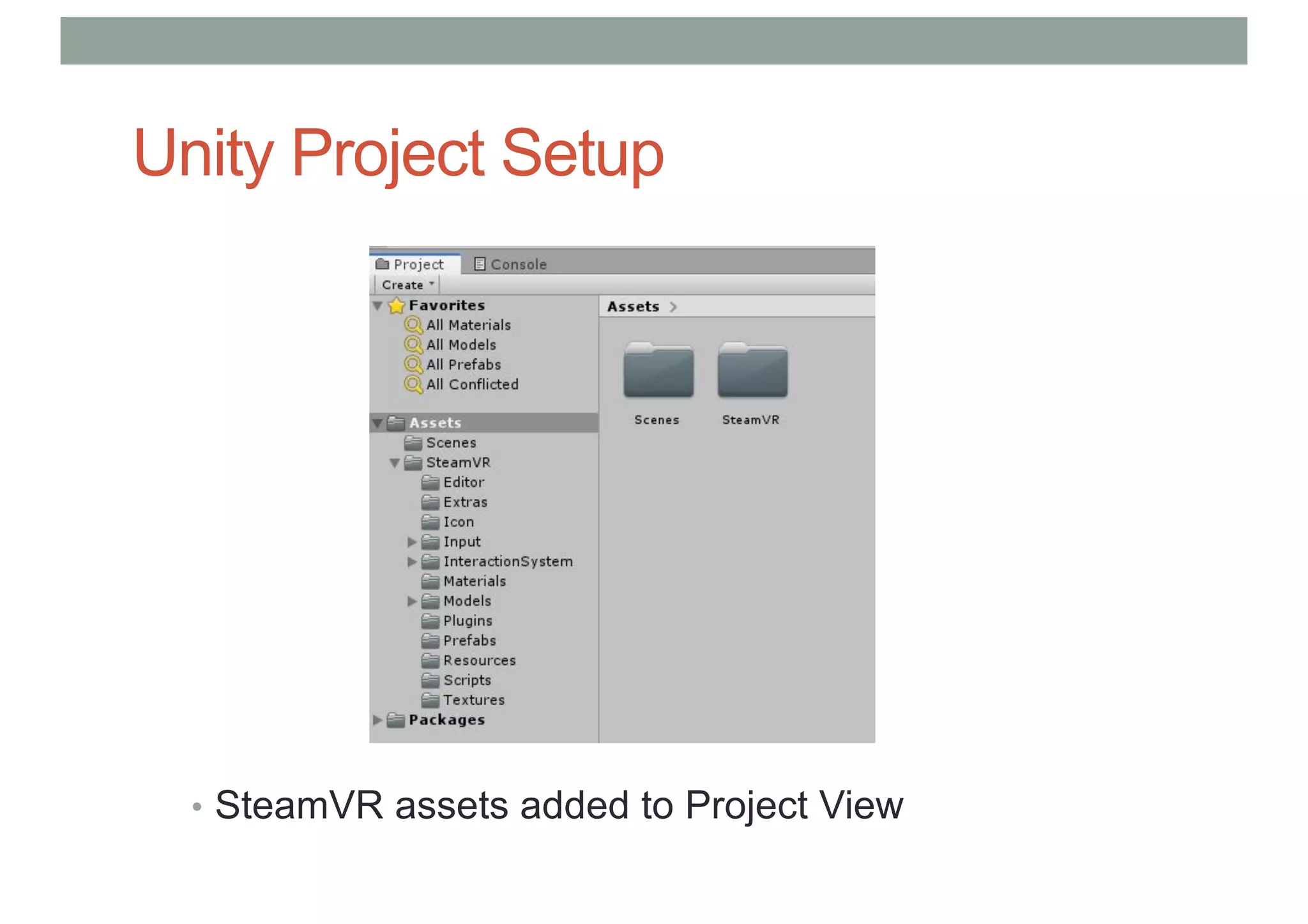
Unity Project Setup
• SteamVR assets added to Project View
Basic Scene Setup
• Create a new scene and delete Main Camera
• Add player prefab to the scene
• Assets -> SteamVR -> InteractionSystem -> Core -> Prefab -> Player
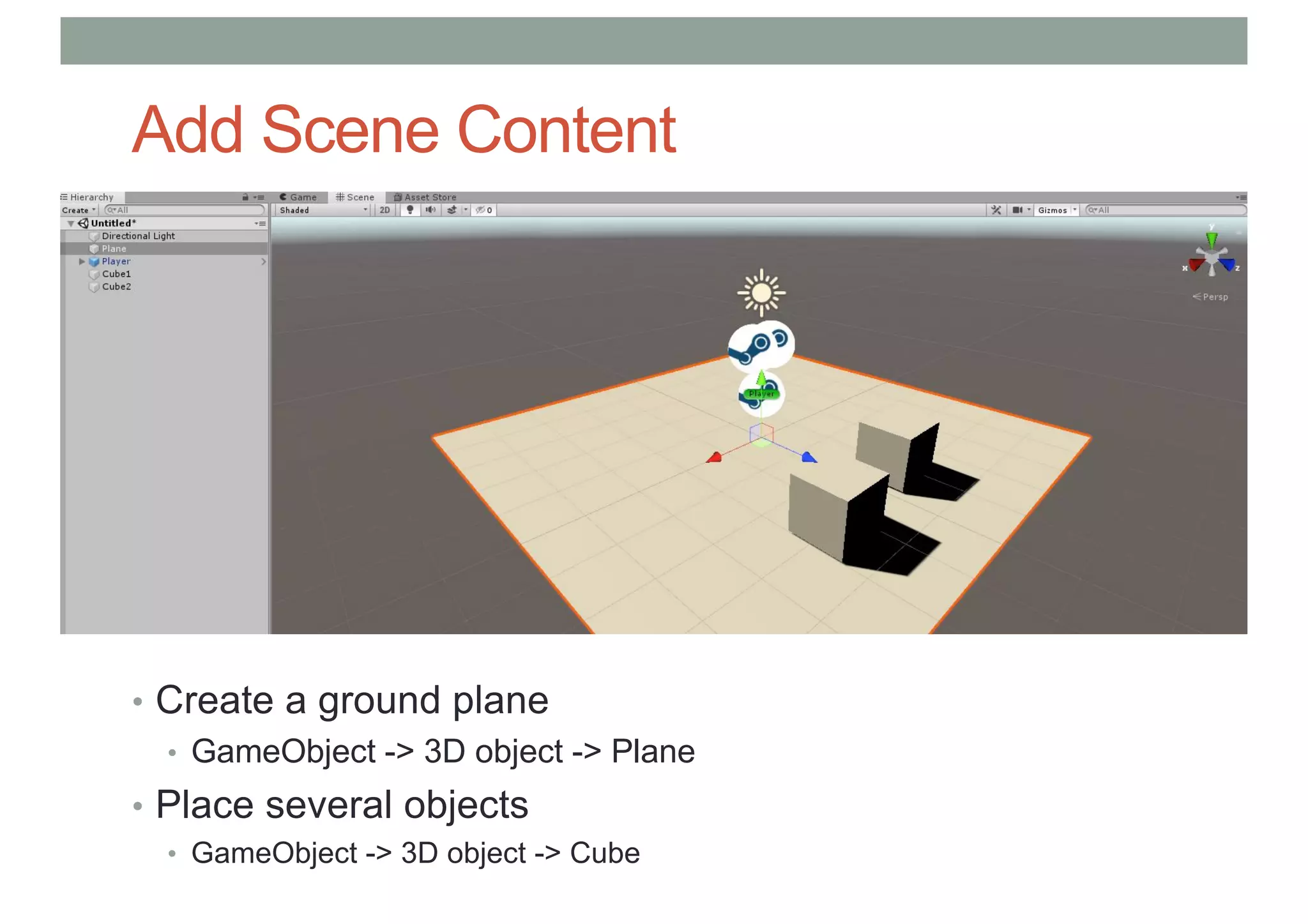
Add Scene Content
• Create a ground plane
• GameObject -> 3D object -> Plane
• Place several objects
• GameObject -> 3D object -> Cube
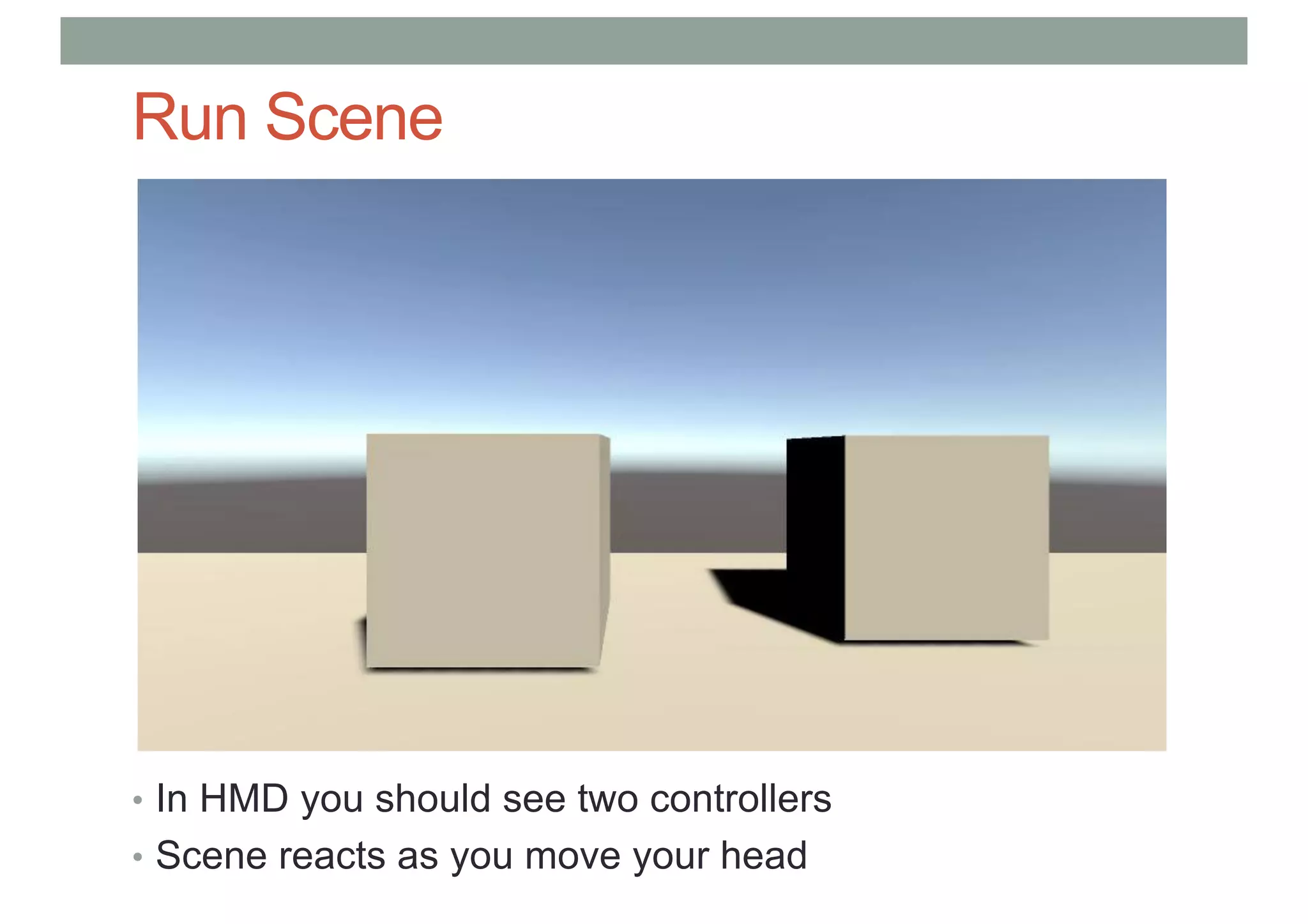
Run Scene
• In HMD you should see two controllers
• Scene reacts as you move your head
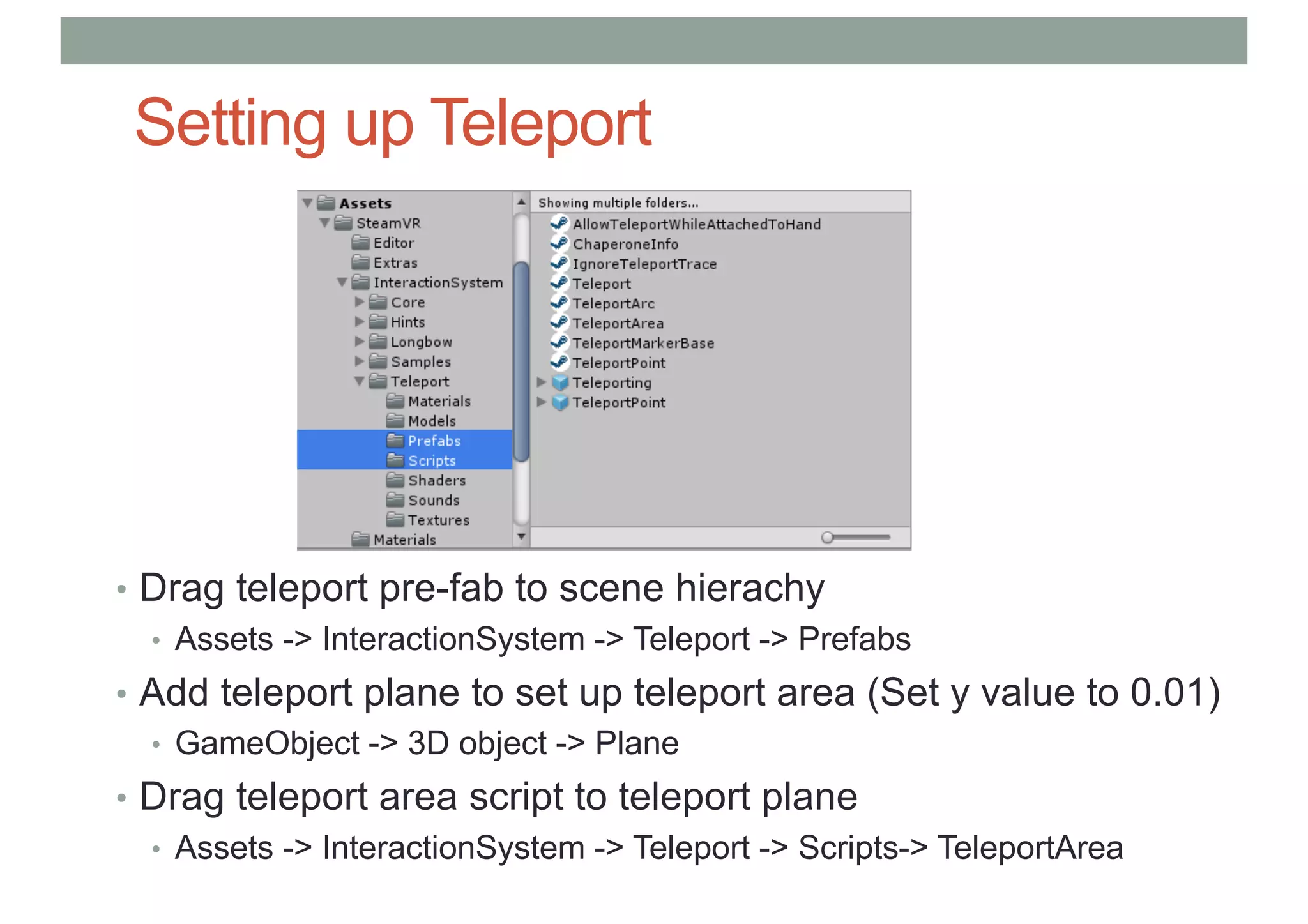
Setting up Teleport
• Drag teleport pre-fab to scene hierachy
• Assets -> InteractionSystem -> Teleport -> Prefabs
• Add teleport plane to set up teleport area (Set y value to 0.01)
• GameObject -> 3D object -> Plane
• Drag teleport area script to teleport plane
• Assets -> InteractionSystem -> Teleport -> Scripts-> TeleportArea
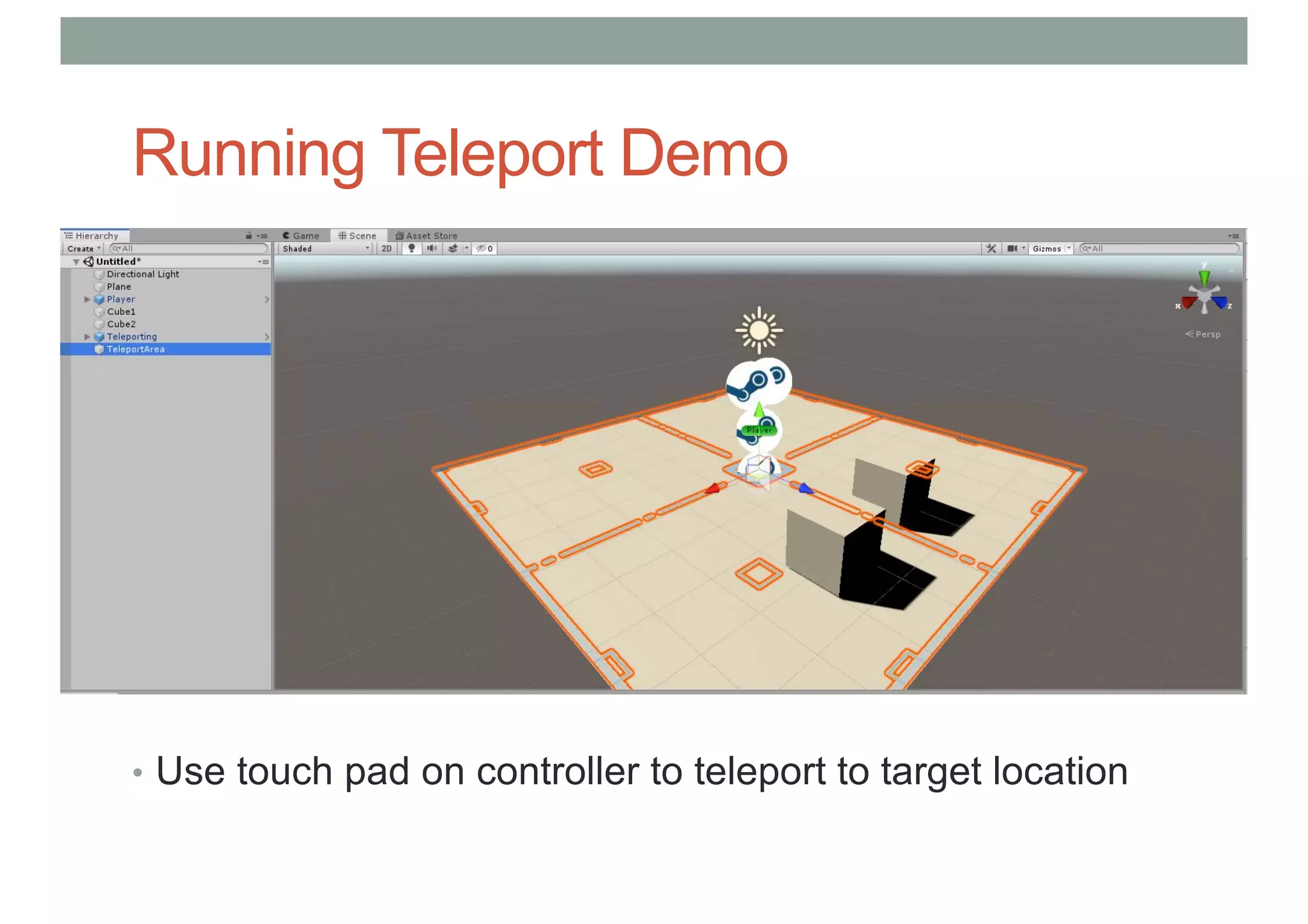
Running Teleport Demo
• Use touch pad on controller to teleport to target location
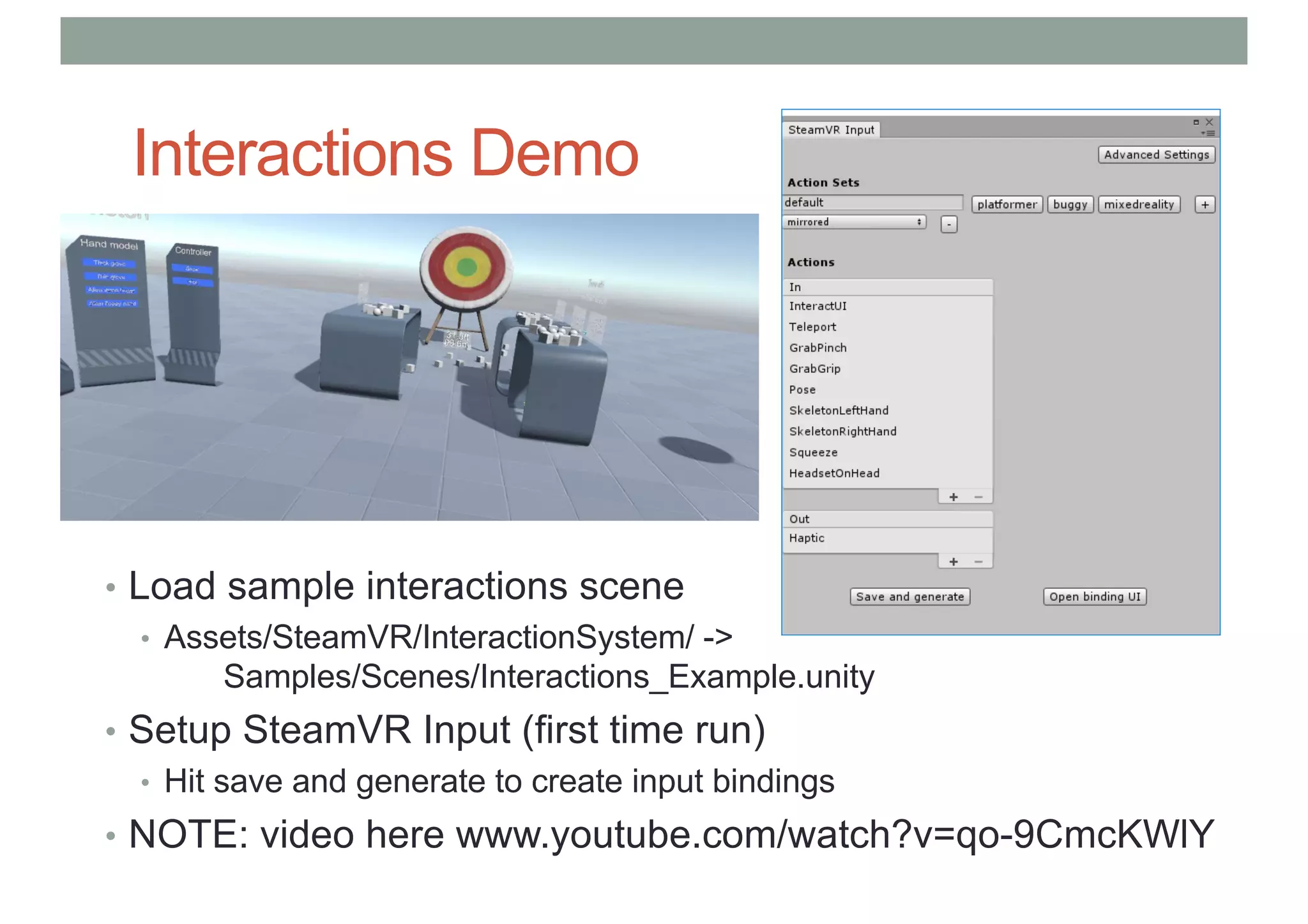
Interactions Demo
• Load sample interactions scene
• Assets/SteamVR/InteractionSystem/ ->
Samples/Scenes/Interactions_Example.unity
• Setup SteamVR Input (first time run)
• Hit save and generate to create input bindings
• NOTE: video here www.youtube.com/watch?v=qo-9CmcKWlY
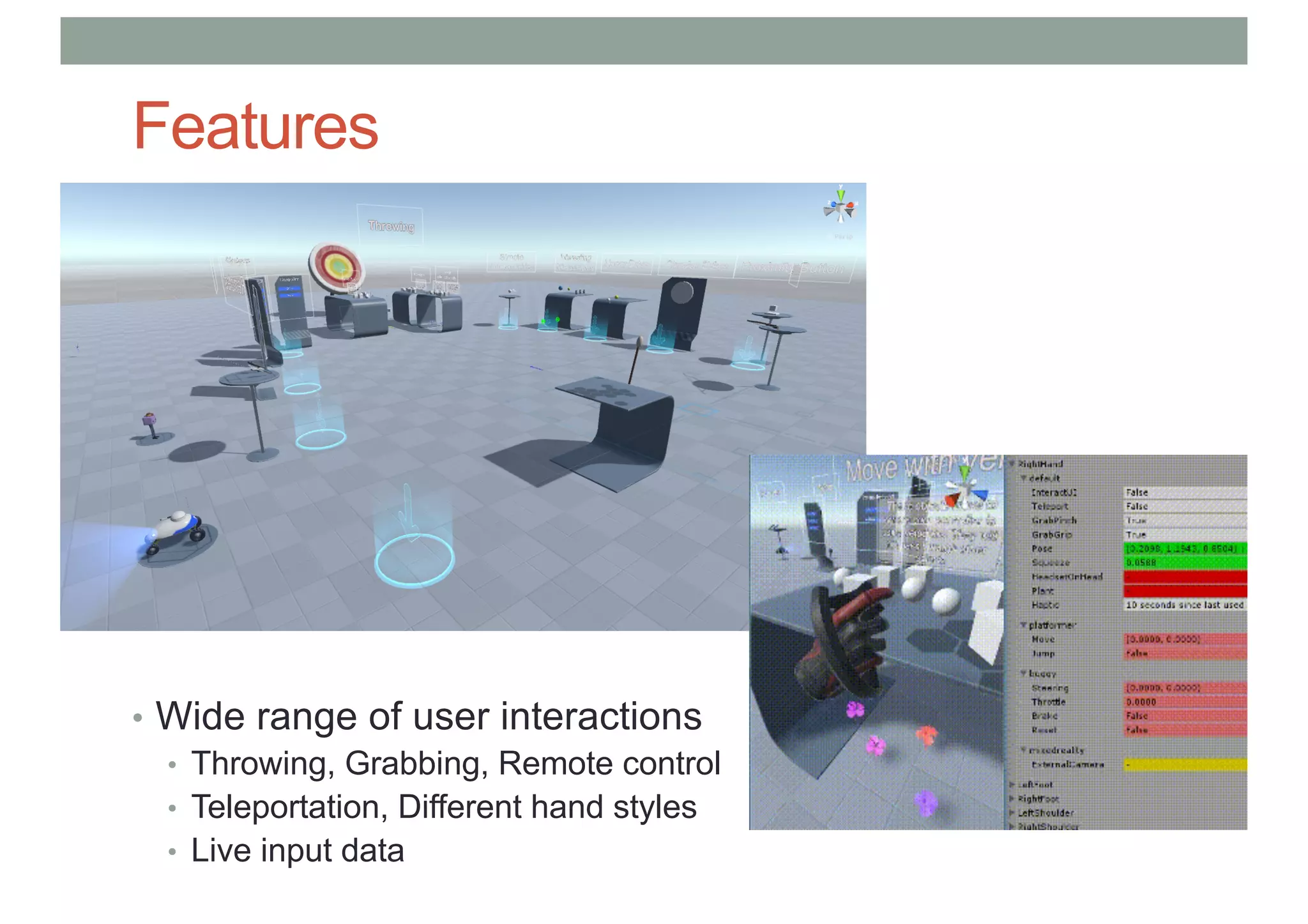
Features
• Wide range of user interactions
• Throwing, Grabbing, Remote control
• Teleportation, Different hand styles
• Live input data
RESOURCES
Software
• Unity 2018.4.5f1, latest version of Unity with long term
support. Works with SteamVR and VRTK.
• https://unity3d.com/unity/whats-new/2018.4.5
• SteamVR HTC Vive Tutorial
• https://www.raywenderlich.com/9189-htc-vive-tutorial-
for-unity
• Getting Started with VRTK
• https://vrtoolkit.readme.io/docs/getting-started
Ray Wenderlich Tutorials
• Excellent set of step by step tutorials
• www.raywenderlich.com
• Introduction to Unity: Getting Started
• www.raywenderlich.com/772-introduction-to-unity-getting-started-part-1-2
• Introduction to Unity Scripting
• www.raywenderlich.com/980-introduction-to-unity-scripting
• HTC Vive Tutorial for Unity
• www.raywenderlich.com/9189-htc-vive-tutorial-for-unity
Simple SteamVR Tutorials
• Setup basic Scene
• https://vincentkok.net/2018/03/20/unity-steamvr-basics-setting-up/
• Teleportation
• https://vincentkok.net/2018/03/21/unity-steamvr-basics-part-2-
using-teleportation/
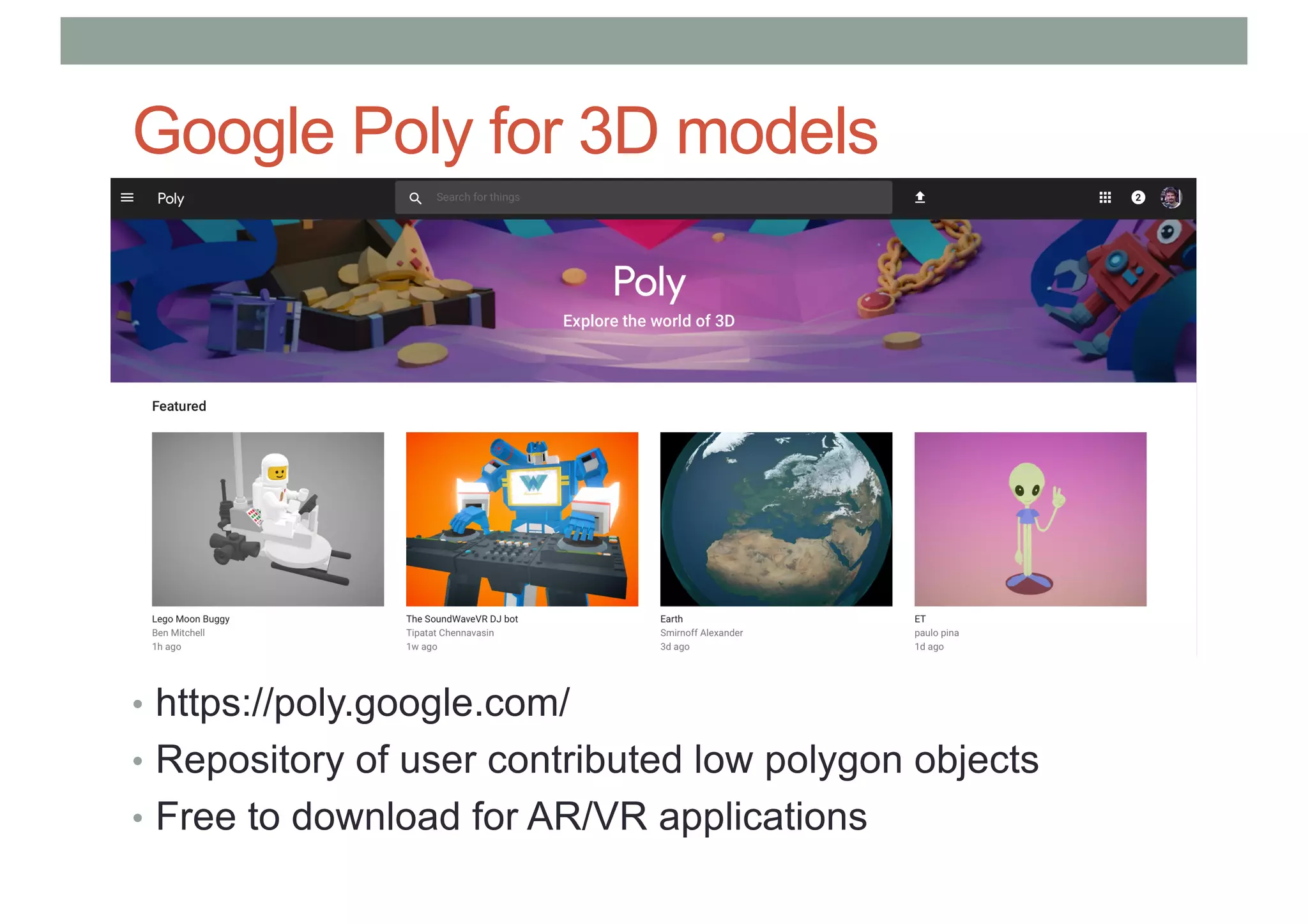
Google Poly for 3D models
• https://poly.google.com/
• Repository of user contributed low polygon objects
• Free to download for AR/VR applications
www.empathiccomputing.org
@marknb00
mark.billinghurst@unisa.edu.au

Developing VR Experiences with Unity

  • 1.
    DEVELOPING VR EXPERIENCES WITHUNITY Mark Billinghurst University of South Australia July 30th 2019
  • 2.
  • 5.
    Unity 3D GameEditor – www.unity.com
  • 6.
    Unity Show Reel •https://www.youtube.com/watch?v=NPhLBZvrg8o
  • 7.
    Adam – RealTime Movie • https://www.youtube.com/watch?v=INbwoxfSBjQ
  • 8.
    Unity VR Demos •https://www.youtube.com/watch?v=TsJLAOryjUY
  • 9.
    Unity 3D features •Cross platform • Windows, OSX, iOS, Android, Linux, WebGL, etc. • Fast rapid development • Visual scene assembly, rapid prototyping • Control over rendering pipeline • Access to low level graphics, shader programming • Scripting in multiple coding languages • C#, C++, Javascript, etc. • Asset store with thousands of contributions • Models, behaviours, programming tools, etc. • Very large developer/support community
  • 10.
  • 11.
    Download Unity -https://store.unity.com/ • Pick version of Unity
  • 12.
    Install Unity Hub •Download Unity Hub – pick components you want
  • 13.
    Getting Started • Firsttime running Unity you’ll be asked to create a project • Pick 3D, specify project name and location
  • 14.
  • 15.
  • 16.
    Scene View • Wherethe game is constructed • Visually place all the assets • models, cameras, other pieces that make up the game
  • 17.
    Hierarchy Window • Listof all current GameObjects being used in the application • GameObjects can be nested • Can have multiple scenes
  • 18.
    Project Window • Containsat the assets needed for application • Drag assets into the hierarchy window
  • 19.
    Inspector View • Configureany GameObject • Change properties • Add components
  • 20.
    Building Scenes • UseGameObjects: • Containers that hold different components • Eg 3D model, texture, animation • Use Inspector • View and edit object properties and other settings • Use Scene View • Position objects, camera, lights, other GameObjects etc • Scripting • Adding interaction, user input, events, etc
  • 21.
    GameObjects • Every objectin Scene is a GameObject • GameObjects contain Components • e.g. Transform Component, Camera Component
  • 22.
    Adding 3D Content •Create 3D asset using modeling package, or download • Fbx, Obj file format for 3D models • Add file to Assets folder in Project • When project opened 3D model added to Project View • Drag mesh from Project View into Hierarchy or Scene View • Creates a game object
  • 23.
    Positioning/Scaling Objects • Clickon object and choose transform
  • 24.
    Manipulating Objects andCamera • Panning and scaling
  • 25.
    Unity Coordinate Frame •Left handed co- ordinate system • Select axes to translate object
  • 26.
    Rotation About Axes •Use rotation tool, select rotation line
  • 27.
    Unity Asset Store •Download thousands of models, scripts, animations, etc • https://assetstore.unity.com/
  • 29.
  • 30.
    Making a SimpleScene 1. Create New Project 2. Create Game Object 3. Moving main camera position 4. Adding lights 5. Adding more objects 6. Adding physics 7. Changing object materials 8. Adding script behaviour
  • 31.
    Create Project • Createnew folder and project
  • 32.
  • 33.
    Create GameObject • Loada Sphere into the scene • GameObject -> 3D Object -> Sphere
  • 34.
    Moving main camera •Select Main Camera • Select translate icon • Move camera
  • 35.
    Add Light • GameObject-> Light -> Directional Light • Use inspector to modify light properties (colour, intensity)
  • 36.
    Add Physics • SelectSphere • Add Rigidbody component • Add Component -> Physics -> RigidBody • or Component -> Physics -> RigidBody • Modify inspector properties (mass, drag, etc)
  • 37.
    Add More Objects •Add several cubes • GameObject -> 3D Object – Cube • Move cube • Add Rigid Body component (uncheck gravity)
  • 38.
    Add Material • Assets-> Create -> Material • Click Albedo colour box in inspector • Select colour • Drag asset onto object to apply
  • 39.
    Add Script • Assets-> Create -> C# script • Edit script using Mono/Visual Studio • Drag script onto Game Object
  • 40.
    Example C# Script GameObjectRotation using UnityEngine; using System.Collections; public class spin : MonoBehaviour { // Use this for initialization void Start () { } // Update is called once per frame void Update () { this.gameObject.transform.Rotate(Vector3.up*10); } }
  • 41.
    Scripting C# Unity3D • void Awake(): • Is called when the first scene is loaded and the game object is active • void Start(): • Called on first frame update • void FixedUpdate(): • Called before physics calculations are made • void Update(): • Called every frame before rendering • void LateUpdate(): • Once per frame after update finished
  • 42.
  • 43.
    Resources • Unity Mainsite • https://unity.com/ •Holistic Development with Unity • http://holistic3d.com • Official Unity Tutorials • https://learn.unity.com/ •Unity Coder Blog • http://unitycoder.com
  • 44.
  • 45.
    Key Steps 1. InstallSteamVR platform 2. Install SteamVR Unity plugin 3. Setting up simple VR scene 4. Setting up Teleportation 5. Trying out Interactions Demo
  • 46.
    SteamVR • Platform forVR gaming and experiences • Supports multiple VR hardware devices • Download and instal SteamVR • https://www.steamvr.com/
  • 47.
    Run SteamVR • Plugin HMD • Start SteamVR and set up HMD
  • 48.
    Install Steam VRUnity Asset • Go to Unity Asset store • Search for SteamVR plugin
  • 49.
    SteamVR Unity Plug-in •https://www.youtube.com/watch?v=JSrFZQ0J0ao
  • 50.
    Install Steam VRPlugin • Start Unity, Create new project • Download Steam VR plug-in from Asset store • Import plugin with default settings
  • 51.
    Unity Project Setup •SteamVR assets added to Project View
  • 52.
    Basic Scene Setup •Create a new scene and delete Main Camera • Add player prefab to the scene • Assets -> SteamVR -> InteractionSystem -> Core -> Prefab -> Player
  • 53.
    Add Scene Content •Create a ground plane • GameObject -> 3D object -> Plane • Place several objects • GameObject -> 3D object -> Cube
  • 54.
    Run Scene • InHMD you should see two controllers • Scene reacts as you move your head
  • 55.
    Setting up Teleport •Drag teleport pre-fab to scene hierachy • Assets -> InteractionSystem -> Teleport -> Prefabs • Add teleport plane to set up teleport area (Set y value to 0.01) • GameObject -> 3D object -> Plane • Drag teleport area script to teleport plane • Assets -> InteractionSystem -> Teleport -> Scripts-> TeleportArea
  • 56.
    Running Teleport Demo •Use touch pad on controller to teleport to target location
  • 57.
    Interactions Demo • Loadsample interactions scene • Assets/SteamVR/InteractionSystem/ -> Samples/Scenes/Interactions_Example.unity • Setup SteamVR Input (first time run) • Hit save and generate to create input bindings • NOTE: video here www.youtube.com/watch?v=qo-9CmcKWlY
  • 58.
    Features • Wide rangeof user interactions • Throwing, Grabbing, Remote control • Teleportation, Different hand styles • Live input data
  • 59.
  • 60.
    Software • Unity 2018.4.5f1,latest version of Unity with long term support. Works with SteamVR and VRTK. • https://unity3d.com/unity/whats-new/2018.4.5 • SteamVR HTC Vive Tutorial • https://www.raywenderlich.com/9189-htc-vive-tutorial- for-unity • Getting Started with VRTK • https://vrtoolkit.readme.io/docs/getting-started
  • 61.
    Ray Wenderlich Tutorials •Excellent set of step by step tutorials • www.raywenderlich.com • Introduction to Unity: Getting Started • www.raywenderlich.com/772-introduction-to-unity-getting-started-part-1-2 • Introduction to Unity Scripting • www.raywenderlich.com/980-introduction-to-unity-scripting • HTC Vive Tutorial for Unity • www.raywenderlich.com/9189-htc-vive-tutorial-for-unity
  • 62.
    Simple SteamVR Tutorials •Setup basic Scene • https://vincentkok.net/2018/03/20/unity-steamvr-basics-setting-up/ • Teleportation • https://vincentkok.net/2018/03/21/unity-steamvr-basics-part-2- using-teleportation/
  • 63.
    Google Poly for3D models • https://poly.google.com/ • Repository of user contributed low polygon objects • Free to download for AR/VR applications
  • 64.