Windows 8  Windows Phone 8  Web  Mobile  … and more! 
WakeUpAndCode.com 
@shahedC
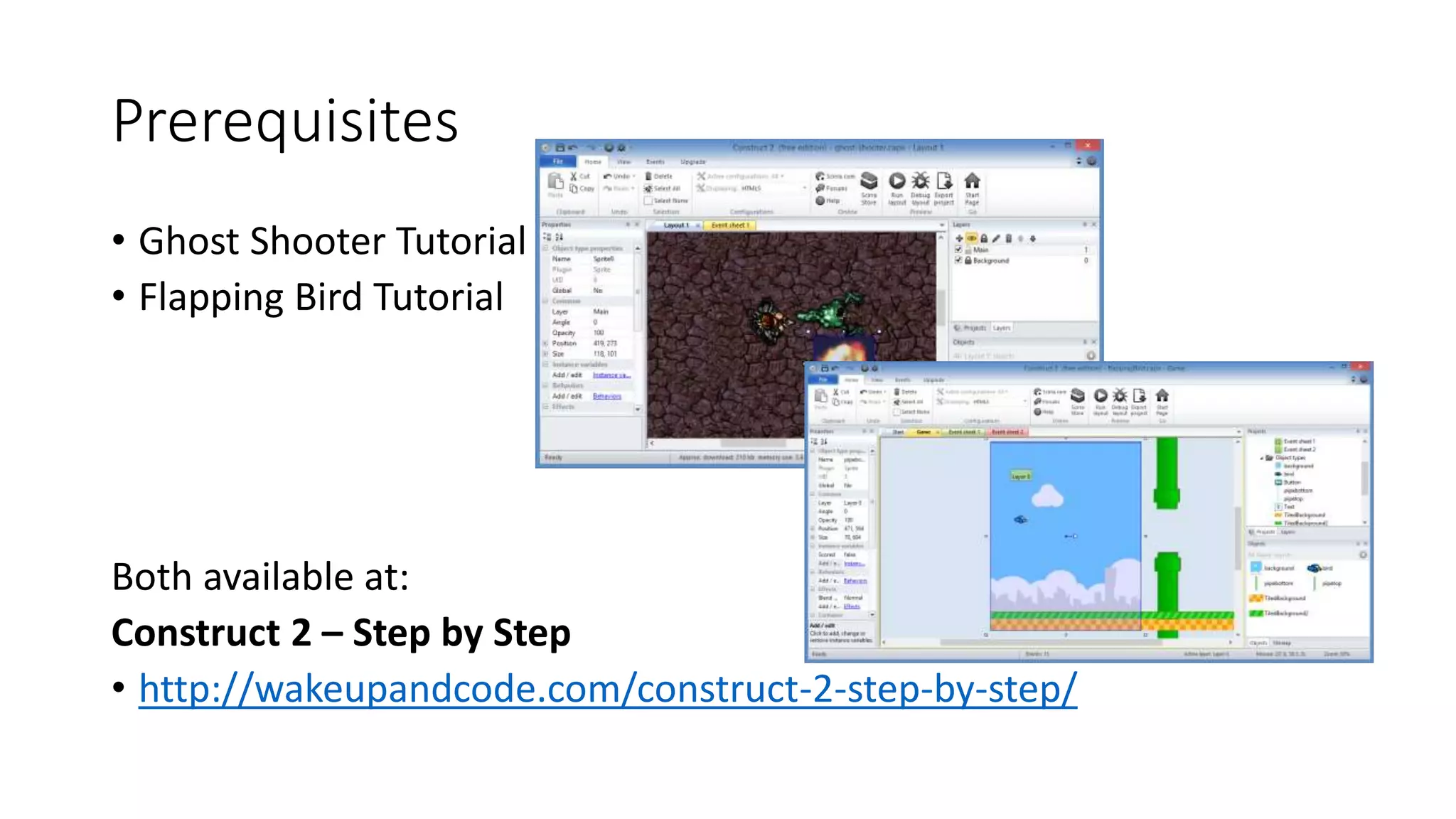
Prerequisites 
• Ghost Shooter Tutorial 
• Flapping Bird Tutorial 
Both available at: 
Construct 2 – Step by Step 
• http://wakeupandcode.com/construct-2-step-by-step/
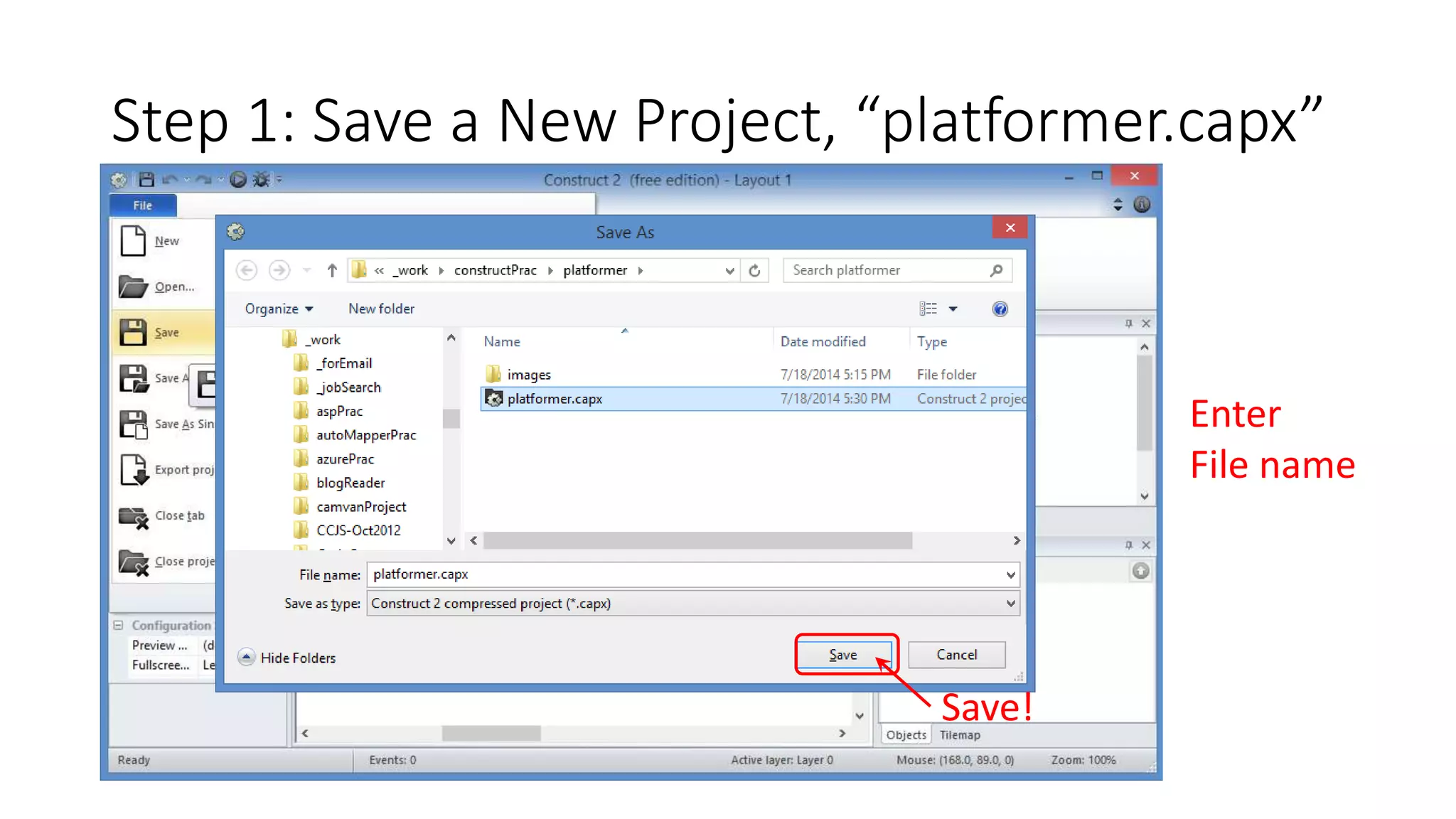
Step 1: Save a New Project, “platformer.capx” 
Save! 
Enter 
File name
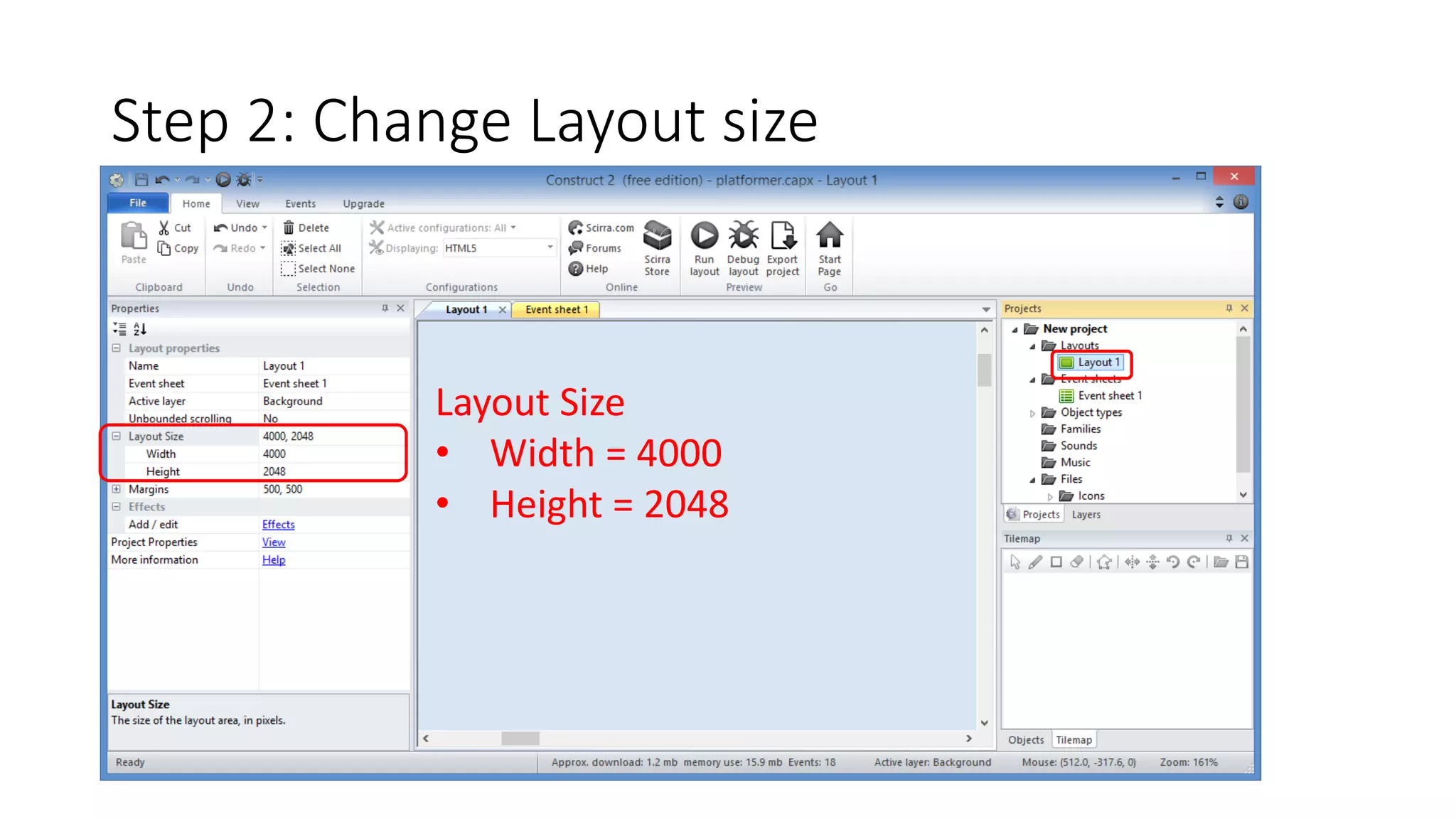
Step 2: Change Layout size 
Layout Size 
• Width = 4000 
• Height = 2048
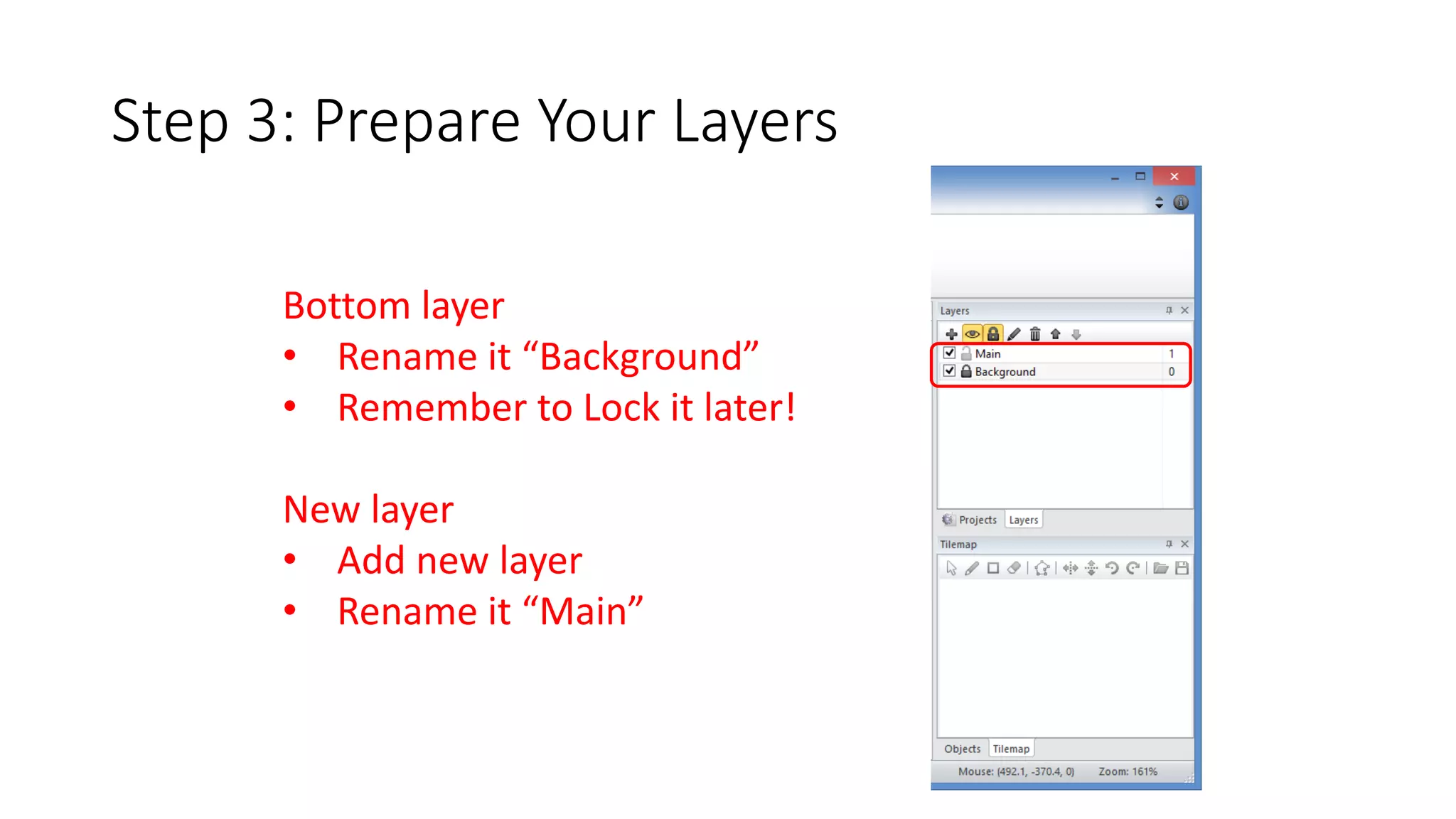
Step 3: Prepare Your Layers 
Bottom layer 
• Rename it “Background” 
• Remember to Lock it later! 
New layer 
• Add new layer 
• Rename it “Main”
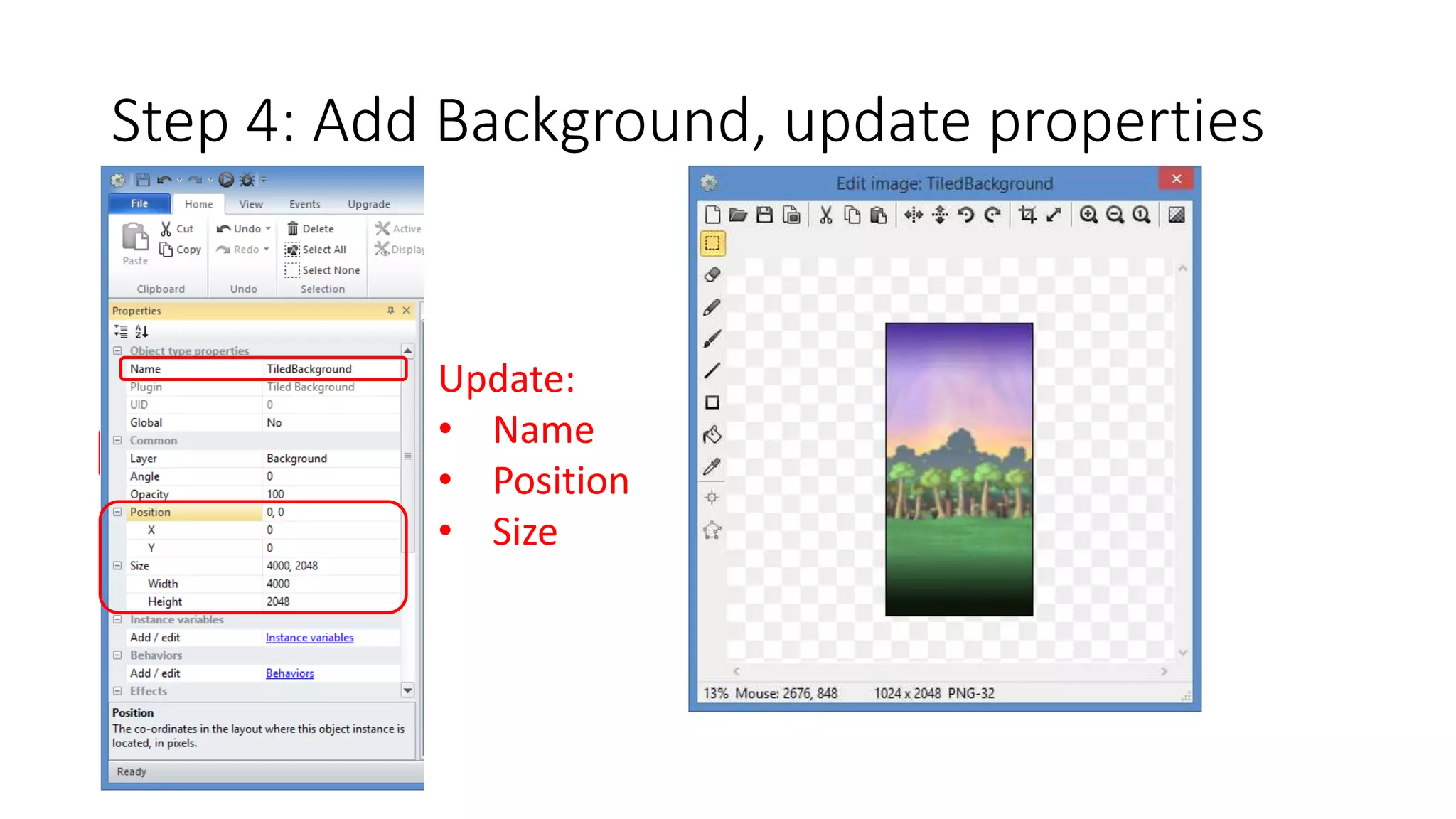
Step 4: Add Background, update properties 
Update: 
• Name 
• Position 
• Size
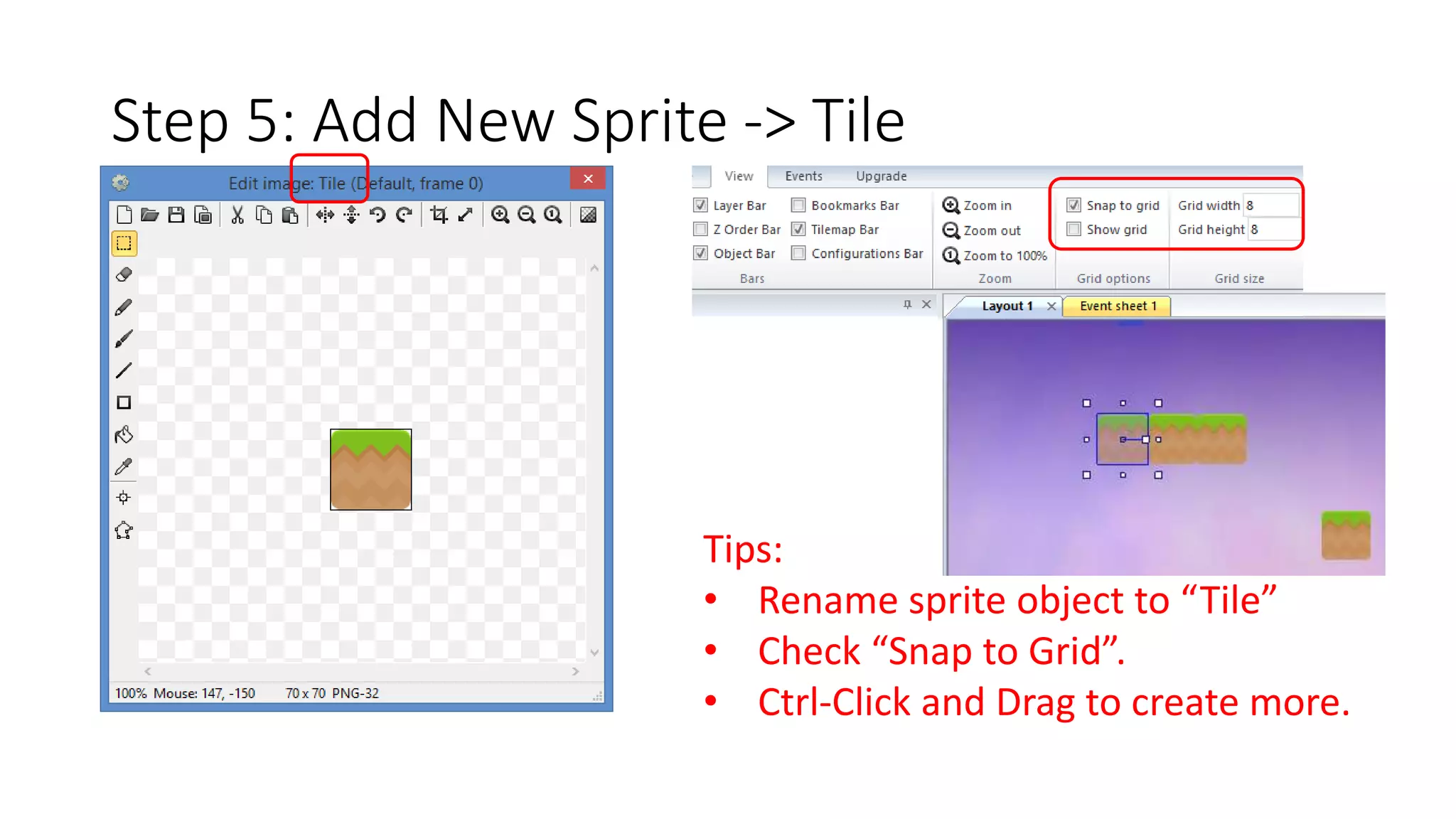
Step 5: Add New Sprite -> Tile 
Tips: 
• Rename sprite object to “Tile” 
• Check “Snap to Grid”. 
• Ctrl-Click and Drag to create more.
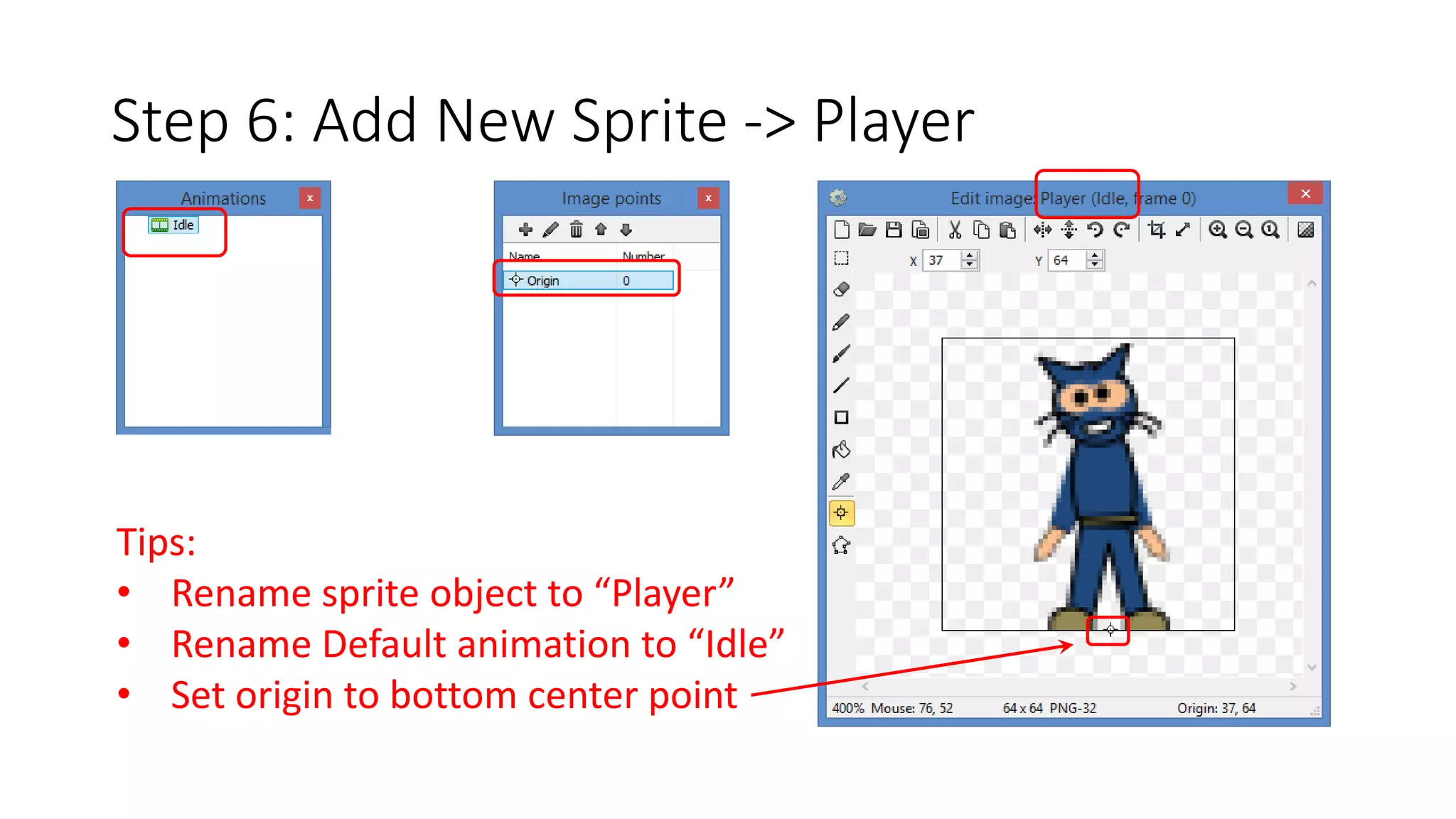
Step 6: Add New Sprite -> Player 
Tips: 
• Rename sprite object to “Player” 
• Rename Default animation to “Idle” 
• Set origin to bottom center point
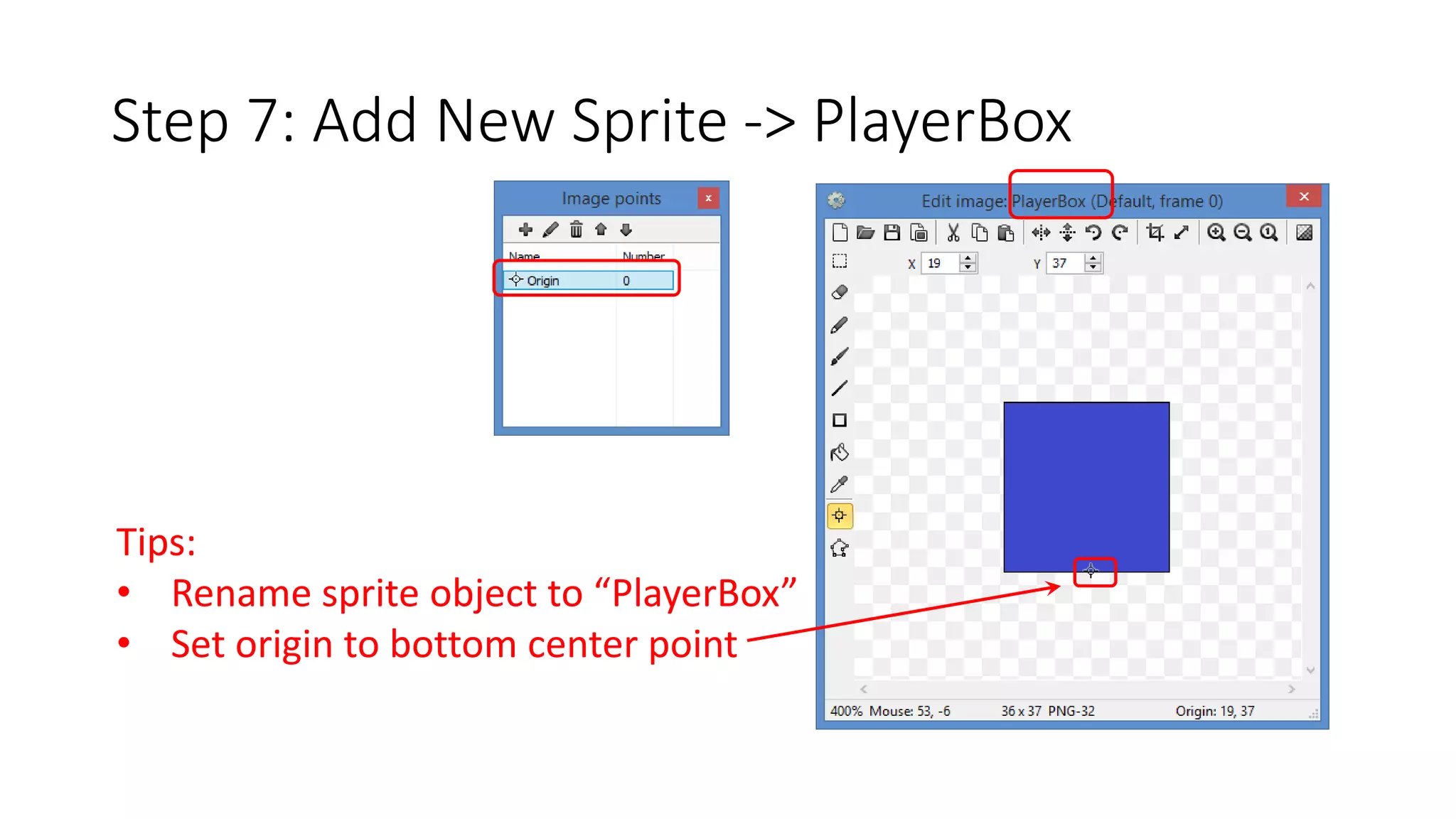
Step 7: Add New Sprite -> PlayerBox 
Tips: 
• Rename sprite object to “PlayerBox” 
• Set origin to bottom center point
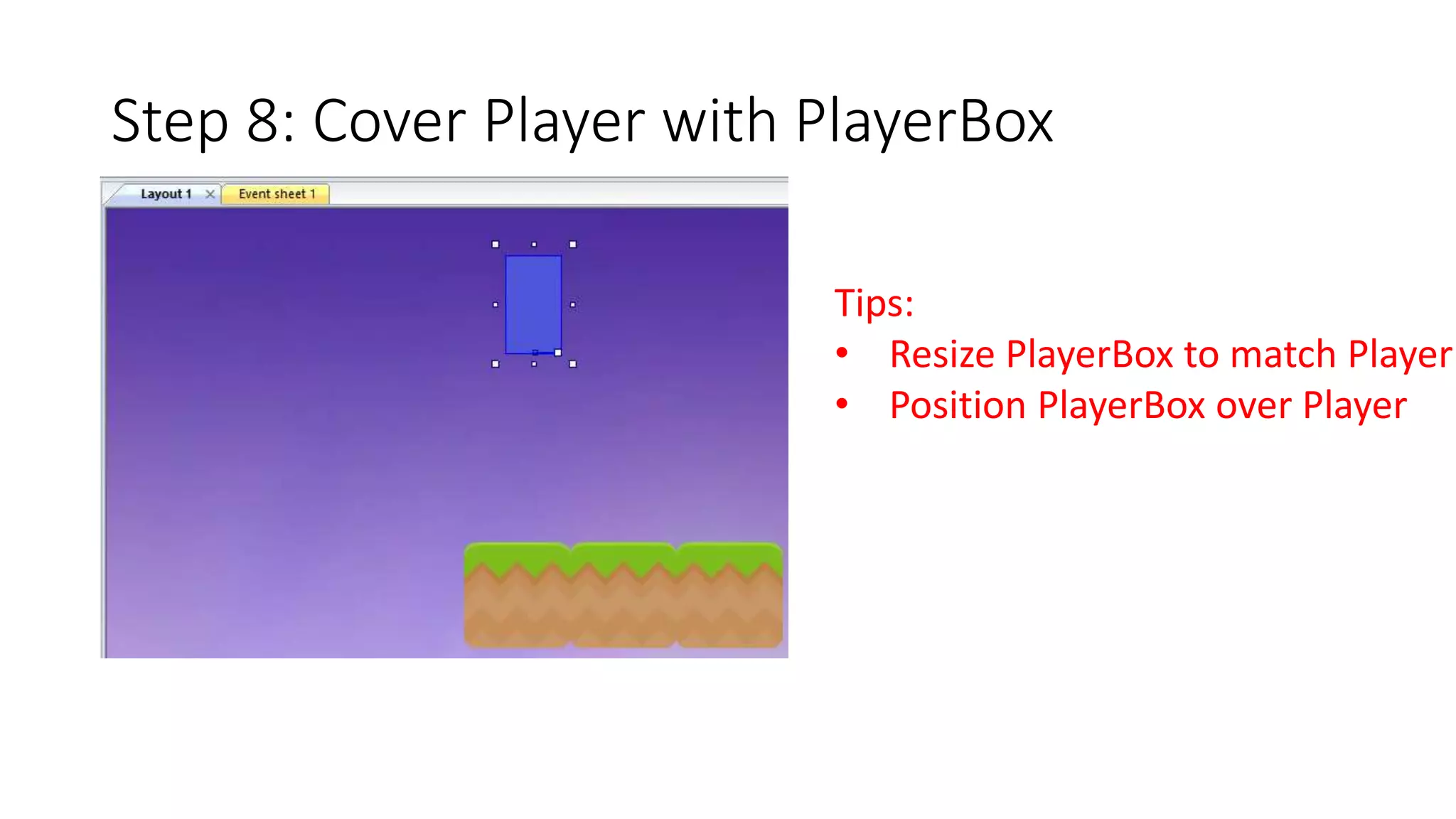
Step 8: Cover Player with PlayerBox 
Tips: 
• Resize PlayerBox to match Player 
• Position PlayerBox over Player
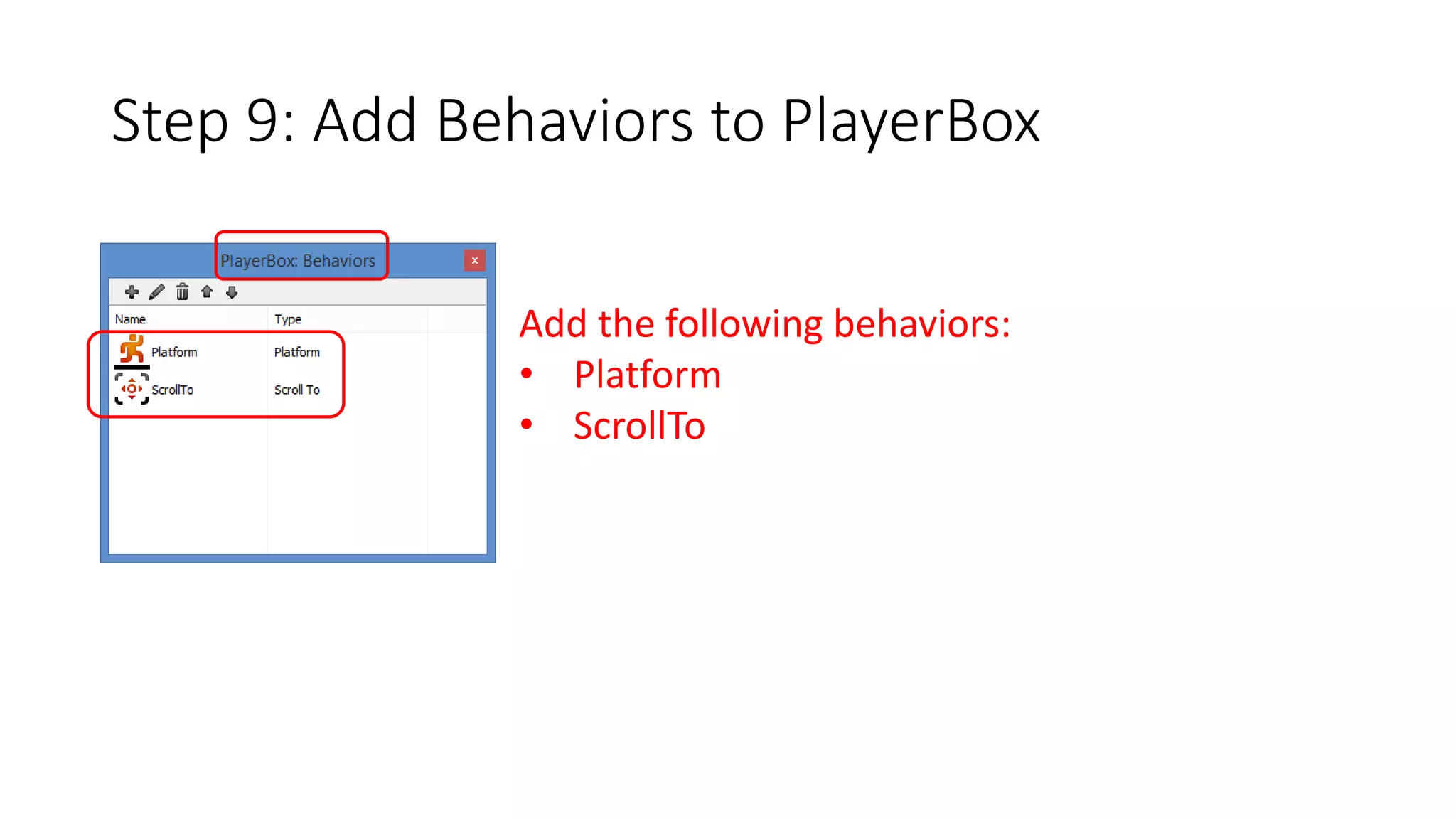
Step 9: Add Behaviors to PlayerBox 
Add the following behaviors: 
• Platform 
• ScrollTo
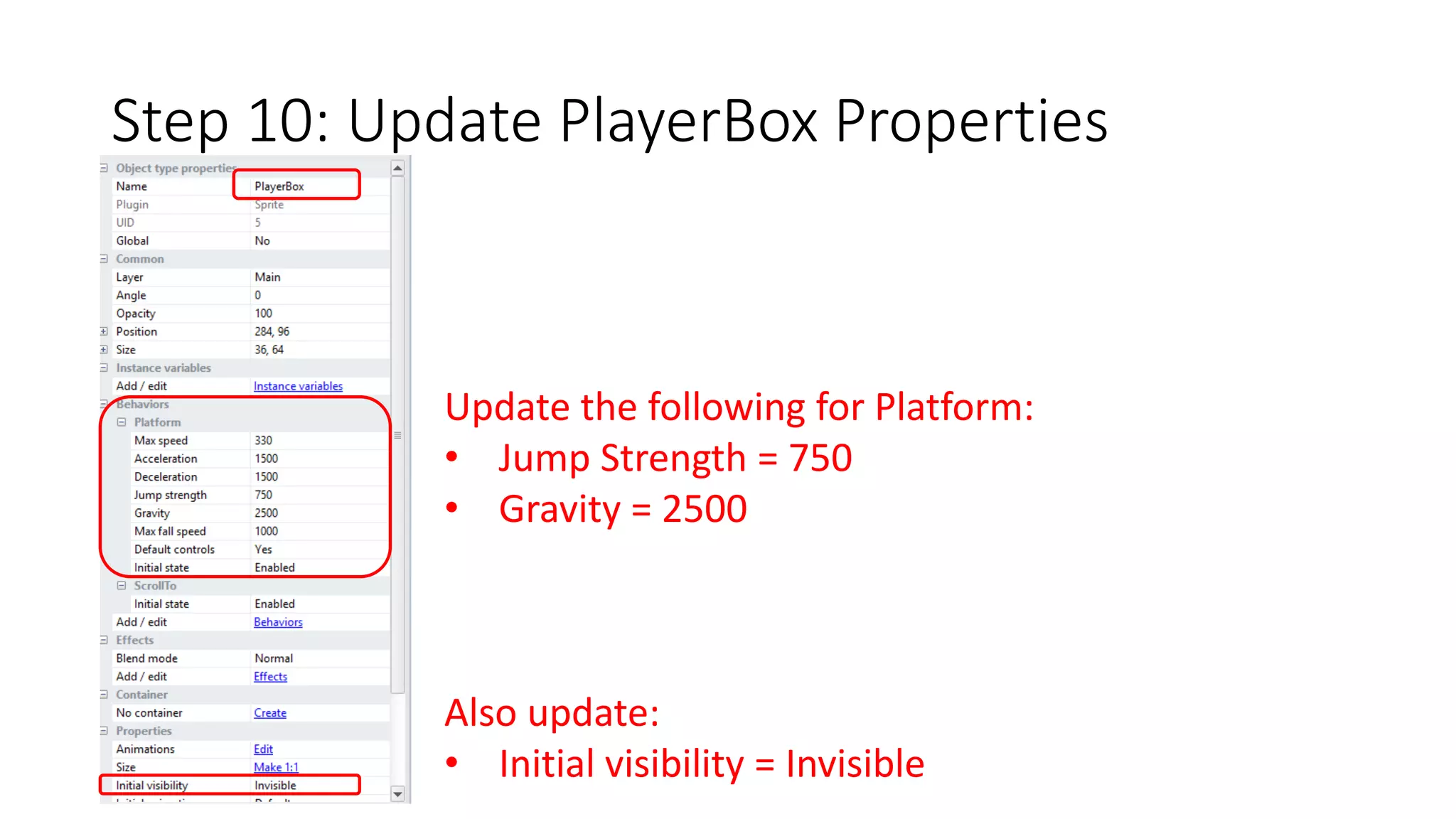
Step 10: Update PlayerBox Properties 
Update the following for Platform: 
• Jump Strength = 750 
• Gravity = 2500 
Also update: 
• Initial visibility = Invisible
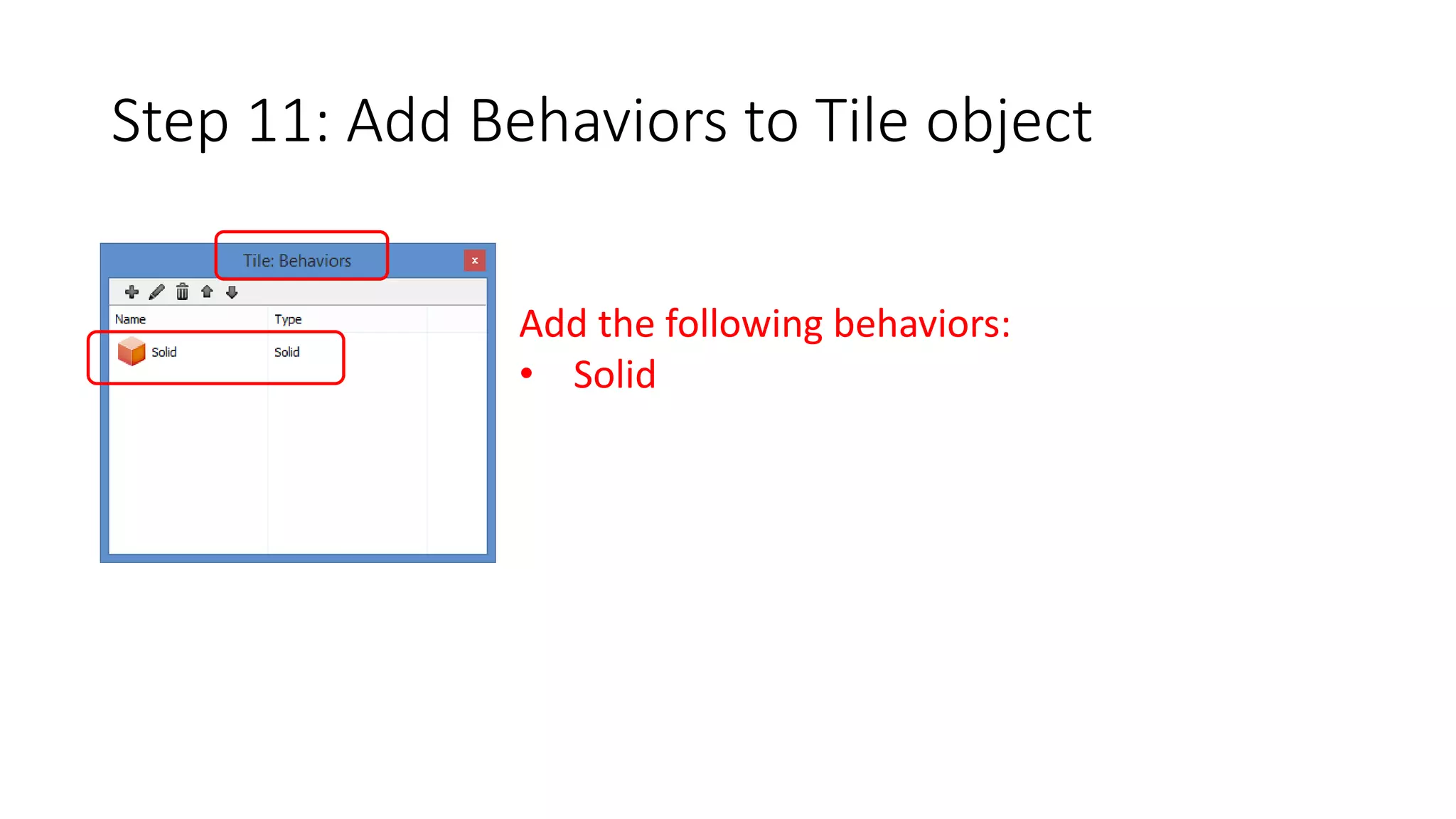
Step 11: Add Behaviors to Tile object 
Add the following behaviors: 
• Solid
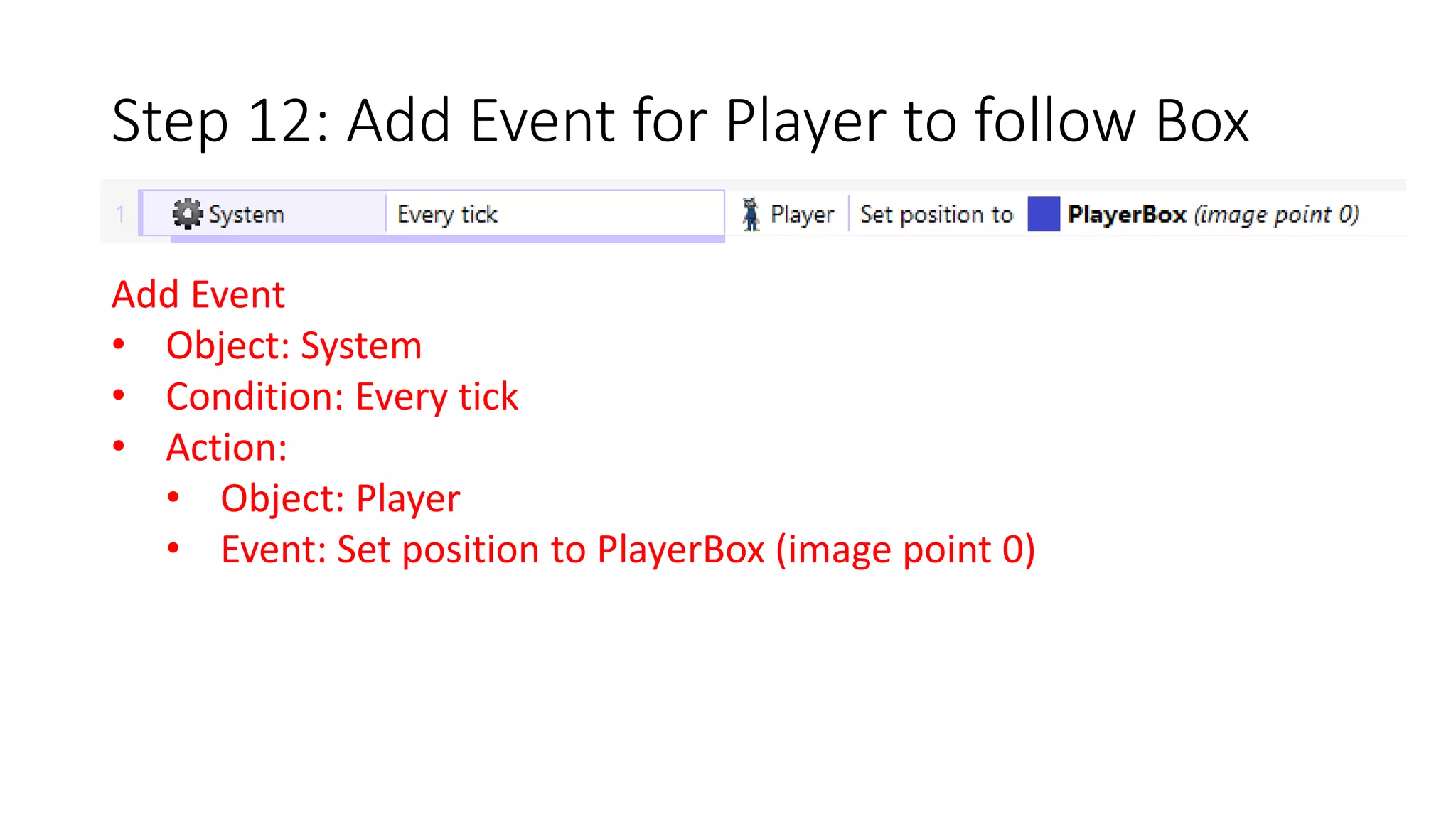
Step 12: Add Event for Player to follow Box 
Add Event 
• Object: System 
• Condition: Every tick 
• Action: 
• Object: Player 
• Event: Set position to PlayerBox (image point 0)
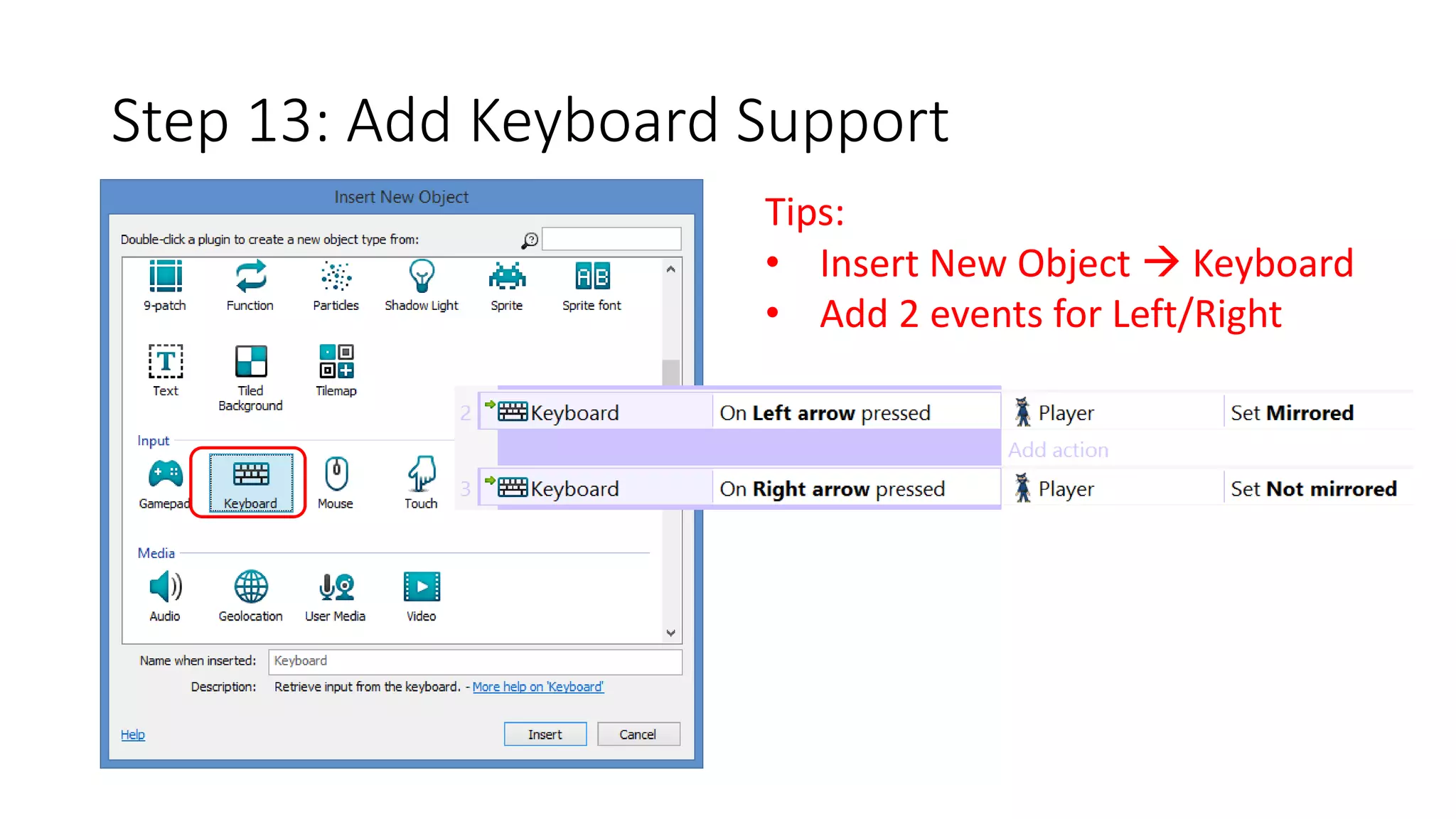
Step 13: Add Keyboard Support 
Tips: 
• Insert New Object  Keyboard 
• Add 2 events for Left/Right
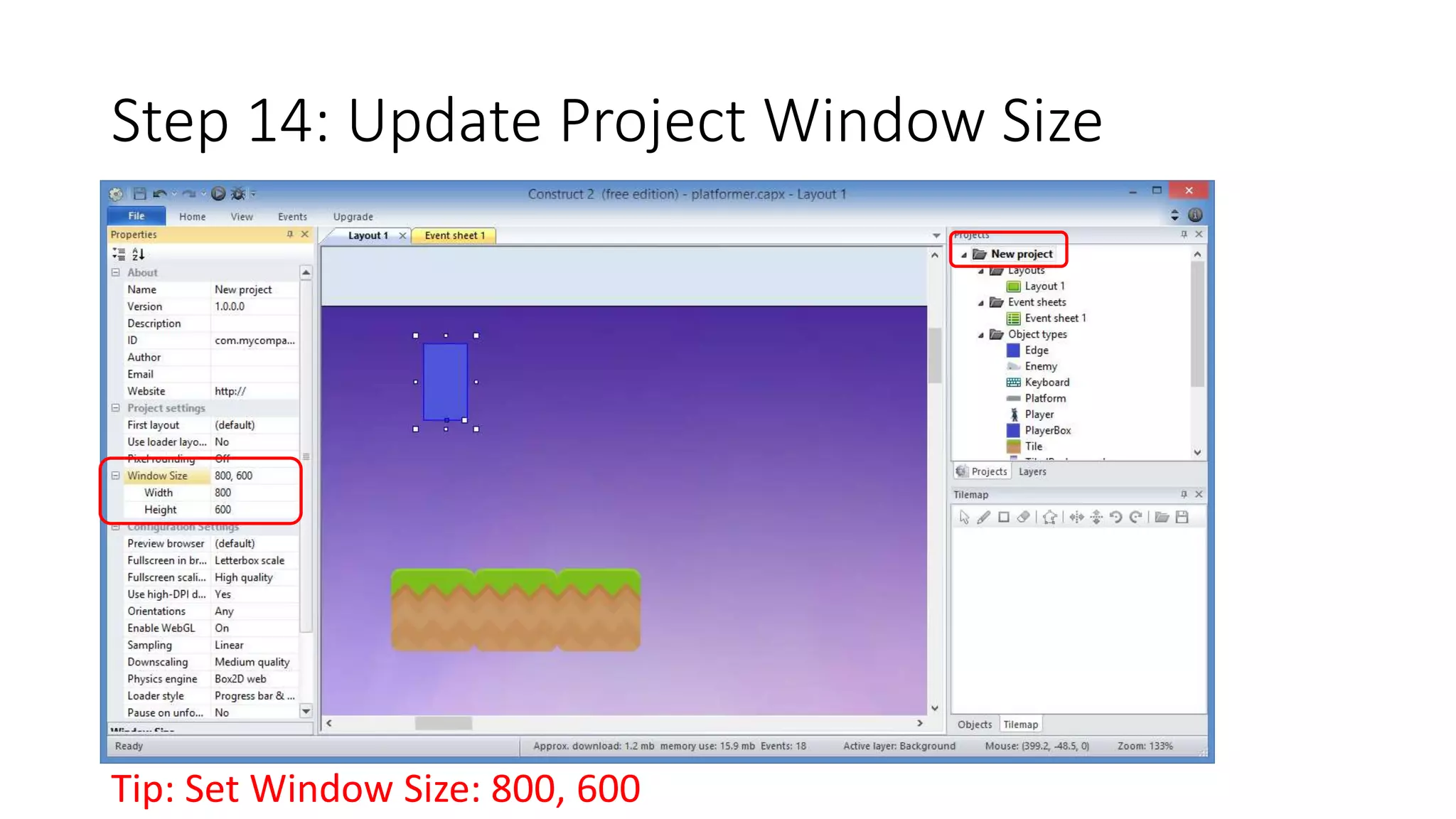
Step 14: Update Project Window Size 
Tip: Set Window Size: 800, 600
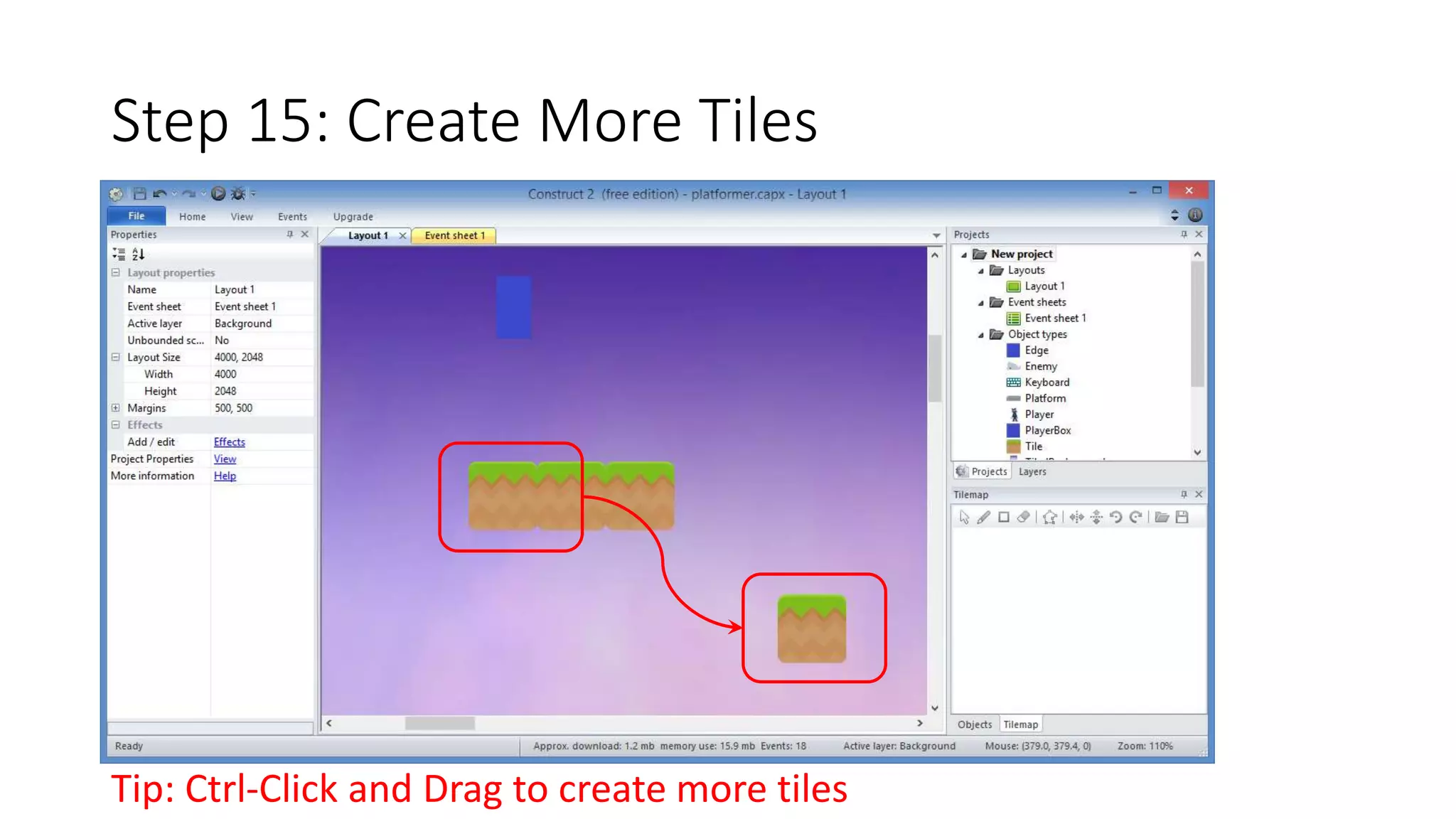
Step 15: Create More Tiles 
Tip: Ctrl-Click and Drag to create more tiles
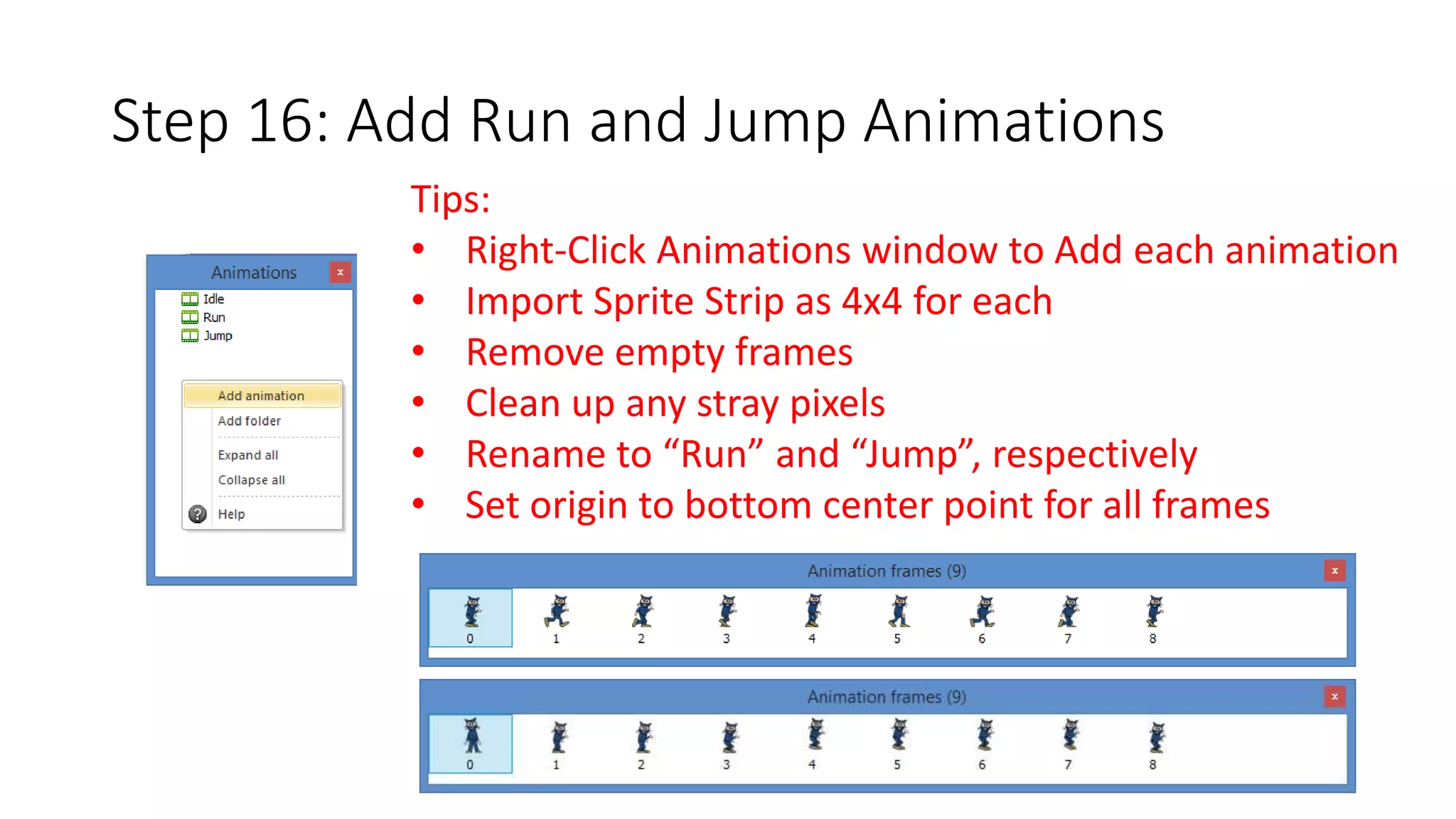
Step 16: Add Run and Jump Animations 
Tips: 
• Right-Click Animations window to Add each animation 
• Import Sprite Strip as 4x4 for each 
• Remove empty frames 
• Clean up any stray pixels 
• Rename to “Run” and “Jump”, respectively 
• Set origin to bottom center point for all frames
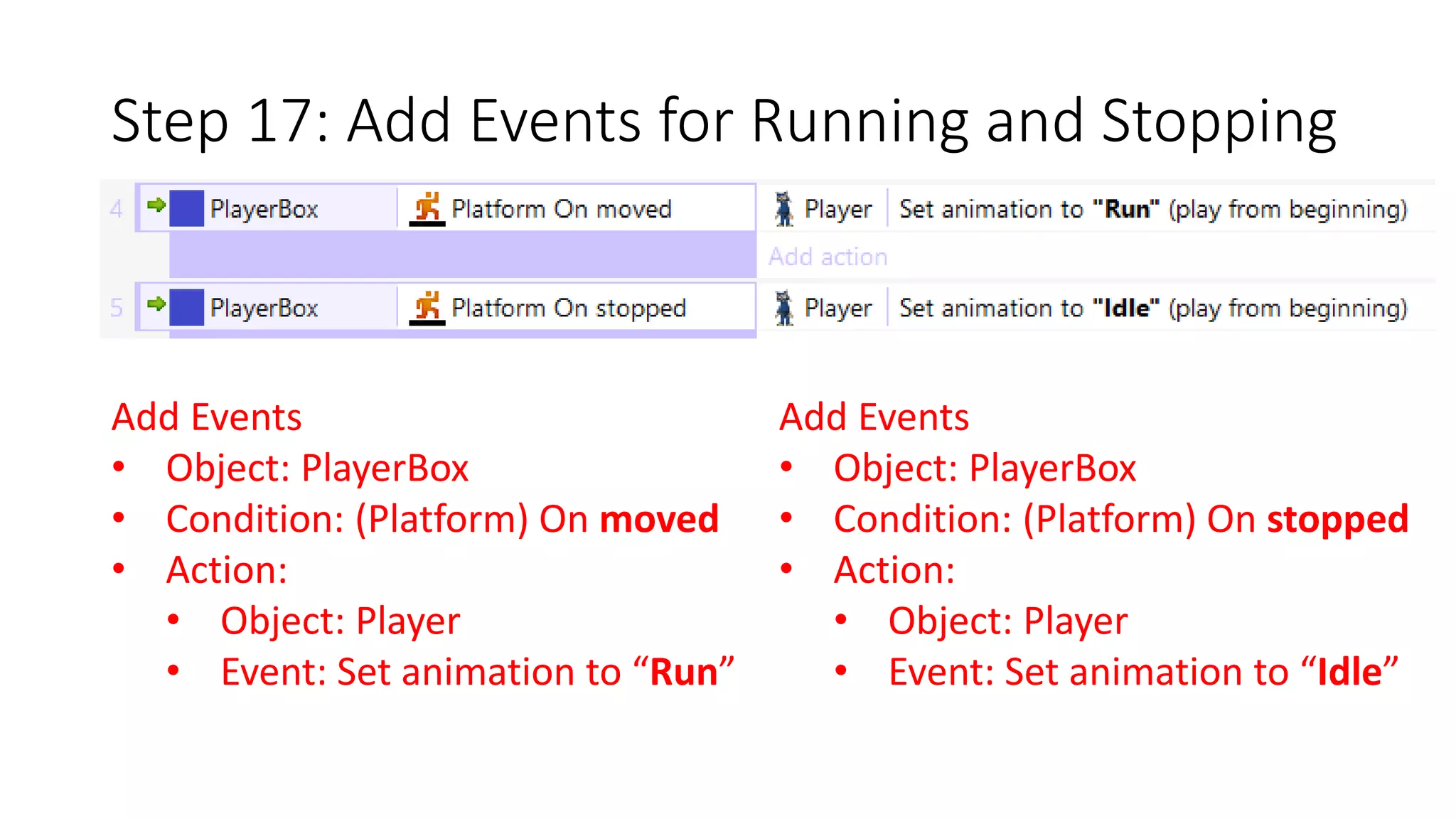
Step 17: Add Events for Running and Stopping 
Add Events 
• Object: PlayerBox 
• Condition: (Platform) On moved 
• Action: 
• Object: Player 
• Event: Set animation to “Run” 
Add Events 
• Object: PlayerBox 
• Condition: (Platform) On stopped 
• Action: 
• Object: Player 
• Event: Set animation to “Idle”
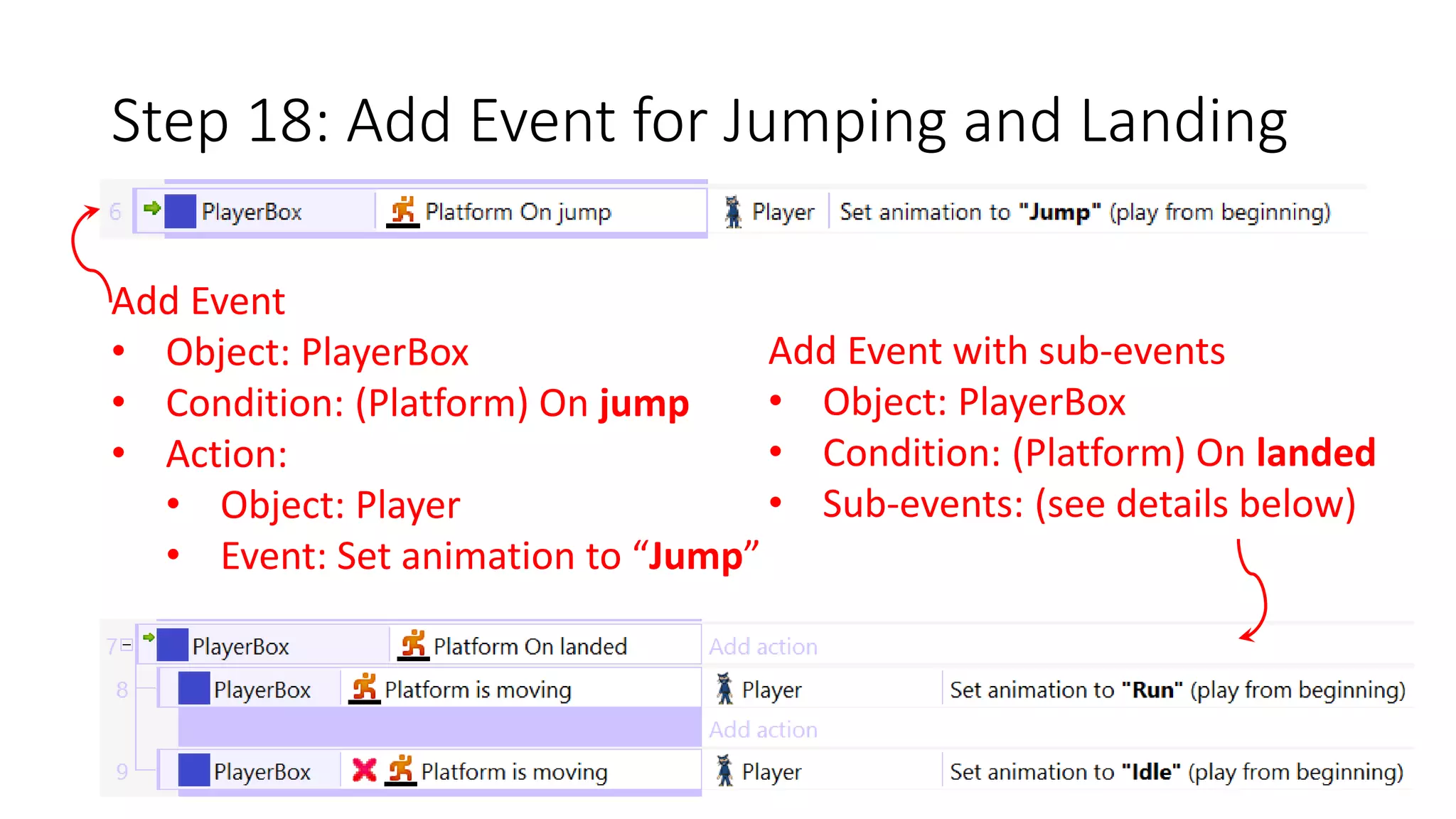
Step 18: Add Event for Jumping and Landing 
Add Event 
• Object: PlayerBox 
• Condition: (Platform) On jump 
• Action: 
• Object: Player 
• Event: Set animation to “Jump” 
Add Event with sub-events 
• Object: PlayerBox 
• Condition: (Platform) On landed 
• Sub-events: (see details below)
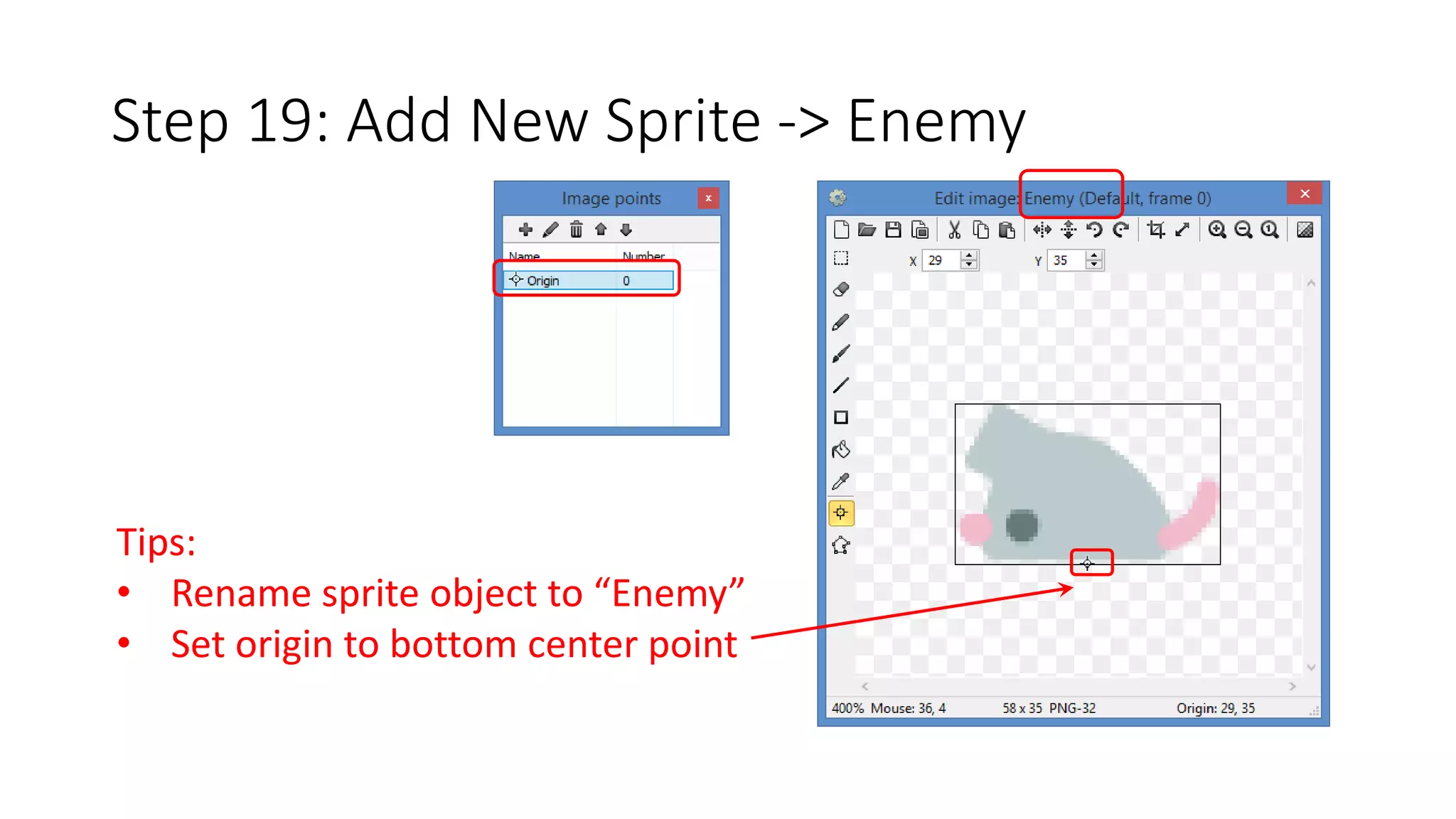
Step 19: Add New Sprite -> Enemy 
Tips: 
• Rename sprite object to “Enemy” 
• Set origin to bottom center point
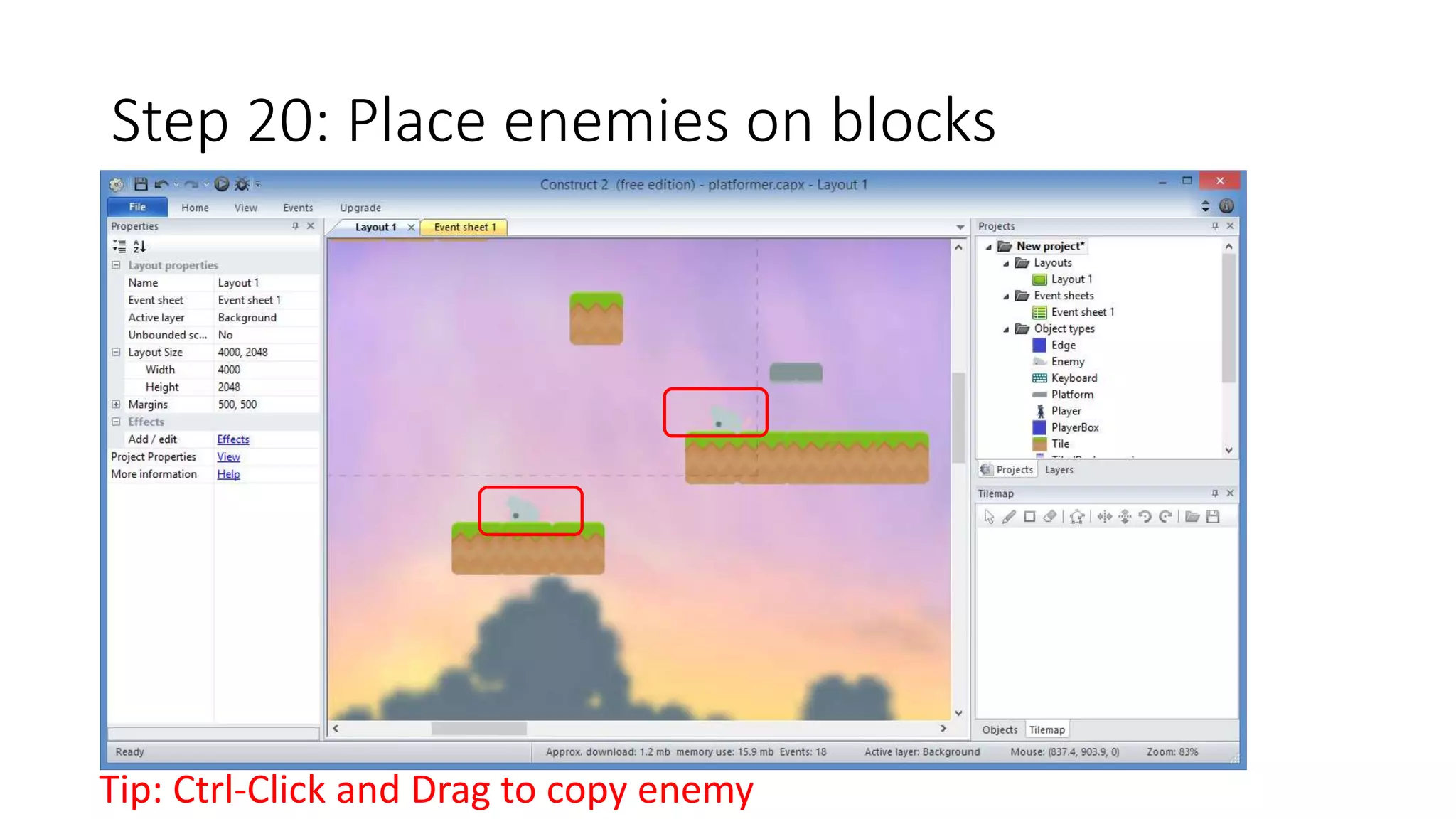
Step 20: Place enemies on blocks 
Tip: Ctrl-Click and Drag to copy enemy
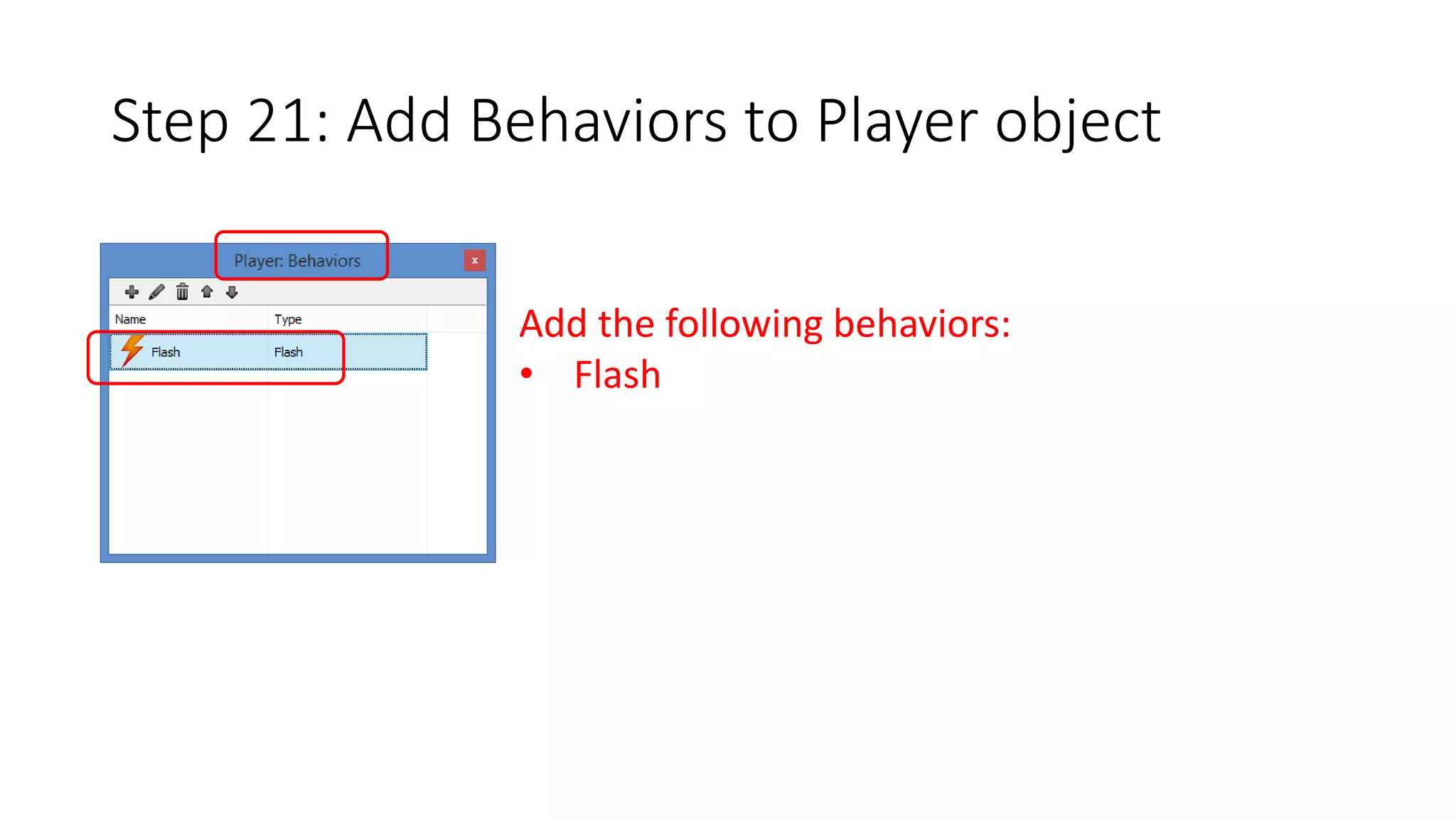
Step 21: Add Behaviors to Player object 
Add the following behaviors: 
• Flash
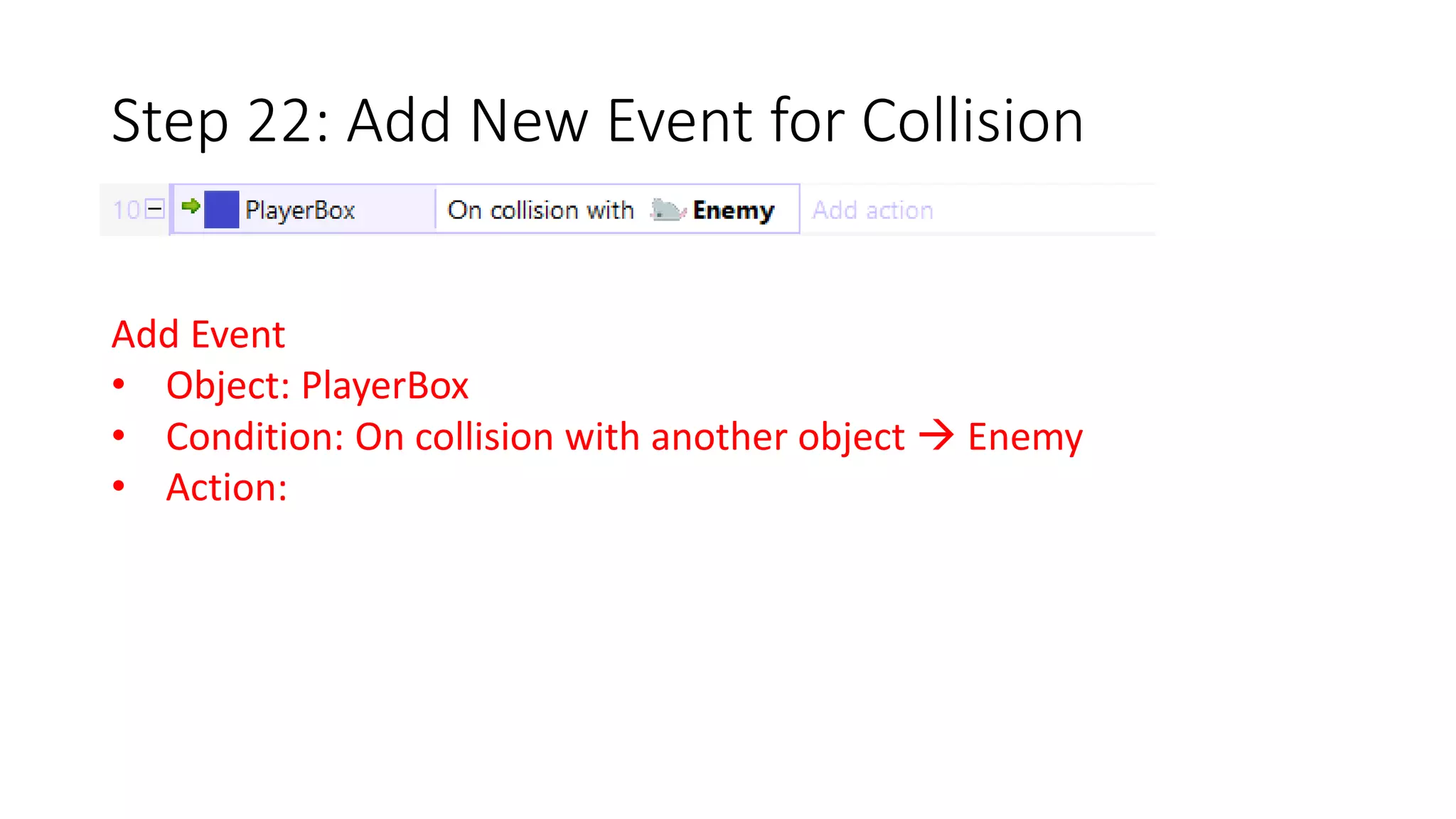
Step 22: Add New Event for Collision 
Add Event 
• Object: PlayerBox 
• Condition: On collision with another object  Enemy 
• Action:
Step 23: Add New Event for Collision 
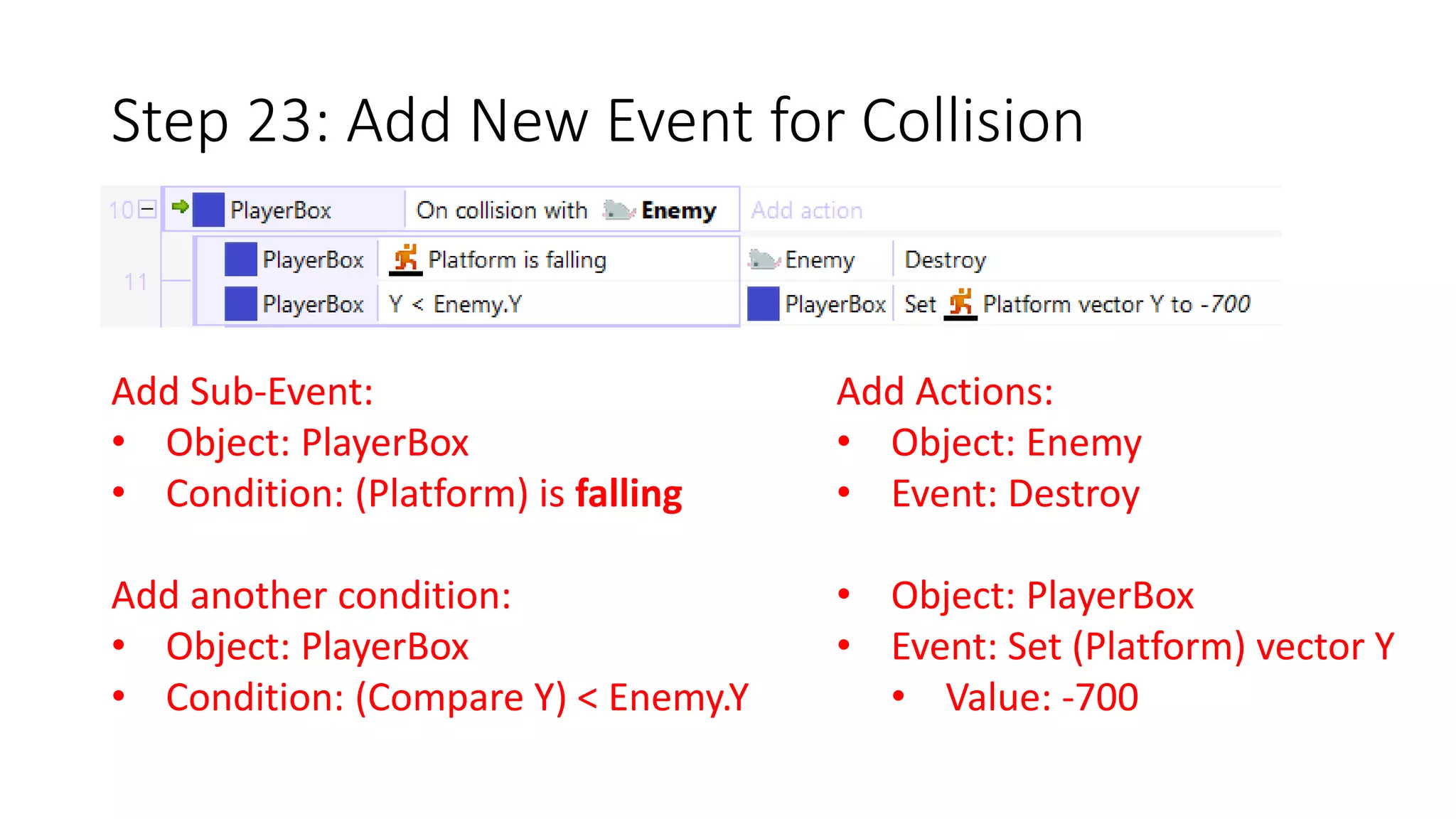
Add Sub-Event: 
• Object: PlayerBox 
• Condition: (Platform) is falling 
Add another condition: 
• Object: PlayerBox 
• Condition: (Compare Y) < Enemy.Y 
Add Actions: 
• Object: Enemy 
• Event: Destroy 
• Object: PlayerBox 
• Event: Set (Platform) vector Y 
• Value: -700
Step 24: Add Else for Collision 
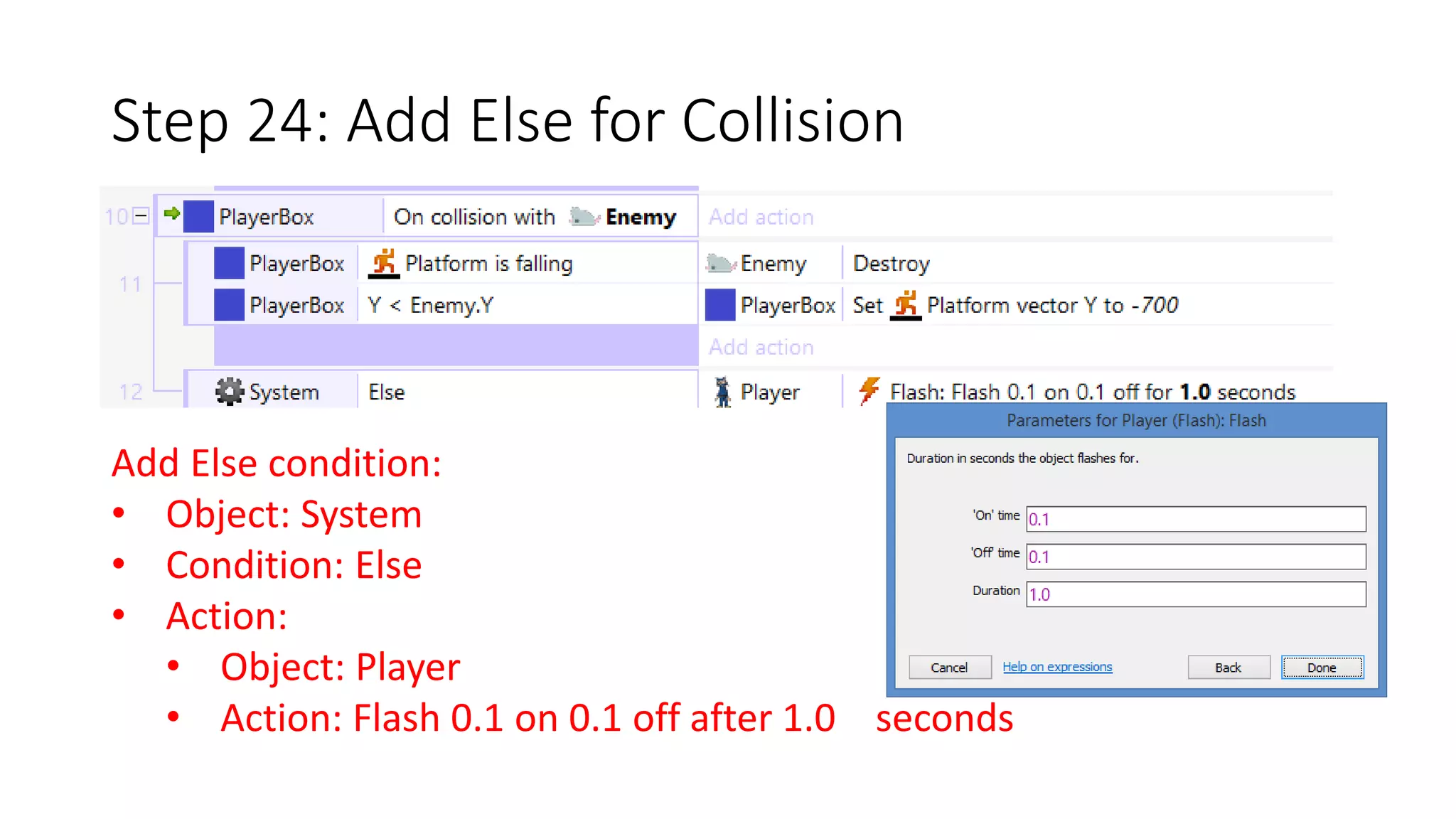
Add Else condition: 
• Object: System 
• Condition: Else 
• Action: 
• Object: Player 
• Action: Flash 0.1 on 0.1 off after 1.0 seconds
Step 25: Add Behaviors to Enemy 
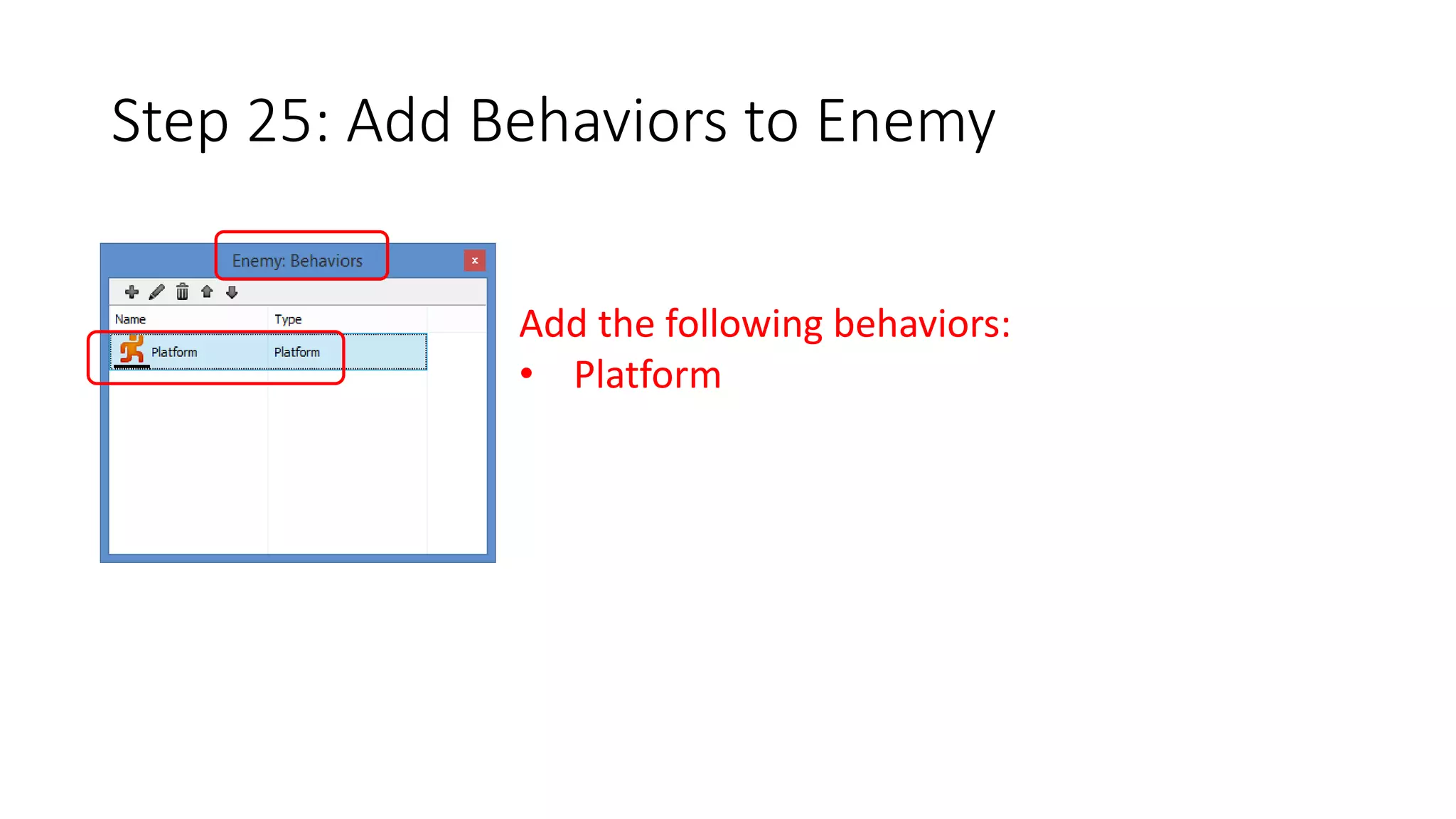
Add the following behaviors: 
• Platform
Step 26: Update Enemy Platform Behavior 
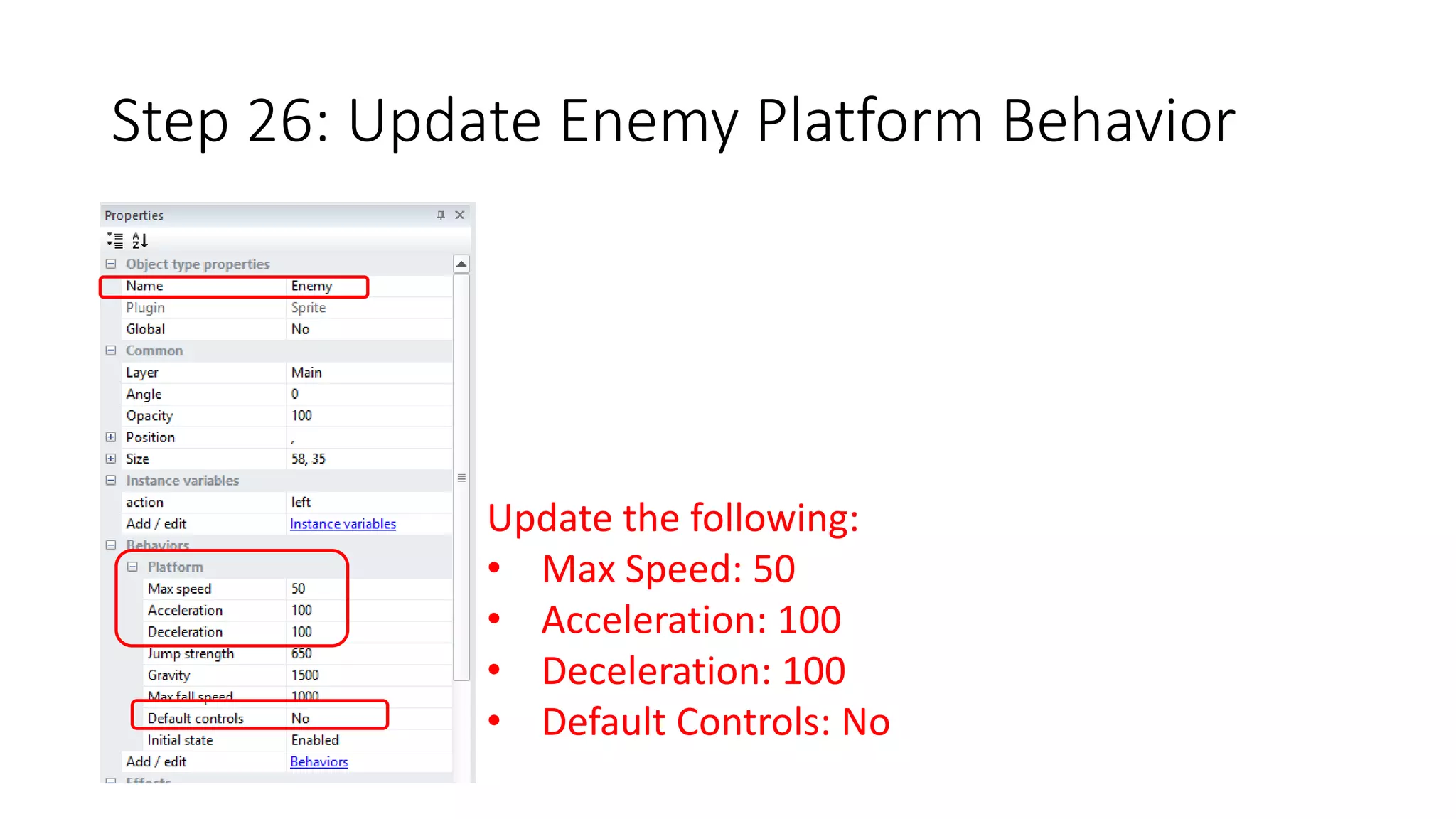
Update the following: 
• Max Speed: 50 
• Acceleration: 100 
• Deceleration: 100 
• Default Controls: No
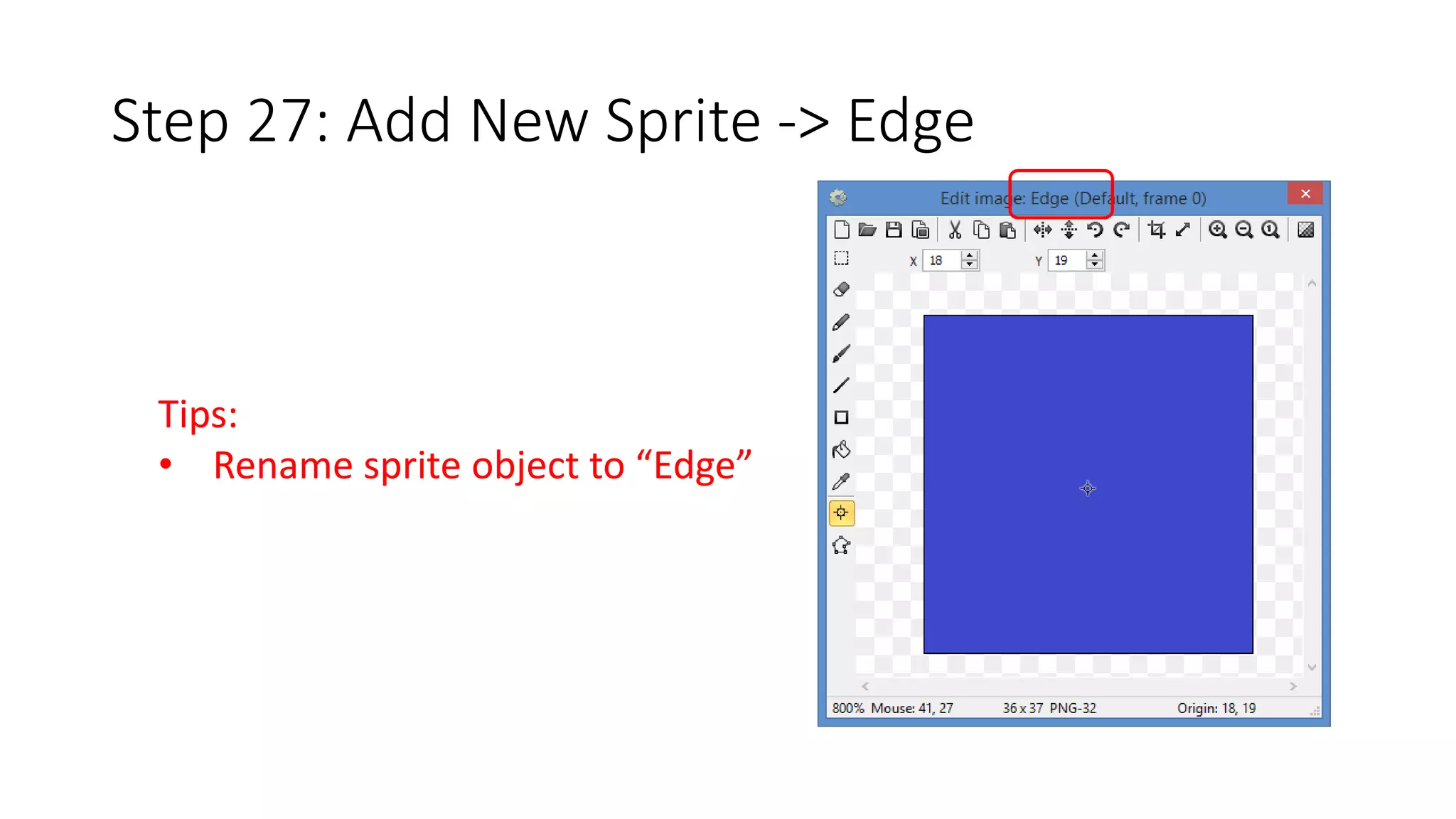
Step 27: Add New Sprite -> Edge 
Tips: 
• Rename sprite object to “Edge”
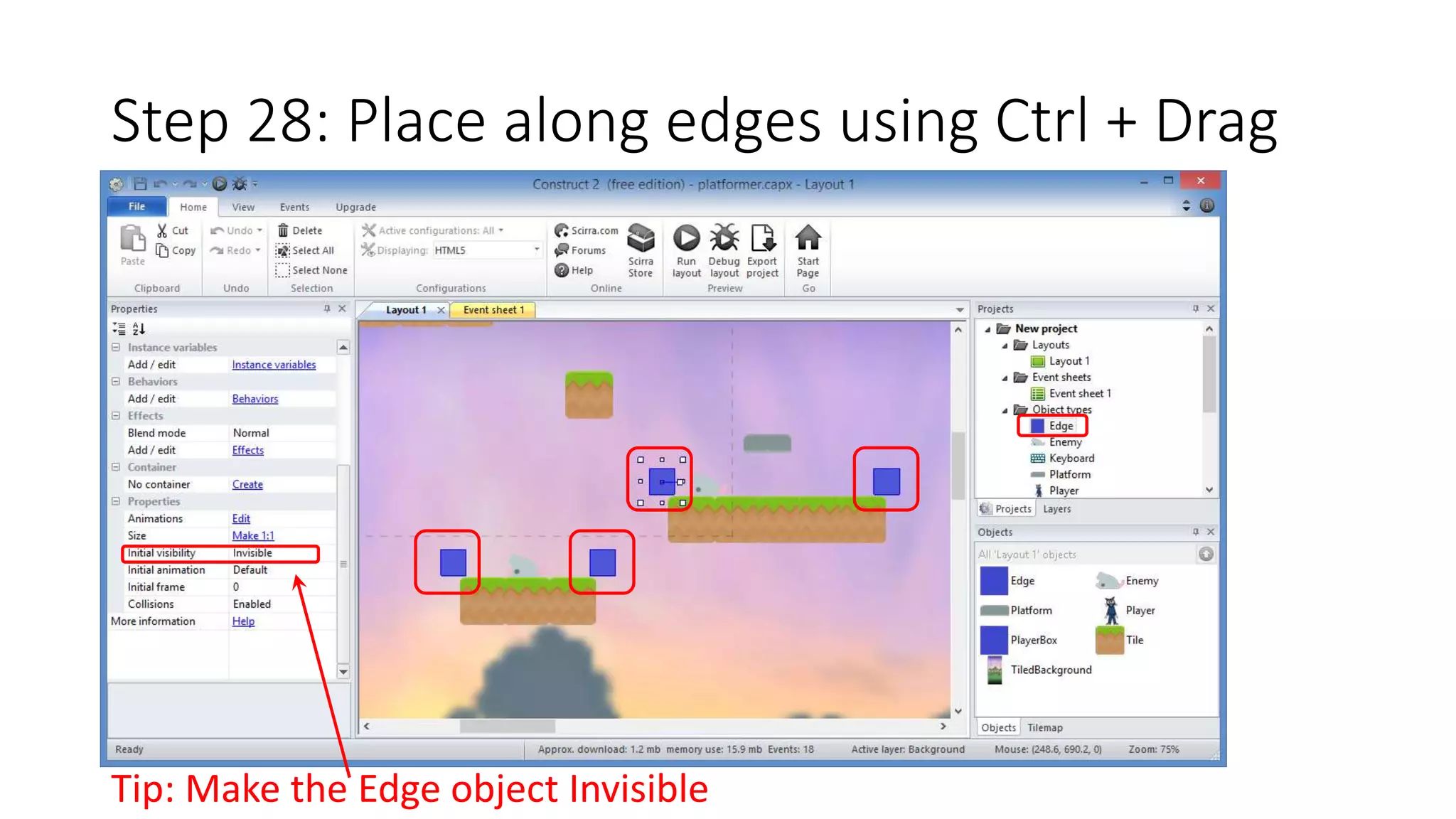
Step 28: Place along edges using Ctrl + Drag 
Tip: Make the Edge object Invisible
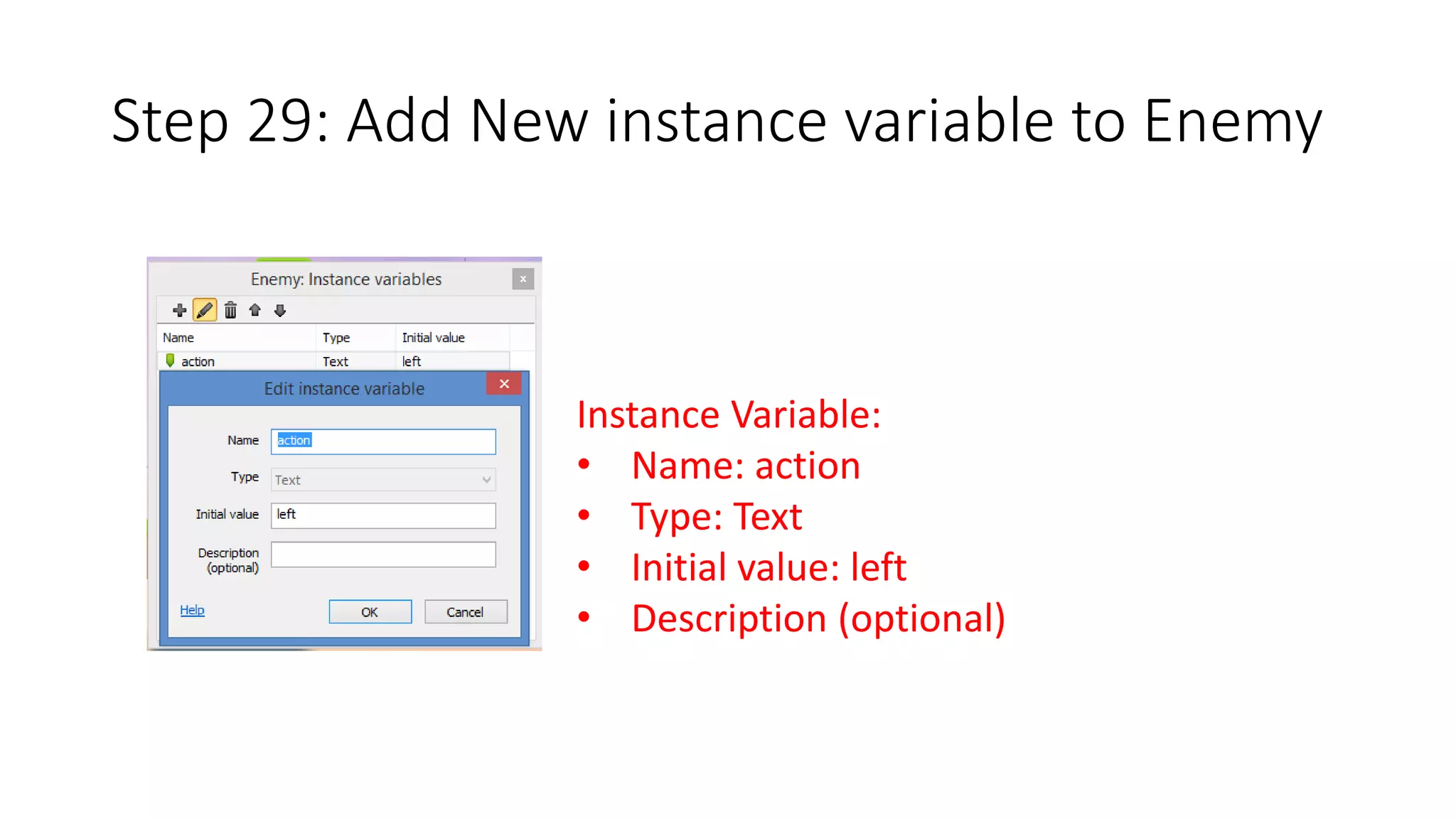
Step 29: Add New instance variable to Enemy 
Instance Variable: 
• Name: action 
• Type: Text 
• Initial value: left 
• Description (optional)
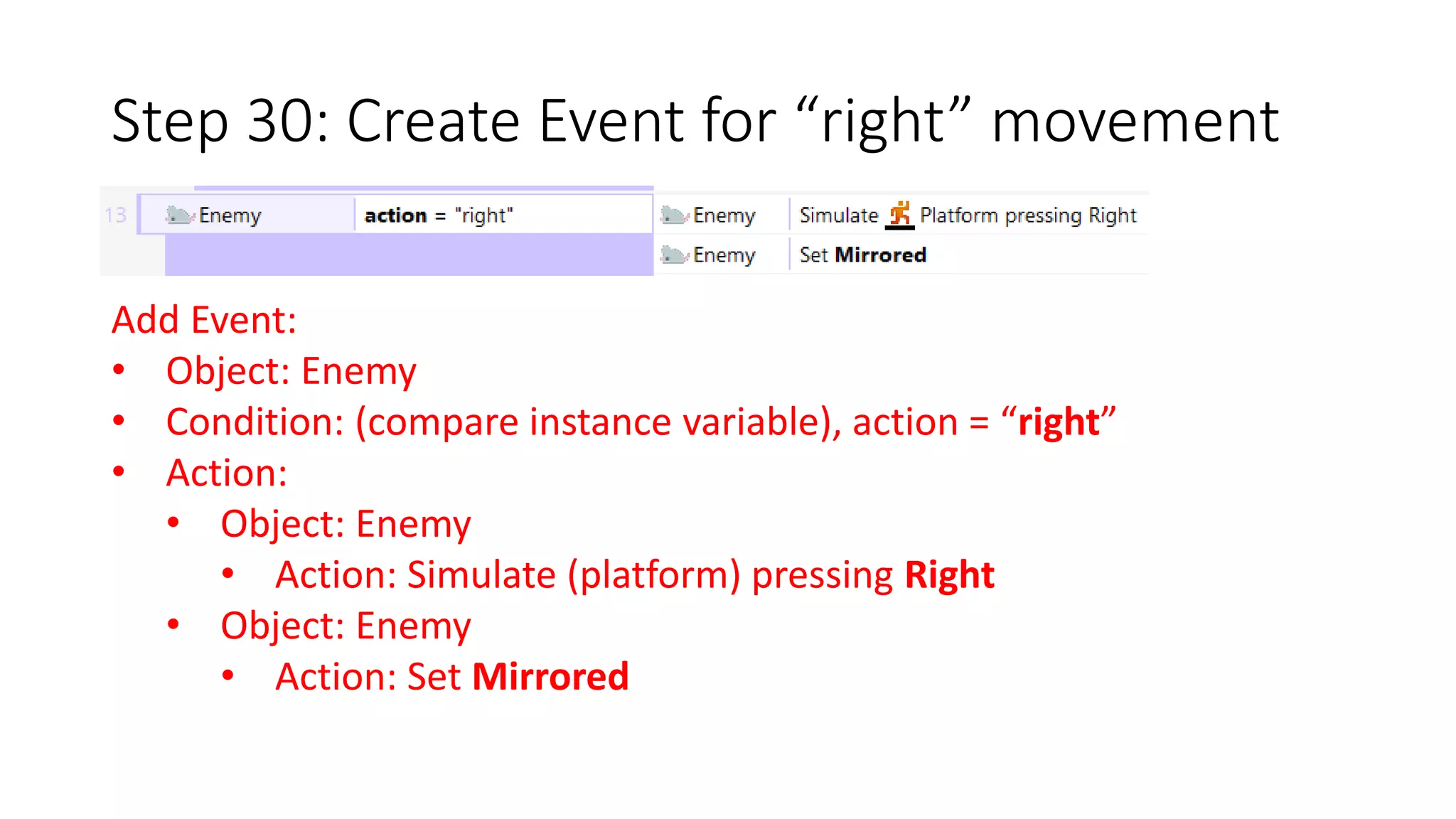
Step 30: Create Event for “right” movement 
Add Event: 
• Object: Enemy 
• Condition: (compare instance variable), action = “right” 
• Action: 
• Object: Enemy 
• Action: Simulate (platform) pressing Right 
• Object: Enemy 
• Action: Set Mirrored
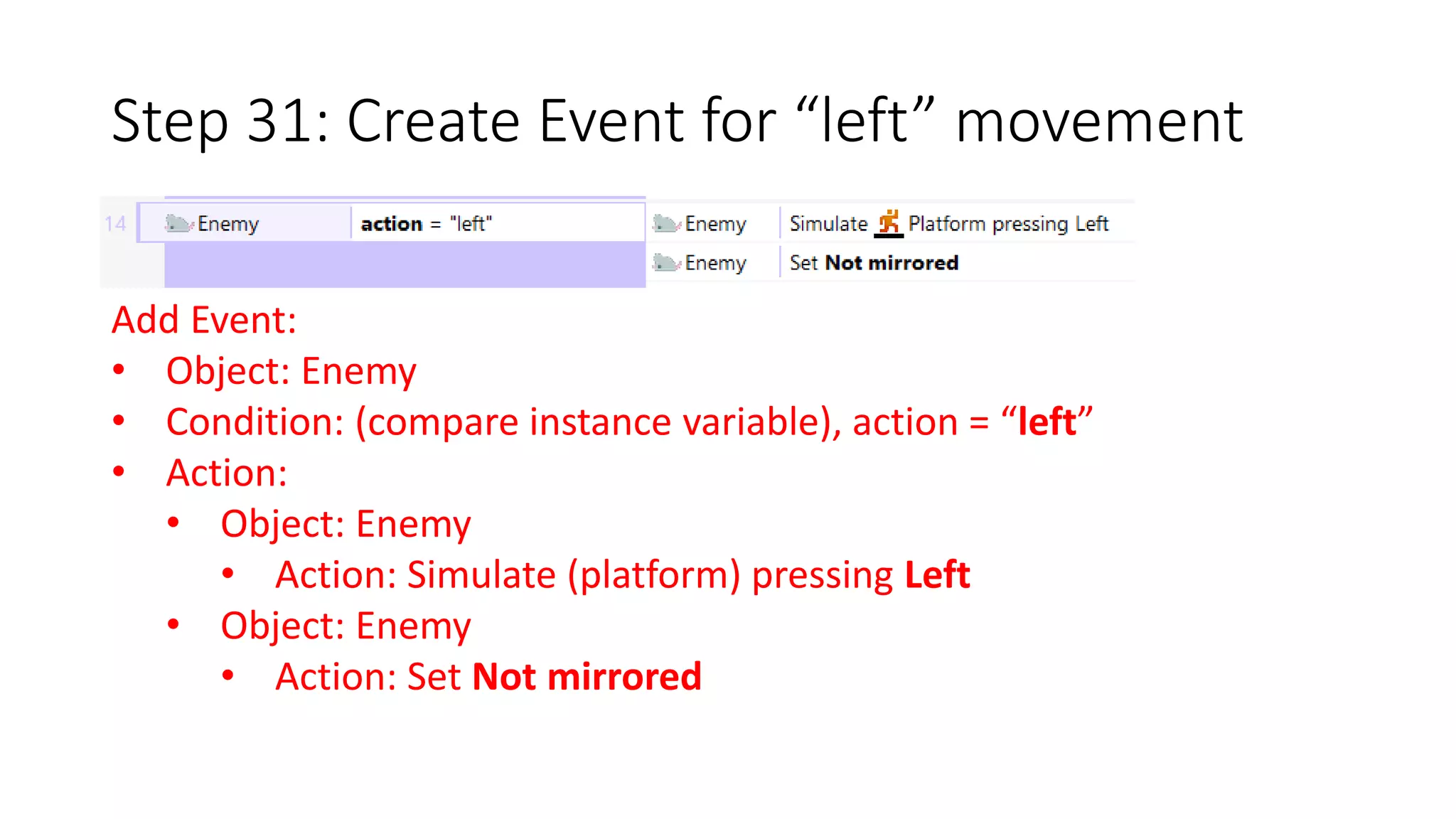
Step 31: Create Event for “left” movement 
Add Event: 
• Object: Enemy 
• Condition: (compare instance variable), action = “left” 
• Action: 
• Object: Enemy 
• Action: Simulate (platform) pressing Left 
• Object: Enemy 
• Action: Set Not mirrored
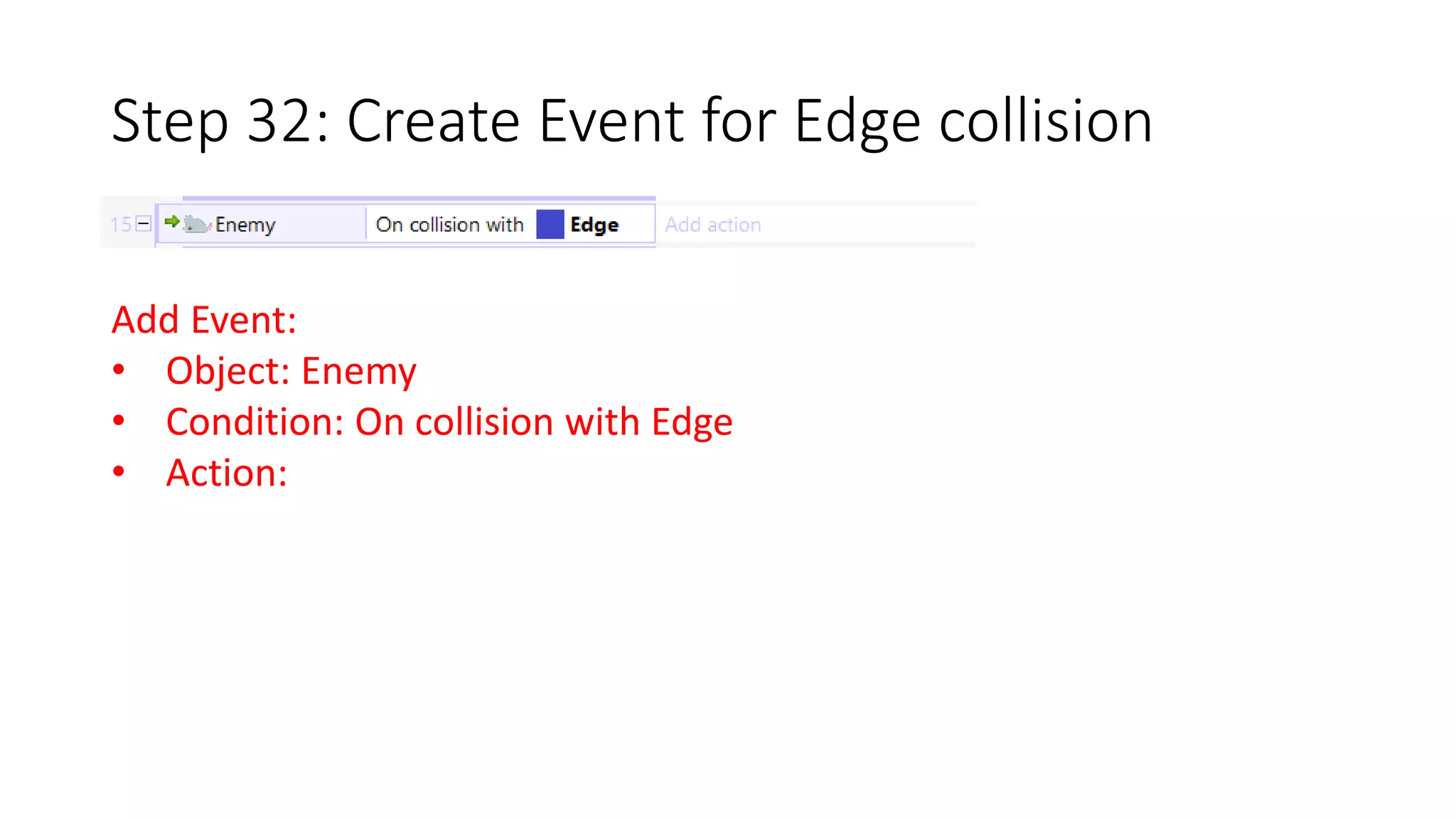
Step 32: Create Event for Edge collision 
Add Event: 
• Object: Enemy 
• Condition: On collision with Edge 
• Action:
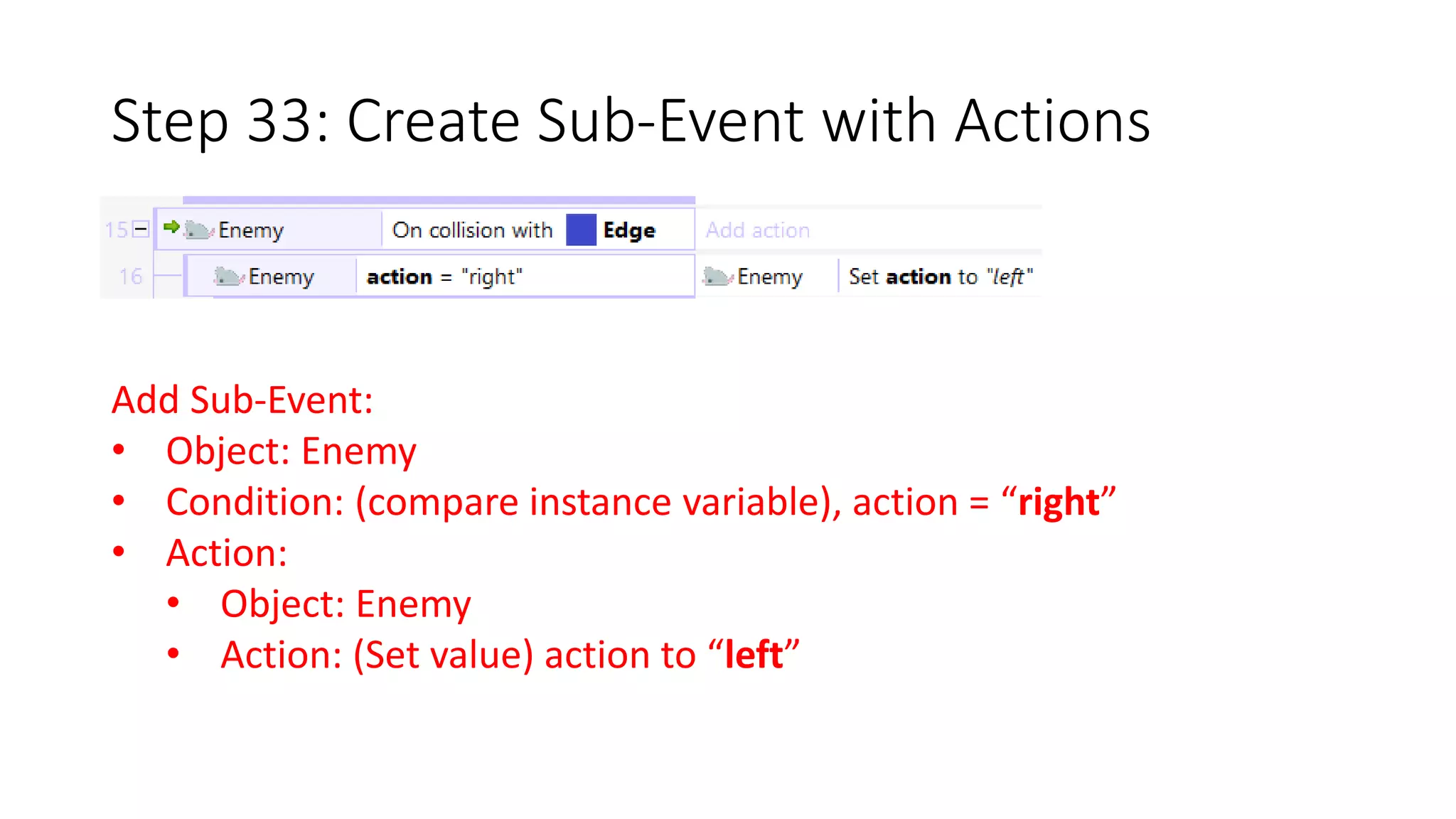
Step 33: Create Sub-Event with Actions 
Add Sub-Event: 
• Object: Enemy 
• Condition: (compare instance variable), action = “right” 
• Action: 
• Object: Enemy 
• Action: (Set value) action to “left”
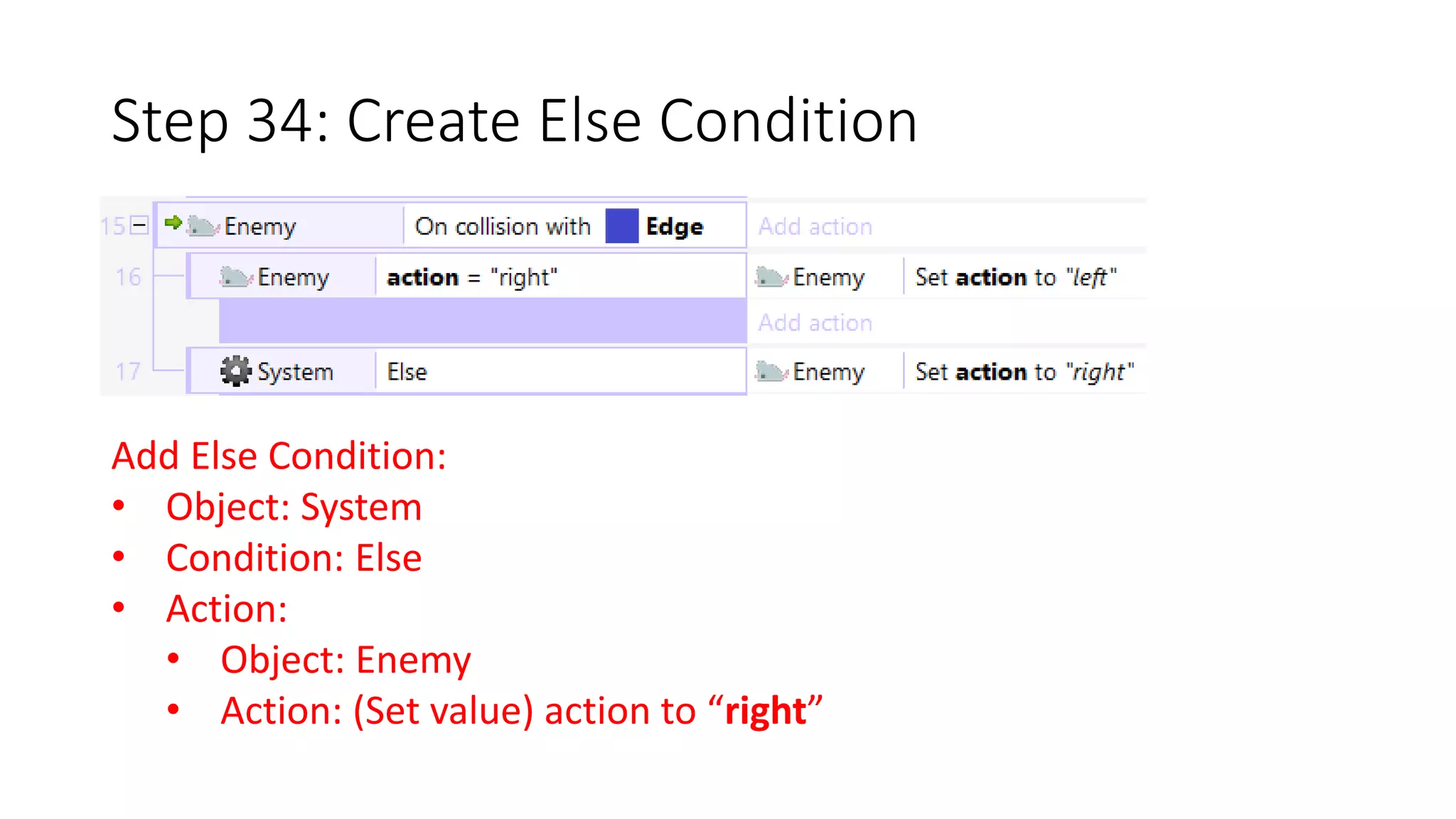
Step 34: Create Else Condition 
Add Else Condition: 
• Object: System 
• Condition: Else 
• Action: 
• Object: Enemy 
• Action: (Set value) action to “right”
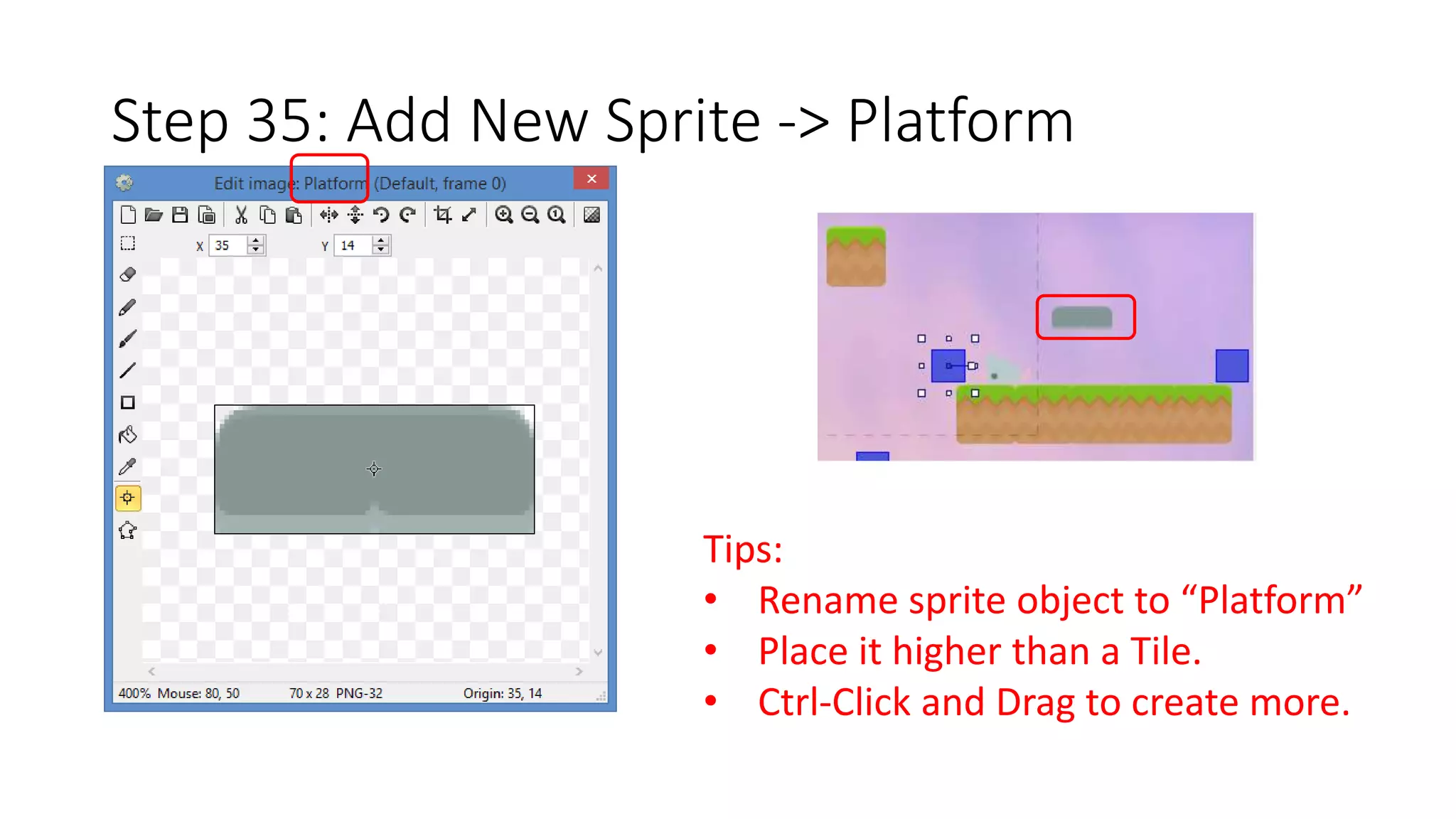
Step 35: Add New Sprite -> Platform 
Tips: 
• Rename sprite object to “Platform” 
• Place it higher than a Tile. 
• Ctrl-Click and Drag to create more.
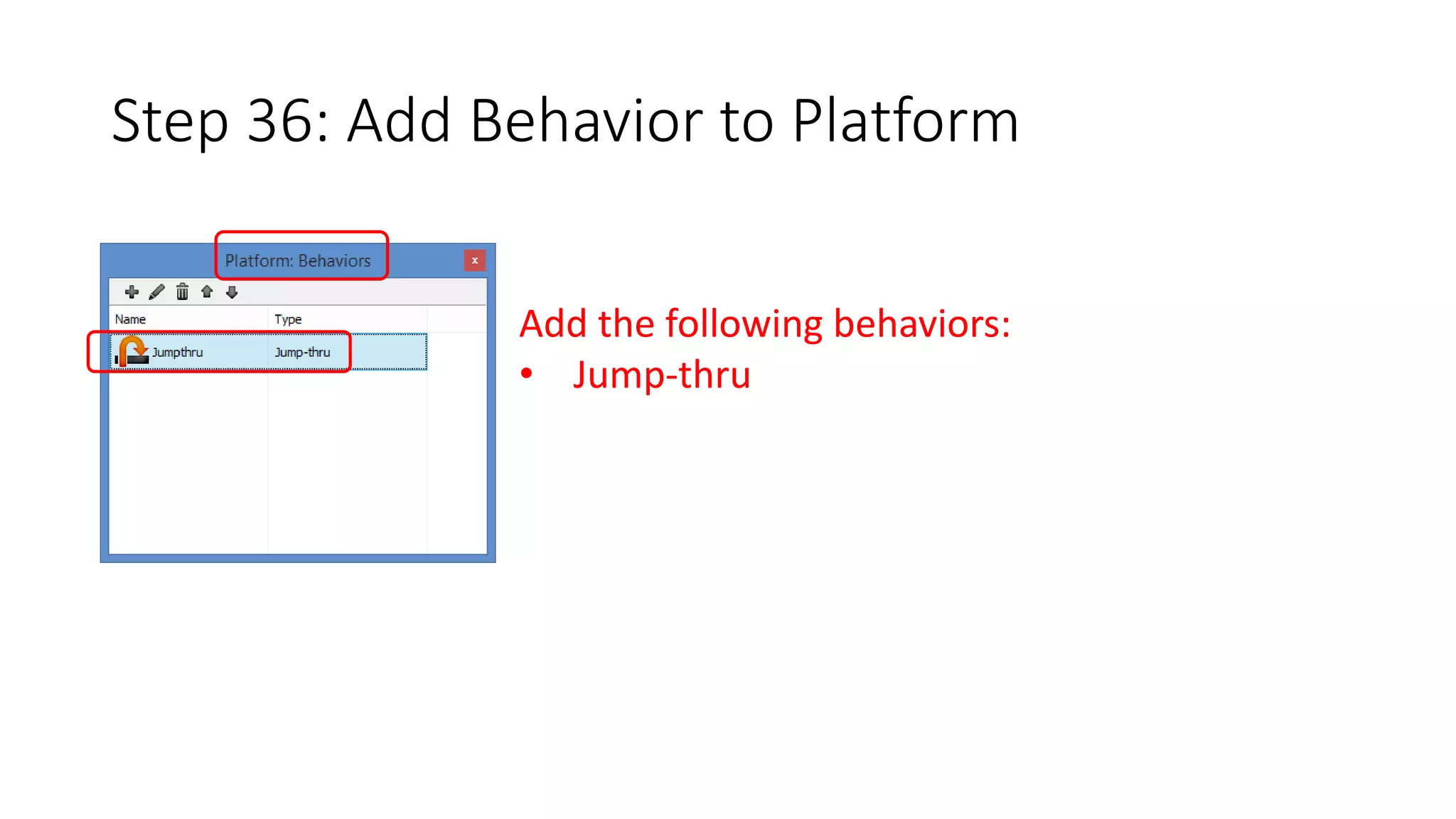
Step 36: Add Behavior to Platform 
Add the following behaviors: 
• Jump-thru
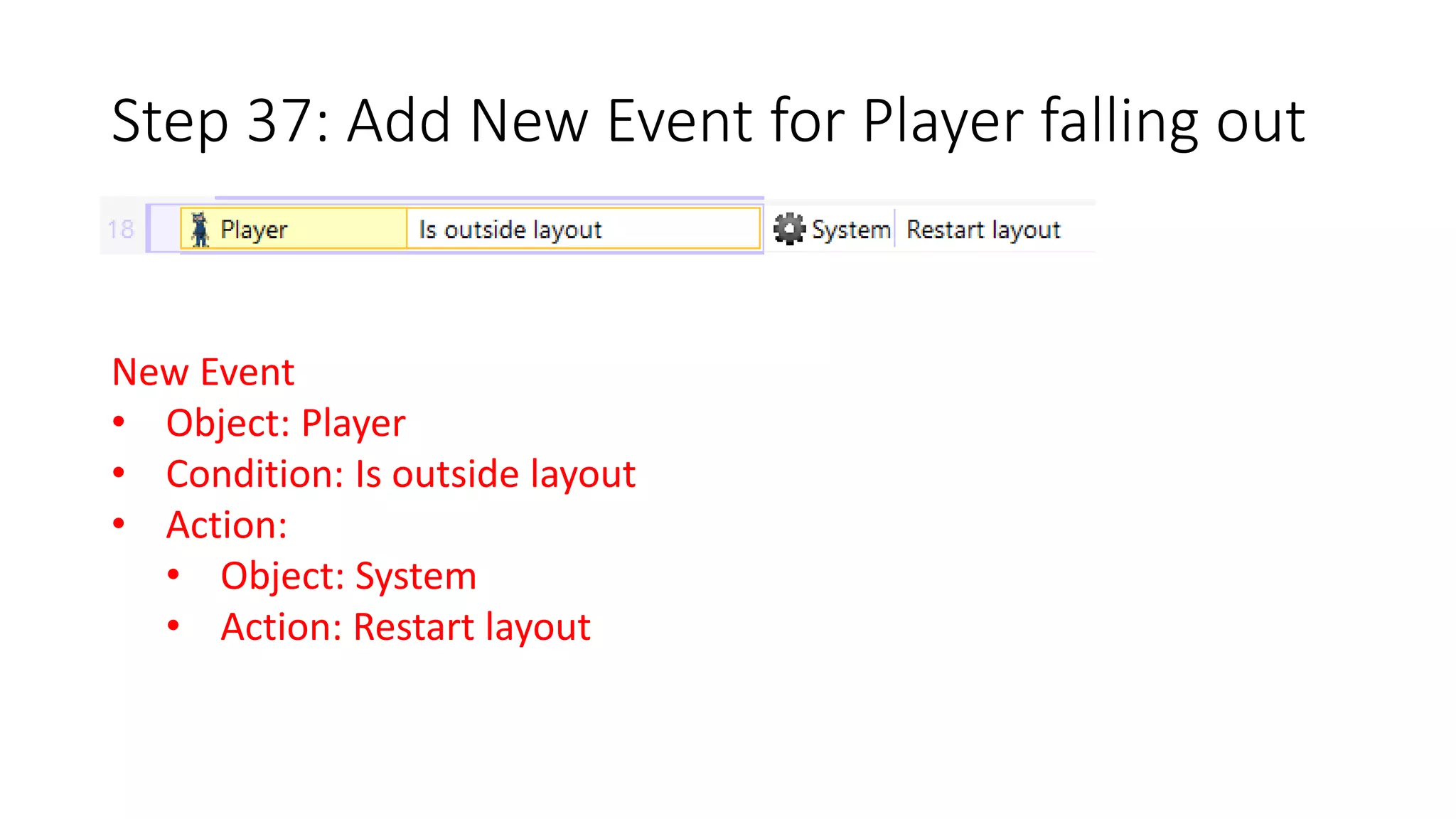
Step 37: Add New Event for Player falling out 
New Event 
• Object: Player 
• Condition: Is outside layout 
• Action: 
• Object: System 
• Action: Restart layout
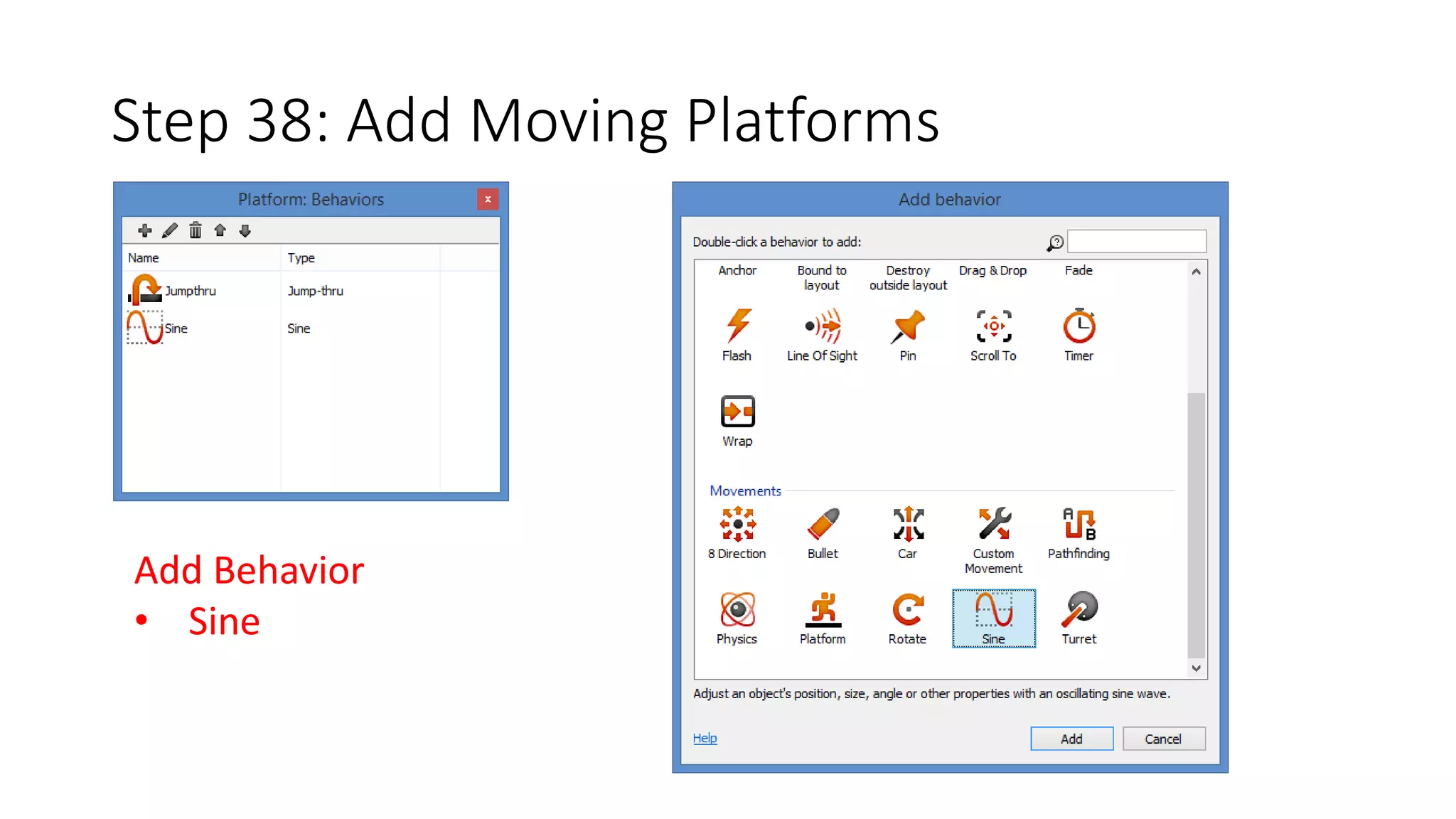
Step 38: Add Moving Platforms 
Add Behavior 
• Sine
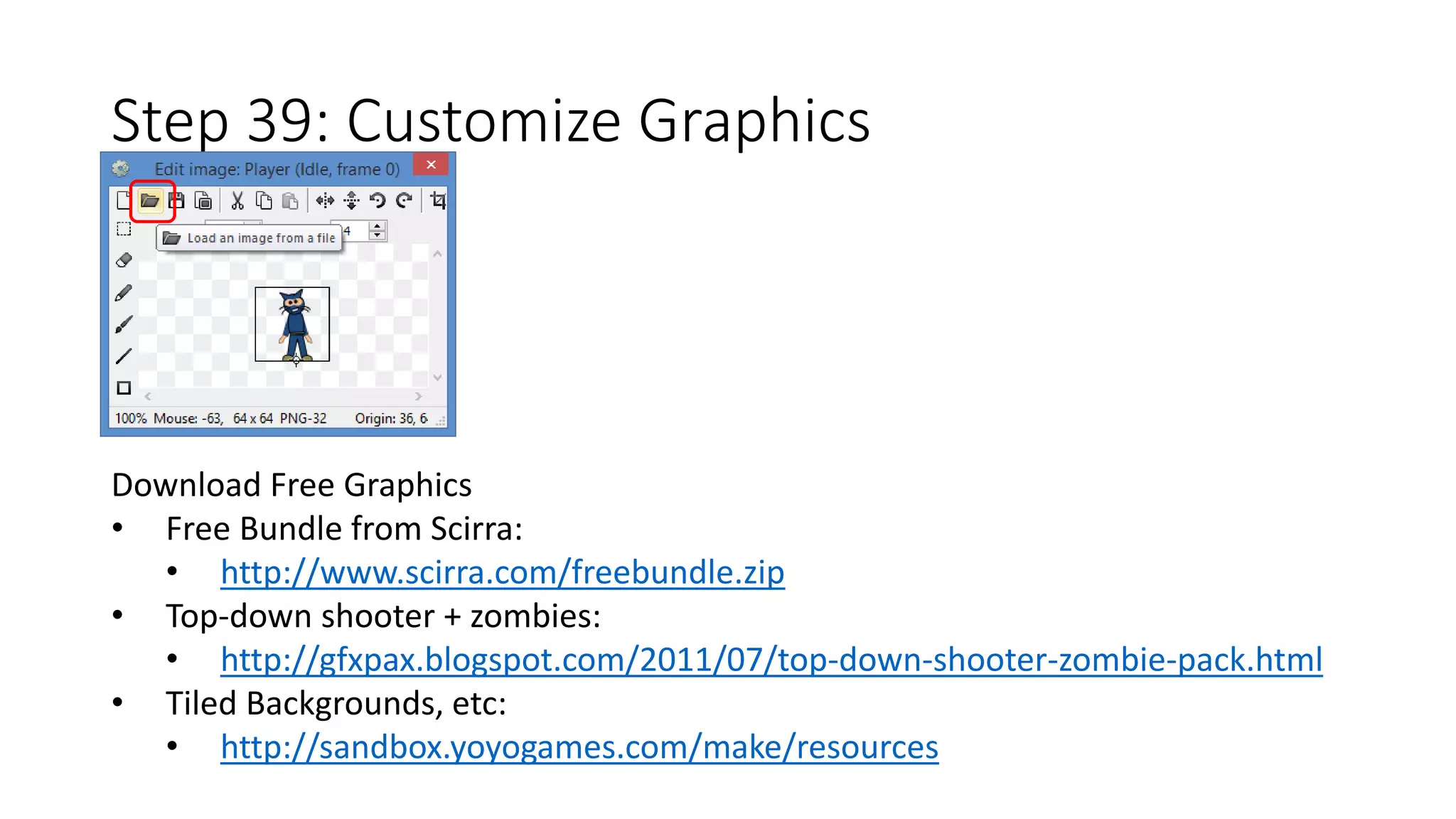
Step 39: Customize Graphics 
Download Free Graphics 
• Free Bundle from Scirra: 
• http://www.scirra.com/freebundle.zip 
• Top-down shooter + zombies: 
• http://gfxpax.blogspot.com/2011/07/top-down-shooter-zombie-pack.html 
• Tiled Backgrounds, etc: 
• http://sandbox.yoyogames.com/make/resources
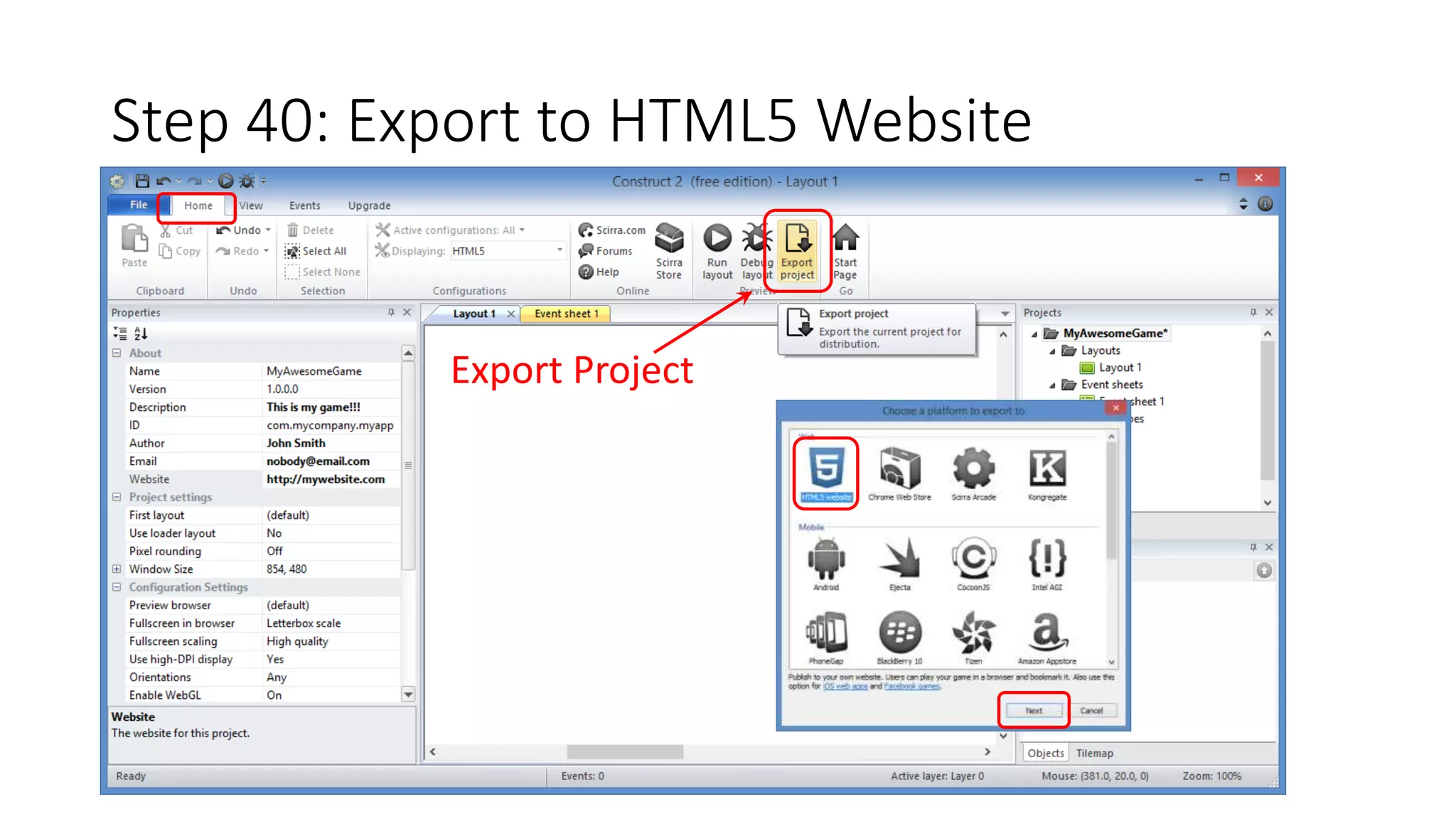
Step 40: Export to HTML5 Website 
Export Project
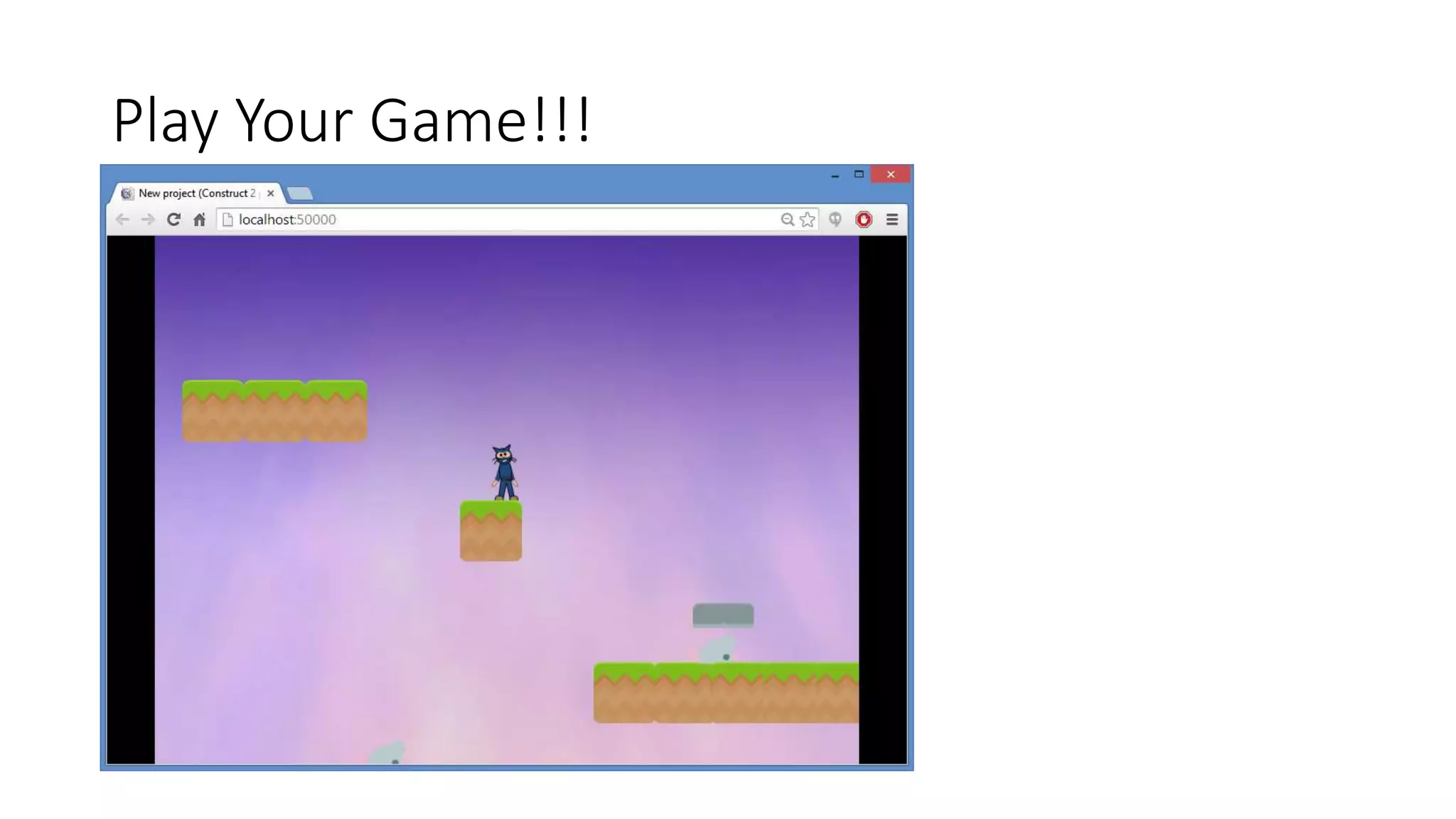
Play Your Game!!!
(END of Platformer tutorial) 
• Derived from ‘How to make a Platform game’ originally published by 
Ashley 
• Updated with different graphics and simplified animations

Construct 2 Platformer: Step by Step

  • 1.
    Windows 8 Windows Phone 8  Web  Mobile  … and more! WakeUpAndCode.com @shahedC
  • 2.
    Prerequisites • GhostShooter Tutorial • Flapping Bird Tutorial Both available at: Construct 2 – Step by Step • http://wakeupandcode.com/construct-2-step-by-step/
  • 3.
    Step 1: Savea New Project, “platformer.capx” Save! Enter File name
  • 4.
    Step 2: ChangeLayout size Layout Size • Width = 4000 • Height = 2048
  • 5.
    Step 3: PrepareYour Layers Bottom layer • Rename it “Background” • Remember to Lock it later! New layer • Add new layer • Rename it “Main”
  • 6.
    Step 4: AddBackground, update properties Update: • Name • Position • Size
  • 7.
    Step 5: AddNew Sprite -> Tile Tips: • Rename sprite object to “Tile” • Check “Snap to Grid”. • Ctrl-Click and Drag to create more.
  • 8.
    Step 6: AddNew Sprite -> Player Tips: • Rename sprite object to “Player” • Rename Default animation to “Idle” • Set origin to bottom center point
  • 9.
    Step 7: AddNew Sprite -> PlayerBox Tips: • Rename sprite object to “PlayerBox” • Set origin to bottom center point
  • 10.
    Step 8: CoverPlayer with PlayerBox Tips: • Resize PlayerBox to match Player • Position PlayerBox over Player
  • 11.
    Step 9: AddBehaviors to PlayerBox Add the following behaviors: • Platform • ScrollTo
  • 12.
    Step 10: UpdatePlayerBox Properties Update the following for Platform: • Jump Strength = 750 • Gravity = 2500 Also update: • Initial visibility = Invisible
  • 13.
    Step 11: AddBehaviors to Tile object Add the following behaviors: • Solid
  • 14.
    Step 12: AddEvent for Player to follow Box Add Event • Object: System • Condition: Every tick • Action: • Object: Player • Event: Set position to PlayerBox (image point 0)
  • 15.
    Step 13: AddKeyboard Support Tips: • Insert New Object  Keyboard • Add 2 events for Left/Right
  • 16.
    Step 14: UpdateProject Window Size Tip: Set Window Size: 800, 600
  • 17.
    Step 15: CreateMore Tiles Tip: Ctrl-Click and Drag to create more tiles
  • 18.
    Step 16: AddRun and Jump Animations Tips: • Right-Click Animations window to Add each animation • Import Sprite Strip as 4x4 for each • Remove empty frames • Clean up any stray pixels • Rename to “Run” and “Jump”, respectively • Set origin to bottom center point for all frames
  • 19.
    Step 17: AddEvents for Running and Stopping Add Events • Object: PlayerBox • Condition: (Platform) On moved • Action: • Object: Player • Event: Set animation to “Run” Add Events • Object: PlayerBox • Condition: (Platform) On stopped • Action: • Object: Player • Event: Set animation to “Idle”
  • 20.
    Step 18: AddEvent for Jumping and Landing Add Event • Object: PlayerBox • Condition: (Platform) On jump • Action: • Object: Player • Event: Set animation to “Jump” Add Event with sub-events • Object: PlayerBox • Condition: (Platform) On landed • Sub-events: (see details below)
  • 21.
    Step 19: AddNew Sprite -> Enemy Tips: • Rename sprite object to “Enemy” • Set origin to bottom center point
  • 22.
    Step 20: Placeenemies on blocks Tip: Ctrl-Click and Drag to copy enemy
  • 23.
    Step 21: AddBehaviors to Player object Add the following behaviors: • Flash
  • 24.
    Step 22: AddNew Event for Collision Add Event • Object: PlayerBox • Condition: On collision with another object  Enemy • Action:
  • 25.
    Step 23: AddNew Event for Collision Add Sub-Event: • Object: PlayerBox • Condition: (Platform) is falling Add another condition: • Object: PlayerBox • Condition: (Compare Y) < Enemy.Y Add Actions: • Object: Enemy • Event: Destroy • Object: PlayerBox • Event: Set (Platform) vector Y • Value: -700
  • 26.
    Step 24: AddElse for Collision Add Else condition: • Object: System • Condition: Else • Action: • Object: Player • Action: Flash 0.1 on 0.1 off after 1.0 seconds
  • 27.
    Step 25: AddBehaviors to Enemy Add the following behaviors: • Platform
  • 28.
    Step 26: UpdateEnemy Platform Behavior Update the following: • Max Speed: 50 • Acceleration: 100 • Deceleration: 100 • Default Controls: No
  • 29.
    Step 27: AddNew Sprite -> Edge Tips: • Rename sprite object to “Edge”
  • 30.
    Step 28: Placealong edges using Ctrl + Drag Tip: Make the Edge object Invisible
  • 31.
    Step 29: AddNew instance variable to Enemy Instance Variable: • Name: action • Type: Text • Initial value: left • Description (optional)
  • 32.
    Step 30: CreateEvent for “right” movement Add Event: • Object: Enemy • Condition: (compare instance variable), action = “right” • Action: • Object: Enemy • Action: Simulate (platform) pressing Right • Object: Enemy • Action: Set Mirrored
  • 33.
    Step 31: CreateEvent for “left” movement Add Event: • Object: Enemy • Condition: (compare instance variable), action = “left” • Action: • Object: Enemy • Action: Simulate (platform) pressing Left • Object: Enemy • Action: Set Not mirrored
  • 34.
    Step 32: CreateEvent for Edge collision Add Event: • Object: Enemy • Condition: On collision with Edge • Action:
  • 35.
    Step 33: CreateSub-Event with Actions Add Sub-Event: • Object: Enemy • Condition: (compare instance variable), action = “right” • Action: • Object: Enemy • Action: (Set value) action to “left”
  • 36.
    Step 34: CreateElse Condition Add Else Condition: • Object: System • Condition: Else • Action: • Object: Enemy • Action: (Set value) action to “right”
  • 37.
    Step 35: AddNew Sprite -> Platform Tips: • Rename sprite object to “Platform” • Place it higher than a Tile. • Ctrl-Click and Drag to create more.
  • 38.
    Step 36: AddBehavior to Platform Add the following behaviors: • Jump-thru
  • 39.
    Step 37: AddNew Event for Player falling out New Event • Object: Player • Condition: Is outside layout • Action: • Object: System • Action: Restart layout
  • 40.
    Step 38: AddMoving Platforms Add Behavior • Sine
  • 41.
    Step 39: CustomizeGraphics Download Free Graphics • Free Bundle from Scirra: • http://www.scirra.com/freebundle.zip • Top-down shooter + zombies: • http://gfxpax.blogspot.com/2011/07/top-down-shooter-zombie-pack.html • Tiled Backgrounds, etc: • http://sandbox.yoyogames.com/make/resources
  • 42.
    Step 40: Exportto HTML5 Website Export Project
  • 43.
  • 44.
    (END of Platformertutorial) • Derived from ‘How to make a Platform game’ originally published by Ashley • Updated with different graphics and simplified animations

Editor's Notes

  • #2 Title Page: Intro to Indie Game Development Windows  Web  Xbox  Mobile By Shahed Chowdhuri Technical Evangelist Blog: WakeUpAndCode.com Twitter: @shahedC