UNIX


       Advance Shell Scripting


                 Presentation By

                           Nihar R Paital
Introduction

Advance features of shell scripting/command
such as:

   Local and Global Shell variable
   Customizing User Environment
   Functions
   User interface
   Conditional execution
   File Descriptors
   traps
   Multiple command line args handling
                                              Nihar R Paital
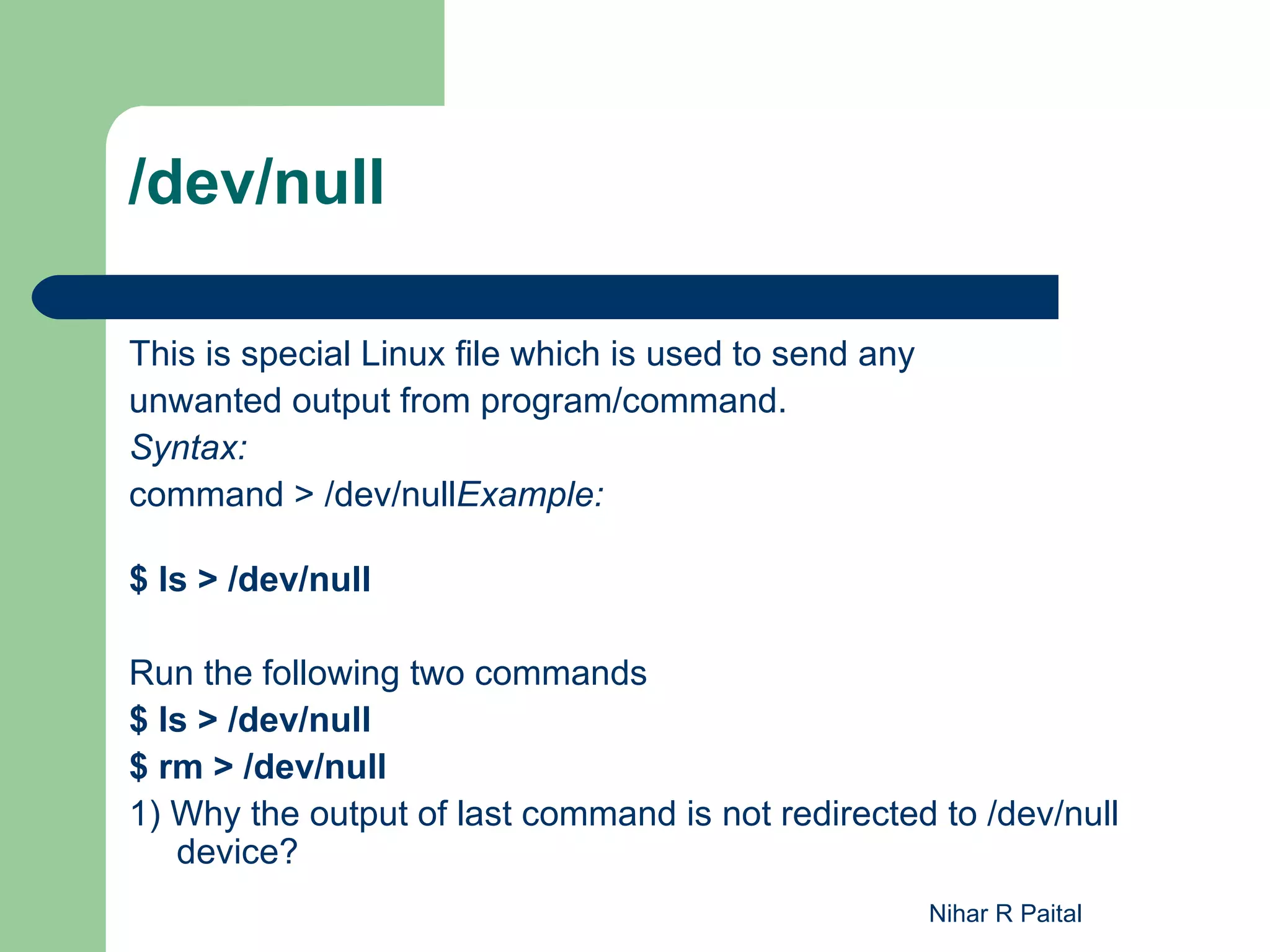
/dev/null

This is special Linux file which is used to send any
unwanted output from program/command.
Syntax:
command > /dev/nullExample:

$ ls > /dev/null

Run the following two commands
$ ls > /dev/null
$ rm > /dev/null
1) Why the output of last command is not redirected to /dev/null
   device?
                                                       Nihar R Paital
Local and Global Shell variable


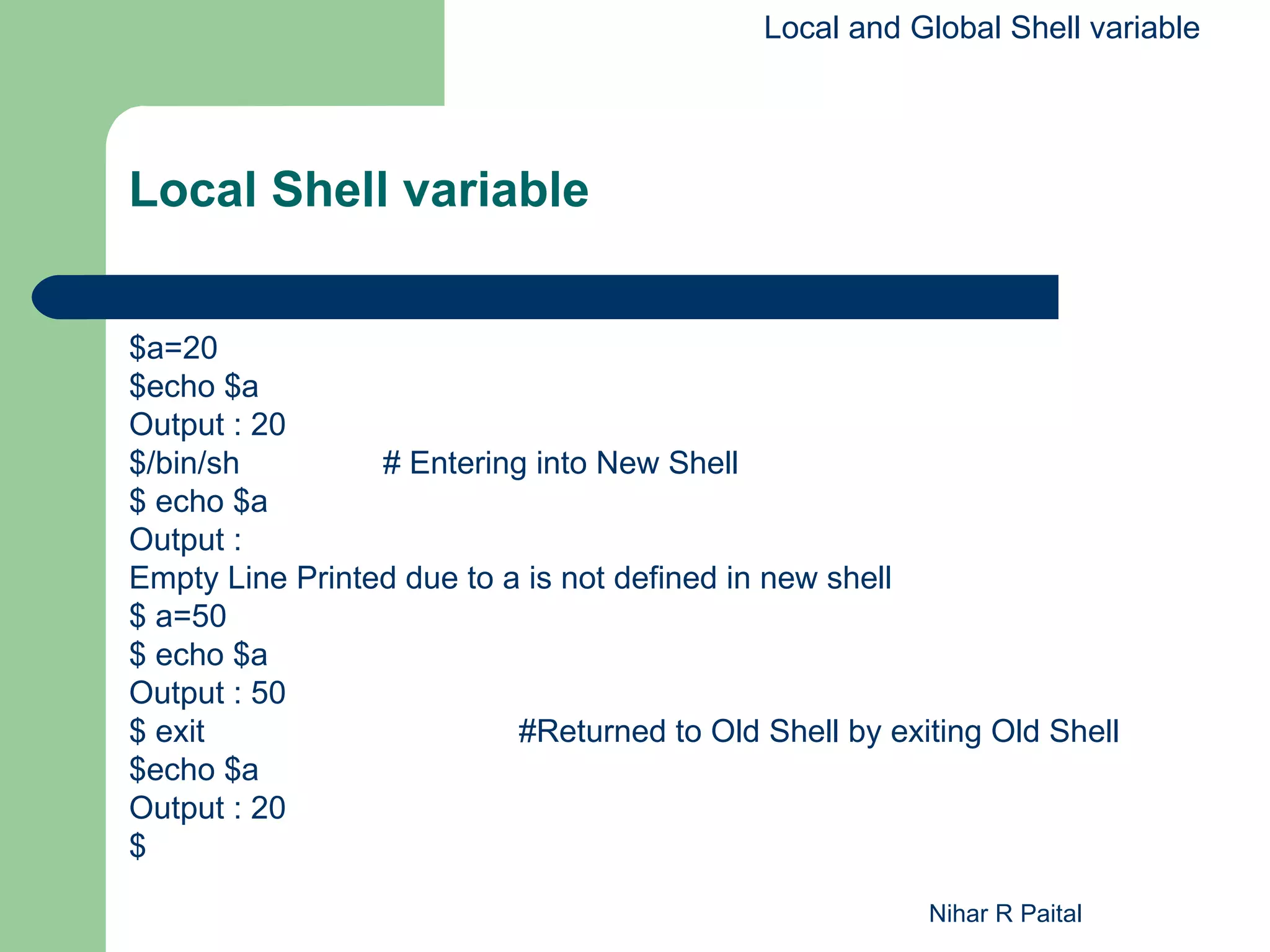
Local Shell variable


$a=20
$echo $a
Output : 20
$/bin/sh         # Entering into New Shell
$ echo $a
Output :
Empty Line Printed due to a is not defined in new shell
$ a=50
$ echo $a
Output : 50
$ exit                     #Returned to Old Shell by exiting Old Shell
$echo $a
Output : 20
$

                                                        Nihar R Paital
Local and Global Shell variable


Global Shell Variable

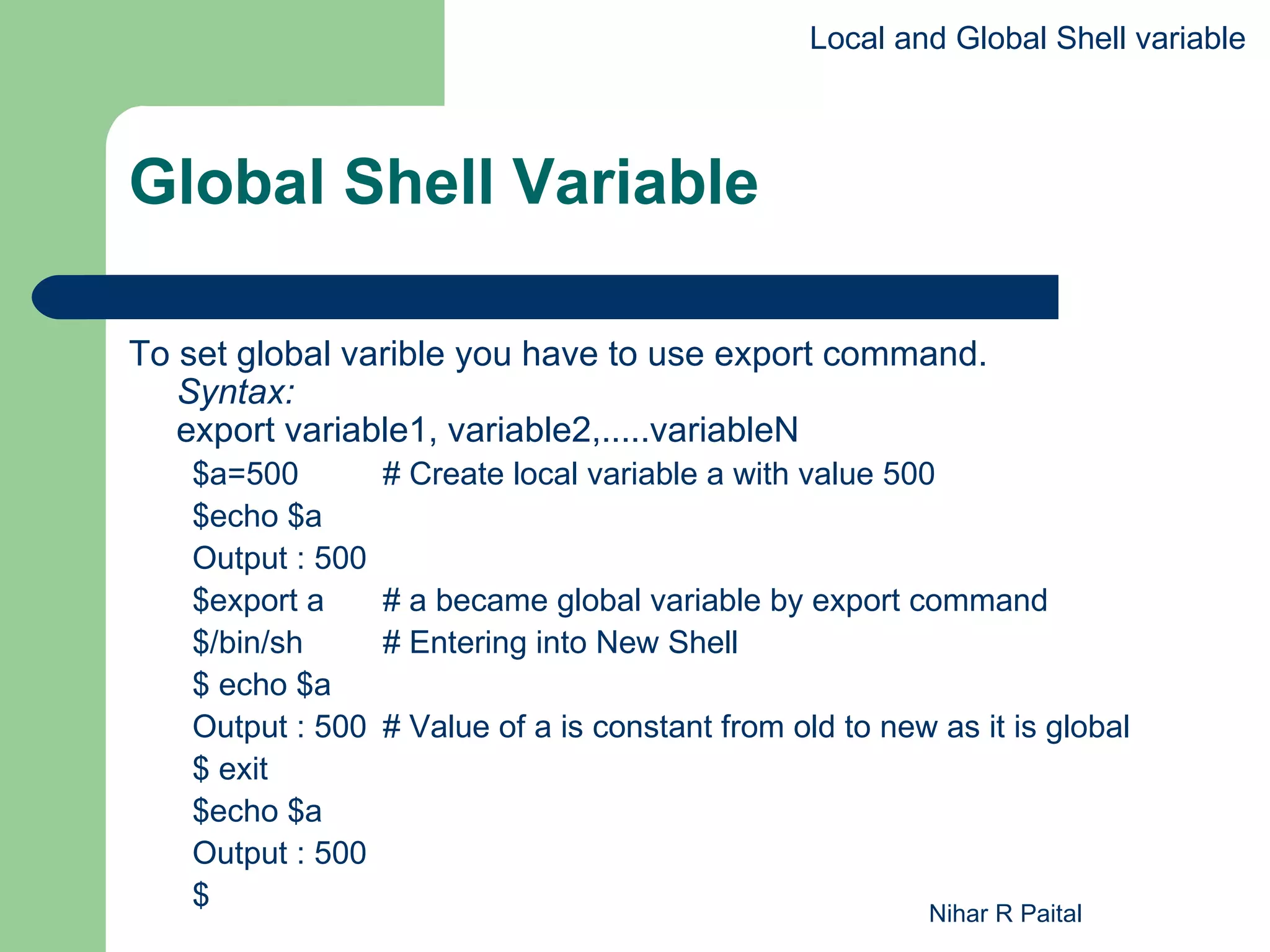
To set global varible you have to use export command.
   Syntax:
   export variable1, variable2,.....variableN
   $a=500         # Create local variable a with value 500
   $echo $a
   Output : 500
   $export a      # a became global variable by export command
   $/bin/sh       # Entering into New Shell
   $ echo $a
   Output : 500   # Value of a is constant from old to new as it is global
   $ exit
   $echo $a
   Output : 500
   $
                                                          Nihar R Paital
Customizing User Environment

The most basic means of customization that the Korn shell provides are

       Aliases
        Synonyms for commands or command strings that you can define
        for convenience.

       Options
        Controls for various aspects of your environment, which you can
        turn on and off.

       Variables
        Place-holders for information that tell the shell and other programs
        how to behave under various circumstances. To customize the
        environment various built-in shell variables are available.
                                                           Nihar R Paital
Customizing User Environment


Customizing User Environment


>To change the values of variables permanently , define it in .profile file.


The .profile File
 This is a file of shell commands, also called a shell script, that the Korn
   shell reads and runs whenever you log in to your system.

   Various environment variables can be defined in this file

   Alias can be defined in .profile file


                                                            Nihar R Paital
Customizing User Environment


Aliases

  Alias is a synonym for a command or command string
 Syntax:
          alias new=original
Ex:-
   alias search=grep
   alias cdnew=‘cd /xyz/x1/x2’

>Quotes are necessary if the string being aliased consists of more than
     one word
>it is possible to alias an alias, aliases are recursive

Ex:-
   alias c=cdnew
 Type alias without any arguments, to get a list of all the aliases you
   have defined as well as several that are built-in.
 The command unalias name removes any alias definition for its argument
                                                           Nihar R Paital
Customizing User Environment


set command.


   set command

    –   Used for display all the environment variables.
    –   Shows the current values of system variables.
    –   Also allows conversion of arguments into positional
        parameters.
    –   Syntax : set


                                                    Nihar R Paital
Customizing User Environment


Set Options

   Options let you change the shell's behaviour
   A shell option is a setting that is either "on" or "off."
   The basic commands that relate to options are set -o optionnames and
    set +o optionnames
where optionnames is a list of option names separated by blanks
The - turns the named option on, while the + turns it off
Option                 Description
emacs                  Enter emacs editing mode
ignoreeof              Don't allow use of [CTRL-D] to log off; require the exit
                       command
noclobber              Don't allow output redirection (>) to clobber an existing file
noglob                 Don't expand filename wildcards like * and ? (wildcard
                                   expansion is sometimes called globbing)
nounset                Indicate an error when trying to use a variable that is
                       undefined
vi                     Enter vi editing mode
xtrace                 traces shell scripting
noexec                 finds syntax error without executing script
   To check the status of an option, type
           set -o                                                      Nihar R Paital
Customizing User Environment


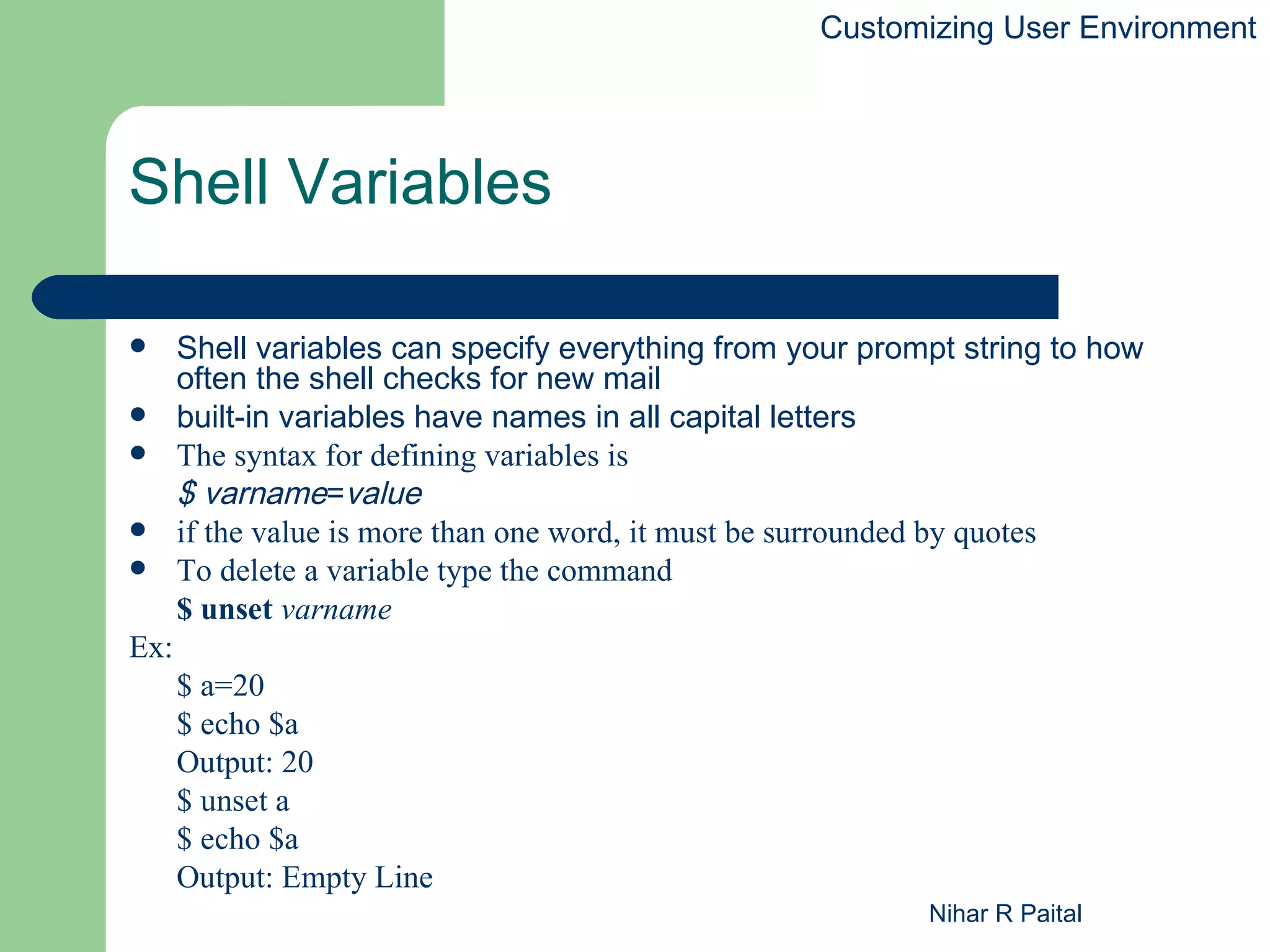
Shell Variables

     Shell variables can specify everything from your prompt string to how
      often the shell checks for new mail
     built-in variables have names in all capital letters
     The syntax for defining variables is
      $ varname=value
     if the value is more than one word, it must be surrounded by quotes
     To delete a variable type the command
      $ unset varname
Ex:
      $ a=20
      $ echo $a
      Output: 20
      $ unset a
      $ echo $a
      Output: Empty Line
                                                           Nihar R Paital
Customizing User Environment


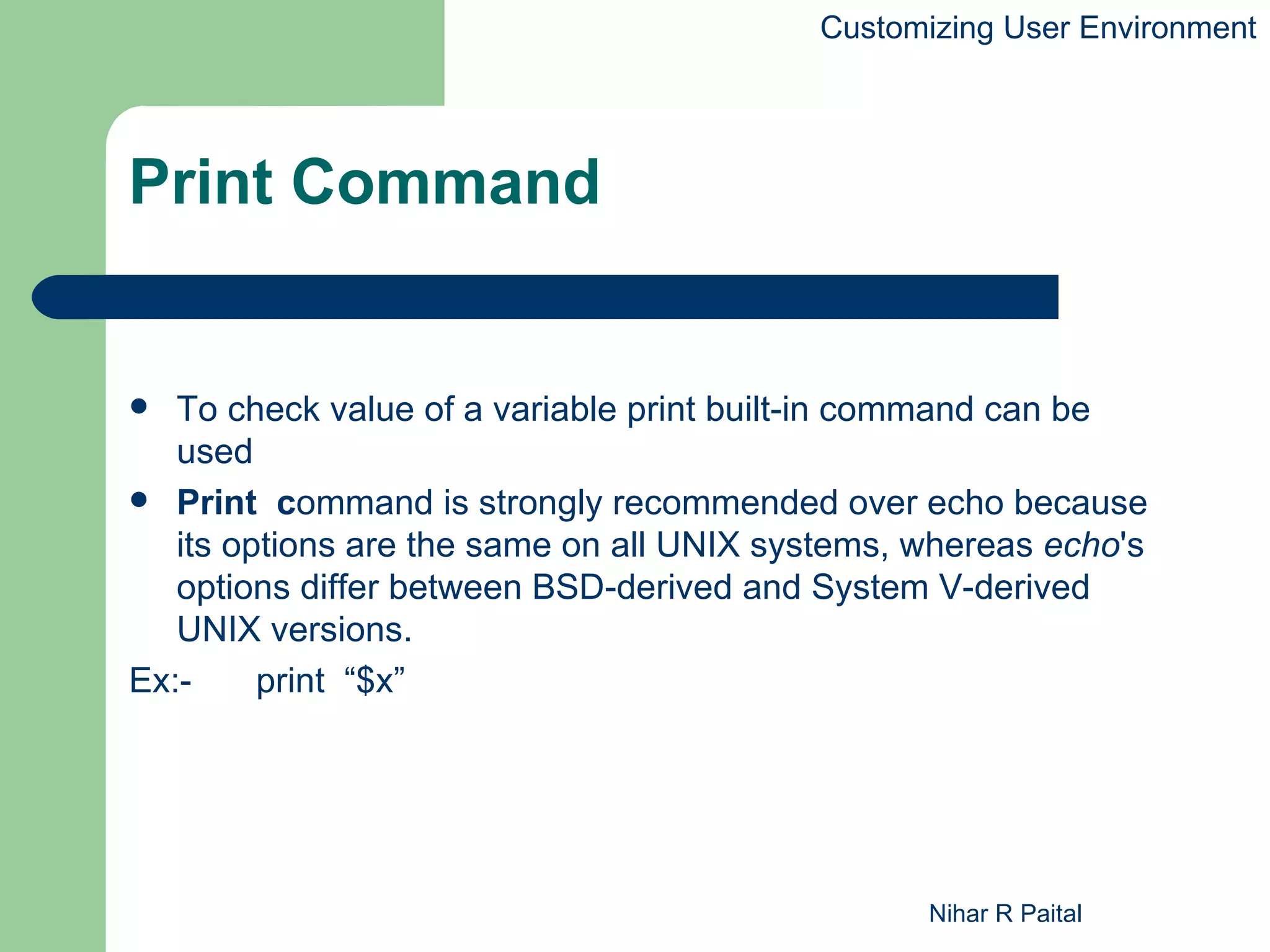
Print Command


  To check value of a variable print built-in command can be
   used
 Print command is strongly recommended over echo because
   its options are the same on all UNIX systems, whereas echo's
   options differ between BSD-derived and System V-derived
   UNIX versions.
Ex:-     print “$x”


                                                 Nihar R Paital
Customizing User Environment


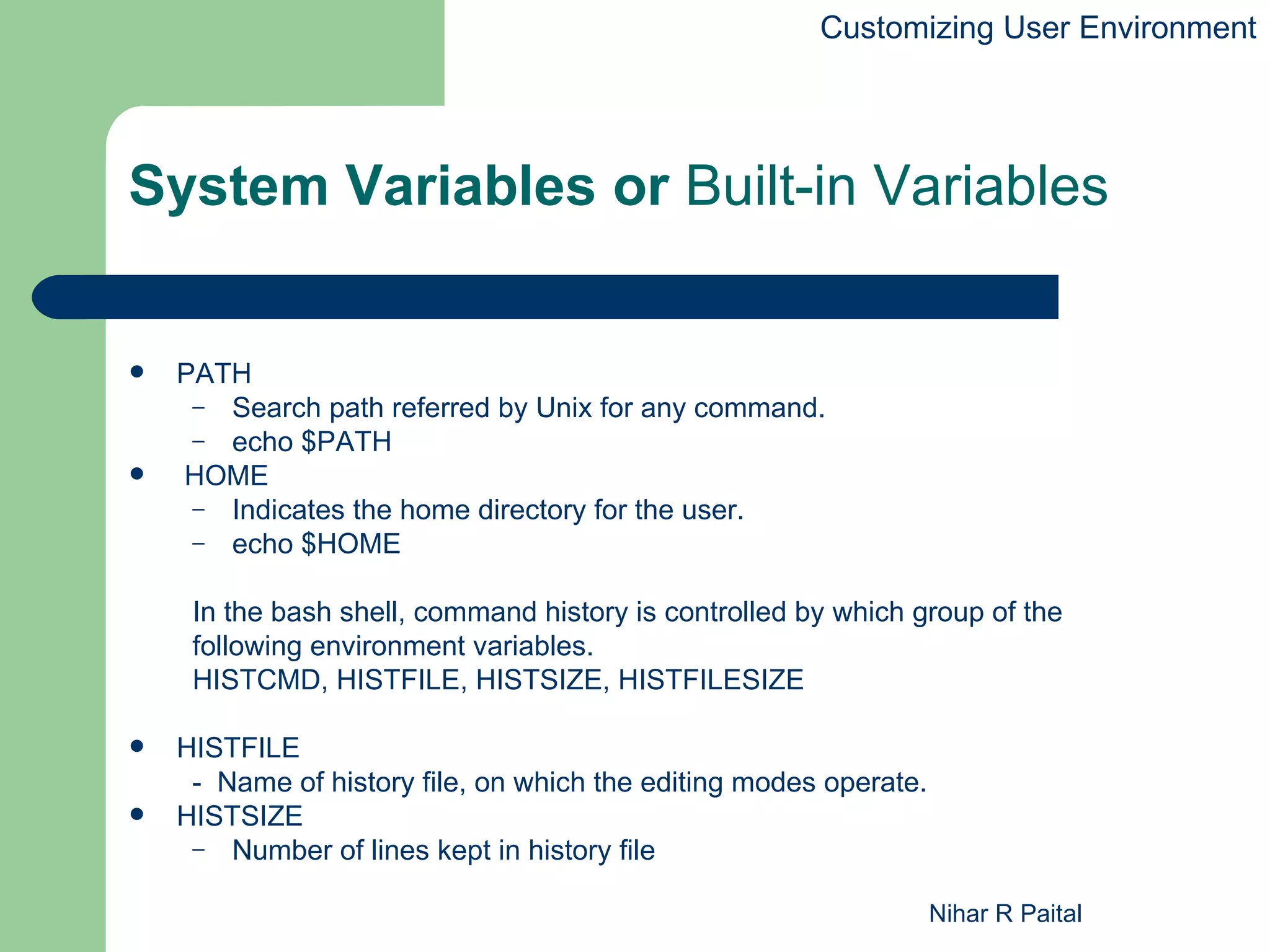
System Variables or Built-in Variables


   PATH
     – Search path referred by Unix for any command.
     – echo $PATH
   HOME
     – Indicates the home directory for the user.
     – echo $HOME


     In the bash shell, command history is controlled by which group of the
     following environment variables.
     HISTCMD, HISTFILE, HISTSIZE, HISTFILESIZE

   HISTFILE
     - Name of history file, on which the editing modes operate.
   HISTSIZE
     – Number of lines kept in history file


                                                                   Nihar R Paital
Customizing User Environment


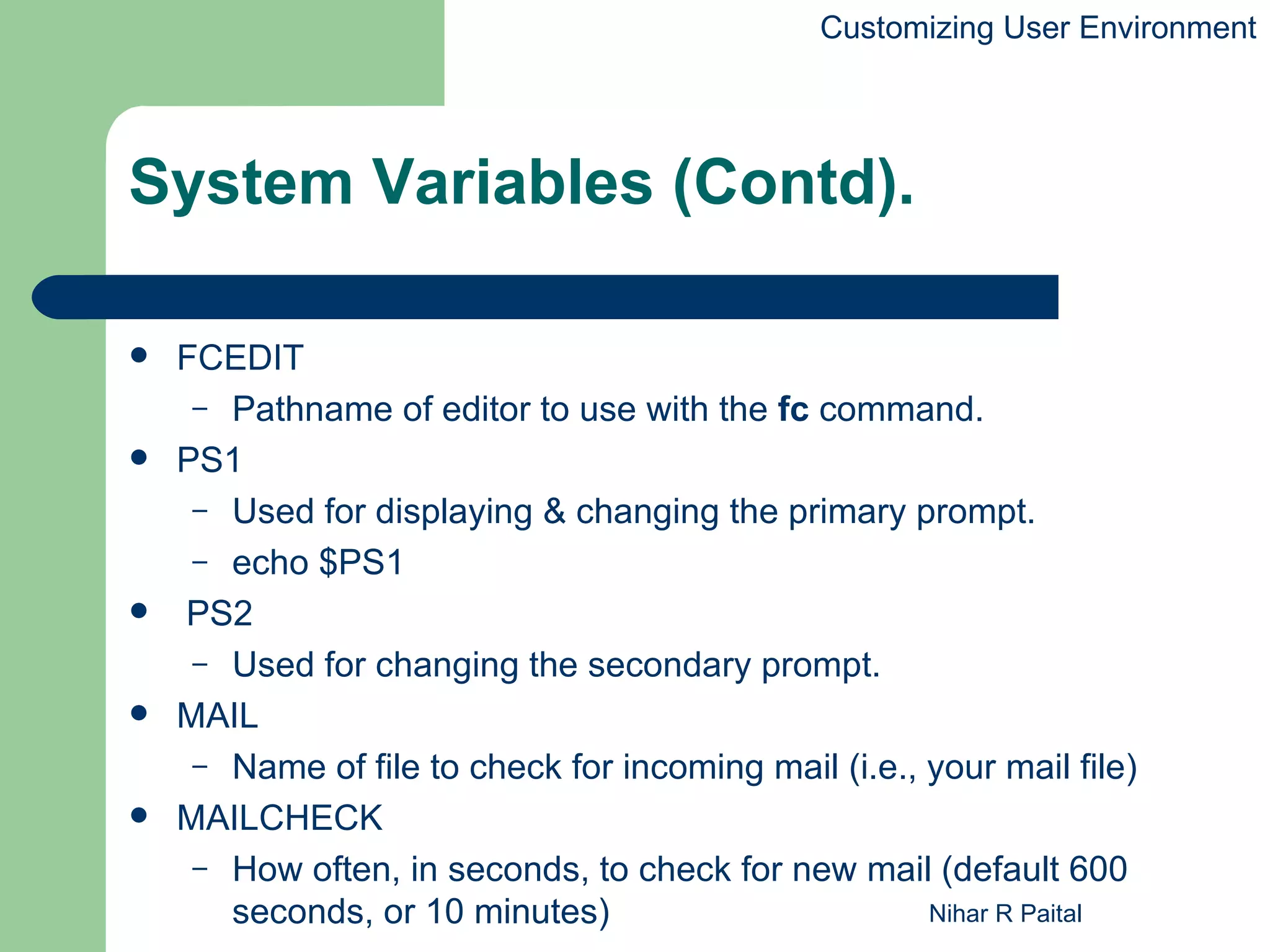
System Variables (Contd).

   FCEDIT
     – Pathname of editor to use with the fc command.
   PS1
     – Used for displaying & changing the primary prompt.
     – echo $PS1
   PS2
     – Used for changing the secondary prompt.
   MAIL
     – Name of file to check for incoming mail (i.e., your mail file)
   MAILCHECK
     – How often, in seconds, to check for new mail (default 600
       seconds, or 10 minutes)                        Nihar R Paital
Customizing User Environment


System Variables (Contd).


   SHELL
     – Pathname of the shell you are running


   PWD
     – Current directory


   HOME
     – Users home directory


                                                 Nihar R Paital
Customizing User Environment


Environment Variables


   Environment Variables are known to all kinds of subprocesses
   Any variable can become an environment variable. First it must be
    defined as usual; then it must be exported with the command
          $ export varnames
   To find out environment variables and their values ,type
        $ export


                                                      Nihar R Paital
Customizing User Environment


The Environment File

   Although environment variables will always be known to
    subprocesses,
   the shell must define which other variables, options, aliases,
    etc., are to communicated to subprocesses.
    The way to do this is to put all such definitions in a special file
    called the environment file instead of your .profile.
1. Decide which definitions in your .profile you want to propagate
    to subprocesses. Remove them from .profile and put them in a
    file you will designate as your environment file.
2. Put a line in your .profile that tells the shell where your
    environment file is:
    ENV=envfilename
3 . For the changes to take effect, type either . .profile or login. In
    either case, your environment file will be run when the shell
    encounters the ENV= statement.
                                                      Nihar R Paital
Nihar R Paital

UNIX - Class4 - Advance Shell Scripting-P1

  • 1.
    UNIX Advance Shell Scripting Presentation By Nihar R Paital
  • 2.
    Introduction Advance features ofshell scripting/command such as:  Local and Global Shell variable  Customizing User Environment  Functions  User interface  Conditional execution  File Descriptors  traps  Multiple command line args handling Nihar R Paital
  • 3.
    /dev/null This is specialLinux file which is used to send any unwanted output from program/command. Syntax: command > /dev/nullExample: $ ls > /dev/null Run the following two commands $ ls > /dev/null $ rm > /dev/null 1) Why the output of last command is not redirected to /dev/null device? Nihar R Paital
  • 4.
    Local and GlobalShell variable Local Shell variable $a=20 $echo $a Output : 20 $/bin/sh # Entering into New Shell $ echo $a Output : Empty Line Printed due to a is not defined in new shell $ a=50 $ echo $a Output : 50 $ exit #Returned to Old Shell by exiting Old Shell $echo $a Output : 20 $ Nihar R Paital
  • 5.
    Local and GlobalShell variable Global Shell Variable To set global varible you have to use export command. Syntax: export variable1, variable2,.....variableN $a=500 # Create local variable a with value 500 $echo $a Output : 500 $export a # a became global variable by export command $/bin/sh # Entering into New Shell $ echo $a Output : 500 # Value of a is constant from old to new as it is global $ exit $echo $a Output : 500 $ Nihar R Paital
  • 6.
    Customizing User Environment Themost basic means of customization that the Korn shell provides are  Aliases Synonyms for commands or command strings that you can define for convenience.  Options Controls for various aspects of your environment, which you can turn on and off.  Variables Place-holders for information that tell the shell and other programs how to behave under various circumstances. To customize the environment various built-in shell variables are available. Nihar R Paital
  • 7.
    Customizing User Environment CustomizingUser Environment >To change the values of variables permanently , define it in .profile file. The .profile File  This is a file of shell commands, also called a shell script, that the Korn shell reads and runs whenever you log in to your system.  Various environment variables can be defined in this file  Alias can be defined in .profile file Nihar R Paital
  • 8.
    Customizing User Environment Aliases  Alias is a synonym for a command or command string  Syntax: alias new=original Ex:- alias search=grep alias cdnew=‘cd /xyz/x1/x2’ >Quotes are necessary if the string being aliased consists of more than one word >it is possible to alias an alias, aliases are recursive Ex:- alias c=cdnew  Type alias without any arguments, to get a list of all the aliases you have defined as well as several that are built-in.  The command unalias name removes any alias definition for its argument Nihar R Paital
  • 9.
    Customizing User Environment setcommand.  set command – Used for display all the environment variables. – Shows the current values of system variables. – Also allows conversion of arguments into positional parameters. – Syntax : set Nihar R Paital
  • 10.
    Customizing User Environment SetOptions  Options let you change the shell's behaviour  A shell option is a setting that is either "on" or "off."  The basic commands that relate to options are set -o optionnames and set +o optionnames where optionnames is a list of option names separated by blanks The - turns the named option on, while the + turns it off Option Description emacs Enter emacs editing mode ignoreeof Don't allow use of [CTRL-D] to log off; require the exit command noclobber Don't allow output redirection (>) to clobber an existing file noglob Don't expand filename wildcards like * and ? (wildcard expansion is sometimes called globbing) nounset Indicate an error when trying to use a variable that is undefined vi Enter vi editing mode xtrace traces shell scripting noexec finds syntax error without executing script  To check the status of an option, type set -o Nihar R Paital
  • 11.
    Customizing User Environment ShellVariables  Shell variables can specify everything from your prompt string to how often the shell checks for new mail  built-in variables have names in all capital letters  The syntax for defining variables is $ varname=value  if the value is more than one word, it must be surrounded by quotes  To delete a variable type the command $ unset varname Ex: $ a=20 $ echo $a Output: 20 $ unset a $ echo $a Output: Empty Line Nihar R Paital
  • 12.
    Customizing User Environment PrintCommand  To check value of a variable print built-in command can be used  Print command is strongly recommended over echo because its options are the same on all UNIX systems, whereas echo's options differ between BSD-derived and System V-derived UNIX versions. Ex:- print “$x” Nihar R Paital
  • 13.
    Customizing User Environment SystemVariables or Built-in Variables  PATH – Search path referred by Unix for any command. – echo $PATH  HOME – Indicates the home directory for the user. – echo $HOME In the bash shell, command history is controlled by which group of the following environment variables. HISTCMD, HISTFILE, HISTSIZE, HISTFILESIZE  HISTFILE - Name of history file, on which the editing modes operate.  HISTSIZE – Number of lines kept in history file Nihar R Paital
  • 14.
    Customizing User Environment SystemVariables (Contd).  FCEDIT – Pathname of editor to use with the fc command.  PS1 – Used for displaying & changing the primary prompt. – echo $PS1  PS2 – Used for changing the secondary prompt.  MAIL – Name of file to check for incoming mail (i.e., your mail file)  MAILCHECK – How often, in seconds, to check for new mail (default 600 seconds, or 10 minutes) Nihar R Paital
  • 15.
    Customizing User Environment SystemVariables (Contd).  SHELL – Pathname of the shell you are running  PWD – Current directory  HOME – Users home directory Nihar R Paital
  • 16.
    Customizing User Environment EnvironmentVariables  Environment Variables are known to all kinds of subprocesses  Any variable can become an environment variable. First it must be defined as usual; then it must be exported with the command $ export varnames  To find out environment variables and their values ,type $ export Nihar R Paital
  • 17.
    Customizing User Environment TheEnvironment File  Although environment variables will always be known to subprocesses, the shell must define which other variables, options, aliases, etc., are to communicated to subprocesses. The way to do this is to put all such definitions in a special file called the environment file instead of your .profile. 1. Decide which definitions in your .profile you want to propagate to subprocesses. Remove them from .profile and put them in a file you will designate as your environment file. 2. Put a line in your .profile that tells the shell where your environment file is: ENV=envfilename 3 . For the changes to take effect, type either . .profile or login. In either case, your environment file will be run when the shell encounters the ENV= statement. Nihar R Paital
  • 18.