Linux for Bioinformatics Navigator,  The Shell I/O redirection & pipes Text, text & text Misc BITS/VIB Bioinformatics Training – version 2 – Joachim Jacob Okt 2011  – Luc Ducazu <luc@daphnia.com>
Schedule Today we will only work with the command line. You won't be able to remember all of the tools we will see today, therefore a quick reference nearby is indispensable! TIP : have some kind of notes on your computer to quickly store and find commands ! http://projects.gnome.org/tomboy/
GOAL The main goal: To help you easily use command line tools To help you easily automate repetitive tasks To help you easily parse/summarize outputs, which is mainly text
Connecting to Linux Startup the your machine and log in OR Remote connection (e.g. on departmental server) $ ssh  [email_address] ->  The sysadmin should have made you an account ->  you are prompted for your password On windows, install PuTTY to connect  http://www.chiark.greenend.org.uk/~sgtatham/putty/
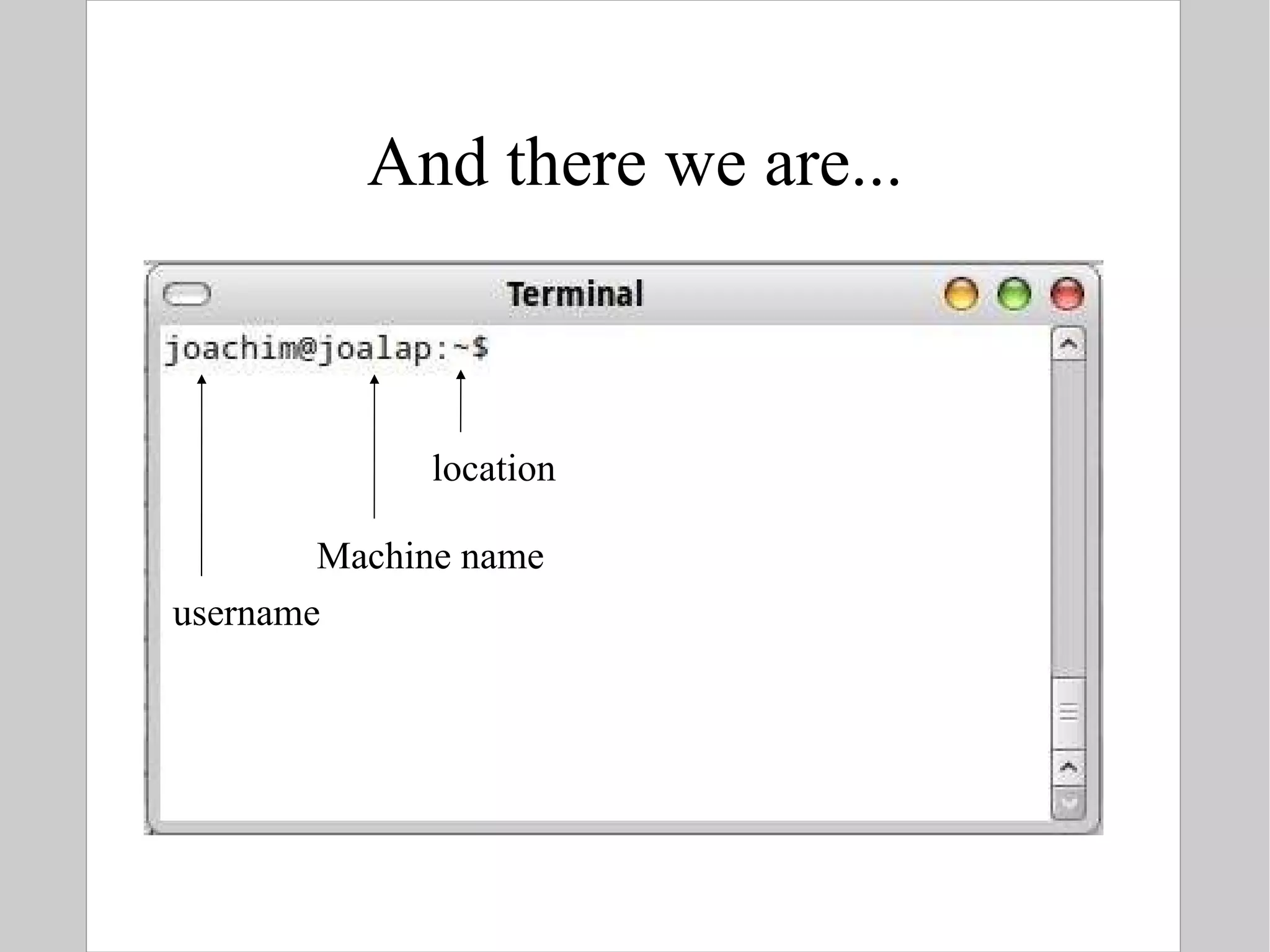
And there we are... username Machine name location
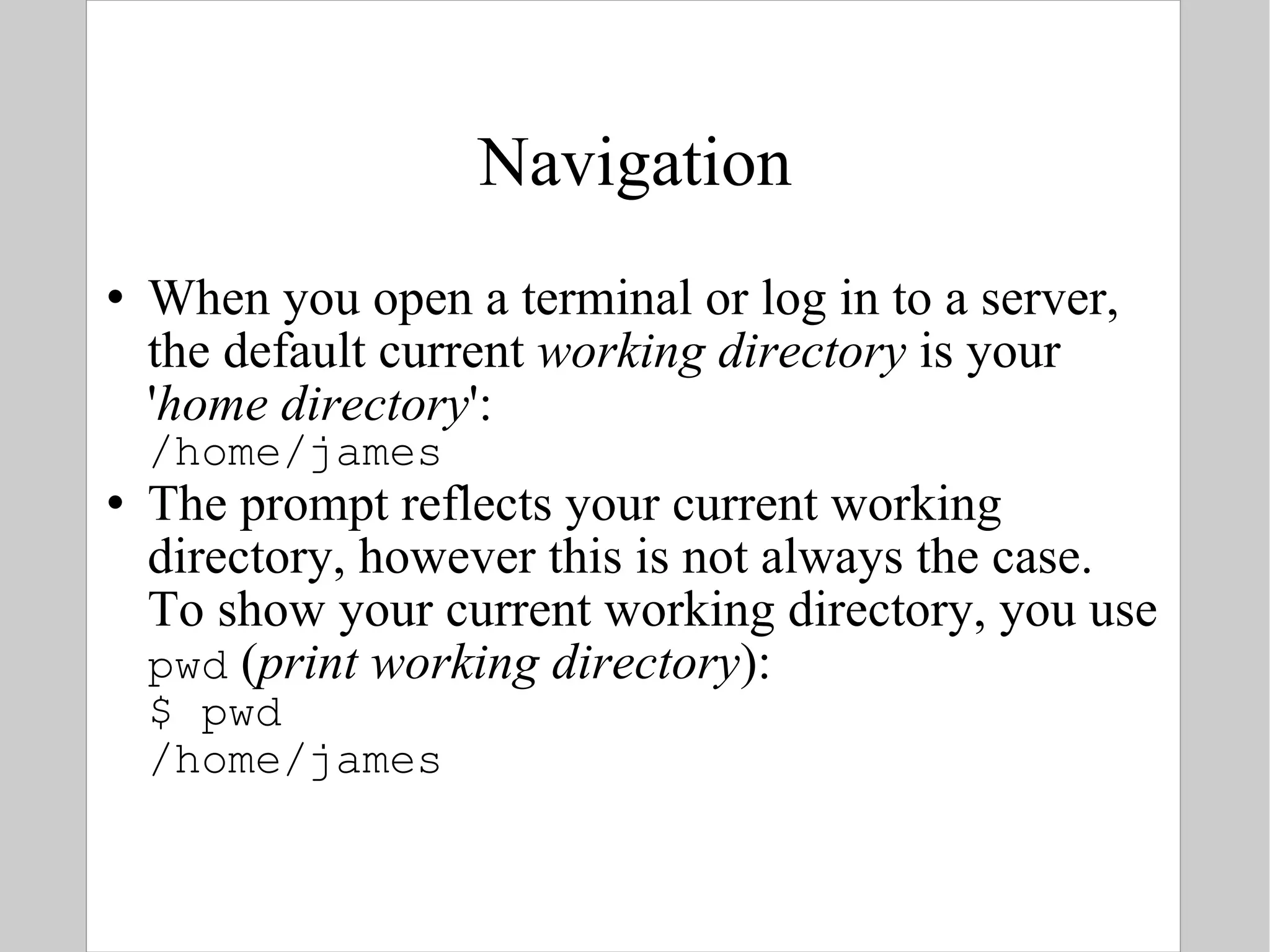
Navigation When you open a terminal or log in to a server, the default current  working directory  is your ' home directory ': /home/james The prompt reflects your current working directory, however this is not always the case. To show your current working directory, you use pwd  ( print working directory ): $ pwd /home/james
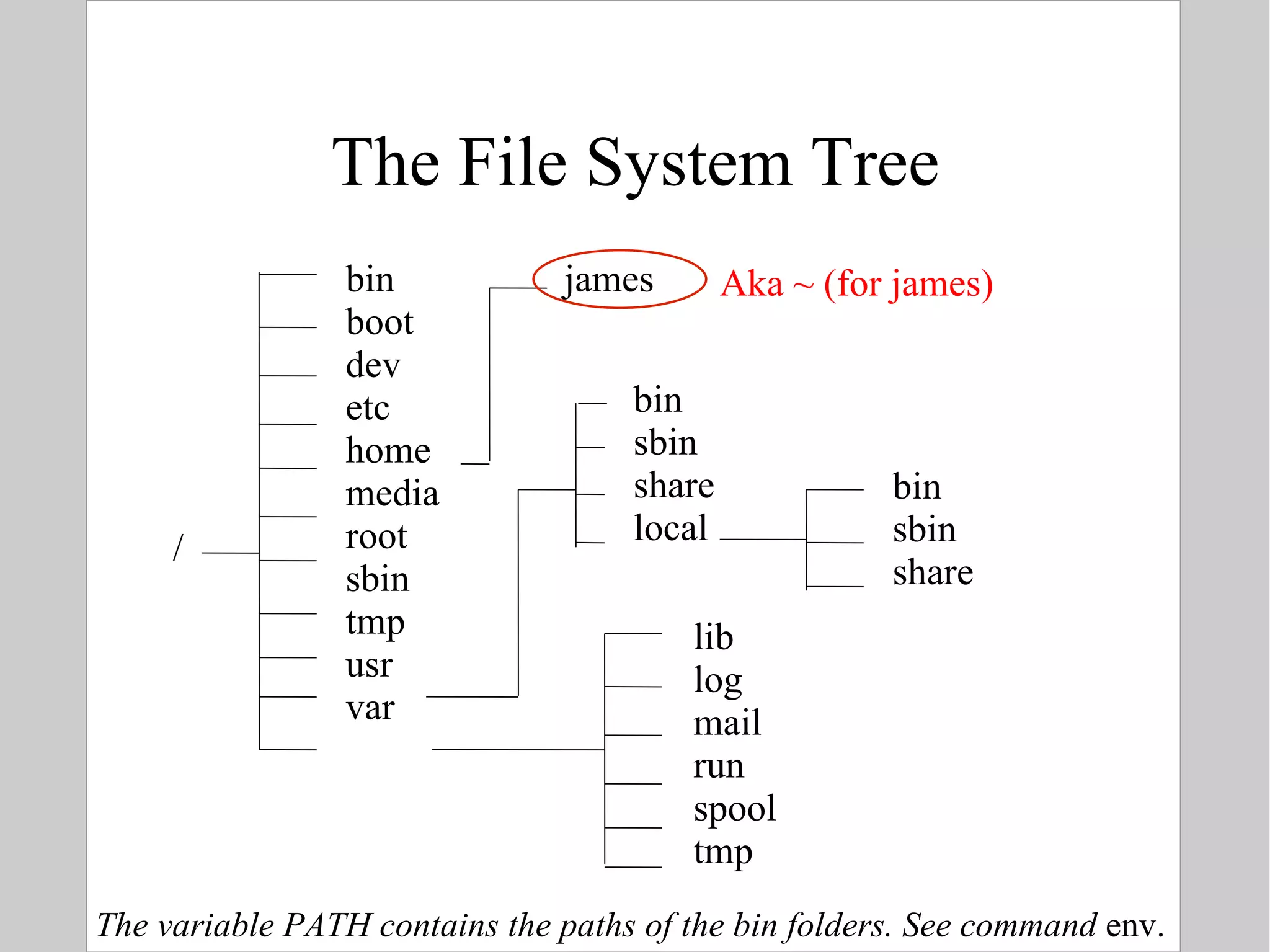
The File System Tree / bin boot dev etc home media root sbin tmp usr var james bin sbin share bin sbin share local lib log mail run spool tmp Aka ~ (for james) The variable PATH contains the paths of the bin folders. See command  env.
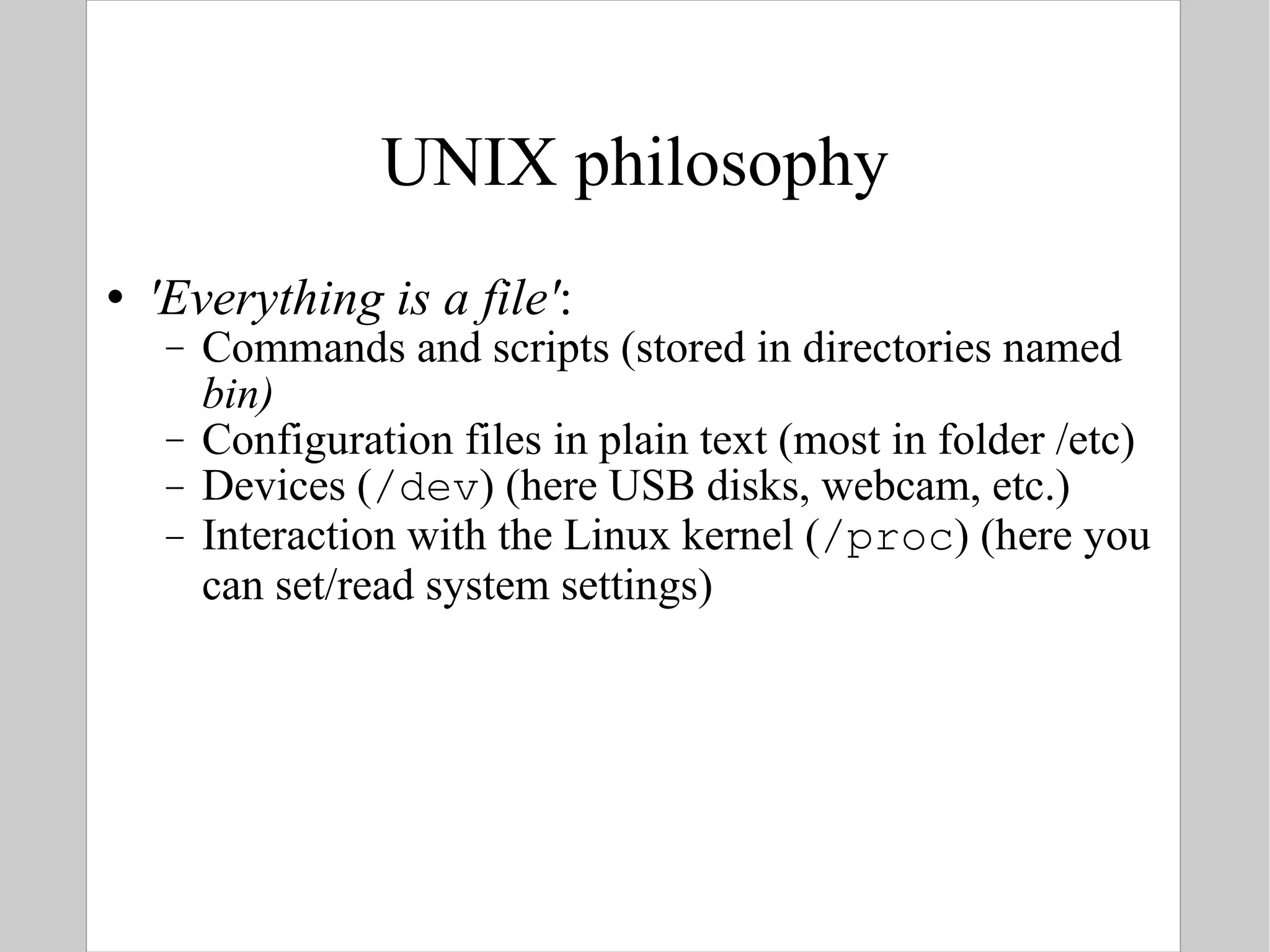
UNIX philosophy 'Everything is a file' : Commands and scripts (stored in directories named  bin) Configuration files in plain text (most in folder /etc) Devices ( /dev ) (here USB disks, webcam, etc.) Interaction with the Linux kernel ( /proc ) (here you can set/read system settings)
Names of files & directories In UNIX names of files and directories are  case sensitive Some characters have a special meaning to the shell: spaces, |, <, >, *, ?, [, ], /, \,.,.. You can use some of them, but they have to be  hidden  (escaped) from the shell In UNIX there is no such thing as  file extensions : commands are marked executable via permissions files are recognized based on content Files and directories share the same name space
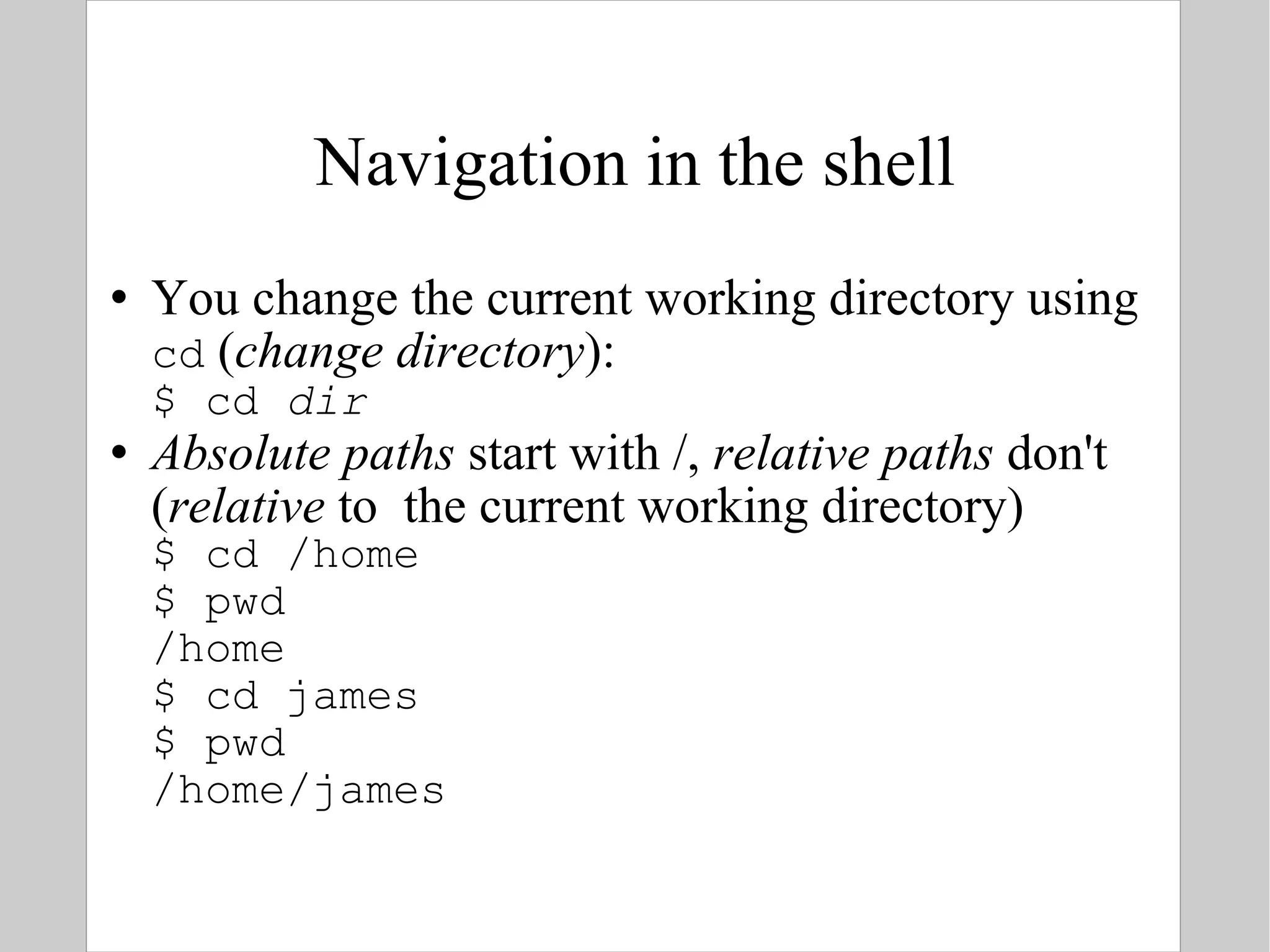
Navigation in the shell You change the current working directory using  cd  ( change directory ): $ cd  dir Absolute paths  start with /,  relative paths  don't ( relative  to  the current working directory) $ cd /home $ pwd /home $ cd james $ pwd /home/james
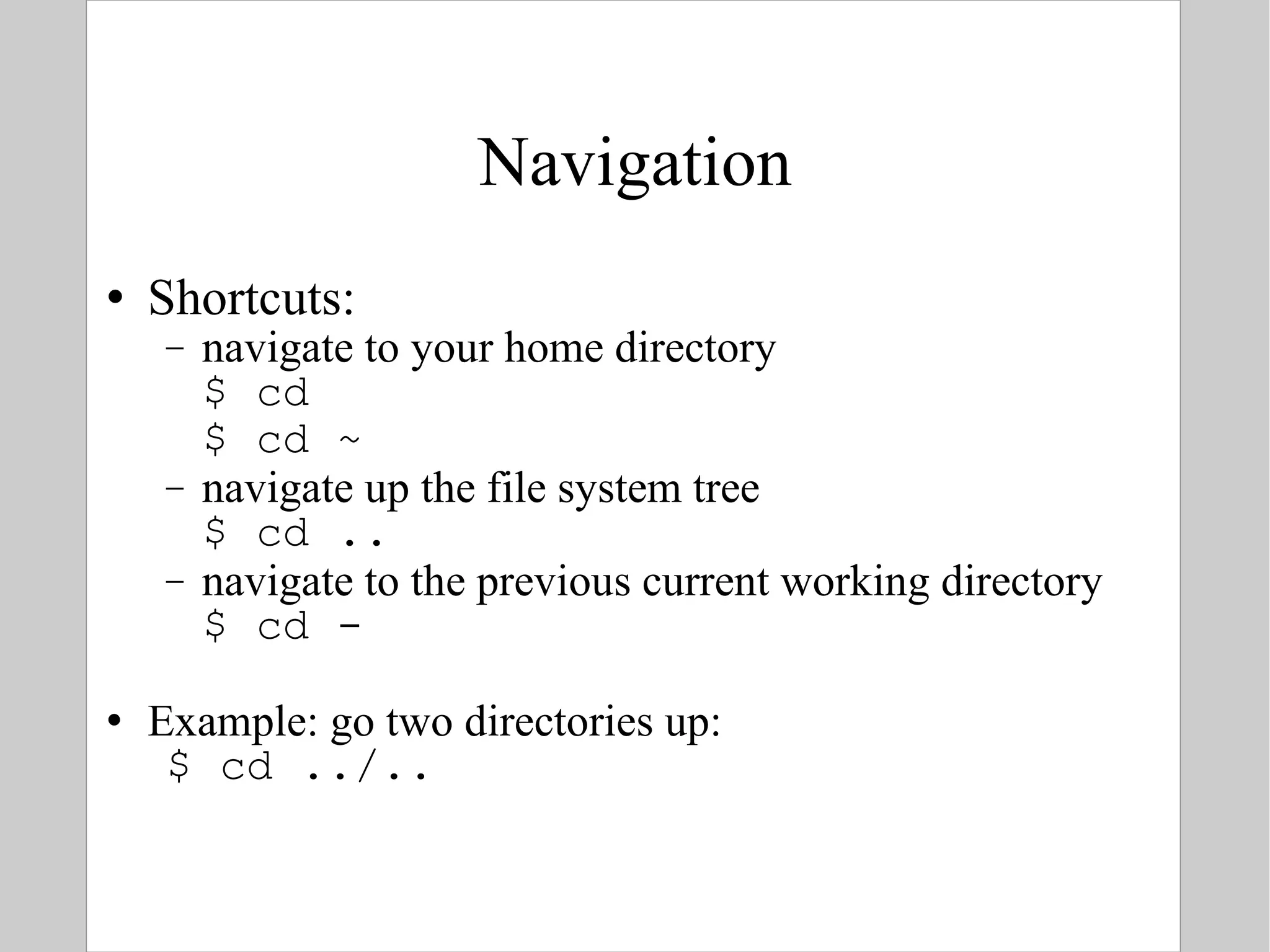
Navigation Shortcuts: navigate to your home directory $ cd $ cd ~ navigate up the file system tree $ cd .. navigate to the previous current working directory $ cd - Example: go two directories up: $ cd ../..
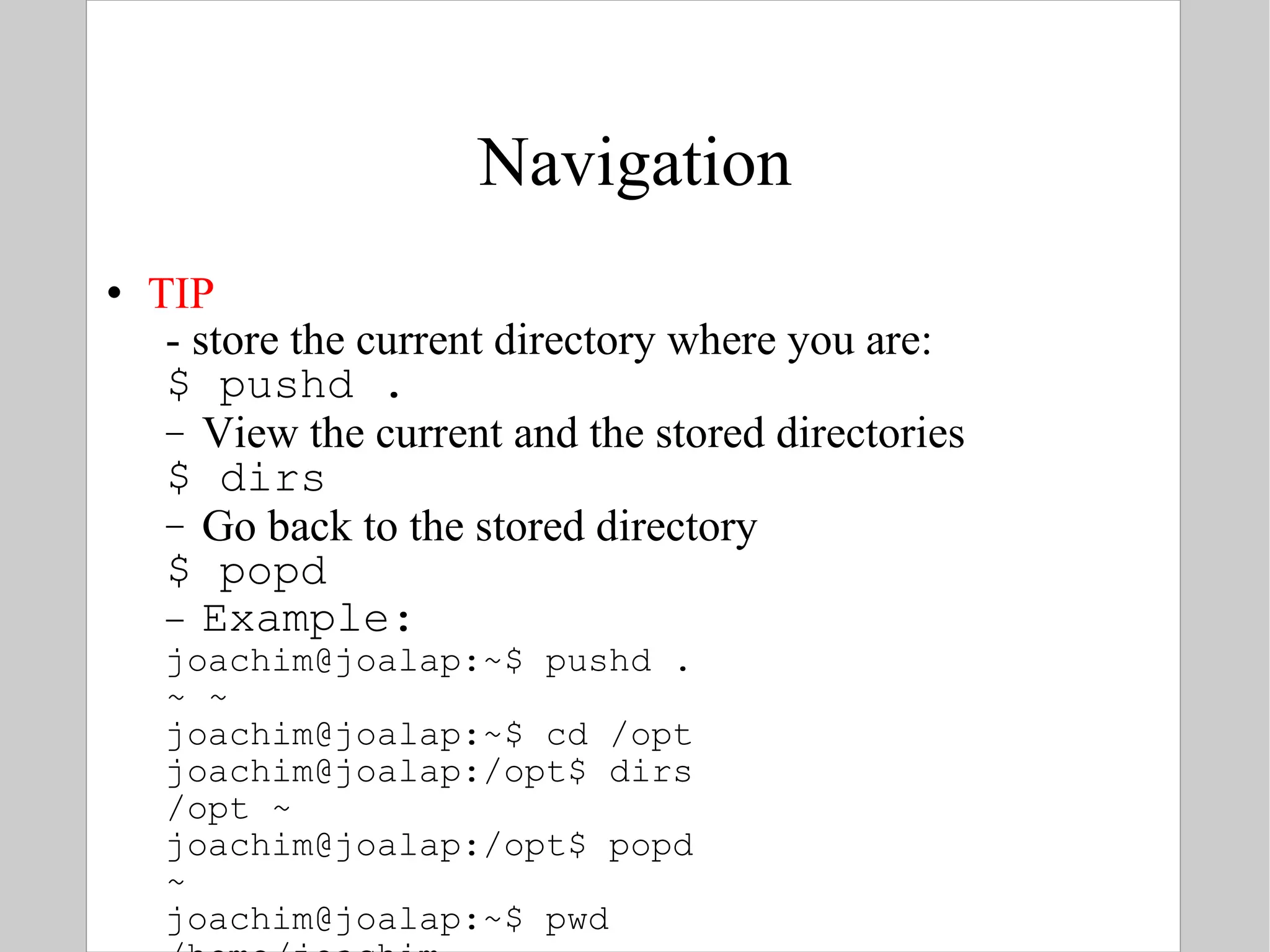
Navigation TIP - store the current directory where you are: $ pushd . View the current and the stored directories $ dirs Go back to the stored directory $ popd Example: joachim@joalap:~$ pushd . ~ ~ joachim@joalap:~$ cd /opt joachim@joalap:/opt$ dirs /opt ~ joachim@joalap:/opt$ popd ~ joachim@joalap:~$ pwd /home/joachim
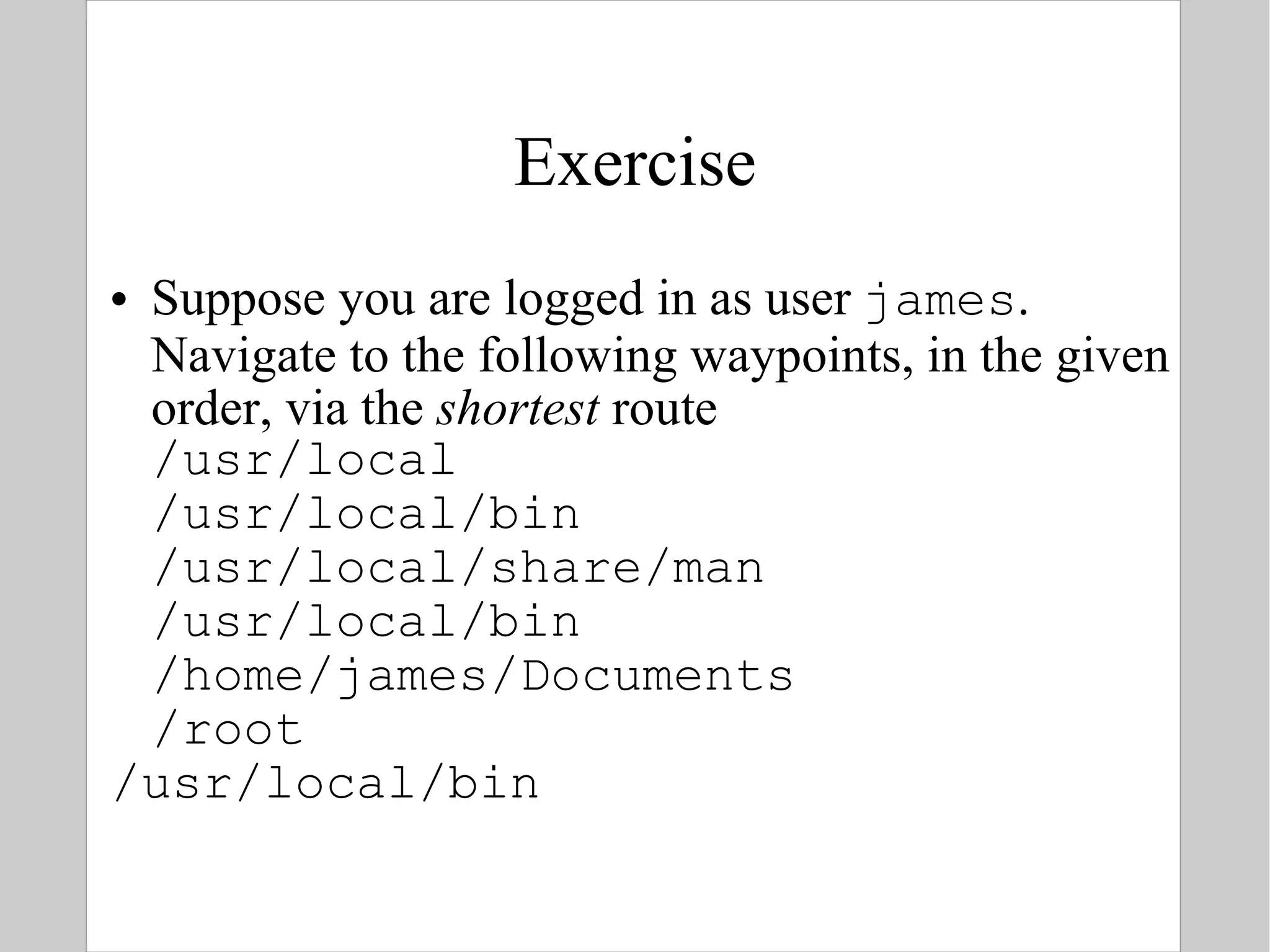
Exercise Suppose you are logged in as user  james . Navigate to the following waypoints, in the given order, via the  shortest  route /usr/local /usr/local/bin /usr/local/share/man /usr/local/bin /home/james/Documents /root /usr/local/bin
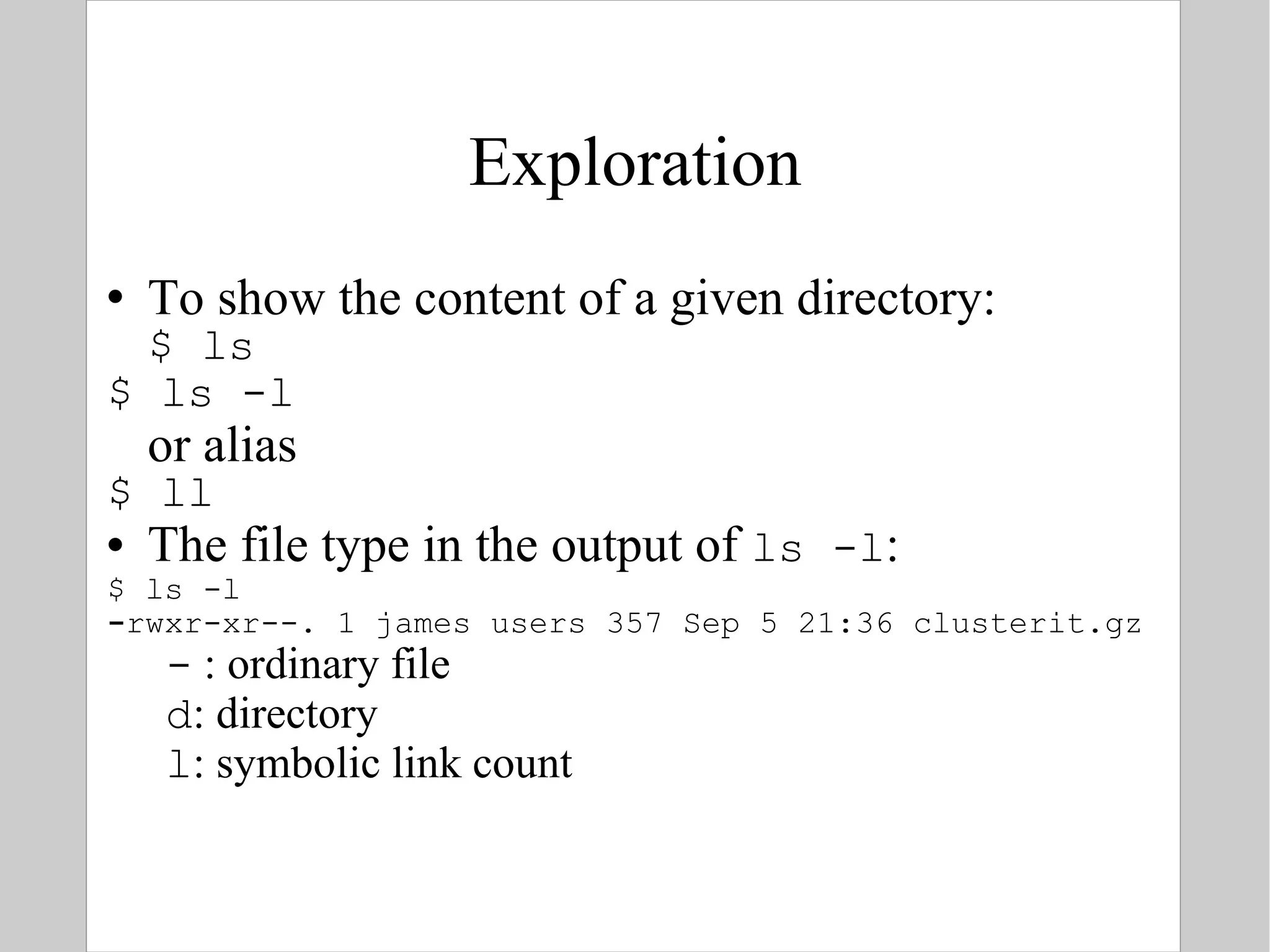
Exploration To show the content of a given directory: $ ls $ ls -l or alias $ ll The file type in the output of  ls -l : $ ls -l - rwxr-xr--. 1 james users 357 Sep 5 21:36 clusterit.gz -  : ordinary file d : directory l : symbolic link count
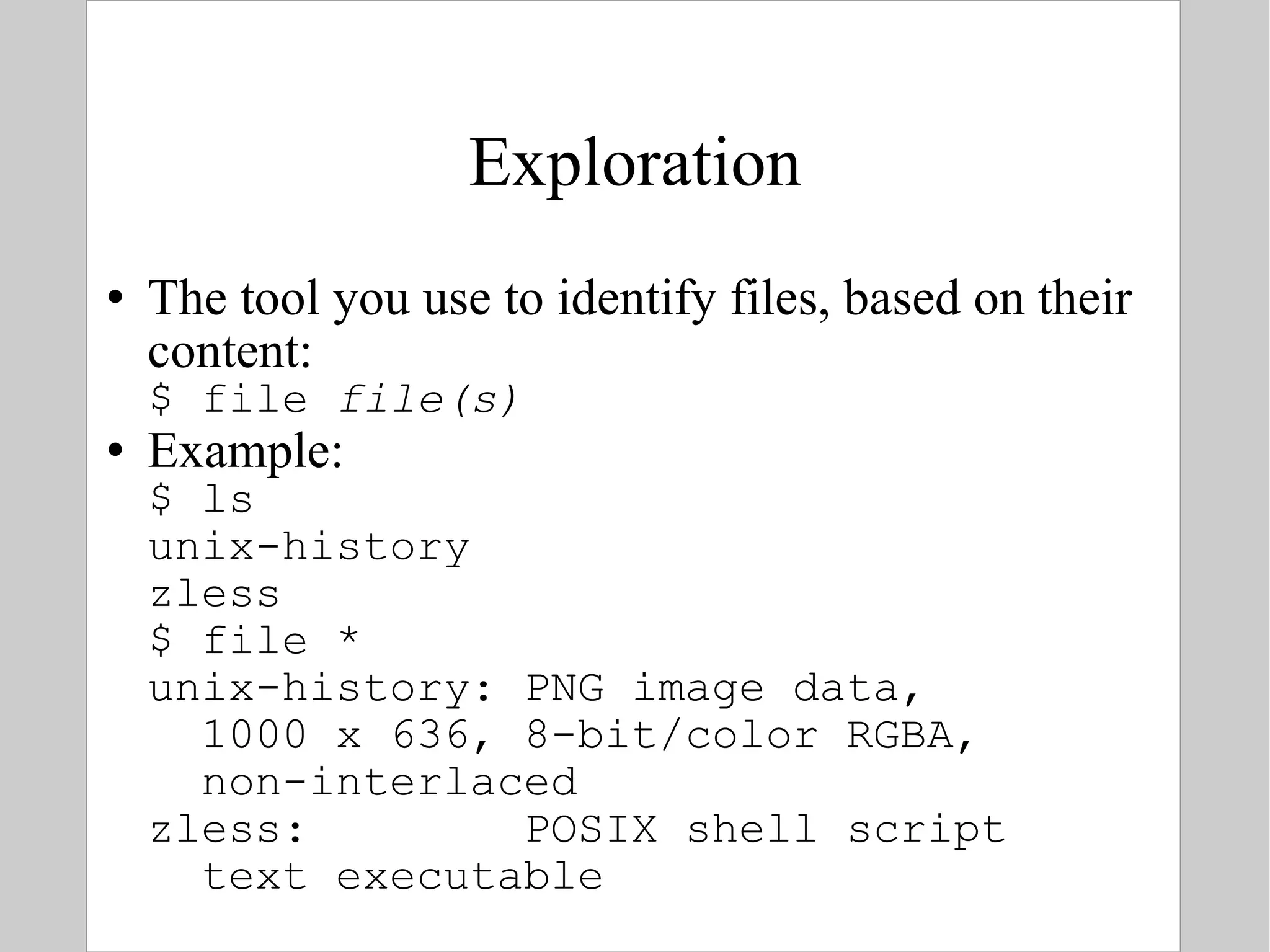
Exploration The tool you use to identify files, based on their content: $ file  file(s) Example: $ ls unix-history zless $ file * unix-history: PNG image data,    1000 x 636, 8-bit/color RGBA,    non-interlaced zless:  POSIX shell script   text executable
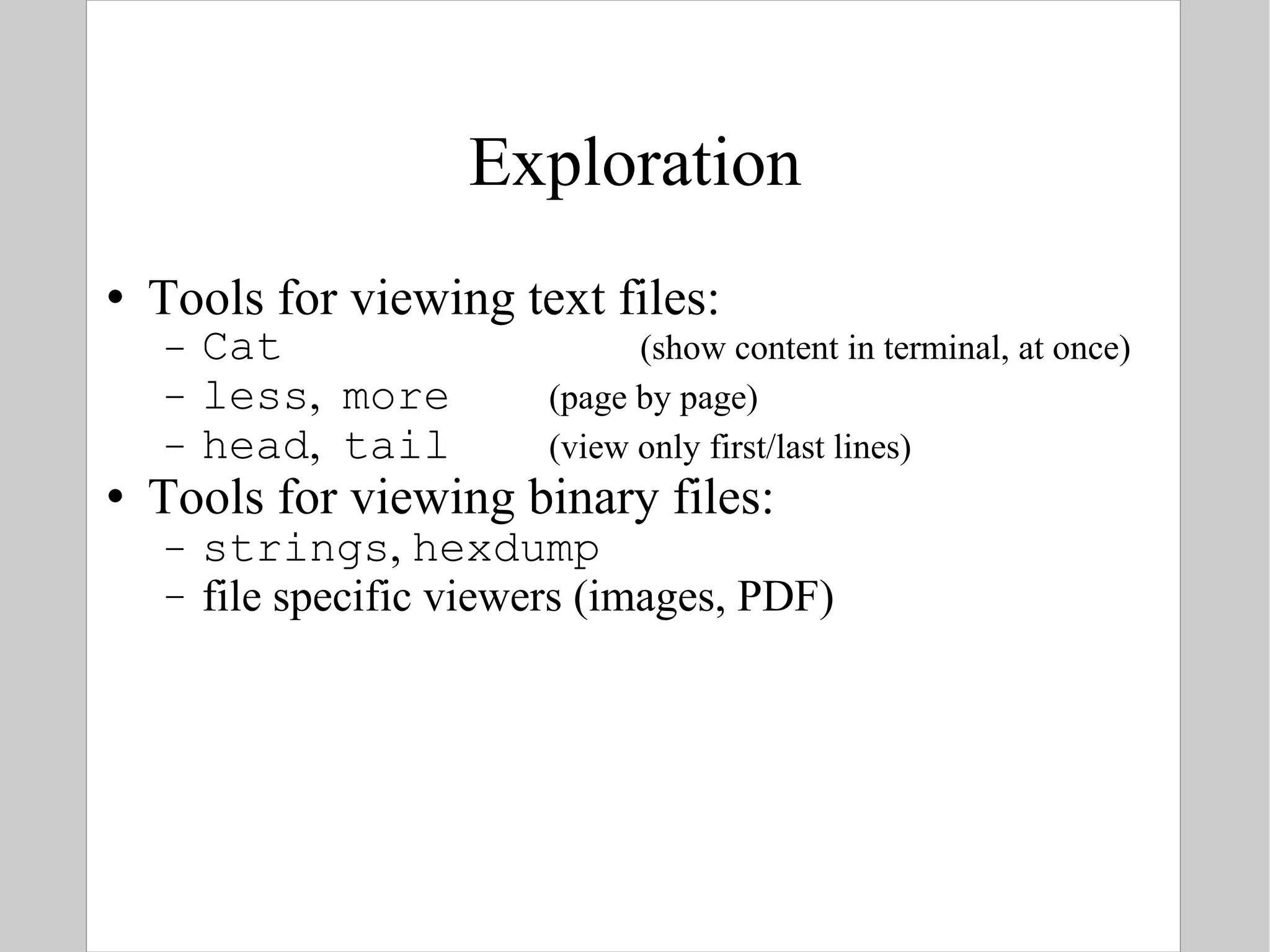
Exploration Tools for viewing text files: Cat  (show content in terminal, at once) less ,  more  (page by page) head ,  tail  (view only first/last lines) Tools for viewing binary files: strings ,  hexdump file specific viewers (images, PDF)
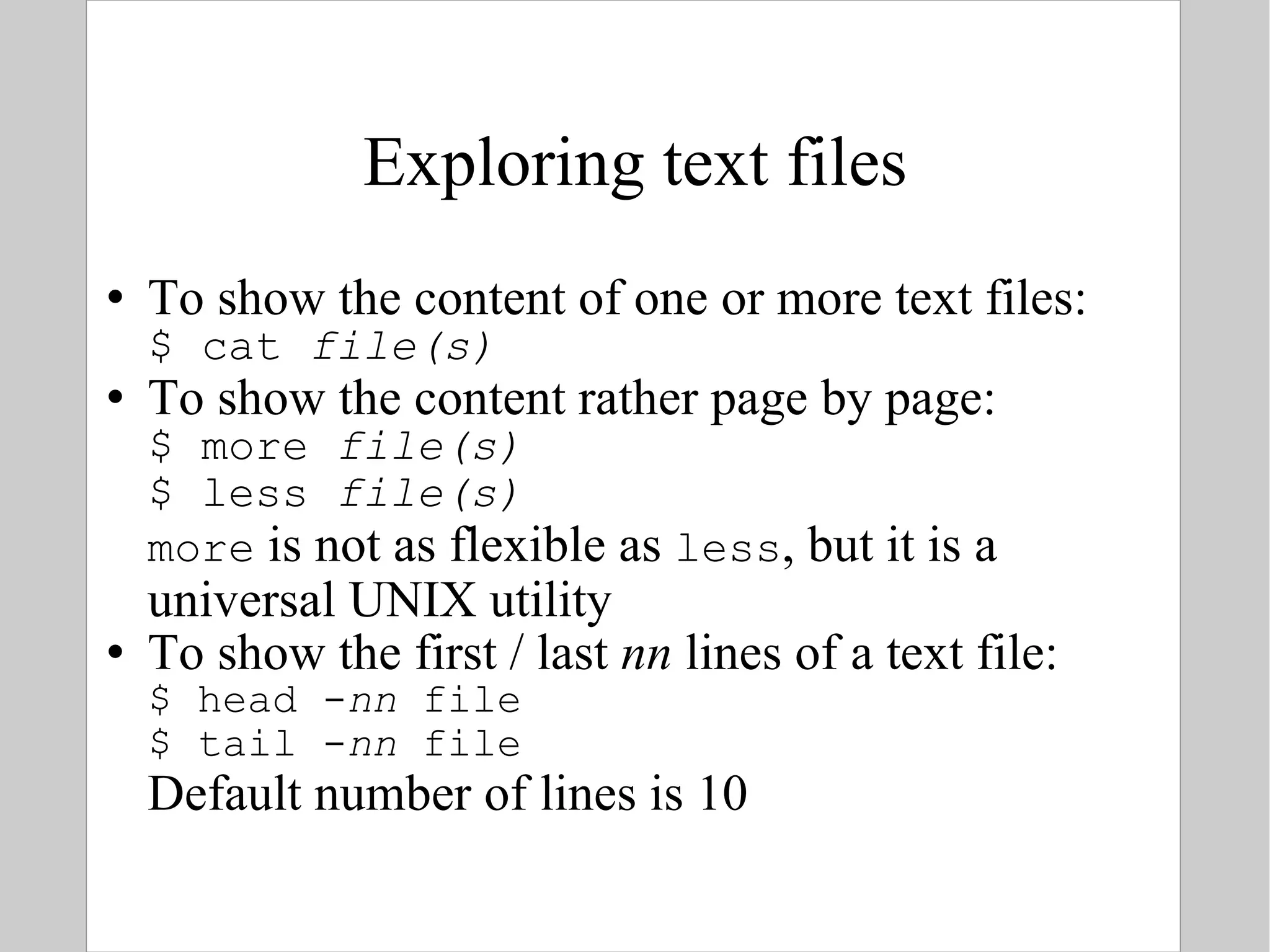
Exploring text files To show the content of one or more text files: $ cat  file(s) To show the content rather page by page: $ more  file(s) $ less  file(s) more  is not as flexible as  less , but it is a universal UNIX utility To show the first / last  nn  lines of a text file: $ head - nn  file $ tail - nn  file Default number of lines is 10
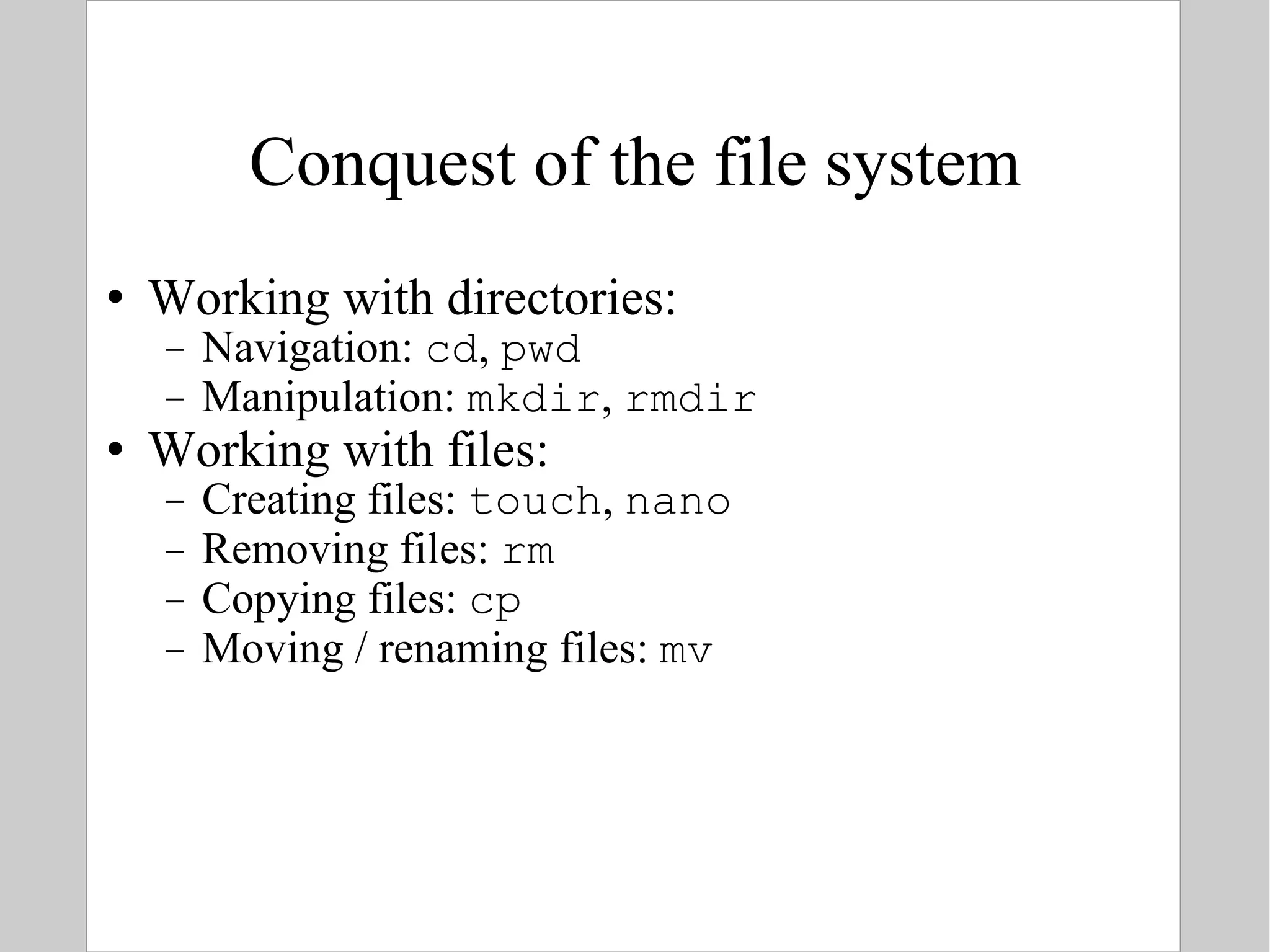
Conquest of the file system Working with directories: Navigation:  cd ,  pwd Manipulation:  mkdir ,  rmdir Working with files: Creating files:  touch ,  nano Removing files:  rm Copying files:  cp Moving / renaming files:  mv
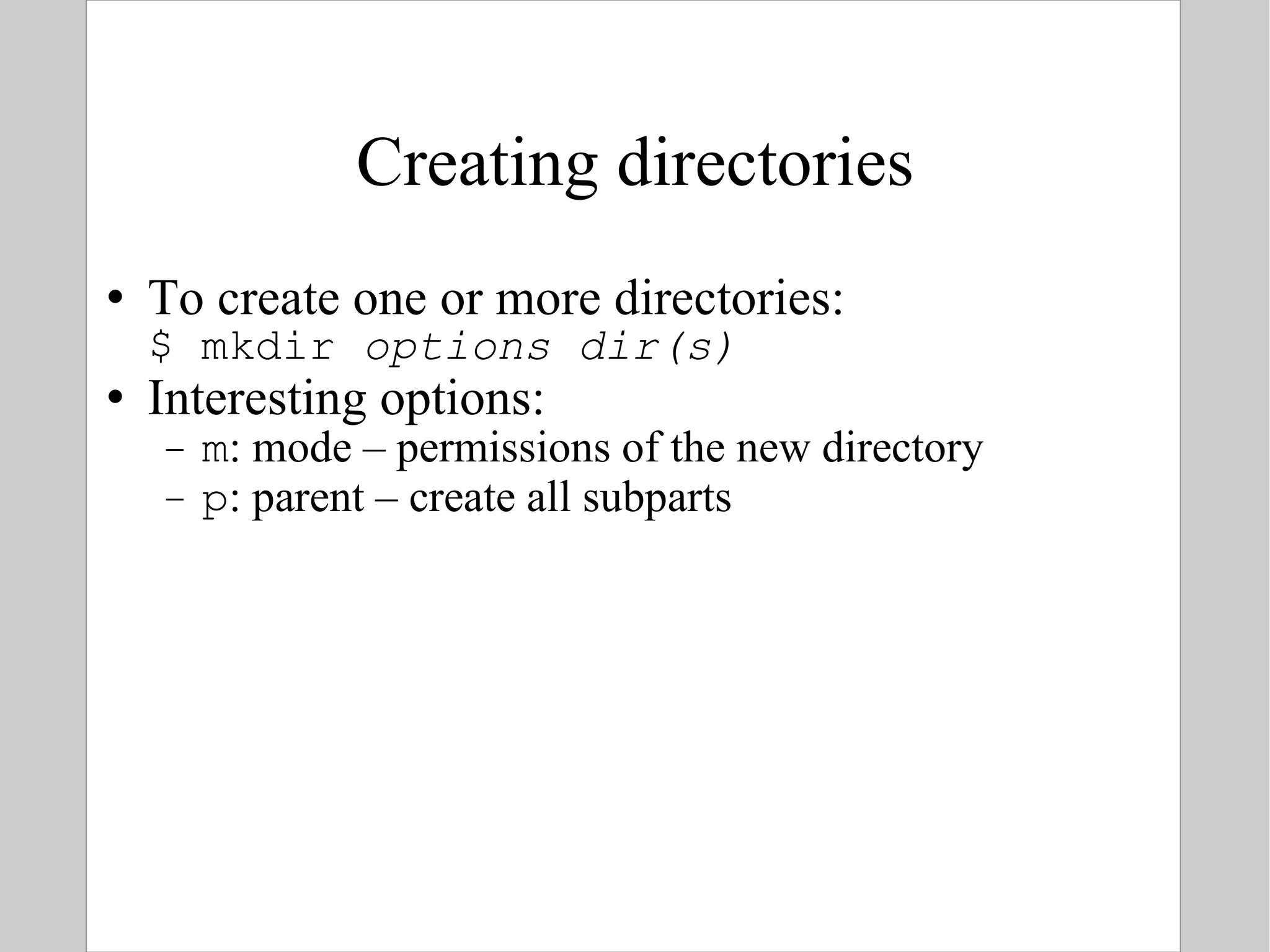
Creating directories To create one or more  directories: $ mkdir  options   dir(s) Interesting options: m : mode – permissions of the new directory p : parent – create  all subparts
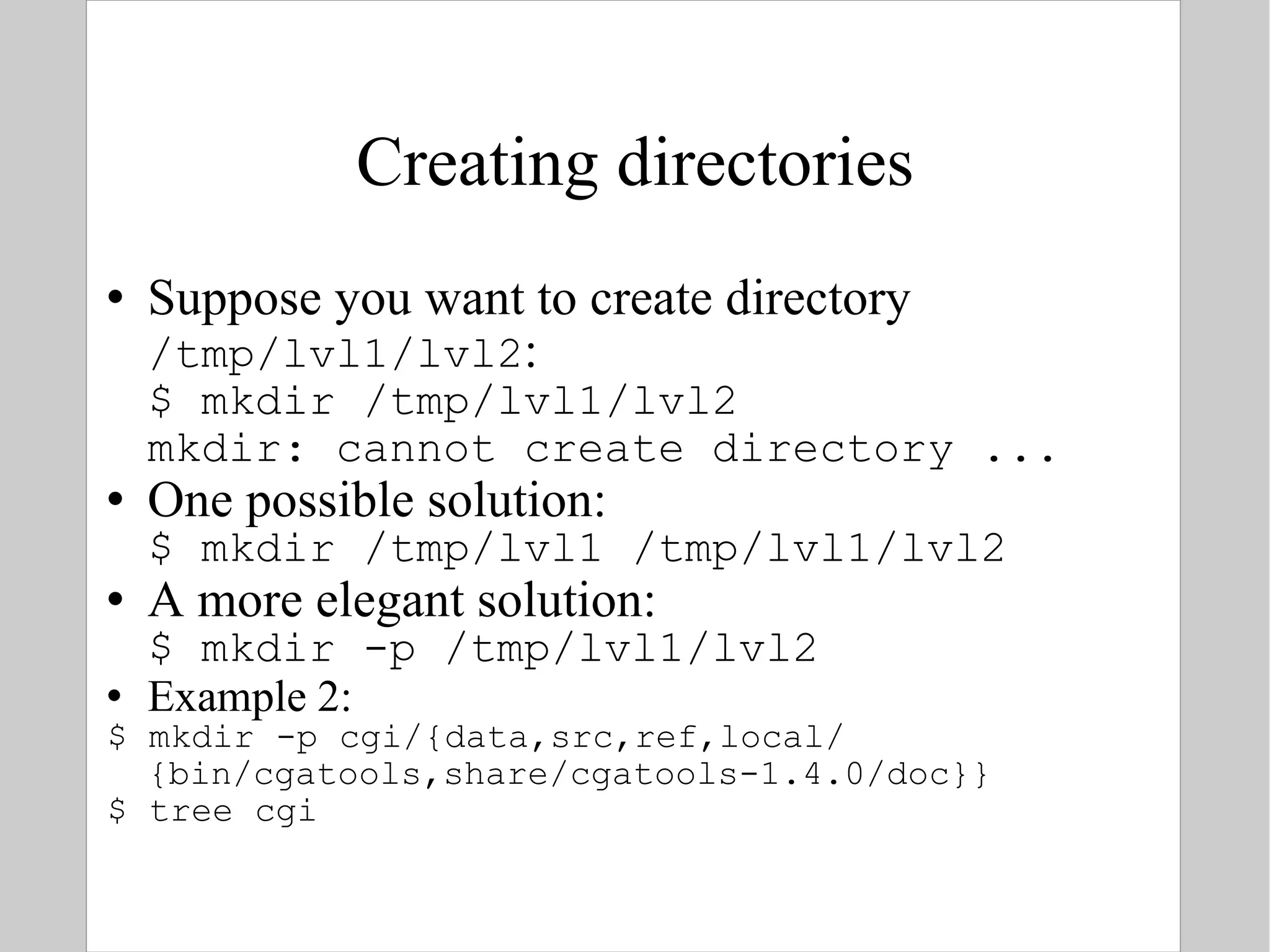
Creating directories Suppose you want to create directory  /tmp/lvl1/lvl2 : $ mkdir /tmp/lvl1/lvl2 mkdir: cannot create directory ... One possible solution: $ mkdir /tmp/lvl1 /tmp/lvl1/lvl2 A more elegant solution: $ mkdir -p /tmp/lvl1/lvl2 Example 2: $ mkdir -p cgi/{data,src,ref,local/{bin/cgatools,share/cgatools-1.4.0/doc}} $ tree cgi
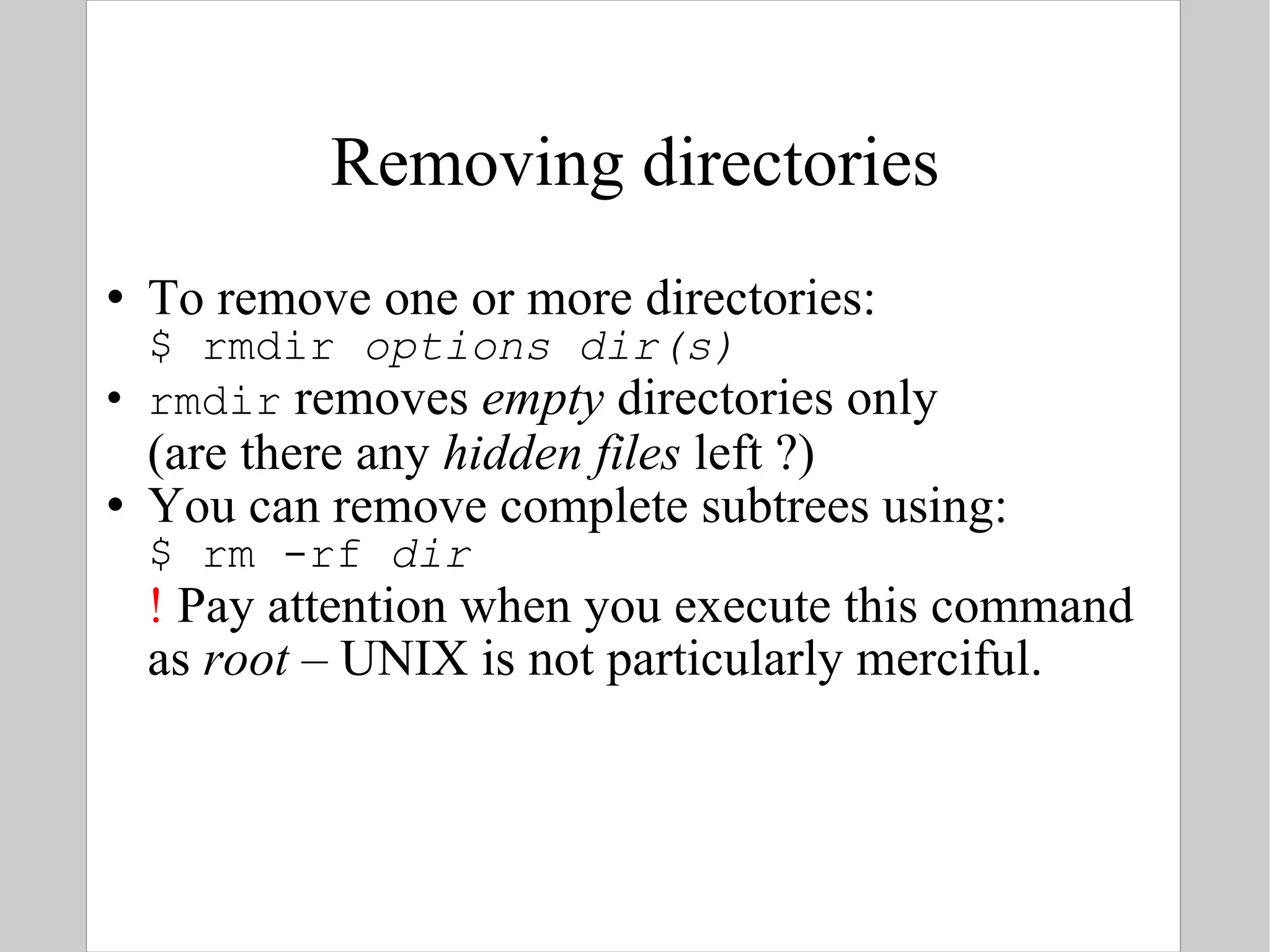
Removing directories To remove one or more directories: $ rmdir  options   dir(s) rmdir  removes  empty  directories only (are there any  hidden files  left ?) You can remove complete subtrees using: $ rm -rf  dir !  Pay attention when you execute this command as  root  – UNIX is not particularly merciful.
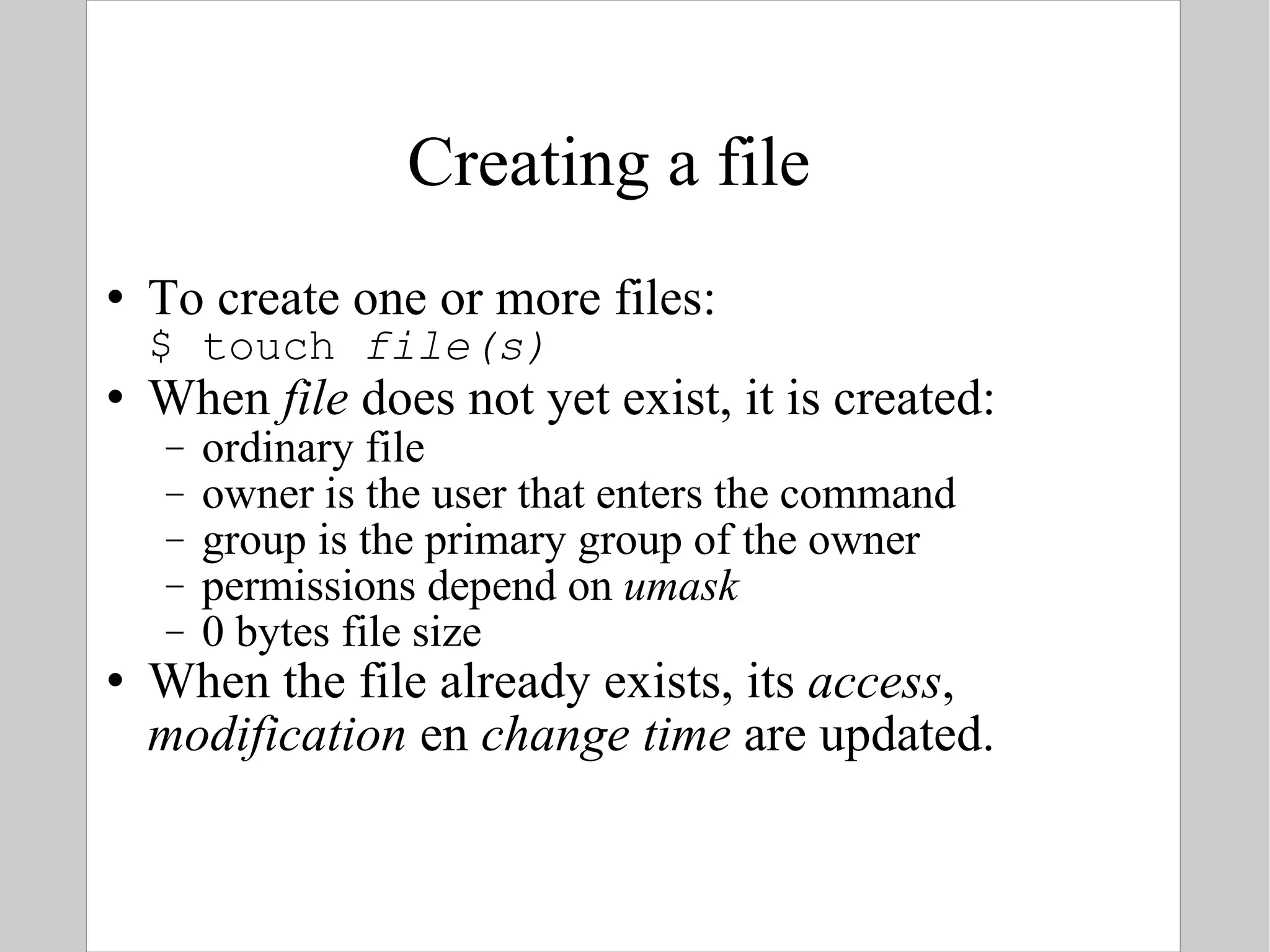
Creating a file To create one or more files: $ touch  file(s) When  file  does not yet exist, it is created: ordinary file owner is the user that enters the command group is the primary group of the owner permissions depend on  umask 0 bytes file size When the file already exists, its  access ,  modification  en  change time  are updated.
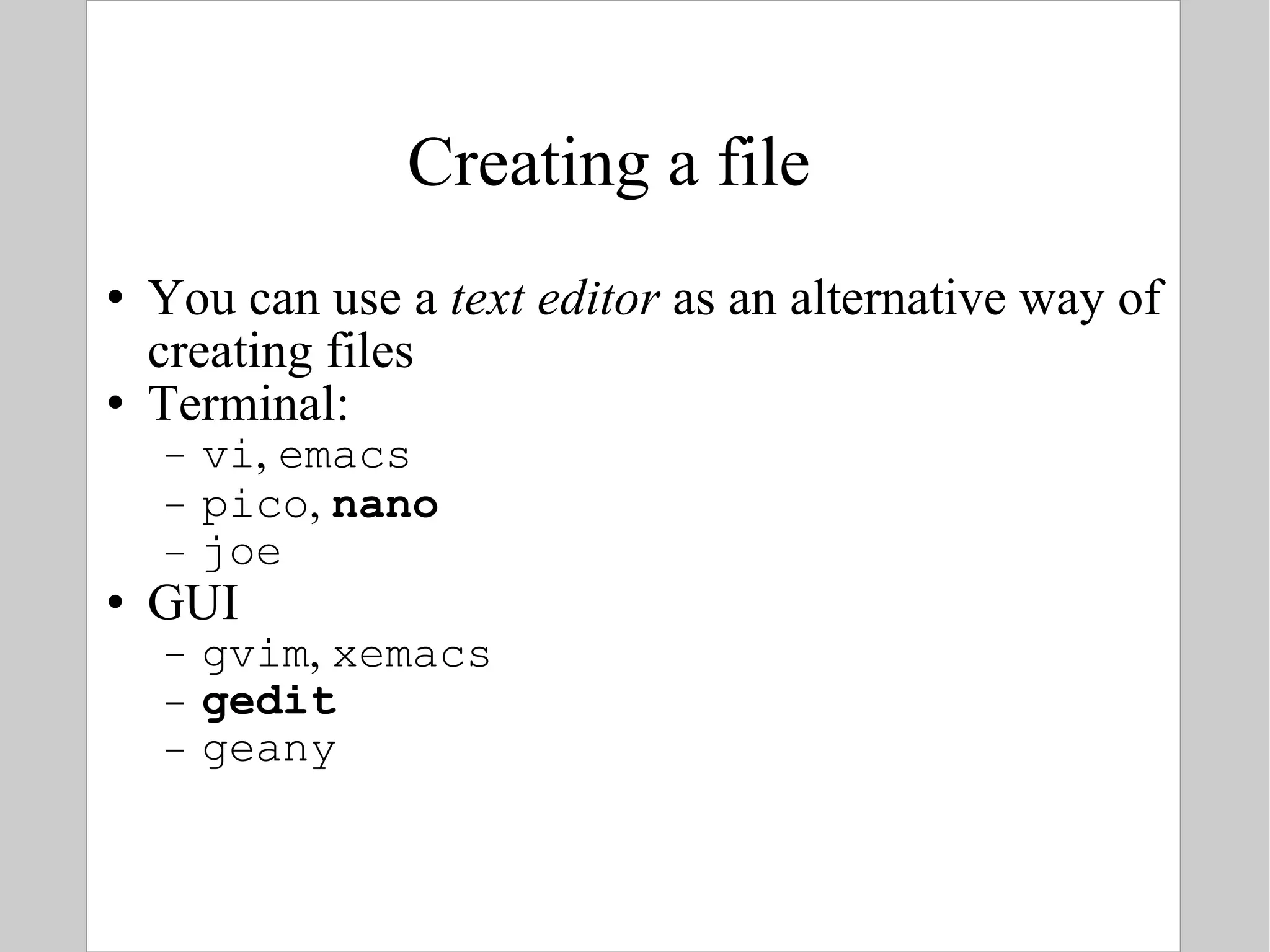
Creating a file You can use a  text editor  as an alternative way of creating files Terminal: vi ,  emacs pico ,  nano joe GUI gvim ,  xemacs gedit geany
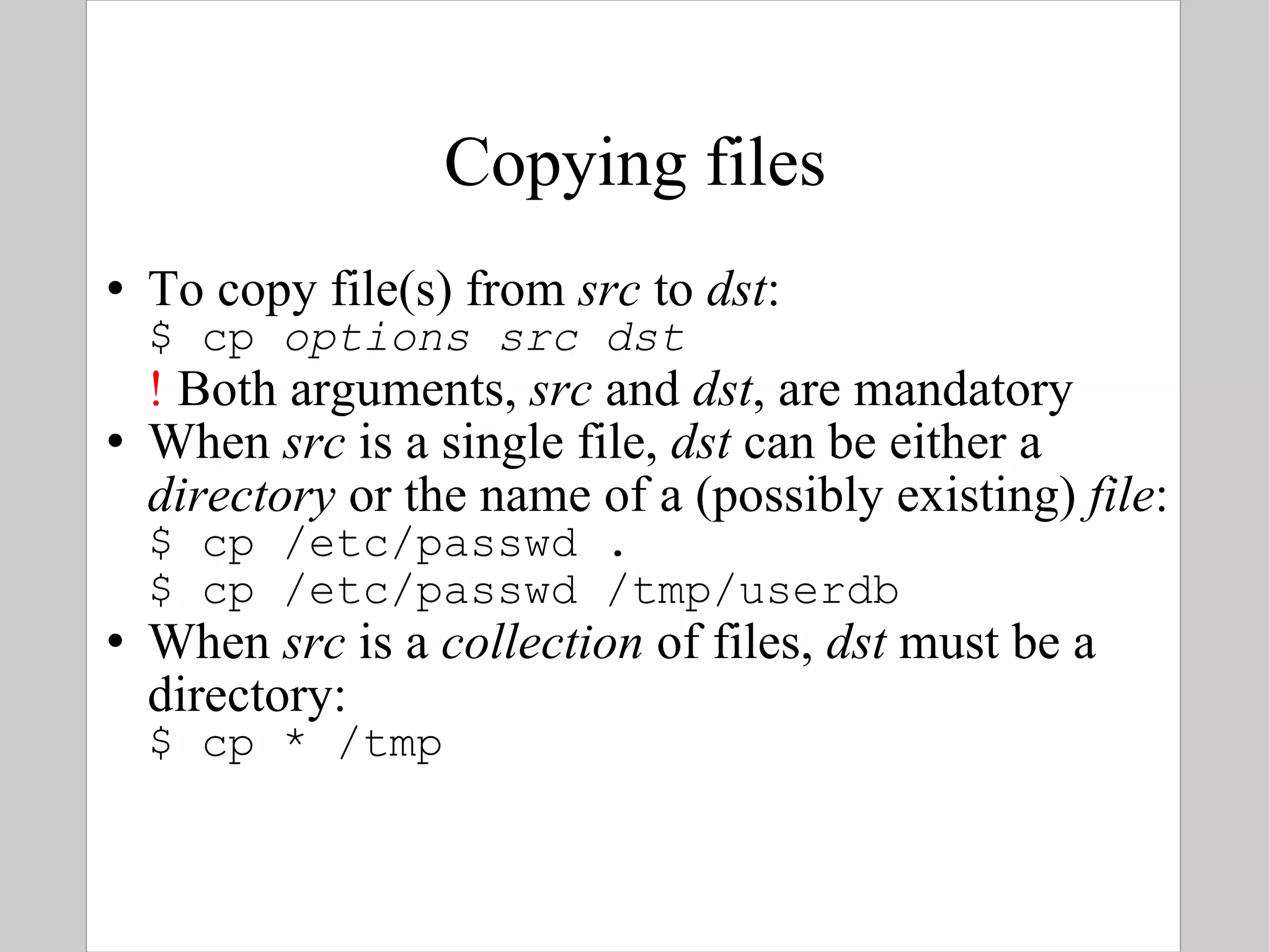
Copying files To copy file(s) from  src  to  dst : $ cp  options   src   dst !  Both arguments,  src  and  dst , are mandatory When  src  is a single file ,  dst  can be either a  directory  or the name of a (possibly existing)  file : $ cp /etc/passwd . $ cp /etc/passwd /tmp/userdb When  src  is a  collection  of files,  dst  must be a directory: $ cp * /tmp
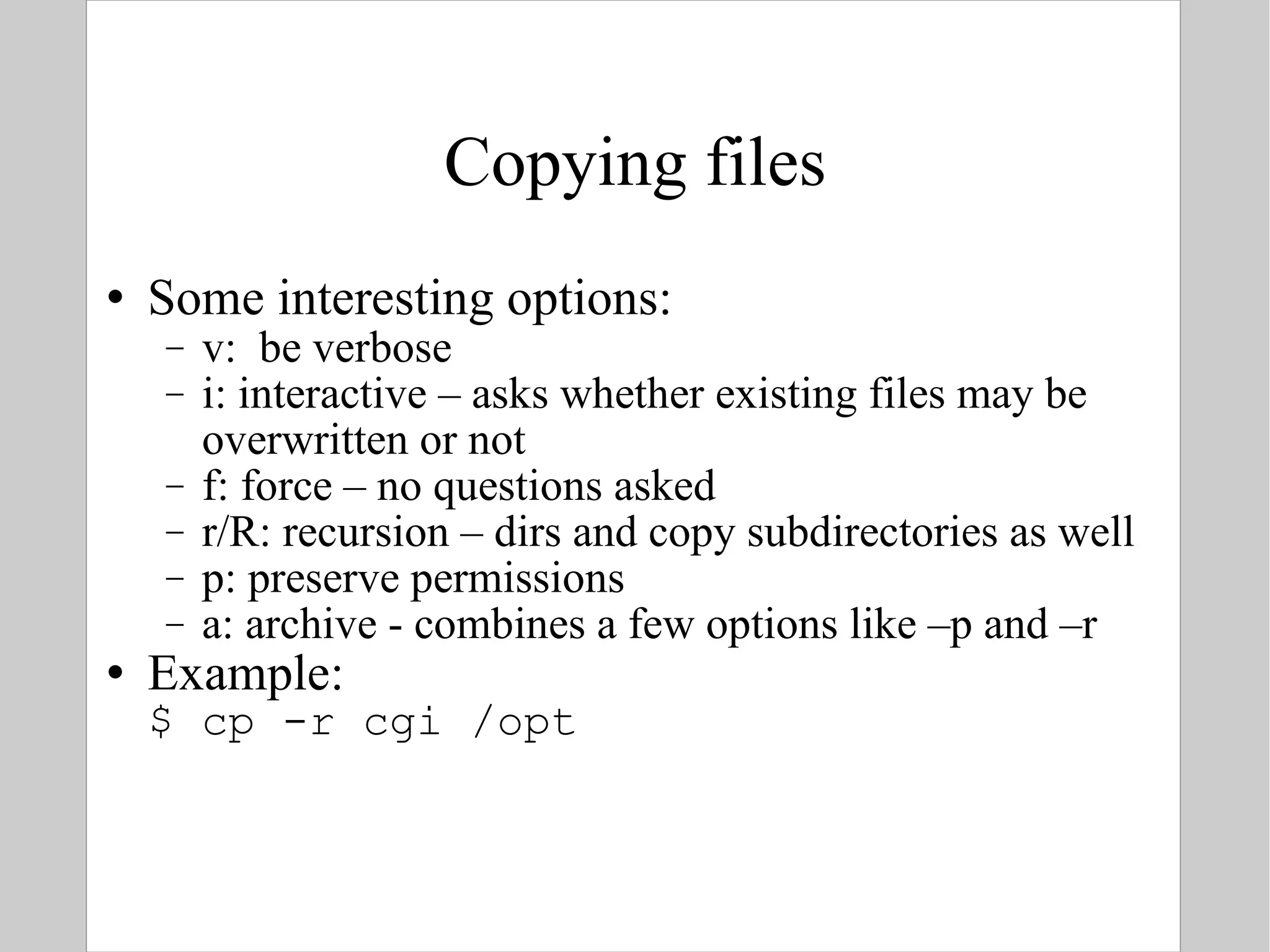
Copying files Some interesting options: v:  be verbose i: interactive – asks whether existing files may be overwritten or not f: force – no questions asked r/R: recursion – dirs and copy subdirectories as well p: preserve permissions a: archive - combines a few options like –p and –r Example: $ cp -r cgi /opt
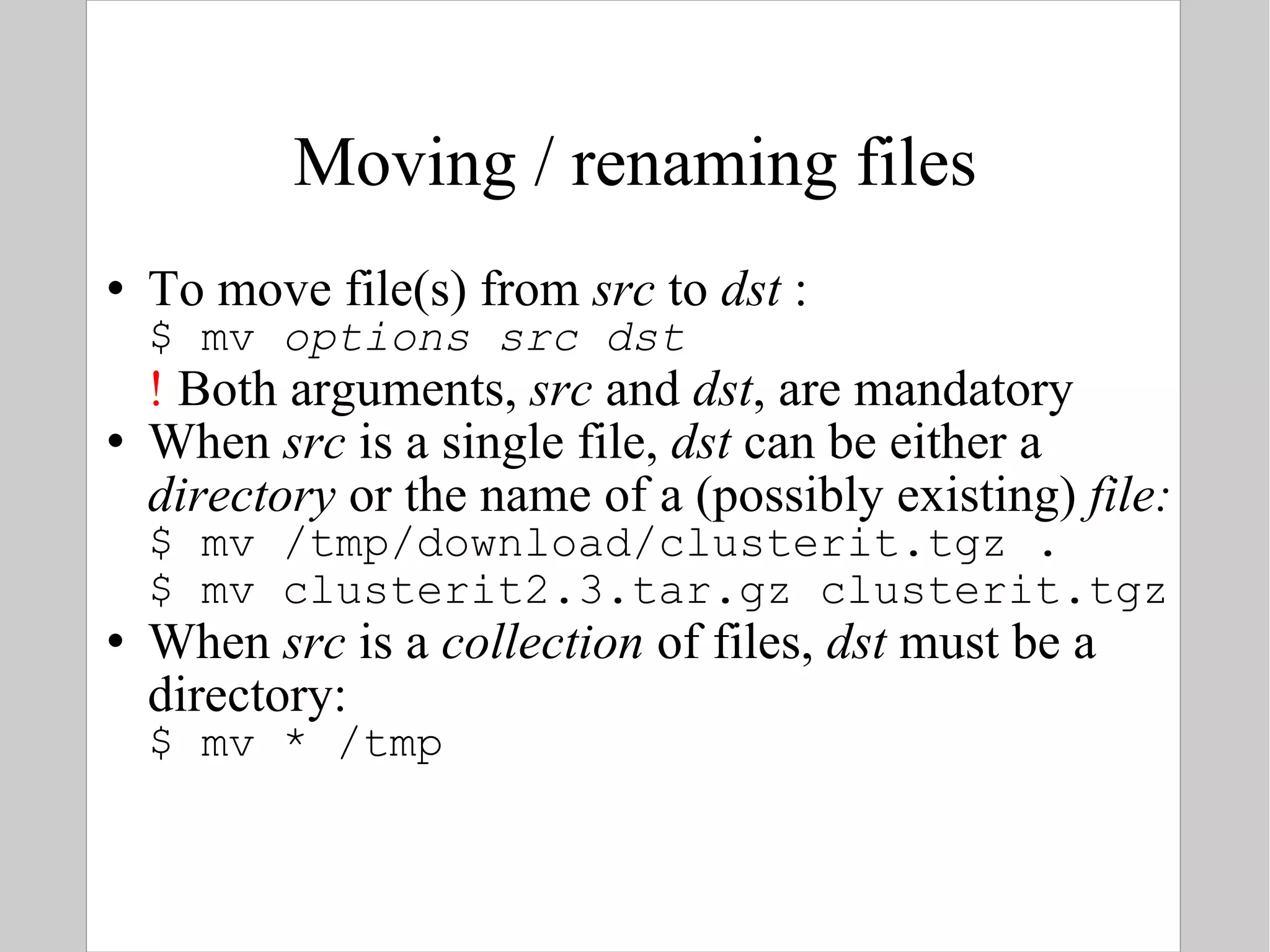
Moving / renaming files To move file(s) from  src  to  dst  : $ mv  options   src   dst !  Both arguments,  src  and  dst , are mandatory When  src  is a single file ,  dst  can be either a  directory  or the name of a (possibly existing)  file: $ mv /tmp/download/clusterit.tgz . $ mv clusterit2.3.tar.gz clusterit.tgz When  src  is a  collection  of files,  dst  must be a directory: $ mv * /tmp
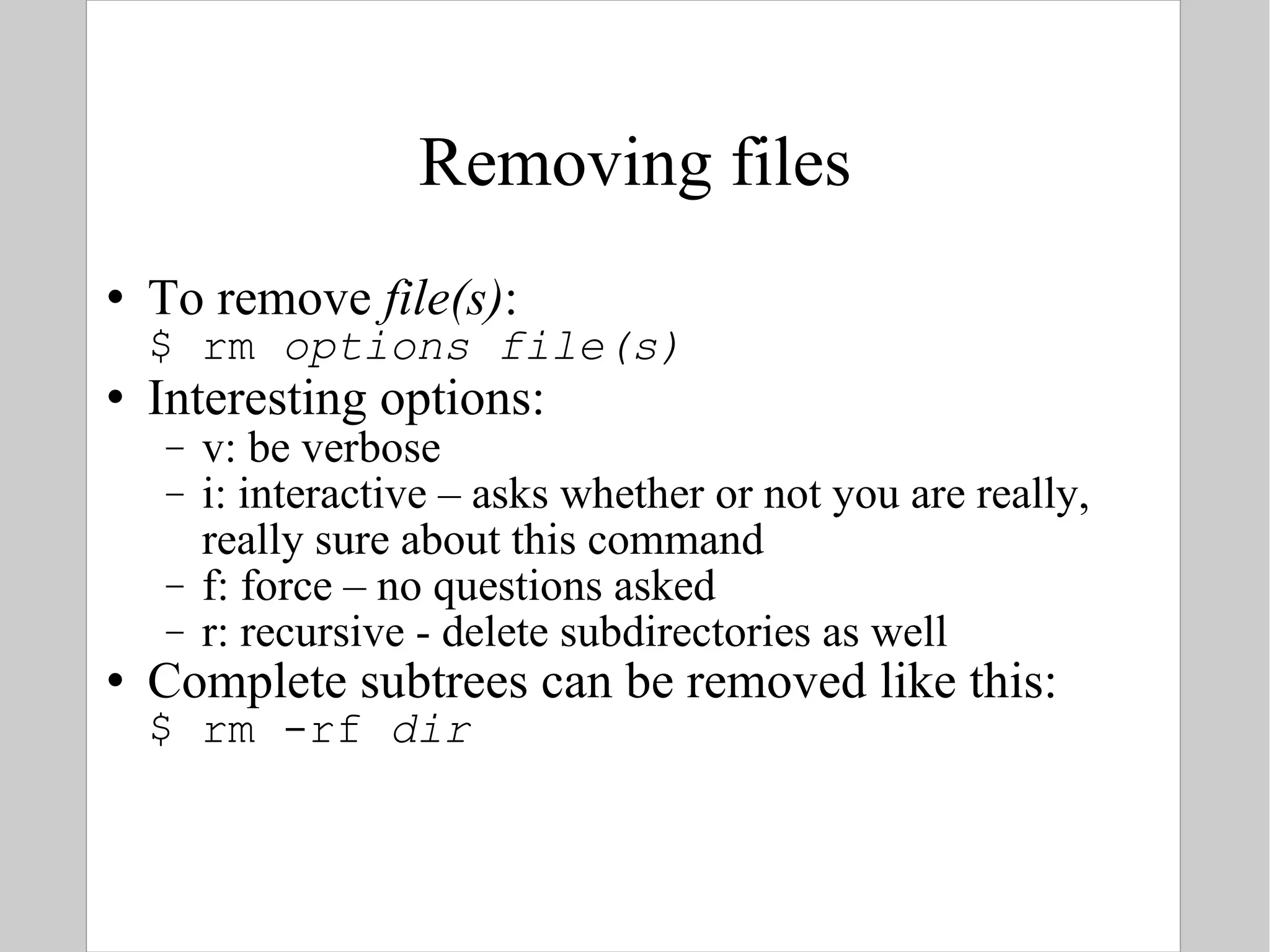
Removing files To remove  file(s) : $ rm  options   file(s) Interesting options: v: be verbose i: interactive – asks whether or not you are really, really sure about this command f: force – no questions asked r: recursive - delete subdirectories as well Complete subtrees can be removed like this: $ rm -rf  dir
Remotely copying files If you are logged in on another machine, e.g. $ ssh  [email_address] And you are working there: creating folders, files, running programs, you can copy to your own machine using  scp $ scp  [email_address] :/home/bits/sample.sam . Command to copy username machine Path to the  remote  folder / file you want to copy To the  local  current dir
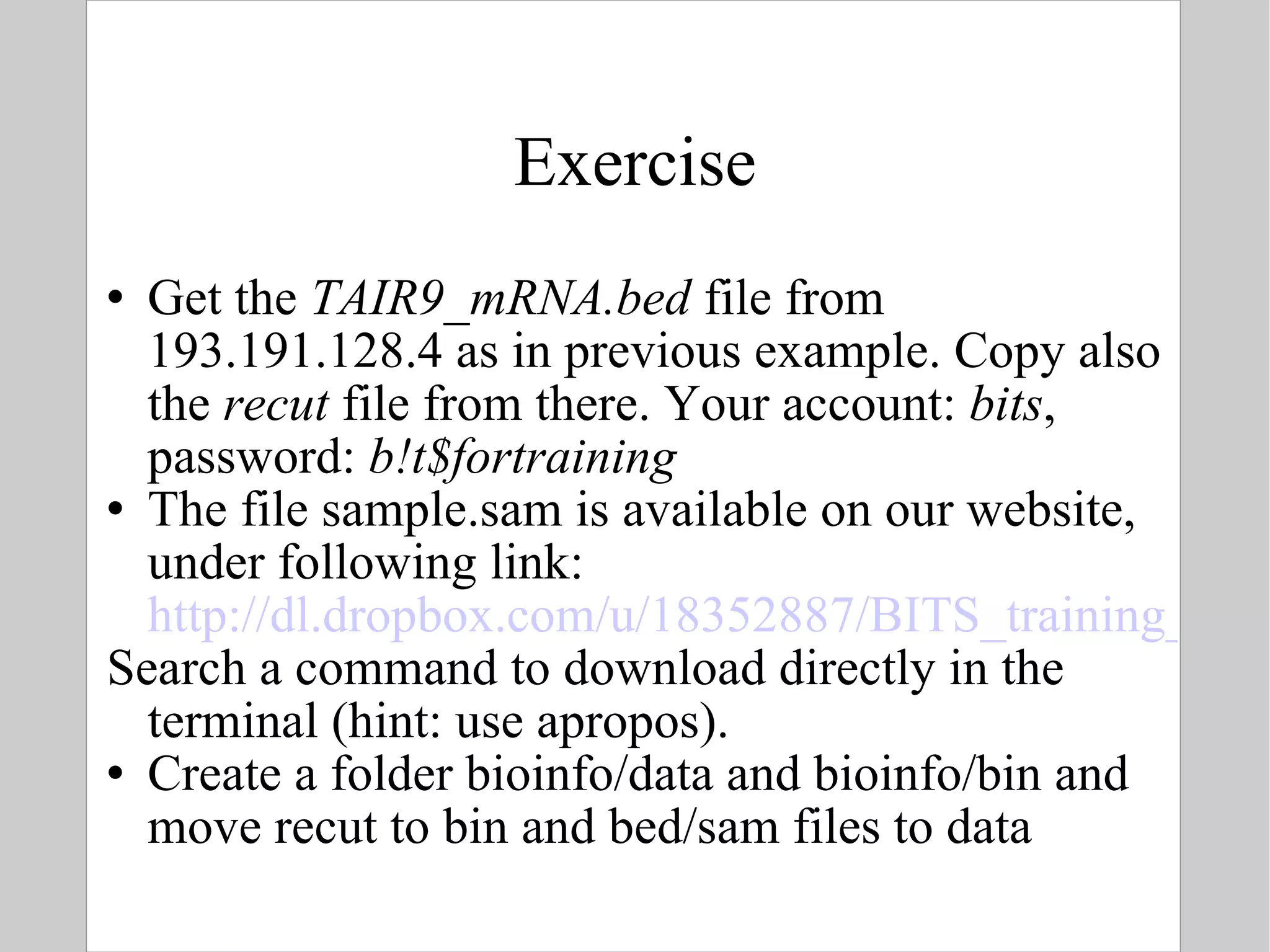
Exercise Get the  TAIR9_mRNA.bed  file from 193.191.128.4 as in previous example. Copy also the  recut  file from there. Your account:  bits , password:  b!t$fortraining The file sample.sam is available on our website, under following link:  http://dl.dropbox.com/u/18352887/BITS_training_material/Link%20to%20sample.sam Search a command to download directly in the terminal (hint: use apropos).  Create a folder bioinfo/data and bioinfo/bin and move recut to bin and bed/sam files to data
Solutions $ scp  [email_address] :/home/bits/TAIR9_mRNA.bed . $ scp  [email_address] :/home/bits/recut . $ apropos download  $ wget  http://dl.dropbox.com/u/18352887/BITS_training_material/Link%20to%20sample.sam $ mkdir -p bioinfo/{data,bin} $ mv *.sam bioinfo/data $ mv *.bed bioinfo/data $ mv recut bioinfo/bin
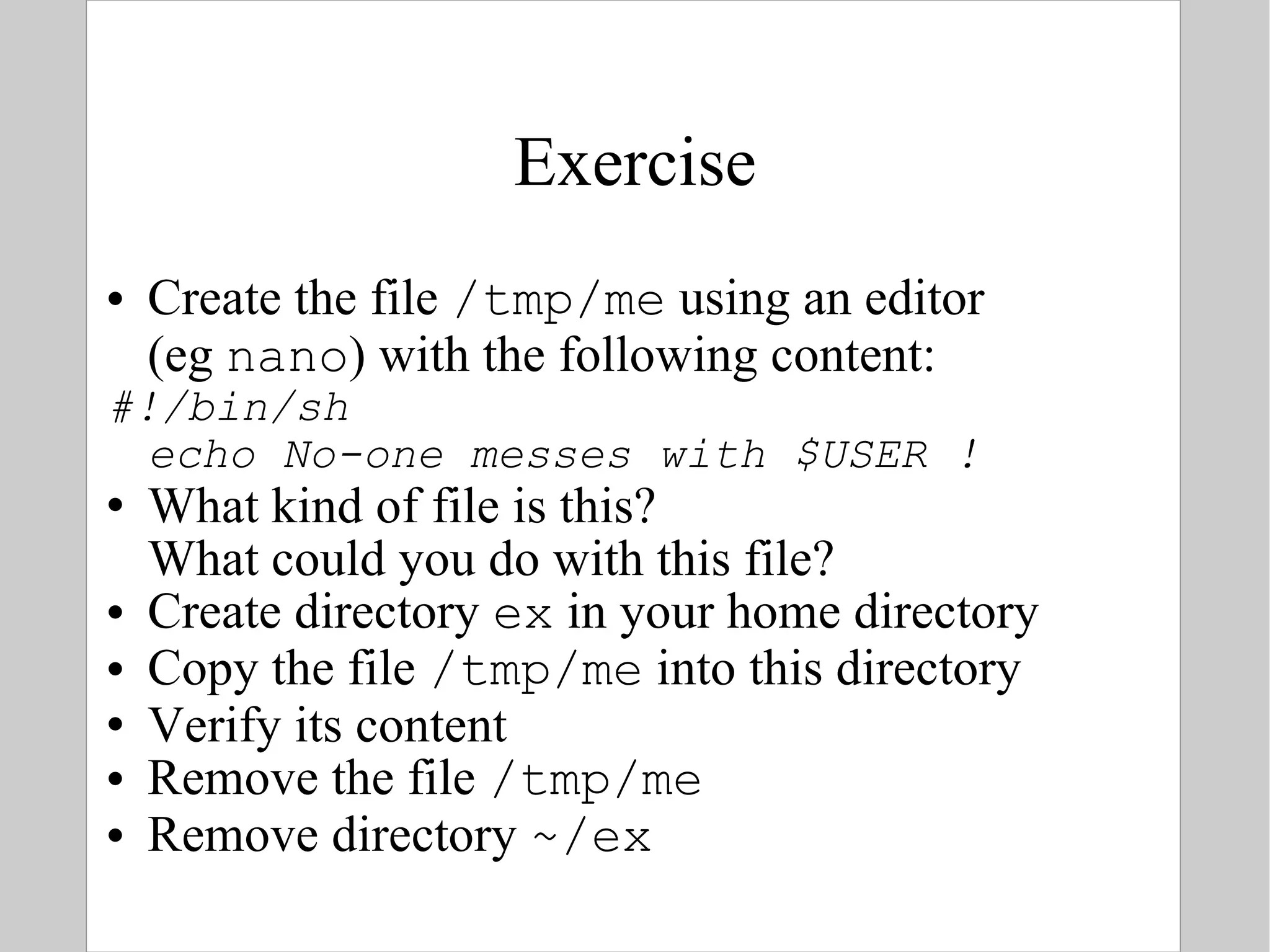
Exercise Create the file  /tmp/me  using an editor  (eg  nano ) with the following content: #!/bin/sh echo No-one messes with $USER ! What kind of file is this?  What could you do with this file? Create directory  ex  in your home directory Copy the file  /tmp/me  into this directory Verify its content Remove the file  /tmp/me Remove directory  ~/ex
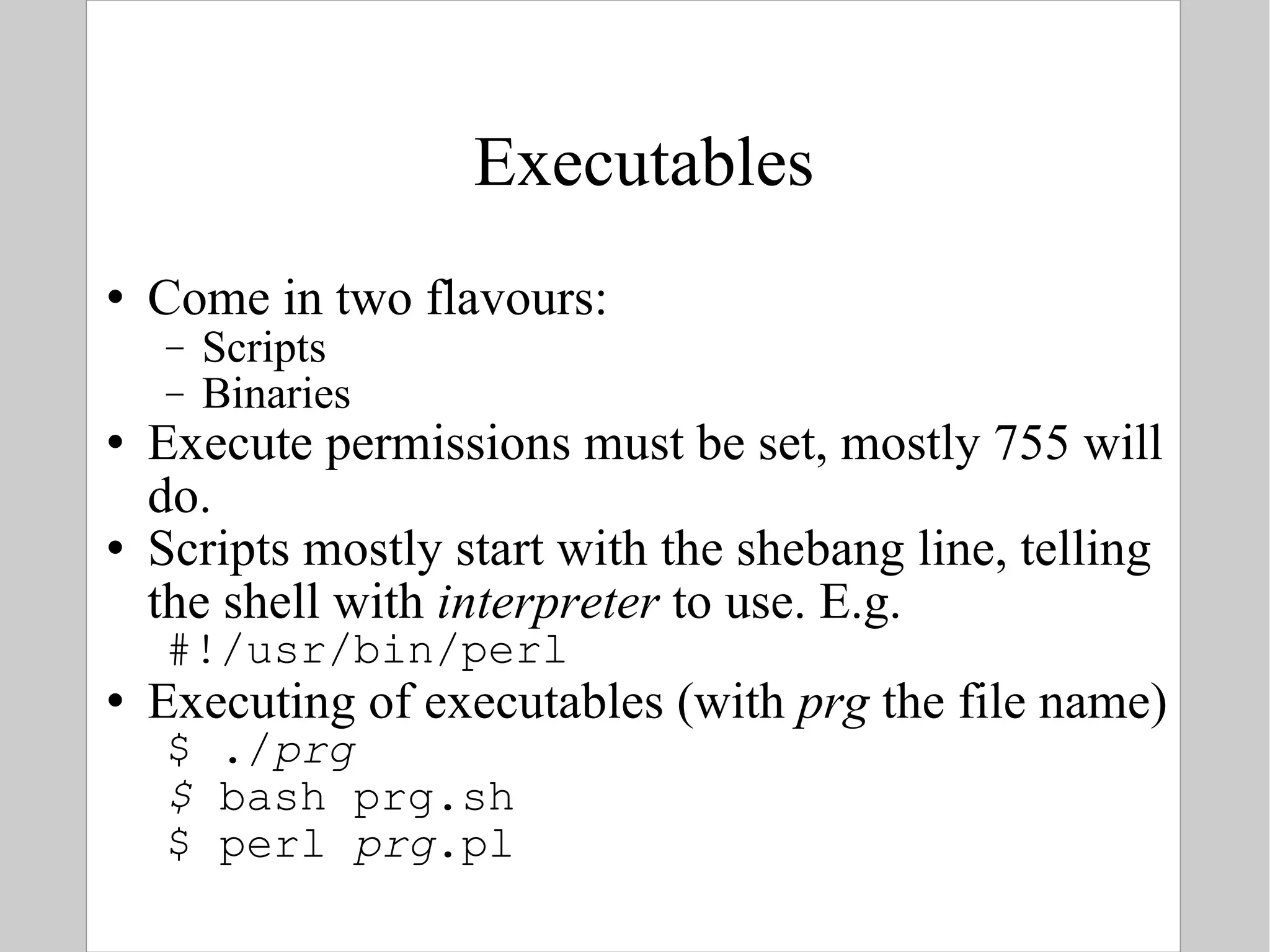
Executables Come in two flavours: Scripts Binaries Execute permissions must be set, mostly 755 will do. Scripts mostly start with the shebang line, telling the shell with  interpreter  to use. E.g. #!/usr/bin/perl Executing of executables (with  prg  the file name) $ ./ prg $  bash prg.sh $ perl  prg .pl
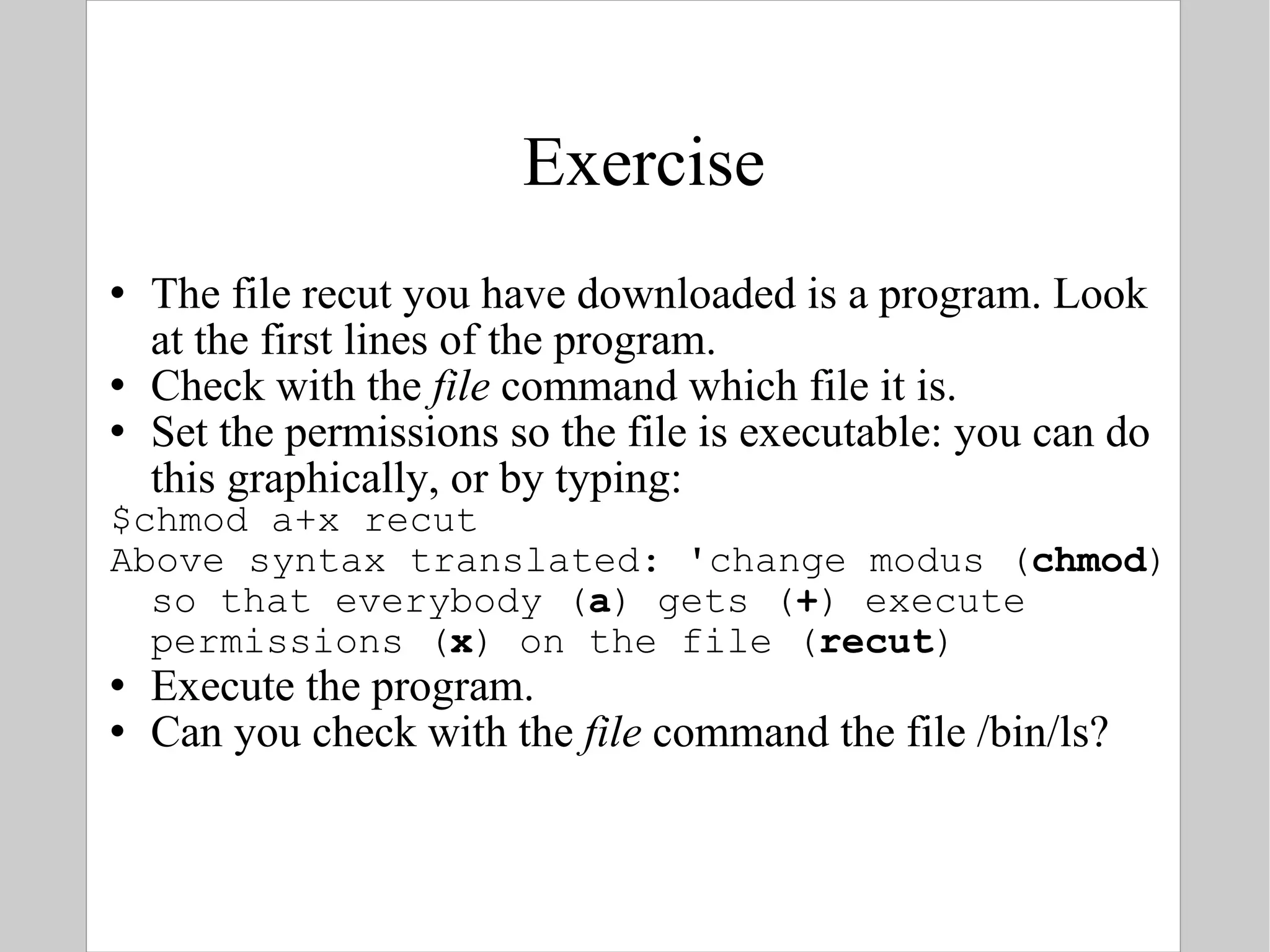
Exercise The file recut you have downloaded is a program. Look at the first lines of the program. Check with the  file  command which file it is. Set the permissions so the file is executable: you can do this graphically, or by typing: $chmod a+x recut  Above syntax translated: 'change modus ( chmod ) so that everybody ( a ) gets ( + ) execute permissions ( x ) on the file ( recut ) Execute the program. Can you check with the  file  command the file /bin/ls?
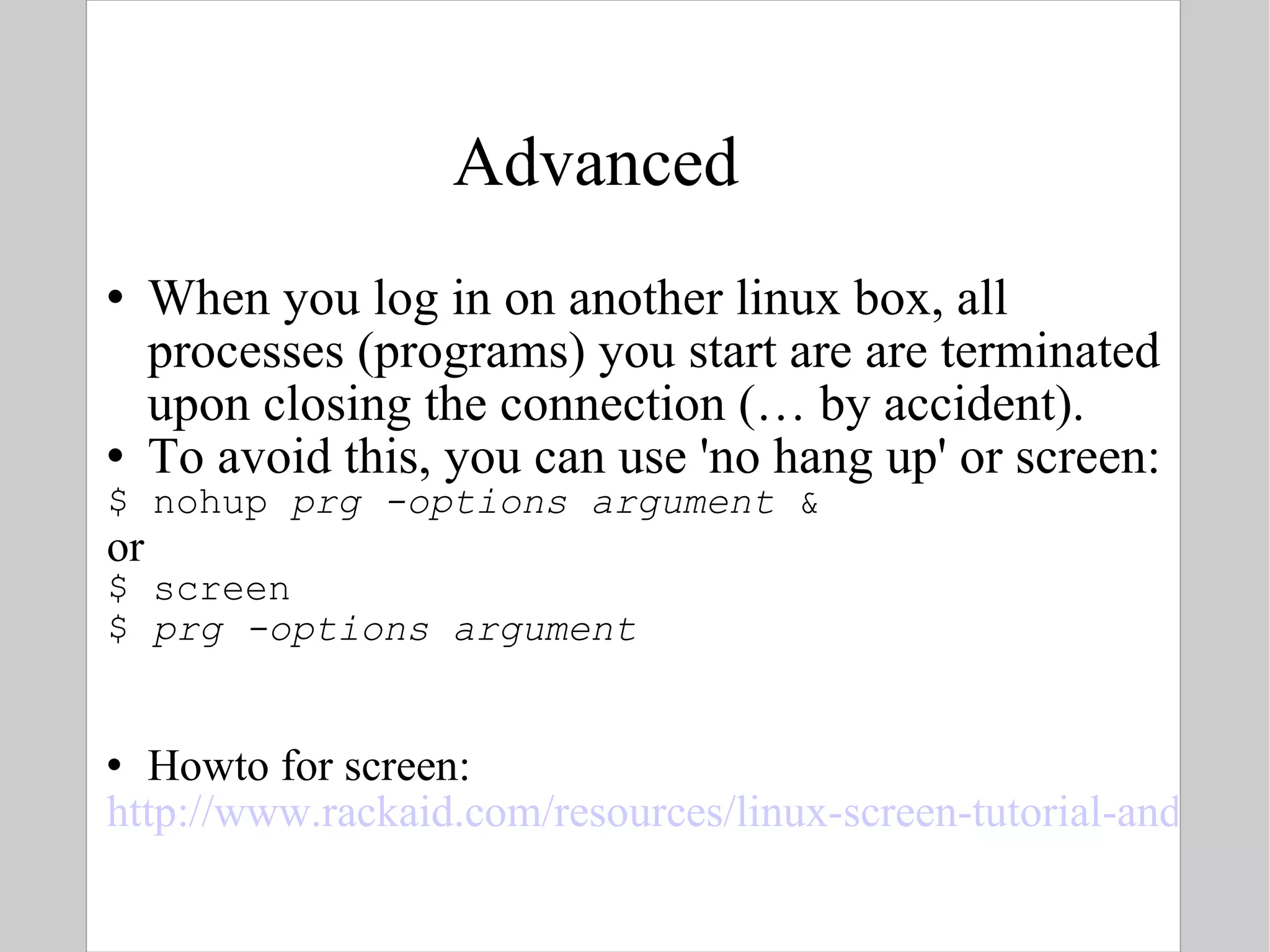
Advanced When you log in on another linux box, all processes (programs) you start are are terminated upon closing the connection (… by accident). To avoid this, you can use 'no hang up' or screen: $ nohup  prg -options argument  & or $ screen $  prg -options argument Howto for screen: http://www.rackaid.com/resources/linux-screen-tutorial-and-how-to/
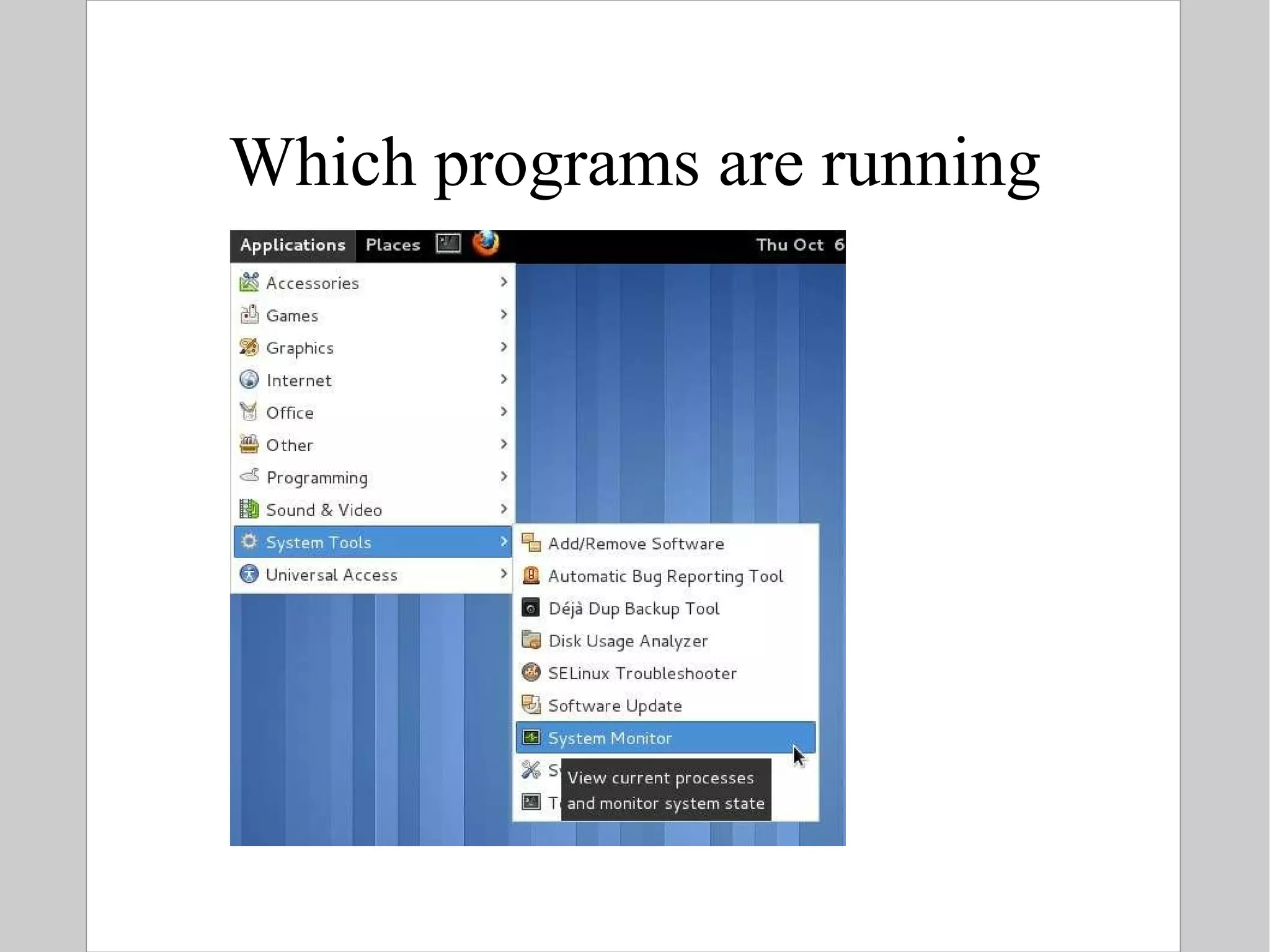
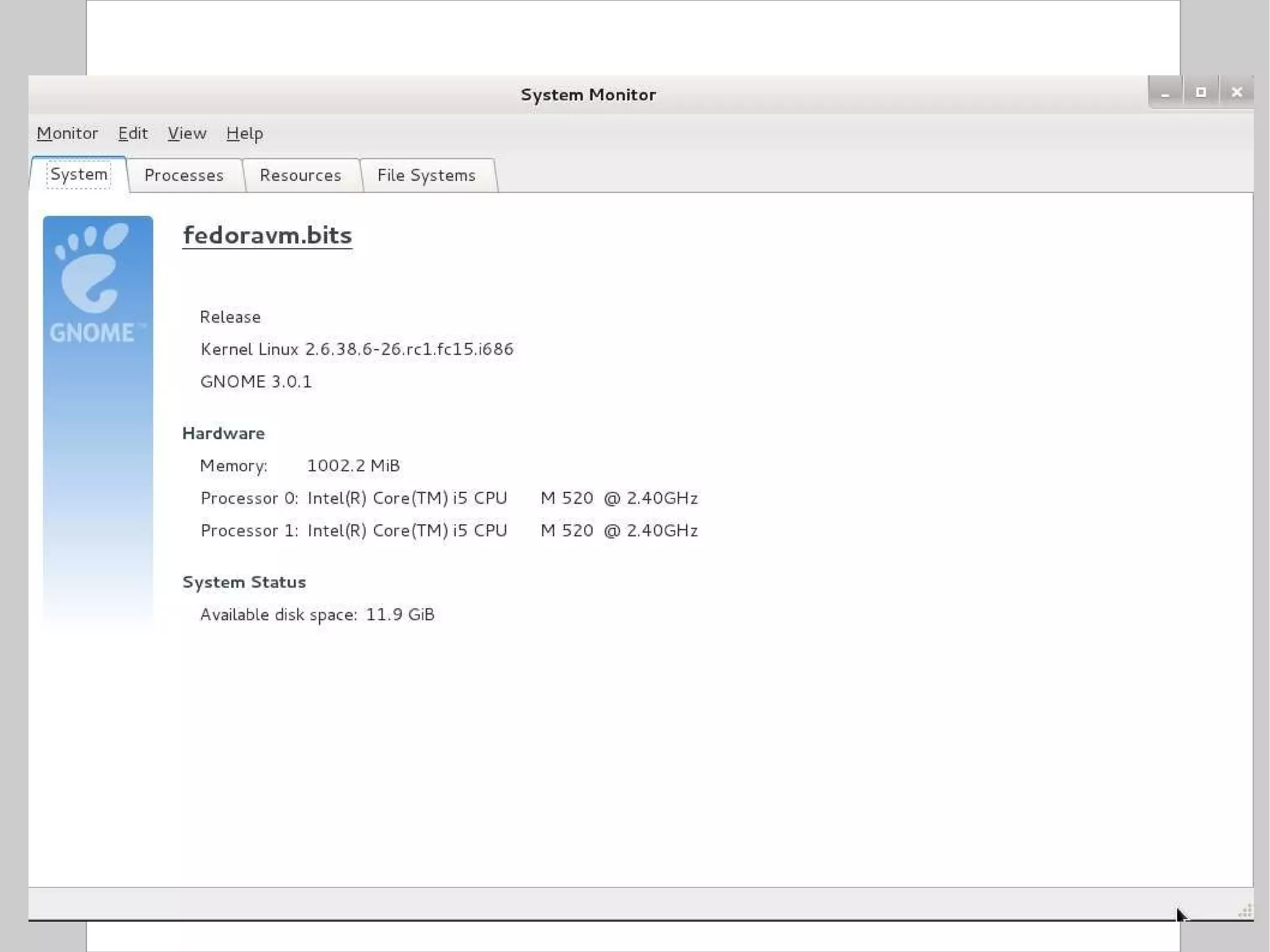
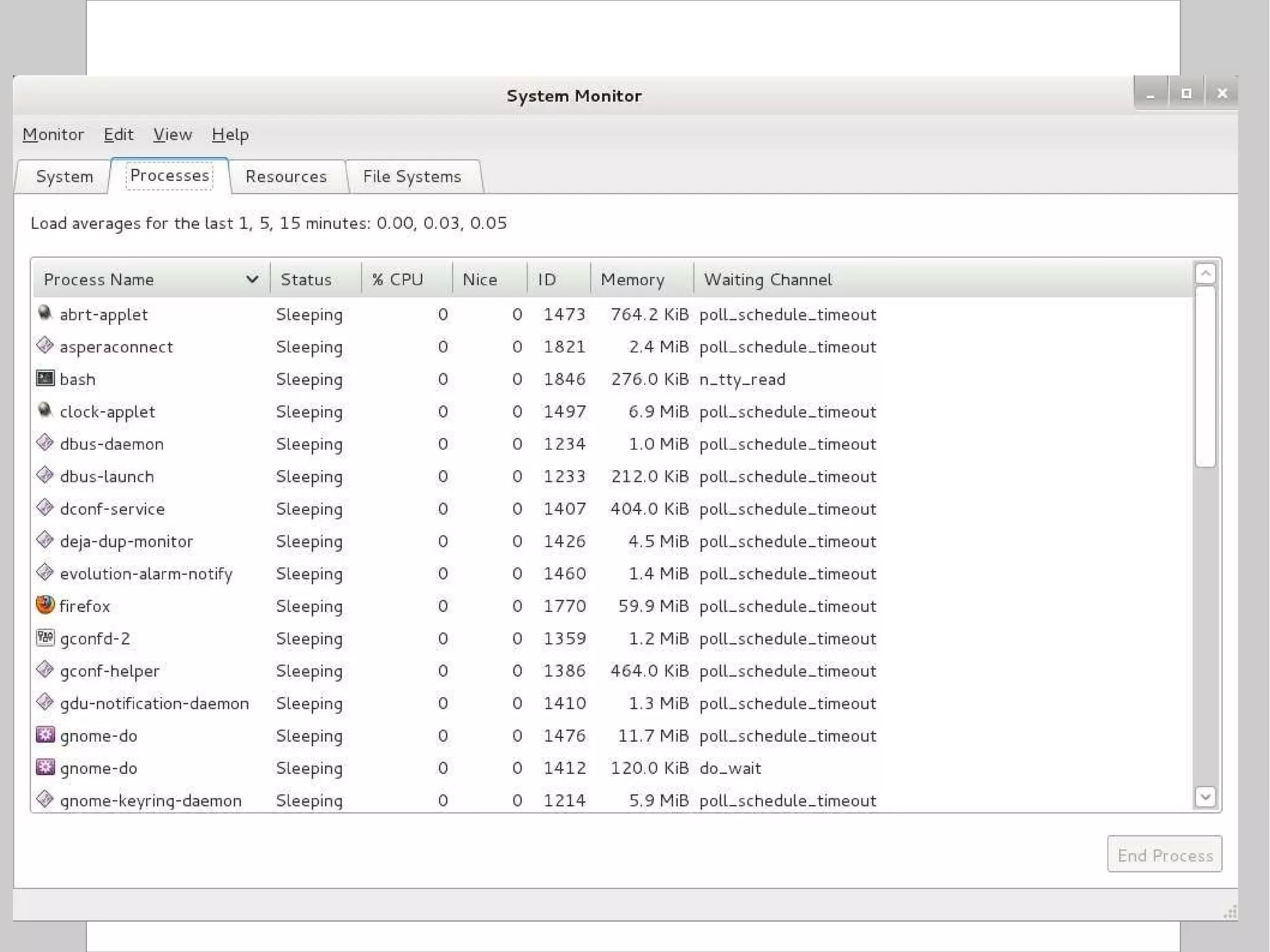
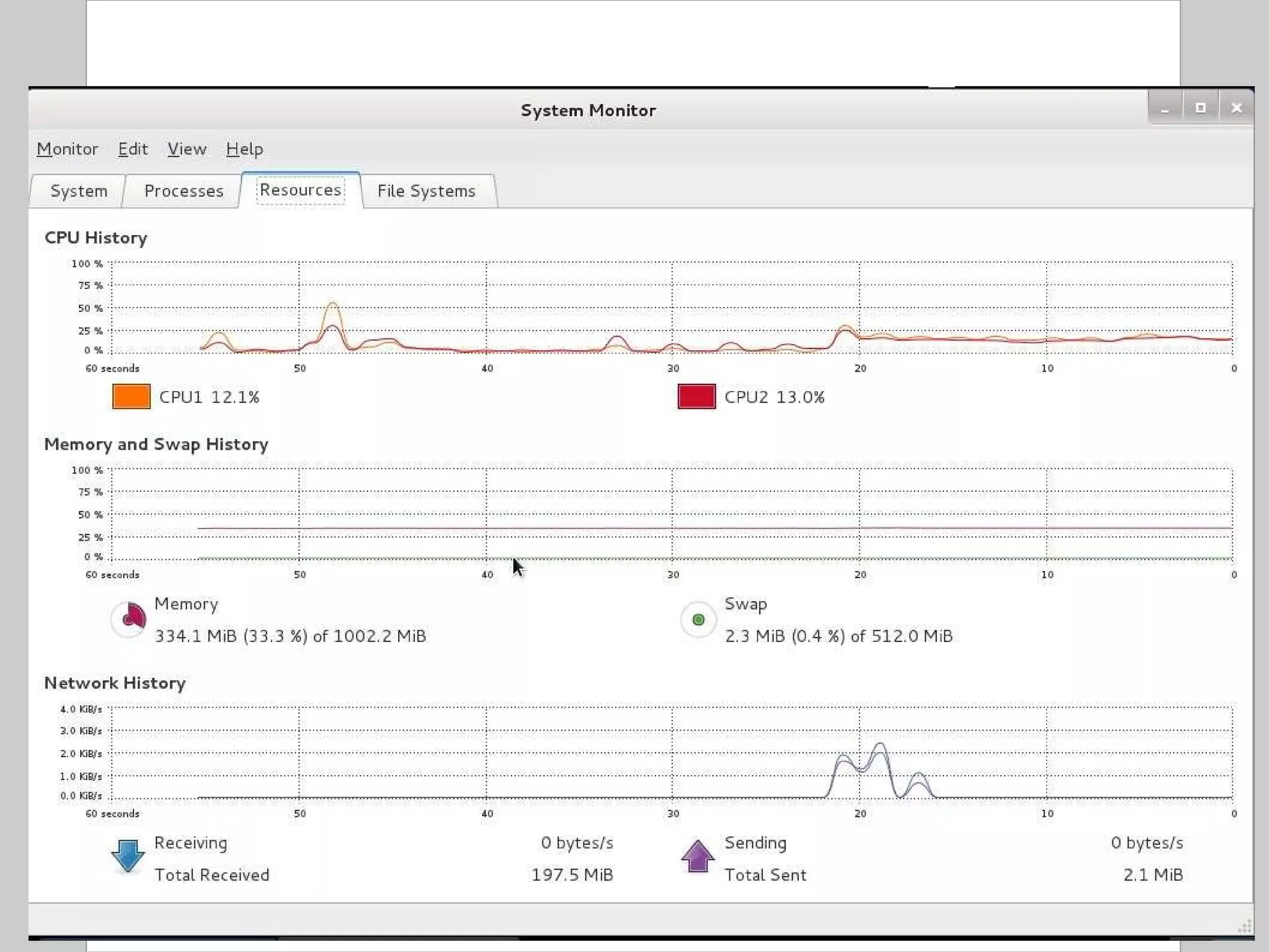
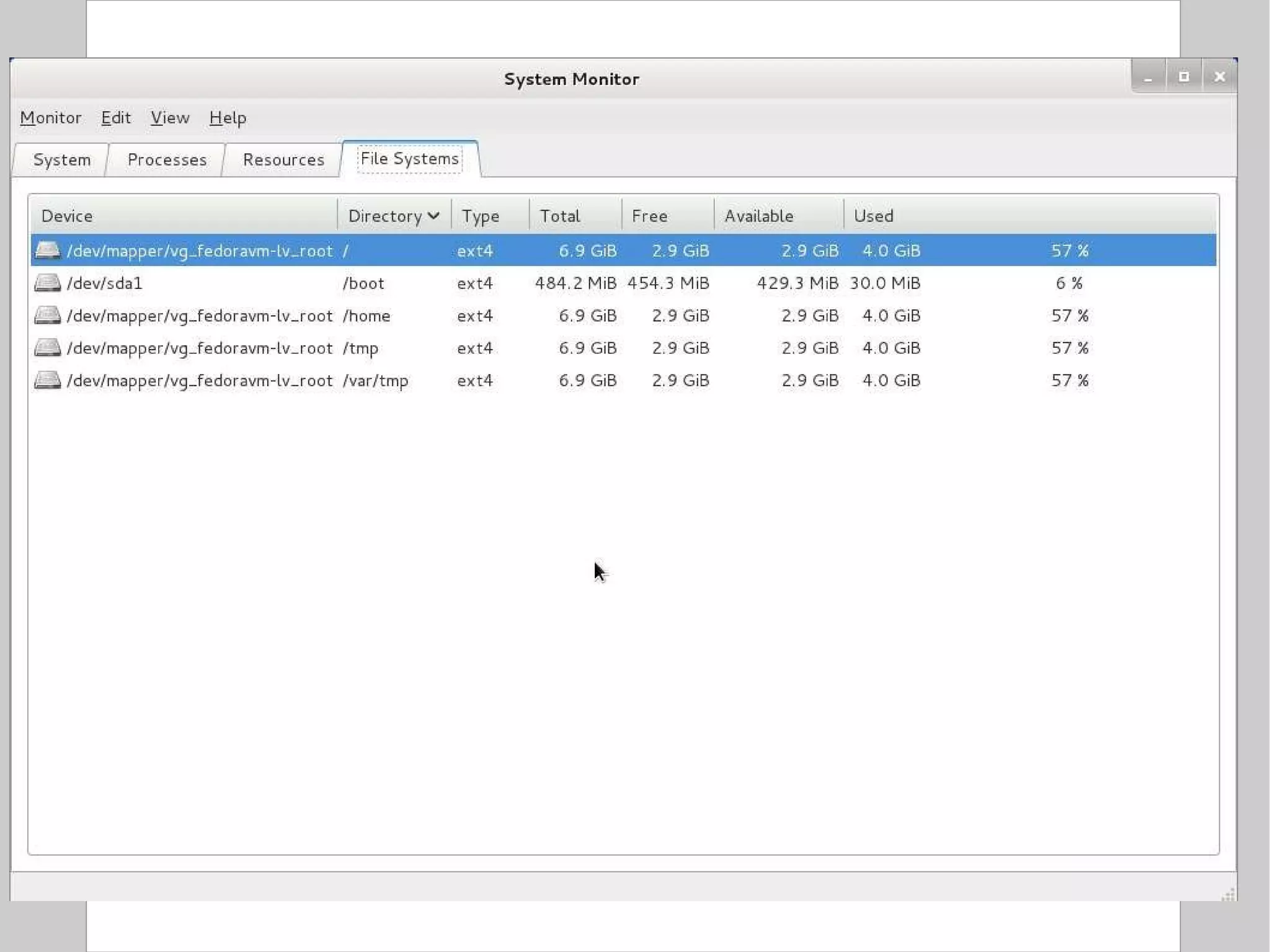
Which programs are running
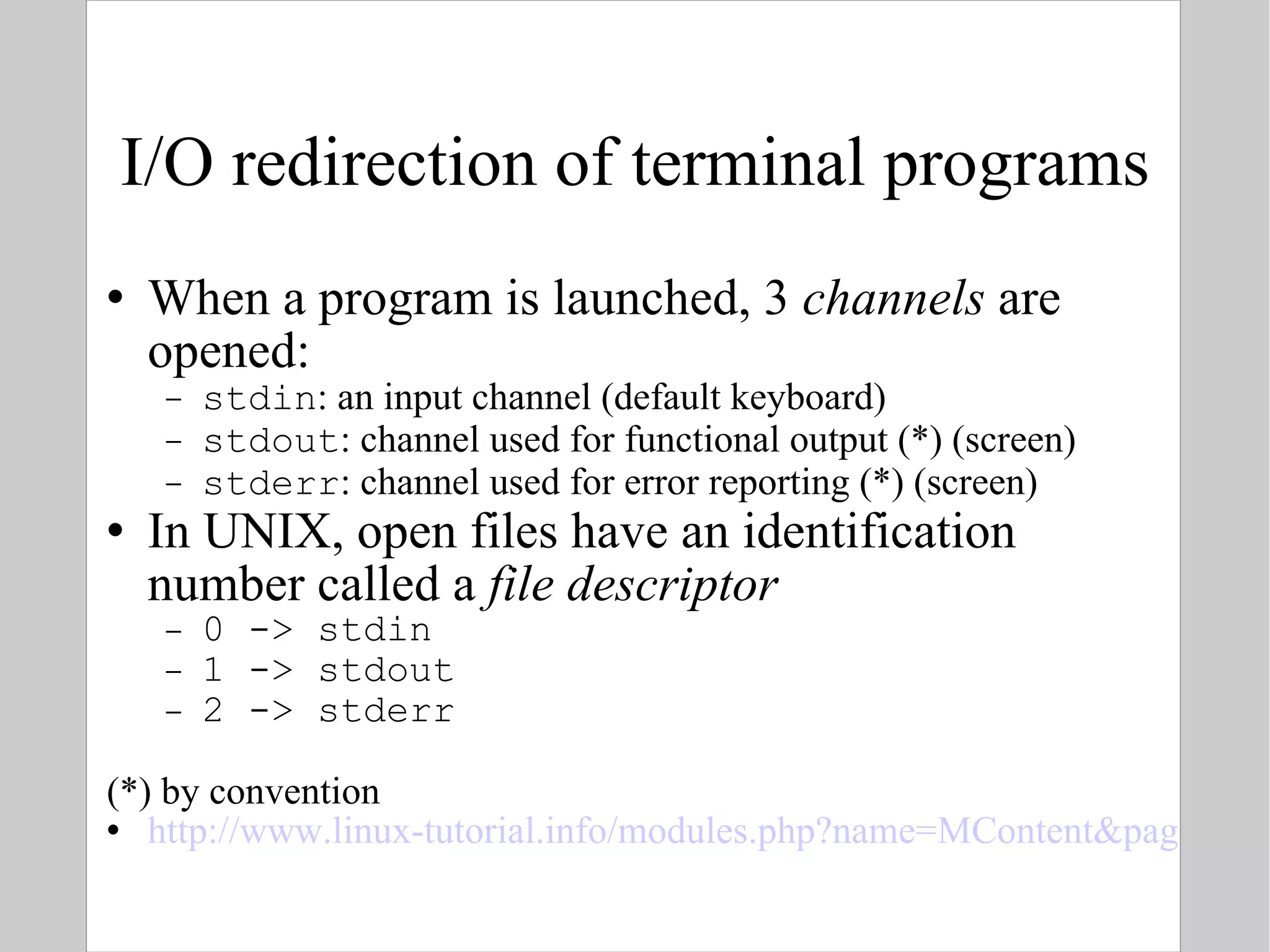
I/O redirection of terminal programs When a program is launched, 3  channels  are opened: stdin : an input channel (default keyboard) stdout : channel used for functional output (*) (screen) stderr : channel used for error reporting (*) (screen) In UNIX, open files have an identification number called a  file descriptor   0 -> stdin  1 -> stdout 2 -> stderr (*) by convention http://www.linux-tutorial.info/modules.php?name=MContent&pageid=21
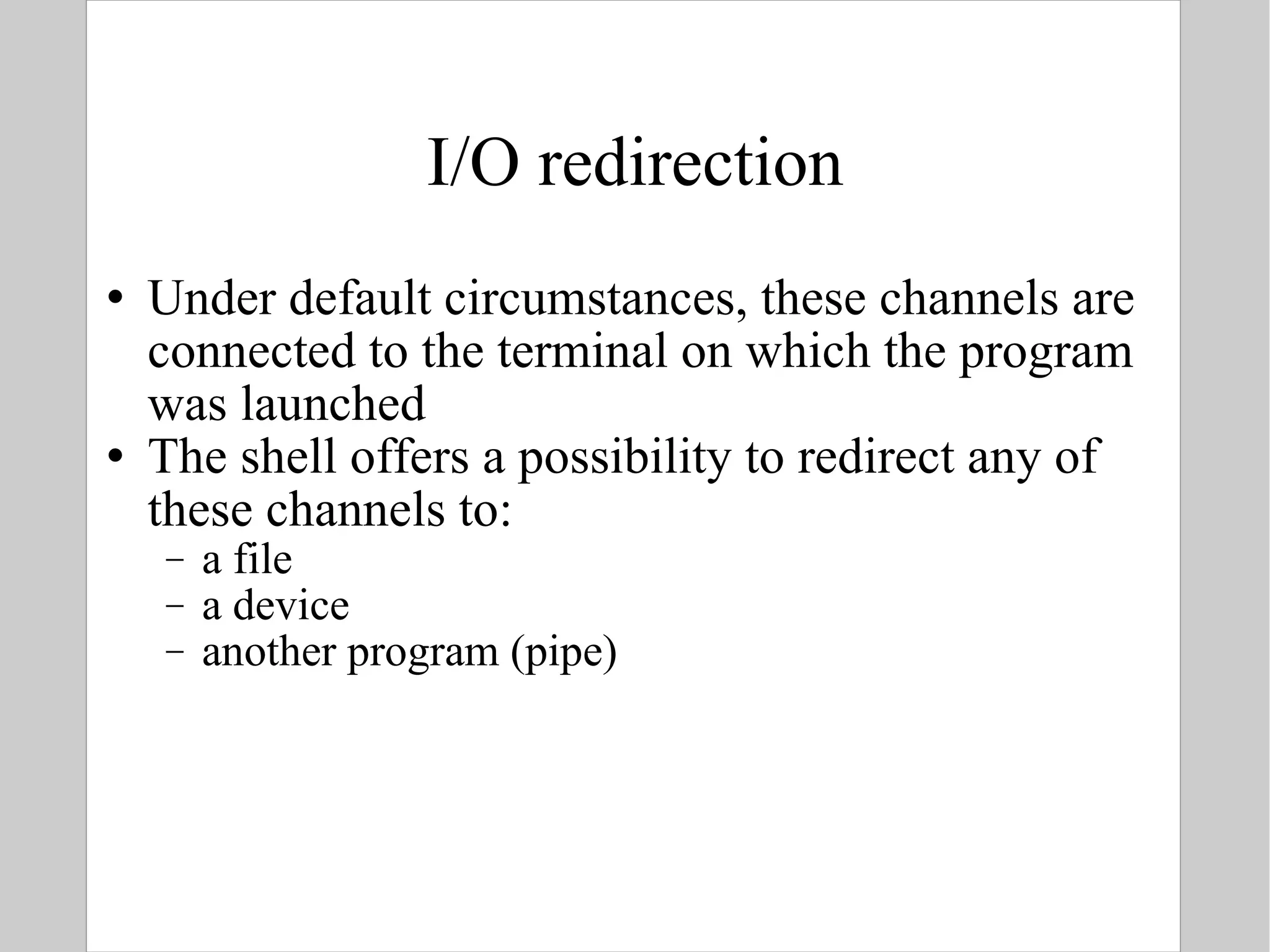
I/O redirection Under default circumstances, these channels are connected to the terminal on which the program was launched The shell offers a possibility to redirect any of these channels to:  a file a device  another program (pipe)
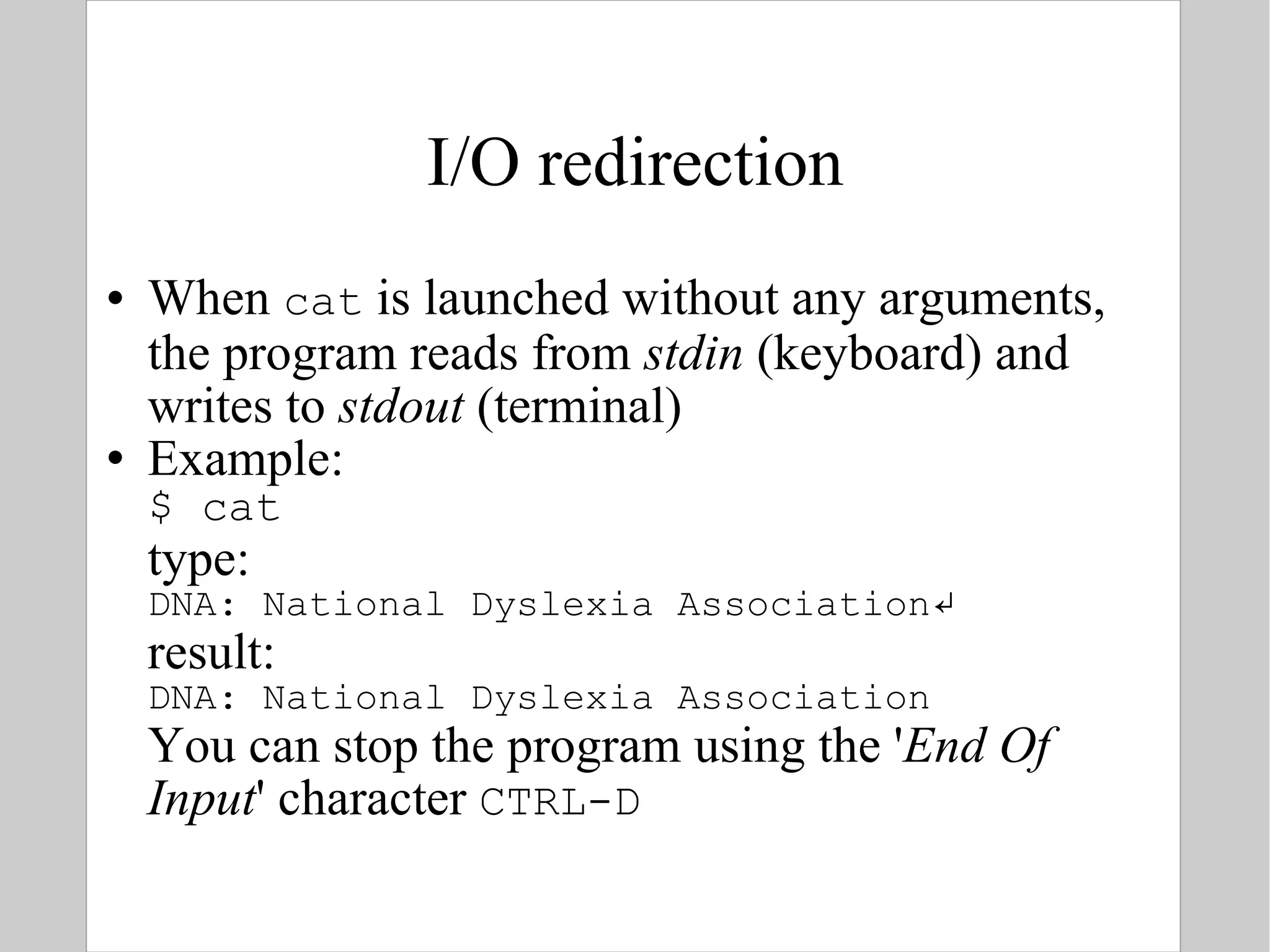
I/O redirection When  cat  is launched without any arguments, the program reads from  stdin  (keyboard) and writes to  stdout  (terminal) Example: $ cat type: DNA: National Dyslexia Association ↵ result: DNA: National Dyslexia Association You can stop the program using the ' End Of Input ' character  CTRL-D
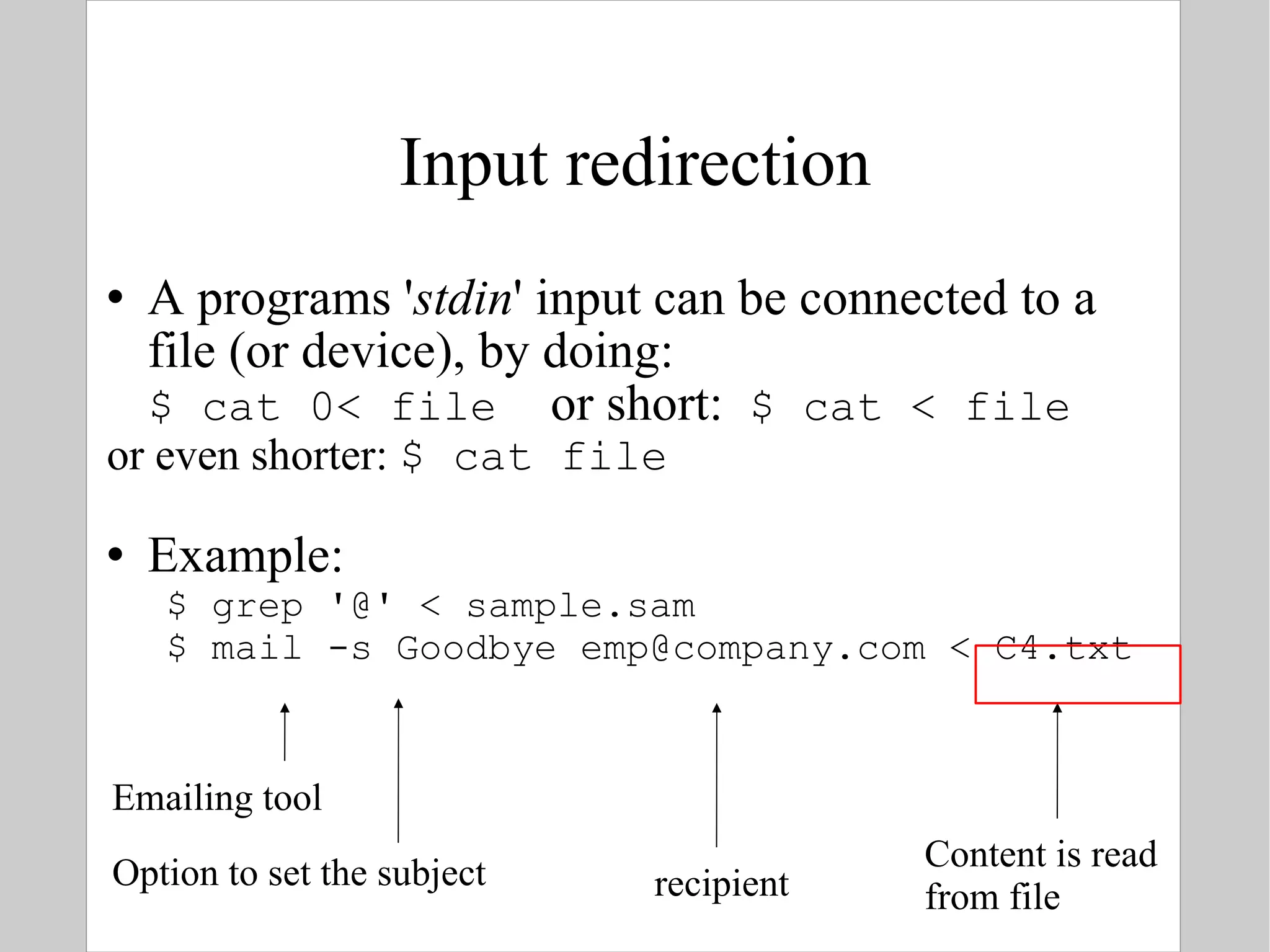
Input redirection A programs ' stdin ' input can be connected to a file (or device), by doing: $ cat 0< file  or short:  $ cat < file or even shorter:  $ cat file Example: $ grep '@' < sample.sam   $ mail -s Goodbye emp@company.com < C4.txt Emailing tool Option to set the subject recipient Content is read from file
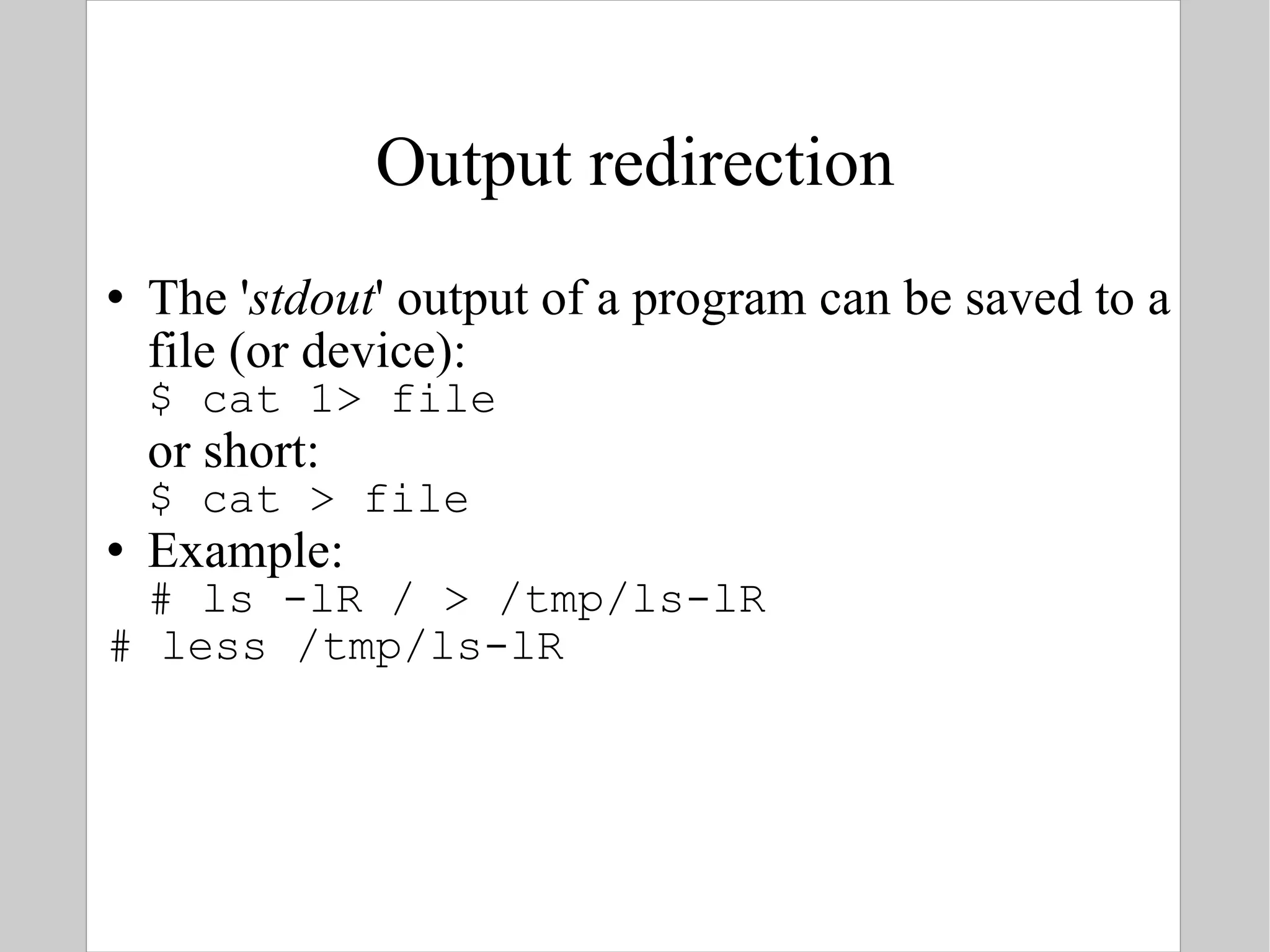
Output redirection The ' stdout ' output of a program can be saved to a file (or device): $ cat 1> file  or short: $ cat > file Example: # ls -lR / > /tmp/ls-lR # less /tmp/ls-lR
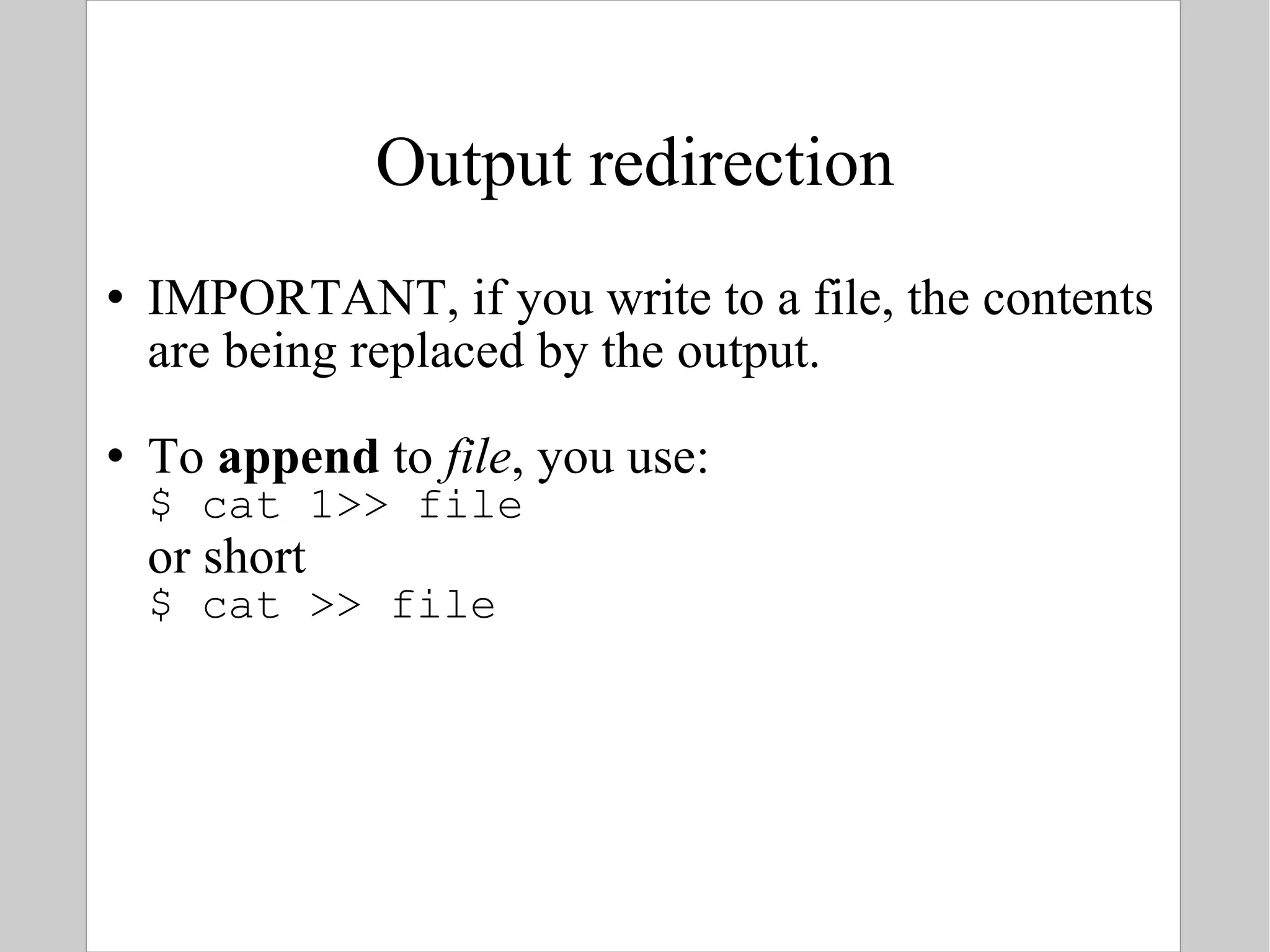
Output redirection IMPORTANT, if you write to a file, the contents are being replaced by the output. To  append  to  file , you use: $ cat 1>> file  or short $ cat >> file
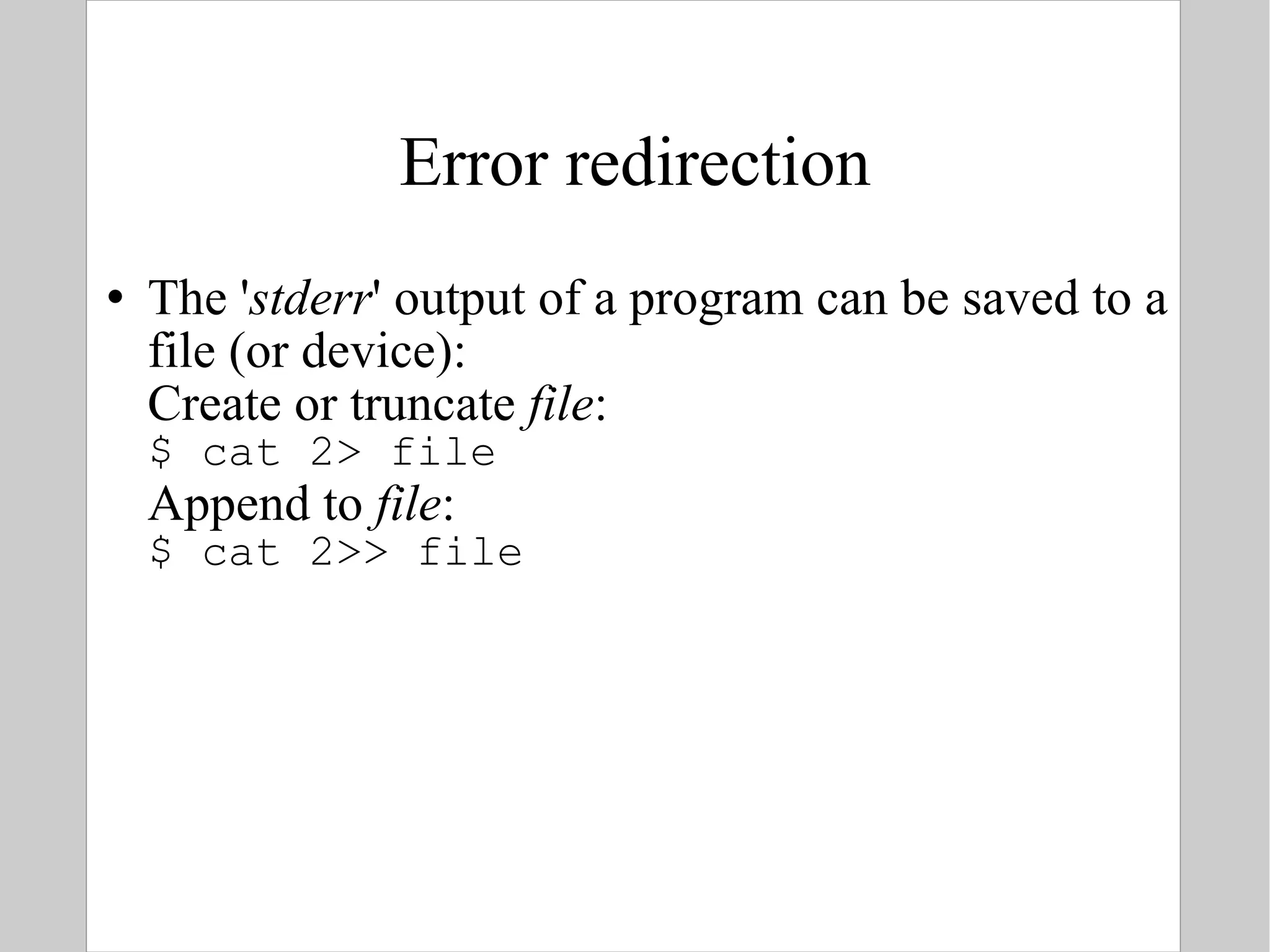
Error redirection The ' stderr ' output of a program can be saved to a file (or device): Create or truncate  file : $ cat 2> file Append to  file : $ cat 2>> file
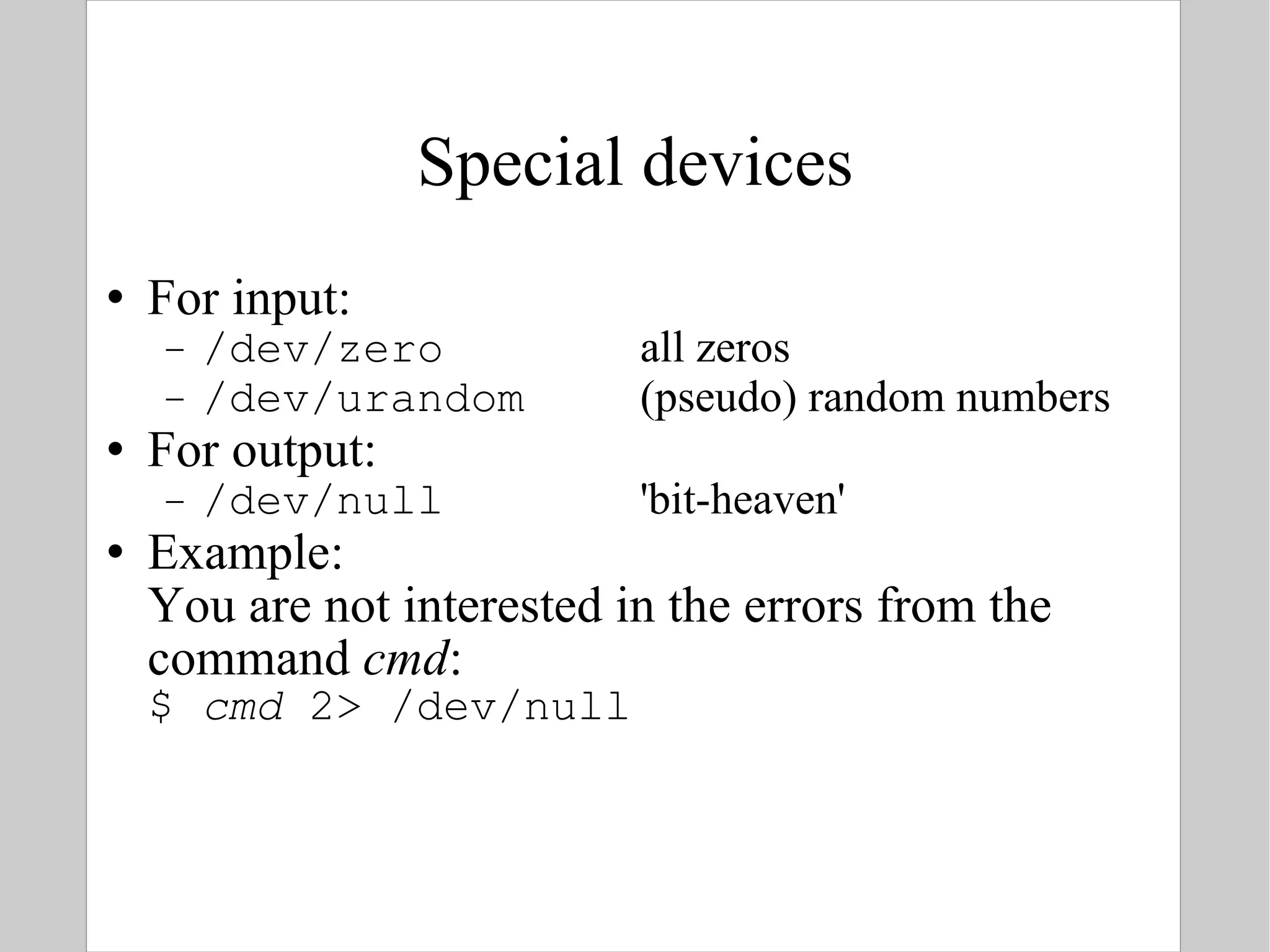
Special devices For input: /dev/zero all zeros /dev/urandom (pseudo) random numbers For output: /dev/null 'bit-heaven' Example: You are not interested in the errors from the command  cmd : $  cmd  2> /dev/null
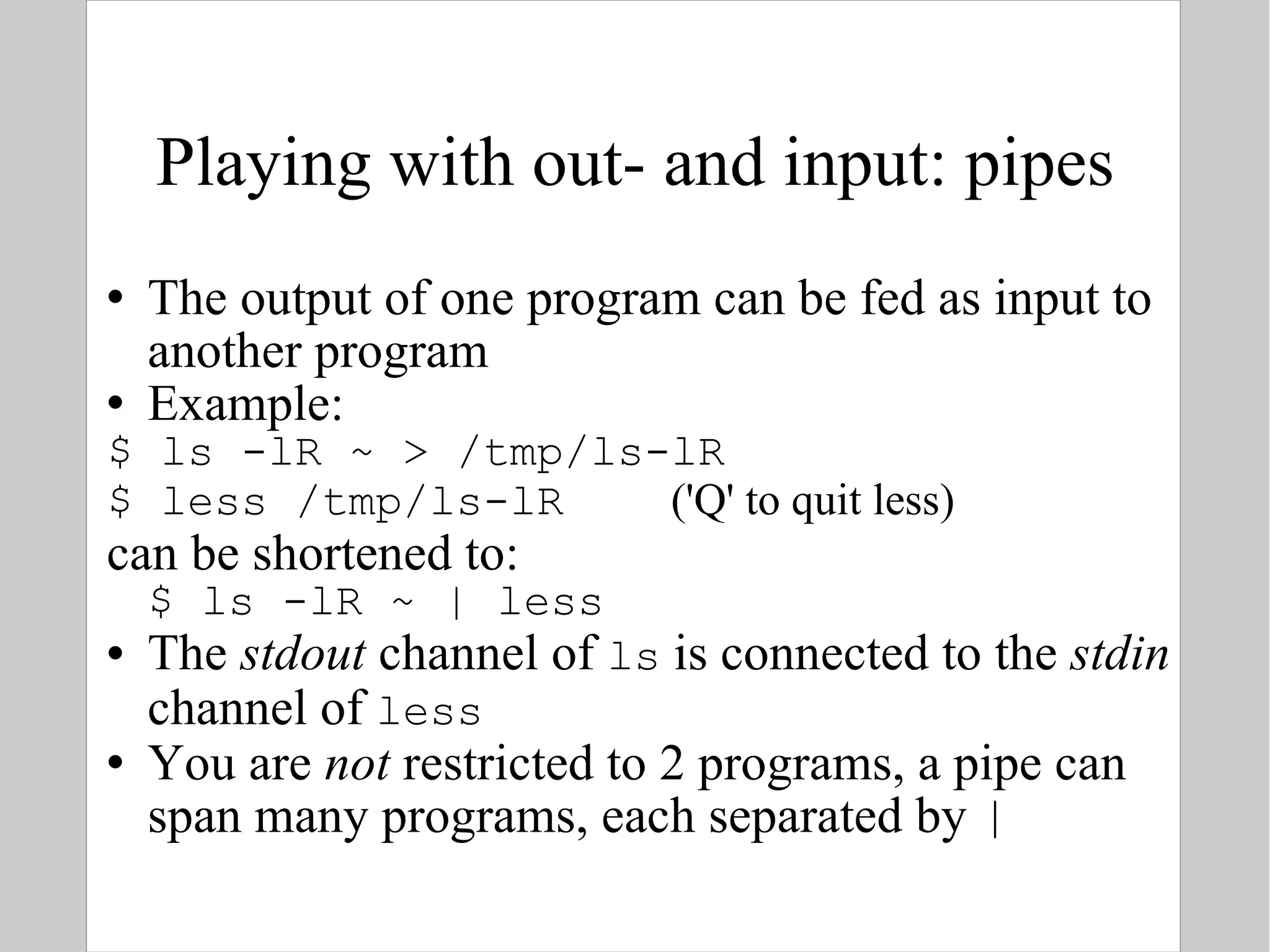
Playing with out- and input: pipes The output of one program can be fed as input to another program Example: $ ls -lR ~ > /tmp/ls-lR $ less /tmp/ls-lR  ('Q' to quit less) can be shortened to: $ ls -lR ~ | less The  stdout  channel of  ls  is connected to the  stdin  channel of  less You are  not  restricted to 2 programs, a pipe can span many programs, each separated by  |
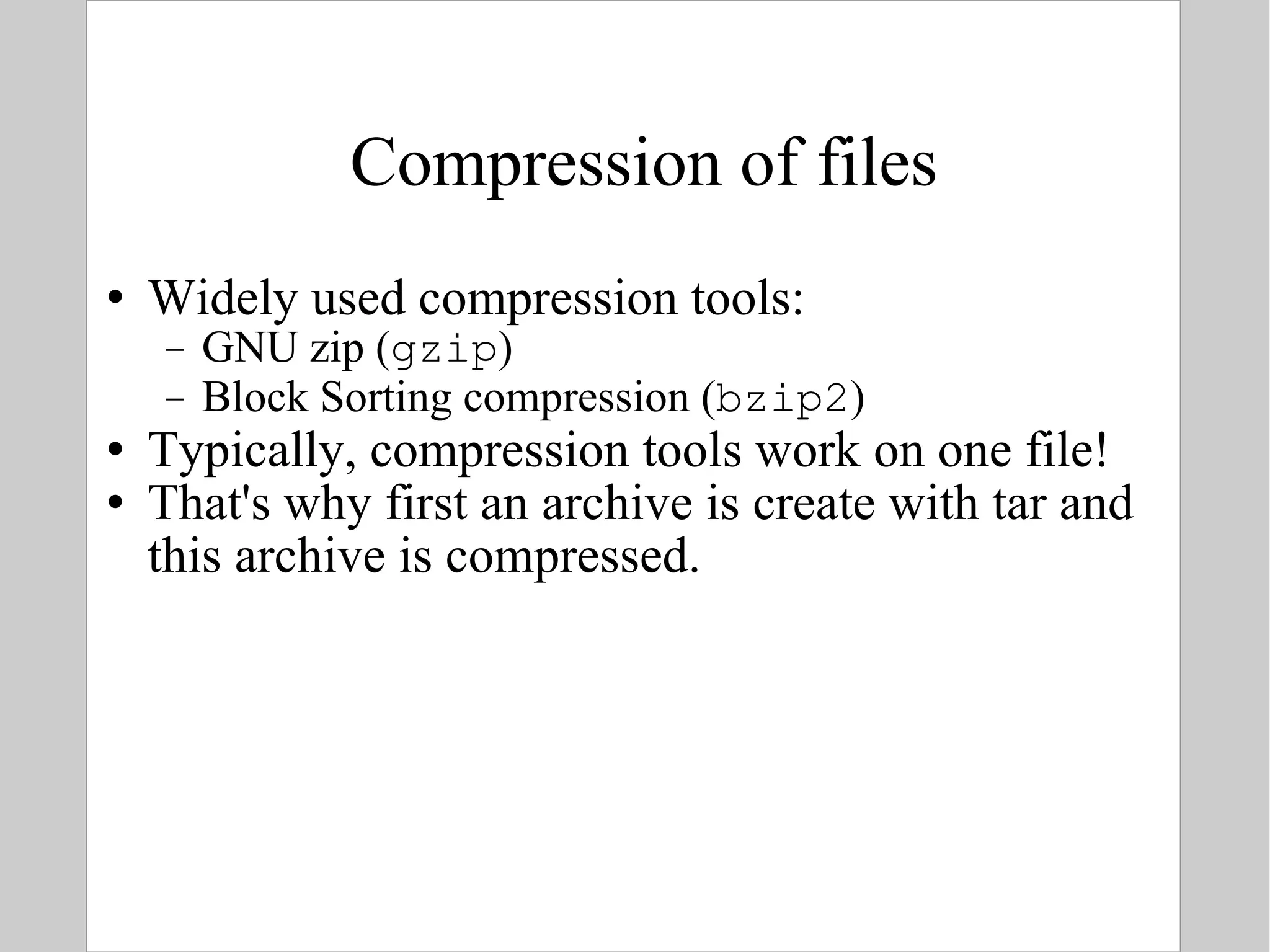
Compression of files Widely used compression tools: GNU zip ( gzip ) Block Sorting compression ( bzip2 ) Typically, compression tools work on one file! That's why first an archive is create with tar and this archive is compressed.
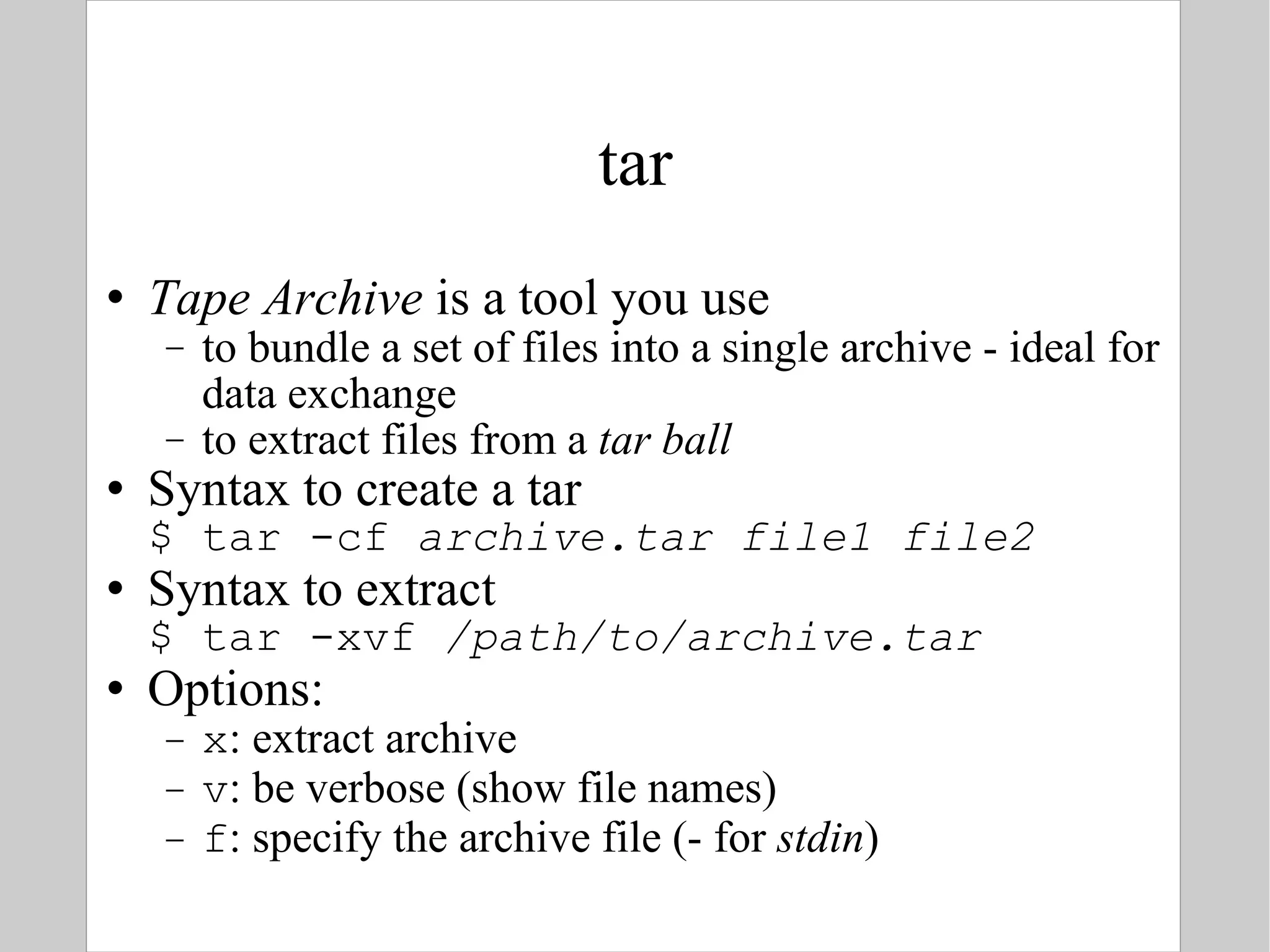
tar Tape Archive  is a tool you use  to bundle a set of files into a single archive - ideal for data exchange to extract files from a  tar ball Syntax to create a tar $ tar -cf  archive.tar file1 file2 Syntax to extract $ tar -xvf  /path/to/archive.tar Options: x : extract archive v : be verbose (show file names) f : specify the archive file (- for  stdin )
Compression To compress one or more files: $ gzip [ options ]  file $ bzip2 [ options ]  file Options: c: send output to  stdout  instead of overwriting the specified file(s) 1 or --fast: fast / minimal compression 9 or --best: slow / maximal compression Standard extensions: gzip  .gz bzip2  .bz2
Decompression To decompress one or more files: $ gunzip [ options ]  file(s) $ bunzip2 [ options ]  file(s) To decompress a tar.gz or tar.bz2 $ tar xvfz file.tar.gz $ tar xvfj file.tar.bz2 The following tools can read directly from gzip or bzip2 files (*.bz2 or *.gz) $ zcat  file(s) $ bzcat  file(s)
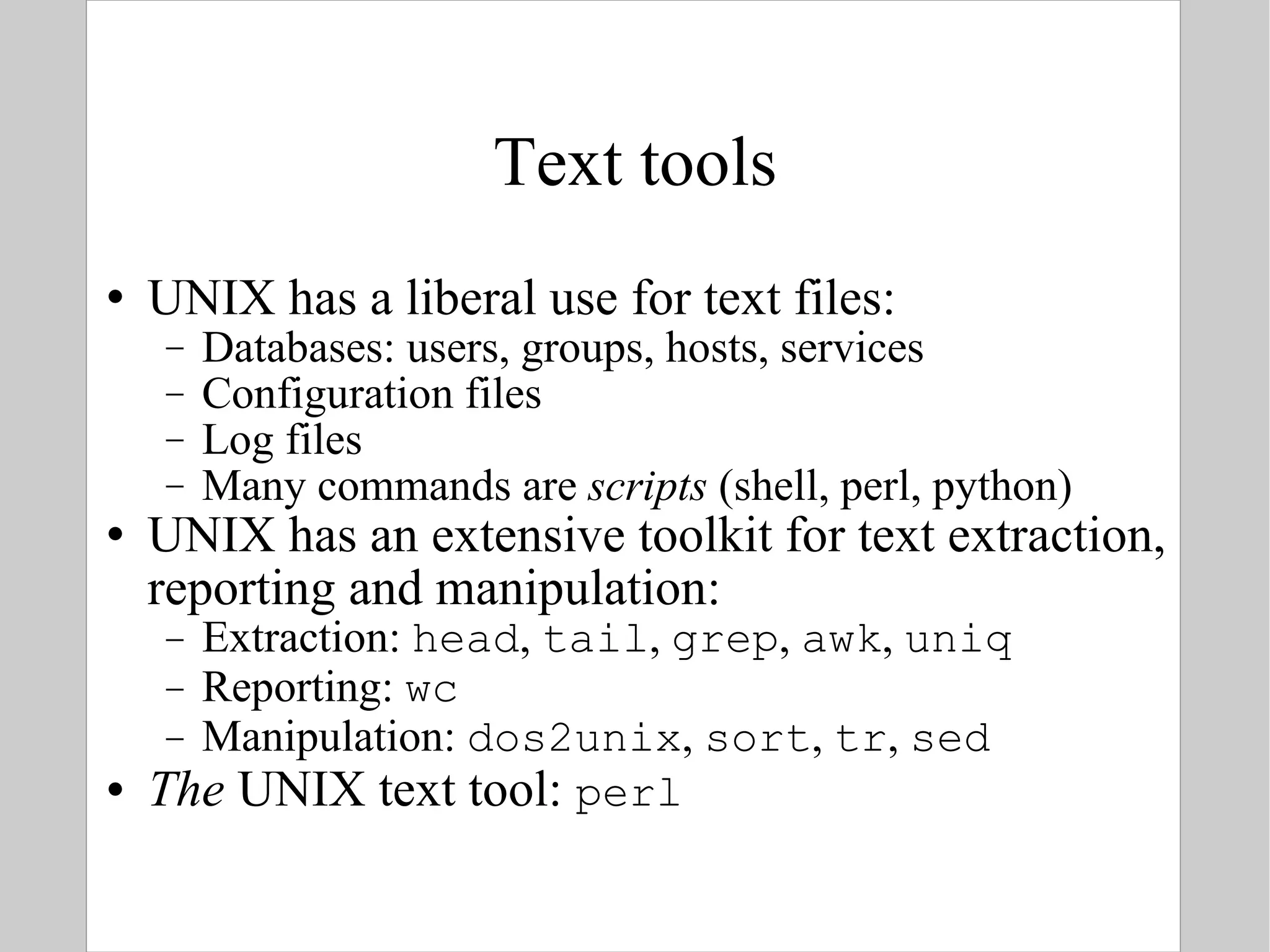
Text tools UNIX has a liberal use for text files: Databases: users, groups, hosts, services Configuration files Log files Many commands are  scripts  (shell, perl, python) UNIX has an extensive toolkit for text extraction, reporting and manipulation: Extraction:  head ,  tail ,  grep ,  awk ,  uniq Reporting:  wc Manipulation:  dos2unix ,  sort ,  tr ,  sed The  UNIX text tool:  perl
Exchanging text files UNIX and Windows differ in the ways line endings are marked.  Sometimes text tools can get confused by Windows line endings. To convert between the two formats, use: $ dos2unix  file or $ dos2unix -n  dosfile   unixfile In the first case,  file  is overwritten. In the second case a new ( -n ) file  unixfile  is created, leaving  dosfile  untouched
Regular expressions A  Regular expression , aka  regex  or  re , is a formal way of describing sets of strings Many UNIX tools use regular expressions, including  perl ,  grep  and  sed The topic itself is beyond the scope of this introduction to Linux, but the gentle reader is strongly encouraged to read more about this subject. Here is a starter: $ man 7 regex To keep things manageable, we will only use literal  strings  as regexes
grep grep  is used to extract lines from an input stream that match (or  don't  match) a regular expression Syntax: $ grep [ options ]  regex  [ file(s) ] The  file(s)  (or if omitted  stdin ) are read line by line.  If the line matches the given criteria, the entire line is written to  stdout.
grep Interesting options: i : ignore case match the regex case insensitively v : inverse show all lines that do  not  match the regex  l : list show only the  name  of the files that contain a match n :  shows  n  lines that precede and follow the match color : highlights the match
grep Get james' record in the user database: $ grep james /etc/passwd james:x:500:100:James Watson:   /home/james:/bin/bash Which files in  /etc  contain the string 'PS1': $ grep -l PS1 /etc/* 2> /dev/null /etc/bashrc /etc/bashrc.rpmnew /etc/rc.sysinit
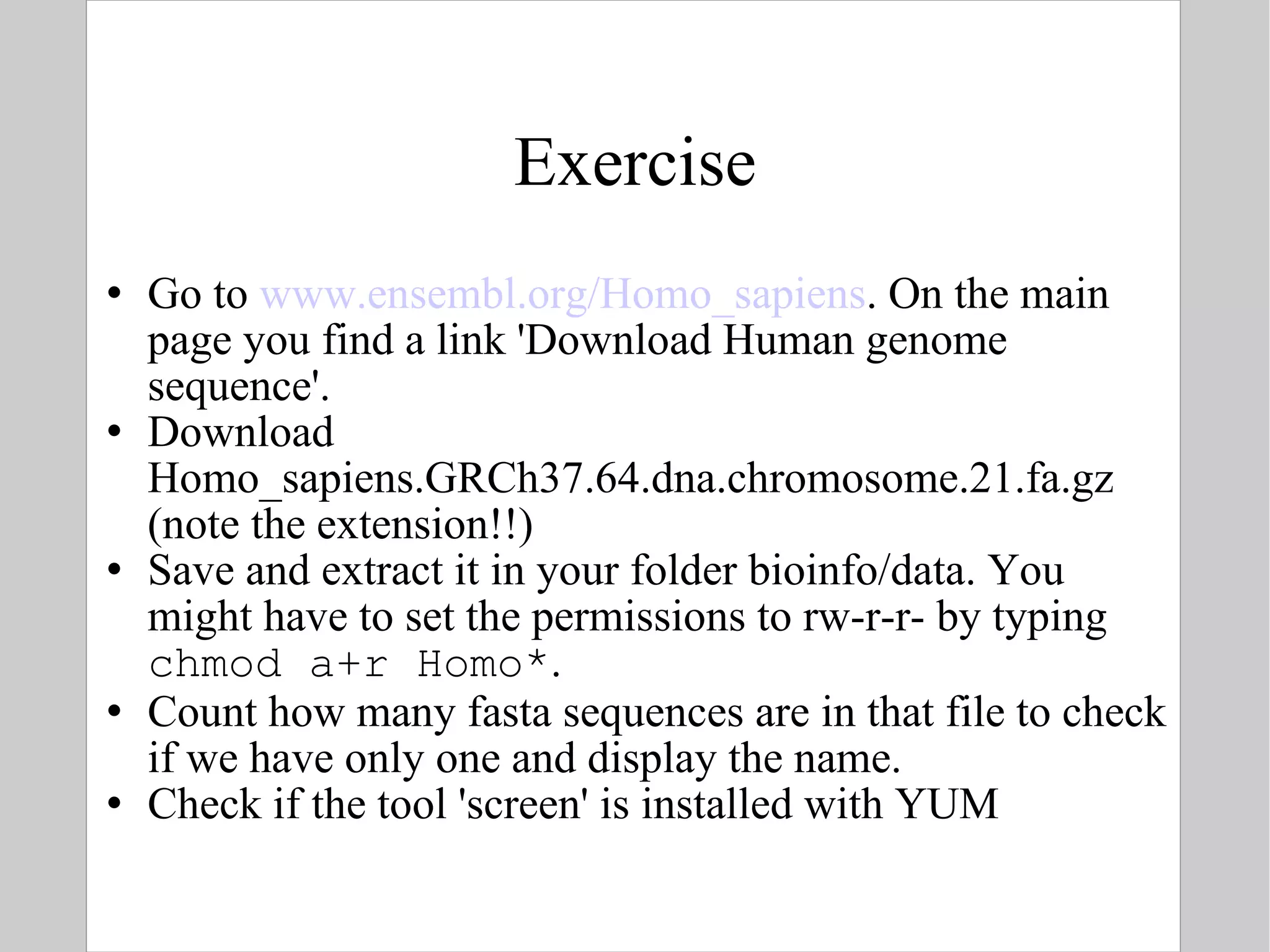
Exercise Go to  www.ensembl.org/Homo_sapiens . On the main page you find a link 'Download Human genome sequence'. Download Homo_sapiens.GRCh37.64.dna.chromosome.21.fa.gz (note the extension!!) Save and extract it in your folder bioinfo/data. You might have to set the permissions to rw-r-r- by typing  chmod a+r Homo* .  Count how many fasta sequences are in that file to check if we have only one and display the name. Check if the tool 'screen' is installed with YUM
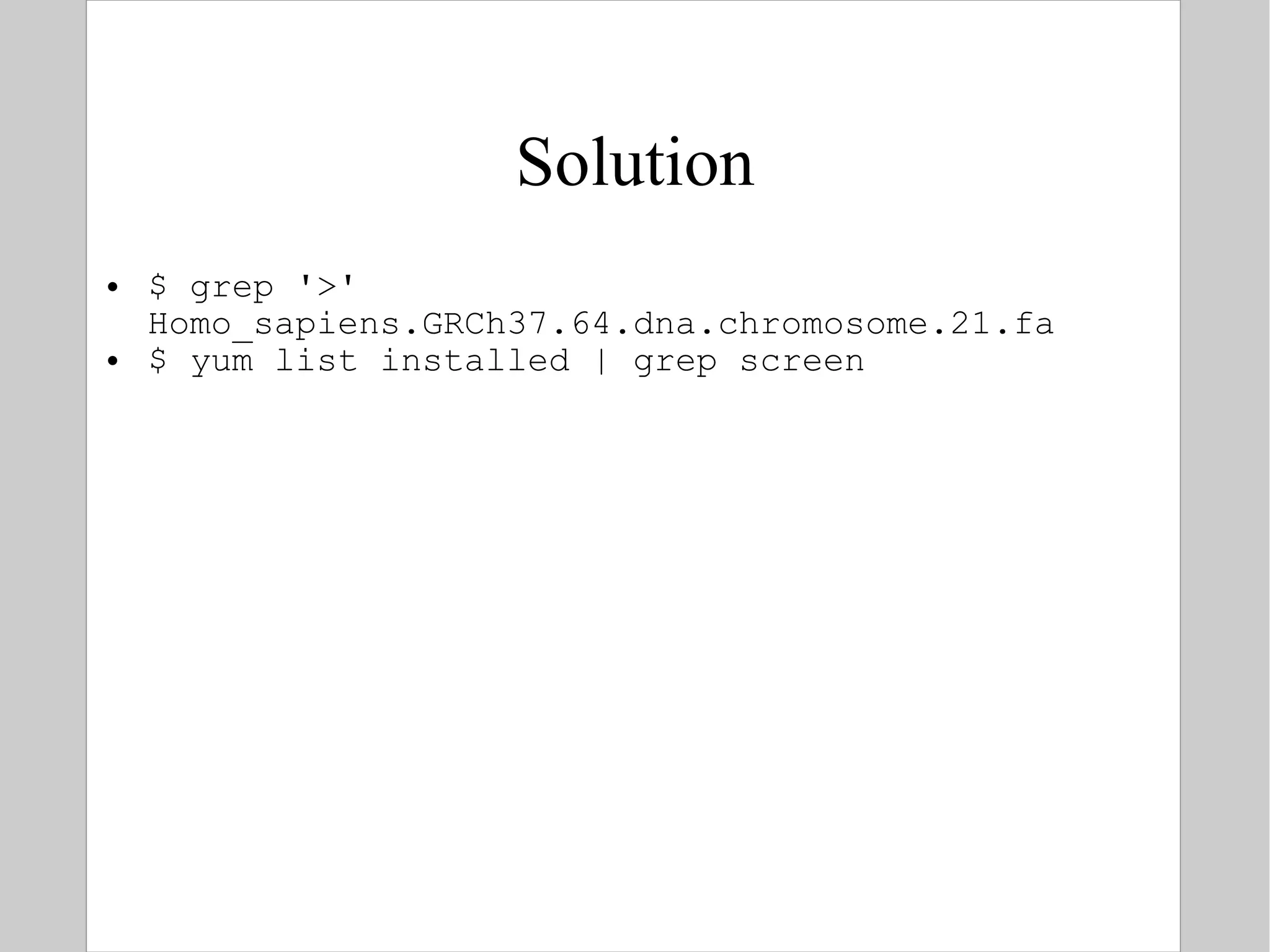
Solution $ grep '>' Homo_sapiens.GRCh37.64.dna.chromosome.21.fa $ yum list installed | grep screen
Word Count A general tool for counting lines, words and characters:  wc [ options ]  file(s) Interesting options: c : number of characters w : number of words l : number of lines Example: How many packages are installed? $ yum list installed | wc -l
Transform To manipulate individual characters in an input stream: $ tr 's1' 's2' !  tr  always reads from  stdin  – you cannot specify any files as command line arguments Characters in  s1  are replaced by characters in  s2 The result is written to  stdout Example: $ echo 'James Watson' | \   tr '[a-z]' '[A-Z]' JAMES WATSON
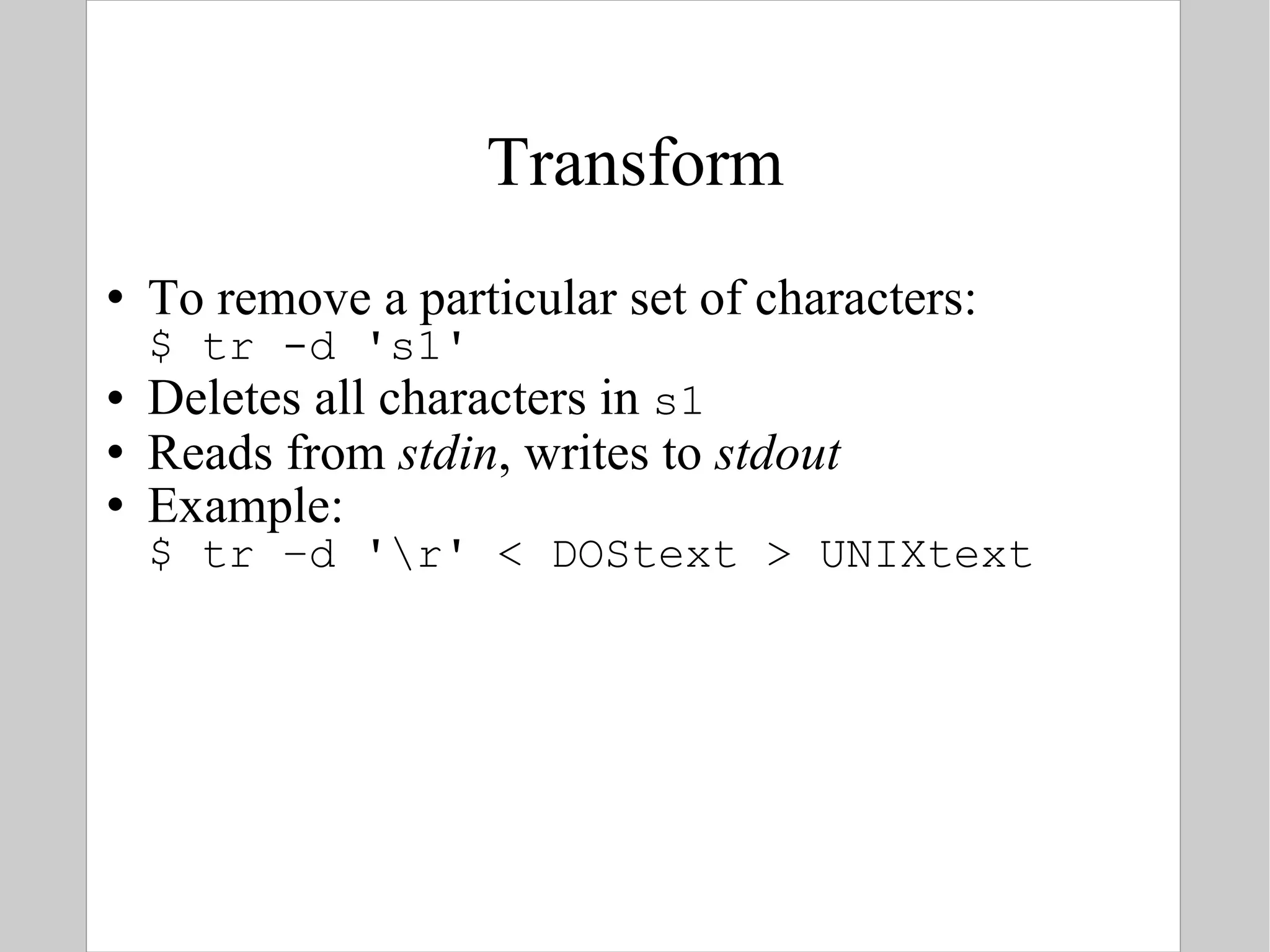
Transform To remove a particular set of characters: $ tr -d 's1' Deletes all characters in  s1 Reads from  stdin , writes to  stdout Example: $ tr –d '\r' < DOStext > UNIXtext
awk awk  is an extraction and reporting tool, works very well with tabular data It reads in your file, chops on white spaces creating fields, and let you specify which fields to output Excellent documentation:  http://www.grymoire.com/Unix/Awk.html
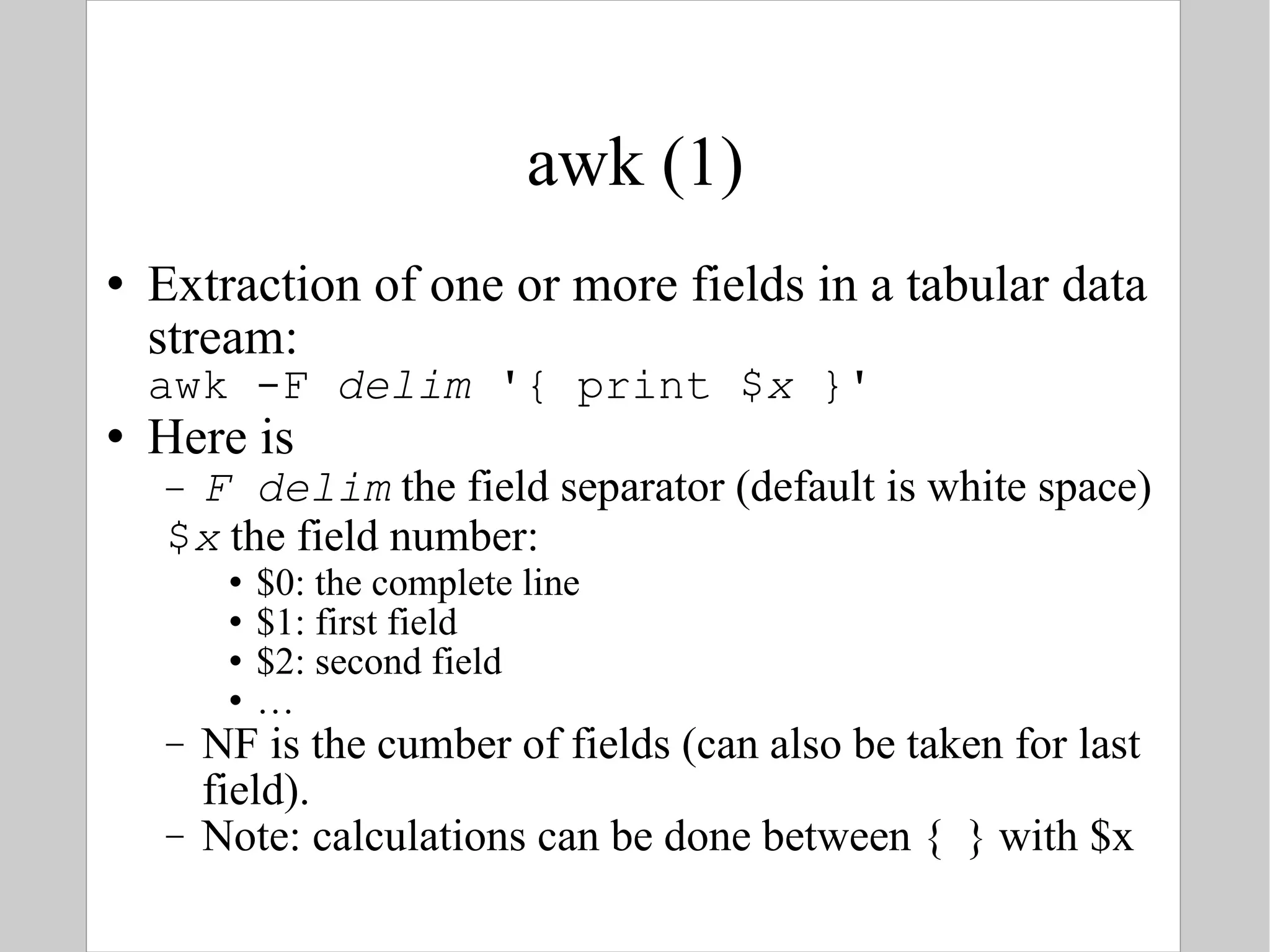
awk (1) Extraction of one or more fields in a tabular data stream: awk -F  delim  '{ print $ x  }' Here is F delim  the field separator (default is white space) $ x  the field number: $0: the complete line $1: first field $2: second field … NF is the cumber of fields (can also be taken for last field). Note: calculations can be done between {  } with $x
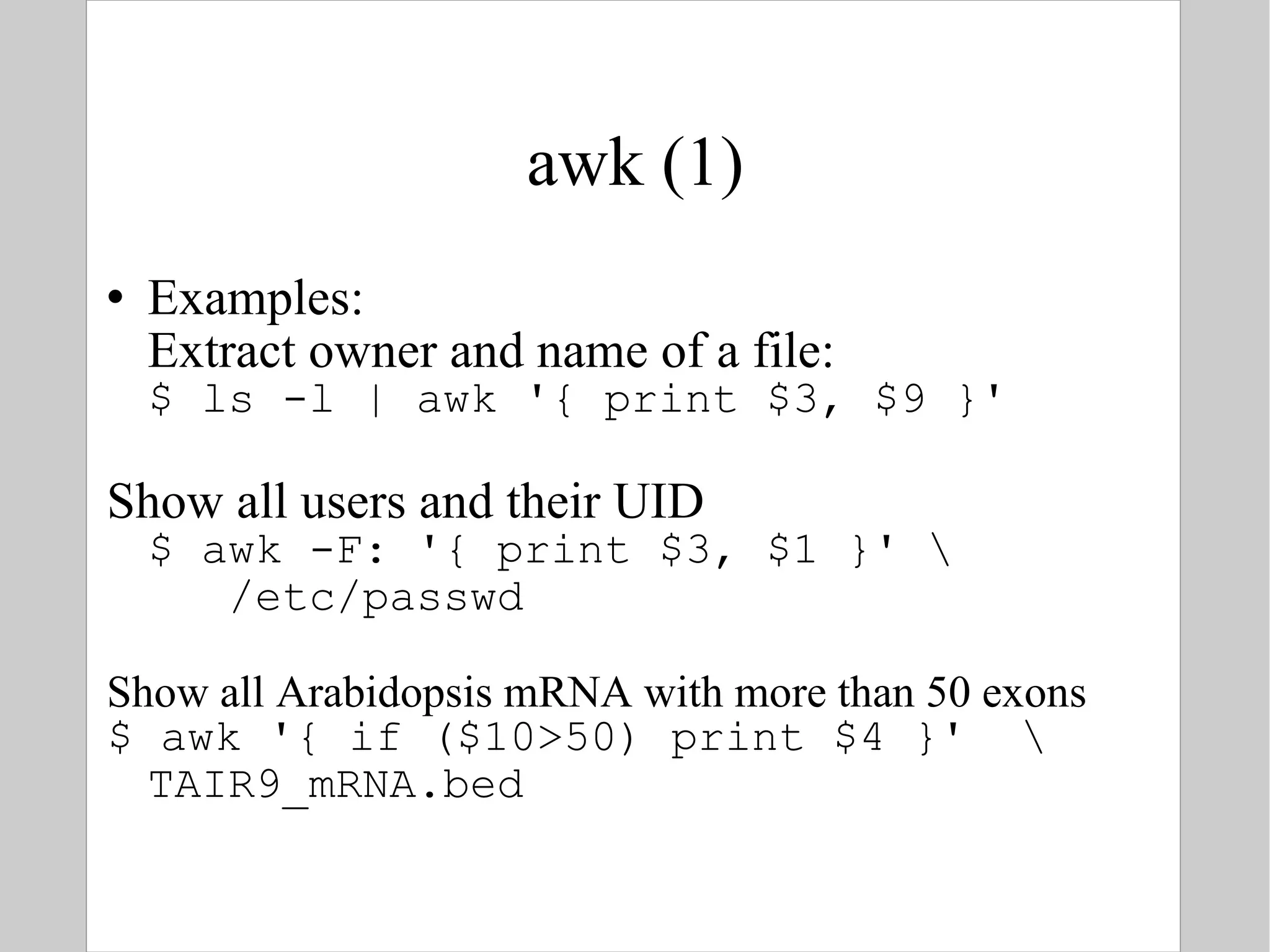
awk (1) Examples: Extract owner and name of a file: $ ls -l | awk '{ print $3, $9 }' Show all users and their UID $ awk -F: '{ print $3, $1 }' \   /etc/passwd Show all Arabidopsis mRNA with more than 50 exons $ awk '{ if ($10>50) print $4 }'  \ TAIR9_mRNA.bed
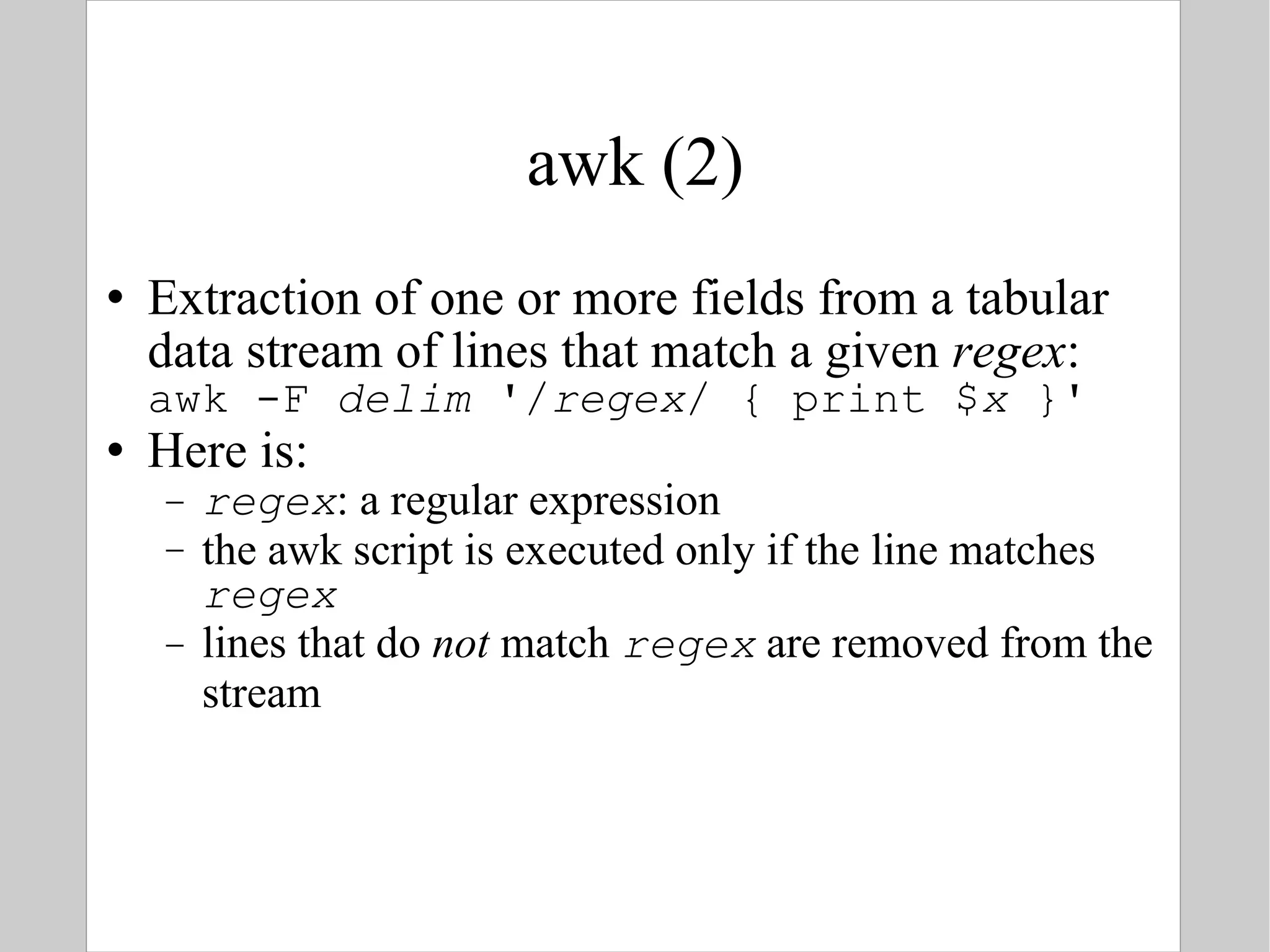
awk (2) Extraction of one or more fields from a tabular data stream of lines that match a given  regex : awk -F  delim  '/ regex / { print $ x  }' Here is: regex : a regular expression the awk script is executed only if the line matches  regex lines that do  not  match  regex  are removed from the stream
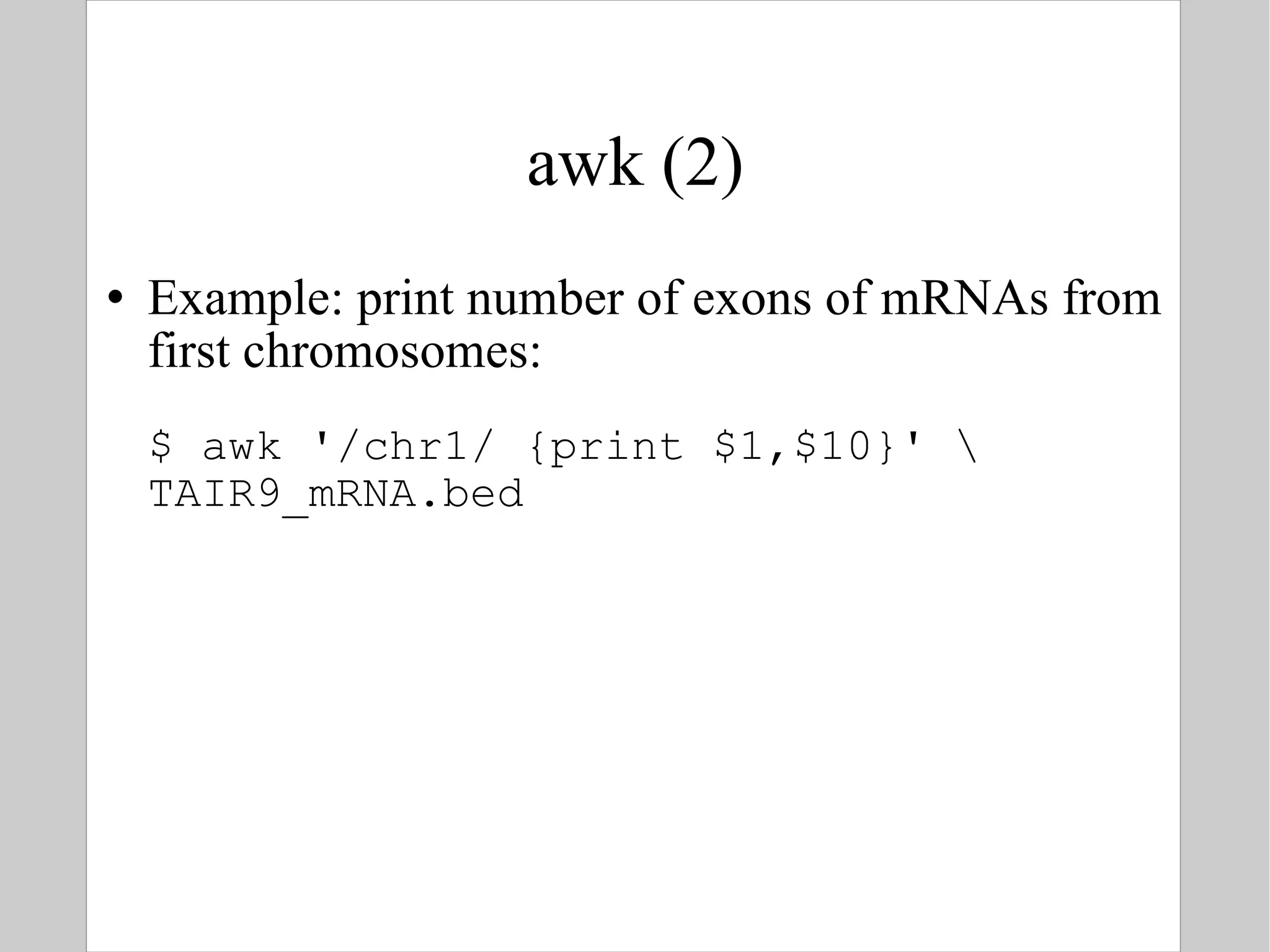
awk (2) Example: print number of exons of mRNAs from first chromosomes: $ awk '/chr1/ {print $1,$10}' \ TAIR9_mRNA.bed
cut A similar tool is  cut , it extracts fields from  fixed  text file formats only: fixed width $ cut -c LIST [ file ] fixed delimiter $ cut [-d  delim ] -f LIST [ file ] For LIST: N : the Nth element N-M : element the Nth till the Mth element N- : from the Nth element on -M : till the Mth element The first element is 1
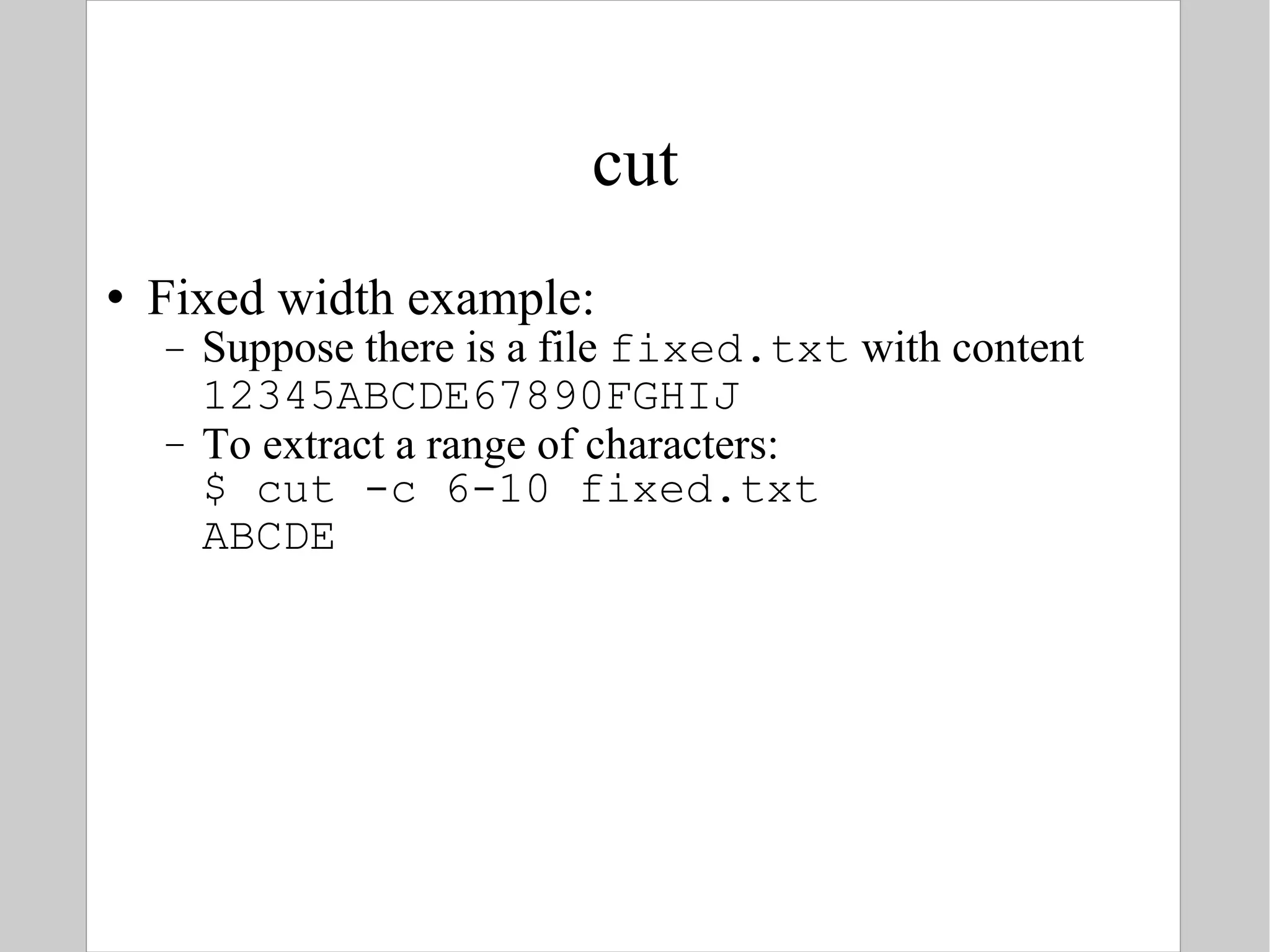
cut Fixed width example: Suppose there is a file  fixed.txt  with content 12345ABCDE67890FGHIJ To extract a range of characters: $ cut -c 6-10 fixed.txt  ABCDE
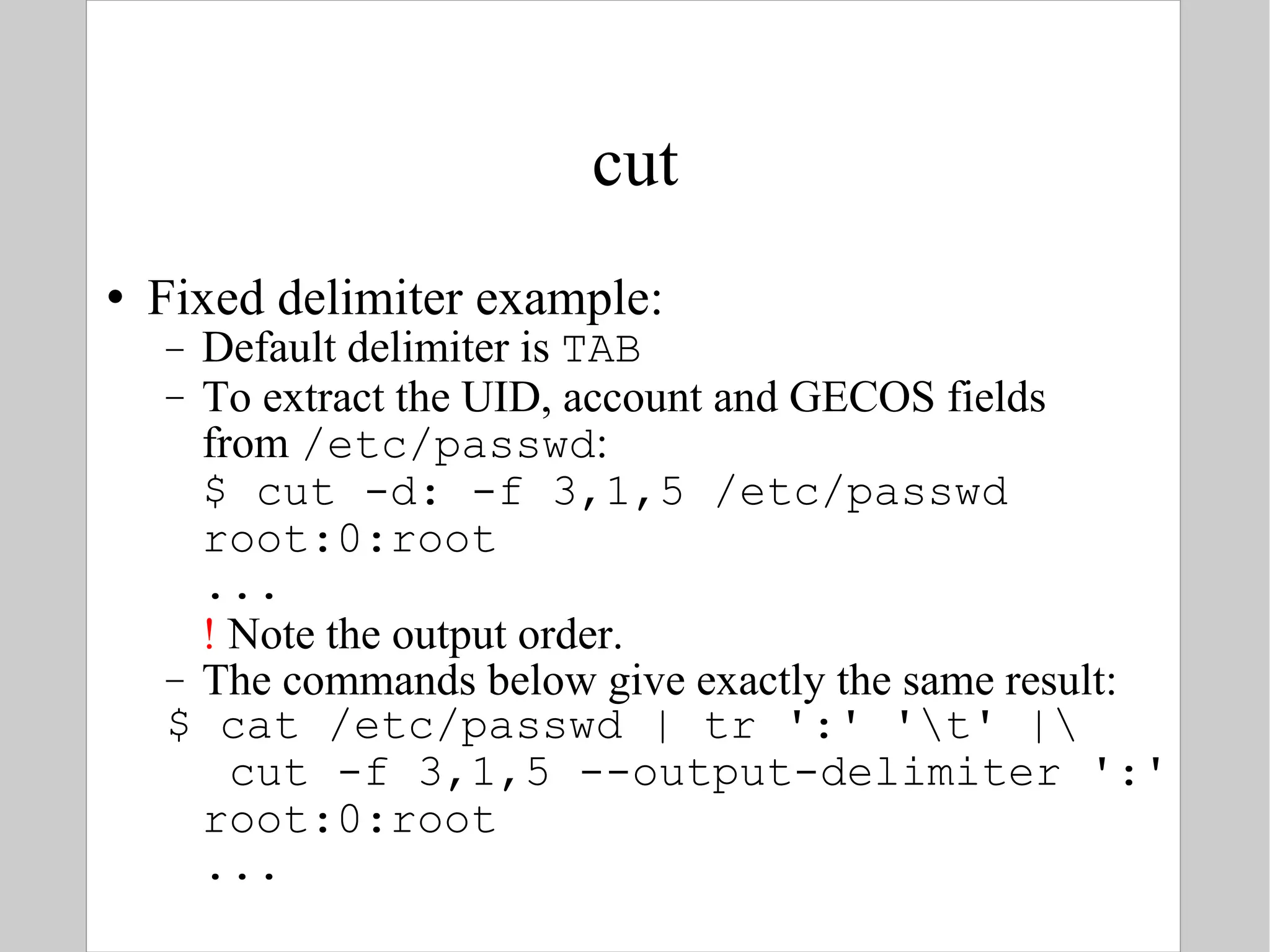
cut Fixed delimiter example: Default delimiter is  TAB To extract the UID, account and GECOS fields from  /etc/passwd : $ cut -d: -f 3,1,5 /etc/passwd root:0:root ... !  Note the output order. The commands below give exactly the same result: $ cat /etc/passwd | tr ':' '\t' |\  cut -f 3,1,5 --output-delimiter ':' root:0:root ...
sort To sort alphabetically or numerically lines of text: $ sort [ options ]  file(s) When one or more  file(s)  are specified, they are read one by one, but  all lines are sorted. The output is written to  stdout When no  file(s)  arguments are given,  sort  reads input from  stdin
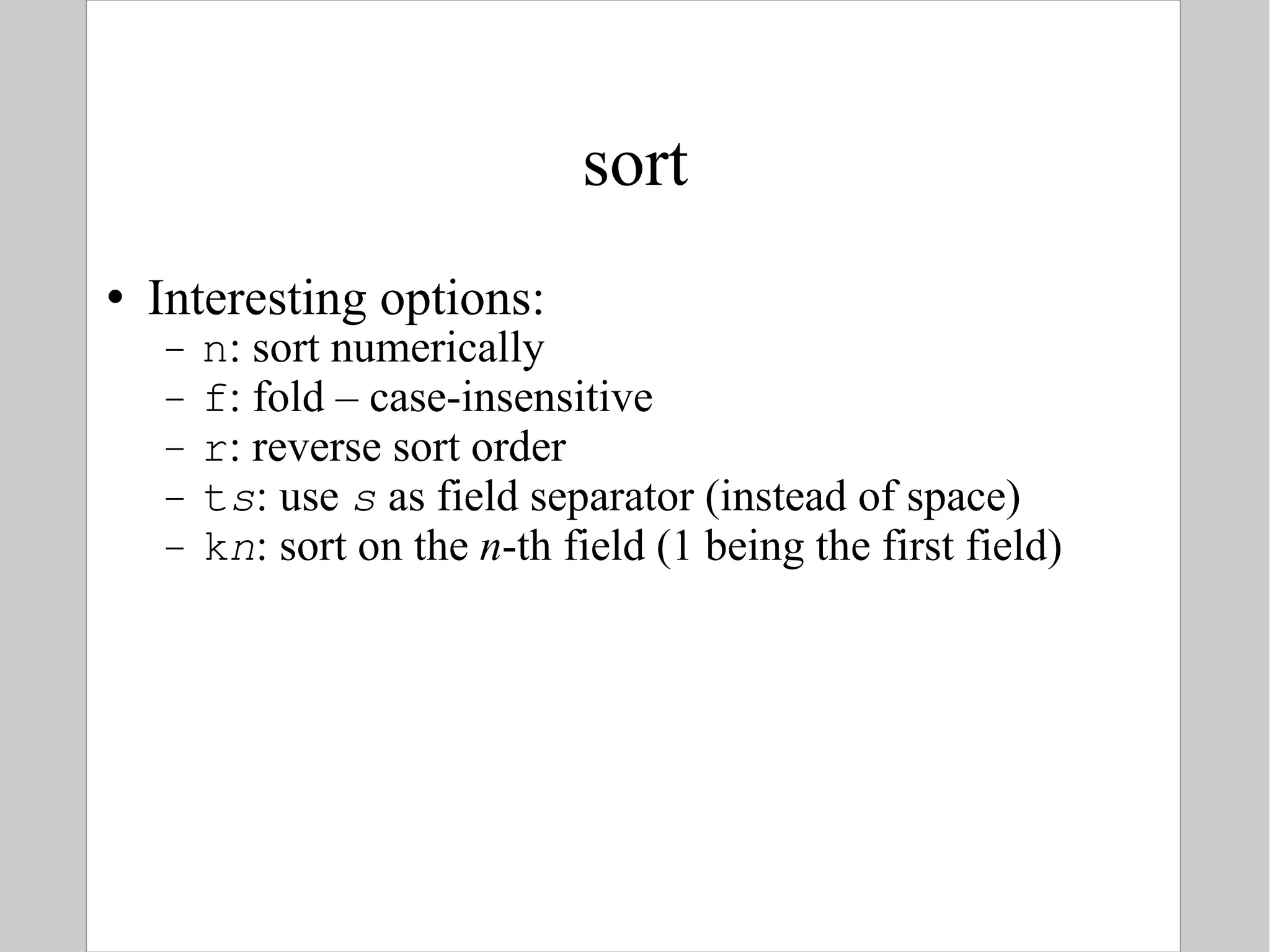
sort Interesting options: n : sort numerically f : fold – case-insensitive r : reverse sort order t s : use  s  as field separator (instead of space) k n : sort on the  n -th field (1 being the first field)
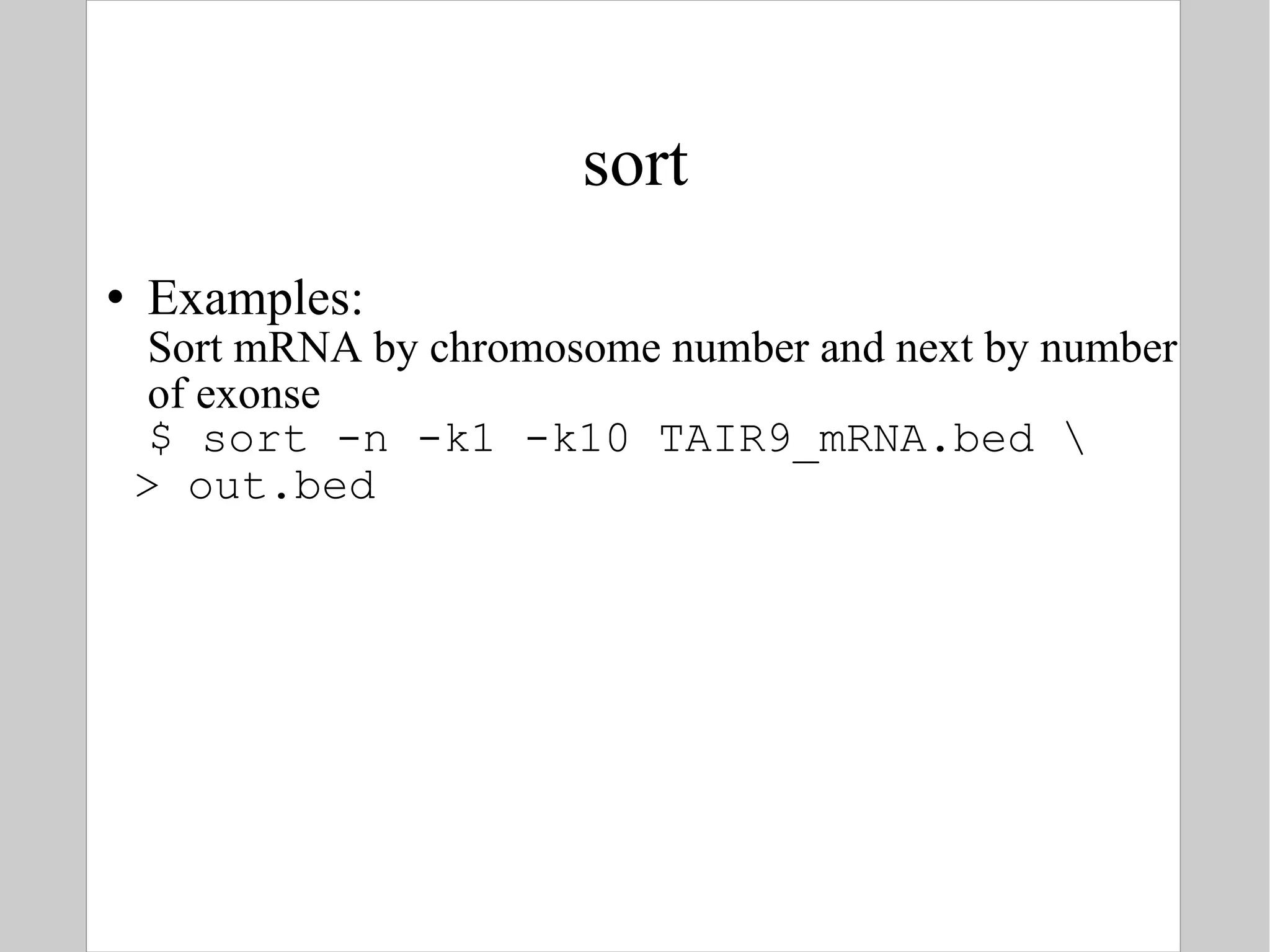
sort Examples: Sort mRNA by chromosome number and next by number of exonse $ sort -n -k1 -k10 TAIR9_mRNA.bed \ > out.bed
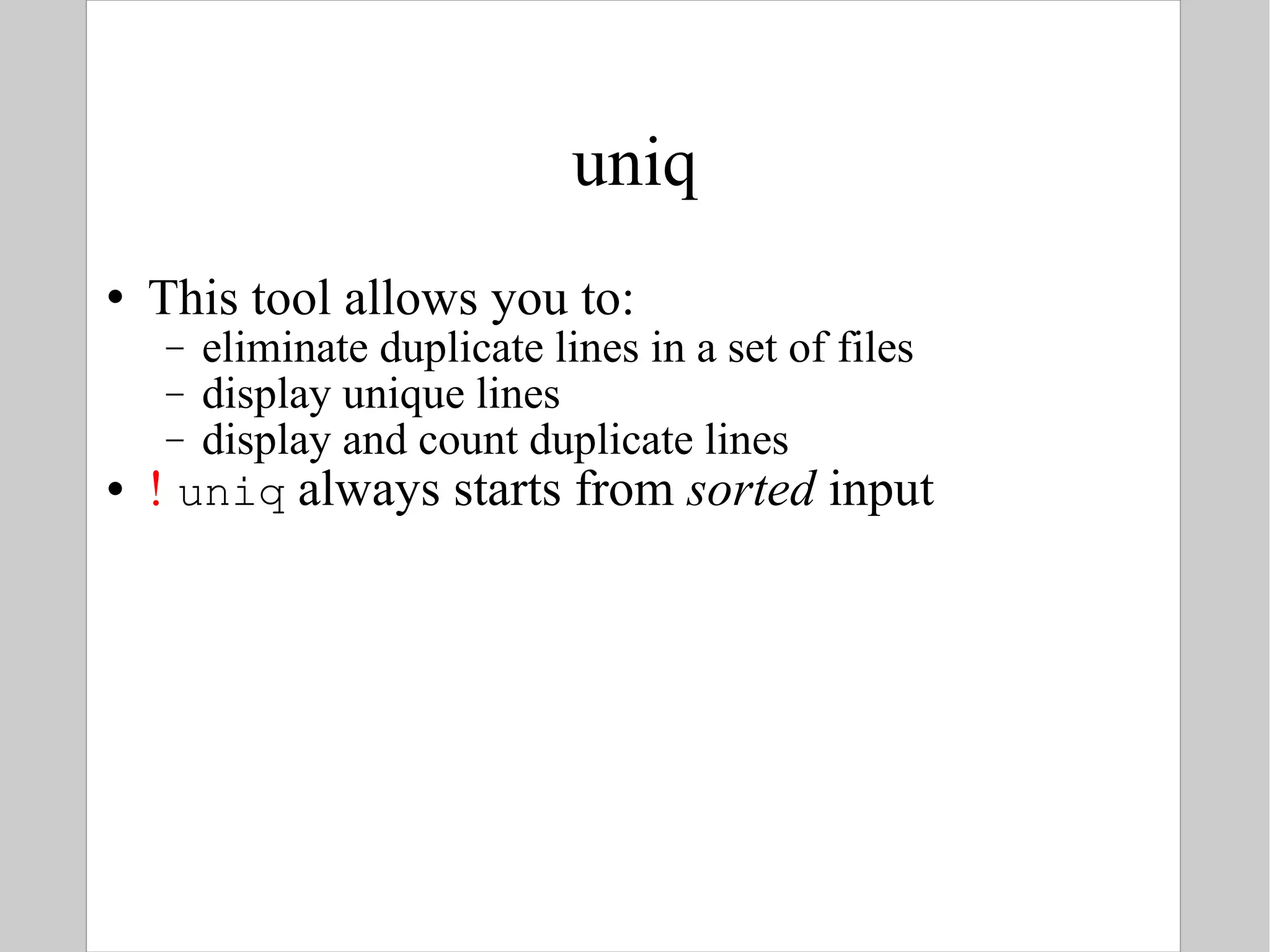
uniq This tool allows you to: eliminate duplicate lines in a set of files display unique lines display and count duplicate lines !   uniq  always starts from  sorted  input
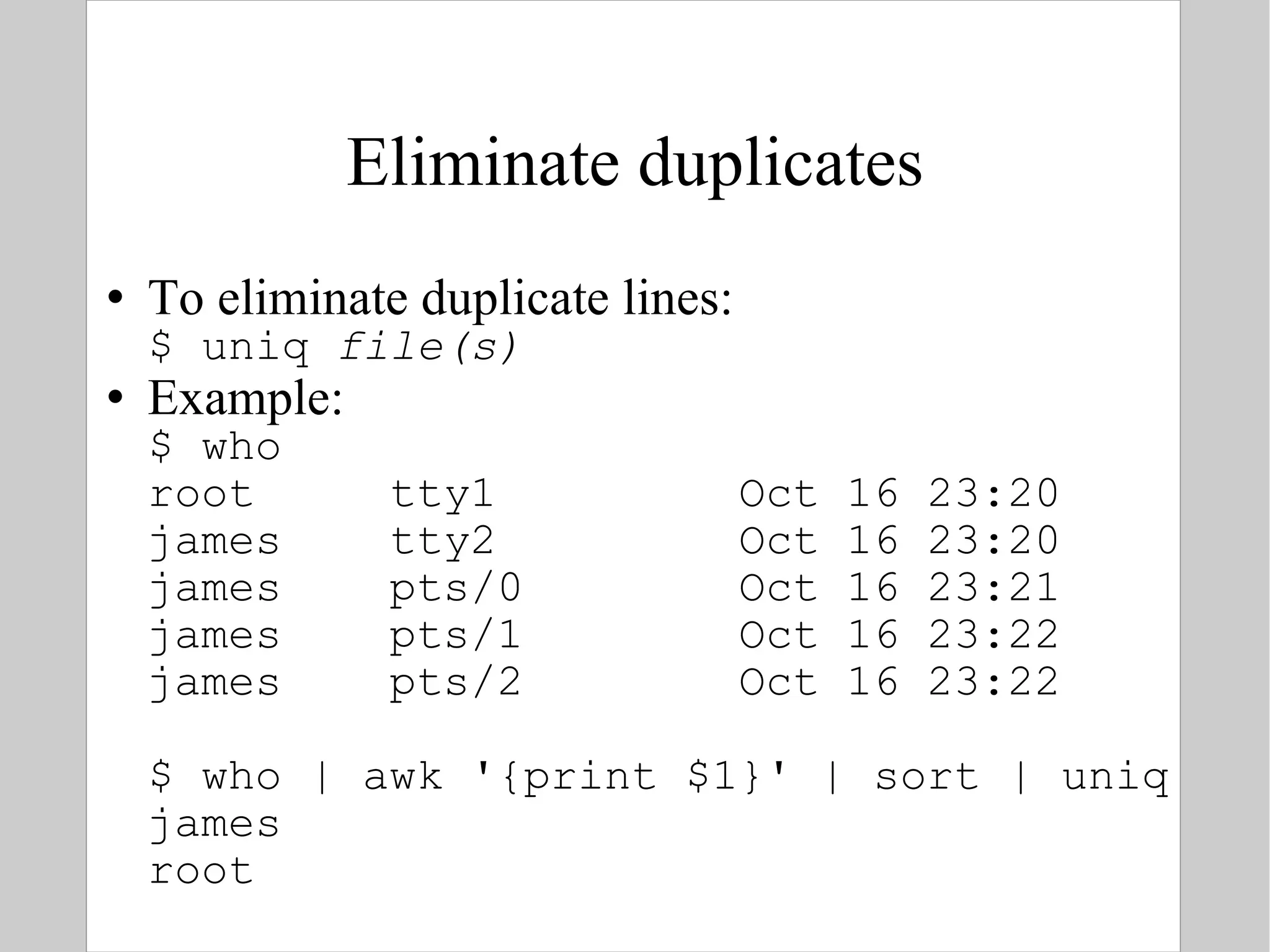
Eliminate duplicates To eliminate duplicate lines: $ uniq  file(s) Example: $ who root  tty1  Oct 16 23:20 james  tty2  Oct 16 23:20 james  pts/0  Oct 16 23:21 james  pts/1  Oct 16 23:22 james  pts/2  Oct 16 23:22 $ who | awk '{print $1}' | sort | uniq james root
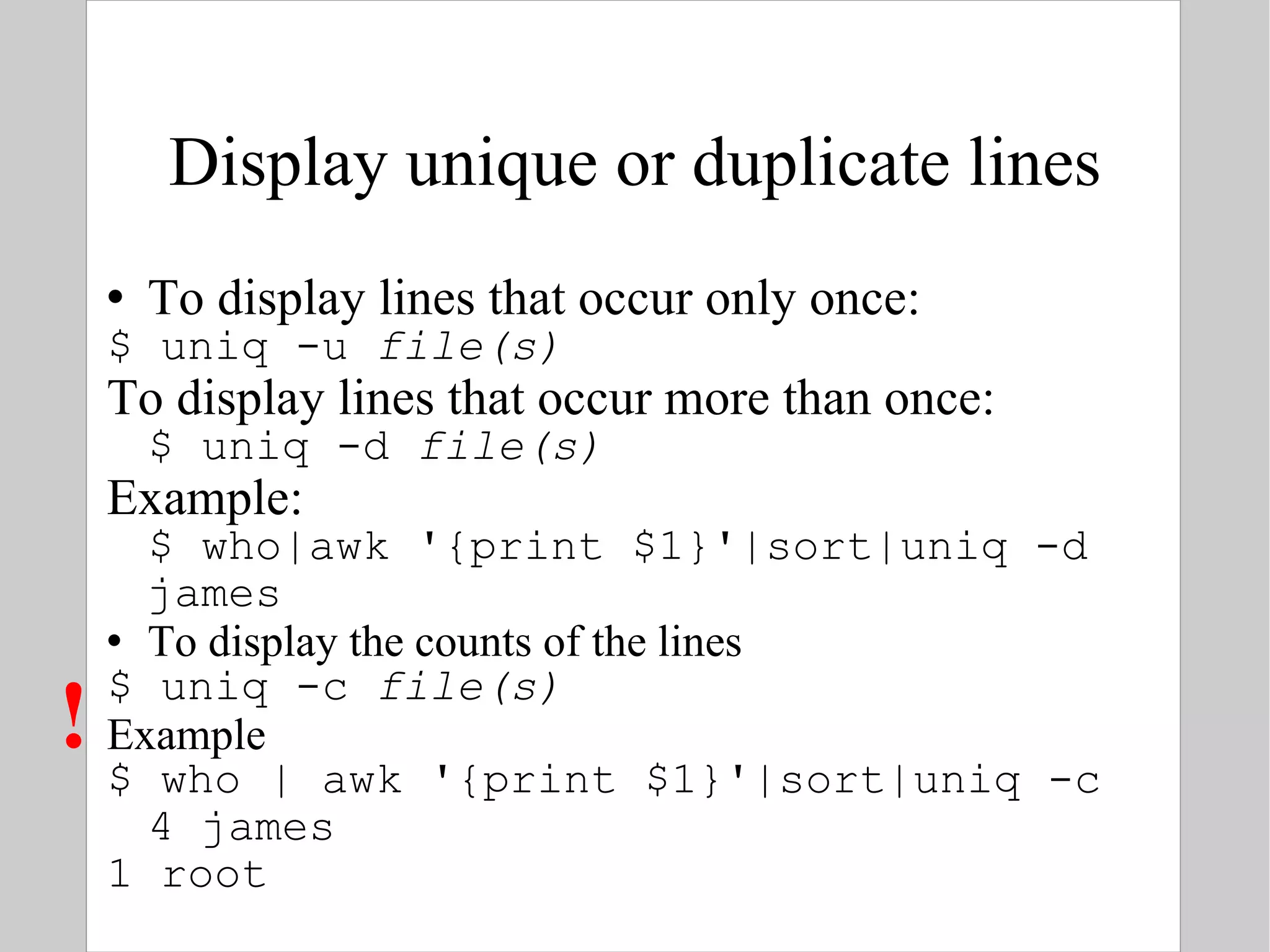
Display unique or duplicate lines To display lines that occur only once: $ uniq -u  file(s) To display lines that occur more than once: $ uniq -d  file(s) Example: $ who|awk '{print $1}'|sort|uniq -d james To display the counts of the lines $ uniq -c  file(s) Example $ who | awk '{print $1}'|sort|uniq -c 4 james 1 root  !
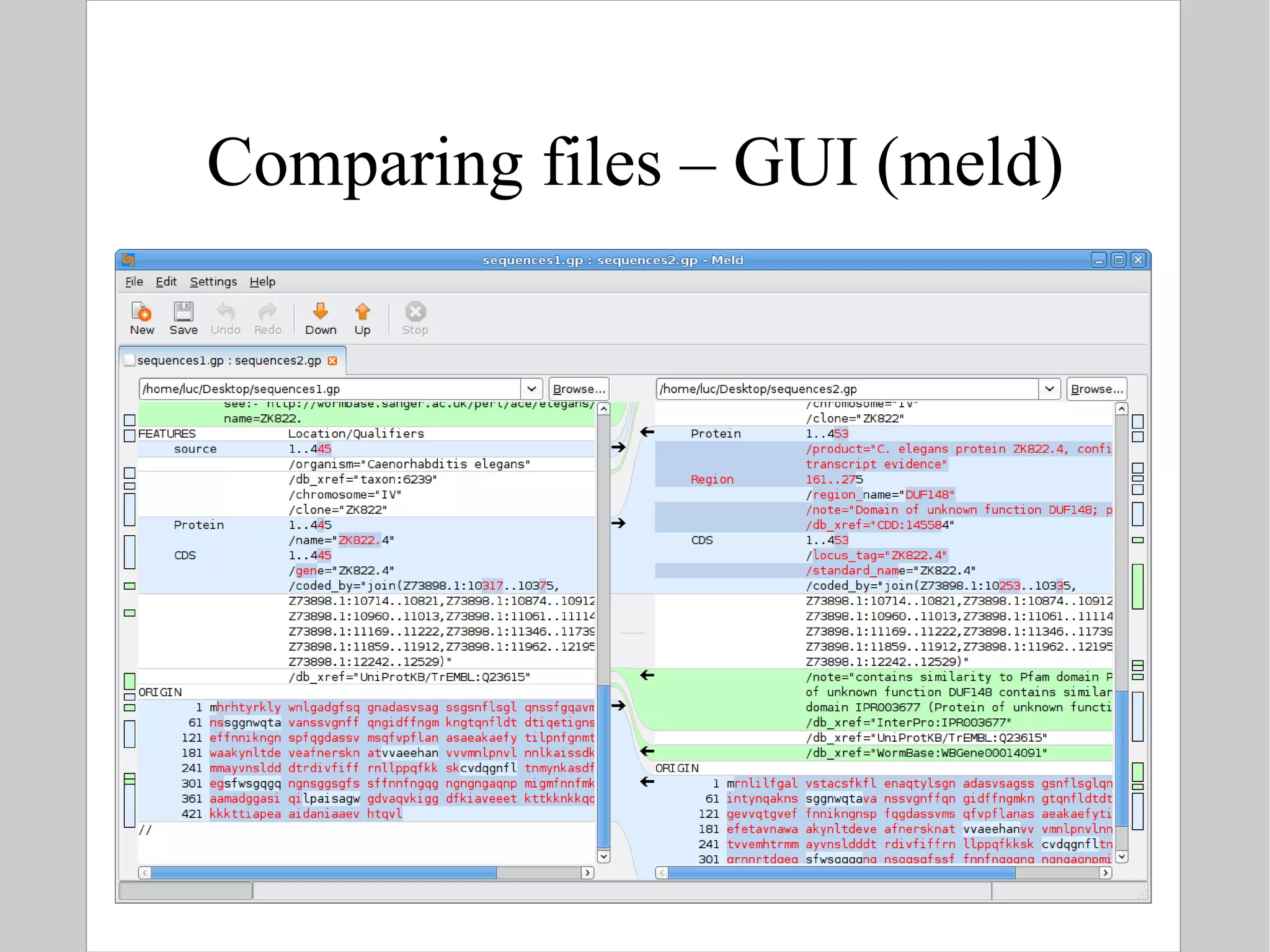
Comparing text files To find differences between two text files: $ diff [ options ] file1 file2 Example:  difference between two genbank versions of LOCUS CAA98068 # diff sequences1.gp sequences2.gp 1,2c1,3 < LOCUS  CAA98068  445 aa  linear  INV 27-OCT-2000 < DEFINITION  ZK822.4 [Caenorhabditis elegans]. --- > LOCUS  CAA98068  453 aa  linear  INV 09-MAY-2010 > DEFINITION  C. elegans protein ZK822.4, confirmed by transcript evidence >  [Caenorhabditis elegans]. 4,5c5,6 < VERSION  CAA98068.1  GI:3881817 < DBSOURCE  embl locus CEZK822, accession Z73898.1 --- > VERSION  CAA98068.2  GI:14530708 > DBSOURCE  embl accession Z73898.1
Comparing text files There exists a text tool,  sdiff , that compares two files  side by side . However, when visualizing data, one is far better off using graphical tools. Visual diff:  meld
Comparing files – GUI (meld)
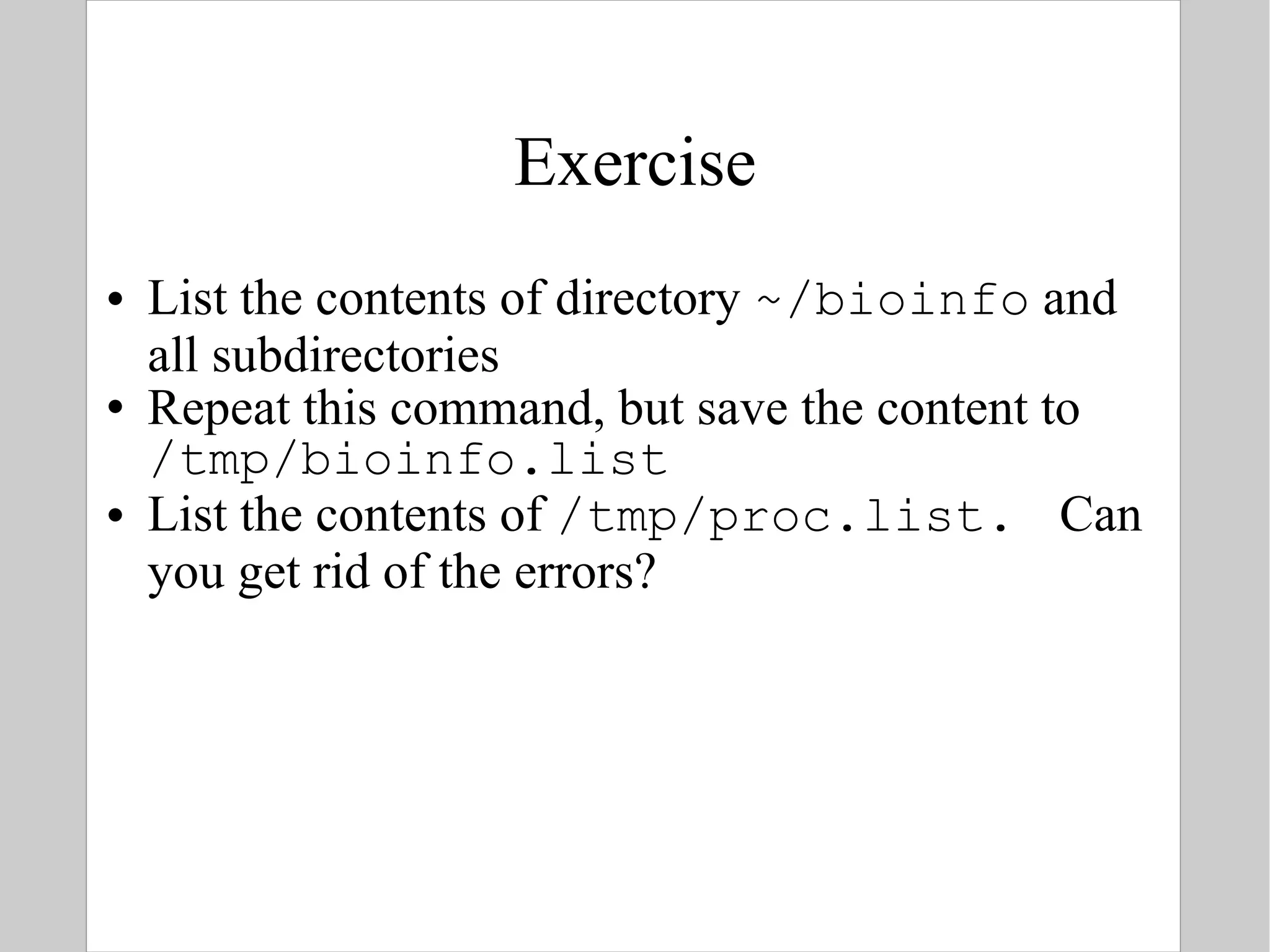
Exercise List the contents of directory  ~/bioinfo  and all subdirectories Repeat this command, but save the content to  /tmp/bioinfo.list List the contents of  /tmp/proc.list.  Can you get rid of the errors?
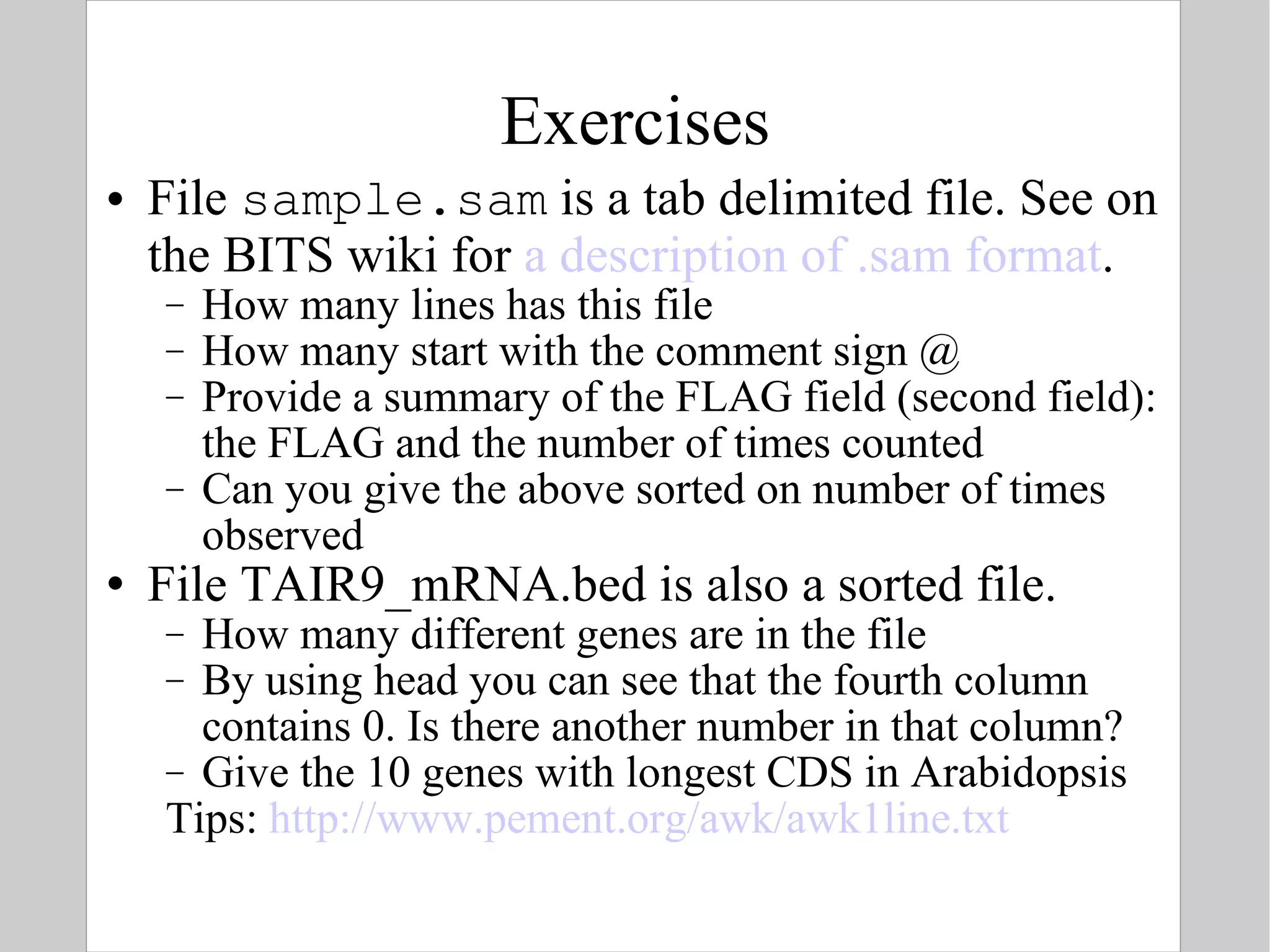
Exercises File  sample.sam  is a tab delimited file. See on the BITS wiki for  a description of .sam format . How many lines has this file How many start with the comment sign @ Provide a summary of the FLAG field (second field): the FLAG and the number of times counted Can you give the above sorted on number of times observed File TAIR9_mRNA.bed is also a sorted file. How many different genes are in the file By using head you can see that the fourth column contains 0. Is there another number in that column? Give the 10 genes with longest CDS in Arabidopsis Tips:  http://www.pement.org/awk/awk1line.txt
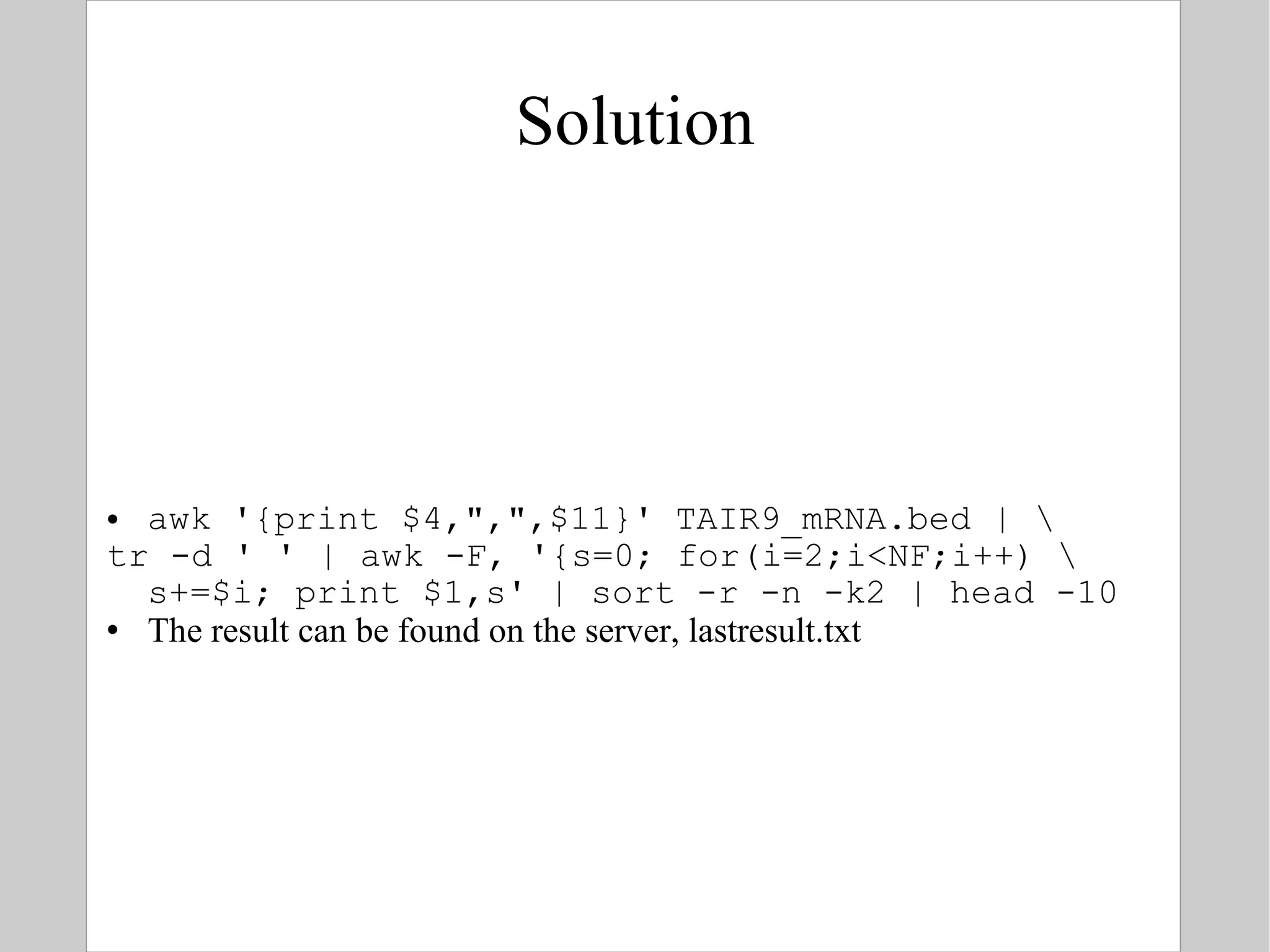
Solution awk '{print $4,&quot;,&quot;,$11}' TAIR9_mRNA.bed | \ tr -d ' ' | awk -F, '{s=0; for(i=2;i<NF;i++) \ s+=$i; print $1,s' | sort -r -n -k2 | head -10 The result can be found on the server, lastresult.txt
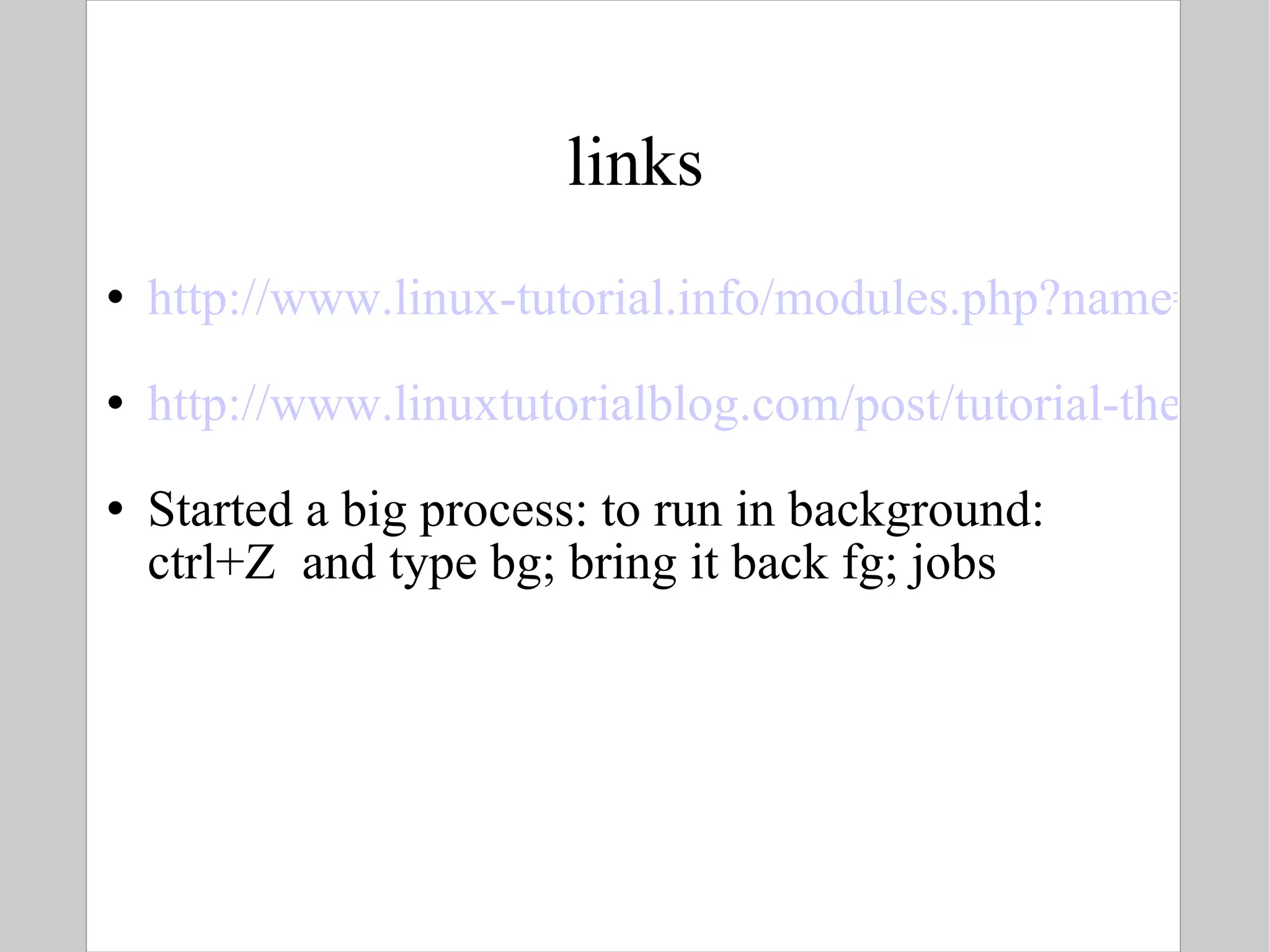
links http://www.linux-tutorial.info/modules.php?name=MContent&pageid=21 http://www.linuxtutorialblog.com/post/tutorial-the-best-tips-tricks-for-bash Started a big process: to run in background: ctrl+Z  and type bg; bring it back fg; jobs
Linux Put the fun back into computing

BITS: Introduction to Linux - Text manipulation tools for bioinformatics

  • 1.
    Linux for BioinformaticsNavigator, The Shell I/O redirection & pipes Text, text & text Misc BITS/VIB Bioinformatics Training – version 2 – Joachim Jacob Okt 2011 – Luc Ducazu <luc@daphnia.com>
  • 2.
    Schedule Today wewill only work with the command line. You won't be able to remember all of the tools we will see today, therefore a quick reference nearby is indispensable! TIP : have some kind of notes on your computer to quickly store and find commands ! http://projects.gnome.org/tomboy/
  • 3.
    GOAL The maingoal: To help you easily use command line tools To help you easily automate repetitive tasks To help you easily parse/summarize outputs, which is mainly text
  • 4.
    Connecting to LinuxStartup the your machine and log in OR Remote connection (e.g. on departmental server) $ ssh [email_address] -> The sysadmin should have made you an account -> you are prompted for your password On windows, install PuTTY to connect http://www.chiark.greenend.org.uk/~sgtatham/putty/
  • 5.
    And there weare... username Machine name location
  • 6.
    Navigation When youopen a terminal or log in to a server, the default current working directory is your ' home directory ': /home/james The prompt reflects your current working directory, however this is not always the case. To show your current working directory, you use pwd ( print working directory ): $ pwd /home/james
  • 7.
    The File SystemTree / bin boot dev etc home media root sbin tmp usr var james bin sbin share bin sbin share local lib log mail run spool tmp Aka ~ (for james) The variable PATH contains the paths of the bin folders. See command env.
  • 8.
    UNIX philosophy 'Everythingis a file' : Commands and scripts (stored in directories named bin) Configuration files in plain text (most in folder /etc) Devices ( /dev ) (here USB disks, webcam, etc.) Interaction with the Linux kernel ( /proc ) (here you can set/read system settings)
  • 9.
    Names of files& directories In UNIX names of files and directories are case sensitive Some characters have a special meaning to the shell: spaces, |, <, >, *, ?, [, ], /, \,.,.. You can use some of them, but they have to be hidden (escaped) from the shell In UNIX there is no such thing as file extensions : commands are marked executable via permissions files are recognized based on content Files and directories share the same name space
  • 10.
    Navigation in theshell You change the current working directory using cd ( change directory ): $ cd dir Absolute paths start with /, relative paths don't ( relative to the current working directory) $ cd /home $ pwd /home $ cd james $ pwd /home/james
  • 11.
    Navigation Shortcuts: navigateto your home directory $ cd $ cd ~ navigate up the file system tree $ cd .. navigate to the previous current working directory $ cd - Example: go two directories up: $ cd ../..
  • 12.
    Navigation TIP -store the current directory where you are: $ pushd . View the current and the stored directories $ dirs Go back to the stored directory $ popd Example: joachim@joalap:~$ pushd . ~ ~ joachim@joalap:~$ cd /opt joachim@joalap:/opt$ dirs /opt ~ joachim@joalap:/opt$ popd ~ joachim@joalap:~$ pwd /home/joachim
  • 13.
    Exercise Suppose youare logged in as user james . Navigate to the following waypoints, in the given order, via the shortest route /usr/local /usr/local/bin /usr/local/share/man /usr/local/bin /home/james/Documents /root /usr/local/bin
  • 14.
    Exploration To showthe content of a given directory: $ ls $ ls -l or alias $ ll The file type in the output of ls -l : $ ls -l - rwxr-xr--. 1 james users 357 Sep 5 21:36 clusterit.gz - : ordinary file d : directory l : symbolic link count
  • 15.
    Exploration The toolyou use to identify files, based on their content: $ file file(s) Example: $ ls unix-history zless $ file * unix-history: PNG image data, 1000 x 636, 8-bit/color RGBA, non-interlaced zless: POSIX shell script text executable
  • 16.
    Exploration Tools forviewing text files: Cat (show content in terminal, at once) less , more (page by page) head , tail (view only first/last lines) Tools for viewing binary files: strings , hexdump file specific viewers (images, PDF)
  • 17.
    Exploring text filesTo show the content of one or more text files: $ cat file(s) To show the content rather page by page: $ more file(s) $ less file(s) more is not as flexible as less , but it is a universal UNIX utility To show the first / last nn lines of a text file: $ head - nn file $ tail - nn file Default number of lines is 10
  • 18.
    Conquest of thefile system Working with directories: Navigation: cd , pwd Manipulation: mkdir , rmdir Working with files: Creating files: touch , nano Removing files: rm Copying files: cp Moving / renaming files: mv
  • 19.
    Creating directories Tocreate one or more directories: $ mkdir options dir(s) Interesting options: m : mode – permissions of the new directory p : parent – create all subparts
  • 20.
    Creating directories Supposeyou want to create directory /tmp/lvl1/lvl2 : $ mkdir /tmp/lvl1/lvl2 mkdir: cannot create directory ... One possible solution: $ mkdir /tmp/lvl1 /tmp/lvl1/lvl2 A more elegant solution: $ mkdir -p /tmp/lvl1/lvl2 Example 2: $ mkdir -p cgi/{data,src,ref,local/{bin/cgatools,share/cgatools-1.4.0/doc}} $ tree cgi
  • 21.
    Removing directories Toremove one or more directories: $ rmdir options dir(s) rmdir removes empty directories only (are there any hidden files left ?) You can remove complete subtrees using: $ rm -rf dir ! Pay attention when you execute this command as root – UNIX is not particularly merciful.
  • 22.
    Creating a fileTo create one or more files: $ touch file(s) When file does not yet exist, it is created: ordinary file owner is the user that enters the command group is the primary group of the owner permissions depend on umask 0 bytes file size When the file already exists, its access , modification en change time are updated.
  • 23.
    Creating a fileYou can use a text editor as an alternative way of creating files Terminal: vi , emacs pico , nano joe GUI gvim , xemacs gedit geany
  • 24.
    Copying files Tocopy file(s) from src to dst : $ cp options src dst ! Both arguments, src and dst , are mandatory When src is a single file , dst can be either a directory or the name of a (possibly existing) file : $ cp /etc/passwd . $ cp /etc/passwd /tmp/userdb When src is a collection of files, dst must be a directory: $ cp * /tmp
  • 25.
    Copying files Someinteresting options: v: be verbose i: interactive – asks whether existing files may be overwritten or not f: force – no questions asked r/R: recursion – dirs and copy subdirectories as well p: preserve permissions a: archive - combines a few options like –p and –r Example: $ cp -r cgi /opt
  • 26.
    Moving / renamingfiles To move file(s) from src to dst : $ mv options src dst ! Both arguments, src and dst , are mandatory When src is a single file , dst can be either a directory or the name of a (possibly existing) file: $ mv /tmp/download/clusterit.tgz . $ mv clusterit2.3.tar.gz clusterit.tgz When src is a collection of files, dst must be a directory: $ mv * /tmp
  • 27.
    Removing files Toremove file(s) : $ rm options file(s) Interesting options: v: be verbose i: interactive – asks whether or not you are really, really sure about this command f: force – no questions asked r: recursive - delete subdirectories as well Complete subtrees can be removed like this: $ rm -rf dir
  • 28.
    Remotely copying filesIf you are logged in on another machine, e.g. $ ssh [email_address] And you are working there: creating folders, files, running programs, you can copy to your own machine using scp $ scp [email_address] :/home/bits/sample.sam . Command to copy username machine Path to the remote folder / file you want to copy To the local current dir
  • 29.
    Exercise Get the TAIR9_mRNA.bed file from 193.191.128.4 as in previous example. Copy also the recut file from there. Your account: bits , password: b!t$fortraining The file sample.sam is available on our website, under following link: http://dl.dropbox.com/u/18352887/BITS_training_material/Link%20to%20sample.sam Search a command to download directly in the terminal (hint: use apropos). Create a folder bioinfo/data and bioinfo/bin and move recut to bin and bed/sam files to data
  • 30.
    Solutions $ scp [email_address] :/home/bits/TAIR9_mRNA.bed . $ scp [email_address] :/home/bits/recut . $ apropos download $ wget http://dl.dropbox.com/u/18352887/BITS_training_material/Link%20to%20sample.sam $ mkdir -p bioinfo/{data,bin} $ mv *.sam bioinfo/data $ mv *.bed bioinfo/data $ mv recut bioinfo/bin
  • 31.
    Exercise Create thefile /tmp/me using an editor (eg nano ) with the following content: #!/bin/sh echo No-one messes with $USER ! What kind of file is this? What could you do with this file? Create directory ex in your home directory Copy the file /tmp/me into this directory Verify its content Remove the file /tmp/me Remove directory ~/ex
  • 32.
    Executables Come intwo flavours: Scripts Binaries Execute permissions must be set, mostly 755 will do. Scripts mostly start with the shebang line, telling the shell with interpreter to use. E.g. #!/usr/bin/perl Executing of executables (with prg the file name) $ ./ prg $ bash prg.sh $ perl prg .pl
  • 33.
    Exercise The filerecut you have downloaded is a program. Look at the first lines of the program. Check with the file command which file it is. Set the permissions so the file is executable: you can do this graphically, or by typing: $chmod a+x recut Above syntax translated: 'change modus ( chmod ) so that everybody ( a ) gets ( + ) execute permissions ( x ) on the file ( recut ) Execute the program. Can you check with the file command the file /bin/ls?
  • 34.
    Advanced When youlog in on another linux box, all processes (programs) you start are are terminated upon closing the connection (… by accident). To avoid this, you can use 'no hang up' or screen: $ nohup prg -options argument & or $ screen $ prg -options argument Howto for screen: http://www.rackaid.com/resources/linux-screen-tutorial-and-how-to/
  • 35.
  • 36.
  • 37.
  • 38.
  • 39.
  • 40.
    I/O redirection ofterminal programs When a program is launched, 3 channels are opened: stdin : an input channel (default keyboard) stdout : channel used for functional output (*) (screen) stderr : channel used for error reporting (*) (screen) In UNIX, open files have an identification number called a file descriptor 0 -> stdin 1 -> stdout 2 -> stderr (*) by convention http://www.linux-tutorial.info/modules.php?name=MContent&pageid=21
  • 41.
    I/O redirection Underdefault circumstances, these channels are connected to the terminal on which the program was launched The shell offers a possibility to redirect any of these channels to: a file a device another program (pipe)
  • 42.
    I/O redirection When cat is launched without any arguments, the program reads from stdin (keyboard) and writes to stdout (terminal) Example: $ cat type: DNA: National Dyslexia Association ↵ result: DNA: National Dyslexia Association You can stop the program using the ' End Of Input ' character CTRL-D
  • 43.
    Input redirection Aprograms ' stdin ' input can be connected to a file (or device), by doing: $ cat 0< file or short: $ cat < file or even shorter: $ cat file Example: $ grep '@' < sample.sam $ mail -s Goodbye emp@company.com < C4.txt Emailing tool Option to set the subject recipient Content is read from file
  • 44.
    Output redirection The' stdout ' output of a program can be saved to a file (or device): $ cat 1> file or short: $ cat > file Example: # ls -lR / > /tmp/ls-lR # less /tmp/ls-lR
  • 45.
    Output redirection IMPORTANT,if you write to a file, the contents are being replaced by the output. To append to file , you use: $ cat 1>> file or short $ cat >> file
  • 46.
    Error redirection The' stderr ' output of a program can be saved to a file (or device): Create or truncate file : $ cat 2> file Append to file : $ cat 2>> file
  • 47.
    Special devices Forinput: /dev/zero all zeros /dev/urandom (pseudo) random numbers For output: /dev/null 'bit-heaven' Example: You are not interested in the errors from the command cmd : $ cmd 2> /dev/null
  • 48.
    Playing with out-and input: pipes The output of one program can be fed as input to another program Example: $ ls -lR ~ > /tmp/ls-lR $ less /tmp/ls-lR ('Q' to quit less) can be shortened to: $ ls -lR ~ | less The stdout channel of ls is connected to the stdin channel of less You are not restricted to 2 programs, a pipe can span many programs, each separated by |
  • 49.
    Compression of filesWidely used compression tools: GNU zip ( gzip ) Block Sorting compression ( bzip2 ) Typically, compression tools work on one file! That's why first an archive is create with tar and this archive is compressed.
  • 50.
    tar Tape Archive is a tool you use to bundle a set of files into a single archive - ideal for data exchange to extract files from a tar ball Syntax to create a tar $ tar -cf archive.tar file1 file2 Syntax to extract $ tar -xvf /path/to/archive.tar Options: x : extract archive v : be verbose (show file names) f : specify the archive file (- for stdin )
  • 51.
    Compression To compressone or more files: $ gzip [ options ] file $ bzip2 [ options ] file Options: c: send output to stdout instead of overwriting the specified file(s) 1 or --fast: fast / minimal compression 9 or --best: slow / maximal compression Standard extensions: gzip .gz bzip2 .bz2
  • 52.
    Decompression To decompressone or more files: $ gunzip [ options ] file(s) $ bunzip2 [ options ] file(s) To decompress a tar.gz or tar.bz2 $ tar xvfz file.tar.gz $ tar xvfj file.tar.bz2 The following tools can read directly from gzip or bzip2 files (*.bz2 or *.gz) $ zcat file(s) $ bzcat file(s)
  • 53.
    Text tools UNIXhas a liberal use for text files: Databases: users, groups, hosts, services Configuration files Log files Many commands are scripts (shell, perl, python) UNIX has an extensive toolkit for text extraction, reporting and manipulation: Extraction: head , tail , grep , awk , uniq Reporting: wc Manipulation: dos2unix , sort , tr , sed The UNIX text tool: perl
  • 54.
    Exchanging text filesUNIX and Windows differ in the ways line endings are marked. Sometimes text tools can get confused by Windows line endings. To convert between the two formats, use: $ dos2unix file or $ dos2unix -n dosfile unixfile In the first case, file is overwritten. In the second case a new ( -n ) file unixfile is created, leaving dosfile untouched
  • 55.
    Regular expressions A Regular expression , aka regex or re , is a formal way of describing sets of strings Many UNIX tools use regular expressions, including perl , grep and sed The topic itself is beyond the scope of this introduction to Linux, but the gentle reader is strongly encouraged to read more about this subject. Here is a starter: $ man 7 regex To keep things manageable, we will only use literal strings as regexes
  • 56.
    grep grep is used to extract lines from an input stream that match (or don't match) a regular expression Syntax: $ grep [ options ] regex [ file(s) ] The file(s) (or if omitted stdin ) are read line by line. If the line matches the given criteria, the entire line is written to stdout.
  • 57.
    grep Interesting options:i : ignore case match the regex case insensitively v : inverse show all lines that do not match the regex l : list show only the name of the files that contain a match n : shows n lines that precede and follow the match color : highlights the match
  • 58.
    grep Get james'record in the user database: $ grep james /etc/passwd james:x:500:100:James Watson: /home/james:/bin/bash Which files in /etc contain the string 'PS1': $ grep -l PS1 /etc/* 2> /dev/null /etc/bashrc /etc/bashrc.rpmnew /etc/rc.sysinit
  • 59.
    Exercise Go to www.ensembl.org/Homo_sapiens . On the main page you find a link 'Download Human genome sequence'. Download Homo_sapiens.GRCh37.64.dna.chromosome.21.fa.gz (note the extension!!) Save and extract it in your folder bioinfo/data. You might have to set the permissions to rw-r-r- by typing chmod a+r Homo* . Count how many fasta sequences are in that file to check if we have only one and display the name. Check if the tool 'screen' is installed with YUM
  • 60.
    Solution $ grep'>' Homo_sapiens.GRCh37.64.dna.chromosome.21.fa $ yum list installed | grep screen
  • 61.
    Word Count Ageneral tool for counting lines, words and characters: wc [ options ] file(s) Interesting options: c : number of characters w : number of words l : number of lines Example: How many packages are installed? $ yum list installed | wc -l
  • 62.
    Transform To manipulateindividual characters in an input stream: $ tr 's1' 's2' ! tr always reads from stdin – you cannot specify any files as command line arguments Characters in s1 are replaced by characters in s2 The result is written to stdout Example: $ echo 'James Watson' | \ tr '[a-z]' '[A-Z]' JAMES WATSON
  • 63.
    Transform To removea particular set of characters: $ tr -d 's1' Deletes all characters in s1 Reads from stdin , writes to stdout Example: $ tr –d '\r' < DOStext > UNIXtext
  • 64.
    awk awk is an extraction and reporting tool, works very well with tabular data It reads in your file, chops on white spaces creating fields, and let you specify which fields to output Excellent documentation: http://www.grymoire.com/Unix/Awk.html
  • 65.
    awk (1) Extractionof one or more fields in a tabular data stream: awk -F delim '{ print $ x }' Here is F delim the field separator (default is white space) $ x the field number: $0: the complete line $1: first field $2: second field … NF is the cumber of fields (can also be taken for last field). Note: calculations can be done between { } with $x
  • 66.
    awk (1) Examples:Extract owner and name of a file: $ ls -l | awk '{ print $3, $9 }' Show all users and their UID $ awk -F: '{ print $3, $1 }' \ /etc/passwd Show all Arabidopsis mRNA with more than 50 exons $ awk '{ if ($10>50) print $4 }' \ TAIR9_mRNA.bed
  • 67.
    awk (2) Extractionof one or more fields from a tabular data stream of lines that match a given regex : awk -F delim '/ regex / { print $ x }' Here is: regex : a regular expression the awk script is executed only if the line matches regex lines that do not match regex are removed from the stream
  • 68.
    awk (2) Example:print number of exons of mRNAs from first chromosomes: $ awk '/chr1/ {print $1,$10}' \ TAIR9_mRNA.bed
  • 69.
    cut A similartool is cut , it extracts fields from fixed text file formats only: fixed width $ cut -c LIST [ file ] fixed delimiter $ cut [-d delim ] -f LIST [ file ] For LIST: N : the Nth element N-M : element the Nth till the Mth element N- : from the Nth element on -M : till the Mth element The first element is 1
  • 70.
    cut Fixed widthexample: Suppose there is a file fixed.txt with content 12345ABCDE67890FGHIJ To extract a range of characters: $ cut -c 6-10 fixed.txt ABCDE
  • 71.
    cut Fixed delimiterexample: Default delimiter is TAB To extract the UID, account and GECOS fields from /etc/passwd : $ cut -d: -f 3,1,5 /etc/passwd root:0:root ... ! Note the output order. The commands below give exactly the same result: $ cat /etc/passwd | tr ':' '\t' |\ cut -f 3,1,5 --output-delimiter ':' root:0:root ...
  • 72.
    sort To sortalphabetically or numerically lines of text: $ sort [ options ] file(s) When one or more file(s) are specified, they are read one by one, but all lines are sorted. The output is written to stdout When no file(s) arguments are given, sort reads input from stdin
  • 73.
    sort Interesting options:n : sort numerically f : fold – case-insensitive r : reverse sort order t s : use s as field separator (instead of space) k n : sort on the n -th field (1 being the first field)
  • 74.
    sort Examples: SortmRNA by chromosome number and next by number of exonse $ sort -n -k1 -k10 TAIR9_mRNA.bed \ > out.bed
  • 75.
    uniq This toolallows you to: eliminate duplicate lines in a set of files display unique lines display and count duplicate lines ! uniq always starts from sorted input
  • 76.
    Eliminate duplicates Toeliminate duplicate lines: $ uniq file(s) Example: $ who root tty1 Oct 16 23:20 james tty2 Oct 16 23:20 james pts/0 Oct 16 23:21 james pts/1 Oct 16 23:22 james pts/2 Oct 16 23:22 $ who | awk '{print $1}' | sort | uniq james root
  • 77.
    Display unique orduplicate lines To display lines that occur only once: $ uniq -u file(s) To display lines that occur more than once: $ uniq -d file(s) Example: $ who|awk '{print $1}'|sort|uniq -d james To display the counts of the lines $ uniq -c file(s) Example $ who | awk '{print $1}'|sort|uniq -c 4 james 1 root !
  • 78.
    Comparing text filesTo find differences between two text files: $ diff [ options ] file1 file2 Example: difference between two genbank versions of LOCUS CAA98068 # diff sequences1.gp sequences2.gp 1,2c1,3 < LOCUS CAA98068 445 aa linear INV 27-OCT-2000 < DEFINITION ZK822.4 [Caenorhabditis elegans]. --- > LOCUS CAA98068 453 aa linear INV 09-MAY-2010 > DEFINITION C. elegans protein ZK822.4, confirmed by transcript evidence > [Caenorhabditis elegans]. 4,5c5,6 < VERSION CAA98068.1 GI:3881817 < DBSOURCE embl locus CEZK822, accession Z73898.1 --- > VERSION CAA98068.2 GI:14530708 > DBSOURCE embl accession Z73898.1
  • 79.
    Comparing text filesThere exists a text tool, sdiff , that compares two files side by side . However, when visualizing data, one is far better off using graphical tools. Visual diff: meld
  • 80.
  • 81.
    Exercise List thecontents of directory ~/bioinfo and all subdirectories Repeat this command, but save the content to /tmp/bioinfo.list List the contents of /tmp/proc.list. Can you get rid of the errors?
  • 82.
    Exercises File sample.sam is a tab delimited file. See on the BITS wiki for a description of .sam format . How many lines has this file How many start with the comment sign @ Provide a summary of the FLAG field (second field): the FLAG and the number of times counted Can you give the above sorted on number of times observed File TAIR9_mRNA.bed is also a sorted file. How many different genes are in the file By using head you can see that the fourth column contains 0. Is there another number in that column? Give the 10 genes with longest CDS in Arabidopsis Tips: http://www.pement.org/awk/awk1line.txt
  • 83.
    Solution awk '{print$4,&quot;,&quot;,$11}' TAIR9_mRNA.bed | \ tr -d ' ' | awk -F, '{s=0; for(i=2;i<NF;i++) \ s+=$i; print $1,s' | sort -r -n -k2 | head -10 The result can be found on the server, lastresult.txt
  • 84.
  • 85.
    Linux Put thefun back into computing