Basics of Shell
Programming
Date:02/7/2016
Chandan Kr. Rana
Table of Contents
1. Introduction
2. Usage
3. Basic System Commands
4. Useful Operations
5. Shell Variables
6. Command Substitution & Command Line Arguments
7. Decision making and Loop Constructs
8. Tools & Important Shell Features
9. References
Introduction
The Unix OS provides a flexible set of simple tools that allows us to perform a wide
variety of system-management,text-processing, and general-purpose tasks.
These tools are used by tying them together which is called shell scripts.
Usage
The Unix Shell is a user-interface program that accepts commands from the user and
executes them.
Excellent for system-management tasks but not for general-purpose programming. It is
simple to write but difficult to debug and slow in operation.
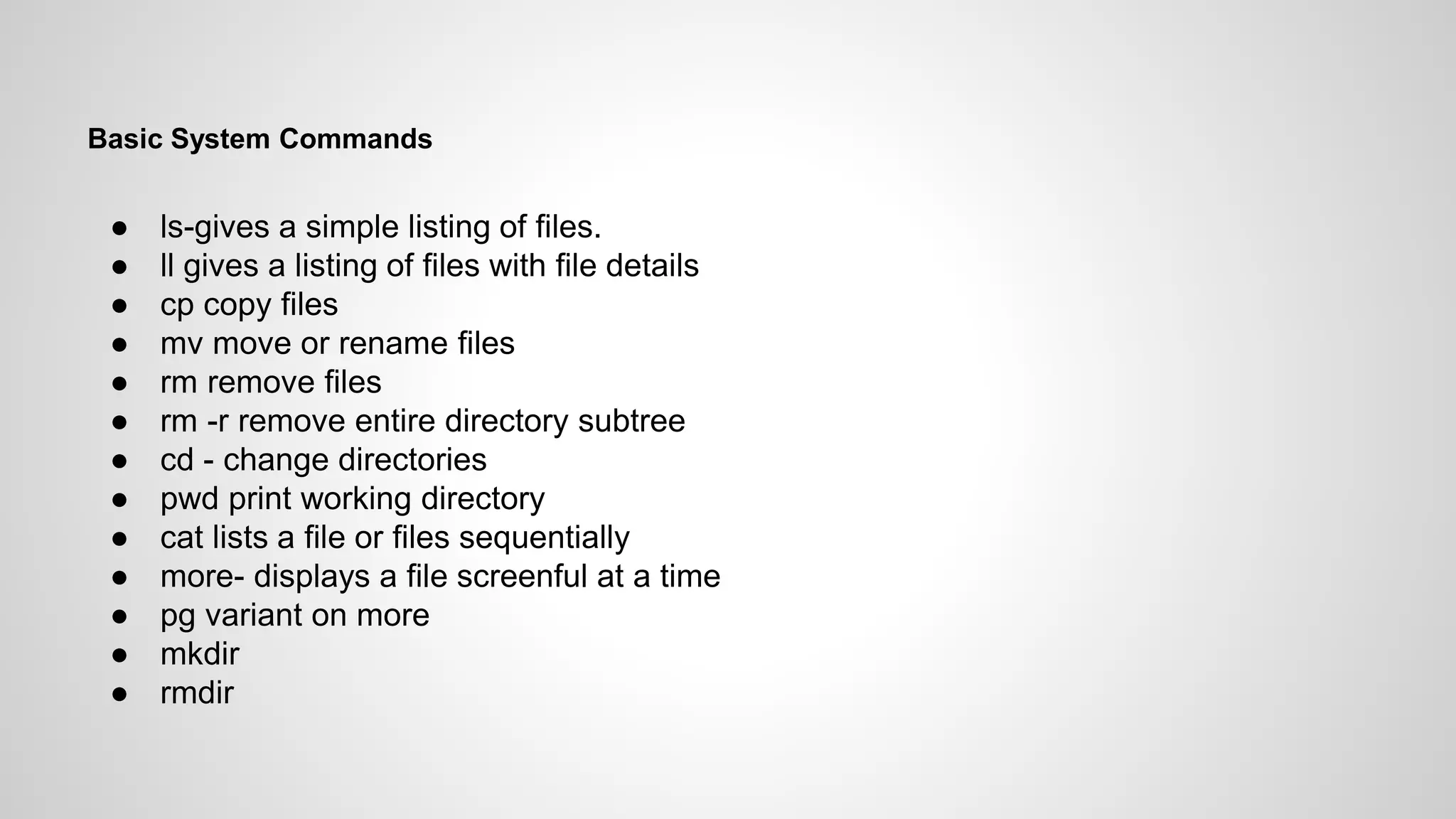
Basic System Commands
● ls-gives a simple listing of files.
● ll gives a listing of files with file details
● cp copy files
● mv move or rename files
● rm remove files
● rm -r remove entire directory subtree
● cd - change directories
● pwd print working directory
● cat lists a file or files sequentially
● more- displays a file screenful at a time
● pg variant on more
● mkdir
● rmdir
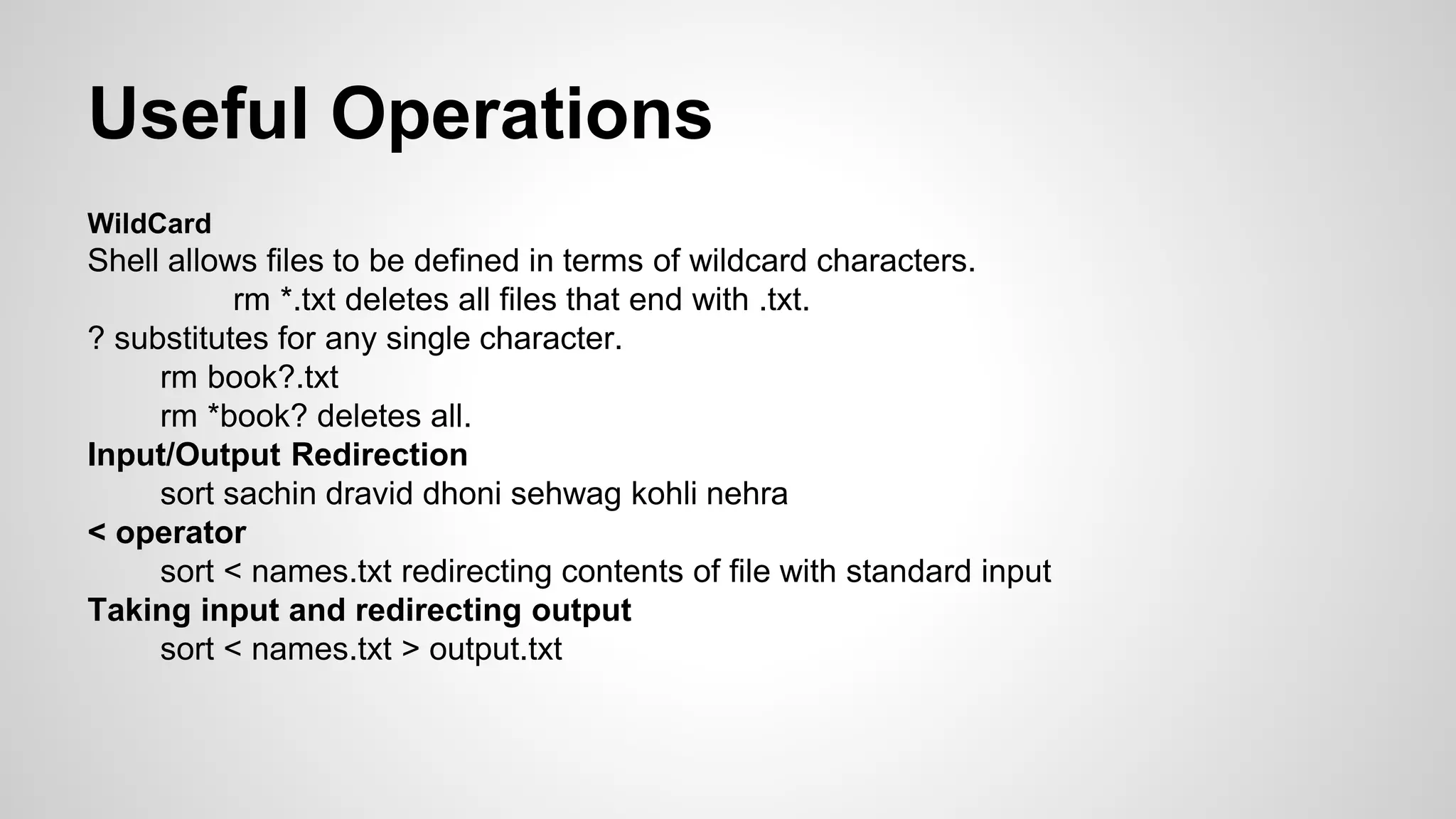
Useful Operations
WildCard
Shell allows files to be defined in terms of wildcard characters.
rm *.txt deletes all files that end with .txt.
? substitutes for any single character.
rm book?.txt
rm *book? deletes all.
Input/Output Redirection
sort sachin dravid dhoni sehwag kohli nehra
< operator
sort < names.txt redirecting contents of file with standard input
Taking input and redirecting output
sort < names.txt > output.txt
Sort & Tee
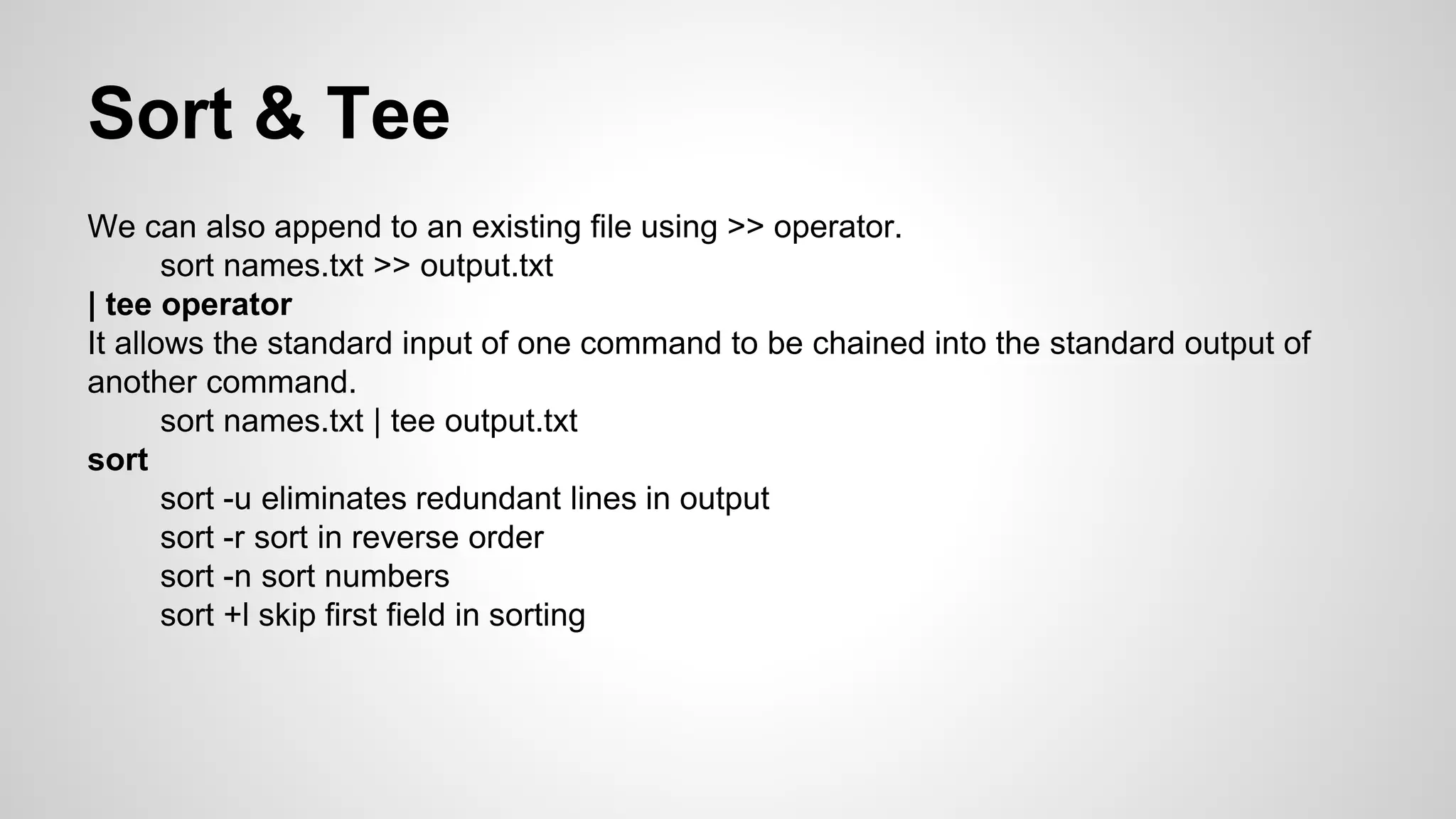
We can also append to an existing file using >> operator.
sort names.txt >> output.txt
| tee operator
It allows the standard input of one command to be chained into the standard output of
another command.
sort names.txt | tee output.txt
sort
sort -u eliminates redundant lines in output
sort -r sort in reverse order
sort -n sort numbers
sort +l skip first field in sorting
Standard Error
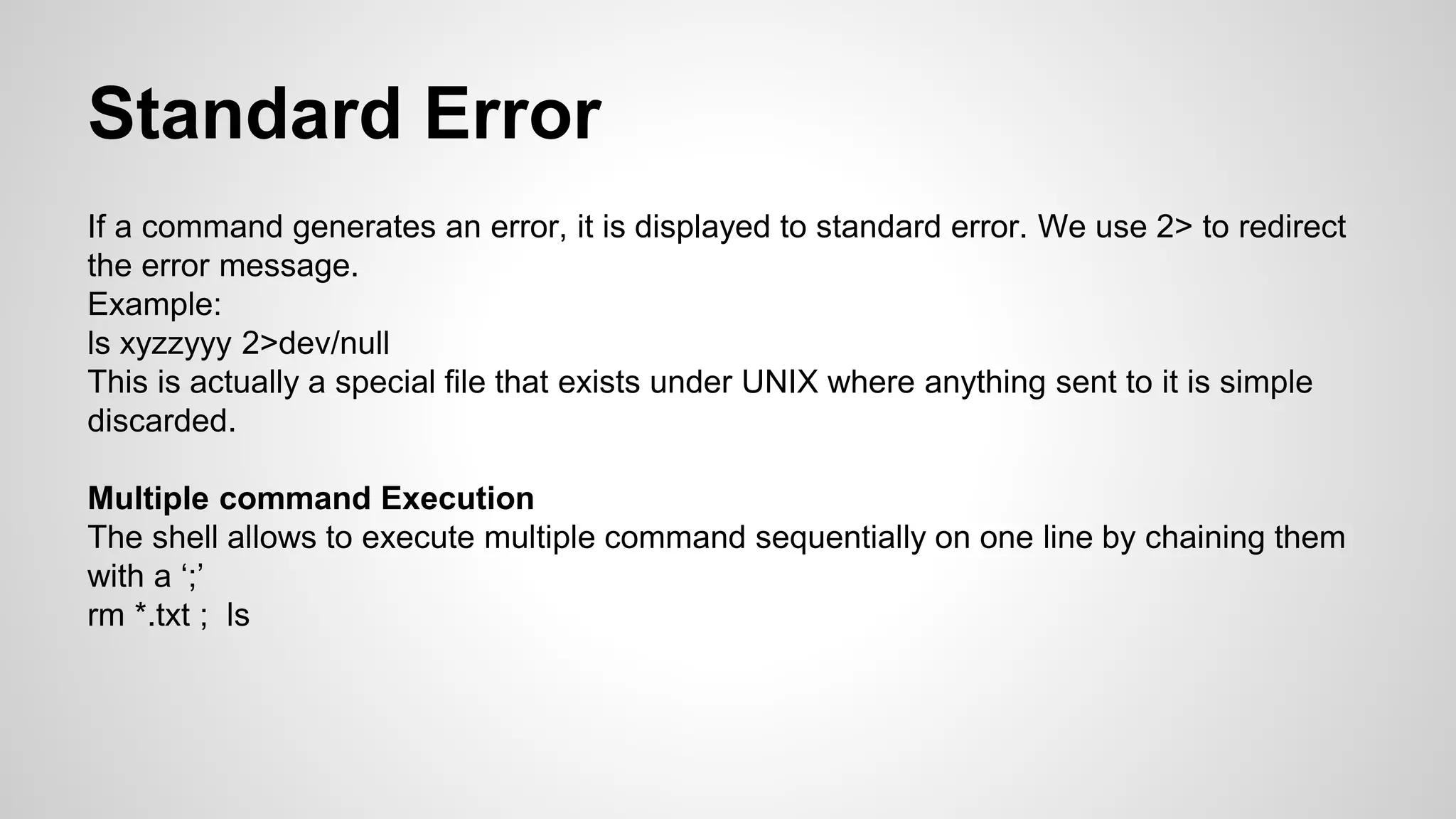
If a command generates an error, it is displayed to standard error. We use 2> to redirect
the error message.
Example:
ls xyzzyyy 2>dev/null
This is actually a special file that exists under UNIX where anything sent to it is simple
discarded.
Multiple command Execution
The shell allows to execute multiple command sequentially on one line by chaining them
with a ‘;’
rm *.txt ; ls
Shell Variables
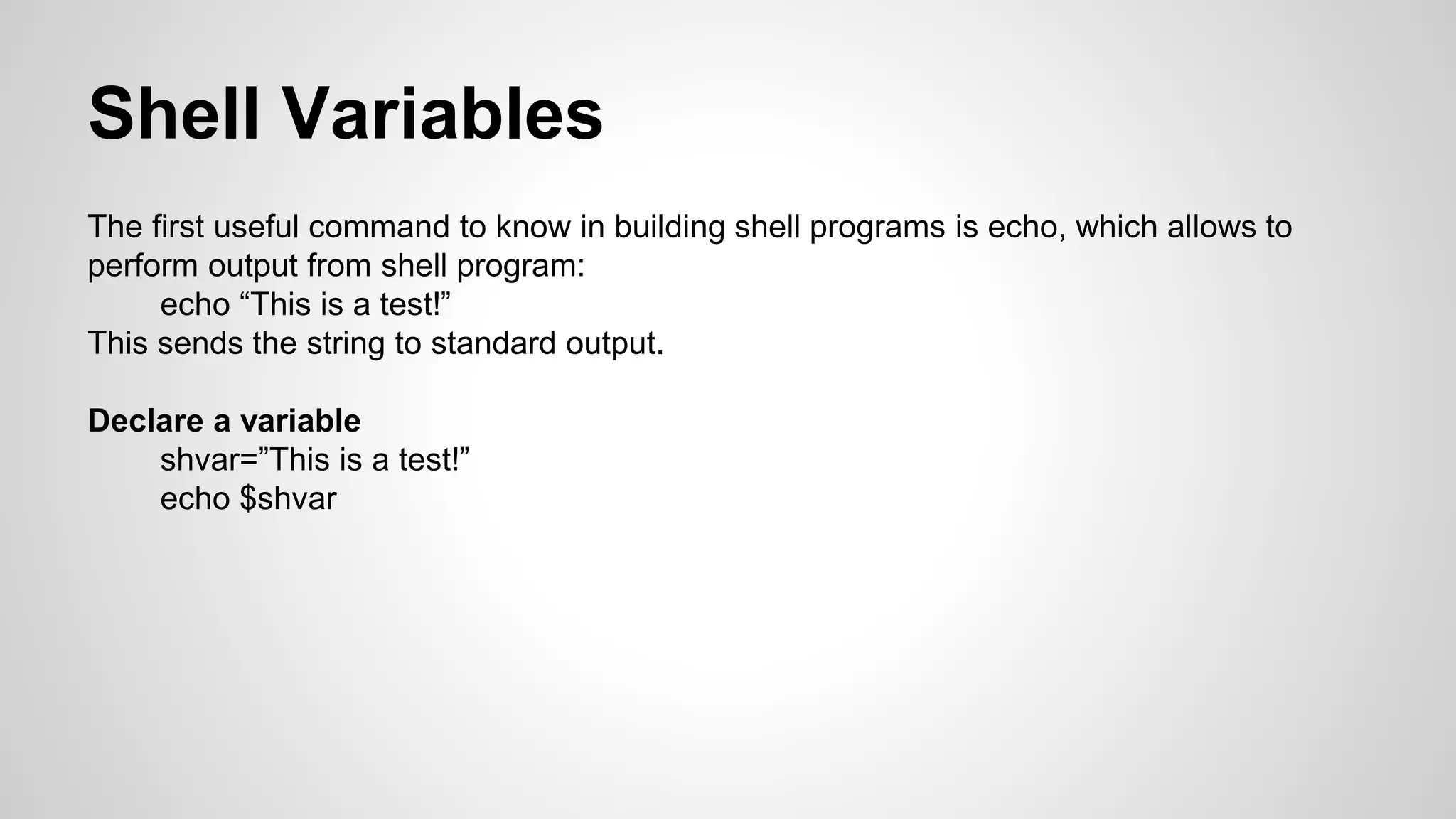
The first useful command to know in building shell programs is echo, which allows to
perform output from shell program:
echo “This is a test!”
This sends the string to standard output.
Declare a variable
shvar=”This is a test!”
echo $shvar
Command Line Substitution
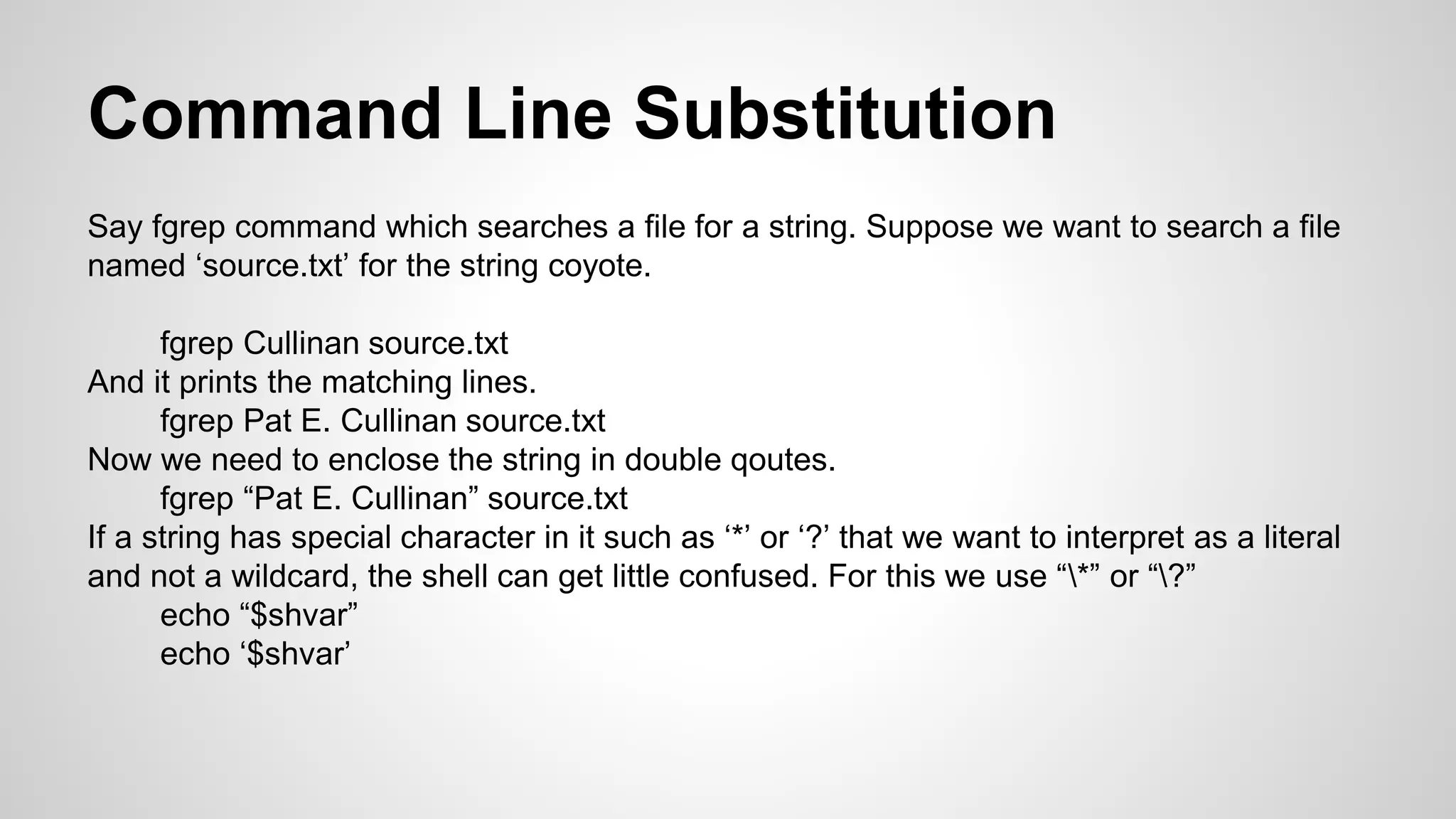
Say fgrep command which searches a file for a string. Suppose we want to search a file
named ‘source.txt’ for the string coyote.
fgrep Cullinan source.txt
And it prints the matching lines.
fgrep Pat E. Cullinan source.txt
Now we need to enclose the string in double qoutes.
fgrep “Pat E. Cullinan” source.txt
If a string has special character in it such as ‘*’ or ‘?’ that we want to interpret as a literal
and not a wildcard, the shell can get little confused. For this we use “*” or “?”
echo “$shvar”
echo ‘$shvar’
Expr Command
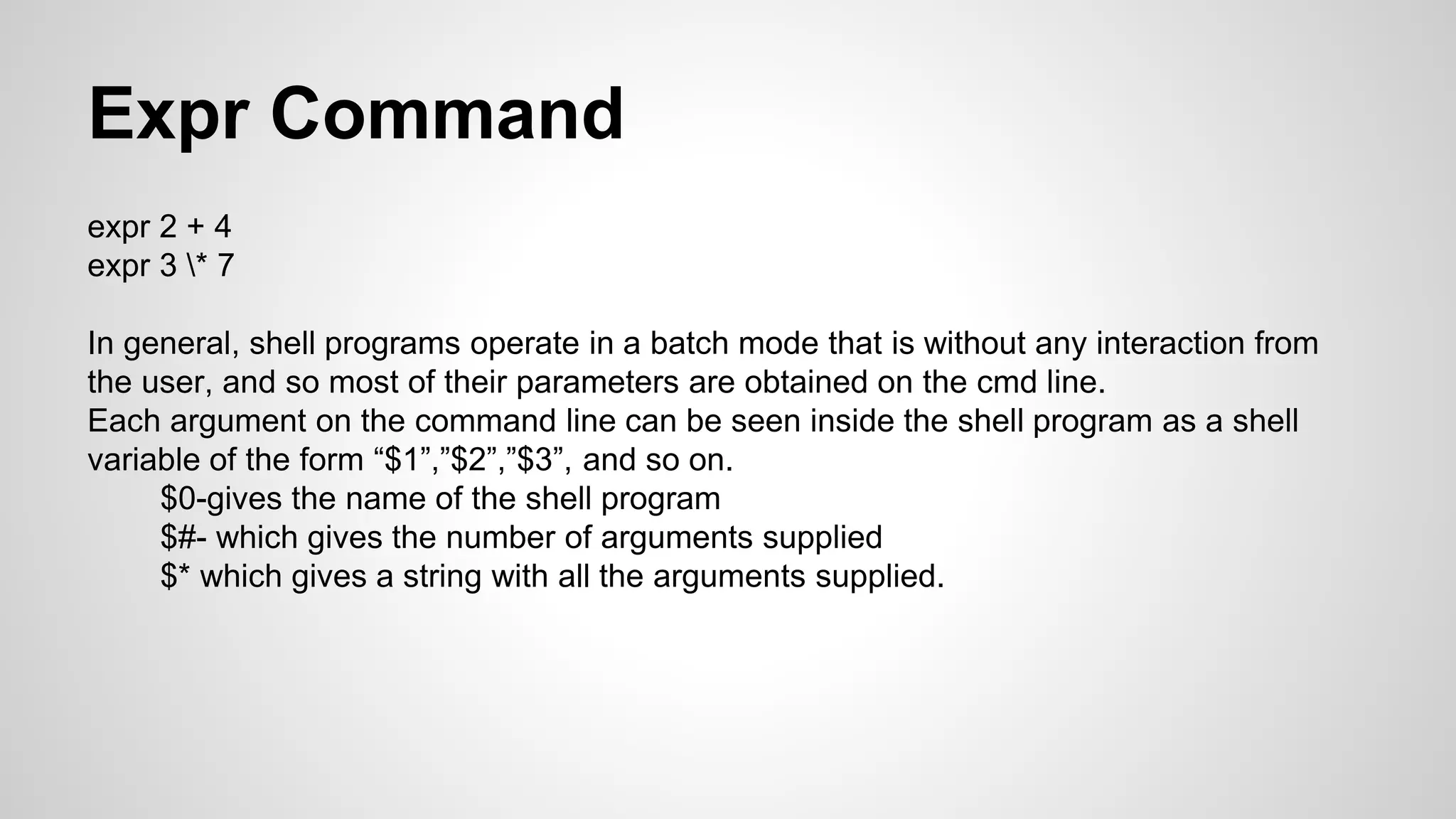
expr 2 + 4
expr 3 * 7
In general, shell programs operate in a batch mode that is without any interaction from
the user, and so most of their parameters are obtained on the cmd line.
Each argument on the command line can be seen inside the shell program as a shell
variable of the form “$1”,”$2”,”$3”, and so on.
$0-gives the name of the shell program
$#- which gives the number of arguments supplied
$* which gives a string with all the arguments supplied.
Decision Making and Looping
Shell programs can perform conditional tests on their arguments and variables and
execute different commands based on the results. Example:
if [ “$1” = “Volley” ]
then
echo “Volley not allowed.”
exit
elif [ “$1” = “Cricket” ]
then
echo “Cricket not allowed”
exit
else
echo “All other games are allowed”
fi
echo “Any other thing!”
Conditions
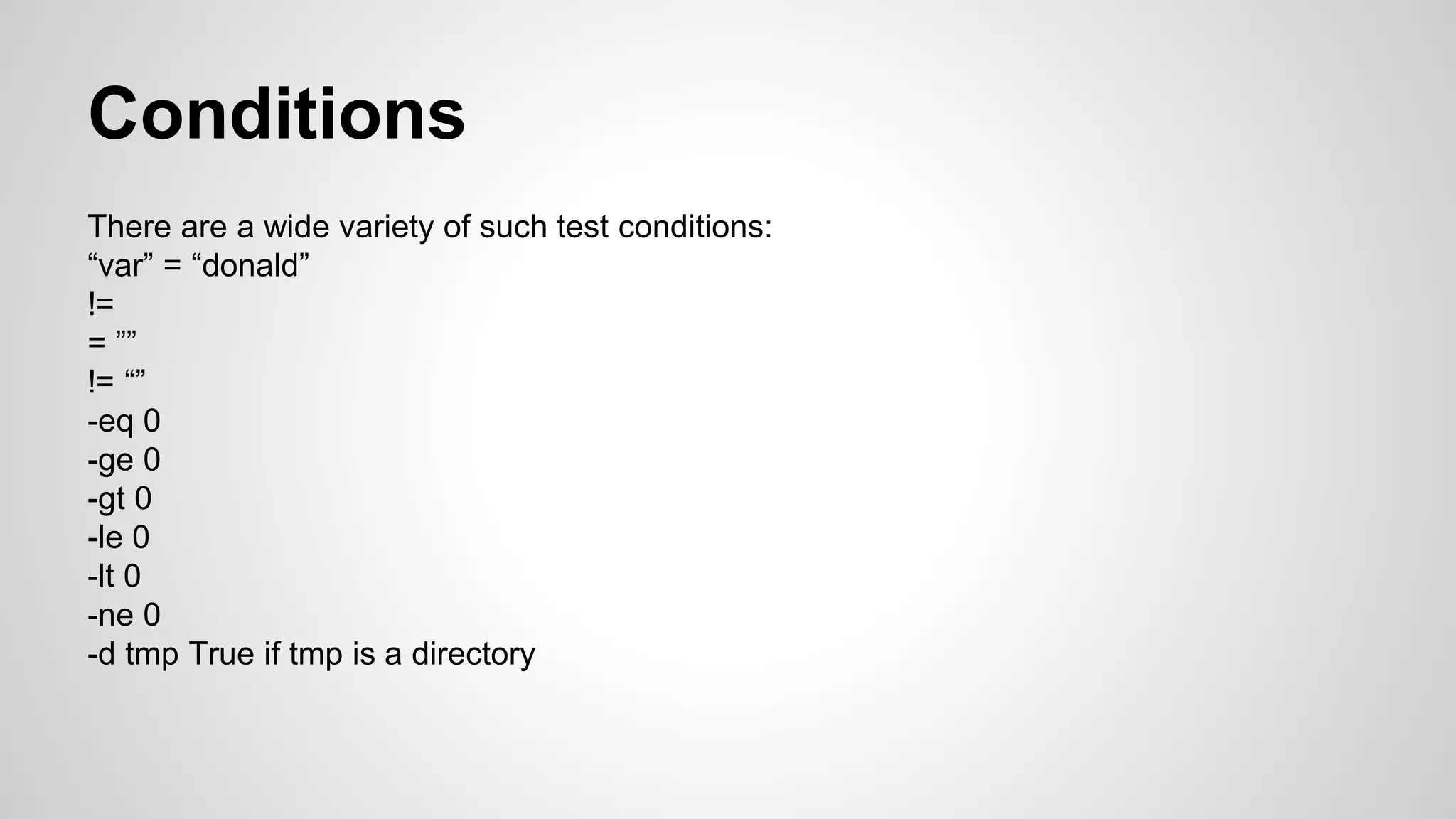
There are a wide variety of such test conditions:
“var” = “donald”
!=
= ””
!= “”
-eq 0
-ge 0
-gt 0
-le 0
-lt 0
-ne 0
-d tmp True if tmp is a directory
Conditions Contd.
-f tmp True if ™ is an ordinary file.
-r tmp True if tmp can be read
-s tmp True if tmp is non-zero length
-w tmp True if tmp can be written
-x tmp True if tmp is executable
Switch Case
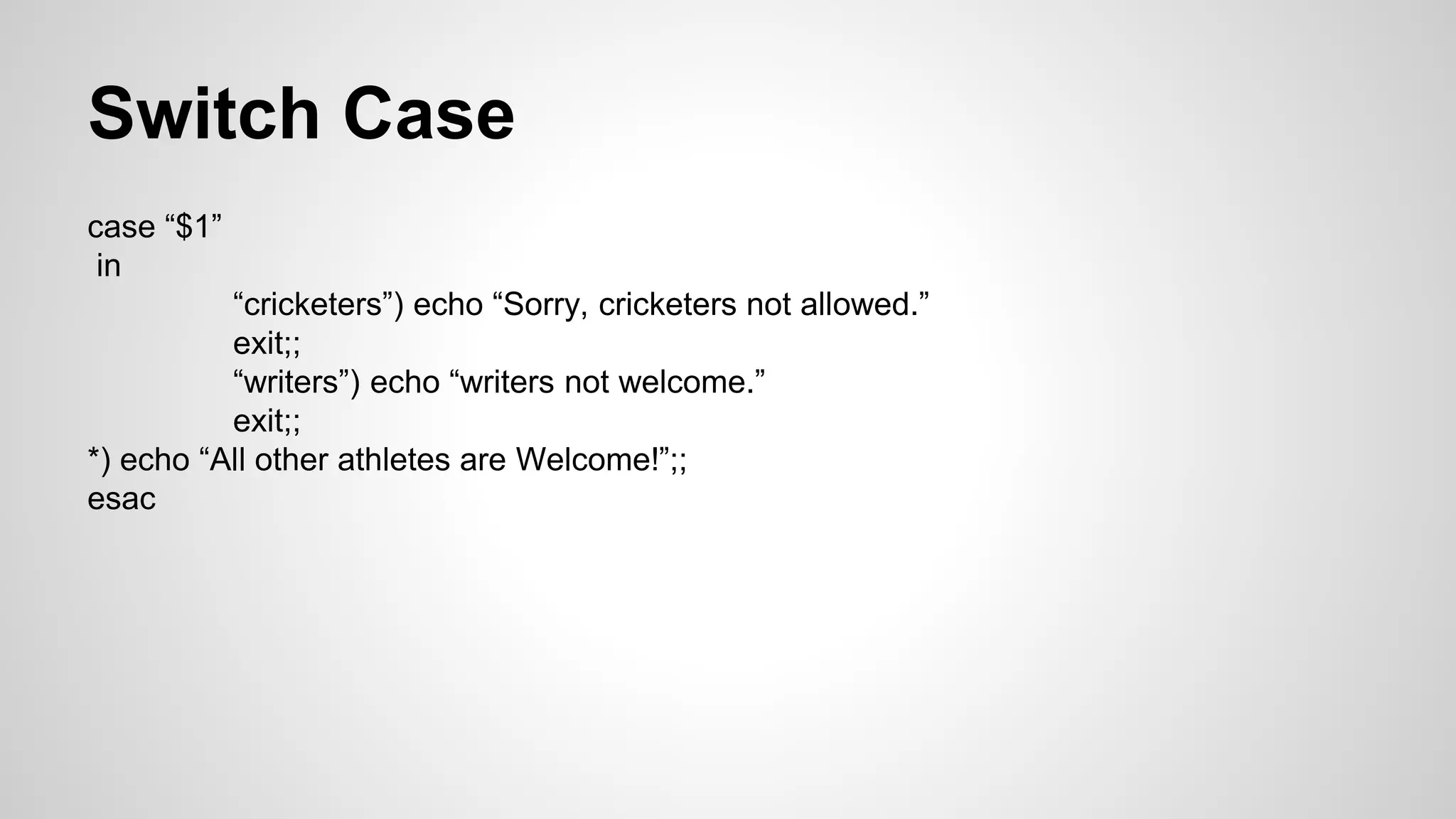
case “$1”
in
“cricketers”) echo “Sorry, cricketers not allowed.”
exit;;
“writers”) echo “writers not welcome.”
exit;;
*) echo “All other athletes are Welcome!”;;
esac
For loop
for nvar in 1 2 3 4 5
do
echo $nvar
done
for file in *
do
echo $file
done
While & Until
While
n = 10
while [ “$n” -ne 0 ]
do
echo $n
n=’expr $n - 1’
done
Until [ “$n” -eq 0 ]
Other Useful Features
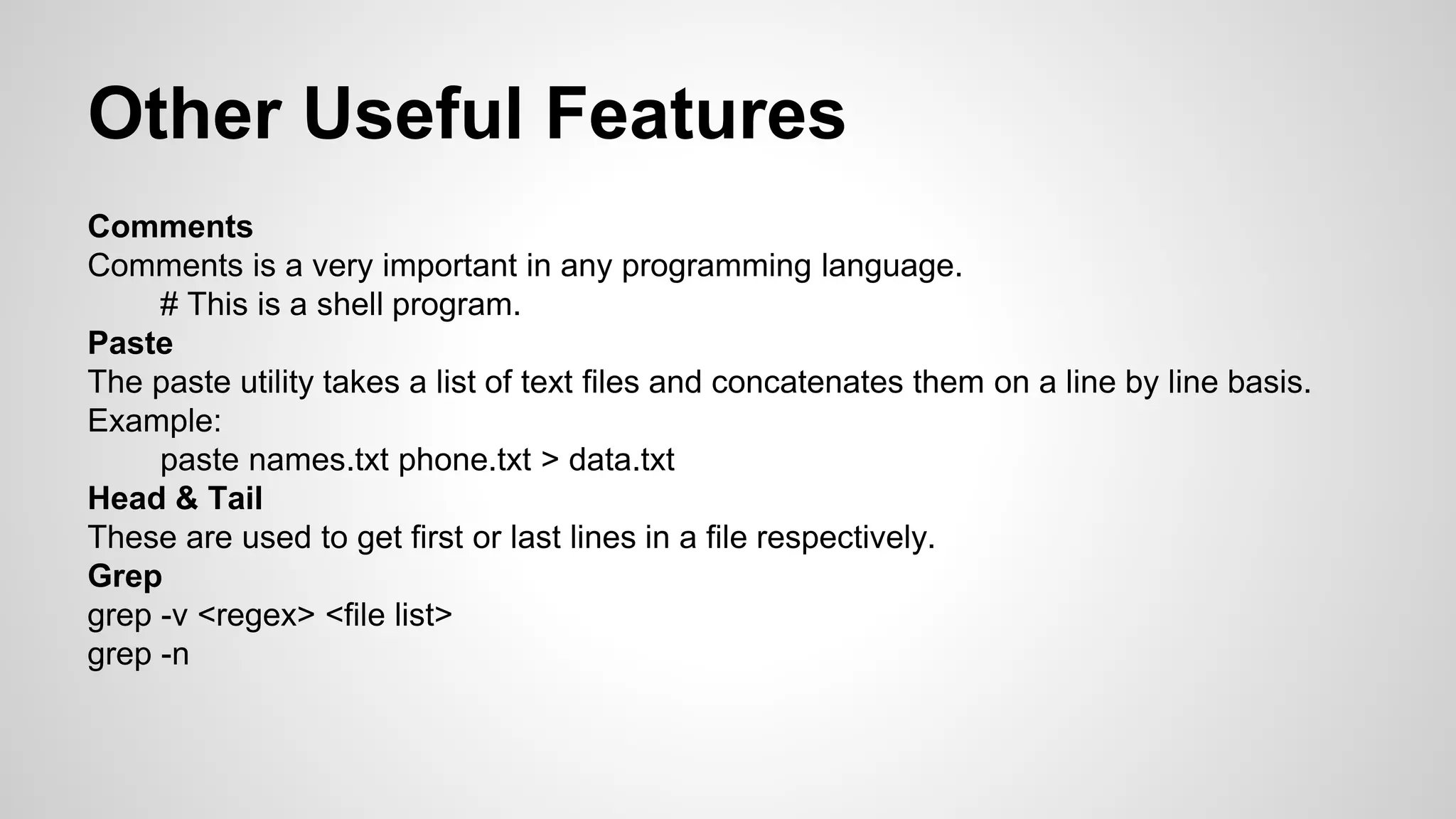
Comments
Comments is a very important in any programming language.
# This is a shell program.
Paste
The paste utility takes a list of text files and concatenates them on a line by line basis.
Example:
paste names.txt phone.txt > data.txt
Head & Tail
These are used to get first or last lines in a file respectively.
Grep
grep -v <regex> <file list>
grep -n
References
Online resources
Google :-)

Basics of shell programming

  • 1.
  • 2.
    Table of Contents 1.Introduction 2. Usage 3. Basic System Commands 4. Useful Operations 5. Shell Variables 6. Command Substitution & Command Line Arguments 7. Decision making and Loop Constructs 8. Tools & Important Shell Features 9. References
  • 3.
    Introduction The Unix OSprovides a flexible set of simple tools that allows us to perform a wide variety of system-management,text-processing, and general-purpose tasks. These tools are used by tying them together which is called shell scripts.
  • 4.
    Usage The Unix Shellis a user-interface program that accepts commands from the user and executes them. Excellent for system-management tasks but not for general-purpose programming. It is simple to write but difficult to debug and slow in operation.
  • 5.
    Basic System Commands ●ls-gives a simple listing of files. ● ll gives a listing of files with file details ● cp copy files ● mv move or rename files ● rm remove files ● rm -r remove entire directory subtree ● cd - change directories ● pwd print working directory ● cat lists a file or files sequentially ● more- displays a file screenful at a time ● pg variant on more ● mkdir ● rmdir
  • 6.
    Useful Operations WildCard Shell allowsfiles to be defined in terms of wildcard characters. rm *.txt deletes all files that end with .txt. ? substitutes for any single character. rm book?.txt rm *book? deletes all. Input/Output Redirection sort sachin dravid dhoni sehwag kohli nehra < operator sort < names.txt redirecting contents of file with standard input Taking input and redirecting output sort < names.txt > output.txt
  • 7.
    Sort & Tee Wecan also append to an existing file using >> operator. sort names.txt >> output.txt | tee operator It allows the standard input of one command to be chained into the standard output of another command. sort names.txt | tee output.txt sort sort -u eliminates redundant lines in output sort -r sort in reverse order sort -n sort numbers sort +l skip first field in sorting
  • 8.
    Standard Error If acommand generates an error, it is displayed to standard error. We use 2> to redirect the error message. Example: ls xyzzyyy 2>dev/null This is actually a special file that exists under UNIX where anything sent to it is simple discarded. Multiple command Execution The shell allows to execute multiple command sequentially on one line by chaining them with a ‘;’ rm *.txt ; ls
  • 9.
    Shell Variables The firstuseful command to know in building shell programs is echo, which allows to perform output from shell program: echo “This is a test!” This sends the string to standard output. Declare a variable shvar=”This is a test!” echo $shvar
  • 10.
    Command Line Substitution Sayfgrep command which searches a file for a string. Suppose we want to search a file named ‘source.txt’ for the string coyote. fgrep Cullinan source.txt And it prints the matching lines. fgrep Pat E. Cullinan source.txt Now we need to enclose the string in double qoutes. fgrep “Pat E. Cullinan” source.txt If a string has special character in it such as ‘*’ or ‘?’ that we want to interpret as a literal and not a wildcard, the shell can get little confused. For this we use “*” or “?” echo “$shvar” echo ‘$shvar’
  • 11.
    Expr Command expr 2+ 4 expr 3 * 7 In general, shell programs operate in a batch mode that is without any interaction from the user, and so most of their parameters are obtained on the cmd line. Each argument on the command line can be seen inside the shell program as a shell variable of the form “$1”,”$2”,”$3”, and so on. $0-gives the name of the shell program $#- which gives the number of arguments supplied $* which gives a string with all the arguments supplied.
  • 12.
    Decision Making andLooping Shell programs can perform conditional tests on their arguments and variables and execute different commands based on the results. Example: if [ “$1” = “Volley” ] then echo “Volley not allowed.” exit elif [ “$1” = “Cricket” ] then echo “Cricket not allowed” exit else echo “All other games are allowed” fi echo “Any other thing!”
  • 13.
    Conditions There are awide variety of such test conditions: “var” = “donald” != = ”” != “” -eq 0 -ge 0 -gt 0 -le 0 -lt 0 -ne 0 -d tmp True if tmp is a directory
  • 14.
    Conditions Contd. -f tmpTrue if ™ is an ordinary file. -r tmp True if tmp can be read -s tmp True if tmp is non-zero length -w tmp True if tmp can be written -x tmp True if tmp is executable
  • 15.
    Switch Case case “$1” in “cricketers”)echo “Sorry, cricketers not allowed.” exit;; “writers”) echo “writers not welcome.” exit;; *) echo “All other athletes are Welcome!”;; esac
  • 16.
    For loop for nvarin 1 2 3 4 5 do echo $nvar done for file in * do echo $file done
  • 17.
    While & Until While n= 10 while [ “$n” -ne 0 ] do echo $n n=’expr $n - 1’ done Until [ “$n” -eq 0 ]
  • 18.
    Other Useful Features Comments Commentsis a very important in any programming language. # This is a shell program. Paste The paste utility takes a list of text files and concatenates them on a line by line basis. Example: paste names.txt phone.txt > data.txt Head & Tail These are used to get first or last lines in a file respectively. Grep grep -v <regex> <file list> grep -n
  • 19.