JWT
Graphical User Interface
 Graphical User Interface (GUI) offers user interaction via
some graphical components. For example our underlying
Operating System also offers GUI via
window,frame,Panel, Button, Textfield, TextArea,
Listbox, Combobox, Label, Checkbox etc. These all are
known as components. Using these components we can
create an interactive user interface for an application.
 GUI provides result to end user in response to raised
events.GUI is entirely based events. For example clicking
over a button, closing a window, opening a window,
typing something in a textarea etc. These activities are
known as events.GUI makes it easier for the end user to
use an application. It also makes them interesting.
What is JWT?
 Java AWT (Abstract Windowing Toolkit) is an API to
develop GUI or window-based application in java.
 Java AWT components are platform-dependent i.e.
components are displayed according to the view of
operating system. AWT is heavyweight i.e. its
components uses the resources of system.
 The java.awt package provides classes for AWT api such
as TextField, Label, TextArea, RadioButton, CheckBox,
Choice, List etc.
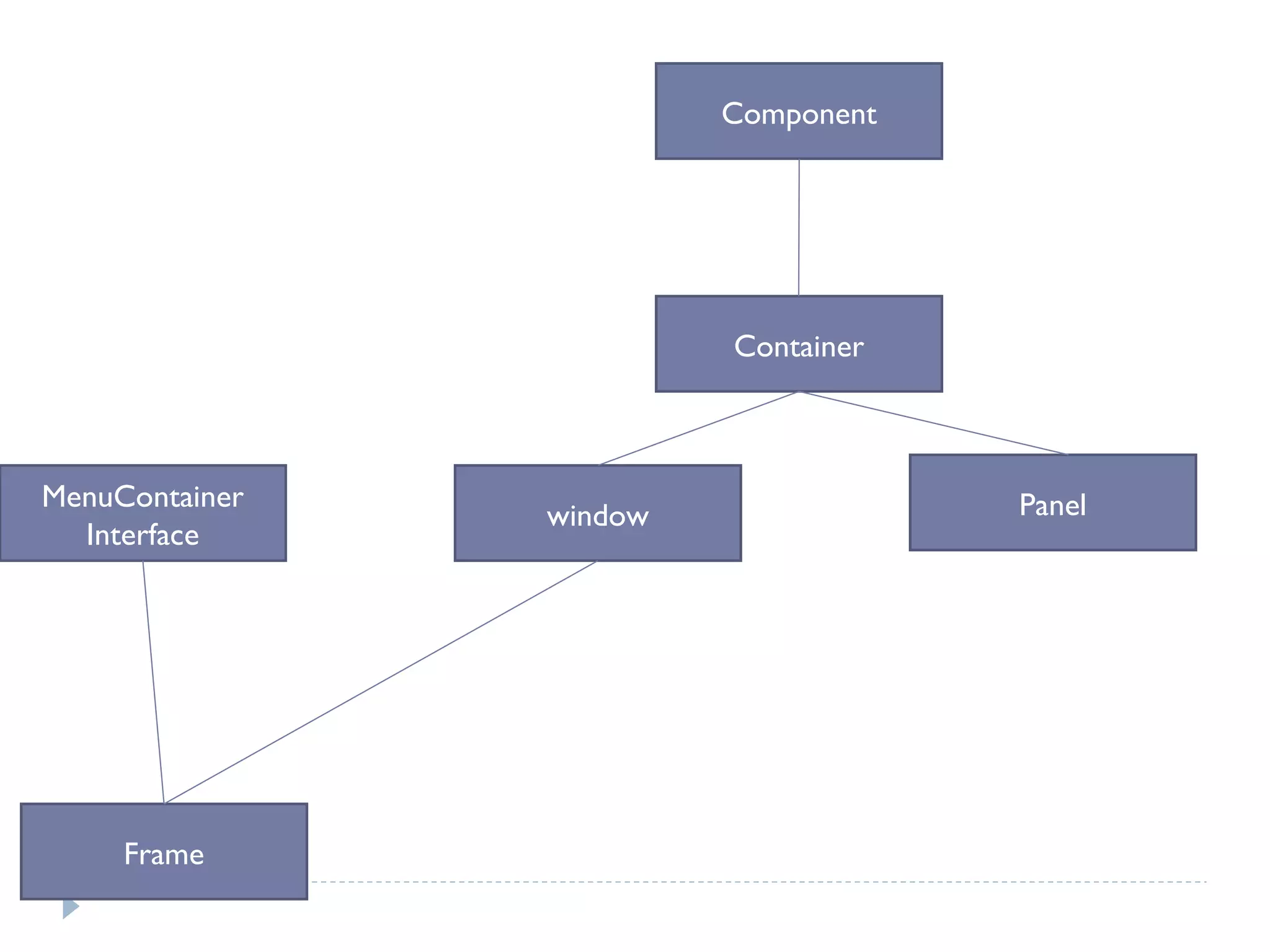
Java AWT Hierarchy
 The hierarchy of Java AWT classes are given below.
Component
Container
window Panel
Frame
MenuContainer
Interface
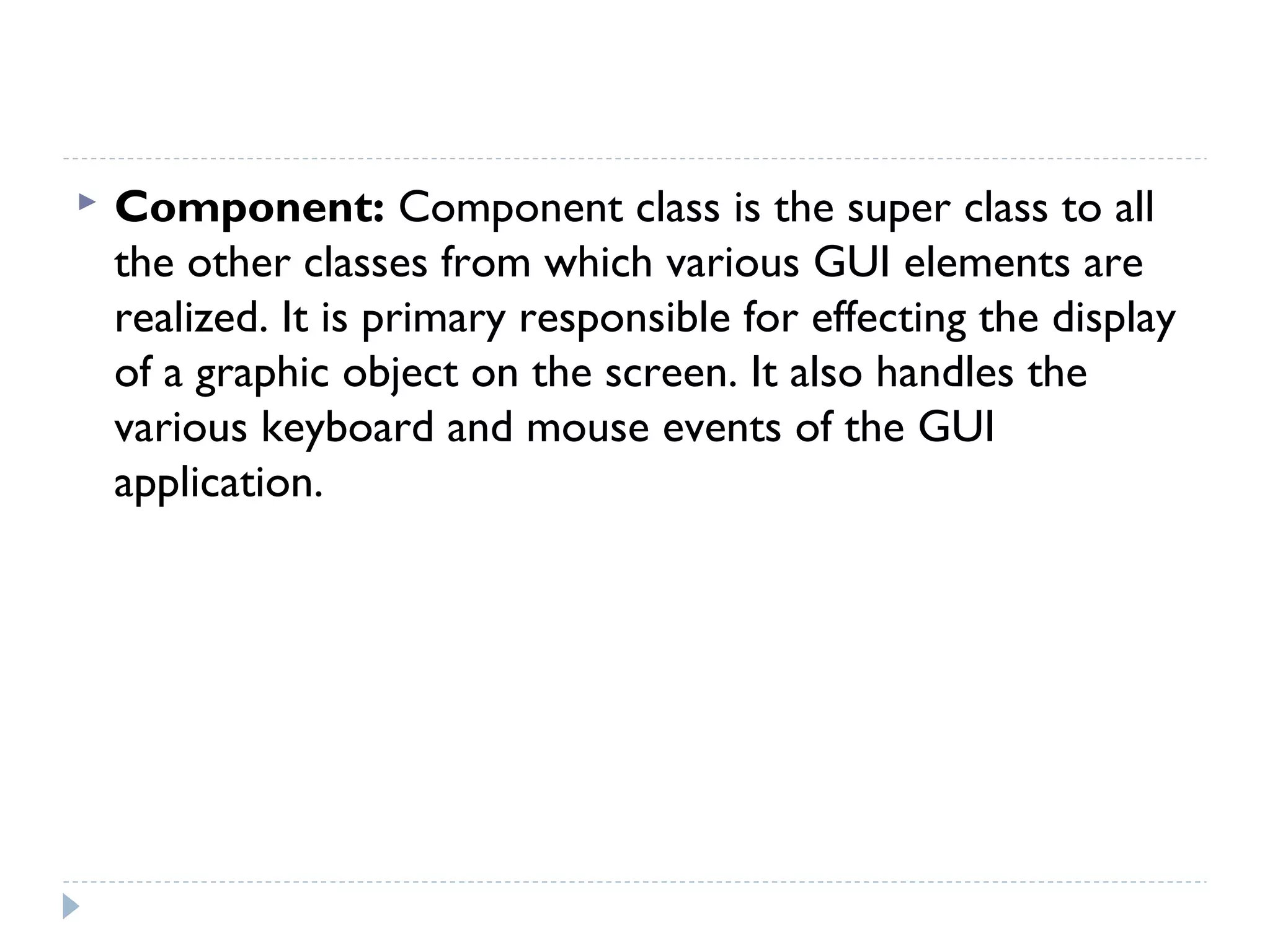
 Component: Component class is the super class to all
the other classes from which various GUI elements are
realized. It is primary responsible for effecting the display
of a graphic object on the screen. It also handles the
various keyboard and mouse events of the GUI
application.
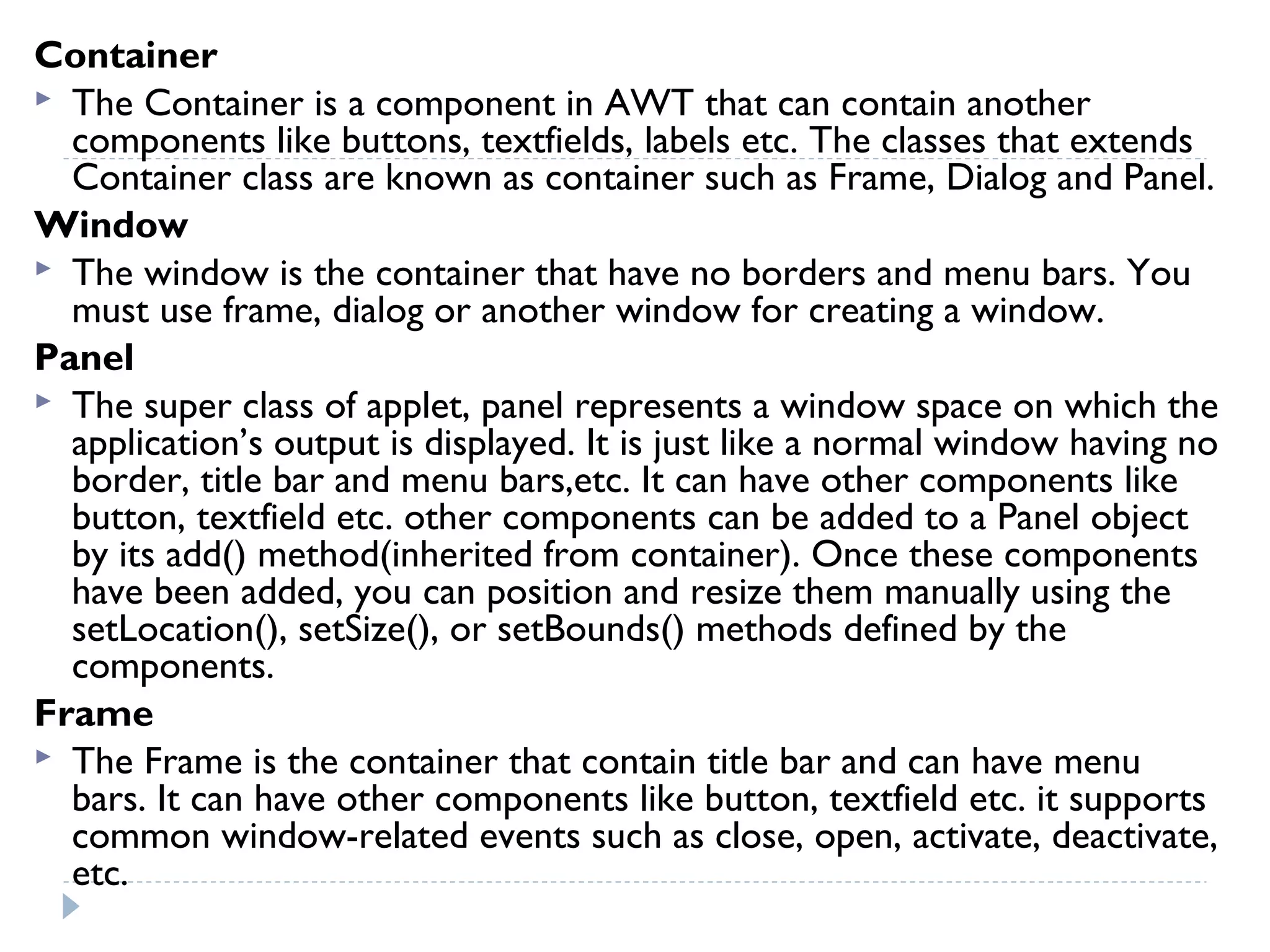
Container
 The Container is a component in AWT that can contain another
components like buttons, textfields, labels etc. The classes that extends
Container class are known as container such as Frame, Dialog and Panel.
Window
 The window is the container that have no borders and menu bars. You
must use frame, dialog or another window for creating a window.
Panel
 The super class of applet, panel represents a window space on which the
application’s output is displayed. It is just like a normal window having no
border, title bar and menu bars,etc. It can have other components like
button, textfield etc. other components can be added to a Panel object
by its add() method(inherited from container). Once these components
have been added, you can position and resize them manually using the
setLocation(), setSize(), or setBounds() methods defined by the
components.
Frame
 The Frame is the container that contain title bar and can have menu
bars. It can have other components like button, textfield etc. it supports
common window-related events such as close, open, activate, deactivate,
etc.
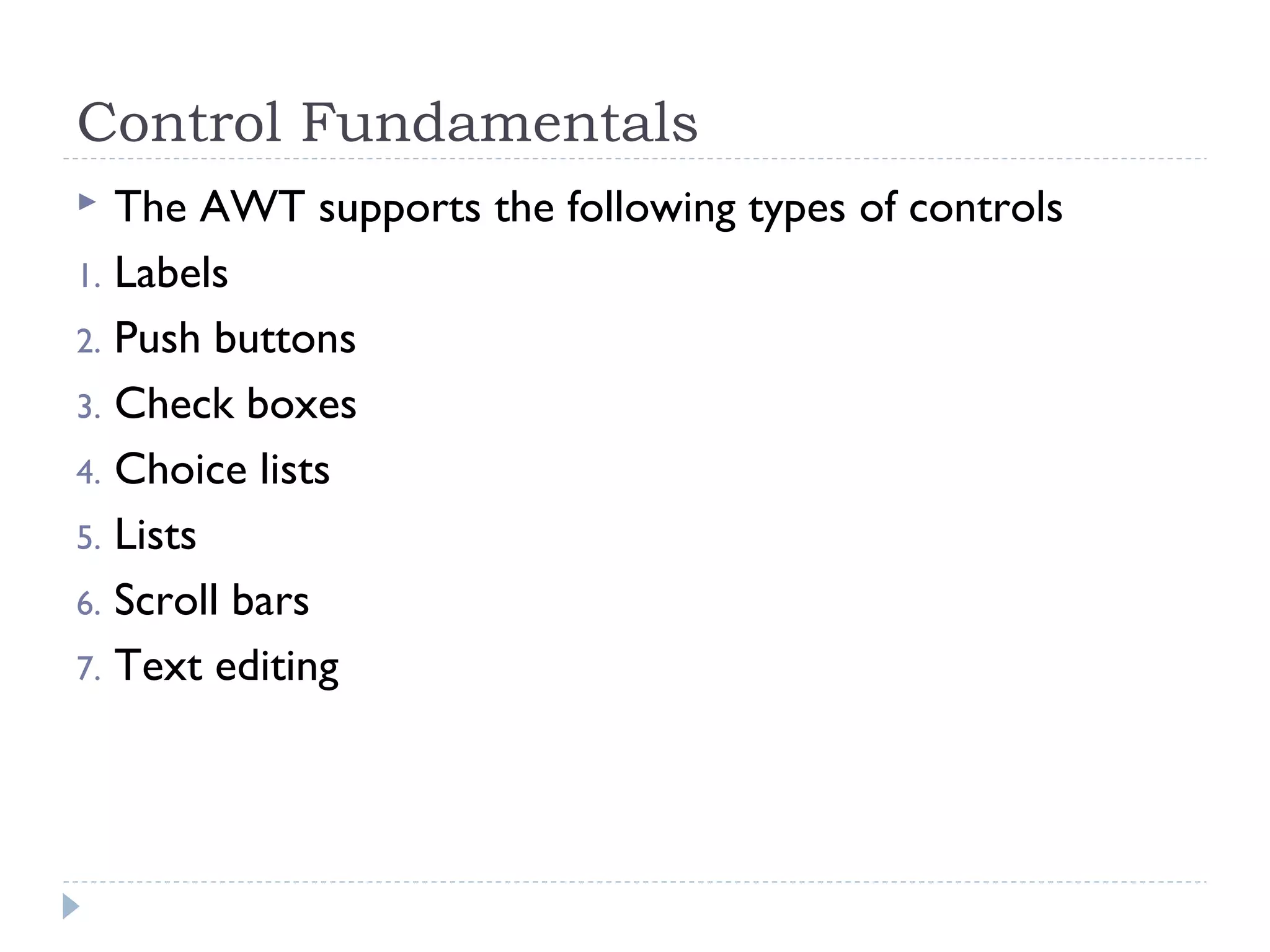
Control Fundamentals
 The AWT supports the following types of controls
1. Labels
2. Push buttons
3. Check boxes
4. Choice lists
5. Lists
6. Scroll bars
7. Text editing
Adding and removing controls
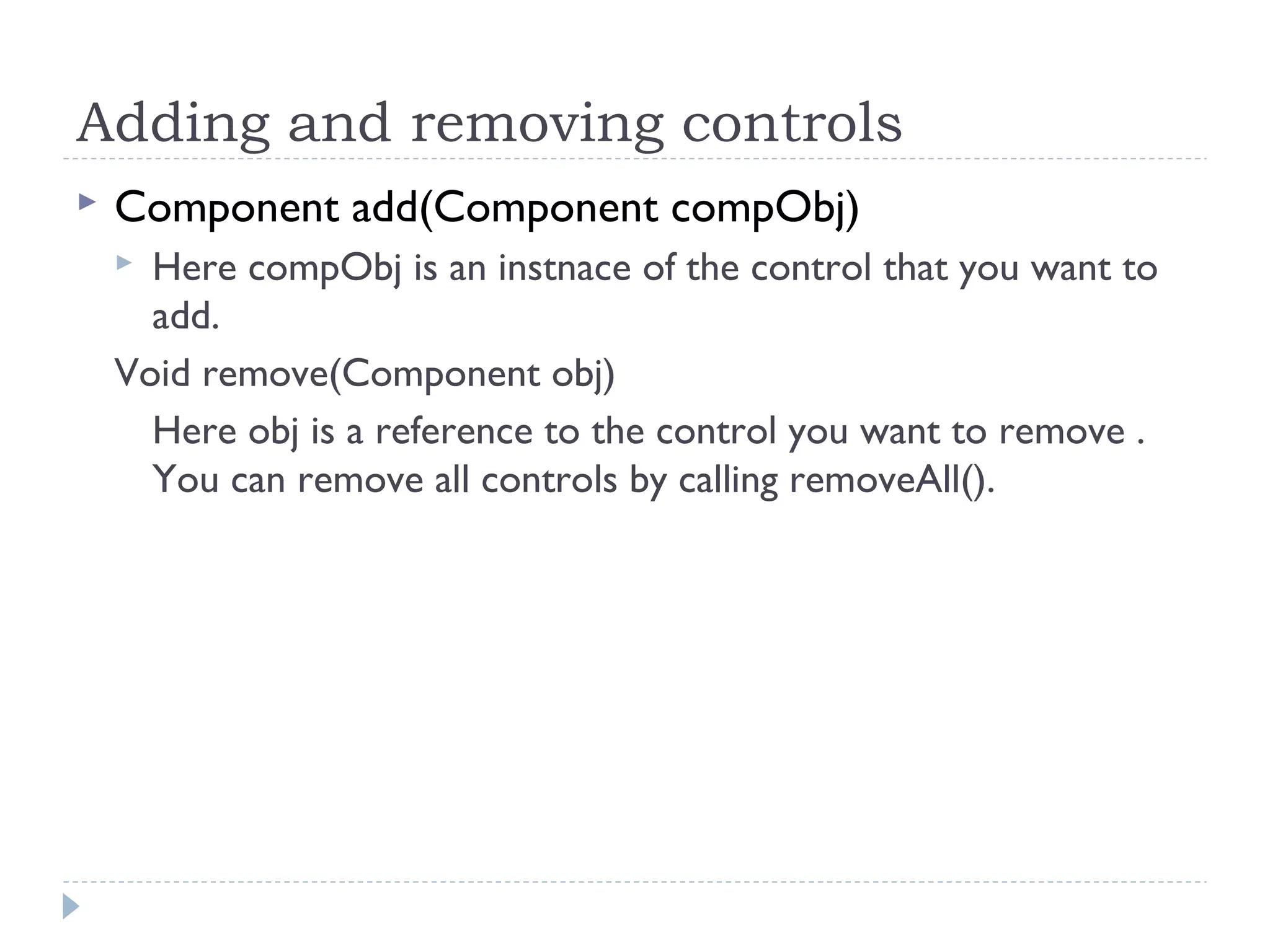
 Component add(Component compObj)
 Here compObj is an instnace of the control that you want to
add.
Void remove(Component obj)
Here obj is a reference to the control you want to remove .
You can remove all controls by calling removeAll().
labels
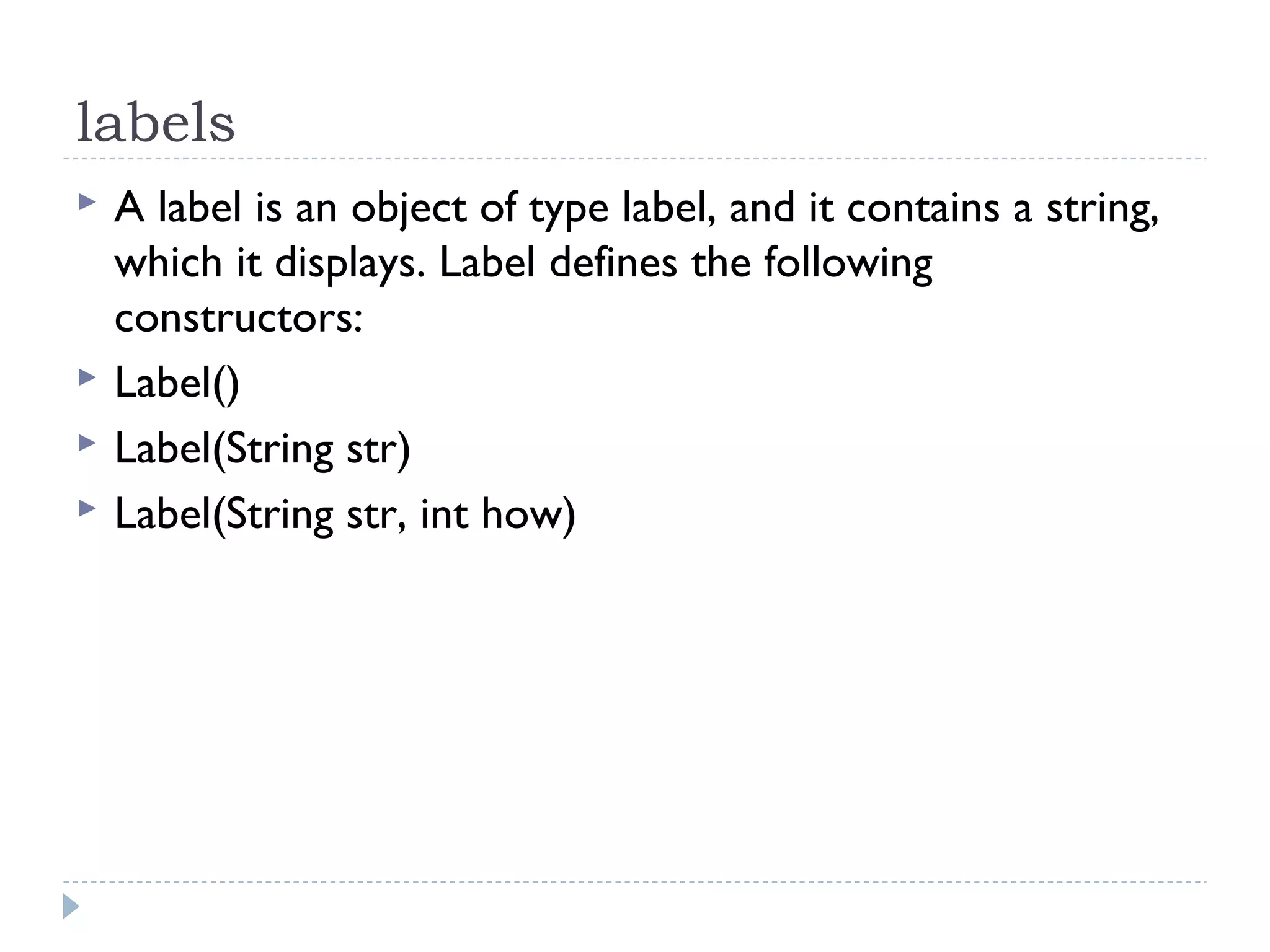
 A label is an object of type label, and it contains a string,
which it displays. Label defines the following
constructors:
 Label()
 Label(String str)
 Label(String str, int how)
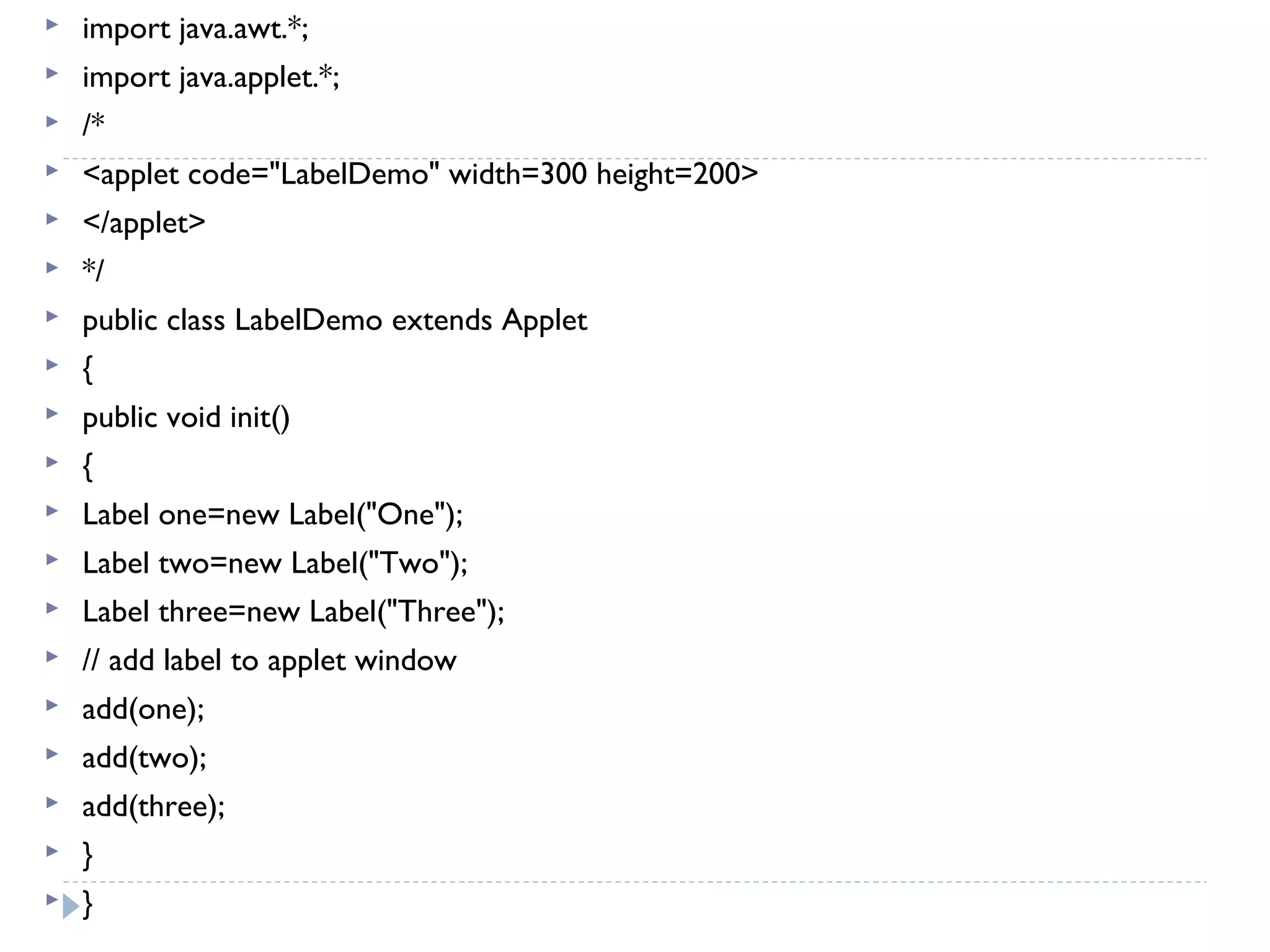
 import java.awt.*;
 import java.applet.*;
 /*
 <applet code="LabelDemo" width=300 height=200>
 </applet>
 */
 public class LabelDemo extends Applet
 {
 public void init()
 {
 Label one=new Label("One");
 Label two=new Label("Two");
 Label three=new Label("Three");
 // add label to applet window
 add(one);
 add(two);
 add(three);
 }
 }
Using buttons
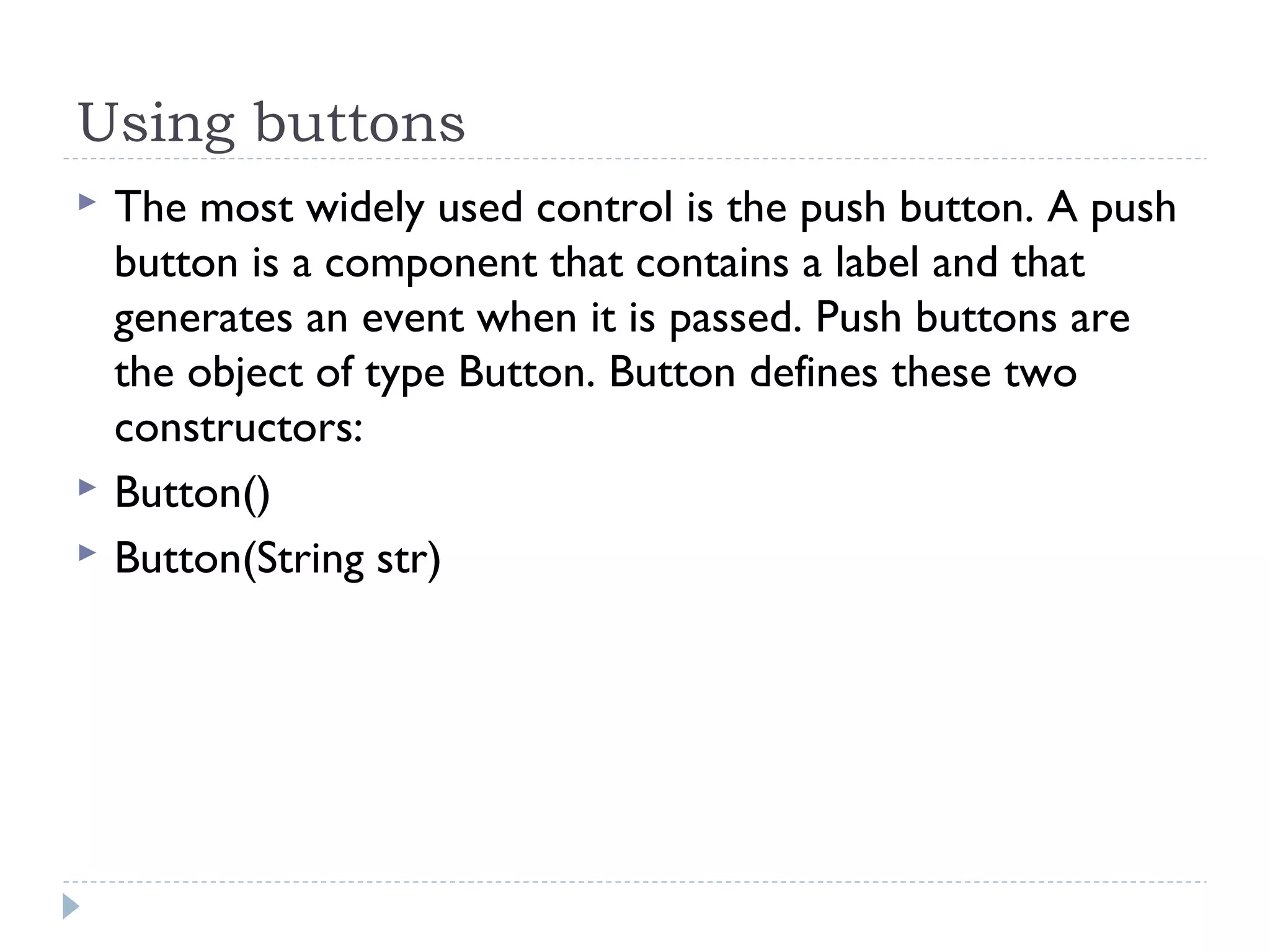
 The most widely used control is the push button. A push
button is a component that contains a label and that
generates an event when it is passed. Push buttons are
the object of type Button. Button defines these two
constructors:
 Button()
 Button(String str)
 import java.awt.*;
 import java.awt.event.*;
 import java.applet.*;
 /*
 <applet code="ButtonDemo" width=300 height=200>
 </applet>
 */
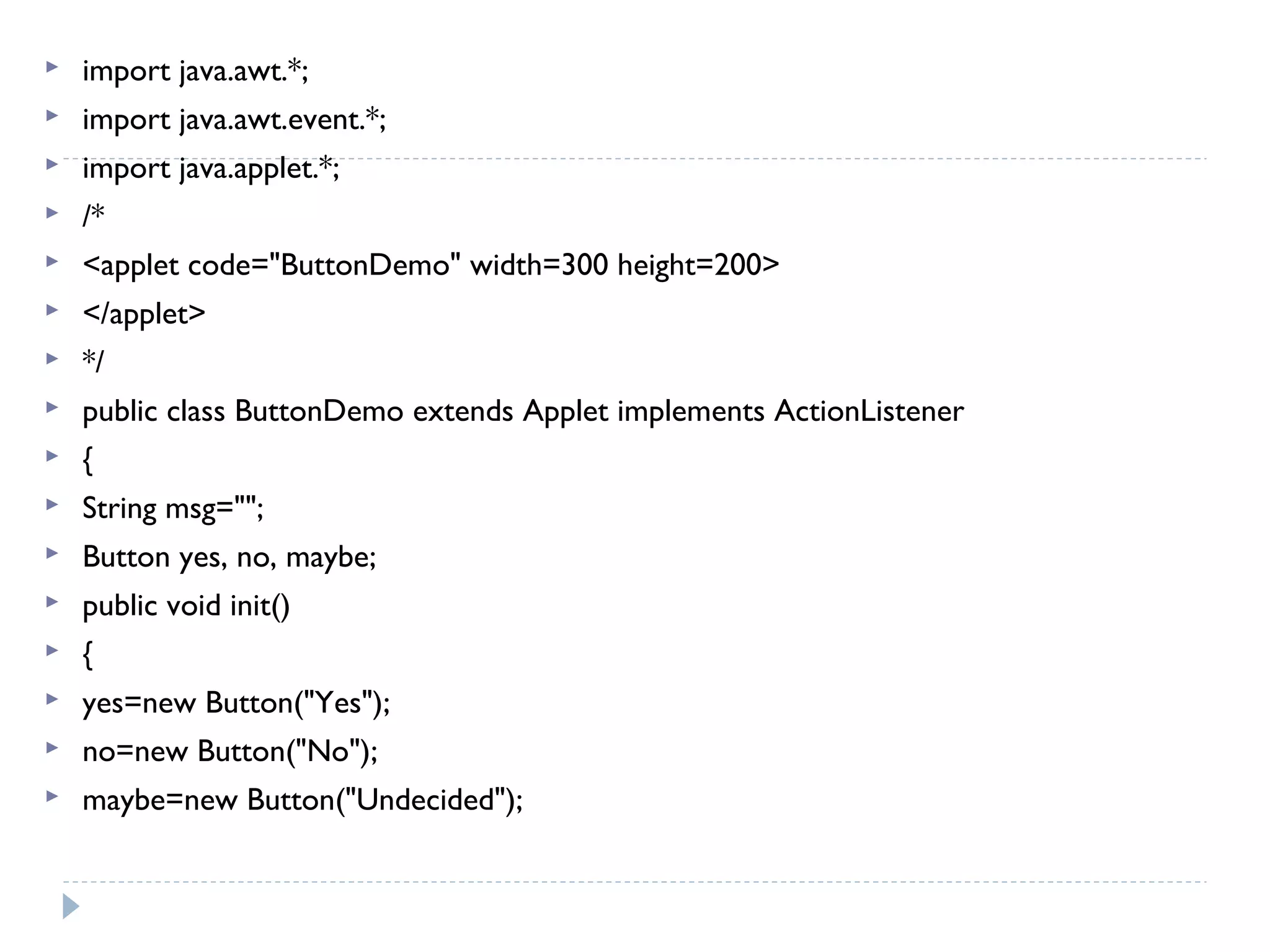
 public class ButtonDemo extends Applet implements ActionListener
 {
 String msg="";
 Button yes, no, maybe;
 public void init()
 {
 yes=new Button("Yes");
 no=new Button("No");
 maybe=new Button("Undecided");
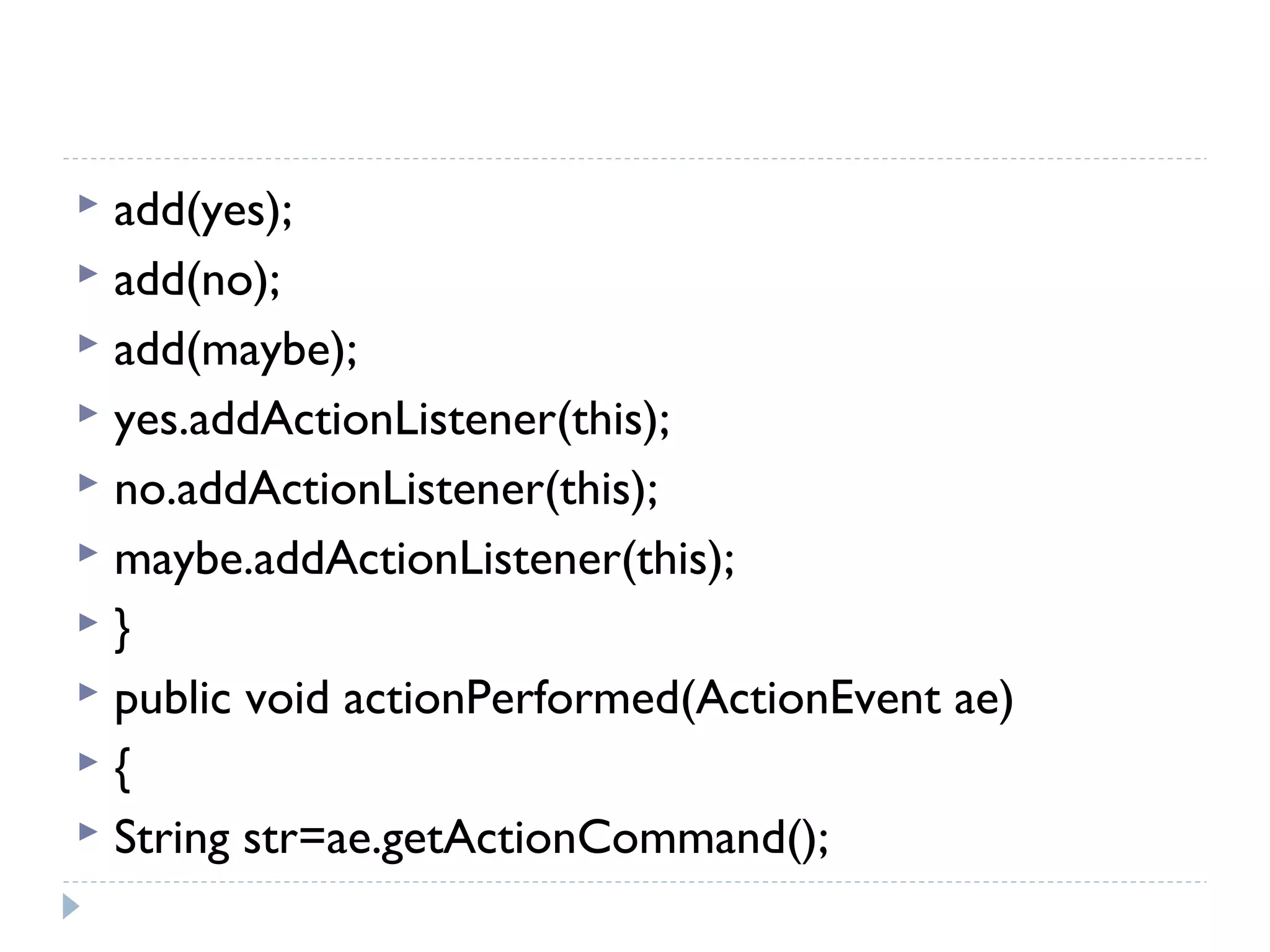
 add(yes);
 add(no);
 add(maybe);
 yes.addActionListener(this);
 no.addActionListener(this);
 maybe.addActionListener(this);
 }
 public void actionPerformed(ActionEvent ae)
 {
 String str=ae.getActionCommand();
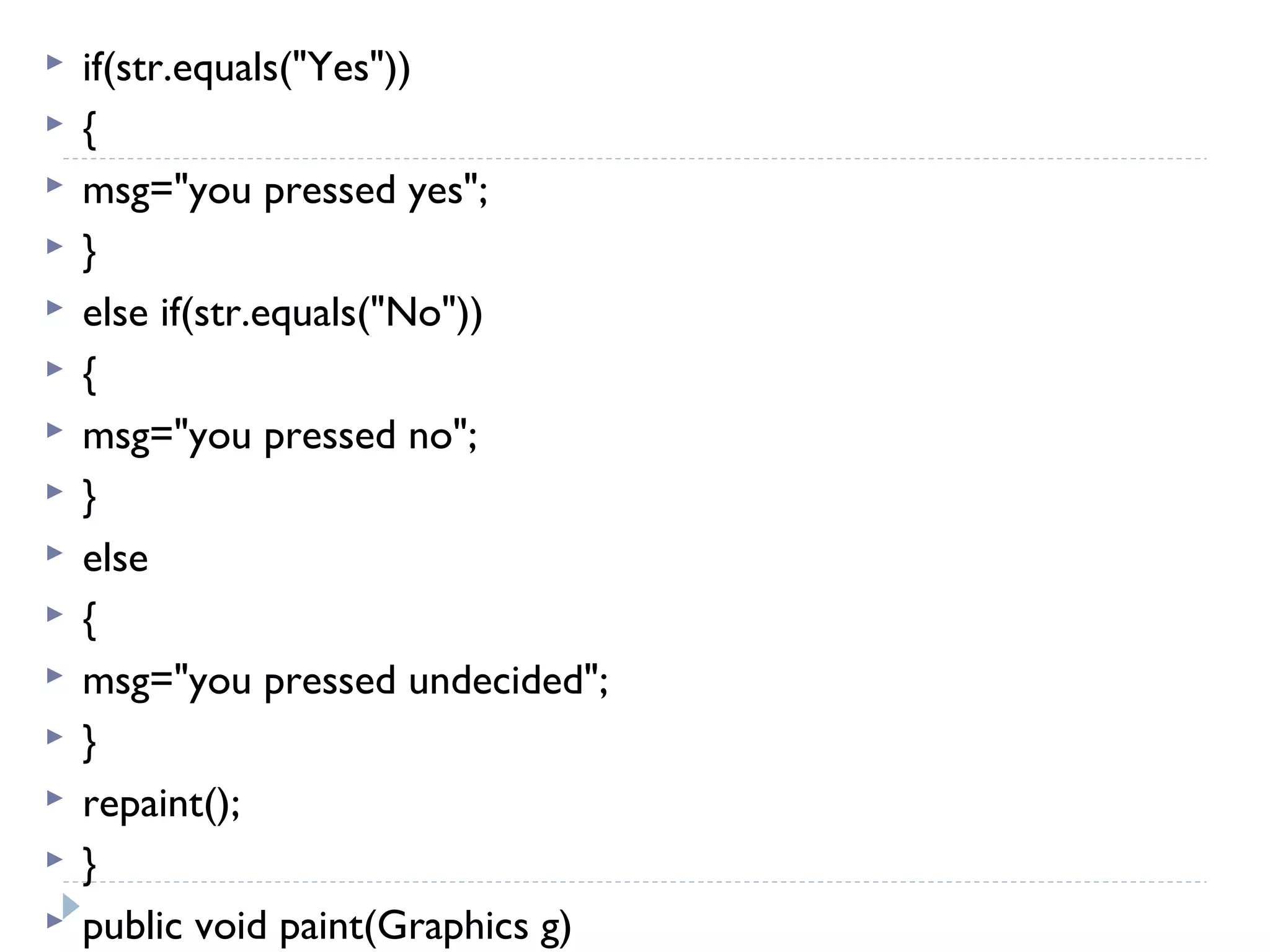
 if(str.equals("Yes"))
 {
 msg="you pressed yes";
 }
 else if(str.equals("No"))
 {
 msg="you pressed no";
 }
 else
 {
 msg="you pressed undecided";
 }
 repaint();
 }
 public void paint(Graphics g)
Check boxes
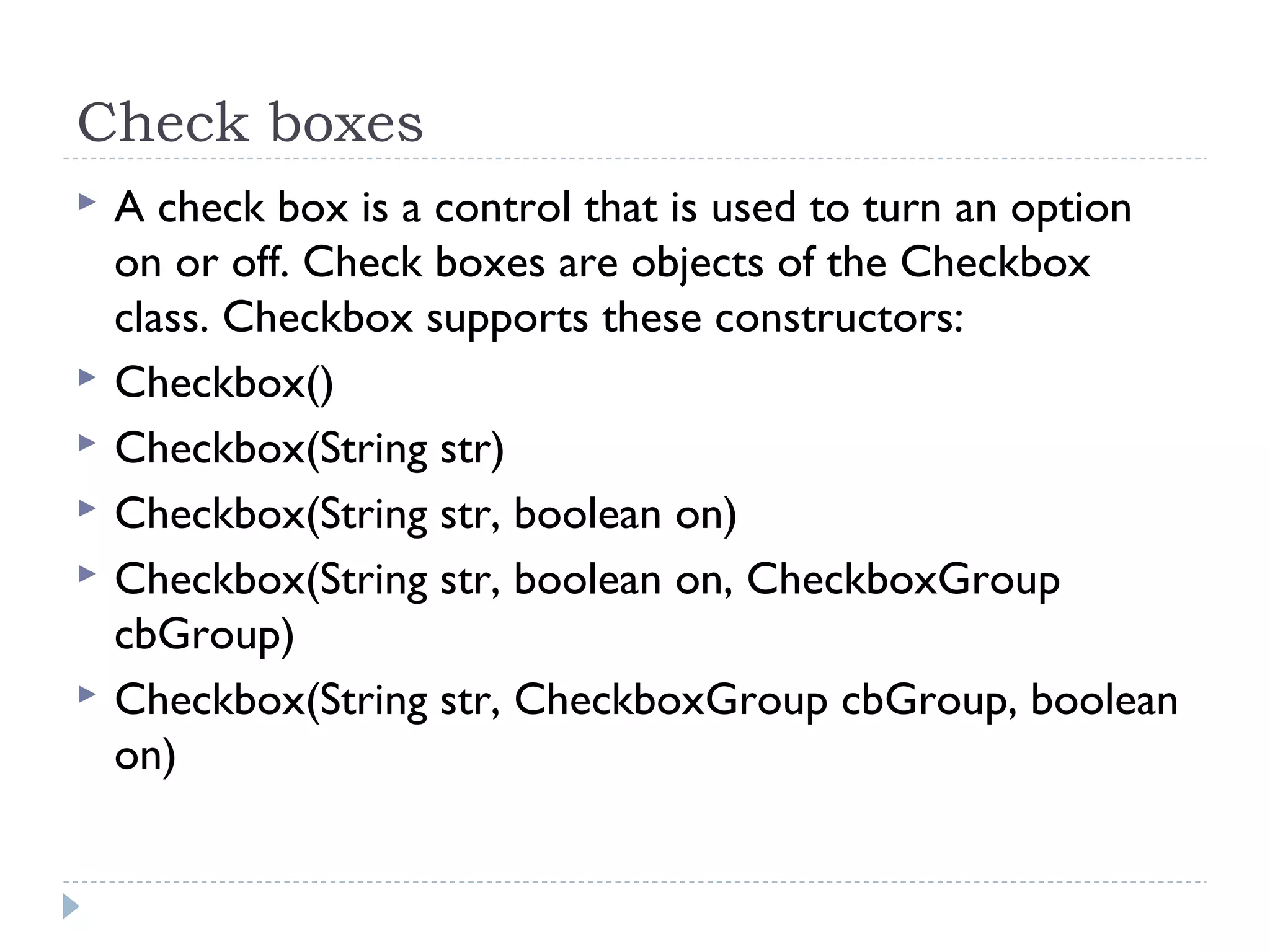
 A check box is a control that is used to turn an option
on or off. Check boxes are objects of the Checkbox
class. Checkbox supports these constructors:
 Checkbox()
 Checkbox(String str)
 Checkbox(String str, boolean on)
 Checkbox(String str, boolean on, CheckboxGroup
cbGroup)
 Checkbox(String str, CheckboxGroup cbGroup, boolean
on)
Choice controls
 The choice class is used to create a pop-up list of items
from which the user may choose
Using a TextField
 The TextField class implements a single-line text-entry
area, usually called an edit control. TextField is a subclass
of TextComponent. TextField defines the following
constructors:
 TextField()
 TextField(int numChars)
 TextField(String str)
 TextField(String str, int numChars)
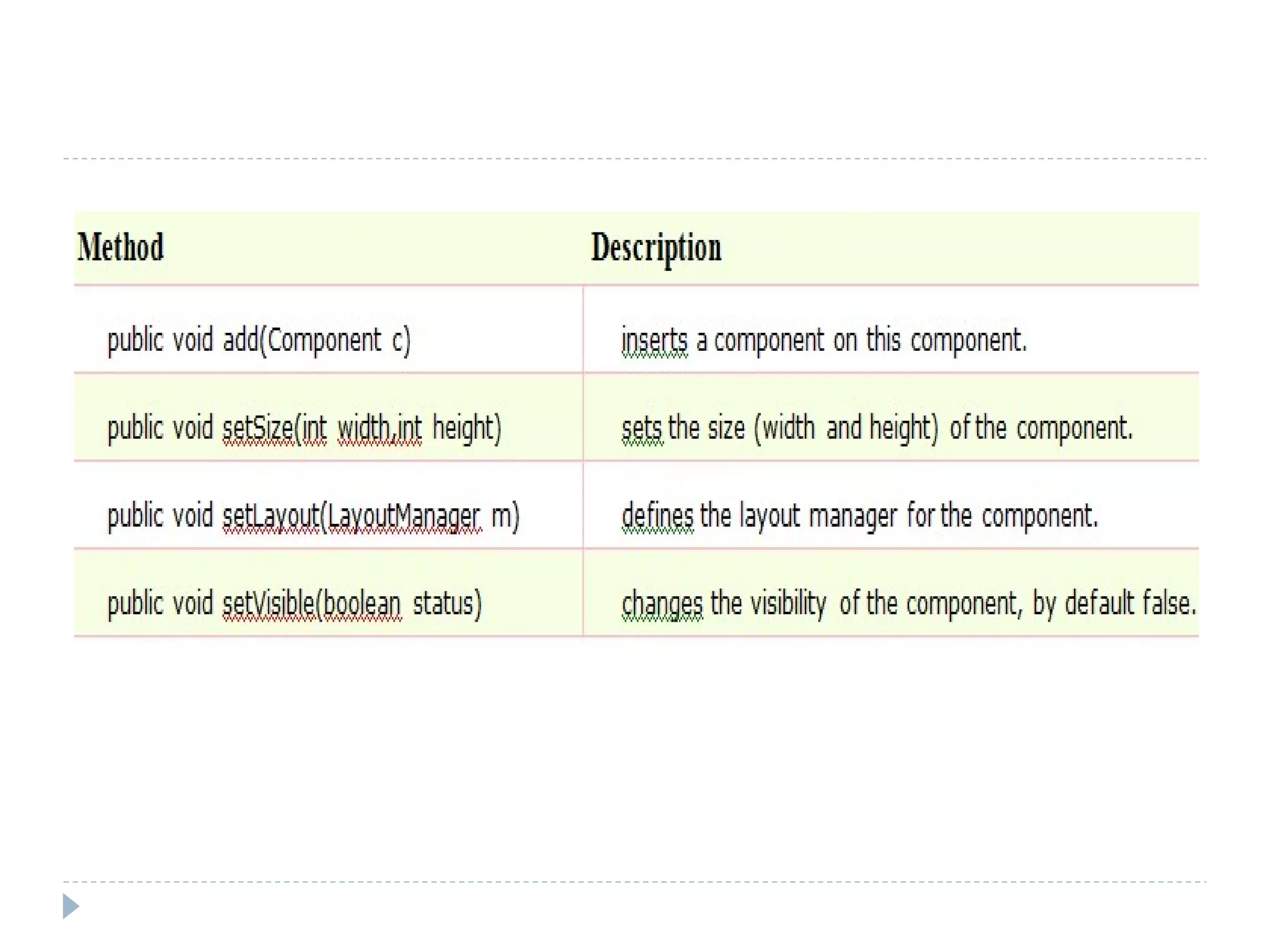
Useful Methods of Component class
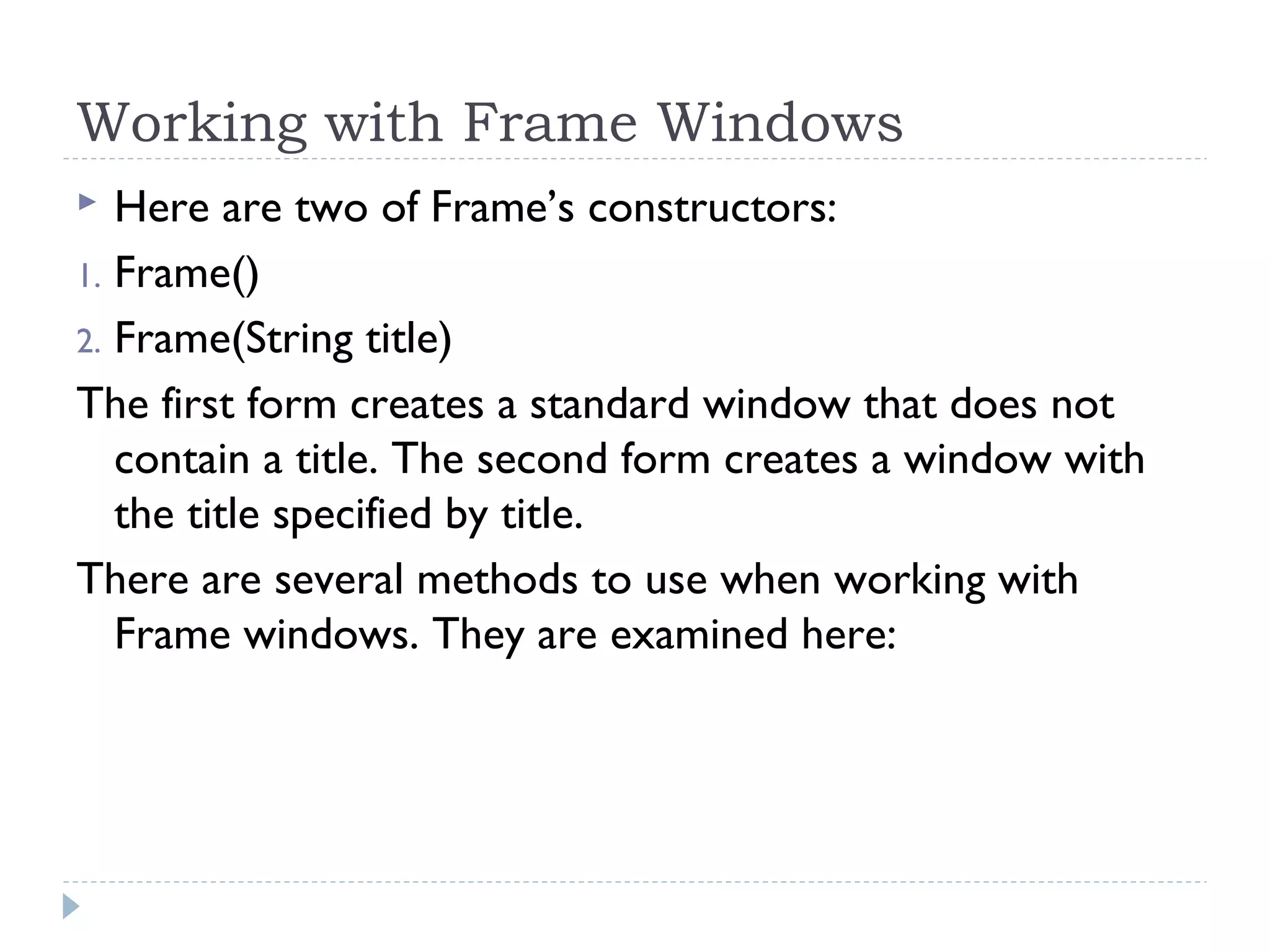
Working with Frame Windows
 Here are two of Frame’s constructors:
1. Frame()
2. Frame(String title)
The first form creates a standard window that does not
contain a title. The second form creates a window with
the title specified by title.
There are several methods to use when working with
Frame windows. They are examined here:
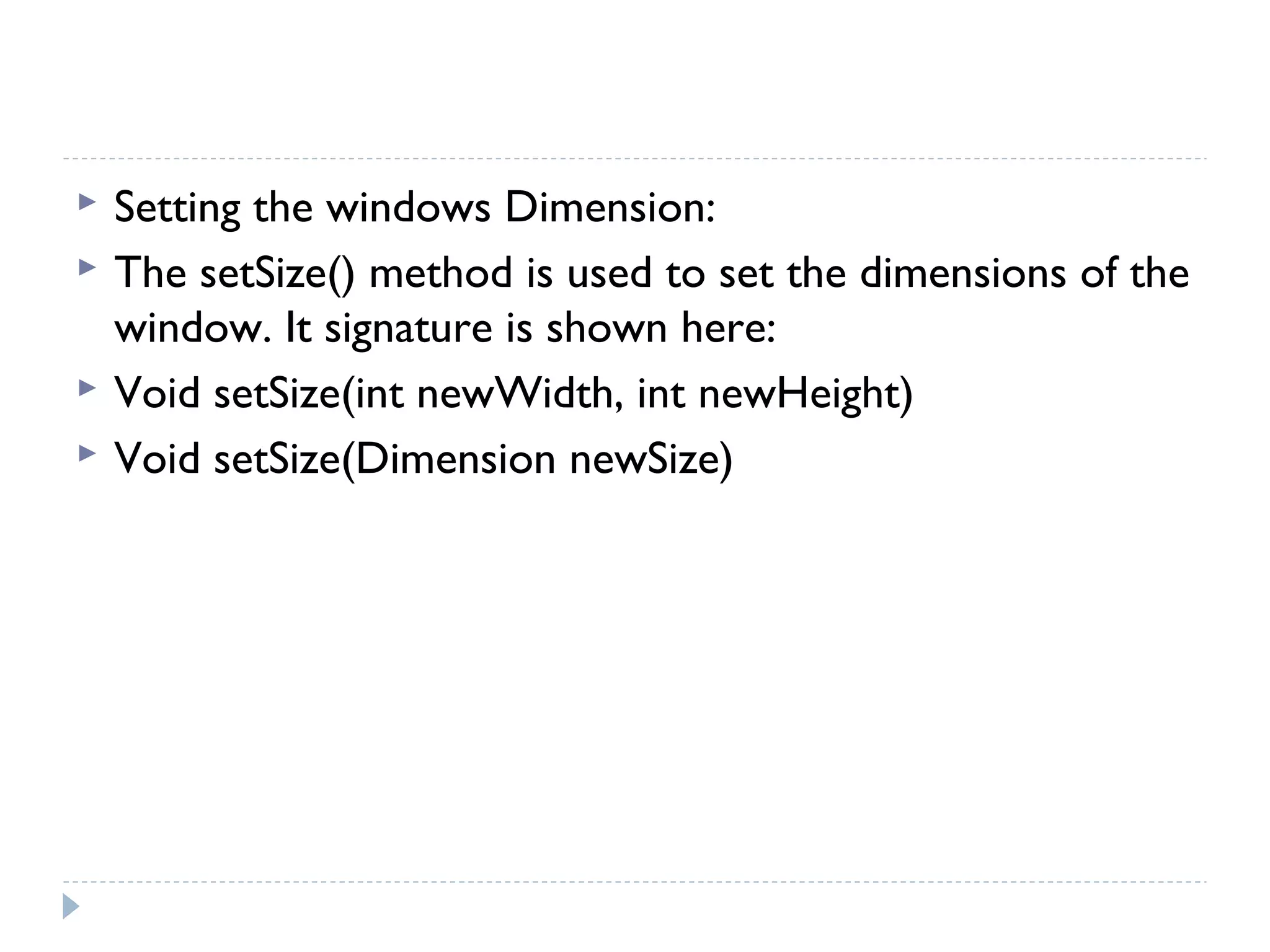
 Setting the windows Dimension:
 The setSize() method is used to set the dimensions of the
window. It signature is shown here:
 Void setSize(int newWidth, int newHeight)
 Void setSize(Dimension newSize)
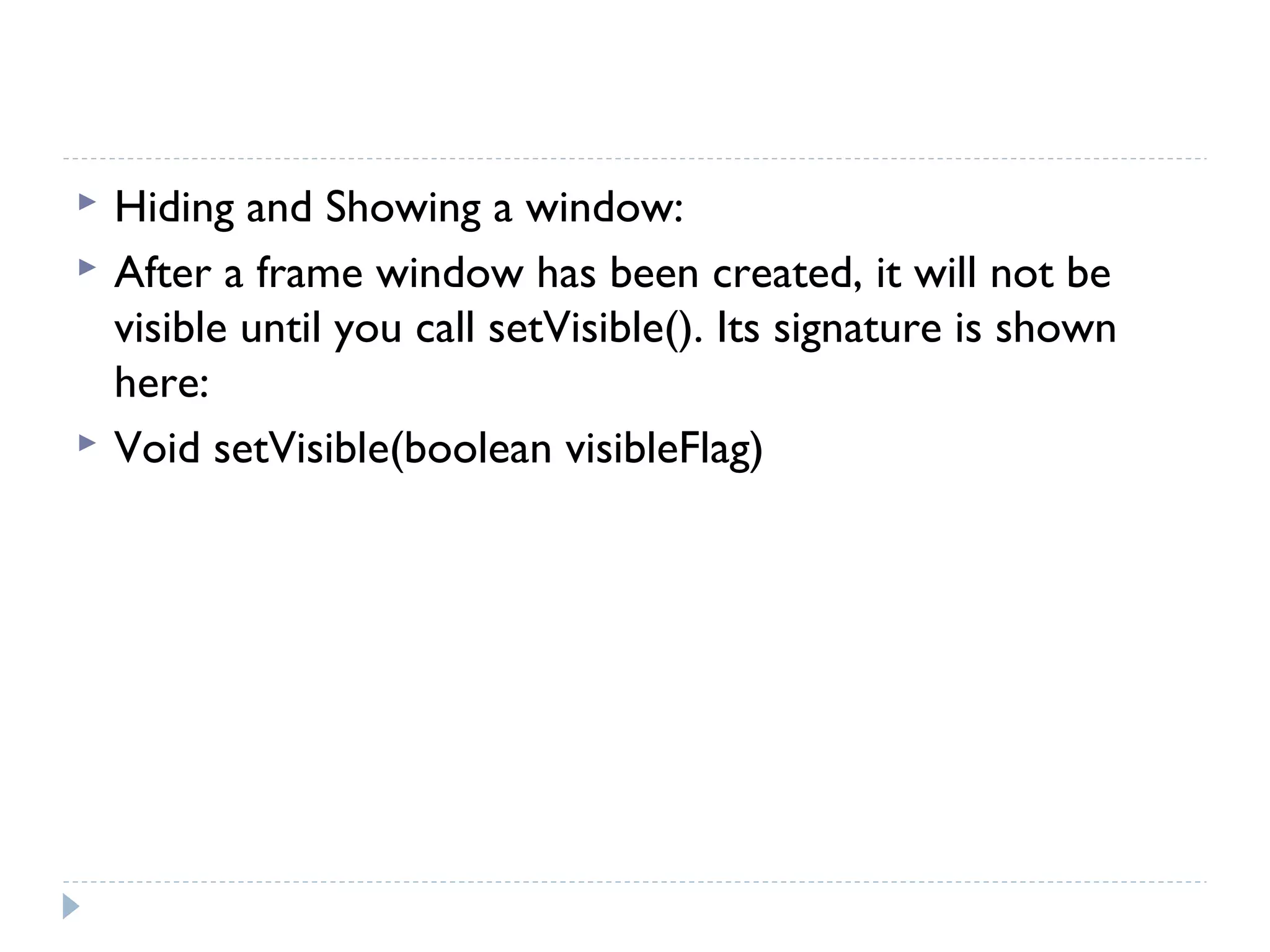
 Hiding and Showing a window:
 After a frame window has been created, it will not be
visible until you call setVisible(). Its signature is shown
here:
 Void setVisible(boolean visibleFlag)
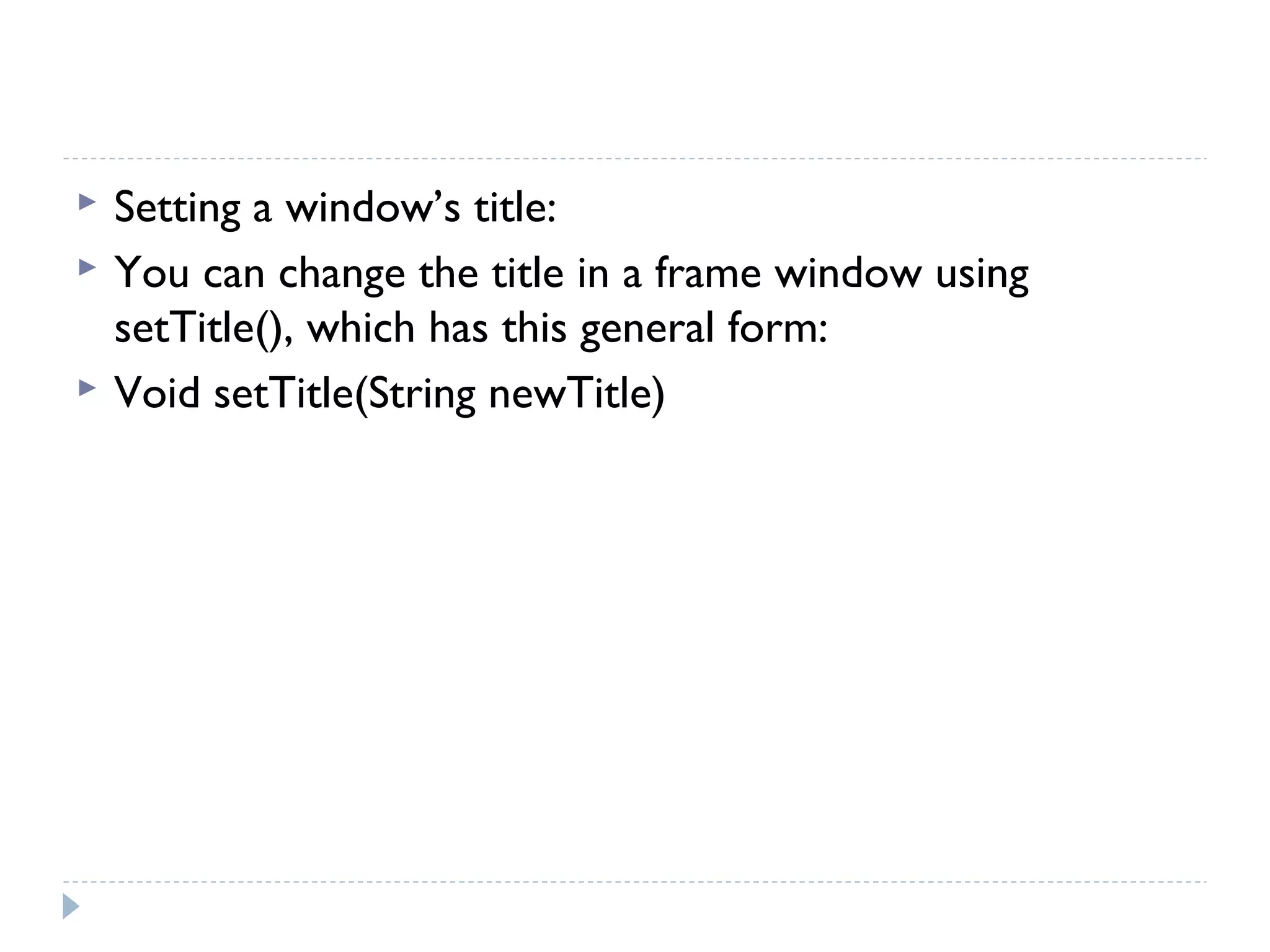
 Setting a window’s title:
 You can change the title in a frame window using
setTitle(), which has this general form:
 Void setTitle(String newTitle)
 Closing a Frame Window:
 When using a frame window, your program must remove
that window from the screen when it is closed, by calling
setVisible(false). To intercept a window-close event, you
must implemet the windowClosing() method of the
windowListener interface.
Java AWT Example
 To create simple awt example, you need a frame. There
are two ways to create a frame in AWT.
1. By extending Frame class (inheritance)
2. By creating the object of Frame class (association)
Simple example of AWT by inheritance
 import java.awt.*;  
class First extends Frame{  
First(){  
Button b=new Button("click me");  
b.setBounds(30,100,80,30);// setting button position  
add(b);//adding button into frame  
setSize(300,300);//frame size 300 width and 300 height  
setLayout(null);//no layout manager  
setVisible(true);//now frame will be visible, by default not visible  
}  
public static void main(String args[]){  
First f=new First();  
}}  
Simple example of AWT by association
 import java.awt.*;  
class First2{  
First2(){  
Frame f=new Frame();    
Button b=new Button("click me");  
b.setBounds(30,50,80,30);    
f.add(b);  
f.setSize(300,300);  
f.setLayout(null);  
f.setVisible(true);  
}  
public static void main(String args[]){  
First2 f=new First2();  
}}  
Event and Listener (Java Event Handling)
 Changing the state of an object is known as an event. For
example, click on button, dragging mouse etc.
The Delegation Event Model
 The modern approach to handling events is based on the
delegation event model, which defines standard and
consistent mechanisms to generate and process events.
Its concept is quite simple: a source generates an events
and sends it on one or more listeners. In this scheme, the
listener simply waits until it receives an event. Once
received, the listener processes the event and then
returns. The advantage of this design is that the
application logic that processes events is cleanly
separated form the user interface logic that generates
those events. A user interface element is able to
“delegate” the processing of an events to a separate
piece of code
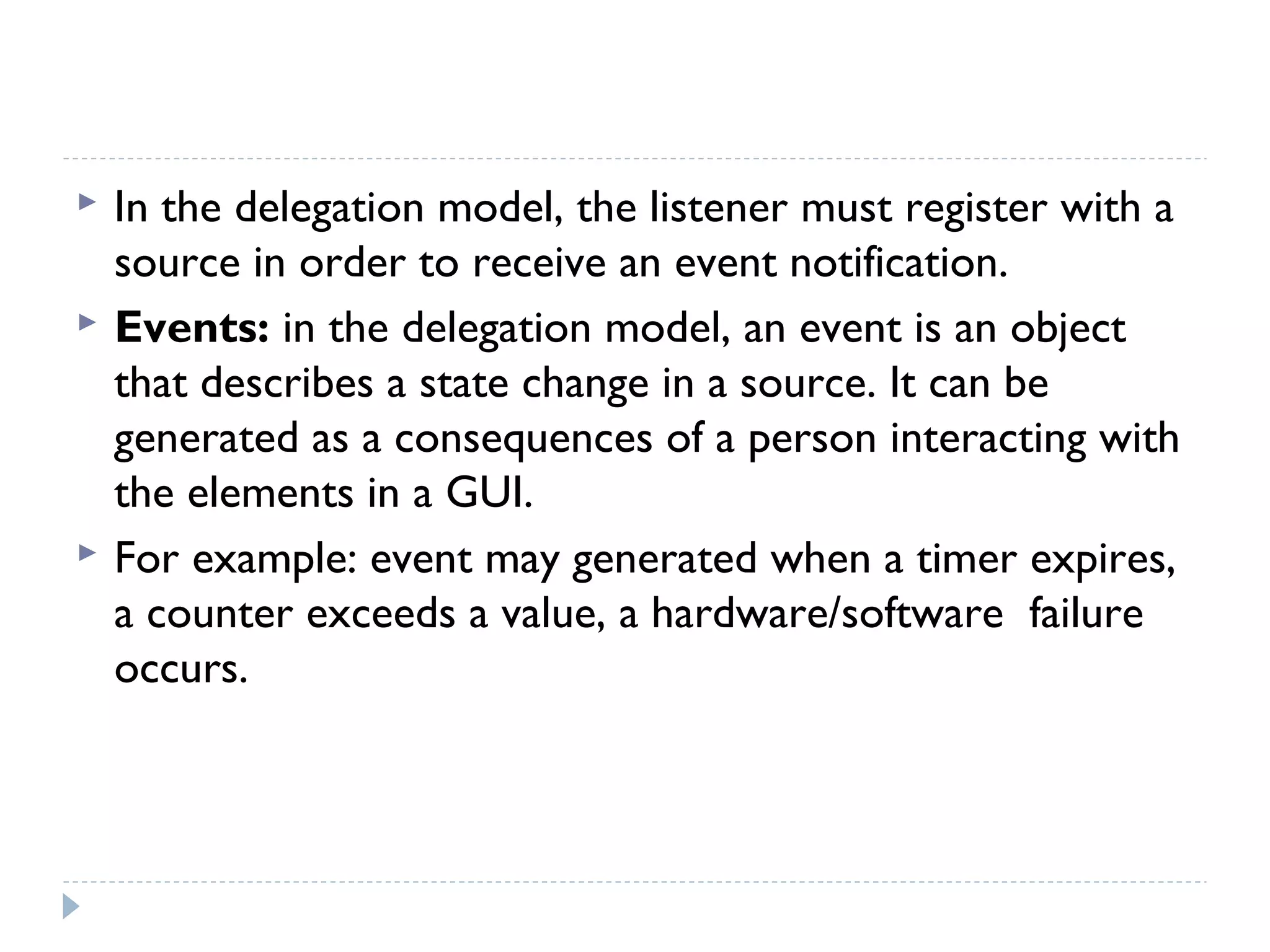
 In the delegation model, the listener must register with a
source in order to receive an event notification.
 Events: in the delegation model, an event is an object
that describes a state change in a source. It can be
generated as a consequences of a person interacting with
the elements in a GUI.
 For example: event may generated when a timer expires,
a counter exceeds a value, a hardware/software failure
occurs.
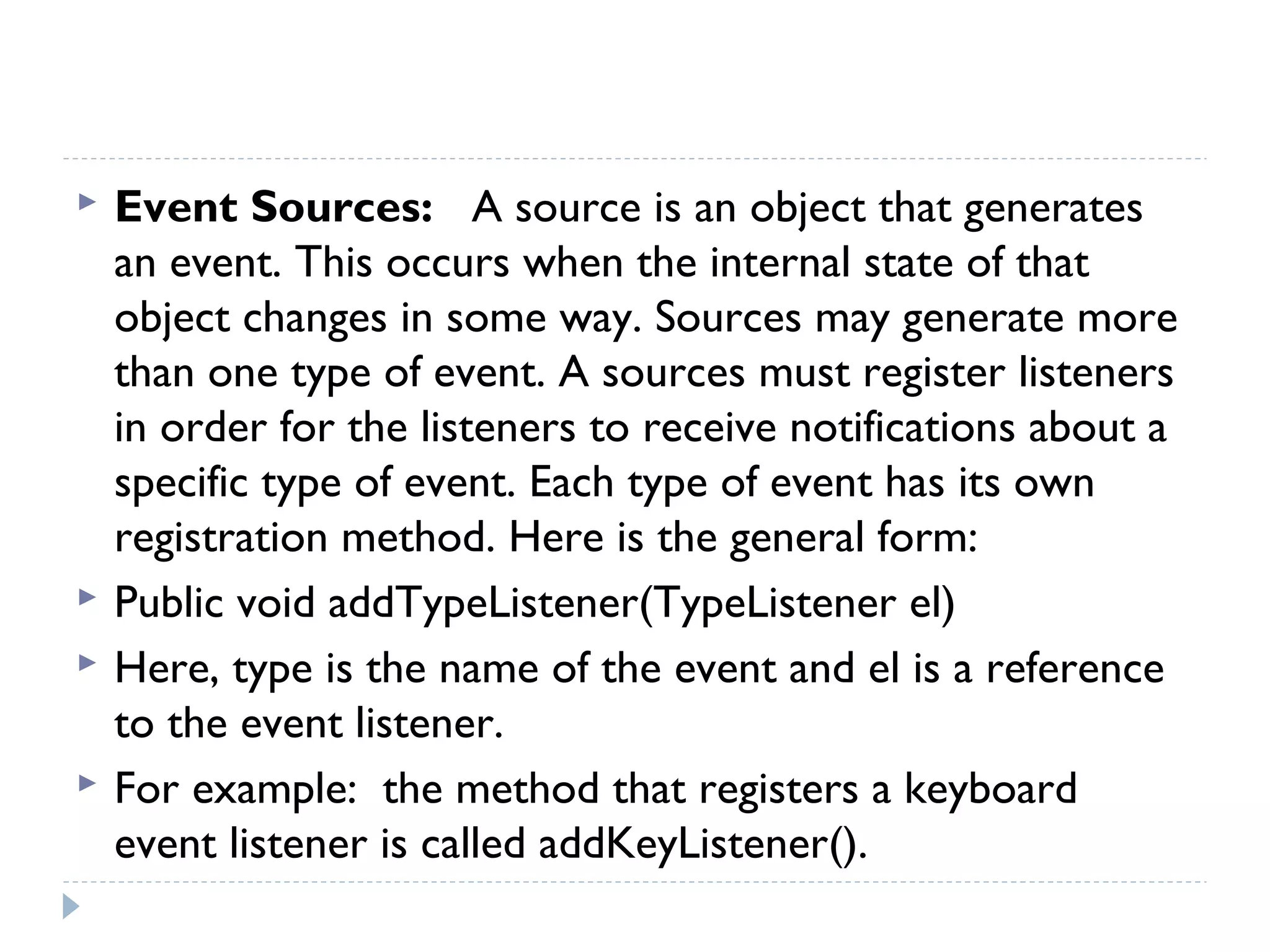
 Event Sources: A source is an object that generates
an event. This occurs when the internal state of that
object changes in some way. Sources may generate more
than one type of event. A sources must register listeners
in order for the listeners to receive notifications about a
specific type of event. Each type of event has its own
registration method. Here is the general form:
 Public void addTypeListener(TypeListener el)
 Here, type is the name of the event and el is a reference
to the event listener.
 For example: the method that registers a keyboard
event listener is called addKeyListener().
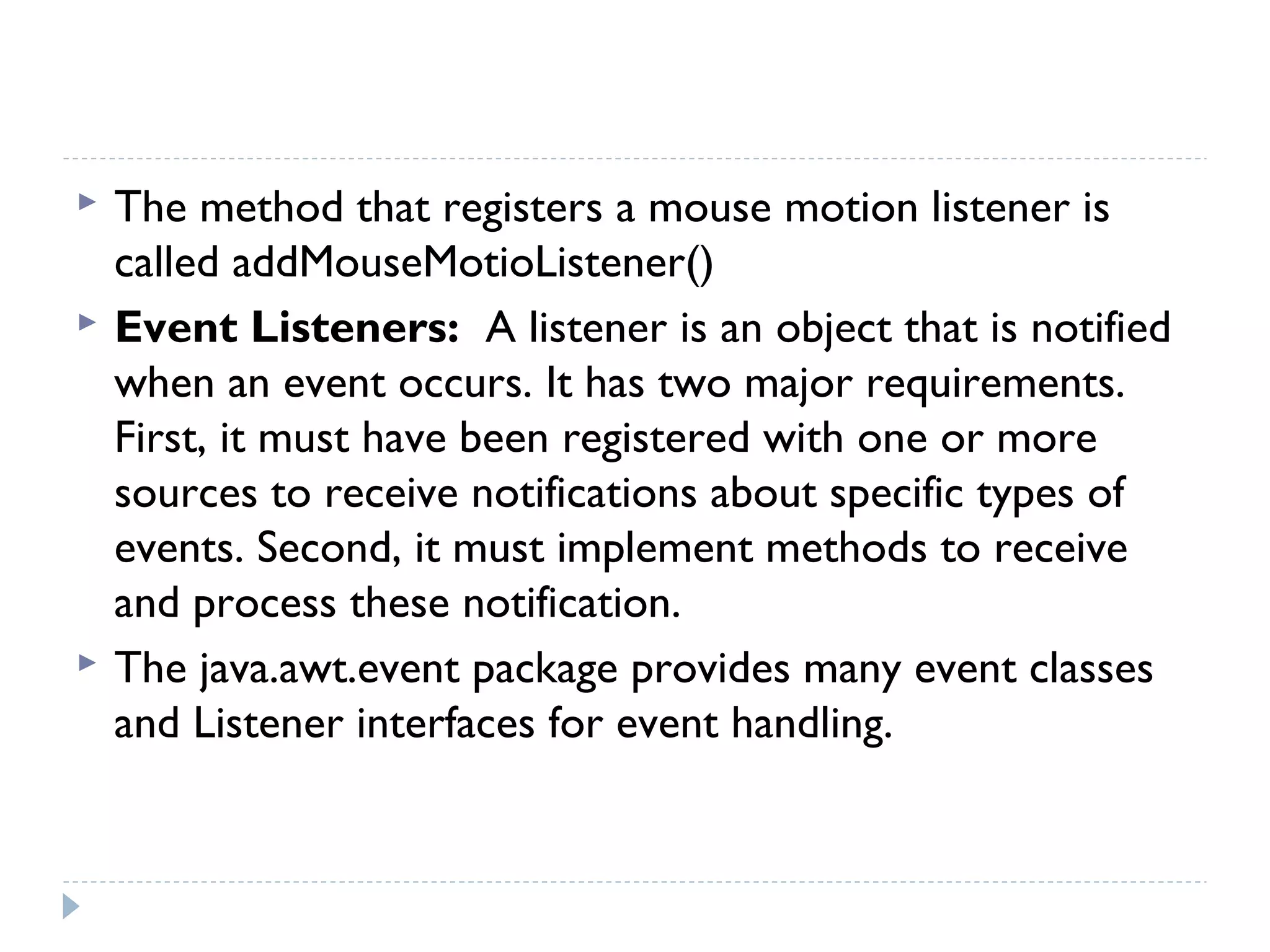
 The method that registers a mouse motion listener is
called addMouseMotioListener()
 Event Listeners: A listener is an object that is notified
when an event occurs. It has two major requirements.
First, it must have been registered with one or more
sources to receive notifications about specific types of
events. Second, it must implement methods to receive
and process these notification.
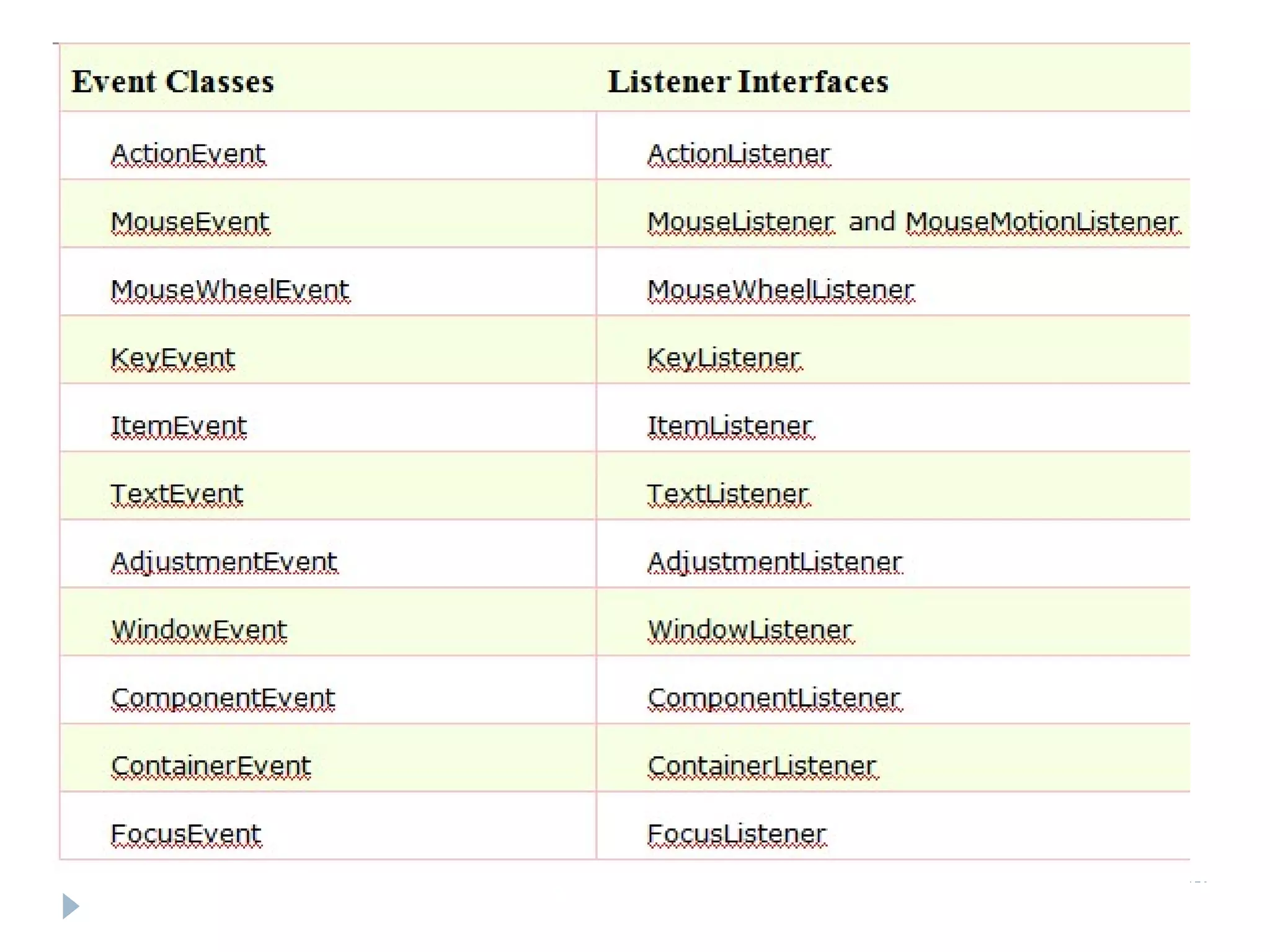
 The java.awt.event package provides many event classes
and Listener interfaces for event handling.
Steps to perform Event Handling
 Following steps are required to perform event
handling:
1. Implement the Listener interface and overrides its
methods
2. Register the component with the Listener
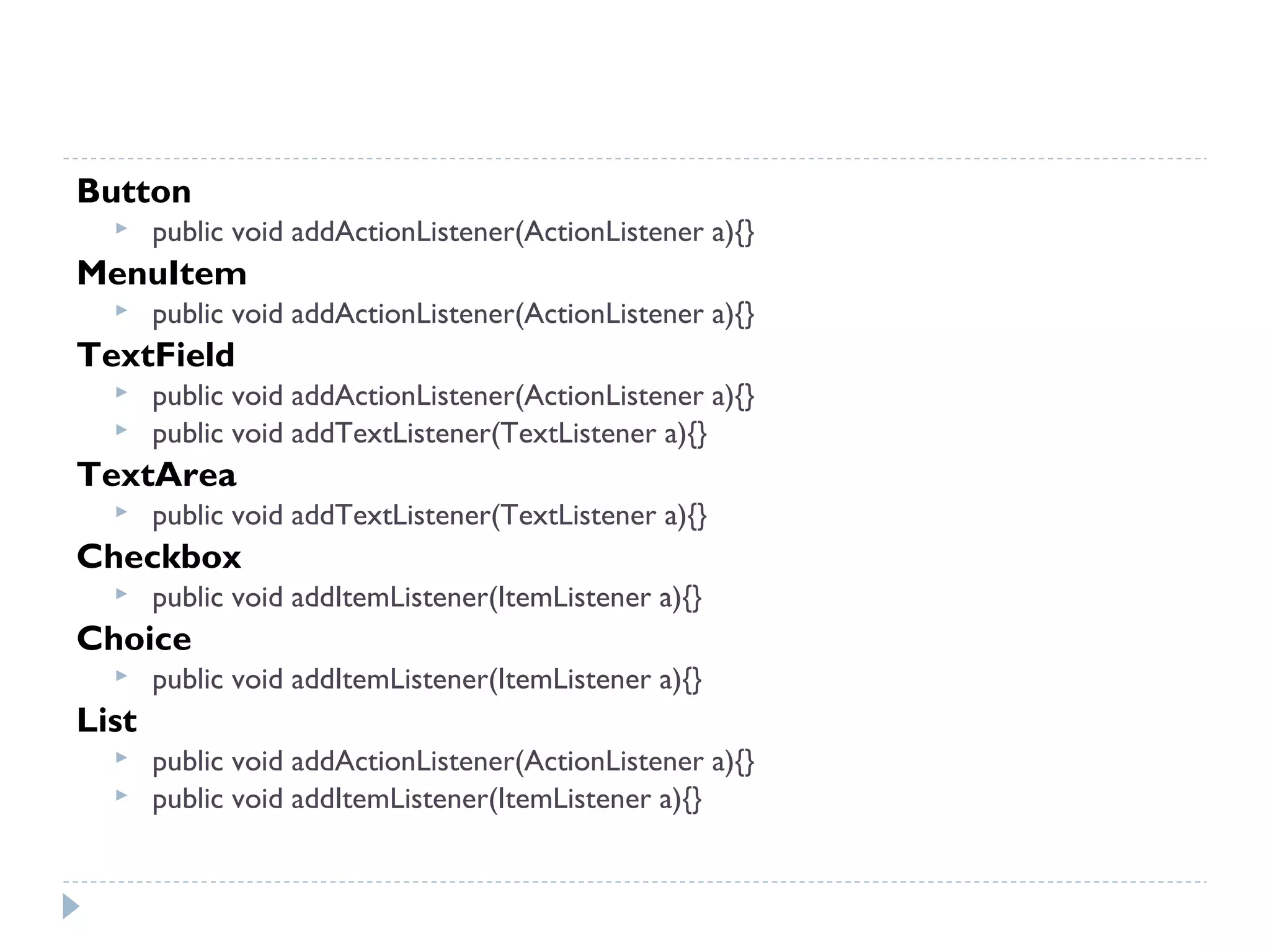
 For registering the component with the Listener,
many classes provide the registration methods. For
example:
Button
 public void addActionListener(ActionListener a){}
MenuItem
 public void addActionListener(ActionListener a){}
TextField
 public void addActionListener(ActionListener a){}
 public void addTextListener(TextListener a){}
TextArea
 public void addTextListener(TextListener a){}
Checkbox
 public void addItemListener(ItemListener a){}
Choice
 public void addItemListener(ItemListener a){}
List
 public void addActionListener(ActionListener a){}
 public void addItemListener(ItemListener a){}
EventHandling Codes:
 We can put the event handling code into one of the
following places:
1. Same class
2. Other class
3. Annonymous class
Example of event handling within class:
 import java.awt.*;  
import java.awt.event.*;    
class AEvent extends Frame implements ActionListener{  
TextField tf;  
AEvent(){  
tf=new TextField();  
tf.setBounds(60,50,170,20);  
Button b=new Button("click me");  
b.setBounds(100,120,80,30);  
b.addActionListener(this);  
add(b);add(tf);  
setSize(300,300);  
setLayout(null);  
setVisible(true);  
}  
public void actionPerformed(ActionEvent e){  
tf.setText("Welcome");  
}  
public static void main(String args[]){  
new AEvent();  
}  }  
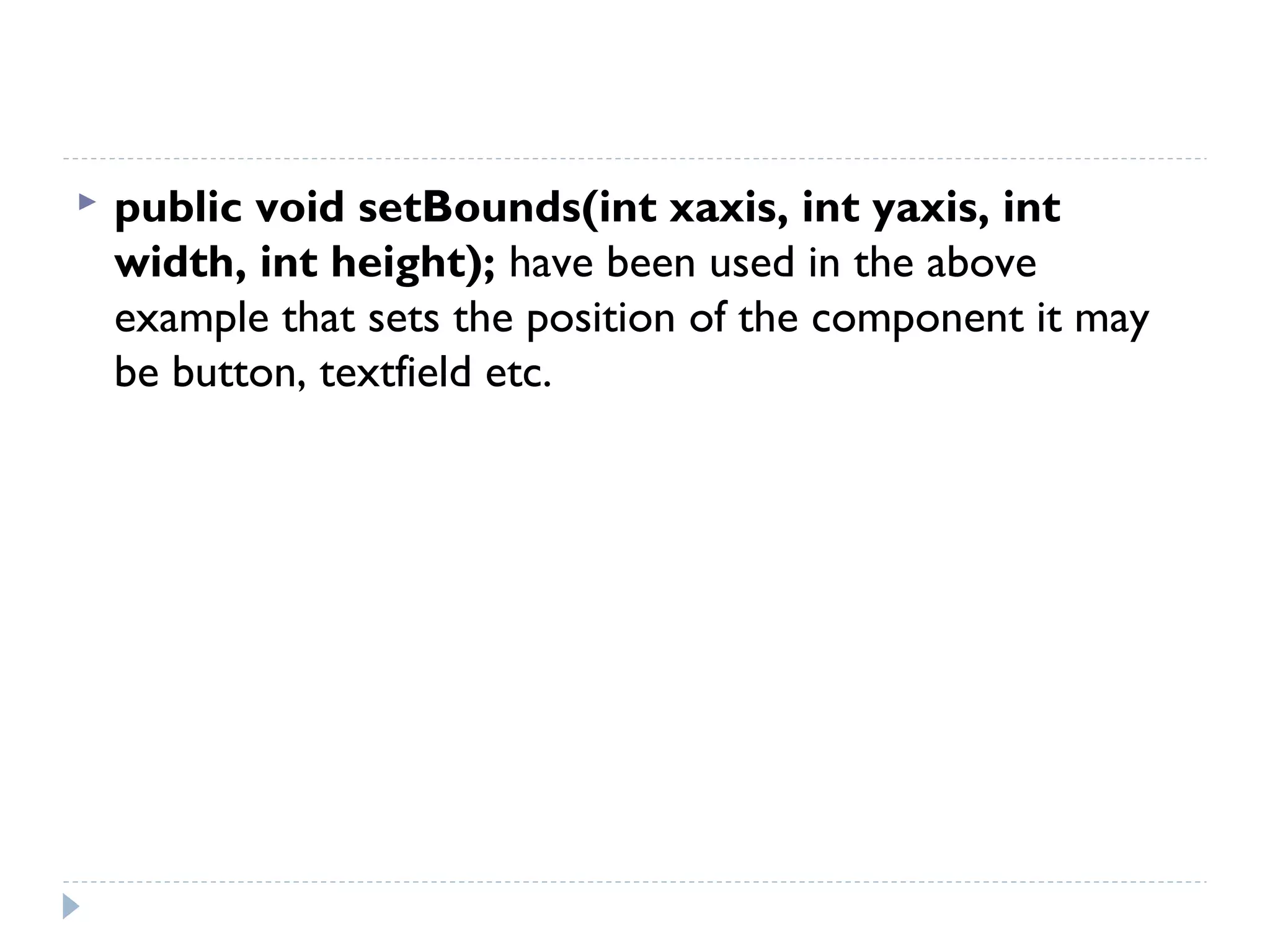
 public void setBounds(int xaxis, int yaxis, int
width, int height); have been used in the above
example that sets the position of the component it may
be button, textfield etc.
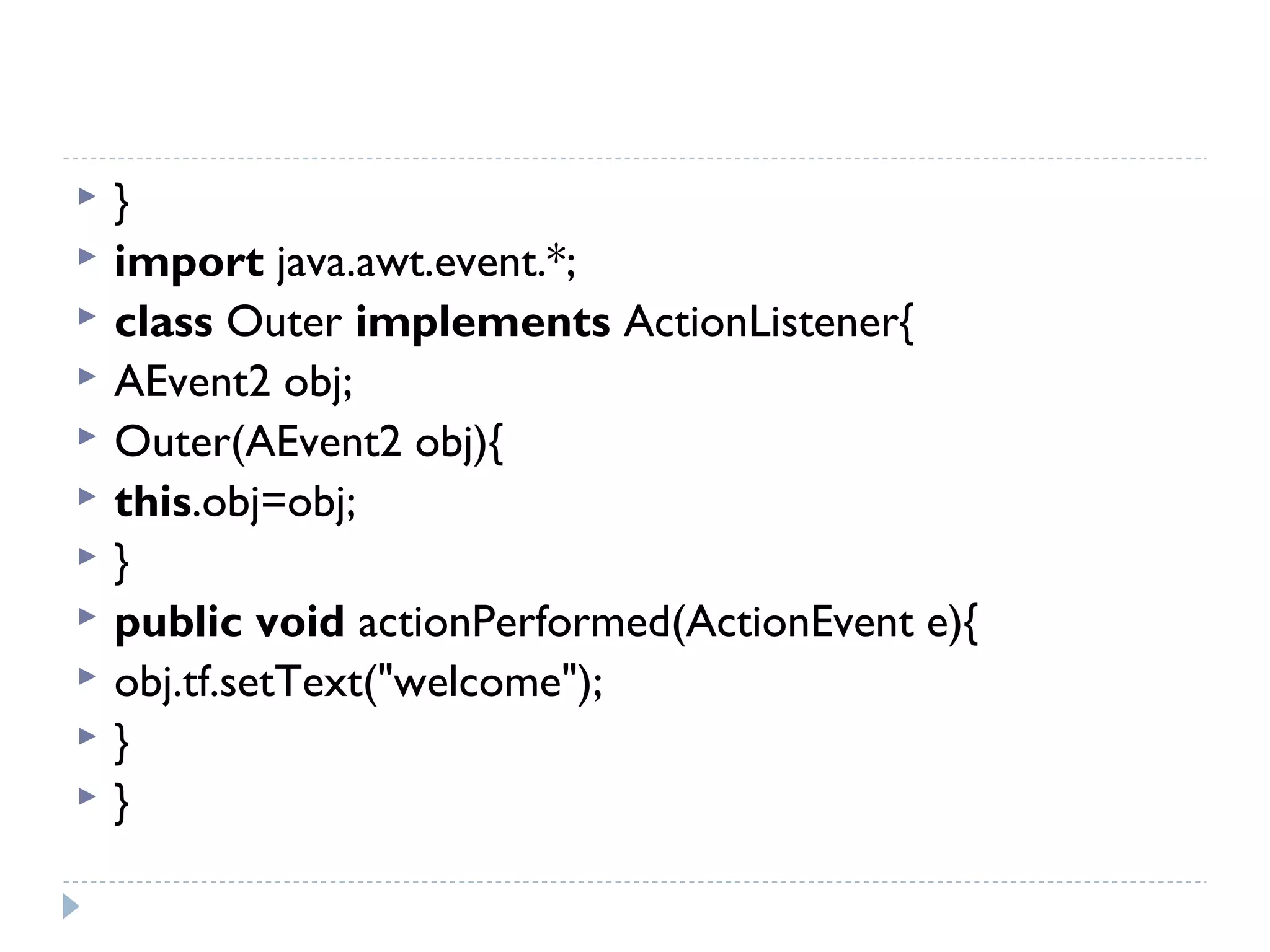
2) Example of event handling by Outer
class:
 import java.awt.*;  
 import java.awt.event.*;  
 class AEvent2 extends Frame{  
 TextField tf;  
 AEvent2(){  
 tf=new TextField();  
 tf.setBounds(60,50,170,20);  
 Button b=new Button("click me");  
 b.setBounds(100,120,80,30);  
 Outer o=new Outer(this);  
 b.addActionListener(o);//passing outer class instance  
 add(b);add(tf);  
 setSize(300,300);  
 setLayout(null);  
 setVisible(true);  
 }  
 public static void main(String args[]){  
 new AEvent2();  
 }  
 }  
 import java.awt.event.*;  
 class Outer implements ActionListener{  
 AEvent2 obj;  
 Outer(AEvent2 obj){  
 this.obj=obj;  
 }  
 public void actionPerformed(ActionEvent e){  
 obj.tf.setText("welcome");  
 }  
 }  
3) Example of event handling by
Annonymous class:
import java.awt.*;  
import java.awt.event.*;  
class AEvent3 extends Frame{  
TextField tf;  
AEvent3(){  
tf=new TextField();  
tf.setBounds(60,50,170,20);  
Button b=new Button("click me");  
b.setBounds(50,120,80,30);  
b.addActionListener(new ActionListener(){  
public void actionPerformed(){  
tf.setText("hello");  
}  
});  
add(b);add(tf);  
setSize(300,300);  
setLayout(null);  
setVisible(true);  
}  
public static void main(String args[]){  
new AEvent3();  
}  
}  
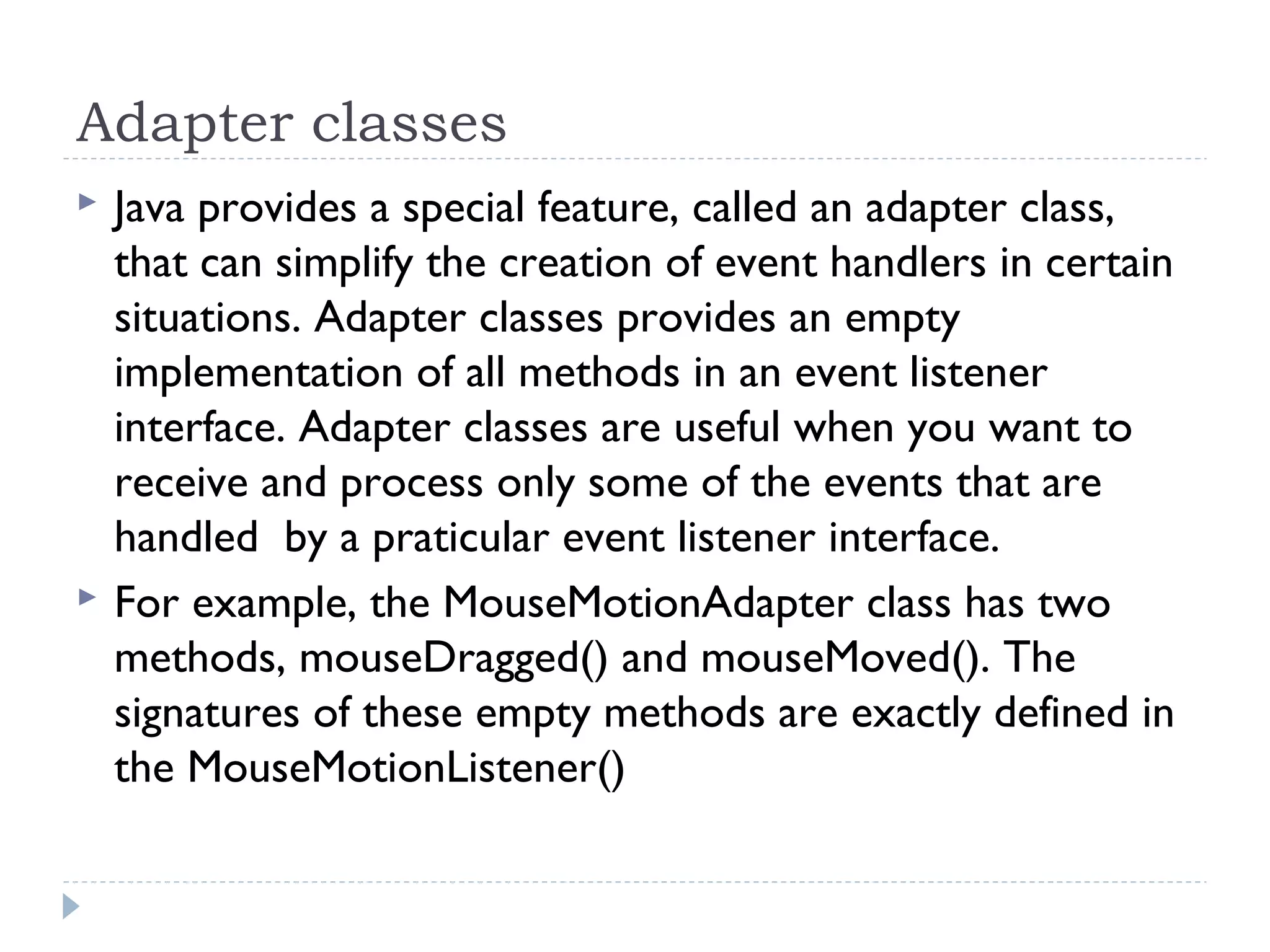
Adapter classes
 Java provides a special feature, called an adapter class,
that can simplify the creation of event handlers in certain
situations. Adapter classes provides an empty
implementation of all methods in an event listener
interface. Adapter classes are useful when you want to
receive and process only some of the events that are
handled by a praticular event listener interface.
 For example, the MouseMotionAdapter class has two
methods, mouseDragged() and mouseMoved(). The
signatures of these empty methods are exactly defined in
the MouseMotionListener()
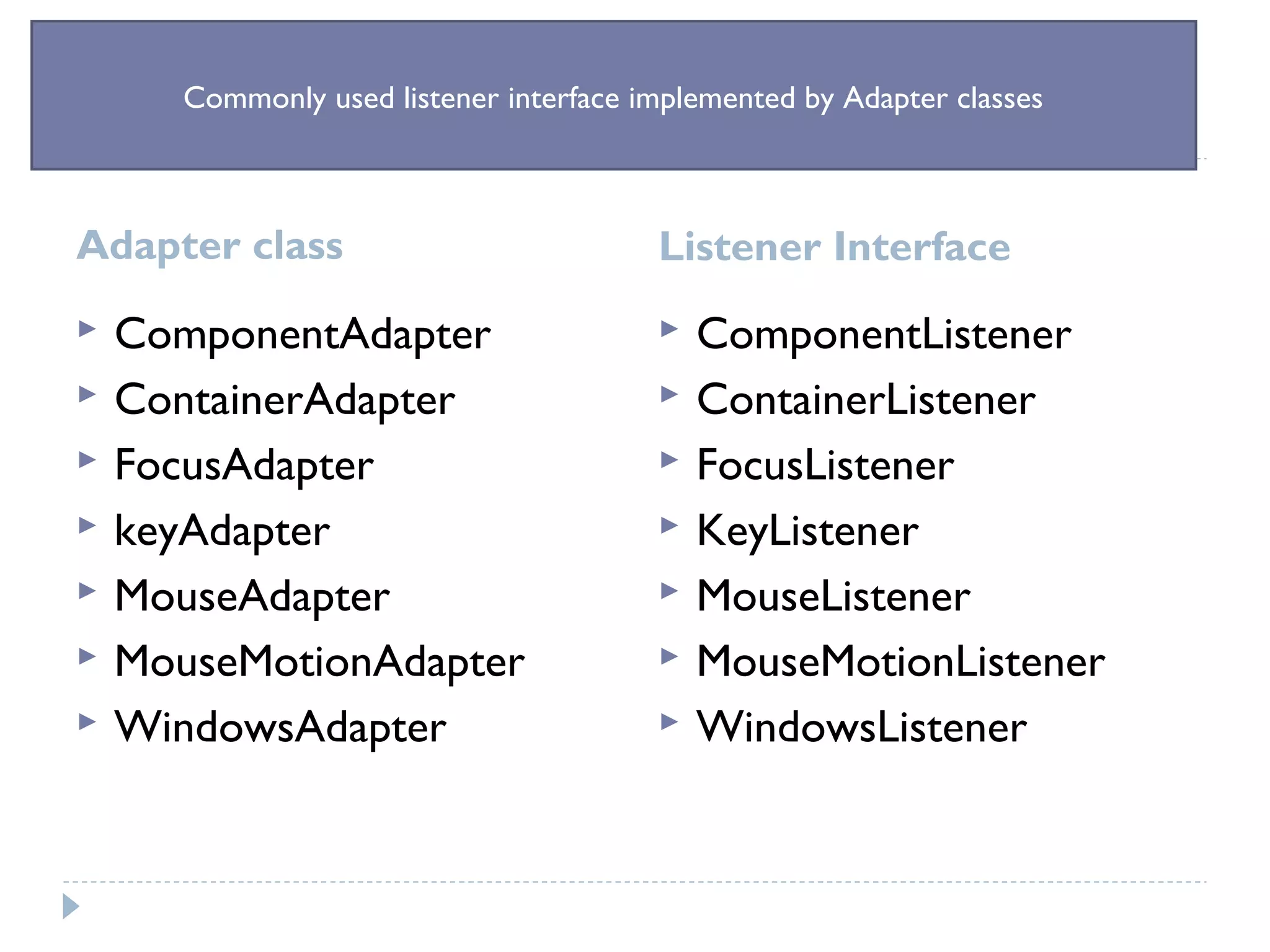
Adapter class Listener Interface
 ComponentAdapter
 ContainerAdapter
 FocusAdapter
 keyAdapter
 MouseAdapter
 MouseMotionAdapter
 WindowsAdapter
 ComponentListener
 ContainerListener
 FocusListener
 KeyListener
 MouseListener
 MouseMotionListener
 WindowsListener
Commonly used listener interface implemented by Adapter classes

Basic of Abstract Window Toolkit(AWT) in Java

  • 1.
  • 2.
    Graphical User Interface Graphical User Interface (GUI) offers user interaction via some graphical components. For example our underlying Operating System also offers GUI via window,frame,Panel, Button, Textfield, TextArea, Listbox, Combobox, Label, Checkbox etc. These all are known as components. Using these components we can create an interactive user interface for an application.  GUI provides result to end user in response to raised events.GUI is entirely based events. For example clicking over a button, closing a window, opening a window, typing something in a textarea etc. These activities are known as events.GUI makes it easier for the end user to use an application. It also makes them interesting.
  • 3.
    What is JWT? Java AWT (Abstract Windowing Toolkit) is an API to develop GUI or window-based application in java.  Java AWT components are platform-dependent i.e. components are displayed according to the view of operating system. AWT is heavyweight i.e. its components uses the resources of system.  The java.awt package provides classes for AWT api such as TextField, Label, TextArea, RadioButton, CheckBox, Choice, List etc.
  • 4.
    Java AWT Hierarchy The hierarchy of Java AWT classes are given below.
  • 5.
  • 6.
     Component: Componentclass is the super class to all the other classes from which various GUI elements are realized. It is primary responsible for effecting the display of a graphic object on the screen. It also handles the various keyboard and mouse events of the GUI application.
  • 7.
    Container  The Containeris a component in AWT that can contain another components like buttons, textfields, labels etc. The classes that extends Container class are known as container such as Frame, Dialog and Panel. Window  The window is the container that have no borders and menu bars. You must use frame, dialog or another window for creating a window. Panel  The super class of applet, panel represents a window space on which the application’s output is displayed. It is just like a normal window having no border, title bar and menu bars,etc. It can have other components like button, textfield etc. other components can be added to a Panel object by its add() method(inherited from container). Once these components have been added, you can position and resize them manually using the setLocation(), setSize(), or setBounds() methods defined by the components. Frame  The Frame is the container that contain title bar and can have menu bars. It can have other components like button, textfield etc. it supports common window-related events such as close, open, activate, deactivate, etc.
  • 8.
    Control Fundamentals  TheAWT supports the following types of controls 1. Labels 2. Push buttons 3. Check boxes 4. Choice lists 5. Lists 6. Scroll bars 7. Text editing
  • 9.
    Adding and removingcontrols  Component add(Component compObj)  Here compObj is an instnace of the control that you want to add. Void remove(Component obj) Here obj is a reference to the control you want to remove . You can remove all controls by calling removeAll().
  • 10.
    labels  A labelis an object of type label, and it contains a string, which it displays. Label defines the following constructors:  Label()  Label(String str)  Label(String str, int how)
  • 11.
     import java.awt.*; import java.applet.*;  /*  <applet code="LabelDemo" width=300 height=200>  </applet>  */  public class LabelDemo extends Applet  {  public void init()  {  Label one=new Label("One");  Label two=new Label("Two");  Label three=new Label("Three");  // add label to applet window  add(one);  add(two);  add(three);  }  }
  • 12.
    Using buttons  Themost widely used control is the push button. A push button is a component that contains a label and that generates an event when it is passed. Push buttons are the object of type Button. Button defines these two constructors:  Button()  Button(String str)
  • 13.
     import java.awt.*; import java.awt.event.*;  import java.applet.*;  /*  <applet code="ButtonDemo" width=300 height=200>  </applet>  */  public class ButtonDemo extends Applet implements ActionListener  {  String msg="";  Button yes, no, maybe;  public void init()  {  yes=new Button("Yes");  no=new Button("No");  maybe=new Button("Undecided");
  • 14.
     add(yes);  add(no); add(maybe);  yes.addActionListener(this);  no.addActionListener(this);  maybe.addActionListener(this);  }  public void actionPerformed(ActionEvent ae)  {  String str=ae.getActionCommand();
  • 15.
     if(str.equals("Yes"))  { msg="you pressed yes";  }  else if(str.equals("No"))  {  msg="you pressed no";  }  else  {  msg="you pressed undecided";  }  repaint();  }  public void paint(Graphics g)
  • 16.
    Check boxes  Acheck box is a control that is used to turn an option on or off. Check boxes are objects of the Checkbox class. Checkbox supports these constructors:  Checkbox()  Checkbox(String str)  Checkbox(String str, boolean on)  Checkbox(String str, boolean on, CheckboxGroup cbGroup)  Checkbox(String str, CheckboxGroup cbGroup, boolean on)
  • 17.
    Choice controls  Thechoice class is used to create a pop-up list of items from which the user may choose
  • 18.
    Using a TextField The TextField class implements a single-line text-entry area, usually called an edit control. TextField is a subclass of TextComponent. TextField defines the following constructors:  TextField()  TextField(int numChars)  TextField(String str)  TextField(String str, int numChars)
  • 19.
    Useful Methods ofComponent class
  • 21.
    Working with FrameWindows  Here are two of Frame’s constructors: 1. Frame() 2. Frame(String title) The first form creates a standard window that does not contain a title. The second form creates a window with the title specified by title. There are several methods to use when working with Frame windows. They are examined here:
  • 22.
     Setting thewindows Dimension:  The setSize() method is used to set the dimensions of the window. It signature is shown here:  Void setSize(int newWidth, int newHeight)  Void setSize(Dimension newSize)
  • 23.
     Hiding andShowing a window:  After a frame window has been created, it will not be visible until you call setVisible(). Its signature is shown here:  Void setVisible(boolean visibleFlag)
  • 24.
     Setting awindow’s title:  You can change the title in a frame window using setTitle(), which has this general form:  Void setTitle(String newTitle)
  • 25.
     Closing aFrame Window:  When using a frame window, your program must remove that window from the screen when it is closed, by calling setVisible(false). To intercept a window-close event, you must implemet the windowClosing() method of the windowListener interface.
  • 26.
    Java AWT Example To create simple awt example, you need a frame. There are two ways to create a frame in AWT. 1. By extending Frame class (inheritance) 2. By creating the object of Frame class (association)
  • 27.
    Simple example ofAWT by inheritance  import java.awt.*;   class First extends Frame{   First(){   Button b=new Button("click me");   b.setBounds(30,100,80,30);// setting button position   add(b);//adding button into frame   setSize(300,300);//frame size 300 width and 300 height   setLayout(null);//no layout manager   setVisible(true);//now frame will be visible, by default not visible   }   public static void main(String args[]){   First f=new First();   }}  
  • 28.
    Simple example ofAWT by association  import java.awt.*;   class First2{   First2(){   Frame f=new Frame();     Button b=new Button("click me");   b.setBounds(30,50,80,30);     f.add(b);   f.setSize(300,300);   f.setLayout(null);   f.setVisible(true);   }   public static void main(String args[]){   First2 f=new First2();   }}  
  • 29.
    Event and Listener(Java Event Handling)  Changing the state of an object is known as an event. For example, click on button, dragging mouse etc.
  • 30.
    The Delegation EventModel  The modern approach to handling events is based on the delegation event model, which defines standard and consistent mechanisms to generate and process events. Its concept is quite simple: a source generates an events and sends it on one or more listeners. In this scheme, the listener simply waits until it receives an event. Once received, the listener processes the event and then returns. The advantage of this design is that the application logic that processes events is cleanly separated form the user interface logic that generates those events. A user interface element is able to “delegate” the processing of an events to a separate piece of code
  • 31.
     In thedelegation model, the listener must register with a source in order to receive an event notification.  Events: in the delegation model, an event is an object that describes a state change in a source. It can be generated as a consequences of a person interacting with the elements in a GUI.  For example: event may generated when a timer expires, a counter exceeds a value, a hardware/software failure occurs.
  • 32.
     Event Sources:A source is an object that generates an event. This occurs when the internal state of that object changes in some way. Sources may generate more than one type of event. A sources must register listeners in order for the listeners to receive notifications about a specific type of event. Each type of event has its own registration method. Here is the general form:  Public void addTypeListener(TypeListener el)  Here, type is the name of the event and el is a reference to the event listener.  For example: the method that registers a keyboard event listener is called addKeyListener().
  • 33.
     The methodthat registers a mouse motion listener is called addMouseMotioListener()  Event Listeners: A listener is an object that is notified when an event occurs. It has two major requirements. First, it must have been registered with one or more sources to receive notifications about specific types of events. Second, it must implement methods to receive and process these notification.  The java.awt.event package provides many event classes and Listener interfaces for event handling.
  • 35.
    Steps to performEvent Handling  Following steps are required to perform event handling: 1. Implement the Listener interface and overrides its methods 2. Register the component with the Listener  For registering the component with the Listener, many classes provide the registration methods. For example:
  • 36.
    Button  public voidaddActionListener(ActionListener a){} MenuItem  public void addActionListener(ActionListener a){} TextField  public void addActionListener(ActionListener a){}  public void addTextListener(TextListener a){} TextArea  public void addTextListener(TextListener a){} Checkbox  public void addItemListener(ItemListener a){} Choice  public void addItemListener(ItemListener a){} List  public void addActionListener(ActionListener a){}  public void addItemListener(ItemListener a){}
  • 37.
    EventHandling Codes:  Wecan put the event handling code into one of the following places: 1. Same class 2. Other class 3. Annonymous class
  • 38.
    Example of eventhandling within class:
  • 39.
  • 40.
     public voidsetBounds(int xaxis, int yaxis, int width, int height); have been used in the above example that sets the position of the component it may be button, textfield etc.
  • 41.
    2) Example ofevent handling by Outer class:  import java.awt.*;    import java.awt.event.*;    class AEvent2 extends Frame{    TextField tf;    AEvent2(){    tf=new TextField();    tf.setBounds(60,50,170,20);    Button b=new Button("click me");    b.setBounds(100,120,80,30);    Outer o=new Outer(this);    b.addActionListener(o);//passing outer class instance    add(b);add(tf);    setSize(300,300);    setLayout(null);    setVisible(true);    }    public static void main(String args[]){    new AEvent2();    }  
  • 42.
     }    import java.awt.event.*;   class Outer implements ActionListener{    AEvent2 obj;    Outer(AEvent2 obj){    this.obj=obj;    }    public void actionPerformed(ActionEvent e){    obj.tf.setText("welcome");    }    }  
  • 43.
    3) Example ofevent handling by Annonymous class:
  • 44.
  • 45.
    Adapter classes  Javaprovides a special feature, called an adapter class, that can simplify the creation of event handlers in certain situations. Adapter classes provides an empty implementation of all methods in an event listener interface. Adapter classes are useful when you want to receive and process only some of the events that are handled by a praticular event listener interface.  For example, the MouseMotionAdapter class has two methods, mouseDragged() and mouseMoved(). The signatures of these empty methods are exactly defined in the MouseMotionListener()
  • 46.
    Adapter class ListenerInterface  ComponentAdapter  ContainerAdapter  FocusAdapter  keyAdapter  MouseAdapter  MouseMotionAdapter  WindowsAdapter  ComponentListener  ContainerListener  FocusListener  KeyListener  MouseListener  MouseMotionListener  WindowsListener Commonly used listener interface implemented by Adapter classes