BASH Guide Summary


              Ohgyun Ahn
Summary of BASH Guide
• This is a PERSONAL summary of Greg's BASH Guide.

• The official front page URL of original guide is
  http://mywiki.wooledge.org/.
BASH is,
• an acronym for "Bourne Again Shell".
• command interperters.
• a layer between system function calls and user.
BASH is NOT,
•   your operating system.
•   your window manager.
•   your terminal.(but it often runs inside terminal)
•   control your mouse and keyboard.
•   configure your system.
•   activate your screensaver.
•   open your files when you double-click them.
•   involved in launching applications.
BASH is,
• ONLY an interface for you to execute statements,
  using BASH syntax.

• a (possibly interactive) command interpreter,
  acting as a layer between the user and the system.
BASH mode
• Interactive:
  A mode of operation where a prompt asks you
  for one command at a time.

• Script:
  A file that contains a sequence of commands.
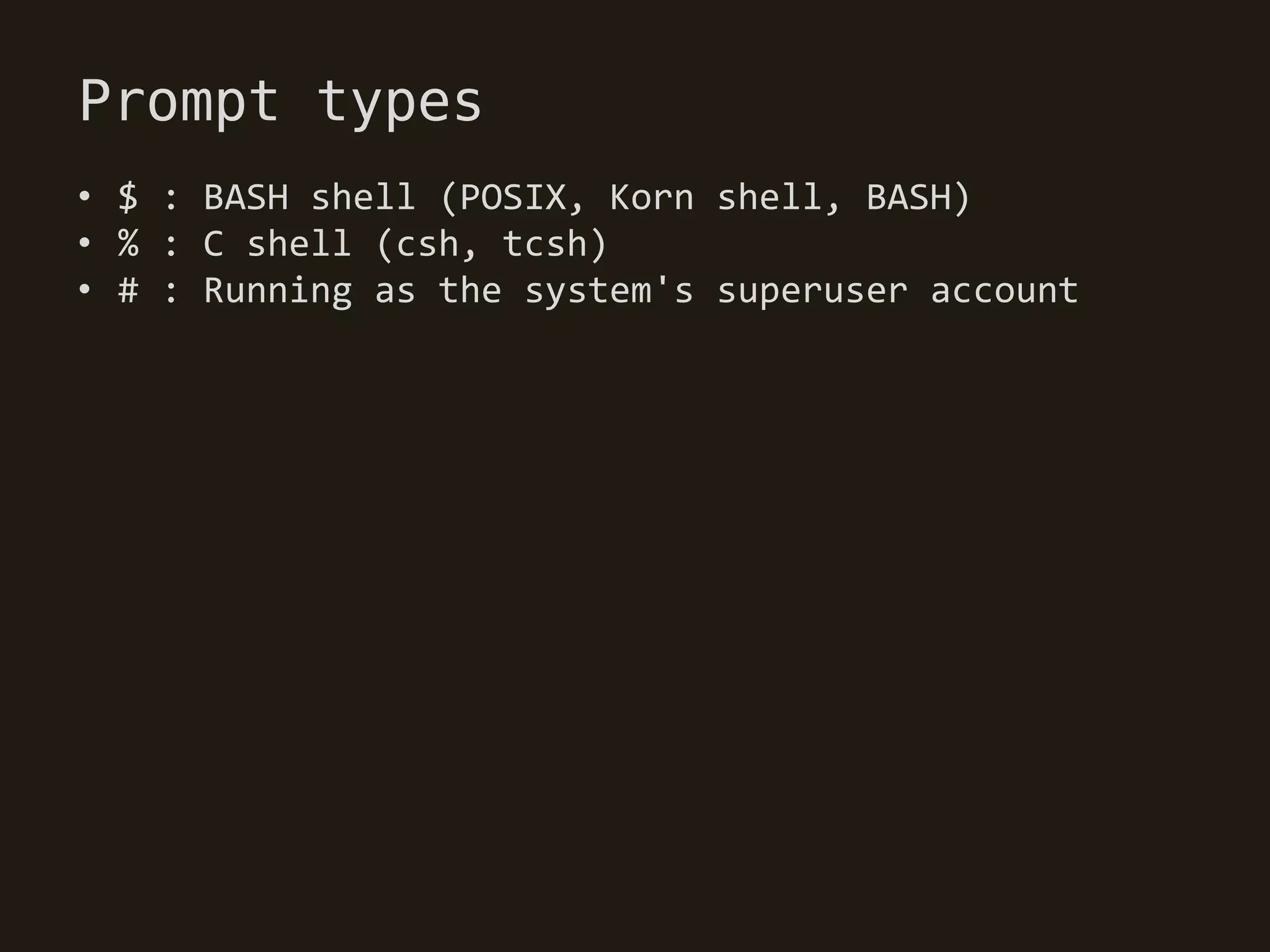
Prompt types
• $ : BASH shell (POSIX, Korn shell, BASH)
• % : C shell (csh, tcsh)
• # : Running as the system's superuser account
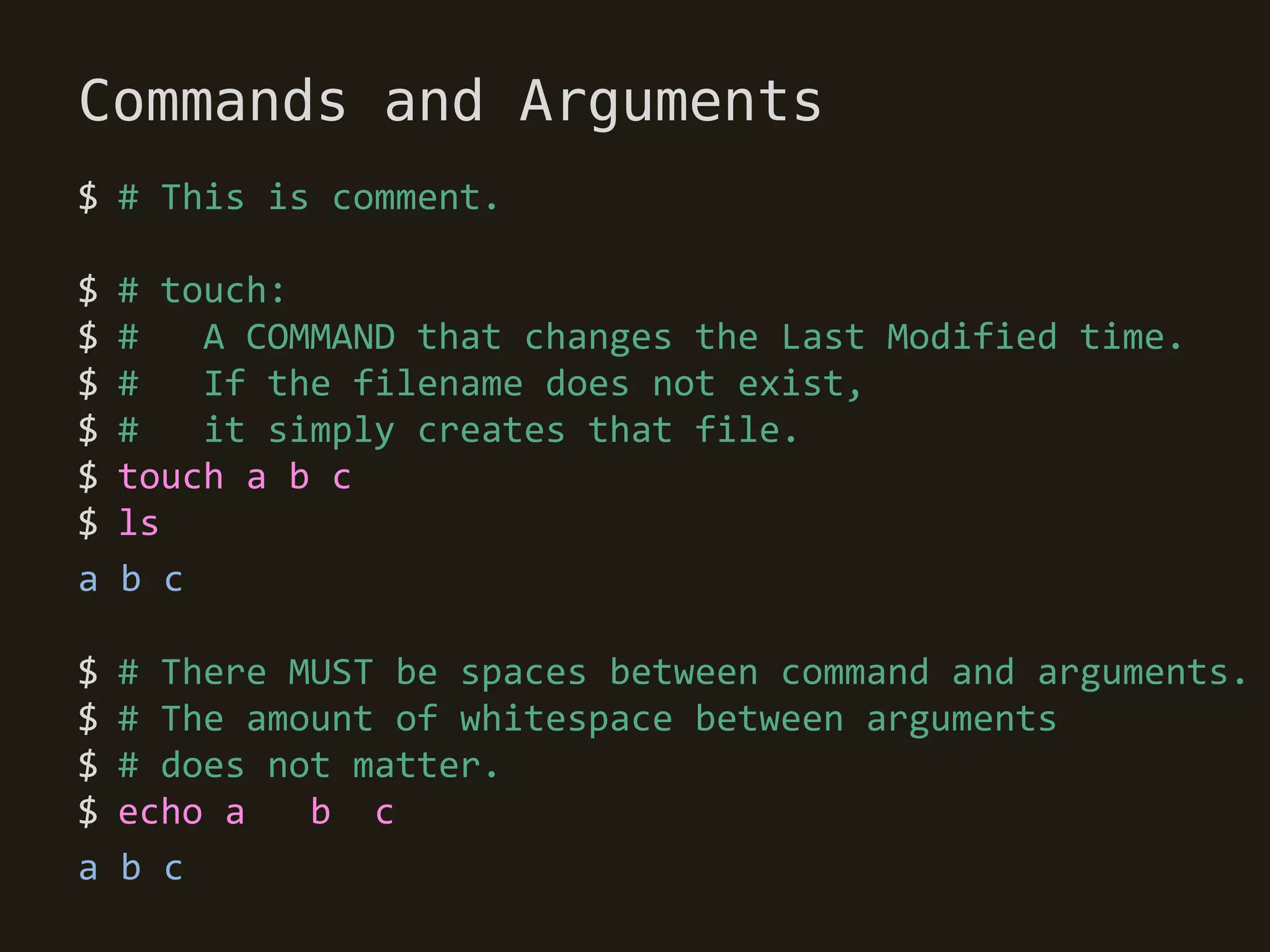
Commands and Arguments
$ # This is comment.

$   # touch:
$   #   A COMMAND that changes the Last Modified time.
$   #   If the filename does not exist,
$   #   it simply creates that file.
$   touch a b c
$   ls
a   b c

$   # There MUST be spaces between command and arguments.
$   # The amount of whitespace between arguments
$   # does not matter.
$   echo a   b c
a   b c
Strings
• In BASH programming, almost everything is a string.

• When you type a command,
  the command's name is a string.
• Each argument is a string.
• Variable name are strings.
• The contents of variables are strings.
• A filename is a string,
  and most files contains strings.
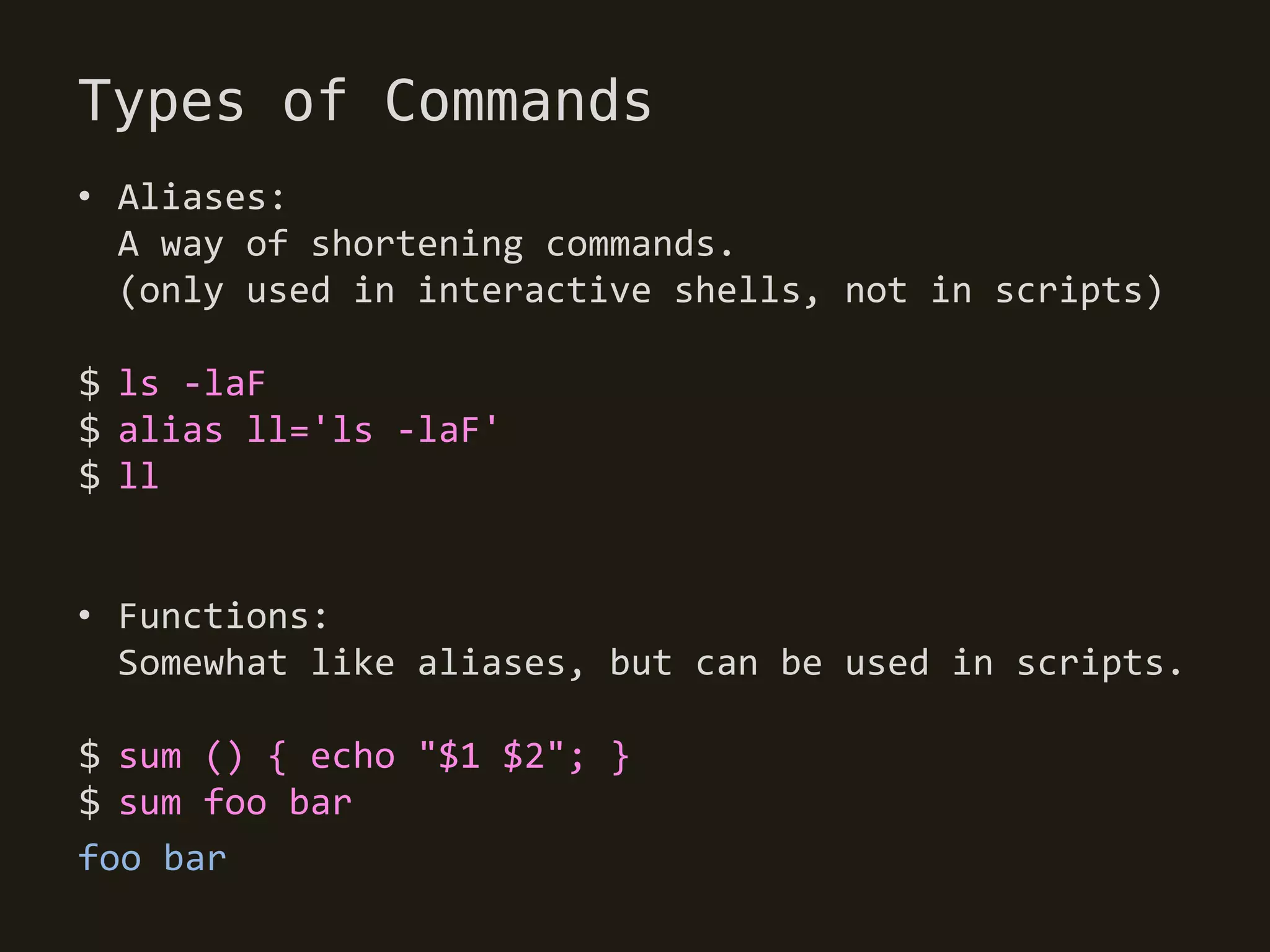
Types of Commands
• Aliases:
  A way of shortening commands.
  (only used in interactive shells, not in scripts)

$ ls -laF
$ alias ll='ls -laF'
$ ll


• Functions:
  Somewhat like aliases, but can be used in scripts.

$ sum () { echo "$1 $2"; }
$ sum foo bar
foo bar
Types of Commands
• Builtins:
  Basic commands built into BASH

$ cd ..
$ echo "echo is a bulitin"

• Keywords:
  Quite like builtins,
  but special parsing rules apply to them

$ [[ a < b ]]
Types of Commands
• Executables (Application):
  Also called an external command or application.
  Invoked by using a pathname.

$ ./myprogram
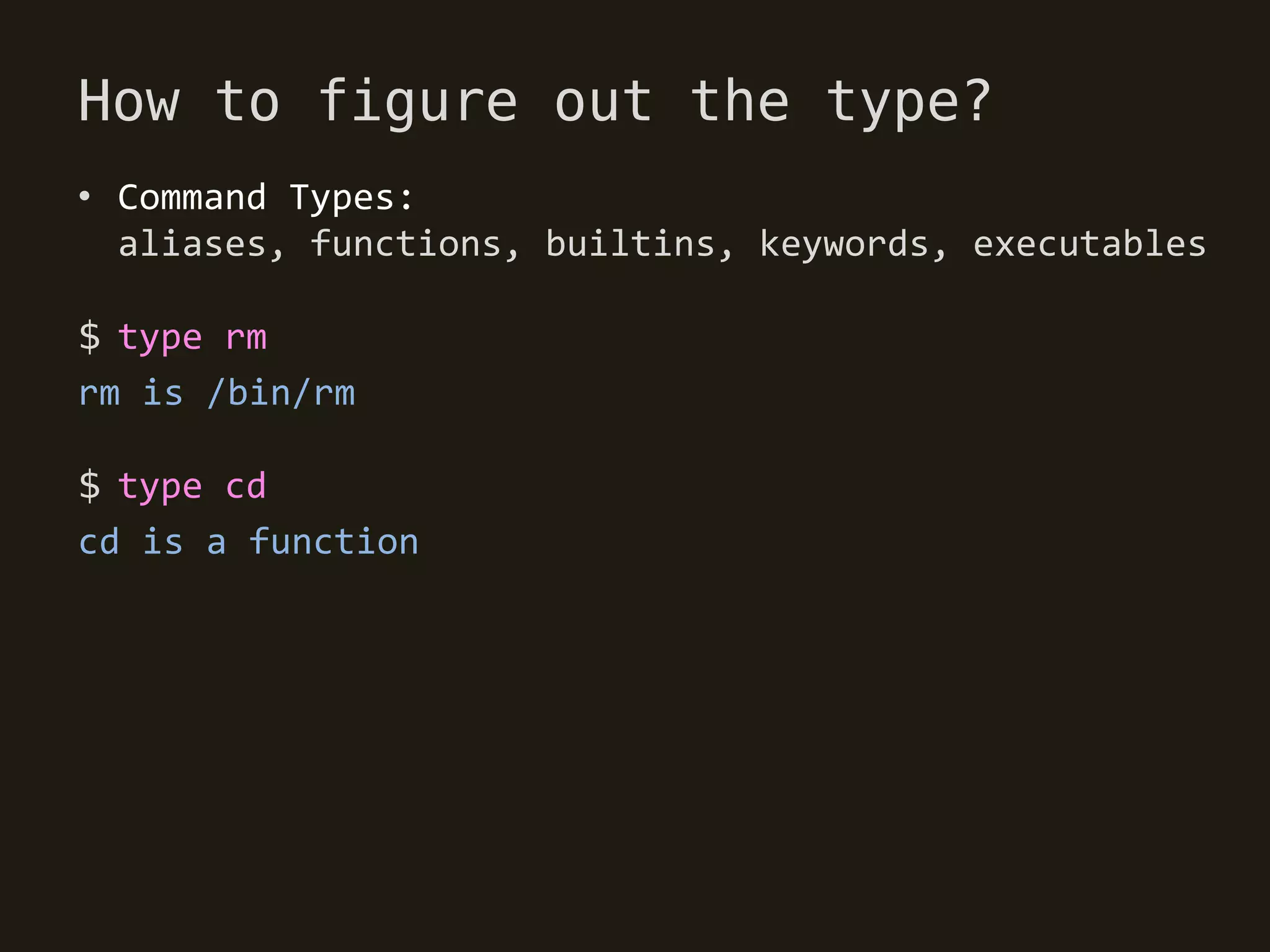
How to figure out the type?
• Command Types:
  aliases, functions, builtins, keywords, executables

$ type rm
rm is /bin/rm

$ type cd
cd is a function
Scripts
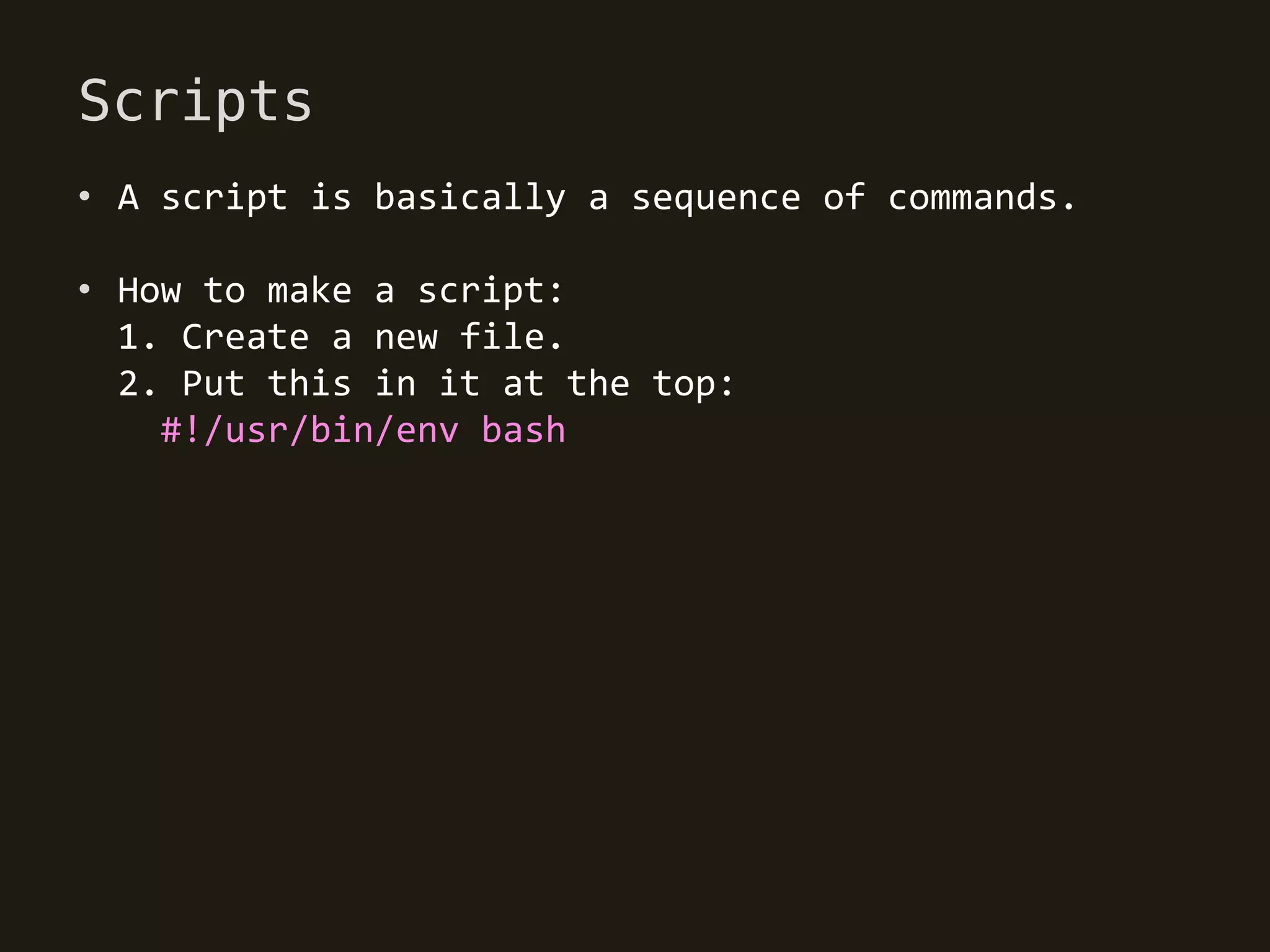
• A script is basically a sequence of commands.

• How to make a script:
  1. Create a new file.
  2. Put this in it at the top:
    #!/usr/bin/env bash
Shebang
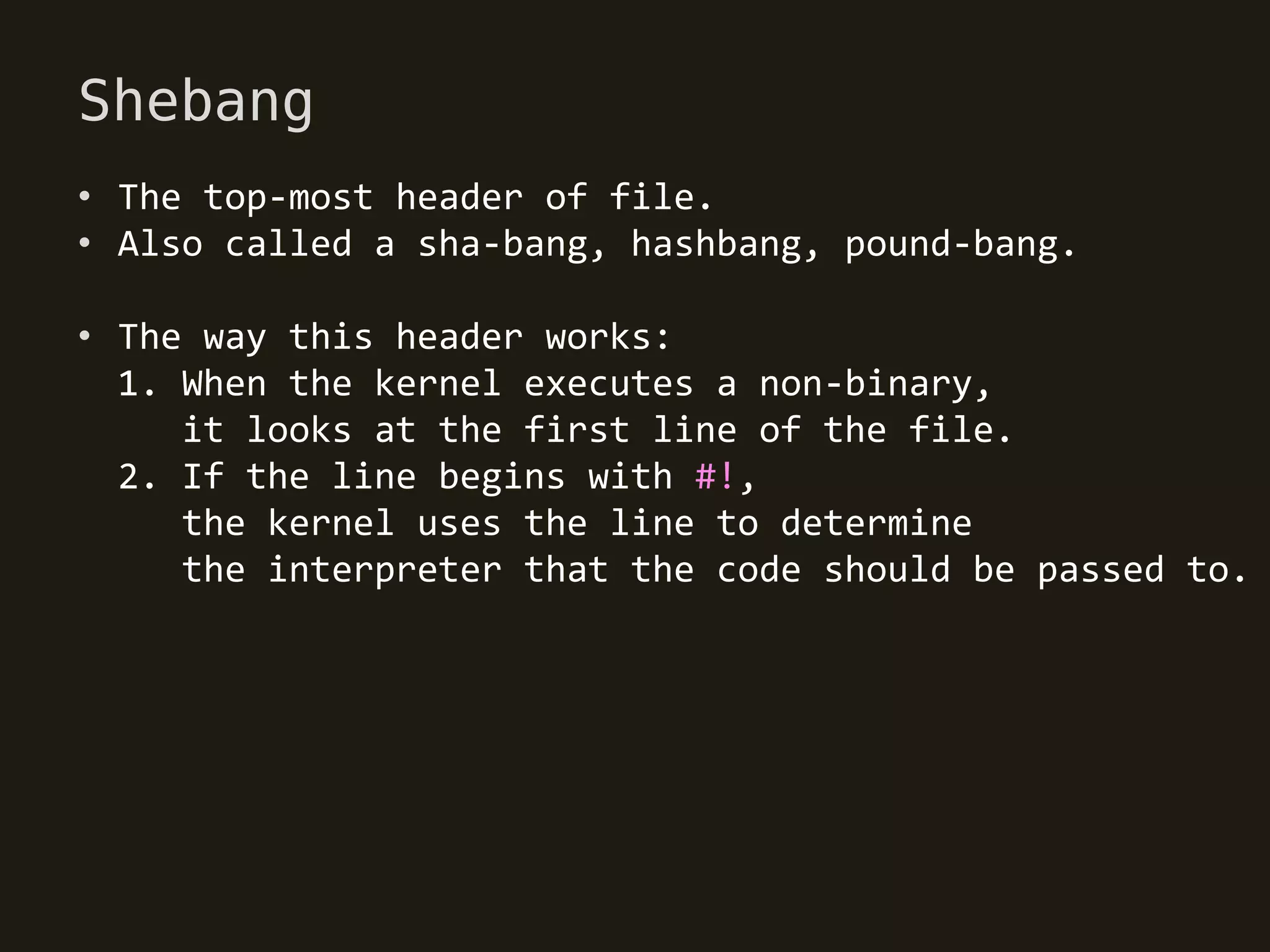
• The top-most header of file.
• Also called a sha-bang, hashbang, pound-bang.

• The way this header works:
  1. When the kernel executes a non-binary,
     it looks at the first line of the file.
  2. If the line begins with #!,
     the kernel uses the line to determine
     the interpreter that the code should be passed to.
#!What??
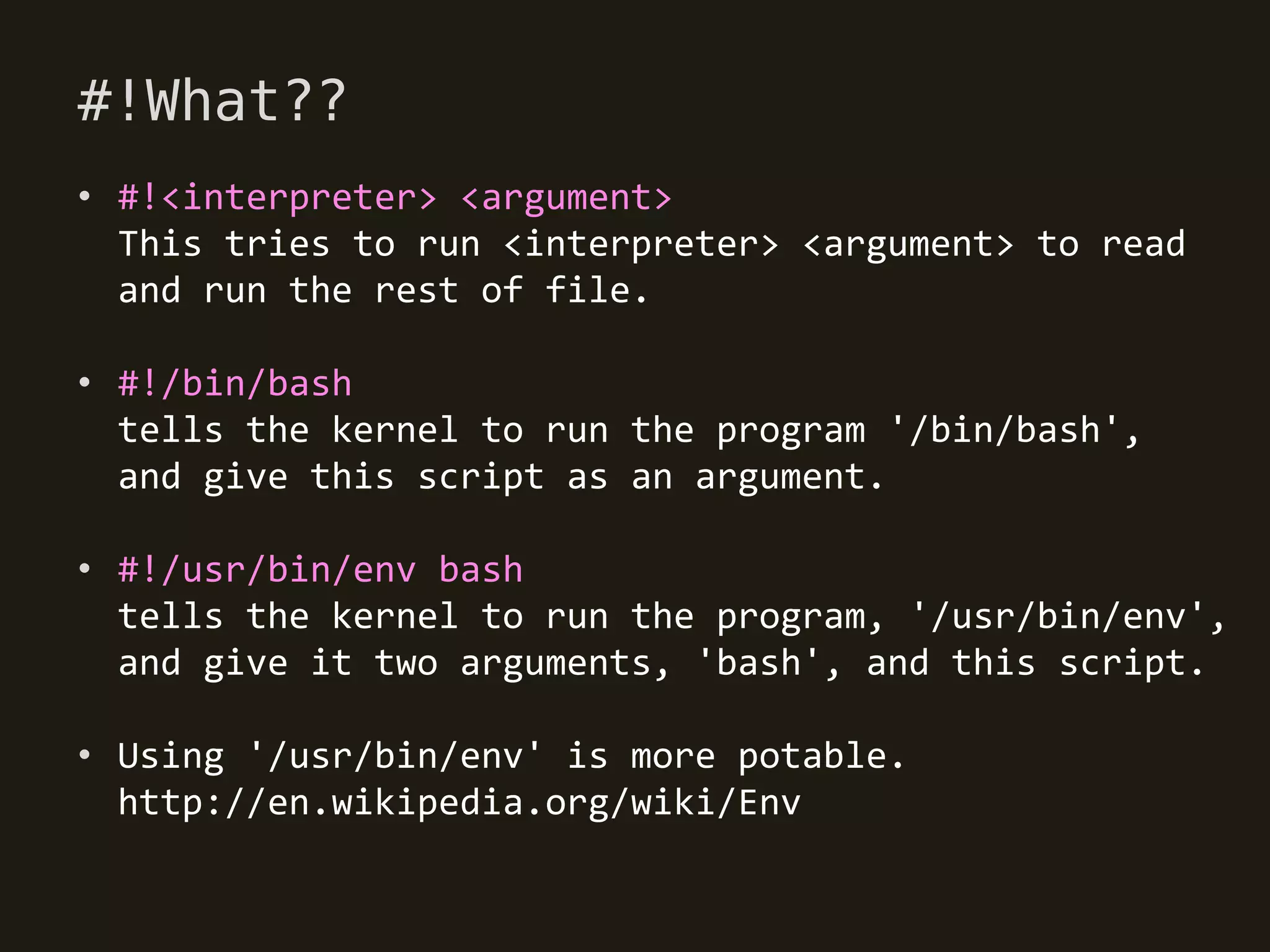
• #!<interpreter> <argument>
  This tries to run <interpreter> <argument> to read
  and run the rest of file.

• #!/bin/bash
  tells the kernel to run the program '/bin/bash',
  and give this script as an argument.

• #!/usr/bin/env bash
  tells the kernel to run the program, '/usr/bin/env',
  and give it two arguments, 'bash', and this script.

• Using '/usr/bin/env' is more potable.
  http://en.wikipedia.org/wiki/Env
sh is NOT bash
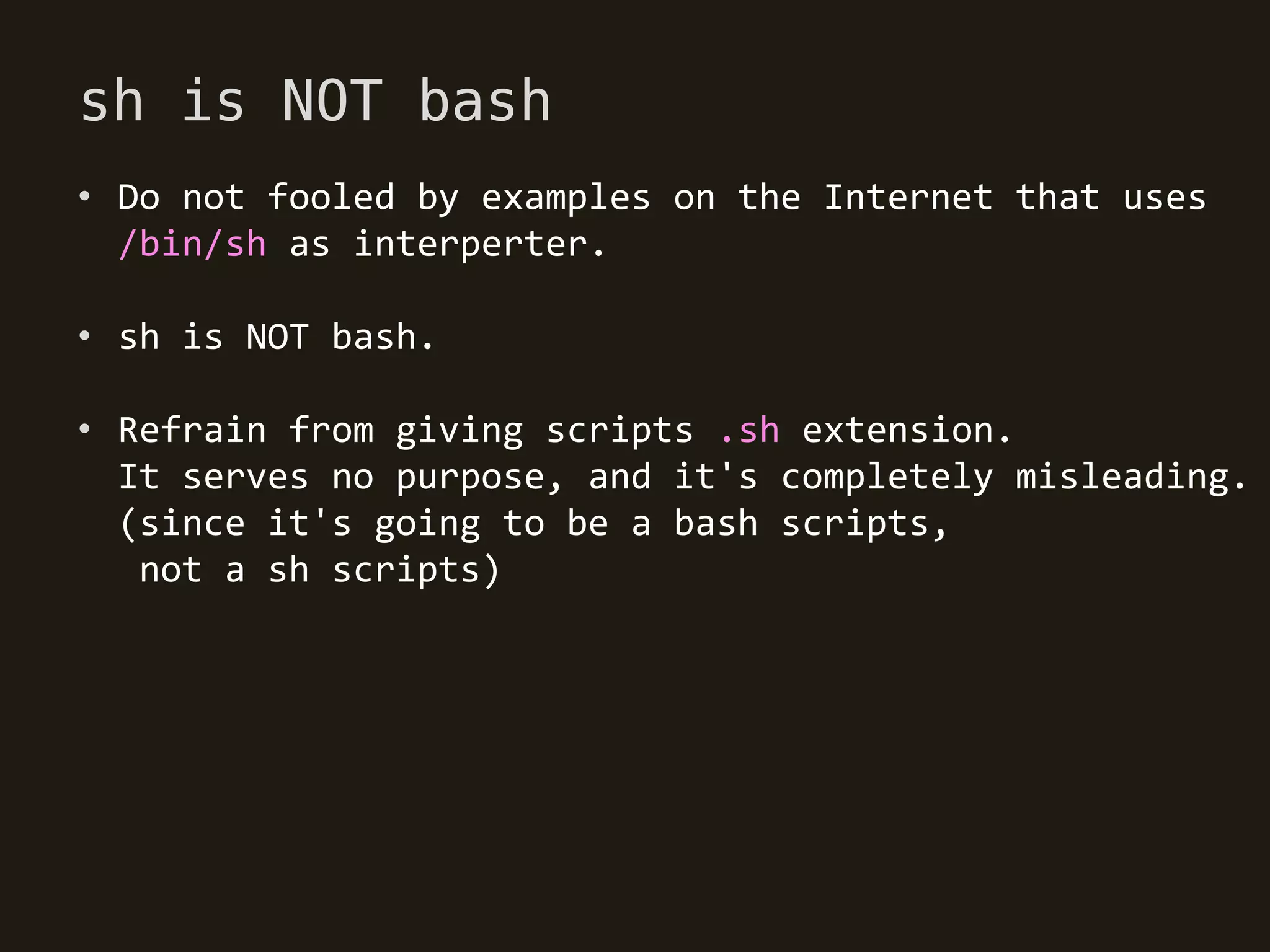
• Do not fooled by examples on the Internet that uses
  /bin/sh as interperter.

• sh is NOT bash.

• Refrain from giving scripts .sh extension.
  It serves no purpose, and it's completely misleading.
  (since it's going to be a bash scripts,
   not a sh scripts)
Creating a script
[myscript]
#!/usr/bin/env bash
echo "Hello, BASH"

[prompt]
$ # Execute script using bash command.
$ bash myscript

$   # Or, give your script executable permissions,
$   # so you can execute the script as an application.
$   chmod +x myscript
$   ./myscript
Special Characters
• [whitespace]
  Whitespace (spaces, tabs and newlines).
  BASH uses whitespace to determine each word.
  The first word of each command is a command name.
  Any additional words become arguments to that command.

• $
  Expansion character.
  This character is used in most substitutions,
  including parameter expansion.

• #
  Comment character.
  Any word beginning with # begins a comment.
Special Characters
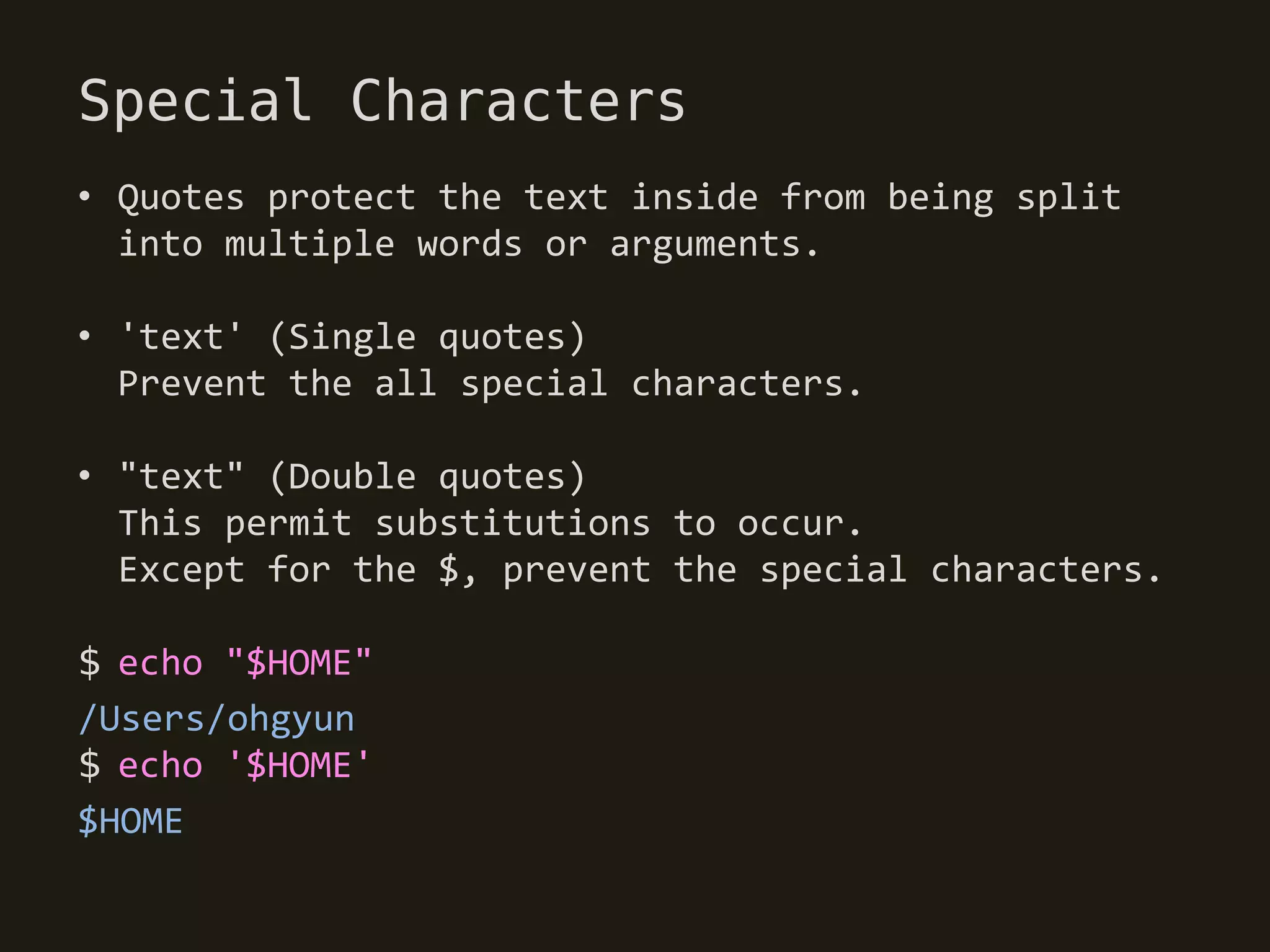
• Quotes protect the text inside from being split
  into multiple words or arguments.

• 'text' (Single quotes)
  Prevent the all special characters.

• "text" (Double quotes)
  This permit substitutions to occur.
  Except for the $, prevent the special characters.

$ echo "$HOME"
/Users/ohgyun
$ echo '$HOME'
$HOME
Special Characters
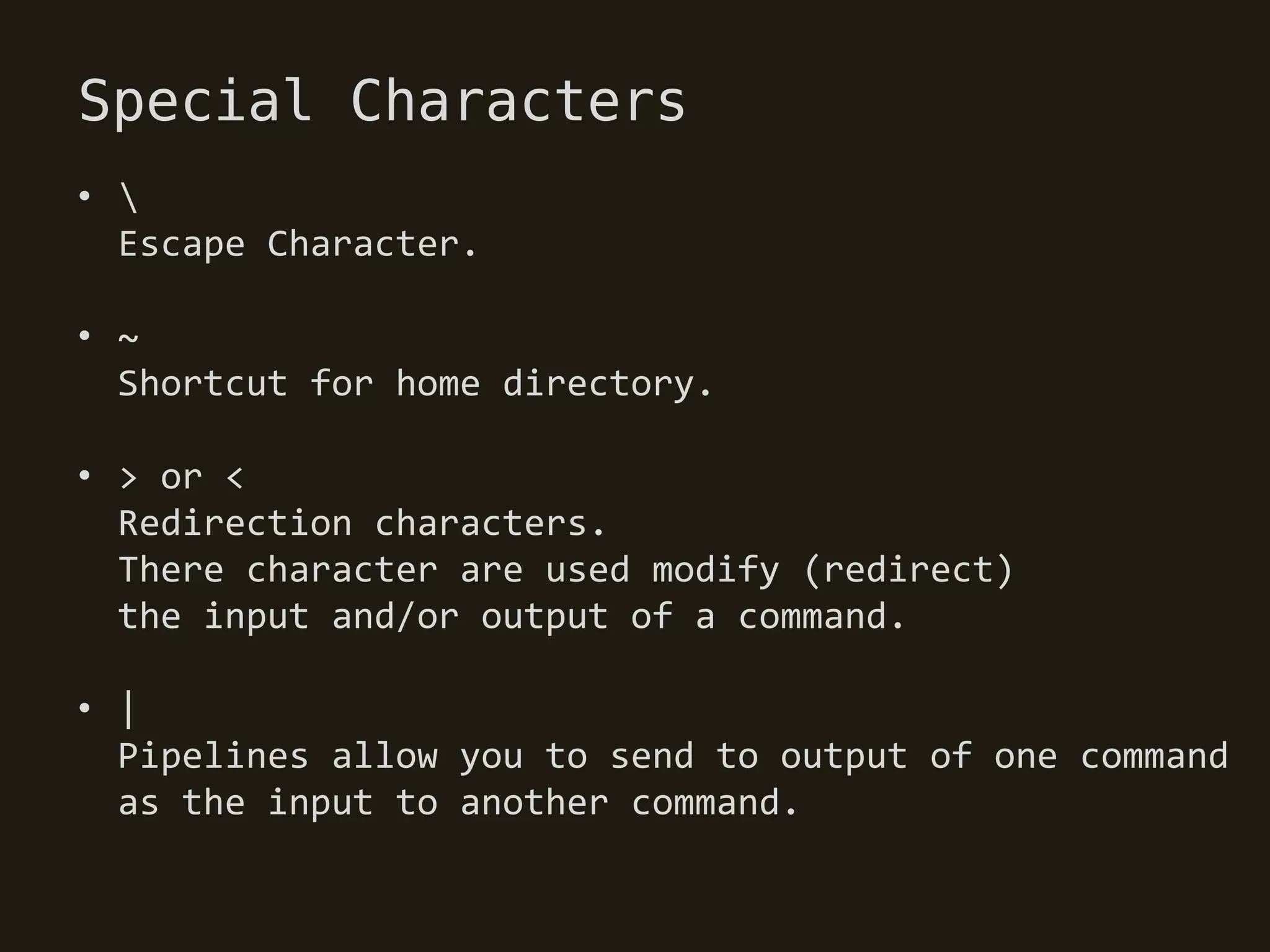
• 
  Escape Character.

• ~
  Shortcut for home directory.

• > or <
  Redirection characters.
  There character are used modify (redirect)
  the input and/or output of a command.

• |
  Pipelines allow you to send to output of one command
  as the input to another command.
Special Characters
• [[ expression ]]
  Test Expression.
  This evaluates the conditional expression.

• { command; }
  Command grouping.
  The commands inside the braces treated as though
  they were only one command.

• `command`, $(command)
  Command substitution.
  This executes the inner command first, and then
  replace the whole `...` or $(...0 with that command's
  standard ouptut.
Special Characters
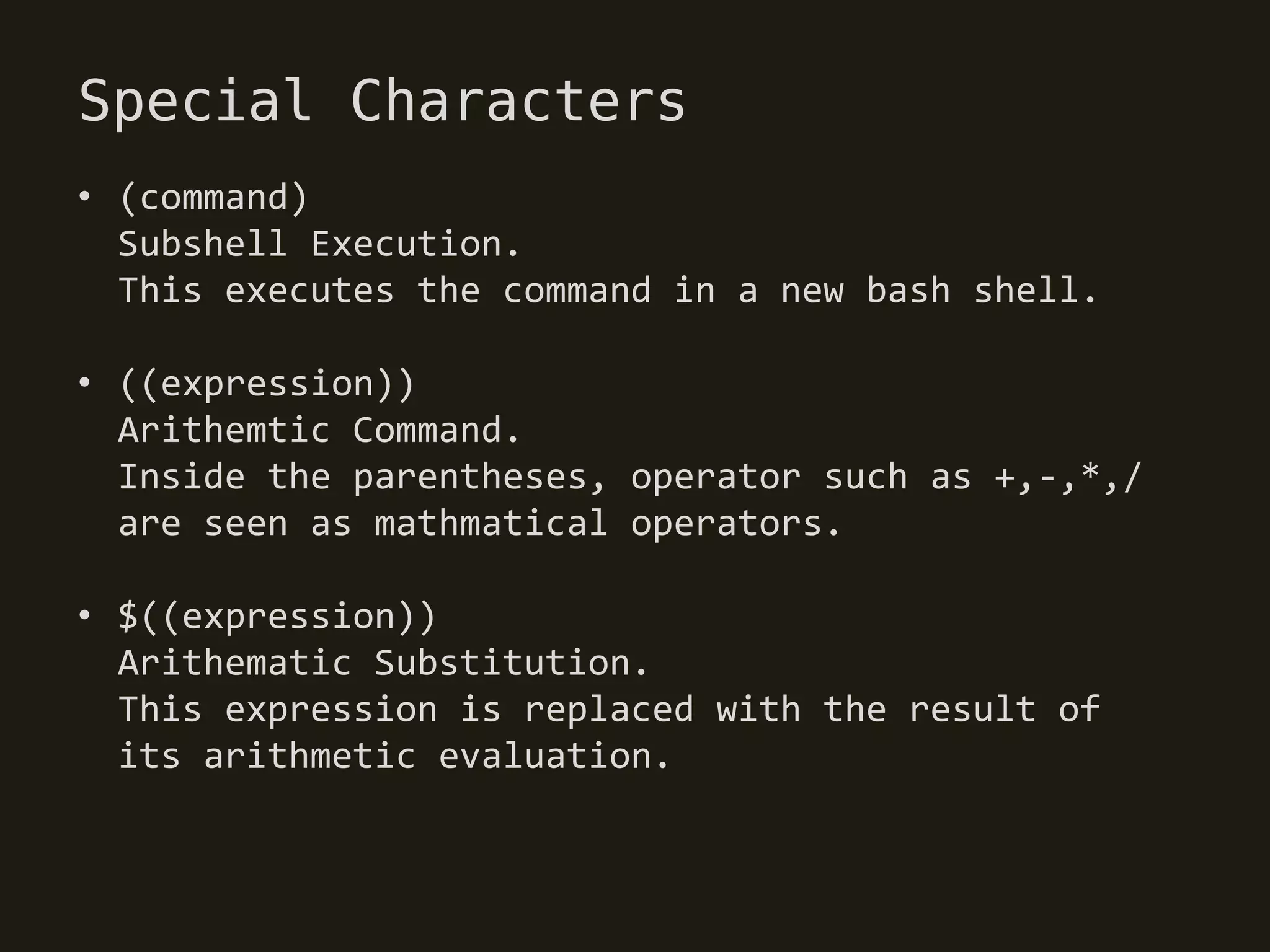
• (command)
  Subshell Execution.
  This executes the command in a new bash shell.

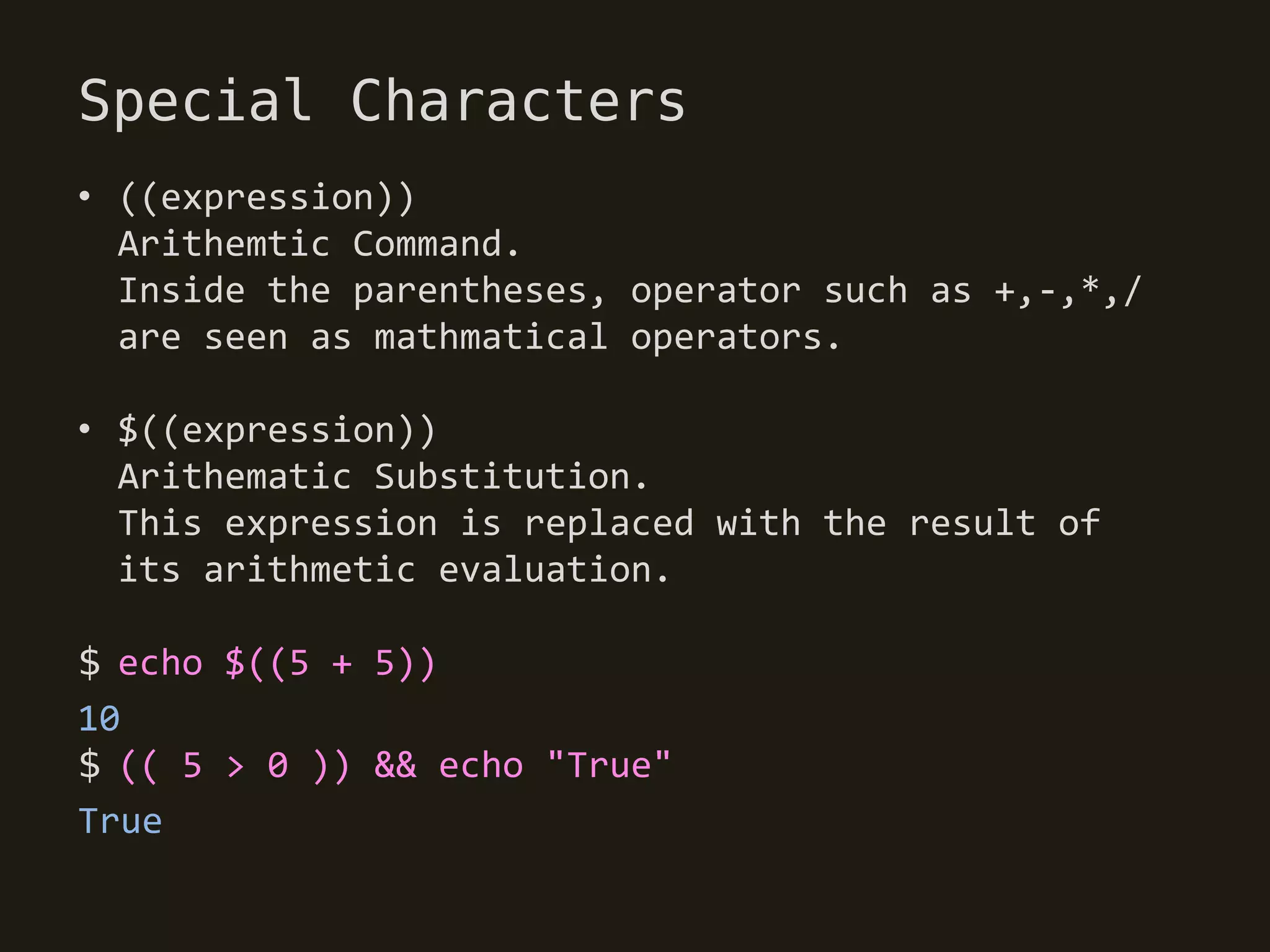
• ((expression))
  Arithemtic Command.
  Inside the parentheses, operator such as +,-,*,/
  are seen as mathmatical operators.

• $((expression))
  Arithematic Substitution.
  This expression is replaced with the result of
  its arithmetic evaluation.
Special Characters
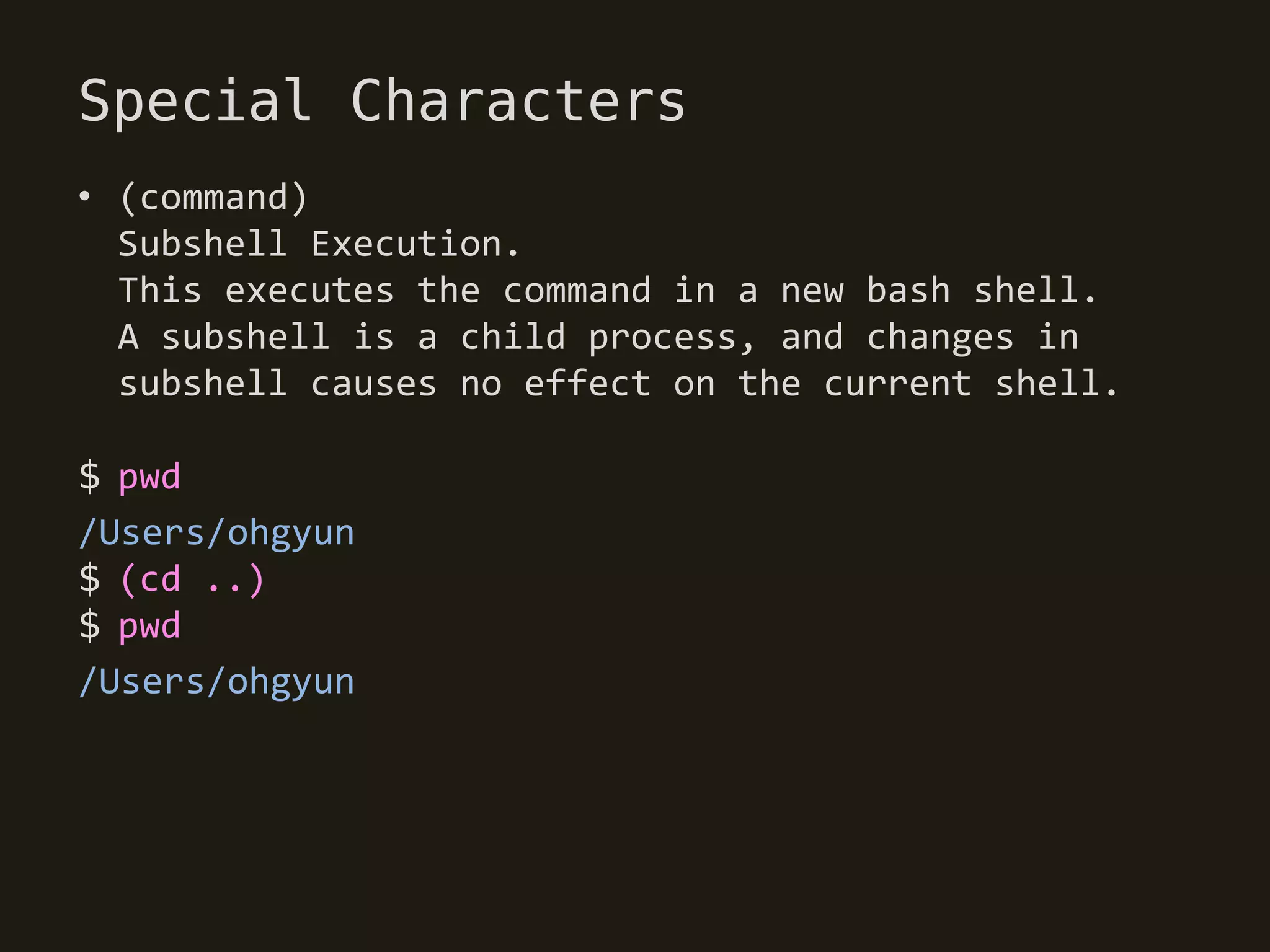
• (command)
  Subshell Execution.
  This executes the command in a new bash shell.
  A subshell is a child process, and changes in
  subshell causes no effect on the current shell.

$ pwd
/Users/ohgyun
$ (cd ..)
$ pwd
/Users/ohgyun
Special Characters
• ((expression))
  Arithemtic Command.
  Inside the parentheses, operator such as +,-,*,/
  are seen as mathmatical operators.

• $((expression))
  Arithematic Substitution.
  This expression is replaced with the result of
  its arithmetic evaluation.

$ echo $((5 + 5))
10
$ (( 5 > 0 )) && echo "True"
True
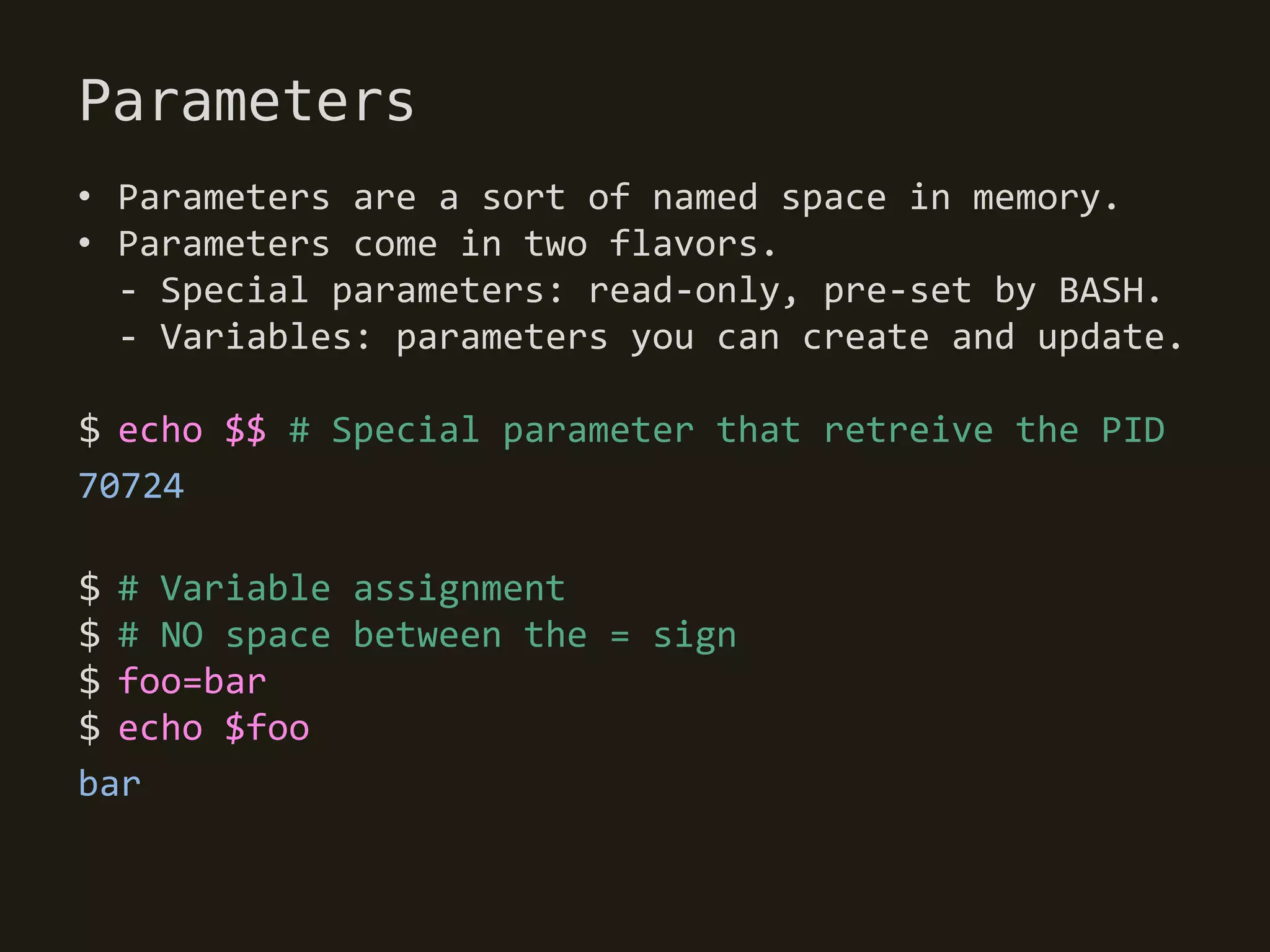
Parameters
• Parameters are a sort of named space in memory.
• Parameters come in two flavors.
  - Special parameters: read-only, pre-set by BASH.
  - Variables: parameters you can create and update.

$ echo $$ # Special parameter that retreive the PID
70724

$ # Variable assignment
$ # NO space between the = sign
$ foo=bar
$ echo $foo
bar
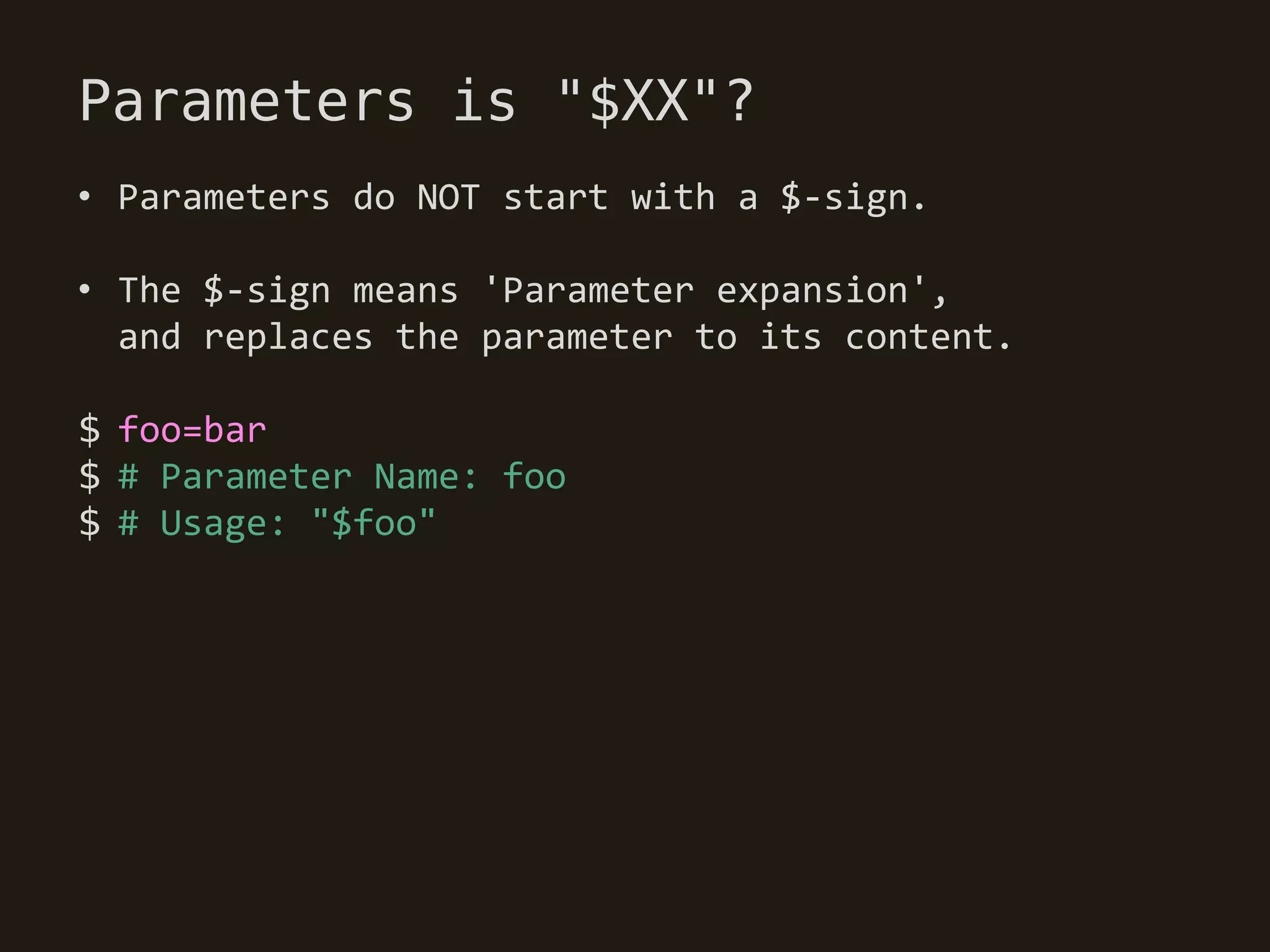
Parameters is "$XX"?
• Parameters do NOT start with a $-sign.

• The $-sign means 'Parameter expansion',
  and replaces the parameter to its content.

$ foo=bar
$ # Parameter Name: foo
$ # Usage: "$foo"
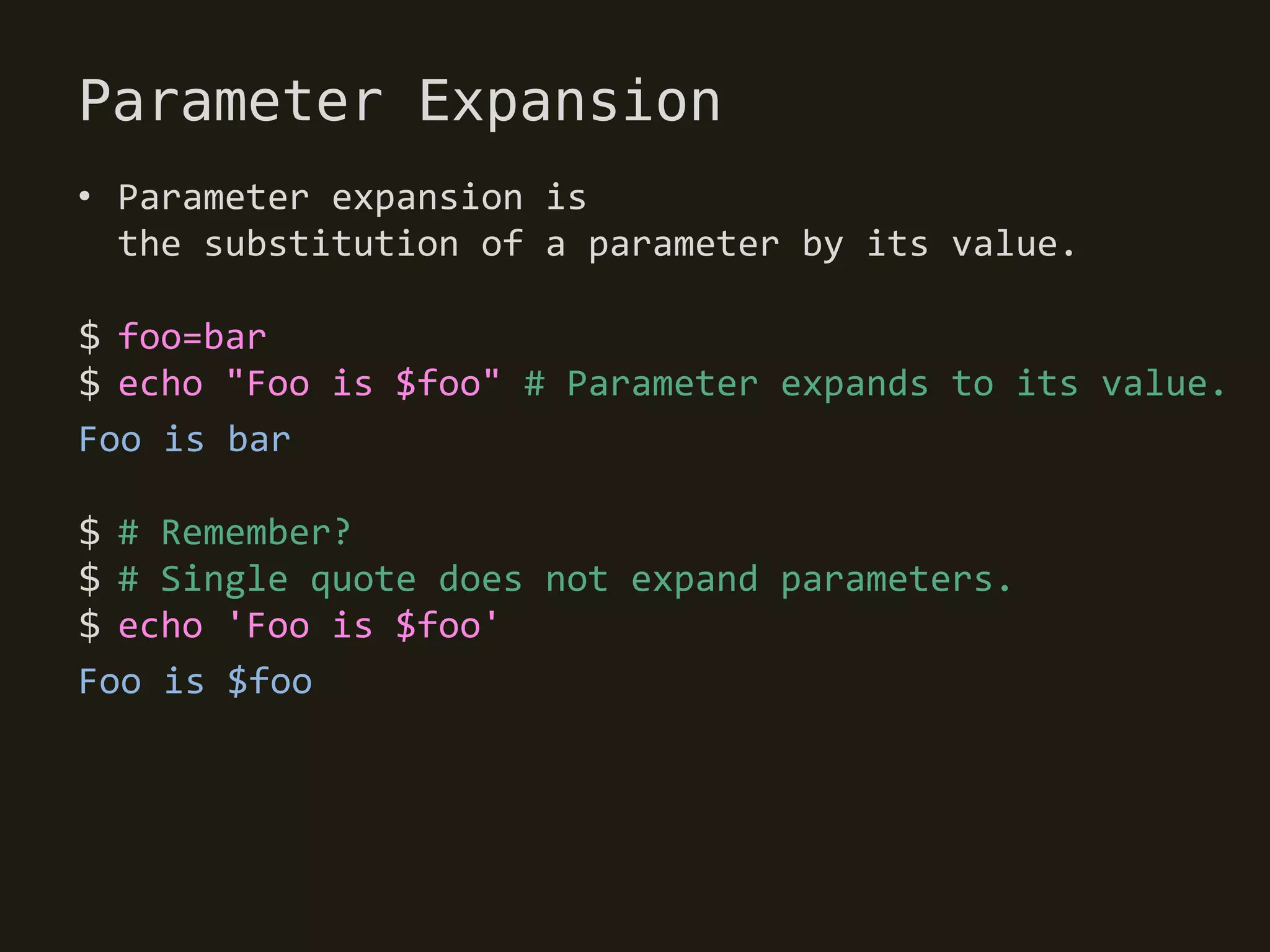
Parameter Expansion
• Parameter expansion is
  the substitution of a parameter by its value.

$ foo=bar
$ echo "Foo is $foo" # Parameter expands to its value.
Foo is bar

$ # Remember?
$ # Single quote does not expand parameters.
$ echo 'Foo is $foo'
Foo is $foo
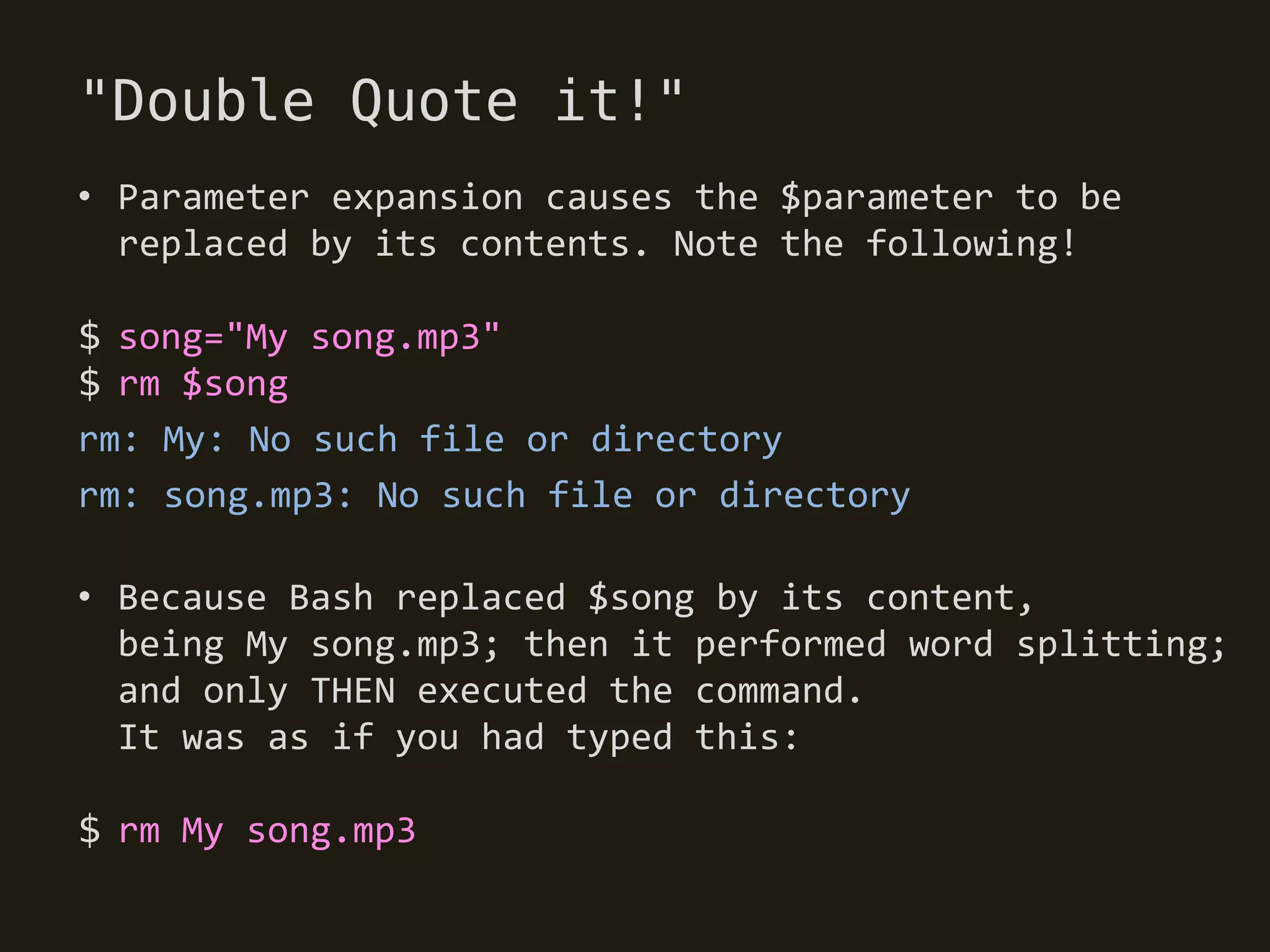
"Double Quote it!"
• Parameter expansion causes the $parameter to be
  replaced by its contents. Note the following!

$ song="My song.mp3"
$ rm $song
rm: My: No such file or directory
rm: song.mp3: No such file or directory

• Because Bash replaced $song by its content,
  being My song.mp3; then it performed word splitting;
  and only THEN executed the command.
  It was as if you had typed this:

$ rm My song.mp3
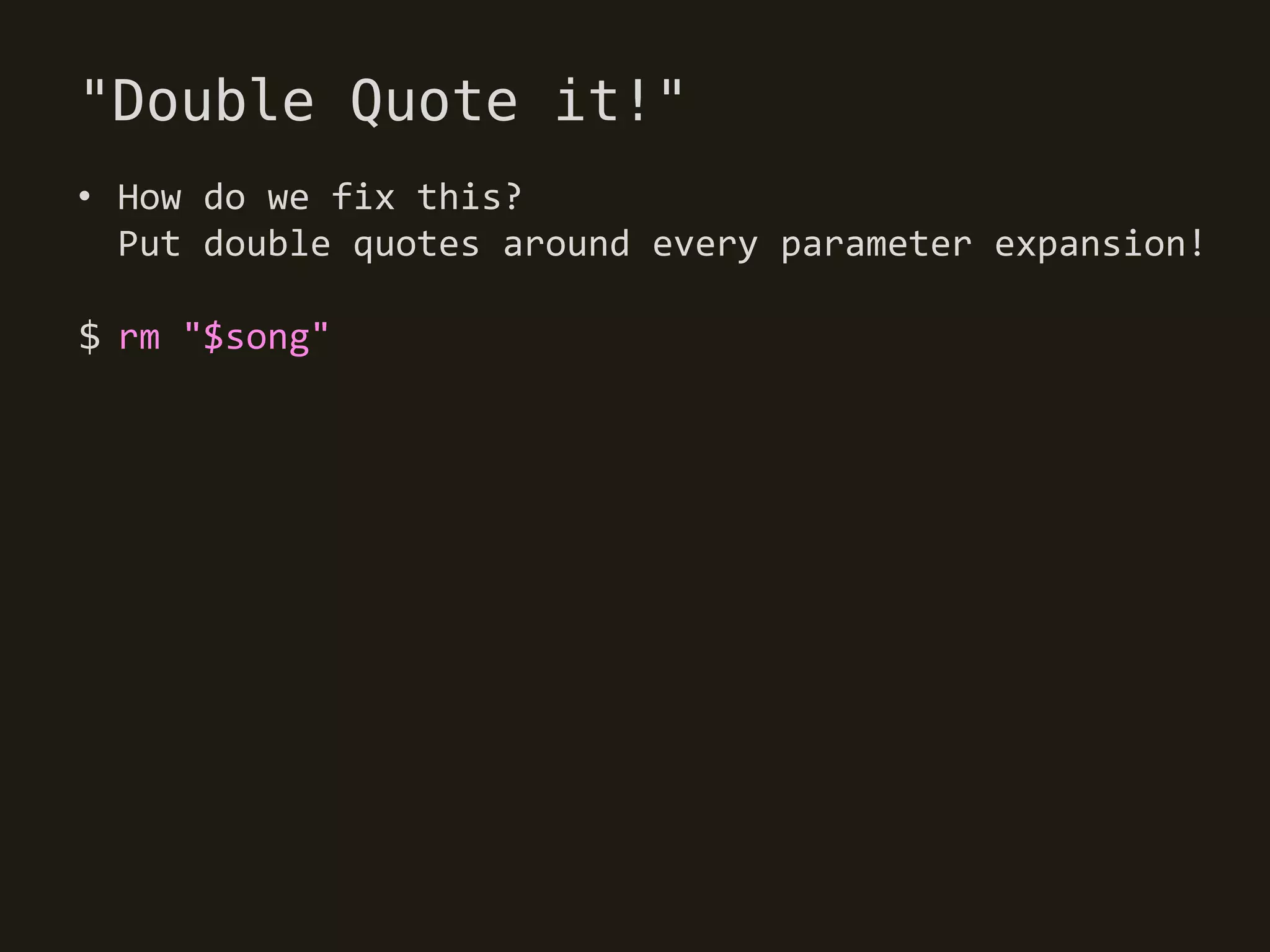
"Double Quote it!"
• How do we fix this?
  Put double quotes around every parameter expansion!

$ rm "$song"
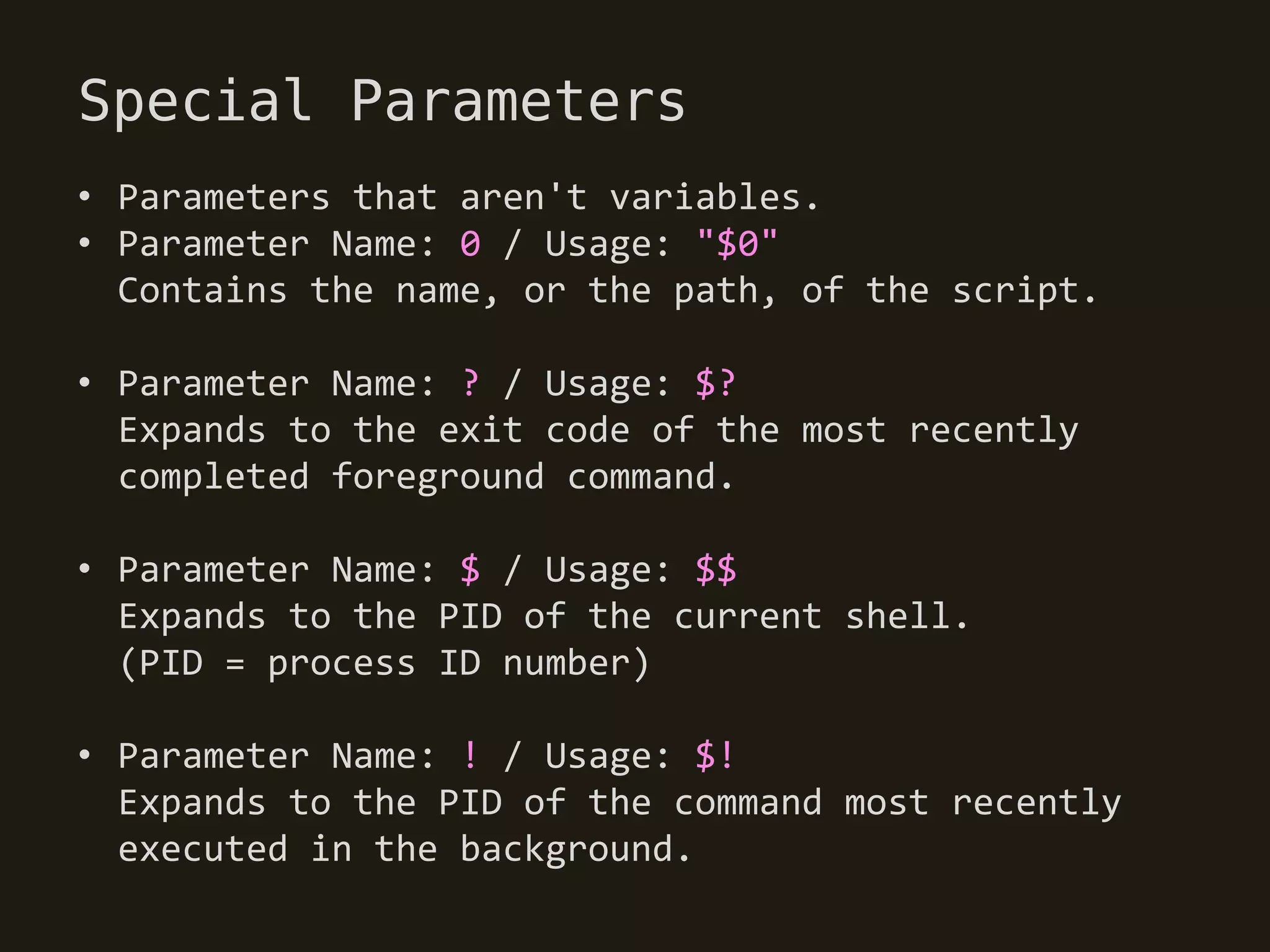
Special Parameters
• Parameters that aren't variables.
• Parameter Name: 0 / Usage: "$0"
  Contains the name, or the path, of the script.

• Parameter Name: ? / Usage: $?
  Expands to the exit code of the most recently
  completed foreground command.

• Parameter Name: $ / Usage: $$
  Expands to the PID of the current shell.
  (PID = process ID number)

• Parameter Name: ! / Usage: $!
  Expands to the PID of the command most recently
  executed in the background.
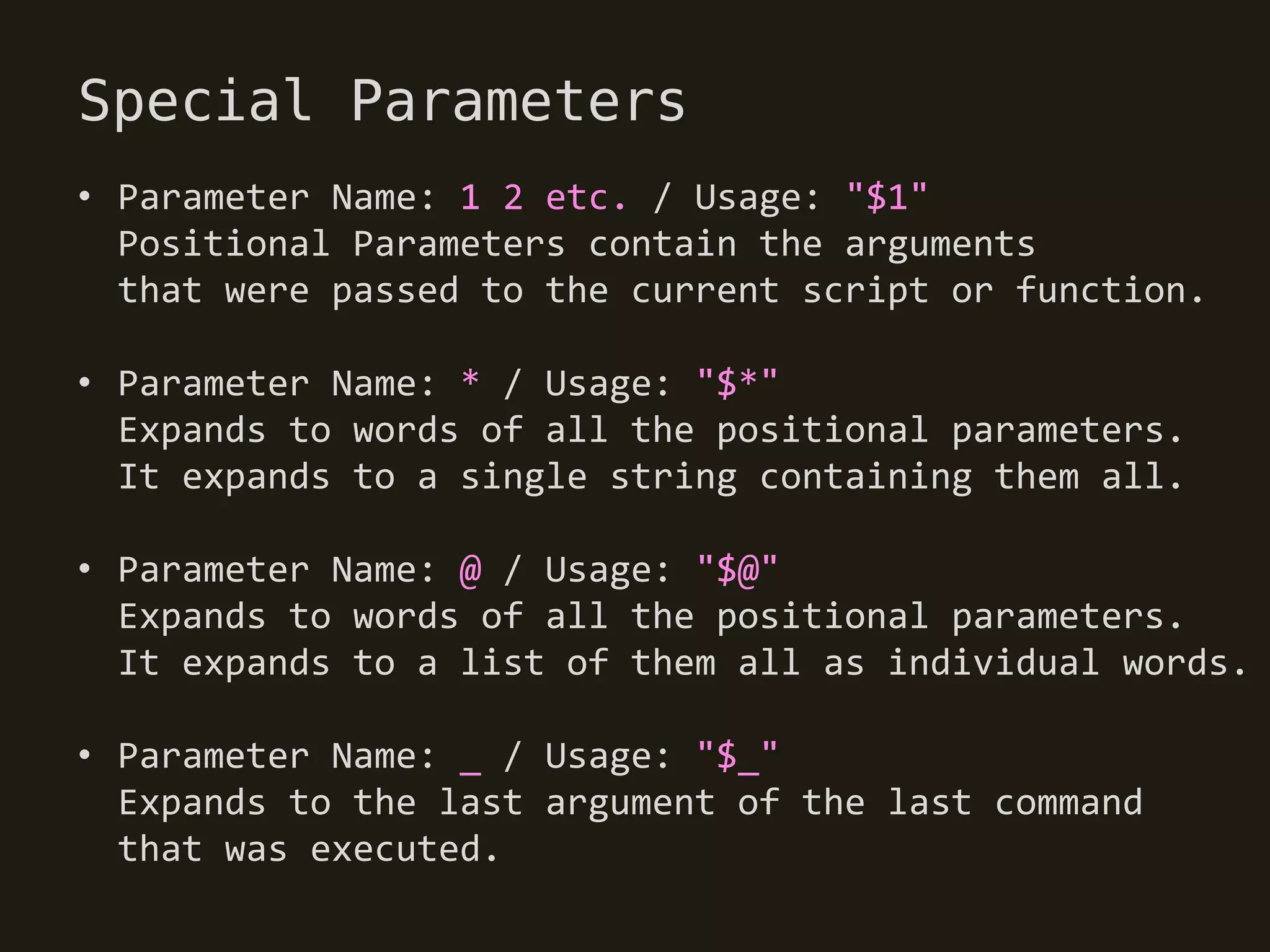
Special Parameters
• Parameter Name: 1 2 etc. / Usage: "$1"
  Positional Parameters contain the arguments
  that were passed to the current script or function.

• Parameter Name: * / Usage: "$*"
  Expands to words of all the positional parameters.
  It expands to a single string containing them all.

• Parameter Name: @ / Usage: "$@"
  Expands to words of all the positional parameters.
  It expands to a list of them all as individual words.

• Parameter Name: _ / Usage: "$_"
  Expands to the last argument of the last command
  that was executed.
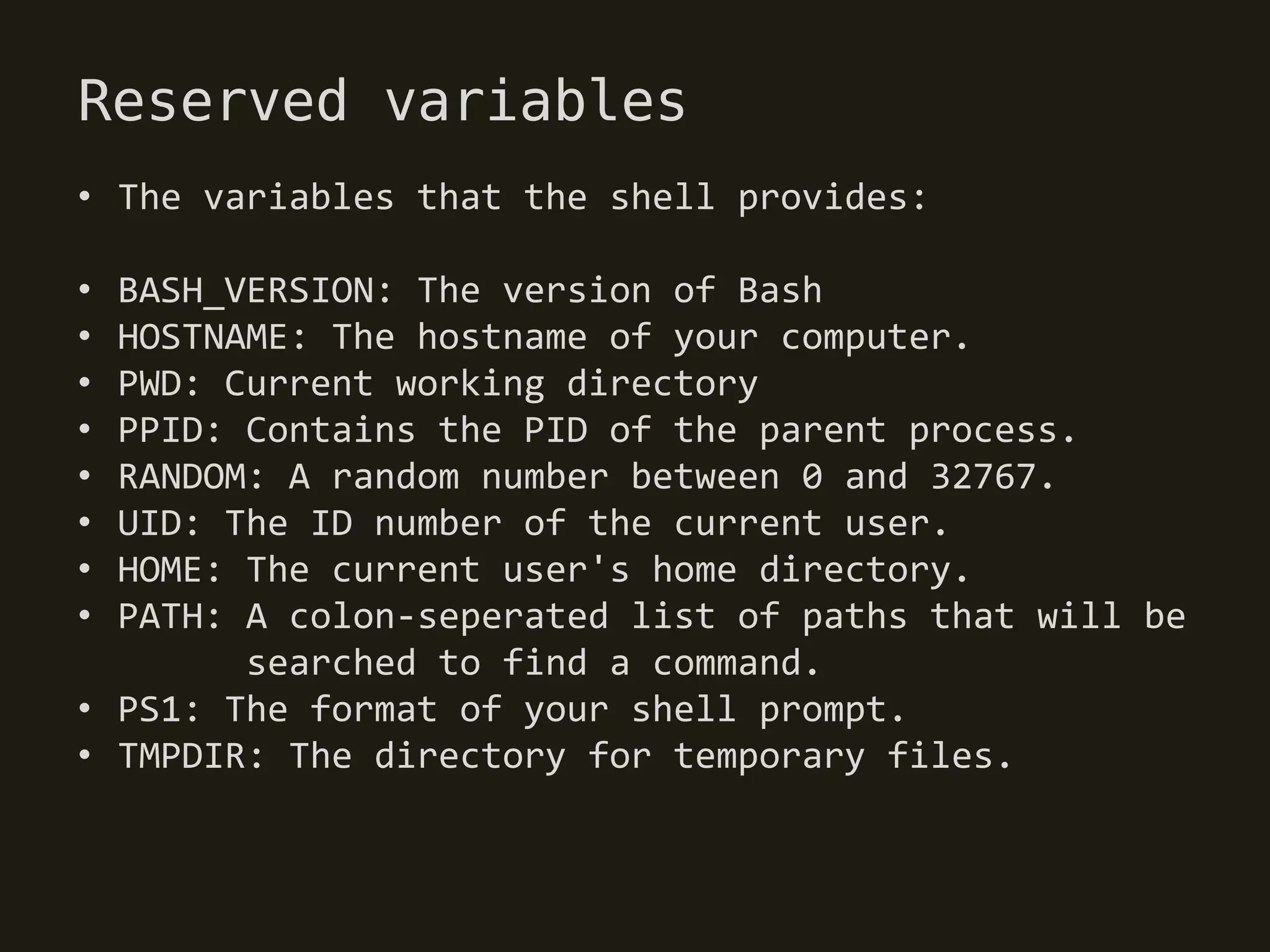
Reserved variables
• The variables that the shell provides:

• BASH_VERSION: The version of Bash
• HOSTNAME: The hostname of your computer.
• PWD: Current working directory
• PPID: Contains the PID of the parent process.
• RANDOM: A random number between 0 and 32767.
• UID: The ID number of the current user.
• HOME: The current user's home directory.
• PATH: A colon-seperated list of paths that will be
        searched to find a command.
• PS1: The format of your shell prompt.
• TMPDIR: The directory for temporary files.
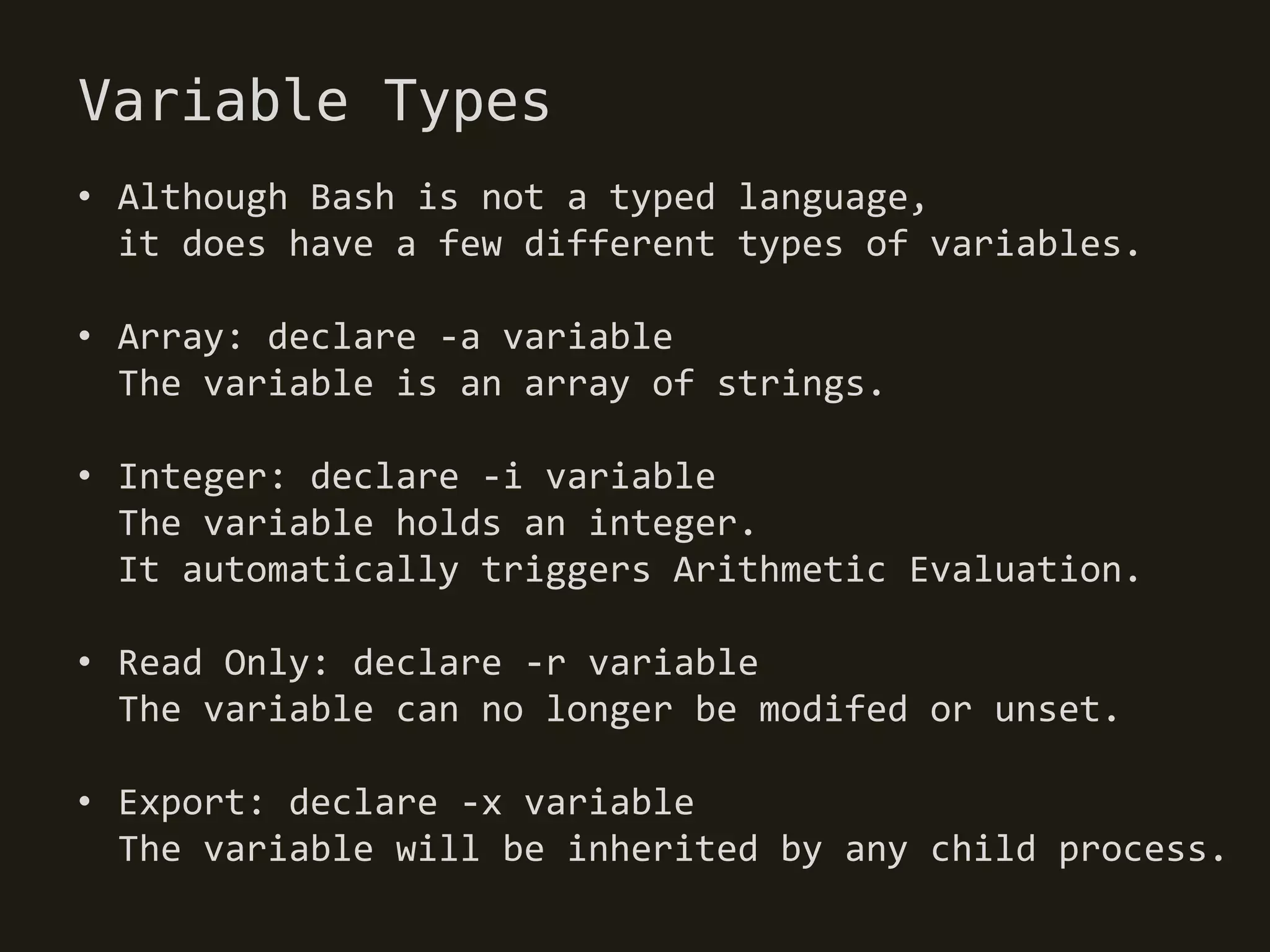
Variable Types
• Although Bash is not a typed language,
  it does have a few different types of variables.

• Array: declare -a variable
  The variable is an array of strings.

• Integer: declare -i variable
  The variable holds an integer.
  It automatically triggers Arithmetic Evaluation.

• Read Only: declare -r variable
  The variable can no longer be modifed or unset.

• Export: declare -x variable
  The variable will be inherited by any child process.
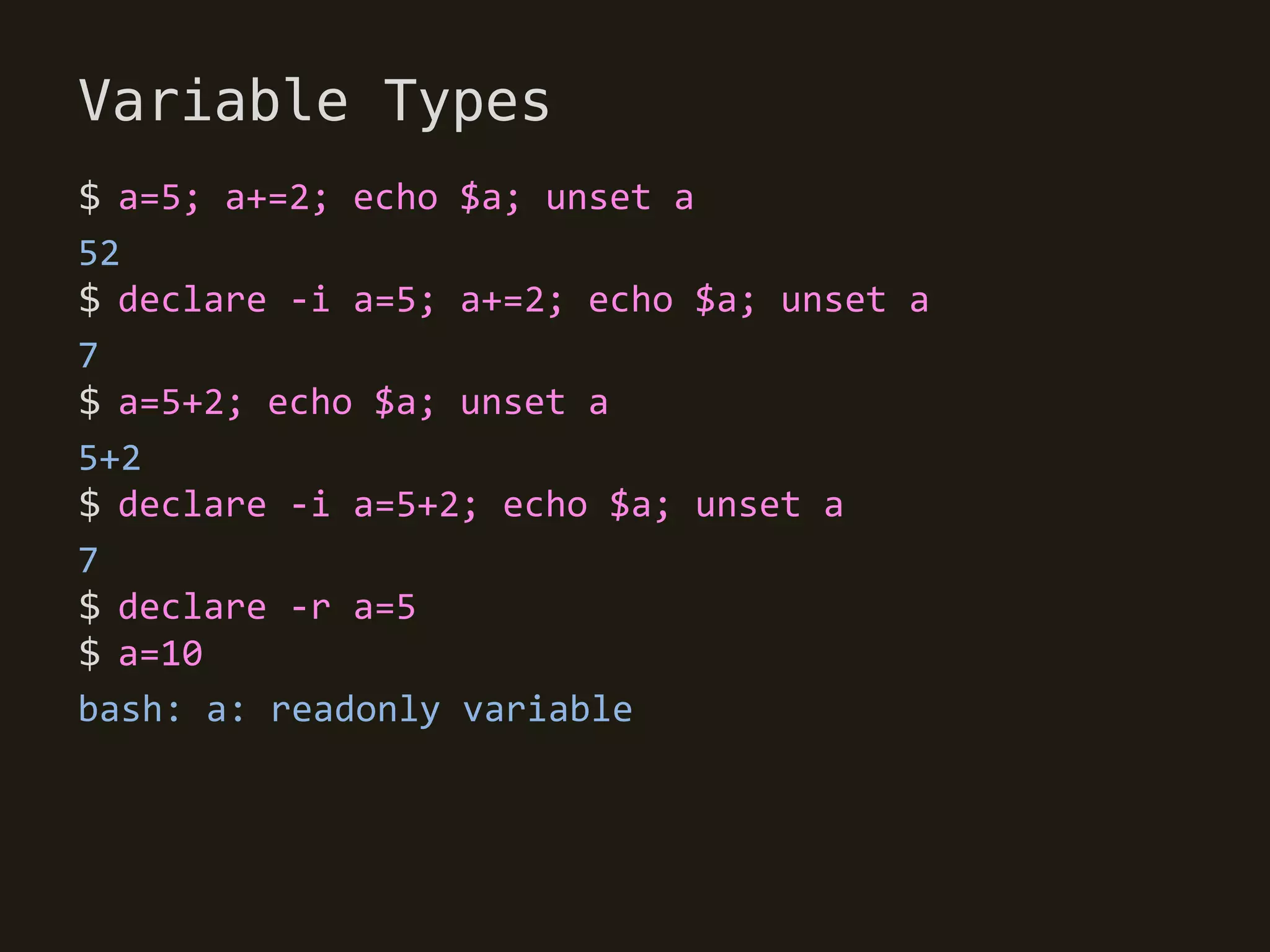
Variable Types
$ a=5; a+=2; echo $a; unset a
52
$ declare -i a=5; a+=2; echo $a; unset a
7
$ a=5+2; echo $a; unset a
5+2
$ declare -i a=5+2; echo $a; unset a
7
$ declare -r a=5
$ a=10
bash: a: readonly variable
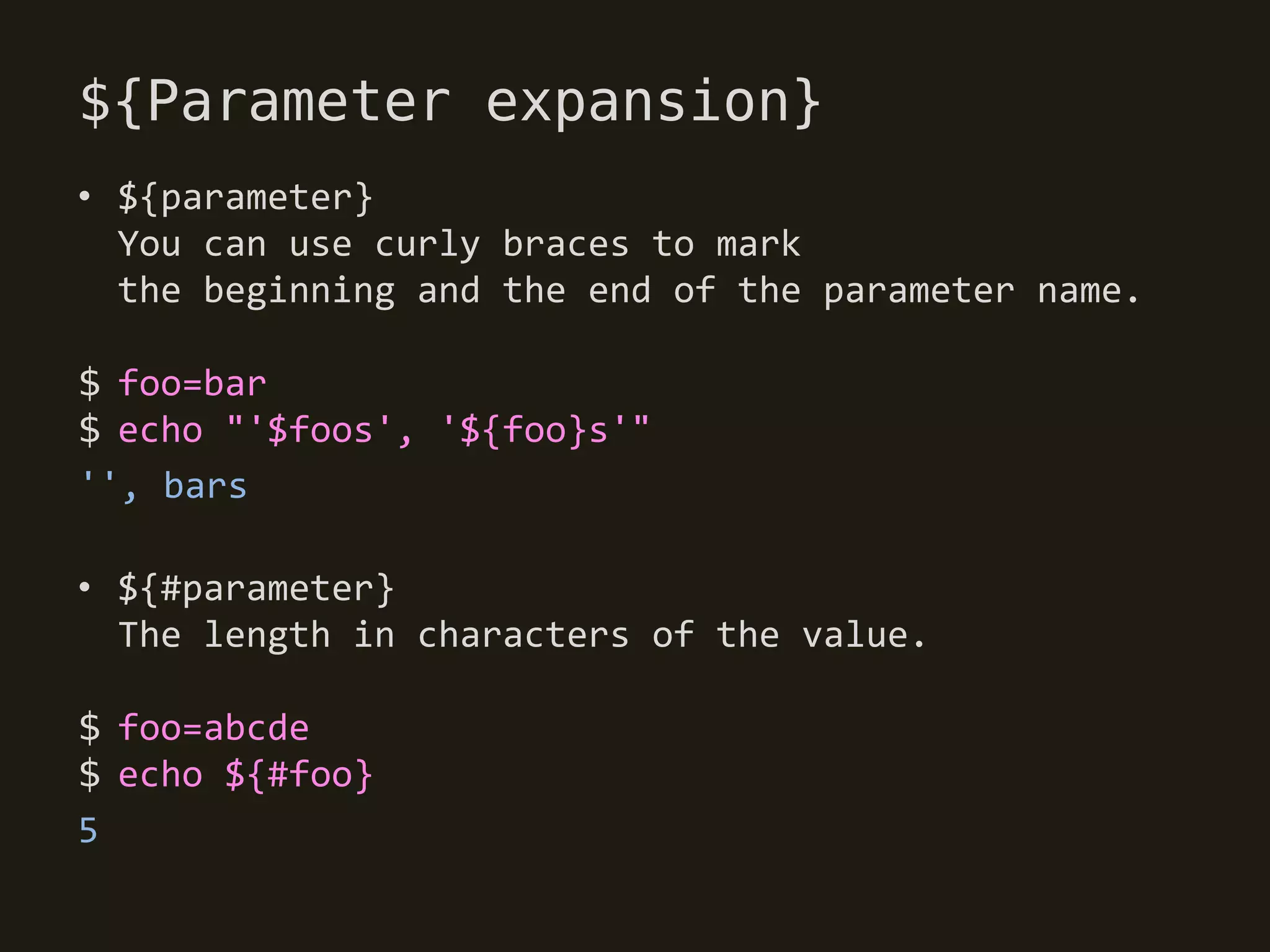
${Parameter expansion}
• ${parameter}
  You can use curly braces to mark
  the beginning and the end of the parameter name.

$ foo=bar
$ echo "'$foos', '${foo}s'"
'', bars

• ${#parameter}
  The length in characters of the value.

$ foo=abcde
$ echo ${#foo}
5
${Parameter expansion}
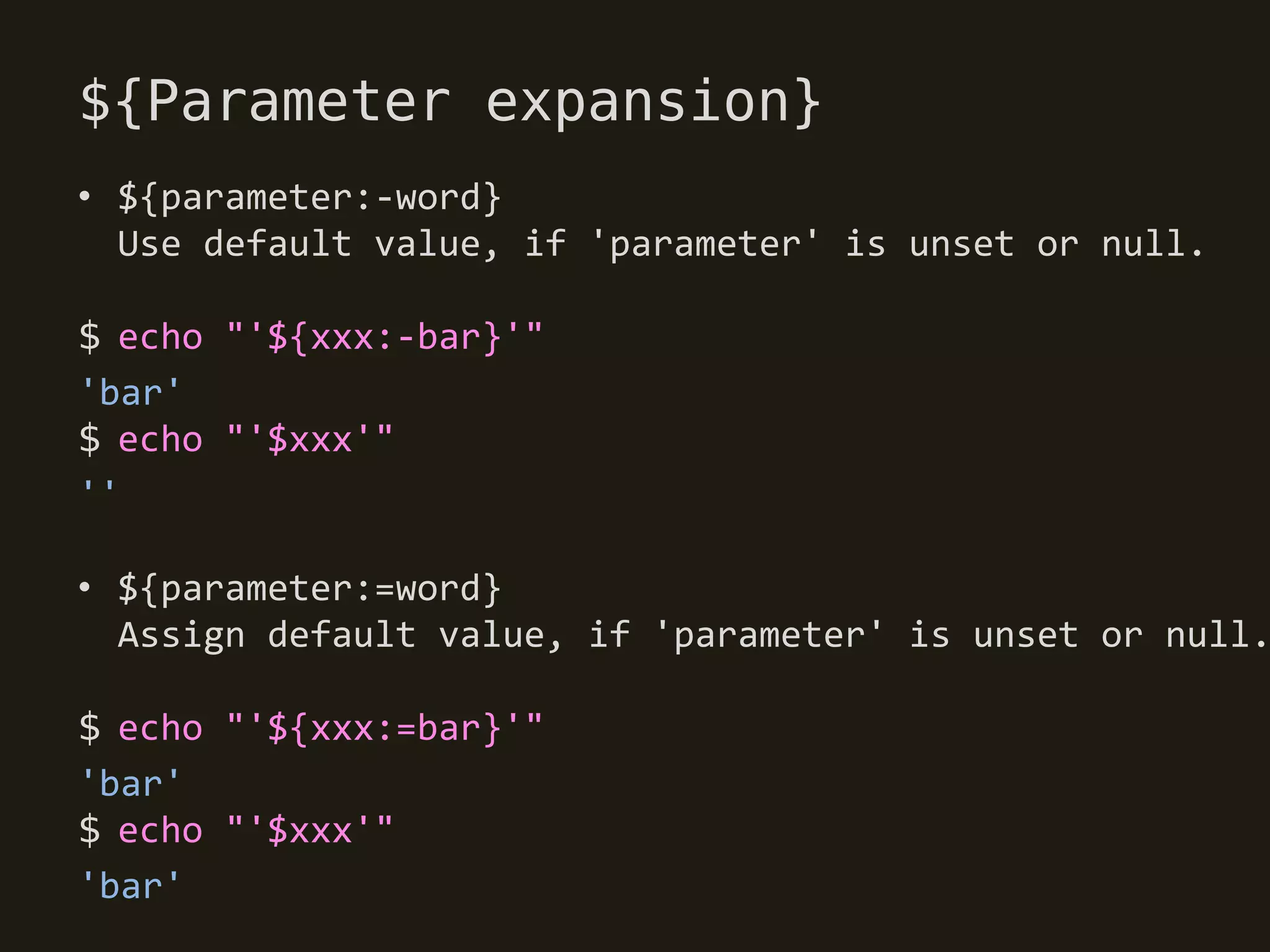
• ${parameter:-word}
  Use default value, if 'parameter' is unset or null.

$ echo "'${xxx:-bar}'"
'bar'
$ echo "'$xxx'"
''

• ${parameter:=word}
  Assign default value, if 'parameter' is unset or null.

$ echo "'${xxx:=bar}'"
'bar'
$ echo "'$xxx'"
'bar'
${Parameter expansion}
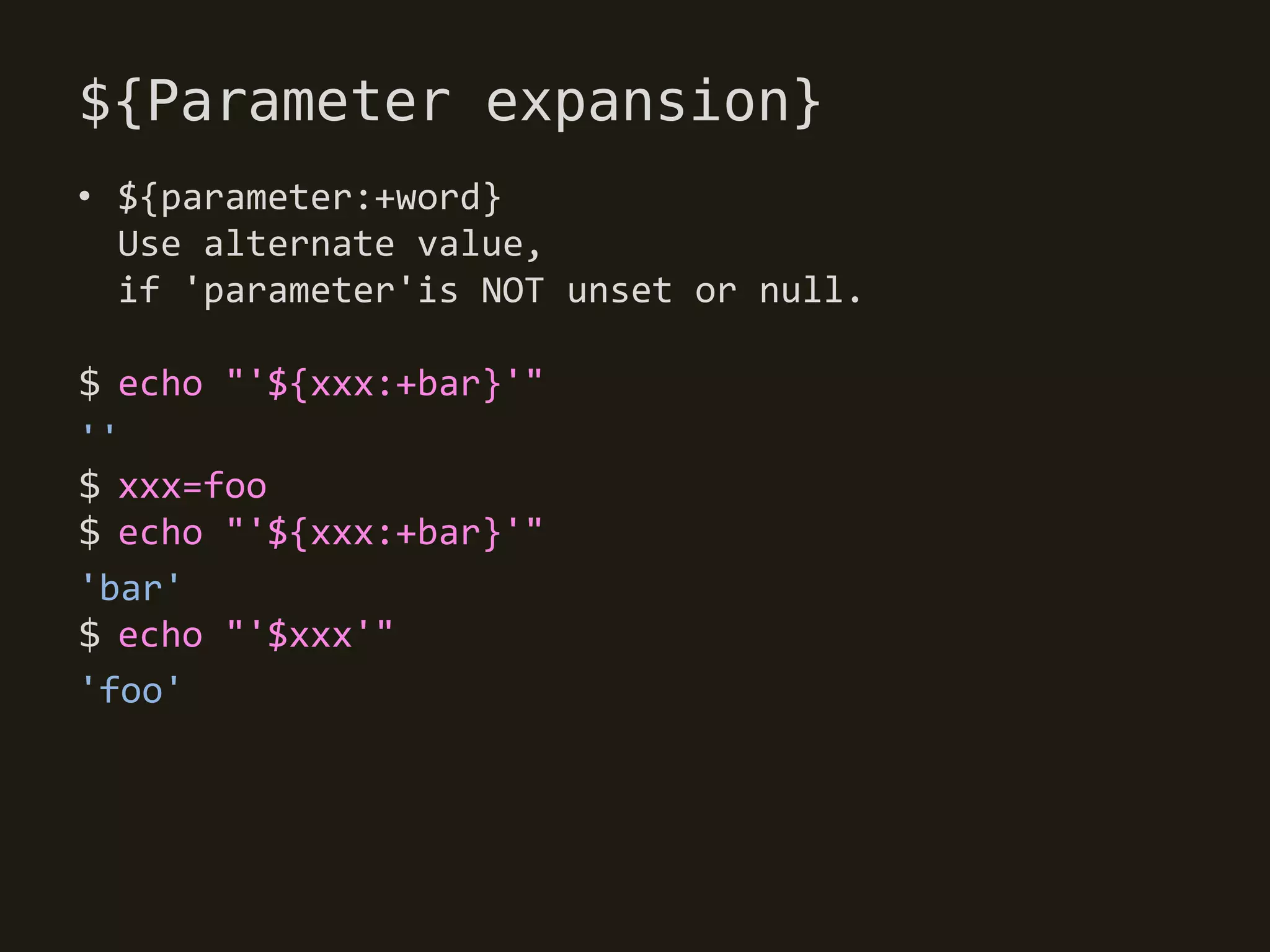
• ${parameter:+word}
  Use alternate value,
  if 'parameter'is NOT unset or null.

$ echo "'${xxx:+bar}'"
''
$ xxx=foo
$ echo "'${xxx:+bar}'"
'bar'
$ echo "'$xxx'"
'foo'
${Parameter expansion}
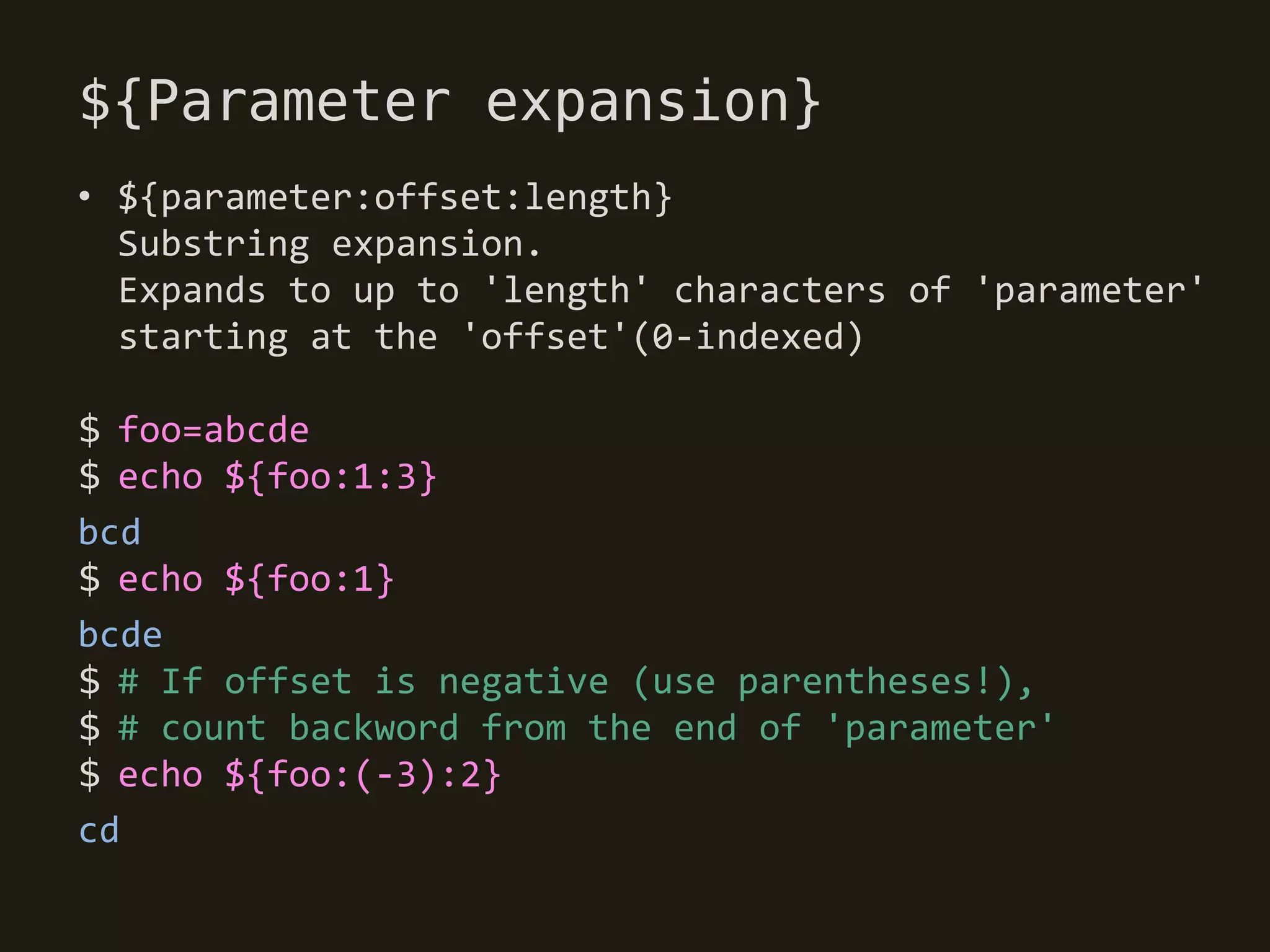
• ${parameter:offset:length}
  Substring expansion.
  Expands to up to 'length' characters of 'parameter'
  starting at the 'offset'(0-indexed)

$ foo=abcde
$ echo ${foo:1:3}
bcd
$ echo ${foo:1}
bcde
$ # If offset is negative (use parentheses!),
$ # count backword from the end of 'parameter'
$ echo ${foo:(-3):2}
cd
${Parameter expansion}
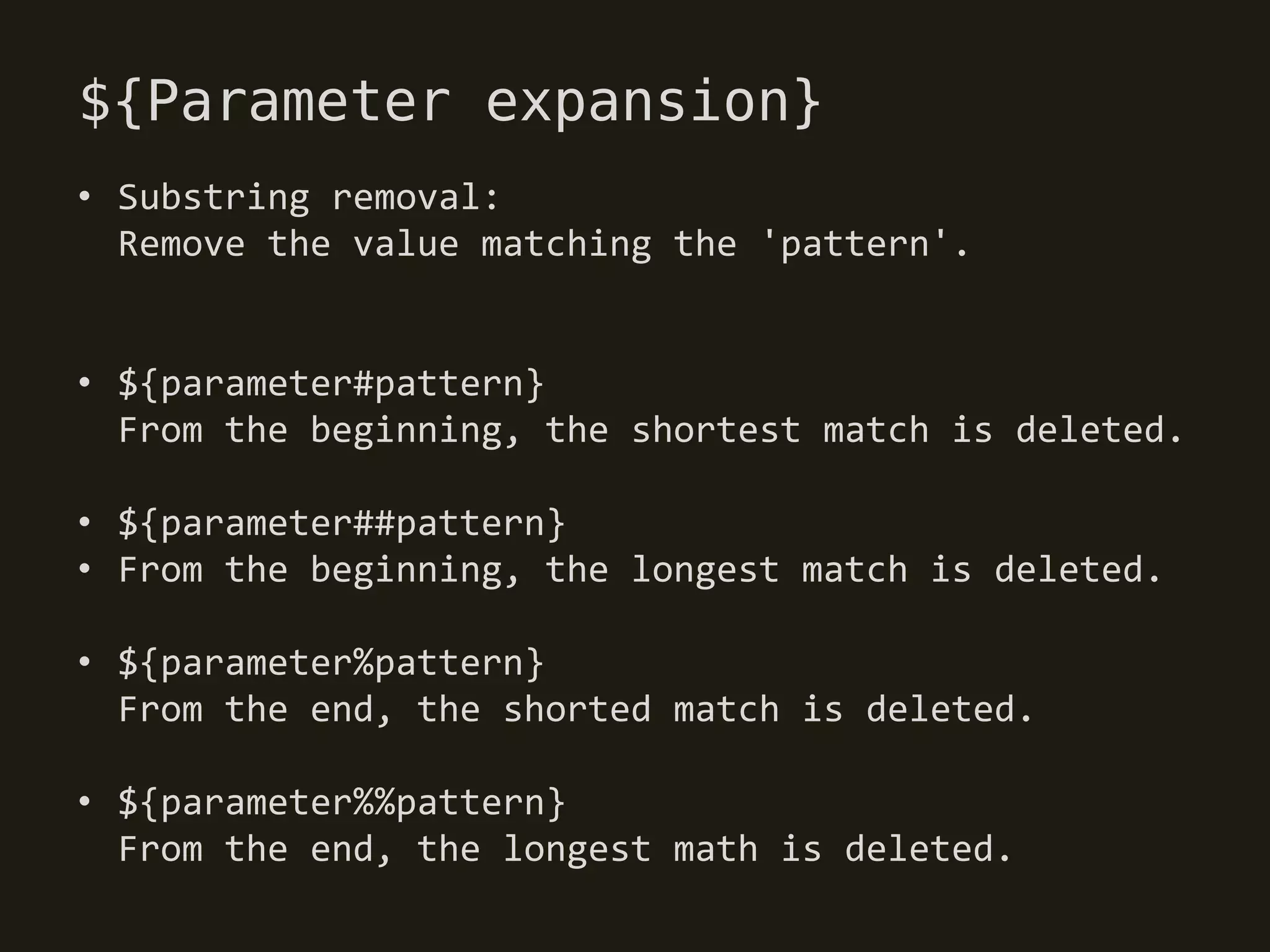
• Substring removal:
  Remove the value matching the 'pattern'.


• ${parameter#pattern}
  From the beginning, the shortest match is deleted.

• ${parameter##pattern}
• From the beginning, the longest match is deleted.

• ${parameter%pattern}
  From the end, the shorted match is deleted.

• ${parameter%%pattern}
  From the end, the longest math is deleted.
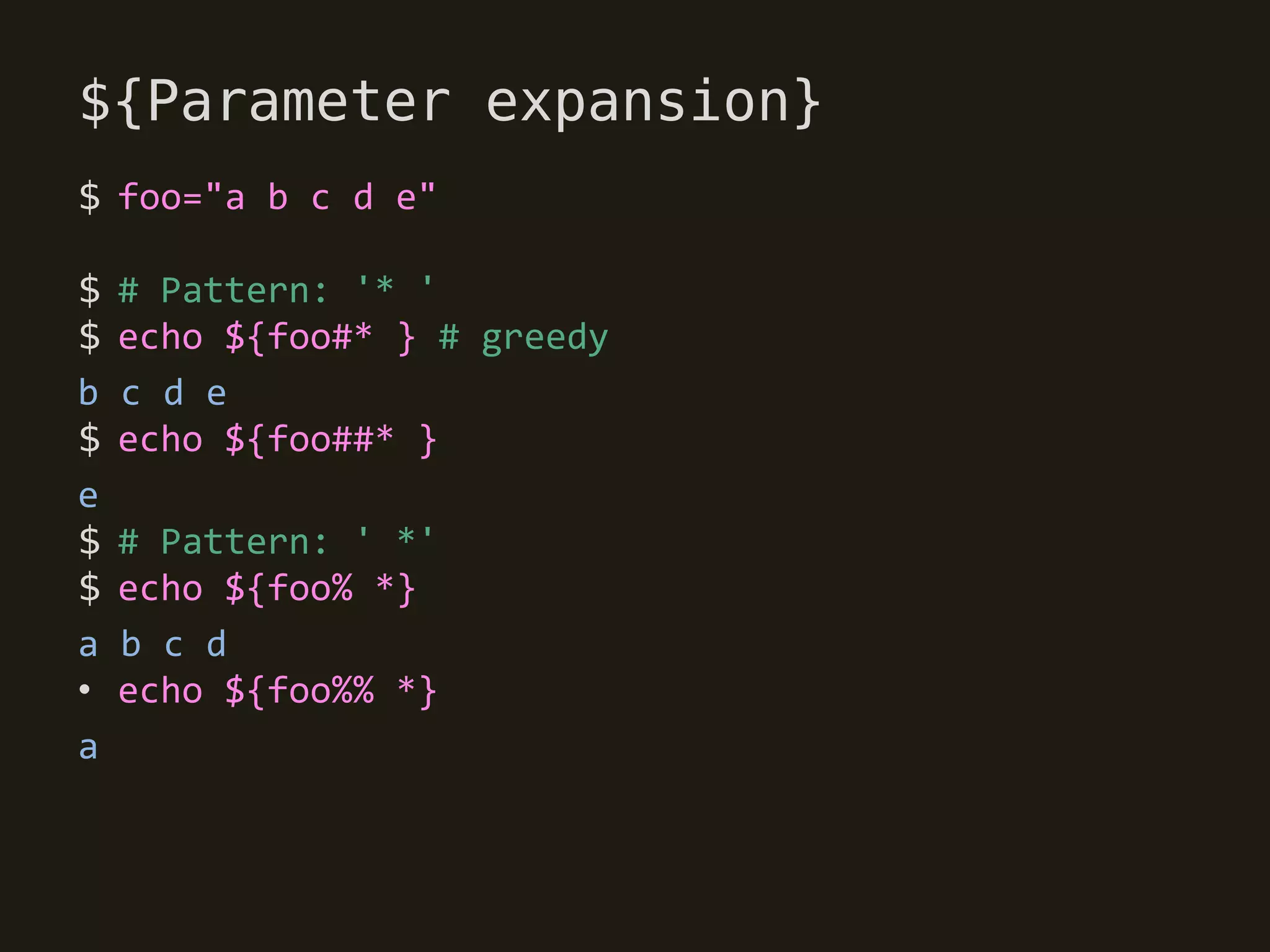
${Parameter expansion}
$ foo="a b c d e"

$   # Pattern: '* '
$   echo ${foo#* } # greedy
b   c d e
$   echo ${foo##* }
e
$   # Pattern: ' *'
$   echo ${foo% *}
a   b c d
•   echo ${foo%% *}
a
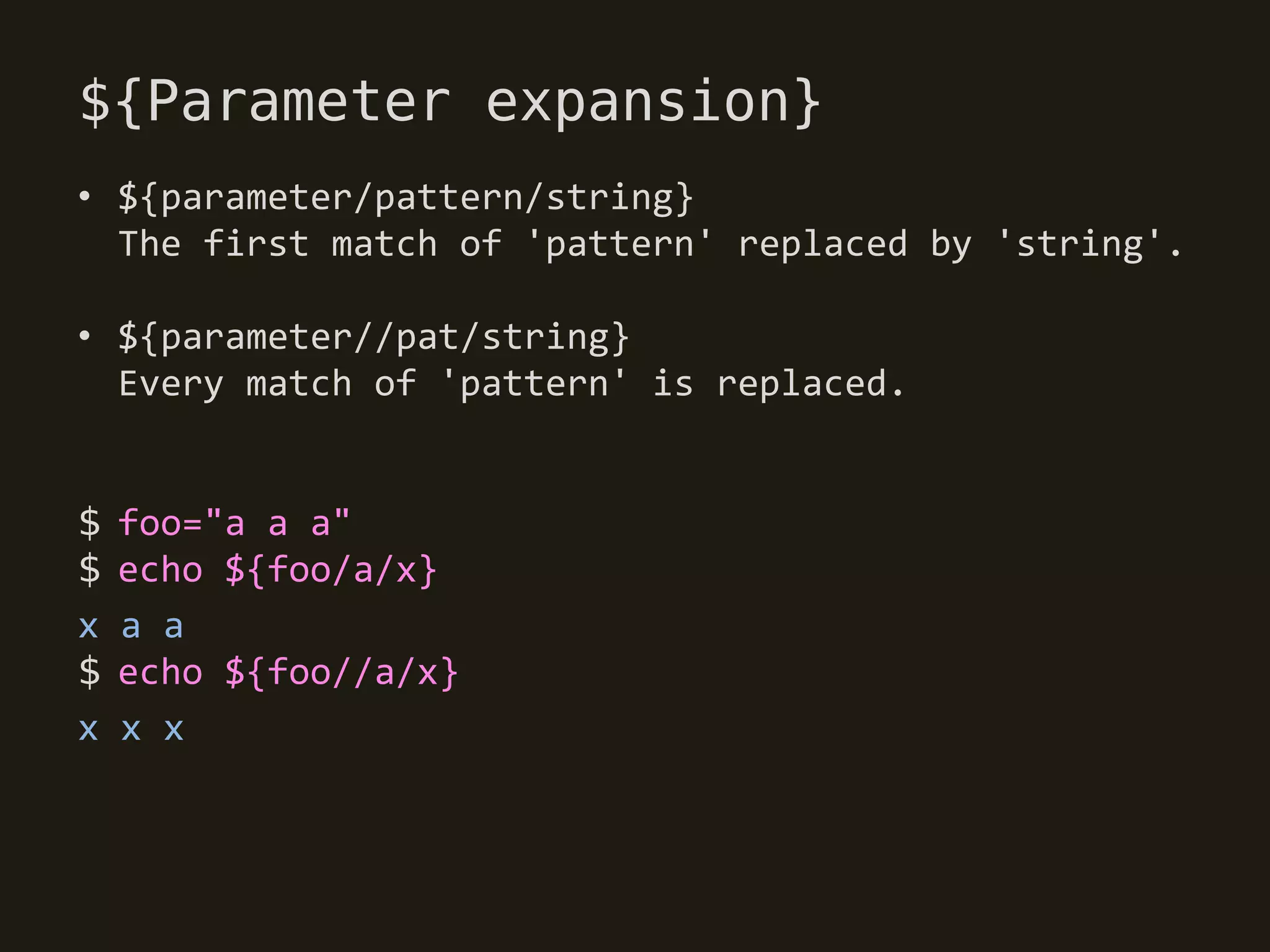
${Parameter expansion}
• ${parameter/pattern/string}
  The first match of 'pattern' replaced by 'string'.

• ${parameter//pat/string}
  Every match of 'pattern' is replaced.


$   foo="a a a"
$   echo ${foo/a/x}
x   a a
$   echo ${foo//a/x}
x   x x
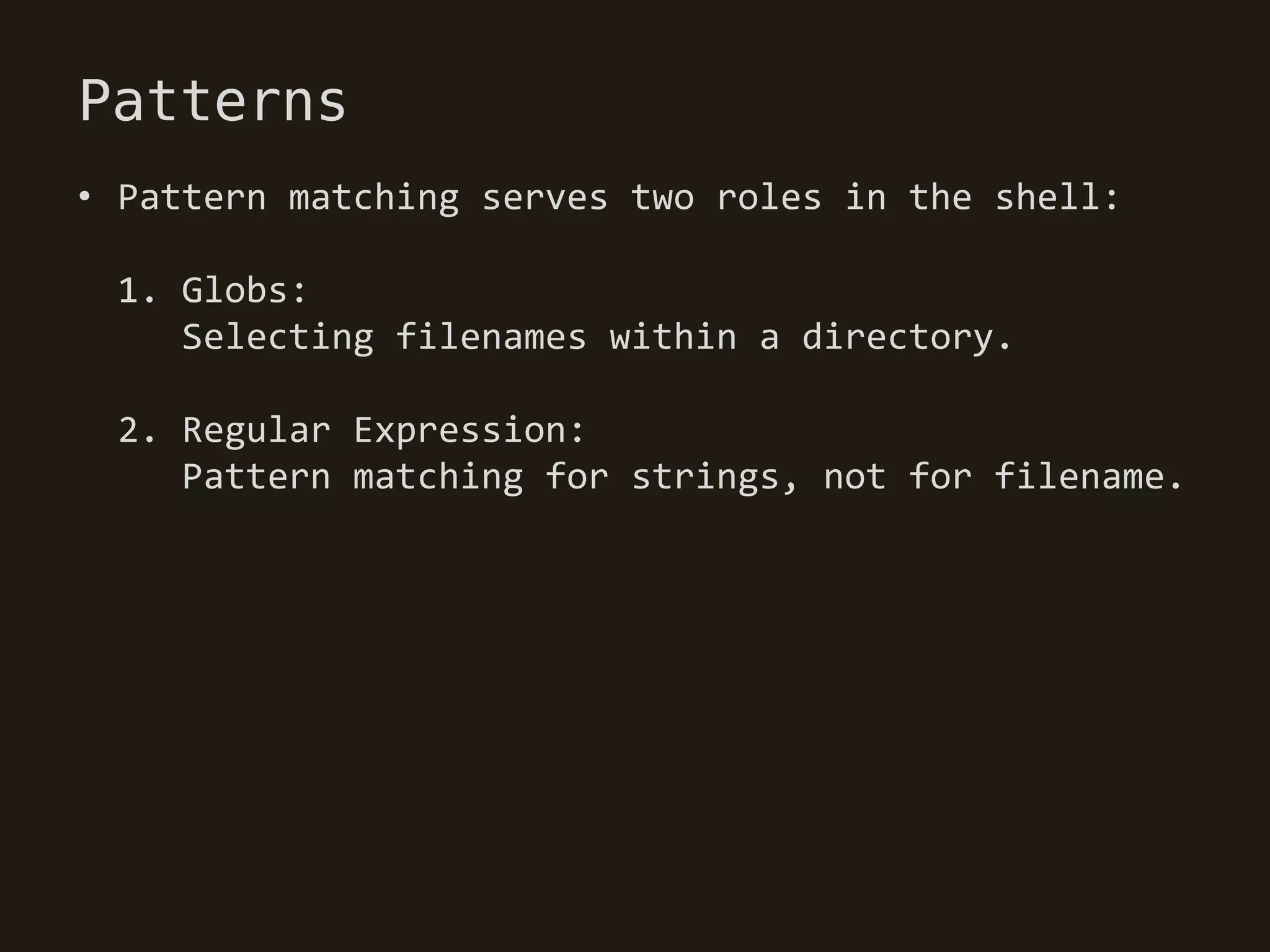
Patterns
• Pattern matching serves two roles in the shell:

 1. Globs:
    Selecting filenames within a directory.

 2. Regular Expression:
    Pattern matching for strings, not for filename.
Globs
• Globs can be used to match filenames.

• Meta characters:
  * : Mathces any string, including the null string.
  ? : Mathces any single character.
  [...] : Mathces any one of the enclosed characters.

• Globs must match a WHOLE string.

• Use globs instead of ls to enumerate files
Globs
$ ls
a ab abc bc bcd
$ echo *
a ab abc bc bcd
$ echo b*
bc bcd
$ echo ?
a
$ echo ?b
ab
$ echo *[c-z]
abc bc bcd
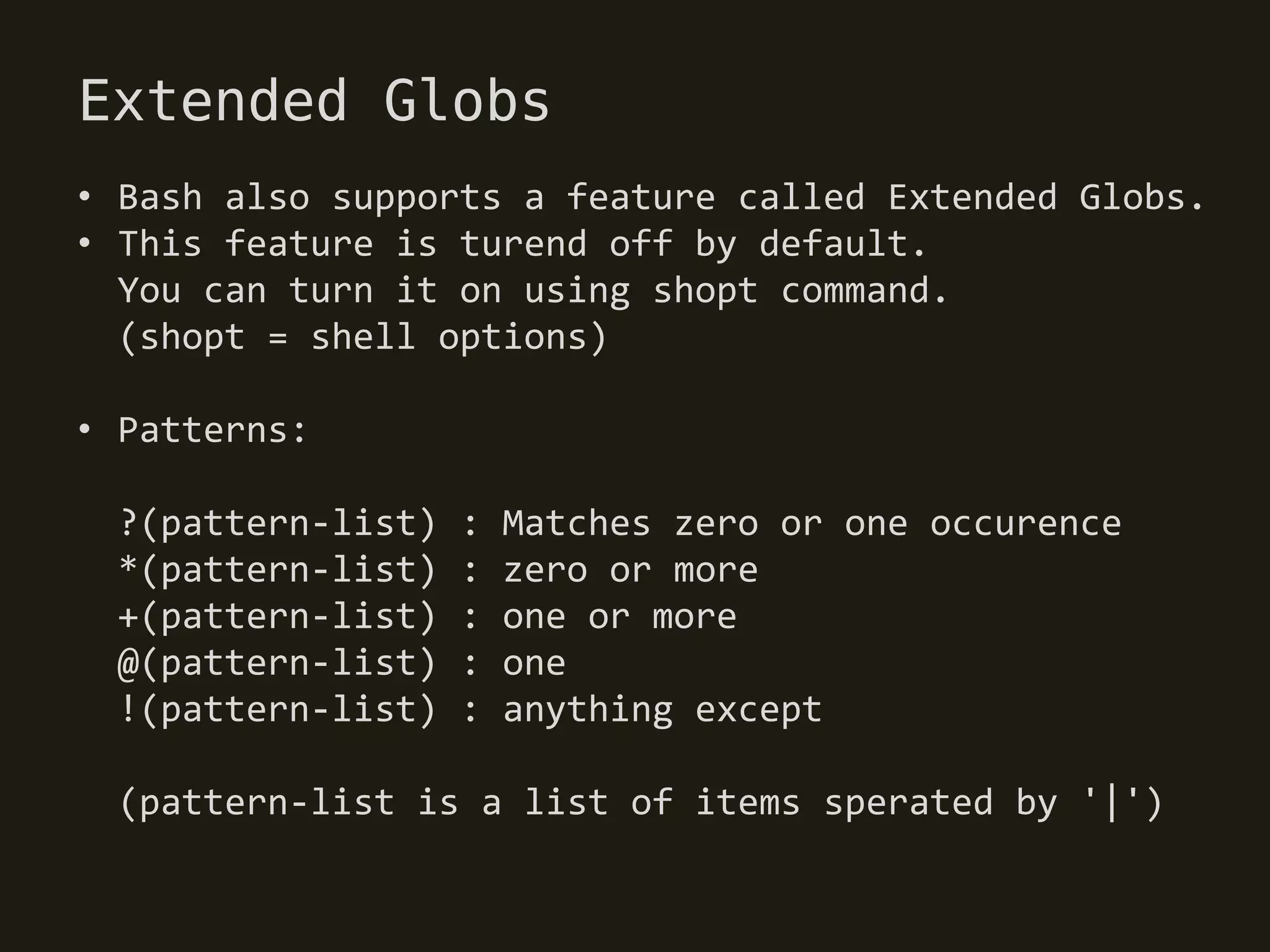
Extended Globs
• Bash also supports a feature called Extended Globs.
• This feature is turend off by default.
  You can turn it on using shopt command.
  (shopt = shell options)

• Patterns:

 ?(pattern-list)   :   Matches zero or one occurence
 *(pattern-list)   :   zero or more
 +(pattern-list)   :   one or more
 @(pattern-list)   :   one
 !(pattern-list)   :   anything except

 (pattern-list is a list of items sperated by '|')
Extended Globs
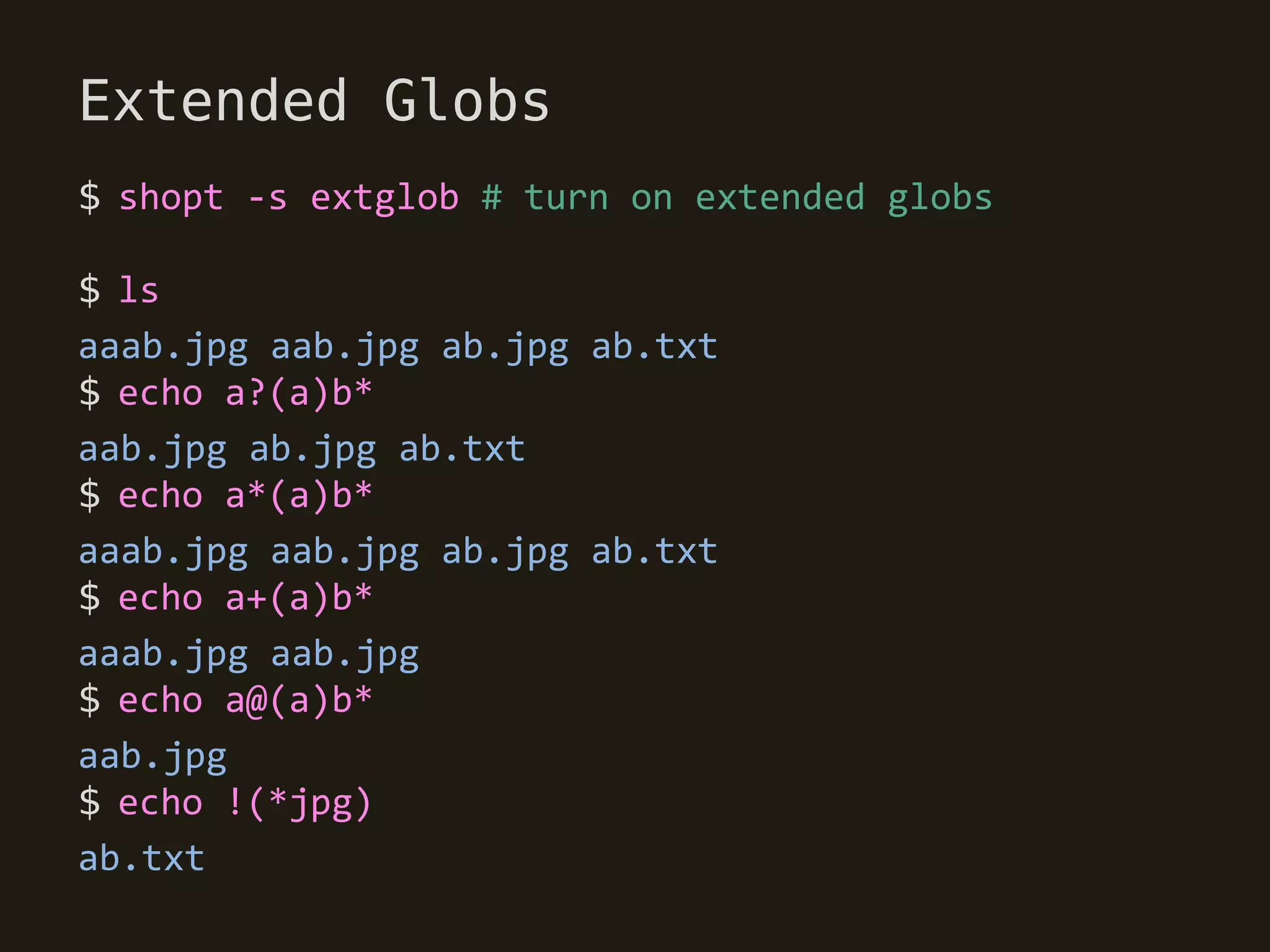
$ shopt -s extglob # turn on extended globs

$ ls
aaab.jpg aab.jpg ab.jpg ab.txt
$ echo a?(a)b*
aab.jpg ab.jpg ab.txt
$ echo a*(a)b*
aaab.jpg aab.jpg ab.jpg ab.txt
$ echo a+(a)b*
aaab.jpg aab.jpg
$ echo a@(a)b*
aab.jpg
$ echo !(*jpg)
ab.txt
Regular Expressions
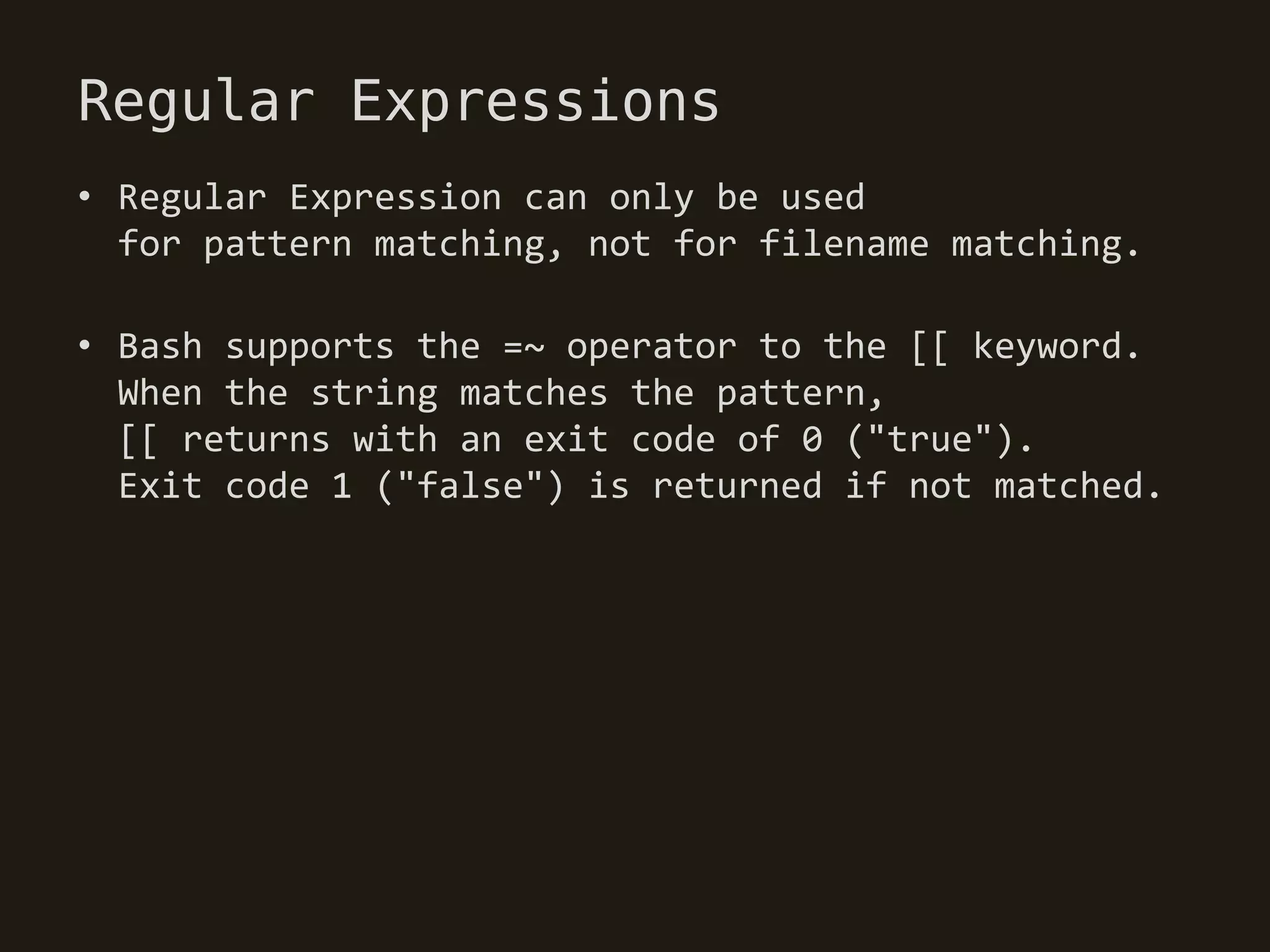
• Regular Expression can only be used
  for pattern matching, not for filename matching.

• Bash supports the =~ operator to the [[ keyword.
  When the string matches the pattern,
  [[ returns with an exit code of 0 ("true").
  Exit code 1 ("false") is returned if not matched.
Regular Expressions
$ regex='a(b)(c)' # put your regex in variable

$ [[ 'abc' =~ $regex ]]  # use WITHOUT quotes
$   && echo 'matched'
matched


$ # Capturing group assigned to BASH_REMATCH variable
$ echo $BASH_REMATCH
abc
$ echo ${BASH_REMATCH[1]} / ${BASH_REMATCH[2]}
b / c
Brace Expansion
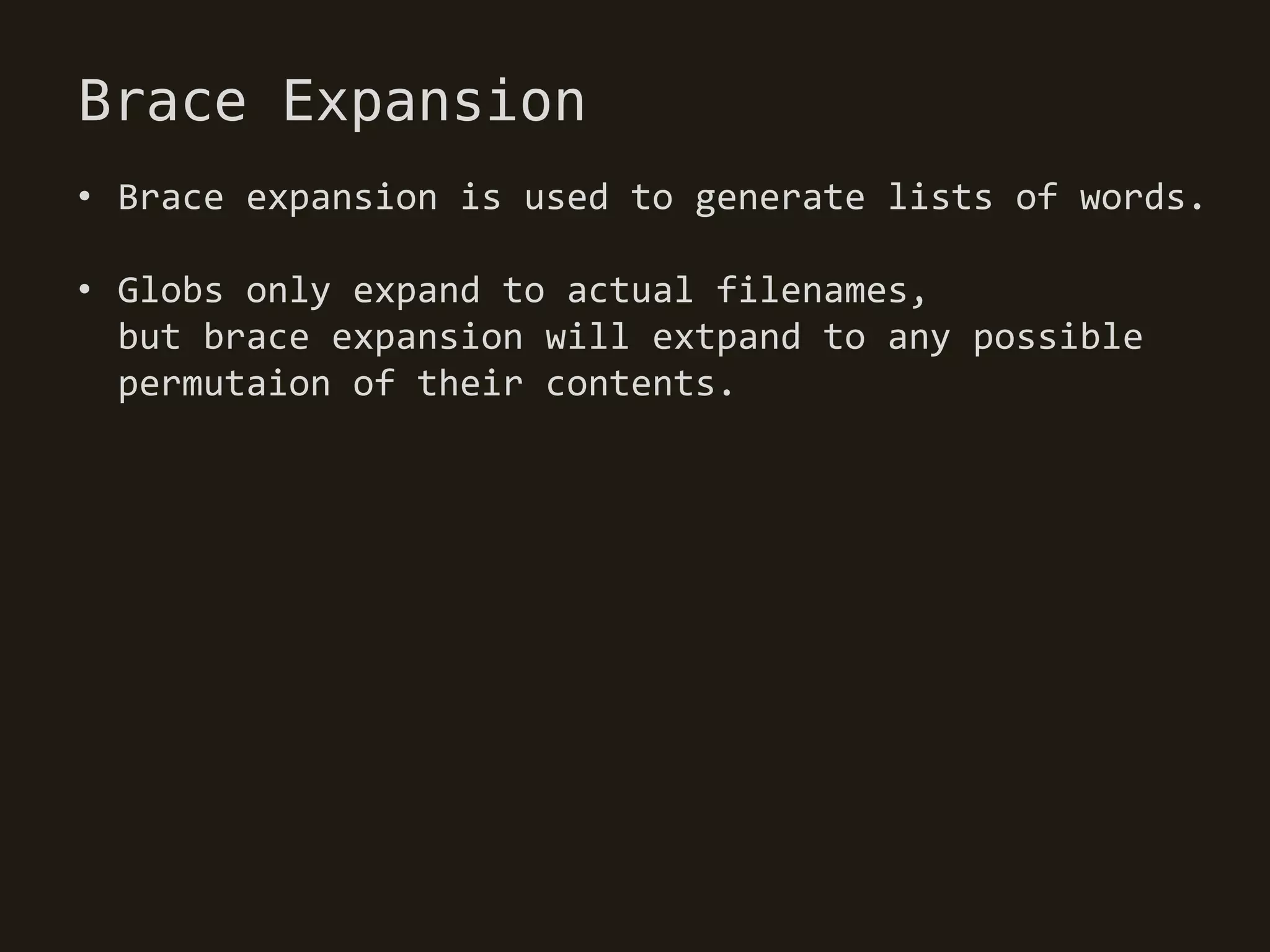
• Brace expansion is used to generate lists of words.

• Globs only expand to actual filenames,
  but brace expansion will extpand to any possible
  permutaion of their contents.
Brace Expansion
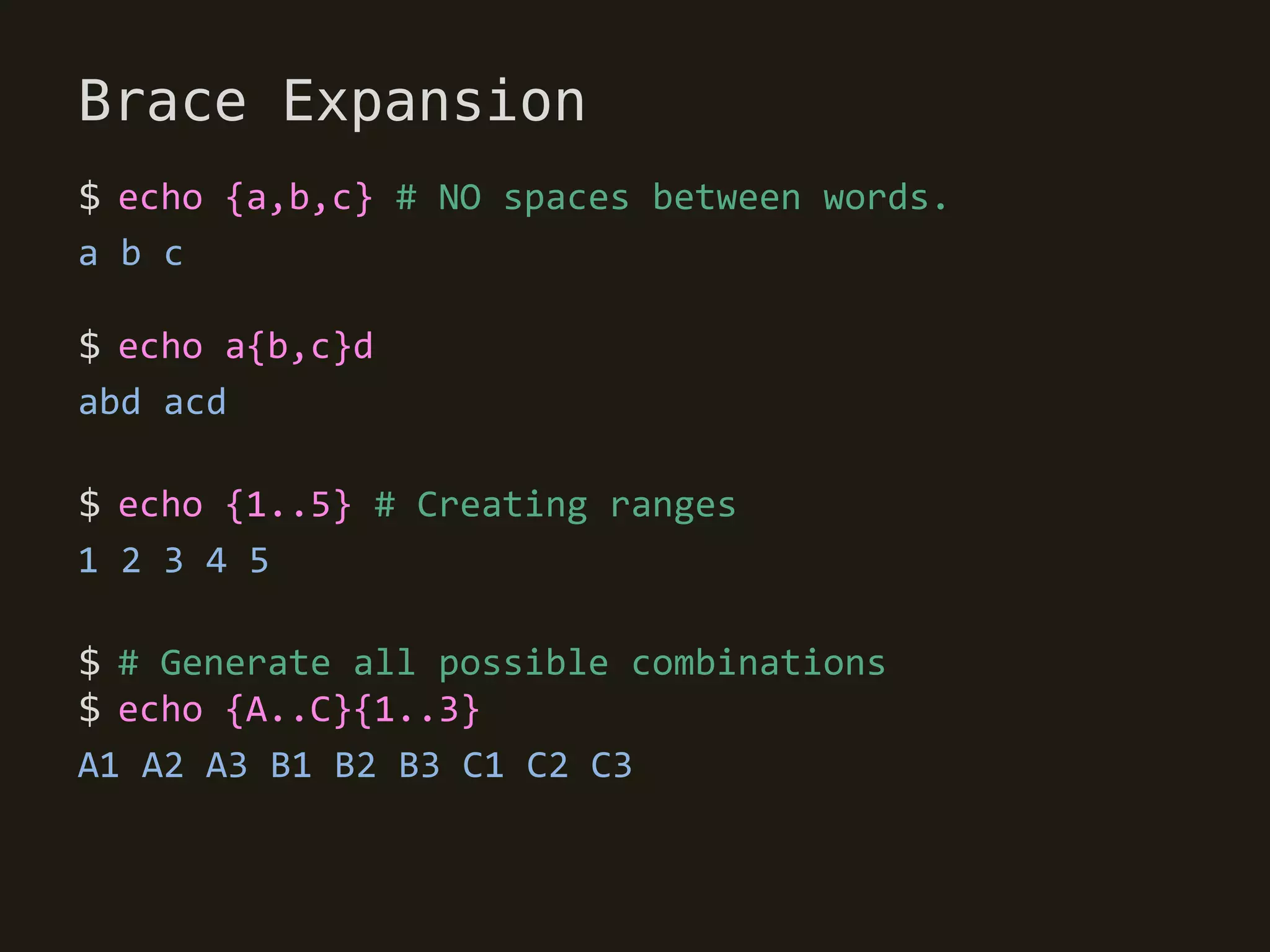
$ echo {a,b,c} # NO spaces between words.
a b c

$ echo a{b,c}d
abd acd

$ echo {1..5} # Creating ranges
1 2 3 4 5

$ # Generate all possible combinations
$ echo {A..C}{1..3}
A1 A2 A3 B1 B2 B3 C1 C2 C3
Exit status
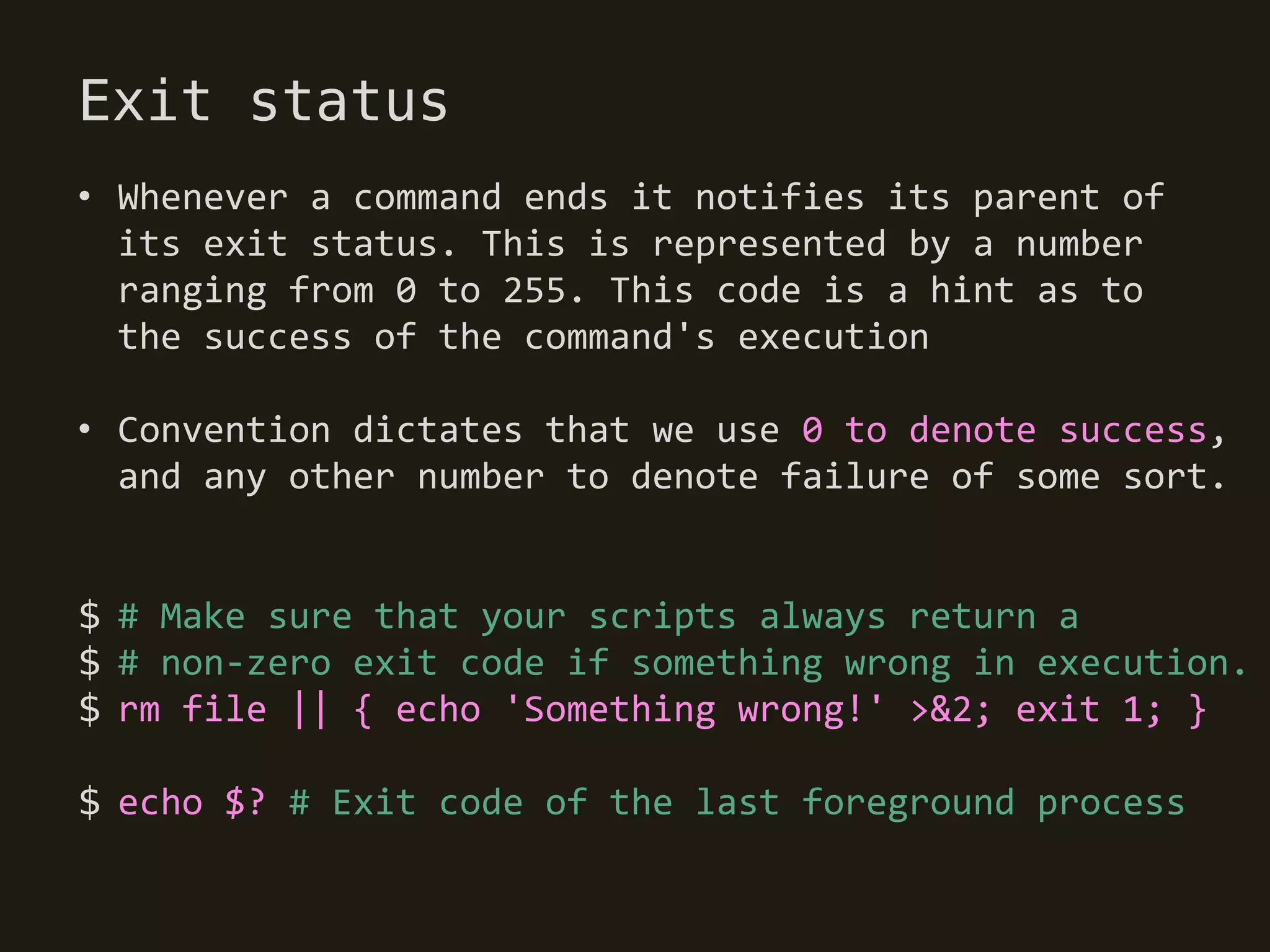
• Whenever a command ends it notifies its parent of
  its exit status. This is represented by a number
  ranging from 0 to 255. This code is a hint as to
  the success of the command's execution

• Convention dictates that we use 0 to denote success,
  and any other number to denote failure of some sort.


$ # Make sure that your scripts always return a
$ # non-zero exit code if something wrong in execution.
$ rm file || { echo 'Something wrong!' >&2; exit 1; }

$ echo $? # Exit code of the last foreground process
Control Operators (&& and ||)
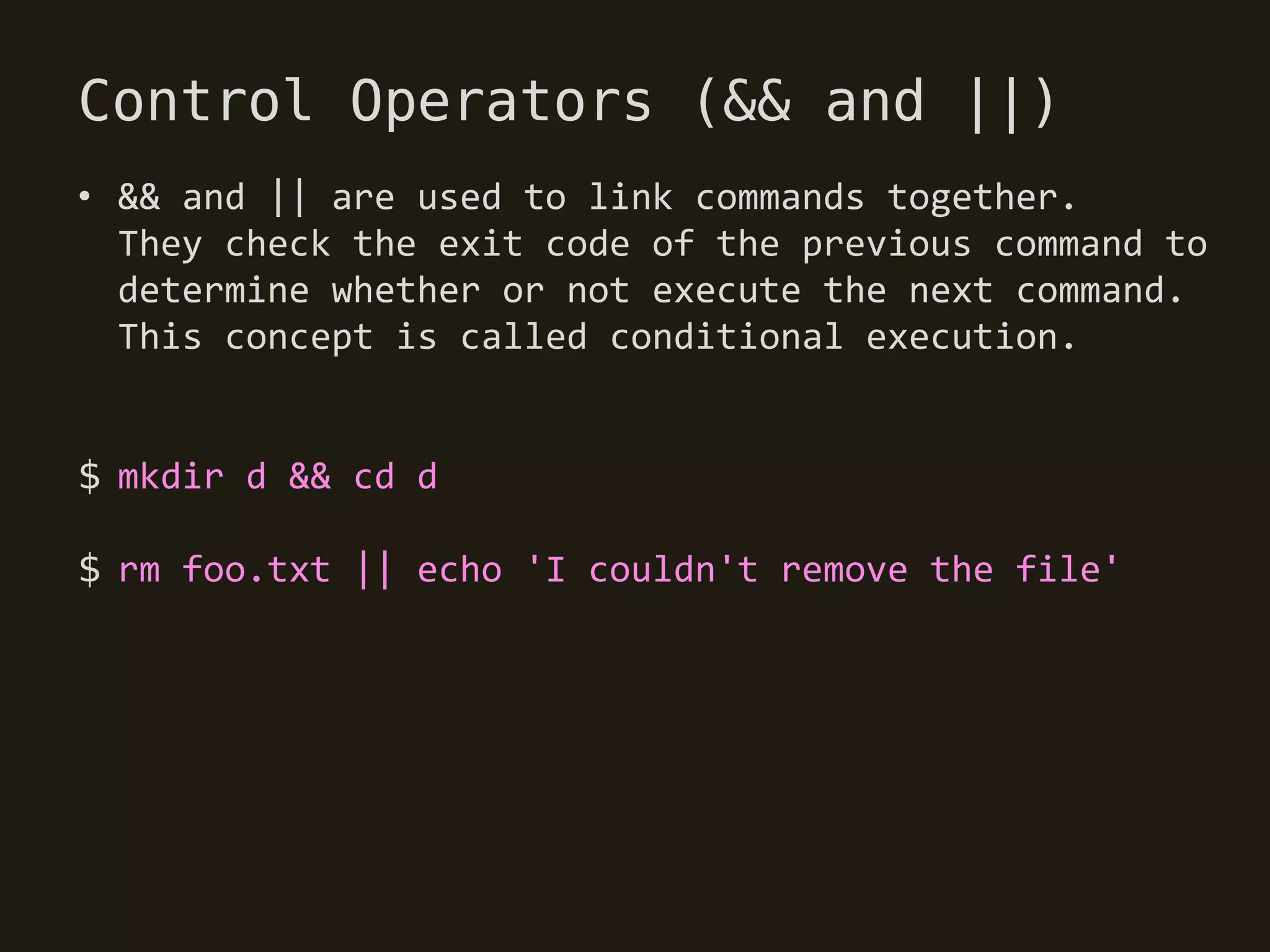
• && and || are used to link commands together.
  They check the exit code of the previous command to
  determine whether or not execute the next command.
  This concept is called conditional execution.


$ mkdir d && cd d

$ rm foo.txt || echo 'I couldn't remove the file'
Grouping statements
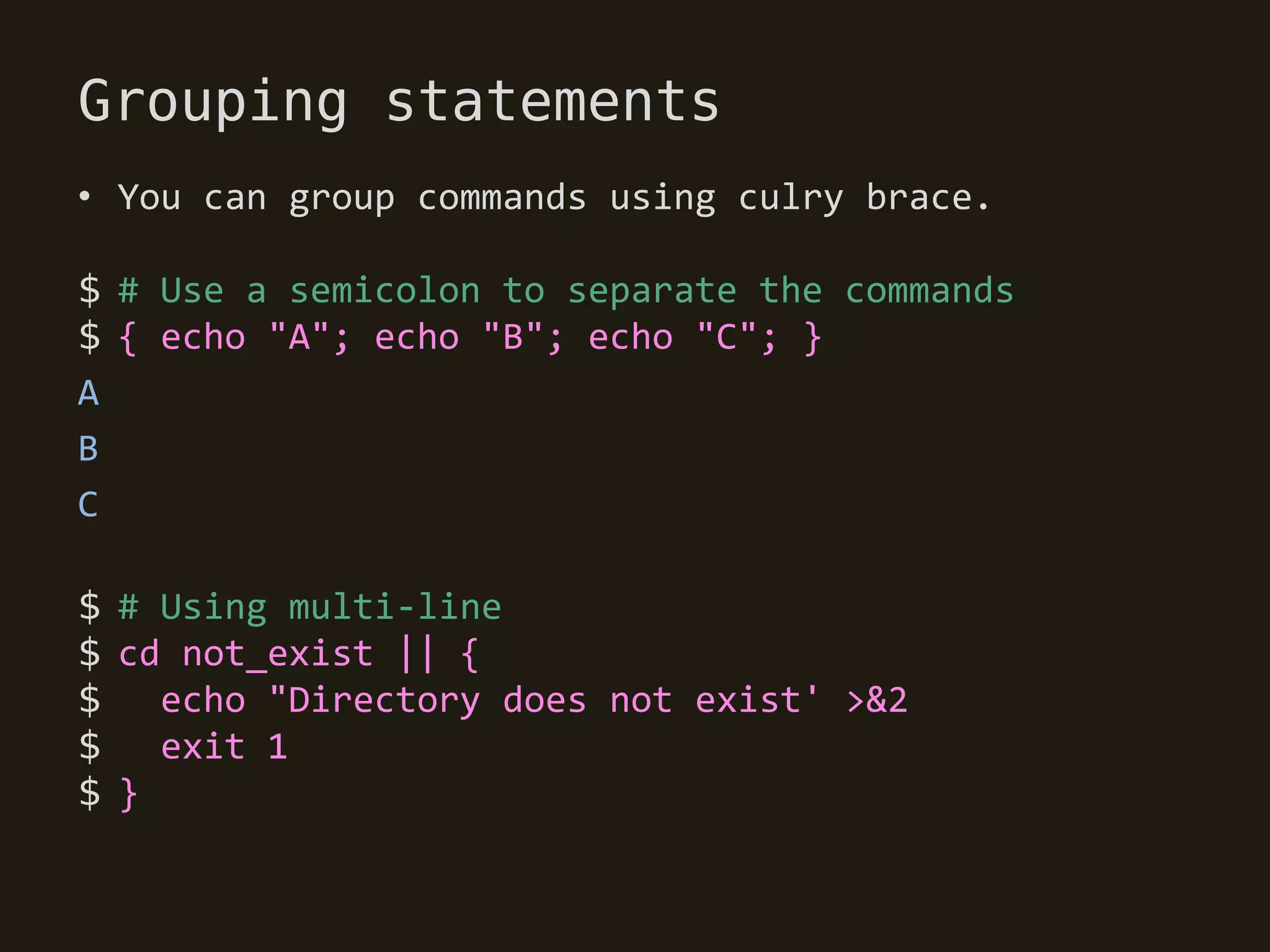
• You can group commands using culry brace.

$ # Use a semicolon to separate the commands
$ { echo "A"; echo "B"; echo "C"; }
A
B
C

$ # Using multi-line
$ cd not_exist || {
$   echo "Directory does not exist' >&2
$ exit 1
$}
Conditional Blocks
• if COMMAND; then
     COMMAND
  elif COMMAND; then
     COMMAND
  else
     COMMAND
  fi

$   if [[ $name = "foo" ]]; then
$      echo "Hello, $name"
$   elif [[ $name = "bar" ]]; then
$      echo "Bonjour, $name"
$   else
$      echo "Who are you? $name"
$   fi
Test commands
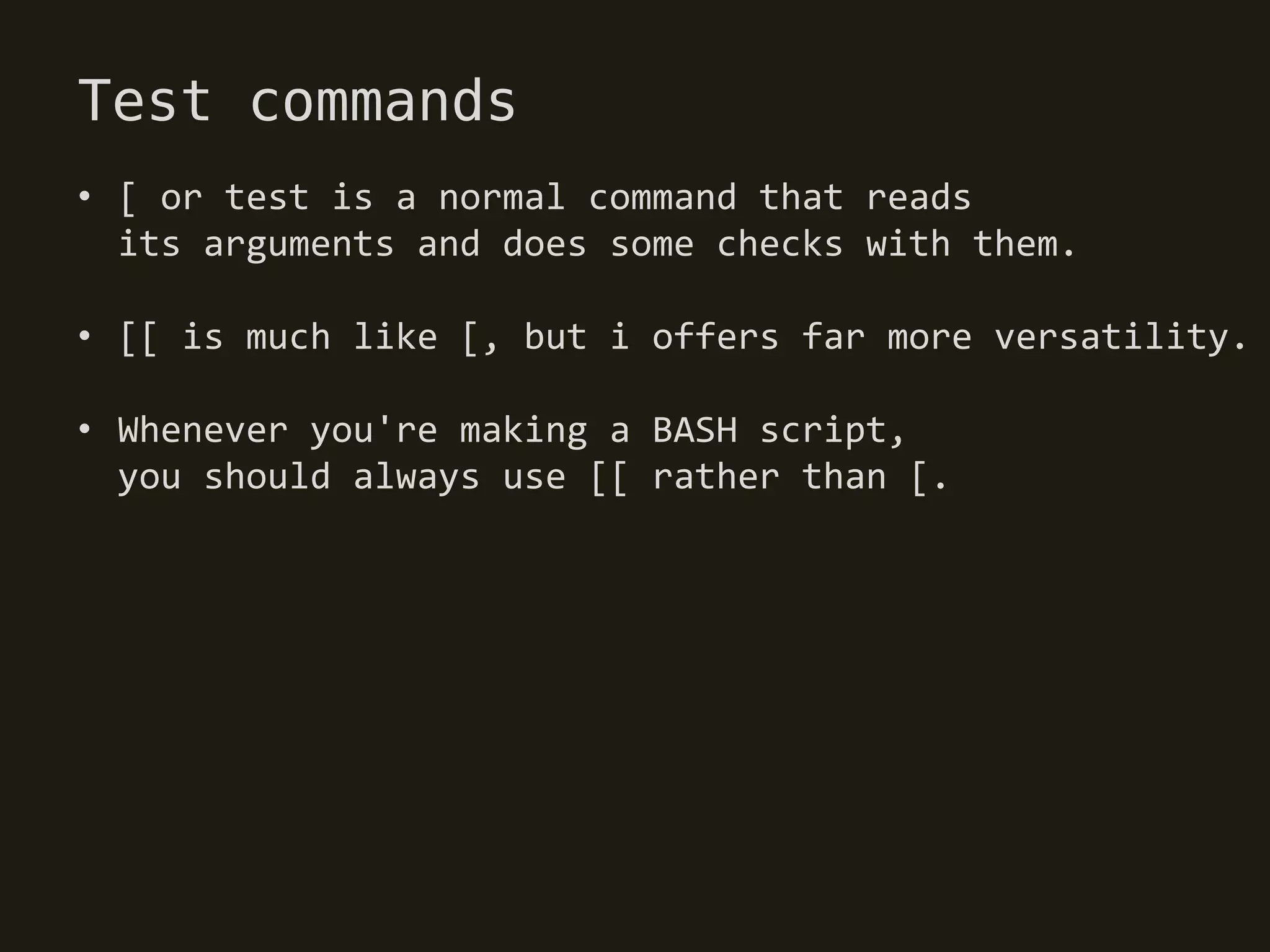
• [ or test is a normal command that reads
  its arguments and does some checks with them.

• [[ is much like [, but i offers far more versatility.

• Whenever you're making a BASH script,
  you should always use [[ rather than [.
Test commands
$   [[   -e FILE ]] # True if file exists
$   [[   -f FILE ]] # True if file is a regular file
$   [[   -d FILE ]] # True if file is a directory
$   [[   -h FILE ]] # True if file is a symbolic link
$   [[   -w FILE ]] # True if a writable by you
$   [[   -r FILE ]] # True if redable by you
$   [[   FILE -ot FILE ]] # True if the first file is
$                         # older than second
$   [[   FILE -nt FILE ]] # newer than second
$   [[   INT -eq INT ]] # True if both integers are equal
$   [[   INT -lt INT ]] # less than
$   [[   INT -gt INT ]] # greater than
$   [[   INT -le INT ]] # less than or equal
$   [[   INT -ge INT ]] # greater than or equal
Test commands
$   [[   STRING = STRING ]] # string comparison
$   [[   STRING != STRING ]]
$   [[   STRING = PATTERN ]] # glob pattern matching
$   [[   STRING =~ REGEX ]] # regex pattern matching
$   [[   EXPR -a EXPR ]] # logical AND
$   [[   EXPR && EXPR ]]
$   [[   EXPR -o EXPR ]] # logical OR
$   [[   EXPR || EXPR ]]
$   [[   ! EXPR ]] # logical NOT
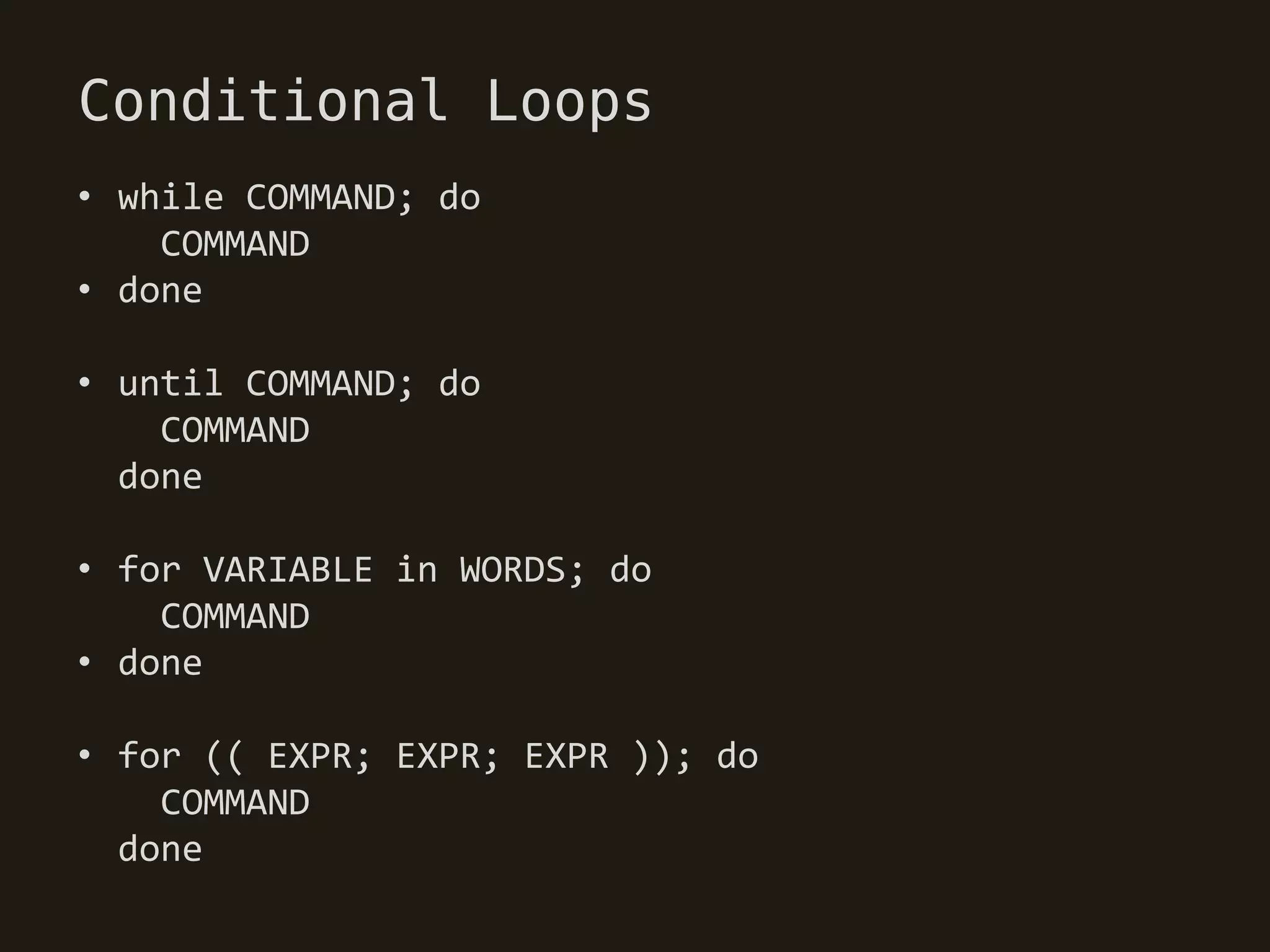
Conditional Loops
• while COMMAND; do
    COMMAND
• done

• until COMMAND; do
    COMMAND
  done

• for VARIABLE in WORDS; do
    COMMAND
• done

• for (( EXPR; EXPR; EXPR )); do
    COMMAND
  done
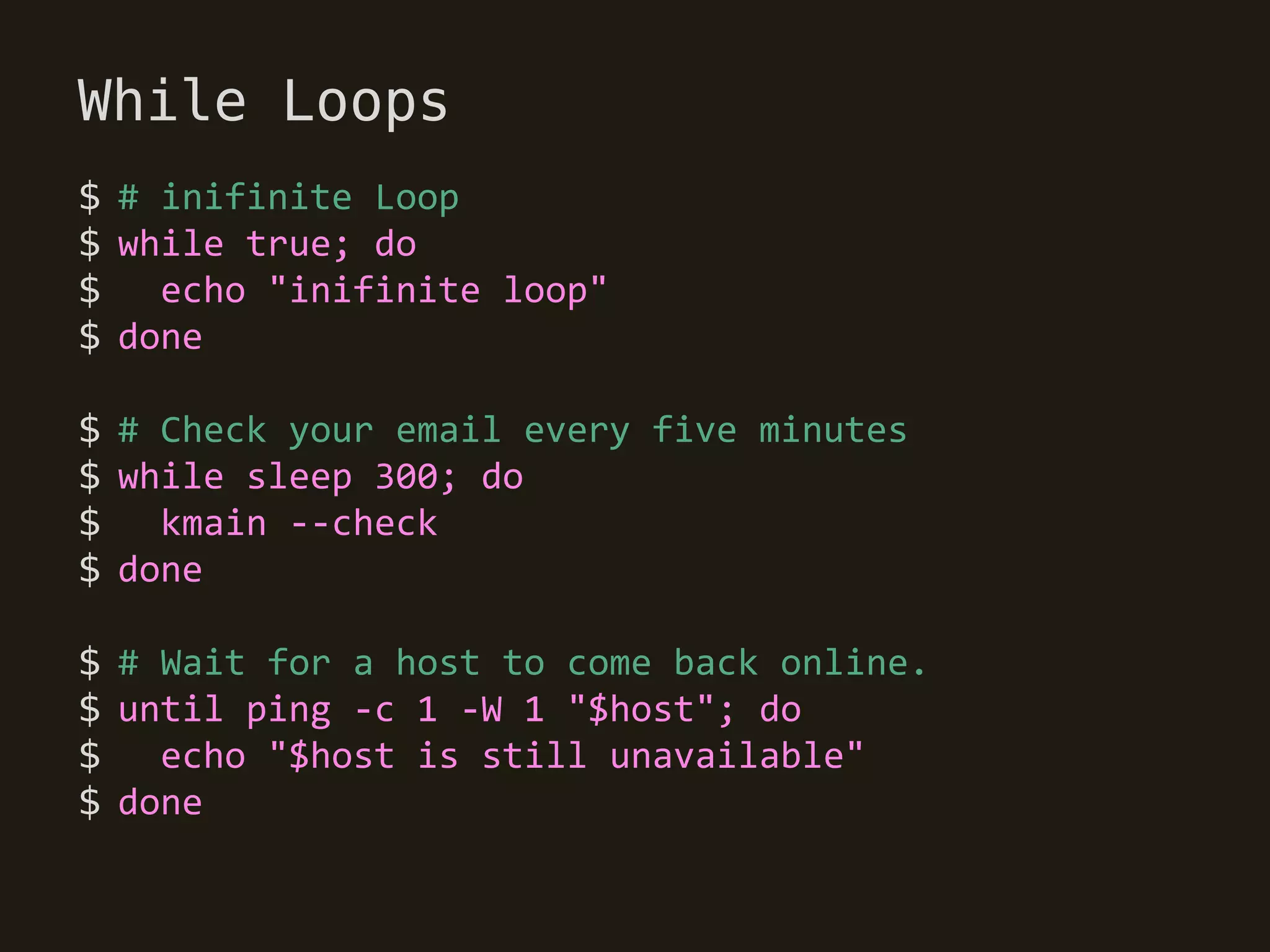
While Loops
$ # inifinite Loop
$ while true; do
$   echo "inifinite loop"
$ done

$ # Check your email every five minutes
$ while sleep 300; do
$   kmain --check
$ done

$ # Wait for a host to come back online.
$ until ping -c 1 -W 1 "$host"; do
$ echo "$host is still unavailable"
$ done
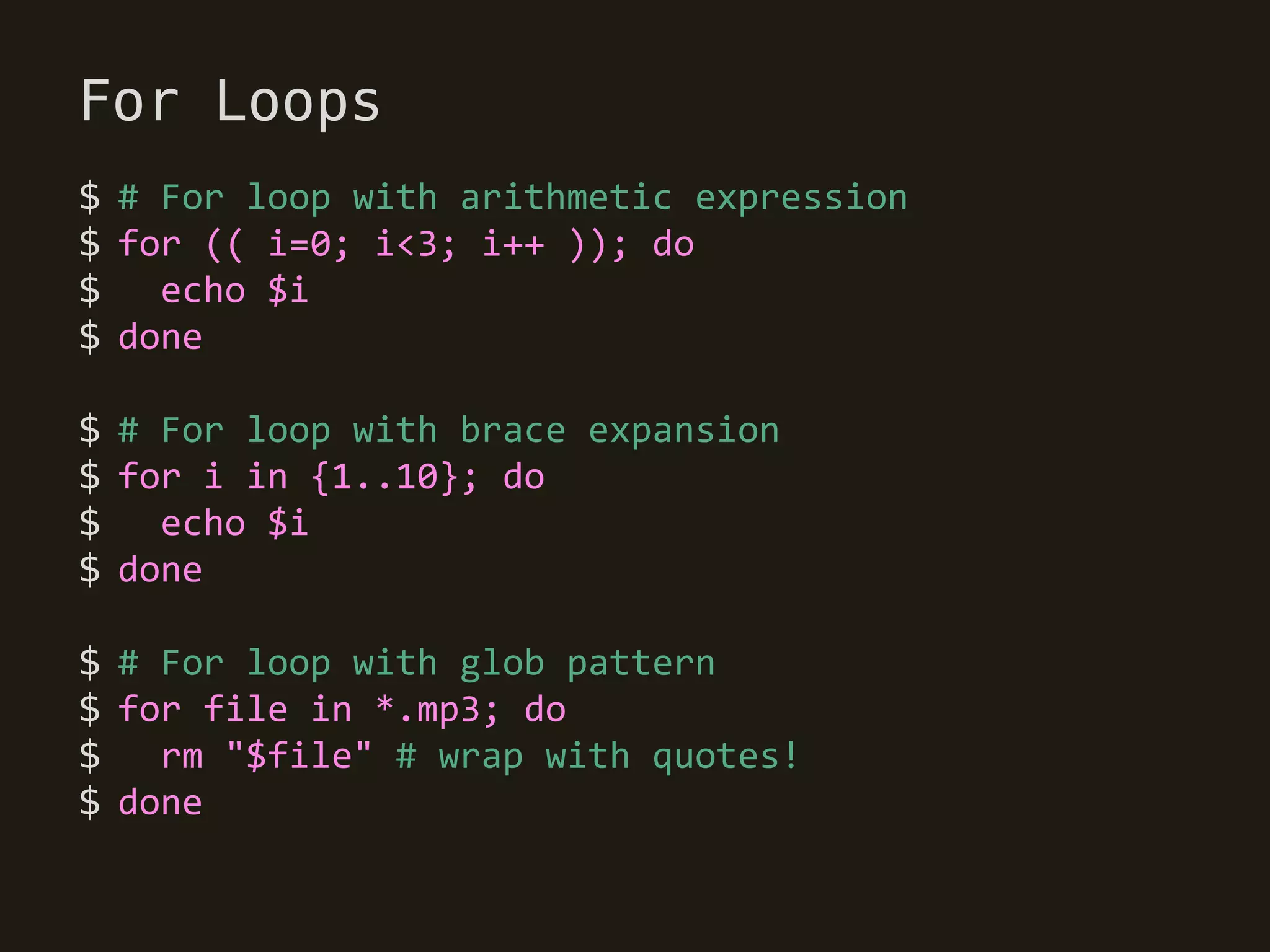
For Loops
$ # For loop with arithmetic expression
$ for (( i=0; i<3; i++ )); do
$   echo $i
$ done

$ # For loop with brace expansion
$ for i in {1..10}; do
$   echo $i
$ done

$ # For loop with glob pattern
$ for file in *.mp3; do
$ rm "$file" # wrap with quotes!
$ done
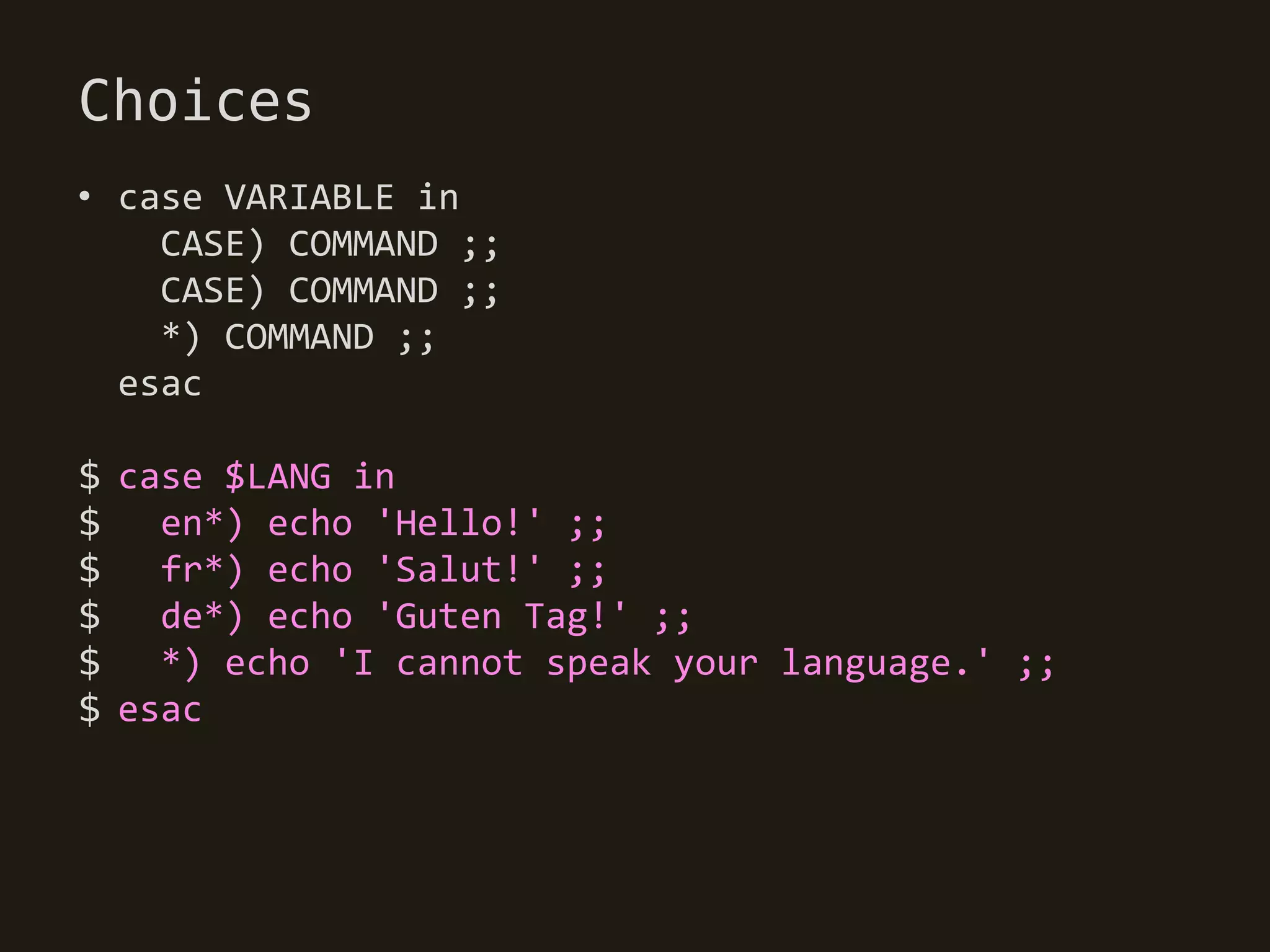
Choices
• case VARIABLE in
    CASE) COMMAND ;;
    CASE) COMMAND ;;
    *) COMMAND ;;
  esac

$ case $LANG in
$   en*) echo 'Hello!' ;;
$ fr*) echo 'Salut!' ;;
$   de*) echo 'Guten Tag!' ;;
$   *) echo 'I cannot speak your language.' ;;
$ esac
Arrays
• An array is a numbered list of strings

$ # =() syntax:
$ names=("A" "B" "C" "D")

$ # You can also specify explicit indexes
$ names=([0]="A" [1]="B" [20]="C")

$ # You can also get/set a item with index
$ echo ${names[0]}
$ names[3]="E"

$ # If you want to fill an array with filenames,
$ # you can use globs in there.
$ photos=(~/"my photos"/*.jpg)
Arrays
$ # Get filenames of current directory
$ files=(*)

$   # Using arrays in for loop.
$   # ${myarray[@]} will expand all elements
$   for file in "${myfiles[@]}"; do
$     cp "$file" /backup/
$   done

$ # you can merge items with delimiter
$ # using IFS with "${arrayname[*]}"
$ names=("A" "B" "C" "D")
$ ( IFS=,; echo "Names: ${names[*]}" )
Names: A,B,C,D
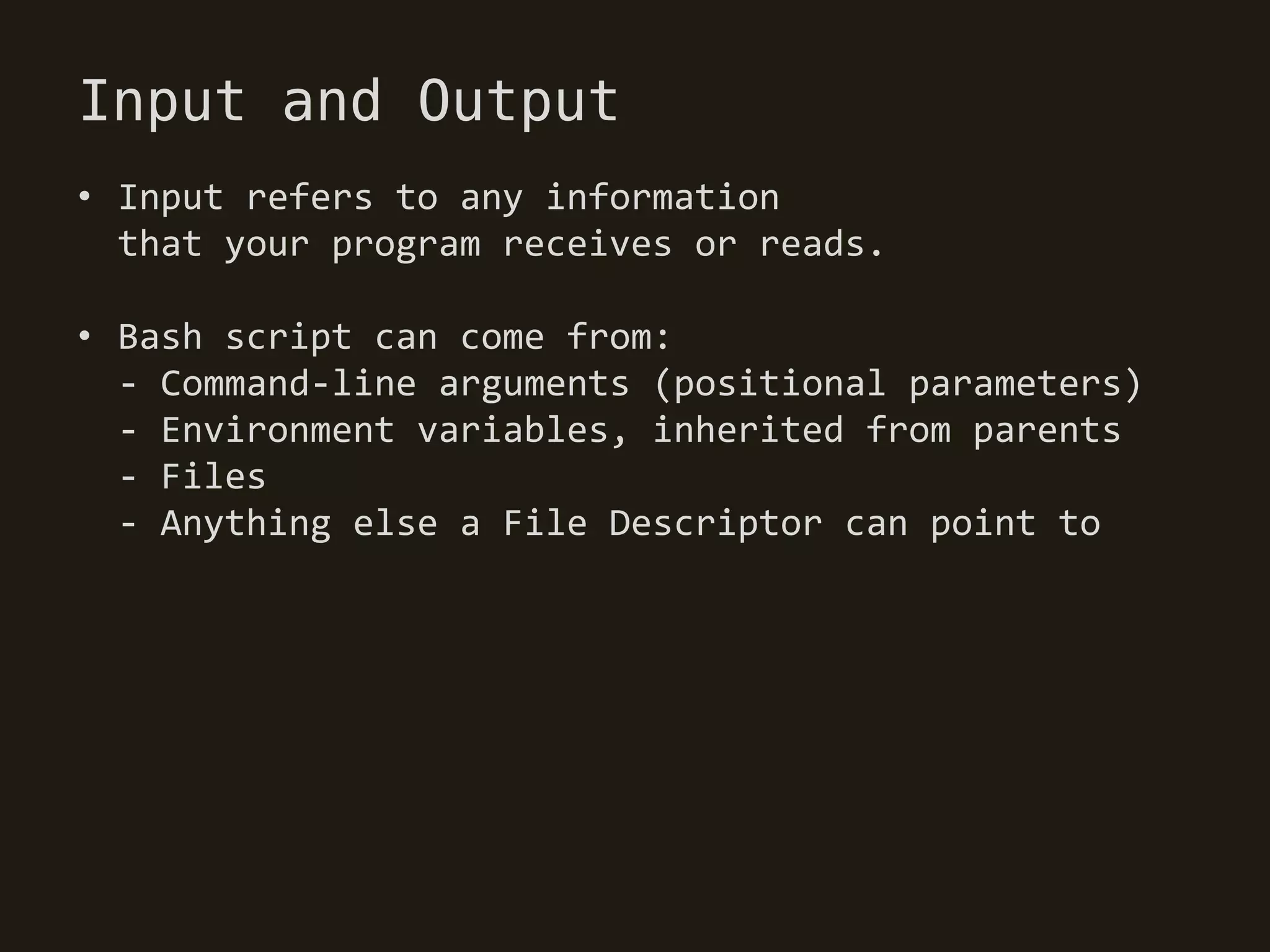
Input and Output
• Input refers to any information
  that your program receives or reads.

• Bash script can come from:
  - Command-line arguments (positional parameters)
  - Environment variables, inherited from parents
  - Files
  - Anything else a File Descriptor can point to
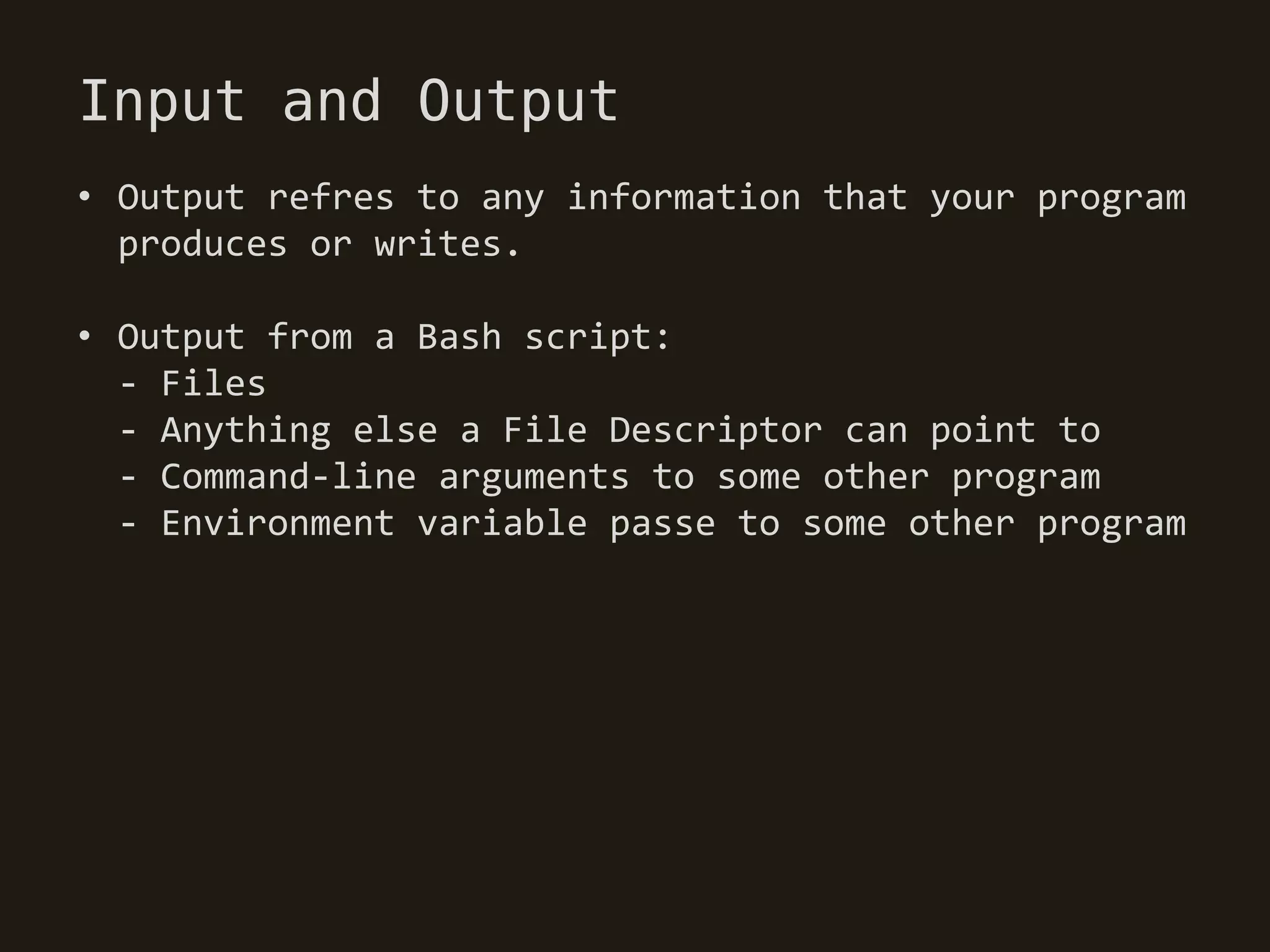
Input and Output
• Output refres to any information that your program
  produces or writes.

• Output from a Bash script:
  - Files
  - Anything else a File Descriptor can point to
  - Command-line arguments to some other program
  - Environment variable passe to some other program
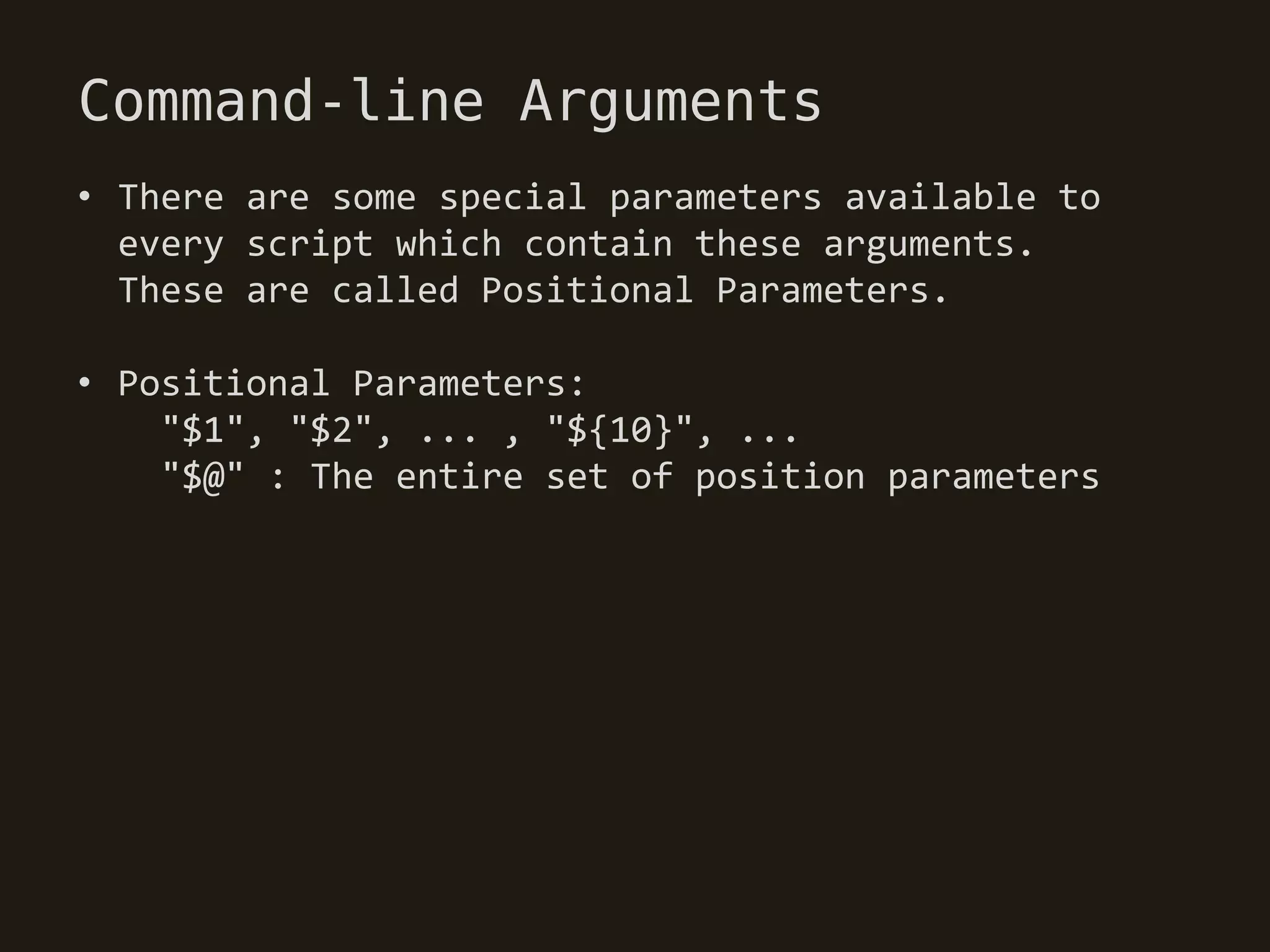
Command-line Arguments
• There are some special parameters available to
  every script which contain these arguments.
  These are called Positional Parameters.

• Positional Parameters:
    "$1", "$2", ... , "${10}", ...
    "$@" : The entire set of position parameters
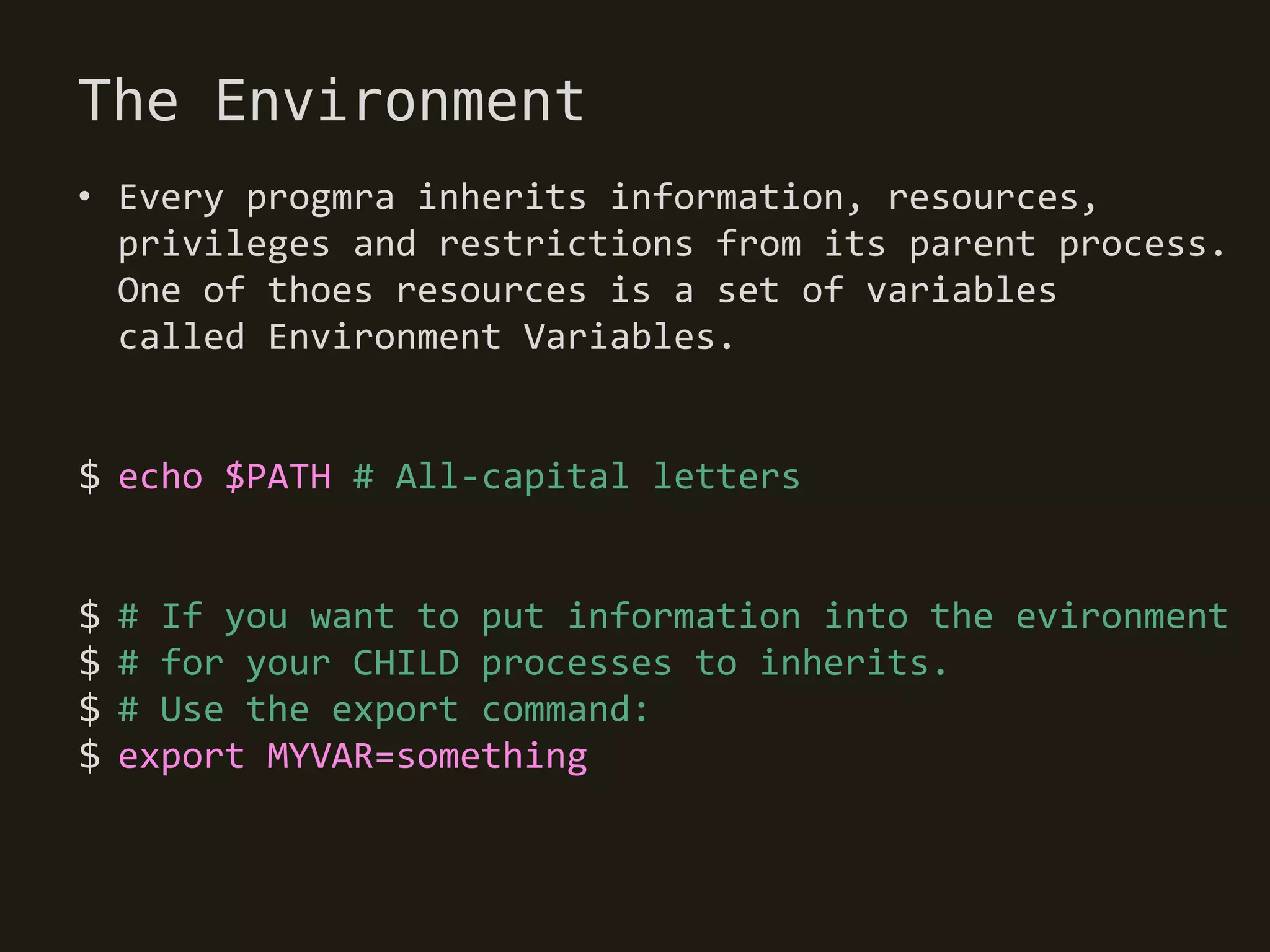
The Environment
• Every progmra inherits information, resources,
  privileges and restrictions from its parent process.
  One of thoes resources is a set of variables
  called Environment Variables.


$ echo $PATH # All-capital letters


$   # If you want to put information into the evironment
$   # for your CHILD processes to inherits.
$   # Use the export command:
$   export MYVAR=something
File Descriptos
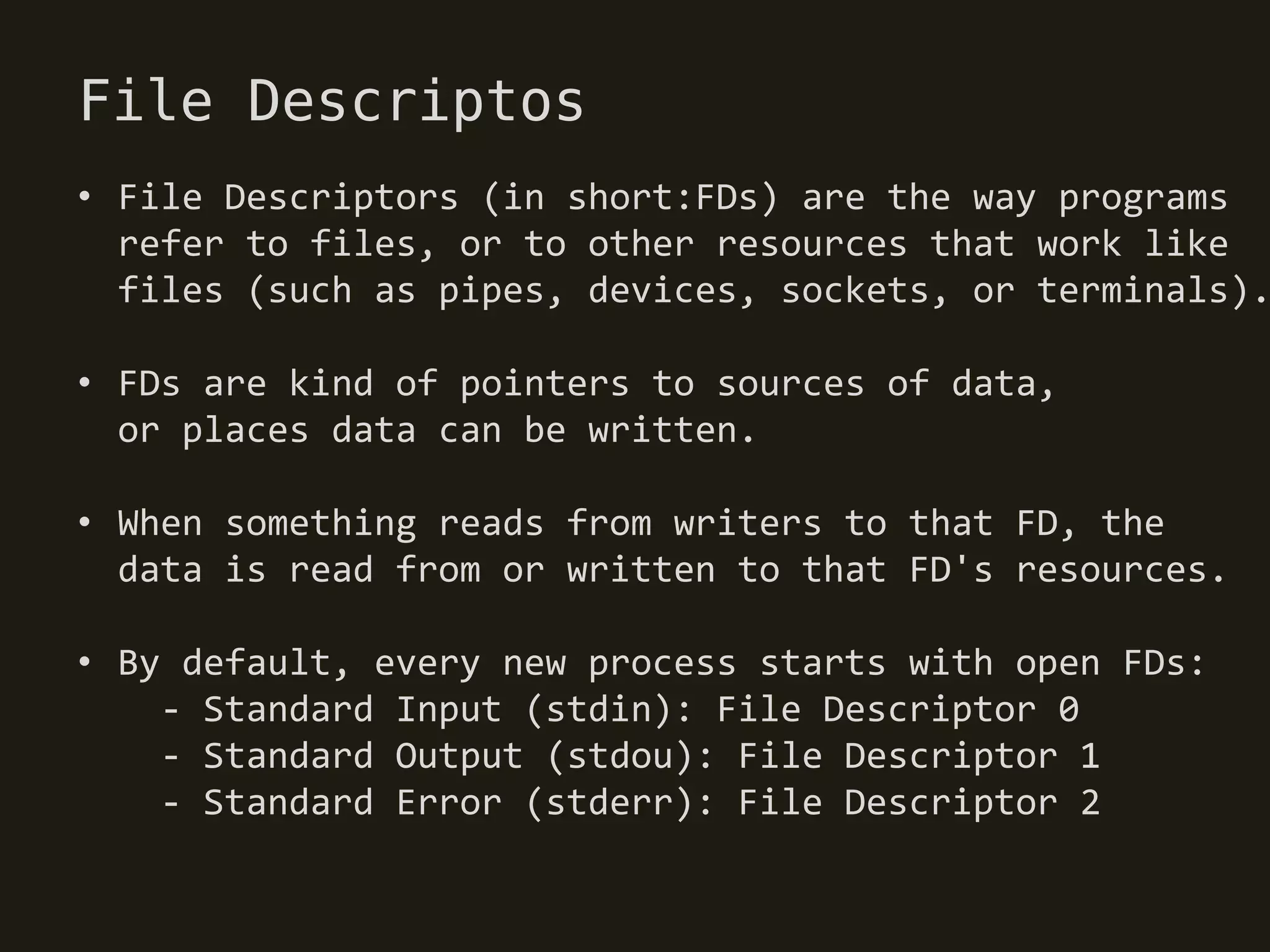
• File Descriptors (in short:FDs) are the way programs
  refer to files, or to other resources that work like
  files (such as pipes, devices, sockets, or terminals).

• FDs are kind of pointers to sources of data,
  or places data can be written.

• When something reads from writers to that FD, the
  data is read from or written to that FD's resources.

• By default, every new process starts with open FDs:
    - Standard Input (stdin): File Descriptor 0
    - Standard Output (stdou): File Descriptor 1
    - Standard Error (stderr): File Descriptor 2
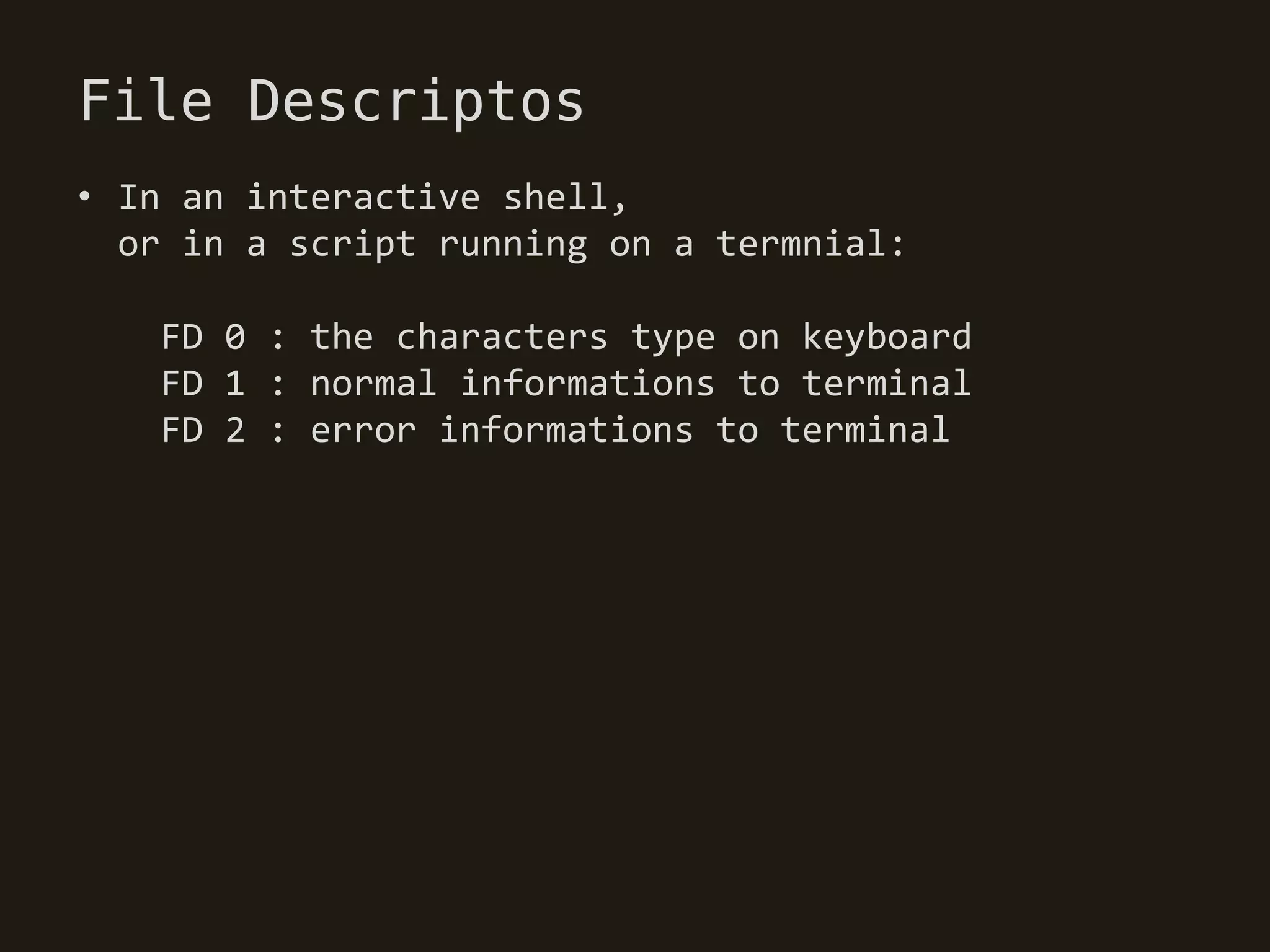
File Descriptos
• In an interactive shell,
  or in a script running on a termnial:

   FD 0 : the characters type on keyboard
   FD 1 : normal informations to terminal
   FD 2 : error informations to terminal
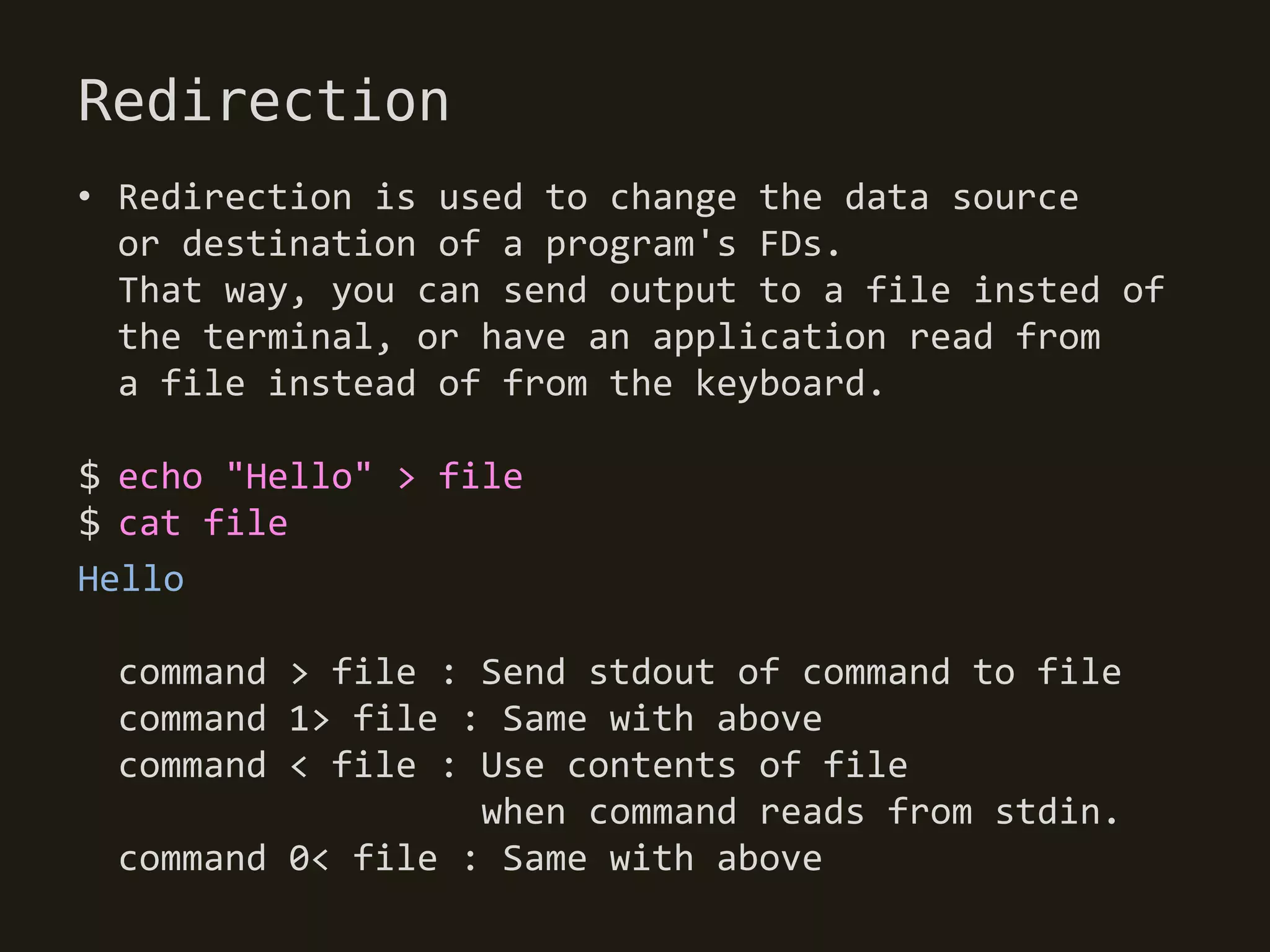
Redirection
• Redirection is used to change the data source
  or destination of a program's FDs.
  That way, you can send output to a file insted of
  the terminal, or have an application read from
  a file instead of from the keyboard.

$ echo "Hello" > file
$ cat file
Hello

 command > file : Send stdout of command to file
 command 1> file : Same with above
 command < file : Use contents of file
                  when command reads from stdin.
 command 0< file : Same with above
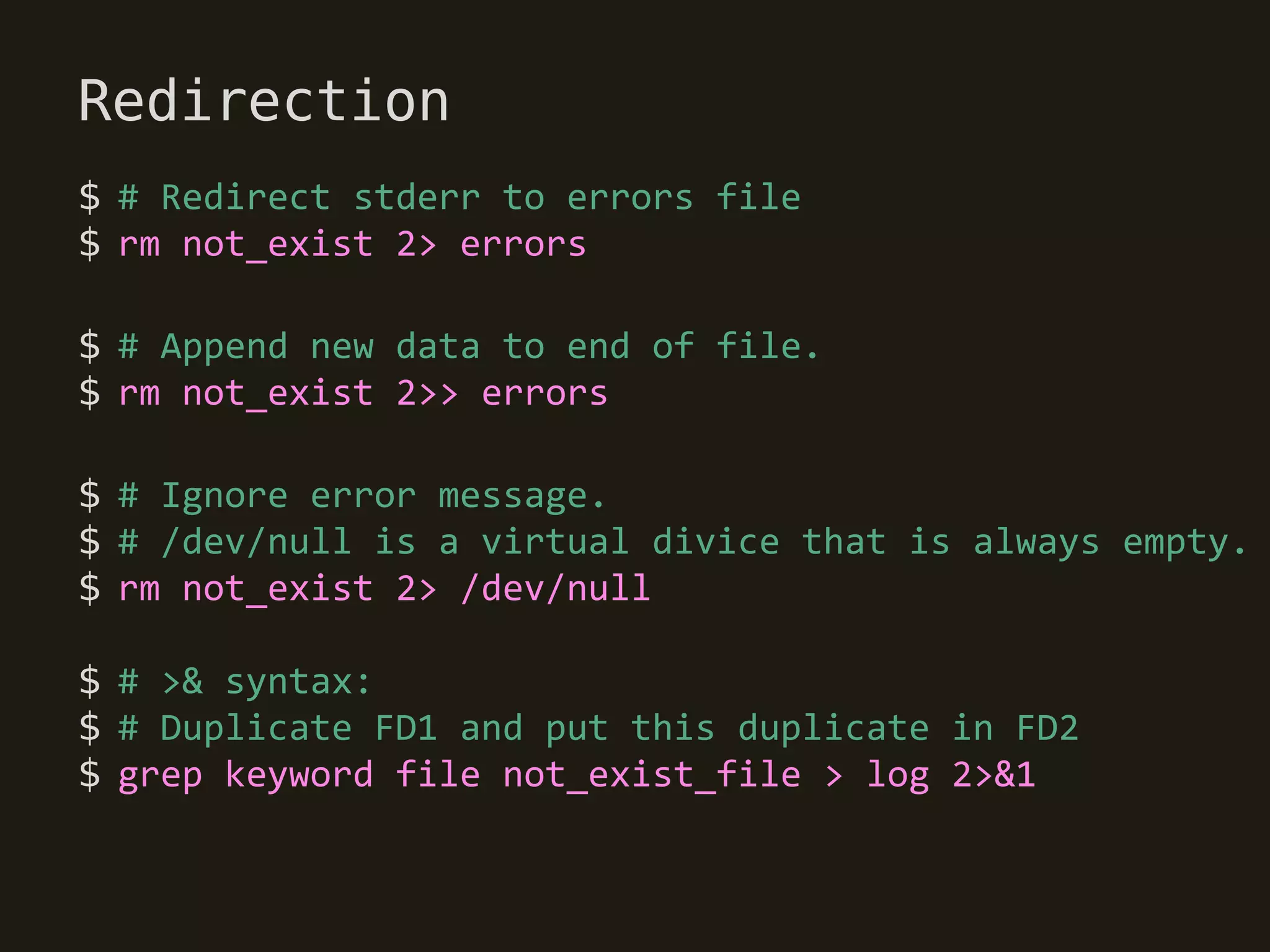
Redirection
$ # Redirect stderr to errors file
$ rm not_exist 2> errors

$ # Append new data to end of file.
$ rm not_exist 2>> errors

$ # Ignore error message.
$ # /dev/null is a virtual divice that is always empty.
$ rm not_exist 2> /dev/null

$ # >& syntax:
$ # Duplicate FD1 and put this duplicate in FD2
$ grep keyword file not_exist_file > log 2>&1
Heredocs And Herestrings
• Heredocs are useful if you're trying to embed short
  blocks of multi-line data inside your script.

$ grep proud <<END # END = terminator string
$ I am a proud sentence.
$ END

• The most common use of Heredocs is
  dumping documentation to the user:

$   usage() {
$     cat <<EOF # Terminator string can be any word
$   usage: foobar [-xyz] [file ...]
$   EOF
$   }
Heredocs And Herestrings
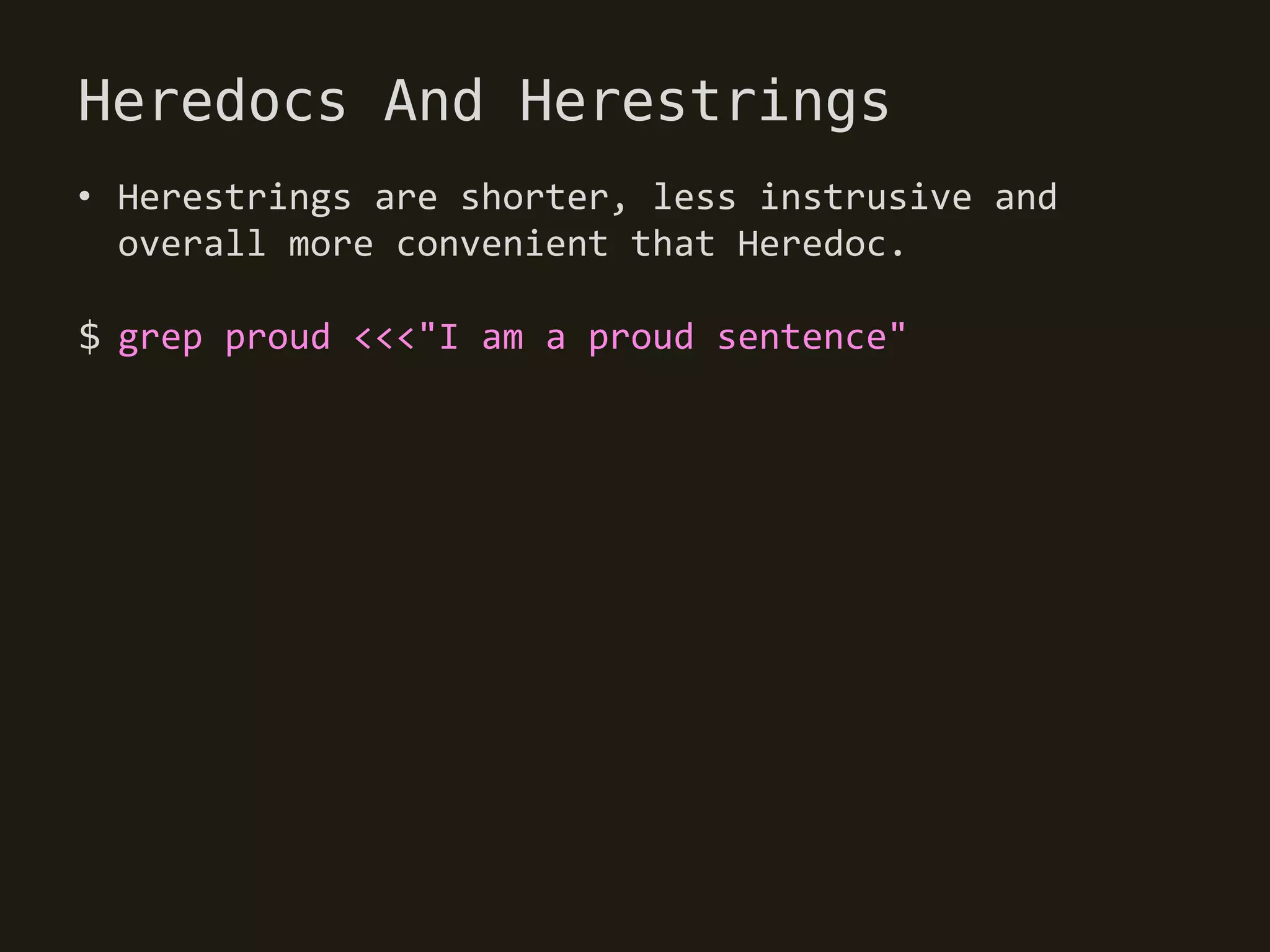
• Herestrings are shorter, less instrusive and
  overall more convenient that Heredoc.

$ grep proud <<<"I am a proud sentence"
Pipes
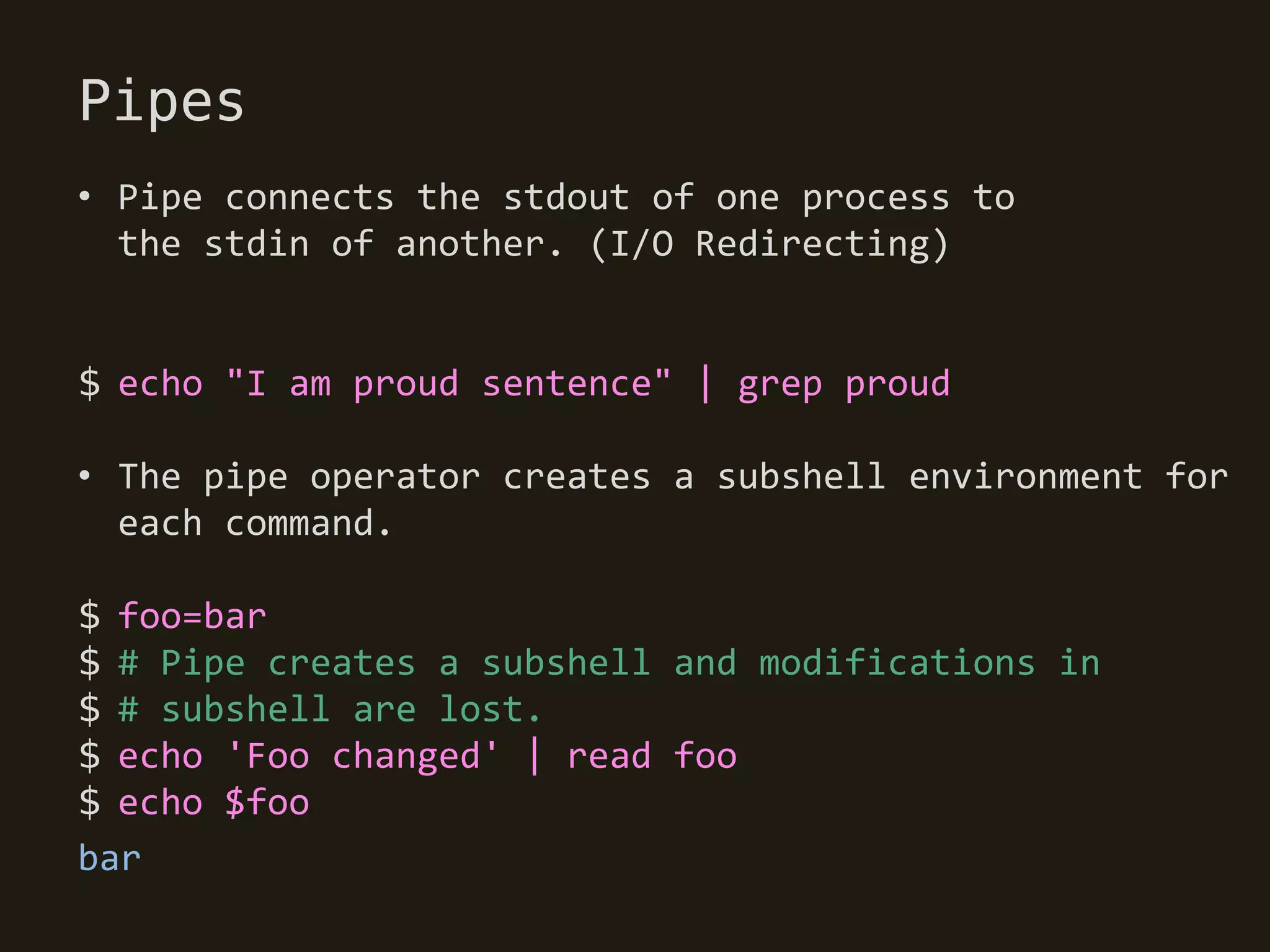
• Pipe connects the stdout of one process to
  the stdin of another. (I/O Redirecting)


$ echo "I am proud sentence" | grep proud

• The pipe operator creates a subshell environment for
  each command.

$ foo=bar
$ # Pipe creates a subshell and modifications in
$ # subshell are lost.
$ echo 'Foo changed' | read foo
$ echo $foo
bar
Arithmetic Evaluation
$ (( a = (5+2)*3 ))
$ if (($a == 21 )); then echo 'Blackjack!'; fi
Blackjack!


$   # Finding error log in input file
$   flag=0
$   while read line; do
$     if [[ $line = *err* ]]; then flag=1; fi
$   done < inputfile
$   if ((flag)); then echo "Find error!"; fi
Functions
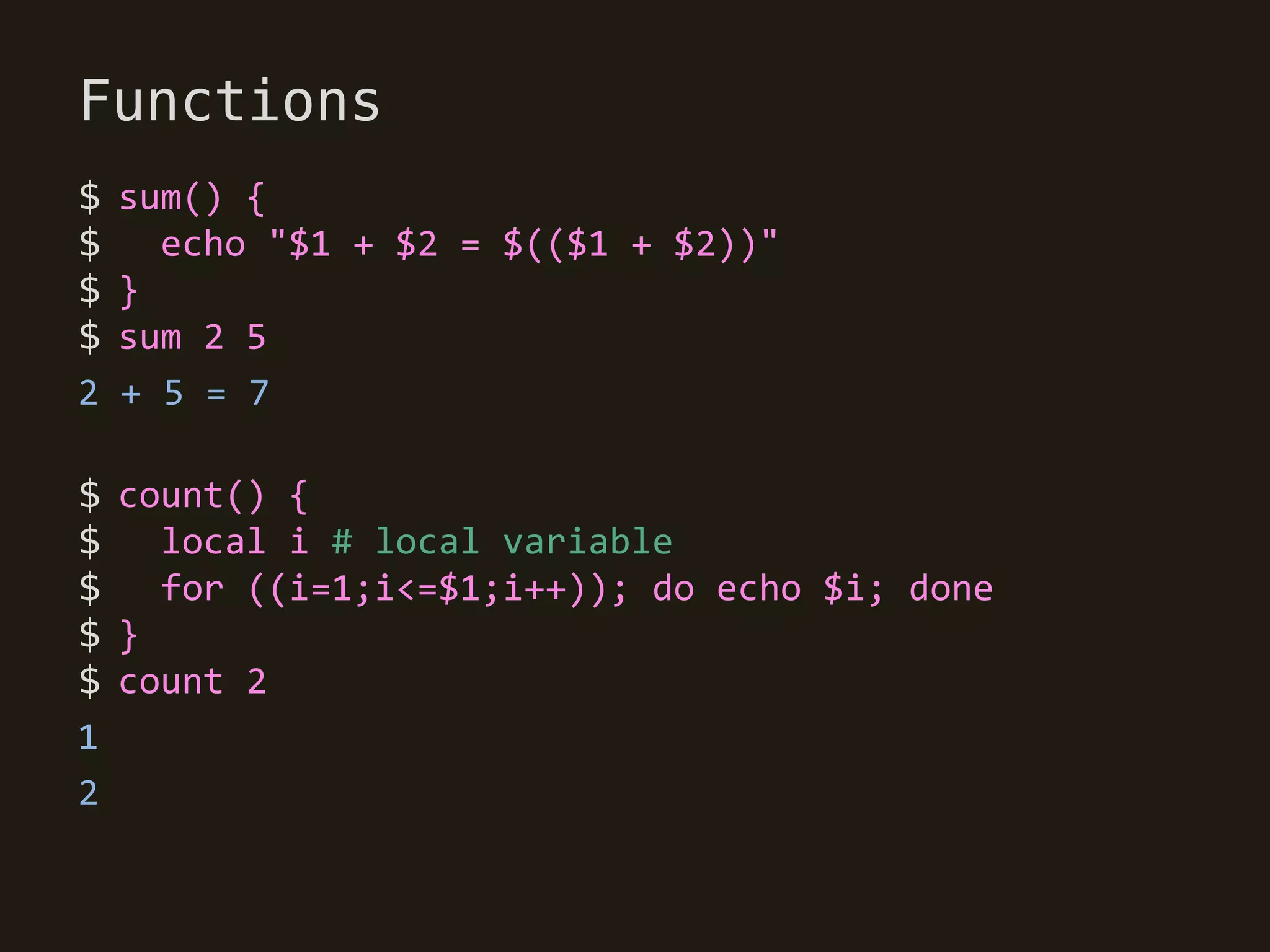
$   sum() {
$     echo "$1 + $2 = $(($1 + $2))"
$   }
$   sum 2 5
2   + 5 = 7

$ count() {
$   local i # local variable
$   for ((i=1;i<=$1;i++)); do echo $i; done
$}
$ count 2
1
2
Aliases
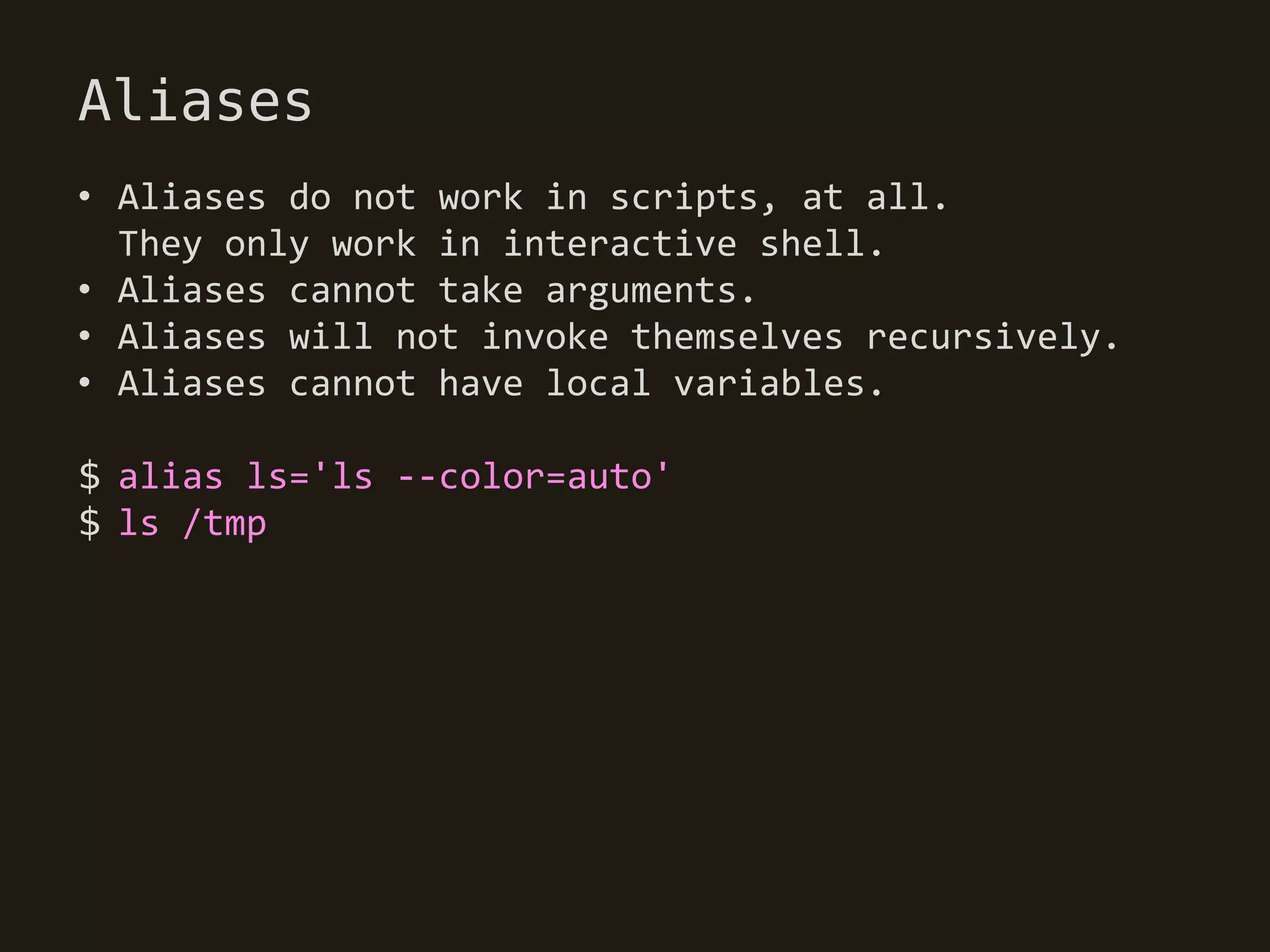
• Aliases do not work in scripts, at all.
  They only work in interactive shell.
• Aliases cannot take arguments.
• Aliases will not invoke themselves recursively.
• Aliases cannot have local variables.

$ alias ls='ls --color=auto'
$ ls /tmp

BASH Guide Summary

  • 1.
  • 2.
    Summary of BASHGuide • This is a PERSONAL summary of Greg's BASH Guide. • The official front page URL of original guide is http://mywiki.wooledge.org/.
  • 3.
    BASH is, • anacronym for "Bourne Again Shell". • command interperters. • a layer between system function calls and user.
  • 4.
    BASH is NOT, • your operating system. • your window manager. • your terminal.(but it often runs inside terminal) • control your mouse and keyboard. • configure your system. • activate your screensaver. • open your files when you double-click them. • involved in launching applications.
  • 5.
    BASH is, • ONLYan interface for you to execute statements, using BASH syntax. • a (possibly interactive) command interpreter, acting as a layer between the user and the system.
  • 6.
    BASH mode • Interactive: A mode of operation where a prompt asks you for one command at a time. • Script: A file that contains a sequence of commands.
  • 7.
    Prompt types • $: BASH shell (POSIX, Korn shell, BASH) • % : C shell (csh, tcsh) • # : Running as the system's superuser account
  • 8.
    Commands and Arguments $# This is comment. $ # touch: $ # A COMMAND that changes the Last Modified time. $ # If the filename does not exist, $ # it simply creates that file. $ touch a b c $ ls a b c $ # There MUST be spaces between command and arguments. $ # The amount of whitespace between arguments $ # does not matter. $ echo a b c a b c
  • 9.
    Strings • In BASHprogramming, almost everything is a string. • When you type a command, the command's name is a string. • Each argument is a string. • Variable name are strings. • The contents of variables are strings. • A filename is a string, and most files contains strings.
  • 10.
    Types of Commands •Aliases: A way of shortening commands. (only used in interactive shells, not in scripts) $ ls -laF $ alias ll='ls -laF' $ ll • Functions: Somewhat like aliases, but can be used in scripts. $ sum () { echo "$1 $2"; } $ sum foo bar foo bar
  • 11.
    Types of Commands •Builtins: Basic commands built into BASH $ cd .. $ echo "echo is a bulitin" • Keywords: Quite like builtins, but special parsing rules apply to them $ [[ a < b ]]
  • 12.
    Types of Commands •Executables (Application): Also called an external command or application. Invoked by using a pathname. $ ./myprogram
  • 13.
    How to figureout the type? • Command Types: aliases, functions, builtins, keywords, executables $ type rm rm is /bin/rm $ type cd cd is a function
  • 14.
    Scripts • A scriptis basically a sequence of commands. • How to make a script: 1. Create a new file. 2. Put this in it at the top: #!/usr/bin/env bash
  • 15.
    Shebang • The top-mostheader of file. • Also called a sha-bang, hashbang, pound-bang. • The way this header works: 1. When the kernel executes a non-binary, it looks at the first line of the file. 2. If the line begins with #!, the kernel uses the line to determine the interpreter that the code should be passed to.
  • 16.
    #!What?? • #!<interpreter> <argument> This tries to run <interpreter> <argument> to read and run the rest of file. • #!/bin/bash tells the kernel to run the program '/bin/bash', and give this script as an argument. • #!/usr/bin/env bash tells the kernel to run the program, '/usr/bin/env', and give it two arguments, 'bash', and this script. • Using '/usr/bin/env' is more potable. http://en.wikipedia.org/wiki/Env
  • 17.
    sh is NOTbash • Do not fooled by examples on the Internet that uses /bin/sh as interperter. • sh is NOT bash. • Refrain from giving scripts .sh extension. It serves no purpose, and it's completely misleading. (since it's going to be a bash scripts, not a sh scripts)
  • 18.
    Creating a script [myscript] #!/usr/bin/envbash echo "Hello, BASH" [prompt] $ # Execute script using bash command. $ bash myscript $ # Or, give your script executable permissions, $ # so you can execute the script as an application. $ chmod +x myscript $ ./myscript
  • 19.
    Special Characters • [whitespace] Whitespace (spaces, tabs and newlines). BASH uses whitespace to determine each word. The first word of each command is a command name. Any additional words become arguments to that command. • $ Expansion character. This character is used in most substitutions, including parameter expansion. • # Comment character. Any word beginning with # begins a comment.
  • 20.
    Special Characters • Quotesprotect the text inside from being split into multiple words or arguments. • 'text' (Single quotes) Prevent the all special characters. • "text" (Double quotes) This permit substitutions to occur. Except for the $, prevent the special characters. $ echo "$HOME" /Users/ohgyun $ echo '$HOME' $HOME
  • 21.
    Special Characters • Escape Character. • ~ Shortcut for home directory. • > or < Redirection characters. There character are used modify (redirect) the input and/or output of a command. • | Pipelines allow you to send to output of one command as the input to another command.
  • 22.
    Special Characters • [[expression ]] Test Expression. This evaluates the conditional expression. • { command; } Command grouping. The commands inside the braces treated as though they were only one command. • `command`, $(command) Command substitution. This executes the inner command first, and then replace the whole `...` or $(...0 with that command's standard ouptut.
  • 23.
    Special Characters • (command) Subshell Execution. This executes the command in a new bash shell. • ((expression)) Arithemtic Command. Inside the parentheses, operator such as +,-,*,/ are seen as mathmatical operators. • $((expression)) Arithematic Substitution. This expression is replaced with the result of its arithmetic evaluation.
  • 24.
    Special Characters • (command) Subshell Execution. This executes the command in a new bash shell. A subshell is a child process, and changes in subshell causes no effect on the current shell. $ pwd /Users/ohgyun $ (cd ..) $ pwd /Users/ohgyun
  • 25.
    Special Characters • ((expression)) Arithemtic Command. Inside the parentheses, operator such as +,-,*,/ are seen as mathmatical operators. • $((expression)) Arithematic Substitution. This expression is replaced with the result of its arithmetic evaluation. $ echo $((5 + 5)) 10 $ (( 5 > 0 )) && echo "True" True
  • 26.
    Parameters • Parameters area sort of named space in memory. • Parameters come in two flavors. - Special parameters: read-only, pre-set by BASH. - Variables: parameters you can create and update. $ echo $$ # Special parameter that retreive the PID 70724 $ # Variable assignment $ # NO space between the = sign $ foo=bar $ echo $foo bar
  • 27.
    Parameters is "$XX"? •Parameters do NOT start with a $-sign. • The $-sign means 'Parameter expansion', and replaces the parameter to its content. $ foo=bar $ # Parameter Name: foo $ # Usage: "$foo"
  • 28.
    Parameter Expansion • Parameterexpansion is the substitution of a parameter by its value. $ foo=bar $ echo "Foo is $foo" # Parameter expands to its value. Foo is bar $ # Remember? $ # Single quote does not expand parameters. $ echo 'Foo is $foo' Foo is $foo
  • 29.
    "Double Quote it!" •Parameter expansion causes the $parameter to be replaced by its contents. Note the following! $ song="My song.mp3" $ rm $song rm: My: No such file or directory rm: song.mp3: No such file or directory • Because Bash replaced $song by its content, being My song.mp3; then it performed word splitting; and only THEN executed the command. It was as if you had typed this: $ rm My song.mp3
  • 30.
    "Double Quote it!" •How do we fix this? Put double quotes around every parameter expansion! $ rm "$song"
  • 31.
    Special Parameters • Parametersthat aren't variables. • Parameter Name: 0 / Usage: "$0" Contains the name, or the path, of the script. • Parameter Name: ? / Usage: $? Expands to the exit code of the most recently completed foreground command. • Parameter Name: $ / Usage: $$ Expands to the PID of the current shell. (PID = process ID number) • Parameter Name: ! / Usage: $! Expands to the PID of the command most recently executed in the background.
  • 32.
    Special Parameters • ParameterName: 1 2 etc. / Usage: "$1" Positional Parameters contain the arguments that were passed to the current script or function. • Parameter Name: * / Usage: "$*" Expands to words of all the positional parameters. It expands to a single string containing them all. • Parameter Name: @ / Usage: "$@" Expands to words of all the positional parameters. It expands to a list of them all as individual words. • Parameter Name: _ / Usage: "$_" Expands to the last argument of the last command that was executed.
  • 33.
    Reserved variables • Thevariables that the shell provides: • BASH_VERSION: The version of Bash • HOSTNAME: The hostname of your computer. • PWD: Current working directory • PPID: Contains the PID of the parent process. • RANDOM: A random number between 0 and 32767. • UID: The ID number of the current user. • HOME: The current user's home directory. • PATH: A colon-seperated list of paths that will be searched to find a command. • PS1: The format of your shell prompt. • TMPDIR: The directory for temporary files.
  • 34.
    Variable Types • AlthoughBash is not a typed language, it does have a few different types of variables. • Array: declare -a variable The variable is an array of strings. • Integer: declare -i variable The variable holds an integer. It automatically triggers Arithmetic Evaluation. • Read Only: declare -r variable The variable can no longer be modifed or unset. • Export: declare -x variable The variable will be inherited by any child process.
  • 35.
    Variable Types $ a=5;a+=2; echo $a; unset a 52 $ declare -i a=5; a+=2; echo $a; unset a 7 $ a=5+2; echo $a; unset a 5+2 $ declare -i a=5+2; echo $a; unset a 7 $ declare -r a=5 $ a=10 bash: a: readonly variable
  • 36.
    ${Parameter expansion} • ${parameter} You can use curly braces to mark the beginning and the end of the parameter name. $ foo=bar $ echo "'$foos', '${foo}s'" '', bars • ${#parameter} The length in characters of the value. $ foo=abcde $ echo ${#foo} 5
  • 37.
    ${Parameter expansion} • ${parameter:-word} Use default value, if 'parameter' is unset or null. $ echo "'${xxx:-bar}'" 'bar' $ echo "'$xxx'" '' • ${parameter:=word} Assign default value, if 'parameter' is unset or null. $ echo "'${xxx:=bar}'" 'bar' $ echo "'$xxx'" 'bar'
  • 38.
    ${Parameter expansion} • ${parameter:+word} Use alternate value, if 'parameter'is NOT unset or null. $ echo "'${xxx:+bar}'" '' $ xxx=foo $ echo "'${xxx:+bar}'" 'bar' $ echo "'$xxx'" 'foo'
  • 39.
    ${Parameter expansion} • ${parameter:offset:length} Substring expansion. Expands to up to 'length' characters of 'parameter' starting at the 'offset'(0-indexed) $ foo=abcde $ echo ${foo:1:3} bcd $ echo ${foo:1} bcde $ # If offset is negative (use parentheses!), $ # count backword from the end of 'parameter' $ echo ${foo:(-3):2} cd
  • 40.
    ${Parameter expansion} • Substringremoval: Remove the value matching the 'pattern'. • ${parameter#pattern} From the beginning, the shortest match is deleted. • ${parameter##pattern} • From the beginning, the longest match is deleted. • ${parameter%pattern} From the end, the shorted match is deleted. • ${parameter%%pattern} From the end, the longest math is deleted.
  • 41.
    ${Parameter expansion} $ foo="ab c d e" $ # Pattern: '* ' $ echo ${foo#* } # greedy b c d e $ echo ${foo##* } e $ # Pattern: ' *' $ echo ${foo% *} a b c d • echo ${foo%% *} a
  • 42.
    ${Parameter expansion} • ${parameter/pattern/string} The first match of 'pattern' replaced by 'string'. • ${parameter//pat/string} Every match of 'pattern' is replaced. $ foo="a a a" $ echo ${foo/a/x} x a a $ echo ${foo//a/x} x x x
  • 43.
    Patterns • Pattern matchingserves two roles in the shell: 1. Globs: Selecting filenames within a directory. 2. Regular Expression: Pattern matching for strings, not for filename.
  • 44.
    Globs • Globs canbe used to match filenames. • Meta characters: * : Mathces any string, including the null string. ? : Mathces any single character. [...] : Mathces any one of the enclosed characters. • Globs must match a WHOLE string. • Use globs instead of ls to enumerate files
  • 45.
    Globs $ ls a ababc bc bcd $ echo * a ab abc bc bcd $ echo b* bc bcd $ echo ? a $ echo ?b ab $ echo *[c-z] abc bc bcd
  • 46.
    Extended Globs • Bashalso supports a feature called Extended Globs. • This feature is turend off by default. You can turn it on using shopt command. (shopt = shell options) • Patterns: ?(pattern-list) : Matches zero or one occurence *(pattern-list) : zero or more +(pattern-list) : one or more @(pattern-list) : one !(pattern-list) : anything except (pattern-list is a list of items sperated by '|')
  • 47.
    Extended Globs $ shopt-s extglob # turn on extended globs $ ls aaab.jpg aab.jpg ab.jpg ab.txt $ echo a?(a)b* aab.jpg ab.jpg ab.txt $ echo a*(a)b* aaab.jpg aab.jpg ab.jpg ab.txt $ echo a+(a)b* aaab.jpg aab.jpg $ echo a@(a)b* aab.jpg $ echo !(*jpg) ab.txt
  • 48.
    Regular Expressions • RegularExpression can only be used for pattern matching, not for filename matching. • Bash supports the =~ operator to the [[ keyword. When the string matches the pattern, [[ returns with an exit code of 0 ("true"). Exit code 1 ("false") is returned if not matched.
  • 49.
    Regular Expressions $ regex='a(b)(c)'# put your regex in variable $ [[ 'abc' =~ $regex ]] # use WITHOUT quotes $ && echo 'matched' matched $ # Capturing group assigned to BASH_REMATCH variable $ echo $BASH_REMATCH abc $ echo ${BASH_REMATCH[1]} / ${BASH_REMATCH[2]} b / c
  • 50.
    Brace Expansion • Braceexpansion is used to generate lists of words. • Globs only expand to actual filenames, but brace expansion will extpand to any possible permutaion of their contents.
  • 51.
    Brace Expansion $ echo{a,b,c} # NO spaces between words. a b c $ echo a{b,c}d abd acd $ echo {1..5} # Creating ranges 1 2 3 4 5 $ # Generate all possible combinations $ echo {A..C}{1..3} A1 A2 A3 B1 B2 B3 C1 C2 C3
  • 52.
    Exit status • Whenevera command ends it notifies its parent of its exit status. This is represented by a number ranging from 0 to 255. This code is a hint as to the success of the command's execution • Convention dictates that we use 0 to denote success, and any other number to denote failure of some sort. $ # Make sure that your scripts always return a $ # non-zero exit code if something wrong in execution. $ rm file || { echo 'Something wrong!' >&2; exit 1; } $ echo $? # Exit code of the last foreground process
  • 53.
    Control Operators (&&and ||) • && and || are used to link commands together. They check the exit code of the previous command to determine whether or not execute the next command. This concept is called conditional execution. $ mkdir d && cd d $ rm foo.txt || echo 'I couldn't remove the file'
  • 54.
    Grouping statements • Youcan group commands using culry brace. $ # Use a semicolon to separate the commands $ { echo "A"; echo "B"; echo "C"; } A B C $ # Using multi-line $ cd not_exist || { $ echo "Directory does not exist' >&2 $ exit 1 $}
  • 55.
    Conditional Blocks • ifCOMMAND; then COMMAND elif COMMAND; then COMMAND else COMMAND fi $ if [[ $name = "foo" ]]; then $ echo "Hello, $name" $ elif [[ $name = "bar" ]]; then $ echo "Bonjour, $name" $ else $ echo "Who are you? $name" $ fi
  • 56.
    Test commands • [or test is a normal command that reads its arguments and does some checks with them. • [[ is much like [, but i offers far more versatility. • Whenever you're making a BASH script, you should always use [[ rather than [.
  • 57.
    Test commands $ [[ -e FILE ]] # True if file exists $ [[ -f FILE ]] # True if file is a regular file $ [[ -d FILE ]] # True if file is a directory $ [[ -h FILE ]] # True if file is a symbolic link $ [[ -w FILE ]] # True if a writable by you $ [[ -r FILE ]] # True if redable by you $ [[ FILE -ot FILE ]] # True if the first file is $ # older than second $ [[ FILE -nt FILE ]] # newer than second $ [[ INT -eq INT ]] # True if both integers are equal $ [[ INT -lt INT ]] # less than $ [[ INT -gt INT ]] # greater than $ [[ INT -le INT ]] # less than or equal $ [[ INT -ge INT ]] # greater than or equal
  • 58.
    Test commands $ [[ STRING = STRING ]] # string comparison $ [[ STRING != STRING ]] $ [[ STRING = PATTERN ]] # glob pattern matching $ [[ STRING =~ REGEX ]] # regex pattern matching $ [[ EXPR -a EXPR ]] # logical AND $ [[ EXPR && EXPR ]] $ [[ EXPR -o EXPR ]] # logical OR $ [[ EXPR || EXPR ]] $ [[ ! EXPR ]] # logical NOT
  • 59.
    Conditional Loops • whileCOMMAND; do COMMAND • done • until COMMAND; do COMMAND done • for VARIABLE in WORDS; do COMMAND • done • for (( EXPR; EXPR; EXPR )); do COMMAND done
  • 60.
    While Loops $ #inifinite Loop $ while true; do $ echo "inifinite loop" $ done $ # Check your email every five minutes $ while sleep 300; do $ kmain --check $ done $ # Wait for a host to come back online. $ until ping -c 1 -W 1 "$host"; do $ echo "$host is still unavailable" $ done
  • 61.
    For Loops $ #For loop with arithmetic expression $ for (( i=0; i<3; i++ )); do $ echo $i $ done $ # For loop with brace expansion $ for i in {1..10}; do $ echo $i $ done $ # For loop with glob pattern $ for file in *.mp3; do $ rm "$file" # wrap with quotes! $ done
  • 62.
    Choices • case VARIABLEin CASE) COMMAND ;; CASE) COMMAND ;; *) COMMAND ;; esac $ case $LANG in $ en*) echo 'Hello!' ;; $ fr*) echo 'Salut!' ;; $ de*) echo 'Guten Tag!' ;; $ *) echo 'I cannot speak your language.' ;; $ esac
  • 63.
    Arrays • An arrayis a numbered list of strings $ # =() syntax: $ names=("A" "B" "C" "D") $ # You can also specify explicit indexes $ names=([0]="A" [1]="B" [20]="C") $ # You can also get/set a item with index $ echo ${names[0]} $ names[3]="E" $ # If you want to fill an array with filenames, $ # you can use globs in there. $ photos=(~/"my photos"/*.jpg)
  • 64.
    Arrays $ # Getfilenames of current directory $ files=(*) $ # Using arrays in for loop. $ # ${myarray[@]} will expand all elements $ for file in "${myfiles[@]}"; do $ cp "$file" /backup/ $ done $ # you can merge items with delimiter $ # using IFS with "${arrayname[*]}" $ names=("A" "B" "C" "D") $ ( IFS=,; echo "Names: ${names[*]}" ) Names: A,B,C,D
  • 65.
    Input and Output •Input refers to any information that your program receives or reads. • Bash script can come from: - Command-line arguments (positional parameters) - Environment variables, inherited from parents - Files - Anything else a File Descriptor can point to
  • 66.
    Input and Output •Output refres to any information that your program produces or writes. • Output from a Bash script: - Files - Anything else a File Descriptor can point to - Command-line arguments to some other program - Environment variable passe to some other program
  • 67.
    Command-line Arguments • Thereare some special parameters available to every script which contain these arguments. These are called Positional Parameters. • Positional Parameters: "$1", "$2", ... , "${10}", ... "$@" : The entire set of position parameters
  • 68.
    The Environment • Everyprogmra inherits information, resources, privileges and restrictions from its parent process. One of thoes resources is a set of variables called Environment Variables. $ echo $PATH # All-capital letters $ # If you want to put information into the evironment $ # for your CHILD processes to inherits. $ # Use the export command: $ export MYVAR=something
  • 69.
    File Descriptos • FileDescriptors (in short:FDs) are the way programs refer to files, or to other resources that work like files (such as pipes, devices, sockets, or terminals). • FDs are kind of pointers to sources of data, or places data can be written. • When something reads from writers to that FD, the data is read from or written to that FD's resources. • By default, every new process starts with open FDs: - Standard Input (stdin): File Descriptor 0 - Standard Output (stdou): File Descriptor 1 - Standard Error (stderr): File Descriptor 2
  • 70.
    File Descriptos • Inan interactive shell, or in a script running on a termnial: FD 0 : the characters type on keyboard FD 1 : normal informations to terminal FD 2 : error informations to terminal
  • 71.
    Redirection • Redirection isused to change the data source or destination of a program's FDs. That way, you can send output to a file insted of the terminal, or have an application read from a file instead of from the keyboard. $ echo "Hello" > file $ cat file Hello command > file : Send stdout of command to file command 1> file : Same with above command < file : Use contents of file when command reads from stdin. command 0< file : Same with above
  • 72.
    Redirection $ # Redirectstderr to errors file $ rm not_exist 2> errors $ # Append new data to end of file. $ rm not_exist 2>> errors $ # Ignore error message. $ # /dev/null is a virtual divice that is always empty. $ rm not_exist 2> /dev/null $ # >& syntax: $ # Duplicate FD1 and put this duplicate in FD2 $ grep keyword file not_exist_file > log 2>&1
  • 73.
    Heredocs And Herestrings •Heredocs are useful if you're trying to embed short blocks of multi-line data inside your script. $ grep proud <<END # END = terminator string $ I am a proud sentence. $ END • The most common use of Heredocs is dumping documentation to the user: $ usage() { $ cat <<EOF # Terminator string can be any word $ usage: foobar [-xyz] [file ...] $ EOF $ }
  • 74.
    Heredocs And Herestrings •Herestrings are shorter, less instrusive and overall more convenient that Heredoc. $ grep proud <<<"I am a proud sentence"
  • 75.
    Pipes • Pipe connectsthe stdout of one process to the stdin of another. (I/O Redirecting) $ echo "I am proud sentence" | grep proud • The pipe operator creates a subshell environment for each command. $ foo=bar $ # Pipe creates a subshell and modifications in $ # subshell are lost. $ echo 'Foo changed' | read foo $ echo $foo bar
  • 76.
    Arithmetic Evaluation $ ((a = (5+2)*3 )) $ if (($a == 21 )); then echo 'Blackjack!'; fi Blackjack! $ # Finding error log in input file $ flag=0 $ while read line; do $ if [[ $line = *err* ]]; then flag=1; fi $ done < inputfile $ if ((flag)); then echo "Find error!"; fi
  • 77.
    Functions $ sum() { $ echo "$1 + $2 = $(($1 + $2))" $ } $ sum 2 5 2 + 5 = 7 $ count() { $ local i # local variable $ for ((i=1;i<=$1;i++)); do echo $i; done $} $ count 2 1 2
  • 78.
    Aliases • Aliases donot work in scripts, at all. They only work in interactive shell. • Aliases cannot take arguments. • Aliases will not invoke themselves recursively. • Aliases cannot have local variables. $ alias ls='ls --color=auto' $ ls /tmp