WHAT IS LINUX??? Linux is an operating system. It is the software on a computer that enables applications and the computer operator to access the devices on the computer to perform desired functions. The operating system (OS) relays instructions from an application to, for instance, the computer's processor. The processor performs the instructed task, then sends the results back to the application via the operating system.
PROPERTIES Linux is free. Linux is portable to any hardware platform. Linux is secure and versatile. Linux is scalable. The Linux OS and most Linux applications have very short debug-times.
FILE SYSTEM " On a UNIX system, everything is a file; if something is not a file, it is a process." This statement is true because there are special files that are more than just files (named pipes and sockets, for instance), but to keep things simple, saying that everything is a file is an acceptable generalization. A Linux system, just like UNIX, makes no difference between a file and a directory, since a directory is just a file containing names of other files. Programs, services, texts, images, and so forth, are all files. Input and output devices, and generally all devices, are considered to be files, according to the system.
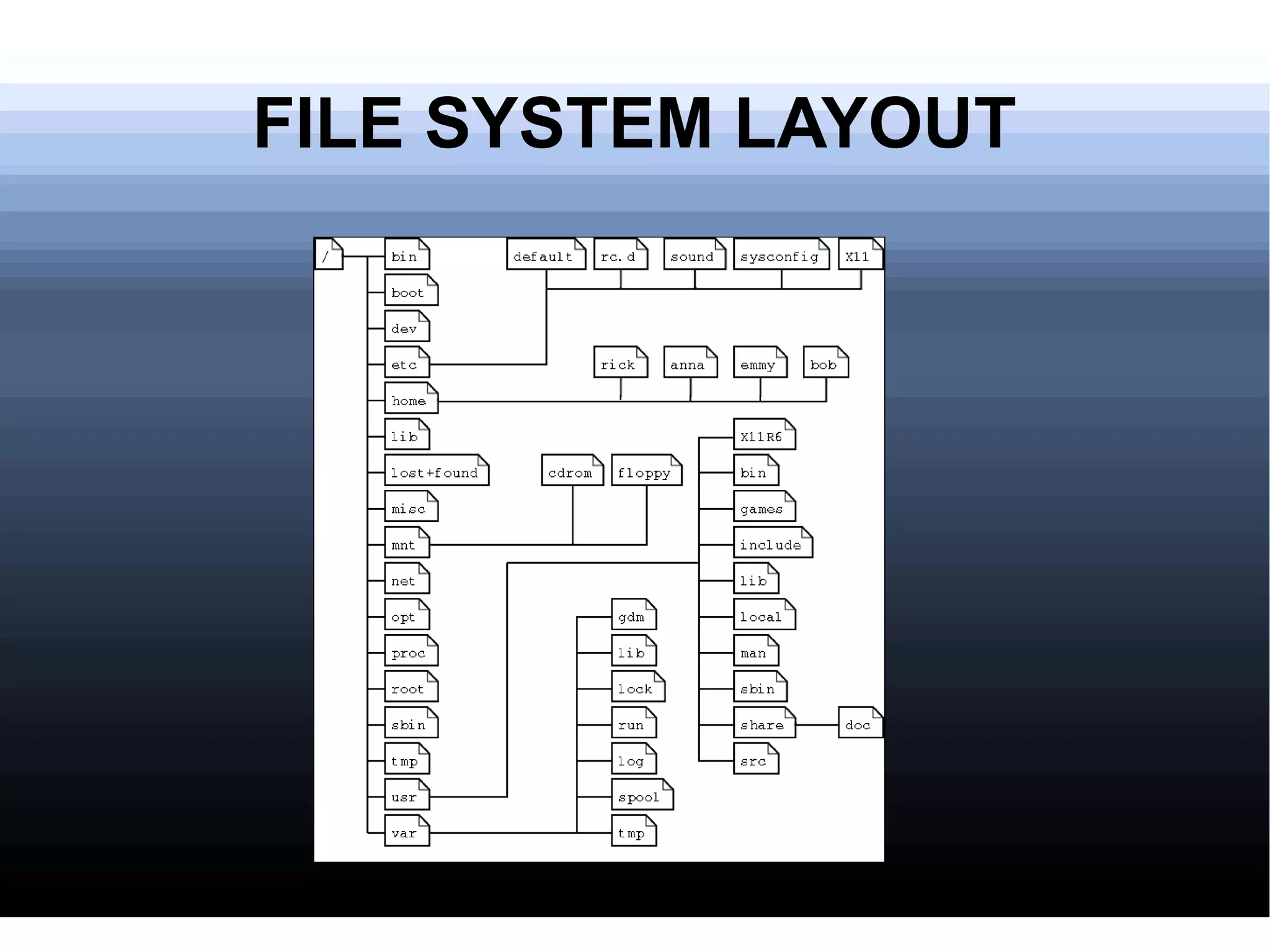
FILE SYSTEM LAYOUT
THE KERNEL The kernel is the heart of the system. It manages the communication between the underlying hardware and theperipherals. The kernel also makes sure that processes and daemons (server processes) are started and stoppedat the exact right times. The kernel has a lot of other important tasks, so many that there is a specialkernel-development mailing list on this subject only, where huge amounts of information are shared. It wouldlead us too far to discuss the kernel in detail. For now it suffices to know that the kernel is the most important file on the system.
WHAT IS SHELL? A shell manages the interaction between the system and its users. The shell, on the other hand, is an advanced way of communicating with the system, because it allows for two-way conversation and taking initiative
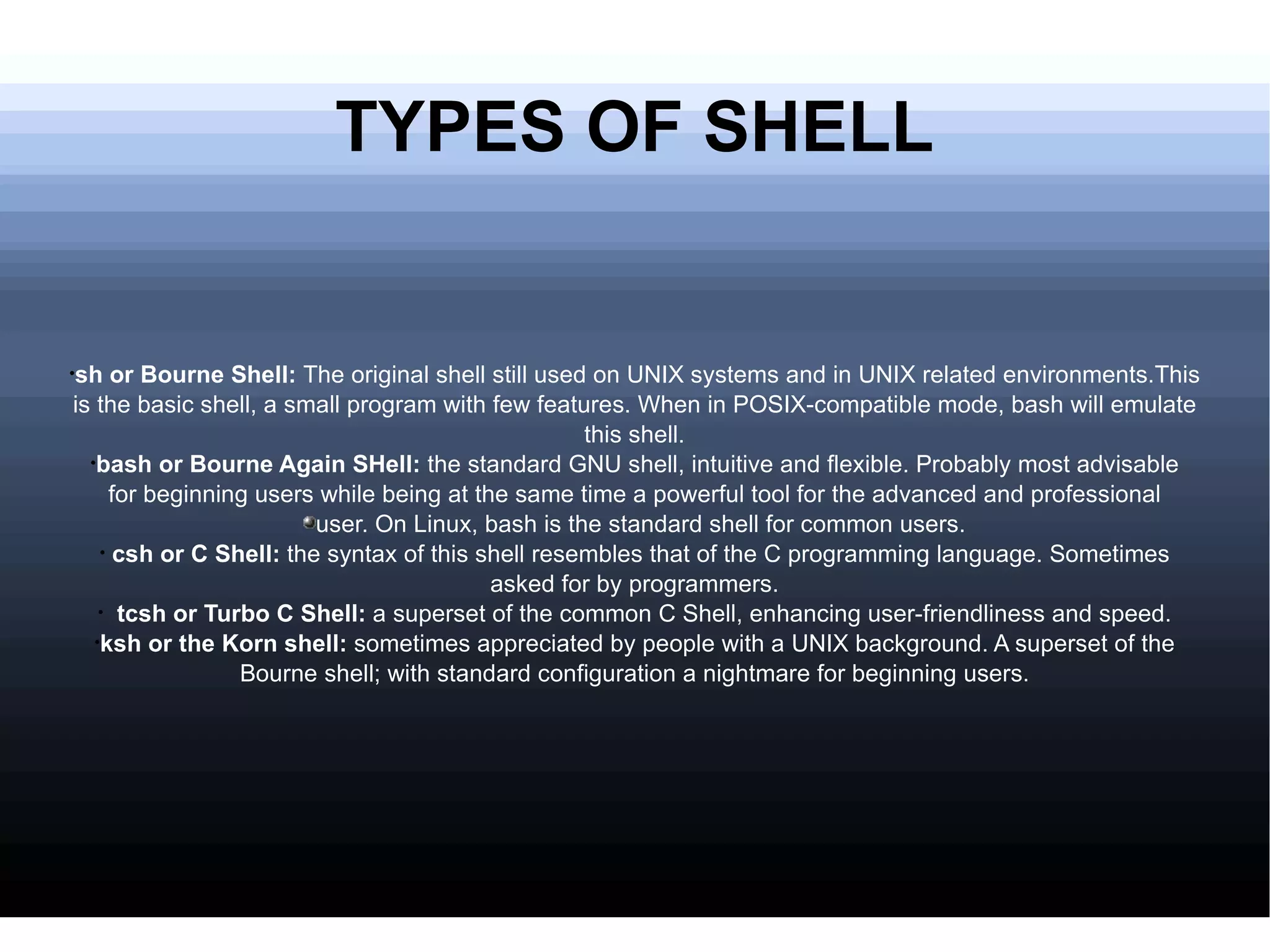
TYPES OF SHELL sh or Bourne Shell:  The original shell still used on UNIX systems and in UNIX related environments.This is the basic shell, a small program with few features. When in POSIX-compatible mode, bash will emulate this shell. bash or Bourne Again SHell:  the standard GNU shell, intuitive and flexible. Probably most advisable for beginning users while being at the same time a powerful tool for the advanced and professional user. On Linux, bash is the standard shell for common users. csh or C Shell:  the syntax of this shell resembles that of the C programming language. Sometimes asked for by programmers. tcsh or Turbo C Shell:  a superset of the common C Shell, enhancing user-friendliness and speed. ksh or the Korn shell:  sometimes appreciated by people with a UNIX background. A superset of the Bourne shell; with standard configuration a nightmare for beginning users.
SECURITY Access rights: Linux's first line of defense The Tools The chmod command The file mask
Access rights:First line defense The Linux security model is based on the one used on UNIX systems, and is as rigid as the UNIX security model (and sometimes even more), which is already quite robust. On a Linux system, every file is owned by a user and a group user. There is also a third category of users, those that are not the user owner and don'tbelong to the group owning the file. For each category of users, read, write and execute permissions can be granted or denied.
The file mask When a new file is saved somewhere, it is first subjected to the standard security procedure. Files without permissions don't exist on Linux. The standard file permission is determined by the mask for new file creation.Instead of adding the symbolic values to each other, as with chmod, for calculating the permission on a new file they need to be subtracted from the total possible access rights.
The chmod command A normal consequence of applying strict file permissions, and sometimes a nuisance, is that access rights will need to be changed for all kinds of reasons. When you type id on the command line, you get a list of all the groups that you can possibly belong to,preceded by your user name and ID and the group name and ID that you are currently connected with.However, on many Linux systems you can only be actively logged in to one group at the time. By default, this active or primary group is the one that you get assigned from the /etc/passwd file. The fourth field of this file holds users' primary group ID, which is looked up in the /etc/group file. In order to allow more flexibility, most Linux systems follow the so-called user private group scheme, that assigns each user primarily to his or her own group. This group is a group that only contains this particular user, hence the name "private group".
Ls command DESCRIPTION: It is used to list all the files and directories of a directory. SYNTAX: ls  EXAMPLE: ls dir_name
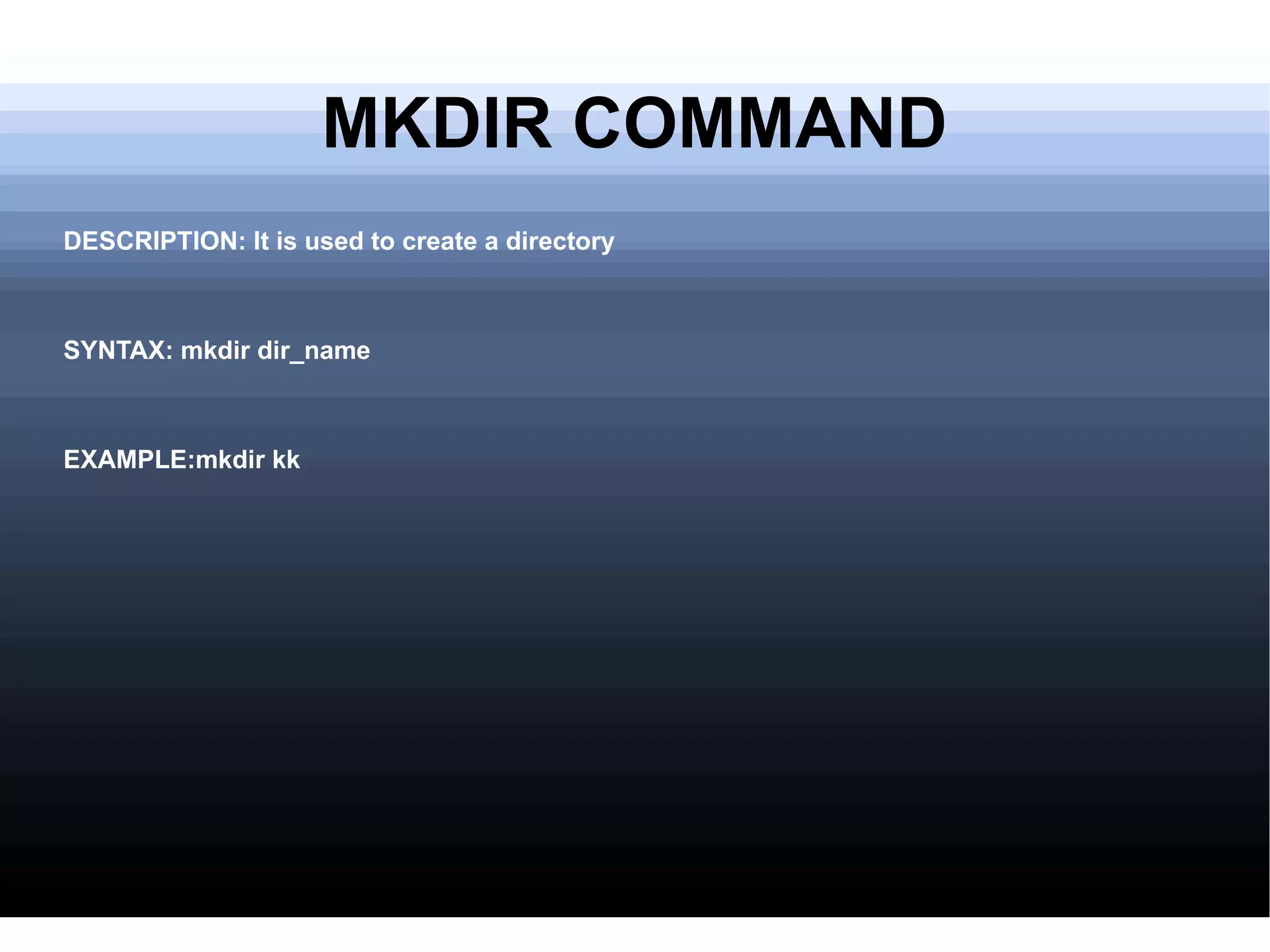
MKDIR COMMAND DESCRIPTION: It is used to create a directory SYNTAX: mkdir dir_name EXAMPLE:mkdir kk
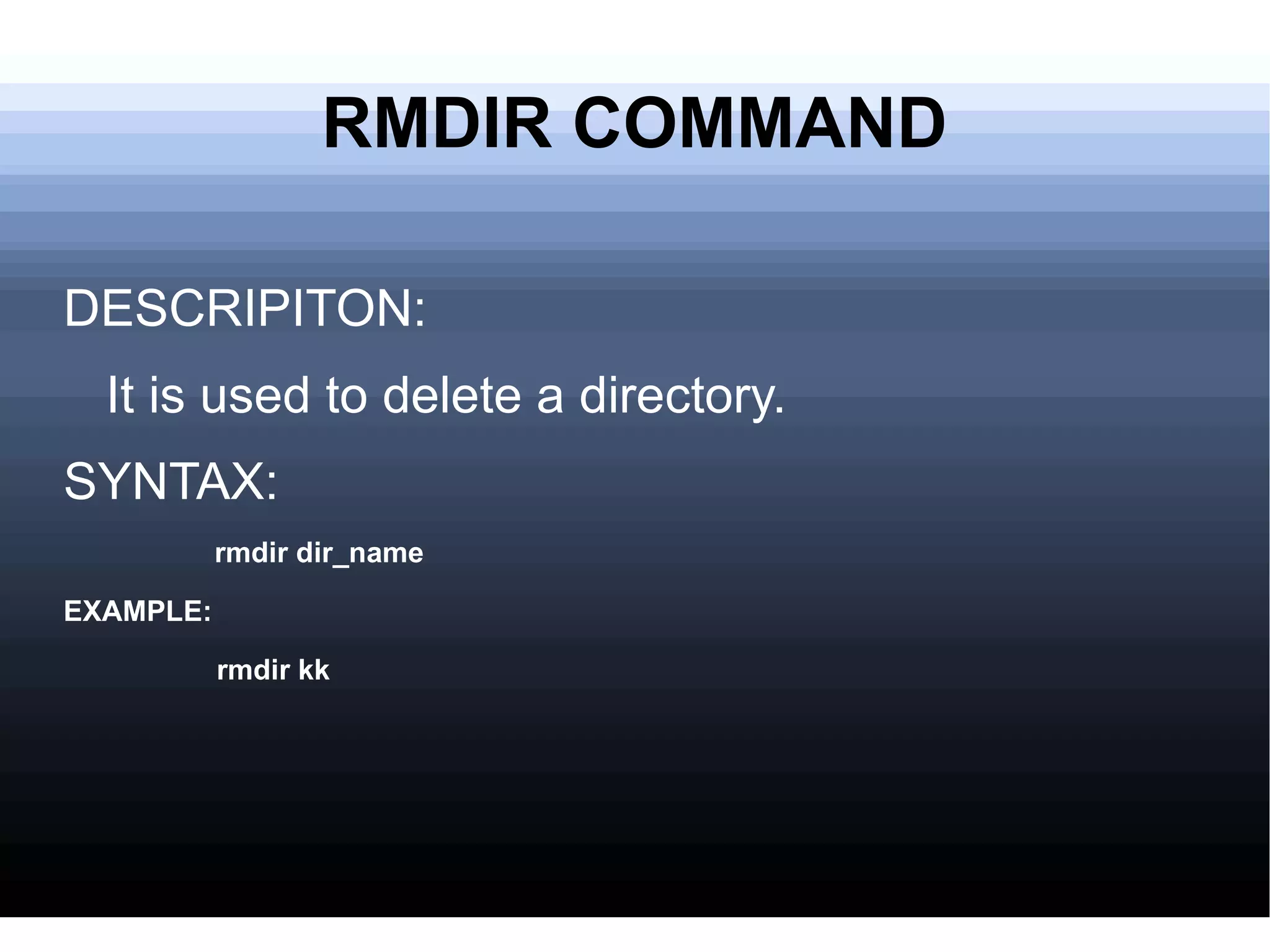
RMDIR COMMAND DESCRIPITON: It is used to delete a directory. SYNTAX: rmdir dir_name EXAMPLE:  rmdir kk
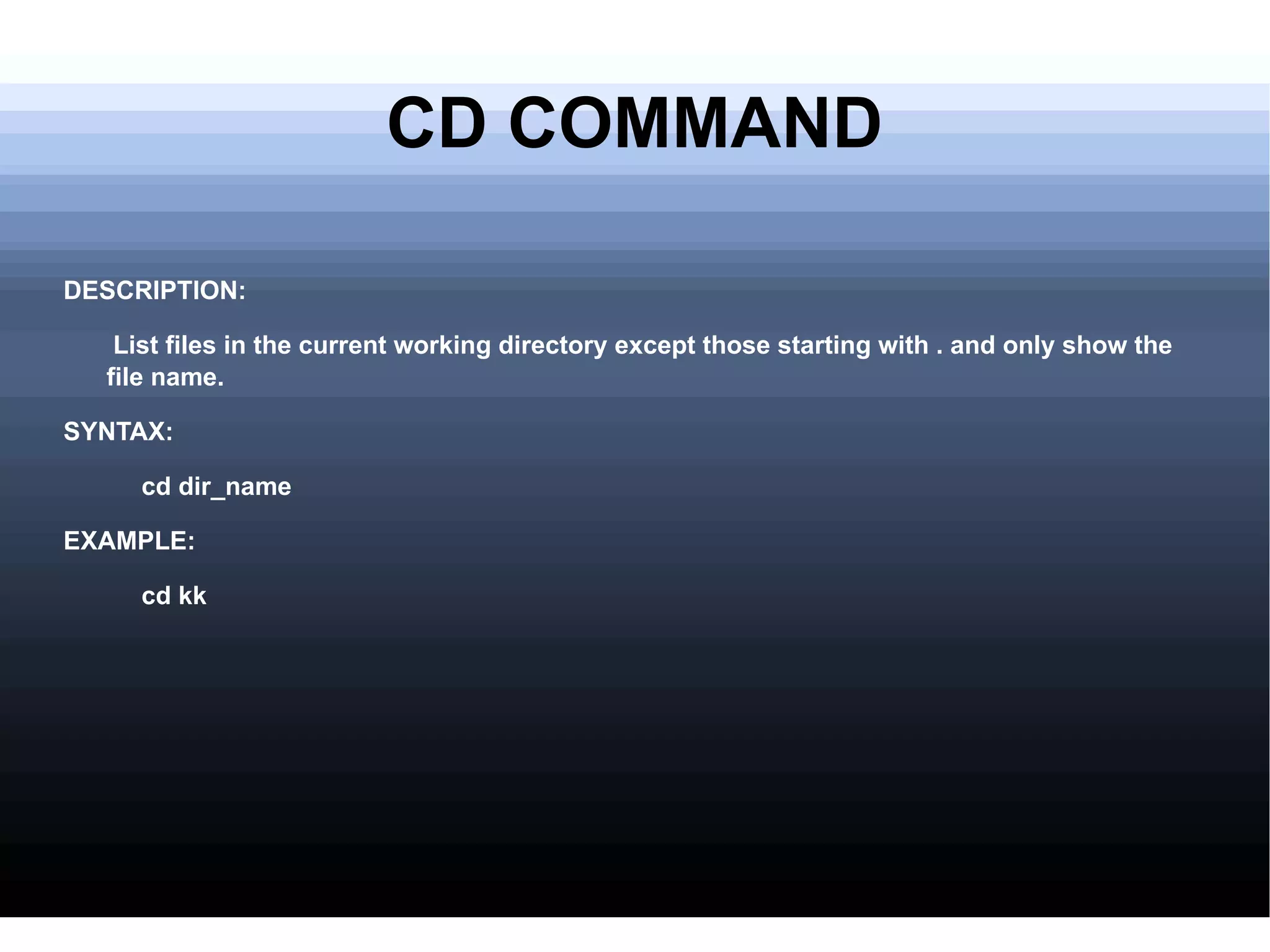
CD COMMAND DESCRIPTION: List files in the current working directory except those starting with . and only show the file name. SYNTAX: cd dir_name EXAMPLE: cd kk
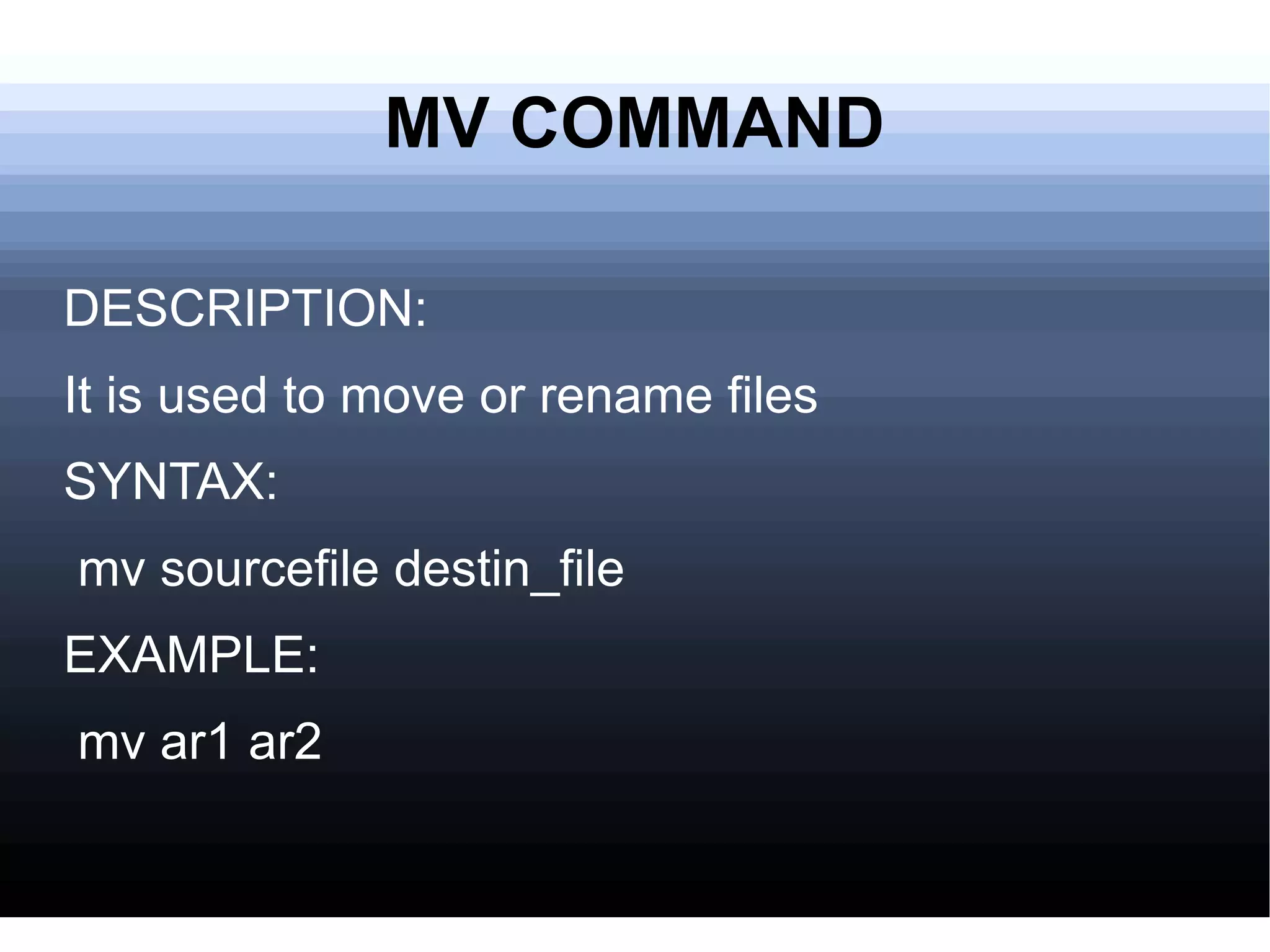
MV COMMAND DESCRIPTION: It is used to move or rename files SYNTAX: mv sourcefile destin_file EXAMPLE:  mv ar1 ar2
PWD COMMAND DESCRIPTION: Shows the name of the current working directory. SYNTAX: pwd EXAMPLE: pwd
CAT COMMAND DESCRIPTION:The cat command is used to join multiple files together and print the result on screen. SYNTAX: CAT
CLEAR COMMAND DESCRIPITION: It is used to clear up the command prompt window. SYNTAX: clear
DATE COMMAND DESCRIPITION: It is used to set the date and time for the system.This command is helpful but must be used when superuser or logged in as root.  SYNTAX: date MMDDhhmm EXAMPLE: date 10080900
DF COMMAND DESCRIPITION: It provides a very quick check of your file system disk space. SYNTAX: df
FINGER COMMAND DESCRIPITION: It allows you to see who else is on the system or get detailed information about a person who has access to the system.  SYNTAX: finger user_name EXAMPLE: finger kk
FINGER COMMAND DESCRIPITION: It is not only used to log out from one's machine but also to logout a particular user session from the system. SYNTAX: logout
PS COMMAND DESCRIPTION: It will show all the tasks you are currently running on the system, it's the equivalent of Windows Task Manager . SYNTAX: ps
KILL COMMAND DESCRIPITON: The 'kill' command is complementary to the 'ps' command as it will allow you to terminate a process revealed with the previous command. In cases where a process is not responding, you would use the following syntax to effectively kill it: 'kill -9 pid' where 'pid' is the Process ID (PID) that 'ps' displays for each task. SYNTAX: kill  -l [ signal ]
GREP COMMAND DESCRIPITON: Grep searches the named input FILEs (or standard input if no files are named, or the file name - is given) for lines containing a match to the given PATTERN. SYNTAX: grep [options] PATTERN [FILE...] EXAMPLE: -a, --text Process a binary file as if it were text; this is equivalent to the --binary-files=text option. -B NUM, --before-context=NUM Print NUM lines of leading context before matching lines. Places a line containing -- between contiguous groups of matches. -C NUM, --context=NUM Print NUM lines of output context. Places a line containing -- between contiguous groups of matches.
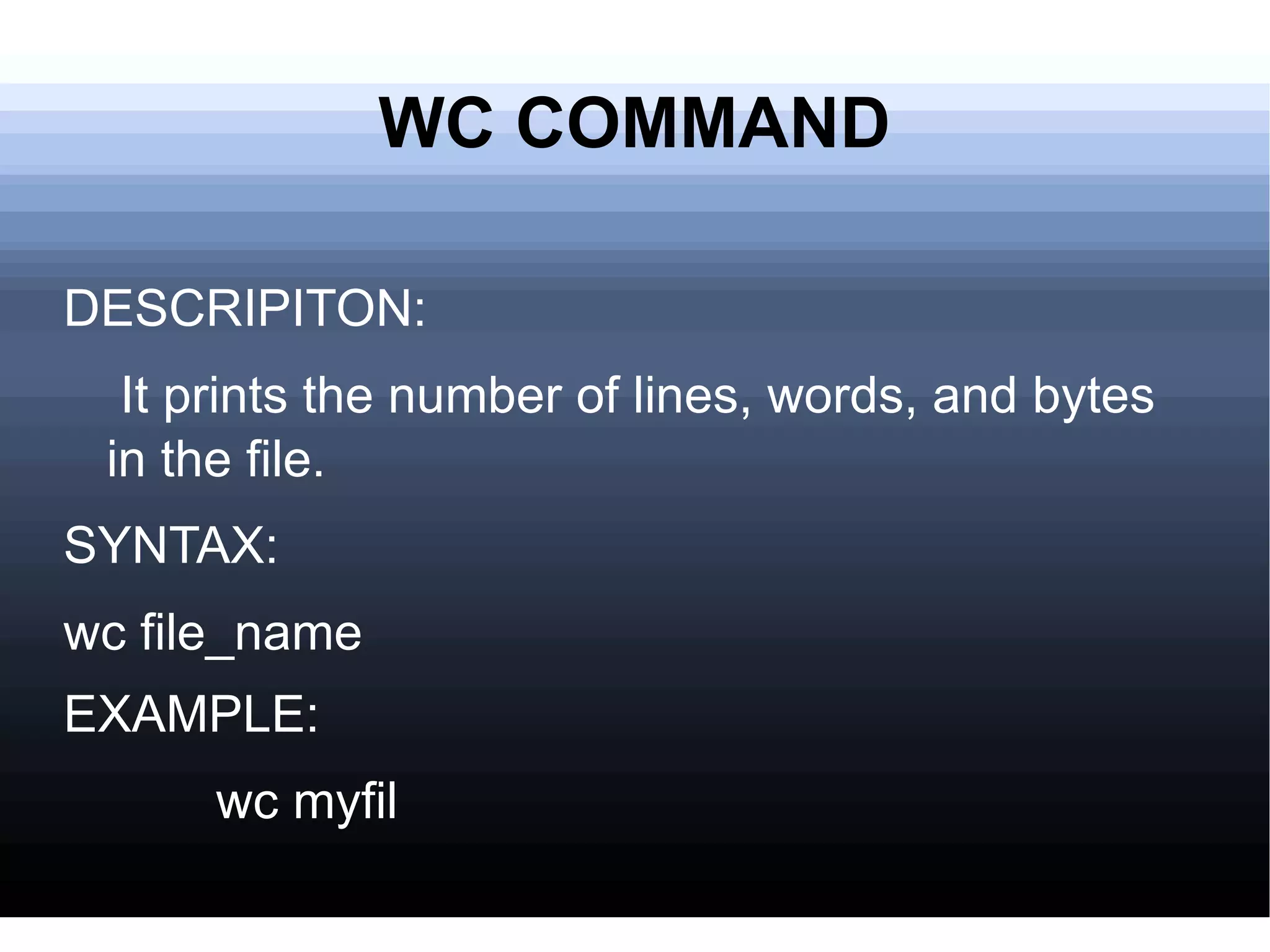
WC COMMAND DESCRIPITON: It prints the number of lines, words, and bytes in the file.  SYNTAX: wc file_name EXAMPLE:   wc myfil
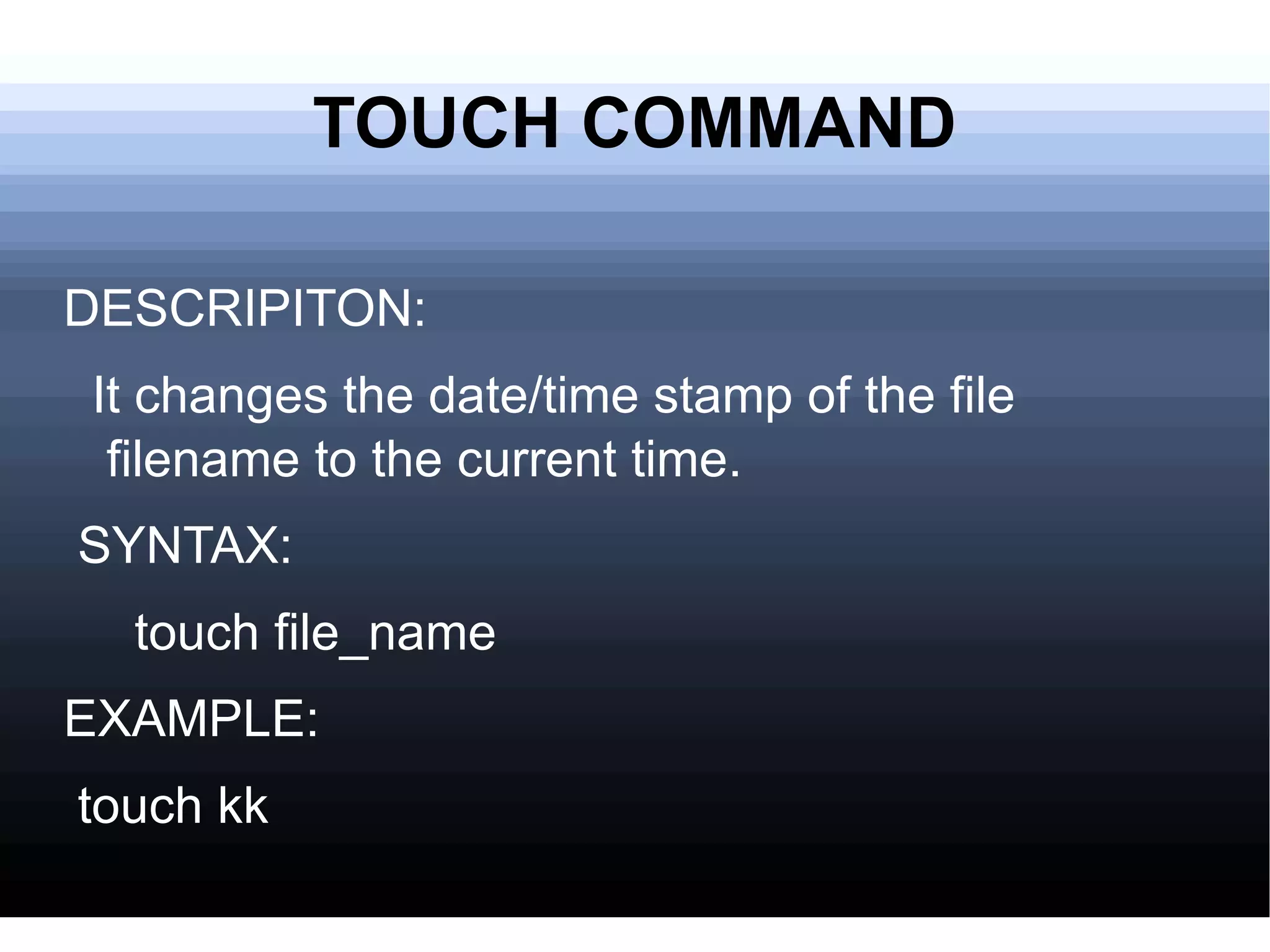
TOUCH COMMAND DESCRIPITON: It changes the date/time stamp of the file filename to the current time. SYNTAX: touch file_name EXAMPLE: touch kk
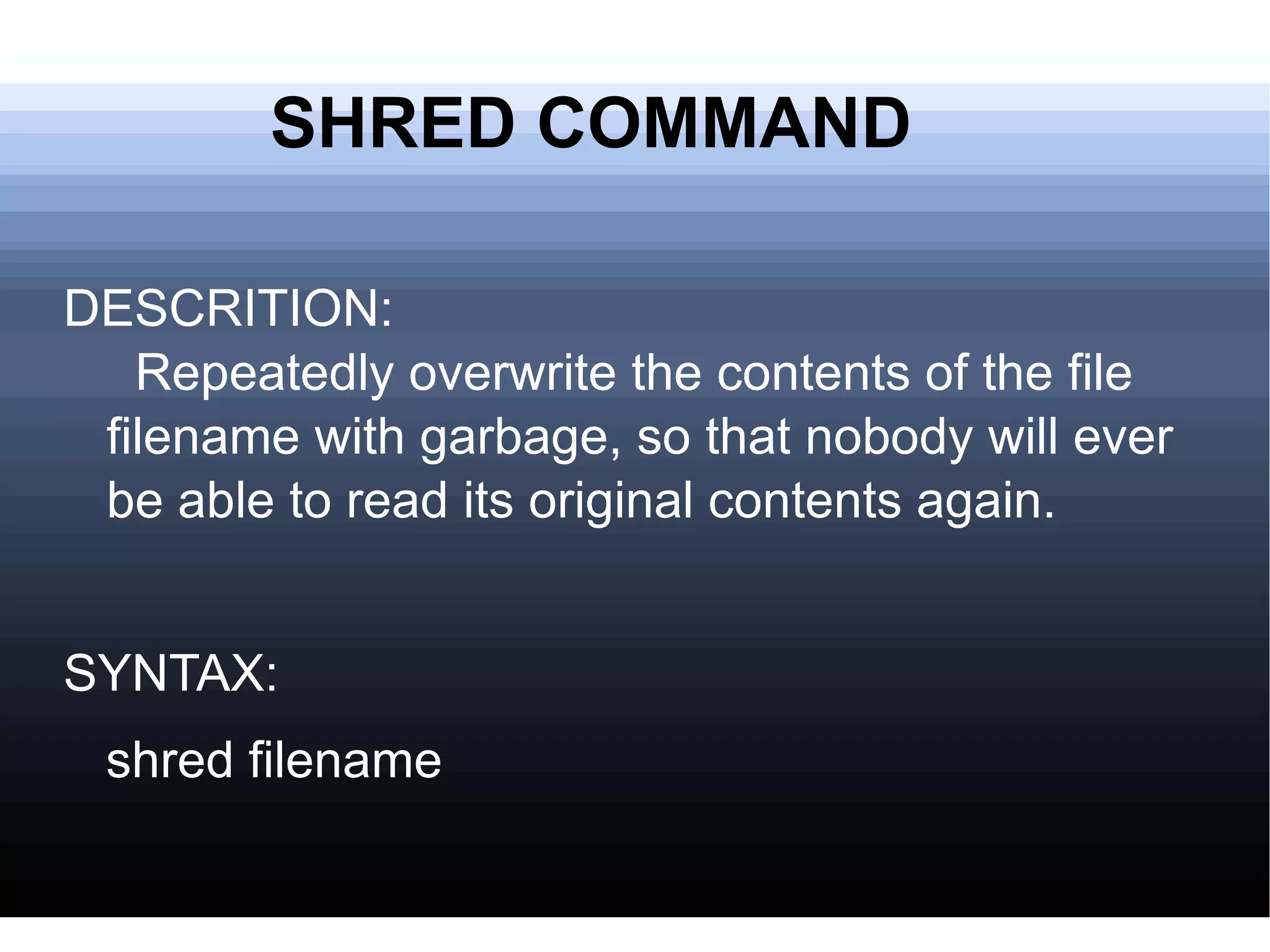
SHRED COMMAND DESCRITION:   Repeatedly overwrite the contents of the file filename with garbage, so that nobody will ever be able to read its original contents again.  SYNTAX: shred filename
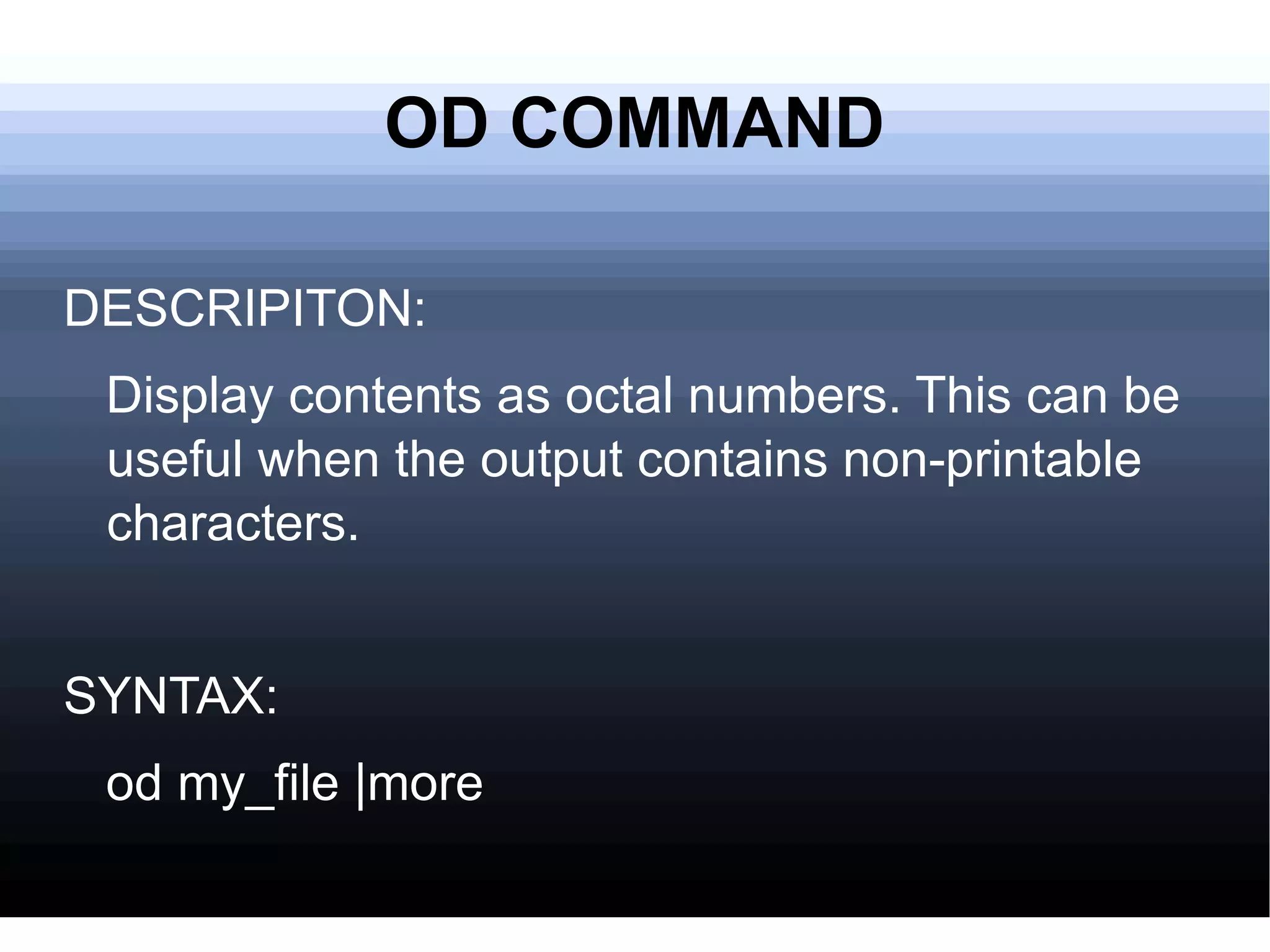
OD COMMAND DESCRIPITON: Display contents as octal numbers. This can be useful when the output contains non-printable characters. SYNTAX: od my_file |more
PSTREE COMMAND DESCRIPITON: It lists the processes in a tree format. This can be VERY useful when working with WebSphere or other heavy duty applications. SYNTAX: pstree
MAN COMMAND DESCRIPTION: It formats and displays the on-line manual pages. EXAMPLE: -C config_file Specify the configuration file to use; the default is /etc/man.config. (See man.conf(5).)  -M path Specify the list of directories to search for man pages. Separate the directories with colons. An empty list is the same as not specifying -M at all. See SEARCH PATH FOR MANUAL PAGES.
BC COMMAND DESCRIPTION: It is an arbitrary precision calculator language. EXAMPLE:bc

LINUX

  • 1.
    WHAT IS LINUX???Linux is an operating system. It is the software on a computer that enables applications and the computer operator to access the devices on the computer to perform desired functions. The operating system (OS) relays instructions from an application to, for instance, the computer's processor. The processor performs the instructed task, then sends the results back to the application via the operating system.
  • 2.
    PROPERTIES Linux isfree. Linux is portable to any hardware platform. Linux is secure and versatile. Linux is scalable. The Linux OS and most Linux applications have very short debug-times.
  • 3.
    FILE SYSTEM "On a UNIX system, everything is a file; if something is not a file, it is a process." This statement is true because there are special files that are more than just files (named pipes and sockets, for instance), but to keep things simple, saying that everything is a file is an acceptable generalization. A Linux system, just like UNIX, makes no difference between a file and a directory, since a directory is just a file containing names of other files. Programs, services, texts, images, and so forth, are all files. Input and output devices, and generally all devices, are considered to be files, according to the system.
  • 4.
  • 5.
    THE KERNEL Thekernel is the heart of the system. It manages the communication between the underlying hardware and theperipherals. The kernel also makes sure that processes and daemons (server processes) are started and stoppedat the exact right times. The kernel has a lot of other important tasks, so many that there is a specialkernel-development mailing list on this subject only, where huge amounts of information are shared. It wouldlead us too far to discuss the kernel in detail. For now it suffices to know that the kernel is the most important file on the system.
  • 6.
    WHAT IS SHELL?A shell manages the interaction between the system and its users. The shell, on the other hand, is an advanced way of communicating with the system, because it allows for two-way conversation and taking initiative
  • 7.
    TYPES OF SHELLsh or Bourne Shell: The original shell still used on UNIX systems and in UNIX related environments.This is the basic shell, a small program with few features. When in POSIX-compatible mode, bash will emulate this shell. bash or Bourne Again SHell: the standard GNU shell, intuitive and flexible. Probably most advisable for beginning users while being at the same time a powerful tool for the advanced and professional user. On Linux, bash is the standard shell for common users. csh or C Shell: the syntax of this shell resembles that of the C programming language. Sometimes asked for by programmers. tcsh or Turbo C Shell: a superset of the common C Shell, enhancing user-friendliness and speed. ksh or the Korn shell: sometimes appreciated by people with a UNIX background. A superset of the Bourne shell; with standard configuration a nightmare for beginning users.
  • 8.
    SECURITY Access rights:Linux's first line of defense The Tools The chmod command The file mask
  • 9.
    Access rights:First linedefense The Linux security model is based on the one used on UNIX systems, and is as rigid as the UNIX security model (and sometimes even more), which is already quite robust. On a Linux system, every file is owned by a user and a group user. There is also a third category of users, those that are not the user owner and don'tbelong to the group owning the file. For each category of users, read, write and execute permissions can be granted or denied.
  • 10.
    The file maskWhen a new file is saved somewhere, it is first subjected to the standard security procedure. Files without permissions don't exist on Linux. The standard file permission is determined by the mask for new file creation.Instead of adding the symbolic values to each other, as with chmod, for calculating the permission on a new file they need to be subtracted from the total possible access rights.
  • 11.
    The chmod commandA normal consequence of applying strict file permissions, and sometimes a nuisance, is that access rights will need to be changed for all kinds of reasons. When you type id on the command line, you get a list of all the groups that you can possibly belong to,preceded by your user name and ID and the group name and ID that you are currently connected with.However, on many Linux systems you can only be actively logged in to one group at the time. By default, this active or primary group is the one that you get assigned from the /etc/passwd file. The fourth field of this file holds users' primary group ID, which is looked up in the /etc/group file. In order to allow more flexibility, most Linux systems follow the so-called user private group scheme, that assigns each user primarily to his or her own group. This group is a group that only contains this particular user, hence the name "private group".
  • 12.
    Ls command DESCRIPTION:It is used to list all the files and directories of a directory. SYNTAX: ls EXAMPLE: ls dir_name
  • 13.
    MKDIR COMMAND DESCRIPTION:It is used to create a directory SYNTAX: mkdir dir_name EXAMPLE:mkdir kk
  • 14.
    RMDIR COMMAND DESCRIPITON:It is used to delete a directory. SYNTAX: rmdir dir_name EXAMPLE: rmdir kk
  • 15.
    CD COMMAND DESCRIPTION:List files in the current working directory except those starting with . and only show the file name. SYNTAX: cd dir_name EXAMPLE: cd kk
  • 16.
    MV COMMAND DESCRIPTION:It is used to move or rename files SYNTAX: mv sourcefile destin_file EXAMPLE: mv ar1 ar2
  • 17.
    PWD COMMAND DESCRIPTION:Shows the name of the current working directory. SYNTAX: pwd EXAMPLE: pwd
  • 18.
    CAT COMMAND DESCRIPTION:Thecat command is used to join multiple files together and print the result on screen. SYNTAX: CAT
  • 19.
    CLEAR COMMAND DESCRIPITION:It is used to clear up the command prompt window. SYNTAX: clear
  • 20.
    DATE COMMAND DESCRIPITION:It is used to set the date and time for the system.This command is helpful but must be used when superuser or logged in as root. SYNTAX: date MMDDhhmm EXAMPLE: date 10080900
  • 21.
    DF COMMAND DESCRIPITION:It provides a very quick check of your file system disk space. SYNTAX: df
  • 22.
    FINGER COMMAND DESCRIPITION:It allows you to see who else is on the system or get detailed information about a person who has access to the system. SYNTAX: finger user_name EXAMPLE: finger kk
  • 23.
    FINGER COMMAND DESCRIPITION:It is not only used to log out from one's machine but also to logout a particular user session from the system. SYNTAX: logout
  • 24.
    PS COMMAND DESCRIPTION:It will show all the tasks you are currently running on the system, it's the equivalent of Windows Task Manager . SYNTAX: ps
  • 25.
    KILL COMMAND DESCRIPITON:The 'kill' command is complementary to the 'ps' command as it will allow you to terminate a process revealed with the previous command. In cases where a process is not responding, you would use the following syntax to effectively kill it: 'kill -9 pid' where 'pid' is the Process ID (PID) that 'ps' displays for each task. SYNTAX: kill -l [ signal ]
  • 26.
    GREP COMMAND DESCRIPITON:Grep searches the named input FILEs (or standard input if no files are named, or the file name - is given) for lines containing a match to the given PATTERN. SYNTAX: grep [options] PATTERN [FILE...] EXAMPLE: -a, --text Process a binary file as if it were text; this is equivalent to the --binary-files=text option. -B NUM, --before-context=NUM Print NUM lines of leading context before matching lines. Places a line containing -- between contiguous groups of matches. -C NUM, --context=NUM Print NUM lines of output context. Places a line containing -- between contiguous groups of matches.
  • 27.
    WC COMMAND DESCRIPITON:It prints the number of lines, words, and bytes in the file. SYNTAX: wc file_name EXAMPLE: wc myfil
  • 28.
    TOUCH COMMAND DESCRIPITON:It changes the date/time stamp of the file filename to the current time. SYNTAX: touch file_name EXAMPLE: touch kk
  • 29.
    SHRED COMMAND DESCRITION: Repeatedly overwrite the contents of the file filename with garbage, so that nobody will ever be able to read its original contents again. SYNTAX: shred filename
  • 30.
    OD COMMAND DESCRIPITON:Display contents as octal numbers. This can be useful when the output contains non-printable characters. SYNTAX: od my_file |more
  • 31.
    PSTREE COMMAND DESCRIPITON:It lists the processes in a tree format. This can be VERY useful when working with WebSphere or other heavy duty applications. SYNTAX: pstree
  • 32.
    MAN COMMAND DESCRIPTION:It formats and displays the on-line manual pages. EXAMPLE: -C config_file Specify the configuration file to use; the default is /etc/man.config. (See man.conf(5).) -M path Specify the list of directories to search for man pages. Separate the directories with colons. An empty list is the same as not specifying -M at all. See SEARCH PATH FOR MANUAL PAGES.
  • 33.
    BC COMMAND DESCRIPTION:It is an arbitrary precision calculator language. EXAMPLE:bc