Animations
Animations
Android platform provides 2 kind of animations:
● View Animation: the old system that allows you to apply
animations on View.
● Property Animation: the new system introduced by Android
3.0 HoneyComb that applies animation to the properties of any
object.
The use of property animation is recommended because they are
more flexible and have more features.
The Android framework provides besides the above systems, the
ability to create Drawable Animation: the animation is achieved by
successive display of drawable resources.
Animation Frameworks
Animations
The animation is applied to the entire view including the
background. N.B. The limits of View will remain unchanged
Possible transformations are:
● Positions: translate
● Dimensions: scale
● Rotations: rotate
● Opacity: alpha
The sequence of these transformations can be declared as a
resource in the /res/anim file as xml or in code.
Animations can be sequential and/or concurrent.
The attributes to be included or are common to all the animations
or specific type of animation.
View Animation - Description
Animations
Common attributes:
● interpolator
● duration
● startOffset
● fillAfter
Scale Animation:
● fromXScale
● fromYScale
● toXScale
● toYScale
● pivotX
● pivotY
View Animation - Typology
Rotate Animation:
● fromDegrees
● toDegrees
Translate Animation:
● fromXScale
● fromYScale
● toXScale
● toYScale
Alpha Animation
● fromAlpha
● toAlpha
Animations
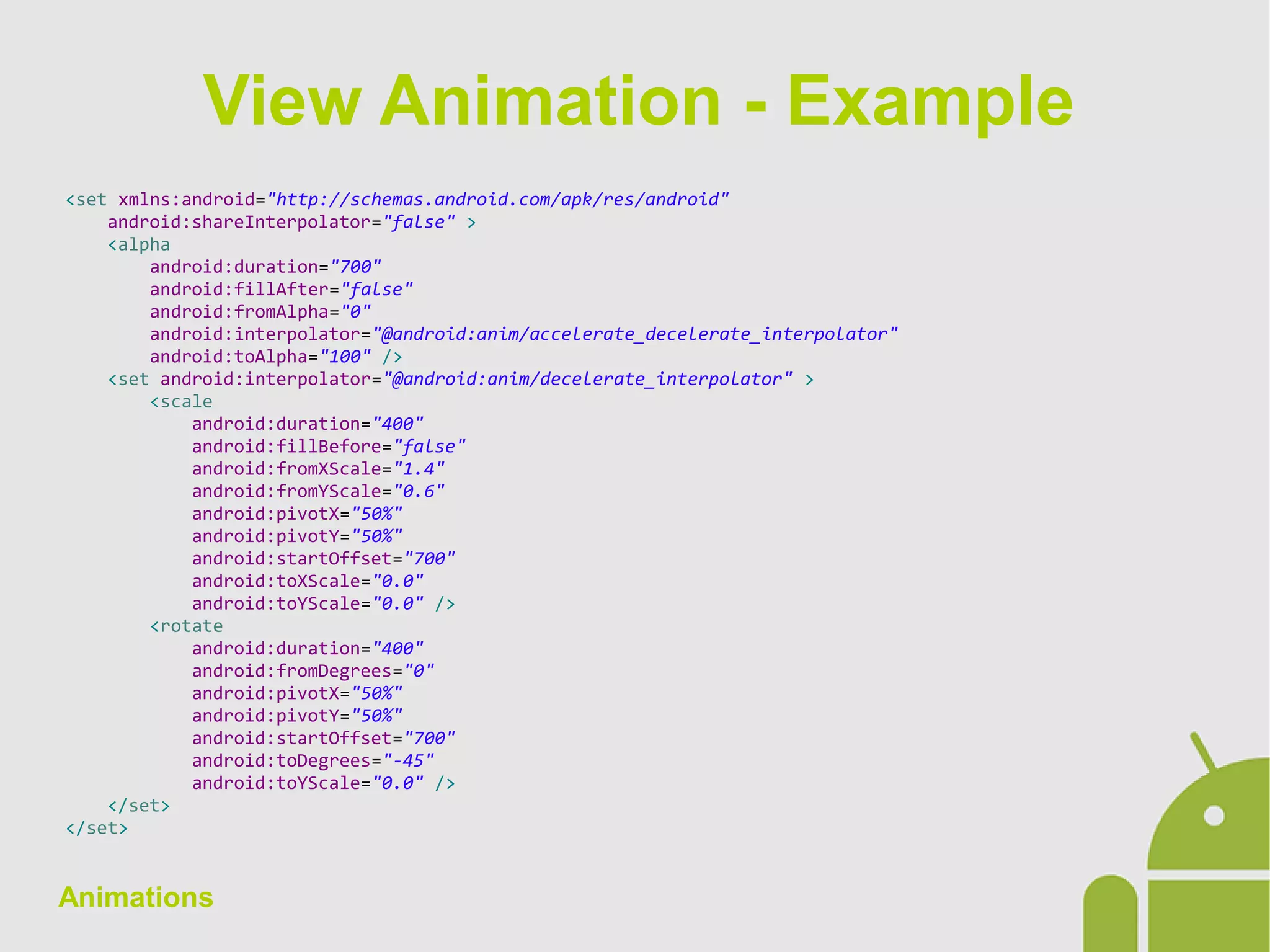
<set xmlns:android="http://schemas.android.com/apk/res/android"
android:shareInterpolator="false" >
<alpha
android:duration="700"
android:fillAfter="false"
android:fromAlpha="0"
android:interpolator="@android:anim/accelerate_decelerate_interpolator"
android:toAlpha="100" />
<set android:interpolator="@android:anim/decelerate_interpolator" >
<scale
android:duration="400"
android:fillBefore="false"
android:fromXScale="1.4"
android:fromYScale="0.6"
android:pivotX="50%"
android:pivotY="50%"
android:startOffset="700"
android:toXScale="0.0"
android:toYScale="0.0" />
<rotate
android:duration="400"
android:fromDegrees="0"
android:pivotX="50%"
android:pivotY="50%"
android:startOffset="700"
android:toDegrees="-45"
android:toYScale="0.0" />
</set>
</set>
View Animation - Example
Animations
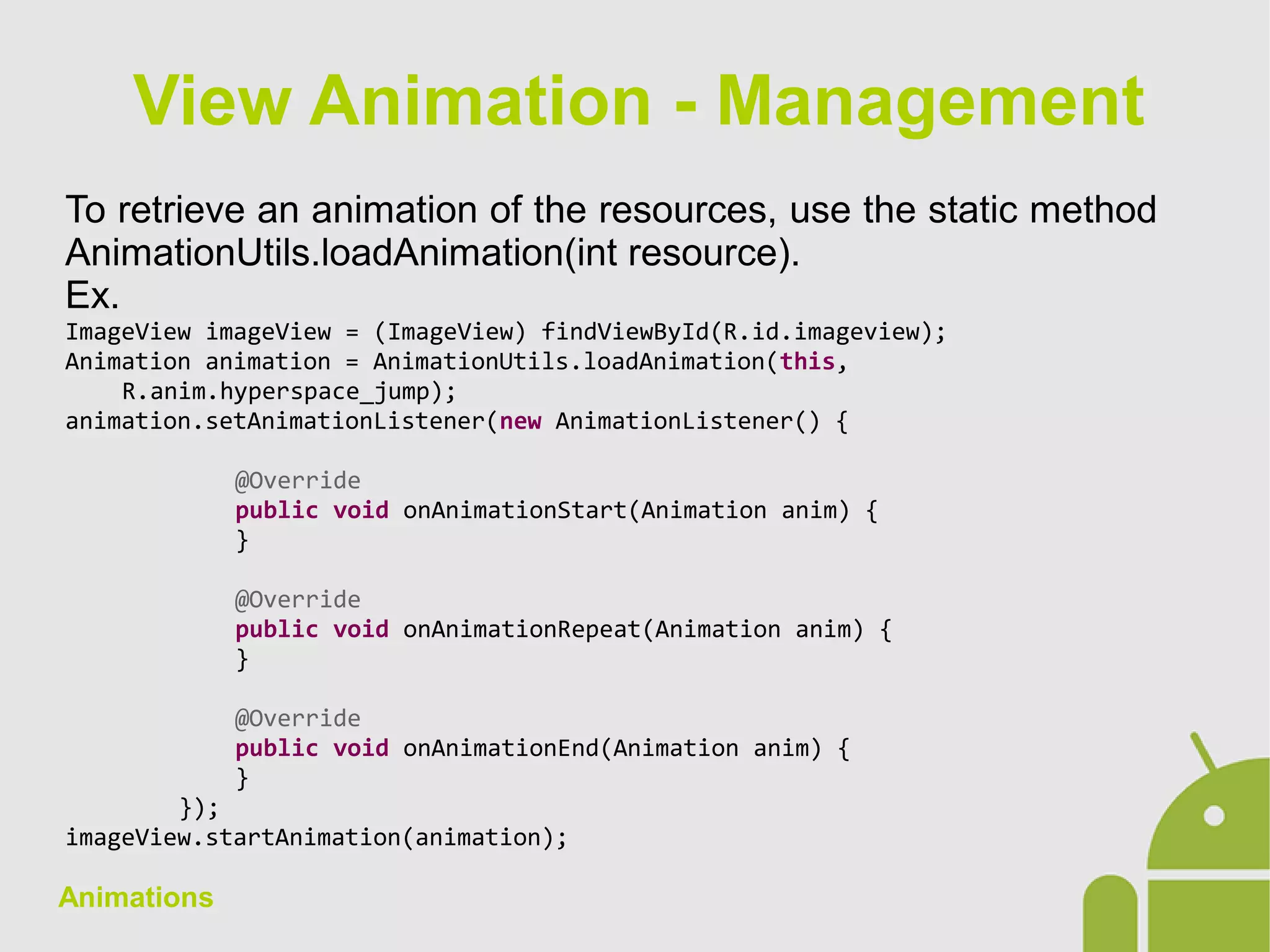
To retrieve an animation of the resources, use the static method
AnimationUtils.loadAnimation(int resource).
Ex.
ImageView imageView = (ImageView) findViewById(R.id.imageview);
Animation animation = AnimationUtils.loadAnimation(this,
R.anim.hyperspace_jump);
animation.setAnimationListener(new AnimationListener() {
@Override
public void onAnimationStart(Animation anim) {
}
@Override
public void onAnimationRepeat(Animation anim) {
}
@Override
public void onAnimationEnd(Animation anim) {
}
});
imageView.startAnimation(animation);
View Animation - Management
Animations
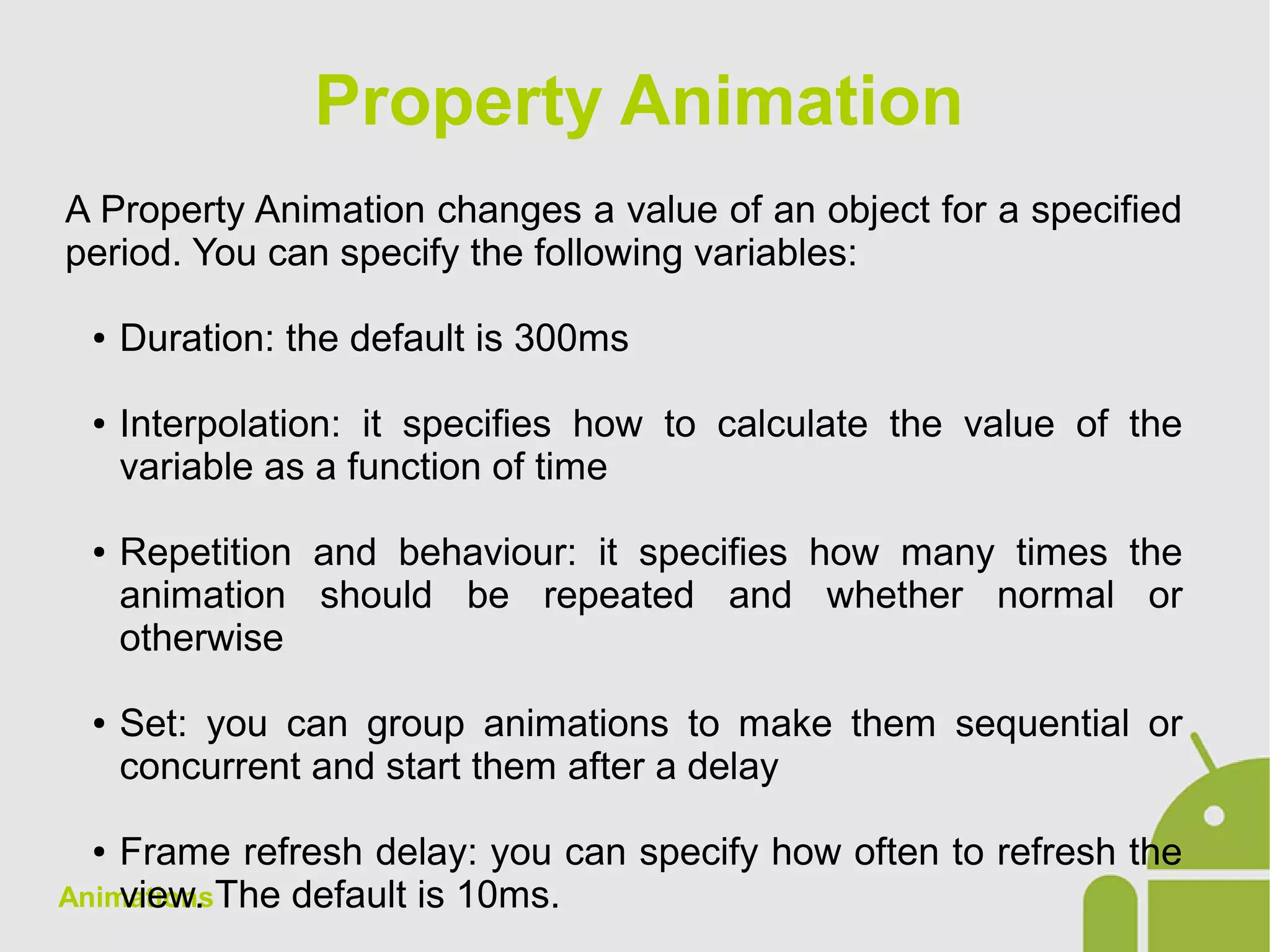
A Property Animation changes a value of an object for a specified
period. You can specify the following variables:
● Duration: the default is 300ms
● Interpolation: it specifies how to calculate the value of the
variable as a function of time
● Repetition and behaviour: it specifies how many times the
animation should be repeated and whether normal or
otherwise
● Set: you can group animations to make them sequential or
concurrent and start them after a delay
● Frame refresh delay: you can specify how often to refresh the
view. The default is 10ms.
Property Animation
Animations
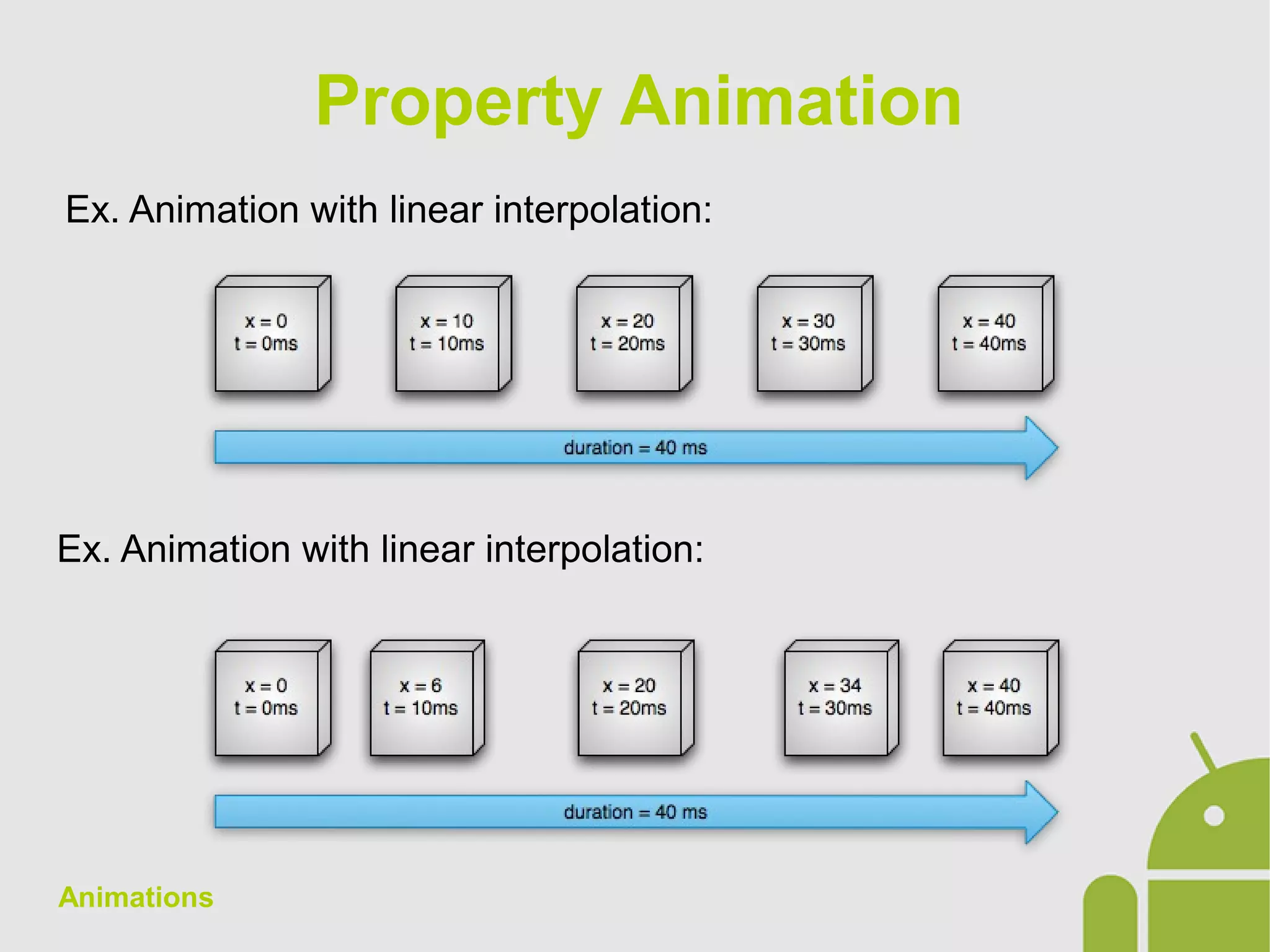
Ex. Animation with linear interpolation:
Property Animation
Ex. Animation with linear interpolation:
Animations
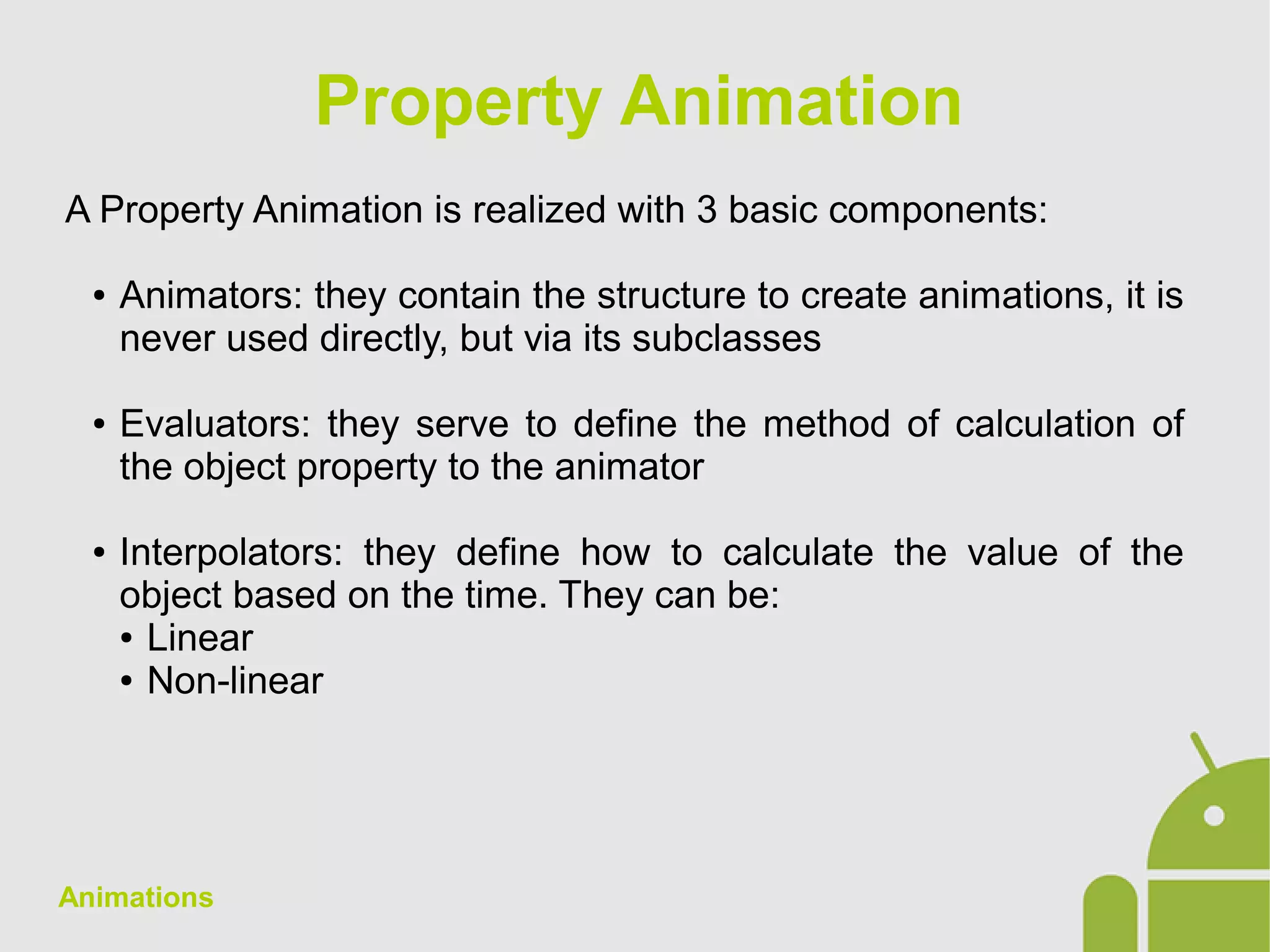
A Property Animation is realized with 3 basic components:
● Animators: they contain the structure to create animations, it is
never used directly, but via its subclasses
● Evaluators: they serve to define the method of calculation of
the object property to the animator
● Interpolators: they define how to calculate the value of the
object based on the time. They can be:
● Linear
● Non-linear
Property Animation
Animations
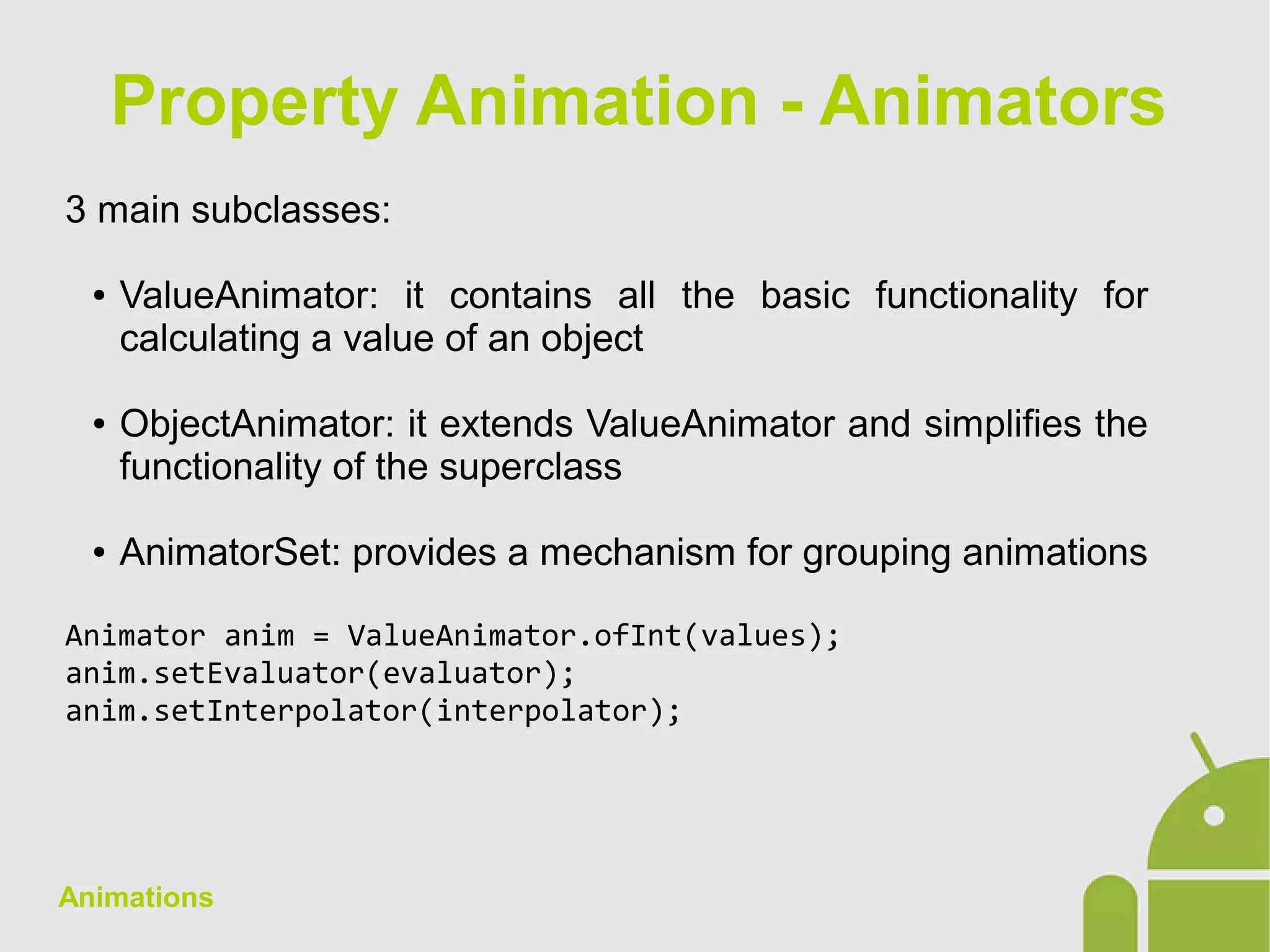
3 main subclasses:
● ValueAnimator: it contains all the basic functionality for
calculating a value of an object
● ObjectAnimator: it extends ValueAnimator and simplifies the
functionality of the superclass
● AnimatorSet: provides a mechanism for grouping animations
Animator anim = ValueAnimator.ofInt(values);
anim.setEvaluator(evaluator);
anim.setInterpolator(interpolator);
Property Animation - Animators
Animations
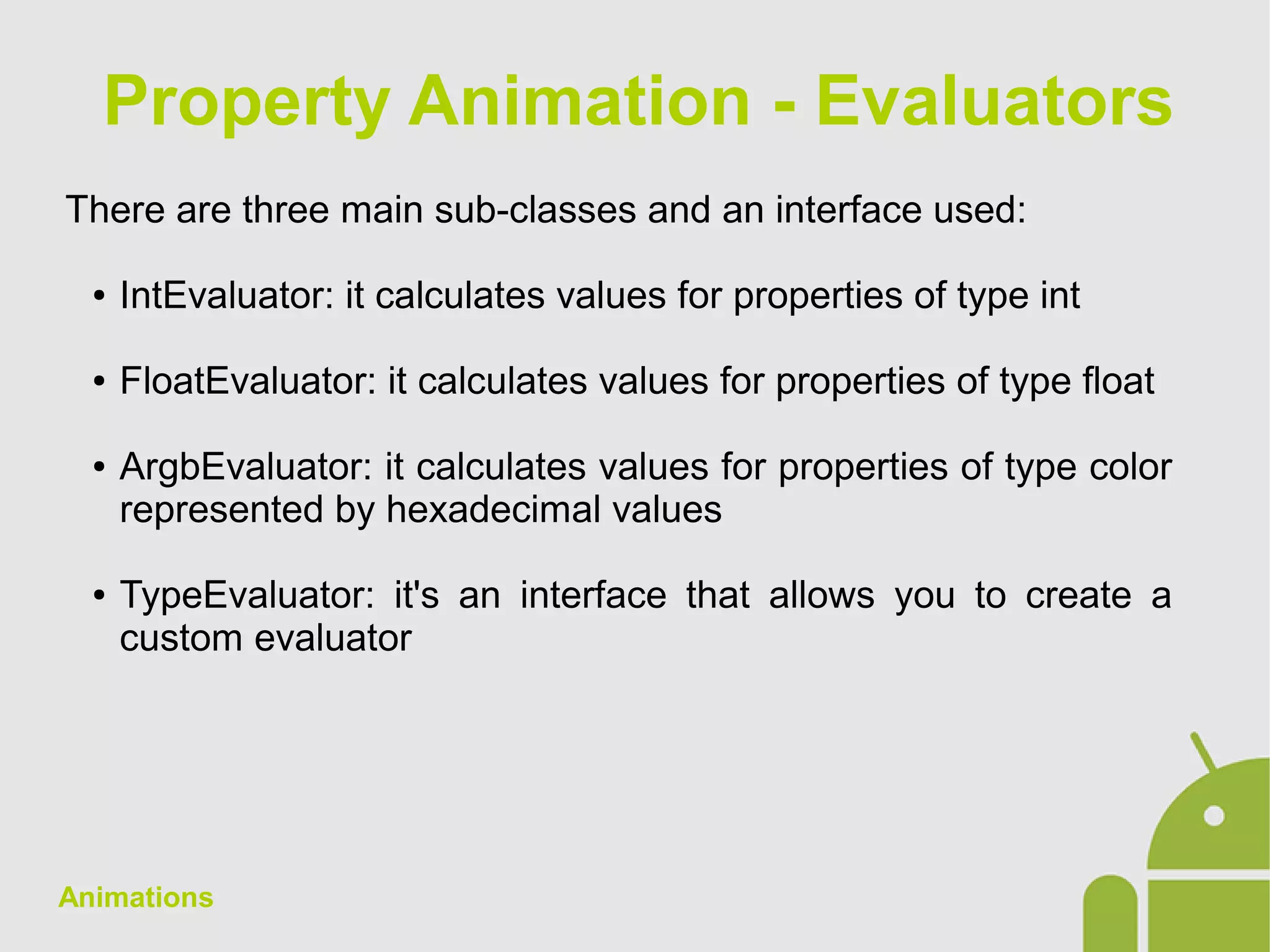
There are three main sub-classes and an interface used:
● IntEvaluator: it calculates values for properties of type int
● FloatEvaluator: it calculates values for properties of type float
● ArgbEvaluator: it calculates values for properties of type color
represented by hexadecimal values
● TypeEvaluator: it's an interface that allows you to create a
custom evaluator
Property Animation - Evaluators
Animations
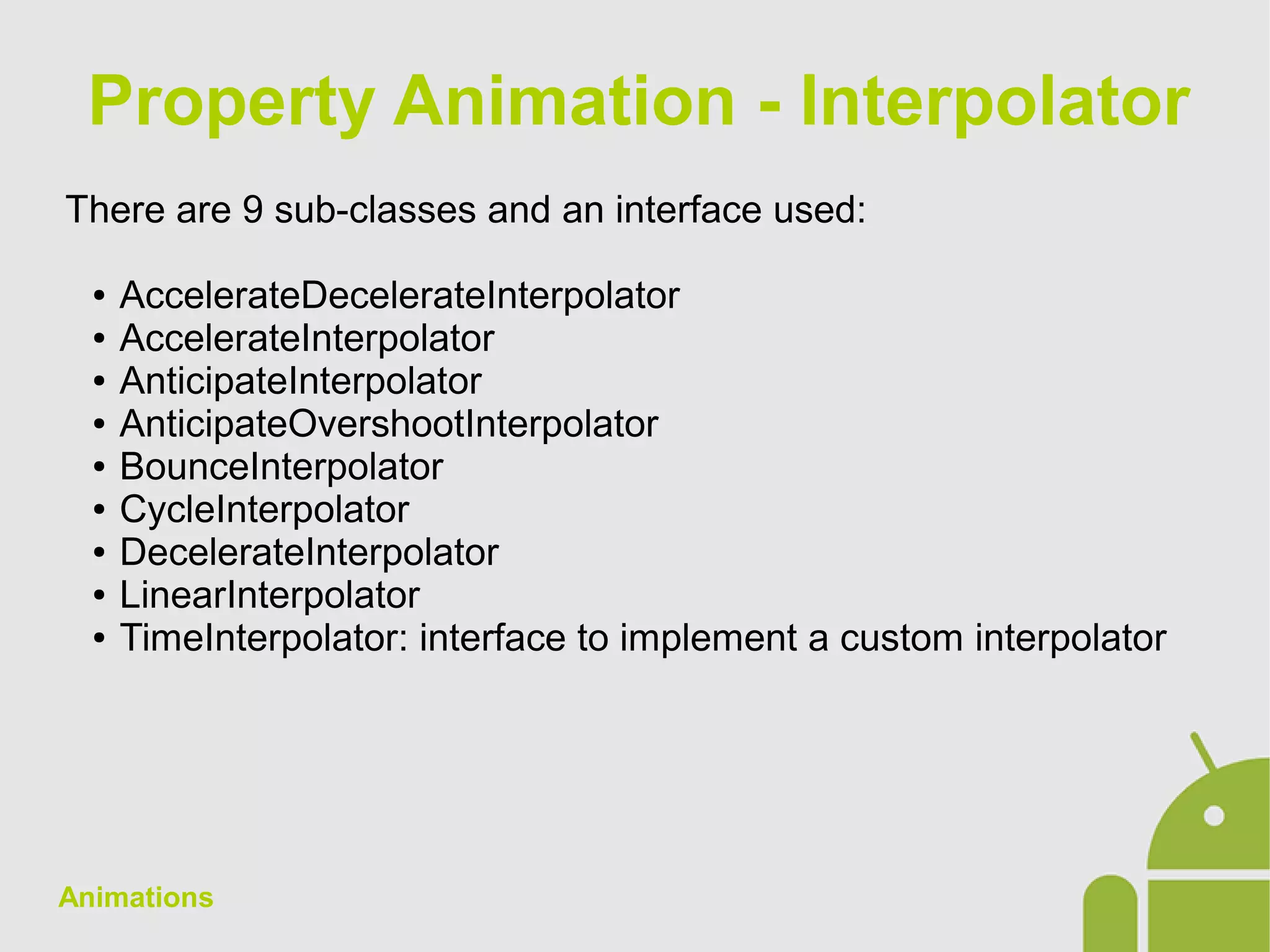
There are 9 sub-classes and an interface used:
● AccelerateDecelerateInterpolator
● AccelerateInterpolator
● AnticipateInterpolator
● AnticipateOvershootInterpolator
● BounceInterpolator
● CycleInterpolator
● DecelerateInterpolator
● LinearInterpolator
● TimeInterpolator: interface to implement a custom interpolator
Property Animation - Interpolator
Animations
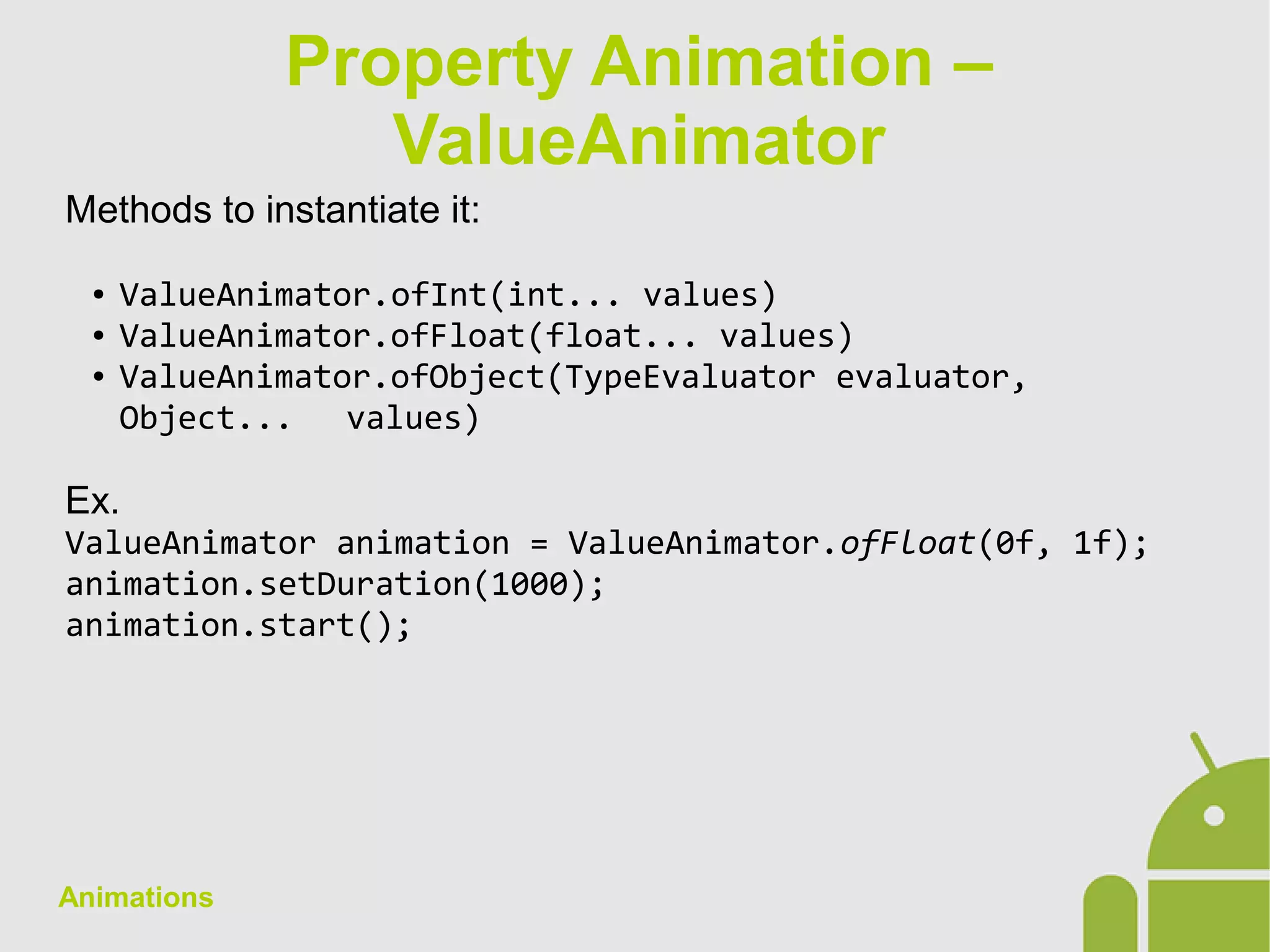
Methods to instantiate it:
● ValueAnimator.ofInt(int... values)
● ValueAnimator.ofFloat(float... values)
● ValueAnimator.ofObject(TypeEvaluator evaluator,
Object... values)
Ex.
ValueAnimator animation = ValueAnimator.ofFloat(0f, 1f);
animation.setDuration(1000);
animation.start();
Property Animation –
ValueAnimator
Animations
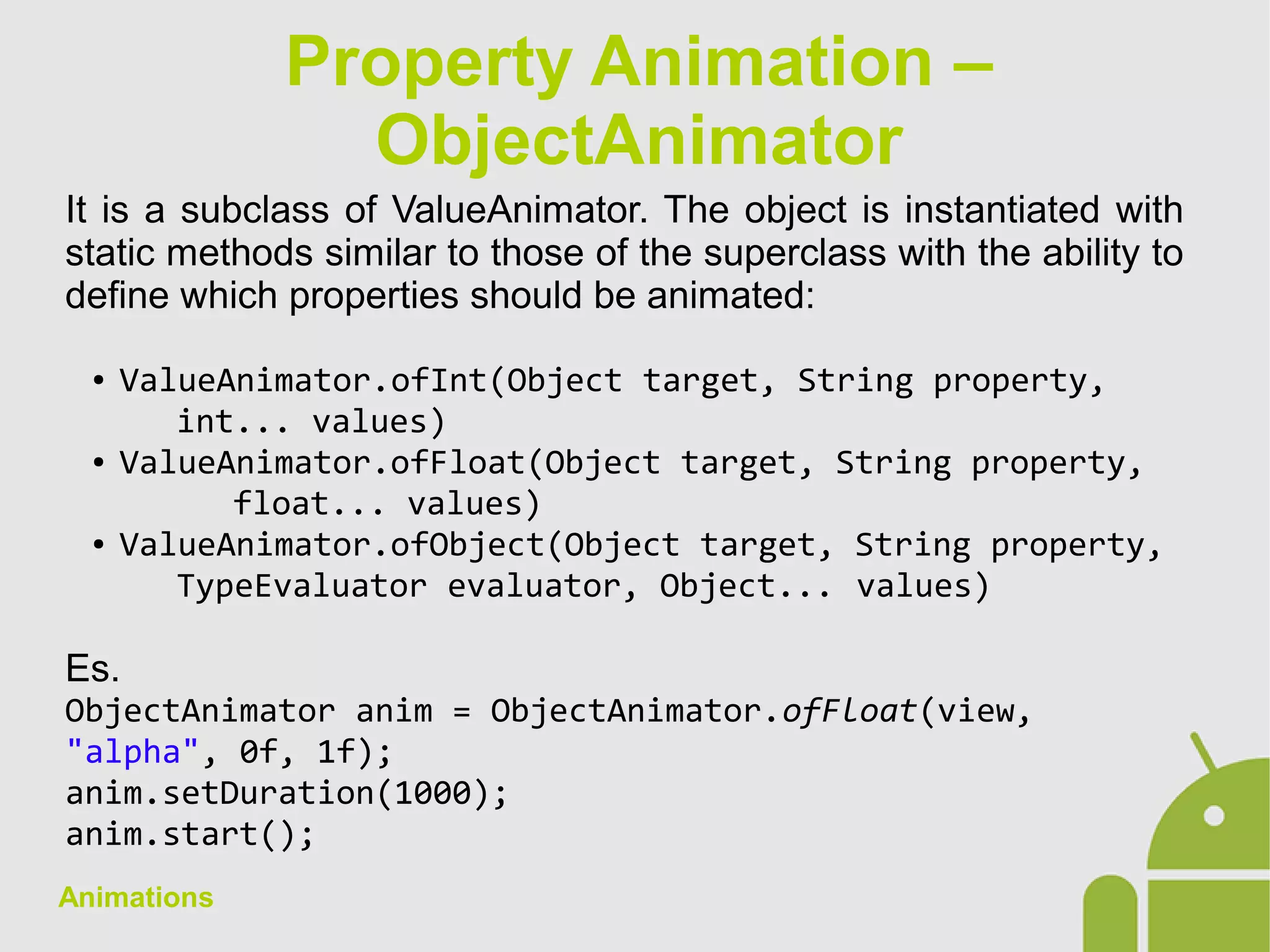
It is a subclass of ValueAnimator. The object is instantiated with
static methods similar to those of the superclass with the ability to
define which properties should be animated:
● ValueAnimator.ofInt(Object target, String property,
int... values)
● ValueAnimator.ofFloat(Object target, String property,
float... values)
● ValueAnimator.ofObject(Object target, String property,
TypeEvaluator evaluator, Object... values)
Es.
ObjectAnimator anim = ObjectAnimator.ofFloat(view,
"alpha", 0f, 1f);
anim.setDuration(1000);
anim.start();
Property Animation –
ObjectAnimator
Animations
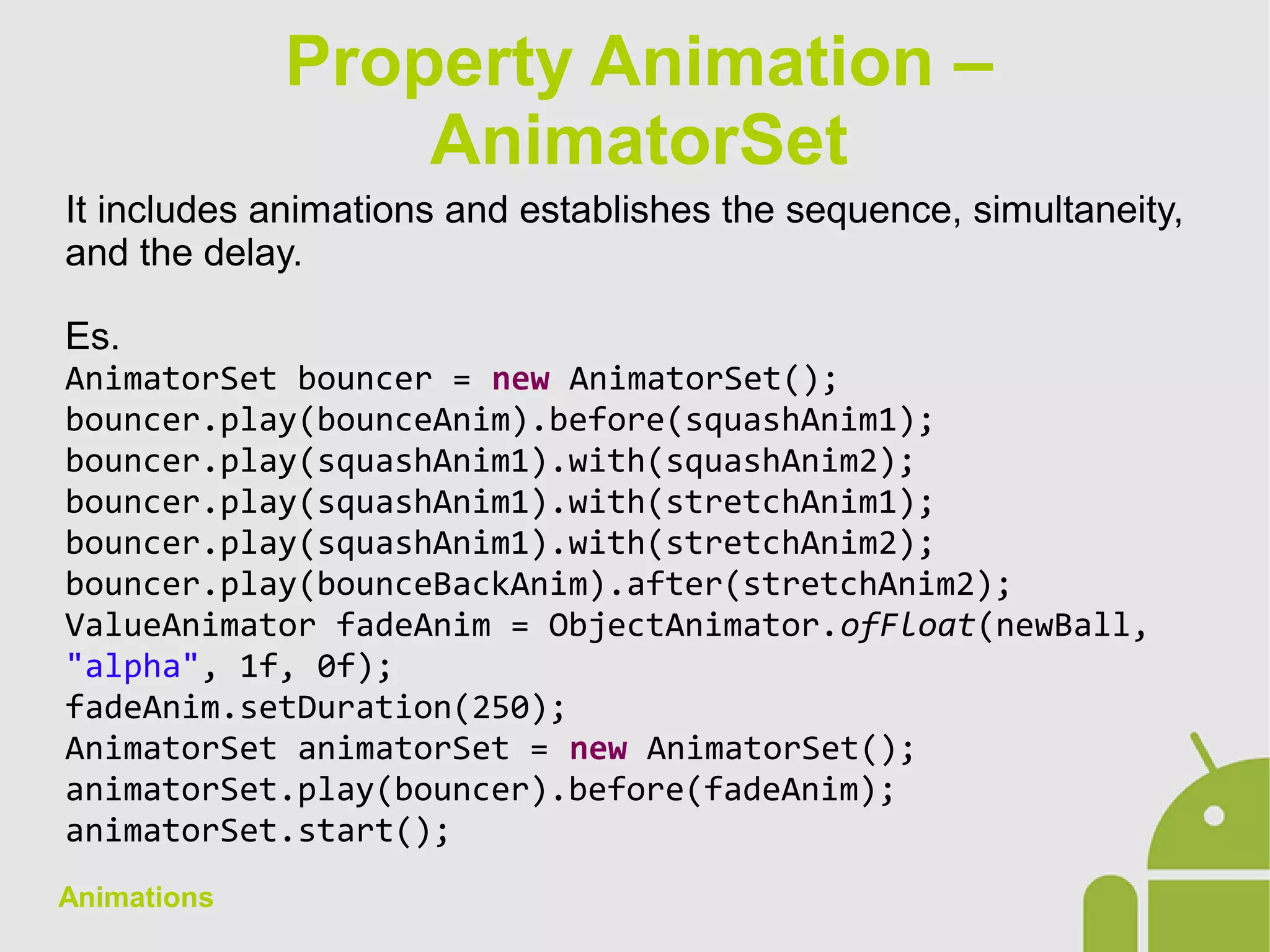
It includes animations and establishes the sequence, simultaneity,
and the delay.
Es.
AnimatorSet bouncer = new AnimatorSet();
bouncer.play(bounceAnim).before(squashAnim1);
bouncer.play(squashAnim1).with(squashAnim2);
bouncer.play(squashAnim1).with(stretchAnim1);
bouncer.play(squashAnim1).with(stretchAnim2);
bouncer.play(bounceBackAnim).after(stretchAnim2);
ValueAnimator fadeAnim = ObjectAnimator.ofFloat(newBall,
"alpha", 1f, 0f);
fadeAnim.setDuration(250);
AnimatorSet animatorSet = new AnimatorSet();
animatorSet.play(bouncer).before(fadeAnim);
animatorSet.start();
Property Animation –
AnimatorSet
Animations
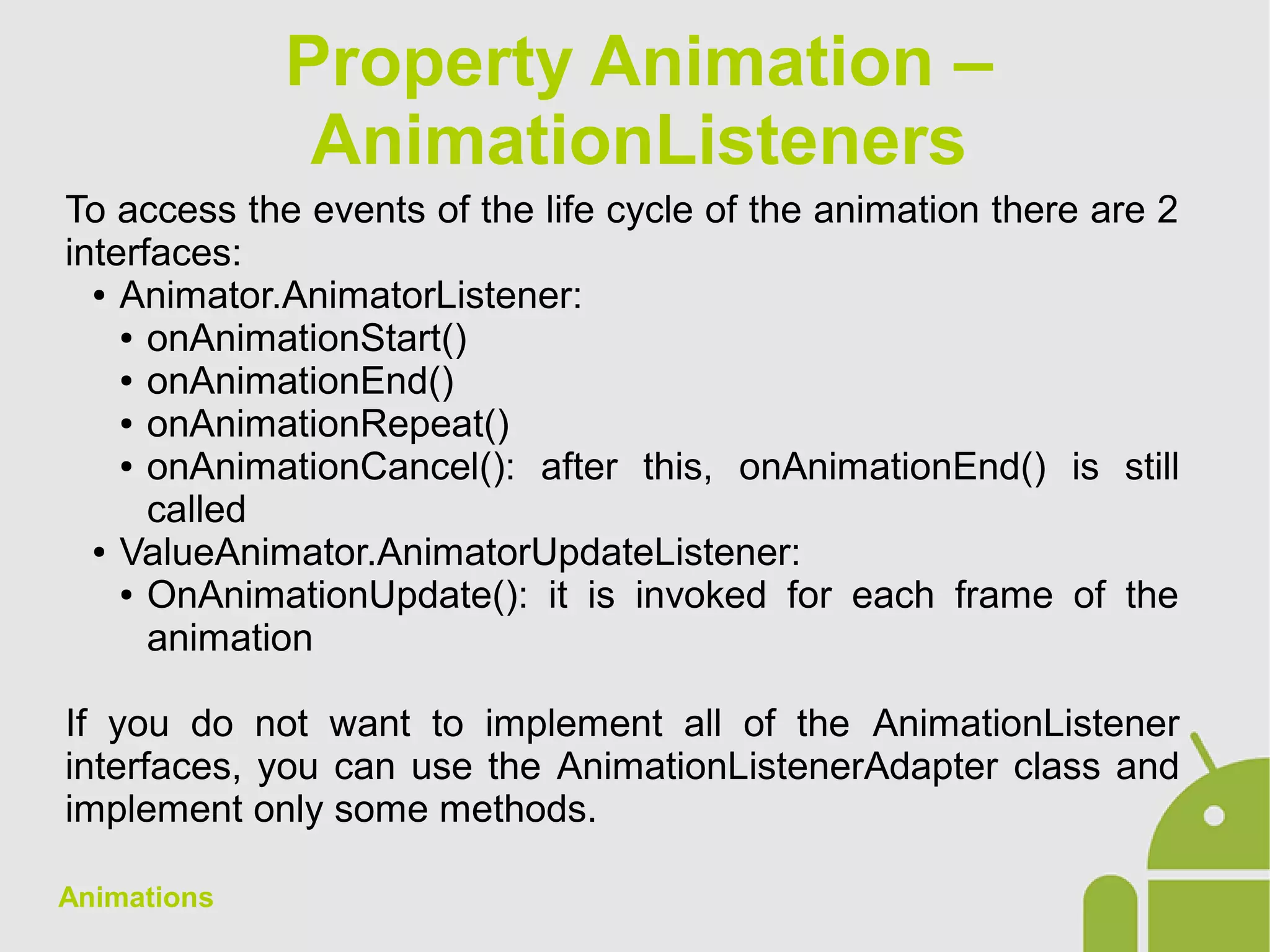
To access the events of the life cycle of the animation there are 2
interfaces:
● Animator.AnimatorListener:
● onAnimationStart()
● onAnimationEnd()
● onAnimationRepeat()
● onAnimationCancel(): after this, onAnimationEnd() is still
called
● ValueAnimator.AnimatorUpdateListener:
● OnAnimationUpdate(): it is invoked for each frame of the
animation
If you do not want to implement all of the AnimationListener
interfaces, you can use the AnimationListenerAdapter class and
implement only some methods.
Property Animation –
AnimationListeners
Animations
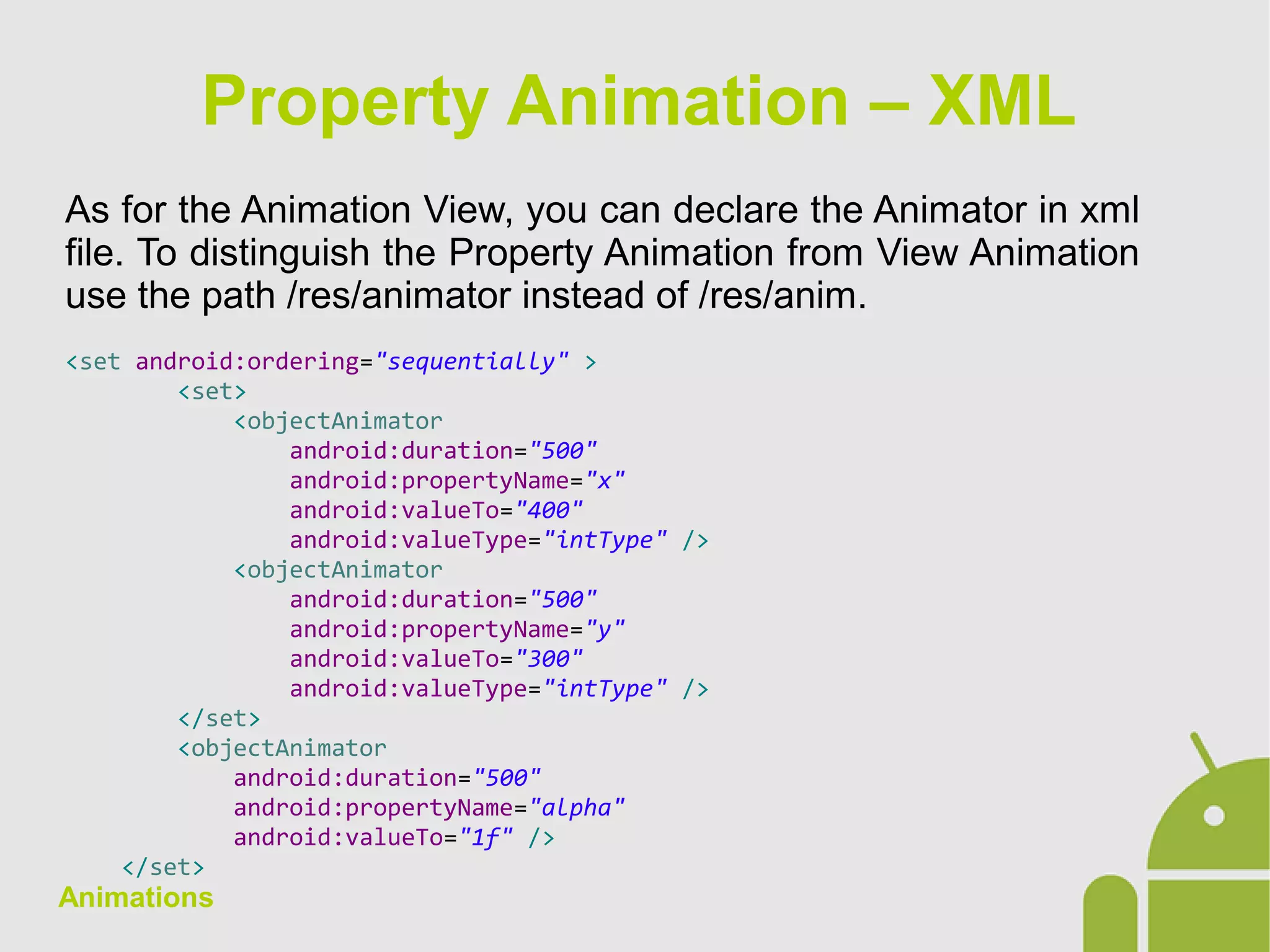
As for the Animation View, you can declare the Animator in xml
file. To distinguish the Property Animation from View Animation
use the path /res/animator instead of /res/anim.
<set android:ordering="sequentially" >
<set>
<objectAnimator
android:duration="500"
android:propertyName="x"
android:valueTo="400"
android:valueType="intType" />
<objectAnimator
android:duration="500"
android:propertyName="y"
android:valueTo="300"
android:valueType="intType" />
</set>
<objectAnimator
android:duration="500"
android:propertyName="alpha"
android:valueTo="1f" />
</set>
Property Animation – XML
Animations
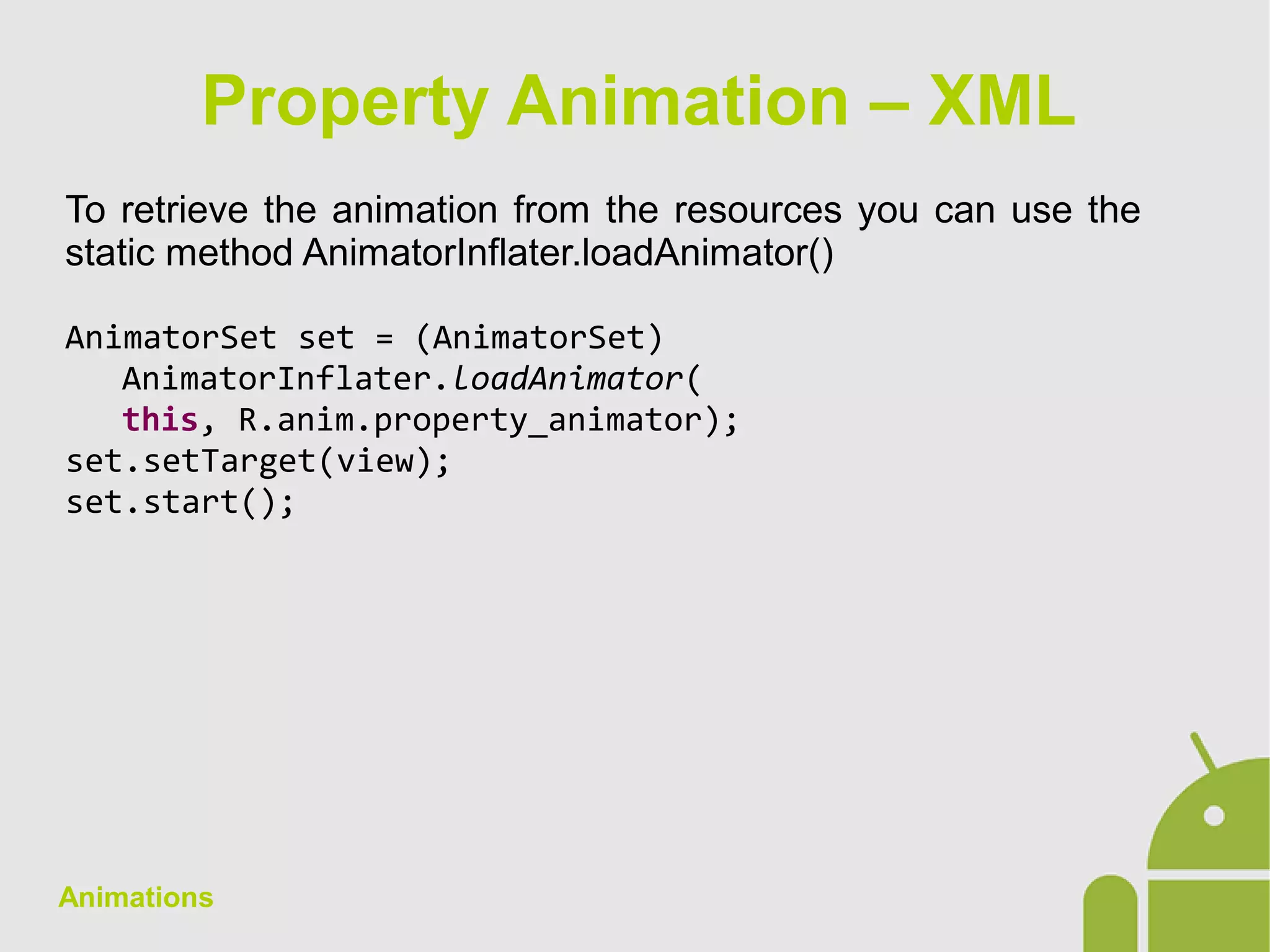
To retrieve the animation from the resources you can use the
static method AnimatorInflater.loadAnimator()
AnimatorSet set = (AnimatorSet)
AnimatorInflater.loadAnimator(
this, R.anim.property_animator);
set.setTarget(view);
set.start();
Property Animation – XML
Animations
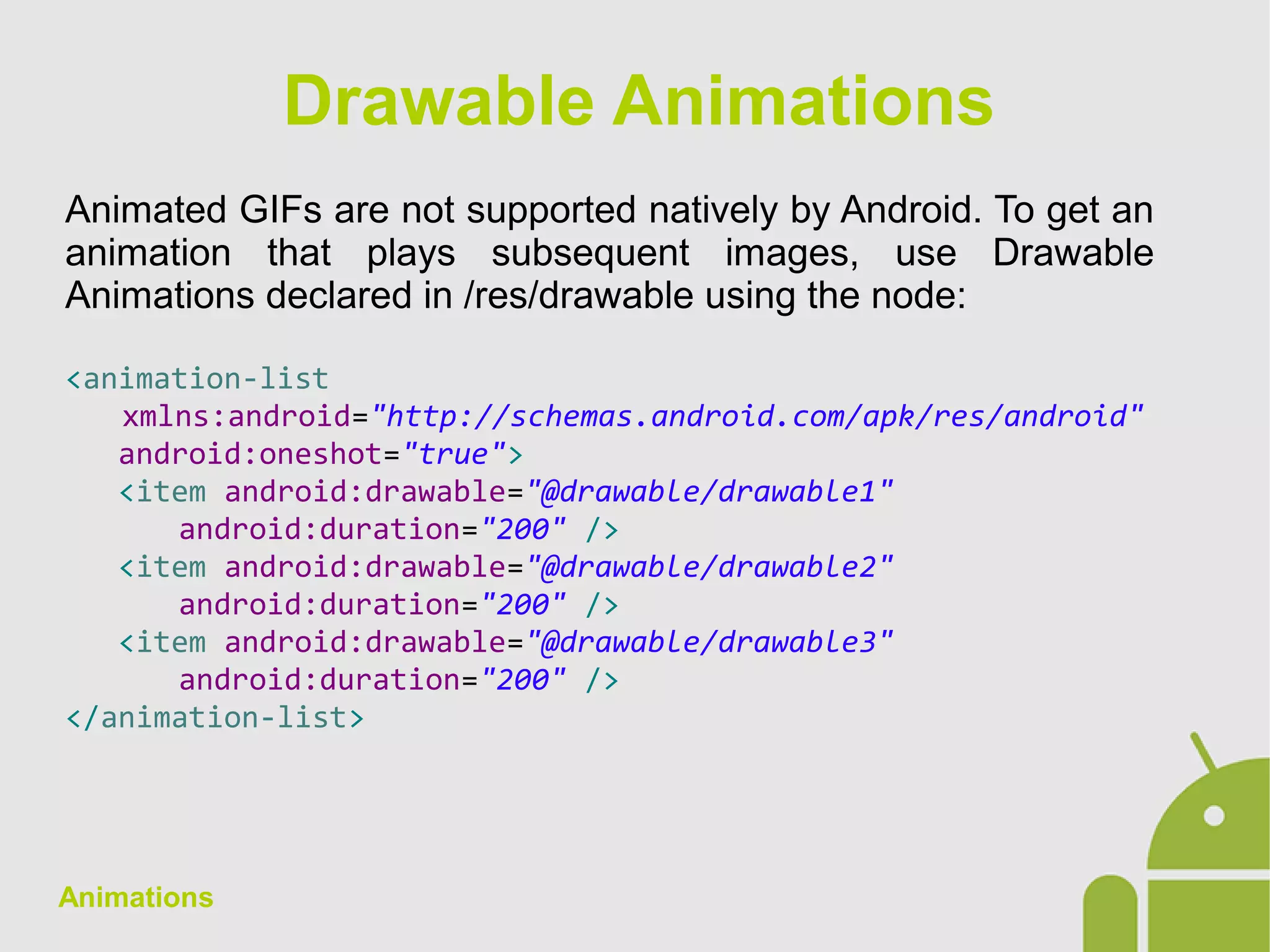
Animated GIFs are not supported natively by Android. To get an
animation that plays subsequent images, use Drawable
Animations declared in /res/drawable using the node:
<animation-list
xmlns:android="http://schemas.android.com/apk/res/android"
android:oneshot="true">
<item android:drawable="@drawable/drawable1"
android:duration="200" />
<item android:drawable="@drawable/drawable2"
android:duration="200" />
<item android:drawable="@drawable/drawable3"
android:duration="200" />
</animation-list>
Drawable Animations
Animations
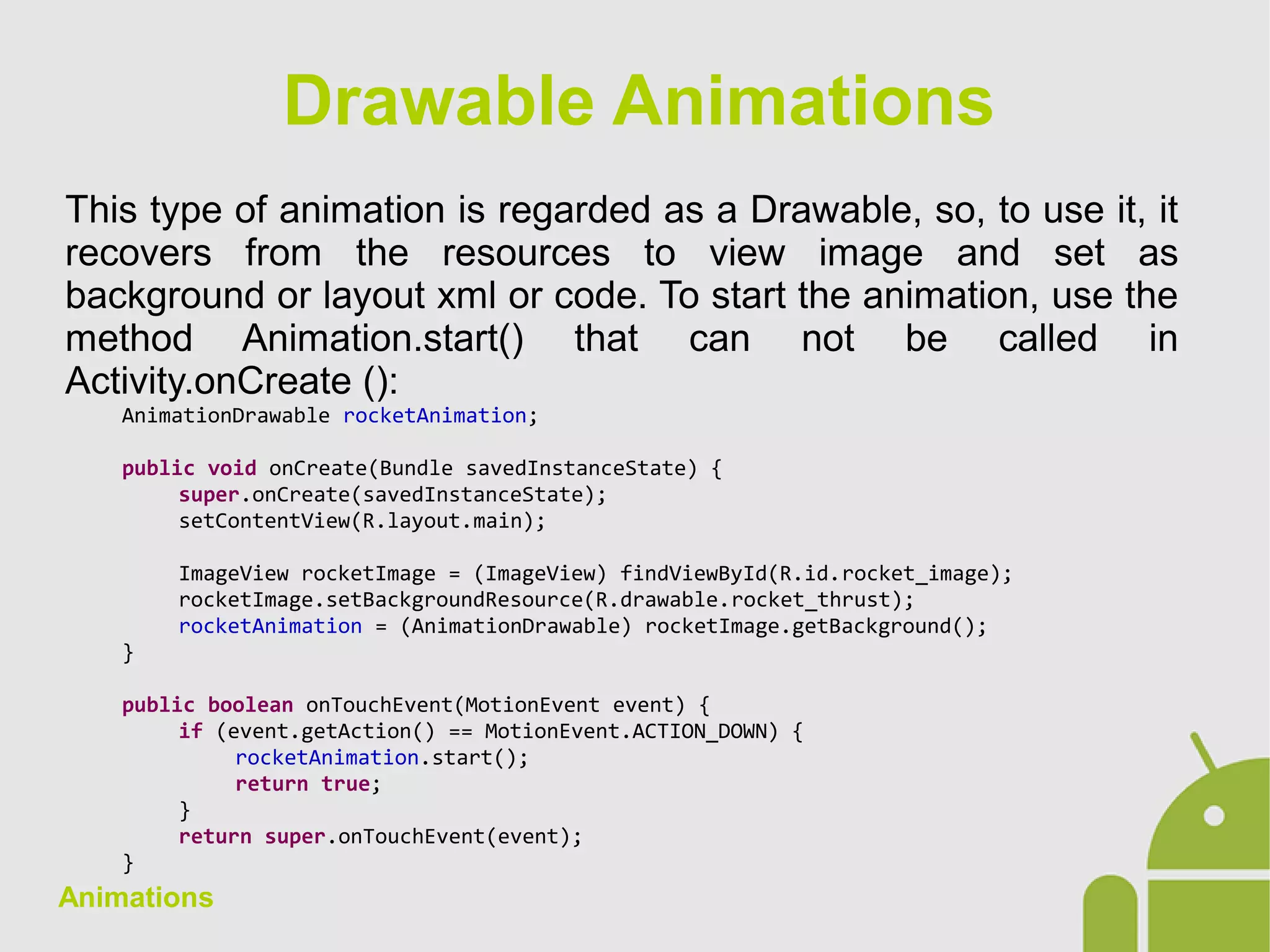
This type of animation is regarded as a Drawable, so, to use it, it
recovers from the resources to view image and set as
background or layout xml or code. To start the animation, use the
method Animation.start() that can not be called in
Activity.onCreate ():
AnimationDrawable rocketAnimation;
public void onCreate(Bundle savedInstanceState) {
super.onCreate(savedInstanceState);
setContentView(R.layout.main);
ImageView rocketImage = (ImageView) findViewById(R.id.rocket_image);
rocketImage.setBackgroundResource(R.drawable.rocket_thrust);
rocketAnimation = (AnimationDrawable) rocketImage.getBackground();
}
public boolean onTouchEvent(MotionEvent event) {
if (event.getAction() == MotionEvent.ACTION_DOWN) {
rocketAnimation.start();
return true;
}
return super.onTouchEvent(event);
}
Drawable Animations

Android App Development - 12 animations

  • 1.
  • 2.
    Animations Android platform provides2 kind of animations: ● View Animation: the old system that allows you to apply animations on View. ● Property Animation: the new system introduced by Android 3.0 HoneyComb that applies animation to the properties of any object. The use of property animation is recommended because they are more flexible and have more features. The Android framework provides besides the above systems, the ability to create Drawable Animation: the animation is achieved by successive display of drawable resources. Animation Frameworks
  • 3.
    Animations The animation isapplied to the entire view including the background. N.B. The limits of View will remain unchanged Possible transformations are: ● Positions: translate ● Dimensions: scale ● Rotations: rotate ● Opacity: alpha The sequence of these transformations can be declared as a resource in the /res/anim file as xml or in code. Animations can be sequential and/or concurrent. The attributes to be included or are common to all the animations or specific type of animation. View Animation - Description
  • 4.
    Animations Common attributes: ● interpolator ●duration ● startOffset ● fillAfter Scale Animation: ● fromXScale ● fromYScale ● toXScale ● toYScale ● pivotX ● pivotY View Animation - Typology Rotate Animation: ● fromDegrees ● toDegrees Translate Animation: ● fromXScale ● fromYScale ● toXScale ● toYScale Alpha Animation ● fromAlpha ● toAlpha
  • 5.
    Animations <set xmlns:android="http://schemas.android.com/apk/res/android" android:shareInterpolator="false" > <alpha android:duration="700" android:fillAfter="false" android:fromAlpha="0" android:interpolator="@android:anim/accelerate_decelerate_interpolator" android:toAlpha="100"/> <set android:interpolator="@android:anim/decelerate_interpolator" > <scale android:duration="400" android:fillBefore="false" android:fromXScale="1.4" android:fromYScale="0.6" android:pivotX="50%" android:pivotY="50%" android:startOffset="700" android:toXScale="0.0" android:toYScale="0.0" /> <rotate android:duration="400" android:fromDegrees="0" android:pivotX="50%" android:pivotY="50%" android:startOffset="700" android:toDegrees="-45" android:toYScale="0.0" /> </set> </set> View Animation - Example
  • 6.
    Animations To retrieve ananimation of the resources, use the static method AnimationUtils.loadAnimation(int resource). Ex. ImageView imageView = (ImageView) findViewById(R.id.imageview); Animation animation = AnimationUtils.loadAnimation(this, R.anim.hyperspace_jump); animation.setAnimationListener(new AnimationListener() { @Override public void onAnimationStart(Animation anim) { } @Override public void onAnimationRepeat(Animation anim) { } @Override public void onAnimationEnd(Animation anim) { } }); imageView.startAnimation(animation); View Animation - Management
  • 7.
    Animations A Property Animationchanges a value of an object for a specified period. You can specify the following variables: ● Duration: the default is 300ms ● Interpolation: it specifies how to calculate the value of the variable as a function of time ● Repetition and behaviour: it specifies how many times the animation should be repeated and whether normal or otherwise ● Set: you can group animations to make them sequential or concurrent and start them after a delay ● Frame refresh delay: you can specify how often to refresh the view. The default is 10ms. Property Animation
  • 8.
    Animations Ex. Animation withlinear interpolation: Property Animation Ex. Animation with linear interpolation:
  • 9.
    Animations A Property Animationis realized with 3 basic components: ● Animators: they contain the structure to create animations, it is never used directly, but via its subclasses ● Evaluators: they serve to define the method of calculation of the object property to the animator ● Interpolators: they define how to calculate the value of the object based on the time. They can be: ● Linear ● Non-linear Property Animation
  • 10.
    Animations 3 main subclasses: ●ValueAnimator: it contains all the basic functionality for calculating a value of an object ● ObjectAnimator: it extends ValueAnimator and simplifies the functionality of the superclass ● AnimatorSet: provides a mechanism for grouping animations Animator anim = ValueAnimator.ofInt(values); anim.setEvaluator(evaluator); anim.setInterpolator(interpolator); Property Animation - Animators
  • 11.
    Animations There are threemain sub-classes and an interface used: ● IntEvaluator: it calculates values for properties of type int ● FloatEvaluator: it calculates values for properties of type float ● ArgbEvaluator: it calculates values for properties of type color represented by hexadecimal values ● TypeEvaluator: it's an interface that allows you to create a custom evaluator Property Animation - Evaluators
  • 12.
    Animations There are 9sub-classes and an interface used: ● AccelerateDecelerateInterpolator ● AccelerateInterpolator ● AnticipateInterpolator ● AnticipateOvershootInterpolator ● BounceInterpolator ● CycleInterpolator ● DecelerateInterpolator ● LinearInterpolator ● TimeInterpolator: interface to implement a custom interpolator Property Animation - Interpolator
  • 13.
    Animations Methods to instantiateit: ● ValueAnimator.ofInt(int... values) ● ValueAnimator.ofFloat(float... values) ● ValueAnimator.ofObject(TypeEvaluator evaluator, Object... values) Ex. ValueAnimator animation = ValueAnimator.ofFloat(0f, 1f); animation.setDuration(1000); animation.start(); Property Animation – ValueAnimator
  • 14.
    Animations It is asubclass of ValueAnimator. The object is instantiated with static methods similar to those of the superclass with the ability to define which properties should be animated: ● ValueAnimator.ofInt(Object target, String property, int... values) ● ValueAnimator.ofFloat(Object target, String property, float... values) ● ValueAnimator.ofObject(Object target, String property, TypeEvaluator evaluator, Object... values) Es. ObjectAnimator anim = ObjectAnimator.ofFloat(view, "alpha", 0f, 1f); anim.setDuration(1000); anim.start(); Property Animation – ObjectAnimator
  • 15.
    Animations It includes animationsand establishes the sequence, simultaneity, and the delay. Es. AnimatorSet bouncer = new AnimatorSet(); bouncer.play(bounceAnim).before(squashAnim1); bouncer.play(squashAnim1).with(squashAnim2); bouncer.play(squashAnim1).with(stretchAnim1); bouncer.play(squashAnim1).with(stretchAnim2); bouncer.play(bounceBackAnim).after(stretchAnim2); ValueAnimator fadeAnim = ObjectAnimator.ofFloat(newBall, "alpha", 1f, 0f); fadeAnim.setDuration(250); AnimatorSet animatorSet = new AnimatorSet(); animatorSet.play(bouncer).before(fadeAnim); animatorSet.start(); Property Animation – AnimatorSet
  • 16.
    Animations To access theevents of the life cycle of the animation there are 2 interfaces: ● Animator.AnimatorListener: ● onAnimationStart() ● onAnimationEnd() ● onAnimationRepeat() ● onAnimationCancel(): after this, onAnimationEnd() is still called ● ValueAnimator.AnimatorUpdateListener: ● OnAnimationUpdate(): it is invoked for each frame of the animation If you do not want to implement all of the AnimationListener interfaces, you can use the AnimationListenerAdapter class and implement only some methods. Property Animation – AnimationListeners
  • 17.
    Animations As for theAnimation View, you can declare the Animator in xml file. To distinguish the Property Animation from View Animation use the path /res/animator instead of /res/anim. <set android:ordering="sequentially" > <set> <objectAnimator android:duration="500" android:propertyName="x" android:valueTo="400" android:valueType="intType" /> <objectAnimator android:duration="500" android:propertyName="y" android:valueTo="300" android:valueType="intType" /> </set> <objectAnimator android:duration="500" android:propertyName="alpha" android:valueTo="1f" /> </set> Property Animation – XML
  • 18.
    Animations To retrieve theanimation from the resources you can use the static method AnimatorInflater.loadAnimator() AnimatorSet set = (AnimatorSet) AnimatorInflater.loadAnimator( this, R.anim.property_animator); set.setTarget(view); set.start(); Property Animation – XML
  • 19.
    Animations Animated GIFs arenot supported natively by Android. To get an animation that plays subsequent images, use Drawable Animations declared in /res/drawable using the node: <animation-list xmlns:android="http://schemas.android.com/apk/res/android" android:oneshot="true"> <item android:drawable="@drawable/drawable1" android:duration="200" /> <item android:drawable="@drawable/drawable2" android:duration="200" /> <item android:drawable="@drawable/drawable3" android:duration="200" /> </animation-list> Drawable Animations
  • 20.
    Animations This type ofanimation is regarded as a Drawable, so, to use it, it recovers from the resources to view image and set as background or layout xml or code. To start the animation, use the method Animation.start() that can not be called in Activity.onCreate (): AnimationDrawable rocketAnimation; public void onCreate(Bundle savedInstanceState) { super.onCreate(savedInstanceState); setContentView(R.layout.main); ImageView rocketImage = (ImageView) findViewById(R.id.rocket_image); rocketImage.setBackgroundResource(R.drawable.rocket_thrust); rocketAnimation = (AnimationDrawable) rocketImage.getBackground(); } public boolean onTouchEvent(MotionEvent event) { if (event.getAction() == MotionEvent.ACTION_DOWN) { rocketAnimation.start(); return true; } return super.onTouchEvent(event); } Drawable Animations