Android Animation
Topics
• Frame by Frame animation
• Tween animation
> Translate, Rotate, Scale, Alpha
• Interpolator
• Layout animation
Frame-by-Frame Animationnim
What is Frame-by-Frame Animation?
• Created with a sequence of different images,
played in order, like a roll of film.
• Pieces
> The frames in the /res/drawable directory
> Animation resource XML file in which the frames
are specified as <item> under <animation-list>
> Code that loads the Animation resource XML file
Animation XML Resource
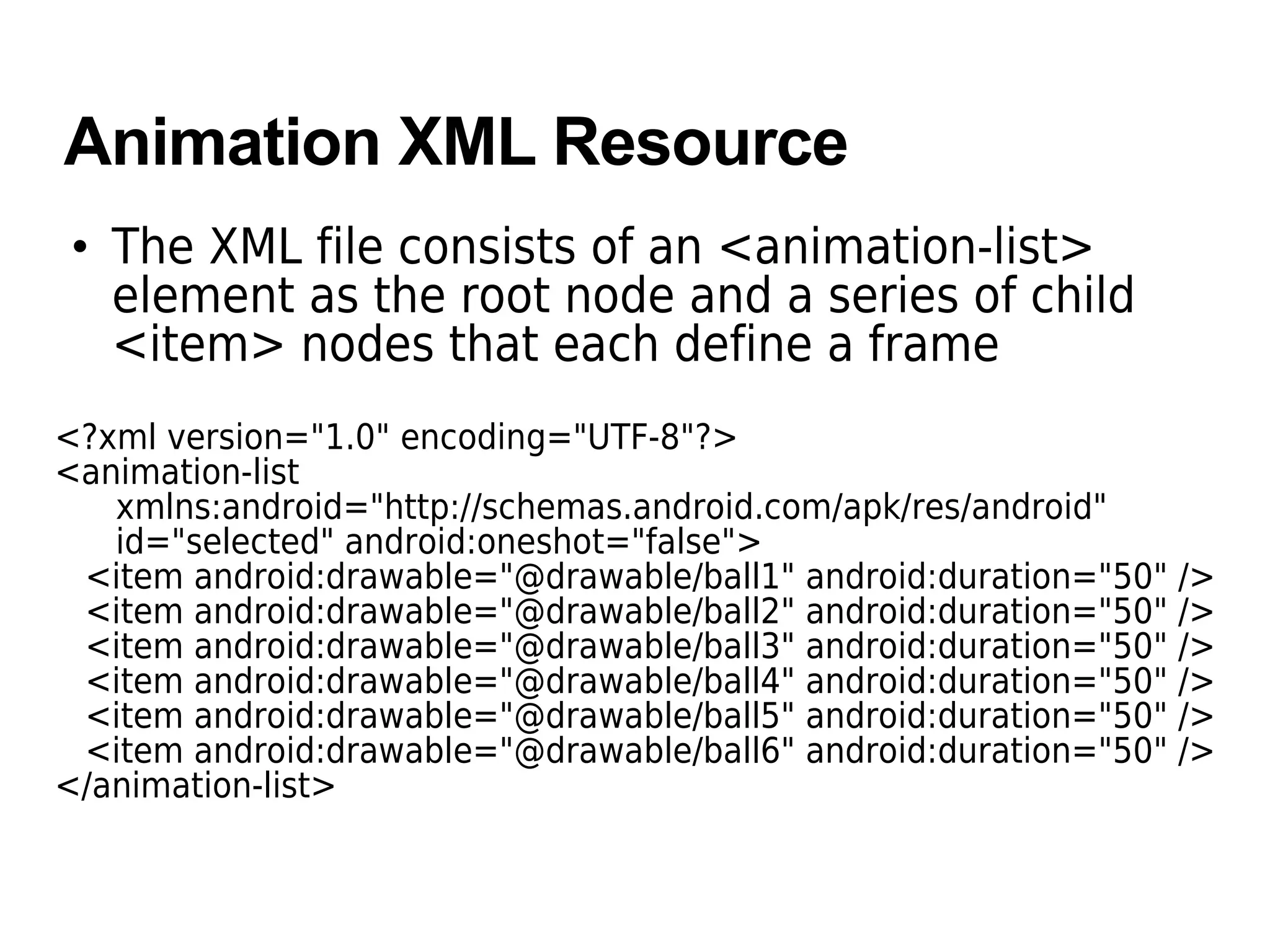
• The XML file consists of an <animation-list>
element as the root node and a series of child
<item> nodes that each define a frame
<?xml version="1.0" encoding="UTF-8"?>
<animation-list
xmlns:android="http://schemas.android.com/apk/res/android"
id="selected" android:oneshot="false">
<item android:drawable="@drawable/ball1" android:duration="50" />
<item android:drawable="@drawable/ball2" android:duration="50" />
<item android:drawable="@drawable/ball3" android:duration="50" />
<item android:drawable="@drawable/ball4" android:duration="50" />
<item android:drawable="@drawable/ball5" android:duration="50" />
<item android:drawable="@drawable/ball6" android:duration="50" />
</animation-list>
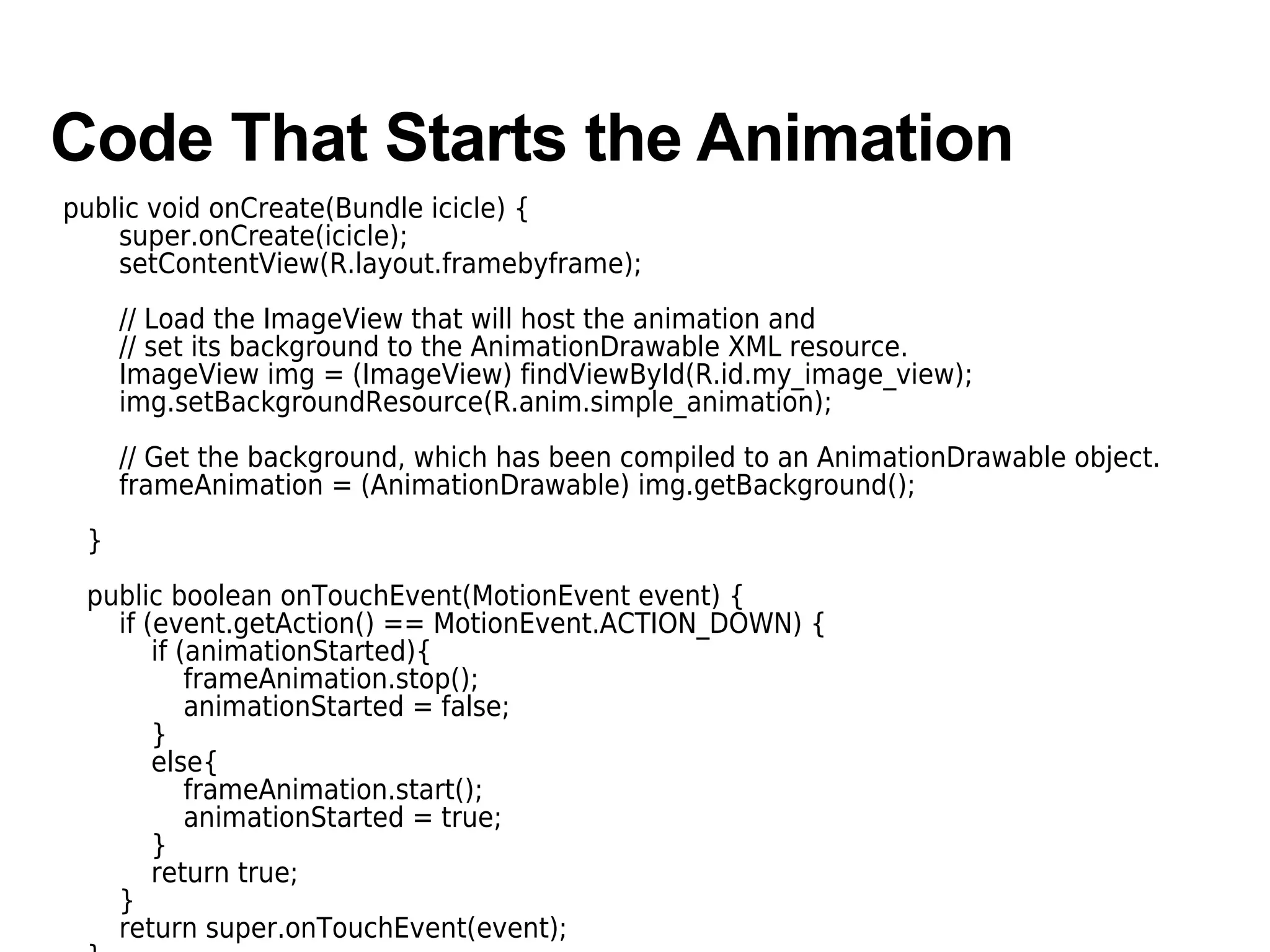
Code That Starts the Animation
public void onCreate(Bundle icicle) {
super.onCreate(icicle);
setContentView(R.layout.framebyframe);
// Load the ImageView that will host the animation and
// set its background to the AnimationDrawable XML resource.
ImageView img = (ImageView) findViewById(R.id.my_image_view);
img.setBackgroundResource(R.anim.simple_animation);
// Get the background, which has been compiled to an AnimationDrawable object.
frameAnimation = (AnimationDrawable) img.getBackground();
}
public boolean onTouchEvent(MotionEvent event) {
if (event.getAction() == MotionEvent.ACTION_DOWN) {
if (animationStarted){
frameAnimation.stop();
animationStarted = false;
}
else{
frameAnimation.start();
animationStarted = true;
}
return true;
}
return super.onTouchEvent(event);
Tween Animationnimation
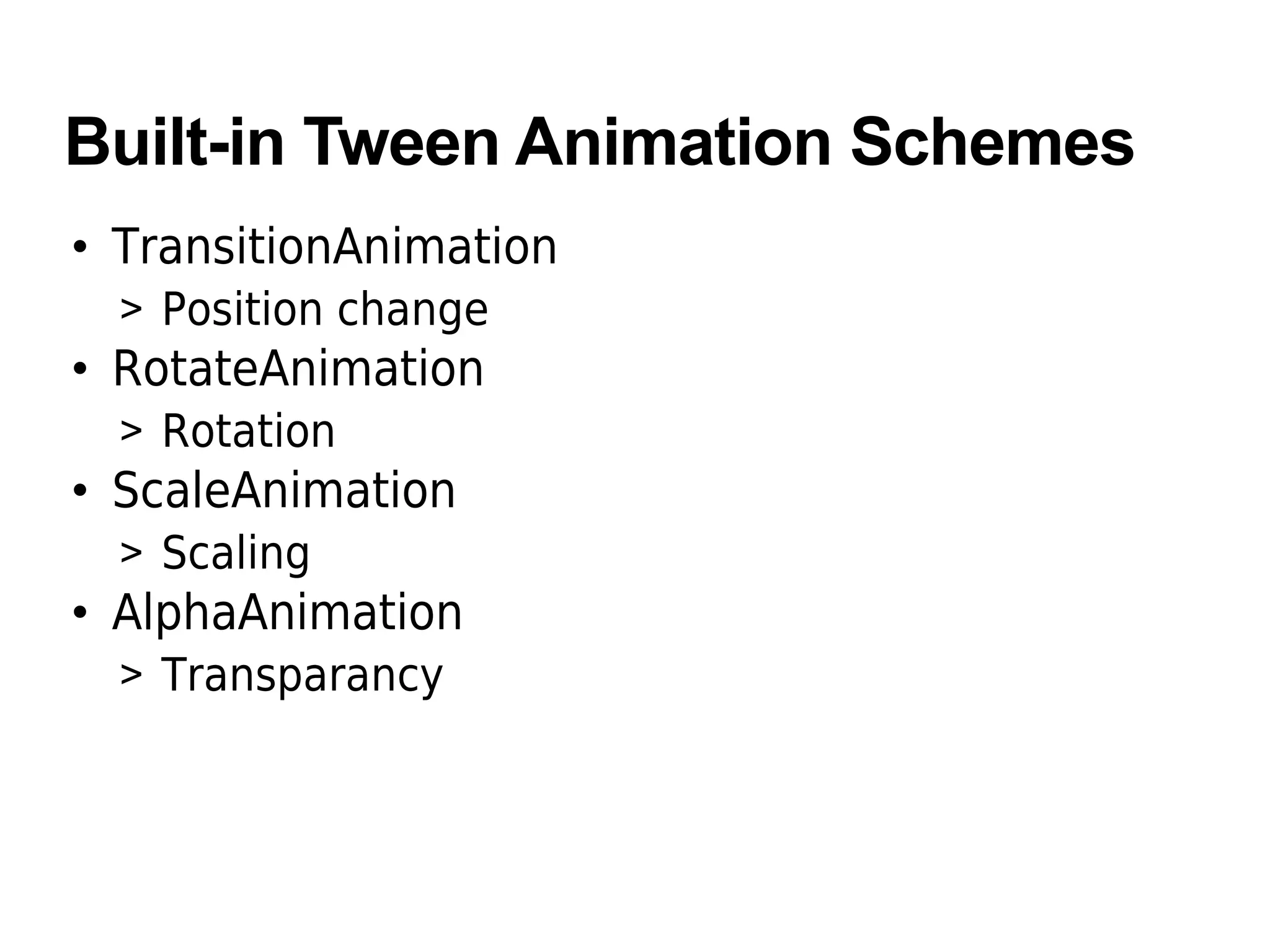
Built-in Tween Animation Schemes
• TransitionAnimation
> Position change
• RotateAnimation
> Rotation
• ScaleAnimation
> Scaling
• AlphaAnimation
> Transparancy
Steps of Tween Animation
• Create XML animation resource file in
/res/anim/ directory
• Load the XML animation resource file into
Animation object
• Start the animation
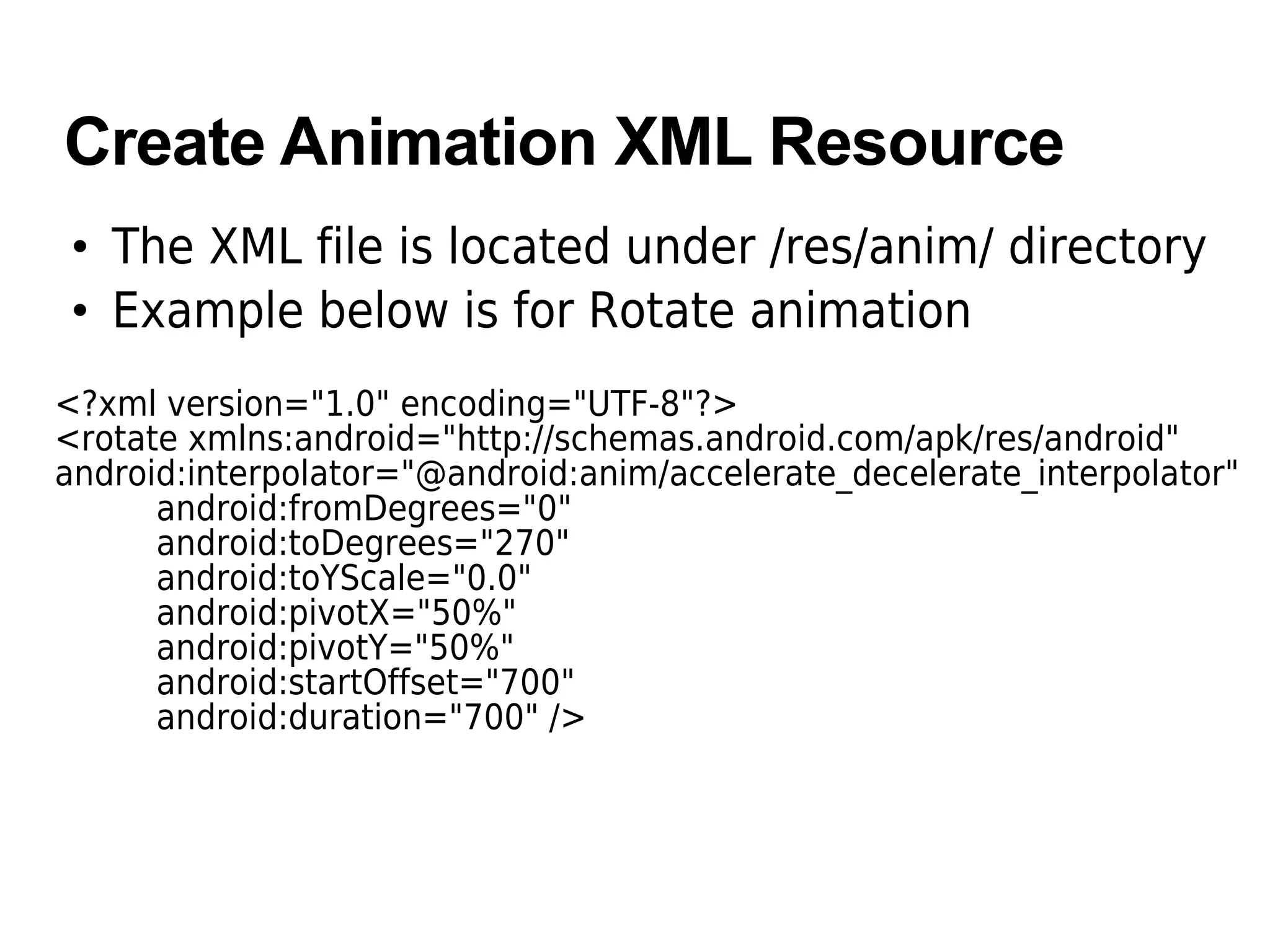
Create Animation XML Resource
• The XML file is located under /res/anim/ directory
• Example below is for Rotate animation
<?xml version="1.0" encoding="UTF-8"?>
<rotate xmlns:android="http://schemas.android.com/apk/res/android"
android:interpolator="@android:anim/accelerate_decelerate_interpolator"
android:fromDegrees="0"
android:toDegrees="270"
android:toYScale="0.0"
android:pivotX="50%"
android:pivotY="50%"
android:startOffset="700"
android:duration="700" />
Create Animation XML Resource
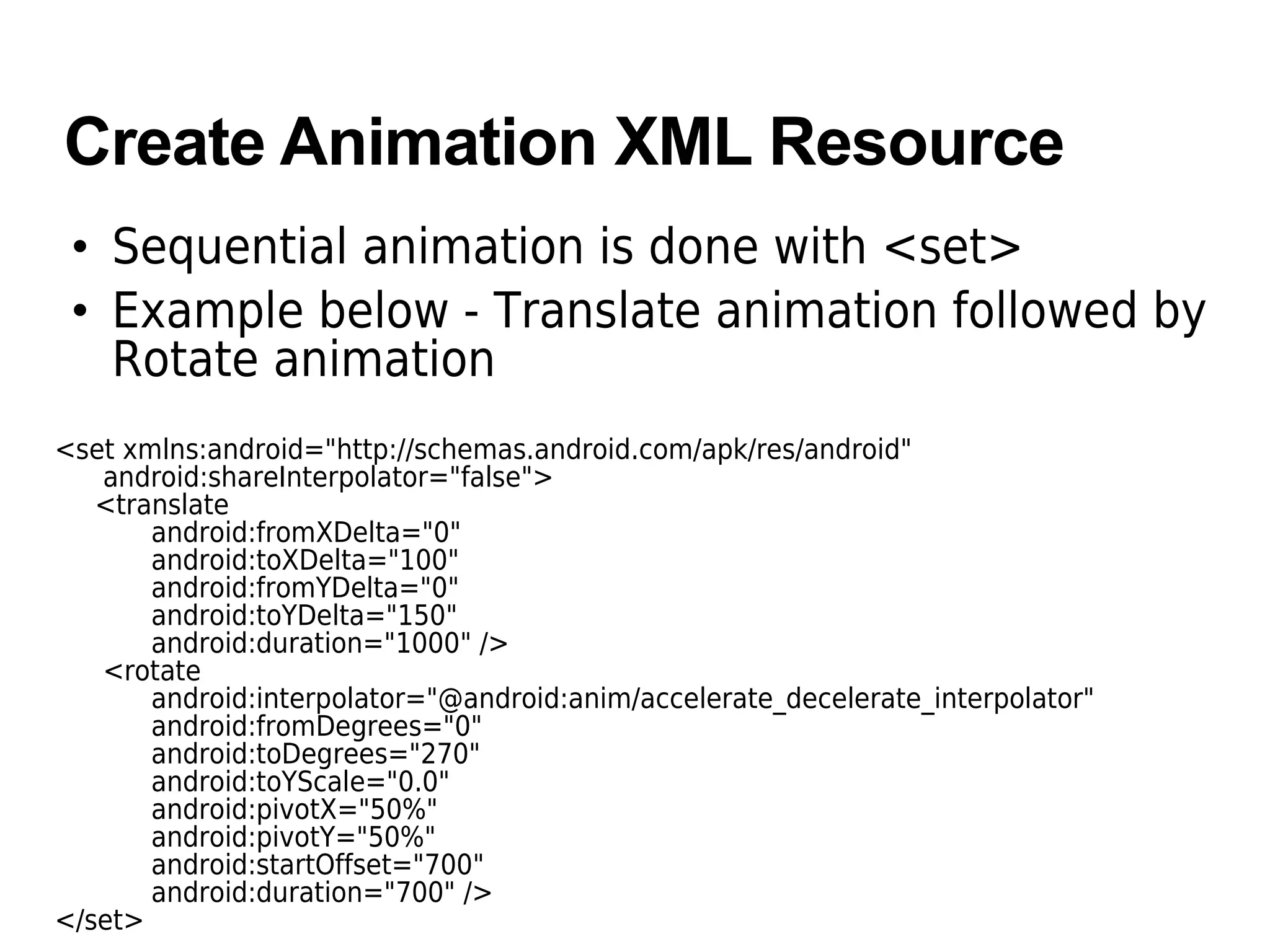
• Sequential animation is done with <set>
• Example below - Translate animation followed by
Rotate animation
<set xmlns:android="http://schemas.android.com/apk/res/android"
android:shareInterpolator="false">
<translate
android:fromXDelta="0"
android:toXDelta="100"
android:fromYDelta="0"
android:toYDelta="150"
android:duration="1000" />
<rotate
android:interpolator="@android:anim/accelerate_decelerate_interpolator"
android:fromDegrees="0"
android:toDegrees="270"
android:toYScale="0.0"
android:pivotX="50%"
android:pivotY="50%"
android:startOffset="700"
android:duration="700" />
</set>
Loading Animation Resource &
Staring Animation
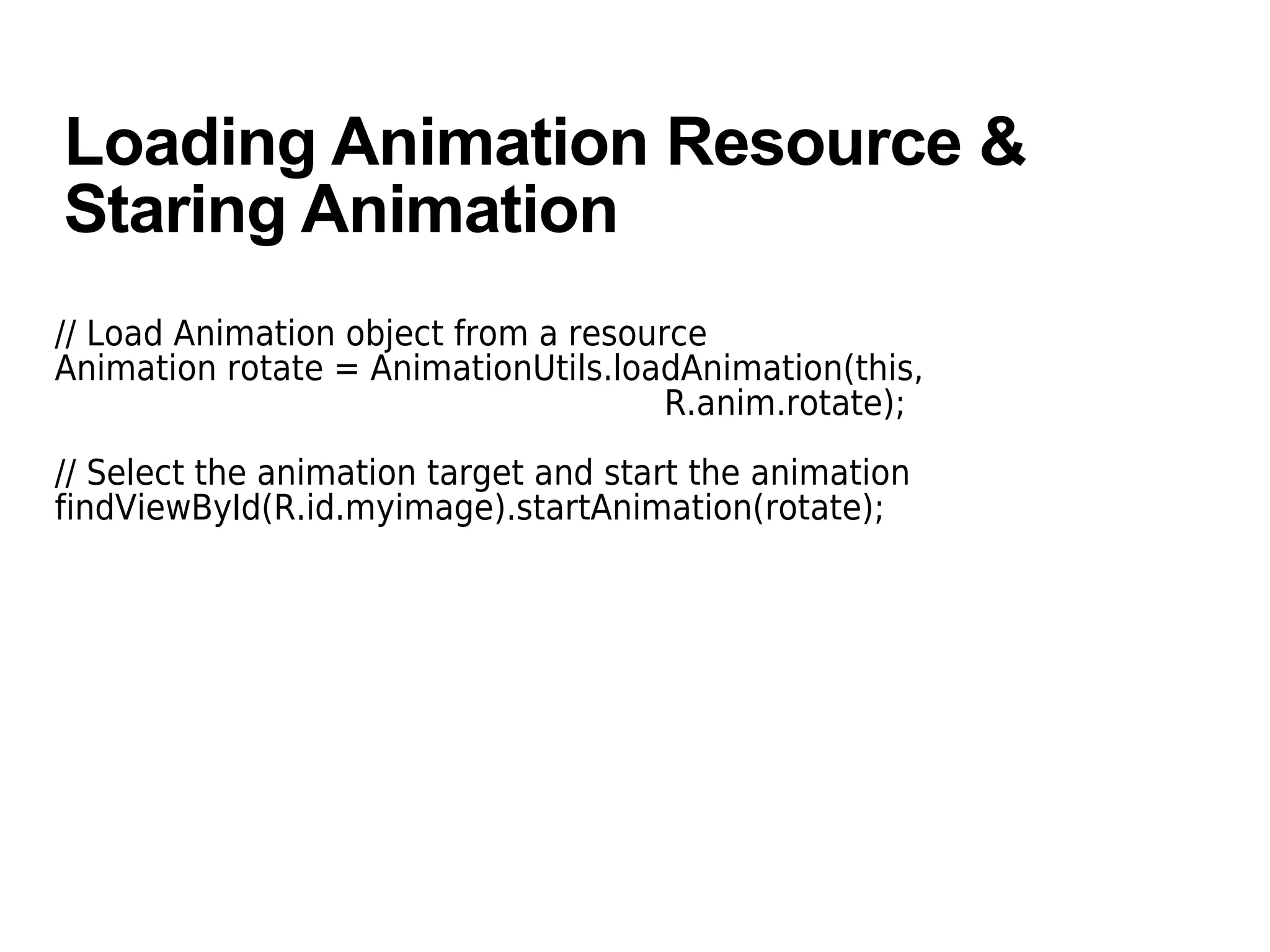
// Load Animation object from a resource
Animation rotate = AnimationUtils.loadAnimation(this,
R.anim.rotate);
// Select the animation target and start the animation
findViewById(R.id.myimage).startAnimation(rotate);
Interpolatornterpolator
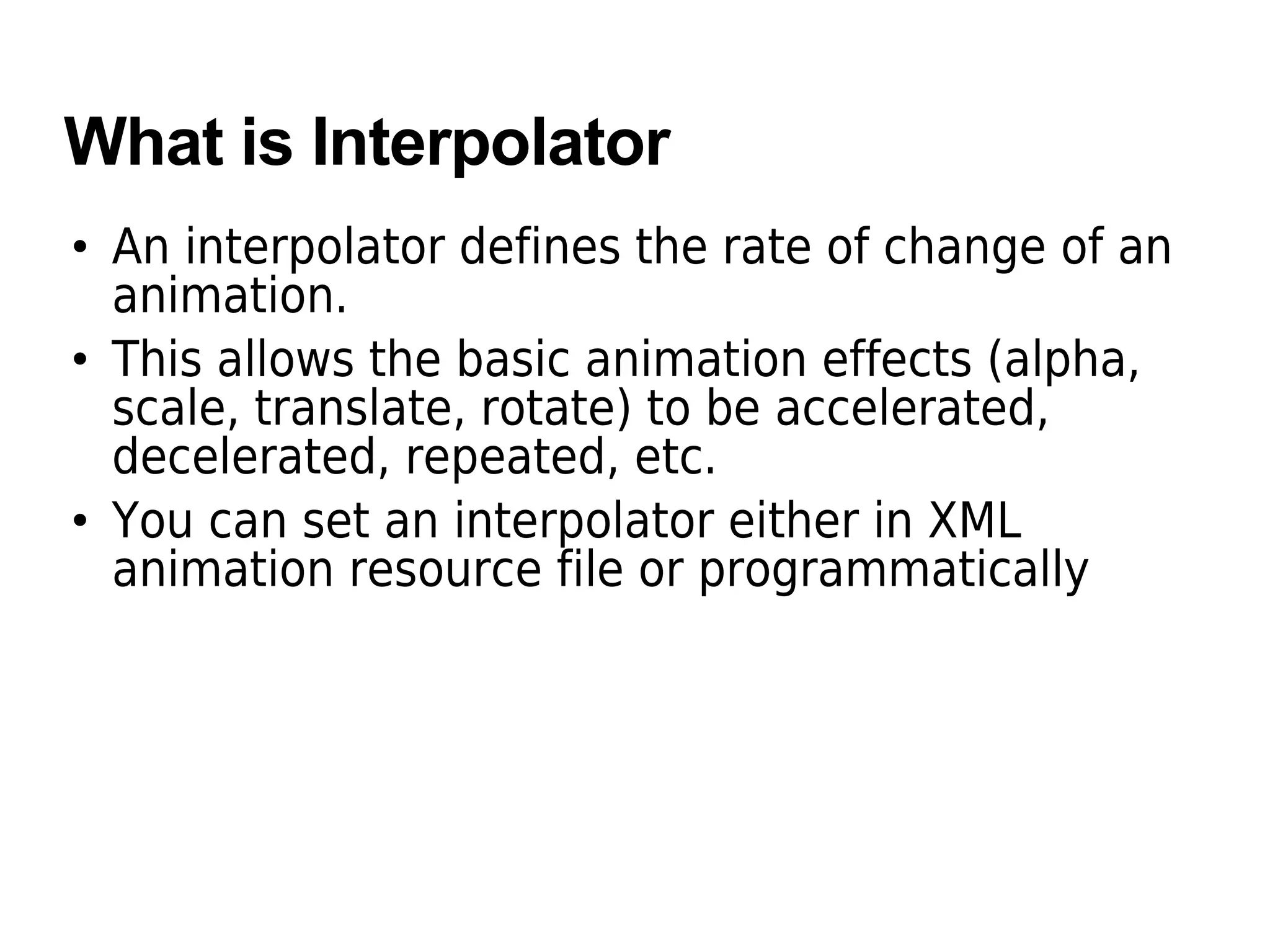
What is Interpolator
• An interpolator defines the rate of change of an
animation.
• This allows the basic animation effects (alpha,
scale, translate, rotate) to be accelerated,
decelerated, repeated, etc.
• You can set an interpolator either in XML
animation resource file or programmatically
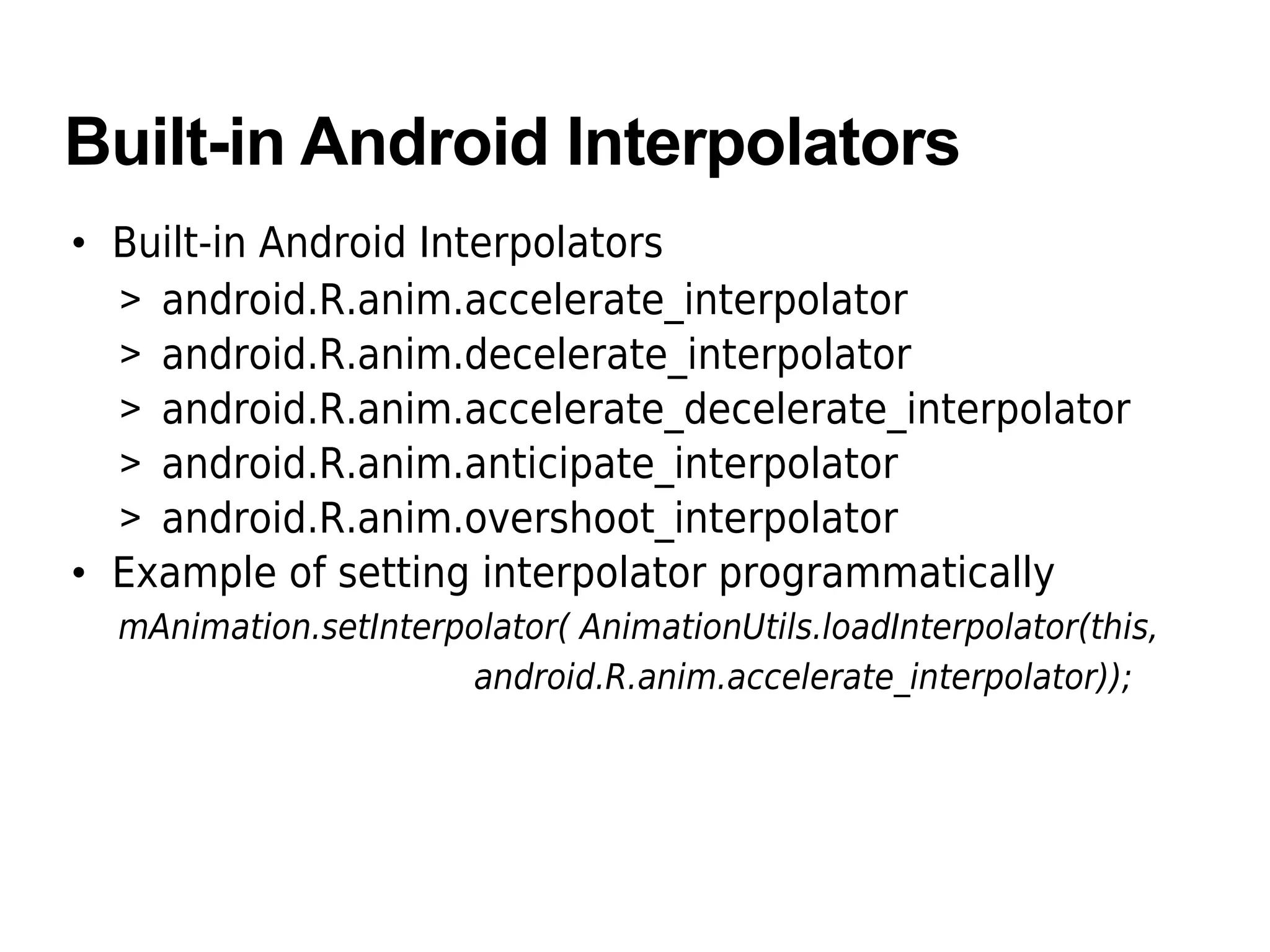
Built-in Android Interpolators
• Built-in Android Interpolators
> android.R.anim.accelerate_interpolator
> android.R.anim.decelerate_interpolator
> android.R.anim.accelerate_decelerate_interpolator
> android.R.anim.anticipate_interpolator
> android.R.anim.overshoot_interpolator
• Example of setting interpolator programmatically
mAnimation.setInterpolator( AnimationUtils.loadInterpolator(this,
android.R.anim.accelerate_interpolator));
Layout Animationnimatio
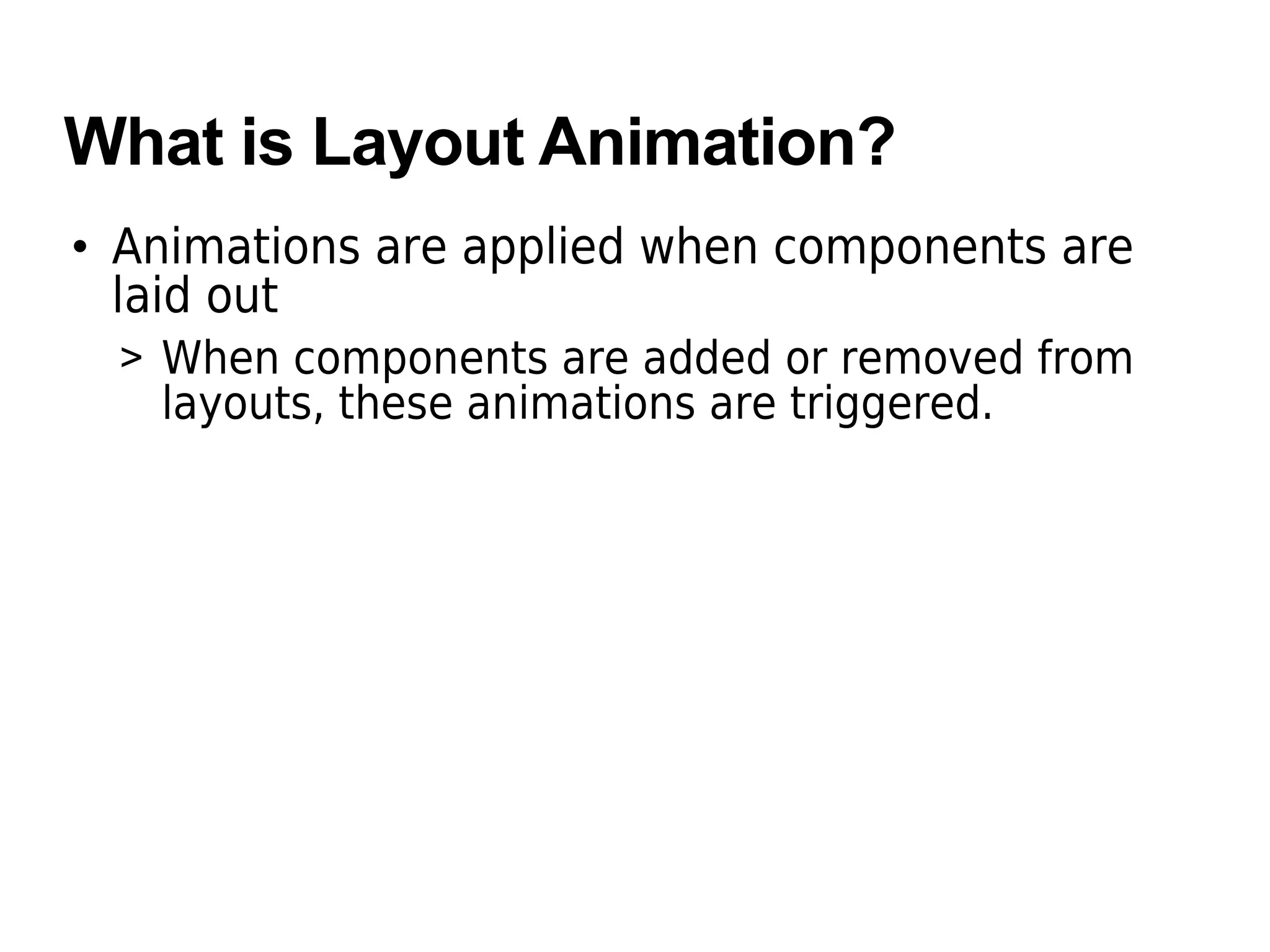
What is Layout Animation?
• Animations are applied when components are
laid out
> When components are added or removed from
layouts, these animations are triggered.
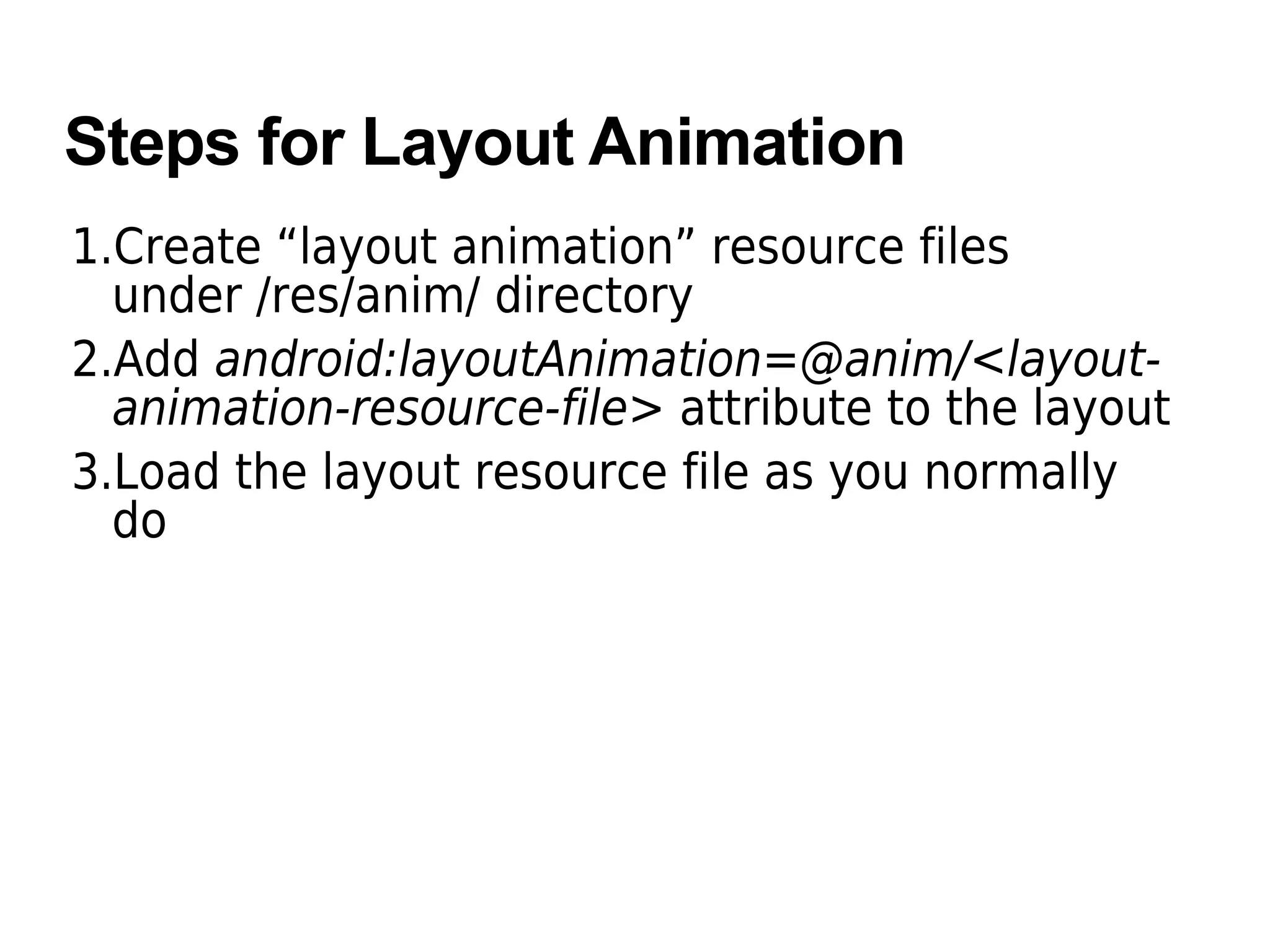
Steps for Layout Animation
1.Create “layout animation” resource files
under /res/anim/ directory
2.Add android:layoutAnimation=@anim/<layout-
animation-resource-file> attribute to the layout
3.Load the layout resource file as you normally
do
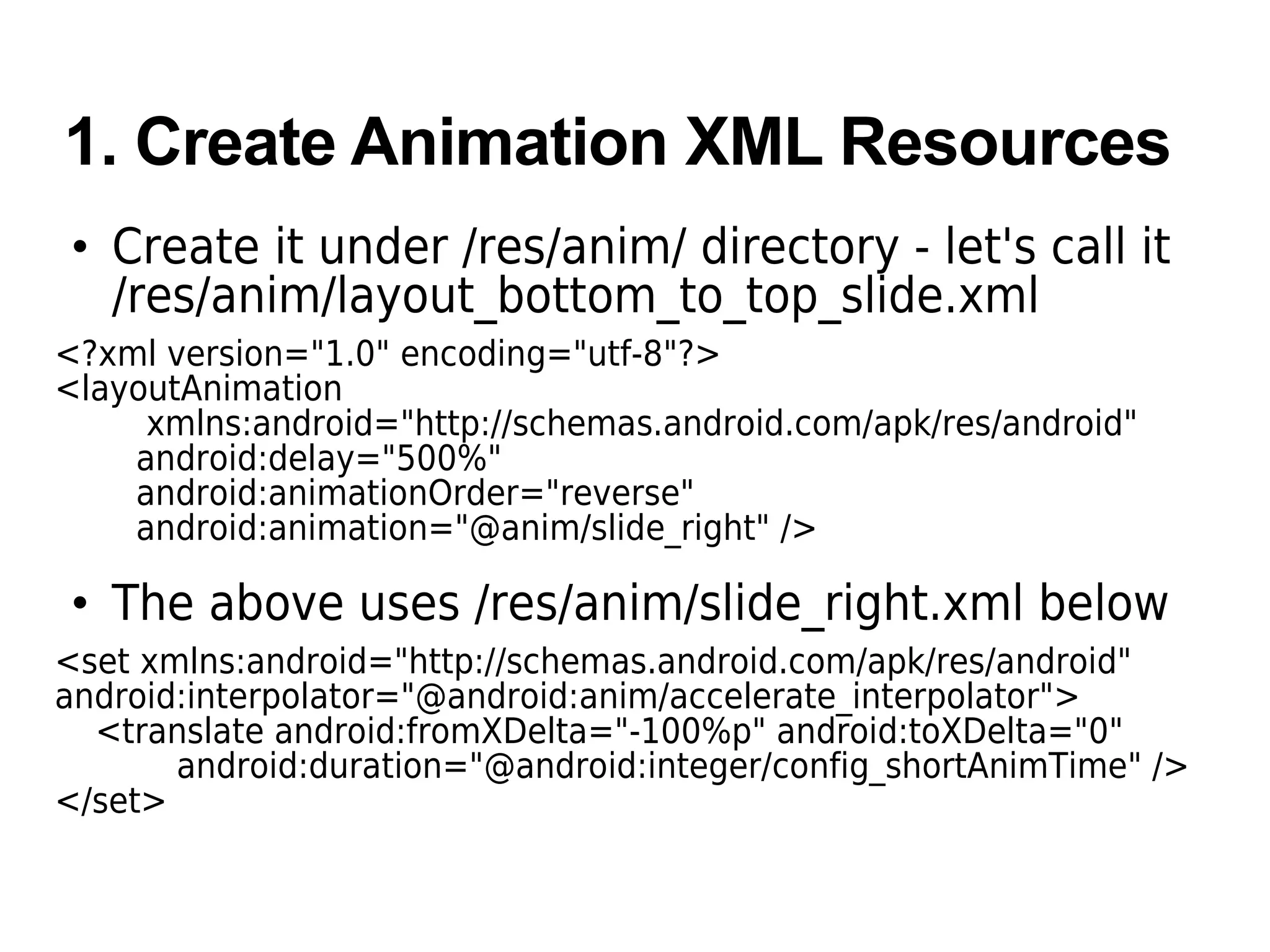
1. Create Animation XML Resources
• Create it under /res/anim/ directory - let's call it
/res/anim/layout_bottom_to_top_slide.xml
<?xml version="1.0" encoding="utf-8"?>
<layoutAnimation
xmlns:android="http://schemas.android.com/apk/res/android"
android:delay="500%"
android:animationOrder="reverse"
android:animation="@anim/slide_right" />
• The above uses /res/anim/slide_right.xml below
<set xmlns:android="http://schemas.android.com/apk/res/android"
android:interpolator="@android:anim/accelerate_interpolator">
<translate android:fromXDelta="-100%p" android:toXDelta="0"
android:duration="@android:integer/config_shortAnimTime" />
</set>
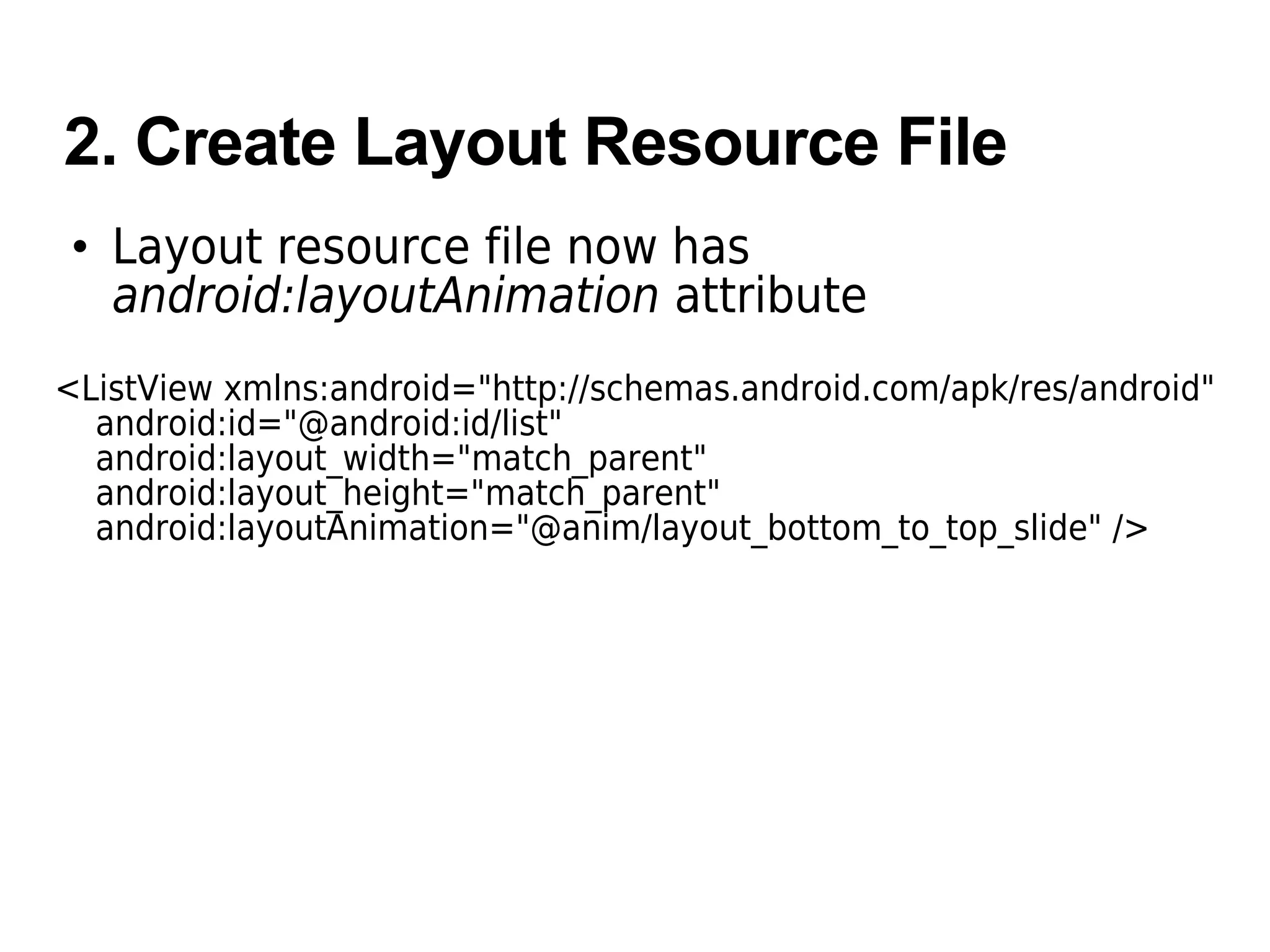
2. Create Layout Resource File
• Layout resource file now has
android:layoutAnimation attribute
<ListView xmlns:android="http://schemas.android.com/apk/res/android"
android:id="@android:id/list"
android:layout_width="match_parent"
android:layout_height="match_parent"
android:layoutAnimation="@anim/layout_bottom_to_top_slide" />
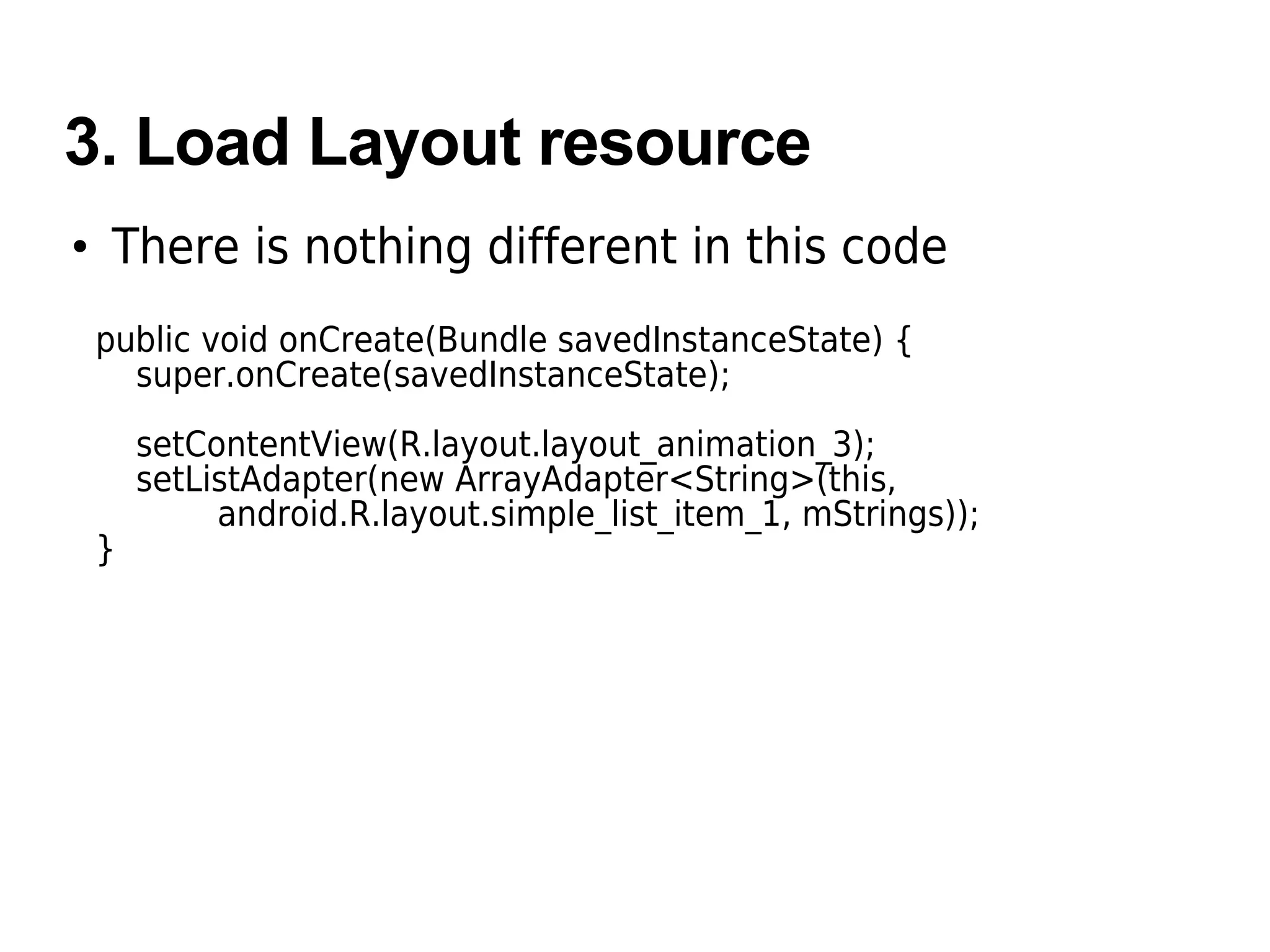
3. Load Layout resource
• There is nothing different in this code
public void onCreate(Bundle savedInstanceState) {
super.onCreate(savedInstanceState);
setContentView(R.layout.layout_animation_3);
setListAdapter(new ArrayAdapter<String>(this,
android.R.layout.simple_list_item_1, mStrings));
}
23
Thank you
hank you!

Android animation

  • 1.
  • 2.
    Topics • Frame byFrame animation • Tween animation > Translate, Rotate, Scale, Alpha • Interpolator • Layout animation
  • 3.
  • 4.
    What is Frame-by-FrameAnimation? • Created with a sequence of different images, played in order, like a roll of film. • Pieces > The frames in the /res/drawable directory > Animation resource XML file in which the frames are specified as <item> under <animation-list> > Code that loads the Animation resource XML file
  • 5.
    Animation XML Resource •The XML file consists of an <animation-list> element as the root node and a series of child <item> nodes that each define a frame <?xml version="1.0" encoding="UTF-8"?> <animation-list xmlns:android="http://schemas.android.com/apk/res/android" id="selected" android:oneshot="false"> <item android:drawable="@drawable/ball1" android:duration="50" /> <item android:drawable="@drawable/ball2" android:duration="50" /> <item android:drawable="@drawable/ball3" android:duration="50" /> <item android:drawable="@drawable/ball4" android:duration="50" /> <item android:drawable="@drawable/ball5" android:duration="50" /> <item android:drawable="@drawable/ball6" android:duration="50" /> </animation-list>
  • 6.
    Code That Startsthe Animation public void onCreate(Bundle icicle) { super.onCreate(icicle); setContentView(R.layout.framebyframe); // Load the ImageView that will host the animation and // set its background to the AnimationDrawable XML resource. ImageView img = (ImageView) findViewById(R.id.my_image_view); img.setBackgroundResource(R.anim.simple_animation); // Get the background, which has been compiled to an AnimationDrawable object. frameAnimation = (AnimationDrawable) img.getBackground(); } public boolean onTouchEvent(MotionEvent event) { if (event.getAction() == MotionEvent.ACTION_DOWN) { if (animationStarted){ frameAnimation.stop(); animationStarted = false; } else{ frameAnimation.start(); animationStarted = true; } return true; } return super.onTouchEvent(event);
  • 7.
  • 8.
    Built-in Tween AnimationSchemes • TransitionAnimation > Position change • RotateAnimation > Rotation • ScaleAnimation > Scaling • AlphaAnimation > Transparancy
  • 9.
    Steps of TweenAnimation • Create XML animation resource file in /res/anim/ directory • Load the XML animation resource file into Animation object • Start the animation
  • 10.
    Create Animation XMLResource • The XML file is located under /res/anim/ directory • Example below is for Rotate animation <?xml version="1.0" encoding="UTF-8"?> <rotate xmlns:android="http://schemas.android.com/apk/res/android" android:interpolator="@android:anim/accelerate_decelerate_interpolator" android:fromDegrees="0" android:toDegrees="270" android:toYScale="0.0" android:pivotX="50%" android:pivotY="50%" android:startOffset="700" android:duration="700" />
  • 11.
    Create Animation XMLResource • Sequential animation is done with <set> • Example below - Translate animation followed by Rotate animation <set xmlns:android="http://schemas.android.com/apk/res/android" android:shareInterpolator="false"> <translate android:fromXDelta="0" android:toXDelta="100" android:fromYDelta="0" android:toYDelta="150" android:duration="1000" /> <rotate android:interpolator="@android:anim/accelerate_decelerate_interpolator" android:fromDegrees="0" android:toDegrees="270" android:toYScale="0.0" android:pivotX="50%" android:pivotY="50%" android:startOffset="700" android:duration="700" /> </set>
  • 12.
    Loading Animation Resource& Staring Animation // Load Animation object from a resource Animation rotate = AnimationUtils.loadAnimation(this, R.anim.rotate); // Select the animation target and start the animation findViewById(R.id.myimage).startAnimation(rotate);
  • 13.
  • 14.
    What is Interpolator •An interpolator defines the rate of change of an animation. • This allows the basic animation effects (alpha, scale, translate, rotate) to be accelerated, decelerated, repeated, etc. • You can set an interpolator either in XML animation resource file or programmatically
  • 15.
    Built-in Android Interpolators •Built-in Android Interpolators > android.R.anim.accelerate_interpolator > android.R.anim.decelerate_interpolator > android.R.anim.accelerate_decelerate_interpolator > android.R.anim.anticipate_interpolator > android.R.anim.overshoot_interpolator • Example of setting interpolator programmatically mAnimation.setInterpolator( AnimationUtils.loadInterpolator(this, android.R.anim.accelerate_interpolator));
  • 16.
  • 17.
    What is LayoutAnimation? • Animations are applied when components are laid out > When components are added or removed from layouts, these animations are triggered.
  • 18.
    Steps for LayoutAnimation 1.Create “layout animation” resource files under /res/anim/ directory 2.Add android:layoutAnimation=@anim/<layout- animation-resource-file> attribute to the layout 3.Load the layout resource file as you normally do
  • 19.
    1. Create AnimationXML Resources • Create it under /res/anim/ directory - let's call it /res/anim/layout_bottom_to_top_slide.xml <?xml version="1.0" encoding="utf-8"?> <layoutAnimation xmlns:android="http://schemas.android.com/apk/res/android" android:delay="500%" android:animationOrder="reverse" android:animation="@anim/slide_right" /> • The above uses /res/anim/slide_right.xml below <set xmlns:android="http://schemas.android.com/apk/res/android" android:interpolator="@android:anim/accelerate_interpolator"> <translate android:fromXDelta="-100%p" android:toXDelta="0" android:duration="@android:integer/config_shortAnimTime" /> </set>
  • 20.
    2. Create LayoutResource File • Layout resource file now has android:layoutAnimation attribute <ListView xmlns:android="http://schemas.android.com/apk/res/android" android:id="@android:id/list" android:layout_width="match_parent" android:layout_height="match_parent" android:layoutAnimation="@anim/layout_bottom_to_top_slide" />
  • 21.
    3. Load Layoutresource • There is nothing different in this code public void onCreate(Bundle savedInstanceState) { super.onCreate(savedInstanceState); setContentView(R.layout.layout_animation_3); setListAdapter(new ArrayAdapter<String>(this, android.R.layout.simple_list_item_1, mStrings)); }
  • 22.