UNIT - II
GUIand I/O PROGRAMMING
AWT package – Layouts – Event Package – Event Model –
Painting- Swing Fundamentals- Swing Classes-Working with
Text Fields, Buttons, List and Scroll panes - Input Output
Package
2.
AWT Packages
■ AWTis an API that is responsible for building the Graphical User
Interface. It is part of the java foundation classes(JFC)
■ AWT includes a rich set of user interface component , a powerful event
handling model ,graphics and image tools, layout manager etc.,
■ AWT supports java bean Architecture. Every AWT component is a
simple java bean.
■ The java awt package contains all classes for creating user interfaces and
for painting graphics and images
Graphics primitives that allow the drawing and rendering of lines and
images
Components such as labels, buttons and text fields
Containers that include frames ,panels and dialogs
Layout managers that control the display in a portable
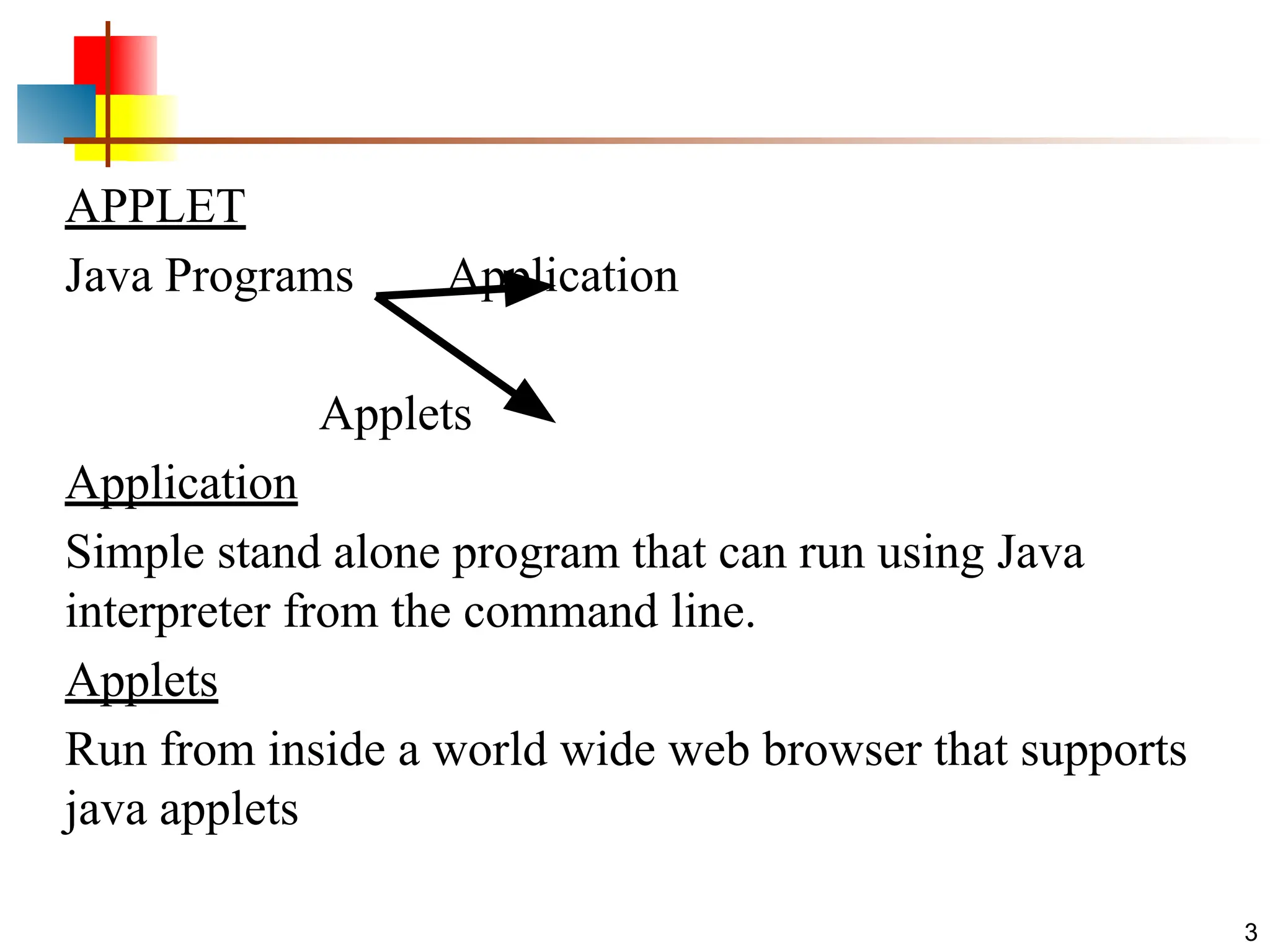
APPLET
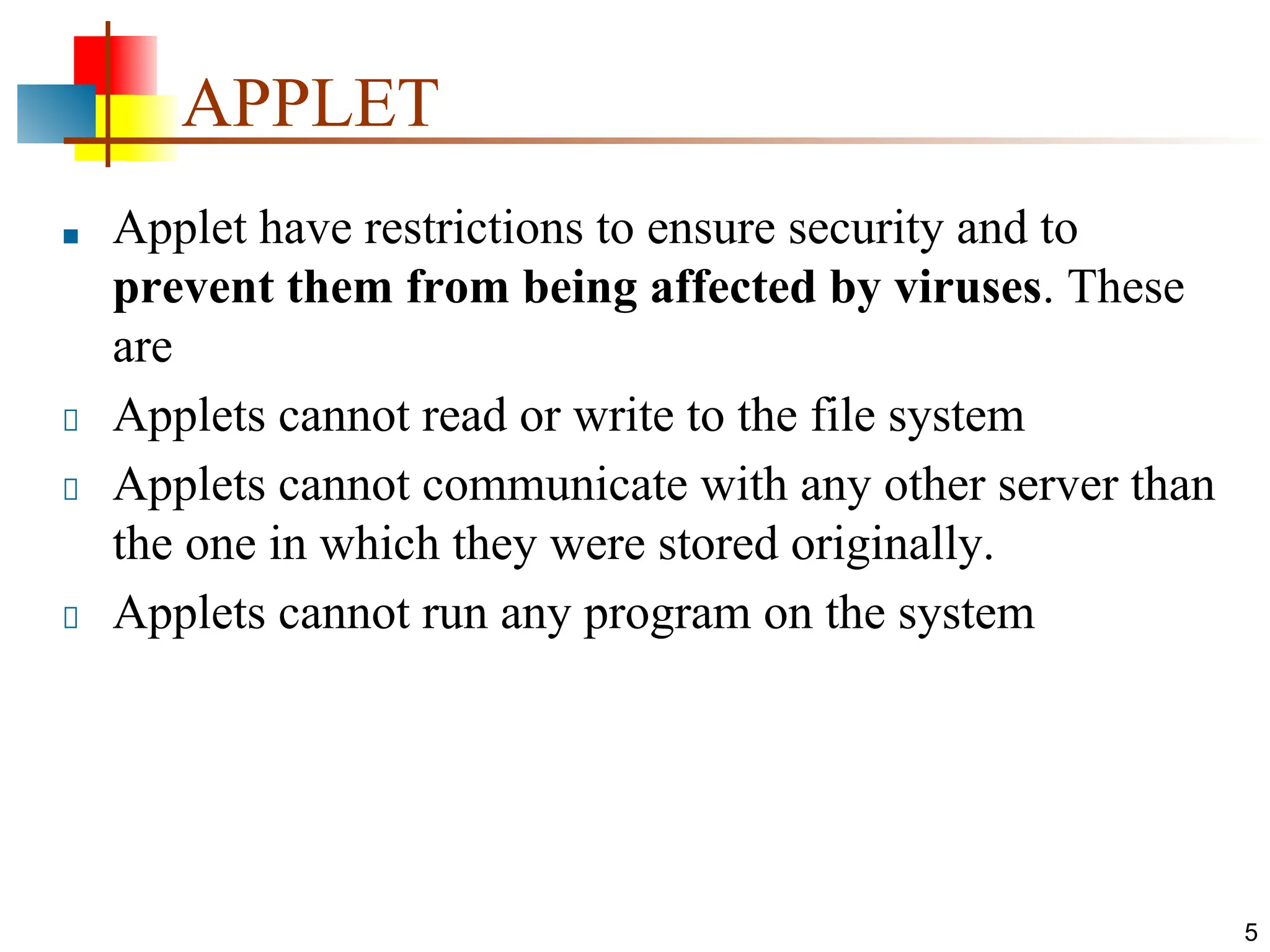
■ Applet haverestrictions to ensure security and to
prevent them from being affected by viruses. These
are
Applets cannot read or write to the file system
Applets cannot communicate with any other server than
the one in which they were stored originally.
Applets cannot run any program on the system
5
6.
6
Applets
■ An applicationhas a
public static void main(String args[ ]) method, but
an Applet usually does not
■ An Applet's main method is in the Browser
■ To write an Applet, you extend Applet and override
some of its methods
■ The most important methods are init( ), start( ), and
paint(Graphics g)
7.
7
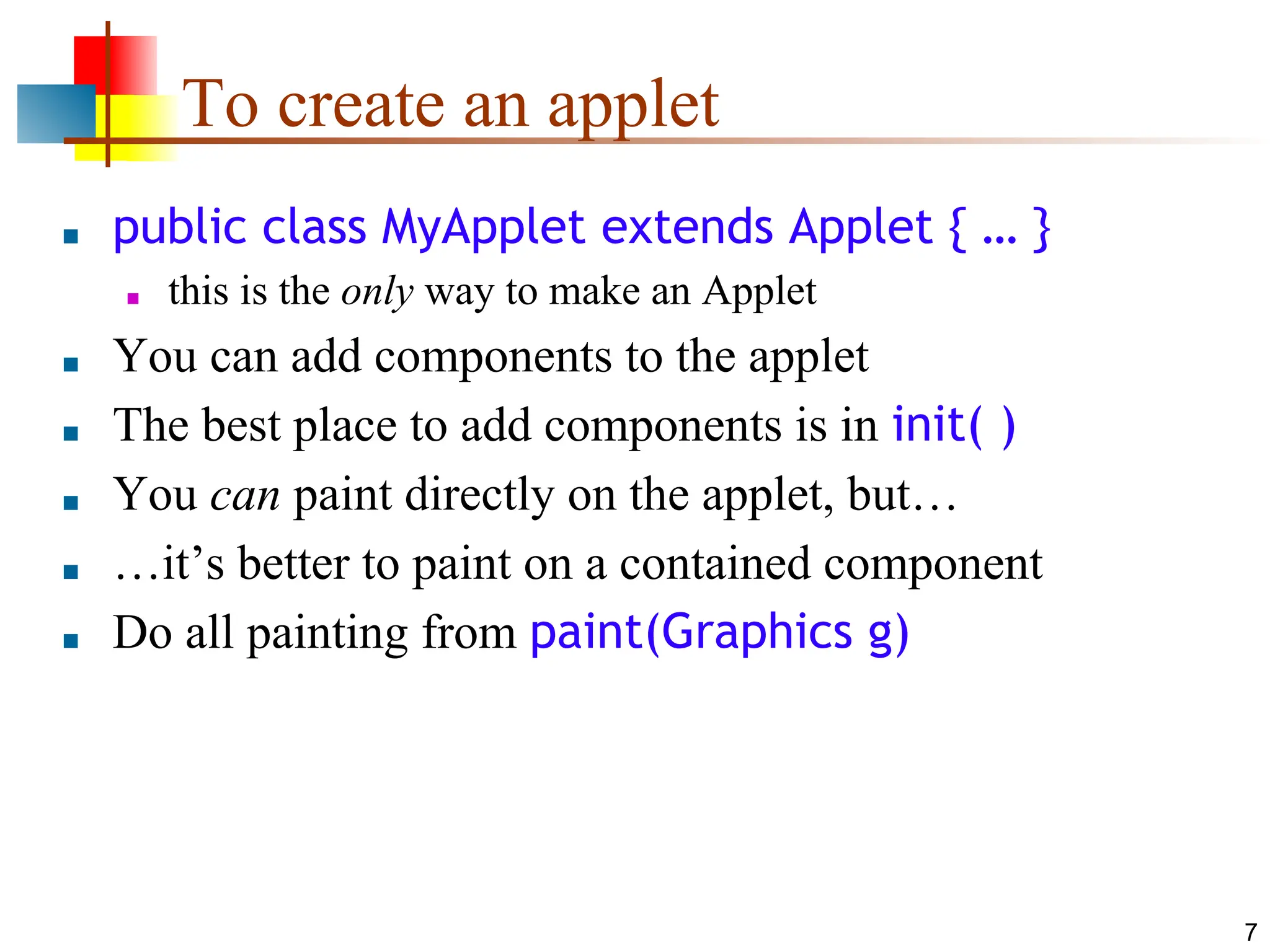
To create anapplet
■ public class MyApplet extends Applet { … }
■ this is the only way to make an Applet
■ You can add components to the applet
■ The best place to add components is in init( )
■ You can paint directly on the applet, but…
■ …it’s better to paint on a contained component
■ Do all painting from paint(Graphics g)
8.
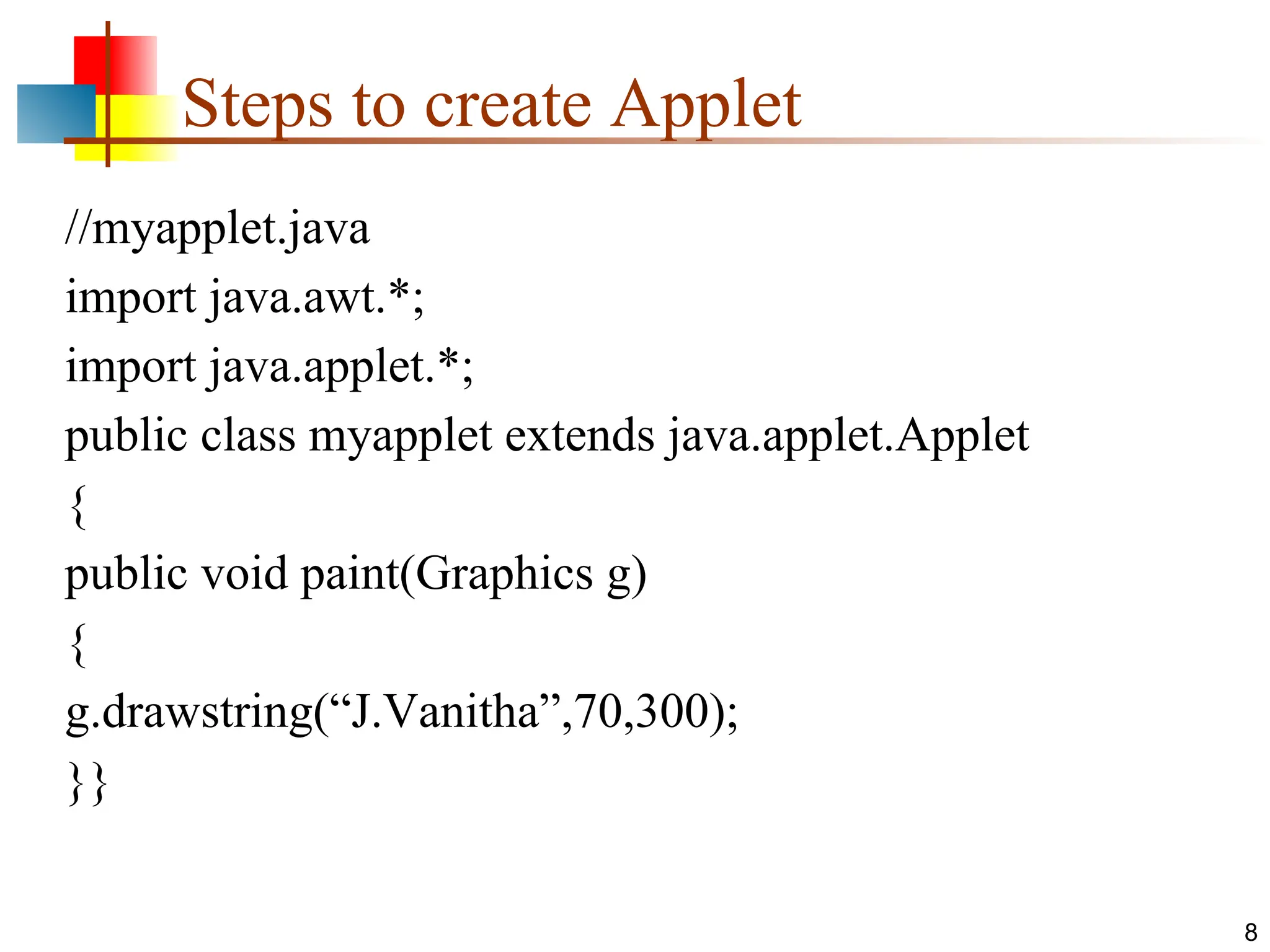
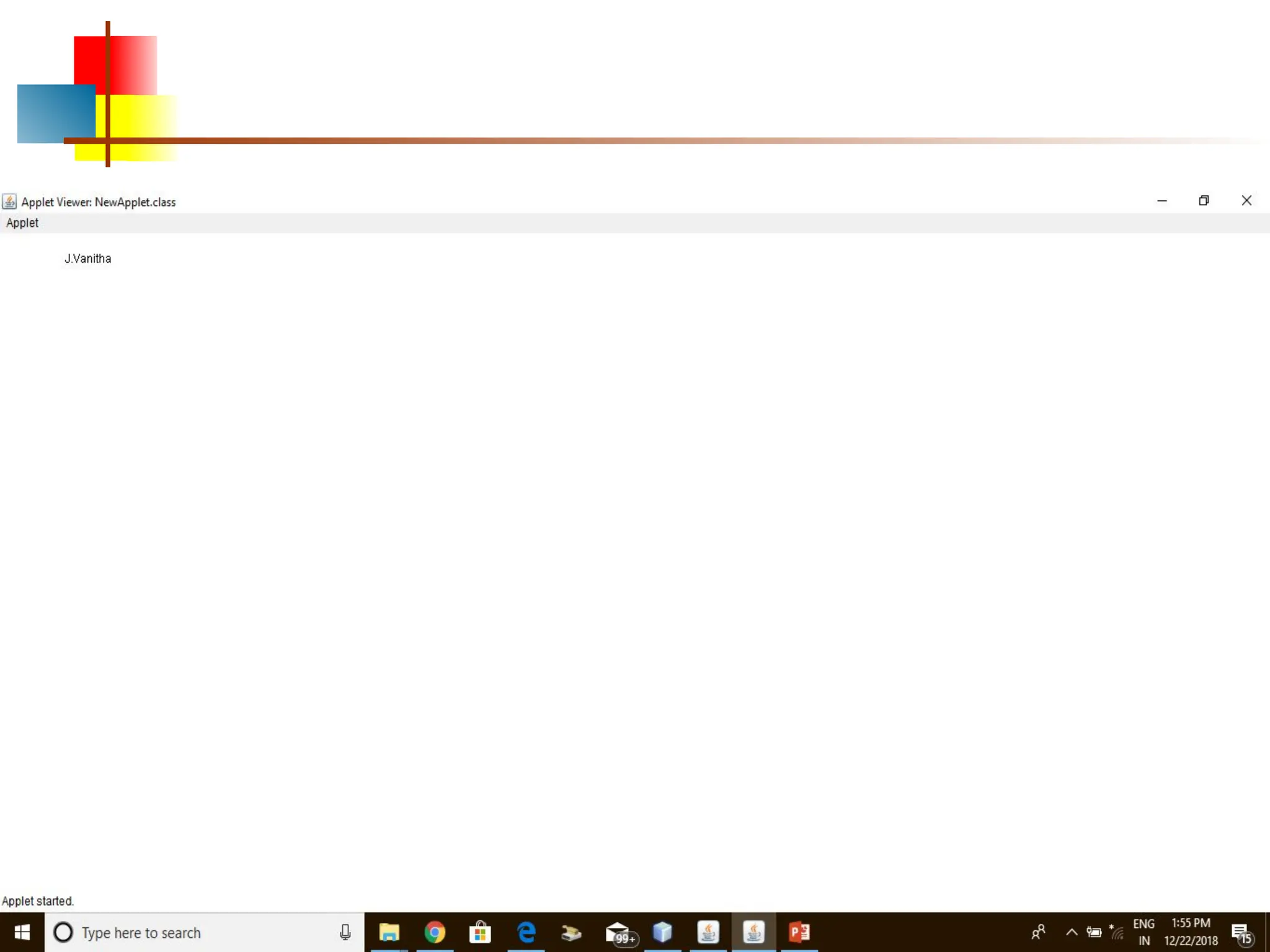
Steps to createApplet
//myapplet.java
import java.awt.*;
import java.applet.*;
public class myapplet extends java.applet.Applet
{
public void paint(Graphics g)
{
g.drawstring(“J.Vanitha”,70,300);
}}
8
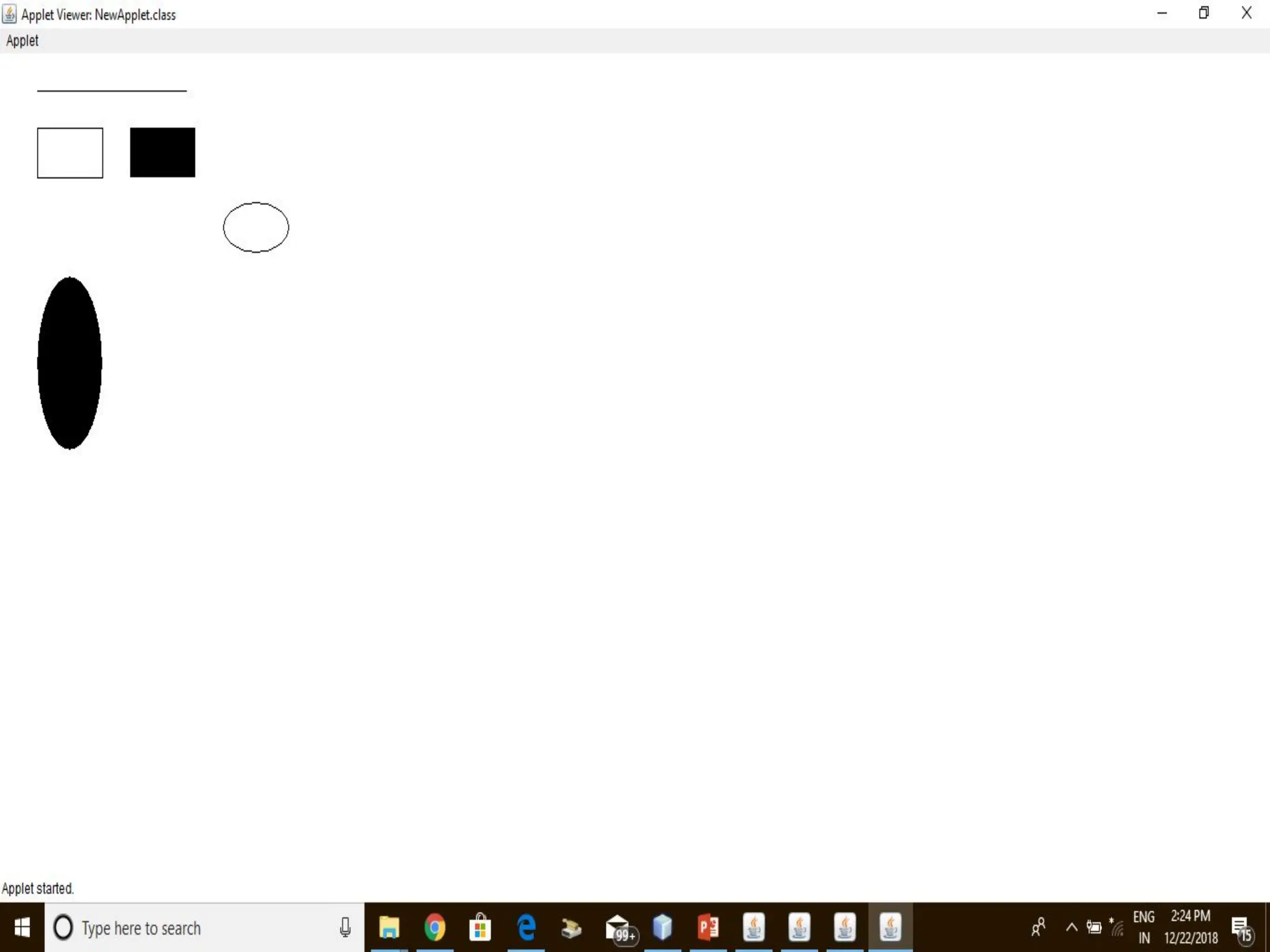
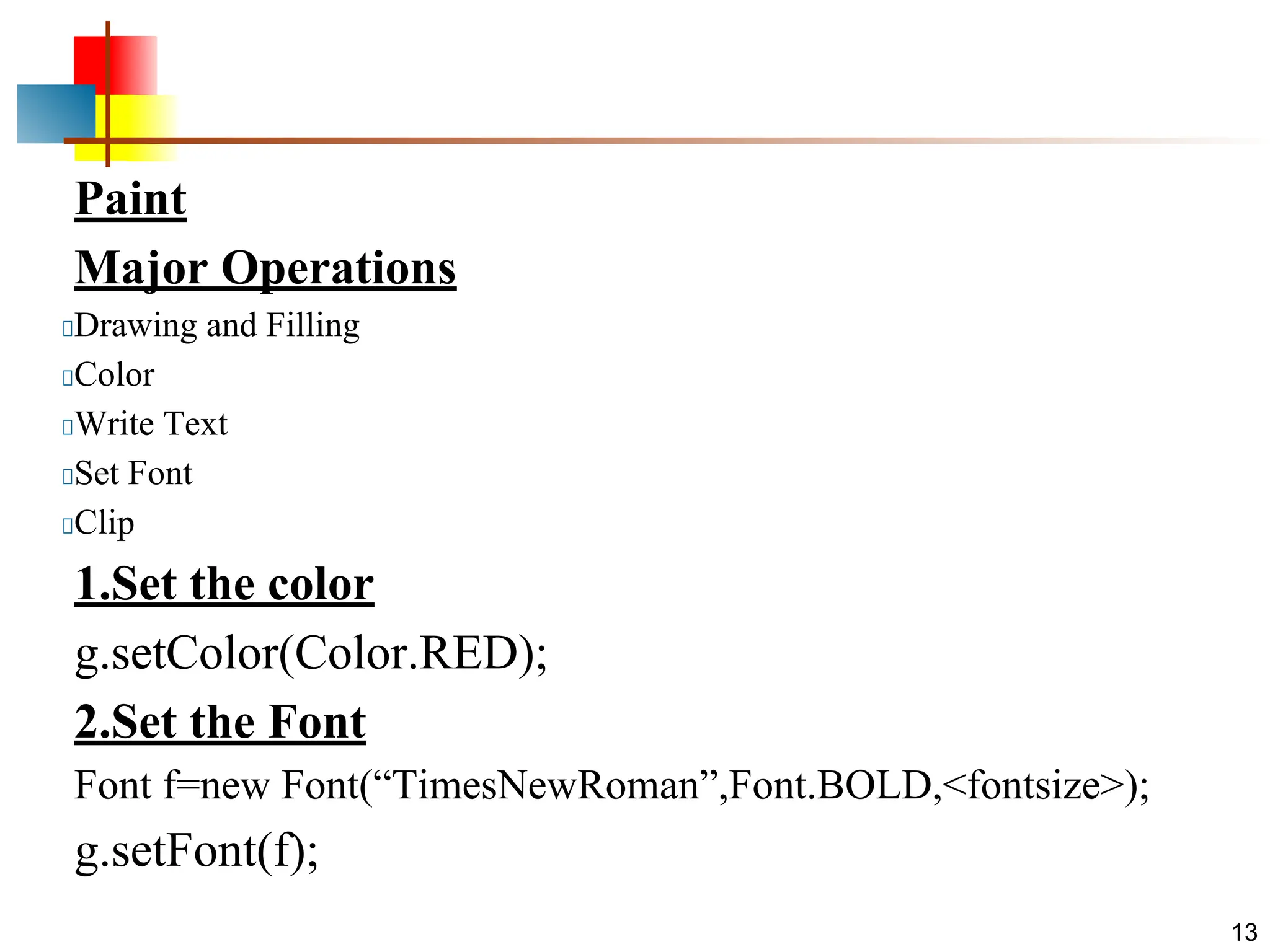
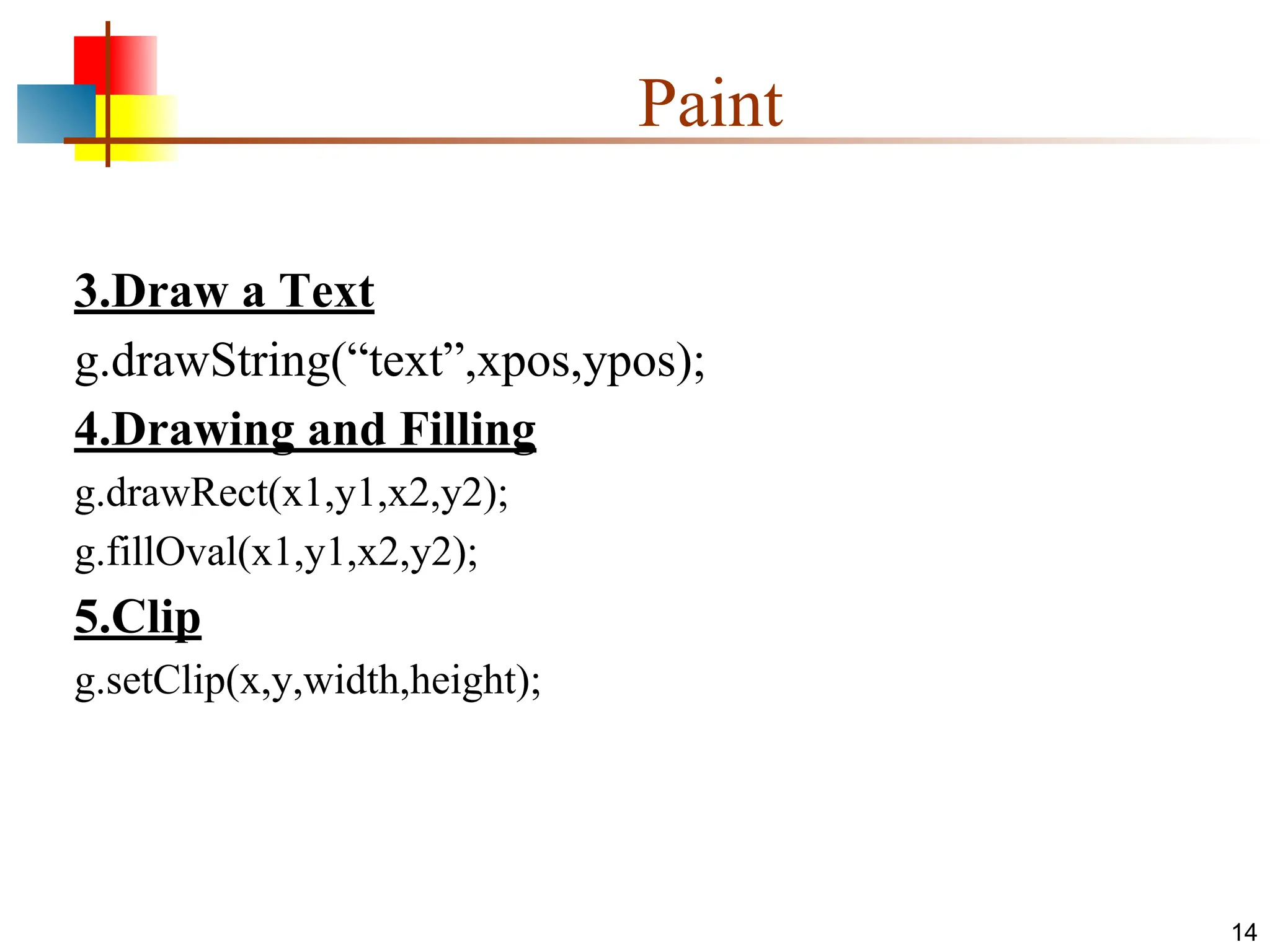
Paint
Major Operations
Drawing andFilling
Color
Write Text
Set Font
Clip
1.Set the color
g.setColor(Color.RED);
2.Set the Font
Font f=new Font(“TimesNewRoman”,Font.BOLD,<fontsize>);
g.setFont(f);
13
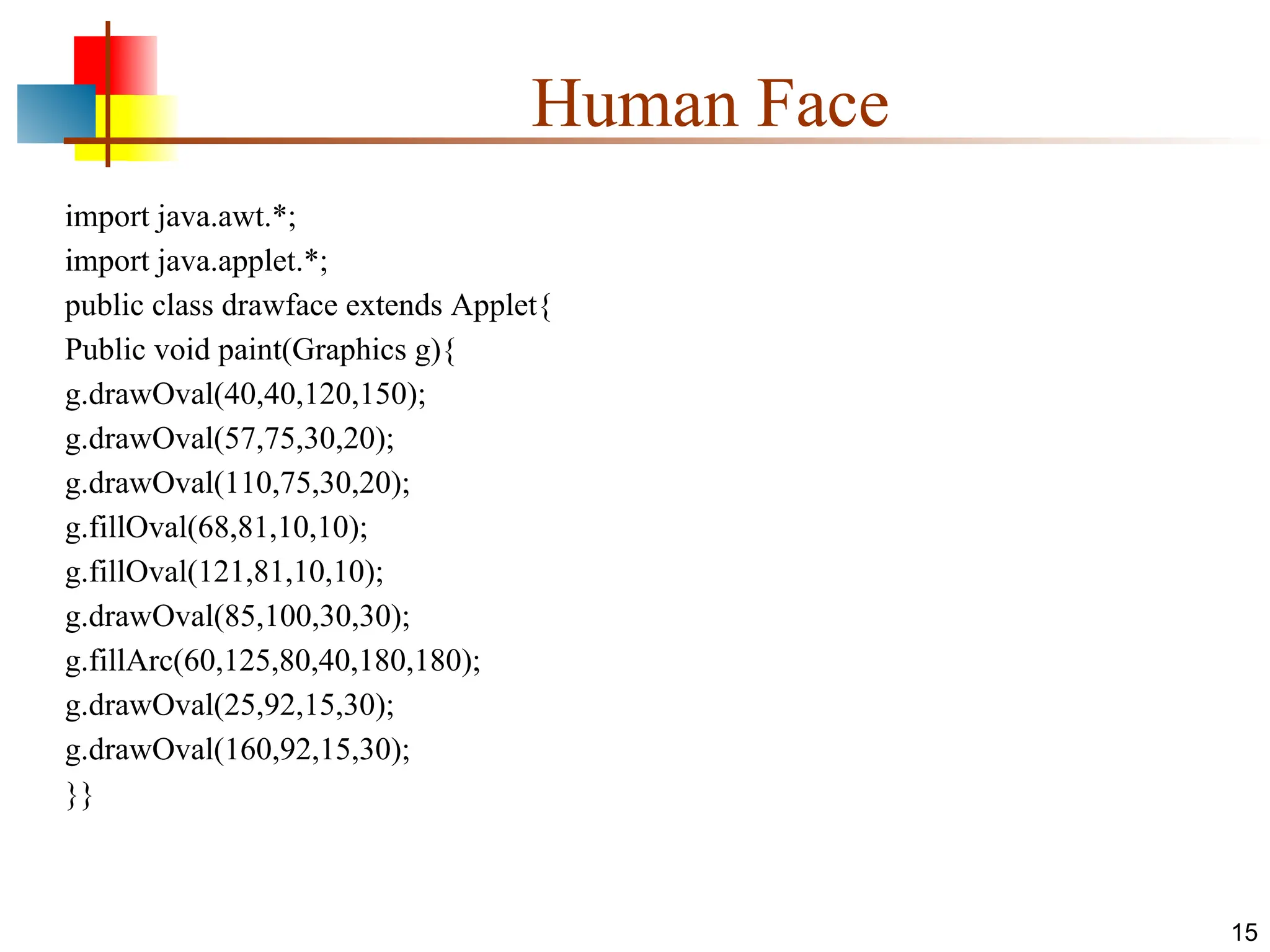
Human Face
import java.awt.*;
importjava.applet.*;
public class drawface extends Applet{
Public void paint(Graphics g){
g.drawOval(40,40,120,150);
g.drawOval(57,75,30,20);
g.drawOval(110,75,30,20);
g.fillOval(68,81,10,10);
g.fillOval(121,81,10,10);
g.drawOval(85,100,30,30);
g.fillArc(60,125,80,40,180,180);
g.drawOval(25,92,15,30);
g.drawOval(160,92,15,30);
}}
15
16.
16
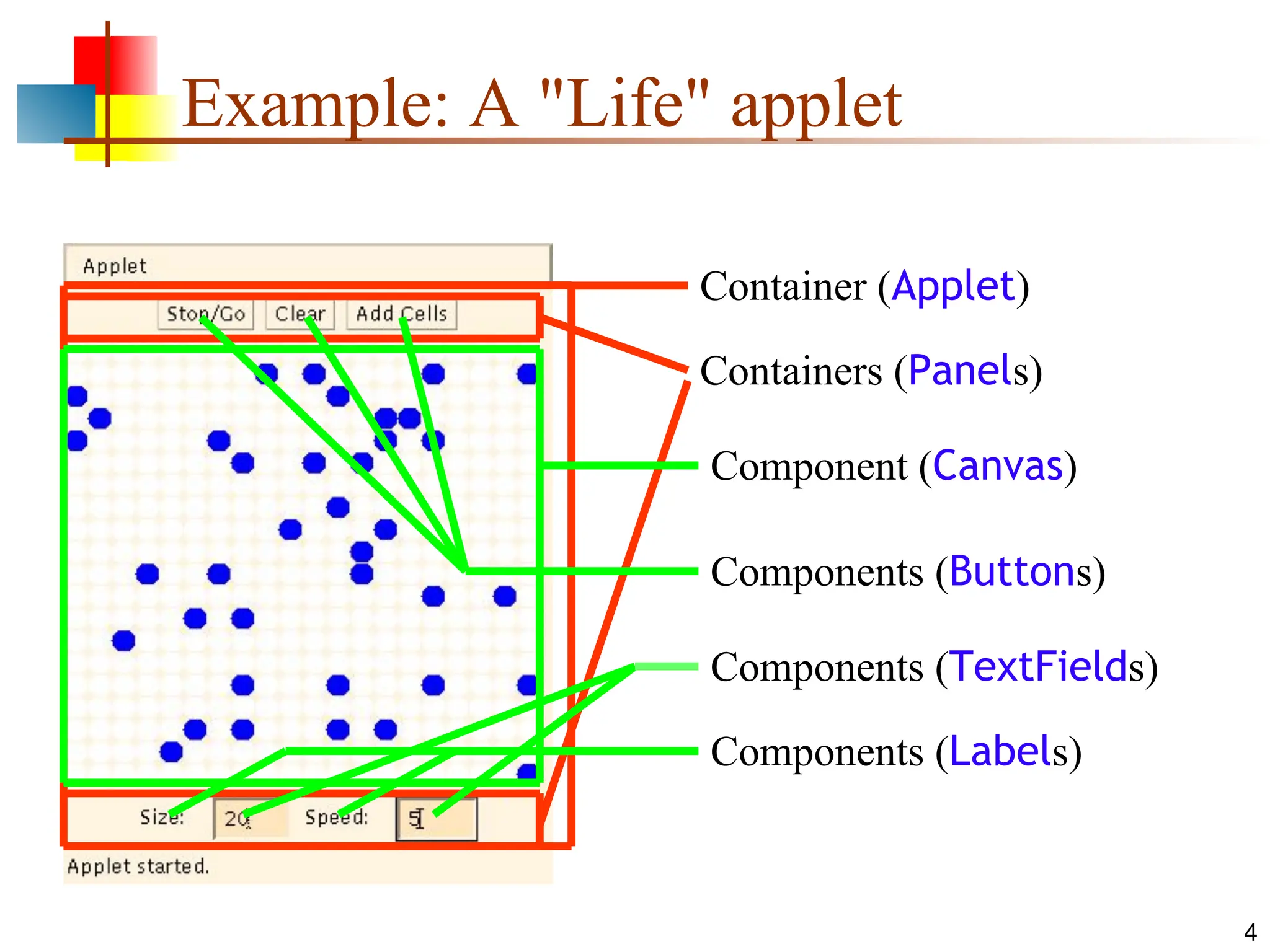
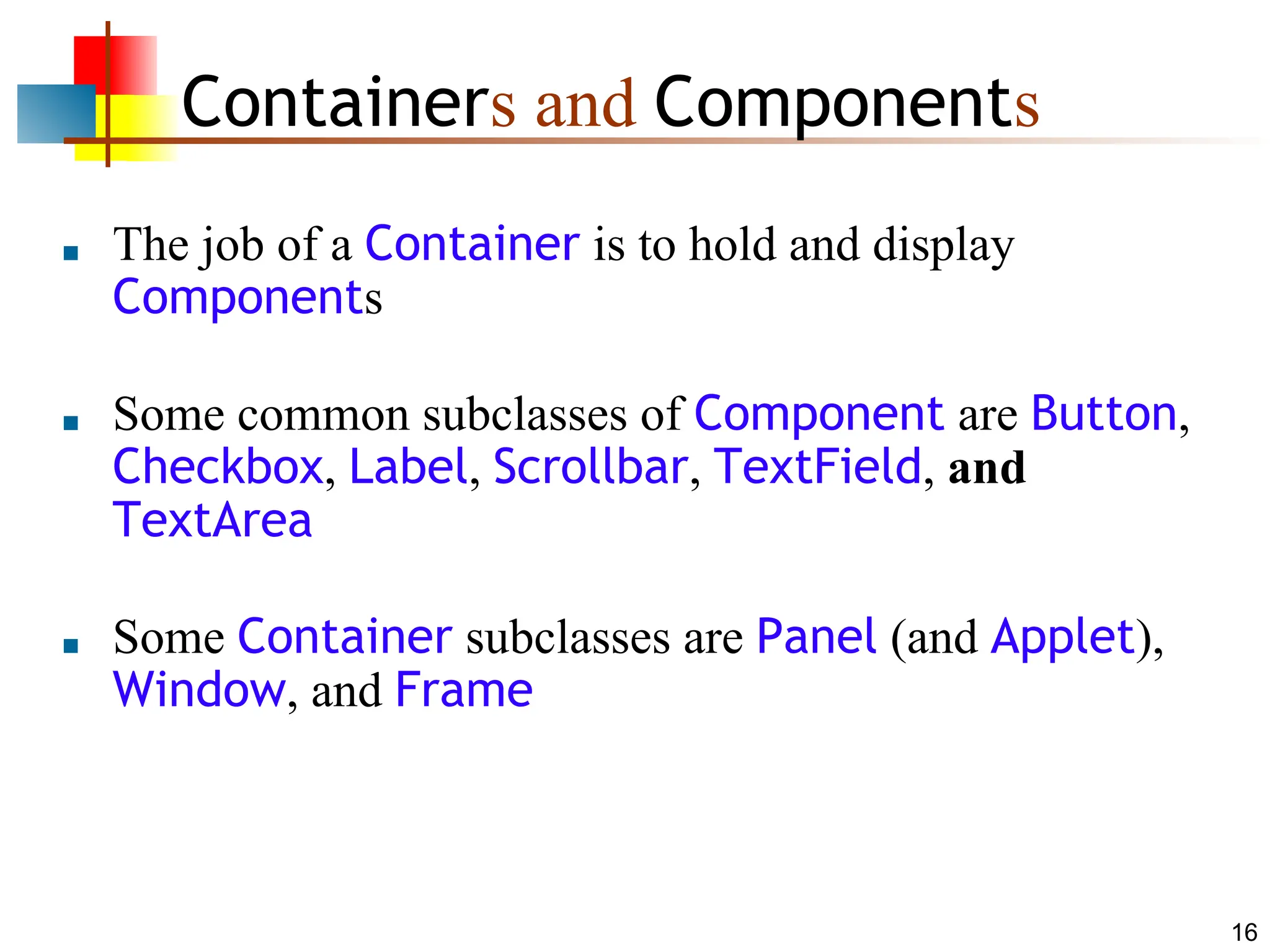
Containers and Components
■The job of a Container is to hold and display
Components
■ Some common subclasses of Component are Button,
Checkbox, Label, Scrollbar, TextField, and
TextArea
■ Some Container subclasses are Panel (and Applet),
Window, and Frame
17.
17
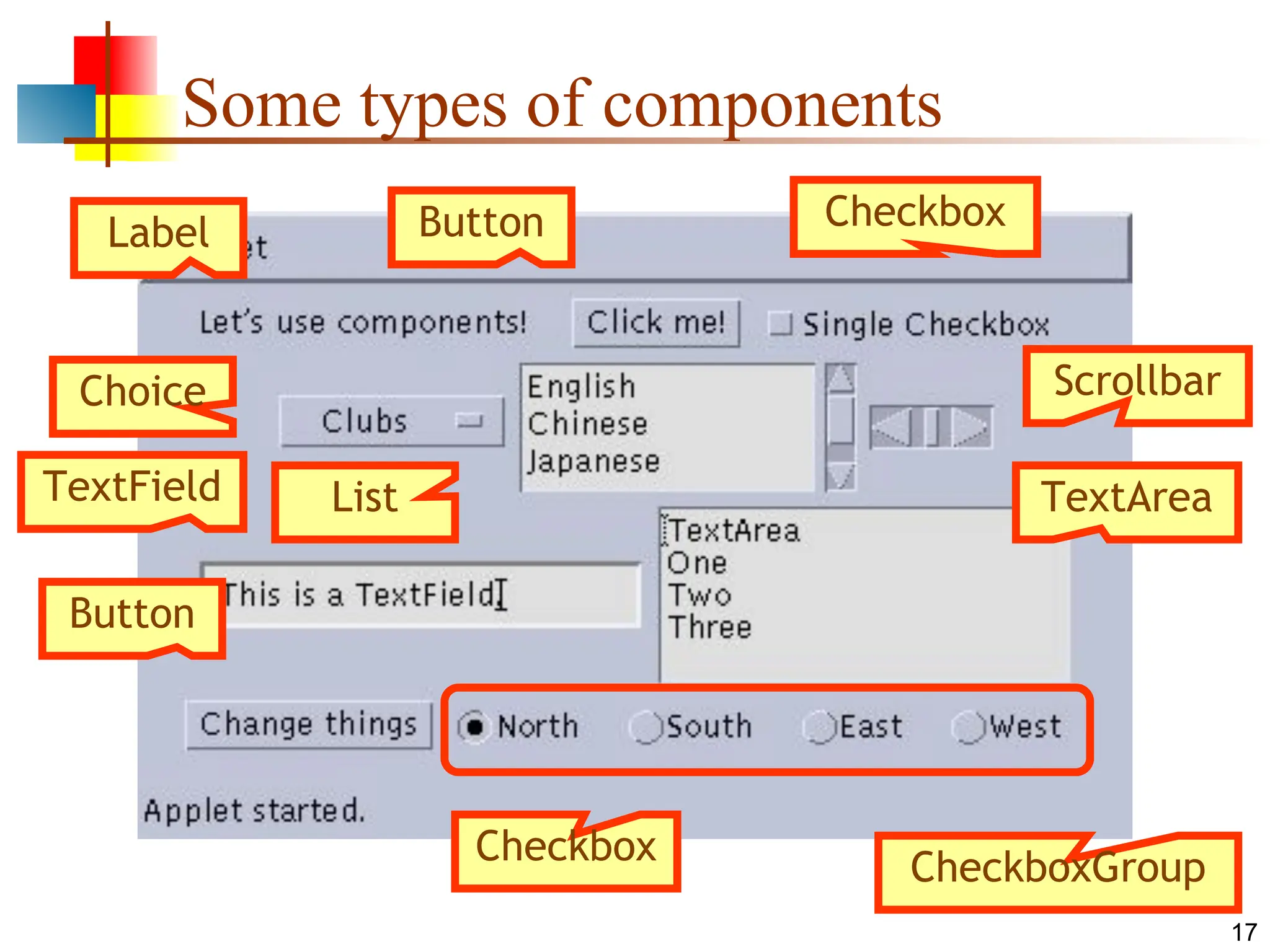
Some types ofcomponents
Label Button
Button
Checkbox
Choice
List
Scrollbar
TextField TextArea
CheckboxGroup
Checkbox
18.
18
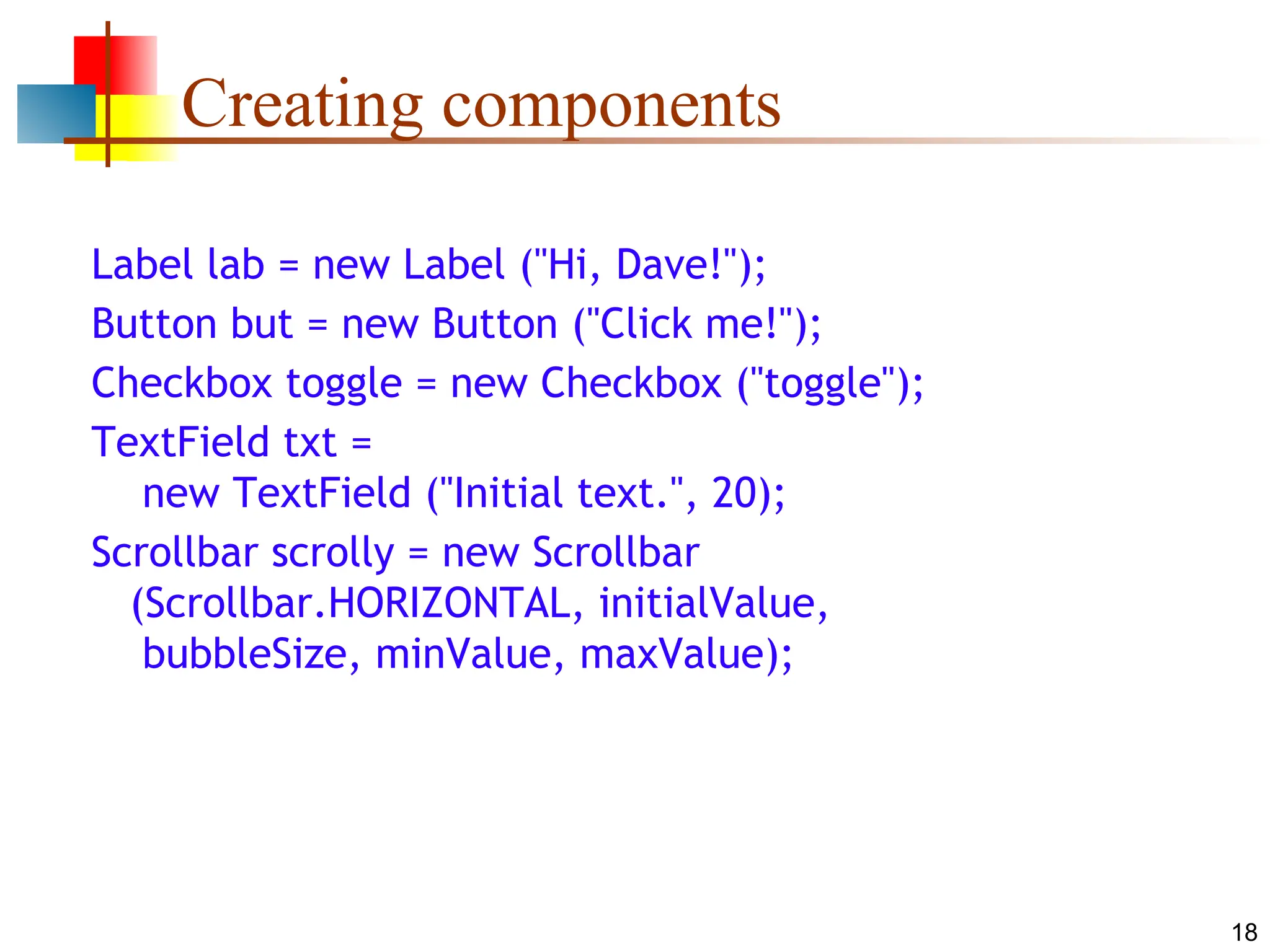
Creating components
Label lab= new Label ("Hi, Dave!");
Button but = new Button ("Click me!");
Checkbox toggle = new Checkbox ("toggle");
TextField txt =
new TextField ("Initial text.", 20);
Scrollbar scrolly = new Scrollbar
(Scrollbar.HORIZONTAL, initialValue,
bubbleSize, minValue, maxValue);
19.
19
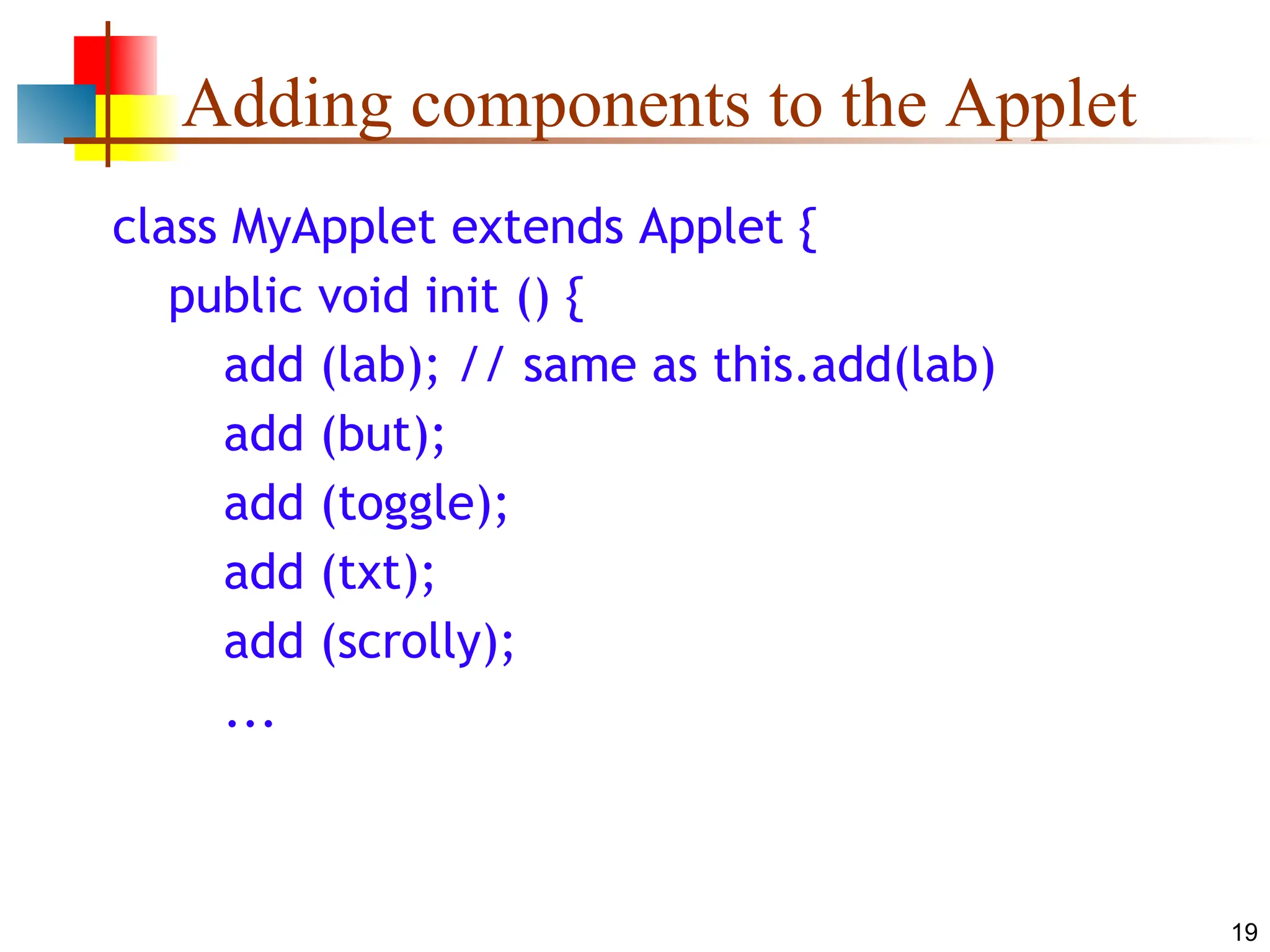
Adding components tothe Applet
class MyApplet extends Applet {
public void init () {
add (lab); // same as this.add(lab)
add (but);
add (toggle);
add (txt);
add (scrolly);
...
20.
Layout Manager
■ Layoutmanager is an instance of any class that
implements the layout manager interface
■ The layout manager is set by the setLayout() method
■ General form is void setLayout(layoutManager obj)
■ Layout Manager classes
i) FlowLayout
ii) BorderLayout
iii) GridLayout
iv) CardLayout
20
21.
21
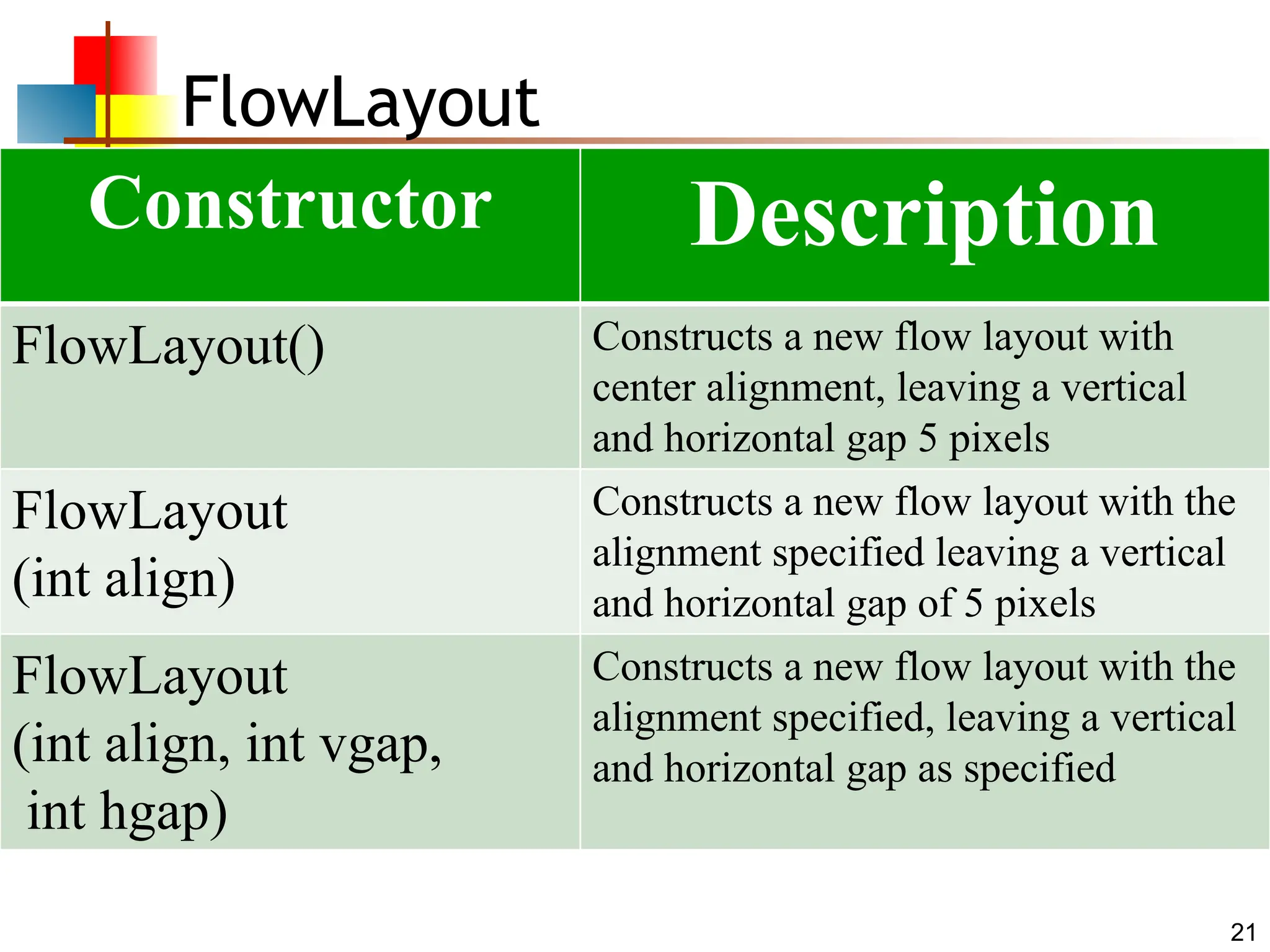
FlowLayout
Constructor Description
FlowLayout() Constructsa new flow layout with
center alignment, leaving a vertical
and horizontal gap 5 pixels
FlowLayout
(int align)
Constructs a new flow layout with the
alignment specified leaving a vertical
and horizontal gap of 5 pixels
FlowLayout
(int align, int vgap,
int hgap)
Constructs a new flow layout with the
alignment specified, leaving a vertical
and horizontal gap as specified
22.
22
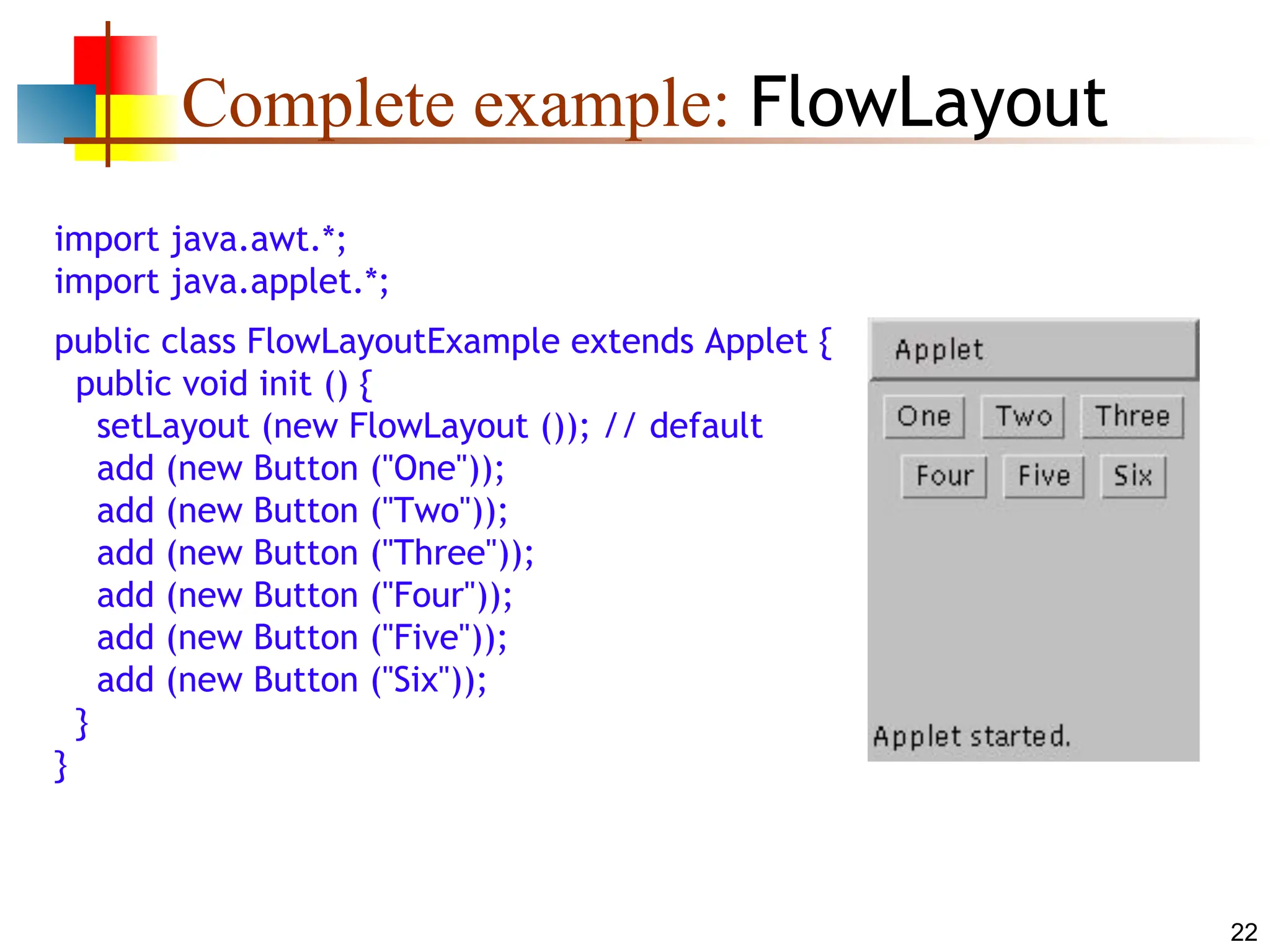
Complete example: FlowLayout
importjava.awt.*;
import java.applet.*;
public class FlowLayoutExample extends Applet {
public void init () {
setLayout (new FlowLayout ()); // default
add (new Button ("One"));
add (new Button ("Two"));
add (new Button ("Three"));
add (new Button ("Four"));
add (new Button ("Five"));
add (new Button ("Six"));
}
}
23.
23
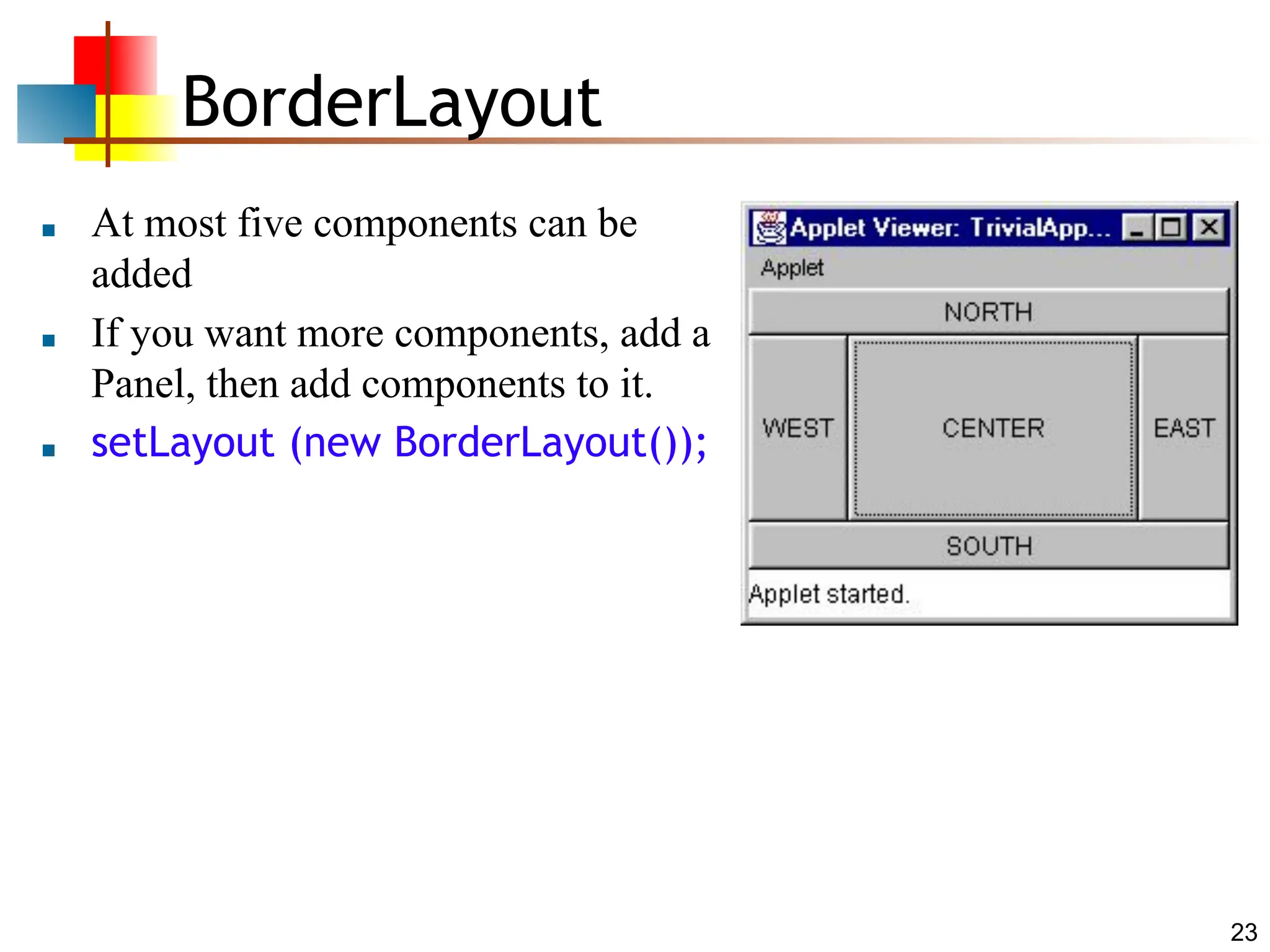
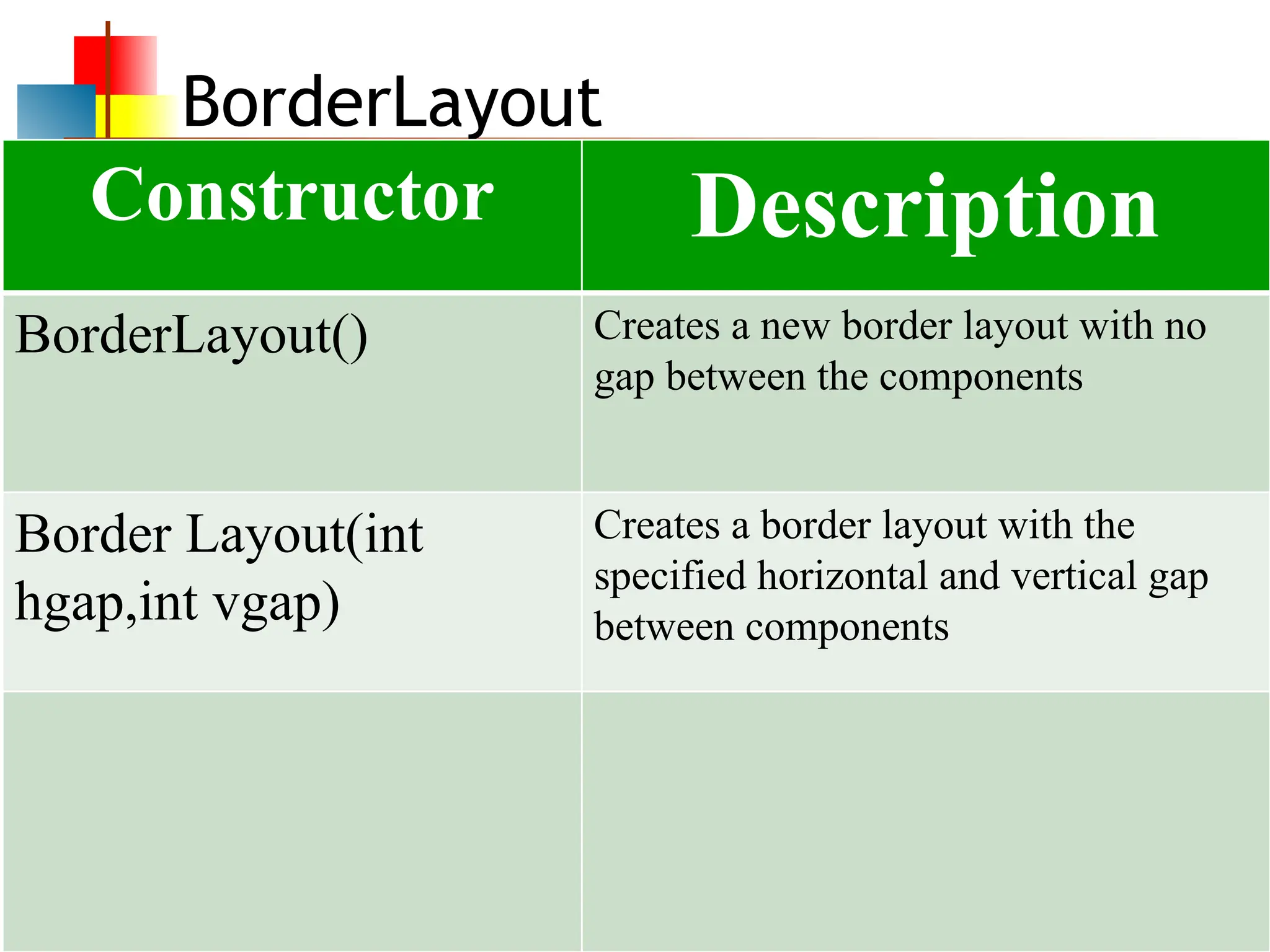
BorderLayout
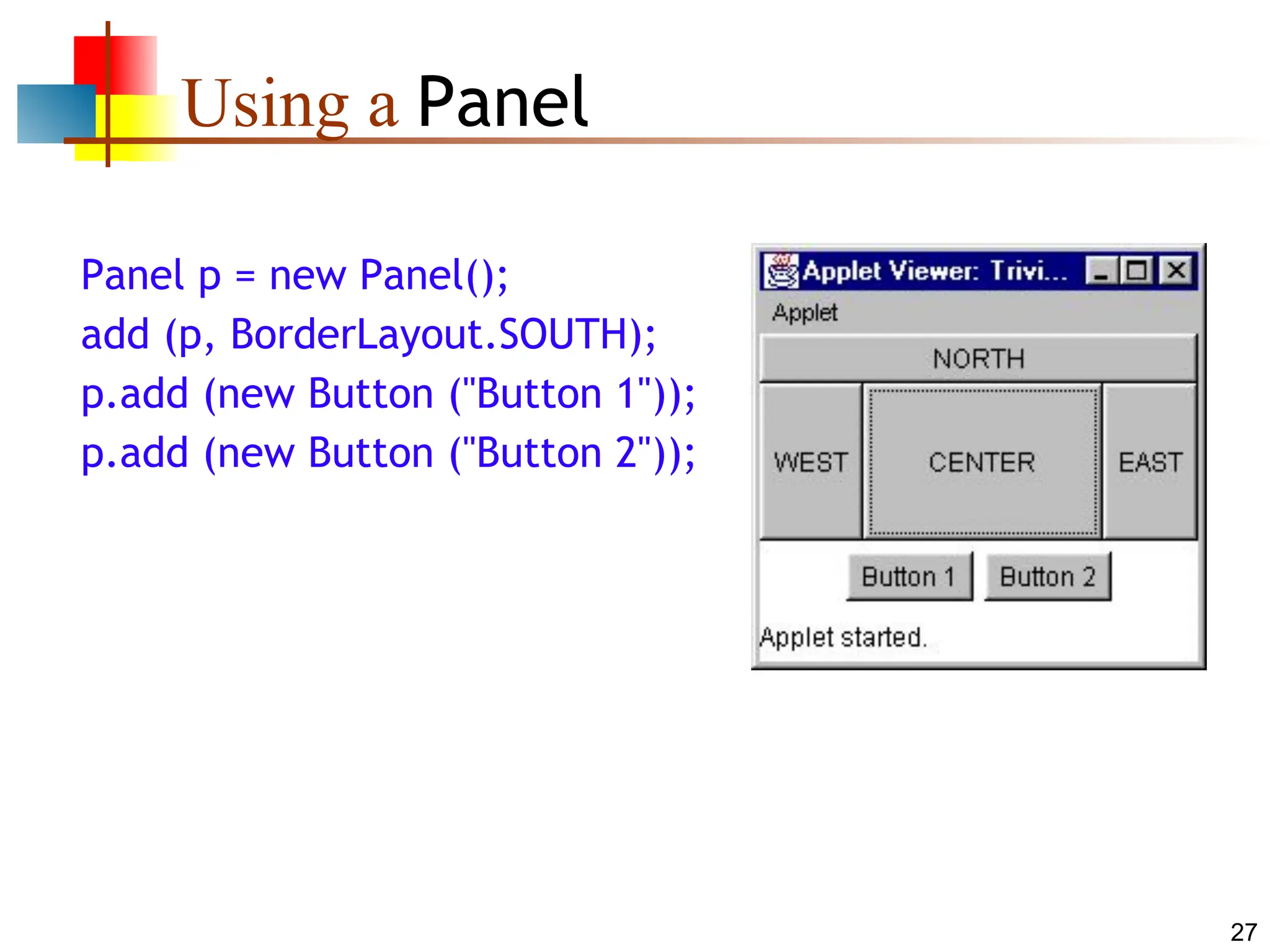
■ At mostfive components can be
added
■ If you want more components, add a
Panel, then add components to it.
■ setLayout (new BorderLayout());
25
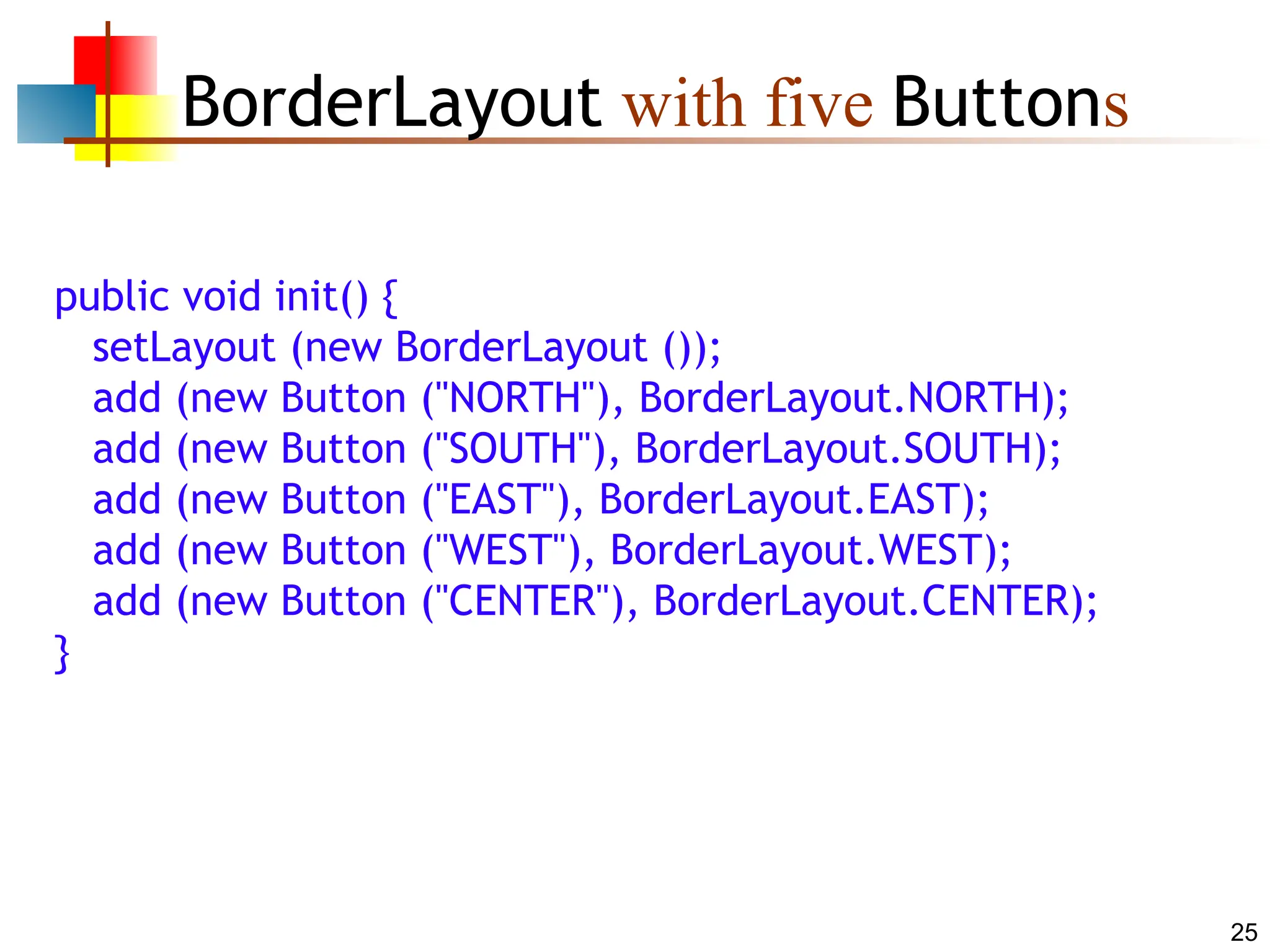
BorderLayout with fiveButtons
public void init() {
setLayout (new BorderLayout ());
add (new Button ("NORTH"), BorderLayout.NORTH);
add (new Button ("SOUTH"), BorderLayout.SOUTH);
add (new Button ("EAST"), BorderLayout.EAST);
add (new Button ("WEST"), BorderLayout.WEST);
add (new Button ("CENTER"), BorderLayout.CENTER);
}
26.
26
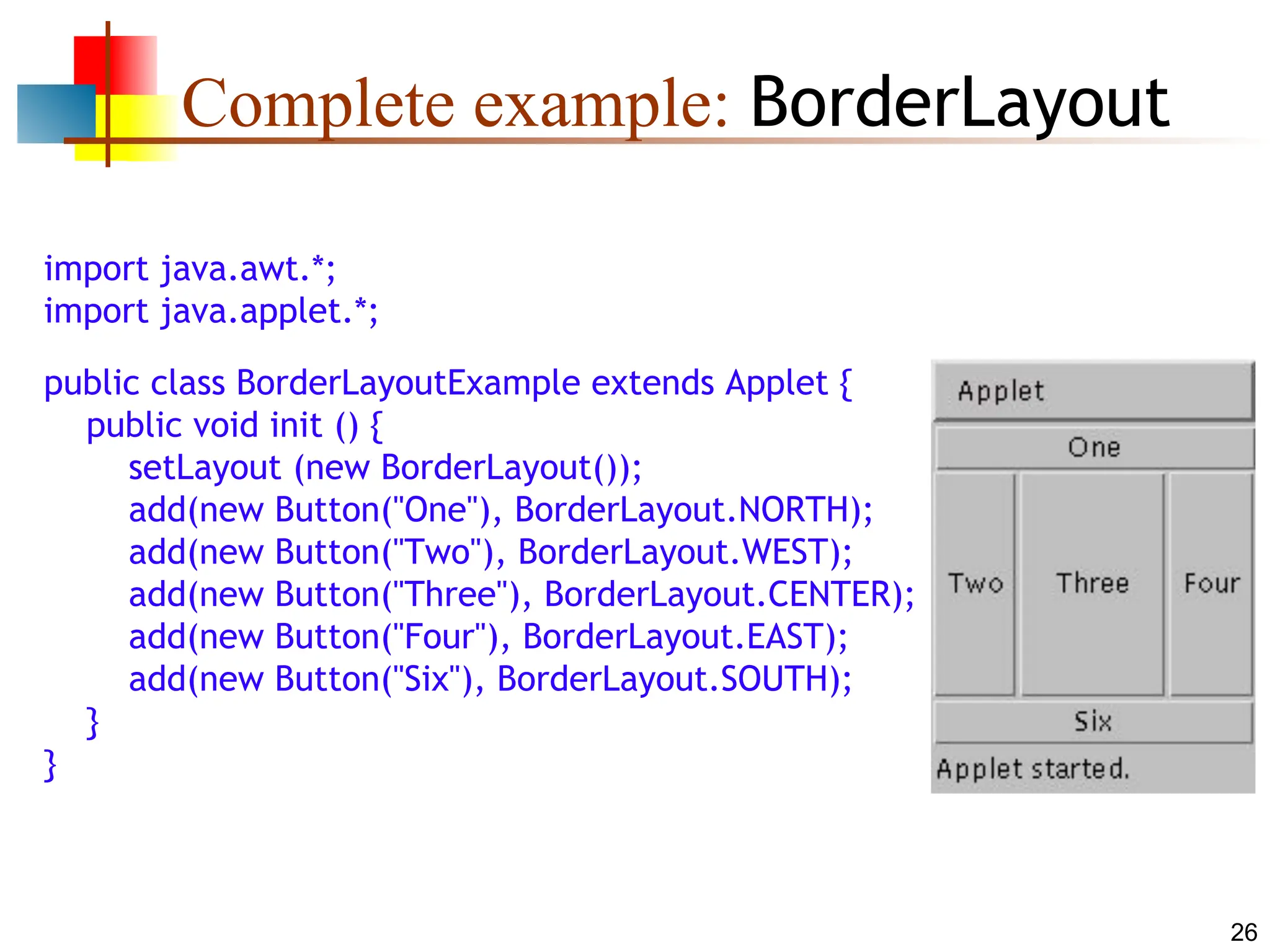
Complete example: BorderLayout
importjava.awt.*;
import java.applet.*;
public class BorderLayoutExample extends Applet {
public void init () {
setLayout (new BorderLayout());
add(new Button("One"), BorderLayout.NORTH);
add(new Button("Two"), BorderLayout.WEST);
add(new Button("Three"), BorderLayout.CENTER);
add(new Button("Four"), BorderLayout.EAST);
add(new Button("Six"), BorderLayout.SOUTH);
}
}
27.
27
Using a Panel
Panelp = new Panel();
add (p, BorderLayout.SOUTH);
p.add (new Button ("Button 1"));
p.add (new Button ("Button 2"));
28.
28
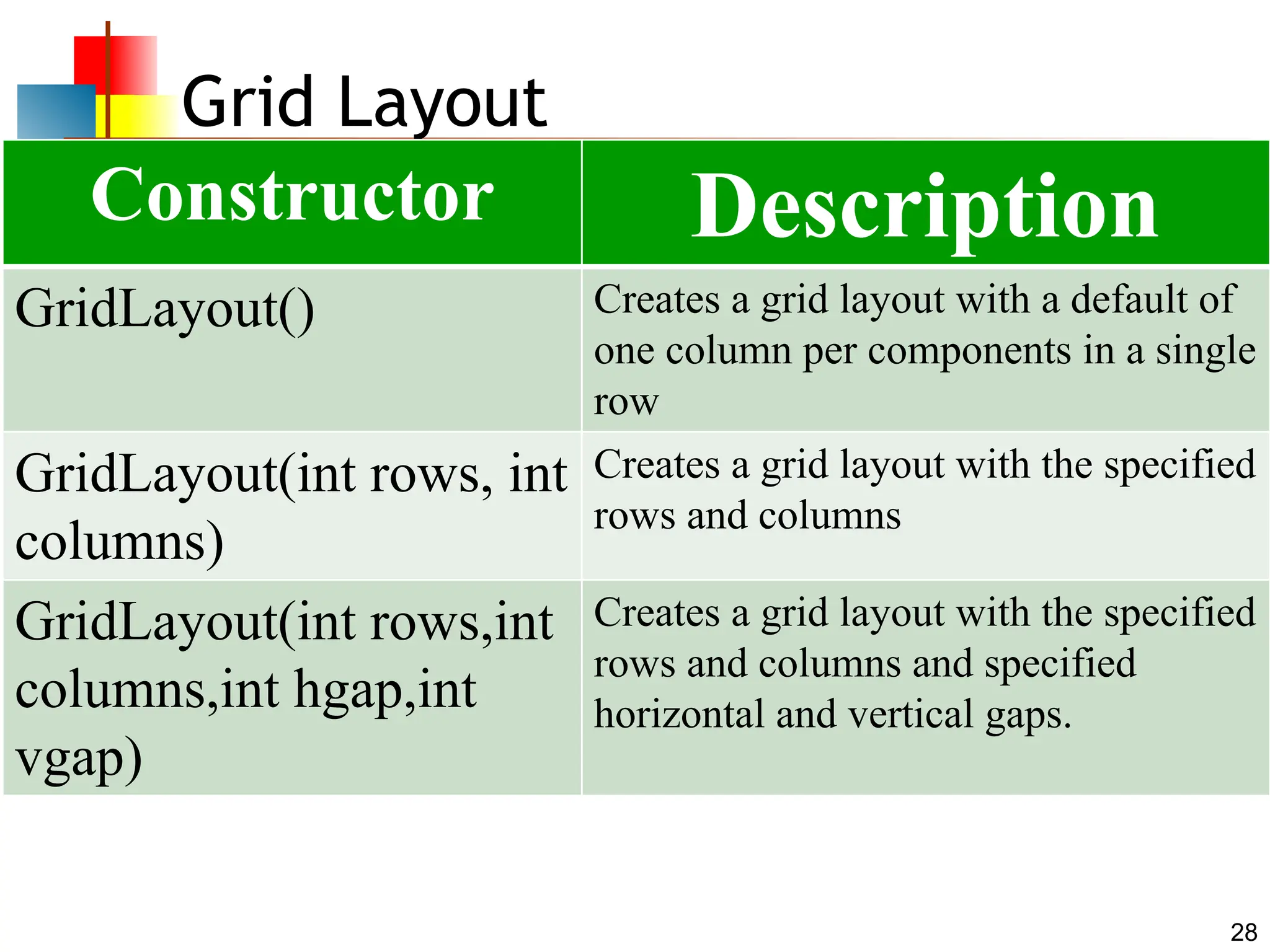
Grid Layout
Constructor Description
GridLayout()Creates a grid layout with a default of
one column per components in a single
row
GridLayout(int rows, int
columns)
Creates a grid layout with the specified
rows and columns
GridLayout(int rows,int
columns,int hgap,int
vgap)
Creates a grid layout with the specified
rows and columns and specified
horizontal and vertical gaps.
29.
29
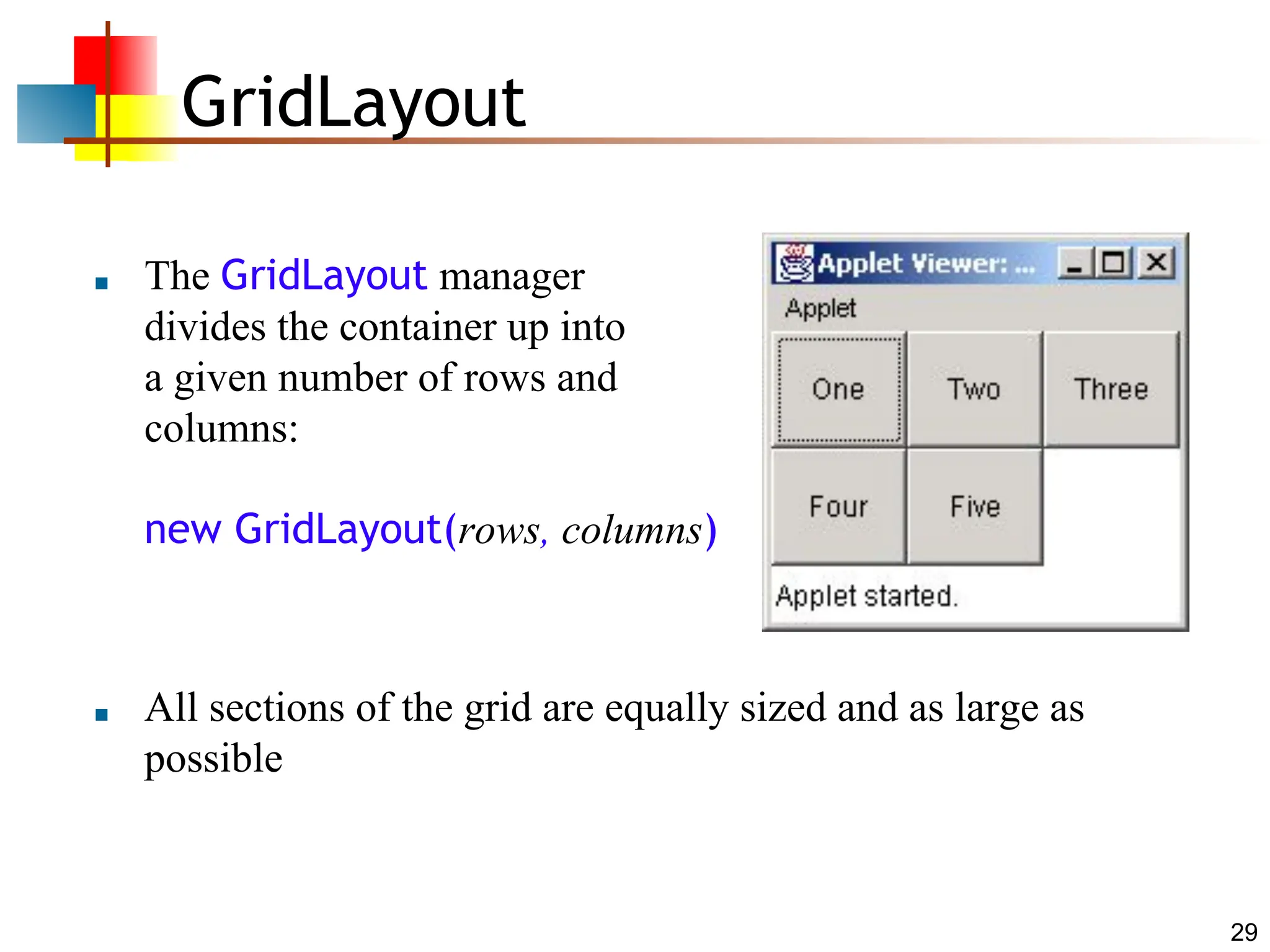
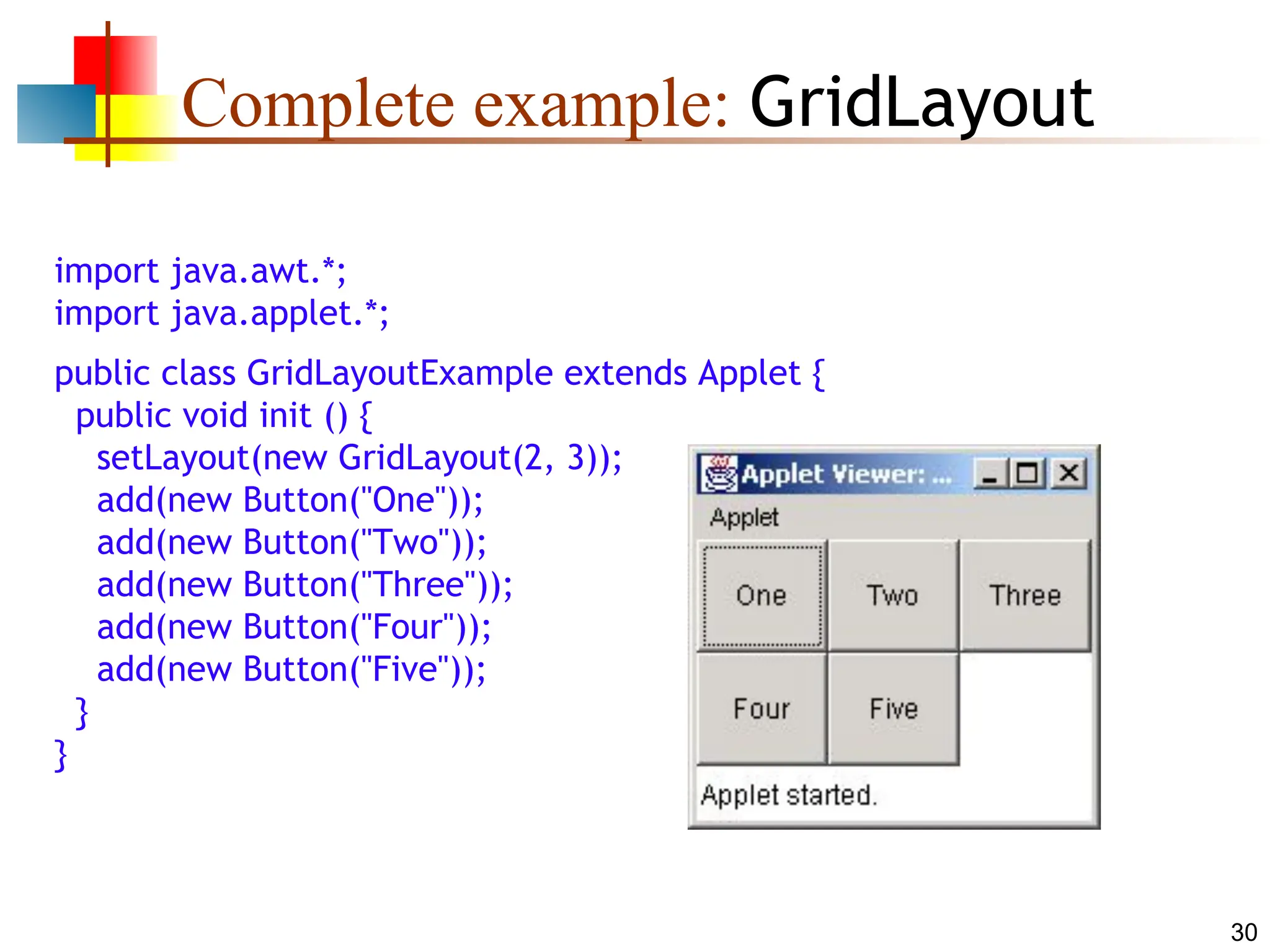
GridLayout
■ The GridLayoutmanager
divides the container up into
a given number of rows and
columns:
new GridLayout(rows, columns)
■ All sections of the grid are equally sized and as large as
possible
32
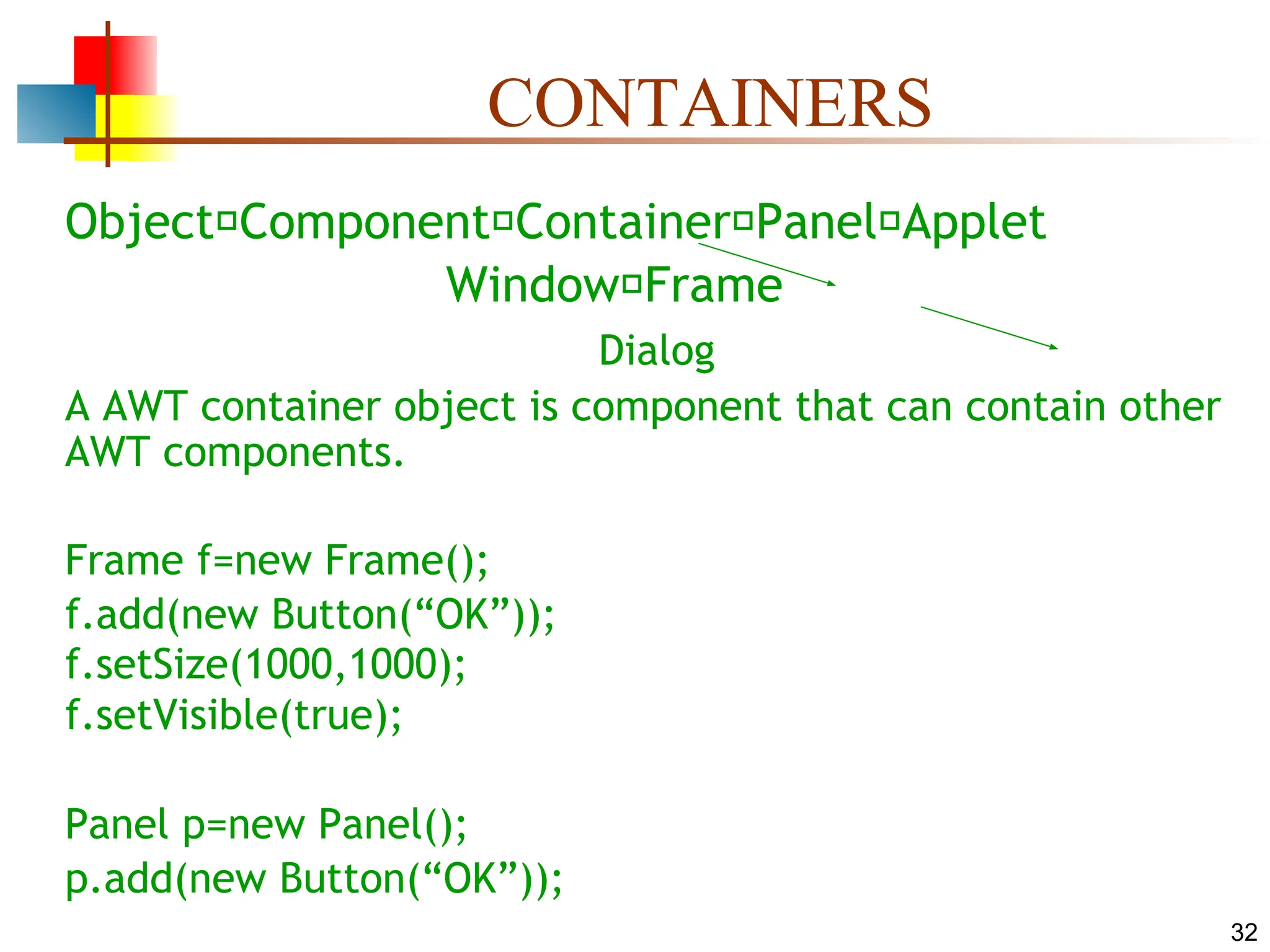
CONTAINERS
Object Component ContainerPanel Applet
Window Frame
Dialog
A AWT container object is component that can contain other
AWT components.
Frame f=new Frame();
f.add(new Button(“OK”));
f.setSize(1000,1000);
f.setVisible(true);
Panel p=new Panel();
p.add(new Button(“OK”));
33.
Events
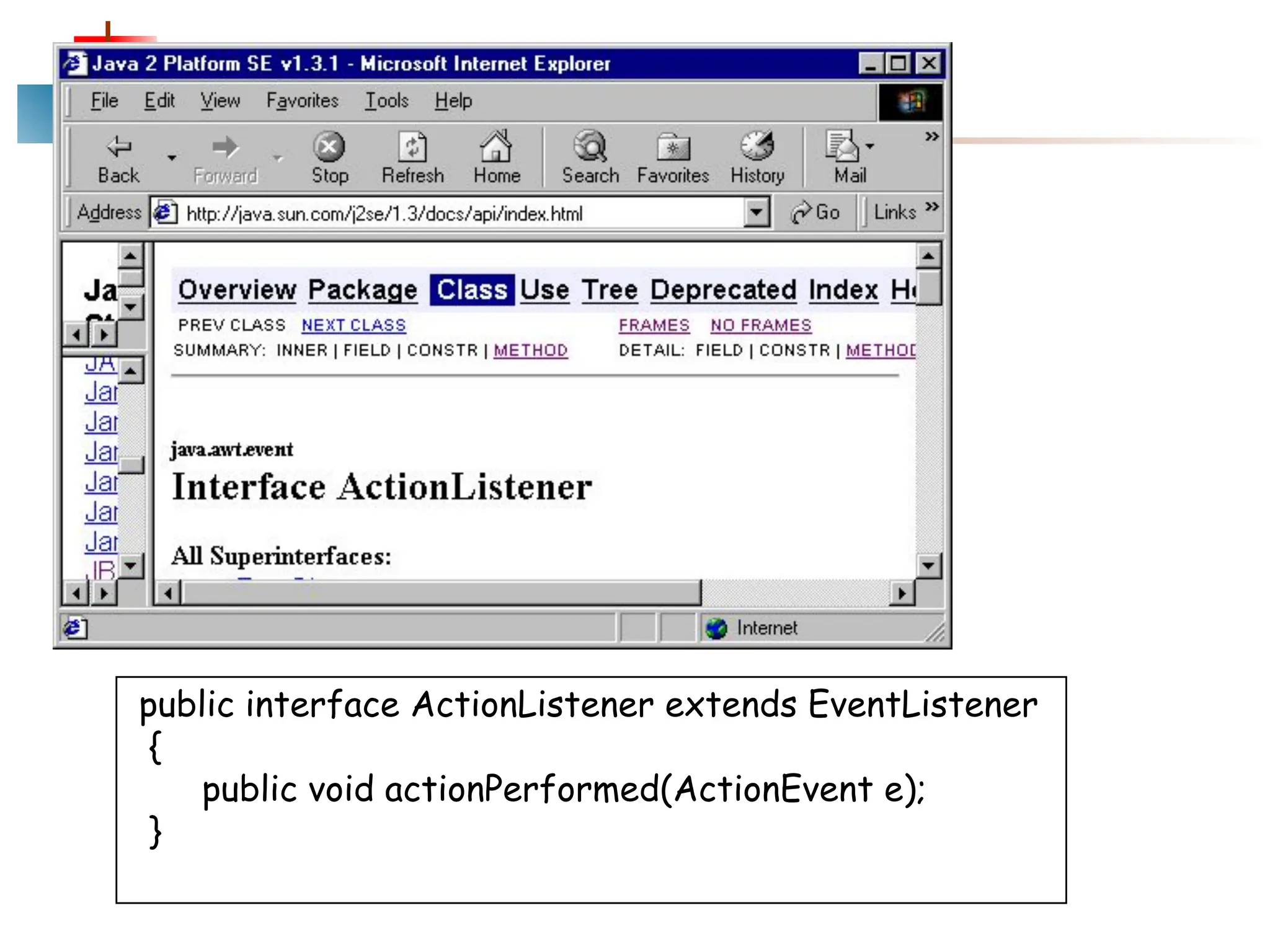
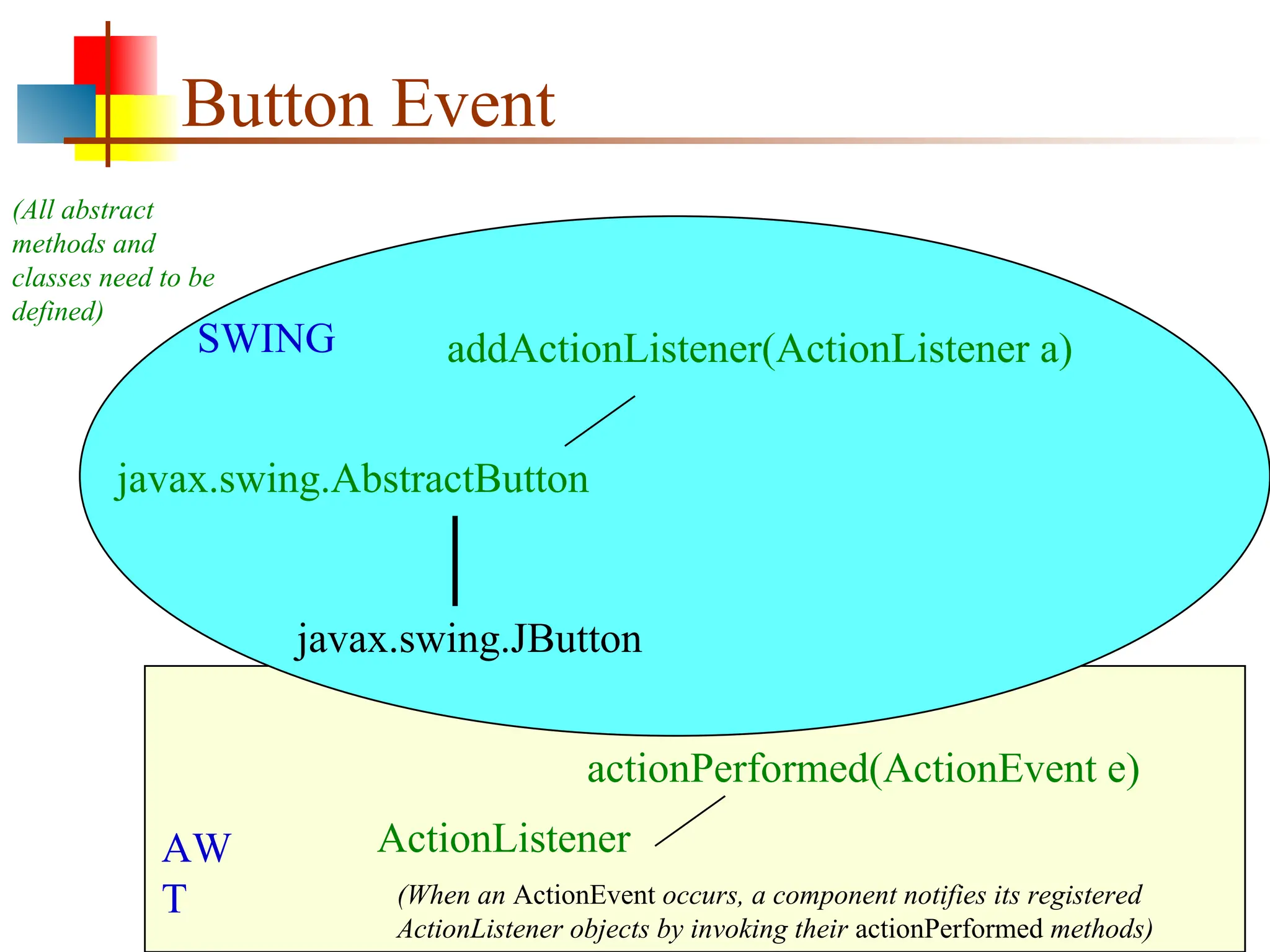
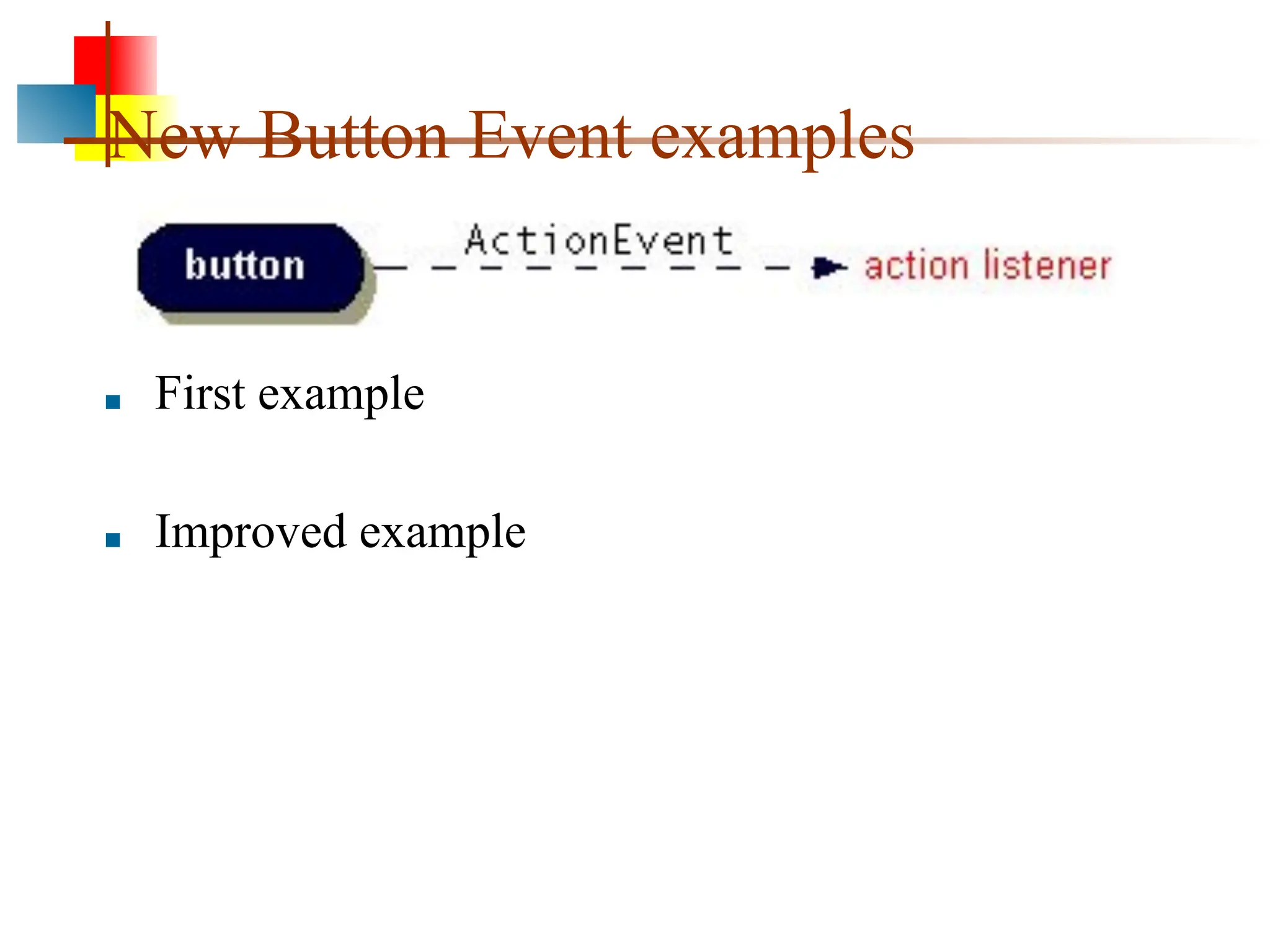
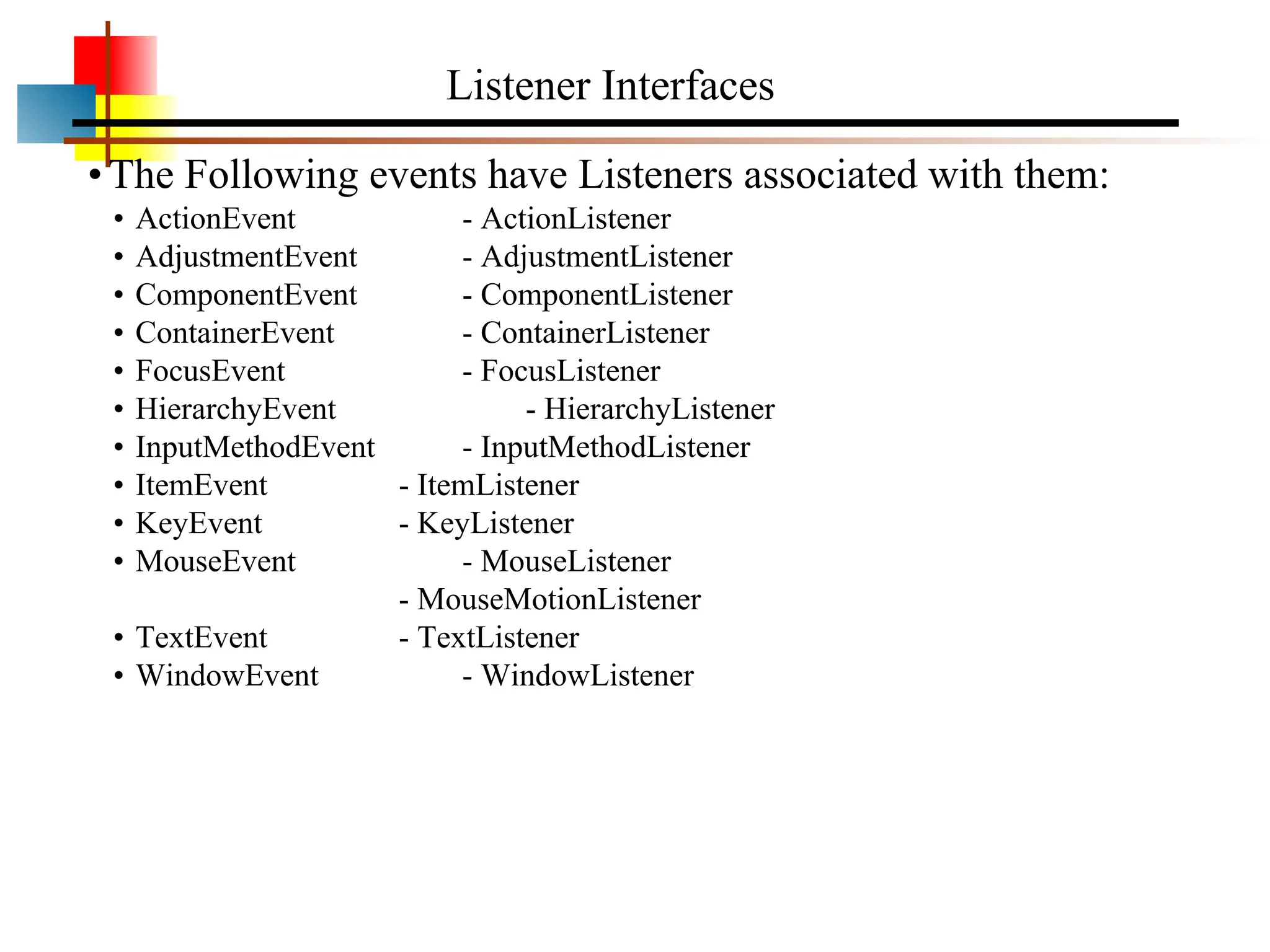
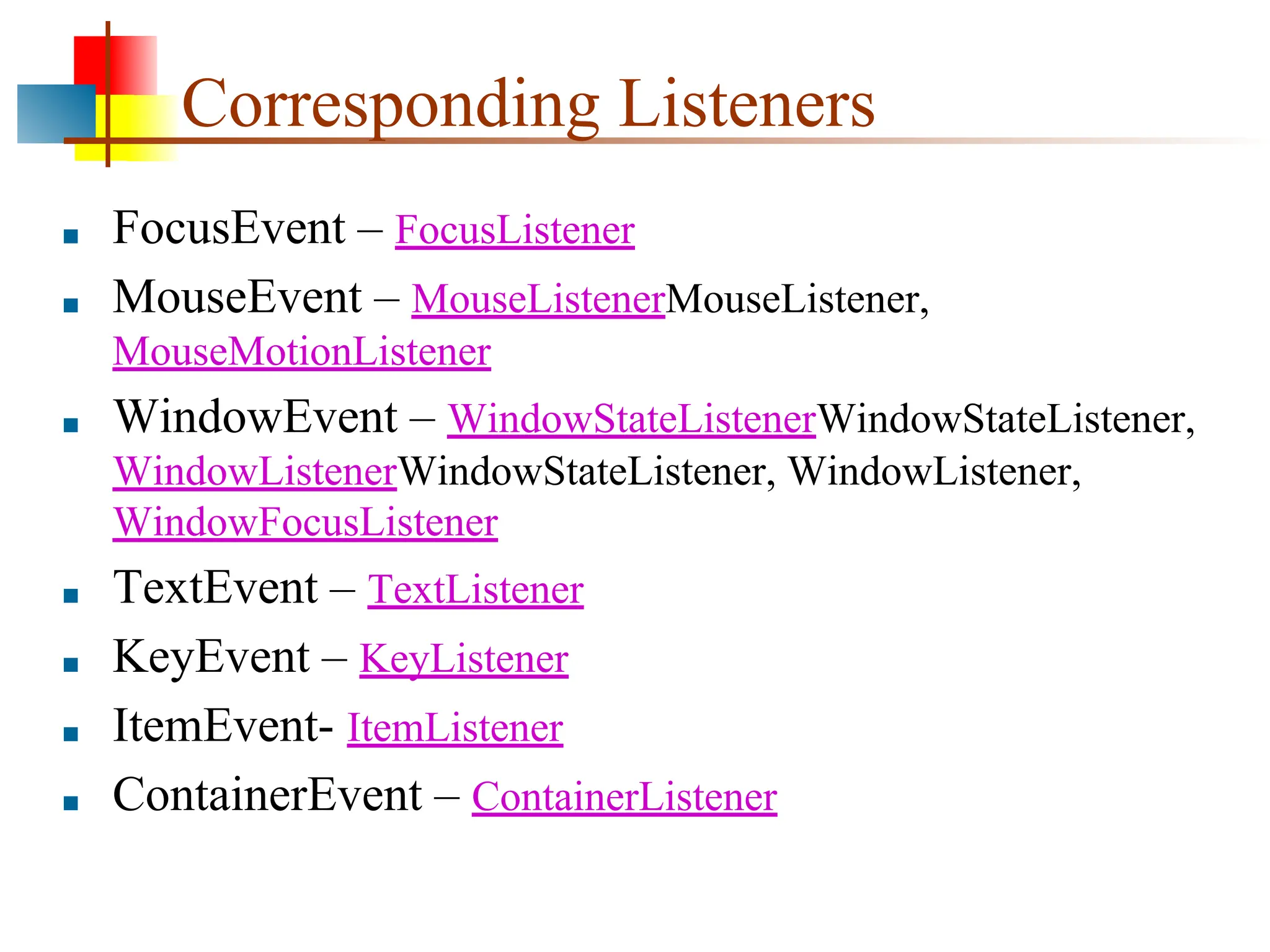
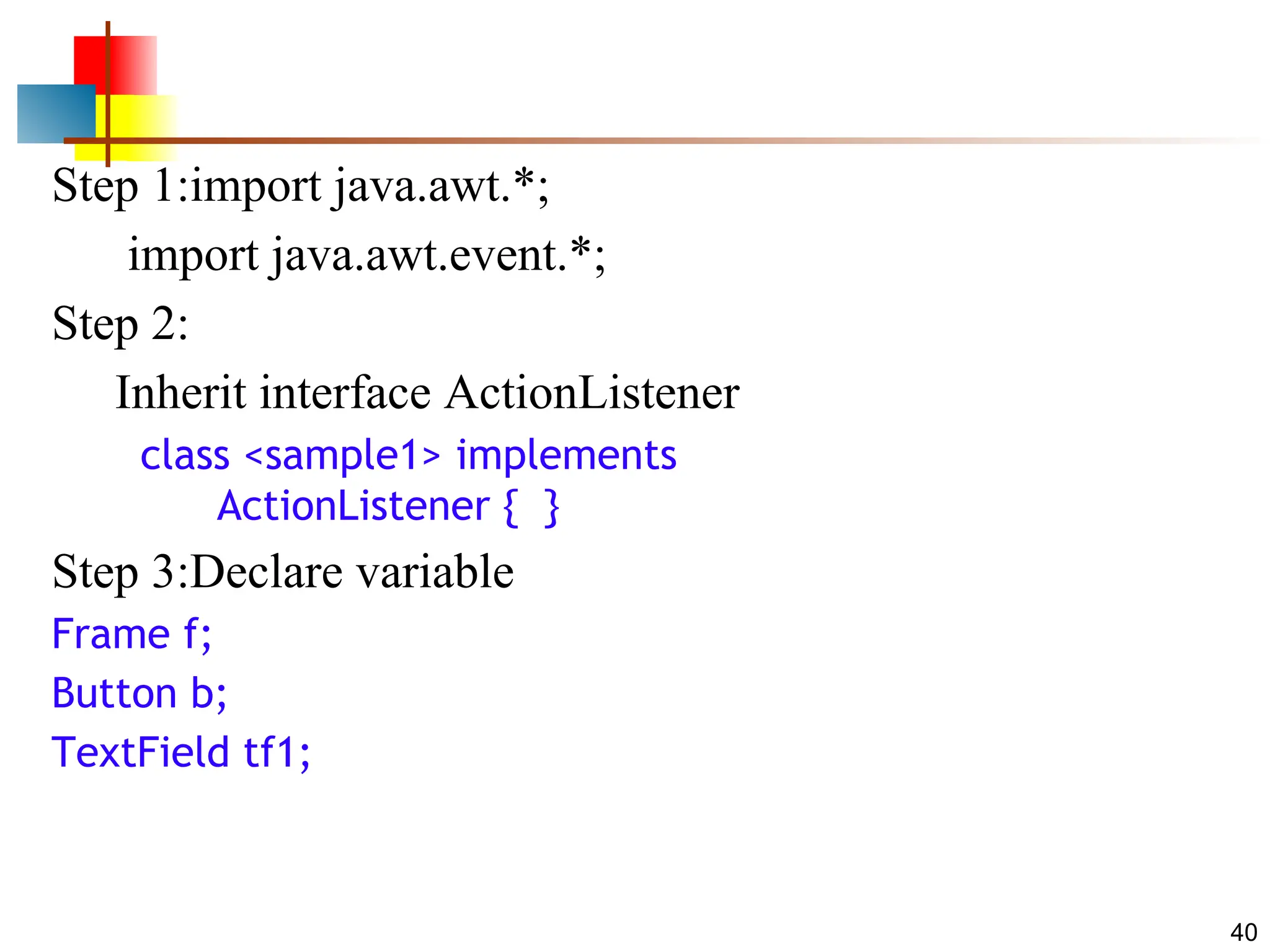
■ Java usesan Event Delegation Model.
■ Every time a user interacts with a component on the
GUI, events are generated.
■ Events are component-specific.
■ Events are objects that store information like
■ the type of event that occurred,
■ the source of the event,
■ the time of an event to name a few.
34.
Event Delegation Model
■Once the event is generated, then the event is passed to
other objects which handle or react to the event, thus
the term event delegation.
■ The objects which react to or handle the events are
called event listeners.
35.
Three Players
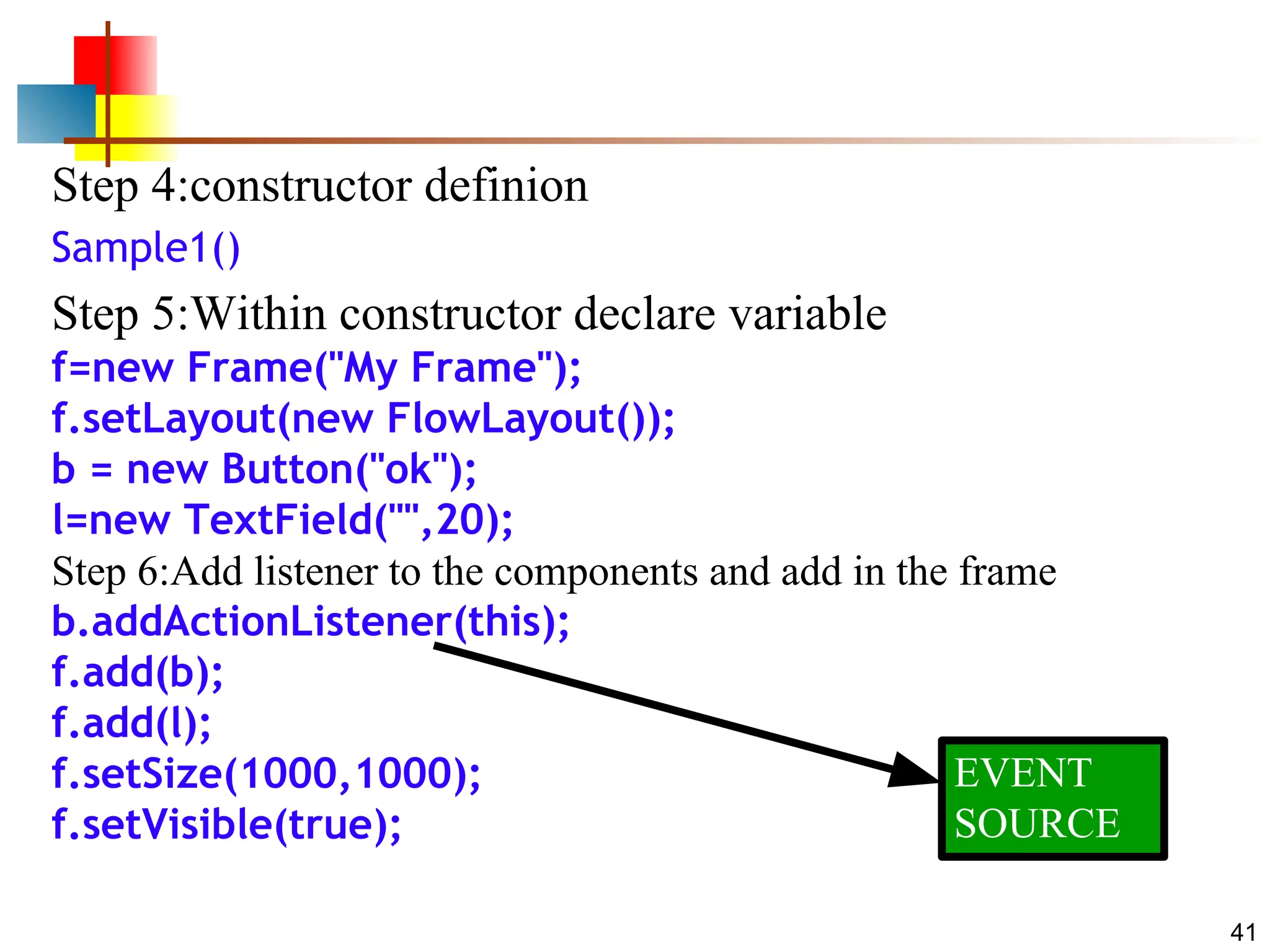
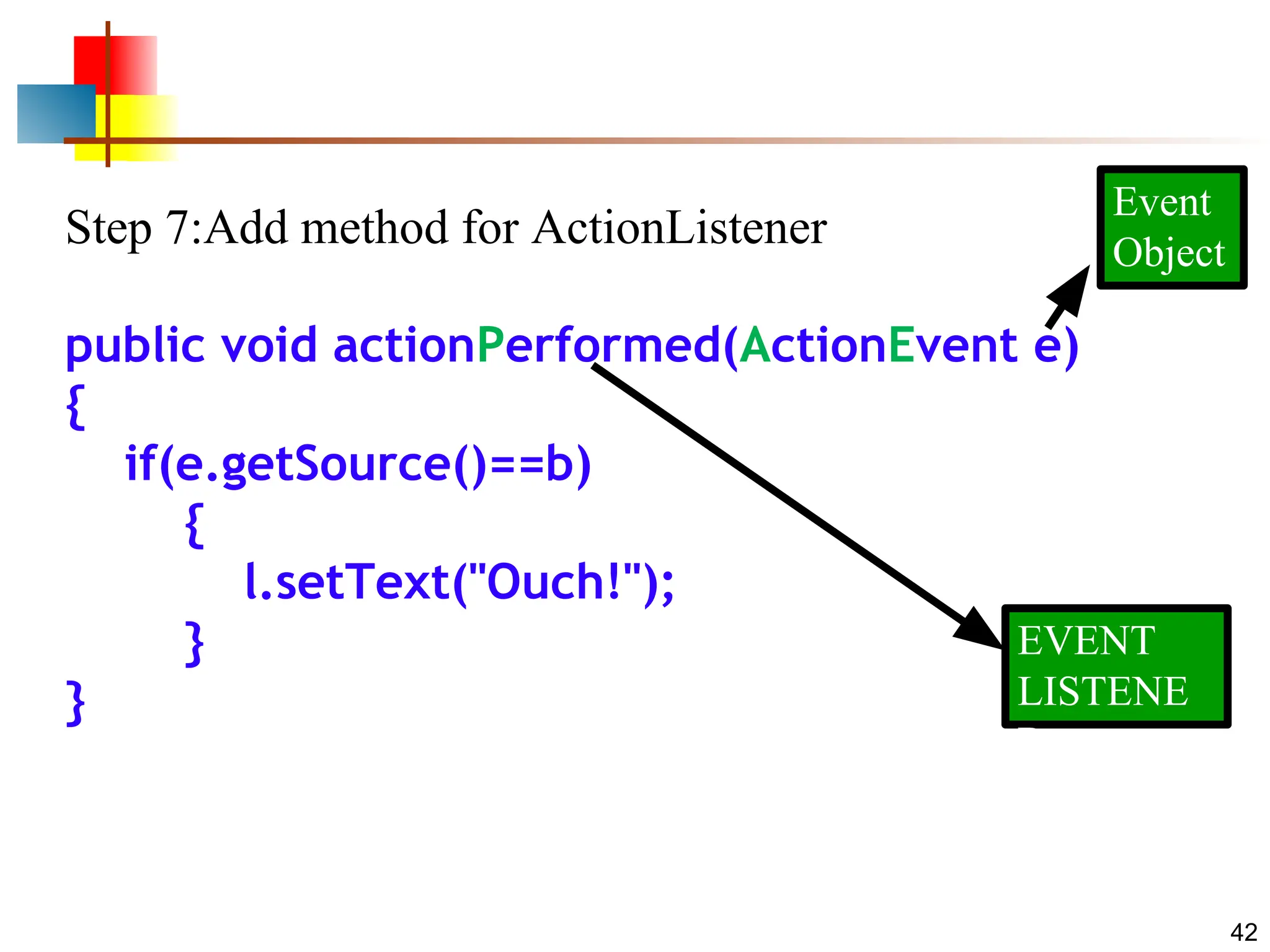
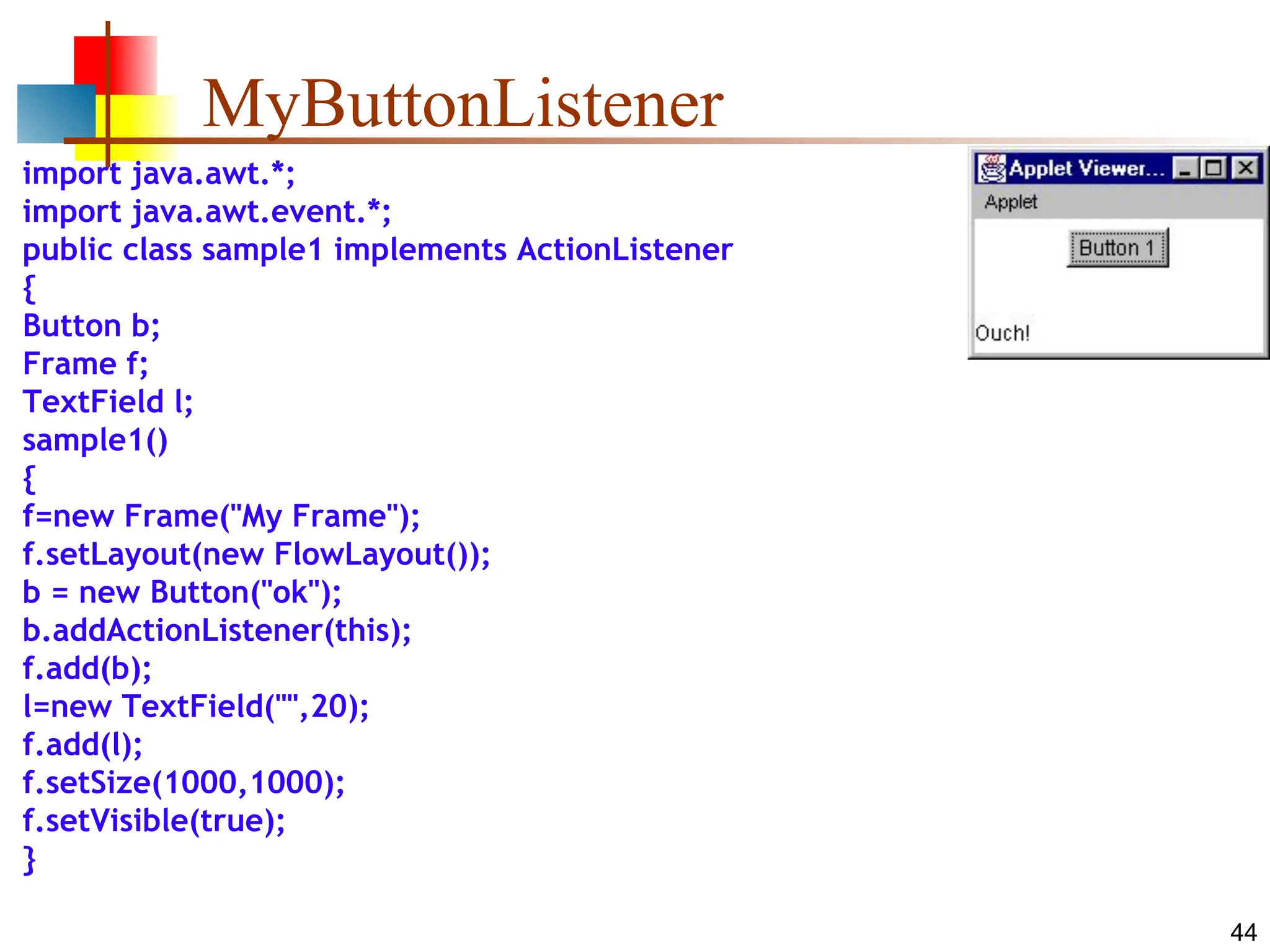
■ Eventsource which generates the event object.
Eg. button
■ Event listener which receives the event object and
handles it
Eg. ActionListener
■ Event object that describes the event
Eg. ActionEvent e
36.
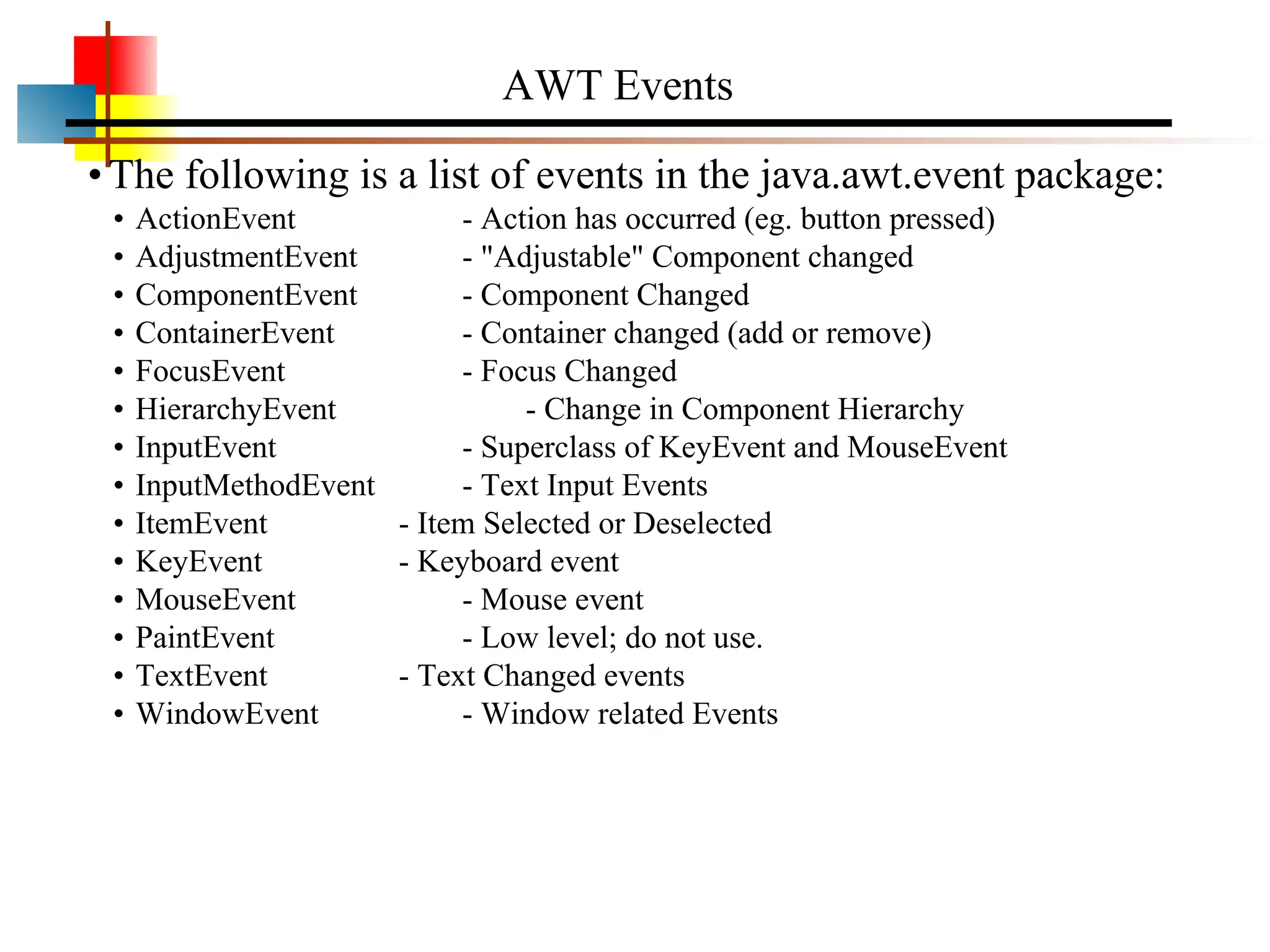
AWT Events
•The followingis a list of events in the java.awt.event package:
• ActionEvent - Action has occurred (eg. button pressed)
• AdjustmentEvent - "Adjustable" Component changed
• ComponentEvent - Component Changed
• ContainerEvent - Container changed (add or remove)
• FocusEvent - Focus Changed
• HierarchyEvent - Change in Component Hierarchy
• InputEvent - Superclass of KeyEvent and MouseEvent
• InputMethodEvent - Text Input Events
• ItemEvent - Item Selected or Deselected
• KeyEvent - Keyboard event
• MouseEvent - Mouse event
• PaintEvent - Low level; do not use.
• TextEvent - Text Changed events
• WindowEvent - Window related Events
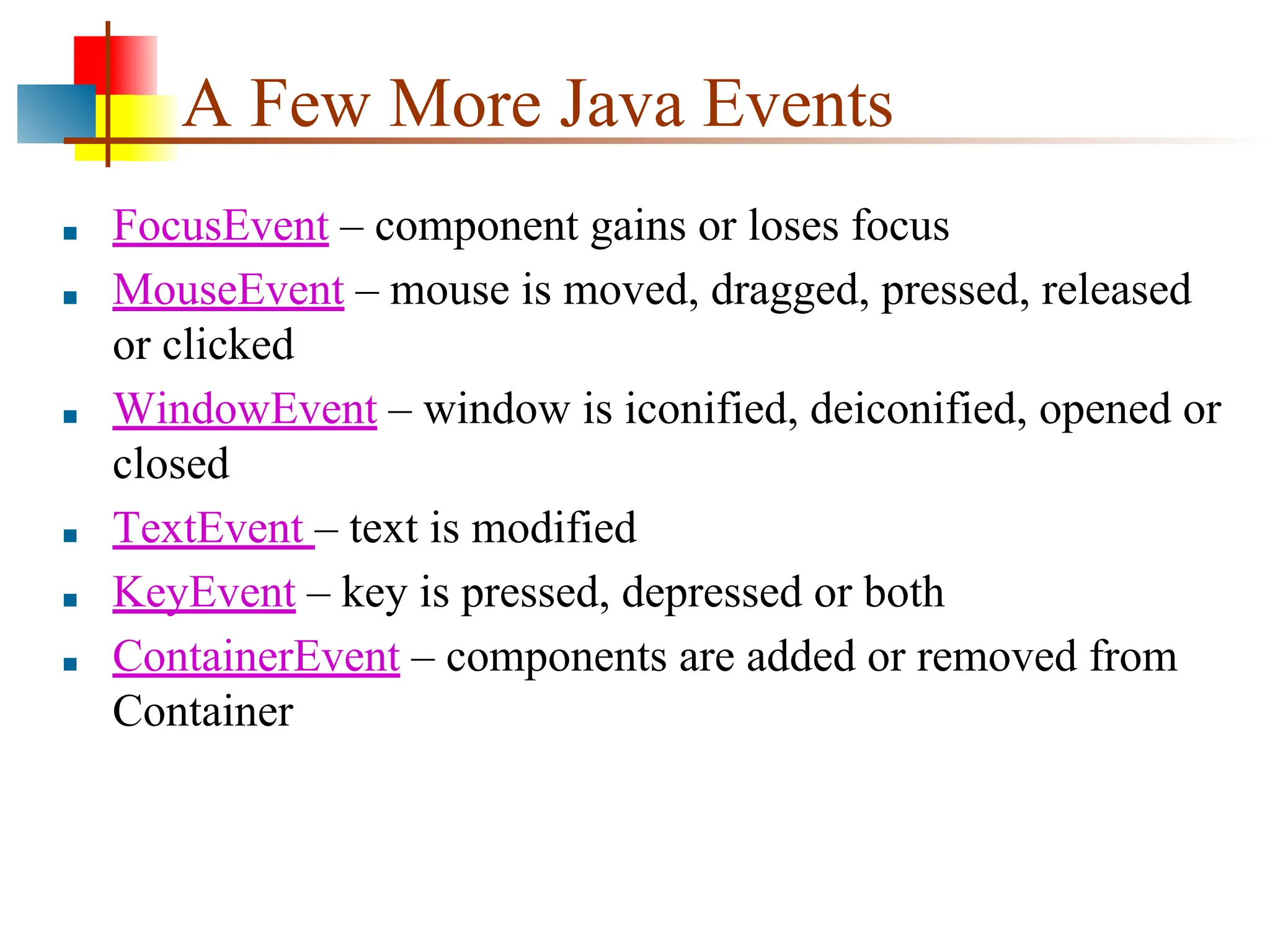
A Few MoreJava Events
■ FocusEvent – component gains or loses focus
■ MouseEvent – mouse is moved, dragged, pressed, released
or clicked
■ WindowEvent – window is iconified, deiconified, opened or
closed
■ TextEvent – text is modified
■ KeyEvent – key is pressed, depressed or both
■ ContainerEvent – components are added or removed from
Container
slide 50
Garbage
■ Garbagecollection (GC) - automatic management of
dynamically allocated storage
■ It is the process of automatically finding memory
blocks that are no longer being used and making them
available again
■ When a java object become unreachable to the
program it is subjected to garbage collection
■ Objects are dynamically allocated by using the new
operator how such objects are destroyed and their
memory released for later reallocation
51.
■ Java handledeallocation automatically. This technique
is called garbage collection
■ Protected void finalize()
{
-
-
}
To reclaim the destroy object like recycle bin
51
52.
Multithreading
The objectives ofthis chapter are:
• To understand the purpose of multithreading
• To describe Java's multithreading mechanism
• To explain concurrency issues caused by multithreading
•To outline synchronized access to shared resources
53.
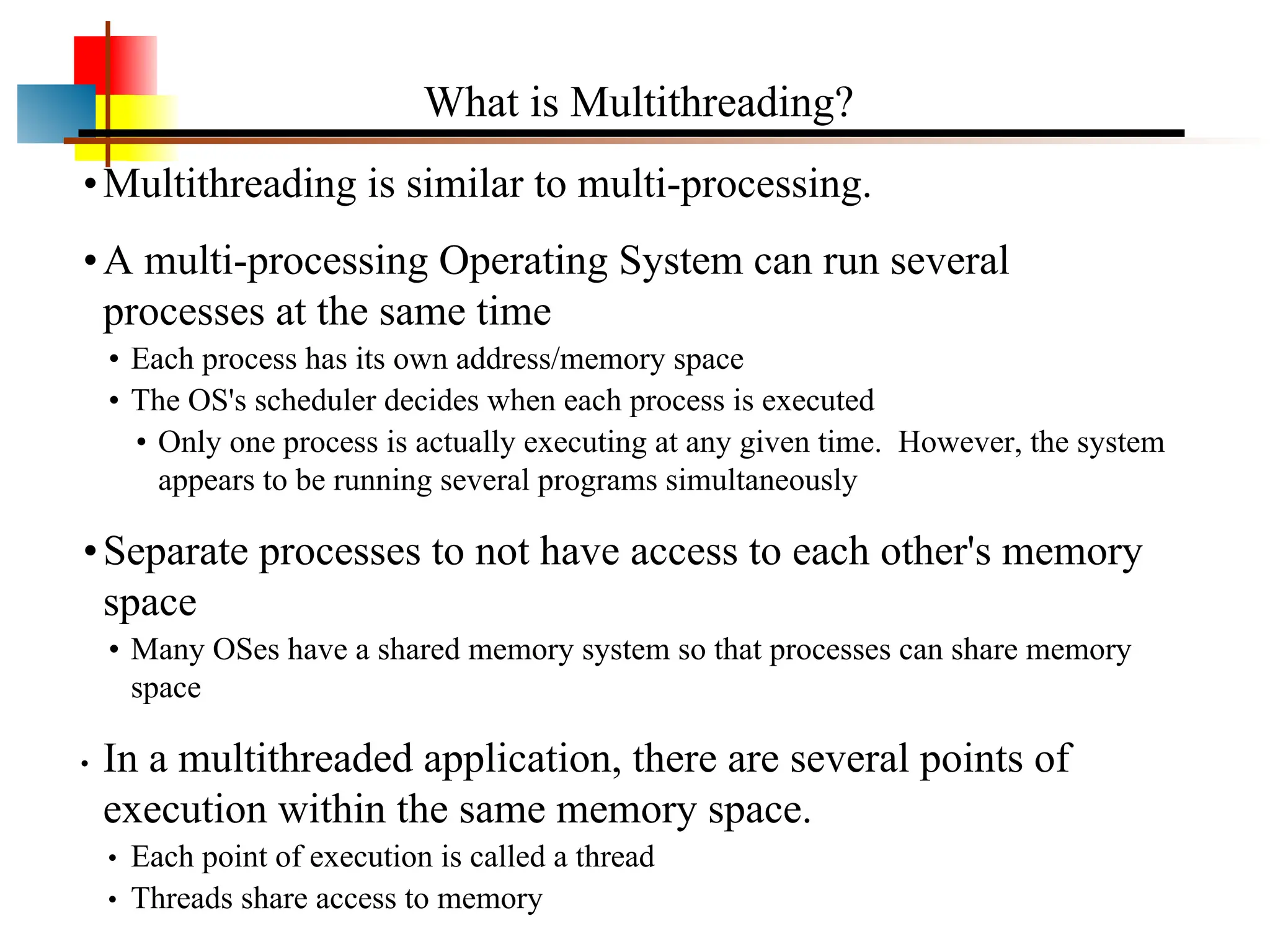
•Multithreading is similarto multi-processing.
•A multi-processing Operating System can run several
processes at the same time
• Each process has its own address/memory space
• The OS's scheduler decides when each process is executed
• Only one process is actually executing at any given time. However, the system
appears to be running several programs simultaneously
•Separate processes to not have access to each other's memory
space
• Many OSes have a shared memory system so that processes can share memory
space
• In a multithreaded application, there are several points of
execution within the same memory space.
• Each point of execution is called a thread
• Threads share access to memory
What is Multithreading?
54.
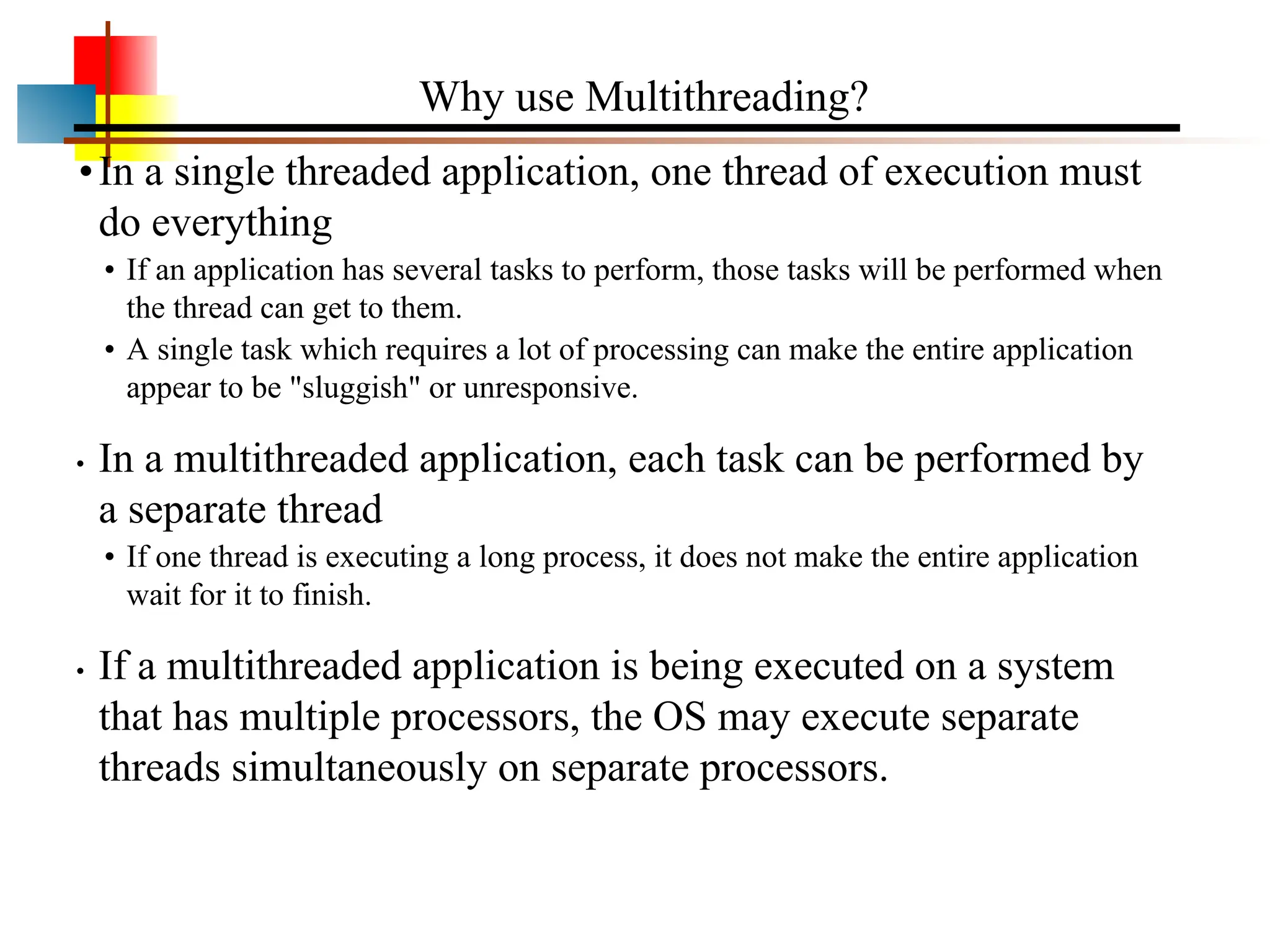
•In a singlethreaded application, one thread of execution must
do everything
• If an application has several tasks to perform, those tasks will be performed when
the thread can get to them.
• A single task which requires a lot of processing can make the entire application
appear to be "sluggish" or unresponsive.
• In a multithreaded application, each task can be performed by
a separate thread
• If one thread is executing a long process, it does not make the entire application
wait for it to finish.
• If a multithreaded application is being executed on a system
that has multiple processors, the OS may execute separate
threads simultaneously on separate processors.
Why use Multithreading?
55.
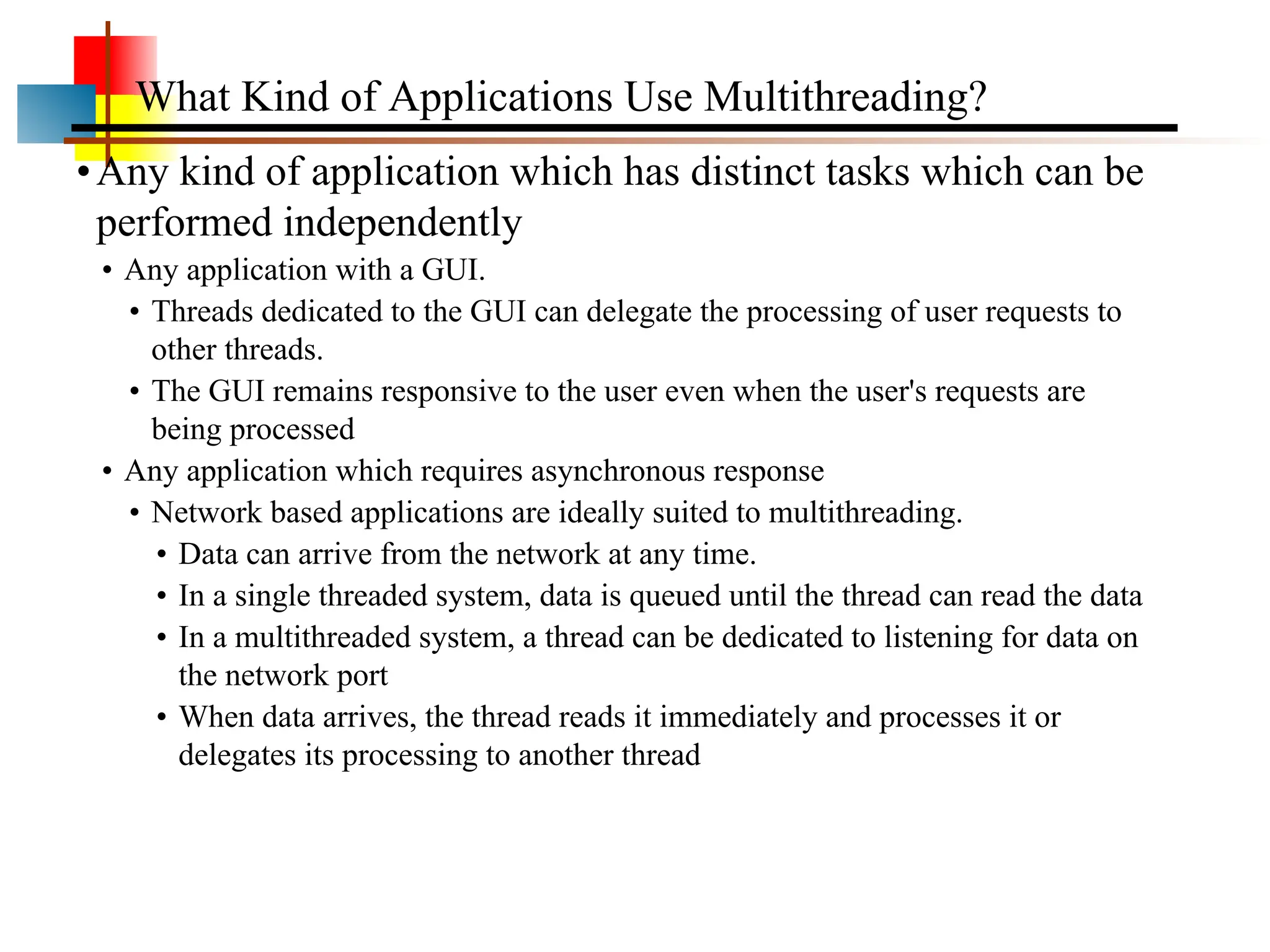
•Any kind ofapplication which has distinct tasks which can be
performed independently
• Any application with a GUI.
• Threads dedicated to the GUI can delegate the processing of user requests to
other threads.
• The GUI remains responsive to the user even when the user's requests are
being processed
• Any application which requires asynchronous response
• Network based applications are ideally suited to multithreading.
• Data can arrive from the network at any time.
• In a single threaded system, data is queued until the thread can read the data
• In a multithreaded system, a thread can be dedicated to listening for data on
the network port
• When data arrives, the thread reads it immediately and processes it or
delegates its processing to another thread
What Kind of Applications Use Multithreading?
56.
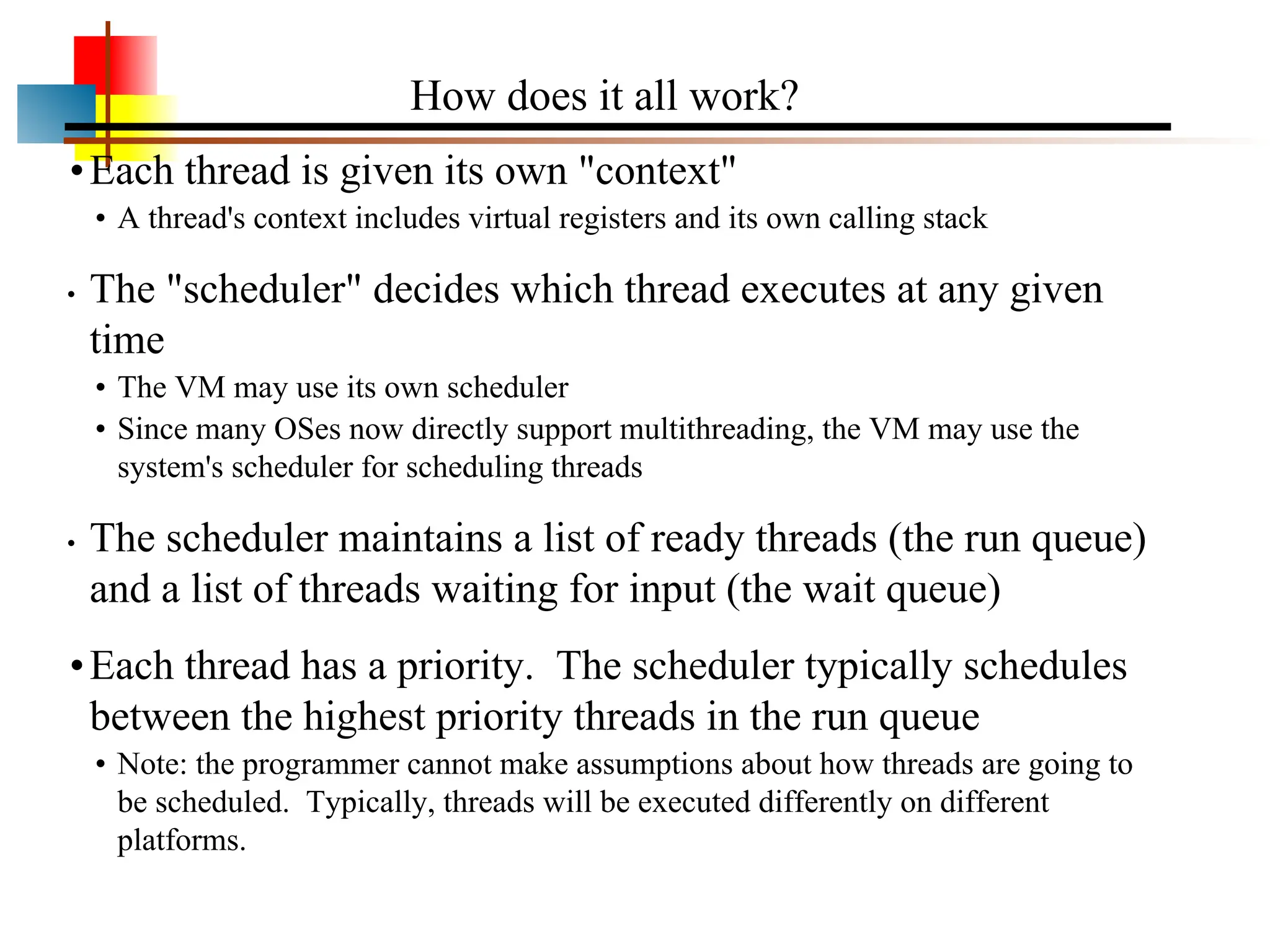
•Each thread isgiven its own "context"
• A thread's context includes virtual registers and its own calling stack
• The "scheduler" decides which thread executes at any given
time
• The VM may use its own scheduler
• Since many OSes now directly support multithreading, the VM may use the
system's scheduler for scheduling threads
• The scheduler maintains a list of ready threads (the run queue)
and a list of threads waiting for input (the wait queue)
•Each thread has a priority. The scheduler typically schedules
between the highest priority threads in the run queue
• Note: the programmer cannot make assumptions about how threads are going to
be scheduled. Typically, threads will be executed differently on different
platforms.
How does it all work?
57.
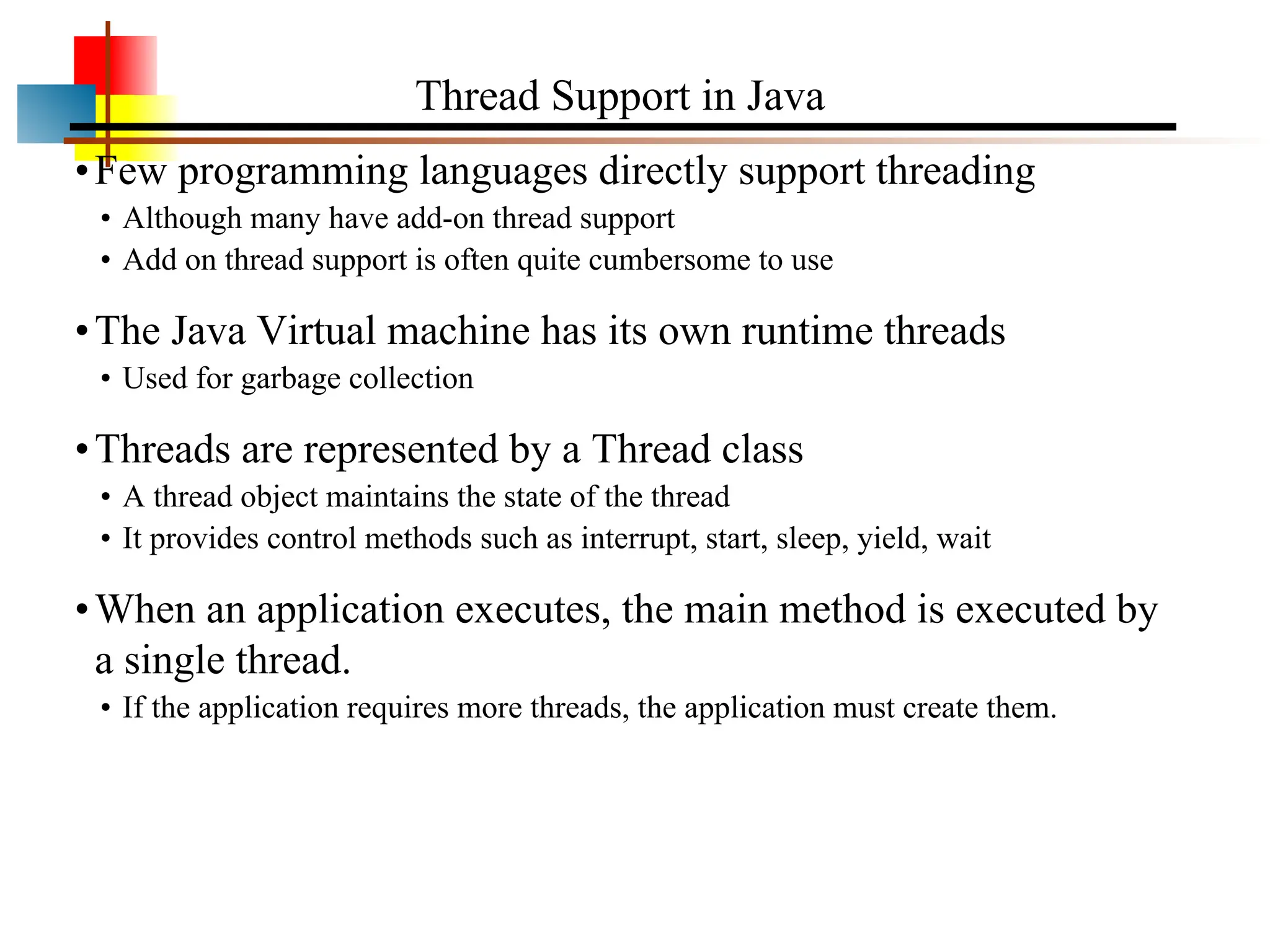
•Few programming languagesdirectly support threading
• Although many have add-on thread support
• Add on thread support is often quite cumbersome to use
•The Java Virtual machine has its own runtime threads
• Used for garbage collection
•Threads are represented by a Thread class
• A thread object maintains the state of the thread
• It provides control methods such as interrupt, start, sleep, yield, wait
•When an application executes, the main method is executed by
a single thread.
• If the application requires more threads, the application must create them.
Thread Support in Java
58.
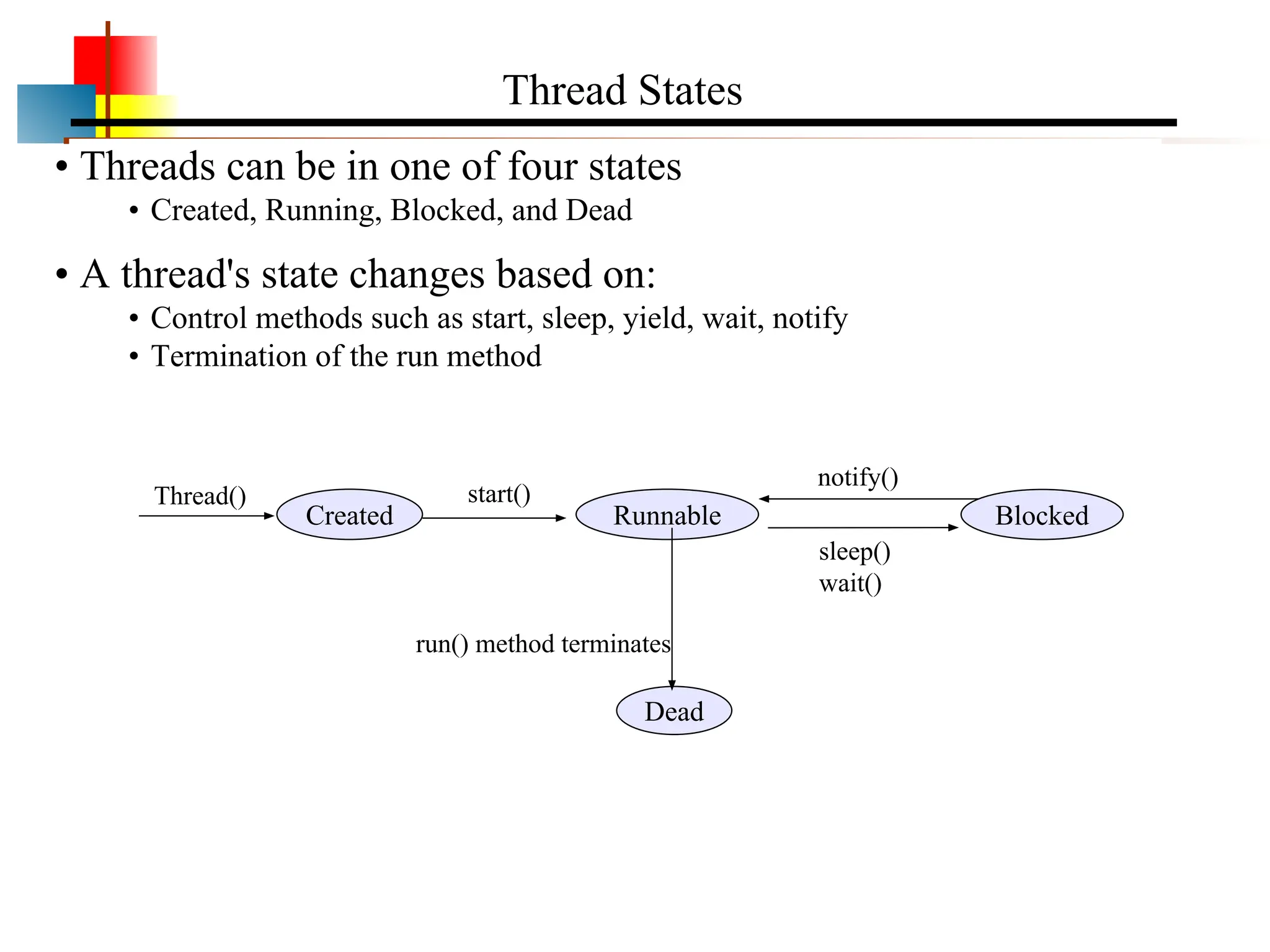
• Threads canbe in one of four states
• Created, Running, Blocked, and Dead
• A thread's state changes based on:
• Control methods such as start, sleep, yield, wait, notify
• Termination of the run method
Thread States
Created Runnable Blocked
Dead
start()
Thread()
run() method terminates
sleep()
wait()
notify()
59.
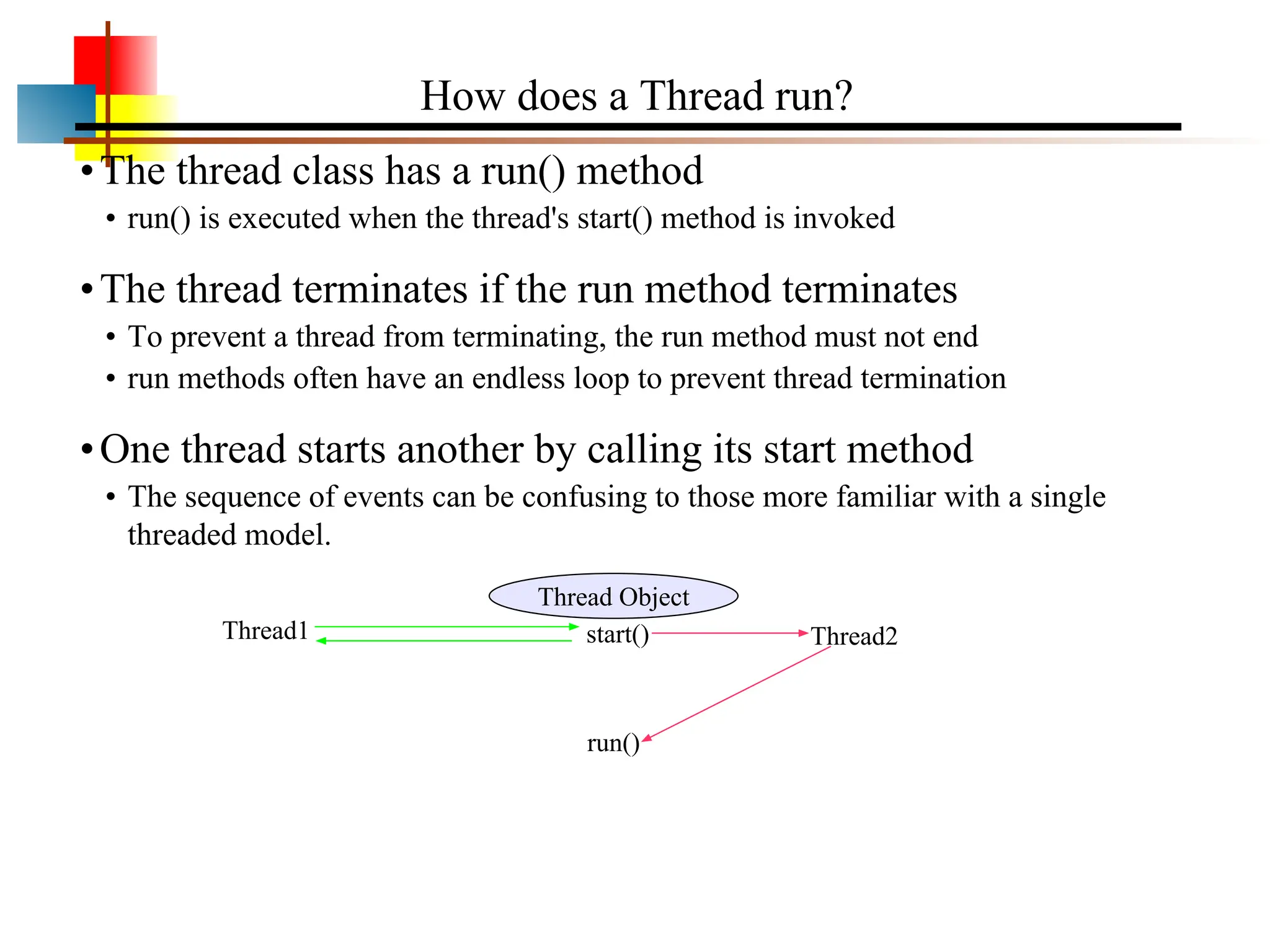
•The thread classhas a run() method
• run() is executed when the thread's start() method is invoked
•The thread terminates if the run method terminates
• To prevent a thread from terminating, the run method must not end
• run methods often have an endless loop to prevent thread termination
•One thread starts another by calling its start method
• The sequence of events can be confusing to those more familiar with a single
threaded model.
How does a Thread run?
Thread1
Thread Object
start() Thread2
run()
60.
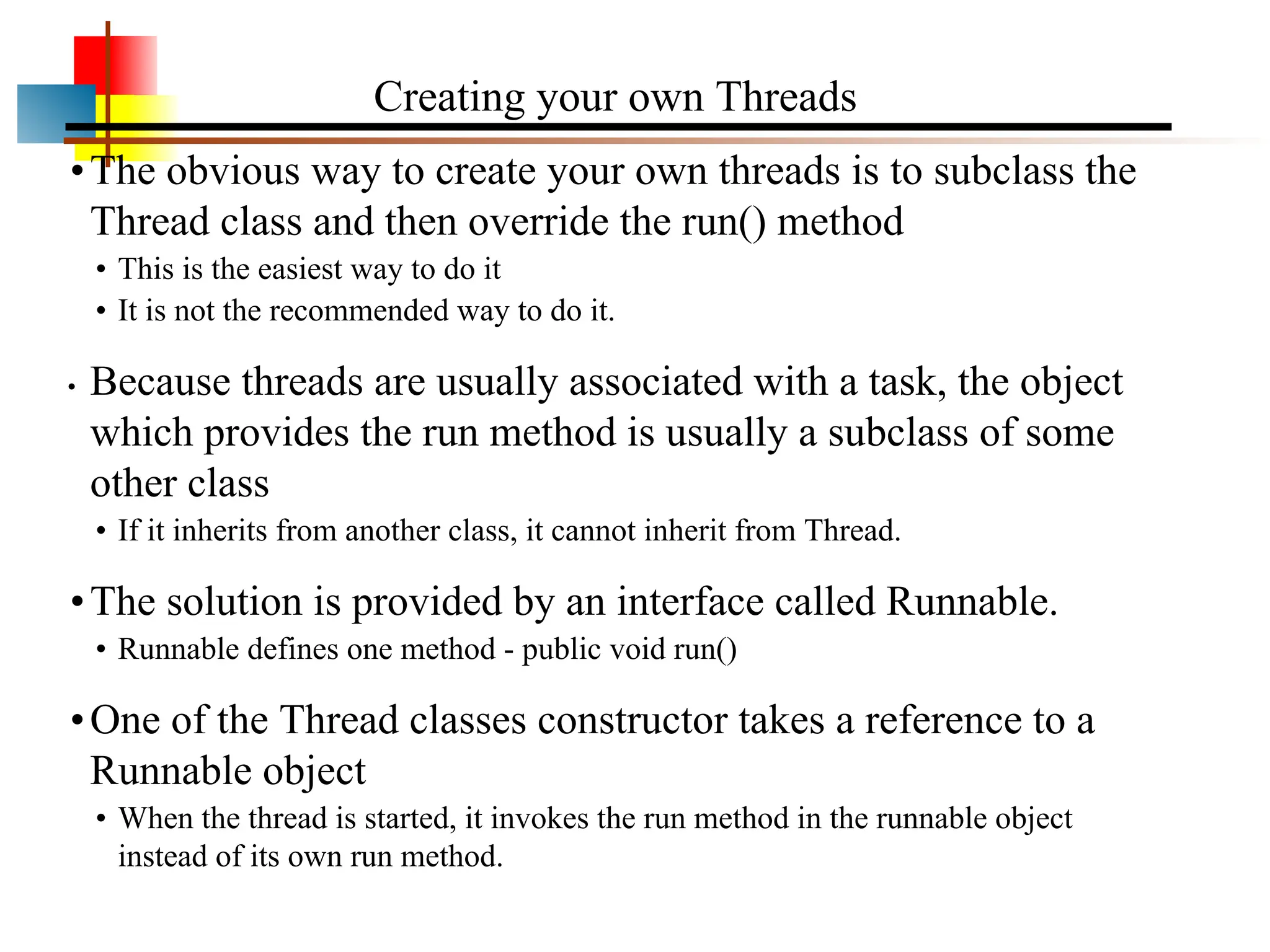
•The obvious wayto create your own threads is to subclass the
Thread class and then override the run() method
• This is the easiest way to do it
• It is not the recommended way to do it.
• Because threads are usually associated with a task, the object
which provides the run method is usually a subclass of some
other class
• If it inherits from another class, it cannot inherit from Thread.
•The solution is provided by an interface called Runnable.
• Runnable defines one method - public void run()
•One of the Thread classes constructor takes a reference to a
Runnable object
• When the thread is started, it invokes the run method in the runnable object
instead of its own run method.
Creating your own Threads
61.
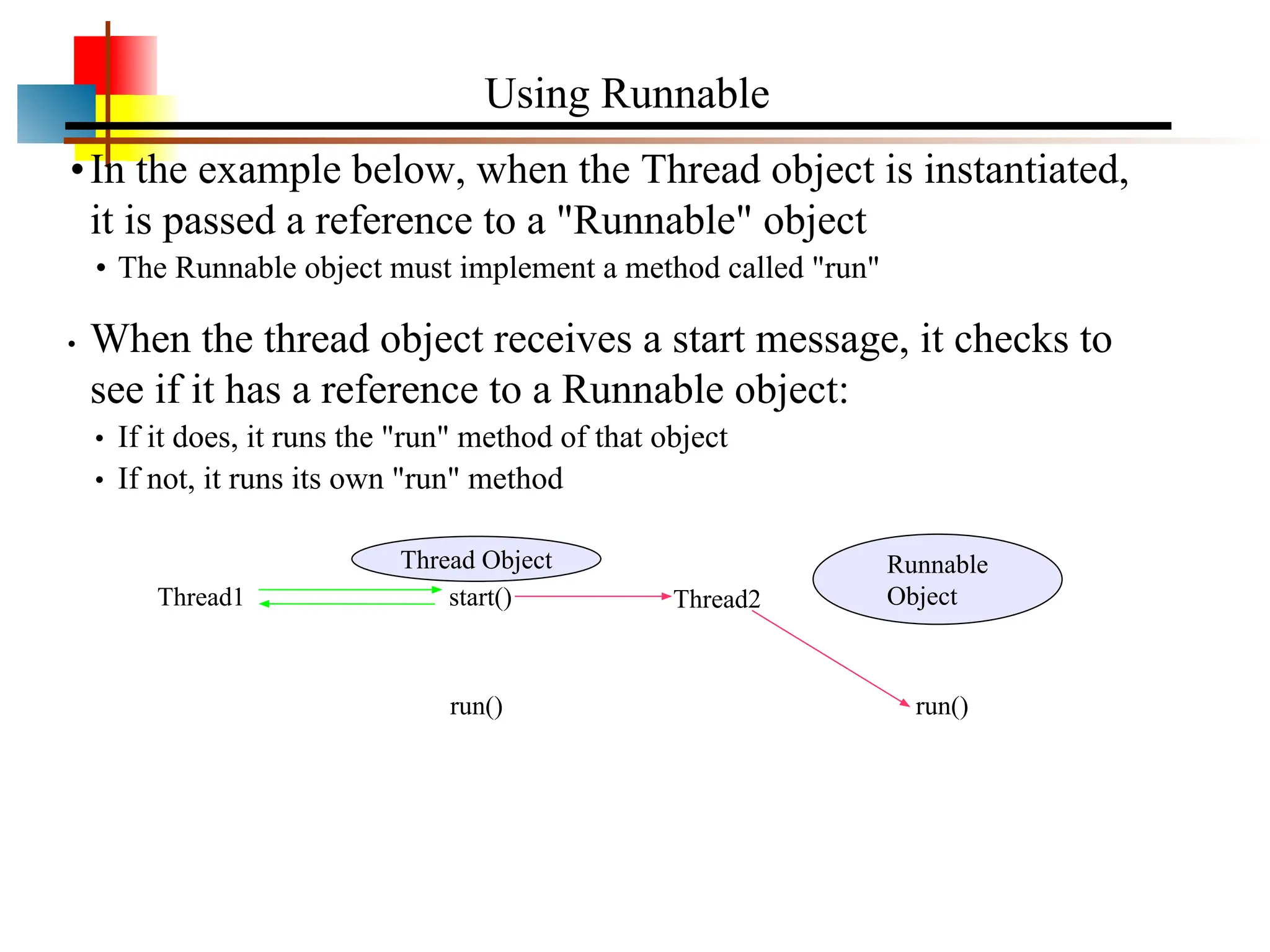
•In the examplebelow, when the Thread object is instantiated,
it is passed a reference to a "Runnable" object
• The Runnable object must implement a method called "run"
• When the thread object receives a start message, it checks to
see if it has a reference to a Runnable object:
• If it does, it runs the "run" method of that object
• If not, it runs its own "run" method
Using Runnable
Thread1
Thread Object
start() Thread2
run()
Runnable
Object
run()
62.
Runnable
Object
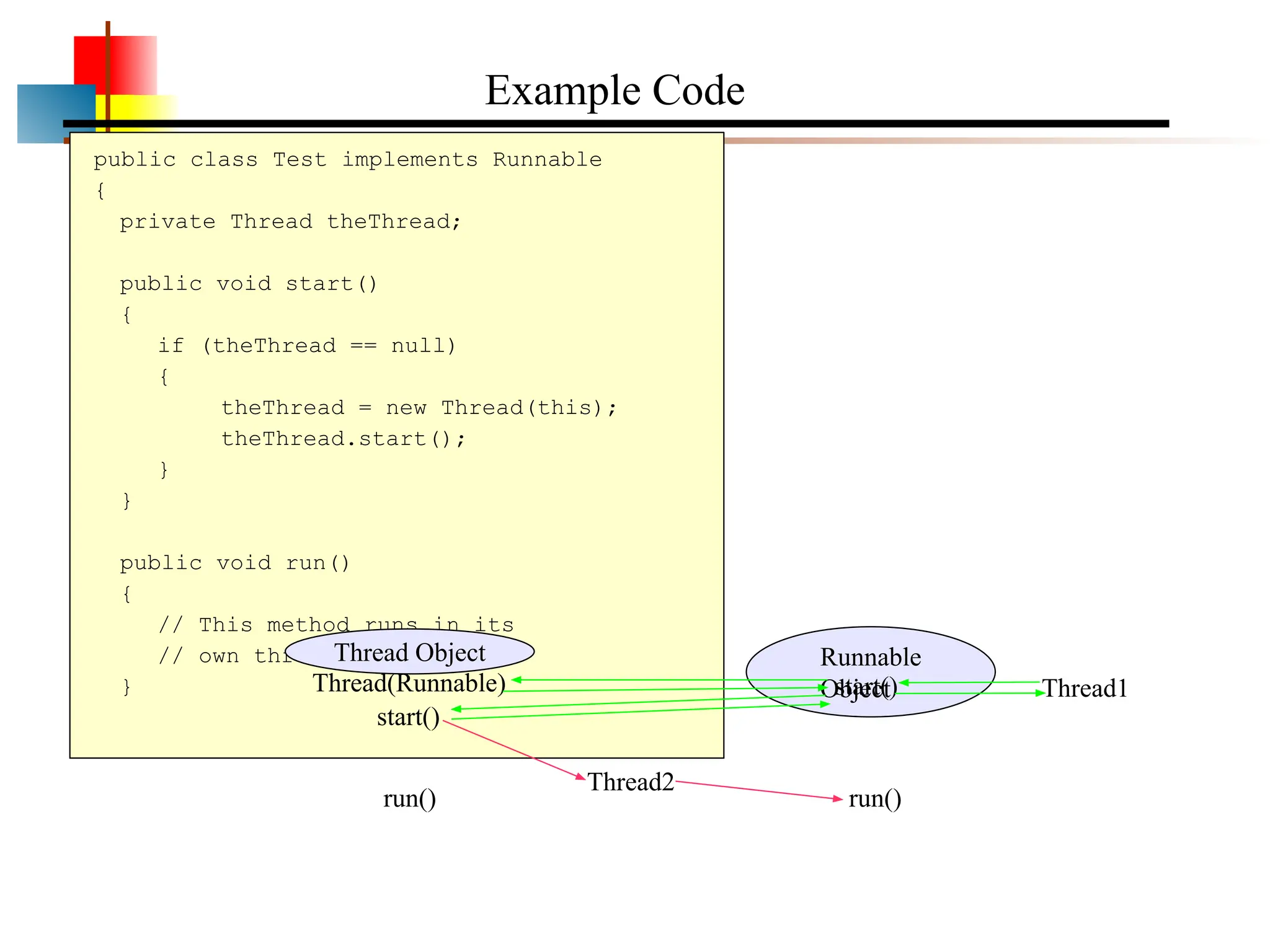
Example Code
public classTest implements Runnable
{
private Thread theThread;
public void start()
{
if (theThread == null)
{
theThread = new Thread(this);
theThread.start();
}
}
public void run()
{
// This method runs in its
// own thread
} Thread1
Thread Object
start()
Thread2
run() run()
start()
Thread(Runnable)
63.
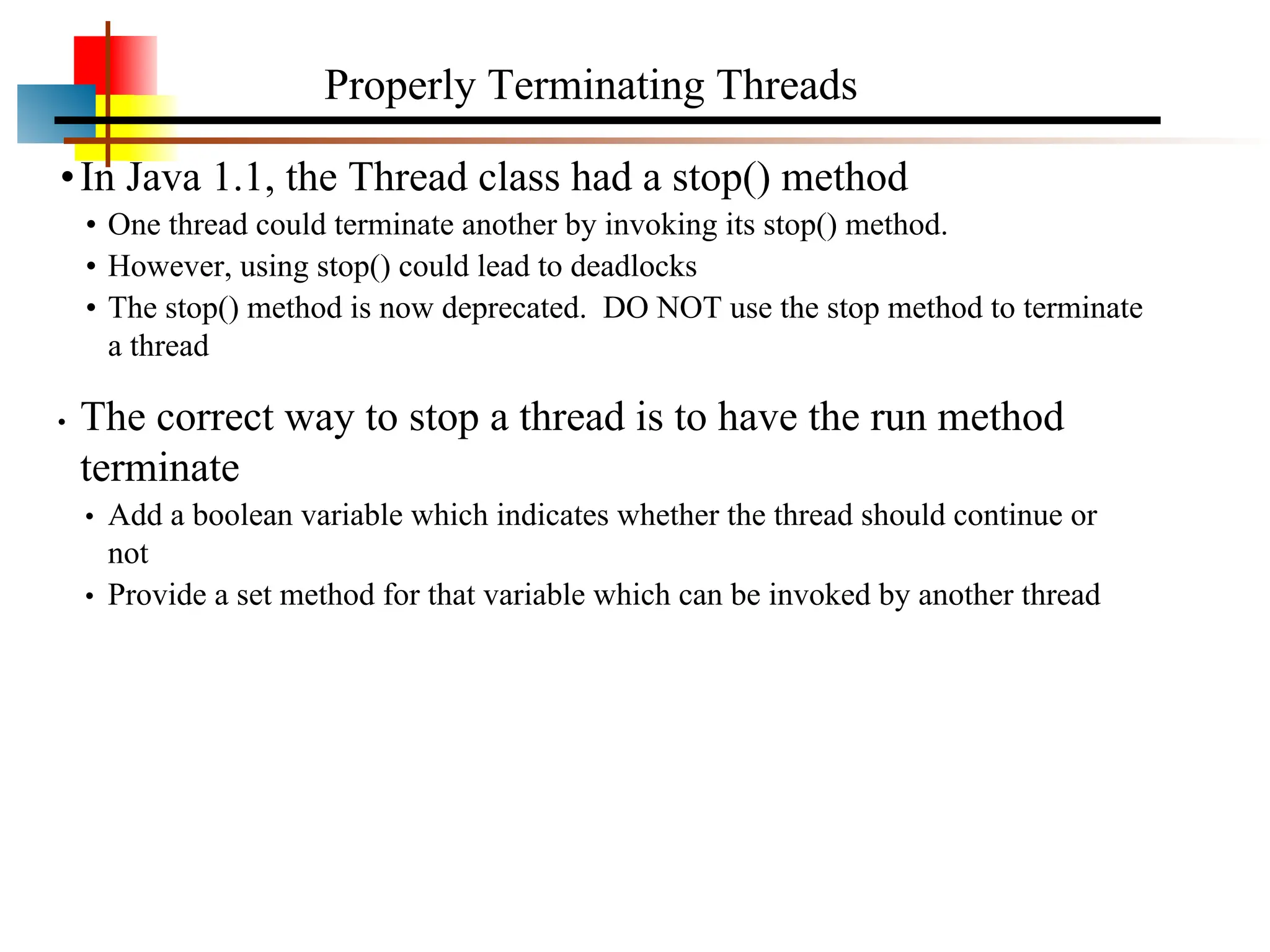
•In Java 1.1,the Thread class had a stop() method
• One thread could terminate another by invoking its stop() method.
• However, using stop() could lead to deadlocks
• The stop() method is now deprecated. DO NOT use the stop method to terminate
a thread
• The correct way to stop a thread is to have the run method
terminate
• Add a boolean variable which indicates whether the thread should continue or
not
• Provide a set method for that variable which can be invoked by another thread
Properly Terminating Threads
64.
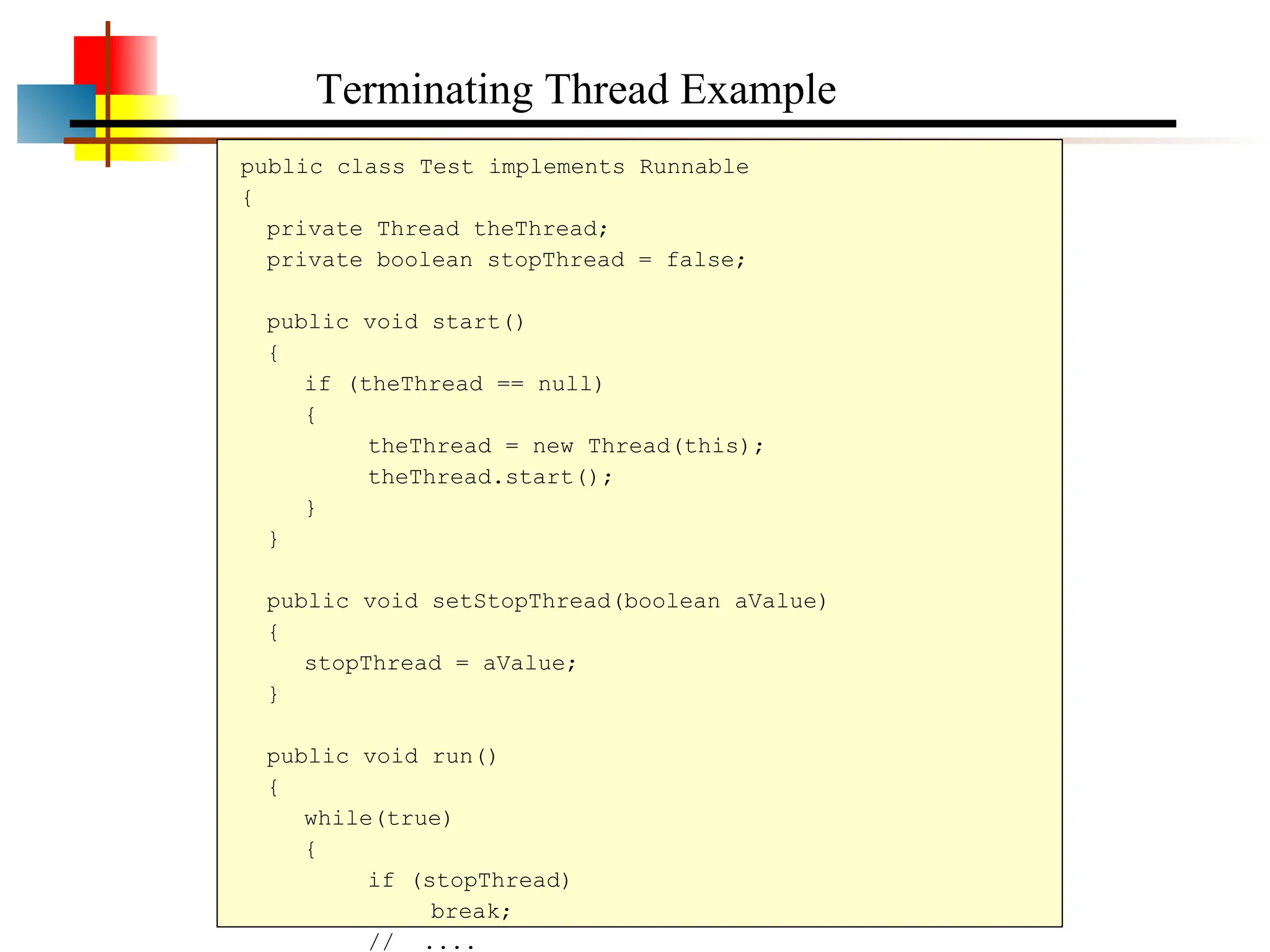
public class Testimplements Runnable
{
private Thread theThread;
private boolean stopThread = false;
public void start()
{
if (theThread == null)
{
theThread = new Thread(this);
theThread.start();
}
}
public void setStopThread(boolean aValue)
{
stopThread = aValue;
}
public void run()
{
while(true)
{
if (stopThread)
break;
// ....
Terminating Thread Example
65.
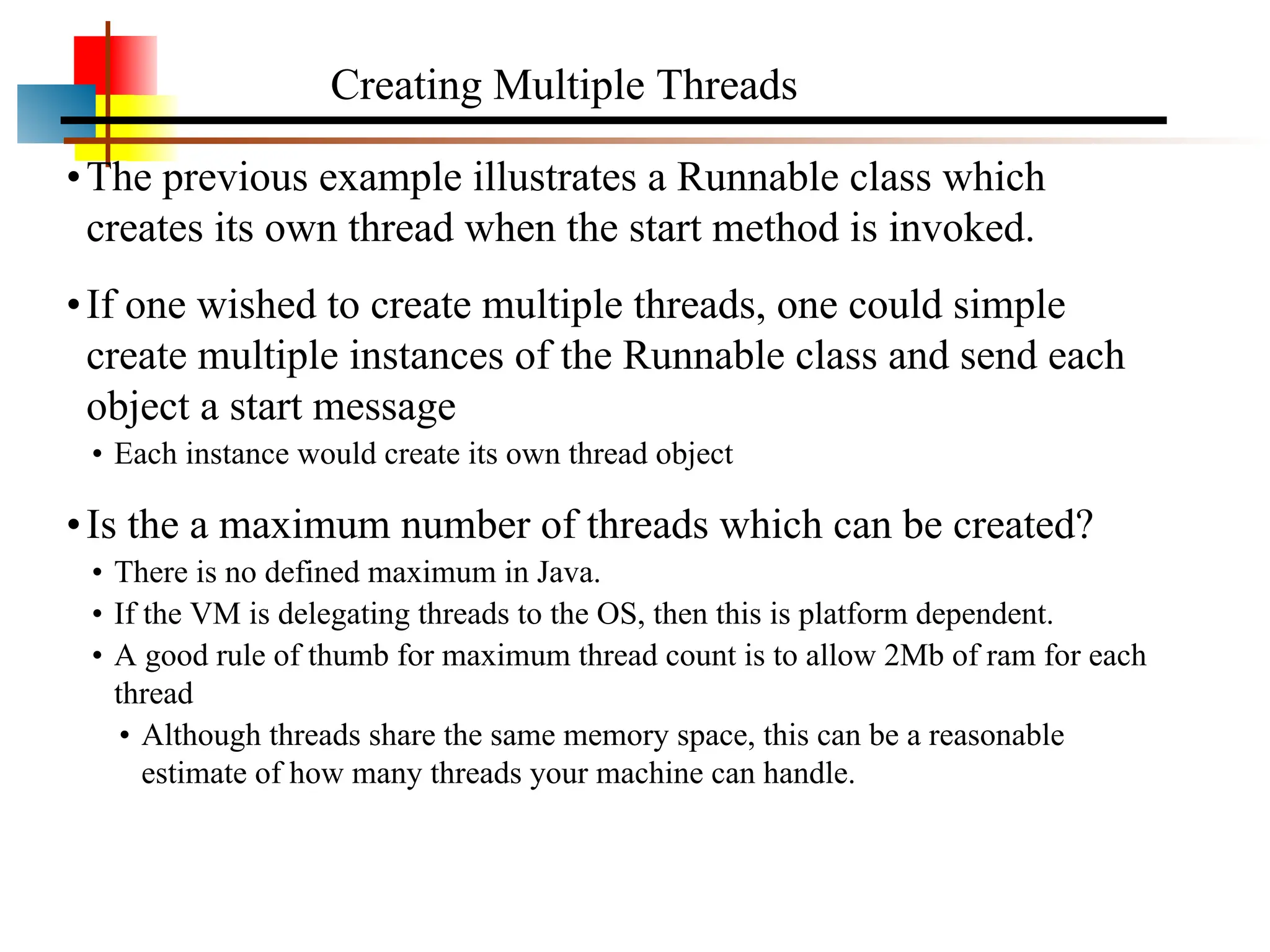
•The previous exampleillustrates a Runnable class which
creates its own thread when the start method is invoked.
•If one wished to create multiple threads, one could simple
create multiple instances of the Runnable class and send each
object a start message
• Each instance would create its own thread object
•Is the a maximum number of threads which can be created?
• There is no defined maximum in Java.
• If the VM is delegating threads to the OS, then this is platform dependent.
• A good rule of thumb for maximum thread count is to allow 2Mb of ram for each
thread
• Although threads share the same memory space, this can be a reasonable
estimate of how many threads your machine can handle.
Creating Multiple Threads
66.
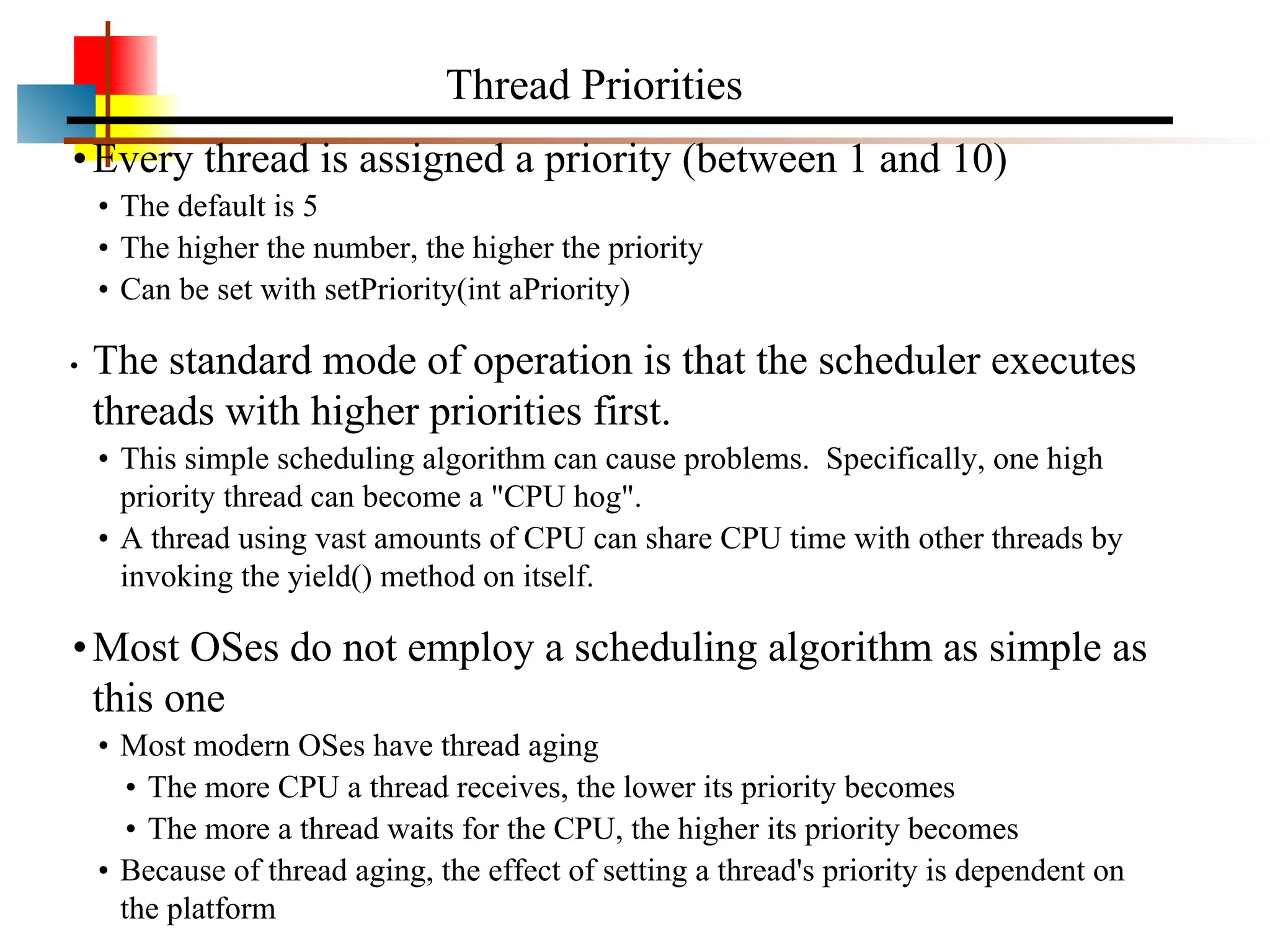
•Every thread isassigned a priority (between 1 and 10)
• The default is 5
• The higher the number, the higher the priority
• Can be set with setPriority(int aPriority)
• The standard mode of operation is that the scheduler executes
threads with higher priorities first.
• This simple scheduling algorithm can cause problems. Specifically, one high
priority thread can become a "CPU hog".
• A thread using vast amounts of CPU can share CPU time with other threads by
invoking the yield() method on itself.
•Most OSes do not employ a scheduling algorithm as simple as
this one
• Most modern OSes have thread aging
• The more CPU a thread receives, the lower its priority becomes
• The more a thread waits for the CPU, the higher its priority becomes
• Because of thread aging, the effect of setting a thread's priority is dependent on
the platform
Thread Priorities
67.
•Sometimes a threadcan determine that it has nothing to do
• Sometimes the system can determine this. ie. waiting for I/O
• When a thread has nothing to do, it should not use CPU
• This is called a busy-wait.
• Threads in busy-wait are busy using up the CPU doing nothing.
• Often, threads in busy-wait are continually checking a flag to see if there is
anything to do.
•It is worthwhile to run a CPU monitor program on your
desktop
• You can see that a thread is in busy-wait when the CPU monitor goes up (usually
to 100%), but the application doesn't seem to be doing anything.
• Threads in busy-wait should be moved from the Run queue to
the Wait queue so that they do not hog the CPU
• Use yield() or sleep(time)
• Yield simply tells the scheduler to schedule another thread
• Sleep guarantees that this thread will remain in the wait queue for the specified
number of milliseconds.
Yield() and Sleep()
68.
•Those familiar withdatabases will understand that concurrent
access to data can lead to data integrity problems
•Specifically, if two sources attempt to update the same data at
the same time, the result of the data can be undefined.
•The outcome is determined by how the scheduler schedules
the two sources.
• Since the schedulers activities cannot be predicted, the outcome cannot be
predicted
•Databases deal with this mechanism through "locking"
• If a source is going to update a table or record, it can lock the table or record until
such time that the data has been successfully updated.
• While locked, all access is blocked except to the source which holds the lock.
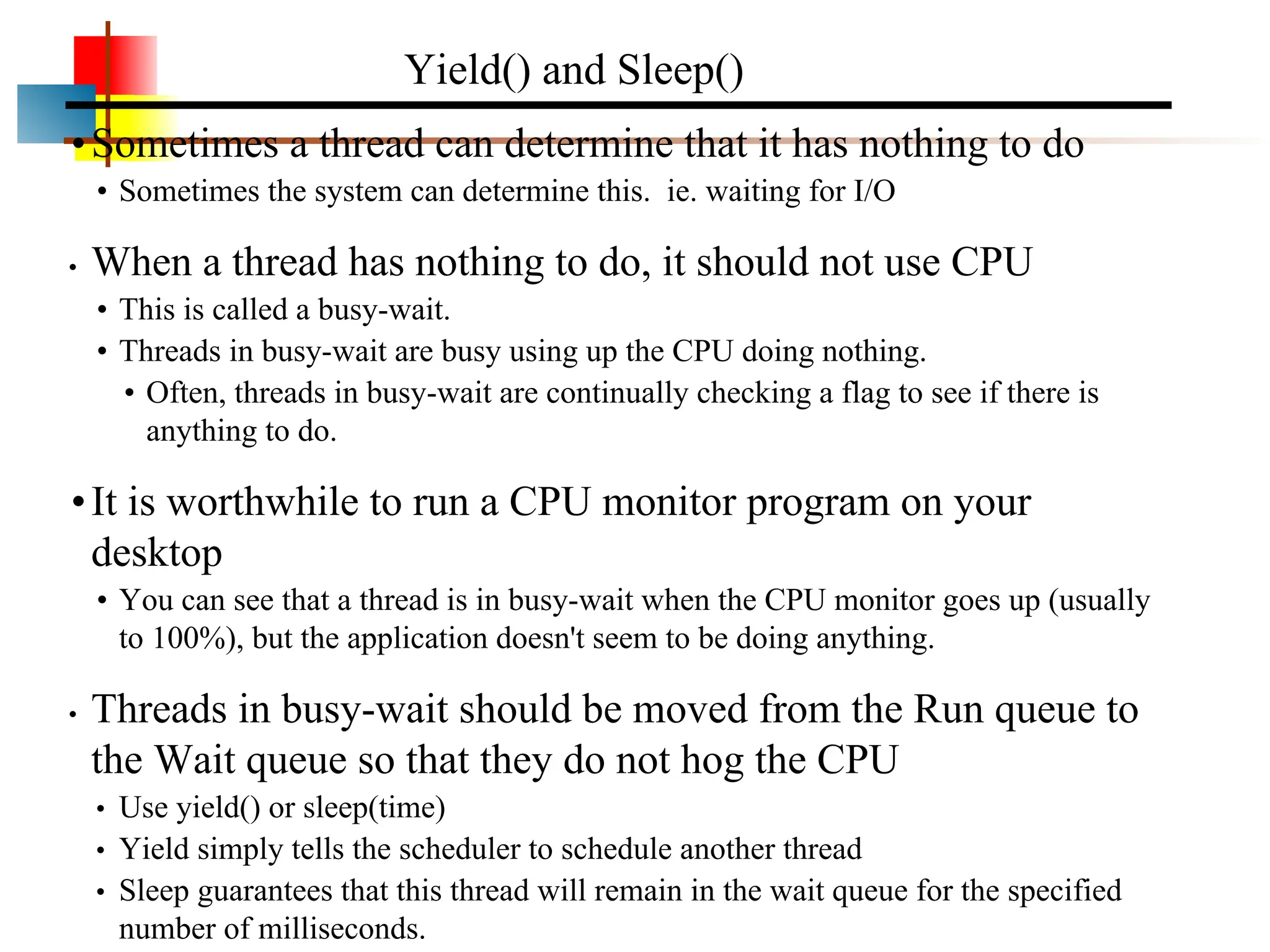
•Java has the equivalent mechanism. It is called synchronization
• Java has a keyword called synchronized
Concurrent Access to Data
69.
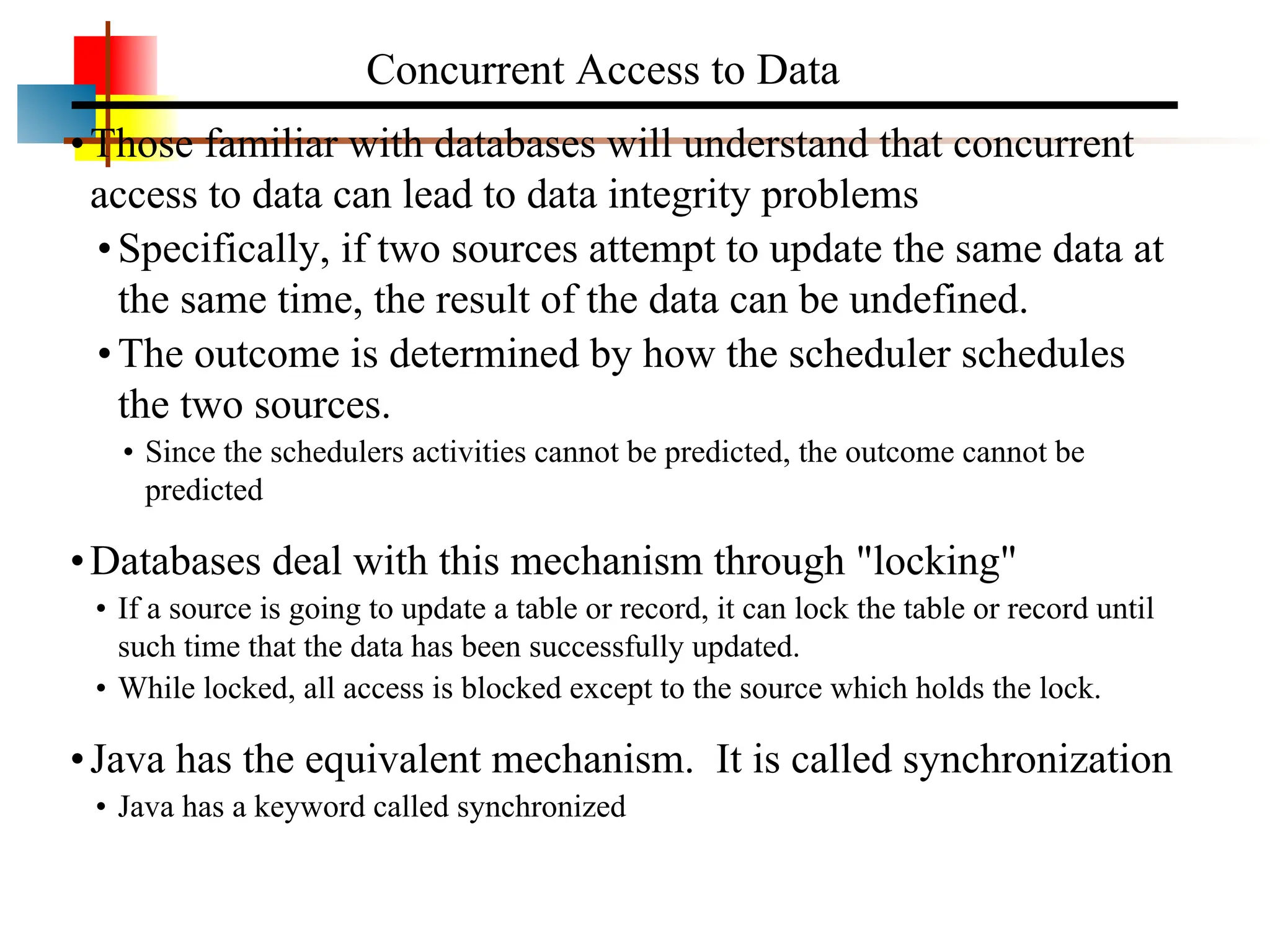
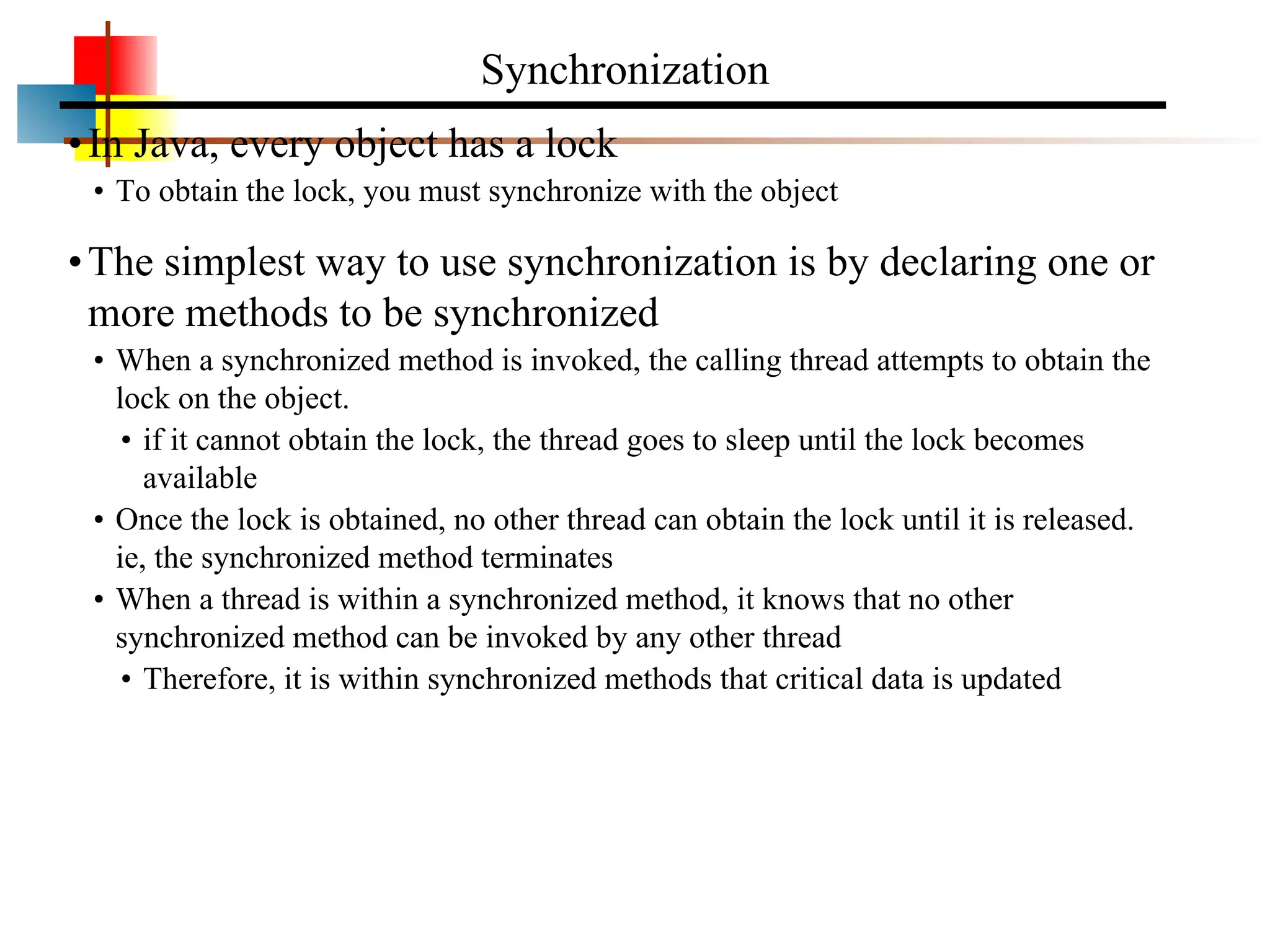
•In Java, everyobject has a lock
• To obtain the lock, you must synchronize with the object
•The simplest way to use synchronization is by declaring one or
more methods to be synchronized
• When a synchronized method is invoked, the calling thread attempts to obtain the
lock on the object.
• if it cannot obtain the lock, the thread goes to sleep until the lock becomes
available
• Once the lock is obtained, no other thread can obtain the lock until it is released.
ie, the synchronized method terminates
• When a thread is within a synchronized method, it knows that no other
synchronized method can be invoked by any other thread
• Therefore, it is within synchronized methods that critical data is updated
Synchronization
70.
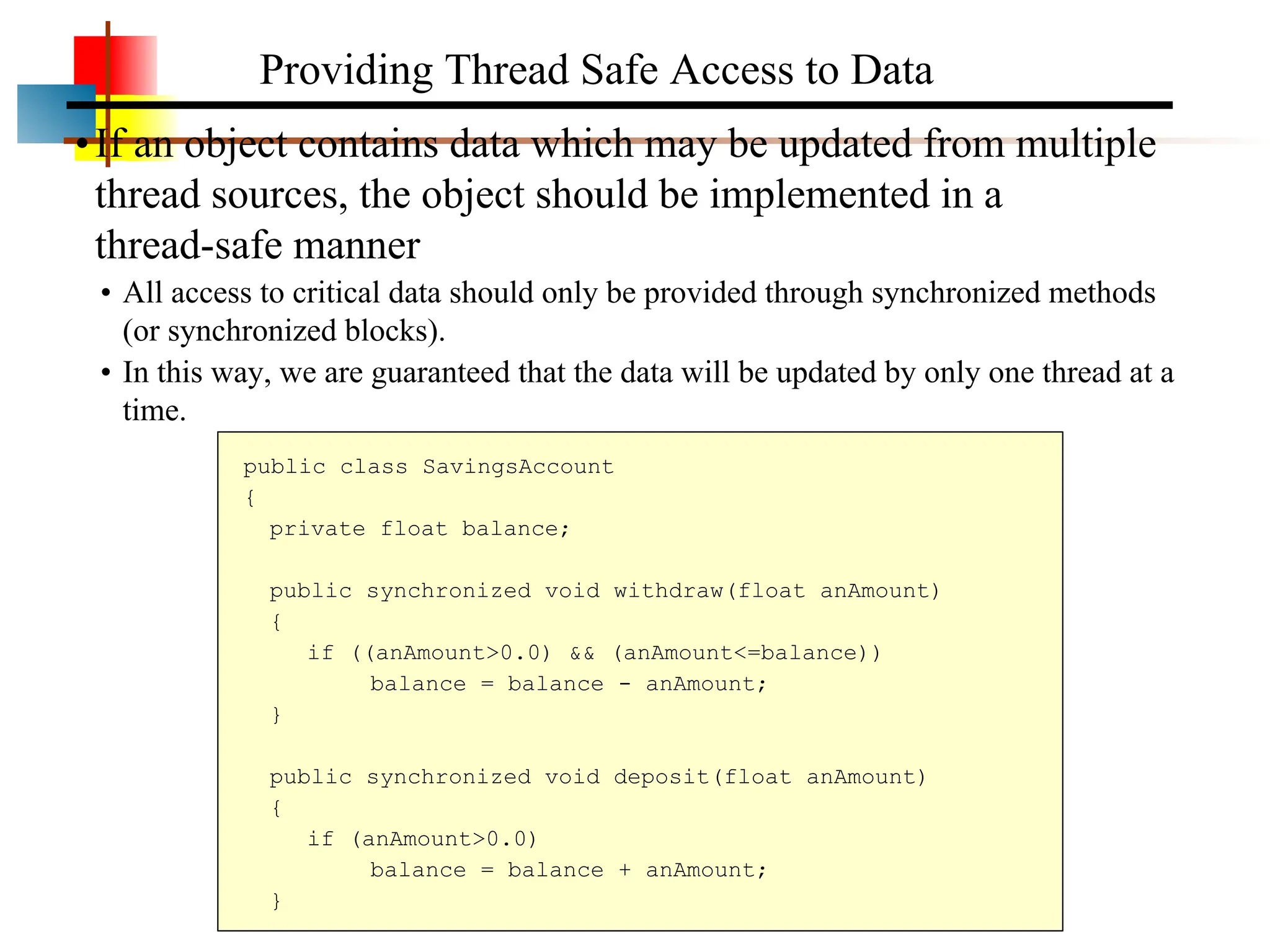
•If an objectcontains data which may be updated from multiple
thread sources, the object should be implemented in a
thread-safe manner
• All access to critical data should only be provided through synchronized methods
(or synchronized blocks).
• In this way, we are guaranteed that the data will be updated by only one thread at a
time.
Providing Thread Safe Access to Data
public class SavingsAccount
{
private float balance;
public synchronized void withdraw(float anAmount)
{
if ((anAmount>0.0) && (anAmount<=balance))
balance = balance - anAmount;
}
public synchronized void deposit(float anAmount)
{
if (anAmount>0.0)
balance = balance + anAmount;
}
71.
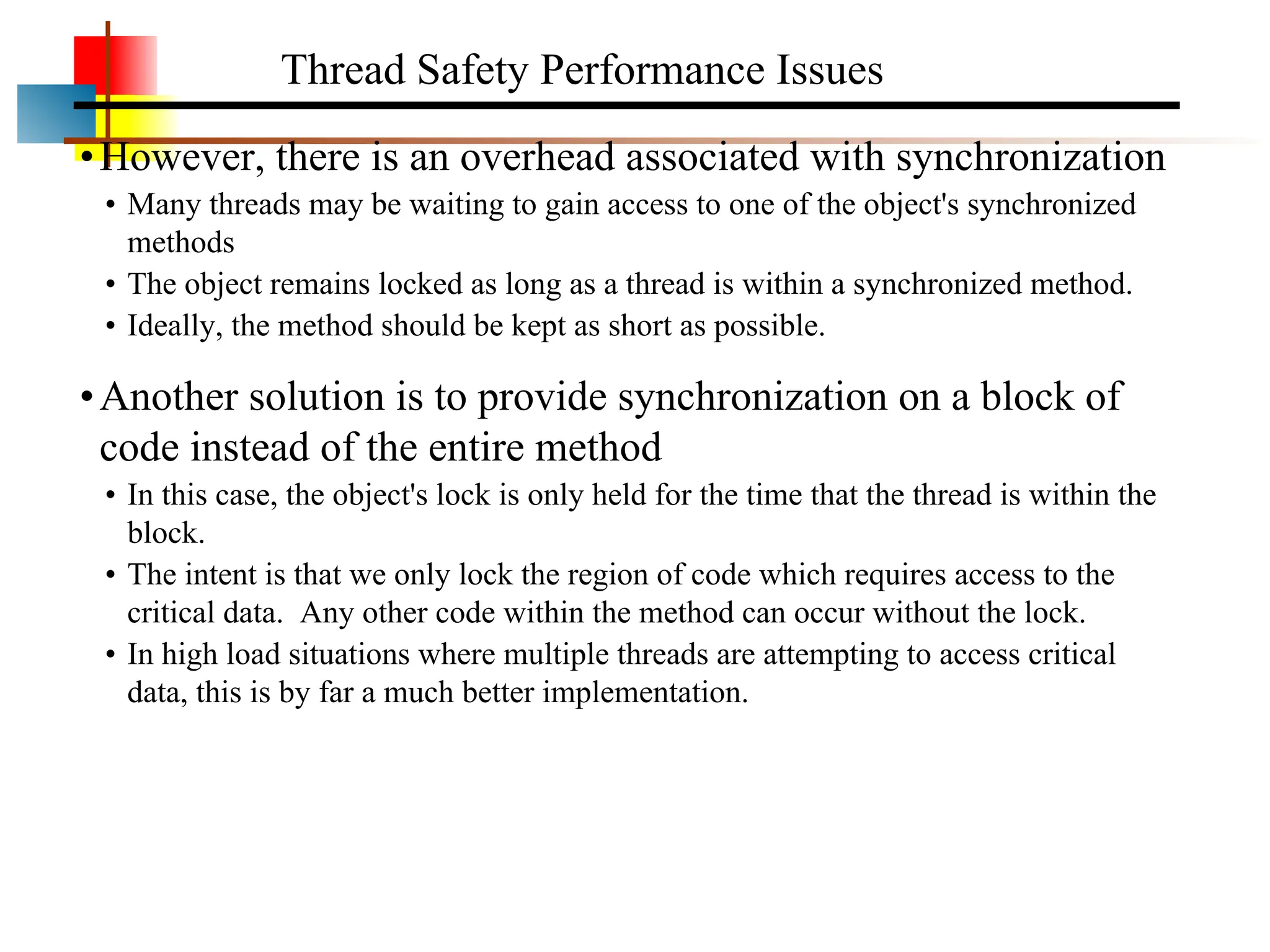
•However, there isan overhead associated with synchronization
• Many threads may be waiting to gain access to one of the object's synchronized
methods
• The object remains locked as long as a thread is within a synchronized method.
• Ideally, the method should be kept as short as possible.
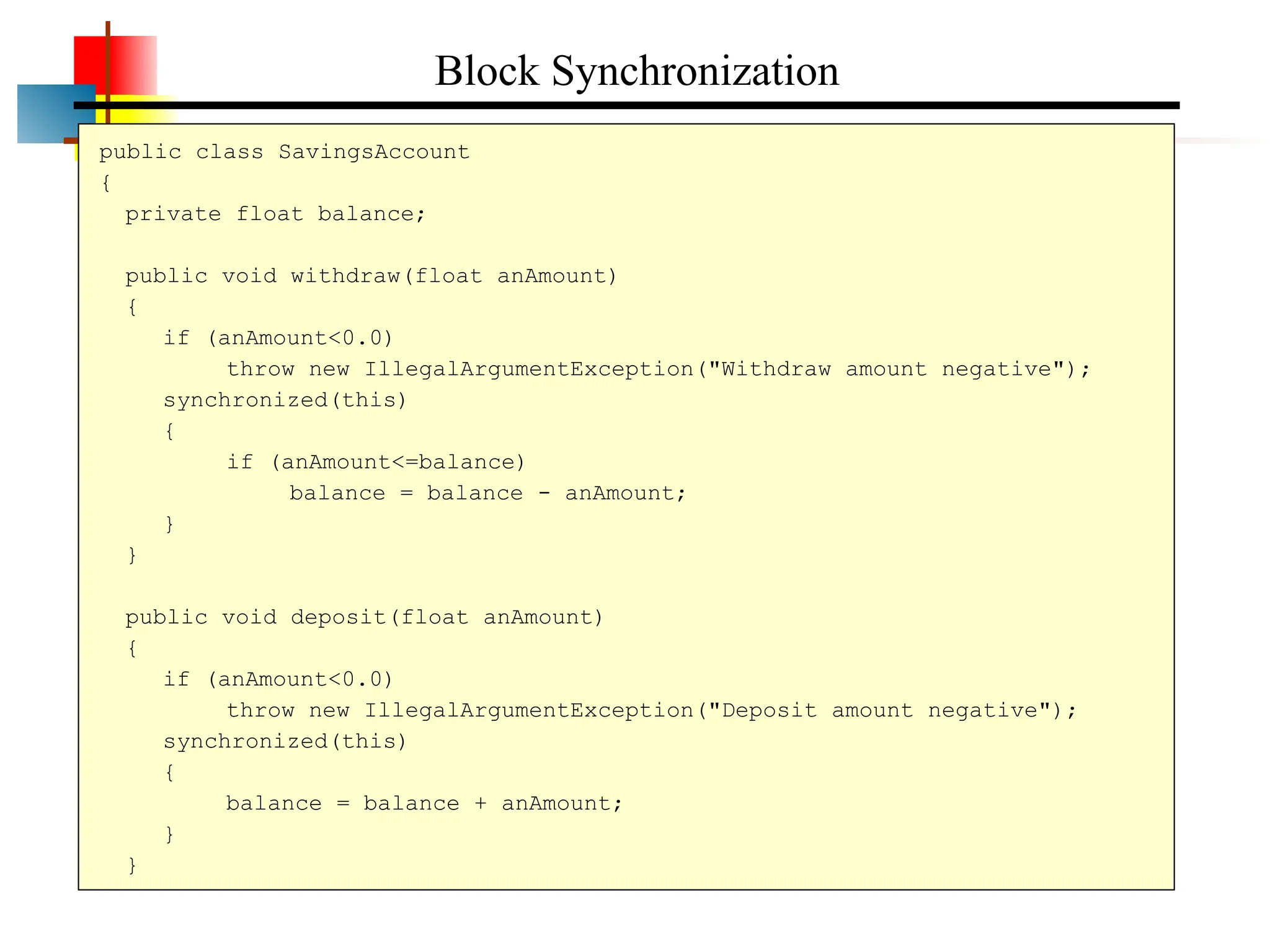
•Another solution is to provide synchronization on a block of
code instead of the entire method
• In this case, the object's lock is only held for the time that the thread is within the
block.
• The intent is that we only lock the region of code which requires access to the
critical data. Any other code within the method can occur without the lock.
• In high load situations where multiple threads are attempting to access critical
data, this is by far a much better implementation.
Thread Safety Performance Issues
72.
public class SavingsAccount
{
privatefloat balance;
public void withdraw(float anAmount)
{
if (anAmount<0.0)
throw new IllegalArgumentException("Withdraw amount negative");
synchronized(this)
{
if (anAmount<=balance)
balance = balance - anAmount;
}
}
public void deposit(float anAmount)
{
if (anAmount<0.0)
throw new IllegalArgumentException("Deposit amount negative");
synchronized(this)
{
balance = balance + anAmount;
}
}
Block Synchronization
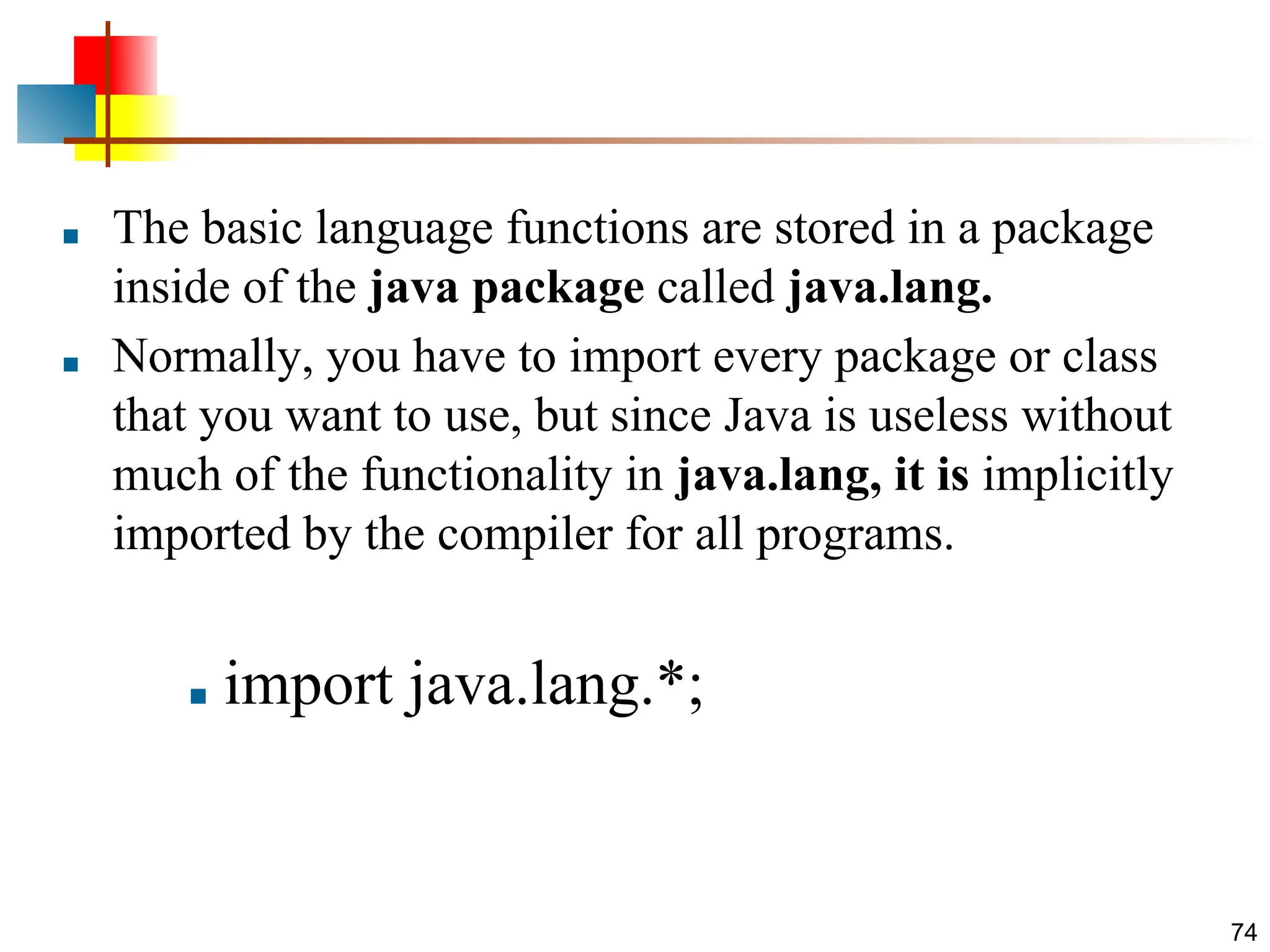
■ The basiclanguage functions are stored in a package
inside of the java package called java.lang.
■ Normally, you have to import every package or class
that you want to use, but since Java is useless without
much of the functionality in java.lang, it is implicitly
imported by the compiler for all programs.
■ import java.lang.*;
74
75.
■ Inside thestandard package java.lang, Java defines
several exception classes.
■ java.lang includes the following classes:
■ Boolean Long StackTraceElement
■ Byte Math StrictMath (Java 2,1.3)
■ Character Number String
■ Class Object StringBuffer
■ Loader Package (Java 2) System
■ Compiler Process Thread
75
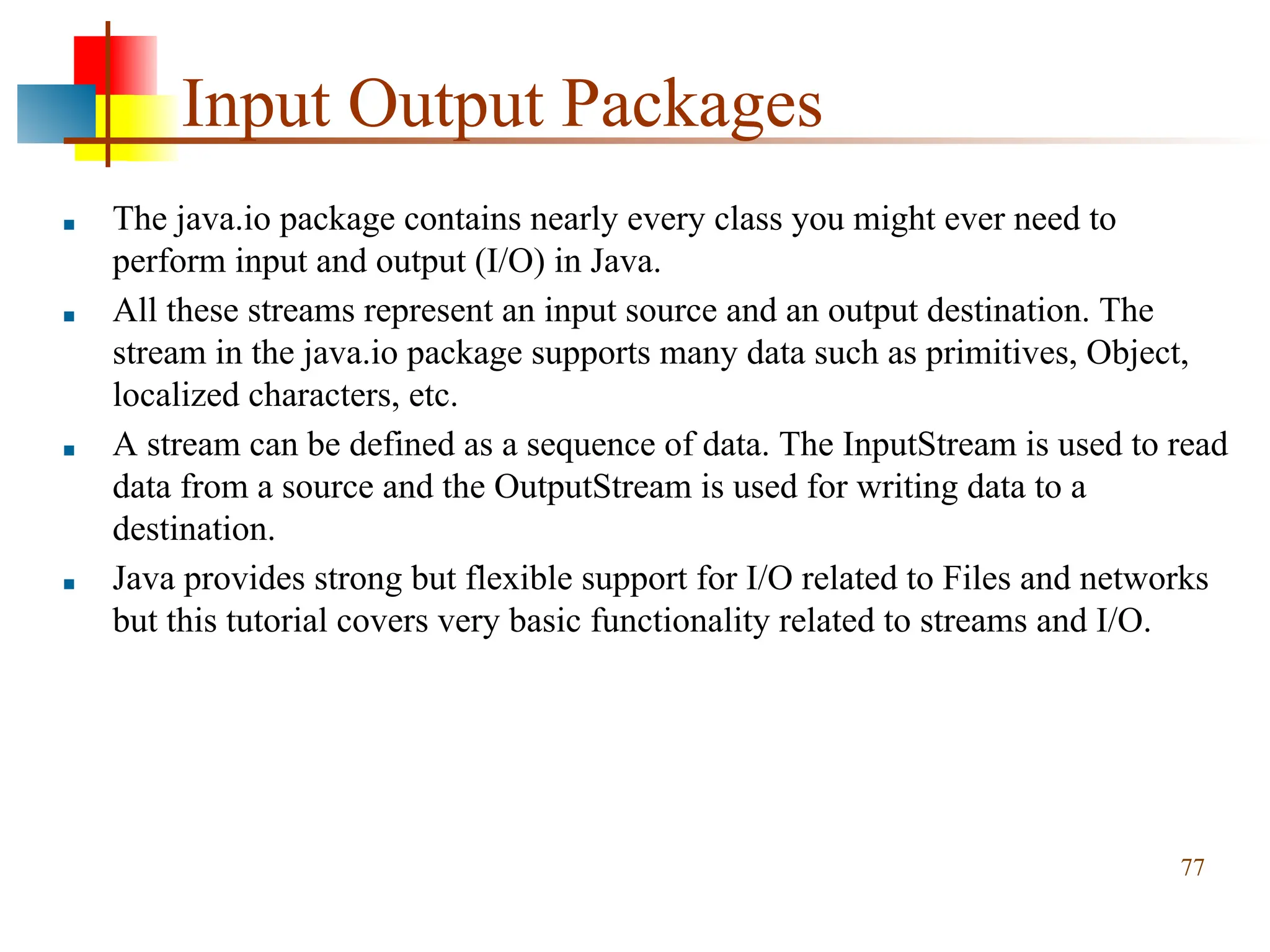
Input Output Packages
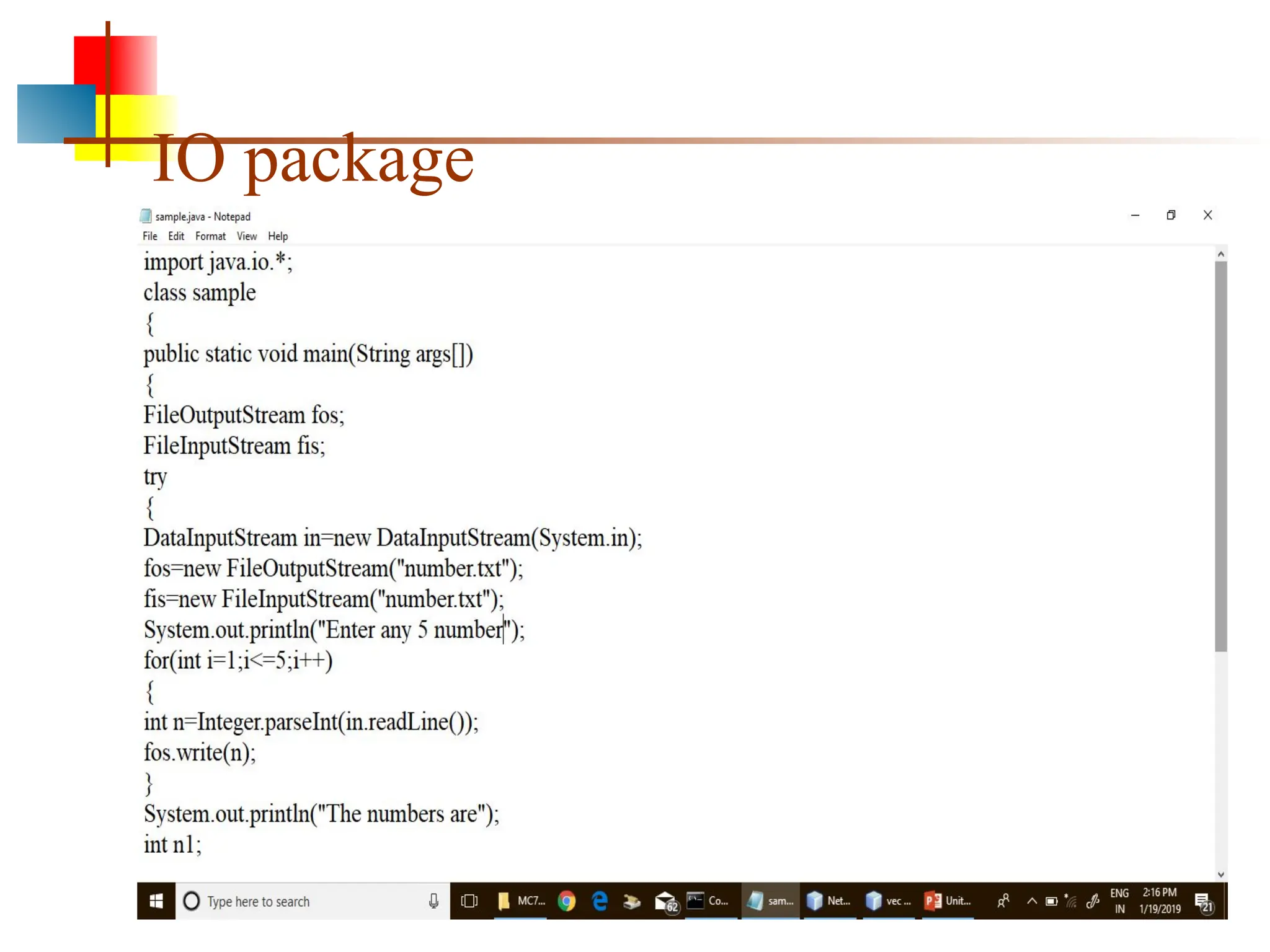
■The java.io package contains nearly every class you might ever need to
perform input and output (I/O) in Java.
■ All these streams represent an input source and an output destination. The
stream in the java.io package supports many data such as primitives, Object,
localized characters, etc.
■ A stream can be defined as a sequence of data. The InputStream is used to read
data from a source and the OutputStream is used for writing data to a
destination.
■ Java provides strong but flexible support for I/O related to Files and networks
but this tutorial covers very basic functionality related to streams and I/O.
77
A first Swingapplication
import javax.swing.*;
public class FirstGUI
{
public static void main(String[] args)
{
JFrame f = new JFrame();
f.setVisible(true);
}
}
When you run
this program, a
tiny window
appears:
The close button
does not work
(have to press
“Stop” in Ready)
Class for
drawing a
window on
the screen
Displays the
window and
enters the
event loop.
83.
Shutting down theapplication
properly
import javax.swing.*;
public class FirstGUI {
public static void main(String[] args) {
JFrame f = new JFrame( );
f.setDefaultCloseOperation(JFrame.EXIT_ON_CLOSE);
f.setVisible(true);
}
}
• To give the application a title, give the constructor a string:
JFrame f = new JFrame( “My first GUI”);
Need to add a
single statement
to program the
close button
84.
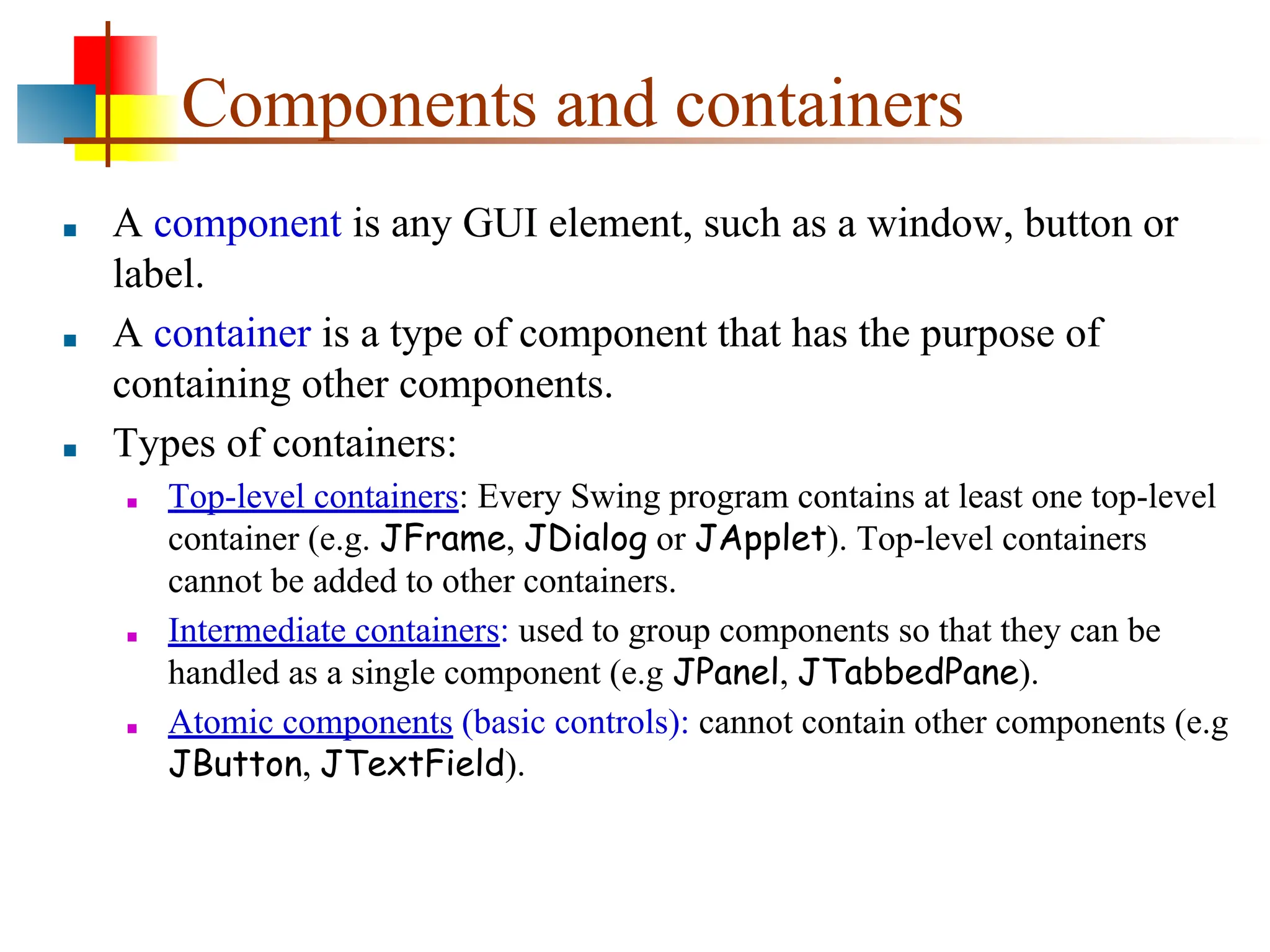
Components and containers
■A component is any GUI element, such as a window, button or
label.
■ A container is a type of component that has the purpose of
containing other components.
■ Types of containers:
■ Top-level containers: Every Swing program contains at least one top-level
container (e.g. JFrame, JDialog or JApplet). Top-level containers
cannot be added to other containers.
■ Intermediate containers: used to group components so that they can be
handled as a single component (e.g JPanel, JTabbedPane).
■ Atomic components (basic controls): cannot contain other components (e.g
JButton, JTextField).
85.
Examples of AtomicComponents
Often called widgets:
■ Label – used to put a label next to another component
■ Button – used to make the program “do something”
■ Checkbox component – used for yes/no, true/false
response from user
■ Choice component – drop-down list
■ TextField – used to type single line of text
■ … etc
86.
Adding a buttonto the application
import javax.swing.*;
public class FirstGUI
{
public static void main(String[] args)
{
JFrame f = new JFrame( );
JButton button = new JButton("Press me!"); // create a
button
f.getContentPane().add(button); // add the button to the
frame
f.setDefaultCloseOperation(JFrame.EXIT_ON_CLOSE);
f.pack( );
f.setVisible(true);
}
}
87.
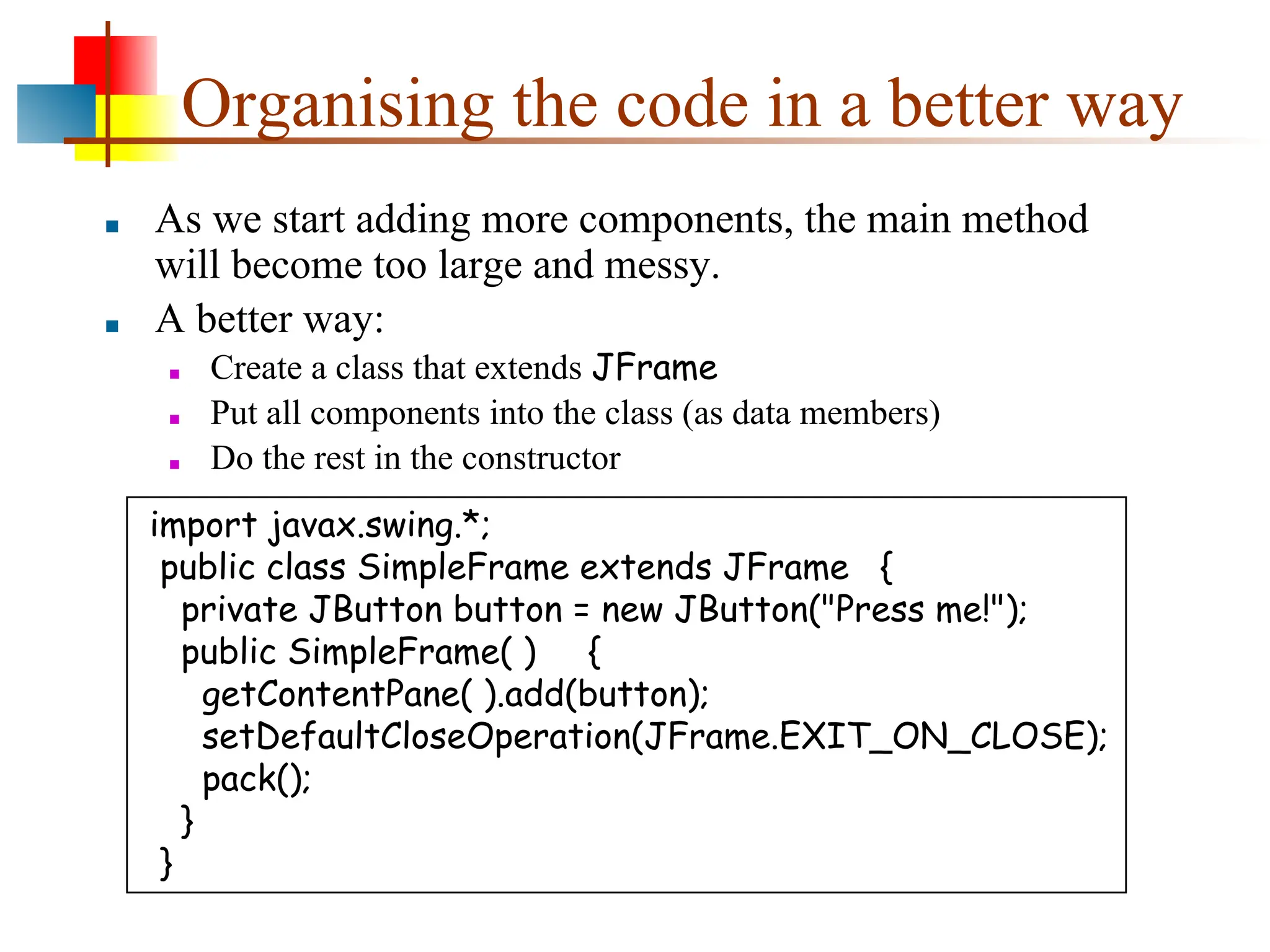
Organising the codein a better way
■ As we start adding more components, the main method
will become too large and messy.
■ A better way:
■ Create a class that extends JFrame
■ Put all components into the class (as data members)
■ Do the rest in the constructor
import javax.swing.*;
public class SimpleFrame extends JFrame {
private JButton button = new JButton("Press me!");
public SimpleFrame( ) {
getContentPane( ).add(button);
setDefaultCloseOperation(JFrame.EXIT_ON_CLOSE);
pack();
}
}
88.
Creating a SimpleFrameobject
■ SimpleFrame extends JFrame, therefore s is also a
JFrame object (and so we can call the setVisible
method).
■ In the SimpleFrame class:
■ SimpleFrame defines a specialisation of JFrame by adding an
additional component.
■ To call methods of JFrame (such as getContentPane or pack),
we no longer need an object handle, since these methods are now
inherited from JFrame).
public class FirstGUI {
public static void main(String[] args) {
SimpleFrame s = new SimpleFrame( );
s.setVisible(true);
}
}
89.
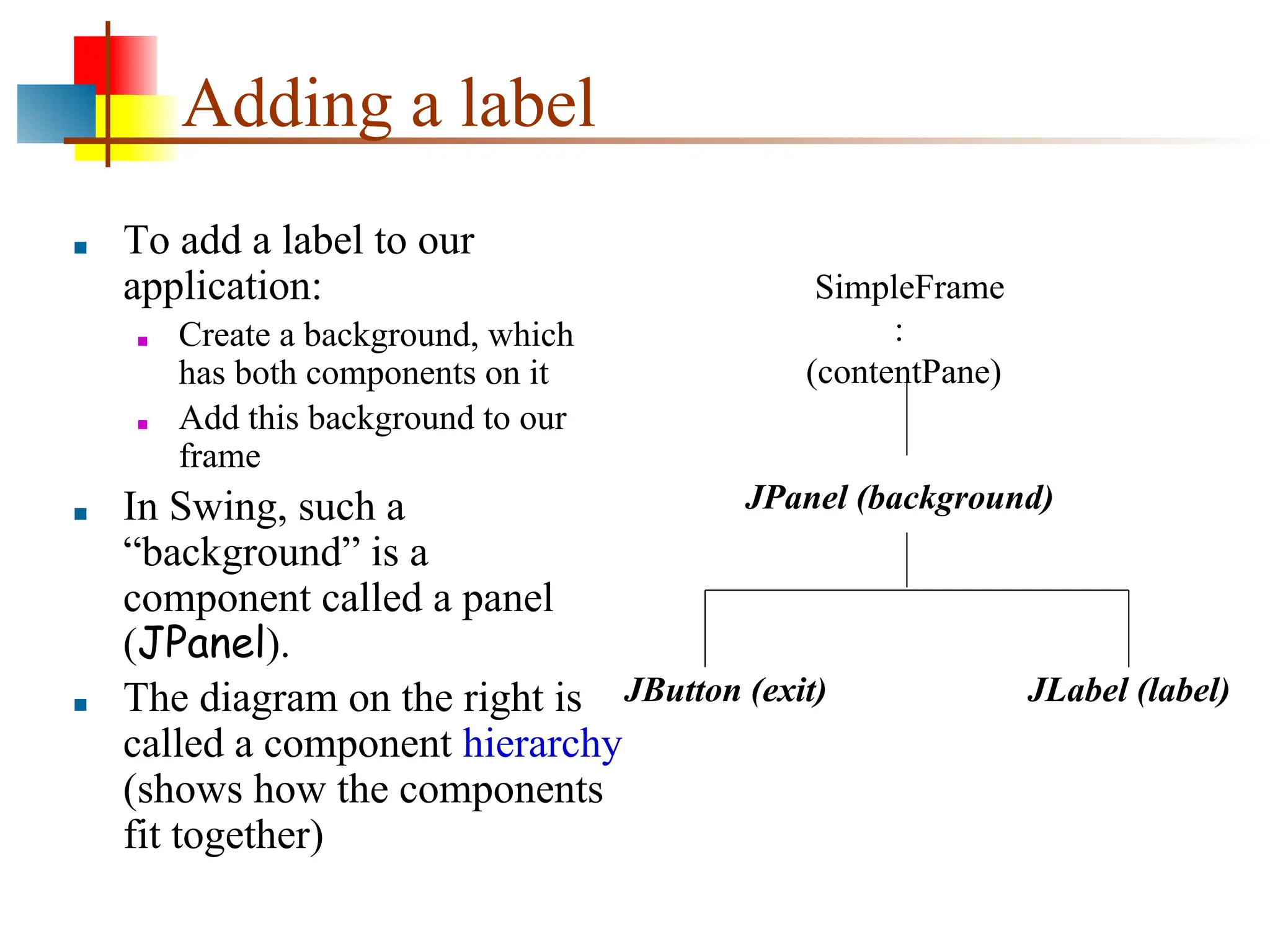
Adding a label
■To add a label to our
application:
■ Create a background, which
has both components on it
■ Add this background to our
frame
■ In Swing, such a
“background” is a
component called a panel
(JPanel).
■ The diagram on the right is
called a component hierarchy
(shows how the components
fit together)
SimpleFrame
:
(contentPane)
JLabel (label)
JPanel (background)
JButton (exit)
90.
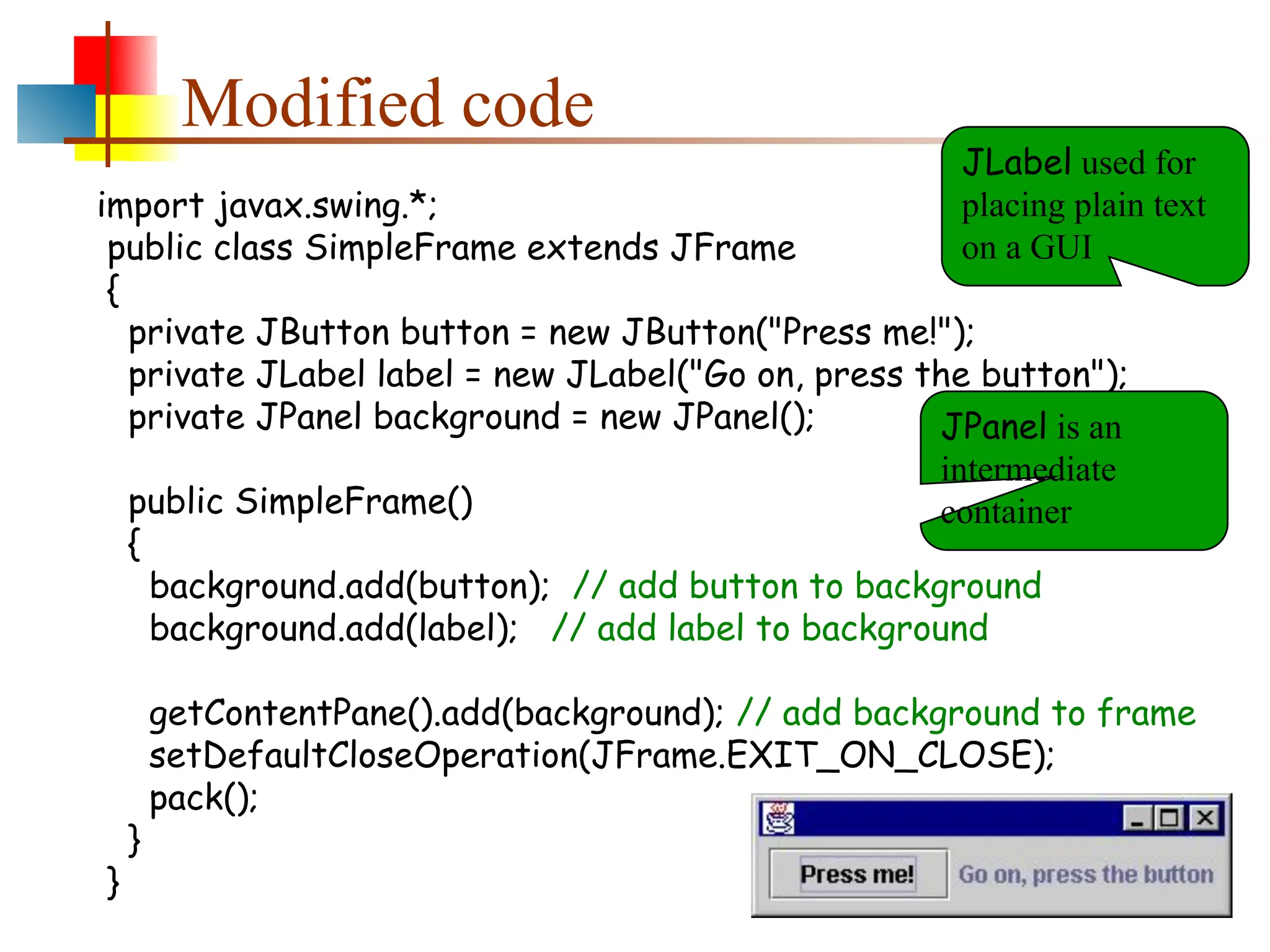
Modified code
import javax.swing.*;
publicclass SimpleFrame extends JFrame
{
private JButton button = new JButton("Press me!");
private JLabel label = new JLabel("Go on, press the button");
private JPanel background = new JPanel();
public SimpleFrame()
{
background.add(button); // add button to background
background.add(label); // add label to background
getContentPane().add(background); // add background to frame
setDefaultCloseOperation(JFrame.EXIT_ON_CLOSE);
pack();
}
}
JLabel used for
placing plain text
on a GUI
JPanel is an
intermediate
container
91.
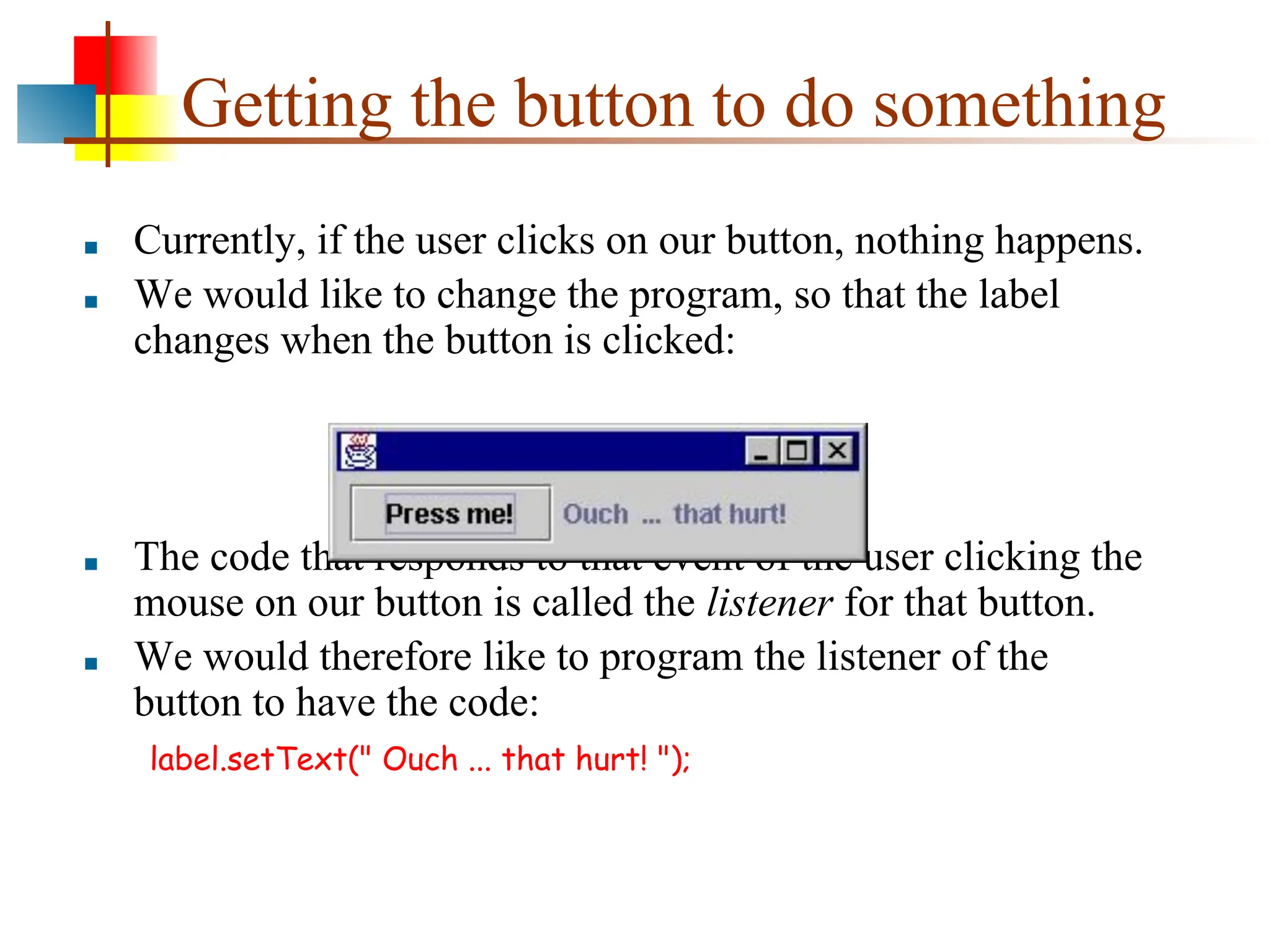
Getting the buttonto do something
■ Currently, if the user clicks on our button, nothing happens.
■ We would like to change the program, so that the label
changes when the button is clicked:
■ The code that responds to that event of the user clicking the
mouse on our button is called the listener for that button.
■ We would therefore like to program the listener of the
button to have the code:
label.setText(" Ouch ... that hurt! ");
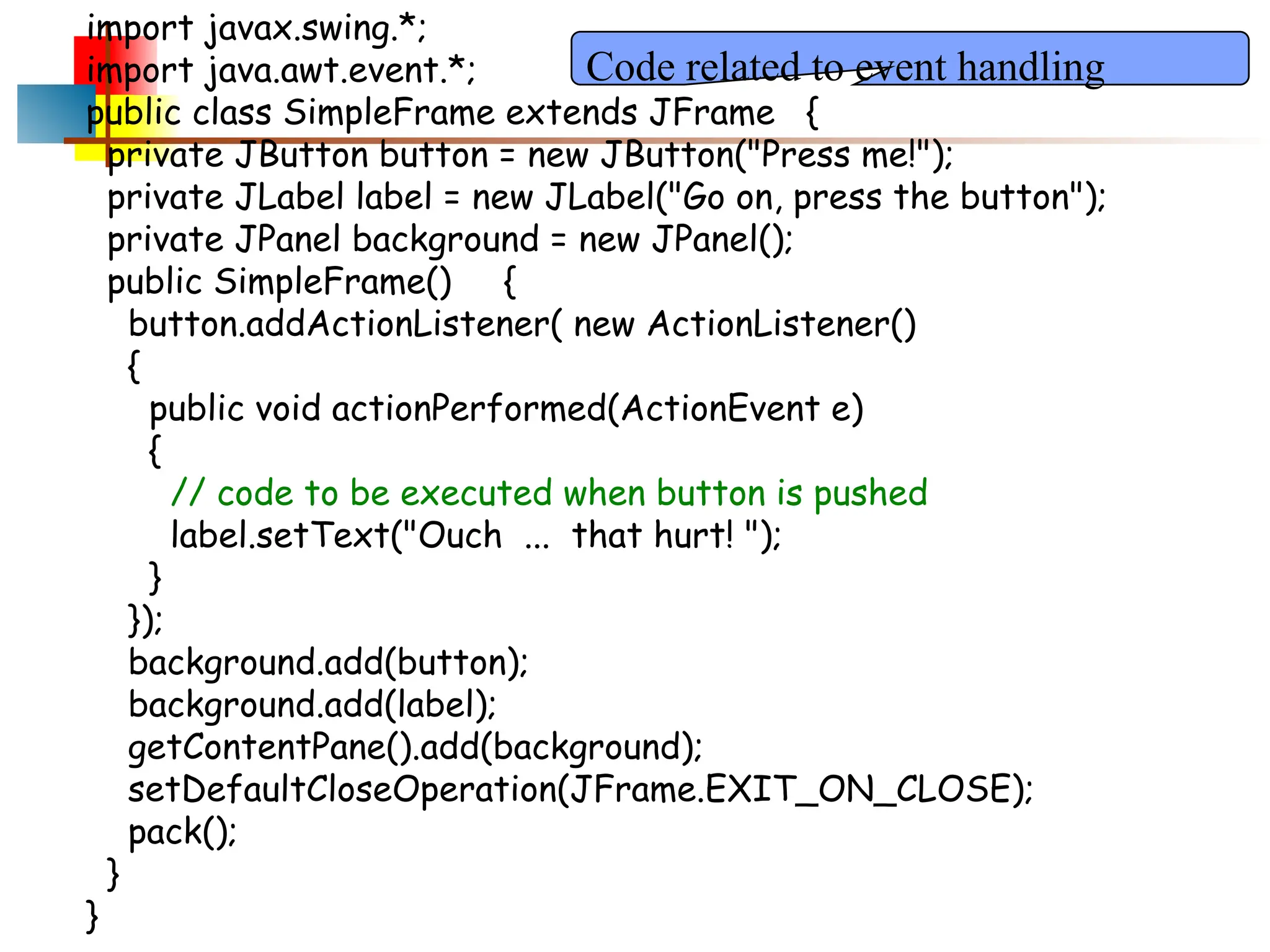
92.
import javax.swing.*;
import java.awt.event.*;
publicclass SimpleFrame extends JFrame {
private JButton button = new JButton("Press me!");
private JLabel label = new JLabel("Go on, press the button");
private JPanel background = new JPanel();
public SimpleFrame() {
button.addActionListener( new ActionListener()
{
public void actionPerformed(ActionEvent e)
{
// code to be executed when button is pushed
label.setText("Ouch ... that hurt! ");
}
});
background.add(button);
background.add(label);
getContentPane().add(background);
setDefaultCloseOperation(JFrame.EXIT_ON_CLOSE);
pack();
}
}
Code related to event handling
Review
■ Java providestwo sets of facilities for developing GUIs:
■ The Abstract Window Toolkit (AWT): package java.awt
■ Swing: package javax.swing
■ Event-driven
■ mkuttel@cs.uct.ac.za
97.
Event Handling
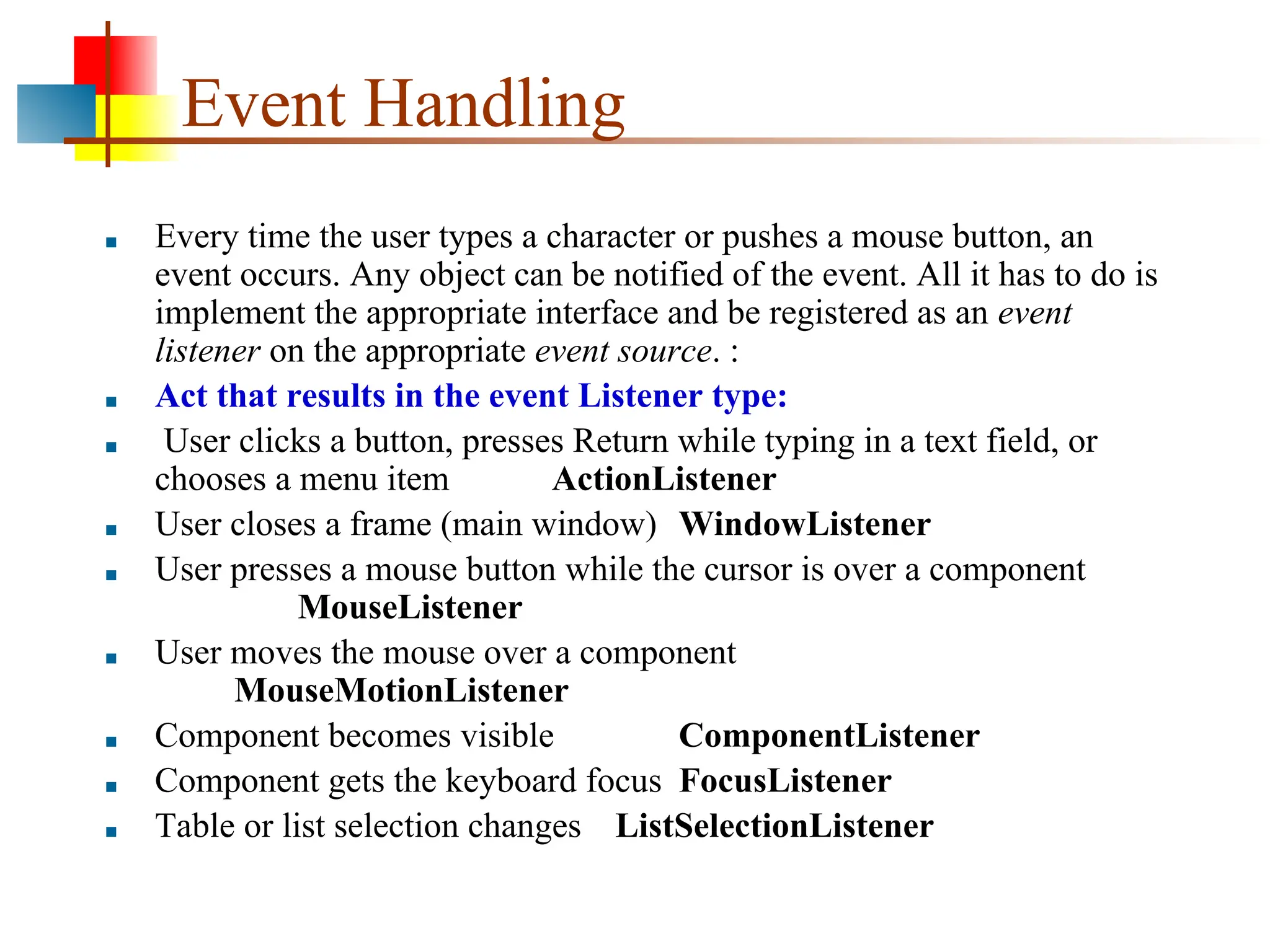
■ Everytime the user types a character or pushes a mouse button, an
event occurs. Any object can be notified of the event. All it has to do is
implement the appropriate interface and be registered as an event
listener on the appropriate event source. :
■ Act that results in the event Listener type:
■ User clicks a button, presses Return while typing in a text field, or
chooses a menu item ActionListener
■ User closes a frame (main window) WindowListener
■ User presses a mouse button while the cursor is over a component
MouseListener
■ User moves the mouse over a component
MouseMotionListener
■ Component becomes visible ComponentListener
■ Component gets the keyboard focus FocusListener
■ Table or list selection changes ListSelectionListener
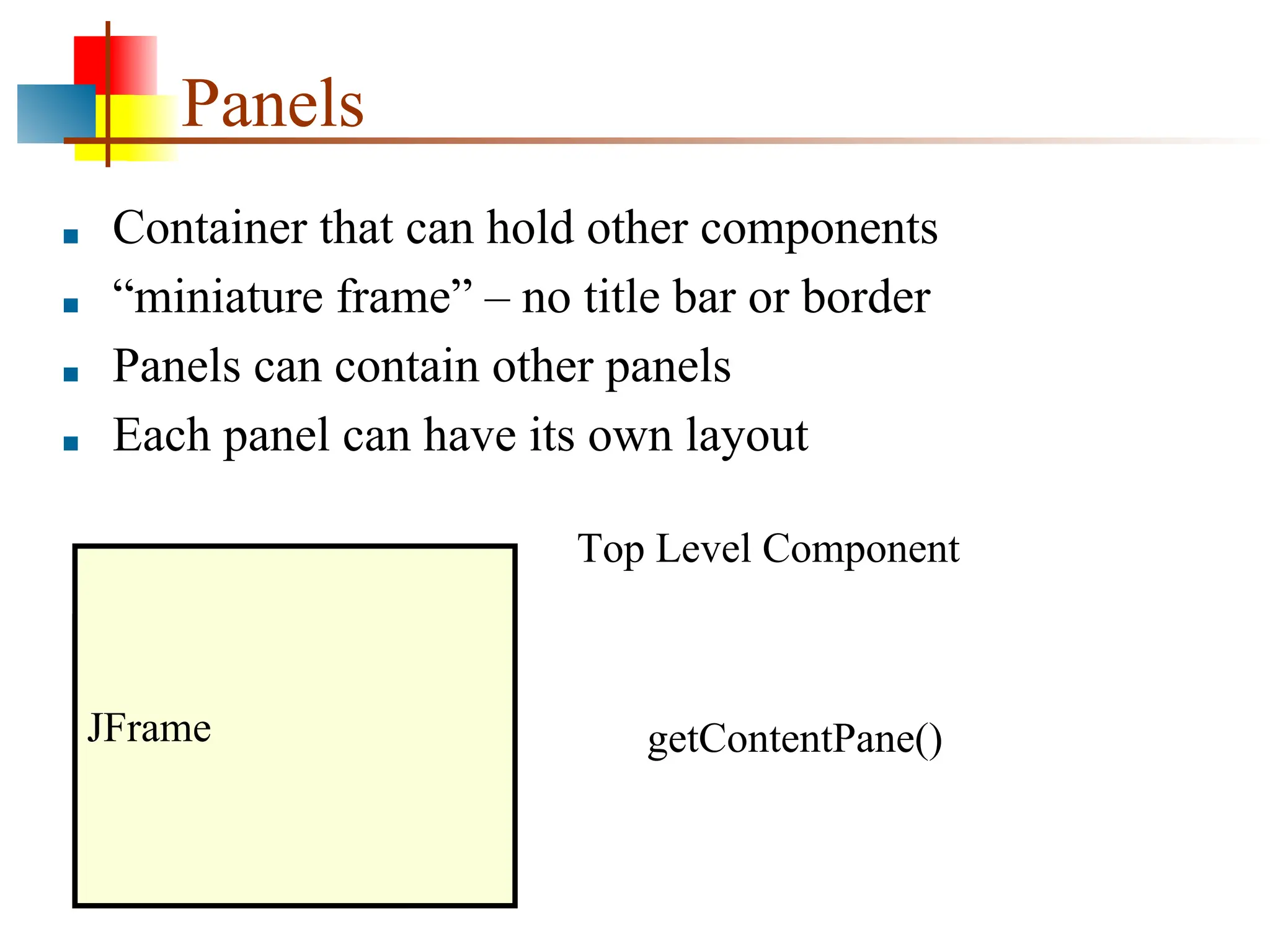
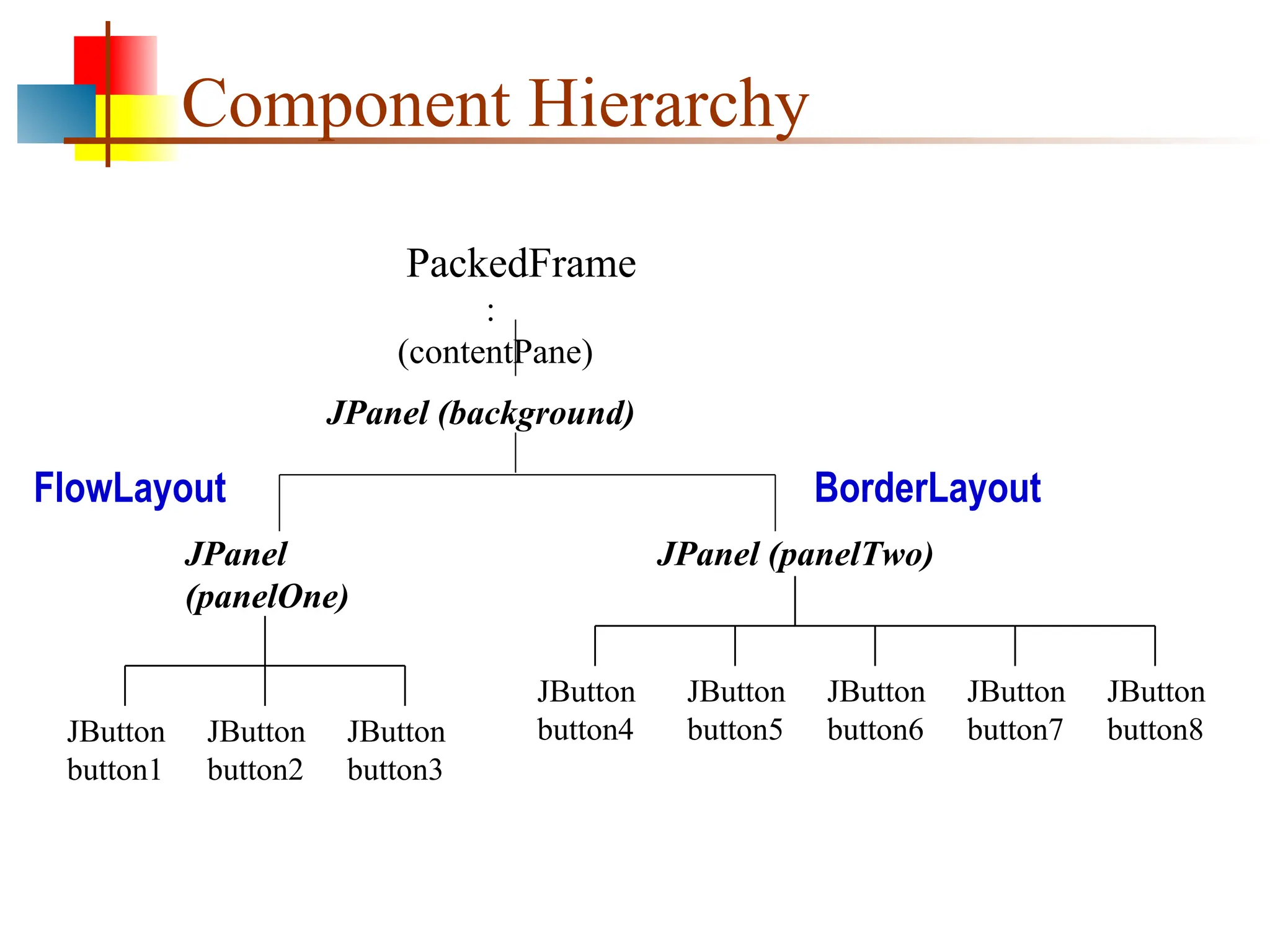
Panels
■ Container thatcan hold other components
■ “miniature frame” – no title bar or border
■ Panels can contain other panels
■ Each panel can have its own layout
JFrame
Top Level Component
getContentPane()
JFrame
102.
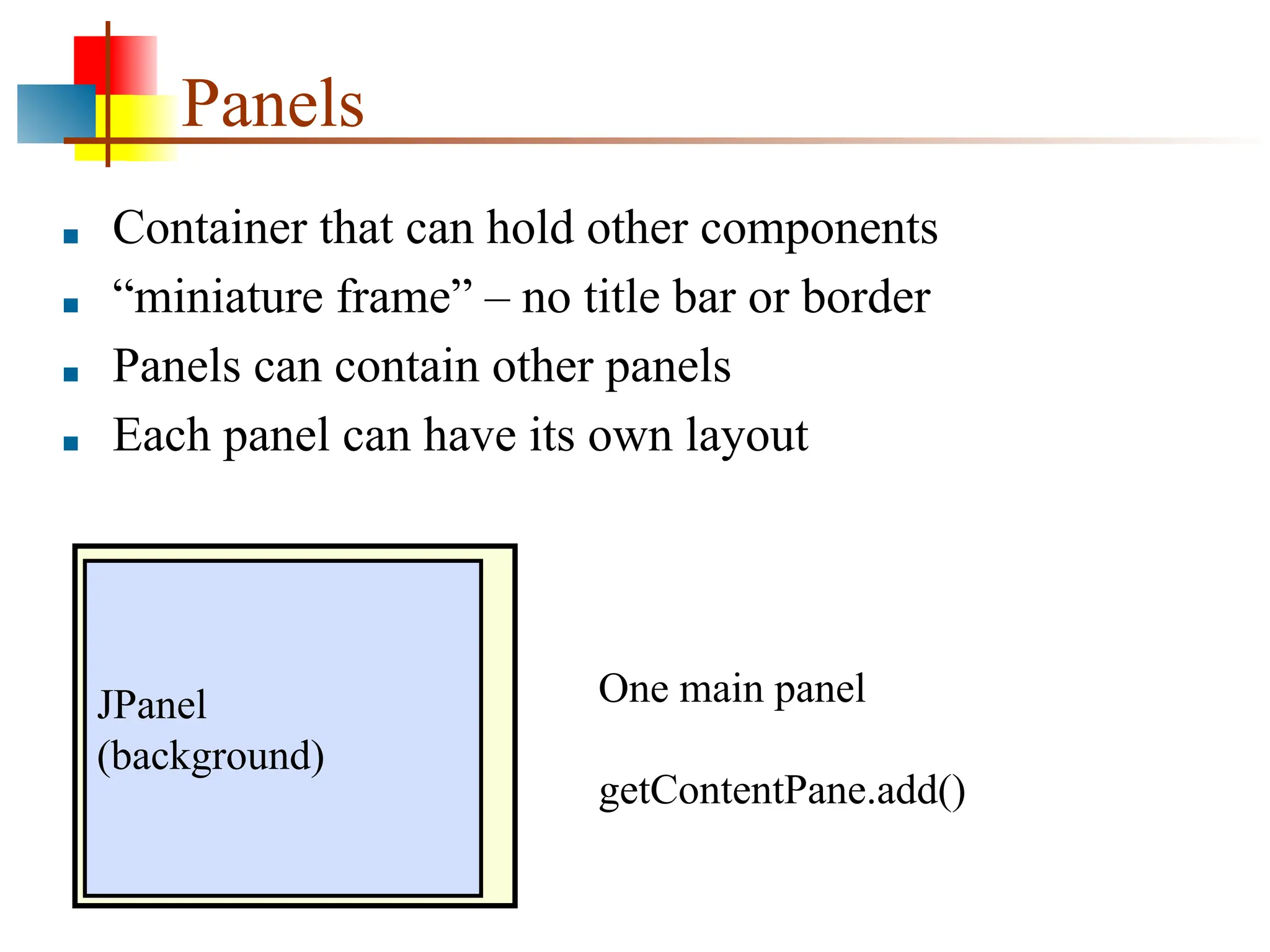
Panels
■ Container thatcan hold other components
■ “miniature frame” – no title bar or border
■ Panels can contain other panels
■ Each panel can have its own layout
JPanel
(background)
One main panel
getContentPane.add()
103.
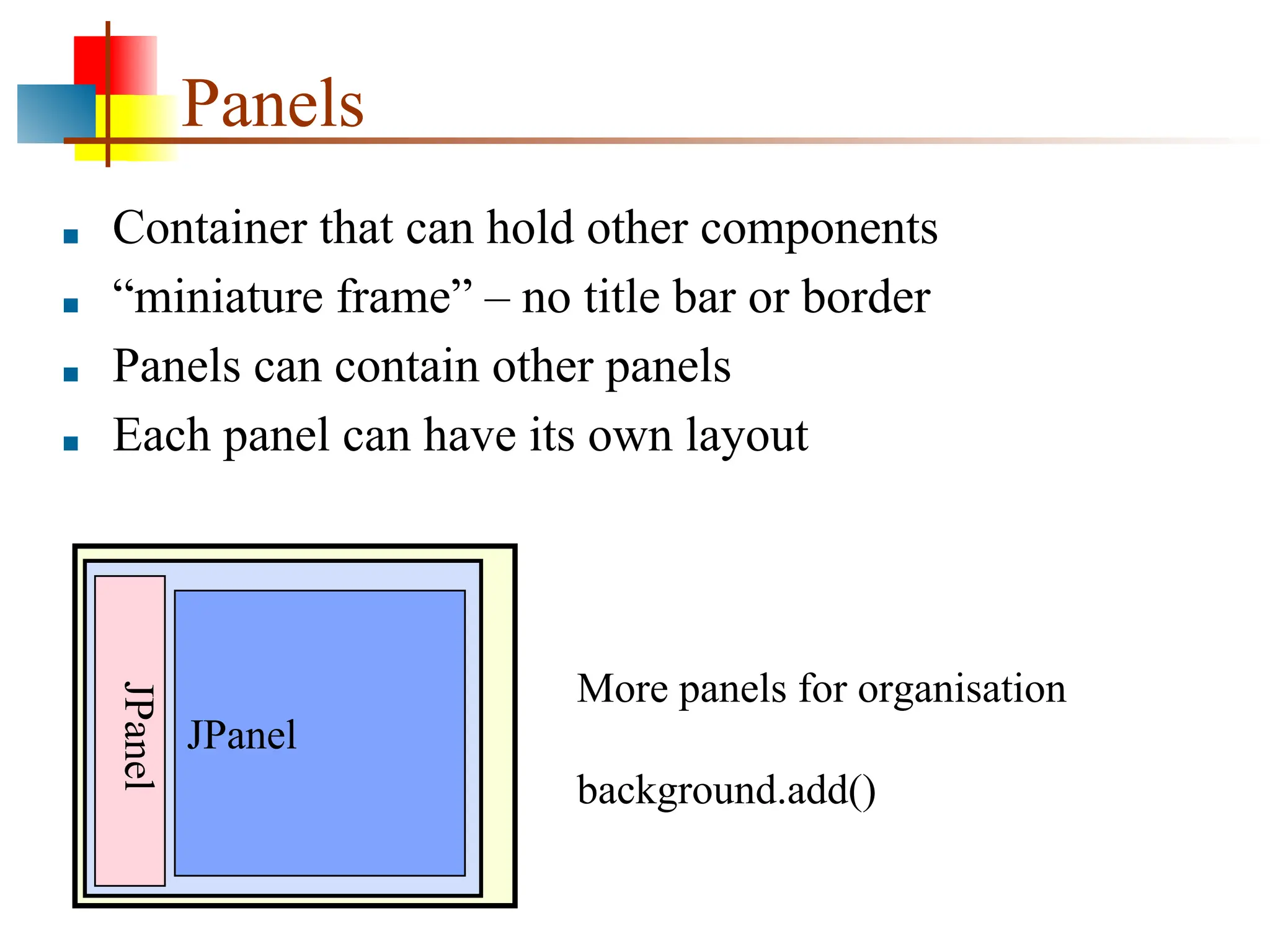
Panels
■ Container thatcan hold other components
■ “miniature frame” – no title bar or border
■ Panels can contain other panels
■ Each panel can have its own layout
JPanel
JPanel
More panels for organisation
background.add()
104.
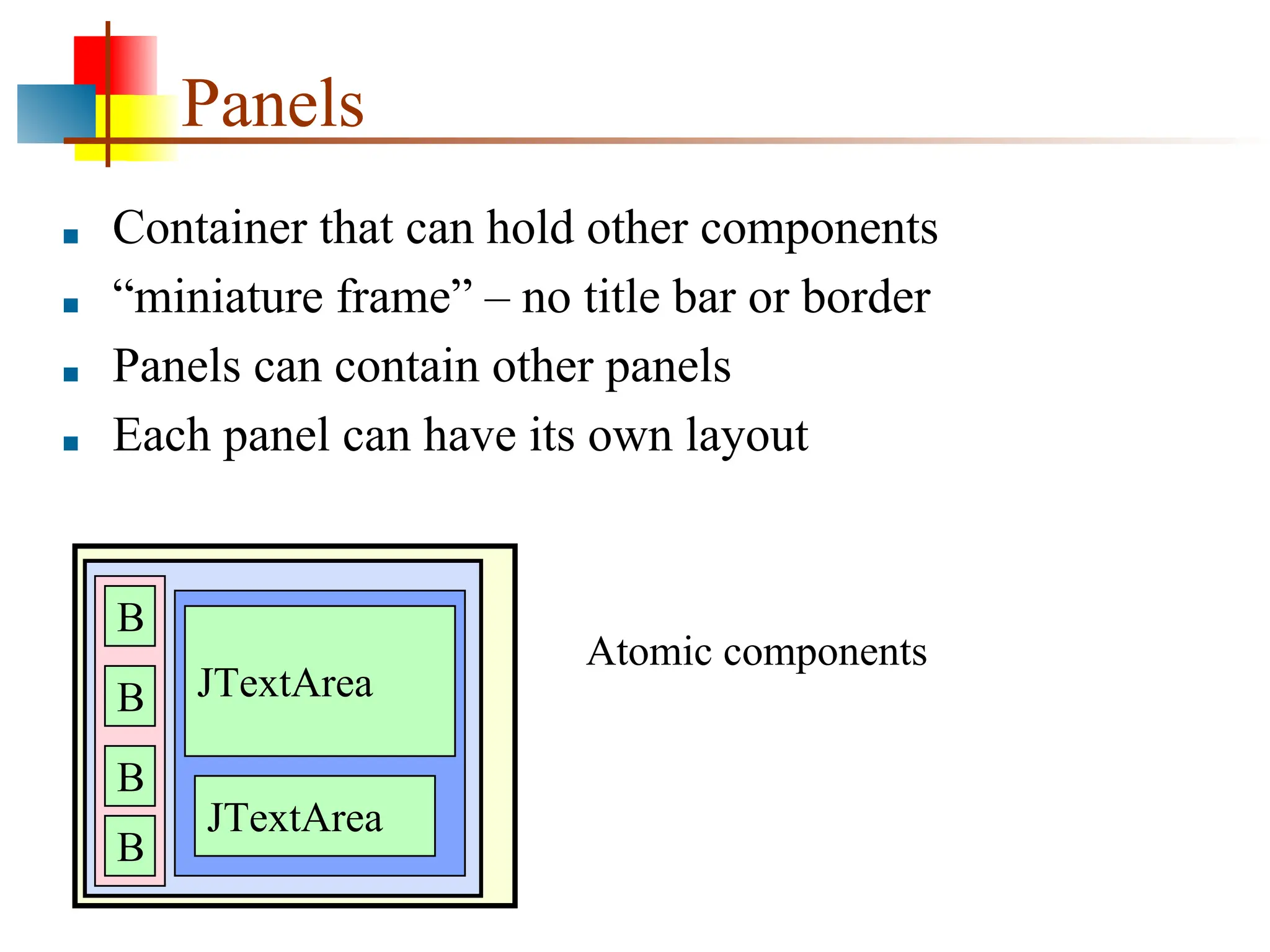
Panels
■ Container thatcan hold other components
■ “miniature frame” – no title bar or border
■ Panels can contain other panels
■ Each panel can have its own layout
B
B
B
B
JTextArea
JTextArea
Atomic components
105.
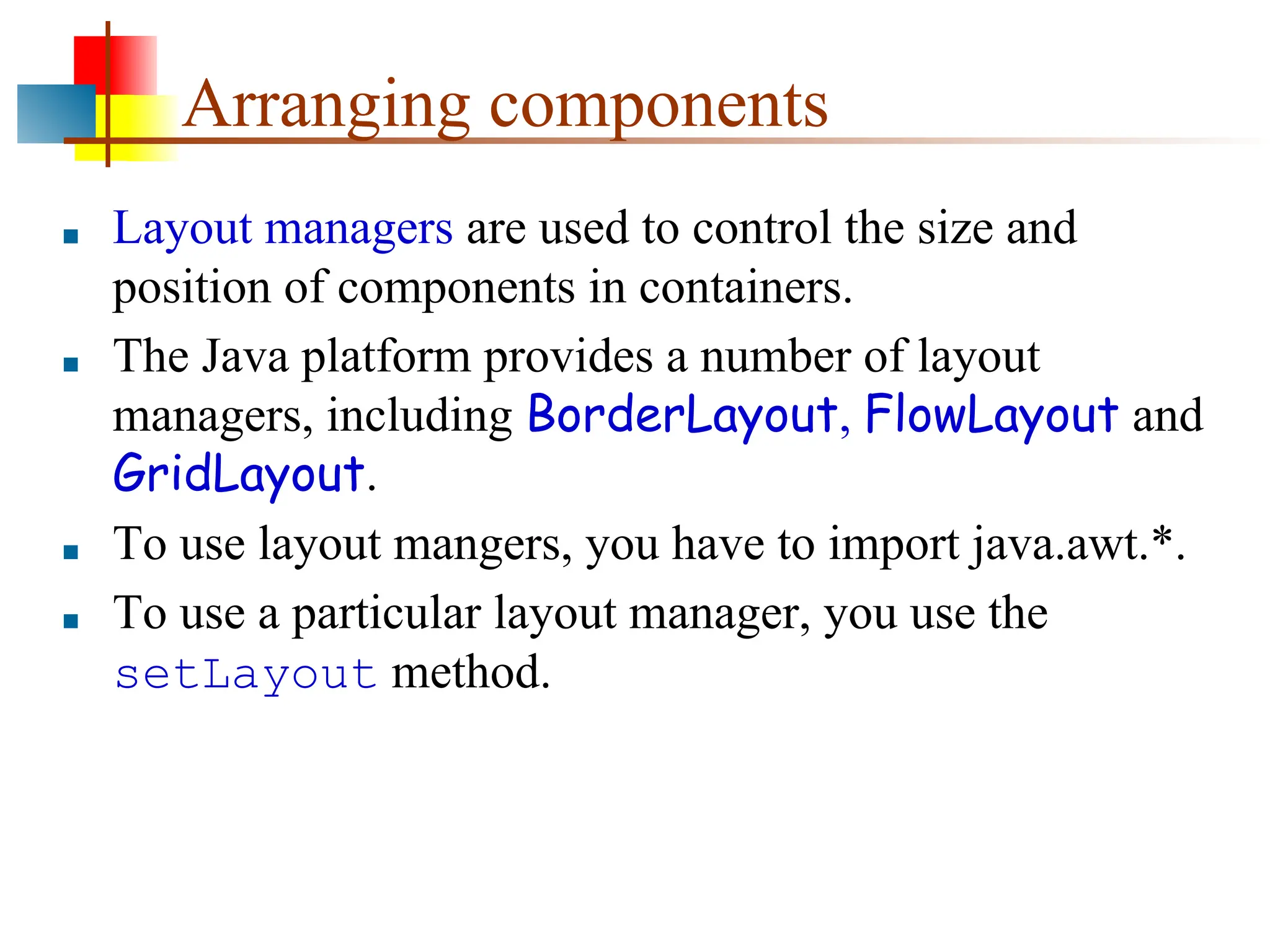
Arranging components
■ Layoutmanagers are used to control the size and
position of components in containers.
■ The Java platform provides a number of layout
managers, including BorderLayout, FlowLayout and
GridLayout.
■ To use layout mangers, you have to import java.awt.*.
■ To use a particular layout manager, you use the
setLayout method.
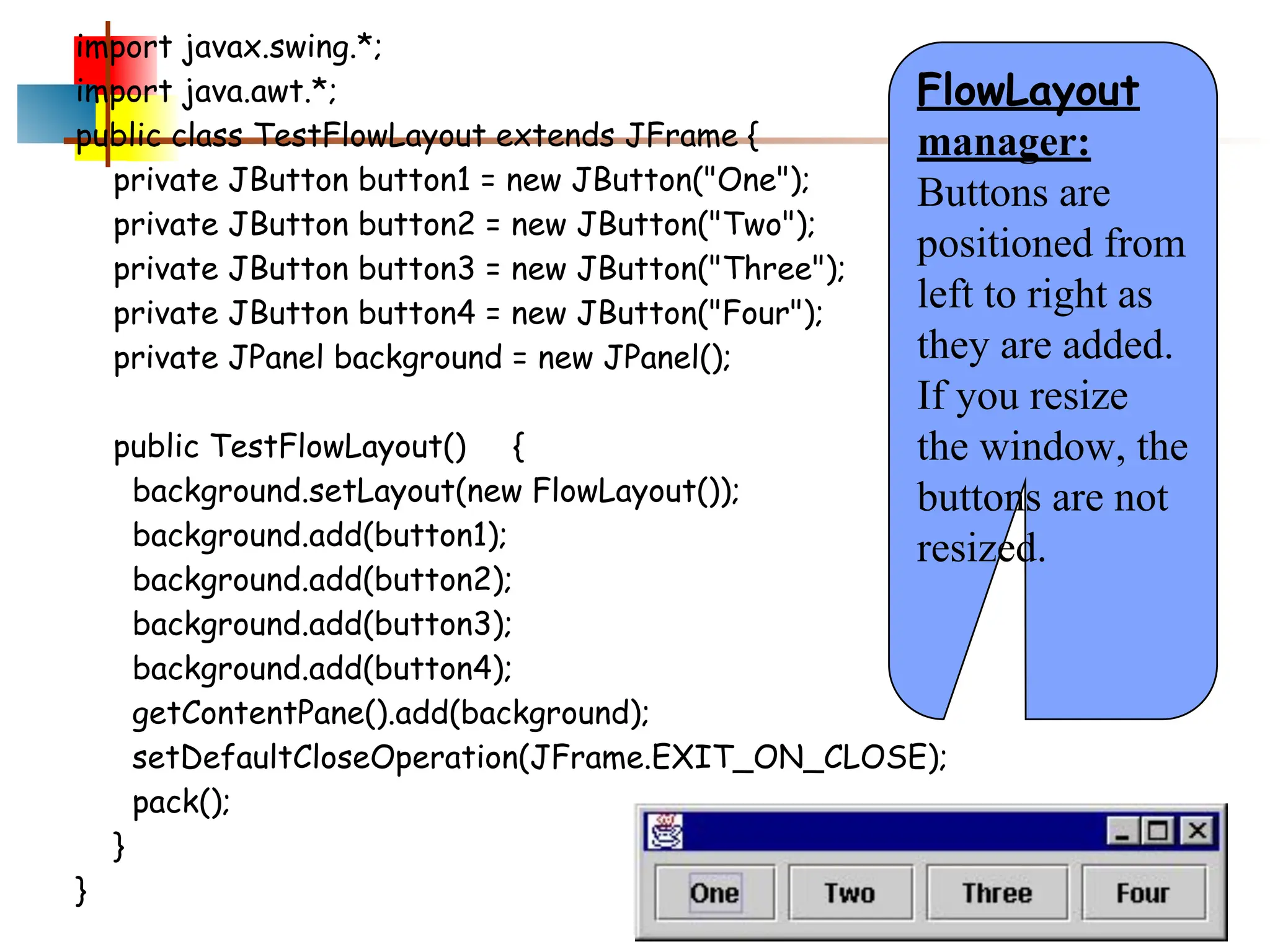
106.
import javax.swing.*;
import java.awt.*;
publicclass TestFlowLayout extends JFrame {
private JButton button1 = new JButton("One");
private JButton button2 = new JButton("Two");
private JButton button3 = new JButton("Three");
private JButton button4 = new JButton("Four");
private JPanel background = new JPanel();
public TestFlowLayout() {
background.setLayout(new FlowLayout());
background.add(button1);
background.add(button2);
background.add(button3);
background.add(button4);
getContentPane().add(background);
setDefaultCloseOperation(JFrame.EXIT_ON_CLOSE);
pack();
}
}
FlowLayout
manager:
Buttons are
positioned from
left to right as
they are added.
If you resize
the window, the
buttons are not
resized.
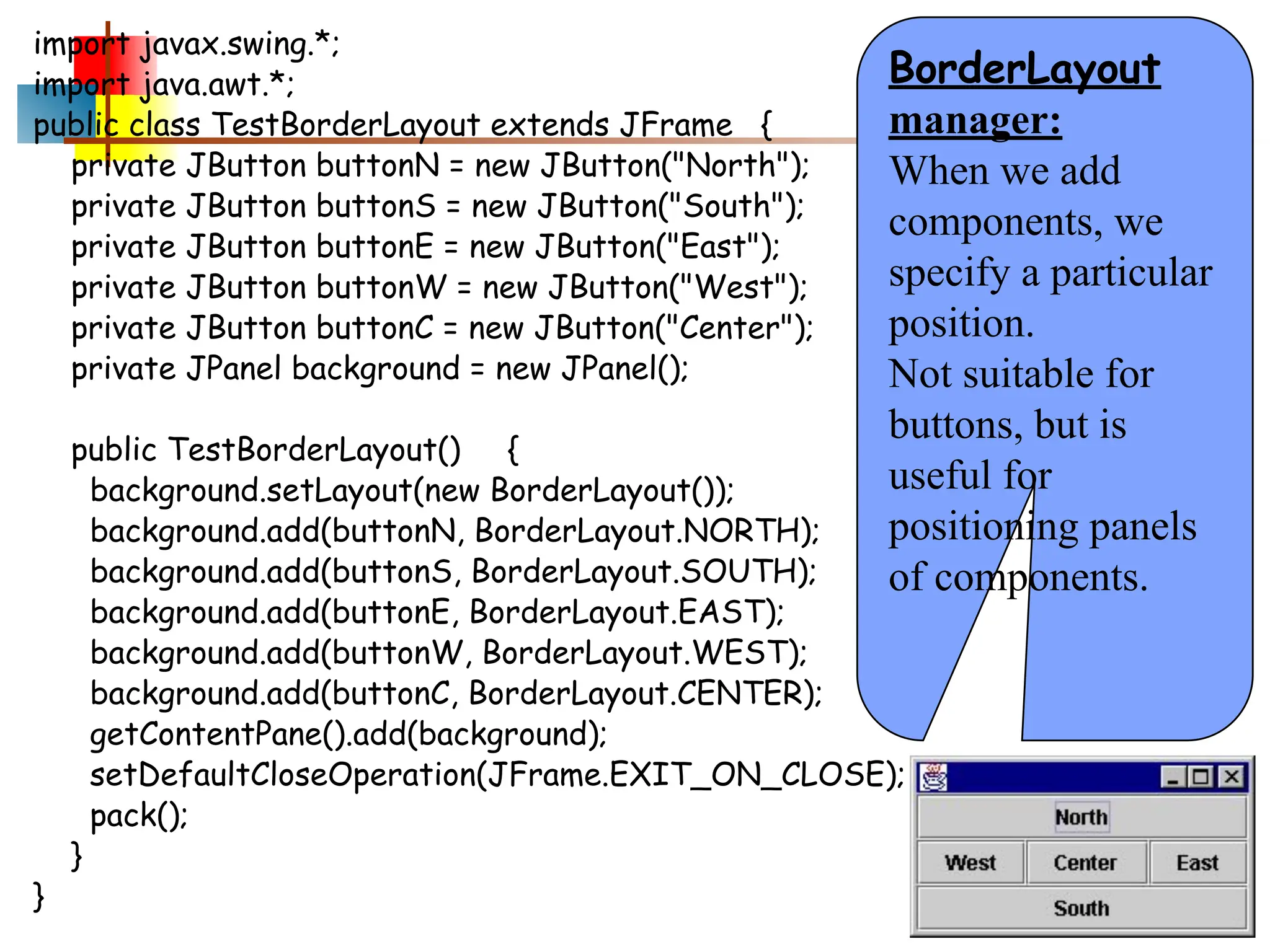
107.
import javax.swing.*;
import java.awt.*;
publicclass TestBorderLayout extends JFrame {
private JButton buttonN = new JButton("North");
private JButton buttonS = new JButton("South");
private JButton buttonE = new JButton("East");
private JButton buttonW = new JButton("West");
private JButton buttonC = new JButton("Center");
private JPanel background = new JPanel();
public TestBorderLayout() {
background.setLayout(new BorderLayout());
background.add(buttonN, BorderLayout.NORTH);
background.add(buttonS, BorderLayout.SOUTH);
background.add(buttonE, BorderLayout.EAST);
background.add(buttonW, BorderLayout.WEST);
background.add(buttonC, BorderLayout.CENTER);
getContentPane().add(background);
setDefaultCloseOperation(JFrame.EXIT_ON_CLOSE);
pack();
}
}
BorderLayout
manager:
When we add
components, we
specify a particular
position.
Not suitable for
buttons, but is
useful for
positioning panels
of components.
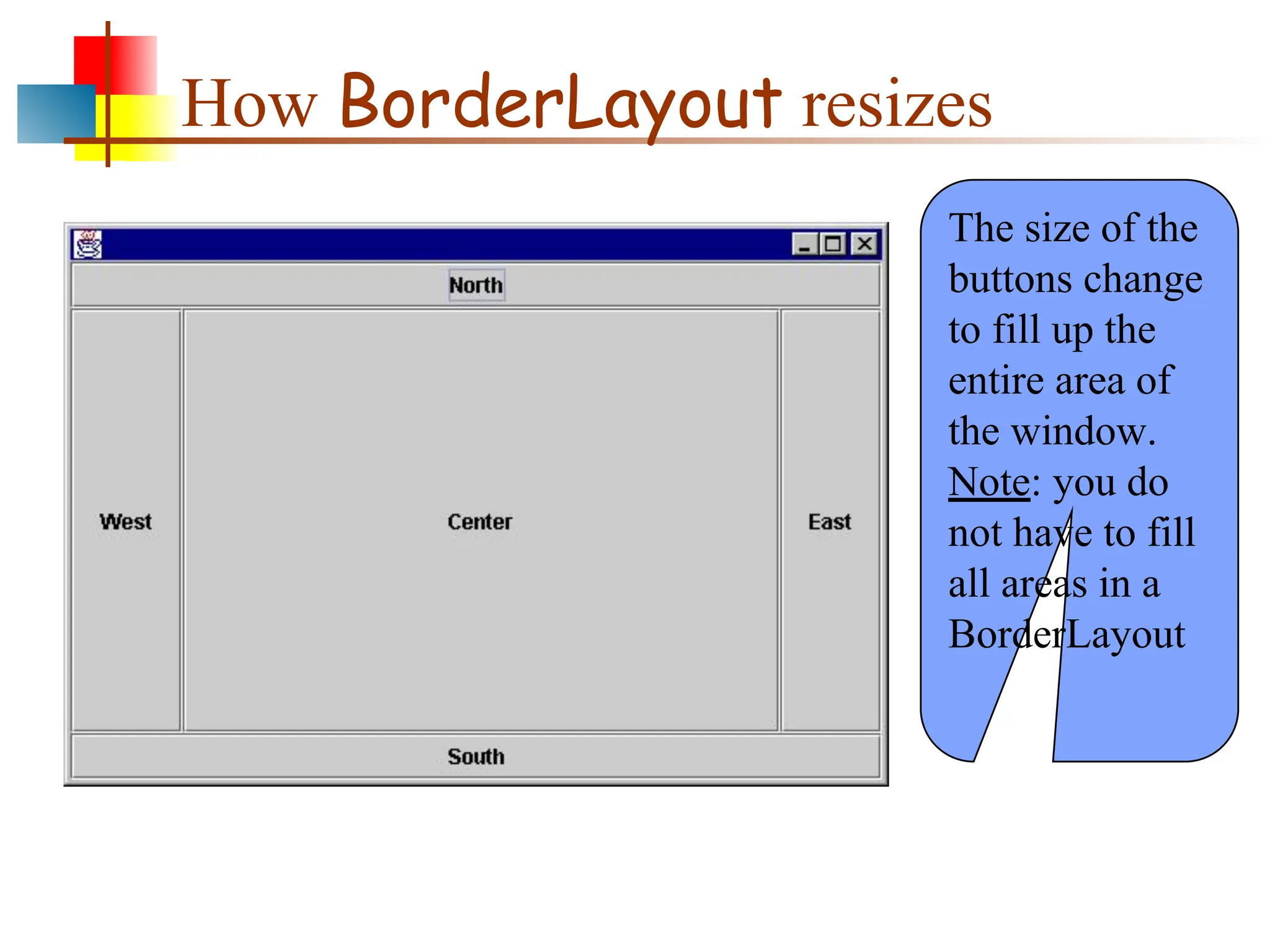
108.
How BorderLayout resizes
Thesize of the
buttons change
to fill up the
entire area of
the window.
Note: you do
not have to fill
all areas in a
BorderLayout
Understanding what SwingIs
■ Swing is a package that lets you create applications
that use a flashy Graphical User Interface (or GUI)
instead of a dull console interface.
■ The Swing API provides many different classes for
creating various types of user interface elements.
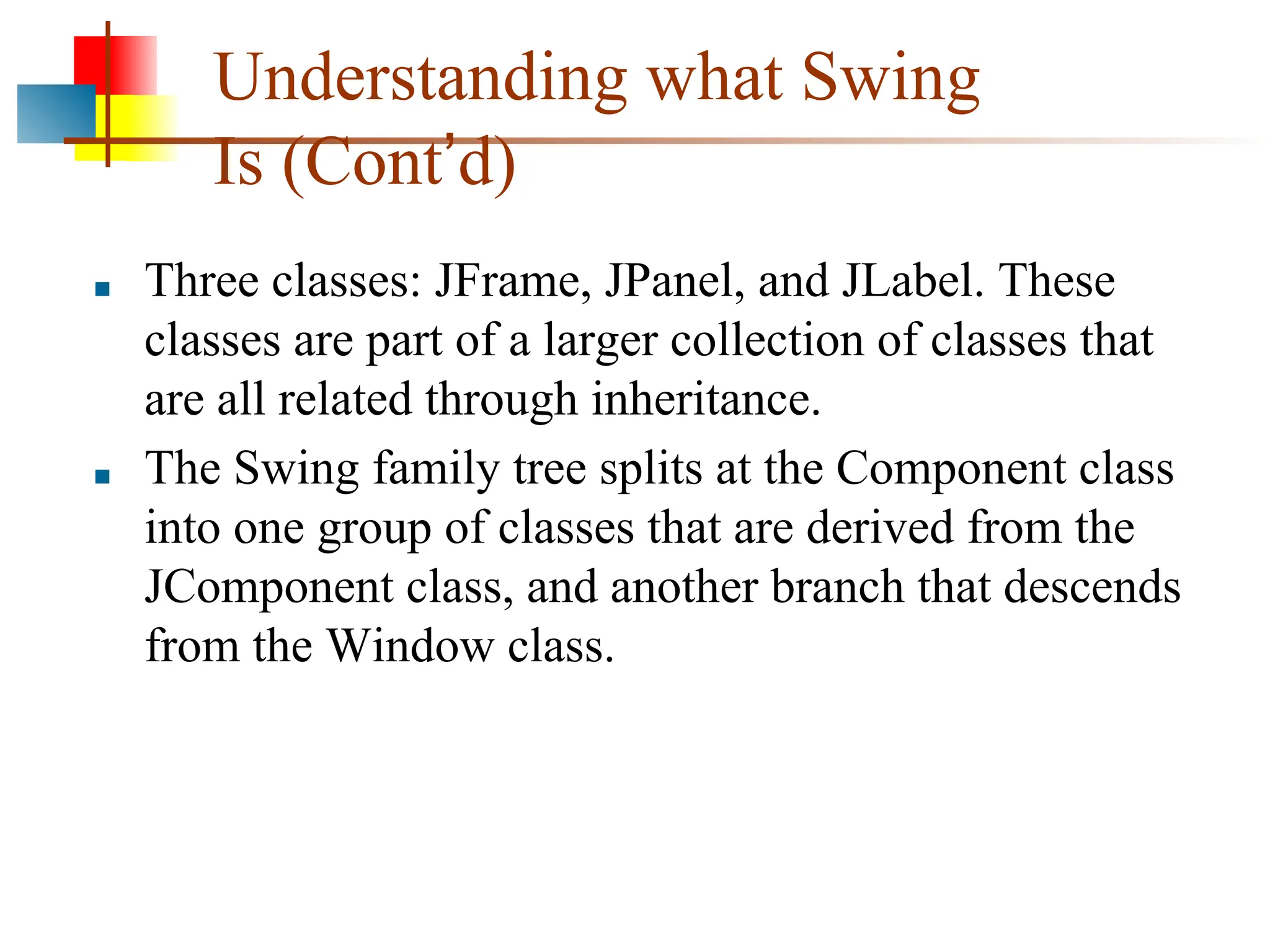
112.
Understanding what Swing
Is(Cont’d)
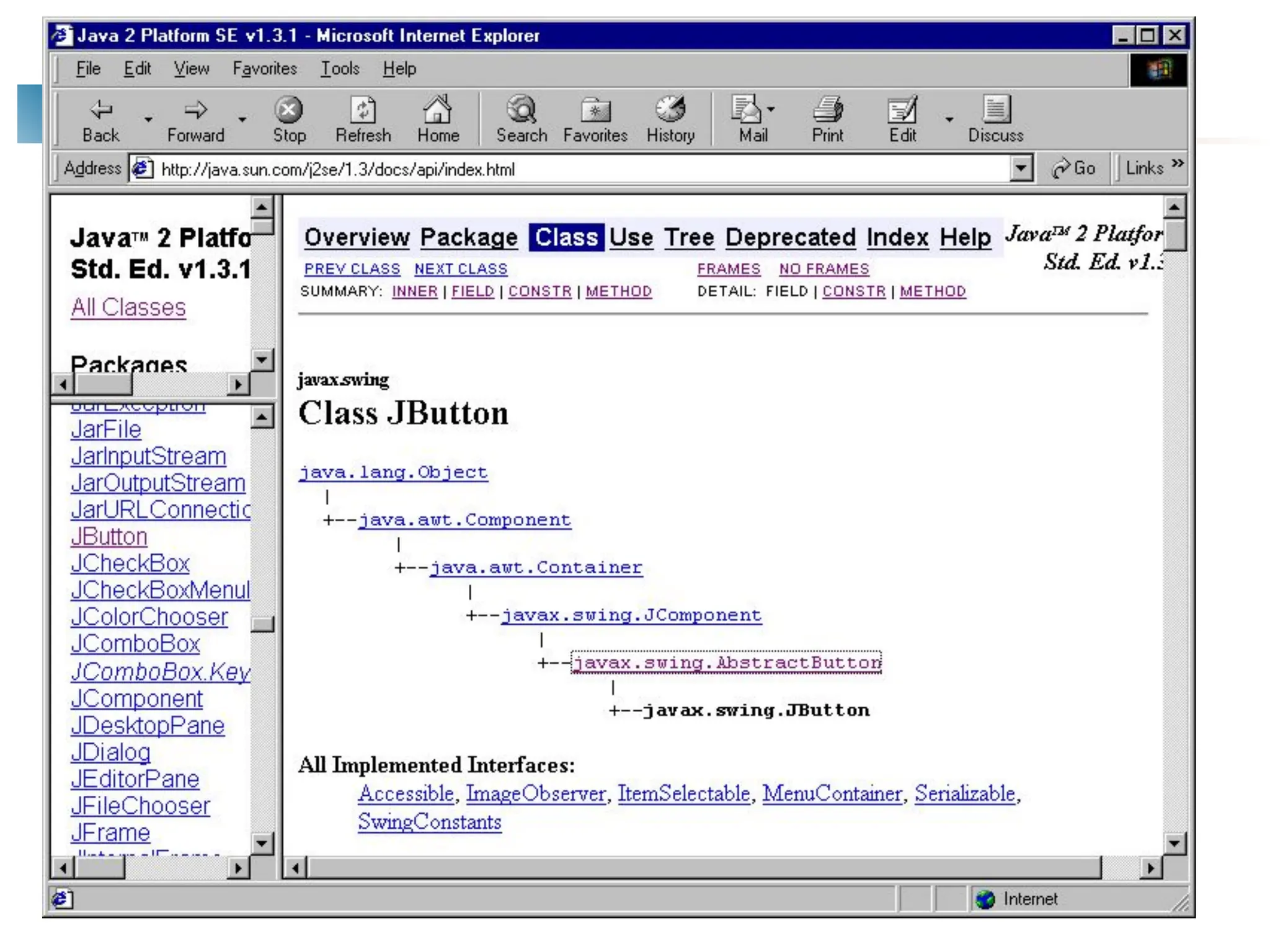
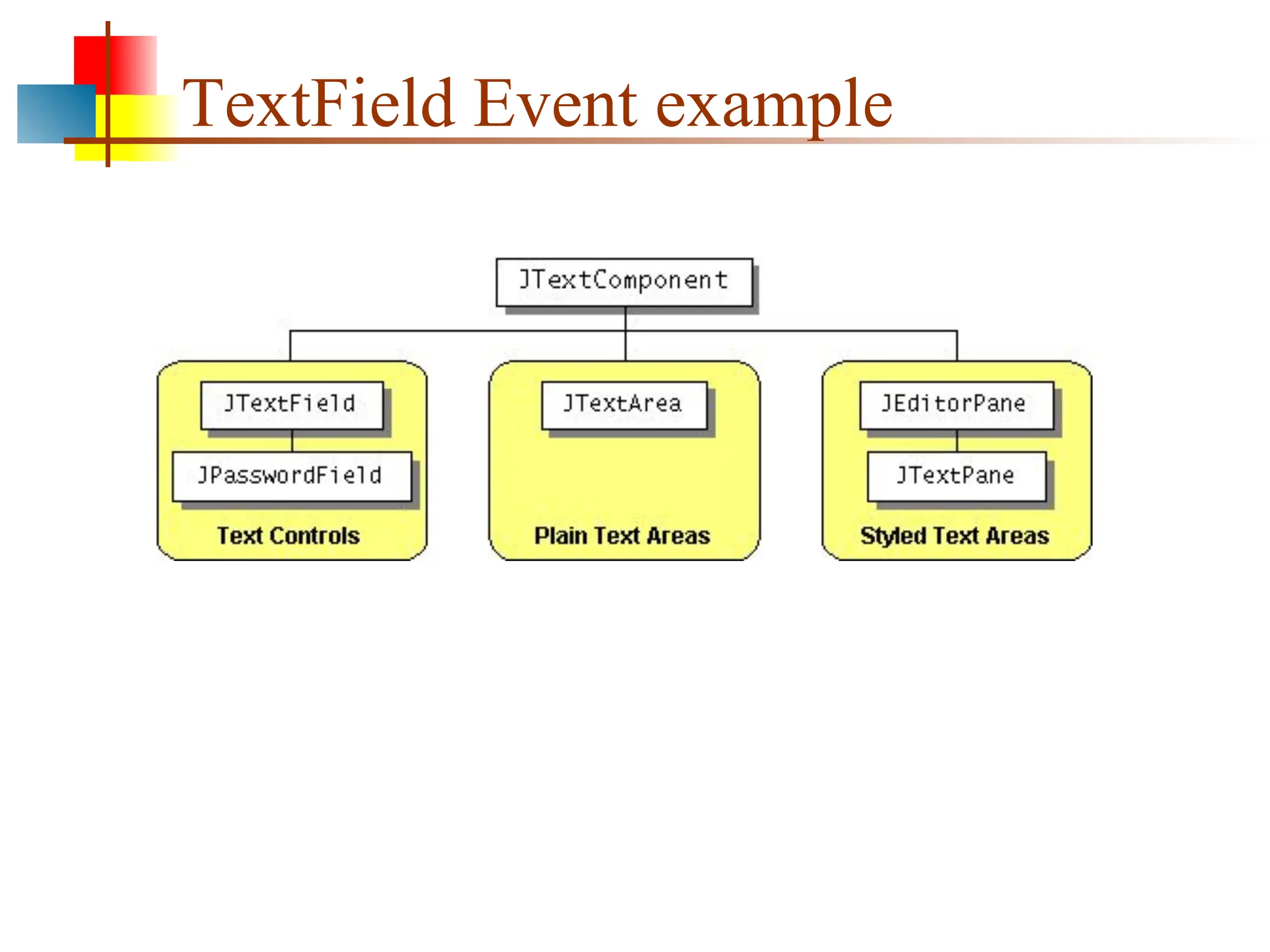
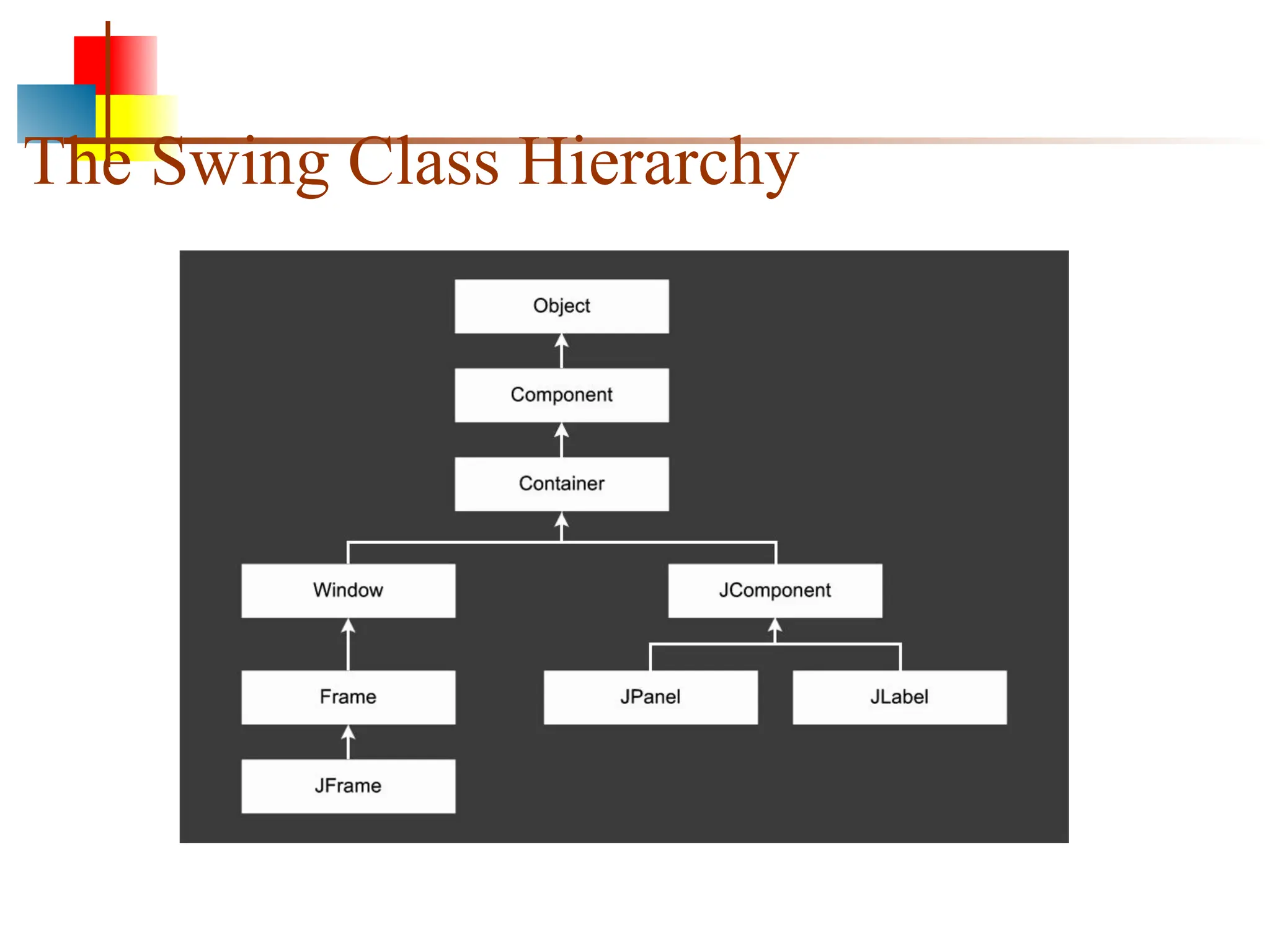
■ Three classes: JFrame, JPanel, and JLabel. These
classes are part of a larger collection of classes that
are all related through inheritance.
■ The Swing family tree splits at the Component class
into one group of classes that are derived from the
JComponent class, and another branch that descends
from the Window class.
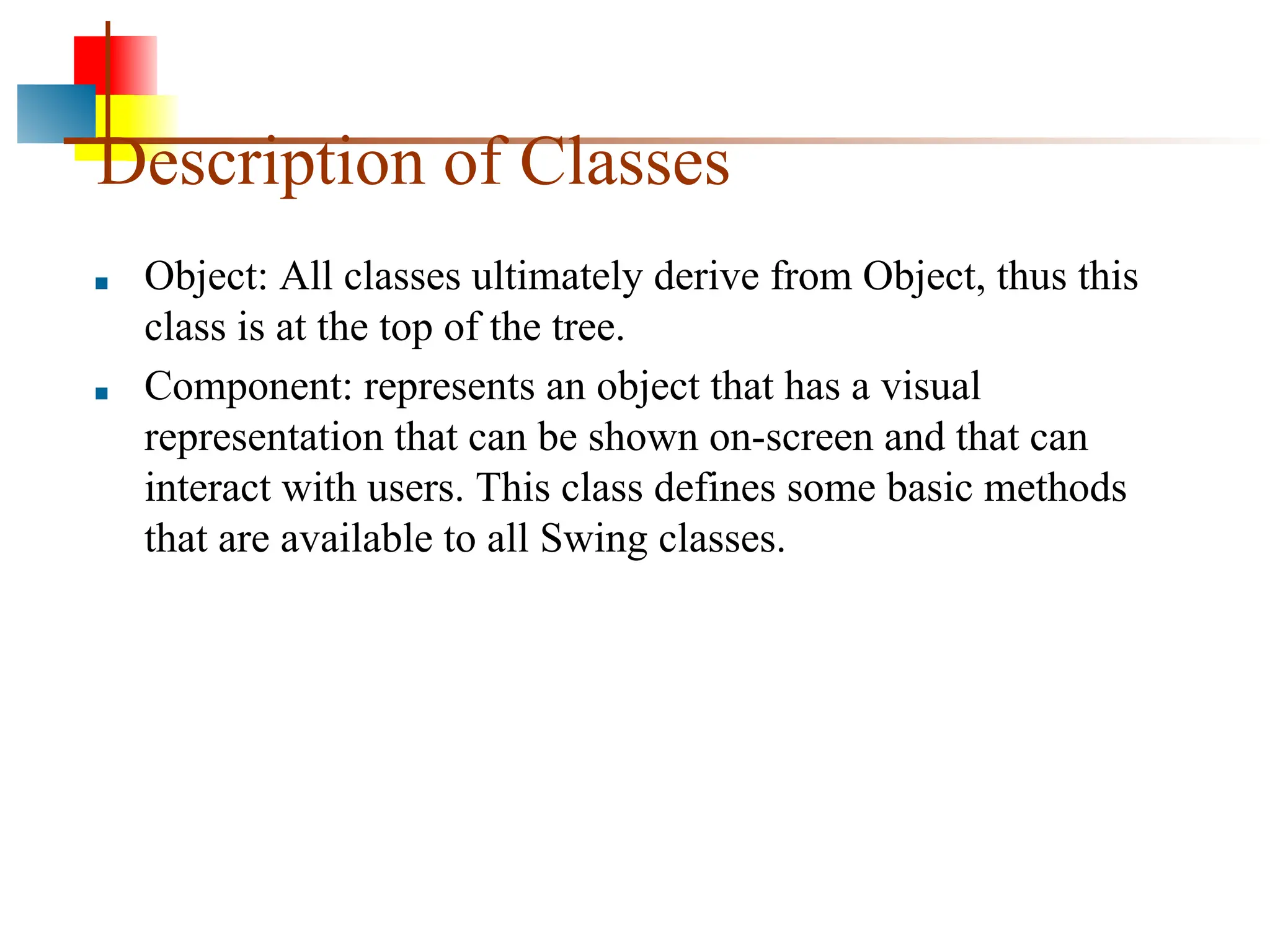
Description of Classes
■Object: All classes ultimately derive from Object, thus this
class is at the top of the tree.
■ Component: represents an object that has a visual
representation that can be shown on-screen and that can
interact with users. This class defines some basic methods
that are available to all Swing classes.
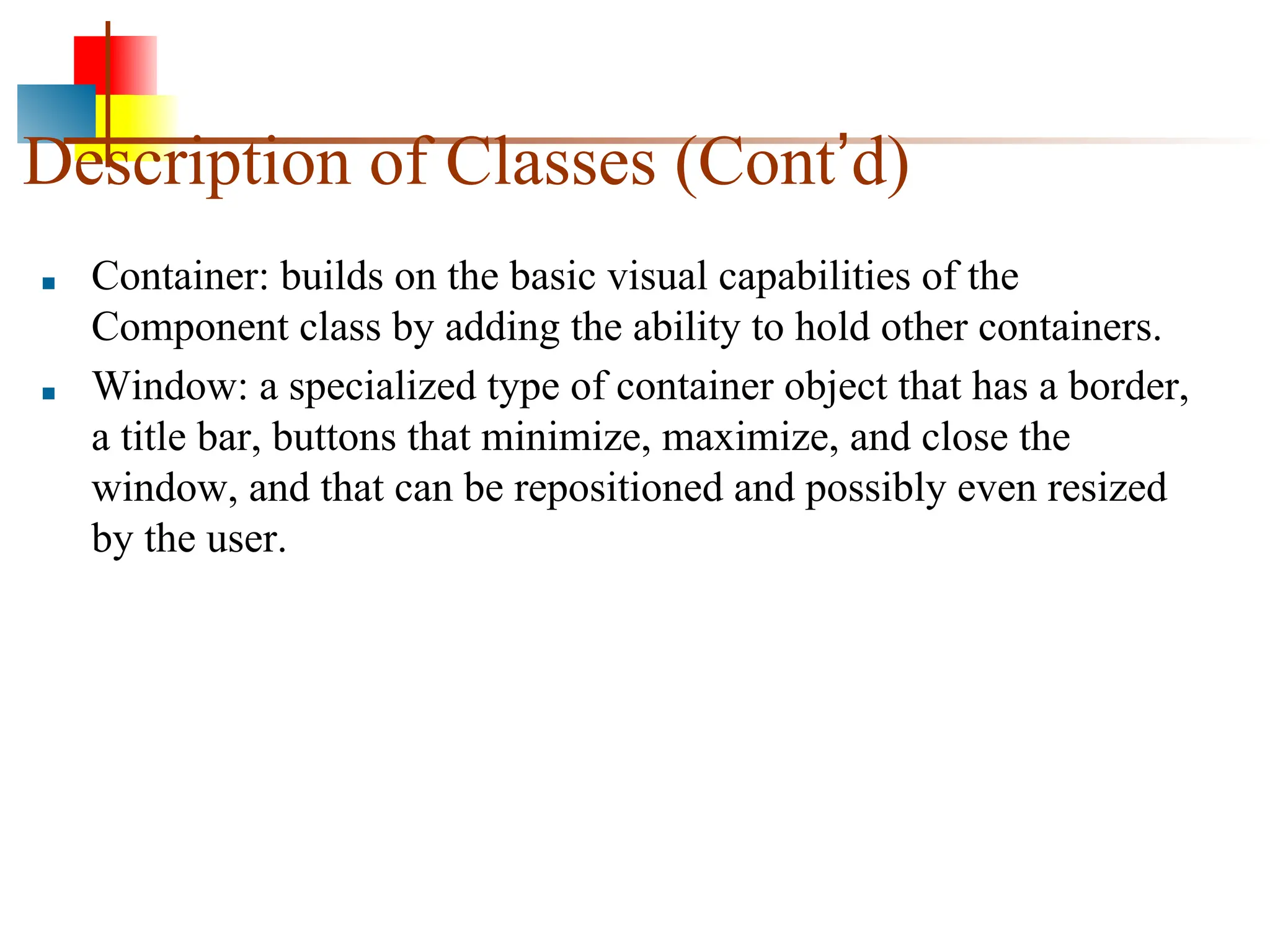
115.
Description of Classes(Cont’d)
■ Container: builds on the basic visual capabilities of the
Component class by adding the ability to hold other containers.
■ Window: a specialized type of container object that has a border,
a title bar, buttons that minimize, maximize, and close the
window, and that can be repositioned and possibly even resized
by the user.
116.
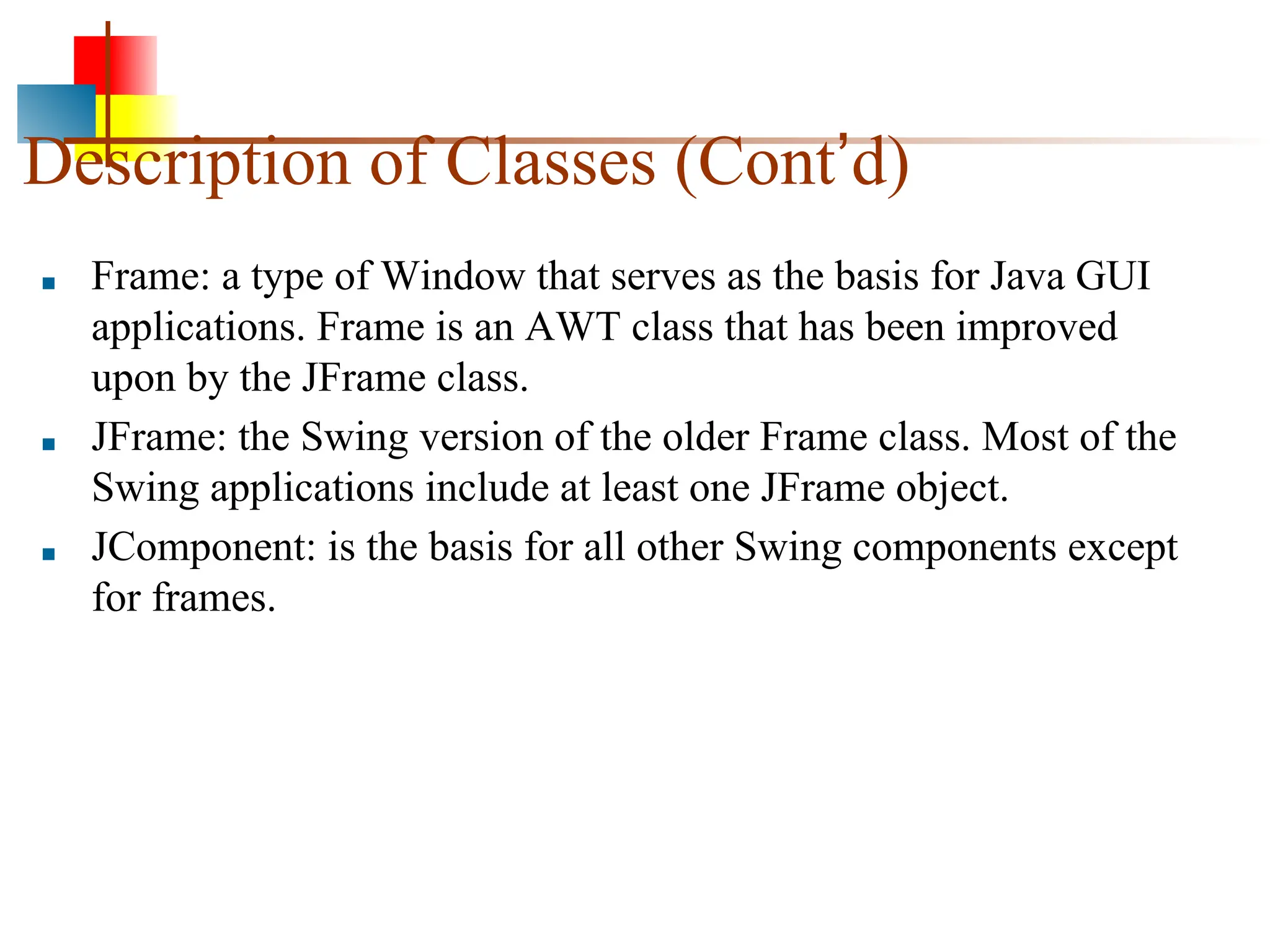
Description of Classes(Cont’d)
■ Frame: a type of Window that serves as the basis for Java GUI
applications. Frame is an AWT class that has been improved
upon by the JFrame class.
■ JFrame: the Swing version of the older Frame class. Most of the
Swing applications include at least one JFrame object.
■ JComponent: is the basis for all other Swing components except
for frames.
117.
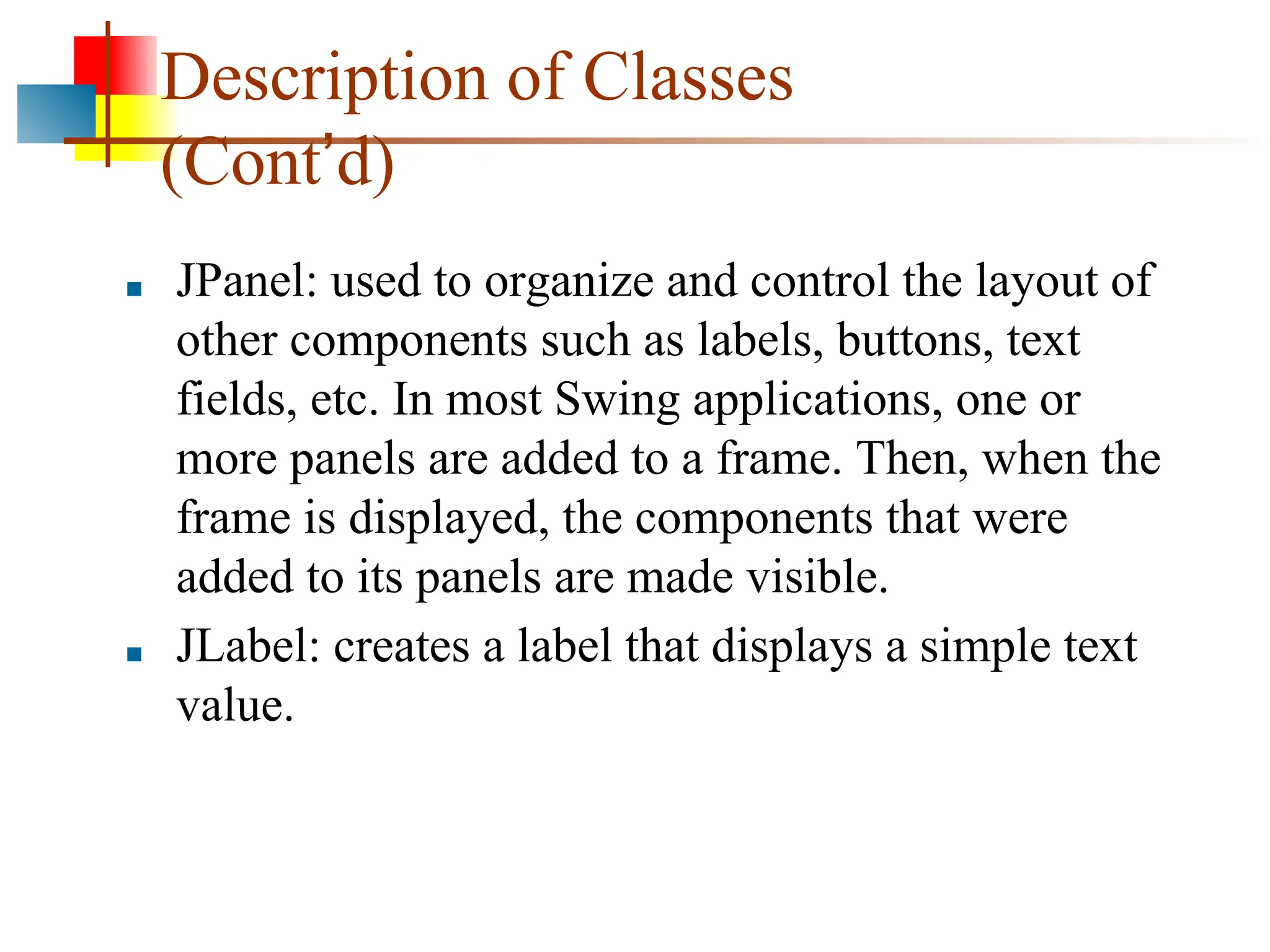
Description of Classes
(Cont’d)
■JPanel: used to organize and control the layout of
other components such as labels, buttons, text
fields, etc. In most Swing applications, one or
more panels are added to a frame. Then, when the
frame is displayed, the components that were
added to its panels are made visible.
■ JLabel: creates a label that displays a simple text
value.
118.
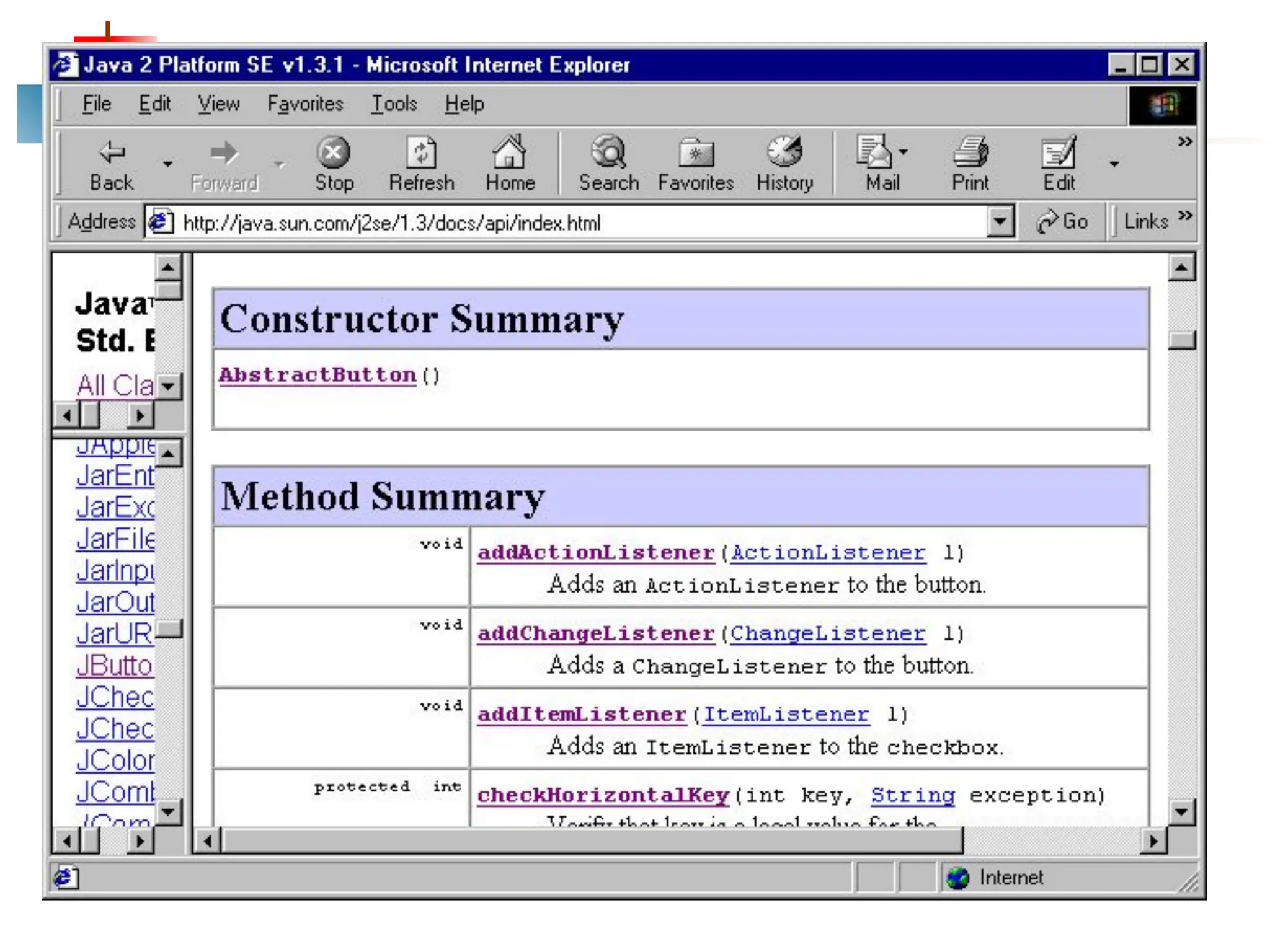
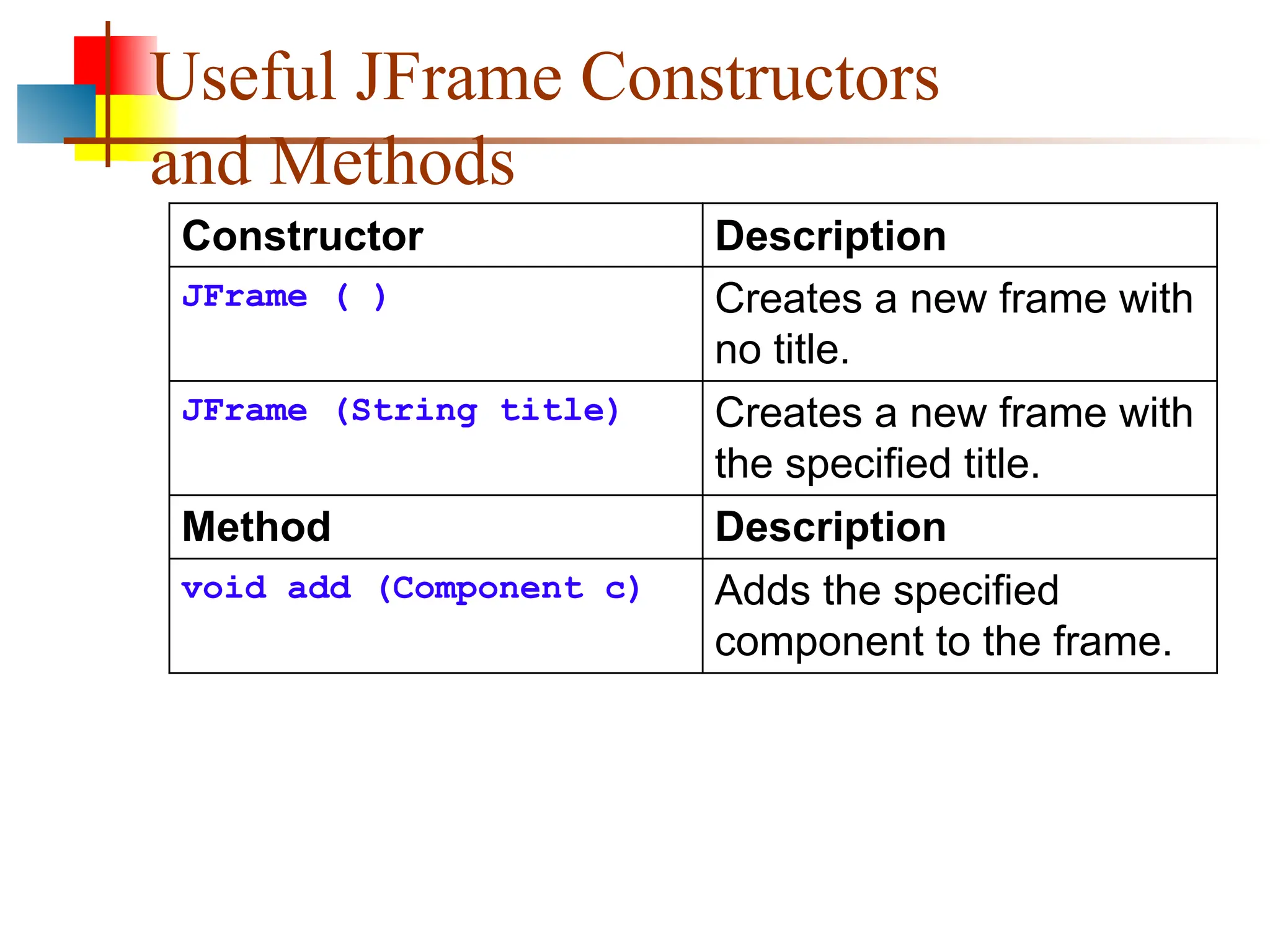
Useful JFrame Constructors
andMethods
Constructor Description
JFrame ( ) Creates a new frame with
no title.
JFrame (String title) Creates a new frame with
the specified title.
Method Description
void add (Component c) Adds the specified
component to the frame.
119.
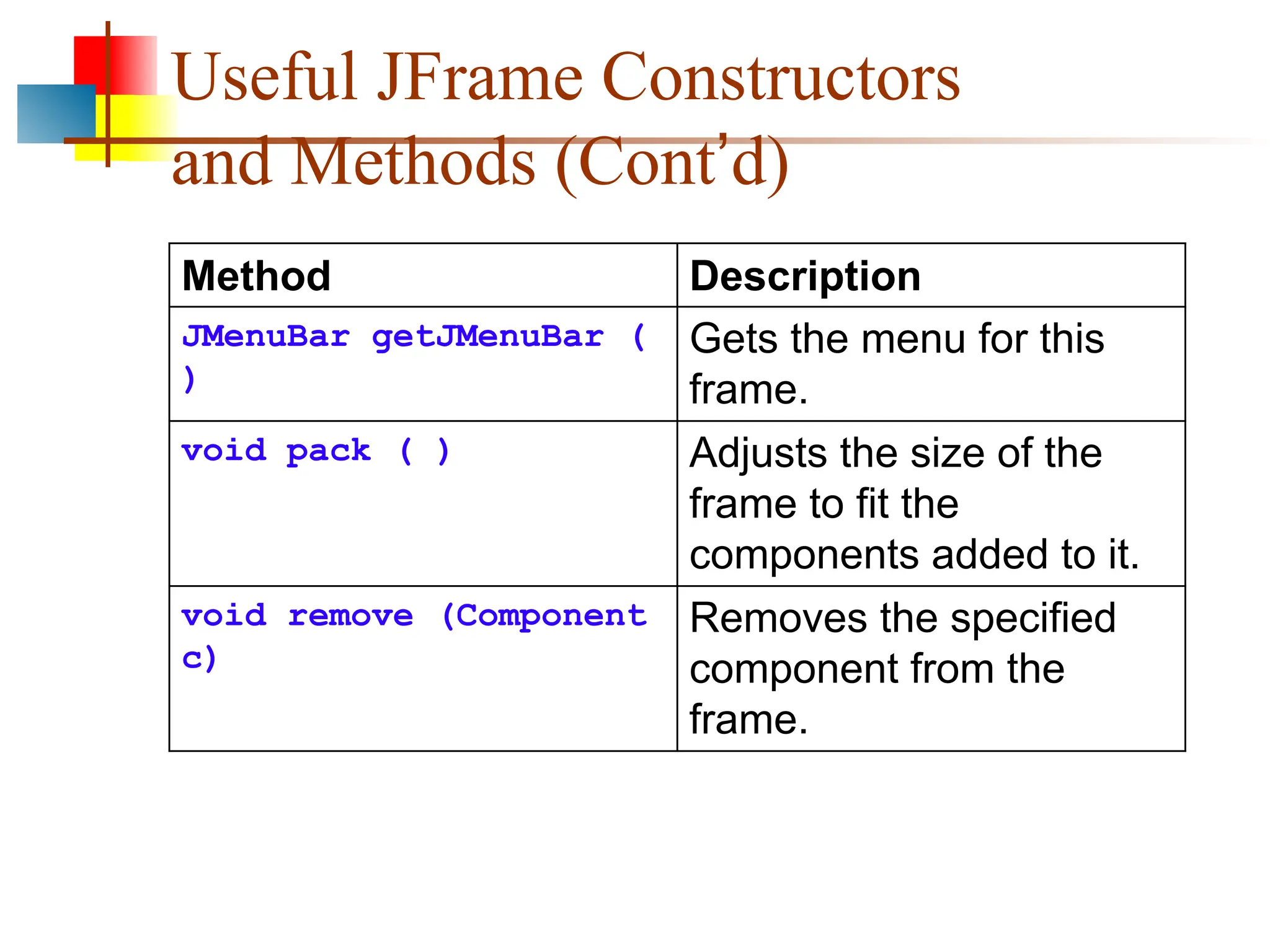
Useful JFrame Constructors
andMethods (Cont’d)
Method Description
JMenuBar getJMenuBar (
)
Gets the menu for this
frame.
void pack ( ) Adjusts the size of the
frame to fit the
components added to it.
void remove (Component
c)
Removes the specified
component from the
frame.
120.
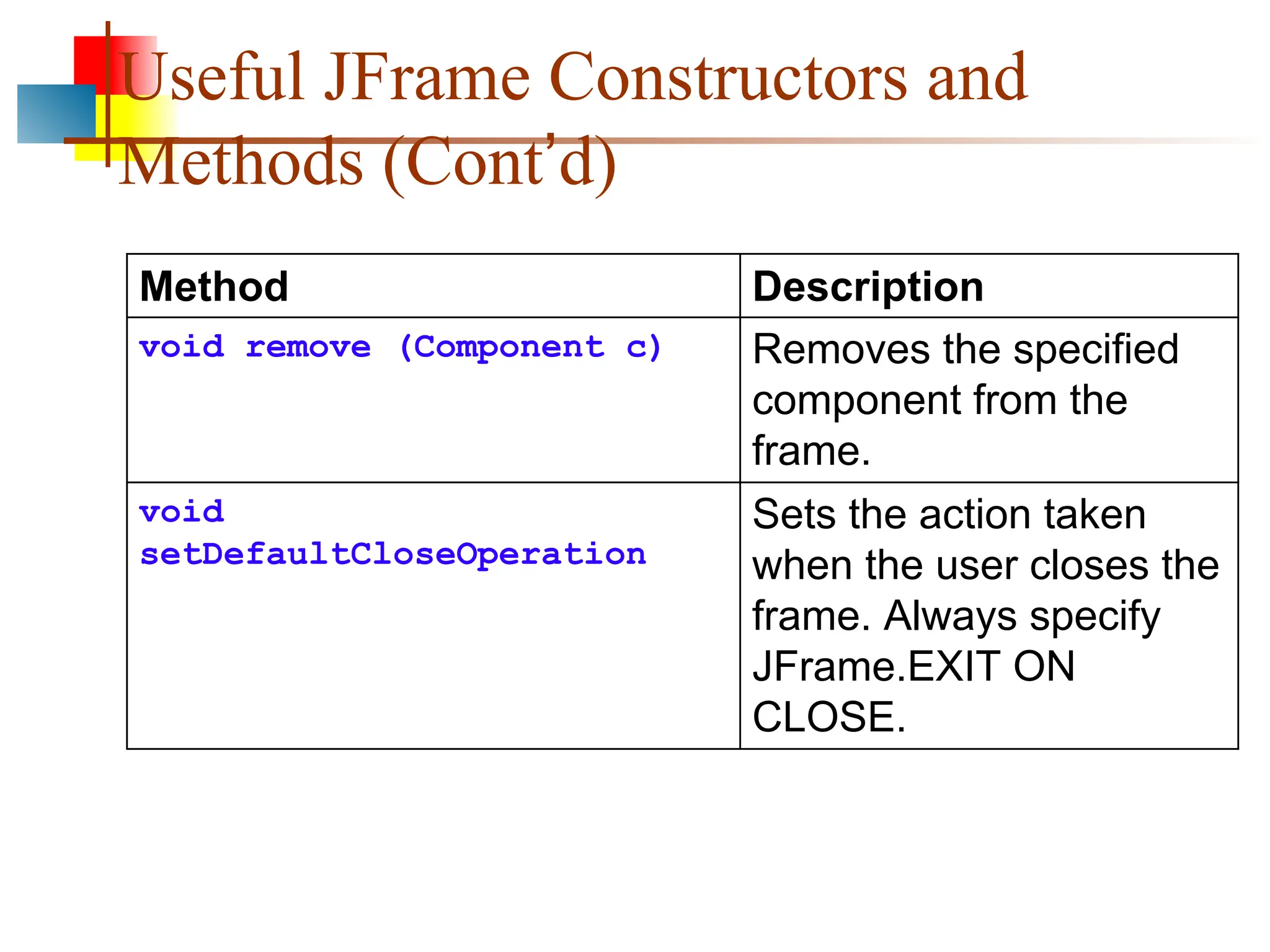
Useful JFrame Constructorsand
Methods (Cont’d)
Method Description
void remove (Component c) Removes the specified
component from the
frame.
void
setDefaultCloseOperation
Sets the action taken
when the user closes the
frame. Always specify
JFrame.EXIT ON
CLOSE.
121.
Useful JFrame Constructorsand
Methods (Cont’d)
Method Description
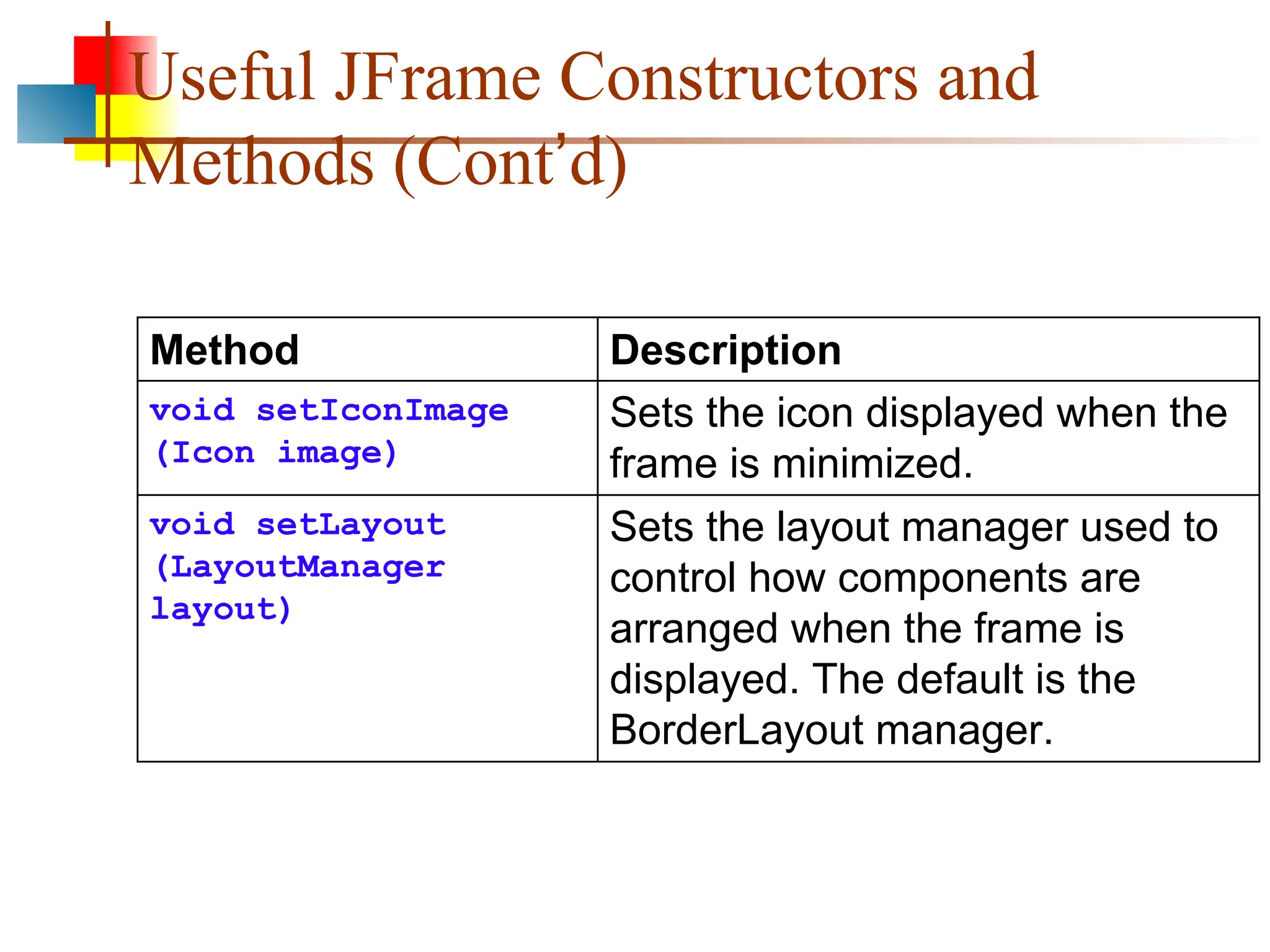
void setIconImage
(Icon image)
Sets the icon displayed when the
frame is minimized.
void setLayout
(LayoutManager
layout)
Sets the layout manager used to
control how components are
arranged when the frame is
displayed. The default is the
BorderLayout manager.
122.
Useful JFrame Constructorsand
Methods (Cont’d)
Method Description
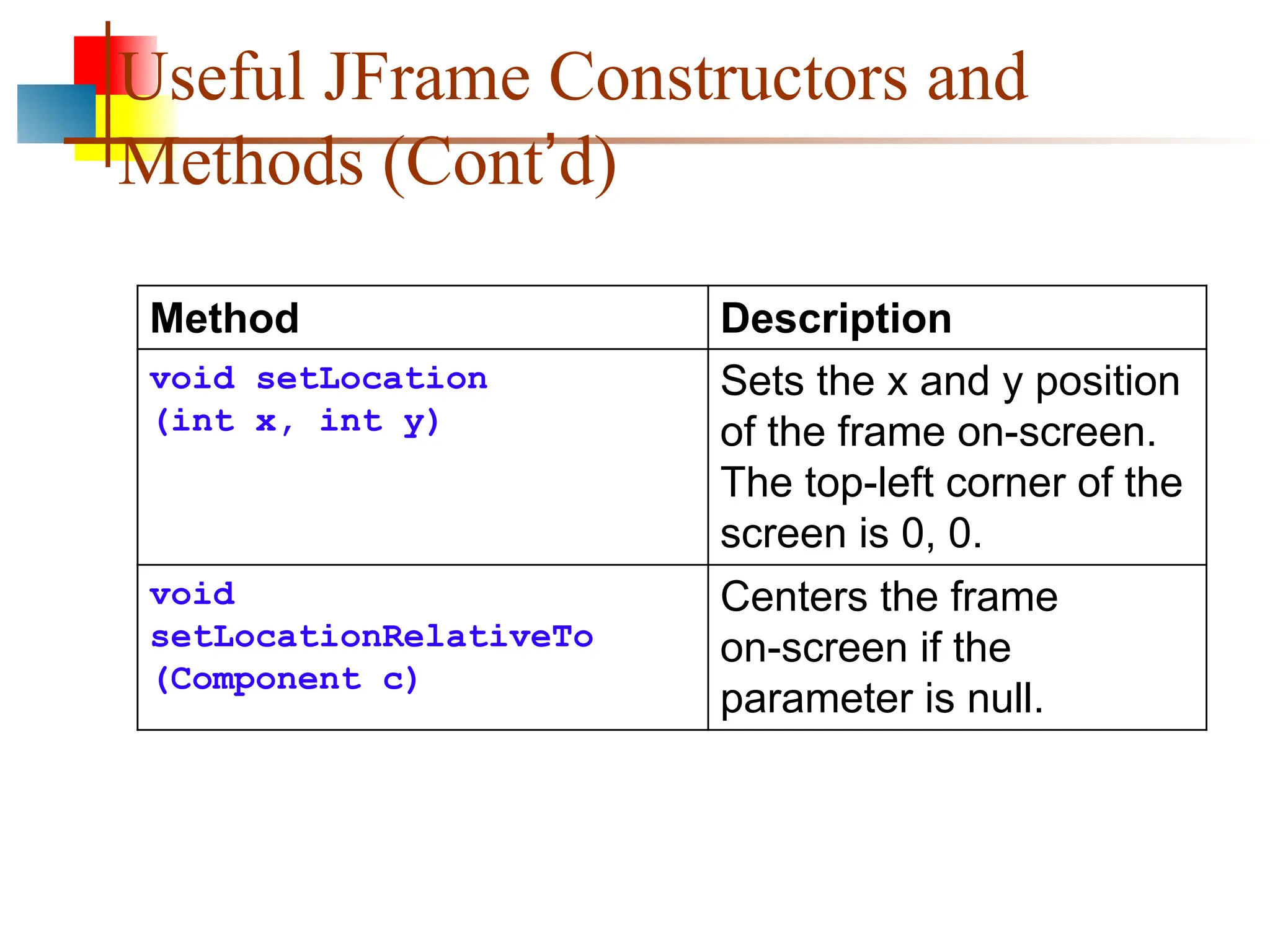
void setLocation
(int x, int y)
Sets the x and y position
of the frame on-screen.
The top-left corner of the
screen is 0, 0.
void
setLocationRelativeTo
(Component c)
Centers the frame
on-screen if the
parameter is null.
123.
Useful JFrame Constructorsand
Methods (Cont’d)
Method Description
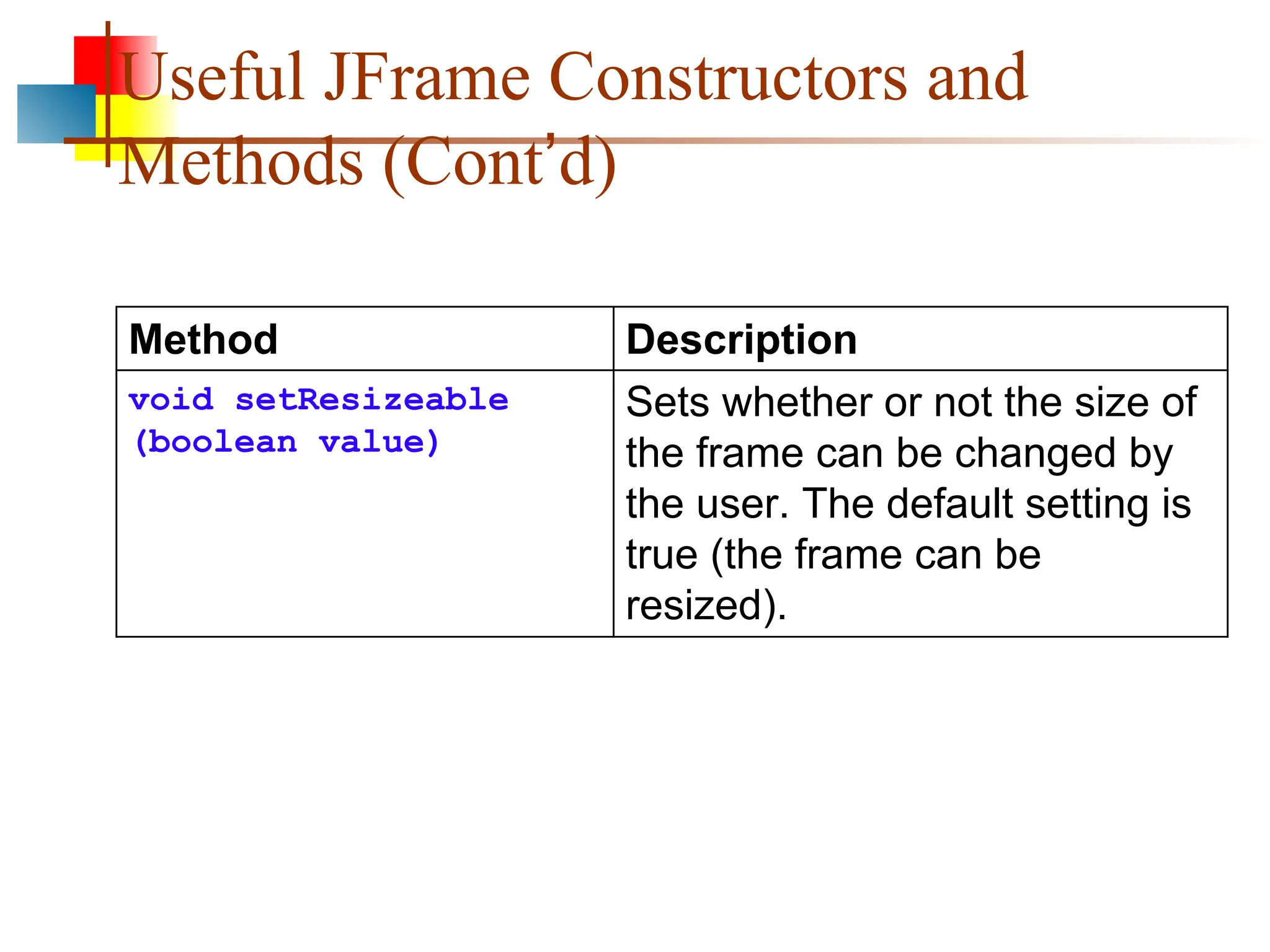
void setResizeable
(boolean value)
Sets whether or not the size of
the frame can be changed by
the user. The default setting is
true (the frame can be
resized).
124.
Useful JFrame Constructorsand
Methods (Cont’d)
Method Description
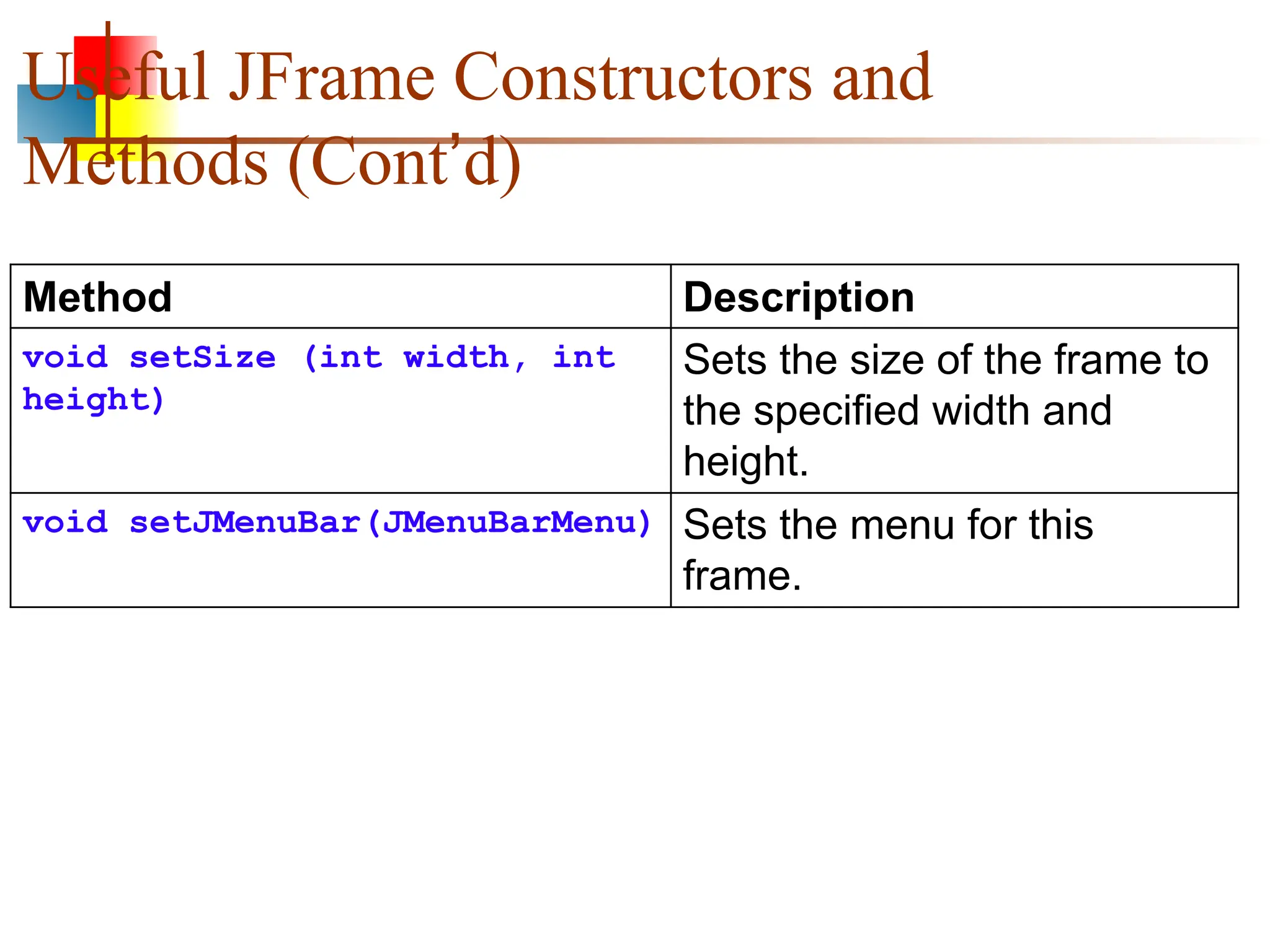
void setSize (int width, int
height)
Sets the size of the frame to
the specified width and
height.
void setJMenuBar(JMenuBarMenu) Sets the menu for this
frame.
125.
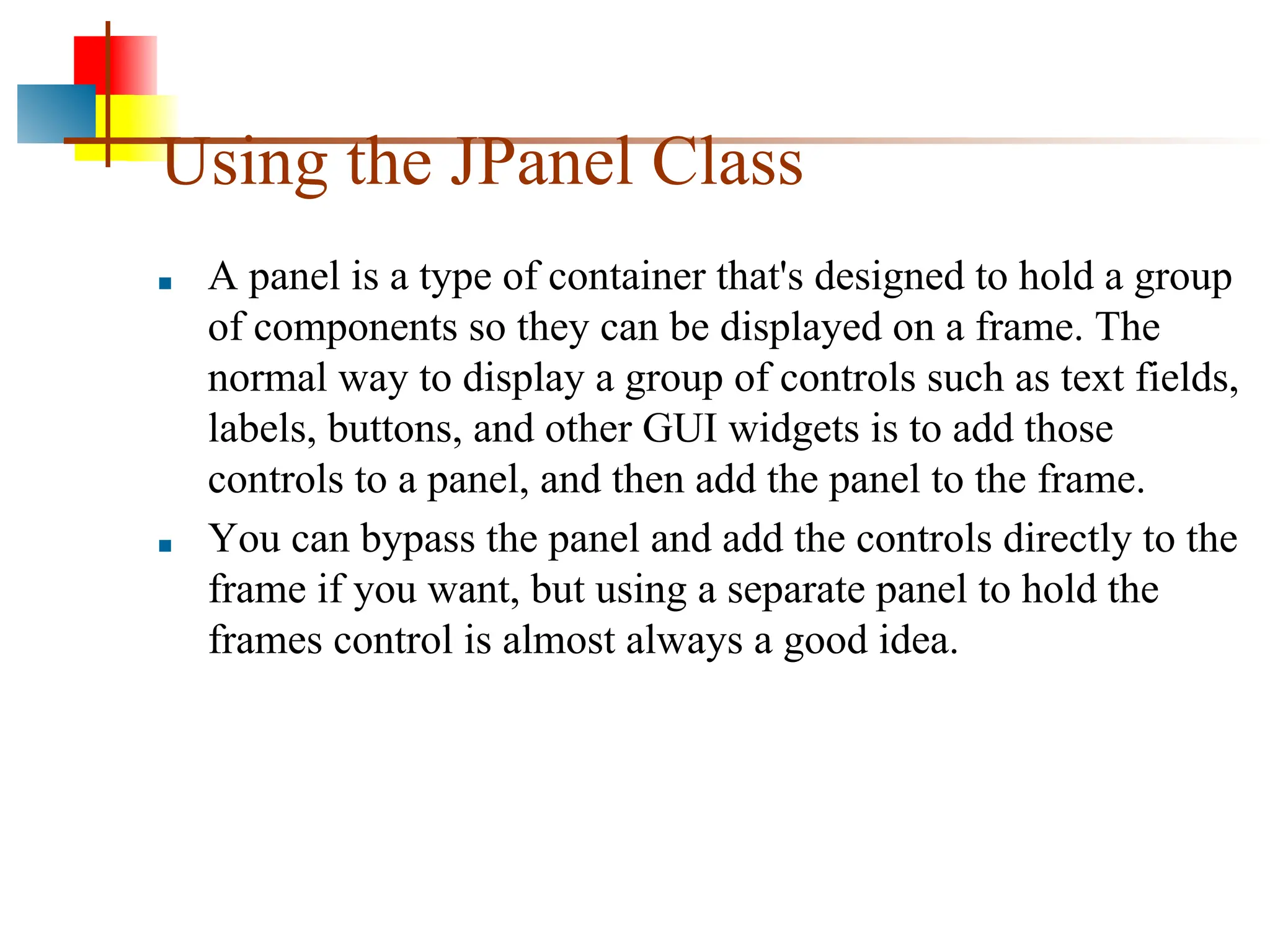
Using the JPanelClass
■ A panel is a type of container that's designed to hold a group
of components so they can be displayed on a frame. The
normal way to display a group of controls such as text fields,
labels, buttons, and other GUI widgets is to add those
controls to a panel, and then add the panel to the frame.
■ You can bypass the panel and add the controls directly to the
frame if you want, but using a separate panel to hold the
frames control is almost always a good idea.
126.
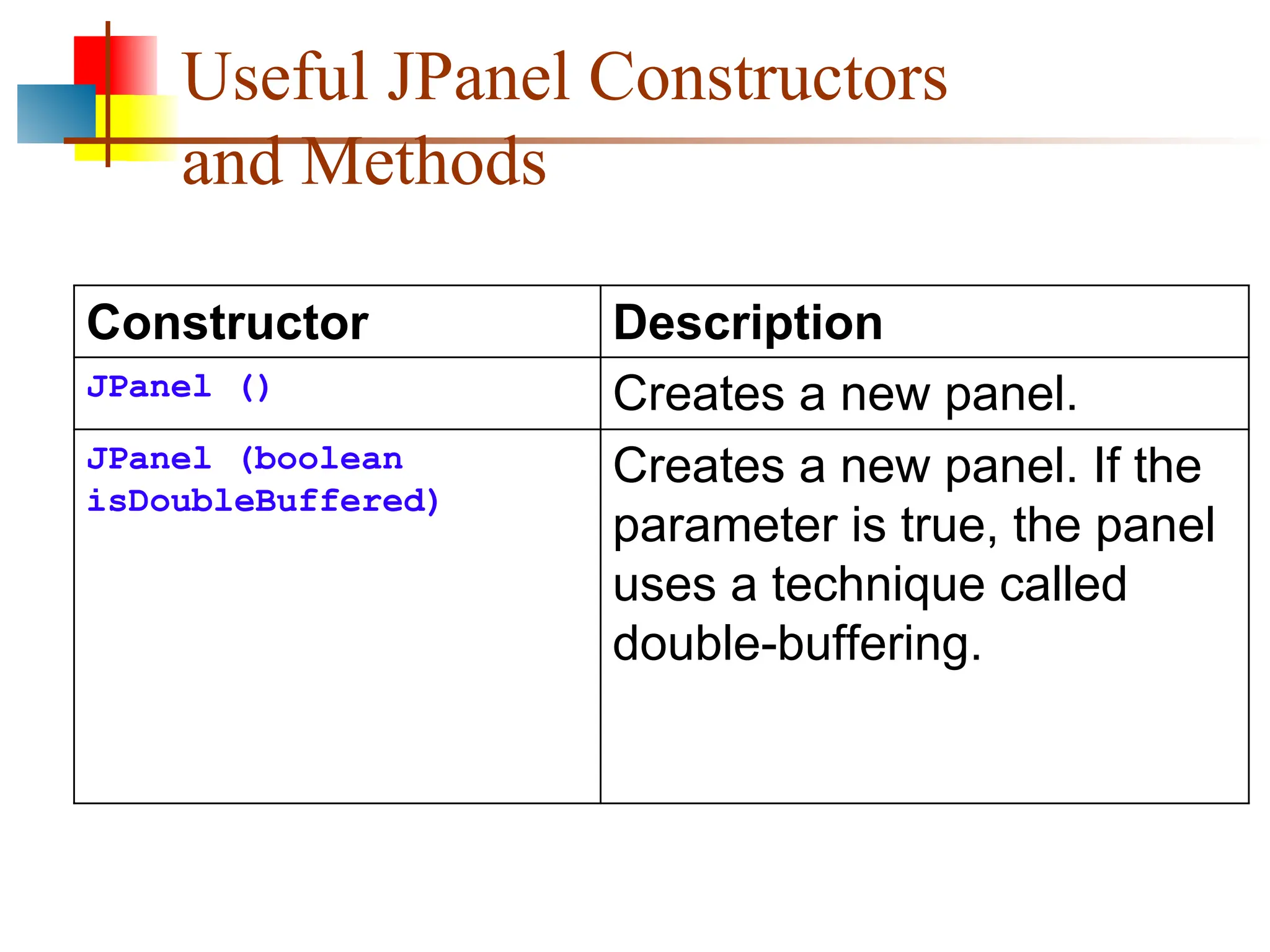
Useful JPanel Constructors
andMethods
Constructor Description
JPanel () Creates a new panel.
JPanel (boolean
isDoubleBuffered)
Creates a new panel. If the
parameter is true, the panel
uses a technique called
double-buffering.
127.
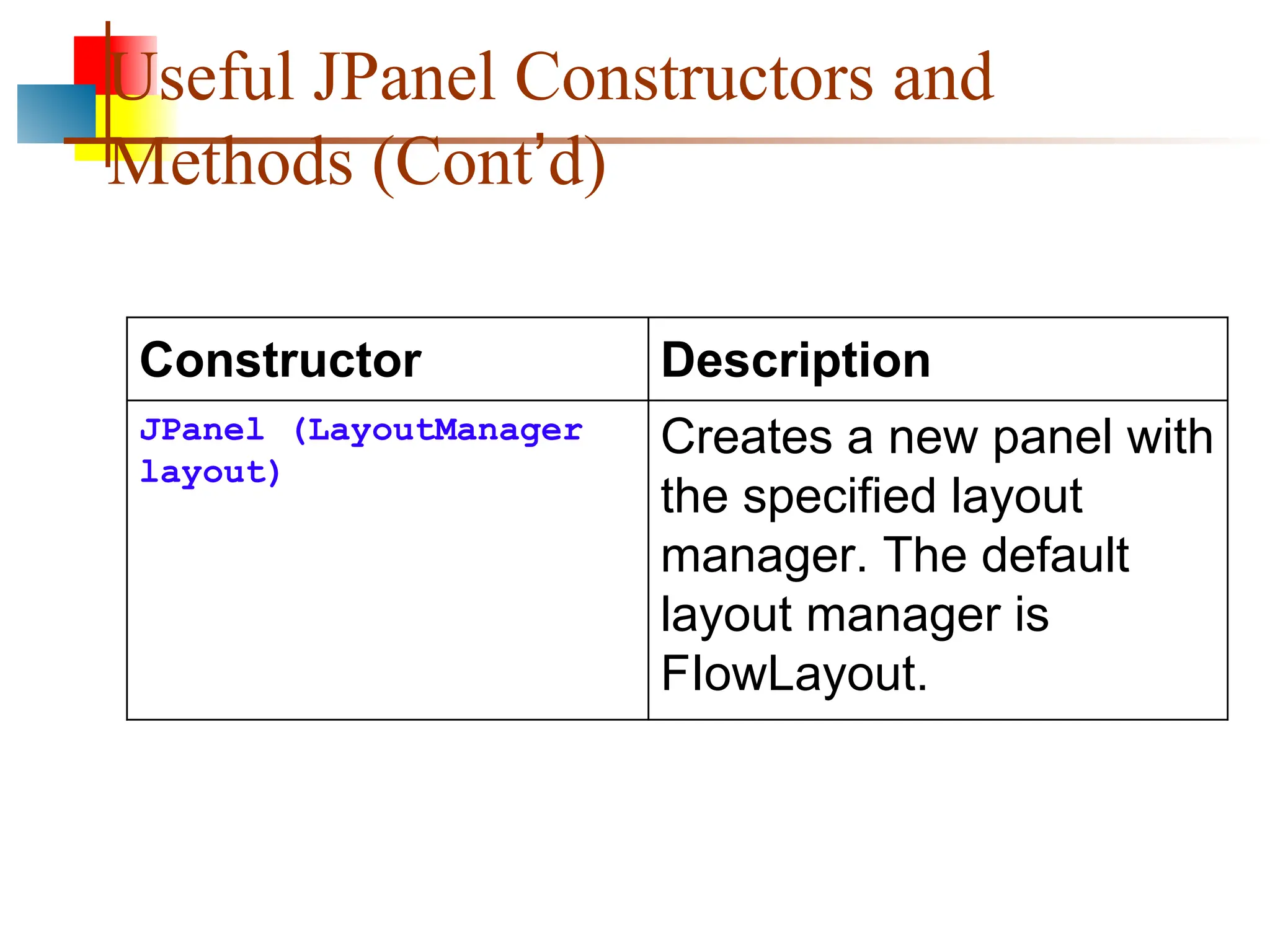
Useful JPanel Constructorsand
Methods (Cont’d)
Constructor Description
JPanel (LayoutManager
layout)
Creates a new panel with
the specified layout
manager. The default
layout manager is
FIowLayout.
128.
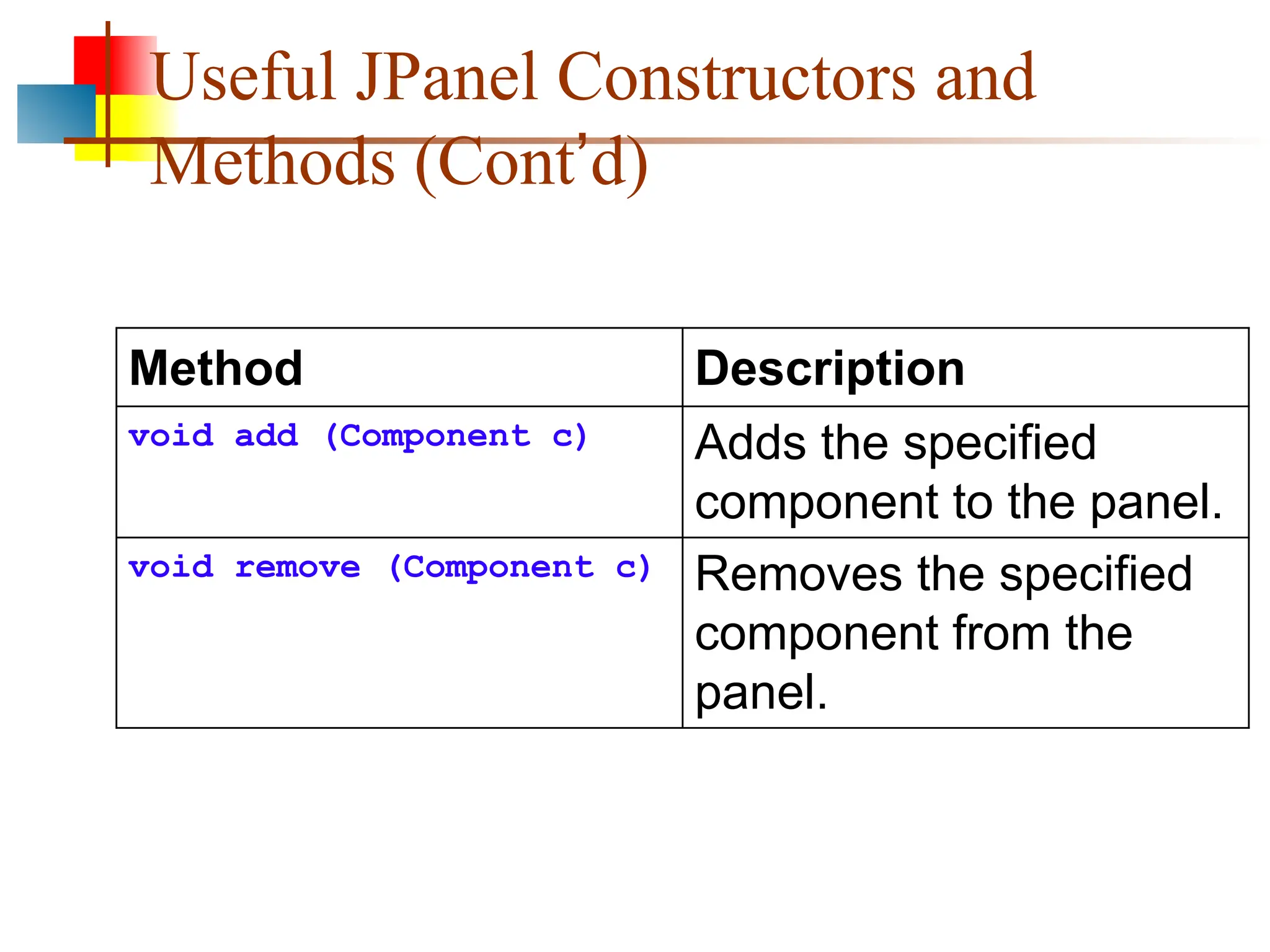
Useful JPanel Constructorsand
Methods (Cont’d)
Method Description
void add (Component c) Adds the specified
component to the panel.
void remove (Component c) Removes the specified
component from the
panel.
129.
Useful JPanel Constructorsand
Methods (Cont’d)
Method Description
void setLayout
(LayoutManager
layout)
Sets the layout manager used
to control how components
are arranged when the panel
is displayed. The default is the
FIowLayout manager.
130.
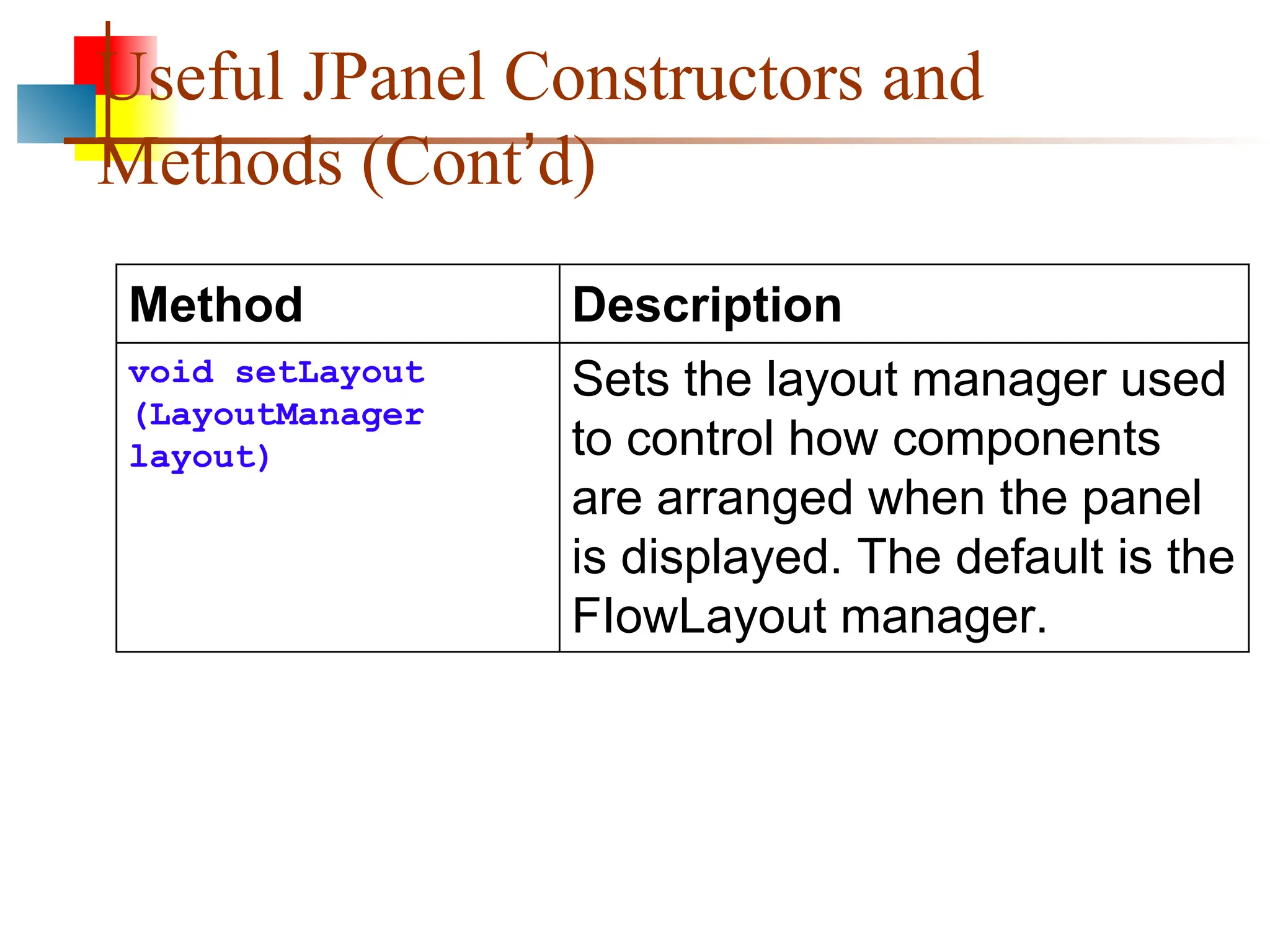
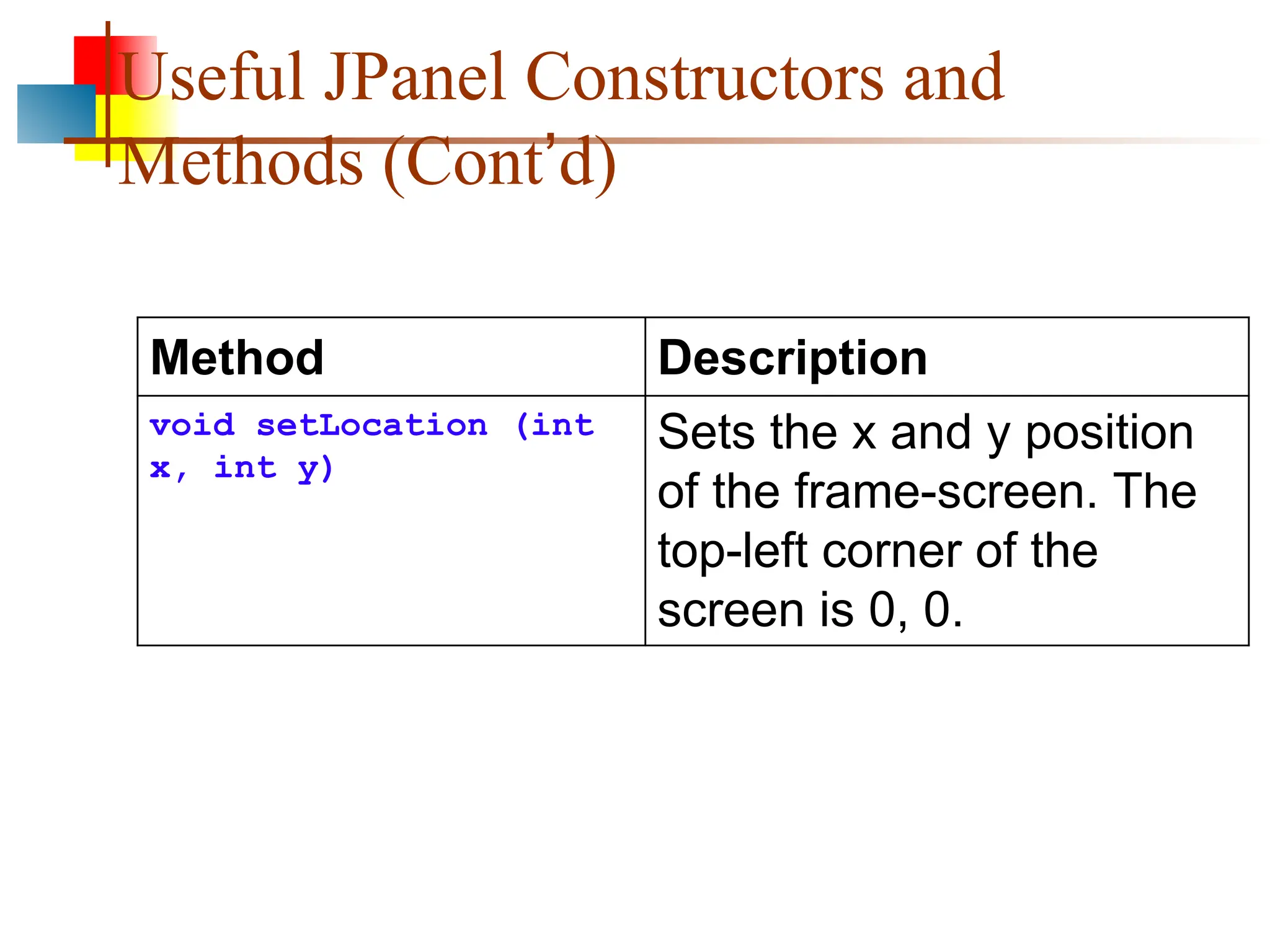
Useful JPanel Constructorsand
Methods (Cont’d)
Method Description
void setLocation (int
x, int y)
Sets the x and y position
of the frame-screen. The
top-left corner of the
screen is 0, 0.
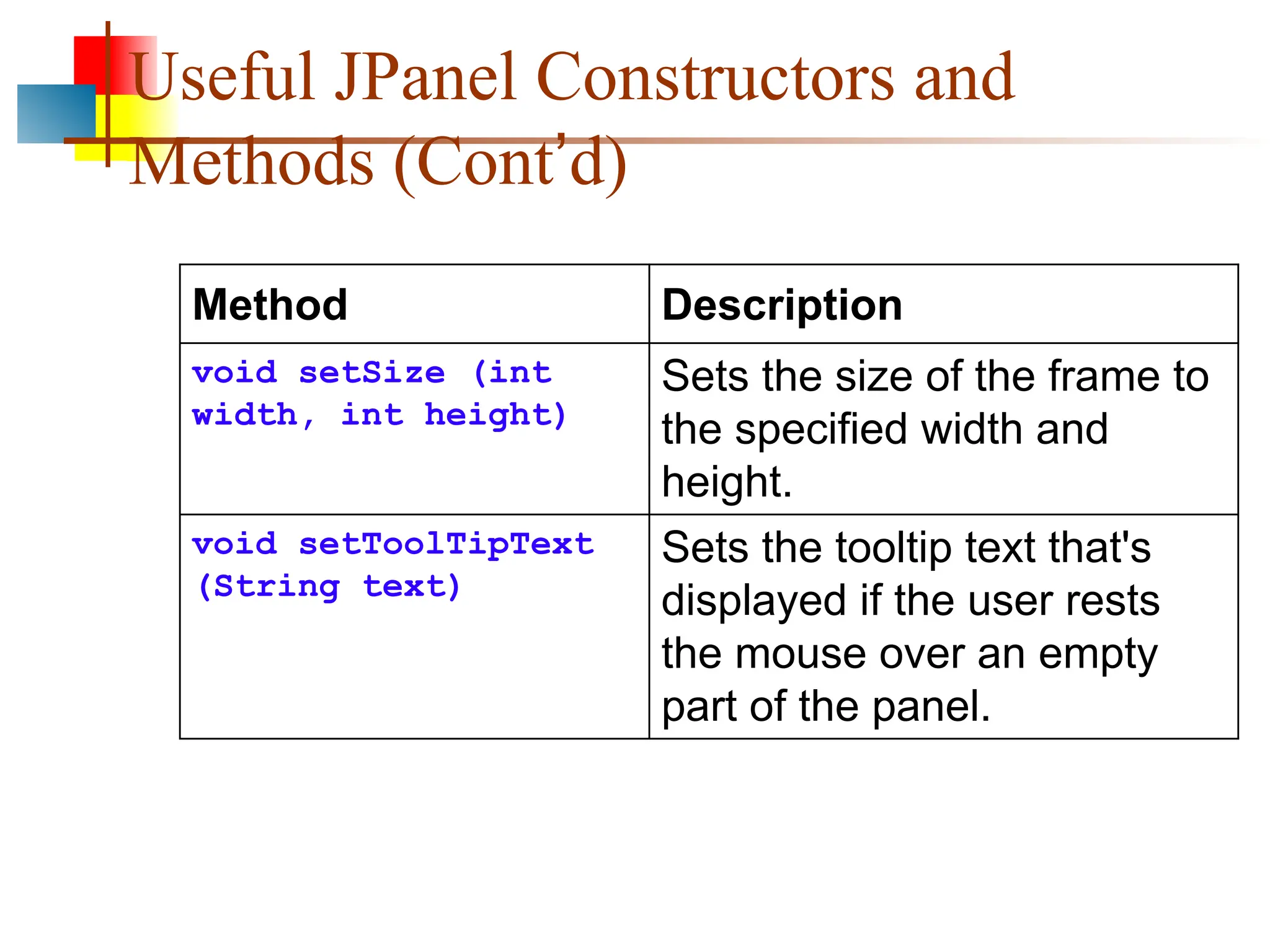
131.
Useful JPanel Constructorsand
Methods (Cont’d)
Method Description
void setSize (int
width, int height)
Sets the size of the frame to
the specified width and
height.
void setToolTipText
(String text)
Sets the tooltip text that's
displayed if the user rests
the mouse over an empty
part of the panel.
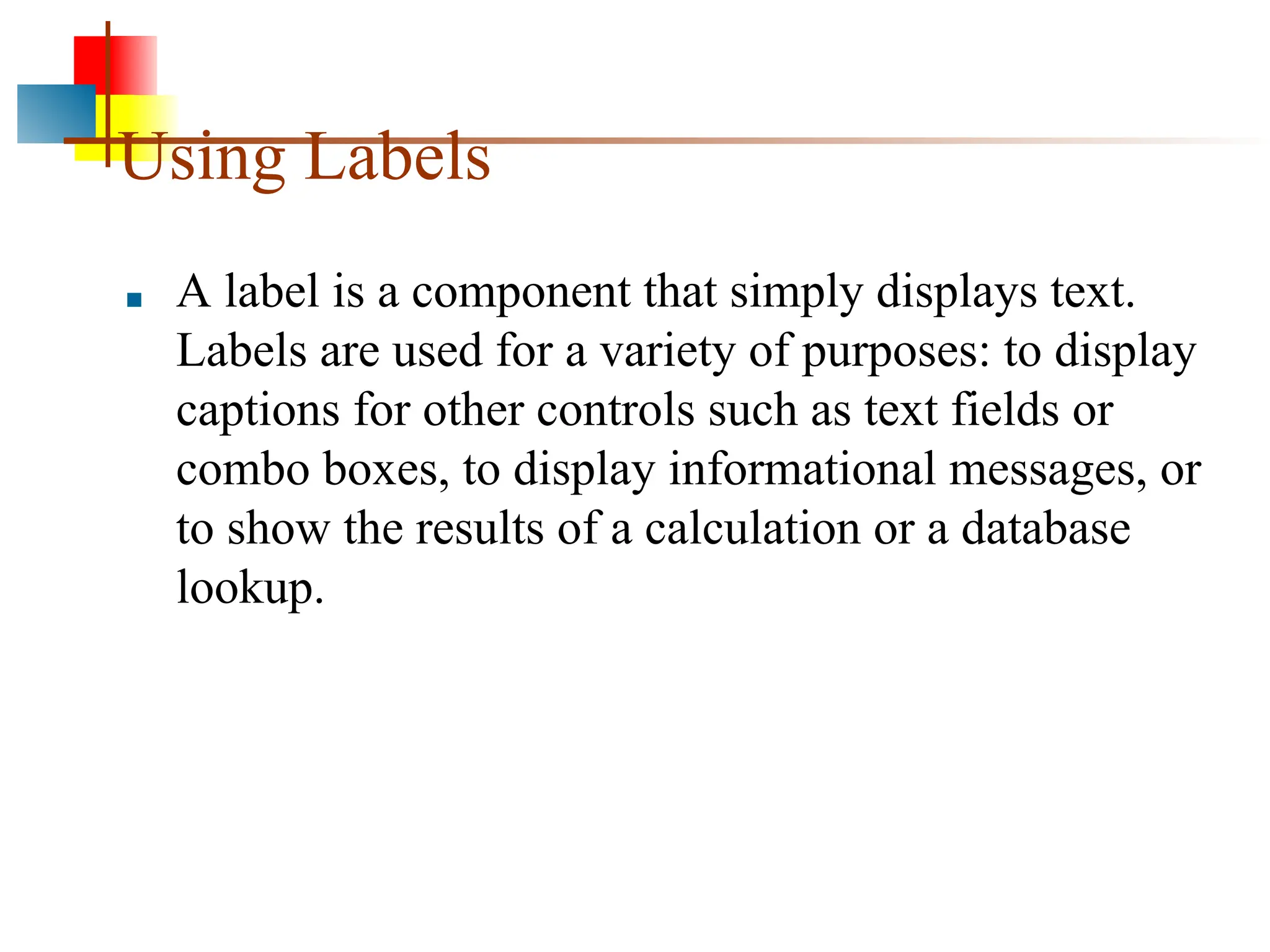
132.
Using Labels
■ Alabel is a component that simply displays text.
Labels are used for a variety of purposes: to display
captions for other controls such as text fields or
combo boxes, to display informational messages, or
to show the results of a calculation or a database
lookup.
133.
Using Labels
■ Alabel can also display an image, or it can display
both an image and some text. And you have
complete control over the appearance of the text.
■ You can specify the font, size, whether the text is
bold, italic, or underlined, what color the text is
displayed as, and so on.
134.
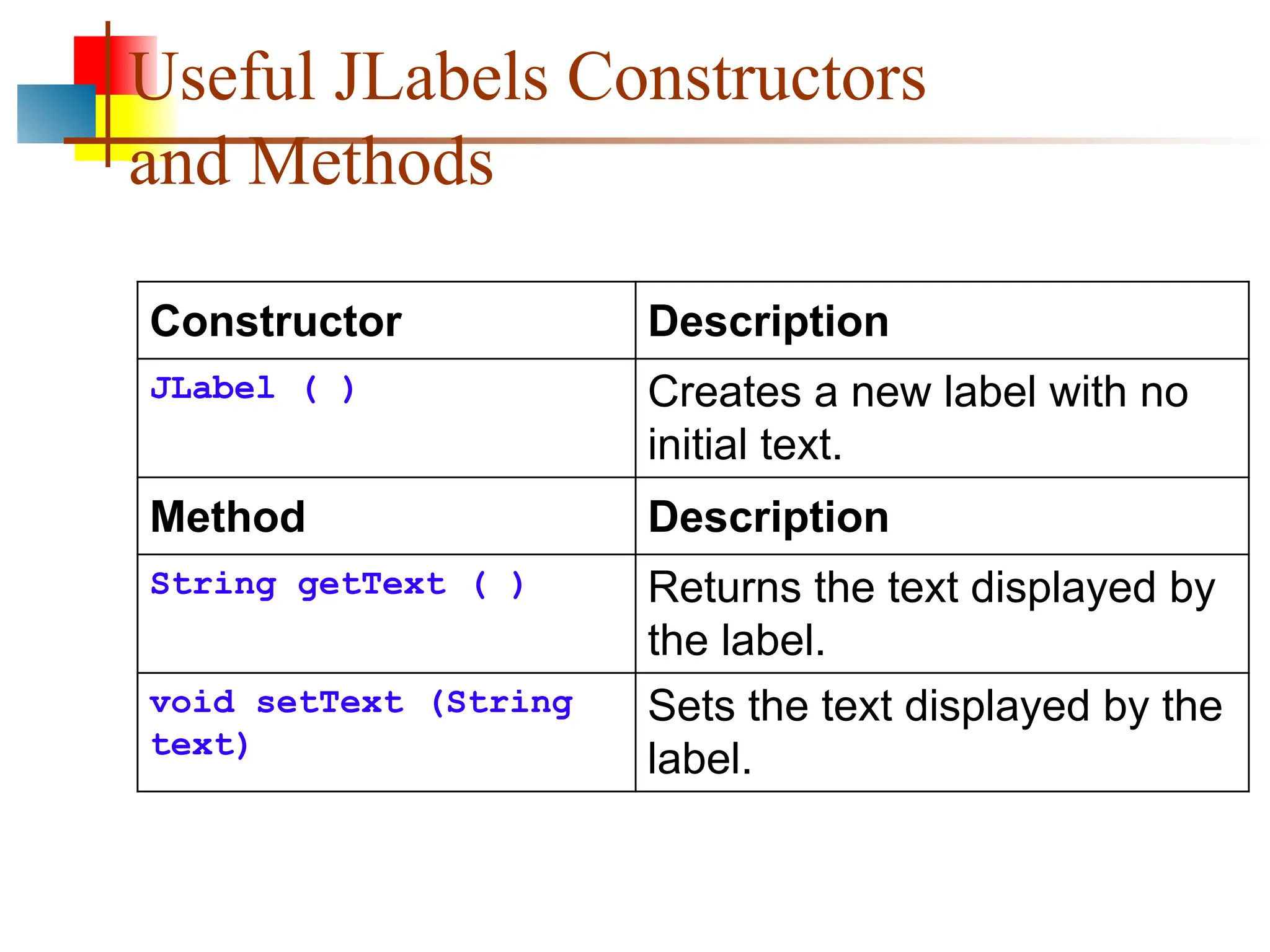
Useful JLabels Constructors
andMethods
Constructor Description
JLabel ( ) Creates a new label with no
initial text.
Method Description
String getText ( ) Returns the text displayed by
the label.
void setText (String
text)
Sets the text displayed by the
label.
135.
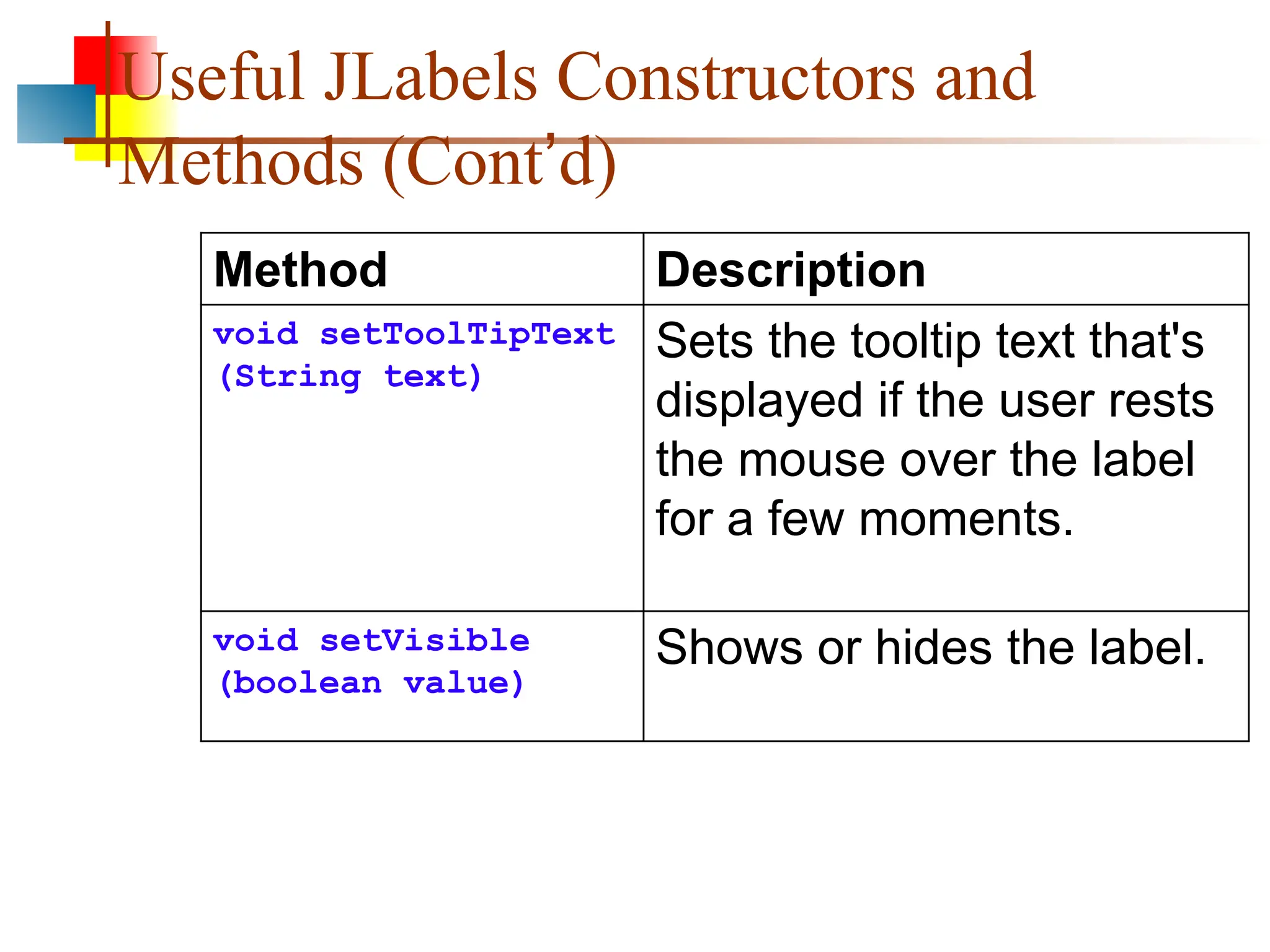
Useful JLabels Constructorsand
Methods (Cont’d)
Method Description
void setToolTipText
(String text)
Sets the tooltip text that's
displayed if the user rests
the mouse over the label
for a few moments.
void setVisible
(boolean value)
Shows or hides the label.
136.
Creating Buttons
■ Nextto labels, the Swing component used most is
the JButton component which creates a button the
user can click.
■ The constructors of the JButton class are similar to
the constructors for the JLabel class. You can
either create an empty button or a button with text.
137.
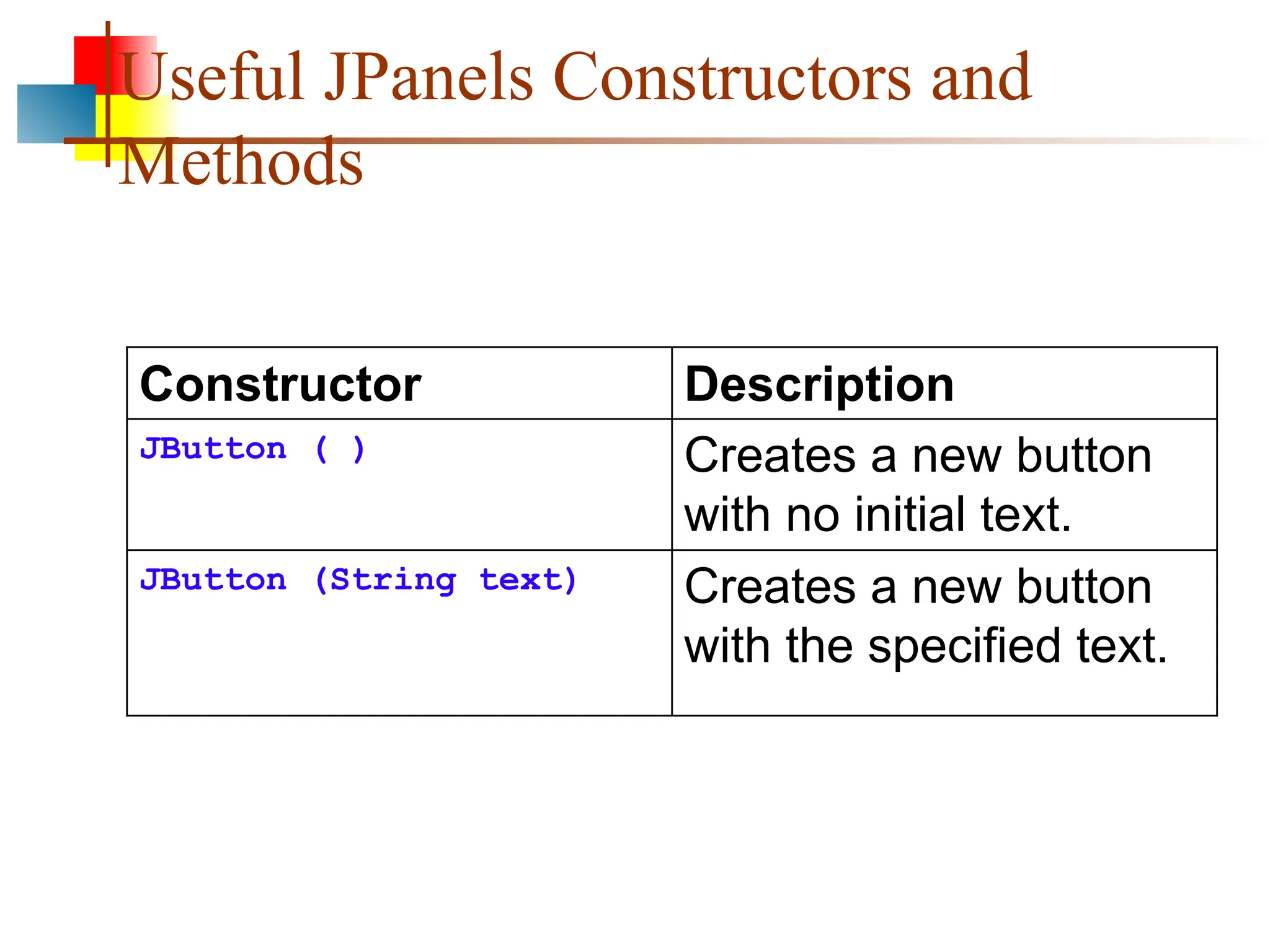
Useful JPanels Constructorsand
Methods
Constructor Description
JButton ( ) Creates a new button
with no initial text.
JButton (String text) Creates a new button
with the specified text.
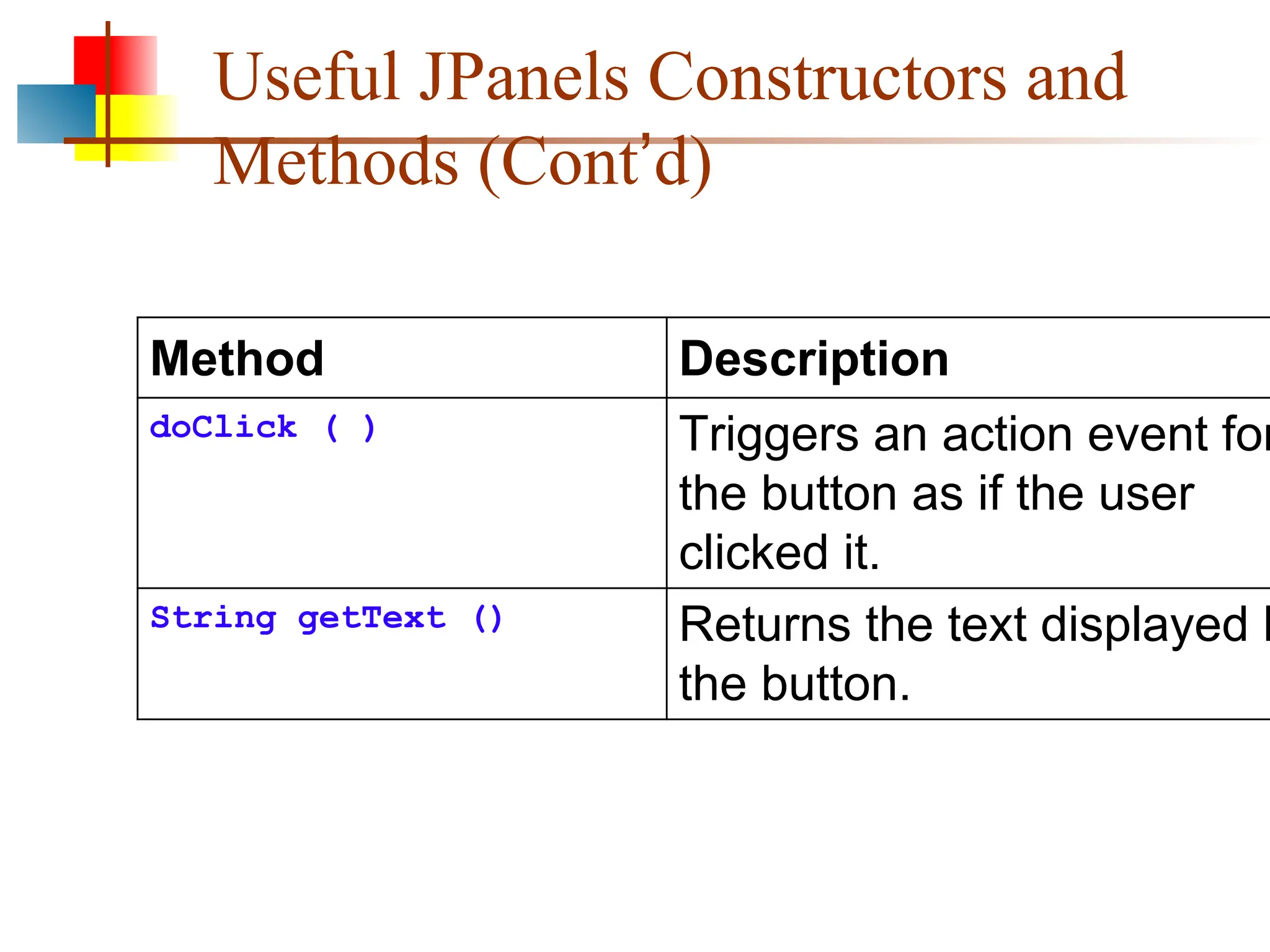
138.
Useful JPanels Constructorsand
Methods (Cont’d)
Method Description
doClick ( ) Triggers an action event for
the button as if the user
clicked it.
String getText () Returns the text displayed b
the button.
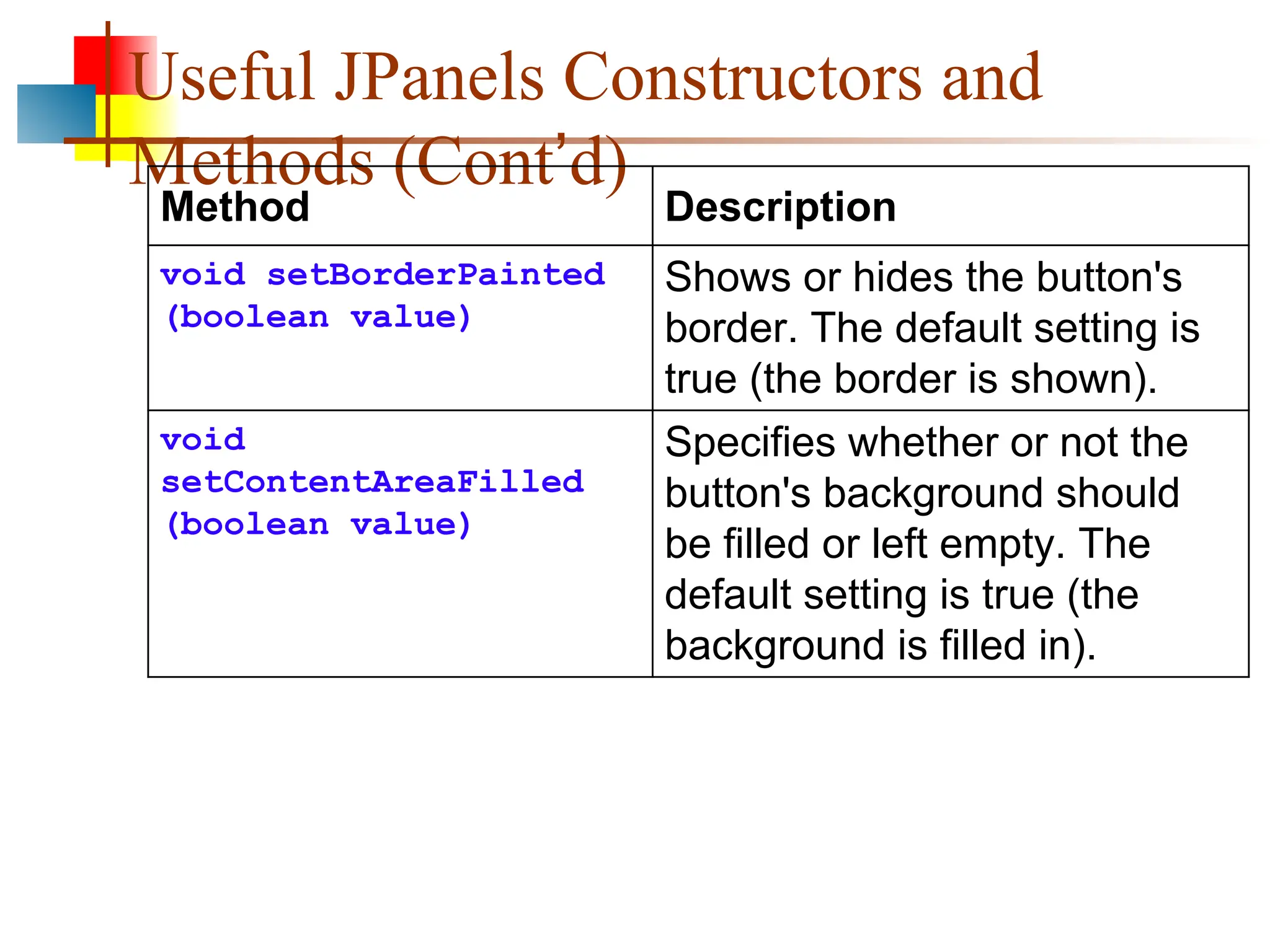
139.
Useful JPanels Constructorsand
Methods (Cont’d)
Method Description
void setBorderPainted
(boolean value)
Shows or hides the button's
border. The default setting is
true (the border is shown).
void
setContentAreaFilled
(boolean value)
Specifies whether or not the
button's background should
be filled or left empty. The
default setting is true (the
background is filled in).
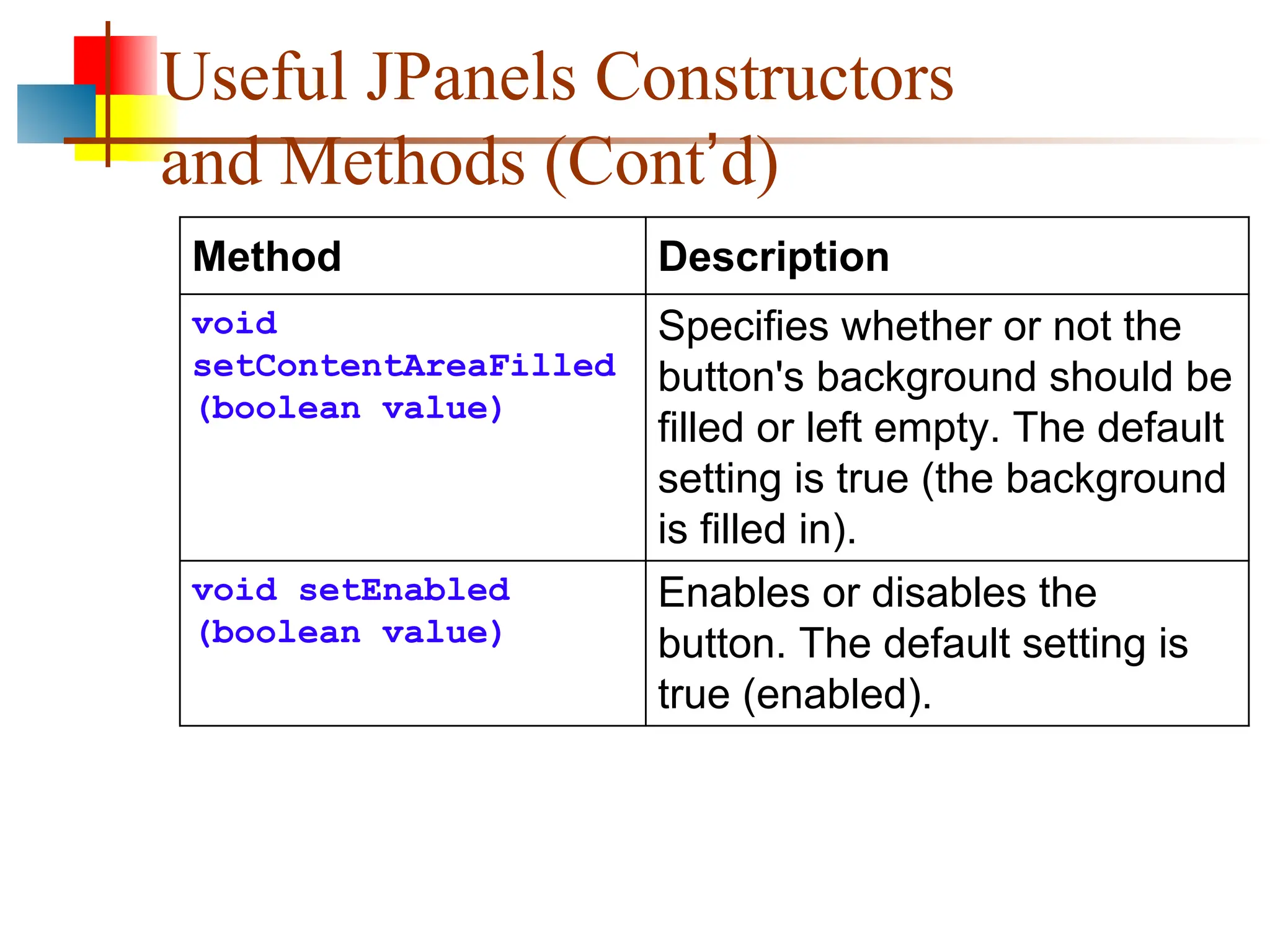
140.
Useful JPanels Constructors
andMethods (Cont’d)
Method Description
void
setContentAreaFilled
(boolean value)
Specifies whether or not the
button's background should be
filled or left empty. The default
setting is true (the background
is filled in).
void setEnabled
(boolean value)
Enables or disables the
button. The default setting is
true (enabled).
141.
Useful JPanels Constructors
andMethods (Cont’d)
Method Description
void
setRolloverEnabled
(boolean value)
Enables or disables the
rollover effect, which causes
the border to get thicker
when the mouse moves over
the button. The default
setting is true (rollover effect
enabled).
142.
Useful JPanels Constructors
andMethods (Cont’d)
Method Description
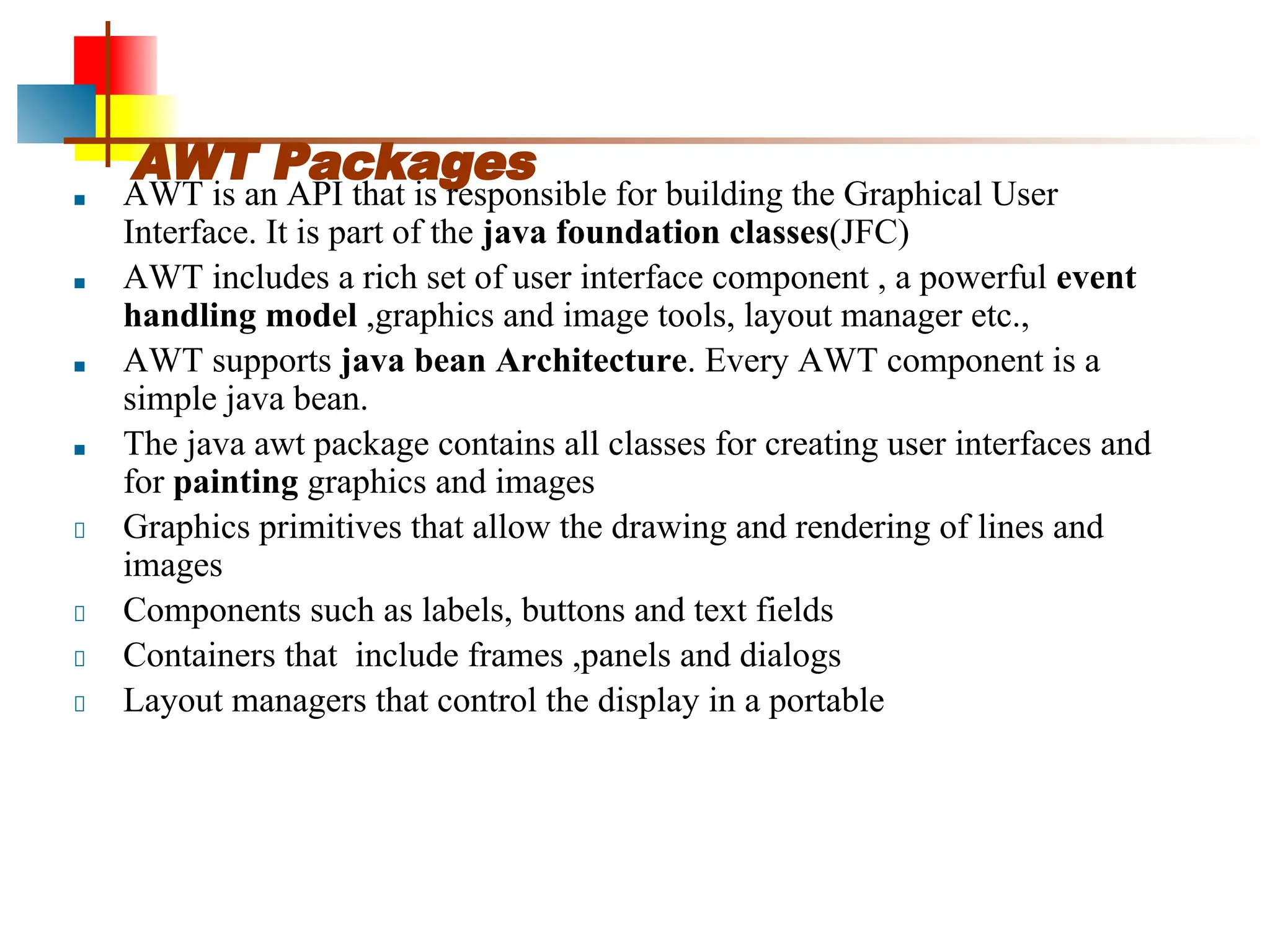
void setText (String
text)
Sets the text displayed by the
button.
void setToolTipText
(String text)
Sets the tooltip text that's
displayed if the user lets the
mouse rest over the button.
void setVisible
(boolean value)
Shows or hides the button. The
default setting is true (the button
is visible).
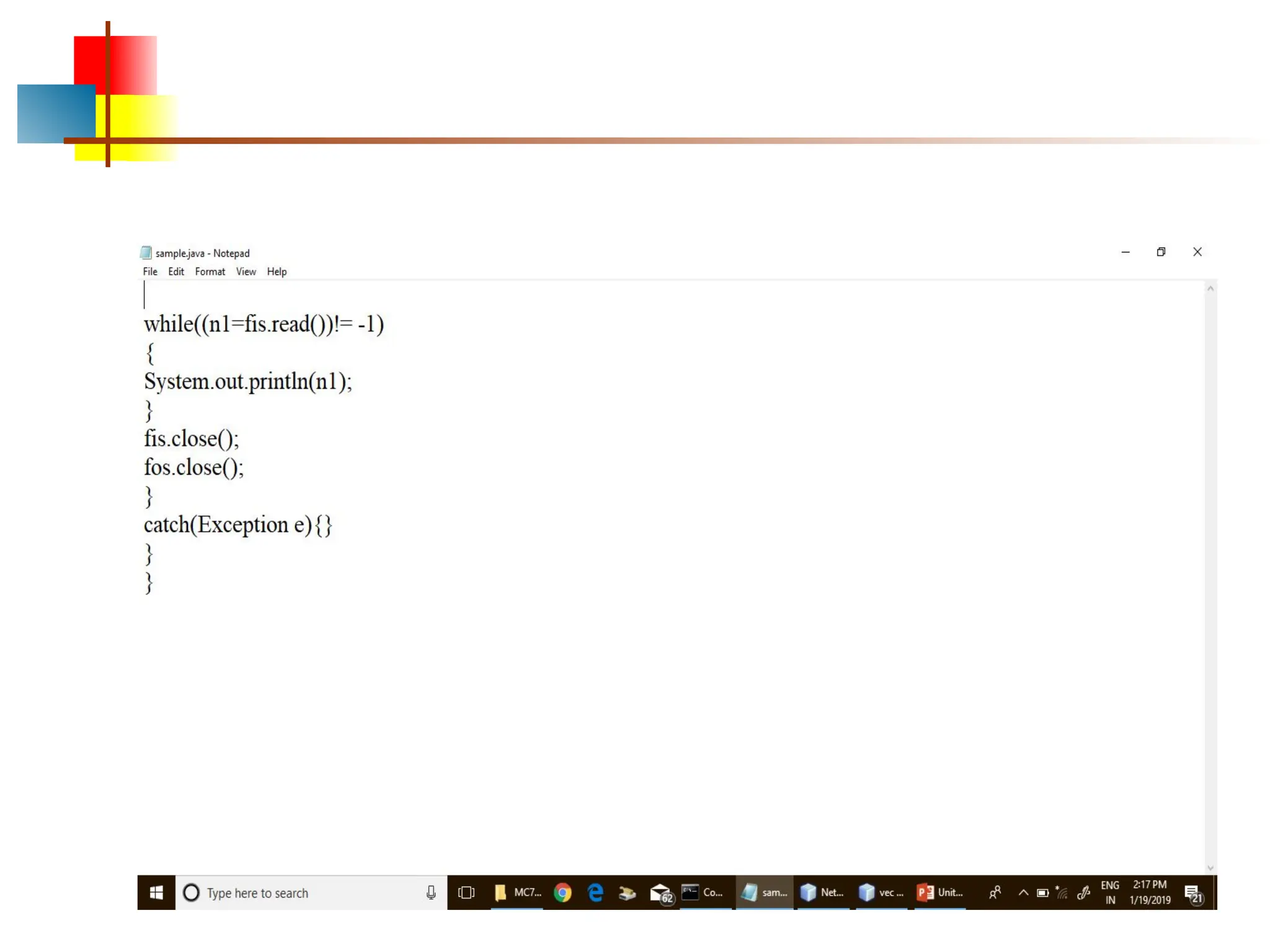
![6
Applets
■ An application has a
public static void main(String args[ ]) method, but
an Applet usually does not
■ An Applet's main method is in the Browser
■ To write an Applet, you extend Applet and override
some of its methods
■ The most important methods are init( ), start( ), and
paint(Graphics g)](https://image.slidesharecdn.com/unitii-250902042052-2c9457b0/75/Advanced-java-programming-awt-packages-6-2048.jpg)
![Step 8:Add main method and create object for the class
public static void main(String arg[])
{
sample1 m=new sample1();
}
43](https://image.slidesharecdn.com/unitii-250902042052-2c9457b0/75/Advanced-java-programming-awt-packages-43-2048.jpg)
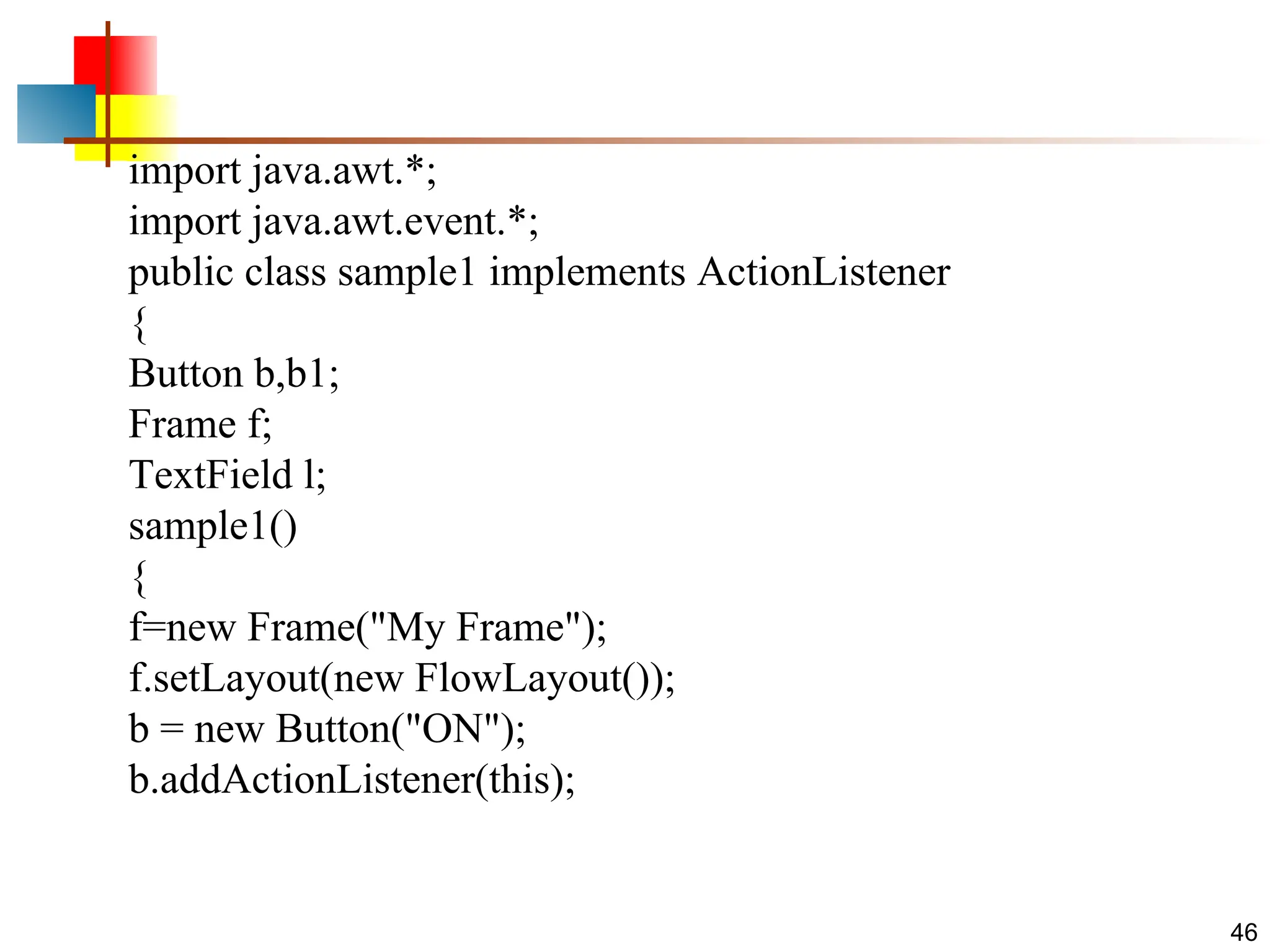
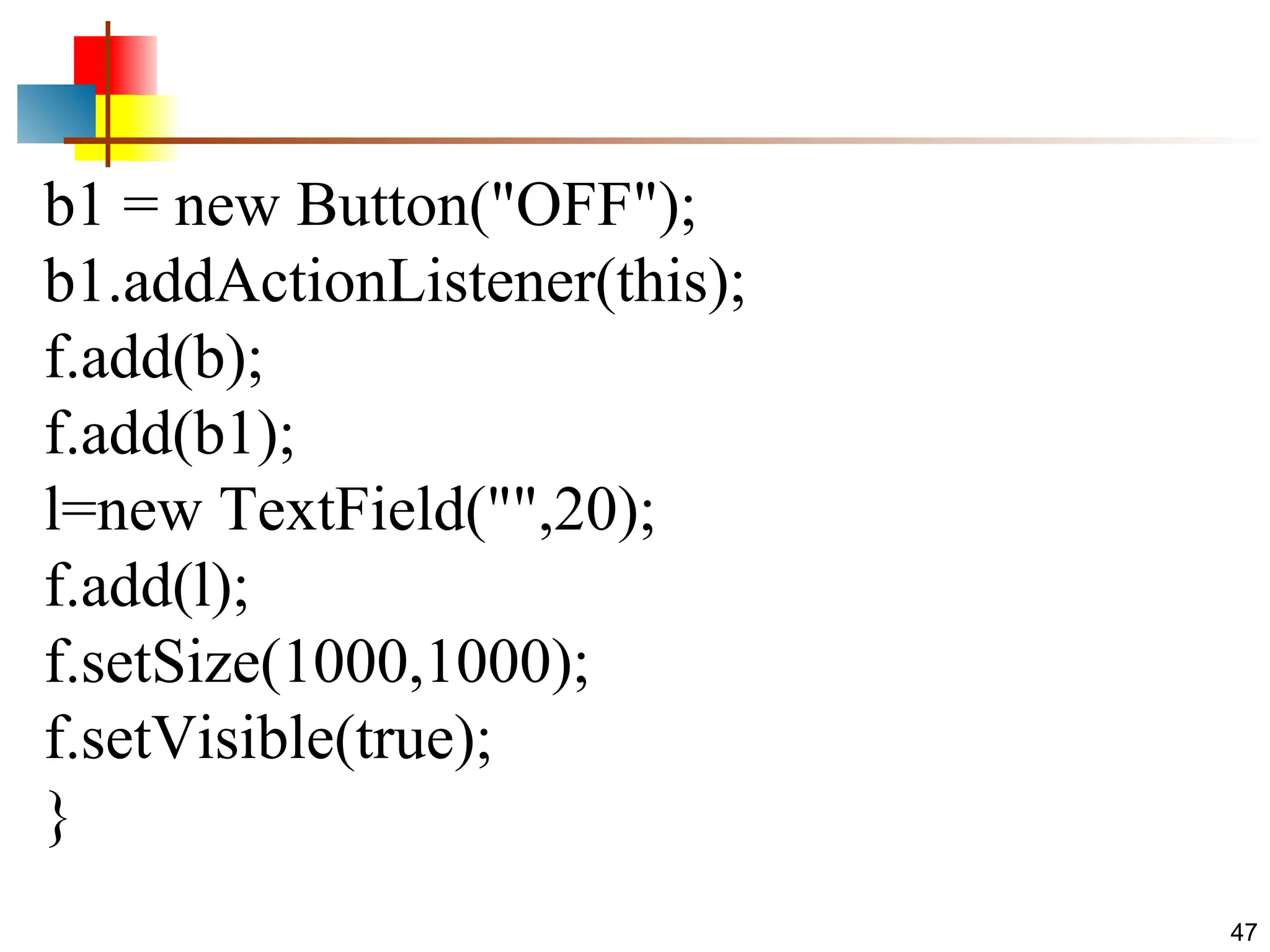
![45
public void actionPerformed(ActionEvent e)
{
if(e.getSource()==b)
{
l.setText("Ouch!");
}
}
public static void main(String arg[])
{
sample1 m=new sample1();
}
}](https://image.slidesharecdn.com/unitii-250902042052-2c9457b0/75/Advanced-java-programming-awt-packages-45-2048.jpg)
![48
public void actionPerformed(ActionEvent e)
{
if(e.getSource()==b)
{
l.setText("ON");
}
else if(e.getSource()==b1)
{
l.setText("OFF");
}
}
public static void main(String arg[])
{
sample1 m=new sample1();
}}](https://image.slidesharecdn.com/unitii-250902042052-2c9457b0/75/Advanced-java-programming-awt-packages-48-2048.jpg)
![A first Swing application
import javax.swing.*;
public class FirstGUI
{
public static void main(String[] args)
{
JFrame f = new JFrame();
f.setVisible(true);
}
}
When you run
this program, a
tiny window
appears:
The close button
does not work
(have to press
“Stop” in Ready)
Class for
drawing a
window on
the screen
Displays the
window and
enters the
event loop.](https://image.slidesharecdn.com/unitii-250902042052-2c9457b0/75/Advanced-java-programming-awt-packages-82-2048.jpg)
![Shutting down the application
properly
import javax.swing.*;
public class FirstGUI {
public static void main(String[] args) {
JFrame f = new JFrame( );
f.setDefaultCloseOperation(JFrame.EXIT_ON_CLOSE);
f.setVisible(true);
}
}
• To give the application a title, give the constructor a string:
JFrame f = new JFrame( “My first GUI”);
Need to add a
single statement
to program the
close button](https://image.slidesharecdn.com/unitii-250902042052-2c9457b0/75/Advanced-java-programming-awt-packages-83-2048.jpg)
![Adding a button to the application
import javax.swing.*;
public class FirstGUI
{
public static void main(String[] args)
{
JFrame f = new JFrame( );
JButton button = new JButton("Press me!"); // create a
button
f.getContentPane().add(button); // add the button to the
frame
f.setDefaultCloseOperation(JFrame.EXIT_ON_CLOSE);
f.pack( );
f.setVisible(true);
}
}](https://image.slidesharecdn.com/unitii-250902042052-2c9457b0/75/Advanced-java-programming-awt-packages-86-2048.jpg)
![Creating a SimpleFrame object
■ SimpleFrame extends JFrame, therefore s is also a
JFrame object (and so we can call the setVisible
method).
■ In the SimpleFrame class:
■ SimpleFrame defines a specialisation of JFrame by adding an
additional component.
■ To call methods of JFrame (such as getContentPane or pack),
we no longer need an object handle, since these methods are now
inherited from JFrame).
public class FirstGUI {
public static void main(String[] args) {
SimpleFrame s = new SimpleFrame( );
s.setVisible(true);
}
}](https://image.slidesharecdn.com/unitii-250902042052-2c9457b0/75/Advanced-java-programming-awt-packages-88-2048.jpg)