AWT and Swing
AWTand Swing
Most GUI class libraries in C++ are platform specific
Most GUI class libraries in C++ are platform specific
Different hardware capabilities
Different hardware capabilities
Subtle differences between the "look-and-feel" of various
Subtle differences between the "look-and-feel" of various
Windowing operating systems
Windowing operating systems
Abstract Window Toolkit (AWT) is cross-platform
Abstract Window Toolkit (AWT) is cross-platform
Swing can observe various OS look-and-feel conventions
Swing can observe various OS look-and-feel conventions
2.
Common functionality/specific implementationapproach
Common functionality/specific implementation approach
Toolkit -------------------------------------------------- AWT
Toolkit -------------------------------------------------- AWT
-----------|------------
-----------|------------
Button List JVM
Button List JVM
| | Native GUI
| | Native GUI
Button Peer List Peer (Windows, Mac, X)
Button Peer List Peer (Windows, Mac, X)
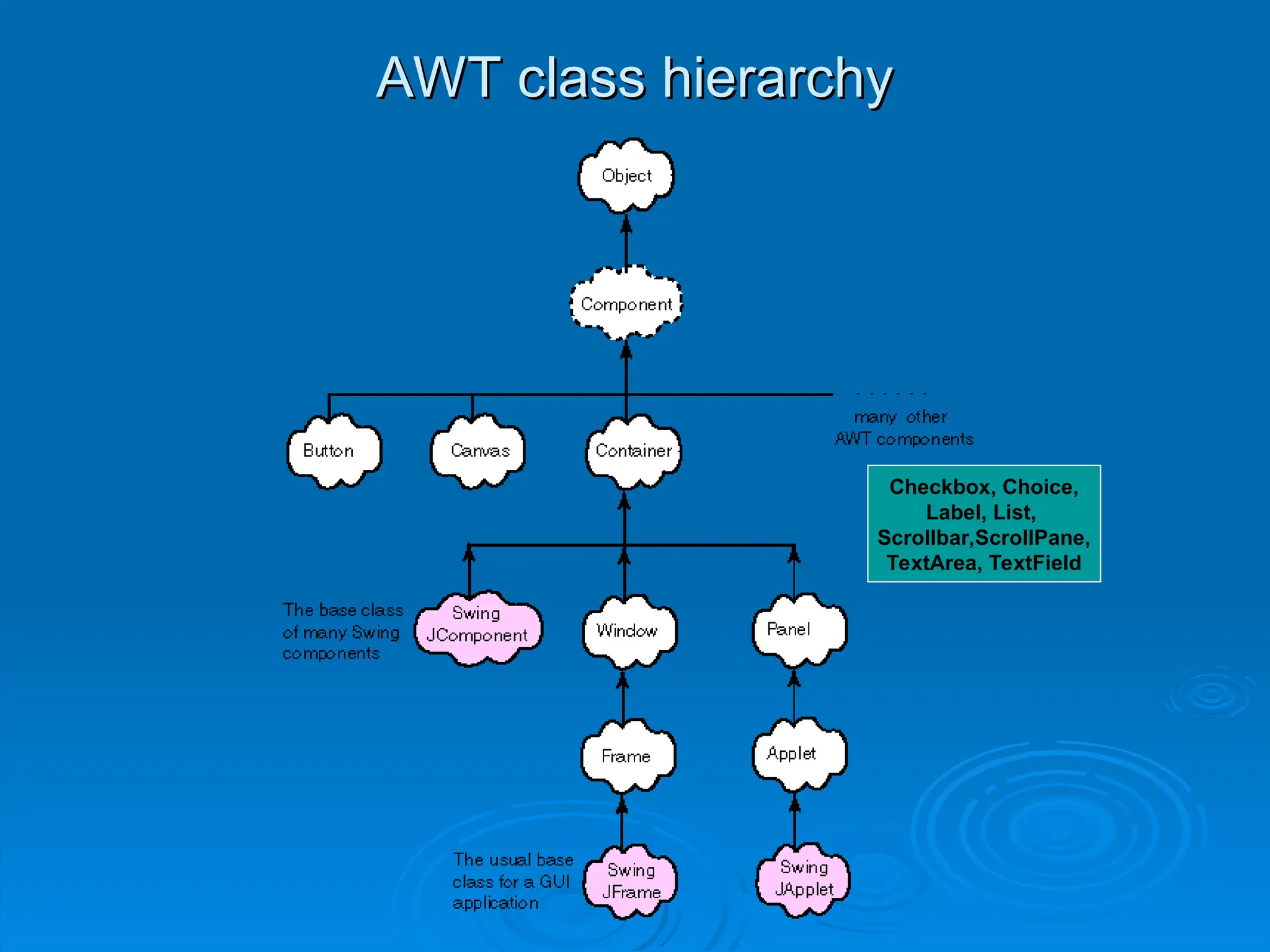
AWT GUI classes are platform-independent elements
AWT GUI classes are platform-independent elements
Each AWT platform-specific toolkit comes with
Each AWT platform-specific toolkit comes with peer
peer class
class
implementing platform-specific behavior of its AWT class
implementing platform-specific behavior of its AWT class
Combining platform-independent AWT class with
Combining platform-independent AWT class with
platform-specific peer class transforms generic, abstract windows
platform-specific peer class transforms generic, abstract windows
behavior into specific, particular behavior
behavior into specific, particular behavior
3.
Peer classes atrun-time
Peer classes at run-time
class TestPeer {
class TestPeer {
TestPeer() {
TestPeer() {
Frame myFrame = new Frame("my Frame"); //create window Frame
Frame myFrame = new Frame("my Frame"); //create window Frame
Button myButton = new Button("my Button"); //create myButton
Button myButton = new Button("my Button"); //create myButton
myFrame.add("Center",myButton); //put myButton in myFrame
myFrame.add("Center",myButton); //put myButton in myFrame
myFrame.setVisible(true); //button appears in window on screen
myFrame.setVisible(true); //button appears in window on screen
//setVisible() creates peer objects for myFrame & myButton
//setVisible() creates peer objects for myFrame & myButton
ComponentPeer buttonPeer = myButton.getPeer(); //now works
ComponentPeer buttonPeer = myButton.getPeer(); //now works
}
}
}
}
TestPeer first constructs a frame, then adds a button on the frame
TestPeer first constructs a frame, then adds a button on the frame
setVisible method creates peer objects on platform
setVisible method creates peer objects on platform
Last line now accesses myButton’s peer object
Last line now accesses myButton’s peer object
Peer classes are usually hidden from developers. Why?
Peer classes are usually hidden from developers. Why?
In fact, in newer versions of JDK, getPeer() method is "deprecated"
In fact, in newer versions of JDK, getPeer() method is "deprecated"
Peer classes strongly discouraged for code maintenance purposes
Peer classes strongly discouraged for code maintenance purposes
First, create a frame.
Next, create a Button.
Attach (add) myButton to myFrame.
Now, peer objects exist.
Note: getPeer() is now “deprecated.”
Set myFrame and myButton visible,
by creating platform-specific peer objects.
4.
JDK 1.0 (circa1996)
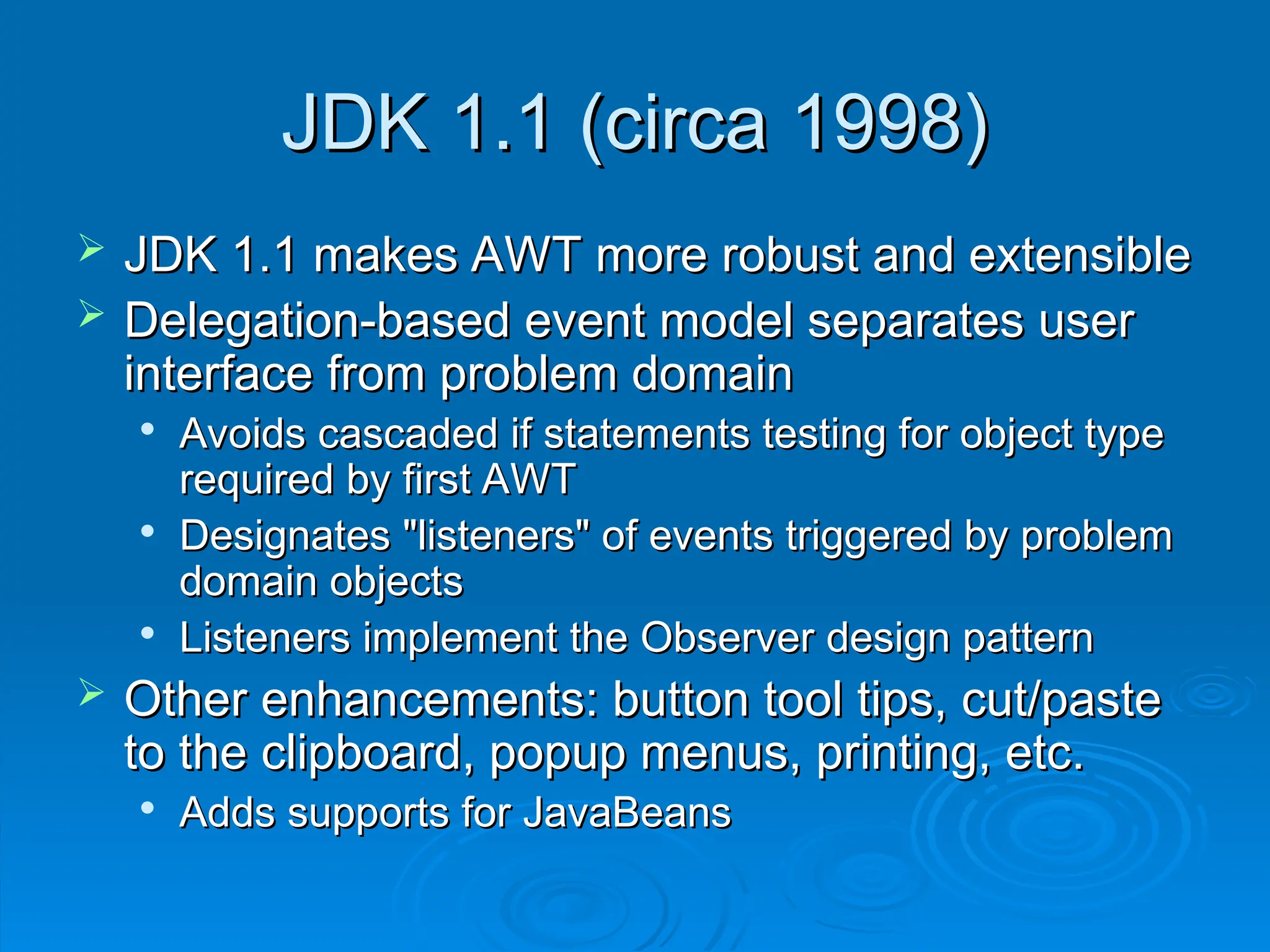
JDK 1.0 (circa 1996)
JDK 1.0 went a long way to implementing
JDK 1.0 went a long way to implementing
platform-independent GUI library
platform-independent GUI library
Bruce Eckel: it "produced a GUI that looks
Bruce Eckel: it "produced a GUI that looks
equally mediocre on all systems."
equally mediocre on all systems."
Just 4 fonts
Just 4 fonts
Couldn’t access GUI of native OS
Couldn’t access GUI of native OS
Didn’t separate model and UI code cleanly
Didn’t separate model and UI code cleanly
5.
JDK 1.1 (circa1998)
JDK 1.1 (circa 1998)
JDK 1.1 makes AWT more robust and extensible
JDK 1.1 makes AWT more robust and extensible
Delegation-based event model separates user
Delegation-based event model separates user
interface from problem domain
interface from problem domain
Avoids cascaded if statements testing for object type
Avoids cascaded if statements testing for object type
required by first AWT
required by first AWT
Designates "listeners" of events triggered by problem
Designates "listeners" of events triggered by problem
domain objects
domain objects
Listeners implement the Observer design pattern
Listeners implement the Observer design pattern
Other enhancements: button tool tips, cut/paste
Other enhancements: button tool tips, cut/paste
to the clipboard, popup menus, printing, etc.
to the clipboard, popup menus, printing, etc.
Adds supports for JavaBeans
Adds supports for JavaBeans
6.
JDK 1.2 (Swing)
JDK1.2 (Swing)
JDK 1.2 adds Java Foundation Classes
JDK 1.2 adds Java Foundation Classes
Swing is the GUI library for JDK 1.2
Swing is the GUI library for JDK 1.2
Much richer class library plus better integration
Much richer class library plus better integration
with look and feel of GUI of OS
with look and feel of GUI of OS
Eckel: "The ‘revision 3’ rule of software industry
Eckel: "The ‘revision 3’ rule of software industry
(a product isn’t good until revision 3) seems to
(a product isn’t good until revision 3) seems to
hold true with programming languages as well."
hold true with programming languages as well."
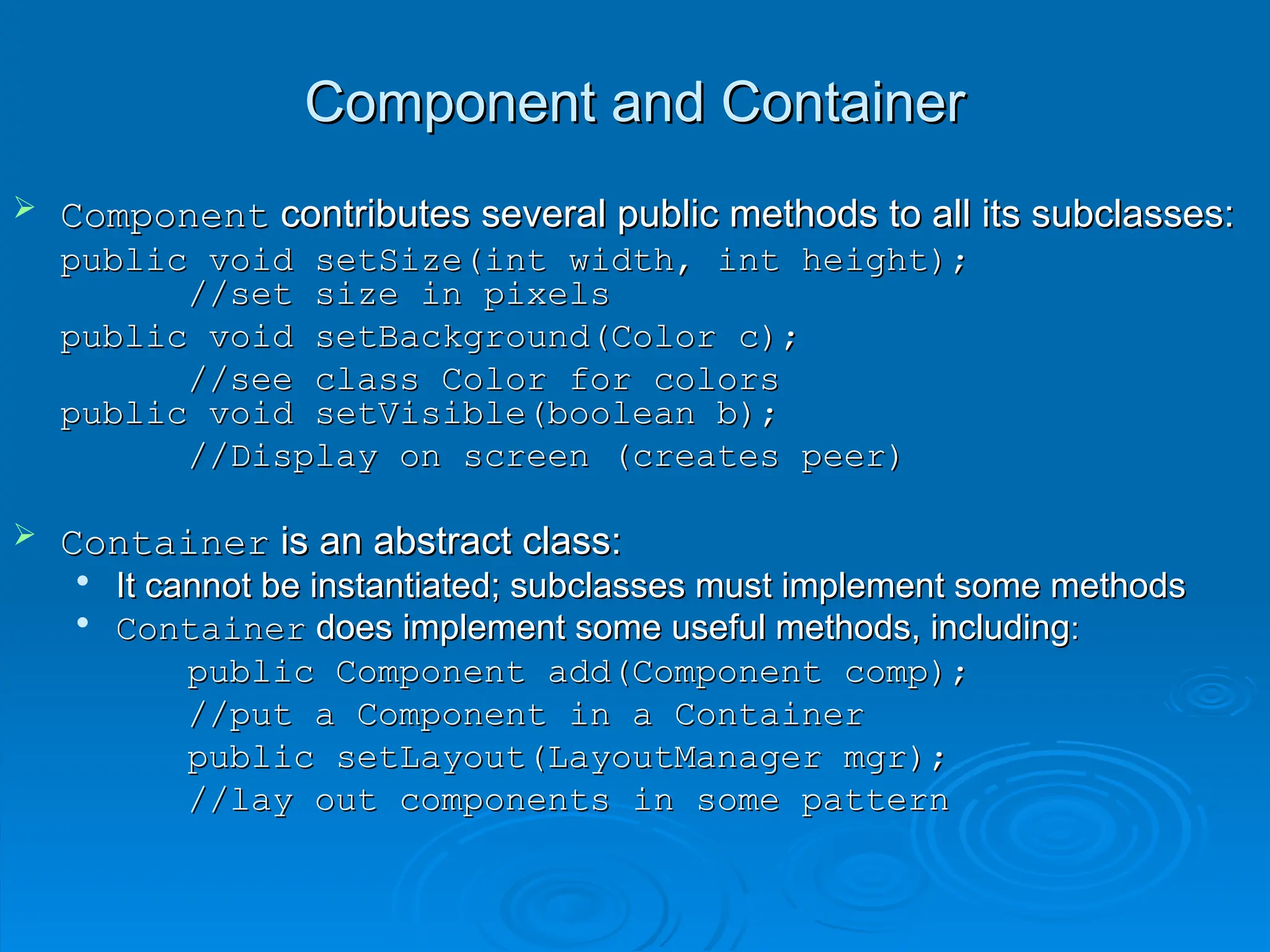
Component and Container
Componentand Container
Component
Component contributes several public methods to all its subclasses:
contributes several public methods to all its subclasses:
public void setSize(int width, int height);
public void setSize(int width, int height);
//set size in pixels
//set size in pixels
public void setBackground(Color c);
public void setBackground(Color c);
//see class Color for colors
//see class Color for colors
public void setVisible(boolean b);
public void setVisible(boolean b);
//Display on screen (creates peer)
//Display on screen (creates peer)
Container
Container is an abstract class:
is an abstract class:
It cannot be instantiated; subclasses must implement some methods
It cannot be instantiated; subclasses must implement some methods
Container
Container does implement some useful methods, including
does implement some useful methods, including:
:
public Component add(Component comp);
public Component add(Component comp);
//put a Component in a Container
//put a Component in a Container
public setLayout(LayoutManager mgr);
public setLayout(LayoutManager mgr);
//lay out components in some pattern
//lay out components in some pattern
10.
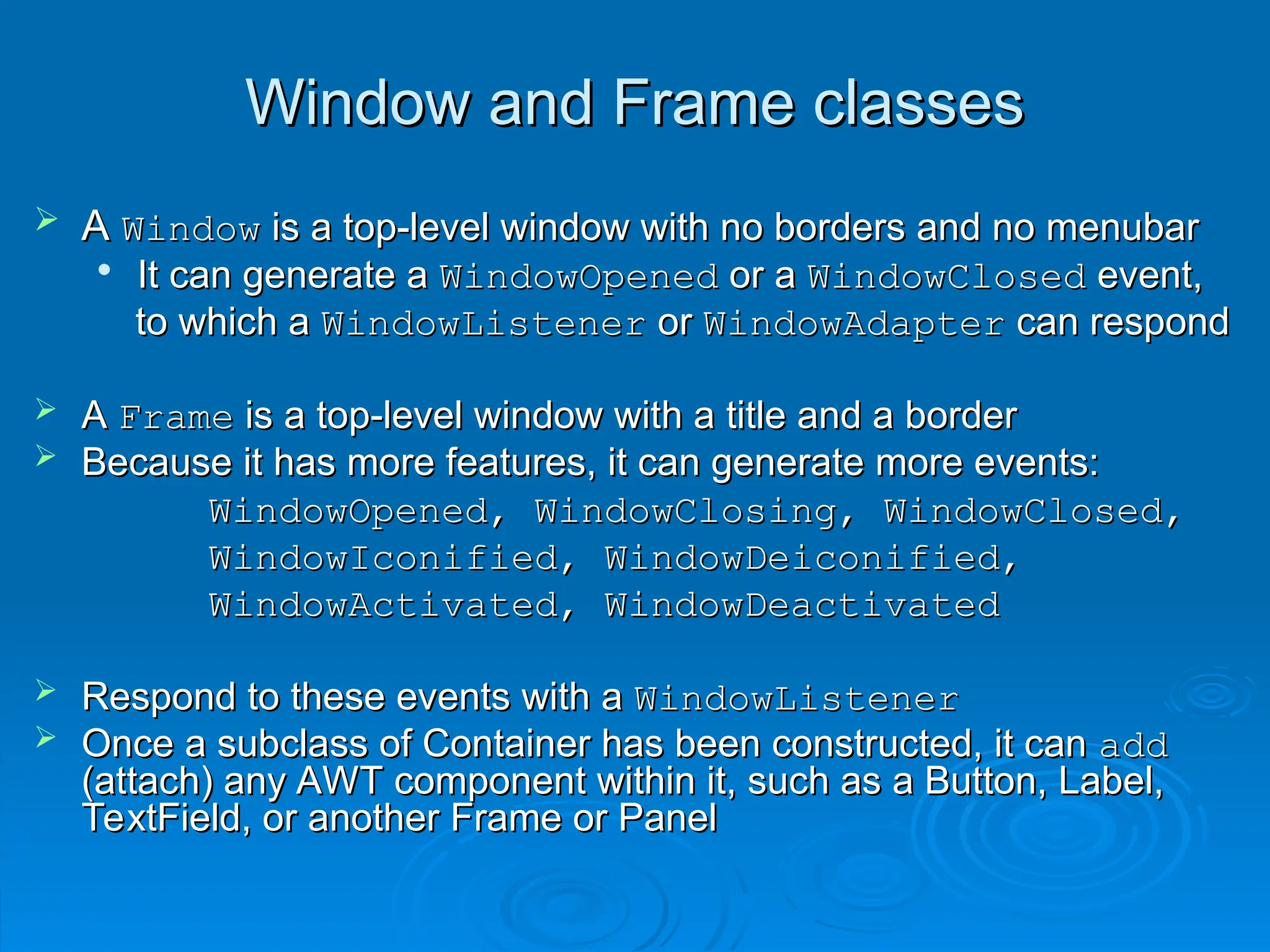
Window and Frameclasses
Window and Frame classes
A
A Window
Window is a top-level window with no borders and no menubar
is a top-level window with no borders and no menubar
It can generate a
It can generate a WindowOpened
WindowOpened or a
or a WindowClosed
WindowClosed event,
event,
to which a
to which a WindowListener
WindowListener or
or WindowAdapter
WindowAdapter can respond
can respond
A
A Frame
Frame is a top-level window with a title and a border
is a top-level window with a title and a border
Because it has more features, it can generate more events:
Because it has more features, it can generate more events:
WindowOpened, WindowClosing, WindowClosed,
WindowOpened, WindowClosing, WindowClosed,
WindowIconified, WindowDeiconified,
WindowIconified, WindowDeiconified,
WindowActivated, WindowDeactivated
WindowActivated, WindowDeactivated
Respond to these events with a
Respond to these events with a WindowListener
WindowListener
Once a subclass of Container has been constructed, it can
Once a subclass of Container has been constructed, it can add
add
(attach) any AWT component within it, such as a Button, Label,
(attach) any AWT component within it, such as a Button, Label,
TextField, or another Frame or Panel
TextField, or another Frame or Panel
11.
A simple example
Asimple example
//Demonstrates construction of a Container and a Button
//Demonstrates construction of a Container and a Button
import java.awt.*;
import java.awt.*;
class Gui extends Frame
class Gui extends Frame
{
{
public Gui(String s)
public Gui(String s) //constructor
//constructor
{ super(s);
{ super(s); //construct Frame part of Gui
//construct Frame part of Gui
setBackground(Color.yellow);
setBackground(Color.yellow);
setLayout(new FlowLayout());
setLayout(new FlowLayout());
Button pushButton = new Button("press me");
Button pushButton = new Button("press me");
add(pushButton);
add(pushButton);
}
}
} //class Gui
} //class Gui
class Ex_1
class Ex_1 //Creates an instance of class
//Creates an instance of class
Gui
Gui
{ public static void main(String[] args)
{ public static void main(String[] args)
{ Gui screen = new Gui("Example 1");
{ Gui screen = new Gui("Example 1");
screen.setSize(500,100);
screen.setSize(500,100);
screen.setVisible(true);
screen.setVisible(true);
}
}
} //class Ex_1
} //class Ex_1
Superclass does not most of the work
of creating an instance of Gui. Modify properties of Gui.
Create a button and attach it to Gui.
Construct a Gui, set its size
and make it visible.
What does this program not do?
12.
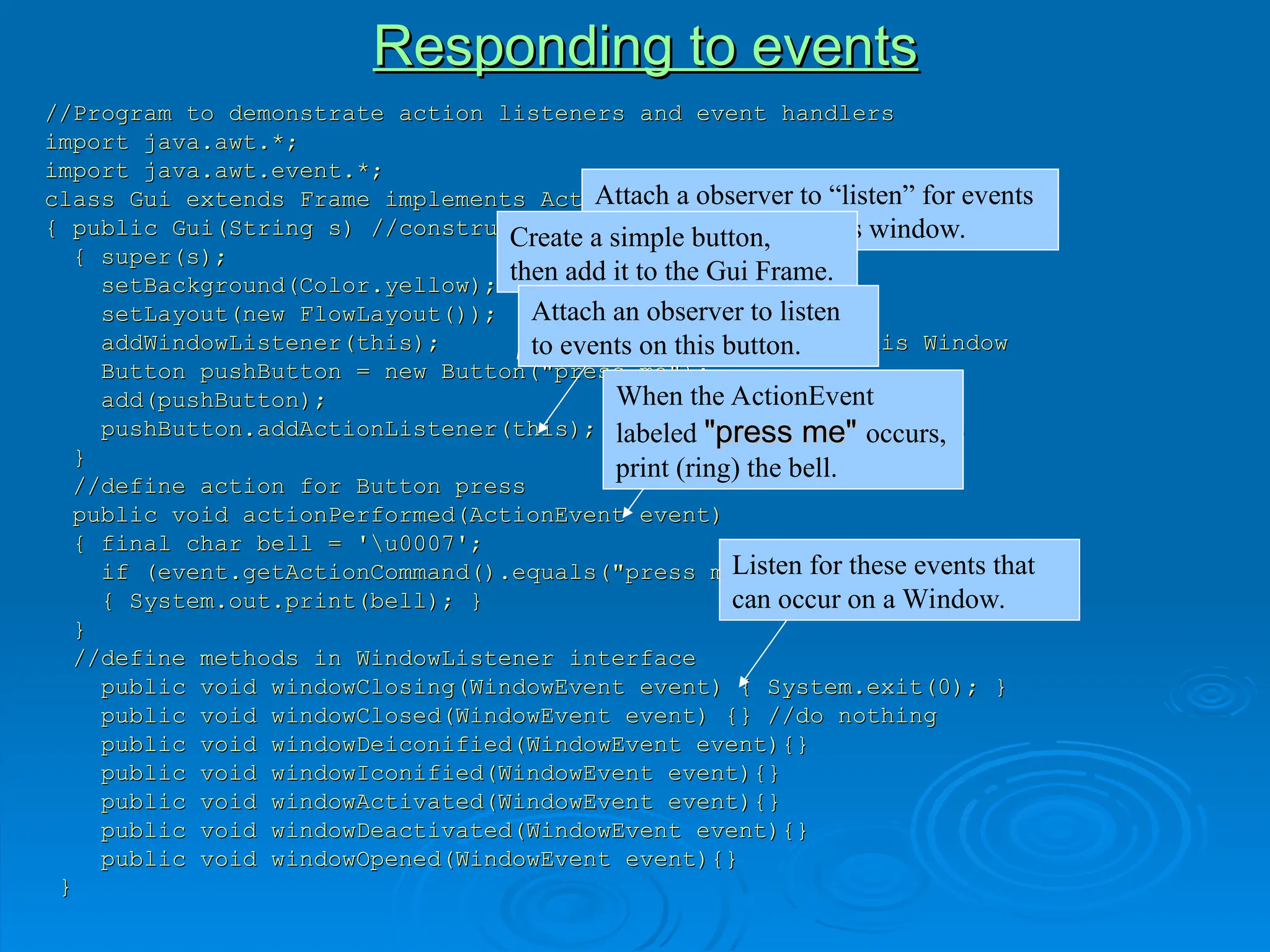
Responding to events
Respondingto events
//Program to demonstrate action listeners and event handlers
//Program to demonstrate action listeners and event handlers
import java.awt.*;
import java.awt.*;
import java.awt.event.*;
import java.awt.event.*;
class Gui extends Frame implements ActionListener, WindowListener
class Gui extends Frame implements ActionListener, WindowListener
{ public Gui(String s) //constructor
{ public Gui(String s) //constructor
{ super(s);
{ super(s);
setBackground(Color.yellow);
setBackground(Color.yellow);
setLayout(new FlowLayout());
setLayout(new FlowLayout());
addWindowListener(this); //listen for events on this Window
addWindowListener(this); //listen for events on this Window
Button pushButton = new Button("press me");
Button pushButton = new Button("press me");
add(pushButton);
add(pushButton);
pushButton.addActionListener(this); //listen for Button press
pushButton.addActionListener(this); //listen for Button press
}
}
//define action for Button press
//define action for Button press
public void actionPerformed(ActionEvent event)
public void actionPerformed(ActionEvent event)
{ final char bell = 'u0007';
{ final char bell = 'u0007';
if (event.getActionCommand().equals("press me"))
if (event.getActionCommand().equals("press me"))
{ System.out.print(bell); }
{ System.out.print(bell); }
}
}
//define methods in WindowListener interface
//define methods in WindowListener interface
public void windowClosing(WindowEvent event) { System.exit(0); }
public void windowClosing(WindowEvent event) { System.exit(0); }
public void windowClosed(WindowEvent event) {} //do nothing
public void windowClosed(WindowEvent event) {} //do nothing
public void windowDeiconified(WindowEvent event){}
public void windowDeiconified(WindowEvent event){}
public void windowIconified(WindowEvent event){}
public void windowIconified(WindowEvent event){}
public void windowActivated(WindowEvent event){}
public void windowActivated(WindowEvent event){}
public void windowDeactivated(WindowEvent event){}
public void windowDeactivated(WindowEvent event){}
public void windowOpened(WindowEvent event){}
public void windowOpened(WindowEvent event){}
}
}
Attach a observer to “listen” for events
that might occur on this window.
Create a simple button,
then add it to the Gui Frame.
Attach an observer to listen
to events on this button.
Listen for these events that
can occur on a Window.
When the ActionEvent
labeled "press me"
"press me" occurs,
print (ring) the bell.
13.
Responding to events,continued
Responding to events, continued
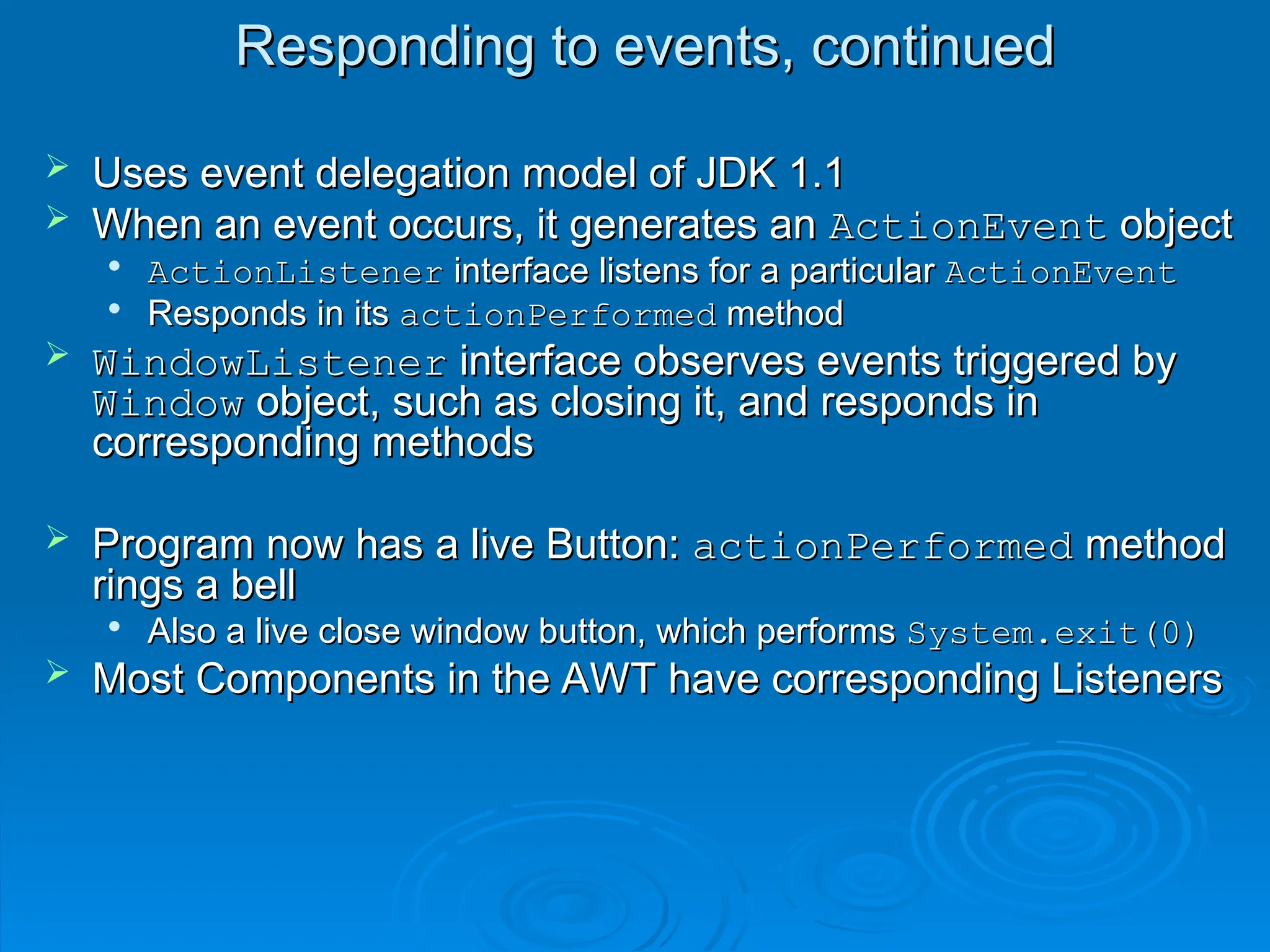
Uses event delegation model of JDK 1.1
Uses event delegation model of JDK 1.1
When an event occurs, it generates an
When an event occurs, it generates an ActionEvent
ActionEvent object
object
ActionListener
ActionListener interface listens for a particular
interface listens for a particular ActionEvent
ActionEvent
Responds in its
Responds in its actionPerformed
actionPerformed method
method
WindowListener
WindowListener interface observes events triggered by
interface observes events triggered by
Window
Window object, such as closing it, and responds in
object, such as closing it, and responds in
corresponding methods
corresponding methods
Program now has a live Button:
Program now has a live Button: actionPerformed
actionPerformed method
method
rings a bell
rings a bell
Also a live close window button, which performs
Also a live close window button, which performs System.exit(0)
System.exit(0)
Most Components in the AWT have corresponding Listeners
Most Components in the AWT have corresponding Listeners
14.
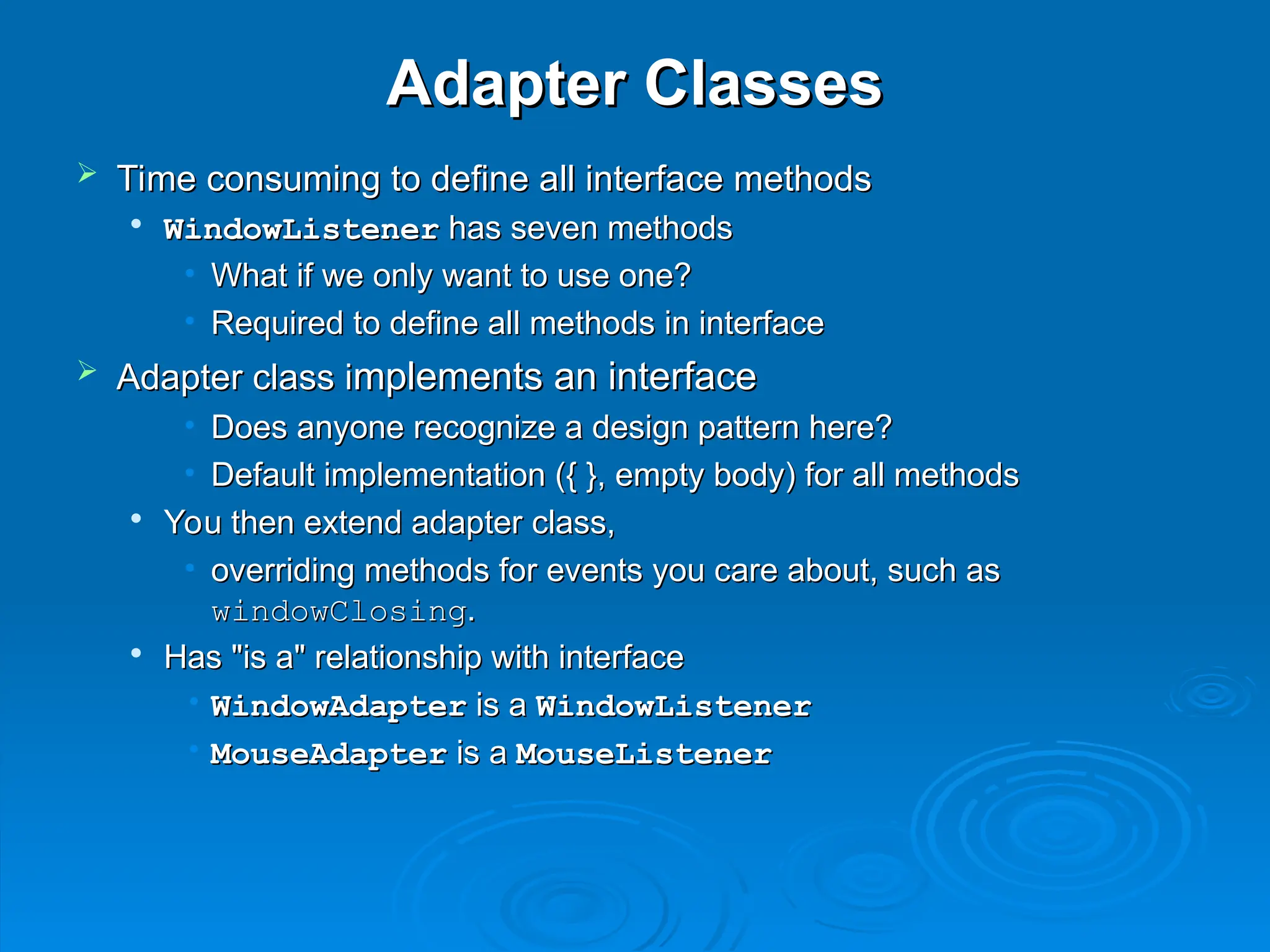
Adapter Classes
Adapter Classes
Time consuming to define all interface methods
Time consuming to define all interface methods
WindowListener
WindowListener has seven methods
has seven methods
• What if we only want to use one?
What if we only want to use one?
• Required to define all methods in interface
Required to define all methods in interface
Adapter class i
Adapter class implements an interface
mplements an interface
• Does anyone recognize a design pattern here?
Does anyone recognize a design pattern here?
• Default implementation ({ }, empty body) for all methods
Default implementation ({ }, empty body) for all methods
You then extend adapter class,
You then extend adapter class,
• overriding methods for events you care about, such as
overriding methods for events you care about, such as
windowClosing
windowClosing.
.
Has "is a" relationship with interface
Has "is a" relationship with interface
• WindowAdapter
WindowAdapter is a
is a WindowListener
WindowListener
• MouseAdapter
MouseAdapter is a
is a MouseListener
MouseListener
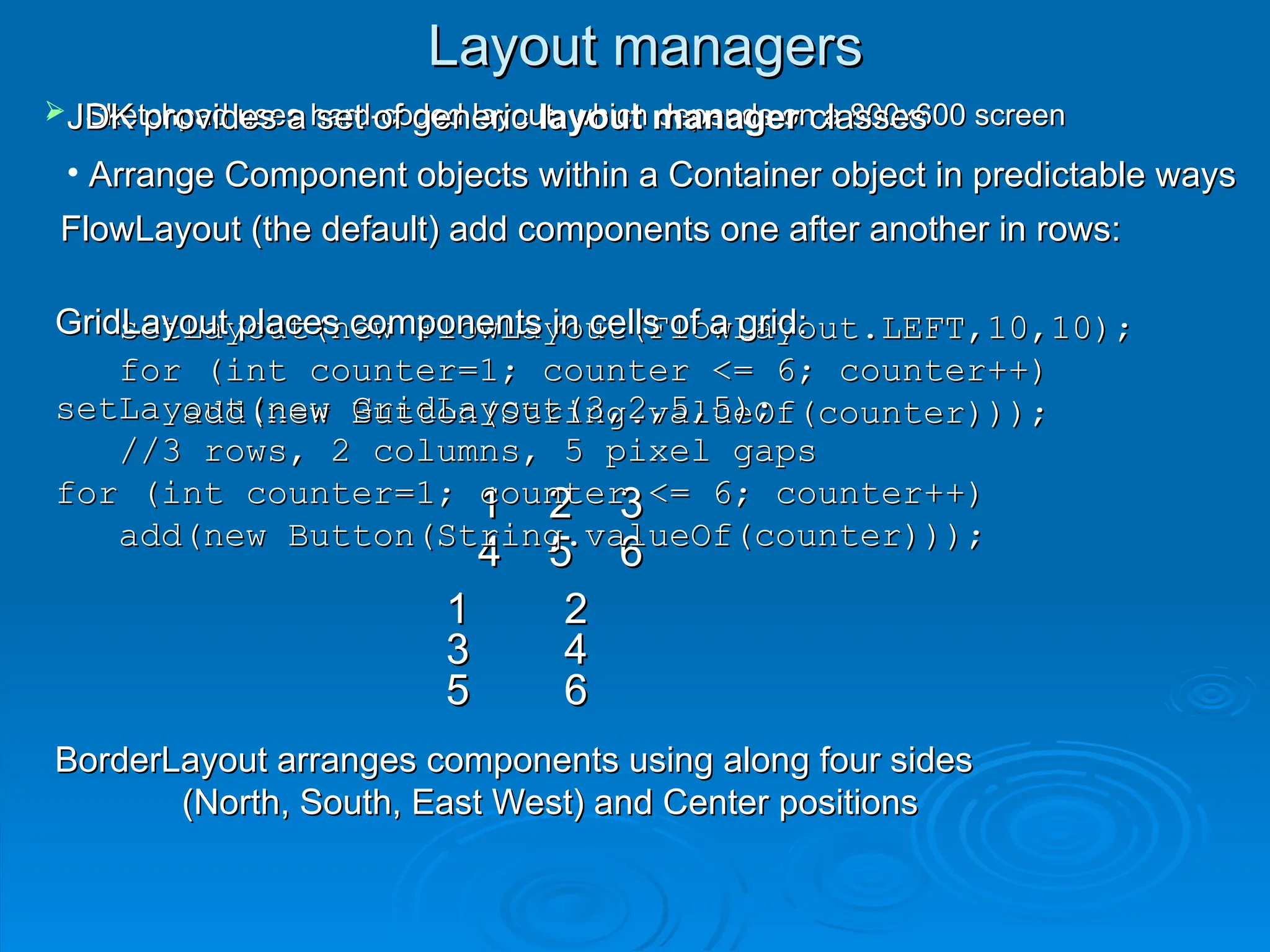
Layout managers
Layout managers
Sketchpad uses hard-coded layout, which depends on a 800x600 screen
Sketchpad uses hard-coded layout, which depends on a 800x600 screen
JDK provides a set of generic
JDK provides a set of generic layout manager
layout manager classes
classes
• Arrange Component objects within a Container object in predictable ways
Arrange Component objects within a Container object in predictable ways
FlowLayout (the default) add components one after another in rows:
FlowLayout (the default) add components one after another in rows:
setLayout(new FlowLayout(FlowLayout.LEFT,10,10);
setLayout(new FlowLayout(FlowLayout.LEFT,10,10);
for (int counter=1; counter <= 6; counter++)
for (int counter=1; counter <= 6; counter++)
add(new Button(String.valueOf(counter)));
add(new Button(String.valueOf(counter)));
1 2 3
1 2 3
4 5 6
4 5 6
GridLayout places components in cells of a grid:
GridLayout places components in cells of a grid:
setLayout(new GridLayout(3,2,5,5);
setLayout(new GridLayout(3,2,5,5);
//3 rows, 2 columns, 5 pixel gaps
//3 rows, 2 columns, 5 pixel gaps
for (int counter=1; counter <= 6; counter++)
for (int counter=1; counter <= 6; counter++)
add(new Button(String.valueOf(counter)));
add(new Button(String.valueOf(counter)));
1 2
1 2
3 4
3 4
5 6
5 6
BorderLayout arranges components using along four sides
BorderLayout arranges components using along four sides
(North, South, East West) and Center positions
(North, South, East West) and Center positions
17.
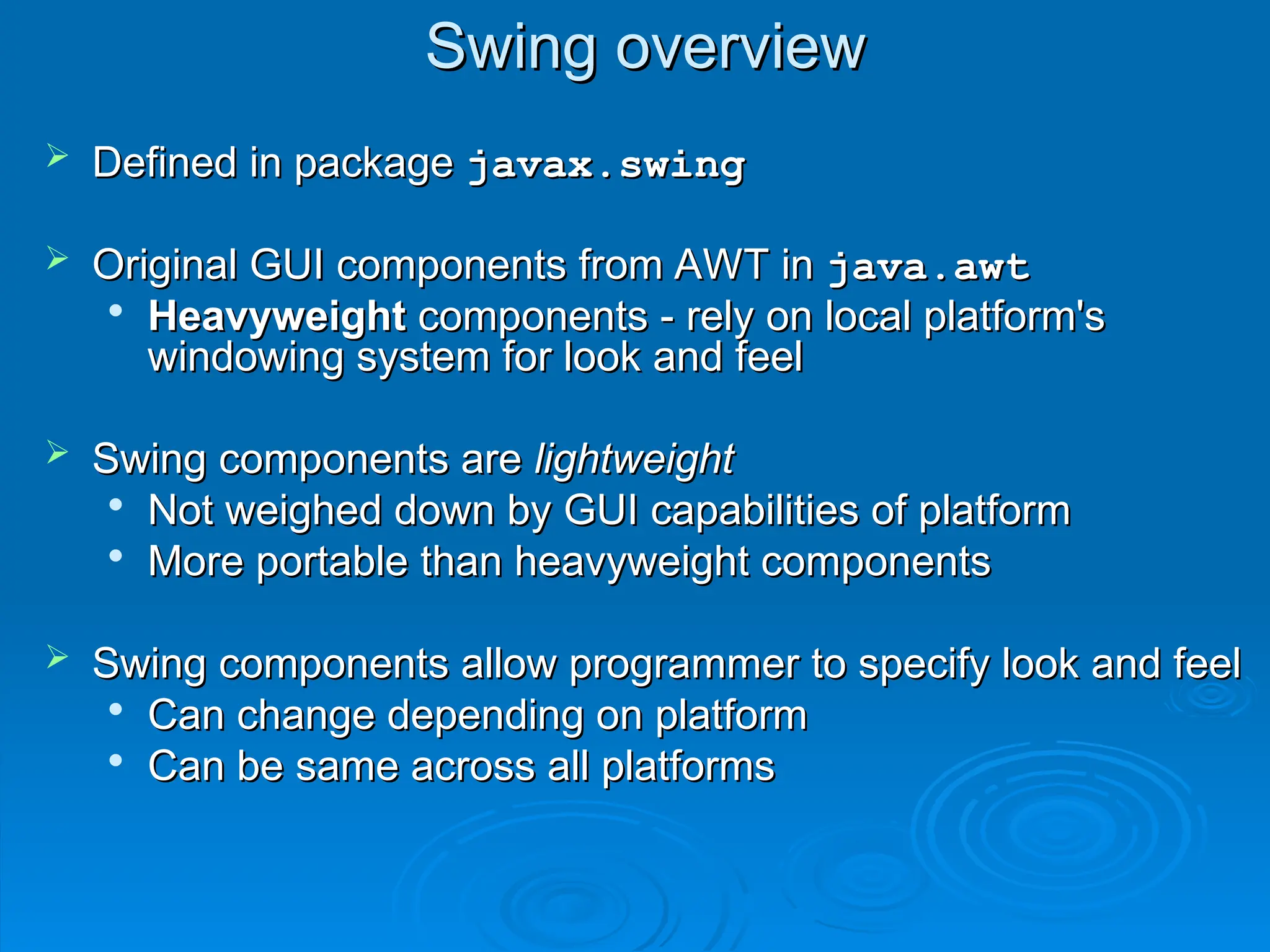
Swing overview
Swing overview
Defined in package
Defined in package javax.swing
javax.swing
Original GUI components from AWT in
Original GUI components from AWT in java.awt
java.awt
Heavyweight
Heavyweight components - rely on local platform's
components - rely on local platform's
windowing system for look and feel
windowing system for look and feel
Swing components are
Swing components are lightweight
lightweight
Not weighed down by GUI capabilities of platform
Not weighed down by GUI capabilities of platform
More portable than heavyweight components
More portable than heavyweight components
Swing components allow programmer to specify look and feel
Swing components allow programmer to specify look and feel
Can change depending on platform
Can change depending on platform
Can be same across all platforms
Can be same across all platforms
18.
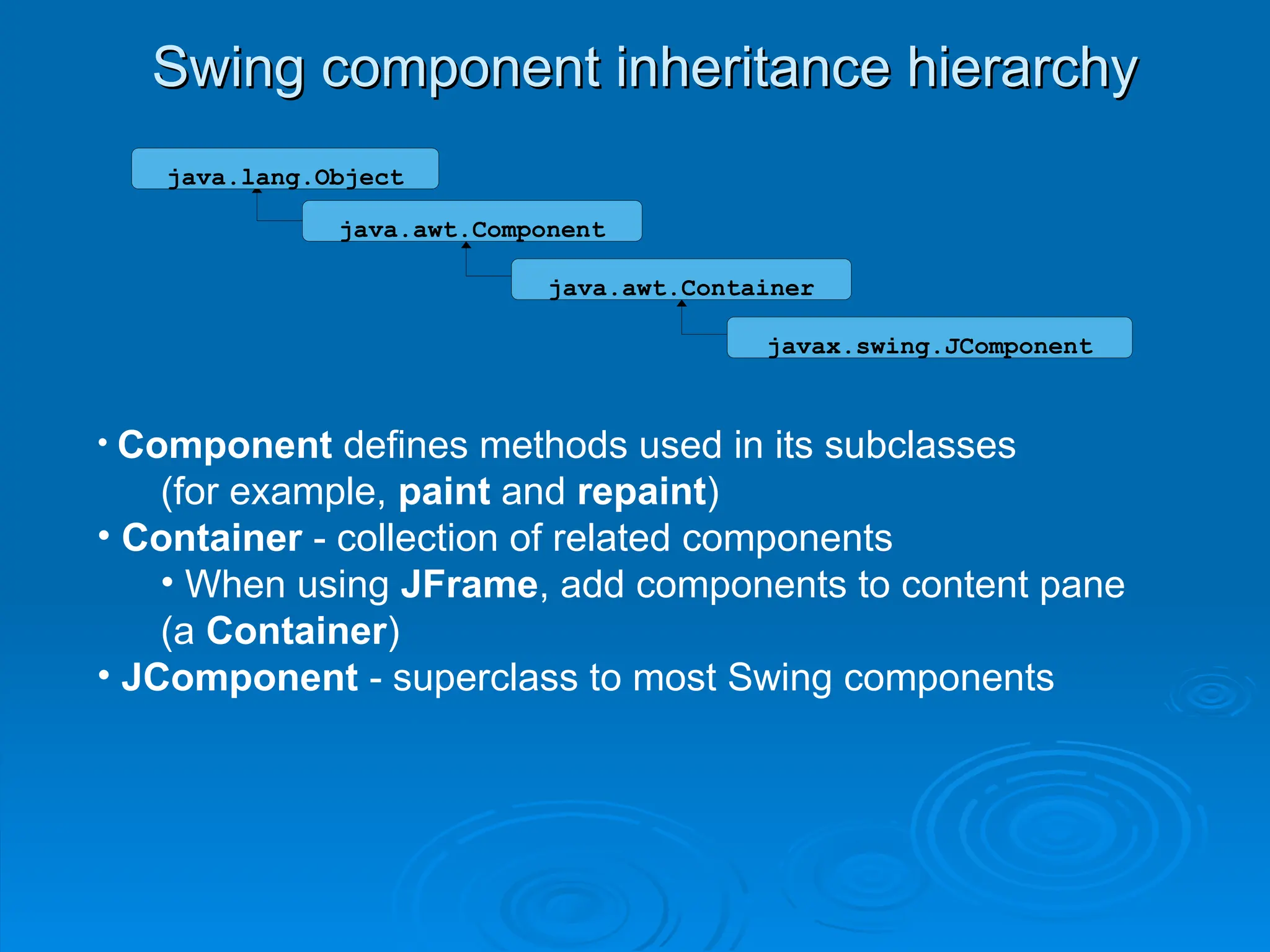
Swing component inheritancehierarchy
Swing component inheritance hierarchy
java.awt.Component
java.awt.Container
java.lang.Object
javax.swing.JComponent
• Component defines methods used in its subclasses
(for example, paint and repaint)
• Container - collection of related components
• When using JFrame, add components to content pane
(a Container)
• JComponent - superclass to most Swing components
19.
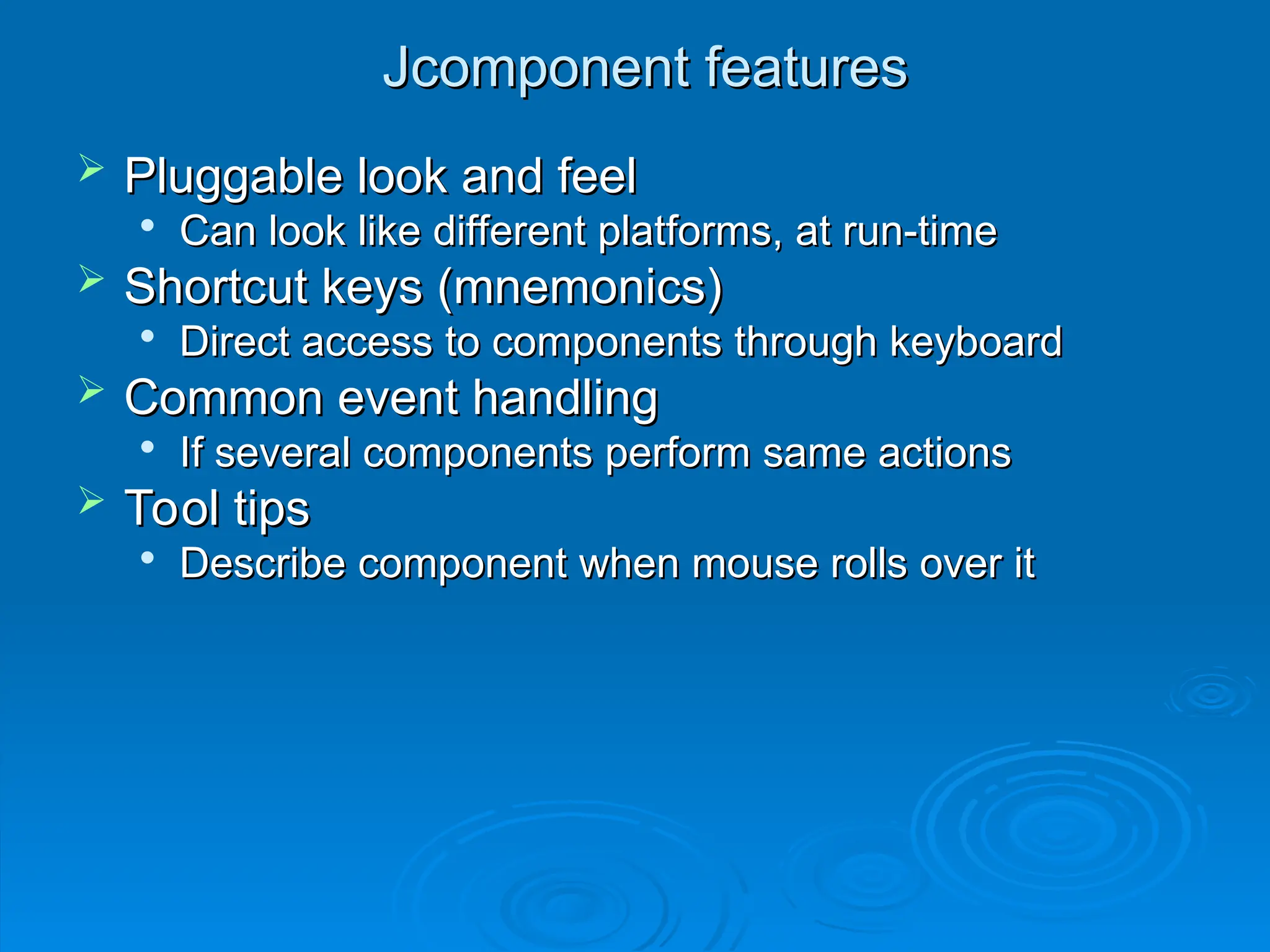
Jcomponent features
Jcomponent features
Pluggable look and feel
Pluggable look and feel
Can look like different platforms, at run-time
Can look like different platforms, at run-time
Shortcut keys (mnemonics)
Shortcut keys (mnemonics)
Direct access to components through keyboard
Direct access to components through keyboard
Common event handling
Common event handling
If several components perform same actions
If several components perform same actions
Tool tips
Tool tips
Describe component when mouse rolls over it
Describe component when mouse rolls over it
20.
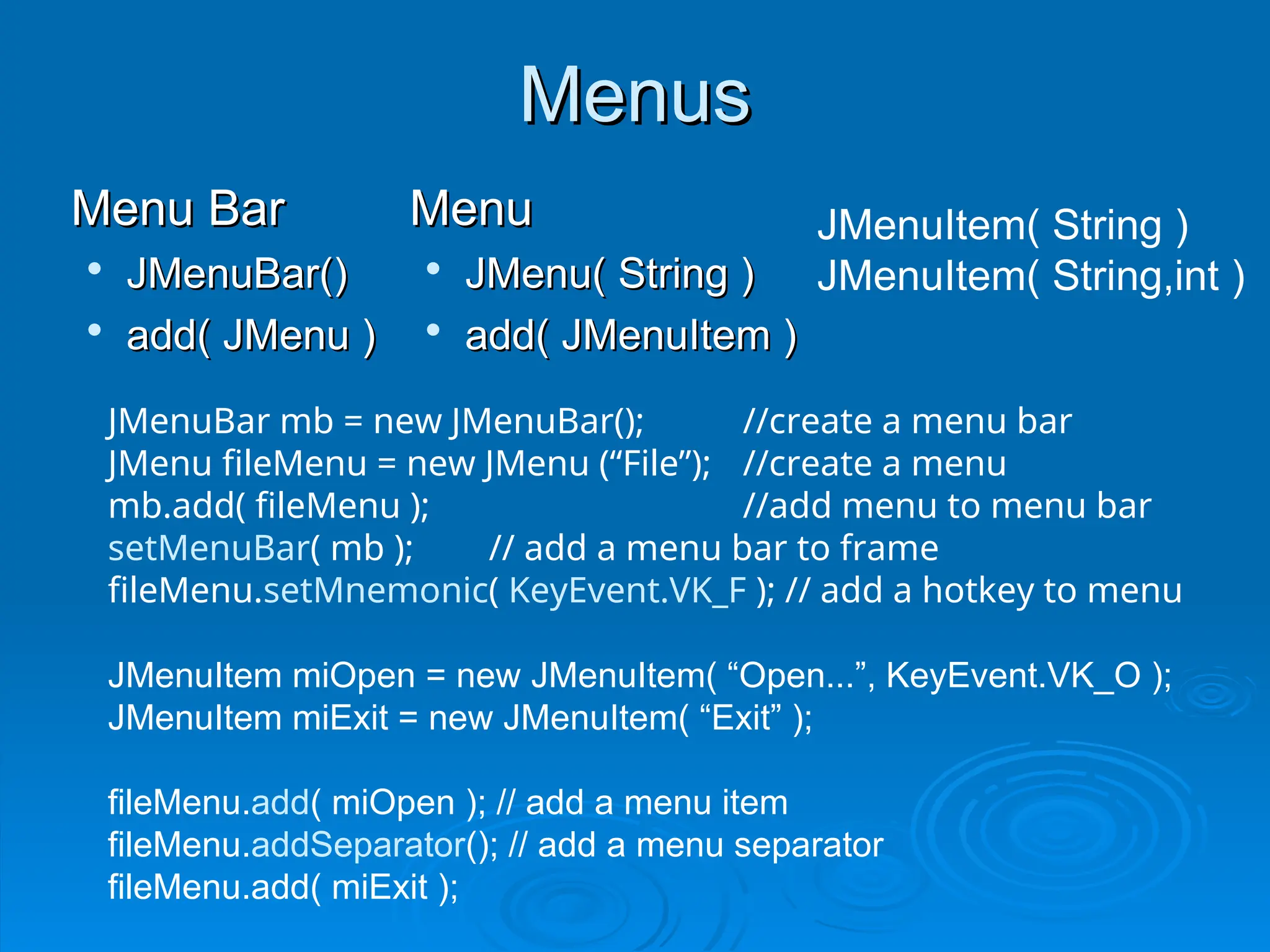
Menus
Menus
Menu Bar
Menu Bar
JMenuBar()
JMenuBar()
add(JMenu )
add( JMenu )
Menu
Menu
JMenu( String )
JMenu( String )
add( JMenuItem )
add( JMenuItem )
JMenuBar mb = new JMenuBar(); //create a menu bar
JMenu fileMenu = new JMenu (“File”); //create a menu
mb.add( fileMenu ); //add menu to menu bar
setMenuBar( mb ); // add a menu bar to frame
fileMenu.setMnemonic( KeyEvent.VK_F ); // add a hotkey to menu
JMenuItem miOpen = new JMenuItem( “Open...”, KeyEvent.VK_O );
JMenuItem miExit = new JMenuItem( “Exit” );
fileMenu.add( miOpen ); // add a menu item
fileMenu.addSeparator(); // add a menu separator
fileMenu.add( miExit );
JMenuItem( String )
JMenuItem( String,int )
21.
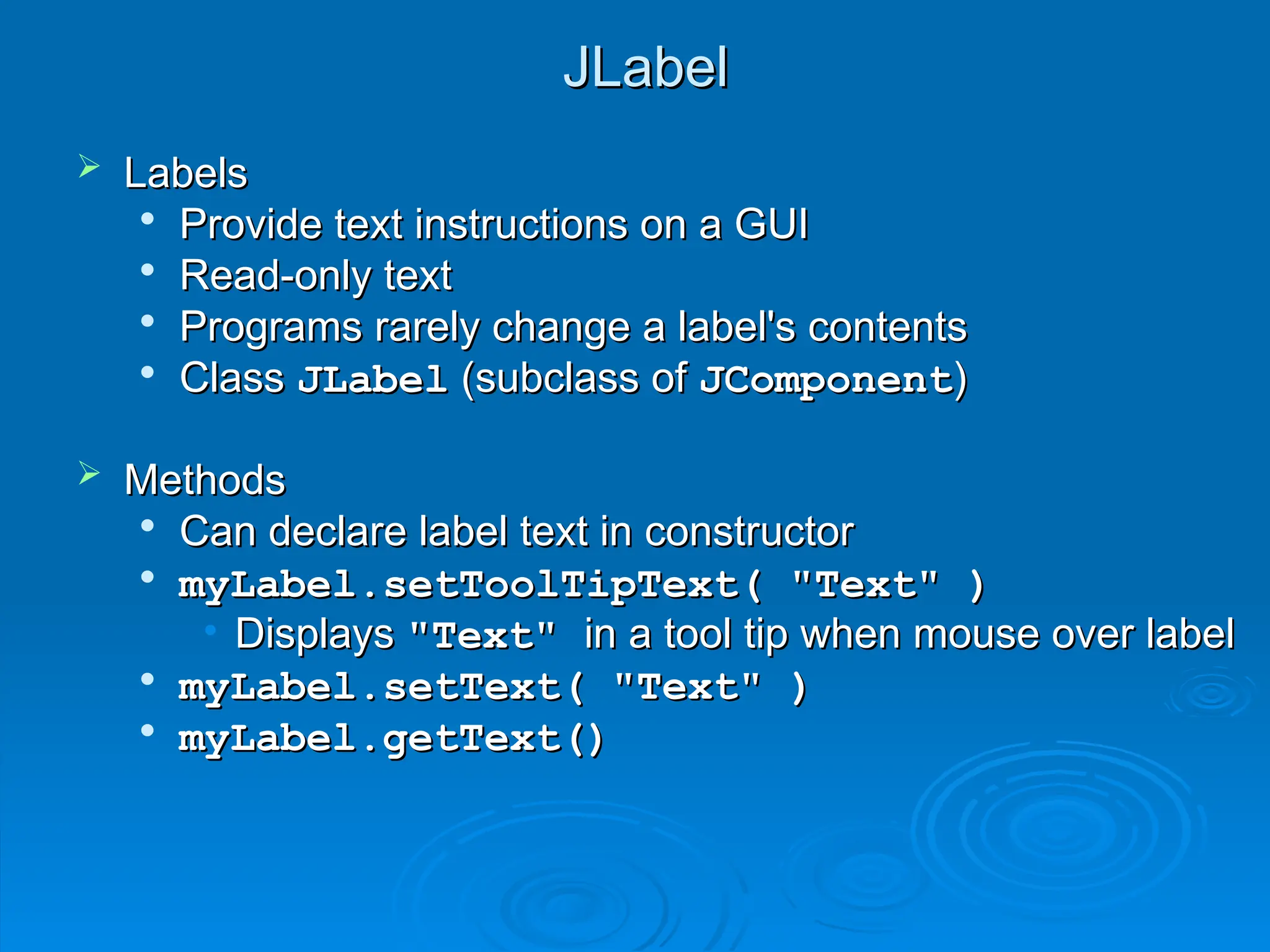
JLabel
JLabel
Labels
Labels
Provide textinstructions on a GUI
Provide text instructions on a GUI
Read-only text
Read-only text
Programs rarely change a label's contents
Programs rarely change a label's contents
Class
Class JLabel
JLabel (subclass of
(subclass of JComponent
JComponent)
)
Methods
Methods
Can declare label text in constructor
Can declare label text in constructor
myLabel.setToolTipText( "Text" )
myLabel.setToolTipText( "Text" )
• Displays
Displays "Text"
"Text" in a tool tip when mouse over label
in a tool tip when mouse over label
myLabel.setText( "Text" )
myLabel.setText( "Text" )
myLabel.getText()
myLabel.getText()
22.
JLabel
JLabel
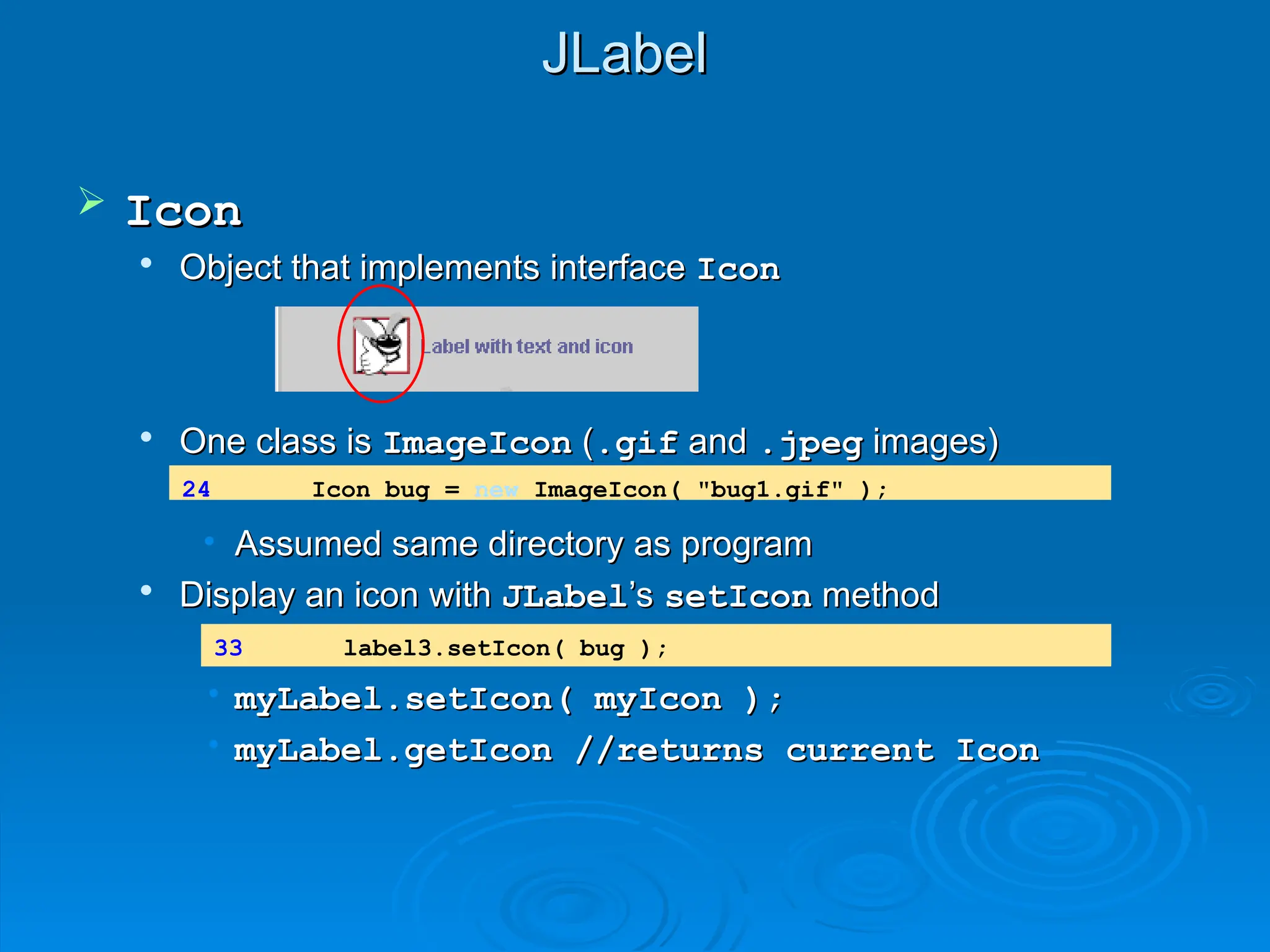
Icon
Icon
Object thatimplements interface
Object that implements interface Icon
Icon
One class is
One class is ImageIcon
ImageIcon (
(.gif
.gif and
and .jpeg
.jpeg images)
images)
• Assumed same directory as program
Assumed same directory as program
Display an icon with
Display an icon with JLabel
JLabel’s
’s setIcon
setIcon method
method
• myLabel.setIcon( myIcon );
myLabel.setIcon( myIcon );
• myLabel.getIcon //returns current Icon
myLabel.getIcon //returns current Icon
24 Icon bug = new ImageIcon( "bug1.gif" );
33 label3.setIcon( bug );
23.
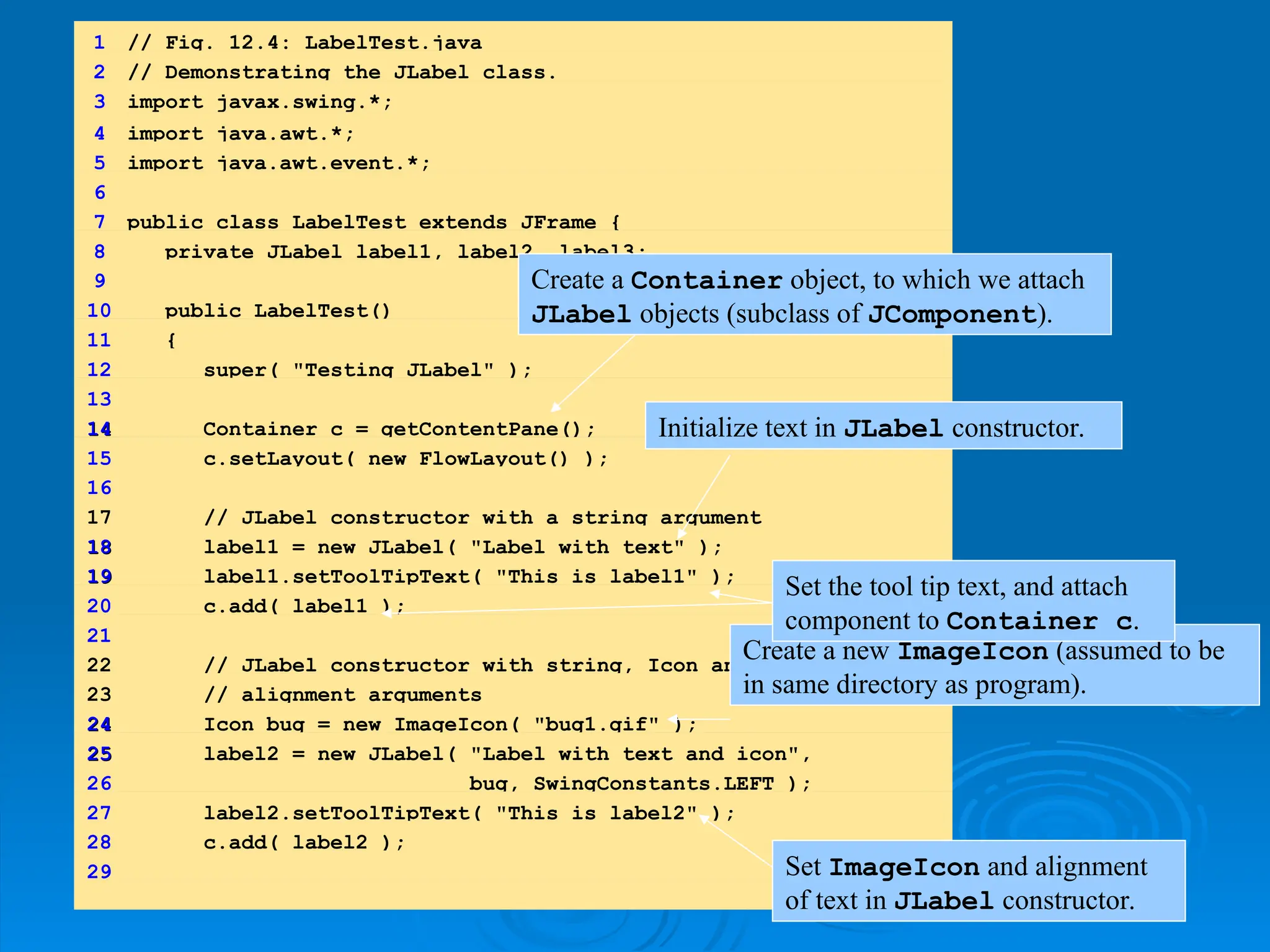
1 // Fig.12.4: LabelTest.java
2 // Demonstrating the JLabel class.
3 import javax.swing.*;
4 import java.awt.*;
5 import java.awt.event.*;
6
7 public class LabelTest extends JFrame {
8 private JLabel label1, label2, label3;
9
10 public LabelTest()
11 {
12 super( "Testing JLabel" );
13
14
14 Container c = getContentPane();
15 c.setLayout( new FlowLayout() );
16
17 // JLabel constructor with a string argument
18
18 label1 = new JLabel( "Label with text" );
19
19 label1.setToolTipText( "This is label1" );
20 c.add( label1 );
21
22 // JLabel constructor with string, Icon and
23 // alignment arguments
24
24 Icon bug = new ImageIcon( "bug1.gif" );
25
25 label2 = new JLabel( "Label with text and icon",
26 bug, SwingConstants.LEFT );
27 label2.setToolTipText( "This is label2" );
28 c.add( label2 );
29
Create a Container object, to which we attach
JLabel objects (subclass of JComponent).
Initialize text in JLabel constructor.
Create a new ImageIcon (assumed to be
in same directory as program).
Set ImageIcon and alignment
of text in JLabel constructor.
Set the tool tip text, and attach
component to Container c.
24.
JButton
JButton
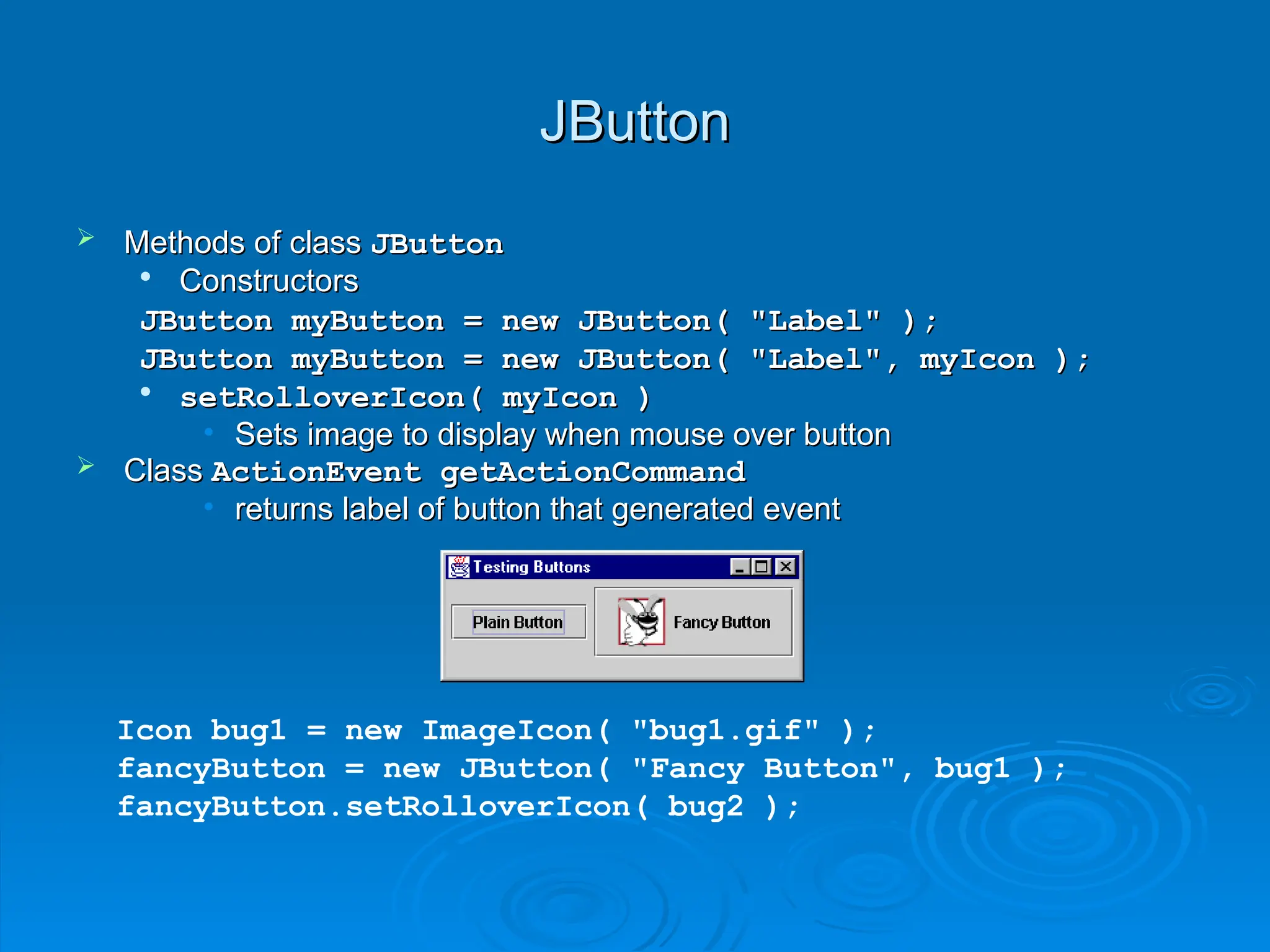
Methods ofclass
Methods of class JButton
JButton
Constructors
Constructors
JButton myButton = new JButton( "Label" );
JButton myButton = new JButton( "Label" );
JButton myButton = new JButton( "Label", myIcon );
JButton myButton = new JButton( "Label", myIcon );
setRolloverIcon( myIcon )
setRolloverIcon( myIcon )
• Sets image to display when mouse over button
Sets image to display when mouse over button
Class
Class ActionEvent getActionCommand
ActionEvent getActionCommand
• returns label of button that generated event
returns label of button that generated event
Icon bug1 = new ImageIcon( "bug1.gif" );
fancyButton = new JButton( "Fancy Button", bug1 );
fancyButton.setRolloverIcon( bug2 );
25.
JCheckBox
JCheckBox
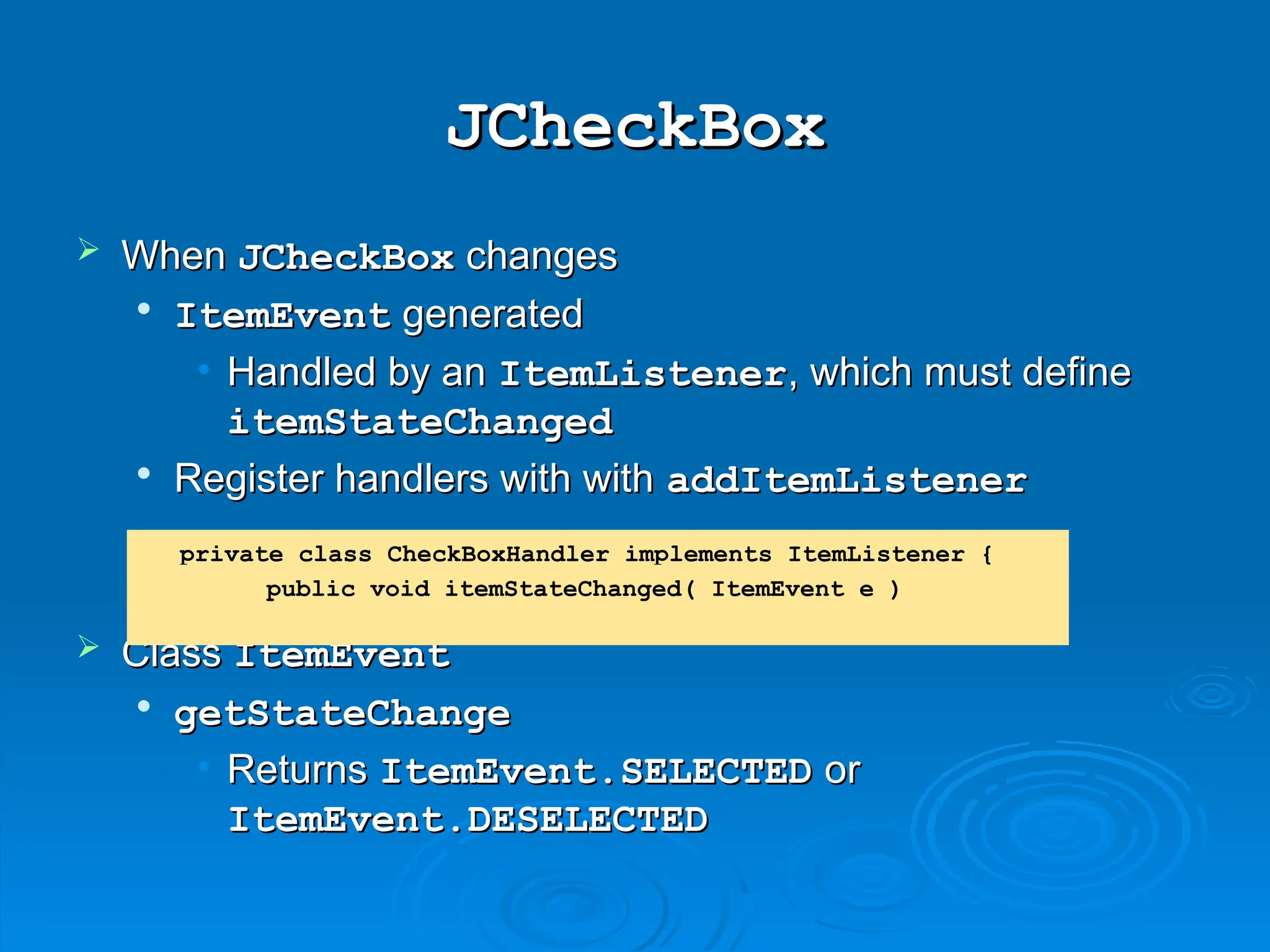
When
When JCheckBox
JCheckBoxchanges
changes
ItemEvent
ItemEvent generated
generated
• Handled by an
Handled by an ItemListener
ItemListener, which must define
, which must define
itemStateChanged
itemStateChanged
Register handlers with with
Register handlers with with addItemListener
addItemListener
Class
Class ItemEvent
ItemEvent
getStateChange
getStateChange
• Returns
Returns ItemEvent.SELECTED
ItemEvent.SELECTED or
or
ItemEvent.DESELECTED
ItemEvent.DESELECTED
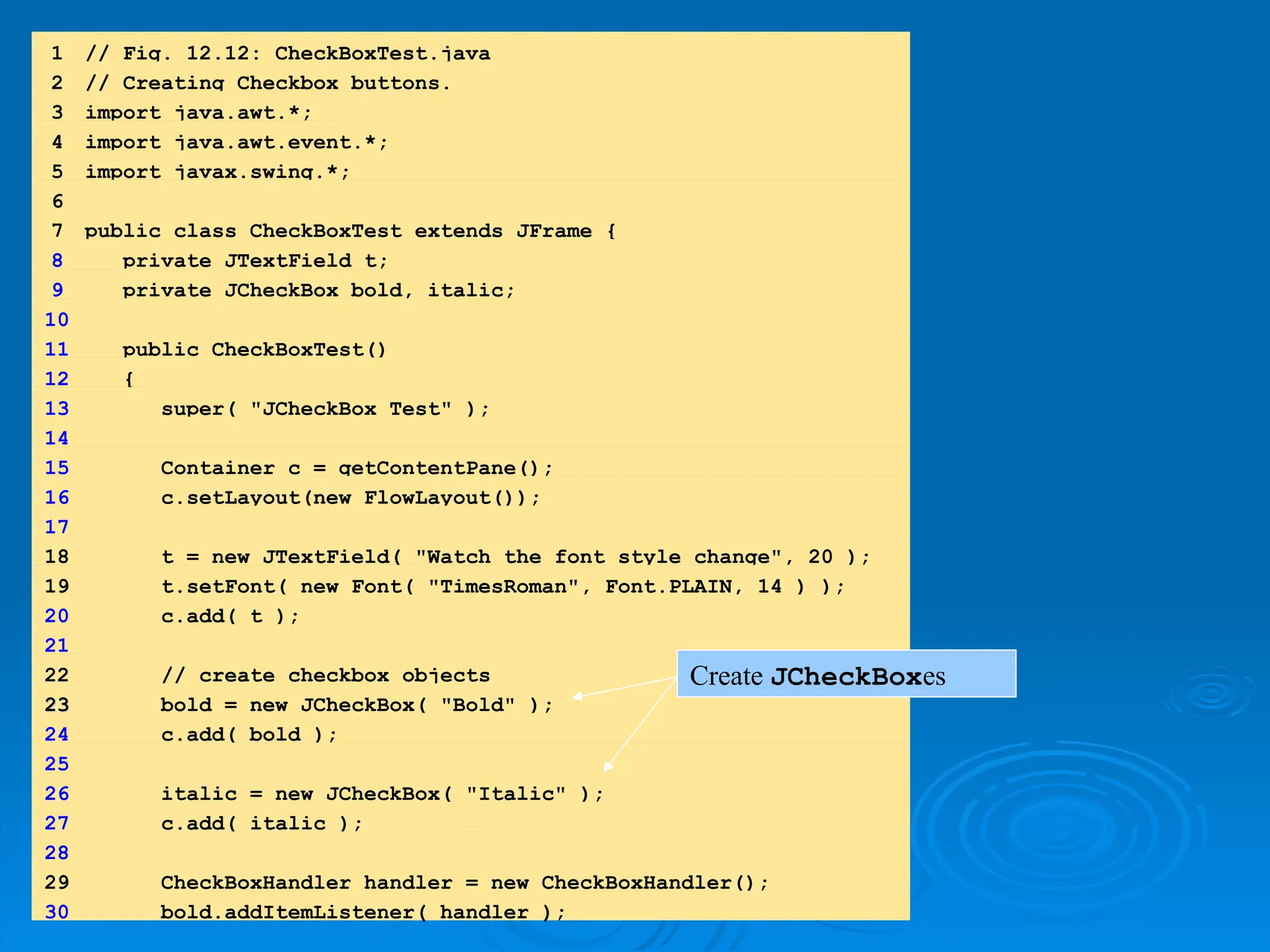
private class CheckBoxHandler implements ItemListener {
public void itemStateChanged( ItemEvent e )
31 italic.addItemListener( handler);
32
33 addWindowListener(
34 new WindowAdapter() {
35 public void windowClosing( WindowEvent e )
36 {
37 System.exit( 0 );
38 }
39 }
40 );
41
42 setSize( 275, 100 );
43 show();
44 }
45
46 public static void main( String args[] )
47 {
48 new CheckBoxTest();
49 }
50
51
51 private class CheckBoxHandler implements ItemListener {
52 private int valBold = Font.PLAIN;
53 private int valItalic = Font.PLAIN;
54
55 public void itemStateChanged( ItemEvent e )
56 {
57 if ( e.getSource() == bold )
58
58 if ( e.getStateChange() == ItemEvent.SELECTED )
59 valBold = Font.BOLD;
60 else
61 valBold = Font.PLAIN;
Because CheckBoxHandler implements
ItemListener, it must define method
itemStateChanged
getStateChange returns
ItemEvent.SELECTED or
ItemEvent.DESELECTED
28.
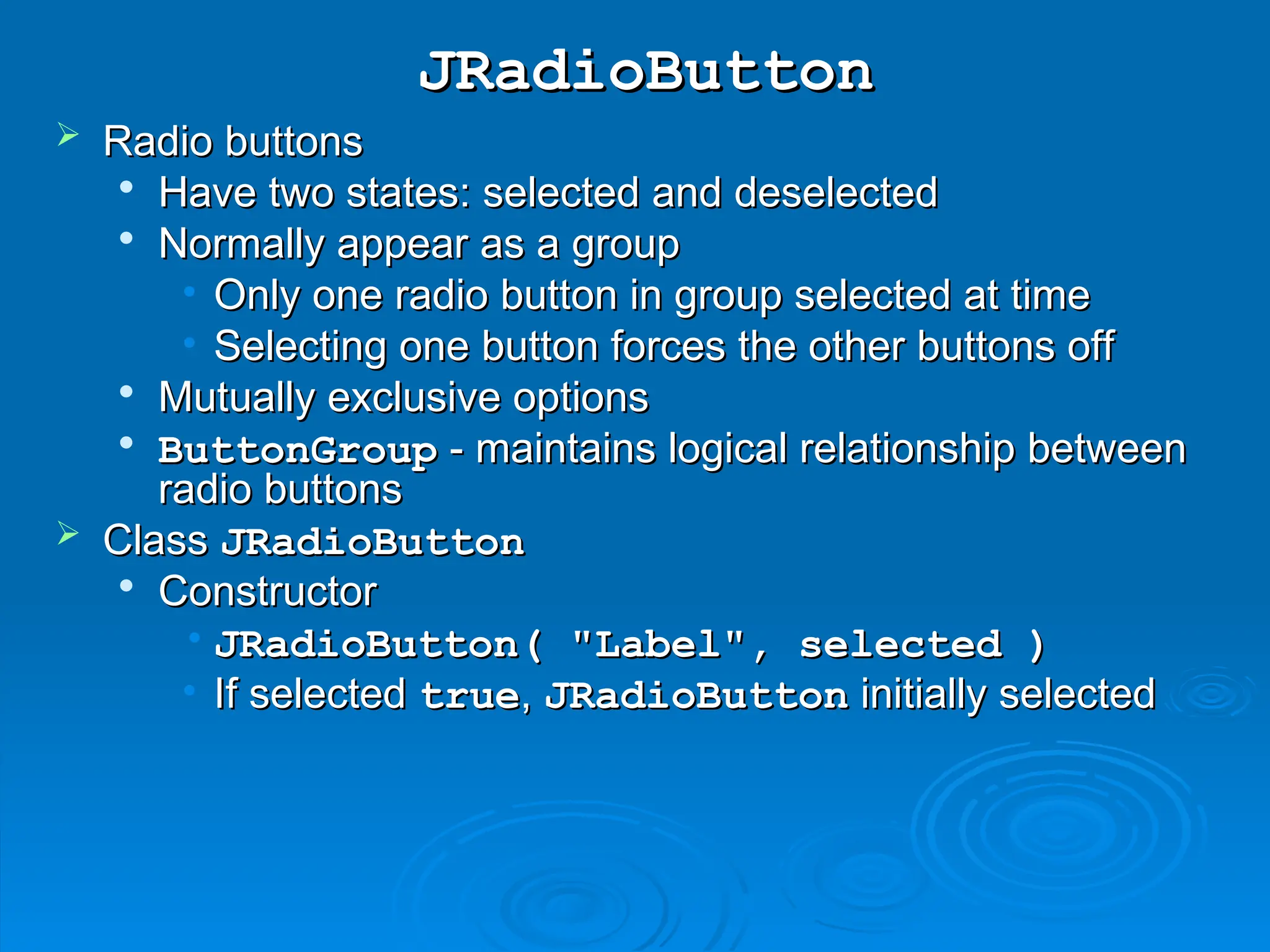
JRadioButton
JRadioButton
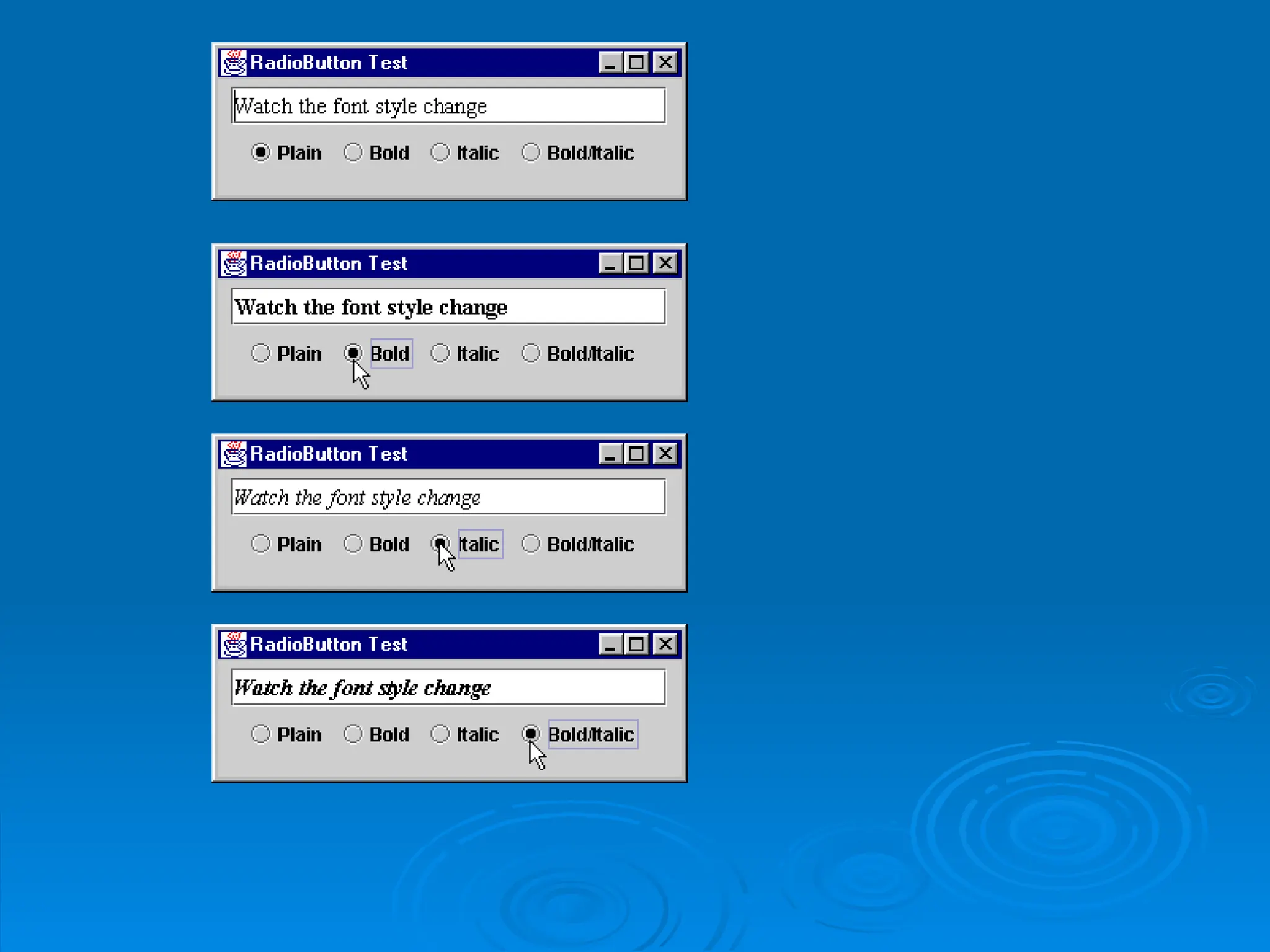
Radio buttons
Radiobuttons
Have two states: selected and deselected
Have two states: selected and deselected
Normally appear as a group
Normally appear as a group
• Only one radio button in group selected at time
Only one radio button in group selected at time
• Selecting one button forces the other buttons off
Selecting one button forces the other buttons off
Mutually exclusive options
Mutually exclusive options
ButtonGroup
ButtonGroup - maintains logical relationship between
- maintains logical relationship between
radio buttons
radio buttons
Class
Class JRadioButton
JRadioButton
Constructor
Constructor
• JRadioButton( "Label", selected )
JRadioButton( "Label", selected )
• If selected
If selected true
true,
, JRadioButton
JRadioButton initially selected
initially selected
29.
1.
1. import
import
1.1 Declarations
1.1Declarations
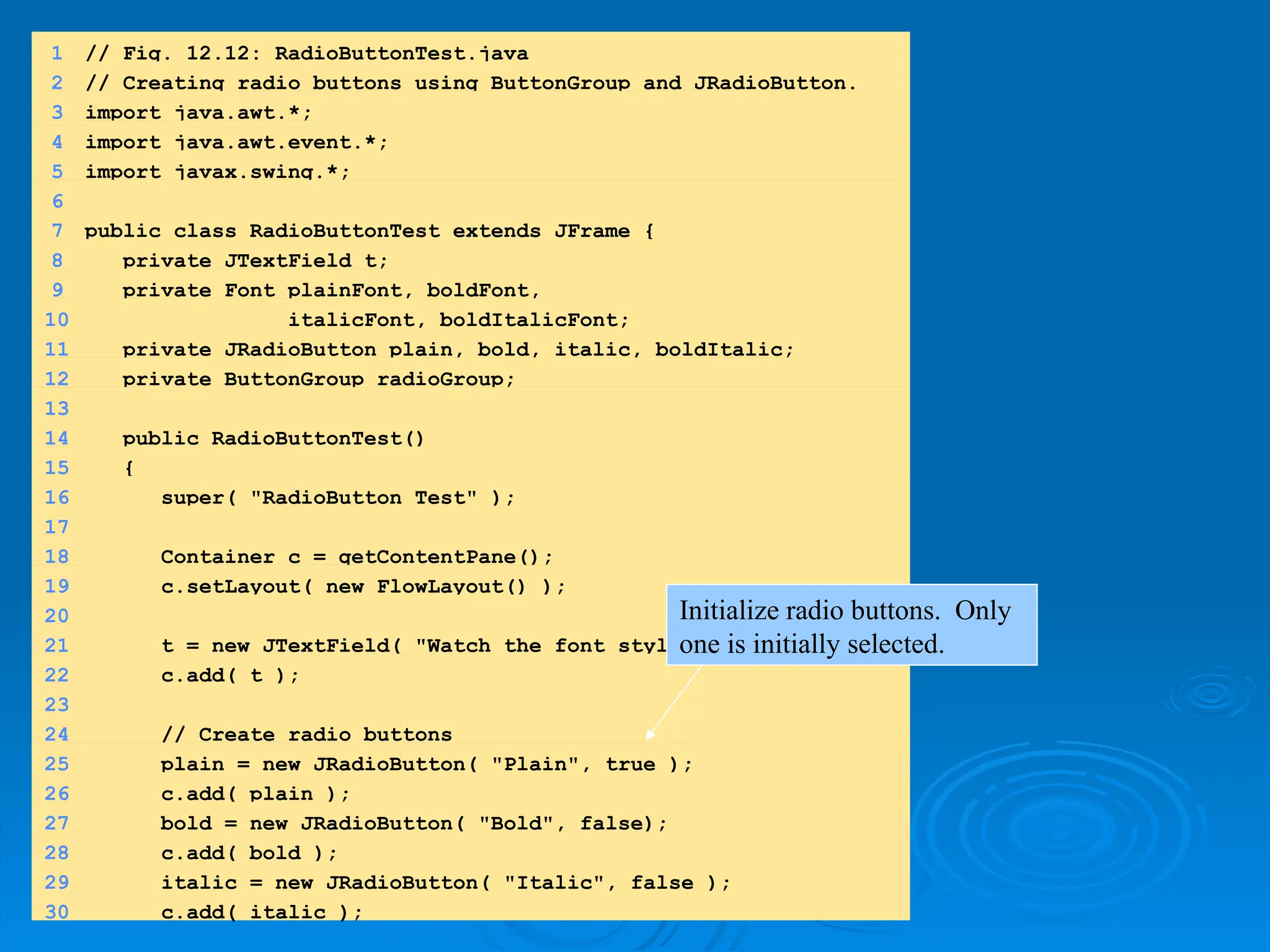
1 // Fig. 12.12: RadioButtonTest.java
2 // Creating radio buttons using ButtonGroup and JRadioButton.
3 import java.awt.*;
4 import java.awt.event.*;
5 import javax.swing.*;
6
7 public class RadioButtonTest extends JFrame {
8 private JTextField t;
9 private Font plainFont, boldFont,
10 italicFont, boldItalicFont;
11 private JRadioButton plain, bold, italic, boldItalic;
12 private ButtonGroup radioGroup;
13
14 public RadioButtonTest()
15 {
16 super( "RadioButton Test" );
17
18 Container c = getContentPane();
19 c.setLayout( new FlowLayout() );
20
21 t = new JTextField( "Watch the font style change", 25 );
22 c.add( t );
23
24 // Create radio buttons
25 plain = new JRadioButton( "Plain", true );
26 c.add( plain );
27 bold = new JRadioButton( "Bold", false);
28 c.add( bold );
29 italic = new JRadioButton( "Italic", false );
30 c.add( italic );
Initialize radio buttons. Only
one is initially selected.
30.
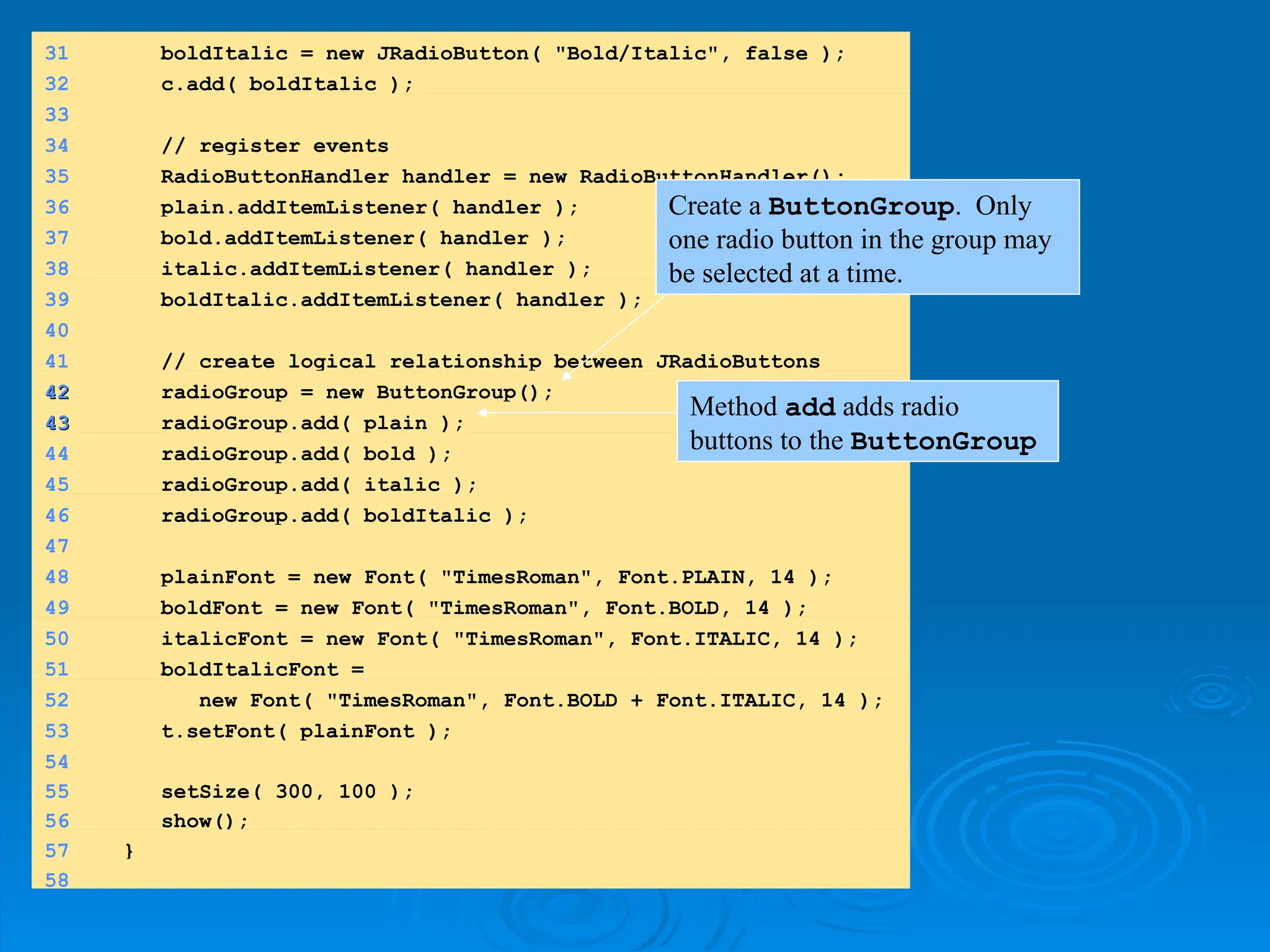
31 boldItalic =new JRadioButton( "Bold/Italic", false );
32 c.add( boldItalic );
33
34 // register events
35 RadioButtonHandler handler = new RadioButtonHandler();
36 plain.addItemListener( handler );
37 bold.addItemListener( handler );
38 italic.addItemListener( handler );
39 boldItalic.addItemListener( handler );
40
41 // create logical relationship between JRadioButtons
42
42 radioGroup = new ButtonGroup();
43
43 radioGroup.add( plain );
44 radioGroup.add( bold );
45 radioGroup.add( italic );
46 radioGroup.add( boldItalic );
47
48 plainFont = new Font( "TimesRoman", Font.PLAIN, 14 );
49 boldFont = new Font( "TimesRoman", Font.BOLD, 14 );
50 italicFont = new Font( "TimesRoman", Font.ITALIC, 14 );
51 boldItalicFont =
52 new Font( "TimesRoman", Font.BOLD + Font.ITALIC, 14 );
53 t.setFont( plainFont );
54
55 setSize( 300, 100 );
56 show();
57 }
58
Create a ButtonGroup. Only
one radio button in the group may
be selected at a time.
Method add adds radio
buttons to the ButtonGroup
32.
JList
JList
List
List
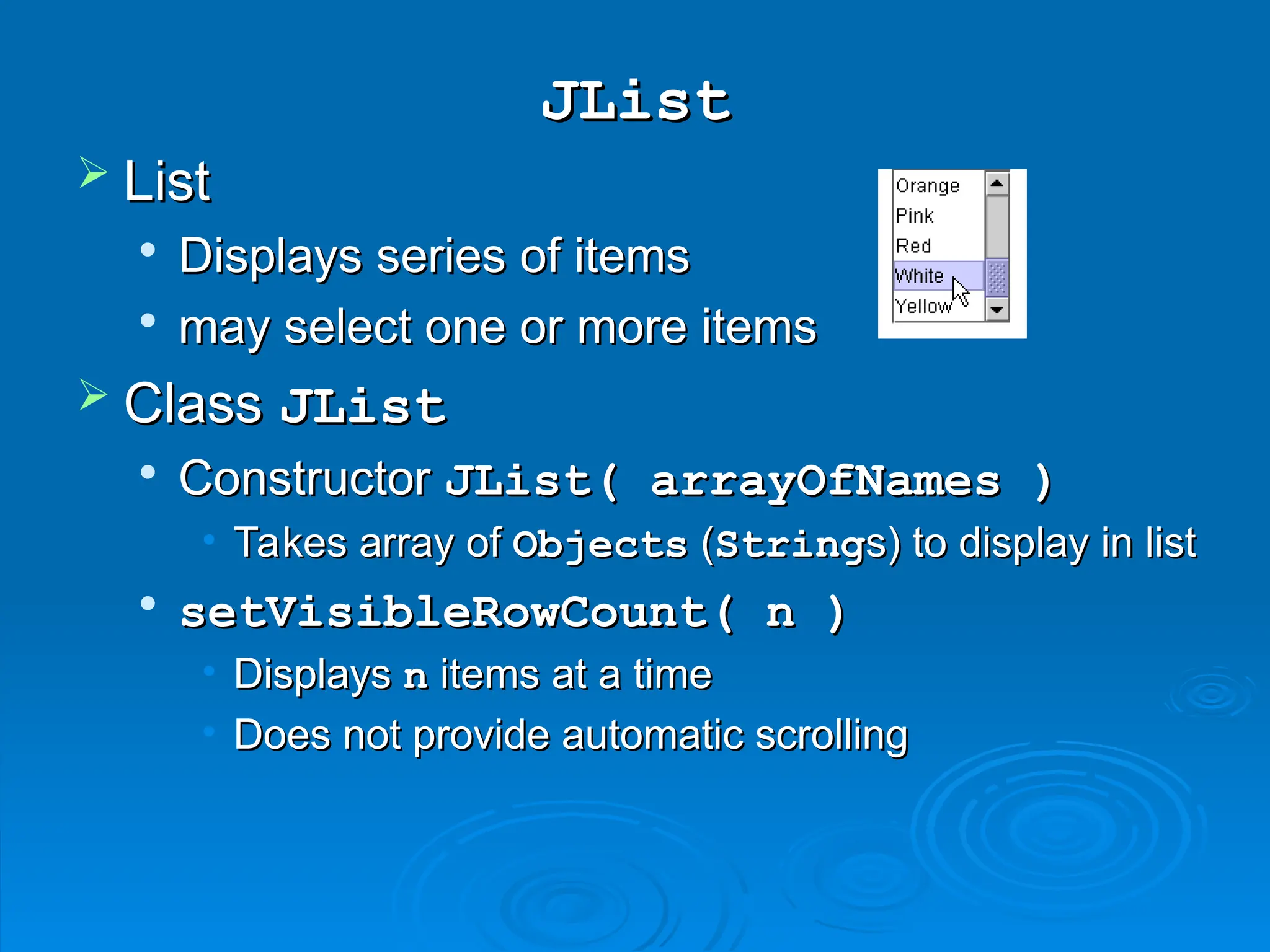
Displays seriesof items
Displays series of items
may select one or more items
may select one or more items
Class
Class JList
JList
Constructor
Constructor JList( arrayOfNames )
JList( arrayOfNames )
• Takes array of
Takes array of Objects
Objects (
(String
Strings) to display in list
s) to display in list
setVisibleRowCount( n )
setVisibleRowCount( n )
• Displays
Displays n
n items at a time
items at a time
• Does not provide automatic scrolling
Does not provide automatic scrolling
33.
30 // createa list with the items in the colorNames array
31
31 colorList = new JList( colorNames );
32 colorList.setVisibleRowCount( 5 );
33
34 // do not allow multiple selections
35
35 colorList.setSelectionMode(
36 ListSelectionModel.SINGLE_SELECTION );
37
38 // add a JScrollPane containing the JList
39 // to the content pane
40
40 c.add( new JScrollPane( colorList ) );
41
42 // set up event handler
43 colorList.addListSelectionListener(
44 new ListSelectionListener() {
45 public void valueChanged( ListSelectionEvent e )
46 {
47
47 c.setBackground(
48 colors[ colorList.getSelectedIndex() ] );
49 }
50 }
51 );
52
53 setSize( 350, 150 );
54 show();
55 }
56
57 public static void main( String args[] )
58 {
59 ListTest app = new ListTest();
Initialize JList with array of
Strings, and show 5 items at
a time.
Make the JList a single-
selection list.
Create a new JScrollPane
object, initialize it with a JList,
and attach it to the content pane.
Change the color according to the item
selected (use getSelectedIndex).
34.
1 // Fig.12.20: MouseDetails.java
2 // Demonstrating mouse clicks and
3 // distinguishing between mouse buttons.
4 import javax.swing.*;
5 import java.awt.*;
6 import java.awt.event.*;
7
8 public class MouseDetails extends JFrame {
9 private String s = "";
10 private int xPos, yPos;
11
12 public MouseDetails()
13 {
14 super( "Mouse clicks and buttons" );
15
16 addMouseListener( new MouseClickHandler() );
17
18 setSize( 350, 150 );
19 show();
20 }
21
22 public void paint( Graphics g )
23 {
24 g.drawString( "Clicked @ [" + xPos + ", " + yPos + "]",
25 xPos, yPos );
26 }
27
Another example, illustrating
mouse events in AWT and Swing
Add a listener for a
mouse click.
35.
28 public staticvoid main( String args[] )
29 {
30 MouseDetails app = new MouseDetails();
31
32 app.addWindowListener(
33 new WindowAdapter() {
34 public void windowClosing( WindowEvent e )
35 {
36 System.exit( 0 );
37 }
38 }
39 );
40 }
41
42 // inner class to handle mouse events
43
43 private class MouseClickHandler extends MouseAdapter {
44 public void mouseClicked( MouseEvent e )
45 {
46 xPos = e.getX();
47 yPos = e.getY();
48
49 String s =
50
50 "Clicked " + e.getClickCount() + " time(s)";
51
52 if ( e.isMetaDown() ) // Right mouse button
53 s += " with right mouse button";
54 else if ( e.isAltDown() ) // Middle mouse button
55 s += " with center mouse button";
56 else // Left mouse button
57 s += " with left mouse button";
58
Use a named inner class as the event handler. Can still
inherit from MouseAdapter (extends MouseAdapter).
Use getClickCount, isAltDown,
and isMetaDown to determine the
String to use.
36.
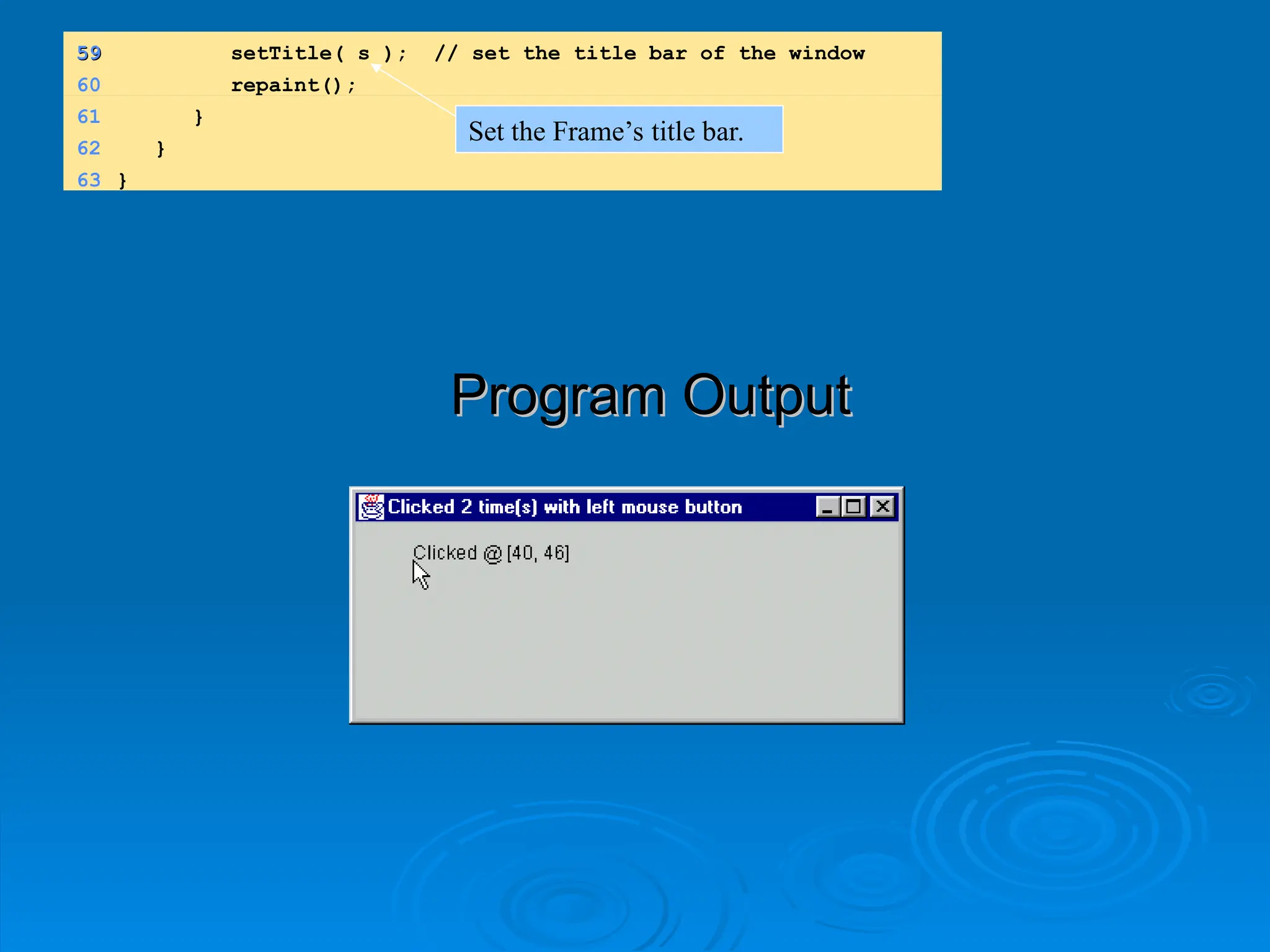
Program Output
Program Output
59
59setTitle( s ); // set the title bar of the window
60 repaint();
61 }
62 }
63 }
Set the Frame’s title bar.
37.
Learn more about
Learnmore about
Swing compenents
Swing compenents
http://java.sun.com/docs/books/tutorial/
http://java.sun.com/docs/books/tutorial/
uiswing/components/componentlist.html
uiswing/components/componentlist.html
38.
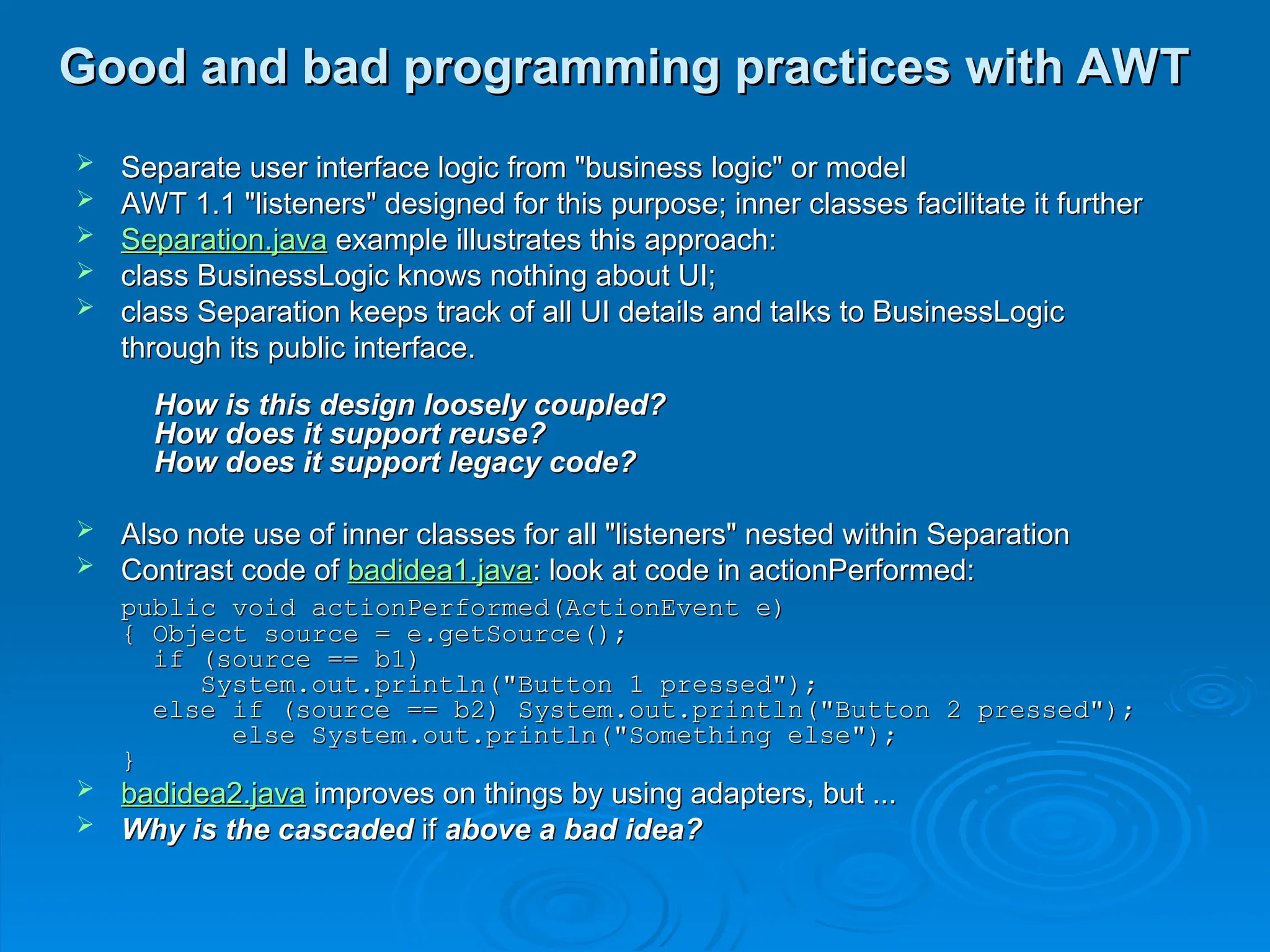
Good and badprogramming practices with AWT
Good and bad programming practices with AWT
Separate user interface logic from "business logic" or model
Separate user interface logic from "business logic" or model
AWT 1.1 "listeners" designed for this purpose; inner classes facilitate it further
AWT 1.1 "listeners" designed for this purpose; inner classes facilitate it further
Separation.java
Separation.java example illustrates this approach:
example illustrates this approach:
class BusinessLogic knows nothing about UI;
class BusinessLogic knows nothing about UI;
class Separation keeps track of all UI details and talks to BusinessLogic
class Separation keeps track of all UI details and talks to BusinessLogic
through its public interface.
through its public interface.
How is this design loosely coupled?
How is this design loosely coupled?
How does it support reuse?
How does it support reuse?
How does it support legacy code?
How does it support legacy code?
Also note use of inner classes for all "listeners" nested within Separation
Also note use of inner classes for all "listeners" nested within Separation
Contrast code of
Contrast code of badidea1.java
badidea1.java: look at code in actionPerformed:
: look at code in actionPerformed:
public void actionPerformed(ActionEvent e)
public void actionPerformed(ActionEvent e)
{ Object source = e.getSource();
{ Object source = e.getSource();
if (source == b1)
if (source == b1)
System.out.println("Button 1 pressed");
System.out.println("Button 1 pressed");
else if (source == b2) System.out.println("Button 2 pressed");
else if (source == b2) System.out.println("Button 2 pressed");
else System.out.println("Something else");
else System.out.println("Something else");
}
}
badidea2.java
badidea2.java improves on things by using adapters, but ...
improves on things by using adapters, but ...
Why is the cascaded
Why is the cascaded if
if above a bad idea?
above a bad idea?
Eclipse Widgets
Eclipse Widgets
Standard Widget Toolkit (SWT)
Standard Widget Toolkit (SWT)
GUI toolkit released in November 2001
GUI toolkit released in November 2001
Initially designed for the Eclipse IDE
Initially designed for the Eclipse IDE
“
“Best of both worlds” approach – use native
Best of both worlds” approach – use native
functionality when available, and Java implementation
functionality when available, and Java implementation
when unavailable
when unavailable
Takes on the
Takes on the appearance
appearance and
and behavior
behavior of the native
of the native
platform
platform
The code YOU write will be portable for all the
The code YOU write will be portable for all the
platforms that have SWT implementations
platforms that have SWT implementations
http://www.eclipse.org/swt/
http://www.eclipse.org/swt/ - SWT home page
- SWT home page
41.
GUI Builders
GUI Builders
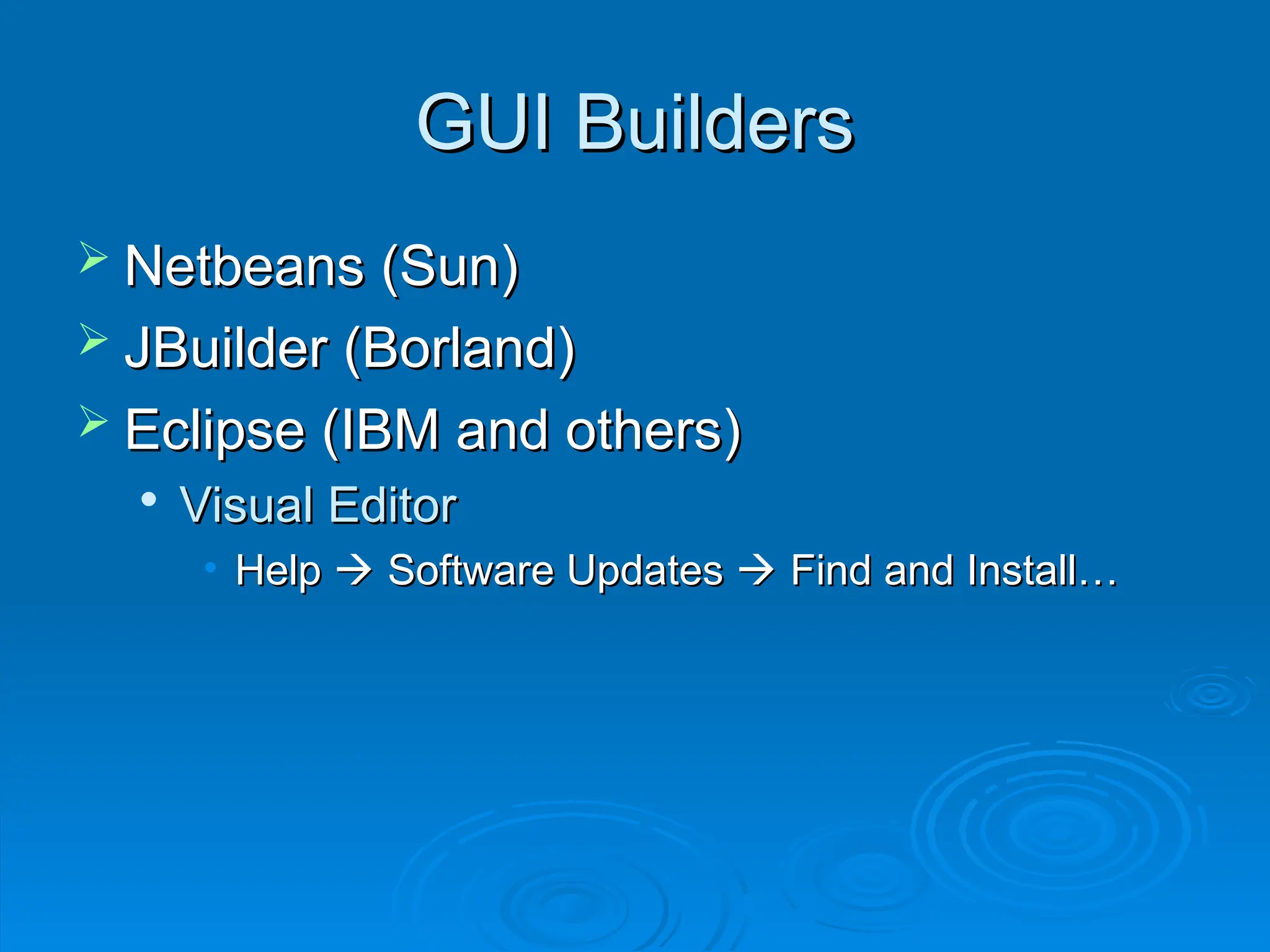
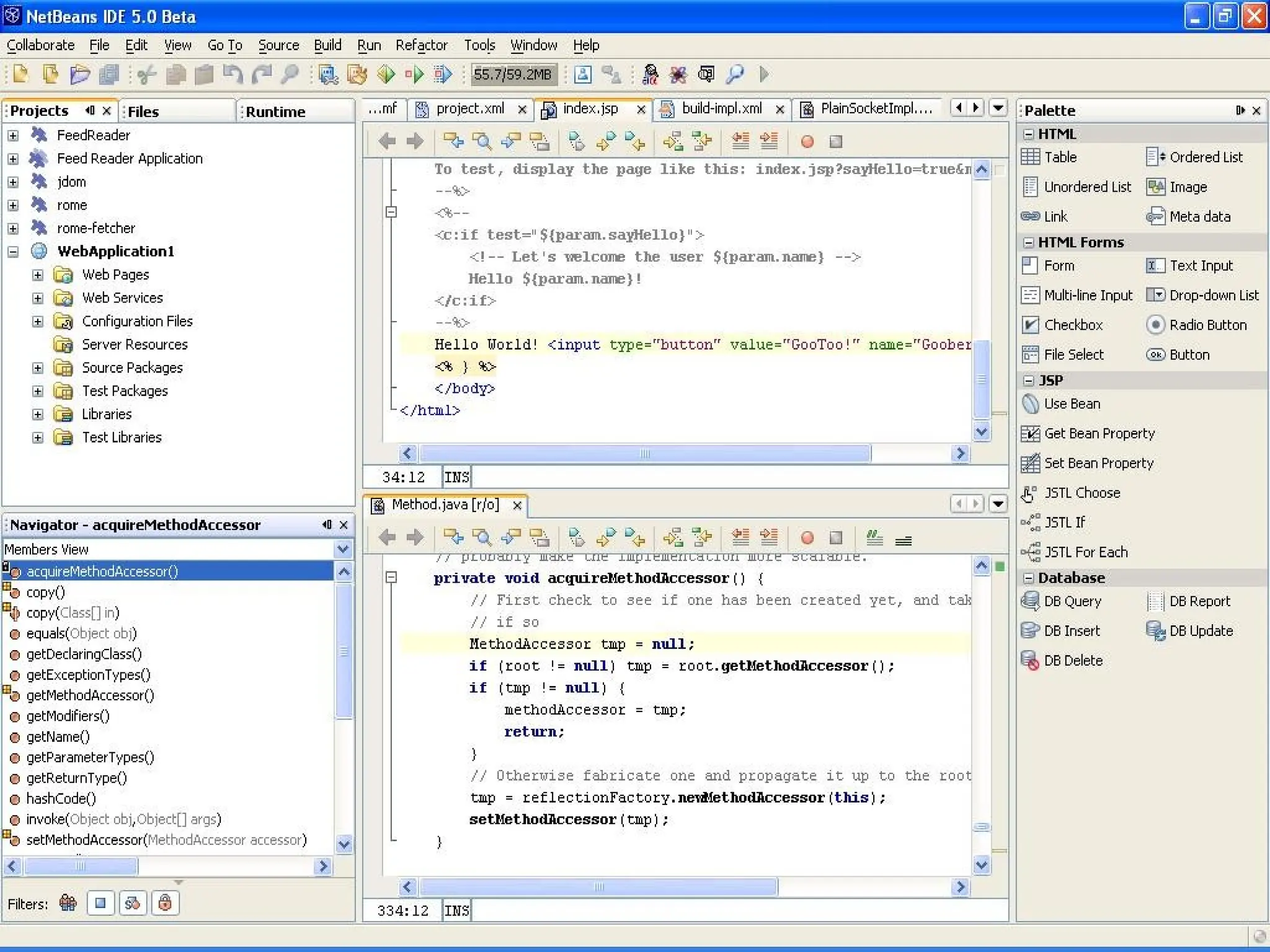
Netbeans (Sun)
Netbeans (Sun)
JBuilder (Borland)
JBuilder (Borland)
Eclipse (IBM and others)
Eclipse (IBM and others)
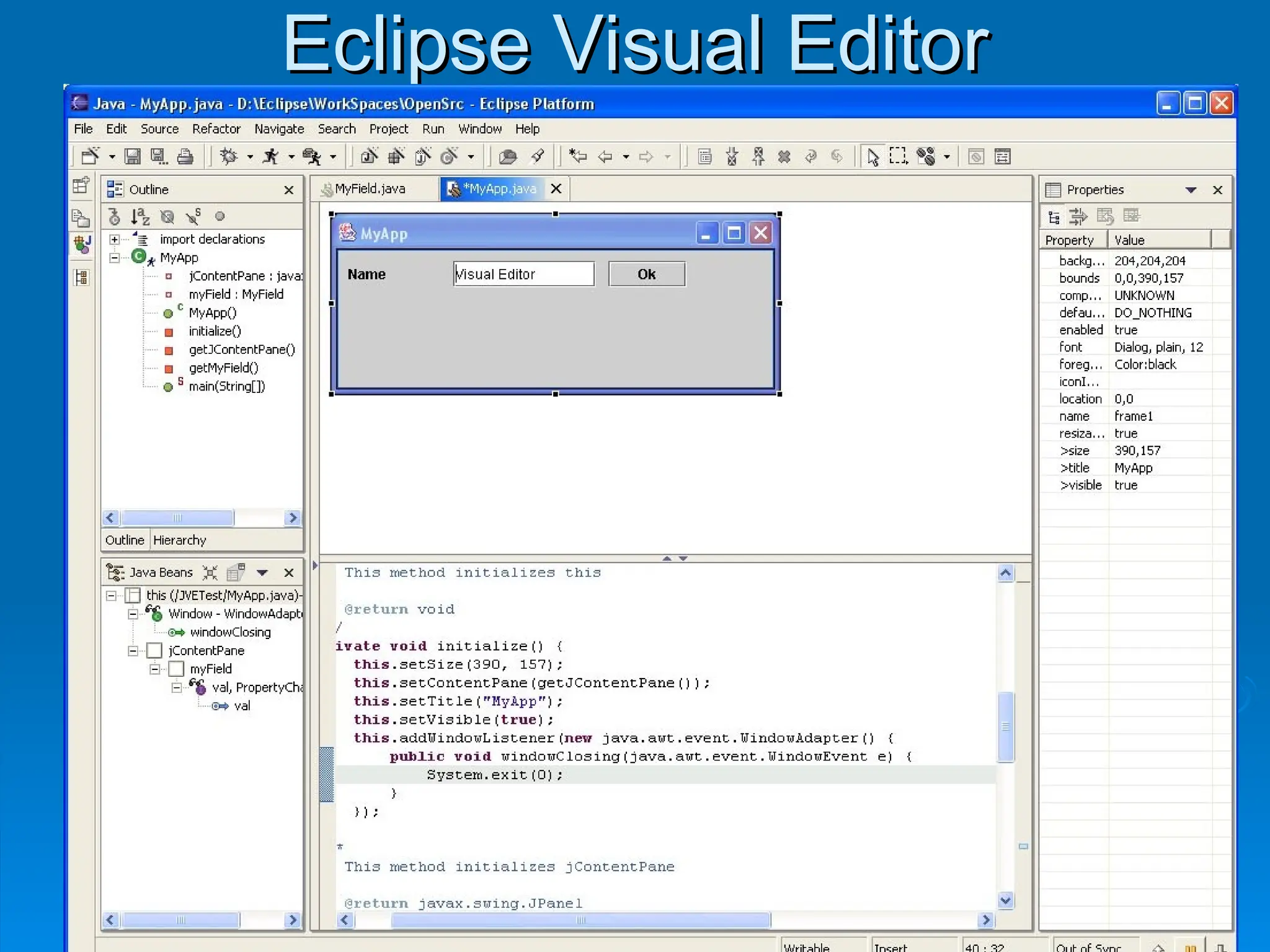
Visual Editor
Visual Editor
• Help
Help
Software Updates
Software Updates
Find and Install…
Find and Install…
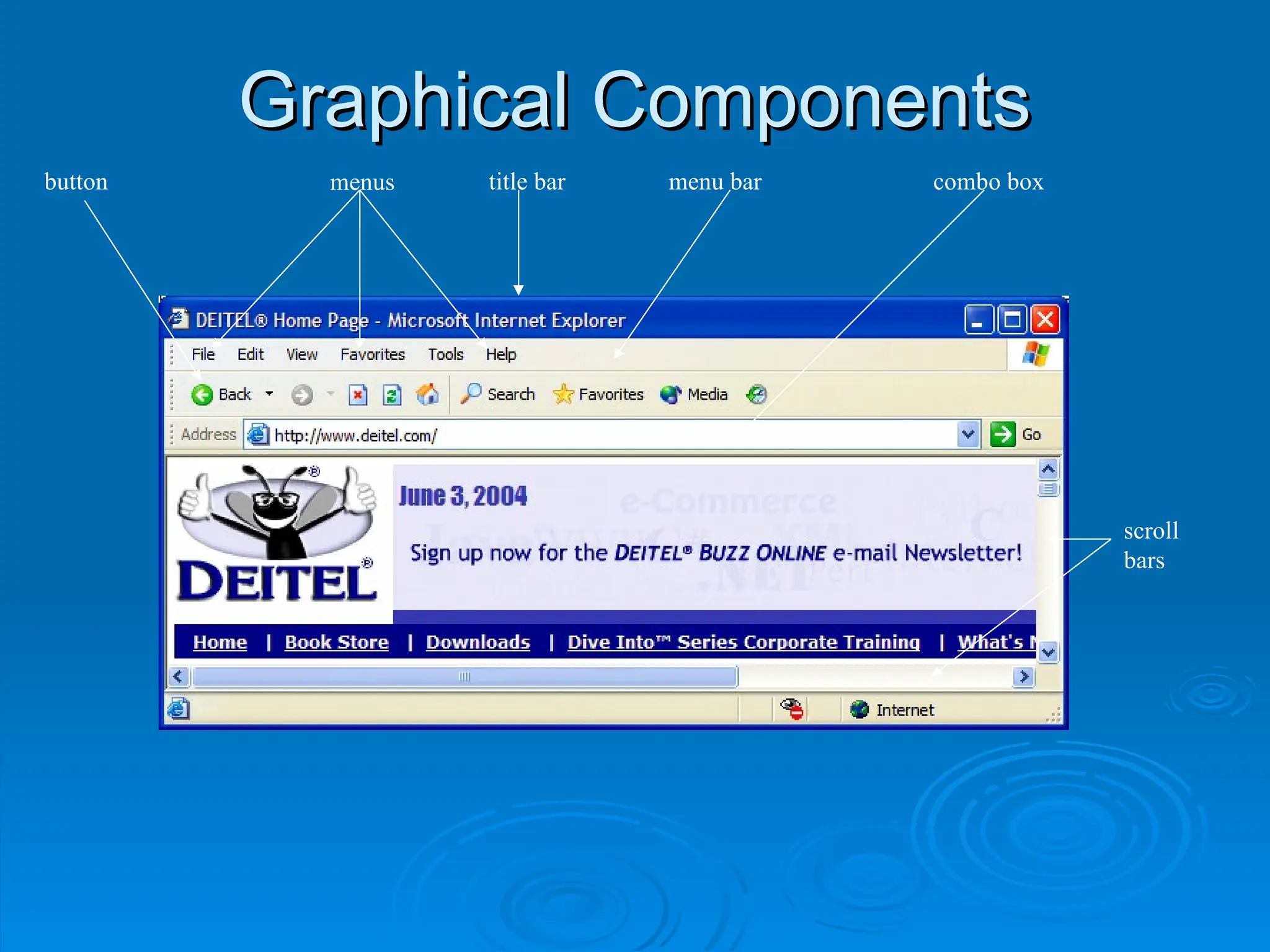
![A simple example
A simple example
//Demonstrates construction of a Container and a Button
//Demonstrates construction of a Container and a Button
import java.awt.*;
import java.awt.*;
class Gui extends Frame
class Gui extends Frame
{
{
public Gui(String s)
public Gui(String s) //constructor
//constructor
{ super(s);
{ super(s); //construct Frame part of Gui
//construct Frame part of Gui
setBackground(Color.yellow);
setBackground(Color.yellow);
setLayout(new FlowLayout());
setLayout(new FlowLayout());
Button pushButton = new Button("press me");
Button pushButton = new Button("press me");
add(pushButton);
add(pushButton);
}
}
} //class Gui
} //class Gui
class Ex_1
class Ex_1 //Creates an instance of class
//Creates an instance of class
Gui
Gui
{ public static void main(String[] args)
{ public static void main(String[] args)
{ Gui screen = new Gui("Example 1");
{ Gui screen = new Gui("Example 1");
screen.setSize(500,100);
screen.setSize(500,100);
screen.setVisible(true);
screen.setVisible(true);
}
}
} //class Ex_1
} //class Ex_1
Superclass does not most of the work
of creating an instance of Gui. Modify properties of Gui.
Create a button and attach it to Gui.
Construct a Gui, set its size
and make it visible.
What does this program not do?](https://image.slidesharecdn.com/awtandswing-251007094137-ab0167fb/75/Abstract-Window-Toolkit-and-Swing-Advanced-Java-11-2048.jpg)
![31 italic.addItemListener( handler );
32
33 addWindowListener(
34 new WindowAdapter() {
35 public void windowClosing( WindowEvent e )
36 {
37 System.exit( 0 );
38 }
39 }
40 );
41
42 setSize( 275, 100 );
43 show();
44 }
45
46 public static void main( String args[] )
47 {
48 new CheckBoxTest();
49 }
50
51
51 private class CheckBoxHandler implements ItemListener {
52 private int valBold = Font.PLAIN;
53 private int valItalic = Font.PLAIN;
54
55 public void itemStateChanged( ItemEvent e )
56 {
57 if ( e.getSource() == bold )
58
58 if ( e.getStateChange() == ItemEvent.SELECTED )
59 valBold = Font.BOLD;
60 else
61 valBold = Font.PLAIN;
Because CheckBoxHandler implements
ItemListener, it must define method
itemStateChanged
getStateChange returns
ItemEvent.SELECTED or
ItemEvent.DESELECTED](https://image.slidesharecdn.com/awtandswing-251007094137-ab0167fb/75/Abstract-Window-Toolkit-and-Swing-Advanced-Java-27-2048.jpg)
![30 // create a list with the items in the colorNames array
31
31 colorList = new JList( colorNames );
32 colorList.setVisibleRowCount( 5 );
33
34 // do not allow multiple selections
35
35 colorList.setSelectionMode(
36 ListSelectionModel.SINGLE_SELECTION );
37
38 // add a JScrollPane containing the JList
39 // to the content pane
40
40 c.add( new JScrollPane( colorList ) );
41
42 // set up event handler
43 colorList.addListSelectionListener(
44 new ListSelectionListener() {
45 public void valueChanged( ListSelectionEvent e )
46 {
47
47 c.setBackground(
48 colors[ colorList.getSelectedIndex() ] );
49 }
50 }
51 );
52
53 setSize( 350, 150 );
54 show();
55 }
56
57 public static void main( String args[] )
58 {
59 ListTest app = new ListTest();
Initialize JList with array of
Strings, and show 5 items at
a time.
Make the JList a single-
selection list.
Create a new JScrollPane
object, initialize it with a JList,
and attach it to the content pane.
Change the color according to the item
selected (use getSelectedIndex).](https://image.slidesharecdn.com/awtandswing-251007094137-ab0167fb/75/Abstract-Window-Toolkit-and-Swing-Advanced-Java-33-2048.jpg)
![1 // Fig. 12.20: MouseDetails.java
2 // Demonstrating mouse clicks and
3 // distinguishing between mouse buttons.
4 import javax.swing.*;
5 import java.awt.*;
6 import java.awt.event.*;
7
8 public class MouseDetails extends JFrame {
9 private String s = "";
10 private int xPos, yPos;
11
12 public MouseDetails()
13 {
14 super( "Mouse clicks and buttons" );
15
16 addMouseListener( new MouseClickHandler() );
17
18 setSize( 350, 150 );
19 show();
20 }
21
22 public void paint( Graphics g )
23 {
24 g.drawString( "Clicked @ [" + xPos + ", " + yPos + "]",
25 xPos, yPos );
26 }
27
Another example, illustrating
mouse events in AWT and Swing
Add a listener for a
mouse click.](https://image.slidesharecdn.com/awtandswing-251007094137-ab0167fb/75/Abstract-Window-Toolkit-and-Swing-Advanced-Java-34-2048.jpg)
![28 public static void main( String args[] )
29 {
30 MouseDetails app = new MouseDetails();
31
32 app.addWindowListener(
33 new WindowAdapter() {
34 public void windowClosing( WindowEvent e )
35 {
36 System.exit( 0 );
37 }
38 }
39 );
40 }
41
42 // inner class to handle mouse events
43
43 private class MouseClickHandler extends MouseAdapter {
44 public void mouseClicked( MouseEvent e )
45 {
46 xPos = e.getX();
47 yPos = e.getY();
48
49 String s =
50
50 "Clicked " + e.getClickCount() + " time(s)";
51
52 if ( e.isMetaDown() ) // Right mouse button
53 s += " with right mouse button";
54 else if ( e.isAltDown() ) // Middle mouse button
55 s += " with center mouse button";
56 else // Left mouse button
57 s += " with left mouse button";
58
Use a named inner class as the event handler. Can still
inherit from MouseAdapter (extends MouseAdapter).
Use getClickCount, isAltDown,
and isMetaDown to determine the
String to use.](https://image.slidesharecdn.com/awtandswing-251007094137-ab0167fb/75/Abstract-Window-Toolkit-and-Swing-Advanced-Java-35-2048.jpg)