Brandon Mcnamara 2D Game Workflow 
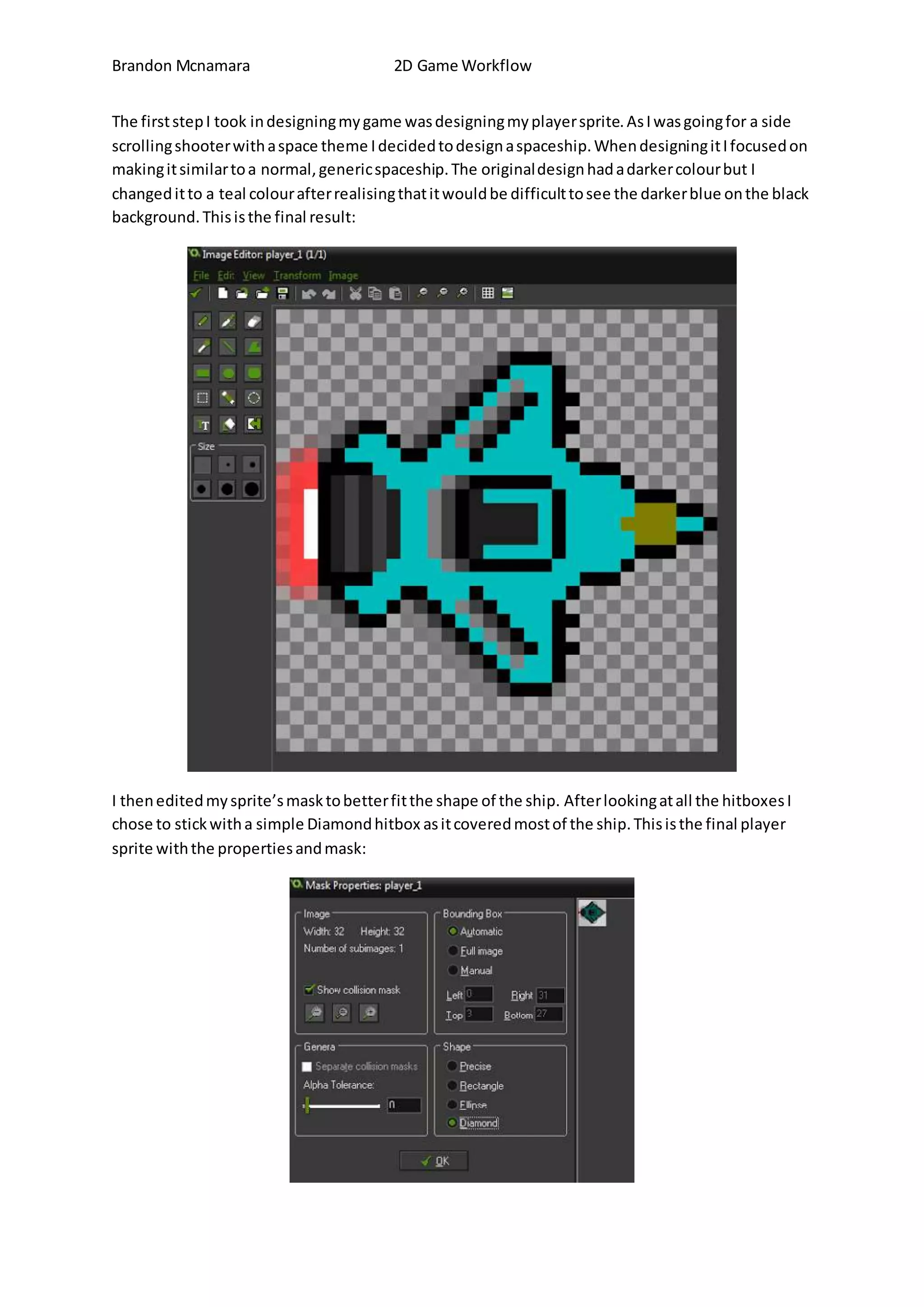
The first step I took in designing my game was designing my player sprite. As I was going for a side 
scrolling shooter with a space theme I decided to design a spaceship. When designing it I focused on 
making it similar to a normal, generic spaceship. The original design had a darker colour but I 
changed it to a teal colour after realising that it would be difficult to see the darker blue on the black 
background. This is the final result: 
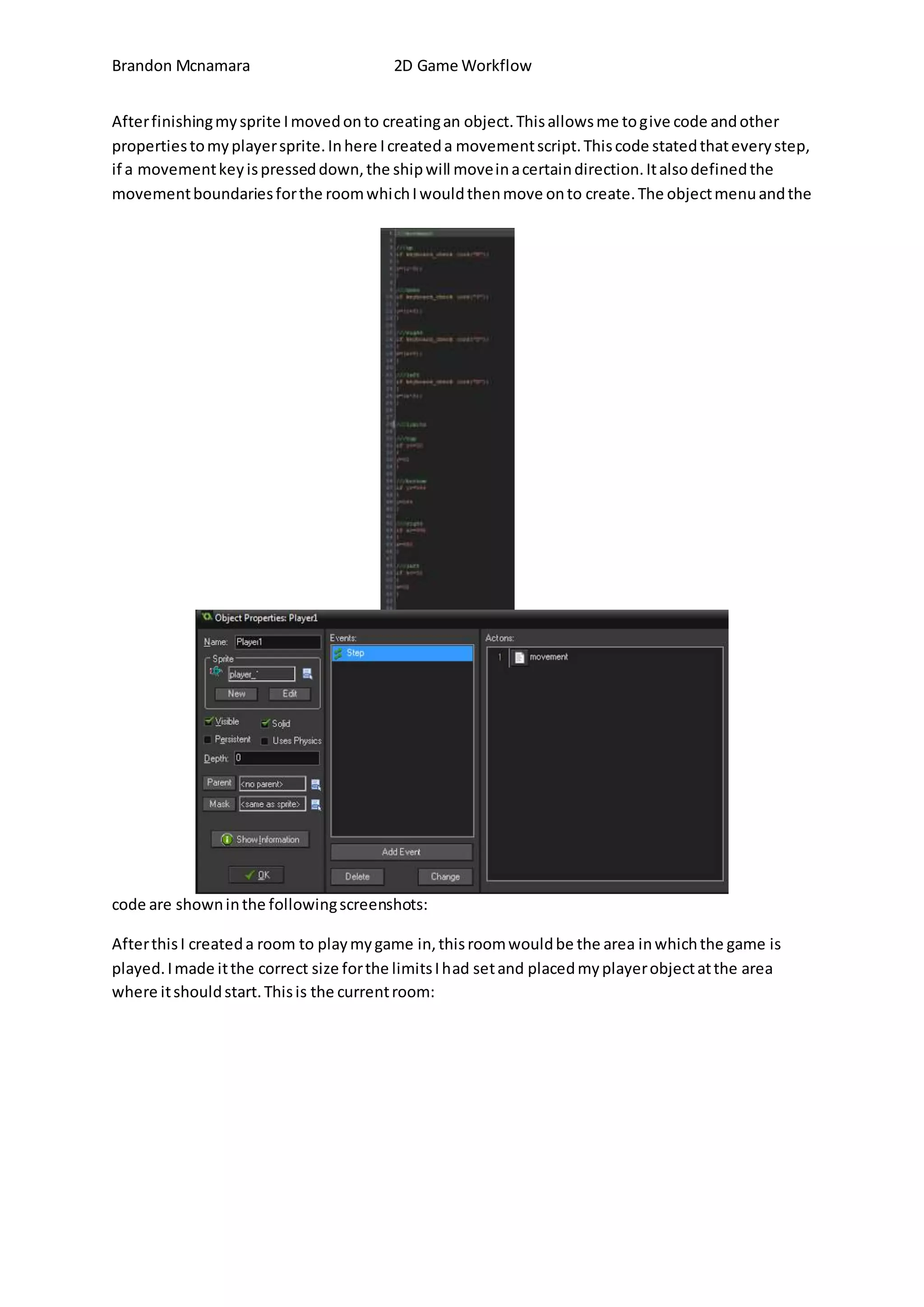
I then edited my sprite’s mask to better fit the shape of the ship. After looking at all the hitboxes I 
chose to stick with a simple Diamond hitbox as it covered most of the ship. This is the final player 
sprite with the properties and mask:
Brandon Mcnamara 2D Game Workflow 
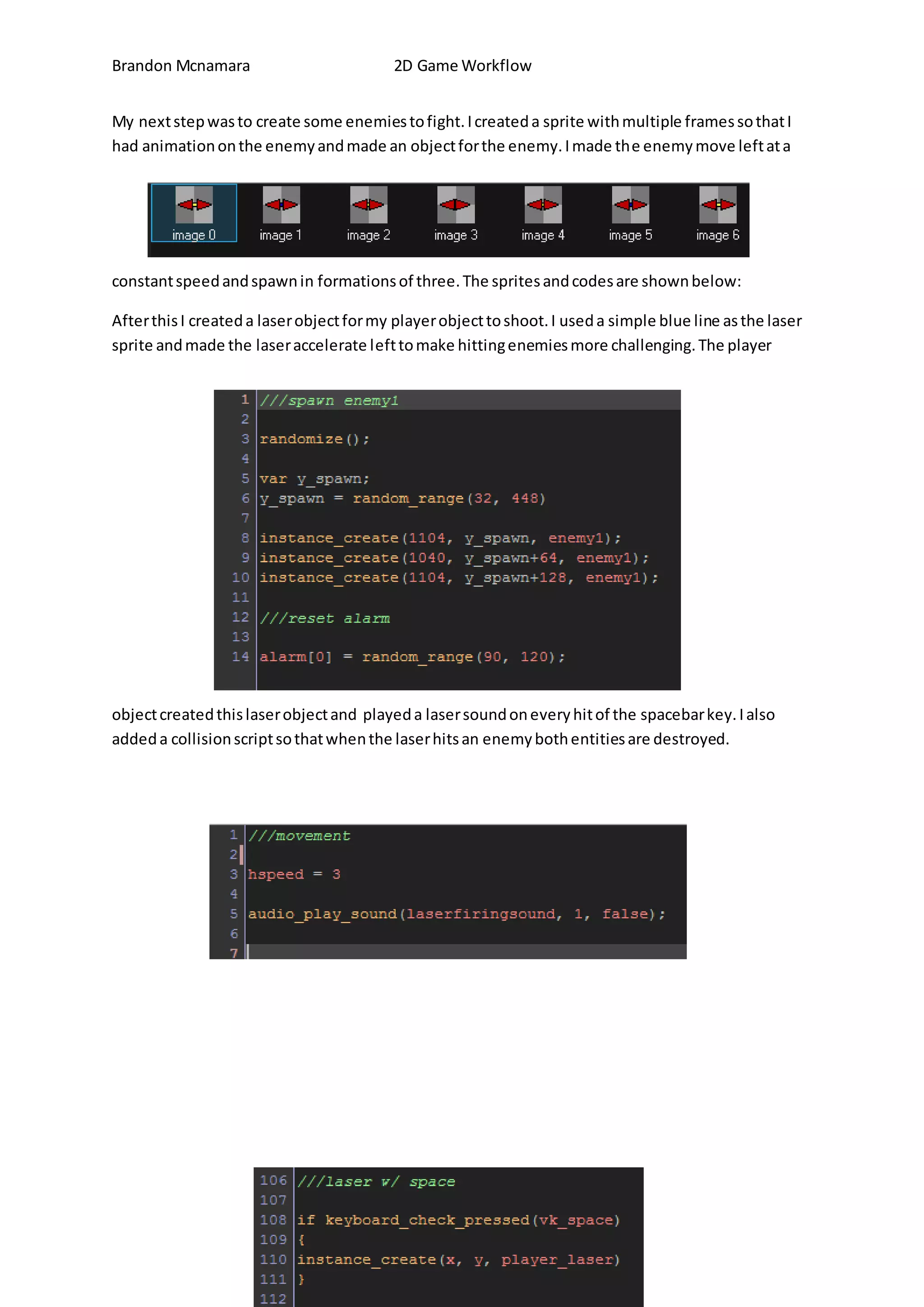
After finishing my sprite I moved on to creating an object. This allows me to give code and other 
properties to my player sprite. In here I created a movement script. This code stated that every step, 
if a movement key is pressed down, the ship will move in a certain direction. It also defined the 
movement boundaries for the room which I would then move on to create. The object menu and the 
code are shown in the following screenshots: 
After this I created a room to play my game in, this room would be the area in which the game is 
played. I made it the correct size for the limits I had set and placed my player object at the area 
where it should start. This is the current room:
Brandon Mcnamara 2D Game Workflow 
At this point I could play my game, but it didn’t yet have a background so I could just fly around a 
black background. I designed a background with some stars scattered around. I used the scrolling 
background feature in the room to make the background move backwards to give the illusion of 
movement. I also created a second background of a few larger stars and made them scroll 
backwards too but at a higher speed. This gives the illusion of depth. This is the current build of the 
game in play:
Brandon Mcnamara 2D Game Workflow 
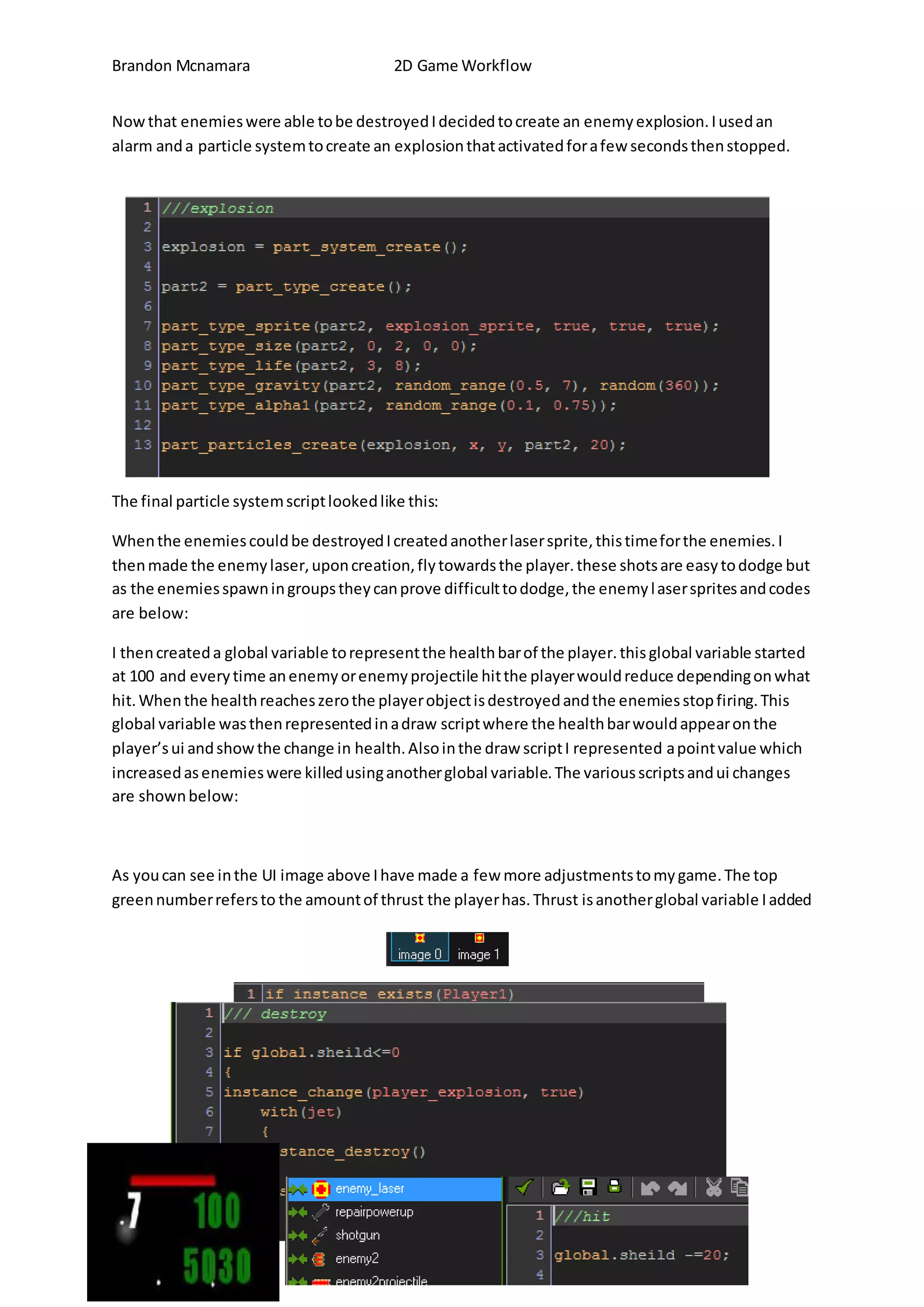
My next step was to create some enemies to fight. I created a sprite with multiple frames so that I 
had animation on the enemy and made an object for the enemy. I made the enemy move left at a 
constant speed and spawn in formations of three. The sprites and codes are shown below: 
After this I created a laser object for my player object to shoot. I used a simple blue line as the laser 
sprite and made the laser accelerate left to make hitting enemies more challenging. The player 
object created this laser object and played a laser sound on every hit of the spacebar key. I also 
added a collision script so that when the laser hits an enemy both entities are destroyed.
Brandon Mcnamara 2D Game Workflow 
Now that enemies were able to be destroyed I decided to create an enemy explosion. I used an 
alarm and a particle system to create an explosion that activated for a few seconds then stopped. 
The final particle system script looked like this: 
When the enemies could be destroyed I created another laser sprite, this time for the enemies. I 
then made the enemy laser, upon creation, fly towards the player. these shots are easy to dodge but 
as the enemies spawn in groups they can prove difficult to dodge, the enemy l aser sprites and codes 
are below: 
I then created a global variable to represent the health bar of the player. this global variable started 
at 100 and every time an enemy or enemy projectile hit the player would reduce depending on what 
hit. When the health reaches zero the player object is destroyed and the enemies stop firing. This 
global variable was then represented in a draw script where the health bar would appear on the 
player’s ui and show the change in health. Also in the draw script I represented a point value which 
increased as enemies were killed using another global variable. The various scripts and ui changes 
are shown below: 
As you can see in the UI image above I have made a few more adjustments to my game. The top 
green number refers to the amount of thrust the player has. Thrust is another global variable I added
Brandon Mcnamara 2D Game Workflow 
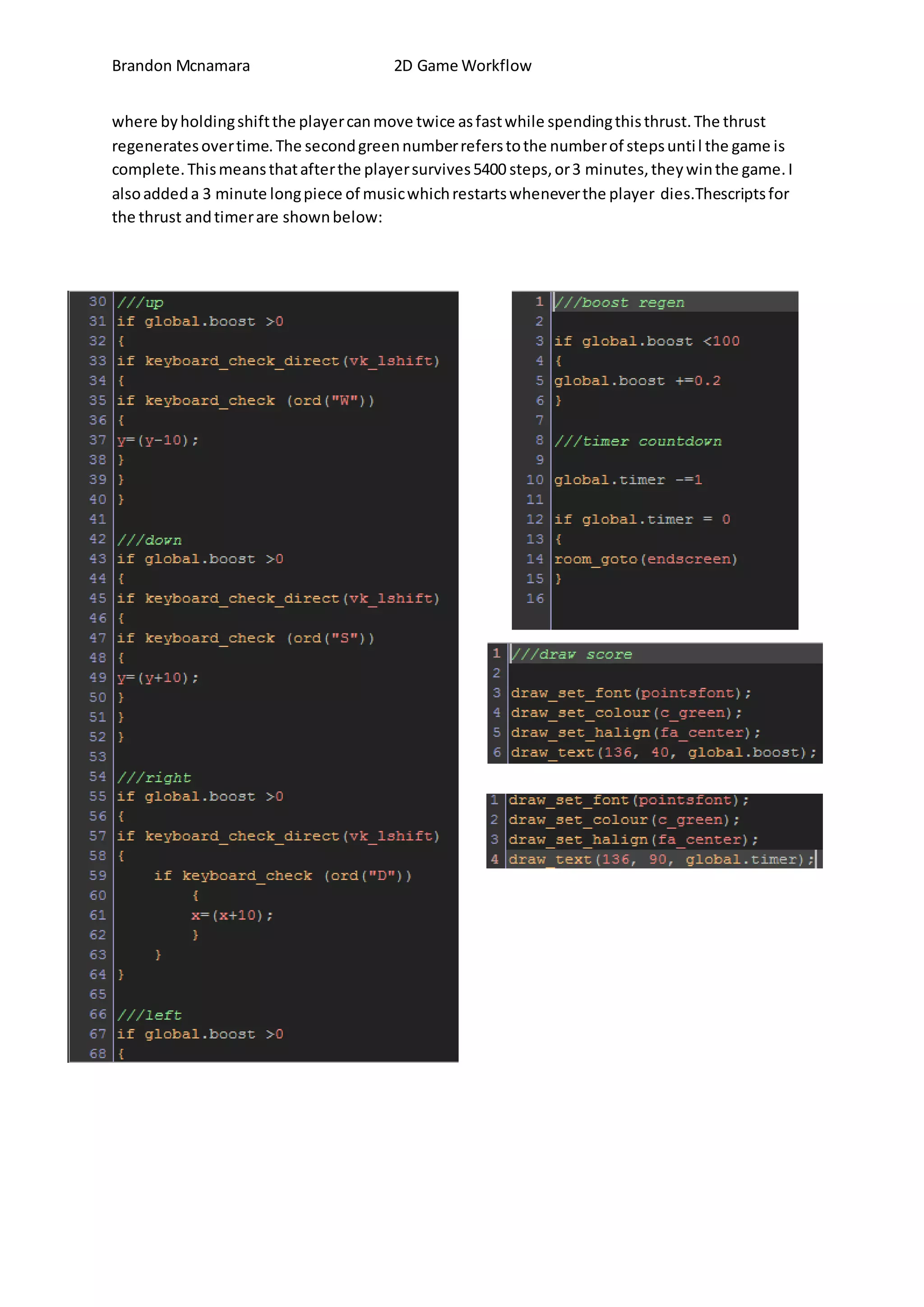
where by holding shift the player can move twice as fast while spending this thrust. The thrust 
regenerates over time. The second green number refers to the number of steps unti l the game is 
complete. This means that after the player survives 5400 steps, or 3 minutes, they win the game. I 
also added a 3 minute long piece of music which restarts whenever the player dies.Thescripts for 
the thrust and timer are shown below:
Brandon Mcnamara 2D Game Workflow 
After this I decided to create another weapon for the player, I decided on a shotgun style weapon 
which would fire multiple lasers in a large spread. To create his I created a different laser sprite and 
used it in a new laser object which instead of travelling straight forward travelled in a random 
direction within a certain angle of the player. I then made it so that when the player clicked enter 
the player object created multiple shotgun lasers creating a spread. This is how it looked in game 
and the code behind it: 
As this new weapon seemed a little too powerful I decided to turn it into a power up, I used a global 
variable to determine whether or not the player had the power up and only allowed them to fire if
Brandon Mcnamara 2D Game Workflow 
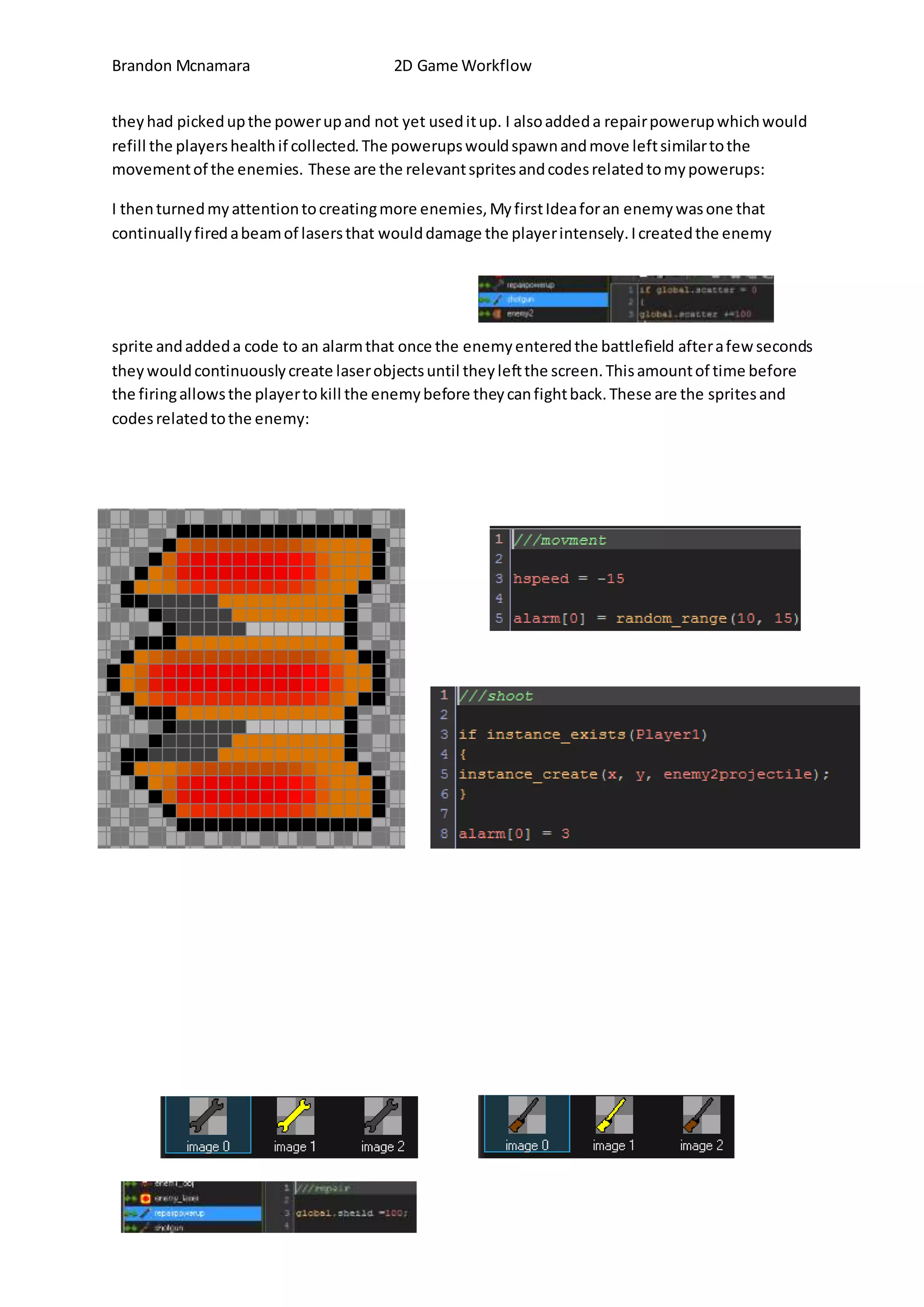
they had picked up the power up and not yet used it up. I also added a repair powerup which would 
refill the players health if collected. The powerups would spawn and move left similar to the 
movement of the enemies. These are the relevant sprites and codes related to my powerups: 
I then turned my attention to creating more enemies, My first Idea for an enemy was one that 
continually fired a beam of lasers that would damage the player intensely. I created the enemy 
sprite and added a code to an alarm that once the enemy entered the battlefield after a few seconds 
they would continuously create laser objects until they left the screen. This amount of time before 
the firing allows the player to kill the enemy before they can fight back. These are the sprites and 
codes related to the enemy:
Brandon Mcnamara 2D Game Workflow 
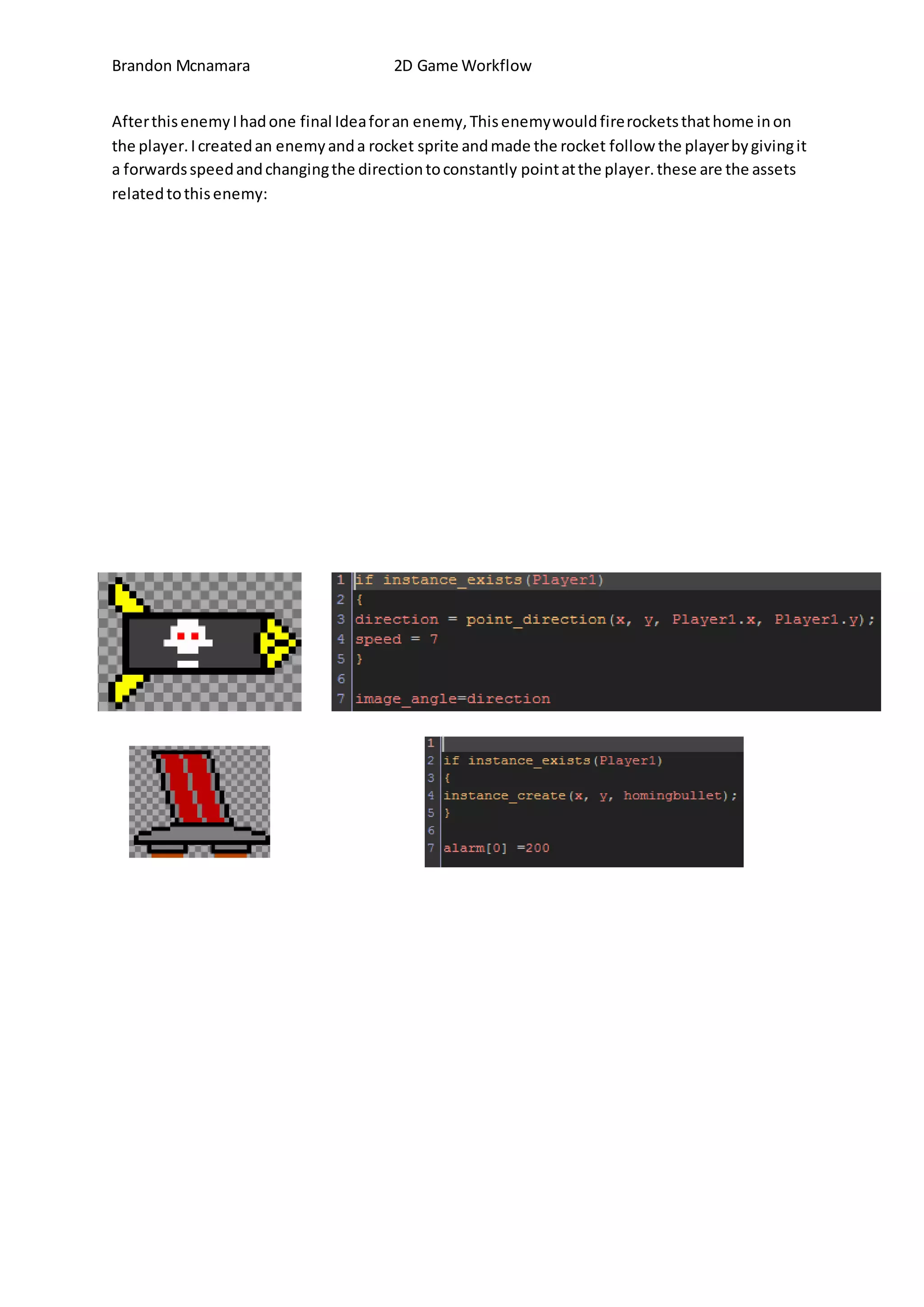
After this enemy I had one final Idea for an enemy, This enemy would fire rockets that home in on 
the player. I created an enemy and a rocket sprite and made the rocket follow the player by giving it 
a forwards speed and changing the direction to constantly point at the player. these are the assets 
related to this enemy:

2dworkflow complete

  • 1.
    Brandon Mcnamara 2DGame Workflow The first step I took in designing my game was designing my player sprite. As I was going for a side scrolling shooter with a space theme I decided to design a spaceship. When designing it I focused on making it similar to a normal, generic spaceship. The original design had a darker colour but I changed it to a teal colour after realising that it would be difficult to see the darker blue on the black background. This is the final result: I then edited my sprite’s mask to better fit the shape of the ship. After looking at all the hitboxes I chose to stick with a simple Diamond hitbox as it covered most of the ship. This is the final player sprite with the properties and mask:
  • 2.
    Brandon Mcnamara 2DGame Workflow After finishing my sprite I moved on to creating an object. This allows me to give code and other properties to my player sprite. In here I created a movement script. This code stated that every step, if a movement key is pressed down, the ship will move in a certain direction. It also defined the movement boundaries for the room which I would then move on to create. The object menu and the code are shown in the following screenshots: After this I created a room to play my game in, this room would be the area in which the game is played. I made it the correct size for the limits I had set and placed my player object at the area where it should start. This is the current room:
  • 3.
    Brandon Mcnamara 2DGame Workflow At this point I could play my game, but it didn’t yet have a background so I could just fly around a black background. I designed a background with some stars scattered around. I used the scrolling background feature in the room to make the background move backwards to give the illusion of movement. I also created a second background of a few larger stars and made them scroll backwards too but at a higher speed. This gives the illusion of depth. This is the current build of the game in play:
  • 4.
    Brandon Mcnamara 2DGame Workflow My next step was to create some enemies to fight. I created a sprite with multiple frames so that I had animation on the enemy and made an object for the enemy. I made the enemy move left at a constant speed and spawn in formations of three. The sprites and codes are shown below: After this I created a laser object for my player object to shoot. I used a simple blue line as the laser sprite and made the laser accelerate left to make hitting enemies more challenging. The player object created this laser object and played a laser sound on every hit of the spacebar key. I also added a collision script so that when the laser hits an enemy both entities are destroyed.
  • 5.
    Brandon Mcnamara 2DGame Workflow Now that enemies were able to be destroyed I decided to create an enemy explosion. I used an alarm and a particle system to create an explosion that activated for a few seconds then stopped. The final particle system script looked like this: When the enemies could be destroyed I created another laser sprite, this time for the enemies. I then made the enemy laser, upon creation, fly towards the player. these shots are easy to dodge but as the enemies spawn in groups they can prove difficult to dodge, the enemy l aser sprites and codes are below: I then created a global variable to represent the health bar of the player. this global variable started at 100 and every time an enemy or enemy projectile hit the player would reduce depending on what hit. When the health reaches zero the player object is destroyed and the enemies stop firing. This global variable was then represented in a draw script where the health bar would appear on the player’s ui and show the change in health. Also in the draw script I represented a point value which increased as enemies were killed using another global variable. The various scripts and ui changes are shown below: As you can see in the UI image above I have made a few more adjustments to my game. The top green number refers to the amount of thrust the player has. Thrust is another global variable I added
  • 6.
    Brandon Mcnamara 2DGame Workflow where by holding shift the player can move twice as fast while spending this thrust. The thrust regenerates over time. The second green number refers to the number of steps unti l the game is complete. This means that after the player survives 5400 steps, or 3 minutes, they win the game. I also added a 3 minute long piece of music which restarts whenever the player dies.Thescripts for the thrust and timer are shown below:
  • 7.
    Brandon Mcnamara 2DGame Workflow After this I decided to create another weapon for the player, I decided on a shotgun style weapon which would fire multiple lasers in a large spread. To create his I created a different laser sprite and used it in a new laser object which instead of travelling straight forward travelled in a random direction within a certain angle of the player. I then made it so that when the player clicked enter the player object created multiple shotgun lasers creating a spread. This is how it looked in game and the code behind it: As this new weapon seemed a little too powerful I decided to turn it into a power up, I used a global variable to determine whether or not the player had the power up and only allowed them to fire if
  • 8.
    Brandon Mcnamara 2DGame Workflow they had picked up the power up and not yet used it up. I also added a repair powerup which would refill the players health if collected. The powerups would spawn and move left similar to the movement of the enemies. These are the relevant sprites and codes related to my powerups: I then turned my attention to creating more enemies, My first Idea for an enemy was one that continually fired a beam of lasers that would damage the player intensely. I created the enemy sprite and added a code to an alarm that once the enemy entered the battlefield after a few seconds they would continuously create laser objects until they left the screen. This amount of time before the firing allows the player to kill the enemy before they can fight back. These are the sprites and codes related to the enemy:
  • 9.
    Brandon Mcnamara 2DGame Workflow After this enemy I had one final Idea for an enemy, This enemy would fire rockets that home in on the player. I created an enemy and a rocket sprite and made the rocket follow the player by giving it a forwards speed and changing the direction to constantly point at the player. these are the assets related to this enemy: