
 Still on Drupal 7? Security support for Drupal 7 ended on 5 January 2025. Please visit our Drupal 7 End of Life resources page to review all of your options.
6.13. Setting Up an Image Style
Last updated on
14 April 2025
- Vendor and Recipe content types must exist. See 「Adding a Content Type」.
- Main image fields must exist for both content types. See 「Adding Basic Fields to a Content Type」.
- Content items must exist for both content types. See 「Adding a Content Type」, 「Adding Basic Fields to a Content Type」, and 「コンテンツアイテムの作成」.
- In the Manage administrative menu, navigate to Configuration > Media > Image styles (admin/config/media/image-styles).
- Click Add image style.
- Enter the name Extra medium (300x200)
- Click Create new style. The page Edit style Extra medium (300x200) appears.
- In the Effect table, select Scale and crop. Click Add.
Fill in the fields as shown below.
Field name Value Width
300
Height
200
Click Add effect. The image style is saved with the chosen effects.
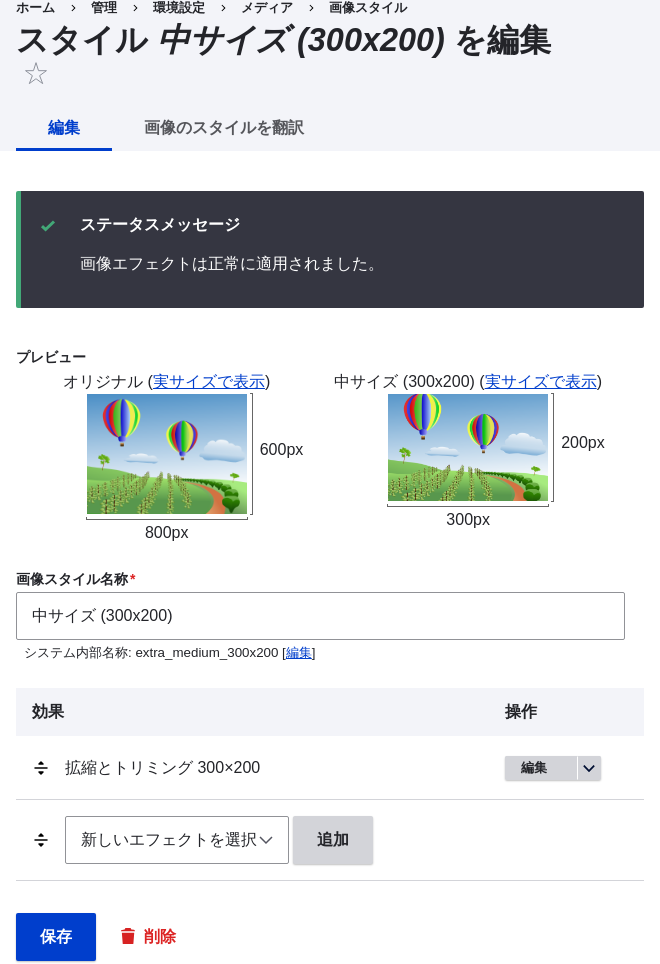
- In the Manage administrative menu, navigate to Structure > Content types (admin/structure/types).
- Click Manage display in the Operations dropdown for the Vendor content type. The Manage display page (admin/structure/types/manage/vendor/display) appears.
- Ensure that the secondary tab Default is selected.
- Click the cogwheel next to Main image for the configuration options.
Fill in the fields as shown below.
Field name Value Image style
Extra medium (300x200)
Link image to
Nothing

- Click Update.
- Click Save. The new image style will be used while displaying Vendor content.
- Open a Vendor content item and verify that it now shows up with the scaled-down image. See 「コンテンツアイテムの編集」 for information on how to locate an existing content item.
- Repeat steps 8-15 for the Recipe content type.
Drupal.org community documentation page "Working with images in Drupal 7 and 8"
Attributions
Adapted and edited by Boris Doesborg, and Jojy Alphonso at Red Crackle from "Working with images in Drupal 7 and 8", copyright 2000-2017 by the individual contributors to the Drupal Community Documentation.
This page is generated from AsciiDoc source from the User Guide. To propose a change, edit the source and attach the file to a new issue in the User Guide project. PDF and e-book formats are available on the User Guide project page.
Source file: structure-image-style-create.asciidoc
Help improve this page
Page status: No known problems
You can:
You can:
- Log in, click Edit, and edit this page
- Log in, click Discuss, update the Page status value, and suggest an improvement
- Log in and create a Documentation issue with your suggestion

