
 Still on Drupal 7? Security support for Drupal 7 ended on 5 January 2025. Please visit our Drupal 7 End of Life resources page to review all of your options.
5.6. Adding a Page to the Navigation
The About page content item must exist. See Section 5.2, “Creating a Content Item”.
- In the Manage administrative menu, navigate to Content (admin/content).
Find the About page, and click Edit in that row. The content editing form appears.

- Click Menu settings on the right to expand it.
- Check Provide a menu link for the menu options to appear.
Enter values from the table below:
Field name Explanation Example value Menu link title
Title that will be displayed in the menu
About
Description
Text that will be displayed when a visitor hovers over the link
History of the market
Parent link
Location of the page in the menu hierarchy. For example, if you choose <Main navigation>, the page will appear in the highest level of the navigation. By choosing another menu link as parent, you can create a menu hierarchy of multiple levels.
<Main navigation>
Weight
The order in which the page should appear in the menu (lower-weighted menu links will be shown before higher-weighted menu links)
-2
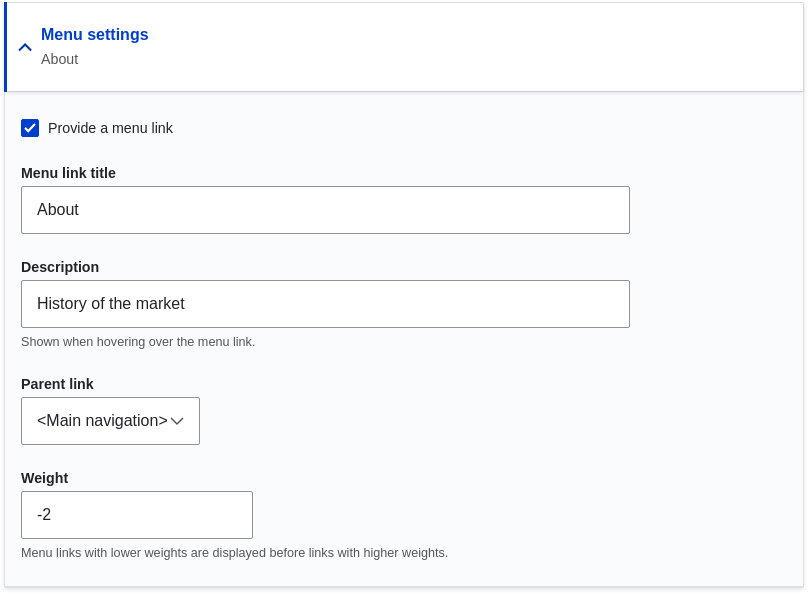
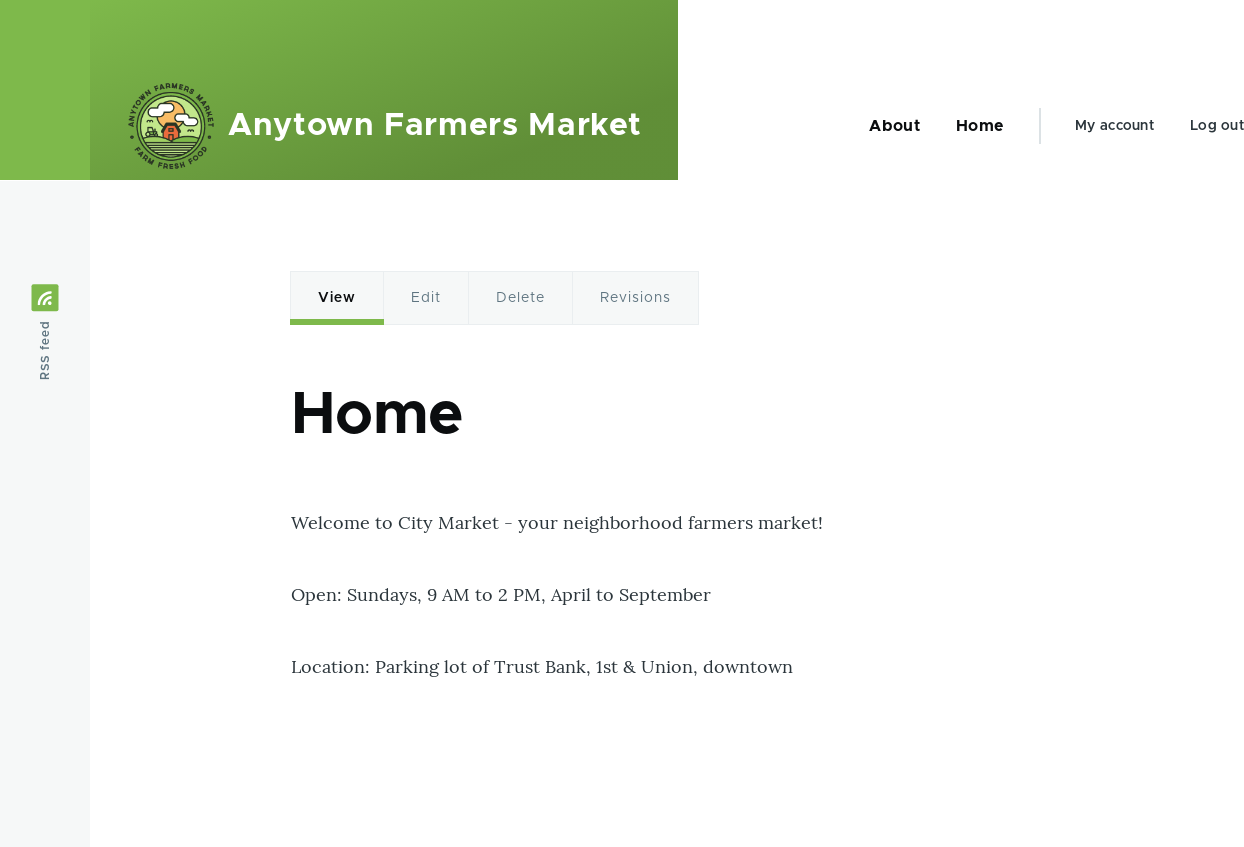
Click Save to save the changes. Click Home or Return to site in the navigation bar to see the result, which could look like the picture below.
Drupal.org community documentation page "Adding a link to a menu"
Attributions
Adapted by Boris Doesborg from "Adding a link to a menu", copyright 2000-2025 by the individual contributors to the Drupal Community Documentation; edited by Jack Haas.
Source file: menu-link-from-content.asciidoc
Help improve this page
You can:
- Log in, click Edit, and edit this page
- Log in, click Discuss, update the Page status value, and suggest an improvement
- Log in and create a Documentation issue with your suggestion

