
 Still on Drupal 7? Security support for Drupal 7 ended on 5 January 2025. Please visit our Drupal 7 End of Life resources page to review all of your options.
Getting Started
This documentation needs review. See "Help improve this page" in the sidebar.
In a nutshell
- Install the browser extension. Available for Firefox, Google Chrome, and Safari.
- Find an issue on the issue queue.
- Launch a DrupalPod environment (click on the extension icon in your browser).
- Have fun! (try/test/develop).
- Watch this video with all these steps in action
About DrupalPod
Main repository of the project is currently maintained on https://drupal.org/project/DrupalPod.
This project allows you to work on Drupal contributions with a familiar setup of a standard Drupal website. No configuration of a dev environment is needed because it is all running in the cloud.
The secret sauce
- Gitpod - development environment in the cloud
- DDEV - easy setup for PHP projects using Docker
- DrupalPod Browser Extension
- Drupal Core Development Project
Install the browser extension
DrupalPod has browser extensions Chrome, Firefox, and Safari. Go to the link of your browser and start.
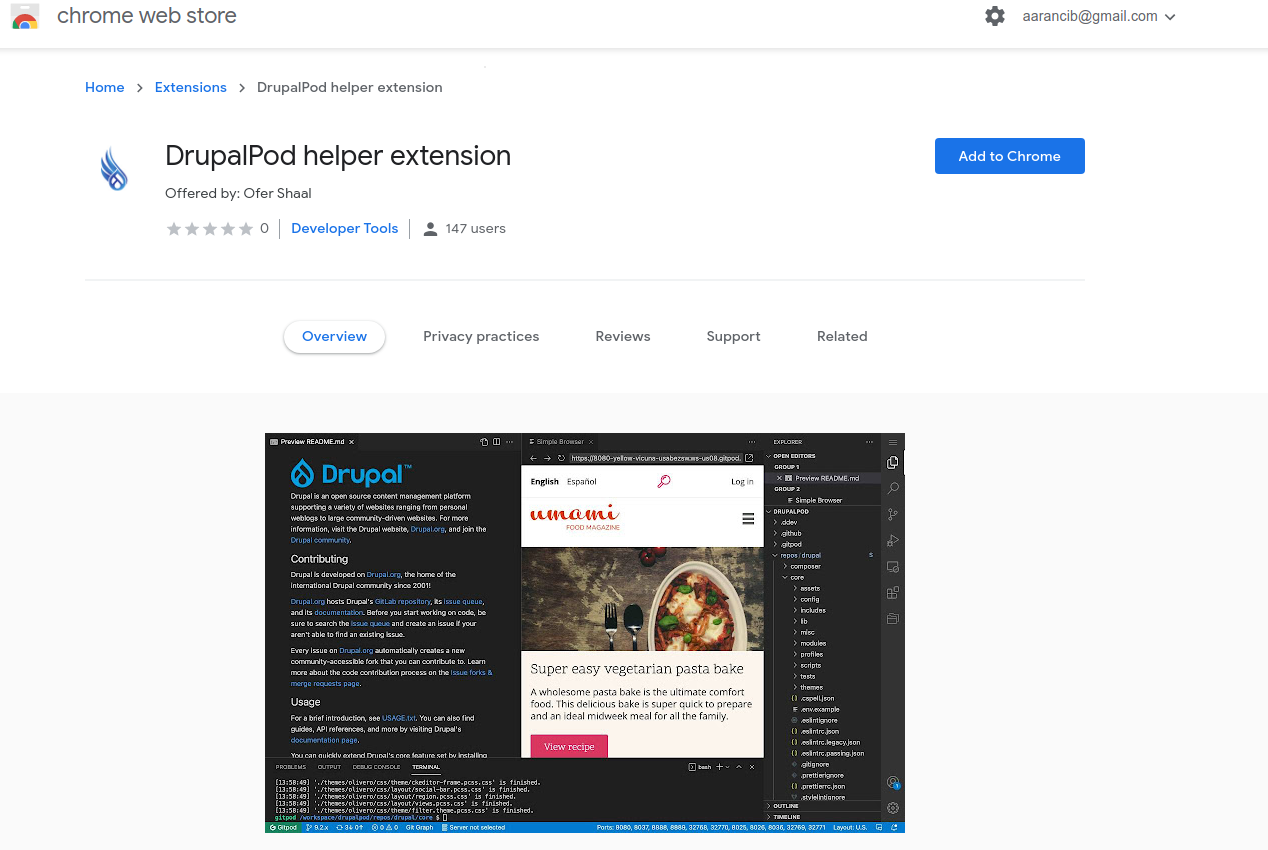
Find an issue
Go to https://www.drupal.org/project/issues/ and find an issue to review for Drupal Core, module or a theme.
On the issue page, click on the DrupalPod extension button and you will see some options for your development environment. You might need to click on the jigsaw icon (Firefox, Chrome) so that this button appears in your browser toolbar or in a select menu.

The pop-up dialog allows you to select options for the work environment.

- Branch: If there are branches for this issue created on gitlab, allows to select one of them.
- Drupal core version: choose between 9.5.x to 11.x
- Choose a patch: If the issue has uploaded patches, applies the patch to the environment.
- Install profile: Choose one of the Drupal install profiles for your environment.
To launch DrupalPod for Drupal 11.x, click or copy and paste this URL into a new tab:
Or change the value of DP_CORE_VERSION to the branch you need.
Alternatively you can get a link to create a development environment with the DrupalPod Launcher.
Launch DrupalPod
If you are a first-time contributor to the Drupal project, please visit https://git.drupalcode.org/-/users/terms prior to launching DrupalPod. If you have recently registered a drupal.org user account, ensure that your account has been confirmed or ask on Drupal Slack in #first-contribution or #contribute channels to be confirmed.
- Click on the Open Dev Env button.
- This will ask for authentication the first time. Choose GitHub.
- If you choose one of the options besides GitHub it won't work because DrupalPod sourcecode is hosted on GitHub.
- Click the Authorize to git.drupalcode.org link. This will open up a popup to Drupal's GitLab.
- If you have never been to Drupal GitLab you must accept the terms to contribute to the Drupal project. Read the terms, scroll down, and press Accept Terms. Then re-click the Authorize to git.drupalcode.org link.
- If you have never used DrupalPod linked to Drupal's GitLab, you will be presented with a red Authorize button. Press the Authorize button.
- If you had an issue with that workflow you can read about more details on Authorization
- After this the environment will be created.
After the creation of the GitPod, DDEV will run the usual scripts to get the Drupal project, apply the patches and setup the environment.
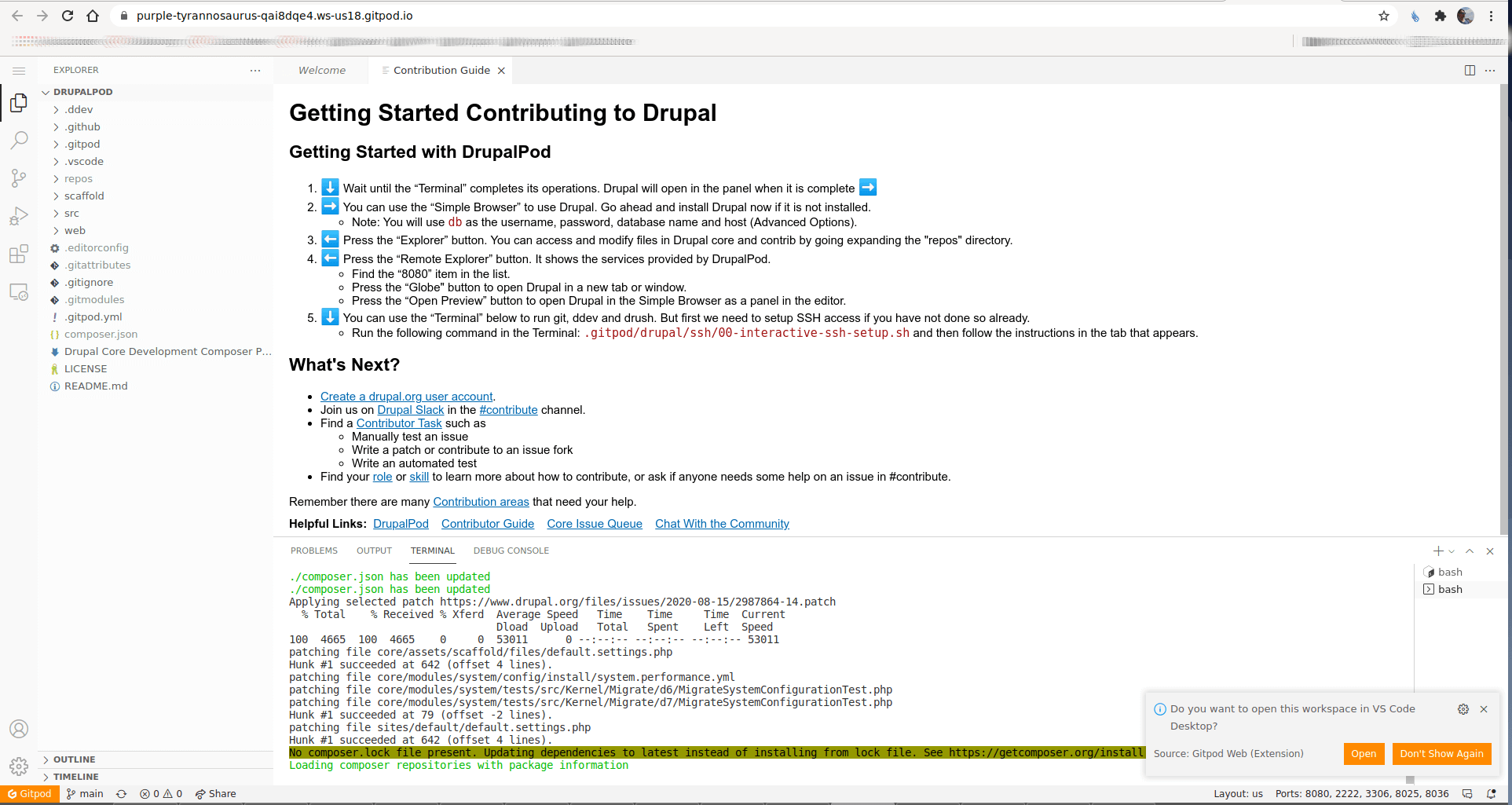
This is what a working DrupalPod environment looks like
About Gitpod
DrupalPod is built on Gitpod. You get 50 hours a month of free use of gitpod with the free plan. After the 50 hours/month are gone, you need to apply for professional open source at GitPod (free as long as it's open source work). A workspace goes to sleep after 30 minutes of inactivity to perserve your hours of GitPod.
You can see all your running environments on https://gitpod.io/workspaces. 
Using DrupalPod
After the launch of the development environment you will have access to a full development environment via your browser.

- Username and password are always admin / admin.
- It is possible to open the website on a new tab in your browser.
- You can use the “Terminal” below to run Git, DDEV, Drush and Composer. But first we need to setup SSH access if you have not done so already.
Authorization to be able to push changes into the branch: (only once)- Run the following command in the Terminal: `$ .gitpod/drupal/ssh/00-interactive-ssh-setup.sh` and then follow the instructions in the tab that appears.
- Contrib modules, themes and profiles can be installed with
composer require drupal/NAME_OF_PROJECT.
Sharing
DrupalPod is great for collaborative work, you can:
- Share the url of the website with other people.
- Share your running workspace
- This should only be done when you trust someone. You are giving them access to the machine in the cloud on which this drupal site is running.
- The person that has this link is then also able to commit via your github ssh authentication
- You can stop sharing your workspace at any time.
New User Authorization
If the workflow above to authorize on initial load of DrupalPod does not work, you can follow these steps:
- Go to Drupal's user page - https://www.drupal.org/user
- Click on
DrupalCode Access - Choose any of the links:
Manage GitLab settings on git.drupalcode.org:

Emails
Notifications
SSH Keys
GPG Keys
Preferences
Access Tokens
You will get into the terms page, and it will log you in into drupalcode
- Scroll down, and click on "Accept Terms"
Help improve this page
You can:
- Log in, click Edit, and edit this page
- Log in, click Discuss, update the Page status value, and suggest an improvement
- Log in and create a Documentation issue with your suggestion

